

Page 1
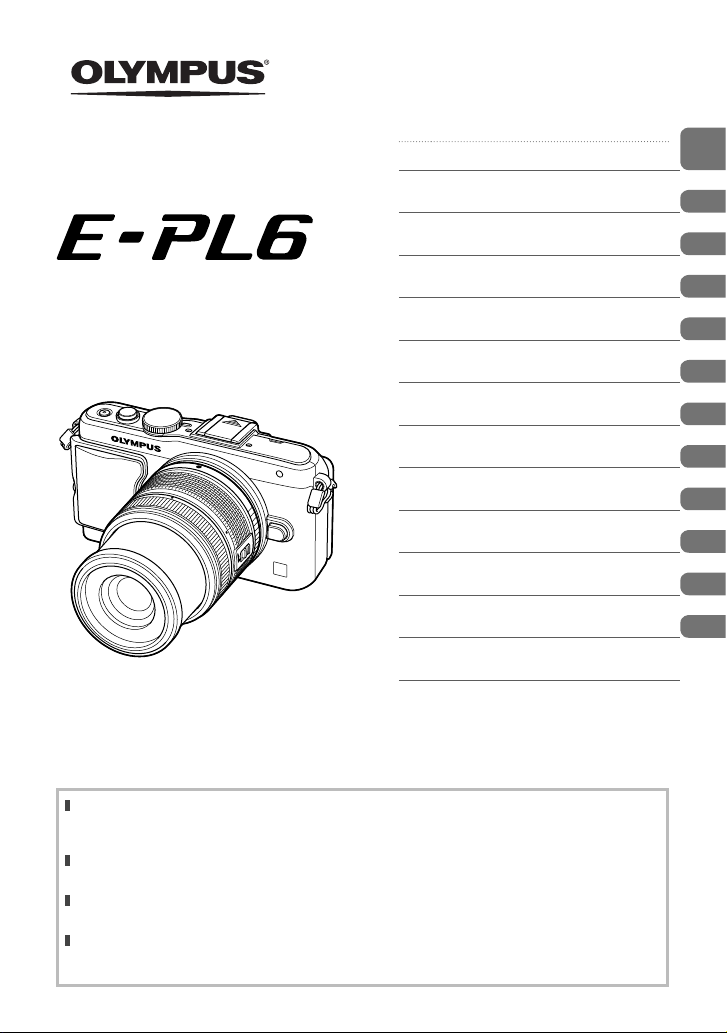
DIGITAL CAMERA
Instruction Manual
Table of Contents
Quick task index
Preparing the camera and flow of
1.
operations
2. Basic operations
Frequently-used options and
3.
customization
4. Printing pictures
Connecting the camera to a
5.
computer
6. Other
7. Battery and charger
8. Card basics
9. Interchangeable lenses
Information/
10.
Separately sold accessories
11. SAFETY PRECAUTIONS
Index
Thank you for purchasing an O lympus digital camera. Before you star t to use your new camera,
please read these instructions caref ully to enj oy optimum performance and a longer servic e life.
Keep this manual in a safe place for future reference.
We recommend that you take test shots to get accustomed to your camera before taking impor tant
photographs.
The screen and camera illustrations shown in this manual were produc ed during the development
stages and may dif fer fro m the actual product.
The contents in this manual are based o n firmware version 1.0 for this camera. If there are
additions and/o r modif ications of functions due to firmware update for the camera, the c ontents will
differ. For the latest information, please visit the Olympus website.
Page 2
This notice concerns the supplied fl ash unit and is chiefl y directed to users in
North America.
Information for Your Safety
IMPORTANT SAFETY
INSTRUCTIONS
When using your photographic equipment, basic safety precautions should always be
followed, including the following:
• Read and understand all instructions before using.
• Close supervision is necessary when any fl ash is used by or near children. Do not leave
fl ash unattended while in use.
• Care must be taken as burns can occur from touching hot parts.
• Do not operate if the fl ash has been dropped or damaged - until it has been examined by
qualifi ed service personnel.
• Let fl ash cool completely before putting away.
• To reduce the risk of electric shock, do not immerse this fl ash in water or other liquids.
• To reduce the risk of electric shock, do not disassemble this fl ash, but take it to qualifi ed
service personnel when service or repair work is required. Incorrect reassembly can
cause electric shock when the fl ash is used subsequently.
• The use of an accessory attachment not recommended by the manufacturer may cause a
risk of fi re, electric shock, or injury to persons.
SAVE THESE INSTRUCTIONS
Indications used in this manual
The following symbols are used throughout this manual.
Important information on factors which may lead to a malfunction
Cautions
#
Notes
$
Tips
%
g
2
EN
or operational problems. Also warns of operations that should be
absolutely avoided.
Points to note when using the camera.
Useful information and hints that will help you get the most out of
your camera.
Reference pages describing details or related information.
Page 3

Table of Contents
Quick task index 6
Preparing the camera and fl ow
of operations 8
Names of parts .............................8
Unpack the box contents ...........10
Charging and inserting the
battery .........................................11
Inserting and removing cards ...12
Attaching a lens to the
camera .........................................13
Attaching the fl ash unit .............14
Power on .....................................15
Setting the date/time ..................16
Shooting ......................................17
Setting the Shooting mode .......17
Taking photographs ..................17
Recording movies .....................19
Viewing photographs and
movies .........................................20
Index display/
Calendar display
Viewing still images ..................20
Watching movies ......................21
Volume......................................21
Erasing images .........................21
Selecting images ......................21
........................20
Basic operations 22
Basic shooting operations ........22
Monitor display during
shooting ....................................22
Switching the information
display ......................................23
Focus lock ................................23
Using the shooting modes ........24
“Point-and-shoot” photography
(P program mode) ....................24
Choosing aperture
(A aperture-priority mode) .......25
Choosing shutter speed
(S shutter-priority mode) ..........26
Choosing aperture and shutter
speed (M manual mode) ..........26
Using movie mode
Using art fi lters..........................28
Shooting in scene mode ...........29
Using shooting options .............31
Using live guides ......................31
Controlling exposure
(exposure compensation) .........32
Changing the brightness of
highlights and shadows ............32
Using a fl ash
(fl ash photography)...................33
Choosing a focus target
(AF Area) ..................................35
Sequential shooting/using the
self timer ...................................35
Zoom frame AF/zoom AF..........36
Basic playback operations ........38
Monitor display during
playback ...................................38
Switching the information
display ......................................38
Single-frame playback ..............39
Using playback options.............40
Using the touch screen ..............43
Live guides ...............................43
Shooting mode .........................43
Playback mode .........................44
Adjusting Settings .....................45
(n) ............27
Table of Contents
EN
3
Page 4

Frequently-used options and
customization 46
Using live control .......................46
Reducing camera shake
Table of Contents
4
(image stabilizer) ......................47
Processing options
(picture mode) ..........................48
Adding effects to a movie .........49
Adjusting color
(white balance) .........................50
Setting the image aspect ..........51
Image quality (record mode).....52
Adjusting fl ash output
(fl ash intensity control)..............53
Choosing how the camera
measures brightness
(metering) .................................54
Choosing a focus mode
(AF mode).................................55
ISO sensitivity ...........................56
Face priority AF/
pupil detection AF .....................56
Movie sound options (recording
sound with movies) ...................57
Using the menus ........................58
Shooting Menu 1/
Shooting Menu 2 ......................59
Formatting the card
(Card Setup) .............................59
Restoring default settings
(Reset/Myset) ...........................59
Processing options
(Picture Mode) ..........................60
Image quality (K) ...................62
Setting the self timer (j/Y) ...62
Varying settings over a series of
photographs (bracketing)..........62
Recording multiple exposures
in a single image
(multiple exposure) ...................64
Shooting automatically
with a fi xed interval
(time lapse shooting)
EN
Wireless remote control fl ash
photography..............................66
Digital Zoom (Digital Tele-
converter) .................................66
Playback Menu .........................67
Displaying images rotated
(R) ..........................................67
Editing still images ....................67
Canceling all protections ..........69
Using the Smartphone
connection option
(Connection to Smartphone) ....70
Setup Menu ..............................71
X (Date/time setting) ...............71
W (Changing the display
language)..................................71
i (Monitor brightness
adjustment) ...............................71
Rec View ..................................71
c/# Menu Display .................. 71
Firmware...................................71
Using the custom menus ...........72
Before Using the Custom/
Accessory Port Menus..............72
Custom Menu ...........................73
R AF/MF ..................................73
S Button/Dial ...........................73
T Release/j .........................74
U Disp/8/PC ..........................74
V Exp/p/ISO ..........................76
W # Custom ............................77
X K/Color/WB .......................77
Y Record/Erase .......................78
Z Movie ...................................79
b K Utility .............................. 79
AEL/AFL ...................................80
Button Function ........................81
Viewing camera images
on TV ........................................82
.................65
Page 5
Choosing the control panel
displays
(KControl Settings) ................84
Adding information displays
(G/Info Settings) .....................86
Shutter speeds when the fl ash
fi res automatically
[# X-Sync.] [# Slow Limit] ......87
Adding effects to a movie
[Movie Effect] ............................87
Accessory Port Menu .................89
Using OLYMPUS PENPAL .......89
A
OLYMPUS PENPAL Share
B
OLYMPUS PENPAL Album
C Electronic Viewfi nder ...........91
...90
...91
Printing pictures 92
Print reservation (DPOF) ...........92
Creating a print order................92
Removing all or selected
pictures from the print order .....93
Direct printing (PictBridge) .......93
Easy printing .............................94
Custom printing ........................94
Connecting the camera to a
computer 96
Installing the PC software .........96
Copying pictures to a computer
without OLYMPUS Viewer 3 .......98
Other 99
Shooting tips and information
Error codes ...............................101
Cleaning and storing the
camera .......................................103
Cleaning the camera ..............103
Storage ...................................103
Cleaning and checking the
image pickup device ...............103
...99
Pixel Mapping - Checking the
image processing functions ....104
Battery and charger 105
Battery and charger .................105
Using your charger abroad .....105
Card basics 106
Usable cards .............................106
Interchangeable lenses 107
M.ZUIKO DIGITAL lens
specifi cations ..........................107
Information/Separately sold
accessories 110
Record mode and fi le size/
number of storable
still pictures ..............................110
Using separately sold
accessories ............................... 111
Electronic Viewfi nder (VF-4) ... 111
Using external fl ash units
designated for use with this
camera.................................... 113
Wireless remote control fl ash
photography............................ 113
Other external fl ash units........ 114
Menu directory ..........................115
Specifi cations ...........................120
System chart .............................122
Principal Accessories ..............124
SAFETY PRECAUTIONS 125
SAFETY PRECAUTIONS ..........125
Index 133
Table of Contents
EN
5
Page 6
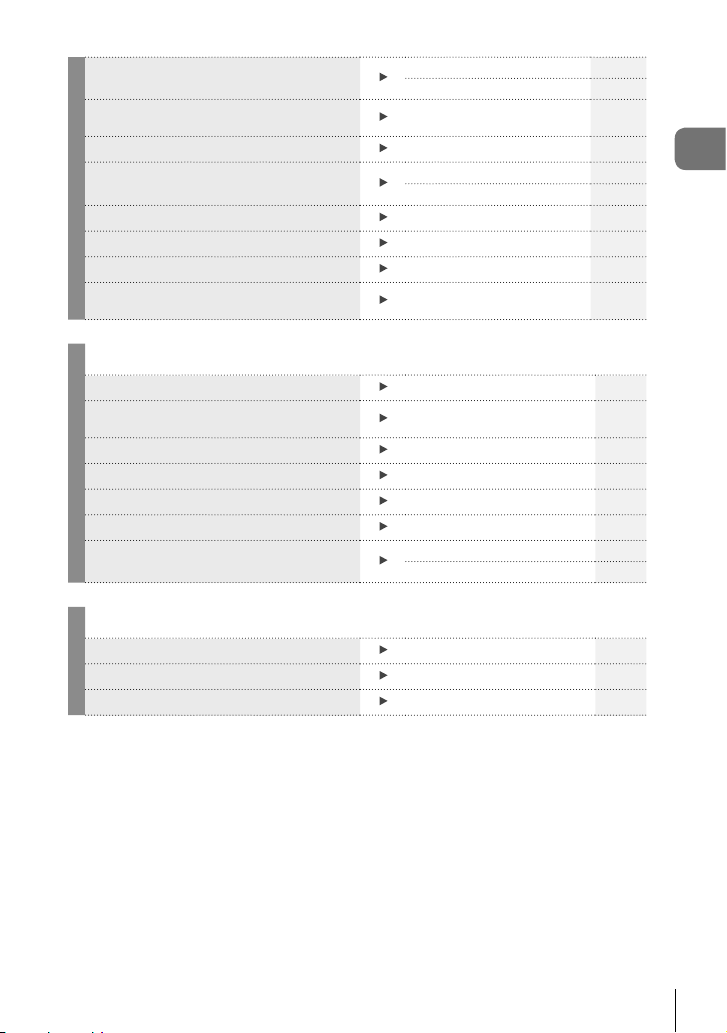
Quick task index
Shooting
Quick task index
6
Taking pictures with automatic settings
Easy photography with special effects
Choosing an aspect ratio
Quickly matching settings to the scene
Pro-level photography made simple
Adjusting the brightness of a photograph
Taking pictures with a blurred background
Taking pictures that stop the subject in
motion or convey a sense of motion
Taking pictures with the correct color
Processing pictures to match the subject/
Taking monotone pictures
When the camera will not focus on your
subject/Focusing on one area
Focusing on a small spot in the frame/
confi rming focus before shooting
Recomposing photographs after focusing
Turning off the beep speaker
Taking photos without the fl ash
Reducing camera shake
Taking pictures of a subject against
backlight
Photographing fi reworks
Reducing image noise (mottling)
Taking pictures without white subjects
appearing too white or black subjects
appearing too dark
Optimizing the monitor/
adjusting monitor hue
EN
g
iAUTO (A)
Art fi lter (ART)28
Aspect ratio 51
Scene mode (SCN)29
Live Guide 31
Exposure compensation 32
Live Guide 31
Aperture priority shooting 25
Live Guide 31
Shutter priority shooting 26
White balance 50
One-touch white balance 51
Picture Mode 48
Art fi lter (ART)28
AF Area 35
Zoom frame AF/zoom AF 36
Zoom frame AF/zoom AF 36
Focus lock 23
C-AF+TR (AF tracking) 55
8 (Beep sound)
ISO/DIS Mode 56/29
Image Stabilizer 47
Anti-Shock 76
Self-timer 35
Remote cable 124
Flash shooting 33
Gradation (Picture Mode) 61
Bulb/time photography 27
Scene mode (SCN)29
Noise Reduct. 76
Gradation (Picture Mode) 61
Histogram/
Exposure compensation
Highlight&Shadow Control 32
Monitor brightness
adjustment
Live View Boost 75
17
75
23/32
71
Page 7
Checking set effect before taking a
picture
Checking horizontal or vertical orientation
before shooting
Shooting with deliberate composition
Zooming in on photos to check focus
Self-portraits
Sequential shooting
Extending the useful life of the battery
Increasing the number of pictures that
can be taken
Preview function 81
Test Picture 81
Level gauge 23
Displayed Grid 75
Autoq (Rec View)
mode2 (q Close Up Mode)
Self-timer 35
Sequential shooting 35
Sleep 75
Record mode 52
71
75
Quick task index
Playback/Retouch
Viewing images on a TV Playback on TV 82
Viewing slideshows with background
music
Brightening shadows
Dealing with red-eye
Printing made easy
Commercial prints
Simple photo sharing
Slideshow 42
Shadow Adj (JPEG Edit) 68
Redeye Fix (JPEG Edit) 68
Direct printing 93
Creating a print order 92
OLYMPUS PENPAL 89
Connection to Smartphone 70
Camera Settings
Restoring default settings Reset 59
Saving the settings
Changing the menu display language
Myset 59
W
g
g
71
EN
7
Page 8
Preparing the camera and fl ow of
1
1
Preparing the camera and fl ow of operations
operations
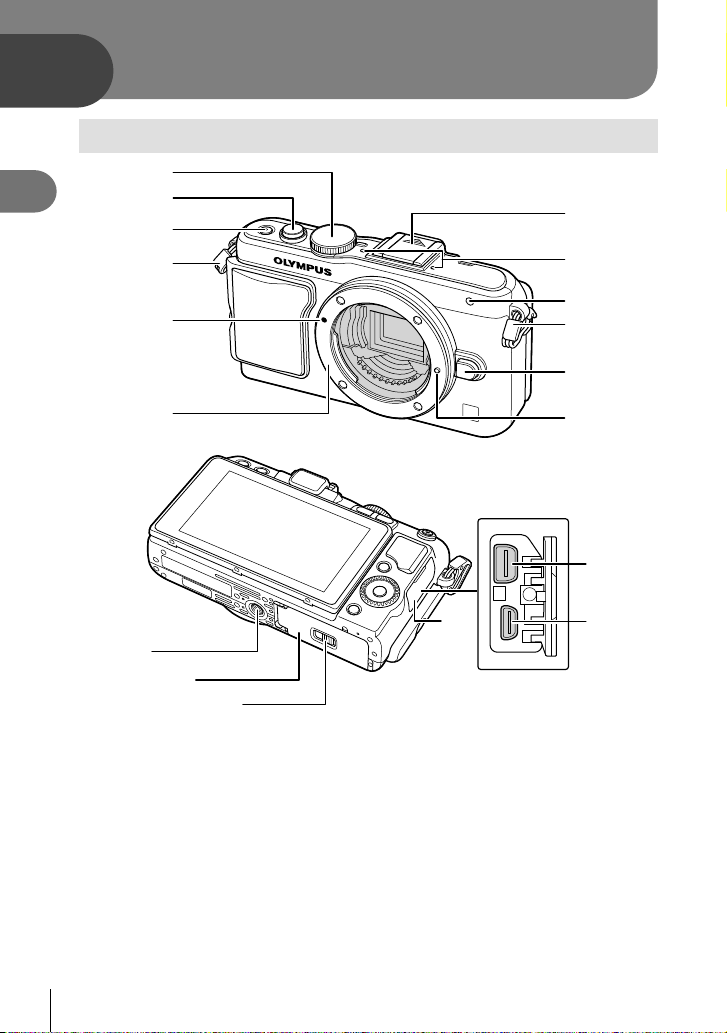
Names of parts
1
2
3
4
7
8
5
6
b
c
d
1 Mode dial ........................................P. 17
2 Shutter button ...........................P. 18, 23
3 ON/OFF button ..............................P. 15
4 Strap eyelet.....................................P. 10
5 Lens attachment mark ....................P. 13
6 Mount (Remove the body cap before
attaching the lens.)
7 Hot shoe cover
8 Stereo microphone ...................P. 57, 69
9 Self-timer lamp/AF illuminator
...............................................P. 35/P. 73
9
4
0
a
f
e
0 Lens release button ........................P. 13
a Lens lock pin
b Tripod socket
c Battery/card compartment cover.....P. 11
d Battery/card compartment lock ....... P. 11
e Connector cover
f Multi-connector ...................P. 82, 93, 96
g HDMI micro connector (type D) ......P. 82
g
8
EN
Page 9
1
2
3
4
6
5
78
a
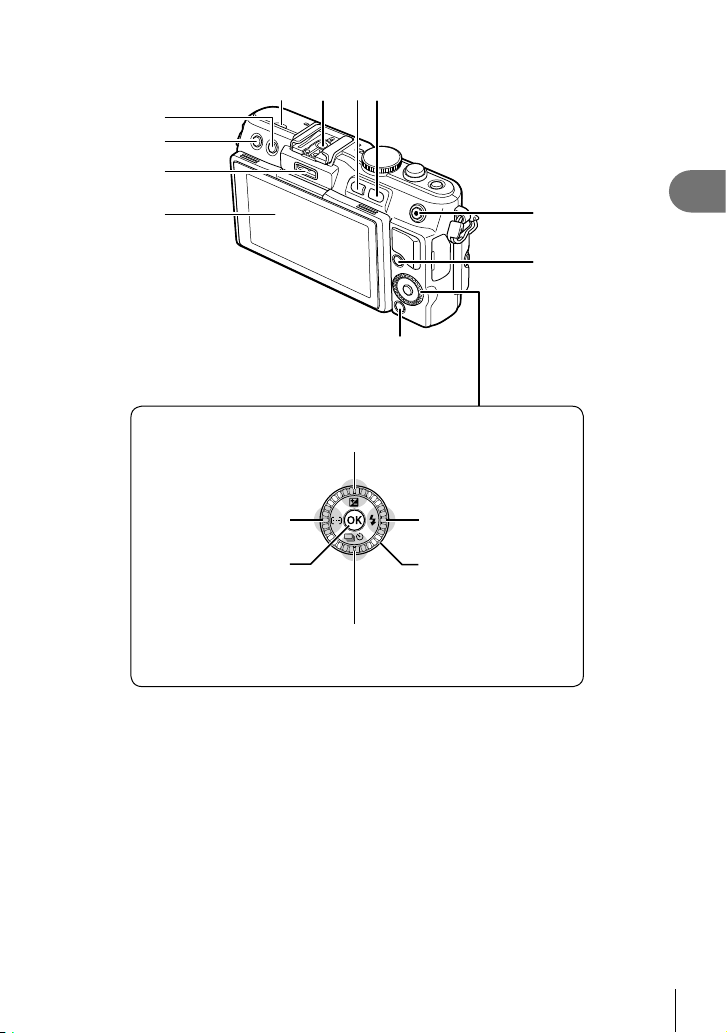
F (Up) / F (Exposure compensation)
button (P. 32)
9
0
1
Preparing the camera and fl ow of operations
b
H (Left) / P (AF
target) button (P. 35)
Q button
(P. 46, 58)
G (Down) / jY
(Sequential shooting/Self-timer)
button (P. 35)
1 (Erase) button ............................P. 21
2 q (Playback) button ................P. 20, 39
3 Accessory port ..........................P. 72, 89
4 Monitor ......................................P. 22, 38
5 Speaker
6 Hot shoe .......................................P. 113
7 Fn/G button ...................P. 81/P. 20, 39
* In this manual, the j icon represents operations performed using the control dial.
I (Right) /# (Flash)
button (P. 33)
Control dial* (j)
(P. 20)
Rotate to choose an
option.
8 U button .......................P. 20, 36, 39, 86
9 H/R (Movie) button ..P. 21/P. 19, 21, 81
0 INFO (Information display) button
............................................P. 23, 32, 38
a MENU button .................................P. 58
b Arrow pad
Control dial* (j) ...........................P. 20
EN
9
Page 10
Unpack the box contents
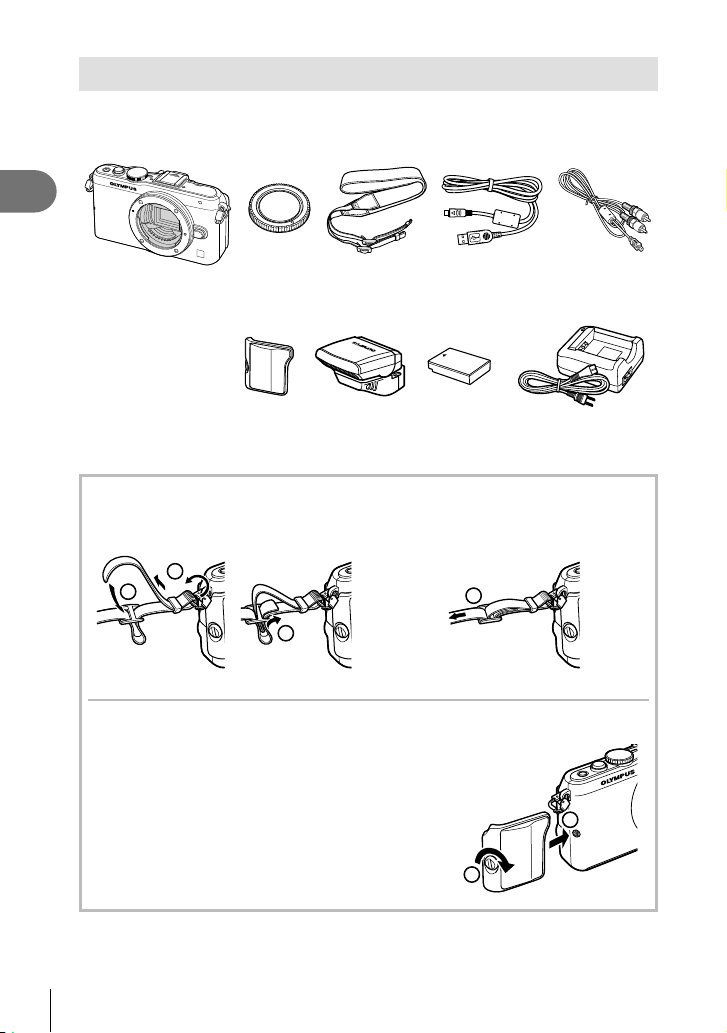
The following items are included with the camera.
If anything is missing or damaged, contact the dealer from whom you purchased the
camera.
1
Preparing the camera and fl ow of operations
Camera
• Flash case
• Computer software
CD-ROM
• Instruction manual
• Warranty card
Body cap Strap USB cable
Camera
grip
MCG-4
Flash
FL-LM1
CB-USB6
Lithium ion
battery BLS-5
Attaching the strap
Thread the strap in the direction of
1
the arrows.
1
2
3
• Attach the other end of the strap to the other eyelet in the same way.
Lastly, pull the strap tight making
2
sure that it is fastened securely.
4
Attaching the grip
Use a coin or similar object to tighten the screw.
AV cable
(Monaural)
CB-AVC3
Lithium ion charger
BCS-5
1
2
10
EN
Page 11
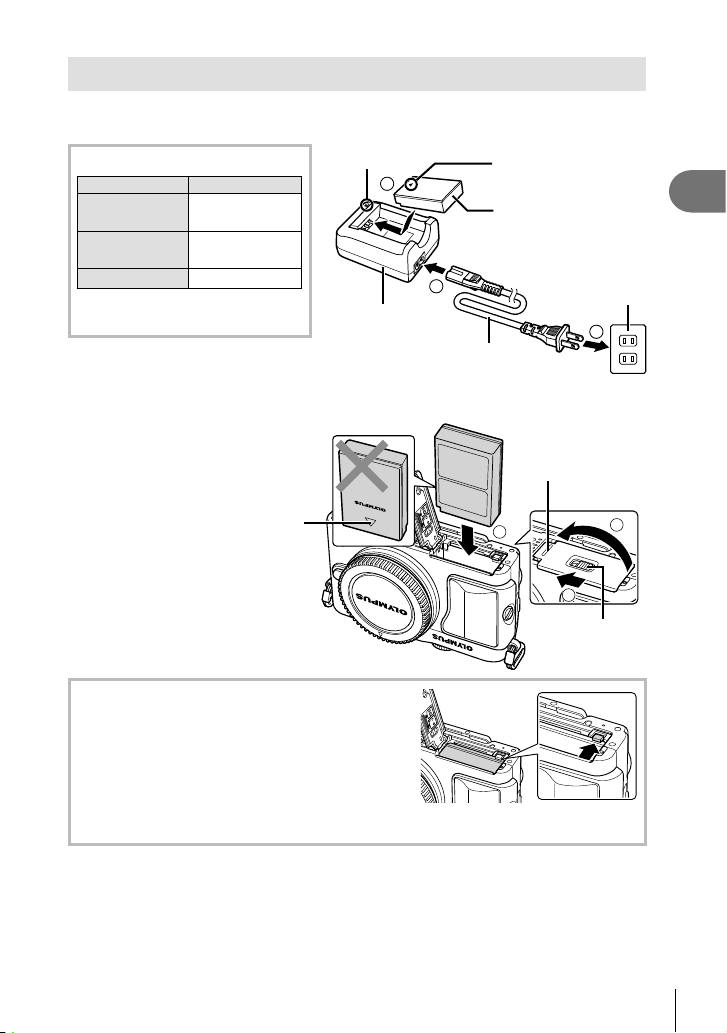
Charging and inserting the battery
Charging the battery.
1
Charging indicator
Charging in
progress
Charging
complete
Charging error
(Charging time: Up to approximately
3 hours 30 minutes)
BCS-5
Lights orange
Off
Blinks orange
Charging indicator
Lithium ion
# Cautions
• Unplug the charger when
charging is complete.
Loading the battery.
2
Direction
indicating
mark
3
charger
1
Direction indicating mark
()
Lithium ion battery
AC cable
Battery/card
compartment cover
3
Battery/card
compartment lock
1
Preparing the camera and fl ow of operations
AC wall outlet
2
2
1
Removing the battery
Turn off the camera before opening or closing the
battery/card compartment cover. To remove the
battery, fi rst push the battery lock knob in the direction
of the arrow and then remove.
# Cautions
• Contact an authorized distributor or service center if you are unable to remove the
battery. Do not use force.
$ Notes
• It is recommended to set aside a backup battery for prolonged shooting in case the
battery in use drains.
• Also read “Battery and charger” (P. 105).
EN
11
Page 12
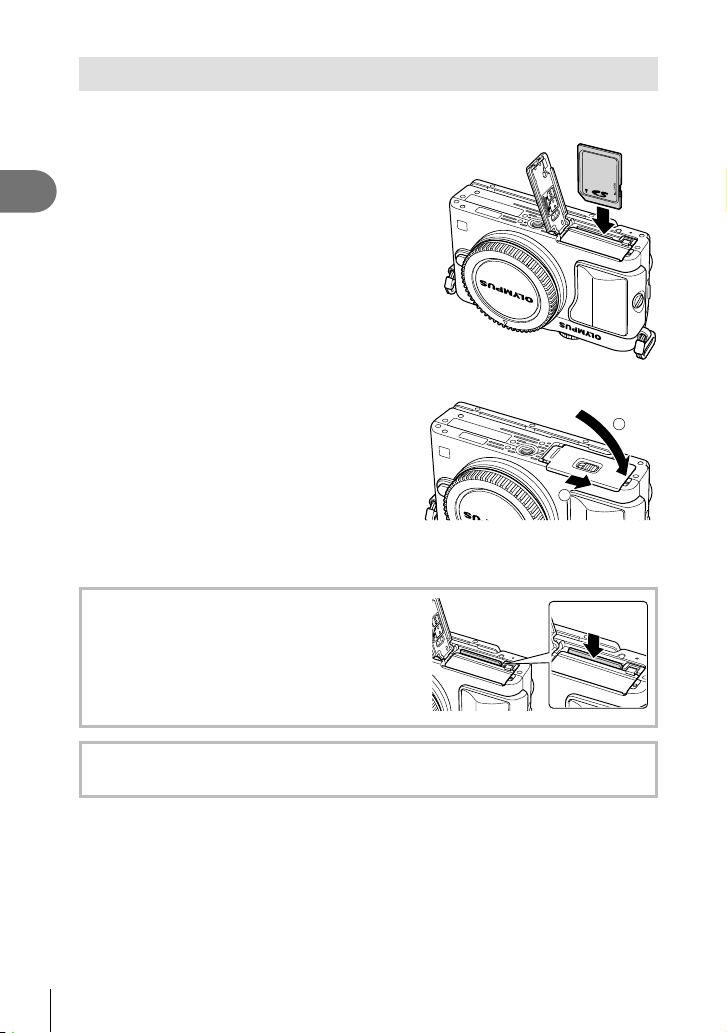
Inserting and removing cards
Loading the card.
1
• Slide the card in until it is locked into place.
g “Card basics” (P. 106)
1
Preparing the camera and fl ow of operations
# Cautions
• Turn off the camera before loading or
removing the card.
Closing the battery/card compartment cover.
2
• Close the cover and slide the battery/card
compartment lock in the direction shown
by the arrow.
# Cautions
• Be sure the battery/card compartment cover is closed before using the camera.
Removing the card
Press the inserted card lightly and it will be ejected.
Pull out the card.
# Cautions
• Do not remove the battery or card while the card
write indicator (P. 22) is displayed.
1
2
FlashAir and Eye-Fi Cards
Read “Card basics” (P. 106) before use.
12
EN
Page 13
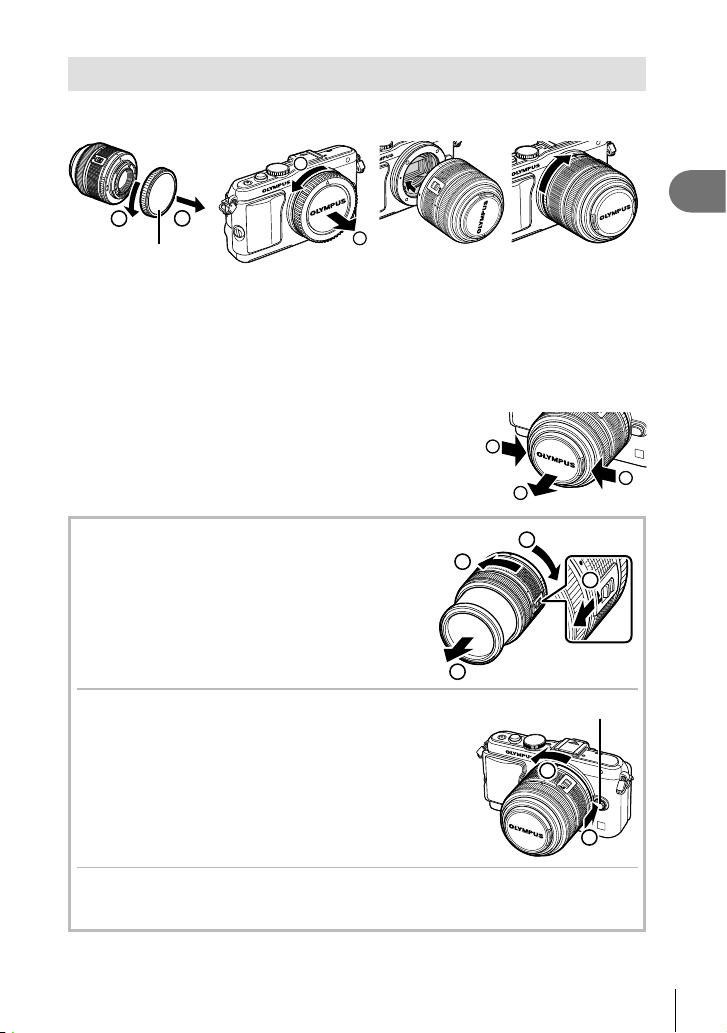
Attaching a lens to the camera
Attach a lens to the camera.
1
1
1
• Align the lens attachment mark (red) on the camera with the alignment mark (red) on
the lens, then insert the lens into the camera’s body.
• Rotate the lens in the direction indicated by the arrow until you hear it clicks.
2
2
Rear cap
# Cautions
• Make sure the camera is turned off.
• Do not press the lens release button.
• Do not touch internal portions of the camera.
Remove the lens cap.
2
1
2
1
Preparing the camera and fl ow of operations
1
Using lenses with an UNLOCK switch
Retractable lenses with an UNLOCK switch cannot
be used while retracted. Turn the zoom ring in the
direction of arrow (1) to extend the lens (2).
To store, turn the zoom ring in the direction of arrow
(4) while sliding the UNLOCK switch (3).
Removing the lens from the camera
While pressing the lens release button, rotate the
lens in the direction of the arrow.
Interchangeable lenses
Read “Interchangeable lenses” (P. 107).
1
4
2
Lens release button
3
2
1
13
EN
Page 14
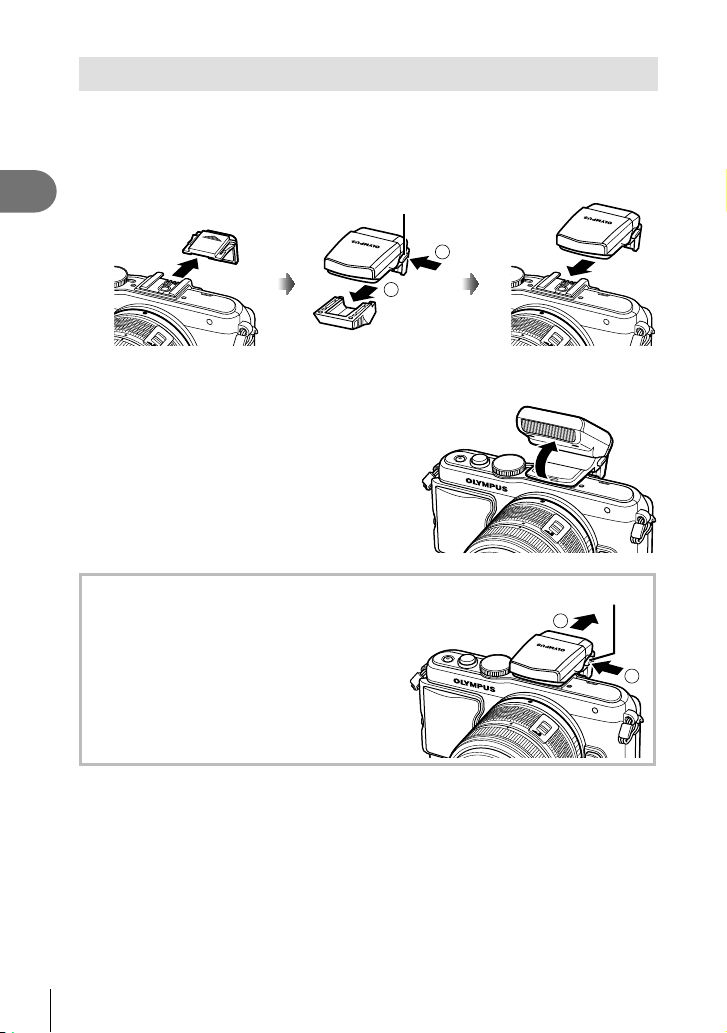
Attaching the fl ash unit
Remove the terminal cover from the fl ash unit and attach the fl ash to the
1
camera.
• Slide the fl ash unit all the way in, stopping when it contacts the back of the shoe and
1
Preparing the camera and fl ow of operations
is securely in place.
To use the fl ash, raise the fl ash head.
2
• Lower the fl ash head when the fl ash is not in use.
UNLOCK switch
1
2
Removing the fl ash unit
Press the UNLOCK switch while removing the
fl ash unit.
14
EN
UNLOCK switch
2
1
Page 15
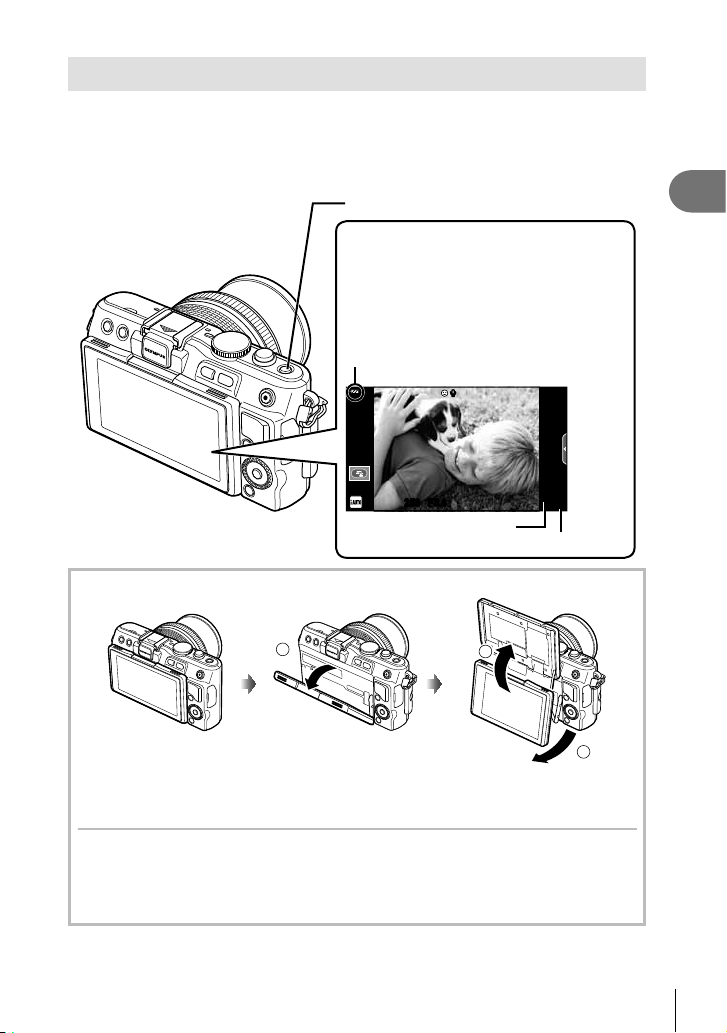
Power on
Press the ON/OFF button to turn on the camera.
1
• When the camera is turned on, the (blue) power lamp will light and the monitor will
turn on.
• To turn off the power, press the ON/OFF button again.
ON/OFF button
Monitor
Battery level
7 (green): Camera ready to shoot.
8 (green): Low battery
9 (blinks red): Charge the battery.
ISO-A
200
Displayed for about 10 seconds
after the camera is turned on.
RR
1
Preparing the camera and fl ow of operations
250250 F5.6
01:02:0301:02:03
3838
Available recording time
Number of storable still pictures
Using the monitor
You can adjust the angle of
the monitor.
1
When set to the angle to take your
own picture, the monitor display up/
down direction inverts.
3
2
Camera sleep operation
If no operations are performed for a minute, the camera enters “sleep” (stand-by) mode to
turn off the monitor and to cancel all actions. The camera activates again when you touch
any button (the shutter button, q button, etc.). The camera will turn off automatically if
left in sleep mode for 5 minutes. Turn the camera on again before use.
EN
15
Page 16
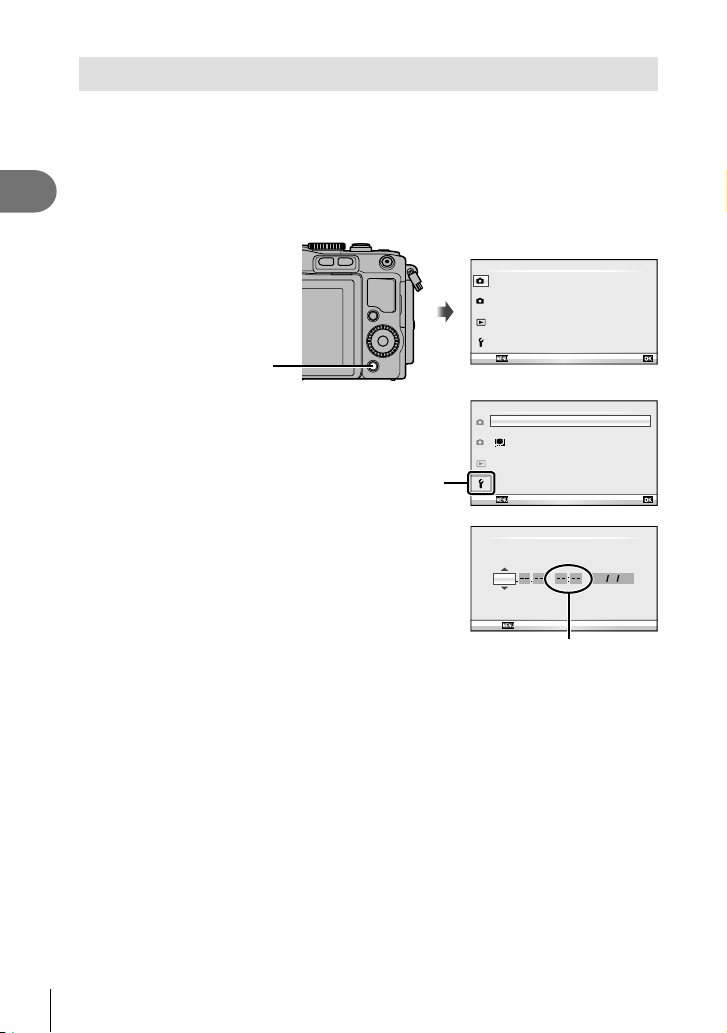
Setting the date/time
Date and time information is recorded on the card together with the images. The fi le
name is also included with the date and time information. Be sure to set the correct
date and time before using the camera. Some functions cannot be used if the date has
not been set.
1
Preparing the camera and fl ow of operations
Display the menus.
1
• Press the MENU button to display the menus.
MENU button
Shooting Menu 1
Card Setup
1
Reset/Myset
Picture Mode
2
D
Image Aspect
Back Set
j
4:3
OnDigital Tele-converter
Select [X] in the [d] (setup) tab.
2
• Use FG on the arrow pad to select
[d] and press I.
• Select [X] and press I.
Set the date and time.
3
[d] tab
• Use HI to select items.
• Use FG to change the selected item.
• Use FG to select the date format.
Save settings and exit.
4
• Press Q to set the camera clock and exit to the main menu.
• Press the MENU button to exit the menus.
Setup Menu
X
1
W
2
Rec View
c/#
Menu Display
Firmware
Back Set
YMD Time
2013 Y/ M/D
Cancel
The time is displayed
using a 24-hour clock.
--.--.-- --:-English
j
±0 k±0
X
5sec
16
EN
Page 17
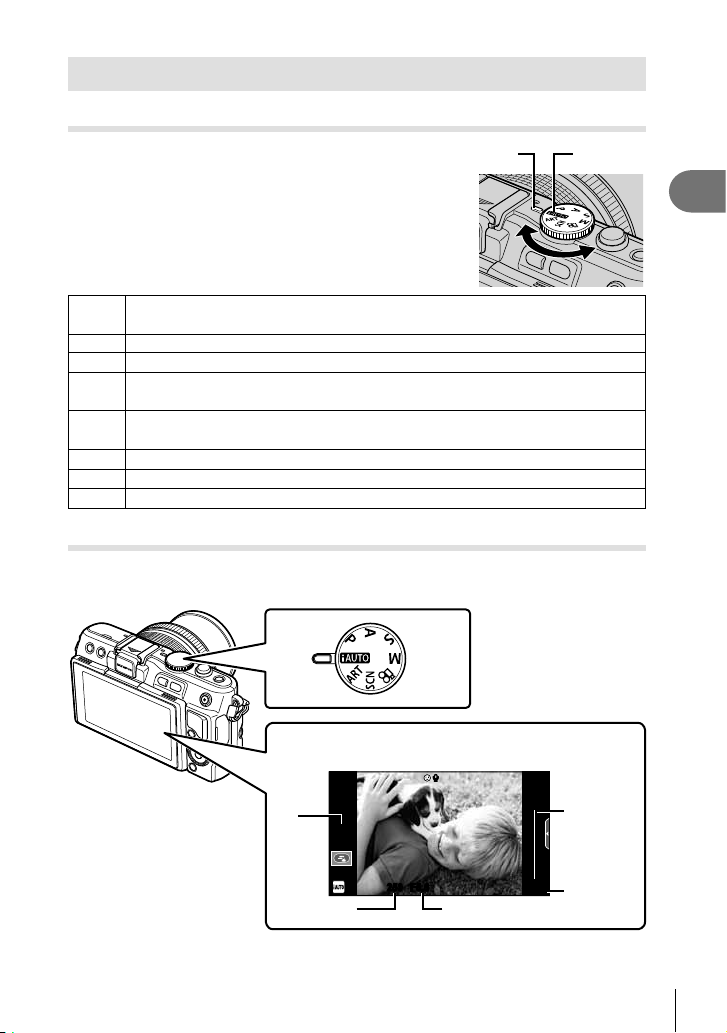
Shooting
Setting the Shooting mode
Use the mode dial to select the shooting mode.
A full auto mode in which the camera automatically optimizes settings for the
A
current scene. The camera does all the work, which is convenient for beginners.
Aperture and shutter speed are automatically adjusted for optimal results.
P
You control aperture. You can sharpen or soften background details.
A
You control shutter speed. You can express the motion of moving subjects, or
S
freeze motion without any blur.
You control aperture and shutter speed. You can shoot with long exposures for
M
fi reworks or other dark scenes.
Select an art fi lter.
ART
Select a scene according to the subject.
SCN
Shoot movies using shutter speed and aperture effects and movie special effects.
n
Taking photographs
First, try taking photographs in full auto mode.
Set the mode dial to A.
1
Indicator Mode icon
1
Preparing the camera and fl ow of operations
Monitor
RR
ISO
sensitivity
Shutter speed Aperture value
ISO-A
200
250250 F5.6
01:02:0301:02:03
3838
Available
recording
time
Number of
storable still
pictures
EN
17
Page 18
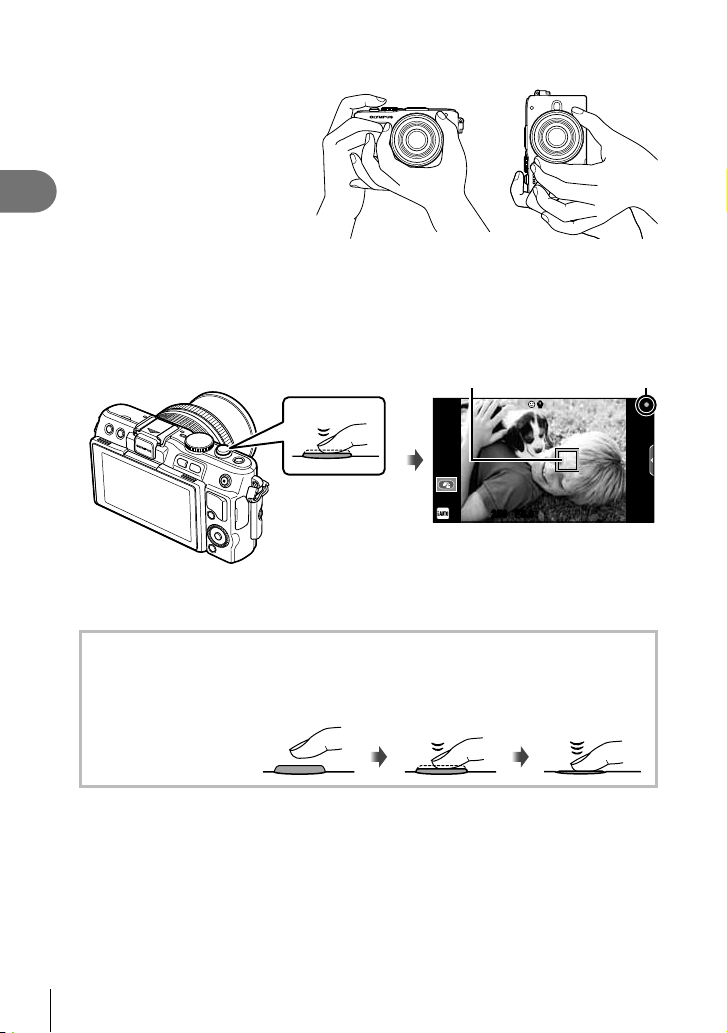
Frame the shot.
2
• Be careful that your fi ngers
or the camera strap do not
obstruct the lens.
1
Preparing the camera and fl ow of operations
Adjust the focus.
3
• Display the subject in the center of the monitor, and lightly press the shutter button
down to the fi rst position (press the shutter button halfway).
The AF confi rmation mark (( or n) will be displayed, and a green frame (AF target)
will be displayed in the focus location.
• The ISO sensitivity, shutter speed and aperture value that have been set
automatically by the camera are displayed.
• If the AF confi rmation mark blinks, the subject is not in focus. (P. 99)
Pressing the shutter button halfway and all the way down
The shutter button has two positions. The act of lightly pressing the shutter button to the
fi rst position and holding it there is called “pressing the shutter button halfway,” that of
pressing it all the way
down to the second
position “pressing the
shutter button all (or the
rest of) the way down.”
Horizontal
Press the shutter
button halfway.
grip
Press halfway
Vertical
grip
AF confi rmation markAF target
RR
ISO-A
200
250250 F5.6
Press the rest of
the way down
01:02:0301:02:03
3838
Release the shutter.
4
• Press the shutter button all the way (fully).
• The shutter sounds and the picture is taken.
• The shot image will be displayed on the monitor.
$ Notes
• You can also take photographs using the touch screen. g “Using the touch screen”
(P. 43)
18
EN
Page 19
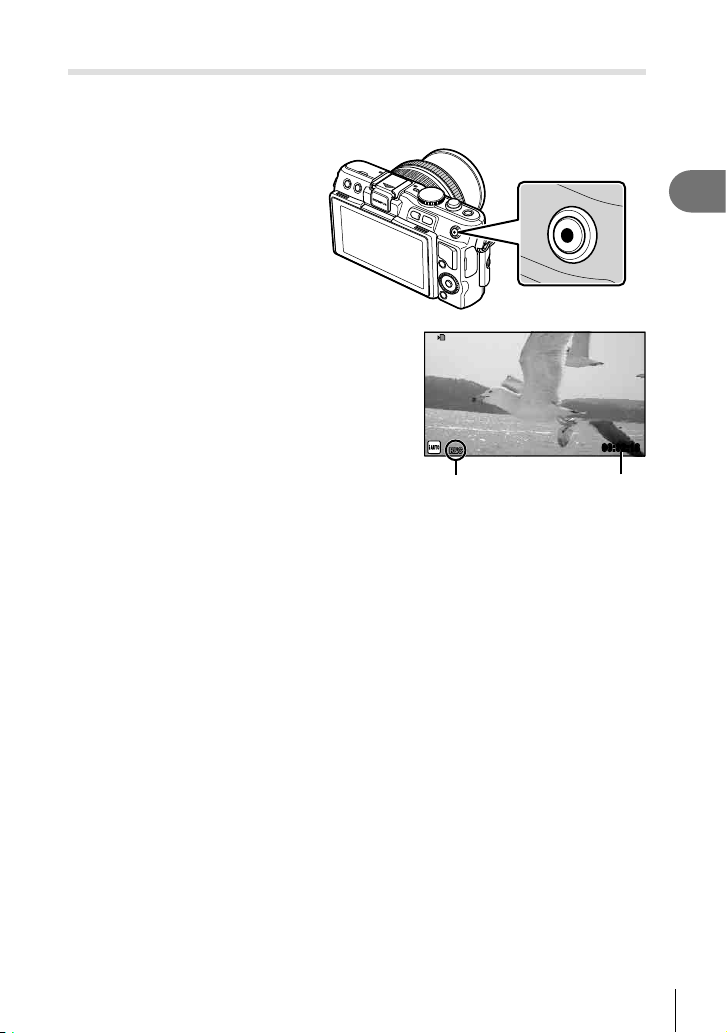
Recording movies
You can shoot movies in any shooting mode. First, try shooting in full auto mode.
Set the mode dial to A.
1
Press the R button to begin
2
recording.
Press the R button again to end recording.
3
R button
1
Preparing the camera and fl ow of operations
00:02:18
Displayed during
recording
Recording time
# Cautions
• When using a camera with a CMOS image sensor, moving objects may appear distorted
due to the rolling shutter phenomenon. This is a physical phenomenon whereby distortion
occurs in the fi lmed image when shooting a fast-moving subject or due to camera shaking.
In particular, this phenomenon becomes more noticeable when using a long focal length.
• If the camera is used for extended periods, the temperature of the image pickup device
will rise and noise and colored fog may appear in images. Turn off the camera for a short
time. Noise and colored fog may also appear in images recorded at high ISO sensitivity
settings. If the temperature rises further, the camera will turn off automatically.
Taking photographs during movie recording
• Press the shutter button during movie recording to pause movie recording and take a
photograph. Movie recording restarts after the photograph is taken. Press the R button
to end recording. Three fi les will be recorded to the memory card: the movie footage
preceding the photograph, the photograph itself, and the movie footage following the
photograph.
• Only one photograph can be taken at a time during movie recording; the self-timer and
fl ash cannot be used.
# Cautions
• Image size and quality for photographs are independent of movie frame size.
• The autofocus and metering used in movie mode may differ from that used to take
photographs.
• The R button cannot be used to record movies in the following instances:
Multiple exposure (still photography also ends.)/shutter button pressed halfway/during
bulb or time photography/sequential shooting/Panorama/3D/time lapse shooting
EN
19
Page 20
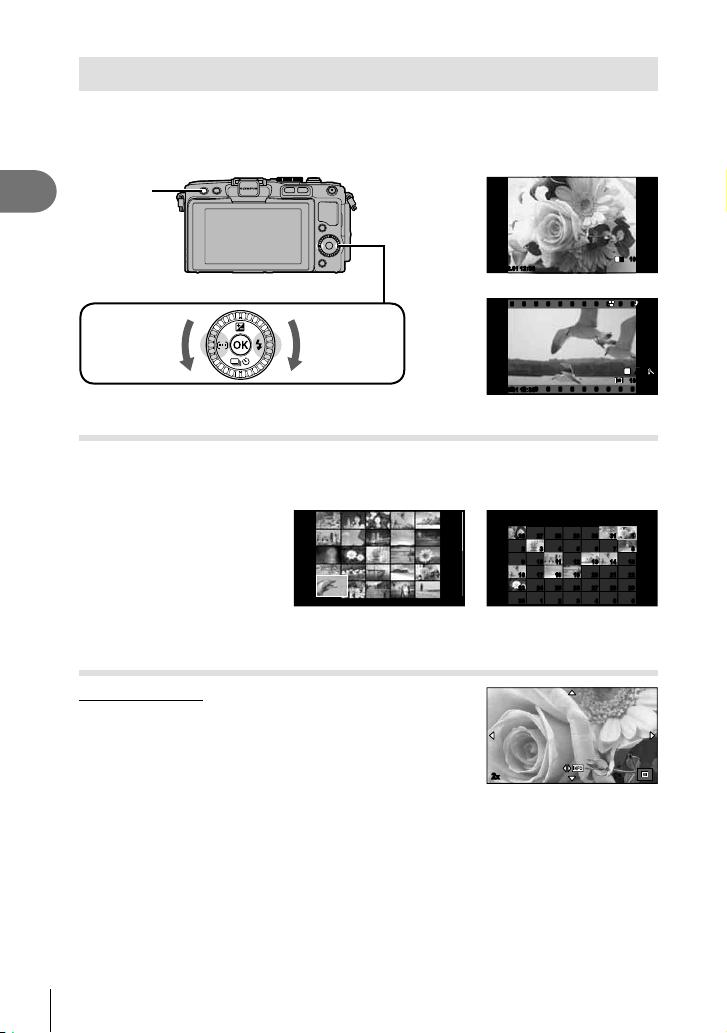
Viewing photographs and movies
Press the q button.
1
• Your most recent photograph or movie will be displayed.
• Rotate the control dial to select the desired photograph or movie.
1
Preparing the camera and fl ow of operations
q button
Arrow pad/Control dial
100-0020
L
2013.06.0112:30 20
N
Still image
Displays the
previous
frame
Displays the
next frame
2013.06.0112:30 4
Movie
Index display/Calendar display
• To view multiple frames, press G during single-frame playback. To start calendar
playback, press the G button repeatedly.
• Press the Q button to view the currently selected picture full frame.
2013.6
Sun Mon Tue Wed Thu Fri Sat
26 27 28 29 30 31 1
26 27 28 29 30 31 1
2 3 4 5 6 7 8
2 3 4 5 6 7 8
9 10 11 12 13 14 15
9 10 11 12 13 14 15
16 17 18 19 20 21 22
16 17 18 19 20 21 22
23 24 25 26 27 28 29
23 24 25 26 27 28 29
30 1 2 3 4 5 6
2013.06.0112:30 21
Index display
30 1 2 3 4 5 6
Calendar display
Viewing still images
Close-up playback
• In single-frame playback, press U to zoom in up to 14×;
press G to return to single-frame playback.
2x
HD
P
AUTO
AUTOAUTOAUTO
100-0004
WB
WBWBWB
20
EN
Page 21
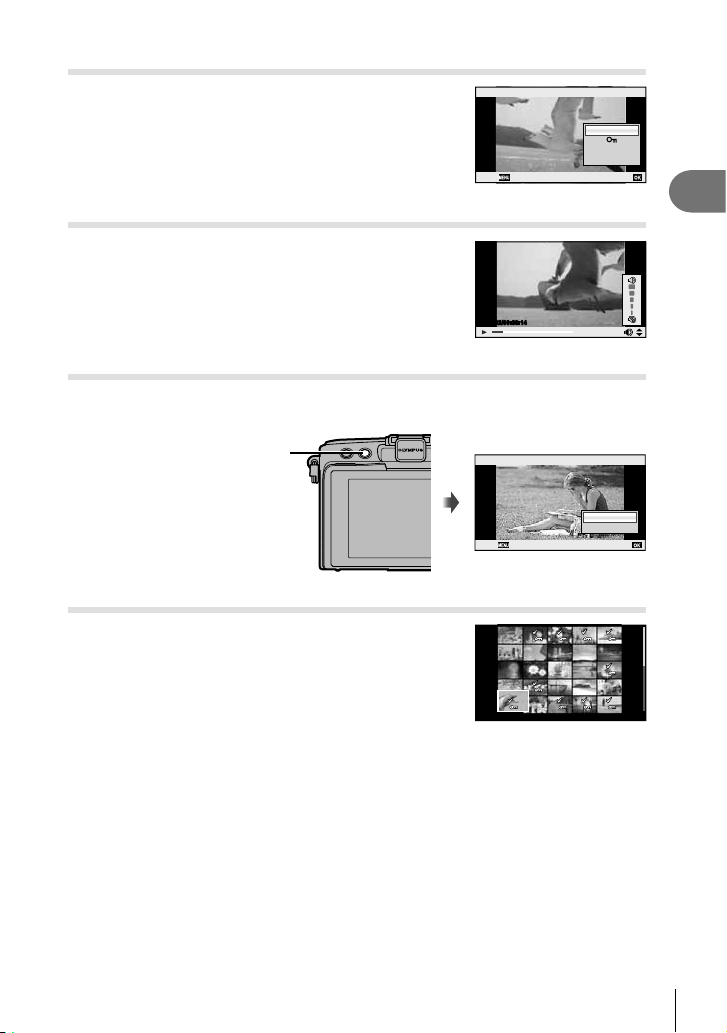
Watching movies
• Select a movie and press the Q button to display the
playback menu. Select [Movie Play] and press the Q
button to begin playback. To interrupt movie playback,
press MENU.
Back Set
Movie
Movie Play
m
Erase
Volume
Volume can be adjusted by pressing F or G during
single-frame and movie playback.
00:00:02/00:00:14
Erasing images
Display an image you want to delete and press the button. Select [Yes] and press
the Q button.
1
Preparing the camera and fl ow of operations
button
Selecting images
Select the image. You can also select multiple images for
protection or deletion. Press the H button to select an
image; a v icon will appear on the image. Press the H
button again to cancel the selection.
Press Q to display the delete or protect selection menu.
Erase
Yes
Back Set
2013.06.0112:30 21
No
EN
21
Page 22
2
rtqp os n
Basic operations
Basic shooting operations
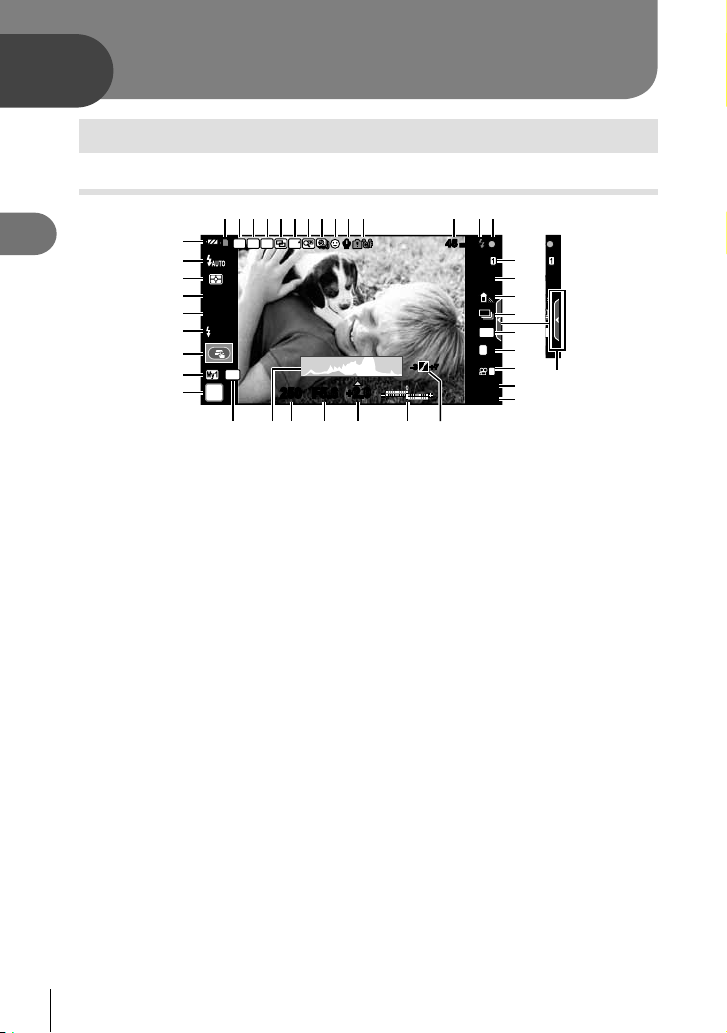
Monitor display during shooting
1
2
Basic operations
C
B
A
S-AFS-AF
z
ISO
y
400
+
2.0+2.0
x
w
AEL
v
u
P
32 54 678 b09
FP RC
BKT
FPS
250250 F5.6
dca
RR
99
+
2.0+2.0
mm45 mm
45
S-ISS-IS
e
j
f
g
h
4:3
L
FullHD
+7+7-3-3
01:02:0301:02:03
10231023
3
i
N
N
j
k
F
D
l
m
1 Card write indicator .........................P. 12
2 Super FP fl ash ..............................P. 113
3 RC mode.......................................P. 113
4 Auto bracket....................................P. 62
5 Multiple exposure............................P. 64
6 High frame rate ...............................P. 75
7 Digital Tele-converter ......................P. 66
8 Time lapse shooting ........................P. 65
9 Face priority ....................................P. 56
0 Movie sound ...................................P. 57
a Internal temperature warning ........P. 102
dLockl .....................................P. 74
b Focal length ..................................P. 109
c Flash ...............................................P. 33
(blinks: charging in progress,
lights up: charging completed)
d AF confi rmation mark......................P. 18
e Image stabilizer...............................P. 47
f Art fi lter ...........................................P. 28
Scene mode....................................P. 29
Picture mode...................................P. 48
g White balance .................................P. 50
h Sequential shooting/self-timer ........P. 35
i Aspect ratio .....................................P. 51
j Record mode (still images) .............P. 52
k Record mode (movies) ...................P. 53
l Available recording time
m Number of storable still pictures ...P. 110
22
EN
n Highlight&Shadow Control ..............P. 32
o Top: Flash intensity control ......P. 53
Bottom: Exposure compensation
indicator............................P. 32
p Exposure compensation value........P. 32
q Aperture value .........................P. 24 – 26
r Shutter speed ..........................P. 24 – 26
s Histogram .......................................P. 23
t AE Lock ....................................P. 73, 81
u Shooting mode...................P. 17, 24 – 30
v Myset ..............................................P. 59
w Shooting using touch screen
operations .......................................P. 43
x Flash intensity control .....................P. 53
y ISO sensitivity .................................P. 56
z AF mode .........................................P. 55
A Metering mode ................................P. 54
B Flash mode .....................................P. 33
C Battery check
7 Lit up (green) : Ready for use
(displayed for about ten seconds
after the camera is turned on.)
8 Lit up (green) : Battery is running
low.
9
Blinks (red) : Charging required
D
Live guide recall ........................P. 31, 43
Page 23
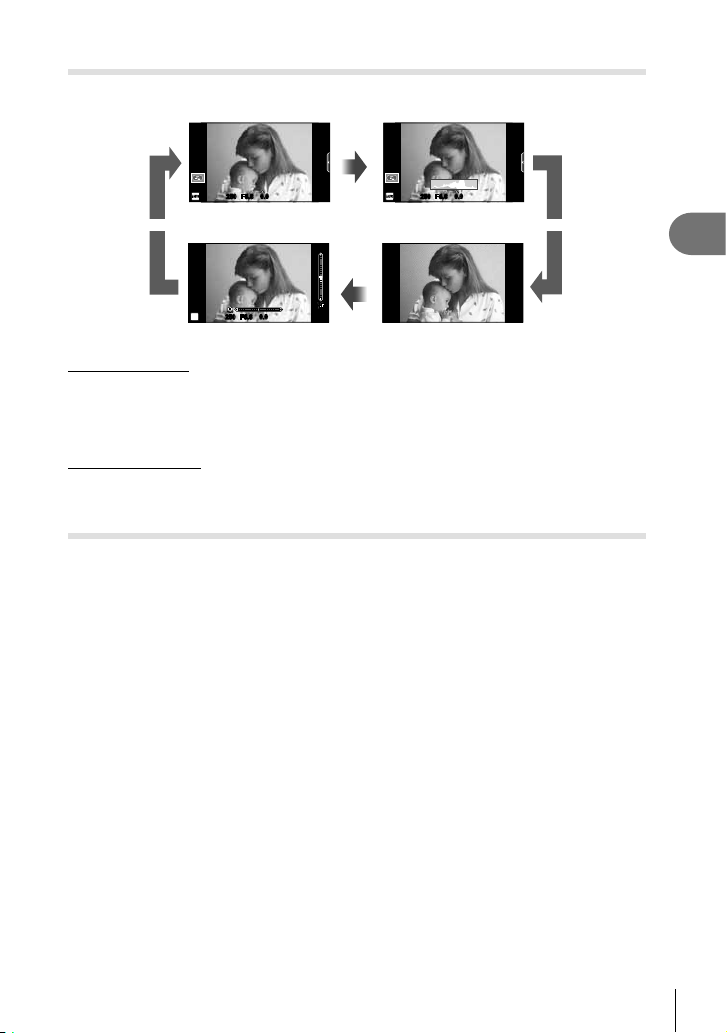
Switching the information display
You can switch the information displayed in the monitor during shooting using the
INFO button.
01:02:0301:02:03
INFO
ISO-A
200
01:02:0301:02:03
0.00.0
3838
250250 F5.6
3838
Histogram displayInformation display on
INFO
ISO-A
200
0.0
0.0
250250 F5.6
INFO INFO
ISO
200
2
Basic operations
P
0.00.0
250250 F5.6
Level gauge display
Image only
Histogram display
Display a histogram showing the distribution of brightness in the image. The horizontal axis
gives the brightness, the vertical axis the number of pixels of each brightness in the image.
Areas above the upper limit at shooting are displayed in red, those below the lower limit in
blue, and the area metered using spot metering in green.
Level gauge display
Indicate the orientation of the camera. The “tilt” direction is indicated on the vertical bar and
the “horizon” direction on the horizontal bar. Use the indicators on the level gauge as a guide.
Focus lock
If the camera is unable to focus on the subject with the desired composition, use focus lock to
focus on the subject and then recompose the photograph.
Position the subject to be focused on in the center of the monitor and press
1
the shutter button halfway.
• Make sure that the AF confi rmation mark is lighting up.
• Focus locks while the shutter button is pressed halfway.
Keeping the shutter button pressed halfway, recompose the photograph and
2
then press the shutter button the rest of the way down.
• Do not change the distance between the camera and the subject while pressing the
shutter button halfway.
% Tips
• If the camera is unable to focus on the subject even when using focus lock, use P (AF
Area). g “Choosing a focus target (AF Area)” (P. 35)
EN
23
Page 24
Using the shooting modes
60"
F2.8
4000
F22
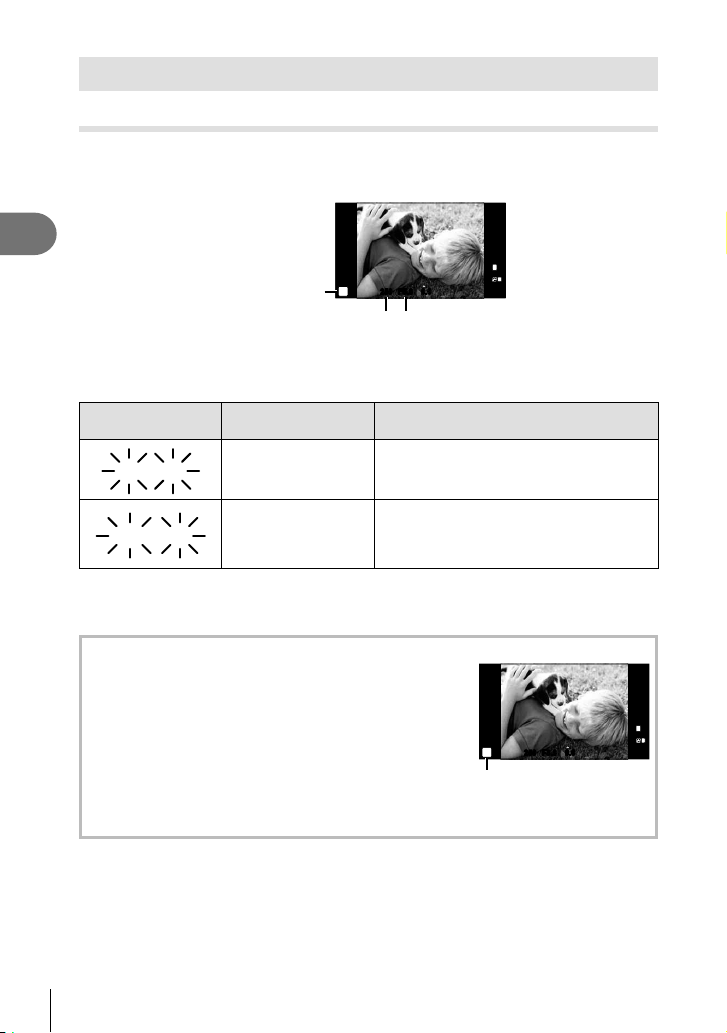
“Point-and-shoot” photography (P program mode)
In mode P, the camera automatically adjusts shutter speed and aperture in response
to subject brightness. Set the mode dial to P.
2
Basic operations
Shooting mode
ISO-A
200
250250 F5.6
0.00.0
P
01:02:0301:02:03
L
N
FullHD
F
3838
Shutter speed Aperture value
• The shutter speed and aperture selected by the camera are displayed.
• The shutter speed and aperture displays fl ash if the camera is unable to achieve
optimal exposure.
Warning display
example (blinking)
60"
F2.8
Status Action
The subject is too
dark.
• Use the fl ash.
• The metered range of the camera is
4000
F22
The subject is too
bright.
exceeded. A commercially available ND
fi lter (for adjusting the amount of light) is
required.
• The aperture value at the moment when its indication blinks varies with the lens type and
focal length of the lens.
• When using a fi xed [ISO] setting, change the setting. g [ISO] (P. 56)
Program shift (%)
In P and ART modes, you can press the F button (F) and
then use FG to choose different combinations of aperture
and shutter speed without altering exposure.This is known
as “program shift.” “s” appears next to the shooting mode
during program shift. To cancel program shift, press and
hold FG until “s” is no longer displayed or turn the camera
off.
ISO-A
200
P
s
Program shift
# Cautions
• Program shift is not available when you are using a fl ash.
250250 F5.6
L
N
FullHD
F
0.00.0
01:02:0301:02:03
3838
24
EN
Page 25
Choosing aperture (A aperture-priority mode)
30"
F5.6
4000
F5.6
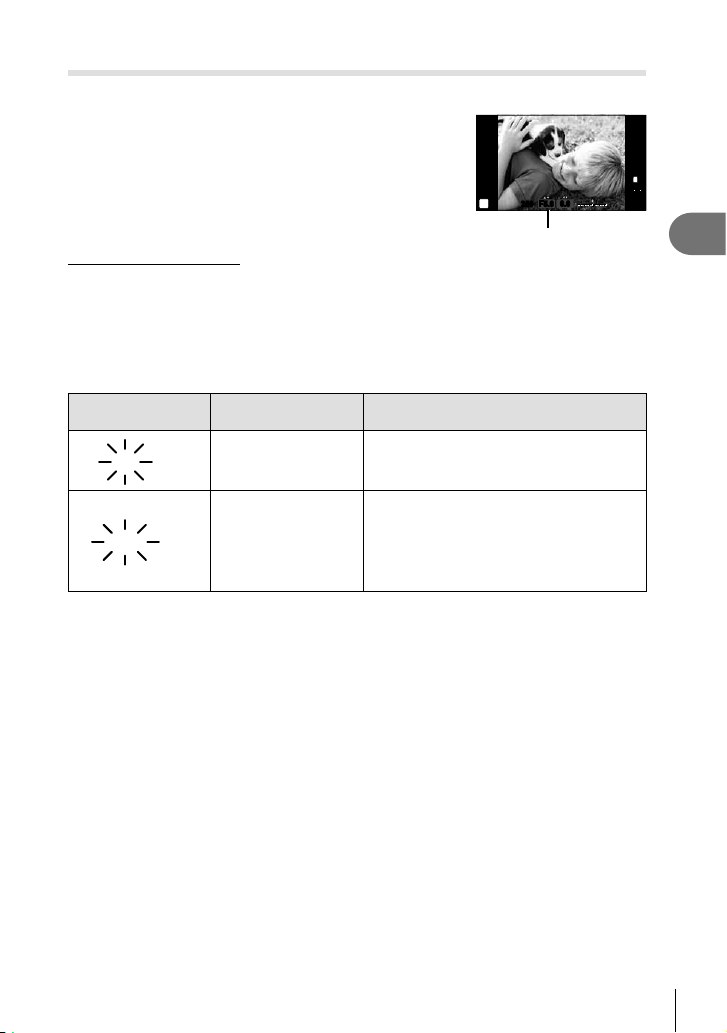
In mode A, you choose the aperture and let the camera automatically adjust shutter
speed for optimal exposure. Rotate the mode dial to A.
• After pressing the F button (F), use FG to
choose the aperture.
• Larger apertures (lower F-numbers) decrease
depth of fi eld (the area in front of or behind the
focus point that appears to be in focus), softening
background details. Smaller apertures (higher
F-numbers) increase depth of fi eld.
Setting the aperture value
Reducing aperture value Increasing aperture value
F2 F3.5 F5.6 F8.0 F16
• The shutter speed display will blink if the camera is unable to achieve optimal
exposure.
Warning display
example (blinking)
30"
F5.6
Status Action
The subject is
underexposed.
• Decrease the aperture value.
• Increase the aperture value.
• If the warning display does not disappear,
4000
F5.6
The subject is
overexposed.
the metered range of the camera is
exceeded. A commercially available ND
fi lter (for adjusting the amount of light) is
required.
• The aperture value at the moment when its indication blinks varies with the lens type and
focal length of the lens.
• When using a fi xed [ISO] setting, change the setting. g [ISO] (P. 56)
ISO
400
A
0.00.0
250250 F5.6
Aperture value
L
N
HD
01:02:0301:02:03
3838
2
Basic operations
EN
25
Page 26
Choosing shutter speed (S shutter-priority mode)
2000
F2.8
125
F22
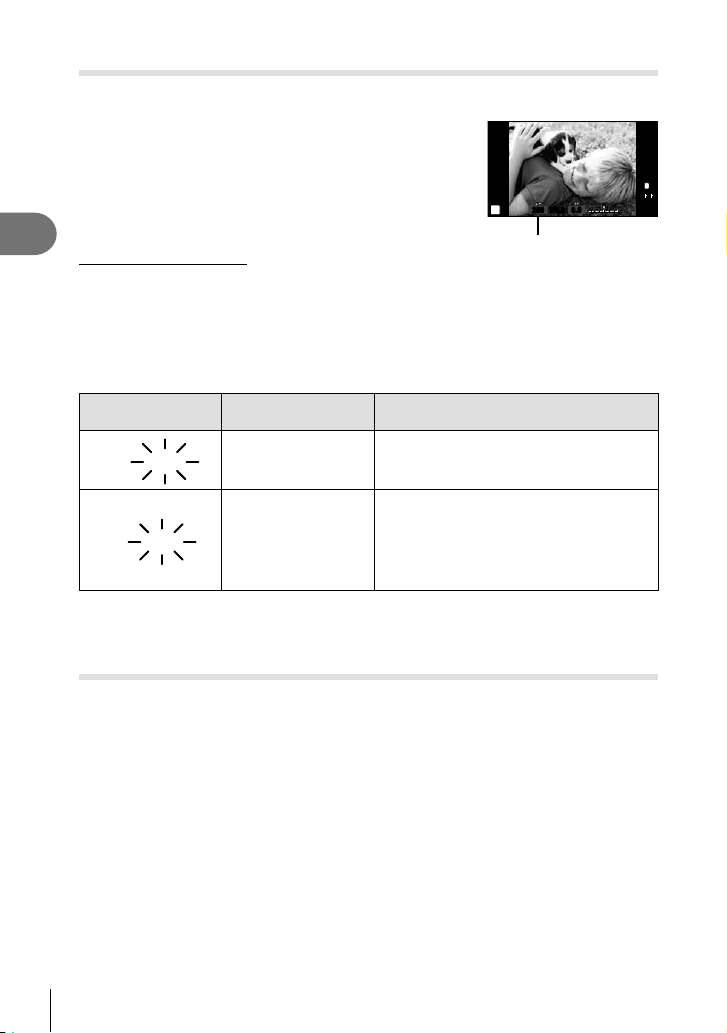
In mode S, you choose the shutter speed and let the camera automatically adjust
aperture for optimal exposure. Rotate the mode dial to S.
• After pressing the F button (F), use FG to
choose the shutter speed.
• A fast shutter speed can freeze a fast action
scene without any blur. A slow shutter speed will
blur a fast action scene. This blurring will give the
impression of dynamic motion.
ISO
400
S
2
Setting the shutter speed
Basic operations
Slower shutter speed Faster shutter speed
2” 1" 15 60 100 400 1000
• The aperture value display will blink if the camera is unable to achieve optimal
exposure.
Warning display
example (blinking)
2000
F2.8
125
F22
• The aperture value at the moment when its indication blinks varies with the lens type and
focal length of the lens.
• When using a fi xed [ISO] setting, change the setting. g [ISO] (P. 56)
Choosing aperture and shutter speed (M manual mode)
In mode M, you choose both the aperture and the shutter speed. At a speed of BULB, the
shutter remains open while the shutter button is pressed. Set the mode dial to M, press the
F button (F), and use FG to adjust the shutter speed and HI to adjust the aperture
value.
• Shutter speed can be set to values between 1/4000 and 60 seconds or to [BULB] or
[LIVE TIME].
# Cautions
• Exposure compensation is not available in M mode.
Status Action
The subject is
underexposed.
• Set the shutter speed slower.
• Set the shutter speed faster.
• If the warning display does not disappear,
The subject is
overexposed.
the metered range of the camera is
exceeded. A commercially available ND
fi lter (for adjusting the amount of light) is
required.
0.00.0
250250 F5.6
Shutter speed
01:02:0301:02:03
L
N
HD
3838
26
EN
Page 27
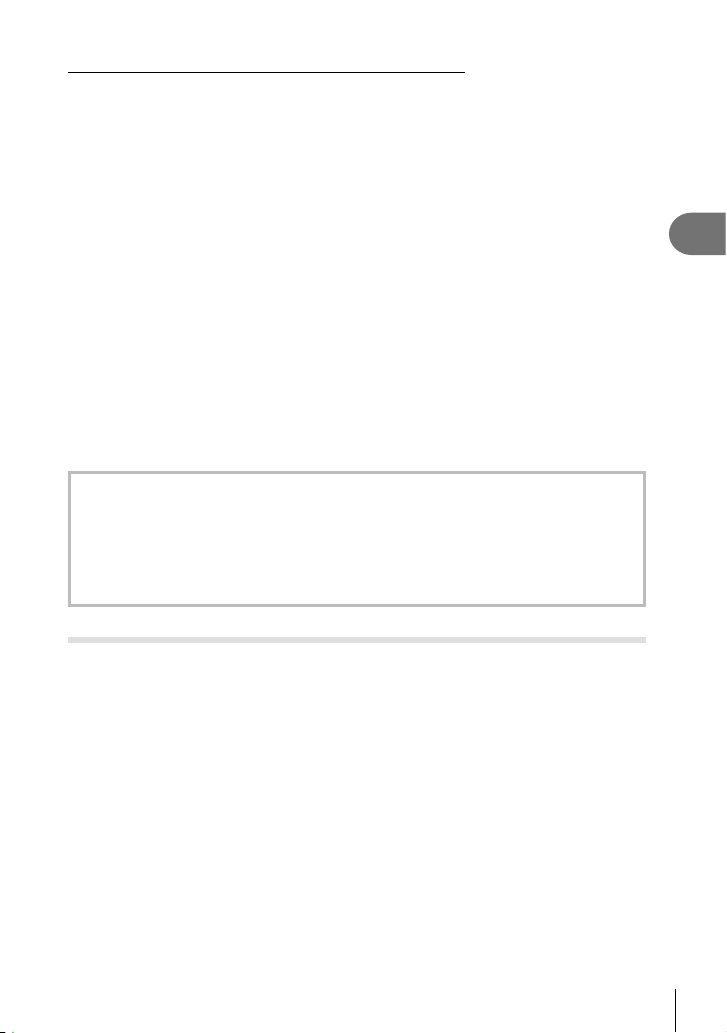
Choosing when the exposure ends (bulb/time photography)
Use for night landscapes and fi reworks. Shutter speeds of [BULB] and [LIVE TIME] are
available in mode M.
Bulb photography (BULB): The shutter remains open while the shutter button is pressed.
The exposure ends when the shutter button is released.
Time photography (TIME): The exposure begins when the shutter button is pressed all
the way down. To end the exposure, press the shutter button
all the way down again.
When using [LIVE TIME], the progress of the exposure will be displayed in the monitor
during shooting. The display can also be refreshed by pressing the shutter button
halfway. In addition, [Live BULB] can be used to display the image exposure during
bulb photography. g “Using the custom menus” (P. 72)
# Cautions
• ISO sensitivity can be set to a value up to ISO 1600 for live bulb and live time
photography.
• To reduce camera blur during long exposures, mount the camera on a tripod and use a
remote cable (P. 124).
• The following features are not available during long exposures:
Sequential shooting/self-timer shooting/AE bracket shooting/image stabilizer/
fl ash bracketing/multiple exposure*
* An option other than [Off] is selected for [Live BULB] or [Live TIME].
Noise in images
While shooting at slow shutter speeds, noise may appear on screen. These phenomena
occur when the temperature rises in the image pickup device or image pickup device
internal drive circuit, causing current to be generated in those sections of the image pickup
device that are not normally exposed to light. This can also occur when shooting with a
high ISO setting in a high-temperature environment. To reduce this noise, the camera
activates the noise reduction function. g [Noise Reduct.] (P. 76)
2
Basic operations
Using movie mode
Movie mode
You can create movies that take advantage of the effects available in still photography
mode. Use live control to select the settings. g “Adding effects to a movie [Movie
Effect]” (P. 87)
You can also apply an after-image effect or zoom in on an area of the image during
movie recording. [Movie Effect] in the custom menu must be set to [On] before making
these settings. g [Z Movie] (P. 79)
(n)
(n)
can be used to fi lm movies with special effects.
EN
27
Page 28
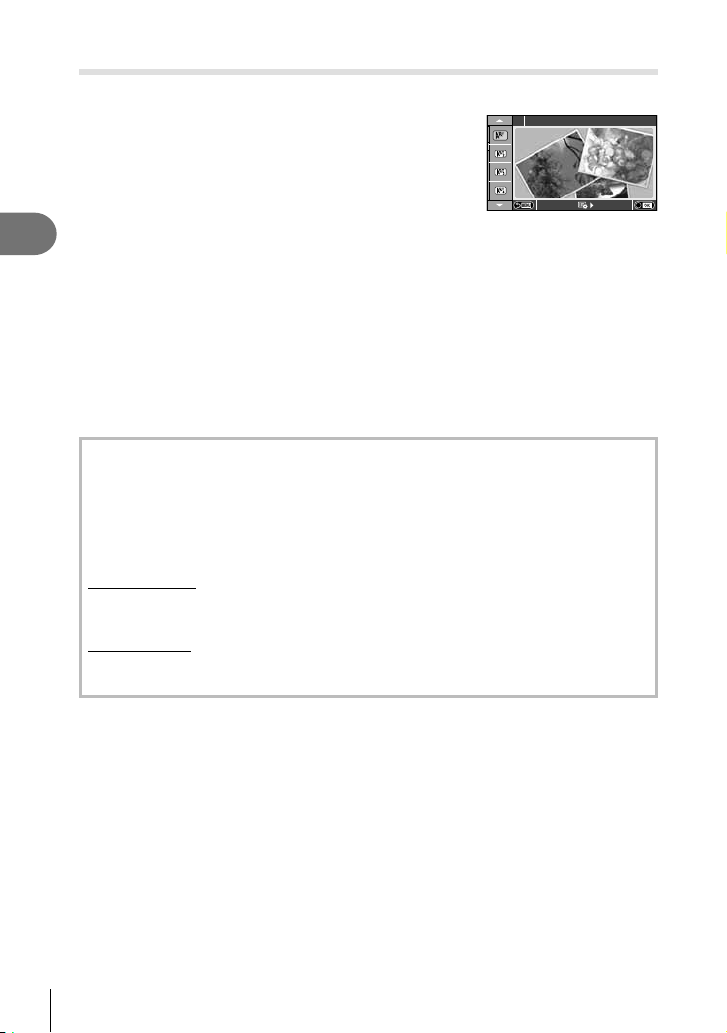
Using art fi lters
Rotate the mode dial to ART.
1
• A menu of art fi lters will be displayed. Select a
fi lter using FG.
• Press Q or press the shutter button halfway to
select the highlighted item and exit the art fi lter
menu.
Types of art fi lters
2
Basic operations
j Pop Art t Cross Process
k Soft Focus u Gentle Sepia
l Pale&Light Color v Dramatic Tone
m Light Tone Y Key Line
n Grainy Film Z Watercolor
o Pin Hole u ART BKT (ART bracketing)
s Diorama
Shoot.
2
• To choose a different setting, press Q to display the art fi lter menu.
ART bracketing
Each time the shutter is released, the camera creates copies for all art fi lters. Use the
[v] option to choose fi lters.
Art effects
Art fi lters can be modifi ed and effects can be added. Pressing I in the art fi lter menu
displays additional options.
Modifying fi lters
Option I is the original fi lter, while options II and on add effects that modify the original
fi lter.
Adding effects*
Soft focus, pin-hole, frames, white edges, starlight, fi lter, tone
* The effects available vary with the selected fi lter.
Pop Art
1
1
# Cautions
• If [RAW] is currently selected for image quality, image quality will automatically be set to
[YN+RAW]. The art fi lter will be applied to the JPEG copy only.
• Depending on the subject, tone transitions may be ragged, the effect may be less
noticeable, or the image may become more “grainy.”
• Some effects may not be visible in live view or during movie recording.
• Playback may differ according to the fi lters, effects, or movie quality settings applied.
28
EN
Page 29
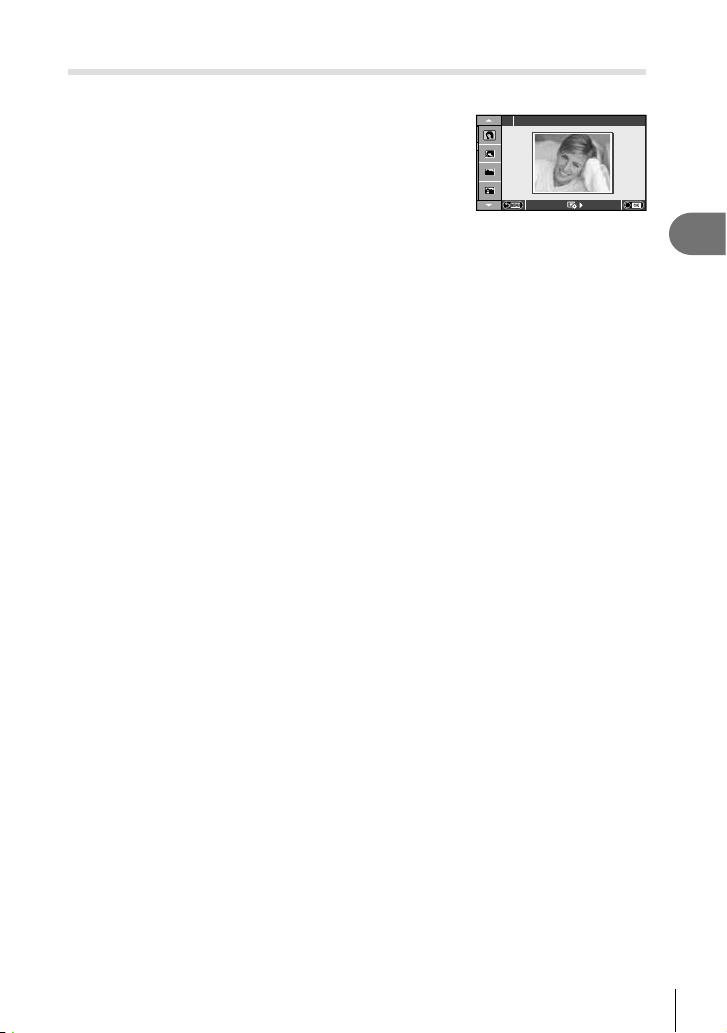
Shooting in scene mode
Rotate the mode dial to SCN.
1
• A menu of scene menu will be displayed. Select a
scene using FG.
• Press Q or press the shutter button halfway to
select the highlighted item and exit the scene
menu.
Portrait
1
Types of scene modes
O Portrait r Nature Macro
P e-Portrait Q Candle
L Landscape R Sunset
K Landscape+Portrait T Documents
J
Sport s Panorama (P. 30)
G Night Scene
U Night+Portrait g Beach & Snow
G
Children fn Fisheye Effect
H
High Key wn Wide-Angle
I
Low Key mn Macro
q DIS Mode T 3D Photo
J
Macro
Shoot.
2
• To choose a different setting, press Q to display the scene menu.
(
Fireworks
# Cautions
• In [e-Portrait] mode, two images are recorded: an unmodifi ed image and a second image
to which [e-Portrait] effects have been applied.
Recording may take some time.
• [n Fisheye Effect], [n Wide-Angle], and [n Macro] are for use with optional converter
lenses.
• Movies cannot be recorded in [e-Portrait], [Panorama], or [3D Photo] mode.
• [3D Photo] is subject to the following limitations.
[3D Photo] can be used only with a 3D lens.
The camera monitor cannot be used to playback images in 3D. Use a device that supports
3D display.
Focus is locked. In addition, fl ash and self-timer also cannot be used.
Image size is fi xed at 1920 × 1080.
RAW photography is not available.
Frame coverage is not 100%.
2
Basic operations
EN
29
Page 30
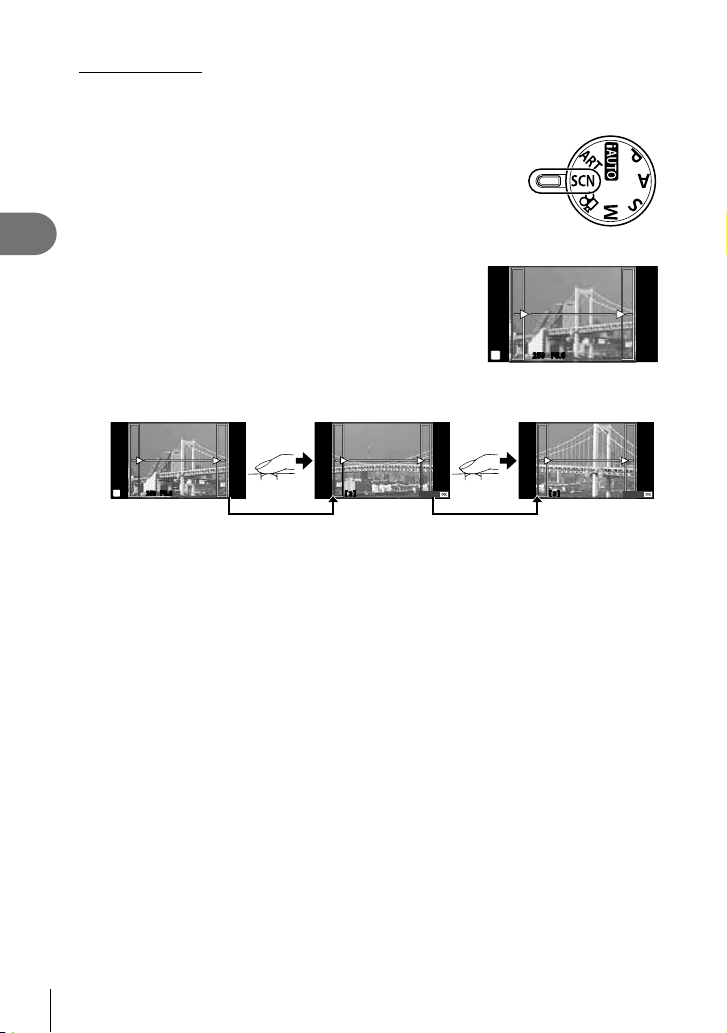
Taking panoramas
If you have installed the supplied computer software, you can use it to join pictures together
to form a panorama. g ”Connecting the camera to a computer” (P. 96)
Rotate the mode dial to SCN.
1
2
Basic operations
Select [Panorama] and press Q.
2
Use FGHI to choose a pan direction.
3
Take a picture, using the guides to frame the shot.
4
• Focus, exposure, and other settings are fi xed at the
values for the fi rst shot.
Take the remaining images, framing each shot so that the guides overlap with
5
the previous picture.
ISO
200
M
250250 F5.6 38
• A panorama may include up to 10 images. A warning indicator (g) is displayed after
the tenth shot.
After taking the last shot, press Q to end the series.
6
[ 2 ]
Exit Exit
ISO
200
M
# Cautions
• During panorama shooting, the image previously taken for position alignment will not be
displayed. With the frames or other markers for display in the images as a guide, set the
composition such that the edges of the overlapping images overlap within the frames.
$ Notes
• Pressing Q before shooting the fi rst frame returns to the scene mode selection menu.
Pressing Q in the midst of shooting ends the sequence of panorama shooting, and allows
you to continue with the next one.
250250 F5.6 38
[ 3 ]
30
EN
Page 31

Using shooting options
Using live guides
Live guides are available in iAUTO (A) mode. While iAUTO is a full auto mode, live
guides make it easy to access a variety of advanced photographic techniques.
Guide item
Change Color Saturation
Q
Set the mode dial to A.
1
After pressing the Fn button or Q to display the live guide, use the FG
2
buttons on the arrow pad to highlight an item and press Q to select.
Use FG to choose the level.
3
• If [Shooting Tips] is selected, highlight an item and press Q to view a description.
• Press the shutter button halfway to select.
• The effect of the selected level is visible in the display. If [Blur Background] or
[Express Motions] is selected, the display will return to normal, but the selected effect
will be visible in the fi nal photograph.
Shoot.
4
• Press the shutter button to shoot.
• To clear the live guide from the display, press the MENU button.
Level bar/selection
Clear & Vivid
0
Flat & Muted
# Cautions
• Live guides are not available when [Panorama] or [3D Photo] is selected in SCN mode.
• If [RAW] is currently selected for image quality, image quality will automatically be set to
[YN+RAW].
• Live guide settings are not applied to the RAW copy.
• Pictures may appear grainy at some live guide setting levels.
• Changes to live guide setting levels may not be visible in the monitor.
• Frame rates drop when [Blurred Motion] is selected.
• The fl ash cannot be used with the live guide.
• Changes to live guide options cancel previous changes.
• Choosing live guide settings that exceed the limits of the camera exposure meters may
result in pictures that are over or underexposed.
% Tips
• In modes other than A, you can use live control to make more detailed settings.
g ”Using live control” (P. 46)
2
Basic operations
EN
31
Page 32

Controlling exposure (exposure compensation)
Press the F button (F) and use HI to adjust exposure compensation. Choose
positive (“+”) values to make pictures brighter, negative (“–”) values to make pictures
darker. Exposure can be adjusted by ±3.0 EV.
2
Basic operations
Negative (–) No compensation (0) Positive (+)
# Cautions
• Exposure compensation is not available in A, M, or SCN mode.
Changing the brightness of highlights and shadows
To display the tone control dialog, press the F button
(F) and press the INFO button. Use HI to choose a
tone level. Choose “low” to darken shadows or “high” to
brighten highlights.
INFOINFO INFO
+1+1
Exposure
compensation
00
S-ISS-IS
ISO
200
+
250250 F5.6
2.0+2.0
P
j
L
N
HD
00
01:02:0301:02:03
12341234
00
32
EN
Page 33

Using a fl ash (fl ash photography)
The fl ash can be set manually as required. The fl ash can be used for fl ash
photography in a variety of shooting conditions.
Attach the fl ash unit and raise the fl ash
1
head.
• g “Attaching the fl ash unit” (P. 14)
Press the # button (I) to display options.
2
Use HI to choose a fl ash mode and press Q.
3
• The options available and the order in which they are displayed vary depending on
the shooting mode. g “Flash modes that can be set by shooting mode” (P. 34)
AUTO Auto fl ash
Fill-in fl ash The fl ash fi res regardless of the light conditions.
#
Flash off The fl ash does not fi re.
$
Red-eye reduction fl ash
#!
!/
#SLOW
!SLOW
#SLOW2/
Curtain
#FULL,
#1/4 etc.
Press the shutter button all the way.
4
Slow synchronization
(1st curtain)
Slow synchronization
(1st curtain)/Red-eye
reduction fl ash
Slow synchronization
2nd
(2nd curtain)
Manual
The fl ash fi res automatically in low light or
backlight conditions.
This function allows you to reduce the red-eye
phenomenon. In S and M modes, the fl ash
always fi res.
Slow shutter speeds are used to brighten dimly-lit
backgrounds.
Combines slow synchronization with red-eye
reduction.
The fl ash fi res just before
the shutter closes to
create trails of light behind
moving light sources.
For users who prefer manual operation. If you
press the INFO button, you can use the dial to
adjust the fl ash level.
# Cautions
• In [!/#!(Red-eye reduction fl ash)], after the pre-fl ashes, it takes about 1 second
before the shutter is released. Do not move the camera until shooting is complete.
• [!/#!(Red-eye reduction fl ash)] may not work effectively under some shooting
conditions.
• When the fl ash fi res, the shutter speed is set to 1/250 sec. or slower. When shooting
a subject against a bright background with the fi ll-in fl ash, the background may be
overexposed.
2
Basic operations
EN
33
Page 34

Flash modes that can be set by shooting mode
Shooting
mode
2
Basic operations
P/A
S/M
• #AUTO, $ can be set in A mode.
* 1/200 sec. when using an separately sold external fl ash unit
Minimum range
The lens may cast shadows over objects close to
the camera, causing vignetting, or be too bright
even at minimum output.
• External fl ash units can be used to prevent vignetting. To prevent photographs from being
overexposed, select mode A or M and choose a high f-number, or reduce ISO sensitivity.
LV super
control
panel
#AUTO
!
#
$
!
SLOW
#SLOW
#
SLOW2
#
#!
$
#
2nd-C
Flash mode
Auto fl ash
Auto fl ash
(red-eye reduction)
Fill-in fl ash Always fi res
Flash off
Slow synchronization
(red-eye reduction)
Slow synchronization
(1st curtain)
Slow synchronization
(2nd curtain)
Fill-in fl ash
Fill-in fl ash
(red-eye reduction)
Flash off
Fill-in fl ash/Slow
synchronization
(2nd curtain)
Flash
timing
curtain
curtain
curtain
curtain
curtain
Conditions for
fi ring the fl ash
Fires automatically
1st
kk k
1st
Fires automatically
2nd
1st
kk k
2nd
Lens
14 – 42 mm 1.0 m
17 mm 0.25 m
40 – 150 mm 1.0 m
14 – 150 mm Flash cannot be used
12 – 50 mm Flash cannot be used
in dark/backlit
conditions
in dark/backlit
conditions
Always fi res
Always fi res
Approximate distance at
which vignetting occurs
Shutter
speed
limit
1/30 sec. –
1/250 sec.*
30 sec. –
1/250 sec.*
60 sec. –
1/250 sec.*
60 sec. –
1/250 sec.*
60 sec. –
1/250 sec.*
34
EN
Page 35

Choosing a focus target (AF Area)
Choose which of the 35 autofocus targets will be used for autofocus.
Press the P button (H) to display the AF target.
1
Use FGHI to select the single target display and position the AF target.
2
• “All targets” mode is restored if you move the cursor off the screen.
• You can choose from the following 4 target types. Press the INFO button and use
FG.
Single Target
All Targets
(Standard size,
small size) Group Target
2
Basic operations
The camera automatically
chooses from the full set of
focus targets.
Select the focus target
manually. Set the target
size to o (small) to
further limit the focus
position.
The camera automatically
chooses from the targets in
the selected group.
Sequential shooting/using the self timer
Keep the shutter button pressed all the way down to take a series of photos.
Alternatively, you can take pictures using the self timer.
Press the jY button (G) to display the direct menu.
1
Select an option using HI and press Q.
2
EN
35
Page 36

o
T
S
Single-frame
shooting
Sequential H
Sequential L
Shoots 1 frame at a time when the shutter button is pressed
(normal shooting mode).
Photographs are taken at about 8 frames per second (fps) while
the shutter button is pressed all the way down.
Photographs are taken at about 3.5 frames per second (fps)
while the shutter button is pressed all the way down.
Press the shutter button halfway to focus, the rest of the way
Self-timer
Y12s
12 SEC
2
Basic operations
Y2s
YC
Self-timer
2 SEC
Self-timer
Custom
down to start the timer. First, the self-timer lamp lights up for
approximately 10 seconds, then it blinks for approximately 2
seconds and the picture is taken.
Press the shutter button halfway to focus, the rest of the
way down to start the timer. The self-timer lamp blinks for
approximately 2 seconds, and then the picture is taken.
Set the number of frames to be shot. Select g, press the INFO
button, and rotate the dial.
$ Notes
• To cancel the activated self-timer, press the jY (G) button.
• In [S-AF] and [MF] focus modes, focus and exposure will be fi xed at the values for the fi rst
frame in each sequence.
# Cautions
• During sequential shooting, if the battery check blinks due to low battery, the camera
stops shooting and starts saving the pictures you have taken on the card. The camera
may not save all of the pictures depending on how much battery power remains.
• Fix the camera securely on a tripod for self-timer shooting.
• If you stand in front of the camera to press the shutter button halfway when using the selftimer, the photograph may be out of focus.
Zoom frame AF/zoom AF
You can zoom in on a portion of the frame when adjusting focus. Choosing a high
zoom ratio allows you to use autofocus to focus on a smaller area than is normally
covered by the AF target. You can also position the focus target more precisely.
Q / U
(Press and hold)
U
01:02:0301:02:03
U
ISO
L
N
HD
3030
200
0.00.0
250250 F5.6
Zoom frame AF Zoom AF
01:02:0301:02:03
L
N
HD
3030
U
ISO
200
0.00.0
250250 F5.6
Shooting display
36
EN
Page 37

Press the U button to display the zoom frame.
1
• If the camera was focused using autofocus just before the button was pressed, the
zoom frame will be displayed at the current focus position.
• Use FGHI to position the zoom frame.
• Press the INFO button and use FG to choose the zoom ratio.
5×
7×
10×
14×
Comparison of AF and zoom frames
Press the U button again to zoom in on the zoom frame.
2
• Use FGHI to position the zoom frame.
• Rotate the control dial to choose the zoom ratio.
Press the shutter button halfway to initiate autofocus.
3
$ Notes
• Autofocus is available and pictures can be taken both when the zoom frame is displayed
and when the view through the lens is zoomed in. You can also perform AF operation with
the view through the lens zoomed in. g ”LV Close Up Mode” (P. 75)
• You can also display and move the zoom frame using touch screen operations.
# Cautions
• Zoom is visible only in the monitor and has no effect on the resulting photographs.
2
Basic operations
EN
37
Page 38

Basic playback operations
Monitor display during playback
1345 6
Simplifi ed display Overall display
2
Basic operations
2013.06.01 12:30 15
c
1 Battery check ..................................P. 15
2 Eye-Fi upload complete ..................P. 80
3 Print reservation
Number of prints .............................P. 92
4 Sound record ..................................P. 41
5 Protect ............................................P. 41
6 Image selected ...............................P. 21
7 File number .....................................P. 78
8 Frame number
9 Storage device ..............................P. 106
0 Record mode ..................................P. 52
a Aspect ratio ...............................P. 51, 68
b 3D image ........................................P. 29
c Date and time .................................P. 16
d Aspect border .................................P. 51
e AF target .........................................P. 35
h
pqrst
WB
AUTO
ISO 400ISO 400
3D3D
g
×10×10
250250
P
+2.0+2.0 45mm45mm
4:3
L
N
F5.6F5.6
+1.0+1.0
G+4G+4A+4A+4
AdobeAdobe
NaturalNatural
100-0015
SD
i
j
k
l
m
n
1/84608×3456
o
2
×10×10
4:3
100-0015
3D3D
L
N
7
SD
8
90ab
ed f
2013.06.01 12:30 15
f Shooting mode...................P. 17, 24 – 30
g Exposure compensation .................P. 32
h Shutter speed ..........................P. 24 – 26
i Aperture value .........................P. 24 – 26
j Focal length ..................................P. 109
k Flash intensity control .....................P. 53
l White balance compensation..........P. 50
m Color space.....................................P. 78
n Picture mode...................................P. 48
o Compression rate ...........................P. 52
p Pixel count ......................................P. 52
q ISO sensitivity .................................P. 56
r White balance .................................P. 50
s Metering mode ................................P. 54
t Histogram .......................................P. 23
Switching the information display
You can switch the information displayed in the monitor during playback using the
38
EN
INFO button.
INFO
2013.06.0112:30 15
Simplifi ed displayImage only
×10×10
250250
F5.6F5.6
INFO INFO
2013.06.0112:30 15
P
WB
AUTO
ISO 400ISO 400
4:3
+2.0+2.0 45mm45mm
NaturalNatural
100-0015
L
N
±0.0±0.0
G±10G±10A±10A±10
AdobeAdobe
1/84608×3456
Overall display
×10×10
4:3
L
N
100-0015
Page 39

Single-frame playback
Press the q button to view pictures full frame. Press the shutter button halfway to
return to shooting mode.
Index display/calendar display
G
100-0020
L
2013.06.0112:30 20
Single-frame
N
playback
U
2013.06.0112:30 21
25 frames
Index display
Playback zoom (close-up playback)
U
100-0020
L
2013.06.0112:30 20
Single-frame
N
playback
Control dial (j) Previous (l)/Next (m)
Single-frame playback: Next (I)/previous (H)/playback volume
(FG)
Arrow pad
Close-up playback: Scroll image
(FGHI)
Index/calendar playback: Highlight image
INFO View image info
H
Q
Select picture (P. 21)
Delete picture (P. 21)
View menus (in calendar playback, press this button to exit to
single-frame playback)
2x
G
G
U
U
14x
2× zoom
You can display the next frame (I) or the
previous frame (H) during close-up playback
by pressing the INFO button.
G
close-up playback
Q
2013.6
Sun Mon Tue Wed Thu Fri Sat
26 27 28 29 30 31 1
26 27 28 29 30 31 1
2 3 4 5 6 7 8
2 3 4 5 6 7 8
9 10 11 12 13 14 15
9 10 11 12 13 14 15
16 17 18 19 20 21 22
16 17 18 19 20 21 22
23 24 25 26 27 28 29
23 24 25 26 27 28 29
30 1 2 3 4 5 6
30 1 2 3 4 5 6
Calendar display
14× zoom
2
Basic operations
EN
39
Page 40

Using playback options
Press Q during playback to display a menu of simple options that can be used in
playback mode.
JPEG
JPEG Edit
R
Rotate
m
<
2
Basic operations
JPEG Edit, RAW Data Edit g P. 67, 68
Image Overlay g P. 69
Movie Play —
0 (Protect)
R (Audio recording)
Rotate
m (Slideshow)
Erase
Performing operations on a movie frame (Movie Play)
Pause or resume playback.
• You can perform the following operations while playback is paused.
HIor Control dial
Q
F
G
Advance or rewind a movie.
H/I
F/G
Adjust volume.
Back Set
Still image frame Movie frame
Previous/Next
Press and hold HI to continue the operation.
Display the fi rst frame.
Display the last frame.
—
—
—
—
# Cautions
• We recommend using the supplied PC software to play movies on a computer. Before
launching the software for the fi rst time, connect the camera to the computer.
40
EN
Page 41

Protecting images
Protect images from accidental deletion. Display an image you
0 (protect) icon
wish to protect and press Q to display the playback menu.
Select [0] and press Q, and then press F to protect the
image. Protected images are shown by a 0 (protect) icon.
Press G to remove protection.
You can also protect multiple selected images. g “Selecting
images” (P. 21)
2013.06.0112:30 20
# Cautions
• Formatting the card erases all images even if they have been protected.
Audio recording
Add an audio recording (up to 30 sec. long) to the current photograph.
Display the image to which you want to add an
1
audio recording and press Q.
• Audio recording is not available with protected images.
• Audio recording is also available in the playback menu.
Select [R] and press Q.
2
Back Set
• To exit without adding a recording, select [No].
Select [R Start] and press Q to begin recording.
3
• To stop recording part-way through, press Q.
Press Q to end recording.
4
• Images with audio recordings are indicated by a H
icon.
Back Set
• To delete a recording, select [Erase] in Step 2.
Rotate
Choose whether to rotate photographs.
Play the photograph back and press Q.
1
Select [Rotate] and press Q.
2
Press F to rotate the image counterclockwise, G to rotate it clockwise; the
3
image rotates each time the button is pressed.
• Press Q to save settings and exit.
• The rotated image is saved in its current orientation.
• Movies, 3D photos, and protected images cannot be rotated.
JPEG
R
4:3
L
N
JPEG Edit
R
Rotate
m
<
No
R
Start
Erase
100-0020
2
Basic operations
EN
41
Page 42

Slideshow
This function displays images stored on the card one after another.
Press Q during playback and select [m].
1
Back Set
Adjust settings.
2
2
Start Start the slideshow. Images are displayed in order, starting with the
Basic operations
BGM Set BGM (4 types) or turn BGM [Off].
Effect* Choose the transition effect between frames.
Slide Set type of slideshow to execute.
Slide Interval Choose the length of time each slide is displayed from 2 to 10
Movie Interval Select [Full] to include full-length movie clips in the slideshow,
* Movies are not displayed when an effect other than [Fade] is selected.
Select [Start] and press Q.
3
• The slideshow will start.
• Press Q to stop the slideshow.
current picture.
seconds.
[Short] to include only the opening portion of each clip.
Volume
Press FG during the slideshow to adjust the overall volume of the camera speaker.
Press HI to adjust the balance between the background music and the sound recorded
with photographs or movies.
$ Notes
• You can change [Beat] to different BGM. Record the data downloaded from the Olympus
website onto the card, select [Beat] from [BGM] in step 2, and press I. Visit the following
website for the download.
http://support.olympus-imaging.com/bgmdownload/
JPEG
JPEG Edit
R
Rotate
m
<
42
EN
Page 43

Using the touch screen
250250 F5.6
01:02:0301:02:03
3838
L
N
HD
ISO-A
200
You can use the touch screen during playback or when framing pictures in the monitor.
You can also use the touch screen to adjust settings in the live guides and LV super
control panel.
Live guides
The touch screen can be used with live guides.
g “Using live guides” (P. 31)
Touch the tab and swipe your fi nger to the
1
left to display live guides.
• Tap to select items.
Use your fi nger to position the sliders.
2
• Tap a to enter the setting.
• To cancel the live guide setting, tap k on the
screen.
Shooting mode
You can focus and shoot by tapping the monitor.
Ta p
to cycle through touch screen settings.
This function is not available when [Movie Effect] is
[On] in n mode.
Touch screen operations disabled.
Tap a subject to focus and automatically release
the shutter. This function is not available in n
mode.
Tap to display an AF target and focus on the
subject in the selected area. You can use the
touch screen to choose the position and size of
the focus frame. Photographs can be taken by
pressing the shutter button.
ISO
200
0.0
250250 F5.6
0.0
P
Ta b
01:02:0301:02:03
L
HD
3030
2
Basic operations
N
Previewing Your Subject ( )
Tap the subject in the display.
1
• An AF target will be displayed.
• Use the slider to choose the size of the frame.
ISO
200
0.0
250250 F5.6
0.0
P
1414
1010
7
7
5x
5x
43
EN
Page 44

Use the slider to choose the size of the
2
target frame, and then tap E to zoom in
on the subject of the target frame.
• Use your fi nger to scroll the display when the
picture is zoomed in.
• Tap [1x] to cancel the zoom display.
Playback mode
Use the touch screen to page through images or zoom in and out.
2
Full-frame playback
Basic operations
Viewing additional images
• Slide your fi nger to the left to view later frames, right to
scroll view earlier frames.
Playback zoom
• Slide the bar up or down to zoom in or out.
• Use your fi nger to scroll the display when the picture is
zoomed in.
• Tap F to display Index playback.
For calendar playback, tap F until the calendar is
displayed.
Index/Calendar Playback
Page ahead/Page back
• Slide your fi nger up to view the next page, down to view
the previous page.
• Use t or u to choose the number of images
displayed.
• For single-frame playback, tap u until the current
image is displayed full frame.
Viewing images
• Tap an image to view it full frame.
1x
2013.06.0112:30
44
EN
Page 45

Adjusting Settings
Settings can be adjusted in the LV super control panel. You can set what to display on
the LV super control panel using [KControl Settings] in the [U Disp/8/PC] in the
c Custom Menu.
Display the LV super control panel.
1
• Press Q to display the cursor.
Tap the desired item.
2
• The item will be highlighted.
Rotate the dial to choose an option.
3
Recommended ISO
ISO
AUTO
AUTO
S-IS
P
WB
AUTO
S-IS
WB
AUTO
mall
Super Fine
250250 F5.6
Normal
250250 F5.6
+RAW+RAW
+
NORM
Off
4:3
AEL/AFL
NORM
i
4:3
AEL/AFL
01:02:0301:02:03
2.0+2.0
# Cautions
• The situations in which touch screen operations are not available include the following.
Panorama/3D/e-portrait/multiple exposure/during bulb or time photography/one-touch
white balance dialog/when buttons or dials are in use
• In self-timer mode, the timer can be started by tapping the display. Tap again to stop the
timer.
• Do not touch the display with your fi ngernails or other sharp objects.
• Gloves or monitor covers may interfere with touch screen operation.
• You can also use the touch screen with the ART and SCN menus. Tap an icon to select
it.
3636
2
Basic operations
10231023
EN
45
Page 46

Frequently-used options and
3
3
Frequently-used options and customization (Live control)
customization
Using live control
The live control can be used to adjust settings in P, A, S, M, and n modes. Using
live control allows you to preview the effects of different settings in the monitor.
S-ISS-IS
j
WB
WBWBWB
WB
WBWBWB
AUTO
AUTOAUTOAUTO
AUTO
AUTOAUTOAUTO
Functions
4:3
L
F
WB Auto
AUTOAUTO
AUTOAUTO
P
HD
WBWB
Settings
Available settings
Image stabilizer ....................................P. 47
Picture mode ........................................P. 48
Scene mode .........................................P. 29
Art fi lter mode .......................................P. 28
n mode ...............................................P. 49
White balance .......................................P. 50
Sequential shooting/self-timer ..............P. 35
Aspect ratio...........................................P. 51
Press Q to display the live control.
1
Record mode ........................................P. 52
Flash mode ...........................................P. 33
Flash intensity control ...........................P. 53
Metering mode......................................P. 54
AF mode ...............................................P. 55
ISO sensitivity .......................................P. 56
Face priority ..........................................P. 56
Movie sound record ..............................P. 57
• To hide the live control, press Q again.
Use FG to select the settings,
2
use HI to change the selected
Displays the selected
function name
setting, and press Q.
• The selected settings take effect
automatically if no operations are
performed for about 8 seconds.
Cursor
P
WB Auto
AUTOAUTO
AUTOAUTO
WBWB
Arrow pad
# Cautions
• Some items are not available in some shooting modes.
% Tips
• For more advanced options or to customize your camera, use the menus to make
settings. g “Using the menus” (P. 58)
Cursor
S-ISS-IS
j
WB
WBWBWB
WB
WBWBWB
AUTO
AUTOAUTOAUTO
AUTO
AUTOAUTOAUTO
4:3
L
F
HD
Arrow
pad
46
EN
Page 47

Reducing camera shake (image stabilizer)
You can reduce the amount of camera shake that can occur when shooting in low light
situations or shooting with high magnifi cation.
Display the live control and select the image
1
stabilizer item using FG.
Focal Length
Auto
OFFOFF
S-ISS-IS
Select an option with HI and press Q.
2
OFF IS Off
S-IS1 Auto
P
Image stabilizer is off.
Image stabilizer is on.
S-ISS-IS S-ISS-IS
5050
Image stabilization applies only to vertical
Still
picture
S-IS2 Vertical IS
(Y) camera shake. Use when panning the
camera horizontally.
Image stabilization applies only to horizontal
S-IS3 Horizontal IS
(Z) camera shake. Use when panning the
camera horizontally with the camera held in
portrait orientation.
OFF IS Off
Image stabilizer is off.
In addition to Auto image stabilization, camera
Movie
M-IS1 Movie-I.S.
M-IS2 Auto
shake that occurs when shooting while
walking is also reduced.
Image stabilization applies to camera shake in
all directions.
Choosing a focal length (Micro Four Thirds/Four Thirds System lenses excluded)
Use focal length information to reduce camera shake when shooting with lenses that are not
Micro Four Thirds or Four Thirds system lenses.
• Select [Image Stabilizer], press the INFO button, use HI to select a focal length, and
press Q.
• Choose a focal length between 8 mm and 1000 mm.
• Choose the value that most closely matches to the one that is printed on the lens.
# Cautions
• The image stabilizer cannot correct excessive camera shake or camera shake that occurs
when the shutter speed is set to the slowest speed. In these cases, it is recommended
that you use a tripod.
• When using a tripod, set [Image Stabilizer] to [OFF].
• When using a lens with an image stabilization function switch, priority is given to the lens
side setting.
• You may notice an operating sound or vibration when the image stabilizer is activated.
• The image stabilizer will not activate at shutter speeds of over 2 seconds.
S-ISS-IS
j
WB
WBWBWB
AUTO
AUTOAUTOAUTO
4:3
L
F
HD
mmmm
3
Frequently-used options and customization (Live control)
EN
47
Page 48

Processing options (picture mode)
Select a picture mode and make individual adjustments to contrast, sharpness, and
other parameters. Changes to each picture mode are stored separately.
Display the live control and select [Picture Mode].
1
P
Select an option with FG and press Q.
2
i-Enhance Produces more impressive-looking results suited to the scene.
3
Frequently-used options and customization (Live control)
h
Vivid Produces vivid colors.
i
Natural Produces natural colors.
j
Muted Produces fl at tones.
Z
Portrait Produces beautiful skin tones.
a
Monotone Produces black and white tone.
Custom
Pop Art
j
Soft Focus
k
Pale&Light Color
l
Light Tone
m
Grainy Film
n
Pin Hole
o
Diorama
s
Cross Process
t
Gentle Sepia
u
Dramatic Tone
v
Key Line
Y
Watercolor
Z
Select one picture mode, set the parameters, and register the
setting.
Choose an art fi lter and select the desired effect.
S-ISS-IS
jj
WB
WBWBWB
AUTO
AUTOAUTOAUTO
4:3
L
F
M C
HD
Natural
h
i
AUTOAUTO
jj
j44j
55
48
EN
Page 49

Adding effects to a movie
You can create movies that take advantage of the effects available in still photography
mode. Set the dial to n to enable the settings.
After selecting n mode, display the live control
1
(P. 46) and use FG to highlight the shooting mode.
Program Auto
PP
AA SS MM
PP
Use HI to choose a mode and press Q.
2
n
P Optimal aperture is set automatically according to the brightness of the subject.
Depiction of background is changed by setting the aperture. Use FG to adjust
A
the aperture.
Shutter speed affects how the subject appears. Use FG to adjust the shutter
S
speed. Shutter speed can be set to values between 1/30 s and 1/4000 s.
You control both aperture and shutter speed. Use HI to choose the aperture,
FG to select the shutter speed from values between 1/30 s and 1/4000 s.
M
Sensitivity can be set manually to values between ISO 200 and 3200; auto ISO
sensitivity control is not available.
# Cautions
• When recording a movie, you cannot change the settings for exposure compensation,
aperture value, and shutter speed.
• If [Image Stabilizer] is activated while recording a movie, the recorded image is enlarged
slightly.
• Stabilization is not possible when the camera shake is excessive.
• When the inside of the camera becomes hot, shooting is automatically stopped to protect
the camera.
• With some art fi lters, [C-AF] operation is limited.
• Cards with an SD speed class of 6 or above are recommended for movie recording.
M•ISM•IS
2
j
WB
WBWBWB
AUTO
AUTOAUTOAUTO
S-AFS-AF
PP
FullHD
F
3
Frequently-used options and customization (Live control)
EN
49
Page 50

Adjusting color (white balance)
White balance (WB) ensures that white objects in images recorded by the camera
appear white. [AUTO] is suitable in most circumstances, but other values can be
selected according to the light source when [AUTO] fails to produce the desired results
or you wish to introduce a deliberate color cast into your images.
Display the live control and select the white
1
balance item using FG.
Select an option using HI and press Q.
2
AUTOAUTO
AUTOAUTO
P
3
WB mode
Frequently-used options and customization (Live control)
Auto white
balance
Preset white
balance
One-touch
white balance
(P. 51)
Custom white
balance
AUTO
5
N
O
1
>
n
P/Q
CWB
Color
temperature
Light conditions
Used for most light conditions (when there is a
k
white portion framed on the monitor). Use this
mode for general use.
For shooting outdoors on a clear day, or to
5300K
capture the reds in a sunset or the colors in a
fi reworks display
7500K
For shooting outdoors in the shadows on a clear
day
6000K For shooting outdoors on a cloudy day
3000K For shooting under a tungsten light
4000K For subjects lit by fl uorescent lights
5500K For fl ash shooting
Color
temperature
set by one-
touch WB.
2000K –
14000K
Choose when a white or gray subject can be
used to measure white balance and the subject
is under mixed lighting or lit by an unknown type
of fl ash or other light source.
After pressing the INFO button, use HI
buttons to select a color temperature and then
press Q.
WB Auto
S-ISS-IS
j
WB
WBWBWB
WB
WBWBWB
AUTO
AUTOAUTOAUTO
AUTO
AUTOAUTOAUTO
4:3
L
F
HD
WBWB
50
EN
Page 51

One-touch white balance
Measure white balance by framing a piece of paper or other white object under the lighting
that will be used in the fi nal photograph. This is useful when shooting a subject under natural
light, as well as under various light sources with different color temperatures.
Select [P] or [Q] (one-touch white balance 1 or 2) and press the INFO
1
button.
Photograph a piece of colorless (white or gray) paper.
2
• Frame the object so that it fi lls the display and no shadows fall it.
• The one-touch white balance screen appears.
Select [Yes] and press Q.
3
• The new value is saved as a preset white balance option.
• The new value is stored until one-touch white balance is measured again. Turning the
power off does not erase the data.
% Tips
• If the subject is too bright or too dark or visibly tinted, the message [WB NG Retry] will be
displayed and no value will be recorded. Correct the problem and repeat the process from
Step 1.
Setting the image aspect
You can change the aspect ratio (horizontal-to-vertical ratio) when taking pictures.
Depending on your preference, you can set the aspect ratio to [4:3] (standard), [16:9],
[3:2], [1:1], or [3:4].
Display the live control and select the aspect ratio item using FG.
1
Use HI to select an aspect ratio and press Q.
2
# Cautions
• JPEG images are cropped to the selected aspect ratio; RAW images, however, are not
cropped but are instead saved with information on the selected aspect ratio.
• When RAW images are played back, the selected aspect ratio is shown by a frame.
3
Frequently-used options and customization (Live control)
EN
51
Page 52

Image quality (record mode)
Select an image quality for photographs and movies according their intended use, for
example retouching on a computer or display on the web.
Display the live control and use FG to choose a
1
record mode for photographs or movies.
Select an option using HI and press Q.
2
P
Record modes (still images)
3
Choose from RAW and JPEG (YF, YN, XN, and WN) modes. Choose a RAW+JPEG option
to record both a RAW and a JPEG image with each shot. JPEG modes combine image size
Frequently-used options and customization (Live control)
(Y, X, and W) and compression ratio (SF, F, N, and B).
Image size Compression rate
Name Pixel count
(Super
Fine)
SF
Y (Large)
4608×3456*
YSF YF* YN* YB
3200×2400
X (Middle)
2560×1920*
1920×1440
XSF XF XN* XB
1600×1200
1280×960*
W (Small)
1024×768
WSF WF WN* WB
640×480
* Default
RAW image data
This format (extension “.ORF”) stores unprocessed image data for later processing. RAW
image data cannot be viewed using other cameras or software, and RAW images cannot
be selected for printing. JPEG copies of RAW images can be created using this camera.
g “Editing still images” (P. 67)
F
(Fine)N(Normal)B (Basic)
4608x3456
L
LNMNS
F
RAWRAW
N
Record mode
Application
Select for the
print size
For small prints
and use on a
website
S-ISS-IS
j
WB
WBWBWB
AUTO
AUTOAUTOAUTO
4:3
HD
L
FF
RAWRAW
++
3838
52
EN
Page 53

Record modes (movies)
Record mode Pixel count File format Application
Full HD Fine 1920×1080
Full HD Normal 1920×1080
HD Fine 1280×720
MPEG-4 AVC/
1
H.264*
Display on TVs and other
devices
HD Normal 1280×720
HD 1280×720
SD 640×480
Motion JPEG*
For computer playback or
2
editing
• Depending on the type of card used, recording may end before the maximum length is
reached.
*1 Individual movies can be up to 29 minutes long.
*2 Files may be up to 2GB in size.
Adjusting fl ash output (fl ash intensity control)
Flash output can be adjusted if you fi nd that your subject to appears overexposed, or is
underexposed even though the exposure in the rest of the frame is just right.
Display the live control and select the Flash
1
intensity control item using FG.
Choose the compensation value with HI and
2
press Q.
P
0.0
00
# Cautions
• This setting has no effect when the fl ash control mode for the external fl ash unit is set to
MANUAL.
• Changes to fl ash intensity made with the external fl ash unit are added to those made with
the camera.
3
Frequently-used options and customization (Live control)
S-AFS-AF
ISO
ISOISOISO
AUTO
AUTOAUTOAUTO
OFFOFF
RR
EN
53
Page 54

Choosing how the camera measures brightness (metering)
Choose how the camera meters subject brightness.
Display the live control and select the metering
1
item using FG.
Select an option with HI and press Q.
2
P
Digital ESP
p
metering
3
Frequently-used options and customization (Live control)
Center weighted
averaging
H
metering
Spot metering
I
Spot metering -
IHI
highlight
Spot metering -
ISH
shadow
Press the shutter button halfway.
3
• Normally, the camera will start metering when the shutter button is pressed halfway
and lock exposure while the shutter button is held in this position.
The camera meters exposure in 324 areas of the frame and
optimizes exposure for the current scene or (if an option other
than [OFF] is selected for [I Face Priority]) portrait subject.
This mode is recommended for general use.
This metering mode provides the average
metering between the subject and the
background lighting, placing more weight
on the subject at the center.
Choose this option to meter a small area
(about 2% of the frame) with the camera
pointed at the object you wish to meter.
Exposure will be adjusted according to the
brightness at the metered point.
Increases spot metering exposure. Ensures bright subjects
appear bright.
Lowers spot metering exposure. Ensures dark subjects appear
dark.
S-AFS-AF
S-AFS-AF
ISO
ISOISOISO
AUTO
AUTOAUTOAUTO
OFFOFF
HIHI SHSH
RR
ESP
54
EN
Page 55

Choosing a focus mode (AF mode)
Select a focusing method (focus mode).
You can choose separate focusing methods for still photography mode and n mode.
Display the live control and select the AF mode
1
item using FG.
Select an option with HI and press Q.
2
• The selected AF mode is displayed on the monitor.
The camera focuses once when the shutter button is pressed
S-AF (single AF)
C-AF
(continuous AF)
MF
(manual focus)
S-AF+MF
(simultaneous use of
S-AF mode and MF
mode)
C-AF+TR
(AF tracking)
halfway. When the focus is locked, a beep sounds, and the AF
confi rmation mark and the AF target mark light up. This mode is
suitable for taking pictures of still subjects or subjects with limited
movement.
The camera repeats focusing while the shutter button remains
pressed halfway. When the subject is in focus, the AF confi rmation
mark lights up on the monitor and the beep sounds when the focus
is locked at the fi rst and second time.
Even if the subject moves or you change the composition of the
picture, the camera continues trying to focus.
• Four Thirds system lenses focus using [S-AF].
This function allows you to manually
focus on any subject.
After pressing the shutter button halfway to focus in [S-AF] mode,
you can turn the focus ring to fi ne-adjust focus manually.
Press the shutter button halfway to focus; the camera then tracks
and maintains focus on the current subject while the shutter button
is held in this position.
• The AF target is displayed in red if the camera can no longer track
the subject. Release the shutter button and then frame the subject
again and press the shutter button halfway.
• Four Thirds system lenses focus using [S-AF].
P
)
S-AF
S-AF
S-AFS-AF
Single AF
S-AFS-AFMFC-AFC-AF
C-AFC-AF
MFMF
Focus ring
TR
Near
S-AF
S-AF
S-AFS-AF
ISO
ISOISOISO
AUTO
AUTOAUTOAUTO
RR
3
Frequently-used options and customization (Live control)
# Cautions
• The camera may be unable to focus if the subject is poorly lit, obscured by mist or smoke,
or lacks contrast.
EN
55
Page 56

ISO sensitivity
Increasing ISO sensitivity increases noise (graininess) but allows photographs to be
taken when lighting is poor. The setting recommended in most situations is [AUTO],
which starts at ISO 200 — a value that balances noise and dynamic range — and then
adjusts ISO sensitivity according to shooting conditions.
Display the live control and select the ISO sensitivity item using FG.
1
Select an option using HI and press Q.
2
AUTO
LOW, 200 – 25600 Sensitivity is set to the selected value.
3
Frequently-used options and customization (Live control)
Face priority AF/pupil detection AF
The camera detects faces and adjusts focus and digital ESP.
Display the live control and select the face priority
1
item using FG.
Use HI to select an option and press Q.
2
Face Priority Off Face priority off.
J
Face Priority On Face priority on.
I
Face & Eye Priority On
K
Face & R. Eye Priority On
L
Face & L. Eye Priority On
M
The sensitivity is set automatically according to the shooting
conditions.
P
The autofocus system selects the pupil of the eye
closest to the camera for face-priority AF.
The autofocus system selects the pupil of the eye on
the right for face-priority AF.
The autofocus system selects the pupil of the eye on
the left for face-priority AF.
Face Priority On
iiiRiR iLiL
S-AFS-AF
S-AFS-AF
ISO
ISOISOISO
AUTO
AUTOAUTOAUTO
RR
250250 F5.6
250250 F5.6
ii
L
N
FullHD
F
0.00.0
ii
0.00.0
01:02:0301:02:03
01:02:0301:02:03
10231023
L
N
FullHD
F
10231023
Point the camera at your subject.
3
• If a face is detected, it will be indicated by a white
border.
Press the shutter button halfway to focus.
4
• When the camera focuses on the face in the white
ISO
200
P
border, the border will turn green.
• If the camera is able to detect the subject’s eyes, it will
display a green frame over the selected eye.
ISO
200
(pupil detection AF)
P
56
EN
Page 57

Press the shutter button the rest of the way down to shoot.
5
# Cautions
• Face priority applies only to the fi rst shot in each sequence taken during sequential
shooting.
• Depending on the subject and the art fi lter setting, the camera may not be able to correctly
detect the face.
• When set to [p (Digital ESP metering)], metering is performed with priority given to
faces.
$ Notes
• Face priority is also available in [MF]. Faces detected by the camera are indicated by
white frames.
Movie sound options (recording sound with movies)
Display the live control and select the Movie R
1
item using FG.
Switch ON/OFF using HI and press Q.
2
n
RR
Movie R On
OFFOFF
ONON
ONON
# Cautions
• When recording sound in a movie, the sound made by the lens and camera operating
may be recorded. If desired, you can reduce these sounds by shooting with [AF Mode] set
to [S-AF], or by limiting the amount of times you press the buttons.
• No sound is recorded in [ART7] (Diorama) mode.
3
Frequently-used options and customization (Live control)
ISO
ISOISOISO
RR
AUTO
AUTOAUTOAUTO
ii
RR
EN
57
Page 58

Using the menus
The menus contain shooting and playback options that are not displayed by the live
control, and let you customize the camera settings for easier use.
Preliminary and basic shooting options
W
Advanced shooting options
X
Playback and retouch options
q
Customizing camera settings (P. 72)*
c
Accessory port menu options for accessory port devices such as EVF and
#
OLYMPUS PENPAL (P. 72)*
Camera setup (e.g., date and language)
d
3
* Not displayed at default settings.
Frequently-used options and customization (Menus)
Press the MENU button to display the menus.
1
Ta b
Operation
guide
Press the MENU button
to go back one screen
Use FG to select a tab and press Q.
2
Select an item using FG and press Q to display options for the
3
Shooting Menu 1
Card Setup
1
Reset/Myset
Picture Mode
2
D
Image Aspect
Back Set
j
4:3
OnDigital Tele-converter
Press Q to confi rm the
setting
selected item.
The current setting is displayed
Function
Use FG to highlight an option and press Q to select.
4
• Press the MENU button repeatedly to exit the menu.
Shooting Menu 2
j/Y o
1
Image Stabilizer
Bracketing
2
Multiple Exposure
Time Lapse Settings
#
RC Mode
Back Set
j/Y
1
Off
Q
Off
Off
Off
Image Stabilizer
Bracketing
2
Multiple Exposure
Time Lapse Settings
#
Back Set
$ Notes
• For the default settings of each option, refer to “Menu directory” (P. 115).
• A guide is displayed for about 2 seconds after you select an option. Press the INFO
button to view or hide guides.
RC Mode
Shooting Menu 2
o
Off
j
H
j
L
Off
Y
12s
Off
Y
2
s
Off
Y
C
58
EN
Page 59

Shooting Menu 1/Shooting Menu 2
Shooting Menu 1
Card Setup
1
Card Setup (P. 59)
W
Reset/Myset (P. 59)
Picture Mode (P. 60)
K (P. 62)
Image Aspect (P. 51)
Digital Tele-converter (P. 66)
Reset/Myset
Picture Mode
2
D
Image Aspect
Back Set
X j/Y (Drive/Self-timer) (P. 62)
j
4:3
OnDigital Tele-converter
Image Stabilizer (P. 47)
Bracketing (P. 62)
Multiple Exposure (P. 64)
Time Lapse Settings (P. 65)
# RC Mode (P. 66)
Formatting the card (Card Setup)
Cards must be formatted with this camera before fi rst use or after being used with
other cameras or computers.
All data stored on the card, including protected images, is erased when the card is
formatted.
When formatting a used card, confi rm there are no images that you still want to keep
on the card. g “Card basics” (P. 106)
Select [Card Setup] in W Shooting Menu 1.
1
Select [Format].
2
Select [Yes] and press Q.
3
Back Set
Card Setup
All Erase
Format
• Formatting is performed.
Restoring default settings (Reset/Myset)
Camera settings can be easily restored to registered settings.
Using reset settings
Restore default settings.
Select [Reset/Myset] in W Shooting Menu 1.
1
Select [Reset] and press Q.
2
• Highlight [Reset] and press I to choose the reset
type. To reset all settings except the time, date, and a
few others, highlight [Full] and press Q.
g “Menu directory” (P. 115)
Select [Yes] and press Q.
3
Back Set
Reset/Myset
Reset
Myset1
Myset2
Myset3
Myset4 Set
Basic
3
Frequently-used options and customization (Shooting menus)
Set
Set
Set
EN
59
Page 60

Saving Myset
You can save the current camera settings for modes other than shooting mode. Saved
settings can be called up in P, A, S, and M modes.
Adjust settings in order to save.
1
Select [Reset/Myset] in W Shooting Menu 1.
2
Select the desired destination ([Myset1]–[Myset4]) and press I.
3
• [Set] appears next to destinations ([Myset1]–[Myset4]) to which settings have already
been saved. Selecting [Set] again overwrites the registered setting.
• To cancel the registration, select [Reset].
3
Frequently-used options and customization (Shooting menus)
• Settings that can be saved to Myset g “Menu directory” (P. 115)
Using Myset
Select [Set] and press Q.
4
Sets the camera to the settings selected for Myset.
Select [Reset/Myset] in W Shooting Menu 1.
1
Select the desired settings ([Myset1]–[Myset4])
2
and press Q.
Select [Set] and press Q.
3
Reset
Myset1
Myset2
Myset3
Myset4 Set
Back Set
Processing options (Picture Mode)
Make individual adjustments to contrast, sharpness, and other parameters using
the [Picture Mode] item in [Live Control]. Changes to each picture mode are stored
separately.
Select [Picture Mode] in W Shooting Menu 1.
1
Card Setup
1
Reset/Myset
Picture Mode
2
D
Image Aspect
Back Set
Select an option with FG and press Q.
2
Press I to display settings for the selected option.
3
Reset/Myset
Shooting Menu 1
Basic
Set
Set
Set
j
4:3
OnDigital Tele-converter
60
EN
Page 61

Contrast Distinction between light and dark
Sharpness Sharpness of the image
Saturation Vividness of the color
Gradation Adjust tone (gradation).
Divides the image into detailed
regions and adjusts the brightness
Auto
Normal Use [Normal] mode for general uses.
High Key Gradation for a bright subject.
Low Key Gradation for a dark subject.
Effect
(i-Enhance)
B&W Filter
(Monotone)
N:Neutral
Ye:Yellow
Or:Orange
R:Red
G:Green
Pict. Tone
(Monotone)
N:Neutral
S:Sepia Sepia
B:Blue Bluish
P:Purple Purplish
G:Green Greenish
separately for each region. This is
effective for images with areas of
large contrast in which the whites
appear too bright or the blacks
appear too dark.
Sets the extent that the effect will be
applied.
Creates a black and white image.
The fi lter color is brightened and the
complementary color is darkened.
Creates a normal black and white
image.
Reproduces clearly defi ned white
cloud with natural blue sky.
Slightly emphasizes colors in blue
skies and sunsets.
Strongly emphasizes colors in blue
skies and brightness of crimson
foliage.
Strongly emphasizes colors in red lips
and green leaves.
Colors the black and white image.
Creates a normal black and white
image.
h i-aJ K
kk
kk
kk
k
3
Frequently-used options and customization (Shooting menus)
# Cautions
• Changes to contrast have no effect at settings other than [Normal].
EN
61
Page 62

Image quality (K)
Select an image quality. You can select a separate image quality for photographs and
movies. This is the same as the [K] item in [Live Control].
• You can change the JPEG image size and compression ratio combination, and [X] and
[W] pixel counts. [K Set], [Pixel Count] g “Using the custom menus” (P. 72)
Setting the self timer (j/Y)
You can customize the self timer operation.
Select [j/Y] in X Shooting Menu 2.
1
j/Y o
1
Image Stabilizer
Bracketing
3
Frequently-used options and customization (Shooting menus)
Select [YC] (custom) and press Q.
2
Use FG to select the item and press I.
3
2
Multiple Exposure
Time Lapse Settings
#
RC Mode
Back Set
• Use FG to select the setting and press Q.
Frame Sets the number of frames to be shot.
Y Timer
Interval Time
Sets the time after the shutter button is pressed until the picture
is taken.
Sets the shooting interval for the second and subsequent
frames.
Varying settings over a series of photographs (bracketing)
“Bracketing” refers to the act of varying settings automatically over a series of shots or
a series of images to “bracket” the current value.
Select [Bracketing] in X Shooting Menu 2.
1
Choose a bracketing type.
2
• t or f is displayed in the monitor.
j/Y
1
Image Stabilizer
Bracketing
2
Multiple Exposure
Time Lapse Settings
#
RC Mode
Back Set
AE BKT
WB BKT
FL BKT
ISO BKT
ART BKT
HDR BKT
Back Set
Shooting Menu 2
Shooting Menu 2
Bracketing
A-- G--
Off
Off
Off
Off
o
Off
Off
Off
Off
--
--
--
--
--
62
EN
Page 63

AE BKT (AE bracketing)
The camera varies the exposure of each shot. The modifi cation amount can be selected from
0.3 EV, 0.7 EV, or 1.0 EV. In single-frame shooting mode, one photograph is taken each time
the shutter button is pressed all the way down, while in sequential shooting mode the camera
continues to take shots in the following order while the shutter button is pressed all the way
down: no modifi cation, negative, positive. Number of shots: 2, 3, 5, or 7
• The t indicator turns green during bracketing.
• The camera modifi es exposure by varying aperture and
shutter speed (mode P), shutter speed (modes A and M),
or aperture (mode S).
• The camera brackets the value currently selected for
exposure compensation.
Back Set
AE BKT
WB BKT
FL BKT
ISO BKT
ART BKT
HDR BKT
Bracketing
Off
2f 0.3EV
2f 0.7EV
2f 1.0EV
3f 0.3EV
3f 0.7EV
3f 1.0EV
A-- G--
--
--
--
--
• The size of the bracketing increment changes with the
value selected for [EV Step]. g “Using the custom
menus” (P. 72)
WB BKT (WB bracketing)
Three images with different white balances (adjusted in specifi ed color directions) are
automatically created from one shot, starting with the value currently selected for white
balance. WB bracketing is available in P, A, S and M modes.
• White balance can be varied by 2, 4, or 6 steps on each of
the A – B (Amber – Blue) and G – M (Green – Magenta) axes.
• The camera brackets the value currently selected for white
balance compensation.
• No pictures will be taken during WB bracketing if there is
not enough memory on the card for the selected number of
Back Set
WB BKT
A-B G-M
3f 4Step 3f 4Step
frames.
FL BKT (FL bracketing)
The camera varies fl ash level over three shots (no modifi cation on the fi rst shot, negative on
the second, and positive on the third). In single-frame shooting, one shot is taken each time
the shutter button is pressed; in sequential shooting, all shots are taken while the shutter
button is pressed.
• The t indicator turns green during bracketing.
• The size of the bracketing increment changes with the
value selected for [EV Step]. g “Using the custom
menus” (P. 72)
Back Set
AE BKT
WB BKT
FL BKT
ISO BKT
ART BKT
HDR BKT
Bracketing
Off
3f 0.3EV
3f 0.7EV
3f 1.0EV
A-- G--
--
--
--
--
--
3
Frequently-used options and customization (Shooting menus)
EN
63
Page 64

ISO BKT (ISO bracketing)
The camera varies the sensitivity over three shots while keeping the shutter speed and
aperture fi xed. The modifi cation amount can be selected from 0.3 EV, 0.7 EV, or 1.0 EV. Each
time the shutter button is pressed, the camera shoots three frames with the set sensitivity
(or if auto sensitivity is selected, the optimal sensitivity setting) on the fi rst shot, negative
modifi cation on the second shot, and positive modifi cation on the third shot.
• The size of the bracketing increment does not change with
the value selected for [ISO Step]. g “Using the custom
menus” (P. 72)
• Bracketing is performed regardless of the upper limit set
with [ISO-Auto Set]. g “Using the custom menus” (P. 72)
3
ART BKT (ART bracketing)
Frequently-used options and customization (Shooting menus)
Each time the shutter is released, the camera records multiple images, each with a different
AE BKT
WB BKT
FL BKT
ISO BKT
ART BKT
HDR BKT
Back Set
art fi lter settiing. You can turn art fi lter bracketing on or off separately for each picture mode.
• Recording may take some time.
• ART BKT cannot be combined with WB BKT or ISO BKT.
Pop Art
Soft Focus
Pale&Light Color
Light Tone
Grainy Film
Pin Hole
Diorama
Back Set
HDR BKT (HDR bracketing)
The camera records multiple images, each with a different exposure suitable for HDR
imaging.
• The images are recorded in sequential shooting mode. The camera continues to take the
selected number of frames even if you release the shutter button.
• HDR bracketing cannot be combined with other bracketing.
Recording multiple exposures in a single image (multiple exposure)
Record multiple exposures in a single image, using the option currently selected for
image quality.
Select [Multiple Exposure] in X Shooting Menu 2.
1
Adjust settings.
2
Frame Select [2f].
When set to [On], the brightness of each
frame is set to 1/2 and the images are
Auto Gain
overlaid. When set to [Off], the images are
overlaid with the original brightness of each
frame.
When set to [On], a RAW image recorded
Overlay
on a card can be overlaid with multiple
exposures and stored as a separate image.
The number of pictures taken is one.
• a is displayed in the monitor while multiple exposure is in effect.
Multiple Exposure
Frame
Auto Gain
Overlay
Back Set
ISO
400
P
250 F5.6
Bracketing
ART BKT
0.00.0
Off
A-- G--
3f 0.3EV
3f 0.7EV
3f 1.0EV
Off
On
--
--
--
--
--
Off
Off
Off
Off
Off
Off
Off
Off
Off
Off
L
N
HD
01:02:0301:02:03
3838
64
EN
Page 65

Take pictures.
3
• a is displayed in green when shooting starts.
• Press to delete the last shot.
• The previous shot is superimposed on the view through the lens as a guide to
framing the next shot.
% Tips
• To overlay 3 or more frames: Select RAW for [K] and use the [Overlay] option to make
repeated multiple exposures.
• For more information on overlaying RAW images: g [Edit] (P. 67)
# Cautions
• The camera will not go to sleep while multiple exposure is in effect.
• Photographs taken with other cameras cannot be included in a multiple exposure.
• When [Overlay] is set to [On], the images displayed when a RAW image is selected are
developed with the settings at the time of shooting.
• To set the shooting functions, cancel multiple exposure shooting fi rst. Some functions
cannot be set.
• Multiple exposure is cancelled automatically from the fi rst picture in the following
situations.
The camera is turned off/The q button is pressed/The MENU button is pressed/The
shooting mode is set to a mode other than P, A, S, M/The battery power runs out/
Any cable is connected to the camera/You switch between the monitor and electronic
viewfi nder
• When a RAW image is selected using [Overlay], the JPEG image for the image recorded
in JPEG+RAW is displayed.
• When shooting multiple exposures using bracketing, priority is given to multiple exposure
shooting. While the overlay image is being saved, bracketing is reset to the factory default
setting.
Shooting automatically with a fi xed interval (time lapse shooting)
You can set the camera to shoot automatically with a set time lapse. The shot frames
can also be recorded as into a single movie. This setting is only available in P/A/S/M
modes.
Perform the following settings under [Time Lapse Settings] in X Shooting
1
Menu 2.
Frame Sets the number of frames to be shot.
Start Waiting Time Sets waiting time before starting to shot.
Interval Time Sets interval between shots after shooting starts.
Sets recording format of frame sequence.
Time Lapse Movie
• The image quality of the movie is [M-JPEG HD] and the frame rate 10fps.
[Off]: Records each frame as a still picture.
[On]: Records each frame as a still picture and generates and
records a single movie from the frame sequence.
3
Frequently-used options and customization (Shooting menus)
EN
65
Page 66

Shoot.
2
• Frames are shot even if the image is not in focus after AF. If you wish to fi x the focus
position, shoot in MF.
• [Rec View] operates for 0.5 seconds.
• If either of the time before shooting, or shooting interval is set to 1 minute 30 seconds
or longer, the monitor and camera power will turn off after 1 minute. 10 seconds before
shooting, the power will automatically turn on again. When the monitor is off, press the
ON/OFF button to turn it on again.
# Cautions
• This function cannot be used if the time and date have not been set.
• If the AF mode is set to [C-AF] or [C-AF+TR], it is automatically changed to [S-AF].
3
• Touch operations are disabled during time lapse shooting.
• Bracketing and multiple exposure cannot be used together.
Frequently-used options and customization (Shooting menus)
• The fl ash will not work if the fl ash charging time is longer than the interval between shots.
• For [BULB] and [TIME] shooting, the shutter speed is fi xed to 60 seconds.
• If the camera automatically turns off in interval between shots, it will turn on in time for the
next shot.
• If the any of the still pictures are not recorded correctly, the time lapse movie will not be
generated.
• If there is insuffi cient space on the card, the time lapse movie will not be recorded.
• Time lapse shooting will cancelled if any of the following is operated: Mode dial, MENU
button, q button, lens release button, or connecting the USB cable.
• If you press the ON/OFF button during the time before shooting while the monitor is on,
time lapse shooting will be cancelled and the camera power will turn off.
• If there is not enough charge left on the battery, the shooting may end partway through.
Make sure the battery is suitably charged before starting.
Wireless remote control fl ash photography
The supplied fl ash unit and external fl ash units that offer a remote control mode and
are designated for use with this camera can be used for wireless fl ash photography.
g “Wireless remote control fl ash photography” (P. 113)
Digital Zoom (Digital Tele-converter)
Digital Tele-converter is used to zoom in beyond the current zoom ratio. The camera
saves the center crop. Zoom is increased by about 2×.
Select [On] for [Digital Tele-converter] in W Shooting Menu 1.
1
The view in the monitor will be enlarged by a factor of two.
2
• The subject will be recorded as it appears in the monitor.
# Cautions
• Digital zoom is not available with multiple exposures or when T, s, f, w, or m is
selected in SCN mode.
• This function is not available when [Movie Effect] is [On] in n mode.
• When a RAW image is displayed, the area visible in the monitor is indicated by a frame.
66
EN
Page 67

Playback Menu
m (P. 42)
R (P. 67)
Edit (P. 67)
Playback Menu
m
1
R
Edit
2
<
Reset Protect
Connection to Smartphone
Back Set
< (P. 92)
Reset Protect (P. 69)
Connection to Smartphone (P. 70)
Displaying images rotated (R)
When set to [On], photographs taken with the camera rotated in portrait orientation are
automatically rotated and displayed in portrait orientation.
Editing still images
Recorded images can be edited and saved as new images.
Select [Edit] in the q Playback Menu and press Q.
1
Use FG to select [Sel. Image] and press Q.
2
Use HI to select the image to be edited and press Q.
3
• [RAW Data Edit] is displayed if the picture is a RAW image, [JPEG Edit] if it is a JPEG
image. If the image was recorded in RAW+JPEG format, both [RAW Data Edit] and
[JPEG Edit] will be displayed. Select the menu for the image to be edited.
Select [RAW Data Edit] or [JPEG Edit] and press Q.
4
Create a JPEG copy of a RAW image edited according to the settings.
The JPEG copy is processed using the current camera
settings. Adjust the camera settings before choosing this
option.
Editing can be performed while changing the settings on
the monitor. You can save the settings used.
RAW Data
Edit
[Current]
[Custom1]
[Custom2]
3
Frequently-used options and customization (Playback menus)
EN
67
Page 68

Choose from the following options:
[Shadow Adj]: Brightens a dark backlit subject.
[Redeye Fix]: Reduces the red-eye phenomenon during fl ash shooting.
[P]: Use the control dial to choose
the size of the crop and FGHI to
position the crop.
O
[Aspect]: Changes the aspect ratio of images from 4:3 (standard) to [3:2],
JPEG Edit
3
Frequently-used options and customization (Playback menus)
When the settings are complete, press Q.
5
• The settings will be applied to the image.
Select [Yes] and press Q.
6
• The edited image is stored in the card.
[16:9], [1:1], or [3:4].
After changing the aspect ratio, use FGHI to specify the trimming
position.
[Black & White]: Creates black and white images.
[Sepia]: Creates sepia-toned images.
[Saturation]: Sets the color depth. Adjust the color saturation checking the
picture on the screen.
[Q]: Converts the image fi le size to 1280 × 960, 640 × 480, or 320 × 240.
Images with an aspect ratio other than 4:3 (standard) are converted to the
closest image fi le size.
[e-Portrait]: Makes skin look smooth and translucent.
You may not be able to compensate depending on the image if face
detection fails.
# Cautions
• Movies and 3D photos cannot be edited.
• Red-eye correction may not work depending on the image.
• Editing of a JPEG image is not possible in the following cases:
When an image is processed on a PC, when there is not enough space in the card
memory, when an image is recorded on another camera
• When resizing ([Q]) an image, you cannot select a larger number of pixels than was
originally recorded.
• [P] and [Aspect] can only be used to edit images with an aspect ratio of 4:3 (standard).
• When [Picture Mode] is set to [ART], [Color Space] is locked to [sRGB].
Set
68
EN
Page 69

Image overlay
Up to 3 frames of RAW images taken with the camera can be overlaid and saved as a
separate image.
The image is saved with the record mode set at the time the image is saved. (If [RAW]
is selected, the copy will be saved in [YN+RAW] format.)
Select [Edit] in the q Playback Menu and press Q.
1
Use FG to select [Image Overlay] and press Q.
2
Select the number of images in the overlay and press Q.
3
Use FGHI to select the RAW images that will
4
be used in the overlay.
• When you have selected the number of images
specifi ed in Step 3, the overlay will be displayed.
Adjust gain.
5
• Use HI to select an image and use FG to adjust
gain.
• Gain can be adjusted in the range 0.1 – 2.0. Check the
results in the monitor.
Press Q. A confi rmation dialog will be displayed; select [Yes] and press Q.
6
Image Overlay
RAW RAW RAW
RAW
RAW RAW RAW
Back Set
Image Overlay
Back Set
×1.5×1.5×0.3 ×0.5
% Tips
• To overlay 4 or more frames, save the overlay image as a RAW fi le and use
[Image Overlay] repeatedly.
Audio recording
Add an audio recording (up to 30 sec. long) to the current photograph.
This is the same function as [R] during playback. (P. 41)
Canceling all protections
This function lets you cancel the protection of several images at one time.
Select [Reset Protect] in the q Playback Menu.
1
Select [Yes] and press Q.
2
3
Frequently-used options and customization (Playback menus)
EN
69
Page 70

Using the Smartphone connection option (Connection to
Smartphone)
Use a commercially available FlashAir card to view images directly on a smartphone
or PC that has Wi-Fi connectivity or to transfer images between the camera and a
smartphone or PC that has Wi-Fi connectivity. FlashAir cards that have been set by
another camera or device should be formatted before use. g “Card basics” (P. 106)
Software for smartphones is available. Check the Olympus website.
Making the connection settings
Select [Connection to Smartphone] in the q Playback Menu and press Q.
1
Select [Connection Settings] and press Q.
2
3
Frequently-used options and customization (Playback menus)
Enter the [SSID Setting] and press Q.
3
• This becomes the FlashAir card ID name used to identify this card from the device to
be connected.
Enter the password, and press Q.
4
• This is the password used when connecting from another device. Set a password
between 8 and 63 characters long.
• The message [Initial setting completed] will be displayed and the settings are
complete.
Connecting
Select [Connection to Smartphone] in the q Playback Menu and press Q.
1
Select the connection method and press Q.
2
• [Private Connection]: Connect using the same preset password each time.
• [One-Time Connection]: Connect using a password that is valid for only one
connection. Set the 8-digit number and press Q.
Select the camera’s FlashAir as the access point using the device to be
3
connected, and establish the connection.
• Refer to the Instruction Manual of the device for the method of connecting to the
access point.
• When prompted to provide a password, enter the password set using the camera.
Open an internet browser on the device to be connected, and enter http://
4
FlashAir/ in the address bar.
• The camera does not automatically turn off while the connection is established.
Ending the connection
Select [Break connection] from [Connection to Smartphone] in the q
1
Playback Menu and press Q.
Changing the settings
Select [Connection Settings] from [Connection to Smartphone], and set the [SSID Setting]
and [Password Setting] items.
70
EN
Page 71

Setup Menu
Use the Setup Menu to set the basic camera functions.
Back Set
X
1
W
2
Rec View
c/#
Firmware
Setup Menu
Menu Display
Option Description
X
Set the camera clock.
(Date/time
setting)
W
(Changing
You can change the language used for the on-screen display and
error messages from English to another language.
the display
language)
i
(Monitor
brightness
adjustment)
You can adjust the brightness and
color temperature of the monitor. Color
temperature adjustment will affect only
the monitor display during playback.
Use HI to highlight j (color
temperature) or k (brightness) and
FG to adjust the value.
Vivid Natural
Back Set
Press the INFO button to switch between [Natural] and [Vivid]
monitor color display.
Rec View Choose whether pictures are displayed immediately after shooting
and for how long. This is useful for making a brief check of the
picture you have just taken. Pressing the shutter button halfway
while checking the picture lets you resume shooting immediately.
[0.3sec] – [20sec]: Selects the number of seconds to display each
picture.
[Off]: The picture being recorded to the card is not
displayed.
[Autoq]: Displays the image being recorded, and then
switches to playback mode. This is useful for
erasing a picture after checking it.
c/#
Menu
Choose whether to display the custom menus or accessory port
menu.
Display
Firmware Your product’s fi rmware version will be displayed. When you make
inquiries about your camera or accessories or when you want to
download software, you will need to state which version of each of
the products you are using.
-
2j+1-2+1
k
--.--.-- --:-English
±0 k±0
j
5sec
g
16
—
—
—
72
—
3
Frequently-used options and customization (Setup menus)
EN
71
Page 72

Using the custom menus
Camera settings can be customized using the custom and accessory menus.
The c Custom menu is used to fi ne-tune camera settings. The # Accessory Port
menu is used to adjust settings for accessory port devices.
Before Using the Custom/Accessory Port Menus
The Custom and Accessory Port menus are only available when the appropriate option is
selected for the [c/# Menu Display] item in the setup menu.
Press the MENU button to display the menus, and display the d (Setup
1
3
Frequently-used options and customization (Custom menus)
Menu) tab.
Select [c/# Menu Display] and set [c Menu Display] or [# Menu Display]
2
to [On].
• The c (Custom Menu) or # (Accessory Port Menu) tab will be displayed in the
menu.
Custom Menu
AF/MF (P. 73)
R
Button/Dial (P. 73)
S
Release/j (P. 74)
T
U
Disp/8/PC (P. 74)
Exp/p/ISO (P. 76)
V
W
# Custom (P. 77)
K/Color/WB (P. 77)
X
Record/Erase (P. 78)
Y
Movie (P. 79)
Z
b K Utility (P. 79)
Accessory Port Menu
OLYMPUS PENPAL Share (P. 89)
A
OLYMPUS PENPAL Album (P. 91)
B
Electronic Viewfi nder (P. 91)
C
1
R
AF/MF
S
Button/Dial
2
T
Release/
U
Disp/8/PC
c
V
p
Exp/
W
#
#
Custom
X
K
/Color/WB
Back Set
1
OLYMPUS PENPAL Share
OLYMPUS PENPAL Album
2
Electronic Viewfinder
c
#
Custom Menu
j
/ISO
Accessory Port Menu
SetBack
72
EN
Page 73

Custom Menu
R AF/MF
Option Description
AF Mode Choose the AF mode. This is the same as the live control
Full-time AF If [On] is selected, the camera will continue to focus even
AEL/AFL Customize AF and AE lock. 80
Reset Lens When set to [On], this resets the focus of the lens (infi nity)
BULB/TIME
Focusing
Focus Ring You can customize how the lens adjusts to the focal point by
MF Assist Select [On] to automatically magnify the image for precise
P Set Home
AF Illuminat. Select [Off] to disable the AF illuminator. —
I Face Priority
setting. You can set separate focusing methods for still
photography mode and n mode.
when the shutter button is not pressed halfway.
each time the power is turned off.
The focus of power zoom lenses is also reset.
Normally focus locks during the exposure when manual
focus (MF) is selected. Select [On] to allow focusing using
the focus ring.
selecting the rotational direction of the focus ring.
focus when the focus ring is rotated in manual focus mode.
Choose the AF target position that will be saved as the
home position. p appears in the AF target selection
display while you choose a home position.
Select the face priority AF mode. This is the same as the
live control setting.
MENU
c
R
g
55
—
—
—
—
—
—
56
3
Frequently-used options and customization (Custom menus)
S Button/Dial
Option Description
Button Function Choose the function assigned to the selected button.
[;Function], [RFunction], [IFunction], [GFunction],
[nFunction], [lFunction]
Dial Function Choose the role played by the control dial.
PF / %
A Aperture value / F
S Shutter speed / F
M Shutter speed / Aperture value
In P, A, S, and M modes, the roles played before and after
F button is pressed are reversed.
MENU c
S
g
81
—
EN
73
Page 74

S Button/Dial
Option Description
Dial Direction Choose the direction in which the dial is rotated to adjust
dLock
Mode Dial
Function
shutter speed or aperture or to move the cursor.
If [Off] is selected, exposure compensation and other
settings can be adjusted by rotating the control dial without
pressing the F button.
Customize the shooting mode set by the mode dial. You can
apply saved Myset settings.
MENU c
S
g
—
—
—
T Release/j
3
Frequently-used options and customization (Custom menus)
Option Description
Rls Priority S If [On] is selected, the shutter can be released even when
Rls Priority C
j L fps
j H fps
j + IS Off
Lens I.S. Priority If [On] is selected, priority is given to the lens function
Release Lag-Time If [Short] is selected, the time lag between fully pressing the
* This will shorten the battery life. Also make sure that the camera is not subject to sharp
impacts while in use. Such impacts may cause the monitor to stop displaying subjects. If
this happens, turn the power off and on again.
the camera is not in focus. This option can be set separately
for S-AF (P. 55) and C-AF (P. 55) modes.
Choose the frame advance rates for [S] and [T]. Figures
are the approximate maximums.
If [Off] is selected, image stabilization will turn [On] during
sequential shooting.
operation when using a lens with an image stabilization
function.
shutter button and the shot being taken can be shortened.*
U Disp/8/PC
Option Description
HDMI [HDMI Out]: Selecting the digital video signal format for
Video Out Choose the video standard ([NTSC] or [PAL]) used in your
KControl
Settings
connecting to a TV via an HDMI cable.
[HDMI Control]: Select [On] to allow the camera to be
operated using remotes for TVs that support HDMI control.
country or region.
Choose the controls displayed in each shooting mode.
Controls
Live Control (P. 46) On/Off On/Off On/Off On/Off
Live SCP (P. 85) On/Off On/Off On/Off On/Off
Live Guide (P. 43) – On/Off – –
Art Menu – – On/Off –
Scene Menu – – – On/Off
P/A/
S/M
Shooting mode
A
MENU
MENU c
ART SCN
c
T
g
—
35
—
—
—
U
g
82
82
84
74
EN
Page 75

U Disp/8/PC
Option Description
G/Info Settings
Displayed Grid
Picture Mode
Settings
Histogram
Settings
Mode Guide Choose [Off] to not display help for the selected mode when
Live View Boost If [On] is selected, priority will be given to making images
Frame Rate Select [High] to reduce frame lag. However, the image
Art LV Mode [mode1]: The fi lter effect is always displayed.
Flicker reduction Reduce the effects of fl icker under some kinds of lighting,
LV Close Up Mode [mode1]: Pressing the shutter button halfway cancels zoom.
q Close Up Mode
Backlit LCD If no operations are performed for the selected period, the
Sleep The camera will enter sleep (energy saving) mode if no
8 (Beep sound)
USB Mode Choose a mode for connecting the camera to a computer or
Choose the information displayed when the INFO button is
pressed.
[q Info]: Choose the information displayed in full frame
playback.
[LV-Info]: Choose the information displayed when the
camera is in shooting mode.
[G Settings]: Choose the information displayed in index
and calendar playback.
Select [w], [x], [y], [X] or [x] to display a grid on the
monitor.
Display only the selected picture mode when a picture
mode is selected.
[Highlight]: Choose the lower bound for the highlight display.
[Shadow]: Choose the upper bound for the shadow display.
the mode dial is rotated to a new setting.
clearly visible; the effects exposure compensation and other
settings will not be visible in the monitor.
quality may drop.
[mode2]: Filter effects are not visible in the monitor while
the shutter button is pressed halfway. Choose for a smooth
display.
including fl uorescent lamps. When fl icker is not reduced by
the [Auto] setting, set to [50Hz] or [60Hz] in accordance with
the commercial power frequency of the region where the
camera is used.
[mode2]: Zoom is not cancelled when the shutter button is
pressed halfway.
[mode1]: Press U to zoom in (to a maximum of 14 ×) and
press G to zoom out.
[mode2]: Press U to display the zoom frame for the
specifi ed zoom ratio. Press U again to zoom in.
backlight will dim to save battery power. The backlight will
not dim if [Hold] is selected.
operations are performed for the selected period.
camera can be reactivated by pressing the shutter button
halfway
.
When set to [Off], you can turn off the beep sound that is
emitted when the focus locks by pressing the shutter button.
printer. Choose [Auto] to display USB mode options every
time the camera is connected.
MENU c
The
U
g
86, 87
—
—
86
17
—
—
—
—
36
—
—
—
—
—
3
Frequently-used options and customization (Custom menus)
EN
75
Page 76

V Exp/p/ISO
Option Description
EV Step Choose the size of the increments used when selecting
Noise Reduct. This function reduces the noise that is generated during
3
Frequently-used options and customization (Custom menus)
Noise Filter Choose the amount of noise reduction performed at high
ISO Set ISO sensitivity. This is the same as the live control
ISO Step Select the increments available for choosing ISO sensitivity. —
ISO-Auto Set Choose the upper limit and default value used for ISO
ISO-Auto Choose the shooting modes in which [Auto] ISO sensitivity
Metering Choose a metering mode according to the scene. 54
AEL Metering Choose the metering method used for AE lock (P. 80). [Auto]:
BULB/TIME Timer Choose the maximum exposure for bulb and time
Live BULB Choose the display interval during shooting. Some
Live TIME
Anti-Shock z
shutter speed, aperture, exposure compensation, and other
exposure parameters.
long exposures.
[Auto]: Noise reduction is only performed at slow shutter
speeds.
[On]: Noise reduction is performed with every shot.
[Off]: Noise reduction off.
• Noise reduction requires about twice the time needed to
record the image.
• Noise reduction turns off automatically during sequential
shooting.
• This function may not work effectively with some shooting
conditions or subjects.
ISO sensitivities.
setting.
sensitivity when [Auto] is selected for ISO.
[High Limit]: Choose the upper limit for auto ISO sensitivity
selection.
[Default]: Choose the default value for auto ISO sensitivity
selection.
is available.
[P/A/S]: Auto ISO sensitivity selection is available in all
modes except M. ISO sensitivity is fi xed at ISO200 in mode
M.
[All]: Auto ISO sensitivity selection is available in all modes.
Use the currently selected metering method.
photography.
restrictions apply. The frequency drops at high ISO
sensitivities. Choose [Off] to disable the display. Tap the
monitor or press the shutter button halfway to refresh the
display.
Choose the delay between the shutter button being
pressed and the shutter being released. This diminishes
camera shake caused by vibrations. This feature is
useful in situations such as microscope photography and
astrophotography. It is also useful for sequential shooting
(P. 35) and self timer photography (P. 35).
MENU
c
V
g
—
27
—
56
—
—
—
—
—
—
—
76
EN
Page 77

W # Custom
Option Description
# X-Sync.
# Slow Limit
w+F
Choose the shutter speed used when the fl ash fi res.
Choose the slowest shutter speed available when a fl ash
is used.
When set to [On], it will be added to the exposure
compensation value and fl ash intensity control will be
performed.
MENU
c
W
g
87
87
32, 53
X K/Color/WB
MENU c
Option Description
K Set
You can select the JPEG image quality mode from
combinations of three image sizes and four compression
rates.
D
Y
1
SF
2
F
X3N
Pixel Count
Pixel Count
Set
4
W
SF
W
F
Compression
rate
2560×1920
1280×960
Pixel Count
1) Use HI to select a
combination ([K1] –
[K4]) and use FG
to change.
2) Press Q.
Back Set
Image size
Choose the pixel count for [X]- and [W]-size images.
1) Select [Pixel Count] in the c Custom Menu tab X.
2) Select [Xiddle] or
[Wmall] and press I.
Xiddle
Wmall
3) Choose a pixel count
and press Q.
Back Set
Shading Comp. Choose [On] to correct peripheral illumination according to
the type of lens.
• Compensation is not available for teleconverters or
extension tubes.
• Noise may be visible at the edges of photographs taken at
high ISO sensitivities.
WB Set the white balance. This is the same as the live control
setting. You can also fi ne-tune the white balance for each
mode.
X
g
52
52
—
50
3
Frequently-used options and customization (Custom menus)
EN
77
Page 78

X K/Color/WB
Option Description
All >
W Keep Warm
Color
#+WB
Color Space You can select how colors are reproduced on the monitor
[All Set]: Use the same white balance compensation in all
modes except [CWB].
[All Reset]: Set white balance compensation for all modes
except [CWB] to 0.
Select [Off] to eliminate “warm” colors from pictures taken
under incandescent lighting.
Adjust white balance for use with a fl ash.
or printer.
MENU c
3
Y Record/Erase
Frequently-used options and customization (Custom menus)
Option Description
Quick Erase
RAW+JPEG Erase Choose the action performed when a photograph recorded
File Name [Auto]: Even when a new card is inserted, the fi le numbers
Edit Filename Choose how image fi les are named by editing the portion of
Priority Set Choose the default selection ([Yes] or [No]) for confi rmation
dpi Settings Choose the print resolution. —
If [On] is selected, pressing the button in the playback
display will immediately delete the current image.
at a setting of RAW+JPEG is erased in single-frame
playback (P. 21).
[JPEG]: Only the JPEG copy is erased.
[RAW]: Only the RAW copy is erased.
[RAW+JPEG]: Both copies are erased.
• Both the RAW and JPEG copies are deleted when selected
images are deleted or when [All Erase] (P. 59) is selected.
are retained from the previous card. File numbering
continues from the last number used or from the highest
number available on the card.
[Reset]: When you insert a new card, the folder numbers
starts at 100 and the fi le name starts at 0001. If a card
containing images is inserted, the fi le numbers start at the
number following the highest fi le number on the card.
the fi lename highlighted below in gray.
sRGB: Pmdd0000.jpg Pmdd
AdobeRGB: _mdd0000.jpg mdd
dialogs.
MENU
c
X
g
—
—
—
—
Y
g
—
52
—
—
—
78
EN
Page 79

Y Record/Erase
Option Description
Copyright
Settings*
Add the names of the photographer and copyright holder to
new photographs. Names can be up to 63 characters long.
MENU c
Y
g
[Copyright Info.]: Select [On] to include the names of the
photographer and copyright holder in the Exif data for new
photographs.
[Artist Name]: Enter the name of the photographer.
[Copyright Name]: Enter the name of the copyright holder.
1) Highlight a character 1 and press Q to add the
highlighted character to the name 2.
2) Repeat Step 1 to complete the name, then highlight
[END] and press Q.
—
• To delete a character, press the INFO button to
place the cursor in the name area 2, highlight the
character, and press .
2
1
Copyright Name
ABCDE
!”#$%&()*+, -. /’
0123456789: ; <=>?
@
ABCDEFGH I J KLMNO
PQRSTU VWXYZ
a b c d e f g h i j k l m n END
opqr st uvwxyz
Cancel
05/70
[]_
{}
Delete Set
* OLYMPUS does not accept liability for damages arising from disputes involving the use of
[Copyright Settings]. Use at your own risk.
Z
Z Movie
MENU
Option Description
nMode
Movie R
Movie Effect
Wind Noise
Choose a movie record mode. This option can also be
selected using the live control.
Choose [Off] to record silent movies. This option can also
be selected using the live control.
Choose [On] to enable movie effects in n mode.
Reduce wind noise during recording.
Reduction
Recording Volume Adjust microphone sensitivity according to the distance to
your subject.
c
g
49
57
87
—
—
3
Frequently-used options and customization (Custom menus)
b K Utility
MENU c
Option Description
Pixel Mapping The pixel mapping feature allows the camera to check
and adjust the image pickup device and image processing
functions.
Exposure Shift Adjust optimal exposure separately for each metering mode.
• This reduces the number of exposure compensation
options available in the selected direction.
• The effects are not visible in the monitor. To make
normal adjustments to the exposure, perform exposure
compensation (P. 32).
b
g
104
—
EN
79
Page 80

b K Utility
MENU c
Option Description
8 Warning
Level
Choose the battery level at which the 8 warning is
displayed.
Level Adjust You can calibrate the angle of the level gauge.
[Reset]: Resets adjusted values to the default settings.
[Adjust]: Sets the current camera orientation as the 0
position.
Touch Screen
Settings
Activate the touch screen. Choose [Off] to disable the touch
screen.
Eye-Fi* Enable or disable upload when using an Eye-Fi card. —
3
* Use in accordance with local regulations. Onboard airplanes and in other locations in
Frequently-used options and customization (Custom menus)
which the use of wireless devices is prohibited, remove the Eye-Fi card from the camera
or select [Off] for [Eye-Fi]. The camera does not support the “endless” Eye-Fi mode.
AEL/AFL
MENU c R [AEL/AFL]
Autofocus and metering can be performed by pressing the
button to which AEL/AFL has been assigned. Choose a
mode for each focus mode.
AEL/AFL
Mode
S-AF
C-AF
MF
Shutter button function Button function
Half-press Full press
Focus Exposure Focus Exposure Focus Exposure
mode1 S-AF Locked – – – Locked
mode2 S-AF – – Locked – Locked
mode3 – Locked – – S-AF –
mode1 C-AF start Locked Locked – – Locked
mode2 C-AF start – Locked Locked – Locked
mode3 – Locked Locked – C-AF start –
mode4 – – Locked Locked C-AF start –
mode1 – Locked – – – Locked
mode2 – – – Locked – Locked
mode3 – Locked – – S-AF –
Back Set
When holding down
S-AF AEL/AFL
mode1
Half Way
AEL
AFL
AEL/AFL
AEL/S-AF
ExposureFully
AEL
b
g
15
—
—
80
EN
Page 81

Button Function
MENU c S [Button Function]
See the table below for the functions that can be assigned. The options available vary from
button to button.
Button function items
[;Function] / [RFunction]*
Function]*
*1 Not available in n mode.
*2 Assign the function to each of FGHI.
*3 Choose the AF target.
*4 Choose the function assigned to the button on some lenses.
2
/ [P]*3) / [lFunction]*
F
ISO Adjust ISO sensitivity.
WB Adjust white balance.
AEL/AFL AE lock or AF lock. The function changes according to the
R REC
Preview Aperture is stopped down to the selected value while the
k
P
P Home
MF Press the button to select manual focus mode. Press the
RAWK
Test Picture Pictures taken while the button is pressed are displayed in the
Myset1 – Myset4 The settings switch to the registered Mysets while the button
u
1
/ [IFunction]*1 / [GFunction] / [nFunction] ([Direct
4
Adjust exposure compensation.
[AEL/AFL] setting. When AEL is selected, press the button
once to lock the exposure and display [u] on the monitor.
Press the button again to cancel the lock.
Press the button to record a movie.
button is pressed.
The camera measures white balance when the button is
pressed (P. 51).
Choose the AF target.
Pressing the button selects the AF target position saved
with [P Set Home] (P. 73). The home AF target position is
indicated by a p icon. Press the button again to return to
AF target mode. If the camera is turned off when the home
position is selected, the home position will be reset.
button again to restore the previously selected AF mode.
Press the button to toggle between JPEG and RAW+JPEG
record modes.
monitor but are not recorded to the memory card.
is pressed.
Turn the monitor backlight on and off.
3
Frequently-used options and customization (Custom menus)
EN
81
Page 82

I/H The button can be used to choose between I and H while
Live Guide Press the button to display live guides.
b (Digital Tele-converter)
AF Stop Stop autofocus.
j/Y
3
#
Frequently-used options and customization (Custom menus)
HDR BKT Switch to HDR bracketing with the saved settings.
dLock
Off No function is assigned to the button.
the underwater case is attached. Press and hold the button
to return to the previous mode. If this option is selected,
the FL-LM1 will fi re even when not raised. This enables
U (Underwater) to be set in WB mode. When using an
ED12-50mmEZ lens with power zoom (E-ZOOM), the lens
is automatically zoomed to the WIDE end or TELE end in
accordance with I and H switching.
Press the button to turn digital zoom on or off.
Choose a sequential shooting or self timer option.
Choose a fl ash mode.
When set to [Off], the aperture, shutter speed, exposure
compensation, and other items can be set directly using the
dial. Press and hold the button to set to [On].
Viewing camera images on TV
Use the AV cable provided with the camera to playback recorded images on your TV.
Connect the camera to an HD TV using an HDMI cable (available from third-party
suppliers) to view high-quality images on a TV screen.
AV cable (included)
Multi-connector
(Connect to the TV video input jack
(yellow) and audio input jack (white).)
HDMI cable (sold separately: CB-HD1)
(Connect to the HDMI connector on the TV.)
HDMI Micro connector
(type D)
Use the cable to connect the camera to the TV.
1
• Adjust settings on the TV before connecting the camera.
• Choose the camera video mode before connecting the camera via an A/V cable.
Choose the TV input channel.
2
• The camera monitor turns off when the cable is connected.
• Press the q button when connecting via an AV cable.
82
EN
Type A
Page 83

# Cautions
• For details on changing the input source of the TV, refer to the TV’s instruction manual.
• Depending on the TV’s settings, the displayed images and information may become
cropped.
• If the camera is connected using both an AV and HDMI cables, it will assign priority to
HDMI.
• If the camera is connected via an HDMI cable, you will be able to choose the digital video
signal type. Choose a format that matches the input format selected with the TV.
1080i Priority is given to 1080i HDMI output.
720p Priority is given to 720p HDMI output.
480p/576p
• You cannot shoot pictures or movies when the HDMI cable is connected.
• Do not connect the camera to other HDMI output devices. Doing so may damage the
camera.
• HDMI output is not performed while connected via USB to a computer or printer.
Using the TV remote control
The camera can be operated by a TV remote control when connected to a TV that
supports HDMI control.
Select [HDMI] in c Custom Menu tab U.
1
Select [HDMI Control] and choose [On].
2
Operate the camera by using the TV remote control.
3
• You can operate the camera by following the operation guide displayed on the TV.
• During single-frame playback, you can display or hide the information display by
pressing the “Red” button, and display or hide the index display by pressing the
“Green” button.
• Some televisions may not support all features.
480p/576p HDMI output. 576p is used when [PAL] is selected for
[Video Out] (P. 74).
3
Frequently-used options and customization (Custom menus)
EN
83
Page 84

Choosing the control panel displays (KControl Settings)
Sets whether or not to display control panels for option selection in each shooting
mode.
Control panels available in each shooting mode
• Pressing the INFO button switches to the next panel.
Q
A
3
Frequently-used options and customization (Custom menus)
Q
P/A/S/M
Q
Change Color Saturation
Live guide
WB Auto
AUTOAUTO
AUTOAUTO
P
Live control
Art fi lter menu
Pop Art
1
1
1
AUTOAUTO
AUTOAUTO
P
Live control
S-ISS-IS
INFO
INFO
Metering
ISO
WB
AUTO
AUTO
AUTO
mall
Super Fine
S-IS
P
250250 F5.6
LV super control
panel (P. 85)
j
WB
WBWBWB
WB
WBWBWB
AUTO
AUTOAUTOAUTO
AUTO
AUTOAUTOAUTO
4:3
L
F
HD
WBWB
Portrait
ART/SCN
AUTOAUTO
AUTOAUTO
P
Scene menu
Live control
WB Auto
+RAW+RAW
WB Auto
4:3
WBWB
INFO
NORM
Off
AEL/AFL
WBWB
S-ISS-IS
j
WB
WBWBWB
WB
WBWBWB
AUTO
AUTOAUTOAUTO
AUTO
AUTOAUTOAUTO
4:3
L
HD
3636
S-ISS-IS
WB
WBWBWB
AUTO
AUTOAUTOAUTO
AUTO
AUTOAUTOAUTO
L
INFOINFO
F
j
WB
WBWBWB
4:3
F
HD
INFO
INFO
Metering
ISO
WB
AUTO
AUTO
AUTO
4:3
mall
Super Fine
S-IS
+RAW+RAW
P
250250 F5.6
LV super control
panel (P. 85)
Metering
ISO
WB
AUTO
AUTO
AUTO
4:3
mall
Super Fine
S-IS
+RAW+RAW
P
250250 F5.6
LV super control
panel (P. 85)
NORM
Off
AEL/AFL
INFO
NORM
Off
AEL/AFL
3636
3636
84
EN
Page 85

Using the LV super control panel
The LV super control panel displays the current status of the shooting settings. You can
use it to set different options. Select options using the arrow pad or touch operations to
change the settings.
NORM
6
7
8
9
0
3838
1
2
3
4
5
P
Recommended ISO
ISO
WB
AUTO
AUTO
AUTO
mall
Super Fine
S-IS
250250 F5.6
+RAW+RAW
+
Off
4:3
AEL/AFL
2.0+2.0
b
acdfe
Settings that can be modifi ed using super control panel
1 Currently selected option
2 ISO sensitivity .................................P. 56
3 Sequential shooting/self-timer ........P. 35
4 Flash mode .....................................P. 33
5 Flash intensity control .....................P. 53
6 White balance .................................P. 50
White balance compensation..........P. 50
7 Picture mode...................................P. 48
8 Sharpness N..................................P. 61
Contrast J .....................................P. 61
Saturation T .................................P. 61
B&W Filter x .................................P. 61
Picture tone y ...............................P. 61
9 Color space.....................................P. 78
0 Button function assignment ............P. 81
a Face priority ....................................P. 56
b Metering mode ................................P. 54
c Aspect ratio .....................................P. 51
d Record mode ..................................P. 52
e AF mode .........................................P. 55
AF target .........................................P. 35
f Image stabilizer...............................P. 47
Gradation z...................................P. 61
# Cautions
• Not displayed in movie record mode.
After displaying the LV super control panel, select
1
the desired setting using FGHI and press Q.
• You can also select settings using the control dial.
Select an option using HI and press Q.
2
• Repeat steps 1 and 2 as necessary.
• The selected settings take effect automatically if no
operations are performed for a few seconds.
Press the shutter button halfway to return to
3
shooting mode.
Cursor
Recommended ISO
ISO
AUTO
AUTO
S-IS
P
ISO-A
200
AUTOAUTO
P
WB
AUTO
4:3
mall
Super Fine
+RAW+RAW
250250 F5.6
200200 250250 320320 400400 500500 640640
Off
AEL/AFL
NORM
3
Frequently-used options and customization (Custom menus)
3636
EN
85
Page 86

Adding information displays (G/Info Settings)
LV-Info (Shooting information displays)
Use [LV-Info] to add the following shooting information displays. The added displays are
displayed by repeatedly pressing the INFO button during shooting. You can also choose to
not show displays that appear at the default setting.
ISO-A
200
250250 F5.6
0.00.0
P
Histogram display
3
Frequently-used options and customization (Custom menus)
Highlight & Shadow display
01:02:0301:02:03
ISO-A
200
L
N
FullHD
F
P
3838
250250 F5.6
Highlight & Shadow
display
L
N
FullHD
F
01:02:0301:02:03
0.00.0
3838
Areas above the upper limit of brightness for the image are shown in red, those below the
lower limit in blue. [Histogram Settings] g “U Disp/8/PC” (P. 75)
q Info (Playback information displays)
Use [q Info] to add the following playback information displays. The added displays are
displayed by repeatedly pressing the INFO button during playback. You can also choose to
not show displays that appear at the default setting.
2013.06.0112:30 15
×10×10
Highlight
Shadow
15
Highlight & Shadow display Light box displayHistogram display
Light box display
[q Close Up Mode] in the custom menu must be set to [mode2] to show this display.
Compare two images side-by-side. Press Q to select the image on the opposite side of the
display.
• The base image is displayed on the right. Use HI to select an image and press Q to
move the image to the left. The image to be compared to the image on the left can be
selected on the right. To choose a different base image, highlight the right frame and
press Q.
• Press U to zoom in on the current image. To change the zoom ratio, press the INFO
button and use FG or the control dial.
• Use FGHI to view other areas of the picture. The image displayed changes each time
U is pressed.
U UU
1615
2x
86
EN
2x
2x
53 54
Page 87

G Settings (Index/calendar display)
You can add an index display with a different number of frames and calendar display
using [G Settings]. The additional screens are displayed by pressing the G button
during playback.
Q
2013.6
Sun Mon Tue Wed Thu Fri Sat
26 27 28 29 30 31 1
26 27 28 29 30 31 1
2 3 4 5 6 7 8
2 3 4 5 6 7 8
9 10 11 12 13 14 15
9 10 11 12 13 14 15
16 17 18 19 20 21 22
16 17 18 19 20 21 22
23 24 25 26 27 28 29
23 24 25 26 27 28 29
30 1 2 3 4 5 6
30 1 2 3 4 5 6
Calendar display
100-0020
L
2013.06.0112:30 20
Single-frame
playback
N
G
2013.06.0112:30 20
U
4 frames
G
2013.06.0112:30 20
U
9–100 frames
2013.06.0112:30 20
Index display
Shutter speeds when the fl ash fi res automatically
[# X-Sync.] [# Slow Limit]
G
U
You can set shutter speed conditions for when the fl ash fi res.
Shooting
mode
P
A
S
M
Flash timing
(synchronous)
Upper limit Lower limit
The slower of 1/(lens focal
length×2) and the [#
X-Sync.] settings
[# X-Sync.] setting*
[# Slow Limit] setting
The set shutter speed No lower limit
* 1/200 seconds when using a separately sold external fl ash.
Adding effects to a movie [Movie Effect]
You can add effects to a movie using [Movie Effect]. Set [Movie Effect] to [On] in the
menu before selecting the effects.
Rotate the mode dial to n.
1
Press the R button to begin recording.
2
• Press the R button again to end recording.
Press the following buttons to use effects.
3
Multi Echo
G
One Shot Echo
I
Art Fade
Fn
Movie Tele-
U
converter
Apply an after-image effect. After-images will appear behind
moving objects.
An after-image will appear for a short time after you press the
button. The after-image will disappear automatically after a
while.
Film with the selected picture mode effect. The fade effect is
applied to the transition between scenes.
Zoom in on an area of the image without using the lens zoom.
Zoom in on the selected position of the image even while the
camera is kept fi xed.
3
Frequently-used options and customization (Custom menus)
EN
87
Page 88

Multi Echo
Press G to apply movie effects. Press G again to cancel the movie effects.
One Shot Echo
The effect is added each time I is pressed.
Art Fade
Press the Fn button and then rotate the control dial to select the picture mode. Press Q or
wait about 4 seconds for the effect to be applied.
Movie Tele-converter
Press the U button to display the zoom frame.
1
3
Frequently-used options and customization (Custom menus)
• Use FGHI or touch screen operations to change the position of the zoom frame.
• Press and hold Q to return the zoom frame to the center of the monitor.
Press the U button again.
2
• The display zooms in on the area inside the zoom frame.
• Press the U button again to return to the original display.
• Press Q to exit the movie tele-converter mode.
# Cautions
• The frame rate will drop slightly during recording.
• The 2 effects cannot be applied simultaneously.
• Use a memory card with an SD speed class of 6 or better. Movie recording may end
unexpectedly if a slower card is used.
• Taking a photograph during movie recording cancels the effect; the effect does not appear
in the photograph.
• [Diorama] and Art Fade-in cannot be used simultaneously.
• Movie Tele-converter cannot be used when [Picture Mode] is set to [ART].
• Button operation sounds may be recorded.
88
EN
Page 89

Accessory Port Menu
Using OLYMPUS PENPAL
The optional OLYMPUS PENPAL can be used to upload pictures to, and receive
pictures from, Bluetooth devices or other cameras connected to an OLYMPUS
PENPAL. Visit the OLYMPUS website for more information on Bluetooth devices.
Sending images
Resize and upload JPEG images to another device. Before sending images, make
sure that the receiving device is set to the mode for receiving data.
Display the picture you wish to send full frame and
1
press Q.
Select [Send A Picture] and press Q.
2
• Select [Search] and press Q in the next dialog. The
camera searches for and displays Bluetooth devices in
Back Set
range or in [Address Book].
Select the destination and press Q.
3
• The image will be uploaded to the receiving device.
• If prompted to provide a PIN code, enter 0000 and
press Q.
Cancel
Receiving images/adding a host
Connect to the transmitting device and download JPEG images.
Select [OLYMPUS PENPAL Share] in #
1
Accessory Port Menu (P. 72).
Select [Please Wait] and press Q.
2
• Perform operations for sending images on the sending
1
2
c
#
device.
• Transmission will start and a [Receive Picture Request]
dialog will be displayed.
Select [Accept] and press Q.
3
• The image will be downloaded to the camera.
• If prompted to provide a PIN code, enter 0000 and
press Q.
Cancel
JPEG
Send Picture
Sending
Accessory Port Menu
OLYMPUS PENPAL Share
OLYMPUS PENPAL Album
Electronic Viewfinder
Receive Picture
Receiving
Send A Picture
Erase
3
Frequently-used options and customization (Accessory port menus)
SetBack
EN
89
Page 90

Editing the address book
The OLYMPUS PENPAL can store host information. You can assign names to hosts or
delete host information.
Select [OLYMPUS PENPAL Share] in #
1
Accessory Port Menu (P. 72).
Select [Address Book] and press Q.
2
Select [Address List] and press Q.
3
• The names of existing hosts are listed.
Select the host you wish to edit and press Q.
4
3
Frequently-used options and customization (Accessory port menus)
Deleting hosts
Select [Yes] and press Q.
Editing host information
Press Q to display host information. To change the host name, press Q again and edit
the current name in the rename dialog.
A. OLYMPUS PENPAL Share
Please Wait
Address Book
My OLYMPUS PENPAL
Picture Send Size
Back
Creating albums
Your favorite JPEG pictures can be resized and copied to an OLYMPUS PENPAL.
Display the picture you wish to copy full frame and
1
press Q.
Select [z] and press Q.
2
• To copy images from an OLYMPUS PENPAL to the
memory card, select [y] and press Q.
Back Set
JPEG
# Cautions
• The OLYMPUS PENPAL can be used only in the region in which it was purchased.
Depending on the areas, the usage may infringe the wave regulations and may be subject
to its penalty.
A OLYMPUS PENPAL Share
Option Description
Please Wait Receive images and add hosts to the address book. 89
Address Book [Address List]: View the hosts that have been saved to the
address book.
[New Pairing]: Add a host to the address book.
[Search Timer]: Choose how long the camera searches for
a host.
MENU
#
1
Set
Send A Picture
Erase
A
g
90
90
EN
Page 91

A OLYMPUS PENPAL Share
Option Description
My OLYMPUS
PENPAL
Picture Send Size Choose the size at which images are transmitted.
Display information for your OLYMPUS PENPAL, including
the name, address, and supported services. Press Q to edit
the device name.
[Size 1: Small]: Images are sent at a size equivalent to
640 × 480.
[Size 2: Large]: Images are sent at a size equivalent to
1920 × 1440.
[Size 3: Medium]: Images are sent at a size equivalent to
1280 × 960.
B OLYMPUS PENPAL Album
Option Description
Copy All All images and sound fi les are copied between the SD
Reset Protect Remove protection from all pictures in the OLYMPUS
Album Mem. Usage Show the number of pictures currently in the album and the
Album Mem. Setup [All Erase]: Delete all pictures in the album.
Picture Copy Size Choose the size at which images are copied.
card and OLYMPUS PENPAL. Copied images are resized
according to the option selected for picture copy size.
PENPAL album.
number of additional pictures that can be stored at [Size 2:
Medium].
[Format Album]: Format the album.
[Size 1: Large]: Copied images are not resized.
[Size 2: Medium]: Images are copied at a size equivalent to
1920 × 1440.
MENU #
MENU
#
A
g
90
89
B
g
90
90
90
90
90
3
Frequently-used options and customization (Accessory port menus)
C Electronic Viewfi nder
Option Description
EVF Adjust Adjust the brightness and the
EVF Auto Switch Sets whether to automatically switch the display away
color temperature of optional
external viewfi nders. The
selected color temperature
is also used in the monitor
during playback. Use HI to
select color temperature (j) or
brightness (k) and use FG
to choose from values between
[+7] and [–7].
from the monitor when using the VF-4 external electronic
viewfi nder.
When set to [Off], pressing the u button on the external
viewfi nder switches the display between the viewfi nder and
the monitor. When set to [On], the display automatically
switches to VF-4 when you look through it.
Back Set
MENU #
EVF Adjust
-
5j+2-5+2
C
g
k
—
113
91
EN
Page 92

4
Printing pictures
Print reservation (DPOF)
You can save digital “print orders” to the memory card listing the pictures to be printed
and the number of copies of each print. You can then have the pictures printed at a
print shop that supports DPOF or print the pictures yourself by connecting the camera
directly to a DPOF printer. A memory card is required when creating a print order.
Creating a print order
Press Q during playback and select [<].
1
Select [<] or [U] and press Q.
2
4
Printing pictures
Individual picture
Press HI to select the frame that you want to set as
print reservation, then press FG to set the number of
prints.
• To set print reservation for several pictures, repeat this
step. Press Q when all the desired pictures have been
selected.
All pictures
Select [U] and press Q.
Select the date and time format and press Q.
3
No
Date
Time
Select [Set] and press Q.
4
The pictures are printed without the date
and time.
The pictures are printed with the shooting
date.
The pictures are printed with the shooting
time.
Back Set
Back Set
# Cautions
• The camera cannot be used to modify print orders created with other devices. Creating a
new print order deletes any existing print orders created with other devices.
• Print orders cannot include 3D photos, RAW images, or movies.
Print Order Setting
<
ALL
X
No
Date
Time
92
EN
Page 93

Removing all or selected pictures from the print order
You can reset all print reservation data or just the data for selected pictures.
Press Q during playback and select [<].
1
Select [<] and press Q.
2
• To remove all pictures from the print order, select [Reset] and press Q.
To exit without removing all pictures, select [Keep] and press Q.
Press HI to select images you wish to remove from the print order.
3
• Use G to set the number of prints to 0. Press Q once you have removed all the
desired pictures from the print order.
Select the date and time format and press Q.
4
• This setting is applied to all frames with print reservation data.
Select [Set] and press Q.
5
Direct printing (PictBridge)
By connecting the camera to a PictBridge-compatible printer with the USB cable, you
can print out recorded pictures directly.
Connect the camera to the printer using the supplied USB cable and turn
1
the camera on.
4
Printing pictures
USB cable
Smaller
USB port
• Use a fully charged battery for printing.
• When the camera is turned on, a dialog should be displayed in the monitor prompting
you to choose a host. If it is not, select [Auto] for [USB Mode] (P. 75) in the camera
custom menus.
Use FG to select [Print].
2
• [One Moment] will be displayed, followed by a printmode selection dialog.
• If the screen is not displayed after a few minutes,
disconnect the USB cable and start again from Step 1.
Proceed to “Custom printing” (P. 94).
terminal
USB
Storage
MTP
Print
Exit
# Cautions
• 3D photos, RAW images, and movies cannot be printed.
Multiconnector
Set
93
EN
Page 94

Easy printing
Use the camera to display the picture you wish to print before connecting the printer
via the USB cable.
Use HI to display the pictures you want to print
1
on the camera.
Press I.
2
• The picture selection screen appears when printing is
completed. To print another picture, use HI to select
the image and press Q.
• To exit, unplug the USB cable from the camera while
the picture selection screen is displayed.
Easy Print Start
PC/Custom Print
Custom printing
4
Printing pictures
Follow the operation guide to set a print option.
1
Selecting the print mode
Select the type of printing (print mode). The available print modes are as shown below.
Print Prints selected pictures.
All Print
Multi Print
All Index Prints an index of all the pictures stored in the card.
Print Order
Setting the print paper items
This setting varies with the type of printer. If only the printer’s STANDARD setting is
available, you cannot change the setting.
Size Sets the paper size that the printer supports.
Borderless
Pics/Sheet
Prints all the pictures stored in the card and makes one print for
each picture.
Prints multiple copies of one image in separate frames on a single
sheet.
Prints according to the print reservation you made. If there is no
picture with print reservation, this is not available.
Selects whether the picture is printed on the entire page or inside a
blank frame.
Selects the number of pictures per sheet. Displayed when you have
selected [Multi Print].
94
EN
Page 95

Selecting pictures you want to print
Select pictures you want to print. The selected pictures
can be printed later (single-frame reservation) or the
picture you are displaying can be printed right away.
2013.06.0112:30 15
Single Print
123-3456
PrintSelect
More
Prints the currently displayed picture. If there is a picture that [Single
Print (f)
Single Print
(t)
Print] reservation has already been applied to, only that reserved
picture will be printed.
Applies print reservation to the currently displayed picture. If you
want to apply reservation to other pictures after applying [Single
Print], use HI to select them.
Sets the number of prints and other items for the currently displayed
More (u)
picture, and whether or not to print it. For operation, refer to “Setting
printing data” in the next section.
Setting printing data
Select whether to print printing data such as the date and time or fi le name on the picture
when printing. When the print mode is set to [All Print] and [Option Set] is selected, the
following options appears.
<×
Sets the number of prints.
Date Prints the date and time recorded on the picture.
File Name Prints the fi le name recorded on the picture.
P
Once you have set the pictures for printing and printing data, select [Print],
2
then press Q.
Trims the picture for printing. Use the dial to choose the crop size
and FGHI to position the crop.
• To stop and cancel printing, press Q. To resume printing, select [Continue].
Cancelling printing
To cancel printing, highlight [Cancel] and press Q. Note that any changes to the print order
will be lost; to cancel printing and return to the previous step, where you can make changes
to the current print order, press MENU.
4
Printing pictures
EN
95
Page 96

5
Connecting the camera to a computer
Installing the PC software
Windows
Insert the supplied CD in a CD-ROM drive.
1
Windows XP
• A “Setup” dialog will be displayed.
Windows Vista/Windows 7/Windows 8
• An Autorun dialog will be displayed. Click “OLYMPUS
Setup” to display the “Setup” dialog.
5
Connecting the camera to a computer
# Cautions
• If the “Setup” dialog is not displayed, select “My Computer” (Windows XP) or
“Computer” (Windows Vista/Windows 7) from the start menu. Double-click the
CD-ROM (OLYMPUS Setup) icon to open the “OLYMPUS Setup” window and then
double-click “LAUNCHER.EXE”.
• If a “User Account Control” dialog is displayed, click “Yes” or “Continue”.
Follow the on-screen instructions on your computer.
2
# Cautions
• If nothing is displayed on the camera screen even after connecting the camera to the
computer, the battery may be exhausted. Use a full-charged battery.
Multi-connector
Look for this mark.
USB port
Smaller
terminal
USB cable
# Cautions
• When the camera is connected to another device via USB, a message will be
displayed prompting you to choose a connection type. Select [Storage].
96
EN
Page 97

Register your Olympus product.
3
• Click the “Registration” button and follow the on-screen instructions.
Install OLYMPUS Viewer 3.
4
• Check the system requirements before beginning installation.
• Click the “OLYMPUS Viewer 3” button and follow the on-screen instructions to install
the software.
Operating
System
Processor
RAM 1 GB or more (2 GB or more recommended)
Free Hard
Drive Space
Monitor
Settings
• See online help for information on using the software.
Macintosh
Insert the supplied CD in a CD-ROM drive.
1
• The disk contents should automatically be displayed in
the Finder. If they are not, double-click the CD icon on
the desktop.
• Double-click the “Setup” icon to display the “Setup”
dialog.
Install OLYMPUS Viewer 3.
2
• Check the system requirements before beginning
installation.
• Click the “OLYMPUS Viewer 3” button and follow the
on-screen instructions to install the software.
Windows XP (Service Pack 2 or later) / Windows Vista /
Windows 7 / Windows 8
Pentium 4 1.3 GHz or better
(Core2Duo 2.13 GHz or better required for movies)
3 GB or more
1024 × 768 pixels or more
Minimum 65,536 colors (16,770,000 colors recommended)
5
Connecting the camera to a computer
Operating
System
Processor
RAM 1 GB or more (2 GB or more recommended)
Free Hard
Drive Space
Monitor
Settings
• Other languages can be selected from the language combo box. For information on
using the software, see online help.
Mac OS X v10.5–v10.8
Intel Core Solo/Duo 1.5 GHz or better
(Core2Duo 2 GHz or better required for movies)
3 GB or more
1024 × 768 pixels or more
Minimum 32,000 colors (16,770,000 colors recommended)
EN
97
Page 98

Copying pictures to a computer without
OLYMPUS Viewer 3
Your camera supports the USB Mass Storage Class. You can transfer images to a
computer by connecting the camera to the computer with the provided USB cable. The
following operating systems are compatible with the USB connection:
Windows: Windows XP Home Edition/
Macintosh: Mac OS X v.10.3 or later
Turn the camera off and connect it to the computer.
1
• The location of the USB port varies with the computer. For details, refer to your
computer’s manual.
Turn on the camera.
2
5
Connecting the camera to a computer
• The selection screen for the USB connection is
displayed.
Press FG to select [Storage]. Press Q.
3
The computer recognizes the camera as a new device.
4
Windows XP Professional/
Windows Vista/Windows 7/Windows 8
# Cautions
• If you are using Windows Photo Gallery for Windows Vista, Windows 7 or Windows 8,
choose [MTP] in Step 3.
• Data transfer is not guaranteed in the following environments, even if your computer is
equipped with a USB port.
Computers with a USB port added by means of an extension card, etc.
Computers without a factory-installed OS
Home-built computers
• Camera controls cannot be used while the camera is connected to a computer.
• If the dialog shown in Step 2 is not displayed when the camera is connected to a
computer, select [Auto] for [USB Mode] (P. 75) in the camera custom menus.
USB
Storage
MTP
Print
Exit
Set
98
EN
Page 99

6
Other
Shooting tips and information
The camera does not turn on even when a battery is loaded
The battery is not fully charged
• Charge the battery with the charger.
The battery is temporarily unable to function because of the cold
• Battery performance drops at low temperatures. Remove the battery and warm it by
putting it in your pocket for a while.
No picture is taken when the shutter button is pressed
The camera has turned off automatically
• The camera automatically enters sleep mode to reduce the drain on the battery if no
operations are performed for a set period of time. g [Sleep] (P. 75)
If no operations are performed for a set time (5 minutes) after the camera has entered
sleep mode, the camera will turn off automatically.
The fl ash is charging
• On the monitor, the # mark blinks when charging is in progress. Wait for the blinking to
stop, then press the shutter button.
Unable to focus
• The camera cannot focus on subjects that are too close to the camera or that are not
suited to autofocus (the AF confi rmation mark will blink in the monitor). Increase the
distance to the subject or focus on a high contrast object at the same distance from the
camera as your main subject, compose the shot, and shoot.
Subjects that are diffi cult to focus on
It may be diffi cult to focus with auto focus in the following situations.
AF confi rmation
mark is blinking.
These subjects
are not focused.
Subject with low
contrast
Excessively bright
light in center of
frame
Subject containing no
vertical lines
6
Other
AF confi rmation
mark lights up but
the subject is not
focused.
Subjects at different
distances
Fast-moving subject Subject not inside
AF area
EN
99
Page 100

Noise reduction is activated
• When shooting night scenes, shutter speeds are slower and noise tends to appear in
images. The camera activates the noise-reduction process after shooting at slow shutter
speeds. During which, shooting is not allowed. You can set [Noise Reduct.] to [Off].
g [Noise Reduct.] (P. 76)
The number of AF targets is reduced
The number and size of AF targets varies with aspect ratio, group target settings, and the
option selected for [Digital Tele-converter].
The date and time has not been set
The camera is used with the settings at the time of purchase
• The date and time of the camera is not set when purchased. Set the date and time before
using the camera. g “Setting the date/time” (P. 16)
The battery has been removed from the camera
• The date and time settings will be returned to the factory default settings if the camera is
left without the battery for approximately 1 day. The settings will be cancelled more quickly
6
Other
if the battery was only loaded in the camera for a short time before being removed. Before
taking important pictures, check that the date and time settings are correct.
Set functions are restored to their factory default settings
When you rotate the mode dial or turn off the power in a shooting mode other than P, A,
S, or M, functions with changes made to their settings are restored to the factory default
settings.
Image taken appears whitish
This may occur when the picture is taken in backlight or semi-backlight conditions. This is
due to a phenomenon called fl are or ghosting. As far as possible, consider a composition
where strong light source is not taken in the picture. Flare may occur even when a light
source is not present in the picture. Use a lens hood to shade the lens from the light source.
If a lens hood does not have effect, use your hand to shade the lens from the light.
g “Interchangeable lenses” (P. 107)
Unknown bright dot(s) appear on the subject in the picture taken
This may be due to stuck pixel(s) on the image pickup device. Perform [Pixel Mapping].
If the problem persists, repeat pixel mapping a few times. g “Pixel Mapping - Checking the
image processing functions” (P. 104)
Functions that cannot be selected from menus
Some items may not be selectable from the menus when using the arrow pad.
• Items that cannot be set with the current shooting mode.
• Items that cannot be set because of an item that has already been set:
Combination of [T] and [Noise Reduct.], etc.
100
EN
 Loading...