

Page 1

Nokia G60 5G
用户指南
版本 2022-10-27 zh
Page 2

Nokia G60 5G 用户指南
目录
1 关于本用户指南 5
2 使用入⻔ 6
使手机具备最新功能 . . . . . . . . . . . . . . . . . . . . . . . . . . . . . . . . . . . . . . . 6
Keys and parts . . . . . . . . . . . . . . . . . . . . . . . . . . . . . . . . . . . . . . . . . . 6
Insert the SIM and memory cards . . . . . . . . . . . . . . . . . . . . . . . . . . . . . . . 7
为手机充电 . . . . . . . . . . . . . . . . . . . . . . . . . . . . . . . . . . . . . . . . . . . . 8
Switch on and set up your phone . . . . . . . . . . . . . . . . . . . . . . . . . . . . . . . . 8
Use the touch screen . . . . . . . . . . . . . . . . . . . . . . . . . . . . . . . . . . . . . . 9
Use your eSIM . . . . . . . . . . . . . . . . . . . . . . . . . . . . . . . . . . . . . . . . . . 12
3 保护您的手机 14
锁定或解锁手机 . . . . . . . . . . . . . . . . . . . . . . . . . . . . . . . . . . . . . . . . . . 14
使用屏幕锁定保护您的手机 . . . . . . . . . . . . . . . . . . . . . . . . . . . . . . . . . . . . 14
Protect your phone with your fingerprint . . . . . . . . . . . . . . . . . . . . . . . . . . . 14
使用人脸识别保护您的手机 . . . . . . . . . . . . . . . . . . . . . . . . . . . . . . . . . . . . 15
寻找丢失的手机 . . . . . . . . . . . . . . . . . . . . . . . . . . . . . . . . . . . . . . . . . . 15
4 基本操作 17
Personalize your phone . . . . . . . . . . . . . . . . . . . . . . . . . . . . . . . . . . . . . 17
通知 . . . . . . . . . . . . . . . . . . . . . . . . . . . . . . . . . . . . . . . . . . . . . . . . 17
控制音量 . . . . . . . . . . . . . . . . . . . . . . . . . . . . . . . . . . . . . . . . . . . . . . 18
自动文本更正 . . . . . . . . . . . . . . . . . . . . . . . . . . . . . . . . . . . . . . . . . . . 18
Battery life . . . . . . . . . . . . . . . . . . . . . . . . . . . . . . . . . . . . . . . . . . . . 19
无障碍功能 . . . . . . . . . . . . . . . . . . . . . . . . . . . . . . . . . . . . . . . . . . . . 20
5 与朋友和家人保持联络 21
通话 . . . . . . . . . . . . . . . . . . . . . . . . . . . . . . . . . . . . . . . . . . . . . . . . 21
通讯录 . . . . . . . . . . . . . . . . . . . . . . . . . . . . . . . . . . . . . . . . . . . . . . . 21
发送信息 . . . . . . . . . . . . . . . . . . . . . . . . . . . . . . . . . . . . . . . . . . . . . . 21
邮件 . . . . . . . . . . . . . . . . . . . . . . . . . . . . . . . . . . . . . . . . . . . . . . . . 21
© 2022 HMD Global Oy. 保留所有权利。 2
Page 3

Nokia G60 5G 用户指南
6 相机 23
相机基本操作 . . . . . . . . . . . . . . . . . . . . . . . . . . . . . . . . . . . . . . . . . . . 23
您的照片和视频 . . . . . . . . . . . . . . . . . . . . . . . . . . . . . . . . . . . . . . . . . . 23
7 互联⽹和连接 24
Activate Wi-Fi . . . . . . . . . . . . . . . . . . . . . . . . . . . . . . . . . . . . . . . . . . . 24
Browse the web . . . . . . . . . . . . . . . . . . . . . . . . . . . . . . . . . . . . . . . . . 24
蓝牙 ® . . . . . . . . . . . . . . . . . . . . . . . . . . . . . . . . . . . . . . . . . . . . . . . 25
NFC . . . . . . . . . . . . . . . . . . . . . . . . . . . . . . . . . . . . . . . . . . . . . . . . 25
VPN . . . . . . . . . . . . . . . . . . . . . . . . . . . . . . . . . . . . . . . . . . . . . . . . 26
8 安排您的日程 27
日期和时间 . . . . . . . . . . . . . . . . . . . . . . . . . . . . . . . . . . . . . . . . . . . . 27
闹钟 . . . . . . . . . . . . . . . . . . . . . . . . . . . . . . . . . . . . . . . . . . . . . . . . 27
Calendar . . . . . . . . . . . . . . . . . . . . . . . . . . . . . . . . . . . . . . . . . . . . . 27
9 Maps 29
Find places and get directions . . . . . . . . . . . . . . . . . . . . . . . . . . . . . . . . . 29
10 应用、更新和备份 30
Get apps from Google Play . . . . . . . . . . . . . . . . . . . . . . . . . . . . . . . . . . . 30
更新您的手机软件 . . . . . . . . . . . . . . . . . . . . . . . . . . . . . . . . . . . . . . . . . 30
备份您的数据 . . . . . . . . . . . . . . . . . . . . . . . . . . . . . . . . . . . . . . . . . . . 30
恢复原始设置及从手机中删除个人内容 . . . . . . . . . . . . . . . . . . . . . . . . . . . . . 31
11 产品和安全信息 32
为了您的安全 . . . . . . . . . . . . . . . . . . . . . . . . . . . . . . . . . . . . . . . . . . . 32
Network services and costs . . . . . . . . . . . . . . . . . . . . . . . . . . . . . . . . . . . 34
紧急呼救 . . . . . . . . . . . . . . . . . . . . . . . . . . . . . . . . . . . . . . . . . . . . . . 35
小心使用您的设备 . . . . . . . . . . . . . . . . . . . . . . . . . . . . . . . . . . . . . . . . . 35
回收 . . . . . . . . . . . . . . . . . . . . . . . . . . . . . . . . . . . . . . . . . . . . . . . . 36
带有叉号的四轮回收车标志 . . . . . . . . . . . . . . . . . . . . . . . . . . . . . . . . . . . . 36
© 2022 HMD Global Oy. 保留所有权利。 3
Page 4

Nokia G60 5G 用户指南
电池和充电器信息 . . . . . . . . . . . . . . . . . . . . . . . . . . . . . . . . . . . . . . . . . 36
儿童 . . . . . . . . . . . . . . . . . . . . . . . . . . . . . . . . . . . . . . . . . . . . . . . . 37
医疗器械 . . . . . . . . . . . . . . . . . . . . . . . . . . . . . . . . . . . . . . . . . . . . . . 38
植入式医疗器械 . . . . . . . . . . . . . . . . . . . . . . . . . . . . . . . . . . . . . . . . . . 38
听力 . . . . . . . . . . . . . . . . . . . . . . . . . . . . . . . . . . . . . . . . . . . . . . . . 38
保护设备免受有害内容的侵扰 . . . . . . . . . . . . . . . . . . . . . . . . . . . . . . . . . . 38
汽车 . . . . . . . . . . . . . . . . . . . . . . . . . . . . . . . . . . . . . . . . . . . . . . . . 38
有可能引起爆炸的地方 . . . . . . . . . . . . . . . . . . . . . . . . . . . . . . . . . . . . . . 39
证书信息 (SAR) . . . . . . . . . . . . . . . . . . . . . . . . . . . . . . . . . . . . . . . . . . 39
关于数字版权管理 . . . . . . . . . . . . . . . . . . . . . . . . . . . . . . . . . . . . . . . . . 39
Copyrights and other notices . . . . . . . . . . . . . . . . . . . . . . . . . . . . . . . . . . 40
© 2022 HMD Global Oy. 保留所有权利。 4
Page 5

Nokia G60 5G 用户指南
1 关于本用户指南
重要须知:若要了解有关如何安全使用您的设备和电池的重要信息,请阅读打印版本用户指南的“为了
您的安全”和“产品安全”信息,或访问 www.nokia.com/support,然后再使用您的设备。如要了解如何
开始使用您的新设备,请阅读打印版本用户指南。
© 2022 HMD Global Oy. 保留所有权利。 5
Page 6

Nokia G60 5G 用户指南
2 使用入⻔
使手机具备最新功能
您的手机软件
保持您的手机最新,并接受可用的软件更新,以便为手机获取新功能和增强功能。更新软件还可以提升手
机的性能。
KEYS AND PARTS
Your phone
This user guide applies to the following models: TA-1479, TA-1490, TA-1481, TA-1475.
1. Headset connector
2. Microphone
3. Loudspeaker
4. Camera
5. Flash
6. SIM and memory card slot
© 2022 HMD Global Oy. 保留所有权利。 6
7. Front camera
8. Earpiece
9. Microphone
10 . Volume keys
11 . Power/Lock key, Fingerprint sensor
12 . USB connector
Page 7

Nokia G60 5G 用户指南
Some of the accessories mentioned in this user guide, such as charger, headset, or data cable,
may be sold separately.
部件、插孔和磁力
请勿连接能够生成输出信号的产品,以免损坏设备。请勿将任何电压源连接至音频插孔。如果连接至音频
插孔的任何外置设备或任何耳机未经认可能够与本设备一起使用,请特别注意音量。
设备的某些部件具有磁性。金属材料可能会吸附到设备上。请勿将信用卡或其他磁条卡片靠近设备时间
过长,以免卡片受损。
INSERT THE SIM AND MEMORY CARDS
Insert the cards
1. Open the SIM card tray: push the tray opener pin in the tray hole and slide the tray out.
2. If you have a single-SIM phone, put a nano-SIM card in slot 1 and a memory card in slot 2
on the tray with the contact areas face down. If you have a dual-SIM phone, put a nano-SIM
card in slot 1 and either a second SIM or a memory card in slot 2 with the contact areas face
down.
3. Slide the tray back in.
If you have an eSIM card
If you have an eSIM card instead of a physical SIM card, switch on your phone and follow the
instructions on the phone. To be able to activate your eSIM, you need a Wi-Fi connection. To
purchase an eSIM card, contact your network operator. Note that if you have a single-SIM
© 2022 HMD Global Oy. 保留所有权利。 7
Page 8

Nokia G60 5G 用户指南
phone, you can only have one SIM card, physical or eSIM, active at a time. If you have a dual-SIM
phone, you can have two physical SIM cards or a physical SIM and an eSIM active at a time. For
information on eSIM cards, contact your network operator.
提示:要了解您的手机是否可以使用两张 SIM 卡,请参阅销售包装上的标签。如果标签上有两个 IMEI
码,则说明您使用的是双 SIM 卡手机。
重要须知:当有应用程序在使用存储卡时,请不要取出存储卡,以免损坏存储卡和设备,或是破坏卡内
储存的数据。
Tip: Use a fast, up to 1 TB microSD memory card from a well-known manufacturer.
为手机充电
为电池充电
1. 将兼容充电器插到交流电源插座上。2. 将线缆连接到您的手机。
您的手机支持 USB-C 线。您也可以使用 USB 线通过计算机为手机充电,但这可能需要较长的时间。
如果电池电量已完全耗尽,则可能需要等待几分钟,才会显示充电指示符号。
SWITCH ON AND SET UP YOUR PHONE
开机
首次开机时,手机会引导您建立⽹络连接及定义手机设置。
1. 长按电源键。2. 选择您的语言和区域。3. 请按手机上显示的说明操作。
Transfer data from your previous phone
You can transfer data from an old phone to your new phone using your Google account.
To back up data on your old phone to your Google account, refer to your old phone’ s user
guide.
© 2022 HMD Global Oy. 保留所有权利。 8
Page 9

Nokia G60 5G 用户指南
Restore app settings from your previous Android™ phone
If your previous phone was an Android, and you had set it to back up data to your Google
account, you can restore your app settings and passwords.
1. Tap Settings > Passwords & accounts > Add account > Google .
2. Select which data you want to restore on your new phone. The sync starts automatically
once your phone is connected to the internet.
Switch off your phone
To switch off your phone, press the power key and the volume up key at the same time, and
select Power off .
Tip: If you want to switch off your phone by pressing and holding the power key, tap Settings
> System > Gestures > Press and hold power button and switch off Hold for Assistant .
USE THE TOUCH SCREEN
Important: Avoid scratching the touch screen. Never use an actual pen, pencil, or other sharp
object on the touch screen.
长按以拖放内容
将手指放在所需内容上并停留一到两秒,然后在屏幕上滑动手指。
© 2022 HMD Global Oy. 保留所有权利。 9
Page 10

Nokia G60 5G 用户指南
滑动
将手指放在屏幕上,然后沿所需的方向滑动手指。
滚动浏览长列表或功能表
以轻拂动作在屏幕上快速向上或向下滑动手指,然后提起手指。要停止滚动,请点按屏幕。
© 2022 HMD Global Oy. 保留所有权利。 10
Page 11
Nokia G60 5G 用户指南
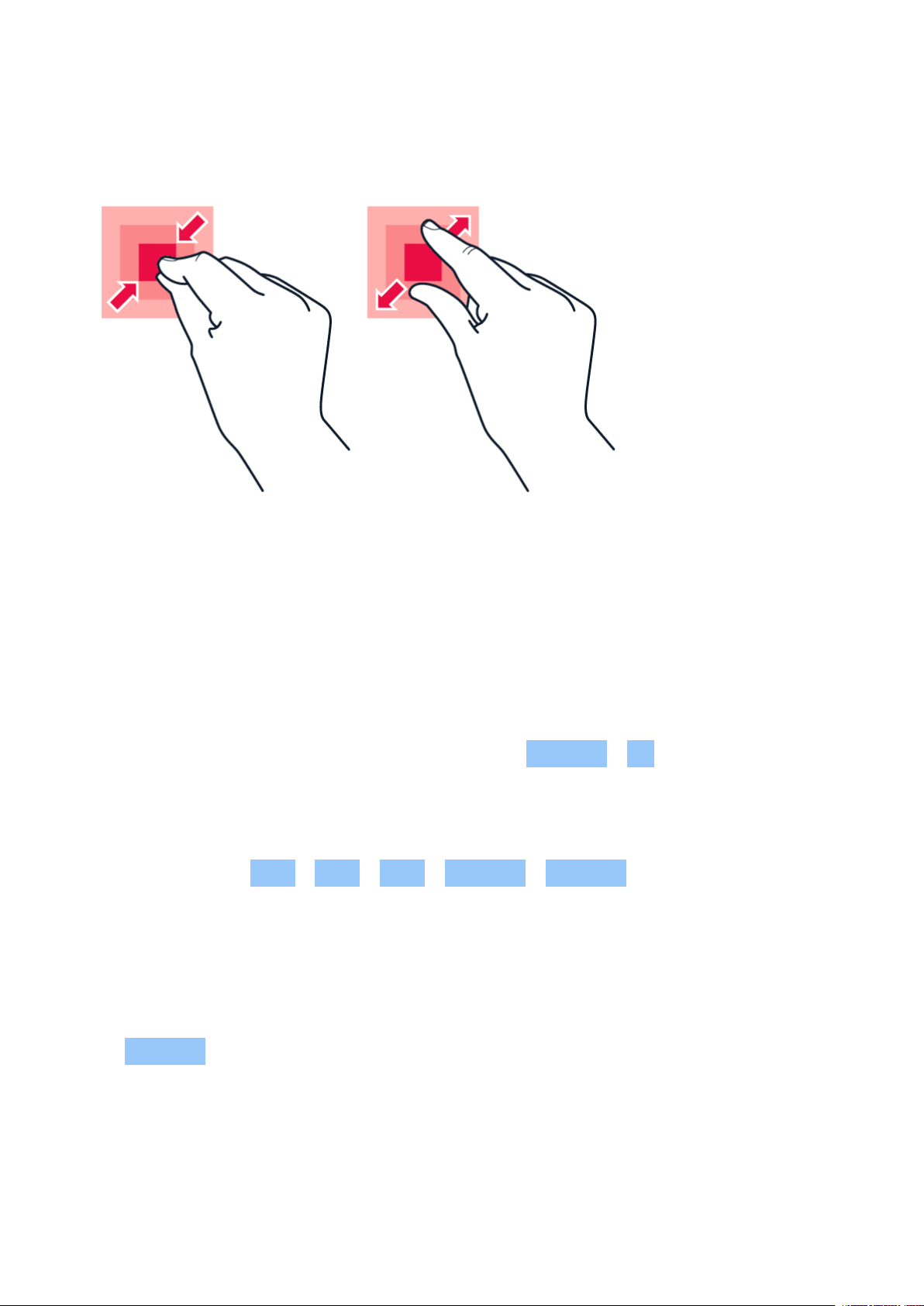
放大或缩小
将两根手指放在所需内容 (如地图、照片或⽹页) 上,然后向外张开或向内并拢滑动两指。
锁定屏幕方向
当您将手机旋转 90 度时,屏幕会自动旋转。
要将屏幕锁定为纵向模式,请从屏幕顶部向下滑动,然后点按 自动旋转 > 关 。
手势导航
要启用手势导航,请点按 设置 > 系统 > 手势 > 系统导航 > 手势导航 。
• 要查看所有应用,请在主屏幕上向上滑动屏幕。
• 要返回主屏幕,请从屏幕底部向上滑动。您刚才打开的应用仍在后台运行。
• 要查看已打开的应用,请用手指按住并从屏幕底部向上滑动,直到看到这些应用,再松开手指。要切换
至其他已打开的应用,请点按相应的应用。要关闭所有打开的应用,请向右滑动以浏览所有应用,然后
点按 全部清除 。
• 要返回前一屏幕,请向屏幕的右侧或左侧滑动。您的手机将记住您在上次锁定屏幕后访问的所有应用
程序和⽹站。
© 2022 HMD Global Oy. 保留所有权利。 11
Page 12

Nokia G60 5G 用户指南
Navigate with keys
To switch on the navigation keys, tap Settings > System > Gestures > System navigation >
3-button navigation .
• To see all your apps, on the home screen, swipe up from the bottom of the screen.
• To go to the home screen, tap . The app you were in stays open in the background.
• To see which apps you have open, tap . To switch to another open app, swipe right and
tap the app. To close all the open apps, swipe right through all the apps and tap CLEAR ALL .
• To go back to the previous screen you were in, tap . Your phone remembers all the apps
and websites you’ve visited since the last time your screen was locked.
USE YOUR ESIM
Activate your eSIM
If you didn’ t activate your eSIM card when you switched on the phone for the first time, you
can activate it in the settings. If you do not have a physical SIM card inserted in your phone, you
need a Wi-Fi connection to be able to activate your eSIM: tap Settings > Network & internet ,
and switch Wi-Fi on.
1. Tap Settings > Network & internet >
SIMs .
2. If you do not have a physical SIM
card inserted in your phone, tap
Download eSIM instead? . If you already
have a physical SIM card inserted, tap
Add eSIM .
3. If you got a QR code from your network
operator, scan it with your phone or tap
You may have up to 10 eSIM cards on this phone, depending on the size of your eSIMs. If you
don’t have enough space for your eSIMs, remove an eSIM in Settings .
Need help? > Enter it manually , and
enter the code you received from your
network operator.
4. Tap Continue > Download , and wait until
the eSIM has been downloaded onto your
phone.
5. Tap Settings and the eSIM, and switch
Use eSIM on.
Switch between eSIMs
If you have several eSIM cards and want to switch to using another eSIM, tap Settings >
Network & internet > SIMs , tap the eSIM you want to use, and switch on Use eSIM .
© 2022 HMD Global Oy. 保留所有权利。 12
Page 13

Nokia G60 5G 用户指南
Switch to a physical SIM card
1. Insert a SIM card in your phone.
2. The phone disconnects from the eSIM network. Tap OK to continue.
3. Once the phone has read the SIM card, tap the SIM card and switch on Use SIM .
Remove an eSIM from your phone
To remove an eSIM card from your phone, tap Settings > Network & internet > SIMs , tap the
eSIM you want to remove and tap Erase eSIM . Note, however, that this does not cancel your
subscription from your network operator. If you want to use the removed eSIM in your phone
later, contact your network operator.
© 2022 HMD Global Oy. 保留所有权利。 13
Page 14

Nokia G60 5G 用户指南
3 保护您的手机
锁定或解锁手机
锁定手机
当手机放在衣服口袋或包中时,若要避免意外拨打电话,您可以锁定按键和屏幕。
要锁定按键和屏幕,请按电源键。
解锁按键和屏幕
按电源键,然后在屏幕上向上滑动。如果出现提示,请提供其他凭据。
使用屏幕锁定保护您的手机
您可以将手机设置为在解锁屏幕时请求验证。
设置屏幕锁定
1. 点按 设置 > 安全 > 屏幕锁定 。2. 选择锁定类型并按手机上显示的说明操作。
PROTECT YOUR PHONE WITH YOUR FINGERPRINT
添加指纹
1. 点按 设置 > 安全 > 指纹 。
2. 选择您希望为锁定屏幕使用的备选解锁方法,并按手机上显示的说明操作。
使用手指解锁您的手机
将您录入指纹的手指放在电源键上。
如果指纹传感器出现错误,并且您完全没有办法使用其他登录方式来恢复或重置手机,则您的手机需要
经授权的维修人员维修。此服务可能需要收取额外的费用,而您手机中的所有个人数据可能会被删除。有
关更多信息,请联系距离您最近的客户服务⽹点,或您的手机经销商。
© 2022 HMD Global Oy. 保留所有权利。 14
Page 15
Nokia G60 5G 用户指南
使用人脸识别保护您的手机
设置人脸识别
1. 点按 设置 > 安全 > 人脸解锁 。2. 选择您希望为锁定屏幕使用的备选解锁方法,并按手机上显示的
说明操作。
睁大眼睛,确保脸部完全可见,没有被任何物体遮挡,如帽子或太阳镜。
注意:使用脸部解锁手机不如使用指纹、图案或密码安全。您的手机可能会由面貌相似的人或物解锁。
人脸解锁可能无法在背光的情况下或者光线过暗或过亮的环境中正常工作。
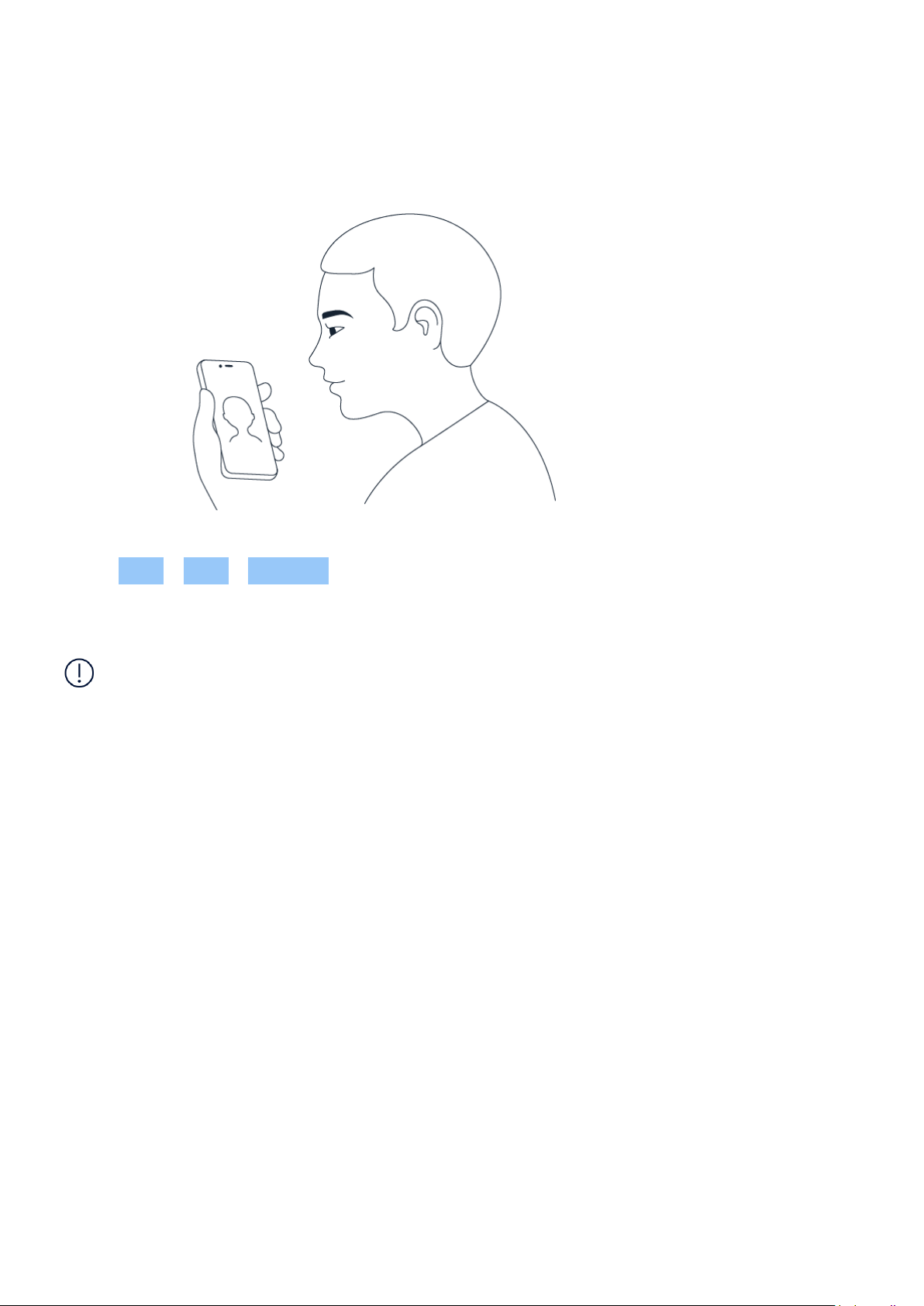
使用脸部解锁您的手机
要解锁手机,只需打开屏幕并注视前置相机即可。
如果人脸识别出现错误,并且您完全没有办法使用其他登录方式来恢复或重置手机,则您的手机需要维
修。此服务可能需要收取额外的费用,而您手机中的所有个人数据可能会被删除。有关更多信息,请联系
距离您最近的授权维修机构,或联系您的手机经销商。
寻找丢失的手机
定位或锁定手机
如果手机丢失,并且您已登录到 Google 帐户,也许能够远程寻找、锁定或清空手机。与 Google 帐户关联
的手机在默认情况下会启用 ”寻找我的设备” 功能。
要使用 ”寻找我的设备”,丢失的手机必须满足以下条件:
© 2022 HMD Global Oy. 保留所有权利。 15
Page 16

Nokia G60 5G 用户指南
• 已开机
• 已登录到 Google 帐户
• 已连接到移动数据⽹络或 WLAN
当 ”寻找我的设备” 连接到您的手机时,您会看到手机的位置,并且手机会收到通知。
• 在 Google Play 上可见
• 已打开 ”位置信息” 功能
• 已打开 ”寻找我的设备” 功能
1. 在连接到互联⽹的计算机、平板电脑或手机上打开 android.com/find,然后登录您的 Google 帐户。
2. 如果您有多部手机,请在屏幕顶部点击丢失的手机。3. 在地图上,查看手机所在的位置。此位置是大致
位置,可能不准确。
如果无法找到您的设备,”寻找我的设备” 将显示其最后一个已知的位置(如果可用)。要锁定或清空手
机,请按照⽹站上的说明进行操作。
© 2022 HMD Global Oy. 保留所有权利。 16
Page 17
Nokia G60 5G 用户指南
4 基本操作
PERSONALIZE YOUR PHONE
更改壁纸
点按 设置 > 壁纸和样式 。
Change your phone ringtone
Tap Settings > Sound > Phone ringtone (SIM1) or Phone ringtone (SIM2) , and select the
tone.
更改您的信息通知提示音
点按 设置 > 声音 > 默认通知提示音 。
通知
使用通知面板
当您接到关于信息或未接来电等新通知时,屏幕顶部会显示图标。
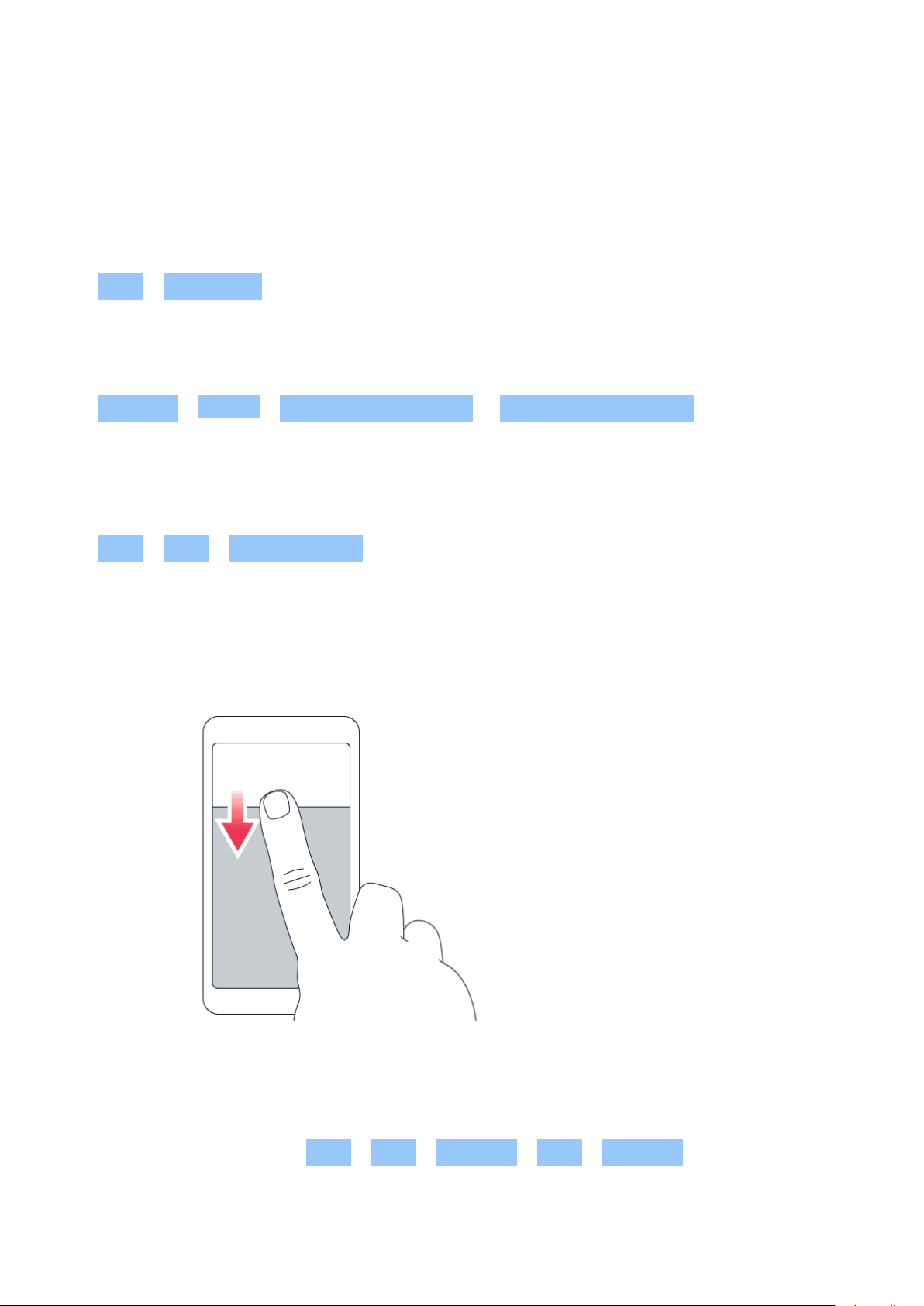
要查看更多有关通知的信息,请从屏幕顶部向下滑动。要关闭视图,请在屏幕上向上滑动。
要更改应用的通知设置,请点按 设置 > 通知 > 应用设置 > 最近 > 所有应用 ,然后打开或关闭应用
的通知。
© 2022 HMD Global Oy. 保留所有权利。 17
Page 18
Nokia G60 5G 用户指南
使用快速访问项目
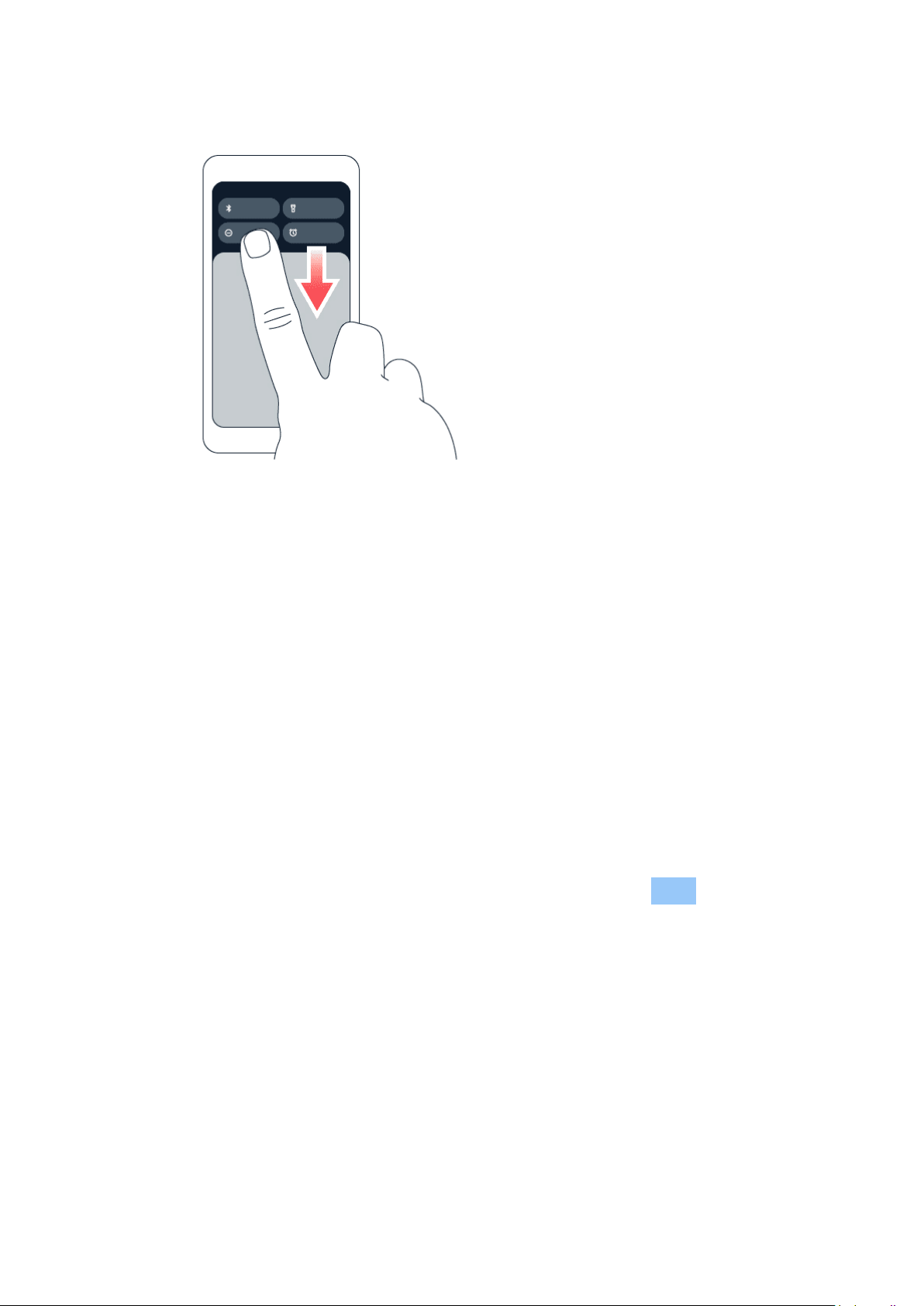
要启动功能,请点按通知面板中的相应快速访问项目。要查看更多项目,请向下拖动功能表。要重新排列
或添加新项目,请点按 ,按住项目,然后将其拖至其他位置。
控制音量
调节音量
如果在嘈杂的环境中难以听到手机铃声,或通话声音太大,您可以使用手机侧面的音量键来根据自己的
需要调节音量。
请勿连接能够生成输出信号的产品,以免损坏设备。请勿将任何电压源连接至音频插孔。如果连接至音频
插孔的任何外置设备或任何耳机未经认可能够与本设备一起使用,请特别注意音量。
调节媒体和应用的音量
1. 按音量键以查看音量条。2. 点按 。3. 左右拖动音量条上的滑块。4. 点按 完成 。
将手机设置为静音模式
1. 按音量键。2. 点按 。3. 点按 将手机设置为仅振动,或点按 将手机设置为静音。
自动文本更正
使用键盘字词建议
您的手机将在您输入文字时提供字词建议,以帮助您更快速准确地输入内容。字词建议功能可能并不支
持所有语言。
© 2022 HMD Global Oy. 保留所有权利。 18
Page 19
Nokia G60 5G 用户指南
当您开始输入时,您的手机会建议可能的字词。当您需要的字词显示在建议栏中时,请选择该字词。要查
看更多建议,请长按建议。
__提示:__如果建议的字词以粗体标记,手机会自动使用该字词替换您输入的字词。如果该字词有误,
请长按它以查看一些其他的建议。
如 果 您 不 希 望 键 盘 在 输 入 时 提 示,请 关 闭 文 本 更 正。点 按 设置 > 系统 > 语言和输入法 >
屏幕键盘 。选择您通常使用的键盘。点按 文本更正 并关闭您不希望使用的文本更正方法。
更正字词
如果您发现某个字词的拼写有误,请点按其以查看该字词的更正建议。
关闭拼写检查
点按 设置 > 系统 > 语言和输入法 > 拼写检查 ,然后关闭 使用拼写检查 。
BATTERY LIFE
Extend battery life
To save power:
1. Always charge the battery fully.
2. Mute unnecessary sounds, such as touch
sounds. Tap Settings > Sound , and
select which sounds to keep.
3. Use wired headphones, rather than the
loudspeaker.
4. Set the phone screen to switch off after
a short time. Tap Settings > Display >
Advanced > Screen timeout and select
the time.
5. Tap Settings > Display >
Brightness level . To adjust the
brightness, drag the brightness
level slider. Make sure that
Adaptive brightness is switched off.
6. Stop apps from running in the background.
7. Use location services selectively: switch
location services off when you don’ t
need them. Tap Settings > Location , and
switch off Use location .
8. Use network connections selectively:
Switch Bluetooth on only when needed.
Use a Wi-Fi connection to connect to
the internet, rather than a mobile data
connection. Stop your phone scanning
for available wireless networks. Tap
Settings > Network & internet , and
switch off Wi-Fi . If you’re listening to
music or otherwise using your phone,
but don’t want to make or receive calls,
switch the airplane mode on. Tap Settings
> Network & internet , and switch on
Airplane mode . Airplane mode closes
connections to the mobile network and
switches your device’ s wireless features
off.
© 2022 HMD Global Oy. 保留所有权利。 19
Page 20
Nokia G60 5G 用户指南
无障碍功能
放大屏幕上的文字
1. 点按 设置 > 无障碍功能 > 文字和显示 。2. 点按 字体大小 ,然后点按字体大小滑块,直到找到您喜
欢的文字大小。
放大屏幕上的项目
1. 点按 设置 > 无障碍功能 > 文字和显示 。2. 点按 显示大小 ,然后点按显示大小滑块,直到找到您喜
欢的大小。
© 2022 HMD Global Oy. 保留所有权利。 20
Page 21
Nokia G60 5G 用户指南
5 与朋友和家人保持联络
通话
拨打电话
1. 点按 。2. 点按 并输入号码,或点按 并选择要呼叫的联系人。3. 点按 。
接听来电
如果手机在屏幕解锁后响铃,请点按 接听 。如果手机在屏幕锁定时响铃,请向上滑动以接听。
拒绝接听来电
如果手机在屏幕解锁后响铃,请点按 拒绝 。如果手机在屏幕锁定时响铃,请向下滑动以拒绝接听来电。
通讯录
添加联系人
1. 点按 通讯录 > + 。2. 填写信息。3. 点按 保存 。
从通话记录保存联系人
1. 点按 > 以查看通话记录。2. 点按要保存的号码。3. 点按 增加姓名 。如果此为新联系人,请输入
联系人信息,然后点按 保存 。如果此联系人已在通讯录列表中,请点按 添加到现有联系人 ,选择联系人,
然后点按 保存 。
发送信息
发送信息
1. 点按 信息 。2. 点按 开始聊天 。3. 要添加收信人,请点按 ,输入其号码,然后点按 。要从通讯录列
表中添加收信人,请先输入其姓名,然后点按此联系人。4. 要添加更多收件人,请点按 。选择所有收信
人后,点按 下一步 。5. 在文字框内输入您的信息。6. 点按 。
邮件
您可以在外出时使用手机阅读和回复电子邮件。
© 2022 HMD Global Oy. 保留所有权利。 21
Page 22

Nokia G60 5G 用户指南
增加电子邮件帐户
当您首次使用 Gmail 应用程序时,需要先设置您的电子邮件帐户。
1. 点按 Gmail 。2. 您可以选择与您的 Google 帐户关联的地址,或点按 增加电子邮件地址 。3. 增加
了全部帐户后,点按 返回 GMAIL 。
发送电子邮件
1. 点按 Gmail 。2. 点按 。3. 在 收件人 框内,输入地址,或点按 > 从通讯录增加 。4. 输入邮件主
题 ,然后输入正文。5. 点按 。
© 2022 HMD Global Oy. 保留所有权利。 22
Page 23
Nokia G60 5G 用户指南
6 相机
相机基本操作
拍摄照片
拍摄清晰绚丽的照片 – 将精彩瞬间储存至您的相册。
1. 点按 相机 。2. 对准拍摄对象并调节焦距。3. 点按 。
拍摄自拍照
1. 点按 相机 > 以切换至前置相机。2. 点按 。
录制视频
1. 点按 相机 。2. 要切换至摄像模式,请点按 视频 。3. 点按 开始录制。4. 要停止录制,请点按 。5.
要返回至相机模式,请点按 照片 。
您的照片和视频
查看手机中的照片和视频
点按 照片 。
共享照片和视频
1. 点按 照片 ,点按要共享的照片,然后点按 。2. 选择共享照片或视频的方式。
将照片和视频复制到计算机中
使用兼容的 USB 线将手机连接至计算机。使用计算机的文件管理器将照片和视频复制或移动到计算机
中。
© 2022 HMD Global Oy. 保留所有权利。 23
Page 24
Nokia G60 5G 用户指南
7 互联⽹和连接
ACTIVATE WI-FI
Switch on Wi-Fi
1. Tap Settings > Network & internet .
2. Switch Wi-Fi on.
3. Select the network you want to use.
Your Wi-Fi connection is active when is shown at the top of the screen. If both Wi-Fi and
mobile data connections are available, your phone uses the Wi-Fi connection.
Important: Use encryption to increase the security of your Wi-Fi connection. Using encryption
reduces the risk of others accessing your data.
BROWSE THE WEB
Search the web
1. Tap Chrome .
2. Write a search word or a web address to the search field.
3. Tap , or select from the proposed matches.
提示:如果您的⽹络服务提供商并不向您收取固定的数据传送费用,则可以使用 WLAN ⽹络来连接互
联⽹,以节省数据传送费用。
Use your phone to connect your computer to the web
Use your mobile data connection to access the internet with your laptop or other device.
1. Tap Settings > Network & internet > Hotspot & tethering .
2. Switch on Wi-Fi hotspot to share your mobile data connection over Wi-Fi, USB tethering to
use a USB connection, Bluetooth tethering to use Bluetooth, or Ethernet tethering to use
a USB Ethernet cable connection.
The other device uses data from your data plan, which may result in data traffic costs. For info
on availability and costs, contact your network service provider.
© 2022 HMD Global Oy. 保留所有权利。 24
Page 25
Nokia G60 5G 用户指南
蓝牙 ®
连接蓝牙设备
1. 点按 设置 > 已连接的设备 > 连接偏好设置 > 蓝牙 。2. 打开 使用蓝牙 。3. 确保另一台设备已
开机。您可能需要从另一台设备开始配对过程。有关详情,请参见另一台设备的用户指南。4. 点按
与新设备配对 ,然后从已发现的蓝牙设备列表中点按要配对的设备。5. 您可能需要输入通行码。有关详
情,请参见另一台设备的用户指南。
由于支持蓝牙无线技术的设备通过无线电波进行通信,因此不需要保持它们相互正对。但是,蓝牙设备之
间的最大距离不能超过 10 米 (约 33 英尺),并且蓝牙连接也可能因为墙壁等障碍物或其他电子设备而
受到干扰。
如果您的手机启动了蓝牙功能,已配对设备即可连接到您的手机。但只有当蓝牙设置视图打开时,其他设
备才能检测到您的手机。
请勿与未知设备配对,也不要接受未知设备的连接请求。这有助于保护您的手机免受有害内容的侵扰。
使用蓝牙共享内容
如果想要与朋友分享您的照片或其他内容,请使用蓝牙将其发送到您朋友的手机中。
您可以同时使用多个蓝牙连接。例如,在使用蓝牙耳机时,您仍可以将内容发送至其他手机。
1. 点按 设置 > 已连接的设备 > 连接偏好设置 > 蓝牙 。2. 请确保两部手机均已启动蓝牙,并且两部
手机可以互相被检测到。3. 转到要发送的内容,然后点按 > 蓝牙 。4. 在已找到的蓝牙设备列表中,点
按您朋友的手机。5. 如果其他手机需要通行码,请输入或接受通行码,然后点按 配对 。
通行码仅在您首次连接某个对象时使用。
删除配对
如果已与手机配对的设备不再归您所有,则可以删除配对。
1. 点按 设置 > 连接设备 > 以前连接的设备 。2. 点按设备名称旁边的 。2. 点按 忘记 。
NFC
If your phone supports Near Field Communication (NFC), you can tap accessories to connect
to them, and tap tags to call someone or open a website. The NFC functionality can be used
with some specific services and technologies like tap to pay with your device. These services
might not be available in your region. For additional info about the availability of these services,
contact your network service provider.
© 2022 HMD Global Oy. 保留所有权利。 25
Page 26
Nokia G60 5G 用户指南
Switch on NFC
1. Tap Settings > Connected devices > Connection preferences > NFC .
2. Switch on Use NFC .
Before using NFC, make sure the screen and keys are unlocked.
Use NFC
The NFC area is at the back of your phone.
To connect your phone to another phone or an accessory, or to read NFC tags, just tap the
other device or tag with the NFC area of your phone.
注意:付款和票务应用和服务由第三方提供。对于任何此类应用或服务,包括支持、功能性、交易或任何
货币价值的损失,HMD Global 不提供任何保证或承担任何责任。修复您的设备后,您可能需要重新安
装并激活您已添加的卡片以及付款或票务应用。
与已连接的配件断开连接
如果您不再需要连接配件,则可以断开与配件的连接。
再次触碰配件的 NFC 部位。
有关更多信息,请参见配件的用户指南。
VPN
您可能需要有虚拟专用⽹络 (VPN) 连接才能访问您的公司资源,如内部⽹或公司电子邮件等,或者您也
可以将 VPN 服务用于个人用途。
有关 VPN 配置的详情,请咨询您公司的 IT 管理员,或可访问 VPN 服务的⽹站以获取更多信息。
使用安全的 VPN 连接
1. 点按 设置 > ⽹络和互联⽹ > VPN 。2. 要添加 VPN 配置文件,请点按 。3. 请按照您公司 IT 管理
员或 VPN 服务的指示输入配置文件信息。
编辑 VPN 配置文件
1. 点按配置文件名称旁边的 。2. 根据需要更改信息。
删除 VPN 配置文件
1. 点按配置文件名称旁边的 。2. 点按 忘记 。
© 2022 HMD Global Oy. 保留所有权利。 26
Page 27

Nokia G60 5G 用户指南
8 安排您的日程
日期和时间
设置日期和时间
点按 设置 > 系统 > 日期和时间 。
自动更新时间和日期
可以将手机设置为自动更新时间、日期和时区。自动更新是一项⽹络服务,是否提供可能取决于您所在的
地区或⽹络服务提供商。
1. 点按 设置 > 系统 > 日期和时间 。2. 打开 自动设置时间 。3. 打开 自动设置时区 。
将时钟更改为 24 小时制
点按 设置 > 系统 > 日期和时间 ,然后将 使用 24 小时制 切换至 ”开”。
闹钟
设置闹铃
1. 点按 时钟 > 闹钟 。2. 要添加闹钟,请点按 。3. 选择小时和分钟,然后点按 确认 。4. 要将闹钟设置
为在特定日期重复,请点按相应的工作日。
关闭闹钟
当闹钟响起时,请向右滑动闹钟。
CALENDAR
Select the calendar type
Tap Calendar > , and select what type of calendar you want to see.
If you have signed into an account, such as your Google account, your calendar is shown on the
phone.
© 2022 HMD Global Oy. 保留所有权利。 27
Page 28
Nokia G60 5G 用户指南
添加事件
1. 点按 日历 > 。2. 添加所需的详细信息。3. 要使事件在特定日子重复,请点按 不重复 ,然后选择事
件重复的频率。4. 要设置备忘录,请点按 添加通知 并设定时间。5. 点按 保存 。
__提示:__要编辑事件,请点按事件,再点按 ,然后编辑详情。
删除约会
1. 点按事件。2. 点按 > 删除 。
© 2022 HMD Global Oy. 保留所有权利。 28
Page 29
Nokia G60 5G 用户指南
9 Maps
FIND PLACES AND GET DIRECTIONS
查找地点
Google 地图 可帮助您查找特定的位置和商业场所。
1. 点按 地图 。2. 在搜索栏中输入搜索字词,如街道地址或地点名称。3. 在您输入时,从建议的匹配项列
表中选择一项,或点按 搜索。
该位置将显示在地图上。如果未找到搜索结果,请确保您的搜索字词拼写正确。
查看当前位置
点按 地图 > 。
Get directions to a place
1. Tap Maps and enter your destination in the search bar.
2. Tap Directions . The highlighted icon shows the mode of transportation, for example . To
change the mode, select the new mode under the search bar.
3. If you don’t want the starting point to be your current location, tap Your location , and
search for a new starting point.
4. Tap Start to start the navigation.
The route is shown on the map, along with an estimate of how long it takes to get there. To see
detailed directions, tap Steps .
© 2022 HMD Global Oy. 保留所有权利。 29
Page 30

Nokia G60 5G 用户指南
10 应用、更新和备份
GET APPS FROM GOOGLE PLAY
Add a payment method
To use Google Play services, you need to have a Google account added to your phone. Charges
may apply to some of the content available in Google Play. To add a payment method, tap
Play Store , tap your Google logo in the search field, and then tap Payments & subscriptions .
Always be sure to have a permission from the payment method owner when buying content
from Google Play.
Download apps
1. Tap Play Store .
2. Tap the search bar to look for apps, or select apps from your recommendations.
3. In the app description, tap Install to download and install the app.
To see your apps, go to the home screen and swipe up from the bottom of the screen.
更新您的手机软件
安装可用更新
点按 设置 > 系统 > 系统更新 > 检查更新 以查看有无可用更新。
当您的手机通知您有可用更新时,只需按照手机上显示的说明进行操作。如果您的手机存储空间不足,您
可能需要将照片和其他内容移至存储卡。
在开始更新之前,请连接充电器或确保设备电池的电量充足,然后连接 WLAN。这是因为更新包可能会使
用很多移动数据。
备份您的数据
要确保数据安全,请使用手机的备份功能。您的设备数据 (如 WLAN 密码和通话记录) 和应用程序数据
(如应用程序储存的设置和文件) 将会远程备份。
启动自动备份
点按 设置 > 系统 > 备份 ,然后启动备份。
© 2022 HMD Global Oy. 保留所有权利。 30
Page 31

Nokia G60 5G 用户指南
恢复原始设置及从手机中删除个人内容
重置您的手机
1. 点按 设置 > 系统 > 重置选项 > 删除全部数据(恢复出厂设置)。2. 请按手机上显示的说明操作。
© 2022 HMD Global Oy. 保留所有权利。 31
Page 32
Nokia G60 5G 用户指南
11 产品和安全信息
为了您的安全
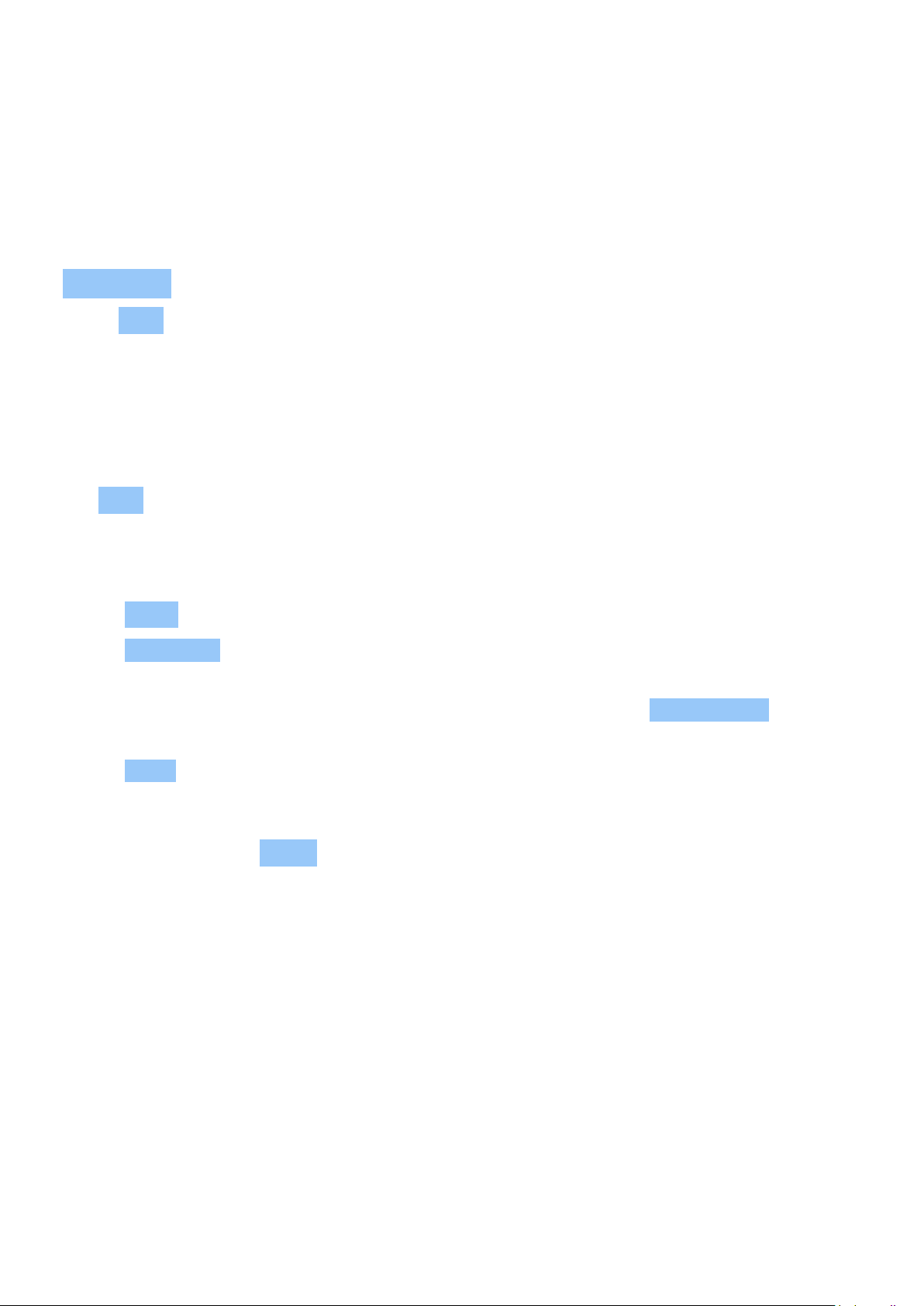
请阅读以下简明的规则。不遵守这些规则可能会导致危险或违反当地的法律法规。有关更详细信息,请阅
读完整的用户指南。
在受限制的区域应关机
当禁止使用设备或设备的使用会引起干扰或危险时(例如,在飞机上,在医院中或医疗器械、燃料、化学制
品或爆破地点附近),请关机。身处受限制区域时请遵守所有相关规定。
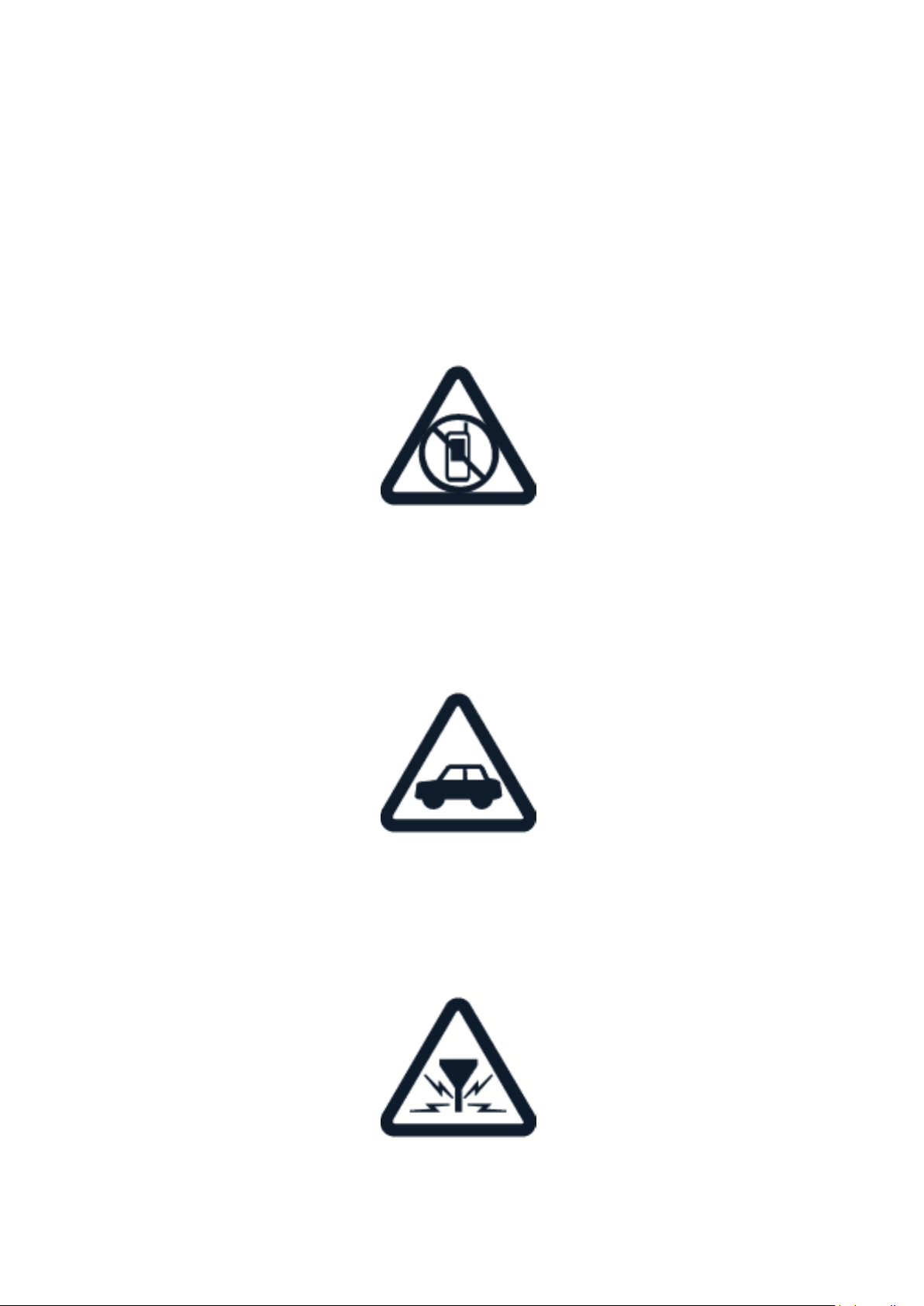
首先要注意交通安全
请遵守当地的所有相关法律法规。请始终使用双手驾驶汽车。驾车时应将交通安全放在第一位。
干扰
所有的无线设备都可能受到干扰,从而影响性能。
© 2022 HMD Global Oy. 保留所有权利。 32
Page 33
Nokia G60 5G 用户指南
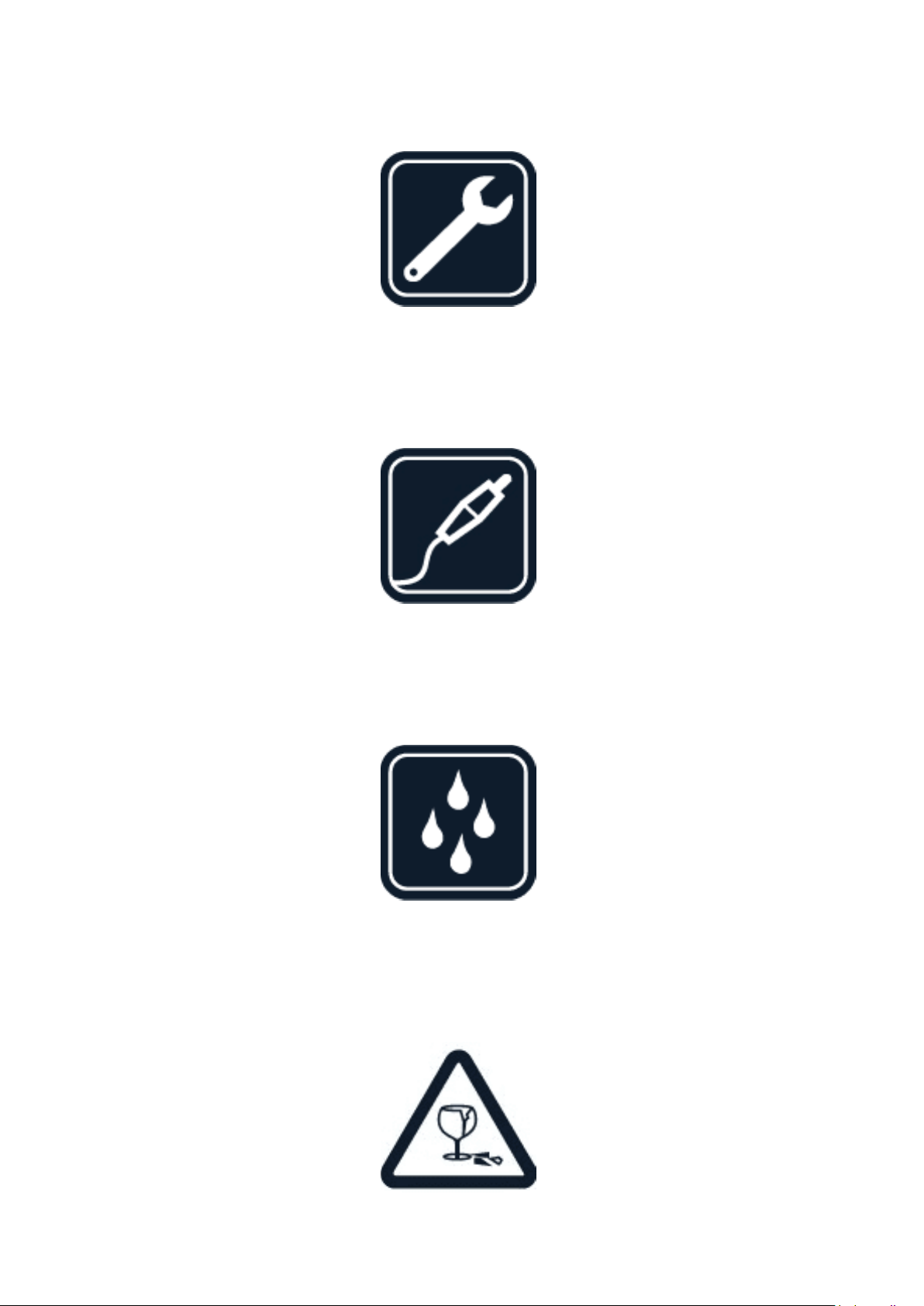
使用授权的维修服务
只有经授权的维修人员才可以安装或修理本产品。
电池、充电器和其他配件
仅可使用经 HMD Global Oy 认可、适用于此设备的电池、充电器和其他配件。请勿连接不兼容的产品。
保持设备干燥
如果您的设备具备防水性能,请参见设备技术规格中的 IP 等级以获得更详细的指南。
玻璃部件
© 2022 HMD Global Oy. 保留所有权利。 33
Page 34
Nokia G60 5G 用户指南
设备及/或其屏幕由玻璃制成。当设备掉落到坚硬的表面上或受到较大的冲击时,该玻璃部件会碎裂。如
果玻璃碎裂,请勿触碰设备的玻璃部件,也不要试图清理设备上的玻璃碎片。在经授权的维修人员更换玻
璃之前,请勿使用设备。
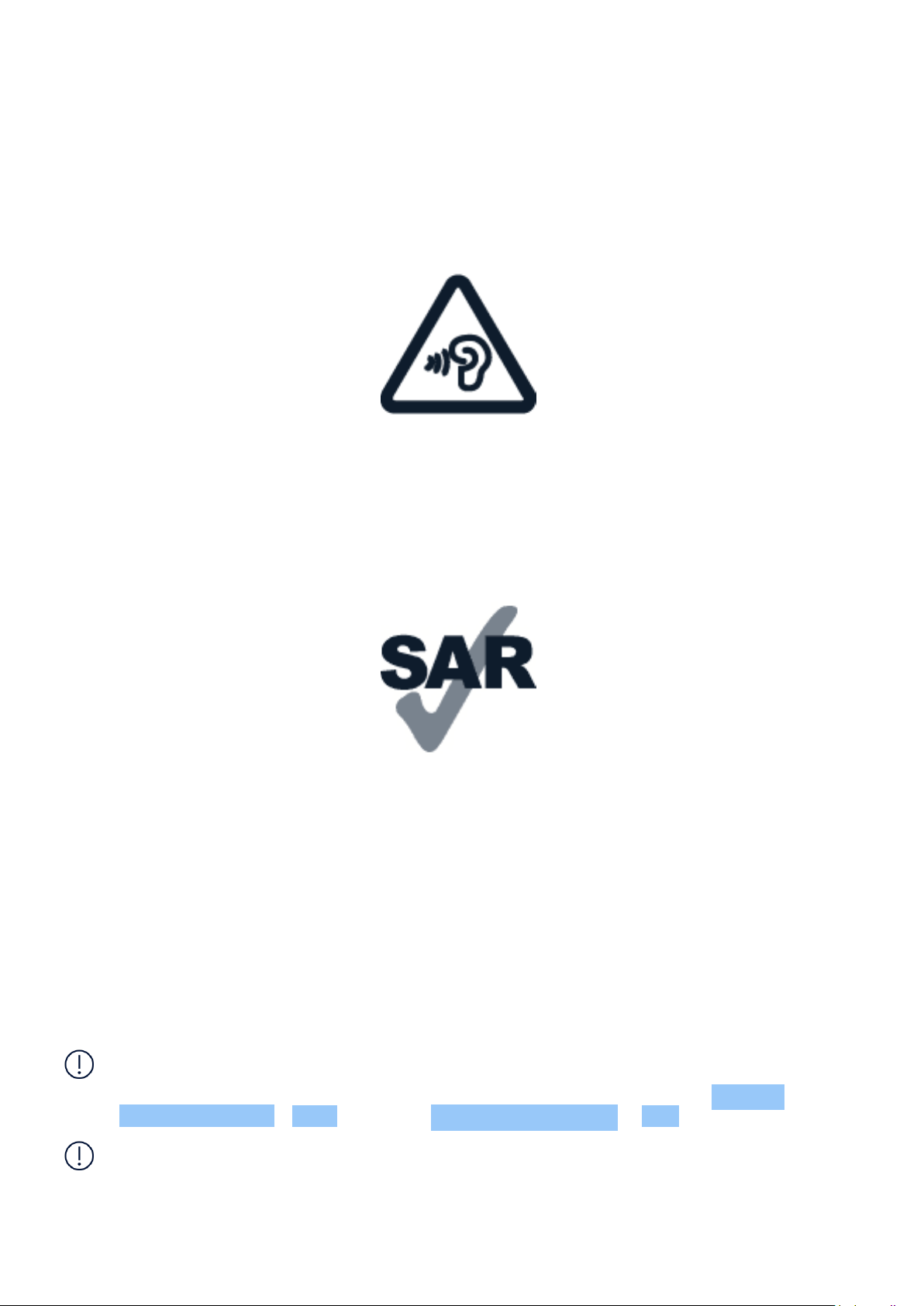
保护听力
为了避免对您的听力可能造成的损害,请不要长时间使用过高音量收听。请尽量避免在使用扬声器时将
设备贴近耳边。
比吸收率
无论是在靠近耳部的正常操作位置,还是与身体相距至少 1.5 厘米(约 5/8 英寸)的位置使用,本设备都
符合射频辐射规范的要求。具体的比吸收率最高值可在本用户指南的证书信息 (SAR) 部分找到。有关更
多信息,请参阅本用户指南的证书信息 (SAR) 部分或转到 www.sar-tick.com。
NETWORK SERVICES AND COSTS
使用某些功能和服务或下载内容 (包括免费项目) 需要建立⽹络连接。这可能会导致传输大量数据,从而
产生数据流量费。您也可能需要申请开通某些功能。
Important: 5G might not be supported by your network service provider or by the service
provider you are using when traveling. Ask your network service provider for details. If 5G
is not supported by your network service provider, it is recommended that you change the
highest connection speed from 5G to 4G. To do this, on the home screen, tap Settings >
Network & internet > SIMs , and switch Preferred network type to LTE .
注意:在某些国家或地区,使用 WLAN 可能受到限制。例如,在欧盟,您只能在室内使用 5150 – 5350
MHz WLAN,而在美国和加拿大,您只能在室内使用 5.15 – 5.25 GHz WLAN。有关更多信息,请向当地
的主管部⻔咨询。
有关更多信息,请咨询您的⽹络服务提供商。
© 2022 HMD Global Oy. 保留所有权利。 34
Page 35

Nokia G60 5G 用户指南
紧急呼救
重要须知:不能保证在任何情况下都能建立连接。因此,不应仅仅依赖任何手机实现重要通信,如医疗
救护。
拨打电话之前:
• 启动手机。
• 如果手机屏幕和按键处于锁定状态,请先解锁。
• 移动至信号足够强的位置。
在主屏幕上,点按 。
1. 输入您当前所在地区的官方紧急电话号码。紧急呼救电话号码可能会因国家或地区而有所不同。2. 点
按 。3. 请尽量准确地提供必要的信息。未经许可,请不要挂断电话。
您可能还需要执行以下操作:
• 将 SIM 卡插入手机。如果您没有 SIM 卡,请在锁定屏幕上点按 紧急呼叫 。
• 如果您的手机要求输入 PIN 码,请点按 紧急呼叫 。
• 关闭手机中的通话限制功能,如呼叫限制、固定拨号或封闭用户组。
• 如果无法使用移动⽹络,但可访问互联⽹,则不妨尝试拨打互联⽹电话。
小心使用您的设备
请小心处理您的设备、电池、充电器和配件。下列建议将帮助您确保设备可以正常使用。
• 保持设备干燥。雨水、湿气和各种液体或水分都
可能含有矿物质,会腐蚀电路。
• 请勿在有灰尘或肮脏的地方使用或存放设备。
• 请勿在高温环境中存放设备。高温可能会损坏
设备或电池。
• 未经认可的改装会损坏设备并违反无线电设备
的有关规定。
• 请勿抛掷、撞击或震动设备或电池。粗暴地对待
设备可能会损坏设备。
• 必须使用干燥的洁净软布清洁设备表面。
• 请勿在低温环境中存放设备。当设备温度升高
至常温时,其内部会形成潮气,这会导致设备损
坏。
• 请勿用颜料涂抹设备。颜料可能会导致运行不
正常。
• 请使设备远离磁铁或磁场。
• 请按本用户指南中的说明打开设备,切勿以其
他方法打开。
• 为确保您重要数据的安全,请将数据至少存放
在两处 (如您的设备、存储卡或计算机) 或写下
重要的信息。
© 2022 HMD Global Oy. 保留所有权利。 35
Page 36
Nokia G60 5G 用户指南
在工作时间较长的情况下,设备可能会发热。在大多数情况下,这是正常现象。为避免过热,设备可能会自
动降低速度、视频通话期间调暗屏幕、关闭应用程序、切断充电电路,并在必要时自动关机。如果设备工作
异常,请将其送至距离您最近的授权维修机构进行维修。
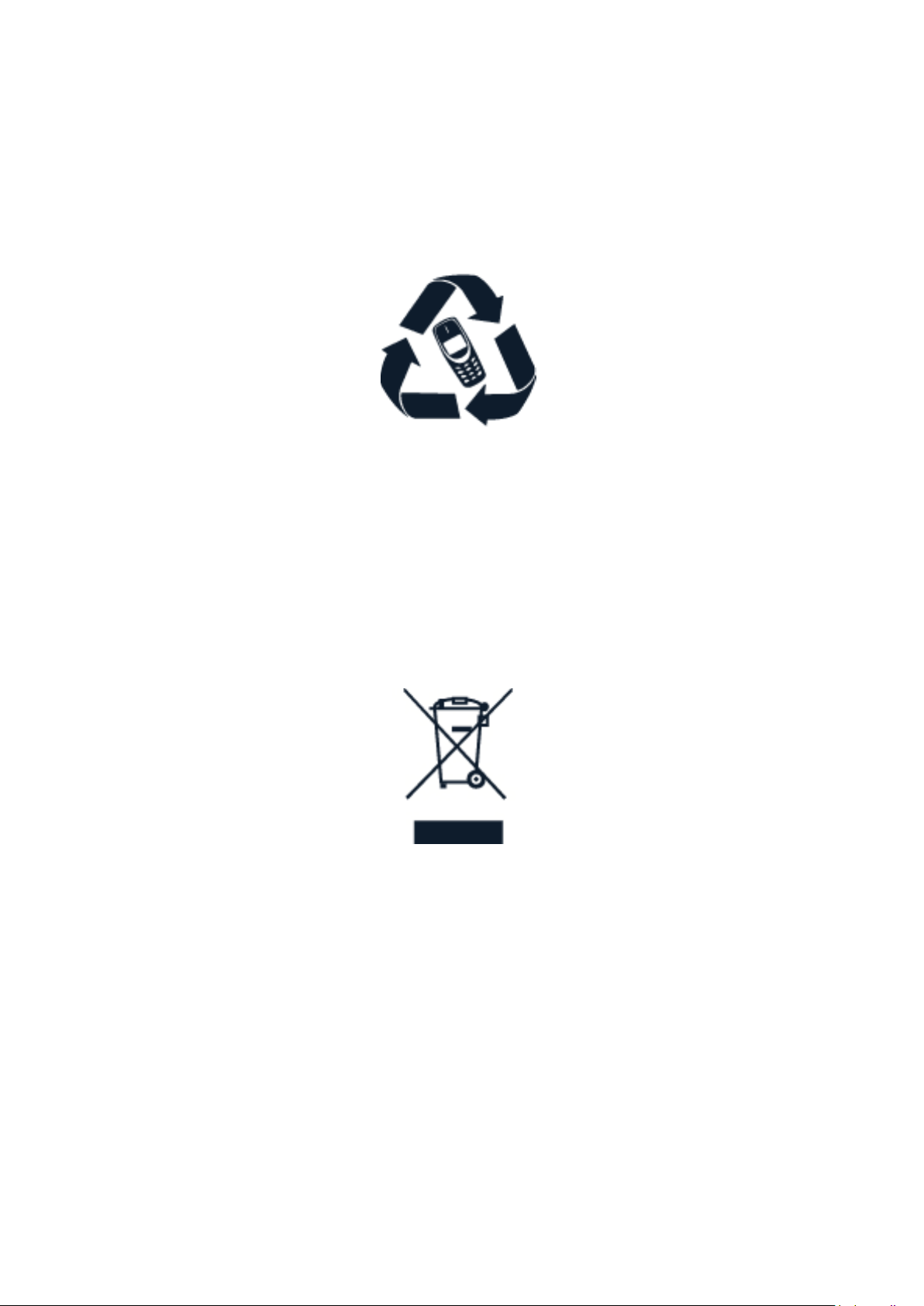
回收
请务必将废旧的电子产品、电池以及包装材料送交到专⻔的回收点。这样可以帮助防止不受控制的废弃
物处理并帮助推动材料回收。电气和电子产品包含多种珍贵材料,包括金属 (例如铜、铝、钢和镁) 和贵金
属 (例如金、银和钯)。设备的所有材料都可以作为材料或能源回收。
带有叉号的四轮回收车标志
带有叉号的四轮回收车标志
产品、电池、印刷品或包装上带有叉号的四轮回收车标志提醒您,当所有电气和电子产品以及电池的使用
寿命终结时必须将其送至单独的回收站。请勿将这些产品作为未分类的市政废物处理:对其进行回收。
有关离您最近的回收点的信息,请咨询当地废物处理部⻔。
电池和充电器信息
电池和充电器信息
要检查您的手机使用的是可拆卸电池还是不可拆卸电池,请参阅 ”使用入⻔”。
配有可拆卸电池的设备 请仅在本设备中使用原装充电电池。电池可以充电、放电数百次,但最终会失效。
当设备的待机时间和通话时间明显比正常时间短时,请更换电池。
© 2022 HMD Global Oy. 保留所有权利。 36
Page 37

Nokia G60 5G 用户指南
配有不可拆卸电池的设备 请勿尝试取出电池,以免损坏设备。电池可以充电、放电数百次,但最终会失
效。当设备的通话时间和待机时间明显比正常时间短时,要更换电池,请将设备送至最近的授权维修机
构。
使用兼容充电器为设备充电。充电器插头型号可能有所不同。充电时间可能因设备性能而异。
电池和充电器安全信息
设备充电完成后,将充电器从设备和电源插座上拔下。请注意,连续充电不应超过 12 小时。如果已充满
电的电池搁置不用,电池的电量也会慢慢减少。
温度过高或过低会减小电池的容量并缩短电池的寿命。应始终将电池温度保持在 15°C 和 25°C (59°F
和 77°F) 之间以便获得最佳性能。电池过冷或过热可能会造成设备暂时无法工作。请注意,在低温条件
下,电池电量可能会很快耗尽,几分钟内就会因电量不足导致关机。当您在寒冷的户外使用时,请为手机
保暖。
请遵守当地法规。请在可能的情况下回收电池。不可将电池作为生活垃圾处理。
请勿将电池暴露于极低气压条件下或将其置于极高温度环境中,例如将其掷入⽕中,否则可能导致电池
爆炸或易燃液体或气体泄漏。
请勿拆卸、切割、挤压、弯曲、刺破或以任何其他方式损坏电池。如果发生电池泄漏,请勿使皮肤或眼睛接
触到液体。如果接触到泄漏的液体,请立即用清水冲洗接触泄露液体的身体部位,或者寻求医疗救护。请
勿改装电池,亦不可尝试在电池中插入异物,或使其浸没或暴露于水或其他液体中。受损电池可能会爆
炸。
不要将电池和充电器挪作它用。使用不当,或者使用未经认可或不兼容的电池或充电器可能会引发⽕灾、
爆炸或发生其他危险,还可能导致任何核准或保修条款失效。如果您确信电池或充电器已破损,请在继续
使用前将其送至维修中心或手机经销商处。切勿使用受损的电池或充电器。只能在室内使用充电器。不要
在雷雨天气给设备充电。如果销售包装中未随附充电器,请使用数据线(随附)和 USB 电源适配器(可能
需要另行购买)为设备充电。您可以使用符合 USB 2.0 或更高版本以及符合适用国家/地区法规以及国
际和地区安全标准的第三方数据线和电源适配器为设备充电。其他适配器可能不符合适用的安全标准,
并且使用此类适配器充电可能会造成财产损失或人身伤害的风险。
要拔下充电器或配件,应握住插头将其拔下,而不是拉扯电源线。
此外,如果您的设备使用可拆卸电池,请注意以下事项:
• 取出电池前,请务必关闭设备并断开与充电器的连接。
• 当一些金属物体接触到电池上的小金属条时,会发生意外短路。这可能会损坏电池或其他物体。
儿童
本设备及其配件不是玩具,并且可能包含一些微小部件。请将其放置在儿童接触不到的地方。
© 2022 HMD Global Oy. 保留所有权利。 37
Page 38
Nokia G60 5G 用户指南
医疗器械
操作无线电发射设备 (包括无线电话) 时,如医疗器械的防护不够充分,则它的功能可能会受到干扰。若要
确定医疗器械能否充分屏蔽外部无线射频能量,请向医生或医疗器械厂商咨询。
植入式医疗器械
植入式医疗器械的生产商(如心脏起搏器、胰岛素泵和神经刺激器)建议无线设备与植入式医疗器械之间
至少保持 15.3 厘米(约 6 英寸)的距离, 以避免潜在干扰。植入此类器械的人士应遵循以下建议:
• 始终将无线设备与医疗器械之间的距离保持在
的耳旁。
15.3 厘米 (约 6 英寸) 以上。
• 如果有任何理由怀疑有干扰发生,请关闭无线
• 携带无线设备时,不应将其放在胸部的口袋内。
• 请勿将无线设备置于与医疗器械位于身体同侧
如果对于将无线设备和植入式医疗器械一起使用存有任何疑问,请向您的健康护理师咨询。
设备。
• 请遵守植入式医疗器械制造商的说明。
听力
警告:使用耳机时可能会影响您听到外界声音的能力。因此,请不要在可能危及安全的情况下使用耳
机。
有些无线设备可能会干扰某些助听器。
保护设备免受有害内容的侵扰
您的设备可能会遭到病毒及其他有害内容的侵袭。请采取下列防范措施:
• 打开信息时请务必小心。它们可能包含恶意软
件或其他内容,会对您的设备或计算机造成危
害。
• 请在设备及任何连接的计算机中安装防病毒软
件及其他安全软件。一次只能使用一个防病毒
应用程序。使用更多防病毒应用程序可能会影
响设备和/或计算机的性能和操作。
• 接受连接请求、浏览互联⽹或下载内容时请务
必小心。请勿接受来源不可靠的蓝牙连接请求。
• 请仅安装和使用来源可靠并且能够提供必要的
安全保护的服务和软件。
• 如果访问预安装的第三方互联⽹⽹站的书签和
链接,请采取相应的预防措施。HMD Global 不
对这些⽹站进行认可或承担任何责任。
汽车
无线电信号可能会影响车内未正确安装或未充分屏蔽的电子系统。有关更多信息,请向汽车或其设备的
制造商咨询。只有经授权的人员才可以将设备安装在汽车上。错误的安装是危险的,还可能导致设备的
保修条款失效。定期检查汽车中的所有无线设备是否妥善安装并正常工作。不要将设备及其部件或配件
与易燃或易爆物品放在同一货舱中储存或运输。请勿将设备或配件放在气囊膨胀时可能触及的区域。
© 2022 HMD Global Oy. 保留所有权利。 38
Page 39

Nokia G60 5G 用户指南
有可能引起爆炸的地方
在有可能引起爆炸的环境中 (例如汽油泵附近),请关闭设备。⽕花可能会引起爆炸或⽕灾,从而导致伤
亡。请遵守针对燃料存放区、化工厂或爆破作业区域的限制性规定。有潜在爆炸危险的环境可能并没有清
晰的标示。此类区域通常包括:建议关闭发动机的位置、船甲板下面、化学制品运输或存储设施,以及空
气中含有化学物质或微粒的区域。请向以液化石油气 (丙烷或丁烷) 为动力的汽车制造商咨询以确定本设
备能否在汽车附近安全地使用。
证书信息 (SAR)
此型号移动设备符合有关无线电波辐射的国际规范。
您的移动设备是无线电发射机和接收机。它的设计使其不会超出独立科学组织 ICNIRP 制定的国际规范
所建议的无线电波 (电磁射频场) 辐射限值。这些规范包含足够的安全余量,旨在保护各年龄段和各种健
康状况用户的安全。这些辐射规范以比吸收率 (Specific Absorption Rate, SAR) 为基础制定。比吸收率
指设备在传送信号期间留在头部或身体里的射频 (Radio Frequency, RF) 功率量。ICNIRP 规定的移动
设备比吸收率限值为平均每 10 克身体组织 2.0 ⽡特/千克 (W/kg)。
比吸收率测试均在标准操作位置进行,且设备在其所有频段上的发射功率经验证均为最高级别。
如需了解本产品电磁辐射比吸收率 (SAR) 最大值,请参见 www.nokia.com/phones/sar。
无论是在靠近头部或是与身体相距至少 1.5 厘米 (约 5/8 英寸) 的位置使用,本设备都符合射频辐射规
范的要求。若使用便携套、腰带夹或其他形式的夹套随身携带设备,则应确保此类配件无金属件,并且应
保证设备与身体间隔的距离符合上述要求。
要发送数据或信息,本设备需要与⽹络建立稳定的连接。如果⽹络连接不稳定,可能会导致发送延迟。在
发送结束前,请遵守上述有关间隔距离的说明。
在常规使用期间,比吸收率的值通常远低于上述值。这是因为,为了提高系统效率并尽量减少对⽹络的干
扰,当通话无需全功率时,手机的运行功率会自动降低。功率输出越低,比吸收率的值就越低。
各设备型号可能有不同版本,因此各自的比吸收率的值也不尽相同。设备的组件和设计后续可能会有所
改变,其中的一些改变可能影响比吸收率的值。
有关更多信息,请访问 www.sar-tick.com。请注意,即使在您没有进行语音通话时,移动设备也可能在传
送信号。
世界卫生组织 (World Health Organization, WHO) 已声明,目前所掌握的科学信息显示使用移动设
备时无需任何特殊的防护措施。如果您希望减少受到的辐射,该组织建议您减少移动设备的使用,或
者使用免提套件使设备远离头部和身体。有关射频辐射的更多信息、说明和讨论,请访问 WHO ⽹站:
www.who.int/health-topics/electromagnetic-fields#tab=tab_1。
关于数字版权管理
使用本设备时,请遵守各项法律法规,尊重当地习俗、他人隐私及合法权利 (包括版权)。您可能无法复制、
修改或传送受版权保护的照片、音乐及其他内容。
© 2022 HMD Global Oy. 保留所有权利。 39
Page 40

Nokia G60 5G 用户指南
COPYRIGHTS AND OTHER NOTICES
Copyrights and other notices
The availability of some products, features, applications and services described in this guide
may vary by region and require activation, sign up, network and/or internet connectivity
and an appropriate service plan. For more info, contact your dealer or your service provider.
This device may contain commodities, technology or software subject to export laws and
regulations from the US and other countries. Diversion contrary to law is prohibited.
The contents of this document are provided ”as is”. Except as required by applicable law, no
warranties of any kind, either express or implied, including, but not limited to, the implied
warranties of merchantability and fitness for a particular purpose, are made in relation to the
accuracy, reliability or contents of this document. HMD Global reserves the right to revise this
document or withdraw it at any time without prior notice.
To the maximum extent permitted by applicable law, under no circumstances shall HMD Global
or any of its licensors be responsible for any loss of data or income or any special, incidental,
consequential or indirect damages howsoever caused.
Reproduction, transfer or distribution of part or all of the contents in this document in any
form without the prior written permission of HMD Global is prohibited. HMD Global operates
a policy of continuous development. HMD Global reserves the right to make changes and
improvements to any of the products described in this document without prior notice.
HMD Global does not make any representations, provide a warranty, or take any responsibility
for the functionality, content, or end-user support of third-party apps provided with your
device. By using an app, you acknowledge that the app is provided as is.
Downloading of maps, games, music and videos and uploading of images and videos may
involve transferring large amounts of data. Your service provider may charge for the data
transmission. The availability of particular products, services and features may vary by region.
Please check with your local dealer for further details and availability of language options.
Certain features, functionality and product specifications may be network dependent and
subject to additional terms, conditions, and charges.
All specifications, features and other product information provided are subject to change
without notice.
HMD Global Privacy Policy, available at http://www.nokia.com/phones/privacy, applies to your
use of the device.
HMD Global Oy is the exclusive licensee of the Nokia brand for phones & tablets. Nokia is a
registered trademark of Nokia Corporation.
Android, Google and other related marks and logos are trademarks of Google LLC.
Snapdragon is a product of Qualcomm Technologies, Inc. and/or its subsidiaries. Snapdragon is
a trademark or registered trademark of Qualcomm Incorporated.
The Bluetooth word mark and logos are owned by the Bluetooth SIG, Inc. and any use of such
marks by HMD Global is under license.
© 2022 HMD Global Oy. 保留所有权利。 40
Page 41

Nokia G60 5G 用户指南
OZO
OZO 是 Nokia Technologies Oy 的商标。
© 2022 HMD Global Oy. 保留所有权利。 41
 Loading...