

Page 1

QUICK REFERENCE GUIDE
SPORT
2017 ROGUE
Page 2
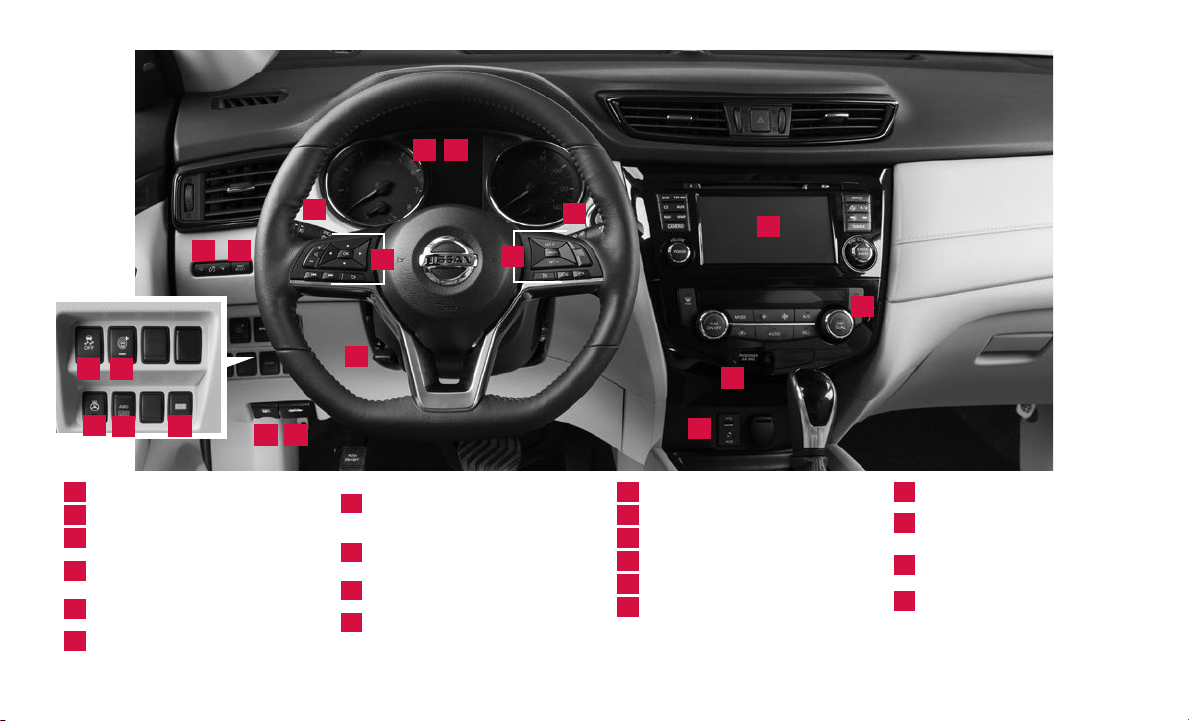
13
4
5
109
11
1
Vehicle Information Display*
2
Headlight and Turn Signal Switch
3
Low Tire Pressure Warning Light
Instrument Brightness
4
Control Button*
Twin Trip Odometer
5
Reset Button
6
Wiper and Washer Switch
*See your Owner’s Manual for information.
13
12
15
2
7
14
16
8
Steering Wheel Switches for
Audio Control*/ Navigation /
7
Vehicle Information Display
Cruise Control /
8
Bluetooth® Switches
Vehicle Dynamic Control (VDC)
9
OFF Switch*
10
Warning System Switch
6
20
11
Heated Steering Wheel Switch*
12
AWD Lock Mode Switch*
13
ECO Mode Switch
14
Steering Wheel Tilt Adjustment
15
Fuel-ller Door Release
16
Hood Release*
17
18
19
17
Audio and Navigation System
Heater and Air
18
Conditioner (automatic)
Front Passenger Air Bag
19
Status Light*
USB Port/Aux Jack /
20
Power Outlet
Page 3
TABLE OF CONTENTS
NEW SYSTEM FEATURES
NissanConnectSM Services Powered by SiriusXM® (if so equipped) . . . . . . . . . . . . . . . . . . . . 2
SiriusXM Travel Link and SiriusXM Trac (if so equipped)
Around View® Monitor with Moving Object Detection (MOD) (if so equipped)
Drive Mode
Blind Spot Warning (BSW) (if so equipped)
Rear Cross Trac Alert (RCTA) (if so equipped)
Forward Emergency Braking (FEB) with Pedestrian Detection System
(if so equipped)
Hill Start Assist
Siri® Eyes Free
Active Trace Control
Active Ride Control
Active Engine Brake
.............................................................................6
.............................................6
........................................6
.........................................................................7
.........................................................................7
..........................................................................8
...................................................................8
.....................................................................9
....................................................................9
ESSENTIAL INFORMATION
Tire Pressure Monitoring System (TPMS) with Easy-Fill Tire Alert ....................10
Loose Fuel Cap and Fuel-ller Door
Outside Temperature Display
Towing your Vehicle
Clock Set/Adjustment
...................................................................12
................................................................12
....................................................11
..........................................................11
FIRST DRIVE FEATURES
Nissan Intelligent Key® System (if so equipped) ......................................13
All-Wheel Drive (AWD) Lock Switch (if so equipped)
Outside Mirror Control Switch
Front Power Adjustments (if so equipped)
ND
Row Seats . . . . . . . . . . . . . . . . . . . . . . . . . . . . . . . . . . . . . . . . . . . . . . . . . . . . . . . . . . . . . . . . . . . . . . . . . 15
2
Starting/Stopping the Engine
Headlight Control Switch
Wiper and Washer Switch
Center Console Storage Box
........................................................15
............................................15
........................................................16
.............................................................16
.............................................................17
..........................................................18
Heater and Air Conditioner (automatic) (if so equipped)
FM/AM/SiriusXM® Satellite Radio with CD Player (if so equipped)
Cruise Control (if so equipped)
Intelligent Cruise Control (ICC) (if so equipped)
USB (Universal Serial Bus) Connection Port/Aux Jack and iPod® Interface
Power Panoramic Moonroof (if so equipped)
Tilt and Telescopic Steering Wheel Adjustments
........................................................21
.......................................21
.........................................23
.....................................23
SYSTEM GUIDE
Vehicle Information Display...........................................................24
NissanConnect
Hands-free Text Messaging Assistant (if so equipped)
Bluetooth® Hands-free Phone System
• System Operating Tips ...........................................................27
Bluetooth® System with Navigation (if so equipped)
Bluetooth® System without Navigation (if so equipped)
Navigation System (if so equipped)
SM
Mobile Apps (if so equipped) .......................................25
...............................................27
...................................................31
.............................3
........4
...................................14
.............................18
....................20
..........22
...............................26
.................................28
.............................29
Additional information about your vehicle is also available in your Owner’s Manual,
Navigation System Owner’s Manual and at www.NissanUSA.com.
Please see your Owner’s Manual for important safety information and system
operation limitations.
• A cellular telephone should not be used for any purpose while driving so full attention may
be given to vehicle operation.
• Always wear your seat belt.
• Supplemental air bags do not replace proper seat belt usage.
• Children 12 and under should always ride in the rear seat properly secured in child
restraints or seat belts according to their age and weight.
For more information, refer to the “Safety — Seats, seat belts and supplemental restraint system
(section 1)”, the “Heater, air conditioner, audio and phone system (section 4)” and the “Starting and
driving (section 5)” of your Owner’s Manual.
• Do not drink and drive.
Page 4
NEW SYSTEM FEATURES
NISSANCONNECTSM SERVICES POWERED by SiriusXM®
(if so equipped)
NissanConnect Services is a collection of security and convenience services that add
innovation to your daily drive.
To enroll in NissanConnect Services, create an account or log into your Nissan
Owner Portal with your Vehicle Identication Number or VIN. Under the
NissanConnect Services tab, select the red button next to Manage Subscription.
Follow the prompts to enroll in NissanConnect Services. Next, download the
NissanConnect Services companion app and log into it using your Nissan Owner
Portal ID and password.
For full details on NissanConnect Services or to enroll your vehicle, please visit
www.NissanUSA.com/connect or call 855-426-6628.
Here is a quick overview of some of the features that may be available for your
vehicle. A full description of these and other NissanConnect Services can be found in
your Navigation System Owner’s Manual.
Automatic Collision Notication, a service that generates an automatic
connection between the vehicle and the Emergency Response Center when the
vehicle has been involved in an accident that was severe enough to deploy the
air bags.
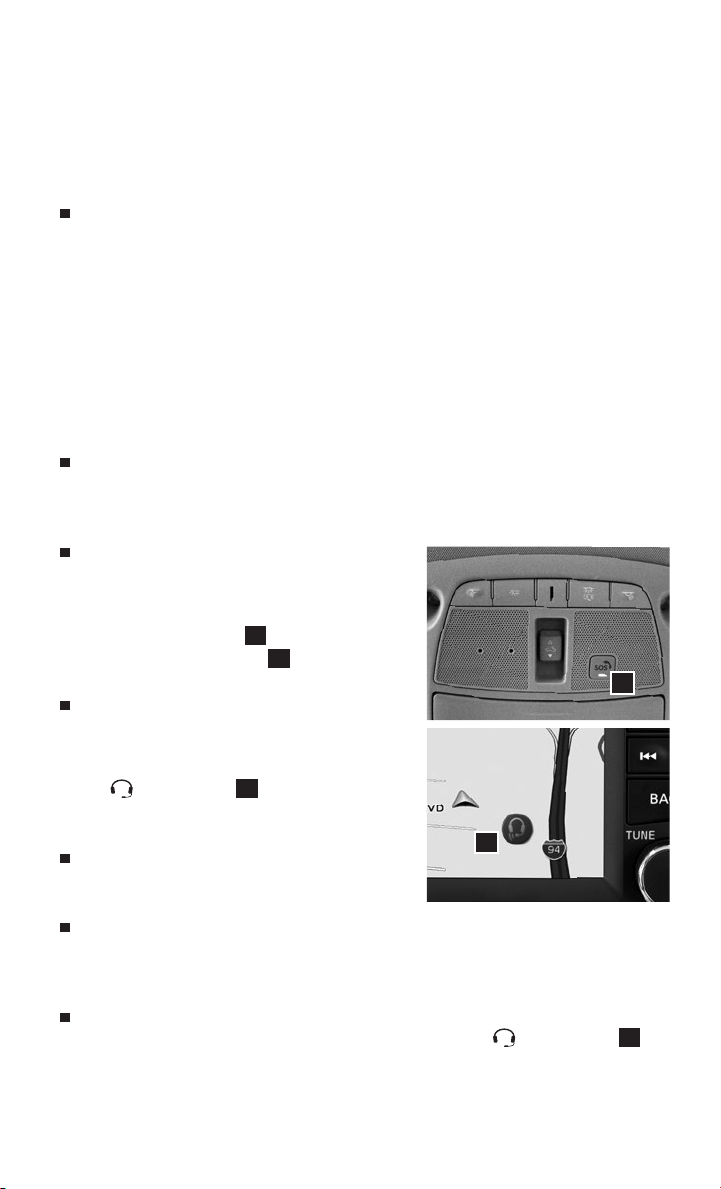
Emergency Call, which connects you to a
NissanConnect Services Specialist who will
assist in the dispatch of emergency services
to the vehicle’s location. To use this feature,
press the SOS button 1 on the overhead
console. The SOS button 1 should only be
used in emergency situations.
Roadside Assistance, which dispatches
roadside assistance to the vehicle’s location
in non-emergency situations. Roadside
Assistance can be accessed by touching
the headset icon 2 on the map screen,
via the mobile application or by calling the
Roadside Assistance provider directly.
Stolen Vehicle Locator, a service that works in
coordination with law enforcement agencies
to assist in the recovery of a stolen vehicle.
Remote Door Lock/Unlock, for use when you forget to lock your car or if you
need to open it and do not have the keys. To use this feature, log into the
NissanConnect Services companion app or website or contact a NissanConnect
Services Response Specialist.
Assisted Search, a feature that allows you to verbally request point-of-interest
or destination data from a live operator by touching the headset icon 2 on
the map screen.
2
1
2
To view detailed instructional videos regarding these and other features,
please go to www.nissanownersinfo.mobi.
Page 5
Journey Planner, a feature that allows you to
send a route with a destination and up to ve
way points directly to the vehicle.
3
Boundary Alert, a feature that allows you to
monitor the movement of your vehicle in
and out of specied regions you have set on
the Monitoring section of the NissanConnect
Services web portal or companion app.
Speed Alert, which sends you alerts when
your vehicle speed exceeds a threshold
you have set on the web portal or
companion app.
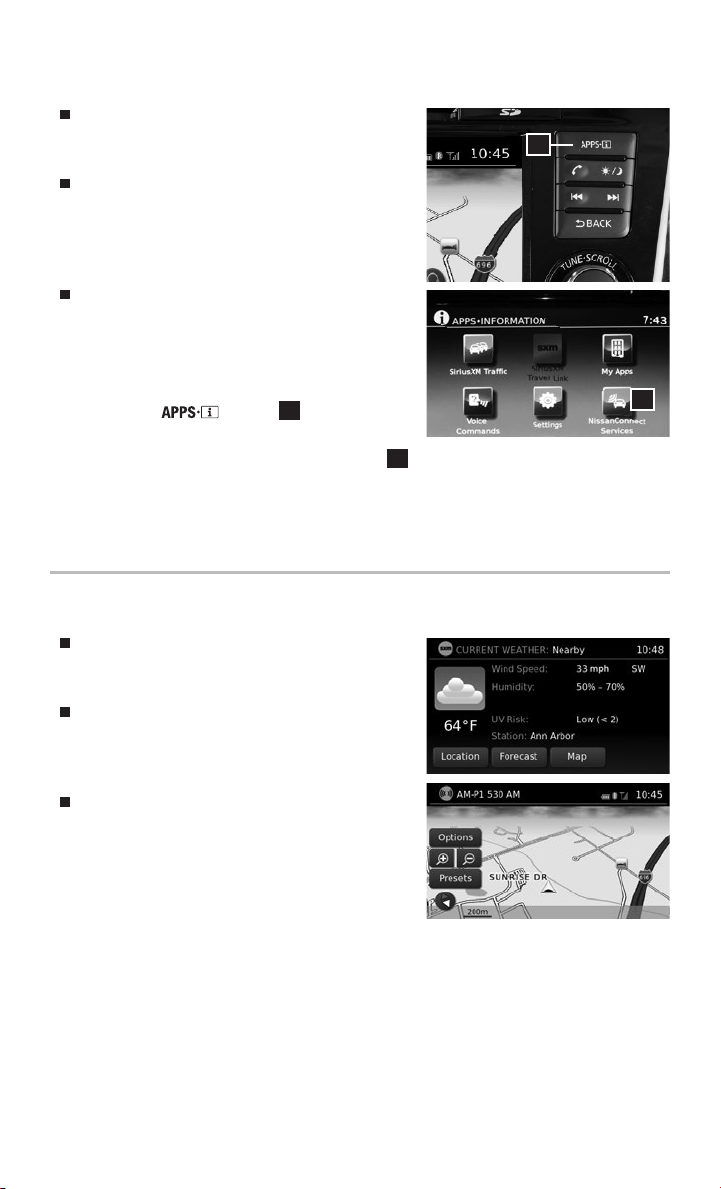
To access these features in your vehicle:
• Press the button 3 on the
4
control panel.
• Touch the “NissanConnect Services” key 4.
Please see your Owner’s Manual for important safety information, system limitations, and additional
operating and feature information.
For more information, refer to the “Heater, air conditioner, audio and phone systems (section 4)” of your
Owner’s Manual.
SiriusXM TRAVEL LINK AND SiriusXM TRAFFIC (if so equipped)
Your vehicle’s Navigation System is equipped
with SiriusXM Travel Link and SiriusXM
Trac capabilities.
SiriusXM Travel Link provides access to real-
time weather information and forecasts,
nearby fuel prices, movie listings, sports
scores and stock quotes.
SiriusXM Trac provides information that
may help to avoid delays due to trac
incidents. Trac jams, roadwork, road
closures around the current location, etc., are
represented graphically on the map by icons
depicting the nature of the event. Incidents
on the route are automatically displayed as
they are approached.
Please see your Owner’s Manual for important safety information, system limitations, and additional
operating and feature information.
For more information, refer to the “Heater, air conditioner, audio and phone systems (section 4)” of your
Owner’s Manual.
To view detailed instructional videos regarding these and other features,
please go to www.nissanownersinfo.mobi.
3
Page 6
NEW SYSTEM FEATURES
AROUND VIEW® MONITOR WITH MOVING OBJECT DETECTION
(MOD) (if so equipped)
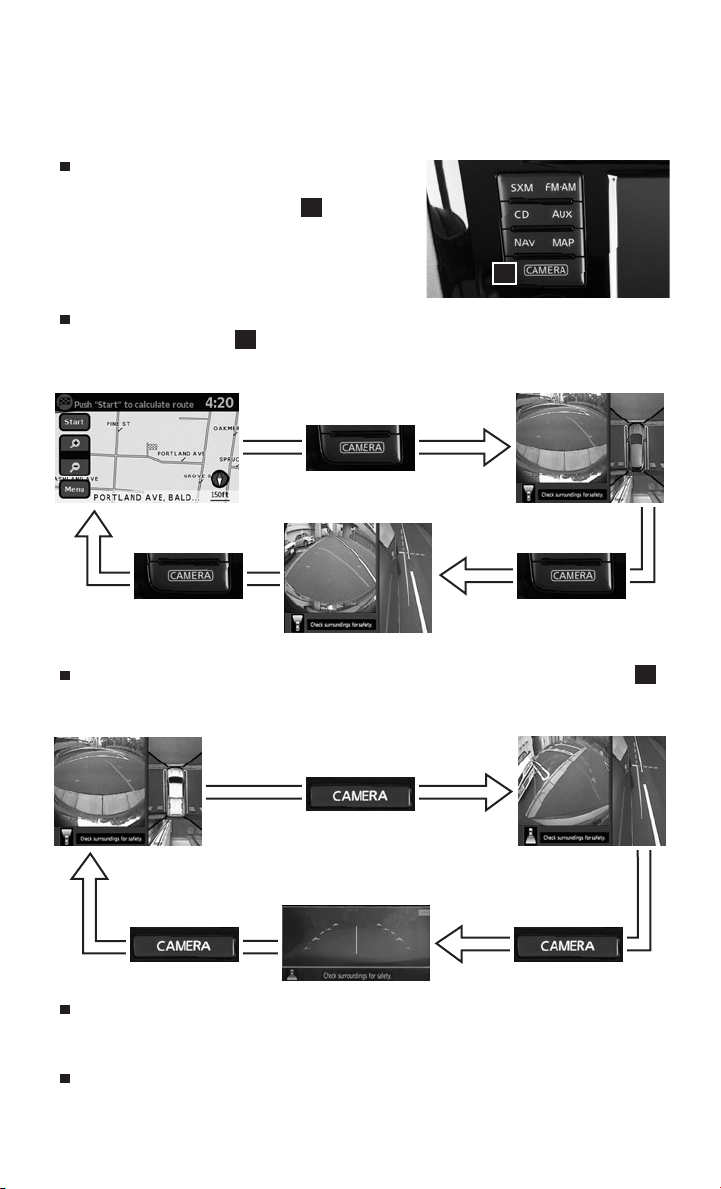
With the ignition switch in the ON position,
the Around View® Monitor is activated by
pressing the CAMERA button 1, located on
the control panel, or by moving the shift lever
to the R (REVERSE) position. The monitor
displays various views of the position of
the vehicle.
When the shift lever is in the P (PARK), N (NEUTRAL) or D (DRIVE) position and
the CAMERA button 1 is pressed, the following views will display in order:
1
Start from any Control Panel screen
Press
Front view & front-side view
Press
Front view & bird’s-eye view
Press
When the shift lever is in the R (REVERSE) position and the CAMERA button 1
is pressed, the following views will display in order:
Rear view & bird’s-eye view
Press
Rear wide view
Press Press
Rear view & front-side view
The colored guide lines on the display screen indicate vehicle width and
approximate distances to objects with reference to the vehicle body line.
• Red 1.5 ft (0.5 m); Yellow 3 ft (1 m); Green 7 ft (2 m) and 10 ft (3 m).
For information regarding how to access additional viewing cycles, please see
your Owner’s Manual.
4
To view detailed instructional videos regarding these and other features,
please go to www.nissanownersinfo.mobi.
Page 7
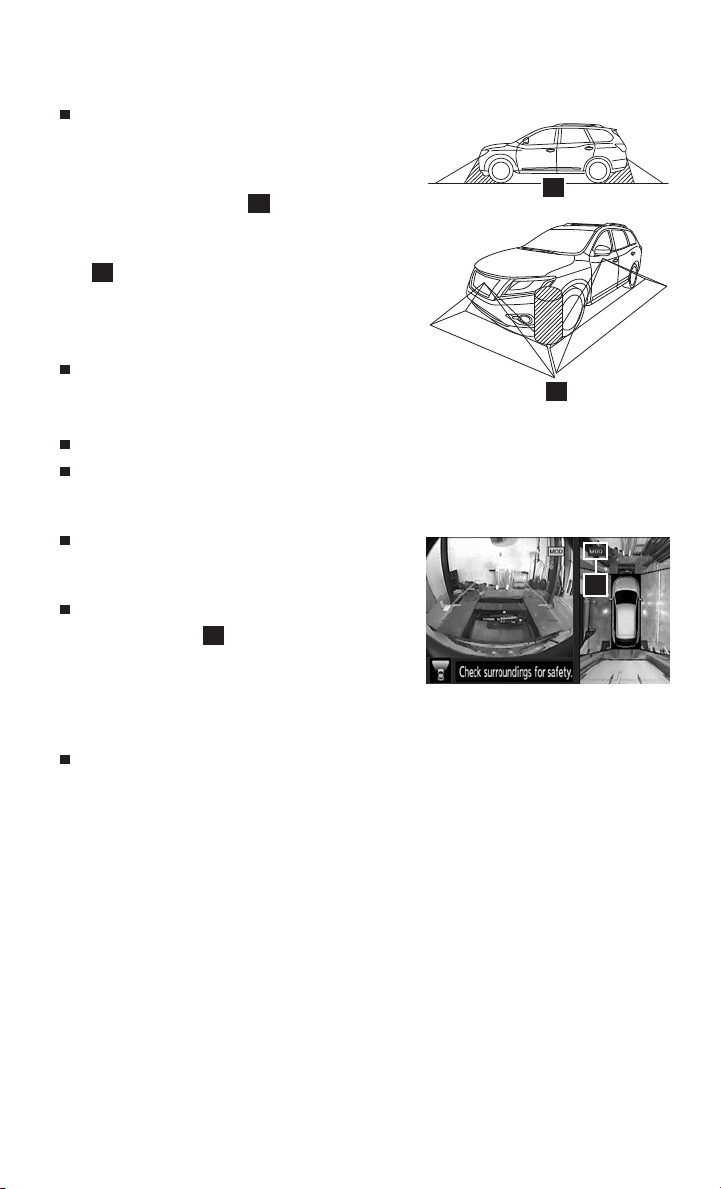
There are some areas where the system will
not detect objects.
• When in the front or the rear view display, an
object below the bumper or on the ground
2
may not be detected 2.
• When in the bird’s-eye view, a tall object near
the seams of the camera detecting areas
3
will not appear in the monitor.
• The distance between objects viewed
on the Around View Monitor diers from
the actual distance.
Objects in the bird’s-eye view will appear
further than the actual distance.
3
MOVING OBJECT DETECTION (MOD) (if so equipped)
The MOD system helps inform the driver of moving objects around the vehicle.
The system will operate when the shift lever is in the P (PARK), R (REVERSE),
N (NEUTRAL) or D (DRIVE) position and the vehicle is driven at speeds of
approximately 5 mph (8 km/h) or less.
If the MOD system detects moving objects, a
yellow frame will be displayed on the camera
image and a chime will sound.
4
When the following is displayed:
• Blue MOD icon 4; the system is active.
• Gray MOD icon; the system is not active.
• No MOD icon; the system is o. The indicator
will also be o if all of the warning systems are deactivated using the
Settings menu.
The MOD system will not operate if the liftgate is open.
Please see your Owner’s Manual for important safety information, system limitations, and additional
operating and feature information.
For more information, refer to the “Heater, air conditioner, audio and phone systems (section 4)” of your
Owner’s Manual.
To view detailed instructional videos regarding these and other features,
please go to www.nissanownersinfo.mobi.
5
Page 8
NEW SYSTEM FEATURES
DRIVE MODE
NORMAL
Normal drive mode is recommended for normal, everyday driving and is the
default mode of your vehicle.
ECO
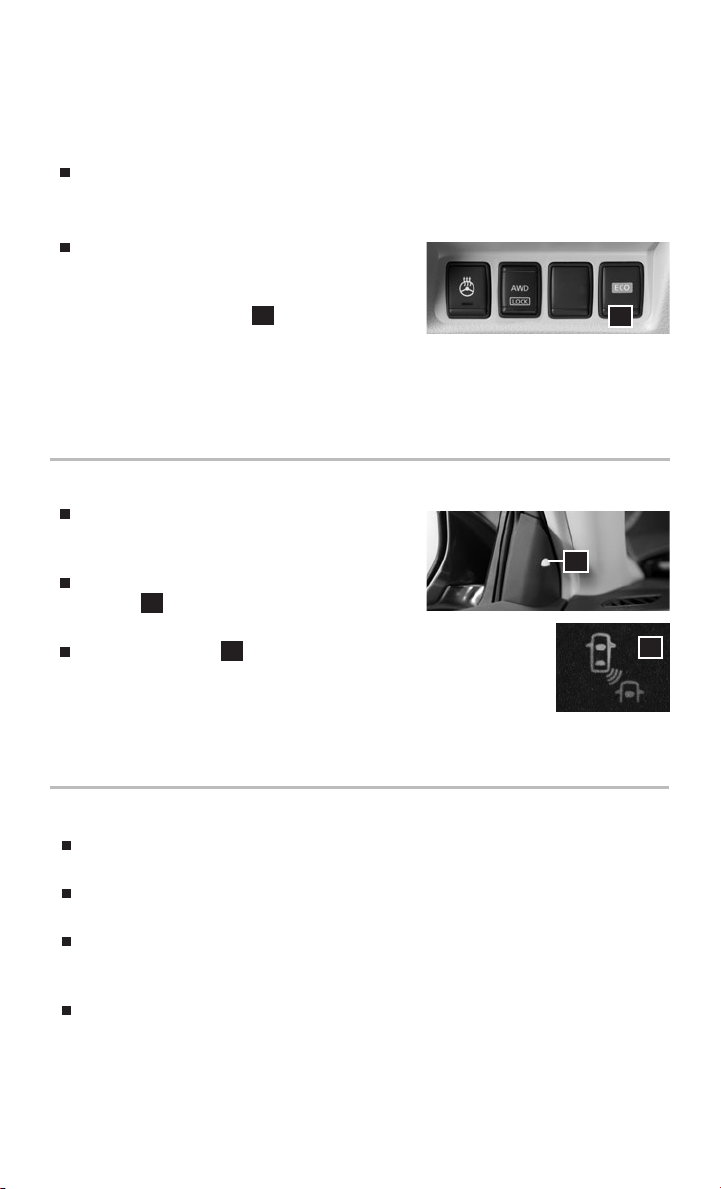
ECO drive mode is recommended to help
maximize fuel economy. Performance may
be reduced.
• Press the ECO button 1 on the instrument
panel to activate.
• The ECO drive mode indicator will appear on the meter.
Please see your Owner’s Manual for important safety information, system limitations, and additional
operating and feature information.
For more information, refer to the “Starting and driving (section 5)” of your Owner’s Manual.
BLIND SPOT WARNING (BSW) (if so equipped)
The BSW helps to alert the driver when
another vehicle moves into the vehicle’s
detection zone.
An indicator light located near the outside
mirrors 1 will illuminate if the radar sensors
detect a vehicle in the detection zone.
The indicator light 2 will illuminate after the ignition
switch is ON and the BSW is enabled. This indicates that
the BSW is operational.
Please see your Owner’s Manual for important safety information, system
limitations, and additional operating and feature information.
For more information, refer to the “Starting and driving (section 5)” of your Owner’s Manual.
1
1
2
REAR CROSS TRAFFIC ALERT (RCTA) (if so equipped)
The RCTA system can help alert the driver of an approaching vehicle when the
driver is backing out of a parking space.
When the shift position is in R (Reverse) and a vehicle or pedestrian speed is less
than approximately 5 mph (8 km/h), the RCTA system is operational.
If the radar detects an approaching vehicle from either side, the system chimes
(once) and the side indicator light ashes on the side the vehicle is
approaching from.
The RCTA system can be turned on or o through the Parking Aids menu in the
Driver Assistance menu in the vehicle information display.
Please see your Owner’s Manual for important safety information, system limitations, and additional
operating and feature information.
For more information, refer to the “Starting and driving (section 5)” of your Owner’s Manual.
6
To view detailed instructional videos regarding these and other features,
please go to www.nissanownersinfo.mobi.
Page 9
FORWARD EMERGENCY BRAKING (FEB) WITH PEDESTRIAN
DETECTION SYSTEM (if so equipped)
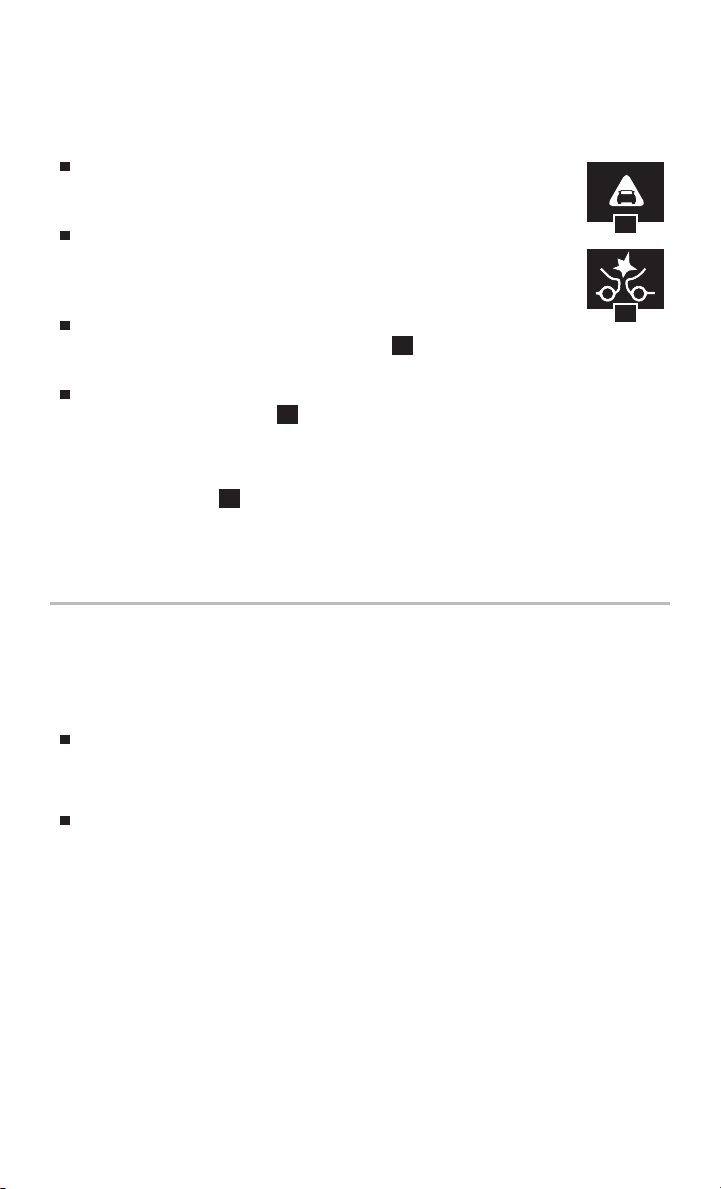
The FEB with Pedestrian Detection System can assist the driver
when there is a risk of a forward collision with a vehicle or
pedestrian ahead in the traveling lane.
The FEB system will function when your vehicle is driven at speeds
1
above approximately 3 mph (5 km/h). For the pedestrian detection
function, the FEB system operates at speeds between 6-37 mph
(10-60 km/h).
If there is a risk of a forward collision with a pedestrian, an audible
2
tone will sound and the FEB warning light 1 will illuminate. Partial braking
should be applied.
If there is a risk of a forward collision with a vehicle, an audible tone will sound
and the FEB warning light 1 will illuminate. If the driver applies the brakes
after the warning and the FEB system detects that there is still the possibility
of a forward collision, the system will automatically increase the braking force.
If the driver does not take action, the FEB system will issue a second visual
warning (ashing) 2, an audible warning and also apply partial braking.
Please see your Owner’s Manual for important safety information, system limitations, and additional
operating and feature information.
For more information, refer to the “Starting and driving (section 5)” of your Owner’s Manual.
HILL START ASSIST
Hill Start Assist allows time for the driver to release the brake pedal and apply the
accelerator when the vehicle is parked on a hill. The brakes are applied automatically
for 2 seconds after the driver releases the brake pedal.
Hill Start Assist will operate automatically under these conditions:
• The shift lever is shif ted into a forward or a reverse gear.
• The vehicle is stopped completely on a hill by applying the brake.
Hill Start Assist will not operate when the shift lever is in the
N (NEUTRAL) or P (PARK) position or on a at and level road.
Please see your Owner’s Manual for important safety information, system limitations, and additional
operating and feature information.
For more information, refer to the “Starting and driving (section 5)” of your Owner’s Manual.
To view detailed instructional videos regarding these and other features,
please go to www.nissanownersinfo.mobi.
7
Page 10
NEW SYSTEM FEATURES
SIRI® EYES FREE
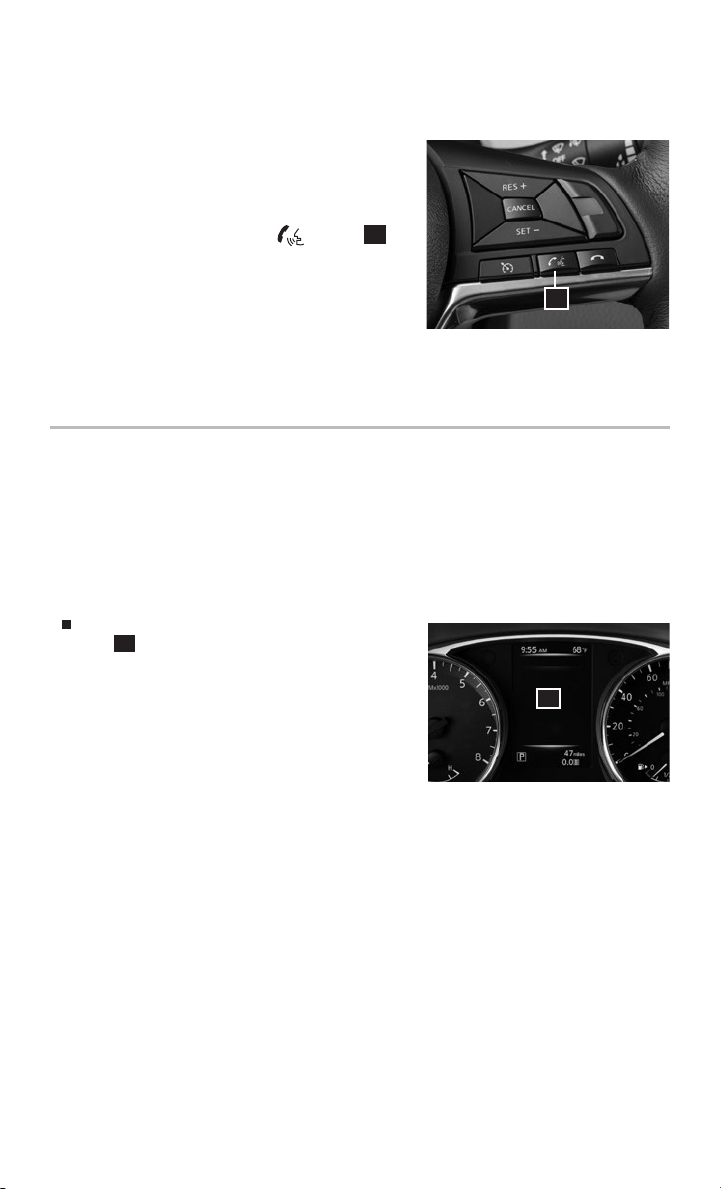
If you have a compatible iPhone® with Siri®,
you can link your iPhone® to the Siri® Eyes Free
function in your vehicle’s Bluetooth® system.
If you have a compatible iPhone® connected to
the system, press and hold the
on the steering wheel for a few seconds. Select
“Short Press” or “Long Press” for Siri® Eyes Free
activation mode. Switch action can also be
changed from the Bluetooth® settings menu.
Please see your Owner’s Manual for important safety
information, system limitations, and additional operating and feature information.
For more information, refer to the “Heater, air conditioner, audio and phone systems (section 4)” of your
Owner’s Manual and visit www.NissanUSA.com/bluetooth.
ACTIVE TRACE CONTROL
The Active Trace Control function senses driving based on the driver’s steering,
acceleration and braking patterns. It controls brake pressure at each of the individual
wheels to aid tracing at corners and help for a smooth vehicle response.
This system can be set to OFF (disabled) through the Vehicle’s Information Display,
but some functions will remain on to assist the driver (e.g. emergency
avoidance scenes).
To turn o the Active Trace Control through
the 1 Vehicle Information Display:
1. Select “Settings”
2. Select “Driver Assistance”
3. Select “Chassis Control”
4. Select “Trace Control”
If Vehicle Dynamic Control ( VDC) OFF switch is
pressed, VDC and All Chassis Control will be OFF.
Please see your Owner’s Manual for important safety information, system limitations, and additional
operating and feature information.
For more information, refer to the “Starting and driving (section 5)” of your Owner’s Manual and visit
www.NissanUSA.com/bluetooth.
button 1
1
1
8
To view detailed instructional videos regarding these and other features,
please go to www.nissanownersinfo.mobi.
Page 11
ACTIVE RIDE CONTROL
The Active Ride Control system senses upper body motion of the vehicle based on
wheel speed information. It controls engine torque and four wheel brake pressure to
enhance ride comfort in eort to restrain uncomfortable upper body movement.
This function cannot be set to OFF (disabled) through the Vehicle’s Information
Display. This feature can be turned OFF by pressing the Vehicle Dynamic Control
(VDC) OFF switch.
This system will come into eect above 25 mph (40 km/h).
When the Vehicle Dynamic Control (VDC) OFF switch is used to turn o the VDC
system, the Active Ride Control is also turned o.
Please see your Owner’s Manual for important safety information, system limitations, and additional
operating and feature information.
For more information, refer to the “Starting and driving (section 5)” of your Owner’s Manual and visit
www.NissanUSA.com/bluetooth.
ACTIVE ENGINE BRAKE
The Active Engine Brake adds subtle deceleration by controlling the Continuously
Variable Transmission (CVT) in the vehicle based on the driver’s steering and sensors.
This allows the vehicle to easily adjust speed when braking at corners.
This function can be set to OFF (disabled) through the Vehicle’s Information Display,
but the Vehicle Dynamic Control ( VDC) function will remain on (e.g. emergency
avoidance scene).
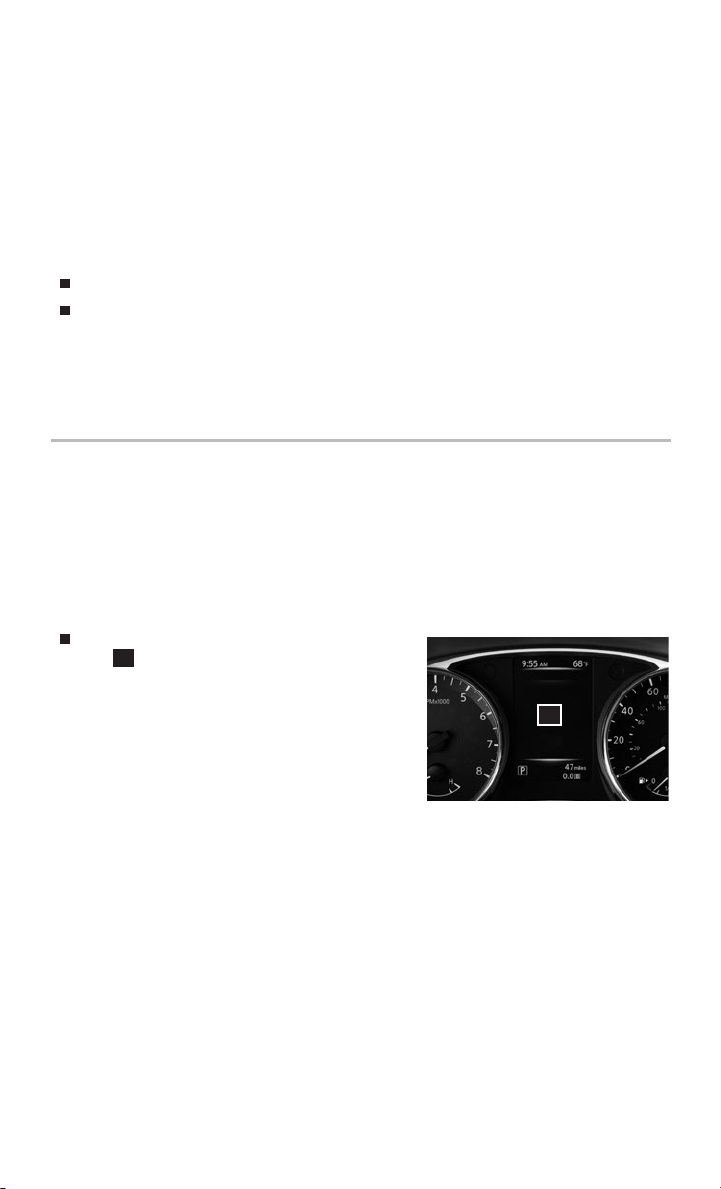
To turn o the Active Engine Brake through
the 1 Vehicle Information Display:
1. Select “Settings”
2. Select “Driver Assistance”
3. Select “Chassis Control”
4. Select “Engine Brake”
Please see your Owner’s Manual for important safety
information, system limitations, and additional operating and
feature information.
For more information, refer to the “Starting and driving (section 5)” of your Owner’s Manual and visit
www.NissanUSA.com/bluetooth.
1
To view detailed instructional videos regarding these and other features,
please go to www.nissanownersinfo.mobi.
9
Page 12

ESSENTIAL INFORMATION
TIRE PRESSURE MONITORING SYSTEM (TPMS)
WITH EASY-FILL TIRE ALERT
A Tire Pressure Low - Add Air warning
message will appear in the vehicle
information display 1 and the low tire
pressure warning light 2 will illuminate
when one or more tires are low in pressure
and air is needed.
• The tire pressures should be checked when
the tires are cold. The tires are considered
cold after the vehicle has been parked for 3 hours or more
or driven less than 1 mi (1.6 km) at moderate speeds.
When adding air to an under-inated tire, the TPMS with Easy-Fill Tire Alert
provides visual and audible signals outside the vehicle to help you inate
the tire to the recommended COLD tire pressure.
To use the Easy-Fill Tire Alert system:
1. Move the shif t lever to the P (PARK) position and apply the parking brake.
2. Place the ignition switch in the ON position. Do not start the engine.
3. Add air to the under-inated tire, and within a few seconds, the hazard
warning lights will start ashing.
4. When the designated tire pressure is reached, the horn will beep once and the
hazard warning ashers will stop ashing.
5. Repeat this procedure for any additional under-inated tires.
After the tire pressures are adjusted, drive the vehicle at speeds above
16 mph (25 km/h). The Tire Pressure Low - Add Air warning message and low
tire pressure warning light 2 will extinguish.
In addition to the Tire Pressure Low - Add Air warning message, you can view
the individual tire’s pressure in the vehicle information display as well as the
recommended pressure, denoted by blue lettering, for each tire.
When the low tire pressure warning light 2 ashes for 1 minute and then
remains on, the TPMS is not functioning properly. Have the system checked.
It is recommended you visit a Nissan dealer for this service.
Tire pressure rises and falls depending on the heat caused by the vehicle’s
operation and the outside temperature. Low outside temperature can lower
the temperature of the air inside the tire, which can cause a lower tire ination
pressure. This may cause the low tire pressure warning light 2 to illuminate.
If the warning light illuminates, check the tire pressure in your tires.
• Check the tire pressure (including the spare tire) of ten and always prior to long
distance trips.
The Tire and Loading Information label contains valuable information. Please
refer to the “Technical and consumer information (section 10)” of your Owner’s
Manual for the location of the Tire and Loading Information label.
Please see your Owner’s Manual for important safety information, system limitations, and additional
operating and feature information.
For more information, refer to the “Starting and driving (section 5)”, the “In case of emergency
(section 6)” and the “Do-it-yourself (section 8)” of your Owner’s Manual.
10
To view detailed instructional videos regarding these and other features,
please go to www.nissanownersinfo.mobi.
Tire Pressure
Low - Add Air
1
2
Page 13

LOOSE FUEL CAP AND FUEL-FILLER DOOR
LOOSE FUEL CAP
A Loose Fuel Cap warning message will
appear in the vehicle information display
when the fuel-ller cap is not
1
tightened correctly.
To tighten, turn the cap clockwise until a
single click is heard.
The warning message will extinguish when the vehicle detects the fuel-ller cap
is properly tightened and the OK button, located on the steering wheel,
is pressed.
If the cap is not properly tightened, the Malfunction Indicator Light
may illuminate.
FUEL-FILLER DOOR
The fuel-ller door is located on the
passenger’s side of the vehicle.
To open the fuel-ller door, pull the
release lever
instrument panel to the left of the
2
located on the
,
2
steering wheel.
Please see your Owner’s Manual for important safety information, system limitations, and additional
operating and feature information.
For more information, refer to the “Instruments and controls (section 2)” and the “Pre-driving checks
and adjustments (section 3)” of your Owner’s Manual.
1
OUTSIDE TEMPERATURE DISPLAY
When the ignition switch is in the ON position,
the outside air temperature will appear in the
vehicle information display 1.
If the outside air temperature is below 24°F
(-4°C), the outside temperature display will
have a snowake 2 blinking for 20 seconds
then remain illuminated with the ignition
switch in the ON position.
If the outside air temperature is between 26°F
and 37°F (-3°C and +3°C), the outside temperature display will have a snow ake
2
blink continuously with the ignition switch in the ON position.
If the outside air temperature is 39°F (+4°C) the outside temperature
display will have a snowake 2 that will blink and then extinguish.
Please see your Owner’s Manual for important safety information, system limitations, and additional
operating and feature information.
For more information, refer to the “Instruments and controls (section 2)” of your Owner’s Manual.
To view detailed instructional videos regarding these and other features,
please go to www.nissanownersinfo.mobi.
2
1
11
Page 14

ESSENTIAL INFORMATION
TOWING YOUR VEHICLE
ALL-WHEEL DRIVE (AWD) VEHICLE (if so equipped)
An all-wheel drive vehicle must be towed with all wheels o the ground.
For proper towing and to avoid accidental damage to your vehicle, Nissan
recommends that a service operator tow your vehicle after carefully reading the
Owner’s Manual precautions.
Please see your Owner’s Manual for important safety information, system limitations, and additional
operating and feature information.
For more information, refer to the “In case of emergency (section 6)” and the “ Technical and consumer
information (section 10)” of your Owner’s Manual.
CLOCK SET/ADJUSTMENT
WITH NAVIGATION (if so equipped)
To adjust the time and the appearance of the
clock on the display:
1. Press the
button 1.
2. Select the “Settings” key.
3. Select the “System” key.
4. Select the “Clock/Date” key.
The following settings can be adjusted:
• Time Format: The clock can be set to 12
hours or 24 hours.
• Date Format: The date can be changed to one of ve dierent formats.
• Clock Mode: From here, the clock mode options are:
· Manual: Allows for the option “Set Clock Manually”. Select this to begin
setting the clock manually using the “+” or “–” to adjust the hours, minutes,
day and month up or down.
· Time Zone: Select the “Time Zone” key 2
to choose from the applicable time zone
list and/or select “Daylight Savings Time”
to switch between ON and OFF.
· Auto: Automatically sets the clock to the
vehicle’s current location.
2
Press the BACK button 3 to return to the previous screen.
Please see your Owner’s Manual for important safety information, system limitations, and additional
operating and feature information.
For more information, refer to the “Heater, air conditioner, audio and phone systems
(section 4)” of your Navigation System Owner’s Manual.
1
3
12
To view detailed instructional videos regarding these and other features,
please go to www.nissanownersinfo.mobi.
Page 15

FIRST DRIVE FEATURES
NISSAN INTELLIGENT KEY® SYSTEM (if so equipped)
The Nissan Intelligent Key® System allows you to
lock or unlock the vehicle and open your liftgate.
It is important to make sure the Intelligent Key is
with you (that is, in your pocket or purse).
REMOTE ENGINE START* (if so equipped)
The remote start operating range is
approximately 197 ft (60 m) from
the vehicle. The eective operating
range may be shorter if there
are walls or other obstructions
between the key and the vehicle.
For the remote start to function, the vehicle
must be in the P (PARK) position with the
ignition o and all doors must be closed and
locked. Please see your Owner’s Manual for
additional information.
To start your vehicle remotely:
1. Press the button 1.
2. Within 5 seconds, press and hold the
engine start button 2 for at
least 2 seconds.
The engine will start, and the parking lights will turn on.
Automatic climate control will begin heating or cooling the vehicle depending
on the outside air temperature.
The engine will run for 10 minutes and then turn o.
Repeat steps 1 and 2 to extend the time for an additional 10-minute period.
• After two remote starts, the ignition switch must be cycled before the remote
start can be used again.
To start driving, depress the brake pedal and press the ignition switch
START/STOP button.
LOCKING AND UNLOCKING THE VEHICLE
The operating range of the Intelligent Key is within 31.5 in (80 cm) from each
request switch.
To lock the vehicle, push either door handle request switch 3, push the liftgate
request switch 4 or press the button 1 on the key fob.
To unlock the vehicle, perform one of the following procedures:
• Push either door handle request switch
will unlock. Push the request switch 3 again within 1 minute; all other doors
will unlock, or
• Press the
Press the
button 5 on the key fob to unlock the driver’s side door.
button 5 again; all other doors will unlock.
To view detailed instructional videos regarding these and other features,
please go to www.nissanownersinfo.mobi.
4
3
once and the corresponding door
3
2
1
5
6
13
Page 16

FIRST DRIVE FEATURES
The Intelligent Key can also be used to activate the panic alarm by pressing and
holding the
button
alarm and headlights will stay on for a period of time.
INTELLIGENT KEY BATTERY DISCHARGE
If the battery of the Intelligent Key is discharged or environmental conditions
interfere with the Intelligent Key operation, start the engine according to the
following procedure:
1. Move the shif t lever to the P (PARK) position.
2. Firmly apply the foot brake.
3. Touch the ignition switch with the Intelligent Key, and a chime will sound.
4. Within 10 seconds after the chime sounds, press the ignition switch
START/STOP button while depressing the brake pedal and the engine
will start.
* State laws may apply; review local laws before using.
Please see your Owner’s Manual for important safety information, system limitations, and additional
operating and feature information.
For more information, refer to the “Pre-driving checks and adjustments (section 3)” of your
Owner’s Manual.
ALL-WHEEL DRIVE (AWD) LOCK SWITCH (if so equipped)
Rogue Sport uses an intuitive AWD system.
The AWD Lock mode is intended only for low-speed such
as during take o.
LOCK MODE
AWD Lock mode is recommended when maximum
torque is needed at the rear wheels. Using AWD Lock
mode makes it easy to take o when the vehicle is stuck.
Maximum AWD torque is sent to the rear wheels at any
pedal position during take o.
Push the AWD LOCK switch 1 to activate.
The AWD LOCK mode indicator light illuminates on the instrument panel.
After take o, AWD LOCK mode returns to Auto mode automatically depending on
vehicle speed.
AUTO MODE
Intuitive AWD sends torque to the rear wheels as needed.
Please see your Owner’s Manual for important safety information, system limitations, and additional
operating and feature information.
For more information, refer to the “Instruments and controls (section 2)” and the “Starting and driving
(section 5)” of your Owner’s Manual.
6
for more than 1 second. Once activated, the panic
1
14
To view detailed instructional videos regarding these and other features,
please go to www.nissanownersinfo.mobi.
Page 17

OUTSIDE MIRROR CONTROL SWITCH
Move the small switch 1 to select the right
or left side mirror.
Adjust each mirror to the desired position
1
using the large switch 2.
To prevent accidentally moving the mirror,
move the small switch 1 to the center
2
(neutral) position.
Please see your Owner’s Manual for important safety
information, system limitations, and additional operating and feature information.
For more information, refer to the “Pre-driving checks and adjustments (section 3)” of your
Owner’s Manual.
FRONT POWER SEAT ADJUSTMENTS (if so equipped)
To slide the seat forward or backward, push
the switch 1 forward or backward.
To recline the seatback, push the switch 2
1
forward or backward.
SEAT LIFTER
To raise or lower the front portion or height of the seat, push the back end of
the switch 1 up or down.
LUMBAR SUPPORT
To adjust the seat lumbar support, push the front or back end of the switch 3.
Please see your Owner’s Manual for important safety information, system limitations, and additional
operating and feature information.
For more information, refer to the “Safety — Seats, seat belts and supplemental restraint system
(section 1)” of your Owner’s Manual.
3
2
2ND ROW SEATS
To fold the rear seats:
• Pull the seatback release lever 1 to fold
the seatback forward.
• To return the seats to seating position, push
up on the seatback until it latches in place.
Please see your Owner’s Manual for important safety
information, system limitations, and additional operating and
feature information.
For more information, refer to the “Safety — Seats, seat belts and supplemental restraint system
(section 1)” of your Owner’s Manual.
To view detailed instructional videos regarding these and other features,
please go to www.nissanownersinfo.mobi.
1
2
15
Page 18

FIRST DRIVE FEATURES
STARTING/STOPPING THE ENGINE
It is important to make sure the Nissan
Intelligent Key® is with you (that is, in
your pocket or purse).
Depress the brake pedal.
Push the ignition switch START/STOP
button to the ON position.
TURNING THE ENGINE OFF
Move the shift lever to the P (PARK) position, apply the parking brake and push
the ignition switch START/STOP button to the OFF position.
AUTO ACCESSORY
With the vehicle in the P (PARK) position, the Intelligent Key with you (that is, in
your pocket or purse) and the ignition switch placed from ON to OFF, the radio
can still be used for a period of time or until the driver’s door is opened.
Please see your Owner’s Manual for important safety information, system limitations, and additional
operating and feature information.
For more information, refer to the “Starting and driving (section 5)” of your Owner’s Manual.
HEADLIGHT CONTROL SWITCH
HEADLIGHT CONTROL
Turn the headlight control switch to the
position 1 to turn on the front parking,
side marker, tail, license plate and instrument
panel lights. Turn the switch to the
position 2 to turn on the headlights.
AUTOLIGHT SYSTEM (if so equipped)
The autolight system will automatically turn
the headlights on when it is dark and o when it is light. The system will keep
the headlights on for a period of time after you turn the ignition o and all doors
are closed. The headlights will turn on automatically in twilight or rainy weather
(when the windshield wiper is operated continuously).
To activate the autolight system, turn the headlight control switch to the AUTO
position 3 then turn the ignition switch to ON. To deactivate the autolight
system, turn the headlight control switch to the OFF position,
or
position 2.
HIGH BEAM ASSIST (if so equipped)
The High Beam Assist system will operate when the vehicle is driven at
approximately 22 mph (35 km/h) and above. If an oncoming vehicle or leading
vehicle appears in front of your vehicle when the high beam is on, the headlights
will automatically be switched to the low beam.
Following the procedure below only activates the High Beam Assist system. This
does not necessarily turn on the high beam even if there is no other trac. Both
ambient light and trac conditions have to be correct for the high beam
to illuminate.
16
To view detailed instructional videos regarding these and other features,
please go to www.nissanownersinfo.mobi.
1
2
3
position
1
Page 19

To activate High Beam Assist, turn the
headlight control switch to the AUTO position
and push the headlight control switch 4
3
forward to turn on the high beam. The High
Beam Assist indicator light will illuminate.
4
FOG LIGHT SWITCH (if so equipped)
The headlights must be on and the low
5
beams selected for the fog lights to operate.
Turn the switch (inside collar) to the
position 5 to turn the fog lights on.
Turn the switch (inside collar) to the OFF
position to turn the fog lights o.
LANE CHANGE SIGNAL
Move the lever up or down until the turn signal begins to ash but the lever
does not latch to signal a lane change. Hold the lever until the lane change
is completed.
Move the lever up or down until the turn signal begins to ash but the lever
does not latch and release the lever. The turn signal will automatically ash
three times.
Choose the appropriate method to signal a lane change based on the road and
trac conditions.
Please see your Owner’s Manual for important safety information, system limitations, and additional
operating and feature information.
For more information, refer to the “Instruments and controls (section 2)” of your Owner’s Manual.
WIPER AND WASHER SWITCH
Move the lever to one of the following
positions to operate the windshield wipers:
3
1 Mist — One sweep operation of
the front wipers.
2 Intermittent
operate intermittently, and the speed
— Front wipers
can be adjusted by twisting the time
control ring 3 to increase or decrease
wiper speed.
4 Low — Front wipers operate at a
continuous low-speed.
5 High — Front wipers operate at a
6 9
continuous high-speed.
6 Front Washer — Pull the lever toward you to activate the front washer.
The front wipers will operate several times.
MIST
LO
HI
OFF
INT
2
4
5
1
To view detailed instructional videos regarding these and other features,
please go to www.nissanownersinfo.mobi.
17
Page 20

FIRST DRIVE FEATURES
REAR WIPER AND WASHER
7 Intermittent — Rear wiper
operates intermittently.
8 Low — Rear wiper operates at a
continuous low-speed.
9 Rear Washer
rear wiper will operate several times.
— Push the lever forward to activate the rear washer. The
DRIP WIPER
Once the wiper spray cycle is nished, there will be a short delay. Then the
wipers will sweep one more time to clear o any remaining drips from
the windshield.
Please see your Owner’s Manual for important safety information, system limitations, and additional
operating and feature information.
For more information, refer to the “ Instrumen ts and control s (section 2)” and the “Do- it-yourself
(section 8)” of your Owner’s Manual.
CENTER CONSOLE STORAGE BOX
To access the storage bin, pull up on
the lever 1.
Please see your Owner’s Manual for important safety
information, system limitations, and additional operating and
feature information.
For more information, refer to the “Instruments and controls
(section 2)” of your Owner’s Manual.
1
7
INT
8
ON
1
4
3
8
5
9
6
10
2
7
HEATER AND AIR CONDITIONER (automatic) (if so equipped)
1
DEFROSTING FRONT AND SIDE WINDOWS
Press the front defroster
windows, press the A/C button 6. This feature removes humidity from
the air.
Turn the temperature control dial 3 left or right to set the
desired temperature.
To set the front defroster on high, press the fan speed
way up and turn the driver’s side temperature control dial 3 all the way to
the right.
18
To view detailed instructional videos regarding these and other features,
please go to www.nissanownersinfo.mobi.
FRONT button. If it is dicult to defrost the
button
5
all the
Page 21

2
DEFROSTING REAR WINDOW AND OUTSIDE MIRRORS
Push the rear window defroster
switch
2
. Push the switch again to
manually turn the rear defroster o. This function automatically turns o
after approximately 15 minutes.
3
ON•OFF BUTTON/DRIVER’S SIDE TEMPERATURE CONTROL DIAL
Press the ON/OFF button to turn the climate controls on or o. Turn the
temperature control dial to the lef t for cooler air or right for warmer air.
4
MODE BUTTON
Press the MODE button to cycle through the following air ow outlets:
Air ows from the center and side vents.
Air ows from the center, side and foot vents.
Air ows mainly from the foot vents.
Air ows from the front defroster and foot vents.
5
FAN SPEED CONTROL BUTTONS
Press the fan speed control button for low fan speeds or
for
high fan speeds.
6
A/C ON•OFF BUTTON
Press the A/C button to turn the air conditioner system on or o. This system
helps cool and dehumidify the air inside the cabin and defog the windows.
7
DUAL BUTTON/PASSENGER’S SIDE TEMPERATURE CONTROL DIAL
Press the DUAL button to turn the passenger’s side temperature controls
on or o. This will allow the passenger’s side temperature to be adjusted
independently from the driver’s side by turning the passenger’s side
temperature control dial.
Turn the passenger’s side temperature control dial left for cooler air or right
for warmer air.
8
AIR RECIRCULATION BUTTON
The air recirculation button is used to avoid outside odors.
Press the air recirculation button
once to turn on and press again
to turn o.
The air recirculation mode cannot be activated when the climate control
system is in the front defroster mode FRONT or the front defroster and
foot vent mode .
9
AUTO BUTTON
Press the AUTO button to turn the system on, and the system will
automatically control the inside temperature (automatic cooling and/or
dehumidied heating), air ow distribution and fan speed.
10
FRESH AIR INTAKE BUTTON
Press the fresh air intake
button to draw outside air into the passenger
compartment. The fresh air intake indicator light on the button will illuminate.
Please see your Owner’s Manual for important safety information, system limitations, and additional
operating and feature information.
For more information, refer to the “Instruments and controls (section 2)” and the “Heater, air conditioner,
audio and phone systems (section 4)” of your Owner’s Manual.
To view detailed instructional videos regarding these and other features,
please go to www.nissanownersinfo.mobi.
19
Page 22

FIRST DRIVE FEATURES
6
5
3
4
1 2
FM/AM/SiriusXM® SATELLITE RADIO WITH CD PLAYER
(if so equipped)
1
POWER BUTTON/VOLUME CONTROL KNOB
Press the POWER button to turn the system on or o.
Turn the VOLUME control knob to the right or lef t to increase or decrease
the volume.
2
ENTER|AUDIO BUTTON/TUNE•SCROLL KNOB
Press the ENTER|AUDIO button to go to the audio settings screen.
To manually tune the radio, turn the TUNE•SCROLL knob left or right.
3
SEEK BUTTONS
To tune and stop at the previous or next broadcast station, press the seek
buttons or .
For satellite radio to switch to the rst channel of the previous or next
category, press the seek buttons or .
To change tracks on a CD, press the seek buttons or .
To rewind or fast forward a track on a CD, press and hold the seek
buttons or .
4
STATION SELECT KEYS
Twelve stations can be set for the FM band, six for the AM band and 18 for
satellite radio.
To store a station in a preset, you must rst select a radio band by pressing
the FM•AM button 5 or SXM button 6 then tune to the desired FM, AM or
satellite radio station.
Next touch and hold the desired station select key (1-6) until a beep is heard
and the sound is briey muted. The channel indicator will appear on the
display and the sound will resume. Programing is now complete.
To retrieve a previously set station, select the radio band where the preset
was stored then touch the corresponding station select key (1-6).
Please see your Owner’s Manual for important safety information, system limitations, and additional
operating and feature information.
For more information, refer to the “Heater, air conditioner, audio and phone systems (section 4)” of your
Owner’s Manual.
20
To view detailed instructional videos regarding these and other features,
please go to www.nissanownersinfo.mobi.
Page 23

CRUISE CONTROL (if so equipped)
The cruise control system enables you to set
a constant cruising speed once the vehicle
has reached 25 mph (40 km/h). The system
will automatically maintain the set speed until
you tap the brake pedal, accelerate, cancel or
turn the system o.
To activate the cruise control, push the
ON/OFF switch
wheel. The CRUISE indicator light in the
4
on the steering
instrument panel will illuminate.
To set a cruising speed, accelerate the vehicle to the desired speed, push the
SET - switch 3 on the steering wheel and release. A green circle indicator light
in the instrument panel will illuminate, and the set speed will display next to the
indicator light. Take your foot o the accelerator pedal. Your vehicle will maintain
the set speed.
To reset at a faster cruising speed, push and hold the RES + switch
on the steering wheel. When the vehicle attains the desired speed, release
the switch.
To reset at a slower cruising speed, push and hold the SET - switch 3
on the steering wheel. Release the switch when the vehicle slows to the
desired speed.
To cancel the preset speed, tap the brake pedal or push the CANCEL switch 2
on the steering wheel.
To turn o cruise control, push the CANCEL switch 2 on the steering wheel.
Both the CRUISE indicator light and green circle indicator light in the instrument
panel will extinguish.
Please see your Owner’s Manual for important safety information, system limitations, and additional
operating and feature information.
For more information, refer to the “Starting and driving (section 5)” of your Owner’s Manual.
1
2
3
4
1
INTELLIGENT CRUISE CONTROL (ICC) (if so equipped)
VEHICLE-TO-VEHICLE DISTANCE CONTROL MODE
To set Vehicle-To-Vehicle Distance Control
mode, press the CRUISE ON/OFF button
1
on the steering wheel. The CRUISE
indicator light
7
will illuminate.
Accelerate to the desired speed.
Push down on the SET- switch 2 on the
steering wheel and release it. ICC will be set
to the desired speed.
To view detailed instructional videos regarding these and other features,
please go to www.nissanownersinfo.mobi.
3
2
1
4
5
21
Page 24

FIRST DRIVE FEATURES
Press the distance button 5 on the steering wheel
repeatedly to change the set distance between long, middle
and short.
When a vehicle is not detected ahead of you in the lane,
the Set distance and Set vehicle speed indicator lights will
illuminate 6 in set mode.
When a vehicle is detected ahead of you in the lane, the
Vehicle ahead detection, Set distance and Set vehicle speed
indicator lights will illuminate 7 in set mode.
To reset at a faster cruising speed, push and hold the RES+
switch 3 on the steering wheel. When the vehicle attains
the desired speed, release the switch.
To reset at a slower cruising speed, push and hold the SET-
switch 2 on the steering wheel. Release the switch when the vehicle slows to
the desired speed.
To cancel the preset speed, push the CANCEL switch 4 on the steering wheel
or tap the brake pedal. The set vehicle speed indicator lights 6 will extinguish.
To turn o ICC, press the CRUISE ON/OFF button 1 on the steering wheel.
The CRUISE indicator light 6 in the instrument panel will extinguish.
Please see your Owner’s Manual for important safety information, system limitations, and additional
operating and feature information.
For more information, refer to the “Starting and driving (section 5)” of your Owner’s Manual.
6
7
USB (Universal Serial Bus) CONNECTION PORT/AUX JACK AND
iPOD® INTERFACE
The USB port/Aux jack 1 is located beneath
the climate controls.
When a compatible USB memory device,
iPod® or auxiliary device is plugged into the
USB port/Aux jack, compatible audio les
stored on the device can be played through
the vehicle’s audio system.
The port is illuminated for better visibility when the headlight switch is in the
ON position.
Please see your Owner’s Manual for important safety information, system limitations, and additional
operating and feature information.
For more information, refer to the “Heater, air conditioner, audio and phone systems (section 4)” of your
Owner’s Manual.
22
To view detailed instructional videos regarding these and other features,
please go to www.nissanownersinfo.mobi.
1
Page 25

POWER PANORAMIC MOONROOF (if so equipped)
To fully open or close the moonroof, push
the switch to the OPEN position 1 or the
CLOSE position 2 and release it. The roof
1
will automatically open or close. To stop the
moonroof, push the switch once more while it
2
is opening or closing.
To tilt the moonroof to the up position, close
the moonroof, then push the switch
push the switch 1 to the tilt down position.
2
and release. To tilt down the moonroof,
AUTO-REVERSE
When the auto-reverse function is activated, the moonroof will automatically open
or tilt up when the control unit detects something caught in the moonroof when the
moonroof is closing or tilting down.
Please see your Owner’s Manual for important safety information, system limitations, and additional
operating and feature information.
For more information, refer to the “Instruments and controls (section 2)” of your Owner’s Manual.
TILT AND TELESCOPIC STEERING WHEEL ADJUSTMENTS
Release the lock lever by pulling it down.
Adjust the steering wheel forward or
backward by moving it to the desired position.
Adjust the steering wheel up or down to the
desired position.
Lock the steering wheel in place by pushing the
lock lever up rmly.
Please see your Owner’s Manual for important safety
information, system limitations, and additional operating and feature information.
For more information, refer to the “Pre-driving checks and adjustments (section 3)” of your
Owner’s Manual.
To view detailed instructional videos regarding these and other features,
please go to www.nissanownersinfo.mobi.
23
Page 26

SYSTEM GUIDE
VEHICLE INFORMATION DISPLAY
The vehicle information display 1 displays items such as:
Vehicle settings
Trip computer information
Driver Assistance (if so equipped)
Audio information (if so equipped)
Nissan Intelligent Key® operation information
(if so equipped)
Navigation turn-by-turn (if so equipped)
Chassis control
Cruise control system information (if so equipped)
Intelligent Cruise Control (ICC) system (if so equipped)
Indicators and warnings
Tire pressure information (if so equipped)
USING THE VEHICLE INFORMATION DISPLAY
The vehicle information display can be changed
using the OK button
buttons
Press the OK button 2 on the steering
Press the buttons 3 on the steering wheel
Press the OK button 2 on the steering wheel to change or select an item.
Press the button 4 on the steering wheel to go back to the previous menu.
START-UP DISPLAY
When the ignition switch is in the ON position, the vehicle information display will
support four of the following modes:
Trip Computer
Warnings (if there are any)
RESETTING THE TRIP ODOMETER
1. Press the button 3 on the steering wheel until you reach the trip
2. Press the OK button 2.
3. Select one of the following items:
“Cancel” - returns to the previous screen without resetting the trip computer.
“Fuel Economy”- resets Fuel Economy.
“All” - resets all linked values for the selected drive computer. This includes
3
located on the steering wheel.
wheel to change the display mode.
up or down to navigate through the vehicle information display menu.
computer mode.
“Average Speed”, “Elapsed time and trip odometer” and “Fuel economy”.
2
and the
or
Fuel Economy
1
2
3
4
24
To view detailed instructional videos regarding these and other features,
please go to www.nissanownersinfo.mobi.
Page 27

SETTINGS
The setting mode allows you to change the information displayed in the vehicle
information display:
Driver Assistance (if so equipped) Clock Meter Settings
Vehicle Settings Maintenance Alarm
Tire Pressures Unit
Language (if so equipped) Factory Reset
Please see your Owner’s Manual for important safety information, system limitations, and additional
operating and feature information.
For more information, refer to the “Instruments and controls (section 2)” of your Owner’s Manual.
NISSANCONNECTSM MOBILE APPS (if so equipped)
Your vehicle may be equipped with NissanConnect
to control various compatible smartphone applications through the vehicle’s
display screen. A basic package is included for a period of time from the original
in-service date of the vehicle.
To enroll in NissanConnect
SM
Mobile Apps:
1. Create a Nissan Owner Portal account at owners.NissanUSA.com.
• Make sure to include your vehicle’s VIN when creating your account.
2. Under the NissanConnect Mobile Apps tab, select the red button next to
Manage Subscription to enroll.
3. Next, download the NissanConnectSM Mobile Apps companion app from
Google Play or the Apple App Store. Log into the companion app using your
Nissan Owner Portal ID and password.
4. Launch the app, select “United States”, and accept the Terms and Conditions.
5. Select “Sign In”, then sign in with the email username and password you
created when registering on the Nissan Owner Portal website.
Pair your cellular phone to the vehicle.
• For Android® devices, the smartphone must be connected through the
Bluetooth® Hands-Free Phone system.
• For iPhone® on vehicles WITH Navigation, the device must be connected to the
vehicle’s USB port using your cellular phone’s USB cable.
• For iPhone® on vehicles WITHOUT Navigation, connect the device using the
Bluetooth® Hands-Free Phone system.
You can select which apps you want activated in the vehicle from the
NissanConnectSM Mobile Apps companion app by selecting “Manage My Apps”.
Some apps shown in the companion app may not appear in your vehicle
depending on availability for your model.
SM
Mobile Apps, allowing you
To view detailed instructional videos regarding these and other features,
please go to www.nissanownersinfo.mobi.
25
Page 28

SYSTEM GUIDE
Some apps require you to have the app
downloaded and installed on your cellular
phone, while others require you to enter
your username and password to log in.
Not all apps shown on the NissanConnect
application site are available on all models.
To help identif y specic apps available
for your vehicle or to contact a specialist
via chat, please visit
www.NissanUSA.com/connect/support.
Your available apps will only appear on the
screen when your smartphone is connected
to both the vehicle and the Internet. For additional information on connecting
your device, see your Owner’s Manual or visitwww.NissanUSA.com/bluetooth.
The NissanConnect
icon 1 must be green before using your apps. If the Disconnected icon 2 is
displayed, press the button 3 multiple times to ensure the connection
is established.
SM
app must be running on your device and the Connected
To access your apps with the vehicle controls, start your vehicle and then
press the button 3 on the control panel. The system may take a few
seconds to boot up before the NissanConnectSM Mobile Apps button 3 is
enabled. This is normal.
If available, your apps can be accessed once the vehicle and cellular phone are
connected through the NissanConnectSM Mobile Apps companion app.
Please see your Owner’s Manual for important safety information, system limitations, and additional
operating and feature information.
For more information, refer to the “Heater, air conditioner, audio and phone systems (section 4)” of your
Owner’s Manual.
1
2
3
HANDS-FREE TEXT MESSAGING ASSISTANT* (if so equipped)
This system allows for sending and receiving
text messages through the vehicle’s interface.
Using predened or custom messages, send
a text to an entry stored in your Bluetooth®
Hands-free Phone System.
Once enabled, the text message, sender and
delivery time are shown on the control panel
display when the vehicle speed is less than
5 mph (8 km/h).
Text messages have the option of being read aloud at all vehicle speeds.
26
To view detailed instructional videos regarding these and other features,
please go to www.nissanownersinfo.mobi.
Page 29

Many cellular phones may require special permission to enable text messaging.
Check the cellular phone’s screen during Bluetooth® pairing. For some
cellular phones, you may need to enable “Notications” in the cellular phone’s
Bluetooth® menu for text messages to appear on the touch-screen display.
For more detailed information and instructions, refer to your cellular phone’s
Owner’s Manual.
Text message integration requires that the cellular phone support Message
Access Prole (MAP) for both receiving and sending text messages. Some
cellular phones may not support all text messaging features. Please see
www.NissanUSA.com/bluetooth for compatibility information as well as
your device’s Owner’s Manual.
* Laws in some jurisdictions may restrict the use of “Text-to-Speech”. Some of the applications and
features, such as social networking and texting, may also be restricted. Check local regulations for any
requirements before using these features.
Please see your Owner’s Manual for important safety information, system limitations, and additional
operating and feature information.
For more information, refer to the “Heater, air conditioner, audio and phone systems (section 4)” of your
Owner’s Manual.
BLUETOOTH® HANDS-FREE PHONE SYSTEM
*
A cellular telephone should not be used
while driving so full attention may be given
to vehicle operation.
SYSTEM OPERATING TIPS
Press the
button on the steering wheel
to interrupt the voice prompts at any time
and speak a command after the tone.
To use the system faster, you may speak the
second level commands with the main menu
command on the main menu. For example,
press the button on the steering wheel,
and after the tone, say “Call Michael Smith”.
The “Help” command can be used to hear a
list of available commands at any time.
Reduce background noise as much as
possible by closing windows and pointing
HVAC vents away from the ceiling.
Speak naturally without long pauses and without raising your voice.
To cancel a Nissan Voice Recognition session, say “Cancel” or press and hold the
button on the steering wheel.
To decrease or increase the volume of the voice prompts, push the volume
control switches
on the steering wheel or turn the VOLUME control knob
or
on the audio system while the system is responding.
To view detailed instructional videos regarding these and other features,
please go to www.nissanownersinfo.mobi.
27
Page 30

SYSTEM GUIDE
Voice commands can be used to operate various Bluetooth® system features
using the Nissan Voice Recognition System. See your Owner’s Manual for
detailed information.
For more detailed information and instructions, refer to your cellular phone’s
Owner’s Manual and visit www.NissanUSA.com/bluetooth.
*Some jurisdictions prohibit the use of cellular telephones while driving.
Please see your Owner’s Manual for important safety information, system limitations, and additional
operating and feature information.
For more information, refer to the “Heater, air conditioner, audio and phone systems (section 4)” of your
Owner’s Manual or please visit www.NissanUSA.com/bluetooth.
BLUETOOTH® SYSTEM WITH NAVIGATION* (if so equipped)
Send predened or custom text messages
through your vehicle’s Bluetooth® system.
Receive texts through your vehicle’s
Bluetooth® system that can be read to you.
Bluetooth® Streaming Audio allows you to
use a compatible Bluetooth® device to play
audio les. Once your compatible device is
connected to the vehicle’s audio system,
the audio les will play through the
vehicle’s speakers.
CONNECTING PROCEDURE
1. Press the
control panel.
2. Select the “Settings” key 1.
3. Select the “Phone & Bluetooth” key 2.
4. Select the “Connect New Device” key 3.
5. Initiate the connecting process from the
handset. The system will display
the message:
“Is PIN XXXXXX displayed on your
Bluetooth device?”
If the PIN is displayed on your Bluetooth® device, select “Yes” to complete the
connecting process.
VEHICLE PHONEBOOK
To access the vehicle phonebook:
1. Press the
2. Select the “Phonebook” key 4.
3. Choose the desired entry from the displayed list.
button on the
button on the control panel.
2
1
3
28
To view detailed instructional videos regarding these and other features,
please go to www.nissanownersinfo.mobi.
Page 31

MAKING A CALL
1. Press the
“PHONE” screen 5 will appear on the display.
button on the control panel. The
5
2. Select one of the following options to
make a call:
“Phonebook”: Select the name from an
4
entry stored in the vehicle phonebook.
“Call Lists”: Select the name from the incoming, outgoing or missed
call history.
“Redial”: Dial the last outgoing call from the vehicle.
: Input the phone number manually using the keypad displayed
on the screen.
RECEIVING/ENDING A CALL
To accept the incoming call, either:
• Press the
button on the steering
wheel, or
• Select the
icon on the screen.
To reject the incoming call, either:
• Press the button on the steering
wheel, or
• Select the icon on the screen.
To end a call, either:
• Press the button on the steering wheel, or
• Select the icon on the screen.
* Some jurisdictions prohibit the use of cellular telephones while driving.
Please see your Owner’s Manual for important safety information, system limitations, and additional
operating and feature information.
For more information, refer to the “Heater, air conditioner, audio and phone systems (section 4)” of your
Owner’s Manual, the “Hands-free phone (section 4)” of your Navigation System Owner’s Manual or please
visit www.NissanUSA.com/bluetooth.
BLUETOOTH® SYSTEM WITHOUT NAVIGATION* (if so equipped)
PAIRING PROCEDURE
1. Press the
available commands.
2. Say: “Add Phone”. The system acknowledges the command and asks you to
initiate connecting from the cellular phone handset.
• A cellular phone can also be added at any time by selecting
“Settings” > “Bluetooth” > “Add Phone”.
button on the steering wheel. The system announces the
To view detailed instructional videos regarding these and other features,
please go to www.nissanownersinfo.mobi.
29
Page 32

SYSTEM GUIDE
3. Initiate pairing from the cellular phone.
• The connecting procedure varies according to each cellular phone model.
For detailed connecting instructions and a list of compatible cellular phones,
please visit www.NissanUSA.com/bluetooth.
• When prompted, compare the PIN on the display with the PIN shown on the
handset. If your device does not support Secure Simple Pairing and requests
you to input a PIN, enter “1234” from the handset.
PHONEBOOK REGISTRATION
When the cellular phone is connected to the in-vehicle module, the data stored
in the cellular phone, such as phonebook, outgoing call logs, incoming call logs
and missed call logs, is automatically transferred and registered to the system.
The availability of this function depends on each cellular phone. The copying
procedure also varies according to each cellular phone. See your cellular phone’s
Owner’s Manual for more information.
Up to 1,000 entries per registered cellular phone can be stored in
the phonebook.
MAKING A CALL
1. Press the
2. Say: “Call”. The system acknowledges the command and announces the next set
of available commands.
3. Say the registered person’s name. The system acknowledges the command and
announces the next set of available commands.
4. Say: “Yes”. The system acknowledges the command and makes the call.
RECEIVING/ENDING A CALL
To accept the call, press the
To reject the call, press the button on the steering wheel.
To hang up, press the button on the steering wheel.
*Some jurisdictions prohibit the use of cellular telephones while driving.
Please see your Owner’s Manual for important safety information, system limitations, and additional
operating and feature information.
For more information, refer to the “Heater, air conditioner, audio and phone systems (section 4)” of your
Owner’s Manual or please visit www.NissanUSA.com/bluetooth.
button on the steering wheel. A tone will sound.
button on the steering wheel.
30
To view detailed instructional videos regarding these and other features,
please go to www.nissanownersinfo.mobi.
Page 33

11
1
2
10 8
4
5
3 9
6
7
NAVIGATION SYSTEM (if so equipped)
Your Navigation System can calculate a route from your current location to
a preferred destination. The real-time map display and turn-by-turn voice
guidance will lead you along the route.
The Navigation System will continually update your vehicle’s position. If you have
deviated from the original route, it will recalculate the route from your
current location.
To help promote safe driving, some functions cannot be operated or have
limited operation when the vehicle speed is above 5 mph (8 km/h). The onscreen text and keys for these restricted functions will be grayed-out or muted
and cannot be selected while driving. These functions will become available
again when the vehicle speed is reduced to 5 mph (8 km/h). Voice commands
may be available for some of the restricted functions. For more information,
refer to the “Heater, air conditioner, audio and phone systems (section 4)” of your
Owner’s Manual.
1
NAV button – Press to access the functions of the Navigation System.
2
MAP button – Press to display the current location map screen.
3
VOLUME control knob – Turn right to increase the volume or left to decrease
the volume.
4
key – Touch to zoom the map in.
5
key – Touch to zoom the map out.
6
Voice Commands and Settings.
7
modes. While the mode is being displayed, the brightness can be adjusted using
the TUNE/SCROLL knob. Press and hold to turn the display o. Press again to
turn the display on.
8
9
TUNE/SCROLL knob – Turn to scroll through the items in a list. Press to select a
menu item.
10
Touch-screen display
11
SD-card location – An SD-card with map data must be inserted here for map
functions to operate.
Please see your Owner’s Manual for important safety information, system limitations, and additional
operating and feature information. For more information, refer to your Navigation System
Owner’s Manual.
button – Press to access SiriusXM Trac, MyApps, SiriusXM Travel Link,
button – Press to change the display brightness between day and night
BACK button – Press to return to the previous screen.
To view detailed instructional videos regarding these and other features,
please go to www.nissanownersinfo.mobi.
31
Page 34

MEMO
Page 35

MEMO
Page 36

Helpful Resources
Below is a list of helpful resources that can be
used to learn more about the vehicle’s systems
and feature operations.
Vehicle Owner’s Manual
Navigation System Owner’s Manual
(if so equipped)
Printed Quick Reference Guide (this document)
www.NissanUSA.com/bluetooth
www.NissanUSA.com/connect
www.youtube.com/user/NissanUSA
Nissan Consumer Aairs: 1-800-647-7261
Electronic Quick Reference Guide
(Use Quick Response (QR) code or URL below.)
Nissan Quick Guide (available in the iPhone App
Store or Android Google Play Store for download to
your smartphone)
To view detailed instructional videos,
go to www.nissanownersinfo.mobi/2017/roguesport
or snap this barcode with an appropriate
barcode reader.
This Quick Reference Guide is intended to provide an overview of some of the unique features of your new
vehicle. Please see your Owner’s Manual for important safety information and system operation limitations.
Features and equipment in your vehicle may vary depending on model, trim level, options selected, order, date
of production, region or availability. Therefore, you may nd information about features or equipment that are
not included or installed on your vehicle.
All information, specications and illustrations in this Quick Reference Guide are those in eect at the time
of printing. NISSAN reserves the right to change specications, performance, design or component suppliers
without notice and without obligation. From time to time, NISSAN may update or revise this Quick Reference
Guide to provide owners with the most accurate information currently available. Please carefully read and
retain with this Quick Reference Guide all revision updates sent to you by NISSAN to ensure you have access
to accurate and up-to-date information regarding your vehicle. Current versions of vehicle Quick Reference
Guides, Owner’s Manuals and any updates can also be found in the Owner section of the NISSAN website at
https://owners.nissanusa.com/nowners/navigation/manualsGuide. If you have questions concerning
any information in your Owner’s Manual, contact NISSAN Consumer Aairs. See the NISSAN CUSTOMER CARE
PROGRAM page in the Owner’s Manual for contact information.
Nissan, the Nissan Brand Symbol, Z and
Nissan model names are Nissan trademarks.
© 2017 Nissan North America, Inc.
QR17EA 0J11U0
Printing: March 2017 (01)
 Loading...