

HP BUSINESS INKJET 2200SE, BUSINESS INKJET 2250, BUSINESS INKJET 2250TN, BUSINESS INKJET 2200XI User Manual
Page 1

Acknowledgments
HP ColorSmart III, PhotoREt III, and HP ZoomSmart Scaling Technology
are trademarks of Hewlett-Packard Company.
®
Microsoft
, MS Windows®, Windows®, and Windows NT® are U.S.
registered trademarks of Microsoft Corporation.
®
Macintosh
and Apple® are registered trademarks of
Apple Computer, Inc.
®
is a registered trademark of the Open Group.
UNIX
®
and NetWare® are registered trademarks of Novell
Novell
Corporation.
®
Pentium
is a registered trademark of Intel Corporation.
Notice
The information contained in this document is subject to change without
notice.
Hewlett-Packard makes no warranty of any kind with regard to this
material, including, but not limited to, the implied warranties of
merchantability and fitness for a particular purpose.
Hewlett-Packard shall not be liable for errors contained herein or for
incidental or consequential damages in connection with the furnishing,
performance, or use of this material.
No part of this document may be photocopied, reproduced, or translated
to another language without the prior written consent of
Hewlett-Packard Company.
6/2000
Page 2

contents i
welcome 1-1
Using this Guide 1-1
getting started 2-1
Understanding the Printer’s Parts and Functions 2-1
Understanding the Control Panel Buttons and LED 2-2
Understanding the LCD Display 2-3
Setting Up 2-3
Setting the LCD Language Preference 2-3
software installation 3-1
Installing the Printer Software for Local Printing 3-1
Installing under Windows 95, Windows 98,
Windows NT 4.0, and Windows 2000 3-1
Installing under Windows 3.1 3-2
Installing the Printer Software for Network Printing 3-2
Setting Up Your Printer on a Macintosh Computer 3-3
contents
network printing 4-1
Network Basics 4-1
Network Printing Configurations 4-1
Client-Server Configuration 4-1
Peer-to-Peer Configuration 4-2
Installing the Printer on a Network with an
HP JetDirect Print Server (Recommended) 4-2
Sharing the Printer on a Network 4-3
Network Support Materials 4-5
contents
LCD messages 5-1
Information Menu 5-1
Paper Handling Menu 5-2
Maintenance Menu 5-2
Printing Menu 5-2
Configuration Menu 5-3
Reset Menu 5-3
Postscript Menu 5-3
EIO Menu 5-3
Resetting the EIO Card 5-5
Understanding Printer Messages 5-5
troubleshooting 6-1
General Troubleshooting Tips 6-1
HP Business Inkjet 2200/2250 Quick Checkup 6-1
Paper is Jammed in the Printer 6-2
i
Page 3

Printing a Configuration Page 6-4
Printing a Diagnostic Test Page 6-4
Customer Support 6-5
Internet 6-5
HP Telephone Support 6-5
specifications 7-1
Printer Specifications 7-1
Ordering Information 7-4
HP Supplies and Accessories 7-4
HP Premium Transparency Film 7-4
HP Premium Inkjet Paper 7-4
HP Premium Inkjet Heavyweight Paper 7-4
HP Premium Photo Paper 7-4
HP Photo Paper 7-4
HP Professional Brochure and Flyer Paper 7-5
Ink Cartridges 7-5
HP No. 11 Printheads 7-5
Accessories 7-5
Networking Accessories 7-5
Minimum Printing Margins 7-6
Regulatory Notice 7-6
Power Cord Statement 7-6
LEDs Classification 7-6
Energy Consumption 7-6
Safety Information 7-7
Hewlett-Packard Limited Warranty Statement 7-7
Extent of Limited Warranty 7-7
Limitations of Warranty 7-8
Limitations of Liability 7-8
Local Law 7-9
appendix 8-1
Supported Media 8-1
index I
ii
Page 4

welcome
The HP Business Inkjet 2200/2250 provides for quick, professional
printing when connected directly to your PC or in a network environment.
Its high quality output and vibrant colors on paper up to 8.5" x 14"
(216 x 356 mm) will help bring creativity and professionalism to any
document you print.
Using this Guide
Use the Reference Guide to quickly locate basic information about your
printer. This guide includes the following sections:
• Getting Started—Shows how to set up your printer.
• Software Installation—Explains how to install your printer
software on different operating system.
• Network Printing—Contains an introduction to network printing
and lists currently available web links to online setup and
configuration information you can use with various network
environments.
• Troubleshooting—Helps you solve printer problems and explains
how to access customer care.
welcome
• Specifications—Lists information about cartridge part numbers,
supported media, tray capacity, and system requirements.
For a complete overview of your printer, see the User's Guide. An
electronic copy of the User's Guide is available on the Starter CD.
1-1
Page 5
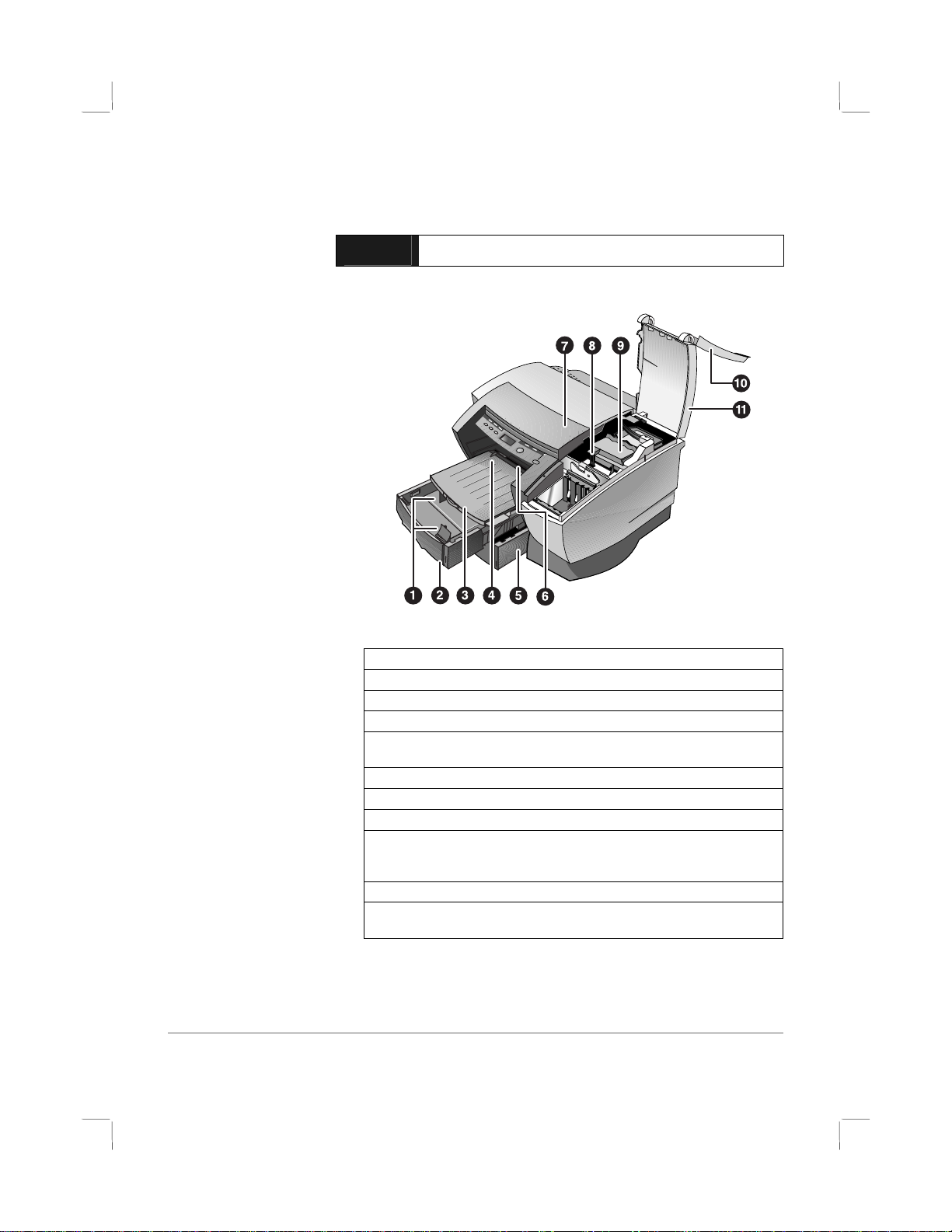
getting started
Understanding the Printer’s Parts an d F un c tion s
Note: All purple-colored parts of the printer are movable.
1. Paper guides–Guides the paper into the printer.
2. Tray 1–Holds the standard paper.
3. Output tray–Collects the printed pages.
4. Envelope guide–Slides to fit the width of an envelope.
5. Tray 2–Optional paper tray (standard with the
HP Business Inkjet 2250TN).
6. Envelope feed–Holds a single envelope to feed into the printer.
7. Top cover–Allows you to view the interior of the printer.
8. Carriage latch–Locks the printhead cover.
9. Printhead cover–Lifts for removing each printhead from its color-coded
socket. Includes a hook that must be engaged with the carriage latch for
the printer to operate.
getting started
10. Ink cartridge door–Gives access to the ink cartridges.
11. Printhead access cover–Gives access to the printheads. The access cover
must be closed to print.
2-1
Page 6
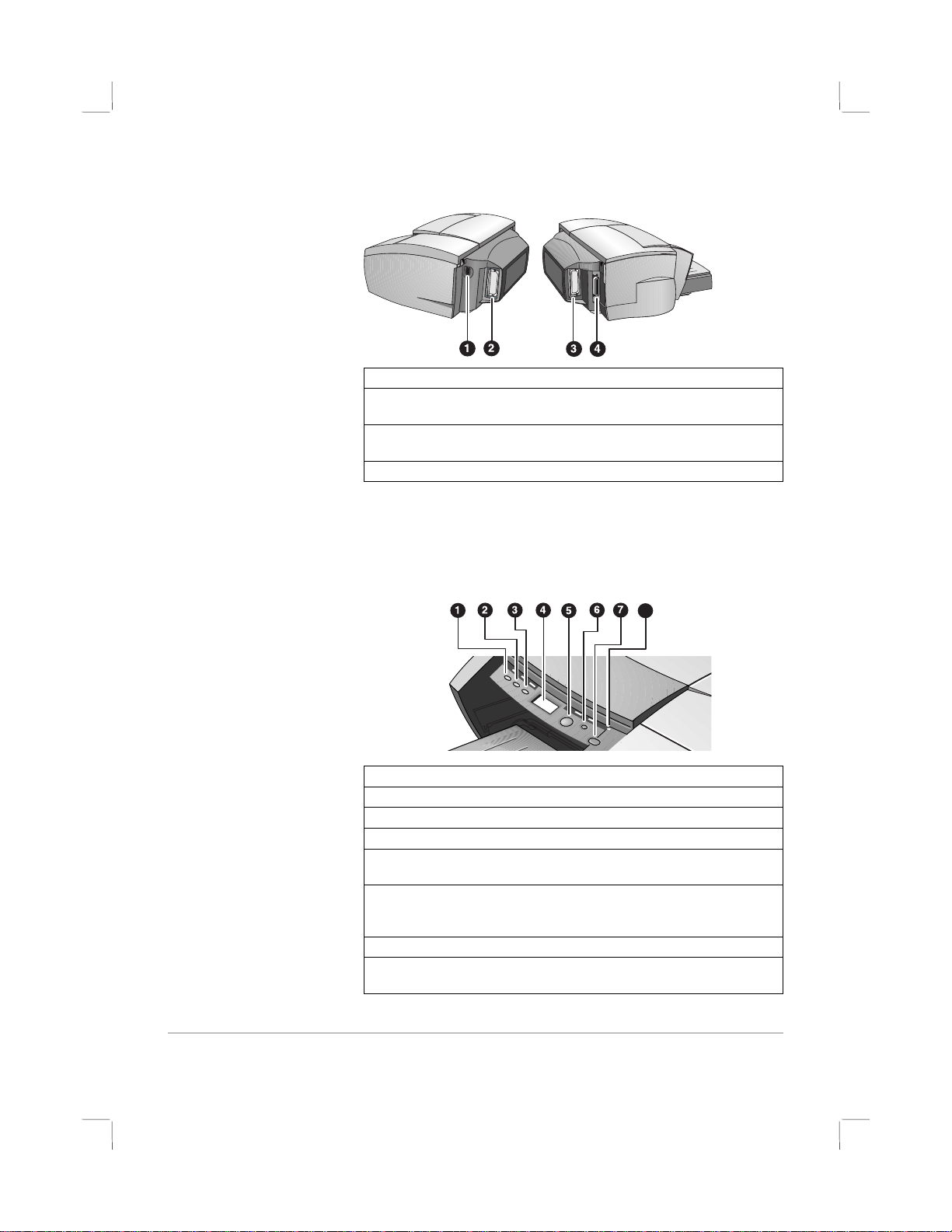
8
1. Power input–Attach power cord here.
2. EIO Slot–Install an HP JetDirect EIO printer server or the HP PS/PCL5 Kit
upgrade card.
3. EIO Slot–Install an HP JetDirect EIO printer server or the HP PS/PCL5 Kit
upgrade card.
4. Parallel port–Attach parallel cable here.
Note: Do not install two HP JetDirect EIO print server cards. Cards can be installed
in either slot. You can install two cards at the same time, but one must be an
HP PS/PCL5 Kit upgrade card and the other an HP JetDirect EIO print server card.
Understanding the Control Panel Buttons and LED
1. Menu–Cycles through the Control Panel menus.
2. Item–Cycles through the selected menu’s items.
3. Value–Cycles through the selected menu item’s values.
4. LCD Panel–Displays printer messages.
5. Resume–Continues a print job that is waiting and selects values from
item menus.
6. Cancel–Cancels the current print job. The time it takes to cancel depends
on the size of the print job. Press this button once only to cancel a queued
print job.
7. Power–Turns the printer OFF and ON.
8. LED–Lights up when the printer is online (green). Blinks when the printer is
printing (green) and when the printer is in an error state (amber).
2-2
Page 7
g
g
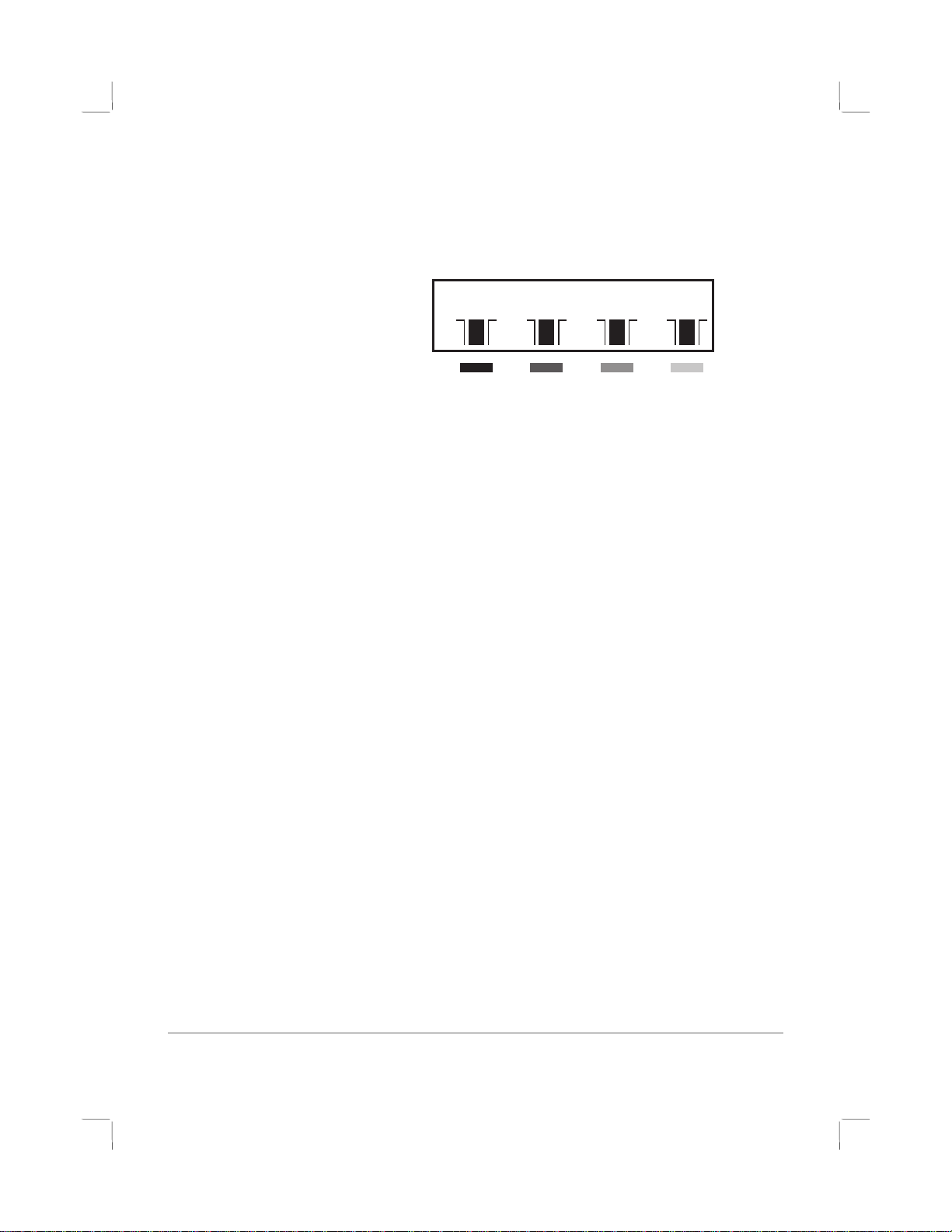
Understanding the LCD Display
The LCD display shows status messages and the remaining ink levels in
the ink cartridges.
es appear here
Messa
Black Cyan Ma
enta Yellow
Setting Up
1. Unpack the printer and remove the packing tape and shipping
material from inside the printer and trays.
2. Install Tray 2 (optional).
3. Connect the power cord.
4. Turn on the printer and install the ink cartridges.
5. Install the printheads.
6. Load the paper.
7. Set LCD language preference.
8. Connect the parallel cable or network cable.
9. Install the printer software.
Setting the LCD Language Preference
1. Ensure that the printer is turned OFF.
2. Press and hold the Value button and turn ON the printer.
3. Press the Value button to scroll through the language list.
4. Press the Resume button to confirm the language selection.
2-3
Page 8
software installation
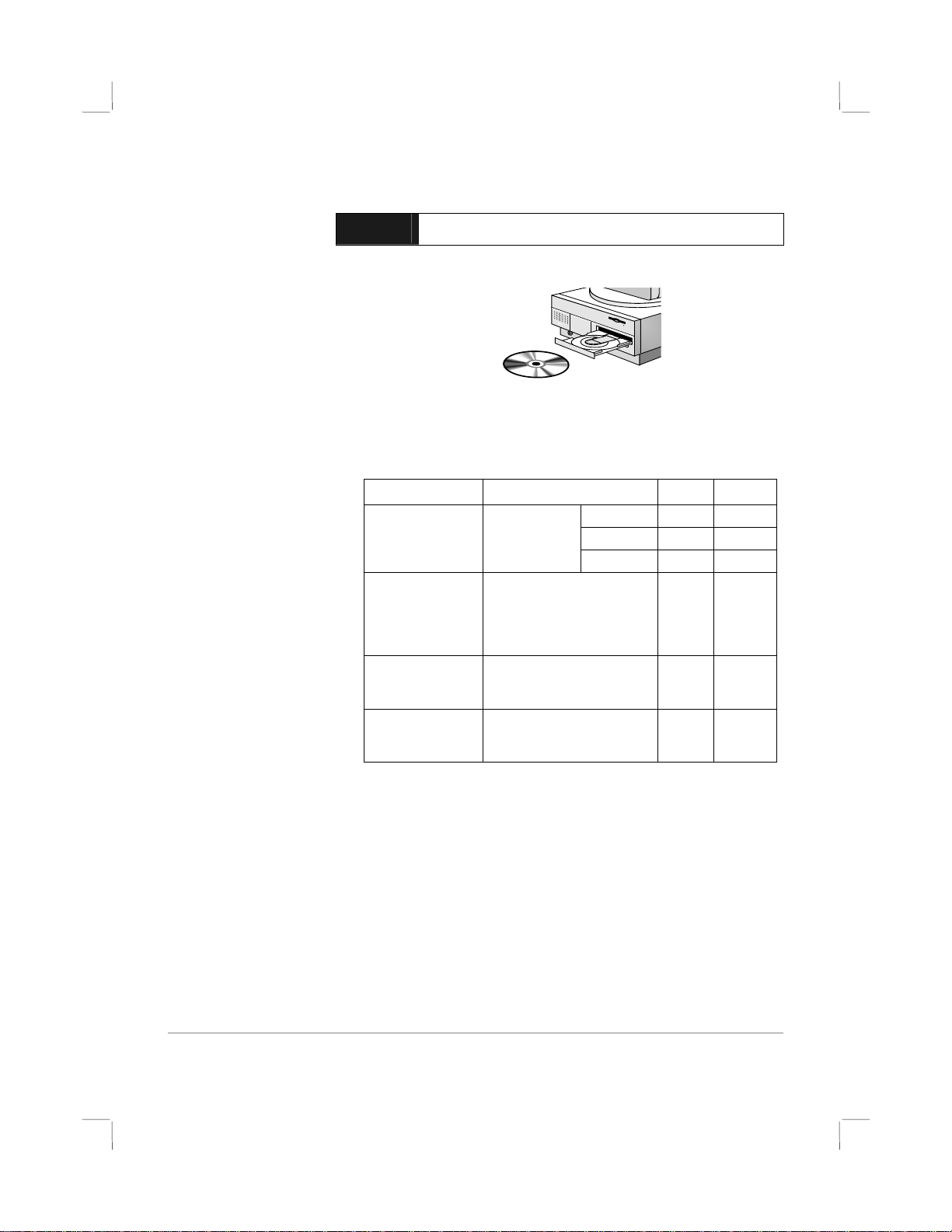
Installing the Printer Software for Local Printing
During installation you can choose Typical or Custom installation. Custom
installation lets you choose the components you want to install. The
following table shows which components are installed for each
installation type.
Component Description 2200 2250
HP Business Inkjet
2200/2250 Printer
Driver
HP Business Inkjet
2200/2250
Toolbox
software
Program Group Adds an HP Business Inkjet
Printer Matching
Fonts
Installs the
printer driver
for your printer.
Installs the Toolbox. The
Toolbox provides additional
printer controls, status
windows, and troubleshooting
information.
program group to the start
menu.
Installs fonts on your computer
that match the fonts in the
printer.
HPA
PCL5
PS
Custom
Installing under Windows 95, Windows 98, Windows NT 4.0,
and Windows 2000
For Windows NT 4.0/Windows 2000 users
• You must have administrator privileges to install a printer driver.
To Install the Printer Driver
1. Start Microsoft Windows and make sure no other Windows
applications are running.
2. Insert the Starter CD into your CD-ROM drive. The installation
program runs automatically.
3-1
Page 9

If the installation program does not run automatically, click Start,
select Run, and at the command line box, type the letter of your
computer’s CD-ROM drive followed by: \SETUP (for example,
type D:\SETUP).
3. Click Install Printer Driver from the Starter CD menu.
4. Select the language of the printer software that you want to install
and click OK.
5. Click Next and then click Accept to accept the terms of the license
agreement.
6. Select Connected directly to this computer. Follow the instructions that
appear on the screen to complete the printer driver installation.
Installing under Windows 3.1
To install the printer software under Windows 3.1, you must have an:
• HP Business Inkjet 2250 printer, or
• HP Business Inkjet 2200 printer with the HP Postscript/PCL5 Kit
upgrade (C5935A).
1. Start Microsoft Windows and make sure no other Windows
applications are running.
2. Insert the Starter CD into the CD-ROM drive.
3. From the Program Manager select File, Run.
4. At the command line box, type the letter of your CD-ROM drive
followed by: \WIN31\X\<language>\OEMSETUP.INF where X is
the driver you wish to install (PS or PCL5) and <language> is your
language preference. For example, type
D:\WIN31\PS\ENU\OEMSETUP.INF to install the Postscript driver
in English. For a list of languages and their abbreviations, see
page 4-4.
5. Follow the instructions that appear on the screen to complete the
driver installation.
Installing the Printer Software for Network Printing
Before installing the printer software, make sure the HP JetDirect EIO
print server card is installed in your printer and connected to the
network.
Note: The HP Business Inkjet 2250TN comes with an HP JetDirect EIO print server
card preinstalled.
To Install the Printer Driver
1. Start Microsoft Windows and make sure no other Windows
applications are running.
3-2
Page 10
2. Insert the Starter CD into your CD-ROM drive. The installation
program runs automatically.
If the installation program does not run automatically, click Start,
select Run, and at the command line box, type the letter of your
computer’s CD-ROM drive followed by: \SETUP (for example,
type D:\SETUP).
3. Click Install Printer Driver from the Starter CD menu.
4. Select the language of the printer software that you want to install
and click OK.
5. Click Next and then click Accept to accept the terms of the license
agreement.
6. Select Connected via the network.
7. Select Client Setup if the printer is connected to a server or
someone's machine. Select Server or Peer-to-Peer Setup if you are
setting up a print server for the first time, or if you will print directly to
HP JetDirect EIO print server installed in your printer. If you are not
sure how to connect your network printer, ask your network
administrator, or see the next section, Network Printing for more
information.
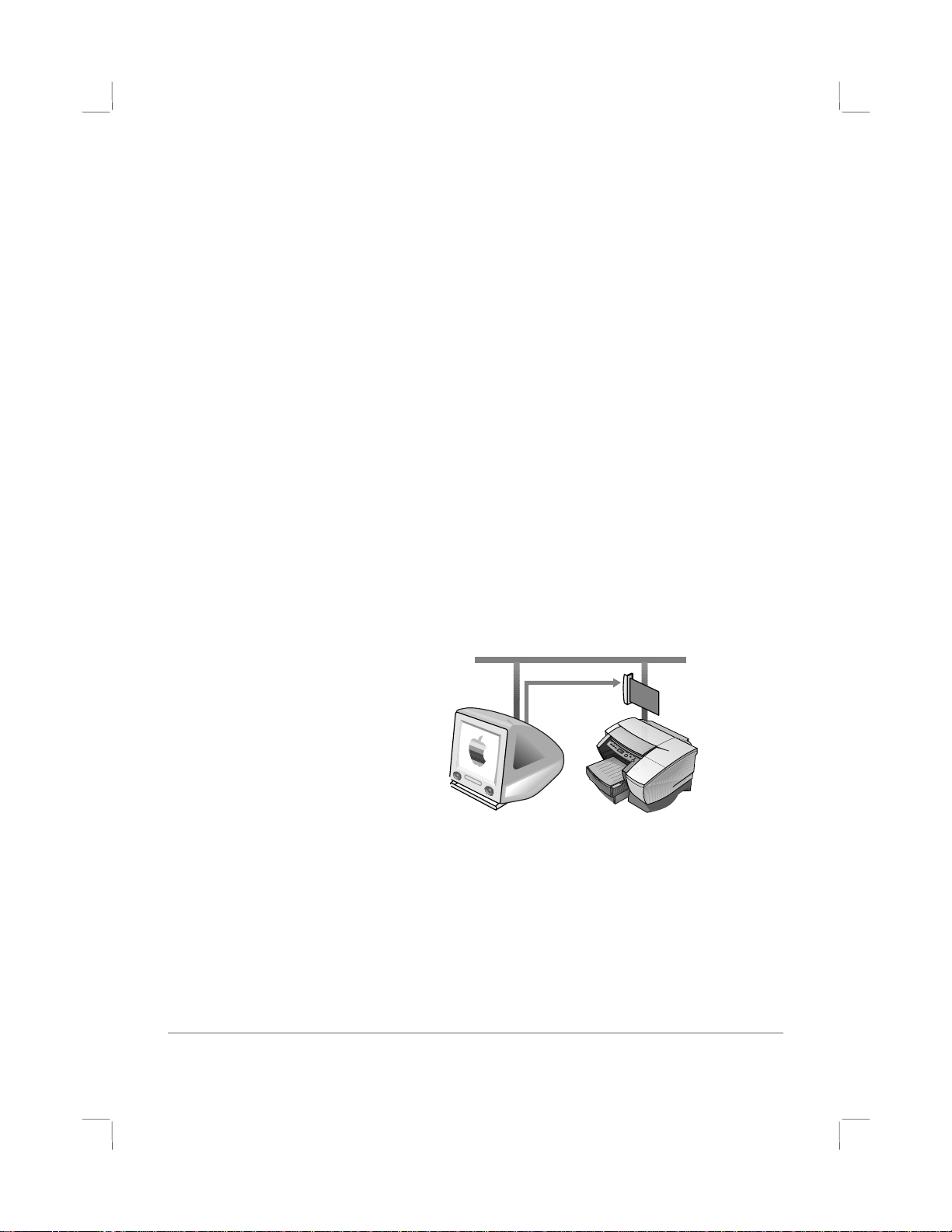
Setting Up Your Printer on a Macintosh Computer
Connect your printer to a Macintosh computer via an HP JetDirect print
server.
Before connecting your printer to the JetDirect server, make sure your
printer is an:
• HP Business Inkjet 2250 printer with an HP JetDirect card, or
• HP Business Inkjet 2200 printer with the HP Postscript/PCL5 Kit
upgrade and an HP JetDirect card.
These cards can be purchased as accessories (see HP Supplies
and Accessories for more information).
1. Connect the Ethernet cable to the printer and the JetDirect server.
3-3
Page 11

2. Print the configuration page to determine the AppleTalk printer
name. For instructions of printing a configuration page, see
page 6-4.
3. Insert the Starter CD into the CD-ROM drive. Double-click the Installer
icon located in the INSTALLER\<language> folder of the Starter CD,
where <language> is your language preference.
For example, the INSTALLER\ENU folder contains the Installer icon
for the English driver. For a list of languages and their abbreviations,
see the page 4-5.
4. Follow the instructions on the screen to complete the installation.
5. Double-click the Desktop Printer Utility icon in the
APPLE EXTRAS\APPLE LASERWRITER SOFTWARE folder of the hard
drive.
6. Select LaserWriter8, followed by Printer (AppleTalk) and click OK.
7. Change the PPD to HP Business Inkjet 2250.
8. Change the AppleTalk Printer by selecting the AppleTalk Zone and
then selecting your printer (refer to the configuration page you
printed).
9. Click Create and the printer icon appears on your desktop.
3-4
Page 12
r
g
The HP Business Inkjet 2200/2250 can be shared on a network. It can
be connected directly to a network using an HP JetDirect print server or
attached to a computer that is connected to a network.
network printing
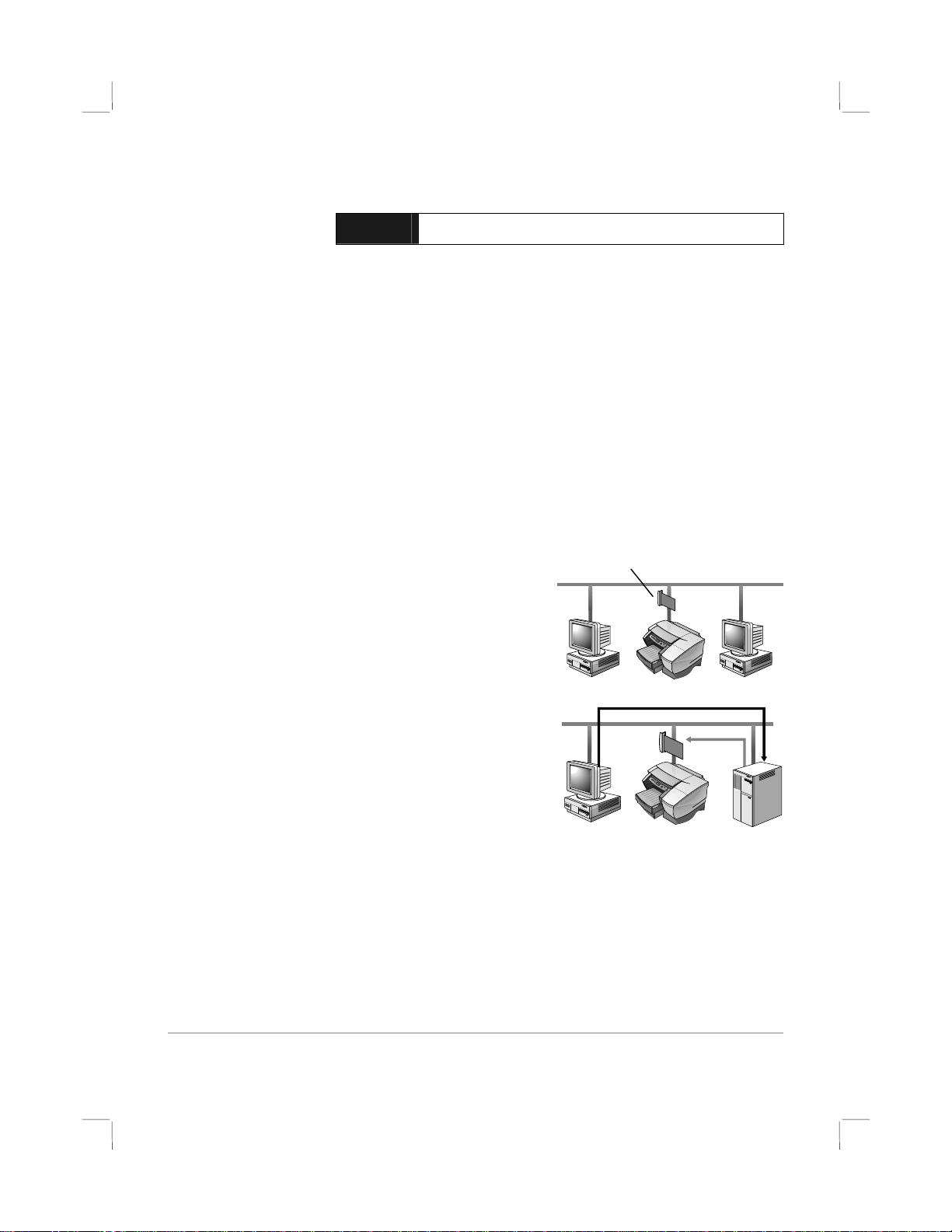
Network Basics
Networks consist of computers connected together to share information
and resources, such as printers. On a "client-server" network, client
computers send print jobs to dedicated server computers that control the
use of each printer. On a "peer-to-peer" network, dedicated servers are
not used to control printers. Instead, each computer is configured to send
print jobs directly to the printer.
Network Printing Configurations
There are two basic types of network printing configurations:
client-server and peer-to-peer.
Peer-to-peer printing.
Individual computers
manage their print
jobs.
HP JetDirect EIO card
networking
Client-server printin
Server manages print
jobs.
Client-Server Configuration
Client-server printing is typically used in medium to large networks where
dedicated computer servers manage the printing needs of many users.
Client-server networks use network operating systems (NOS) such as
Novell NetWare and Windows NT Server 4.0, or Windows 2000.
.
Serve
4-1
Page 13

J
Supported Network Configurations for Client-Server Printing
Server Client Configurations
Windows
Windows
NT 4.0/2000
Windows 95/98 Not recommended
Novell NetWare
4.11 (Bindery and
NDS)
Novell NetWare
5.0 (Bindery, NDS,
NDPS)
NT 4.0/2000
Windows
95/98
Workgroups 3.11
Windows for
Peer-to-Peer Configuration
Peer-to-peer printing is more suitable for smaller networks. With peer-topeer printing, you configure your Windows 95, Windows 98, or
Windows NT 4.0/2000 systems to print directly to the printer.
Supported Network Configurations for Peer-to-Peer Printing
• Windows 95
• Windows 98
• Windows NT 4.0/2000
Installing the Printer on a Network with an
HP JetDirect Print Server (Recommended)
etDirect
Card
Your printer can be shared in a network environment by connecting it
directly to the network via an HP JetDirect external or internal print
server. This configuration provides better performance than printing
through a computer, as well as flexibility in preparing a location for the
printer.
4-2
Page 14

The HP JetDirect print server can be used in both client-server and peerto-peer network configurations.
Note: The HP Business Inkjet 2250TN comes with an internal EIO JetDirect print
server card preinstalled. It is recommended that the printer be shared on a network
through the print server. If you do not own the HP Business Inkjet 2250TN, see the
online User's Guide for instructions on installing an HP JetDirect EIO print server.
Sharing the Printer on a Network
Note: This procedure is for enabling a PC to use a shared printer. It assumes that
the printer driver is already installed on the PC and that the printer is currently
being shared on a network.
In this configuration, the printer is connected directly to the parallel port
of a selected computer (or server) on the network and is shared by the
other computers (or clients). The server could be a computer running
Windows for Workgroups 3.11, Windows 95, Windows 98, or
Windows NT 4.0/2000. Use this configuration only in small groups or
when usage is low. The shared computer is slowed down when many
users print to its shared printer.
Clients can connect to the printer in three different ways:
• Install the printer software from the Starter CD and connect as a
client using the network installation.
• Browse to the printer on the network and drag the printer to your
Printers folder. The printer software is not installed on your
computer; the shared computer controls the printer driver
software.
• Add the printer and install the software from the INF file located
on your network. Ask your network administrator where the INF
is located.
On the Starter CD the INF files are stored in folders using the
following format <CD>:\Windows\<driver>\<OS>\<lang>.
4-3
Page 15

For example, if your CD drive letter is D:,
D:\Windows\PCL5\Win2k\ENU contains the English
Windows 2000 PCL5 INF file.
Refer to the following table for a list of language abbreviations.
Language Abbreviation Language Abbreviation
Czech CZE Japanese JAP
Danish DAN Norwegian NOR
Dutch DUT Polish POL
English ENU
Finnish FIN Russian RUS
French FRE Spanish SPA
German GER Swedish SWE
Italian ITA
Portuguese
(Brazilian)
POB
4-4
Page 16

Network Support Materials
If you encounter any problems or difficulty printing over a network, see
the following documentation:
Document Document Contents
HP JetDirect Print Server
Administrator's Guide
HP JetDirect hardware
manual
The NOS (network
operating system) and OS
Manual.
For more information or HP Web JetAdmin and other HP network
printing software, visit the web site www.hp.com/support/net_printing.
Included on the Starter CD. It provides detailed
information on setting up and using your HP
JetDirect EIO Print Server.
It also provides information on:
• HP Software Solutions for HP JetDirect print
servers:
∙ HP Web JetAdmin, a Web-based tool for
managing network peripherals
∙ HP IP/IPX Printer Gateway for NDPS
∙ HP LaserJet Utility to set up printers on
AppleTalk networks
• TCP/IP Configurations
• Using LPD (Line Printer Daemon) services on the
HP JetDirect print server
• FTP Printing
• Troubleshooting and configuration page
messages
• Embedded Web Server to access configuration
and management pages for the print server
and device
• Printing on Windows NT DLC/LLC Networks
Included with the purchase of an HP JetDirect
print server. It describes setup and configuration
of your HP JetDirect print server. Note that the HP
JetDirect hardware manual does not come with
the printer.
These came with your computer or your NOS.
They describe basic network printing common to
all network printers.
4-5
Page 17

The most convenient way to change settings on the printer is from your
computer through the printer driver.
You can also change the printer settings from the printer’s Control Panel.
The following tables list the menu items and possible values for the
printer. Additional menu items can appear in the Control Panel,
depending on the hardware modules installed in the printer.
To print a complete menu map from the Control Panel:
LCD
1. Press the Menu button until INFORMATION MENU appears.
2. Press the Item button until PRINT MENU MAP appears.
3. Press the Resume button to print the menu map.
Information Menu
Message Value Description
PRINT DEMO N.A. Prints a sample page.
PRINT MENU MAP N.A. Prints a single page map of the menu
PRINT
CONFIGURATION
PRINT PCL FONT
LIST (PS/PCL5 only)
PRINT PS FONT
LIST (PS/PCL5 only)
PRINT
DIAGNOSTIC
PAGE
PRINT
DIAGNOSTIC+
PAGE
SHOW PRINTHEAD
HEALTH
TEST PAPER PATH1 1-10, 20,
TEST PAPER PATH2 1-10, 20,
LCD messages
structure of the printer.
N.A. Prints a single reference page describing
current configuration settings (firmware
version, model, accessories installed,
fonts installed, I/O support, cartridge
and pen information).
N.A. Prints the number with corresponding
PCL5 fonts.
N.A. Prints the number with corresponding PS
fonts (only available if postscript card is
present).
N.A. Prints a page that contains information
for basic troubleshooting.
N.A. Prints a page that contains information
for advanced troubleshooting.
N.A. Displays the health of the printhead on
the LCD.
Tests the Tray 1 paper feed mechanism
30, 40, 50
Tests the Tray 2 paper feed mechanism.
30, 40, 50
5-1
Page 18

Paper Handling Menu
Message Value Description
LOCK TRAY = NONE
1
2
Locks a paper tray. The LOCK TRAY
option is only available if Tray 2 is
installed. Default = None.
Maintenance Menu
Message Value Description
CALIBRATE COLOR N.A. Calibrate printer's color intensity against
CLEAN PRINTHEADS N.A. Initiates the printhead cleaning process.
ALIGN PRINTHEADS N.A. Initiates the alignment process.
the black intensity by selecting the closest
matching calibration pair.
Printing Menu
Message Value Description
QUALITY LEVEL FAST
PAPER TYPE Set of options. Select media type. Default = Plain.
PAPER SIZE Set of options. Select media size. Default = Letter.
NUMBER OF
COPIES
ORIENTATION PORTRAIT
PAGE LENGTH 5-128 Set the page length in terms of
PCL FONT
NUMBER
APPEND CR TO LF NO
PCL FONT PITCH 0.44 - 99.99 Set the font pitch. Default = 10.
PCL FONT
POINT SIZE
PCL SYMBOL SET Set of options Select the PCL symbol set.
NORMAL
BEST
1-999 Sets the number of copies to print.
LANDSCAPE
0-89 Set the PCL font for printing from
YES
4.00 - 99.00 Set the font point size. Default = 12.
Sets the default print quality level.
Default = 1.
Page orientation.
Default = Portrait
numbers of lines. Default = 60.
DOS or UNIX without defining the
personality. Default = 0.
Configure whether or not a carriage
return (CR) is appended to each line
feed (LF) encountered in a backward
compatible PCL job (pure text, no job
control). Default = No.
5-2
Page 19

Configuration Menu
Message Value Description
PERSONALITY AUTO
PCL5 ONLY
PS ONLY
CLEARABLE
WARNINGS
INK LOW
WARNINGS
AUTO ON
JOB
ON
OFF
Sets the personality used to process
the job. The PCL5 and PS option is
only available if the personality card
is inserted. Default = Auto.
When ON is selected, clearable
warnings are displayed until RESUME
is pressed.
When JOB is selected, clearable
warnings are displayed until end of
job. Default = Auto.
When ON is selected, ink low
condition is displayed.
When OFF is selected, ink low
condition is not displayed.
Reset Menu
Message Value Description
RESTORE FACTORY
SETTINGS
N.A. Restores all values to the printer's
predetermined factory values.
Postscript Menu
Note: This menu is only available with HP Business Inkjet 2250 printers or
HP Business Inkjet 2200 printers with the Postscript/PCL5 Upgrade.
Message Value Description
PRINT PS ERRORS = OFF OFF
ON
Select ON to print the PS error page
when PS errors occur.
EIO Menu
Note: This menu is only available on HP Business Inkjet 2200/2250 printers with
an HP JetDirect EIO print server card installed.
Message Value Description
CFG NETWORK NO
YES
5-3
Selects whether or not you want to access
the JetDirect menu items. You must change
this option to YES each time you want to
access the JetDirect EIO menu.
Page 20

Message Value Description
IPX/SPX
DLC/LLC
TCP/IP
ETALK
CFG IPX/SPX NO
CFG TCP/IP NO
ON
OFF
YES
YES
Selects whether or not a protocol is enabled
or disabled. Change it to OFF to disable a
protocol.
Selects whether you want to access the
IPX/SPX menu and set the IPX/SPX protocol
parameters.
In the IPX/SPX menu, you can specify the
Frame Type parameter used on your
network.
• The default is AUTO, which automatically
sets and limits the Frame type to the one
detected.
• For Ethernet cards, frame type selections
include EN_8023, EN_II, EN_8022,
EN_SNAP.
• For Token Ring cards, frame type
selections include TR_8022, TR_SNAP.
In the IPX/SPX menu for Token Ring cards,
you can also specify NetWare Source
Routing parameters, which include SRC
RT=AUTO (default), OFF, SINGLE R or ALL
RT.
Selects whether you want to access the
TCP/IP menu and set the TCP/IP protocol
parameters.
In the TCP/IP menu, you can specify
BOOTP=YES for TCP/IP parameters to be
automatically configured by a BootP or
DHCP server when the printer is turned on.
If you specify BOOTP=NO, you can
manually set the following TCP/IP
parameters from the control panel:
Each byte of the IP address (IP)
• Subnet Mask (SM)
• Syslog Server (LG)
• Default Gateway (GW)
• Idle Timeout period (default is 90 seconds,
0 disables the timeout)
When setting IP numbers, press the Value
button to increase the number by 1. Hold
down the Value button to increase the
number by 10. Press the Resume button to
make your selection.
5-4
Page 21

Message Value Description
CFG ETALK NO
YES
Selects whether you want to access the
EtherTalk menu and set the AppleTalk phase
parameter (ETALK PHASE=1 or 2) for your
network.
Resetting the EIO Card
To restore the factory default values to HP JetDirect EIO print server card:
1. Turn off the printer.
2. While holding down the Item and Resume buttons on the printer's
control panel, turn on the printer.
All previously stored EIO settings will be lost.
Understanding Printer Messages
Message Explanation Solution
CANCELLING
JOB
PAPER JAM,
OPEN COVER
AND CLEAR
PAPER
[COLOR] INK
CARTRIDGE
EMPTY
REPLACE
[COLOR] INK
CARTRIDGE
[COLOR] INK
CARTRIDGE
MISSING
The printer is canceling
the current print job.
Paper is jammed in the
printer.
The cartridge is out of
ink and the printer will
not print until the
cartridge is replaced.
The printer detects a
faulty ink cartridge.
The printer cannot
detect the ink cartridge
because it is missing,
improperly installed, or
defective.
Clear the jammed paper. For
more information, see
page 6-2.
Remove the ink cartridge.
Reinstall the cartridge and try
to print. If the error persists,
replace the empty cartridge.
Reinstall the faulty ink
cartridge and try to print. If
the error persists, replace the
cartridge.
Open the ink cartridge door
and check if the cartridge is
missing, improperly installed,
or the wrong cartridge. If
none of these solutions work,
replace the cartridge.
5-5
Page 22

Message Explanation Solution
REPLACE
[COLOR]
PRINTHEAD
[COLOR]
PRINTHEAD
MISSING
BAD INK
CARTRIDGE OR
PRINTHEAD
LOAD [TRAY]
WITH [MEDIA
TYPE] [MEDIA
SIZE]
PRINTED PAGE IS
DRYING... PRESS
RESUME TO
CONTINUE
PERSONALITY
CARD NOT
RECOGNIZED
RESET JETDIRECT
CARD
CLOSE ALL
COVERS
OUT OF
MEMORY
The printer detects a
faulty ink printhead.
The printer cannot
detect the ink printhead
because it is missing,
improperly installed, or
defective.
The printer detects a
faulty ink cartridge or
printhead.
Printer requires media
of a specific type and
size to be loaded in
specified paper tray.
Printer is letting the
current page dry.
The printer cannot
detect the card because
it is missing, improperly
installed, or defective.
Prompts user to reset the
internal parameters of
the JetDirect card.
The printer will not print
until all access covers
are properly closed.
The printer is out of
memory and cannot
print the current job.
Reinstall the faulty ink
printhead and try to print.
Make sure the shipping tape
has been removed. If the
error persists, remove the
printhead and use a dry, lintfree, soft cloth to gently clean
any ink off the contact pads.
Reinstall the printhead and try
to print. If the error persists,
replace the printhead.
Open the ink printhead door
and check if the printhead is
missing, improperly installed,
or the wrong printhead. If
none of these solutions work,
replace the printhead. If the
error persists, call HP.
Follow the instructions in the
printer message.
Follow the instructions in the
printer message.
Remove the wet page and
press the Resume button to
continue printing.
Reinstall the personality card
or replace it. If the error
message persists, call HP.
From the RESET Menu, press
the Value Button to select EIO
RESET.
Follow the instructions in the
printer message.
Cancel the current print job,
and add additional memory,
or reduce the complexity of
the document you are trying
to print.
5-6
Page 23

troubleshooting
General Troubleshooting Tips
1. Check the printer LCD panel. There are two types of LCD errors:
Example Solution
BLACK CARTRIDGE
FAULTY, REPLACE,
CLOSE ALL COVERS,
etc.
E: XXXX
E: XXXX-X-Y-Z
E: XX
2. If the LED is flashing and the printer does not print, lift up the
printhead access cover and make sure the carriage latch properly
secures the hook on the printhead cover.
See the online User's Guide for information on how to
resolve such errors.
Your printer may have a hardware problem. Turn OFF
the printer, wait for a few seconds and then turn it ON
again. If the message persists, your printer may need
servicing, write down the error code and contact HP.
HP Business Inkjet 2200/2250 Quick Checkup
• Check the power
Make sure the power cord is connected firmly to the printer and
to a working outlet, and that the printer is turned on.
• Check the paper
Make sure paper is loaded correctly in the tray and that the
paper is not jammed in the printer.
• Check the ink cartridges and printheads
Make sure all four ink cartridges and printheads are properly
installed and that the protective tape covering the ink nozzles has
been removed. Make sure the ink cartridges are not empty.
• Check the printer setup
Make sure your HP Business Inkjet 2200/2250 is selected as the
current or default printer and that Pause Printing is not checked.
• Check the print settings
Make sure the print settings (paper type, paper size, margins,
color, etc.) in the HP Print Settings dialog box are correct.
• Check the parallel port on your computer
Make sure your printer is connected directly to the parallel port.
Do not share the port with other devices such as a Zip drive.
troubleshooting
6-1
Page 24

• Check the network setup
Make sure that your printer is properly set up in the network
environment. See the User's Guide for more network information.
Paper is Jammed in the Printer
Note: Information on Tray 2 is only applicable if your printer comes with Tray 2 or
if you have purchased Tray 2 as an accessory.
1. Remove all paper from the Output Tray.
2. Open the top access door to locate the paper jam.
3. If the Printhead Cradle is blocking the paper path, gently push it to
the side.
6-2
Page 25

4. Free any wrinkled paper and pull the sheet of paper towards you
through the front of the printer.
Note: Do not remove jammed paper through the Top Cover. If you cannot access
the jammed paper, proceed to Step 6.
5. If bulk of the paper is jammed in Tray 1 or Tray 2:
a Lift the Output Tray and check for paper jam.
b If the paper is jammed in Tray 1, pull out Tray 1. If not, check
Tray 2 for paper jam.
c If the paper is jammed in Tray 2, pull out Tray 2. If not, proceed
to Step 6.
d Pull the paper towards you as shown in the diagram.
6-3
Page 26

e Close the Top Cover and press the Resume button on the printer
to continue.
f Replace the tray.
g If this does not work, turn off the printer and then turn on again.
6. If you cannot locate the jammed paper in any of the trays:
a Turn off the printer and remove the power cord.
b Lift the printer off Tray 2.
c Remove the jammed paper from the bottom of the printer or from
Tray 2.
d Replace the printer on top of the paper tray.
Printing a Configuration P age
Note: If an HP JetDirect EIO print server card is installed, two pages will print.
To print a Configuration page:
1. Press the Menu button until INFORMATION MENU appears.
2. Press the Item button until PRINT CONFIGURATION appears.
3. Press the Resume button to print the configuration page.
Printing a Diagnostic Test Page
Note: The information on the diagnostic page is useful to our Customer Support
Center in helping you to troubleshoot any printer problem.
1. Press the Menu button until INFORMATION MENU appears.
2. Press the Item button until PRINT DIAGNOSTIC PAGE appears.
3. Press the Resume button to print the diagnostic page.
6-4
Page 27

Customer Support
If your printer is not operating properly and the suggestions in this
chapter do not solve your problem, try using one of the following support
services to obtain assistance.
Note: There are no user-serviceable parts inside the printer.
Internet
Visit our World Wide Web for the latest printer software, product and
support information at http://www.hp.com/go/businessinkjet or
http://www.hp.com/cposupport.
For more information consult one of the following:
Document Document Contents
HP Business Inkjet
2200/2250 User's Guide
Readme Included on the Starter CD. It provides last-minute
HP JetDirect Print Server
Administrator's Guide
HP JetDirect hardware manual Included with the purchase of an HP JetDirect print
The NOS (network operating
system) documentation
Included on the Starter CD. It provides additional
troubleshooting information.
important information about your printer.
Included on the Starter CD. It provides detailed
information on setting up and using your HP JetDirect
EIO Print Server.
server. It describes setup and configuration of your
HP JetDirect print server. Note that the HP JetDirect
hardware manual does not come with the printer.
These manuals came with your computer or your
NOS. They describe basic network printing common
to all network printers.
HP Telephone Support
During the warranty period, you may obtain assistance from the
HP Customer Care Center.
Before calling, print a configuration page and fill in the following
information:
What model printer do you have?
What is the serial number of your printer?
(Check the back of your printer.)
What is the brand and model of your computer?
What is the version of printer software you are using?
(Open the printer driver Properties, click the Preference
tab, and then click About.)
What driver did you select?
Have you printed a configuration page?
6-5
Page 28

Have this information ready when you call HP Customer Support at any
of the following numbers:
For customers in North America:
During
Warranty:
Post
Warranty:
For customers outside of North America:
Africa/Middle East +41 22/780 71 11 Argentina 541 778 4061/69
Australia 613 8877 8000 Austria 0660 6386
(Dutch) 02 6268806
(French) 02 6268807
Chile 800 360 999 China 010 6564 5959
Czech Republic 42 (2) 471 7327 Denmark 3929 4099
Finland 0203 47 288 France 01 43 62 34 34
Germany 0180 52 58 143 Greece 01 68 96 4 11
Hong Kong 800 96 7729 Hungary 36 (1) 252 4505
India 9111 682 6035 Indonesia 21 350 3408
Ireland 01 662 5525 Italy 02 264 10350
Korea 822 3270 0700 Malaysia 03 295 2566
Mexico D.F. 01 800 221 4700 or
01 800 905 2900
Norway 22 11 6299 Philippines 2 867 3551
Poland 022 37 5065, 48 22 37 5065 Portugal 01 441 7 199
Russia 7095 923 50 01 Singapore 272 5300
Spain 902 321 123 Sweden 08 619 2170
Switzerland 0848 80 11 11 Taiwan 886 2 27170055
Thailand 02 661 4011 The Netherlands 020 606 8751
Turkey 90 1 224 59 25 United Kingdom 0171 512 5202
Vietnam 8 823 4530 Venezuela 800 47 888
US: 208 323 2551 Monday through Friday
6 am to 6 pm (MST)
Canada: 905 206 4663 Monday through Friday
8 am to 8 pm (EST)
US: 900 555 1500 ($2.50 per minute, maximum of
$25.00) or 800 999 1148 ($25.00 per call will be
charged to your Visa or MasterCard) Monday through
Friday 6 am to 6 pm (MST)
Canada: Toll free 877 621 4722 (Visa, MasterCard,
or American Express) Monday through Friday 8 am to
8 pm (EST)
Brazil 55 11 709 1444 Belgium
Canada 905 206 4663
New Zealand 09 356 6640
Caracas 207 8488
6-6
Page 29

p
specifications
Printer Specifications
Print Method Plain paper drop on-demand thermal inkjet printing
Print Speed:
(Letter/A4)
Black
Resolution
Color
Resolution
Printer
Languages
Software
Compatibility
Fonts 45 TrueType and 35 Postscript fonts built-in;
ecifications
Smart
Software
Features
s
Media
Size/Type
EconoFast Normal Best
Black text 15 ppm 10.8 ppm 6.5 ppm
Mixed text with
color graphics
Full page color 7.0 ppm 2.6 ppm 0.5 ppm
Photo N/A
Approximate figures. Exact speed dependent on the system
configuration, software program, and document complexity.
Up to 1200x600 dpi
HP’s enhanced Color Layering Technology with PhotoREt III for
photo quality. Up to 1200x600 dpi
HP Business Inkjet 2200 family:
HP High Performance Architecture (HPA) GUI
HP Business Inkjet 2250 family:
HP HPA, PCL 5C, HP Postscript 2 emulation,
Automatic language switching
Microsoft Windows® 3.1x, 95, 98, NT 4.0, 2000,
Macintosh System 8.1 and above
all Postscript emulation and HP PCL 5C-accessible
Intellifont and TrueType rasterizer built into
PCL 5C. Built-in support for Arabic, Cyrillic, Greek and
Hebrew symbol sets.
Built-in printer driver features:
Enhanced Windows Drivers with Configurable, Remote and
Unattended setup options. HP ZoomSmart Scaling technology,
Handout (N-up printing), Manual Duplex, Watermark,
Concept Preview, Quick Sets, Emulate LaserJet Margins,
Symmetrical Margins, Optimized for Fax, Tiling.
Note: Not all features available with each printer driver.
Paper U.S. Legal 8.5" x 14"
14 ppm 7.5 ppm 4.6 ppm
(216 x 356 mm),
U.S. Letter 8.5" x 11"
(216 x 279 mm),
U.S. Executive 7.25" x 10.5"
(184 x 267 mm), A4 210 x 297 mm,
B5 182 x 257 mm
7-1
Page 30

Media
Size/Type
Envelopes
Cards
Media
Handling
Recommended
Media Weight
HP Media
Supported
(Maximum
number of
pages
supported)
I/O Interface Centronics parallel, IEEE 1284 compliant
Printer
Memory
Control Panel Intuitive operation and easy-to-understand messages.
Transparencies U.S. Letter 8.5" x 11"(216 x 279 mm),
(Tray 1 and
Envelope Feed
only)
(Tray 1 and
Envelope Feed
only)
Labels
Tray 1/
Tray 2
Envelope feed
Output tray
capacity
Tray 1/
Tray 2
Tray 1
Tray 2
HP Business Inkjet 2200 family: 8 MB of built-in RAM
HP Business Inkjet 2250 family: 24 MB of built-in RAM, up to
88 MB with optional 64 MB (SDRAM,100MHz) DIMM
Messages can be displayed in 15 languages: English, French,
Italian, German, Spanish, Portuguese, Dutch, Norwegian,
Finnish, Swedish, Danish, Polish, Czech, and Russian
European A4 210 x 297 mm
U.S. No. 10 4.12" x 9.5"
(105 x 241 mm),
Monarch 3.87" x 7.5"
(98 x 191 mm),
European DL 200 x 110 mm,
A2 Baronial 111.1 x 146 mm,
C5 162 x 229 mm, C6 114 x 162 mm
Index card 4" x 6"(102 x 152 mm),
Index card 5" x 8" (127 x 203 mm),
European A6 card 105 x 149 mm,
A5 148 x 210 mm
U.S. Legal 8.5" x 11"
European A4 210 x 297 mm
Sheets: up to 250 or 0.98" (25 mm) thick,
Cards (Tray 1 only): up to 60 (or 15mm
stacked),
Envelopes (Tray 1 only): up to 20 (or
15mm stacked)
Single envelope or card feed only
Sheets: up to 150
Paper: 60 to 105 g/m2
(16 to 28 lb. Bond)
Cards (Tray 1 only): 110 to 200 g/m
(110 lb. Index)
Plain paper (250 sheets),
HP Premium InkJet Paper (200 sheets),
HP Premium InkJet Heavyweight Paper
(100 sheets),
HP Premium Transparency (50 sheets),
HP Premium Photo Paper (15 sheets),
HP Photo Paper (20 sheets),
HP Professional Brochure
(Glossy and Matte) (100 sheets)
Plain paper (250 sheets)
2
7-2
Page 31

Dimensions 20.2"( 512 mm ) W x 8.2"( 208 mm ) H x 20.3"( 514 mm) D
Weight 10 kg (22 lb.) without Tray 2, printheads, or ink cartridges
Duty Cycle 10,000 pages/month
Power Supply Built-in Universal Power Supply
Power
Requirements
Power
Consumption
Operating
Environment
System
Requirements
Warranty 1 year limited warranty
Product
Certifications
without Tray 2 installed.
Input Voltage 100 - 240 AC (
Less than 2 watts when off, 8 watts maximum non-printing, 68
watts maximum printing, 65 watts average printing
Operating temperature: 5° to 40°C (41° to 104°F)
Recommended operating conditions: 15° to 35°C
(59° to 95°F)
Storage temperature: -40° to 60°C (-40° to 140°F)
Relative Humidity: 20 to 80% RH non-condensing
Noise levels per ISO 9614-1: Sound Pressure,
LpAm 49 dB(A) (Bystander position); Sound Power,
LwAm 61 dB(A)
Minimum
Recommended
Safety Certifications: CCIB (China), CSA (Canada), PSB
(Singapore), UL (USA), NOM-1-NYCE (Mexico), TUV-GS
(Germany), JUN (Korea).
EMI/EMC Certifications: FCC Title 47 CFR Part 15 Class B
computing device (USA) (Class A when connected to Local
Area Network devices), CTICK (Australia & New Zealand),
VCCI (Japan), CE (European Union), B mark (Poland), GOST
(Russia), BCIQ (Taiwan), RRL (Korea).
Pantone Calibrated.
Windows 3.1x: 486DX-66, 8 MB RAM
Windows 95/98: 486DX-100, 16 MB RAM
Windows NT 4.0: Pentium 100,
32 MB RAM
Windows NT 2000: Pentium 166,
32 MB RAM
Mac: OS 8.1 or later, Power Macintosh
601,60MHz, 16 MB RAM
Windows 95/98: Pentium 266,
32 MB RAM
Windows NT 4.0/2000: Pentium 266,
64 MB RAM
Mac: OS 8.6 or later, iMac,
32 MB RAM
Graphics intensive files may require more
disk space.
±10%), 50/60 Hz (±3 Hz)
7-3
Page 32

Ordering Information
Number Description
C2688A HP Business Inkjet 2200
C2689A HP Business Inkjet 2200se
C2690A HP Business Inkjet 2200xi
C2691A HP Business Inkjet 2250
C2699A HP Business Inkjet 2250TN
HP Supplies and Accessories
You can order HP supplies and accessories from HP World Wide Web.
Visit HP Outlet Center (http://www.hpshopping.com) for more
information.
HP Premium Transparency Film
US Letter, 50 sheets: 8.5" x 11" (216 x 279 mm) C3834A
US Letter, 20 sheets: 8.5" x 11" (216 x 279 mm) C3828A
A4, 50 sheets: 210 x 297 mm C3835A
A4, 20 sheets: 210 x 297 mm C3832A
HP Premium Inkjet Paper
US Letter, 200 sheets: 8.5" x 11" (216 x 279 mm) 51634Y
A4, 200 sheets: 210 x 297 mm 51634Z
HP Premium Inkjet Heavyweight Paper
US Letter, 100 sheets: 8.5" x 11" (216 x 279 mm) C1852A
A4, 100 sheets: 210 x 297 mm C1853A
HP Premium Photo Paper
US Letter, 15 sheets: 8.5" x 11" (216 x 279 mm) C6039A
A4 (European), 15 sheets: 210 x 297 mm C6040A
A4 (Asian), 15 sheets: 210 x 297 mm C6043A
HP Photo Paper
US Letter, 20 sheets: 8.5" x 11" (216 x 279 mm) C1846A
A4 (European), 20 sheets: 210 x 297 mm C1847A
7-4
Page 33

HP Professional Brochure and Flyer Paper
Glossy, US Letter, 50 sheets: 8.5" x 11" (216 x 279 mm) C6817A
Glossy, A4, 50 sheets: 210 x 297 mm C6818A
Matte, US Letter, 50 sheets: 8.5" x 11" (216 x 279 mm) C6955A
Ink Cartridges
HP No. 10 Black C4840A (26.5 ml) / C4844A (69 ml)
HP No. 11 Cyan C4836A (28 ml)
HP No. 11 Magenta C4837A (28 ml)
HP No. 11 Yellow C4838A (28 ml)
HP No. 11 Printheads
Black C4810A
Cyan C4811A
Magenta C4812A
Yellow C4813A
Accessories
HP IEEE-1284 Compliant A-B Parallel Cable (2 m) C2950A
HP IEEE-1284 Compliant A-B Parallel Cable (3 m) C2951A
250 Sheet Input Tray (Tray 2) C3398A
HP 64 MB SDRAM PC-100 Module F1457B
HP Postscript/PCL5 Kit C5935A
Networking Accessories
HP JetDirect 600N (EIO) Internal Print Servers
Ethernet/802.3 RJ-45 (10Base-T) J3110A
Ethernet/802.3 BNC (10Base2), RJ-45 (10Base-T),
Local talk System 7 J3111A
Token Ring/802.5,DB9,RJ-45 J3112A
Fast Ethernet/802/802.3, RJ-45 (10/100Base-TX) J3113A
HP JetDirect 500X External Print Servers
Token Ring 802.5, DB9, RJ-45 J3264A
Fast Ethernet/802.3, BNC (10Base2), RJ-45 (10/100Base-TX) J3265A
7-5
Page 34

HP JetDirect 300X External Print Servers
Ethernet/802.3 RJ-45 (10/100Base-TX) J3263A
Visit http://www.hp.com/go/networkprinting for more information.
Minimum Printing Margins
The following minimum printer margins are based on portrait orientation.
Paper Size Left and Right Top Bottom
Letter
A4
0.25" (6 mm)
0.133" (3 mm)
0.04" (1 mm)
0.04" (1 mm)
0.46" (12 mm)
0.46" (12 mm)
Regulatory Notice
Power Cord Statement
The power cord cannot be repaired. If it is defective, it should be
discarded or returned to the supplier.
LEDs Classification
CLASS 1 LED PRODUCT
LED KLASSE 1
APPARECCHIO LED DI CLASSE 1
PRODUCT KLASY 1 Z DIODAMI ŒWHCYCYMI LED
Appareil à Diode Electrluminescente de Classe 1
ZARIZENl LED TRlY 1
KLASS 1 LED APPARAT
LUOKAN 1 LED
Energy Consumption
Energy Star is a US registered service mark of United States
Environmental Protection Agency
7-6
Page 35

Safety Information
Always follow basic safety precautions when using this product to reduce
risk of injury from fire or electric shock.
1. Read and understand all instructions in the User’s Guide.
2. Use only a grounded electrical outlet when connecting this product to
a power source. If you do not know whether the outlet is grounded,
check with a qualified electrician.
3. Observe all warnings and instructions marked on the product.
4. Unplug this product from wall outlets before cleaning.
5. Do not install or use this product near water, or when you are wet.
6. Install the product securely on a stable surface.
7. Install the product in a protected location where no one can step on
or trip over the line cord, and the line cord cannot be damaged.
8. If the product does not operate normally, see Troubleshooting
9. There are no user-serviceable parts inside. Refer servicing to
qualified service personnel.
Hewlett-Packard Limited Warranty Statement
HP Product Duration of Limited Warranty
Software 90 days
Accessories 90 days
Ink Cartridges 90 days
Printer Peripheral Hardware -
see below for details
1 Year
Extent of Limited Warranty
1. Hewlett-Packard warrants to the end-user customer that the HP
products specified above will be free from defects in materials and
workmanship for the duration specified above, which duration
begins on the date of purchase by the customer.
2. For software products, HP's limited warranty applies only to a failure
to execute programming instructions. HP does not warrant that the
operation of any product will be uninterrupted or error free.
3. HP's limited warranty covers only those defects that arise as a result
of normal use of the product, and does not cover any other
problems, including those that arise as a result of:
a. Improper maintenance or modification;
7-7
Page 36

b. Software, media, parts, or supplies not provided or supported by
HP; or
c. Operation outside the product's specifications.
4. For HP printer products, the use of a non-HP ink cartridge or a
refilled ink cartridge does not affect either the warranty to the
customer or any HP support contract with the customer. However, if
printer failure or damage is attributable to the use of a non-HP or
refilled ink cartridge, HP will charge its standard time and materials
charges to service the printer for the particular failure or damage.
5. If HP receives, during the applicable warranty period, notice of a
defect in any product which is covered by HP's warranty, HP shall
either repair or replace the product, at HP's option.
6. If HP is unable to repair or replace, as applicable, a defective
product which is covered by HP's warranty, HP shall, within a
reasonable time after being notified of the defect, refund the
purchase price for the product.
7. HP shall have no obligation to repair, replace, or refund until the
customer returns the defective product to HP.
8. Any replacement product may be either new or like new, provided
that it has functionality at least equal to that of the product being
replaced.
9. HP products may contain remanufactured parts, components, or
materials equivalent to new in performance.
10. HP's Limited Warranty Statement is valid in any country where the
covered HP product is distributed by HP. Contracts for additional
warranty services, such as on-site service, are available from any
authorized HP service facility in countries where the product is
distributed by HP or by an authorized importer.
Limitations of Warranty
1. TO THE EXTENT ALLOWED BY LOCAL LAW, NEITHER HP NOR ITS THIRD
PARTY SUPPLIERS MAKES ANY OTHER WARRANTY OR CONDITION OF
ANY KIND, WHETHER EXPRESS OR IMPLIED WARRANTIES OR
CONDITIONS OF MERCHANTABILITY, SATISFACTORY QUALITY, AND
FITNESS FOR A PARTICULAR PURPOSE.
Limitations of Liability
1. To the extent allowed by local law, the remedies provided in this Warranty
Statement are the customer’s sole and exclusive remedies.
2. TO THE EXTENT ALLOWED BY LOCAL LAW, EXCEPT FOR THE
OBLIGATIONS SPECIFICALLY SET FORTH IN THIS WARRANTY STATEMENT,
IN NO EVENT SHALL HP OR ITS THIRD PARTY SUPPLIERS BE LIABLE FOR
DIRECT, INDIRECT, SPECIAL, INCIDENTAL, OR CONSEQUENTIAL
7-8
Page 37

DAMAGES, WHETHER BASED ON CONTRACT, TORT, OR ANY OTHER
LEGAL THEORY AND WHETHER ADVISED OF THE POSSIBILITY OF SUCH
DAMAGES.
Local Law
1. This Warranty Statement gives the customer specific legal rights. The customer
may also have other rights which vary from state to state in the United States,
from province to province in Canada, and from country to country elsewhere
in the world.
2. To the extent that this Warranty Statement is inconsistent with local law, this
Warranty Statement shall be deemed modified to be consistent with such local
law. Under such local law, certain disclaimers and limitations of this Warranty
Statement may not apply to the customer. For example, some states in the
United States, as well as some governments outside the United States
(including provinces in Canada), may:
a. Preclude the disclaimers and limitations in this Warranty Statement from
limiting the statutory rights of a customer
(e.g. the United Kingdom);
b. Otherwise restrict the ability of a manufacturer to enforce such disclaimers
or limitations; or
c. Grant the customer additional warranty rights, specify the duration of
implied warranties which the manufacturer cannot disclaim, or allow
limitations on the duration of implied warranties.
3. FOR CONSUMER TRANSACTIONS IN AUSTRALIA AND NEW ZEALAND,
THE TERMS IN THIS WARRANTY STATEMENT, EXCEPT TO THE EXTENT
LAWFULLY PERMITTED, DO NOT EXCLUDE, RESTRICT, OR MODIFY, AND
ARE IN ADDITION TO, THE MANDATORY STATUTORY RIGHTS APPLICABLE
TO THE SALE OF THE HP PRODUCTS TO SUCH CUSTOMERS.
7-9
Page 38

appendix
Supported Media
HP Media Tray 1 Tray 2
Plain Paper
HP Premium Inkjet Paper
HP Premium Inkjet Heavyweight Paper
HP Premium Transparency
HP Premium Photo Paper
HP Photo Paper
HP Professional Brochure
Paper Size Tray 1 Tray 2 Envelope
U.S. Letter 8.5" x 11" (216 x 279 mm)
U.S. Legal 8.5" x 14" (216 x 356 mm)
U.S. Executive 7.25" x 10.5"
(184 x 266 mm)
appendix
A4 210 x 297 mm
A5 148 x 210 mm
B5 182 x 257 mm
Envelope no. 10 4.12" x 9.5" (105 x 241 mm)
Envelope DL 200 x 110 mm
Envelope C5 162 x 229 mm
Envelope C6 114 x 162 mm
Envelope Monarch 3.87" x 7.5" (98 x 191 mm)
Envelope A2 111.1 x 146 mm
Index card 4" x 6" (102 x 152 mm)
Index card 5" x 8" (127 x 203 mm)
Index card A6 card 105 x 149 mm
Custom Size: 3.875" x 5.75" (98 x 146 mm)
Feed
8-1
Page 39

cancel button, 2-2
carriage latch, 2-1
changing printer settings, 5-1
control panel menus, 5-1
customer support, 6-5
diagnostic page, 6-4
EIO slot, 2-2
envelope feed, 2-1
envelope guide, 2-1
index
HP supplies, 7-4
ink cartridge door, 2-1
item button, 2-2
jammed paper, 6-2
LCD messages, 5-1
LED, 2-2
Macintosh information, 3-3
media supported, 8-1
memory type, 7-5
menu button, 2-2
network printing, 4-1
networking basics, 4-1
networksupportmaterials, 4-5
optional paper tray, 2-1
ordering information, 7-4
output tray, 2-1
index
paper, 7-4
paper guides, 2-1
paper jams, 6-2
parallel port, 2-2
part numbers, 7-4
parts, 2-1
power button, 2-2
print servers, 4-2
printer messages, 5-1
printer software, 3-1
printhead access cover, 2-1
printhead cover, 2-1
printing a diagnostic page, 6-4
printing a sample page, 6-4
resume button, 2-2
sample page, 6-4
specifications, 7-1
supplies, 7-5
telephone support, 6-5
top cover, 2-1
transparencies, 7-4
tray 1, 2-1
Tray 2, 2-1
troubleshooting, 6-1
using this guide, 1-1
value button, 2-2
web site, 6-5
I
Page 40

DECLARATION OF CONFO R MITY
according to ISO/IEC Guide 22 and EN 45001
Manufacturer’s Name: Hewlett-Packard Singapore (Pte) Ltd
Manufacturer’s
Address:
declares that the product
Product Name: HP Business Inkjet 2200/2250
Model Number: C2688A, C2689A, C2690A, C2691A, C2699A
Product Options: All
conforms to the following product specifications:
Safety:
EMC: CISPR 22: 1997 Class B / EN 55022: 1998 Class B
Supplementary Information:
(1) The product herewith complies with the requirements of the Low Voltage
Directive 73/23/EEC and the EMC Directive 89/336/EEC, and carries
the CE Marking accordingly.
(2) The product was tested in a typical configuration with Hewlett-Packard
personal computer systems.
(3) This Device complies with Part 15 of the FCC Rules. Operation is subject
to the following two conditions: (1) this device may not cause harmful
interference, and (2) this device must accept any interference received,
including interference that may cause undesired operation.
Singapore, December 1999 Chan Kum Yew, Quality Manager
Australia Contact: Product Regulations Manager, Hewlett-Packard Australia
Ltd, 31-41 Joseph Street, Blackburn, Victoria 3130, Australia
European Contact: Your Local Hewlett-Packard Sales and Service Office or
Hewlett-Packard Gmbh, Department HQ-TRE / Standards Europe,
Herrenberger Strasse 130, D-71034 Böblingen (FAX: +49-7031-14-3143)
USA Contact: Corporate Product Regulations Manager,
Hewlett-Packard Company, 3000 Hanover Street, Palo Alto, CA 94304
(Phone: 415-857-1501)
InkJet and Imaging Solutions–Asia Operation,
20 Gul Way, Singapore 629196
IEC 60950: 1991 + A1 + A2 + A3 + A4/
EN 60950: 1992 + A1 + A2 + A3 + A4
IEC 60825-1: 1993 / EN 60825-1:1994 class I for LEDs
FCC Title 47 CFR, Part 15 Class B /
VCCI-2 AS / NZS 3548:1995 / ICES-003,
Issue 2 IEC 61000-3-2:1995 / EN 61000-3-2: 1995
IEC 61000-3-3:1994 / EN 61000-3-3: 1995
CISPR 24:1997 / EN 55024:1998
 Loading...