

Page 1
ELPAP12
User’s Guide
By connecting this device to HDMI compatible video equipment, you can
enjoy online content such as Netflix and YouTube. Before using this device,
read the User’s Guide carefully and use it safely.
Page 2
2
Safety Symbols
This guide uses graphical symbols to ensure the safe and correct use of this device and to avoid injury to you or others, or damage to
property.
The symbols and their meanings are explained below. Make sure you understand the meaning of these symbols before reading the
guide.
Warning
Caution
This symbol indicates information that, if ignored, could possibly result in personal injury or even death.
This symbol indicates information that, if ignored, could possibly result in personal injury or physical damage due
to incorrect handling.
Warning
• Do not disassemble or modify this device. Doing so may cause fire, electric shock, or an accident.
• Do not use or install the device outdoors, in locations where it may be exposed to water or rain such as bath rooms or shower rooms,
or locations subject to high humidity. Doing so may cause fire or an electric shock.
• Do not install this device or the projector in a location subject to humidity or dust, or in a location where it will be exposed to
oily smoke or steam (such as cooking areas, home kitchens, or near a humidifier). Doing so may cause fire or an electric shock. In
addition, oil may cause the outer case to deteriorate which may cause the device and the projector to fall when they are suspended
from a ceiling.
• When installing this device and the projector in high locations, take measures to prevent them from falling in the event of an
emergency, such as an earthquake, and to prevent accidents from occurring by using a safety wire or other means to ensure safety. If
this device is not installed correctly, it may fall, causing an injury or accident to occur.
• Electromagnetic interference of medical equipment may occur and cause malfunctions. Before using this device, check that there is
no medical equipment nearby.
• Do not use near automatically controlled equipment such as automatic doors or fire alarms. Electromagnetic interference may occur
and cause malfunctions or accidents to occur.
3
Page 3

4
Caution
• Make sure that both ends of the cables are connected securely. If the cables are not connected securely, they may become
disconnected and fall out causing an injury or a decline in image quality.
• Cables should be wired so that they cannot trip people up and so on. This could cause people to fall and be injured.
• Do not use or store the device in places where it might be subjected to high and low extremes of temperature. Furthermore, avoid
places where the temperature may change suddenly. Be sure to observe the operating temperatures and storage temperatures
given in this guide when using and storing the device.
• When using this device continuously, keep it at least 20 cm away from your body. Failure to do so may cause you to feel unwell.
• Keep batteries that have been removed from the remote control out of the reach of children. Children could swallow the batteries
which could become stuck in the throat. If a battery is swallowed, seek medical attention immediately.
• Incorrect battery usage may cause leakage of battery fluid and battery rupture, which could result in fire, injury or corrosion of the
projector. When replacing batteries, take the following precautions.
- Do not use batteries of different types or mix old and new batteries.
- Do not use any batteries other than those specified in this guide.
- If the batteries leak, wipe away battery fluid with a cloth and so on, and replace them with new batteries. If fluid gets on your
hands, wash them immediately.
- Remove the batteries when it is time to replace it.
- Remove the batteries if you will not be using the projector for a long period of time.
- Do not expose batteries to heat or flame and do not put them in water.
- Insert batteries so that the polarities (+ and -) are correct.
Caution
• Do not use this device in an enclosed environment. In an environment where there is no air circulation, the temperature inside the
device may rise preventing it from operating correctly.
5
Page 4
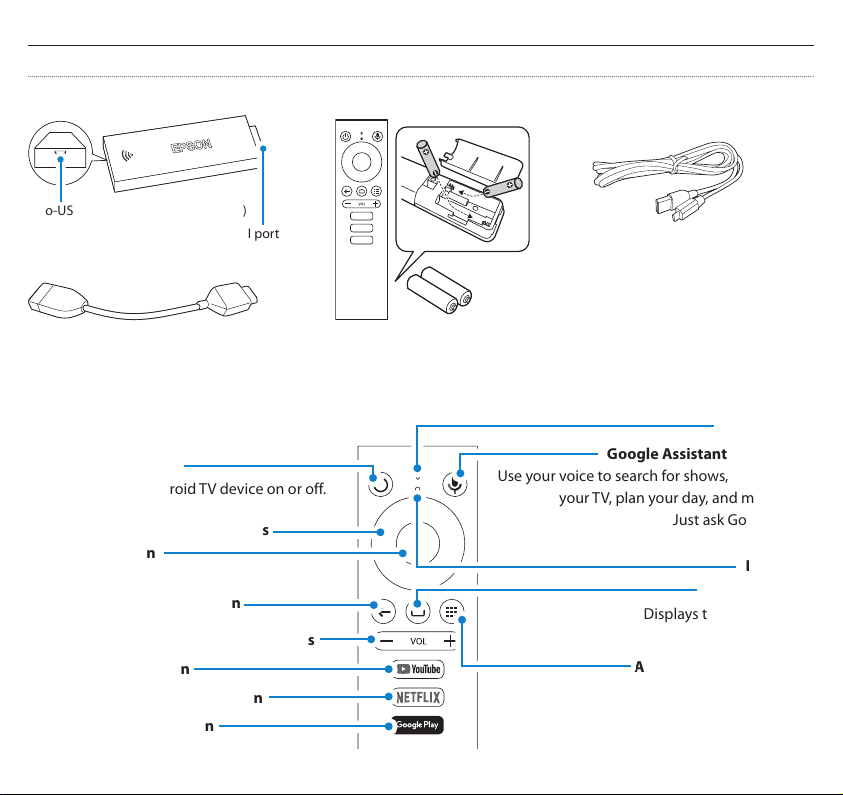
Included Items
6
Android TV™ device (ELPAP12) Remote control
Micro-USB port (for power supply only)
HDMI port
HDMI extension cable
* Dispose of used batteries in accordance with
local rules governing disposal.
Remote control operations
Power button
Turns the Android TV device on or off.
Arrow buttons
Enter button
Back button
Volume up/down buttons
YouTube button
Netflix button
Google Play button
USB power cable
AAA batteries (x2)
Microphone
Google Assistant button
Use your voice to search for shows, control
your TV, plan your day, and more.
Just ask Google.
Indicator
Home button
Displays the Android TV
home screen.
Apps button
Displays a list of the applications
available on the Android TV.
7
Page 5
8
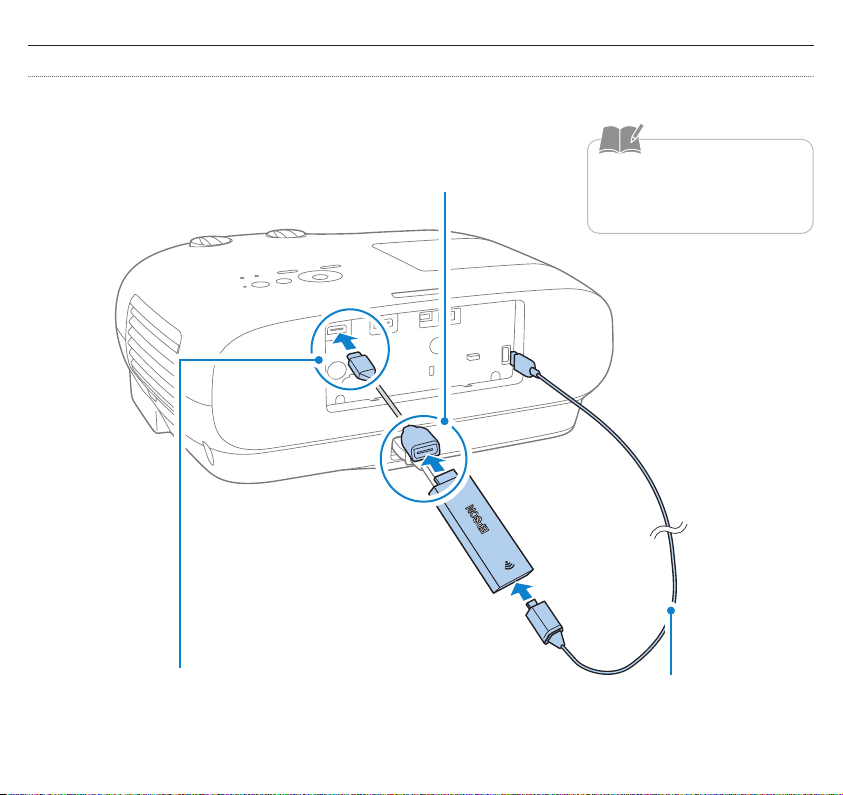
Connect to projector
If the projector has a USB port capable of supplying 2.0 A of power
Connect your Android TV device to an HDMI extension cable
A
Connect the HDMI extension cable to
B
the HDMI port
9
Do not bend the cable with too
much force, as this may cause it
to disconnect.
Connect the USB power cable to the
C
dedicated power supply port and the
Android TV port
Page 6
10
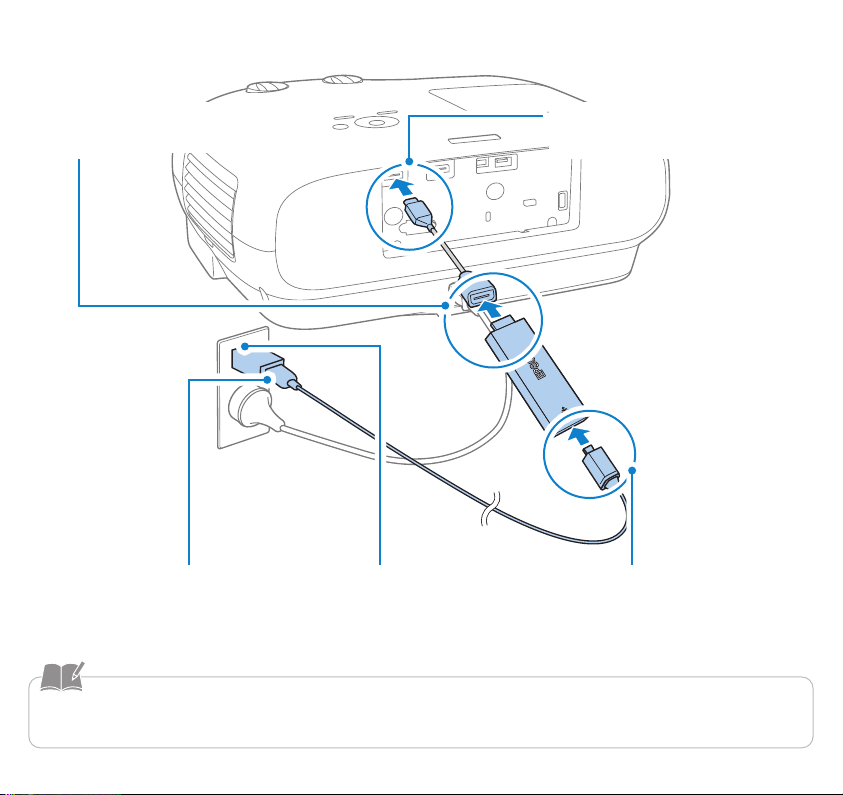
If the projector does not have a USB port capable of supplying 2.0 A of power
Connect your Android TV device to
A
an HDMI extension cable
Connect the USB power
E
cable to the AC adapter
Connect the AC adapter to an
D
electrical outlet
Connect the HDMI extension
B
cable to the HDMI port
Connect the USB power cable
C
to the Android TV device
• AC adapter is sold separately. When connecting to an electrical outlet, prepare an AC adapter with a DC 5V/2A output.
• Do not bend the cable with too much force, as this may cause it to disconnect.
11
Page 7
12
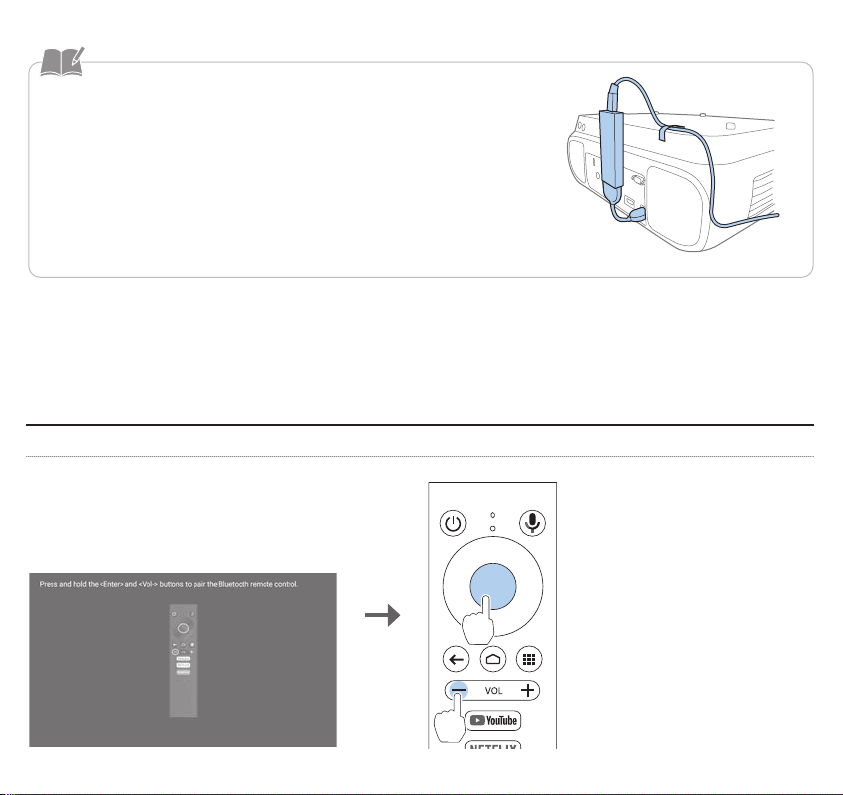
• When suspending the projector from a ceiling, you can use tape to secure
the USB power supply cable as shown in the figure to prevent the Android TV
device from hanging down.
• Do not block the air intake or exhaust vents on the projector. If the temperature of the projector or this device rises, it may cause a fire or malfunction to
occur.
• The figure is an example of how to wire the device. Do not bend or twist the
cable with too much force, as this may cause it to disconnect.
Connect the Android TV device and the remote control (pairing)
Turn on the projector. If pairing is
A
necessary, the following screen is
displayed.
13
Hold down the Enter button
B
and the volume down
button on the remote
control at the same time for
about three seconds.
Page 8
Set up your Android TV device
14
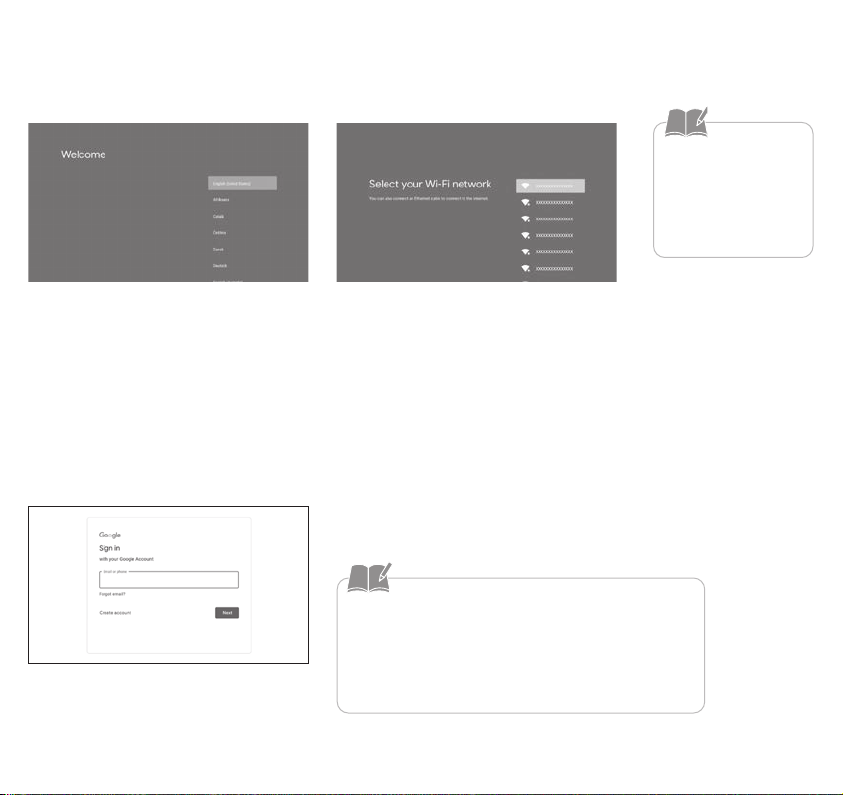
1. Select the screen display language
When the language selection screen is
displayed, select the language you want
to use.
3. Log into your Google Account
Follow the on-screen instructions to sign
in to your Google Account.
2. Connect to Wi-Fi
An Internet connection
is required to view
online content. Make
sure that you have
access to a Wi-Fi service.
When the Wi-Fi settings screen is displayed, follow the on-screen instructions
to make the settings.
• Download all your favorite apps and games on Google
Play. And enjoy them on the big screen with easy access
from your custom Android TV home screen.
• You can create a Google Account on any computer or
smart device.
15
Page 9
16
Troubleshooting
Cannot operate using remote control
• Make sure that the batteries for the remote control are installed correctly and that the batteries are not flat.
• You cannot use the remote control supplied with the projector to operate this device. Use the remote control for the Android TV
device supplied with this device.
• The pairing between the Android TV device and the remote control may have been disconnected. Follow the instructions on page 13
in this guide to perform pairing again.
• Depending on the Epson projector you are using, the illustration displayed on the pairing screen may look different to the remote
control supplied. Although the on-screen instructions may be different, you can still follow the instructions on page 13 in this guide
to pair the remote control.
Cannot connect to Wi-Fi
• Make sure that your Wi-Fi router and modem are working correctly. Restarting the device may solve the problem.
• Make sure there are as few obstacles as possible between this device and the Wi-Fi router. The Wi-Fi signal may be weak.
Projector information
You can find more detailed information on how to use the products and how to handle problems on our website.
epson.sn
Troubleshooting Android TV
https://support.google.com/androidtv/
17
Page 10
18
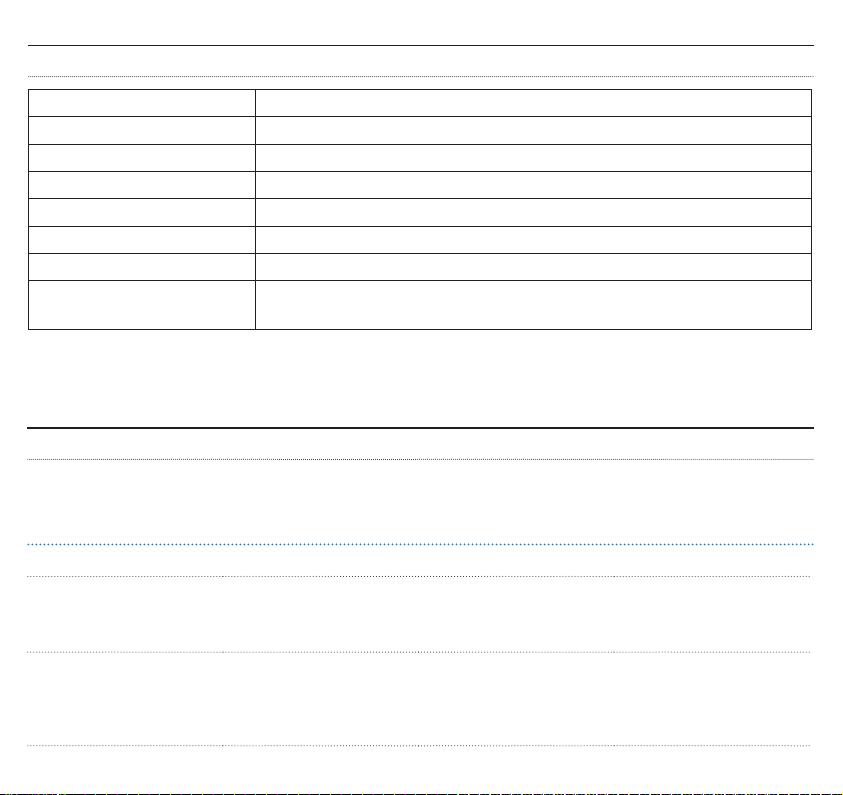
Specifications
Product name ELPAP12
Dimensions 86.1 mm (W) x 30.1 mm (H) x 12 mm (D) (not including the HDMI connector)
Mass Approx. 28 g
Image output HDMI Type A×1 (HDCP 2.2) *
Power supply DC 5V/2A
Operating temperature 0 to +45°C (humidity 20 to 80%)
Storage temperature -20 to +70°C (humidity 10 to 90%)
Wi-Fi IEEE 802.11a (5 GHz), IEEE 802.11b (2.4 GHz), IEEE 802.11g (2.4 GHz), IEEE 802.11n
(2.4 GHz and 5 GHz), IEEE 802.11ac (5 GHz)
*We cannot guarantee operation with all HDMI-compatible devices.
Contact List
This address list is current as of July 2020.
A more up-to-date contact address can be obtained from the corresponding website listed here. If you do not find
what you need on any of these pages, please visit the main Epson home page at www.epson.com.
EUROPE, MIDDLE EAST & AFRICA
ALBANIA
ITD Sh.p.k.
http://www.itd-al.com
BULGARIA
Epson Service Center Bulgaria
http://www.kolbis.com
AUSTRIA
Epson Deutschland GmbH
https://www.epson.at
CROATIA
MR servis d.o.o.
http://www.mrservis.hr
BELGIUM
Epson Europe B.V.
Branch oce Belgium
https://www.epson.be
CYPRUS
A.T. Multitech Corporation
Ltd.
http://www.multitech.com.
cy
19
BOSNIA AND HERZEGOVINA
NET d.o.o. Computer Engineering
https://netcomp.rs
CZECH REPUBLIC
Epson Europe B.V.
Branch Oce Czech Republic
https://www.epson.cz
Page 11

DENMARK
Epson Denmark
https://www.epson.dk
GERMANY
Epson Deutschland GmbH
https://www.epson.de
ISRAEL
Epson Israel
https://www.epson.co.il
LITHUANIA
Epson Service Center Lithuania
https://www.epson.lt
ESTONIA
Epson Service Center Estonia
https://www.epson.ee
GREECE
Info Quest Technologies S.A.
https://www.infoquest.gr
ITALY
Epson Italia s.p.a.
https://www.epson.it
LUXEMBURG
Epson Europe B.V.
Branch oce Belgium
https://www.epson.be
20
FINLAND
Epson Finland
https://www.epson.
HUNGARY
Epson Europe B.V.
Branch Oce Hungary
https://www.epson.hu
KAZAKHSTAN
Epson Kazakhstan Rep.
Oce
http://www.epson.kz
NORTH MACEDONIA
Digit Computer Engineering
http://digit.net.mk/
FRANCE & DOM-TOM
TERRITORY
Epson France S.A.
https://www.epson.fr
IRELAND
Epson (UK) Ltd.
https://www.epson.ie
LATVIA
Epson Service Center Latvia
https://www.epson.lv
NETHERLANDS
Epson Europe B.V.
Benelux sales oce
https://www.epson.nl
NORWAY
Epson Norway
https://www.epson.no
RUSSIA
Epson CIS
http://www.epson.ru
SLOVENIA
Birotehna d.o.o.
http://www.birotehna.si
POLAND
Epson Europe B.V.
Branch Oce Poland
https://www.epson.pl
UKRAINE
Epson Kiev Rep. Oce
http://www.epson.ua
SPAIN
Epson Ibérica, S.A.U.
https://www.epson.es
PORTUGAL
Epson Ibérica S.A.U.
Branch Oce Portugal
https://www.epson.pt
SERBIA
Nepo System d.o.o.
https://neposystem.rs
AIGO Business System d.o.o.
Beograd
https://aigo.rs
SWEDEN
Epson Sweden
https://www.epson.se
21
ROMANIA
Epson Europe B.V.
Branch Oce Romania
https://www.epson.ro
SLOVAKIA
Epson Europe B.V.
Branch Oce Czech Republic
https://www.epson.sk
SWITZERLAND
Epson Deutschland GmbH
Branch oce Switzerland
https://www.epson.ch
Page 12

TURKEY
Tecpro Bilgi Teknolojileri Tic.
ve San. Ltd. Sti.
http://www.tecpro.com.tr
MIDDLE EAST
Epson (Middle East)
https://www.epson.ae
NORTH, CENTRAL AMERICA & CARIBBEAN ISLANDS
CANADA
Epson Canada, Ltd.
https://epson.ca
U. S. A.
Epson America, Inc.
https://epson.com/usa
SOUTH AMERICA
ARGENTINA
Epson Argentina S.R.L.
https://epson.com.ar
PERU
Epson Peru S.A.
https://epson.com.pe
ASIA & OCEANIA
AUSTRALIA
Epson Australia Pty. Ltd.
https://www.epson.com.au
INDONESIA
PT. Epson Indonesia
https://www.epson.co.id
UK
Epson (UK) Ltd.
https://www.epson.co.uk
COSTA RICA
Epson Costa Rica, S.A.
https://epson.co.cr
BRAZIL
Epson do Brasil
https://epson.com.br
VENEZUELA
Epson Venezuela S.A.
https://epson.com.ve
CHINA
Epson (China) Co., Ltd.
https://www.epson.com.cn
JAPAN
Seiko Epson Co.
https://www.epson.jp
22
AFRICA
https://www.epson.co.za
or
https://www.epson.fr
MEXICO
Epson Mexico, S.A. de C.V.
https://epson.com.mx
CHILE
Epson Chile S.A.
https://epson.cl
HONG KONG
Epson Hong Kong Ltd.
https://www.epson.com.hk
KOREA
Epson Korea Co., Ltd.
http://www.epson.co.kr
SOUTH AFRICA
Epson South Africa
https://www.epson.co.za
BECUADOR
Epson Ecuador
https://epson.com.ec
COLOMBIA
Epson Colombia Ltd.
https://epson.com.co
INDIA
Epson India Pvt., Ltd.
https://www.epson.co.in
MALAYSIA
Epson Malaysia Sdn. Bhd.
https://www.epson.com.my
23
Page 13
24
NEW ZEALAND
Epson New Zealand
https://www.epson.co.nz
PHILIPPINES
Epson Philippines Co.
https://www.epson.com.ph
SINGAPORE
Epson Singapore Pte. Ltd.
https://www.epson.com.sg
TAIWAN
Epson Taiwan Technology &
Trading Ltd.
https://www.epson.com.tw
THAILAND
Epson (Thailand) Co.,Ltd.
https://www.epson.co.th
• The screens shown in this guide are current as of December 2020. The contents of this guide are subject to change without notice.
• Wi-Fi® is a registered trademark of the Wi-Fi Alliance.
• Google, Google Play, YouTube, and Android TV are trademarks of Google LLC.
• Google Assistant is not available in certain languages and countries. Availability of services varies by country and language.
• Netflix is a registered trademark of Netflix, Inc.
• HDMI, the HDMI logo, and High-Definition Multimedia Interface are the trademarks or registered trademarks of HDMI Licensing
Administrator, Inc.
25
Page 14

© 2021 Seiko Epson Corporation
 Loading...