

Page 1
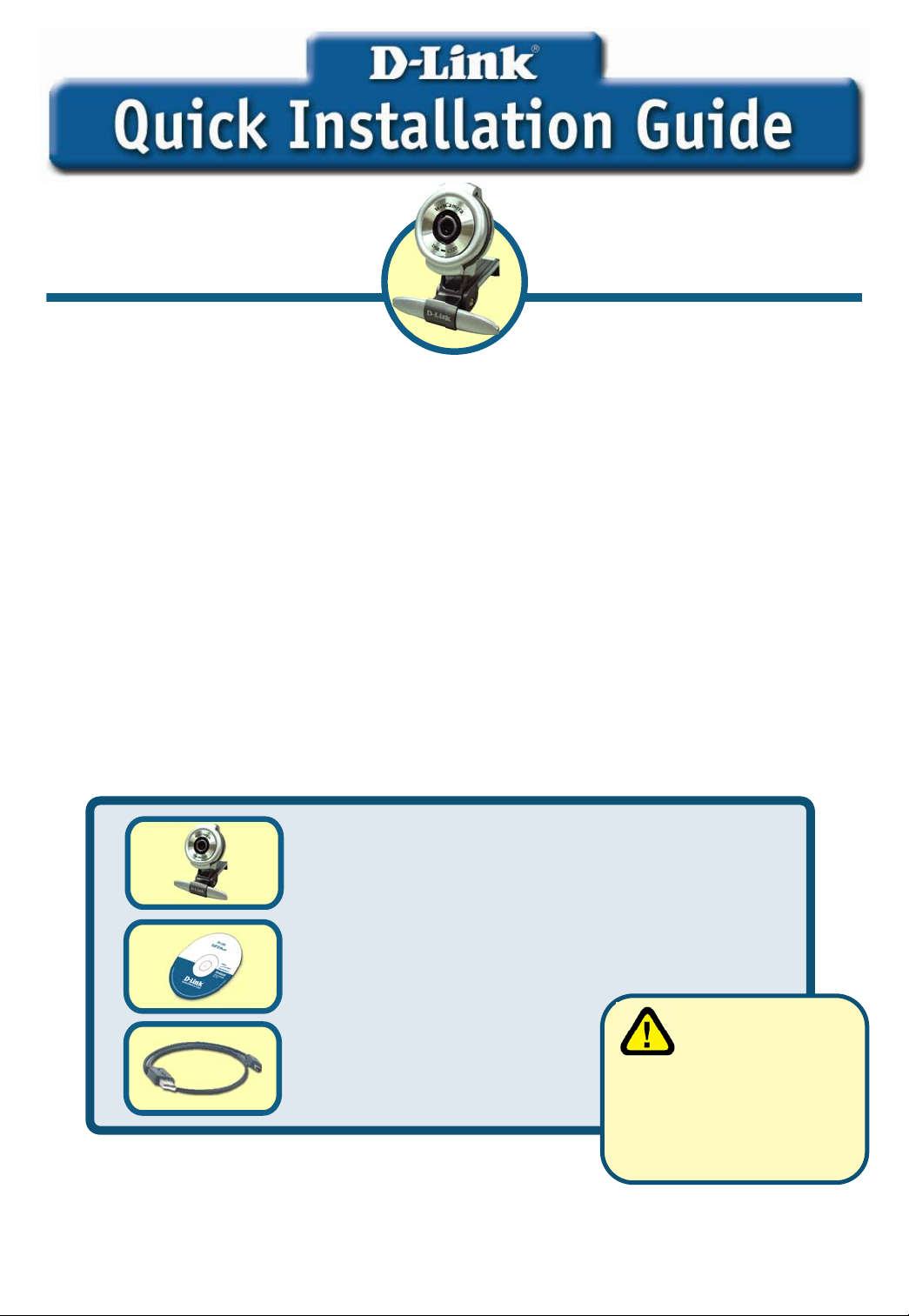
This product works with the
following operating system
software: Windows
XP/2000/ME/98SE
Before You Begin
You must have at least the following:
z Pentium III 500 MHz, Celeron, AMD Athlon processor, or higher
z 64MB RAM (or minimum OS requirement whichever is higher)
z Microsoft Windows XP/2000/ME/98SE
z Microsoft DirectX 8.1b or higher
z Update Service Pack
z 200MB free hard drive space
z CD-ROM drive
z USB Port (USB specificaiton version 1.1)
z 24Bit color display adapter
z Windows compatible sound card and speakers (full duplex sound card
recommended)
DSB-C320
D-Link 330K Pixel USB
PC Camera
Check Your Package Contents
These are the items included with your purchase:
If any of the below items are missing, please contact your reseller.
DSB-C320 USB PC CAMERA
CD-ROM(containing Drivers, Application
Software, PDF Installation Guide, PDF
Manual, and Warranty)
Run the Driver CD
before you install the
USB 1.1 Cable
©2004 D-Link System, Inc. All rights reserved. Trademarks or registered trademarks are the property of their respective
holders. Software and specifications subject to change without notice.
PC Camera.The Driver CD
contains an installation
program that simplifies
your installation process.
Page 2
DSB-C320 Driver Installation
Please bring out the attached CD-ROM and follow the steps listed
below carefully to insure the installation of DSB-C320 will be
complete.
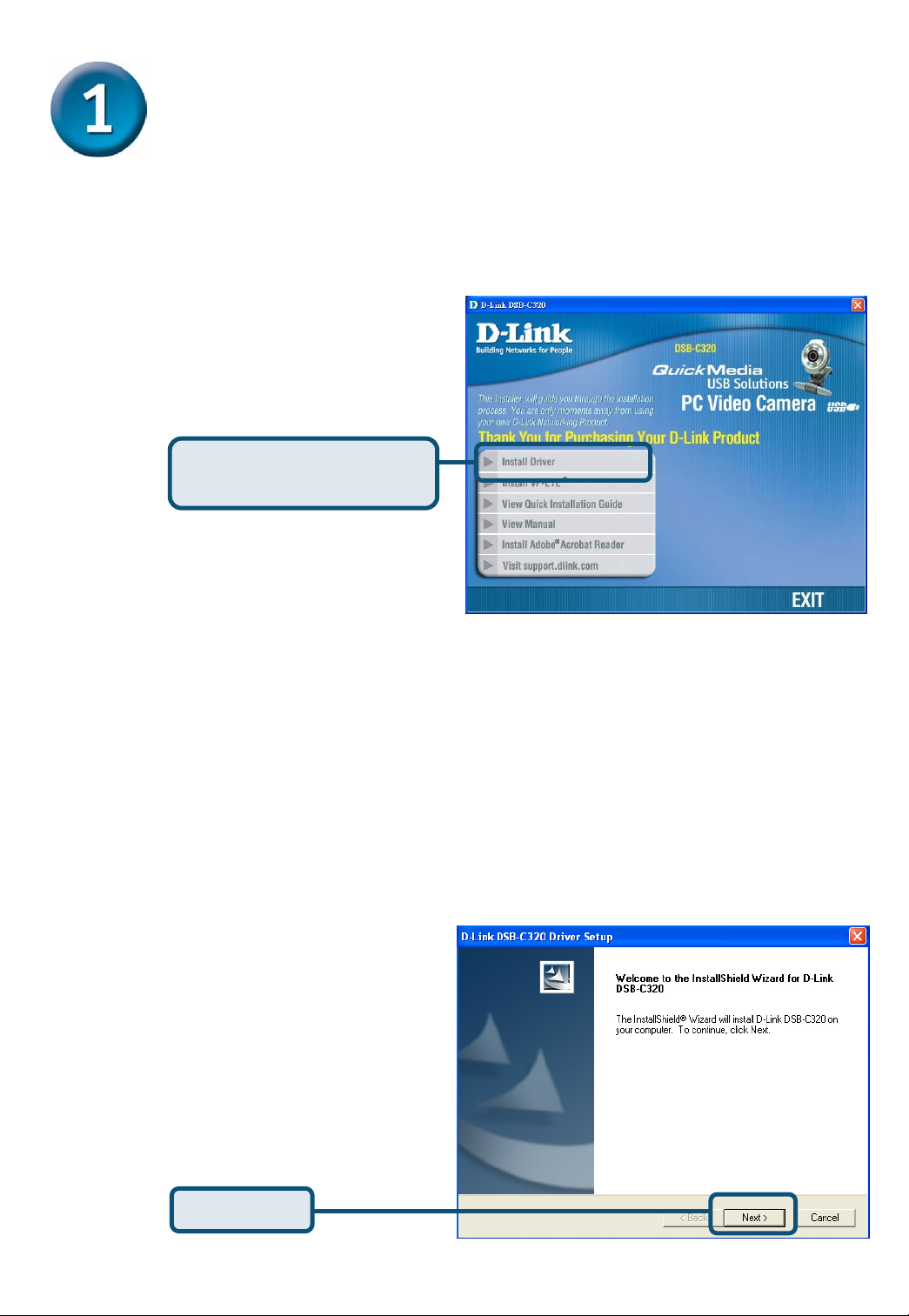
Insert the software CD into
CD-ROM. As you can see
the below picture,D-Link
DSB-C320 startup window
will be displayed.
Click Install DSB-C320
Driver
If the Autorun screen does not automatically start, click on Start >
Run, enter „D:\Autorun.exe” and click OK. „D” represents the letter
of your CD-ROM drive. Replace it if your CD-ROM drive is a different
letter.
Windows XP Users
Click Next
2
Page 3
Windows XP Users (Continued)
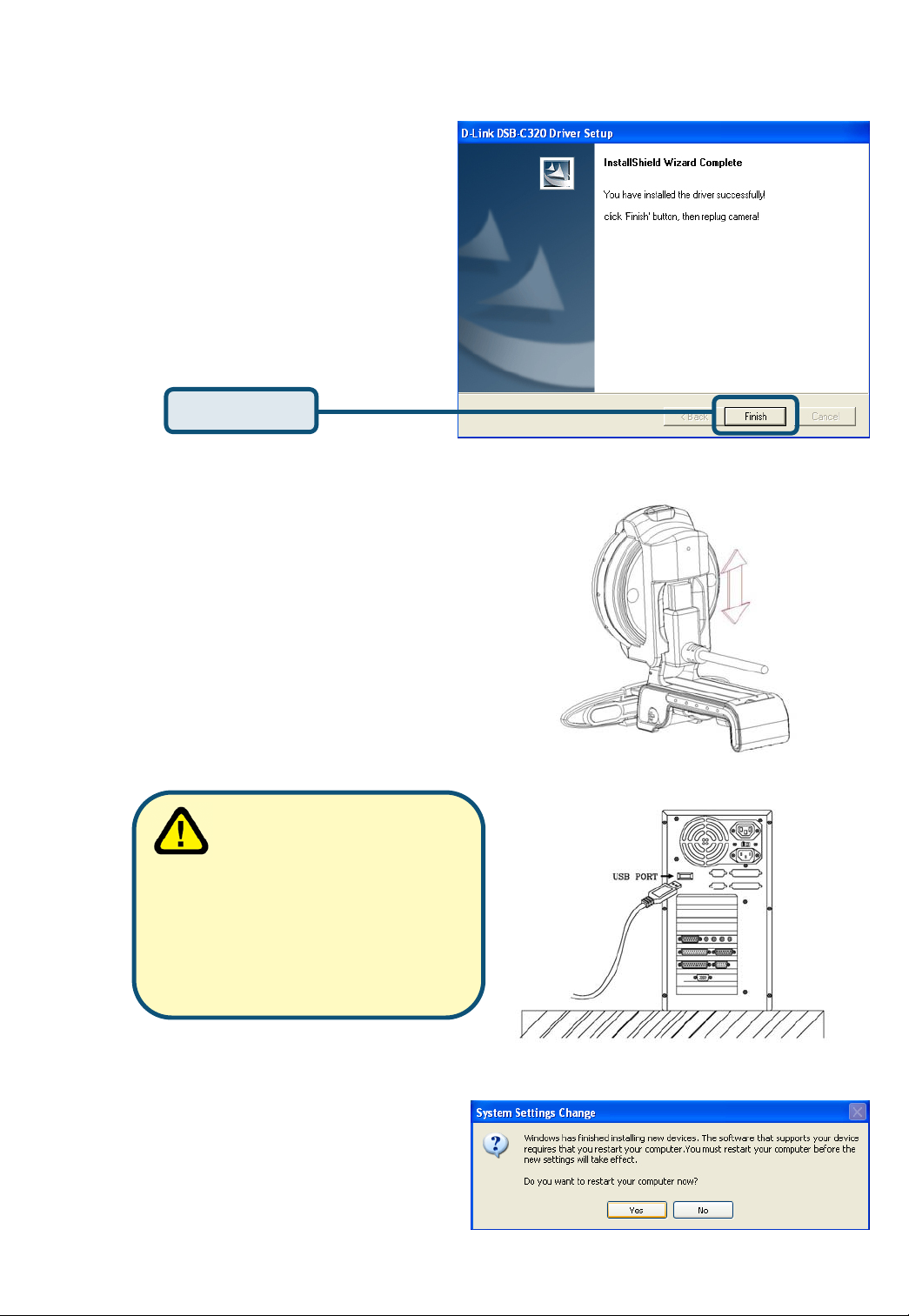
Click Finish
Plug the USB cable into camera
and USB port on the PC directly.
When all setup
procedures are finished,
you MUST restart the
operating system manually
after you plugged the USB
cable into camera and USB
port as well as ran image
device sucessfully.
Please Click “Yes” to restart
the operating system.
3
Page 4
Windows 2000 Users
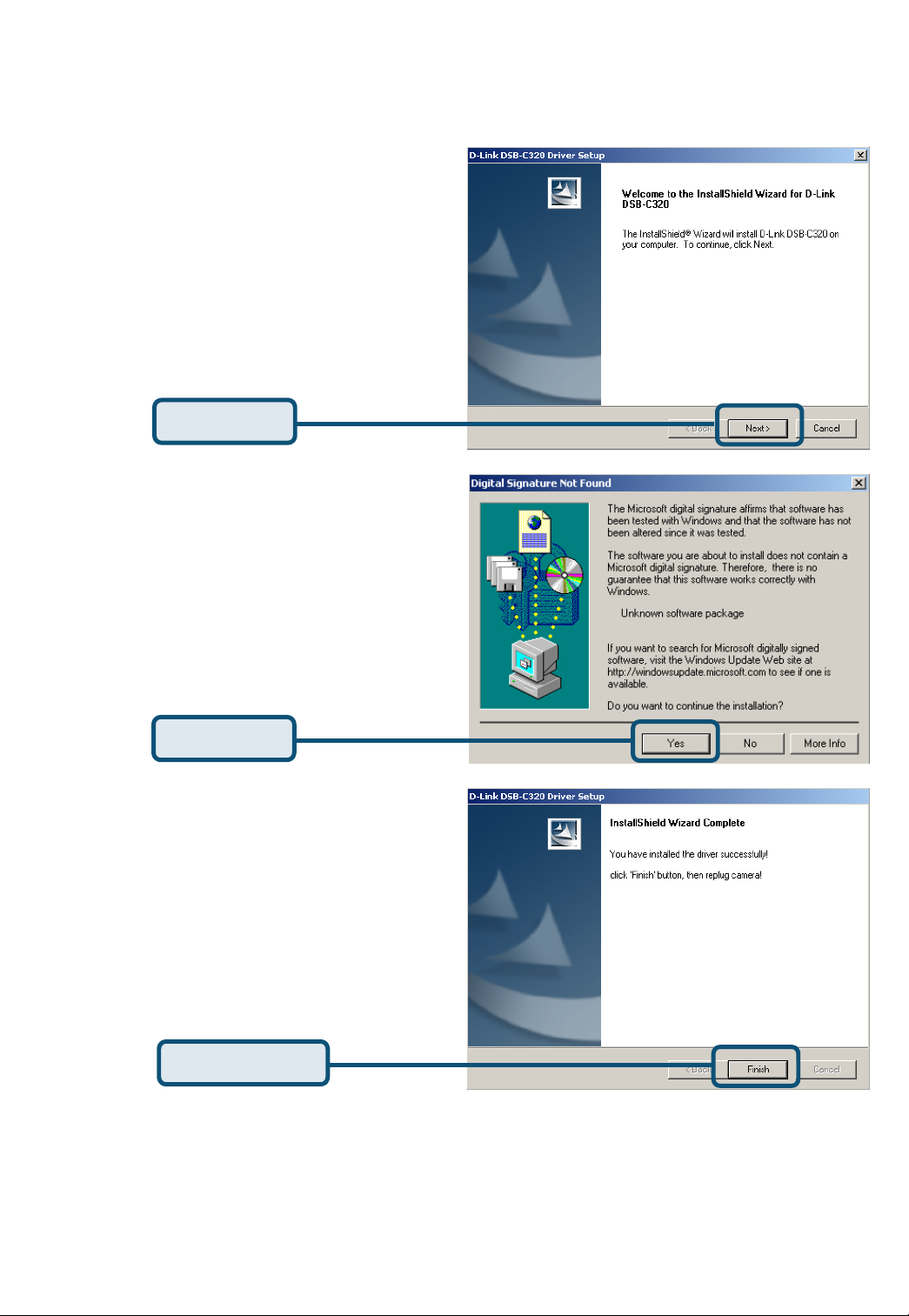
Click Next
Click Yes
Click Finish
4
Page 5
Windows 2000 Users (Continued)
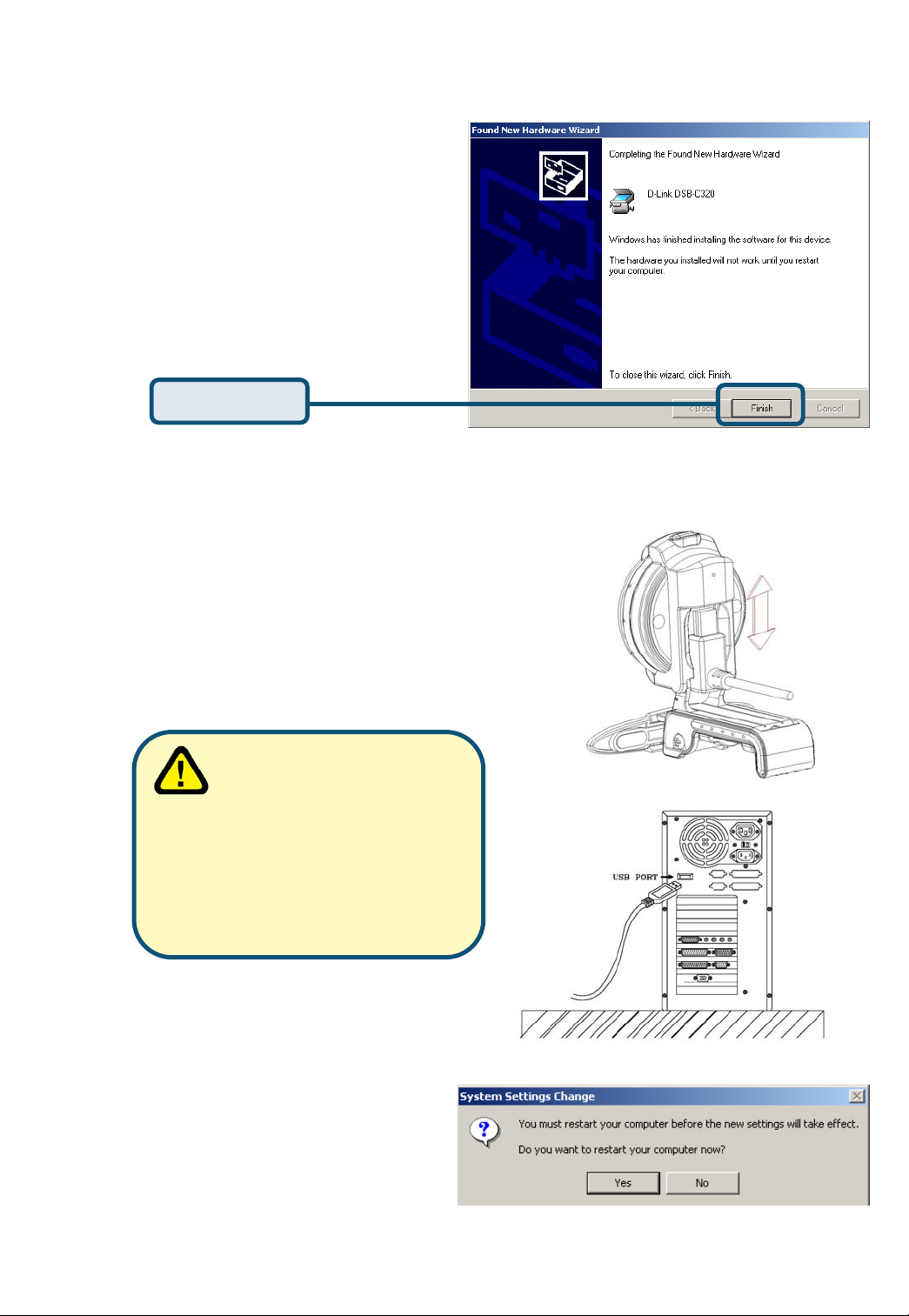
Click Finish
Plug the USB cable into camera
and USB port on the PC directly.
When all setup
procedures are finished,
you MUST restart the
operating system manually
after you plugged the USB
cable into camera and USB
port as well as ran image
device sucessfully.
Please Click “Yes” to restart
the operating system.
5
Page 6
Windows ME & 98 Users
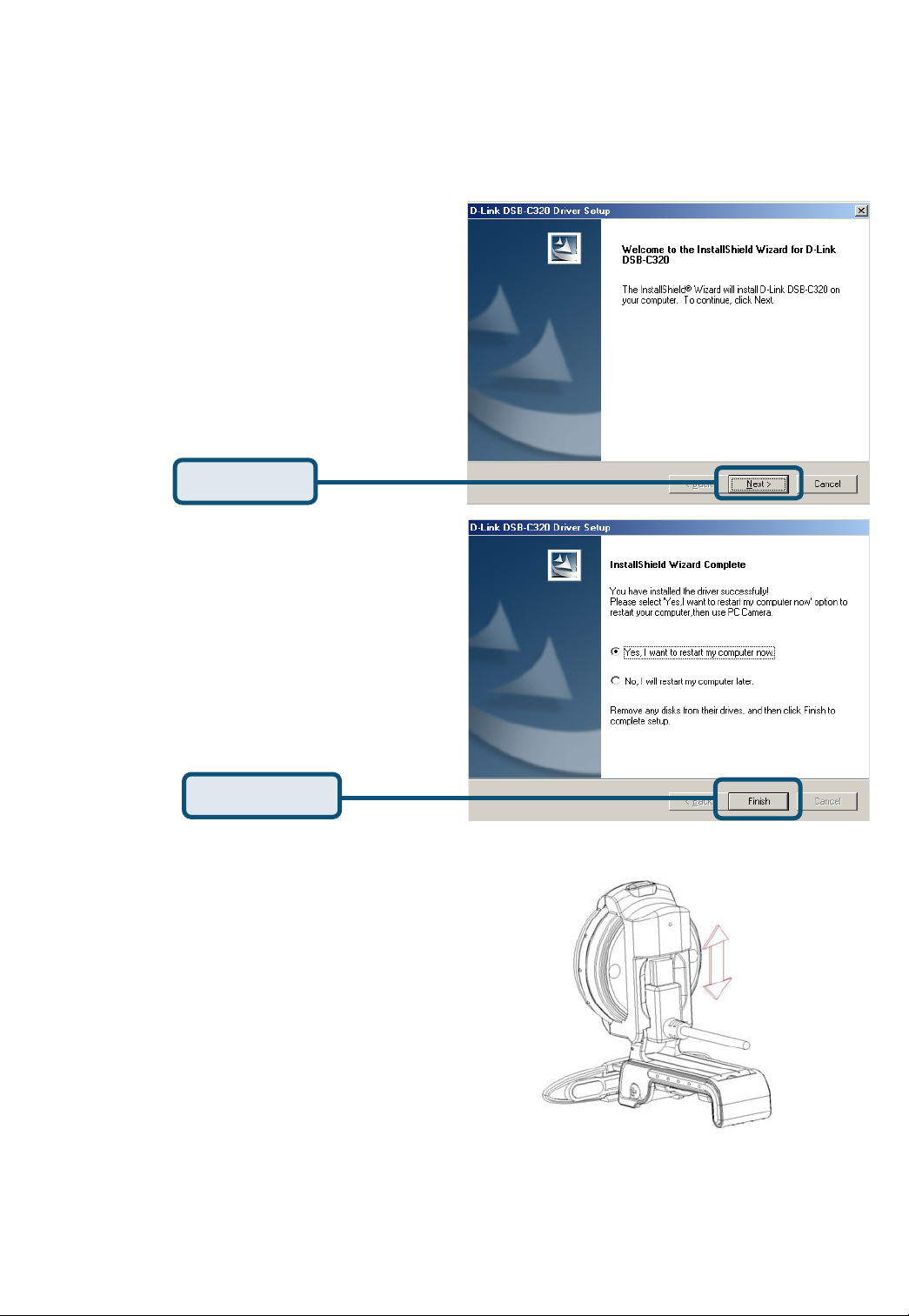
The DSB-C320 driver installation will proceed automatically for Windows
ME & 98SE users.
Click Next
Click Finish
Plug the USB cable into camera
and USB port on the PC directly.
6
Page 7
Windows ME & 98 Users(Continued)
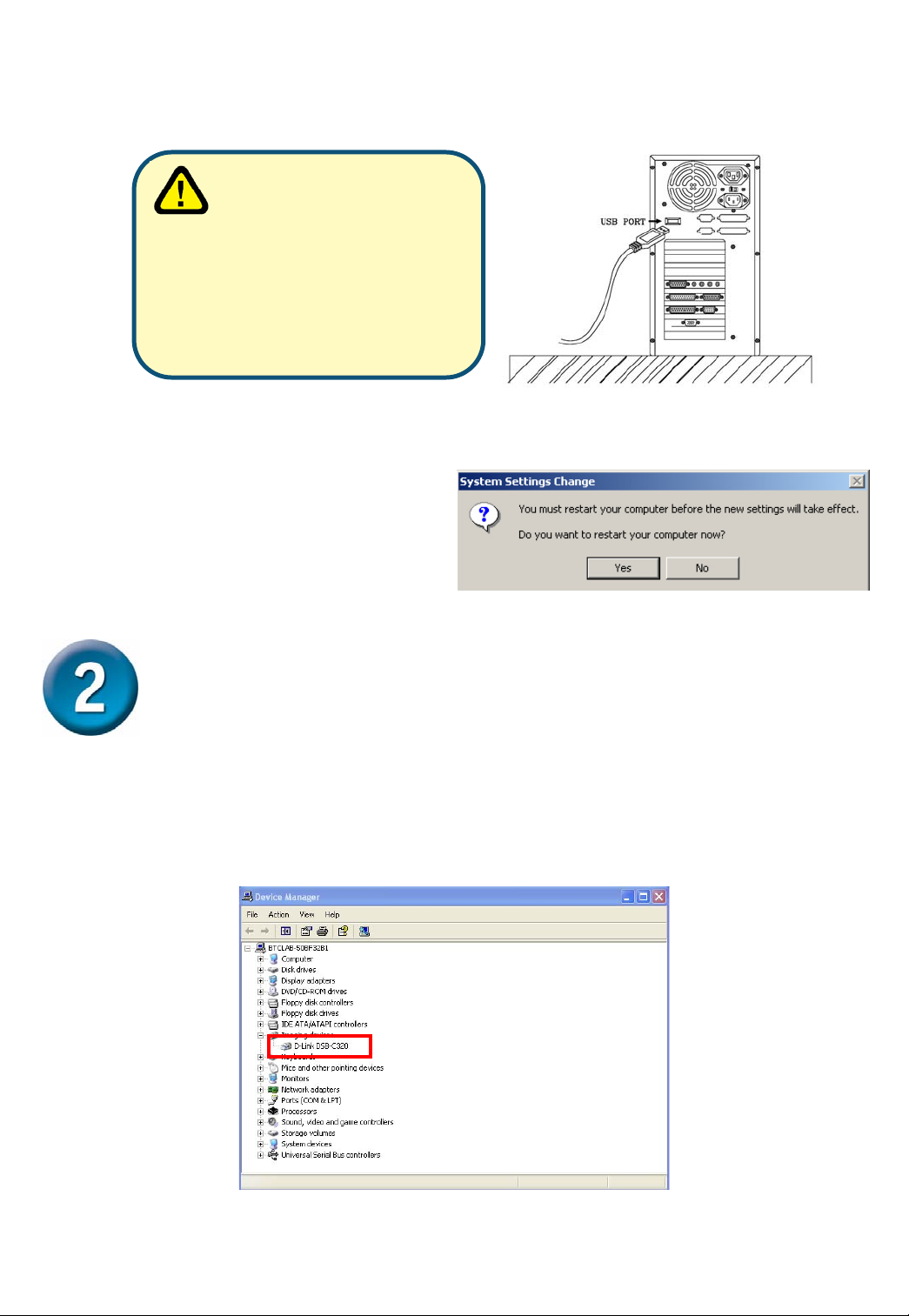
Please Click “Yes” to restart
the operating system.
When all setup
procedures are finished,
you MUST restart the
operating system manually
after you plugged the USB
cable into camera and USB
port as well as ran image
device sucessfully.
Driver Installing is Completed!
To confirm the DSB-C320 is properly installed, click “START”
→”SETTINGS”→”CONTROL PANEL”. Double-click ”SYSTEM”. Select
the ”HARDWARE” tab and click the ”DEVICE MANAGER” button.
Confirm that „”D-Link DSB-C320” appears in the ”IMAGE DEVICES”
section.
7
Page 8

Once properly installed, you are ready to start immediately capturing
images and a creating video with the DSB-C320.
Please refer to the DSB-C320 Manual on the CD included with this
product for information on how to install and use the VP-EYE 4.0
software.
Attention:
1.Make sure to install the driver and software BEFORE
camera into USB port.
2.We recommend plugging the cable connector to USB pot on PC directly
to avoid low voltage.
3.If a dialog box pops up and request to have the language setting file
replaced after plugging the camera into USB port, please simply click
“Yes” to continue.
4.Please download the latest update of “Service Pack
Windows Update
5.If you have more than one image device in your system, please select
the “D-Link DSB-C320” as the PC Camera device. In this way, you can
use this camera to capture images.
) to keep the camera running smoothly.
plugging the
” (from
Start Æ
8
Page 9
9
Page 10

Technical Support
You can find software updates and user documentation on the
D-Link website.
Tech Support for customers within Australia:
D-Link Technical Support over the Telephone:
1300-766-868
Monday to Friday 8:00am to 8:00pm EST
Saturday 9:00am to 1:00pm EST
D-Link Technical Support over the Internet:
http://www.dlink.com.au
email:[email protected]
Tech Support for customers within New Zealand:
D-Link Technical Support over the Telephone:
0800-900-900
Monday to Friday 8:30am to 8:30pm
Saturday 9:00am to 5:00pm
D-Link Technical Support over the Internet:
http://www.dlink.co.nz
email:[email protected]
10
Page 11
Technical Support
You can find software updates and user documentation on the
D-Link website.
Tech Support for customers within South Eastern
Asia and Korea:
D-Link South Eastern Asia and Korea Technical Support
over the Telephone:
+65-6895-5355
Monday to Friday 9:00am to 12:30pm, 2:00pm-6:00pm
Singapore Time
D-Link Technical Support over the Internet:
email:[email protected]
11
Page 12

Technical Support
You can find software updates and user documentation on the
D-Link website.
Tech Support for customers within India
D-Link Technical Support over the Telephone:
+91-22-26526741
+91-22-26526696 –ext 161 to 167
Monday to Friday 9:30AM to 7:00PM
D-Link Technical Support over the Internet:
http://ww.dlink.co.in
http://www.dlink.co.in/dlink/drivers/support.asp
ftp://support.dlink.co.in
email: [email protected]
12
Page 13
Technical Support
You can find software updates and user documentation on the
D-Link website.
D-Link provides free technical support for customers for the
duration of the warranty period on this product.
Customers can contact D-Link technical support through our
web site or by phone.
Tech Support for customers within the Russia
D-Link Technical Support over the Telephone:
(095) 744-00-99
Monday to Friday 10:00am to 6:30pm
D-Link Technical Support over the Internet
http://www.dlink.ru
email: [email protected]
13
Page 14

Technical Support
You can find software updates and user documentation on the D-Link website.
Tech Support for customers within the U.A.E & North Africa:
D-Link Technical Support over the Telephone:
Sunday to Wednesday 9:00am to 6:00pm GMT+4
Thursday 9:00am to 1:00pm GMT+4
D-Link Technical Support over the Internet:
Tech Support for customers within Israel:
D-Link Technical Support over the Telephone:
Sunday to Thursday 9:00am to 5:00pm
D-Link Technical Support over the Internet:
Tech Support for customers within Turkey:
D-Link Technical Support over the Telephone:
(971) 4-391-6480 (U.A.E)
D-Link Middle East & North Africa
http://support.dlink-me.com
email:[email protected]
(972) 971-5701
http://www.dlink.co.il/forum
e-mail: [email protected]
(+90) 212-289 56 59
Monday to Friday 9:00am to 6:00pm
D-Link Technical Support over the Internet:
http://www.dlink.com.tr
e-mail: [email protected]
Tech Support for customers within Egypt:
D-Link Technical Support over the Telephone:
(202) 414-4295
Sunday to Thursday 9:00am to 5:00pm
D-Link Technical Support over the Internet:
http://support.dlink-me.com
e-mail: [email protected]
14
Page 15
Technical Support
You can find software updates and user documentation on the
D-Link website.
Tech Support for customers within South Africa
and Sub Sahara Region:
D-Link South Africa and Sub Sahara Technical Support
over the Telephone:
+27-12-665-2165
08600 DLINK ( For South Africa only )
Monday to Friday 8:30am to 9:00pm South Africa Time
D-Link Technical Support over the Internet:
http://www.d-link.co.za
email:[email protected]
15
Page 16

Technical Support
You can find updates and user documentation on the D-Link website
Tech Support for Latin America customers:
D-Link Technical Support over the followings Telephones:
Argentina: 0800-666 1442 Monday to Friday 09:00am to 22:00pm
Chile: 800-214 422 Monday to Friday 08:00am to 21:00pm
Colombia: 01800-700 1588 Monday to Friday 07:00am to 20:00pm
Ecuador: 1800-777 711 Monday to Friday 07:00am to 20:00pm
El Salvador: 800-6137 Monday to Friday 06:00am to 19:00pm
Guatemala:1800-300 0017 Monday to Friday 06:00am to 19:00pm
Panama: 0800-560 0193 Monday to Friday 07:00am to 20:00pm
Peru: 0800-52049 Monday to Friday 07:00am to 20:00pm
Venezuela: 0800-100 3470 Monday to Friday 08:00am to 21:00pm
D-Link Technical Support over the Internet:
www.dlinkla.com
www.dlinklatinamerica.com
email:[email protected]
Tech Support for customers within Brazil:
D-Link Technical Support over the Telephone:
0800-7014104
Monday to Friday 8:30am to 18:30pm
D-Link Technical Support over the Internet:
www.dlinkbrasil.com.br
email:[email protected]
16
 Loading...