

Page 1

DPH-70L Modem IP Phone
User’s Guide
Rev 1.00
Rev. 01 (Jan 2003)
DPH-70L Rev.01
Printed In Taiwan
RECYCLABLE
1
Page 2

Trademarks
Copyright 2002 D-Link Corporation.
Contents subject to change without prior notice.
D-Link is a registered trademark of D-Link Corporation/D-Link Systems, Inc.
DPH-70L User’s Guide
All other trademarks belong to their respective proprietors
.
Copyright Statement
No part of this publication may be reproduced in any form or by any means or used to make any
derivative such as translation, transformation, or adaptation without permission from D-Link
Corporation/D-Link Systems Inc., as stipulated by the United States Copyright Act of 1976.
Limited Warranty
Hardware:
D-Link warrants its hardware products to be free from defects in workmanship and materials,
under normal use and service, for the following periods measured from date of purchase from
D-Link or its Authorized Reseller:
Product Type Warranty Period
Complete products 90 days
Additional Parts like Power Adaptor etc, if any Do not carry
any warranty
The ninety day period of warranty on complete products applies on condition that the product's
Registration Card is filled out and returned to a D-Link office within thirty (30) days of purchase.
A list of D-Link offices is provided at the back of this manual, together with a copy of the
Registration Card. Failing such timely registration of purchase, the warranty period shall be
limited to 30 days.
If the product proves defective within the applicable warranty period, D-Link will provide repair or
replacement of the product. D-Link shall have the sole discretion whether to repair or replace,
and replacement product may be new or reconditioned. Replacement product shall be of
equivalent or better specifications, relative to the defective product, but need not be identical.
Any product or part repaired by D-Link pursuant to this warranty shall have a warranty period of
not less than 90 days, from date of such repair, irrespective of any earlier expiration of original
warranty period. When D-Link provides replacement, then the defective product becomes the
property of D-Link.
Warranty service may be obtained by contacting a D-Link office within the applicable warranty
period, and requesting a Return Material Authorization (RMA) number. If a Registration Card for
the product in question has not been returned to D-Link, then a proof of purchase (such as a
copy of the dated purchase invoice) must be provided. If Purchaser's circumstances require
special handling of warranty correction, then at the time of requesting RMA number, Purchaser
may also propose special procedure as may be suitable to the case.
After an RMA number is issued, the defective product must be packaged securely in the original
or other suitable shipping package to ensure that it will not be damaged in transit, and the RMA
number must be prominently marked on the outside of the package. The package must be
mailed or otherwise shipped to D-Link with all costs of mailing/shipping/insurance prepaid;
D-Link will ordinarily reimburse Purchaser for mailing/shipping/insurance expenses incurred for
return of defective product in accordance with this warranty. D-Link shall never be responsible
2
Page 3

DPH-70L User’s Guide
for any software, firmware, information, or memory data of Purchaser contained in, stored on, or
integrated with any product returned to D-Link pursuant to this warranty.
Any package returned to D-Link without an RMA number will be rejected and shipped back to
Purchaser at Purchaser's expense, and D-Link reserves the right in such a case to levy a
reasonable handling charge in addition mailing or shipping costs.
Software:
Warranty service for software products may be obtained by contacting a D-Link office within the
applicable warranty period. A list of D-Link offices is provided at the back of this manual,
together with a copy of the Registration Card. If a Registration Card for the product in question
has not been returned to a D-Link office, then a proof of purchase (such as a copy of the dated
purchase invoice) must be provided when requesting warranty service. The term "purchase" in
this software warranty refers to the purchase transaction and resulting license to use such
software.
D-Link warrants that its software products will perform in substantial conformance with the
applicable product documentation provided by D-Link with such software product, for a period of
ninety (90) days from the date of purchase from D-Link or its Authorized Reseller. D-Link
warrants the magnetic media, on which D-Link provides its software product, against failure
during the same warranty period. This warranty applies to purchased software, and to
replacement software provided by D-Link pursuant to this warranty, but shall not apply to any
update or replacement which may be provided for download via the Internet, or to any update
which may otherwise be provided free of charge.
D-Link's sole obligation under this software warranty shall be to replace any defective software
product with product which substantially conforms to D-Link's applicable product
documentation. Purchaser assumes responsibility for the selection of appropriate application
and system/platform software and associated reference materials. D-Link makes no warranty
that its software products will work in combination with any hardware, or any application or
system/platform software product provided by any third party, excepting only such products as
are expressly represented, in D-Link's applicable product documentation as being compatible.
D-Link's obligation under this warranty shall be a reasonable effort to provide compatibility, but
D-Link shall have no obligation to provide compatibility when there is fault in the third-party
hardware or software. D-Link makes no warranty that operation of its software products will be
uninterrupted or absolutely error-free, and no warranty that all defects in the software product,
within or without the scope of D-Link's applicable product documentation, will be corrected.
Warranty Period
FOR WARRANTY IN YOUR REGION, PLEASE CHECK WITH YOUR LOCAL D-LINK OFFICE AND
AUTHORIZED AGENTS AS WARRANTY PERIODS MAY VARY FROM REGION TO REGION
.
LIMITATION OF WARRANTIES
IF THE D-LINK PRODUCT DOES NOT OPERATE AS WARRANTED ABOVE, THE CUSTOMER'S
SOLE REMEDY SHALL BE, AT D-LINK'S OPTION, REPAIR OR REPLACEMENT. THE FOREGOING
WARRANTIES AND REMEDIES ARE EXCLUSIVE AND ARE IN LIEU OF ALL OTHER
WARRANTIES, EXPRESSED OR IMPLIED, EITHER IN FACT OR BY OPERATION OF LAW,
STATUTORY OR OTHERWISE, INCLUDING WARRANTIES OF MERCHANTABILITY AND FITNESS
FOR A PARTICULAR PURPOSE. D-LINK NEITHER ASSUMES NOR AUTHORIZES ANY OTHER
PERSON TO ASSUME FOR IT ANY OTHER LIABILITY IN CONNECTION WITH THE SALE,
INSTALLATION MAINTENANCE OR USE OF D-LINK'S PRODUCTS.
D-LINK SHALL NOT BE LIABLE UNDER THIS WARRANTY IF ITS TESTING AND EXAMINATION
DISCLOSE THAT THE ALLEGED DEFECT IN THE PRODUCT DOES NOT EXIST OR WAS
CAUSED BY THE CUSTOMER'S OR ANY THIRD PERSON'S MISUSE, NEGLECT, IMPROPER
INSTALLATION OR TESTING, UNAUTHORIZED ATTEMPTS TO REPAIR, OR ANY OTHER CAUSE
BEYOND THE RANGE OF THE INTENDED USE, OR BY ACCIDENT, FIRE, LIGHTNING OR
OTHER HAZARD.
LIMITATION OF LIABILITY
3
Page 4

DPH-70L User’s Guide
IN NO EVENT WILL D-LINK BE LIABLE FOR ANY DAMAGES, INCLUDING LOSS OF DATA, LOSS
OF PROFITS, COST OF COVER OR OTHER INCIDENTAL, CONSEQUENTIAL OR INDIRECT
DAMAGES ARISING OUT THE INSTALLATION, MAINTENANCE, USE, PERFORMANCE, FAILURE
OR INTERRUPTION OF A D- LINK PRODUCT, HOWEVER CAUSED AND ON ANY THEORY OF
LIABILITY. THIS LIMITATION WILL APPLY EVEN IF D-LINK HAS BEEN ADVISED OF THE
POSSIBILITY OF SUCH DAMAGE.
IF YOU PURCHASED A D-LINK PRODUCT IN THE UNITED STATES, SOME STATES DO NOT
ALLOW THE LIMITATION OR EXCLUSION OF LIABILITY FOR INCIDENTAL OR CONSEQUENTIAL
DAMAGES, SO THE ABOVE LIMITATION MAY NOT APPLY TO YOU.
D-Link Offices for Registration and Warranty Service
The product's Registration Card, provided at the back of this manual, must be sent to a D-Link
office. To obtain an RMA number for warranty service as to a hardware product, or to obtain
warranty service as to a software product, contact the D-Link office nearest you. An
addresses/telephone/fax list of D-Link offices is provided in the back of this man
4
Page 5

DPH-70L User’s Guide
Table of Contents
OVERVIEW ------------------------------------------------------------------------------------------------------- 6
1
1.1 ACRONYMS---------------------------------------------------------------------------------------------------- 7
1.2 DEFINITIONS -------------------------------------------------------------------------------------------------- 7
2 UNPACKING AND INSTALLATION----------------------------------------------------------------------- 8
2.1 SYSTEM REQUIREMENTS ----------------------------------------------------------------------------------- 9
2.2 INSTALLATION------------------------------------------------------------------------------------------------- 9
3 USER INTERFACE---------------------------------------------------------------------------------------------10
4 GETTING STARTED ------------------------------------------------------------------------------------------11
5 INTERNET PHONE CALLS ---------------------------------------------------------------------------------13
5.1 RECEIVING INTERNET CALL --------------------------------------------------------------------------------13
5.2 MAKING INTERNET CALL------------------------------------------------------------------------------------13
5.3 INTERNET CALL TRANSFER -------------------------------------------------------------------------------- 14
6 PSTN PHONE CALLS -----------------------------------------------------------------------------------------15
6.1 MAKING PSTN CALL----------------------------------------------------------------------------------------15
6.2 RECEIVING PSTN CALL ------------------------------------------------------------------------------------15
6.3 TRANSFERRING PSTN CALL ------------------------------------------------------------------------------15
7 DPH-70L CONFIGURATION-------------------------------------------------------------------------------- 16
7.1 ISP PARAMETERS-------------------------------------------------------------------------------------------18
7.2 VOIP PARAMETERS-----------------------------------------------------------------------------------------18
7.3 PHONE SETTINGS -------------------------------------------------------------------------------------------19
7.4 ADVANCED SETTINGS --------------------------------------------------------------------------------------21
7.5 CALL LOG INFORMATION -----------------------------------------------------------------------------------21
7.6 VIEW INFORMATION ----------------------------------------------------------------------------------------- 22
7.7 SAVE AND EXIT ----------------------------------------------------------------------------------------------22
8 ADDITIONAL FEATURES----------------------------------------------------------------------------------- 23
8.1 UPGRADING SOFTWARE -----------------------------------------------------------------------------------23
8.2 LOADING FACTORY DEFAULTS-----------------------------------------------------------------------------23
8.3 SPEED DIAL --------------------------------------------------------------------------------------------------23
8.4 CALL LOG ----------------------------------------------------------------------------------------------------23
8.5 CALLER ID ---------------------------------------------------------------------------------------------------23
8.6 LOCK ----------------------------------------------------------------------------------------------------------24
9 APPENDIX A: PROCEDURE FOR ENTERING ALPHANUMERIC AND SPECIAL
CHARACTERS -------------------------------------------------------------------------------------------------------- 25
9.1 ENTERING DIGITS -------------------------------------------------------------------------------------------25
9.2 ENTERING SMALL LETTERS--------------------------------------------------------------------------------25
9.3 ENTERING CAPITAL LETTERS -----------------------------------------------------------------------------25
9.4 ENTERING SPECIAL CHARACTERS------------------------------------------------------------------------25
9.5 DELETING CHARACTER --------------------------------------------------------------------------------------26
10 APPENDIX B: TROUBLESHOOTING -----------------------------------------------------------------27
11 APPENDIX C: DPH-70L PRODUCT SPECIFICATIONS ------------------------------------------29
5
Page 6
DPH-70L User’s Guide
1 Overview
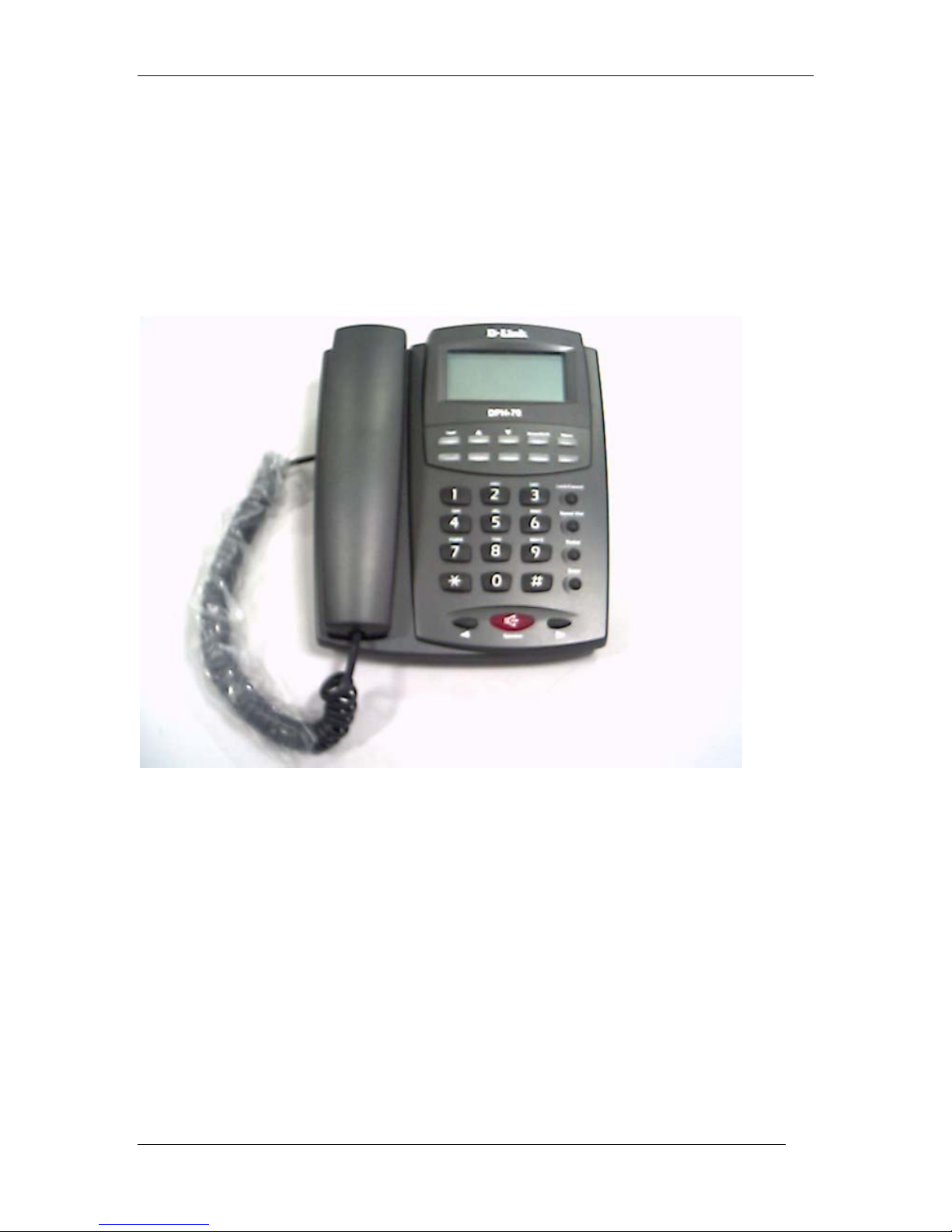
DPH-70L is a two-in-one phone, allows Internet and PSTN phone calls. It is a dial-up Internet (IP)
telephone, operates using Session Initialization Protocol (SIP) or H.323 protocol. It allows you to
make inexpensive long distance (STD and ISD) calls on dial-up Internet connection.
It works, looks and feels like a normal PSTN phone. A DIAL UP button differentiates between an
Internet phone call and a normal PSTN call.
DPH-70L needs to be configured once and there is no need to configure it again unless there is
change in Internet access or VoIP information.
DPH-70L is a standard based device and works with any Internet Service Provider (ISP) and
VoIP (Internet telephone) service provider. It displays the user friendly status messages.
DPH-70L has a user-friendly dialing option whereby you just dial the number. It will try many
times and ring back when the called party answers the call.
DPH-70L software can be upgraded over the Internet for new features and functions.
Features
¾ Two-in-one device supports Internet and PSTN phone calls.
¾ Standard based device, works with all Internet Service Provider (ISP), VoIP service
providers and PC based soft phones.
6
Page 7

DPH-70L User’s Guide
¾ Easy to use set-up.
¾ Intelligent selection of codec (G.723 or G.729A) based on Internet connection speed.
¾ Excellent voice quality and low end-to-end delay using low latency adaptive jitter buffer,
silence suppression, and comfort noise generation techniques.
¾ User-friendly hands-free dialing method.
¾ Make multiple calls without connecting to the Internet each time.
¾ Mute, Call transfer, last number redial and adjustable volume control.
¾ Password protection to your valuable configuration information.
¾ Remote software updates support.
¾ Caller ID, Phone lock, Speed dial
¾ 4 line LCD Display and speaker phone.
1.1 Acronyms
LED Light Emitting Diode
IP Internet Protocol
ISP Internet Service Provider
PPP Point-to-Point Protocol
PSTN Public Switched Telephone Network
RTP Real Time Protocol
SIP Session Initiation Protocol
TFTP Trivial File Transfer Protocol
VOIP Voice Over Internet Protocol, same as Internet Telephony
LCD Liquid Crystal Display
1.2 Definitions
Idle State: DPH-70L is said to be in idle state when the speaker is off, LEDs are off and handset
is on Hook.
Configuration state: DPH-70L goes to configuration state to edit and verify the configuration
information.
Receive state: DPH-70L goes to this state to receive calls from other phones. In this state,
phone is always connected to Internet.
Speaker Mode: You can dial a phone number in hands free mode and have conversation with
the other party.
Handset Mode: You can lift the handset any time to listen. If the speaker is on while lifting, it is
turned off automatically.
Locked State: In this state you can only receive calls. No other features of DPH-70L can be used
in this state.
7
Page 8
DPH-70L User’s Guide
2 Unpacking and Installation
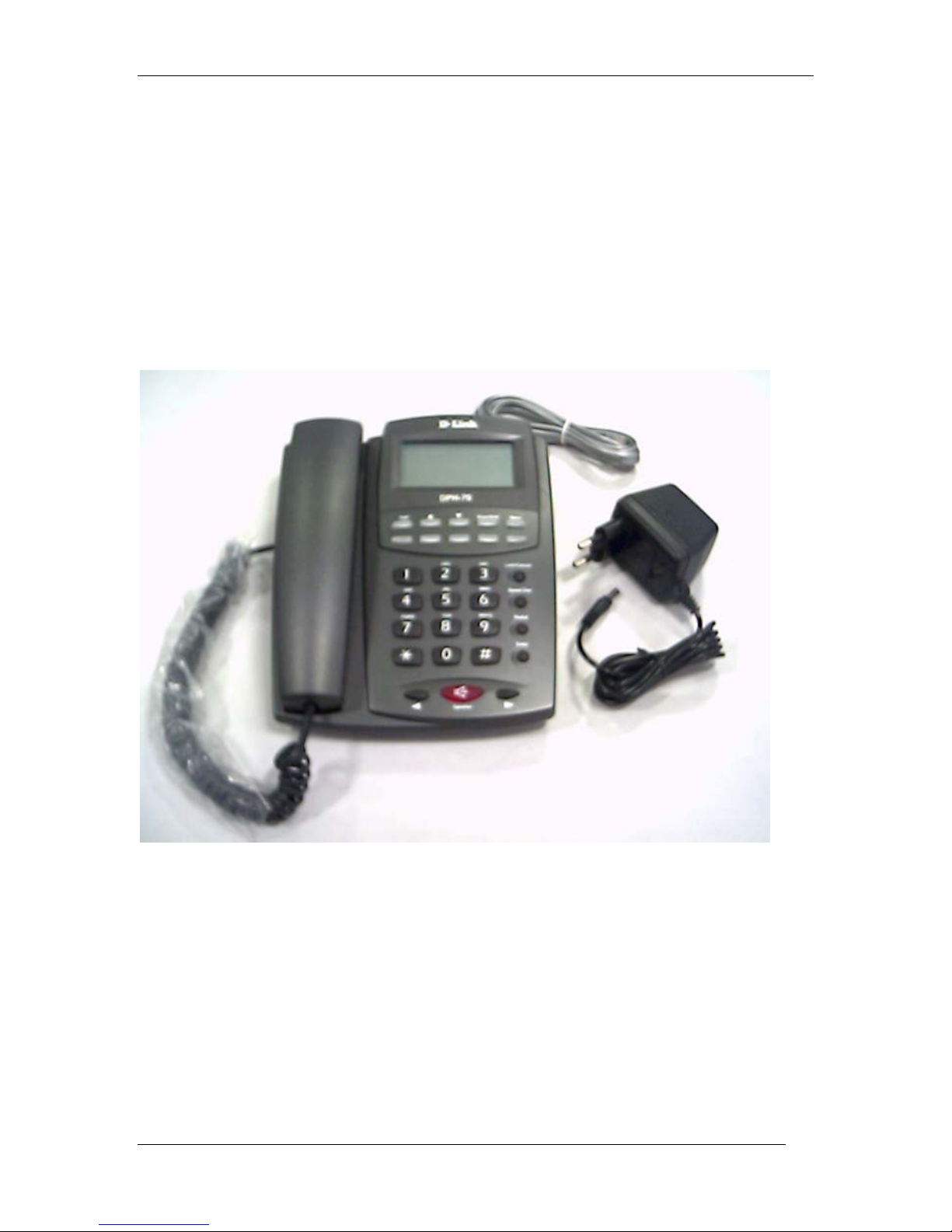
Open the shipping carton and carefully remove all items. In addition to this User’s Guide, make
sure you have received all of the following items:
• Modem IP phone, DPH-70L
• One telephone cable (RJ-11)
• Handset
• Handset cord
• Power adapter
• Warranty card
If any item appears to be missing or damaged, please contact your local reseller.
8
Page 9

DPH-70L User’s Guide
2.1 System Requirements
You will need the following to use DPH-70L.
• AC power outlet (230V, 50Hz)
• Local telephone line connection
• Access to dial-up Internet connection (via ISP) that is PPP compatible
• Account with a VoIP (Internet Telephone) service provider
2.2 Installation
1. Connect the handset to DPH-70L with handset cord.
2. Plug one end of telephone cable (RJ-11) into the LINE port on the rear panel of DPH-70L
and the other end into a working telephone wall jack.
3. Plug the AC power adaptor provided into an AC outlet and insert the power cord into the
connector marked “AC” on the rear panel of the DPH-70L.
4. Lift the handset and listen for the dial tone that indicates the DPH-70L has been installed
properly. If you do not hear a dial tone, check that the power adaptor is plugged into a
live electrical outlet and that the power cord is pushed securely into the connector.
5. Now DPH-70L is ready for basic configuration as described in the next section.
Warning: DPH-70L needs Internet access and VoIP information to make Internet phone calls.
However, it can make normal PSTN phone calls without any configuration.
9
Page 10
3 User Interface
9
6
3
Ð
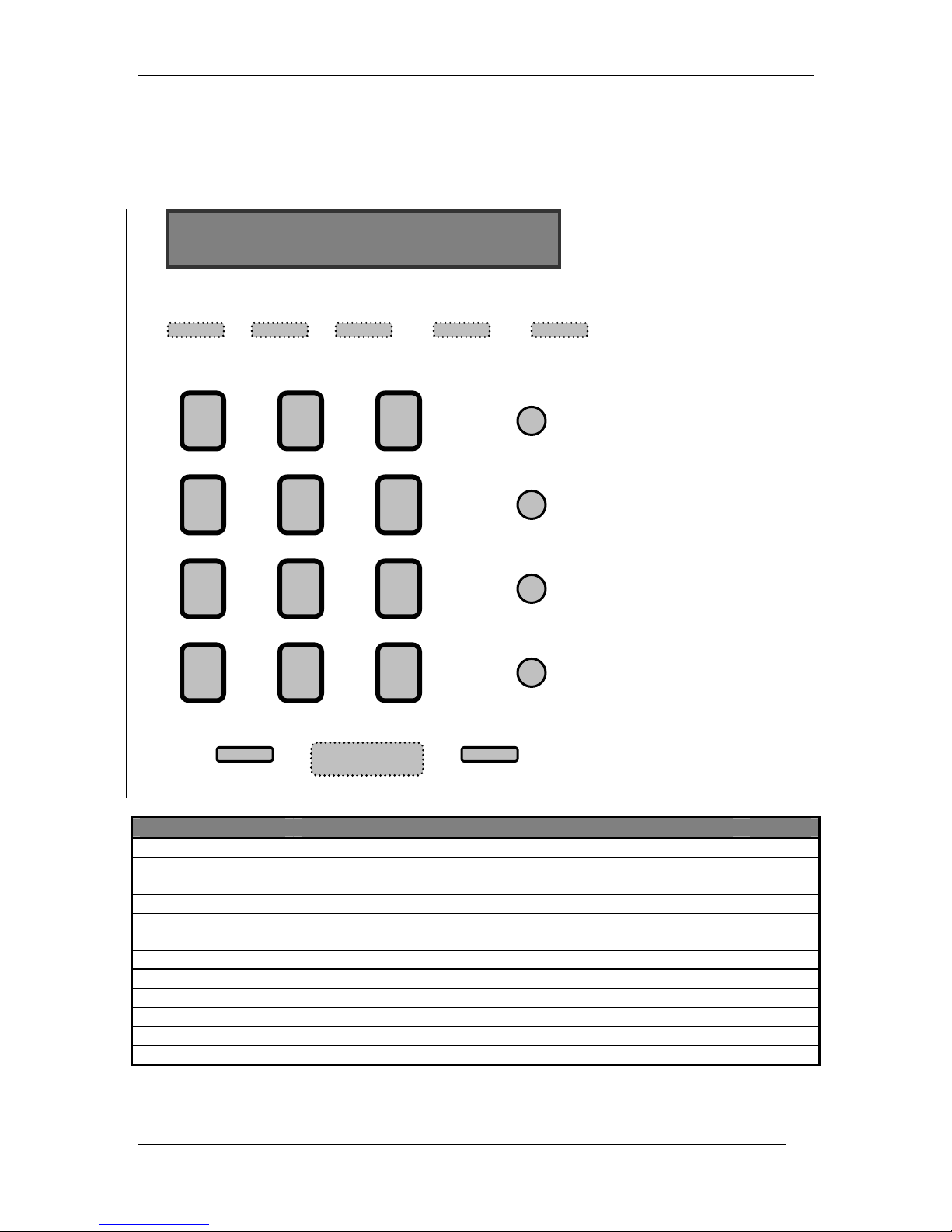
The DPH-70L user interface is as shown below.
LCD Display
DPH-70L User’s Guide
VoIP
1
4
GHI
7
PQRS
½
Ï
2
ABC
5
JKL
8
TUV
0
DEF
MNO
WXYZ
#
Menu Mute/Shift
Lock/Cancel
Speed Dial
Redial
Enter
Í Î
Key name Functionality LED
VoIP
Mute/Shift
Menu
Lock/Cancel
Speed Dial
Redial
Enter
Speaker
Arrow Keys
Numeric Keypad
SPEAKER
Used to make VoIP calls Green
In call it is used for MUTE functionality and in configuration
used to enter capital letters.
Enter or exit configuration state. Green
Lock or unlock the phone using this key. In configuration state
used for deleting the last entered character.
Dialing the number from address book. None
Redial the last dialed number. None
Used as termination key for any entry to phone. None
Switch on or off the speakerphone functionality. Red
Used for volume control and browsing through LCD Green
Standard telephone key pad. None
Green
None
10
Page 11

DPH-70L User’s Guide
4 Getting Started
After installation, DPH-70L is ready for configuration. You need to enter Internet Service Provider
(ISP) and VoIP Calling Card information to make and receive Internet phone calls. However, it
can make normal PSTN phone calls without any configuration. Refer to Appendix A to know how
to enter alphanumeric and special characters required for user name and password.
Warning: DPH-70L identifies end of each parameter by ‘ENTER’ key. Please terminate each
parameter entry by pressing ‘ENTER’ key. For example, to enter the password as ‘123’ you
should press ‘123 ENTER’.
4.1.1 ISP Information
Following Internet Service Provider (ISP) account information is required for dial-up Internet
connection. Refer to your Internet Service Provider’s card for this information.
¾ Internet Access Telephone Number
¾ User Name
¾ Password
To enter these parameters, follow the steps below. DPH-70L configuration menu on LCD display
guides you through the configuration process.
1. Press ‘MENU’ key to enter the configuration menu.
2. Enter the configuration password. The default password is ‘12345’.
3. Enter ‘1’ to configure the ISP parameters. It displays ISP menu.
4. Enter ‘1’ to edit ISP Phone number.
5. It displays the current value of Internet access Phone number. Edit the Internet access
phone number and press ‘ENTER’ button.
6. After this it displays the ISP menu. Press ‘2’ for ISP User Name and ‘3’ for ISP Password
to modify their values as in step 5.
7. Press ‘CANCEL’ key to come out of ISP configuration to main menu and enter ‘7’ to save
the parameters.
4.1.2 VoIP Calling Card Information
Following VoIP (Internet Telephone) calling card information is required for Internet phone
connection. The VoIP service provider will provide these parameters. Refer your calling card for
these parameters. After entering the calling card parameters, your Internet phone number will be
same as user ID.
¾ VoIP User Name
¾ VoIP Password or PIN
¾ VoIP Server IP
To enter these parameters, follow the steps below. DPH-70L configuration menu on LCD display guides
you through the configuration process.
1. Press ‘MENU’ key to enter the configuration menu.
2. Enter the configuration password. The default password is ‘12345’.
3. Enter ‘2’ to configure the VoIP parameters. It displays VoIP menu.
4. Enter ‘1’ to edit VoIP User Name.
5. It displays the current value of VoIP User Name. Edit the VoIP User Name and press
‘ENTER’ button.
6. After this it displays the VoIP menu. Press ‘2’ for VoIP Password and ‘3’ for VoIP Server
Address to modify their values as in step 5.
11
Page 12

DPH-70L User’s Guide
7. Press ‘CANCEL’ key to come out of VoIP configuration to main menu and enter ‘7’ to
save the parameters.
After these basic configurations, DPH-70L is ready to make and receive Internet phone calls as
described in the next section.
12
Page 13

DPH-70L User’s Guide
5 Internet Phone Calls
After basic configuration, DPH-70L allows you to make and receive Internet phone calls as
described in this section. VoIP button distinguishes the Internet phone call from normal PSTN
phone call. To make Internet phone call press VoIP button followed by destination telephone
number. It supports a user-friendly dialing method as described below.
Warning: You need to have Internet access information and VoIP Calling Card information
configured in DPH-70L to make and receive Internet calls.
5.1 Receiving Internet call
DPH-70L needs to be connected to VoIP server to receive Internet phone calls. This is called
RECEIVE state. VoIP button enables and disables this state and the corresponding VoIP LED
indicate whether the DPH-70L is in receive state.
When you press the VoIP button, DPH-70L connects to Internet and VoIP (Internet Telephone)
Service Provider. During this connection process, DPH-70L will play progress tone and blink the
VoIP LED. After connecting to the VoIP server, it will turn on the VoIP LED and stop progress
tone. It stays connected to Internet for 15 minutes or until you cancel it by pressing the VoIP
button again.
During this connection process if anything fails, DPH-70L will disconnect modem, turn off VoIP
LED, displays an error message, and then goes to idle state. If the Internet access line is busy it
will retry 4 times before giving up.
Warning: In RECEIVE state, DPH-70L is connected to the Internet and you will be charged for
Internet access. Do not leave the phone in RECEIVE mode unless you are expecting an Internet
phone call.
5.2 Making Internet call
5.2.1 Normal dialing
Like conventional phone, lift the handset, press VoIP button and dial the other party phone
number followed by ‘ENTER’ key. For example, you press ‘VoIP 12345 ENTER’ to call 12345
through the Internet. The VoIP button tells the DPH-70L to connect to Internet.
DPH-70L plays progress tone and establishes call with the called party. You will hear ringing tone
if the called phone is free and reachable. When the called party attends the call, you can talk to
him. If anything goes wrong you will see appropriate error messages. Please refer
Troubleshooting for more information about the error messages.
During the process of establishing Internet call, DPH-70L connects to the Internet and then,
connects to the VoIP service provider. This may take some time unlike normal phone.
to Appendix B:
Warning:
number entry into DPH-70L by pressing ‘ENTER’ key. If you don’t press any key for more than 5
sec, DPH-70L identifies it as end of phone number.
DPH-70L identifies end of phone number by ‘ENTER’ key. Please terminate phone
13
Page 14

DPH-70L User’s Guide
5.2.2 Multiple Calls
RECEIVE state allows you to make multiple Internet calls without connecting to the Internet each
time. You press VoIP key to go to RECEIVE state, please refer to a section on “Receiving
Internet Calls” for more detail.
In this mode, you just dial the phone number followed by ‘ENTER’ key. Since DPH-70L is already
connected to Internet, you do not press the VoIP button before dialing a number. For example,
you press ‘12345 ENTER’ to dial 12345 through Internet. It remains in call receive state after the
end of each call. Please note that you cannot make or receive normal PSTN call while DPH-70L
is in RECEIVE state.
Warning: In RECEIVE state, DPH-70L is connected to the Internet and you will be charged for
Internet access. Do not leave the phone in RECEIVE mode unless you are expecting an Internet
phone call.
5.2.3 Special Dialing
Dial-up connection sometime takes time to connect to the Internet depending on the Internet
access line availability and network congestion. Your DPH-70L is designed with a user-friendly
dialing method to help you in such situations.
You dial in hands free mode. Press speaker button, the speaker will be turned ON. Then press
VoIP button and dial a number followed by ‘ENTER’ without lifting the handset. DPH-70L will
establish Internet call with the called party and play ring back tone. However, if the Internet
access line is busy, DPH-70L will retry 5 times before giving up.
During the process of establishing the Internet call, DPH-70L will play different call progress tones
(like progress, ring back, or error tone) and blink the speaker LED. Once the other party lifts the
handset, it establishes the Internet call and turns on the speaker LED.
Warning: DPH-70L identifies end of phone number by ‘ENTER’ key. Please terminate phone
number entry into DPH-70L by pressing ‘ENTER’ key. If you don’t press any key for more than 5
sec, DPH-70L identifies it as end of phone number.
5.3 Internet Call Transfer
SIP signaling protocol in DPH-70L supports call transfer feature.
This feature allows the user to transfer an Internet phone call to another phone connected to the
Internet. To transfer the call, you flash the hook for a short period and dial the destination number
followed by ‘ENTER’. The destination number will ring and on off-hook the call transfer will be
complete.
14
Page 15

DPH-70L User’s Guide
6 PSTN Phone Calls
DPH-70L can make and receive normal PSTN phone calls. When DPH-70L is not connected to
the Internet through the VoIP button (RECEIVE state), it is known to be in idle state. In this state it
works as a normal phone, making and receiving PSTN phone calls. This feature does not need
any configuration.
6.1 Making PSTN call
To make an outgoing call, go off hook and dial the destination number, followed by ‘ENTER’. For
example, you press 12345 ENTER to call 12345 through PSTN network. It plays various call
progress tone as in normal phone and plays ring back tone if the called party is free. DPH-70L
establishes the call on called party attending the call.
The dialing mode of PSTN number depends upon phone settings configuration. If blind dialing
mode is enabled, PSTN number is dialed in blind mode, and if pulse dial is enabled, PSTN
number is dialed in pulse mode. (Please refer section 7.3.7).
DPH-70L has special supports for operation behind an EPABX. For example, you may have to
dial 9 to get external dial tone and then dial the destination number. In this scenario, first dial ‘9
ENTER’ to dial to EPABX and get external dial tone, then dial the destination number.
Warning: DPH-70L identifies end of phone number by ‘ENTER’ key. Please terminate phone
number entry by pressing ‘ENTER’ key. If you don’t press any key for more than 5 sec, DPH-70L
identifies it as end of phone number.
6.2 Receiving PSTN call
DPH-70L can receive any normal PSTN phone call when DPH-70L is not connected to the
Internet through the VoIP button. It rings on incoming call and establishes call on off hook. Either
party can disconnect the call by going on hook.
6.3 Transferring PSTN call
This feature allows the user to transfer a PSTN phone call to any PSTN phone. To transfer the
call, you flash the hook for a short period and dial the destination number followed by ‘ENTER’
key. The destination number will ring and on off-hook the call transfer will be complete.
15
Page 16

DPH-70L User’s Guide
7 DPH-70L Configuration
DPH-70L configuration menu helps you through the configuration process. You can enter the
configuration menu by pressing the ‘MENU’ key when DPH-70L is in idle state.
DPH-70L will ask for password on entering configuration menu. Since the configuration
information contains valuable information it is password protected. If you don’t remember your
password, you can reset DPH-70L to default password as described in Loading factory defaults.
The default password is ‘12345’.
Warning: DPH-70L identifies end of a parameter by ‘ENTER’ key. Please terminate each
parameter entry into DPH-70L by pressing ‘ENTER’ key.
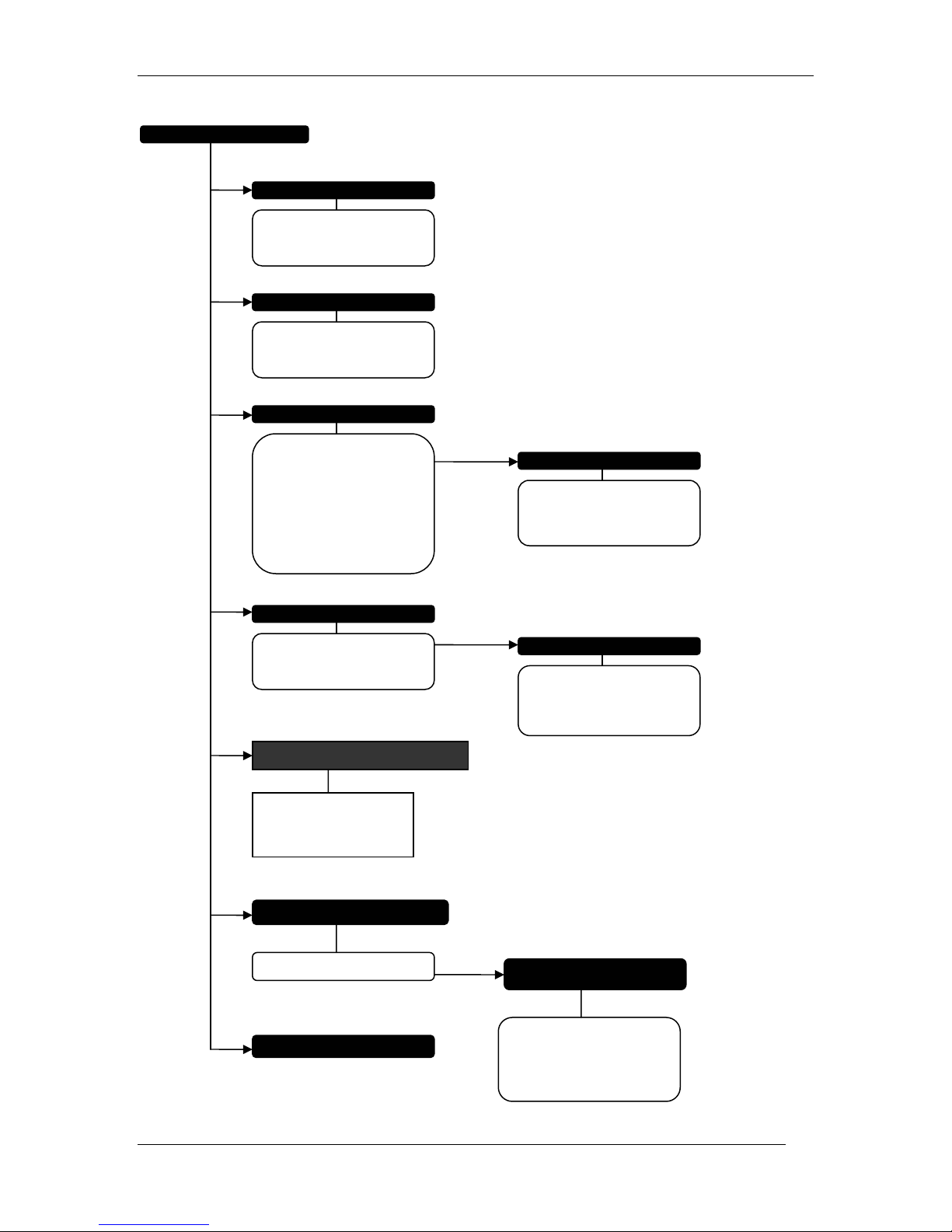
DPH-70L configuration menu is shown below. Each of the different options in the menu is
described below. DPH-70L displays the current value of each parameter and allows you to edit it.
After password verification, DPH-70L displays the different options in main menu. You can
browse through the menu using the arrow keys on the phone. As you browse through the menu,
the cursor will indicate the currently chosen option. To select the menu option, you can either
press ‘ENTER’ key when cursor is at that option or you can directly press the number written
along with the option (as shown in figure below). You can press ‘CANCEL’ key to come out of any
menu and go to the previous menu.
Note:
¾ If power goes off while you are configuring, the phone will work with the previous saved
parameters.
¾ If you idle more than 90 seconds, dph-70 will accept the keys entered and go to next
state.
¾ If you leave the phone without completing the configuration it will go back to idle state
without saving the parameters.
16
Page 17
MAIN MENU
p
ISP Phone Number 1
ISP User Name 2
ISP Password 3
VoIP User Name 1
VoIP Password 2
VoIP Server IP 3
DPH-70L User’s Guide
1. ISP Setup
2. VoIP Setup
3. Phone Settings
Set Time 1
Volume Control 2 Î
Country Code 3
Ring Tone 4
Dial Prefix 5
Wait for Dial Tone 6
Blind Dialing Mode 7
Pulse Dial 8
4. Advanced Settings
Speed Dial 1 Î
Upgrade Server IP 2
Change Password 3
5.Call Log Information.
Missed calls 1
Received calls 2
Dialed numbers 3
2. Volume Control
PSTN Speaker 1
PSTN Mike 2
VoIP Speaker 3
1. Address Book
Name0 Number0 0
Name1 Number1 1
… … …
Name9 Number9 9
6. View Information
System Information 1 Î
7. Save & Exit
17
1. System Information
Hardware Version 1
Software Version 2
IP Address 3
Current Codec 4
Modem S
eed 5
Page 18

DPH-70L User’s Guide
7.1 ISP Parameters
DPH-70L needs to connect to the Internet, to make Internet phone calls. The following
information should be configured in DPH-70L to connect to the Internet and make calls. The user
will get this information while subscribing to Internet Service Provider (ISP). Please note that
DPH-70L will not work for Internet phone calls without this information.
ISP Phone Number
This is the phone number to which DPH-70L will dial-up to connect to the Internet. The Internet
access phone number can be maximum 20 digits.
DPH-70L has special supports for operation behind an EPABX. In some scenarios, you may have
to introduce a delay after dialing external access number. A ‘.’ (dot) in phone number will
introduce a delay. For example, 9.6788341 will introduce a small delay after dialing 9, before
dialing other digits.
ISP User Name
The user name identifies the user to Internet Service Provider (ISP). It can have a mix of digits,
lower and upper case letters, and special characters. The user name can have a maximum of 30
characters. Please refer to Appendix A: Procedure for entering alphanumeric and special
characters to enter special characters.
ISP Password
The password used for verifying the user to Internet Service Provider (ISP). It can have a mix of
digits, lower and lower case letters, and special characters. It can have a maximum of 30
characters. Please refer to Appendix A: Procedure for entering alphanumeric and special
characters to enter special characters.
7.2 VoIP Parameters
The following information is required for DPH-70L to make and receive Internet phone calls. The
user will get this information from the VoIP (Internet Telephone) service provider. Please note that
DPH-70L will not work for Internet phone calls before configuring this information.
VoIP User Name
This is the Internet phone number or user name assigned to you. It can have a maximum of 30
characters. This information is required to verify the VoIP user identity to the VoIP (Internet
Telephone) Service Provider.
VoIP Password
This information is required to verify the VoIP user identity to the VoIP (Internet Telephone)
Service Provider. It can have a maximum of 30 characters.
VoIP Server IP
This is the IP address where VoIP (Internet Telephone) Server is running. It can be a valid IP
address like 198.62.73.101 or a valid domain name like sip.dlink.com. The domain name can
have a maximum of 30 characters, including ‘dots’. Default server address is sip.cityonlines.com.
18
Page 19

DPH-70L User’s Guide
VoIP server IP is of the form xxx.xxx.xxx.xxx where xxx is between 0 and 255. If the entered
number is invalid, phone prompts with a message “Incorrect value”.
.
7.3 Phone Settings
In this section you can set various parameters of phone as explained below.
7.3.1 Set Time
The current system time can be configured here. This time is displayed on the LCD screen and
updated continuously. Please note that this field needs to be configured every time the system is
powered up.
On selecting this option, the LCD displays current system time in HH:MM (hour: minute) format.
You can edit the value using the numeric key pad of phone. It is displayed in 24 hour railway
format. For example, to set the time to 10.30 pm, you have to configure 22:30.
7.3.2 Volume Control
The volume level can vary depending on the VoIP gateway of your VoIP service provider. This
option allows configuration of volume levels of speaker and mike for both Internet (VoIP) and
PSTN calls. DPH-70L has separate volume control for Internet and PSTN calls. To configure the
volume level, the level bar is displayed on the LCD screen. You can increase or decrease the
volume level using the left and right arrow keys or up and down arrow keys.
7.3.3 Country Code
Here list of supported countries is displayed with star suffixed with the currently selected country.
To select a different country, you can move the cursor using the up and down arrow keys to the
country name and press ‘ENTER’ or press the two digit country code. Following is a list of
countries supported with their respective codes
Table 1 Country Codes
Country Code
Brazil 0
China 1
India 2
Korea 3
Malaysia 4
Mexico 5
South Africa 6
Taiwan 7
USA 8
Australia 9
Austria 10
Belgium 11
Denmark 12
Finland 13
France 14
Germany 15
Ireland 16
19
Page 20
DPH-70L User’s Guide
Italy 17
Japan 18
Netherlands 19
Norway 20
Poland 21
Portugal 22
Singapore 23
Spain 24
Sweden 25
Switzerland 26
UK 27
Others 28
If you enter a value other than the listed, the phone prompts with a message “Incorrect value”.
Choose appropriately.
Based on the country code selection, the various tones and modem software will vary. Default
country code is 2 (India). If you change it to some other country than yours, the phone may not be
able to make calls and you will see some error message. So please be sure to select the correct
country code.
7.3.4 Ring Tone
Here list of supported ring tones is displayed with star suffixed on the currently selected ring tone.
To select a different ring tone from the list, you can move the cursor to the ring tone using the up
and down arrow keys and press ‘ENTER’.
7.3.5 Dial Prefix
This feature enables DPH-70L to add a prefix to all dialed VoIP phone number. For example, if
you configure this field to ‘00’ and dial ‘1 786 926‘ to make VoIP call, the phone will dial ‘001 786
926’. The default value is NULL i.e. no dial prefix. Please consult your service provider before
changing this field. This option is used only for dialing VoIP numbers.
7.3.6 Wait for dial tone
DPH-70L has special supports for operation behind an EPABX. In some scenarios, you may have
to wait for secondary dial tone before dialing the complete number. You can configure the number
of digits after which phone should wait for secondary dial tone before dialing remaining ISP phone
number in this option. Configure ‘0’ to disable this option. For example, if ISP phone number is
96788341 and wait for dial tone is configured as 2 then phone will dial first 2 digits i.e. 96 and
then it will wait for secondary dial tone before dialing other digits (788341). This option is used
only for dialing ISP phone number.
7.3.7 Blind Dialing Mode
DPH-70L supports a mode called blind dialing mode. In this mode, DPH-70L won’t look for dial
tone on line before dialing the ISP number or while making call in normal PSTN mode. User can
enable this feature for dialing ISP number in blind mode. Default mode is ‘DISABLE’.
Warning: In blind dial mode DPH-70L won’t display any error messages related to line conditions.
20
Page 21

DPH-70L User’s Guide
7.3.8 Pulse Dial
DPH-70L normally dials out with DTMF tones. However, if this option is enabled then the phone
dials out normal calls in PSTN mode and the ISP Phone number in pulse mode. Default mode is
‘DISABLE’.
7.4 Advanced Settings
7.4.1 Phone Book
Here you can configure the speed dial numbers. Selecting this option displays the list of 10
entries of phone book for speed dial key’s 0 - 9. To edit the configured number, you can move the
cursor to the address book entry to be modified using the up and down arrow keys and press
‘ENTER’. Also you can directly press the speed dial key ID, to edit that entry. After this it displays
the currently configured name for that entry. You can edit the same using alpha-numeric keypad
and press ‘ENTER’. Then it displays the number for that entry. You can edit the same and press
‘ENTER’. The name can be of maximum 30 characters and number can be of maximum 20
characters.
To configure the speed dial number for VoIP call, prefix the number with ‘@’. For example, to
configure the VoIP number ‘1786926’, enter ‘@1786926’ in the number field of address book
entry.
To dial the numbers from phone book, refer to section 8.3.
7.4.2 Upgrade Server IP
This is the IP address of software server from where the latest DPH-70L software can be
downloaded. It can be a valid IP address like 198.62.73.101 or a valid domain name like
dph70.cityonlines.com. The domain name can have maximum of 30 characters, including ‘dots’.
Default server address is dph70.cityonlines.com (or 202.62.83.106).
7.4.3 Change Password
Internet access and VoIP parameters are valuable information and it can be misused. Thus,
DPH-70L has password protection to enter the configuration module. It can have maximum of 30
characters. Default is “12345”. The user is advised to change this value. If you forget this
password, reset the phone to factory values and configure the phone again.
7.5 Call Log Information
7.5.1 Missed Calls
This is the list of PSTN/VOIP missed calls. You can browse the list using up and down arrow
keys. To dial the numbers from this list, refer to section 8.5.
7.5.2 Dialed Numbers
This is the list of PSTN/VOIP dialed numbers. You can browse the list using up and down arrow
keys. To dial the numbers from this list, refer to section 8.5
.
7.5.3 Received Calls
This is the list of PSTN/VOIP received calls. You can browse the list using up and down arrow
keys. To dial the numbers from this list, refer to section 8.5
21
.
Page 22

DPH-70L User’s Guide
7.6 View Information
You can see system information in this section.
1. Hardware Version – Hardware version of the system.
2. Software Version – It displays the current software version of DPH-70L. It will change if
you download the newer version of software from internet.
3. IP Address – In receive state it indicates current IP Address of DPH-70L. In idle state it
indicates the last used IP Address.
4. Current Codec – When in call it indicates currently used codec otherwise it indicates
codec used in last call.
5. Modem Speed – Speed of modem connection between DPH-70L and ISP. If device is
currently not in receive state then it indicates modem speed when it was last time
connected to ISP.
7.7 Save and Exit
This option saves all the information entered in the configuration and exits from configuration
option. You can leave the configuration without saving the information by replacing the handset or
switching the speaker off.
22
Page 23

DPH-70L User’s Guide
8 Additional Features
8.1 Upgrading Software
DPH-70L has a facility to upgrade the software, remotely through the Internet at no cost to you.
Software can be downloaded when the phone is in RECEIVE state or when not in use.
On pressing ‘∗456∗’ followed by ‘ENTER’ key, the phone connects to the Internet and downloads
the software. During the download process, DPH-70L will play progress tone and blink the SHIFT
LED. After successful download, the phone restarts with the newer software. Due to some reason
if download fails, the phone will continue working with the earlier software. You can check the
current software version through configuration menu.
D-Link will release latest DPH-70L software on its website at http://www.dlink.co.in
server IP address from where the latest software can be downloaded. This information is required
to be entered into DPH-70L through the configuration menu.
Note: On pressing ‘*456* ENTER’, DPH-70L will ask for confirmation.
8.2 Loading factory defaults
If it is required to reset DPH-70L and start with default configuration parameters, you can do so
by pressing ‘∗789∗’ followed by ‘ENTER’ key while DPH-70L is in idle state. The phone restarts in
few seconds with the default parameters. Default configuration password is ‘12345’. The phone
needs to be configured again for Internet access and VoIP information before it can be used.
along with the
8.3 Speed Dial
DPH-70L provides 10 speed dial numbers which are saved in phone address book and can be
dialed by pressing just 2 keys. To dial the speed dial number press ‘SPEED DIAL’ key followed
by speed dial key ID which can be any key from 0 to 9. The speed dial numbers for each key ID
can be configured on DPH-70L in address book through the configuration menu,
On pressing ‘SPEED DIAL’ key, the DPH-70L displays the entries from address book. To dial the
number either you can dial the speed dial key ID or you can move the cursor to the address book
entry using up and down arrow keys and press ‘ENTER’.
Note: If speed dial number is configured as PSTN number and then that number is dialed in
RECEIVE state then it will be dialed as VoIP call.
8.4 Call Log
DPH-70L stores the list of 10 dialed calls, 10 missed calls and 10 received calls. It stores both
PSTN and VoIP numbers in same list. You can see the list of missed calls, received calls and
dialed calls in view info section of main menu. The list contains both PSTN and VoIP calls. The
VoIP call number or names begin with letter ‘@’. The cursor indicates the selected number. You
can select the number from this list using up and down arrow keys and press ‘ENTER’ to dial to
that number.
8.5 Caller ID
DPH-70L displays the caller ID of calling party in both Normal PSTN calls and VoIP calls. If the
caller ID facility provided by your local telephone company and your line is subscribed for that
23
Page 24

DPH-70L User’s Guide
then for incoming PSTN calls it will display the caller ID otherwise it will display ID as unknown.
Similarly the caller ID will be displayed for VoIP calls as well.
8.6 Lock
DPH-70L provides facility to lock the phone using the ‘LOCK’ key. In the locked state phone,
phone can be used only to receive PSTN calls. Phone can’t be used for making PSTN calls or
VoIP calls.
The five LED’s (VoIP, Up arrow, Down arrow, Shift and Menu key) will blink to indicate that phone
is in locked state.
The phone can be unlocked by pressing ‘LOCK’ key followed by configuration password and then
‘ENTER’ key. For example, if configuration password is ‘12345’, the phone can be unlocked by
pressing sequence ‘LOCK 12345’ followed by ‘ENTER’ key.
If password is forgotten after locking the device, the user can press the ‘Lock’ key followed by
factory reset sequence.
Note: Phone can be Locked only in IDLE state.
WARNING: After unlocking, if the entered password is correct then the phone will restart which
may take around 5 seconds.
24
Page 25

DPH-70L User’s Guide
9 Appendix A: Procedure for entering alphanumeric and
special characters
The section describes how to enter digits, upper and lower case alphabets, and special
characters using the DPH-70L keypad.
9.1 Entering Digits
• Press any digit key once to enter the corresponding digit.
Example: To enter 4, press key 4 once.
9.2 Entering Small Letters
• Press a digit key twice to enter the first character written on that key.
• Press thrice to enter the second character written on that key
• Press four times to enter the third character written on that key.
• Press five times to enter the fourth character written on that key.
Examples: To enter a, press key 2 two times.
To enter e, press key 3 three times.
To enter z, press key 9 five times.
NOTE: Press the appropriate key firmly, specified number of times, in quick succession to enter
alphabets.
9.3 Entering Capital Letters
You need to press a SHIFT button and a digit key, specified number of times, to enter the capital
letters marked on digit keys. SHIFT LED turns on after SHIFT button is pressed and turns off after
the digit key is pressed.
• Press a SHIFT button and then the digit key, the following number of times to enter the
capital letters.
o Twice to enter the capital of the first letter written on that key.
o Thrice to enter the capital of the second letter written on that key.
o Four times to enter the capital of the third letter written on that key.
o Five times to enter the capital of the fourth letter written on that key.
• If the key is pressed once after SHIFT button is pressed, it accepts the corresponding
digit.
Examples: To enter A, press SHIFT followed by key 2 two times.
To enter E, press SHIFT followed by key 3 three times.
To enter Z, press SHIFT followed by key 9 five times.
NOTE: Press the appropriate key firmly, specified number of times, in quick succession to enter
alphabets.
9.4 Entering Special Characters
Press VoIP button and then press the corresponding key mentioned in table below to enter
special characters. VoIP LED turns on after pressing the VoIP button and turns off after
accepting a special character.
25
Page 26
DPH-70L User’s Guide
Special
Character
! “Exclamation”
@ “At ”
. “Dot”
- “Hyphen”
_ “Underscore”
$ “Dollar”
& “Ampersand”
/ “Slash”
: “Colon”
| ”Pipe”
Examples: To enter @, press VoIP followed by key 1.
To enter ., press VoIP followed by key 2.
Description
Key To be
pressed
0
1
2
3
4
5
6
7
8
9
9.5 Deleting character
‘CANCEL’ key act as backspace in configuration state. It can be used to delete the character
one position before the cursor position. For example, if LCD screen displays string ‘abcdef’
with cursor at character ‘d’ then pressing ‘CANCEL’ key will delete the character ‘c’.
26
Page 27

DPH-70L User’s Guide
10 Appendix B: Troubleshooting
DPH-70L can display the following error messages at different error conditions. These messages
aid in troubleshooting any error conditions.
All outgoing calls are PSTN calls. It does not dial in Internet mode.
To make a call in Internet mode, you have to press VoIP button first. Please refer to the user
manual for more details. If you don’t press VoIP, DPH-70L will dial out in PSTN mode.
“ERR0: Number Busy”
This message is displayed when the called phone is busy.
“ERR01: ISP Server Not Responding”
It is displayed when the Internet access modem is not responding properly. If this happens please
check the Internet access phone number and country code in configuration menu. If you call
Internet access phone number from a phone you will hear modem noise.
“ERR02: ISP Line Busy”
This message is displayed when the Internet access line is busy. This may happen during peak
hours.
“ERR03: Configure the phone and try again”
This message is displayed if you try to use DPH-70L without configuring important parameters.
You need to configure the Internet Service Provider (ISP) access parameters and VoIP (Internet
Telephone) VoIP parameters to use the phone for VoIP calls.
“ERR04: ISP Connection Not Established”
It is displayed when Internet access server is down. Please contact the ISP customer service or
try again after some time.
“ERR05: Bad phone line”
It indicates that your phone line may not connect to the Internet at sufficient speed to establish
Internet phone calls. Please try another phone line or contact customer support.
“ERR06: Phone Line not connected”
This message is displayed if DPH-70L is not connected to the phone line properly. Please check
the phone line connection and try again. Test the phone line with a normal phone if it persists.
If DPH-70L is behind EPABX you may have to program DPH-70L to look for secondary dial tone
or introduce a delay. Please refer to configuration section for more information.
27
Page 28

DPH-70L User’s Guide
ERR07: Check the ISP Parameters”
This message is displayed when the configured ISP user name and password is incorrect. Please
verify the ISP user name and password.
“ERR08: Check the VoIP Parameters”
This message is displayed when the configured VoIP information is incorrect. Please verify the
VoIP parameters. This may also be due to VoIP server not responding or no balance in your VoIP
account or wrong VoIP server IP address
ERR09: Number not locatable”
This message is displayed when the called phone number does not exist or not ready to receive
calls.
“ERR10: BALANCE NILL”
This message is displayed when balance in your VOIP call (Internet call) account is NILL.
Fast error tone for a short period while disconnection phone
This error tone is played while the modem disconnects from the Internet. This process takes a
short time and the phone is inaccessible during this period.
28
Page 29
DPH-70L User’s Guide
11 Appendix C: DPH-70L Product Specifications
General
Product Feature Description
Model DPH-70L
VoIP signaling protocol SIP (RFC2543)
Data Modem Standard V.34
Power Adapter 9V 1000mA AC Adapter (180-260V AC).
Power consumption 5W max.
Hardware Specifications
Product Feature Description
One Port for Telephone line
connection
VoIP LED Indicates if the phone is in
Shift/Mute LED Used to indicate while
Speaker LED Indicates if speaker is on or
Menu LED Indicates if phone is in
Speaker button Press this button to turn on and off the speaker for hands-
Shift/Mute button Used for entering upper case letters during configuration
VoIP button Tells the phone to connect to Internet while making an
Menu button Press this button to go to configuration menu.
Lock/Cancel button Used to put the phone in locked state. You can only
RJ11
The Smart DAA Interface feature that reliably operates
without drawing power from the line
Remarks Color Timing
Green Steady
receive state or not.
Indicates while special
characters are entered in
configuration.
Green Steady
upper case letters are
entered in configuration.
In call to indicate for mute
state.
Red Steady
off.
Green Steady
configuration state.
free dialing.
state. Used to mute the other party when pressed in call.
internet phone call.
Puts the phone ready to receive IP phone calls or to make
multiple calls.
In configuration, on pressing this key special characters
are displayed.
receive calls in this state.
In configuration to delete the character before the cursor.
In configuration to move to previous Menu, and if in Main
Menu, exit from configuration.
29
Page 30
DPH-70L User’s Guide
Product Feature Description
Speed Dial button Press this button followed by number key from 0 – 9 to
dial to that address book entry.
Redial button Redials the last dialed number.
Enter button Used as termination key for any parameter entry to phone.
Arrow Keys Used to browse the text displayed on LCD screen.
Number Keys
0 to 9, #, ∗:
These are normal number keys and can be used for
dialing or entering digits.
Alphanumeric
Alphanumeric and special characters can also be entered
through keypad.
Speaker Volume Adjustment Speaker volume can be adjusted using this facility.
Handset Volume Adjustment This can be used for adjusting the volume switch on the
handset
Software Specifications
G.723.1 is available for modem connection speeds of 16.8 Kbps or
Voice Codec
Voice activity detection,
Silence suppression,
Comfort noise generation
above.
G.729A/AB is available for modem connection speeds of 24 Kbps or
above.
Algorithms minimize the bandwidth requirements.
Internet protocol IP (RFC0791)
TCP (RFC0793)
UDP (RFC0768)
RTP/RTCP (RFC1889, RFC1890)
SDP (RFC2327)
PPP (RFC1661) To connect to ISP via dial-up connection.
TFTP Trivial File Transfer Protocol is used for firmware download.
Reset to factory defaults After pressing a factory reset key sequence, the phone restarts with
all default parameters. The access sequence is ‘∗789∗ ENTER’.
Configuration using
Digits, Special characters and all letters can be entered.
Keypad
User authentication Password protection for configuration menu.
Configuration password Default password is ‘12345’.
Configuration menu Press MENU
Software upgrade
Factory reset
Access code is ‘∗456∗’.
Access code is ‘∗789∗’.
VoIP call volume level Default is 3
PSTN call volume level Default is 3
VoIP server address Default is sip.cityonlines.com (or 202.62.83.106)
30
Page 31
DPH-70L User’s Guide
Software server address Default is dph70.cityonlines.com (or 202.62.83.106)
Safety / EMI Specifications
Standards Compliance FCC Class B part 15 and part 68
Operating Temperature
Storage Temperature
Humidity Range 5% to 95% Non-condensing
Dimensions 52 (H) x 206 (L) x 103 mm (without handset)
Weight 800gms
0 °C to 50 °C
-10 °C to 60 °C
31
Page 32
Registration Card
DPH-70L User’s Guide
AUSTRALIA D-Link AUSTRALIA PTY.LTD.
Unit 16, 390 Eastern Valley Way Roseville, NSW 2069 Australia
TEL: 61-2-9417-7100 FAX: 61-2-9417-1077 TOLL FREE: 180017710 WEB: www.dlink.com.au
E-MAIL: [email protected]
CANADA D-Link CANADA, INC.
2180 Winston Park Drive, Oakville, Ontario L6H 5W1 Canada
TEL: 1-905-829-5033 FAX: 1-905-829-5223
WEB: www.dlinknet.com FTP: ftp.dlinknet.com E-MAIL: [email protected]
CHINA D-Link BEIJING
15th Floor, Science & Technology Tower,
No. 11, Baishiqiao Road, Haidian District, Beijing 100081 China
TEL: 86-10-68467106-9 FAX: 86-10-68467110 WEB: www.dlink.co.cn
DENMARK D-Link DENMARK
Naverland 2 DK-2600 Glostrup Copenhagen, Denmark
TEL:45-43-969-040 FAX:45-43-424-347
EGYPT D-Link MIDDLE EAST
7 Assem Ben Sabet Street, Heliopolis Cairo, Egypt
TEL: 202-245-6176 FAX: 202-245-6192 WEB: www.dlink-me.com
FRANCE D-Link FRANCE
Le FLORILEGE #2, Allee de la Fresnerie
78330 Fontenay Le Fleury France
TEL: 33-1-3023-8688 FAX: 33-1-3023-8689 WEB: www.dlink-france.com
GERMANY D-Link (DEUTSCHLAND) GMBH I.G.
Bachstrae 22, D-65830 Kriftel Germany
TEL: 49-6192-97110 FAX: 49-6192-971111 WEB: www.dlink.de BBS: 49-6192-971199
INFO: 0130-7250-00 (toll free) HELP: 0130-7250-40 (toll free)
INDIA D-Link (INDIA) PVT. LTD.
Plot No.5, Kurla-Bandra Complex Rd.
Off Cst Rd., Santacruz (E) Bombay - 400 098 India
TEL: 91-22-26526696/56902210 FAX: 91-22-26528914
ITALY D-Link ITALY
Via Nino Bonnet n.6, 20154 Milano, Italy
TEL: 39-2-2900-0676 FAX: 39-2-2900-1723
JAPAN D-Link TOKYO
10F, 8-8-15 Nishigotanda, Shinagawa-ku Tokyo 141 Japan
TEL: 81-3-5434-9678 FAX: 81-3-5434-9868 WEB: www.d-link.co.jp
SINGAPORE D-Link SINGAPORE PTE.LTD.
1 International Business Park, #03-12 The Synergy, Singapore 609917
TEL : 65-774-6233 FAX: 65-774-6322 E-MAIL: [email protected]
SWEDEN D-Link A/B
World Trade Center P. O. Box 70396, 107 24 Stockholm Sweden
TEL: 46-8-700-6211 FAX: 46-8-219-640 E-MAIL: [email protected]
TAIWAN D-Link TAIWAN
2F, No. 233-2 Pao-Chiao Rd, Hsin-Tien, Taipei, Taiwan, R.O.C.
TEL: 886-2-2916-1600 FAX: 886-2-2914-6299 WEB: www.dlink.com.tw
U.K. D-Link (EUROPE) LTD.
D-Link House, 6 Garland Road, Stanmore, Middlesex HA7 1DP U.K.
TEL: 44-181-235-5555 FAX: 44-181-235-5500 WEB: www.dlink.co.uk
E-MAIL: [email protected]
U.S.A. D-Link SYSTEMS, INC.
53 Discovery Drive, Irvine, CA 92618 USA
TEL: 1-949-788-0805 FAX: 1-949-753-7033 WEB: www.dlink.com E-MAIL: [email protected]
Offices
32
Page 33
DPH-70L User’s Guide
Registration Card
Print, type or use block letters.
Your name:Mr./Ms ____________________________________________________
Organization: _____________________________Dept. _______________________
Your title at organization:_______________________________________________
Telephone: ______________________ Fax: ___________________________
Organization's full address:____________________________________________________________
Country:________________ Date of purchase (Month/Day/Year) :_____________
Product
Model
(* Applies to adapters only)
Product was purchased from:
Reseller's name:___________________________________________Telephone:______________
Fax:_________________ Reseller's full address:
_______________________________________________________________________
Answers to the following questions help us to support your product:
1.Where and how will the product primarily be used?
Home Office Travel Company Business Home Business Personal Use
2. How many employees work at installation site?
1 employee 2-9 10-49 50-99 100-499 500-999 1000 or more
3. What network protocol(s) does your organization use ?
XNS/IPX TCP/IP DECnet Others_____________________________
4. What network operating system(s) does your organization use ?
D-Link LANsmart Novell NetWare NetWare Lite SCO Unix/Xenix PC NFS 3Com 3+Open Banyan Vines
DECnet Pathwork Windows NT Windows NTAS Windows '95Others_________________________________
5. What network management program does your organization use ?
D-View HP OpenView/Windows HP OpenView/Unix SunNet Manager Novell NMSNetView 6000
Others________________________________________
6. What network medium/media does your organization use ?
Fiber-optics Thick coax Ethernet Thin coax Ethernet 10BASE-T UTP/STP100BASE-TX 100BASE-T4
100VGAnyLAN Others_________________
7. What applications are used on your network?
Desktop publishing Spreadsheet Word processing CAD/CAMDatabase management Accounting
Others_____________________
8. What category best describes your company?
Aerospace Engineering Education Finance Hospital Legal Insurance/Real Estate
ManufacturingRetail/Chainstore/Wholesale Government VAR System house/company
Transportation/Utilities/Communication Other________________________________
9. Would you recommend your D-Link product to a friend?
Yes No Don't know yet
10.Your comments on this product?______________________________________________________________
Product
Serial No.
* Product installed in type
of
computer (e.g., Compaq
486)
* Product installed in
computer serial No.
33
Page 34
DPH-70L User’s Guide
34
Page 35

DPH-70L User’s Guide
35
 Loading...