

Page 1

MultiPASS
User’s Guide
TM
L60
i
Page 2

Although this equipment can use either loop disconnect or DTMF signalling,
only the performance of the DTMF signalling is subject to regulatory
requirements for correct operation. It is therefore strongly recommended that
the equipment is set to use DTMF signalling for access to public or private
emergency services. DTMF signalling also provides faster call set up.
Copyright
CopyrightE 1998 by Canon, Inc. All rights reserved. No part of this publication
may be reproduced, transmitted, transcribed, stored in a retrieval system, or
translated into any language or computer language in any form or by any means,
electronic, mechanical, magnetic, optical, chemical, manual, or otherwise, without
the prior written permission of Canon, Inc.
Trademarks
CanonH is a registered trademark, and MultiPASSTMand UHQTMare trademarks
of Canon Inc.
CentronicsH is a registered trademark of Centronics Data Computer Corporation.
TM
IEEE
IBMH is a registered trademark.
MicrosoftH is a registered trademark, and WindowsH is a trademark of Microsoft
Corporation.
Other brand and product names may be trademarks or registered trademarks of
their respective companies.
is a trademark of Institute of Electrical and Electronics Engineers, Inc.
As an ENERGY STARH Partner, Canon has determined that
the MultiPASS L60 meets the Energy Star guidelines for
energy efficiency.
The International ENERGY STARH Office Equipment
Program is an international program that promotes energy
saving through the use of computers and other office
equipment. The program backs the development and
dissemination of products with functions that effectively
reduce energy consumption. It is an open system in which
business proprietors can participate voluntarily. The targeted
products are office equipment such as computers, displays,
printers, facsimiles, and copiers. Their standards and logos are
uniform among participating nations.
ii Preface
Page 3

This CE Marking shows compliance of this equipment with Directive 73/23/EEC and Directive 89/336/EEC (as amended by
Directive 92/31/EEC), both as amended by Directive 93/68/EEC.
L’estampille CE indique que ce matériel est conforme aux dispositions de la Directive 73/23/CEE et de la Directive 89/336/
CEE (modifiée par la Directive 92/31/CEE), toutes deux modifiées par la Directive 93/68/CEE.
Diese CE-Markierung weist darauf hin, daß dieses Gerät mit Richtlinie 73/23/EWG und der durch Richtlinie 92/31/EWG
geänderten Richtlinie 89/336/EWG übereinstimmt, die beide durch Richtlinie 93/68/EWG geändert wurden.
Denne CE-mærkning indikerer, at dette udstyr følger Direktiv 73/23/EU og Direktiv 89/336/EU (som udvidet med Direktiv 92/
31/EU), begge som udvidet med Direktiv 93/68/EU.
CE Märkningen visar att denna utrustning följer direktiven 73/23/EEC och 89/336/EEC (komplement till 92/31/EEC) båda
som komplement till direktiv 93/68/EEC.
CE merkintä osoittaa tämän tuotteen yhteensopivuuden direktiivien 73/23/EEC ja 89/336/EEC (täydennetty direktiivillä 92/
31/EEC) kanssa, joita on täydennetty direktiivillä 93/68/EEC.
Dette CE merket viser at utstyret er i samsvar med EU direktivene 73/23 og 89/336 (med korreksjon av EU direktiv 92/31),
begge med korreksjon av EU direktiv 93/68.
Deze CE markering toont aan dat het product in overeenstemming is met de richtlijnen 73/23/EEC en 89/336/EEC (zoals
geammendeerd door richtlijn 92/31/EEC), welke beide zijn geammendeerd door de richtlijn 93/68/CEE.
Questo contrassegno CE indica che l’apparecchio è conforme alle Direttive CEE 73/23 e 89/336 (successivamente
modificata con la Direttiva 92/31), entrambe modificate con la Direttiva 93/68.
Este símbolo CE indica que el equipo cumple con las Directivas 73/23/EEC y 89/336/EEC (según la enmienda a la Directiva
92/31/EEC), ambas según la enmienda de la Directiva 93/68/EEC.
Esta marca CEE indica que este equipamento está de acordo com as Directivas 73/23/EEC e 89/336/EEC (conforme
amenda da directiva 92/31/EEC), ambas amendas da directiva 93/68/EEC.
Auth´h CE sh´ mansh dhlw´ nei thn sumvwnı´a thŒ Suskeuh´ Œ me thn Odhgı´a 73/23/EEC kai thn Odhgı´a 89/336/EEC
(o´ pwŒ tropopoih´ chkan apo´ thn Odhgı´a 92/31/EEC), o´ pwŒ amvo´ tereŒ e´ qoun tropopoihceı´ apo´ thn Odhgı´a 93/68/
EEC.
Oznaka CE prikazuje, da oprema ustreza predpisu 73/23/EEC, in kot to predpisuje predpis 93/68/EEC.
A CE jelzés tanúsítja, hogy a berendezés megfelel az EEC 92/31 és 93/68 elo˝írásokkal módosított EEC 73/23 és 89/336
követelményrendszernek.
Oznaczenie CE jest potwierdzeniem zgodnos´ci niniejszego urza˛dzenia z wymaganiami Dyrektywy 73/23/EEC oraz
Dyrektywy 89/336/EEC (zgodnie ze zmianami Dyrektywy 92/31/EEC), obie uzupełnione przez Dyrektywe˛ 93/68/EEC.
Znacˇka CE indikuje, zˇe toto zarˇízení odpovídá Smeˇrnici 73/23/EEC a Smeˇrnici 89/336/EEC (doplneˇné Smeˇrnicí 92/31/
EEC), které byly dále doplneˇny Smeˇrnicí 93/68/EEC.
Käesolev CE-markeering näitab, et antud seade vastab Euroopa Liidu Direktiividele 73/23/EEC ja 89/336/EEC (koos
muudatustega vastavalt Direktiivile 92/31/EEC) ning vo˜ttes arvesse, et mo˜lemaid direktiive on muudetud vastavalt
Direktiivile 93/68/EEC.
CE marœ†jums nor¬da, ka sˇ¢ iek¬rta atbilst pras¢b¬m, kas iek©autas EK direkt¢v¬s 73/23 un 89/336 (ar EK direkt¢v¬ 92/31
paredz†taj¬m izmai߬m), kur¬s veikti labojumi saska߬ ar EK direkt¢vu 93/68.
Zˇenklas CE rei£kia, kad £is ¢renginys atitinka direktyvas 73/23/EEC ir 89/336/EEC (atlikus pataisas direktyva 92/31/EEC),
kuriose buvo atliktos pataisos direktyva 93/68/EEC.
Markirovka SE ukazyvaet na to, ˆto dannoe oborudovanie sootvetstvuet Direktive 73/23/EEC i Direktive 89/
336/EEC (s izmeneniqmi v sootvetstvii s Direktivoj 92/31/EEC) s izmeneniqmi, predpisyvaemymi Direktivoj
93/68/EEC.
Fax III
iiiPreface
Page 4

Notice for Connection to Telecommunication Systems in
the United Kingdom and the Republic of Ireland
Approval Number 607912
Your Canon MultiPASS L60 has been approved against the requirements of
NTR3 for use in the UK. The CE mark is applied in respect of the requirements
of 72/23 EEC and 89/336 EEC.
It is intended for connection to analogue two wire public telecommunication
networks.
Connect the supplied cable to this socket first, then to the telephone line.
This socket is intended for connection of the Canon optional telephone. If
required, an adapter to connect any piece of approved telecommunications
apparatus is available from your Canon supplier.
Canon recommend that any additional equipment connected in the installation is
connected to this ”handset” socket. Do not connect additional equipment
through parallel sockets elsewhere on the telephone line.
Voltage and current available at these sockets is determined by the network to
which the line cable is connected. They will not normally exceed the limits for
TNV as described in EN60950.
Ringer Equivalence Number (REN) = 1
The REN is a guide to help calculate the maximum number of items of apparatus
that will ring when connected simultaneously to one phone line. The total RENs
of the individual items should not exceed 4. Correct ringing may not always be
possible even when total REN does not exceed 4. The REN value of a BT
telephone is assumed to be 1 unless otherwise marked.
This equipment is not intended or recommended for making calls to emergency
services.
iv Preface
Page 5

EMC Directive
This equipment has been tested in a typical system to comply with the technical
requirements of the EMC directive. Use of a shielded cable is necessary to
comply with the technical requirements of the EMC Directive.
vPreface
Page 6
Safety Information
Laser Safety
Laser radiation could be hazardous to the human body. For this reason, laser
radiation emitted inside this fax is hermetically sealed within the protective
housing and external cover. In the normal operation of the product by the user,
no radiation can leak from the machine.
Use of controls, adjustments, or performance of procedures other than those
specified in this user’s guide may result in hazardous radiation exposure.
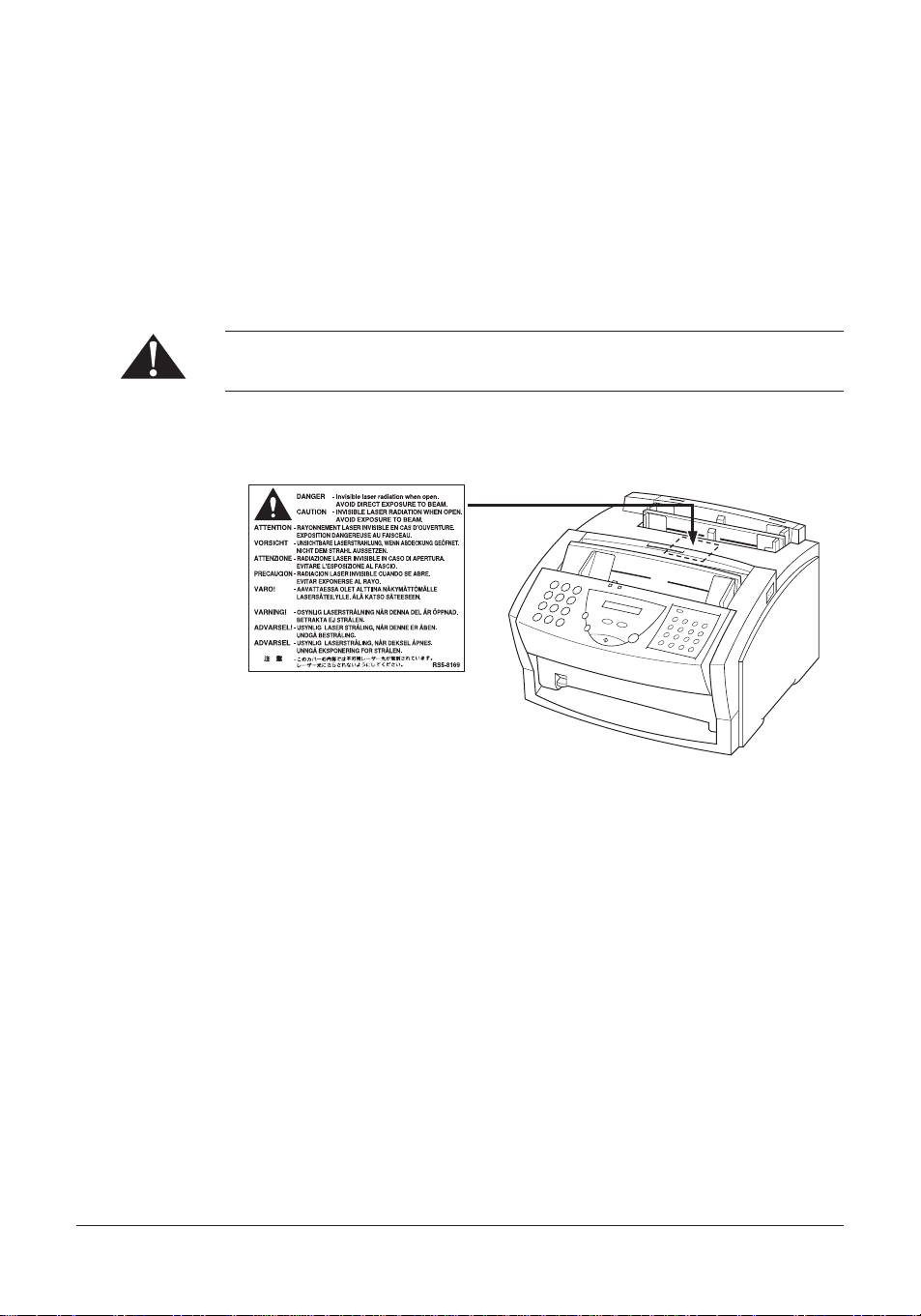
This label is attached to the laser scanner unit inside the MultiPASS L60 and is
not in a user access area.
vi Preface
Page 7

Contents
Chapter 1 Introducing the MultiPASS L60 ............................................................................... 1-1
Welcome ....................................................................................................................... 1-2
The Main Features of the MultiPASS L60 .............................................................. 1-3
Plain Paper Fax Features ................................................................................ 1-4
Printer Features ............................................................................................... 1-5
Copier Features ............................................................................................... 1-6
PC Fax Features ............................................................................................... 1-6
Scanner Features ............................................................................................. 1-7
Telephone Features ......................................................................................... 1-8
Using the MultiPASS L60 With the MultiPASS Desktop Manager
for WindowsH ........................................................................................................... 1-9
System Requirements ................................................................................... 1-10
Using Your Documentation .................................................................................... 1-11
How to Use This User’s Guide .................................................................... 1-11
Type Conventions Used in This User’s Guide ........................................... 1-13
Customer Support ..................................................................................................... 1-14
Safety Instructions .................................................................................................... 1-15
Chapter 2 Setting Up Your MultiPASS L60 .............................................................................. 2-1
Choosing a Location for Your MultiPASS L60 ...................................................... 2-3
Dimensions ....................................................................................................... 2-4
Unpacking Your MultiPASS L60 .............................................................................. 2-5
Do You Have Everything? ............................................................................. 2-5
Lifting the MultiPASS L60 ............................................................................. 2-8
Removing Shipping Materials ........................................................................ 2-9
Replaceable Parts .......................................................................................... 2-11
Assembling the MultiPASS L60 .............................................................................. 2-12
Attaching Components ................................................................................. 2-12
Attaching the Paper Rest .................................................................. 2-12
Attaching the Paper Loading Label ................................................ 2-13
Attaching the Extension Tray ........................................................... 2-13
Attaching the Support Trays ............................................................. 2-14
Making Connections ................................................................................................. 2-15
Connecting the MultiPASS L60 to Your PC .............................................. 2-15
Connecting the Telephone Line .................................................................. 2-16
Connecting the Optional Handset, a Telephone,
or Answering Machine .............................................................................. 2-17
Connecting the Power Cord ......................................................................... 2-18
viiContents
Page 8

Getting Acquainted With Your MultiPASS L60 .................................................. 2-20
Front View ...................................................................................................... 2-20
Inside View ..................................................................................................... 2-21
Rear View ....................................................................................................... 2-22
The Handset (Option) .................................................................................. 2-22
The Operation Panel ..................................................................................... 2-23
Special Function Buttons .................................................................. 2-25
The Toner Cartridge ................................................................................................. 2-27
Handling and Storing Cartridges ................................................................. 2-27
Installing/Replacing the Toner Cartridge ................................................... 2-29
Loading Recording Paper ........................................................................................ 2-35
Testing the MultiPASS L60 ...................................................................................... 2-39
Chapter 3 Registering Information in the MultiPASS L60 ..................................................... 3-1
Methods for Registering Information in the MultiPASS L60 ............................... 3-2
Guidelines for Entering Information Via the Operation Panel ........................... 3-3
Entering Numbers, Letters, and Symbols .................................................... 3-4
Editing Information ............................................................................. 3-6
Using the One-Touch Speed Dial/Special Function Buttons .................... 3-7
Using the Menu System .................................................................................. 3-7
Personalising Your MultiPASS L60 ........................................................................ 3-10
Identifying Your Documents ........................................................................ 3-10
Entering the Date and Time ........................................................................ 3-11
Registering Your Fax Number and Name .................................................. 3-12
Setting the Telephone Line Type ................................................................. 3-14
Chapter 4 Paper Handling ........................................................................................................... 4-1
Guidelines for Selecting Print Media ....................................................................... 4-2
Plain Paper ....................................................................................................... 4-4
Envelopes ......................................................................................................... 4-4
Labels ................................................................................................................ 4-5
Transparencies .................................................................................................. 4-5
The Paper Path ............................................................................................................ 4-6
Selecting Paper Delivery ............................................................................................ 4-7
Face-Down Delivery ....................................................................................... 4-8
Face-Up Delivery ............................................................................................. 4-9
Loading Paper in the Multi-Purpose Tray ............................................................. 4-11
Loading Envelopes in the Multi-Purpose Tray ..................................................... 4-12
Loading Paper Manually .......................................................................................... 4-15
viii Contents
Page 9

Chapter 5 Speed Dialling ............................................................................................................. 5-1
Speed Dialling Methods ............................................................................................. 5-2
One-Touch Speed Dialling ......................................................................................... 5-3
Storing Numbers for One-Touch Speed Dialling ........................................ 5-3
Changing a Number/Name Stored Under a One-Touch Speed Dialling
Button ........................................................................................................... 5-6
Using One-Touch Speed Dialling .................................................................. 5-9
Coded Speed Dialling ............................................................................................... 5-11
Storing Numbers for Coded Speed Dialling .............................................. 5-11
Changing a Number/Name Stored Under a Coded Speed
Dialling Code ............................................................................................. 5-14
Using Coded Speed Dialling ........................................................................ 5-17
Group Dialling .......................................................................................................... 5-19
Creating Groups for Group Dialling .......................................................... 5-19
Using Group Dialling .................................................................................... 5-23
Chapter 6 Sending Faxes .............................................................................................................. 6-1
Preparing to Send a Fax ............................................................................................. 6-3
Document Requirements ............................................................................... 6-3
Scanning Area ...................................................................................... 6-5
Selecting Automatic/Manual Document Feed ............................................. 6-6
Loading Documents for Automatic Feed ......................................... 6-7
Loading Documents for Manual Feed ............................................ 6-11
Setting the Resolution and Contrast ........................................................... 6-13
Setting the Scanning Resolution ...................................................... 6-13
Setting the Scanning Contrast .......................................................... 6-14
Sending Methods ........................................................................................... 6-16
Manual Sending Via the Handset .................................................... 6-16
Memory Sending ................................................................................ 6-16
Dialling Methods ........................................................................................... 6-17
Sending Documents .................................................................................................. 6-18
Manual Sending Via the Handset ................................................................ 6-18
Memory Sending ............................................................................................ 6-20
Adding Pages to the Document in the Automatic Document Feeder (ADF) . 6-22
Cancelling Sending ................................................................................................... 6-23
Removing the Document From the Automatic Document Feeder
(ADF) ......................................................................................................... 6-24
ixContents
Page 10

Redialling ................................................................................................................... 6-26
Manual Redialling ......................................................................................... 6-26
Automatic Redialling With Memory Sending ........................................... 6-26
Cancelling Automatic Redialling ..................................................... 6-27
Setting Up Automatic Redialling ..................................................... 6-28
Sequential Broadcasting ........................................................................................... 6-31
Sending a Document to More Than One Destination ............................. 6-31
Sending a Document Using Group Dialling .............................................. 6-33
Delayed Sending ....................................................................................................... 6-34
Sending Other Documents While the MultiPASS L60 is Set for
Delayed Sending ........................................................................................ 6-36
Documents Stored in Memory ................................................................................ 6-37
Printing a List of Documents Stored in Memory ...................................... 6-37
Deleting a Document Stored in Memory ................................................... 6-39
Resending a Document that Encountered an Error ................................. 6-40
Sending With the Password/Subaddress Feature .................................................. 6-42
Using Alternative Telephone Networks (UK Only) ............................................ 6-45
Attaching the M Label .................................................................................. 6-45
Registering an Alternative Telephone Network ....................................... 6-46
Sending With an Alternative Telephone Network .................................... 6-48
Registering Speed Dialling With the M Button ........................................ 6-49
Chapter 7 Receiving Faxes ........................................................................................................... 7-1
Different Ways to Receive a Fax .............................................................................. 7-2
Setting the Receive Mode .............................................................................. 7-3
Receiving Faxes and Phone Calls Automatically: Fax/Tel Mode .............. 7-4
Setting Up Fax/Tel Mode .................................................................... 7-4
What Happens When Fax/Tel Mode is Selected .............................. 7-6
Receiving Faxes Manually: MANUAL MODE .......................................... 7-9
Receiving Faxes Automatically: FAX ONLY MODE .............................. 7-11
Using an Answering Machine: ANS.MACHINE MODE ....................... 7-12
Using the MultiPASS L60 With an Answering Machine .............. 7-12
Documents Received in Memory ........................................................................... 7-13
Messages Displayed When Documents are Received in Memory ......... 7-13
Printing Documents Received in Memory ................................................. 7-14
Receiving While Registering, Copying, or Printing .................................. 7-15
Cancelling an Incoming Fax .................................................................................... 7-16
Polling to Receive Faxes .......................................................................................... 7-17
Polling a Fax Machine ................................................................................... 7-17
x Contents
Page 11

Chapter 8 Special Features .......................................................................................................... 8-1
Special Dialling ........................................................................................................... 8-2
Dialling Through a Switchboard ................................................................... 8-2
Registering the Access Type and Outside Line Access Number
Under the R Button ......................................................................... 8-2
Long Distance Dialling ................................................................................... 8-4
How to Enter Pauses ........................................................................... 8-4
Confirming a Dial Tone .................................................................................. 8-5
Using Tone Dialling On a Pulse Line ........................................................... 8-6
Restricting Use of the MultiPASS L60 .................................................................... 8-7
Chapter 9 Making Copies ............................................................................................................. 9-1
Making Copies ............................................................................................................. 9-2
Chapter 10 Reports and Lists ...................................................................................................... 10-1
Activity Report ......................................................................................................... 10-2
Transmission (TX) Reports ..................................................................................... 10-3
Error TX Report ........................................................................................... 10-3
TX Report ...................................................................................................... 10-4
Multi TX/RX Report .................................................................................... 10-5
Reception (RX) Report ........................................................................................... 10-6
Memory Clear Report .............................................................................................. 10-7
User’s Data List ........................................................................................................ 10-8
Speed Dialling Lists ................................................................................................ 10-10
One-Touch Speed Dial List ........................................................................ 10-11
Coded Speed Dial List ................................................................................ 10-11
Group Dial List ............................................................................................ 10-11
xiContents
Page 12

Chapter 11 Frequently Asked Questions ................................................................................... 11-1
If You Cannot Solve the Problem .......................................................................... 11-2
Problems Index ......................................................................................................... 11-3
Paper Jams ...................................................................................................... 11-5
Jams in the Automatic Document Feeder (ADF)? ....................... 11-5
Jams in the Output Slots? ................................................................. 11-8
Jams Inside the Unit? ........................................................................ 11-9
Jams in the Front Area of the Unit? ............................................. 11-14
After Clearing a Paper Jam ............................................................ 11-17
Problems Feeding Paper into the MultiPASS L60 .................................. 11-18
Faxing Problems ........................................................................................... 11-21
Sending Faxes ................................................................................... 11-21
Receiving Faxes ................................................................................ 11-24
Telephone Problems .................................................................................... 11-27
Copying Problems ....................................................................................... 11-28
Printing Problems ........................................................................................ 11-29
Print Quality Problems ............................................................................... 11-33
General Problems ........................................................................................ 11-34
If a Power Cut Occurs ............................................................................................ 11-35
Error Codes, Messages, and Solutions ................................................................. 11-36
Chapter 12 Maintaining Your MultiPASS L60 ......................................................................... 12-1
Cleaning the MultiPASS L60 ................................................................................... 12-2
Cleaning the MultiPASS L60 Exterior ....................................................... 12-2
Cleaning the Inside of the MultiPASS L60 ................................................ 12-3
Cleaning the Scanner Components ............................................................. 12-6
Replacing the Toner Cartridge ................................................................................ 12-9
Transporting the MultiPASS L60 .......................................................................... 12-10
Chapter 13 The Menu System ..................................................................................................... 13-1
Understanding the Menu System ........................................................................... 13-2
Accessing the TEL REGISTRATION Menu ....................................................... 13-2
Accessing the USER SETTINGS Menu ............................................................... 13-4
Accessing the REPORT SETTINGS Menu ......................................................... 13-6
Accessing the TX SETTINGS Menu ..................................................................... 13-8
Accessing the RX SETTINGS Menu ................................................................... 13-10
Accessing the FAX PRINTER Menu .................................................................. 13-12
Accessing the SYSTEM SETTINGS Menu ........................................................ 13-14
xii Contents
Page 13

Appendix A Specifications .............................................................................................................. A-1
General ....................................................................................................................... A-2
Plain Paper Fax .......................................................................................................... A-4
Copier .......................................................................................................................... A-6
Telephone ................................................................................................................... A-6
Printer ......................................................................................................................... A-7
Printable Area: Papers .................................................................................. A-8
Printable Area: Envelopes ............................................................................ A-9
Scanner ........................................................................................................................ A-9
Document Sizes ....................................................................................................... A-11
PC Interface ............................................................................................................. A-13
MultiPASS Desktop Manager for WindowsH ...................................................... A-13
Appendix B Options ........................................................................................................................ B-1
Optional Handset ....................................................................................................... B-2
Package Contents ........................................................................................... B-2
Attaching the Handset to Your Unit ........................................................... B-3
Control Panel and Functions ........................................................................ B-6
Maintaining Your Handset ............................................................................ B-8
Glossary ...................................................................................................................................... G-1
Index ....................................................................................................................................... I-1
xiiiContents
Page 14

xiv Contents
Page 15

Chapter 1
Introducing the MultiPASS L60
This chapter introduces you to the main features of the MultiPASS L60. It also
explains how to get the most out of the documentation that comes with the unit,
and gives important safety instructions.
Welcome ....................................................................................................................... 1-2
The Main Features of the MultiPASS L60 .............................................................. 1-3
Plain Paper Fax Features ................................................................................ 1-4
Printer Features ............................................................................................... 1-5
Copier Features ............................................................................................... 1-6
PC Fax Features ............................................................................................... 1-6
Scanner Features ............................................................................................. 1-7
Telephone Features ......................................................................................... 1-8
Using the MultiPASS L60 With the MultiPASS Desktop Manager
for WindowsH ........................................................................................................... 1-9
System Requirements ................................................................................... 1-10
Using Your Documentation .................................................................................... 1-11
How to Use This User’s Guide .................................................................... 1-11
Type Conventions Used in This User’s Guide ........................................... 1-13
Customer Support ..................................................................................................... 1-14
Safety Instructions .................................................................................................... 1-15
1-1Chapter 1 Introducing the MultiPASS L60
Page 16
Welcome
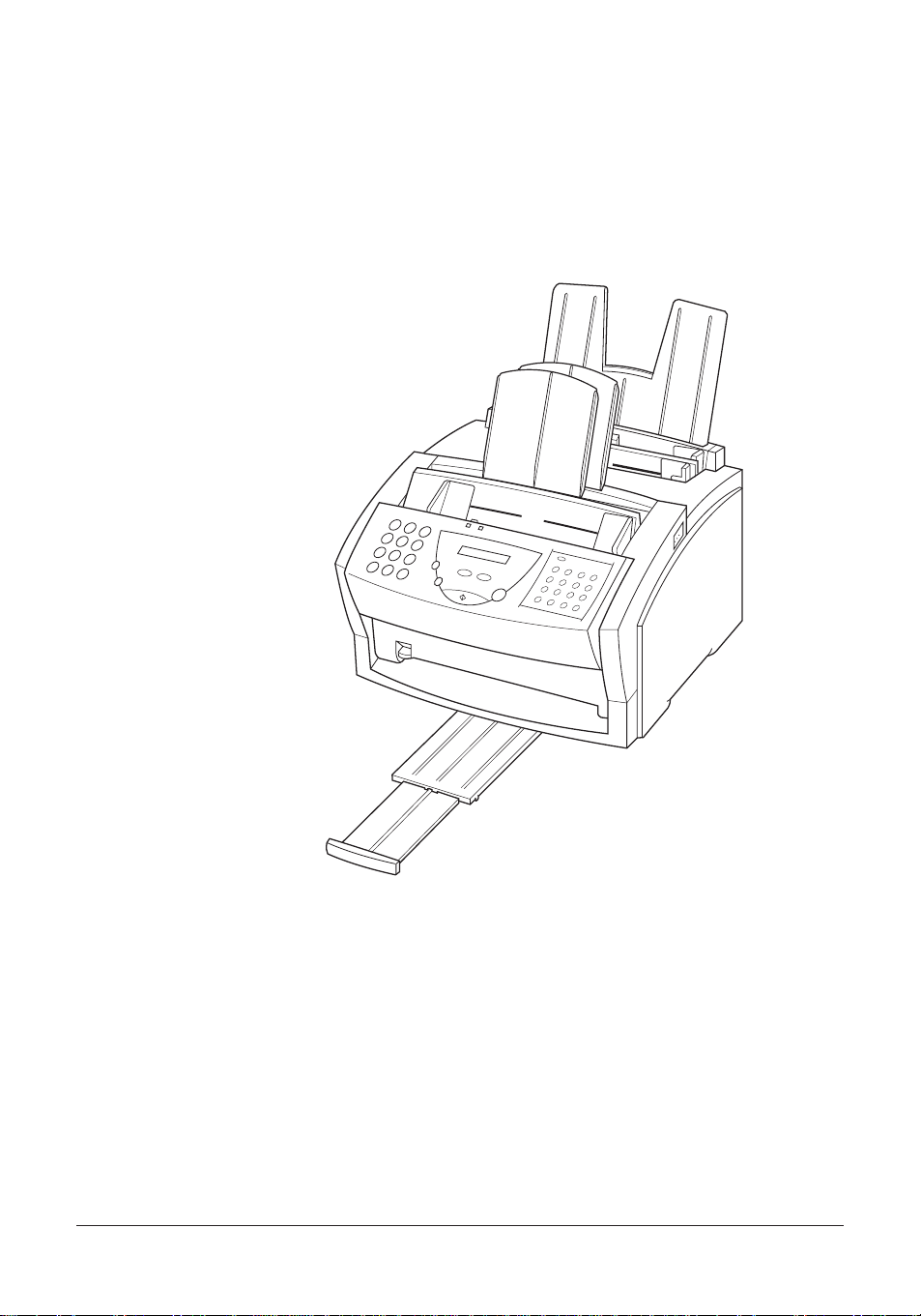
Thank you for purchasing the new Canon MultiPASS L60. We are sure that your
MultiPASS L60 will help meet your fax and phone requirements easily and
conveniently, as well as your printing, copying, and scanning needs.
1-2 Chapter 1Introducing the MultiPASS L60
Page 17

The Main Features of the MultiPASS L60
The MultiPASS L60 is a complete multifunction system for your home or small
office. The MultiPASS L60 combines the following essential office machines into
a single, convenient desktop unit:
J Plain Paper Fax Machine J Printer
J Copier J PC Fax
J Scanner J Telephone*
Your MultiPASS L60 also includes the MultiPASS Desktop Manager for
WindowsH. This exclusive Canon software package provides you with a ”PC Fax”
– you can print, fax, scan, and use the telephone from within your PC’s Windows
environment.
The MultiPASS L60’s multitasking ability enables you to perform a number of
operations simultaneously. For example, you can print, scan a document, or make
copies at the same time you are sending a fax or receiving a fax into memory.
The compact size of the MultiPASS L60 makes it ideal for desktop use, and
allows you to use it in places where other machines may not fit.
* Requires the optional handset, a telephone, or an answering machine.
1-3Chapter 1 Introducing the MultiPASS L60
Page 18

Plain Paper Fax Features
UHQTMImage Processing System
The MultiPASS L60 uses Canon’s Ultra-High Quality Image Processing System
to provide enhanced definition in faxed photos.
Error Correction Mode (ECM)
Using the MultiPASS L60’s Error Correction Mode (ECM) reduces transmission
errors when sending faxes to or receiving faxes from other fax machines that also
have ECM capability.
Automatic switching between fax and voice calls
The MultiPASS L60 can automatically distinguish between fax calls and normal
telephone calls, so that you can receive both through a single phone line.
Answering machine connection
You can connect an answering machine to the MultiPASS L60 to let it receive
telephone messages and faxes while you are away from your desk.
Transmission speed
The MultiPASS L60 uses G3 data encoding methods that increase transmission
speed to approximately 6 seconds* per page.
Memory sending/receiving
The MultiPASS L60 can store up to 90* fax pages (either received or to be sent)
in its built-in memory, and can receive faxes while printing or even when your PC
is turned off.
Reduced-size printing
The MultiPASS L60 automatically scales received faxes to fit the size of the paper
loaded in the multi-purpose tray. So if your client is sending you a fax on paper
larger than an A4-size page and you have A4-size paper in the multi-purpose
tray, the fax will be scaled down and printed on A4-size paper.
Automatic dialling and broadcasting
To make faxing even easier, the MultiPASS L60 provides several automatic
dialling methods: coded speed dialling, one-touch speed dialling, and group
dialling. The MultiPASS L60 also enables you to broadcast faxes or send faxes at
a preset time to as many as 117 locations at once.
* Based on Canon FAX Standard Chart No.1, standard mode
1-4 Chapter 1Introducing the MultiPASS L60
Page 19

Point-and-click dialling
The MultiPASS Desktop Manager enables you to select a fax number and dial
directly from your PC’s screen with a simple click of the mouse.
Flexible document feeding
The MultiPASS L60 includes an Automatic Document Feeder (ADF) that can be
set for automatic document feed or manual document feed according to your
needs. This allows you to fax a variety of documents, from multipage documents
(up to 20 A4- or letter-size pages, or 10 legal-size pages at a time), to a single
photo or business card.
Printer Features
Excellent print quality and speed
The MultiPASS L60 offers 600 × 600 dpi laser beam printing, providing you with
high resolution text and graphics. The exceptional printing speed of 6 pages per
minute allows you to work more effectively.
Simple maintenance
The FX-3 toner cartridge for the MultiPASS L60 contains both the toner and the
drum, making installation and replacement simple and clean.
Convenient paper handling
The MultiPASS L60 multi-purpose tray holds up to 100 sheets* of plain A4,
letter, or legal size paper; 7 envelopes; 1 transparency; or labels (up to 10 mm
stack height).
In addition to the multi-purpose tray, the manual feed slot allows you to feed
print media of different sizes and thicknesses, one at a time.
Economy toner-saving printing
The MultiPASS L60 includes an economy printing mode that uses up to
approximately 50% less toner, resulting in longer cartridge life.
* 75 g/m2paper
1-5Chapter 1 Introducing the MultiPASS L60
Page 20

Copier Features
Up to 99 copies
The MultiPASS L60 can make up to 99 copies of a document at a time, at a rate
of up to six copies per minute.
600 dpi and 300 dpi resolution
The MultiPASS L60 copies documents at 600 × 300 dpi when using direct
copying, and 300 × 300 dpi when using memory copying.
Copy reduction
The MultiPASS L60 can reduce copies to 90%, 80%, or 70% of their original size.
This allows you to copy legal-size documents onto A4-size paper, for example.
PC Fax Features
Fax/telephone address book
You can create an unlimited list of people to call and/or to whom you can send
PC documents.
Fax viewer
In the MultiPASS viewer not only can you view a PC fax document, but you can
also zoom, rotate, save, print, and copy it to the clipboard.
Fax distribution lists
Send fax broadcasts to any number of destinations with a click of your mouse.
Custom cover sheets
Allows you to attach a cover sheet to each PC fax you send.
Transmission speed
Approximately six seconds* per page with ECM.
* Based on Canon FAX Standard Chart No.1, standard mode
1-6 Chapter 1Introducing the MultiPASS L60
Page 21

Scanner Features
Automatic Document Feeder (ADF)
The MultiPASS L60 includes an Automatic Document Feeder (ADF) that makes
it easy to scan up to 20 pages* at a time when using Windows applications that
support the TWAIN scanning standard (see below).
The Automatic Document Feeder (ADF) can also be set to manual feeding
which allows you, for example, to scan a photo or a business card with minimum
damage to the surface.
600 dpi resolution
You can scan documents into the MultiPASS Desktop Manager or any
application that supports the TWAIN standard at a resolution of up to
600 × 600 dpi.
TWAIN compatible
The MultiPASS L60 supports the TWAIN scanning standard, which allows you to
scan images using any graphics or optical character recognition (OCR)
application that also supports the TWAIN standard.
256-level greyscale
When you use the greyscale settings in the MultiPASS Desktop Manager, you can
scan images with 256 levels of grey, rather than just in black and white, ensuring
that the images are reproduced as clearly as possible.
* 20 A4- or letter-size pages, or 10 legal size pages.
1-7Chapter 1 Introducing the MultiPASS L60
Page 22

Telephone Features
Automatic dialling
The MultiPASS L60’s three automatic dialling methods (one-touch speed dialling,
coded speed dialling, and group dialling) can be used to store phone numbers and
fax numbers for easy and efficient calling.
Connection for the optional handset, an answering machine or a telephone
Connecting the optional handset or a telephone to the MultiPASS L60 allows you
to use it to make and receive normal telephone calls. In addition, connecting an
answering machine allows you to receive faxes and phone messages while you are
away from your desk.
Point-and-click dialling
The MultiPASS Desktop Manager enables you to select a phone number and dial
directly from your PC’s screen with a simple click of the mouse.
1-8 Chapter 1Introducing the MultiPASS L60
Page 23

Using the MultiPASS L60 With the MultiPASS
Desktop Manager for Windows
Canon’s MultiPASS Desktop Manager for WindowsH allows you to use the
MultiPASS L60’s printing, faxing, scanning, and telephone functions directly from
your PC.
J Use the MultiPASS L60 as the default printer for Windows applications
J Send faxes from the MultiPASS L60 using any Windows application that
allows printing
J Scan documents into the MultiPASS Desktop Manager or any Windows
application that supports the TWAIN scanning standard
J Store an unlimited list of fax and phone numbers in a fax/telephone address
book on your PC
J View faxes on your PC’s monitor, as well as save, rotate, or print them, or
copy them to the PC’s clipboard
J Broadcast faxes from your PC to any number of destinations
J Attach custom cover sheets to each fax you send from your PC
The MultiPASS Desktop Manager package also includes a utility program that
helps you troubleshoot the interface between your computer and the MultiPASS
L60.
For more information on using the MultiPASS Desktop Manager with your
MultiPASS L60, refer to the MultiPASS Desktop Manager User’s Guide.
H
1-9Chapter 1 Introducing the MultiPASS L60
Page 24

System Requirements
The following hardware and software are necessary to operate the MultiPASS
Desktop Manager with the MultiPASS L60. These are the minimum
requirements.
J IBMH PC or compatible computer with a 486DX or higher processor
J MicrosoftH WindowsH 95/98
J At least 16 megabytes (MB) of RAM
J At least 17 megabytes (MB) of available hard disk space
J VGA monitor or greater
J Bi-directional CentronicsH-compatible parallel cable, no longer than 2 metres
and IEEE 1284-compliant
J CD ROM drive
1-10 Chapter 1Introducing the MultiPASS L60
Page 25

Using Your Documentation
Your MultiPASS L60 includes the following documentation to help you learn
how to use your unit quickly and easily:
J MultiPASS L60 User’s Guide (this guide) – This guide provides detailed
information on how to set up, operate, maintain, and troubleshoot your
MultiPASS L60.
J MultiPASS Desktop Manager for WindowsH User’s Guide – This guide
describes how to use your MultiPASS L60 to print, scan, and fax from within
your PC’s Windows environment. Refer to this guide whenever you need
information about printing, scanning, or faxing from your PC.
Please note that all settings of the MultiPASS L60 can also be adjusted using your
MultiPASS Desktop Manager for Windows software. For details, refer to the
MultiPASS Desktop Manager User’s Guide.
How to Use This User’s Guide
To make the best use of this user’s guide in learning how to set up and operate
your MultiPASS L60, be sure to do the following:
J Read this chapter to learn about the MultiPASS L60’s main features and for
guidelines on using the unit safely.
J Carefully follow the instructions in Chapter 2, ”Setting Up Your MultiPASS
L60” to get your unit unpacked and assembled properly.
J Read Chapter 3 to learn how to enter information in the MultiPASS L60 and
to register your user information.
J Read Chapter 4 to learn about the types of print media you can use with your
MultiPASS L60, and for instructions on selecting paper delivery and loading
paper.
J Read Chapter 5 to learn how to register numbers for speed dialling, how to
change them, and how to use speed dialling to send faxes.
J Read Chapters 6 through 9 to master the MultiPASS L60 operating
procedures (such as sending faxes, receiving faxes and making copies) and to
learn more about its special features (such as restricting use of the unit and
special dialling features).
1-11Chapter 1 Introducing the MultiPASS L60
Page 26

J Refer to Chapter 10 to learn about the reports and lists that can be
automatically or manually printed from your MultiPASS L60.
J If your MultiPASS L60 begins operating improperly, use Chapter 11,
”Frequently Asked Questions,” to try to solve the problem.
J Look over Chapter 12, ”Maintaining Your MultiPASS L60” to become
familiar with procedures for cleaning your MultiPASS L60 and replacing the
toner cartridge.
J Refer to Chapter 13 ”The Menu System” to learn how to change settings of
the MultiPASS L60 from the operation panel.
J Refer to Appendix A for the MultiPASS L60 technical specifications.
J If you have purchased the optional handset, refer to Appendix B for
instructions on attaching the handset to your MultiPASS L60 and for details
on its functions.
If you still have questions about how to use your MultiPASS L60, please contact
your local authorised Canon dealer or the Canon help line. They will be happy to
answer your questions.
1-12 Chapter 1Introducing the MultiPASS L60
Page 27

Type Conventions Used in This User’s Guide
This user’s guide follows the conventions below to emphasise certain information
that will help you use your MultiPASS L60 correctly and safely:
Cautions tell you how to avoid actions that could injure you or damage your
MultiPASS L60.
Notes provide advice for using your MultiPASS L60 more effectively, describe
operating restrictions, and tell how to avoid minor operating difficulties.
In addition, this user’s guide uses bold capital letters to show the names of
buttons and switches on the MultiPASS L60, such as FUNCTION, STOP, and
START/COPY. Text that appears in the unit’s display is shown in plain capital
letters, such as: RECEPTION OK.
1-13Chapter 1 Introducing the MultiPASS L60
Page 28

Customer Support
Your MultiPASS L60 is designed with the latest technology to provide troublefree operation.
If you have a problem with the unit’s operation, try to solve it by refering to the
information in Chapter 11, ”Frequently Asked Questions”. If you cannot solve
the problem or if you think your MultiPASS L60 needs service, contact your local
authorised Canon dealer or the Canon help line.
1-14 Chapter 1Introducing the MultiPASS L60
Page 29

Safety Instructions
Read these safety instructions thoroughly before using your MultiPASS L60, and
keep them handy in case you need to refer to them later.
Except as specifically described in this user’s guide, do not attempt to service the
MultiPASS L60 yourself. Never attempt to disassemble the unit: opening and
removing its interior covers will expose you to dangerous voltages and other
risks. For all service, contact your local authorised Canon dealer or the Canon
help line.
J Always follow all warnings and instructions marked on the MultiPASS L60.
J Use the MultiPASS L60 only on a sturdy, stable, level surface. If the unit falls,
it could be seriously damaged.
J Do not use the MultiPASS L60 near water. If you spill liquid on or into the
unit, unplug it immediately and call your local authorised Canon dealer or the
Canon help line.
J The back of the MultiPASS L60 includes slots and openings for ventilation. To
keep the MultiPASS L60 from overheating (which can cause it to operate
abnormally and create a fire risk), take care not to block or cover these
openings. Do not operate the unit on a bed, sofa, rug, or other similar soft
surface, or near a radiator or other heat source. Do not place the MultiPASS
L60 in a cupboard or cabinet or on shelves unless adequate ventilation is
available. See ”Choosing a Location for Your MultiPASS L60” on page 2-3 for
guidelines on how much space the unit needs for ventilation.
J Operate the MultiPASS L60 only from the type of power source indicated on
the unit’s label. If you are unsure of the type of power available from your
wall outlets, contact your local power company.
J Make sure the total amperage used by all devices plugged into the wall outlet
does not exceed the ampere rating of the outlet’s circuit breaker.
J Do not allow anything to rest on the power cord or place the MultiPASS L60
where the cord will be walked on. Make sure the cord is not knotted or
kinked.
1-15Chapter 1 Introducing the MultiPASS L60
Page 30
J Do not insert objects of any kind into the slots or openings on the MultiPASS
L60’s cabinet, as they could touch dangerous voltage points or short out parts,
and result in fire or electric shock.
J Do not allow small objects (such as pins, paper clips, or staples) to fall into the
MultiPASS L60. If something does fall into it, unplug the unit immediately
and call your local authorised Canon dealer or the Canon help line.
J Do not plug the power cord into an uninterruptible power supply (UPS).
J Always unplug the MultiPASS L60 before moving or cleaning it.
J Whenever you unplug the MultiPASS L60, wait at least five seconds before
you plug it back in.
J Keep the MultiPASS L60 away from direct sunlight, as this can damage it. If
you have to place it near a window, install heavy curtains or blinds.
J Do not expose the MultiPASS L60 to extreme temperature fluctuations.
Install the unit in a place with temperatures between 10! and 32.5!C.
J Always unplug the MultiPASS L60 during thunderstorms.
J Before you transport the MultiPASS L60, remove the toner cartridge.
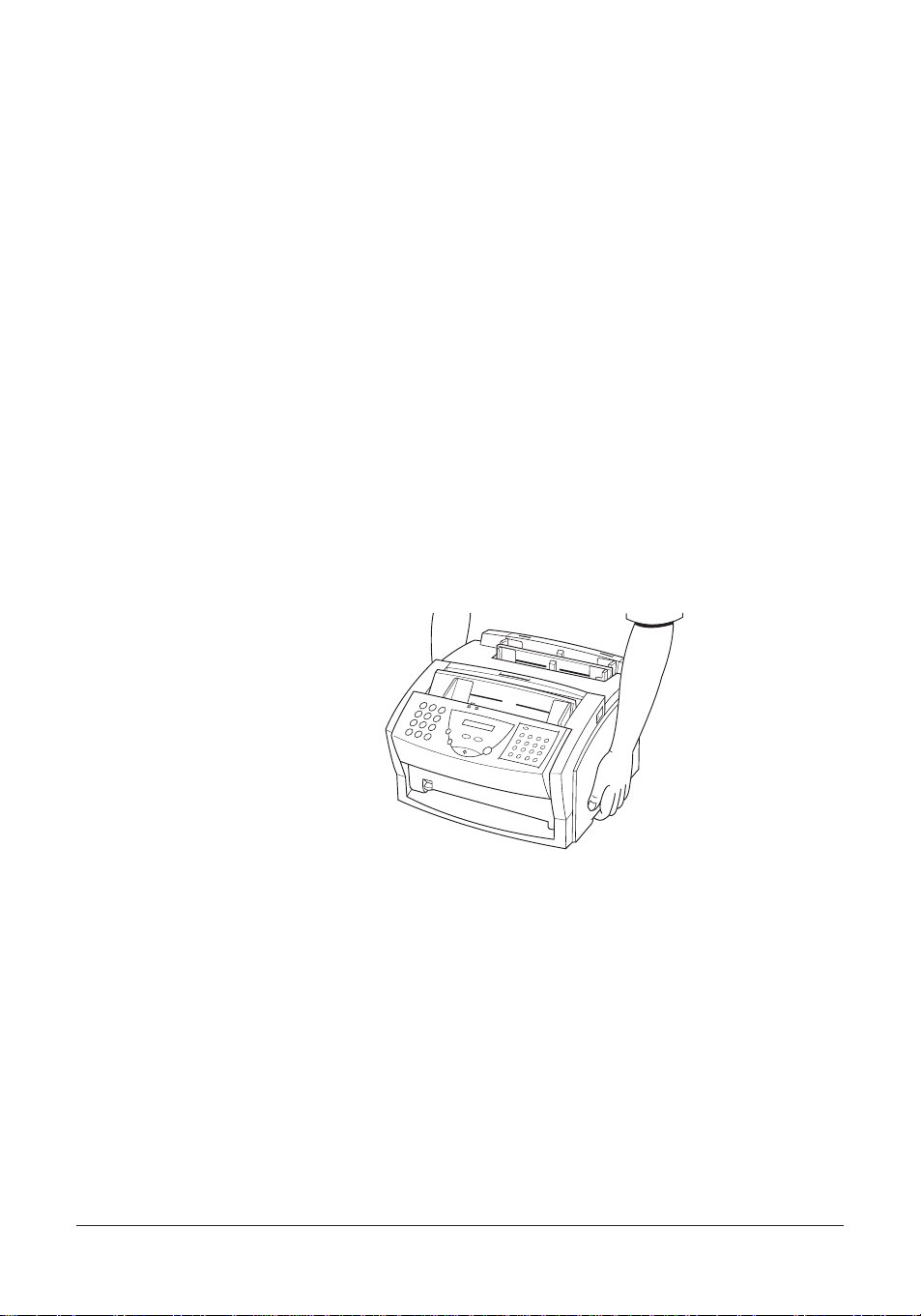
J Always lift the MultiPASS L60 as shown below. Never lift it by its multi-
purpose tray or other supports.
1-16 Chapter 1Introducing the MultiPASS L60
Page 31

Unplug the MultiPASS L60 and contact your local authorised Canon dealer or
the Canon help line in any of these situations:
J If the power cord or plug is damaged or frayed.
J If liquid spills into the unit, or if it is otherwise exposed to rain or liquids.
J If you notice smoke or unusual noises or odour coming from it.
J If the MultiPASS L60 does not operate normally when you follow the
operating instructions. Adjust only those controls that are covered by the
operating instructions in this user’s guide, or you can damage the unit and
require extensive repair work.
J If the MultiPASS L60 is dropped or its cabinet damaged.
J If the MultiPASS L60 begins performing poorly, and you cannot correct the
problem by following the procedures in Chapter 11, ”Frequently Asked
Questions”.
1-17Chapter 1 Introducing the MultiPASS L60
Page 32

1-18 Chapter 1Introducing the MultiPASS L60
Page 33

Chapter 2
Setting Up Your MultiPASS L60
This chapter tells you how to unpack, assemble, and connect your MultiPASS
L60, install the FX-3 toner cartridge, and load paper– everything you need to
know to get your MultiPASS L60 ready to use.
Choosing a Location for Your MultiPASS L60 ...................................................... 2-3
Dimensions ....................................................................................................... 2-4
Unpacking Your MultiPASS L60 .............................................................................. 2-5
Do You Have Everything? ............................................................................. 2-5
Lifting the MultiPASS L60 ............................................................................. 2-8
Removing Shipping Materials ........................................................................ 2-9
Replaceable Parts .......................................................................................... 2-11
Assembling the MultiPASS L60 .............................................................................. 2-12
Attaching Components ................................................................................. 2-12
Attaching the Paper Rest .................................................................. 2-12
Attaching the Paper Loading Label ................................................ 2-13
Attaching the Extension Tray ........................................................... 2-13
Attaching the Support Trays ............................................................. 2-14
Making Connections ................................................................................................. 2-15
Connecting the MultiPASS L60 to Your PC .............................................. 2-15
Connecting the Telephone Line .................................................................. 2-16
Connecting the Optional Handset, a Telephone, or Answering
Machine ...................................................................................................... 2-17
Connecting the Power Cord ......................................................................... 2-18
Getting Acquainted With Your MultiPASS L60 .................................................. 2-20
Front View ...................................................................................................... 2-20
Inside View ..................................................................................................... 2-21
Rear View ....................................................................................................... 2-22
The Handset (Option) .................................................................................. 2-22
The Operation Panel ..................................................................................... 2-23
Special Function Buttons .................................................................. 2-25
2-1Chapter 2 Setting Up Your MultiPASS L60
Page 34

The Toner Cartridge ................................................................................................. 2-27
Handling and Storing Cartridges ................................................................. 2-27
Installing/Replacing the Toner Cartridge ................................................... 2-29
Loading Recording Paper ........................................................................................ 2-35
Testing the MultiPASS L60 ...................................................................................... 2-39
2-2 Chapter 2Setting Up Your MultiPASS L60
Page 35

Choosing a Location for Your MultiPASS L60
Before unpacking your MultiPASS L60, follow these guidelines to choose an
appropriate location for the unit.
Please review the information provided in ”Safety Instructions” on pages 1-15 to
1-17, to make sure you are installing your MultiPASS L60 for safe use.
J Put the MultiPASS L60 in a cool, dry, clean, well ventilated place:
I Make sure the area is free from dust.
I Make sure the location is not affected by extreme temperature
fluctuations, and remains between 10! and 32.5!C.
I Make sure the area’s relative humidity is always between 20% and 80%.
J Keep the MultiPASS L60 away from direct sunlight.
J If possible, place the MultiPASS L60 near an existing telephone outlet, to
allow for an easy connection of the telephone line to the unit.
J Place the MultiPASS L60 near an electrical wall outlet that provides 200 to
240-volt AC (50 to 60 Hz) power.
J Place the MultiPASS L60 near the PC you will be connecting it to. Make sure
you can reach it easily, as you will be using the MultiPASS L60 as a printer,
fax machine, copier, scanner, and telephone.
J Do not plug the MultiPASS L60 into the same circuit as an appliance such as
an air conditioner, electric typewriter, television, or copier. Such devices
generate electrical noise that can interfere with your unit’s ability to send or
receive faxes.
J Set the MultiPASS L60 on a flat, stable, vibration-free surface that is strong
enough to support its weight (about 8.6 kg).
2-3Chapter 2 Setting Up Your MultiPASS L60
Page 36

Dimensions
Make sure the location you choose provides enough space around the MultiPASS
L60 for adequate ventilation, and to allow paper to flow freely into and out of the
unit. The figure below shows the minimum space required for the unit.
TOP VIEW
SIDE VIEW
BOTTOM VIEW
390 mm
242 mm
685 mm
365 mm
437.5 mm
365 mm
If you need help installing your MultiPASS L60 or have any questions about it,
please contact your local authorised Canon dealer or the Canon help line.
2-4 Chapter 2Setting Up Your MultiPASS L60
Page 37

Unpacking Your MultiPASS L60
Follow the directions below to unpack your MultiPASS L60 properly, and to
make sure you have all of its components and documentation.
Do You Have Everything?
As you unpack the MultiPASS L60, save the carton and packing material in case
you want to move or ship the unit in the future.
1. Carefully remove all items from the box. You should have someone help by
holding the box while you lift the MultiPASS L60 and its protective
packaging out of the carton.
FX-3 TONER CARTRIDGE
EXTENSION TRAY
MultiPASS L60
SUPPORT TRAYS
PAPER REST
MultiPASS L60 USER’S GUIDE
MultiPASS DESKTOP MANAGER FOR
WINDOWSH PACKAGE
POWER CORD
TELEPHONE LINE
2-5Chapter 2 Setting Up Your MultiPASS L60
Page 38

2. Make sure you have the following items:
MultiPASS L60 UNIT PAPER REST SUPPORT TRAYS
EXTENSION TRAY POWER CORD* TELEPHONE LINE* *
FX-3 TONER CARTRIDGE MultiPASS L60 USER’S
MultiPASS DESKTOP
MANAGER FOR WINDOWSH
SOFTWARE / PRINTER
DRIVER CD-ROM
GUIDE (This book)
PAPER LOADING LABEL M LABEL (UK Only)
If any of the above items are damaged or missing, notify your Canon dealer
immediately.
* The shape of the power cord varies depending on the country of purchase.
** The shape of the telephone line varies depending on the country of purchase.
MultiPASS DESKTOP
MANAGER FOR
WINDOWSH
SOFTWARE USER’S
GUIDE
2-6 Chapter 2Setting Up Your MultiPASS L60
Page 39

In addition to the items shipped with your MultiPASS L60, you will need a
CentronicsH-compatible parallel interface cable, which you can purchase from
your Canon dealer. (Canon recommends a cable that complies with IEEE 1284.)
For best results, use a cable that is no more than 2 metres long.
2-7Chapter 2 Setting Up Your MultiPASS L60
Page 40

Lifting the MultiPASS L60
Whenever you plan to move the MultiPASS L60, be sure to:
J Hold the unit firmly and keep it level.
J Always grip the sides of the unit. The recessed areas on each side of the unit
serve as handles.
2-8 Chapter 2Setting Up Your MultiPASS L60
Page 41

Removing Shipping Materials
In order to protect your MultiPASS L60 during shipping, the unit has been
packed with protective material that you must remove before using. Follow these
steps:
1. Remove all pieces of shipping tape from the outside of the MultiPASS L60.
2. Open the operation panel by grasping it with both hands and gently pulling it
towards you.
2-9Chapter 2 Setting Up Your MultiPASS L60
Page 42

3. Remove the soft styrofoam sheet from the Automatic Document Feeder
(ADF), then gently close the operation panel by pressing it down from the
centre until it clicks.
4. Peel the clear protective sheet off the LCD display.
2-10 Chapter 2Setting Up Your MultiPASS L60
Page 43

Replaceable Parts
The only component of the MultiPASS L60 that needs regular service or
replacement is the FX-3 toner cartridge. Although Canon manufactures many
types of toner cartridges, the FX-3 toner cartridge is the only one designed to be
used with your MultiPASS L60. The FX-3 toner cartridge can be purchased at
any Canon authorised dealer.
2-11Chapter 2 Setting Up Your MultiPASS L60
Page 44

Assembling the MultiPASS L60
Use the following instructions to assemble your MultiPASS L60 main unit and
components. To see how the MultiPASS L60 will look fully assembled, see
”Getting Acquainted With Your MultiPASS L60” on page 2-20.
Attaching Components
Attaching the Paper Rest
The paper rest helps keep paper or other media straight in the multi-purpose
tray.
To attach the paper rest, insert the two outer tabs diagonally into the
corresponding slots above the multi-purpose tray (1), and then straighten it (2).
2-12 Chapter 2Setting Up Your MultiPASS L60
Page 45

Attaching the Paper Loading Label
The paper loading label is included with your MultiPASS L60 unit.
Attach the label to the left of the multi-purpose tray as shown below.
Attaching the Extension Tray
Lift the MultiPASS L60 unit as shown and slide the extension tray into the rails
on the bottom of the unit.
2-13Chapter 2 Setting Up Your MultiPASS L60
Page 46

FACE-DOWN
DELIVERY SLOT
Attaching the Support Trays
There are two identical support trays. One of the support trays holds paper as it
comes out of the face-down delivery slot. To install this support, insert the tabs
into the corresponding slots above the face-down delivery slot, making sure that
the smaller tab is on the left.
The other support tray holds documents as they are fed into the Automatic
Document Feeder (ADF). To install this support, insert the tabs into the
corresponding slots above the Automatic Document Feeder (ADF), making sure
that the smaller tab is on the left.
2-14 Chapter 2Setting Up Your MultiPASS L60
AUTOMATIC DOCUMENT
FEEDER (ADF)
Page 47

Making Connections
Connecting the MultiPASS L60 to Your PC
Your MultiPASS L60 has an 8-bit, bi-directional parallel interface port that
allows you to connect it to a PC. To do this, you need to purchase a Centronicscompatible parallel interface cable from your dealer.
For best results, use a cable that is no longer than 2 metres. Canon recommends
that you use a cable that complies with IEEE 1284. Contact your local authorised
Canon dealer if you need help in selecting a cable.
Connect the MultiPASS L60 to your computer as follows:
1. Make sure the computer is turned off and the MultiPASS L60 is unplugged.
2. Connect the parallel interface cable to your MultiPASS L60:
a. Align the cable connector with the interface port so their shapes match.
b. Gently press the cable connector into the port.
c. Secure the cable connector by snapping both wire clips (on the sides of the
port) into the cable connector, as shown below.
3. Similarly, connect the other end of the cable to the parallel interface port on
your computer.
2-15Chapter 2 Setting Up Your MultiPASS L60
Page 48

Connecting the Telephone Line
Connect the MultiPASS L60 to a telephone line as follows:
1. Connect one end of the supplied telephone line to the jack marked
back of the MultiPASS L60.
2. Connect the other end of the line to your wall telephone jack.
on the
2-16 Chapter 2Setting Up Your MultiPASS L60
Page 49

Connecting the Optional Handset, a Telephone, or
Answering Machine
To use your MultiPASS L60 to make or receive normal telephone calls, you must
connect the optional handset or a telephone. You can also attach an answering
machine (with or without a telephone).
Connect the line from the optional handset, telephone or answering machine to
the jack marked
If you connect an answering machine to the MultiPASS L60, be sure to read
”Using an Answering Machine: ANS.MACHINE MODE” on page 7-12.
Users in the UK Only
To connect a telephone or answering machine to the MultiPASS L60, you may
need to connect the optional B.T. adaptor. Contact your Canon supplier for more
information.
on the back of the MultiPASS L60.
B.T. ADAPTOR
2-17Chapter 2 Setting Up Your MultiPASS L60
Page 50

Connecting the Power Cord
Follow these guidelines when connecting your MultiPASS L60 to a power source:
J The MultiPASS L60 is intended for domestic use only and requires 200-240 V
AC. Do not use it outside the country where it was purchased.
J Use only the power cord that came with the unit. Using a longer cord or
extension cord can cause the MultiPASS L60 to malfunction.
J Unplug the unit only by pulling on the plug itself. Never pull on the cord.
J Do not plug the MultiPASS L60 into an outlet shared with an appliance such
as an air conditioner, computer, electric typewriter, or copier. These devices
generate electrical noise, which can interfere with the operation of the
MultiPASS L60.
J Make sure nothing is laying on the power cord, and that the cord cannot be
walked on or tripped over.
J Do not overload the electrical outlet. Make sure the total amperage used by
all the machines plugged into the outlet does not exceed the ampere rating of
the outlet’s circuit breaker.
J Do not plug the unit into an uninterruptible power supply (UPS).
Connect the power cord as follows:
1. Plug the supplied power cord into the power connector on the back of the
MultiPASS L60.
2-18 Chapter 2Setting Up Your MultiPASS L60
Page 51

2. Plug the other end of the power cord into the outlet.
The MultiPASS L60 has no power switch, so its power is on as long as it is
plugged in. Once connected, though, the unit still needs to warm up before you
can use it.
J While the MultiPASS L60 is warming up, the message PLEASE WAIT
appears in the LCD display:
PLEASE WAIT
J When the time and receive mode appear, the MultiPASS L60 is in standby
mode and ready for use:
13:00 FaxOnly
If the toner cartridge has not been installed yet, the message CHECK COVER/
CART alternates with the standby mode display:
CHECK COVER/CART
13:00 FaxOnly
2-19Chapter 2 Setting Up Your MultiPASS L60
Page 52

Getting Acquainted With Your MultiPASS L60
Before using your MultiPASS L60, look over the diagrams on these pages to
become familiar with the unit’s components.
Front View
PAPER REST
MULTI-PURPOSE TRAY
SUPPORT TRAYS
DOCUMENT FEEDER
AUTOMATIC
(ADF)
DOCUMENT GUIDES
OPERATION PANEL
PAPER DELIVERY SELECTOR
PAPER GUIDES
MANUAL FEED SLOT
FACE-DOWN DELIVERY
SLOT
RELEASE LATCH
FRONT COVER
FACE-UP DELIVERY SLOT
EXTENSION TRAY
2-20 Chapter 2Setting Up Your MultiPASS L60
Page 53

Inside View
FIXING ASSEMBLY
PAPER RELEASE LEVER
FX-3 TONER CARTRIDGE
COMPARTMENT
TRANSFER CHARGING
ROLLER
FRONT COVER
2-21Chapter 2 Setting Up Your MultiPASS L60
Page 54

Rear View
POWER CONNECTOR
RELEASE LATCH
BI-DIRECTIONAL PARALLEL
PORT
OPTIONAL HANDSET/TELEPHONE/
ANSWERING MACHINE JACK
TELEPHONE LINE JACK
The Handset (Option)
For details on the optional handset, see Appendix B.
2-22 Chapter 2Setting Up Your MultiPASS L60
Page 55

The Operation Panel
B DOCUMENT FEED LEVER
A REDIAL/PAUSE
C LCD DISPLAY D ALARM
E NUMERIC BUTTONS
F CODED DIAL
A REDIAL/PAUSE button
Press this button to redial the last number that was dialled using the numeric
buttons, or to enter pauses between digits when dialling or registering fax
numbers.
B Document feed lever
Set this lever to the left (
for manual document feed.
C LCD display
The LCD display shows messages and prompts during operation, and displays
selections, text, numbers and names when registering information.
D ALARM lamp
This lamp flashes when an error occurs, or when the MultiPASS L60 is out of
paper or toner.
G RECEIVE MODE
K ONE-TOUCH SPEED DIAL/SPECIAL
FUNCTION BUTTONS
J STOP
I RESOLUTION
H START/COPY
) for automatic document feed, or to the right ( )
2-23Chapter 2 Setting Up Your MultiPASS L60
Page 56

E Numeric buttons
Use these buttons to enter numbers and names when registering information,
and to dial fax/telephone numbers that are not registered for automatic
dialling.
F CODED DIAL button
Press this button and a two-digit code to dial a fax/telephone number that you
have registered for coded speed dialling.
G RECEIVE MODE button
Use this button to select whether the MultiPASS L60 is set to receive faxes
manually (MANUAL MODE), to treat all calls as faxes (FAX ONLY
MODE), to use an answering machine to receive all calls (ANS.MACHINE
MODE), or to automatically switch between telephone and fax receiving,
depending on the type of call (Fax/Tel Mode).
H START/COPY button
Press this button to begin sending, receiving, scanning, copying or other
operations, or to select functions when registering information.
I RESOLUTION button
Press this button to select the resolution the MultiPASS L60 will use for the
document you want to fax, scan, or copy.
J STOP button
Press this button to cancel sending, receiving, or any other operation.
K One-Touch Speed Dial/Special Function buttons
Use these buttons for one-touch speed dialling and to perform special
operations. See pages 2-25 and 2-26 for details on the special function buttons.
2-24 Chapter 2Setting Up Your MultiPASS L60
Page 57

Special Function Buttons
J FUNCTION button
Use this button to enable access to the menu system and to the special
function buttons described below.
J DELAYED TX button 01
Press this button to register a time for delayed sending. See page 6-34 for
details.
J PWD/SUBADD button 02
Press this button to send a document using a password and subaddress based
on the ITU-T standard. See page 6-42 for details.
J MEMORY REF button 03
Use this button to delete or resend documents stored in memory, or to print a
list of documents in memory. See pages 6-37 to 6-41 for details.
J REPORT button 04
Use this button to print activity reports. See Chapter 10, ”Reports and Lists”
for details.
2-25Chapter 2 Setting Up Your MultiPASS L60
Page 58

J D.T. button 05
Press this button to confirm the dial tone when dialling a number. (Not used
in the UK.) See page 8-5 for details.
J TONE/+ button 09
Press this button to use tone dialling temporarily when your unit is set for
pulse dialling. See page 8-6 for details. Press also to enter a + sign when
registering your fax/telephone number.
, (Arrow) buttons 10 and 12
J
Use these buttons to scroll through menu selections or to move the cursor
when registering data.
J R button 16
Press this button to dial an outside line access number when the unit is
connected through a switchboard (PBX). See page 8-2 for details.
2-26 Chapter 2Setting Up Your MultiPASS L60
Page 59

The Toner Cartridge
Handling and Storing Cartridges
J Do not expose the cartridge to direct sunlight or bright light for longer than
five minutes.
J Do not open the drum protective shutter on the cartridge. If the drum surface
is exposed to light and damaged, print quality may deteriorate.
J Do not stand the cartridge on end, and do not turn it upside down. If toner
becomes caked in the cartridge, it may prove impossible to free it even by
shaking the cartridge.
J Keep the cartridge away from computer screens, disk drives, and floppy disks.
HDD
The magnet inside the cartridge may harm these items.
J Never touch the drum protective shutter. When holding the cartridge avoid
touching the drum protective shutter with your hands.
J Do not store the cartridge in direct sunlight.
J Avoid locations subject to high temperature, high humidity, or rapid changes
in temperature. Store the cartridge between 0! and 35!C.
J Hold the cartridge as shown so that your hand is not touching the drum’s
protective shutter.
2-27Chapter 2 Setting Up Your MultiPASS L60
Page 60

J Store the cartridge in its protective bag. Do not open the bag until you are
ready to install the cartridge in the unit.
J Save the protective bag. You may need to repack and transport the cartridge
at a later date.
J Do not store the cartridge in salty air or where there are corrosive gases such
as from aerosol sprays.
J Do not remove the cartridge from the MultiPASS L60 unless necessary.
DO NOT PLACE THE CARTRIDGE IN FIRE. TONER POWDER IS
FLAMMABLE.
2-28 Chapter 2Setting Up Your MultiPASS L60
Page 61

Installing/Replacing the Toner Cartridge
The MultiPASS L60 uses a Canon FX-3 toner cartridge. The procedure below
explains how to install the cartridge for the first time, and how to replace it when
the toner runs out.
When the message CHANGE CARTRIDGE appears, the toner in the cartridge
may simply be unevenly distributed. Before replacing the cartridge, follow the
instructions on page 11-33 to evenly distribute the toner. If after doing this the
message remains displayed or the print quality is low, replace the cartridge as
described below.
Canon makes numerous cartridges. The FX-3 toner cartridge has been designed
specially for the MultiPASS L60 and is the only one Canon recommends that you
use.
1. Remove any documents and/or printed pages from the unit.
2. Make sure the MultiPASS L60 is plugged in.
3. Open the front cover by pressing the release latches on the sides of the unit.
J Lift the cover forward to its open position.
2-29Chapter 2 Setting Up Your MultiPASS L60
Page 62

Do not open the front cover without pressing the release latches as this may
cause damage to your unit.
4. If replacing a used cartridge, hold the cartridge by its handle and remove it as
shown.
J Dispose of the toner cartridge properly. To recycle your used cartridge,
simply follow the instructions included with your new FX-3 toner
cartridge.
2-30 Chapter 2Setting Up Your MultiPASS L60
HANDLE
Page 63

5. Remove the new FX-3 toner cartridge from its protective bag.
J Save the protective bag the cartridge comes in. You may need to repack
the cartridge later.
6. Gently rock the cartridge from side to side several times to distribute the
toner evenly inside the cartridge.
J Poor print quality may result if the toner becomes unequally distributed
inside the cartridge.
2-31Chapter 2 Setting Up Your MultiPASS L60
Page 64

7. Place the cartridge on a flat, clean surface, and steady it with one hand.
Remove the seal by gently pulling on the plastic tab with your other hand.
J Use a firm, even pull to remove the plastic seal. To avoid breaking the
seal, do not jerk on it unevenly.
SIDE VIEW
PULL IN THIS DIRECTION
TOP VIEW
PULL IN THIS DIRECTION
2-32 Chapter 2Setting Up Your MultiPASS L60
Page 65

8. Insert the toner cartridge into the unit.
J Align the rails on the left and right sides of the cartridge with the guides
inside the unit.
J Slide the unit into position.
J Always hold the cartridge by its handle when inserting it in the unit.
HANDLE
9. Gently press the cartridge into the unit as far as it will go.
J Press down and back on the cartridge’s handle.
2-33Chapter 2 Setting Up Your MultiPASS L60
Page 66

10. Close the front cover.
J Use both hands to lift the cover back to its closed position.
2-34 Chapter 2Setting Up Your MultiPASS L60
Page 67

Loading Recording Paper
When the message LOAD PAPER appears in the LCD display, you need to add
paper to the multi-purpose tray. Here are a few tips you should follow when you
load paper into the multi-purpose tray.
J Use A4-size paper.
2
J Use standard 64-90 g/m
J The multi-purpose tray holds up to 100 sheets of 75 g/m
mm stack height).
J Let the paper run out before you refill the multi-purpose tray. Avoid mixing
new paper with paper remaining in the multi-purpose tray.
J Stack the paper so that the top and bottom edges and sides are straight and
even before placing it in the multi-purpose tray.
J Do not print on both sides of the paper. Doing so may cause several sheets to
feed into the unit at the same time.
J Do not use damp, curled, wrinkled, or torn paper as these can cause paper
jams or poor print quality.
J Highly textured or extremely smooth or shiny paper does not print well.
J The laser printing process uses high temperatures to fuse toner to the paper.
Use paper that will not melt, vaporise, discolour, or emit dangerous fumes at
temperatures near 170!C. For example, do not use vellum paper in a laser
printer. Make sure any letterhead or coloured paper you use can withstand
high temperatures.
J Make sure the paper is free of dust, lint, and oil stains.
J To keep the paper from curling, do not open paper packs until you are ready
to use the paper. Store unused paper from opened packs in a cool, dry
location in the original packaging.
J Your MultiPASS L60 is factory-set to use A4-size paper. If you wish to use
letter- or legal-size paper, you must change the setting from the FAX
PRINTER menu. See pages 13-12 and 13-13 for more details on changing the
setting. You can also change this setting from the MultiPASS Desktop
Manager. See the MultiPASS Desktop Manager User’s Guide for details.
weight paper.
2
paper (maximum 10
2-35Chapter 2 Setting Up Your MultiPASS L60
Page 68

J Refer to Chapter 4 for more details on the types of media you can load in the
multi-purpose tray. In addition to automatically feeding paper from the multi-
purpose tray, you can also manually feed other types of paper, envelopes, and
transparencies through the manual feed slot. For details, see Chapter 4,
”Paper Handling”.
Do not load paper in the multi-purpose tray when the unit is printing.
2-36 Chapter 2Setting Up Your MultiPASS L60
Page 69

Follow these steps to load paper in the multi-purpose tray.
Let the paper run out before you refill the multi-purpose tray.
1. Before loading paper, stack it so that the leading edge and sides of the paper
are even.
2. Open the paper guides to the approximate width of the stack of paper.
2-37Chapter 2 Setting Up Your MultiPASS L60
Page 70

3. Insert the stack of paper–print side facing you and top edge first into the
multi-purpose tray.
J Insert the stack until it stops, but do not force it in.
4. Adjust the paper guides to the width of the paper.
J Make sure there is no space between the paper guides and the stack of
paper.
NO SPACE
PAPER
PAPER GUIDES
TOP VIEW
Your MultiPASS L60 is now ready to print.
Let the paper run out before you refill the multi-purpose tray. Avoid mixing new
paper with paper remaining in the multi-purpose tray.
2-38 Chapter 2Setting Up Your MultiPASS L60
Page 71

Testing the MultiPASS L60
After you have assembled your MultiPASS L60, installed the toner cartridge,
loaded plain paper in the multi-purpose tray, you can make sure the MultiPASS
L60 is printing properly by making several copies of a document. For instructions,
see Chapter 9 ”Making Copies”.
Note the following:
J If the printed sheets are curled as they exit the MultiPASS L60, remove them
from the output slot immediately to avoid paper jams.
J Make sure your text or graphics fall within the printable area.
2-39Chapter 2 Setting Up Your MultiPASS L60
Page 72

2-40 Chapter 2Setting Up Your MultiPASS L60
Page 73

Chapter 3
Registering Information in the
MultiPASS L60
This chapter describes how to enter information in your MultiPASS L60.
Methods for Registering Information in the MultiPASS L60 ............................... 3-2
Guidelines for Entering Information Via the Operation Panel ........................... 3-3
Entering Numbers, Letters, and Symbols .................................................... 3-4
Editing Information ............................................................................. 3-6
Using the One-Touch Speed Dial/Special Function Buttons .................... 3-7
Using the Menu System .................................................................................. 3-7
Personalising Your MultiPASS L60 ........................................................................ 3-10
Identifying Your Documents ........................................................................ 3-10
Entering the Date and Time ........................................................................ 3-11
Registering Your Fax Number and Name .................................................. 3-12
Setting the Telephone Line Type ................................................................. 3-14
3-1Chapter 3 Registering Information in the MultiPASS L60
Page 74

Methods for Registering Information in the
MultiPASS L60
To customise the MultiPASS L60 to your particular needs, you can adjust general
operation, sending, receiving, and speed dialling settings. There are two methods
of adjusting these settings:
Method 1: Using the MultiPASS L60 operation panel
You can adjust settings directly via the operation panel of the MultiPASS L60.
Detailed instructions are described in this user’s guide. Adjusting settings through
the operation panel is convenient when you do not have your MultiPASS L60
connected to a PC.
Method 2: Using the MultiPASS Desktop Manager
You can adjust settings using the MultiPASS Desktop Manager software included
with your MultiPASS L60. For detailed instructions refer to the MultiPASS
Desktop Manager User’s Guide.
Before adjusting any settings, decide whether you prefer to make changes from
the operation panel or from the MultiPASS Desktop Manager. Using both–the
operation panel and the MultiPASS Desktop Manager–may cause confusion.
Changes made to settings through the operation panel will not be displayed in
the MultiPASS Desktop Manager, and changes made in the MultiPASS Desktop
Manager will override any corresponding settings made through the operation
panel.
If your MultiPASS L60 unit is connected to a PC, we recommend the use of the
MultiPASS Desktop Manager to adjust any settings.
3-2 Chapter 3Registering Information in the MultiPASS L60
Page 75

Guidelines for Entering Information Via the
Operation Panel
The following section explains how to enter user information into the MultiPASS
L60 via the operation panel.
J If you pause while entering information and do not make an entry for more
than 60 seconds, the MultiPASS L60 returns to standby mode and loses all
information you had entered up to that point. You will then have to start
again.
J If the MultiPASS L60 rings while you are entering information, press the
STOP button and lift the handset: The MultiPASS L60 will automatically save
all the information you have entered up to the last time you pressed the
START/COPY button.
I If you hear nothing or a slow beep, someone is trying to send a fax: press
the START/COPY button.
I If you hear a voice, you are receiving a normal telephone call.
I If your MultiPASS L60 is set to receive faxes automatically, you do not
have to press the STOP button. The MultiPASS L60 will automatically
receive the fax. See Chapter 7 ”Receiving Faxes”.
3-3Chapter 3 Registering Information in the MultiPASS L60
Page 76

Entering Numbers, Letters, and Symbols
Each numeric button has a number and a group of uppercase and lowercase
letters assigned to it. Use the chart below to determine which number button to
press for each character.
Button Uppercase Lowercase
1
2 ABCÅÄÁÀA˜ÂÆÇ abcåäáàa˜ âæç
3 DEFРЛЙИК defрлйик
4 GHIÏÍÌÎ ghiïíìî
5 JKL jkl
6 MNON˜ØÖÓÒO˜Ô mnon˜ øöóòo˜ô
7 PQRS Þ pqrs þ
8 TUVÜÚÙÛ tuvüúùû
9 WXYZY
0
*
#–.
Press the *button to change between number mode, uppercase letter mode, and
lowercase letter mode.
When you are in number mode, ”1” appears on the right of the LCD display.
Uppercase → Lowercase → Number
´
#!“,;: ˆ ` =/ ’?$6%&+()[]IJ‹›
*
wxyzy´
:1
When you are in uppercase letter mode, ”A” appears on the right of the LCD
display.
:A
When you are in lowercase mode, ”a” appears on the right of the LCD display.
:a
To enter a symbol, press # repeatedly until the symbol you want appears. Press
any other button or
3-4 Chapter 3Registering Information in the MultiPASS L60
to enter the symbol and move the cursor to the right.
Page 77

Entering a single letter
For example, you would enter a lowercase letter ”b” like this:
1. Press
until an ”a” appears on the right of the LCD display.
*
:a
2. Press 2 twice to display ”b” on the left of the LCD display.
b:a
Entering two letters from the same group
To enter two letters from the same group, you have to use the right arrow button
). For example, you would enter ”AA” like this:
(
1. Press
until an ”A” appears on the right of the LCD display.
*
:A
2. Press 2 once to display the first ”A” on the left of the LCD display.
A:A
3. Press to enter the ”A” and move the cursor to the right.
A :A
4. Press 2 until the second ”A” is displayed.
AA:A
3-5Chapter 3 Registering Information in the MultiPASS L60
Page 78

Editing Information
If you make a mistake while entering a name, you can correct it by using the
and buttons.
1. Use
2. Press once to erase the character above the cursor. (The cursor moves one
3. Press to move back to the empty space and type in the correct character.
to scroll to the incorrect character.
Ex:
CANEN :A
space to the left.)
Ex:
CAN N :A
Ex:
CANON :A
3-6 Chapter 3Registering Information in the MultiPASS L60
Page 79

Using the One-Touch Speed Dial/Special Function Buttons
The one-touch speed dial/special function buttons allow you to use speed dialling
and special functions such as delayed fax transmission, printing reports, and
sending with a password/subaddress. The FUNCTION button switches the
buttons’ functions between one-touch speed dialling and special functions.
Using the Menu System
The MultiPASS L60 includes a menu system under the FUNCTION button that
allows you to select operation settings, and to enter user information. The system
includes these menus:
J TEL REGISTRATION
Lets you register numbers for one-touch speed dialling, coded speed dialling,
and group dialling.
J USER SETTINGS
Lets you enter the information that prints on the faxes you send, to set
scanning contrast, and to enter other basic data. Enter these settings when you
plug your unit in for the first time; you will rarely need to change them
thereafter.
3-7Chapter 3 Registering Information in the MultiPASS L60
Page 80

J REPORT SETTINGS
Lets you set the unit to print a report every time you send or receive a fax,
and also contains options for printing summary reports.
J TX SETTINGS
Contains items that let you customise how your unit sends documents.
J RX SETTINGS
Allows you to customise how your unit receives documents.
J FAX PRINTER
Lets you customise how your unit prints documents.
J SYSTEM SETTINGS
Allows you to set the date format, transmission and receive speed, etc.
J FILE PRINT
Allows you to print faxes received in memory that were set to upload to your
PC. See page 7-14 for details.
For more details on each menu, see Chapter 13, ”The Menu System”.
You’ll use the arrow buttons to display and select items from the menu system, as
follows:
1. Press FUNCTION.
FUNCTION
FUNCTION
2. Use or to change the menu display.
J Press the button to display the next item in the menu. (The list will wrap
from the last item in the list back to the first.)
J Press the button to display the previous item in the menu. (The list will
wrap from the first item in the list back to the last.)
3-8 Chapter 3Registering Information in the MultiPASS L60
Page 81

3. Press START/COPY to select an item from the menu, or press STOP to
cancel the menu selection and return to standby mode.
or
J For more details on accessing each menu, see Chapter 13, ”The Menu
System”.
J The menu system settings can also be adjusted from the MultiPASS Desktop
Manager. For details, refer to the MultiPASS Desktop Manager User’s Guide.
J Settings changed from the MultiPASS Desktop Manager will override any
settings made from the operation panel.
J Settings changed using the operation panel will not be displayed in the
MultiPASS Desktop Manager.
3-9Chapter 3 Registering Information in the MultiPASS L60
Page 82

Personalising Your MultiPASS L60
Identifying Your Documents
When sending documents, you can have your fax number, your name, and the
current date and time printed out by the receiving fax. This information is called
your TTI (Transmit Terminal Identification) and appears at the top of the faxed
document in small type.
By identifying the documents you send, the receiving party can recognise your
fax messages at a glance. Here is a sample document with the identifying
information:
THE DATE AND TIME YOU
SENT THE DOCUMENT
TELEPHONE NUMBER
THE NAME OF THE PARTY
YOUR FAX/
YOUR NAME OR
COMPANY NAME
WHO IS RECEIVING THE
FAX*
THE PAGE NUMBER
* If you send a fax using speed dialling, the top line also includes the name registered under the speed
dialling button or code you entered.
The following pages explain how to enter this information via the MultiPASS L60
operation panel.
You can also enter this information from the MultiPASS Desktop Manager. See
page 3-2 for details and refer to the MultiPASS Desktop Manager User’s Guide
for instructions.
3-10 Chapter 3Registering Information in the MultiPASS L60
Page 83

Entering the Date and Time
Follow these steps to enter the date and time.
1. Press FUNCTION.
FUNCTION
2. Use or to select USER SETTINGS.
3. Press START/COPY.
4. Press START/COPY again, then use the numeric buttons to type in the
correct date and time.
J Use the DD/MM ’YY format for the date and use the 24-hour clock for
the time, so 2:30 p.m. would be 14:30, for example.).
5. Press START/COPY to save the date and time.
FUNCTION
USER SETTINGS
DATE & TIME
23/11 98 14:30
6. Press STOP to return to standby mode.
UNIT TELEPHONE #
14:30 FaxOnly
3-11Chapter 3 Registering Information in the MultiPASS L60
Page 84

Registering Your Fax Number and Name
Use the following procedure to register your fax/telephone number and name.
1. Press FUNCTION.
FUNCTION
2. Use or to select USER SETTINGS.
3. Press START/COPY.
4. Use or to select UNIT TELEPHONE #.
5. Press START/COPY, then enter your fax/telephone number using the
numeric buttons.
FUNCTION
USER SETTINGS
DATE & TIME
UNIT TELEPHONE #
TEL=541 766 3452
J You can enter up to 20 digits for your fax/telephone number.
J You can enter spaces with the
read.
3-12 Chapter 3Registering Information in the MultiPASS L60
button to make the number easier to
Page 85

6. Press START/COPY to save the fax/telephone number.
UNIT NAME
7. Press START/COPY again, then use the numeric buttons to type in your
name or business name.
CANON:A
J For more details on entering letters, see page 3-4.
J You can enter up to 24 characters for your name or business name.
8. Press START/COPY to save the name.
TX TERMINAL ID
9. Press STOP to return to standby mode.
14:30 FaxOnly
3-13Chapter 3 Registering Information in the MultiPASS L60
Page 86

Setting the Telephone Line Type
Use this procedure if you need to change the factory-set telephone line setting.*
If you are unsure which setting to use, contact your local telephone company.
1. Press FUNCTION.
FUNCTION
2. Use or to select USER SETTINGS.
3. Press START/COPY.
4. Use or to select TEL LINE TYPE.
5. Press START/COPY, then use or to select the correct telephone line
type.
FUNCTION
USER SETTINGS
DATE & TIME
TEL LINE TYPE
TOUCH TONE
ROTARY PULSE
6. Press START/COPY to save the telephone line type.
7. Press STOP to return to standby mode.
* The factory default setting is ROTARY PULSE for all countries except the UK. The factory default
setting for the UK is TOUCH TONE.
3-14 Chapter 3Registering Information in the MultiPASS L60
R-KEY SETTING
14:30 FaxOnly
Page 87

Chapter 4
Paper Handling
This chapter describes how to select and prepare the print media for the different
functions your MultiPASS L60 can perform.
Guidelines for Selecting Print Media ....................................................................... 4-2
Plain Paper ....................................................................................................... 4-4
Envelopes ......................................................................................................... 4-4
Labels ................................................................................................................ 4-5
Transparencies .................................................................................................. 4-5
The Paper Path ............................................................................................................ 4-6
Selecting Paper Delivery ............................................................................................ 4-7
Face-Down Delivery ....................................................................................... 4-8
Face-Up Delivery ............................................................................................. 4-9
Loading Paper in the Multi-Purpose Tray ............................................................. 4-11
Loading Envelopes in the Multi-Purpose Tray ..................................................... 4-12
Loading Paper Manually .......................................................................................... 4-15
4-1Chapter 4 Paper Handling
Page 88

Guidelines for Selecting Print Media
You can produce high quality laser prints on most plain paper, including cotton
bond paper and photocopying paper. Your MultiPASS L60 does not require
special laser paper.
You can stack the following media in the multi-purpose tray:
Multi-Purpose Tray
Type Size Weight Capacity
2
Plain paper 76.2 × 127 mm to 216 × 356 64-90 g/m
A4
64-90 g/m
(210 × 297 mm)
Letter
64-90 g/m
(8.5 × 11 in.)
Legal
64-90 g/m
(8.5 × 14 in.)
Envelopes European DL
(220 × 110 mm)
U.S. Commercial No. 10
(9.5 × 4.1 in.)
Labels A4, Letter Max. 10 mm stack
Transparencies A4, Letter 1 sheet
100* sheets
(Max. 10 mm stack
height)
2
100* sheets
(Max. 10 mm stack
height)
2
100* sheets
(Max. 10 mm stack
height)
2
100* sheets
(Max. 10 mm stack
height)
7 envelopes
7 envelopes
height
For media other than A4-, letter-, and legal-size plain paper, use face-up delivery.
See page 4-9 for details.
* 75 g/m2paper
4-2 Chapter 4Paper Handling
Page 89

In addition, you can use the manual feed slot to feed the following:
Manual Feed Slot
Type Size Weight Capacity
2
2
1 sheet
1 sheet
Plain paper 76.2 × 127 mm to 216 × 356 mm 64-105 g/m
A4
64 -105 g/m
(210 × 297 mm)
2
Letter
64 -105 g/m
1 sheet
(8.5 × 11 in.)
2
Legal
64-105 g/m
1 sheet
(8.5 × 14 in.)
Envelopes European DL
1 envelope
(220 × 110 mm)
U.S. Commercial No. 10
1 envelope
(9.5 × 4.1 in.)
Labels A4, Letter 1 sheet
Transparencies A4, Letter 1 sheet
4-3Chapter 4 Paper Handling
Page 90

Plain Paper
Envelopes
Follow these guidelines when selecting paper:
J The laser printing process uses high temperatures to fuse toner to the paper.
Use paper that will not melt, vaporise, discolour, or emit dangerous fumes at
temperatures near 170!C. For example, do not use vellum paper in a laser
printer. Make sure any letterhead or coloured paper you use can withstand
high temperatures.
J Make sure the paper is free of dust, lint, and oil stains.
J Highly textured or extremely smooth or shiny paper does not print well.
J Damp, curled, wrinkled, or torn paper can cause paper jams or poor print
quality.
For paper sizes other than A4, letter, and legal, be sure to use face-up delivery.
See page 4-9 for details.
Standard envelopes with diagonal seams and flaps should print nicely.
When feeding envelopes, be sure to use face-up delivery. See page 4-9 for details.
Envelopes must meet the requirements listed for plain paper, as well as the
following:
J Envelopes must not contain clasps, fasteners, windows, or peel-off adhesive
strips for sealing.
J Envelopes must be empty. Do not put anything in the envelope prior to
printing.
4-4 Chapter 4Paper Handling
Page 91

Labels
Sheets of A4 or letter-size self-sticking labels should also print without any
problems. Labels must meet the requirements listed for plain paper, as well as the
following:
J Labels must have an ordinary, matte finish similar to copy paper.
J The label backing must not be made of easily removable coated paper.
J Labels must not have any exposed adhesive.
J Do not use labels that are separating from the backing sheet or that are
wrinkled or damaged in any way.
J Do not use label sheets with the backing sheet exposed, such as labels with
any spaces between them.
When feeding labels, be sure to use face-up delivery. See page 4-9 for details.
Transparencies
You must use special laser printer transparencies for printing. A4 and letter-size
laser transparencies should print without any problems.
J To prevent the transparency from curling, remove the transparency as it
comes out of the MultiPASS L60 and set it on a flat surface to cool.
When feeding transparencies, be sure to use face-up delivery. See page 4-9 for
details.
4-5Chapter 4 Paper Handling
Page 92

The Paper Path
Understanding how paper feeds through the MultiPASS L60 will help you to
determine how to load paper and handle paper jams.
The page travels first to the FX-3 toner cartridge. Here a laser beam ”draws” the
print image on the drum, then the drum applies toner to the page. The page then
travels to the fixing assembly where the toner is fused to the page. The page then
exits the unit from the front or top.
DOCUMENT
RECORDING PAPER
(MULTI-PURPOSE TRAY)
RECORDING PAPER
(MANUAL FEED SLOT)
TONER CARTRIDGE
When you are printing, follow these guidelines:
J Always set the paper delivery selector before starting to print.
J Do not switch the paper delivery selector until the printout comes out of the
delivery slot completely. Otherwise, a paper jam may occur.
J Make sure there is enough room for the paper to exit from the face-up
delivery slot.
J Never pull the paper as it comes out of the unit.
J When using face-up delivery, let the paper slide onto your open hand or onto
the table as it exits the slot.
J When using face-up delivery, remove each sheet as it is delivered through the
face-up delivery slot.
4-6 Chapter 4Paper Handling
Page 93

Selecting Paper Delivery
Received faxes, copies, and prints can be delivered through the face-up or facedown delivery slot. Choose paper delivery according to the job the MultiPASS
L60 is performing and the type of print media you are using.
FACE-DOWN DELIVERY
FACE-UP DELIVERY
4-7Chapter 4 Paper Handling
Page 94

Face-Down Delivery
Face-down delivery is used for most jobs and when using plain paper only (64 to
2
). Printed pages are stacked in the order printed in the face-down delivery
90 g/m
slot. This slot holds up to 50 sheets of plain paper (75 g/m
Move the paper delivery selector up to the
FACE-DOWN DELIVERY
mark.
2
).
4-8 Chapter 4Paper Handling
Page 95

Face-Up Delivery
Face-up delivery is mainly used when printing on media other than plain paper,
such as transparencies, labels, thick paper (up to 105 g/m
face-up delivery, the sheet or envelope travels straight through the unit without
bending, and thus prevents curling.
Be sure to use face-up delivery when manually feeding print media other than
standard plain paper.
Move the paper delivery selector down to the mark.
FACE-UP
DELIVERY
2
), and envelopes. With
When using face-up delivery, you must remove each sheet as it is delivered.
Failure to do so may cause jams in the face-up delivery slot and result in damage
to the unit.
4-9Chapter 4 Paper Handling
Page 96

You can also use face-up delivery when printing or receiving a large number of
pages. In this case, push in the extension tray and place the unit on the edge of a
table. This will allow the pages to fall away from the unit and avoid blocking the
face-up delivery slot. You may also want to place a box below the unit so that the
pages can collect into the box.
4-10 Chapter 4Paper Handling
Page 97

Loading Paper in the Multi-Purpose Tray
You can stack up to approximately 100 sheets of plain paper (75 g/m2) in the
multi-purpose tray. The multi-purpose tray holds A4, letter, and legal size paper,
provided that its weight is 90 g/m
To load the paper, follow the steps in ”Loading Recording Paper” on page 2-35.
2
or less.
4-11Chapter 4 Paper Handling
Page 98

Loading Envelopes in the Multi-Purpose Tray
Do not use the multi-purpose tray to load envelopes when temperature or
humidity levels are high. The glue on the flap may become sticky and stick to the
envelope, or cause a paper jam. Use the manual feed slot instead.
Be sure to use face-up delivery when printing on envelopes. See page 4-9 for
details.
1. Prepare the envelopes.
J Arrange the stack of envelopes on a firm surface and press down firmly on
the edges to make the folds crisp.
J Press around the envelopes to remove any curls and expel air from inside
the envelopes.
J Press firmly on the area that corresponds to the edges of the flap.
FLAP
PRESS DOWN FIRMLY ON THE
EDGES OF THE FLAP
4-12 Chapter 4Paper Handling
Page 99

2. Adjust the paper guides to the approximate width of the stack of envelopes.
3. Insert the stack of envelopes–print side facing you into the multi-purpose
tray.
J Insert the stack until it stops, but do not force it.
FACE-DOWN DELIVERY
SLOT
MANUAL FEED SLOT
MULTI-PURPOSE TRAY
AUTOMATIC DOCUMENT
FEEDER (ADF)
4-13Chapter 4 Paper Handling
Page 100

4. Adjust the paper guides to the stack of envelopes.
5. Move the paper delivery selector down to the mark.
FACE-UP DELIVERY
You can change the feeding direction of the envelopes through your application
software. Check the feeding direction before printing.
4-14 Chapter 4Paper Handling
J Be sure to use face-up delivery when printing on envelopes.
Your MultiPASS L60 is now ready to print.
 Loading...