

Page 1
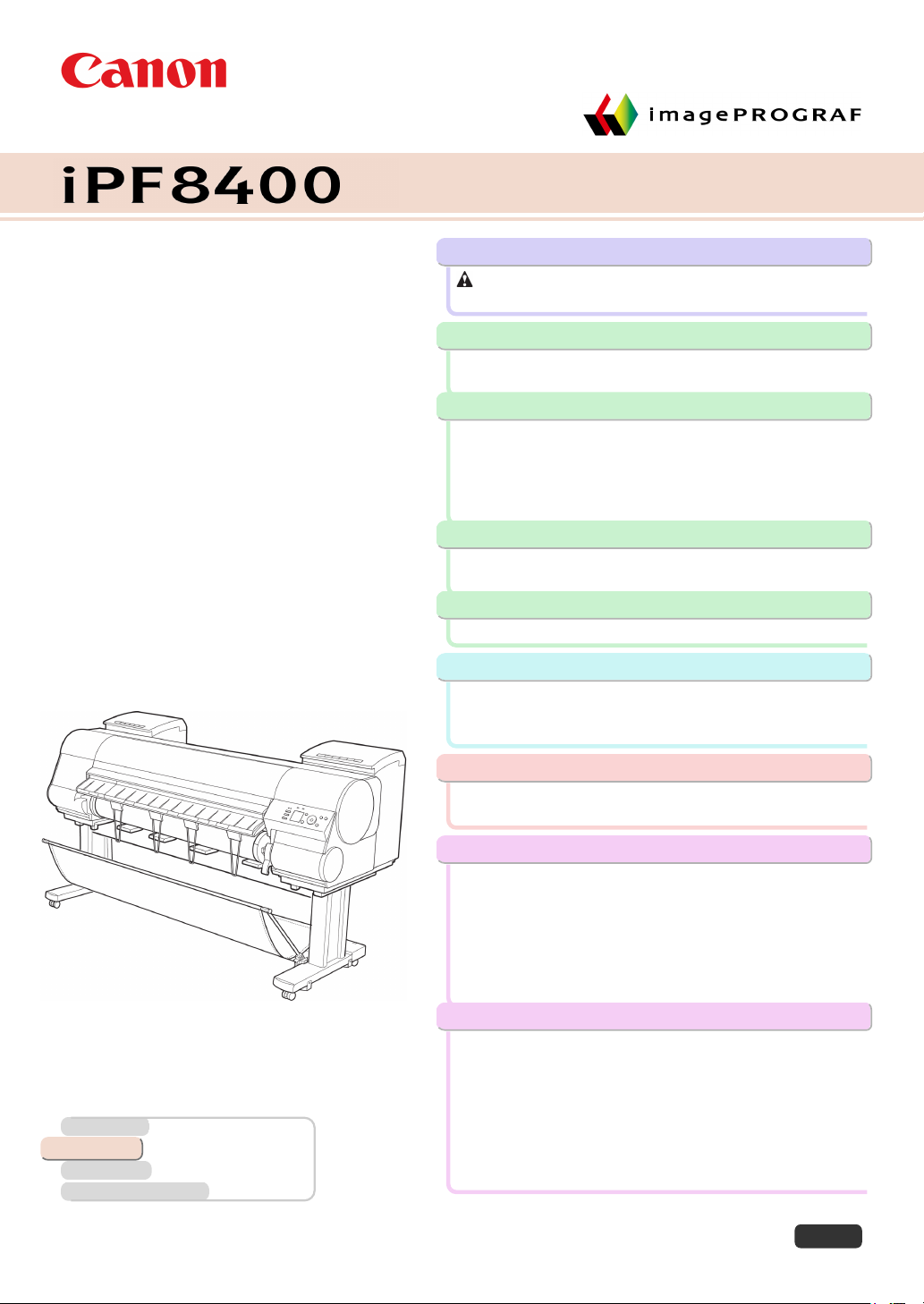
Large Format Printer
Basic Guide
Preface
Safety Precautions......................................................2
Manuals for this printer................................................... 6
Handling Paper
Handling rolls.................................................................. 9
Handling sheets............................................................ 18
Consumables and Maintenance
Ink Tanks...................................................................... 23
Printheads.................................................................... 34
Cutter Unit.................................................................... 42
Maintenance Cartridge................................................. 46
Cleaning the Printer...................................................... 53
Printer Parts
Operations and Display Screen.................................... 57
Printer parts.................................................................. 68
Printer Relocation
Preparing to Transfer the Printer.................................. 75
Software Installation
Installing the Printer Driver (Windows)......................... 86
Installing the Printer Driver (Mac OS X)....................... 88
Convenient Printer Driver Features.............................. 90
Adjustments for Better Print Quality
Adjusting the Printhead................................................ 97
Adjusting the feed amount............................................ 99
Troubleshooting
Error Message
Manuals for this printer
Setup Guide
Basic Guide
User's Guide Electronic manual
Paper Reference Guide Electronic manual
Read this manual before attempting to operate the printer.
Keep this manual in a handy location for future referencing.
Problems Regarding Paper........................................ 102
Printing does not start................................................. 111
The printer stops during a print job............................. 112
Problems with the printing quality............................... 113
Cannot print over a network........................................ 124
Installation problems................................................... 126
Other problems........................................................... 128
Messages regarding paper......................................... 132
Messages regarding ink.............................................. 142
Messages regarding printing or adjustment................ 144
Messages regarding printheads................................. 147
Messages regarding the maintenance cartridge......... 149
Messages regarding the hard disk.............................. 150
Other Messages......................................................... 152
Error Messages.......................................................... 154
ENG
ver1.00 2012-07-13
Page 2

Safety Precautions
Preface
Preface
Safety Precautions
Safety Precautions
Safety Precautions ........................................................................................................................................................... 2
Legal Notices ...................................................................................................................................................................... 4
Safety Precautions
Safety Precautions
Follow the warnings and precautions below to use the printer safely. Do not perform any operations or procedures
Preface Safety Precautions
other than as described in this manual. Doing so may result in unexpected accidents and can cause a fire or electrical shocks.
Printer location
• Do not set up the printer in any location exposed to alcohol, thinner, or other volatile liquids. If these substances come
Warning
into contact with electrical components inside the printer, there is a risk of fire or electrical shock.
• Never install the printer on an unstable or vibrating surface. If it falls over, this could cause personal injury.
• Never set up the printer in a location that is exposed to high humidity or large amounts of dust, or exposed to direct
Caution
sunlight, high temperature, or open flame. This could cause a fire or electrical shock. Use the printer location in an
environment where temperature and humidity are within the ranges of 15 °C to 30 °C (59 °F to 86 °F) and 10 to 80%
RH (with no condensation).
• Never place the printer on a heavy wool or shag carpet. The fibers may enter the printer and cause a fire.
• Keep the area around the power outlet clear of items so that you can disconnect the power cable immediately if the
printer starts operating abnormally. In the event of a printer malfunction, remove the power cable from the outlet as
soon as possible to prevent fire and electrical shocks.
• Do not install the printer near sources of strong electromagnetic fields, whether equipment that generates such fields or
places where such fields occur. This could damage the printer or cause malfunction.
iPF8400
Power Supply
• Never handle the power cable with wet hands. Doing so may cause electrical shock.
• Insert the power cable securely and completely into the power source. If the power cable is not inserted completely, this
Warning
could cause a fire or electrical shock.
• Do not use any power cable other than the one provided. This could cause a fire or electrical shock. Never use the
power cable with any other electrical device.
• Never cut the power cable or attempt to modify it, and never stretch it or bend it forcefully. Never place a heavy object
on the power cable. Damaged sections of the power cable could cause a short circuit and may cause a fire or electrical
shock.
• Never connect the power cable to a power strip or any power source shared by other electrical devices. This could
cause a fire or electrical shock.
Never knot the power cable or wrap it around itself. This could cause a fire or electrical shock.
•
Periodically disconnect the power cable and use a dry cloth to wipe away dust that has collected on the plug and the
•
area around the power outlet. Leaving the power cable plugged in and not cleaned for a long period, especially in an
area subject to dust, oil, and humidity, could cause the insulation material to deteriorate and lead to a fire.
Basic Guide
Page 3
iPF8400
Caution
Safety Precautions
• Always grip the plug to remove the power cable from the power outlet. Pulling on the power cable could damage the
cable and lead to a fire or electrical shock.
• Never use an extension cord. This could cause a fire or electrical shock.
• Never use any power source other than 100–120 / 220–240 V AC. This could cause a fire or electrical shock. The
printer operating conditions are described below. Use the printer under the following conditions.
Power supply voltage: 100–120 / 220–240 V AC
Power supply frequency: 50/60 Hz
In an Emergency
• If the printer emits smoke or strange odors, continuing to use the printer may cause a fire or electrical shock. Switch the
Warning
Cleaning the Printer
printer off immediately and remove the power plug from the power outlet. Contact the nearest service center.
• For cleaning, use a cloth dampened in water. Never use flammable solvents such as alcohol, benzene, or thinner. If
Warning
these substances come into contact with electrical components inside the printer, there is a risk of fire or electrical
shock.
• Always disconnect the power cable from the outlet before cleaning the printer. If the printer is switched on accidentally,
Caution
Pacemakers
moving parts inside the printer may cause personal injuries.
• This printer generates a low-level magnetic field. Anyone wearing a pacemaker who experiences discomfort while work-
Warning
Moving the Printer
ing around the printer should leave the area. Consult a physician before continuing to work around the printer.
• Moving the printer requires at least six people, holding it on both sides. Be careful to avoid back strain and other inju-
Caution
ries.
• When moving the printer, firmly grasp the Carrying Handles under each side. The printer may be unsteady if you hold it
at other positions, which poses a risk of injury from dropping the printer.
Preface Safety Precautions
Printhead, Ink Tanks, and Maintenance Cartridge
• Always store consumables in a safe location out of the reach of small children. If a child licks or ingests ink accidentally,
Caution
seek medical assistance immediately.
• If ink accidentally gets in your eyes, immediately rinse with water.
If ink gets on your skin, immediately clean it off with soap and water.
If irritation persists in your eyes or on your skin, contact a physician immediately.
• Avoid dropping or shaking printheads, ink tanks, and maintenance cartridges. Spilled ink can stain clothing and the work
area.
• Never touch the electrical contacts of the Printhead after printing. The contacts become extremely hot and can cause
minor burns.
Basic Guide
3
Page 4
Legal Notices
Other
• Never disassemble the printer or attempt repairs. There are high voltage parts inside the printer that can cause a fire or
Warning
electrical shock.
• Never use flammable sprays around the printer. The gas of flammable sprays can cause a fire or electrical shock, if it
contacts high voltage points inside the printer.
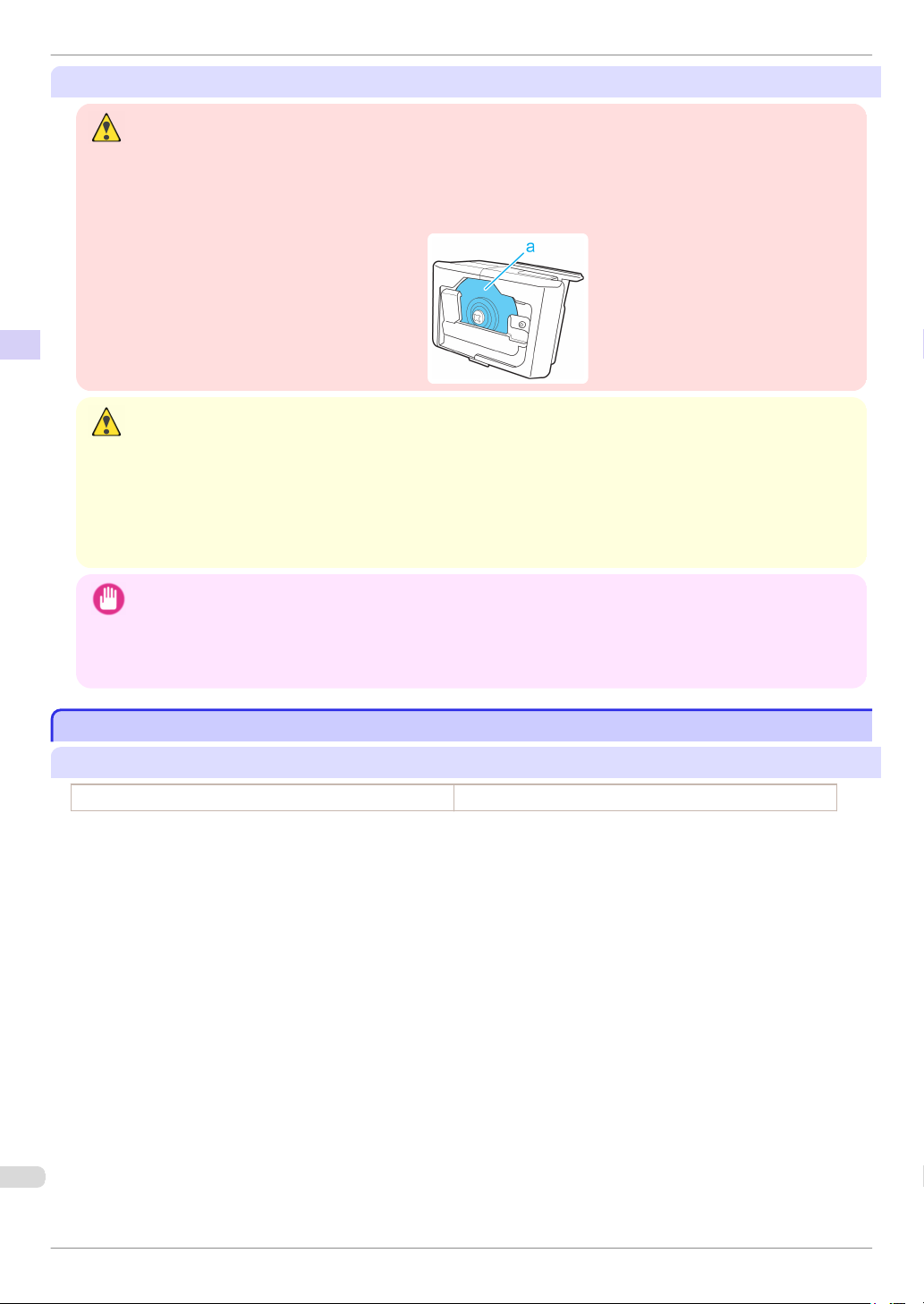
• After removing the Cutter Unit, never touch the cutting edge (a). This could cause personal injury.
Preface Safety Precautions
• Never insert your hand into the printer while it is printing. Moving parts inside the printer can cause injuries.
• Never place anything on the printer such as small metal objects (paper clips, staples), liquids, any type of liquid contain-
Caution
er that contains flammable liquids (alcohol, benzene, etc.). If such objects fall into the printer, this could cause a fire or
electrical shock.
• To prevent a fire hazard or dangerous electric shock, if a foreign object falls into or a liquid spills into the printer, press
the Power button immediately to switch the printer off, unplug the printer power cable from the outlet, and then call for
service. If you continue to use the printer, this could cause a fire or electrical shock.
iPF8400
• Connect the interface cable correctly. To avoid damage, before connection make sure that the shape of the cable con-
Important
nector matches the connection point on the printer.
• During printing, turn on the ventilation system in the room.
• We recommend ensuring ample space for installation.
Legal Notices
Legal Notices
FCC Regulations (U.S.A)
Canon Large Format Printer iPF8400
This device complies with Part 15 of the FCC Rules. Operation is subject to the following two conditions: (1) This
device may not cause harmful interference, and (2) this device must accept any interference received, including
interference that may cause undesired operation.
Note: This equipment has been tested and found to comply with the limits for class B digital device, pursuant to
Part 15 of the FCC Rules. These limits are designed to provide reasonable protection against harmful interference
in a residential installation.
This equipment generates, uses and can radiate radio frequency energy and, if not installed and used in accordance with the instructions, may cause harmful interference to radio communications.However, there is no guarantee that interference will not occur in a particular installation. If this equipment does cause harmful interference to
radio or television reception, which can be determined by turning the equipment off and on, the user is encouraged
to try to correct the interference by one or more of the following measures:
•
Reorient or relocate the receiving antenna.
•
Increase the separation between the equipment and receiver.
•
Connect the equipment into an outlet on a circuit different from that to which the receiver is connected.
•
Consult the dealer or an experienced radio/TV technician for help.
Use of shielded cable is required to comply with Class B limits in Subpart B of Part 15 of FCC Rules.
Do not make any changes or modifications to the equipment unless otherwise specified in the manual.
Basic Guide
Page 5

iPF8400
If such changes or modifications should be made, you could be required to stop operation of the equipment.
Canon U.S.A. Inc.
One Canon Plaza, Lake Success, NY 11042, U.S.A.
Tel No. 516-328-5600
Legal Notices
For CA, USA Only
Included battery contains Perchlorate Material - special handling may apply.
See http://www.dtsc.ca.gov/hazardouswaste/perchlorate/ for detail.
Trademarks
•
Canon, the Canon logo, and imagePROGRAF are trademarks or registered trademarks of CANON INC.
•
Microsoft and Windows are trademarks of Microsoft Corporation, registered in the U.S. and other countries.
•
Macintosh is trademark of Apple Inc., registered in the U.S. and other countries.
•
Other company and product names in this manual are trademarks or registered trademarks of their respective
owners.
Copyright
•
Unauthorized reproduction of this user manual in whole or part is prohibited.
Legal Notice
•
It is illegal to reproduce currency, bills, negotiable securities and other documents prohibited by law. Reproduction of such items may be subject to criminal prosecution.
•
It is illegal to reproduce legal certificates, licenses, travel tickets, and certain public and private documents prohibited from reproduction by law. Reproduction of such items may be subject to criminal prosecution.
•
Please note that intellectual property protected by copyright may not be reproduced without the express permission of the copyright holder except for personal or household use under limited circumstances.
Preface Safety Precautions
Basic Guide
5
Page 6
Manuals for this printer
Manuals for this printer
Manuals for this printer
Manuals for this printer ................................................................................................................................................. 6
Viewing the Electronic manuals .................................................................................................................................. 6
About This User Manual ................................................................................................................................................ 7
Manuals for this printer
Manuals for this printer
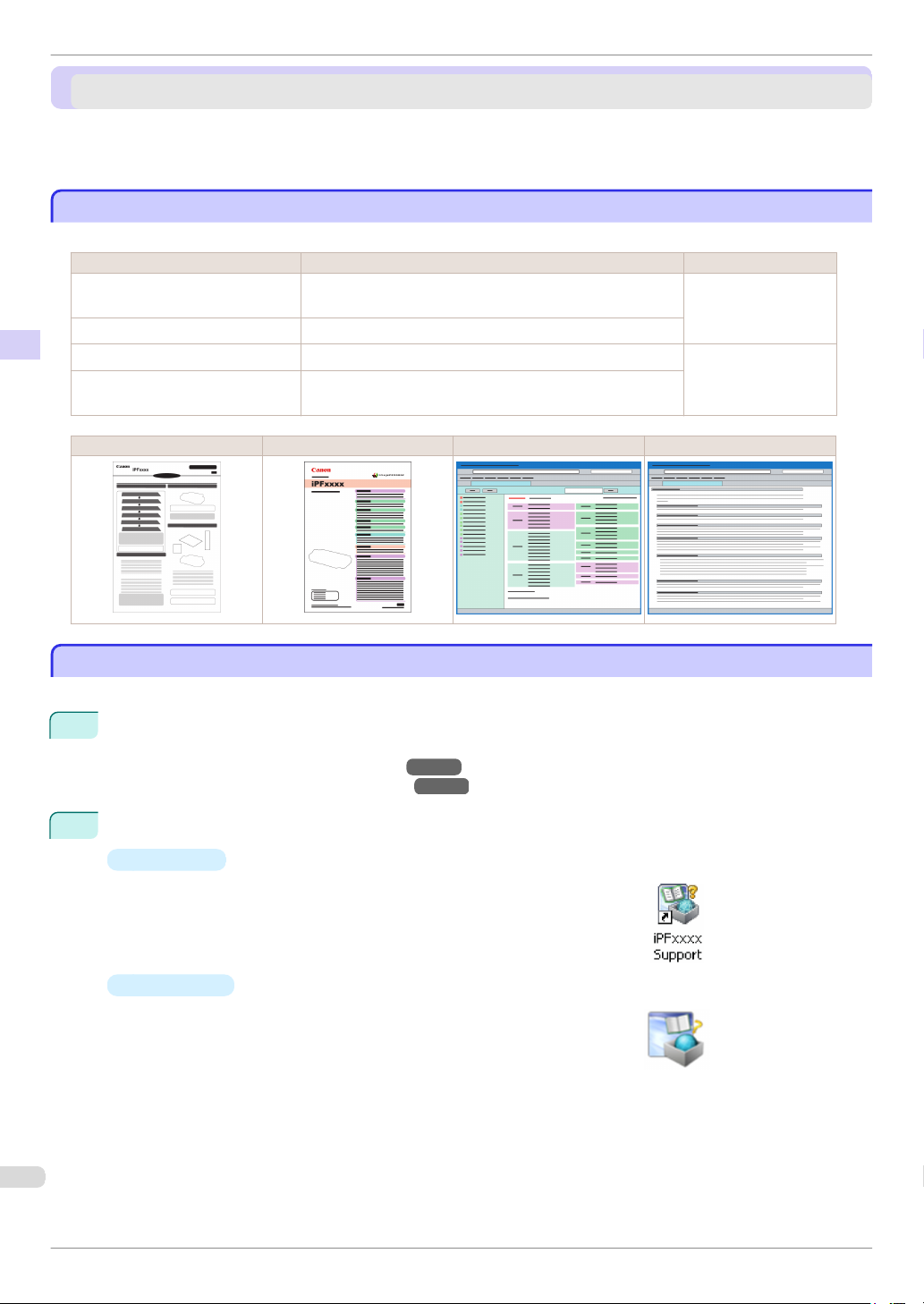
This printer has the following manuals.
Preface Manuals for this printer
Setup Guide Instructions for unpacking and setting up the printer, and for in-
Basic Guide Descriptions of basic printer operations.
User's Guide Detailed instructions for using the printer. Electronic manuals
Paper Reference Guide This guide describes about the types and specifications of the
Name Contents Medium
Printed Manuals
stalling the software and electronic manuals.
available media on the printer.
Setup Guide Basic Guide User's Guide Paper Reference Guide
iPF8400
Viewing the Electronic manuals
Viewing the Electronic manuals
Install the Electronic manuals on your computer before viewing the manuals.
1
Install the Electronic manuals with the software.
Note that the driver installation procedure varies depending on the type of connection.
(See "Installing the Software (Windows).")
(See "Installing the Software (Mac OS X).")
2
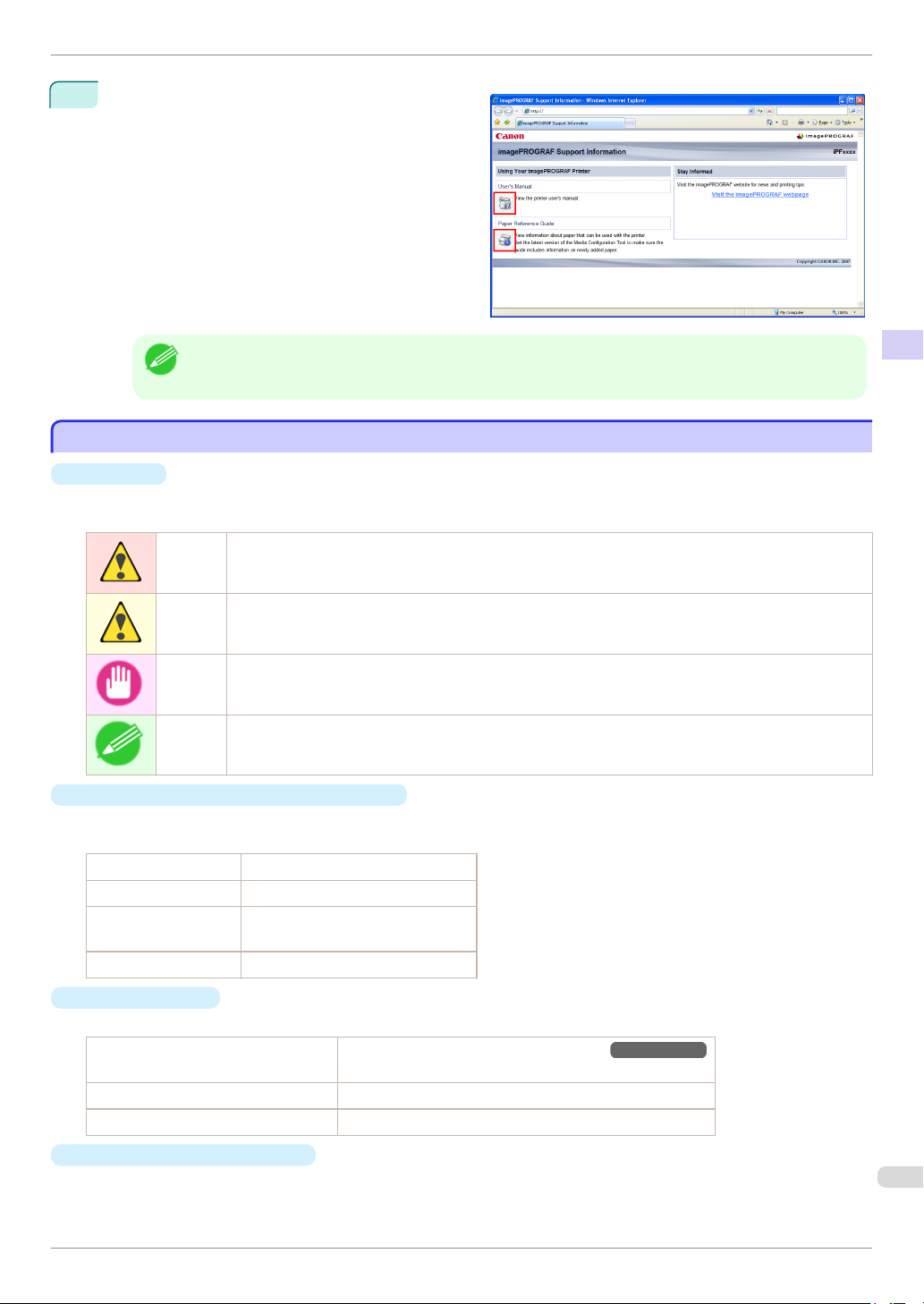
Display imagePROGRAF Support Information.
•
Windows
Double-click the iPFxxxx Support desktop icon. (iPFxxxx indicates
the printer model.)
Mac OS X
•
Click the iPF Support icon in the Dock (Launchpad in OS10.7 and
later).
→
P.86
→
P.88
Basic Guide
Page 7
iPF8400
3
About This User Manual
When the imagePROGRAF Support Information
is displayed, click the User Manual icon or the Pa-
per Reference Guide icon.
Preface Manuals for this printer
• Click Visit the imagePROGRAF webpage in Stay Informed to access the imagePROGRAF web site.
Note
About This User Manual
About This User Manual
•
Symbols
The following symbols are used in this user manual to indicate safety information and explanations on restric-
tions or precautions in use.
Warning Indicates warning items for which operating error poses a risk of death or serious injury. To ensure safe use,
always follow these warnings.
Caution Indicates caution items for which operating error poses a risk of injury. To ensure safe use, always follow these
cautions.
Important Indicates important information and restrictions that definitely are to be followed during operation. Be sure to
read this information to prevent troubles, malfunctions, or damage to equipment or property by operating errors.
Note Indicates helpful reference information and supplemental information on particular topics.
•
Button names and user interface elements
Key and button names on the control panel and user interface elements in software (such as menus and but-
tons) are indicated as follows in this user manual.
Control panel buttons Example: Press the OK button.
Control panel messages Example: Head Cleaning is displayed.
Software interface items
(menus and buttons)
Keyboard keys Example: Press the Tab key.
Example: Click OK.
•
Cross-reference
Other pages or manuals that provide related information are indicated as follows in this user manual.
Cross-reference in the same user manual
Cross-reference in related manuals Example: See the Paper Reference Guide .
Other cross-reference Example: See the printer driver help.
•
Figures and software screens
•
Figures in this user manual may be different from the actual appearance of the printer in some cases.
Basic Guide
Example: see "Turning the Printer On and Off."
Click the link to jump to the corresponding page.
→
User's Guide
7
Page 8

About This User Manual
•
Screens depicted in this user manual for the printer driver or other software may be different from the actual screens because of subsequent updates.
•
May we request
•
The information in this user manual is subject to change without notice.
•
We strive to ensure accuracy of information in this user manual, but if you notice errors or omissions,
please contact us.
Preface Manuals for this printer
iPF8400
Basic Guide
Page 9
iPF8400
When printing on rolls, attach the Roll Holder to the roll.
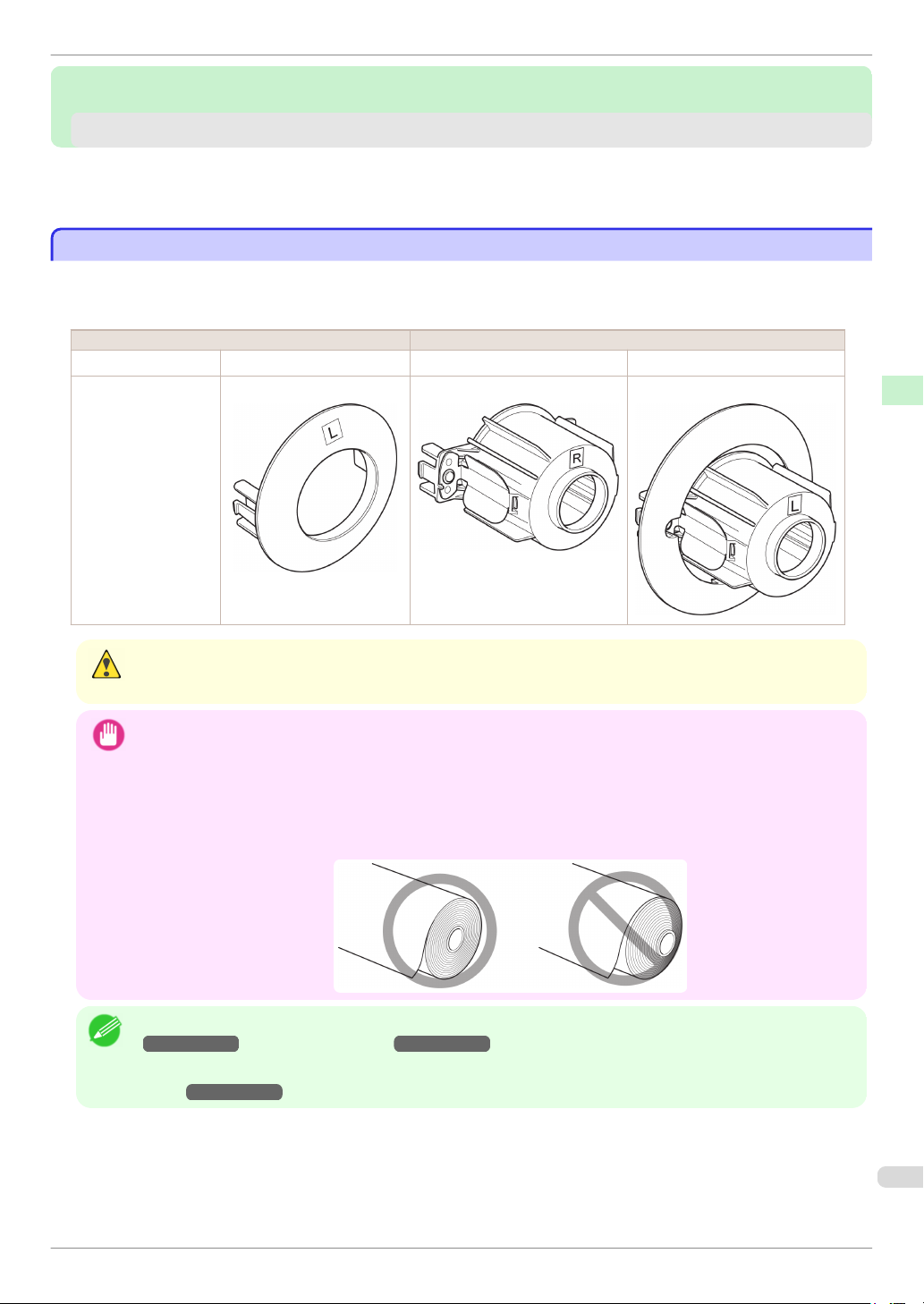
Rolls have a two- or three-inch paper core. Use the correct attachment for the paper core. The printer comes
equipped with the 2-Inch Paper Core Attachment installed.
Attaching the Roll Holder to Rolls
Handling Paper
Handling Paper
Handling rolls
Handling rolls
Attaching the Roll Holder to Rolls ............................................................................................................................. 9
Loading Rolls in the Printer ........................................................................................................................................ 11
Removing the Roll from the Printer ........................................................................................................................ 15
Attaching the Roll Holder to Rolls
Attaching the Roll Holder to Rolls
Using Rolls with a 2-inch Paper Core Using Rolls with a 3-inch Paper Core
Roll Holder Side Holder Stopper Side Roll Holder Side Holder Stopper Side
No Attachment Needed 2-Inch Paper Core Attachment 3-Inch Paper Core Attachment #1 3-Inch Paper Core Attachment #2
Handling Paper Handling rolls
• Set the roll on a table or other flat surface so that it does not roll or fall. Rolls are heavy, and dropping a roll may cause
Caution
injury.
• When handling the roll, be careful not to soil the printing surface. This may affect the printing quality. We recommend
Important
wearing clean cloth gloves when handling rolls to protect the printing surface.
• Use scissors or a cutting tool to cut the edge of the roll paper if it is uneven, dirty, or has tape residue. Otherwise, it
may cause feeding problems and affect the printing quality. Be careful not to cut through any barcodes printed on the
roll.
• Align the edges of the paper on both ends of the roll. Misalignment may cause feeding problems.
• For details on supported sizes and types of rolls, see Paper Sizes or the Paper Reference Guide. (See "Paper Sizes.")
→
Note
User's Guide (See "Types of Paper.")→User's Guide
• To view instructions as you attach the Roll Holder, press the Navigate button. (See "How to View Instructions With Navi-
→
gate.")
User's Guide
Basic Guide
9
Page 10
Attaching the Roll Holder to Rolls
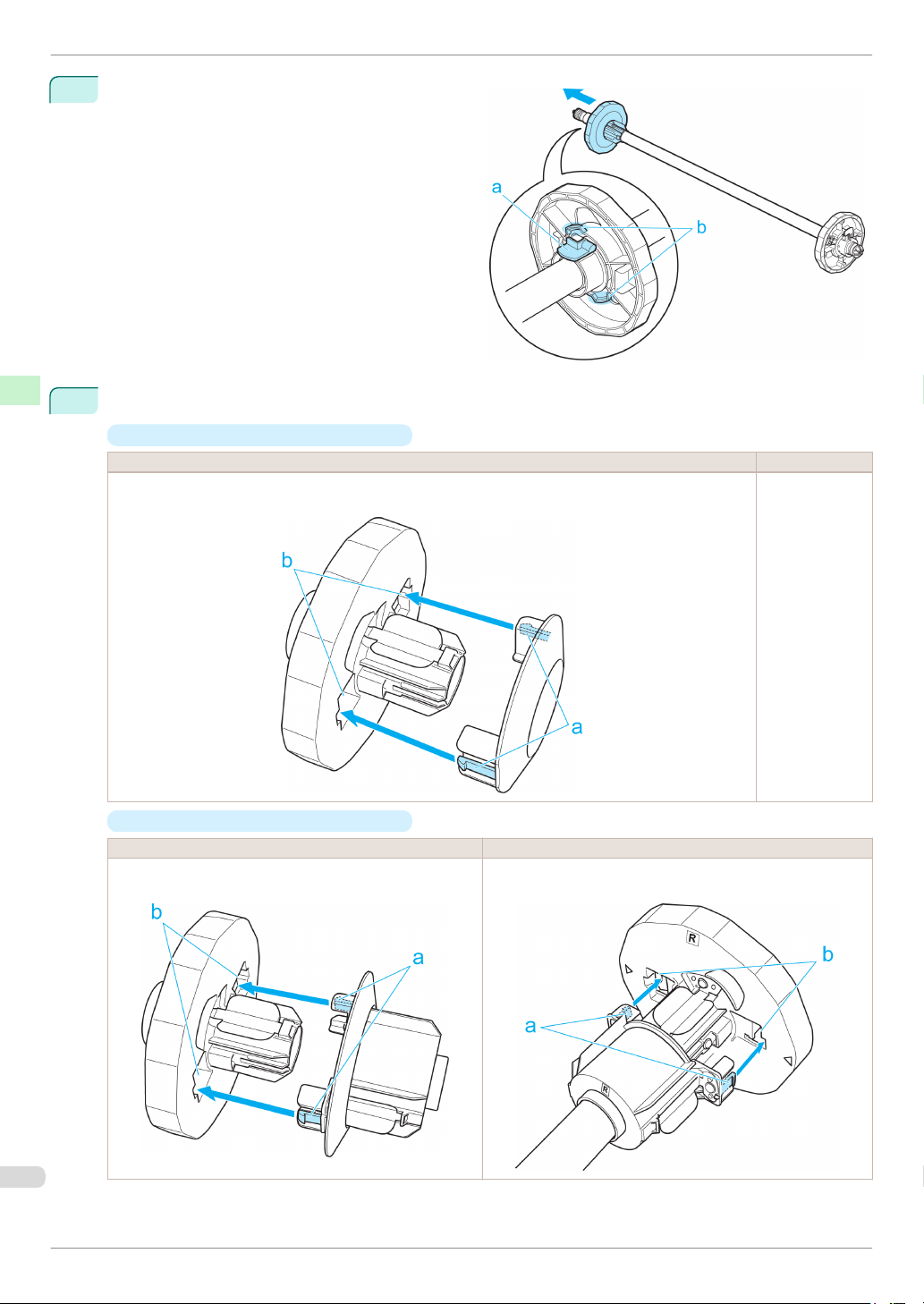
Lift the Holder Stopper lever (a) from the shaft side
1
to unlock it. Holding the Holder Stopper at the position indicated (b), remove it from the Roll Holder.
Handling Paper Handling rolls
2
Insert the respective attachments for the roll paper core on the Roll Holder and Holder Stopper.
•
Using rolls with a 2-inch paper core
Holder Stopper Side Roll Holder Side
Align the tips (a) of the 2-Inch Paper Core Attachment with the holes (b) of the Holder Stopper and insert it
firmly.
iPF8400
No attachment is
needed.
•
Using rolls with a 3-inch paper core
Holder Stopper Side Roll Holder Side
Align the tips (a) of 3-Inch Paper Core Attachment #2 with the
holes (b) of the Holder Stopper and insert it firmly.
Align the tips (a) of 3-Inch Paper Core Attachment #1 with the
holes (b) of the Roll Holder and insert it firmly.
Basic Guide
Page 11
iPF8400
3
4
Loading Rolls in the Printer
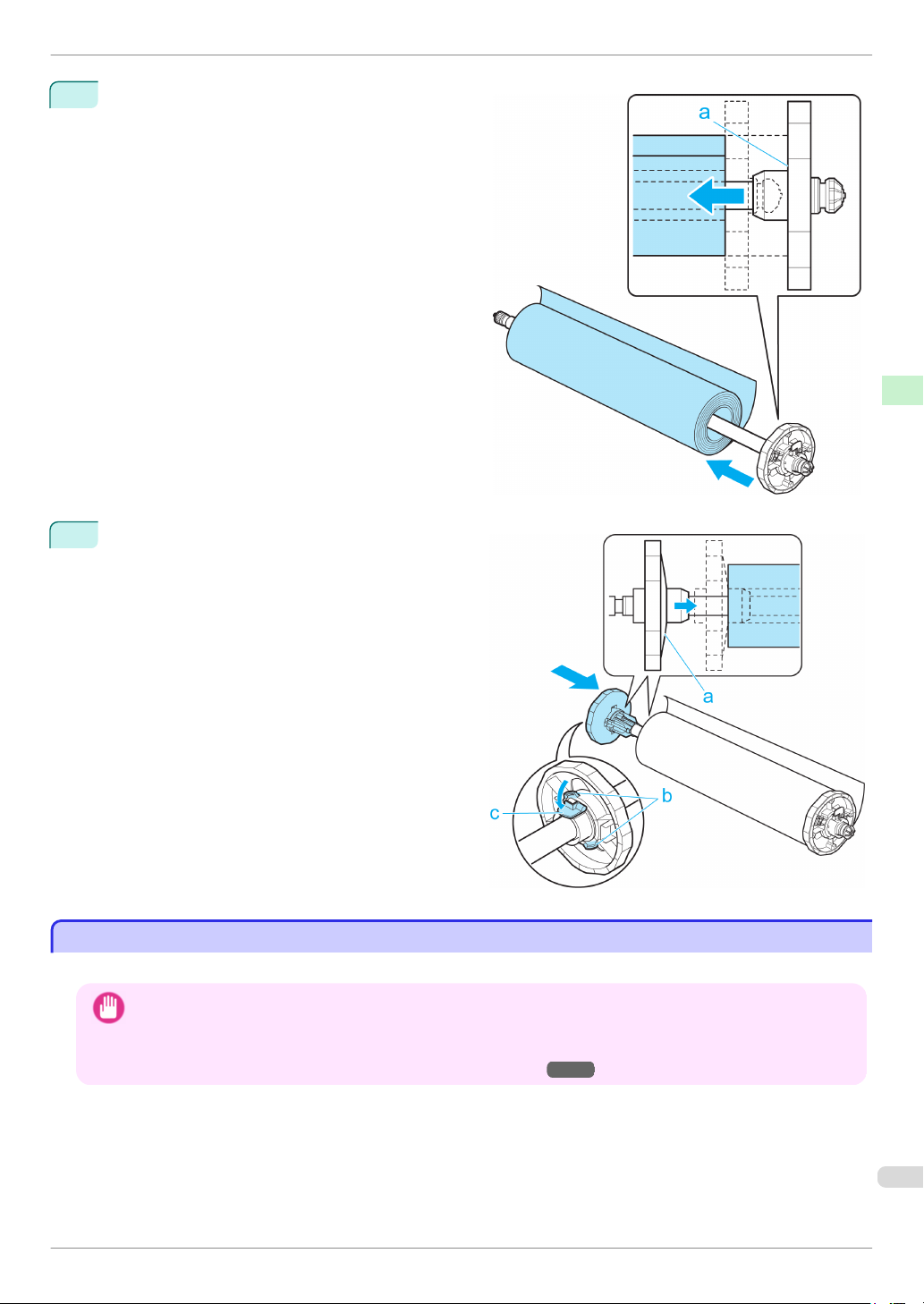
With the edge of the roll paper facing forward as
shown, insert the Roll Holder from the right of the
roll. Insert it firmly until the roll touches the flange
(a) of the Roll Holder, leaving no gap.
Handling Paper Handling rolls
Insert the Holder Stopper from the left in the Roll
Holder as shown. Holding it at the position shown
(b), push it firmly in until the flange (a) of the Holder
Stopper touches the roll. Lock the Holder Stopper
lever (c) by pushing it down toward the shaft side.
Loading Rolls in the Printer
Loading Rolls in the Printer
Follow these steps to load rolls in the printer.
• Always load rolls when the printer is on. If the printer is off when you load a roll, the paper may not be advanced
Important
correctly when you turn the printer on.
• Before loading a roll, confirm whether the inside of the Top Cover or the Ejection Guide is soiled. If soiled, we recom-
mend cleaning in advance. (See "Cleaning Inside the Top Cover.")
Basic Guide
→
P.53
11
Page 12
Loading Rolls in the Printer
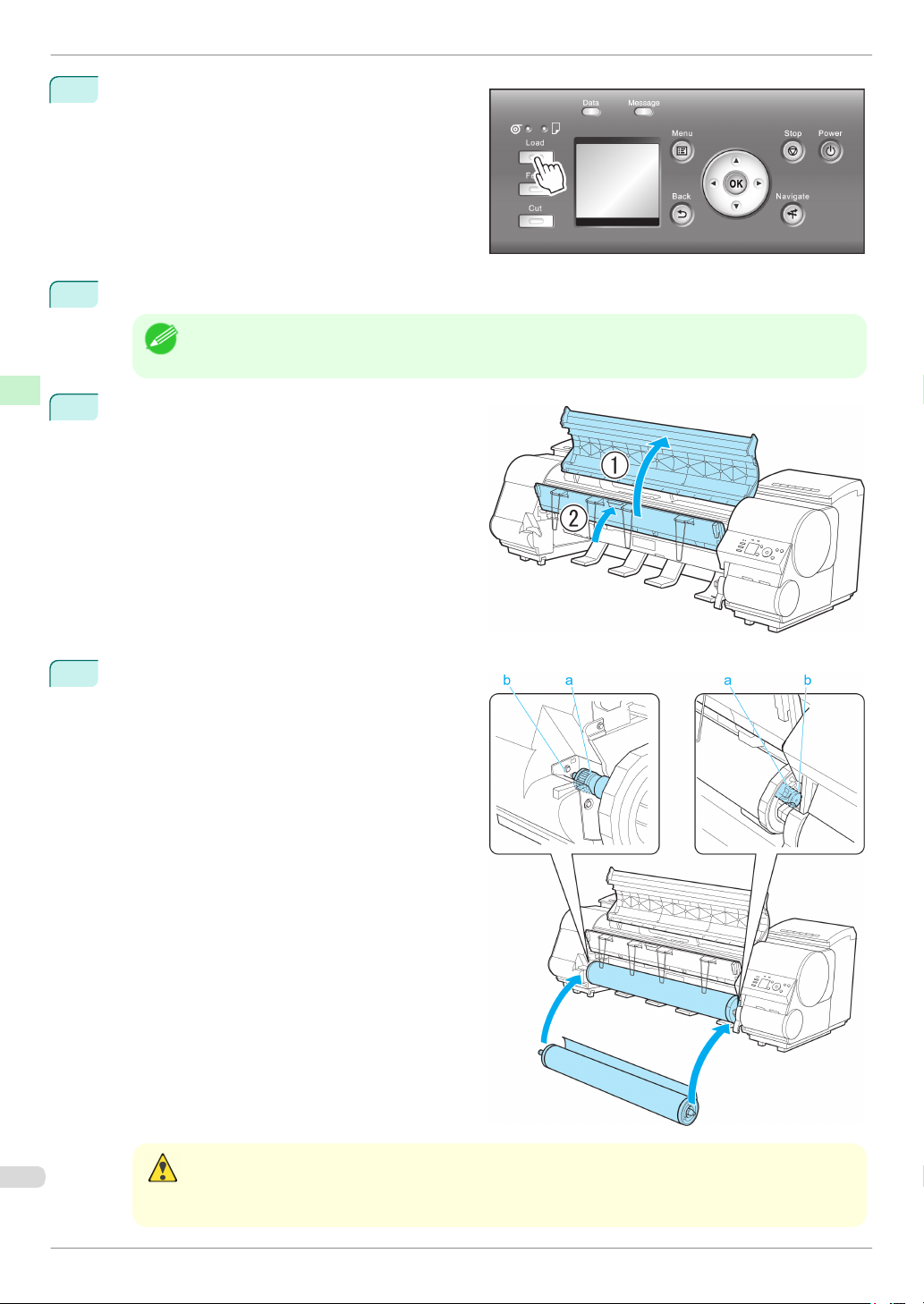
Press the Load button.
1
iPF8400
Handling Paper Handling rolls
2
3
4
Press ▲ or ▼ to select "Load Roll Paper", and then press the OK button.
• If any paper has been advanced that will not be used, a message is shown requesting you to remove it.
Note
Open the Top Cover and lift the Ejection Guide.
Holding the Roll Holder so that the side with the
white gear faces the side of the Roll Holder Slot
with a white gear, load the Roll Holder shaft (a) into
the grooves (b) on both ends of the Roll Holder
Slot, fully into the slot.
Press ▲ or ▼ to select "Yes", and then press the OK button. Remove the paper and go to the next step.
• Be careful not to drop the roll and hurt yourself when loading it.
• Be careful not to pinch your fingers between the Roll Holder shaft (a) and the guide grooves (b) when loading
Caution
rolls.
Basic Guide
Page 13
iPF8400
5
Loading Rolls in the Printer
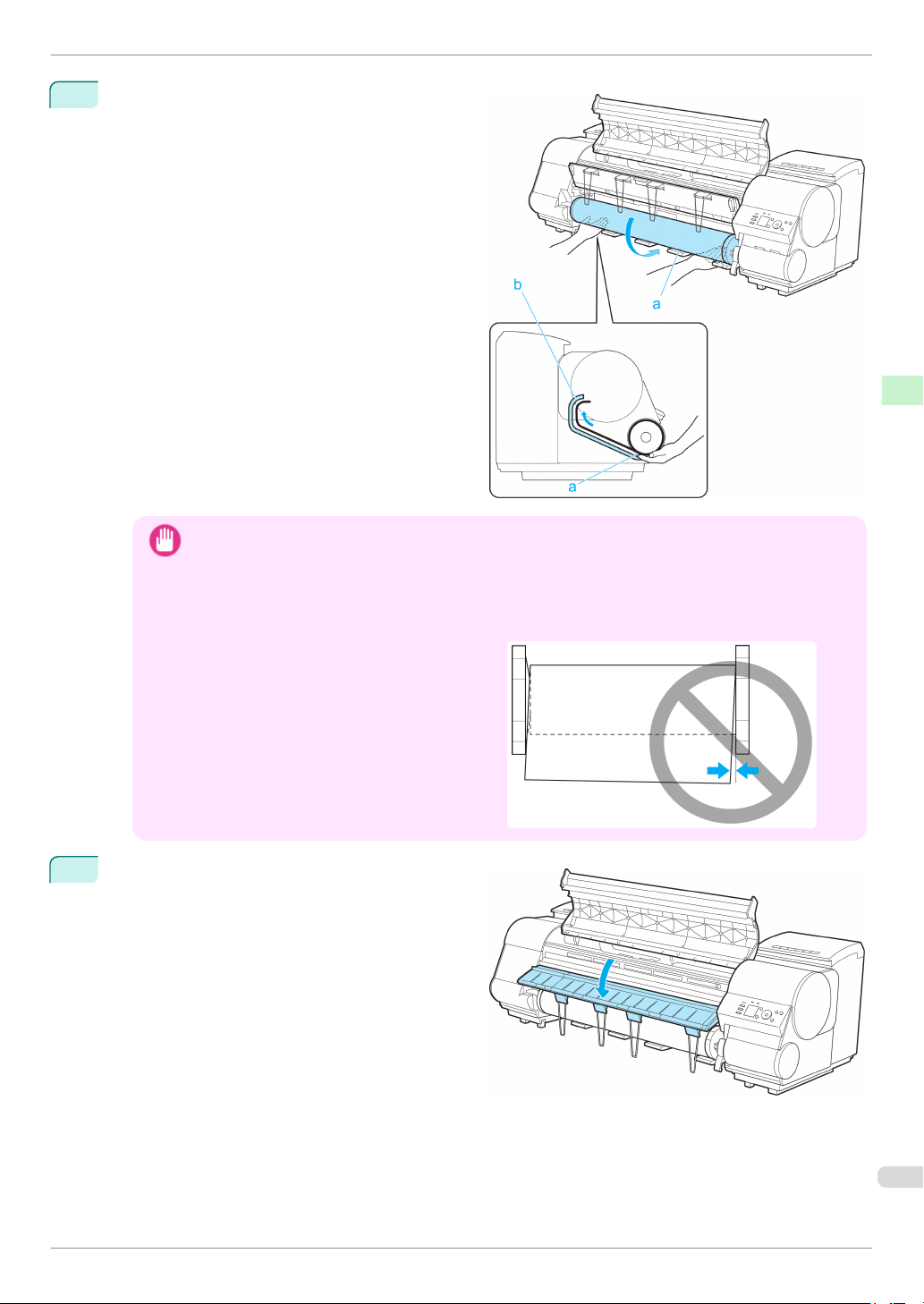
Pull out the roll evenly on both ends and insert it in
the Paper Feed Slot (a). Advance the roll until it
touches the Paper Retainer (b).
Once the roll reaches the Paper Retainer, it is automatically advanced over the Platen.
• When handling the roll, be careful not to soil the printing surface. Otherwise, it may affect printing quality. We
Important
recommend wearing clean cloth gloves when handling rolls to protect the printing surface.
• If the paper is wrinkled or warped, straighten it out before loading it.
• For paper that tends to curl, lift the Release Lever and manually pull the roll paper over the Platen.
Load paper straight so it is not fed askew.
•
Handling Paper Handling rolls
Lower the Ejection Guide.
6
Basic Guide
13
Page 14
Loading Rolls in the Printer
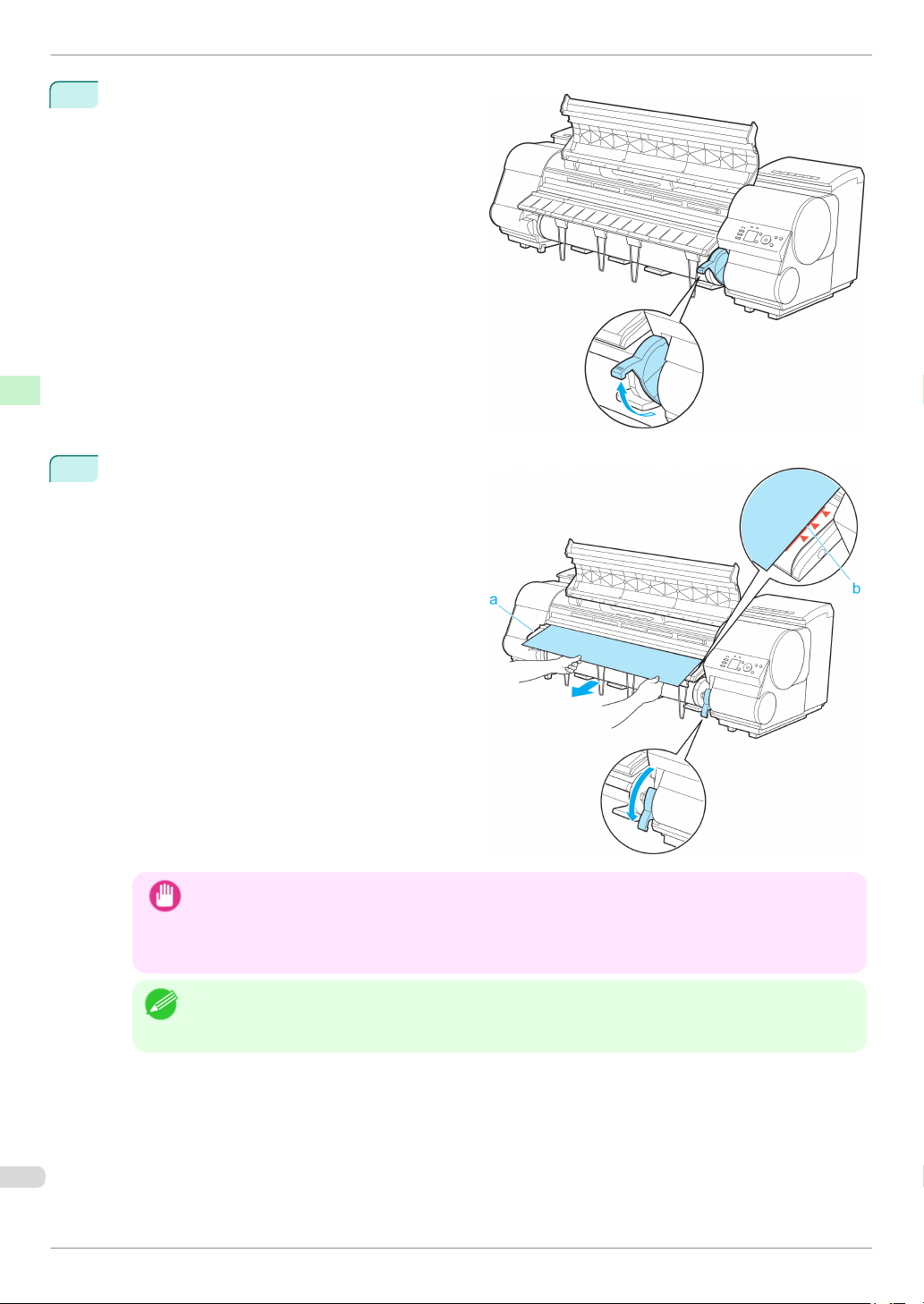
Holding the edge of the roll paper, lift the Release
7
Lever.
Handling Paper Handling rolls
Hold the edge of the roll paper as you gently pull it
8
evenly with both hands to the position of the Ejection Guide (a). Align the right side of the roll paper
with the Paper Alignment Line (b), keeping this side
parallel to the line, and then lower the Release Lever.
iPF8400
• Do not omit steps 7 and 8. If paper cannot be advanced straight or if it wrinkles, it may jam or rub against the
Important
Printhead.
• Do not force the roll paper into alignment with the paper alignment line (b). This may prevent the paper from
being advanced straight.
• You can adjust the strength of suction holding paper against the Platen when the Release Lever is released. If
Note
Basic Guide
it is difficult to load paper, press the ▲ or ▼ button on the Control Panel to adjust the strength. Set suction
stronger by pressing the ▲ button or weaker with the ▼ button. Three settings are available.
Page 15
iPF8400
9
10
Removing the Roll from the Printer
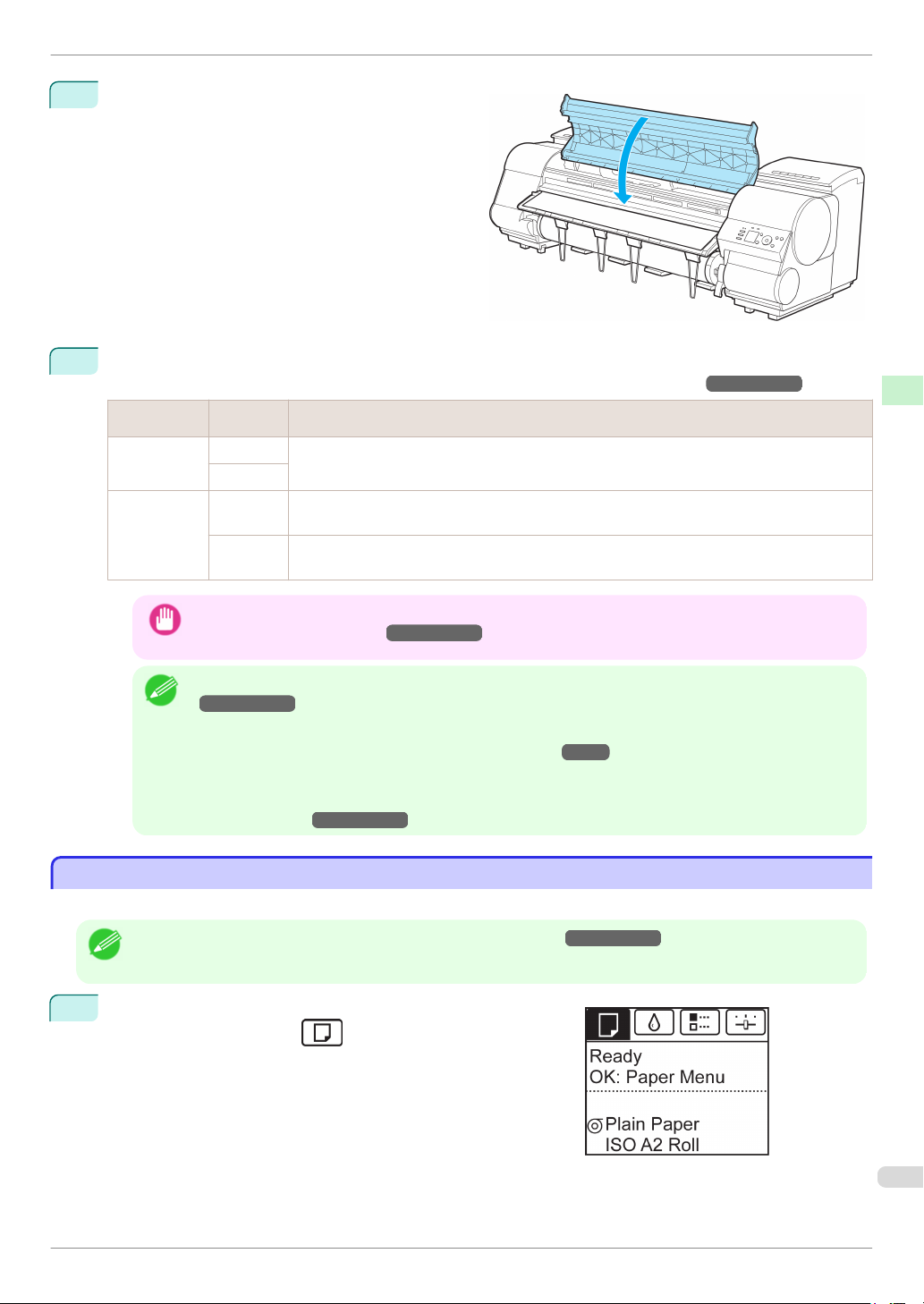
Close the Top Cover.
Handling Paper Handling rolls
Once paper feeding starts, you will need to do the following, based on the ManageRemainRoll setting and
→
the barcode printed on rolls. (See "Keeping Track of the Amount of Roll Paper Left.")
ManageRemain-
Roll
Off Printed A menu for selection of the type of paper is shown on the Display Screen.
On Printed The type and amount of paper left is automatically detected based on the barcode printed on the roll.
Barcodes Printer Operation After the Paper is Fed
Not printed
Not printed A menu for selection of the type and length of paper is shown on the Display Screen.
Press ▲ or ▼ to select the type of paper, and then press the OK button.
There is no need to specify the type and length of the paper.
Press ▲ or ▼ to select the type and length of paper loaded, and then press the OK button.
User's Guide
• Cut the edge of the roll using the Paper Cutting function if the edge is creased or soiled. (See "Specifying
Important
the Cutting Method for Rolls.")
• For details on types of paper to select, see the Paper Reference Guide. (See "Types of Paper.")
→
Note
User's Guide
• Adjusting the printhead alignment with the type of paper to be used in printing may enhance printing quality.
(See "Automatic Adjustment to Straighten Lines and Colors.")
• When paper leading edge detection is set to Off for Manual, printing will start at the position at which the roll
was set in procedure 8. Thus, the margin of the paper leading edge will enlarge. (See "Specifying the Cutting
Method for Rolls.")
Removing the Roll from the Printer
Removing the Roll from the Printer
Remove rolls from the printer as follows.
→
User's Guide
• If you need to cut the roll, see "Specifying the Cutting Method for Rolls."
Note
On the Tab Selection screen of the Control Panel, press ◀ or
1
▶ to select the Paper tab ( ).
→
User's Guide
→
P.97
→
User's Guide
Basic Guide
15
Page 16
Removing the Roll from the Printer
• If the Tab Selection screen is not displayed, press the Menu button.
Note
2
Press the OK button.
The Paper Menu is displayed.
3
Press ▲ or ▼ to select Eject Paper, and then press the OK button.
Handling Paper Handling rolls
4
Press ▲ or ▼ to select "Yes", and then press the OK button.
The roll is rewound.
If you have selected ManageRemainRoll > On in
•
Important
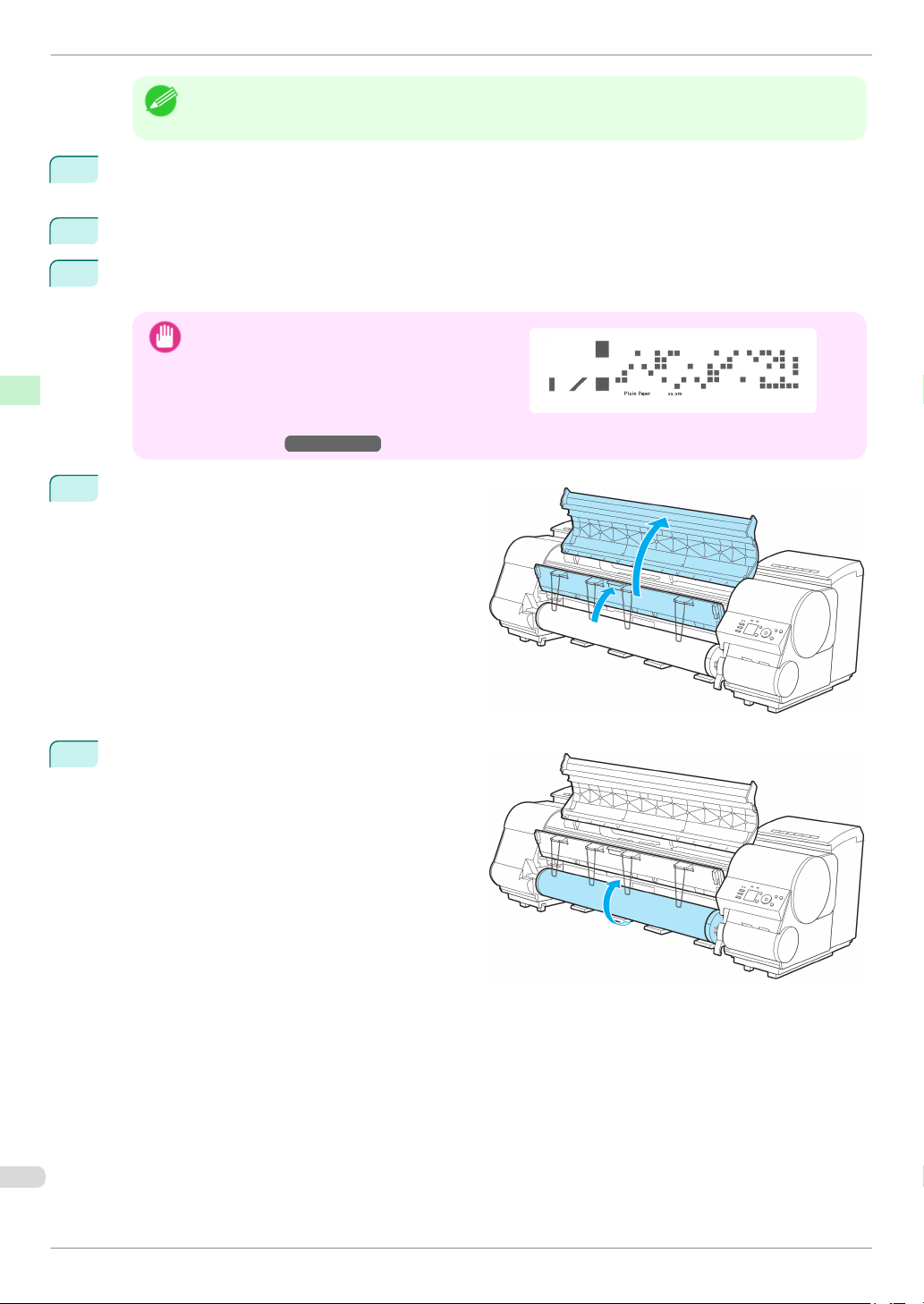
Open the Top Cover and lift the Ejection Guide.
5
the Control Panel menu, a barcode is printed on the
leading edge of the roll.
Do not remove the roll before the barcode is printed.
You will be unable to keep track of the amount of roll
paper left. (See "Keeping Track of the Amount of Roll
Paper Left.")
→
User's Guide
iPF8400
Using both hands, rotate the Roll Holder in the di-
6
rection of the arrow to rewind the roll.
Basic Guide
Page 17
iPF8400
7
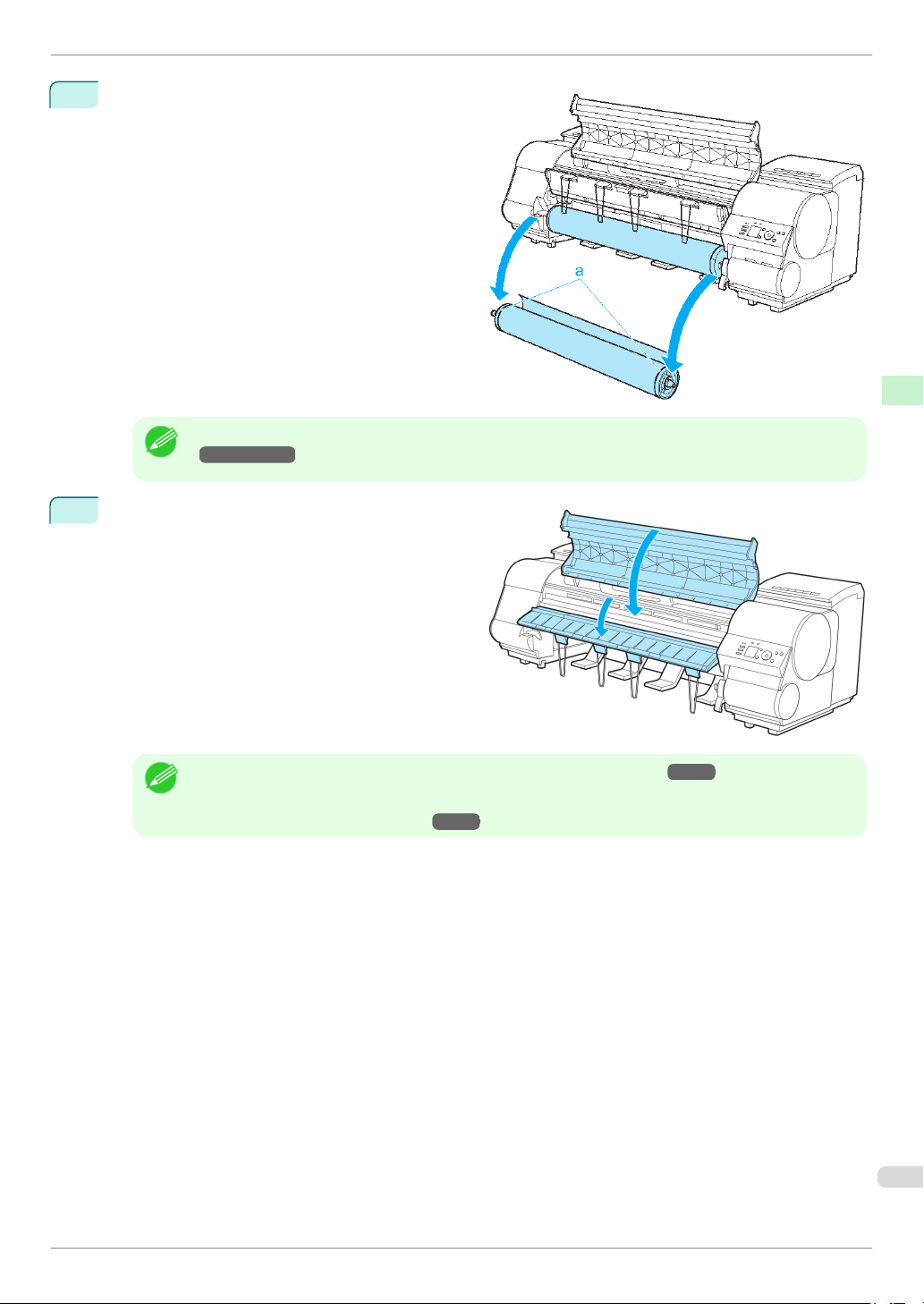
8
Removing the Roll from the Printer
Holding the Roll Holder flange (a), remove the
holder from the Roll Holder Slot.
• For instructions on removing the Roll Holder from rolls, see "Removing the Roll Holder from Rolls."
→
Note
Lower the Ejection Guide and close the Top Cover.
User's Guide
Handling Paper Handling rolls
• To load new paper in the printer at this point, see "Loading Rolls in the Printer."
• Clean inside the top cover before loading paper.
Note
(See "Cleaning Inside the Top Cover.")
→
P.53
→
P.11
17
Basic Guide
Page 18
Loading Sheets in the Printer
Handling sheets
Handling sheets
Loading Sheets in the Printer .................................................................................................................................... 18
Removing Sheets ............................................................................................................................................................ 21
Loading Sheets in the Printer
Loading Sheets in the Printer
Follow these steps to load sheets in the printer.
iPF8400
Handling Paper Handling sheets
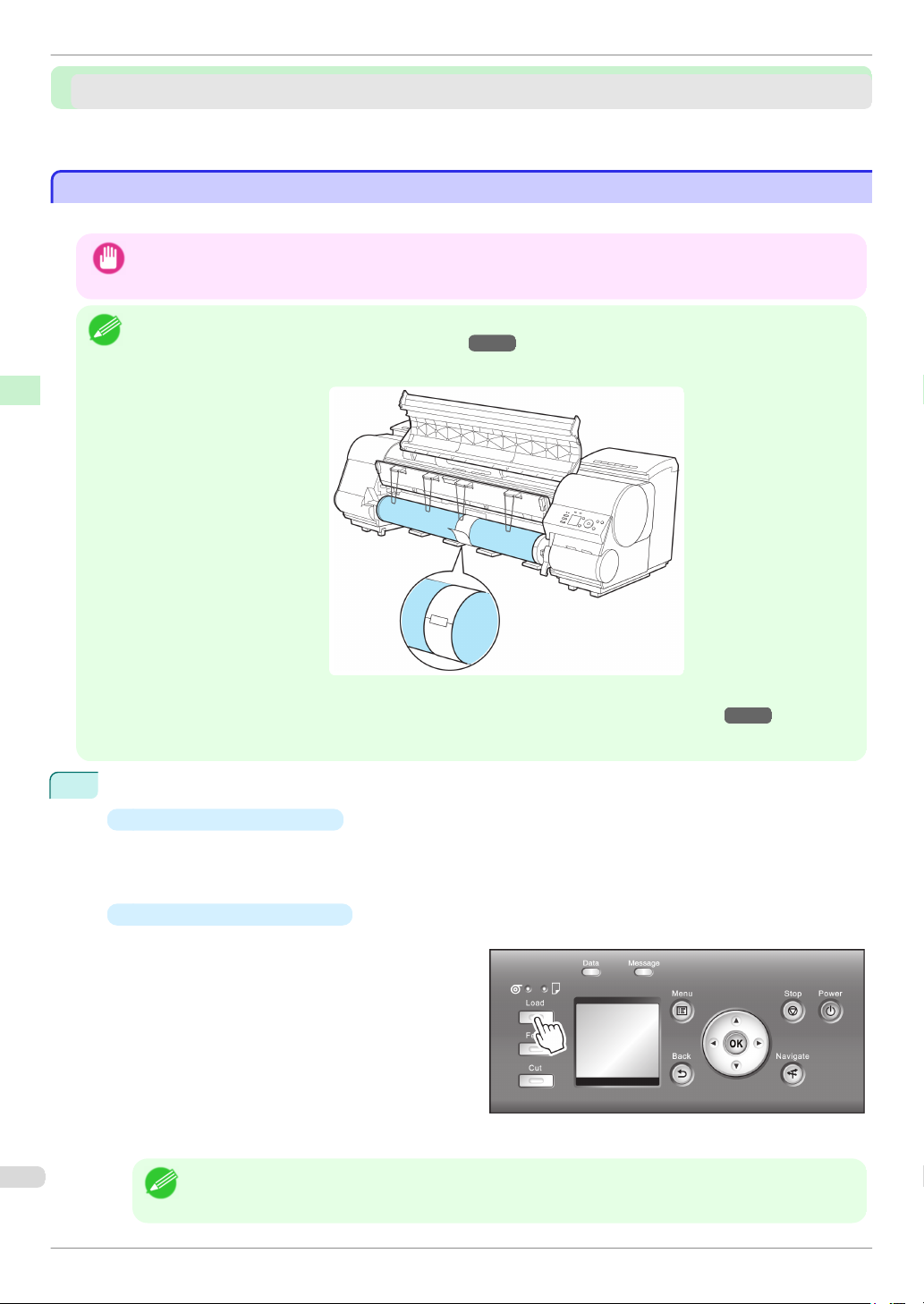
Important
Note
• Paper that is wrinkled or warped may jam. If necessary, straighten the paper and reload it.
• Load the paper straight. Loading paper askew will cause an error.
• Loading sheets when a roll is already loaded in the printer may cause jams. We recommend removing rolls before load-
ing sheets. (See "Removing the Roll from the Printer.")
→
P.15
• To prevent the roll from unwinding if you leave it loaded, wrap a sheet of paper around the roll and tape it.
Before loading sheets, make sure the printer is clean inside the Top Cover and around the Ejection Guide. If these
•
areas are dirty, we recommend cleaning them in advance. (See "Cleaning Inside the Top Cover.")
Store unused paper in the original package, away from high temperature, humidity, and direct sunlight.
•
→
P.53
1
Select sheets as the paper source.
•
If a print job was received
Sheets are automatically selected, and the media type and size specified by the print job are shown on
the Display Screen.
Press ▲ or ▼ to select Load Paper, and then press the OK button.
•
If no print job was received
1.
Press the Load button.
2.
Press ▲ or ▼ to select "Load Cut Sheet", and then press the OK button.
• If any paper has been advanced that will not be used, a message is shown requesting you to remove it.
Note
Basic Guide
Press ▲ or ▼ to select "Yes", and then press the OK button. Remove the paper and go to the next step.
Page 19
iPF8400
2
Loading Sheets in the Printer
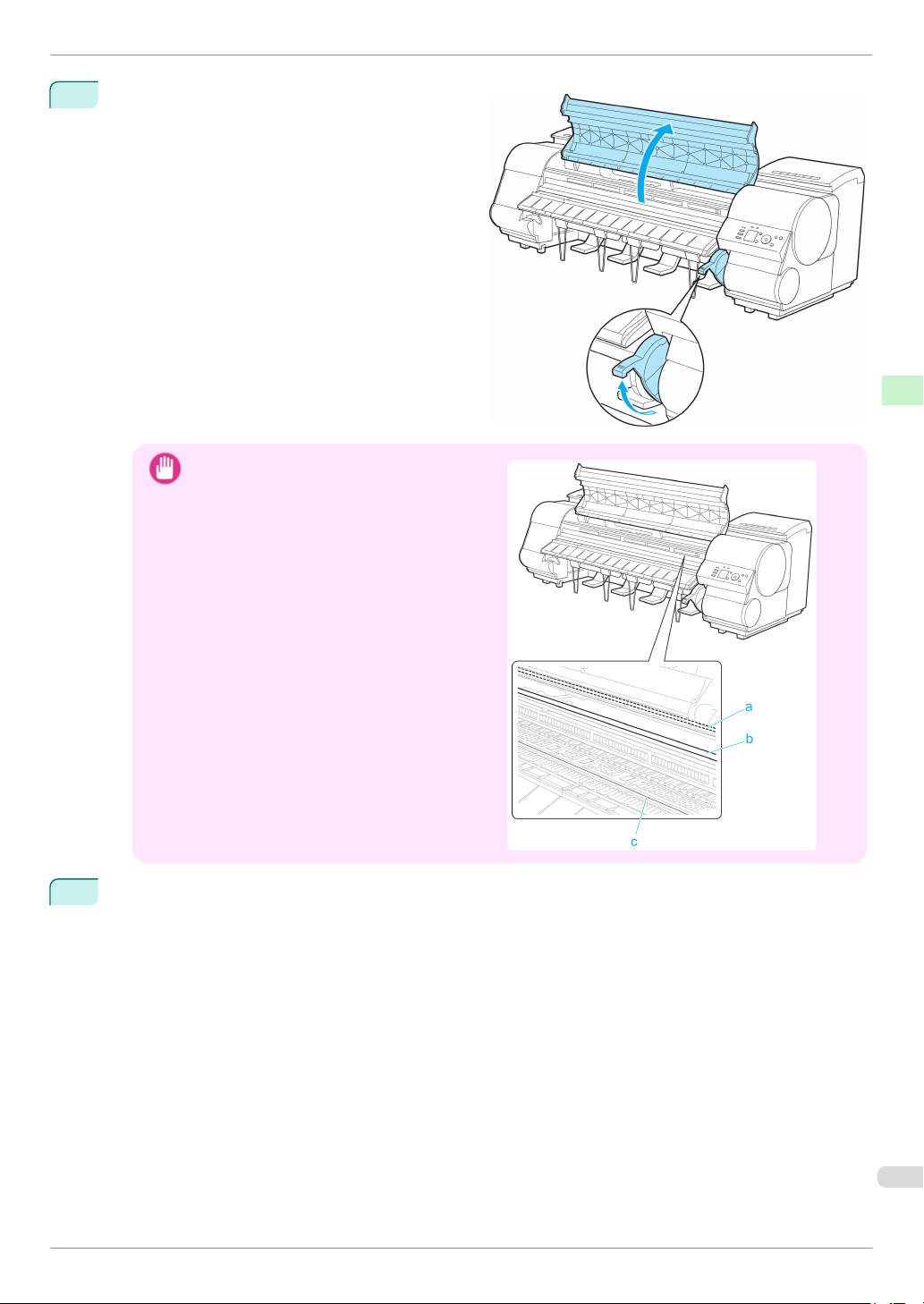
Lift the Release Lever and open the Top Cover.
Do not touch the Linear Scale (a), Carriage
•
Important
Shaft (b), or Fixed Blade (c). This may stain your
hands and damage the printer.
Handling Paper Handling sheets
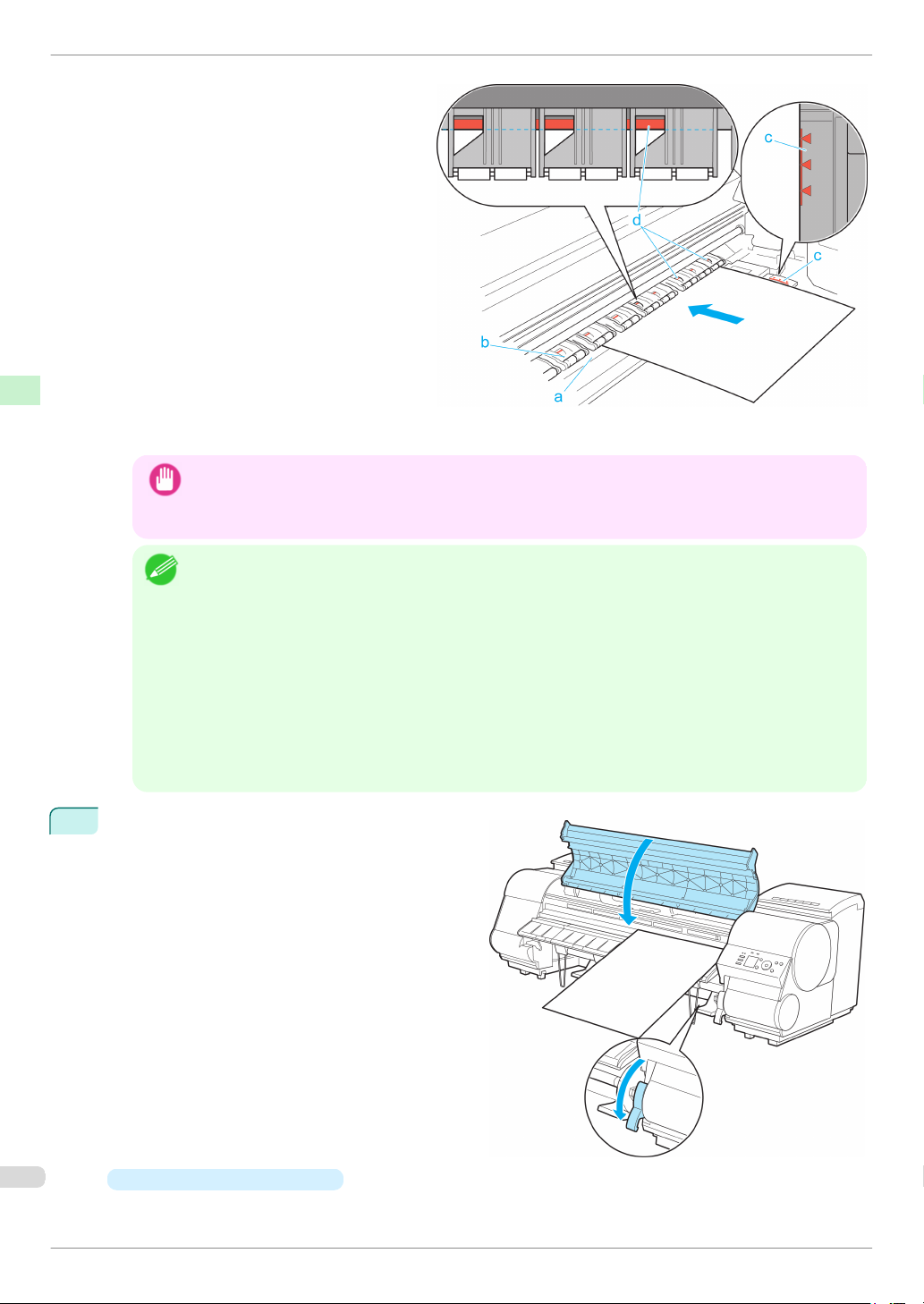
3
With a sheet lengthwise and printing-side up, insert it between the Platen (a) and the Paper Retainer (b).
Align the edges of the sheet as follows.
1.
Align the sheet with the Paper Alignment Line (c) at right.
2.
Align the inserted edge of the sheet with the leading edge of the Paper Alignment Line (d), as shown.
Basic Guide
19
Page 20
Loading Sheets in the Printer
Handling Paper Handling sheets
When inserted, sheets are automatically held by suction against the Platen.
• Load a sheet so that it is parallel to the Paper Alignment Line at right (c). Loading paper askew will cause an
Important
error.
• Warped paper may rub against the Printhead. Straighten paper if it is warped before loading it.
iPF8400
• You can adjust the strength of suction holding paper against the Platen when the Release Lever is up. If it is
Note
difficult to load paper, press the ▲ or ▼ button on the Control Panel to adjust the strength. Set suction stronger by pressing the ▲ button or weaker with the ▼ button. Three settings are available.
However, even if you increase the suction, it may not be sufficient to hold some types of paper against the
Platen well. In this case, use your hand to load the paper.
• Sheets are held in place by suction through holes on the Platen. Although the suction may produce a noise
when paper is loaded in some positions, it does not indicate a problem. If the noise is distracting, try moving
the paper over slightly to the left or right (up to 1 mm [0.039 in]) while keeping it parallel to the Paper Alignment
Line.
• The suction remains on for about 30 seconds during loading. If you cannot finish loading a sheet during this
time, pull the sheet away and reinsert it to start the suction again.
Lower the Release Lever and close the Top Cover.
4
•
If a print job was received
Pressing the OK button will advance the paper, and then printing will begin.
Basic Guide
Page 21
iPF8400
Removing Sheets
•
If no print job was received
A menu for selection of the type of paper is shown on the Display Screen.
Press ▲ or ▼ to select the type of paper, and then press the OK button.
The printer now starts feeding the paper.
• For details on types of paper to select, see the Paper Reference Guide. (See "Types of Paper.")
→
Note
User's Guide
• When using the Output Stacker, if you will print on large, stiff sheets, we recommend adjusting the Output
Stacker into the lowest position to prevent printed sheets from being bent. (See "Using the Output Stacker.")
→
User's Guide
Removing Sheets
Removing Sheets
Remove sheets from the printer as follows.
On the Tab Selection screen of the Control Panel, press ◀ or
1
▶ to select the Paper tab ( ).
Handling Paper Handling sheets
• If the Tab Selection screen is not displayed, press the Menu button.
Note
2
Press the OK button.
The Paper Menu is displayed.
3
Press ▲ or ▼ to select Eject Paper, and then press the OK button.
4
Press ▲ or ▼ to select "Yes", and then press the OK button.
The paper is ejected from the front of the printer.
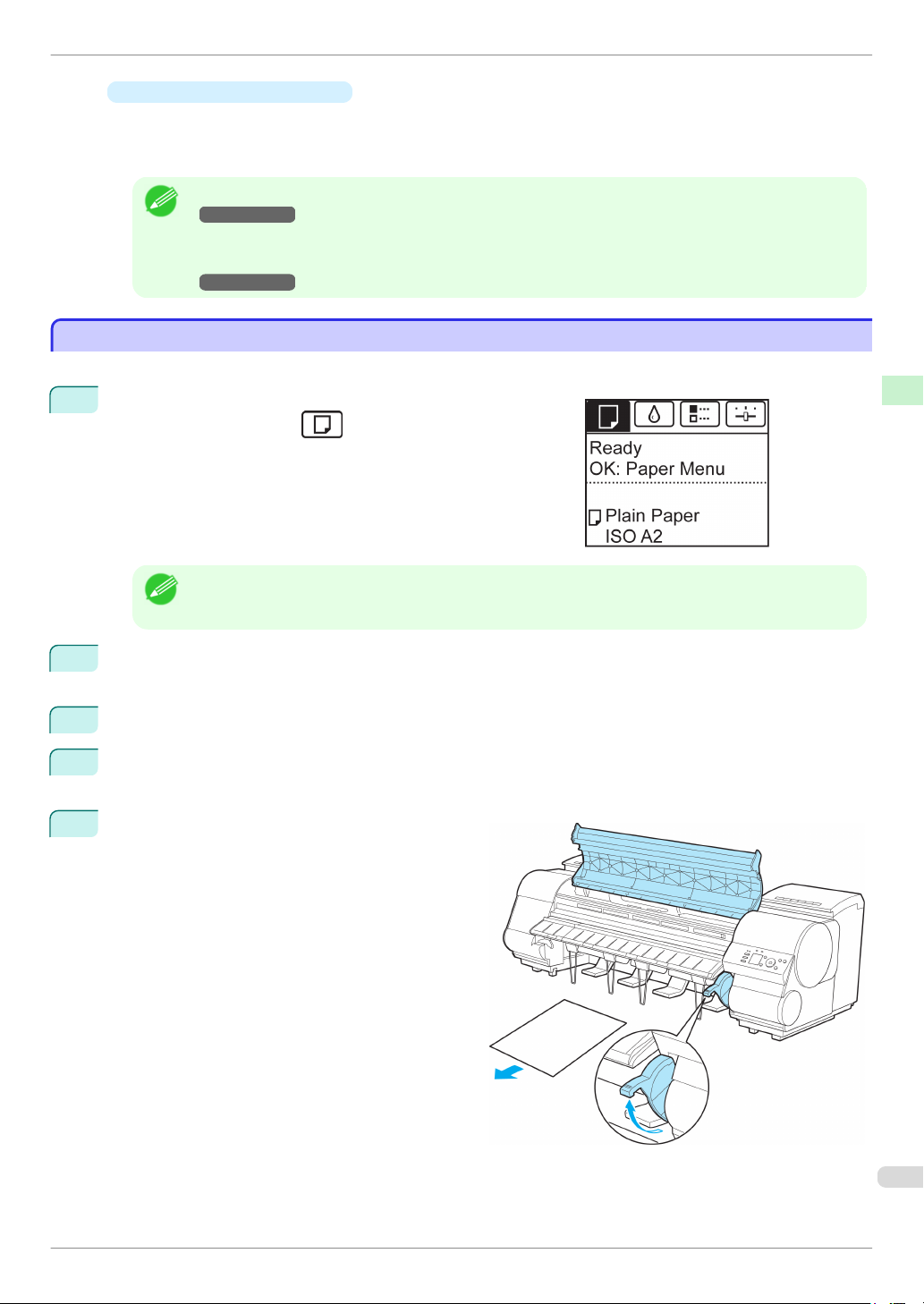
Open the Top Cover, lift the Release Lever, and re-
5
move the sheet.
Basic Guide
21
Page 22
Removing Sheets
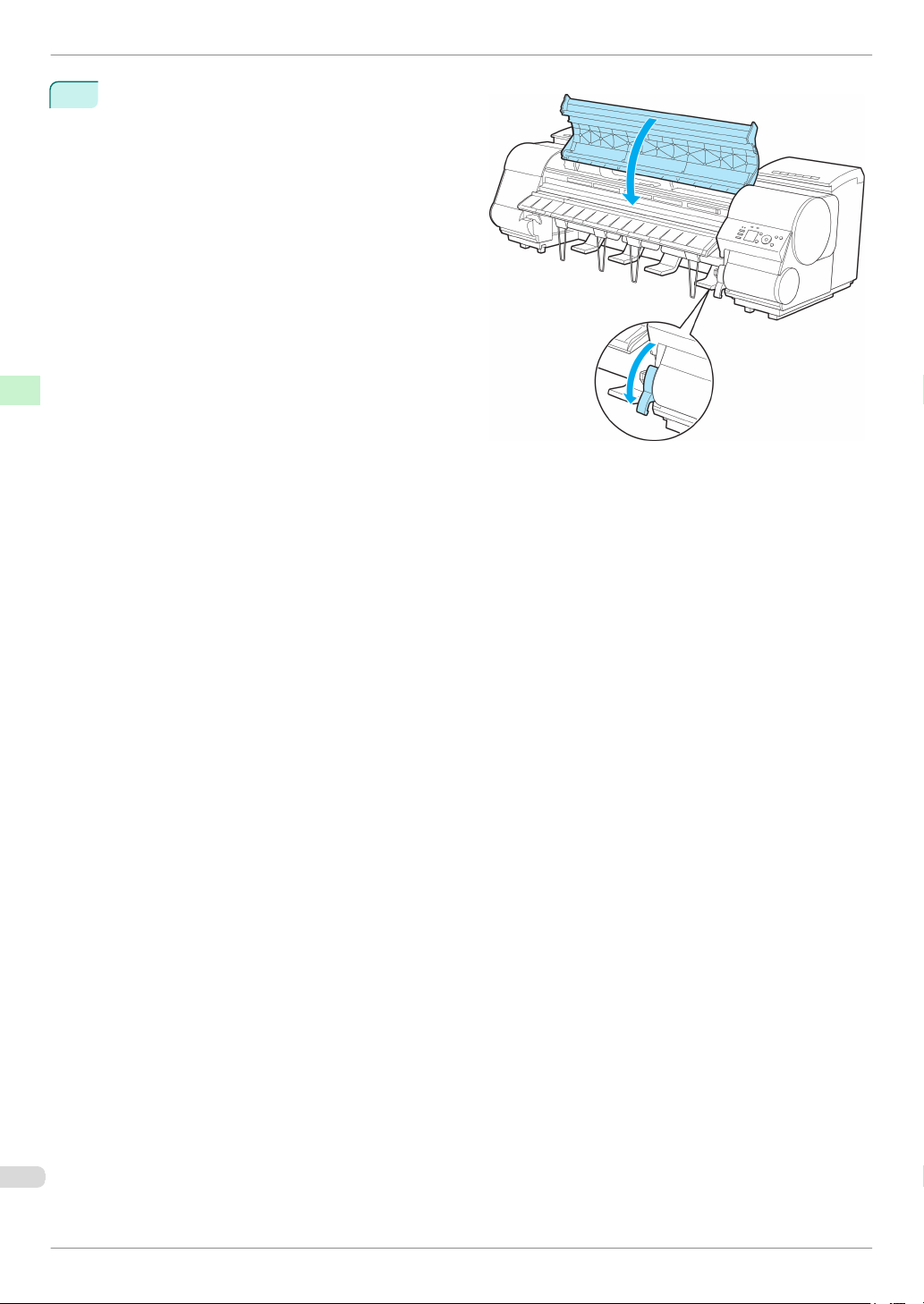
Lower the Release Lever and close the Top Cover.
6
Handling Paper Handling sheets
iPF8400
Basic Guide
Page 23
iPF8400
When purchasing, check the Model number.
Ink Tanks
Consumables and Maintenance
Consumables and Maintenance
Ink Tanks
Ink Tanks
Ink Tanks ............................................................................................................................................................................ 23
Replacing Ink Tanks ....................................................................................................................................................... 23
Ink Tanks
Ink Tanks
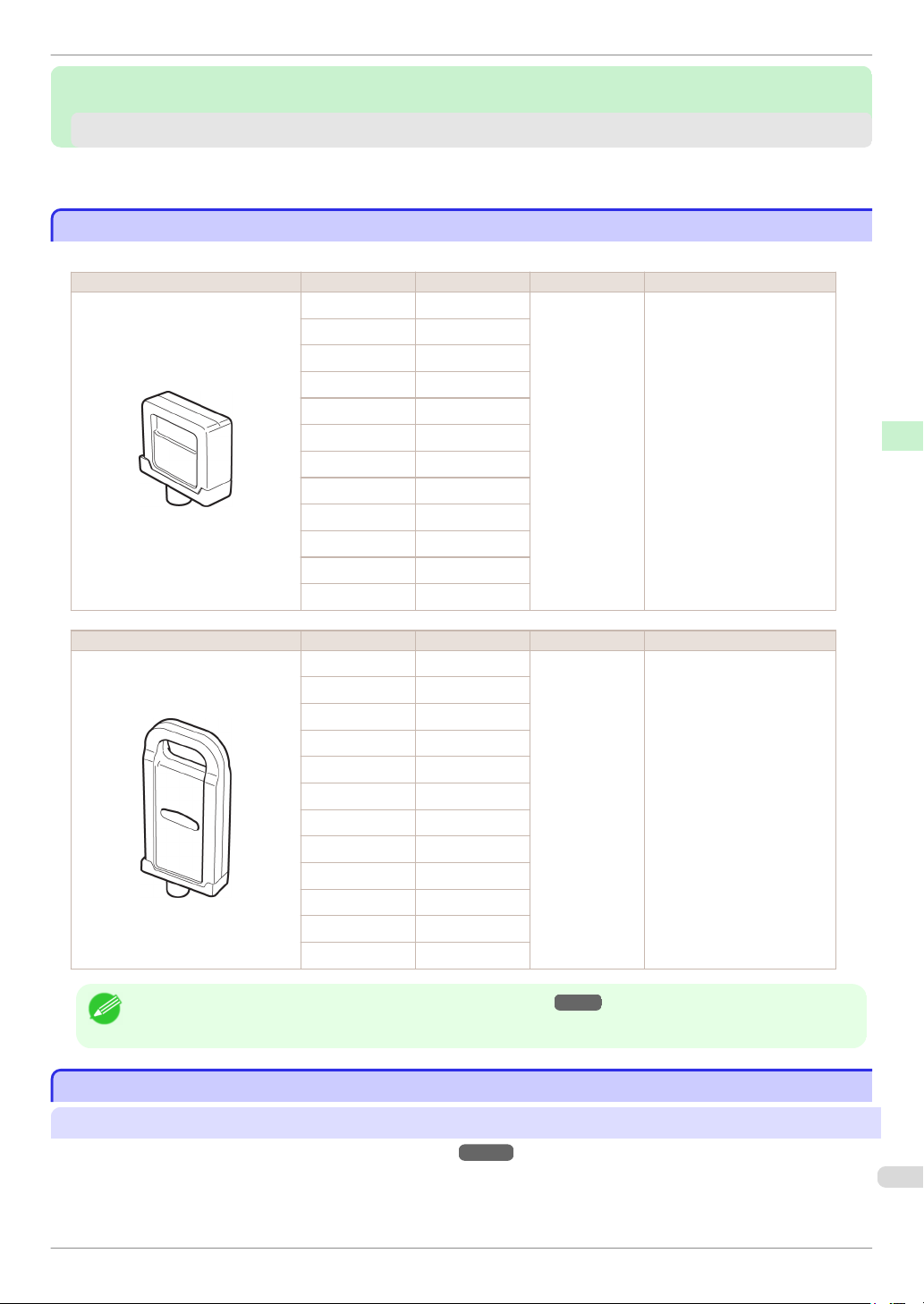
Shape Colors Model number Ink Type Capacity
Matte black PFI-306 MBK
Black PFI-306 BK
Cyan PFI-306 C
Magenta PFI-306 M
Yellow PFI-306 Y
Photo cyan PFI-306 PC
Photo magenta PFI-306 PM
Red PFI-306 R
Green PFI-306 G
Blue PFI-306 B
Gray PFI-306 GY
Photo gray PFI-306 PGY
Pigment ink 330 ml (11.2 fl oz)
Consumables and Maintenance Ink Tanks
Shape Colors Model number Ink Type Capacity
Matte black PFI-706 MBK
Black PFI-706 BK
Cyan PFI-706 C
Magenta PFI-706 M
Yellow PFI-706 Y
• For instructions on Ink Tank replacement, see "Replacing Ink Tanks."
• The provided Starter Ink Tanks contain 330 ml (11.2 fl oz) each.
Note
Replacing Ink Tanks
Replacing Ink Tanks
Photo cyan PFI-706 PC
Photo magenta PFI-706 PM
Red PFI-706 R
Green PFI-706 G
Blue PFI-706 B
Gray PFI-706 GY
Photo gray PFI-706 PGY
Pigment ink 700 ml (23.7 fl oz)
→
P.23
Compatible ink tanks
→
For information on compatible ink tanks, see "Ink Tanks."
Replacement ink tanks in 330 ml (11.2 fl oz) and 700 ml (23.7 fl oz) capacities are supported.
P.23
23
Basic Guide
Page 24
Replacing Ink Tanks
• Depending on the color, you can also use an ink tank with a different capacity.
Note
Precautions when handling ink tanks
Take the following precautions when handling ink tanks.
Consumables and Maintenance Ink Tanks
• For safety, keep ink tanks out of the reach of children.
• If ink is accidentally ingested, contact a physician immediately.
Caution
• There may be ink around the ink supply section of ink tanks you removed. Handle ink tanks carefully during replace-
Important
ment. The ink may stain clothing.
• Do not install used ink tanks in another model of printer.
This will prevent correct ink level detection, which may damage the printer or cause other problems.
• We recommend using up an Ink Tank in the course of printing within six months after breaking the seal. Printing quality
may be affected if you use older ink tanks.
• Do not leave the printer without ink tanks installed for extended periods (a month or more). Residual ink may become
clogged inside the printer and affect printing quality.
How to replace an Ink Tank
iPF8400
1.
Confirm the message.
2.
Access the menu for Ink Tank replacement.
3.
Remove the Ink Tank.
•
330 ml ink tanks
•
700 ml ink tanks
4.
Load the new Ink Tank.
•
330 ml ink tanks
•
700 ml ink tanks
→
P.24
→
P.25 (Otherwise, open the Ink Tank Cover.)
→
P.25
→
P.27
→
P.28
→
P.31
Confirm the message
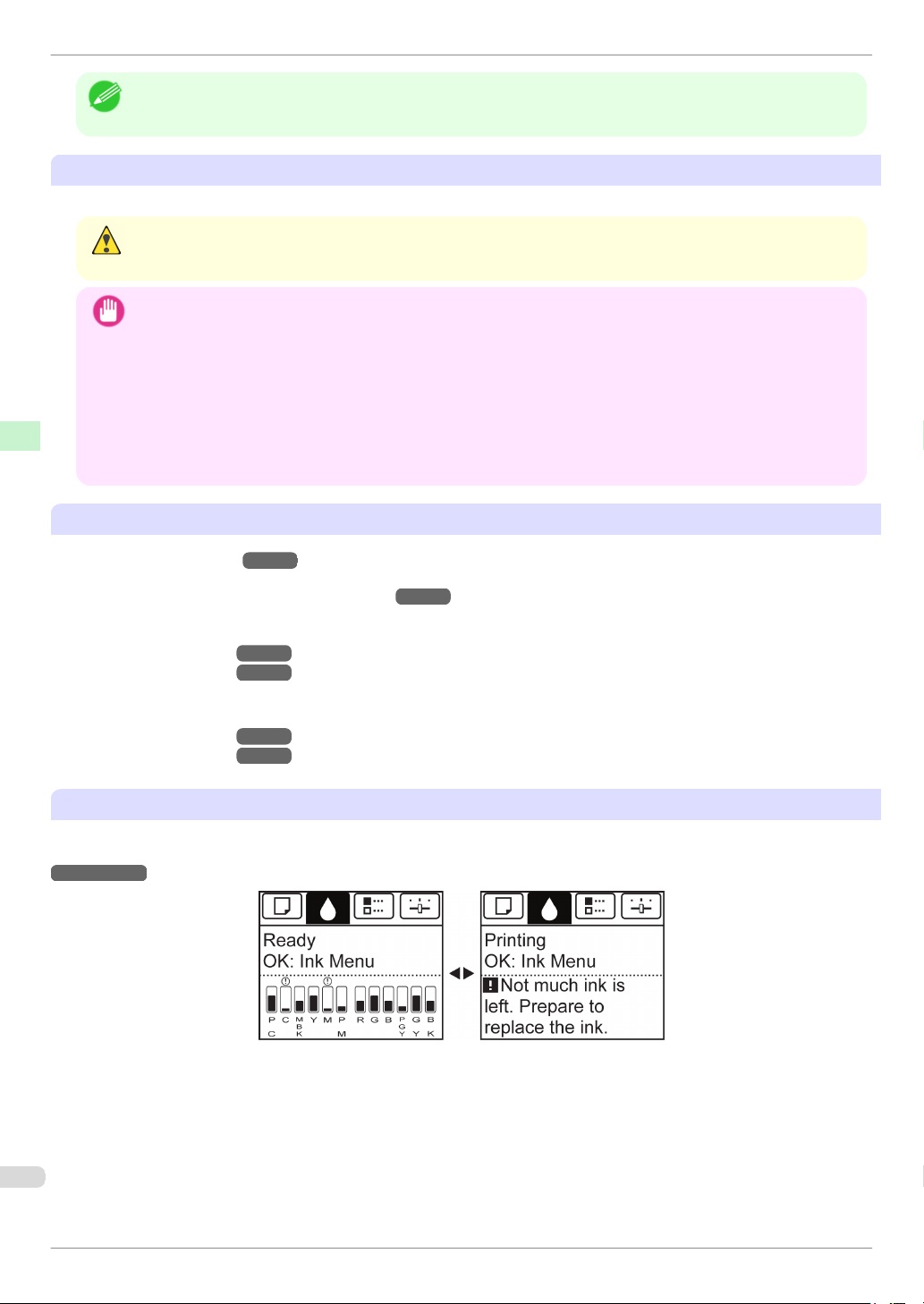
When the ink level becomes low, a message is displayed on the Display Screen.
According to the message, replace the ink tank or prepare a new ink tank. (See "When to Replace Ink Tanks.")
→
User's Guide
Basic Guide
Page 25
iPF8400
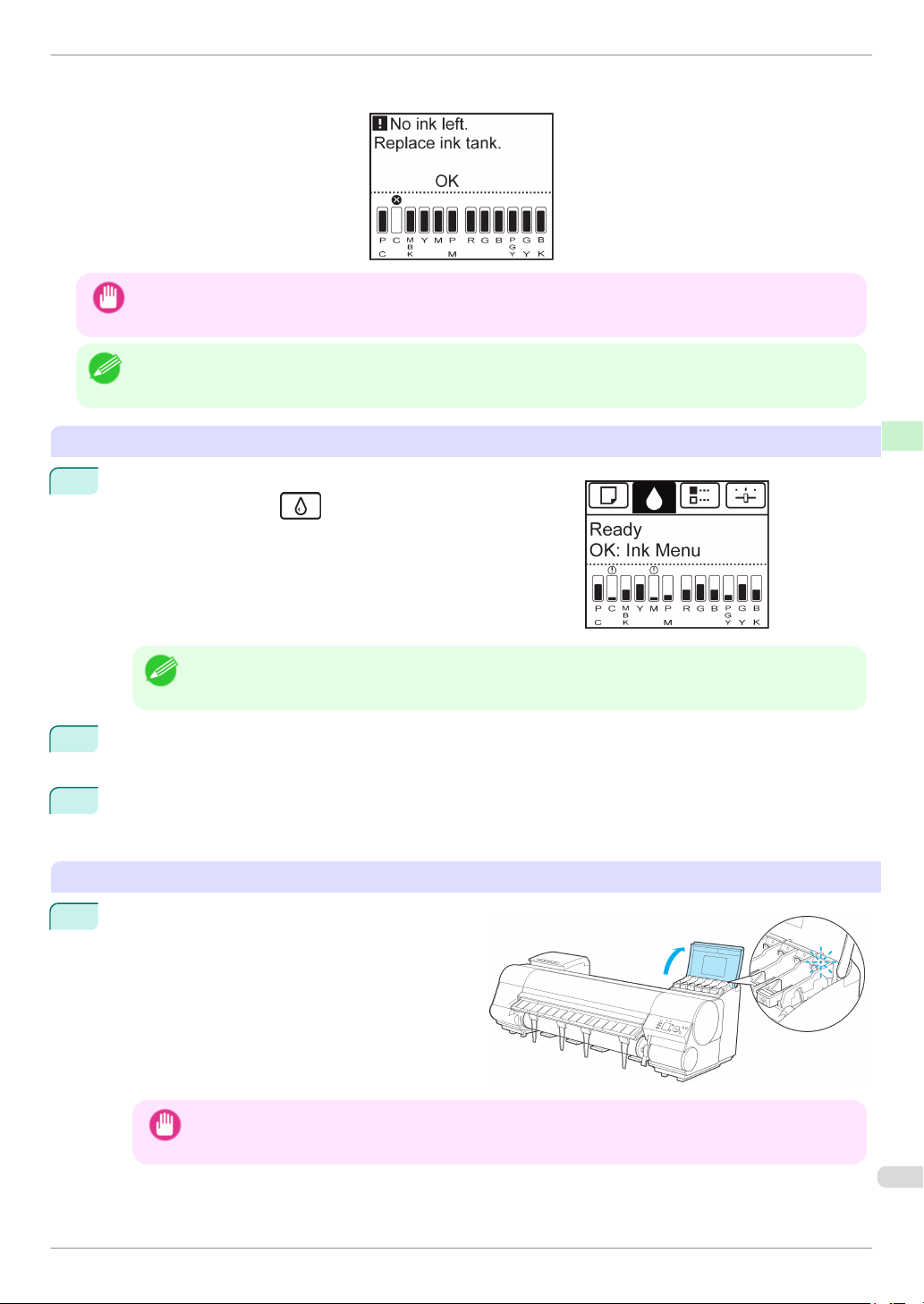
If a message requests you to replace an Ink Tank, press the OK button. In this case, you can skip the step Access
the menu for ink tank replacement. Follow the instructions in Remove the ink tanks.
Replacing Ink Tanks
• Do not remove an Ink Tank during initialization immediately after turning on the printer, or during printhead cleaning.
Important
Ink may leak out.
• Ink Tank replacement is possible even during printing, when print jobs are being canceled, or when paper is being ad-
vanced.
Note
Consumables and Maintenance Ink Tanks
Access the menu for Ink Tank replacement
On the Tab Selection screen of the Control Panel, press ◀ or
1
▶ to select the Ink tab ( ).
• If the Tab Selection screen is not displayed, press the Menu button.
Note
2
Press the OK button.
The Ink Menu is displayed.
3
Press ▲ or ▼ to select Rep. Ink Tank, and then press the OK button.
Instructions are displayed on the Display Screen.
Remove the Ink Tank (330 ml)
Open the Ink Tank Cover of the tank for replace-
1
ment and check the Ink Lamp.
The Ink Lamp flashes quickly if there is no ink left.
• Avoid hitting the printer when replacing an Ink Tank. Handle the printer gently when replacing tanks. Jolting
Important
Basic Guide
the printer during printing may deteriorate print quality.
25
Page 26
Replacing Ink Tanks
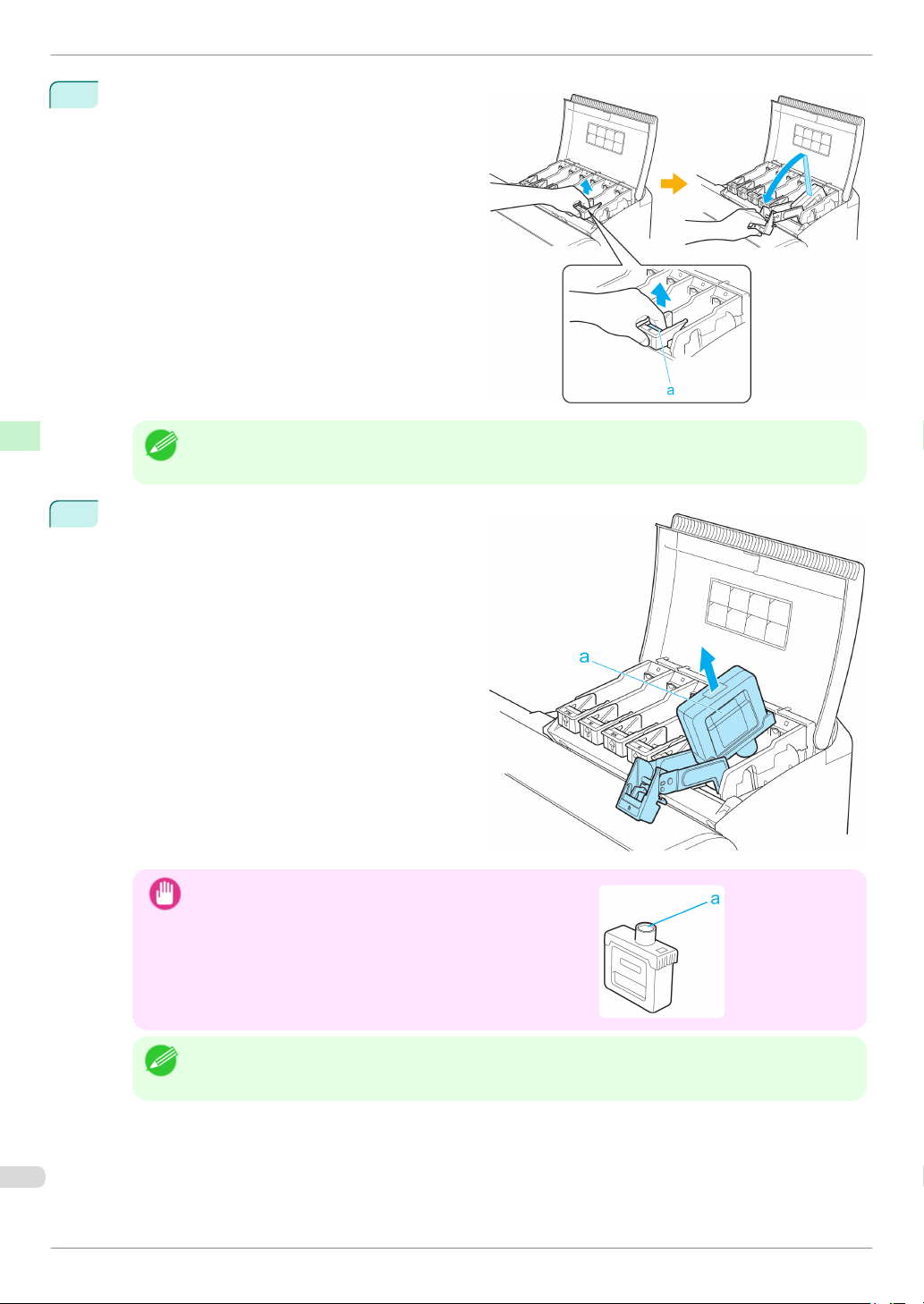
Lift the stopper (a) of the Ink Tank Lock Lever for
2
the color to replace. Lift the Ink Tank Lock Lever
until it stops, and then push it down to the front.
Consumables and Maintenance Ink Tanks
• Push the Ink Tank Lock Lever down until it locks.
• Make sure the Ink Tank Lock Lever does not return to the original position.
Note
Hold the Ink Tank by the grips (a) and remove it.
3
Press the OK button.
iPF8400
If there is still ink in the Ink Tank you removed, store it with the
•
Important
ink holes (a) facing up. Otherwise, ink may leak and cause
stains. Put the removed Ink Tank in a plastic bag and seal it.
• Dispose of used ink tanks according to local regulations.
Note
Basic Guide
Page 27
iPF8400
Replacing Ink Tanks
Remove the Ink Tank (700 ml)
Open the Ink Tank Cover of the tank for replace-
1
ment and check the Ink Lamp.
The Ink Lamp flashes quickly if there is no ink left.
• Avoid hitting the printer when replacing an Ink Tank. Handle the printer gently when replacing tanks. Jolting
Important
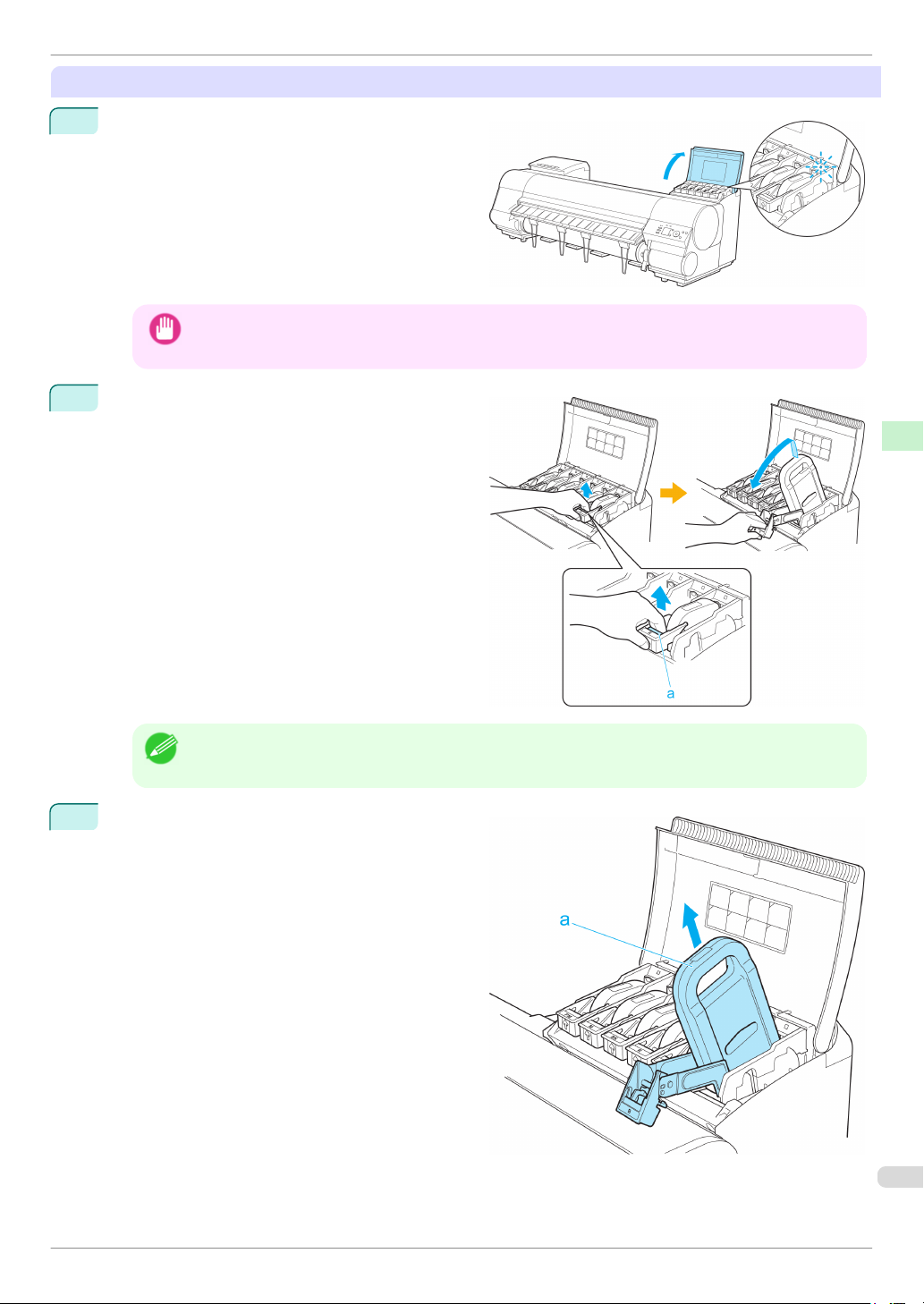
Lift the stopper (a) of the Ink Tank Lock Lever for
2
the color to replace. Lift the Ink Tank Lock Lever
until it stops, and then push it down to the front.
the printer during printing may deteriorate print quality.
Consumables and Maintenance Ink Tanks
• Push the Ink Tank Lock Lever down until it locks.
• Make sure the Ink Tank Lock Lever does not return to the original position.
Note
Hold the Ink Tank by the handle (a) and remove it.
3
Press the OK button.
27
Basic Guide
Page 28
Replacing Ink Tanks
If there is still ink in the Ink Tank you removed, store it in the
•
Important
Consumables and Maintenance Ink Tanks
box with the ink holes (a) facing up. Otherwise, ink may leak
and cause stains.
• Dispose of used ink tanks according to local regulations.
Note
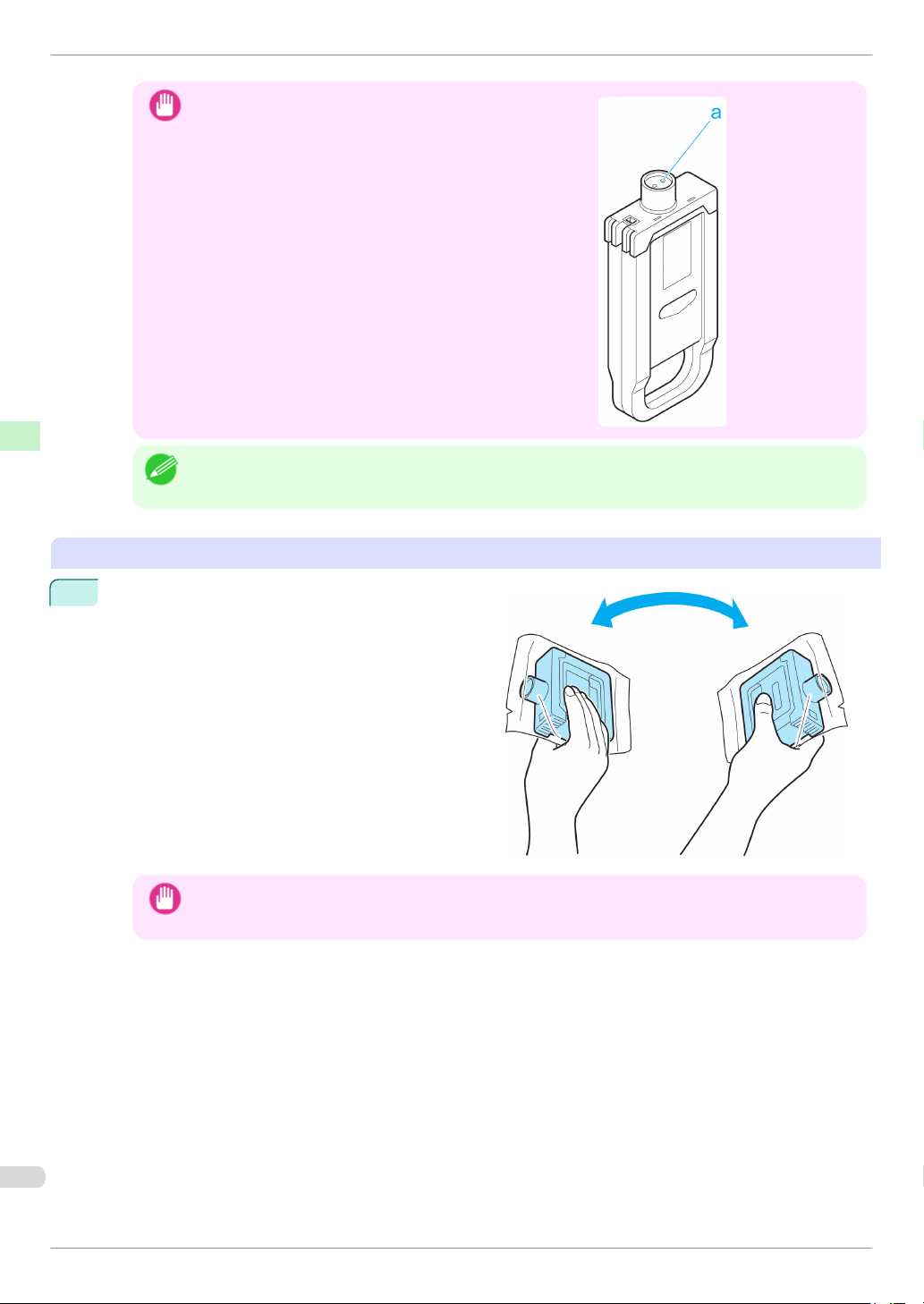
Load the Ink Tank (330 ml)
Before opening the pouch, tilt the Ink Tank to the left
1
and right gently seven or eight times.
iPF8400
• Do not remove and agitate ink tanks that have already been installed in the printer. Ink may leak out.
• If you do not agitate the Ink Tank, the ink may settle, which may affect printing quality.
Important
Basic Guide
Page 29
iPF8400
2
3
Replacing Ink Tanks
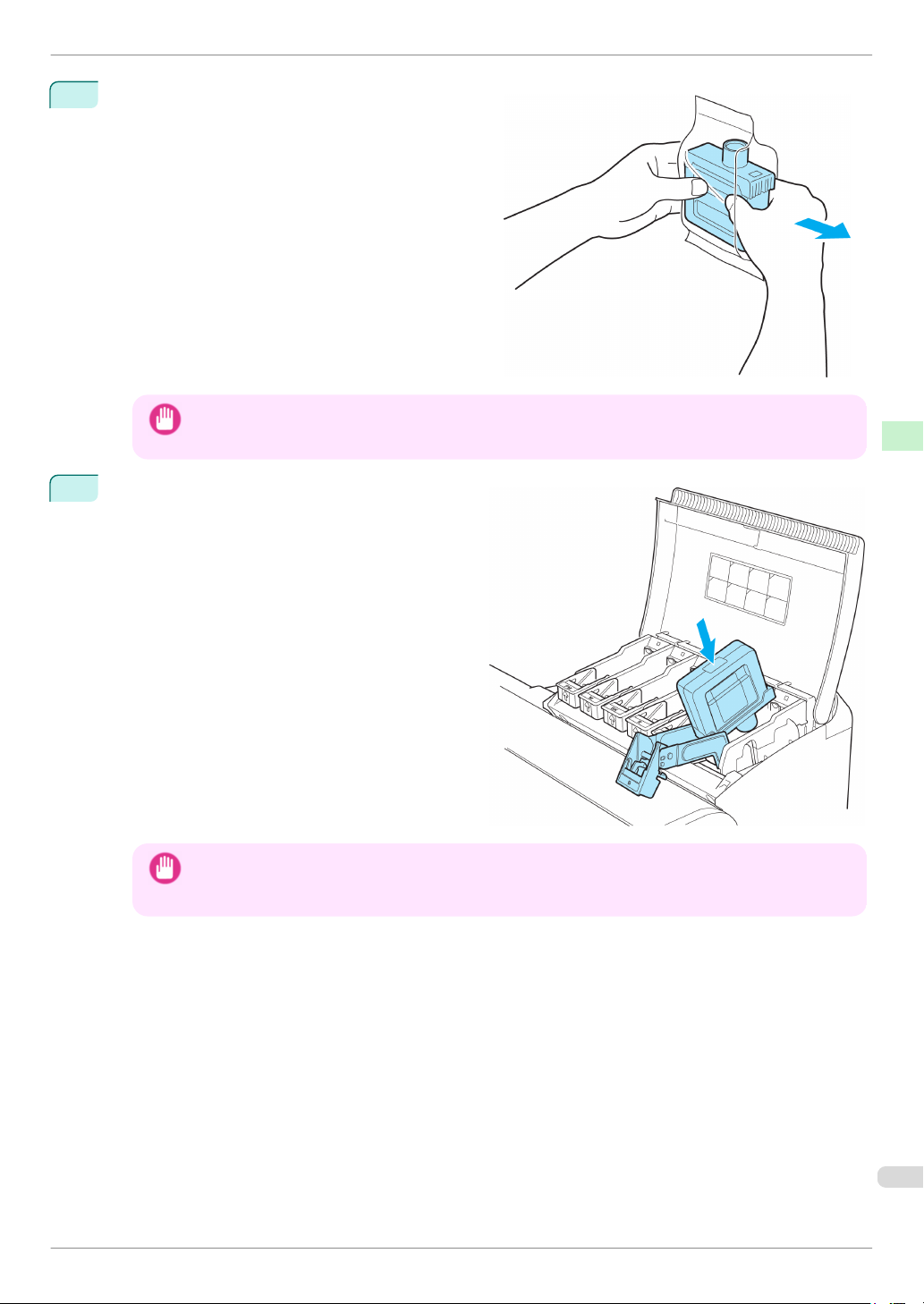
Open the pouch and remove the Ink Tank.
• Never touch the ink holes or electrical contacts. This may cause stains, damage the Ink Tank, and affect
Important
Press the OK button and insert the Ink Tank into
the holder facing as shown, with the ink holes
down.
printing quality.
Consumables and Maintenance Ink Tanks
• Ink tanks cannot be loaded in the holder if the color or orientation is incorrect.
Important
Basic Guide
If the Ink Tank does not fit in the holder, do not force it into the holder. Make sure the color of the Ink Tank
Lock Lever matches the color of the Ink Tank, and check the orientation of the Ink Tank before reloading it.
29
Page 30
Replacing Ink Tanks
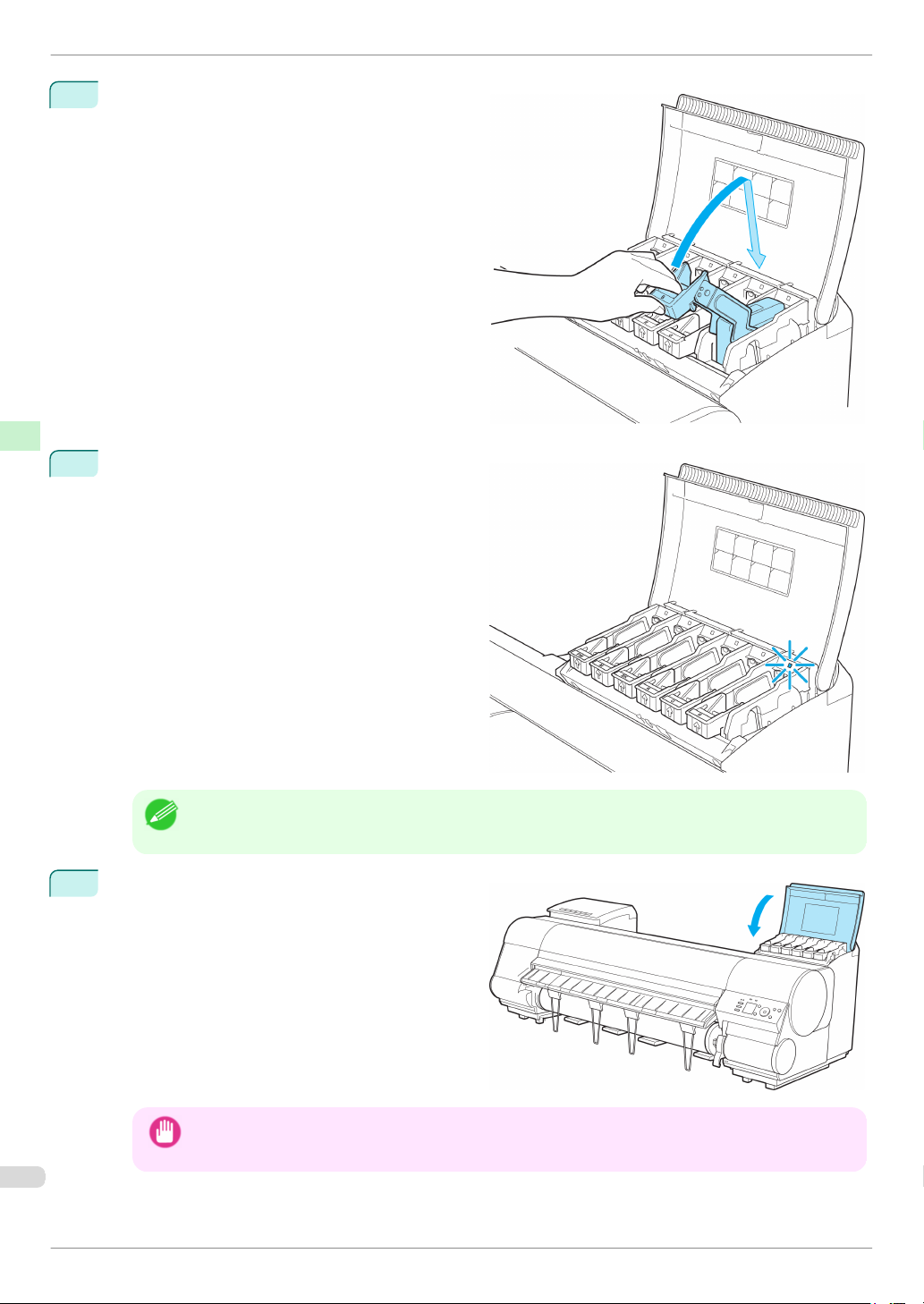
Lift the Ink Tank Lock Lever until it stops, and then
4
push it down until it clicks into place.
Consumables and Maintenance Ink Tanks
Make sure the Ink Lamp is lit in red.
5
iPF8400
• If the Ink Lamp is not lit in red, reload the tank.
Note
Close the Ink Tank Cover.
6
• After Ink Tank replacement, always close the Ink Tank Cover. If the Ink Tank Cover cannot close, some Ink
Important
Basic Guide
Tank Lock Lever may not be closed completely. Make sure all ink tank lock levers are fully closed.
Page 31
iPF8400
Replacing Ink Tanks
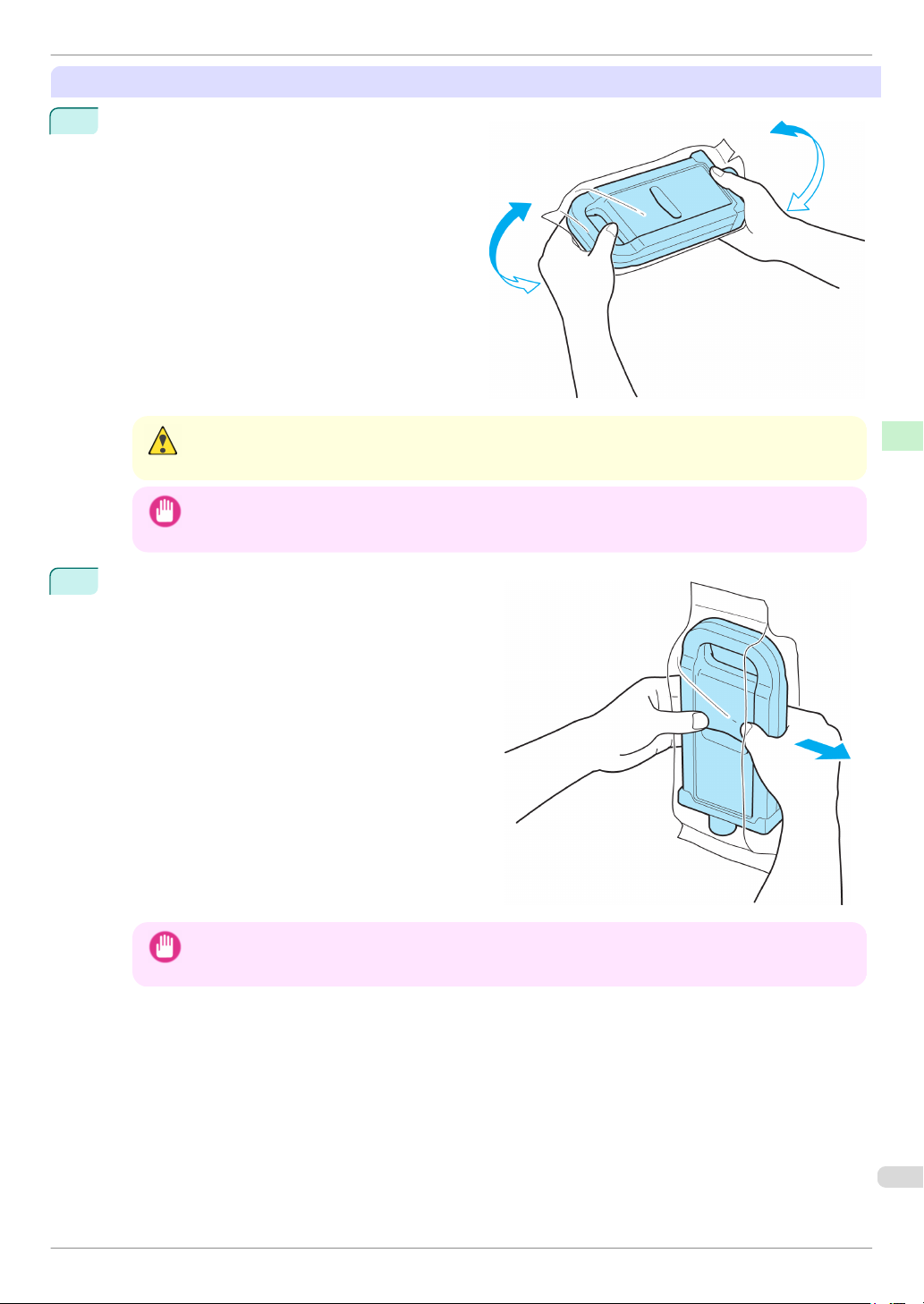
Load the Ink Tank (700 ml)
Before opening the pouch, hold the new Ink Tank
1
with both hands and tilt it to the left and right as
shown, shaking gently it seven or eight times.
Consumables and Maintenance Ink Tanks
• 700 ml ink tanks are heavy, so use your whole arm to agitate it instead of just your wrist. If you agitate it using
Caution
just your wrist, you may injure your wrist.
• Do not remove and agitate ink tanks that have already been installed in the printer. Ink may leak out.
• If you do not agitate the Ink Tank, the ink may settle, which may affect printing quality.
Important
Open the pouch and remove the Ink Tank.
2
• Never touch the ink holes or electrical contacts. This may cause stains, damage the Ink Tank, and affect
Important
printing quality.
Basic Guide
31
Page 32
Replacing Ink Tanks
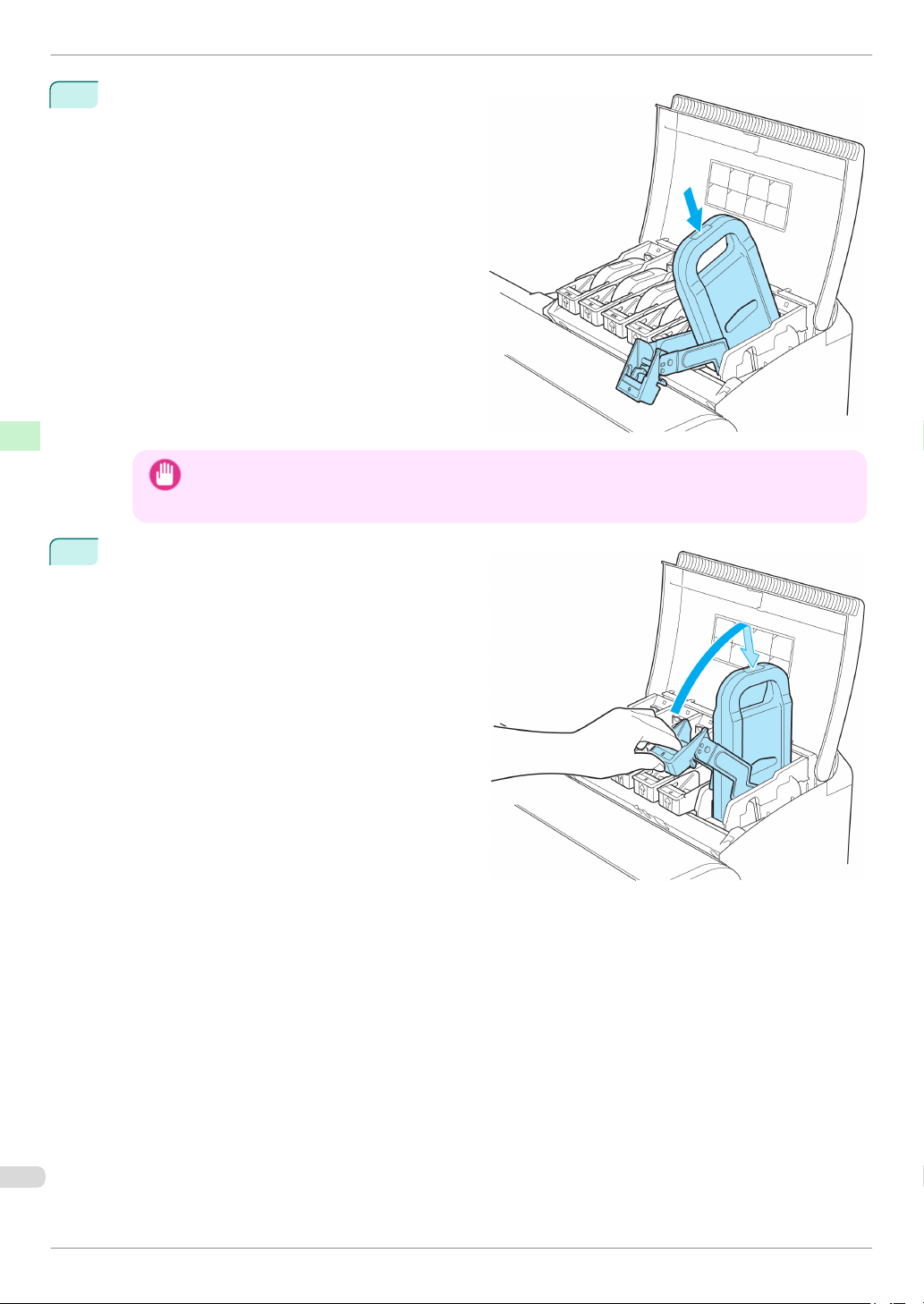
Press the OK button and insert the Ink Tank into
3
the holder facing as shown, with the ink holes
down.
Consumables and Maintenance Ink Tanks
• Ink tanks cannot be loaded in the holder if the color or orientation is incorrect.
Important
Lift the Ink Tank Lock Lever until it stops, and then
4
push it down until it clicks into place.
If the Ink Tank does not fit in the holder, do not force it into the holder. Make sure the color of the Ink Tank
Lock Lever matches the color of the Ink Tank, and check the orientation of the Ink Tank before reloading it.
iPF8400
Basic Guide
Page 33
iPF8400
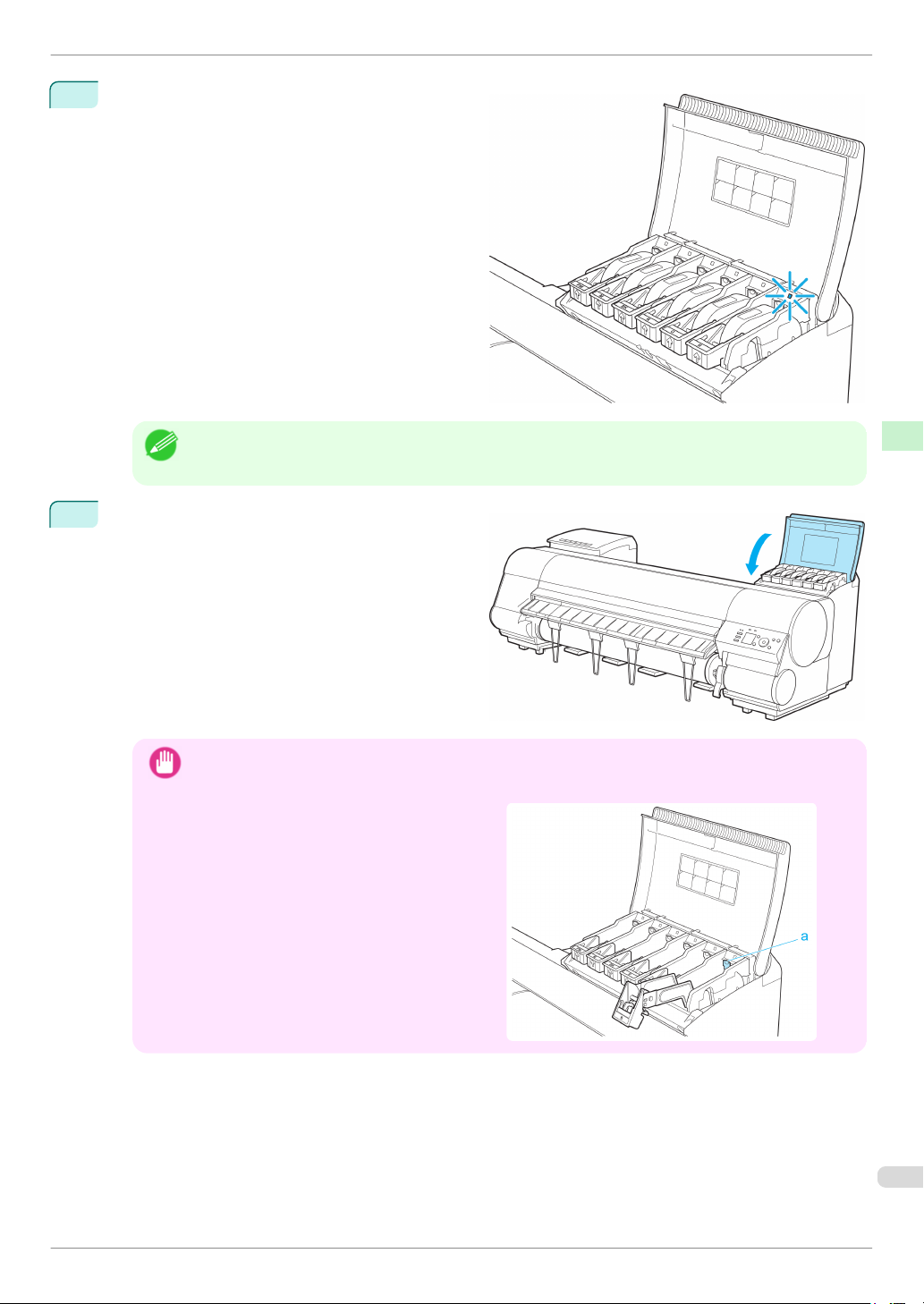
5
Replacing Ink Tanks
Make sure the Ink Lamp is lit in red.
Consumables and Maintenance Ink Tanks
• If the Ink Lamp is not lit in red, reload the tank.
Note
Close the Ink Tank Cover.
6
• After Ink Tank replacement, always close the Ink Tank Cover. If the Ink Tank Cover cannot close, some Ink
Important
•
Tank Lock Lever may not be closed completely. Make sure all ink tank lock levers are fully closed.
To close the Ink Tank Cover when no Ink Tank
is installed (as when moving the printer), push
the release lever (a) as shown while returning
the Ink Tank Lock Lever to the original position.
Basic Guide
33
Page 34
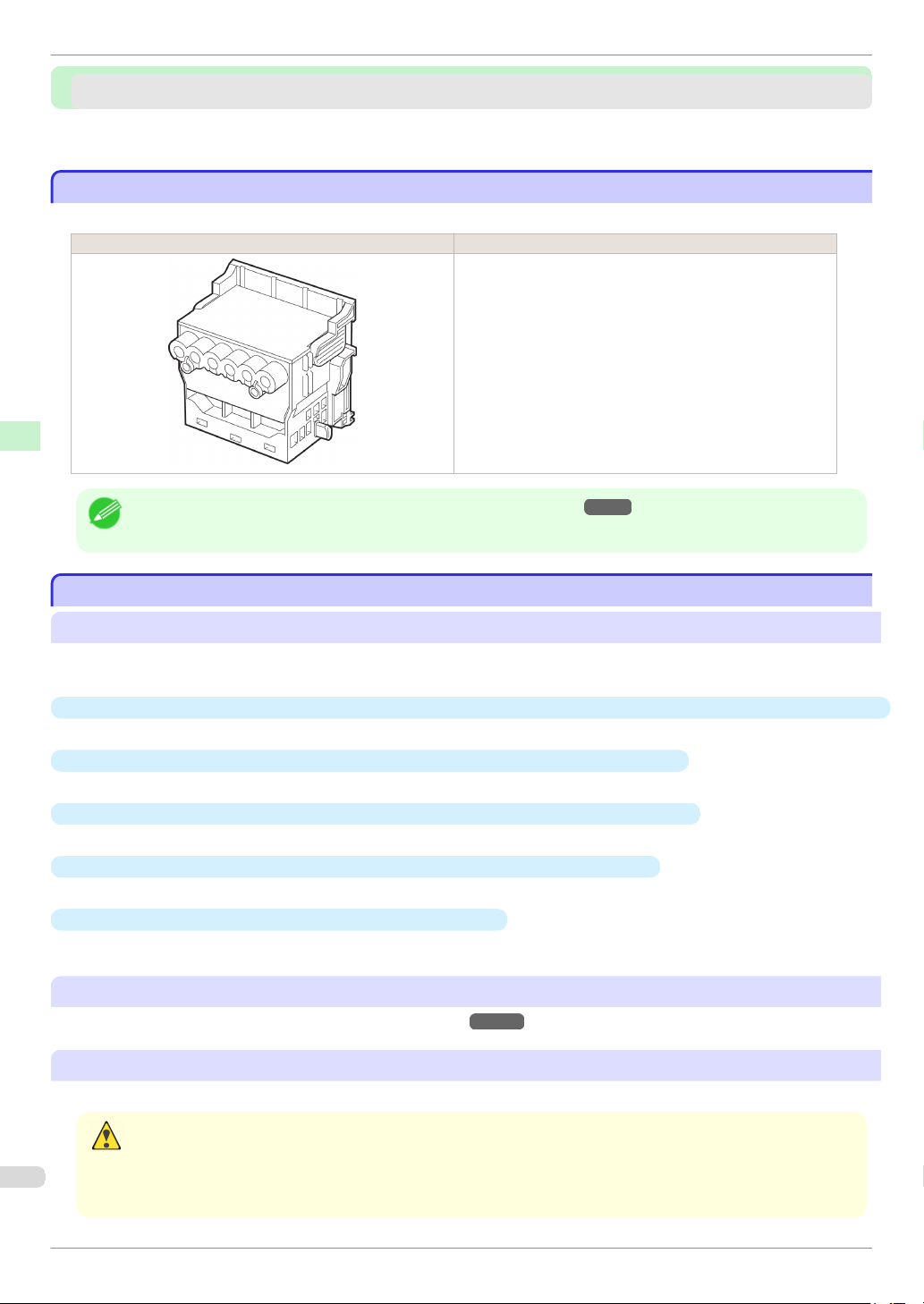
Printhead
Printheads
Printheads
Printhead ............................................................................................................................................................................ 34
Replacing the Printhead ............................................................................................................................................... 34
Printhead
Printhead
Consumables and Maintenance Printheads
When purchasing, check the Model number.
Shape Model number
PF-05
iPF8400
• For instructions on replacing the Printhead, see "Replacing the Printhead."
Note
Replacing the Printhead
Replacing the Printhead
→
P.34
When to replace the Printhead
This printer is equipped with two printheads.
Replace one or both printheads in the following situations.
•
If the printing quality does not improve even after one or two cycles of Head Cleaning B from the printer menu
Replace any printheads with poor printing performance.
•
If the Display Screen indicates "Open top cover and replace the left printhead."
Replace the Printhead on the left side.
•
If the Display Screen indicates "Open top cover and replace the right printhead."
Replace the Printhead on the right side.
•
If the Display Screen indicates "Open top cover and replace the printhead."
Replace both printheads.
•
If your Canon dealer has advised Printhead replacement
Replace the Printhead as directed.
Compatible printheads
→
For information on compatible printheads, see "Printhead."
P.34
Precautions when handling the Printhead
Take the following precautions when handling the Printhead.
• For safety, keep the Printhead out of the reach of children.
• If ink is accidentally ingested, contact a physician immediately.
Caution
• Do not touch the Printhead immediately after printing. The Printhead becomes extremely hot, and there is a risk of
burns.
Basic Guide
Page 35
iPF8400
Important
Replacing the Printhead
• There may be ink around the nozzles of the Printhead you remove. Handle the Printhead carefully during replacement.
The ink may stain clothing.
• Do not open the Printhead pouch until immediately before installation. After removing the Printhead from the pouch,
install it right away. If the Printhead is left after the pouch is opened, the nozzles may dry out, which may affect printing
quality.
Access the menu for Printhead replacement
• When replacing the Printhead immediately after printing, wait a few minutes before replacing it. The metal parts of the
Caution
Printhead become hot during printing, and there is a risk of burns from touching these parts.
• Your hands may become dirty during Printhead replacement. Use the gloves provided with the new Printhead for re-
Important
placement.
• Prepare a new Ink Tank when ink levels are low.
• When the remaining capacity of Maintenance cartridge is low, prepare a new Maintenance cartridge.
Note
1
Remove any paper that has been advanced by selecting Eject Paper in the Control Panel menu.
•
When using a roll, rewind it.
(See "Removing the Roll from the Printer.")
•
When using sheets, remove the sheet.
(See "Removing Sheets.")
2
Clean inside the Top Cover. (See "Cleaning Inside the Top Cover.")
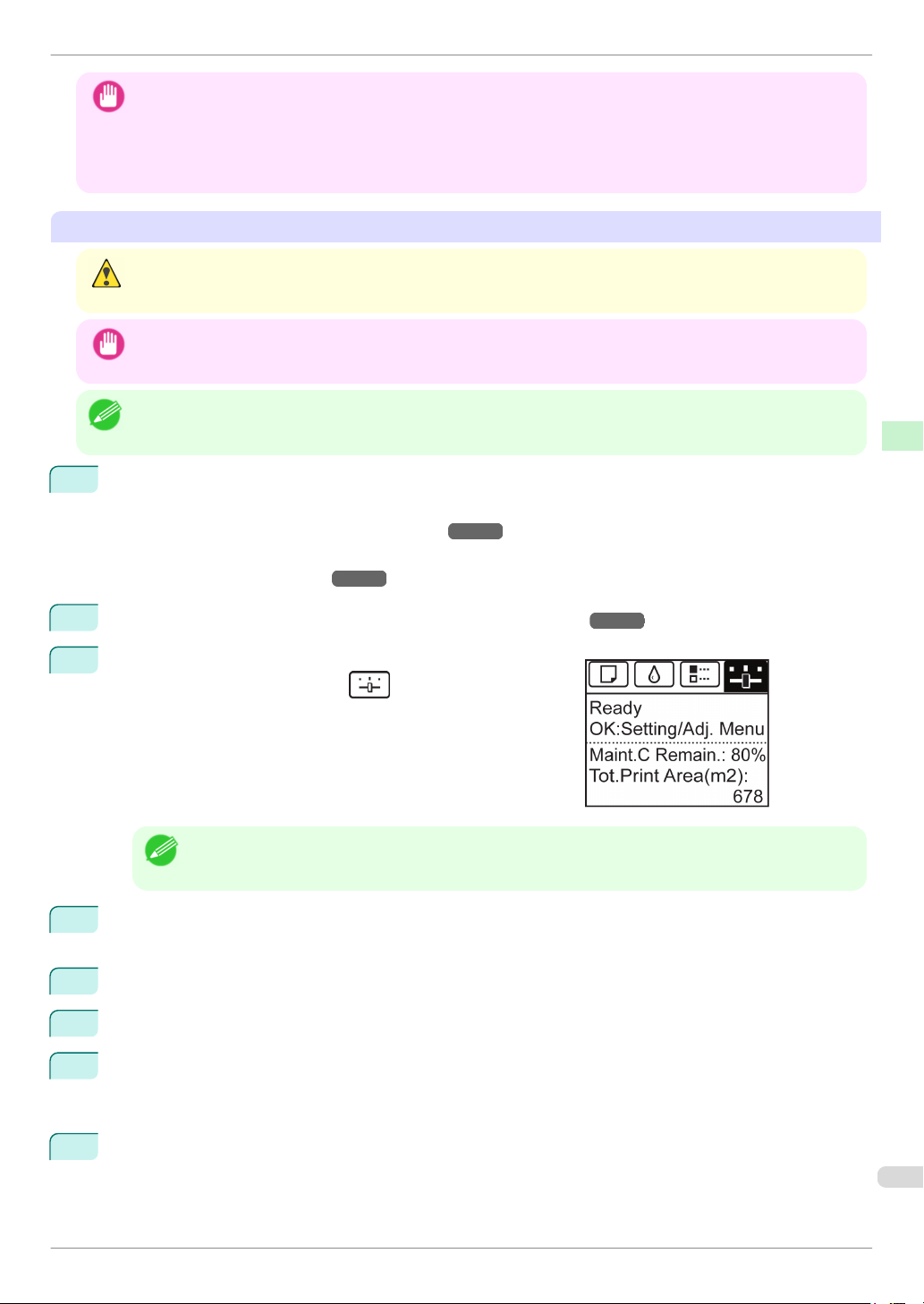
On the Tab Selection screen of the Control Panel, press ◀ or
3
▶ to select the Settings/Adj. tab ( ).
→
P.21
→
P.15
→
P.53
Consumables and Maintenance Printheads
• If the Tab Selection screen is not displayed, press the Menu button.
Note
4
Press the OK button.
The Set./Adj. Menu is displayed.
5
Press ▲ or ▼ to select Maintenance, and then press the OK button.
6
Press ▲ or ▼ to select Replace P.head, and then press the OK button.
7
Press ▲ or ▼ to select the Printhead for replacement.
Select Printhead L when replacing the left printhead, Printhead R when replacing the right printhead, and
L & R Printheads when replacing both. Make sure your selection is correct.
8
Press the OK button.
Ink begins being drawn in. When it finishes, instructions are displayed on the Display Screen.
It takes about three minutes for ink to be drawn into the system.
Basic Guide
35
Page 36
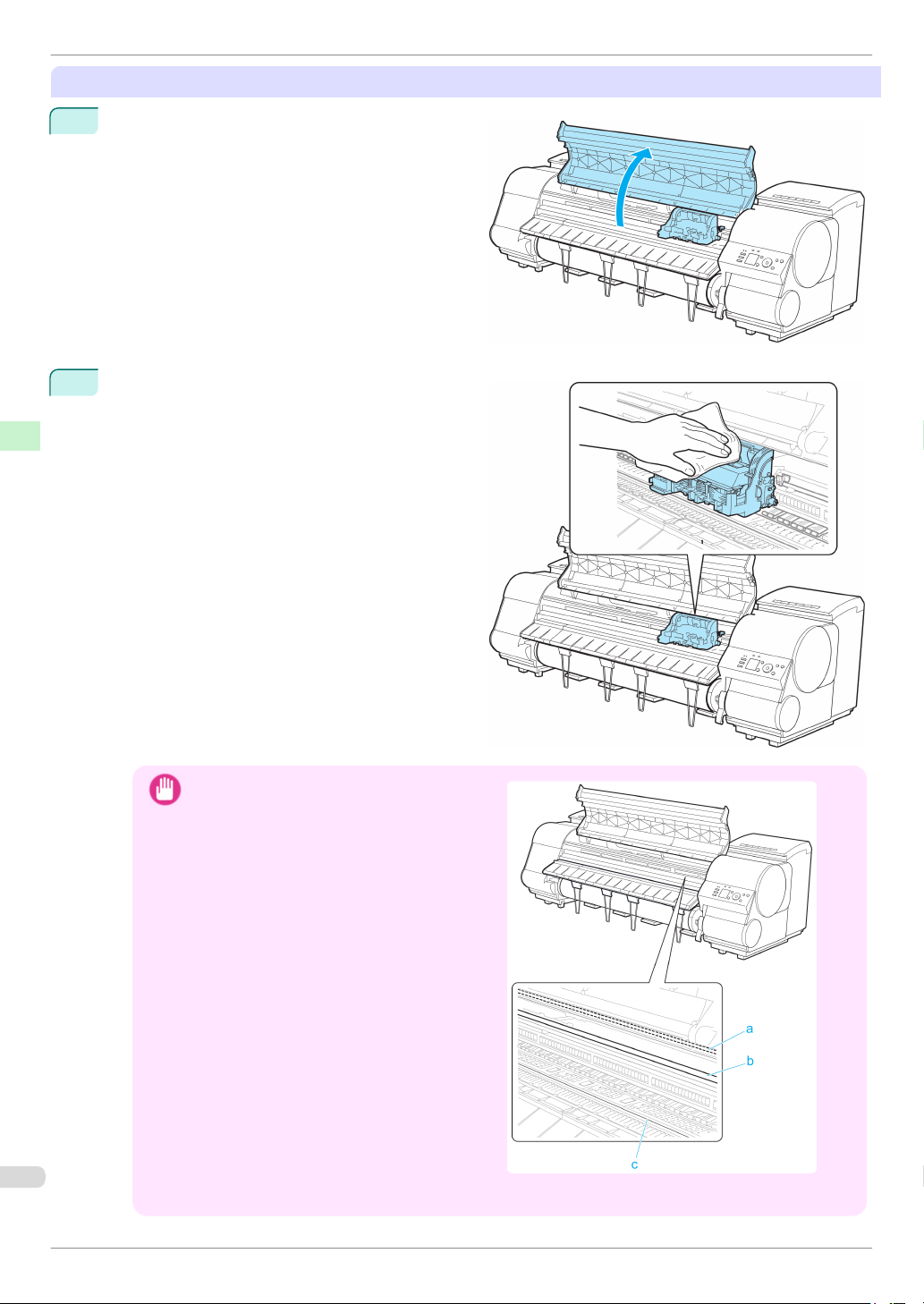
Replacing the Printhead
Replace the Printhead
Open the Top Cover.
1
Consumables and Maintenance Printheads
If the Carriage Cover is dirty, use a damp cloth that
2
you have wrung out completely to wipe it clean.
iPF8400
Do not touch the Linear Scale (a), Carriage
•
Important
Shaft (b), or Fixed Blade (c). This may stain your
hands and damage the printer.
Never touch the metal contacts of the Carriage. This may damage the printer.
•
Basic Guide
Page 37
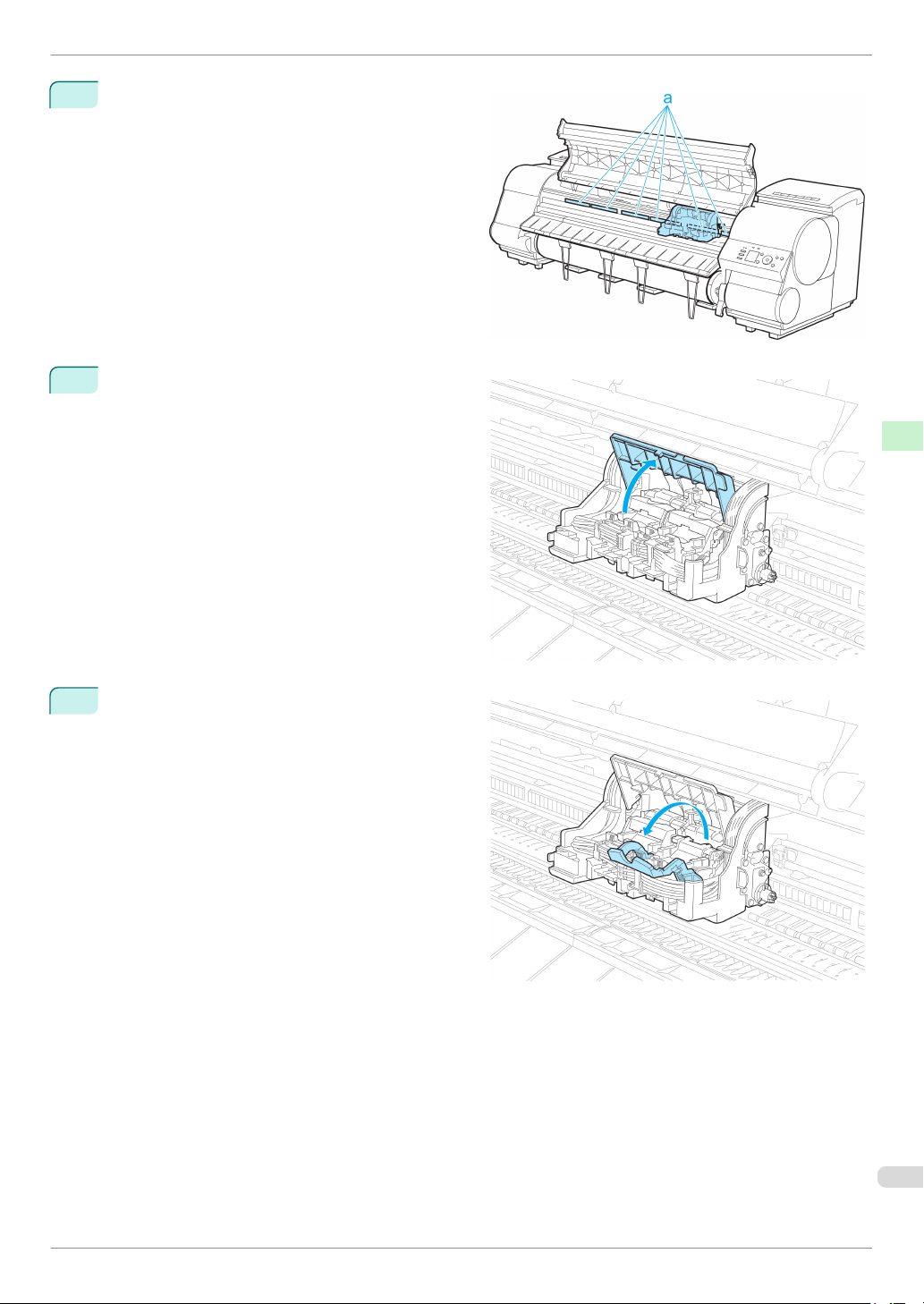
iPF8400
3
4
Replacing the Printhead
If the ventilation duct (a) is dirty, use a damp cloth
that you have wrung out completely to wipe it
clean.
If the Carriage is obscuring the ventilation duct,
move the Carriage manually before cleaning the
duct.
Consumables and Maintenance Printheads
Pull up the Carriage Cover to open it completely.
Pull the Printhead Fixer Lever forward all the way
5
to open it completely.
Basic Guide
37
Page 38
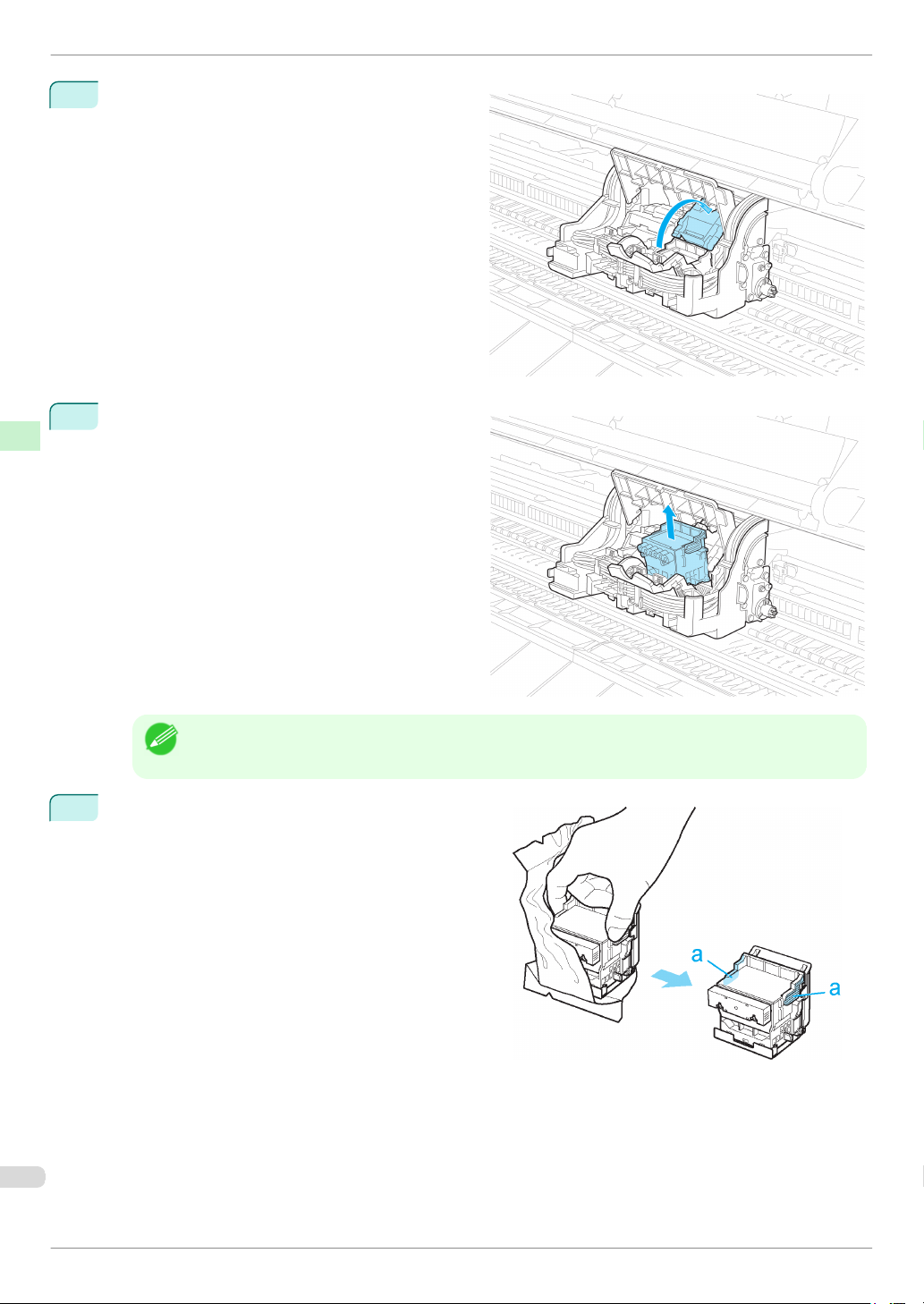
Replacing the Printhead
Pull up the Printhead Fixer Cover to open it com-
6
pletely.
Consumables and Maintenance Printheads
Remove the Printhead and press the OK button.
7
iPF8400
• Dispose of the used Printhead in accordance with local regulations.
Note
Holding the new Printhead by the grips (a), remove it
8
from the pouch.
Basic Guide
Page 39
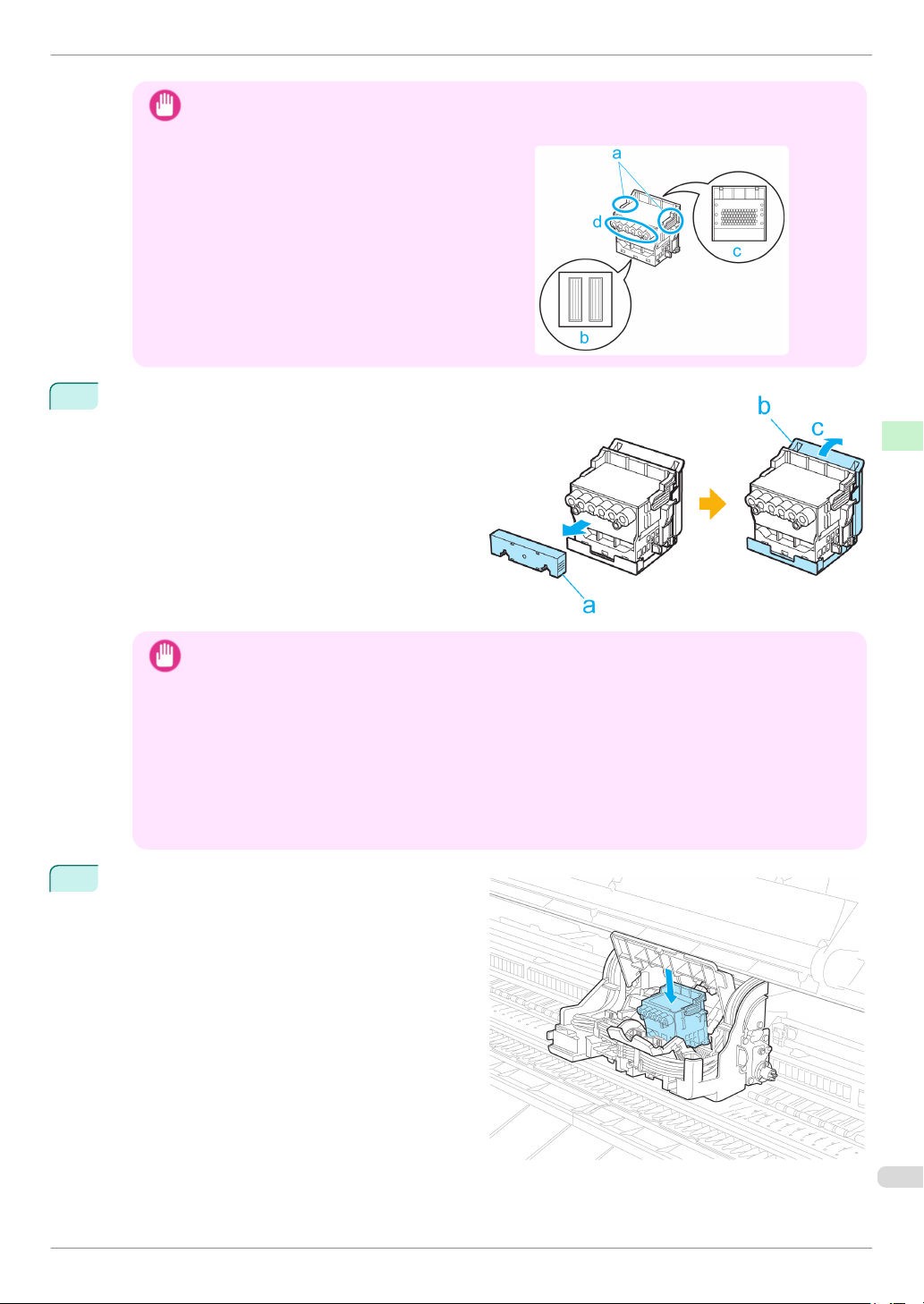
iPF8400
9
Replacing the Printhead
• When handling the Printhead, always hold it by the grips (a). Never touch the nozzles (b) or metal contacts
Important
While firmly holding the Printhead you have removed, use your other hand to remove the orange
Protective Part (a). Squeeze the grips (c) of Protective Part (b) and pull it down to remove it.
(c). This may damage the Printhead and affect printing quality.
Never touch the ink supply section (d). This may
•
cause printing problems.
Consumables and Maintenance Printheads
• The inside surface of the Protective Part (a) and Protective Part (b) is coated with ink to protect the nozzles.
Important
Be careful not to touch these surfaces when removing the caps.
• The Printhead contains ink to protect the nozzles. We recommend removing Protective Part (b) as you hold it
over the Printhead package or safely out of the way to avoid spilling ink and staining your clothes or the
surrounding area. If ink accidentally spills, wipe off the ink with a dry cloth.
• If you need to put a Printhead somewhere temporarily before installation, do not keep the nozzles and metal
contacts facing down. If the nozzles or metal contacts are damaged, it may affect the printing quality.
• Do not reattach the Protective Part or protective material. Dispose of these materials in accordance with local
regulations.
With the nozzles facing down and the metal con-
10
tacts toward the back, tilt the Printhead slightly forward and insert it into the Carriage. Carefully push
the printhead firmly into the Carriage, ensuring that
the nozzles and metal contacts do not touch the
carriage.
Basic Guide
39
Page 40
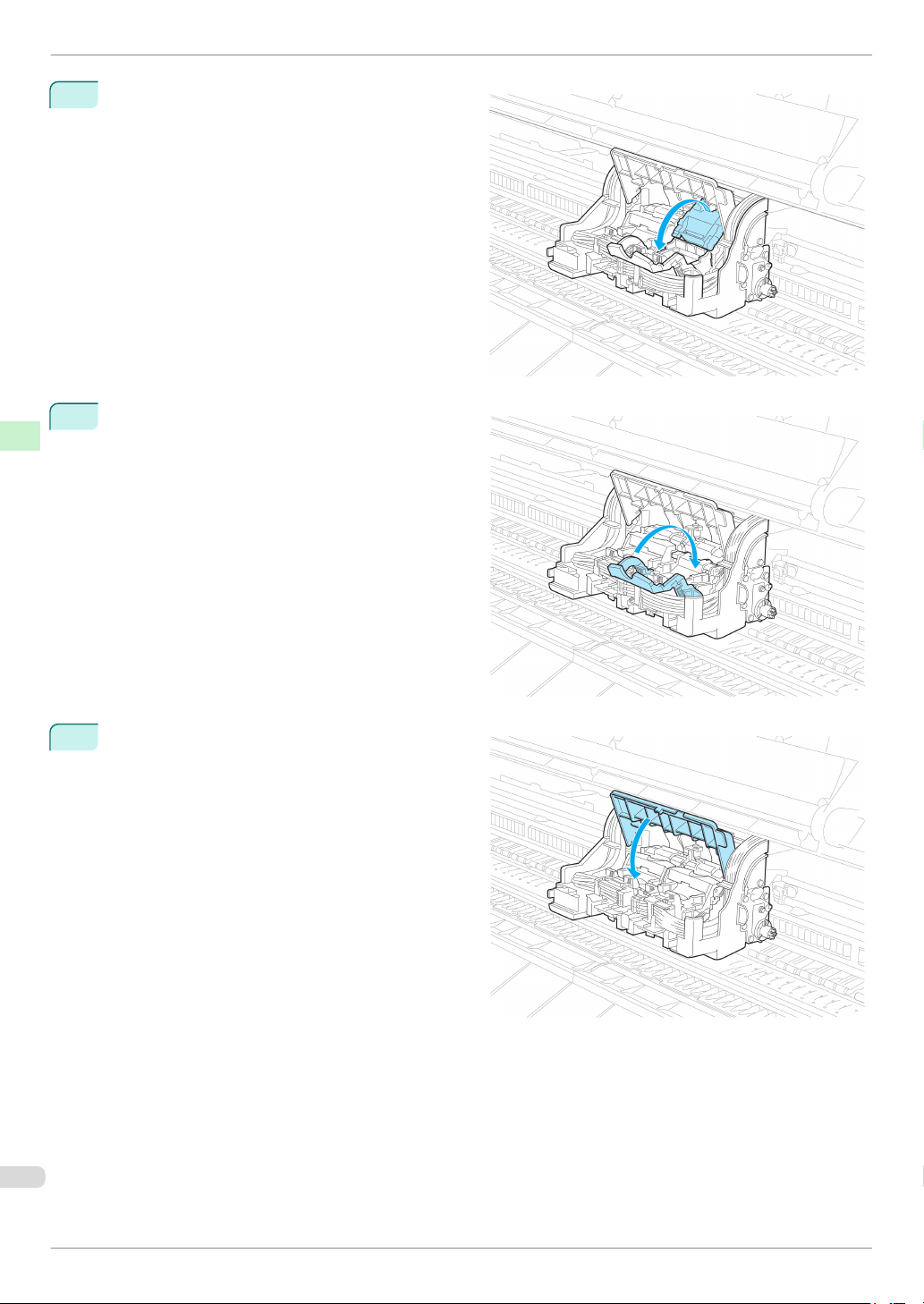
Replacing the Printhead
Pull the Printhead Fixer Cover down toward the
11
front to lock the Printhead in place.
Consumables and Maintenance Printheads
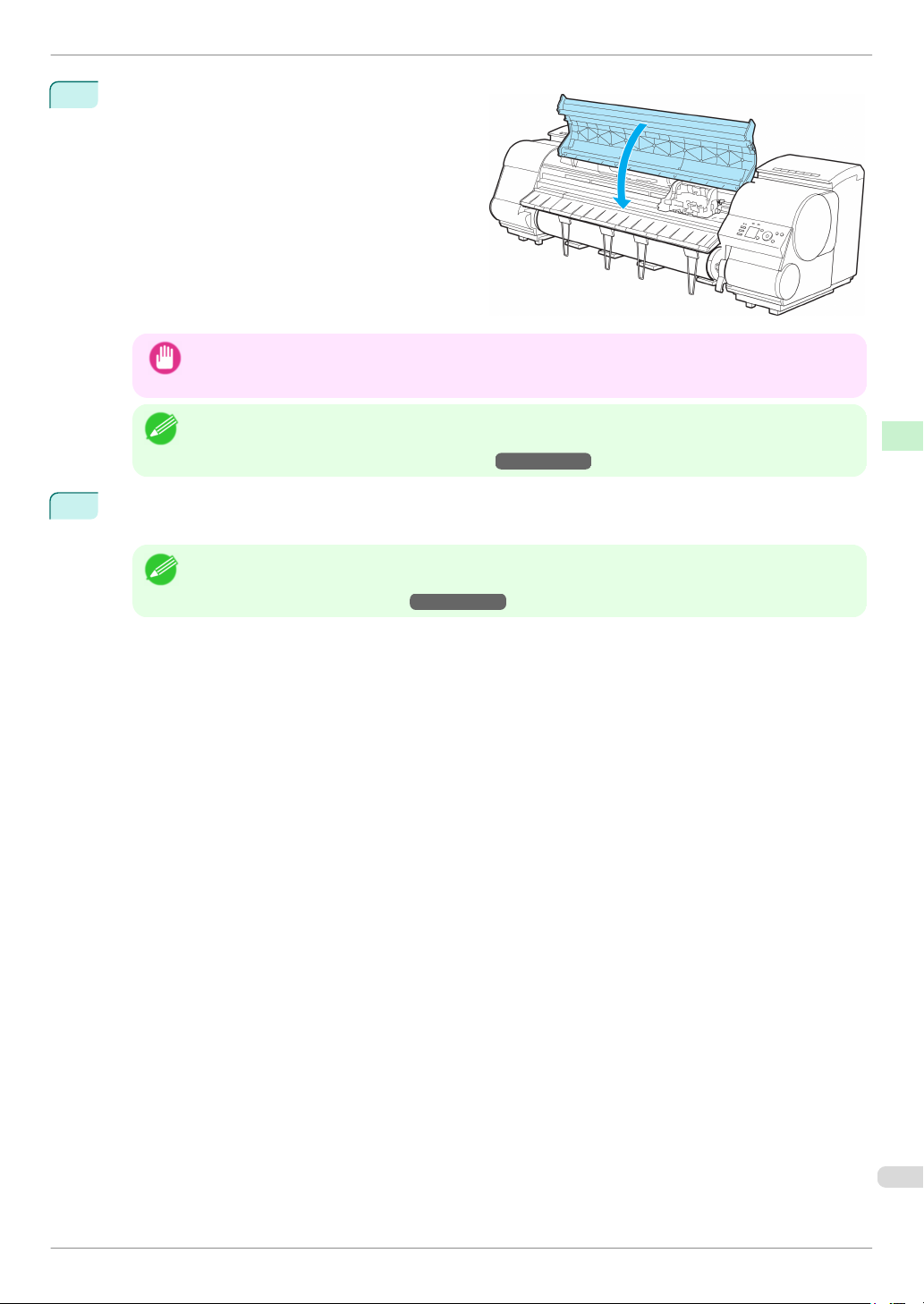
Push the Printhead Fixer Lever toward the back of
12
the printer until it clicks.
iPF8400
Push the Carriage Cover down toward the front.
13
Basic Guide
Page 41
iPF8400
14
Replacing the Printhead
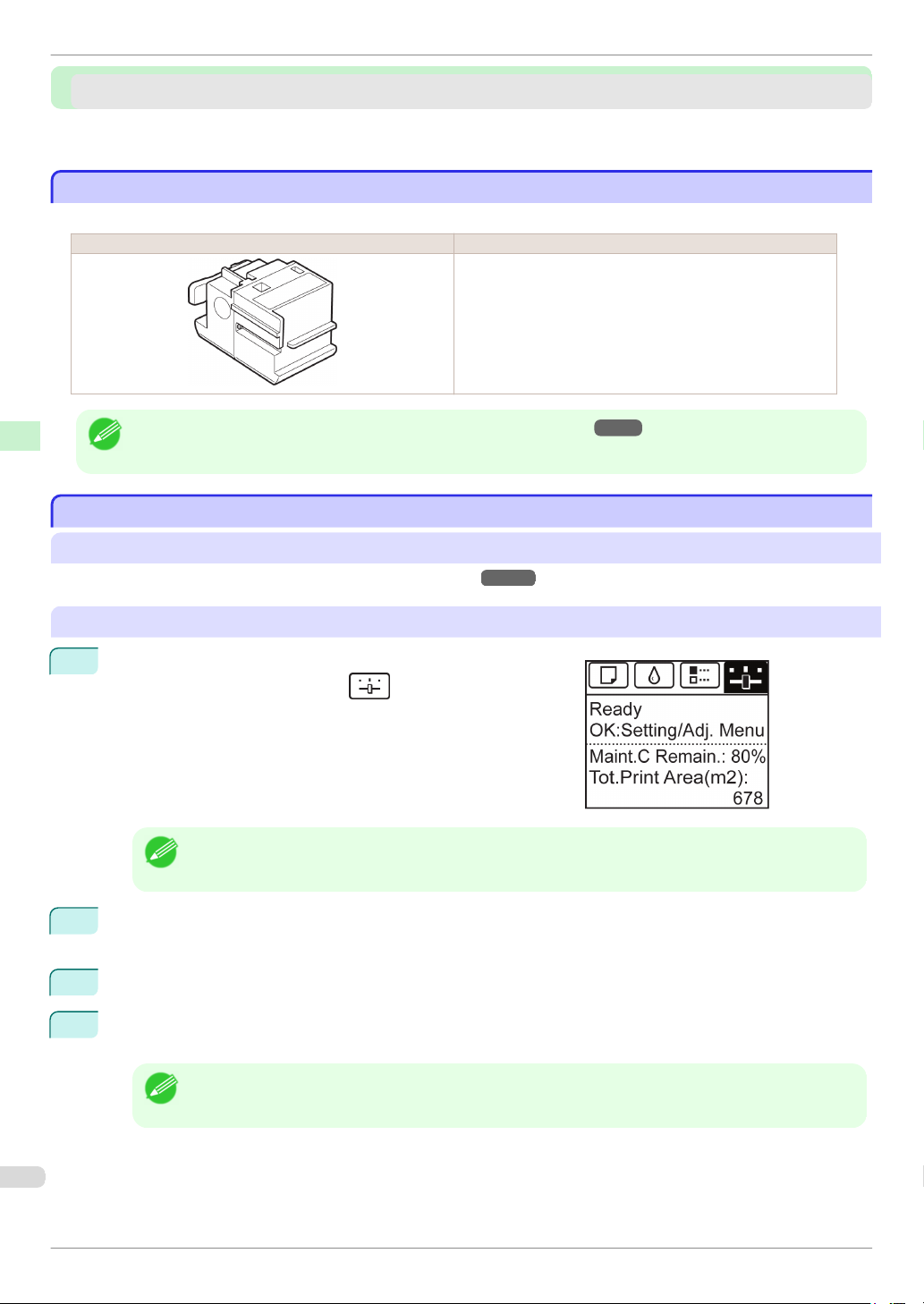
Close the Top Cover.
Ink now fills the system. It takes about 13 minutes
for ink to fill the system.
Consumables and Maintenance Printheads
• While ink is being filled, definitely do not remove the Ink Tank or Maintenance Cartridge. Ink may leak out.
Important
• The procedure is now finished if you have set Rep.P.head Print to Off in the Control Panel menu.
Note
15
Feed paper by following the instructions on the Display Screen.
After the paper has advanced, Initial adjustmt in Head Posi. Adj. is executed automatically.
In this case, execute Initial adjustmt in Head Posi. Adj. in the Control Panel menu.
(See "Adjustment When Installing the Printhead.")
→
User's Guide
• When printing fine lines or text at high precision on glossy or semi-glossy photo or proofing paper, set the
Note
optimal Printhead height before aligning the printhead.
(See "Enhancing Printing Quality.")
→
User's Guide
Basic Guide
41
Page 42
Cutter Unit
Cutter Unit
Cutter Unit
Cutter Unit ......................................................................................................................................................................... 42
Replacing the Cutter Unit ........................................................................................................................................... 42
Cutter Unit
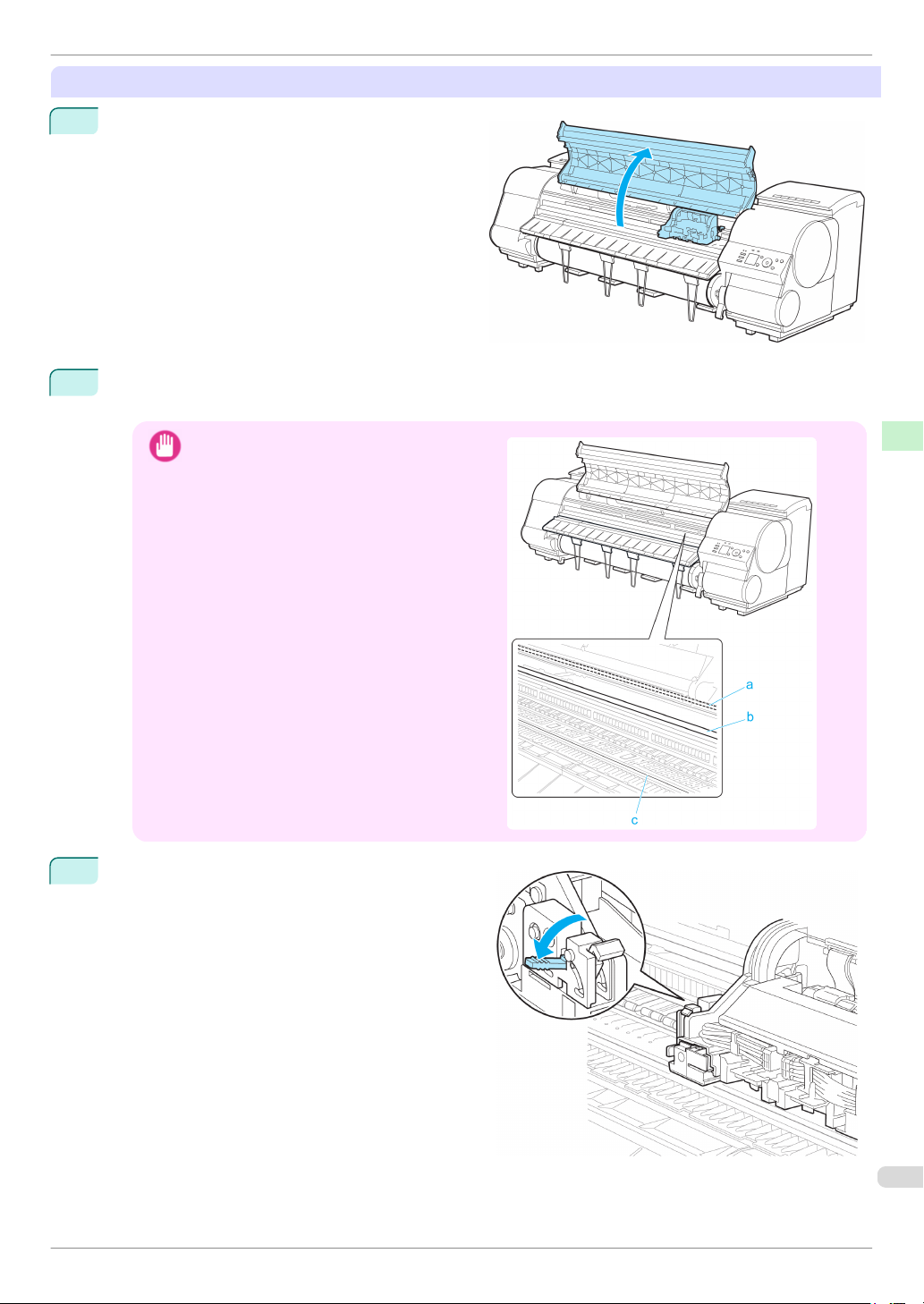
Cutter Unit
Consumables and Maintenance Cutter Unit
When purchasing, check the Model number.
Shape Model number
CT-06
iPF8400
• For instructions on Cutter Unit replacement, see "Replacing the Cutter Unit."
Note
Replacing the Cutter Unit
Replacing the Cutter Unit
Compatible Cutter Units
For information on compatible cutter units, see "Cutter Unit."
Access the menu for cutter unit replacement
On the Tab Selection screen of the Control Panel, press ◀ or
1
▶ to select the Settings/Adj. tab (
).
• If the Tab Selection screen is not displayed, press the Menu button.
Note
2
Press the OK button.
The Set./Adj. Menu is displayed.
→
P.42
→
P.42
3
Press ▲ or ▼ to select Maintenance, and then press the OK button.
4
Press ▲ or ▼ to select Change Cutter, and then press the OK button.
The Carriage moves. When it finishes moving, instructions are displayed on the Display Screen.
• If you do not respond within two minutes, cutter cleaner replacement is canceled. In this case, repeat the pro-
Note
Basic Guide
cedure.
Page 43
iPF8400
Replacing the Cutter Unit
Replacing the Cutter Unit
Open the Top Cover.
1
2
If the Cutter Unit or Carriage Cover is dirty, use a damp cloth that you have wrung out completely to wipe it
clean.
Consumables and Maintenance Cutter Unit
Do not touch the Linear Scale (a), Carriage
•
Important
Push the Cutter Unit Detachment Lever to the left to
3
unlock it.
Shaft (b), or Fixed Blade (c). This may stain your
hands and damage the printer.
Basic Guide
43
Page 44
Replacing the Cutter Unit
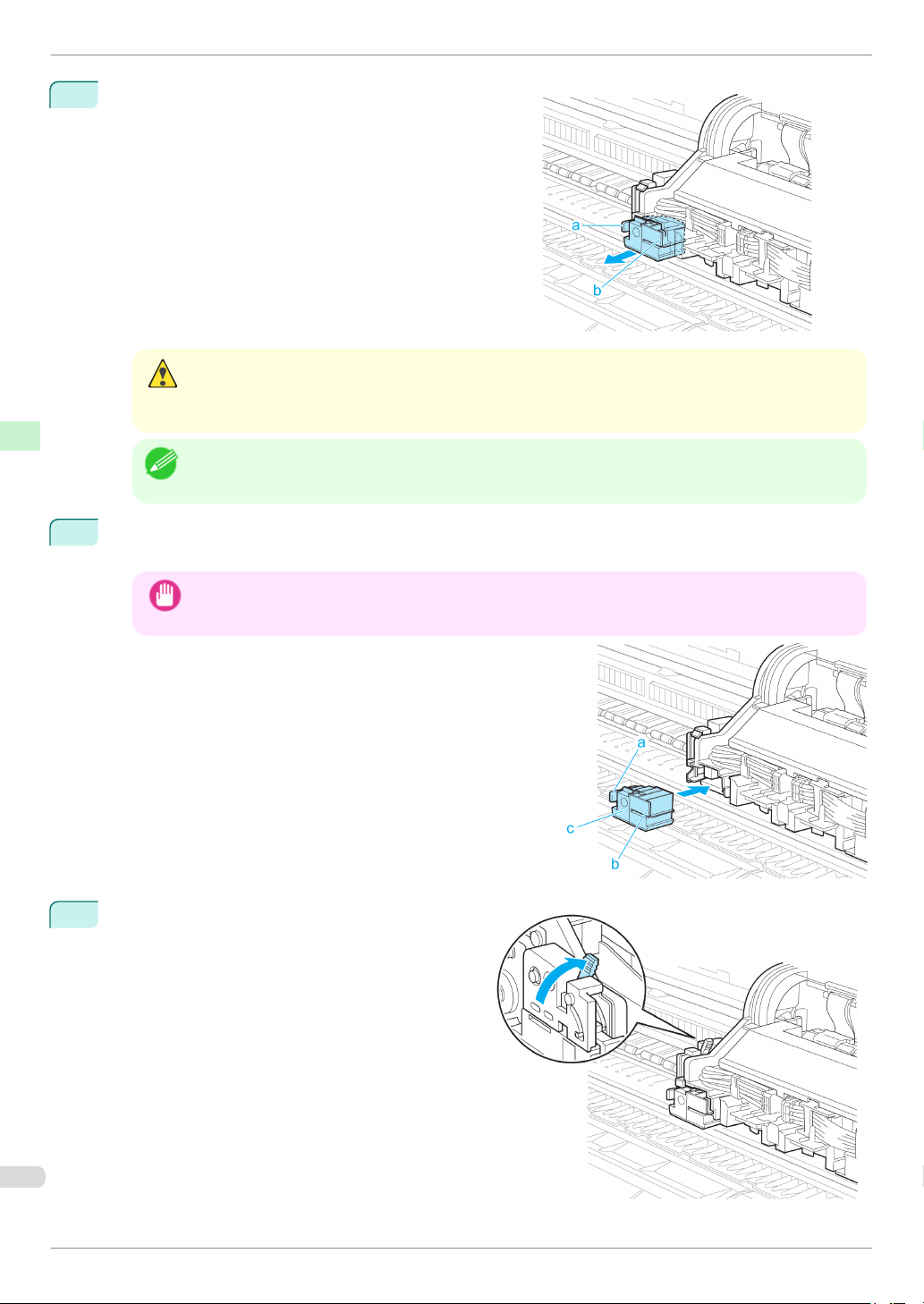
Holding the Cutter Unit by the Lock Lever (a) and grip (b),
4
remove it from the Carriage.
Consumables and Maintenance Cutter Unit
• Never touch any part of the Cutter Unit except the Lock Lever (a) and grip (b). This may stain your hands or
Caution
cause injury. Additionally, this may damage the printer.
• Do not disassemble the Cutter Unit. Touching the blade may cause injury.
• Dispose of the used Cutter Unit in accordance with local regulations.
Note
5
Holding the new Cutter Unit by the Lock Lever (a) and grip (b), insert it on the Carriage until it clicks into
place (c).
iPF8400
• After installing the Cutter Unit, hold it only by the grip (b) and pull the Cutter Unit forward to make sure it does
Important
Lift the Cutter Unit Detachment Lever to lock it.
6
not come off. It may damage the printer if the Cutter Unit comes off.
Basic Guide
Page 45

iPF8400
7
8
9
Replacing the Cutter Unit
Close the Top Cover.
A confirmation message is displayed about the Cutter Unit lock.
Press ▲ or ▼ to select "Yes", and then press the OK button.
The Carriage is moved, and a confirmation message is displayed about resetting the cut count.
To reset the cut counter, press ▲ or ▼ to select Yes, and then press the OK button.
Consumables and Maintenance Cutter Unit
Basic Guide
45
Page 46

Maintenance Cartridge
Maintenance Cartridge
Maintenance Cartridge
Maintenance Cartridge ................................................................................................................................................. 46
Replacing the Maintenance Cartridge ................................................................................................................... 46
Maintenance Cartridge
Maintenance Cartridge
Consumables and Maintenance Maintenance Cartridge
When purchasing, check the Model number.
This Maintenance Cartridge comes with a Shaft Cleaner.
Shape Model number
MC-08
• For instructions on replacing the Maintenance Cartridge and Shaft Cleaner, see "Replacing the Maintenance Cartridge."
→
Note
P.46
iPF8400
Replacing the Maintenance Cartridge
Replacing the Maintenance Cartridge
Compatible maintenance cartridges
For information on compatible maintenance cartridges, see "Maintenance Cartridge."
Precautions when handling the Maintenance Cartridge
Take the following precautions when handling the Maintenance Cartridge.
• For safety, keep the Maintenance Cartridge out of the reach of children.
• If ink is accidentally ingested, contact a physician immediately.
Caution
• Do not remove the Maintenance Cartridge except to replace it. Ink may leak out.
• To prevent ink from leaking from a used Maintenance Cartridge, avoid dropping the cartridge or storing it at an angle.
Important
Otherwise, ink may leak and cause stains.
• Ink adheres to the top of the Maintenance Cartridge after it has been used. Handle the Maintenance Cartridge carefully
during replacement. The ink may stain clothing.
→
P.46
Basic Guide
Page 47
iPF8400
Replacing the Maintenance Cartridge
Confirm the message
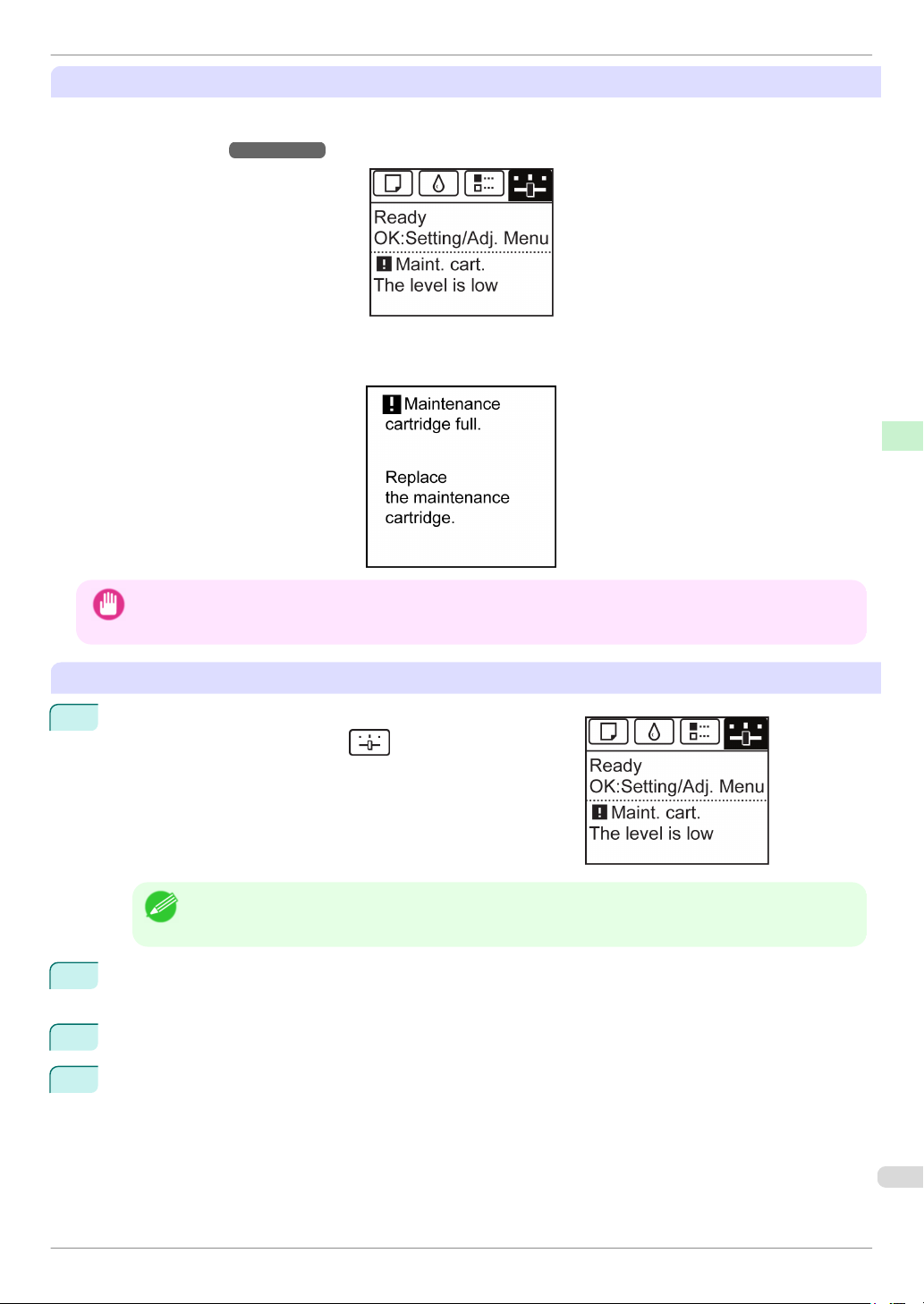
When the Maintenance Cartridge is almost empty, a message is shown on the Display Screen. According to the
message, replace the Maintenance Cartridge or prepare a new Maintenance Cartridge. (See "When to Replace the
Maintenance Cartridge.")
If a message is displayed requesting Maintenance Cartridge replacement, you can skip the step Access the menu
for Maintenance Cartridge replacement. Follow the instructions in Replace the Maintenance Cartridge.
→
User's Guide
Consumables and Maintenance Maintenance Cartridge
• Do not replace the Maintenance Cartridge during initialization immediately after turning on the printer, during Printhead
Important
Access the menu for Maintenance Cartridge replacement
1
cleaning, or when ink is being absorbed. Ink may leak out.
On the Tab Selection screen of the Control Panel, press ◀ or
▶ to select the Settings/Adj. tab ( ).
• If the Tab Selection screen is not displayed, press the Menu button.
Note
2
Press the OK button.
The Set./Adj. Menu is displayed.
3
Press ▲ or ▼ to select Maintenance, and then press the OK button.
4
Press ▲ or ▼ to select Repl. maint cart, and then press the OK button.
Instructions are displayed on the Display Screen.
Basic Guide
47
Page 48
Replacing the Maintenance Cartridge
Replace the Maintenance Cartridge
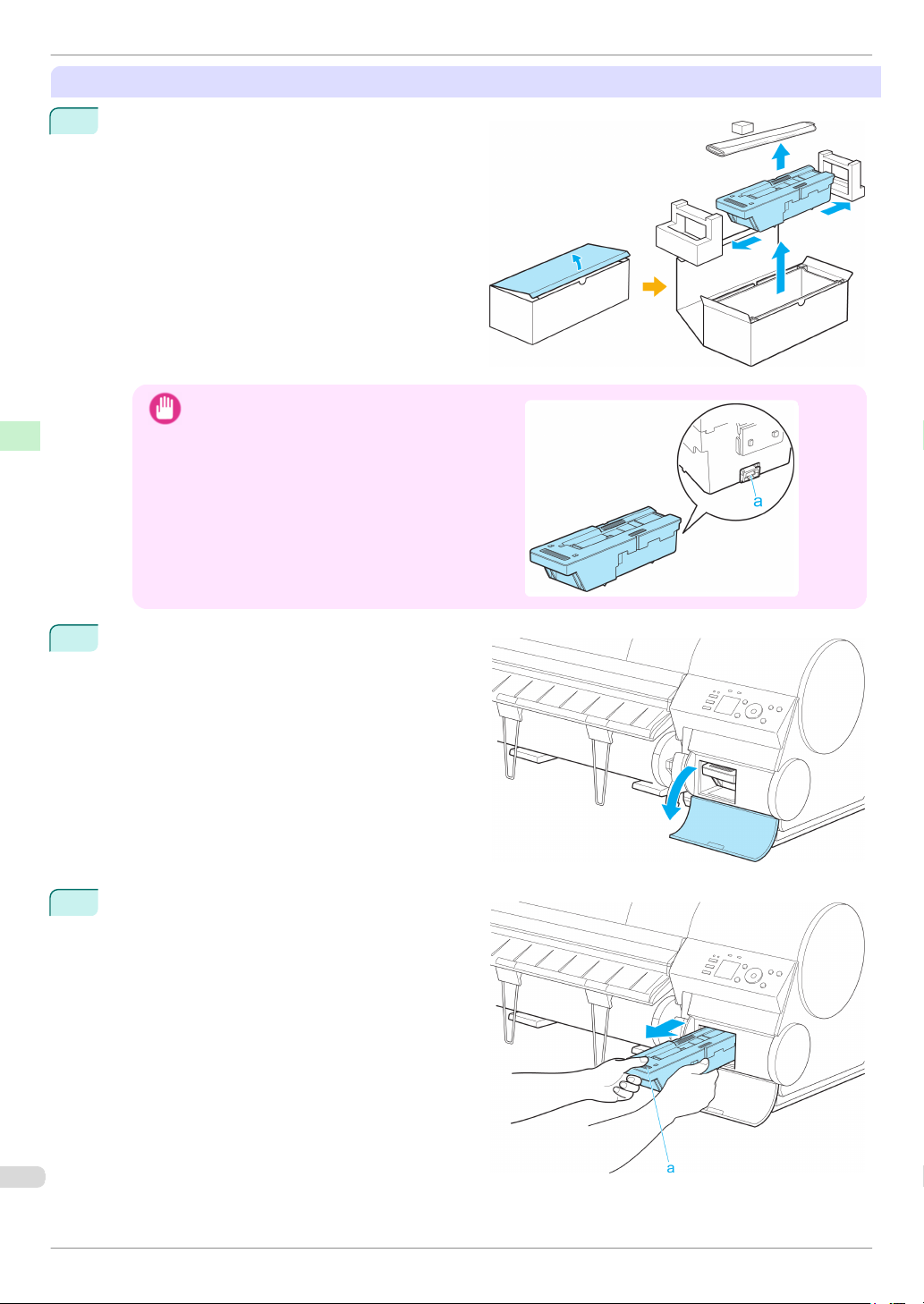
Open the box, remove the plastic bag, packaging
1
material, and Shaft Cleaner, and then take out the
Maintenance Cartridge.
Consumables and Maintenance Maintenance Cartridge
Never touch the metal contacts (a). This may dam-
•
Important
age the Maintenance Cartridge.
iPF8400
At this point, open the Maintenance Cartridge Cov-
2
er.
Hold the used Maintenance Cartridge by the grip
3
(a) with one hand and put your other hand under
the Maintenance Cartridge to hold it firmly on the
bottom, keeping it level as you pull it out.
Basic Guide
Page 49
iPF8400
4
5
Replacing the Maintenance Cartridge
• Used maintenance cartridges are heavy. Always grasp the cartridge firmly and keep the cartridge level during
Important
removal and storage. If you drop a used Maintenance Cartridge or store it at an angle, ink may leak and
cause stains.
• The remaining Maintenance Cartridge capacity is recorded on each printer. Do not install a used Mainte-
nance Cartridge in another printer.
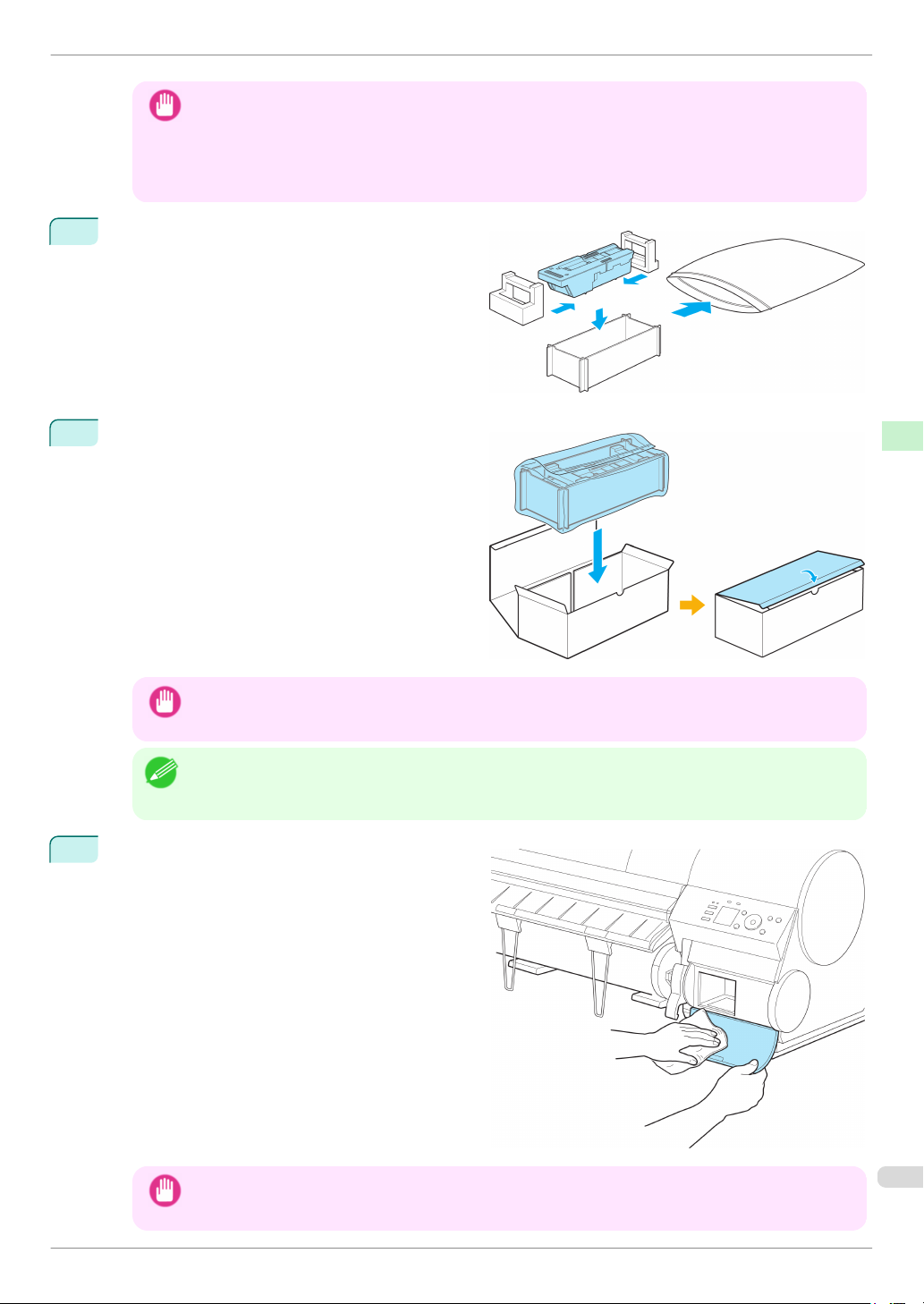
Attach the packaging material to the used Maintenance Cartridge and put it in the box. Keep it level
as you put it in the plastic bag. Expel excess air
from the plastic bag and seal the zipper.
Confirm the Maintenance Cartridge is right-side up,
put it in the box, and store it so that it stays level.
Consumables and Maintenance Maintenance Cartridge
• Always put the used Maintenance Cartridge back in the box and store the box on a flat surface. Otherwise,
Important
ink may leak and cause stains.
• In accordance with active and ongoing environmental programs, Canon supports recycling of used mainte-
Note
Wipe away any soiling on the Maintenance Car-
6
tridge Cover.
nance cartridges. Follow the instructions provided with the new Maintenance Cartridge that describe how to
process the used Maintenance Cartridge.
• Support the Maintenance Cartridge Cover from underneath as you wipe it.
Important
Basic Guide
49
Page 50
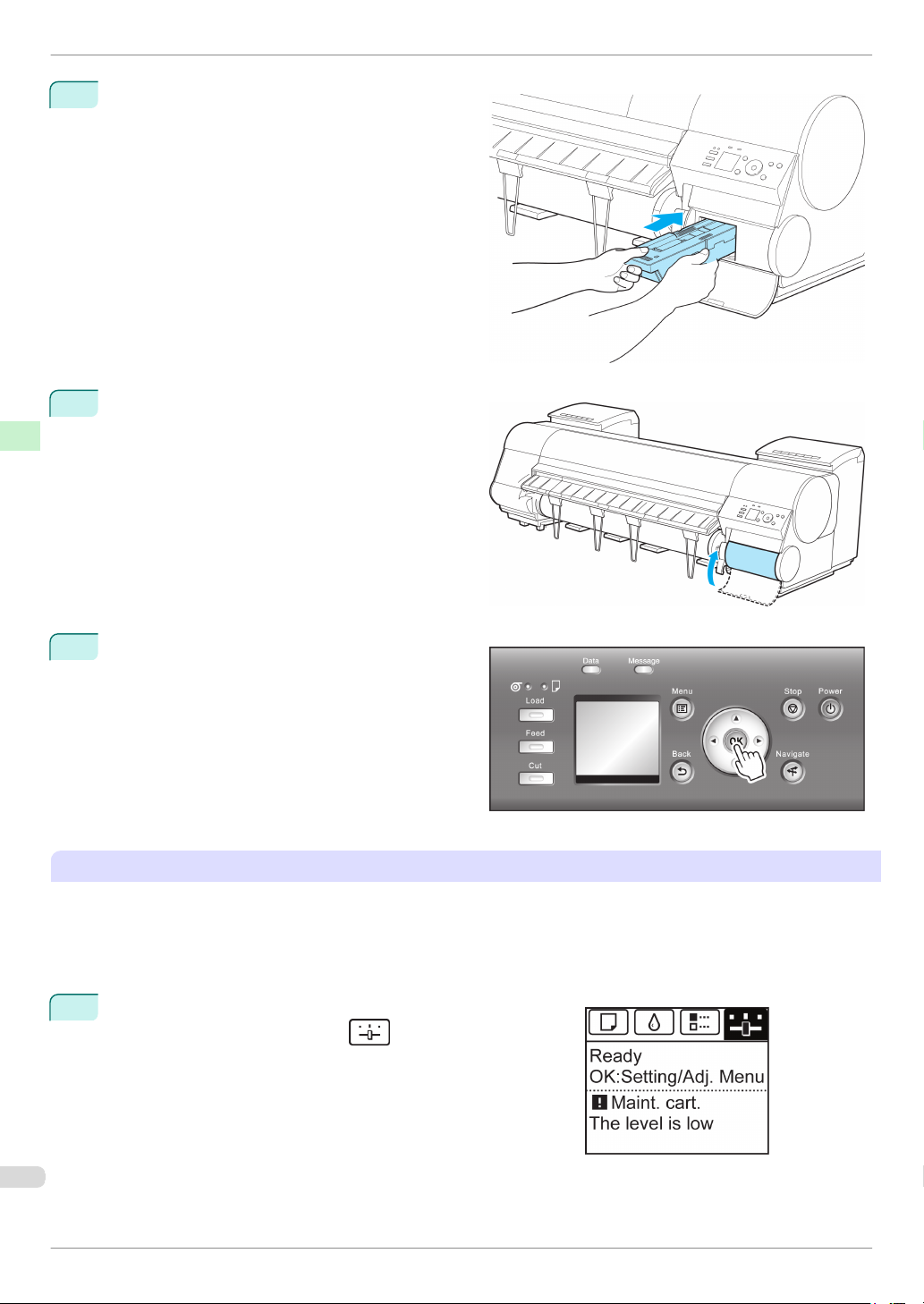
Replacing the Maintenance Cartridge
Keeping the new Maintenance Cartridge level, in-
7
sert it all the way in.
Consumables and Maintenance Maintenance Cartridge
Close the Maintenance Cartridge Cover.
8
iPF8400
Press the OK button.
9
The printer now initializes the Maintenance Cartridge.
Next, replace the Shaft Cleaner.
Replacing the Shaft Cleaner
Replace the Shaft Cleaner when you replace the Maintenance Cartridge. New Shaft Cleaner is included with replacement Maintenance Cartridge.
After you execute Repl. maint cart and replace the Maintenance Cartridge, a message will appear on the Display
Screen requesting you to replace the Shaft Cleaner. Select Yes and press the OK button. When a message requests you to open the Top Cover, go to step 5.
On the Tab Selection screen of the Control Panel, press ◀ or
1
▶ to select the Settings/Adj. tab (
).
Basic Guide
Page 51
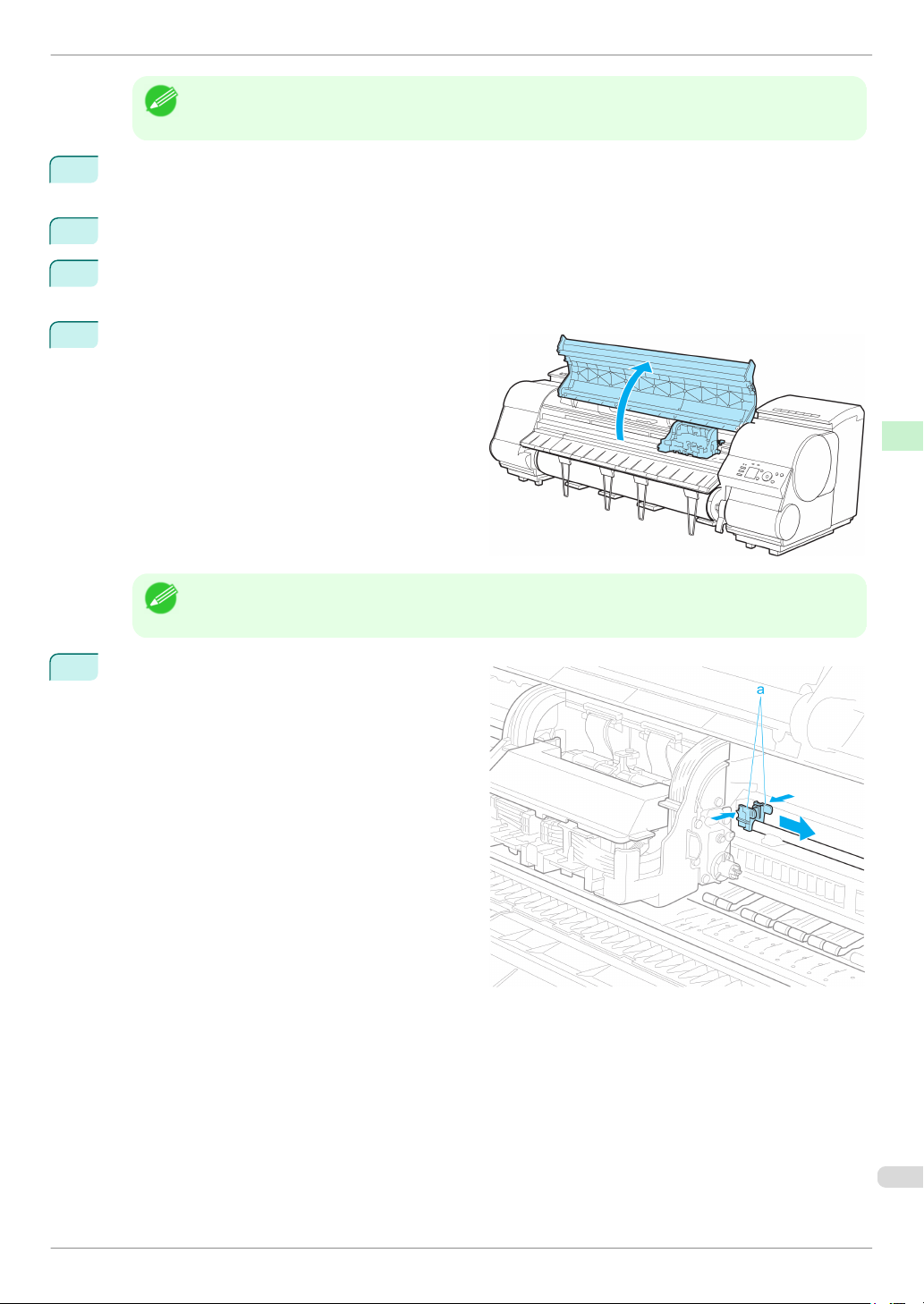
iPF8400
2
3
4
5
Replacing the Maintenance Cartridge
• If the Tab Selection screen is not displayed, press the Menu button.
Note
Press the OK button.
The Set./Adj. Menu is displayed.
Consumables and Maintenance Maintenance Cartridge
Press ▲ or ▼ to select Maintenance, and then press the OK button.
Press ▲ or ▼ to select Repl. S. Cleaner, and then press the OK button.
The Carriage moves. When it finishes moving, instructions are displayed on the Display Screen.
Open the Top Cover.
• If you do not respond within two minutes, shaft cleaner replacement is canceled. In this case, repeat the proce-
Note
Hold the Shaft Cleaner on the right side of the Car-
6
riage by the grips (a) and pull it to the right to remove it.
dure.
Basic Guide
51
Page 52
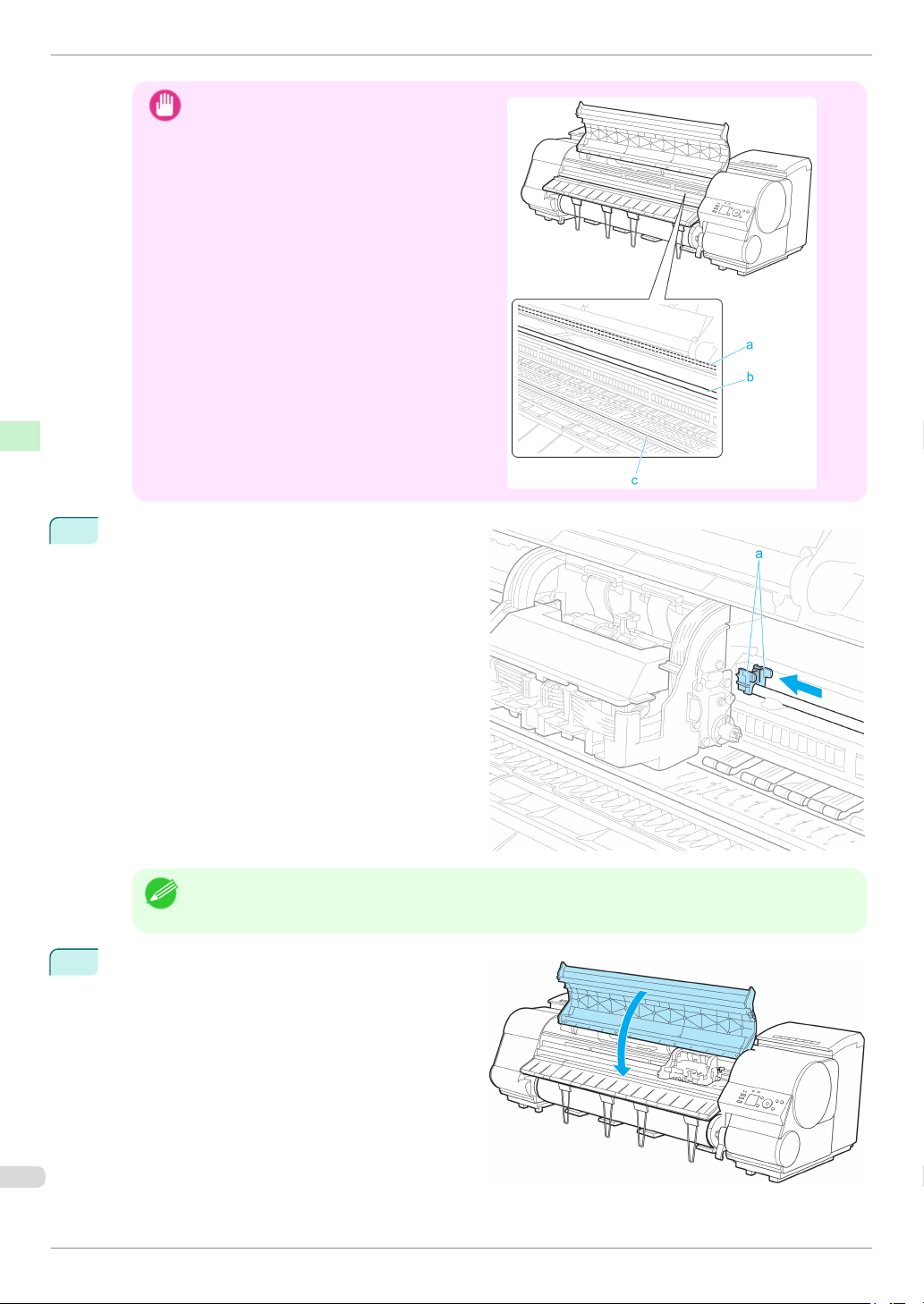
Replacing the Maintenance Cartridge
Do not touch the Linear Scale (a), Carriage
•
Shaft (b), or Fixed Blade (c). This may stain your
hands and damage the printer.
Consumables and Maintenance Maintenance Cartridge
Holding the new Shaft Cleaner by the grips (a), at-
7
Important
tach it to the Carriage.
iPF8400
• Be sure to put the used Shaft Cleaner in the small box before putting it in the larger box with the used Mainte-
Note
Close the Top Cover.
8
The Carriage moves back into position.
Basic Guide
nance Cartridge for disposal.
Page 53
iPF8400
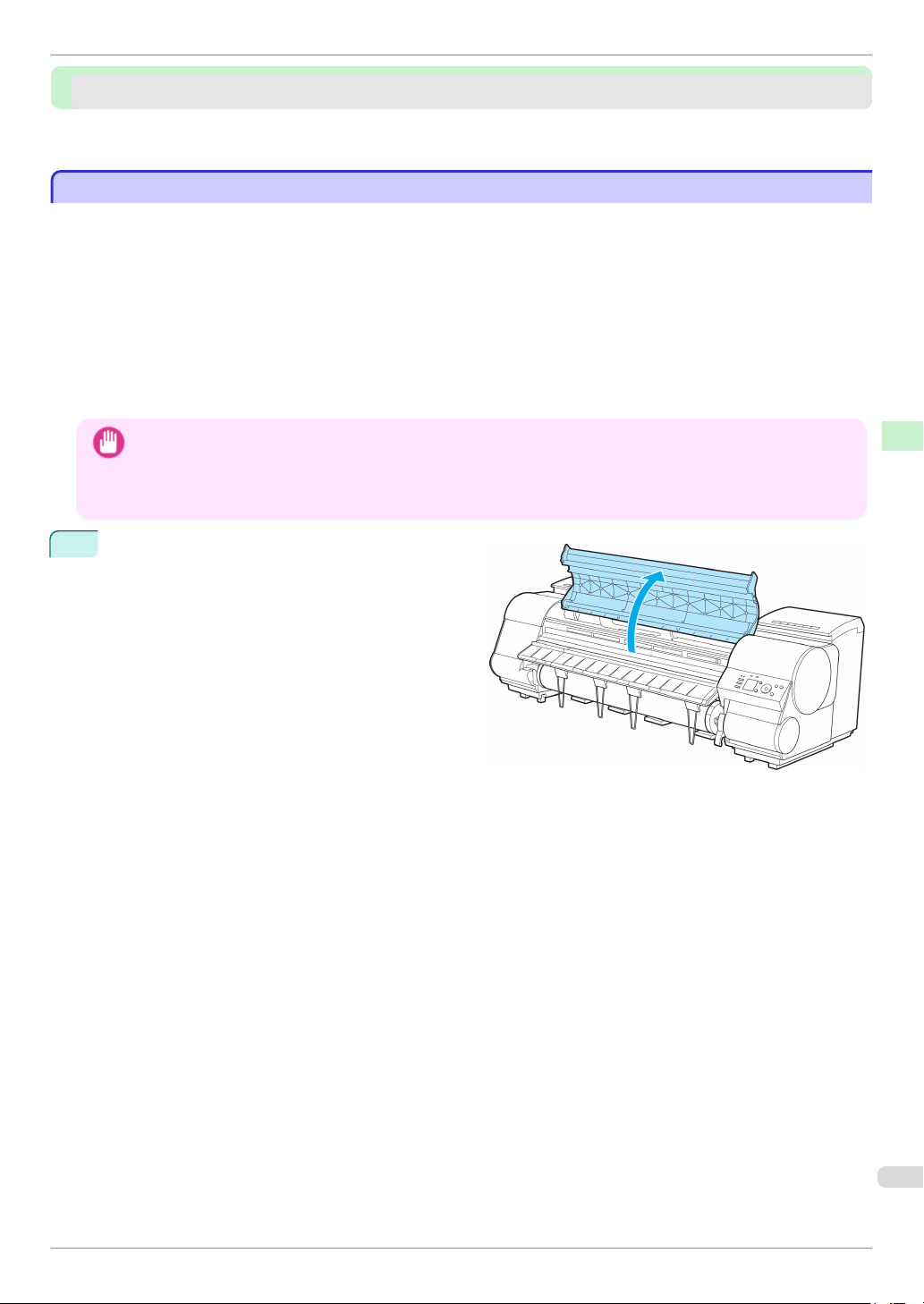
Clean inside the Top Cover to maintain better printing quality and help prevent problems.
Also clean inside the Top Cover in the following situations to ensure optimal operation.
Cleaning Inside the Top Cover
Cleaning the Printer
Cleaning the Printer
Cleaning Inside the Top Cover .................................................................................................................................. 53
Cleaning the Printhead ................................................................................................................................................. 55
Cleaning Inside the Top Cover
Cleaning Inside the Top Cover
•
If the printed surface or the underside of paper is dirty after printing
•
After you have used up a roll
•
After borderless printing
•
After printing on small paper
•
After printing on paper that generates a lot of cutting debris
•
If you have replaced the roll
•
After printing on paper that generates a lot of paper dust
•
If the message "Blue platen switch is dirty." is displayed
Consumables and Maintenance Cleaning the Printer
• If the Platen inside the Top Cover becomes dirty, it may soil the underside of paper. We recommend cleaning the
Important
Platen after borderless printing or printing on small paper.
• If the Ejection Guide is dirty, it may soil the edge of the paper when the paper is cut. We recommend cleaning the
Ejection Guide even if it does not appear dirty, because it may actually be covered with paper dust.
Open the Top Cover.
1
Basic Guide
53
Page 54
Cleaning Inside the Top Cover
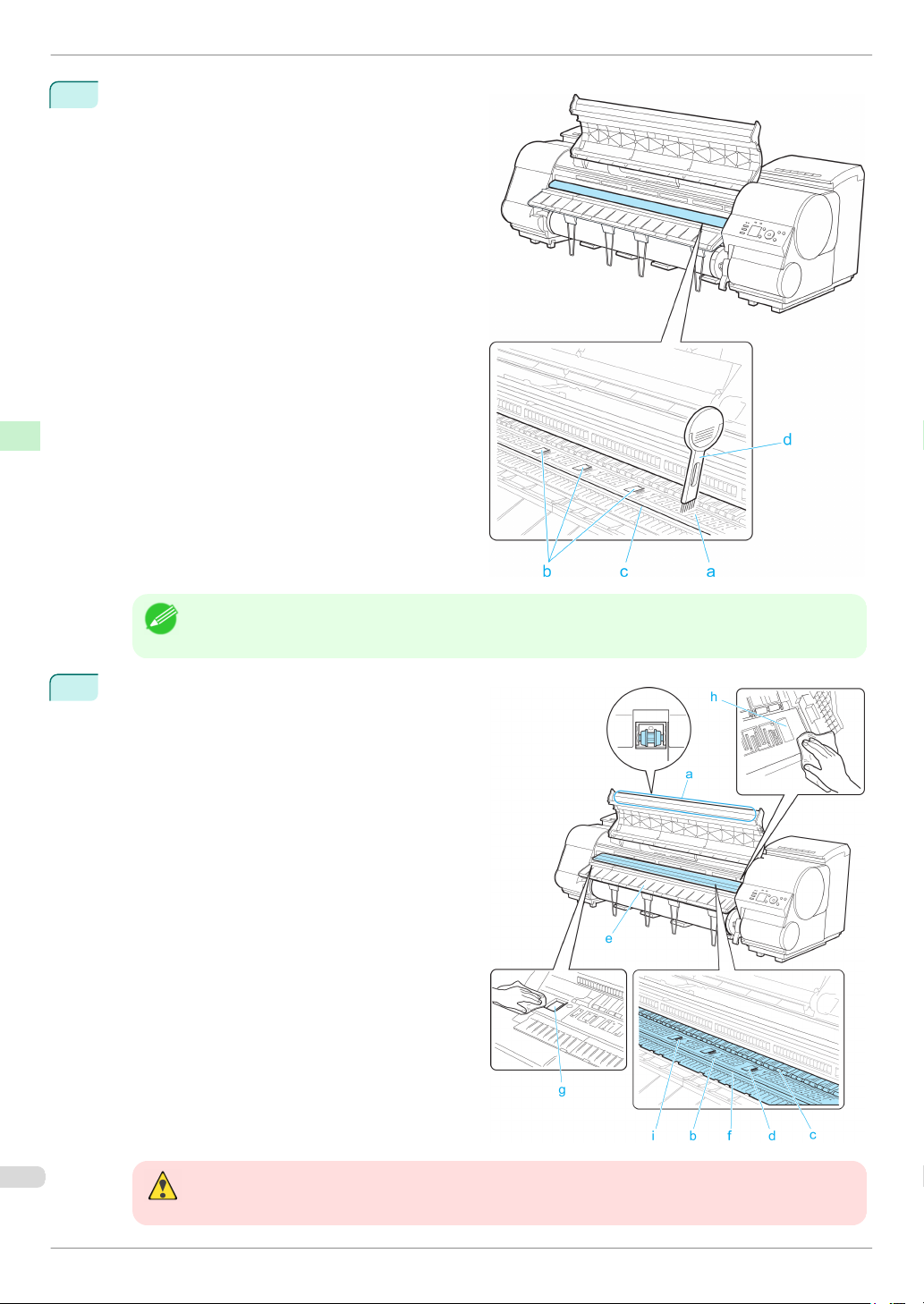
If paper dust has accumulated in the Vacuum holes
2
(a) on the Platen, in the Borderless Printing Ink
Grooves (b), or on the cutter guide (c), use the
Cleaning Brush (d, provided with the printer) to
wipe it away.
Consumables and Maintenance Cleaning the Printer
iPF8400
• If the Cleaning Brush is dirty, rinse it in water.
Note
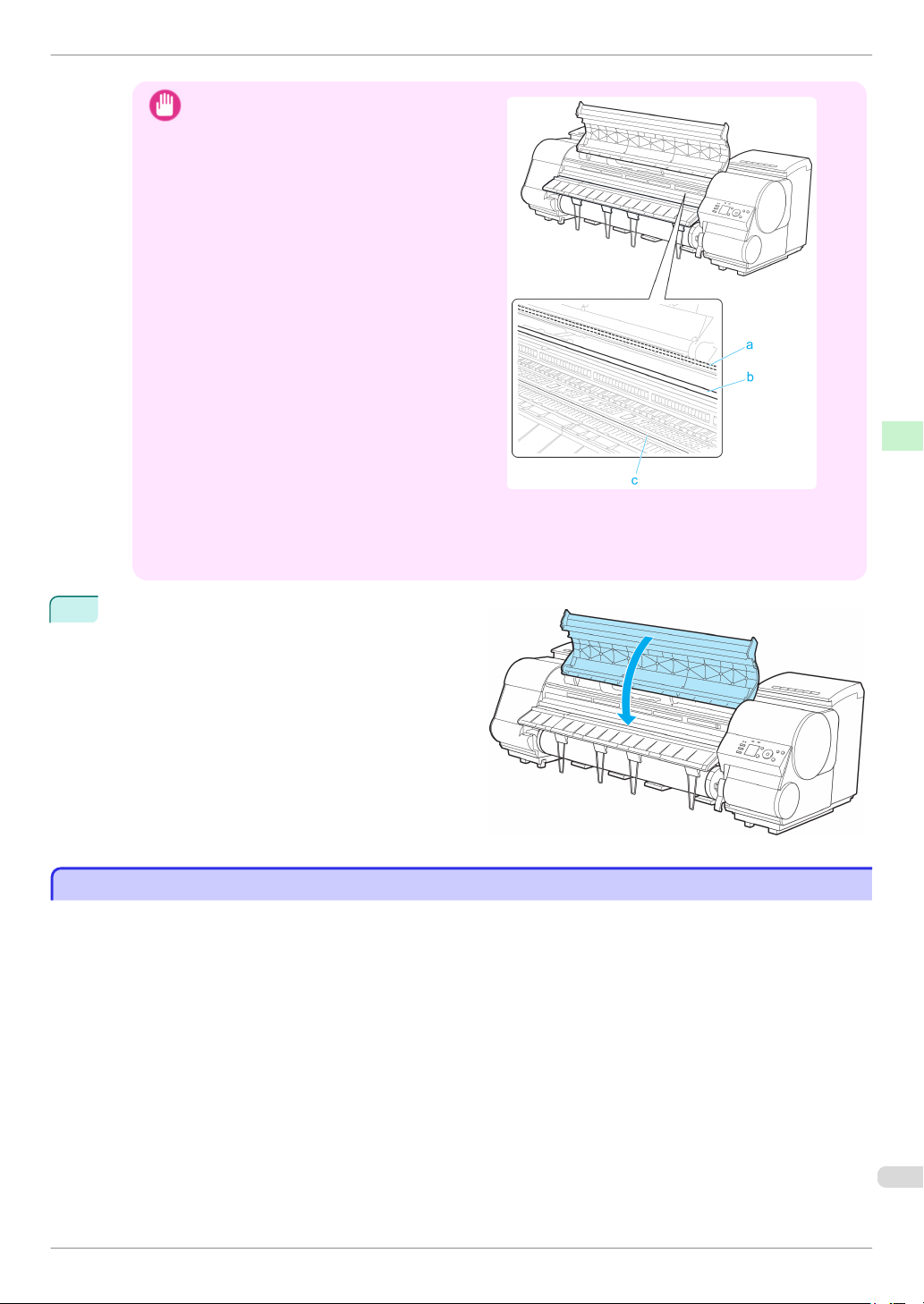
Using a damp cloth that you have wrung out com-
3
pletely, wipe inside the Top Cover to clean it. Wipe
away any ink residue and paper dust (debris from
cutting) on the Top Cover Roller (a), all over the
Platen (b), on the Paper Retainer (c), the Borderless Printing Ink Grooves (d), the Ejection Guide
(e), the cutter guide (f), around the ink suction
holes at left (g), around the Borderless Printing Ink
Grooves at right (h), on the blue Switch (i), and so
on.
• Never use flammable solvents such as alcohol, benzene, or thinner. If these substances come into contact
Warning
Basic Guide
with electrical components inside the printer, there is a risk of fire or electrical shock.
Page 55
iPF8400
4
Cleaning the Printhead
Do not touch the Linear Scale (a), Carriage
•
Important
Shaft (b), or Fixed Blade (c). This may stain your
hands and damage the printer.
Do not use a dry cloth to wipe inside the Top Cover. This may create a static charge, which may attract dust
•
and affect the printing quality.
• Do not touch the clear sheet on the side of the Top Cover Roller. This may damage the roller.
Close the Top Cover.
Consumables and Maintenance Cleaning the Printer
Cleaning the Printhead
Cleaning the Printhead
If printing is faint, cleaning the Printhead may improve results.
Choose one of two Printhead cleaning modes (Head Cleaning A or Head Cleaning B), depending on the problem
to resolve.
•
Head Cleaning A
Use this mode if printing is faint or contains foreign substances. This method of cleaning consumes the least
amount of ink.
It takes about four minutes to complete.
•
Head Cleaning B
Use this mode if no ink is ejected at all, or if Head Cleaning A does not solve the problem.
It takes about five minutes to complete.
Basic Guide
55
Page 56

Cleaning the Printhead
• Do not remove the Maintenance Cartridge or ink tanks during either Head Cleaning A or Head Cleaning B.
Important
Ink may leak or an error may occur.
• If printing does not improve even if you execute Head Cleaning B, try repeating Head Cleaning B once or twice. If this
still does not improve printing, the Printhead may have reached the end of its useful life. Contact your Canon dealer for
assistance.
iPF8400
Consumables and Maintenance Cleaning the Printer
Perform cleaning as follows.
1
2
3
4
• Nozzles are periodically checked to ensure they are clear. Configure the settings on the Control Panel menu in Nozzle
Check. (See "Menu Settings.")
Note
On the Tab Selection screen of the Control Panel, press ◀ or
▶ to select the Settings/Adj. tab ( ).
Note
Press the OK button.
The Set./Adj. Menu is displayed.
Press ▲ or ▼ to select Maintenance, and then press the OK button.
Press ▲ or ▼ to select Head Cleaning, and then press the OK button.
→
User's Guide
• If the Tab Selection screen is not displayed, press the Menu button.
5
Press ▲ or ▼ to select Head Cleaning A or Head Cleaning B, and then press the OK button.
Head cleaning is now executed.
6
Print a test pattern to check the nozzles, and determine whether cleaning has cleared the nozzles. (See
"Checking for Nozzle Clogging.")
→
User's Guide
Basic Guide
Page 57
iPF8400
Control Panel
Printer Parts
Printer Parts
Operations and Display Screen
Operations and Display Screen
Control Panel .................................................................................................................................................................... 57
Menu Operations ............................................................................................................................................................ 58
Menu Structure ............................................................................................................................................................... 62
Control Panel
Control Panel
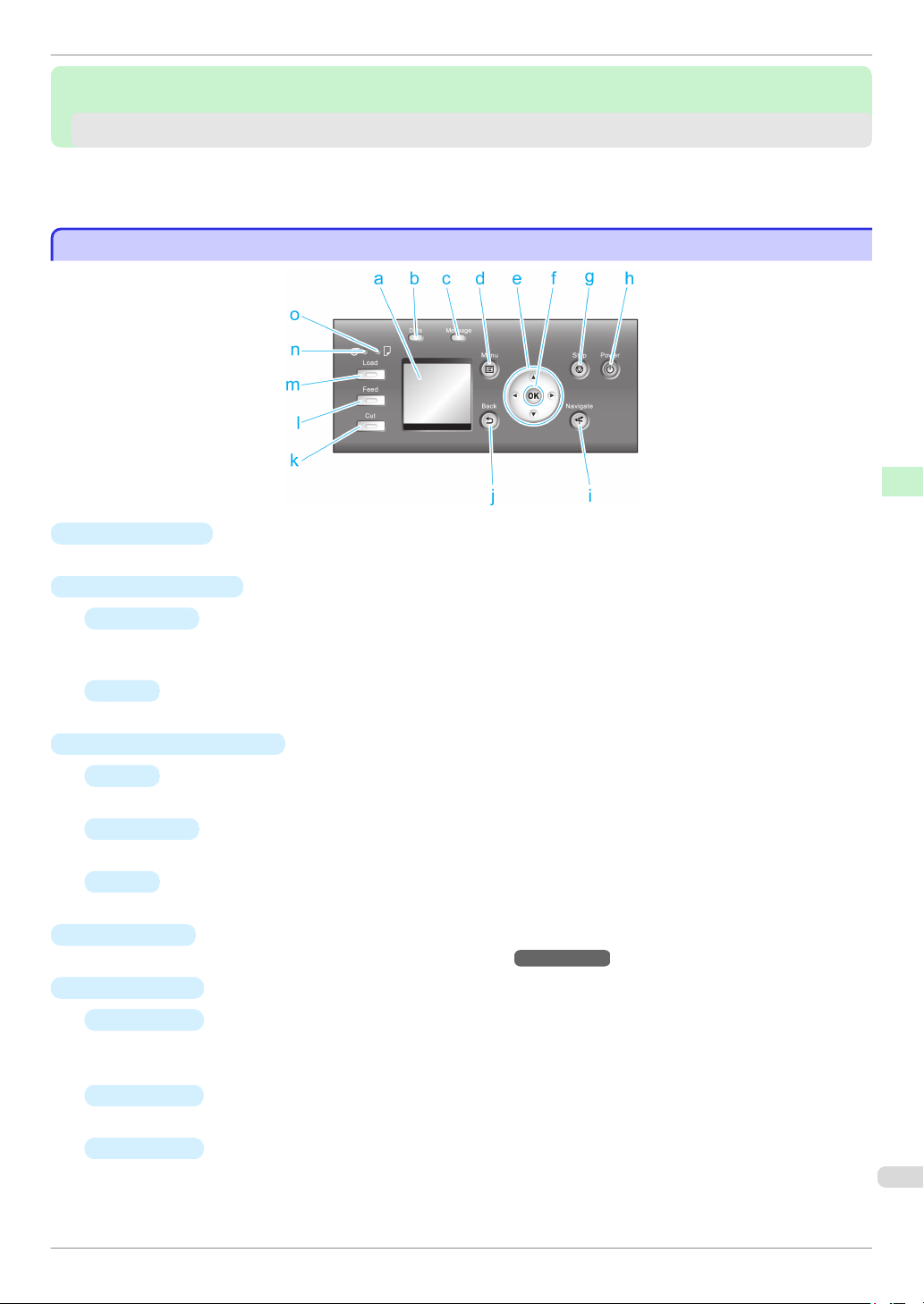
a
Display Screen
Shows printer menus, as well as the printer status and messages.
Printer Parts Operations and Display Screen
b
Data Lamp (green)
•
Flashing
During printing, the Data lamp flashes when the printer is receiving or processing print jobs. Otherwise,
this lamp flashes when the print job is paused or the printer is updating the firmware.
•
Off
There are no active print jobs when the Data lamp is off.
c
Message Lamp (orange)
•
On
A warning message is displayed.
•
Flashing
An error message is displayed.
•
Off
The printer is off or is operating normally.
d
Menu button
Displays the Tab Selection screen. (See "Menu Settings.")
e
Arrow buttons
•
◀ button
Press this button on the Tab Selection screen to move to another tab.
In menu items requiring numerical input, press this button to move to another digit.
•
▲ button
Press this button when viewing menus to display the next menu item or setting value.
→
User's Guide
•
▶ button
Press this button on the Tab Selection screen to move to another tab.
In menu items requiring numerical input, press this button to move to another digit.
Basic Guide
57
Page 58

Menu Operations
•
▼ button
Press this button when viewing menus to display the next menu item or setting value.
f
OK button
Press this button on the Tab Selection screen to display the menu of the tab shown.
Pressing this button in menu items of each tab for which is displayed at left will move to the lower level of
the menu item, enabling you to execute menu commands or set menu values.
Also press this button if the Display Screen indicates to press the OK button.
g
Stop button
Cancels print jobs in progress and ends the ink drying period.
h
Power button (green)
Turns the printer on and off. (See "Turning the Printer On and Off.")
→
User's Guide
The Power button is lit when the printer is on or in Sleep mode.
Printer Parts Operations and Display Screen
i
Navigate button
Enables you to check instructions for loading and removing paper or replacing ink tanks or printheads, as well
as other operations. (See "How to View Instructions With Navigate.")
j
Back button
→
User's Guide
Displays the screen before the current screen.
k
Cut button
Pressing this button when rolls are loaded cuts the paper, if you have specified Automatic or Eject in Cutting
→
Mode in the Control Panel menu. (See "Specifying the Cutting Method for Rolls.")
User's Guide
iPF8400
l
Feed button
Pressing this button when rolls are loaded enables you to reposition the paper. (See "Feeding Roll Paper Man-
ually.")
m
Load button
→
User's Guide
Press this button when loading or replacing paper.
→
(See "Loading Rolls in the Printer.")
(See "Loading Sheets in the Printer.")
n
Roll Media lamp (green)
P.11
→
P.18
Lit when rolls are selected as the paper source.
o
Cut Sheet lamp (green)
Lit when sheets are selected as the paper source.
• To recover from Sleep mode, any button can be pressed on the Control Panel.
Note
Menu Operations
Menu Operations
To view available menus organized on tabs, select a tab on the Tab Selection screen and press the OK button.
For details, see "Menu Settings."
•
Menus (when the Ink tab is selected and the OK button is pressed)
→
User's Guide
Basic Guide
Page 59
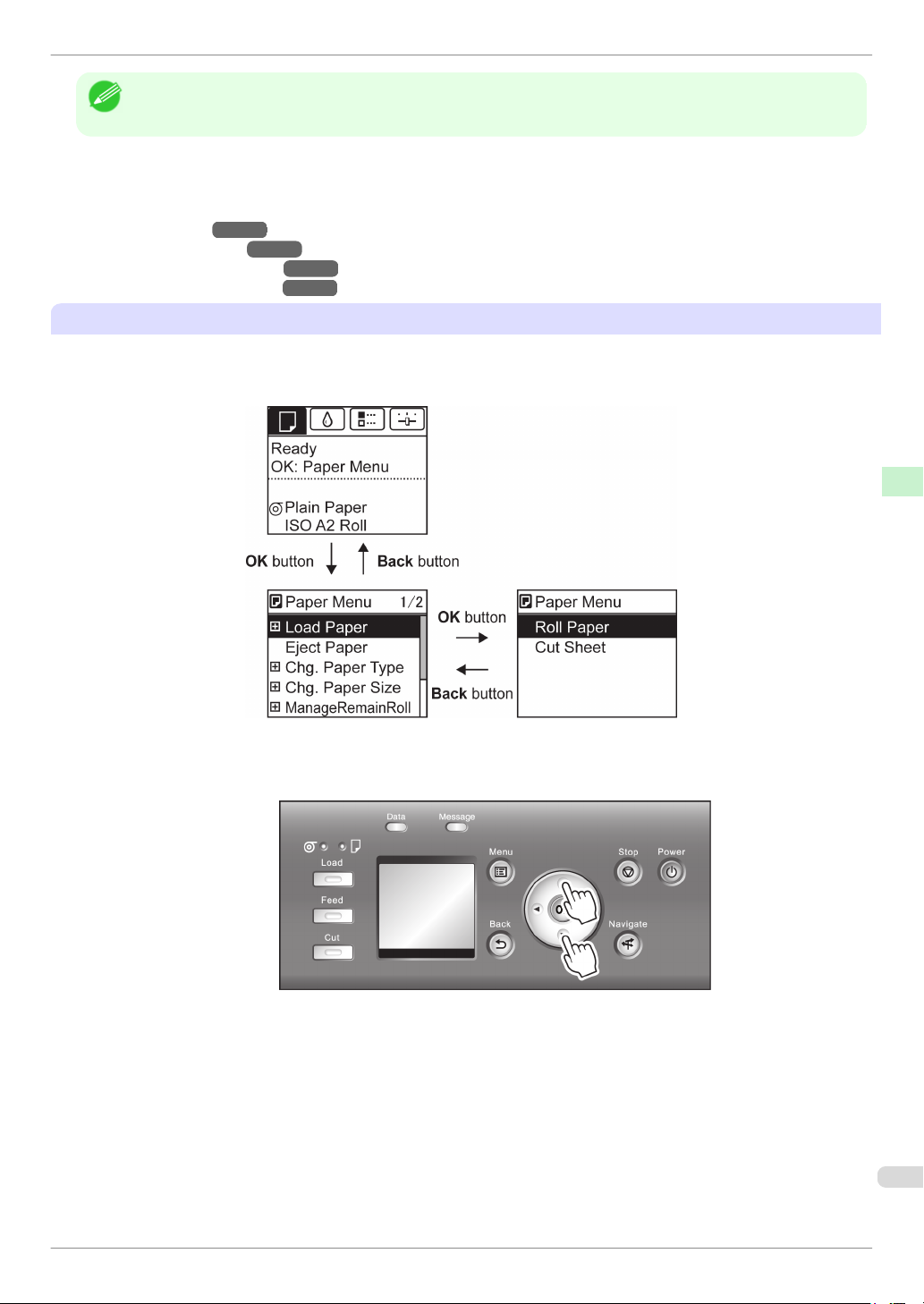
iPF8400
Menu Operations
• If the Tab Selection screen is not displayed, press the Menu button.
Note
Simply press buttons on the Control Panel to access menus on various tabs from the Tab Selection screen and
set or execute Menu items.
The following section describes menu operations.
→
•
Accessing menus
•
Specifying menu items
•
Specifying numerical values
•
Executing menu commands
Accessing menus
Printer menus are grouped by function.
Menus are displayed with the upper line selected. You can use the buttons on the Control Panel to access each
menu.
P.59
→
P.60
→
→
P.60
P.61
Printer Parts Operations and Display Screen
•
Press Back to access a higher menu in the menu list, and press OK to access a lower one. If not all menu
items are displayed, hold down ▲ or ▼ to scroll through higher and lower menu items. Items you select are
highlighted.
The scroll bar at right indicates the current position in the overall menu.
Basic Guide
59
Page 60
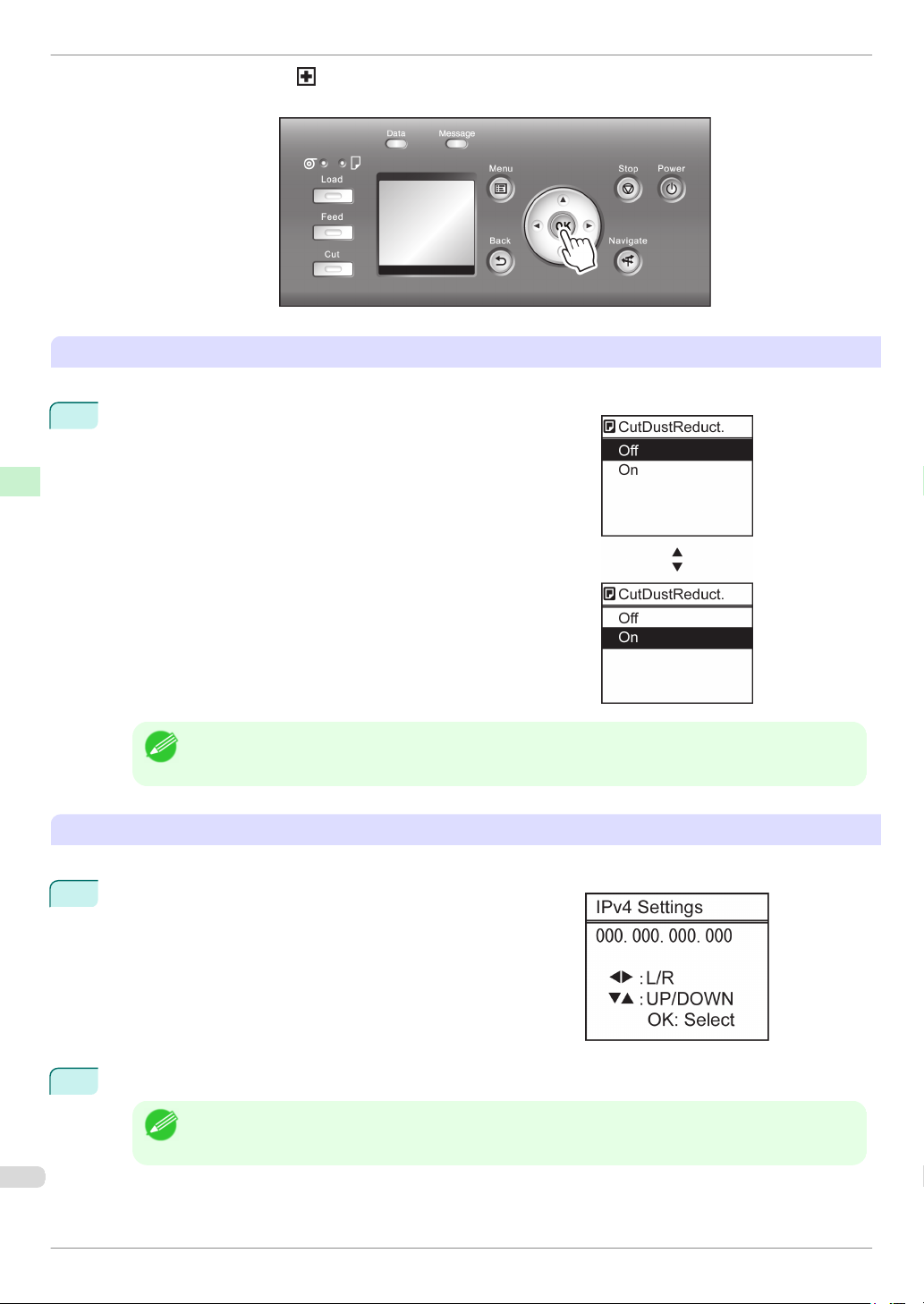
Menu Operations
•
Lower menus are available if is displayed at left next to the second and subsequent rows. To access the
lower menus, select the menu and press the OK button.
Specifying menu items
Printer Parts Operations and Display Screen
Menu items can be set as follows.
Press ▲ or ▼ to select the desired setting, and then press the OK
1
button.
After two seconds, the display reverts to the upper level menu.
iPF8400
• If a confirmation message is displayed regarding the setting you entered, press the OK button. The setting is
Note
Specifying numerical values
Follow these steps to enter numbers. In this example, network settings items are entered.
Press the ◀ or ▶ button to move to the next field for input.
1
2
Press the ▲ or ▼ button to enter the value.
applied, and the printer is now in Standby.
• Hold down ▲ or ▼ to increase or decrease the value continuously.
Note
Basic Guide
Page 61

iPF8400
Menu Operations
3
Repeat steps 1 and 2 to complete the settings, and then press the OK button.
• If a confirmation message is displayed regarding the setting you entered, press the OK button. The setting is
Note
Executing menu commands
Menu commands can be executed as follows.
1
Press ▲ or ▼ to select the action to execute, and then press the OK button.
The menu command is now executed.
applied, and the printer is now in Standby.
Printer Parts Operations and Display Screen
Basic Guide
61
Page 62
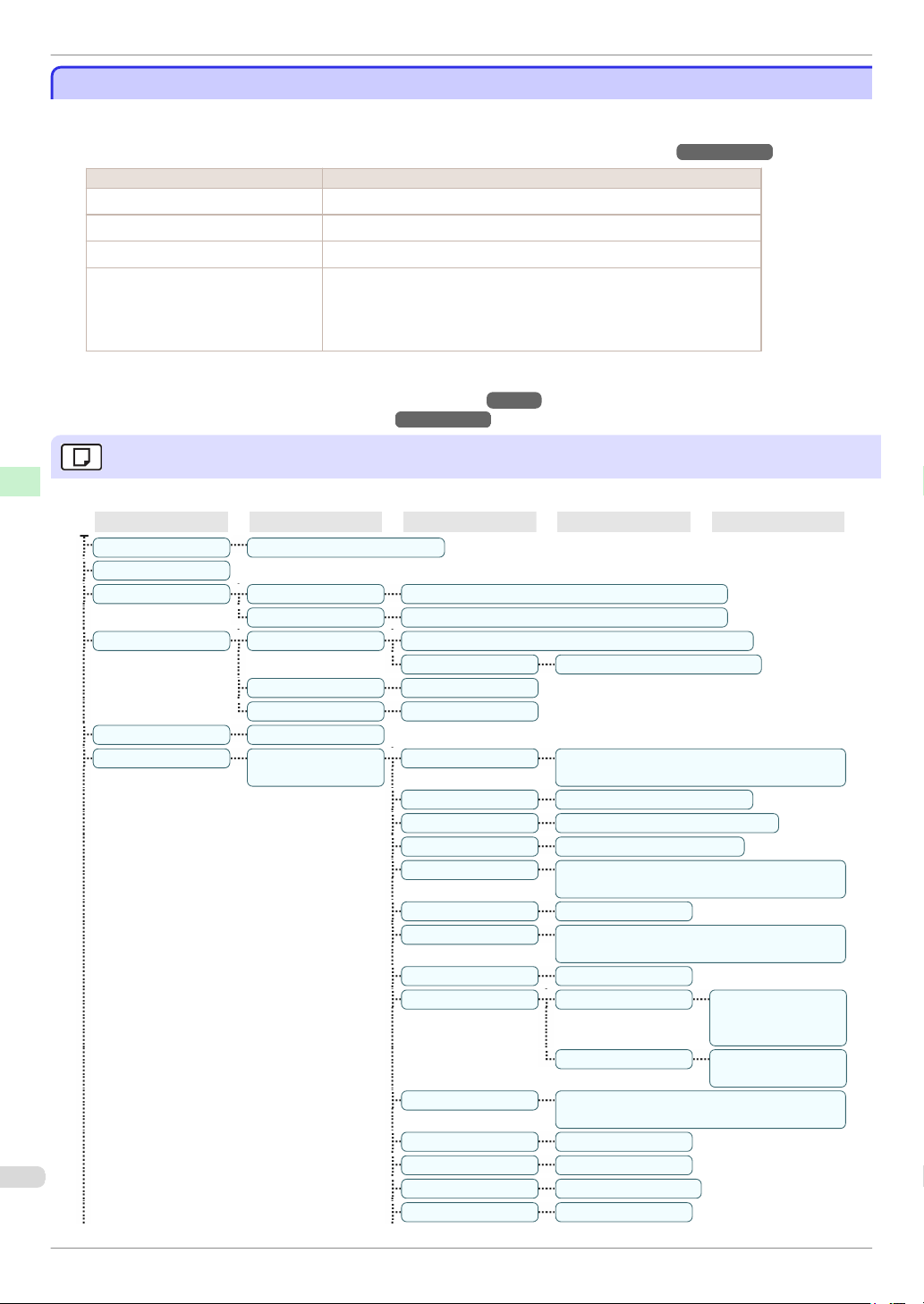
Menu Structure
Menu Structure
Menu Structure
The menu structure is shown categorized by tab. The * on the right side of an item indicates the default value.
The printer menu is classified into regular menu items available when no print job is in progress and menu during
printing items only available while printing is in progress. see "Printer Menu Operations."
Regular menu Menu during printing
Paper Menu Not displayed
Ink Menu The same Ink Menu as normal is displayed.
Job Menu The same Job Menu as normal is displayed.
Set./Adj. Menu A limited Set./Adj. Menu containing the following items is displayed.
•
Adj. Fine Feed(*1)
•
Printer Info
Printer Parts Operations and Display Screen
*1: Only displayed in the menu during printing. Not displayed in the regular menu.
For instructions on menu operations,
see "Menu Operations."
For details on menu items, see "Menu Settings."
→
User's Guide
→
P.58
→
User's Guide
Paper Menu
The Paper Menu is not displayed during printing.
First Level Second Level Third Level Fourth Level Fifth Level
Load Paper Roll Paper┋Cut Sheet
Eject Paper
Chg. Paper Type(*1) Roll Paper (The paper type is displayed here.) (*1)
Chg. Paper Size Sheet Size (The size of paper is displayed here.) (*2)
ManageRemainRoll Off*┋On
Paper Details (The paper type is dis-
Cut Sheet (The paper type is displayed here.) (*1)
Roll Length(*3) (Set the length)
Roll Width(*4) (Set the width)
played here.) (*1)
CustomPaperSize (Set the length and width)
Head Height Automatic*┋Highest┋High┋Stand-
ard┋Low┋Lowest┋Super Low
Skew Check Lv. Standard*┋Loose┋Off
Cutting Mode(*6) Automatic┋Eject┋Manual
Cut Speed Fast┋Standard┋Slow
Trim Edge First Automatic┋Off┋On (Preset Len)┋On(Input
Length)┋Manual
CutDustReduct. Off┋On
VacuumStrngth Automatic*┋Strongest┋Strong┋Stand-
ard┋Weak┋Weakest
Roll Tension High┋Standard
Scan Wait Time Dry time Off*┋1 sec.┋3
Roll DryingTime Off┋30 sec.┋1 min.┋3 min.┋5 min.┋10
NearEnd RollMrgn 5mm┋20mm
NearEnd Sht Mrgn 5mm┋20mm
BordlessOversize Standard*┋Little
Width Detection Off┋On*
Area(*5) Entire area*┋Leading
min.┋30 min.┋60 min.
sec.┋5 sec.┋7
sec.┋9 sec.
edge
iPF8400
Basic Guide
Page 63
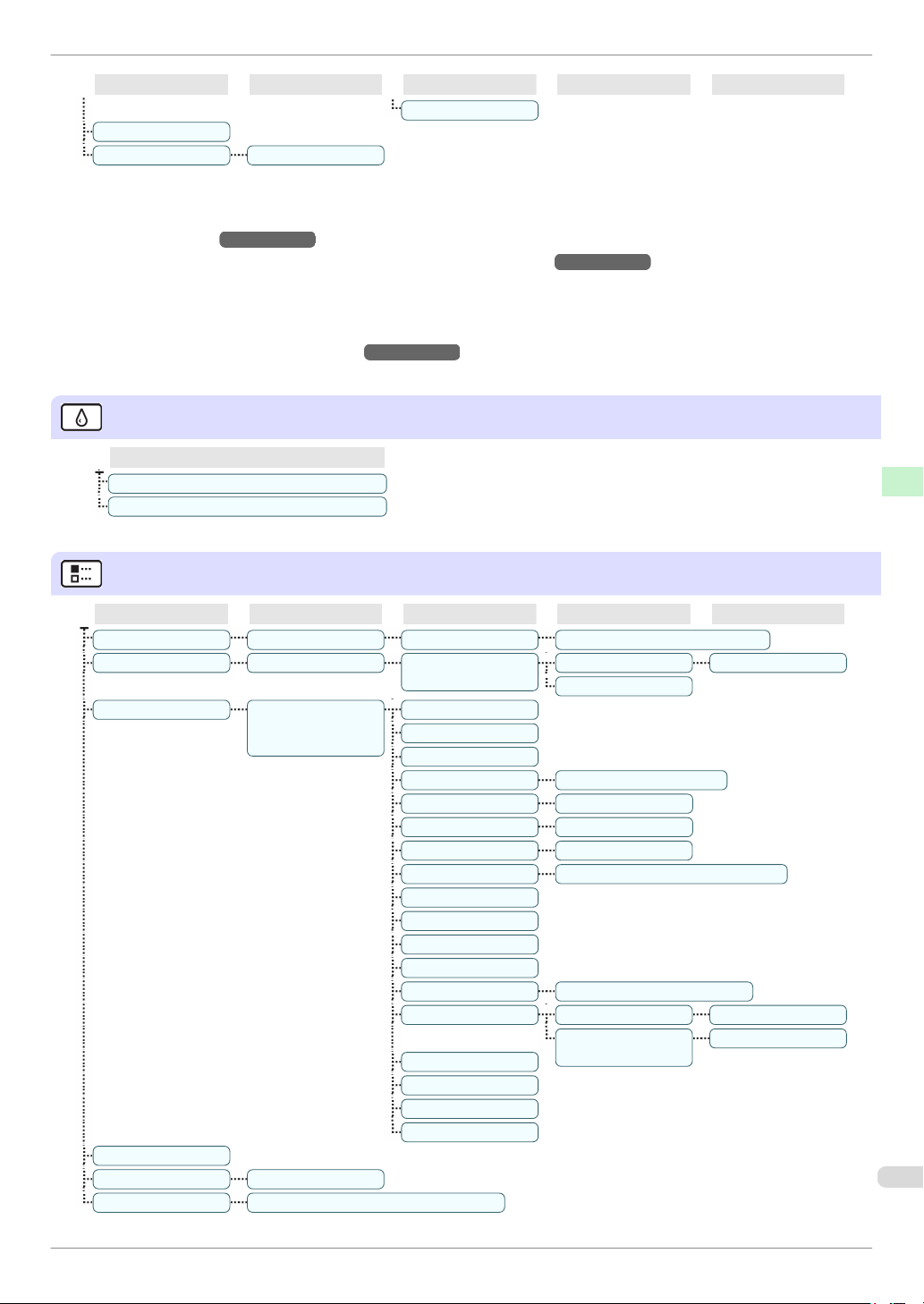
iPF8400
Menu Structure
First Level Second Level Third Level Fourth Level Fifth Level
Paper Details
Keep Paper Type Off*┋On
Return Defaults
*1: For information on the types of paper the printer supports, refer to the Paper Reference Guide. (See Paper Reference Guide .)
Types of paper in the printer driver and related software (as well as on the Control Panel ) are updated when you install the printer
driver from the User Software CD-ROM or if you update paper information with the Media Configuration Tool. (See "Updating
paper information.")
*2: For information on the sizes of paper the printer supports, see "Paper Sizes."
→
User's Guide
→
User's Guide
*3: Available only if ManageRemainRoll is On.
*4: Available only if Width Detection is Off.
*5: Leading edge is not available as a setting option in the Paper Detailed Settings dialog box of the printer driver.
*6: see "Specifying the Cutting Method for Rolls."
→
User's Guide
Printer Parts Operations and Display Screen
Ink Menu
First Level
Rep. Ink Tank
Head Cleaning A
Job Menu
First Level Second Level Third Level Fourth Level Fifth Level
Print Job Job List (Choose a print job.) Delete┋Preempt Jobs(*1)
Stored Job Mailbox List (Enter a password if
Job Log
Print Job Log
Pause Print Off*┋On
HDD Information Total capacity┋Box free space
(Choose from information
about the latest three print
jobs.)
one has been set.)
Document Name
User Name
Page Count
Job Status OK┋CANCELED
Print Start Time yyyy/mm/dd hh:mm:ss
Print End Time yyyy/mm/dd hh:mm:ss
Print Time xxxsec.
Output Img. Size (The image size is displayed)
Media Type
Paper Consumed
Paper Length
Paper Width
Interface USB┋Network┋HDD
Ink Consumed Tot.Ink Consumed xxx.xxx ml
Print settings
Head Height
Temp./Humidity
Adjustment req.
Job List Print┋Delete
Print Job List
(The ink color is dis-
played here.)
xxx.xxx ml
63
Basic Guide
Page 64

Menu Structure
*1: If a pending job is selected, Print Anyway is displayed.
Set./Adj. Menu
Limited items are displayed during printing. The displayed items are indicated by annotations.
First Level Second Level Third Level Fourth Level Fifth Level Sixth Level Seventh Level
Test Print Nozzle Check┋Status Print┋Interface Print┋Paper Details┋Print Job Log┋Menu Map
Adjust Printer Head Posi.
Printer Parts Operations and Display Screen
Adj.
Feed Priority Adj. Priority Automatic*┋Print Quality┋Print Length
Calibration Auto Adjust
Standard
Simple
Other Initial adjustmt┋Manual(*1)
Adj. Quality(*2)
Adjust
Length(*3)
Calibration
Log
Use Adj. Val-ueDisabled┋Enabled*
Auto(GenuinePpr)┋Auto(OtherPaper)┋Manual
AdjustmentPrint
Change Settings
Date┋Paper Type┋Adjustment Type
A:High┋B:Standard/Draft
A:High┋B:Standard/Draft
iPF8400
Maintenance Head Clean-
ing
Interface Setup(*8)
Nozzle Check
Replace
P.head
Repl. maint cart
Head Info Printhead L ProductName:┋s/n:┋Days elapsed:┋Count [Mdot]:
Repl. S. Cleaner
Change Cutter
EOP Timer(*8)
TCP/IP(*8) IPv4(*8) IPv4 Mode(*8) Automatic┋Manual*
Set Exec.
Guide
Return Defaults
Head Cleaning A┋Head Cleaning B
Printhead L┋Printhead R┋L & R Printheads
Printhead R ProductName:┋s/n:┋Days elapsed:┋Count [Mdot]:
10 sec.┋30 sec.┋1 min.┋2 min.┋5 min.┋10 min.*┋30 min.┋60 min.
Off*┋On
Protocol(*4)
(*8)
IPv4 Settings IP Address(*9) xxx.xxx.xxx.xxx
DNS Settings(*9)
DHCP(*8) On┋Off*
BOOTP(*8) On┋Off*
RARP(*8) On┋Off*
Subnet
Mask(*9)
Default G/W(*9) xxx.xxx.xxx.xxx
DNS Dync update(*9)
Pri. DNS SrvAddr(*9)
Sec. DNS SrvAddr(*9)
DNS Host Name(*9)
DNS Domain Name(*9)
xxx.xxx.xxx.xxx
On┋Off*
Basic Guide
Page 65

iPF8400
Menu Structure
First Level Second Level Third Level Fourth Level Fifth Level Sixth Level Seventh Level
IPv6(*8) IPv6 Sup-
On┋Off*
port(*8)
IPv6 Stles-
On*┋Off
sAddrs(*8)
(*10)
DHCPv6(*8)
On┋Off*
(*10)
DNS Settings(*9)(*10)
DNS Dync update(*9)
Statefull
Addr(*9)
Stateless
On┋Off*
On┋Off*
Addr(*9)
NetWare(*8) NetWare(*8) On┋Off*
Frame
Type(*5)(*8)
Print Serv-
Pri. DNS SrvAddr(*9)
Sec. DNS SrvAddr(*9)
DNS Host Name(*9)
DNS Domain Name(*9)
Auto Detect┋Ethernet 2┋Ethernet 802.2*┋Ethernet
802.3┋Ethernet SNAP
BinderyPServer┋RPrinter┋NDSPServer*┋NPrinter
ice(*5)(*8)
AppleTalk(*8) On┋Off*
Ethernet Driver(*8)
Auto Detect(*8)
Comm.Mode(*
6)(*8)
Ethernet
On*┋Off
Half Duplex*┋Full Duplex
10 Base-T*┋100 Base-TX┋1000 Base-T
Type(*6)(*8)
Spanning
Not Use*┋Use
Tree(*8)
MAC Ad-
xxxxxxxxxxxx
dress(*8)
System Setup Sleep Tim-
Interface Print(*8)
Return Defaults(*8)
er(*11)
Shut Down
5 min.*┋10 min.┋15 min.┋20 min.┋30 min.┋40 min.┋50 min.┋60
min.┋210 min.
Off┋5 min.┋10 min.┋30 min.┋1 hour┋4 hours┋8 hours*┋12 hours
Timer
Buzzer Off┋On*
Contrast Adj. -4,-3,-2,-1,0*,+1,+2,+3,+4
Date &
Time(*8)
Date
yyyy/mm/
Time
hh:mm
dd(*7)(*8)
Date For-
yyyy/mm/dd*┋dd/mm/yyyy┋mm/dd/yyyy
mat(*8)
Language English┋日本語┋Français┋Italiano┋Deutsch┋Español┋Русский┋中文(簡
体字)┋한국어
Time Zone(*8) 0:London (GMT)┋+1:Paris,Rome┋+2:Athens,Cairo┋+3:Moscow┋+4:Eere-
van,Baku┋+5:Islamabad┋+6:Dacca┋+7:Bangkok┋+8:Hong Kong┋+9:Tokyo,Seoul┋+10:Canberra┋+11:NewCaledonia┋+12:Wellington┋-12:Eniwetok┋-11:Midway is.┋-10:Hawaii(AHST)┋-9:Alaska(AKST)┋-8:Oregon (PST)
┋-7:Arizona(MST)┋-6:Texas (CST)┋-5:NewYork(EST)┋-4:Santiago┋-3:Buenos Aires┋-2:┋-1:Cape Verde
Length Unit meter*┋feet/inch
Printer Parts Operations and Display Screen
65
Basic Guide
Page 66

Menu Structure
First Level Second Level Third Level Fourth Level Fifth Level Sixth Level Seventh Level
Detect Mis-
Pause┋Warning┋None*┋Hold Job
match
Paper Size
Sht Selection1ISO A3+*┋13"x19"(Super B)
Basis
Keep Paper
Sht Selection2ISO B1*┋28"x40" (ANSI F)
Off*┋On
Size
Rep.P.head
Off┋On*
Print
Printer Parts Operations and Display Screen
Nozzle Check Frequency Standard*┋1 page
CarriageS-
Warning Off*┋On
Automatic*┋Fixed
canWdth
Use Remo-
On*┋Off
teUI(*8)
Reset PaprSetngs(*8)
Erase HDD
High Speed(*8)┋Secure High Spd.(*8)┋Secure(*8)
Data
Output Meth-odPrint*┋Print (Auto Del)┋Save: Box XX
Print After
Off*┋On
Recv
Common Box
Print*┋Print (Auto Del)
Set.(*4)(*8)
Show Job
Off┋On*
Log(*8)
Take-up
Reel(*12)
Use Take-up
Reel
Auto Feed(*13)
Skip Take-Up
Disable*┋Enable
Off*┋On
Err(*14)
Prep.Move-
Level 1┋Level 2┋Level 3
Printer
Admin.
Menu(*9)
Change Password(*9)
Init.Admin.Pswd(*9)
(The screen for setting the password is displayed)
Adj. Fine Feed(*15)(*16)
Printer Info(*15)
Paper Info
Ink Info
Head Info ProductName:
s/n:
Days elapsed:
Count [Mdot]:
Printhead L ProductName:┋s/n:┋Days elapsed:┋Count [Mdot]:
Printhead R ProductName:┋s/n:┋Days elapsed:┋Count [Mdot]:
System Info
Error Log
Other Counter
*1: Available after you have used Standard or Initial adjustmt in Head Posi. Adj. once.
*2: Available if Adj. Priority is Automatic or Print Quality.
*3: Available if Adj. Priority is Automatic or Print Length.
iPF8400
Basic Guide
Page 67

iPF8400
Menu Structure
*4: Not displayed if IPv4 Mode is Manual.
*5: Not displayed if NetWare is Off.
*6: Not displayed if Auto Detect is On.
*7: Follows the setting in Date Format.
*8: Viewing and configuration is possible for administrators, and only viewing for other users.
*9: Viewing and configuration is possible for administrators only.
*10: Not displayed if IPv6 Support is Off.
*11: Default setting for the time to enter the power save mode/Sleep mode is recommended.
*12: Displayed only when the Media Take-up Unit is attached.
*13: Available if: (a) Use Take-up Reel is Enable, (b) roll paper is loaded, and (c) you have not executed Auto Feed for the loaded
roll.
*14: Available when Use Take-up Reel is Enable.
*15: Displayed as the menu during printing while printing is in progress.
*16: Not displayed in the regular menu.
Printer Parts Operations and Display Screen
Basic Guide
67
Page 68
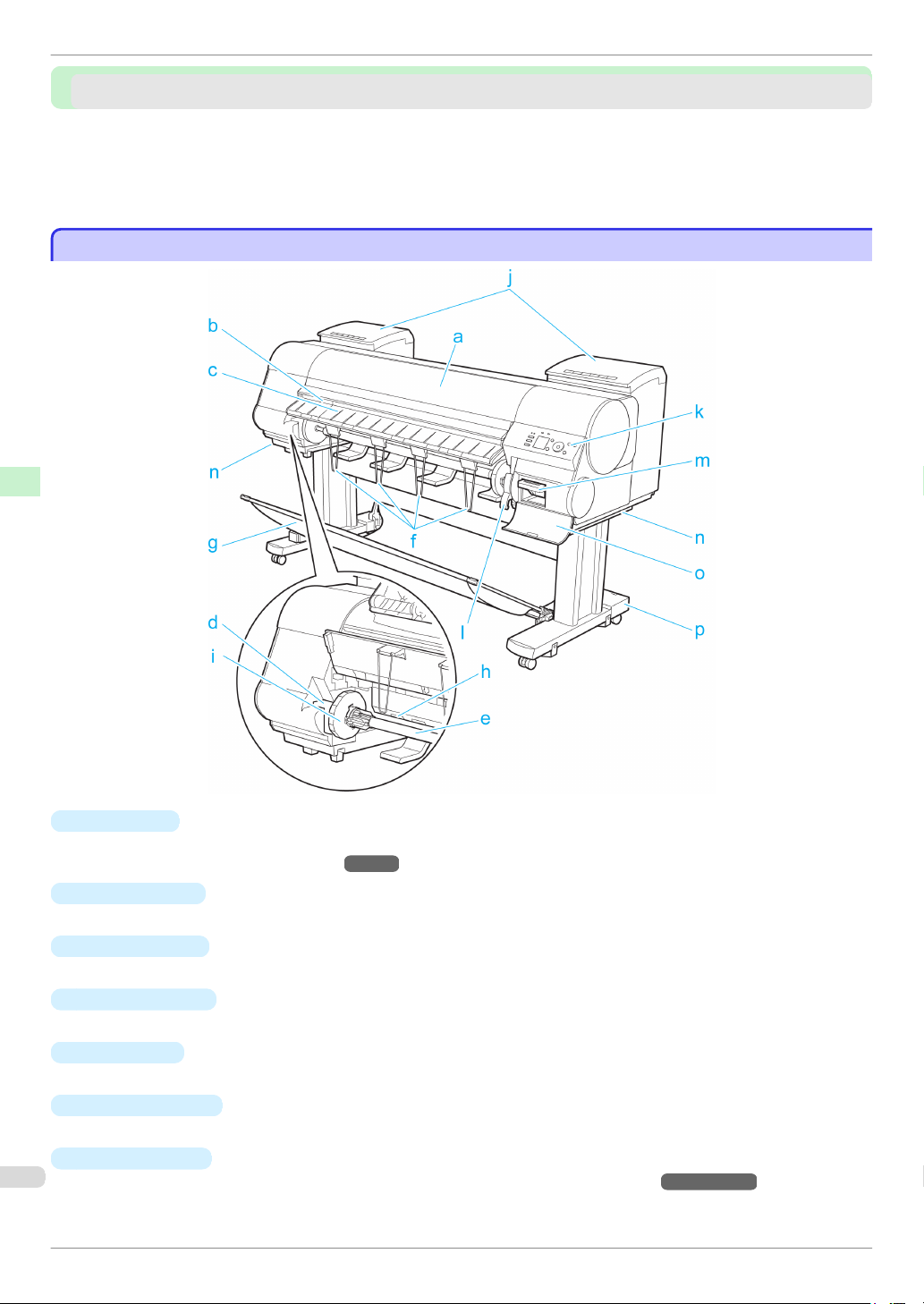
Front
Printer parts
Printer parts
Front ..................................................................................................................................................................................... 68
Back ...................................................................................................................................................................................... 70
Top Cover (Inside) .......................................................................................................................................................... 71
Carriage .............................................................................................................................................................................. 72
Ink Tank Cover (Inside) ................................................................................................................................................. 73
Front
Front
Printer Parts Printer parts
iPF8400
a
Top Cover
Open this cover to install the Printhead, load paper, and remove any jammed paper from inside the printer as
needed. (See "Top Cover (Inside).")
b
Cutter Groove
Paper is cut (using the cutter or manually with scissors) over this groove.
c
Ejection Guide
Guides printed documents as they are ejected. Raise the guide when loading a roll.
d
Roll Holder Slot
Slide the Roll Holder into this slot.
e
Roll Holder
Load the roll on this holder.
f
Ejection Support
Prevents printed documents from winding around the Roll Holder or being drawn into the Paper Feed Slot.
g
Output Stacker
A cloth tray that catches ejected documents. (See "Parts of the Output Stacker.")
Basic Guide
→
P.71
→
User's Guide
Page 69

iPF8400
Front
h
Paper Feed Slot
When loading a roll, insert the edge of the roll paper here.
i
Holder Stopper
Secure rolls on the Roll Holder with this part.
j
Ink Tank Cover
→
Open this cover to replace an Ink Tank. (See "Ink Tank Cover (Inside).")
k
Control Panel
Use this panel to operate the printer and check the printer status. (See "Control Panel.")
l
Release Lever
P.73
→
P.57
Releases the Paper Retainer. Lift this lever toward the front of the printer when loading paper.
m
Maintenance Cartridge
Absorbs ink used for maintenance purposes such as head cleaning. (Replace the cartridge when it is full.)
n
Carrying Handles
When carrying the printer, have four people hold it by these handles under both sides.
o
Maintenance Cartridge Cover
Open this cover to replace the Maintenance Cartridge.
p
Stand
A stand that holds the printer. Equipped with casters to facilitate moving it. (See "Stand.")
→
User's Guide
Printer Parts Printer parts
Basic Guide
69
Page 70
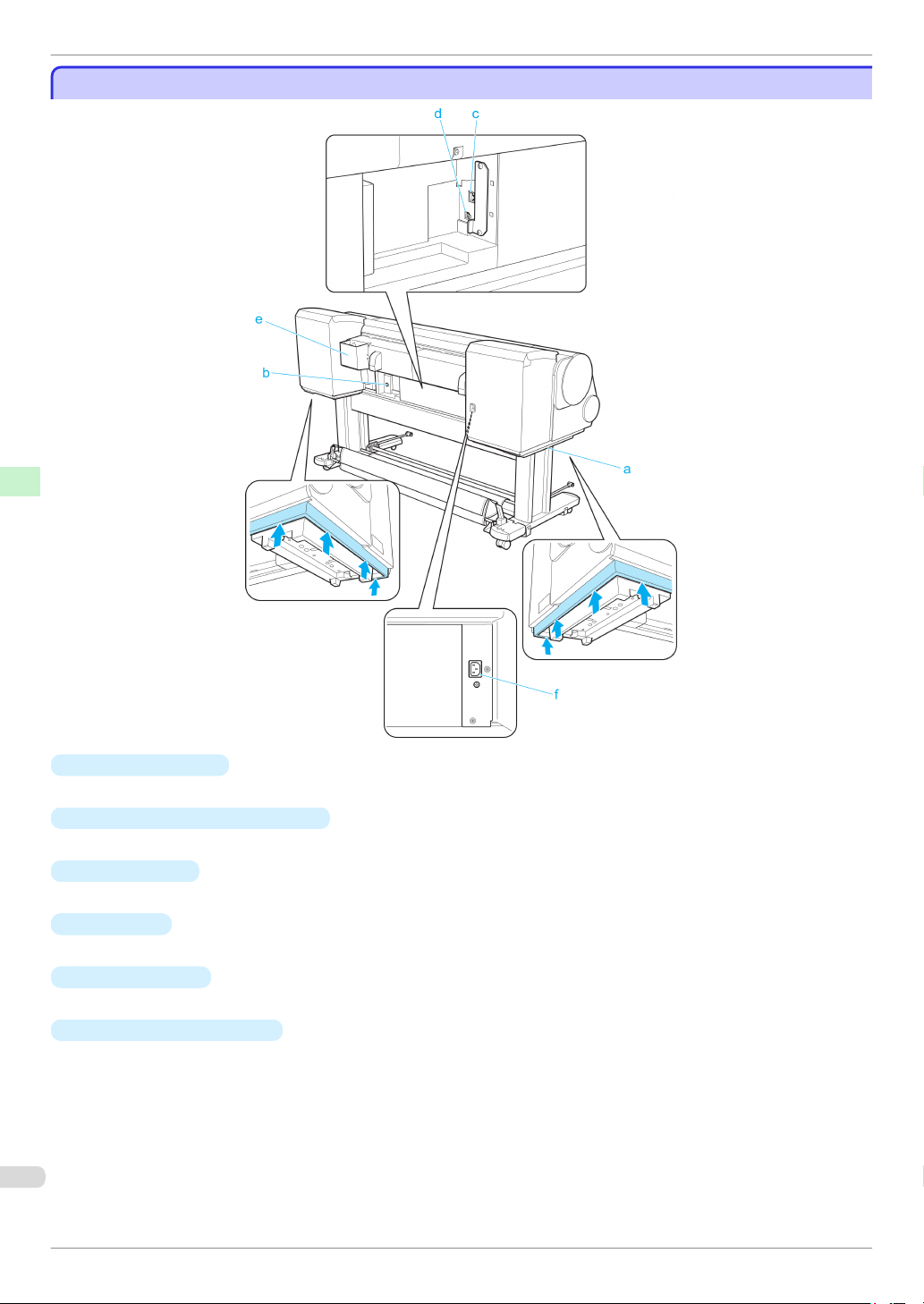
Back
Back
Back
Printer Parts Printer parts
iPF8400
a
Carrying Handles
When carrying the printer, have four people hold it by these handles under both sides.
b
Media Take-up Unit Power Inlet
Connect the power cord of the optional Media Take-up Unit here.
c
Ethernet Port
Connect an Ethernet cable to this port.
d
USB Port
Connect a USB cable to this port. It supports Hi-Speed USB.
Manual Pocket
e
Store printer manuals in this pocket.
f
Power Supply Connector
Connect the power cord to this connector.
Basic Guide
Page 71
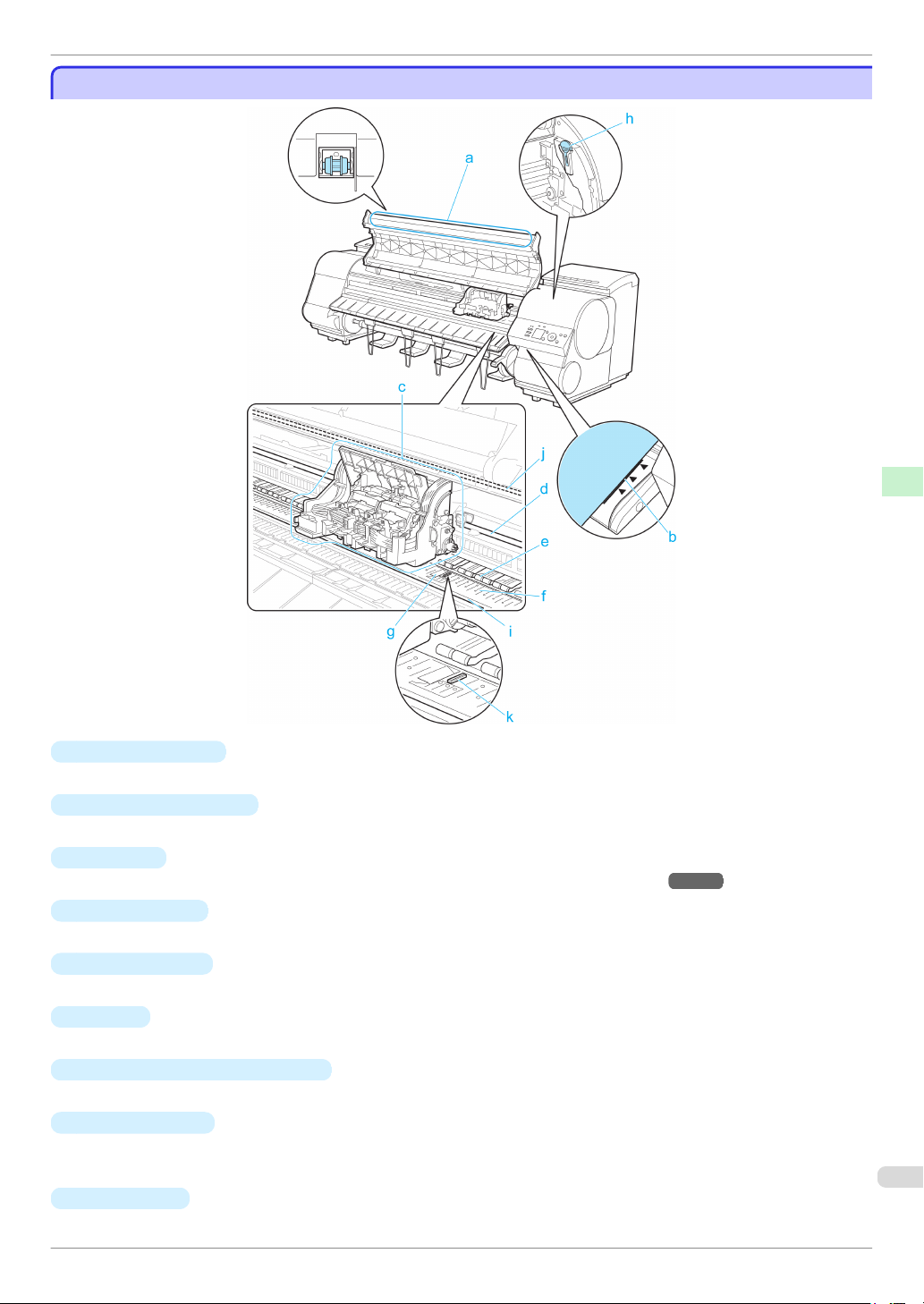
iPF8400
Top Cover (Inside)
Top Cover (Inside)
Top Cover (Inside)
Printer Parts Printer parts
a
Top Cover Roller
Prevents paper from rising when ejected.
b
Paper Alignment Line
Align paper with this line when loading it.
c
Carriage
→
Moves the Printhead. The carriage serves a key role in printing. (See "Carriage.")
d
Carriage Shaft
The Carriage slides along this shaft.
e
Paper Retainer
Important in supplying the paper. This retainer holds paper as it is fed.
f
Platen
The Printhead moves across the platen to print. Vacuum holes on the platen hold paper in place.
g
Borderless Printing Ink Grooves
For catching ink outside the edges of paper during borderless printing.
h
Cleaning Brush
When cleaning inside the printer under the Top Cover, use this brush to sweep away paper dust on the Platen.
Also use the brush to move the blue Switch on the Platen.
i
Fixed Blade
The Cutter Unit passes over this rail to cut paper.
Basic Guide
P.72
71
Page 72
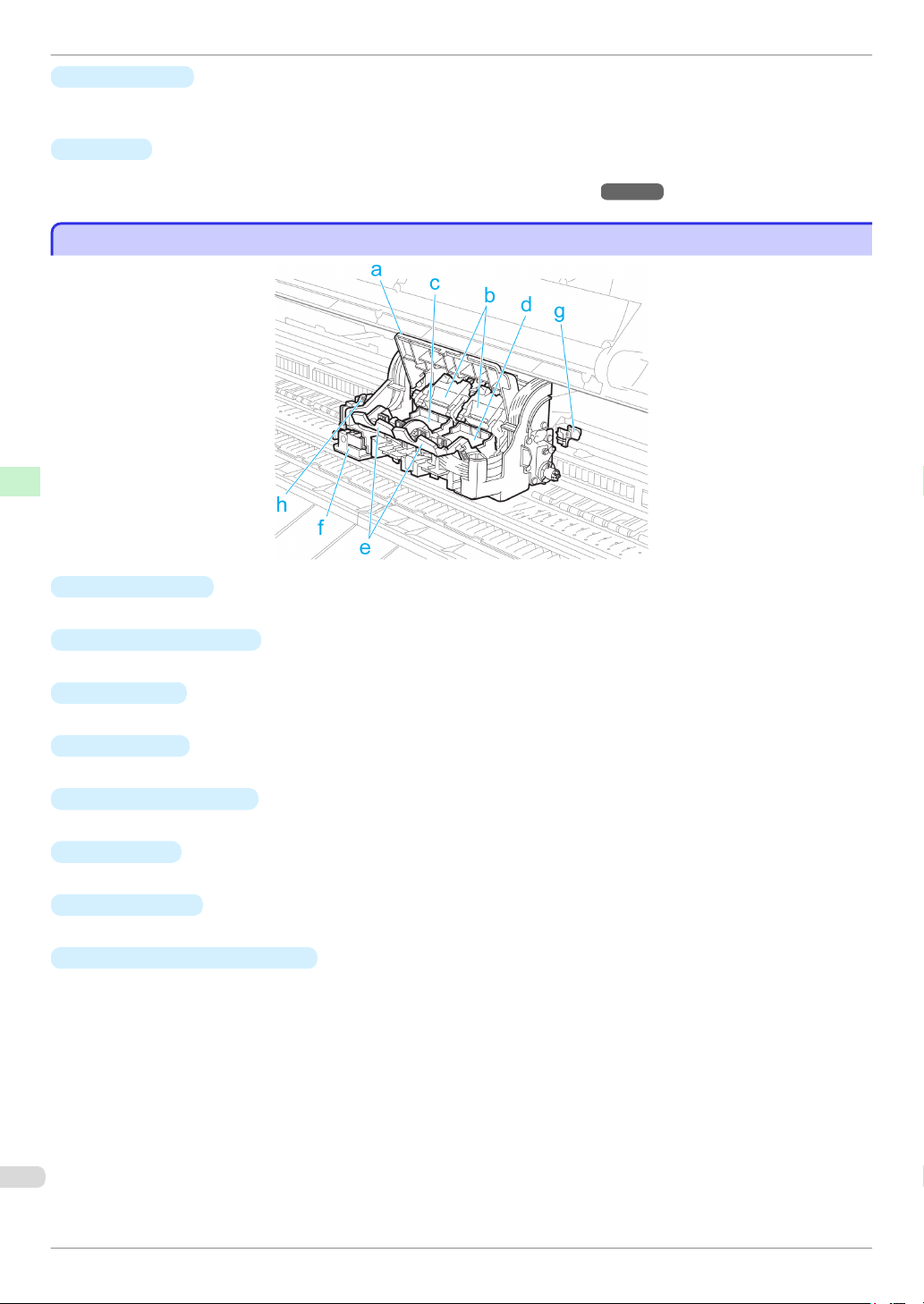
Carriage
j
Linear Scale
The linear scale serves a key role in detecting the Carriage position. Be careful not to touch this part when
cleaning inside the Top Cover or clearing paper jams.
k
Switch
Set the switch to the side opposite ● if the edges of printed images are blurred. Set the switch to the ● side
→
P.118
Carriage
Carriage
Printer Parts Printer parts
before borderless printing. (See "Setting the Blue Switch on the Platen.")
iPF8400
a
Carriage Cover
Protects the Carriage.
b
Printhead Fixer Cover
Holds the Printhead in place.
c
Printhead L
The printhead is equipped with ink nozzles. The carriage serves a key role in printing.
d
Printhead R
The printhead is equipped with ink nozzles. The carriage serves a key role in printing.
e
Printhead Fixer Lever
Locks the Printhead Fixer Cover.
f
Cutter Unit
A round-bladed cutter for automatic paper cutting. Retracted when not in use.
g
Shaft Cleaner
Prevents the Carriage Shaft from becoming dirty.
h
Cutter Unit Detachment Lever
Used when replacing the Cutter Unit.
Basic Guide
Page 73

iPF8400
Ink Tank Cover (Inside)
Ink Tank Cover (Inside)
Ink Tank Cover (Inside)
Left Side Right Side
*1: Note: The figure shows the printer as loaded with 700 ml (23.7 fl oz) Ink Tank.
a
Ink tanks
Cartridges of ink in various colors.
Printer Parts Printer parts
b
Ink Tank Lock Lever
A lever that locks the Ink Tank in place and protects it. Lift and lower the lever when replacing an Ink Tank. To
open it, lift the stopper of the lever until it stops, and then push it down toward the front. To close it, push it
down until it clicks into place.
a
Ink Color Label
Load an Ink Tank that matches the color and name on this label.
b
Ink Lamp (Red)
Indicates the state of the Ink Tank as follows when the Ink Tank Cover is opened.
•
On
The Ink Tank is installed correctly.
Basic Guide
73
Page 74

Ink Tank Cover (Inside)
•
Off
No Ink Tank is installed, or the ink level detection function is disabled.
•
Flashing Slowly
Not much ink is left.
•
Flashing Rapidly
Ink tank is empty.
Printer Parts Printer parts
iPF8400
Basic Guide
Page 75
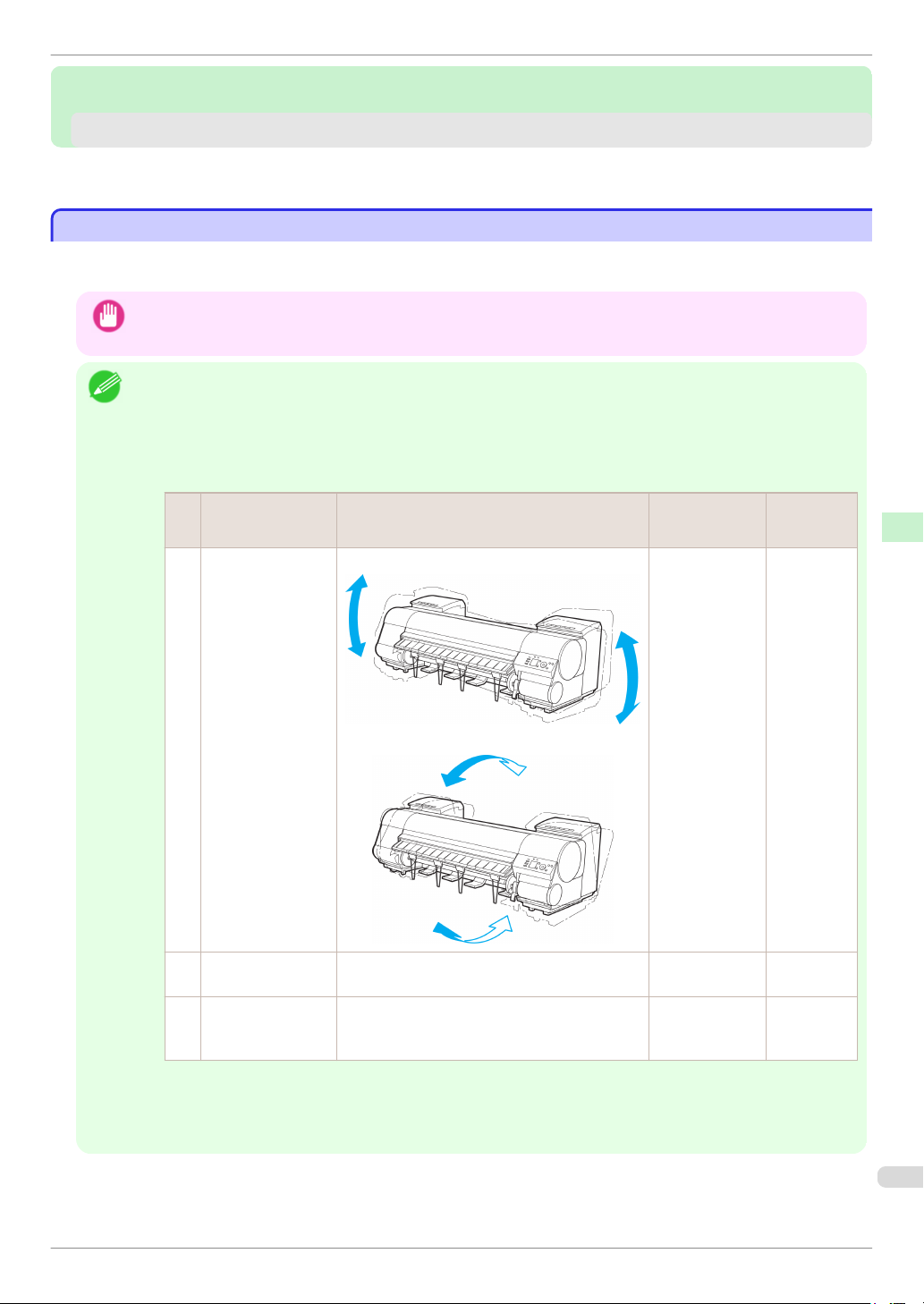
iPF8400
To protect the internal parts in transit, always follow these steps before transferring the printer to a new location.
Refer to the Setup Guide for details on packing the printer and installing it after transfer.
Preparing to Transfer the Printer
Printer Relocation
Printer Relocation
Preparing to Transfer the Printer
Preparing to Transfer the Printer
Preparing to Transfer the Printer ............................................................................................................................ 75
Reinstalling the Printer ................................................................................................................................................. 81
Preparing to Transfer the Printer
Preparing to Transfer the Printer
• Be sure to contact your Canon dealer before transferring the printer to a new location. Ink may leak and damage the
Important
printer if you do not prepare the printer correctly and it is tipped or stood on end in transit.
• Depending on the state of the printer, part replacement may be necessary when preparing to transfer the printer (that is,
when you execute the printer menu item to prepare for transfer).
Note
Printer Relocation Preparing to Transfer the Printer
• Ink must be drawn into the Maintenance Cartridge before Level 2 or Level 3 printer transfer, as described in the follow-
ing table. Prepare the Maintenance Cartridge in advance.
• Always follow the instructions of the service representative when transferring the printer under Level 3 conditions.
Shipping Method (Ex-
Level
1 By truck Lengthwise: 0–30º
ample)
Rotation: 0–10º
Permitted Angle of Inclination
Amount of Ink to
Dispose of
0 0(*2)
Required Main-
tenance Car-
tridges(*1)
2 By plane All directions: 0–30º Approx. 700 ml
(20.3 fl oz)
3 Tipping the printer or
holding it upright for
elevators or stairs
*1: This is the number of new Maintenance Cartridge required when you execute the Prep.MovePrinter menu. The
number varies depending on the amount remaining in the Maintenance Cartridge being used.
*2: If a message instructing you to replace the Maintenance Cartridge is displayed on the Display Screen, the Main-
tenance Cartridge needs to be replaced.
Basic Guide
Lengthwise: 0–90º
Rotation: 0–30º
Approx. 2,000 ml
(64.3 fl oz)
1 or 2
2 or 3
75
Page 76
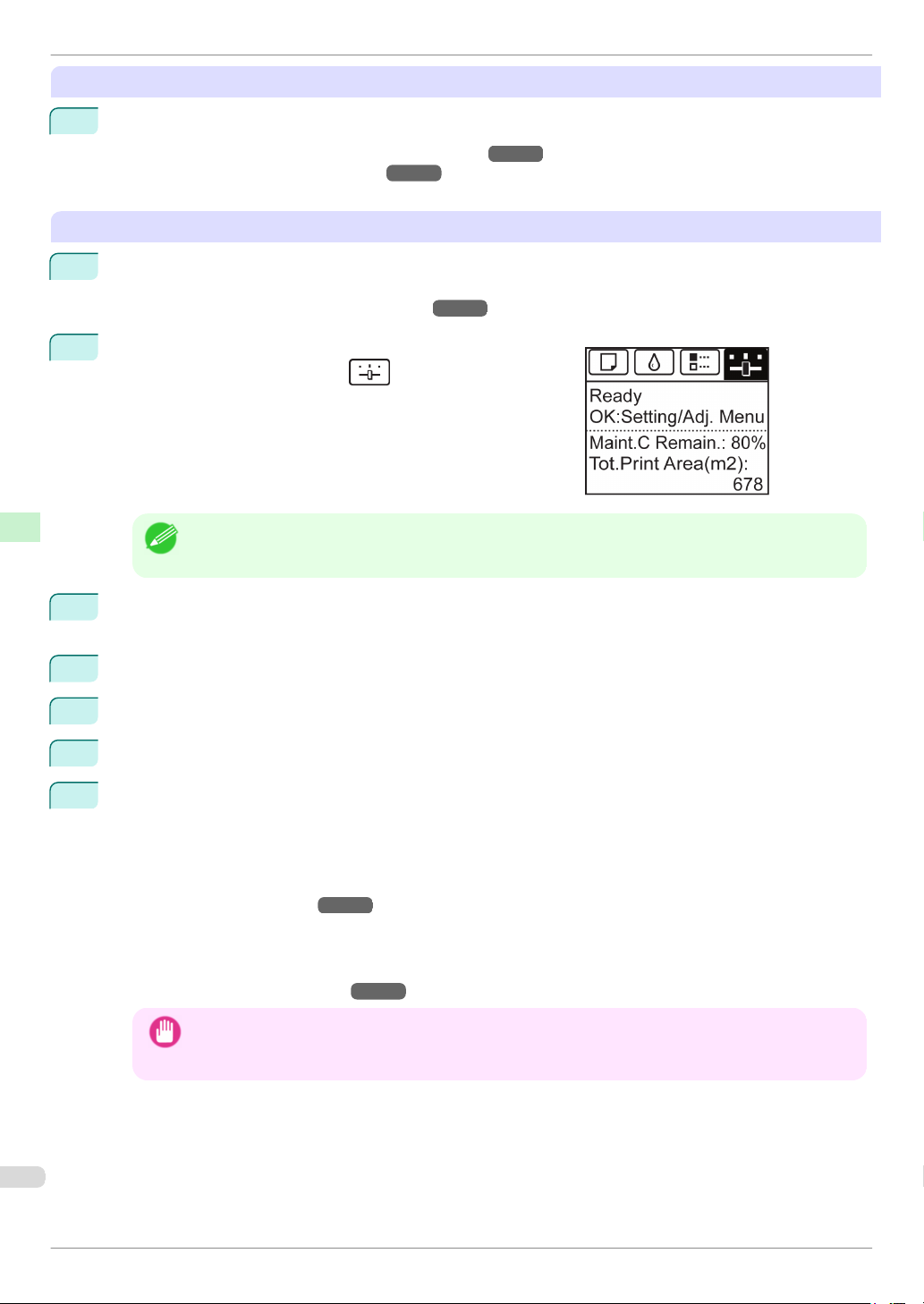
Preparing to Transfer the Printer
Remove paper
1
Remove the paper.
•
Rolls (See "Removing the Roll from the Printer.")
•
Sheets (See "Removing Sheets.")
→
P.21
→
P.15
Access the Prep.MovePrinter menu
1
If a message instructing you to replace the Maintenance Cartridge is displayed on the Display Screen, replace the Maintenance Cartridge.
(See "Replacing the Maintenance Cartridge.")
On the Tab Selection screen of the Control Panel, press ◀ or
2
Printer Relocation Preparing to Transfer the Printer
▶ to select the Settings/Adj. tab ( ).
→
P.46
• If the Tab Selection screen is not displayed, press the Menu button.
iPF8400
Note
3
Press the OK button.
The Set./Adj. Menu is displayed.
4
Press ▲ or ▼ to select Prep.MovePrinter, and then press the OK button.
5
Press ▲ or ▼ to select the level of transfer, and then press the OK button.
6
Press ▲ or ▼ to select Execute, and then press the OK button to display the confirmation screen.
7
Press ▲ or ▼ to select Yes, and then press the OK button.
The printer is now prepared for transfer.
•
Level 1
Once preparations are finished, a message on the Display Screen requests you to turn off the printer.
Turn off and pack the printer. There is no need to remove the ink tanks.
(See "Pack the printer.")
•
Level 2 and Level 3
When the preparation is finished, instructions are displayed on the Display Screen.
Remove the ink tanks before packing the printer.
(See "Removing Ink Tanks.")
→
P.79
→
P.77
• If consumables must be replaced, the message "Consumables must be replaced. Call for service." is
Important
shown on the Display Screen and preparation is not possible. If this message is displayed, press the OK
button and contact your Canon dealer for assistance.
Basic Guide
Page 77
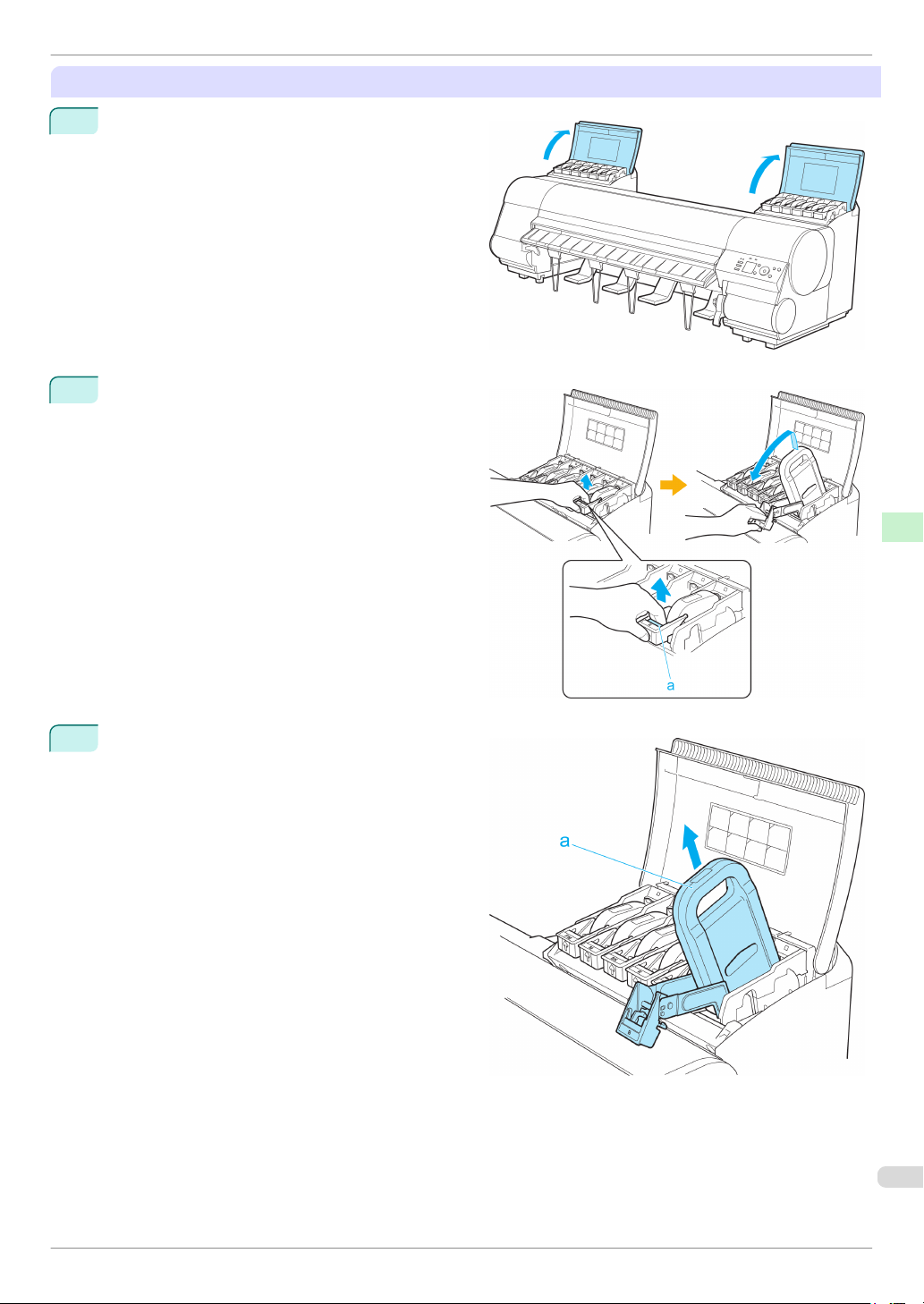
iPF8400
Preparing to Transfer the Printer
Removing Ink Tanks
Open the left and right ink tank covers.
1
Lift the stopper (a) of the Ink Tank Lock Lever (a).
2
Lift the Ink Tank Lock Lever until it stops, and then
push it down to the front.
Printer Relocation Preparing to Transfer the Printer
Hold the Ink Tank by the handle (a) and remove it.
3
77
Basic Guide
Page 78
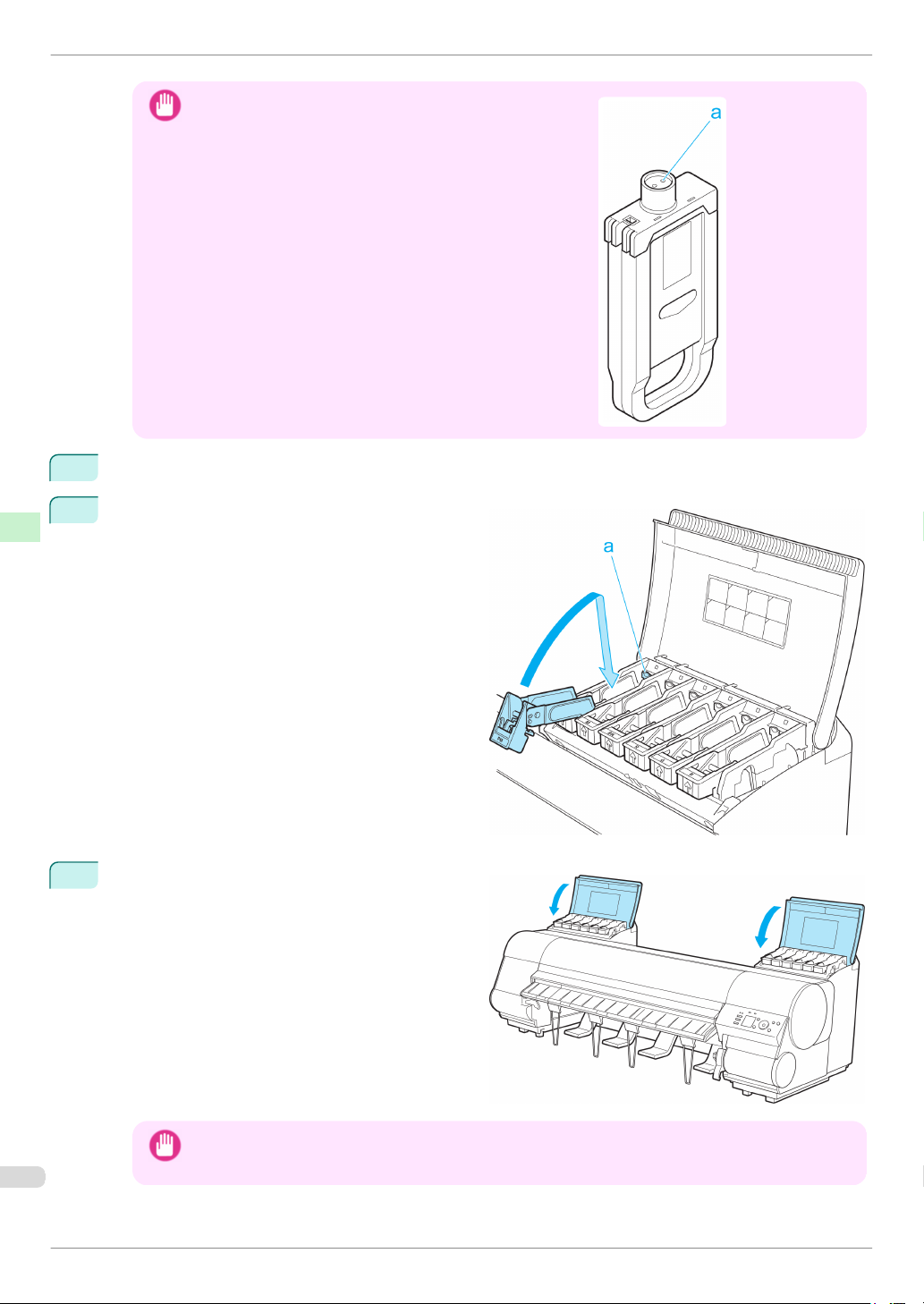
Preparing to Transfer the Printer
Store the Ink Tank you removed in the box with the ink holes (a)
•
Important
Printer Relocation Preparing to Transfer the Printer
4
Repeat steps 2 and 3 to remove all ink tanks.
Push down the release lever (a) as shown as you
5
gently return all ink tank lock levers to the original
position.
facing up. Otherwise, ink may leak and cause stains.
iPF8400
Close the Ink Tank Cover.
6
At this point, ink is drawn out from inside the tubes.
• Do not remove the Maintenance Cartridge except when the message for replacing it is displayed.
Important
Basic Guide
If you remove the Maintenance Cartridge while ink is being drawn out, the ink may leak out.
Page 79
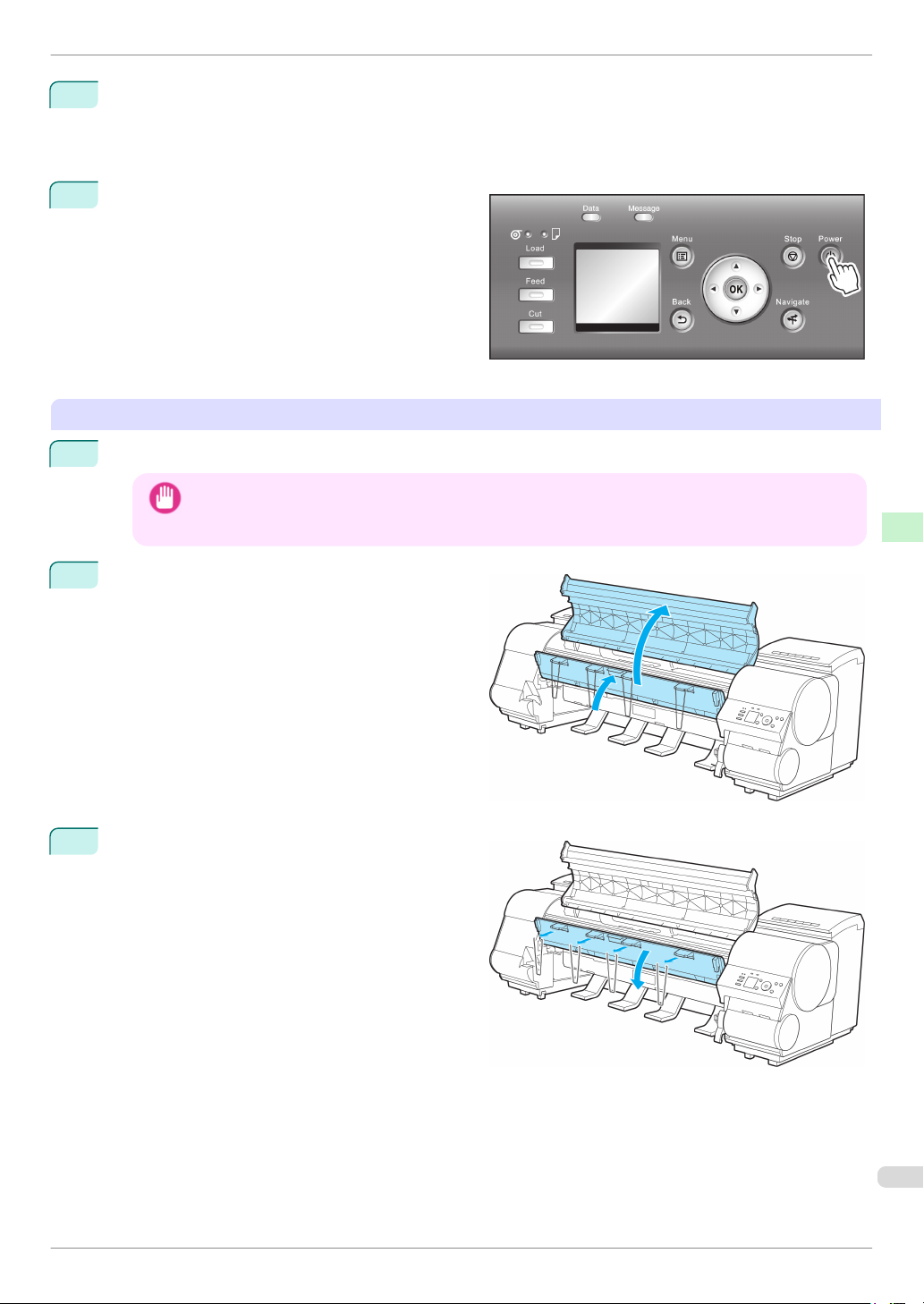
iPF8400
Preparing to Transfer the Printer
7
When the process is finished, "Preparations for moving the printer finished. Turn the power off" is displayed.
When this happens, replace the Maintenance Cartridge currently being used with a new Maintenance Cartridge.
Press the Power button and turn off the printer.
8
Pack the printer
1
Disconnect the power cord, interface cable, and Media Take-up Unit Power Inlet.
Important
Open the Top Cover and lift the Ejection Guide.
2
Printer Relocation Preparing to Transfer the Printer
• Turn off the printer before you unplug it. It may damage the printer if you unplug it before it is off and transfer
it in that state. If you accidentally unplug the printer, plug it in again, reinstall the ink tanks, and follow this
procedure again.
Remove the four ejection supports and lower the
3
Ejection Guide.
Basic Guide
79
Page 80
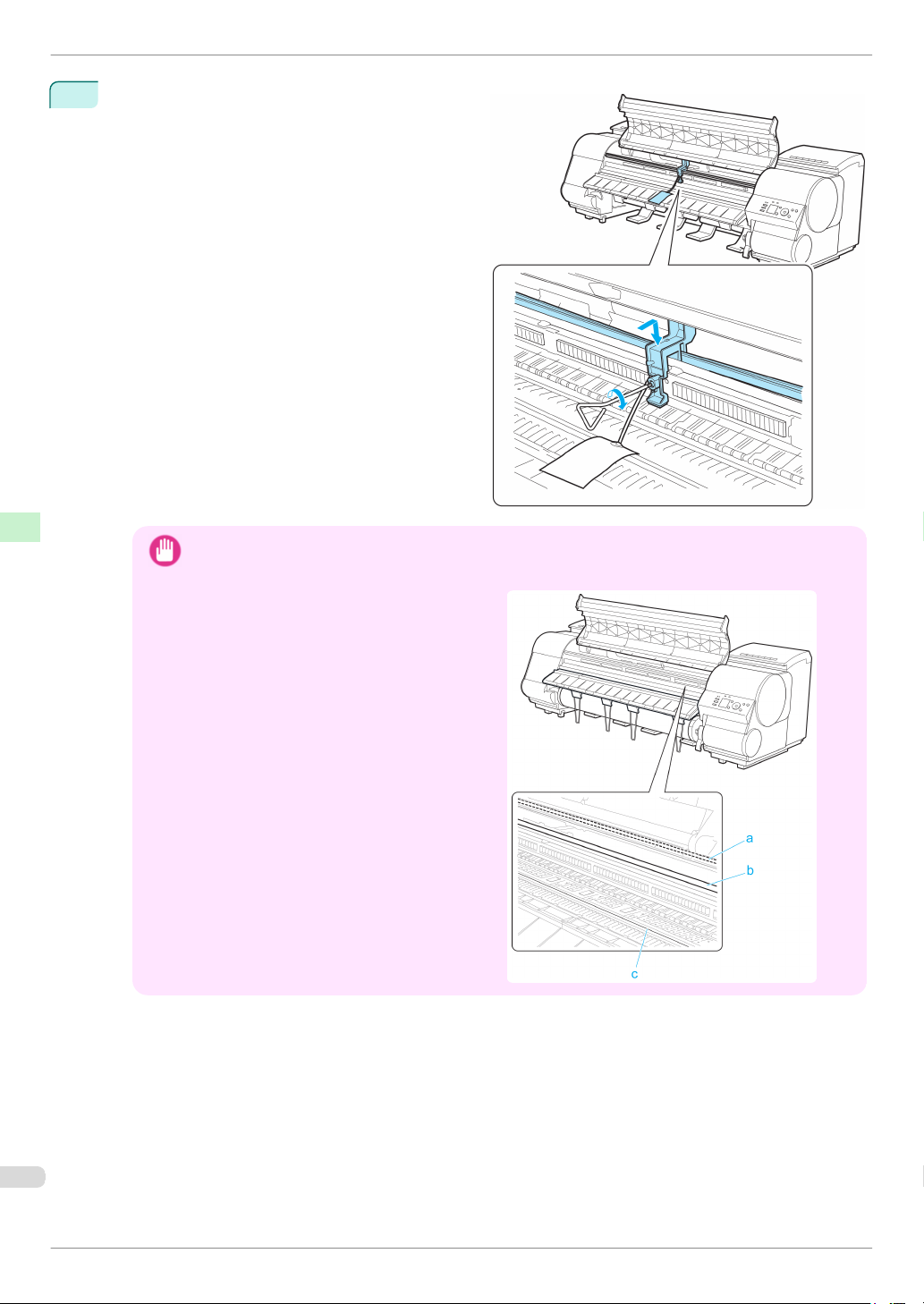
Preparing to Transfer the Printer
Grasp the Belt, insert it between the Belt Stopper,
4
and affix the Belt Stopper with a hex screw at the
position indicated.
Printer Relocation Preparing to Transfer the Printer
• Here, the Belt Stopper is the one that was removed and stored after initial installation. Neglecting to attach
Important
the Belt Stopper may damage the printer.
Do not touch the Linear Scale (a), Carriage
•
Shaft (b), or Fixed Blade (c). This may stain your
hands and damage the printer.
iPF8400
Basic Guide
Page 81
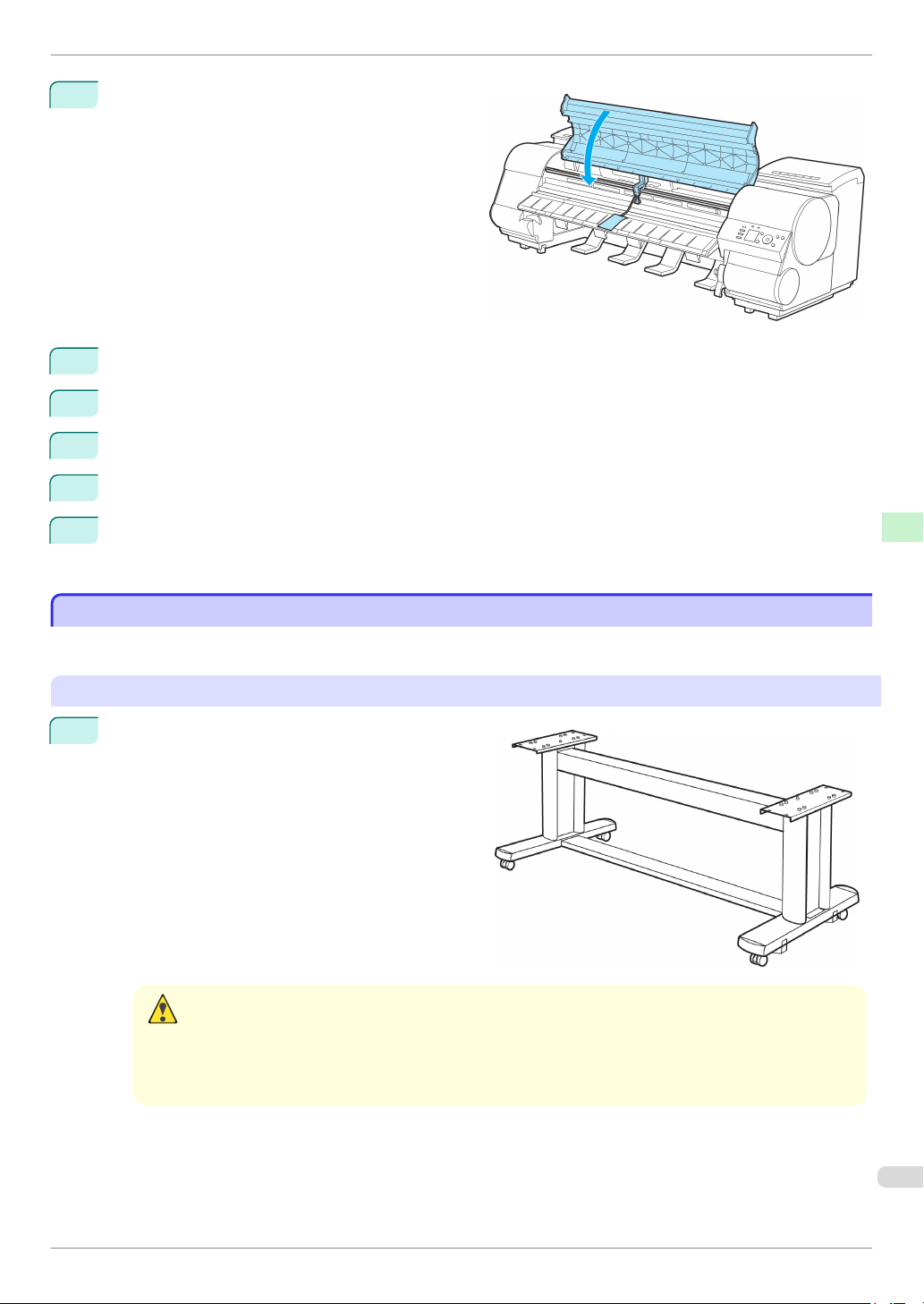
iPF8400
5
6
7
8
9
Reinstalling the Printer
Close the Top Cover.
Tape down printer covers to secure them, in the reverse order of tape removal during installation.
Printer Relocation Preparing to Transfer the Printer
Remove the Output Stacker by reversing the installation procedure.
Remove the Stand by reversing the installation procedure, when it was attached to the printer.
Disassemble and repackage the Stand by following the installation procedure in reverse.
10
Repack the Roll Holder, Holder Stopper, and printer in shipping materials, and then package them in a
shipping box.
Reinstalling the Printer
Reinstalling the Printer
The basic workflow for reinstalling the printer is as follows.
For detailed instructions, see the Setup Guide.
Assemble the stand
Referring to the Printer Stand Setup Guide, assem-
1
ble the Stand.
• The Stand must be assembled by at least two people on a flat surface. Attempting assembly by yourself poses
Caution
a risk of injury or bending the Stand.
• When assembling the Stand, lock the casters. In addition, always unlock the casters before moving the as-
sembled Stand. Attempting to move the stand when the casters are locked poses a risk of injury or damage to
the location site.
Basic Guide
81
Page 82
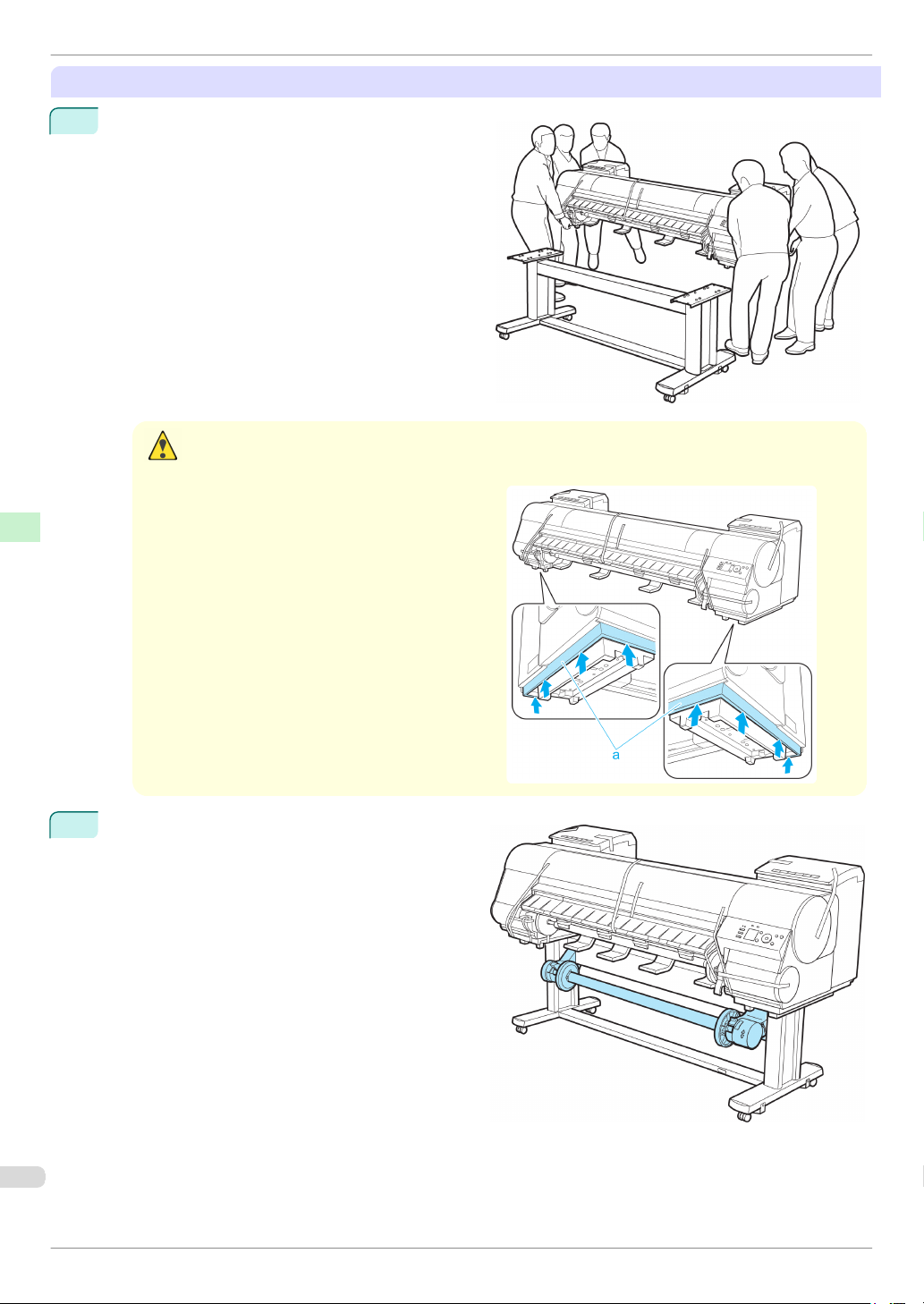
Reinstalling the Printer
Install the printer
Mount the printer on the assembled Stand and tight-
1
en the screws firmly.
iPF8400
Printer Relocation Preparing to Transfer the Printer
• Moving the printer requires at least six people, holding it on both sides. Be careful to avoid back strain and
Caution
•
If you are using the optional Media Take-up Unit,
2
attach the Media Take-up Unit by referring to the
setup guide included with the Media Take-up Unit.
other injuries.
When moving the printer, firmly grasp the Carrying Handles (a) under each side.
The printer may be unsteady if you hold it at other positions, which poses a risk of injury from
dropping the printer.
Basic Guide
Page 83
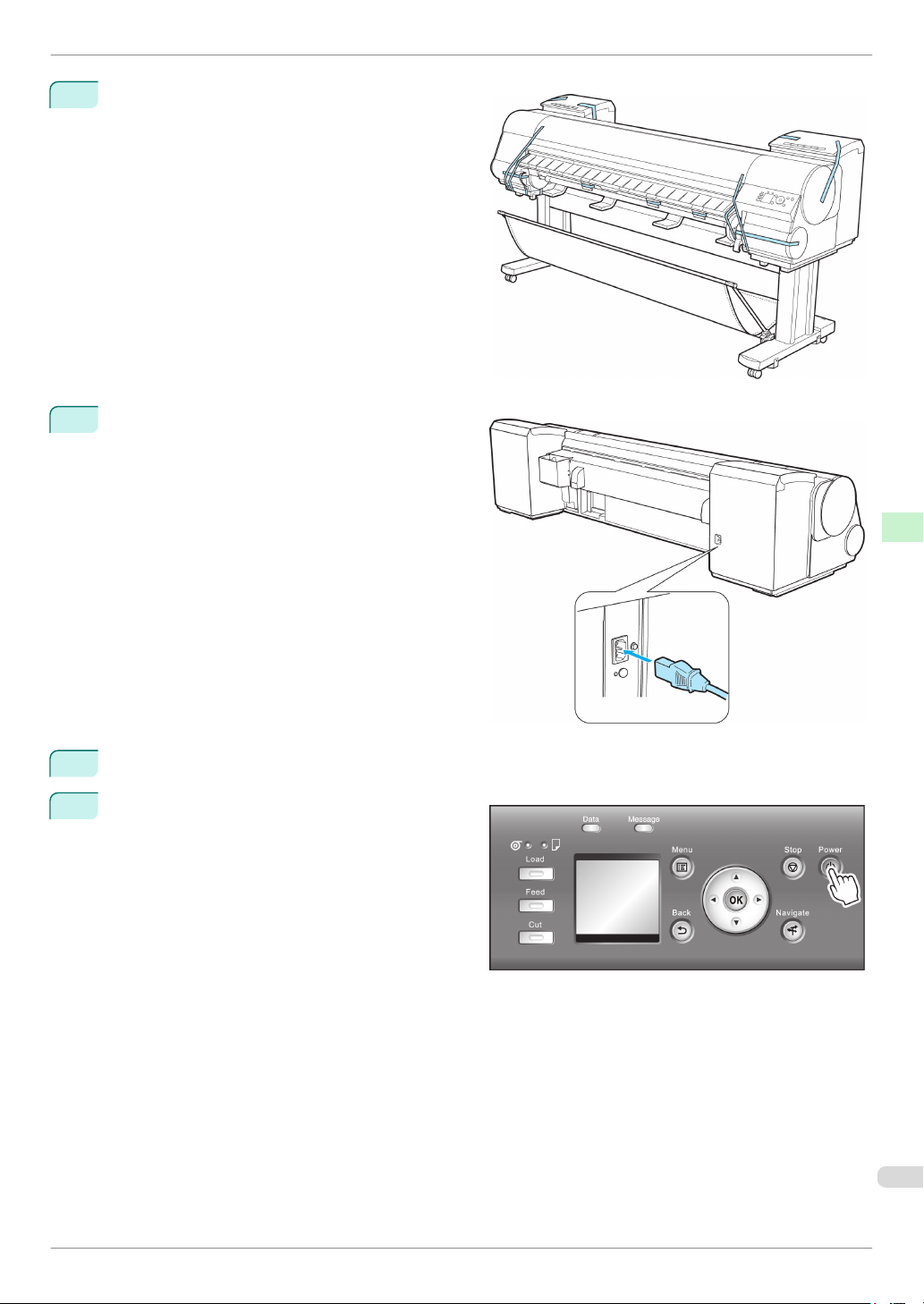
iPF8400
3
4
Reinstalling the Printer
Remove tape and packaging material attached to
the printer. Also open the Top Cover and remove
stoppers and spacers inside the printer.
Connect the power cord to the Power Supply Connector on the back of the printer.
Printer Relocation Preparing to Transfer the Printer
5
Plug the power cord into the outlet.
Press the power button to turn the printer on.
6
83
Basic Guide
Page 84
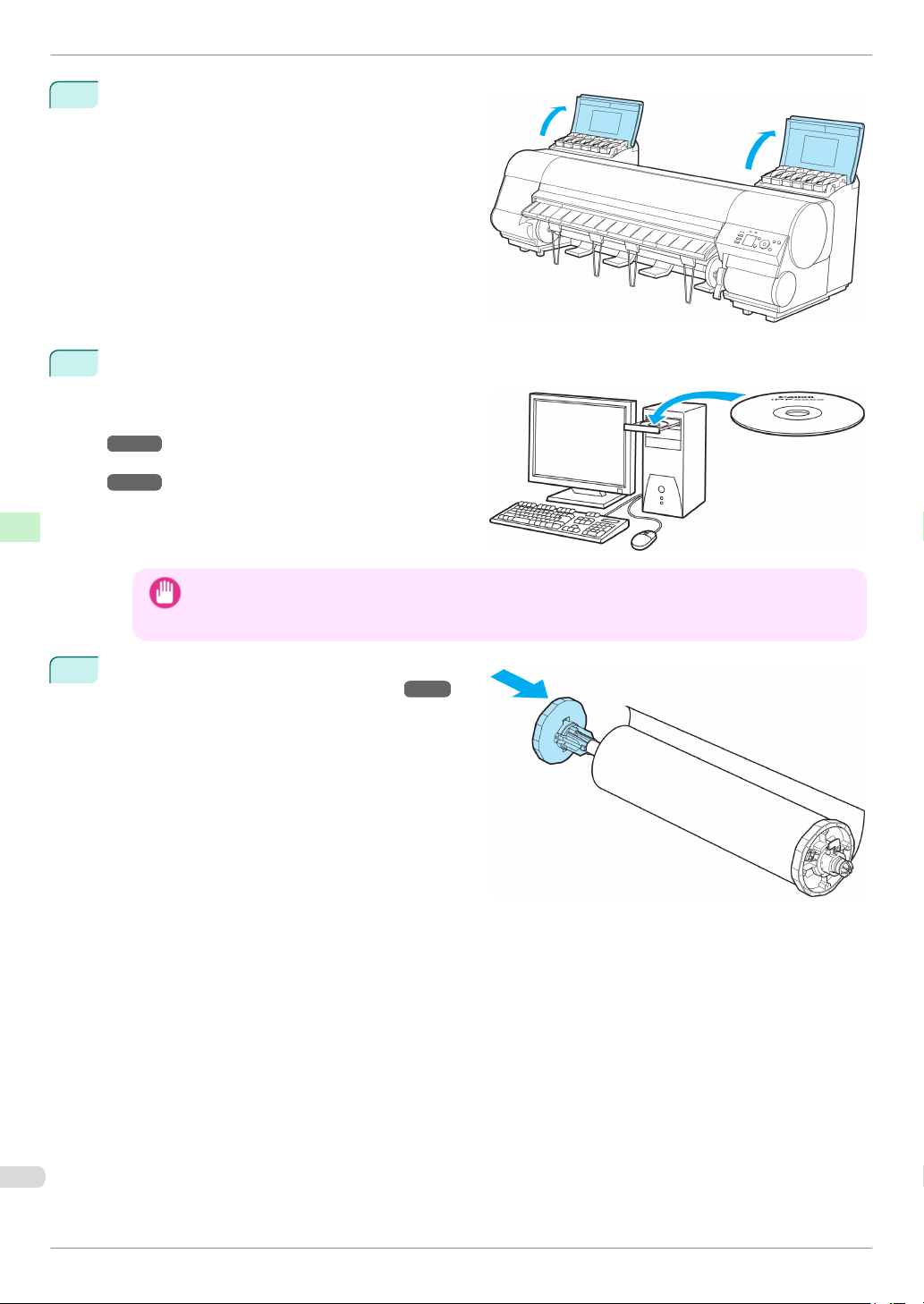
Reinstalling the Printer
Open the Ink Tank Cover and install the ink tanks.
7
8
Install the Software and the Electronic Manuals.
Printer Relocation Preparing to Transfer the Printer
Note that the driver installation procedure varies
depending on the type of connection.
(See "Installing the Software (Windows).")
→
P.86
(See "Installing the Software (Mac OS X).")
→
P.88
iPF8400
• When the printer is connected to a network (via TCP/IP), the printer's IP address may be changed if you
Important
Attach the Roll Holder to the Roll Media.
9
(See "Attaching the Roll Holder to Rolls.")
reinstall the printer.
In this case, be sure to reconfigure the printer's IP address.
→
P.9
Basic Guide
Page 85
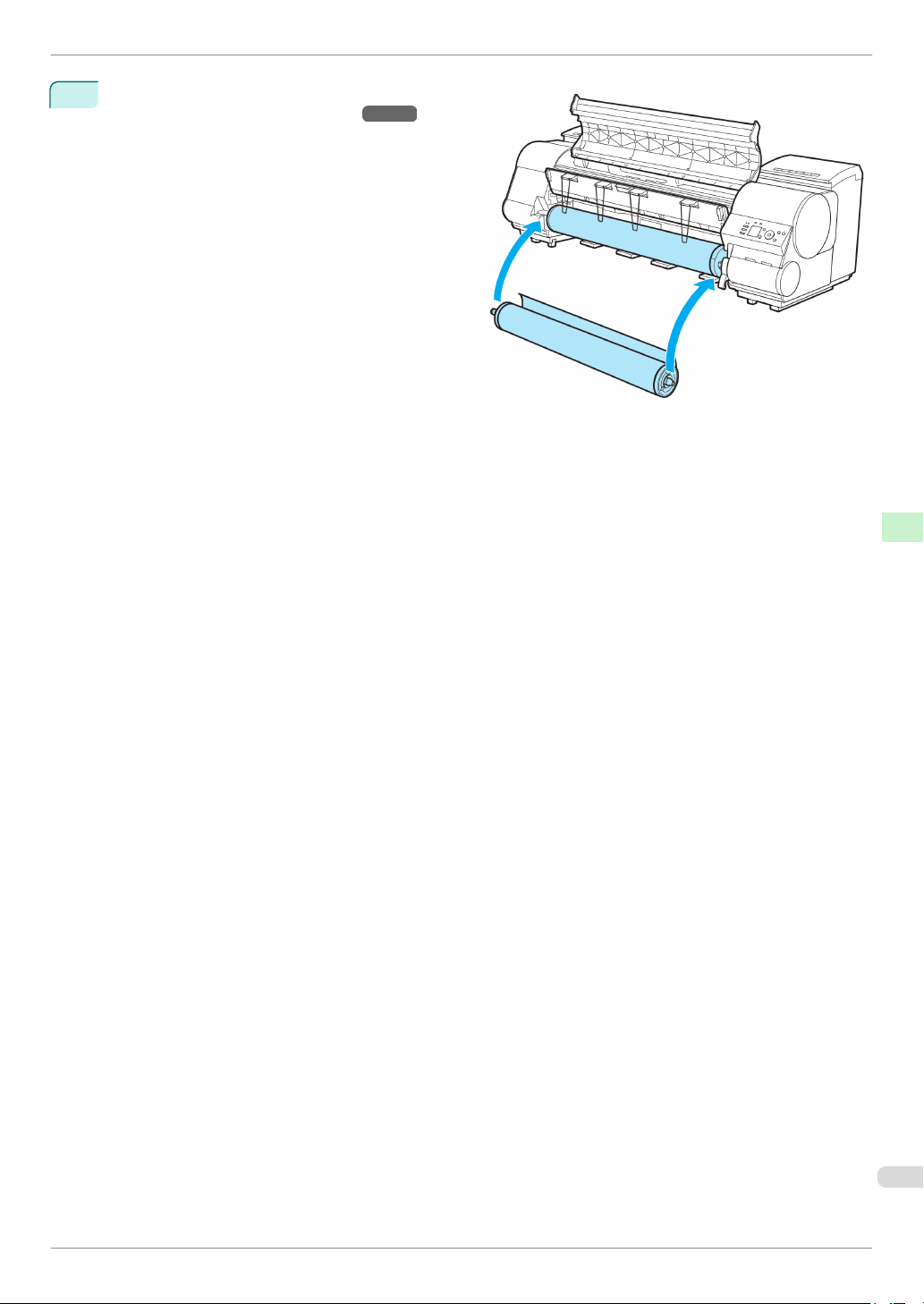
iPF8400
10
Reinstalling the Printer
Load the Roll Media in the printer.
(See "Loading Rolls in the Printer.")
→
P.11
Printer Relocation Preparing to Transfer the Printer
Basic Guide
85
Page 86
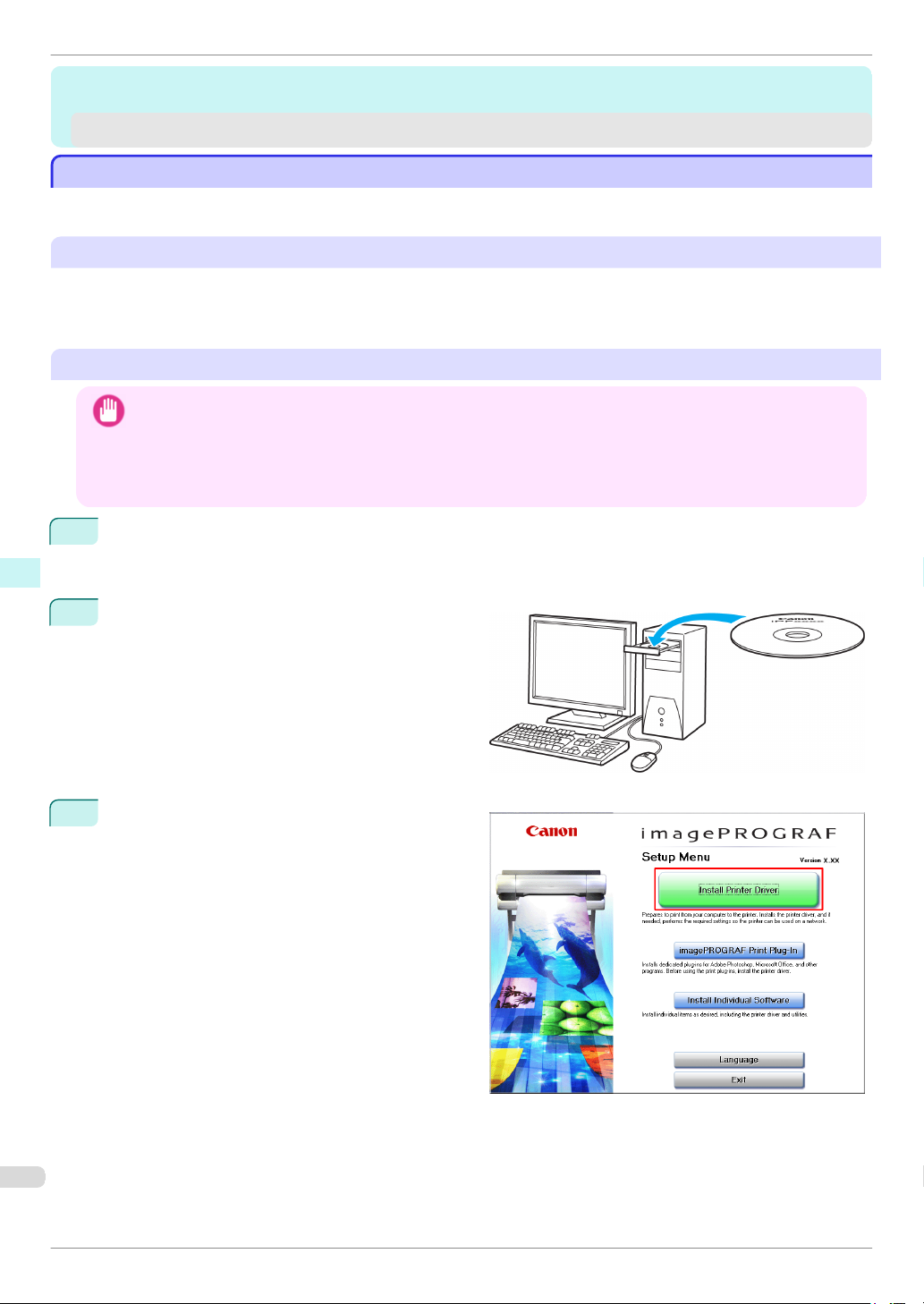
Installing the Software (Windows)
Software Installation
Software Installation
Installing the Printer Driver (Windows)
Installing the Printer Driver (Windows)
Installing the Software
Installing the Software
The basic instructions for installing the software are as follows.
For detailed instructions, see the Setup Guide.
Supported connection methods
The printer driver works over USB or network (TCP/IP) connections.
The driver installation procedure varies depending on the type of connection.
Follow these steps to install the software and Electronic manuals.
Installing the software and electronic manuals
iPF8400
Software Installation Installing the Printer Driver (Windows)
• When setting up a USB connection, connect the USB cable during printer driver installation following the instructions
Important
displayed.
If you accidentally connect the USB cable first, the printer driver may not be installed correctly.
• When the printer is connected to a network (via TCP/IP), the printer's IP address may be changed if you reinstall the
printer. In this case, be sure to reconfigure the printer's IP address.
1
Turn the computer on.
When setting up a TCP/IP (network) connection, after making sure the printer is on, connect the LAN cable
to the Ethernet port on the back of the printer and to your network hub port.
Insert the provided User Software CD-ROM for the
2
appropriate operating system in the CD-ROM drive.
Follow the instructions displayed to complete instal-
3
lation.
Basic Guide
Page 87
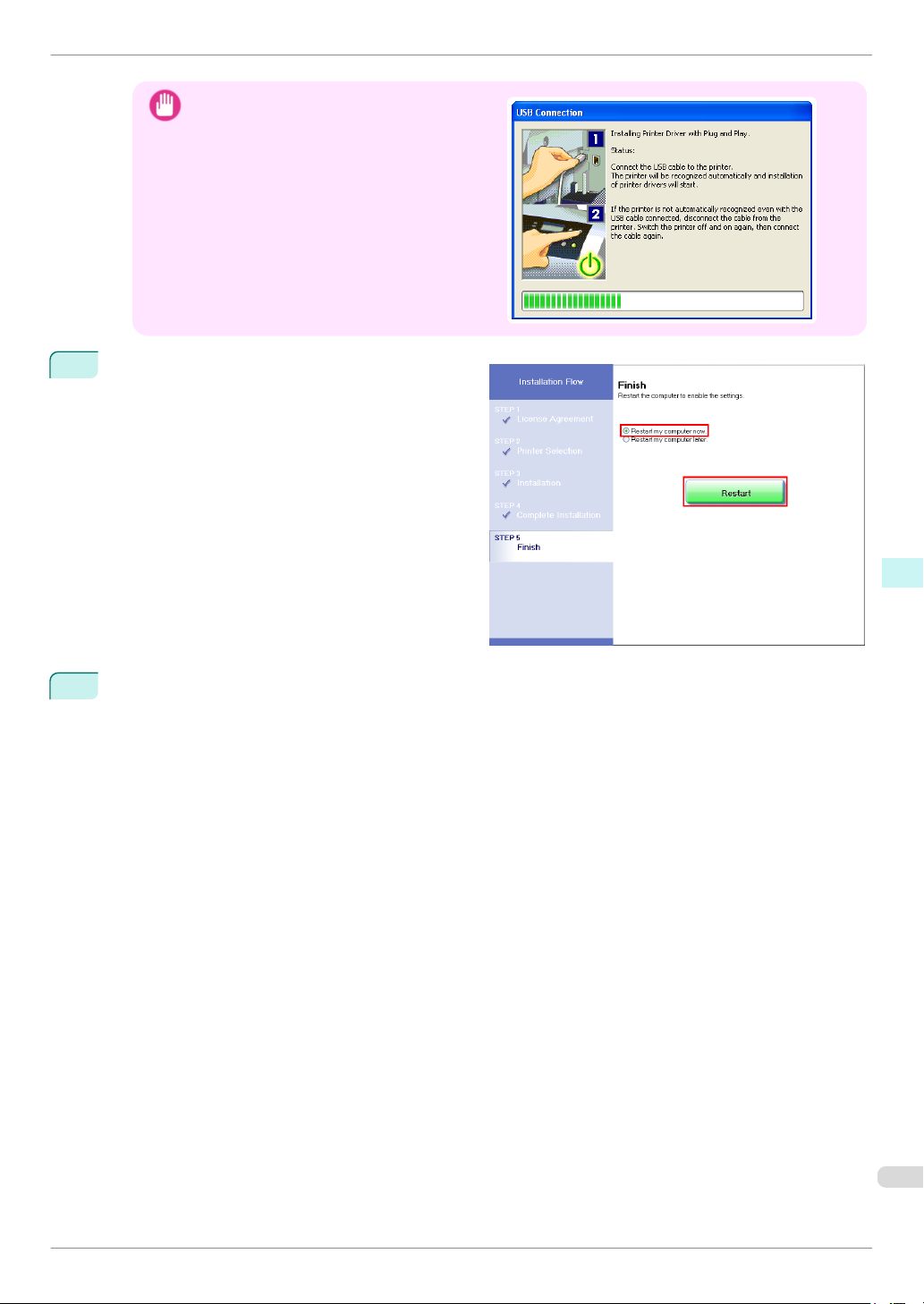
iPF8400
4
Installing the Software (Windows)
For USB connections, when the dialog box at
•
Important
On the Finish window, select Restart my comput-
er now and click Restart.
Software settings take effect after the computer restarts.
Next, install the Electronic manuals.
right is displayed, make sure the printer is on
and connect the printer and computer with the
USB cable.
Software Installation Installing the Printer Driver (Windows)
5
When the Install User Manual dialog box is displayed, insert the provided User Manuals CD-ROM in the
CD-ROM drive and follow the instructions displayed to complete installation.
Basic Guide
87
Page 88
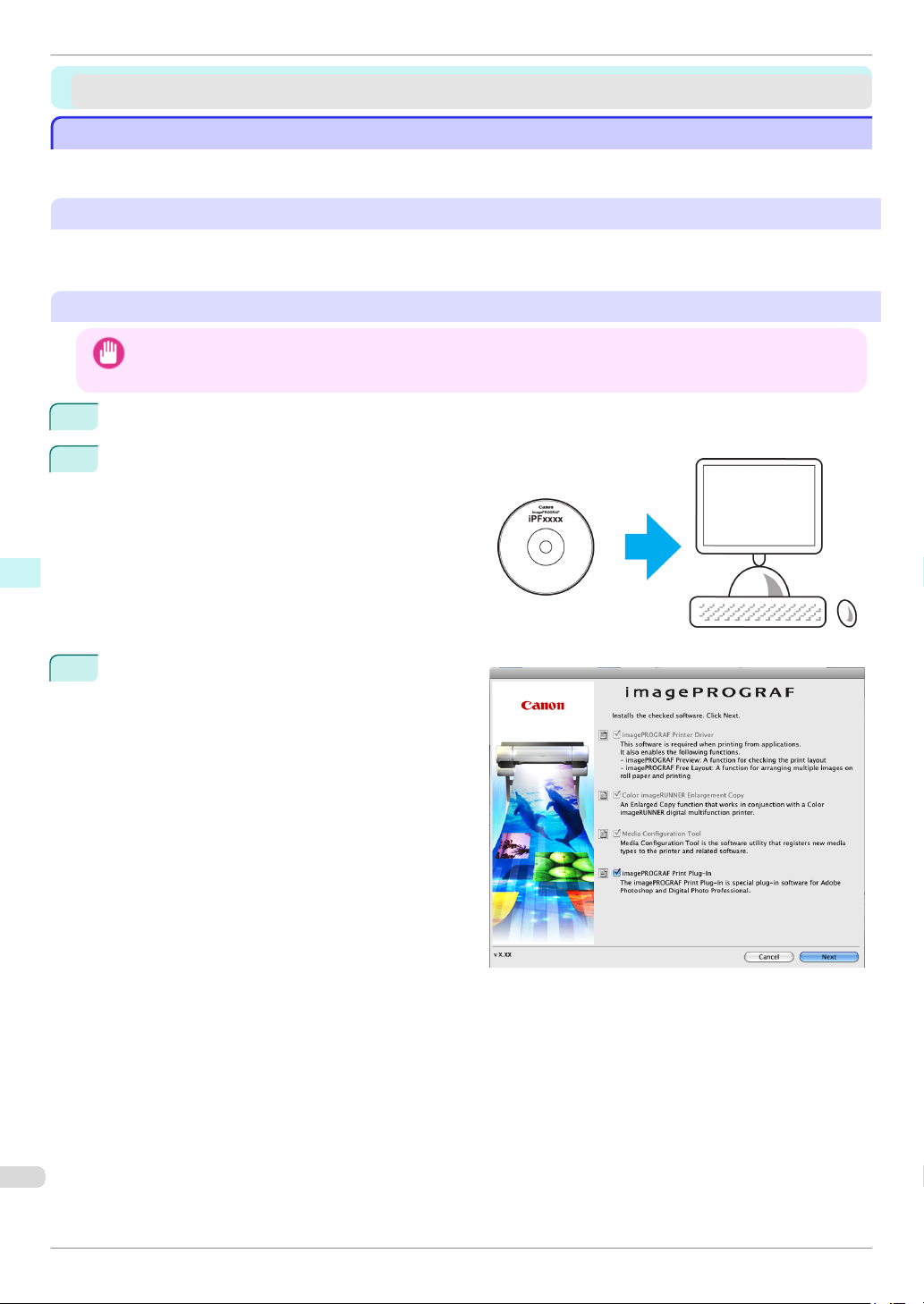
Installing the Software (Mac OS X)
Installing the Printer Driver (Mac OS X)
Installing the Printer Driver (Mac OS X)
Installing the Software
Installing the Software
The basic instructions for installing the software are as follows.
For detailed instructions, see the Setup Guide.
Supported connection methods
The printer driver works over USB or network (Bonjour or IP) connections.
Follow these steps to install the software and Electronic manuals.
Installing the software and electronic manuals
• When the printer is used over a network, the printer's IP address may be changed if you reinstall the printer. In this
Important
Software Installation Installing the Printer Driver (Mac OS X)
1
2
case, be sure to reconfigure the printer's IP address.
After making sure the computer and printer are not connected by a cable, turn the computer on.
Insert the provided User Software CD-ROM for the
appropriate operating system in the CD-ROM drive.
iPF8400
Follow the instructions displayed to complete instal-
3
lation.
Basic Guide
Page 89
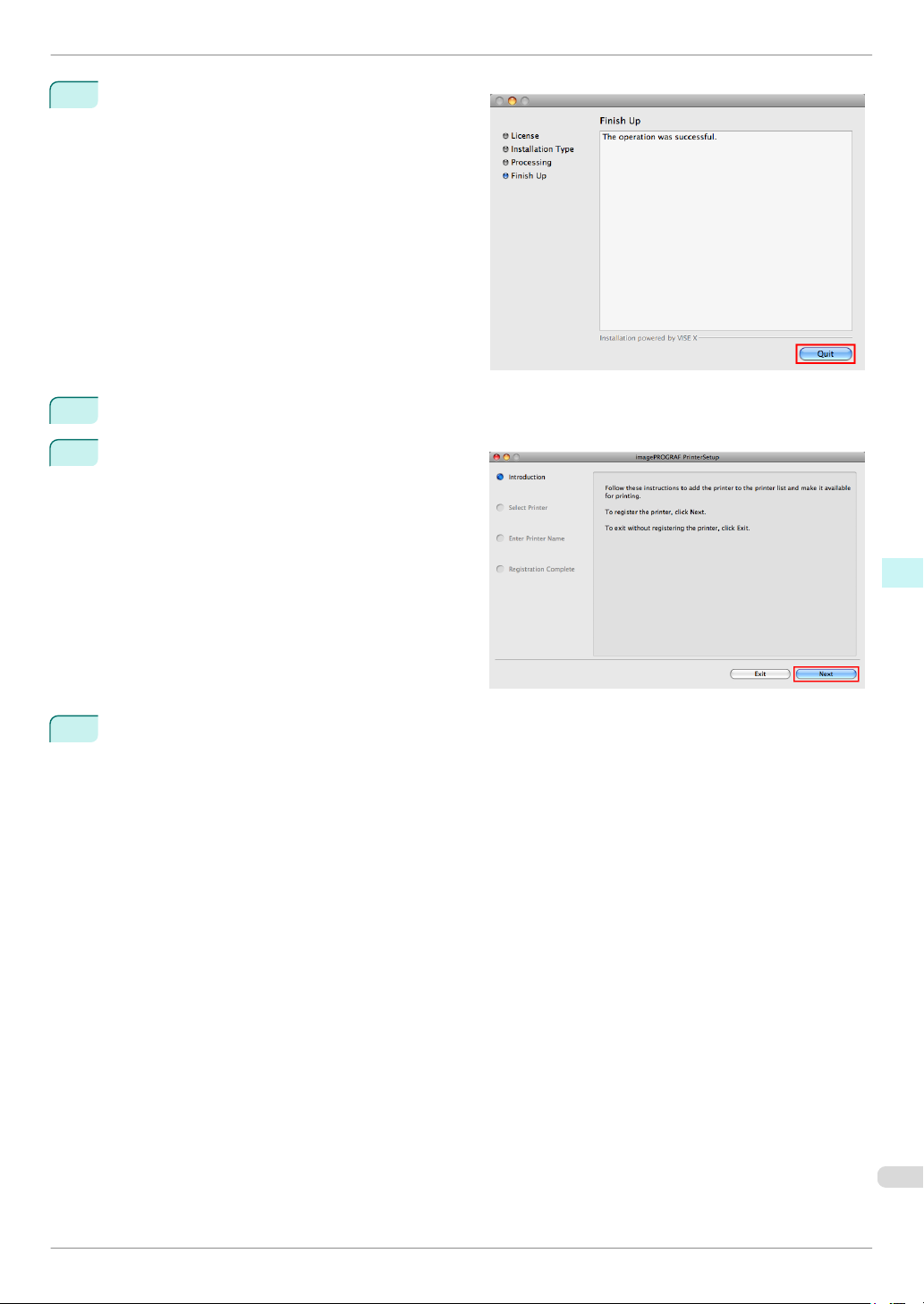
iPF8400
4
5
6
Installing the Software (Mac OS X)
After installation, click Quit.
Installation of the software is now finished.
Next, connect the printer and computer.
After confirming the printer is on, connect the printer to your computer or the network.
Click Next and follow the instructions displayed to
register the printer to set up and update the paper
information.
Next, install the Electronic manuals.
Software Installation Installing the Printer Driver (Mac OS X)
7
Insert the provided User Manuals CD-ROM in the CD-ROM drive and follow the instructions displayed to
complete installation.
Basic Guide
89
Page 90
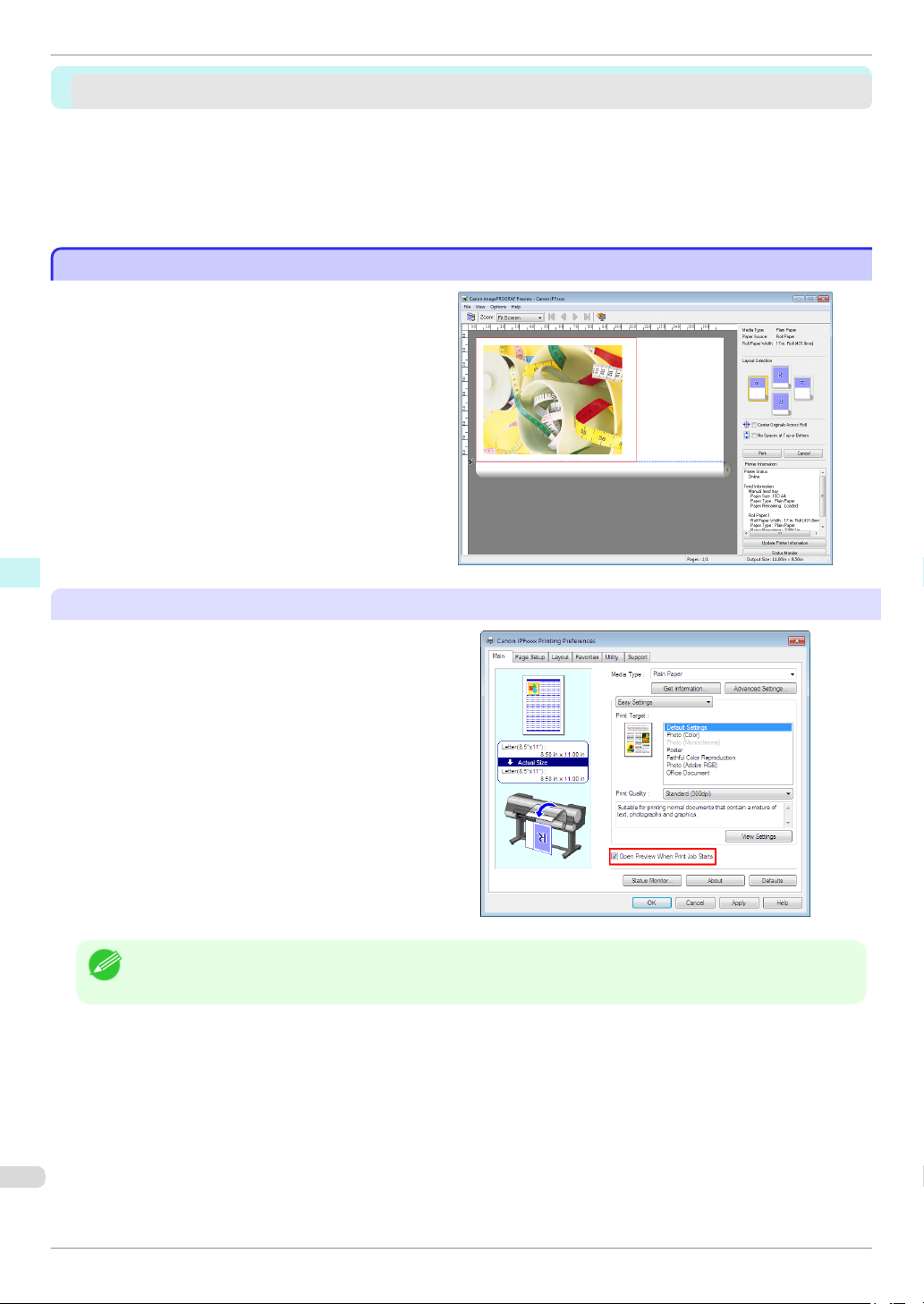
Print Preview
Convenient Printer Driver Features
Convenient Printer Driver Features
Print Preview ..................................................................................................................................................................... 90
Rotate Page 90 degrees (Converse Paper) ........................................................................................................ 92
Borderless Printing ........................................................................................................................................................ 93
Large-Format Printing ................................................................................................................................................... 94
Enlarged/Reduced Printing ........................................................................................................................................ 95
Other Methods of Printing: Printing from Print Plug-Ins ............................................................................... 96
Print Preview
Print Preview
Using the print preview function enables the following.
• Check an image of the document as arranged on
the paper, in the position it will be printed.
You can reduce printing costs by checking how
documents will be printed beforehand, without the
Software Installation Convenient Printer Driver Features
need to print them.
• Change the layout orientation relative to the paper.
You can save paper by correcting the direction in
which the document is arranged on the paper, if
necessary.
iPF8400
Configuring Settings in Windows
1.
Access the Main sheet.
2. Select the Open Preview When Print Job Starts
check box.
3. Check details in the Information dialog box dis-
played next and click OK to close the Information
dialog box.
4. After you click OK, when you print a job, the im-
agePROGRAF Preview window will be displayed.
• Under some settings and in some environments, PageComposer may be started.
Note
Basic Guide
Page 91

iPF8400
Print Preview
Configuring Settings in Mac OS X
1. In the File menu of the source application, choose
the appropriate menu item for printer settings to
display the Print dialog box.
2. Access the Main pane.
3. Select the Print Preview check box.
4. After you click Print, the Canon imagePROGRAF
Preview window will be displayed.
Software Installation Convenient Printer Driver Features
Basic Guide
91
Page 92

Rotate Page 90 degrees (Converse Paper)
Rotate Page 90 degrees (Converse Paper)
Rotate Page 90 degrees (Converse Paper)
You can conserve roll paper by specifying particular
settings as suitable for your original.
When you print an original that is in portrait orientation, the original is rotated 90 degrees before printing
if it fits within the roll width. This enables you to conserve paper.
• If the page would exceed the roll paper width after rotation, you can use this function with Scale to fit Roll Paper Width to
print rotated pages.
Note
Configuring Settings in Windows
iPF8400
Software Installation Convenient Printer Driver Features
1. Access the Page Setup sheet.
2. Select the Rotate Page 90 degrees (Conserve
Paper) check box.
Configuring Settings in Mac OS X
1.
Access the Page Setup pane.
2. Select the Rotate Page 90 degrees check box.
Basic Guide
Page 93
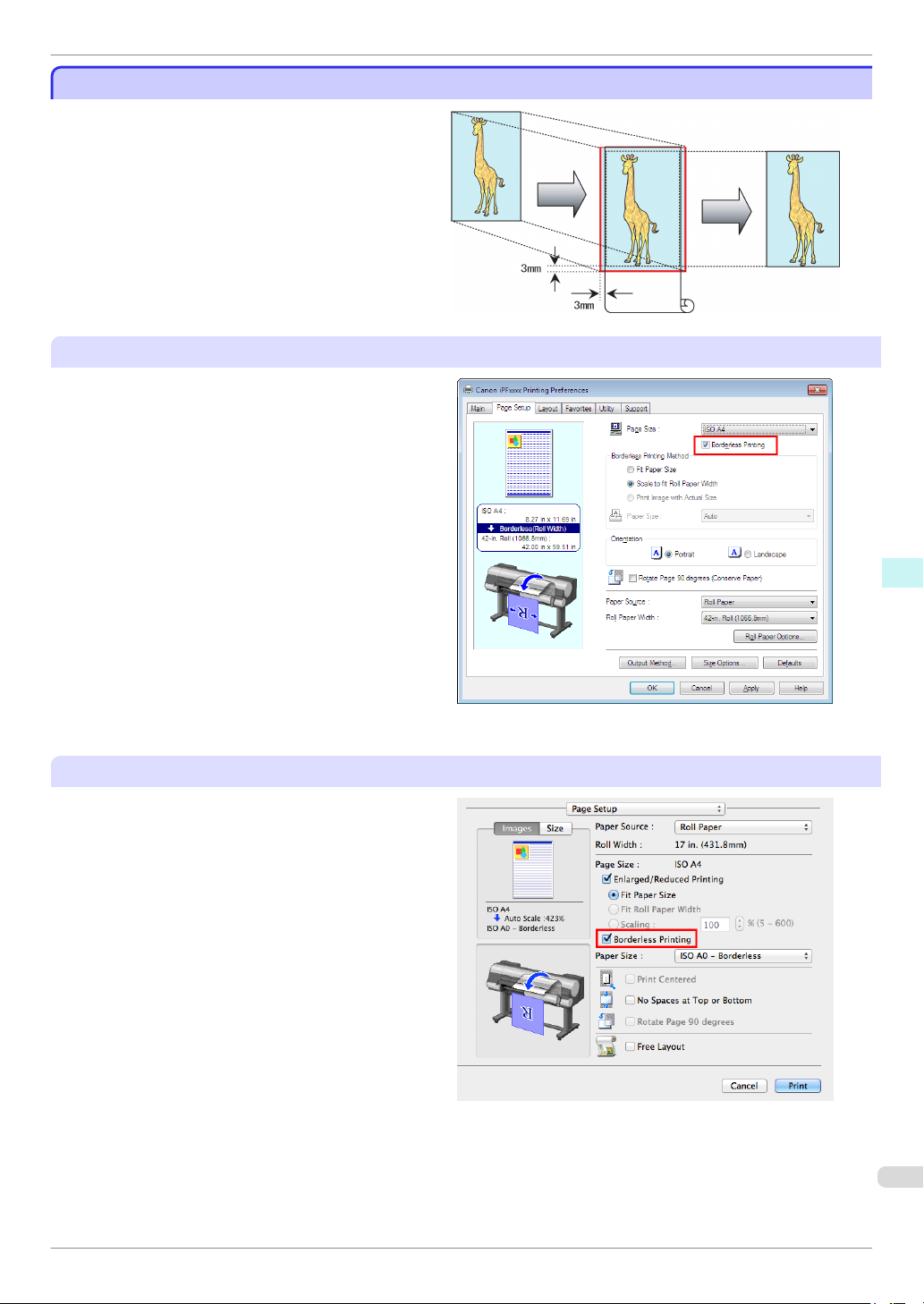
iPF8400
Borderless Printing
Borderless Printing
Borderless Printing
In regular printing, a margin required by the printer is
added around the original. With borderless printing,
you can print documents without the margin, so that
the printed image covers the entire surface of the paper.
Borderless printing is only available with rolls.
Configuring Settings in Windows
1. Access the Page Setup sheet.
2. Select the Borderless Printing check box to dis-
play the Information dialog box.
3. Click the width of the loaded roll in the Roll Paper
Width list.
4. Click OK to close the Information dialog box.
5. Select Fit Paper Size, Scale to fit Roll Paper
Width, or Print Image with Actual Size.
Software Installation Convenient Printer Driver Features
Configuring Settings in Mac OS X
1.
Access the Page Setup pane.
2. Select the Enlarged/Reduced Printing check box.
3. Select the Borderless Printing check box.
4. Select either Fit Paper Size or Fit Roll Paper
Width.
Basic Guide
93
Page 94
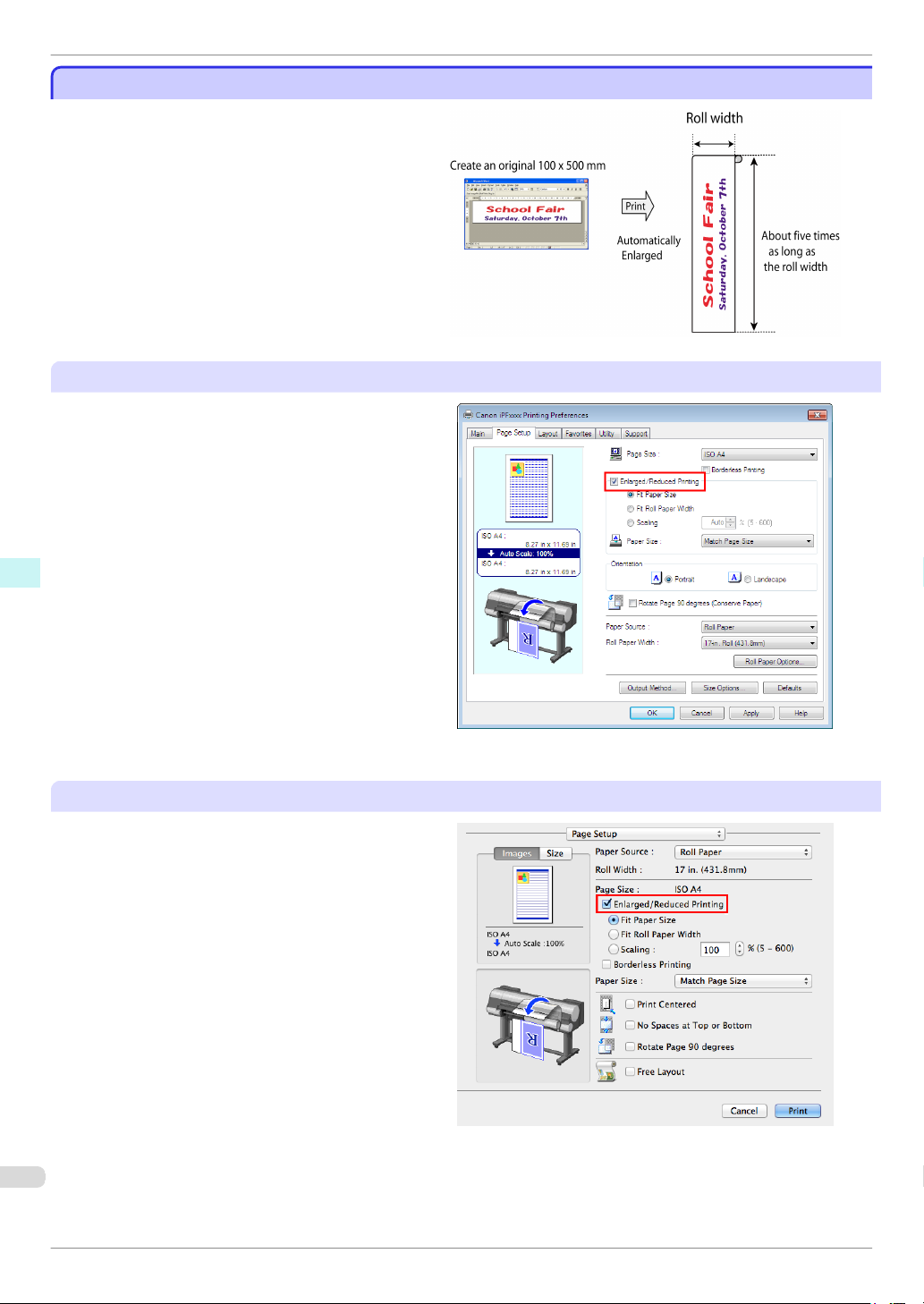
Large-Format Printing
Large-Format Printing
Large-Format Printing
You can create vertical or horizontal banners by printing originals in banner formats on rolls.
Originals created in Microsoft Word or other applications in your preferred size can be enlarged to fill the
width of roll paper by completing simple printer driver
settings.
The printer supports roll printing up to a maximum
length of 18.0 m (19.7 yd).
Configuring Settings in Windows
iPF8400
Software Installation Convenient Printer Driver Features
1. Access the Page Setup sheet.
2. Click Size Options and register the original size.
3. Select the Enlarged/Reduced Printing check box.
4. After you click Fit Roll Paper Width, the Informa-
tion dialog box is displayed.
5. Click the width of the loaded roll in the Roll Paper
Width list, and then click OK.
Configuring Settings in Mac OS X
1.
Access the Page Setup pane.
2. Make sure the width of the loaded roll is displayed
in Roll Width.
3. Make sure the size of the original you have pre-
pared is displayed in Page Size.
If you have not registered Custom Paper Sizes,
resize the original to fit the roll width.
4. Select the Enlarged/Reduced Printing check box.
5. Click Fit Roll Paper Width.
Basic Guide
Page 95
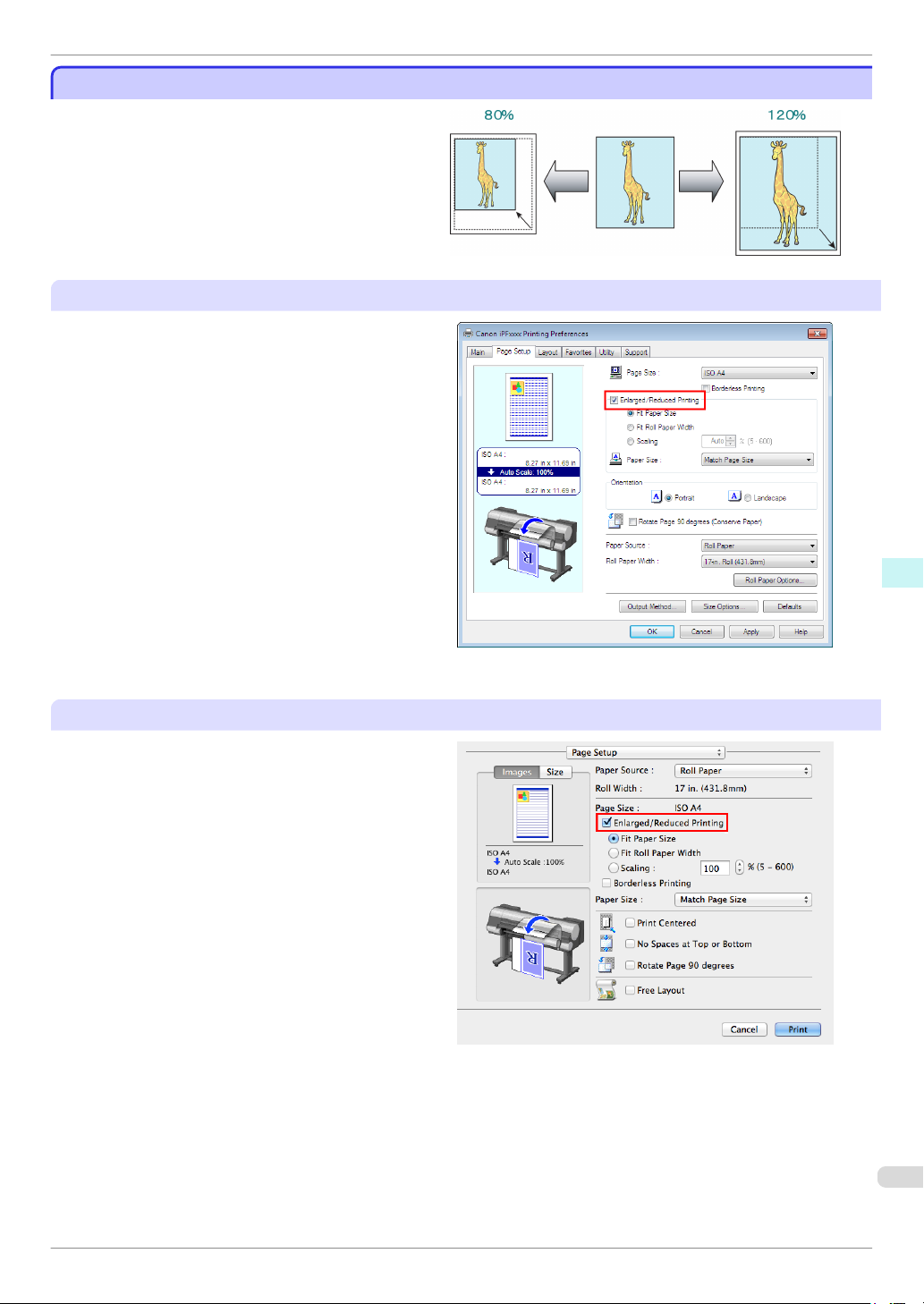
iPF8400
Enlarged/Reduced Printing
Enlarged/Reduced Printing
Enlarged/Reduced Printing
Originals can be printed at larger or smaller sizes, as
desired.
Configuring Settings in Windows
1. Access the Page Setup sheet.
2. Click the width of the loaded roll in the Roll Paper
Width list.
3. In the Page Size list, click the size of the original
as specified in the source application.
4. Select the Enlarged/Reduced Printing check box.
5. Select Fit Paper Size, Fit Roll Paper Width, or
Scaling.
Software Installation Convenient Printer Driver Features
Configuring Settings in Mac OS X
1.
Access the Page Setup pane.
2. Make sure the width of the loaded roll is displayed
in Roll Width.
3. Make sure the size of the original you have pre-
pared is displayed in Page Size.
4. Select the Enlarged/Reduced Printing check box.
5. Select Fit Paper Size, Fit Roll Paper Width, or
Scaling.
Basic Guide
95
Page 96
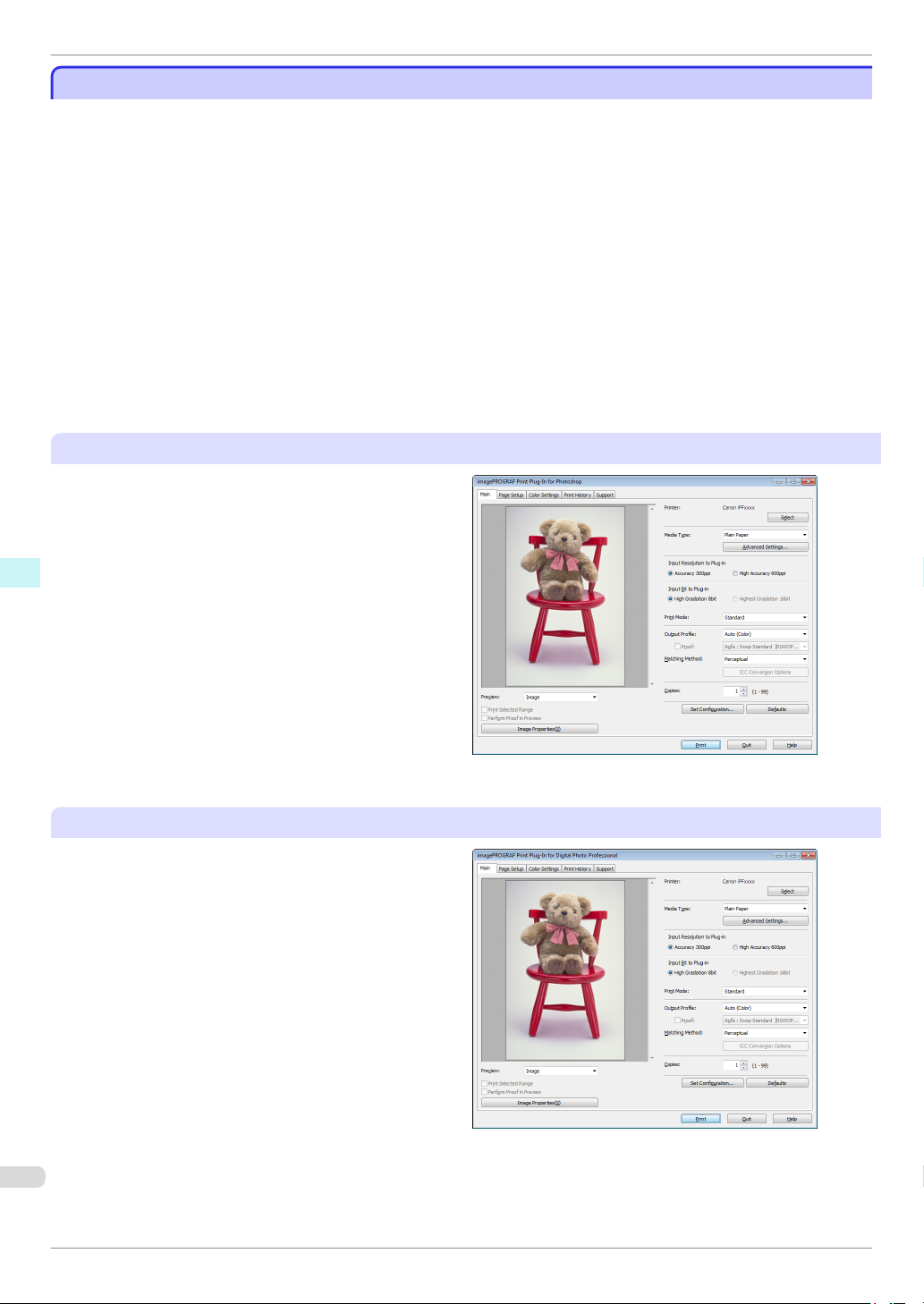
Other Methods of Printing: Printing from Print Plug-Ins
Other Methods of Printing: Printing from Print Plug-Ins
Other Methods of Printing: Printing from Print Plug-Ins
Using print plug-ins, you can print directly from applications such as Adobe Photoshop and Digital Photo Professional.
The main features of Print Plug-In are as follows.
•
You can automatically detect the color space of Adobe RGB or sRGB-use images, etc., and automatically set
optimal profiles. Thus, you can print without the trouble of configuring settings.
•
You can directly process image data on Adobe Photoshop, and forward the image data to a printer. In this
way, you can process 16-bit image data in addition to 8-bit image data.
•
You can print an image with adjustment values such as the color balance, brightness, and contrast varying in
steps and select your preferred adjustment values.
•
You can create and print a layout image for finishing by mounting in a frame with the image extended to the
sides of the frame by using the Layout Plug-In that is installed at the same time as the Print Plug-In for Photoshop.
•
Loss of gradation in dark areas can be reduced by performing black point compensation.
•
Software Installation Convenient Printer Driver Features
You can perform printing press simulation printing by specifying the printing press profile.
Starting from Adobe Photoshop
1. Start Adobe Photoshop.
2. Open the image that you wish to print.
3. If required, select the print range.
4. Select Export (or Data Export) from the File menu
and then select the output plug-in that matches
your printer.
The imagePROGRAF Print Plug-In for Photoshop
window is displayed.
iPF8400
Starting from Digital Photo Professional
1.
Start Digital Photo Professional.
2. Open the RGB color image that you want to print.
3. If required, select the print range.
4. Select Plug-in printing from the File menu and
then select the output plug-in that matches your
printer.
The imagePROGRAF Print Plug-In for Digital Photo Professional window is displayed.
Basic Guide
Page 97
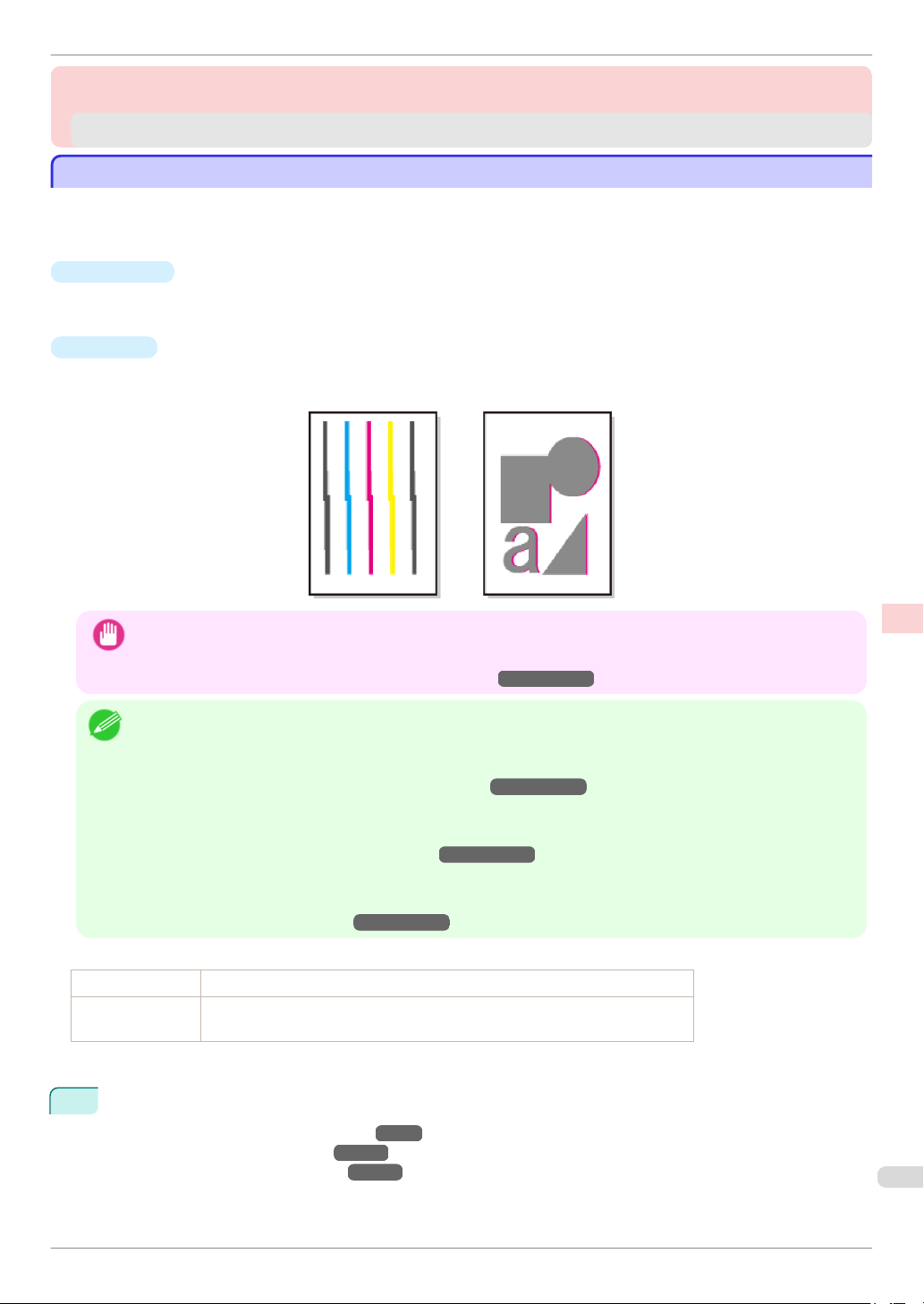
iPF8400
If vertical lines in printed documents are warped or colors are out of alignment, execute Head Posi. Adj.. The printer will print and read a test pattern, and the Printhead position will be adjusted automatically.
There are two modes for automatic Printhead adjustment: Standard and Simple.
Automatic Adjustment to Straighten Lines and Colors
Adjustments for Better Print Quality
Adjustments for Better Print Quality
Adjusting the Printhead
Adjusting the Printhead
Automatic Adjustment to Straighten Lines and Colors
Automatic Adjustment to Straighten Lines and Colors
•
Standard
Execute if vertical lines in printed material are warped or colors are out of alignment.
Furthermore, if Simple does not improve printing, try Standard.
•
Simple
Executes simple adjustment in a short time.
Execute this when frequently adjusting the printhead, such as during daily inspection.
Adjustments for Better Print Quality Adjusting the Printhead
• This function is not available with CAD Tracing Paper, CAD Translucent Matte Film, or CAD Clear Film.
• If adjustment is not possible as expected using special media, try another type of paper, or try Manual adjustment.
Important
(See "Manual Adjustment to Straighten Lines and Colors.")
→
User's Guide
• Because the results of adjustment vary depending on the type of paper used for adjustment, use the same type of paper
as you will use for printing.
Note
• If Standard does not improve printing, try adjusting the printhead manually.
(See "Manual Adjustment to Straighten Lines and Colors.")
→
User's Guide
• If the printhead position was not adjusted during initial setup or when the printhead was replaced, execute Initial ad-
justmt.
(See "Adjustment When Installing the Printhead.")
→
User's Guide
• Advanced adjustment can enable superior printing quality when printing fine lines or text at high precision on glossy or
semi-glossy photo or proofing paper.
(See "Enhancing Printing Quality.")
Items to Prepare
When Using Rolls An unused roll at least 254.0 mm (10.00 in) wide
When Using Sheets Standard : Six sheets of unused paper, A4/Letter size (or one sheet when using A2)
Simple: One sheet of unused paper, A4/Letter size
Perform adjustment as follows.
1
Load paper.
•
Attaching the Roll Holder to Rolls
•
Loading Rolls in the Printer
•
Loading Sheets in the Printer
→
User's Guide
→
P.11
→
P.18
→
P.9
97
Basic Guide
Page 98

Automatic Adjustment to Straighten Lines and Colors
• Always make sure the loaded paper matches the type of paper specified on the printer. Adjustment cannot be
Important
On the Tab Selection screen of the Control Panel, press ◀ or
2
▶ to select the Settings/Adj. tab (
completed correctly unless the loaded paper matches the settings.
).
iPF8400
Adjustments for Better Print Quality Adjusting the Printhead
3
4
5
6
7
Note
Press the OK button.
The Set./Adj. Menu is displayed.
Press ▲ or ▼ to select Adjust Printer, and then press the OK button.
Press ▲ or ▼ to select Head Posi. Adj., and then press the OK button.
Press ▲ or ▼ to select Standard or Simple, and then press the OK button.
A test pattern is printed for adjustment.
Adjustment is now finished if you have printed on a roll.
If you are printing on cut sheets, a confirmation message is displayed on the Display Screen asking you
whether to continue printing.
Press the OK button and follow the instructions on the Display Screen.
• If the Tab Selection screen is not displayed, press the Menu button.
Basic Guide
Page 99
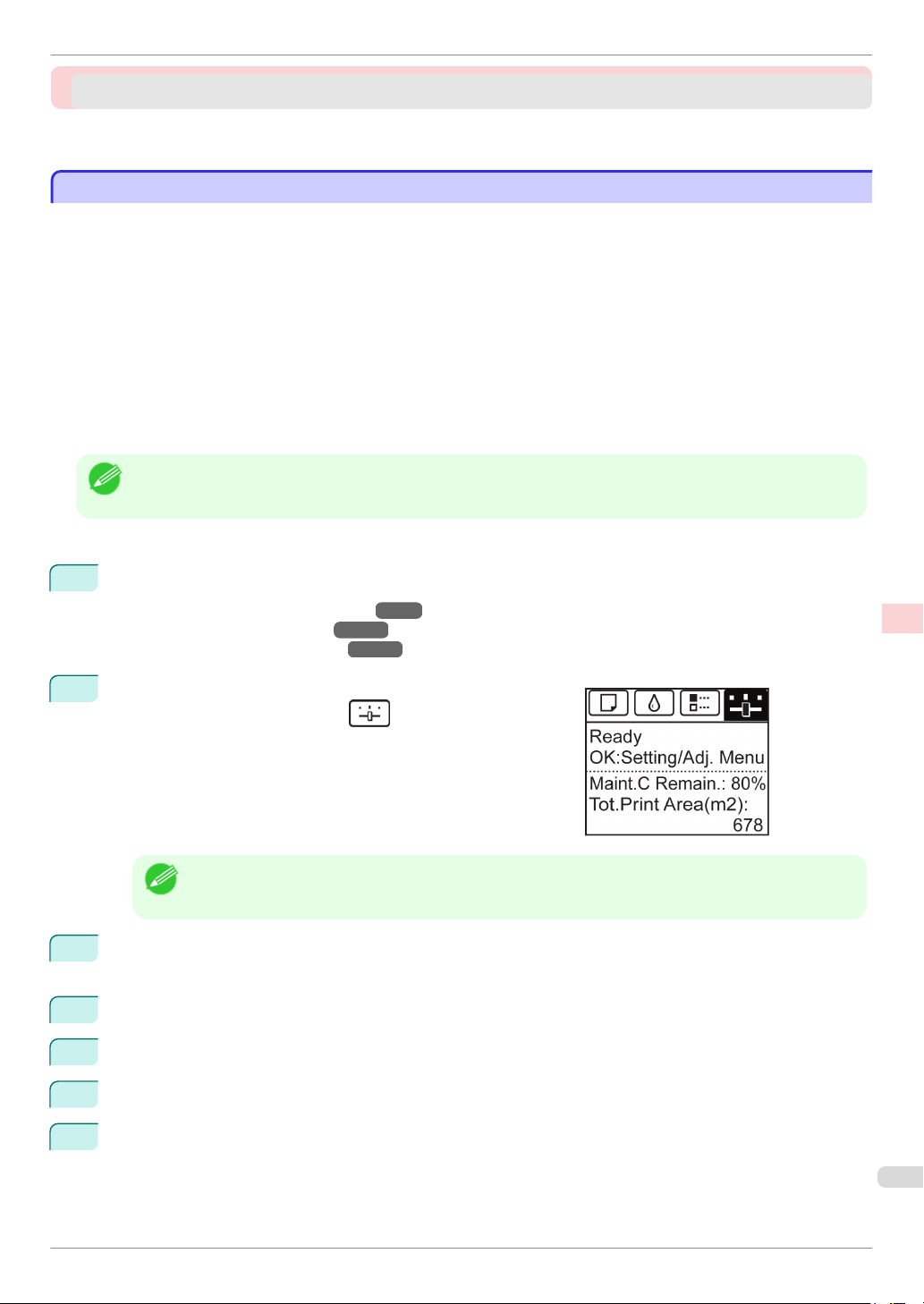
iPF8400
There are two methods of adjusting the paper feed amount, Print Quality and Print Length, either of which will be
applied during printing.
Since the method that is applied during printing is determined from the value of the Adj. Priority setting, configure
the Adj. Priority to match the print target.
Selecting a Feed Amount Adjustment Method
Adjusting the feed amount
Adjusting the feed amount
Selecting a Feed Amount Adjustment Method ................................................................................................. 99
Adjusting Line Length ................................................................................................................................................. 100
Selecting a Feed Amount Adjustment Method
Selecting a Feed Amount Adjustment Method
•
Print Quality : Adjusts the feed amount to reduce banding across the sheet in printed documents.
Adj. Quality settings are applied. When Adj. Fine Feed is executed, the Adj. Fine Feed settings are applied
in addition to the Adj. Quality settings.
•
Print Length : Adjusts the feed amount for better accuracy of lines in printed documents.
The settings of A:High or B:Standard/Draft in Adjust Length are applied.
•
Automatic: Print Quality or Print Length is selected, depending on Print Priority as selected in the printer
driver at the time of printing.
• Either A:High or B:Standard/Draft in the Adjust Length menu is applied, depending on printer driver settings at the
time of printing.
Note
Follow these steps to configure the settings.
Adjustments for Better Print Quality Adjusting the feed amount
1
Load the paper.
→
P.11
→
P.9
P.18
).
•
Attaching the Roll Holder to Rolls
•
Loading Rolls in the Printer
•
Loading Sheets in the Printer
On the Tab Selection screen of the Control Panel, press ◀ or
2
▶ to select the Settings/Adj. tab (
→
• If the Tab Selection screen is not displayed, press the Menu button.
Note
3
Press the OK button.
The Set./Adj. Menu is displayed.
4
Press ▲ or ▼ to select Adjust Printer, and then press the OK button.
5
Press ▲ or ▼ to select Feed Priority, and then press the OK button.
6
Press ▲ or ▼ to select Adj. Priority, and then press the OK button.
7
Press ▲ or ▼ to select Automatic, Print Quality, or Print Length, and then press the OK button.
Basic Guide
99
Page 100
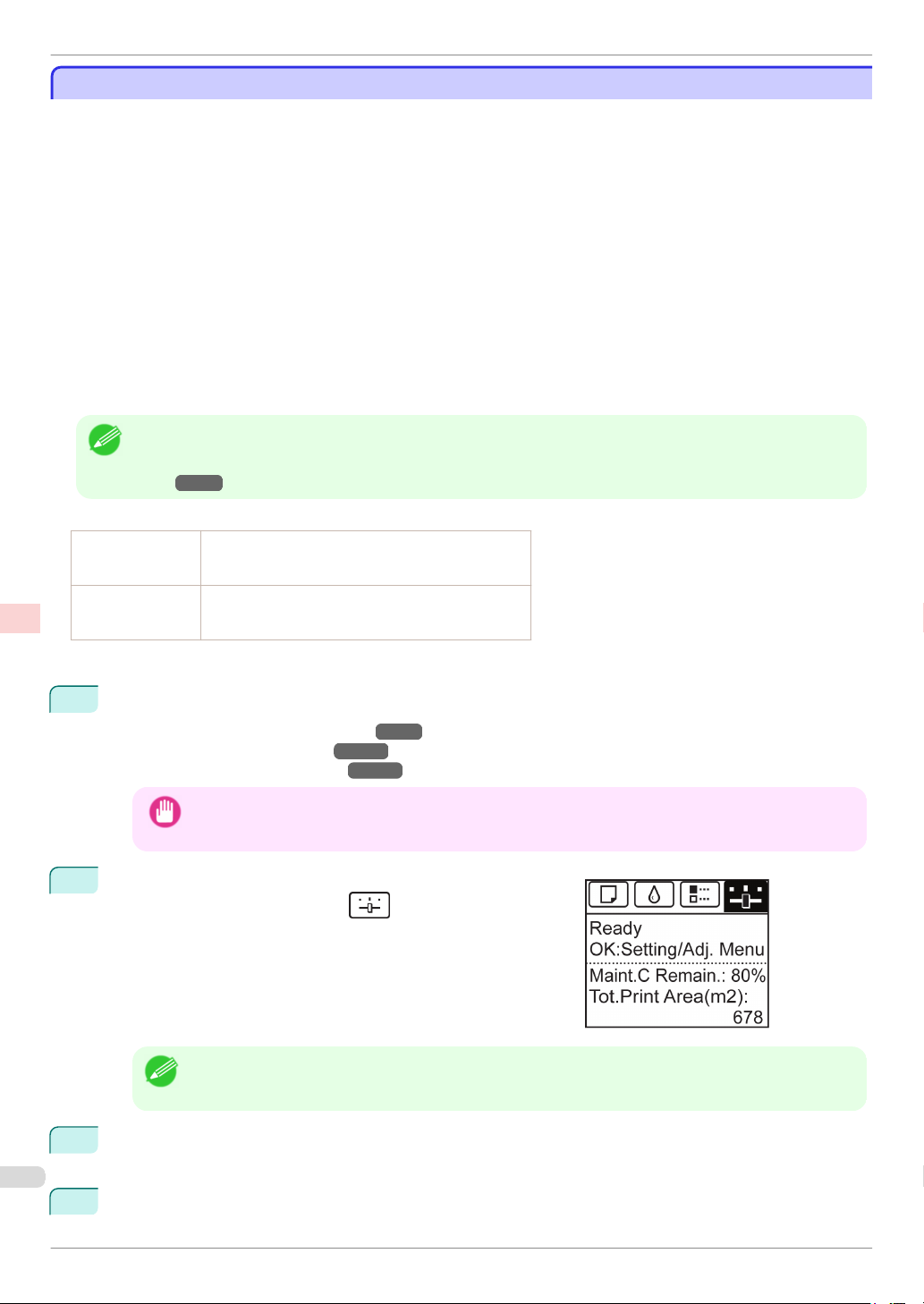
Adjusting Line Length
Adjusting Line Length
Adjusting Line Length
To ensure that lines in CAD drawings are printed at exactly the right length, use Adjust Length to adjust the
amount that paper is advanced.
There are two options in Adjust Length : AdjustmentPrint and Change Settings.
•
AdjustmentPrint
After a test pattern is printed, you will measure the discrepancy based on the results of printing.
•
Change Settings
No test pattern is printed. Instead, you will measure a document already printed to determine the discrepancy.
Additionally, two modes are available in both AdjustmentPrint and Change Settings : A:High or B:Standard/
Draft. Choose the mode that suits your particular printing application.
•
A:High
This setting is applied when Highest quality or High is selected in Print Quality in the printer driver.
Adjustments for Better Print Quality Adjusting the feed amount
•
B:Standard/Draft
This setting is applied when Standard or Fast is selected in Print Quality in the printer driver.
• We recommend executing the adjustment if you have changed the paper type or paper size.
• Always check the Adj. Priority values before using Adjust Length. (See "Selecting a Feed Amount Adjustment Meth-
Note
Paper to Prepare
When Using Rolls
When Using Sheets
od.")
→
P.99
•
An unused roll at least 254.0 mm (10.00 in) wide
•
High-precision ruler
•
One sheet of unused paper of at least A4/Letter size
•
High-precision ruler
iPF8400
Perform adjustment as follows.
1
Load the paper.
•
Attaching the Roll Holder to Rolls
•
Loading Rolls in the Printer
•
Loading Sheets in the Printer
• Always make sure the loaded paper matches the type of paper specified. Adjustment cannot be completed
Important
On the Tab Selection screen of the Control Panel, press ◀ or
2
▶ to select the Settings/Adj. tab (
correctly unless the loaded paper matches the settings.
• If the Tab Selection screen is not displayed, press the Menu button.
Note
Press the
3
The Set./Adj. Menu is displayed.
OK button.
→
P.11
→
→
P.18
P.9
).
4
Press ▲ or ▼ to select Adjust Printer, and then press the OK button.
Basic Guide
 Loading...