

Page 1
AXISQ17NetworkCameraSeries
AXISQ1775NetworkCamera
AXISQ1775–ENetworkCamera
UserManual
Page 2

AXISQ17NetworkCameraSeries
TableofContents
Systemoverview............................................3
..............................................................3
Productoverview...........................................4
HousingQ1775-E...............................................5
Howtoaccesstheproduct....................................6
Howtoaccesstheproductfromabrowser...........................6
Aboutsecurepasswords..........................................6
Setup.....................................................8
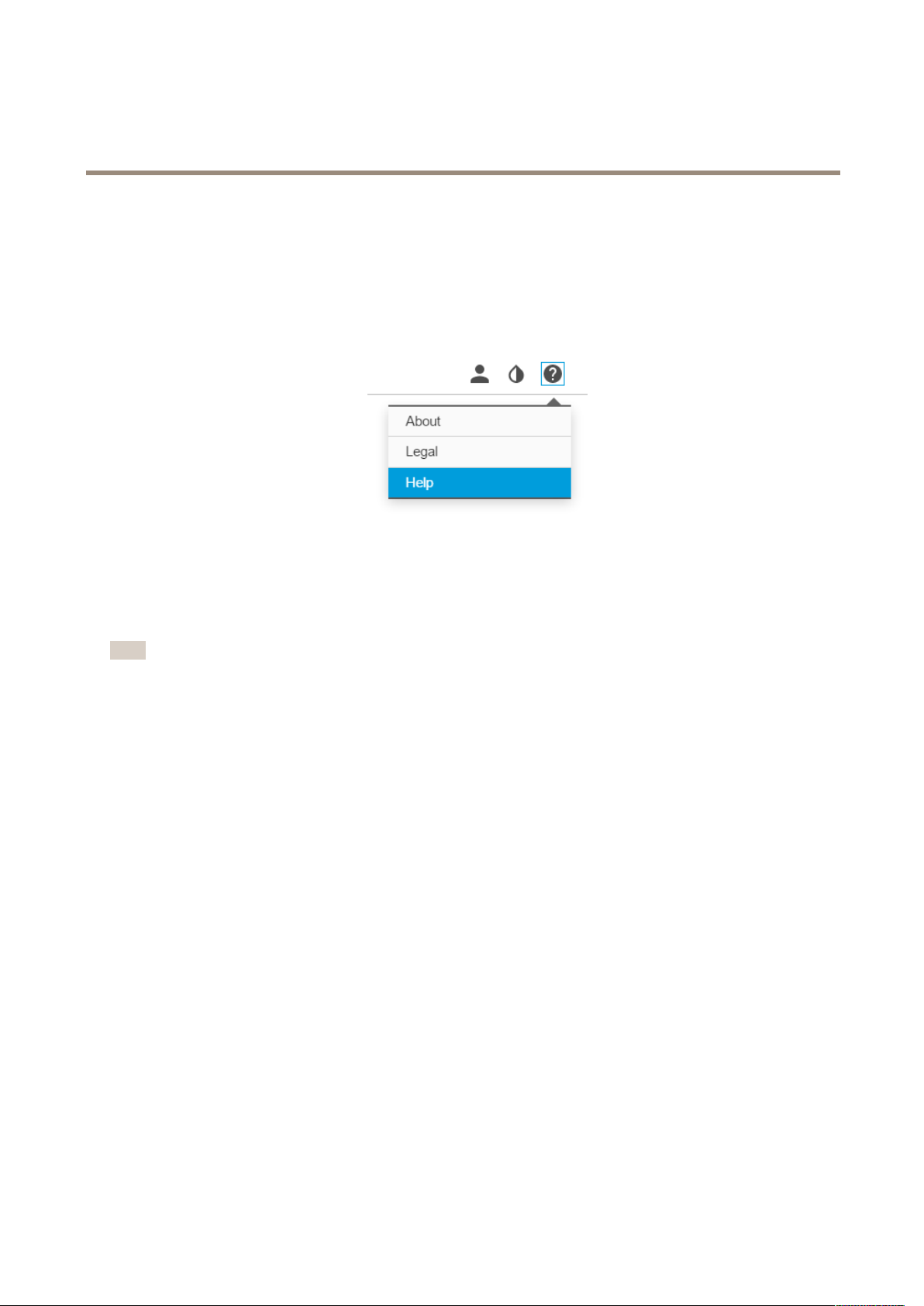
Abouttheproduct'sbuilt-inhelp...................................8
Imagequality...................................................8
Streamingandstorage...........................................9
Events........................................................10
Applications....................................................12
Troubleshooting............................................13
Howtoresettofactorydefaultsettings.............................13
Howtocheckthecurrentrmware.................................13
Howtoupgradethermware.....................................13
Technicalissues,cluesandsolutions................................14
Performanceconsiderations.......................................15
Specications..............................................16
LEDindicators..................................................16
SDcardslot....................................................16
Buttons.......................................................17
Connectors....................................................17
2
Page 3
AXISQ17NetworkCameraSeries
Systemoverview
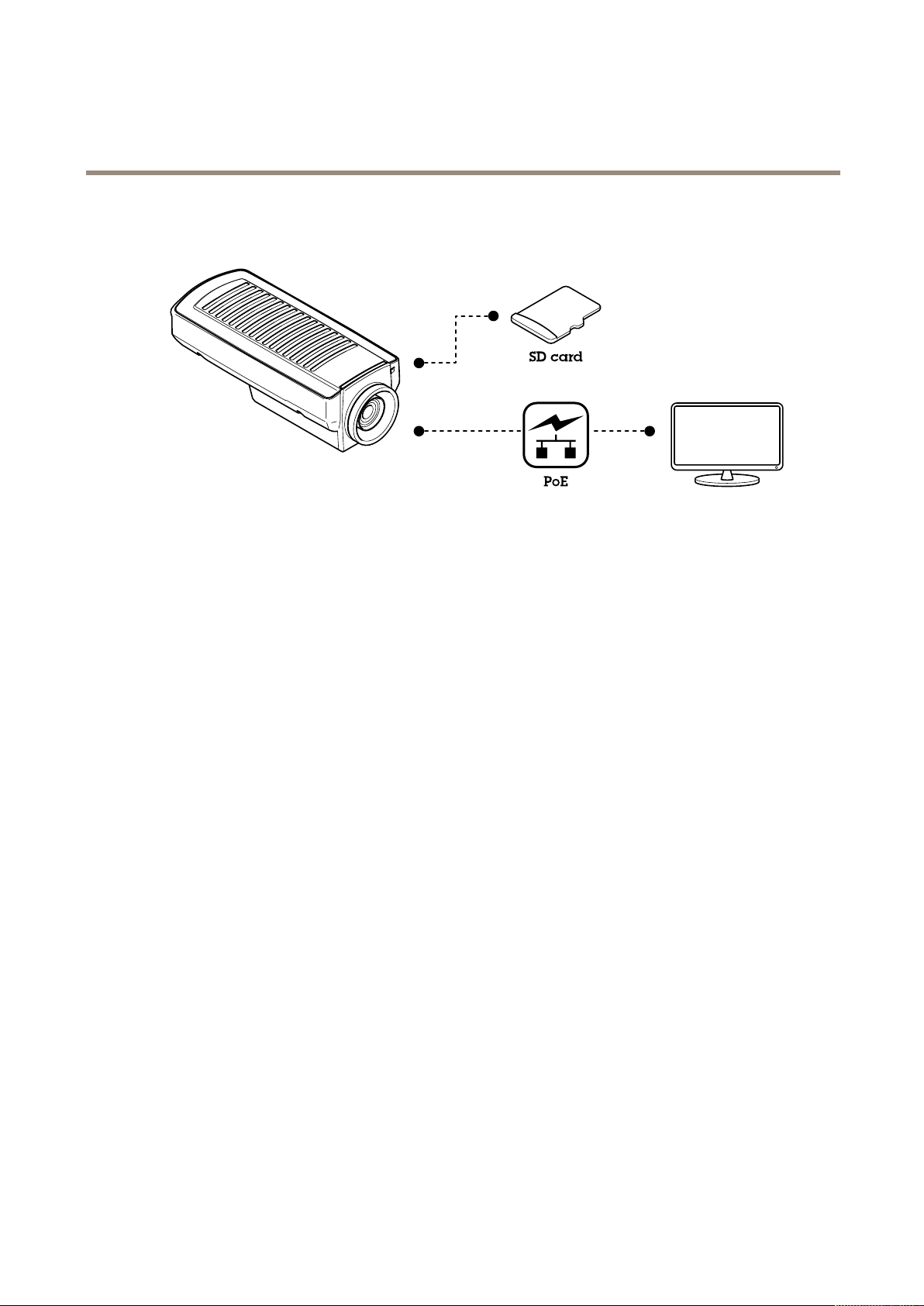
Systemoverview
3
Page 4
AXISQ17NetworkCameraSeries
Productoverview
Productoverview
NO
TICE
NO NO
TICE TICE
Donotpointthecameralenstowardthesunorotherhigh-intensityradiationsourcesbecausethiscouldcausedamageto
thecamera.
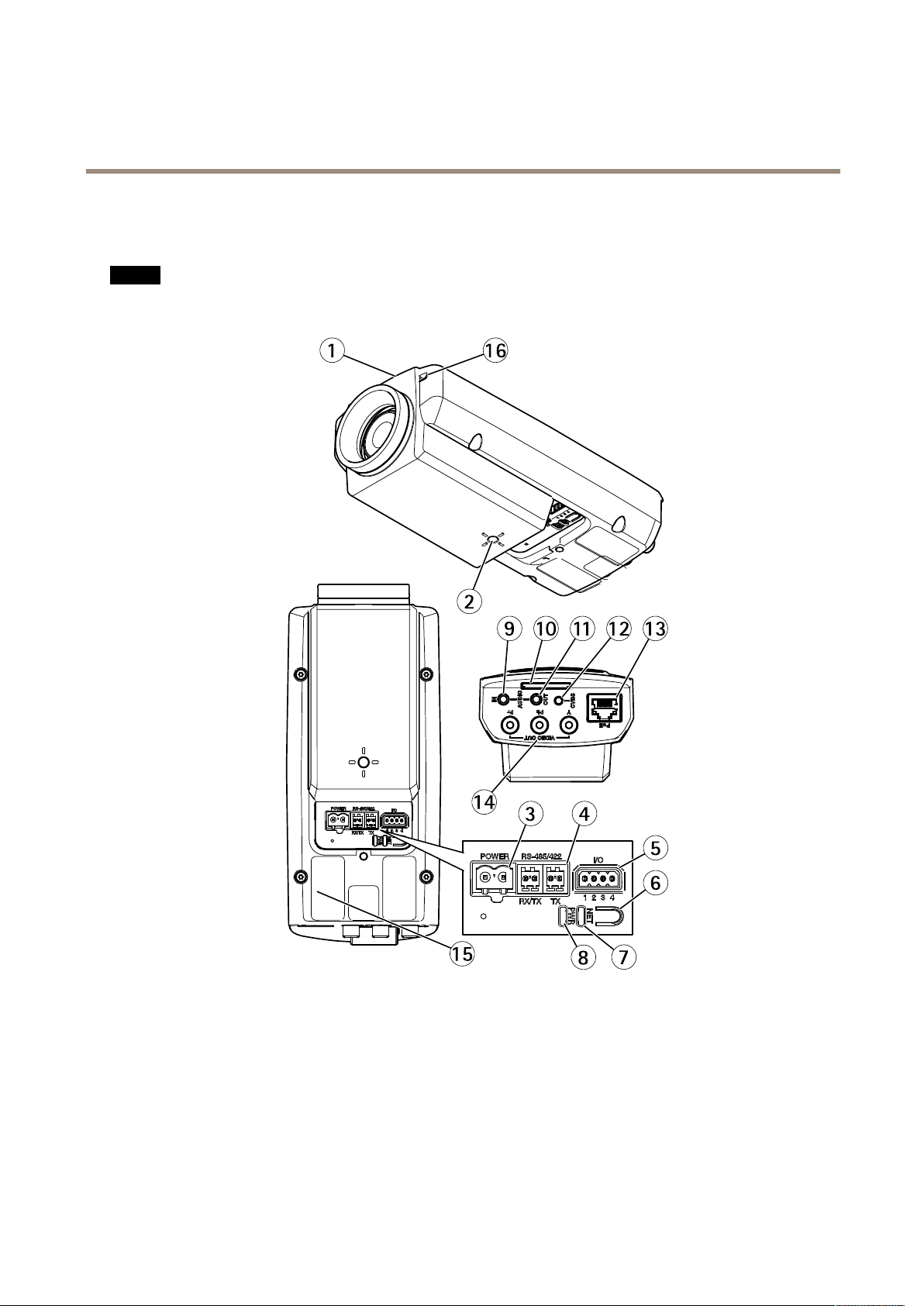
1
StatusLED
2
1/4”screwmountforwall/ceilingstand
3
Powerconnector(blockedinAXISQ1775-E)
4
RS485/422connector
5
I/Oconnector
6
Controlbutton
7
NetworkindicatorLED
8
PowerindicatorLED
9
Audioin
10
SDcardslot
4
Page 5
AXISQ17NetworkCameraSeries
Productoverview
11
Audioout
12
CVBSbutton
13
Networkconnector(PoE)
14
VideooutY/Pb/Pr
15
Partnumber(P/N)&Serialnumber(S/N).Theserialnumbermayberequiredduringtheinstallation.
16
Microphone
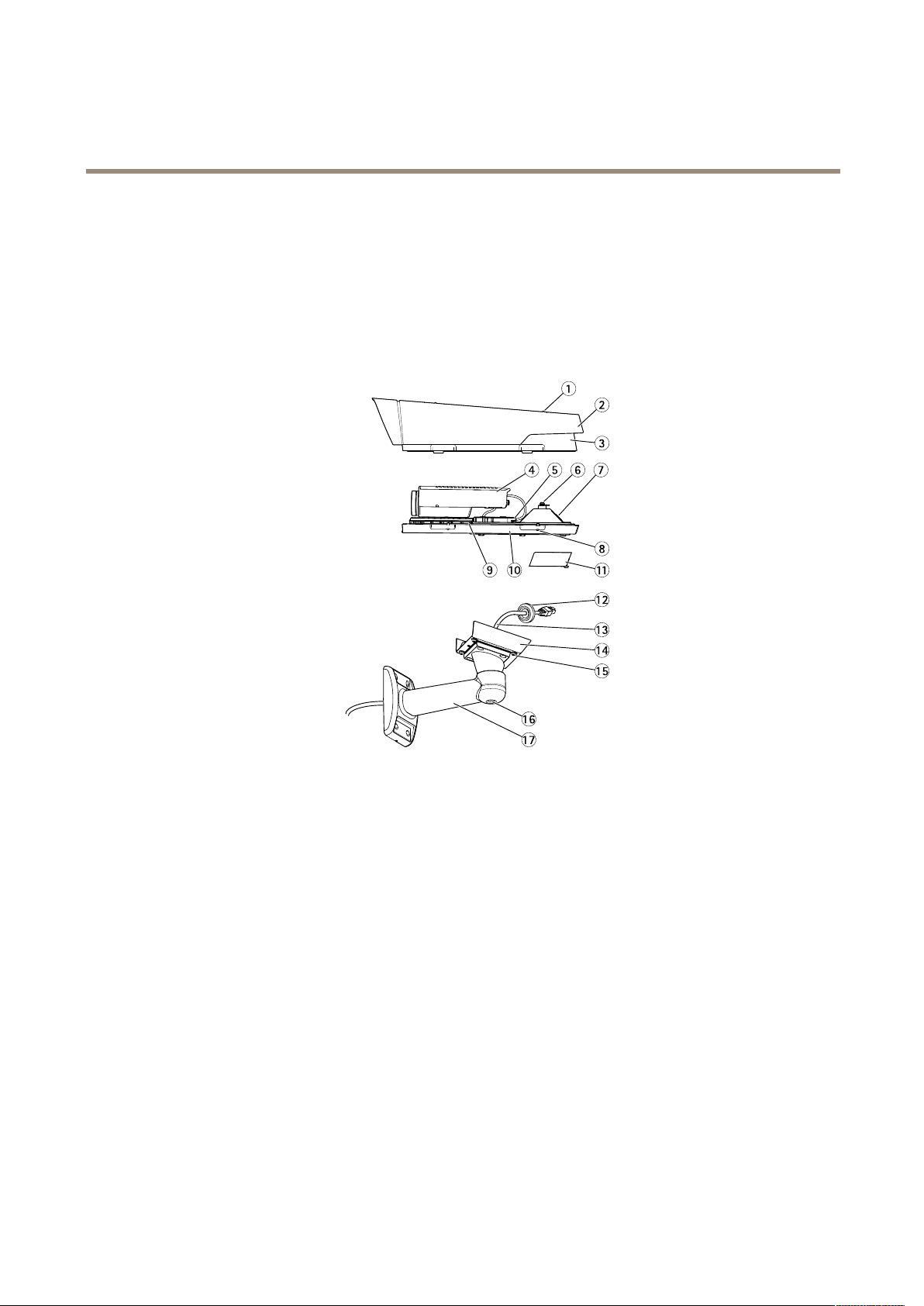
HousingQ1775-E
1.
Sunshieldadjustmentscrew(2x)
2.
Sunshield
3.
Topcover
4.
Networkcamera
5.
Networkconnector(PoE)
6.
Safetywiretab
7.
Cablehole
8.
Bottomcoverscrews(4x)
9.
HeaterCaution!Maybehot
10.
Bottomcover
11.
Cablecover
12.
Gasket
13.
Networkcable(routethroughwallbracket)
14.
Bracketadapter
15.
Bracketscrews(4x)
16.
Bracketadjustmentscrew
17.
Wallbracket
5
Page 6

AXISQ17NetworkCameraSeries
Howtoaccesstheproduct
Howtoaccesstheproduct
AXISIPUtilityandAXISCameraManagementarerecommendedmethodsforndingAxisproductsonthenetworkandassigning
themIPaddressesinWindows®.Bothapplicationsarefreeandcanbedownloadedfromaxis.com/support
Theproductcanbeusedwiththefollowingbrowsers:
•Chrome
•Chrome
•Chrome
TM
(recommended),Firefox
TM
(recommended)orSafari
TM
orFirefox
®
withotheroperatingsystems.
Howtoaccesstheproductfromabrowser
1.Startawebbrowser.
2.EntertheIPaddressorhostnameoftheAxisproductinthebrowser’saddresseld.
ToaccesstheproductfromaMaccomputer(OSX),gotoSafari,clickonBonjourandselecttheproductfromthe
drop-downlist.
®
,Edge
®
®
,orOpera
withOSX
®
withWindows
®
®
IfyoudonotknowtheIPaddress,useAXISIPUtilitytolocatetheproductonthenetwork.Forinformationabout
howtodiscoverandassignanIPaddress,seethedocumentAssignanIPAddressandAccesstheVideoStreamonAxis
Supportwebataxis.com/support
Note
ToshowBonjourasabrowserbookmark,gotoSafari>Preferences.
3.Enteryourusernameandpassword.Ifthisisthersttimetheproductisaccessed,therootpasswordmustrstbe
congured.
4.Theproduct’sliveviewpageopensinyourbrowser .
Aboutsecurepasswords
Important
Whensettingtheinitialpassword,thepasswordissentincleartextoverthenetwork.Ifthereisariskofnetworksnifng,
rstsetupasecureandencryptedHTTPSconnectionbeforeresettingthepasswords.
Thedevicepasswordistheprimaryprotectionforthedataandservices.Axis’productsdonotimposeapasswordpolicyasproducts
maybeusedinvarioustypesofinstallations,buttoprotectyourdatadothefollowing:
•Don’tusethedefaultpasswordthatcomeswiththeproducts.
•Useapasswordwithatleast8characters,preferablyusingapasswordgenerator.
•Don’texposethepassword.
•Changepasswordatarecurringinterval,atleastonceayear .
Setapasswordfortherootaccount
Important
Thedefaultadministratorusernamerootcannotbedeleted.Ifthepasswordforrootislost,theproductmustberesetto
thefactorydefaultsettings.
6
Page 7

AXISQ17NetworkCameraSeries
Howtoaccesstheproduct
Thedefaultrootaccounthasfullprivilegesandshouldbereservedforadministrativetasks.Alwayscreateauseraccountwithlimited
privilegesfordailyuse.Thisreducestheexposureoftheadministrativeaccount.
1.Makesuretofollowtheinstructionsaboutsecurepasswords,seeAboutsecurepasswordsonpage6.
2.Typeapasswordandthenretypeittoconrmthespelling.
3.ClickCreatelogin.Thepasswordhasnowbeencongured.
7
Page 8
AXISQ17NetworkCameraSeries
Setup
Setup
Abouttheproduct'sbuilt-inhelp
Youcanaccessthebuilt-inhelpthroughyourproduct’swebpage.Thehelpprovidesmoredetailedinformationontheproduct’s
featuresandtheirsettings.
Imagequality
Howtoreducenoiseinlow-lightconditions
Toreducenoiseinlow-lightconditions,youcanadjustoneormoreofthefollowingsettings:
Note
Increasingthemaxshuttervaluecanresultinmotionblur.
•Theshutterspeedshouldbeasslowaspossible,whichmeansyoushouldsetmaxshuttertothehighestpossiblevalue.
•Reducesharpnessintheimage.
•Tryloweringthemaxgainvalue.
HowtobenetfromIRlightinlow-lightconditionsusingnightmode
Yourcameradeliverscolorimagesduringtheday.Aslightdiminishes,youcansetthecameratoautomaticallyshifttonightmode.
Thisenablesdeliveringblack-and-whiteimageswiththehelpofIRlight.
1.GotoSettings>Image>Dayandnight,andmakesurethattheIRcutlterissettoAuto.
2.Todetermineatwhatlightlevelyouwantthecameratoshifttonightmode,settheDay-nightshiftprioritytoDay,
NightorNone.
Howtohandlesceneswithstrongbacklight
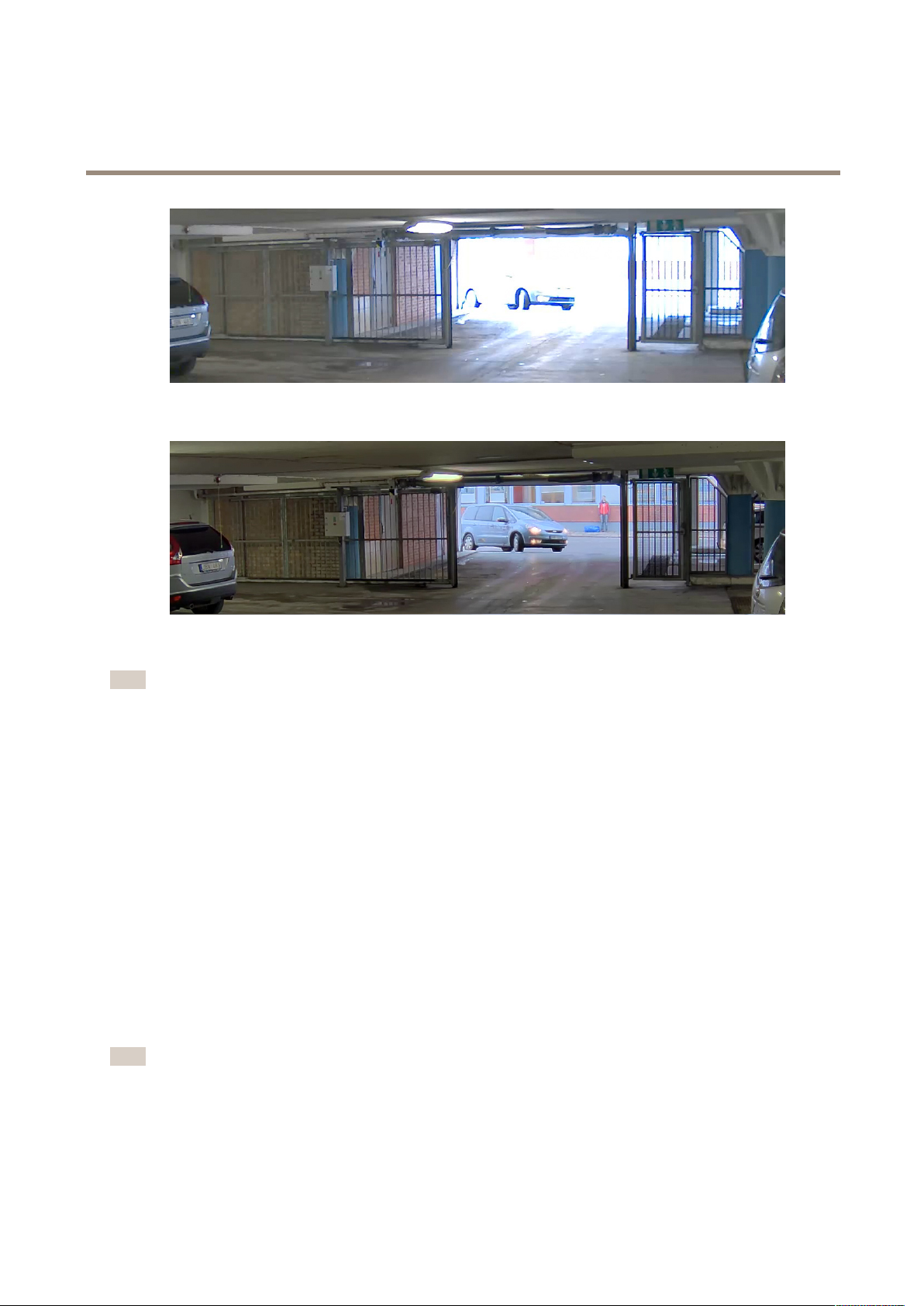
UseWDRtomakebothdarkandbrightareasoftheimagevisible.
1.GotoSettings>Image.
2.TurnonWDRunderWidedynamicrange.
8
Page 9
AXISQ17NetworkCameraSeries
Setup
ImagewithoutWDR.
ImagewithWDR.
Note
IfyouuseWDR,youmayexperiencesomeWDRartifactsintheimage.
FindoutmoreaboutWDRandhowtouseitataxis.com/web-articles/wdr
Streamingandstorage
Howtochoosevideocompressionformat
Decidingwhichcompressionmethodtochoosedependsonyourviewingrequirements,andonthepropertiesofyournetwork.The
availableoptionsare:
MotionJPEG
MotionJPEGorMJPEGisadigitalvideosequencethatismadeupofaseriesofindividualJPEGimages.Theseimagesarethen
displayedandupdatedataratesufcienttocreateastreamthatshowsconstantlyupdatedmotion.Fortheviewertoperceivemotion
videotheratemustbeatleast16imageframespersecond.Fullmotionvideoisperceivedat30(NTSC)or25(PAL)framespersecond.
TheMotionJPEGstreamusesconsiderableamountsofbandwidth,butprovidesexcellentimagequalityandaccesstoeveryimage
containedinthestream.
H.264orMPEG-4Part10/AVC
Note
H.264isalicensedtechnology.TheAxisproductincludesoneH.264viewingclientlicense.Installingadditionalunlicensed
copiesoftheclientisprohibited.Topurchaseadditionallicenses,contactyourAxisreseller.
H.264can,withoutcompromisingimagequality,reducethesizeofadigitalvideolebymorethan80%comparedtotheMotion
JPEGformatandbyasmuchas50%comparedtotheMPEG-4standard.Thismeansthatlessnetworkbandwidthandstoragespace
arerequiredforavideole.Orseenanotherway,highervideoqualitycanbeachievedforagivenbitrate.
9
Page 10

AXISQ17NetworkCameraSeries
Setup
Findoutmoreataxis.com/compression-formats
Howtoreducebandwidthandstorage
Important
Ifyoureducethebandwidthitcanresultinlessdetailsinthepicture.
1.GotoliveviewandselectH.264.
2.GototheStreamtab.
3.Dooneormoreofthefollowing:
-TurnontheZipstreamfunctionalityandselectthedesiredlevel.
-TurnontheGOPandsetahighGOPlengthvalue.
-Increasethecompression.
-TurnonthedynamicFPS.
Howtoviewlivevideostreamonamonitor
Yourcameracantransmitlivevideostreamtoamonitorevenwithoutanetworkconnection.Connectthecameraandthemonitor
usingtheRCAconnectors.Themonitorcanbeusedforsurveillancepurposesorforpublicviewinge.g.inastore.
Howtoaddaudiotoyourrecording
Editthestreamprolewhichisusedfortherecording:
1.GotoSettings>System>Streamproles.
2.Selectthestreamproletomodify.
3.IntheAudiotab,selecttheAudiostreamcheckboxandselectOnfromthedrop-downlist.
4.ClickOk.
Events
Aboutevents
Theeventpagesallowyoutocongureyourproducttoperformactionswhendifferenteventsoccur.Forexample,theproduct
canstartarecordingorsendanemailnoticationwhenmotionisdetected.Thesetofconditionsthatdeneshowandwhen
theactionistriggerediscalledanactionrule.
Howtoautomaticallysendanemailifsomeonespraypaintsthelens
1.GotoSystem>Detectors.
2.SelectAlarmfordarkimages.Thiswilltriggeranalarmifthelensissprayed,covered,orrenderedseverelyoutoffocus.
3.SettheMinimumduration.Thevalueindicatesthetimethatmustpassbeforeanemailissent.
4.ClickSave.
Createanactionrule:
5.GotoEvents>Actionrulesandaddanactionrule.
6.Enteranamefortheactionrule.
10
Page 11

AXISQ17NetworkCameraSeries
Setup
7.Fromthelistoftriggers,selectDetectorsandthenselectTampering.
8.Fromthelistofactions,selectSendNoticationandthenselectarecipientfromthelistorclickNewRecipient
tocreateanewrecipient.
9.EnterSubjectandMessagefortheemail.
10.ClickOk.
Howtoautomaticallyzoominonaspecicareawithgatekeeper
Thisexampleexplainshowtousethegatekeeperfunctionalitytomakethecamerazoominautomaticallyonthelicenseplateofa
carthatpassesthroughagate.Whenthecarhaspassed,thecamerazoomsouttothehomeposition.
Createamotiondetectionprole:
1.GotoSettings>AppsandopenAXISVideoMotionDetection.
2.Createaprolethatcoverstheentranceofthegateandthensavetheprole.
Createthepresetpositions:
3.GotoSettings>PTZ>Presetpositions.
4.Createthehomepositionthatincludestheentranceofthegate.
5.Createthezoomed-inpresetpositionsothatitcoverstheareaintheimagewhereyouassumethatthelicenseplate
willappear.
Createanactionrule:
6.GotoSettings>System>Eventsandaddanactionrule.
7.NametheactionruleGatekeeper.
8.Fromthetriggerlist,selectApplicationsandthenselectthepreviouslycreatedmotiondetectionprole.
9.Fromtheactionlist,selectthepreviouslycreatedpresetposition.
10.ClickOK.
HowtorecordvideowhenaPIRdetectorsensesmotion
ThisexampleexplainshowtoconnectanAxisPIRdetectortothecamera,andsetupthecameratostartrecordingwhenthe
detectorsensesmotion.
Requiredhardware
•3–wirecable(ground,power,I/O)
•AxisPIRdetector
NO
TICE
NO NO
TICE TICE
Disconnectthecamerafrompowerbeforeconnectingthewires.Reconnecttopowerafterallconnectionsaredone.
Connectthewirestothecamera’sI/Oconnector
Note
ForinformationontheI/Oconnector,seeConnectorsonpage17
1.Connectthegroundwiretopin1(GND/-).
2.Connectthepowerwiretopin2(12VDCoutput).
11
Page 12

AXISQ17NetworkCameraSeries
Setup
3.ConnecttheI/Owiretopin3(I/Oinput).
ConnectthewirestothePIRdetector’sI/Oconnector
1.Connecttheotherendofthegroundwiretopin1(GND/-).
2.Connecttheotherendofthepowerwiretopin2(DCinput/+).
3.ConnecttheotherendoftheI/Owiretopin3(I/Ooutput).
ConguretheI/Oportinthecamera’swebpage
1.GotoSettings>System>I/Oports.
2.Givetheinputmoduleadescriptivename.
3.TomakethePIRdetectorsendasignaltothecamerawhenitsensesmotion,selectClosedcircuitinthedrop-downlist.
TotriggerthecameratostartrecordingwhenitreceivesasignalfromthePIRdetector ,youneedtocreateanactionruleinthe
camera’swebpage.
Applications
Aboutapplications
AXISCameraApplicationPlatform(ACAP)isanopenplatformthatenablesthirdpartiestodevelopanalyticsandotherapplications
forAxisproducts.Tondoutmoreaboutavailableapplications,downloads,trialsandlicenses,gotoaxis.com/applications
TondtheusermanualsforAxisapplications,gotoaxis.com
Note
•Severalapplicationscanrunatthesametimebutsomeapplicationsmightnotbecompatiblewitheachother.Certain
combinationsofapplicationsmightrequiretoomuchprocessingpowerormemoryresourceswhenruninparallel.Verify
thattheapplicationsworktogetherbeforedeployment.
12
Page 13

AXISQ17NetworkCameraSeries
Troubleshooting
Troubleshooting
Howtoresettofactorydefaultsettings
Important
Resettofactorydefaultshouldbeusedwithcaution.Aresettofactorydefaultresetsallsettings,includingtheIPaddress,to
thefactorydefaultvalues.
Toresettheproducttothefactorydefaultsettings:
1.Disconnectpowerfromtheproduct.
2.Pressandholdthecontrolbuttonwhilereconnectingpower.SeeProductoverview.
3.Keepthecontrolbuttonpressedfor15–30secondsuntilthestatusLEDindicatorashesamber.
4.Releasethecontrolbutton.TheprocessiscompletewhenthestatusLEDindicatorturnsgreen.Theproducthasbeenreset
tothefactorydefaultsettings.IfnoDHCPserverisavailableonthenetwork,thedefaultIPaddressis192.168.0.90
5.UsetheinstallationandmanagementsoftwaretoolstoassignanIPaddress,setthepassword,andaccessthevideostream.
Theinstallationandmanagementsoftwaretoolsareavailablefromthesupportpagesonaxis.com/support
Howtocheckthecurrentrmware
Firmwareisthesoftwarethatdeterminesthefunctionalityofnetworkdevices.Oneofyourrstactionswhentroubleshootinga
problemshouldbetocheckthecurrentrmwareversion.Thelatestversionmaycontainacorrectionthatxesyourparticular
problem.
Tocheckthecurrentrmware:
1.Gototheproduct’swebpage.
2.Clickonthehelpmenu.
3.ClickAbout.
Howtoupgradethermware
Important
Preconguredandcustomizedsettingsaresavedwhenthermwareisupgraded(providedthatthefeaturesareavailablein
thenewrmware)althoughthisisnotguaranteedbyAxisCommunicationsAB.
Note
Whenyouupgradetheproductwiththelatestrmware,theproductreceivesthelatestfunctionalityavailable.Alwaysread
theupgradeinstructionsandreleasenotesavailablewitheachnewreleasebeforeupgradingthermware.Tondthelatest
rmwareandthereleasenotes,gotoaxis.com/support/rmware
1.Downloadthelatestrmwareletoyourcomputer,availablefreeofchargeataxis.com/support/rmware
2.Logintotheproductasanadministrator.
3.GotoSettings>System>Maintenanceintheproduct’swebpageandfollowtheinstructions.
4.Theupgradetakesawhile,don'tbreakthepowertotheproduct.Whentheupgradeisnished,theproductrestarts
automatically.
13
Page 14

AXISQ17NetworkCameraSeries
Troubleshooting
AXISCameraManagementcanbeusedformultipleupgrades.Findoutmoreataxis.com/products/axis-camera-management
Technicalissues,cluesandsolutions
Ifyoucan’tndwhatyou’relookingforhere,trythetroubleshootingsectionataxis.com/support
Problemsupgradingthermware
FirmwareupgradefailureIfthermwareupgradefails,theproductreloadsthepreviousrmware.Themostcommonreason
ProblemssettingtheIPaddress
Theproductislocatedona
differentsubnet
TheIPaddressisbeingused
byanotherdevice
isthatthewrongrmwarelehasbeenuploaded.Checkthatthenameofthermwarele
correspondstoyourproductandtryagain.
IftheIPaddressintendedfortheproductandtheIPaddressofthecomputerusedtoaccessthe
productarelocatedondifferentsubnets,youcannotsettheIPaddress.Contactyournetwork
administratortoobtainanIPaddress.
DisconnecttheAxisproductfromthenetwork.Runthepingcommand(inaCommand/DOS
window,typepingandtheIPaddressoftheproduct):
PossibleIPaddressconict
withanotherdeviceonthe
samesubnet
Theproductcannotbeaccessedfromabrowser
Cannotlogin
TheIPaddresshasbeen
changedbyDHCP
Certicateerrorwhenusing
IEEE802.1X
Theproductisaccessiblelocallybutnotexternally
Routerconguration
Firewallprotection
ThestaticIPaddressintheAxisproductisusedbeforetheDHCPserversetsadynamicaddress.
ThismeansthatifthesamedefaultstaticIPaddressisalsousedbyanotherdevice,theremay
beproblemsaccessingtheproduct.
WhenHTTPSisenabled,ensurethatthecorrectprotocol(HTTPorHTTPS)isusedwhenattempting
tologin.Youmayneedtomanuallytypehttporhttpsinthebrowser’saddresseld.
Ifthepasswordfortheuserrootislost,theproductmustberesettothefactorydefaultsettings.
SeeHowtoresettofactorydefaultsettings.
IPaddressesobtainedfromaDHCPserveraredynamicandmaychange.IftheIPaddresshas
beenchanged,useAXISIPUtilityorAXISCameraManagementtolocatetheproductonthe
network.Identifytheproductusingitsmodelorserialnumber,orbytheDNSname(ifthename
hasbeencongured).
Ifrequired,astaticIPaddresscanbeassignedmanually.Forinstructions,gotoaxis.com/support.
Forauthenticationtoworkproperly,thedateandtimesettingsintheAxisproductmustbe
synchronizedwithanNTPserver.GotoSettings>System>Dateandtime
CheckthatyourrouterallowsincomingdatatrafctotheAxisproduct.Theroutermustsupport
UPnP
ChecktheInternetrewallwithyournetworkadministrator.
•Ifyoureceive:Replyfrom<IPaddress>:bytes=32;time=10...
thismeansthattheIPaddressmayalreadybeinusebyanotherdeviceonthenetwork.
ObtainanewIPaddressfromthenetworkadministratorandreinstalltheproduct.
•Ifyoureceive:Requesttimedout,thismeansthattheIPaddressisavailable
forusewiththeAxisproduct.Checkallcablingandreinstalltheproduct.
®
.
Problemswithstreaming
MulticastH.264only
accessiblebylocalclients
Checkifyourroutersupportsmulticasting,oriftheroutersettingsbetweentheclientandthe
productneedtobecongured.TheTTL(TimeToLive)valuemayneedtobeincreased.
14
Page 15

AXISQ17NetworkCameraSeries
Troubleshooting
NomulticastH.264
displayedintheclient
PoorrenderingofH.264
images
Colorsaturationisdifferent
inH.264andMotionJPEG
Lowerframeratethan
expected
CheckwithyournetworkadministratorthatthemulticastaddressesusedbytheAxisproduct
arevalidforyournetwork.
Checkwithyournetworkadministratortoseeifthereisarewallpreventingviewing.
Ensurethatyourgraphicscardisusingthelatestdriver .Thelatestdriverscanusuallybe
downloadedfromthemanufacturer’swebsite.
Modifythesettingsforyourgraphicsadapter.Gototheadapter’sdocumentationformore
information.
•SeePerformanceconsiderationsonpage15.
•Reducethenumberofapplicationsrunningontheclientcomputer.
•Limitthenumberofsimultaneousviewers.
•Checkwiththenetworkadministratorthatthereisenoughbandwidthavailable.
•Lowertheimageresolution.
•Intheproduct’swebpage,setacapturemodethatprioritizesframerate.Changingthe
capturemodetoprioritizeframeratemightlowerthemaximumresolutiondepending
ontheproductusedandcapturemodesavailable.
•Themaximumframespersecondisdependentontheutilityfrequency(60/50Hz)of
theAxisproduct.
Performanceconsiderations
Whensettingupyoursystem,itisimportanttoconsiderhowvarioussettingsandsituationsaffecttheperformance.Somefactors
affecttheamountofbandwidth(thebitrate)required,otherscanaffecttheframerate,andsomeaffectboth.Iftheloadonthe
CPUreachesitsmaximum,thisalsoaffectstheframerate.
Thefollowingfactorsarethemostimportanttoconsider:
•Highimageresolutionorlowercompressionlevelsresultinimagescontainingmoredatawhichinturnaffectsthe
bandwidth.
•AccessbylargenumbersofMotionJPEGorunicastH.264clientsaffectsthebandwidth.
•Simultaneousviewingofdifferentstreams(resolution,compression)bydifferentclientsaffectsbothframerateand
bandwidth.
Useidenticalstreamswhereverpossibletomaintainahighframerate.Streamprolescanbeusedtoensurethat
streamsareidentical.
•AccessingMotionJPEGandH.264videostreamssimultaneouslyaffectsbothframerateandbandwidth.
•Heavyusageofeventsettingsaffectstheproduct’sCPUloadwhichinturnaffectstheframerate.
•UsingHTTPSmayreduceframerate,inparticularifstreamingMotionJPEG.
•Heavynetworkutilizationduetopoorinfrastructureaffectsthebandwidth.
•Viewingonpoorlyperformingclientcomputerslowersperceivedperformanceandaffectsframerate.
•RunningmultipleAXISCameraApplicationPlatform(ACAP)applicationssimultaneouslymayaffecttheframerateand
thegeneralperformance.
15
Page 16

AXISQ17NetworkCameraSeries
Specifications
Specifications
Tondthelatestversionoftheproduct’sdatasheet,gotoaxis.com>[product]>Support&Documentation.
LEDindicators
Note
•TheStatusLEDcanbeconguredtoashwhileaneventisactive.
StatusLED
GreenSteadygreenfornormaloperation.
Amber
NetworkLEDIndication
Green
Amber
UnlitNonetworkconnection.
PowerLEDIndication
Green
Amber
Indication
Steadyduringstartup.Flasheswhenrestoringsettings.
Steadyforconnectiontoa100Mbit/snetwork.Flashesfornetworkactivity.
Steadyforconnectiontoa10Mbit/snetwork.Flashesfornetworkactivity.
Normaloperation.
Flashesgreen/amberduringrmwareupgrade.
StatusLEDbehaviorandbuzzersignalforlevelingassistant
Forinformationonusingthecontrolbuttontostartlevelingofthecamera,seepage17.
Color
Fixedgreen
FlashinggreenFastbeepsAlmostlevel
FlashingorangeMediumbeepsNotlevel
Flashingred
Buzzer
Continuousbeep
Slowbeeps
Cameraposition
Level
Farfromlevel
SDcardslot
NO
TICE
NO NO
TICE TICE
•RiskofdamagetoSDcard.Donotusesharptools,metalobjects,orexcessiveforcewheninsertingorremovingthe
SDcard.Useyourngerstoinsertandremovethecard.
•Riskofdatalossandcorruptedrecordings.DonotremovetheSDcardwhiletheproductisrunning.UnmounttheSDcard
fromtheproduct’swebpagebeforeremoval.
ThisproductsupportsSD/SDHC/SDXCcards(notincluded).
ForSDcardrecommendations,seeaxis.com
16
Page 17
AXISQ17NetworkCameraSeries
Specifications
Buttons
Controlbutton
Forlocationofthecontrolbutton,seeProductoverviewonpage4.
Thecontrolbuttonisusedfor:
•Resettingtheproducttofactorydefaultsettings.Seepage13.
•Ensuringthecameraislevel.Pressthebuttonfornotmorethantwosecondstostartthelevelingassistantandpress
againtostop.ThestatusLEDandbuzzersignal(seepage16)assistlevelingofthecamera.Thecameraislevelwhenthe
buzzerbeepscontinuously.
•ConnectingtoanAXISVideoHostingSystemservice.See.Toconnect,pressandholdthebuttonforabout3seconds
untiltheStatusLEDashesgreen.
•ConnectingtoAXISInternetDynamicDNSService.See.Toconnect,pressandholdthebuttonforabout3seconds.
Connectors
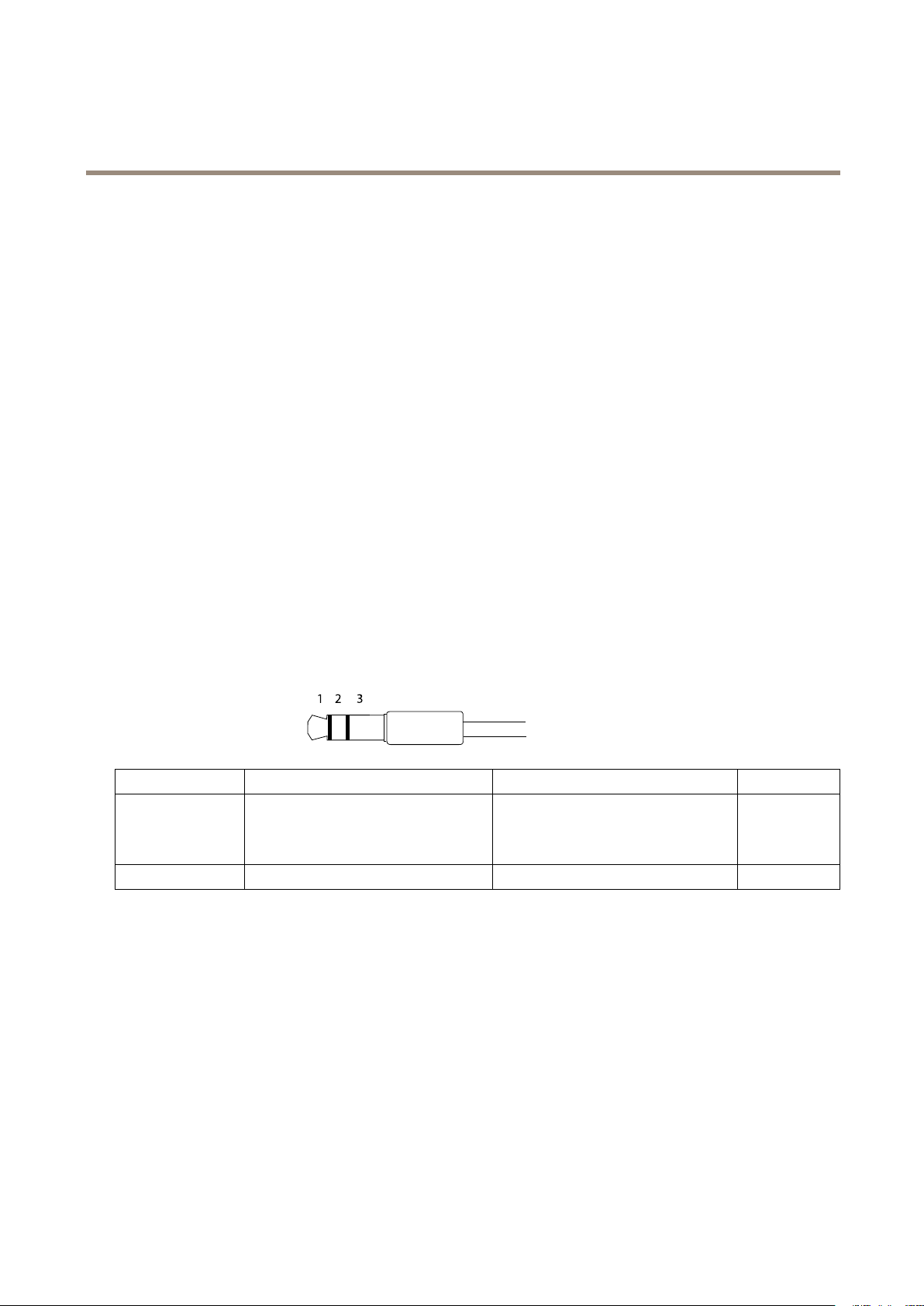
Audioconnector
TheAxisproducthasthefollowingaudioconnectors:
•Audioin(pink)–3.5mminputforamonomicrophone,oraline-inmonosignal.
•Audioout(green)–3.5mmoutputforaudio(linelevel)thatcanbeconnectedtoapublicaddress(PA)systemoran
activespeakerwithabuilt-inamplier.Itisrecommendedtouseastereoconnectorforaudioout.
3.5mmaudioconnectors
(stereo)
1Tip2Ring
AudioInput
AudioOutput
Theinternalmicrophoneisusedbydefault;theexternalmicrophoneisusedwhenconnected.Itispossibletodisabletheinternal
microphonebyconnectingaplugtothemicrophoneinput.
Balanced:‘Hot’signalMicrophone/Linein
Unbalanced:Microphone/Linein
Lineout,monoLineout,mono
Balanced:‘Cold’signalMicrophone/Line
in
Unbalanced:Unused
3Sleeve
Ground
Ground
I/Oconnectors
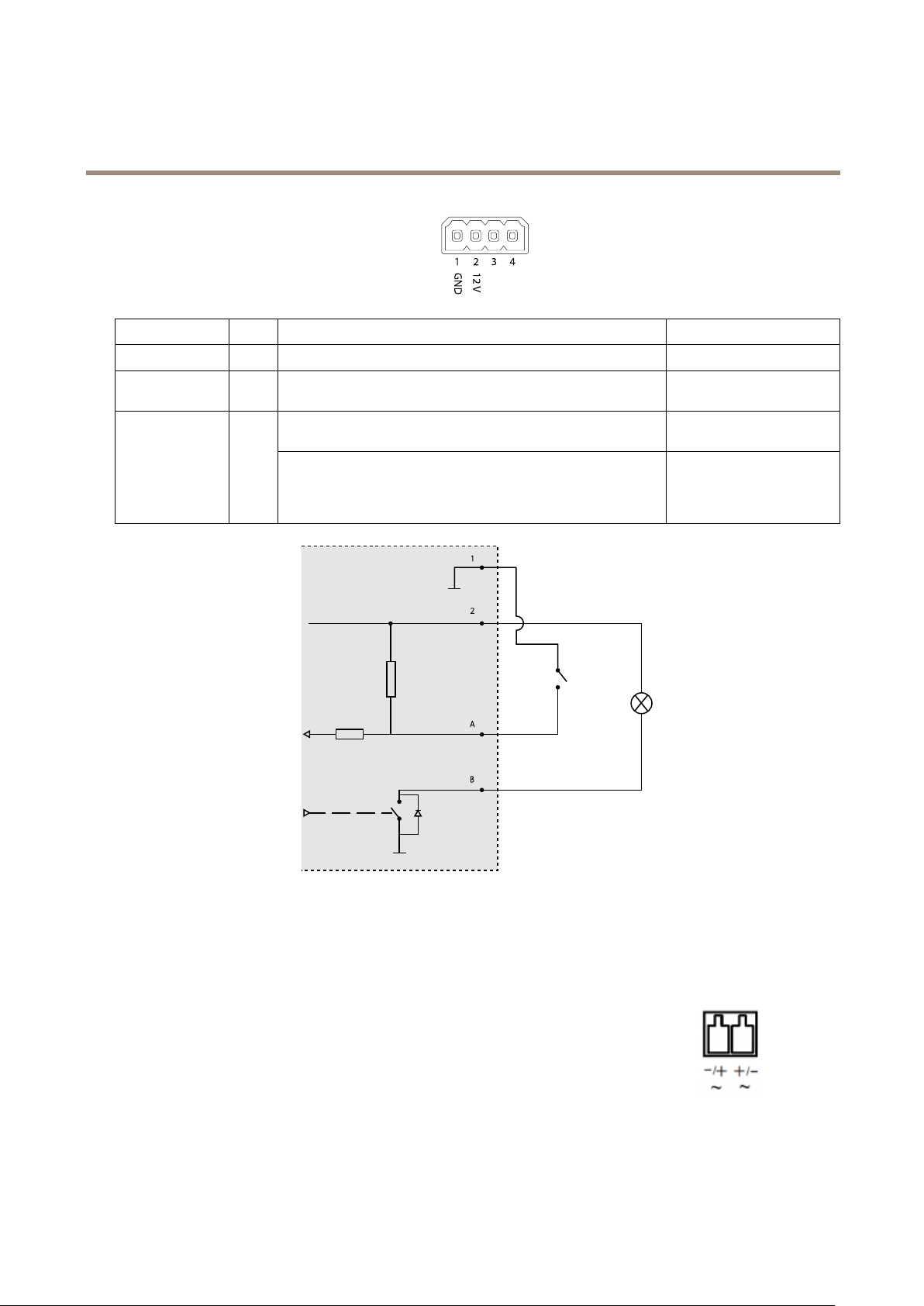
UsetheI/Oconnectorwithexternaldevicesincombinationwith,forexample,tamperingalarms,motiondetection,eventtriggering,
andalarmnotications.Inadditiontothe0VDCreferencepointandpower(DCoutput),theI/Oconnectorprovidestheinterfaceto:
Digitaloutput-ForconnectingexternaldevicessuchasrelaysandLEDs.ConnecteddevicescanbeactivatedbytheVAPIX®
ApplicationProgrammingInterfaceorintheproduct’swebpage.
Digitalinput-Forconnectingdevicesthatcantogglebetweenanopenandclosedcircuit,forexamplePIRsensors,door/window
contacts,andglassbreakdetectors.
17
Page 18
AXISQ17NetworkCameraSeries
Specifications
4-pinterminalblock
FunctionPinNotes
0VDC(-)
DCoutput
(InputorOutput)
1
2
3–4
DCground0VDC
Canbeusedtopowerauxiliaryequipment.
Note:Thispincanonlybeusedaspowerout.
Digitalinput–Connecttopin1toactivate,orleaveoating
(unconnected)todeactivate.
Digitaloutput–Connecttopin1toactivate,orleaveoating
(unconnected)todeactivate.Ifusedwithaninductiveload,e.g.,a
relay,connectadiodeinparallelwiththeload,toprotectagainst
voltagetransients.
Specications
12VDC
Maxload=50mA
0tomax30VDC Congurable
0tomax30VDC,opendrain,
100mA
1
0VDC(-)
2
DCoutput12V,max50mA
A
I/Oconguredasinput
B
I/Oconguredasoutput
Powerconnector
2-pinterminalblockforAC/DCpowerinput.UseaSafetyExtraLowVoltage(SELV)compliant
limitedpowersource(LPS)witheitheraratedoutputpowerlimitedto≤100Woraratedoutput
currentlimitedto≤5A.
18
Page 19
AXISQ17NetworkCameraSeries
Specifications
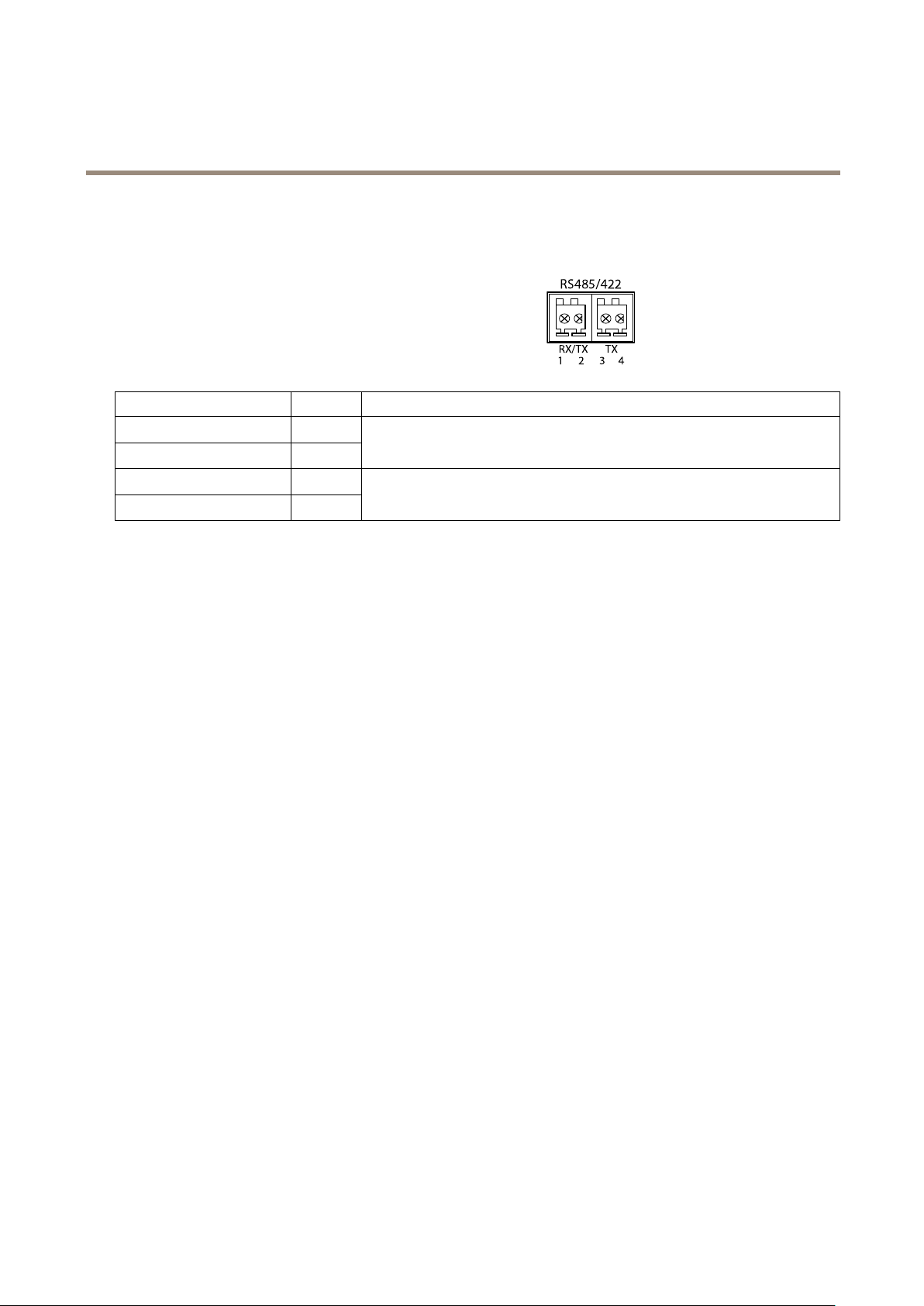
RS485/RS422connector
Two2-pinterminalblocksforRS485/RS422serialinterfaceusedtocontrolauxiliaryequipmentsuchaspan-tiltdevices.
Theserialportcanbeconguredtosupport:
•Two-wireRS485halfduplex
•Four-wireRS485fullduplex
•Two-wireRS422simplex
•Four-wireRS422fullduplexpointtopointcommunication
FunctionPinNotes
RS485/RS422RX/TXA
RS485/RS422RX/TXB
RS485/RS422TXA
RS485/RS422TXB
1
2
3
4
(RX)ForfullduplexRS485/RS422
(RX/TX)ForhalfduplexRS485
(TX)ForfullduplexRS485/RS422
Videoout
RCAconnectorsforcomponentorcompositevideoout.
•Componentvideoout(Y/Pb/Pr)forHDTVvideo,e.g.anentrancecameraconnectedtoanHDTVscreen.
•Compositevideoout(CVBS)-foreasyinstallationusingavideomonitor.CVBSisavailablefor2minutesafterpressing
thebuttonandshouldonlybeusedduringinstallation.
19
Page 20

UserManualVer.M1.15
AXISQ17NetworkCameraSeries
©AxisCommunicationsAB,2017
Date:July2017
PartNo.1749375
 Loading...