

Page 1

®
Mbox Mini User Guide
Version 8.0.4
Page 2

Legal Notices
This guide is copyrighted ©2010 by Avid Technology, Inc.,
(hereafter “Avid”), with all rights reserved. Under copyright
laws, this guide may not be duplicated in whole or in part
without the written consent of Avid.
003, 96 I/O, 96i I/O, 192 Digital I/O, 192 I/O, 888|24 I/O,
882|20 I/O, 1622 I/O, 24-Bit ADAT Bridge I/O, AudioSuite,
Avid, Avid DNA, Avid Mojo, Avid Unity, Avid Unity ISIS,
Avid Xpress, AVoption, Axiom, Beat Detective, Bomb Factory,
Bruno, C|24, Command|8, Control|24, D-Command, D-Control,
D-Fi, D-fx, D-Show, D-Verb, DAE, Digi 002, DigiBase,
DigiDelivery, Digidesign, Digidesign Audio Engine, Digidesign
Intelligent Noise Reduction, Digidesign TDM Bus, DigiDrive,
DigiRack, DigiTest, DigiTranslator, DINR, D-Show, DV Toolkit,
EditPack, Eleven, HD Core, HD Process, Hybrid, Impact,
Interplay, LoFi, M-Audio, MachineControl, Maxim, Mbox,
MediaComposer, MIDI I/O, MIX, MultiShell, Nitris, OMF,
OMF Interchange, PRE, ProControl, Pro Tools M-Powered,
Pro Tools, Pro Tools|HD, Pro Tools LE, QuickPunch, Recti-Fi,
Reel Tape, Reso, Reverb One, ReVibe, RTAS, Sibelius,
Smack!, SoundReplacer, Sound Designer II, Strike, Structure,
SYNC HD, SYNC I/O, Synchronic, TL Aggro, TL AutoPan,
TL Drum Rehab, TL Everyphase, TL Fauxlder, TL In Tune,
TL MasterMeter, TL Metro, TL Space, TL Utilities, Transfuser,
Trillium Lane Labs, Vari-Fi Velvet, X-Form, and XMON are
trademarks or registered trademarks of Avid Technology, Inc.
Xpand! is Registered in the U.S. Patent and Trademark Office.
All other trademarks are the property of their respective
owners.
Product features, specifications, system requirements, and
availability are subject to change without notice.
Guide Part Number 9329-62651-00 REV B 06/10
Documentation Feedback
At Avid, we are always looking for ways to improve our
documentation. If you have comments, corrections, or
suggestions regarding our documentation, email us at
techpubs@avid.com.
Page 3

contents
Chapter 1. Welcome to Mbox Mini . . . . . . . . . . . . . . . . . . . . . . . . . . . . . . . . . . . . . . . . . . . . 1
Mbox Mini Features . . . . . . . . . . . . . . . . . . . . . . . . . . . . . . . . . . . . . . . . . . . . . . . . . . . . . . . 1
Pro Tools LE Capabilities . . . . . . . . . . . . . . . . . . . . . . . . . . . . . . . . . . . . . . . . . . . . . . . . . . . 2
System Requirements and Compatibility . . . . . . . . . . . . . . . . . . . . . . . . . . . . . . . . . . . . . . . . 2
Conventions Used in This Guide . . . . . . . . . . . . . . . . . . . . . . . . . . . . . . . . . . . . . . . . . . . . . . 3
About www.avid.com . . . . . . . . . . . . . . . . . . . . . . . . . . . . . . . . . . . . . . . . . . . . . . . . . . . . . . 4
Chapter 2. Installing Pro Tools on Mac . . . . . . . . . . . . . . . . . . . . . . . . . . . . . . . . . . . . . . . . 5
Installation Overview . . . . . . . . . . . . . . . . . . . . . . . . . . . . . . . . . . . . . . . . . . . . . . . . . . . . . . 5
Installing Pro Tools LE and Connecting Your Interface . . . . . . . . . . . . . . . . . . . . . . . . . . . . . . . 5
Launching Pro Tools LE . . . . . . . . . . . . . . . . . . . . . . . . . . . . . . . . . . . . . . . . . . . . . . . . . . . . 7
Additional Software on the Pro Tools Installer Disc . . . . . . . . . . . . . . . . . . . . . . . . . . . . . . . . . 8
Uninstalling Pro Tools . . . . . . . . . . . . . . . . . . . . . . . . . . . . . . . . . . . . . . . . . . . . . . . . . . . . . 9
Chapter 3. Installing Pro Tools on Windows . . . . . . . . . . . . . . . . . . . . . . . . . . . . . . . . . . . 11
Installation Overview . . . . . . . . . . . . . . . . . . . . . . . . . . . . . . . . . . . . . . . . . . . . . . . . . . . . . 11
Installing Pro Tools LE and Connecting Your Interface. . . . . . . . . . . . . . . . . . . . . . . . . . . . . . 11
Launching Pro Tools LE . . . . . . . . . . . . . . . . . . . . . . . . . . . . . . . . . . . . . . . . . . . . . . . . . . . 14
Additional Software on the Pro Tools Installer Disc . . . . . . . . . . . . . . . . . . . . . . . . . . . . . . . . 14
Uninstalling Pro Tools . . . . . . . . . . . . . . . . . . . . . . . . . . . . . . . . . . . . . . . . . . . . . . . . . . . . 15
Chapter 4. Configuring Your Pro Tools System. . . . . . . . . . . . . . . . . . . . . . . . . . . . . . . . . 17
Starting Up or Shutting Down Your System . . . . . . . . . . . . . . . . . . . . . . . . . . . . . . . . . . . . . 17
Configuring Pro Tools LE . . . . . . . . . . . . . . . . . . . . . . . . . . . . . . . . . . . . . . . . . . . . . . . . . . 18
Configuring the Pro Tools Hardware Settings . . . . . . . . . . . . . . . . . . . . . . . . . . . . . . . . . . . . 23
Optimizing a Mac System for Pro Tools . . . . . . . . . . . . . . . . . . . . . . . . . . . . . . . . . . . . . . . . 25
Optimizing a Windows System for Pro Tools . . . . . . . . . . . . . . . . . . . . . . . . . . . . . . . . . . . . 27
Contents iii
Page 4

Chapter 5. Mbox Mini Hardware Overview . . . . . . . . . . . . . . . . . . . . . . . . . . . . . . . . . . . . 31
Mbox Mini Front Panel Features. . . . . . . . . . . . . . . . . . . . . . . . . . . . . . . . . . . . . . . . . . . . . 31
Mbox Mini Back Panel Features . . . . . . . . . . . . . . . . . . . . . . . . . . . . . . . . . . . . . . . . . . . . . 33
Chapter 6. Making Studio Connections. . . . . . . . . . . . . . . . . . . . . . . . . . . . . . . . . . . . . . . 35
Connecting Headphones . . . . . . . . . . . . . . . . . . . . . . . . . . . . . . . . . . . . . . . . . . . . . . . . . . 35
Connecting a Sound System . . . . . . . . . . . . . . . . . . . . . . . . . . . . . . . . . . . . . . . . . . . . . . . 35
Connecting Audio Inputs . . . . . . . . . . . . . . . . . . . . . . . . . . . . . . . . . . . . . . . . . . . . . . . . . . 36
Connecting a Microphone to the Mbox Mini. . . . . . . . . . . . . . . . . . . . . . . . . . . . . . . . . . . . . 36
Connecting Instruments to the Mbox Mini . . . . . . . . . . . . . . . . . . . . . . . . . . . . . . . . . . . . . . 37
Appendix A. Using the Driver Control Panel . . . . . . . . . . . . . . . . . . . . . . . . . . . . . . . . . . . 39
Appendix B. Configuring AMS (Mac OS X Only) . . . . . . . . . . . . . . . . . . . . . . . . . . . . . . . 41
Audio MIDI Setup . . . . . . . . . . . . . . . . . . . . . . . . . . . . . . . . . . . . . . . . . . . . . . . . . . . . . . . 41
MIDI Patch Name Support. . . . . . . . . . . . . . . . . . . . . . . . . . . . . . . . . . . . . . . . . . . . . . . . . 44
Appendix C. Configuring MIDI Studio Setup (Windows Only). . . . . . . . . . . . . . . . . . . . 45
MIDI Studio Setup . . . . . . . . . . . . . . . . . . . . . . . . . . . . . . . . . . . . . . . . . . . . . . . . . . . . . . 45
MIDI Patch Name Support. . . . . . . . . . . . . . . . . . . . . . . . . . . . . . . . . . . . . . . . . . . . . . . . . 47
Appendix D. Hard Drive Configuration and Maintenance. . . . . . . . . . . . . . . . . . . . . . . . 49
Avoid Recording to the System Drive . . . . . . . . . . . . . . . . . . . . . . . . . . . . . . . . . . . . . . . . . 49
Supported Drive Formats and Drive Types. . . . . . . . . . . . . . . . . . . . . . . . . . . . . . . . . . . . . . 49
Formatting an Audio Drive. . . . . . . . . . . . . . . . . . . . . . . . . . . . . . . . . . . . . . . . . . . . . . . . . 50
Partitioning Drives . . . . . . . . . . . . . . . . . . . . . . . . . . . . . . . . . . . . . . . . . . . . . . . . . . . . . . 52
Defragmenting an Audio Drive. . . . . . . . . . . . . . . . . . . . . . . . . . . . . . . . . . . . . . . . . . . . . . 52
Using Mac Drives on Windows Systems . . . . . . . . . . . . . . . . . . . . . . . . . . . . . . . . . . . . . . . 54
Hard Disk Storage Space . . . . . . . . . . . . . . . . . . . . . . . . . . . . . . . . . . . . . . . . . . . . . . . . . 55
Appendix E. Troubleshooting . . . . . . . . . . . . . . . . . . . . . . . . . . . . . . . . . . . . . . . . . . . . . . . . 57
Backing Up Your Work . . . . . . . . . . . . . . . . . . . . . . . . . . . . . . . . . . . . . . . . . . . . . . . . . . . 57
Common Issues . . . . . . . . . . . . . . . . . . . . . . . . . . . . . . . . . . . . . . . . . . . . . . . . . . . . . . . . 57
Performance Factors . . . . . . . . . . . . . . . . . . . . . . . . . . . . . . . . . . . . . . . . . . . . . . . . . . . . 58
Before You Call Avid Support. . . . . . . . . . . . . . . . . . . . . . . . . . . . . . . . . . . . . . . . . . . . . . . 59
Mbox Mini User Guideiv
Page 5

Appendix F. Resources. . . . . . . . . . . . . . . . . . . . . . . . . . . . . . . . . . . . . . . . . . . . . . . . . . . . . . 61
About the Pro Tools Guides . . . . . . . . . . . . . . . . . . . . . . . . . . . . . . . . . . . . . . . . . . . . . . . . 61
Appendix G. Compliance Information . . . . . . . . . . . . . . . . . . . . . . . . . . . . . . . . . . . . . . . . . 63
Environmental Compliance. . . . . . . . . . . . . . . . . . . . . . . . . . . . . . . . . . . . . . . . . . . . . . . . . 63
EMC (Electromagnetic Compliance). . . . . . . . . . . . . . . . . . . . . . . . . . . . . . . . . . . . . . . . . . . 64
Safety Compliance . . . . . . . . . . . . . . . . . . . . . . . . . . . . . . . . . . . . . . . . . . . . . . . . . . . . . . 64
Index . . . . . . . . . . . . . . . . . . . . . . . . . . . . . . . . . . . . . . . . . . . . . . . . . . . . . . . . . . . . . . . . . . . . . 67
Contents v
Page 6

Mbox Mini User Guidevi
Page 7

chapter 1
Welcome to Mbox Mini
Welcome to the Mbox®Mini audio production
system from Avid
Mbox Mini and Pro Tools LE
USB-equipped computer with two channels of
analog audio input, two analog monitor outputs, and one headphone output. Mbox Mini
includes one professional-quality mic preamp
and 24-bit analog-to-digital and digital-to-analog converters.
®
.
®
provides your
Mbox Mini Features
The Mbox Mini provides the following:
• Two channels of analog audio input:
• Combo connector with XLR (microphone)
input and 1/4-inch (line-level) input and
switchable 48V phantom power.
• Two 1/4-inch TRS (Tip-Ring-Sleeve) connectors. One input is switchable between
Line and DI level devices. One input is switchable between Line and DI for Input 2.
The other is DI only and switchable with
the Combo connector for Input 1.
• Gain control with –20 dB pad available separately on each input channel.
• Two 1/4-inch TRS analog monitor outputs.
• 1/4-inch TRS stereo headphone output.
• Adjustable level control for headphone and
monitor outputs.
• Mon (Monitor) Mute switch for muting monitor outputs, without muting headphone output. This switch does not affect recording.
• 24-bit A/D and D/A converters, supporting
sample rates of 44.1 kHz and 48 kHz.
• Zero-latency analog record monitoring with
Mix (ratio) knob for adjustable balance between input and playback.
• USB-powered operation.
Mbox Mini may not function properly if connected to a USB hub. Connect Mbox Mini to a
separate, dedicated USB port.
Chapter 1: Welcome to Mbox Mini 1
Page 8

Pro Tools LE Capabilities
Pro Tools LE™ on Mac or Windows provides the
following capabilities with Mbox Mini:
• Playback of up to 48 mono or stereo digital
audio tracks, or a combination of playing
back and re cordi ng up to 48 mo no or st ere o
digital audio tracks, depending on your
computer’s capabilities.
• Up to 128 audio tracks (with up to 48 active
tracks), 128 Auxiliary Input tracks, 64 Master Fader tracks, 256 MIDI tracks, and 32 Instrument tracks per session.
• 16-bit or 24-bit audio resolution, at sample
rates up to 96 kHz.
• Non-destructive, random-access editing
and mix automation.
• Audio processing with up to 10 inserts per
track (RTAS plug-ins or hardware inserts).
• Up to 10 sends per track.
• Up to 32 internal mix busses.
Pro Tools LE uses your computer’s CPU to
mix and process audio tracks (host processing). Computers with faster clock speeds
yield higher track counts and more plug-in
processing.
System Requirements and Compatibility
Mbox Mini can be used with a qualified Windows or Mac computer.
A DVD drive is required to use the Pro Tools Installer disc.
Avid can only assure compatibility and provide
support for hardware and software it has tested
and approved.
For complete system requirements and a list of
qualified computers, operating systems, hard
drives, and third-party devices, visit:
www.avid.com/compatibility
MIDI Requirements
USB, FireWire, and PCI MIDI interfaces work
effectively with Pro Tools systems on Mac or
Windows. Serial MIDI interfaces are supported
on Windows systems only.
Only USB MIDI interfaces are compatible
with Pro Tools systems for Mac OS X.
Modem-to-serial port adapters and serial
MIDI devices are not supported.
For a list of supported MIDI interfaces and controllers, visit www.avid.com.
Mbox Mini User Guide2
Page 9
Hard Drive Requirements
For optimal audio recording and playback, all
Pro Tools systems require one or more qualified
hard drives.
If you are using an ATA/IDE or FireWire hard
drive, initialize your drive with the Disk Utility
application included with Apple System software (Mac) or Windows Disk Management
(Windows).
For more information, see Appendix D,
“Hard Drive Configuration and Maintenance.”
Avoid Recording to the System Drive
Recording to your system drive is not recommended. Recording and playback on a system
drive may result in lower track counts and fewer
plug-ins.
Conventions Used in This Guide
All of our guides use the following conventions
to indicate menu choices and key commands:
:
Convention Action
File > Save Choose Save from the
File menu
Control+N Hold down the Control key
Control-click Hold down the Control key
Right-click Click with the right
The names of Commands, Options, and Settings
that appear on-screen are in a different font.
The following symbols are used to highlight
important information:
User Tips are helpful hints for getting the
most from your system.
and press the N key
and click the mouse button
mouse button
Important Notices include information that
could affect your data or the performance of
your system.
Shortcuts show you useful keyboard or
mouse shortcuts.
Cross References point to related sections in
this guide and other Pro Tools guides.
Chapter 1: Welcome to Mbox Mini 3
Page 10

About www.avid.com
The Avid website (www.avid.com) is your best
online source for information to help you get
the most out of your Pro Tools system. The following are just a few of the services and features
available.
Product Registration Register your purchase
online.
Support and Downloads Contact Avid Customer
Success (technical support); download software
updates and the latest online manuals; browse
the Compatibility documents for system requirements; search the online Knowledge Base
or join the worldwide Pro Tools community on
the User Conference.
Training and Education Study on your own using
courses available online or find out how you can
learn in a classroom setting at a certified
Pro Tools training center.
Products and Developers Learn about Avid
products; download demo software or learn
about our Development Partners and their
plug-ins, applications, and hardware.
News and Events Get the latest news from Avid
or sign up for a Pro Tools demo.
Mbox Mini User Guide4
Page 11
chapter 2
Installing Pro Tools on Mac
This chapter contains information for Mac systems only. If you are installing Pro Tools on a
Windows computer, see Chapter 3, “Installing
Pro Tools on Windows.”
Before installing this version of Pro Tools,
refer to the Read Me information included
on the Pro Tools Installer disc.
Installing Pro Tools LE and Connecting Your Interface
Before connecting your Pro Tools LE interface to
the computer, you need to install Pro Tools LE
software.
Do not start this procedure with your
Mbox Mini connected to your computer.
Installation Overview
Installation of the Mbox Mini on a Mac includes
the following steps:
1 “Installing Pro Tools LE and Connecting Your
Interface” on page 5.
2 “Launching Pro Tools LE” on page 7.
3 Configuring your system for improved perfor-
mance (see Chapter 4, “Configuring Your
Pro Tools System”).
4 Making audio connections to the Mbox Mini
(see Chapter 6, “Making Studio Connections”).
The Pro Tools Installer disc includes additional software for your system. For more information, see “Additional Software on the
Pro Tools Installer Disc” on page 8.
To install Pro Tools LE on Mac OS X:
1 Make sure you are logged in as an Administra-
tor for the account where you want to install
Pro Tools.
When the installation is complete, you will
need to restart your computer.
For details on Administrator privileges in
Mac OS X, see your Apple OS X documentation.
2 Insert the Pro Tools LE Installer disc in your
DVD drive.
Chapter 2: Installing Pro Tools on Mac 5
Page 12
3 On the Installer disc, locate and double-click
Install Pro Tools LE.mpkg.
Install Pro Tools LE.mpkg icon
11 Connect the small end of the included USB
cable to the USB port on Mbox Mini. Connect
the other end of the USB cable to any available
USB port on your computer.
Mbox Mini may not function properly if connected to a USB hub. Connect Mbox Mini to
a separate, dedicated USB port.
4 Follow the on-screen instructions to proceed
with installation.
5 Click Continue each time you are prompted.
6 At the Installation Type page, do one of the
following:
• To install all Pro Tools application files and
free plug-in suites (and associated content),
leave the default Installation options selected and click Continue.
– or –
• Select (or deselect) a custom configuration
of Installation options (see “Installation
Options” on page 6) and click Continue.
7 Click Install.
8 If prompted, enter your Administrator pass-
word and click OK to authenticate the installation.
9 Follow the remaining on-screen instructions.
10 When installation is complete, click Restart.
If the USB LED on the front panel of the
Mbox Mini does not illuminate after installation, try unplugging the USB cable from the
Mbox Mini USB port and plugging it back in.
If the USB LED still does not illuminate, shut
down the computer, disconnect Mbox Mini
and start the computer. Once the computer
has fully restarted, reconnect Mbox Mini.
Installation Options
Pro Tools LE Options
To install a subset of Pro Tools software and
plug-ins (and associated content), click the reveal triangle for the Pro Tools LE option in the
installer, and deselect any of the following options that you do not want installed. (If an item
is checked, it will be installed.)
Application Files (Required for Pro Tools) Installs
the Pro Tools application and supporting library
files needed to run Pro Tools. This option must
be selected to install Pro Tools.
DigiRack Plug-Ins Installs free plug-ins including
DigiRack plug-ins, free Bomb Factory plug-ins,
Eleven Free, TL Utilities, and Digidesign D-Fi
and Maxim plug-ins. For more information, see
the Audio Plug-Ins Guide.
Mbox Mini User Guide6
Page 13
Pro Tools Creative Collection Options
Select any of the Pro Tools Creative Collection
options you want installed. For more information, see the Audio Plug-Ins Guide.
Effect Plug-Ins Installs six free virtual instrument
plug-ins from Avid’s AIR group.
Virtual Instruments Installs 20 free effects plugins from Avid’s AIR group.
Virtual Instrument Content Installs sample content for AIR virtual instruments.
Virtual Instrument Content is very large
and may take up to 20 minutes to install.
During this time, the progress bar may not
appear to move but your software is still installing. Do not terminate your installation.
Additional Options
The Pro Tools installer provides the following
additional options to install along with
Pro Tools software and plug-ins:
Avid CoreAudio Drivers This option installs a
multichannel sound driver that allows CoreAudio-compatible applications to record and play
back through Avid audio interfaces.
Launching Pro Tools LE
When launching Pro Tools LE the first time, you
are prompted to enter an authorization code to
validate your software. (The code begins with
the letters DIGI.)
To authorize Pro Tools LE software:
1 Make sure Mbox Mini is connected to your
computer.
2 Click the Pro Tools LE icon in the Dock (or
double-click the application icon in the
Pro Tools folder inside the Digidesign folder).
3 Enter the authorization code in the dialog
(making sure to type it exactly as printed, and
observing any spaces and capitalization), then
click Validate. (Your authorization code is located on the back of your Pro Tools DVD wallet.)
4 Use the Quick Start dialog to do one of
the following:
• Create a new session from template.
• Create a new blank session.
• Open any other session on your system.
Avid Video Engine This option lets you integrate
®
Avid
video peripherals (such as the Avid Mojo®
with your Pro Tools system). Do not install unless you will be using one of these products.
MIDI I/O Driver The MIDI I/O
™
Driver is required if you are using the Avid MIDI I/O interface. Do not install unless you will be using a
MIDI I/O.
Quick Start dialog
For more information on the Quick
Start dialog and session templates, see the
Pro Tools Reference Guide (Help > Pro
Tools Reference Guide).
Chapter 2: Installing Pro Tools on Mac 7
Page 14

Additional Software on the Pro Tools Installer Disc
The Pro Tools LE Installer disc provides additional software for your system, including audio
drivers (for playing other audio applications
through your Pro Tools hardware) and a
Pro Tools demo session.
Avid CoreAudio Driver
The Avid CoreAudio Driver is a multi-client,
multichannel sound driver that lets Core Audio–compatible applications record and play
back through Pro Tools hardware.
The Avid CoreAudio Driver is installed by
default when you install Pro Tools.
Check your Pro Tools Installer disc for
additional software and installers.
Third-Party Applications and
Plug-Ins
Your Pro Tools package also includes free applications and plug-ins from Avid and selected
Avid Third Party developers (content subject to
change). Once you've completed your Pro Tools
installation, you can install these separately.
Installers are located on your Pro Tools LE
Installer disc in the Additional Files\3rd Party
Content folder.
For information on configuring the
Avid CoreAudio Driver, see the CoreAudio
Drivers Guide.
Standalone CoreAudio Driver
The Avid CoreAudio Driver can be installed as a
standalone driver on Mac systems that do not
have Pro Tools software installed.
For information on installing and configuring
the standalone version of the Avid CoreAudio
Driver, see the CoreAudio Drivers Guide.
If you uninstall Pro Tools, the
Avid CoreAudio Driver is automatically
uninstalled at that time.
Mbox Mini User Guide8
Page 15

Pro Tools Demo Session
The Pro Tools LE Installer disc includes a demo
session that you can use to verify that your system is working.
Uninstalling Pro Tools
If you need to uninstall Pro Tools software from
your computer, use the Uninstaller application.
The demo session for Pro Tool LE is named
“Filtered Dream.”
Before installing the demo session to your
audio drive, make sure the drive is configured as described in “Formatting an Audio
Drive” on page 50.
To install the demo session:
1 Insert the Pro Tools LE Installer disc into your
DVD drive.
2 On the Pro Tools LE Installer disc, locate and
open the Additional Files/Pro Tools Demo Sessions Installer folder.
3 Double-click Install demo session.pkg.
4 Follow the on-screen instructions.
5 When prompted, select your audio drive as
the install location and click Next to begin the
installation. When installation is complete,
click Close.
The demo session can be opened by doubleclicking the Filtered Dream.ptf file (located
in the Filtered Dream Demo Session folder).
To remove Pro Tools from your computer:
1 Make sure you are logged in as an Administra-
tor for the account where Pro Tools is installed.
For details on Administrator privileges in
Mac OS X, see your Apple OS X documentation.
2 Go to Applications/Digidesign/Pro Tools/
Pro Tools Utilities and double-click
Uninstall Pro Tools.
3 Click Continue to proceed with the uninstall.
4 Choose the type of uninstall you want to per-
form:
Safe Uninstall Leaves certain plug-ins and system files needed for compatibility with some
Avid products. Use Safe Uninstall if you are using an Avid application or preparing to update
to a CS (customer support) release.
Clean Uninstall Removes all Pro Tools files, including system files, Avid plug-ins, and MIDI
patch names. Use Clean Uninstall whenever you
are preparing to upgrade, or to troubleshoot
from a clean system.
5 Click Uninstall.
6 Enter your Administrator password and click
OK.
7 Click Finish to close the Installer window.
Chapter 2: Installing Pro Tools on Mac 9
Page 16

Mbox Mini User Guide10
Page 17
chapter 3
Installing Pro Tools on Windows
This chapter contains information for Windows
systems only. If you are installing Pro Tools on a
Mac computer, see Chapter 2, “Installing
Pro Tools on Mac.”
Before installing this version of Pro Tools,
refer to the Read Me information included
on the Pro Tools LE Installer disc.
Installing Pro Tools LE and Connecting Your Interface
Before connecting your Pro Tools LE interface to
the computer, you need to install Pro Tools LE
software.
Do not start this procedure with your
Mbox Mini connected to your computer.
Installation Overview
Installing the Mbox Mini on a Windows computer includes the following steps:
1 “Installing Pro Tools LE and Connecting Your
Interface” on page 11.
2 “Launching Pro Tools LE” on page 14
3 Configuring your system for improved perfor-
mance (see Chapter 4, “Configuring Your
Pro Tools System”).
4 Making audio and MIDI connections to the
Mbox Mini (see Chapter 6, “Making Studio
Connections” for details).
The Pro Tools Installer disc includes additional software for your system. For more information, see “Additional Software on the
Pro Tools Installer Disc” on page 14.
To install Pro Tools LE:
1 Start Windows, logging in with Administrator
privileges. For details on Administrator privileges, refer to your Windows documentation.
When the installation is complete, you will
need to restart your computer.
2 Insert the Pro Tools LE Installer disc in your
DVD drive and do on of the following:
• If Windows AutoRun is enabled, a
mini-browser appears. Select Install
Pro Tools LE to begin your installation.
– or –
• If Windows AutoRun is disabled, locate and
double-click Setup.exe. on the Installer
disc.
Setup.exe icon
Chapter 3: Installing Pro Tools on Windows 11
Page 18

In Windows 7 and Windows Vista, if the
User Account Control dialog appears, click
Allow.
3 Follow the on-screen instructions to proceed
with installation and click Next when prompted.
4 To install the complete compliment of
Pro Tools software and plug-ins, leave Pro Tools
selected.
5 At the Select Features page, do one of the
following:
• To install all Pro Tools application files and
free plug-in suites (and associated content),
leave the default Installation options selected and click Continue.
– or –
• Select (or deselect) a custom configuration
of Installation options (see “Installation
Options” on page 13) and click Continue.
6 Click Next.
7 Click Install.
In Windows XP, a series of Software Installation dialogs about the driver not passing
Windows Logo testing may appear. Click
“Continue Anyway” on each one until they
go away.
If any other dialogs appear (such as the
“Found New Hardware” dialog), leave them
open and do not click on them. These dialogs will close on their own.
Mbox Mini may not function properly if connected to a USB hub. Connect Mbox Mini to
a separate, dedicated USB port.
10 Wait for the installer to finish installing all
software components, drivers, and PACE System
files before proceeding to the next step.
11 When installation is complete, click Finish
and restart your computer.
8 When prompted, connect the small end of the
included USB cable to the USB port on
Mbox Mini. Connect the other end of the USB
cable to any available USB port on your computer.
9 Click OK.
In Windows 7 and Windows Vista, a series
of Windows Security dialogs may appear.
Click “Install” on each one until they go
away.
Mbox Mini User Guide12
Page 19

Installation Options
Additional Options
Pro Tools LE Options
To install a subset of Pro Tools software and
plug-ins (and associated content), click the reveal triangle for the Pro Tools LE option in the
installer, and deselect any of the following options that you do not want installed. (If an item
is checked, it will be installed.)
Application Files (Required for Pro Tools) Installs
the Pro Tools application and supporting library
files needed to run Pro Tools. This option must
be selected to install Pro Tools.
DigiRack Plug-Ins Installs free plug-ins including
DigiRack plug-ins, free Bomb Factory plug-ins,
Eleven Free, TL Utilities, and Digidesign D-Fi
and Maxim plug-ins. For more information, see
the Audio Plug-Ins Guide.
Pro Tools Creative Collection Options
Select any of the Pro Tools Creative Collection
options you want installed. For more information, see the Audio Plug-Ins Guide.
The Pro Tools installer provides the following
additional options to install along with
Pro Tools software and plug-ins:
Mac HFS+ Disk Support Option This option lets
your Pro Tools system read, write, record, and
play back using Mac-formatted HFS+ disks. HFS+
disks are commonly referred to as Mac OS
Extended disks.
For information on using the Mac HFS+
Disk Support option, see the HFS+ Disk
Support Option Guide.
Avid Video Engine This option lets you integrate
®
Avid
video peripherals (such as the Avid Mojo®
with your Pro Tools system). Do not install unless you will be using one of these products.
Command|8 Controller and Driver This option installs the personality file and device driver for
the Avid Command|8 Control Surface. Do not
install unless you will be using Command|8.
Installing QuickTime
Effect Plug-Ins Installs 6 free virtual instrument
plug-ins from Avid’s AIR group.
Virtual Instruments Installs 20 free effects plugins from Avid’s AIR group.
Virtual Instrument Content Installs sample content for AIR virtual instruments.
Virtual Instrument Content is very large
and may take up to 20 minutes to install.
During this time, the progress bar may not
appear to move but your software is still installing. Do not terminate your installation.
QuickTime is required for Pro Tools if you plan
to include movie files, or import MP3 or MP4
(AAC) files in your sessions. QuickTime for Windows is available as a free download from the
Apple website (www.apple.com).
For information on which version of
QuickTime is compatible with your version of
Pro Tools, visit www.avid.com/compatibility).
Chapter 3: Installing Pro Tools on Windows 13
Page 20
To install QuickTime:
1 Visit www.apple.com and go to the Quick-
Time page.
2 Download the QuickTime installer applica-
tion to your computer.
3 Double-click the QuickTime installer applica-
tion and follow the on-screen installation instructions.
4 Restart your computer.
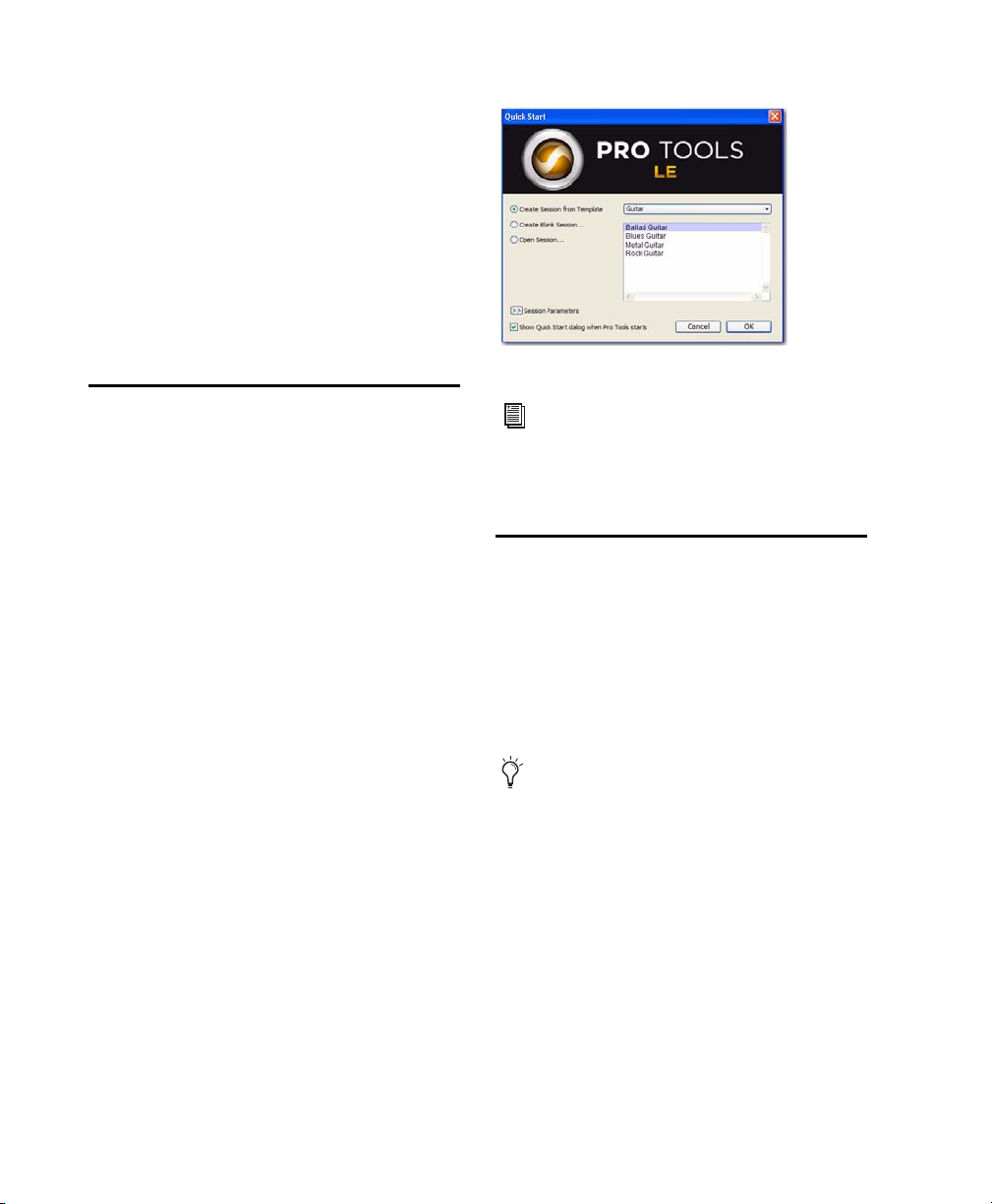
Quick Start dialog
Launching Pro Tools LE
When launching Pro Tools LE the first time, you
are prompted to enter an authorization code to
validate your software. (The code begins with
the letters DIGI.)
To authorize Pro Tools LE software:
1 Make sure Mbox Mini is connected to your
computer.
2 Double-click the Pro Tools LE shortcut on
your desktop (or the application icon in the
Pro Tools folder inside the Digidesign folder).
3 Enter the authorization code in the dialog
(making sure to type it exactly as printed, and
observing any spaces and capitalization), then
click Validate. (Your authorization code is located on the back of your Pro Tools DVD wallet.)
4 Use the Quick Start dialog to do one of
the following:
• Create a new session from template.
• Create a new blank session.
• Open any other session on your system.
For more information on the Quick
Start dialog and session templates, see the
Pro Tools Reference Guide (Help >
Pro Tools Reference Guide).
Additional Software on the Pro Tools Installer Disc
The Pro Tools LE Installer disc provides additional software for your system, including audio
drivers (for playing other audio applications
through your Pro Tools hardware) and a
Pro Tools demo session.
Check your Pro Tools Installer disc for
additional software and installers.
Third-Party Applications and
Plug-Ins
Your Pro Tools package also includes free applications and plug-ins from Avid and selected
Avid Third Party developers (content subject to
change). Once you've completed your Pro Tools
installation, you can install these separately.
Installers are located on your Pro Tools LE Installer disc in the Additional Files\3rd Party
Content folder.
Mbox Mini User Guide14
Page 21

Avid Audio Drivers
The Avid Audio Drivers are multi-client, multichannel sound drivers that allow Pro Tools and
third-party audio programs that support the
ASIO Driver or WaveDriver MME/DirectX
(Multimedia Extension) standards to record and
play back through qualified Pro Tools audio interfaces.
For information on configuring settings for
your audio interface for use with Pro Tools or
other audio applications, see Appendix A,
“Using the Driver Control Panel.”
For additional information on the Avid
Audio Drivers, see the Windows Audio
Drivers Guide.
3 Double-click LE Demo Session Setup.exe.
4 Follow the on-screen instructions.
5 When prompted, select your audio drive as
the install location and click Next to begin the
install.
6 When installation is complete, click Finish.
The demo session can be opened by doubleclicking the Filtered Dream.ptf file (located
in the Filtered Dream Demo Session folder).
Uninstalling Pro Tools
Use the Uninstall Pro Tools application to uninstall Pro Tools software from your computer.
Pro Tools Demo Session
The Pro Tools LE Installer disc includes a demo
session that you can use to verify that your system is working.
The demo session for Pro Tool LE is named
“Filtered Dream.”
Before installing the demo session to your
audio drive, make sure the drive is configured as described in “Formatting an Audio
Drive” on page 50.
To install the demo session:
1 Insert the Pro Tools LE Installer disc into your
DVD drive.
2 On the Pro Tools LE Installer disc, locate and
open the Additional Files\Pro Tools Demo Sessions Installer folder.
To uninstall Pro Tools from your computer:
1 Start Windows, logging in with Administrator
privileges. For details on Administrator privileges, refer to your Windows documentation.
2 Go to C:\Program Files\Digidesign\
Pro Tools\Pro Tools Utilities and double-click
Uninstall Pro Tools.exe.
3 Click Next.
4 Click Uninstall to proceed with the uninstalla-
tion.
Chapter 3: Installing Pro Tools on Windows 15
Page 22

Mbox Mini User Guide16
Page 23

chapter 4
Configuring Your Pro Tools System
After you have connected your system and installed Pro Tools software, you are ready to start
up and configure your Pro Tools system.
Starting Up or Shutting Down Your System
To ensure that the components of your
Pro Tools system communicate properly with
each other, you need to start them in a particular order.
Start up your Pro Tools system in this order:
1 Make sure all your equipment (including your
computer) is off.
2 Lower the volume of all output devices in your
system (especially the main outputs to your
speakers!).
3 Turn on any external hard drives. Wait ap-
proximately ten seconds for them to spin up to
speed.
4 Turn on any control surfaces (such as Com-
mand|8).
5 Turn on any MIDI interfaces, MIDI devices, or
synchronization peripherals.
6 With the volume of all output devices low-
ered, turn on your Pro Tools audio interfaces.
Wait at least fifteen seconds for the audio interface to initialize and the status LEDs to stop
flashing.
7 Turn on your computer.
8 Launch Pro Tools or any third-party audio or
MIDI applications.
9 Bring the output levels up to a comfortable lis-
tening level.
Shut down your Pro Tools system in this order:
1 Quit Pro Tools and any other running applica-
tions.
To quit Pro Tools, choose Pro Tools > Quit
(Mac) or File > Exit (Windows).
2 Turn off or lower the volume of all output de-
vices in your system.
3 Turn off your computer.
4 Turn off any MIDI interfaces, MIDI devices, or
synchronization peripherals.
5 Turn off any control surfaces.
6 Turn off any external hard drives.
Chapter 4: Configuring Your Pro Tools System 17
Page 24

Configuring Pro Tools LE
To change the Hardware Buffer Size:
1 Launch Pro Tools.
Pro Tools System Settings
In the Playback Engine dialog, Pro Tools LE lets
you adjust the performance of your system by
changing system settings that affect its capacity
for processing, playback, and recording.
In most cases, the default settings for your system provide optimum performance, but you
may want to adjust them to accommodate large
or processing-intensive Pro Tools sessions.
Hardware Buffer Size
The Hardware Buffer Size (H/W Buffer Size) controls the size of the buffer used to handle host
processing tasks such as Real-Time AudioSuite™
®
(RTAS
) plug-ins.
• Lower Hardware Buffer Size settings are useful
for improving latency issues in certain recording situations or for improving certain system
performance problems. On Pro Tools LE systems, lower settings reduce all input-to-output monitoring latency on any record-armed
tracks or Auxiliary Input tracks with live inputs.
• Higher Hardware Buffer Size settings are useful for sessions that are using more RTAS plugins for playback. These settings allow for more
audio processing. They can also be useful to
reduce errors on some machines that require a
higher buffer size.
2 Choose Setup > Playback Engine.
3 From the H/W Buffer Size pop-up menu, select
the audio buffer size, in samples.
Playback Engine dialog for Pro Tools LE, with Structure
Free plug-in installed. (Mbox 2 shown)
4 Click OK.
In addition to causing slower screen response and monitoring latency, higher
Hardware Buffer Size settings can increase
the latency caused by RTAS plug-ins, and
affect the accuracy of plug-in automation,
mute data, and MIDI track timing.
Mbox Mini User Guide18
Page 25

Host Processors
The Host Processors setting lets you manage
multi-processor support for RTAS (Real-Time
AudioSuite) plug-in processing.
Used in combination with the CPU Usage Limit
setting, the Host Processors setting lets you control the way RTAS and other host-based processing tasks are carried out by the system.
For example:
• For sessions with large numbers of RTAS plugins, you can allocate 2 or more processors to
RTAS processing and set a high CPU Usage
Limit.
• For sessions with few RTAS plug-ins, you can
allocate fewer Host Processors to RTAS and set a
low CPU Usage Limit settings to leave more host
processing resources available for automation
accuracy, screen response, and video.
• Depending on the importance of video and
overall screen response, and on the density of
automation being employed, try different
combinations of Host Processors and CPU Us-
age Limit settings to achieve the best results.
For example, to improve screen response in a
medium-sized session using a moderate number of RTAS plug-ins, try reducing the number
of RTAS plug-ins, but keep the CPU Usage Limit
set to the maximum (up to 99% on a single
processor system).
To set the number of Host Processors:
1 Choose Setup > Playback Engine.
2 From the Host Processors pop-up menu, select
the number of available processors you want to
allocate. The number of processors varies depending on your computer:
• Select 1Processor to limit processing to
one CPU in the system.
• Choose 2 Processors to enable load balancing across two available processors.
• On systems running four or more processors, choose the number of processors for
processing.
3 Click OK.
System Usage Window and Processing
The System Usage window (Window > System Usage) displays the combined amount of process-
ing occurring on all enabled processors with a
single indicator, regardless of how many processors are available in the system. If the System Usage Window shows that you are at the limit of
available resources, increase the number of processors and adjust the CPU Usage Limit setting.
Chapter 4: Configuring Your Pro Tools System 19
Page 26

CPU Usage Limit
Host Engine (Error Suppression)
The CPU Usage Limit setting controls the percentage of CPU resources allocated to Pro Tools
host processing tasks. Used in combination with
the Host Processors setting, the CPU Usage Limit
setting lets you control the way Pro Tools tasks
are carried out by the system.
•Lower CPU Usage Limit settings limit the effect
of Pro Tools processing on other CPU-intensive tasks, such as screen redraws, and are useful when you are experiencing slow system
response, or when running other applications
at the same time as Pro Tools.
•Higher CPU Usage Limit settings allocate more
processing power to Pro Tools, and are useful
for playing back large sessions or using more
RTAS plug-ins.
The maximum available CPU Usage Limit depends on the number of processors in your computer and on the number of processors you specify for RTAS processing. This value can range
from 85% for single-processor computers, and
99% for multiprocessor computers (which dedicate one entire processor to Pro Tools).
The Host Engine option determines error reporting during playback and recording. This is especially useful when working with instrument
plug-ins.
You should only enable error suppression if you
are experiencing frequent RTAS errors that are
interrupting your creative workflow. When error suppression is enabled, you can experience a
degradation of audio quality. However, this may
be acceptable in order to avoid interrupting
playback and recording when working with instrument plug-ins. Be sure to disable error suppression when you need to ensure the highest
possible audio quality, such as for a final mix.
To enable error suppression:
1 Choose Setup > Playback Engine.
2 Select Host Engine: Ignore Errors During Play-
back/Record.
3 On Mac, you can also select Minimize Additional
I/O Latency.
4 Click OK.
On multiprocessor computers, the maximum
CPU Usage Limit is reduced when you use all your
processors (as selected in the Processing pop-up
menu). For example, on dual-processors, the
limit is 90%. On four-processor computers, the
limit is 95%.
Increasing the CPU Usage Limit may slow
down screen responses on slower computers.
To change the CPU Usage Limit:
1 Choose Setup > Playback Engine.
2 From the CPU Usage Limit pop-up menu, select
the percentage of CPU processing you want to
allocate to Pro Tools.
3 Click OK.
Mbox Mini User Guide20
Error Suppression Options
Ignore Errors During Playback/Record
When the Ignore Errors During Playback/Record
option is enabled, Pro Tools continues to play
and record even if the host processing requirements exceed the selected CPU Usage Limit. This
can result in pops and clicks in the audio, but
does not stop the transport.
Page 27

Minimize Additional I/O Latency (Mac Only)
When enabled, any additional latency due to
suppressing errors during playback and record is
minimized to 128 samples. Suppressing RTAS errors requires at least 128 samples of additional
buffering on some systems. If this option is disabled, the buffer is half the H/W Buffer Size, or at
least 128 samples (whichever is greater). If you
are on an older, slower computer, you may want
to disable this option to avoid adverse performance.
This option is only available on Mac if the Ignore
Errors During Playback/Record option is enabled.
DAE Playback Buffer Size
The DAE Playback Buffer Size setting determines
the amount of memory DAE allocates for disk
buffers. In addition to levels, the DAE Playback
Buffer Size shows values in milliseconds, which
indicate the amount of audio buffered when the
system reads from disk.
The optimum DAE Playback Buffer Size for most
disk operations is 1500 msec; Level 2 (Default).
• DAE Playback Buffer Size settings lower than
1500 msec; Level 2 (Default) may improve
playback and recording initiation speed, as
well as preview in context in DigiBase browsers. However, a lower setting may make it difficult to play or record tracks reliably with
sessions containing a large number of tracks
or a high density of edits, or with systems that
have slower or heavily-fragmented hard
drives.
• DAE Playback Buffer Size settings higher than
1500 msec; Level 2 (Default) allow higher track
count, higher density of edits in a session, or
the use of slower hard drives. However, a
higher setting may increase the time lag when
starting playback or recording, starting preview in context from DigiBase browsers, or
cause a longer audible time lag while editing
during playback.
Using a larger DAE Playback Buffer Size
leaves less system memory for other tasks.
The default setting of 1500 msec (Level 2) is
recommended unless you are encountering
–9073 (“Disk too slow or fragmented”)
errors.
To change the DAE Playback Buffer Size:
1 Choose Setup > Playback Engine.
2 From the DAE Playback Buffer pop-up menu, se-
lect a buffer size. Memory requirements for each
setting are shown at the bottom of the Playback
Engine dialog.
3 Click OK.
If Pro Tools needs more system memory for the
DAE Playback Buffer, it will prompt you to restart your computer.
Chapter 4: Configuring Your Pro Tools System 21
Page 28

Cache Size
The Cache Size setting determines the amount
of memory DAE allocates to pre-buffer audio for
playback and looping when using Elastic Audio.
Minimum Reduces the amount of system memory used for disk operations and frees up memory for other system tasks. However, performance when using Elastic Audio features may
decrease.
Normal Is the optimum Cache Size for most sessions.
Plug-In Streaming Buffer Size
(Structure Plug-In Only)
This setting appears in the Playback Engine dialog only if Structure, Structure LE, or
Structure Free is installed on your system. The
Plug-In Streaming Buffer Size determines the
amount of memory DAE allocates for streaming
playback from disk with the Structure plug-in.
This setting only affects playback if disk streaming is activated in Structure’s plug-in controls
(see the AIR Virtual Instruments Guide for more
information).
Large Improves performance when using Elastic
Audio features, but it also decreases the amount
of memory available for other system tasks, such
as RTAS processing.
Using a larger Cache Size leaves less system
memory for other tasks. The default setting
of Normal is recommended unless you are
encountering -9500 (“Cache too small”)
errors.
To change the Cache Size:
1 Choose Setup > Playback Engine.
2 From the Cache Size pop-up menu, select a
disk cache size.
3 Click OK.
The optimum Plug-In Streaming Buffer Size for
most sessions is 250 ms (Level 2).
• Plug-In Streaming Buffer Size settings lower
than 250 ms (Level 2) reduce the amount of
system memory used for sample playback and
frees up memory for other system tasks. However, audio quality of sample playback may
decrease.
• Plug-In Streaming Buffer Size settings higher
than 250 ms (Level 2) improve the audio quality of sample playback, but they also decrease
the amount of memory available for other system tasks, such as RTAS processing.
Using a larger Plug-In Streaming Buffer Size
leaves less system memory for other tasks.
The default setting of 250 ms (Level 2) is
recommended unless you are experiencing
problems with the audio quality of sample
playback.
To change the Plug-In Streaming Buffer Size:
1 Choose Setup > Playback Engine.
2 From the Plug-In Streaming Buffer Size pop-up
menu, select a buffer size.
3 Click OK.
Mbox Mini User Guide22
Page 29

Optimizing the Plug-In Streaming Buffer
Size
(Structure Plug-In Only)
This option appears in the Playback Engine dialog only if one of the Structure sampler instrument plug-in is installed on your system. This
option is useful when you are playing samples
from the same drive that contains audio for the
current session. When this option is selected,
Pro Tools automatically optimizes the size of the
Plug-In Streaming Buffer to facilitate disk access
from both Pro Tools and Structure. The Plug-In
Streaming Buffer Size pop-up menu is unavailable when this option is selected.
To set Pro Tools to optimize the Plug-In Streaming
Buffer Size:
1 Choose Setup > Playback Engine.
2 Select the Optimize for Streaming Content op-
tion.
3 Click OK.
Default Sample Rate
The Sample Rate setting appears as the default
sample rate when you create a new session. (This
setting is available in the Hardware Setup dialog
only when no session is open.)
You can change the sample rate when creating a new Pro Tools session by selecting a
different sample rate in the New Session
dialog. (Refer to
Guide for details.)
To change the default Sample Rate:
1 Choose Setup > Hardware.
the Pro Tools Reference
Configuring the Pro Tools Hardware Settings
In the Hardware Setup dialog, Pro Tools lets you
set the default sample rate and clock source for
your system, as well as a range of controls specific to each type of audio interface.
Hardware Setup dialog (Mbox shown)
2 Select the sample rate from the Sample Rate
pop-up menu.
3 Click OK.
Chapter 4: Configuring Your Pro Tools System 23
Page 30

Clock Source
The Pro Tools Hardware Setup dialog lets you select the Clock Source for the system.
Internal If you are recording an analog signal directly into Pro Tools, you will usually use the Pro
Tools Internal clock source.
S/PDIF Use this setting if you are recording
through the Mbox Mini S/PDIF input from an
external digital device. This setting will synchronize Pro Tools to that digital device.
To select the Clock Source:
1 Choose Setup > Hardware.
2 Choose the clock source from the Clock Source
pop-up menu.
3 Click OK.
Your digital input device must be connected
and powered on for Pro Tools to synchronize to it. If your input device is not powered
on, leave the Clock Source set to Internal.
Configuring I/O Setup
Using the I/O Setup dialog, you can label
Pro Tools LE input, output, insert, and bus signal
paths. The I/O Setup dialog provides a graphical
representation of the inputs, outputs, and signal
routing of the Mbox Mini.
Pro Tools LE has default I/O Setup settings that
will get you started. Use the I/O Setup dialog
only if you want to rename the default I/O
paths.
To rename I/O paths in I/O Setup:
1 Choose Setup > I/O.
I/O Setup dialog for Mbox
2 Click the Input, Output, Insert, or Bus tab to dis-
play the corresponding connections.
3 To change the name of a path or subpath, dou-
ble-click directly on the Path Name, type a new
name for the path, and press Enter.
4 Click OK.
See the Pro Tools Reference Guide (Help >
Pro Tools Reference Guide) for more information on renaming I/O paths.
Configuring MIDI Setup
If you plan to use any MIDI devices with Pro Tools,
do one of the following:
On Mac, configure your MIDI setup with Au-
dio MIDI Setup. See Appendix B, “Configuring
AMS (Mac OS X Only)” for details.
– or –
On Windows, configure your MIDI setup with
MIDI Studio Setup. See Appendix C, “Configuring MIDI Studio Setup (Windows Only)” for details.
Mbox Mini User Guide24
Page 31

Backing Up your System
Configuration
After configuring your system and Pro Tools,
you should save an image of your system drive
using a backup utility such as Bombich Carbon
Copy Cloner or Time Machine (Mac) or Acronis
True Image or Norton Ghost (Windows). By doing this, you can quickly restore your system
configuration and settings if you encounter any
problems.
Turning Off Energy Saver
To turn off the Energy Saver feature:
1 Choose System Preferences from the Apple
menu and click Energy Saver.
2 Do the following:
• Set the computer sleep setting to Never.
• Set the display sleep setting to Never.
• Deselect “Put the hard disk(s) to sleep when
possible.”
Optimizing a Mac System for Pro Tools
To ensure optimum performance with
Pro Tools, configure your computer before using
Pro Tools software.
Before configuring your computer, make sure
you are logged in as an Administrator for the account where you want to install Pro Tools. For
details on Administrator privileges in Mac OS X,
see your Apple OS X documentation.
Do not use the Mac OS X automatic
Software Update feature, as it may upgrade
your system to a version of Mac OS that has
not yet been qualified for Pro Tools. For
details on qualified versions of Mac OS, visit
www.avid.com/compatibility.
Turning Off Software Update
To turn off the Software Update feature:
1 Choose System Preferences from the Apple
menu and click Software Update.
2 Click the Scheduled Check tab.
3 Deselect “Check for Updates.”
Disable or Reassign Mac Keyboard
Shortcuts Used by Pro Tools
To have the full complement of Pro Tools keyboard shortcuts, you need to disable or reassign
any conflicting Mac OS X Keyboard Shortcuts in
the Apple System Preferences, including the following:
• “Show Help menu”
• Under “Keyboard Navigation”
• “Move focus to the window drawer”
• Under “Dock, Exposé, and Dashboard”
• “Automatically hide and show the Dock”
•“All windows”
• “Application windows”
•“Desktop”
• “Dashboard”
• “Spaces”
• Under “Spotlight”
• “Show Spotlight search field”
• “Show Spotlight window”
For a complete list of Pro Tools keyboard
shortcuts, see the Keyboard Shortcuts Guide
(Help > Keyboard Shortcuts).
Chapter 4: Configuring Your Pro Tools System 25
Page 32

To disable or reassign Mac OS X keyboard
shortcuts:
1 Choose System Preferences from the Apple
menu and click Keyboard.
2 Click the Keyboard Shortcuts tab.
3 Do one of the following:
• Deselect the Mac OS X options that conflict
with Pro Tools keyboard shortcuts.
– or –
• Assign different, non-conflicting keyboard
shortcuts to the corresponding Mac OS X
options.
Reassign Spaces Keyboard Shortcuts
If you want to use Spaces, you should reassign
the Spaces keyboard shortcuts to avoid conflicts
with important Pro Tools keyboard shortcuts.
You can reassign Spaces keyboard shortcuts to
use a combination of modifier keys (Command+Option+Control+Shift) in addition to
the default Spaces keyboard shortcut assignments to avoid these conflicts.
To reassign Spaces keyboard shortcuts to use
modifier key combinations that do not conflict
with Pro Tools keyboard shortcuts:
1 Choose System Preferences from the Apple
menu and click Exposé & Spaces.
2 Click the Spaces tab.
3 Ensure that Enable Spaces is selected.
4 Press and hold Command+Option+Con-
trol+Shift and select “Control+Option+Shift+Command+F8” from the “To activate Spaces” pop-up
menu.
5 Press and hold Command+Option+Con-
trol+Shift and select “Control+Option+Shift+Command+Arrow Keys” from the “To switch between
spaces” pop-up menu.
6 Press and hold Command+Option+Con-
trol+Shift and select “Control+Option+Shift+Command+Number Keys” from the “To switch directly
to a space” pop-up menu.
Disabling Spotlight Indexing
The Mac OS X Spotlight feature automatically
indexes files and folders on local hard drives in
the background. In most cases, this is not a concern for normal Pro Tools operation. However,
if Spotlight starts indexing drives while recording in a Pro Tools session with high track counts
for an extended period of time, it can adversely
affect Pro Tools system performance. You may
want to disable Spotlight indexing for all local
drives before using Pro Tools for big recording
projects.
Disabling Spotlight indexing also disables
the Find function in Mac OS X.
To disable Spotlight indexing:
1 Choose System Preferences from the Apple
menu and click Spotlight.
2 In the Spotlight window, click the Privacy tab.
3 To prevent indexing of a drive, drag its icon
from the desktop into the list.
Mbox Mini User Guide26
Page 33

Enabling Journaling for Audio Drives
Enabling DMA
To yield higher performance from audio drives,
enable journaling.
To enable journaling:
1 Launch the Disk Utility application, located in
Macintosh HD/Applications/Utilities.
2 Select the volume in the left column of the
Disk Utility window.
Select Enable Journaling in the toolbar.
Optimizing a Windows System for Pro Tools
To ensure optimum performance with
Pro Tools LE, configure your computer before
using Pro Tools hardware and software.
For Mac System Optimization, see “Optimizing a Mac System for Pro Tools” on
page 25.
Before configuring your computer, make sure
you are logged in as an Administrator for the account where you want to install Pro Tools. For
details on Administrator privileges, see your
Windows documentation.
Enabling your computer's DMA (Direct Memory
Access) frees up CPU bandwidth so your computer can do other Pro Tools tasks.
In most cases the DMA option will already be set
correctly, as Windows detects and activates
DMA mode by default.
To enable DMA for any IDE hard drives
(Windows 7, Windows Vista, Windows XP):
1 Choose Start.
2 Right-click Computer (Windows 7, Windows
Vista) or My Computer (Windows XP) and choose
Manage.
3 In the left pane of Computer Management un-
der System Tools, click on Device Manager.
4 In the right pane, click the triangle
(Windows 7) or the plus (+) sign (Windows
Vista, Windows XP) next to IDE ATA/ATAPI
Controllers.
5 Double-click on an IDE Channel.
6 Click the Advanced Settings tab.
7 Under Device Properties, check the box Enable
DMA (Windows 7, Windows Vista) or under each
listed Device, set the Transfer Mode to DMA if
available (Windows XP).
Required Optimizations
To ensure optimum performance with
Pro Tools, configure the following settings before using Pro Tools hardware and software.
When you are finished changing Windows
system settings, restart your computer.
8 Click OK.
9 Repeat for each IDE Channel.
Chapter 4: Configuring Your Pro Tools System 27
Page 34

Configuring Windows Power
Management Settings
Pro Tools requires maximum CPU performance
for optimal RTAS processing and disk streaming.
For best performance, use the following recommended Windows Power Management settings.
To configure Windows Power Management
Settings (Windows 7, Windows Vista):
1 Choose Start > Control Panel.
2 Click Hardware and Sound > Power Options.
3 In the Power Options control panel, click High
Performance.
4 Click Change plan settings.
To configure Windows Power Management
Settings (Windows XP):
1 Choose Start > Control Panel.
2 Double-click Power Options.
3 Click the Power Schemes tab.
4 From the Power Schemes pop-up menu, select
Always On.
5 Verify that the following settings are set to
Never:
• Turn off hard disks
• System standby
•System hibernates
6 Click OK.
5 Click Change advanced power settings to
change additional settings.
6 Click Hard disk > Turn off hard disk after =
Never. You can make optional changes such as
disabling sleep and disabling shutting down the
monitor.
7 Click OK or click Save changes to save the
changes.
8 Close the window.
Disabling User Account Control
(Windows 7, Windows Vista)
Some third-party applications that interface
with Pro Tools may require UAC to be disabled
for proper operation.
To disable User Account Control (UAC):
1 Choose Start > Control Panel.
2 Click User Accounts and Family Safety.
3 In the User Accounts and Family Safety control
panel, click User Accounts.
4 Click Change User Account Control settings
(Windows 7) or Turn User Account Control on or off
(Windows Vista).
5 Move the User Account Control slider to Never
Notify (Windows 7), or deselect the Use User Account Control (UAC) to help protect your computer
option (Windows Vista).
6 Click OK.
7 Restart your computer.
Mbox Mini User Guide28
Page 35

Recommended Optimizations
Disabling Network Cards
Pro Tools can also be affected by other software
and hardware drivers installed on your computer. For best possible performance, it is recommended (but not required) that you do the following:
• Avoid running any unneeded programs at
the same time as Pro Tools.
• Turn off any software utilities that run in
the background, such as Windows Messenger, calendars, and disk maintenance programs.
• Turn off any non-essential USB devices
while running Pro Tools.
• If your video display card supports it, enable Bus Mastering in the manufacturer’s
Control Panel. See the manufacturer’s instructions for details.
Optional Optimizations
The following system optimizations may help
Pro Tools perform better on some systems. It is
recommended that you only try these optimizations if necessary, as they may disable or adversely affect the functionality of other programs on your system.
If applicable, disable any networking cards
(other than a FireWire card that you might use
to connect an external drive to your system).
To disable a network card (Windows 7, Windows
Vista):
1 Choose Start > Computer.
2 Click System Properties.
3 In the left-hand pane under Control Panel
Home, click on Device Manager.
4 In the Device Manager window, double-click
Network adapters.
5 Right-click on the network adapter and select
Disable.
6 Repeat as necessary for additional network
adapters
7 Close the Device Manager window.
To disable a network card (Windows XP):
1 Right-click My Computer and choose Manage.
2 Under System Tools, select Device Manager.
3 In the right-hand pane, click “+” to reveal Net-
work adapters.
4 In the Device Manager window, double-click
Network adapters.
5 Right-click on the network adapter and select-
Disable.
6 Repeat as necessary for additional network-
adapters.
7 Close the Computer Management window.
Chapter 4: Configuring Your Pro Tools System 29
Page 36

Adjusting Processor Scheduling
Disabling System Startup Items
To adjust Processor Scheduling performance
(Windows 7, Windows Vista, Windows XP):
1 Right-click Computer (Windows 7, Windows
Vista) or My Computer (Windows XP) and choose
Properties.
2 Click the Advanced system settings link in the
left pane (Vista, Windows 7) or the Advanced
tab (Windows XP).
3 Under the Performance section, click the Set-
tings button.
4 In the Performance Options window, click the
Advanced tab.
5 Under the Processor Scheduling section, select
the Background Services option.
6 Click OK to close the Performance Options
window.
7 Click OK to close the System Properties win-
dow.
8 Restart the computer for the changes to take
effect.
The fewer items in use by your computer, the
more resources are available for Pro Tools. Some
startup applications may be consuming unnecessary CPU resources, and can be turned off.
If you disable any of the following startup items,
do so carefully:
• Portable media serial number (required for
some applications that utilize a copy protection key)
• The Plug and Play service
•Event log
• Cryptographic services
To Disable System Startup Items:
(Windows 7, Windows Vista, Windows XP):
1 From the Start menu, type “msconfig” in Start
Search (Windows 7, Windows Vista) or in Run
(Windows XP) and click OK to open the System
Configuration Utility.
2 Under the General tab, choose Selective
Startup.
3 Deselect Load Startup Items and click OK.
4 Click Restart to restart the computer.
5 After restarting, the computer displays a Sys-
tem Configuration message. Check to see if
Pro Tools performance has increased before you
deselect the Don't show this message again option. If performance has not changed, run
“msconfig” and return your computer Startup
Selection back to Normal Startup - load all device
drives and services. Alternatively, try disabling
Startup items and non-essential processes individually.
Mbox Mini User Guide30
Page 37

chapter 5
Signal Clip
Headphone
output
LEDs
Signal Clip
LEDs
Gain/
–20 dB pad switches 1–2
Mon/Mute
switch
Master monitor
knob
Power
LED
Mix (Ratio)
Phantom power
(+48V) LED
Mbox Mini Hardware Overview
Mbox Mini Front Panel Features
Figure 1 identifies controls, indicators, and input and output ports on the front panel on the
Mbox Mini.
Figure 1. Mbox Mini front panel
Gain/–20 dB Pad Switch 1
This knob adjusts the Input 1 (Mic/Line or DI)
gain level depending on which input is enabled
by the back panel Combo/DI switch. Turn the
knob clockwise to increase gain, and counterclockwise to decrease gain. If your input signal is
too hot even with the Gain knob at a low setting, pull the Gain knob out to engage a “pad”
that attenuates the signal by -20dB.
Gain/–20 dB Pad Switch 2
This knob adjusts the input gain level of Input 2
(Line/DI) depending on which input is enabled
by the back panel Line/DI switch. Turn the knob
clockwise to increase gain, and counter-clockwise to decrease gain. If your input signal is too
hot even with the Gain knob at a low setting,
pull the Gain knob out to engage a “pad” that
attenuates the signal by -20dB.
Chapter 5: Mbox Mini Hardware Overview 31
Page 38

Mix (Ratio)
Signal Clip LEDs
This knob mixes between input and playback.
Mbox Mini gives you the ability to monitor
your analog input signals while recording, without the delay incurred by A/D/A converters and
host-based processing.
This zero-latency analog monitoring is controlled with the Mix knob, which you can use to
blend and adjust the monitor ratio between
Mbox Mini analog inputs and Pro Tools playback.
To listen to just the source input signal, turn the
Mix knob fully left to Input. To listen to
Pro Tools output only, turn the knob fully right
to Playback.
The output from the Mix control is routed directly to the Mon Out (Monitor Outputs), and is
mirrored in the Headphone output.
This ability to blend and control the relative levels of Pro Tools playback and latency-free live
analog inputs can be particularly effective when
overdubbing.
These two signal clip LEDs illuminate green in
the presence of audio signal, and illuminate red
when the signal reaching Mbox Mini is about to
clip. The LEDs are associated with signals routed
from Inputs 1– 2.
Phantom Power (+48V) LED
The phantom power +48V LED indicates that
phantom power is engaged.
Headphone Output
Use the Headphone Output to connect a stereo
headphone with a 1/4-inch stereo connector.
Power LED
The Power LED indicates that the Mbox Mini
has received power from its USB connection.
Once the Power LED light is on, audio can pass
in or out of the system.
Speaker/Mute Switch
This switch mutes the Monitor Outputs, without muting the Headphone Output. This switch
does not affect recording.
Master Monitor Knob
The Master Monitor knob controls the Monitor
output and Headphone output levels. In
Pro Tools, this is the signal that is routed to Outputs 1–2.
Mbox Mini User Guide32
Page 39

Mbox Mini Back Panel Features
Mic/Line
DI
Monitor
Output
+48V
01
Left
02
Right
USB 2.0
Line/DI
02
01
DI
Mic/Line
DI
Line
USB port
Mic/Line input
Phantom power (+48V) switch
Monitor outputs
Line/DI switch
Line/DI
Input 2
Combo/DI switch
DI input
The Mbox Mini back panel has the following features:
Figure 2. Mbox Mini back panel
USB Port
This standard USB connector is used to connect
your computer to the Mbox Mini. One standard
USB cable is included with your system.
Monitor Outputs
To monitor your mix, these outputs can be connected to a mixing board, directly to a monitoring system such as a stereo power amp, or another stereo destination.
These outputs accept TRS (Tip-Ring-Sleeve) or TS
(Tip-Sleeve) 1/4-inch connections.
The Mon Out L and R outputs play the audio
that is routed to analog outputs 1 and 2 from
within Pro Tools, respectively. These analog
outputs feature 24-bit digital-to-analog converters.
Line/DI Switch
This switch selects either the line-level input or
instrument-level input for channel 2. When
pressed in, the instrument-level input (DI) is enabled. When not pressed in, line-level input is
enabled.
DI (Input 1)
The DI input accepts instrument-level 1/4-inch
TS (Tip-Sleeve) connections.
On the front panel, the input signal is adjusted
by the Input 1 Gain control. The source
(Mic/Line or DI) is chosen using the Combo/DI
switch on the back panel.
Chapter 5: Mbox Mini Hardware Overview 33
Page 40

Line/DI (Input 2)
The Line/DI input accepts line level signals, instruments, and other 1/4-inch TRS (Tip-RingSleeve) or TS (Tip-Sleeve) connections.
On the front panel, the input signal is adjusted
by the Input 2 Gain control. The source (Line or
DI) is chosen using the Line/DI switch on the
back panel.
Combo/DI Switch
This switch selects either the Mic/Line input for
channel 1 or the DI input for channel 1. When
pressed in, the channel 1 DI input is selected.
When not pressed in, the channel 1 combination jack connector is selected.
Phantom Power (+48V) Switch
When pressed in, +48V phantom power is active
on the Mic XLR input. Phantom power is provided for microphones that require it to operate.
If you are not sure about the phantom power requirements for your microphone, consult your
microphone’s documentation or contact the
manufacturer.
When using phantom power, Mbox Mini’s
maximum current per microphone is 4 mA.
Mic/Line (Input 1)
The channel 1 Mic/Line input on the back panel
provides Mic (XLR) and Line (1/4-inch TRS) on a
combination jack. Switch between channel 1
Mic/Line and channel 1 DI using the Combo/DI
switch on the back panel.
About Phantom Power
Dynamic microphones (such as a Shure SM57)
do not require phantom power to operate, but
are not harmed by it. Most condenser micro-
phones (like an M-Audio Solaris) do require
phantom power to operate.
Although phantom power can be used
safely with most microphones, it is possible
to damage some ribbon microphones with
it. Always turn off phantom power and wait
at least ten seconds before connecting or disconnecting a ribbon microphone.
Mbox Mini User Guide34
Page 41

chapter 6
Making Studio Connections
To hear audio recorded into a Pro Tools session,
you will need to connect headphones or an external sound system (such as powered monitors
or a home stereo) to Mbox Mini. Sound from
Mbox Mini cannot be played through your
computer’s speakers or your computer’s sound
output.
Connecting Headphones
Connecting a Sound System
Monitor outputs 1–2 on the back of the
Mbox Mini support 1/4-inch plugs. These connections can be balanced TRS (Tip-Ring-Sleeve)
or unbalanced TS (Tip-Sleeve) style connectors.
To listen to your Pro Tools session, these outputs can be connected to any amplification system: powered speakers, a home stereo system, or
an audio mixer.
On the front panel of the Mbox Mini is a 1/4inch jack to connect headphones.
Use the Headphone and Monitor Output Level
control to adjust headphone and monitor output volume.
To connect headphones:
Connect headphones with a 1/4-inch stereo
connector (or adapter) to the Headphone jack.
When connecting to a stereo system, connect
the left channel (often the white plug) to
Mon Out L, and right channel (often the red
plug) to Mon Out R.
Home stereo systems often use RCA connectors. You can use an adaptor or a special cable to convert from the 1/4-inch TRS (TipRing-Sleeve) connectors used by Mbox Mini
to the RCA connectors on your home stereo.
Monitor outputs L and R play the audio that is
routed to analog outputs 1 and 2 within
Pro Tools.
Chapter 6: Making Studio Connections 35
Page 42

Connecting Audio Inputs
Mbox Mini inputs (sources) support microphones, guitars, keyboards, and other types of
instruments. For information about connecting
specific audio sources, see “Connecting a Microphone to the Mbox Mini” on page 36, and
“Connecting Instruments to the Mbox Mini” on
page 37.
Overview of Analog Inputs
Mbox Mini provides a total of two channels of
analog input on the back panel. These jacks are
labeled Mic/Line and DI (input 1) and Line/DI
(input 2).
Mic/Line (Input 1)
Input 1 provides Mic/Line and DI input connectors. Inputs are selectable with the back panel
Combo/DI switch. When the Combo/DI switch
is pressed in, the DI input is selected (the DI input jack is located above the Line/DI jack.).
When not pressed in, the combo connector
jacks (XLR, 1/4-inch) are selected.
These inputs appear as Analog In (1) in
Pro Tools.
XLR For XLR microphone cables.
1/4-inch TRS (Tip-Ring-Sleeve) or TS (Tip
Sleeve) Fo r l in e or D I i np uts fr om guit ar s, key -
boards, mixers or similar sources.
Line/DI (Input 2)
Input 2 provides a Line/DI input connector. The
input is selectable with the back panel Line/DI
switch (located to the upper-left of the input).
This input appears as Analog In (2) in Pro Tools.
Line/DI For line or DI inputs from guitars, keyboards, mixers or similar sources.
Connecting a Microphone to the Mbox Mini
Mic Cables and Connectors
Use a microphone with an XLR connector to
connect the microphone to the Mbox Mini.
The Mbox Mini can only supply power through
a microphone cable with an XLR connector. If
you are not sure about the phantom power requirements for your microphone, refer to your
microphone’s documentation or contact the
manufacturer.
XLR connector
Phantom Power
Some microphones require power to operate.
This power, called phantom power, is supplied either by a battery in the microphone, or through
an audio interface (such as Mbox Mini) that can
supply power through the microphone cable.
Most condenser microphones (such as an
M-Audio Solaris) require phantom power to operate. Dynamic microphones (such as a Shure
SM57) do not require phantom power to operate, but are not harmed by it.
Although phantom power can be used
safely with most microphones, it is possible
to damage some ribbon microphones with
it. Always turn off phantom power and wait
at least ten seconds before connecting a ribbon microphone.
Mbox Mini Setup Guide36
Page 43

Using a Mic that Has an XLR
Connector
To use a microphone that has an XLR connector:
1 Plug your microphone cable into the Mic/Line
input on the back of Mbox Mini.
2 Set the Combo/DI switch on the back to
Combo (or “microphone”) position. The button
should be out, not pressed in.
3 If your microphone requires phantom power,
make sure the microphone is connected, then
press the Phantom Power switch (labeled +48V)
on the back of the Mbox Mini. +48v phantom
power is enabled when the switch is pressed in.
4 On the front of the Mbox Mini, turn the Mix
control fully left to Input.
5 On the front of the Mbox Mini, carefully turn
the Input 1 Gain control to the right to increase
the input level of your microphone signal.
6 If the incoming signal is too loud, pull the
Gain knob out to engage the 20 dB pad.
3 On the front of the Mbox Mini, turn the Mix
control fully left to Input.
4 On the front of the Mbox Mini, carefully turn
the input’s Gain control to the right to increase
the input level of your guitar.
5 If the incoming signal is too loud, pull the
Gain knob out to engage the 20 dB pad.
To use a keyboard or mixer with Mbox Mini:
1 Plug your keyboard, mixer, or other audio
source into either the Input 1 or Input 2 (TRS)
inputs on your Mbox Mini. If your source is stereo (such as a stereo keyboard or the stereo output from a mixer), connect the left channel
(often the white plug) to Input 1, and right
channel (often the red plug) to Input 2.
2 If you are using Input 1 (Mic/Line), set the
Combo/DI switch on the back panel to Combo,
by pressing the switch out.
If using Input 2 or if using both inputs
(1 and 2) in a stereo configuration, make sure
the Line/DI button for Input 2 is in the “out”
(Line) position.
Connecting Instruments to the Mbox Mini
Mbox Mini provides Line/DI inputs that support direct instruments (such as electric guitar
and electric bass), and line level devices (including electronic audio sources such as mixers,
samplers, keyboards, turntables, and synthesizers).
To use a guitar with Mbox Mini:
1 On the back of the Mbox Mini, plug your gui-
tar cable into one of the DI inputs (in this example, input 2).
2 On the back panel, make sure the Line/DI
switch is in the “in” position.
3 On the front of the Mbox Mini, turn the Mix
control fully left to Input.
4 Set your instrument’s volume to its optimal
level. For example, the optimal level for most
keyboards is between 80% and 100% of maximum volume.
5 On the front of the Mbox Mini, carefully turn
the input’s Gain control to the right to increase
the input level of your keyboard.
6 If the incoming signal is too loud, pull the
Gain knob out to engage the 20 dB pad.
Chapter 6: Making Studio Connections 37
Page 44

Mbox Mini Setup Guide38
Page 45

appendix a
Web links
Sample Rate menu
Status indicators
Buffer Size menu
Using the Driver Control Panel
The Mbox Mini Driver Control Panel lets you
configure settings for your audio interface for
use with Pro Tools or other audio applications
that support the CoreAudio Drivers (Mac) or
ASIO Audio Drivers (Windows) standard.
The Driver Control Panel also features convenient links to driver updates, downloadable
manuals, FAQs, tech support, product registration, and our website (www.avid.com).
To open the Driver Control Panel:
On Mac, launch System Preferences (Apple
menu > System Preferences), then double-click
Avid Mbox Mini. (You can also open the Driver
Control Panel from the Applications menu.)
– or –
On Windows, choose Start > All Programs >
Avid > Mbox Mini > Mbox Mini Control Panel
.
Mbox Mini Driver Control Panel in stand alone mode
To open the Driver Control Panel from Pro Tools:
1 Choose Setup > Hardware in the Edit window.
2 Click launch control panel.
Appendix A: Using the Driver Control Panel 39
Page 46

Setting Sample Rate and Buffer
Size
From the Driver Control Panel, you can change
the Sample Rate or Buffer Size setting or access
the Hardware Setup dialog for your Mbox Mini
or third-party application.
To set the Sample Rate:
Click the Sample Rate pop-up menu (located
in the upper part of the Driver Control Panel)
and choose the Sample Rate you want.
Sample Rate
Using the Status Indicators
Along the bottom-left of the Driver Control
Panel are the following status indicators:
Hardware Connected
This indicates if a properly installed, poweredon Mbox Mini is connected to the computer.
Streaming
This indicates if audio from a Digital Audio
Workstation or a media player (such as iTunes or
foobar) is currently streaming within Pro Tools.
You may select from the following sample rates:
• 44100
• 48000
To set the Buffer Size:
Click the Buffer Size pop-up menu and choose
the number of samples you want.
Buffer Size (Windows Only)
You may select from the following number of
samples:
• 128 samples
• 256 samples
• 512 samples
• 1024 samples
• 2048 samples
• 4096 samples
Viewing Firmware and Installer
Information
Directly above the status indicators, you can
view the firmware version of the Mbox Mini
hardware, and the package version of the
Mbox Mini driver installer.
Accessing the Web Links
Along the bottom-right of the Driver Control
Panel you can easily access helpful online resources on our Avid website (www.avid.com) by
clicking on the following pop-up menus:
•Manual
•Updates
• Support
•FAQs
•Register
Clicking on any of the “Web links” will
open your web browser. Your computer must
have Internet access for these pages to load.
Mbox Mini User Guide40
Page 47

appendix b
Configuring AMS (Mac OS X Only)
2 Click MIDI Devices. AMS scans your system for
Audio MIDI Setup
Pro Tools recognizes the ports on your MIDI interface as generic ports. With Mac OS X, you use
Apple’s Audio MIDI Setup (AMS) utility to identify external MIDI devices connected to your
MIDI interface and configure your MIDI studio
for use with Pro Tools.
To configure your MIDI studio in AMS:
1 Do one of the following:
• Launch Audio MIDI Setup (located in Macintosh HD/Applications/Utilities). Click
Window > Show MIDI Window to view MIDI
studio.
– or –
• In Pro Tools, choose Setup > MIDI > MIDI
Studio. In Audio MIDI Setup, click
Window > Show MIDI Window to view MIDI
studio.
connected MIDI interfaces. If your MIDI interface is properly connected, it appears in the window with each of its ports numbered.
Audio MIDI Setup (MIDI Devices) Mbox shown
3 For any MIDI devices connected to the MIDI
interface, click Add Device. A new external device
icon with the default MIDI keyboard image will
appear.
4 Drag the new device icon to a convenient lo-
cation within the window.
Appendix B: Configuring AMS (Mac OS X Only) 41
Page 48

5 Connect the MIDI device to the MIDI inter-
face by clicking the arrow for the appropriate
output port of the device and dragging a connection or “cable” to the input arrow of the corresponding port of the MIDI interface.
Making MIDI input and output connections
(Mbox shown)
6 Click the arrow for the appropriate input port
of the device and drag a cable to the output arrow of the corresponding port of the MIDI interface.
To remove a connection, select the cable and
press Delete. To delete all connections, click
Clear Cables.
7 Repeat steps 3–6 for each MIDI device in your
MIDI setup.
2 Select a manufacturer and model for the new
device from the corresponding pop-up menus.
(If the Manufacturer and Model pop-up menus
do not provide a name for your particular device, you can type a name.)
Naming a new MIDI device
For Manufacturer and Model names, AMS
refers to one or more files with the suffix
“.middev” in the directory Root/Library/
Audio/MIDI Devices. Pro Tools installs a
file that contains information for many
commercially available MIDI devices,
named “Digidesign Device List.middev.” If
the Manufacturer or Model names for any of
your external MIDI devices is not available
in the AMS Manufacturer and Model pop-up
menus, you can add them by editing the
.middev file in any text editor (such as
TextEdit).
To configure an external MIDI device:
1 Select the external device icon and click Show
Info (or double-click the new device icon).
External Device Icon
Mbox Mini User Guide42
Page 49

3 Click the More Information arrow to expand
the dialog, then enable the appropriate MIDI
channels (1–16) for the Transmits and Receives
options. (These determine which channels the
device will use to send and receive MIDI.)
Enabling MIDI channels
4 Click the device image. The window expands
to show images for various MIDI devices (such
as keyboards, modules, interfaces, and mixers).
Select an icon for your device.
Selecting a device icon
To use your own custom icons, you can
place TIFF image files in /Library/
Audio/MIDI Devices/Generic/Images, and
they will appear as choices in the AMS
device window.
5 Click OK.
The device names you enter appear as MIDI input and output choices in Pro Tools.
Appendix B: Configuring AMS (Mac OS X Only) 43
Page 50

MIDI Patch Name Support
Patch Select button
(Edit window)
Patch Select button
(Mix window)
Change button
Pro Tools supports XML (Extensible Markup
Language) for storing and importing patch
names for you external MIDI devices. Pro Tools
installs MIDI patch name files (.midnam) for the
factory default patch names of many common
MIDI devices. These files reside in directories,
sorted by manufacturer, in Macintosh HD/
Library/Audio/MIDI Patch Names/Digidesign.
To import MIDI patch names into Pro Tools:
1 Verify the MIDI Device name in the Audio
MIDI Setup window (see “Aud io MIDI S etup ” on
page 41).
2 Verify the Instrument or MIDI track output is
correctly assigned to the MIDI device.
3 Click the Instrument or MIDI track Patch Se-
lect button.
4 In the Patch Select dialog, click Change.
Patch Select dialog
5 In the Open dialog, navigate to /Library/Au-
dio/MIDI Patch Names/Digidesign/<name of
manufacturer>, and select the MIDI Patch Name
file (.midnam) for the MIDI device.
6 Click Open.
The Patch Select dialog is populated with patch
names and the Patch Name Bank pop-up menu
appears in the upper left hand corner of the window.
Once patch names have been imported into
Pro Tools, they are available for that MIDI device in all sessions.
Patch Select button
Mbox Mini User Guide44
To clear patch names:
In the Patch Select dialog, click Clear, and the
click Done.
MIDI patch name files (.midnam) can be
edited in any text editor, or you can use
third-party patch librarian and editor software to create your own custom patch
names.
Page 51

appendix c
Configuring MIDI Studio Setup (Windows Only)
MIDI Studio Setup
MIDI Studio Setup (MSS) lets you configure the
MIDI controllers and sound modules that are
connected to your system, and control the routing of MIDI data between your MIDI equipment
and Pro Tools.
MSS automatically finds MIDI interfaces, and
lets you specify a custom name for each of the
MIDI ports within the MIDI Studio Setup document.
MSS also supports XML-based patch file names
for storing and importing patch names for your
external MIDI devices.
Entire MIDI Studio Setup configurations created
within MSS can be imported and exported.
MIDI Studio Setup Window
The MIDI Studio Setup window is organized
into three sections. Interface controls are at the
top of the window. All the currently defined instruments are displayed in the Instrument Name
list on the left side of the window. A detailed
view of MIDI parameters is shown in the Properties section on the right.
MIDI Studio Setup window
Appendix C: Configuring MIDI Studio Setup (Windows Only) 45
Page 52

Interface Controls
Properties Section
Create Adds a new instrument to the Instrument Name list.
Delete Deletes the instrument or instruments selected in the Instrument Name list.
Import Imports an existing MIDI Studio Setup
file.
Export Exports the current MIDI Studio Setup
file.
Show Duplicate Emulated Ports When this option is selected and you are using a MIDI interface that supports timestamping (such as MIDI
I/O), in addition to the MIDI ports on
Mbox Mini, the MIDI Studio setup window
shows both the DirectMusic time-stamped output ports, and non-stamped duplicate emulated
output ports.
Some MIDI Interfaces will not properly load
or unload their drivers unless you quit and
re-launch Pro Tools. Check the documentation that came with your MIDI interface for
more information.
Instrument List
The Properties section lets you edit information
for new instruments, or instrument currently selected in the Instrument list.
MIDI Studio Setup Properties section
When a previously defined instrument is selected in the Instrument list, the Properties section changes to reflect the properties of the selected instrument.
To define an instrument with MIDI Studio Setup:
1 Choose Setup > MIDI > MIDI Studio.
2 Click Create.
3 In the Instrument Name field, type the name
of your instrument, and press Enter.
The Instrument list contains all the currently
defined instruments. Selecting an instrument in
the list displays that instrument’s properties in
the Properties section of the window.
Mbox Mini User Guide46
If you do not enter an instrument name, the
Instrument Name field will automatically
inherit information from the Manufacturer
and Model pop-up menu.
4 Set a manufacturer and model for the new de-
vice from the corresponding pop-up menus. If
the Manufacturer and Model pop-up menus do
not provide a name for your particular device,
select None.
5 From the Input pop-up menu, select the input
po rt on y ou r MI DI int er face that is connected to
the MIDI Out of your instrument.
Page 53

6 From the Output pop-up menu, select the out-
put port on your MIDI interface that is connected to the MIDI In of your instrument.
7 Enable the appropriate MIDI channels (1–16)
for the Send Channels and Receive Channels options (These determine which channels send
and receive MIDI.)
terface port that is set and displayed here is the
port through which MIDI data is sent from the
external MIDI device specified in the Instrument Name field into your MIDI interface.
If you set the input port to None, the defined
instrument will not appear as a choice in a
MIDI Input selector.
Instrument Name
The Instrument Name field shows the user-definable instrument name for the currently selected instrument.
Manufacturer
The Manufacturer pop-up menu provides a list
of MIDI equipment manufacturers. This list is
derived from the XML-based MIDI device files.
For more information, see “MIDI Patch
Name Support” on page 47.
Model
The Model pop-up menu provides a list of MIDI
devices, filtered by the manufacturer name. This
list is derived from the XML-based MIDI device
files provided with your Pro Tools installation.
For more information, see “MIDI Patch
Name Support” on page 47.
Input Port
Output Port
The Output Port pop-up menu displays a list of
available MIDI interface output ports. The port
set and displayed here is the port through which
MIDI data is sent from your MIDI interface to
the MIDI device specified in the Instrument
Name field.
If you set the output port to None, the defined instrument will not appear as a choice
in a MIDI Output selector.
Send Channels
The Send Channels grid sets the send channels
for the MIDI device specified in the Instrument
Name field.
Receive Channels
The Receive Channels grid sets the receive channels for the MIDI device specified in the Instrument Name field.
The Input Port pop-up menu displays a list of
available MIDI interface input ports. Inputs will
include Mbox Mini and any additional MIDI interfaces enabled on your system. The MIDI in-
MIDI Patch Name Support
Pro Tools supports XML (Extensible Markup
Language) for storing and importing patch
names for your external MIDI devices. Pro Tools
installs MIDI patch name files (.midnam) for the
factory default patch names of many common
MIDI devices. These files reside in directories,
sorted by manufacturer, in C:\Program Files\
Common Files\Digidesign\MIDI Patch Names\
Digidesign.
Appendix C: Configuring MIDI Studio Setup (Windows Only) 47
Page 54

To import MIDI patch names into Pro Tools:
Patch Select button
(Edit window)
Patch Select button
(Mix window)
Change button
1 Verify the MIDI Device name in the MIDI Stu-
dio Setup window (see “MIDI Studio Setup” on
page 45).
2 Verify the Instrument or MIDI track output is
correctly assigned to the MIDI device.
3 Click the Instrument or MIDI track Patch Se-
lect button.
Patch Select button
4 In the Patch Select dialog, click Change.
The Patch Select dialog is populated with patch
names and the Patch Name Bank pop-up menu
appears in the upper left hand corner of the window.
Patch Select dialog with patch names
Once patch names have been imported into
Pro Tools, they are available for that MIDI device in all sessions.
To clear patch names:
In the Patch Select dialog, click Clear and then
click Done.
Patch Select dialog
5 In the Open dialog, navigate to C:\Program
Files\Common Files\Digidesign\MIDI Patch
Names\Digidesign\<name of manufacturer>,
and select the MIDI Patch Name file (.midnam)
for the MIDI device.
6 Click Open.
Mbox Mini User Guide48
MIDI patch name files (.midnam) can be
edited in any text editor, or you can use
third-party patch librarian and editor software to create your own custom patch
names.
Page 55

appendix d
Hard Drive Configuration and Maintenance
It is recommended that you start with a newly
formatted external or secondary internal audio
drive. You should also periodically defragment
your audio drive to ensure continued system
performance.
Supported Drive Formats and Drive Types
Drive Formats
Always back up any important data on your
drive before formatting it, as it will erase all
data on the drive.
Avoid Recording to the System Drive
Recording to your system drive is not recommended. Recording and playback on a system
drive may result in lower track counts or fewer
plug-ins.
Mac Mac systems should use drives formatted
with HFS+ or HFS file system only.
HFS drives are supported as Transfer drives
only.
Windows Windows systems should use drives
formatted as NTFS only.
Windows systems can also support Mac
drives formatted with HFS+ system (also
commonly referred to as Mac OS Extended).
Refer to the Pro Tools Reference Guide for
more information (Help > Pro Tools Reference Guide).
Hard drive performance depends on factors including system configuration, number of tracks,
session sample rate, density of edits, and the use
of crossfades and other processes such as Beat
Detective in a session.
For complete hard drive requirements, visit our
website (www.avid.com).
Appendix D: Hard Drive Configuration and Maintenance 49
Page 56

SCSI Hard Drives
Avid recommends qualified SCSI hard drives
and a qualified SCSI host bus adapter (HBA) card
or (on Windows systems) a qualified built-in
SCSI HBA connector on the motherboard.
For complete information on track count and
the supported number and configuration of
SCSI drives, visit our website (www.avid.com).
FireWire Hard Drives
Avid recommends qualified FireWire drives and
(on Windows systems) a qualified FireWire host
adapter.
For complete information on track count and
the supported number and configuration of
FireWire drives, visit our website
(www.avid.com).
IDE/ATA/SATA Hard Drives
A qualified internal IDE/ATA/SATA drive may be
used as a dedicated audio drive.
2 Click the Erase tab.
Disk Utility (Mac OS X)
3 Select the drive you want to initialize in the
column on the left side of the window.
4 Choose the Mac OS Extended (Journaled) for-
mat.
Do not choose the “Case-Sensitive” format
option. Pro Tools will not operate properly
with case-sensitive formatted drives.
For complete information on track count with
internal drives, refer to our website
(www.avid.com).
Formatting an Audio Drive
Formatting Mac Audio Drives
For optimum performance, audio drives should
be formatted as Mac OS Extended (Journaled).
To format an audio drive:
1 Launch the Disk Utility application, located in
Macintosh HD/Applications/Utilities.
Mbox Mini User Guide50
5 Type a name for the new volume.
6 If you plan to connect the drive to a Mac OS 9
computer, select Install Mac OS 9 Drivers
(Mac OS 9 options only appear in 10.5 or below).
7 Click Erase.
The drive appears on the Desktop with the new
volume name.
Page 57

Formatting Windows Audio Drives
3 If the volume is “Healthy,” do the following:
For optimal performance, audio drives should
be formatted as NTFS.
Pro Tools only supports Basic drive types.
Do not convert the drive to a Dynamic type.
To format an audio drive (Windows 7,
Windows Vista, and Windows XP):
1 Right-click Computer (Windows 7,
Windows Vista) or My Computer (Windows XP)
and choose Manage.
2 Under Storage, choose Disk Management.
Disk Management window (Windows XP)
Healthy volumes are volumes that have previously been partitioned and formatted.
• In the Disk Management window, rightclick the hard drive you will use for audio
and choose Format.
• In the Format window, name the volume.
• Choose a file system. For optimum performance, audio drives should be formatted as
NTFS.
• Select Perform a quick format.
•Make sure Enable file and folder compression
is not selected.
• Set the Allocation unit size to Default.
• Click OK.
4 If the volume is “Unallocated,” do the follow-
ing:
• In the Disk Management window, Rightclick the hard drive you will use for audio
and choose New Partition.
• In the New Partition Wizard window, click
Next.
• When prompted, select the partition type.
Avid recommends using Primary partitions,
instead of Extended partitions.
• Follow the on-screen instructions to select
a partition size and other partition settings.
• When prompted, choose a file system. For
optimum performance, audio drives
should be formatted as NTFS.
• Select Perform a quick format.
•Make sure Enable file and folder compression
is not selected.
• Set the Allocation unit size to Default.
• Click OK.
Appendix D: Hard Drive Configuration and Maintenance 51
Page 58

Partitioning Drives
Partitioning creates a logical volume or volumes
on a physical drive, almost as if you were creating virtual hard drives. Partitions can then be
formatted with the appropriate file system
(NTFS for Windows, HFS+ for Mac).
Mac OS allows drives larger than 4096 MB
to be seen as whole volumes. Drives must be
initialized with a disk utility that recognizes the 2 terabyte limit. Single Pro Tools
audio files cannot exceed 3.4 GB in size.
Windows XP allows drives formatted with
the NTFS file system to be seen as whole
volumes. Single Pro Tools audio files cannot exceed 3.4 GB in size.
Seek Times on Partitioned Drives
Seek times are actually faster on partitioned
drives (assuming that reads and writes are performed on a single partition), since the heads
only have to seek within the partition boundaries, rather than the whole capacity of the drive.
Smaller partitions perform faster than larger partitions, but this comes at the expense of contiguous storage space. When you partition a drive,
you will need to find the compromise that best
suits your performance and storage requirements.
Avoid distributing audio files within a session over different partitions on the same
drive since this will adversely affect drive
performance.
Defragmenting an Audio Drive
Mac Systems
When working with larger files (such as video),
you can limit fragmentation by backing up your
important files to another disk, erasing the files
from the original hard disk, then copying the
files back, instead of doing a defragmentation.
Window Systems
Periodically defragment audio drives to maintain
system performance.
For maximum recording and playback efficiency, data should be written to your hard
drive in a contiguous fashion—minimizing the
seek requirements to play back the data. Unfortunately, your computer can’t always store the
sound files in this way and must write to disk
wherever it can find space.
In multitrack recording, audio tracks are written
in discrete files, spaced evenly across the disk.
While fragmentation of individual files may be
zero, the tracks may be far enough apart that
playback will still be very seek-intensive. Also,
the remaining free space on the disk will be discontiguous, increasing the likelihood of file
fragmentation on subsequent record passes.
Increased fragmentation increases the chance of
disk errors, which can interfere with playback of
audio, and result in performance errors.
On Windows, to avoid fragmentation, format drives with higher cluster sizes (such as
32K).
Mbox Mini User Guide52
Page 59

Optimizing (Defragmenting) Drives
To prevent fragmentation, you can optimize
your drive, which rearranges your files into a
contiguous format. Most optimizing software
lets you run a check on a drive to find out the
percentage of fragmentation. If your drive
shows moderate to heavy fragmentation, you
should consider optimizing it.
If you use your system for intensive editing, or if
you frequently delete audio or fade files from
your hard drive, you may need to optimize your
drives on a weekly basis, or even every few days,
since it doesn’t take long for even a large hard
drive to become fragmented.
Backing Up Data Before Optimizing
Since your files will be rewritten by the optimization process, always make a backup copy of
the data on your hard drive before you optimize
it. You should also use a hard drive utility to find
and repair any problems before optimizing data
or re-initializing your drives. If there is any damage to your hard drive's directories prior to optimizing, serious data loss may result.
Defragmenting Windows Audio Drives
5 When defragmenting is complete, close the
Disk Defragmenter window.
In Windows 7 you can Ctrl-Click on the
drive names to select multiple drives to defragment, and once more than one drive is
selected, the button changes to “Defragment disks.”
The “Defragment Now” (Vista only) command defragments all your hard drives.
This can take a lot of time, especially on
systems with multiple drives.
Advanced users can use the command line
tool Defrag.exe to defragment individual
drives. See your Windows Vista documentation for more information.
To defragment an audio drive (Windows XP):
1 Right-click My Computer and choose Manage.
2 Under Storage, choose Disk Defragmenter.
3 In the Disk Defragmenter window, choose the
drive you want to defragment
4 Click the Defragment button and follow the
on-screen instructions.
To defragment an audio drive (Windows 7 and
Windows Vista):
1 Click Start.
2 Type “disk defragmenter” in the search field at
the bottom. “Disk Defragmenter” should appear
at the top of the search results.
3 Click the Disk Defragmenter.
4 Click the Defragment disk button (Windows 7)
or the Defragment now button (Windows Vista).
Follow the on-screen instructions.
5 When defragmenting is complete, close the
Computer Management window.
Appendix D: Hard Drive Configuration and Maintenance 53
Page 60

Using Mac Drives on Windows Systems
Pro Tools for Windows lets you record and play
back sessions directly from a Mac-formatted
(HFS+) drive connected to a Windows system.
This functionality requires that all Mac session
and audio files be stored on Mac-formatted
drives.
During Pro Tools installation, make sure to select the Mac HFS+ Disk Support option. This option lets your Pro Tools system read, write, record, and play back using Mac-formatted HFS+
disks.
For information on sharing sessions between Mac and Windows systems, see the
Pro Tools Reference Guide (Help >
Pro Tools Reference Guide).
Formatting and Maintaining HFS+
Drives
To format and partition any drives as HFS+, connect the drives to a Mac computer and use the
Apple OS X Disk Utility to format the drives as
Mac OS Extended (Journaled).
Mbox Mini User Guide54
Page 61

Hard Disk Storage Space
Mono audio tracks recorded with 16-bit resolution at 44.1 kHz (CD quality) require approximately
5 MB of hard disk space per minute. The same tracks recorded with 24-bit resolution require about
7.5 MB per minute.
Stereo audio tracks recorded with 16-bit resolution at 44.1 kHz (CD quality) require approximately
10 MB of hard disk space per minute. The same tracks recorded with 24-bit resolution require about
15 MB per minute.
Table 5 lists the required disk space for certain track numbers and track lengths, to help you estimate
your hard disk usage.
Table 5. Required hard drive space for audio tracks (44.1 kHz and 48 kHz sessions shown)
Number of Tracks and Length 16-bit at
44.1 kHz
1 mono track, 1 minute 5 MB 5.5 MB 7.5 MB 8.2 MB
16-bit at
48 kHz
24-bit at
44.1 kHz
24-bit at
48 kHz
1 stereo track (or two mono
tracks), 5 minutes
1 stereo track (or two mono
tracks), 60 minutes
24 mono tracks, 5 minutes 600 MB 662 MB 900 MB 991 MB
24 mono tracks, 60 minutes 7 GB 7.8 GB 10.5 GB 11.6 GB
32 mono tracks, 5 minutes 800 MB 883 MB 1.2 GB 1.3 GB
32 mono tracks, 60 minutes 9.4 GB 10.4 GB 14 GB 15.4 GB
50 MB 55 MB 75 MB 83 MB
600 MB 662 MB 900 MB 991 MB
Appendix D: Hard Drive Configuration and Maintenance 55
Page 62

Mbox Mini User Guide56
Page 63

appendix e
Troubleshooting
Backing Up Your Work
It is highly recommended that you back up your
work on a regular basis, and especially before
making changes to your system configuration.
Backing Up Your Session Data
Back up your session and audio data frequently.
There are a variety of media that are suited to
back up projects of various sizes, from automated tape backup systems to high-capacity optical drives, or to CD burners.
The best way to back up an entire session is to
use the Save Copy In command. This command
lets you save the session file and all of its associated files to a new location.
The Auto Save Backup feature (in the
Operation Preferences page) sets
Pro Tools to automatically save backups
of the session file while you work.
Backing Up Your System
Configuration
After configuring your system and Pro Tools,
you should save an image of your system drive
using a backup utility such as Norton Ghost
(Windows) or Bombich Carbon Copy Cloner
(Mac). By doing this, you can quickly restore
your system configuration and settings if you
encounter any problems.
Common Issues
Pro Tools Won’t Launch
Problem
When you double-click the Pro Tools application or a Pro Tools session file, Pro Tools doesn’t
launch, or displays an error message.
Possible Solutions
Check to be sure your computer has the re-
quired amount of RAM to launch Pro Tools.
Visit www.avid.com/compatibility.
Try a complete restart. Turn off your audio in-
terfaces, computer peripherals and your computer, and then turn them on again in the
proper sequence.
Appendix E: Troubleshooting 57
Page 64

If you tried to launch Pro Tools by double-
clicking a Pro Tools session file, do the following:
• Close any error message.
• Double-click the Pro Tools application.
• In Pro Tools, choose File > Open Session to
open the session.
Reinstall the Pro Tools application, using the
Pro Tools Installer disc.
Audio Interface Is Not Recognized
Problem
When you launch Pro Tools it does not recognize an audio interface, or a connected audio
interface is not available.
Performance Factors
There are several conditions that may adversely
affect the performance of Pro Tools. These
include:
Network Connections Close any network connections unless you are using them for network
interchange of audio data.
Background Applications Any software utilities
that run in the background or generate disk
activity, such as virus protection, disk optimization, or file savers, should be turned off or
removed.
Screen Savers Screen saver software should be
completely disabled on your computer before
running Pro Tools.
Possible Solutions
Turn off your computer and check to be sure
your cables are properly and securely connected
to your computer and to your audio interface.
Verify that your Hardware Setup dialog set-
tings are correct.
Power Saver Features Some automatic power
saver features, such as those that spin down the
system hard drive, can affect Pro Tools performance. These features should be turned off.
Mbox Mini User Guide58
Page 65

Before You Call Avid Support
Register Your System
Register your purchase by following the instructions on the Registration Information Card included with your system. By registering, you become eligible to receive the following:
• Technical support information
• Software update and upgrade notices
• Hardware warranty information
Gather Important Information
Avid wants to help you resolve problems as
quickly and efficiently as possible. If you collect
the following information before you contact
Avid Support, it will make the diagnosis of your
problem easier.
Pro Tools Software
• Pro Tools software version
• Plug-In versions
• Other Pro Tools software options or
components
• Additional plug-ins from Avid
Development Partners
Other Hardware
Refer to the manufacturer’s documentation for
operational details.
The most common hardware additions include:
• 1394 (FireWire) cards for Windows systems
(manufacturer, model)
• Video Capture cards (manufacturer, model)
To verify that your hardware is qualified for use
with your Pro Tools system, visit:
www.avid.com/compatibility
System Information
Computer
• Make, model, processor speed
• Amount of system RAM
• Operating system (version of Windows or
Mac OS)
• Any Drivers, Disk Utilities, or other systemrelated applications you may have installed
Pro Tools Hardware
• Type of cards, interfaces, or peripherals
Hard Drives
•Make, Model
•Drive size (GB)
• Drive speed (RPM)
• Drive type (SCSI, FireWire, IDE/ATA)
• Utility used to format the drive
• Number and size of partitions on the drive
Other Software
If you are using other audio or video applications, refer to the manufacturer’s documentation for operational details.
Make note of any other software that was running when a problem occurred.
Diagnostic Information
Note any DAE errors or other error codes you encounter. Additonally, note the ability to reproduce the problem under different conditions,
for example, with another session, or after
changing settings (such as the Hardware Buffer
Size).
Appendix E: Troubleshooting 59
Page 66

Mbox Mini User Guide60
Page 67

appendix f
Resources
Whether you are new to Pro Tools or just starting out with your new system, we encourage
you to read and utilize the many guides that
Pro Tools provides. There are also useful online
resources available, giving you everything from
Pro Tools tips to Pro Tools answers.
About the Pro Tools Guides
In addition to any printed guides included with
your system, PDF versions of the printed guides
and many additional Pro Tools guides and Read
Mes are installed automatically during Pro Tools
installation (see “Documentation Installed Automatically with Pro Tools” on page 62). The
PDFs are located in the /Digidesign/Documentation folder on your local drive.
Printed copies of the Pro Tools Reference
Guide and other guides in the Pro Tools guide
set can be purchased separately from t
Avid Store (http://shop.avid.com).
User Guide
The User Guide for your system gives you detailed instructions for setting up and configuring software and hardware for optimum performance.
he
Printed Intro to Pro Tools Guide
The printed Intro to Pro Tools has tutorials on using Pro Tools (such as recording in a Pro Tools
session, importing audio from a CD, and creating an audio CD from a Pro Tools session).
Guides Accessible in Pro Tools
The main Pro Tools guides are accessible from
the Pro Tools Help menu. (Choose Help, then
select a guide.)
These include:
• Pro Tools Shortcuts, provides a complete list of
keyboard and Right-click shortcuts for
Pro Tools.
• Audio Plug-Ins Guide, describes the audio plugins included with Pro Tools for both real-time
and file-based audio processing as well as
many other paid plug-in option offered from
Avid.
• Pro Tools Menus Guide, covers all the Pro Tools
on-screen menus.
• Pro Tools Reference Guide, explains Pro Tools
software in extensive detail.
Appendix F: Resources 61
Page 68

Documentation Installed
Automatically with Pro Tools
When you install Pro Tools, you get useful PDF
versions of many Pro Tools guides and
Read Mes. This documentation can be found in
the following locations:
Mac Applications/Digidesign/Documentation
Windows C:\Program Files\Digidesign\
Documentation
To view or print PDF guides, you can use
Adobe Reader (recommended) or Apple
Preview (Mac only).
Read Me Files
These contain late-breaking information and
known issues pertaining to Pro Tools software
and hardware configurations. Read Me files are
installed in the Documentation folder when you
install Pro Tools.
Helpful Online Resources
Once you get going, here are some helpful online resources:
• For questions about installation, visit
Avid’s online Knowledge Base. Go to:
http://www.avid.com/onlinesupport
• Get useful information, help, and tips from
the worldwide community of Pro Tools users
at the online User Conference. Go to:
http://duc.avid.com
• If you can’t find your answers on the User
Conference or the Knowledge Base, contact
Avid email support. Go to:
http://www.avid.com/support
Mbox Mini User Guide62
Page 69

appendix g
Compliance Information
Environmental Compliance
Disposal of Waste Equipment by Users
in the European Union
This symbol on the product or its packaging indicates that this
product must not be disposed of with other waste. Instead, it
is your responsibility to dispose of your waste equipment by
handing it over to a designated collection point for the recycling
of waste electrical and electronic equipment. The separate
collection and recycling of your waste equipment at the time of
disposal will help conserve natural resources and ensure that
it is recycled in a manner that protects human health and the
environment. For more information about where you can drop
off your waste equipment for recycling, please contact your
local city recycling office or the dealer from whom you
purchased the product.
Proposition 65 Warning
This product contains chemicals, including lead,
known to the State of California to cause cancer and
birth defects or other reproductive harm. Wash hands
after handling.
Perchlorate Notice
This product may contain a lithium coin battery. The State of
California requires the following disclosure statement:
“Perchlorate Material – special handling may apply, See
www.dtsc.ca.gov/hazardouswaste/perchlorate.”
Recycling Notice
Appendix G: Compliance Information 63
Page 70

EMC (Electromagnetic
Avid
Compliance)
Avid declares that this product complies with the following
standards regulating emissions and immunity:
• FCC Part 15 Class B
• EN 55022 Class B
• EN 55204 Class B
• AS/NZS 3548 Class B
• CISPR 22 Class B
FCC Compliance for United States
Radio and Television Interference
This equipment has been tested and found to comply with the
limits for a Class B digital device, pursuant to Part 15 of the
FCC Rules.
DECLARATION OF CONFORMITY
We, Avid, 2001 Junipero Serra Boulevard
Daly City, CA 94014-3886, USA
650-731-6300
declare under our sole responsibility that the product
Mbox Mini
complies with Part 15 of FCC Rules.
Operation is subject to the following two conditions:
(1) this device may not cause harmful interference, and
(2) this device must accept any interference received,
including interference that may cause undesired operation.
Australian Compliance
Canadian Compliance
This Class B digital apparatus complies with Canadian
ICES-003
Cet appareil numérique de la classe A est conforme à la norme
NMB-003 du Canada
CE Compliance
(EMC and Safety)
Avid is authorized to apply the CE (Conformité Europénne)
mark on this compliant equipment thereby declaring conformity
to EMC Directive 89/336/EEC and Low Voltage Directive
73/23/EEC.
Communication Statement
NOTE: This equipment has been tested and found to comply
with the limits for a Class B digital device, pursuant to Part
15 of the FCC Rules. These limits are designed to provide
reasonable protection against harmful interference in a
residential installation. This equipment generates, uses,
and can radiate radio frequency energy and, if not installed
and used in accordance with the instructions, may cause
harmful interference to radio communications. However,
there is no guarantee that interference will not occur in a
particular installation. If this equipment does cause harmful
interference to radio or television reception, which can be
determined by turning the equipment off and on, the user is
encouraged to try and correct the interference by one or
more of the following measures:
• Reorient or locate the receiving antenna.
• Increase the separation between the equipment and
receiver.
• Connect the equipment into an outlet on a circuit
different from that to which the receiver is connected.
• Consult the dealer or an experienced radio/TV technician
for help.
Any modifications to the unit, unless expressly approved by
Avid, could void the user's authority to operate the
equipment.
Mbox Mini User Guide64
Safety Compliance
Safety Statement
This equipment has been tested to comply with USA and
Canadian safety certification in accordance with the
specifications of UL Standards: UL60065 7th /IEC 60065 7th
and Canadian CAN/CSA C22.2 60065:03. Avid Inc., has been
authorized to apply the appropriate UL & CUL mark on its
compliant equipment.
War ning
Page 71

Important Safety Instructions
1) Read these instructions.
2) Keep these instructions.
3) Heed all warnings.
4) Follow all instructions.
5) Do not use this equipment near water.
6) Clean only with dry cloth.
7) Do not block any ventilation openings. Install in accordance
with the manufacturer’s instructions.
8) Do not install near any heat sources such as radiators, heat
registers, stoves, or other equipment (including amplifiers)
that produce heat.
9) Do not defeat the safety purpose of the polarized or
grounding-type plug. A polarized plug has two blades with one
wider than the other. A grounding type plug has two blades and
a third grounding prong. The wide blade or the third prong are
provided for your safety. If the provided plug does not fit into
your outlet, consult an electrician for replacement of the
obsolete outlet.
10) Protect power cords from being walked on or pinched
particularly at plugs, convenience receptacles, and the point
where they exit from the equipment.
11) Only use attachments/accessories specified by the
manufacturer.
12) For products that are not rack-mountable: Use only with a
cart, stand, tripod, bracket, or table specified by the
manufacturer, or sold with the equipment. When a cart is used,
use caution when moving the cart/equipment combination to
avoid injury from tip-over.
13) Unplug this equipment during lightning storms or when
unused for long periods of time.
14) Refer all servicing to qualified service personnel. Servicing
is required when the equipment has been damaged in any way,
such as power-supply cord or plug is damaged, liquid has been
spilled or objects have fallen into the equipment, the
equipment has been exposed to rain or moisture, does not
operate normally, or has been dropped.
15) For products that are a Mains powered device:
The equipment shall not be exposed to dripping or splashing
and no objects filled with liquids (such as vases) shall be
placed on the equipment.
Warning! To reduce the risk of fire or electric shock, do not
expose this equipment to rain or moisture.
16) For products containing a lithium battery:
CAUTION! Danger of explosion if battery is incorrectly
replaced. Replace only with the same or equivalent type.
17) The equipment shall be used at a maximum ambient
temperature of 40° C.
Appendix G: Compliance Information 65
Page 72

Mbox Mini User Guide66
Page 73

index
A
Audio MIDI Setup (AMS) (Macintosh) 41
authorizing Pro Tools LE
Mac 7
Windows 14
C
Cache Size 22
Clean Uninstall (Mac) 9
Clock Source 24
Internal setting 24
S/PDIF (digital) setting 24
compatibility 2
CPU Usage Limit 19, 20
D
DAE Playback Buffer Size 21
DMA option (Windows), enabling 27
drive formatting
Mac 50
Windows 51
drive maintenance 49
drive requirements 3
E
Energy Saver (Mac), turning off 25
H
hard drives
drive formats 49
FireWire requirements 50
formatting 50, 51
formatting (Mac) 50
IDE/ATA requirements 50
maintenance 49, 52
optimizing 53
partitioning 52
requirements 3
SCSI requirements 50
space requirements 55
Hardware Buffer Size 18
I
I/O Setup
Windows 24
IDE/ATA requirements 50
Ignore Errors During Playback/Record option 20
installing Pro Tools LE
Mac 5
Windows 11
installing QuickTime (Windows) 13
J
journaling (Mac), enabling 27
F
FireWire requirements 50
L
latency
Hardware Buffer Size 18
Index 67
Page 74

M
Mbox Mini
back panel 33
MIDI
setup (Macintosh) 41
setup (Windows) 45
MIDI Studio Setup (MSS) (Windows) 45
Minimize Additional I/O Latency option 21
N
network cards (Windows), disabling 29
network connections 58
O
optimizing hard drives 53
P
partitioning hard drives 52
Patch Select dialog
Macintosh 44
Windows 48
phantom power
when to use 36
Playback Engine
RTAS Processors setting 19
Plug-In Streaming Buffer 23
Plug-In Streaming Buffer Size 22
plug-ins
multiprocessors 19
RTAS Processors setting 19
Pro Tools
demo session (Windows) 9, 15
removing (Windows) 9, 15
Pro Tools LE
capabilities 2
configuration (Windows) 18
installing (Mac) 5
installing (Windows) 11
Processor Scheduling performance (Windows) 30
Q
QuickTime
installing (Windows) 13
R
removing Pro Tools
Windows 9, 15
RTAS Processors setting 19
S
Safe Uninstall (Mac) 9
Sample Rate 23
screen savers 58
SCSI requirements 50
Software Update (Mac), turning off 25
Spotlight indexing (Mac), disabling 26
Startup items (Windows), disabling 30
system
optional optimizations (Windows) 29
recommended optimizations (Windows) 29
required optimizations (Windows) 27
shutting down 17
starting up 17
system optimization
Mac 25
Windows 29
system requirements 2
system settings
Cache Size 22
Clock Source 24
CPU Usage Limit 20
Hardware Buffer Size 18
I/O Setup 24
Plug-In Streaming Buffer 23
Plug-In Streaming Buffer Size 22
Sample Rate 23
T
technical support 59
U
uninstalling Pro Tools
Mac 9
Windows 15
User Account Control (UAC)
disabling 28
Mbox Mini User Guide68
Page 75

Page 76

Avid
2001 Junipero Serra Boulevard
Daly City, CA 94014-3886 USA
Technical Support (USA)
Visit the Online Support Center at
www.avid.com/support
Product Information
For company and product information,
visit us on the web at www.avid.com
 Loading...