

Page 1
VC8300-10
Vehicle Computer
Quick Reference
Guide
Page 2

2 VC8300-10 Vehicle Computer
Introduction
The VC8300-10 is a rugged vehicle-mount computer that is designed to maximize
productivity in harsh environments. The device is intended for use in commercial
and industrial applications with a focus on real time wireless data transactions
which options suit materials handling applications in warehouses, manufacturing
facilities, ports, yards, and freezers.
The device’s compact design improves visibility and reduces safety concerns
while retaining a large screen size (10.4”). Its 802.11 a/b/g/n/ac WLAN provides
real-time information that improves decision making, reduces errors, and
enhances productivity.
Unpacking
The following items are contained in the box:
• VC8300-10 Vehicle Computer
• VC8300-10 Quick Reference Guide
Carefully remove all protective material from around the device and save the
shipping container for later storage and shipping.
Inspect the equipment for damage. If you are missing any equipment or if you find
any damaged equipment, contact the Zebra Support Center immediately. See
Service Information on page 24 for contact information.
Removing Protective Film from Display
The front display of the device is protected during transport by a transparent film.
This film should remain on the front display during assembly to avoid damage to
the front display surface. Only remove the film once all of the assembly work has
been completed.
Related Documents
The following document provides more information about the VC8300 vehicle
computer.
• VC8300 Product Reference Guide for Android ™ Version 11, p/n
MN-004179-xx - provides detailed information for VC8300 set up, operation,
specifications and accessories.
For the latest version of this guide and all guides, go to: zebra.com/support
.
Page 3
Quick Reference Guide 3
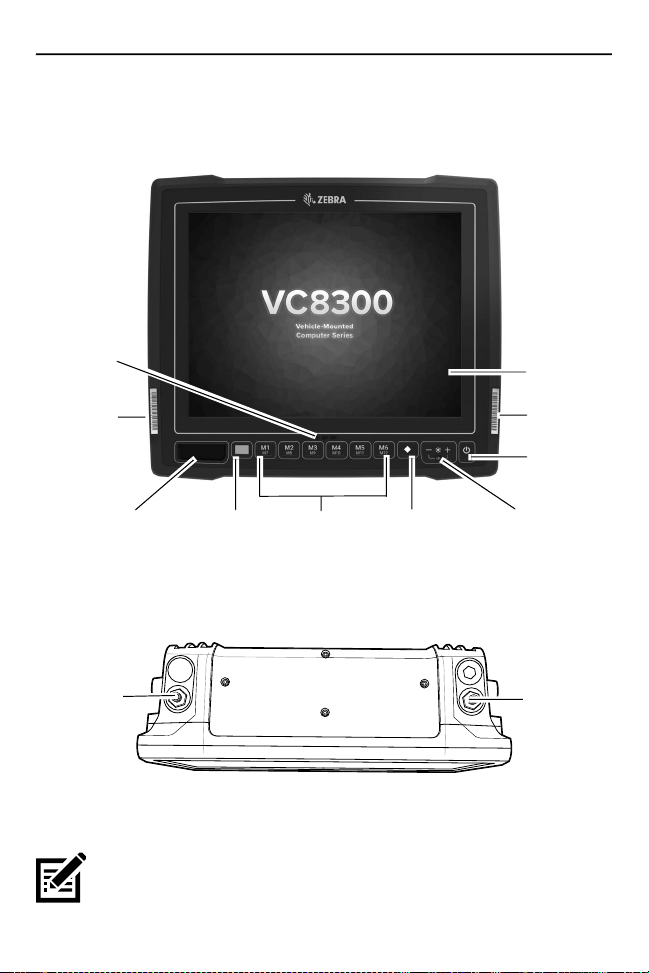
Device Features
Front View
Captive or
resistive
LED
Unpairing
barcode
Speaker
Blue
modifier key
Programmable
keys
(6 + 6)
Activates
on-screen
keyboard
Top View of External Wi-Fi Antenna
802.11 a/b/g/n/ac Radio External Antenna Connectors
(Freezer
Model) touch
screen
Pairing
barcode
Power
button
Speaker
volume\Display
brightness
ANT 2
ANT 1 - Reverse Polarity Jack (WLAN + Bluetooth) External Main antenna
ANT 2 - Reverse Polarity Jack (WLAN) External Aux Antenna
NOTE: Wi-Fi antennas are not shipped with the device and must be
ordered as a separate accessory. The device can be switched between
internal and external antenna.
ANT 1
Page 4
4 VC8300-10 Vehicle Computer
For a complete list of configurations, refer to the VC8300 Product Reference
Guide for Android Version 11 at zebra.com/support
.
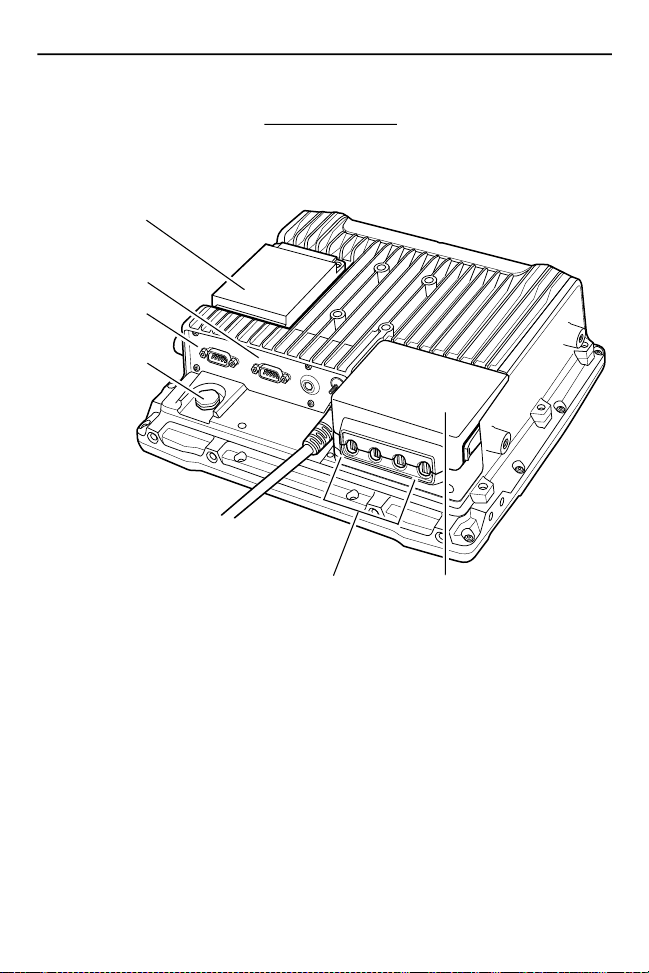
Back View
Back View with Dust Cover
UPS battery
COM 1
COM 2
Vent
Strain relief
(four)
Dust
cover
Page 5
Quick Reference Guide 5
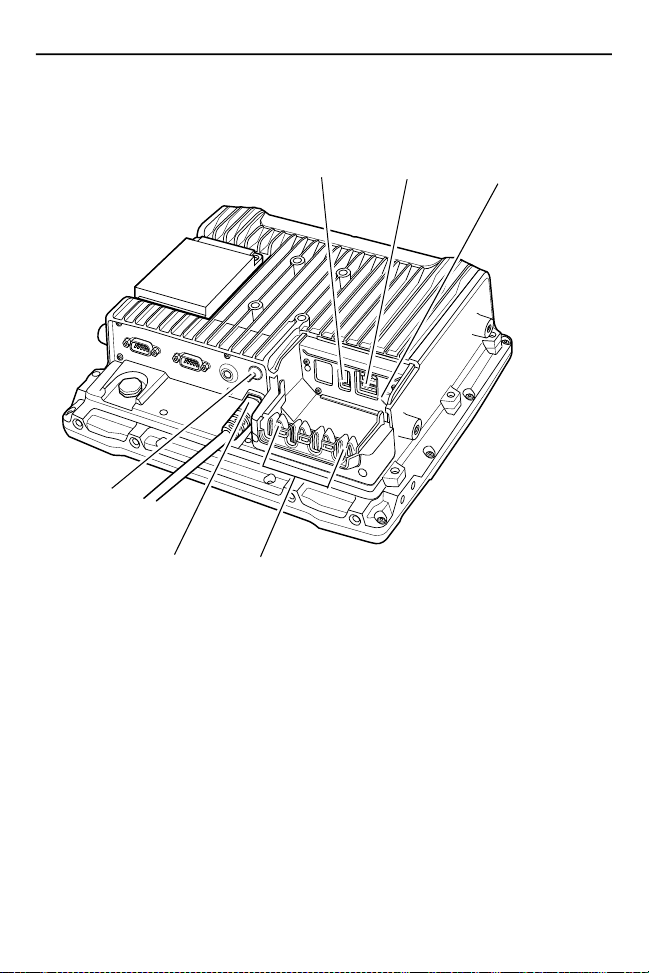
Back View without Dust Cover
Powered
USB
Speaker/
Mic
Ground
lug
Power
Standard
Strain relief
(four)
USB
Setting up the Software
To set up the device software:
1.
Connect the device to an external power source.
2. Press and hold the Power button to turn on the device (see Front View on
page 3).
3. On a VC8300 with GMS software, follow the Google Setup Wizard to set up a
Google account.
4. If required, manually set the date and time.
a. Touch Settings > Date & Time.
b. Touch Automatic date & time switch to disable automatic date and time
configuration.
Page 6

6 VC8300-10 Vehicle Computer
c. Touch Set Date to set the current date.
d. Touch Set Time to set the current time.
e. Touch Select time zone to set the location time zone.
f. Touch Home.
5. Connect the device to a WLAN.
6. Select language settings:
a. Touch Settings > Languages & input > Languages.
b. Touch Add Language and select a language.
c. Drag the desired language to the top of the language list. The system
language changes.
d. Touch Home.
For detailed information, refer to the VC8300 Product Reference Guide for
Android Version 11 at zebra.com/support
.
Wireless Network Configuration
To connect to the WLAN:
1. Touch Settings > Wi-Fi.
2. Scroll through the list and select the desired WLAN network.
3. For open networks, touch the profile once or touch and hold and then select
Connect to network or for secure networks enter the required password or
other credentials then touch Connect. See the system administrator for more
information.
4. The device obtains a network address and other required information from the
network using the Dynamic Host Configuration Protocol (DHCP). To configure
the device with a fixed internet protocol (IP) address, Refer to the VC8300
Product Reference Guide for Android Version 11 at zebra.com/support
5. In the Wi-Fi setting field, Connected appears indicating that the device is
connected to the WLAN.
For detailed information, such as applying advanced settings, refer to the VC8300
Product Reference Guide for Android Version 11 at zebra.com/support
.
.
Page 7

Quick Reference Guide 7
Bluetooth
The device is equipped with Bluetooth radios for communication with a variety of
Bluetooth peripherals. Use the Bluetooth settings to configure Bluetooth
peripherals.
For detailed information, refer to the VC8300 Product Reference Guide for
Android Version 11 at zebra.com/support
.
Programmable Keys
There are six programmable keys on the VC8300-10 front bezel. When used with
the Blue Modifier Key, six additional programmable keys are available. To map
keys, use the Key Programmer settings.
For detailed information, refer to the VC8300 Product Reference Guide for
Android Version 11 at zebra.com/support
.
Power
Use the 100/240 VAC power supply (p/n PS1400) and AC line cord to power the
device from an AC source. For detailed information, refer to the VC8300 Product
Reference Guide for Android Version 11 at zebra.com/support
IMPORTANT: The AC/DC power supply is only intended for use at room
temperature condition such as an office environment.
.
Installation
CAUTION: Do not install the vehicle computer in a location that affects
vehicle safety, visibility, or ability to drive.
If mounted above head height, it is recommended to also use a safety
strap with the mount bracket.
Installing the VC8300 on a Forklift
IMPORTANT: The vehicle front end connected fuse must meet
UL 275.
At
tach the desired mount to the device. Refer to the VC8300 Product Reference
Guide for Android Version 11 at zebra.com/support
and instructions.
for detailed mounting options
Page 8
8 VC8300-10 Vehicle Computer
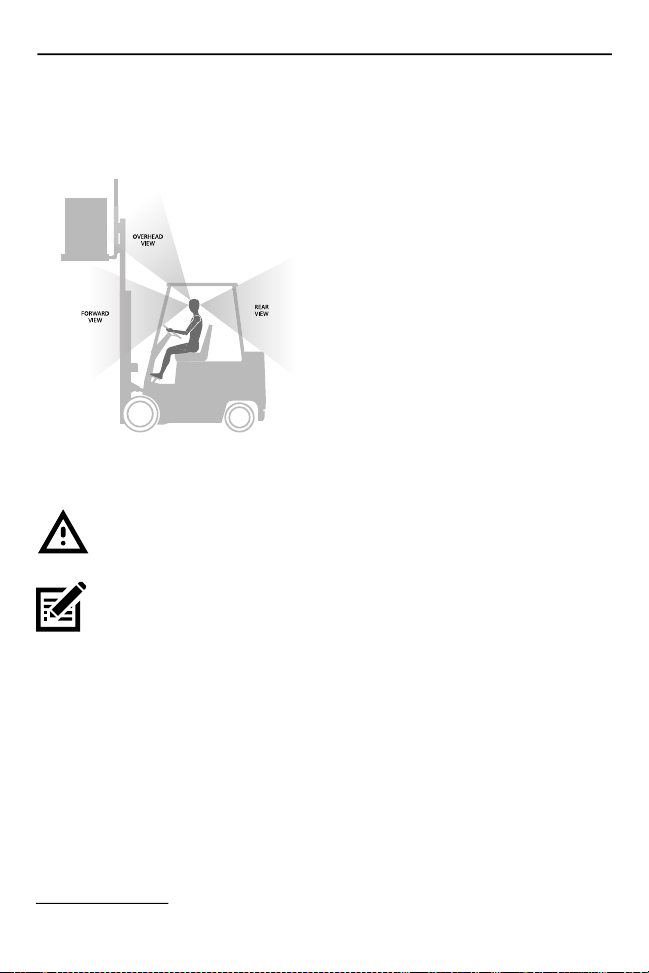
1. Attach the mounted device to the vehicle and position in a location that does
not obstruct the operator’s view.
View Obstruction Considerations
2. If using an external antenna, connect antenna in a vertical position to the
device.
CAUTION: Tighten peripherals with thumbscrews by hand only. Do not
use tools for tightening thumbscrews.
NOTE: If installing peripherals, allow enough space when selecting a
mounting location.
3. Connect peripherals to the device. Place the cables in the strain relief
brackets inside the dust cover and replace the dust cover (see Back View on
page 4).
4. Connect the device to the vehicle DC supply.
5. Press Power to turn the device On or Off (see Front View on page 3).
Connect Optional Parts and Accessories
Use the device connection ports to connect optional parts and accessories (see
Back View on page 4).
Refer to the VC8300 Product Reference Guide for Android Version 11 at
zebra.com/support
numbers.
for a complete list of optional parts, accessories, and part
Page 9

Quick Reference Guide 9
• Antenna options
• Mounting options
• Scanner holder, keyboard mounting tray, keypad side mount bracket
• Keyboard and numeric keypad
• Cables and power supplies
• Miscellaneous: speaker/microphone, screen protector, stylus.
Connecting Vehicle DC Supply
CAUTION: Only qualified service personnel should connect the device
to the vehicle battery..
NOTE: Power adapter and extension cable requirements may vary.
Refer to the VC8300 Product Reference Guide for Android Version 11 at
zebra.com/support
Without Power Pre-regulator
For vehicles with DC power 48V or less
for a complete list of optional parts and accessories.
With Power Pre-regulator
For vehicles with DC power greater than 48V
Power cable
Negative
connection
DB9 cable
Lines to screen-blanking
sensor (optional)
Lines to ignition switch
(optional)
Extension power cable
Extension wire
Fuse
Positive connection
Vehicle DC power source
(12 VDC to 48 VDC nominal)
Power cable
Negative
connection
DB9 cable
Lines to screen-blanking sensor
(optional)
Lines to ignition switch
(optional)
Power pre-regulator
Extension power cable
(without ignition switch)
Extension wire
Fuse
Positive connection
Vehicle DC power source
(48 VDC to 72 VDC nominal)
CAUTION: Do not use the diode/choke assembly in the Extension
Power Cable kit.
Page 10

10 VC8300-10 Vehicle Computer
Mounting Safety
Failure to install the mount correctly, or modifications to the mount, may result in
serious injury or damage to property. To ensure operator safety, you must use a
calibrated torque wrench and the supplied mounting hardware specific to the
device model purchased when fastening the computer and mount. Use of a mount
in vehicles driven on public roads or highways is prohibited. Contact Zebra
Technical Support or your Zebra representative if you have a problem with mount
installation. For detailed mounting information, refer to the VC8300 Product
Reference Guide for Android Version 11 at zebra.com/support
.
Ergonomics
Avoid Extreme Wrist Angles
Page 11

Quick Reference Guide 11
Optimum Wrist Positions
Regulatory Information
This device is approved under Zebra Technologies Corporation.
This guide applies to the following model number: VC8300
All Zebra devices are designed to be compliant with the rules and regulations in
the locations they are sold and will be labeled as required.
Local language translation / Tradução do idioma local / Übersetzung in die lokale
Sprache / Raduccion de idioma local / Traduction en langue locale / Prijevod na
lokalni jezik / Traduzione in lingua locale / 現地語の翻訳 / 현지 언어 번역 /
Перевод на местный язык / 本地語言翻譯 / 本地语言翻译 / Yerel dil çeviri
/Tłumaczenie na język lokalny : zebra.com/support
Any changes or modifications to Zebra equipment not expressly approved by
Zebra could void the user’s authority to operate the equipment.
Declared maximum operating temperature: 50°C
CAUTION: Only use Zebra approved and NRTL-certified accessories,
battery packs, and battery chargers. Do NOT attempt to charge
damp/wet mobile computers, printers or batteries. All components must
be dry before connecting to an external power source.
Bluetooth® Wireless Technology
This is an approved Bluetooth® product. For more information on the Bluetooth
SIG listing, please visit bluetooth.com
.
Page 12

12 VC8300-10 Vehicle Computer
Regulatory Markings
Regulatory markings subject to certification are applied to the device signifying
the radio(s) is/are approved for use. Refer to the Declaration of Conformity (DoC)
for details of other country markings. The DOC is available at: zebra.com/doc
The regulatory marks specific to this device (including FCC and ISED) are
available on the screen of the device by following these instructions:
Go to Settings > Regulatory.
.
Health and Safety Recommendations
Ergonomic Recommendations
In order to avoid or minimize the potential risk of ergonomic injury, always follow
good ergonomic workplace practices. Consult with your local Health and Safety
Manager to ensure that you are adhering to your company’s safety programs to
prevent employee injury.
Vehicle Installation
RF signals may affect improperly installed or inadequately shielded electronic
systems in motor vehicles (including safety systems). Check with the
manufacturer or its representative regarding your vehicle. Ensure the equipment
is installed to avoid driver distractions. You should also consult the manufacturer
about any equipment that has been added to your vehicle.
Position the device within easy reach. User should be able to access the device
without removing their eyes from the road.
IMPORTANT: Before installing or using, check national and local laws
regarding distracted driving.
Safety on the Road
Give your full attention to driving. Obey the laws and regulations on the use of
wireless devices in the areas where you drive.
The wireless industry reminds you to use your device / phone safely when driving.
Restricted Use Locations
Remember to observe restrictions and obey all signs and instructions on the use
of electronic devices in restricted use locations.
Page 13

Quick Reference Guide 13
Safety in Hospitals and Aircraft
NOTE: Wireless devices transmit radio frequency energy that may affect
medical electrical equipment and aircraft’s operation. Wireless devices
should be switched off wherever you are requested to do so in hospitals,
designed to prevent possible interference with sensitive equipments.
clinics, healthcare facilities or by airline staff. These requests are
RF Exposure Guidelines
Safety Information
Reducing RF Exposure – Use Properly
Only operate the device in accordance with the instructions supplied.
The device complies with internationally recognized standards covering human
exposure to electromagnetic fields. For information on international human
exposure to electromagnetic fields, refer to the Zebra Declaration of Conformity
(DoC) at zebra.com/doc
Use only Zebra tested and approved headset, belt-clips, holsters, and similar
accessories to ensure RF exposure compliance. If applicable, follow the
instructions for use as detailed in the accessory guide.
The use of third-party belt clips, holsters, and similar accessories may not comply
with RF exposure compliance requirements and should be avoided.
For further information on the safety of RF energy from wireless devices, refer to
RF exposure and assessment standards section at zebra.com/responsibility
.
.
Power Supply
WARNING ELECTRICAL SHOCK: Use only a Zebra approved,
Certified ITE [SELV] power supply with appropriate electrical ratings.
Use of alternative power supply will invalidate any approvals given to
this unit and may be dangerous.
Batteries and Power Packs
This information applies to Zebra-approved batteries and power packs containing
batteries.
Battery Information
CAUTION: Risk of explosion if battery is replaced by an incorrect type.
Dispose of batteries according to instructions.
Page 14

14 VC8300-10 Vehicle Computer
Use only Zebra approved batteries. Accessories which have battery charging
capability are approved for use with the following battery models:
• Model BT000254A01 (12.6 VDC, 2000 mAh)
Zebra approved rechargeable battery packs are designed and constructed to the
highest standards within the industry.
However, there are limitations as to how long a battery can operate or be stored
before needing replacement. Many factors affect the actual life cycle of a battery
pack such as heat, cold, harsh environmental conditions, and severe drops.
When batteries are stored over six months, some irreversible deterioration in
overall battery quality may occur. Store batteries at half charge in a dry, cool
place, removed from the equipment to prevent loss of capacity, rusting of metallic
parts, and electrolyte leakage. When storing batteries for one year or longer, the
charge level should be verified at least once a year and charged to half charge.
Replace the battery when a significant loss of run time is detected.
• Standard warranty period for all Zebra batteries is one year, regardless if the
battery was purchased separately or included as part of the host device. For
more information on Zebra batteries, please visit:
zebra.com/batterydocumentation
and select the Battery Best Practices link.
Battery Safety Guidelines
The area in which the units are charged should be clear of debris and combustible
materials or chemicals. Particular care should be taken where the device is
charged in a non-commercial environment.
IMPORTANT – SAFETY INSTRUCTIONS – SAVE THESE
INSTRUCTIONS
WARNING – When using this product basic safety precautions should
always be followed, including the following:
• Read all the instructions before using the product.
• Follow battery usage, storage, and charging guidelines found in the user's
guide.
• Improper battery use may result in a fire, explosion, or other hazard.
• To charge the mobile device battery, the battery and charger temperatures
must be between 0°C and +40°C (+32°F and +104°F).
• Do not use incompatible batteries and chargers. Use of an incompatible
battery or charger may present a risk of fire, explosion, leakage, or other
Page 15

Quick Reference Guide 15
hazard. If you have any questions about the compatibility of a battery or a
charger, contact Zebra support.
• Do not disassemble or open, crush, bend or deform, puncture, or shred.
Damaged or modified batteries may exhibit unpredictable behavior resulting in
fire, explosion, or risk of injury.
• Severe impact from dropping any battery-operated device on a hard surface
could cause the battery to overheat.
• Do not short circuit a battery or allow metallic or conductive objects to contact
the battery terminals.
• Do not modify, disassemble, or remanufacture, attempt to insert foreign
objects into the battery, immerse or expose to water, rain, snow or other
liquids, or expose to fire, explosion, or other hazard.
• Do not leave or store the equipment in or near areas that might get very hot,
such as in a parked vehicle or near a radiator or other heat source. Do not
place battery into a microwave oven or dryer.
• To reduce the risk of injury, close supervision is necessary when used near
children.
• Please follow local regulations to promptly dispose of used re-chargeable
batteries.
• Do not dispose of batteries in fire. Exposure to temperatures over 100°C
(212°F) may cause explosion.
• Seek medical advice immediately if a battery has been swallowed.
• In the event of a battery leak, do not allow the liquid to come in contact with the
skin or eyes. If contact has been made, wash the affected area with large
amounts of water and seek medical advice.
• If you suspect damage to your equipment or battery, contact Zebra support to
arrange for inspection.
Marking and European Economic Area (EEA)
Statement of Compliance
Zebra hereby declares that this radio equipment is in compliance with Directives
2014/53/EU and 2011/65/EU.
Any radio operation limitations within EEA countries are identified in Appendix A
of EU Declaration of Conformity. The full text of the EU Declaration of Conformity
is available at: zebra.com/doc
.
Page 16

16 VC8300-10 Vehicle Computer
EU Importer: Zebra Technologies B.V
Address: Mercurius 12, 8448 GX Heerenveen, Netherlands
Waste Electrical and Electronic Equipment (WEEE)
For EU and UK Customers: For products at the end of their life, please refer to
recycling/disposal advice at: zebra.com/weee
.
United States and Canada Regulatory
Radio Frequency Interference Notices
This device complies with Part 15 of the FCC Rules. Operation is subject to the
following two conditions: (1) this device may not cause harmful interference, and
(2) this device must accept any interference received including interference that
may cause undesired operation.
NOTE: This equipment has been tested and found to comply with the
limits for a Class B digital device, pursuant to Part 15 of the FCC
rules.These limits are designed to provide reasonable protection against
generates, uses and can radiate radio frequency energy and, if not installed and
used in accordance with the instructions, may cause harmful interference to radio
communications. However, there is no guarantee that interference will not occur
in a particular installation. If this equipment does cause harmful interference to
radio or television reception, which can be determined by turning the equipment
off and on, the user is encouraged to try to correct the interference by one or more
of the following measures:
• Reorient or relocate the receiving antenna.
• Increase the separation between the equipment and receiver.
• Connect the equipment into an outlet on a circuit different from that to which
• Consult the dealer or an experienced radio/TV technician for help.
Radio Frequency Interference Requirements – Canada
Innovation, Science and Economic Development Canada ICES-003 Compliance
Label: CAN ICES-3 (B)/NMB-3(B)
This device complies with Innovation, Science and Economic Development
Canada’s licence-exempt RSSs. Operation is subject to the following two
conditions: (1) This device may not cause interference; and (2) This device must
accept any interference, including interference that may cause undesired
operation of the device.
harmfulb interference in a residential installation. This equipment
the receiver is connected.
Page 17

Quick Reference Guide 17
L’émetteur/récepteur exempt de licence contenu dans le présent appareil est
conforme aux CNR d’Innovation, Sciences et Développement économique
Canada applicables aux appareils radio exempts de licence. L’exploitation est
autorisée aux deux conditions suivantes : (1) l'appareil ne doit pas produire de
brouillage, et (2) l'utilisateur de l'appareil doit accepter tout brouillage radio
électrique subi même si le brouillage est susceptible d'en compromettre le
fonctionnement.
This device is restricted to indoor use when operating in the 5150 to 5350 MHz
frequency range.
Lorsqu'il fonctionne dans la plage de fréquences 5 150- 5350 MHz, cet appareil
doit être utilisé exclusivement en extérieur.
This radio transmitter [109AN-VC8300] has been approved by Innovation,
Science and Economic Development Canada to operate with the antenna types
listed below, with the maximum permissible gain indicated. Antenna types not
included in this list and having a gain greater than the maximum gain indicated for
that type, are strictly prohibited for use with this device
Le présent émetteur radio [109AN-VC8300] a été approuvé par Innovation,
Sciences et Développement économique Canada pour fonctionner avec les types
d'antenne énumérés cidessous et ayant un gain admissible maximal. Les types
d'antenne non inclus dans cette liste, et dont le gain est supérieur au gain
maximal indiqué pour tout type figurant sur la liste, sont strictement interdits pour
l'exploitation de l'émetteur
Antenna 1 ID: AN-000242-01
Patch 4/4.79 dBi 50 ohms
Antenna 2 ID: AN2010
Dipole -0.4/-1.5 dBi 50 ohms
Antenna 3 ID: AN2020
Dipole 2.6 dBi 50 ohms
Antenna 4 ID: AN2030
Dipole 1.4/2.8 dBi 50 ohms
RF Exposure Requirements - FCC and ISED
The FCC has granted an Equipment Authorization for this device with all reported
SAR levels evaluated in compliance with the FCC RF emission guidelines. SAR
information on this device is on file with the FCC and can be found under the
Display Grant section of fcc.gov/oet/ea/fccid
.
Page 18

18 VC8300-10 Vehicle Computer
Mobile Devices
This equipment complies with RF Exposure limits established for an uncontrolled
environment (General Population). This equipment should be installed and
operated in such a way that a separation distance of greater than 20 cm is
maintained between the transmitter's radiating structure(s) and the body of the
user or nearby persons.
Cet équipement est conforme aux limites d'exposition aux RF établies pour un
environnement non contrôlé (population générale). Cet équipement doit être
installé et utilisé de manière à maintenir une distance de séparation supérieure à
20 cm entre la (les) structure (s) rayonnante (s) de l'émetteur et le corps de
l'utilisateur ou des personnes à proximité.
Remote and Standalone Antenna Configurations
To comply with FCC/ISED RF exposure requirements, antennas that are mounted
externally at remote locations or operating near users at stand-alone desktop or
similar configurations must operate with a minimum separation distance of 20 cm
from the user or nearby persons.
La conformité aux normes d'exposition RF établies par les organismes FCC/ISED
exige une distance minimale de 20 cm entre l'antenne et l'utilisateur ou toute
personne à proximité lorsque celle-ci est installée à l'extérieur ou lorsqu'elle est
placée sur un bureau ou dans une configuration similaire.
Co-located Statement
To comply with FCC RF exposure compliance requirement, the antenna used for
this transmitter must not be co-located (within 20 cm) or operating in conjunction
with any other transmitter/antenna except those already approved in this filling.
The maximum antenna gain permitted for devices in the bands 5250 - 5350 MHz,
5470 - 5725 MHz and 5725 - 5850 MHz shall be such that the equipment still
complies with the Effective Isotropic Radiated Power (EIRP) limit.
Le gain maximal d'antenne autorisé pour les appareils fonctionnant dans les
bandes de fréquences 5 250 - 5 350 MHz, 5 470 - 5 725 MHz et
5 725 - 5 850 MHz doit être tel que l’équipement respecte toujours la limite de
puissance isotrope rayonnée équivalente (PIRE).
Page 19

Quick Reference Guide 19
中国
通过访问以下网址可下载当地语言支持的产品说明书 zebra.com/support
如果配套使用外部电源适配器,请确保其已通过 CCC 认证
(一) 符合 “ 微功率短距离无线电发射设备目录和技术要求 ” 的具体条款和使用场
景,采用的天线类型和性能,控制、调整及开关等使用方法;
(二)不得擅自改变使用场景或使用条件、扩大发射频率范围、加大发射功率 (包
括额 外加装射频功率放大器),不得擅自更改发射天线;
(三)不得对其他合法的无线电台 (站)产生有害干扰,也不得提出免受有害干扰
保护;
(四)应当承受辐射射频能量的工业、科学及医疗 (ISM)应用设备的干扰或其他
合法的无线电台 (站)干扰;
(五)如对其他合法的无线电台 (站)产生有害干扰时,应立即停止使用,并采取
措施消除干扰后方可继续使用;
(六)在航空器内和依据法律法规、国家有关规定、标准划设的射电天文台、气象
雷达站、卫星地球站 (含测控、测距、接收、导航站)等军民用无线电台 (站)、
机场等的电磁环境保护区域内使用微功率设备,应当遵守电磁环境保护及相关行业
主管部门的规定;
(七)禁止在以机场跑道中心点为圆心、半径 5000 米的区域内使用各类模型遥控
器;
(八)有关支持的工作环境条件,请参阅本指南的最高工作温度以及电池信息和电
源信息部分。
Page 20

20 VC8300-10 Vehicle Computer
产品中有害物质的名称及含量
有害物质
部件名称
(Parts)
金属部件
(Metal Parts)
电路模块
(Circuit Modules)
电缆及电缆组件
(Cables and Cable
Assemblies)
塑料和聚合物部件
(Plastic and Polymeric
Parts)
光学和光学组件
(Optics and Optical
Components)
电池
(Batteries)
本表格依据 SJ/T 11364 的规定编制。
O: 表示该有害物质在该部件所有均质材料中的含量均在 GB/T 26572 规定
的限量要求以下。
X: 表示该有害物质至少在该部件的某一均质材料中的含量超出GB/T 26572
规定的限量要求。( 企业可在此处,根据实际情况对上表中打 “×” 的技术
原因进行进一步说明。
铅
(Pb)汞(Hg)镉(Cd)
X O O O O O
X O O O O O
O O O O O O
O O O O O O
O O O O O O
O O O O O O
六价铬
(Cr(VI))
多溴联
苯
(PBB)
多溴二
苯醚
(PBDE)
Colombia
Señor usuario, la siguiente información se entrega de conformidad con lo
establecido en el Régimen de protección de los derechos de los usuarios,
expedido por la Comisión de Regulación de Comunicaciones.
Recomendaciones de uso:
Page 21

Quick Reference Guide 21
1. Utilice siempre que pueda dispositivos manos libres.
2. Evite utilizar el equipo mientras conduce un vehículo.
3. En caso que el teléfono sea utilizado por niños, ancianos, mujeres
embarazadas y población inmunocomprometida, consulte a su médico y el
manual del equipo.
4. Si usted utiliza algún dispositivo electrónico de uso médico, asegúrese que el
mismo esté protegido contra las ondas de radiofrecuencia externas.
5. Apague su teléfono en lugares tales como: hospitales, centros de salud,
aviones, estaciones de suministro de combustible, en presencia de gases
explosivos y lugares donde se realizan explosiones.
6.
Evite que terceros hagan uso de su teléfono para prevenir la implantación de
dispositivos como programas espías (spyware) o identificadores ocultos, que
atentan contra la seguridad de la información contenida en el mismo.
Евразийский Таможенный Союз (EAC)
Данный продукт соответствует требованиям знака EAC.
France
Cet appareil a été testé et déclaré conforme aux limites applicables d'exposition
aux radiofréquences (RF).
Le débit d'absorption spécifique (DAS) local quantifie l'exposition de l'utilisateur
aux ondes électromagnétiques de l'équipement concerné.
Les valeurs DAS les plus élevées sont disponibles sur la déclaration de
conformité (DoC) disponible sur: zebra.com/doc
.
México
La operación de este equipo está sujeta a las siguientes dos condiciones: (1) es
posible que este equipo o dispositivo no cause interferencia perjudicial y (2) este
equipo o dispositivo debe aceptar cualquier interferencia, incluyendo la que
pueda causar su operación no deseada.
Este equipo ha sido diseñado para operar con las antenas que enseguida se
enlistan y para una ganancia máxima de antena de 4.79 dB. El uso con este
equipo de antenas no incluidas en esta lista o que tengan una ganancia mayor
que 4.79 dB quedan prohibidas. La impedancia requerida de la antena es de 50
ohms
Page 22

22 VC8300-10 Vehicle Computer
臺灣
低功率電波輻射性電機管理辦法
取得審驗證明之低功率射頻器材,非經核准,公司、商號或使用者均不得擅自變更
頻率、加大功率或變更原設計之特性及功能。
低功率射頻器材之使用不得影響飛航安全及干擾合法通信;經發現有干擾現象時,
應立即停用,並改善至無干擾時方得繼續使用。
前述合法通信,指依電信管理法規定作業之無線電通信。低功率射頻器材須忍受合
法通信或工業、科學及醫療用電波輻射性電機設備之干擾。
應避免影響附近雷達系統之操作
公司資訊
台灣斑馬科技股份有限公司 / 台北市信義區松高路 9 號 13 樓
行政院環保署 (EPA) 要求乾電池製造或進口商,需依廢棄物清理
法第 15 條之規定,於販售、贈
送或促銷的電池上標示回收標誌。請聯絡合格的台灣回收廠商,
以正確棄置電池。
Page 23

Quick Reference Guide 23
限用物質含有情況標示聲明書
設備名稱 : 移動式電腦
(Equipment name)
單元 Unit
Restricted substances and its chemical symbols
鉛
(Pb)汞(Hg)鎘(Cd)
型號 (型式):VC8300
Type designation (Type)
限用物質及其化學符號
六價鉻
(Cr+6)
多溴
聯苯
(PBB)
多溴二
苯醚
(PBDE)
印刷電路板及電子組件 − O O O O O
金屬零件 − O O O O O
電纜及電纜組件 O O O O O O
塑料和聚合物零件 O O O O O O
光學與光學元件 — O O O O O O
備考 1. 〝超出 0.1 wt % 〞及〝超出 0.01 wt % 〞係指限用物質之百分比含
量超出百分比含量基準值。
備考 2. 〝 O 〞係指該項限用物質之百分比含量未超出百分比含量基準值。
備考 3. 〝−〞係指該項限用物質為排除項目。
Note 1: “Exceeding 0.1 wt%” and “exceeding 0.01 wt%” indicate that the
percentage content of the restricted substance exceeds the reference
percentage value of presence condition.
Note 2: “O” indicates that the percentage content of the restricted substance
does not exceed the percentage of reference value of presence.
Note 3: The “ − ” indicates that the restricted substance corresponds to the
exemption.
TÜRK WEEE Uyumluluk Beyanı
EEE Yönetmeliğine Uygundur.
Page 24

24 VC8300-10 Vehicle Computer
ประเทศไทย
เครื่ องวิ ทยุ คมนาคมนี้ มี ระดั บการแผ่ คลื่ นแม่ เหล็ กไฟฟ้ าสอดคล้ องตาม
มาตรฐานความปลอดภัยต่อสุขภาพของมนุษย์จากการใช้เครื่องวิทยุคมนาคมที่คณะกรรมกา
รกิ จการ
โทรคมนาคมแห่ งชาติ ประกาศกำหนด
United Kingdom
Statement of Compliance
Zebra hereby declares that this radio equipment is in compliance
with the Radio Equipment Regulations 2017 and the Restriction of
the Use of Certain Hazardous Substances in Electrical and
Electronic Equipment Regulations 2012.
Any radio operation limitations within UK are identified in Appendix A of UK
Declaration of Conformity.
The full text of the UK Declaration of Conformity is available at: zebra.com/doc
UK Importer: Zebra Technologies Europe Limited
Address:
Dukes Meadow, Millboard Rd, Bourne End, Buckinghamshire, SL8 5XF
.
Warranty
For the complete Zebra hardware product warranty statement, go to:
zebra.com/warranty
.
Service Information
Before you use the unit, it must be configured to operate in your facility's network
and run your applications.
If you have a problem running your unit or using your equipment, contact your
facility's Technical or System Support. If there is a problem with the equipment,
they will contact Zebra support at zebra.com/support
For the latest version of the guide go to: zebra.com/support
.
.
Software Support
Zebra wants to ensure that customers have the latest entitled software at the time
of device purchase in order to keep the device operating at peak performance
levels. To confirm that your Zebra device has the latest entitled software available
at the time of purchase, go to zebra.com/support
.
Page 25

Quick Reference Guide 25
Check for the latest software from Support > Products, or search for the device
and select Support > Software Downloads.
If your device does not have the latest entitled software as of your device
purchase date, e-mail Zebra at entitlementservices@zebra.com and ensure you
include the following essential device information:
• Model number
• Serial number
• Proof of purchase
• Title of the software download you are requesting.
If it is determined by Zebra that your device is entitled to the latest version of
software, as of the date you purchased your device, you will receive an e-mail
containing a link directing you to a Zebra Web site to download the appropriate
software.
Product Support Information
• To find quick answers to known product behaviors, access our knowledge
articles at supportcommunity.zebra.com/s/knowledge-base
• Ask your questions in our Support community at
supportcommunity.zebra.com
• Download product manuals, drivers, software, and view how-to videos at
zebra.com/support
• To request a repair for your product, go to zebra.com/repair
.
.
.
.
Page 26

ZEBRA and the stylized Zebra head are trademarks of
Zebra Technologies Corporation, registered in many
jurisdictions worldwide. All other trademarks are
property of their respective owners. © 2021 Zebra
Technologies Corporation and/or its affiliates. All rights
reserved.
www.zebra.com
MN-004194-02EN-P Rev. A
 Loading...