

Page 1

Vu Android TV
User Manual
Your Complete Internet, Gaming and digital Media Solution for TV with Wifi Internet
This user Manual tell you how to setup your unit and use its key features.
Page 2

Contents
• What’s in the box ?
• Know your Device
• Making Connections
• Remote Control use
• First Time Power-up
• Home Screen
• Android Apps
Skype
Play Store
Online Video
XBMC Player
• Games
• Internet Browser
• Setting
Display
CEC Control
Google TV Remote
Mira-cast
More Setting
Bluetooth
Network
Hotspot
• Product Specifications
• Troubleshooting/ FAQ
• Support & Contact
03
04
05
06
07
08
10
11
12
13
14
17
18
19
20
21
21
22
23
24
25
27
28
29
31
2
Page 3

Giftbox
32” LED TV
User manual
Table Top
Wall Mounting
IR remote control for TV
Smart IR Remote control for Android
What’s in the Box ?
Image below are for reference only. Exact parts in the box may look different.
Vu 32” HD Edge LED TV Model: 32K160
Android Smart Remote Control32” TV Remote Control
Table Top Wall Mount Bracket
3
Page 4

Know your Device
Android Ports to connect External USB
device & LAN Network
USB x 3nos = Use Memory Stick or High
Power Devices like Hard Disk
LAN x 1no = Ethernet Router Connection
Back
4
IR sensor for Android
Remote Control
TV Power LED
And IR sensor for
TV Remote
Control
Main AC Power ON/OFF
Switch for TV
Front
Page 5

Tablet PC
Connect using Miracast
Portable Hard Disk
Connect using USB
2.4GHz Wireless Keyboard & Mouse
Connect using USB
Smart Phone
Connect using Miracast
Game controller
Connect using USB
Webcam
Connect using USB
Making Connections - Peripheral device for TV
2.4GHz Air Mouse
Connect using USB
32” Android TV
Wifi Router Provides Internet Signal
Using Wifi or LAN connection
Following layout will show how to connect different device to Vu Android TV using various option
5
Page 6

Power: Android Power on/off
Mouse: Switch to mouse mode
OK: To Enter the Selected function
Direction : Up/Down/Left/Right
Home: Enter to home menu
Play/ Pause: Switch video playback and
pause
Return: Return to previous menu
Menu: More features under the
current interface
VOL +/- : Adjust the Volume
Power
Mouse
Up /down
Left/ Right
Direction
Play/ Pause
Return
Volume +/-
Power
On/off
OK
Home
Menu
Remote Control Use
6
Page 7

• To Turn Your TV ON connect the TV Main AC Power
Plug to Main AC Power Outlet & turn ON the Power.
• Switch ON the Main power Switch from your TV, Which
is below the TV bezel as indicated in image.
• Use TV Remote and press Power Button on it to switch
ON the TV from standby mode.
• Change the TV source to HDMI-1 mode. (By default Vu
TV start in HDMI-1 Mode)
• Turn ON built in Android using Power Button on Android
Smart Remote. When your not using Android, switch
OFF the Android using Power ON/OFF Button
• The TV will start with LED light on in TV.
• Now TV will show you the home UI of Android Kit Kat.
• If need to connect to many devices, please use USB to
connect your external PEN Drive or Portable USB Drive.
First Time Power Up
Power
On/off
Power
On/off
TV
Source
USB 1
USB 2
USB 3
7
Page 8

Home Screen
After booting Android TV you will find below Home Screen.
Home screen divided in to different categories – Top portion will show different application categories and bottom portion will show shortcuts of different
favorite Apps
Application Categories
Favorite Apps Shortcut
Home Button on Remote control will always bring you back to Home screen. Your Fun experience start hear.
Just use Remote up, down, left & right key to go to icon or widget of interest. When an icon or widfet is selected, it’s highlighted. Press OK
to go that icon. Above is a sample screen
8
Page 9

Online Videos
Easy access to Online
Movies & Videos Players
from YouTube, Play Movies,
Browsers etc.
My Recommend
To play multimedia content
from your shared device
using DLNA, My share
device features.
Setting
All the Device controls are
available from hear.
Ex- Network, Display,
Advance, Other More setting.
Local
Hear you can Explore
files of internal or
external storage
Music
Listen music from
different apps
My Apps
This is where you will find useful
Android applications like Email,
YouTube, Facebook, Play store,
XBMC Player, twitter etc.
Status Bar
Status Bar area is used to show key
status information like internet
connectivity, USB plug in drives, current
date-time, and some of the key actions
that are available in applications.
Shortcuts
Hear you can Add or
Remove your favorite
apps to Home screen
Home Screen
9
Page 10

Android Apps
This Section shows a selection of pre-loaded Android apps as well as any Android apps that you download from the Android store or installed from a USB
stick. To install Apps from USB stick- select Local disk on home screen, find your USB and follow on screen instructions.
Note:
Above is a sample screen. Actual applications loaded on your device may be different.
Those application require SIM card activation with cell phone no will not work with this TV Ex – Whatsapp, Hike, Lime, Viber etc
10
Page 11
Skype
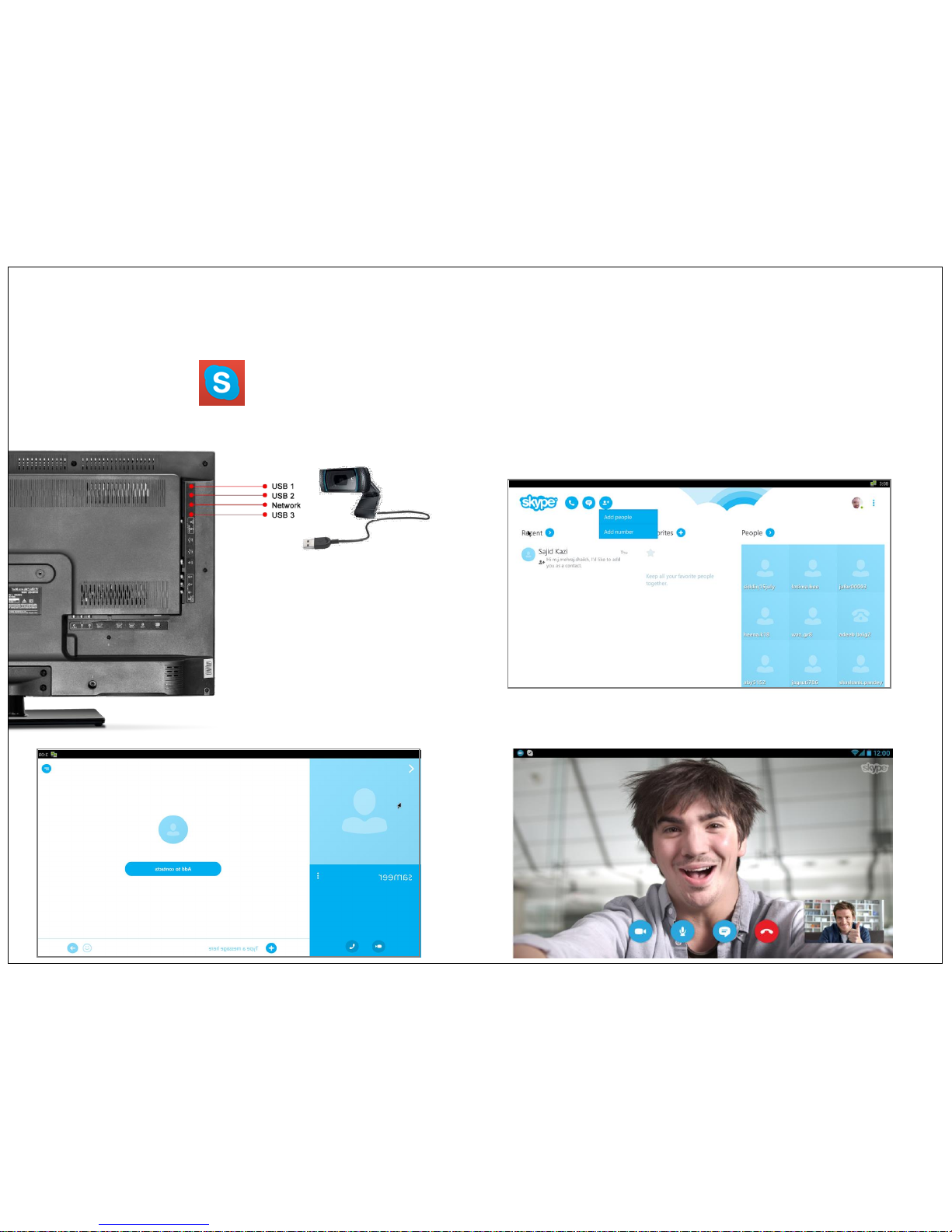
Say “hello” to friends and family with an instant message, voice or video call on Skype for free. Join the millions of people using Skype today to stay in touch
with the people who matter most. There’s so much you can do, right from the palm of your hand.
Open the Skype app
Go to My Apps and click the icon. Add your user name & password to start Skype.
Before switching on the TV, please connect external web camera with built in mic to USB port of TV as shown in below image. Also make sure you have
connected TV to network using wifi or ethernet.
USB Web Cam
11
Page 12
Play Store
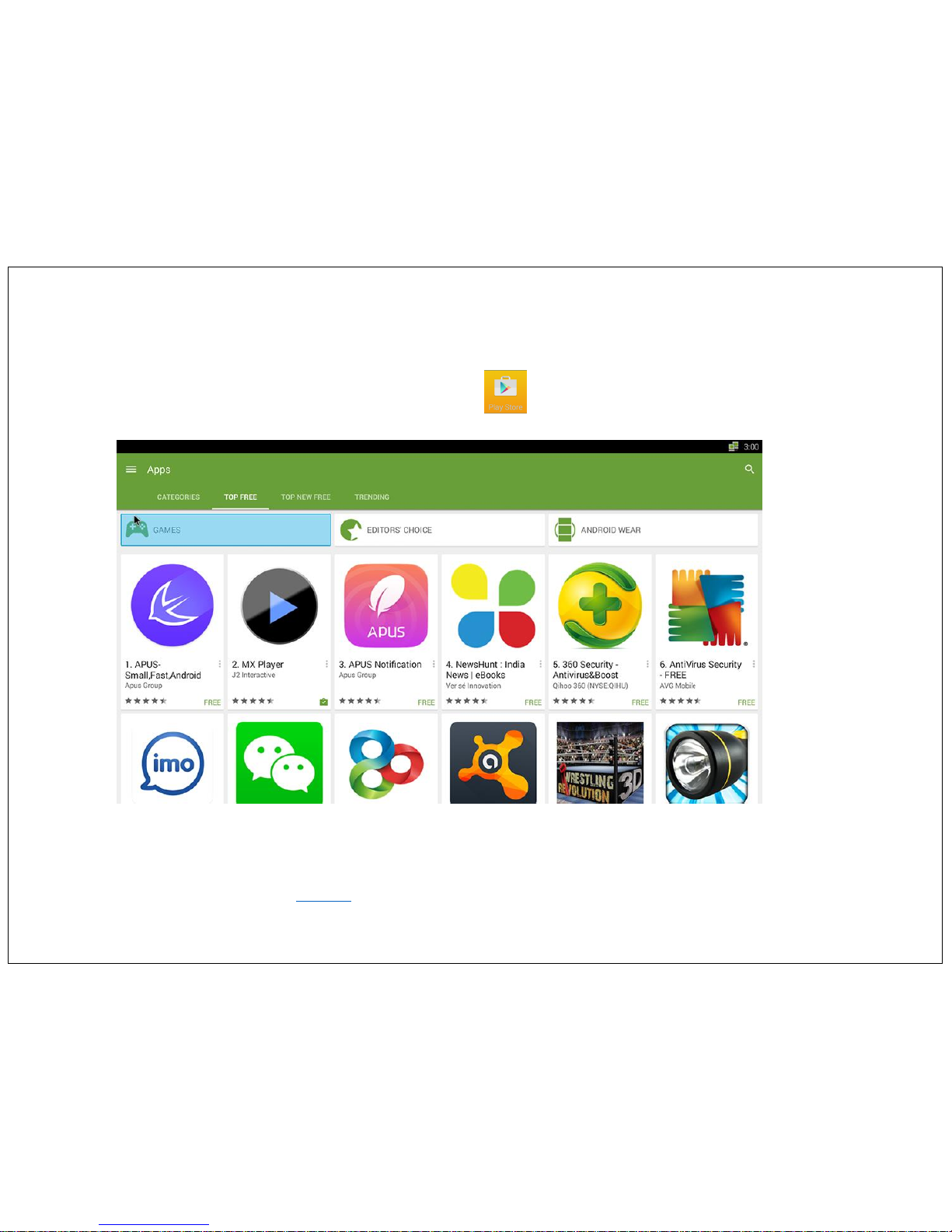
The Google Play Store app comes installed on Vu Android TV. You can find your favorite Music, Movie, Books, Android Apps & Games using the Google
Play Store app.
Open the Google Play Store app
To find and open the Google Play Store app, go to the App Store and click the Play Store icon. Click on Search icon and type your app name to
search your know app.
Missing Google Play Store app
If you don’t see the Google Play Store app or the app doesn’t open:
• Confirm you’re connected to Network Connection using wifi or ethernet.
• You may have hidden the app and need to re-enable it.
• Turn off your device and turn it on again, then look for the app.
If the Google Play Store app still isn’t showing up, contact your carrier or manufacturer for help. Unfortunately, you can’t download the Google Play
Store app -- you either have it or you don’t.
12
Page 13
Online Video
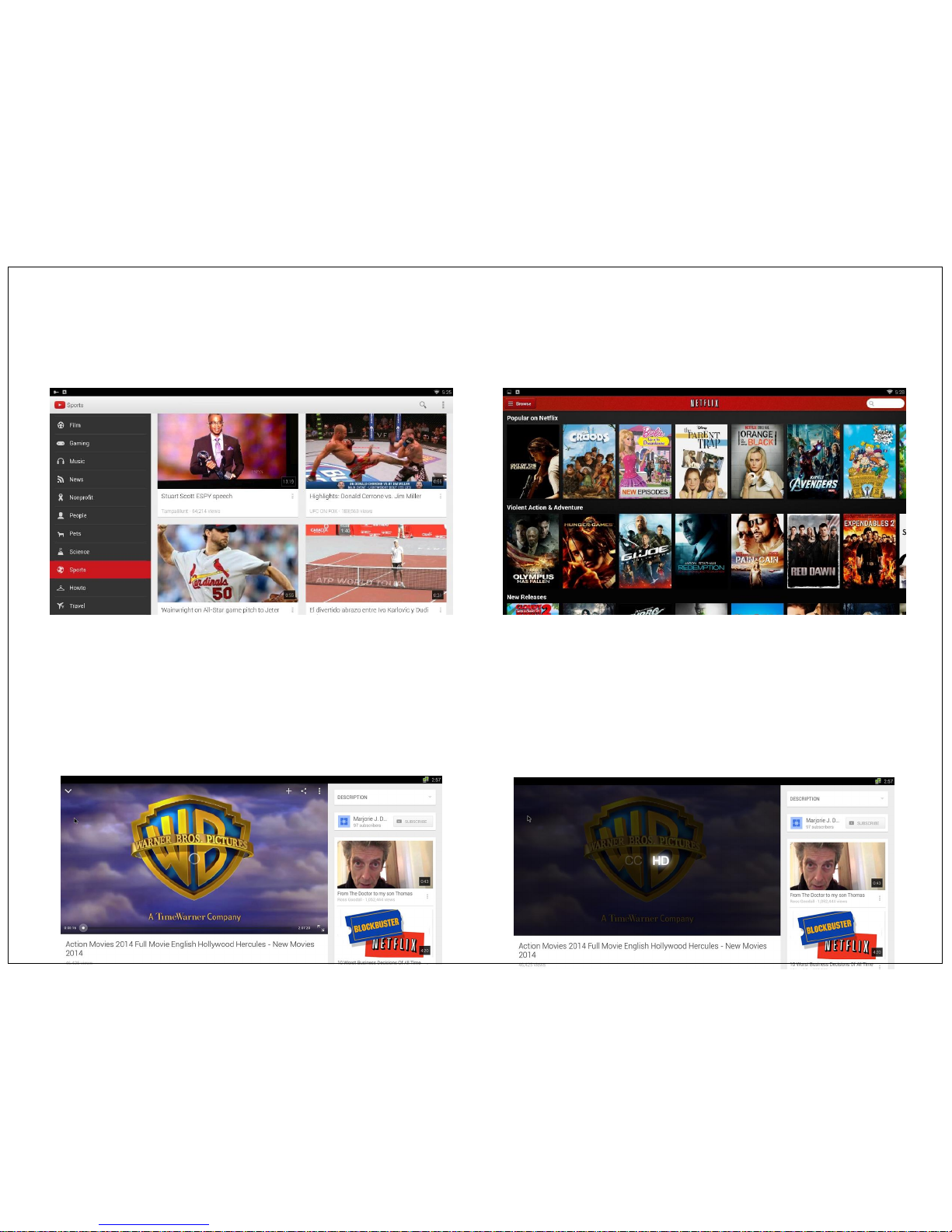
Vu Android TV with Built in Octa core graphics allow you to enjoy online video streaming with ease of using wifi or ethernet connectivity.
You can enjoy online video with preloaded apps like Youtube, Netflix, Hulu etc. If you want more apps to watch online video, you can download from Play
store.
Note : Before playing any online video, please make sure you have connected Vu Android TV to Wifi or Ethernet network. Please refer Page no 25 how to
connect Vu TV to network.
Your Network speed should be good enough to play streaming video. We recommended minimum network speed should be 800kbps for SD video.
If you find video is not playing smoothly you can downgrade the video quality from HD as shown in below image.
Click on three dot icon at right top side of video and click on HD icon to downgrade video quality for smooth streaming. To go back to HD quality again
press on same HD icon.
YouTube Netflix
13
Page 14
Media
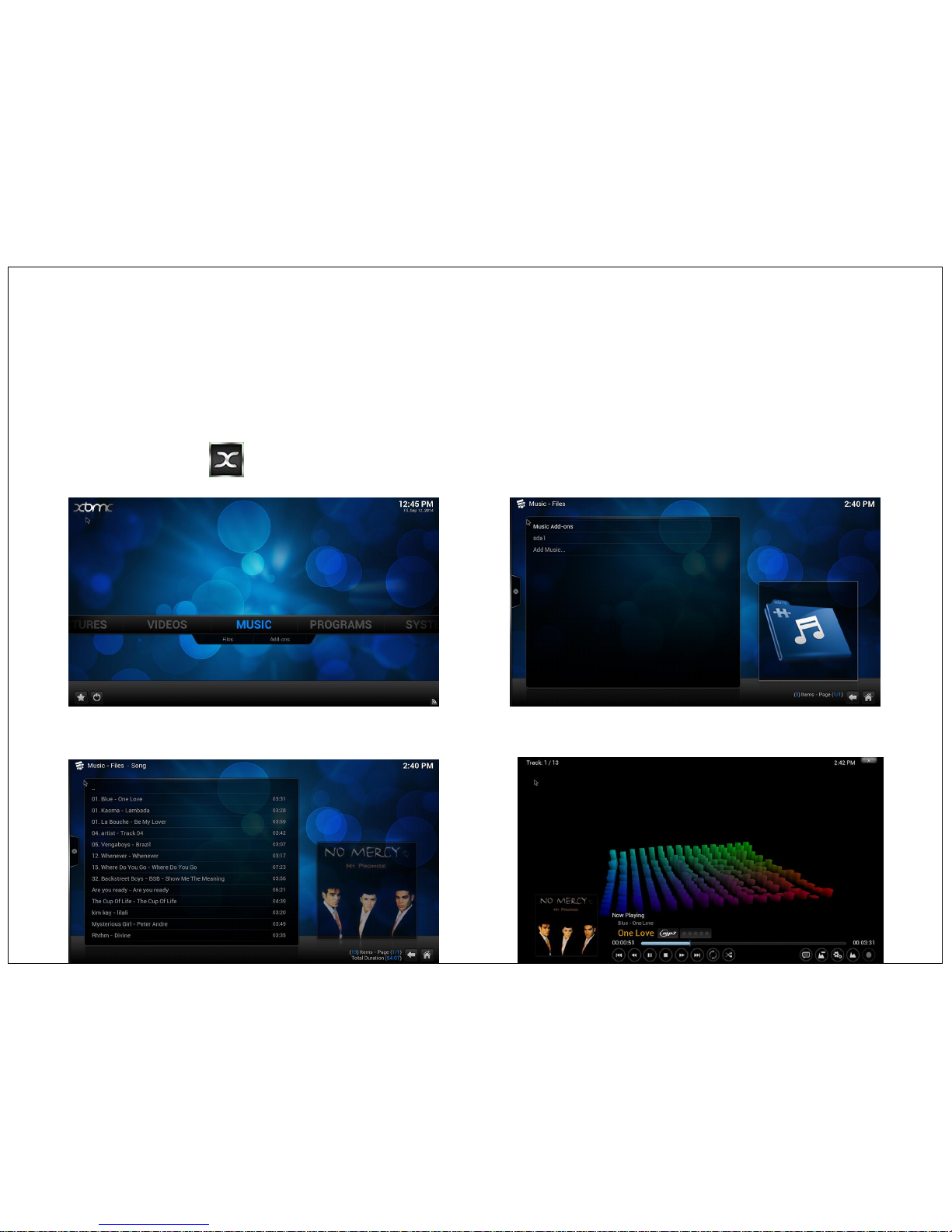
XBMC is a versatile, Powerful Media player capable of playing most popular Video, Audio & Image formats. Please refer below chart for complete specification
of format supported. You can play movies, video or music from Built in storage space or from external USB device like PEN Drive or USB Hard Disk.
Using USB Memory stick or Hard Disk
You can plug in USB drive in either of available USB 1, 2 or 3 port and play the Movies, Music & Photos.
USB port is designed to power USB 2.0 compatible hard drives. However if your hard drive requires external power connection, please make sure to power it
externally
Playing Music
Open XBMC from Home Page > Music > Select music folder (from inbuilt storage or from External USB) > Click on your files. See below images for
reference.
To make Music skin in to full screen, please click on left side slider. Than you will get below navigation of Music player. Use Mouse of Arrow on remote to
operate Navigation. You can use remote control Volume + and – key to adjust Volume.
14
Page 15
Media
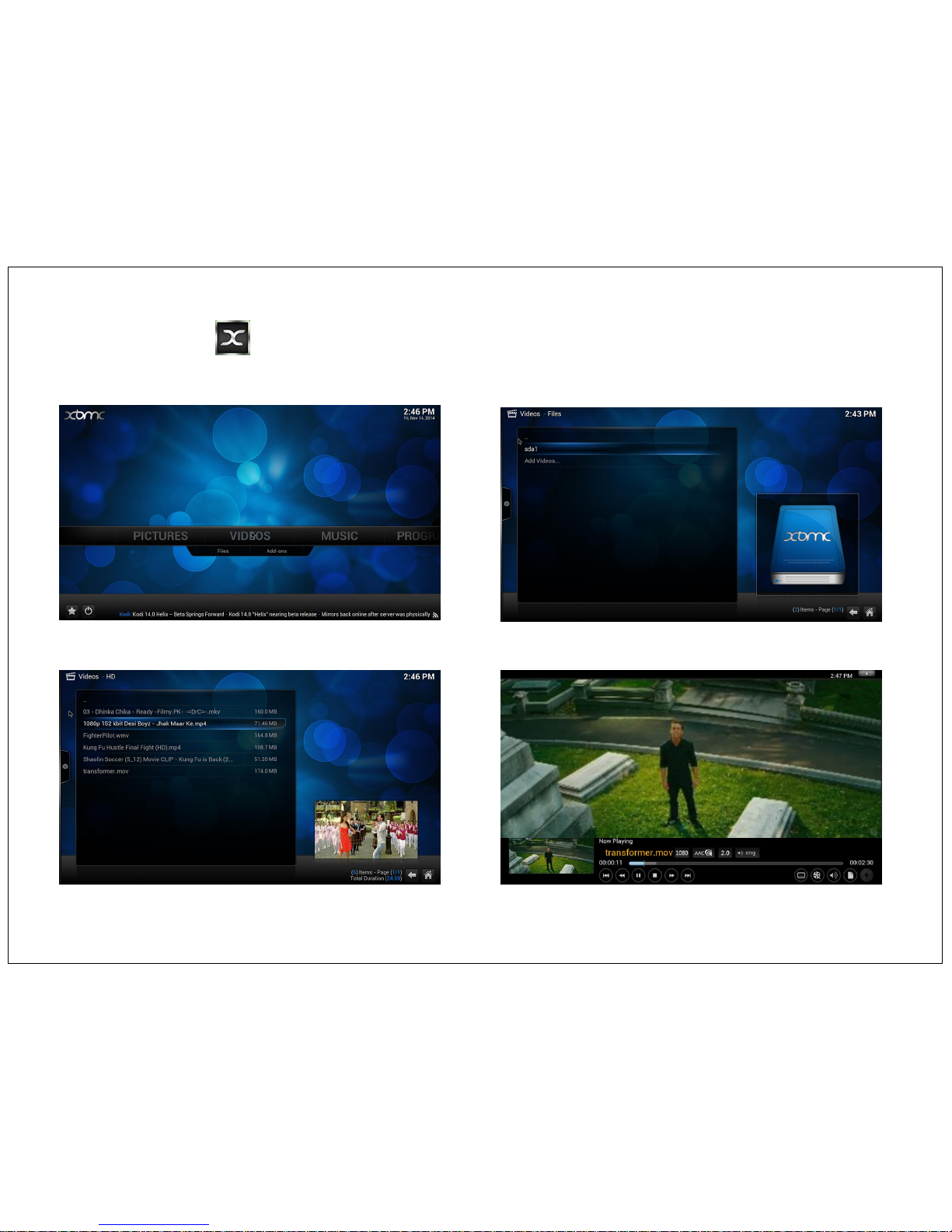
Playing Video
Open XBMC from Home Page > Video > Select Video folder (from inbuilt storage or from External USB) > Click on your video files. See below
images for reference.
Video are played on full screen mode, To control the video click any where on the screen, and the video control bar will become visible. You can use
remote control Volume + and – key to adjust Volume.
Video formats: Please refer page no 28 for supported video formats.
15
Page 16
Media
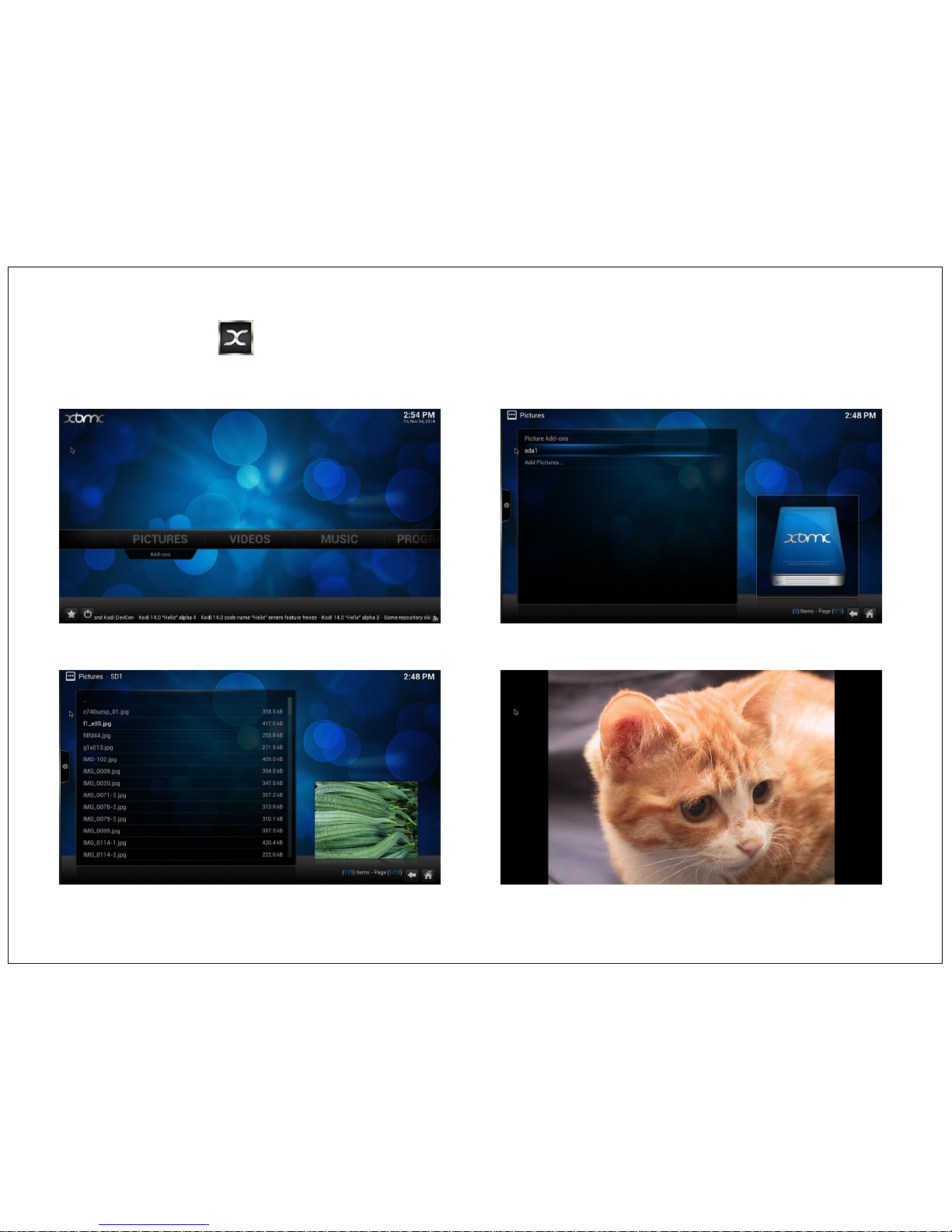
Playing Picture
Open XBMC from Home Page > Picture > Select Picture folder (from inbuilt storage or from External USB) > Click on your Images files to watch
slide show. See below images for reference.
While Playing image slide show, you can see blank space if your images is not in HD or FULL HD resolution. There is second Picture application on the
device GALLERY that can also be used for enjoying your pictures.
16
Page 17
Games
You can install many more Android games from the Play store available in the Home screen/ My apps.
If you know good games on a USB stick, you can install those also.
Installed Games you can see in My Apps.
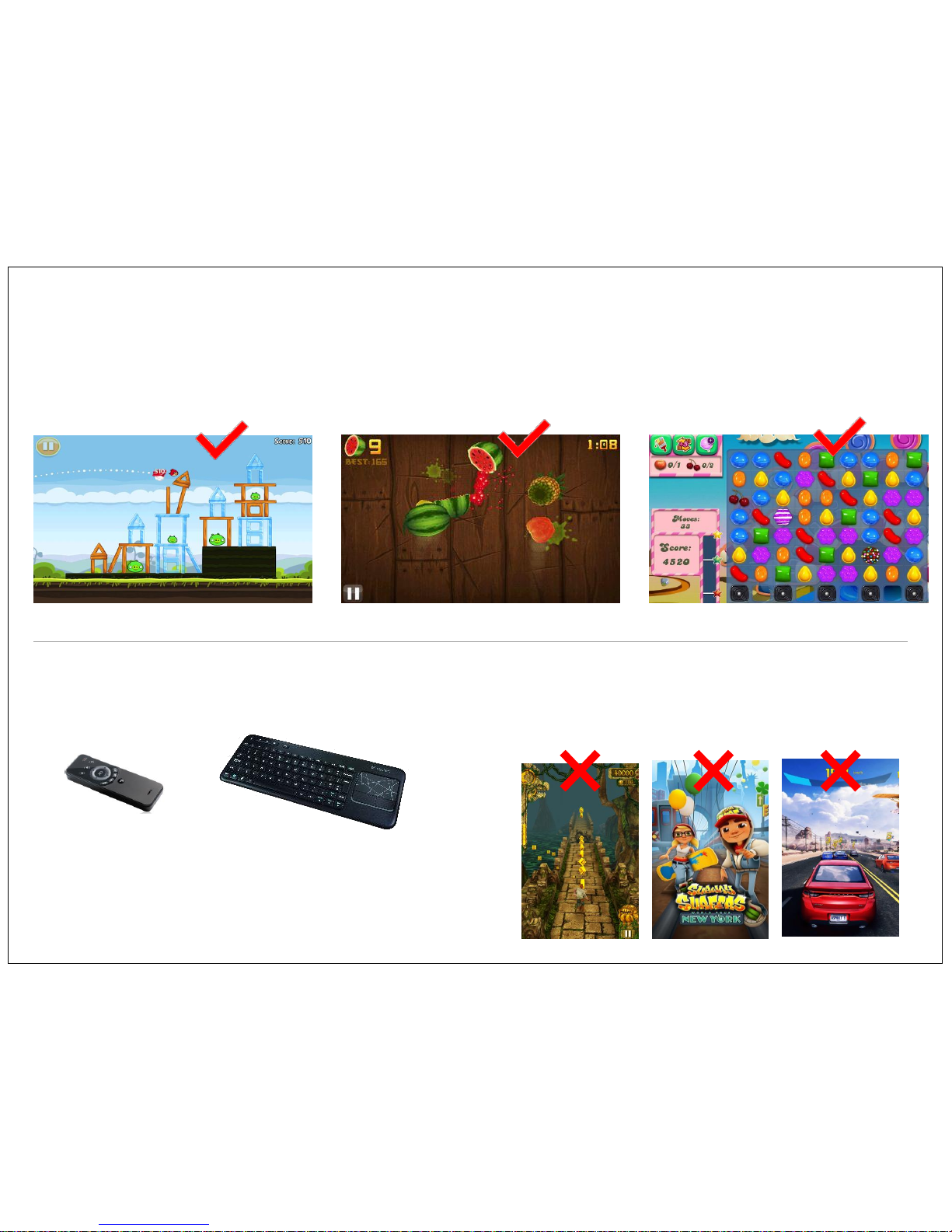
Check out some of the popular games like, Angry birds, Fruit Ninja, Candy Crush etc.
Many android games works on touch gesture technology and movement
of device Ex- Subway Surf, Temple Run, Car Racing Super Adventure
etc, those games are not compatible with this TV.
Also the Games involve Zoom-in/out function so you can see bigger
play area. This function is not supported by Vu Android TV.
Many games are design in vertical format, while playing them on Vu Android
TV it will only show 1/3 of actual screen area, and rest of the screen become
blank. Different games may work slightly differently- experiment and have fun.
Temple Run Subway Surf Asphalt 8
Motion Sensing Remote
(Air Mouse)
Wireless Keyboard with
Track Pad
Note:
To play Android games you require additional attachment of
Wireless keyboard/Mouse or Motion sensing Mouse (Air Mouse)
which RF dongle you can connect to USB port of TV. This device
customer need to buy separately. It is not included in the standard
TV accessory pack.
Angry Birds Fruit Ninja Candy Crush
17
Page 18
Internet Browser
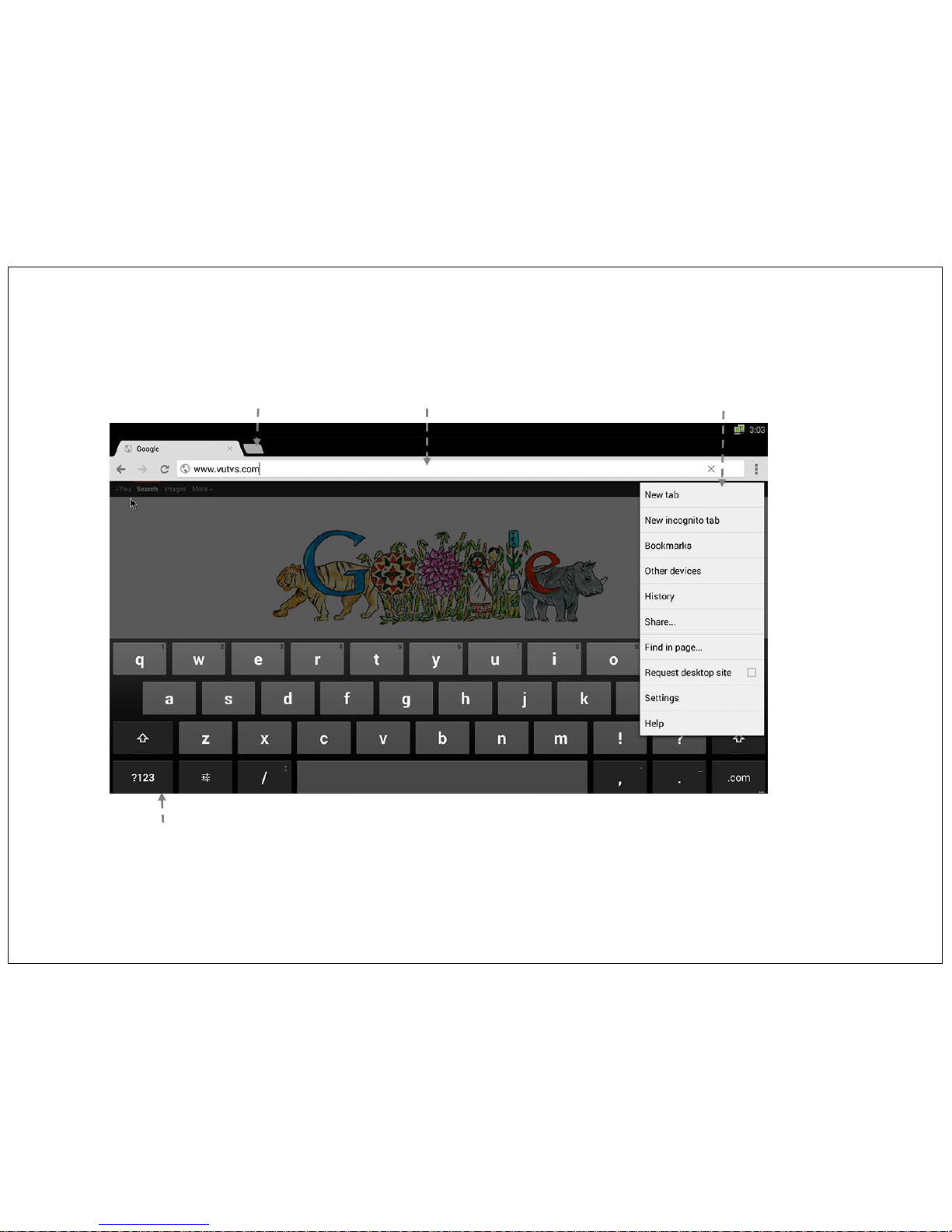
This opens up a Web Browser to browse the web. You can use Google search, type the website URL and brows the website just like you would on a PC. Use
mouse keys or arrow keys to navigate and the virtual keyboard to type in your search words, email & other text input.
Website Address bar
& search bar
New Tab
Extended Functionality
Virtual Keyboard
You can also connect external wire or wireless USB keyboard & Mouse to USB port of TV.
You can also use motion mouse to scroll on browser page. You can drag the page up/ down just like in game.
18
Page 19
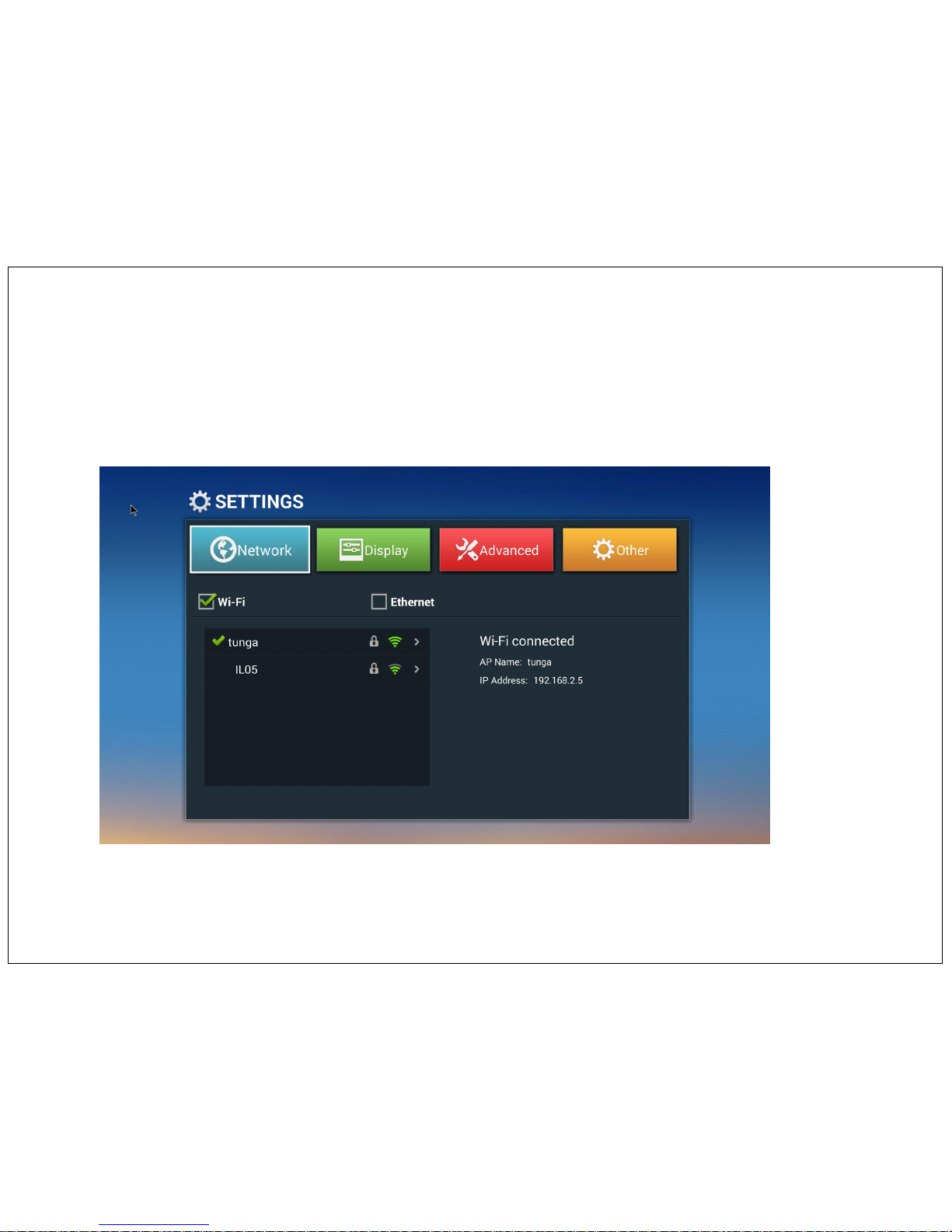
Setting
Under SETTING you can find all the different device and software setting that you might need for selections include.
From hear you can manage most of the needed device and internet setting. Sub- categories under this include.
Network Setting
Please refer Page No – 25 to 27 for more details.
19
Page 20
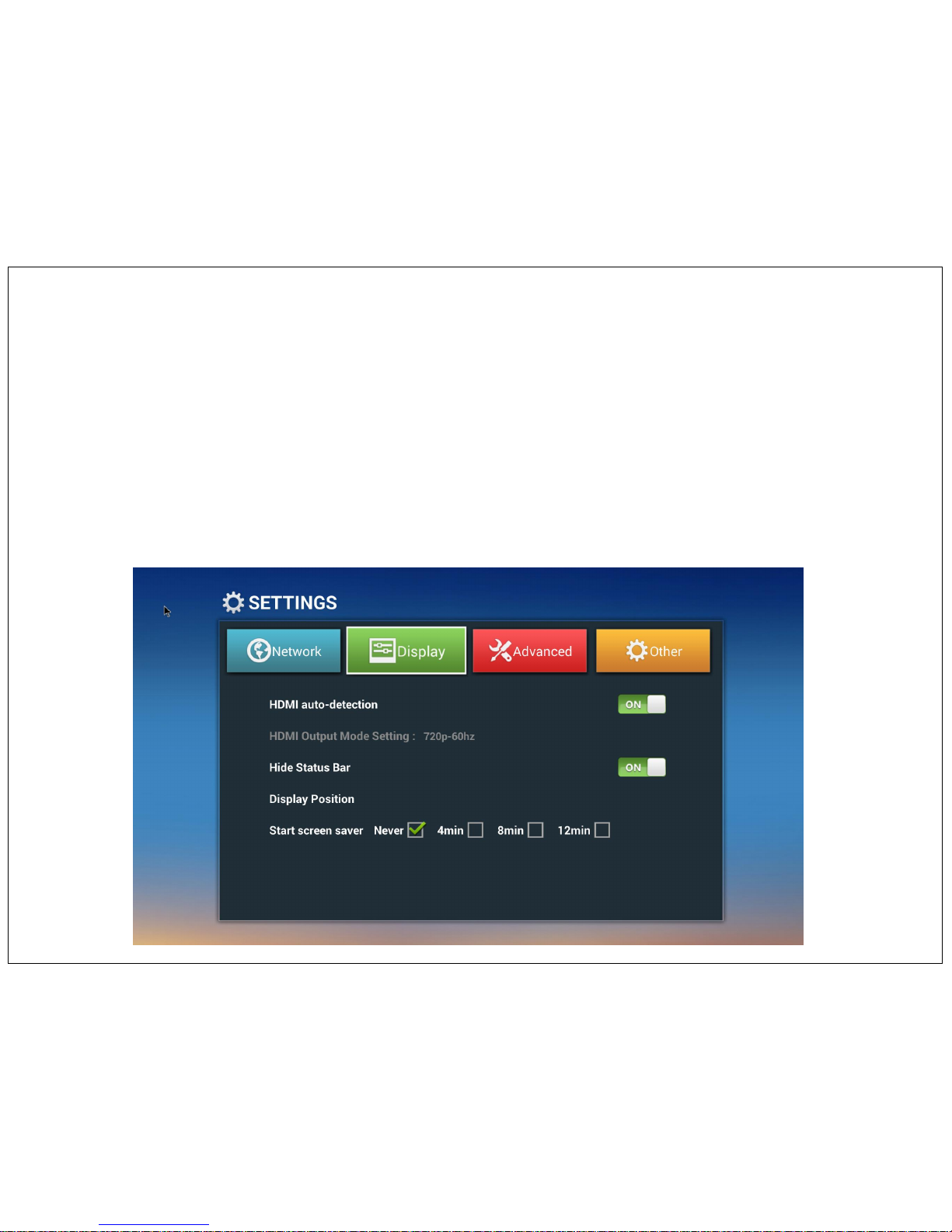
Setting
Display Setting
HDMI auto Detection - To adjust the display resolution from Auto or manually - 480P, 576P, 720P, 1080P, 4K.
Do not change HDMI out put mode setting to 4K otherwise display will goes out of sync. i.e. no display.
Hide Status bar – ON/ OFF
Display position – In some apps display goes out of display area, to adjust display screen area change display position by pressing up or down
arrow on remote control.
Screen Saver – Change the screen stand by time as per your convenient.
20
Page 21
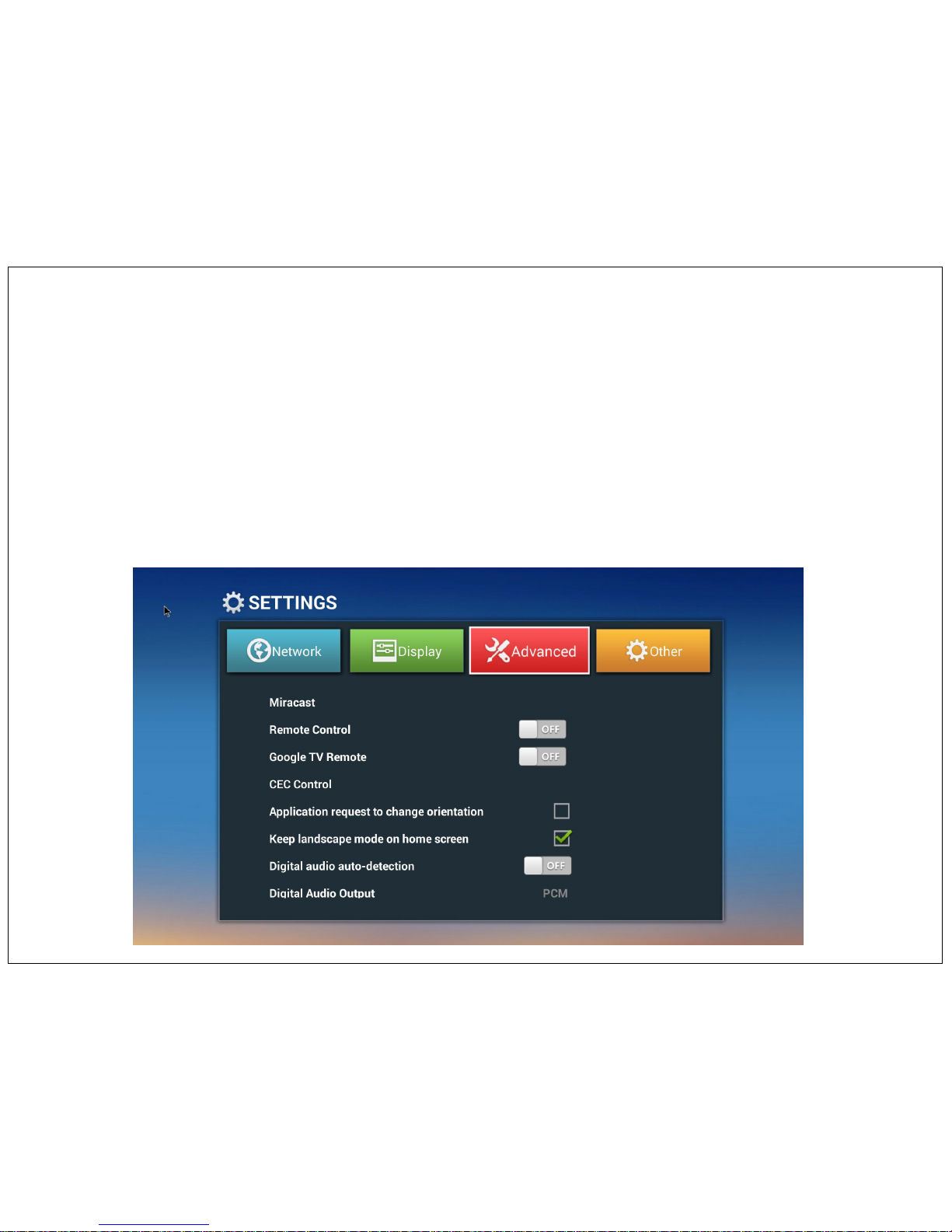
Setting
Advance Setting
Miracast- To connect your Mobile phone or Tablet wirelessly to TV. More details on Page no –22
Remote Control – To control Vu android feature from remotely.
Google TV Remote – To Control Vu Android TV feature from External Mobile phone. Note you need to download the Google TV Remote app in
your mobile phone.
CEC Control – Consumer Electronics Control capability allows HDMI devices to control each other when necessary and allows the user to operate
multiple devices with one remote control handset.
21
Page 22
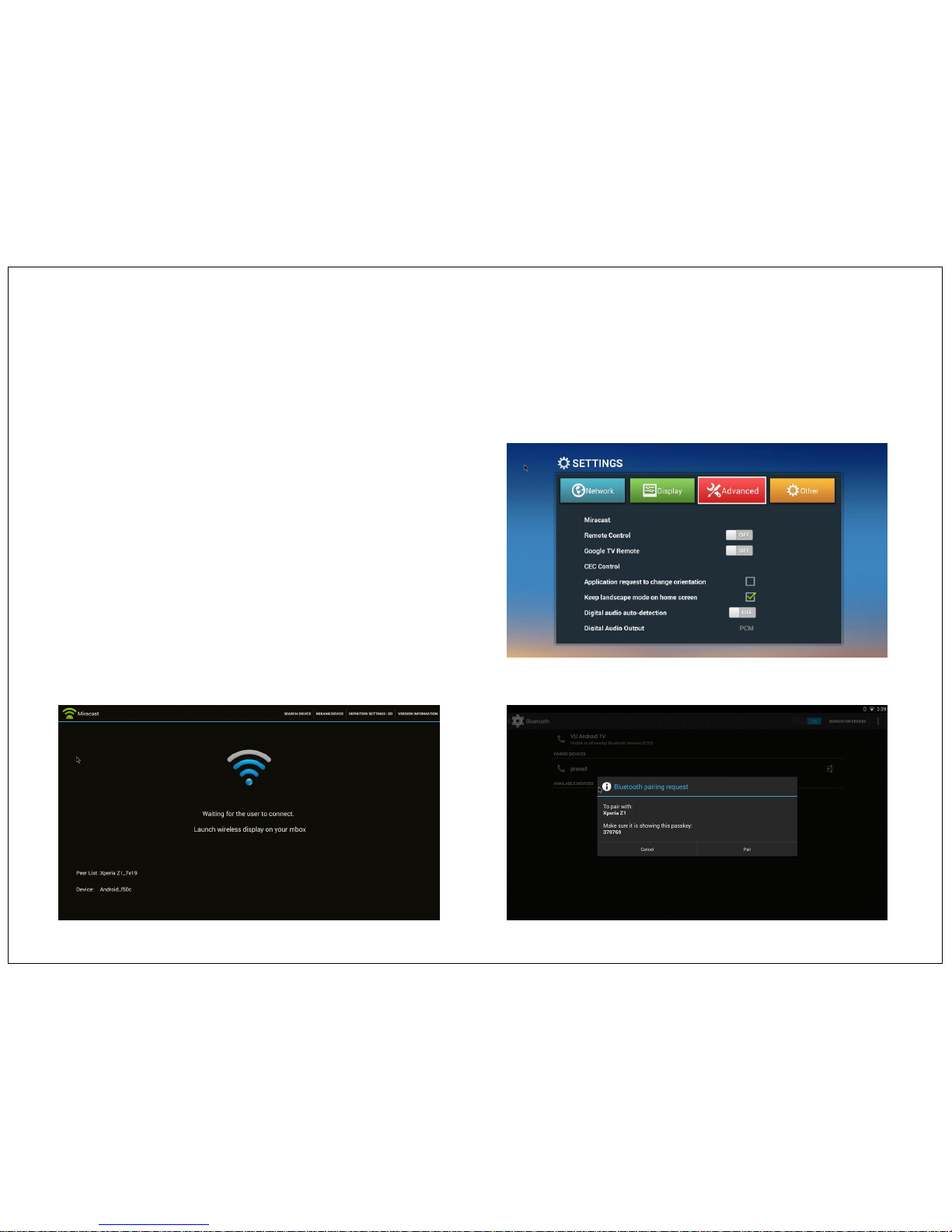
Miracast
How to connect your Mobile phone or Tablet to TV.
Ensure your Device (mobile/tablet) are with Android OS. (iOS/ Windows/ and other OS devices are not compatible with Vu Android TV)
Ensure your device (Mobile/ Tablet) has built in Miracast or Wireless Display or Screen Mirroring facility. Please note: all Android Devices are not
compatible with Miracast function. Only those devices have Screen Mirroring or Wireless Display or Miracst function in the device are compatible with
Vu android TV. Ensure you have wifi environment.
Steps – Connect your device (Mobile/ Tablet) and Vu Android TV to
same wifi network.
Go to Android TV Setting Option > Advanced > Miracast > Press OK
button, it will show you Launch wireless display on your TV.
Now go to your device (Mobile/ Tablet) setting and find for in
Miracast or Wireless Display or Screen Mirroring function > Turn on
the Screen Mirroring option > It will search for the device. > You will
find Android on your device (Mobile/ Tablet) Click on that name >
now you will see the message on TV screen “Invitation to connect” >
select “Accept” > Your device will get Mirrored to Vu Android TV
22
Page 23
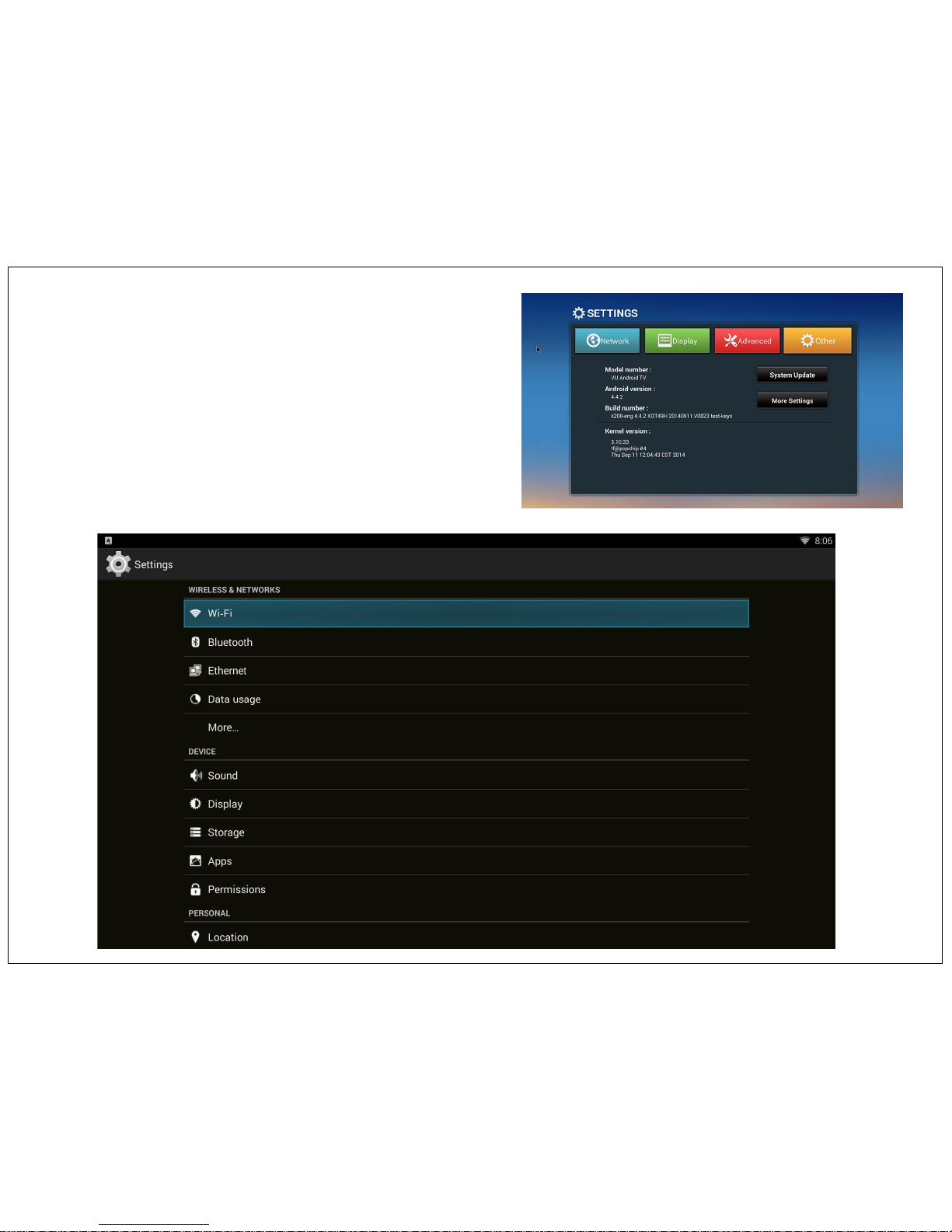
Setting
Hear You can see the details description of Vu Android TV & version.
Under System Update you can download new updates. (Note: while doing
system Update don’t turn OFF TV set.)
Under More setting you will find all the different device and software setting
that you might need for selections include.
Ex – Wifi, Bluetooth, Ethernet, data Usages, Sound, Display, Storage, Apps,
Permissions, Location, Security, Language, Backup, Account, Date Time,
Accessibility, Printing, Developer, About device.
23
Page 24
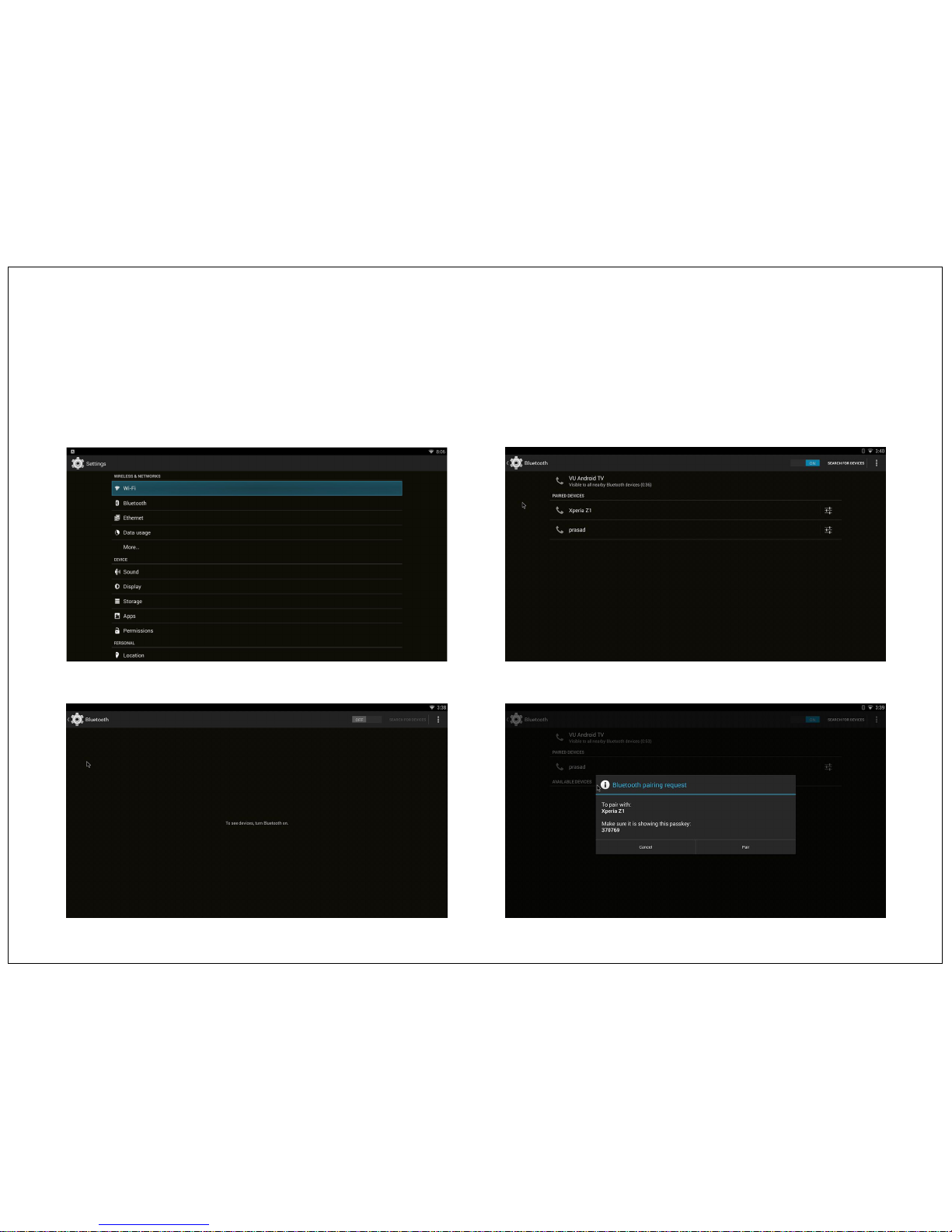
Setting
How to Use Bluetooth:
Steps – Go to Android TV setting Option Other > More setting > Bluetooth > Turn ON the Button at Left Top side of display & Search For device.
Same time go to your Mobile setting > Turn ON the Bluetooth and search for device. You will find “Vu Android TV” > click on Pair button on
You are ready to use Bluetooth function
24
Page 25
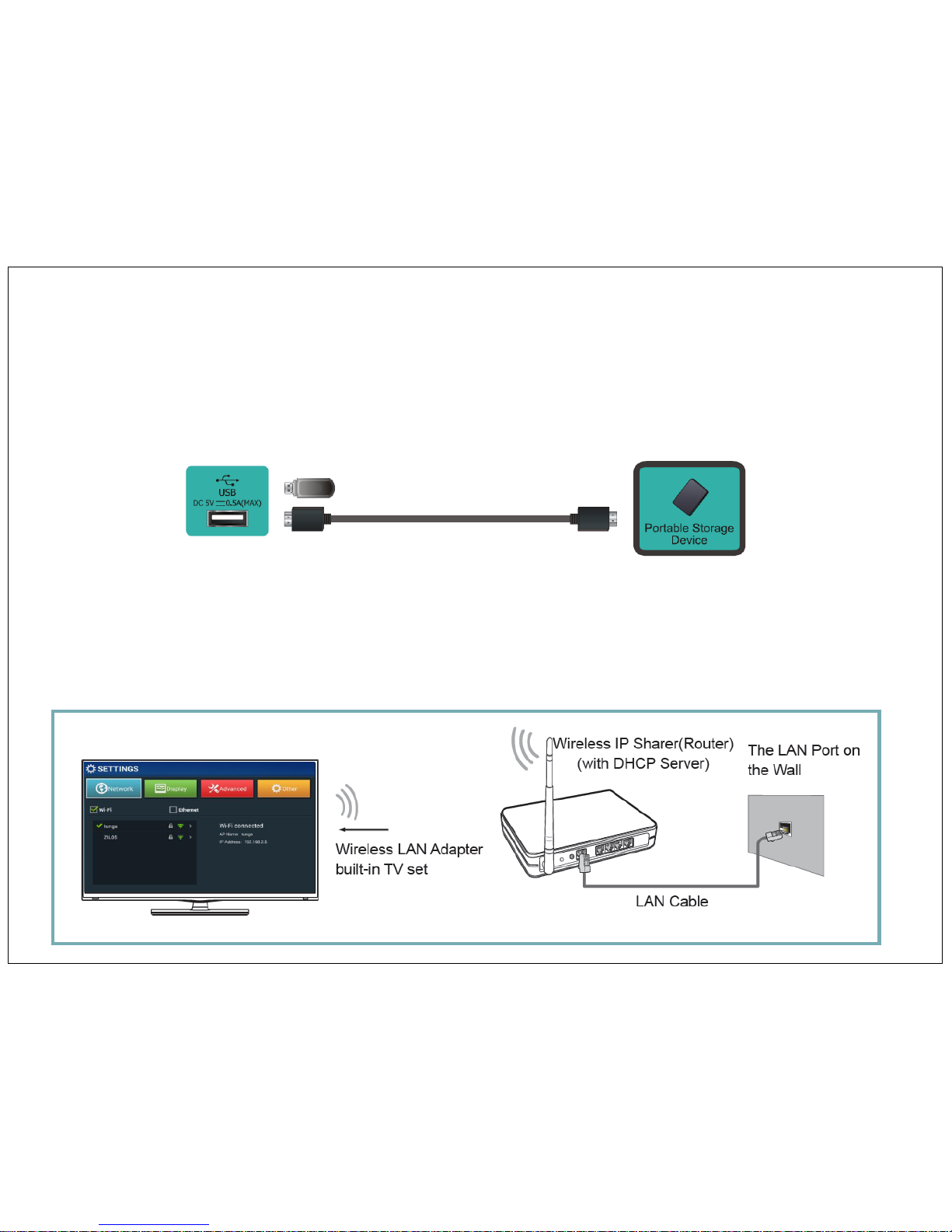
Connecting to Internet / USB
• Check the Jack for position and type before making any connection. Loose Connection can result in image, malfunctioning of
device. Make sure all connections are tight & secure.
• Always unplug the power cord when connecting the external equipment.
Connect Device with USB Interface
This unit has a standard USB interface and can be connected to standard USB 2.0 disks.
You can use USB connection cord or directly insert USB in to USB port at the side of the TV
Wi-Fi - Set network type to Wi-Fi (a Wireless Network).
You can select an available Wi-Fi network that was found around or set up a new Wi-Fi network.
To connect your TV to your wireless network, you need a wireless router or modem. See the illustration below.
How to do Network Setup
Go to Setting Mode on Home Screen > go to Network > Decide your network option – Wifi or Ethernet, Press click on your network option.
25
Page 26
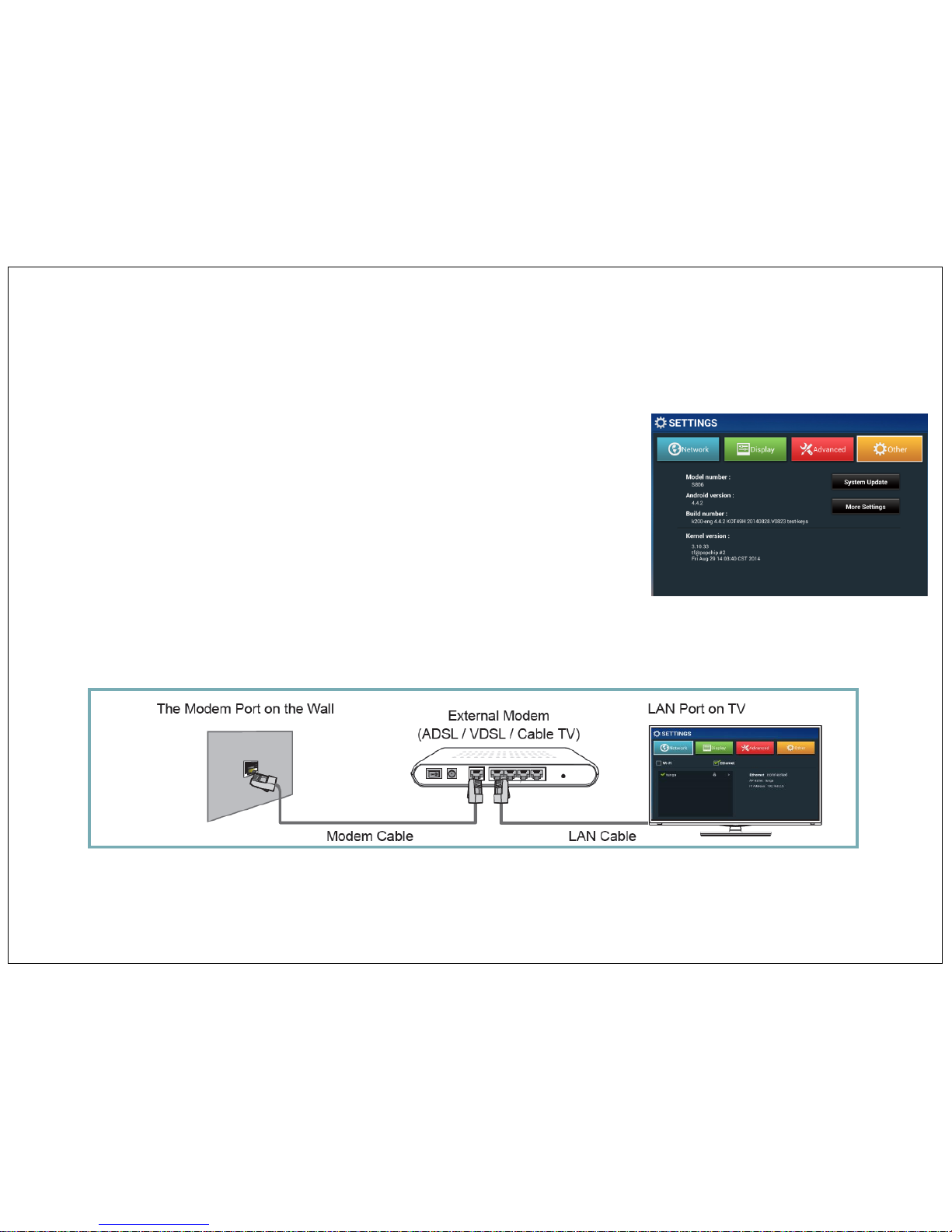
LAN Connect an Ethernet to access a network or the Internet.
Go to Setting Mode on Home Screen > go to Network > Decide your network option –
Ethernet, Press click on your network option.
NOTES
• You must use the TV’s built-in Wireless LAN Adapter to use a wireless network.
• If the wireless router supports DHCP, your TV can connect more easily to the wireless network.
• If you apply a security system other than the systems listed below, it will not work with the TV.
• Security system: WPA,WEP,WPA2.
• In order to guarantee smooth network, the distance between router and TV is less than 10 feet.
Scan - Automatically search and display a list of available wireless networks around.
Press the [▲/▼] buttons on android remote to select the network (SSID) you wish to connect to. Enter the password to connect.
If the selected network is not security-enabled, the TV will attempt a connection right away.
If the desired wireless router doesn't appear in the list, please select Add Network from More Setting in Other option.
Add network - Manually enter the network's SSID and password to connect the network.
Now your Wifi Network is set. You will get wifi connection icon at left top side on main Home Screen.
Connect your LAN cable to Ethernet port of TV. Select the Ethernet option on Network Setting. It will detect your DHCP connection automatically.
If you have Static IP please follow following process
Setting > Other > More settings > Ethernet > Ethernet Configuration > Select connection type to Static IP > add your network details Ex- IP Address, Net
mask, DNS address, Gateway address, Proxy setting > Save
Your Ethernet network is set. You will get LAN connection icon at left top side on main Home Screen
Connecting to Internet
26
Page 27
Connecting to Internet
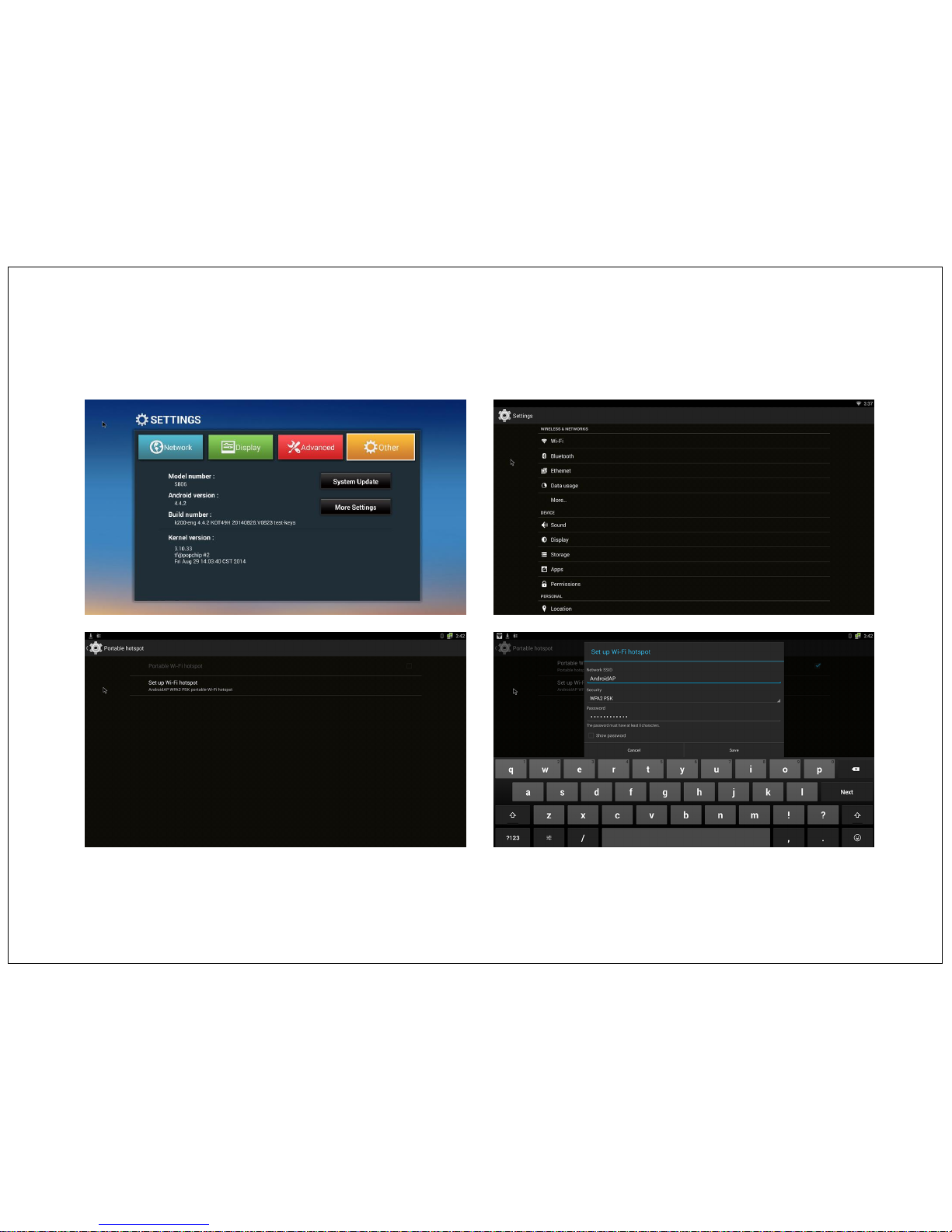
How to do Wi-fi Hotspot
Go to Setting Mode on Home Screen > Other Option > More Setting > More > Portable Hotspot, This will show pop up dialogue box for
configuration. Now setup wifi hotspot setting like SSID, Security & password.
Please make note of that for future reference. Select a password that you can remember, or write down. You will need that password on the other
Computer to connect to this wifi hotspot network.
Save and closed the dialogue box. Now your wifi Hotspot is set. And you can use it with other laptops, tablets or mobile phones for internet
browsing.
27
Page 28

* Amlogic Quad core S802
* ARM Cortex A9, up to 2.0GHz
* Octa core ARM Mali-450 GPU, comply with OpenGL ES
1.1/2.0 and OpenVG 1.1
* 2GB DDR3
* 8GB Nand flash
* Android 4.4.2 KitKat
* H.264 UHD hardware decoder
* CVBS 480i/576i standard definition output
* 802.11 b/g/n 2.4GHz WiFi, Broadcom AP6210 module
* Hotspot
* Bluetooth 4.0
* 10/100M Ethernet
* Supports XBMC
Product Specification
Video Decoding
* H.264 MVC up to 1080P@60fps
* MPEG-4 ASP@L5 up to 1080P@60fps
* WMV/VC-1 SP/MP/AP up to 1080P@60fps
* AVS JiZhun Profile up to 1080P@60fps
* MPEG-2 MP/HL up to 1080P@60fps
* MPEG-1 MP/HL up to 1080P@60fps
* RealVideo 8/9/10 up to 1080P@60fps
* H.265 HEVC up to 720P
* WebM up to VGA
* Supports mkv, wmv, mpg, mpeg, dat, avi, mov, iso, mp4, rm and
jpg file formats
Audio Decoding
* Supports MP3, AAC, WMA, RM, FLAC, Ogg
Picture Decoding
* MJPEG and JPEG unlimited pixel resolution decoding
* Supports JPEG thumbnail, scaling, rotation and transition effects
Hardware
28
Page 29

Network not Working
If your wifi not shown in your AP list of Network, than check the following points:
1. Go to Setting > Other Option > More Setting > Wifi > Press “+” button on left side of screen > Add your network setting. Ex – Network
SSID, Security, Password > Save
2. Make sure your Home wifi router is with-in the 10-feet distance (*depends on router strength)
3. If your connecting wifi using your Mobile/ Tablet Hotspot, make sure your device is with-in the 5-feet distance (*depends on your device
Hotspot strength)
4. Check your Home router/ Mobile device security setting.
5. Reset the Android TV by Power OFF and again Power ON from smart remote control power button.
If you still have issue with your LAN not shown in your connection, than please check the following points.
1. Physical connection of LAN cable to TV
2. Check your network settings are proper in Ethernet setting
3. Verify your network setting with your service provider
Skype not Working
If Skype is not functioning properly please check following points:
Please check your internet connection wifi/ Lan is working properly.
If internet connection is OK then, please restart the android OS by switch OFF and ON using smart remote control.
If problem is still occur, please remove Skype app from apps store and reinstall again –
To Uninstall Skype > Go to Setting > Other > More setting > Apps, Select the Skype apps > Uninstall.
To Install skype > Go to Google Play Store > Type Skype in search option > Install. And redo all other setting which indicate above.
To check your camera is working or not – Go to My Apps on home UI > open Camera app and test your camera.
Play Store not Working
If your play store is not opening please check following points.
1. You have logging using your google account.
2. Go to chrome browser and type “play.google.com” and check if google play is working proper. If it is working properly from google chrome
than go to Setting > Other > Apps > click on google play store and than clear storage data & clear catches > Uninstall the Updates.
3. If it is not working proper from google chrome, please check your google account is wrong.
FAQ
29
Page 30

Miracast not Working
If Miracast is not functioning properly please check following points:
iOS/ Windows/Widi/ Airplay/ and other OS devices are not compatible with Miracast function
Make sure your device has built in Miracast or Wireless Display or Screen Mirroring function in device setting option.
For mirroring option wifi network is must, so make sure you have connected your device & Vu android TV in the same wifi network.
Make sure your device & android TV wifi network antenna show full range. If range is low, screen mirroring will not function properly. i.e. your
device will not connect to Android TV or loose the mirroring connectivity.
Bluetooth not Working
If Bluetooth is not pairing than just reset the android TV by switch OFF and Switch ON again.
Application not Working
If you find any application if not working or malfunctioning, please try to do following steps.
Please check the date and time in More Setting option.
Restart the Android by switch OFF and ON from Android remote.
Uninstall the upgrades of related apps.
If you still find the issue with apps, please uninstall the apps from More Setting> Apps and reinstall again.
Games not working
To play Android games you require additional attachment of Wireless keyboard/Mouse or Motion sensing Mouse (Air Mouse).
Many android games works on touch gesture technology and movement of device Ex- Subway Surf, Temple Run, Car Racing Super Adventure
etc, those games are not compatible with this TV.
Also the Games involve Zoom-in/out function so you can see bigger play area. This function is not supported by Vu Android TV.
Many games are design in vertical format, while playing them on Vu Android TV it will only show 1/3 of actual screen area, and rest of the
screen become blank. Different games may work slightly differently- experiment and have fun.
30
Page 31

Support & Contact
VU - Q- Service : Support Help Lines
ALL CALLS NEED TO BE LOGGED AT VU HO CALL CENTER, FOR ANY INSTALLATION AND SERVICE
REQUIREMENTS.
TOLL FREE NUMBER :1800-22-8455
LAND LINE :022-28305930
MOBILE & SMS :09322999917
EMAIL :
For Mumbai : [email protected]
For Rest of India : [email protected]
Monday to Saturday - 9.30 am to 6.00 pm
For More details, please visit to http://vutvs.com/content/15-support
31
 Loading...