

Page 1
Panoramic Multi-sensor
MA8391-ETV
Network Camera
User’s Manual
12MP • 360° Surround View • IP66 • IK10 • Remote Focus • SNV
Smart Stream II • PoE • -40°C ~ 55°C Wide Operating Temperature
Rev. 1.0
Page 2

VIVOTEK
Table of Contents
Overview
Revision History ..................................................................................................................................................... 3
Read Before Use .................................................................................................................................................... 4
Package Contents .............................................................................................................................................. 4
Symbols and Statements in this Document ............................................................................................................ 5
Physical Description ............................................................................................................................................... 5
Mounting Options ................................................................................................................................................... 9
Ceiling Mount ....................................................................................................................................................... 11
Software Installation ............................................................................................................................................. 19
Network Deployment ............................................................................................................................................ 28
Ready to Use ........................................................................................................................................................ 31
Accessing the Network Camera
Using Web Browsers ............................................................................................................................................ 32
Using RTSP Players ............................................................................................................................................. 35
Using 3GPP-compatible Mobile Devices .............................................................................................................. 36
Using VIVOTEK Recording Software ................................................................................................................... 37
Main Page
Client Settings
Conguration
System > General settings ................................................................................................................................... 50
System > Homepage layout ................................................................................................................................ 52
System > Logs ..................................................................................................................................................... 55
System > Parameters .......................................................................................................................................... 57
System > Maintenance ......................................................................................................................................... 58
Media > Image ................................................................................................................................................... 62
Media > Video ...................................................................................................................................................... 71
Media > Video ...................................................................................................................................................... 72
Media > Audio....................................................................................................................................................... 79
Network > General settings .................................................................................................................................. 80
Network > Streaming protocols .......................................................................................................................... 87
Network > SNMP (Simple Network Management Protocol) ................................................................................. 97
FTP
Security > User accounts ..................................................................................................................................... 99
Security > HTTPS (Hypertext Transfer Protocol over SSL) .....................................................................101
Security > Access List ...................................................................................................................................... 108
PTZ > PTZ settings ............................................................................................................................................ 113
Event > Event settings........................................................................................................................................ 117
Applications > Motion detection.......................................................................................................................... 131
Applications > DI and DO ................................................................................................................................. 135
Applications > Tampering detection ...................................................................................................................136
Applications > Audio detection ......................................................................................................................... 137
Applications > Package management - a.k.a., VADP (VIVOTEK Application Development Platform) ............. 139
Recording > Recording settings ........................................................................................................................ 142
Local storage > SD card management ............................................................................................................... 147
....................................................................................................................................................................
...........................................................................................................................
................................................................................................................................................................
.........................................................................................................................................................
...........................................................................................................................................................
��������������������������������������������������������������������������������������������������������������������������������������������������������� 98
3
32
38
44
49
2 - User's Manual
Page 3

VIVOTEK
Local storage > Content management ..................................................................................................... 148
Appendix
URL Commands for the Network Camera ................................................................................................ 151
Technical Specications ...........................................................................................................................153
Technology License Notice ....................................................................................................................... 155
Electromagnetic Compatibility (EMC) .......................................................................................................156
....................................................................................................................................................
151
Overview
The MA8391-ETV is the most versatile product offering to date from VIVOTEK. The
MA8391-ETV provides high resolution images through four independent sensors, with each
sensor utilizing a remote focus lens. By having each sensor independent of each other, the
MA8391-ETV can view four different regions simultaneously and therefore reduce the total
number of cameras needed for surveillance, helping to reduce total installation time and
costs.
Featuring four independent 3MP CMOS Sensors, the MA8391-ETV network camera can
provide the most fexibility in surveillance monitoring. Each sensor utilizes a 2.8 to 8 mm
remote focus lens and 3-axis design along a circular track to enable full 360° coverage.
This enables the MA8391-ETV to capture every angle for comprehensive video coverage
from a single IP address, making this camera ideally suited for surveillance in areas such
as hallway intersections, building corners, parking garages/lots, and shopping malls.
In addition to its versatile coverage, the MA8391-ETV is armed with a robust IP66 and
IK10-rated housing to enable the multi-directional camera to withstand rain and dust as
well as to protect against vandalism or tampering.
Revision History
■ Rev. 1.0: Initial release.
User's Manual - 3
Page 4

VIVOTEK
Read Before Use
The use of surveillance devices may be prohibited by law in your country. The Network Camera
is not only a high-performance web-ready camera but can also be part of a exible surveillance
system. It is the user’s responsibility to ensure that the operation of such devices is legal before
installing this unit for its intended use.
It is important to first verify that all contents received are complete according to the Package
Contents listed below. Take note of the warnings in the Quick Installation Guide before the Network
Camera is installed; then carefully read and follow the instructions in the Installation chapter to
avoid damage due to faulty assembly and installation. This also ensures the product is used
properly as intended.
The Network Camera is a network device and its use should be straightforward for those who
have basic networking knowledge. It is designed for various applications including video sharing,
general security/surveillance, etc. The Configuration chapter suggests ways to best utilize the
Network Camera and ensure proper operations. For creative and professional developers, the URL
Commands of the Network Camera section serves as a helpful reference to customizing existing
homepages or integrating with the current web server.
Package Contents
■ MA8391-ETV
■ Screws / desiccant bag / double-side tape
■ Top mounting plate
■ Alignment sticker
■ Quick Installation Guide
■ T10 stardriver
■ Waterproof cable gland
4 - User's Manual
Page 5
Symbols and Statements in this Document
i
INFORMATION: provides important messages or advices that might help prevent
inconvenient or problem situations.
NOTE: Notices provide guidance or advices that are related to the functional integrity of
the machine.
Tips: Tips are useful information that helps enhance or facilitae an installation, function,
or process.
WARNING: or IMPORTANT:: These statements indicate situations that can be
dangerous or hazardous to the machine or you.
Electrical Hazard: This statement appears when high voltage electrical hazards might
occur to an operator.
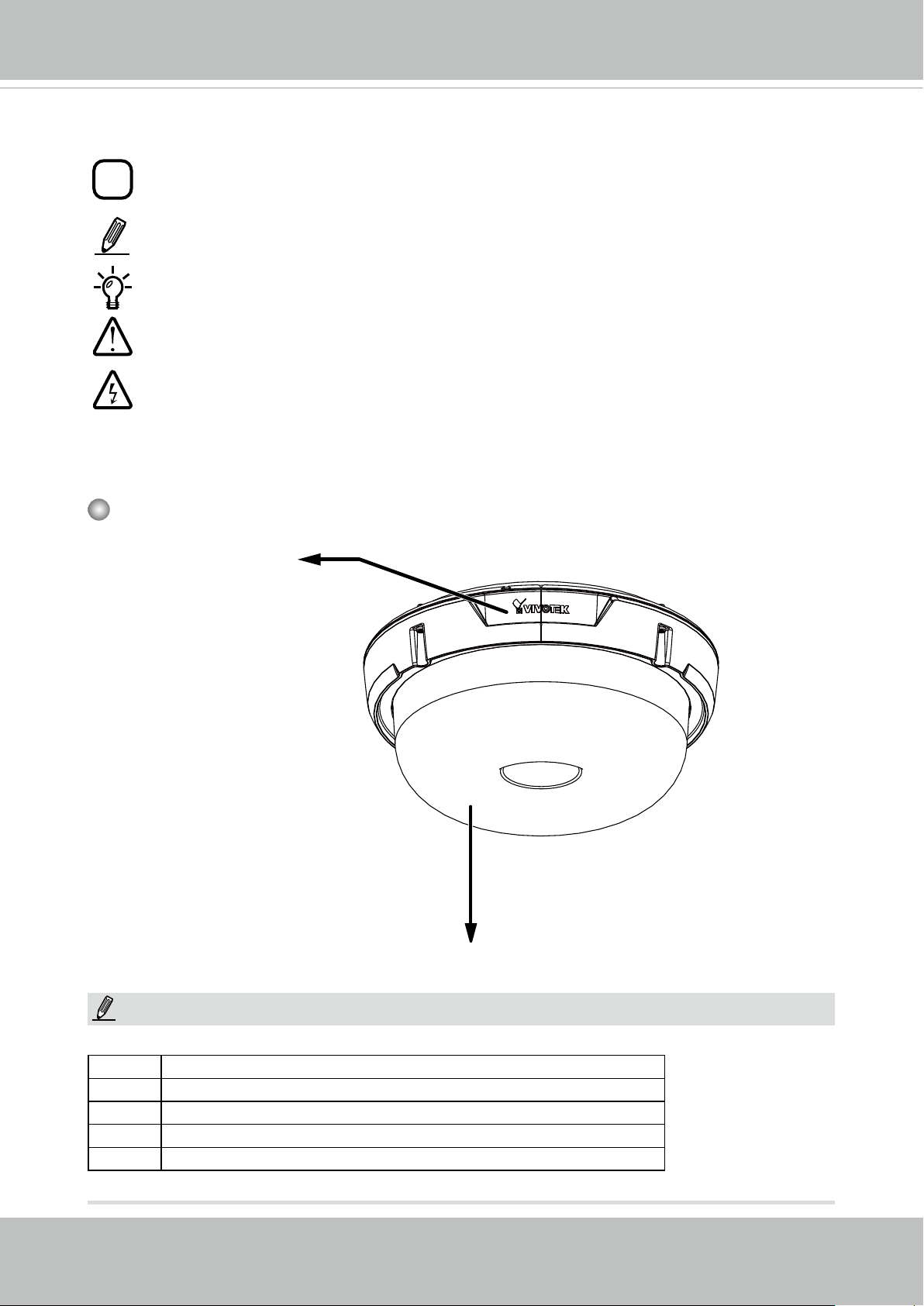
Physical Description
Outer View
VIVOTEK
NOTE:
Microphone
Dome cover
Some of the sufx syntax used in model naming are listed below:
E w/ heater for extreme weather
Fx Focal length w/ number
T w/ Remote focus lens
R w/ PoE repeater
H w/ High Dynamic Range functionality
User's Manual - 5
Page 6
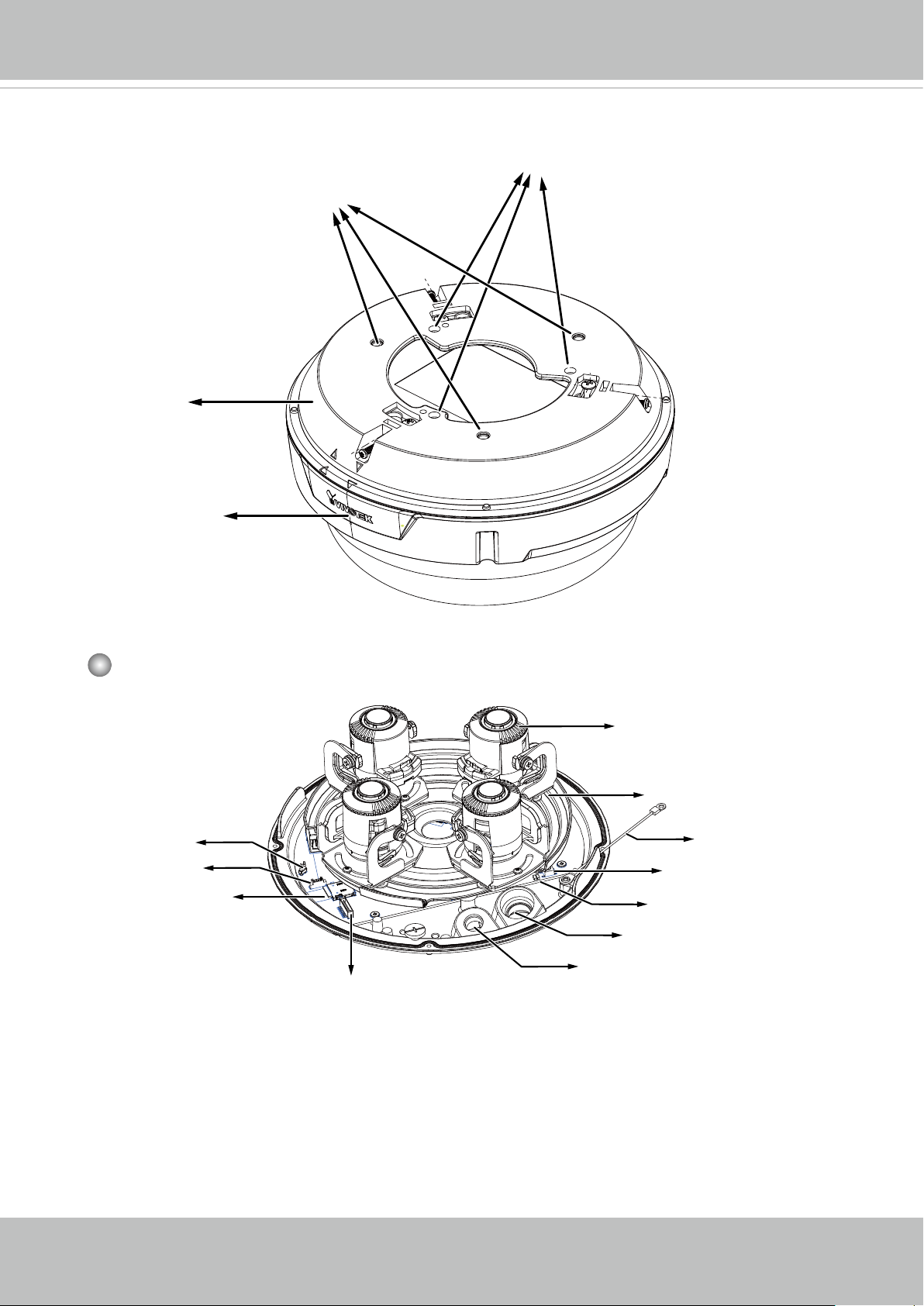
VIVOTEK
Top View
Top mounting
plate
Through holes for ceiling-mount or AM-21C
Threaded holes for AM-529
Camera
Inner View
Microphone
contacts
J8 header
MicroSD card slot
Lens (sensor) module,
3-axis adjustable
Slide track
Safety tether wire
Reset button
Status LEDs
Cable gland for Ethernet
6 - User's Manual
Cable gland for I/O combo cable
J14 header
Page 7
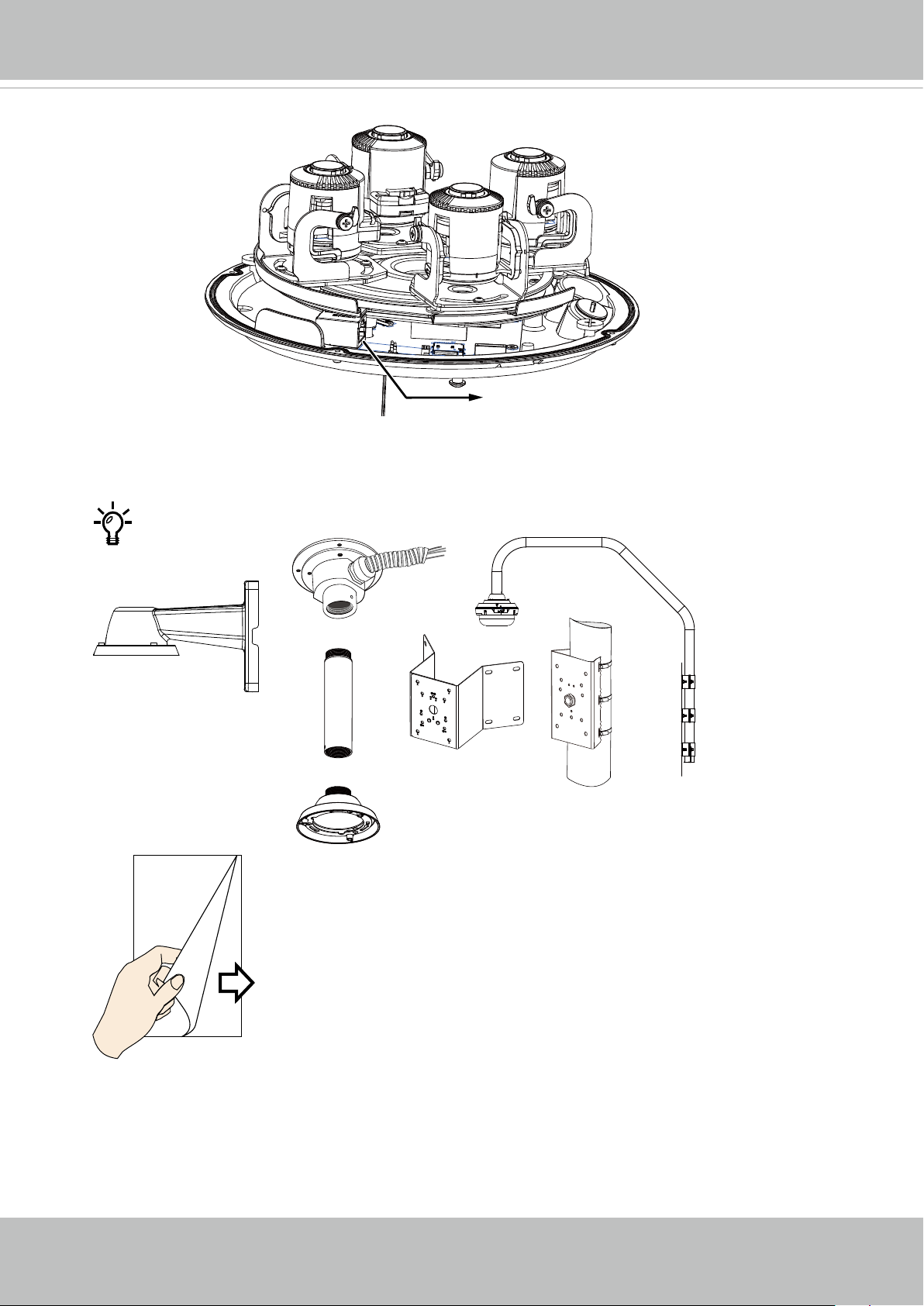
RJ45 Ethernet port
VIVOTEK
For the installation using optional accessories, refer to
the Optional Accessories Installation Guide
User's Manual - 7
Page 8
VIVOTEK
Power Consumption
802.3at
3
7
ON
100~240V
OFF
LAN/PoE
AC
1
10
9
658
GE LAN GE LAN
4
2
PoE
24V 3.5A
injector
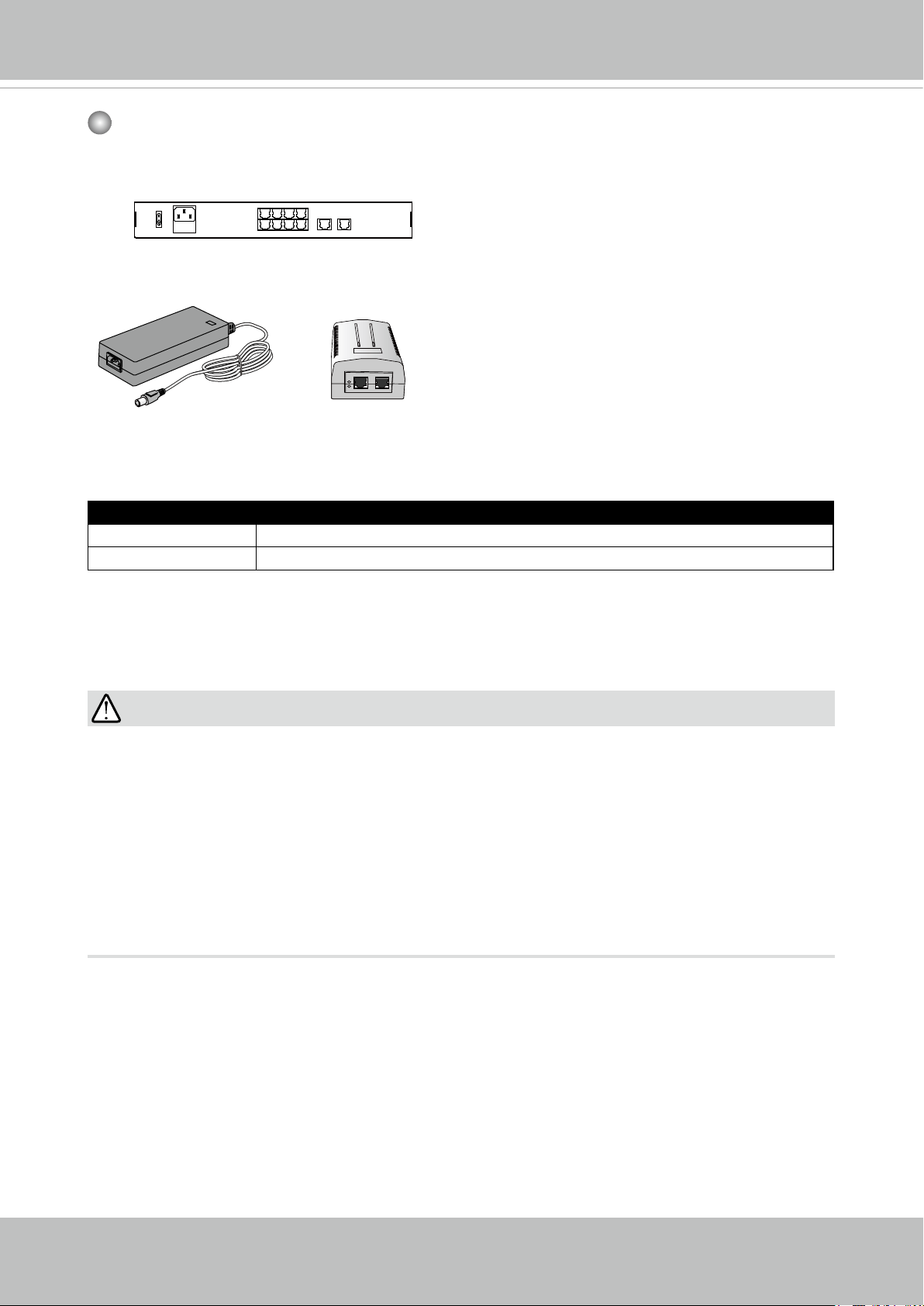
Due to its onboard heater for operation in the low temperature environments, care
should be taken when selecting the power source for the camera. Listed below are the
requirements for powering the camera:
Use conditions Power consumption & Input
≥-20ºC PoE+ - 21.95W (PoE Plus mid-span or switch, 42V/0.57A~0.42A)
≥-40ºC AC 24V input, 1.5A/pf:0.619, - 21.1W
In warmer areas that do not need a heater, a PoE+ switch can drive the camera. In areas
where temperature can drop below -20ºC, an AC 24V power adaptor is required.
IMPORTANT:
• Many copper coated aluminum (CCA) and other non-standard conductors cabling
products are masqueraded as CAT5E or CAT6 cables. Please avoid using these CCA
products especially when cascading PoE cameras. It is a must to use Ethernet cables
compliant with the 3P/ETL standard.
• The camera is able to operate in low temperature environments. However, when
starting these cameras in a very low temperature condition, e.g., -40ºC, the embedded
heater may take half an hour to warm up the camera. When the temperature within the
canister reaches -10ºC, the camera automatically starts.
8 - User's Manual
Page 9
Mounting Options
1
2
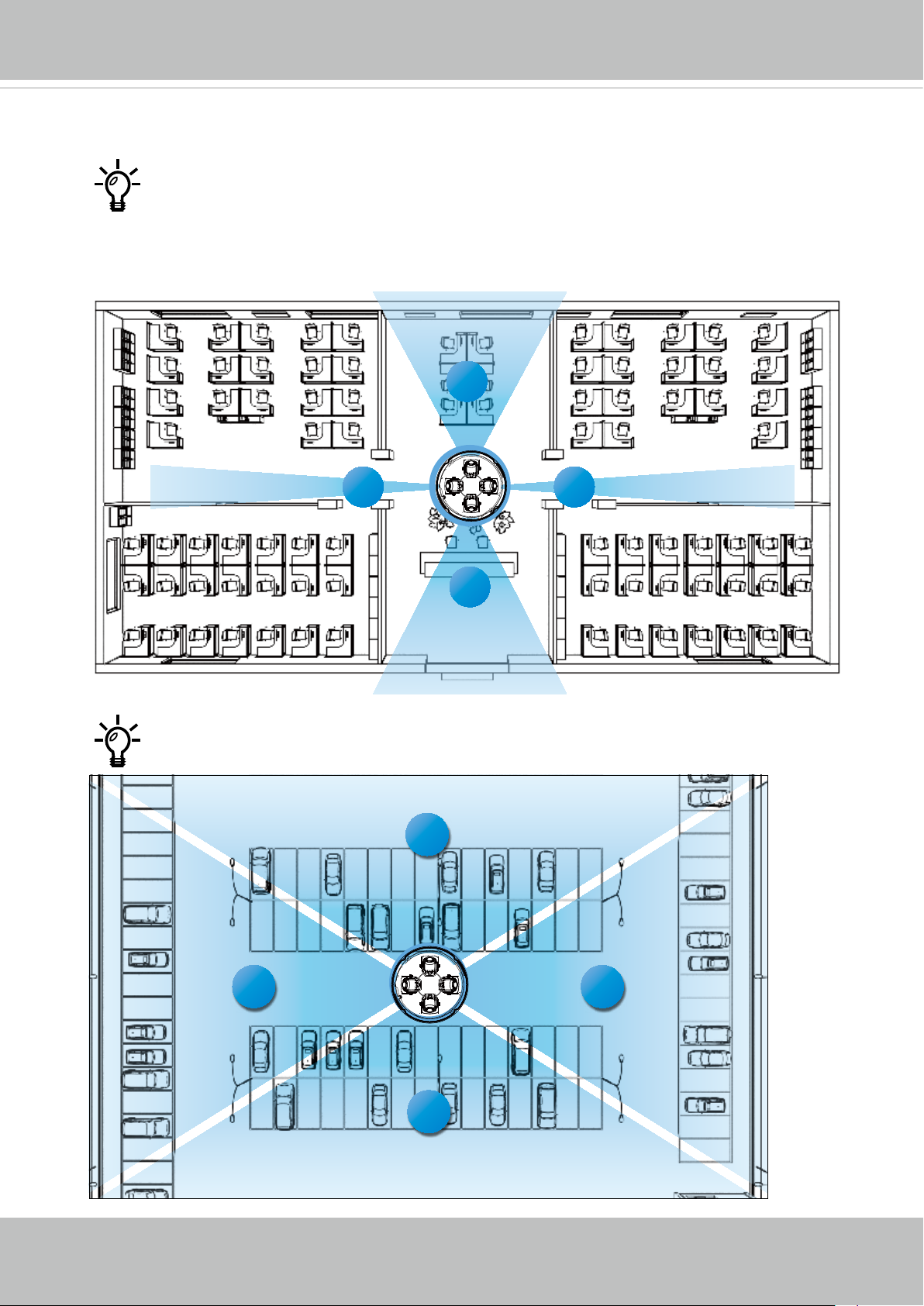
With its remote focus lenses, the lens modules can be aiming at different areas
at different distances.
Below are some sample scenarios with lenses' shooting directions adapted to
them. The Zoom function is found in Conguration > Media > Image > Focus
window.
VIVOTEK
4
1 3
1
2
4
3
2
User's Manual - 9
Page 10
VIVOTEK
3
4
1
2
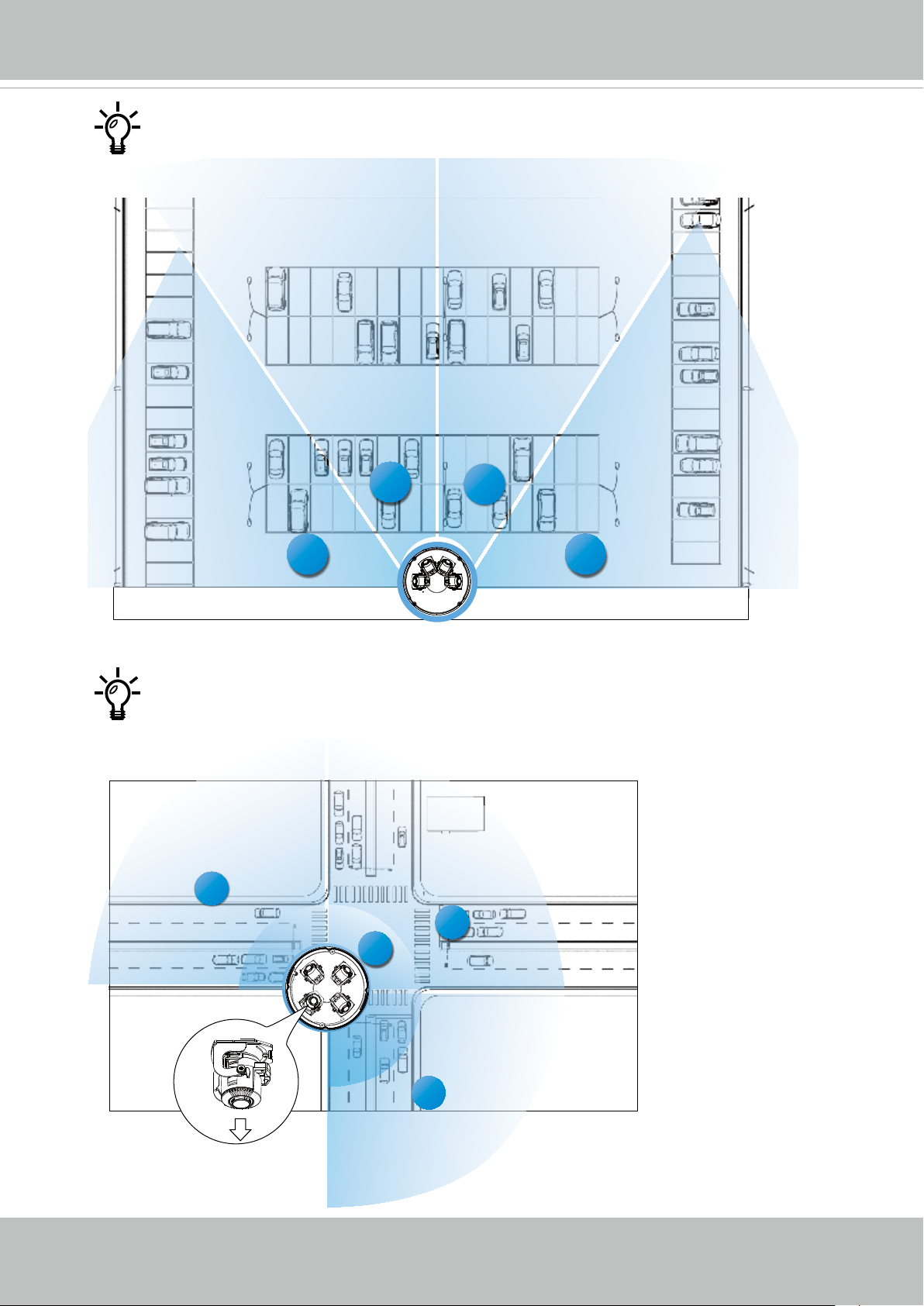
When installed at a corner, one of its lens can be turned facing downward to
cover the area directly underneath the camera.
4
3
2
3
1
10 - User's Manual
#1
4
Page 11
VIVOTEK
Ceiling Mount
For other mounting options, please refer to the Installation Guide for Optional Accessories.
The camera can be directly installed to a wall or ceiling. Refer to the following discussion
for more on pendant mount, pole mount, and corner mount options.
See the installation details below for how to install the camera to ceiling.
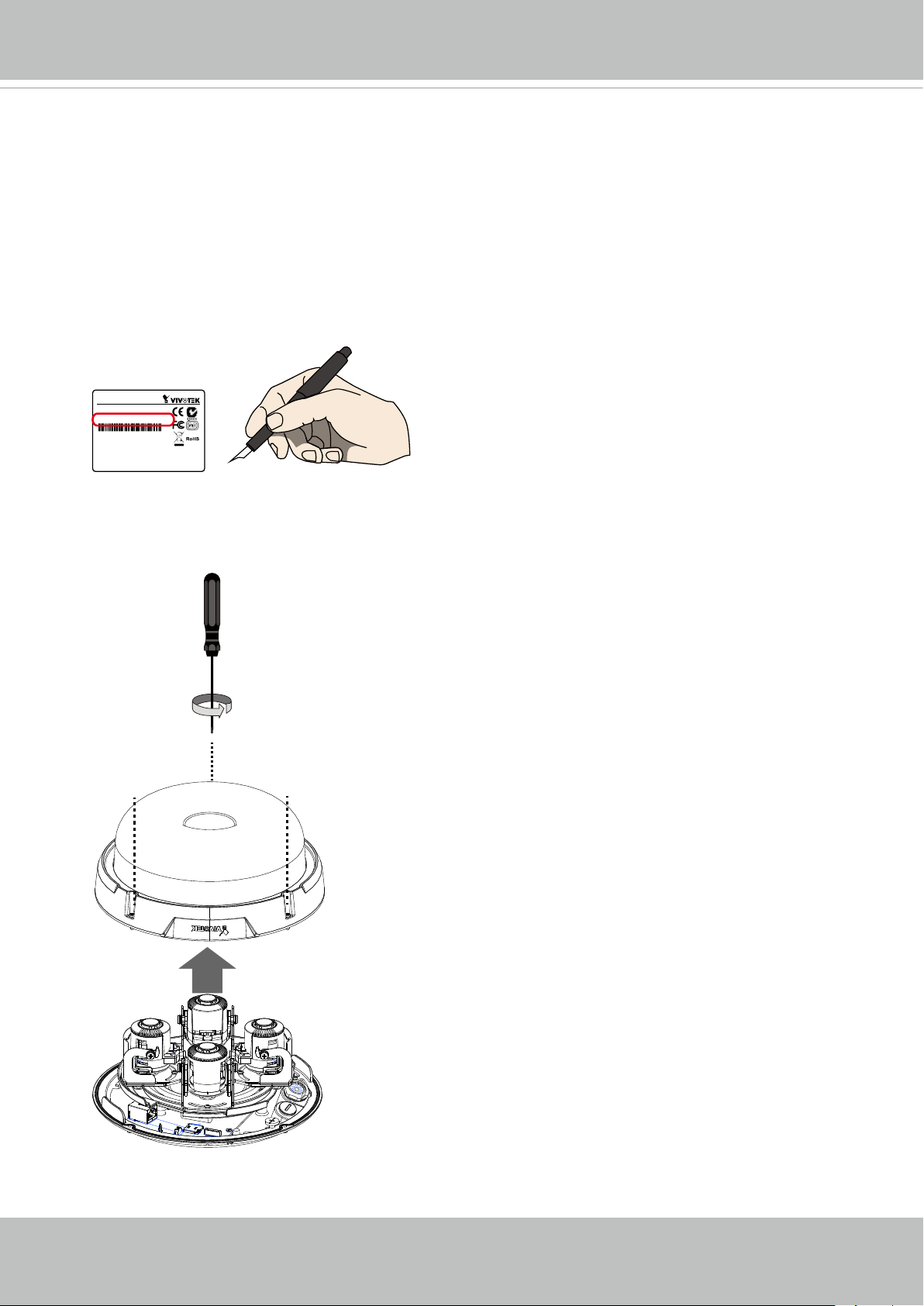
1. Jot down the camera's MAC address for later reference.
Network Camera
Model No: XXXXXX
MAC: 0002D1083236
This device complies with part 15 of the FCC Rules. Operation is subject to
the following two conditions:
(1) this device may not cause harmful interference, and
(2) this device must accept any interference received, including interference
that may cause undesired operation.
Pat. 6,930,709
Made in Taiwan
2. Open the dome cover by loosening 4 T10 anti-tamper screws.
T10
User's Manual - 11
Page 12
VIVOTEK
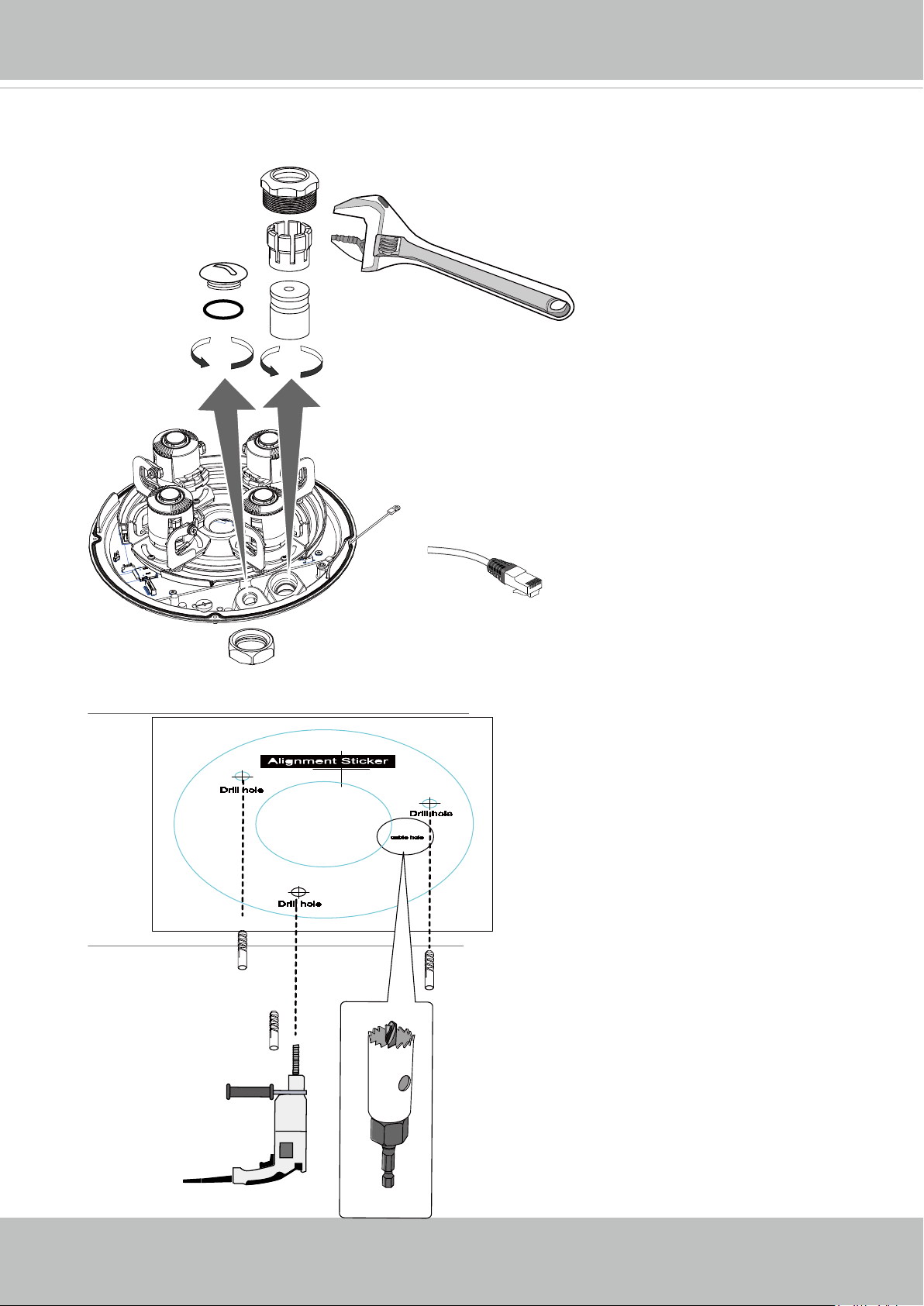
3. Remove the waterproof connectors. If you do not need to route I/O wires, leave the
plastic cap in place. If you need to connect I/O wires, keep the stainless nut.
5~6.3mm
4. Attach the alignment sticker to a position you prefer. Drill screw holes and a routing hole.
P/N : 62XXXXXXXG
12 - User's Manual
Page 13
VIVOTEK
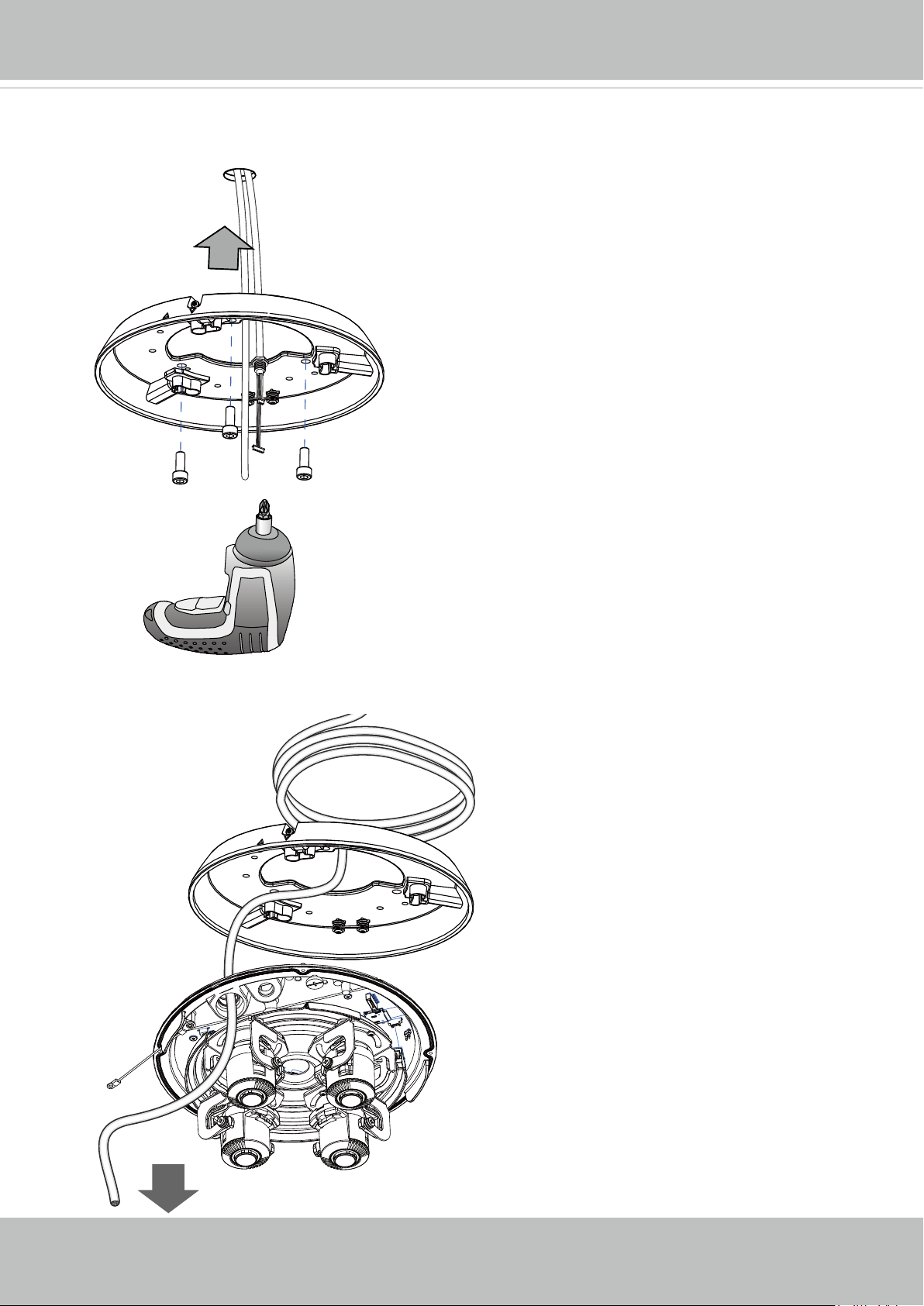
5. Route cables through the routing hole, and secure the top mounting plate to ceiling by
driving the included screws.
6. Pass an Ethernet cable through the routing hole.
User's Manual - 13
Page 14
VIVOTEK
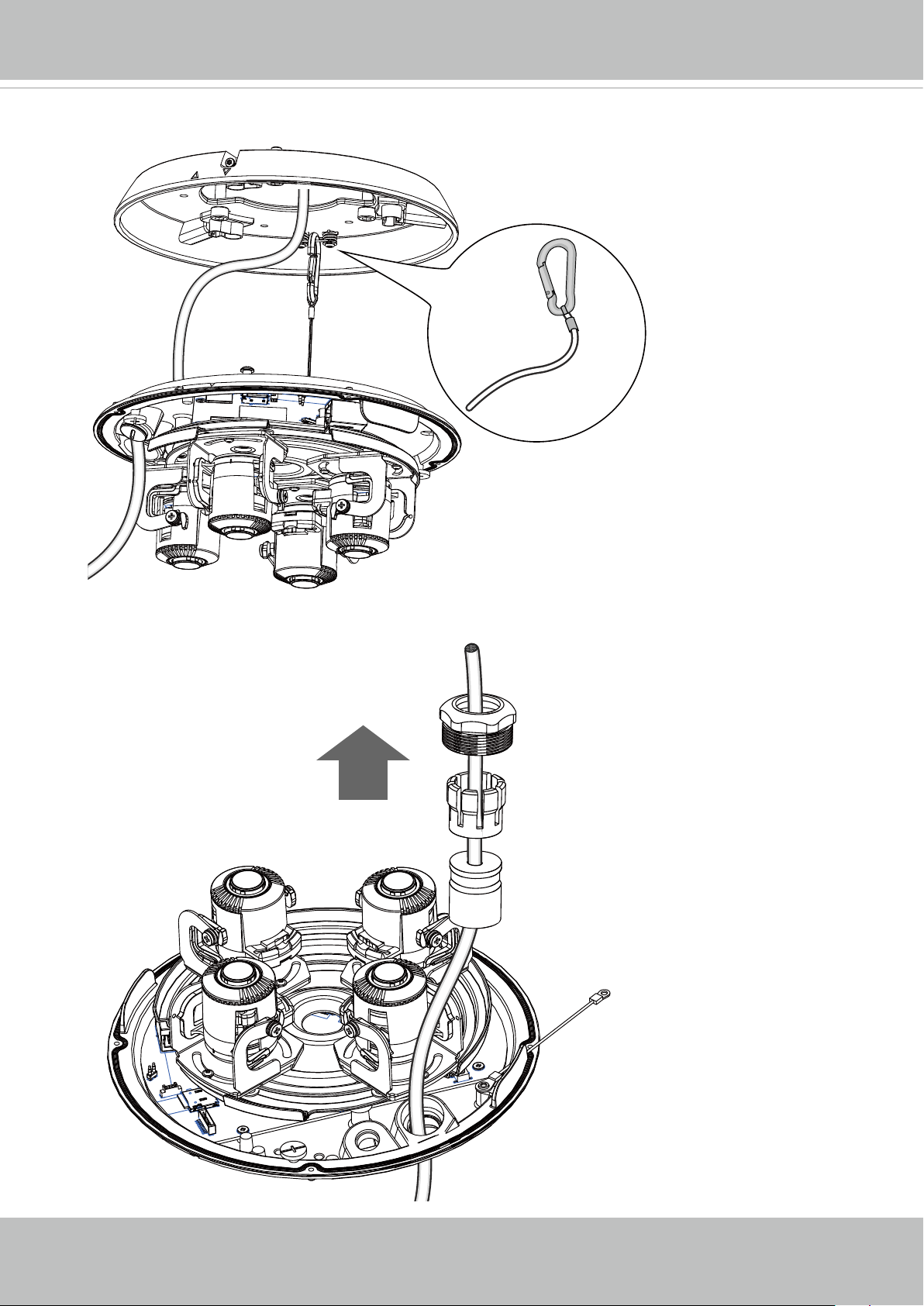
7. Hook up the tether wire between the camera and the top mounting plate.
8. Pass the Ethernet cable through the components of the waterproof cable gland.
14 - User's Manual
Page 15
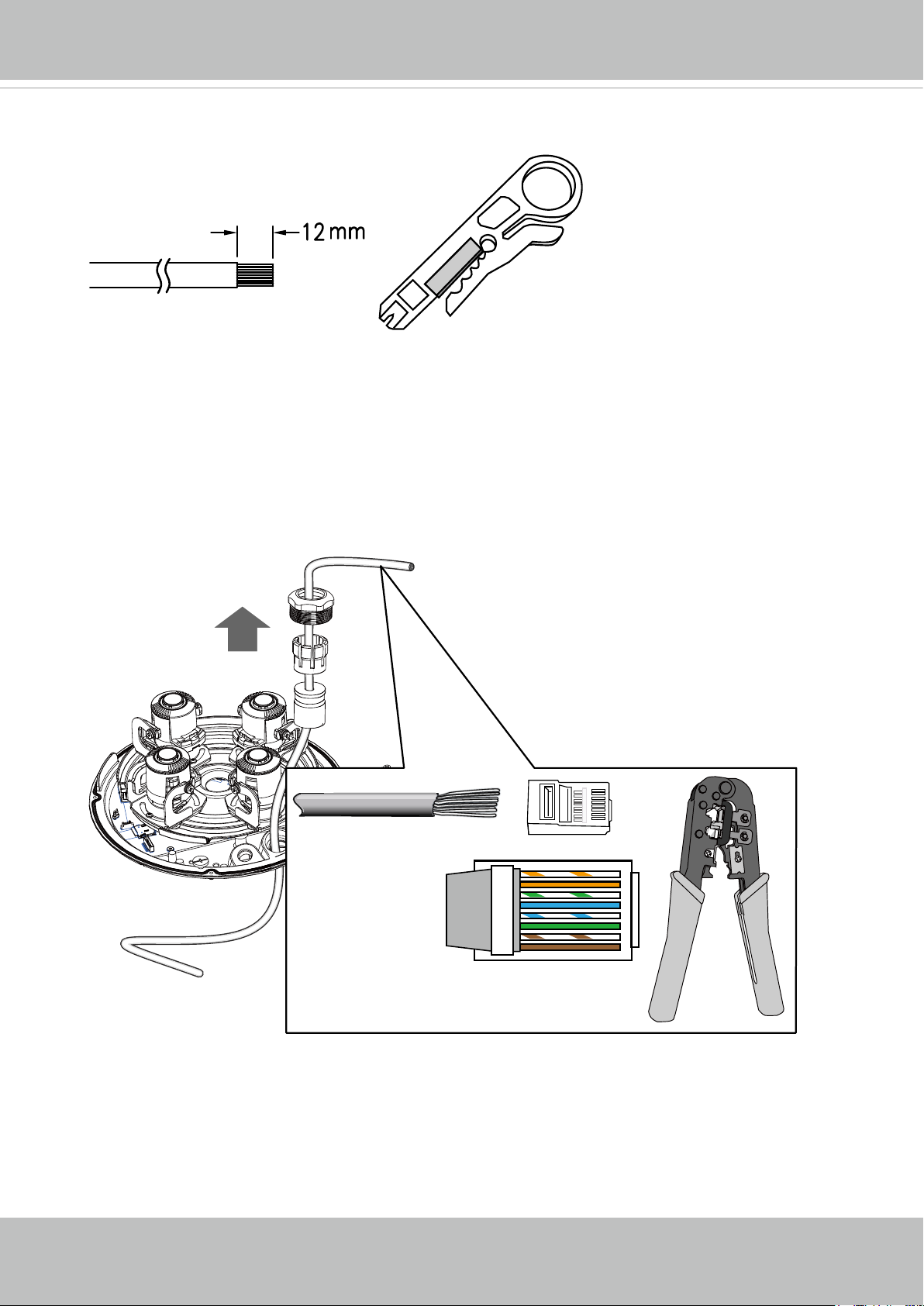
9. Remove part of the outer sheath, and be careful not to damage the cables inside.
10. Separate out the four pairs of wires using the 568B colour way, and make sure the
wires are nearly parallel. Make sure that you achieve the correct colour order: When you
have achieved the correct colour order and the cables are at and parallel, trim off the
wires so that 12mm is protruding from the sheath. Push the wires into the plug so that
they reach in fully. Firmly crimp the RJ45 plug so that the individual wires and the outer
sheath are all fully trapped inside the plug.
VIVOTEK
o: white/orange stripe
O: orange solid
g: white/green stripe
B: blue solid
b: white/blue stripe
G: green solid
br: white/brown stripe
BR: brown solid
O
G
br
BR
o
g
B
b
1
2
3
4
5
6
7
8
User's Manual - 15
Page 16
VIVOTEK
1
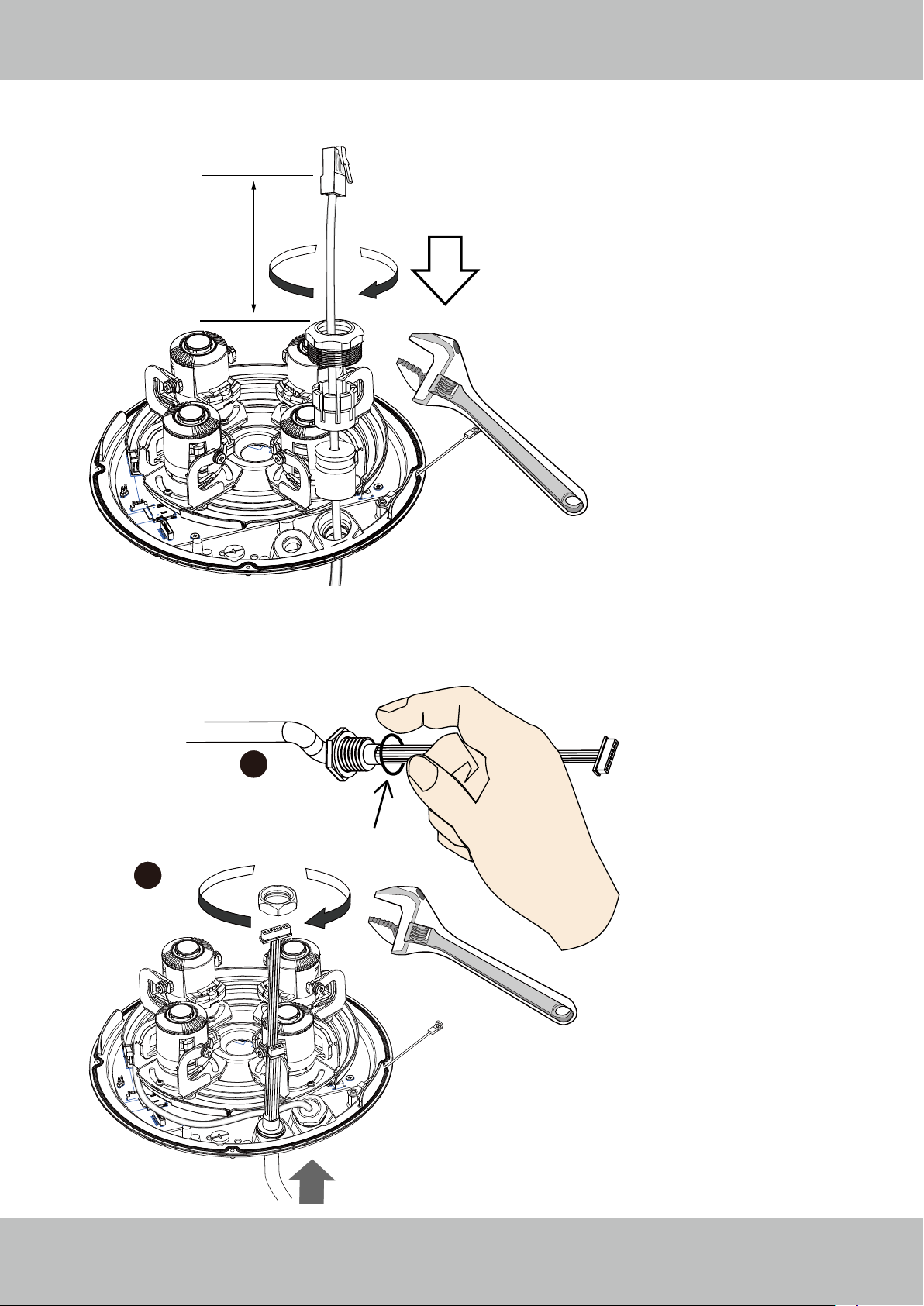
11. Tighten and install the components of the waterproof connector.
19cm
12. Pass the I/O combo cable (if applied) through the routing hole, and attach a rubber
seal ring. Install the combo cable with the white headers inside the camera, and tighten
the stainless hex nut from the inside of the camera.
2
16 - User's Manual
Page 17
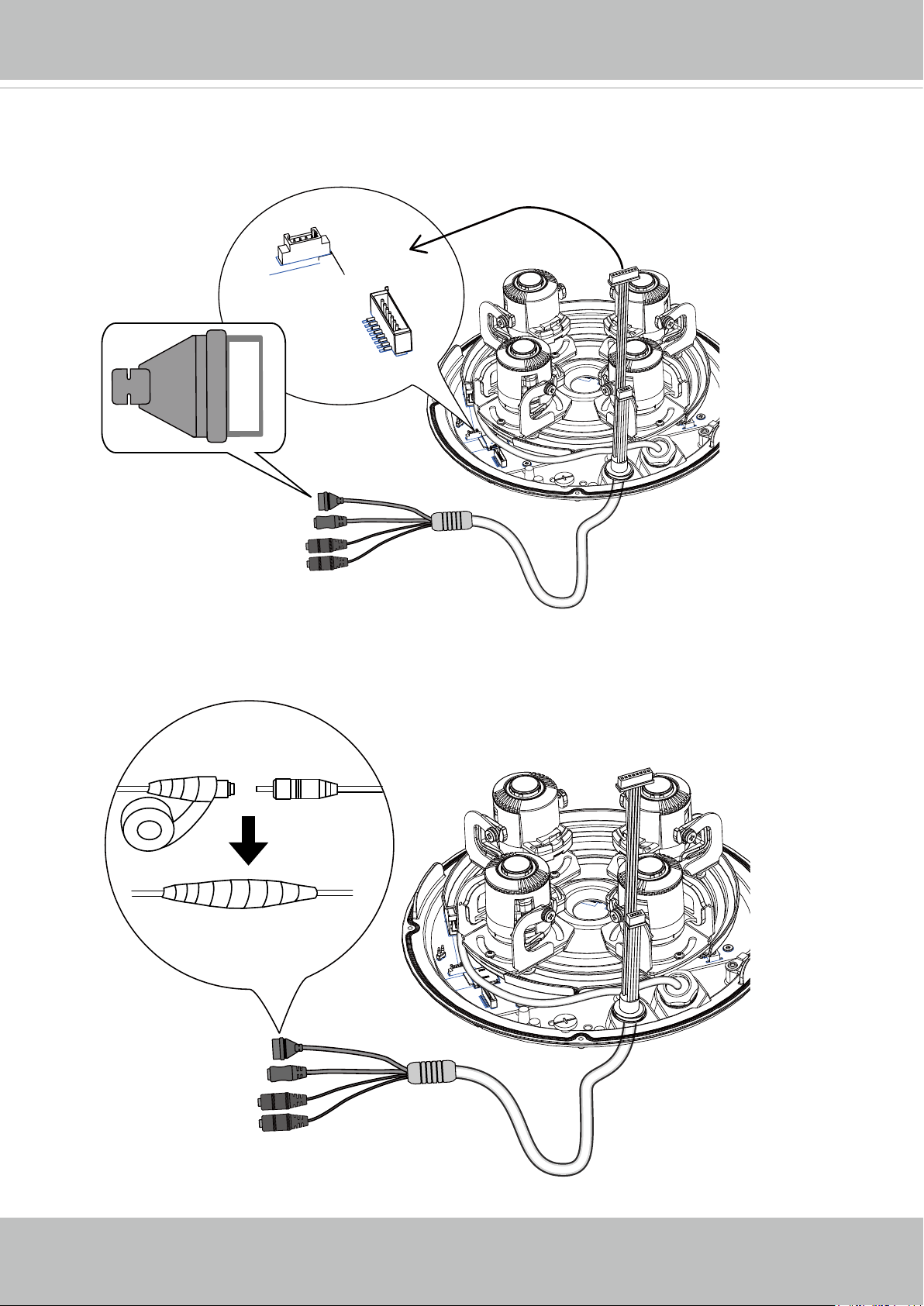
13. Connect the white headers to J8 and J14 heades on camera PCB board. Carefully
route the cables along the the camera base.
J8
VIVOTEK
+5V
DO-
DI
GND
GPIO
DC 24V
MIC IN
Audio Out
J14
14. On the outside of the cameras, the I/O wires connection should be protected against
moisture by using putties.
User's Manual - 17
Page 18
VIVOTEK
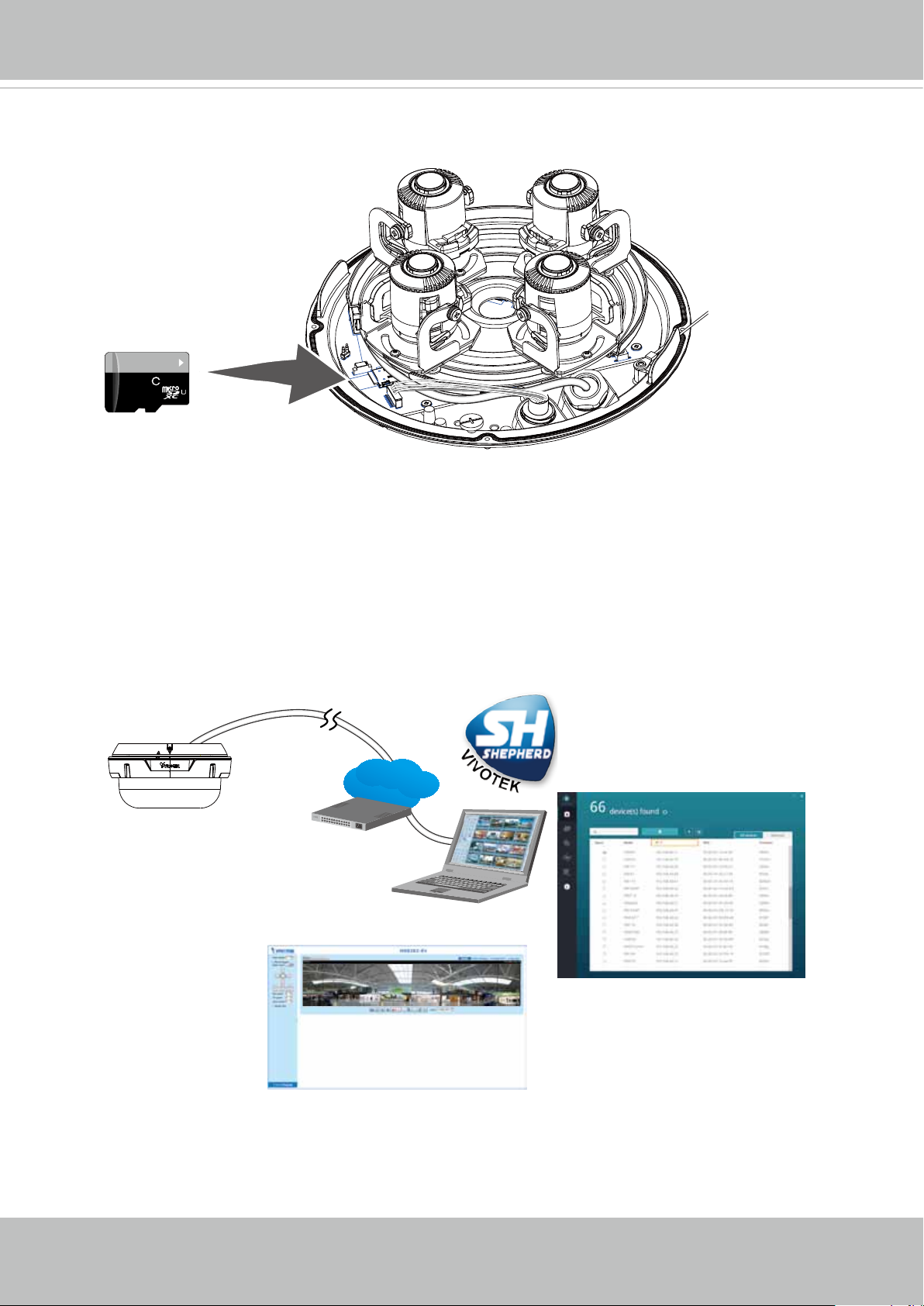
15. Install a Micro SD card.
10
64
GB
1
I
16. When the Ethernet and I/O wires connection is done and the camera is powered up, try
nd the camera using VIVOTEK's Shepherd utility.
Double-click on the camera's entry on Shepherd to open a web console with the
camera. A browser session will open.
The program will search for VIVOTEK Video Receivers, Video Servers or Network
Cameras on the same LAN.
Shepherd
LAN
Browser
18 - User's Manual
Page 19
VIVOTEK
Software Installation
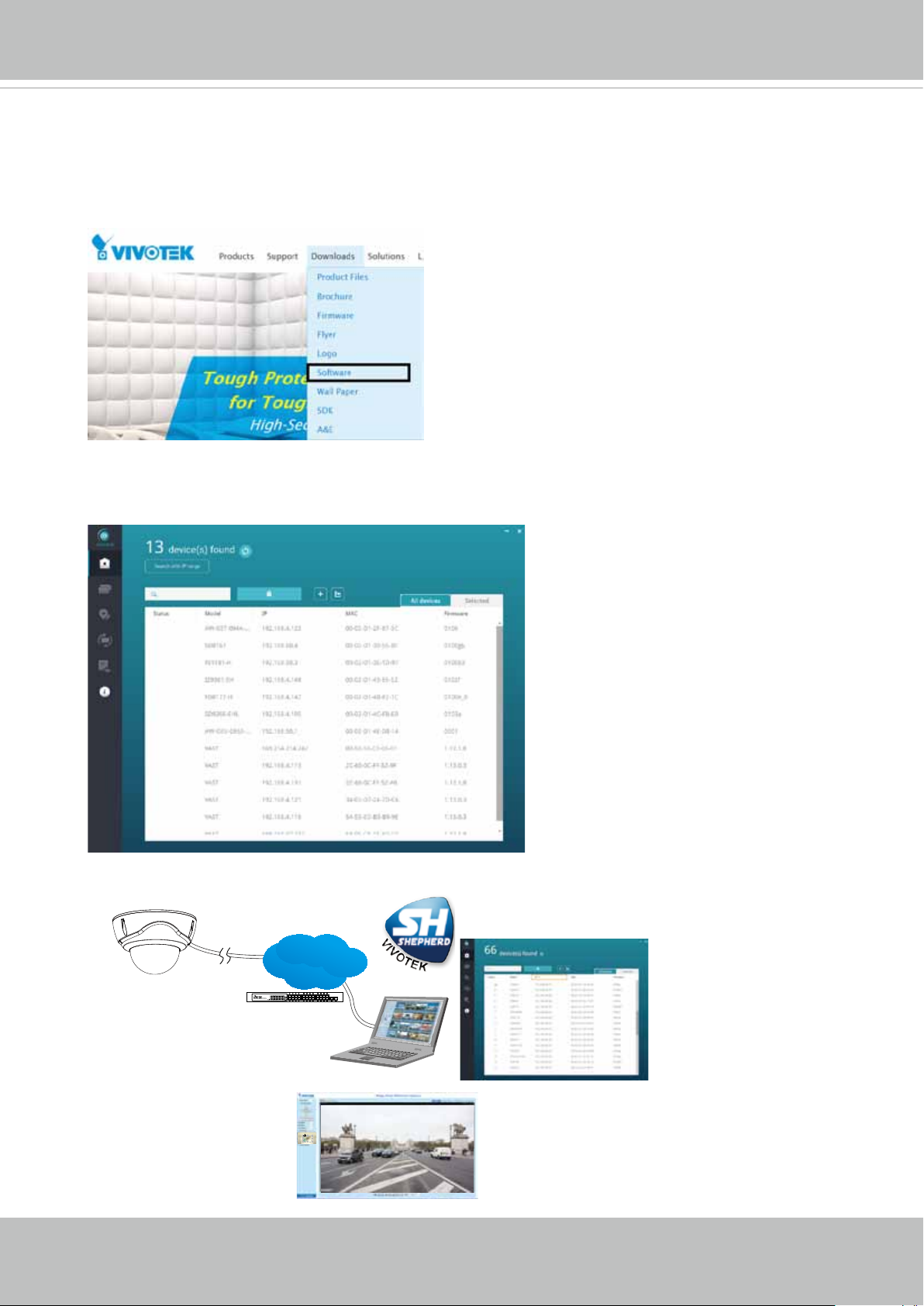
17. Install the Shepherd utility, which helps you locate and congure your Network Camera
in the local network. If your camera comes without the CD, go to VIVOTEK’s website,
and locate the utility in the Downloads > Software page.
17-1. Run the Shepherd utility.
17-2. The program will conduct an analysis of your network environment.
LAN
IEEE 802.3af
Shepherd
Browser
User's Manual - 19
Page 20
VIVOTEK
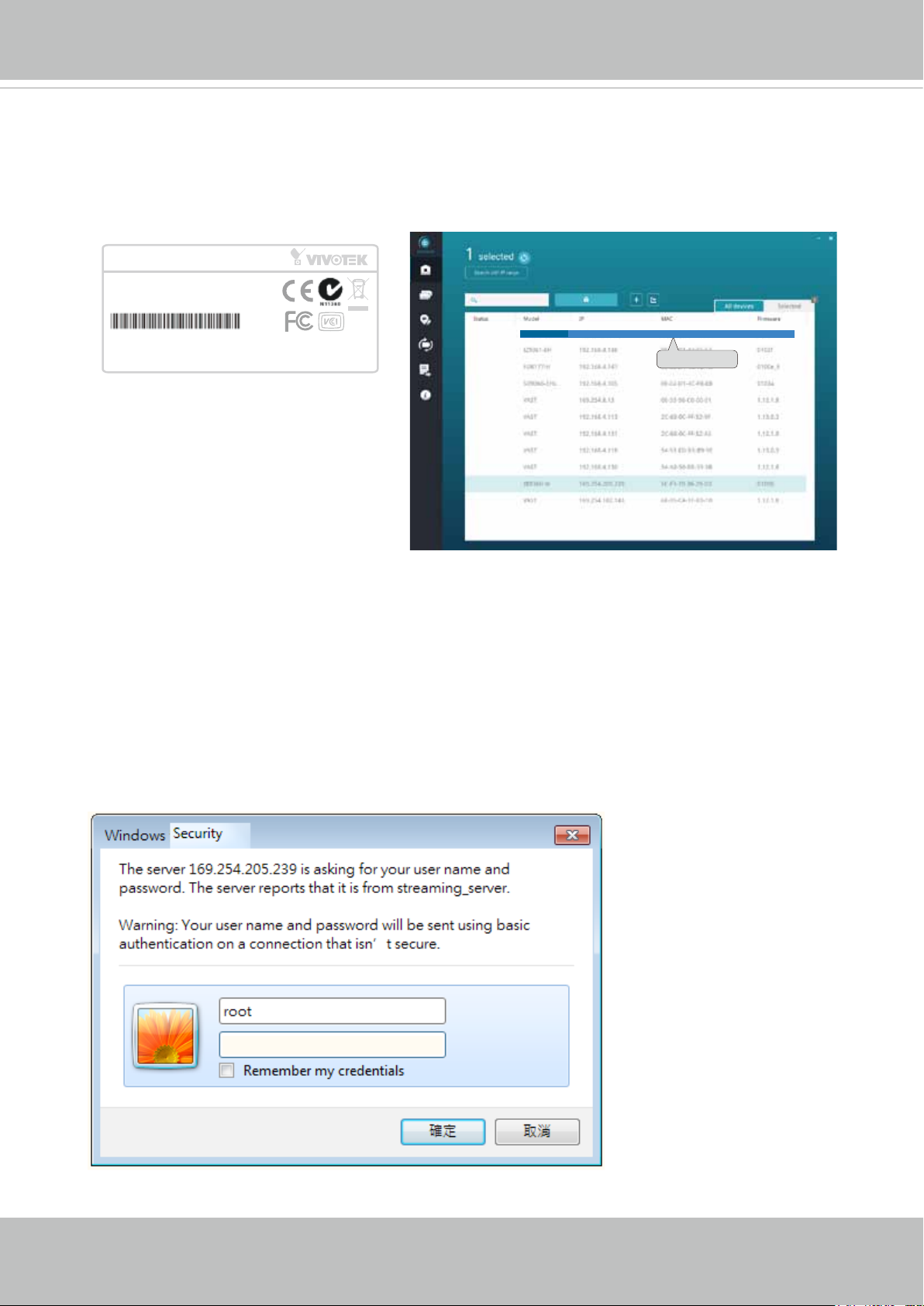
17-3. The program will search for all VIVOTEK network devices on the same LAN.
17-4. After a brief search, the installer window will prompt. Click on the MAC and model
name that matches the one printed on the product label. You can then double-click on
the address to open a management session with the Network Camera.
Network Camera
Model No: MA8391-ETV
MAC:0002D1730202
This device complies with part 15 of the FCC rules. Operation is subject to the following two conditions:
(1)This device may not cause harmful interference, and
(2) this device must accept any interference received, including interference that may cause undesired operation.
Pat. 6,930,709
R oH S
Made in Taiwan
MA8391-ETV
IB8360-W 192.168.4.151 00-02-D1-73-02-02
0002D1730202
Forceful Password Conguration
18. The first time you log in to the camera, the firmware will prompt for a password
conguration for security concerns.
18-1. Since your camera is used for the rst time, there is no password. Enter “root” as the
user name, and nothting for the password.
20 - User's Manual
Page 21
VIVOTEK
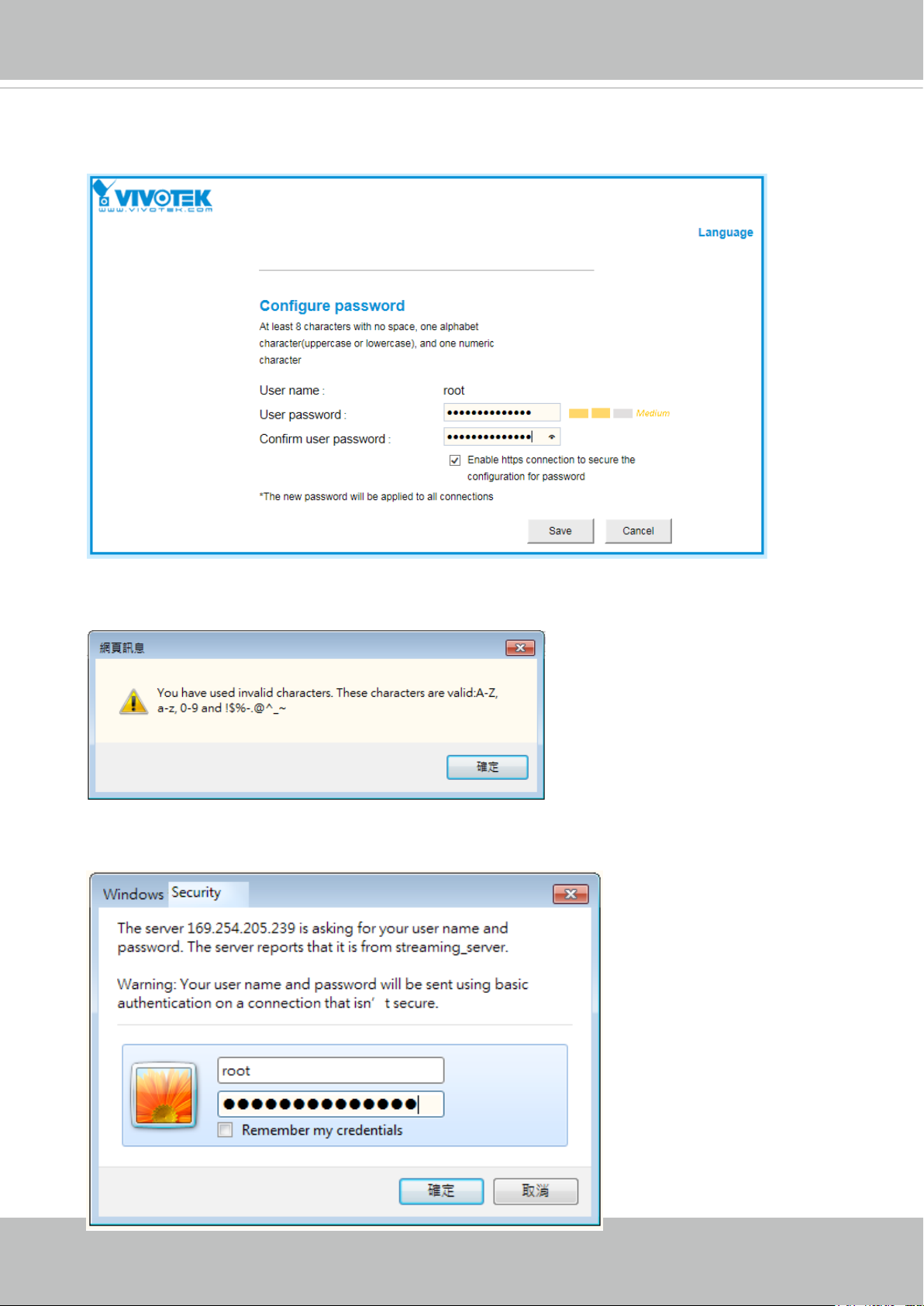
18-2. Enter the combination of alphabetic and numeric characters to fulll the password
strength requirement. The default name for the camera administrator is “root”, and can
not be changed.
Some, but not all special ASCII characters are supported: !, $, %, -, ., @, ^, _, and ~.
You can use them in the password combination.
18-3. Another prompt will request for the password you just congured. Enter the password
and then you can start congure your camera and see the live view.
User's Manual - 21
Page 22
VIVOTEK
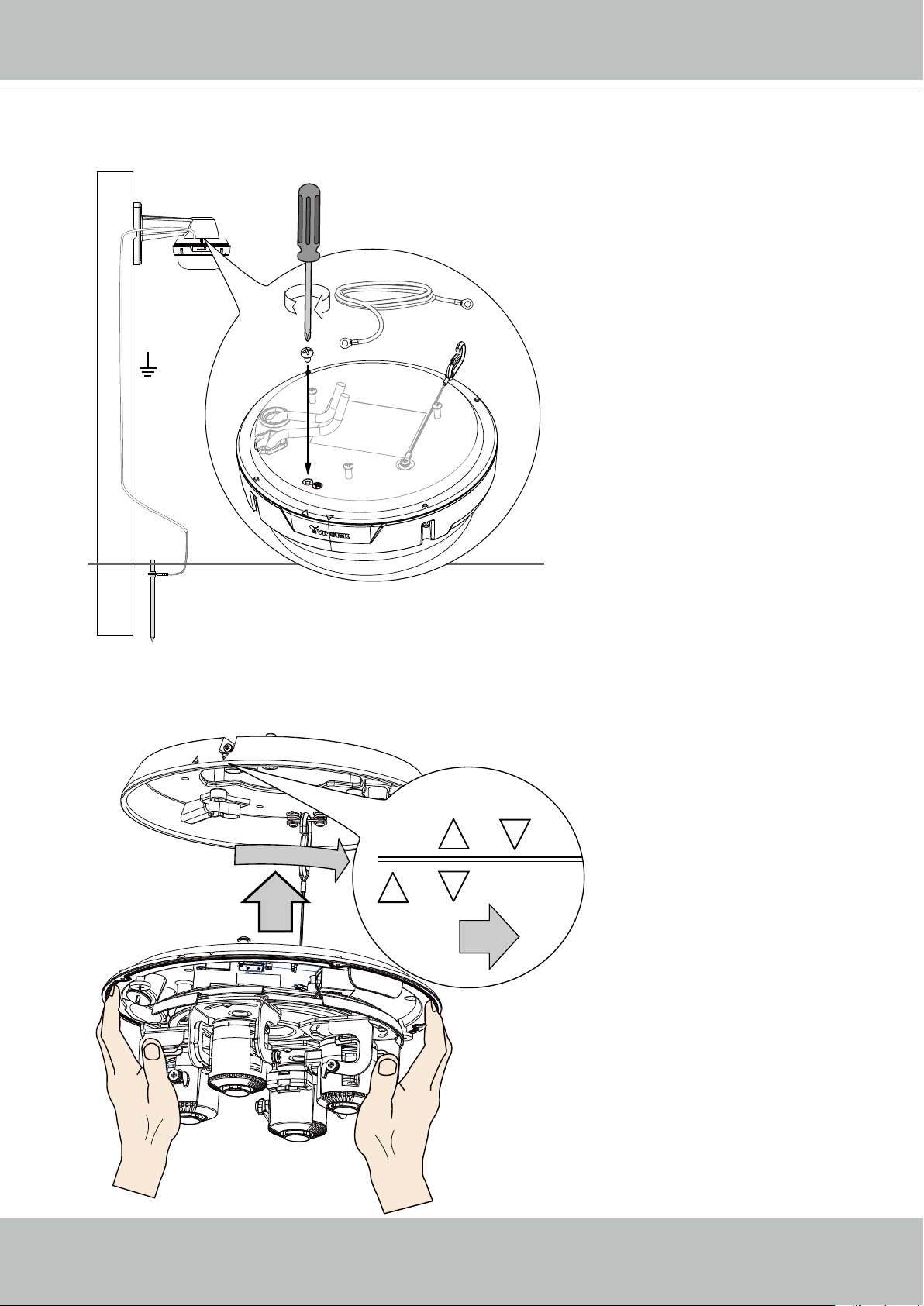
19. Use a ground wire (user supplied, with a resistance lower than 4Ω, a diameter larger
than 25mm2) and an M4 screw to connect it to a ground rod.
M4
1.5m
20. Secure the camera to the top mounting plate by using the alignment marks. Align the
rotate the camera clockwise.
22 - User's Manual
Page 23
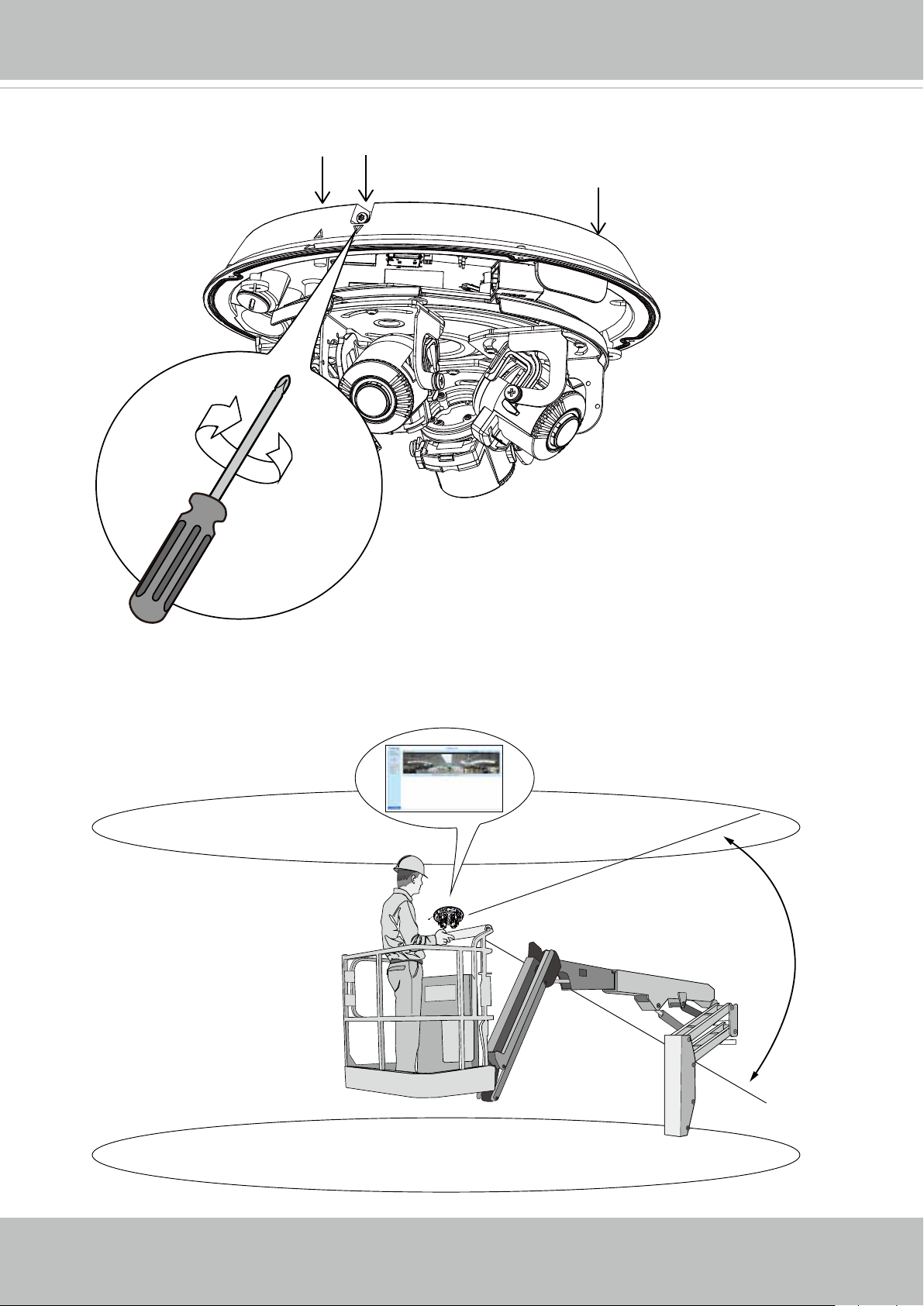
21. When done, tighten the 3 retention scres on the sides of the mounting plate.
VIVOTEK
X3
If you are not sure whether the eld of view can properly cover the area of your interest,
you can check the live view at the installation site, at a position of your estimation.
User's Manual - 23
Page 24
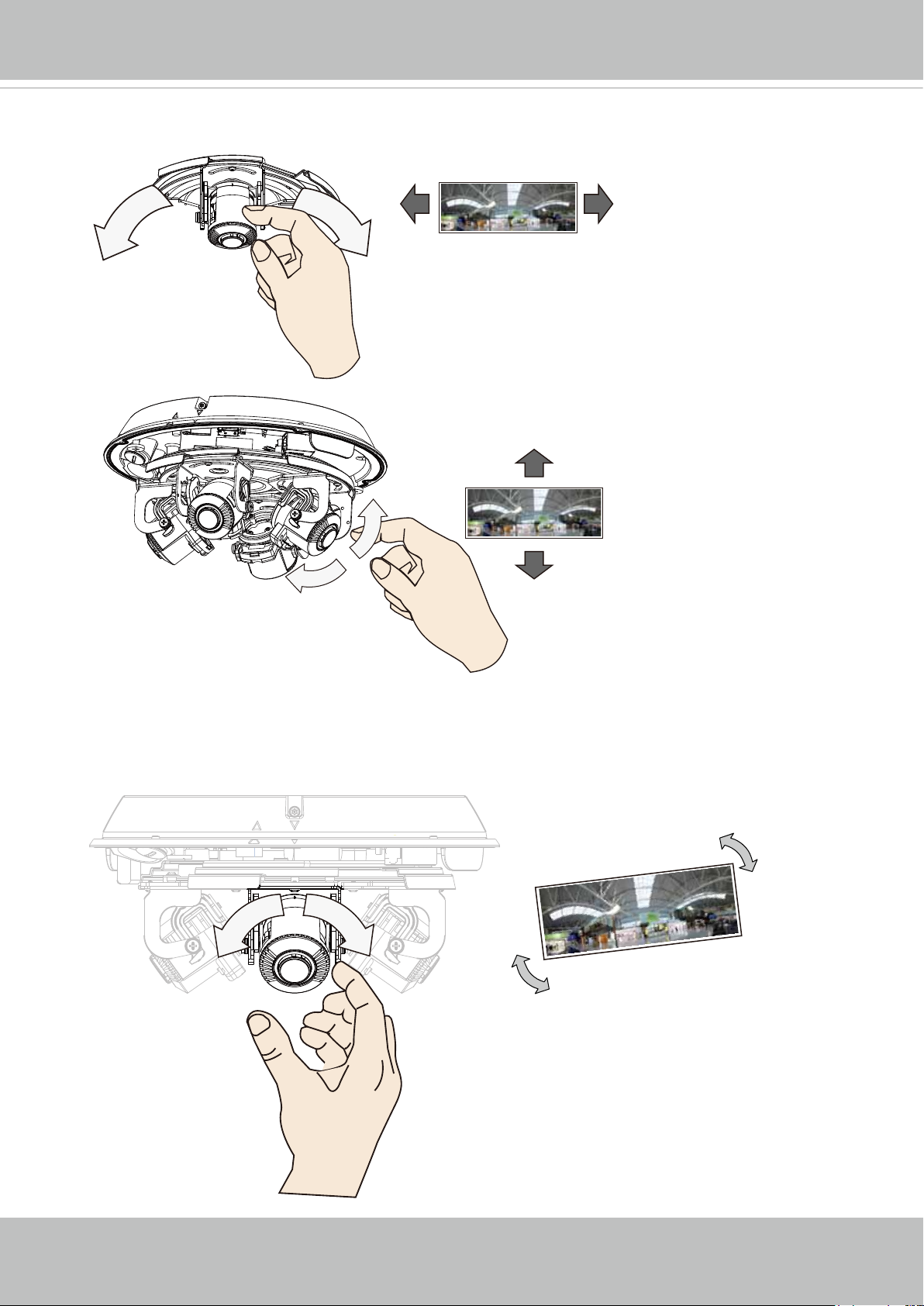
VIVOTEK
22. With a live view displayed on your laptop, you can adjust the lens shooting direction to
obtain an optimal ed of view. Check the live view to ensure the image is in focus.
Note that you do not need
any tools when changing
the lens shooting direction.
23. You can move a lens module from side to side, turn the lens shooting direction up or
down, or rotate the module to cover the area of your interest.
24 - User's Manual
Page 25
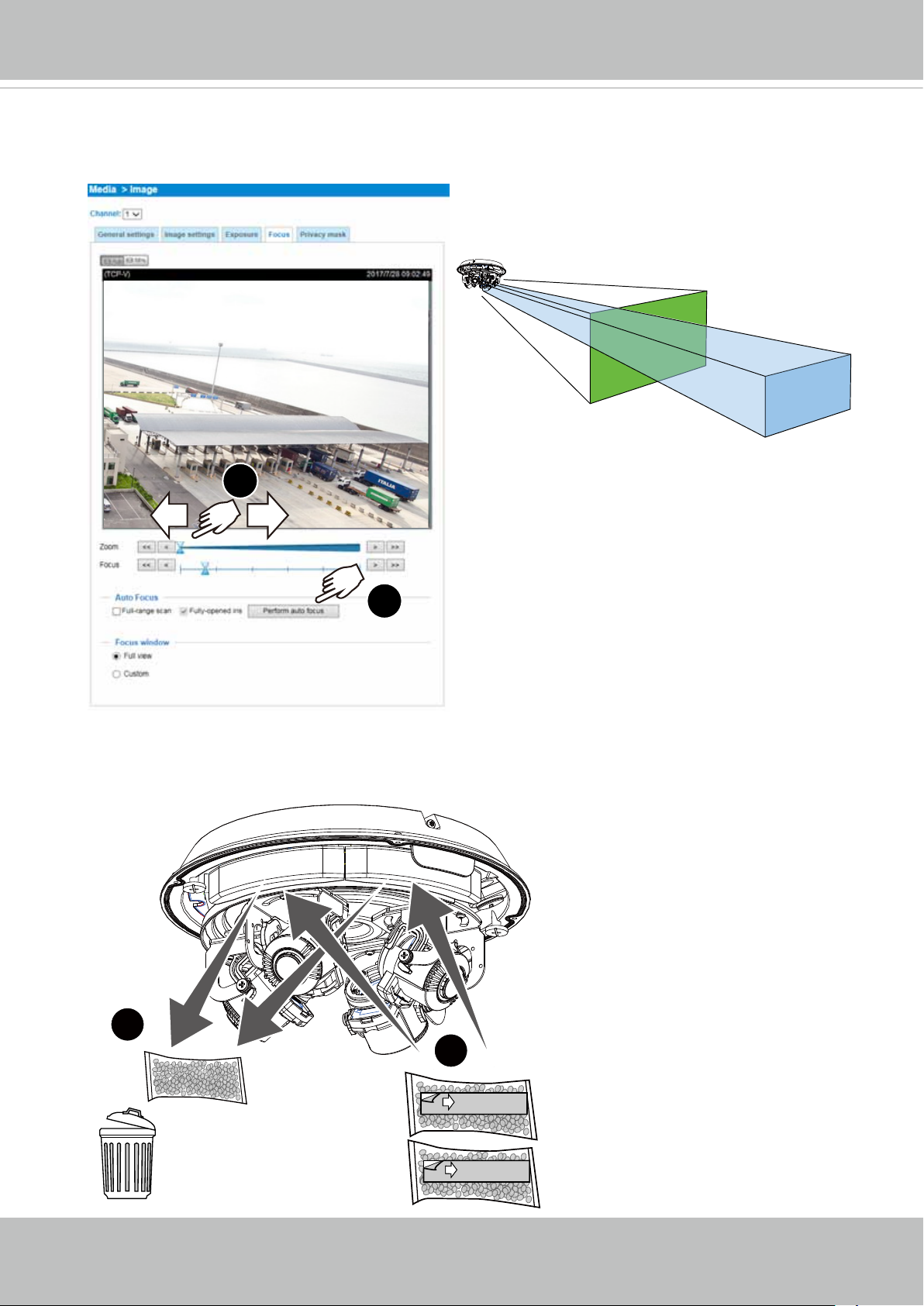
VIVOTEK
24. Perform necessary adjustments such as the image alignments on the panoramic view
from the 4 sensors. Go to Conguration > Media > Image > Focus. Zoom in on the
individual lens if necessary. The automated focus function can help you acquire the
best image.
The zoom in/ zoom out function is performed
in the Focus window.
2x Zoom
6x Zoom
1
2
25. Replace the 2 desiccant bags on the sides of the camera. This ensures the
components are free from the moisture. Replace the desiccant every time you open the
dome cover.
1
2
User's Manual - 25
Page 26
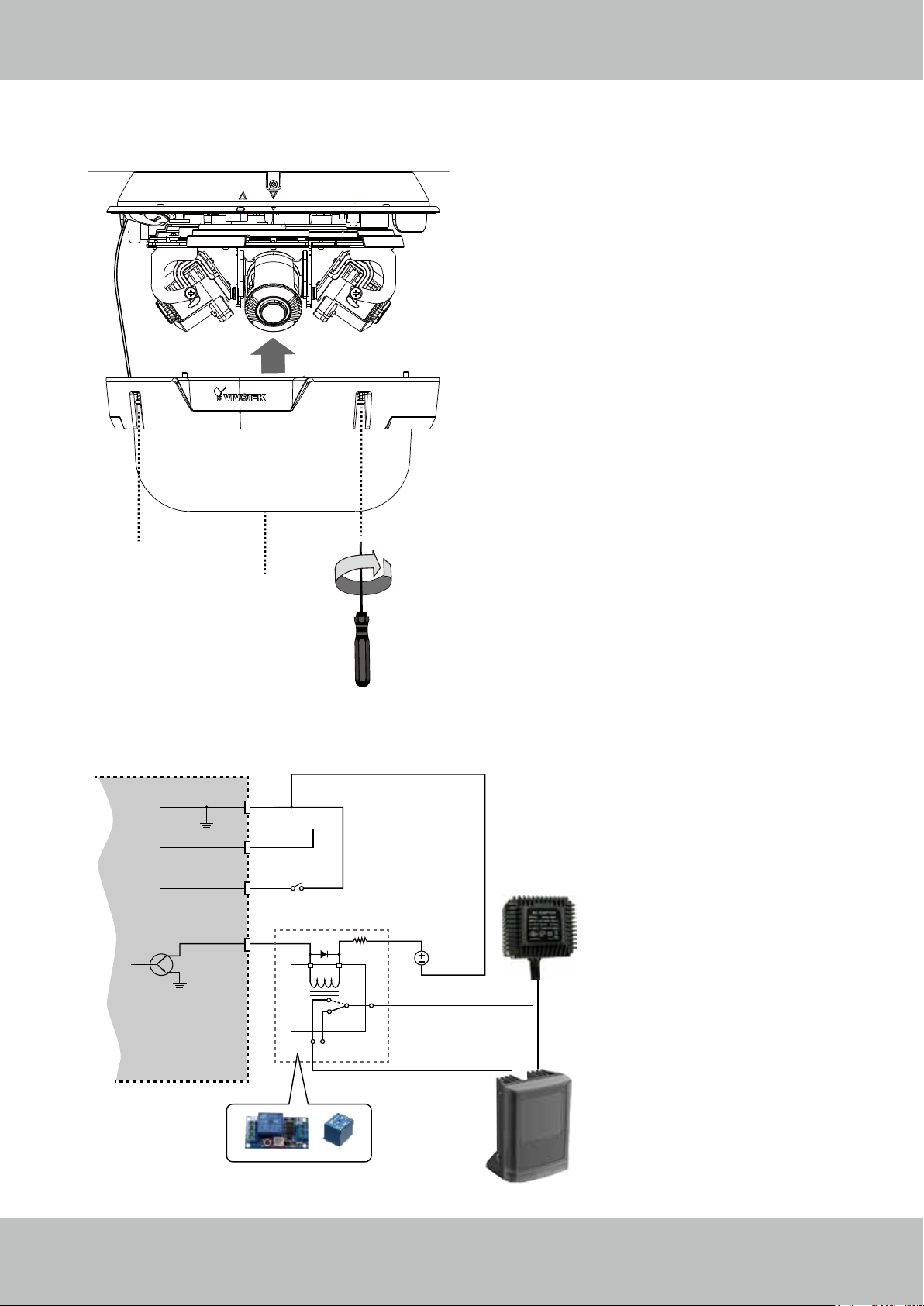
VIVOTEK
26. Install the dome cover by fastening the T10 anti-tamper screws. You may need to
carefully route the safety tether wire aside.
DI/DO Diagram
DI-
DO+
DI+
BJT transistor
DO-
Switch
NO NC
VDC
Relay
External
power source
AC
Source
External
device
26 - User's Manual
Page 27
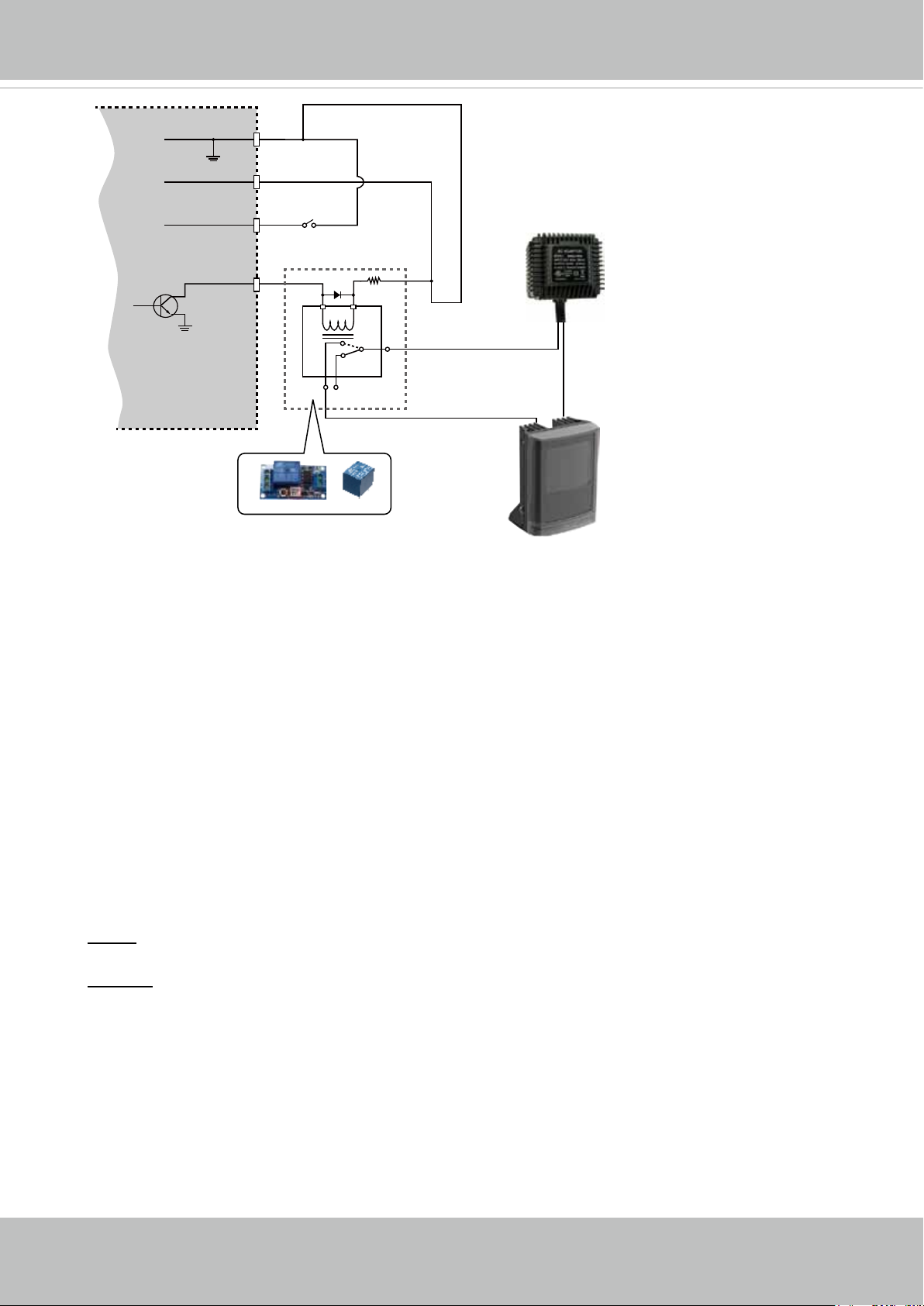
DI-
VIVOTEK
BJT transistor
DO+
DI+
DO-
Switch
NO NC
Relay
VDC
AC
Source
External
device
1. The DO+ pin provides a 5V output voltage, and the max. load is 50mA.
2. The max. voltage for DO- pins is 30VDC (External power).
In order to control AC devices, the above diagram can be taken in consideration. The
diagram uses a relay to control the ON/OFF condition of the AC device.
3. An external relay can be triggered by using DO+ or by an external power source,
depending on the type of relay you use.
4. In case of using an individual relay (instead of using a relay module), for protection
against voltage or current spikes, a transient voltage suppression diode must be
connected in parallel with the inductive load.
Hardware Reset
The reset button is used to reset the system or restore the factory default settings.
Sometimes resetting the system can return the camera to normal operation. If the system
problems remain after reset, restore the factory settings and install again.
Reset: Press the recessed reset button. Wait for the Network Camera to reboot.
Restore: Press and hold the reset button until the status LED rapidly blinks. Note that all
settings will be restored to factory default. Upon successful restore, the status LED will
blink green and red during normal operation.
SD/SDHC/SDXC Card Capacity
This network camera is compliant with SD/SDHC/SDXC 16GB / 8GB / 32GB / 64GB and
other preceding standard SD cards.
User's Manual - 27
Page 28
VIVOTEK
Network Deployment
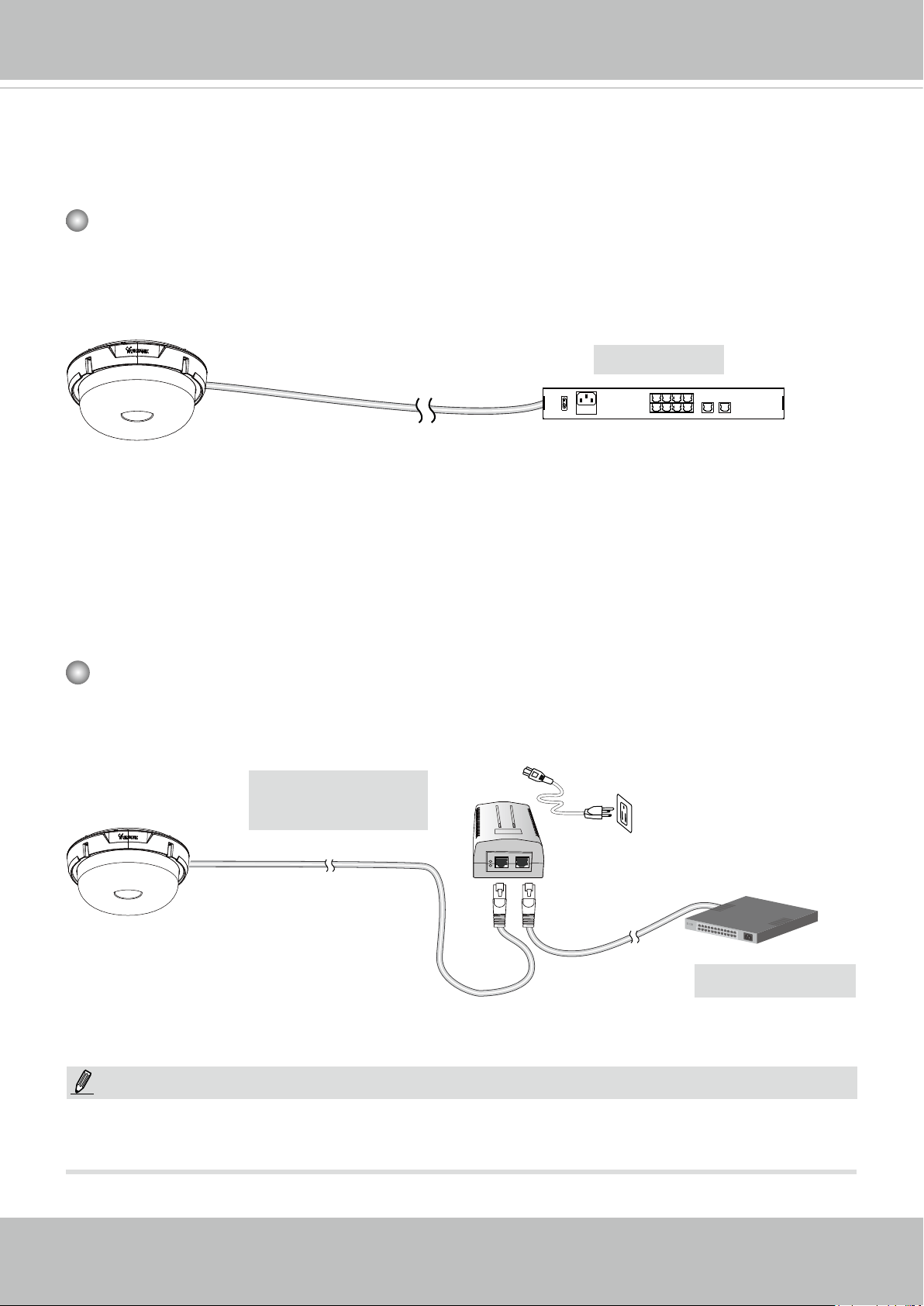
General Connection (PoE)
When using a PoE-enabled switch
The Network Camera is PoE-compliant, allowing transmission of power and data via a single Ethernet cable. Follow the below illustration to connect the Network Camera to a PoEenabled switch via Ethernet cable.
802.3at
PoE Switch
3
7
ON
100~240V
LAN/PoE
AC
OFF
Depending on the requirements of your installation site, select an appropriate power source,
such as an 802.3at PoE (30W) for operating temperature higher than -10ºC. For extremely low
temperature, you will need a power source higher than 21W, such as 24V AC.
1
10
9
658
GE LAN GE LAN
4
2
If using an 802.3at PoE as the power source, the lowest operating temperature is -20ºC.
When using a non-PoE switch
Use a 802.3at PoE power injector (optional) to connect between the Network Camera and a
non-PoE switch.
PoE Power Injector
(optional)
Non-PoE Switch
NOTE:
1. The camera is only to be connected to PoE networks without routing to outside plants.
2. For PoE connection, use only UL listed I.T.E. with PoE output.
28 - User's Manual
Page 29
VIVOTEK
Internet connection via a router
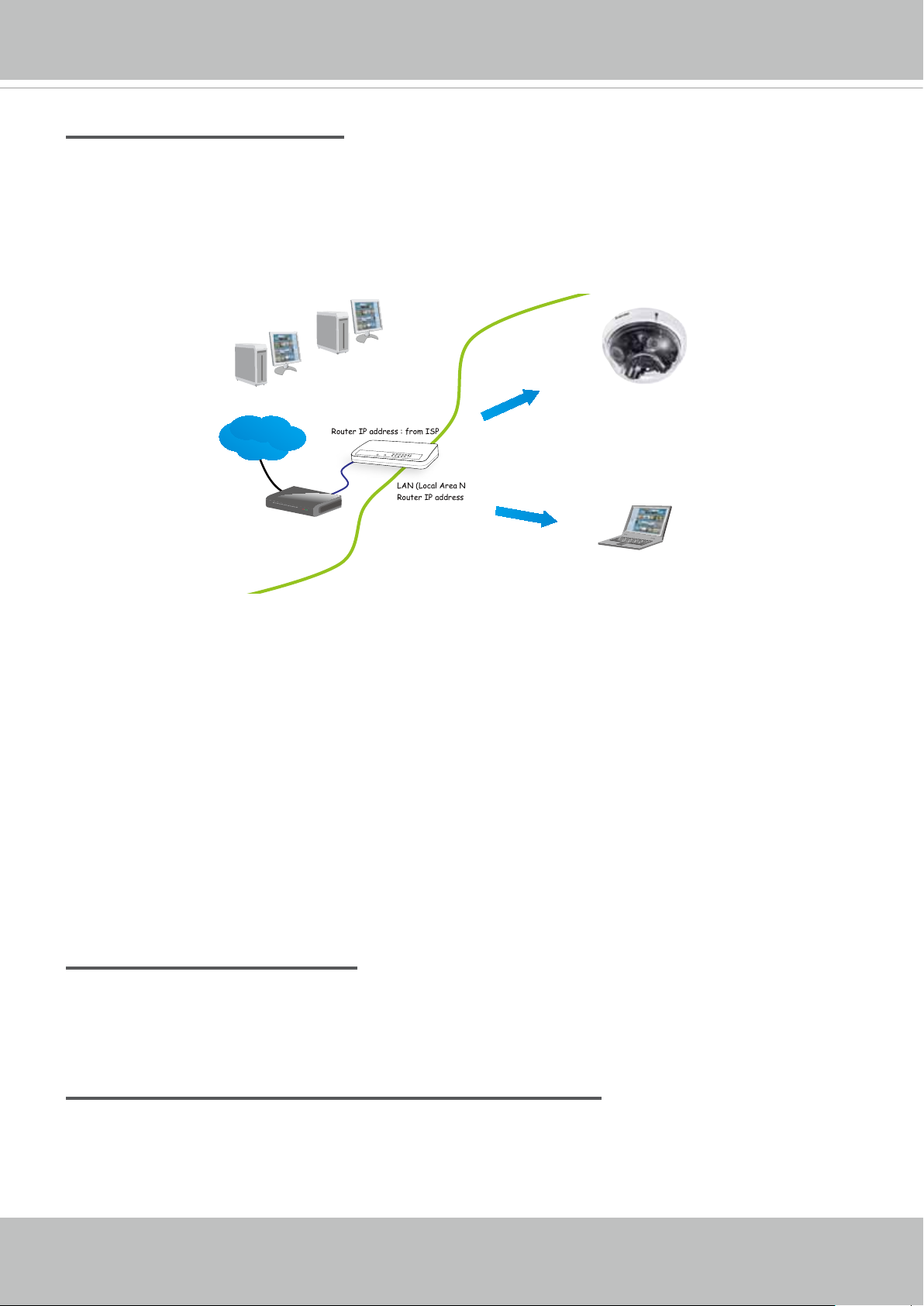
Before setting up the Network Camera over the Internet, make sure you have a router and follow
the steps below.
1. Connect your Network Camera behind a router, the Internet environment is illustrated below.
Regarding how to obtain your IP address, please refer to Software Installation on page 19 for
details.
IP address : 192.168.0.3
Subnet mask : 255.255.255.0
Default router : 192.168.0.1
Internet
WAN (Wide Area Network )
Router IP address : from ISP
LINK
POWER
COLLISION
RECEIVE
1
2
PARTITION
3
4
5
LAN (Local Area Network)
Router IP address : 192.168.0.1
Cable or DSL Modem
IP address : 192.168.0.2
Subnet mask : 255.255.255.0
Default router : 192.168.0.1
2. In this case, if the Local Area Network (LAN) IP address of your Network Camera is
192.168.0.3, please forward the following ports for the Network Camera on the router.
■ HTTP port: default is 80
■ RTSP port: default is 554
■ RTP port for video: default is 5556
■ RTCP port for video: default is 5557
If you have changed the port numbers on the Network page, please open the ports
accordingly on your router. For information on how to forward ports on the router, please refer
to your router’s user’s manual.
3. Find out the public IP address of your router provided by your ISP (Internet Service Provider).
Use the public IP and the secondary HTTP port to access the Network Camera from the
Internet. Please refer to Network Type on page 81 for details.
Internet connection with static IP
Choose this connection type if you are required to use a static IP for the Network Camera.
Please refer to LAN setting on page 80 for details.
Internet connection via PPPoE (Point-to-Point over Ethernet)
Choose this connection type if you are connected to the Internet via a DSL Line. Please refer to
PPPoE on page 81 for details.
User's Manual - 29
Page 30
VIVOTEK
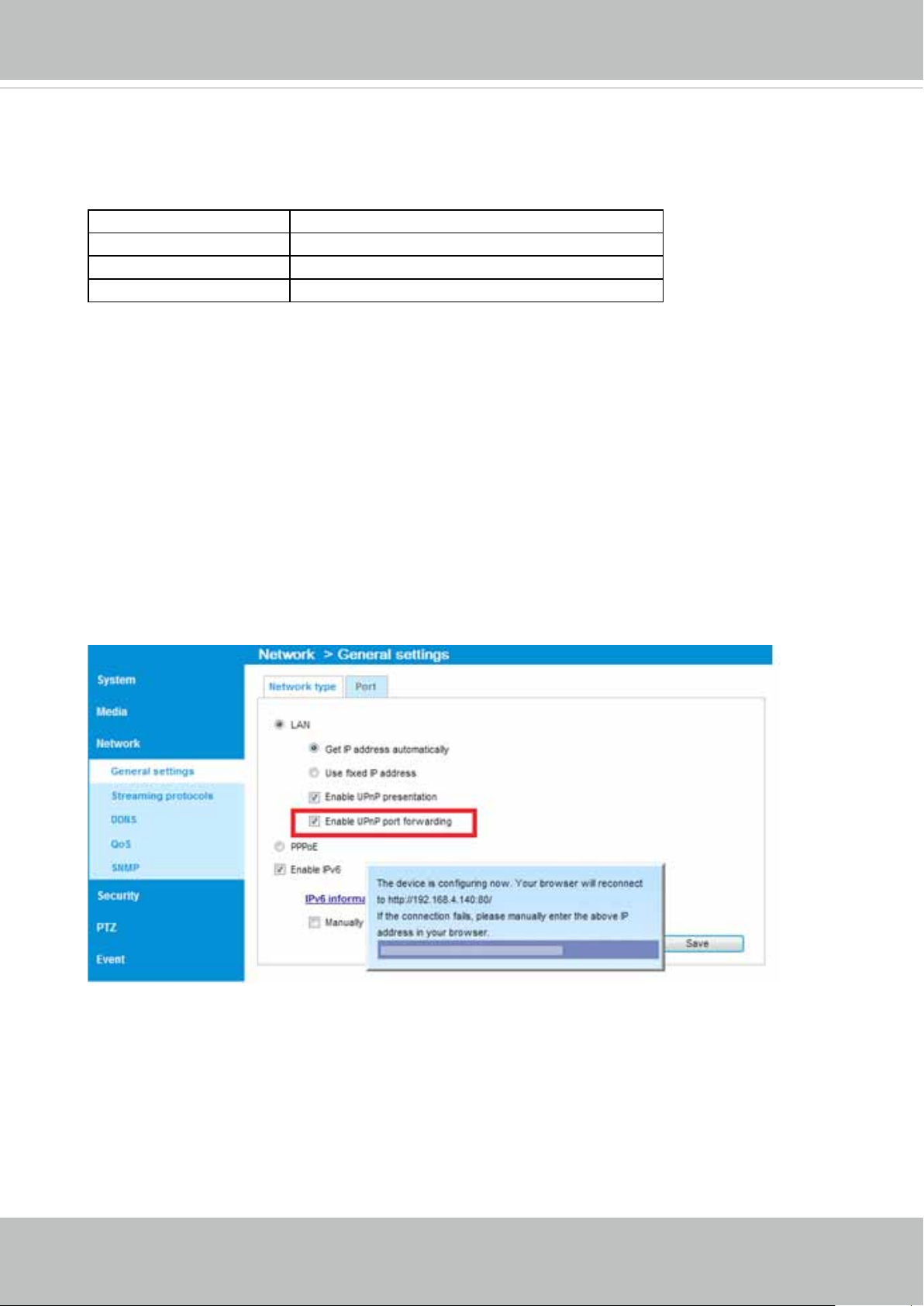
Congure the router, virtual server or rewall, so that the router can forward any data coming into a precongured port number to a network camera on the private network, and
allow data from the camera to be transmitted to the outside of the network over the same
path.
From Forward to
122.146.57.120:8000 192.168.2.10:80
122.146.57.120:8001 192.168.2.11:80
... ...
When properly congured, you can access a camera behind the router using the HTTP
request such as follows: http://122.146.57.120:8000
If you change the port numbers on the Network conguration page, please open the ports
accordingly on your router. For example, you can open a management session with your
router to congure access through the router to the camera within your local network.
Please consult your network administrator for router conguration if you have troubles with
the conguration.
For more information with network conguration options (such as that of streaming ports),
please refer to Conguration > Network Settings. VIVOTEK also provides the automatic
port forwarding feature as an NAT traversal function with the precondition that your router
must support the UPnP port forwarding feature.
30 - User's Manual
Page 31

VIVOTEK
Ready to Use
1. A browser session with the Network Camera should prompt as shown below.
2. You should be able to see live video from your camera. You may also install the 32-channel
recording software from the software CD in a deployment consisting of multiple cameras. For
its installation details, please refer to its related documents.
3. Click to expand the Video stream menu to select to display individual sensor, or select the
Quad view to display all views from the 4 sensors.
In a Quad view, the views of all sensors are displayed. The sensor near the top alignment
mark (the default front side) is sensor #1. There are stickers on each sensor module to
indicate their ID.
1
3
2
4
2
1
4
3
2
1
4
3
User's Manual - 31
Page 32

VIVOTEK
Accessing the Network Camera
This chapter explains how to access the Network Camera through web browsers, RTSP players,
3GPP-compatible mobile devices, and VIVOTEK recording software.
Using Web Browsers
Use Installation Wizard 2 (IW2) to access the Network Cameras on LAN.
If your network environment is not a LAN, follow these steps to access the Netwotk Camera:
1. Launch your web browser (e.g., Microsoft
2. Enter the IP address of the Network Camera in the address eld. Press Enter.
3. Live video will be displayed in your web browser.
4. If it is the rst time installing the VIVOTEK network camera, an information bar will prompt as
shown below. Follow the instructions to install the required plug-in on your computer.
®
Internet Explorer or Mozilla Firefox).
NOTE
NOTE:
► For Mozilla Firefox or Chrome users, your browser will use Quick Time to stream the live
video. If you don’t have Quick Time on your computer, please download it rst, then launch
the web browser.
32 - User's Manual
Page 33

VIVOTEK
► By default, the Network Camera is not password-protected. To prevent unauthorized access,
it is highly recommended to set a password for the Network Camera.
For more information about how to enable password protection, please refer to Security on
page 99.
► If you see a dialog box indicating that your security settings prohibit running ActiveX
®
Controls, please enable the ActiveX
Controls for your browser.
®
1. Choose Tools > Internet Options > Security > Custom Level.
2. Look for Download signed ActiveX
®
controls; select Enable or Prompt. Click OK.
3. Refresh your web browser, then install the ActiveX
complete installation.
®
control. Follow the instructions to
User's Manual - 33
Page 34

VIVOTEK
IMPORTANT:
Currently the Network Camera utilizes a 32-bit ActiveX plugin. You CAN NOT open a
•
management/view session with the camera using a 64-bit IE browser.
If you encounter this problem, try execute the Iexplore.exe program from C:\Windows\
•
SysWOW64. A 32-bit version of IE browser will be installed.
On Windows 7, the 32-bit explorer browser can be accessed from here:
•
C:\Program Files (x86)\Internet Explorer\iexplore.exe
If you open a web session from the IW2 utility, a 32-bit IE browser will be opened.
•
Tips:
1. The onscreen Java control can malfunction under the following situations: A PC con-
nects to different cameras that are using the same IP address (or the same camera
running different rmware versions). Removing your browser cookies will solve this
problem.
2. If you encounter problems with displaying the conguration menus or UI items, try dis-
able the Compatibility View on IE8 or IE9.
You may also press the F12 key to open the developer tools utility, and then change the
Browser Mode to the genuine IE8 or IE9 mode.
• In the event of plug-in compatibility issues, you may try to uninstall the plug-in that was
previously installed.
34 - User's Manual
Page 35

VIVOTEK
Using RTSP Players
To view the streaming media using RTSP players, you can use one of the following players that
support RTSP streaming.
Quick Time Player
VLC media player
VLC media player
1. Launch the RTSP player.
mpegable Player
2. Choose File > Open URL. A URL dialog box will pop up.
3. The address format is rtsp://<ip address>:<rtsp port>/<RTSP streaming access name for
pvPlayer
stream1 or stream2>
As most ISPs and players only allow RTSP streaming through port number 554, please set the
RTSP port to 554. For more information, please refer to RTSP Streaming on page 88.
For example:
rtsp://192.168.5.151:554/live.sdp
4. The live video will be displayed in your player.
For more information on how to configure the RTSP access name, please refer to RTSP
Streaming on page 88 for details.
Video 16:38:01 2012/01/25
User's Manual - 35
Page 36

VIVOTEK
Video quality (Constant bit rate) 40kbps
Using 3GPP-compatible Mobile Devices
To view the streaming media through 3GPP-compatible mobile devices, make sure the Network
Camera can be accessed over the Internet. For more information on how to set up the Network
Camera over the Internet, please refer to Setup the Network Camera over the Internet on page
28.
To utilize this feature, please check the following settings on your Network Camera:
1. Because most players on 3GPP mobile phones do not support RTSP authentication, make
sure the authentication mode of RTSP streaming is set to disable.
For more information, please refer to RTSP Streaming on page 88.
2. As the the bandwidth on 3G networks is limited, you will not be able to use a large video size.
Please set the video streaming parameters as listed below.
For more information, please refer to Stream settings on page 71.
Video Mode H.264
Frame size 176 x 144
Maximum frame rate 5 fps
Intra frame period 1S
3. As most ISPs and players only allow RTSP streaming through port number 554, please set
the RTSP port to 554. For more information, please refer to RTSP Streaming on page 88.
4. Launch the player on the 3GPP-compatible mobile devices (e.g., QuickTime).
5. Type the following URL commands into the player.
The address format is rtsp://<public ip address of your camera>:<rtsp port>/<RTSP streaming
access name for stream # with small frame size and frame rate>.
For example:
You can configure Stream #2 into the suggested stream settings as listed above for live
viewing on a mobile device.
36 - User's Manual
Page 37

VIVOTEK
Using VIVOTEK Recording Software
The product software CD also contains a VAST recording software, allowing simultaneous
monitoring and video recording for multiple Network Cameras. Please install the recording
software; then launch the program to add the Network Camera to the Channel list. For detailed
information about how to use the recording software, please refer to the user’s manual of the
software or download it from http://www.vivotek.com.
Tips:
1. If you forget the root (administrator) password for the camera, you can restore the camera
defaults by pressing the reset button for longer than 5 seconds.
2. If DHCP is enabled in your network, and the camera cannot be accessed, run the IW2 utility
to search the network. If the camera has been congured with a xed IP that does not comply
with your local network, you may see its default IP 169.254.x.x. If you still cannot find the
camera, the camera could have been congured with a xed IP that does not comply with
your local network, you can restore the camera to its factory defaults. The factory default is
DHCP client.
3. If you change your network parameters, e.g., added a camera via a connection to a LAN
card, re-start the IW2 utility.
User's Manual - 37
Page 38

VIVOTEK
Main Page
This chapter explains the layout of the main page. It is composed of the following sections:
VIVOTEK INC. Logo, Host Name, Camera Control Area, Configuration Area, Menu, and Live
Video Window.
Resize Buttons
VIVOTEK INC.
Logo
Camera Control
Area
Hide Button
VIVOTEK INC. Logo
Click this logo to visit the VIVOTEK website.
Configuration Area
Host Name
Live View Window
Host Name
The host name can be customized to t your needs. The name can be changed especially there are many
cameras in your surveillance deployment. For more information, please refer to System on page 50.
Camera Control Area
Video Stream: This Network Camera supports multiple streams (streams 1 and 2) simultaneously. You
can select any of them for live viewing. For more information about multiple streams, please refer to page
71 for detailed information.
Manual Trigger: Click to enable/disable an event trigger manually. Please congure an event setting on
the Application page before you enable this function. A total of 3 event conguration can be congured.
For more information about event setting, please refer to page 116. If you want to hide this item on
the homepage, please go to Configuration> System > Homepage Layout > General settings >
Customized button to deselect the “show manual trigger button” checkbox.
Digital Output: Click to turn the digital output device on or off.
38 - User's Manual
Page 39

VIVOTEK
Conguration Area
Client Settings: Click this button to access the client setting page. For more information, please refer to
Client Settings on page 44.
Conguration: Click this button to access the conguration page of the Network Camera. It is suggested
that a password be applied to the Network Camera so that only the administrator can configure the
Network Camera. For more information, please refer to Conguration on page 49.
Language: Click this button to choose a language for the user interface. Language options are available
in: English, Deutsch, Español, Français, Italiano,
日本語
, Português,
簡体中文
, and
繁體中文
. Please
note that you can also change a language on the Conguration page; please refer to page 49.
Hide Button
You can click the hide button to hide or display the control panel.
Resize Buttons
:
Click the Auto button, the video cell will resize automatically to t the monitor.
Click 100% is to display the original homepage size.
Click 50% is to resize the homepage to 50% of its original size.
Click 25% is to resize the homepage to 25% of its original size.
Live Video Window
■ The following window is displayed when the video mode is set to H.264:
H.264 Protocol and Media Options
Video Title
Title and Time
Zoom Indicator
Video Title: The video title can be congured. For more information, please refer to Video Settings on
page 62.
Video (TPC-AV)
Video 17:08:56 2017/10/11
x4.0
Time
Video Control Buttons
H.264 or H. 265 Protocol and Media Options: The transmission protocol and media options for H.264
video streaming. For further conguration, please refer to Client Settings on page 44.
Time: Display the current time. For further conguration, please refer to Media > Image > Genral settings
on page 62.
Title and Time: The video title and time can be stamped on the streaming video. For further conguration,
please refer to Media > Image > General settings on page 64.
User's Manual - 39
Page 40

VIVOTEK
PTZ Panel: This Network Camera supports “digital“ (e-PTZ) pan/tilt/zoom control, which allows roaming
a smaller view frame within a large view frame. Please refer to PTZ settiings on page 113 for detailed
information.
Global View: Click on this item to display the Global View window. The Global View window contains a
full view image (the largest frame size of the captured video) and a oating frame (the viewing region of
the current video stream). The oating frame allows users to control the e-PTZ function (Electronic Pan/
Tilt/Zoom). For more information about e-PTZ operation, please refer to E-PTZ Operation on page 113.
For more information about how to set up the viewing region of the current video stream, please refer to
page 113.
The viewing region of
the curruent video
stream
The largest frame size
Note that the PTZ buttons on the panel are not operational unless you are showing only a portion of the
full image. If the live view window is displaying the full view, the PTZ buttons are not functional.
Move Instantly: If you choose to display only a portion of the total eld of view, say, zoomed in on the
current eld of view using the Global View setting, you can select or deselect the “Move Instantly” option.
Move Instantly means the process of moving from one portion to another is not shown on screen.
40 - User's Manual
Page 41

VIVOTEK
Video Control Buttons: Depending on the Network Camera model and Network Camera conguration,
some buttons may not be available.
Snapshot: Click this button to capture and save still images. The captured images will be displayed
in a pop-up window. Right-click the image and choose Save Picture As to save it in JPEG (*.jpg) or BMP
(*.bmp) format.
Digital Zoom: Click and uncheck “Disable digital zoom” to enable the zoom operation. The navigation
screen indicates the part of the image being magnied. To control the zoom level, drag the slider bar. To
move to a different area you want to magnify, drag the navigation screen.
Pause: Pause the transmission of the streaming media. The button becomes the Resume button
after clicking the Pause button.
Stop: Stop the transmission of the streaming media. Click the Resume button to continue
transmission.
Start MP4 Recording: Click this button to record video clips in MP4 file format to your computer.
Press the
recording stops accordingly. To specify the storage destination and le name, please refer to MP4 Saving
Options on page 45 for details.
Volume: When the Mute function is not activated, move the slider bar to adjust the volume on the
local computer.
Mute: Turn off the volume on the local computer. The button becomes the Audio On button after
clicking the Mute button.
Talk: Click this button to talk to people around the Network Camera. Audio will project from
the external speaker connected to the Network Camera. Click this button
transmission.
Mic Volume: When the Mute function is not activated, move the slider bar to adjust the
microphone volume on the local computer.
Stop MP4 Recording button to end recording. When you exit the web browser, video
again to end talking
NOTE:
1. For a megapixel camera, it is recommended to use monitors of the 24" size or larger, and
are capable of 1600x1200 or better resolutions.
2. Below are the defaults for Audio settings:
For cameras with built-in microphone: Not Muted.
For cameras without built-in microphone: Muted.
To receive audio input from an external microphone, you may need to enable the audio input
from Media > Audio. Refer to page 79 for more information.
User's Manual - 41
Page 42

VIVOTEK
Mute: Turn off the Mic volume on the local computer. The button becomes the Mic On button
after clicking the Mute button.
Full Screen: Click this button to switch to full screen mode. Press the “Esc” key to switch back to normal
mode.
■ The following window is displayed when the video mode is set to MJPEG:
Video Title
Title and Time
Zoom Indicator
Video (HTTP-V)
Video 14:47:32 2017/10/11
x4.0
Time
Video Control Buttons
Video Title: The video title can be congured. For more information, please refer to Media > Image on
page 64.
Time: Display the current time. For more information, please refer to Media > Image on page 64.
Title and Time: Video title and time can be stamped on the streaming video. For more information, please
refer to Media > Image on page 64
.
Video Control Buttons: Depending on the Network Camera model and Network Camera conguration,
some buttons may not be available.
Snapshot: Click this button to capture and save still images. The captured images will be displayed
in a pop-up window. Right-click the image and choose Save Picture As to save it in JPEG (*.jpg) or BMP
(*.bmp) format.
Digital Zoom: Click and uncheck “Disable digital zoom” to enable the zoom operation. The navigation
screen indicates the part of the image being magnied. To control the zoom level, drag the slider bar. To
move to a different area you want to magnify, drag the navigation screen.
42 - User's Manual
Page 43

VIVOTEK
Start MP4 Recording: Click this button to record video clips in MP4 le format to your computer.
Press the
Stop MP4 Recording button to end recording. When you exit the web browser, video
recording stops accordingly. To specify the storage destination and le name, please refer to MP4
Saving Options on page 45 for details.
Full Screen: Click this button to switch to full screen mode. Press the “Esc” key to switch back to
normal mode.
User's Manual - 43
Page 44

VIVOTEK
Client Settings
This chapter explains how to select the stream transmission mode and saving options on the
local computer. When completed with the settings on this page, click Save on the page bottom
to enable the settings.
H.264 Media Options
Select to stream video or audio data or both. This is enabled only when the video mode is set to H.264.
H.264 Protocol Options
H.264 Protocol Options
Depending on your network environment, there are four transmission modes of H.264 streaming:
UDP unicast: This protocol allows for more real-time audio and video streams. However, network
packets may be lost due to network burst trafc and images may be broken. Activate UDP connection
when occasions require time-sensitive responses and the video quality is less important. Note that each
unicast client connecting to the server takes up additional bandwidth and the Network Camera allows up
to ten simultaneous accesses.
UDP multicast: This protocol allows multicast-enabled routers to forward network packets to all clients
requesting streaming media. This helps to reduce the network transmission load of the Network Camera
while serving multiple clients at the same time. Note that to utilize this feature, the Network Camera must
be configured to enable multicast streaming at the same time. For more information, please refer to
RTSP Streaming on page 88.
TCP: This protocol guarantees the complete delivery of streaming data and thus provides better video
quality. The downside of this protocol is that its real-time effect is not as good as that of the UDP protocol.
HTTP: This protocol allows the same quality as TCP protocol without needing to open specic ports for
streaming under some network environments. Users inside a firewall can utilize this protocol to allow
streaming data through.
44 - User's Manual
Page 45

VIVOTEK
Two way audio
Half duplex: Audio is transmitted from one direction at a time, e.g., from a PC holding a web console with
the camera.
Full duplex: Audio is transmitted in both directions simultaneously.
MP4 Saving Options
Users can record live video as they are watching it by clicking Start MP4 Recording on the main
page. Here, you can specify the storage destination and le name.
Folder: Specify a storage destination on your PC for the recorded video files. The location can be
changed.
File name prex: Enter the text that will be appended to the front of the video le name. A specied folder
will be automatically created on your local hard disk.
Add date and time sufx to the le name: Select this option to append the date and time to the end of the
le name.
CLIP_20160321-180853
File name prefix
Date and time suffix
The format is: YYYYMMDD_HHMMSS
Local Streaming Buffer Time
In the case of encountering unsteady bandwidth, live streaming may lag and video streaming may not be
very smoothly. If you enable this option, the live streaming will be stored temporarily on your PC’s cache
memory for a few milli seconds before being played on the live viewing window. This will help you see
the streaming more smoothly. If you enter 3,000 Millisecond, the streaming will delay for 3 seconds.
User's Manual - 45
Page 46

VIVOTEK
Joystick settings
Enable Joystick
Connect a joystick to a USB port on your management computer. Supported by the plug-in
(Microsoft’s DirectX), once the plug-in for the web console is loaded, it will automatically detect if
there is any joystick on the computer. The joystick should work properly without installing any other
driver or software.
Then you can begin to configure the joystick settings of connected devices. Please follow the
instructions below to enable joystick settings.
1. Select a detected joystick, if there are multiple, from the Selected joystick menu. If your joystick
is not detected, if may be defective.
2. Click Calibrate or Congure buttons to congure the joystick-related settings.
NOTE:
• If you want to assign Preset actions to your joystick, the preset locations should be congured
in advance in the Conguration > PTZ page. In Windows, use the search function on the Start
menu to search for Game Controller.
• If your joystick is not working properly, it may need to be calibrated. Click the Calibrate button
to open the Game Controllers window located in Microsoft Windows control panel and follow the
instructions for trouble shooting.
• The joystick will appear in the Game Controllers list in the Windows Control panel. If you want to
check out for your devices, go to the following page: Start -> Control Panel -> Game Controllers.
46 - User's Manual
Page 47

VIVOTEK
Buttons Conguration
In the Button Conguration window, the left column shows the actions you can assign, and the right
column shows the functional buttons and assigned actions. The number of buttons may differ from
different joysticks.
Please follow the steps below to congure your joystick buttons:
1. Choosing one of the actions and click Assign will pop up a dialog. Then you can assign this
action to a button by pressing the joystick button or select it from the drop-down list.
For example: Assign Home (move to home position) to Button 1.
2. Click OK to conrm the conguration.
User's Manual - 47
Page 48

VIVOTEK
Buttons Conguration
Click the Congure Buttons button, a window will prompt as shown below. Please follow the steps
below to congure your joystick buttons:
1. Select a button number from the Button # pull-down menu.
Tips:
If you are not sure of the locations of each
button, use the Properties window in the Game
Controllers utility.
2. Select a corresponding action, such as Patrol or Preset#.
3.
Click the Assign button to assign an action to
the button. You can delete an association by
selecting a button number, and then click the
Delete button.
Repeat the process until you are done with the
conguration of all preferred actions.
The buttons you define should appear on the
button list accordingly.
4. Please remember to c
lick the Save button
on the Client settings page to preserver your
settings.
48 - User's Manual
Page 49

VIVOTEK
Conguration
Click Configuration on the main page to enter the camera setting pages. Note that only
Administrators can access the conguration page.
VIVOTEK provides an easy-to-use user interface that helps you set up your network camera
with minimal effort. In order to simplify the user interface, detailed information will be hidden
unless you click on the function item. When you click on the first sub-item, the detailed
information for the rst sub-item will be displayed; when you click on the second sub-item, the
detailed information for the second sub-item will be displayed and that of the rst sub-item will
be hidden.
The following is the interface of the main page:
Configuration List
Firmware Version
Navigation Area
Each function on the conguration list will be explained in the following sections.
The Navigation Area provides access to all different views from the Home page (for live viewing),
Conguration page, and multi-language selection.
User's Manual - 49
Page 50

VIVOTEK
System > General settings
This section explains how to congure the basic settings for the Network Camera, such as the
host name and system time. It is composed of the following two columns: System, and System
Time. When finished with the settings on this page, click Save at the bottom of the page to
enable the settings.
System
Host name: Enter a desired name for the Network Camera. The text will be displayed at the top of the
main page, and also on the view cells of the ST7501 and VAST management software.
Turn off the LED indicators: If you do not want others to notice the network camera is in operation, you
can select this option to turn off the LED indicators.
50 - User's Manual
Page 51

VIVOTEK
System time
Keep current date and time: Select this option to preserve the current date and time of the Network
Camera. The Network Camera’s internal real-time clock maintains the date and time even when the
power of the system is turned off.
Synchronize with computer time: Select this option to synchronize the date and time of the Network
Camera with the local computer. The read-only date and time of the PC is displayed as updated.
Manual: The administrator can enter the date and time manually. Note that the date and time format are
[yyyy/mm/dd] and [hh:mm:ss].
Automatic: The Network Time Protocol is a protocol which synchronizes computer clocks by periodically
querying an NTP Server.
NTP server: Assign the IP address or domain name of the time-server. Leaving the text box blank
connects the Network Camera to the default time servers. The precondition is that the camera must
have the access to the Internet.
Update interval: Select to update the time using the NTP server on an hourly, daily, weekly, or monthly
basis.
Time zone : Select the appropriate time zone from the list. If you want to upload Daylight Savings Time
rules, please refer to System > Maintenance > Import/ Export les on page 59 for details.
User's Manual - 51
Page 52

VIVOTEK
System > Homepage layout
This section explains how to set up your own customized homepage layout.
General settings
This column shows the settings of your hompage layout. You can manually select the background and
font colors in Theme Options (the second tab on this page). The settings will be displayed automatically
in this Preview eld. The following shows the homepage using the default settings:
■ Hide Powered by VIVOTEK: If you check this item, it will be removed from the homepage.
Logo graph
Here you can change the logo that is placed at the top of your homepage.
Follow the steps below to upload a new logo:
1. Click Custom and the Browse eld will appear.
2. Select a logo from your les.
3. Click Upload to replace the existing logo with a new one.
4. Enter a website link if necessary.
5. Click Save to enable the settings.
Customized button
If you want to hide manual trigger buttons on the homepage, please uncheck this item. This item is
checked by default.
52 - User's Manual
Page 53

VIVOTEK
Theme Options
Here you can change the color of your homepage layout. There are three types of preset patterns for you
to choose from. The new layout will simultaneously appear in the Preview led. Click Save to enable the
settings.
Font Color of the
Video Title
Font Color
Background Color of the
Control Area
Font Color of
the Configuration Area
Background Color of the
Configuration Area
Preset patterns
Background Color of
the Video Area
Frame Color
User's Manual - 53
Page 54

VIVOTEK
■ Follow the steps below to set up the customed homepage:
1. Click Custom on the left column.
2. Click the eld where you want to change the color on the right column.
Custom
Pattern
3. The palette window will pop up as shown below.
Color Selector
2
1
4
4. Drag the slider bar and click on the left square to select a desired color.
5. The selected color will be displayed in the corresponding elds and in the Preview column.
6. Click Save to enable the settings.
3
54 - User's Manual
Page 55

VIVOTEK
System > Logs
This section explains how to congure the Network Camera to send the system log to a remote
server as backup.
Log server settings
Follow the steps below to set up the remote log:
1. Select Enable remote log.
2. In the IP address text box, enter the IP address of the remote server.
2. In the port text box, enter the port number of the remote server.
3. When completed, click Save to enable the setting.
You can congure the Network Camera to send the system log le to a remote server as a log backup.
Before utilizing this feature, it is suggested that the user install a log-recording tool to receive system log
messages from the Network Camera. An example is Kiwi Syslog Daemon. Visit http://www.kiwisyslog.
com/kiwi-syslog-daemon-overview/.
System log
This column displays the system log in a chronological order. The system log is stored in the Network
Camera’s buffer area and will be overwritten when reaching a certain limit.
User's Manual - 55
Page 56

VIVOTEK
PTZ
You can install the included VAST recording software, which provides an Event
Management function group for delivering event messages via emails, GSM short
messages, onscreen event panel, or to trigger an alarm, etc. For more information, refer to
the VAST User Manual.
VIVOTEK Network Cameras
Internet
3G Cell phone
Cell phone
Short message
GSM
Modem
HTTP
PC running
the Recording Software
Digital output
VIVOCloud
Email
56 - User's Manual
Page 57

VIVOTEK
Access log
Access log displays the access time and IP address of all viewers (including operators and
administrators) in a chronological order. The access log is stored in the Network Camera’s buffer
area and will be overwritten when reaching a certain limit.
System > Parameters
The View Parameters page lists the entire system’s parameters. If you need technical
assistance, please provide the information listed on this page.
User's Manual - 57
Page 58

VIVOTEK
System > Maintenance
This chapter explains how to restore the Network Camera to factory default, upgrade rmware
version, etc.
General settings > Upgrade rmware
This feature allows you to upgrade the firmware of your Network Camera. It takes a few minutes to
complete the process.
Note: Do not power off the Network Camera during the upgrade!
Follow the steps below to upgrade the rmware:
1. Download the latest rmware le from the VIVOTEK website. The le is in .pkg le format.
2. Click Browse… and locate the rmware le.
3. Click Upgrade. The Network Camera starts to upgrade and will reboot automatically when the upgrade
completes.
If the upgrade is successful, you will see “Reboot system now!! This connection will close”. After that, re-
access the Network Camera.
The following message is displayed when the upgrade has succeeded.
Reboot system now!!
This connection will close.
The following message is displayed when you have selected an incorrect rmware le.
Starting firmware upgrade...
Do not power down the server during the upgrade.
The server will restart automatically after the upgrade is
completed.
This will take about 1 - 5 minutes.
Wrong PKG file format
Unpack fail
General settings > Reboot
This feature allows you to reboot the Network Camera, which takes about one minute to complete. When
completed, the live video page will be displayed in your browser. The following message will be displayed
during the reboot process.
If the connection fails after rebooting, manually enter the IP address of the Network Camera in the
address eld to resume the connection.
58 - User's Manual
Page 59

VIVOTEK
General settings > Restore
This feature allows you to restore the Network Camera to factory default settings.
Network: Select this option to retain the Network Type settings (please refer to Network Type on page
81).
Daylight Saving Time: Select this option to retain the Daylight Saving Time settings (please refer to
Import/Export les below on this page).
Custom Language: Select this option to retain the Custom Language settings.
VADP: Retain the VADP modules (3rd-party software stored on the SD card) and related settings.
Focus position: Retain the lens focus position using the previously saved position parameters.
If none of the options is selected, all settings will be restored to factory default. The following message is
displayed during the restoring process.
Import/Export les
This feature allows you to Export / Update daylight saving time rules, custom language le, conguration
le, and server status report.
Export daylight saving time conguration le: Click to set the start and end time of DST (Daylight Saving).
Follow the steps below to export:
1. In the Export les column, click Export to export the daylight saving time conguration le from the
Network Camera.
2. A le download dialog will pop up as shown below. Click Open to review the XML le or click Save to
store the le for editing.
User's Manual - 59
Page 60

VIVOTEK
3. Open the le with Microsoft® Notepad and locate your time zone; set the start and end time of DST.
When completed, save the le.
In the example below, DST begins each year at 2:00 a.m. on the second Sunday in March and ends at
2:00 a.m. on the rst Sunday in November.
Update daylight saving time rules: Click Browse… and specify the XML le to update.
If the incorrect date and time are assigned, you will see the following warning message when uploading
the le to the Network Camera.
60 - User's Manual
Page 61

VIVOTEK
The following message is displayed when attempting to upload an incorrect le format.
Export language file: Click to export language strings. VIVOTEK provides nine languages: English,
Deutsch, Español, Français, Italiano,
日本語,
Português,
簡体中文
, and
繁體中文
.
Update custom language le: Click Browse… and specify your own custom language le to upload.
Export conguration le: Click to export all parameters for the device and user-dened scripts.
Update conguration le: Click Browse… to update a conguration le. Please note that the model and
rmware version of the device should be the same as the conguration le. If you have set up a xed IP
or other special settings for your device, it is not suggested to update a conguration le.
Export server staus report: Click to export the current server status report, such as time, logs,
parameters, process status, memory status, le system status, network status, kernel message ... and so
on.
Tips:
If a rmware upgrade is accidentally disrupted, say, by a power outage, you still have a last resort method to
restore normal operation. See the following for how to bring the camera back to work:
Applicable scenario:
(a) Power disconnected during rmware upgrade.
(b) Unknown reason causing abnormal LED status, and a Restore cannot recover normal working
condition.
You can use the following methods to activate the camera with its backup rmware:
(a) Press and hold down the reset button for at least one minute.
(b) Power on the camera until the Red LED blinks rapidly.
(c) After boot up, the rmware should return to the previous version before the camera hanged. (The
procedure should take 5 to 10 minutes, longer than the normal boot-up process). When tthis
process is completed, the LED status should return to normal.
User's Manual - 61
Page 62

VIVOTEK
Media > Image
Channel: Select a Channel (each of the 4 sensors) before making congurations. These 4 sensors
can be individually congured.
This section explains how to configure the image settings of the Network Camera. It is
composed of the following four columns: General settings, Picture settings, Exposure,
Focus, and Privacy mask.
General settings
Video title
Show_timestamp_and video_title_in_video_and_snapshots: Enter a name that will be displayed on
the title bar of the live video as the picture shown below. A zoom indicator will be displayed on the
Home page when you zoom in/out on the live viewing window as shown below. You may zoom in/
out on the image by scrolling the mouse wheel inside the live viewing window, and the maximum
zoom in will be up to 4 times.
Video Title
Title and Time
Zoom Factor
Video 17:08:56 2014/7/09
Zoom In
X2.1
2014/7/09 17:08:56
Zoom Out
Position of timestamp and video title on image: Select to display time stamp and video title on the
top or at the bottom of the video stream.
Timestamp and video title font size: Select the font size for the time stamp and title.
Video font (.ttf): You can select a True Type font le for the display of textual messages on video.
Color: Select to display color or black/white video streams.
Power line frequency: Set the power line frequency consistent with local utility settings to eliminate
image flickering associated with fluorescent lights. Note that after the power line frequency is
changed, you must disconnect and reconnect the power cord of the Network Camera in order for
the new setting to take effect.
62 - User's Manual
Page 63

VIVOTEK
Video orientation: Flip - vertically reect the display of the live video; Mirror - horizontally reect the
display of the live video. Select both options if the Network Camera is installed upside-down (e.g.,
on the ceiling) to correct the image orientation. Please note that if you have preset locations, those
locations will be cleared after ip/mirror setting.
Day/Night Settings
Switch to B/W in night mode
Select this to enable the Network Camera to automatically switch to Black/White during night
mode.
IR cut lter
With a removable IR-cut lter, this Network Camera can automatically remove the lter to let IR
light enter the light sensor during low light conditions.
■ Auto mode
The Network Camera automatically removes the lter by judging the level of ambient light.
■ Day mode
In day mode, the Network Camera switches on the IR cut lter at all times to block infrared light
from reaching the sensor so that the colors will not be distorted.
■ Night mode
In night mode, the Network Camera switches off the IR cut lter at all times for the sensor to
accept infrared light, thus helping to improve low light sensitivity.
■ Synchronize with digital input
The Network Camera automatically removes the IR cut lter when a Digital Input is triggerred.
For example, an external IR light may come with its own detection circuits.
■ Schedule mode
The Network Camera switches between day mode and night mode based on a specified
schedule. Enter the start and end time for the day mode. Note that the time format is [hh:mm]
and is expressed in 24-hour clock time. By default, the start and end time of day mode are set to
07:00 and 18:00.
Sensitivity of IR cut lter
Tune the responsiveness of the IR cut lter to lighting conditions as Low, Normal, or High.
When completed with the settings on this page, click Save to enable the settings.
User's Manual - 63
Page 64

VIVOTEK
Image settings
On this page, you can tune the White balance and Image adjustment.
Channel: Select one of the 4 Channels (sensors).
White balance: Adjust the value for the best color temperature.
■ You may follow the steps below to adjust the white balance to the best color temperature.
1. Place a sheet of paper of white or cooler-color temperature color, such as blue, in front of the
lens, then allow the Network Camera to automatically adjust the color temperature.
2. Click the On button to Fix current value and conrm the setting while the white balance is being
measured.
■ You may also manually tune the color temperature by pulling the RGain and BGain slide bars.
Image Adjustment
■ Brightness: Adjust the image brightness level, which ranges from
0% to 100%
.
■ Contrast: Adjust the image contrast level, which ranges from 0% to 100%.
■ Saturation: Adjust the image saturation level, which ranges from 0% to 100%.
■ Sharpness:
Adjust the image sharpness level, which ranges from
■ Gamma curve:
Adjust the image sharpness level, which ranges from
0% to 100%
0 to 0.45
.
.
You may let firmware Optimize your display or select a value to change the preferred level of
Gamma correction towards higher contrast or towards the higher luminance for detailed expression
for both the dark and lighted areas of an image.
64 - User's Manual
Page 65

VIVOTEK
WDR enhanced
This refers to the Wide Dynamic Range function that enables the camera to capture details in a
high contrast environment. Use the checkbox to enable the function, and select the strength of
the WDR functionality, depending on the lighting condition at the installation site. You can select
a higher effect when the contrast is high (between the shaded area and the light behind the
objects).
Noise reduction
■ Enable noise reduction: Check to enable noise reduction in order to reduce noises and ickers
in image. This applies to the onboard 3D Noise Reduction feature. Use the pull-down menu to
adjust the reduction strength. Note that applying this function to the video channel will consume
system computing power.
3D Noise Reduction is mostly applied in low-light conditions. When enabled in a low-light
condition with fast moving objects, trails of after-images may occur. You may then select a lower
strength level or disable the function.
Note that the Preview button has been cancelled, all changes made to image settings is directly
shown on screen. You can click Restore to recall the original settings without incorporating the
changes. When completed with the settings on this page, click Save to enable the setting. You
can also click on Prole mode to adjust all settings above in a tabbed window for special lighting
conditions.
Enable and apply these settings at:
Select the mode this prole to apply to: Day mode, Night mode,
or Schedule mode. Please manually enter a range of time if you choose Schedule mode. Then
check Save to take effect.
User's Manual - 65
Page 66

VIVOTEK
Exposure
On this page, you can congure the Exposure measurement window, Exposure level, Exposure
mode, Exposure time, Gain control settings. You can congure two sets of Exposure settings: one
for normal situations, the other for special situations, such as the day/night/schedule mode.
Measurement Window: This function allows users to configure measurement window(s) for low
light compensation. For example, where low-light objects are posed against an extremely bright
background. You may want to exclude the bright sunlight shining through a building's corridor.
■ Full view: System calculates the full range of view and provides appropriate
light compensation.
■ Custom: This option allows you to manually add customized windows as inclusive or exclusive
regions. A total of 10 windows can be configured. Please refer to the next page for detailed
illustration.
66 - User's Manual
Page 67

VIVOTEK
The inclusive window refers to the “weighted window“; the exclusive window refers to “ignored
window“. It adopts the weighed averages method to calculate the value. The inclusive windows
have a higher priority. You can overlap these windows, and, if you place an exclusive window
within a larger inclusive window, the exclusive part of the overlapped windows will be deducted
from the inclusive window. An exposure value will then be calculated out of the remaining of the
inclusive window.
Include
Include
Exclude
Exclude
Weighted region
Ignored region
■ BLC (Back Light Compensation): This option will automatically add a “weighted region“ in the
middle of the window and give the necessary light compensation.
Exposure control:
Exposure level: You can manually configure the Exposure level, which ranges from -2.0 to
■
+2.0 (dark to bright). You can click and drag the semi-circular pointers on the Exposure time
and Gain control slide bars to specify a range of shutter time and Gain control values within
which the camera can automatically tune to an optimal imaging result. You may prefer a shorter
shutter time to better capture moving objects, while a faster shutter reduces light and needs to be
compensated by electrical brightness gains.
- Flickerless:
Fixed iris models can encounter image rolling band issues when
operating under incongrous
power line frequency with uorescent lights. To solve the problem, the Flickerless mode can limit
the exposure time to 1/120 ~ 1/5 second. For the Auto iris models, when the exposure time is
limited to 1/120 ~1/5 second, iris size is automatically adjusted, and that the image brightness
is appropriately adjusted. Although the chance is rare, for Fixed iris models, when the exposure
time is limited to 1/120 ~ 1/5 second, they may encounter image over-exposure. If the Flickerless
option is selected, and users discover over-exposure from the live view, they can disable the
Flickerless option.
You can click Restore to recall the original settings without incorporating the changes. When
completed with the settings on this page, click Save to enable the settings.
User's Manual - 67
Page 68

VIVOTEK
If you want to congure another sensor setting for day/night/schedule mode, please click Prole to
open the Prole of exposure settings page as shown below.
Activated period:
Select the mode this prole to apply to: Night mode or Schedule mode. Please
manually enter a range of time if you choose Schedule mode. Then check Save for the conguration
to take effect.
Please follow the steps below to congure a prole:
1. Select the Prole mode tab.
2. Select the applicable mode: Night mode or
Schedule mode. Please manually enter a range of
time if you choose the Schedule mode.
3. Congure Exposure control settings in the folowing
columns. Please refer to previous dicussions for
detailed information.
4. Click Save to enable the setting and click Close to
exit the page.
68 - User's Manual
Page 69

VIVOTEK
Focus
Focus here refers to the Remote Focus, is applicable to Network Cameras that are
equipped with stepping motor lens. The automated focus adjustment function eliminates
the needs to physically adjust camera focus. In an outdoor deployment consisting of a
large number of cameras, the auto focus function can be very helpful when these cameras
become out of focus after days or weeks of operation. And that can easily result from
the effects of natural forces, e.g., shrink and expand due to a wide range of operating
temperatures and the vibration caused by wind.
1
2
3
Below is the procedure to perform the automated Focus function:
1. Select a Channel (one of the 4 sensors).
2. Select from the bottom of the screen whether you want to perform focus adjustment on
the Full view or within a Custom focus window. You can create a custom window and
click and drag the window to a desired position on screen.
3. You can use the Fully-opened iris checkbox (default) to increase the iris size for a
better focus adjustment result.
4. Click on the Perform auto focus button. When the Full-range scan checkbox is
selected, a full-range scan through the camera's entire focal length can take about 30
to 80 seconds. If not, the auto focus scan will only go through the length where optimal
focus may occur, and that takes about 15 to 20 seconds. In theory, best results of the
auto scan can be acquired when the camera's iris is fully open.
User's Manual - 69
Page 70

VIVOTEK
Privacy mask
Click Privacy Mask to open the settings page. On this page, you can block out sensitive zones to
address privacy concerns.
1
6
4
3
5
2
■ To congure privacy mask windows,
1. Select a Channel (one of the 4 sensors).
2. Click New to add a new window.
3. Click on the title bar and drag the window to your preferred location on screen. You can change
the size of window using the arrow mark that appear when you mouse over the lower right corner
of the window.
4. Enter a Window Name for the privacy window.
5. Click Save to preserve the setting.
6. Click on the Enable privacy mask checkbox to enable this function.
NOTE:
►
Up to 5 privacy mask windows can be congured on the same screen.
► If you want to delete the
name.
privacy mask
window, please click the ‘x’ mark on the side of window
70 - User's Manual
Page 71

Media > Video
VIVOTEK
Stream settings
This Network Camera supports multiple streams with frame sizes ranging from 320x 240 to 2048 x
1536 pixels.
■ Stream 1: Users can dene the "Region of Interest" (viewing region) and the "Output Frame Size"
(size of the live view window).
■ Stream 2: The default frame size for Stream 2 is set to the 2048 x 1536.
Click Viewing Window to open the viewing region settings page. On this page, you can congure
the Region of Interest and the Output Frame Size for a video stream. For example, you can crop
only a portion of the image that is of your interest, and thus save the bandwidth needed to transmit
the video stream. As the picture shown below, the area of your interest in a parking lot should be
the vehicles. The blue sky is of little value for the surveillance purpose.
User's Manual - 71
Page 72

VIVOTEK
Please follow the steps below to congure the settings for a stream:
1. Select a stream for which you want to set up the viewing region.
2. Select a Region of Interest from the drop-down list. The oating frame, the same as the one
in the Gloabl View window on the home page, will resize accordingly. If you want to set up
a customized viewing region, you can also resize and drag the floating frame to a desired
position using your mouse.
3. Choose a proper Output Frame Size from the drop-down list according to the size of your
monitoring device.
NOTE:
Media > Video
► All the items in the “Region of Interest” should not be larger than the “Output Frame Size“
(current maximum resolution).
When completed with the settings in the Viewing Window, click Save to enable the settings and
click Close to exit the window. The selected Output Frame Size will immediately be applied to
the Frame size of each video stream. Then you can go back to the home page to test the e-PTZ
function. For more information about the e-PTZ function, please refer to page 113.
Region of Interest
(Viewing Region)
72 - User's Manual
Output Frame Size
(Size of the Live View Window)
Page 73

VIVOTEK
Click the stream item to display the detailed information. The maximum frame size will follow your
settings in the above Viewing Window sections.
This Network Camera offers real-time H.264 and MJPEG compression standards (Triple Codec) for
real-time viewing. If the H.264 mode is selected, the video is streamed via RTSP protocol. There
are several parameters through which you can adjust the video performance:
■ Frame size
You can set up different video resolutions for different viewing devices. For example, set a
smaller frame size and lower bit rate for remote viewing on mobile phones and a larger video
size and a higher bit rate for live viewing on web browsers, or recording the stream to an NVR.
Note that a larger frame size takes up more bandwidth.
■ Maximum frame rate
This limits the maximum refresh frame rate per second. Set the frame rate higher for smoother
video quality and for recognizing moving objects in the eld of view.
If the power line frequency is set to 50Hz , the frame rates are selectable at 1fps to 7fps. If the
power line frequency is set to 60Hz, the frame rates are selectable at 1fps to 7fps. You can also
select Customize and manually enter a value.
User's Manual - 73
Page 74

VIVOTEK
■ Intra frame period
Determine how often for firmware to plant an I frame. The shorter the duration, the
more likely you will get better video quality, but at the cost of higher network bandwidth
consumption. Select the intra frame period from the following durations: 1/4 second, 1/2
second, 1 second, 2 seconds, 3 seconds, and 4 seconds.
Smart stream II
■ Dynamic Intra frame period
High quality motion codecs, such as H.264, utilize the redundancies between video frames to
deliver video streams at a balance of quality and bit rate.
The encoding parameters are summarized and illustrated below. The I-frames are completely
self-referential and they are largest in size. The P-frames are predicted frames. The encoder
refers to the previous I- or P-frames for redundant image information.
H.264/265 Frame Types
P I P P P P P P P I P P P P P P P I
By dynamically prolonging the intervals for I-frames insertion to up to 10 seconds, the bit rates
required for streaming a video can be tremendously reduced. When streaming a video of a
static scene, the Dynamic Intra frame feature can save up to 53% of bandwidth. The amount of
bandwidth thus saved is also determined by the activities in the eld of view. If activities occur
in the scene, rmware automatically shortens the I-frame insertion intervals in order to maintain
image quality. In the low light or night conditions, the P-frames can have a larger size due to the
noises, and hence the bandwidth saving effect is also reduced.
Streaming a typical 2MP scene normally requires 3~4Mb/s of bandwidth. With the Dynamic Intra
frame function, the bandwidth for streaming a medium-trafc scene can be reduced to 2~3Mb/s,
and during the no-trafc period of time, down to 500kb/s.
Dynamic Intra Frame w/
static scenes
P I P P P P P P P P P P P P P P P P P P P I
Static scene
P I P P P P P P P I P P P P P P P I
74 - User's Manual
P P P
Dynamic Intra Frame w/
activities in scenes
Activities
Page 75

VIVOTEK
With the H.265 codec in an optimal scenario and when Dynamic Intra frame is combined with
the Smart Stream function, an 80% of bandwidth saving can be achieved compared with using
H.264 without enabling these bandwidth-saving features.
■
Smart codec effectively reduces the quality of the whole or the non-interested areas
on a screen and therefore reduces the bandwidth consumed.
You can manually specify the video quality for the foreground and the background
areas.
Slide bar to the right - higher quality in the ROI
areas
Slide bar to the left - higher quality in the non-ROI
areas.
Select an operation mode if Smart codec is preferred.
- Auto tracking: The Auto mode congures the whole screen into the non-interested
area. The video quality of part of the screen returns to normal when one or
more objects move in that area. The remainder of the screen where there are
no moving objects (no pixel changes) will still be transmitted in low-quality
format.
- Manual: The Manual mode allows you to configure 3 ROI windows (Region of
Interest, with Foreground quality) on the screen. Areas not included in any
ROI windows will be considered as the non-interested areas. The details in
the ROI areas will be transmitted in a higher-quality video format.
As illustrated below, the upper screen may contain little details of your
interest, while the sidewalk on the lower screen is included in an ROI
window.
non-interested
ROI_0
ROI_0
X
X
ROI
User's Manual - 75
Page 76

VIVOTEK
As the result, the lower screen is constantly displayed in high details,
while the upper half is transmitted using a lower-quality format. Although
the upper half is transmitted using a lower quality format, you still have an
awareness of what is happening on the whole screen.
non-ROI: lower-quality
ROI: higher-quality
- Hybrid: The major difference between the “Manual” mode and the “Hybrid”
mode is that:
In the “Hybrid“ mode, any objects entering the non-interested area will
restore the video quality of the moving objects and the area around
them. The video quality of the associated non-interested area is
immediately restored to normal to cover the moving objects.
In the “Manual” mode, the non-interested area is always transmitted
using a low-quality format regardless of the activities inside.
- Quality priority: Use the slide bar to tune the quality contrast between the ROI
and non-interested areas.
The farther the slide bar button is to the right, the higher the image
quality of the ROI areas. On the contrary, the farther the slide bar button
to the left, the higher the image quality of the non-interested area.
In this way, you may set up an ROI window as a privacy mask by
covering a protected area using an ROI window, while the remaining
screen become the non-interested area. You may then configure the
non-interested area to have a high image quality, or vice versa.
76 - User's Manual
You should also select the Maximum bit rate from the pull-down menu as the
threshold to contain the bandwidth consumption for both the high- and lowquality video sections in a smart stream.
Page 77

■ B
it rate control
Constrained bit rate:
A complex scene generally produces a larger le size, meaning that higher bandwidth
will be needed for data transmission. The bandwidth utilization is configurable to
match a selected level, resulting in mutable video quality performance. The bit rates
are selectable at the following rates: 20Kbps, 30Kbps, 40Kbps, 50Kbps, 64Kbps,
128Kbps, 256Kbps, 512Kbps, 768Kbps, 1Mbps, 2Mbps, 3Mbps, 4Mbps, 6Mbps,
8Mbps, 10Mbps, 12Mbps, 14Mbps, ~ to 40Mbps. You can also select Customize
and manually enter a value up to 40Mbps.
• - Target quality: Select a desired quality ranging from Medium to Excellent
- Maximum bit rate: select a bit rate from the pull-down menu. The bit rate ranges
from 20kbps to a maximum of 40Mbps. The bit rate then becomes the Average or
Upper bound bit rate number. The Network Camera will strive to deliver video streams
around or within the bit rate limitation you impose.
- Policy: If Frame Rate Priority is selected, the Network Camera will try to maintain
the frame rate per second performance, while the image quality will be compromised.
If Image quality priority is selected, the Network Camera may drop some video
frames in order to maintain image quality.
VIVOTEK
Fixed quality:
On the other hand, if Fixed quality is selected, all frames are transmitted with the
same quality; bandwidth utilization is therefore unpredictable. The video quality
can be adjusted to the following settings: Medium, Standard, Good, Detailed, and
Excellent. You can also select Customize and manually enter a value.
Maximum bit rate: With the guaranteed image quality, you might still want to place
a bit rate limitation to control the size of video streams for bandwidth and storage
concerns. The congurable bit rate starts from 1Mbps to 40Mbps.
The Maximum bit rate setting in the Fixed quality configuration can ensure a
reasonable and limited use of network bandwidth. For example, in low light conditions
where a Fixed quality setting is applied, video packet sizes can tremendously
increase when noises are produced with electrical gains.
You may also manually enter a bit rate number by selecting the Customized option.
User's Manual - 77
Page 78

VIVOTEK
If the JPEG mode is selected, the Network Camera sends consecutive JPEG images to the client,
producing a moving effect similar to a lmstrip. Every single JPEG image transmitted guarantees
the same image quality, which in turn comes at the expense of variable bandwidth usage. Because
the media contents are a combination of JPEG images, no audio data is transmitted to the client.
There are three parameters provided in MJPEG mode to control the video performance:
■ Frame size
You can set up different video resolution for different viewing devices. For example, set a smaller
frame size and lower bit rate for remote viewing on mobile phones and a larger video size and
a higher bit rate for live viewing on web browsers. Note that a larger frame size takes up more
bandwidth.
■ Maximum frame rate
This limits the maximum refresh frame rate per second. Set the frame rate higher for smoother
video quality.
If the power line frequency is set to 50Hz, the frame rates are selectable at 1fps, 2fps, 3fps, 5fps,
7fps. If the power line frequency is set to 60Hz, the frame rates are selectable at 1fps, 2fps,
3fps, 5fps, 7fps. You can also select Customize and manually enter a value. The frame rate will
decrease if you select a higher resolution.
■ Video quality
Refer to the previous page setting an average or upper bound threshold for controlling the
bandwidth consumed for transmitting motion jpegs. The conguration method is identical to that
for H.264.
For Constant Bit Rate and other settings, refer to the previous page for details.
NOTE:
►
Video quality and xed quality refers to the compression rate, so a lower value will produce higher
quality.
►
Converting high-quality video may signicantly increase the CPU loading, and you may encounter
streaming disconnection or video loss while capturing a complicated scene. In the event of
occurance, we suggest you customize a lower video resolution or reduce the frame rate to obtain
smooth video.
78 - User's Manual
Page 79

VIVOTEK
Media > Audio
Audio Settings
Mute: Select this option to disable audio transmission from the Network Camera to all clients. Note
that if muted, no audio data will be transmitted even if audio transmission is enabled on the Client
Settings page. In that case, the following message is displayed:
Microphone source: Select the source of audio input as the onboard microphone (on the dome
cover), or the external microphone you connected via the I/O combo cable.
Internal microphone input gain: Select the gain of the external audio input according to ambient
conditions. Adjust the gain from 0% to 100%.
External microphone input gain: Select the gain of the external audio input according to ambient
conditions. Adjust the gain from 0% to 100%.
Audio type: Select audio codec and the sampling bit rate .
■ G.711 also provides good sound quality and requires about 64Kbps. Select pcmu (μ-Law) or
pcma (A-Law) mode.
■ G.726 is a speech codec standard covering voice transmission at rates of 16, 24, 32, and 40kbit/
s.
When completed with the settings on this page, click Save to enable the settings.
User's Manual - 79
Page 80

VIVOTEK
Network > General settings
This section explains how to configure a wired network connection for the Network
Camera.
Network Type
LAN
Select this option when the Network Camera is deployed on a local area network (LAN) and is
intended to be accessed by local computers. The default setting for the Network Type is LAN.
Please rememer to click on the Save button when you complete the Network setting.
Get IP address automatically: Select this option to obtain an available dynamic IP address assigned
by the DHCP server each time the camera is connected to the LAN.
Use fixed IP address: Select this option to manually assign a static IP address to the Network
Camera.
1. You can make use of VIVOTEK Installation Wizard 2 on the software CD to easily set up the
Network Camera on LAN. Please refer to Software Installation on page 19 for details.
2. Enter the Static IP, Subnet mask, Default router, and Primary DNS provided by your ISP or
network administrator.
Subnet mask: This is used to determine if the destination is in the same subnet. The default value
is “255.255.255.0”.
Default router: This is the gateway used to forward frames to destinations in a different subnet.
Invalid router setting will disable the transmission to destinations across different subnets.
80 - User's Manual
Page 81

VIVOTEK
Primary DNS: The primary domain name server that translates hostnames into IP addresses.
Secondary DNS: Secondary domain name server that backups the Primary DNS.
Primary WINS server: The primary WINS server that maintains the database of computer names
and IP addresses.
Secondary WINS server: The secondary WINS server that maintains the database of computer
names and IP addresses.
TM
Enable UPnP presentation: Select this option to enable UPnP
presentation for your Network
Camera so that whenever a Network Camera is presented to the LAN, the shortcuts to connected
Network Cameras will be listed in My Network Places. You can click the shortcut to link to the web
browser. Currently, UPnP
please make sure the UPnP
TM
is supported by Windows XP or later. Note that to utilize this feature,
TM
component is installed on your computer.
Mega-pixel Network Camera (192.168.5.151)
Enable UPnP port forwarding: To access the Network Camera from the Internet, select this option
to allow the Network Camera to open ports automatically on the router so that video streams can
be sent out from a LAN. To utilize of this feature, make sure that your router supports UPnP
TM
and
it is activated.
PPPoE (Point-to-point over Ethernet)
Select this option to congure your Network Camera to make it accessible from anywhere as long
as there is an Internet connection. Note that to utilize this feature, it requires an account provided
by your ISP.
Follow the steps below to acquire your Network Camera’s public IP address.
1. Set up the Network Camera on the LAN.
2. Go to Conguration > Event > Event settings > Add server (please refer to Add server on page
121) to add a new email or FTP server.
3. Go to Conguration > Event > Event settings > Add media (please refer to Add media on page
126).
Select System log so that you will receive the system log in TXT le format which contains the
Network Camera’s public IP address in your email or on the FTP server.
4. Go to Conguration > Network > General settings > Network type. Select PPPoE and enter the
user name and password provided by your ISP. Click Save to enable the setting.
5. The Network Camera will reboot.
6. Disconnect the power to the Network Camera; remove it from the LAN environment.
User's Manual - 81
Page 82

VIVOTEK
NOTE:
► If the default ports are already used by other devices connected to the same router, the Network
Camera will select other ports for the Network Camera.
TM
► If UPnP
is not supported by your router, you will see the following message:
Error: Router does not support UPnP port forwarding.
TM
► Steps to enable the UPnP
user interface on your computer:
Note that you must log on to the computer as a system administrator to install the UPnP
components.
1. Go to Start, click Control Panel, then click Add or Remove Programs.
TM
2. In the Add or Remove Programs dialog box, click Add/Remove Windows Components.
3.
In the Windows Components Wizard dialog box, select Networking Services and click
Details.
82 - User's Manual
Page 83

4. In the Networking Services dialog box, select Universal Plug and Play and click OK.
5. Click Next in the following window.
VIVOTEK
TM
6. Click Finish. UPnP
► How does UPnP
UPnP
TM
networking technology provides automatic IP configuration and dynamic discovery of
TM
is enabled.
work?
devices added to a network. Services and capabilities offered by networked devices, such as
printing and file sharing, are available among each other without the need for cumbersome
network conguration. In the case of Network Cameras, you will see Network Camera shortcuts
under My Network Places.
► Enabling UPnP port forwarding allows the Network Camera to open a secondary HTTP port on
the router-not HTTP port-meaning that you have to add the secondary HTTP port number to the
Network Camera’s public address in order to access the Network Camera from the Internet. For
example, when the HTTP port is set to 80 and the secondary HTTP port is set to 8080, refer to
the list below for the Network Camera’s IP address.
From the Internet In LAN
http://203.67.124.123:8080 http://192.168.4.160 or
http://192.168.4.160:8080
► If the PPPoE settings are incorrectly congured or the Internet access is not working, restore
the Network Camera to factory default; please refer to Restore on page 59 for details. After the
Network Camera is reset to factory default, it will be accessible on the LAN.
User's Manual - 83
Page 84

VIVOTEK
Enable IPv6
Select this option and click Save to enable IPv6 settings.
Please note that this only works if your network environment and hardware equipment support
IPv6. The browser should be Microsoft
®
Internet Explorer 6.5, Mozilla Firefox 3.0 or above.
When IPv6 is enabled, by default, the network camera will listen to router advertisements and be
assigned with a link-local IPv6 address accordingly.
IPv6 Information: Click this button to obtain the IPv6 information as shown below.
If your IPv6 settings are successful, the IPv6 address list will be listed in the pop-up window. The
IPv6 address will be displayed as follows:
Refers to Ethernet
Link-global IPv6 address/network mask
84 - User's Manual
Link-local IPv6 address/network mask
Page 85

Please follow the steps below to link to an IPv6 address:
1. Open your web browser.
2. Enter the link-global or link-local IPv6 address in the address bar of your web browser.
3. The format should be:
http://[2001:0c08:2500:0002:0202:d1ff:fe04:65f4]/
IPv6 address
4. Press Enter on the keyboard or click Refresh button to refresh the webpage.
For example:
VIVOTEK
NOTE:
► If you have a Secondary HTTP port (the default value is 8080), you can also link to the webpage
using the following address format: (Please refer to HTTP streaming on page 87 for detailed
information.)
http://[2001:0c08:2500:0002:0202:d1ff:fe04:65f4]/:8080
IPv6 address
Secondary HTTP port
► If you choose PPPoE as the Network Type, the [PPP0 address] will be displayed in the IPv6
information column as shown below.
Manually setup the IP address: Select this option to manually set up IPv6 settings if your network
environment does not have DHCPv6 server and router advertisements-enabled routers. If
you check this item, the following blanks will be displayed for you to enter the corresponding
information:
User's Manual - 85
Page 86

VIVOTEK
86 - User's Manual
Page 87

VIVOTEK
Network > Streaming protocols
HTTP streaming
To utilize HTTP authentication, make sure that your have set a password for the Network Camera
rst; please refer to Security > User account on page 99 for details.
Authentication: Depending on your network security requirements, the Network Camera provides
two types of security settings for an HTTP transaction: basic and digest.
If basic authentication is selected, the password is sent in plain text format and there can be
potential risks of being intercepted. If digest authentication is selected, user credentials are
encrypted using MD5 algorithm and thus provide better protection against unauthorized accesses.
HTTP port / Secondary HTTP port: By default, the HTTP port is set to 80 and the secondary HTTP
port is set to 8080. They can also be assigned to another port number between 1025 and 65535. If
the ports are incorrectly assigned, the following warning messages will be displayed:
To access the Network Camera on the LAN, both the HTTP port and secondary HTTP port can
be used to access the Network Camera. For example, when the HTTP port is set to 80 and the
secondary HTTP port is set to 8080, refer to the list below for the Network Camera’s IP address.
On the LAN
http://192.168.4.160 or
http://192.168.4.160:8080
Access name for stream 1 or 2: This Network camera supports multiple streams simultaneously.
The access name is used to identify different video streams. Users can click Media > Video >
Stream settings to congure the video quality of linked streams. For more information about how
to congure the video quality, please refer to Stream settings on page 71.
When using Mozilla Firefox to access the Network Camera and the video mode is set to JPEG,
users will receive video comprised of continuous JPEG images. This technology, known as “server
push”, allows the Network Camera to feed live pictures to Mozilla Firefox.
User's Manual - 87
Page 88

VIVOTEK
URL command -- http://<ip address>:<http port>/<access name for stream 1 or 2>
For example, when the Access name for Channel 1 stream 2 is set to videos2.mjpg:
1. Launch Mozilla Firefox or Netscape.
2. Type the above URL command in the address bar. Press Enter.
3. The JPEG images will be displayed in your web browser.
http://192.168.5.151/videos2.mjpg
NOTE:
NOTE
► Microsoft
®
Internet Explorer does not support server push technology; therefore, you will not be
able to access a video stream using http://<ip address>:<http port>/<access name for stream 1,
or 2> .
RTSP Streaming
To utilize RTSP streaming authentication, make sure that you have set a password for controlling
the access to video stream rst. Please refer to Security > User account on page 99 for details.
88 - User's Manual
Page 89

VIVOTEK
Authentication: Depending on your network security requirements, the Network Camera provides
three types of security settings for streaming via RTSP protocol: disable, basic, and digest.
If basic authentication is selected, the password is sent in plain text format, but there can be
potential risks of it being intercepted. If digest authentication is selected, user credentials are
encrypted using MD5 algorithm, thus providing better protection against unauthorized access.
The availability of the RTSP streaming for the three authentication modes is listed below:
Quick Time player VLC
Disable O O
Basic O O
Digest O X
Access name for stream 1 or 2: This Network camera supports multiple streams simultaneously.
The access name is used to differentiate the streaming source.
If you want to use an RTSP player to access the Network Camera, you have to set the video mode
to H.264 and use the following RTSP URL command to request transmission of the streaming data.
rtsp://<ip address>:<rtsp port>/<access name for stream 1 or 2>
For example, when the access name for stream 1 is set to live.sdp:
1. Launch an RTSP player.
2. Choose File > Open URL. A URL dialog box will pop up.
3. Type the above URL command in the text box.
4. The live video will be displayed in your player as shown
below.
Video 16:38:01 2012/01/25
rtsp://192.168.5.151:554/live.sdp
RTSP port /RTP port for video, audio/ RTCP port for video, audio
■ RTSP (Real-Time Streaming Protocol) controls the delivery of streaming media. By default, the
port number is set to 554.
■ The RTP (Real-time Transport Protocol) is used to deliver video and audio data to the clients. By
default, the RTP port for video is set to 5556.
■ The RTCP (Real-time Transport Control Protocol) allows the Network Camera to transmit the
data by monitoring the Internet trafc volume. By default, the RTCP port for video is set to 5557.
The ports can be changed to values between 1025 and 65535. The RTP port must be an even
number and the RTCP port is the RTP port number plus one, and thus is always an odd number.
When the RTP port changes, the RTCP port will change accordingly.
If the RTP ports are incorrectly assigned, the following warning message will be displayed:
User's Manual - 89
Page 90

VIVOTEK
Multicast settings for streams: Click the items to display the detailed configuration information.
Select the Always multicast option to enable multicast for video streams.
Unicast video transmission delivers a stream through point-to-point transmission; multicast, on the
other hand, sends a stream to the multicast group address and allows multiple clients to acquire
the stream at the same time by requesting a copy from the multicast group address. Therefore,
enabling multicast can effectively save Internet bandwith.
The ports can be changed to values between 1025 and 65535. The multicast RTP port must be an
even number and the multicast RTCP port number is the multicast RTP port number plus one, and
thus is always odd. When the multicast RTP port changes, the multicast RTCP port will change
accordingly.
If the multicast RTP video ports are incorrectly assigned, the following warning message will be
displayed:
Multicast TTL [1~255]: The multicast TTL (Time To Live) is the value that tells the router the range
a packet can be forwarded.
Initial TTL Scope
0 Restricted to the same host
1 Restricted to the same subnetwork
32 Restricted to the same site
64 Restricted to the same region
128 Restricted to the same continent
255 Unrestricted in scope
IMPORTANT:
The Multicast metadata port is utilized by VIVOTEK VADP modules to transfer video analytics
results, PTZ stream, textual data, and event messages between the camera and the client side
running and observing the video analysis. If your client side computer is located outside the local
network, you may need to open the associated TCP port on routers and rewall.
90 - User's Manual
Page 91

VIVOTEK
SIP
SIP is short for Session Initiation Protocol. If necessary, you can change the default port number,
5060, to one between 1025 and 65535.
Two way audio port: By default, the two way audio port is set to 5060. Also, it can also be assigned
to another port number between 1025 and 65535.
The Network Camera supports two way audio communication so that operators can transmit and
receive audio simultaneously. By using the Network Camera’s built-in or external microphone and
an external speaker, you can communicate with people around the Network Camera.
Note that as JPEG only transmits a series of JPEG images to the client, to enable the two-way
audio function, make sure the video mode is set to "H.264" on the Media > Video > Stream settings
page and the media option is set to “Media > Video > Stream settings” on the Client Settings page.
Please refer to Client Settings on page 44 and Stream settings on page 73.
America
Audio transmitted to operators
Audio transmitted from operators
Taiwan
User's Manual - 91
Page 92

VIVOTEK
2010/12/10 17:08:56
Network > DDNS
This section explains how to congure the dynamic domain name service for the Network
Camera. DDNS is a service that allows your Network Camera, especially when assigned
with a dynamic IP address, to have a xed host and domain name.
Express link
Express Link is a free service provided by VIVOTEK server, which allows users to register
a domain name for a network device. One URL can only be mapped to one MAC address.
This service will examine if the host name is valid and automatically open a port on your
router. If using DDNS, the user has to manually congure UPnP port forwarding. Express
Link is more convenient and easier to set up.
Please follow the steps below to enable Express Link:
1. Make sure that your router supports UPnP port forwarding and it is activated.
2. Check Enable express link.
3. Enter a host name for the network device and click Save. If the host name has been used by
another device, a warning message will show up. If the host name is valid, it will display a
message as shown below.
https://0002D1123456.2bthere.net
92 - User's Manual
Page 93

VIVOTEK
Manual setup
DDNS: Dynamic domain name service
Enable DDNS: Select this option to enable the DDNS setting.
Provider: Select a DDNS provider from the provider drop-down list.
VIVOTEK offers Safe100.net, a free dynamic domain name service, to VIVOTEK customers. It
is recommended that you register Safe100.net to access VIVOTEK’s Network Cameras from the
Internet. Additionally, we offer other DDNS providers, such as Dyndns.org(Dynamic), Dyndns.
org(Custom), TZO.com, DHS.org, CustomSafe100, dyn-interfree.it.
Note that before utilizing this function, please apply for a dynamic domain account rst.
■ Safe100.net
1. In the DDNS column, select Safe100.net from the drop-down list. Click I accept after reviewing
the terms of the Service Agreement.
2. In the Register column, ll in the Host name (xxxx.safe100.net), Email, Key, and Conrm Key,
and click Register. After a host name has been successfully created, a success message will
be displayed in the DDNS Registration Result column.
[Register] Successfully Your account information has
been mailed to registered e-mail address
3. Click Copy and all the registered information will automatically be uploaded to the corresponding
elds in the DDNS column at the top of the page as seen in the picture.
User's Manual - 93
Page 94

VIVOTEK
[Register] Successfully Your account information has
been mailed to registered e-mail address
4. Select Enable DDNS and click Save to enable the setting.
■ CustomSafe100
VIVOTEK offers documents to establish a CustomSafe100 DDNS server for distributors and
system integrators. You can use CustomSafe100 to register a dynamic domain name if your
distributor or system integrators offer such services.
1. In the DDNS column, select CustomSafe100 from the drop-down list.
2. In the Register column, ll in the Host name, Email, Key, and Conrm Key; then click Register.
After a host name has been successfully created, you will see a success message in the DDNS
Registration Result column.
3. Click Copy and all for the registered information will be uploaded to the corresponding elds in
the DDNS column.
4. Select Enable DDNS and click Save to enable the setting.
Forget key: Click this button if you have forgotten the key to Safe100.net or CustomSafe100. Your
account information will be sent to your email address.
Refer to the following links to apply for a dynamic domain account when selecting other
DDNS providers:
■ Dyndns.org(Dynamic) / Dyndns.org(Custom): visit http://www.dyndns.com/
94 - User's Manual
Page 95

VIVOTEK
Network > QoS (Quality of Service)
Quality of Service refers to a resource reservation control mechanism, which guarantees a certain
quality to different services on the network. Quality of service guarantees are important if the
network capacity is insufcient, especially for real-time streaming multimedia applications. Quality
can be dened as, for instance, a maintained level of bit rate, low latency, no packet dropping, etc.
The following are the main benets of a QoS-aware network:
The ability to prioritize trafc and guarantee a certain level of performance to the data ow.
■
The ability to control the amount of bandwidth each application may use, and thus provide higher
■
reliability and stability on the network.
Requirements for QoS
To utilize QoS in a network environment, the following requirements must be met:
All network switches and routers in the network must include support for QoS.
■
The network video devices used in the network must be QoS-enabled.
■
QoS models
CoS (the VLAN 802.1p model)
IEEE802.1p denes a QoS model at OSI Layer 2 (Data Link Layer), which is called CoS, Class of
Service. It adds a 3-bit value to the VLAN MAC header, which indicates the frame priority level from
0 (lowest) to 7 (highest). The priority is set up on the network switches, which then use different
queuing disciplines to forward the packets.
Below is the setting column for CoS. Enter the VLAN ID of your switch (0~4095) and choose the
priority for each application (0~7).
If you assign Video the highest level, the switch will handle video packets rst.
NOTE:
► A VLAN Switch (802.1p) is required. Web browsing may fail if the CoS setting is incorrect.
►The Class of Service technologies do not guarantee a level of service in terms of bandwidth
and delivery time; they offer a "best-effort." Users can think of CoS as "coarsely-grained" trafc
control and QoS as "nely-grained" trafc control.
► Although CoS is simple to manage, it lacks scalability and does not offer end-to-end guarantees
since it is based on L2 protocol.
User's Manual - 95
Page 96

VIVOTEK
QoS/DSCP (the DiffServ model)
DSCP-ECN denes QoS at Layer 3 (Network Layer). The Differentiated Services (DiffServ) model
is based on packet marking and router queuing disciplines. The marking is done by adding a eld
to the IP header, called the DSCP (Differentiated Services Codepoint). This is a 6-bit field that
provides 64 different class IDs. It gives an indication of how a given packet is to be forwarded,
known as the Per Hop Behavior (PHB). The PHB describes a particular service level in terms of
bandwidth, queueing theory, and dropping (discarding the packet) decisions. Routers at each
network node classify packets according to their DSCP value and give them a particular forwarding
treatment; for example, how much bandwidth to reserve for it.
Below are the setting options of DSCP (DiffServ Codepoint). Specify the DSCP value for each
application (0~63).
Note that different vendors of network devices might have different methodologies and unique
implementations. Shown below is a sample corresponding information from a Cisco switch. You
should enter a DSCP tag value according to the information provided by the network devices.
QoS Baseline/Technical Marketing Classication and Marking Recommendations
Application Layer3 Classication Layer 2 CoS/MPLS EXP
IPP PHB DSCP
IP Routing 6 CS6 48 6
Voice 5 EF 46 5
Interactive Video 4 AF41 34 4 QoS B
Streaming-Video 4 CS4 32 4
Locally-dened Mission-
Critical Data
Call-signaling 3 AF31/CS3 26/24 3
Transactional Data 2 AF21 18 2
Network Management 2 CS2 16 2
Bulk Data 1 AF11 10 1
96 - User's Manual
3 - 25 3
Page 97

VIVOTEK
Network > SNMP
(Simple Network Management Protocol)
This section explains how to use the SNMP on the network camera. The Simple Network
Management Protocol is an application layer protocol that facilitates the exchange of
management information between network devices. It helps network administrators to
remotely manage network devices and nd, solve network problems with ease.
■ The SNMP consists of the following three key components:
1. Manager: Network-management station (NMS), a server which executes applications that
monitor and control managed devices.
2. Agent: A network-management software module on a managed device which transfers the status
of managed devices to the NMS.
3. Managed device: A network node on a managed network. For example: routers, switches,
bridges, hubs, computer hosts, printers, IP telephones, network cameras, web server, and
database.
Before conguring SNMP settings on the this page, please enable your NMS rst.
SNMP Conguration
Enable SNMPv1, SNMPv2c
Select this option and enter the names of Read/Write community and Read Only community
according to your NMS settings.
Enable SNMPv3
This option contains cryptographic security, a higher security level, which allows you to set the
Authentication password and the Encryption password.
■ Security name: According to your NMS settings, choose Read/Write or Read Only and enter the
community name.
■ Authentication type: Select MD5 or SHA as the authentication method.
■ Authentication password: Enter the password for authentication (at least 8 characters).
■ Encryption password: Enter a password for encryption (at least 8 characters).
User's Manual - 97
Page 98

VIVOTEK
FTP
FTP port: The FTP server allows the user to save recorded video clips. You can utilize VIVOTEK's
Shepherd utility to upgrade the rmware via FTP server. By default, the FTP port is set to 21, or
assigned to another port number between 1025 and 65535.
When enabled, users can access the camera to download the video les stored on the SD card (if
available) via the FTP protocol, or upload a rmware update to the camera.
Tips:
You can also FTP the camera or use the “http://ip/cgi-bin/admin/lsctrl.cgi?cmd=search” command
to examine the recorded les on your SD card.
98 - User's Manual
Page 99

Security > User accounts
This section explains how to enable password protection and create multiple accounts.
Account management
VIVOTEK
The administrator account name is “root”, which is permanent and can not be deleted. If you want
to add more accounts in the Account management window, please apply the password for the “root”
account rst.
The administrator can create up to 20 user accounts.
To create a new user,
1. Click to unfold the pull-down menu. Select New user.
2. Enter the new user’s name and password. Type the password identically in both text boxes.
Some, but not all special ASCII characters are supported: !, $, %, -, ., @, ^, _, and ~.
You can use them in the password combination.
The strength of your password combination is shown on the right, use the combination of
alphabetic, numeric, upper case, and lower case characters until the password strength is good
enough.
3. Select the privilege level for the new user account. Click Add to enable the setting.
The privilege levels are listed below:
Administrator Full control
Operator Control DO, white-light illuminator, snapshot, and PTZ;
unable to enter the camera Conguration page.
Viewer Control DO, white-light illuminator, view, listen, PTZ, and talk through the
camera interface.
Access rights are sorted by user privilege (Administrator, Operator, and Viewer). Only
administrators can access the Configuration page. Although operators cannot access the
Conguration page, they can use the URL Commands to get and set the value of parameters. For
more information, please refer to URL Commands of the Network Camera on page 151. Viewers
can only access the main page for live viewing.
Here you also can change a user’s access rights or delete user accounts.
1. Select an existing account to modify.
2. Make necessary changes and click Update or Delete to enable the setting.
User's Manual - 99
Page 100

VIVOTEK
Privilege management
Digital Output & PTZ control: You can modify the management privilege as operators or viewers.
Select or de-select the checkboxes, and then click Save to enable the settings. If you give Viewers
the privilege, Operators will also have the ability to control the Network Camera through the main
page.
Allow anonymous viewing: If you select this item, any client can access the live stream without
entering a User ID and Password.
100 - User's Manual
 Loading...