

Page 1

Visioneer® OneTouch®
9450 USB Scanner
User's Guide
for Windows
Page 2

Visioneer
9450 Scanner
User’s Guide
FOR WINDOWS
Page 3

COPYRIGHT INFORMATION
Copyright © 2006 Visioneer, Inc.
Reproduction, adaptation, or translation without prior written permission is prohibited, except as allowed under the copyright laws.
The Visioneer brand name and logo are registered trademarks of Visioneer, Inc. The PaperPort brand name and logo are registered trademarks of Nuance
Communications, Inc. The ArcSoft Scrapbook Suite®, Collage Creator®, and PhotoImpression® brand names are registered trademarks of ArcSoft, Inc.
Adobe®, Adobe® Acrobat®, Acrobat® Reader®, and the Adobe® Acrobat® PDF® logo are registered trademarks of Adobe Systems Incorporated in the
United States and/or other countries. The Adobe PDF logo will appear in this product’s software, and full access to Adobe software features is only available if
any Adobe product is installed on your computer.
This product is covered by one or more of the following patents: 6, 480, 304; 5,818,976; 5,499,108; 5,517,332.
Microsoft is a U.S. registered trademark of Microsoft Corporation. Windows is a trademark of Microsoft Corporation. ZyINDEX is a registered trademark of
ZyLAB International, Inc. ZyINDEX toolkit portions, Copyright © 1990-1998, ZyLAB International, Inc. All Rights Reserved. All other products mentioned
herein may be trademarks of their respective companies.
Information is subject to change without notice and does not represent a commitment on the part of Visioneer. The software described is furnished under a
licensing agreement. The software may be used or copied only in accordance with the terms of such an agreement. It is against the law to copy the software on
any medium except as specifically allowed in the licensing agreement. No part of this document may be reproduced or transmitted in any form or by any
means, electronic or mechanical, including photocopying, recording, or information storage and retrieval systems, or translated to another language, for any
purpose other than the licensee's personal use and as specifically allowed in the licensing agreement, without the express written permission of Visioneer.
Part Number: 05-0508-500
Restricted Rights Legend
Use, duplication, or disclosure is subject to restrictions as set forth in contract subdivision (c)(1)(ii) of the Rights in Technical Data and Computer Software
Clause 52.227-FAR14. Material scanned by this product may be protected by governmental laws and other regulations, such as copyright laws. The customer
is solely responsible for complying with all such laws and regulations.
Visioneer's Limited Product Warranty
IF YOU FIND PHYSICAL DEFECTS IN THE MATERIALS OR THE WORKMANSHIP USED IN MAKING THE PRODUCT DESCRIBED IN
THIS DOCUMENT, VISIONEER WILL REPAIR, OR AT ITS OPTION, REPLACE THE PRODUCT AT NO CHARGE TO YOU, PROVIDED YOU
RETURN IT (POSTAGE PREPAID, WITH PROOF OF YOUR PURCHASE FROM THE ORIGINAL RESELLER) DURING THE 90-DAY PERIOD
AFTER THE DATE OF YOUR ORIGINAL PURCHASE OF THE PRODUCT. UPON RECEIPT DURING THE INITIAL 90-PERIOD BY
VISIONEER OF A VALID REGISTRATION OF THE PRODUCT, THIS LIMITED PRODUCT WARRANTY PERIOD IS EXTENDED TO THE
12-MONTH PERIOD AFTER THE DATE OF YOUR ORIGINAL PURCHASE. IF A VALID REGISTRATION IS NOT RECEIVED DURING THE
INITIAL 90-DAY PERIOD, THE 12-MONTH WARRANTY IS NO LONGER AVAILABLE AND YOUR PRODUCT WARRANTY WILL
TERMINATE AFTER THE 90-DAY INITAL PERIOD EXPIRES.
THIS IS VISIONEER'S ONLY WARRANTY AND YOUR EXCLUSIVE REMEDY CONCERNING THE PRODUCT, ALL OTHER
REPRESENTATIONS, WARRANTIES OR CONDITIONS, EXPRESS OR IMPLIED, WRITTEN OR ORAL, INCLUDING ANY WARRANTY OF
MERCHANTABILITY, FITNESS FOR A PARTICULAR PURPOSE OR NON-INFRINGEMENT, ARE EXPRESSLY EXCLUDED. AS A RESULT,
EXCEPT AS SET OUT ABOVE, THE PRODUCT IS SOLD “AS IS” AND YOU ARE ASSUMING THE ENTIRE RISK AS TO THE PRODUCT'S
SUITABILITY TO YOUR NEEDS, ITS QUALITY AND ITS PERFORMANCE.
IN NO EVENT WILL VISIONEER BE LIABLE FOR DIRECT, INDIRECT, SPECIAL, INCIDENTAL OR CONSEQUENTIAL DAMAGES
RESULTING FROM ANY DEFECT IN THE PRODUCT OR FROM ITS USE, EVEN IF ADVISED OF THE POSSIBILITY OF SUCH DAMAGES.
All exclusions and limitations in this warranty are made only to the extent permitted by applicable law and shall be of no effect to the extent in conflict with the
express requirements of applicable law.
RoHS and WEEE Compliance
This product is compliant with RoHS Regulations of the European Parliament and Council Directive on the Restrictions of the Use of Certain Hazardous
Substances in Electrical and Electronic Equipment (2002/95/EC), and with the Waste Electrical and Electronic Equipment (WEEE) Directive (2002/96/EC).
FCC Radio Frequency Interference Statement
This equipment has been tested and found to comply with the limits for the class B digital device, pursuant to part 15 of the FCC Rules. These limits are
designed to provide reasonable protection against interference in a residential installation. This equipment generates, uses and can radiate radio frequency
energy and if not installed, and used in accordance with the instructions, may cause harmful interference to radio communications. However, there is no
guarantee that interference will not occur in a particular installation. If this equipment does cause harmful interference to radio or television reception, which
can be determined by turning the equipment off and on, the user is encouraged to try and correct the interference by one or more of the following measures:
• Reorient or relocate the receiving antenna.
• Increase the separation between the equipment and receiver.
• Connect the equipment into an outlet on a circuit different from that to which the receiver is connected.
• Consult the dealer or an experienced radio/TV technician for help.
This equipment has been certified to comply with the limits for a class B computing device, pursuant to FCC Rules. In order to maintain compliance with
FCC regulations, shielded cables must be used with this equipment. Operation with non-approved equipment or unshielded cables is likely to result in
interference to radio and TV reception. The user is cautioned that changes and modifications made to the equipment without the approval of manufacturer
could void the user's authority to operate this equipment.
This device complies with part 15 of the FCC Rules. Operation is subject to the following two conditions: (1) This device may not cause harmful interference,
and (2) this device must accept any interference received, including interference that may cause undesired operation.
Page 4

TABLE OF CONTENTS i
TABLE OF CONTENTS
Welcome . . . . . . . . . . . . . . . . . . . . . . . . . . . . . . . . . . . . . . . . . . . . . . 1
What’s in the Box . . . . . . . . . . . . . . . . . . . . . . . . . . . . . . . . . . . . . . . 1
The Visioneer 9450 Scanner . . . . . . . . . . . . . . . . . . . . . . . . . . . . . . . 2
What You Need . . . . . . . . . . . . . . . . . . . . . . . . . . . . . . . . . . . . . . . . . 4
Documentation . . . . . . . . . . . . . . . . . . . . . . . . . . . . . . . . . . . . . . . . . 5
Installing . . . . . . . . . . . . . . . . . . . . . . . . . . . . . . . . . . . . . . . . . . . . . . 6
Before You Begin . . . . . . . . . . . . . . . . . . . . . . . . . . . . . . . . . . . . . . . . 6
Step 1: Assemble the Scanner . . . . . . . . . . . . . . . . . . . . . . . . . . . . . . . 7
Step 2: Install the Software . . . . . . . . . . . . . . . . . . . . . . . . . . . . . . . 10
Step 3: Connect the Power Supply . . . . . . . . . . . . . . . . . . . . . . . . . . 17
Step 4: Connect the USB Cable and Turn on the Power . . . . . . . . . 18
Additional Applications for Your Scanner . . . . . . . . . . . . . . . . . . . . 22
Register Your Scanner and Check for Updates . . . . . . . . . . . . . . . . . 24
Scanning . . . . . . . . . . . . . . . . . . . . . . . . . . . . . . . . . . . . . . . . . . . . . 25
Loading Documents to Scan . . . . . . . . . . . . . . . . . . . . . . . . . . . . . . 26
Scanning From the OneTouch Button Panel . . . . . . . . . . . . . . . . . . 28
Using the OneTouch Button Panel . . . . . . . . . . . . . . . . . . . . . . . . . 30
The Default OneTouch Settings on Your Scanner . . . . . . . . . . 34
Configuring the OneTouch Buttons . . . . . . . . . . . . . . . . . . . . . . . . 35
About the OneTouch Properties Window . . . . . . . . . . . . . . . . . 36
Selecting New Settings for a Button . . . . . . . . . . . . . . . . . . . . . 39
Setting Destination Application Properties . . . . . . . . . . . . . . . . 41
Selecting Page Format Options . . . . . . . . . . . . . . . . . . . . . . . . . 50
Scanning with Optical Character Recognition (OCR) . . . . . . . . 53
Renaming a OneTouch Button . . . . . . . . . . . . . . . . . . . . . . . . . 55
Selecting Options for a Button . . . . . . . . . . . . . . . . . . . . . . . . . 56
Creating a New Scan Configuration . . . . . . . . . . . . . . . . . . . . . 60
Editing or Deleting Scan Configurations . . . . . . . . . . . . . . . . . . 75
Page 5

ii TABLE OF CONTENTS
Configuring Before Scanning . . . . . . . . . . . . . . . . . . . . . . . . . . 76
Scan and Burn to a CD . . . . . . . . . . . . . . . . . . . . . . . . . . . . . . . 78
Scanning with Event Forwarding . . . . . . . . . . . . . . . . . . . . . . . . 80
Creating an HTML Web Page from Your Scanned Documents 82
Transferring Scanned Documents to Storage . . . . . . . . . . . . . . . 84
Checking the Hardware and Setting the Lamp Power Saving . . 88
Scanning from the TWAIN Interface. . . . . . . . . . . . . . . . . . . . . . . 91
Getting Help with the PaperPort Software . . . . . . . . . . . . . . . . 91
The Two TWAIN Interface Options . . . . . . . . . . . . . . . . . . . . . . . . 92
Scanning with the TWAIN Interface from PaperPort . . . . . . . . . . . 93
Scanning from the TWAIN Basic Interface . . . . . . . . . . . . . . . . 96
Scanning from the TWAIN Advanced Interface . . . . . . . . . . . 100
Adjusting the Image with the Advanced Interface . . . . . . . . . . 103
Adjusting the Brightness and Contrast . . . . . . . . . . . . . . . . . . . 106
Adjusting Gamma, Saturation, and Color Hue . . . . . . . . . . . . 108
Adjusting Input Size . . . . . . . . . . . . . . . . . . . . . . . . . . . . . . . . 109
Creating a New Advanced Interface Profile . . . . . . . . . . . . . . . 112
Display the Device Configuration . . . . . . . . . . . . . . . . . . . . . . 113
Setting Up Your Scanner to Work with PaperPort . . . . . . . . . . . . . 114
Scanning from the WIA Interface . . . . . . . . . . . . . . . . . . . . . . . . 119
Scanning with the WIA Interface from PaperPort . . . . . . . . . . . . . 119
Fine Tuning Your Scans . . . . . . . . . . . . . . . . . . . . . . . . . . . . . 124
Maintenance . . . . . . . . . . . . . . . . . . . . . . . . . . . . . . . . . . . . . . . . . 126
Clearing Paper Jams . . . . . . . . . . . . . . . . . . . . . . . . . . . . . . . . . . . . 126
Care and Maintenance . . . . . . . . . . . . . . . . . . . . . . . . . . . . . . . . . . 127
Cleaning the Scanner Glass . . . . . . . . . . . . . . . . . . . . . . . . . . . 127
Cleaning the Automatic Document Feeder . . . . . . . . . . . . . . . 127
Replacing the ADF Pad Assembly . . . . . . . . . . . . . . . . . . . . . . 128
Replacing the Roller Assembly . . . . . . . . . . . . . . . . . . . . . . . . . 129
Page 6

TABLE OF CONTENTS iii
Troubleshooting . . . . . . . . . . . . . . . . . . . . . . . . . . . . . . . . . . . . . . 131
How to Uninstall Your Scanner . . . . . . . . . . . . . . . . . . . . . . . . . . . 134
Step 1: Uninstalling the OneTouch 4.0 Scanner Software . . . . 134
Step 2: Uninstalling the PaperPort Software . . . . . . . . . . . . . . 134
To Install Another Driver . . . . . . . . . . . . . . . . . . . . . . . . . . . . . . . 135
Visioneer 9450 Scanner Specifications . . . . . . . . . . . . . . . . . . . . . . 136
Visioneer 9450 Scanner Parts List . . . . . . . . . . . . . . . . . . . . . . . . . 137
Index . . . . . . . . . . . . . . . . . . . . . . . . . . . . . . . . . . . . . . . . . . . . . . . 139
Page 7

iv TABLE OF CONTENTS
Page 8
WELCOME
Your new Visioneer 9450 USB scanner can scan stacks of items or single
items, and place their images on your computer.
War ni ng : Do not plug in the USB cable until after you have
installed the software. Carefully follow the steps and sequence
described in the installation procedure beginning on page 7.
WHAT’S IN THE BOX
Before starting the assembly and installation, check the contents of the
box to make sure that all parts are included. If any items are missing or
damaged, contact the dealer where you purchased the scanner.
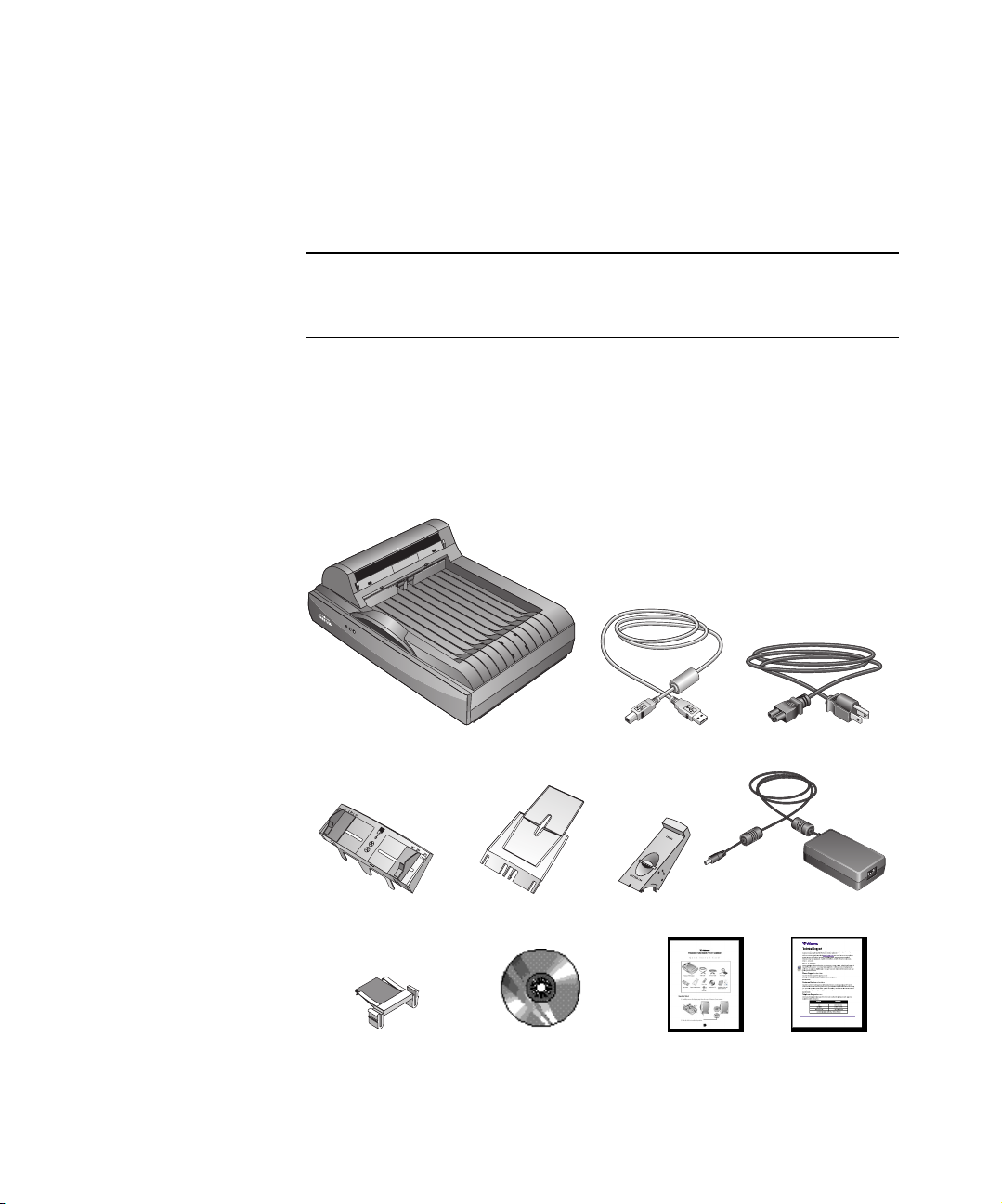
Visioneer 9450 Scanner Power cableUSB cable
Paper Guide Paper Guide Extension
Replacement ADF Pad
Installation CD
VISIONEER 9450 SCANNER USER’S GUIDE 1
Paper Stop
Power supply
Quick Install Card, and
Technical Support Card
Page 9
2 VISIONEER 9450 SCANNER USER’S GUIDE
THE VISIONEER 9450 SCANNER
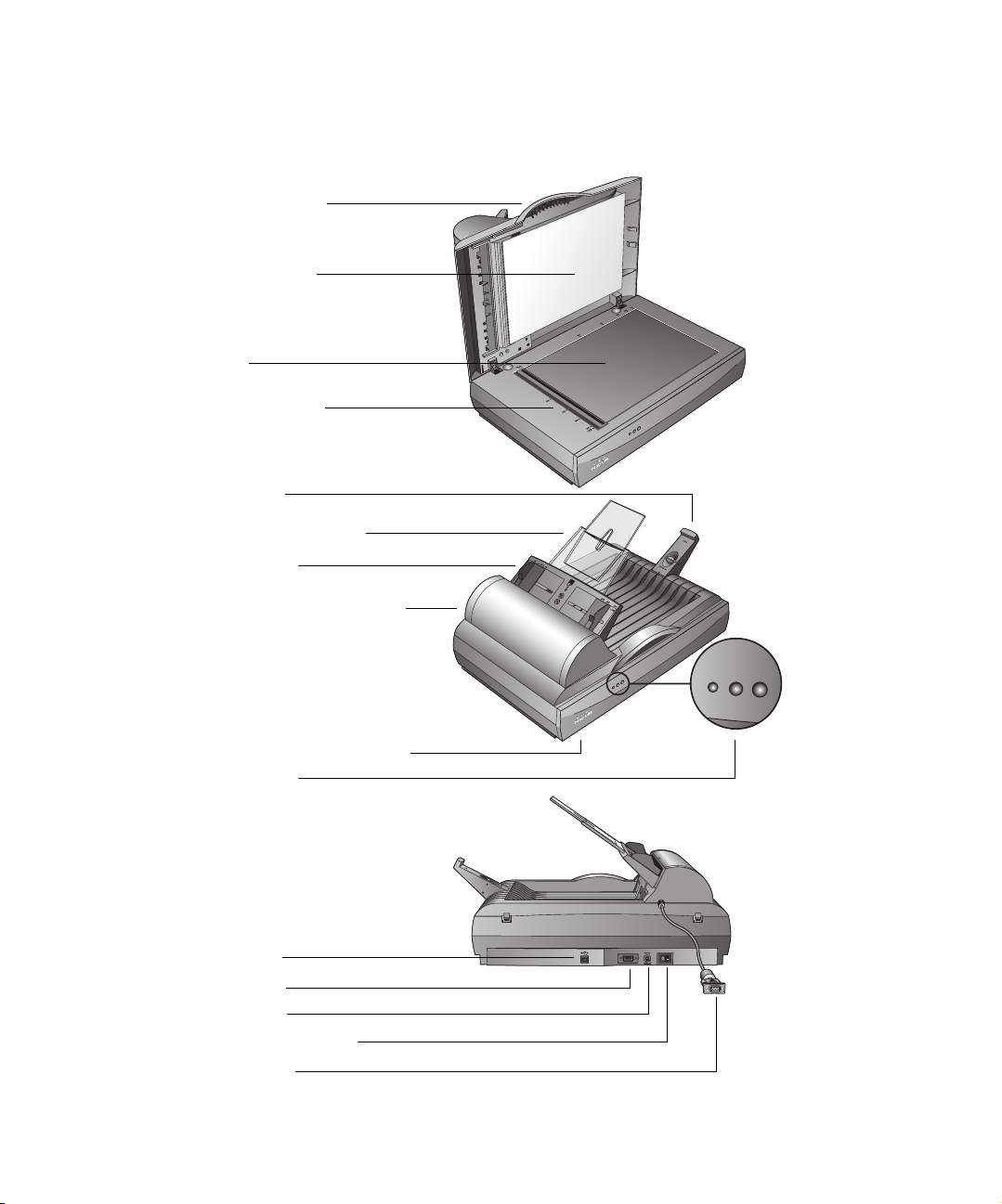
Document Cover
Document Pad
Glass
Reference Frame
Paper Stop
Paper Guide Extension
Paper Guide
Automatic Document Feeder
Lock (on underside of scanner)
Status Lights
USB Port
ADF port
Power jack
Power On/Off Switch
ADF Cable
Page 10

THE VISIONEER 9450 SCANNER 3
Document Cover—Protects the document from light and contamination during scanning.
Document Pad—Helps to secure the document in place on the scanner glass.
Reference Frame—Place items face down within this frame. Markings on the border of the
frame show where to align various paper sizes.
Glass—Place items face down aligned at the upper left corner of the glass.
Paper Stop—Holds items in place as they are ejected from the Automatic Document Feeder.
Adjust the stop for either letter-sized or legal-sized pages.
Paper Guide Extension—Unfolds to support multiple pages to scan.
Paper Guide—Holds pages in place. Adjust to fit the size of the paper to scan.
Automatic Document Feeder (ADF)—Feeds a stack of pages onto the glass for scanning.
The ADF can hold up to 50 pages at a time.
Lock—Locks or unlocks the scanning head; located on the underside of the scanner.
Status Lights—Shows the scanner’s status. Blinking Green light: scanner is preparing itself
or the lamp is warming up. Steady Green light: the scanner is on and ready to scan. See
“Troubleshooting” on page 131 for additional details.
USB Port—Connects the scanner to the computer.
ADF Port—Connects the ADF cable from the Automatic Document Feeder to the scanner.
Power Jack—Connects the power cord to the scanner.
Power On/Off Switch—Turns the scanner’s power on and off.
ADF Cable—Connects the ADF to the scanner body. The cable provides power to the ADF
and must be plugged in for it to operate.
Page 11

4 VISIONEER 9450 SCANNER USER’S GUIDE
WHAT YOU NEED
An IBM-compatible Pentium PC, or AMD equivalent with:
■ A CD-ROM drive
■ An available Universal Serial Bus (USB) port; 1.1 or 2.0
■ Microsoft Windows XP (Service Pack 1 or 2) or
Windows 2000 (Service Pack 4)
■ Available internal memory (RAM) as follows:
■ 128 MB or more
■ 256 MB recommended for Windows XP
■ 200 MB minimum of free hard disk space
Note: USB 2.0 ports operate at higher speeds than USB 1.1 ports. If
your computer is not equipped with USB 2.0 ports, you can add
them with the Visioneer Hi-Speed USB 2.0 PCI Card. Visit the
Visioneer web site at www.visioneer.com for ordering information, or
contact the dealer where you purchased your Visioneer 9450 USB
scanner. However, you do not have to add USB 2.0 ports to your
computer. Your scanner will work with both USB 1.1 and USB 2.0
ports.
A VGA or SVGA Monitor
The recommended settings for your monitor are:
■ High Color (16-bit) or True Color (24-bit or 32-bit)
■ Resolution set to at least 800 x 600 pixels
To set your monitor’s colors and resolution:
■ Open the Windows Control Panel
■ Double-click on Display then select the Settings tab.
Page 12

DOCUMENTATION 5
DOCUMENTATION
Your scanner is delivered with the following documentation:
■ Quick Install Card—Abbreviated installation instructions.
■ Visioneer 9450 Scanner User’s Guide—On the Installation CD;
contains detailed installation, scanning, configuration, and
maintenance information.
■ Online Help—For the scanner configuration, TWAIN and WIA
interfaces, and PaperPort software applications.
Page 13

6 VISIONEER 9450 SCANNER USER’S GUIDE
Installing
War ni ng : Do not plug in the USB cable until after you have
installed the software. Complete the installation steps in the order
described in the installation procedure below.
Installation is a quick, four-step process:
1. Assemble the scanner
2. Install the software
3. Connect the power supply
4. Connect the USB cable and turn on the power
BEFORE YOU BEGIN
Please make sure of the following before you begin installation:
■ If your computer has AntiVirus or AntiSpyware software running,
you may encounter alerts or messages during installation asking
you to allow the installation to proceed. Although the messages will
differ based on the software your computer is running, in each case
you should allow the installation to proceed if that option is
available. Alternatively, you can turn off the AntiVirus or
AntiSpyware software before installing your scanner. But if you do,
make sure to turn it back on again when installation is finished.
■ If you already have a scanner connected to your computer, you may
need to remove its driver programs first before beginning the
installation of your Visioneer 9450 USB scanner. Please see “How
to Uninstall Your Scanner” on page 134 for basic instructions, or
see the User’s Guide that you received with your other scanner.
Page 14
STEP 1: ASSEMBLE THE SCANNER 7
STEP 1: ASSEMBLE THE SCANNER
All the components to assemble the scanner are included in the box.
To assemble the scanner:
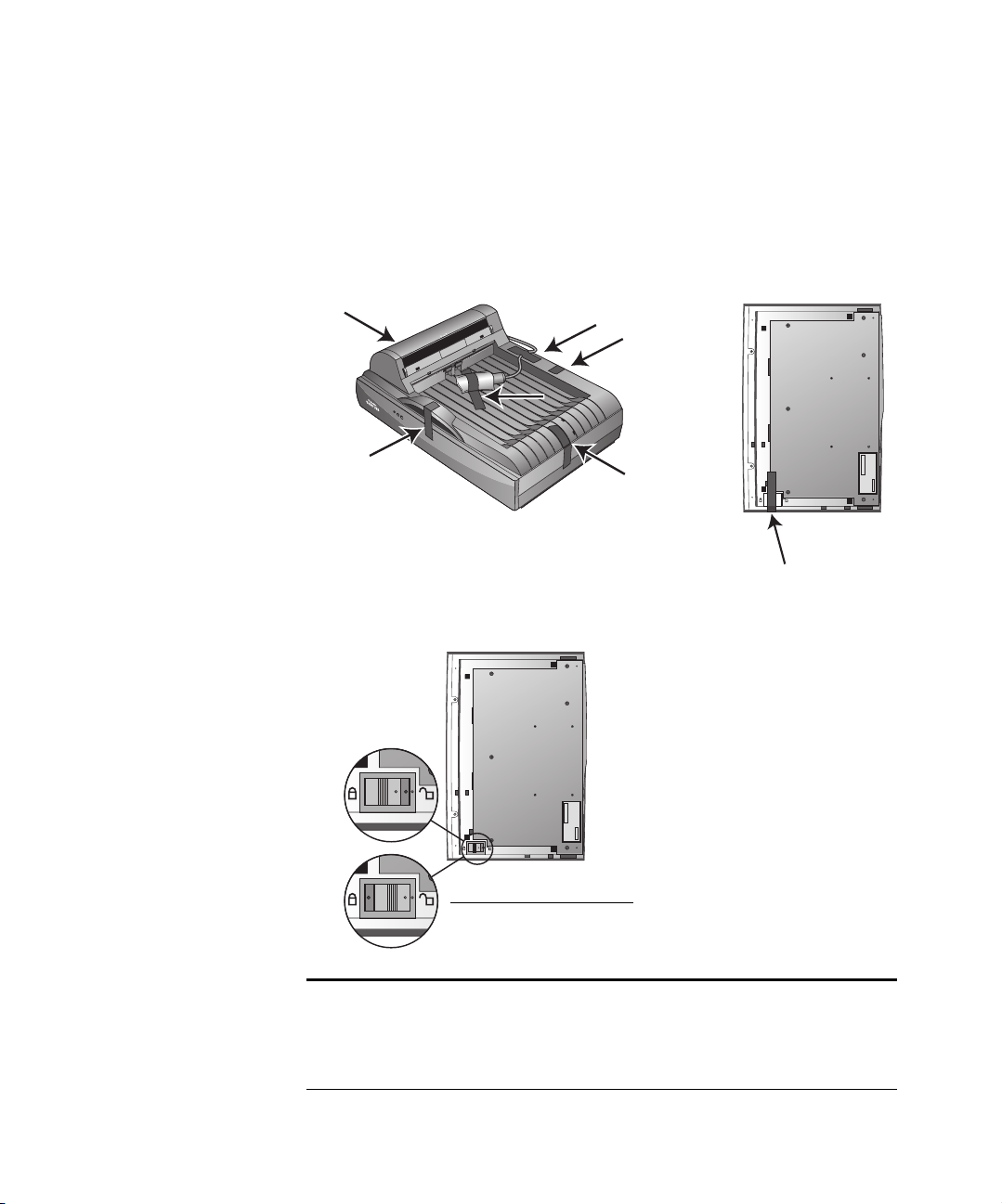
1. Remove all shipping tape from the top and bottom of the scanner.
2. Slide the locking tab on the bottom of the scanner to its unlocked
position.
Unlocked position
Note: The locking tab protects the scanner’s scan head by holding it
securely in position. Lock the scanner when transporting it from one
location to another, but always remember to unlock it before
scanning. The scanner will not scan when locked.
Page 15
8 VISIONEER 9450 SCANNER USER’S GUIDE
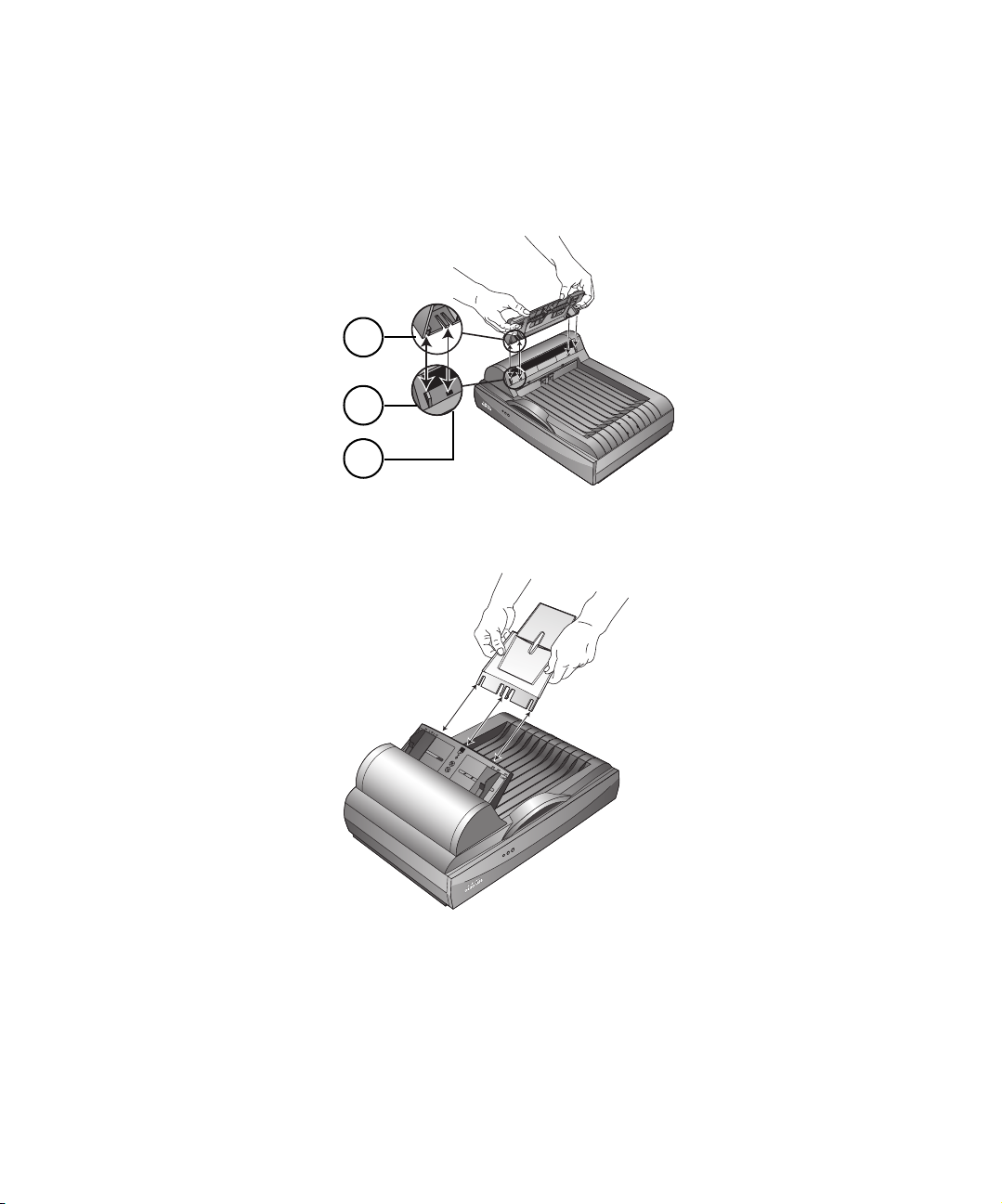
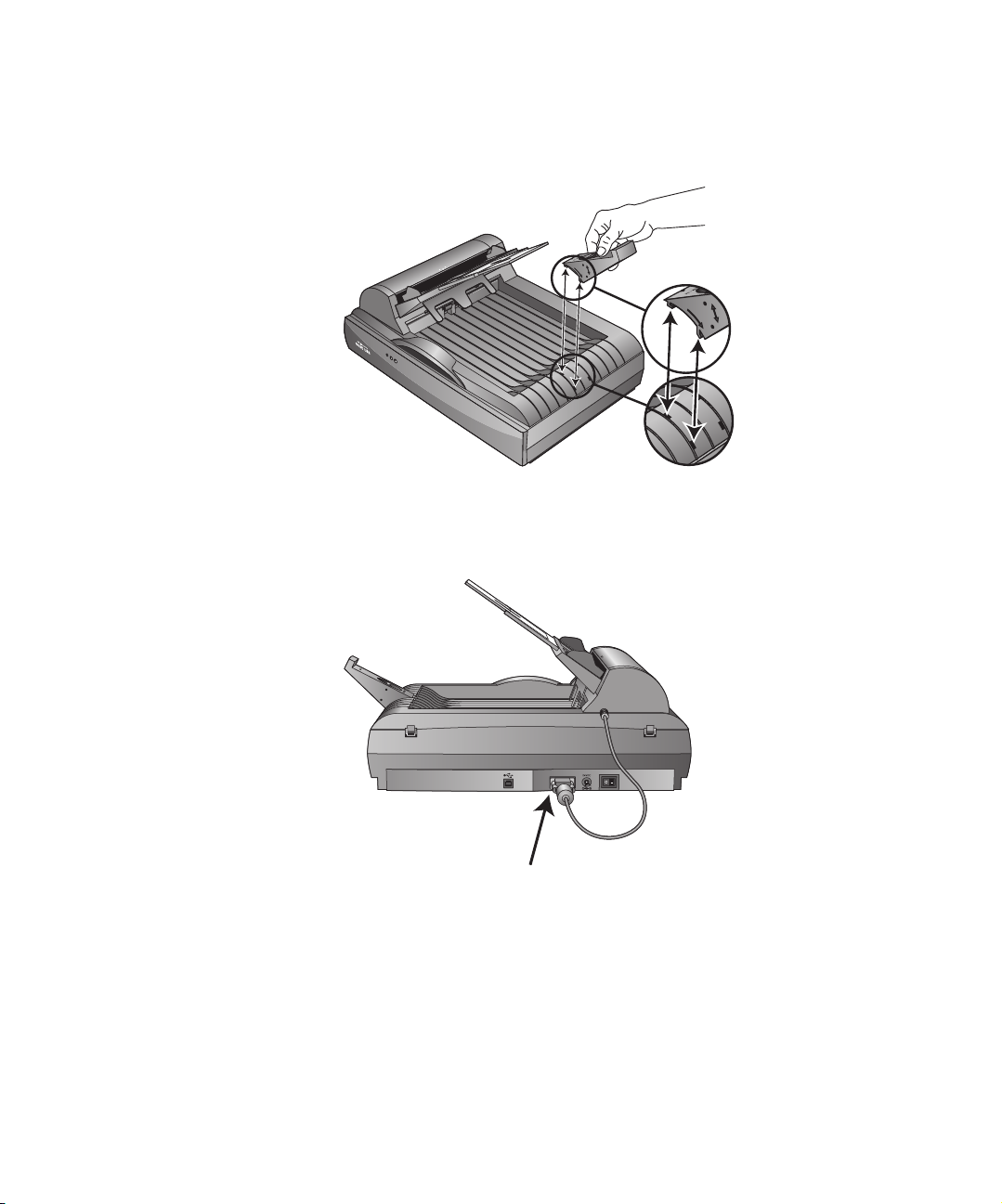
3. Insert the slots (A) on the Paper Guide onto their tabs (B) on the
scanner and slide the Guide down into place. The catch tabs (C)
“snap” into place. Refer to the picture on page 2 to see the location
of the assembled parts.
A
B
C
4. Insert the Paper Guide Extension into the Paper Guide and “snap”
its tabs into place.
Page 16
STEP 1: ASSEMBLE THE SCANNER 9
5. Insert the Paper Stop onto the back of the scanner and slide it
downward to “snap” its tabs into place.
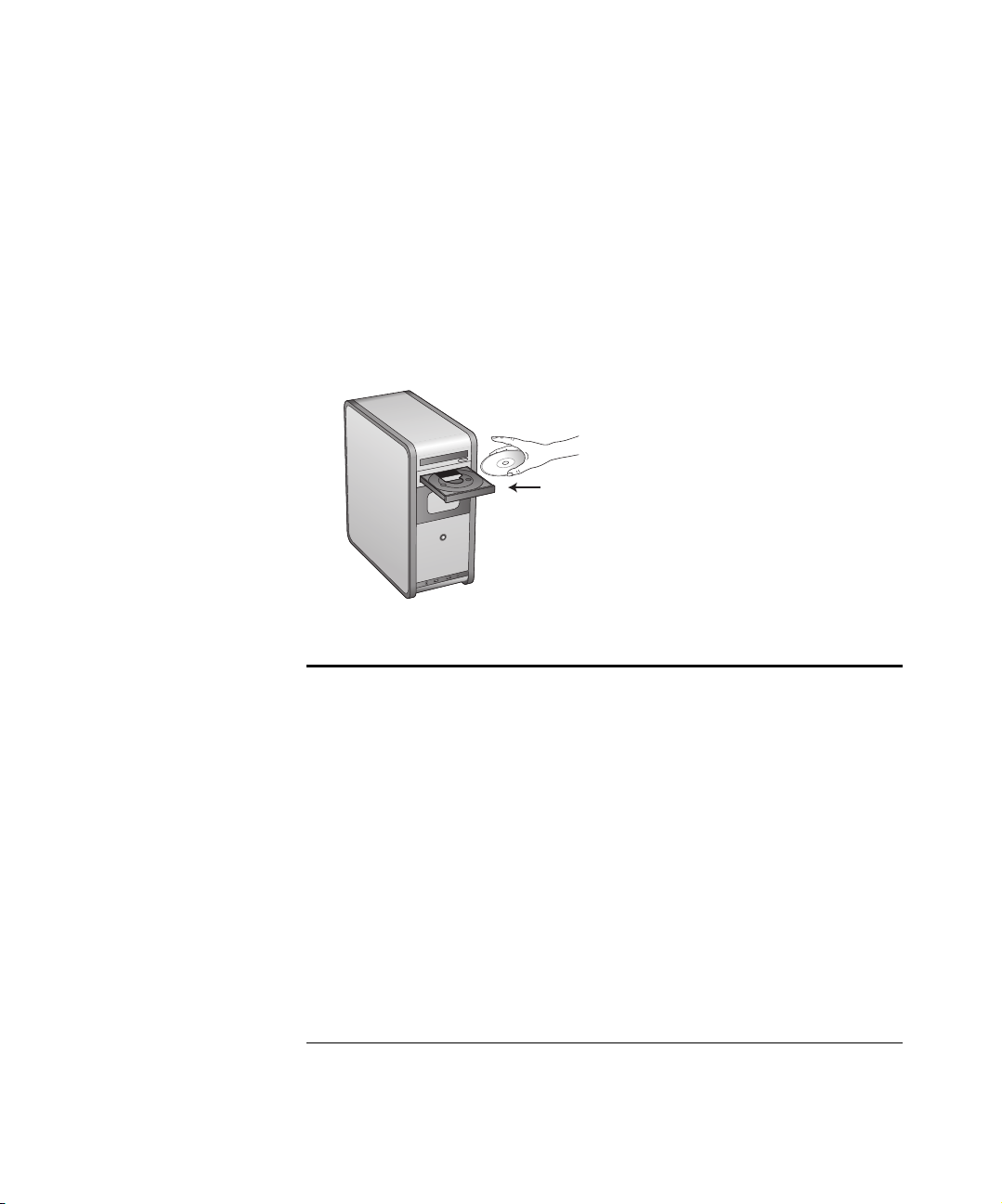
6. Plug the ADF cable into the ADF port on the body of the scanner.
Make sure the cable is plugged in securely. The ADF will not work
if the cable is loose or not plugged in.
7. Proceed to “Step 2: Install the Software.”
Page 17
10 VISIONEER 9450 SCANNER USER’S GUIDE
STEP 2: INSTALL THE SOFTWARE
The Installation CD contains all the driver software and scanning
software to run your scanner.
To install the software:
1. Start Microsoft Windows and make sure that no other applications
are running.
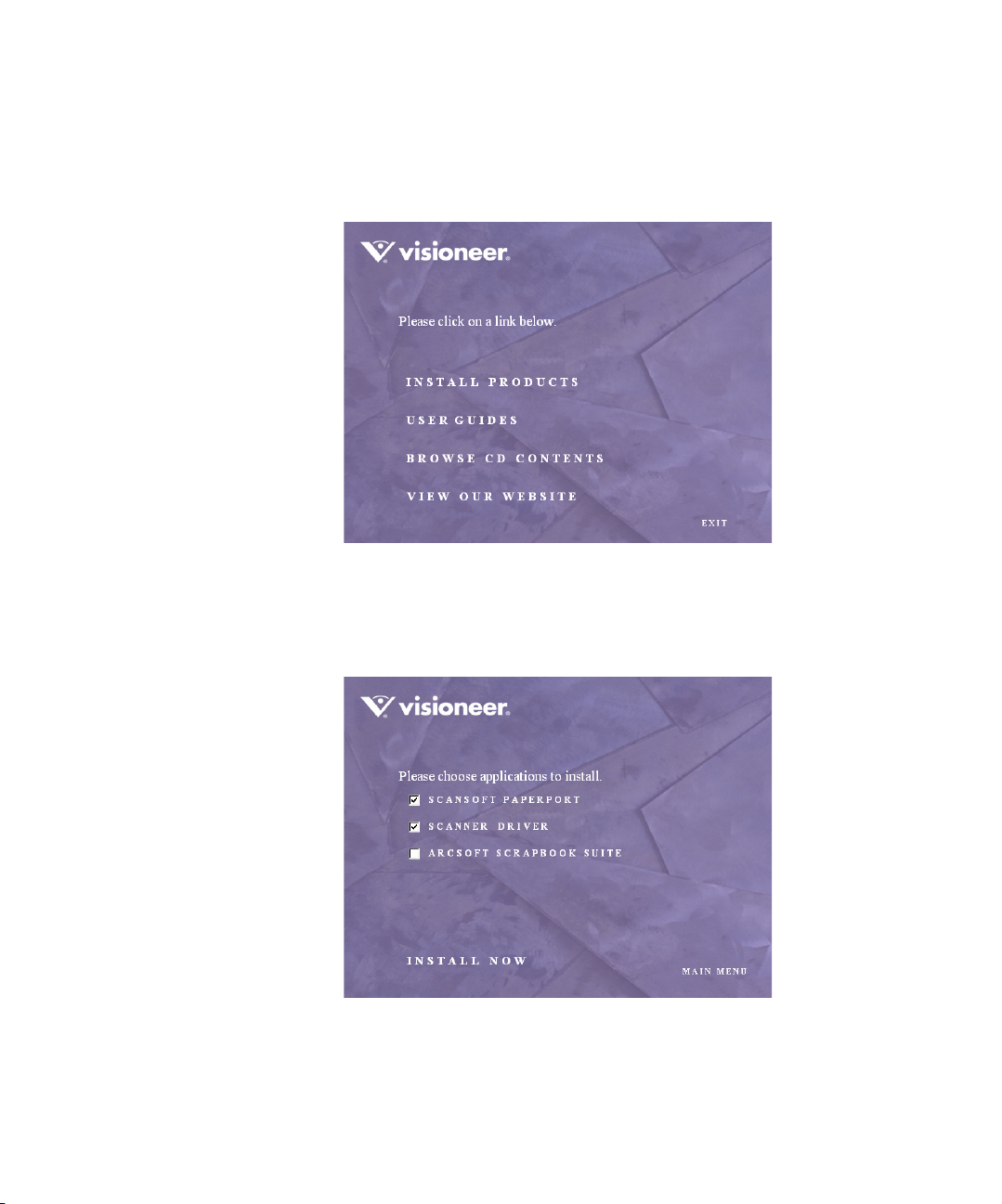
2. Insert the Installation CD into your computer’s CD-ROM drive.
The Installation menu automatically opens.
Note: If the CD does not automatically start, check the following:
■ Make sure the CD drive’s door is completely shut.
■ Make sure the CD was inserted in the drive in the proper direction
(label side up).
To launch the CD manually.
■ Open the Windows option for My Computer. You can do this by
double-clicking on the My Computer icon on your desktop.
■ Double-click the icon for your CD-ROM drive.
■ The Installation menu for the CD should now open.
If the menu does not open:
■ From the list of files on the CD, double-click the file named
START32.EXE.
Page 18
STEP 2: INSTALL THE SOFTWARE 11
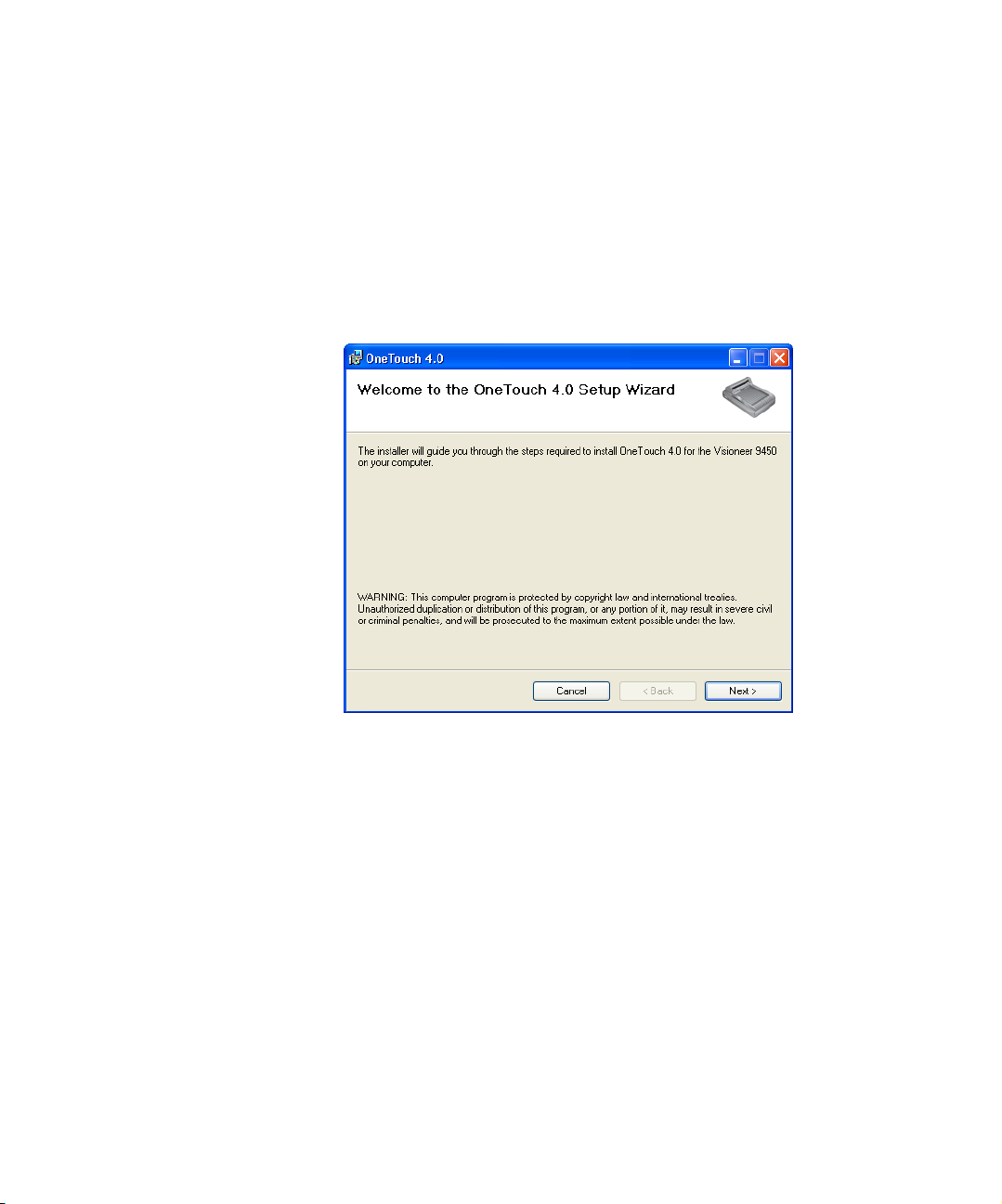
When the CD starts, the Visioneer Installation window opens
automatically.
3. On the Installation Main Menu, click Install Products.
The next window lists the software that is available to install on
your computer.
4. Select ScanSoft PaperPort and Scanner Driver.
5. Click Install Now. The PaperPort software will load first.
Page 19
12 VISIONEER 9450 SCANNER USER’S GUIDE
6. The Select Language window opens for the PaperPort software.
Click the drop-down menu arrow and select the language you want
to use. Click OK.
The first PaperPort Installation window opens.
7. Follow the instructions on the PaperPort installation windows.
8. When installation of PaperPort is finished, the Welcome to the
OneTouch 4.0 Setup Wizard opens.
9. Click Next.
10. On the Visioneer License Agreement window, read the license
agreement. If you accept the terms, select I Agree, and click Next.
If you choose not to accept the license agreement, the installation
will terminate and the scanner driver will not be installed.
11. Click Next.
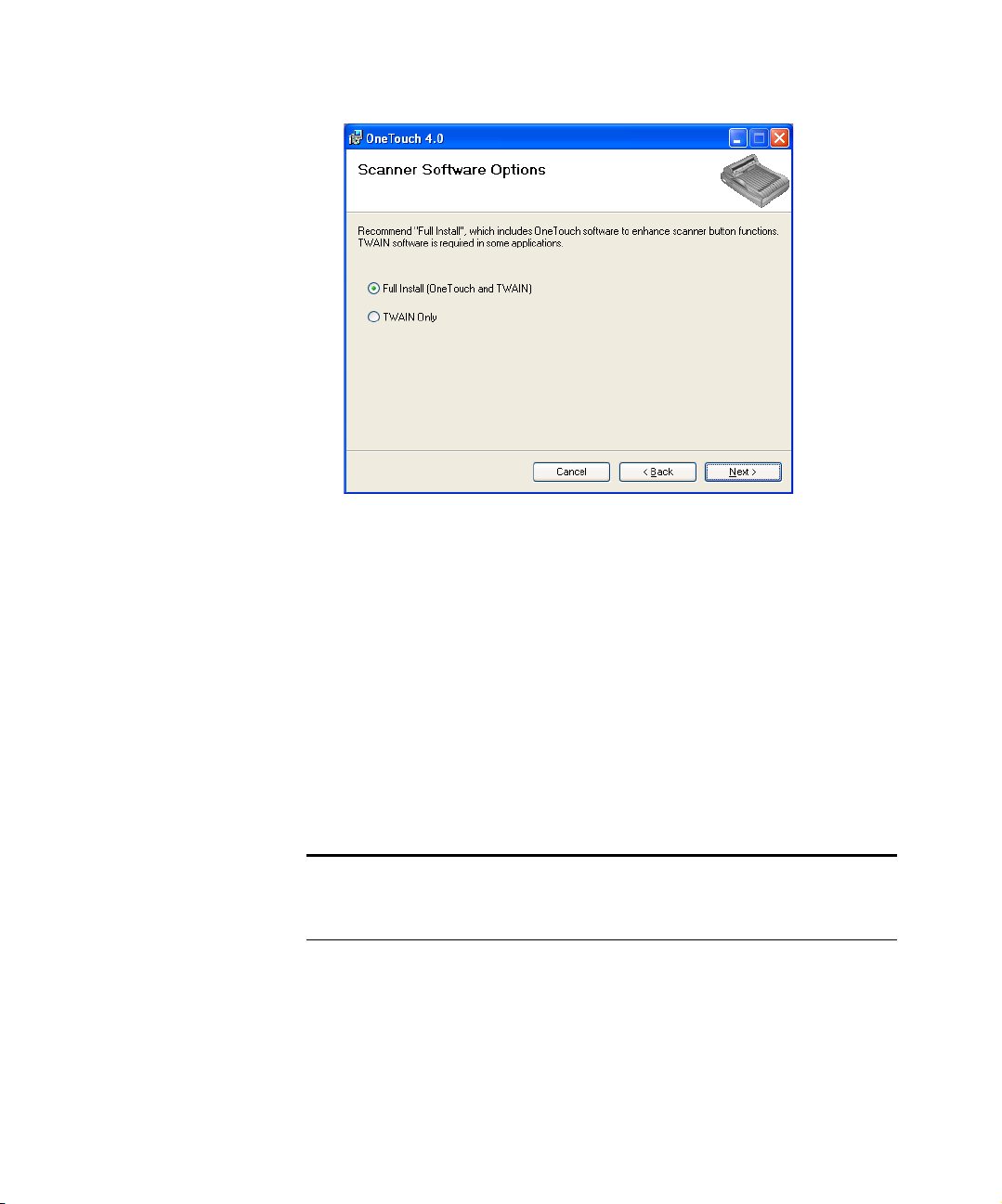
The next window lists the choices of the drivers that you can install
for your scanner.
Page 20
STEP 2: INSTALL THE SOFTWARE 13
12. Select the option you want.
■ Full Install (OneTouch and TWAIN)—This is the recommended
installation. It installs the OneTouch 4.0 software which provides
the necessary driver software for the scanner. It also installs
scanning interfaces for TWAIN and Microsoft’s Windows Image
Acquisition (WIA). Installing this option means that you can use
several different methods to scan, as explained in this User Guide.
■ TWAIN only—Only the TWAIN driver is installed. You will only
have access to the Visioneer 9450 TWAIN driver and WIA. You will
not be able to use the OneTouch software.
WIA is only available if
your computer is running Windows XP.
Note: If you decide to change your scanner’s installed drivers later
on, you must first uninstall the drivers the scanner is currently using.
See the section “To Install Another Driver” on page 135.
Page 21
14 VISIONEER 9450 SCANNER USER’S GUIDE
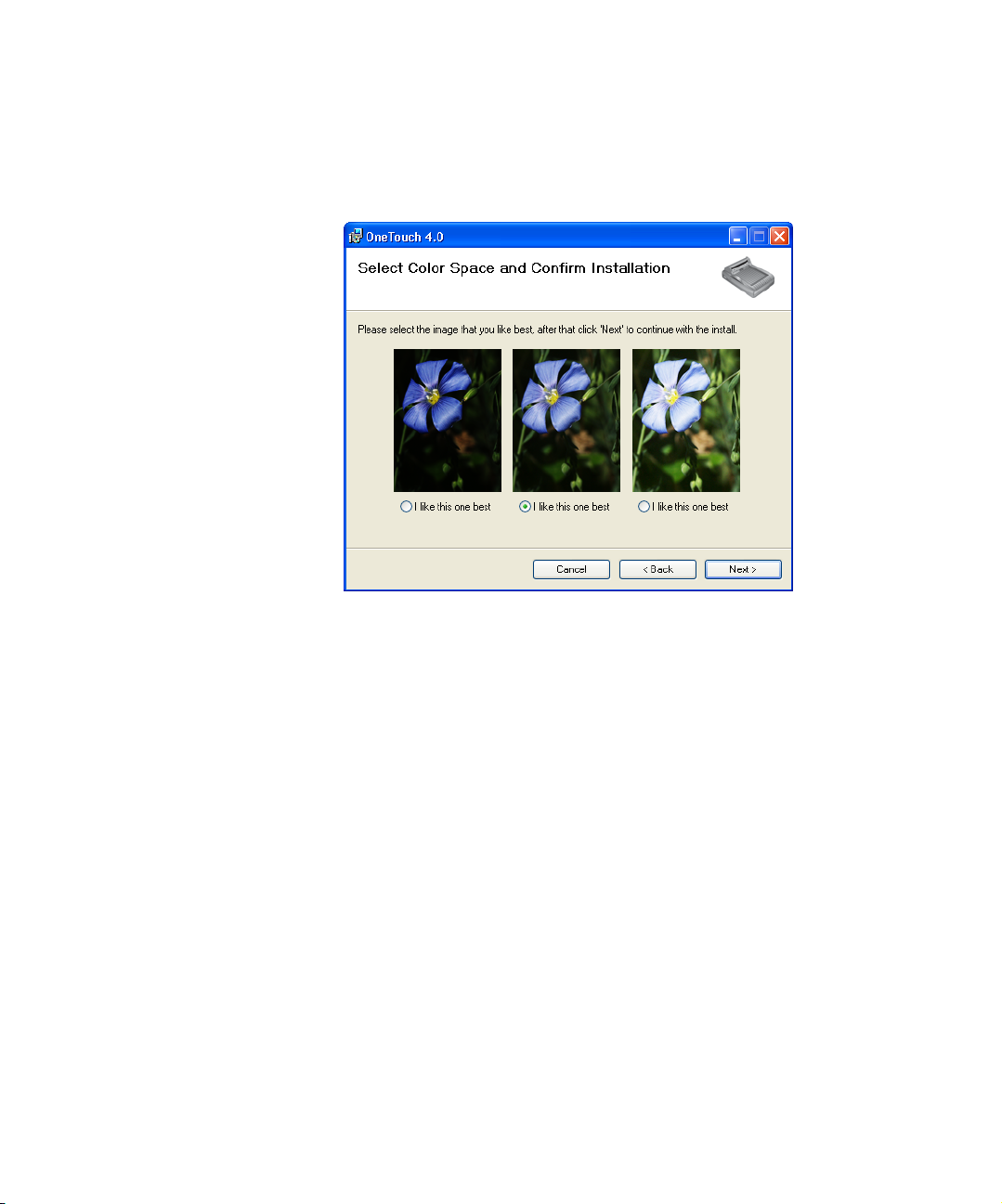
13. Click Next.
During installation you will see this window asking you to select
one of the images for your Color Space setting.
The Color Space setting sets the gamma value for the scanner so
scanned items look good on your monitor. Gamma controls the
brightness of the midtones of colors. That setting can be changed
later on as you’re scanning.
14. Select the option that looks best to you and click Next.
The driver installation will now begin.
Page 22
STEP 2: INSTALL THE SOFTWARE 15
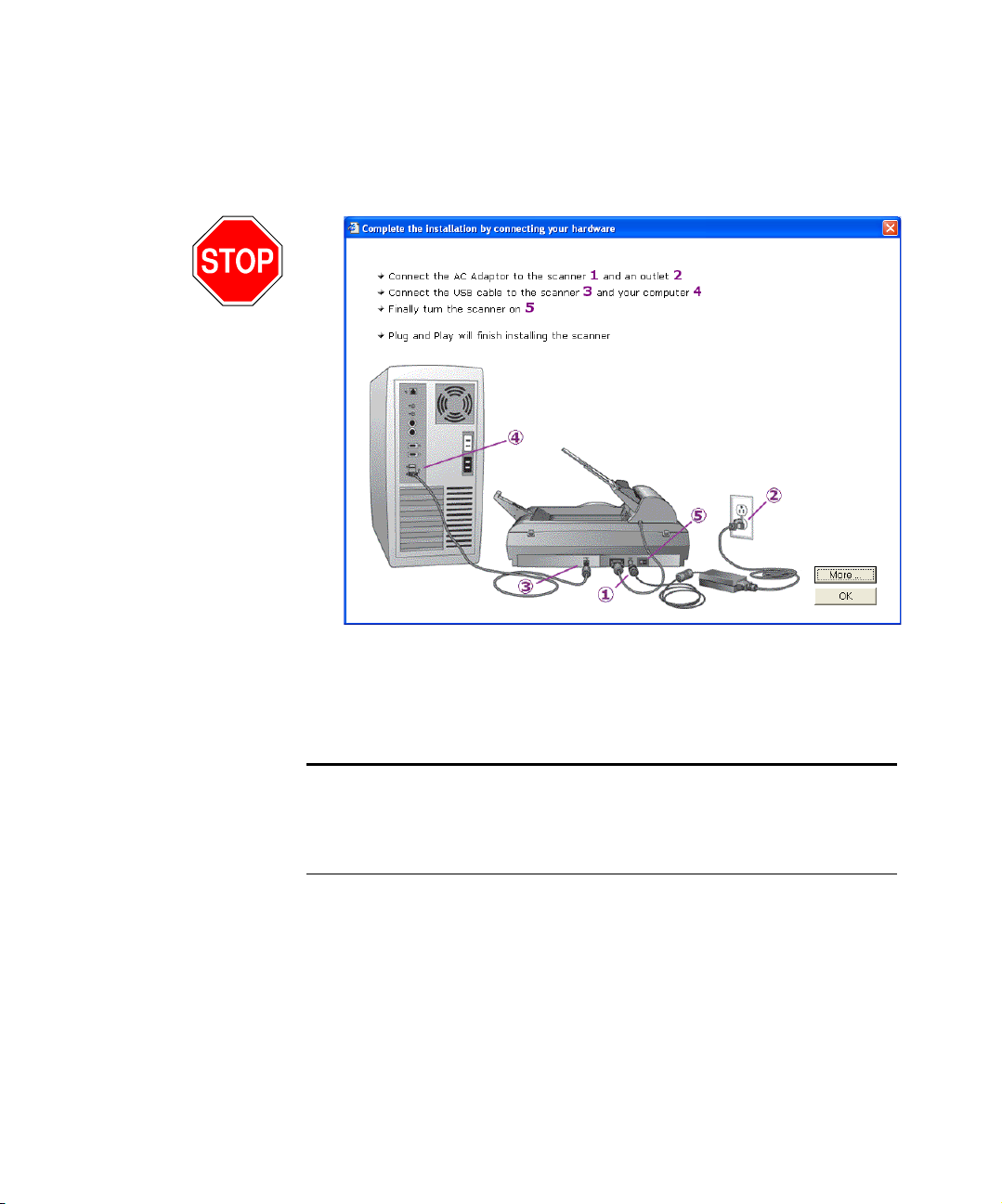
15. STOP when you see this Installation Complete window. Do NOT
click Finish yet. Leave the window open and proceed to the next
section,“Step 3: Connect the Power Supply.”
Reminder: If your computer is running AntiVirus or AntiSpyware
software, you may see messages asking you to allow installation. Select
the option to allow installation to proceed.
Note: If you want to see more information about your scanner and a
quick explanation of how to use the OneTouch features, click the
More button on the window. When you’re finished, return to the
window above to continue with the installation process.
Page 23
16 VISIONEER 9450 SCANNER USER’S GUIDE
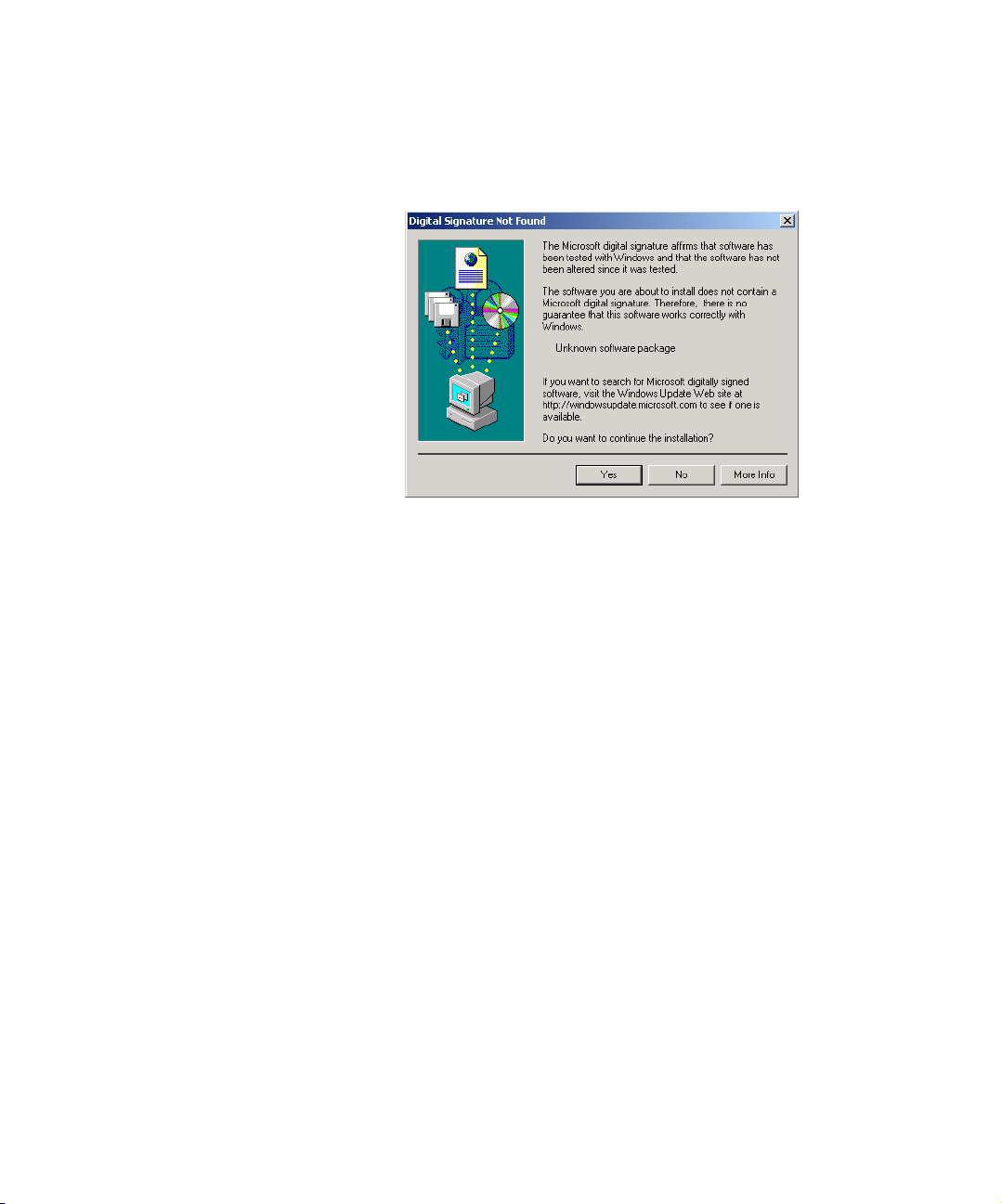
If you are installing the scanner on a Windows 2000 computer:
During the software installation, this “Digital Signature Not Found”
message may appear twice.
Each time this message appears, you can disregard it and click Yes .
Page 24
STEP 3: CONNECT THE POWER SUPPLY 17
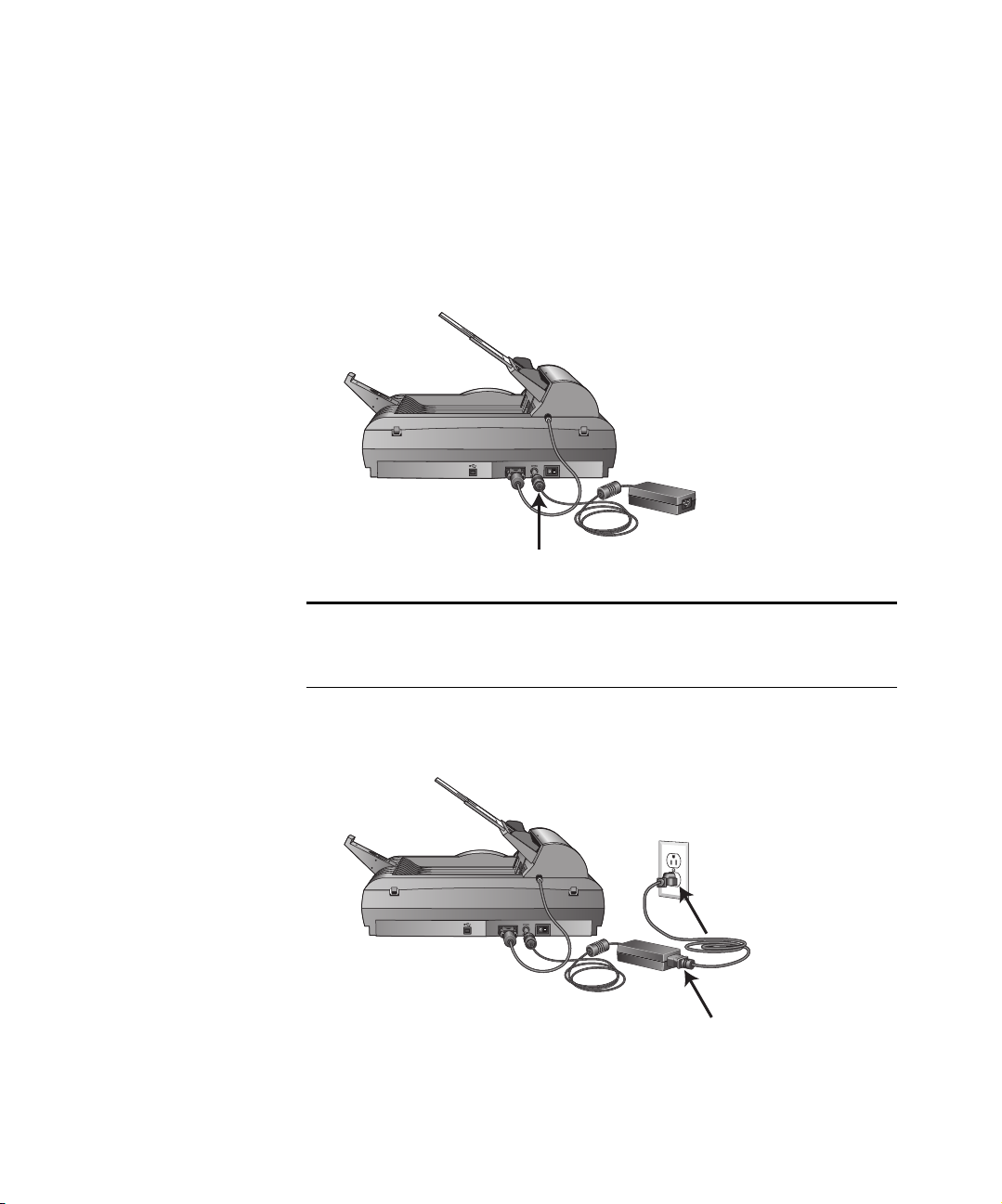
STEP 3: CONNECT THE POWER SUPPLY
Connect the power supply and power cord, and plug the power supply
into an electrical outlet.
To connect the power supply:
1. Plug the power supply into its power port on the scanner.
Note: Only use the power supply (HEG42-240100-7L(A) LF made
by HiTRON) included with your scanner. Connecting any other type
of power supply may damage your scanner and will void its warranty.
2. Plug the power cord into the power supply and then into a wall
outlet.
Now proceed to the next section, “Step 4: Connect the USB Cable
and Turn on the Power.”
Page 25
18 VISIONEER 9450 SCANNER USER’S GUIDE
STEP 4: CONNECT THE USB CABLE AND TURN ON THE
OWER
P
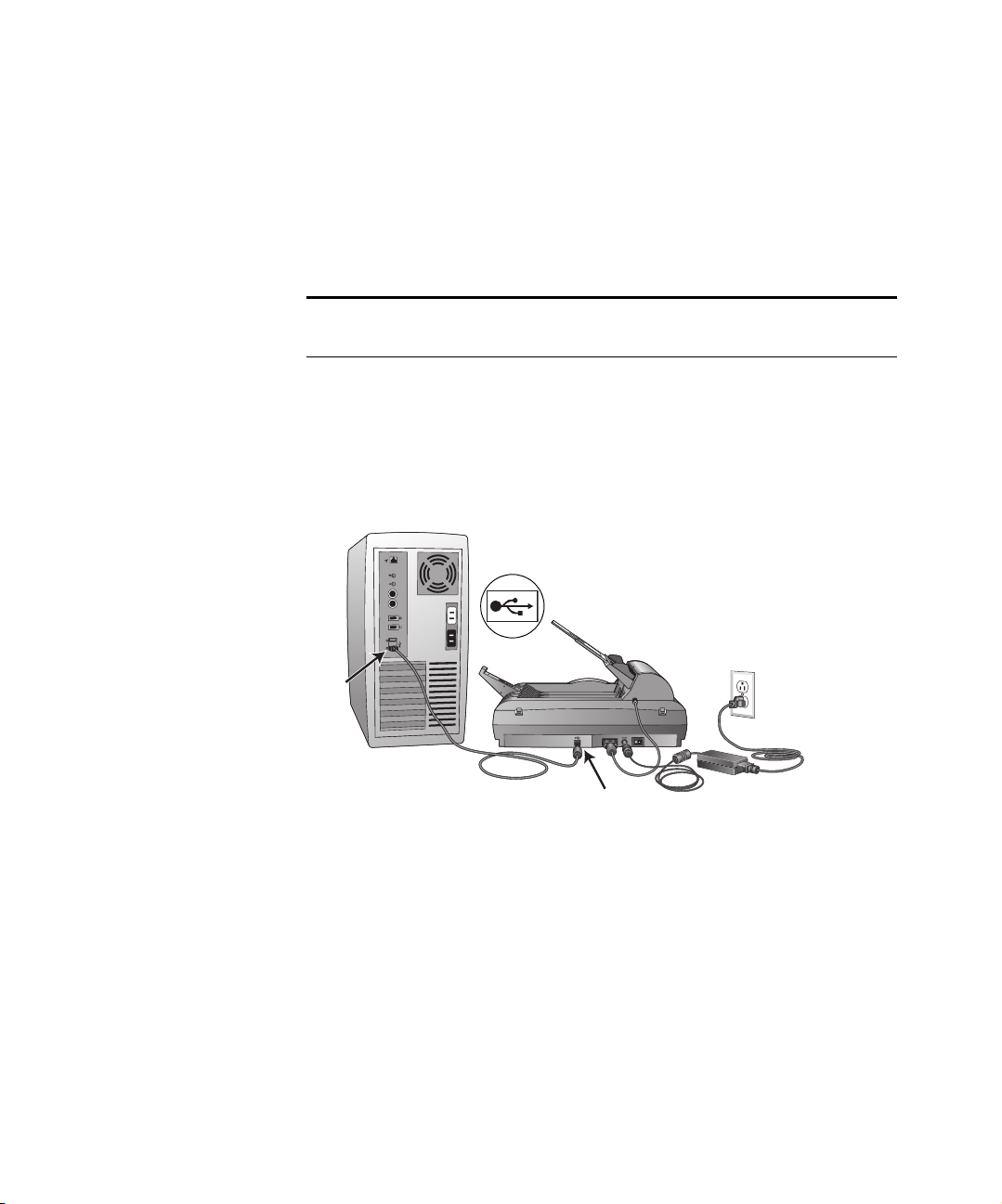
Your Visioneer 9450 scanner connects to any available USB port. Check
your computer’s manual for the USB port locations.
Note: You can connect the scanner to your computer while the
computer is running. You do not have to shut down your computer.
1. Remove any protective tape from the USB cable.
2. Plug the USB cable into the USB port on the scanner then into a
USB port on the computer. Connection to a USB 2.0 High Speed
port provides optimum performance, however your scanner will
also connect to a USB 1.1 port.
The USB symbol, as seen in the above diagram, identifies the
location of the USB port on your computer. If the plug does not
attach easily, make sure that you are plugging it in correctly. Do not
force the plug into the connection.
You can also connect the scanner to a USB port on the computer’s
keyboard if it has one, or to a USB hub. If you use a USB hub, it
must have its own power supply already plugged into an electrical
outlet.
Page 26
STEP 4: CONNECT THE USB CABLE AND TURN ON THE POWER 19
Note: If you have not installed the scanner driver, unplug the USB
cable from the computer and install the software now. When the
driver installation is complete, a message tells you when to connect
the scanner.
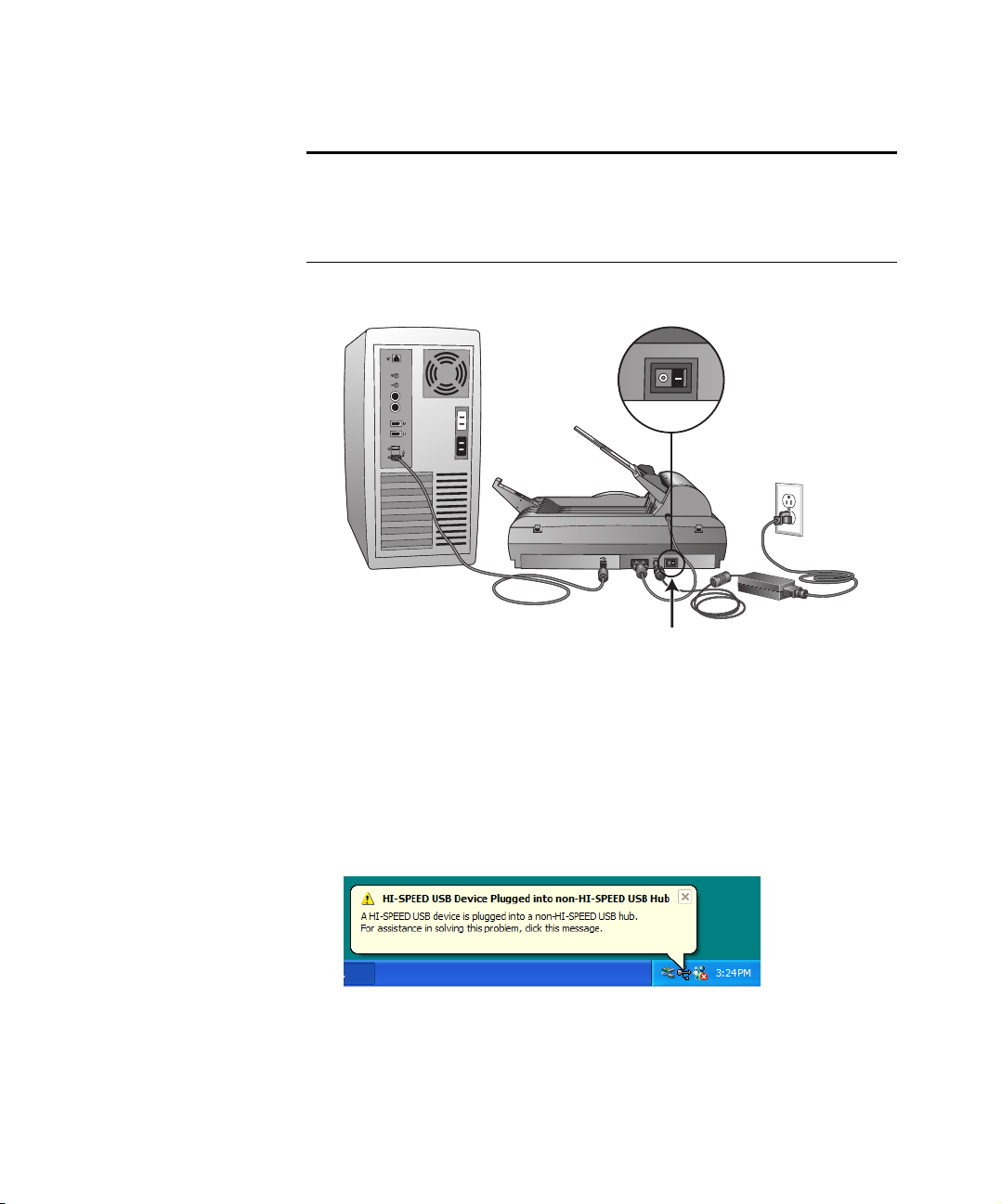
3. Turn on the power switch, located on the back of the scanner.
The status light comes on and flashes indicating that the scanner is
receiving power.
If you are using Windows XP Service Pack 2, and have plugged the
USB cable into a USB 1.1 port, an information bubble may open
explaining that “A HI-SPEED USB device is plugged into a nonHI-SPEED USB hub”. Plug the USB cable into a USB 2.0 port (if
available) or just disregard the message. If you leave it plugged into
the USB 1.1 port, your scanner may scan a bit slower.
Page 27
20 VISIONEER 9450 SCANNER USER’S GUIDE
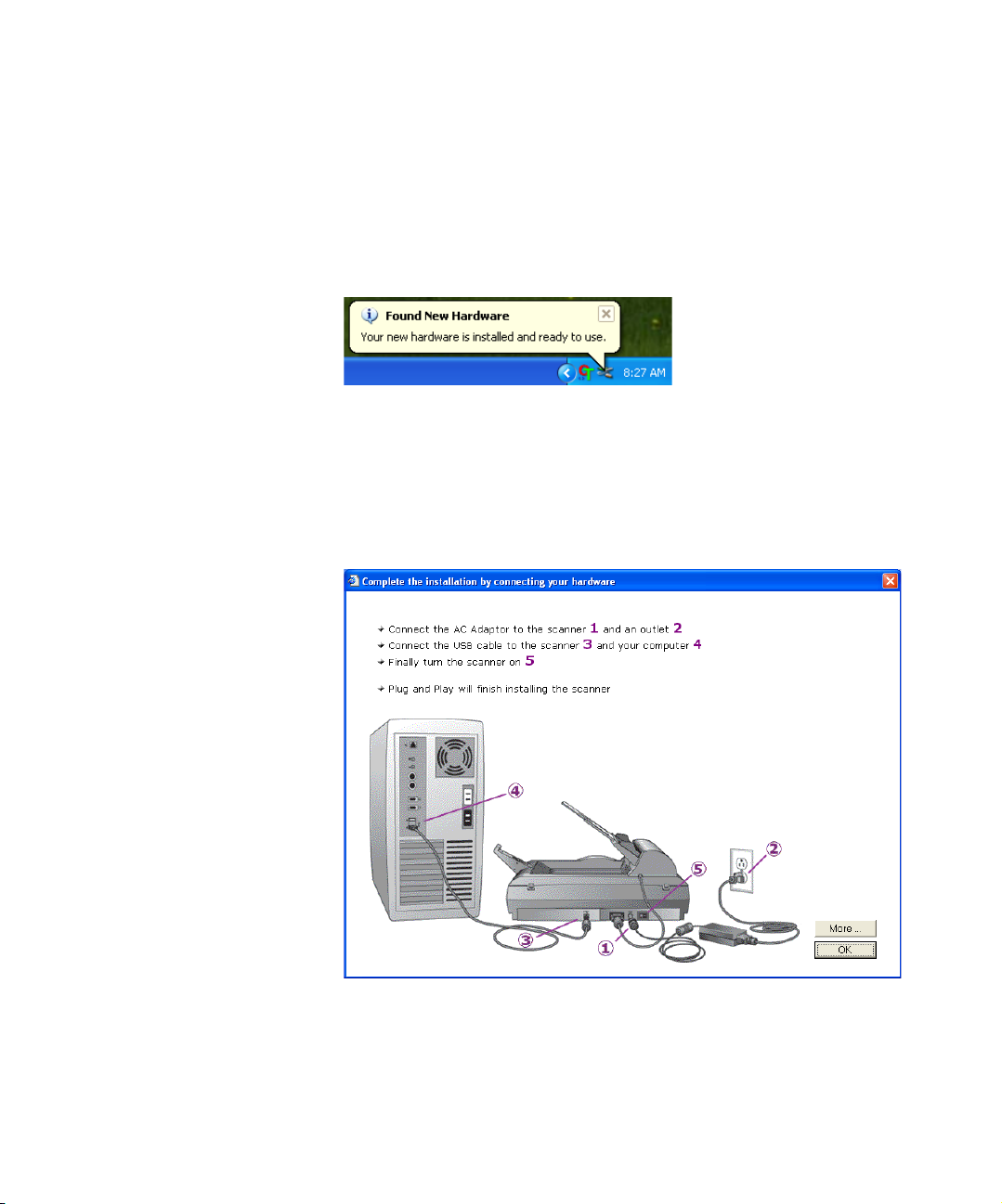
4. Your computer recognizes that a scanner is plugged into the USB
port and automatically loads the appropriate driver software to run
the scanner.
Do not proceed until you receive a message that your computer has
found the new hardware, or updated the driver database. If your
computer is running Windows XP, you will see the following message.
If your computer is running Windows 2000 and the “Digital
Signature Not Found” message appears, click Yes .
5. When you’re certain that the software has completely loaded, return
to the “Complete the installation by connecting your hardware”
window.
Page 28
STEP 4: CONNECT THE USB CABLE AND TURN ON THE POWER 21
Note: To see more information about your scanner, click the More
button on the window. When you’re finished, return to the window
above to continue with the installation process.
6. Click OK.
The scanner’s status light is green when the scanner and computer
are communicating properly.
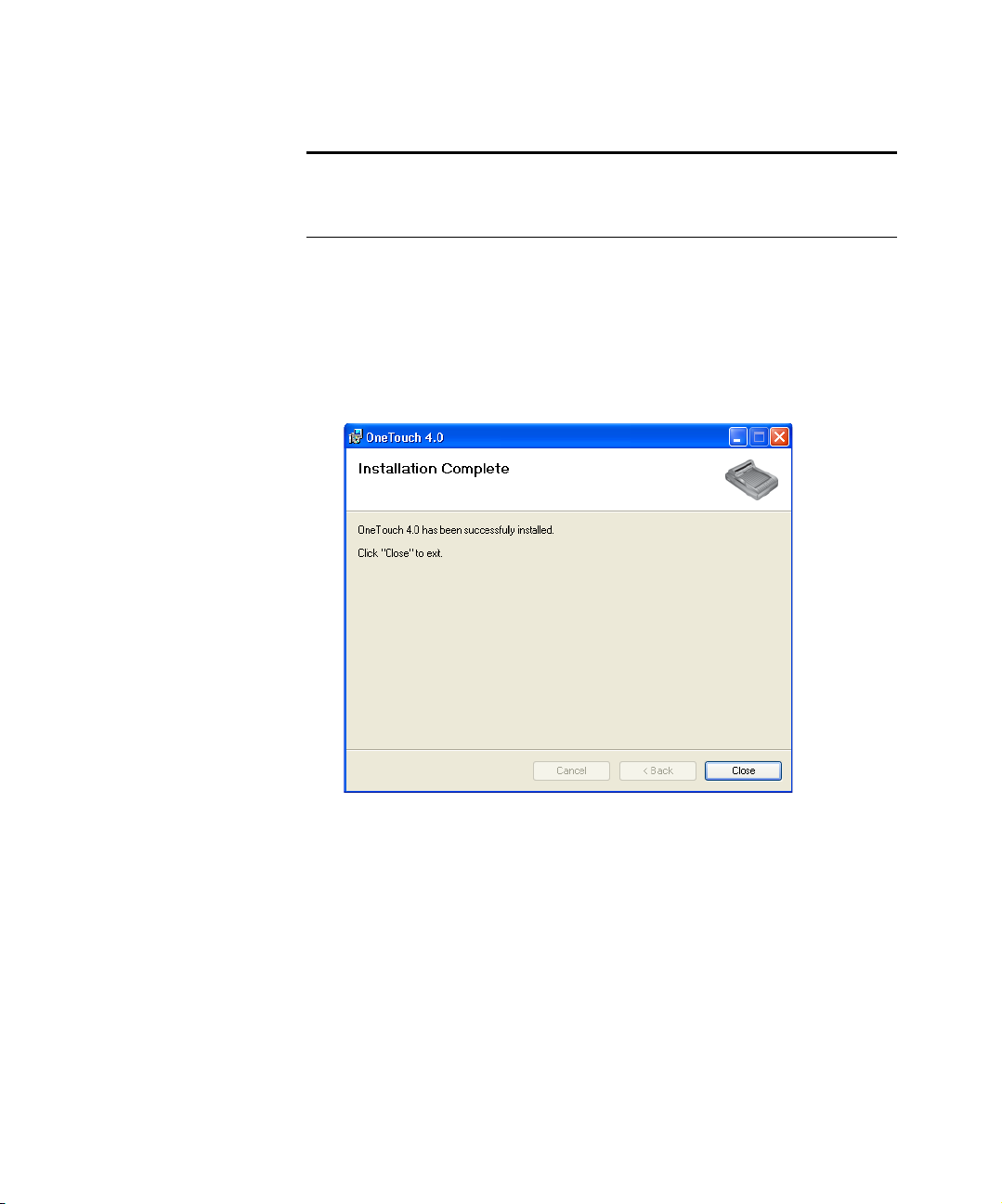
7. Click Close on the Installation Complete window to close and exit
the software installer.
Page 29
22 VISIONEER 9450 SCANNER USER’S GUIDE
ADDITIONAL APPLICATIONS FOR YOUR SCANNER
Your scanner includes free, additional applications on the installation
CD.
To install the additional applications:
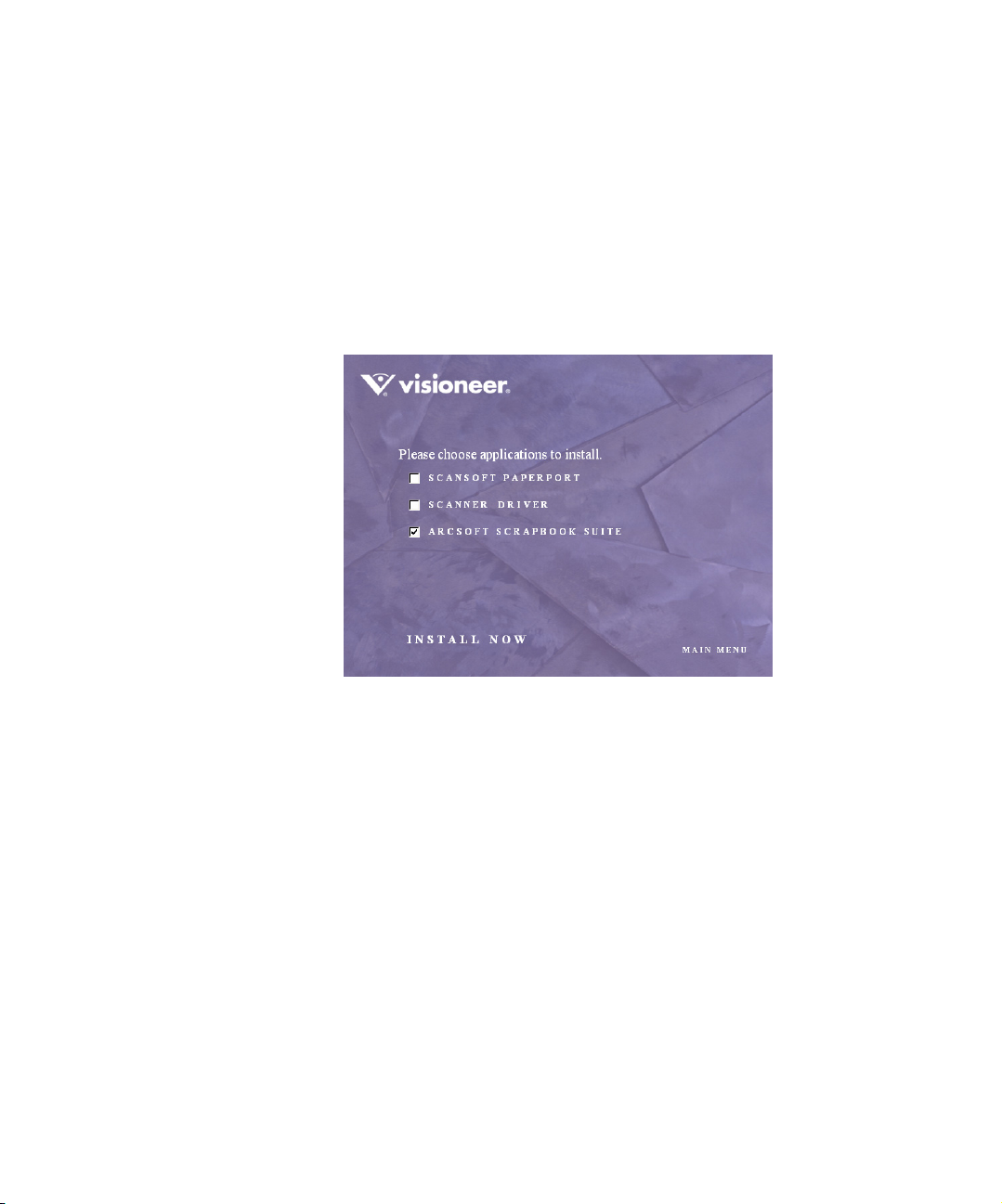
1. Return to the Installation window and select ArcSoft Scrapbook
®
Suite
if you want to install it on your computer.
The ArcSoft Scrapbook Suite consists of two applications
particularly suited for your scanner:
Photoimpression—Photo imaging software that lets you edit,
retouch and enhance photos and images.
Collage Creator—Software that you can use to build and
modify collages from your digital images.
2. Click Install Now.
3. Follow the instructions on the ArcSoft installation windows.
4. When installation is finished, return to the Visioneer Installation
window and click Main Menu.
Page 30
ADDITIONAL APPLICATIONS FOR YOUR SCANNER 23
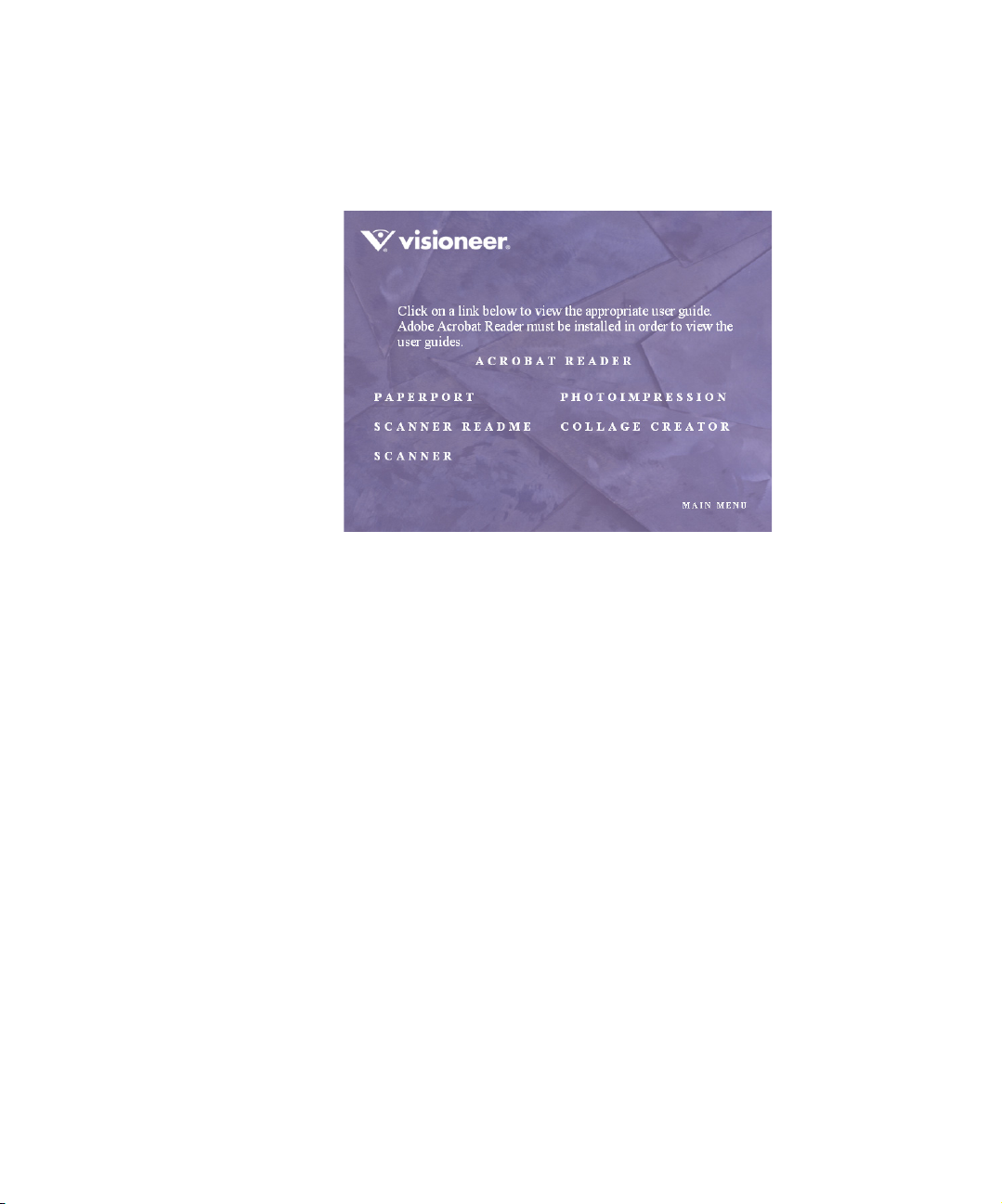
5. On the Main Menu, click User Guides. The Visioneer User Guides
window opens. Use this window to view and save the User Guides
you want.
®
The User Guides are in Adobe
also includes a free copy of Acrobat
Acrobat® PDF format. The CD
®
Reader® in case your
computer does not have it already installed. The Scanner Readme
file is in html format and will open in any standard browser.
If you need to, click Acrobat Reader to install it now. Follow the
instructions on the installation windows.
To view and save the User Guides:
1. Click the name of a User Guide you want to view and it will open
in Acrobat Reader. Use the Acrobat Reader Save command to save
that User Guide on your computer.
2. Return to the Visioneer User Guides window and repeat the process
to open, view, and save all the other User Guides you want. The
Scanner Readme file has late-breaking news about your scanner.
3. When you’re finished, click Main Menu to return to the main
Visioneer Installation window and click Exit.
That’s it! Installation is finished and your Visioneer 9450 scanner is ready to
scan.
Page 31

24 VISIONEER 9450 SCANNER USER’S GUIDE
REGISTER YOUR SCANNER AND CHECK FOR UPDATES
Registering your scanner is important as it provides you with access to
our free telephone support service. Registration also gives you free access
to software updates for your scanner.
To register your scanner:
The OneTouch Icon
1. Right-click on the OneTouch icon in the Windows Notification
Area (at the bottom right corner of the screen).
2. Choose Check for Online Updates from the pop-up menu.
3. Follow the instructions on the screen and register your scanner by
entering your scanner’s serial number and your email address.
Note: A valid email address is required.
The serial number is located on the side of the scanner.
The Serial Number
After registration is complete you will receive an email message with
your RegID. Your RegID is important as you will need it when
accessing free telephone support, or checking for online updates.
4. Write down your RegID so you can find it easily in the future.
RegID:_________________________________
Page 32

REGISTER YOUR SCANNER AND CHECK FOR UPDATES 25
Scanning
If you selected the recommended Full Install option for your scanner’s
driver (see page 13), then you can scan from the OneTouch buttons on
the computer screen or from TWAIN applications loaded on your
computer. Each method scans equally well so use the one with
appropriate options for the item you are scanning.
■ OneTouch—Open the OneTouch scan panel, adjust the scan
settings as needed, put the document in the scanner, then click one of
the button icons on the OneTouch panel. See “Scanning From the
OneTouch Button Panel” on page 28.
■ TWAIN Interface—This option uses your scanner’s TWAIN
interface to scan. Select scanning options before scanning, put the
document in the scanner, then click a button on the TWAIN
interface window. The PaperPort software that you installed for your
scanner uses the TWAIN interface for scanning, but many other
programs use it too so you can scan from them, as well as from
PaperPort. See “Scanning with the TWAIN Interface from
PaperPort” on page 93.
■ WIA Interface—This option uses the Microsoft WIA interface to
scan. Select scanning options before scanning, put the document in
the scanner, then click a button on the WIA interface window. You
can access the WIA interface from the PaperPort software, or from
other applications on you computer. See “Scanning from the WIA
Interface” on page 119. The WIA interface is only available if your
computer is running Windows XP.
Page 33

26 VISIONEER 9450 SCANNER USER’S GUIDE
LOADING DOCUMENTS TO SCAN
Your scanner can scan a stack of documents or a single item.
To load a stack of documents in the Automatic Document Feeder:
1. Unfold the Paper Guide Extension and adjust the Paper Guide for
the size of paper.
You can also adjust the Paper Stop at the back of the scanner for the
size of the paper. Pull out the slide on the Stop for letter-sized pages.
Push it in for legal-sized pages.
Note: Remove any staples or paper clips from the documents before
loading them into the Automatic Document Feeder. Staples and paper
clips can jam the feed mechanism and scratch the glass.
Page 34

LOADING DOCUMENTS TO SCAN 27
2. Load your stack of documents face up, with the top edge of the
pages into the Automatic Document Feeder.
Important: Items scanned using the Automatic Document Feeder
must be a minimum of 5 x 7 inches (12.7 x 17.8 cm).
To load a single item:
1. Place the item on the scanner glass, face down.
2. Align the item with the arrow on the reference frame.
3. Close the cover.
Page 35

28 VISIONEER 9450 SCANNER USER’S GUIDE
SCANNING FROM THE ONETOUCH BUTTON PANEL
OneTouch is an application installed on your computer as part of the
scanner installation process.
To scan from the OneTouch Button Panel:
1. Adjust the paper guide for the width of paper you want to scan, and
load the documents with the top edge into the Automatic
Document Feeder.
The OneTouch Icon
2. Now click on the OneTouch icon in the Windows Notification
Area (at the bottom right corner of the screen).
The OneTouch Button Panel opens and shows the first five onscreen scanning buttons. Click the arrows to cycle through the
buttons to find the one you want to use for scanning.
Click the button you
want to use to scan.
Click these arrows
to navigate through
the buttons.
3. Click the button you want to use to scan.
For example, if you want to
scan with button 2, which
converts the document to
PDF, click here.
Or if you want to scan with button 4,
which attaches the scanned document
to a blank email message, click here.
Page 36

SCANNING FROM THE ONETOUCH BUTTON PANEL 29
The scanner begins scanning. When the process finishes, the
scanned images appear in the Destination Application. In the
example below, the Destination Application is PaperPort.
Cancel
button
Pause
button
To cancel scanning, click the Cancel button.
To pause the scanning, click the Pause button. It will change to a
Continue button. Put the page back into the scanner and click
Continue to resume scanning.
Note: Your scanner comes with nine factory-preset OneTouch
button settings. You can reconfigure and rename the buttons for your
specific scanning requirements.
Page 37

30 VISIONEER 9450 SCANNER USER’S GUIDE
USING THE ONETOUCH BUTTON PANEL
The OneTouch Button Panel is also your on-screen set of controls for
the scanner. The OneTouch Button Panel shows information about the
scanner and its settings.
1. To open the OneTouch Button Panel, click the OneTouch icon. It
is located in the Windows Notification Area at the bottom right
corner of the screen.
The OneTouch Button Panel opens at its Button View, which
shows the on-screen scanning buttons.
2. To scan from the panel, click the icon you want to use to scan.
The Button View
3. To see the details for a button, right-click on it so you can check the
settings before you start scanning.
Right-click on a button to see its details in
the Detail View and Properties Window.
Left-click the icon in
either view to start the
scanning using the
button’s settings.
The Detail View
Page 38

USING THE ONETOUCH BUTTON PANEL 31
This sample shows the description of setting 1.
This number is the
Button number.
The icon indicates the
Destination Application
for this setting.
Note: The configurations
shown on this example of
the OneTouch Properties
window are for illustration
purposes only. The
configurations you see on
your OneTouch Properties
window may be different.
The current name of the
setting.
Your document will be scanned with
these options for setting Number 1.
When you right-click on a button, the OneTouch Properties
window for that button also opens in case you want to change the
settings before scanning.
4. To cycle through the nine buttons, click the arrows on the right side
of the panel.
Click these arrows to cycle
through the 9 buttons.
Page 39

32 VISIONEER 9450 SCANNER USER’S GUIDE
5. To navigate through the panel’s three views, click the green arrows
at the top of the panel.
Click these
arrows to
navigate through
the panel’s three
views.
The Hardware View The Detail View
■ The Button View is your main scanner control panel. Use it to scan
or to see all nine buttons.
■ The Detail View shows the current scan settings for a button.
■ The Hardware View shows the current scanners connected to your
computer.
The Button View
If the Properties window is not open, right-click the icon on the
Detail View or Button View to open it.
From the Hardware View and Detail View, click the green arrow to
return to the Button View. You can also click on the hardware icon to
return to the Button View.
6. To close the OneTouch Button Panel, click the close button on the
panel.
Page 40

USING THE ONETOUCH BUTTON PANEL 33
ABOUT THE ONETOUCH BUTTON PANEL’S NAMES AND ICONS
The button names, such as PDF, eMail or Fax, indicate the original
factory settings for a button. For example, the eMail button is set up to
scan documents then immediately attach them to a new eMail message
in the Destination Application, Microsoft Outlook Express
®
. But you
can change the name, the Destination Application, and any of the other
aspects of the button.
The Destination Applications available to OneTouch are applications
on your computer. When you installed OneTouch, it searched your
computer for the applications that will work with the scanner, then
listed them as available Destination Applications on the OneTouch
Properties window. The icons on the OneTouch Panel and the
OneTouch Properties window are the icons for the particular
applications.
A question mark for a button instead of an application icon on the
OneTouch Panel means your computer does not have appropriate
software for the initial factory settings (Fax software in the example
above). In that case, you would probably want to change the name and
Destination Application to something else. For example, if you scan a
lot of documents that have faint images, such as hand-drawn sketches in
light pencil, you might want to change the button’s name to Sketches,
and the Destination Application to Microsoft Paint, or some other
drawing program.
See “Configuring the OneTouch Buttons” on page 35 to change the
settings of the buttons on the OneTouch Button Panel.
Page 41

34 VISIONEER 9450 SCANNER USER’S GUIDE
THE DEFAULT ONETOUCH SETTINGS ON YOUR SCANNER
Your scanner is preconfigured to scan items for various basic tasks, such
as email or fax, then send the scanned image to an appropriate,
preselected Destination Application. The following table shows these
factory-default settings. You can change any of these settings.
Button Name
1 Scan PaperPort Black&White @ 200dpi
2 PDF PaperPort Black&White @ 300dpi
3 Print Printer Black&White @ 300dpi
4 eMail Microsoft
5Fax Fax
6 OCR Microsoft
Destination
Application
Outlook
(attachment)
Application
WordPad
Preconfigured Settings
8.5" x 11" page
Brightness 50%
8.5" x 11" page
Brightness 50%
8.5" x 11" page
Brightness 50%
Black&White @ 200dpi
8.5" x 11" page
Brightness 50%
Black&White @ 200dpi
8.5" x 11" page
Brightness 50%
Black&White @ 300dpi
8.5" x 11" page
Brightness 50%
7ArchiveTransfer to
Storage
8CustomMicrosoft
Paint
9 Paint Microsoft
Paint
Black&White @ 300dpi
8.5" x 11" page
Brightness 50%
Color @ 100dpi
6" x 4" photo size
Brightness 50% Contrast 50%
Color @ 300dpi
8.5" x 11" page
Brightness 50% Contrast 50%
Page 42
CONFIGURING THE ONETOUCH BUTTONS
Each OneTouch button configuration consists of a Destination
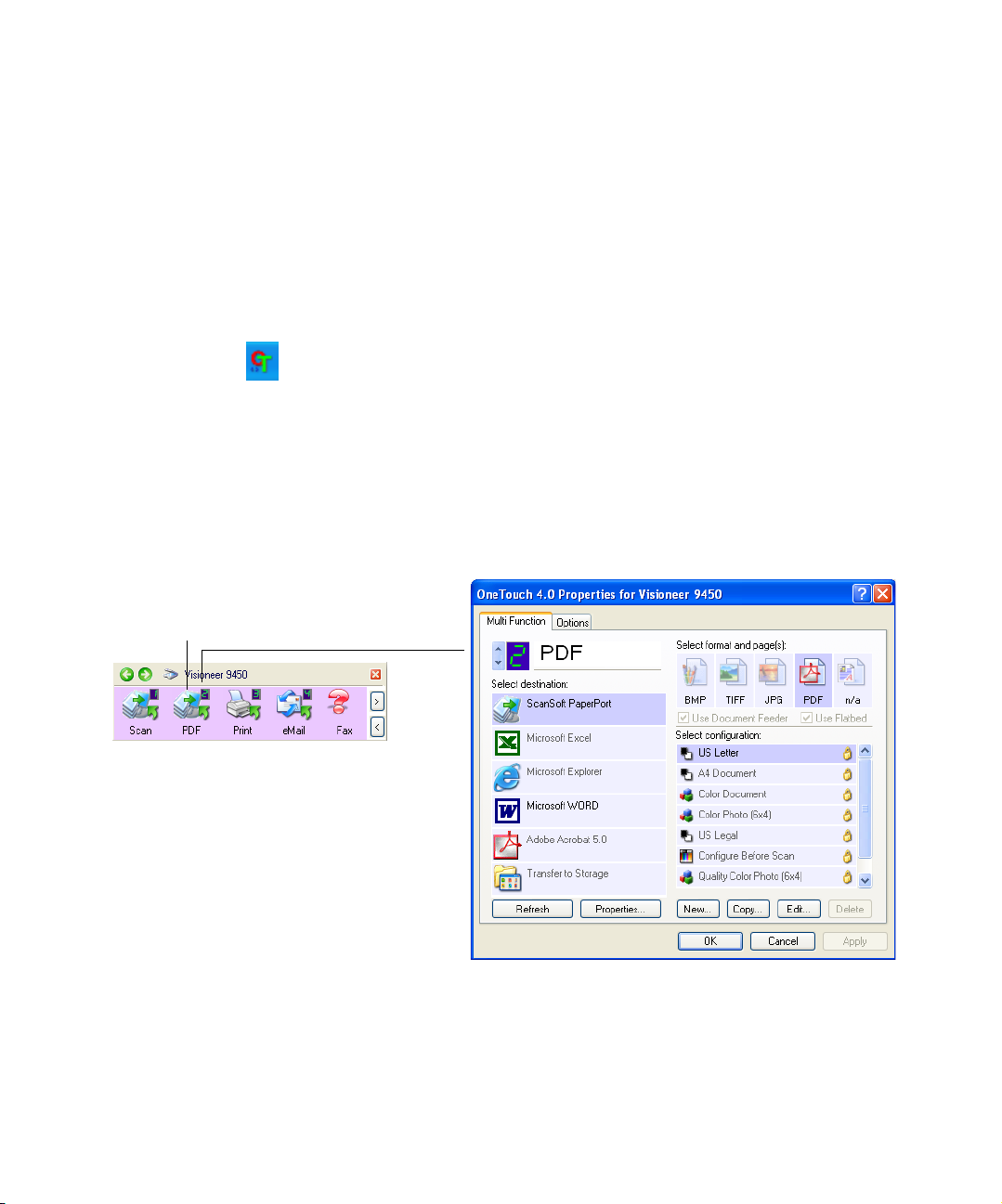
Application, a Scan Configuration, and a Document Format. The
OneTouch Properties window is where you select these three elements
for a button.
To open the OneTouch Properties window:
1. Click the OneTouch icon. It is located in the Windows
2. Right-click a button on the OneTouch Button Panel.
Remember that left-clicking a button on the OneTouch Button Panel
starts the scanner scanning. Right-clicking opens the OneTouch
Properties window.
Right-click on a button (for example,
button 2) and the Properties window
opens for that button.
CONFIGURING THE ONETOUCH BUTTONS 35
Notification Area at the bottom right corner of the screen.
The OneTouch Properties window opens for that button.
Page 43

36 VISIONEER 9450 SCANNER USER’S GUIDE
ABOUT THE ONETOUCH PROPERTIES WINDOW
The OneTouch Properties window is where you can select new settings
for the buttons. The OneTouch Properties window also contains special
scanning features such as scanning and burn to a CD, scanning and
converting text directly into an HTML web page.
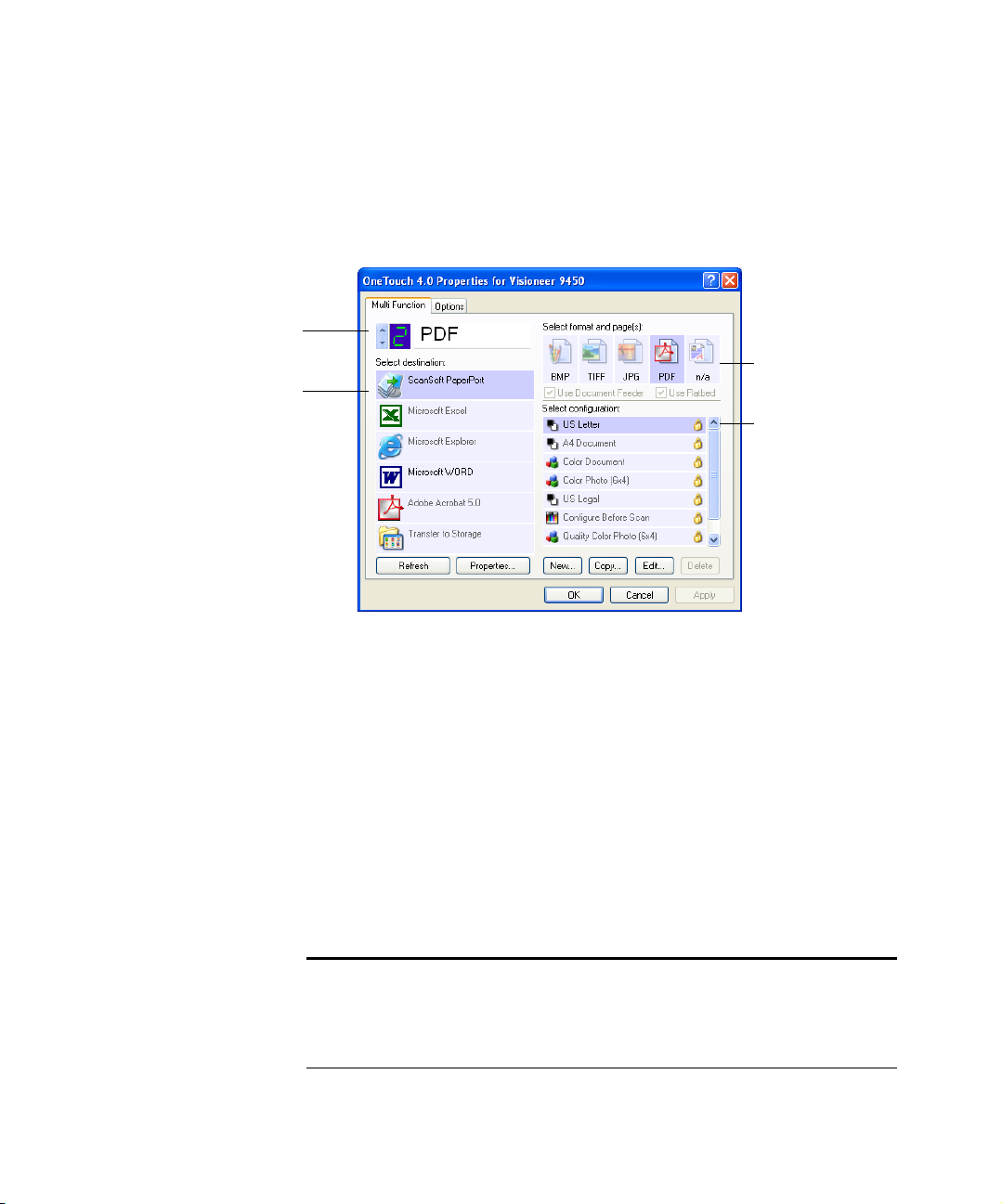
The following example of the OneTouch window shows the settings for
Button 2. The button is set to scan with the scan configuration named
US Letter then open PaperPort to display the scanned image. The
Format and Page(s) option is set to scan in the PDF image format.
The button number and
name.
The Destination Application.
This is the application that
opens when you are finished
scanning.
Click to select
options.
The file format for
the images of the
scanned item.
The settings that
the scanner uses
when scanning
with the currently
selected button (in
this case button 2,
PDF).
To make sure all of your computer’s Destination Applications are linked
to OneTouch 4.0, click the Refresh button.
Important: Later on, if you install new software that can be used as a
Destination Application, click the Refresh button again to link the
new software to OneTouch 4.0. Note that some software installed on
your computer may be incompatible with OneTouch 4.0.
Incompatible software will not be listed as a Destination Application.
Page 44
CONFIGURING THE ONETOUCH BUTTONS 37
Note: Some of the options on the OneTouch Properties Window
(and other OneTouch windows and dialog boxes) are “grayed out”
and are not available. Grayed out options are not appropriate for your
Visioneer 9450 scanner. For example, the option “Use Document
Feeder” is selected and “grayed out” because the Visioneer 9450
automatically knows when to use the Document Feeder and when to
scan from the Flatbed Glass. (When pages are inserted into the
Automatic Document Feeder the scanner will always scan from it. If
no pages are in the ADF, the scanner will scan from the Flatbed
Glass.) If you use the OneTouch application with other Visioneer
scanners, grayed out options become active, if appropriate.
The settings on the Properties window are:
Select Destination—The list of applications that can open to display
the scanned image for the selected button. To configure the list of
available applications, click the Options tab at the top of the dialog box
and select the desired options. See “Selecting Options for a Button” on
page 56 for more information.
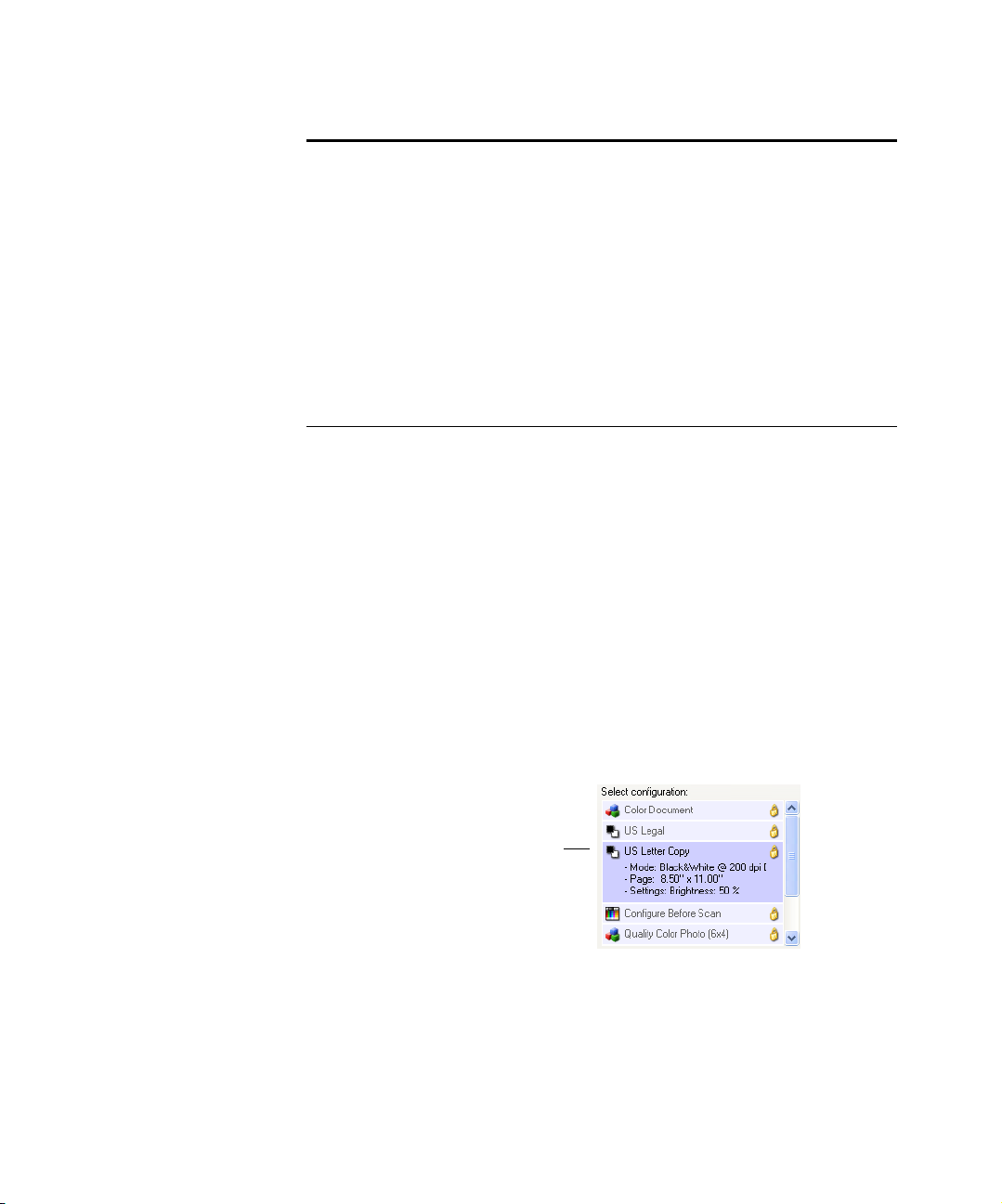
Select Configuration—The list of available scan configurations for the
selected button. The configuration settings include: scanning mode,
resolution (dpi), page size, brightness, color saturation, hue, and
gamma. To see a selected scan configuration’s settings, click its icon.
Click the icon again to close the detailed information.
Click the icon of a selected
configuration to view its
settings.
Page 45
38 VISIONEER 9450 SCANNER USER’S GUIDE
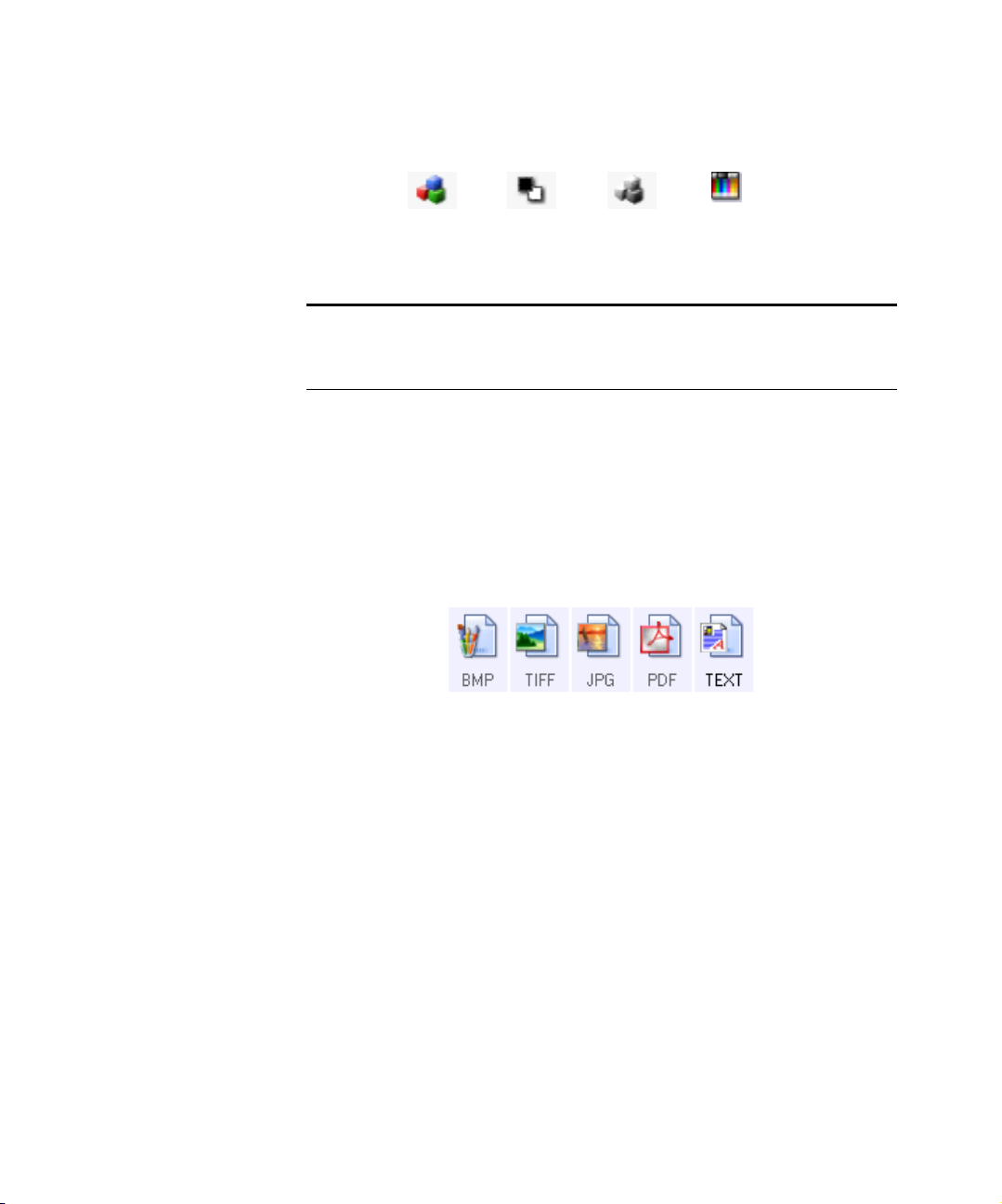
The icons next to each scan configuration indicate the scanning mode.
Color GrayscaleBlack and White
Configure
Before Scan
Note: Use Configure Before Scan if you want to set the scanning
mode manually before scanning. See “Configuring Before Scanning”
on page 76.
You can also click the Edit button or double click the configuration to
see more detailed information about the selected configuration.
Select Format and Page(s)—A set of file formats for the scanned image
for the selected button. The formats are based on the type of destination
application you select. This example shows the formats that apply to
Microsoft Outlook.
The button names indicate their file types. See “Selecting Page Format
Options” on page 50 for more about the formats.
Options tab—Displays a window for selecting options related to the
selected destination application for the scanned image.
Page 46
Click these arrows to see the
properties for the button
whose settings you want to
change.
Select a software application
as the destination to send
scanned documents.
CONFIGURING THE ONETOUCH BUTTONS 39
SELECTING NEW SETTINGS FOR A BUTTON
For each of the nine OneTouch buttons, you can select a new
Destination Application, Scan Configuration, and Document
Format.
Select a format for the
scanned image.
Select a configuration
for scanning the item.
To select new settings for a button:
1. Click the button selection arrows to select the button you want to
change.
Each button has its own settings. So, as you click the arrows to cycle
through the buttons, the available settings on the window change to
show them for each button.
2. From the Select Destination list, select the application where you
want documents sent when scanning is finished.
See “Selecting Options for a Button” on page 56 to display a full list
of the Destination Applications that you can use with the scanner.
Note: If you select a word processing program such as Microsoft
WordPad or Microsoft Word and a page format that can be used for
OCR (such as Text or RTF) the text in scanned images is
automatically converted to word processing text.
Page 47

40 VISIONEER 9450 SCANNER USER’S GUIDE
3. From the Select Configuration list, select a scan configuration.
The scan configuration list is preset for the application you select in
the Select Destination list. If you select a different application, the
configurations are for that application. However, you can create
your own scan configurations as well. See “Creating a New Scan
Configuration” on page 60.
4. Select a Format and Page(s) option.
The available options apply to the Destination Application you
select. For example, if you select Microsoft Word as the Destination
Application, the available formats are for text, such as .txt and .rtf.
However, if you select Microsoft Paint as the Destination
Application, then the available formats are for graphics, such as
.bmp, and .jpg.
Note: If a format is listed as n/a, that means the text format is not
available for that Destination Application.
5. Click OK, or if you want to keep the window open and work with
other features, click Apply.
Note that while the OneTouch Properties window is open, you
cannot scan yet by clicking a button on the OneTouch Panel. You
must click OK or close the OneTouch Properties window first.
When you are finished selecting new settings for a button and you
click on the button, the document is scanned using the newly
configured settings.
Page 48

CONFIGURING THE ONETOUCH BUTTONS 41
SETTING DESTINATION APPLICATION PROPERTIES
The different types of Destination Applications have various properties
that you can select.
1. On the OneTouch Properties window, click a Destination
Application.
2. Click the Properties button.
Click a Destination
Application.
Click the Properties
button
A OneTouch 4.0 Link Properties dialog box opens for the type of
Destination Application you selected, and the available options are
for that type of application.
Page 49

42 VISIONEER 9450 SCANNER USER’S GUIDE
PaperPort Properties
These properties apply to PaperPort, and are for designating the folder
to receive your scanned items.
1. Select the PaperPort folder where you want the file of the scanned
image to be located.
2. Click OK.
3. Click OK or Apply on the OneTouch Properties window.
When PaperPort opens after you finish scanning, the thumbnails of
your scanned documents are on the Desktop in that folder.
Page 50

CONFIGURING THE ONETOUCH BUTTONS 43
Te xt D o c um e n t s Pr o p er t i e s
These properties apply to Microsoft Word, Microsoft Excel
®
, Adobe
Acrobat Reader, and the other applications indicated by their icons in
the list. The properties apply to the OCR settings for the applications.
1. Click in the OCR settings boxes for the options you want.
The options will apply to all the applications in the group.
Always send a file, even when no text was found—The scanned
file is sent to the OCR reader even if the image does not appear to
contain text. This could occur if you scanned a photograph with a
OneTouch button set for text applications.
Show message if text recognition failed—A message will open on
the screen if the OCR reader does not detect text in the image.
Page 51

44 VISIONEER 9450 SCANNER USER’S GUIDE
2. To add another application to the list, click the Add Application
button.
The Add Text Based Link dialog box opens.
3. Click Browse to find the application you want to add to the list.
When you select the application using the Browse button, steps 1,
and 2 on the dialog box are automatically filled in, and the
application icon appears in step 3.
4. Select the icon in Step 3 of the dialog box. That is the icon that will
appear in the OneTouch Destination List.
5. In step 4 of the dialog box, select the file formats that the
application will accept.
Refer to the documentation that you received with the application
to see which text formats the application accepts.
The options you select under step 4 determine the page format
icons that appear in the OneTouch Properties window for that
group of applications.
6. Click the Add button.
Page 52

CONFIGURING THE ONETOUCH BUTTONS 45
7. Click OK or Apply on the OneTouch Properties window.
8. Click Refresh on the OneTouch Properties window.
Image Documents Properties
These properties apply to Microsoft Paint and other image processing
applications.
1. Click in the Color document handling settings boxes for the
options you want.
The options will apply to all the applications in the group.
Convert Bitmaps using Screen Resolution—Use this option to
ensure that an image will fit on the computer’s screen. When a
computer screen is set to a lower resolution, bitmap images with a
higher resolution may be too big to fit on the screen. Converting
the bitmap image to match the screen resolution ensures that the
image fits on the screen.
Convert Bitmaps to JPEG—JPEG files can be compressed to
produce smaller file sizes and, therefore, shorter transmission times.
Use this option to provide that compression capability to image
files.
Page 53

46 VISIONEER 9450 SCANNER USER’S GUIDE
2. To add another application to the list, click the Add Application
button.
See the steps on page 44 to add an application to the list.
3. Click OK.
4. Click OK or Apply on the OneTouch Properties window.
5. Click Refresh on the OneTouch Properties window.
Storage Properties
These properties apply to the Destination Application named Transfer
to Storage. If a CD burner is attached to your computer, you also use
this dialog box to start the Burn to CD process. See the section “Scan
and Burn to a CD” on page 78.
You can also set up multiple configurations to store scanned items in
separate locations. See “The Storage Options Tab (Archive)” on page 68
and “Scanning to Multiple Folders” on page 70.
Page 54

CONFIGURING THE ONETOUCH BUTTONS 47
Note: If you do not have a CD burner attached to your computer, the
CD options are not shown on the dialog box. The Burn to CD
option is only available for Windows XP.
6. Click the Storage Layout options you want.
All documents are in the root—The scanned documents are saved
in the root of the folder specified in the Storage Location.
Documents are put into folders by month, week, or type—
Folders are created based on your selection (month, week, or type)
and the scanned documents are saved in those folders. New folders
are created for each month and week so you can keep track of when
you scanned the documents.
7. Click the Browse button to specify the location to store the
scanned documents, or type a location directly into the box.
If you are scanning to a shared network drive, it must be a mapped
drive. For more information about mapped drives, see your
network administrator.
8. If you have a CD burner attached to your computer, the option
Show message when ready to burn 5" CD (700MB), should also
be selected so you will see a message when it’s time to click the Burn
to CD button.
9. Click OK on the Link Properties window.
Page 55
48 VISIONEER 9450 SCANNER USER’S GUIDE
eMail Properties
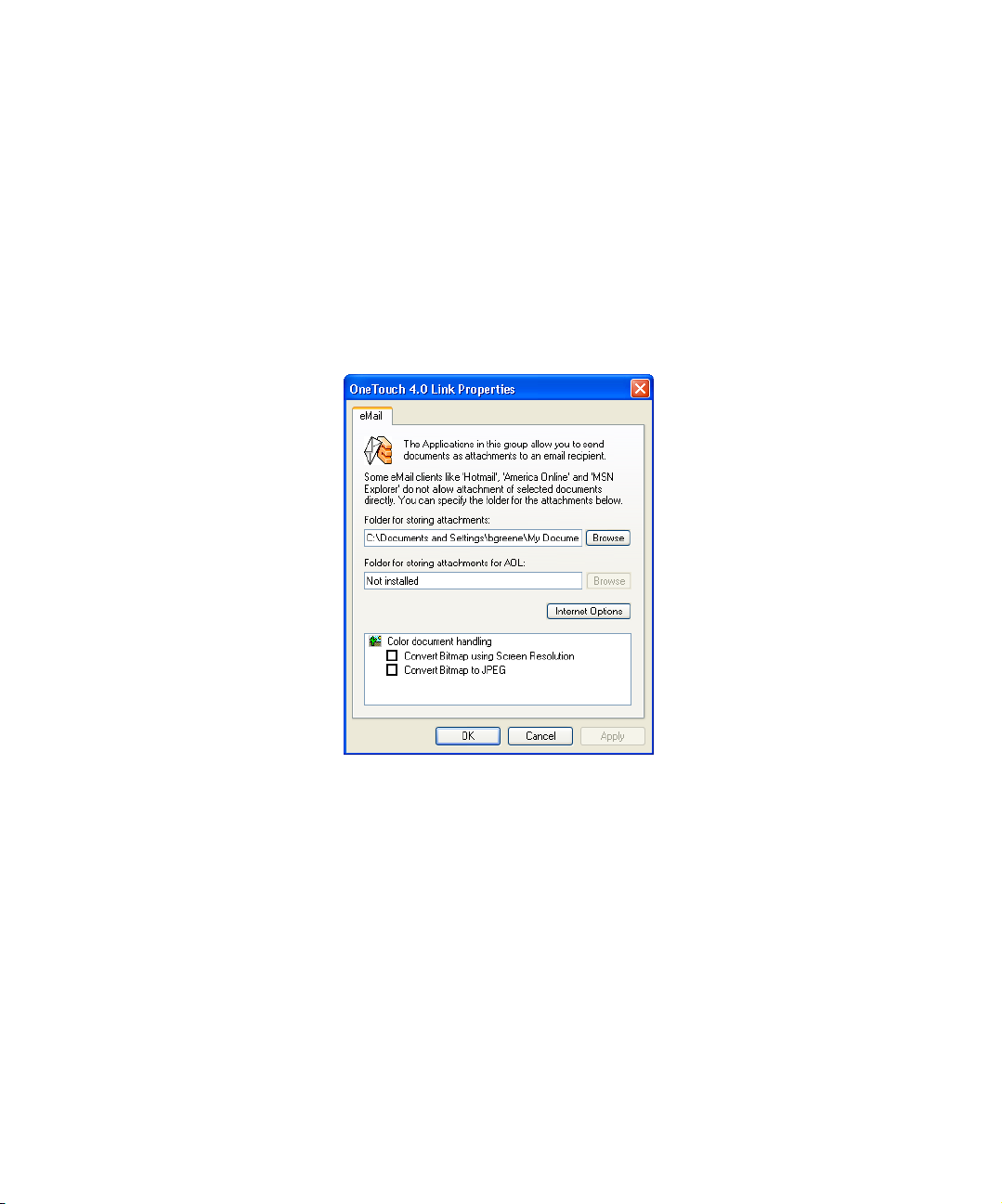
These properties apply to email applications so you can specify the
folder for documents that you will attach to an email message.
Microsoft Outlook
blank email message as soon as scanning is finished, but other email
applications do not. If you’re using one of those applications, such as
America Online
®
scanned documents so you can manually attach them to your email
messages.
®
will accept direct attachment of documents to a
(AOL), you need to know which folder contains the
1. Click the Browse button under Folder for storing attachments
and choose a folder for your eMail attachments to be stored, or type
a location directly into the box.
See the steps on page 46 to add an application.
Page 56

CONFIGURING THE ONETOUCH BUTTONS 49
2. If you are using AOL on your computer, and the folder name for
AOL is incorrect, click the Browse button and find the correct
AOL folder.
For scanned images to be auto-attached to a blank email address,
you must have the specific folder location AOL uses to find the
attachments. Please contact AOL for more information about the
folder location in which AOL stores attachments.
3. If you need to set or change any internet options for AOL click the
Internet Options button.
The Windows Internet Options Control Panel opens. See your
Windows documentation and AOL user manual for the settings on
the Windows Control Panel.
4. Select the options for color document handling.
Convert Bitmaps using Screen Resolution—Use this option to
ensure that an image will fit on the computer’s screen. When a
computer screen is set to a lower resolution, bitmap images with a
higher resolution may be too big to fit on the screen. Converting
the bitmap image to match the screen resolution ensures that the
image fits on the screen.
Convert Bitmaps to JPEG—JPEG files can be compressed to
produce smaller files sizes and, therefore, shorter transmission
times. Use this option to provide that compression capability to
image files.
5. Click OK.
6. Click OK or Apply on the OneTouch Properties window.
Page 57

50 VISIONEER 9450 SCANNER USER’S GUIDE
SELECTING PAGE FORMAT OPTIONS
The Page Format options that you select determines the file format of
the scanned document. Appropriate page format options and file types
are available for the type of Destination Application selected for the
button.
The available options are for images and text.
Image Formats Text Formats
The Text Formats are for text file types. The names of the formats
indicate their file types. See “Text Formats” on page 51 for details.
IMAGE FORMATS
Select an image file format for photos, artwork or other documents that
you want to save as images. BMP and TIFF are standard image file
formats generally used if you want to do additional image processing,
such as photo touch-up or color correction. Both of those file formats
tend to be larger than the JPEG format.
Because JPEG image files can be reduced in size, the JPEG format is
often used for images on web pages, or if file size might be a problem
when electronically sending the files. JPEG files are reduced in size by
lowering their image quality, and you can select the degree of quality for
your scanned images from the JPEG file format icon.
The PDF format is often used to create images of text pages. You may
want to select PDF as the page format when scanning text pages that do
not require OCR processing. The PDF format is also used to put multipage documents on web sites as pdf-readable files. As with the JPEG
option, the PDF format can be reduced in size or quality.
Page 58

CONFIGURING THE ONETOUCH BUTTONS 51
To select a JPEG or PDF file size:
1. Select JPG or PDF as the page format.
2. Right-click on the JPG or PDF icon.
A menu opens.
3. Choose the file size/image quality option for your scanned images.
Minimize Size—Smallest file size, lowest image quality.
Normal—Medium file size, some loss of image quality.
Maximum Quality—Largest file size, no loss of image quality.
Your selection pertains only to the button currently selected on the
OneTouch Properties window. Other buttons that have JPG or
PDF selected as the Page Format are not affected, so you can set the
JPEG or PDF file size/image quality independently for each button.
4. Click OK or Apply on the OneTouch Properties window.
TEXT FORMATS
Selecting the text format option also selects OCR processing as an
automatic step for scanning. Therefore, when you scan a document
with the text format selected, the text portions of the document are
automatically converted to editable text. See “Scanning with Optical
Character Recognition (OCR)” on page 53.
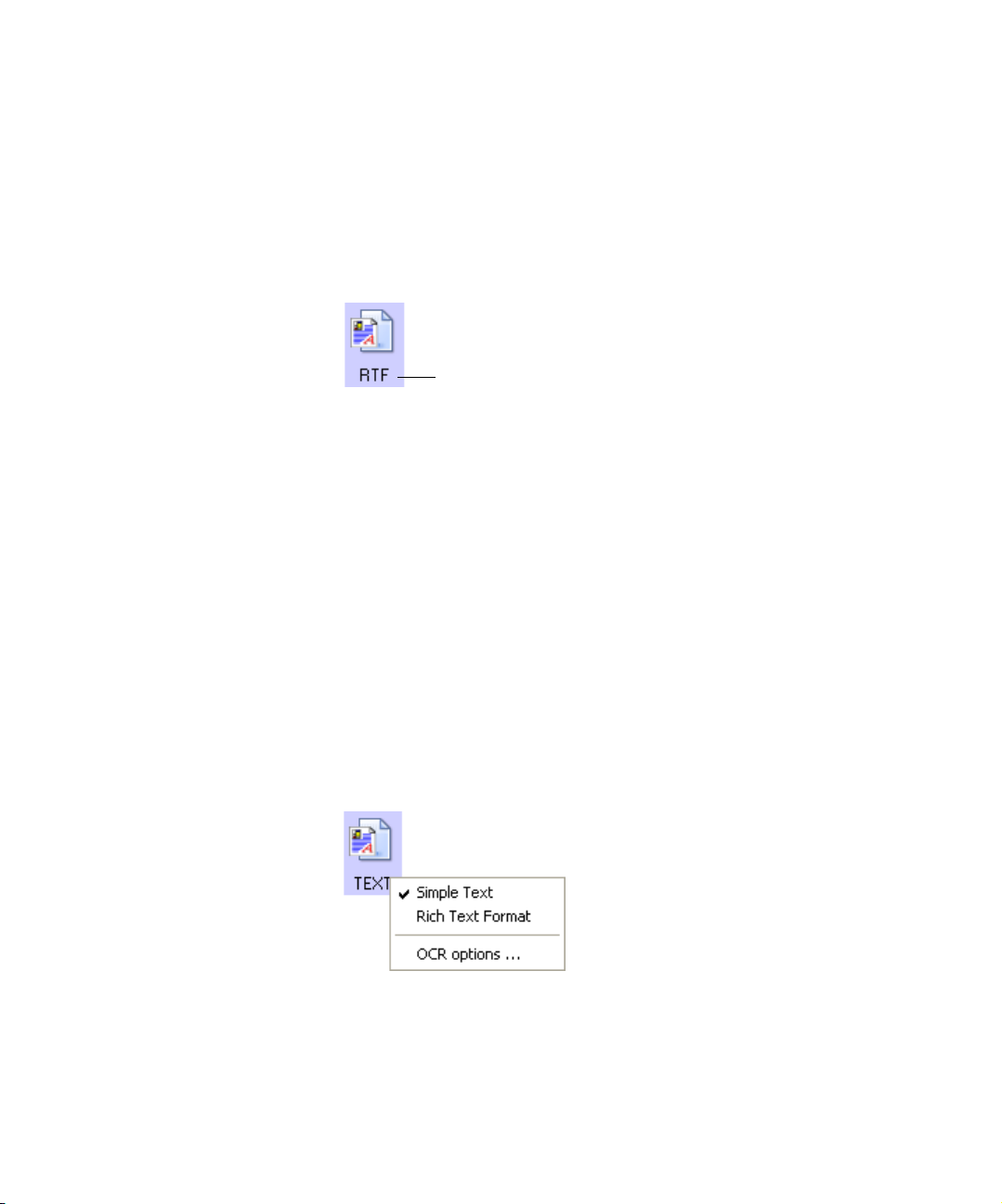
The text formats are:
Page 59
52 VISIONEER 9450 SCANNER USER’S GUIDE
Select a text format for documents with text or numbers, such as a
business letter, report, or spreadsheet. The text format icon may have
additional file formats available, depending on the Destination
Application you select.
The specific file format is the file name extension on the text format
icon.
As you select Destination Applications that are text applications, the
text format icon changes to match the file type of the application. In
some cases, the Destination Application supports several file types, and
you can right-click on the icon to choose the particular file type for that
application.
The specific text format; this example is
for Microsoft Word Rich Text Format.
To select a file type for the text format:
1. Select the Destination Application.
2. Right-click on the text format icon.
A menu opens. The following figure shows samples for different
formats.
Example menu for the
Text format.
Page 60

CONFIGURING THE ONETOUCH BUTTONS 53
3. Choose the file type that you want for the text format.
Your selection of a file type pertains only to the button currently
selected on the OneTouch Properties window. Other buttons that
have a text option selected as the Page Format are not affected, so
you can set the text file type independently for each button.
Simple Text—The .txt file format. Text with no formatting; used
by the standard Microsoft Notepad application.
Rich Text Format—The .rtf file format. Text that retains
formatting when converted. Available with Microsoft Wordpad and
Word.
Excel Spreadsheet—The .xls file format used by Microsoft Excel.
HTML Document—The .htm file format used to create web
pages.
4. Click OK on the OneTouch Properties window.
SCANNING WITH OPTICAL CHARACTER RECOGNITION (OCR)
Optical Character Recognition (OCR) converts text and numbers on a
scanned page into editable text and numbers. You can then work with
the text and numbers to edit, spellcheck, change font or type size, sort,
calculate, and so forth.
To scan with OCR:
1. Select a Destination Application that has one of the Text formats
(TEXT, RTF, XLS, or HTML).
2. Scan the document.
Your scanned pages appear in the Destination Application with
their text ready for editing and other text processing.
Page 61

54 VISIONEER 9450 SCANNER USER’S GUIDE
Note: OCR scanning is also for spreadsheets so you can work in
Microsoft Excel (or other spreadsheet applications) with the figures
and text from the original spreadsheets.
To se l e c t OC R s e t t in g s :
1. Select the Destination Application.
2. Right-click on a text format icon.
A menu appears. The following figure shows a sample for the Text
format.
3. Choose OCR options.
A dialog box of OCR options opens.
4. Select the option you want for the OCR conversion of your
documents.
Auto orient page—Select this option to check the page orientation
and automatically rotate an improperly oriented page image so the
text is recognizable by the OCR process.
Single column output—
column of text in the Destination Application, even if the original
image had multiple columns of text.
Select this option to produce a single
Page 62
CONFIGURING THE ONETOUCH BUTTONS 55
5. Click OK.
Note that the OCR options apply to all the Destination
Applications for which OCR applies. If you change them for one
Destination Application, those changes apply to the others as well.
RENAMING A ONETOUCH BUTTON
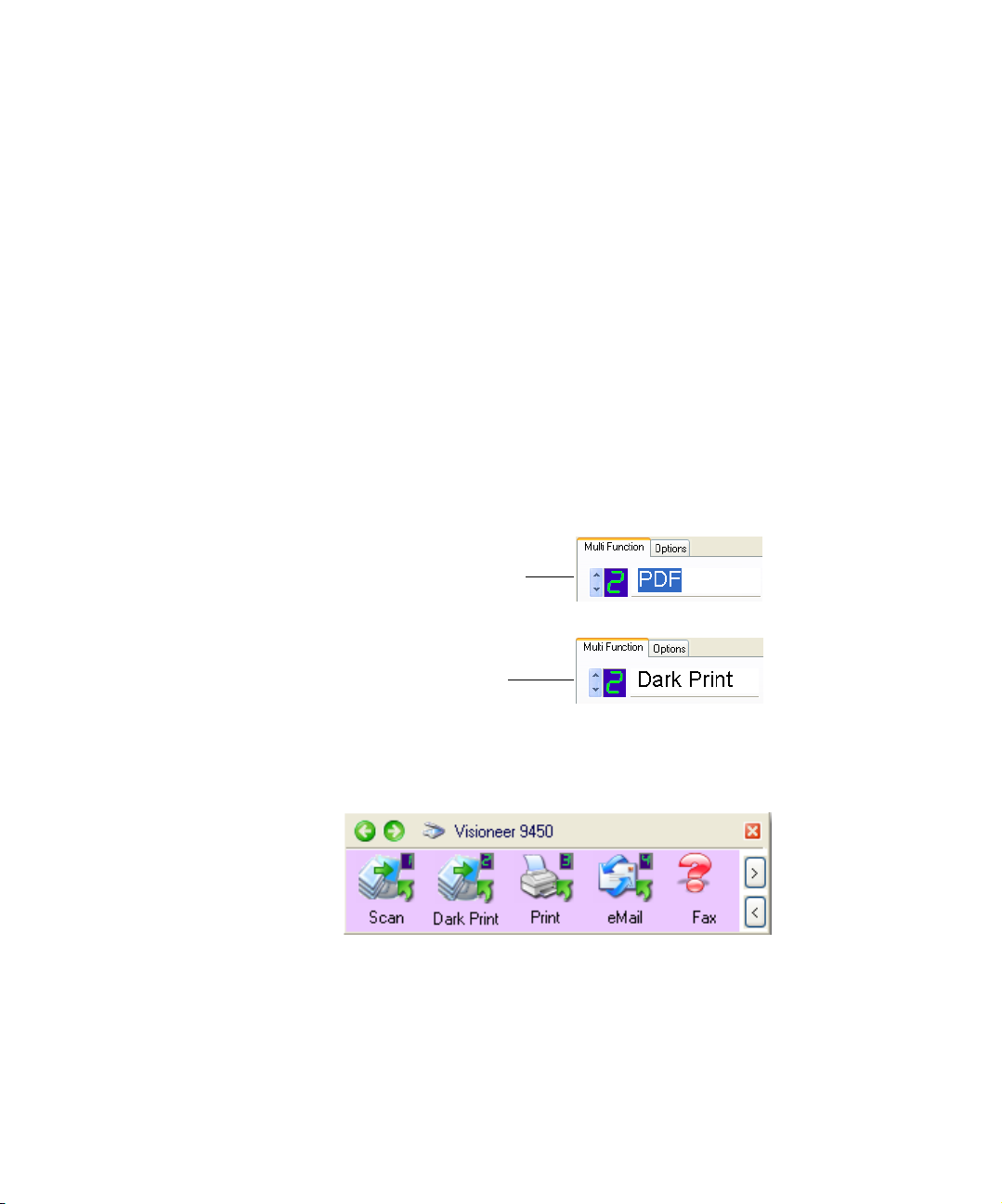
The OneTouch buttons have names that identify their pre-set functions,
such as OCR and PDF, but you can edit the names.
To change the button names:
1. Open the OneTouch Properties window.
2. Using the arrows, choose the button that you want to rename.
3. Select the name’s text and type a new name.
Click the arrows to get to
the button to rename, then
select the name text.
Type a new name for the
button.
4. Click OK or Apply.
The button is now renamed.
Page 63
56 VISIONEER 9450 SCANNER USER’S GUIDE
SELECTING OPTIONS FOR A BUTTON
The OneTouch Options determine the types of Destination
Applications available for a button, as well as the location of the files of
your scanned items.
To select options:
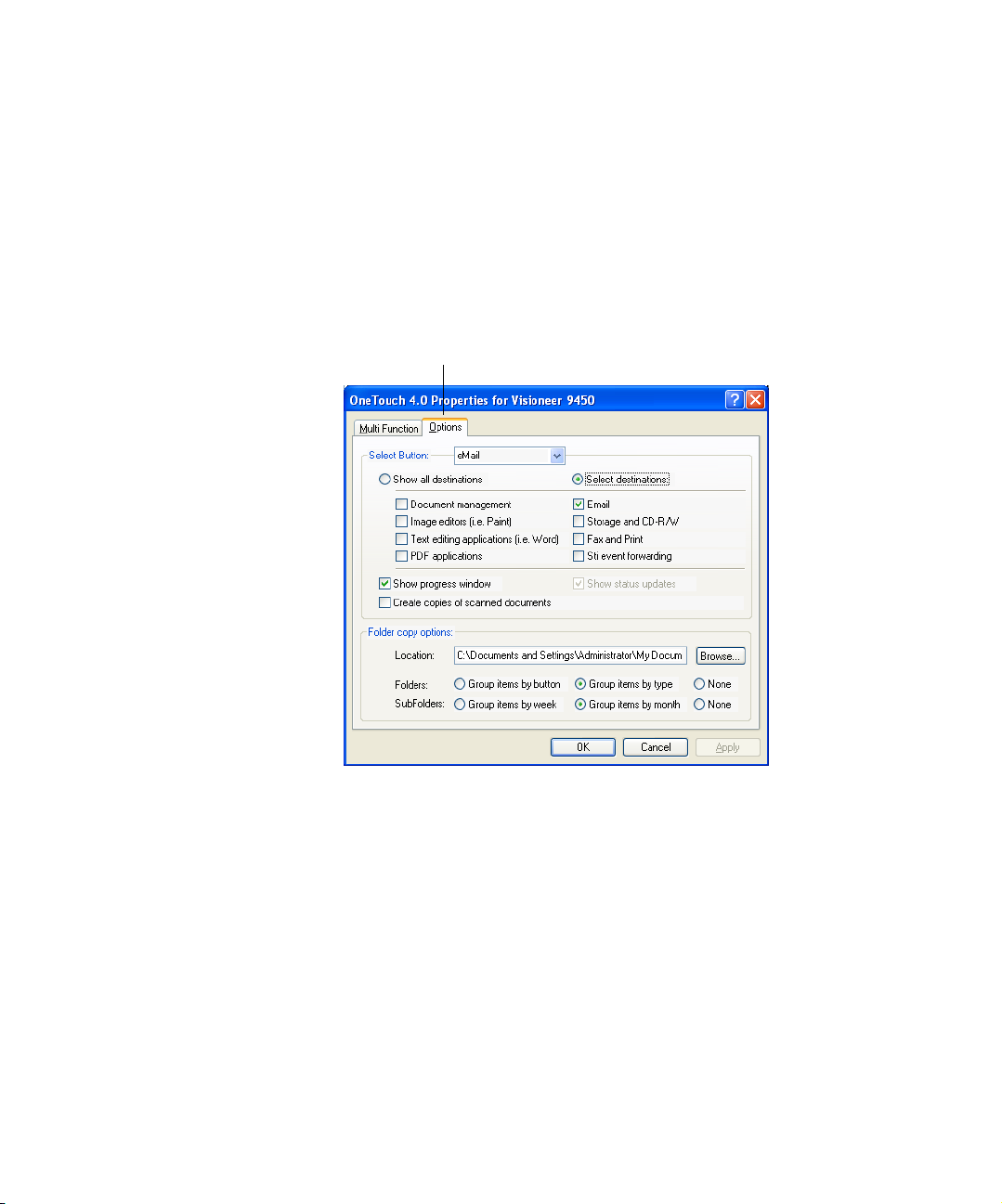
1. Open the OneTouch Properties window and click the Options tab.
Options tab
2. Click the menu arrow and choose the button for new options.
3. Select button options as described below.
Show All Destinations—This option selects all the Destination
Application categories. The list of Destination Applications
available for the selected button will include all the applications on
your computer that fall into these categories. This is the default
selection for Button 8 (Custom). The list also includes printers and
other devices connected to your computer so, for example, you can
scan an item and have it printed immediately.
Page 64

CONFIGURING THE ONETOUCH BUTTONS 57
Select Destinations—Select this option to individually choose the
types of applications to include in the list of Destination
Applications. Check the boxes for the type of application to
include.
■ Document Management includes PaperPort and other
applications for processing and keeping track of your scanned
documents.
■ Image Editors include Microsoft Paint and other drawing and
graphics applications.
■ Te x t E dit o r s include Microsoft Word and WordPad, Microsoft
Excel, and other word processing and spreadsheet applications.
Select this option if you want OCR processing to convert your
scanned documents to text that you can edit.
■ PDF applications are for documents scanned to PDF format.
■ Email includes Microsoft Outlook and other email applications.
See “eMail Properties” on page 48 for details about attaching
scanned documents to your email messages.
■ Storage and CD-R/W is for either storing scanned documents
in a folder, or sending them to a CD burner to create a CD
containing the scanned documents. See “Transferring Scanned
Documents to Storage” on page 84 and “Scan and Burn to a
CD” on page 78 for details.
■ Fax and Print is for sending your scanned documents directly to
your printer or fax software for faxing.
■ Sti event forwarding is for using another application’s interface
for scanning. The OneTouch Event Forwarding dialog box opens
so you can select which application to use to continue scanning.
See “Scanning with Event Forwarding” on page 80 for details.
4. After selecting a new category of Destination Applications, click the
Multi Function tab to see which ones are added to the list.
Show Progress Window—Select this option to display the progress
window of the document(s) during scanning.
Page 65

58 VISIONEER 9450 SCANNER USER’S GUIDE
Create copies of scanned documents—Sometimes the image of a
scanned document is only saved as a temporary file until its
Destination Application is finished using it. In those cases you may
want an additional, permanent copy saved on your hard drive.
For example, if you scan a picture to an email application, the
scanned image is saved as a temporary file, then attached to the
email, and the email is sent. Later, the temporary file of the scanned
picture is deleted. The same situation may occur when you scan
directly to a printer or scan to a fax application. After a scanned
item is printed or faxed, its temporary file is deleted. However, by
selecting this Create copies of scanned documents option, you
can choose to save permanent copies of the scanned items on your
hard drive.
The copies will be saved in the folder specified in the Folder Copy
Options section (see the figure on page 59 and the description
below).
You can selectively choose the types of Destination Applications
that will have their scanned images saved permanently. For
example, if your computer is connected to multiple printers and fax
machines, each one is considered a separate Destination
Application. By selecting the Fax and Print box and clicking the
Create copies of scanned documents option, every scanned
document you fax or print from the scanner is also saved as a
permanent file on your hard drive.
This option is not available if either the Document Management
or Storage and CD-R/W options are selected because, by default,
file copies for those types of Destination Applications are already
automatically saved in the folder for copies.
For that reason, this option is not available for the default settings
of Buttons 1 and 2. Those buttons have PaperPort as their
Destination Applications, and PaperPort is a Document
Management application.
Page 66
CONFIGURING THE ONETOUCH BUTTONS 59
Likewise, the option is also not available for the default setting of
Button 7, Archive, because it is set as Transfer to Storage with the
Destination Application type set as Storage and CD-R/W.
Folder Copy Options—This section of the dialog box sets the
location for copies of your scanned documents and how you want
to group them.
All copies of your scanned documents, regardless of type of
Destination Application, are saved in this folder.
Note that if the Button selected at the top of the dialog box is set to
Tra n sf er t o S to r ag e as the Destination Application, and the type of
application is Storage and CD-R/W, (such as Button 7), the
location in this section is where your scanned documents are stored.
When you use the OneTouch 4.0 Burn to CD feature, the location
is where scanned documents are stored before they are burned onto
the CD.
Click the Browse button and find the folder for the copies. Select
the grouping option for the documents. The Group by button
option groups the documents under the name of the OneTouch
button. For example, if the button is named Printer, the documents
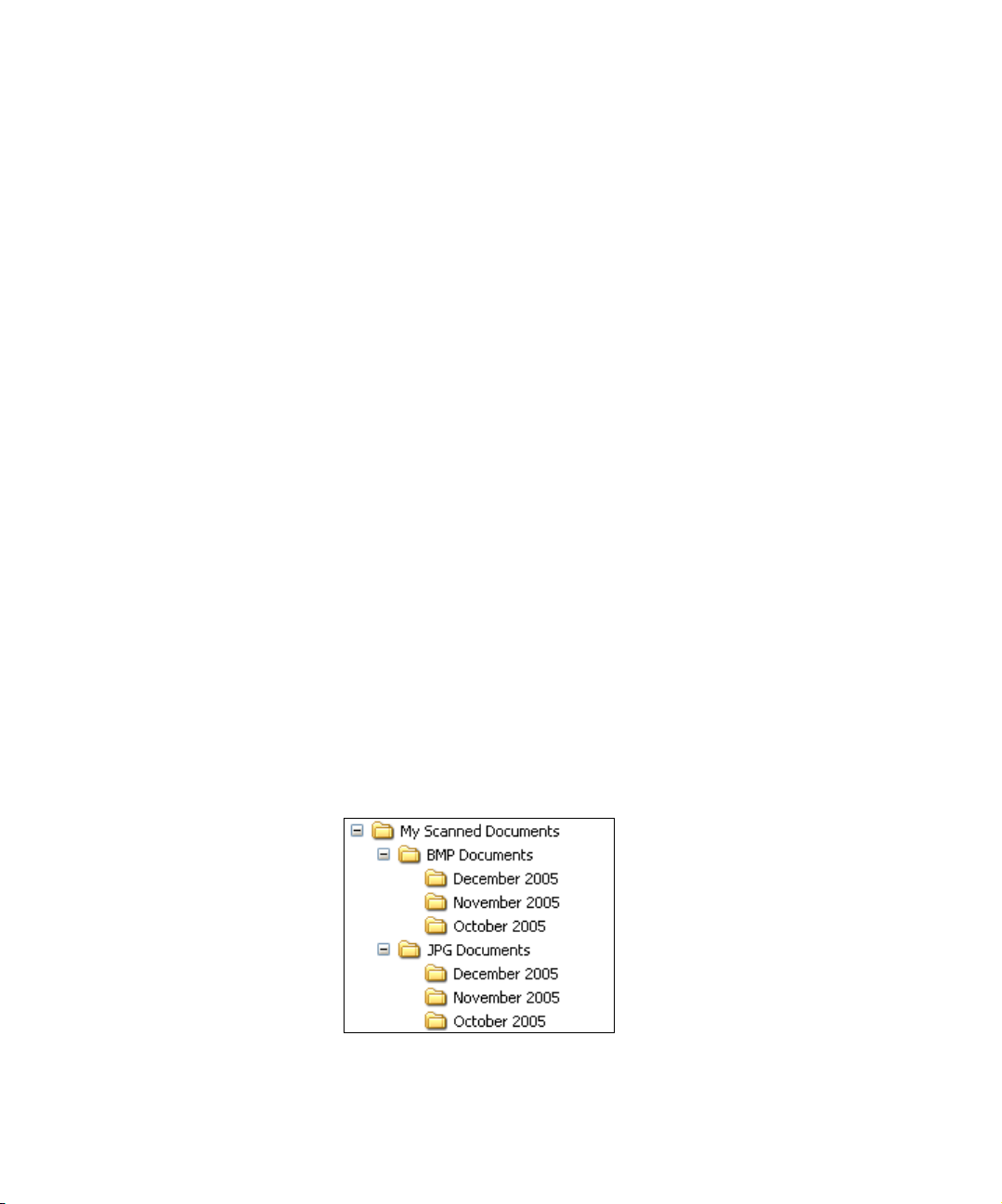
are grouped under the name Printer. Group by type arranges the
scanned documents by the type of file, such as .doc or .jpg. If you
also want to group them by date you can choose the week and
month options.
The following example shows the folders when the selections are
Group items by type and Group items by month.
5. Click OK to save the options for the selected button.
Page 67

60 VISIONEER 9450 SCANNER USER’S GUIDE
CREATING A NEW SCAN CONFIGURATION
The scan configurations are where you select the scanning resolution,
brightness, mode (color, black&white, or grayscale), and a number of
other settings.
The Scan Configurations.
The Lock Icon.
Click New to create a
new Scan Configuration.
Note the lock icon on the preset configurations. Although you can
unlock and edit the preset configurations, we recommend that you leave
them locked, and only add new configurations. That way, you will
always have the original factory-set configurations available.
To create a new configuration:
1. Open the OneTouch Properties window and make sure the Multi
Function tab is selected.
2. Scroll through the applications in the Select Destination list and
click the type of application for which you want to create a new
scan configuration.
When you create a new scan configuration, it will be listed for the
buttons that are set for the same types of Destination Applications.
For example, if you create a new configuration for a button that is
set to show image editor applications, that new configuration is also
listed for any other buttons set for image editors, but not for
Page 68

CONFIGURING THE ONETOUCH BUTTONS 61
buttons set for text editing applications. Thus, you can create
specific sets of scan configurations for specific functions and they
are listed only when appropriate.
3. Click the New button.
If you want to start from the settings of another configuration,
select the configuration, then click the Copy button.
If the Scan Settings tab is not selected, click it.
4. On the Scan Configuration Properties dialog box, type a name.
Type a new name for
the configuration.
Select the scan mode
and drag the slider to set
the resolution.
Drag the sliders to set
the Brightness and Contrast.
A key icon indicates the
configuration is not locked
and can therefore be created
or edited. Clicking the icon
toggles between a key and a
lock. When icon is a lock,
the configuration cannot be
modified until you toggle
the icon to a key.
Note: If you select a printer or other device in the Select Destinations
list, the dialog box may have an additional Device Settings tab for
setting specific options for the particular device.
Page 69

62 VISIONEER 9450 SCANNER USER’S GUIDE
5. Select scan settings for the new scan configuration.
Mode—Select a scanning mode:
■ Black&White to scan in black and white. For example, letters
and memos are usually scanned in black and white. This scan
mode produces the smallest file size.
■ GrayScale to scan items such as documents containing drawings
or black and white photographs. The scanning produces an
image of up to 256 shades of gray.
■ Color to scan color photographs and other color items. Color
scans have the largest file size.
Resolution—Drag the slider to the right or left to adjust the dots
per inch (dpi) of the resolution. The maximum resolution is 600
dpi; the minimum is 50 dpi. The higher the dpi setting, the sharper
and clearer the scanned image. However, higher dpi settings take
longer to scan and produce larger files for the scanned images.
Brightness and Contrast—Sometimes an item is scanned with the
brightness and contrast set too light or too dark. For example, a
note written with a light pencil may need to be scanned darker to
improve legibility.
Brightness refers to the lightness or darkness of the image. Contrast
is the range between the darkest and lightest portions of the image.
The greater the contrast, the more difference between the lighter
and darker shades in the image.
Drag the sliders to the right or left to adjust the brightness and
contrast of the scanned image. The Contrast setting does not apply
to Black&White mode.
6. If you want to lock the configuration, click the key icon to change
it to a lock.
Page 70

CONFIGURING THE ONETOUCH BUTTONS 63
7. Click the Page Settings tab to select page settings.
Click to toggle
between inches
and millimeters.
Size—Click Standard, click the menu arrow and choose a page size
from the list, or click Custom and enter the horizontal and vertical
page dimensions in the boxes. The maximum size for items scanned
with the Automatic Document Feeder is 8.5" x 14". The maximum
size for items scanned on the Flatbed glass is 8.5" x 11.69". The
units of measurement can be inches or millimeters. Click the name
of the units, inches or millimeters, to toggle between them.
Page 71

64 VISIONEER 9450 SCANNER USER’S GUIDE
Improvements and Settings—Only the options that apply to the
selected Destination Application are available.
■ AutoCrop to Original—Select this option to let the scanner
automatically determine the size of the item being scanned. For
example, if you scan a 5” by 7” photo, the scanner will determine
the size of the photo.
When using the AutoCrop to Original option for a single page
on the Flatbed Glass, make sure to align the top left corner of the
item with the arrows at the top left corner of the Flatbed Glass.
When using the AutoCrop to Original option with the
Automatic Document Feeder, make sure to adjust the paper
guides on the scanner so the page is not skewed when it feeds
into the scanner. Skewed pages may not scan properly and the
autocropped image may not be correct.
■ Reduce Moire Patterns—Moire patterns are wavy, rippled lines
that sometimes appear on the scanned images of photographs or
illustrations, particularly newspaper and magazine illustrations.
Page 72

CONFIGURING THE ONETOUCH BUTTONS 65
Selecting Reduce Moire Patterns will limit or eliminate moire
patterns in the scanned image. This option is only available for
the Grayscale or Color Mode at 300dpi or less.
■ Straighten Image—Select this option to let the scanner
automatically determine if a page is skewed, then straighten its
image. The scanner detects page edges and can sense when the
page is fed through at an angle. However, if the page is fed
through at too great an angle, the image may not scan correctly.
In that case, re-scan the page using the paper guides to feed the
paper in straight.
■ Invert Image—Only available for Black&White Mode, this
option reverses the black and whites of an image.
Original Image Inverted Image
■ Color Filter—Color filter is the ability of your scanner to
automatically remove a color from a scanned item. For example,
if you are scanning a letter with a red watermark, you can choose
to filter out the red so the scanned letter just shows the text and
not the red watermark. Color filter applies to Black&White or
Grayscale Mode.
The original with a red
watermark over black text.
The scanned item with the
red filtered out.
Page 73

66 VISIONEER 9450 SCANNER USER’S GUIDE
8. Click the Advanced Settings tab.
The options of the Advanced Settings tab are for the Color or
Grayscale scanning mode.
Saturation is the strength or purity of a color, hue is the color your
eyes see as reflected from the image, and gamma controls the
brightness of the midtones of the color.
9. Drag the sliders to the left and right to change the color settings. As
you do, the image changes to show the effects of the new settings.
10. Click OK to save the new configuration.
It will now appear in the list of Scan Configurations on the
OneTouch Properties window for the appropriate Destination
applications.
Page 74

CONFIGURING THE ONETOUCH BUTTONS 67
THE DEVICE SETTINGS TAB
A Device Settings tab appears on the Scan Configurations dialog box
when your selected Destination Application sends the scanned image to
a printer, fax application, or other device. You use the options on the
Device Settings tab to select settings for the device.
1. Click on the Device Settings tab.
Fit to page, reduce image if necessary—If the scanned image is
too big to be printed or faxed on a single page, the image will
automatically be reduced to fit the page.
Actual size, crop image if necessary—If the scanned image is too
big to be printed or faxed on a single page, the image will
automatically be cropped around its edges to fit on the page.
Center image on page—The image will be printed in the center of
the page instead of at the top right corner.
Maintain aspect ratio—The aspect ratio is the length-to-width
relationship of the image’s dimensions. Select this option so the
image’s relative proportions remain constant.
AutoRotate image for best fit—If the image is a Landscape format
and the device is printing in the Portrait mode, or vice versa, rotate
the image to fit on the page.
Collate copies—If you’re printing more than one page, collate the
Page 75

68 VISIONEER 9450 SCANNER USER’S GUIDE
copies. Enter the number of copies in the Copies box.
Advanced—Click to see additional settings for the device. The
dialog that opens is specific to the device. For example, if the device
is your printer, the dialog box is your printer’s setup settings.
2. Click OK or Apply.
THE STORAGE OPTIONS TAB (ARCHIVE)
A Storage Options tab is on the Scan Configurations dialog box when
the selected Destination Application is set as Transfer to Storage. You
use the options on this tab to select where you want to save your
scanned items for storage when scanning with that particular Scan
Configuration. Button 7 is set as the default Archive button for
scanning to storage, with Transfer to Storage as the destination. So if
you want to have the Scan Configuration apply to Button 7, switch to it
first before creating the new Scan Configuration.
Page 76
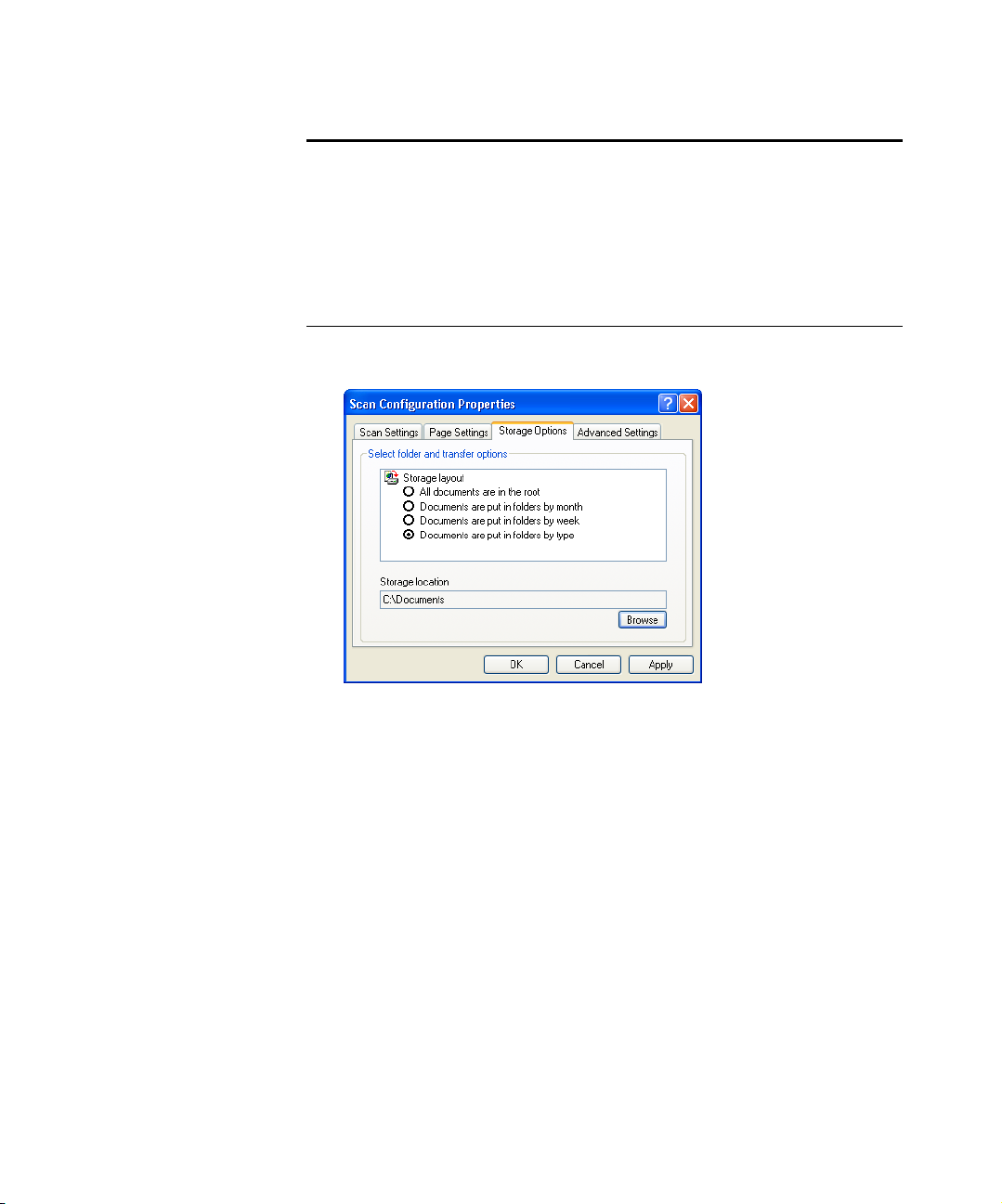
CONFIGURING THE ONETOUCH BUTTONS 69
Note: The selections you make using the Storage Options tab
override the storage options that apply to the Storage Properties. This
means that you can create separate Scan Configurations to store
scanned items at various locations in addition to the main location set
by the Storage Properties. See “Storage Properties” on page 46 and
“Transferring Scanned Documents to Storage” on page 84 for more
details.
1. Click on the Storage Options tab.
2. Click the Storage Layout options you want.
All documents are in the root—The scanned documents are saved
in the root of the folder specified in the Storage Location.
Documents are put into folders by month, week, or type—
Folders are created based on your selection (month, week, or type)
and the scanned documents are saved in those folders. New folders
are created for each month and week so you can keep track of when
you scanned the documents.
3. Click the Browse button to specify the location to store the
scanned documents, or type a location directly into the box.
4. Click OK or Apply.
Page 77

70 VISIONEER 9450 SCANNER USER’S GUIDE
SCANNING TO MULTIPLE FOLDERS
When archiving documents with the Transfer to Storage option, you
can scan them to multiple folders. For example, one folder might be for
“Business Receipts,” a second folder might be for “Personal Receipts,”
and a third folder might be for “Annual Receipts.”
To scan to multiple folders, you create multiple scan configurations with
Transfer to Storage as the Destination Application, and assign each scan
configuration to one of the buttons.
Setting up multiple folders for transfer to storage:
1. Using Microsoft Windows, create the folders that you want to use
for storing scanned items. Note that you can also create the folders
later while creating the new scan configurations.
2. Open the OneTouch Properties window.
3. Select Transfer to Storage as the Destination Application.
4. Click the New button.
Select Transfer to Storage.
Click the New button.
The Scan Configuration Properties dialog box opens.
Page 78

CONFIGURING THE ONETOUCH BUTTONS 71
5. Click the Scan Settings, Page Settings, and Advanced Settings
tabs, and select the settings you want.
To help you remember which folder it is, give the new
configuration a name that indicates the folder name, such as
“Storage for Business Receipts.”
6. Click the Storage Options tab.
7. Click the Browse button.
8. Select the folder you created for storing the scanned documents.
If you haven’t created the folder yet, you can click the Make New
Folder button and type the name for the new folder.
Page 79

72 VISIONEER 9450 SCANNER USER’S GUIDE
9. Click OK. The selected folder will now be set as the Storage
Location, such as “Business Receipts.”
10. Click Apply. The new configuration is now listed as a Transfer to
Storage configuration.
11. Repeat the process to create additional new configurations, such as
one named “Storage for Personal Receipts.”
Page 80

CONFIGURING THE ONETOUCH BUTTONS 73
12. Make sure to designate separate folders as the Storage Locations for
the new configurations.
You will now have multiple configurations set up for the Transfer to
Storage destination, and each configuration scans documents to
separate folders.
The new configurations
apply to the Transfer to
Storage Destination
Application.
Page 81

74 VISIONEER 9450 SCANNER USER’S GUIDE
13. Now click the arrow buttons to select a button for each new
configuration. Click Apply to set that button for that
configuration.
The following examples show that buttons 7 and 8 have been set to
scan to each of the new configurations.
Note that the button names have also been changed to Storage 1
and Storage 2 to remind you that both send documents to storage,
but to different locations. To change button names, see “Renaming
a OneTouch Button” on page 55.
Scan to multiple storage folders:
1. Insert the documents you want to scan to multiple storage folders.
2. Open the OneTouch Panel and click the arrows to get to one of the
buttons set up for scanning to storage.
3. Click the button on the OneTouch Panel.
4. When scanning is finished, re-insert the documents and click the
arrows on the OneTouch Panel to get to the next button you have
set up for scanning.
5. Click that button on the OneTouch Panel.
When scanning is finished, the documents are stored in the two separate
folders.
Page 82

CONFIGURING THE ONETOUCH BUTTONS 75
EDITING OR DELETING SCAN CONFIGURATIONS
Note: Your scanner comes with a number of configurations pre-set at
the factory. We recommend that you keep those configurations locked
and do not edit or delete them. That way, you will always have the
factory-settings available. If you do edit or delete them, and want to
get the factory pre-sets back again, you will need to uninstall then reinstall your scanner.
To edit or delete a scan configuration:
1. Open the OneTouch Properties window.
2. Select the scan configuration you want to edit or delete.
Select the scan configuration
to edit or delete. It must be
unlocked, as indicated by not
having a lock displayed here.
3. To delete the configuration, click the Delete button.
Note: If the Delete button is not available, the selected configuration
is locked and cannot be deleted. You must first click the Edit button
and unlock the configuration, as explained in the next step.
Page 83

76 VISIONEER 9450 SCANNER USER’S GUIDE
4. To edit the configuration, click the Edit button.
The Scan Configuration Properties dialog box opens for that
configuration.
You can make changes to a configuration, but for the changes to be
saved, the configuration must first be unlocked.
Click the lock icon to unlock the configuration. Clicking it toggles
between locking and unlocking the configuration. The key icon
indicates the configuration is unlocked.
Click the Key/Lock icon to
toggle between locked and
unlocked.
5. Edit the settings and click OK.
6. Click OK to close the dialog box.
CONFIGURING BEFORE SCANNING
You can manually configure the scan settings before beginning the
scanning process. In that case, you select Configure Before Scan as the
Scan Setting. When you press a scan button, one of the scanning
interfaces opens for you to set the scanning options.
To configure before scanning:
1. Open the OneTouch Properties window.
2. Using the arrows, choose the button that you want to set to
configure before scanning.
Page 84

CONFIGURING THE ONETOUCH BUTTONS 77
3. Select the scan configuration Configure Before Scan.
Click the arrows to
select the button.
Select Configure
Before Scan.
Right-click on
Configure Before
Scan to get the
menu, and choose
the interface to use
for configuring.
4. Right-click on Configure Before Scan and choose an interface to
use for scanning.
TWAIN—The TWAIN Interface opens for you to configure the
scanning. See “Scanning with the TWAIN Interface from
PaperPort” on page 93.
WIA—The Windows Image Acquisition Interface (WIA) opens for
you to configure the scanning. See “Scanning from the WIA
Interface” on page 119.
Note: The WIA option is only available if your computer is running
Microsoft Windows XP.
5. Click OK or Apply on the OneTouch Properties window.
Page 85

78 VISIONEER 9450 SCANNER USER’S GUIDE
SCAN AND BURN TO A CD
If you have a CD burner attached to your computer, you can scan
directly from your Visioneer 9450 scanner onto a CD. This feature is
available only on computers running Windows XP.
To scan and burn to a CD:
1. Put a blank CD into your computer’s CD Drive.
2. Open the OneTouch Properties window.
3. Using the arrows, choose a button to use for scanning and burning
to a CD.
4. Select Burn to CD as the Destination Application.
The Burn to CD Destination Application is only available if you
have a CD burner attached to your computer, but you do not need
to have a CD in the burner to select the destination.
5. Choose a Page Format and a Scan Configuration.
6. Click OK.
The OneTouch Properties window closes.
Page 86

CONFIGURING THE ONETOUCH BUTTONS 79
7. Now start scanning using the button you selected to use to scan and
burn to CD.
When scanning is finished, a bubble message on the screen tells you
that files are waiting to be burned to the CD.
8. Open the OneTouch window and make sure that the Burn to CD
Destination Application is still selected and click the Properties
button.
The OneTouch 4.0 Link Properties window opens.
9. Make sure a CD is in the CD burner.
10. Click the Burn to CD button.
The CD burner begins and your scanned documents are written to
the CD.
Page 87

80 VISIONEER 9450 SCANNER USER’S GUIDE
SCANNING WITH EVENT FORWARDING
If you want to specify an application to use for scanning at the start of
the process, you can use event forwarding. The scanner will feed in the
first page, but will then stop until you select the application to use. After
you select the application, its interface will open and you can use it to
continue with the scanning.
To scan with event forwarding:
1. Open the OneTouch Properties window.
2. Using the arrows, choose a button to use for the event forwarding.
3. Select Still Image Client as the Destination Application.
Note that you cannot choose a page format for this option because
the actual destination application is not selected until after the
scanner feeds in the first page of your document.
4. Choose a Scan Configuration.
5. Click OK.
The OneTouch Properties window closes.
Page 88

CONFIGURING THE ONETOUCH BUTTONS 81
6. Start scanning using the button you selected for event forwarding.
A dialog box opens for you to select the application to use for
scanning.
7. Select the application in the box and click OK.
Now the application you selected opens and you can continue the
scanning from that application’s TWAIN interface.
Page 89

82 VISIONEER 9450 SCANNER USER’S GUIDE
CREATING AN HTML WEB PAGE FROM YOUR SCANNED DOCUMENTS
If you scan a document, whether a single page or multiple pages, you
can have the pages converted directly to html formatted pages for
posting directly to your web site. Those pages are then viewable by
visitors to your web site without the need for any internet plug-ins or
other special processing. This is, essentially, from your scanner to a webready format in one automatic step.
To scan and create an HTML web page:
1. Open the OneTouch Properties window.
2. Using the arrows, choose Button 6 (OCR), or any other button that
has Microsoft Explorer as one of its Destination Applications.
3. Select Microsoft Explorer as the Destination Application.
4. Choose HTML as the Page Format.
Choose HTML
5. Choose a Scan Configuration that has the settings for the image on
the HTML page.
For example, if you want the image to be in color on the HTML
page, choose a color configuration.
Page 90

CONFIGURING THE ONETOUCH BUTTONS 83
6. Click OK.
The OneTouch Properties window closes.
7. Now on the OneTouch Button Panel, click Button 8 (or if you used
another button, click it).
When scanning is finished, the document is first converted to
editable text using the OCR process, then is converted into an
HTML format. Microsoft Internet Explorer then opens showing
your converted page.
Note: Depending on the complexity of the document, its conversion
to the HTML format may take a few moments.
8. Choose Save As from the Internet Explorer File menu, give the
page a name, and save it in the location you use for your web page
files.
You may also want to write down the address shown in the Address
bar to make sure you’ll know where to find your new HTML page
later on.
9. You can now use Microsoft Internet Explorer or other application
to post the document to your web page as you would any other
HTML page.
Page 91
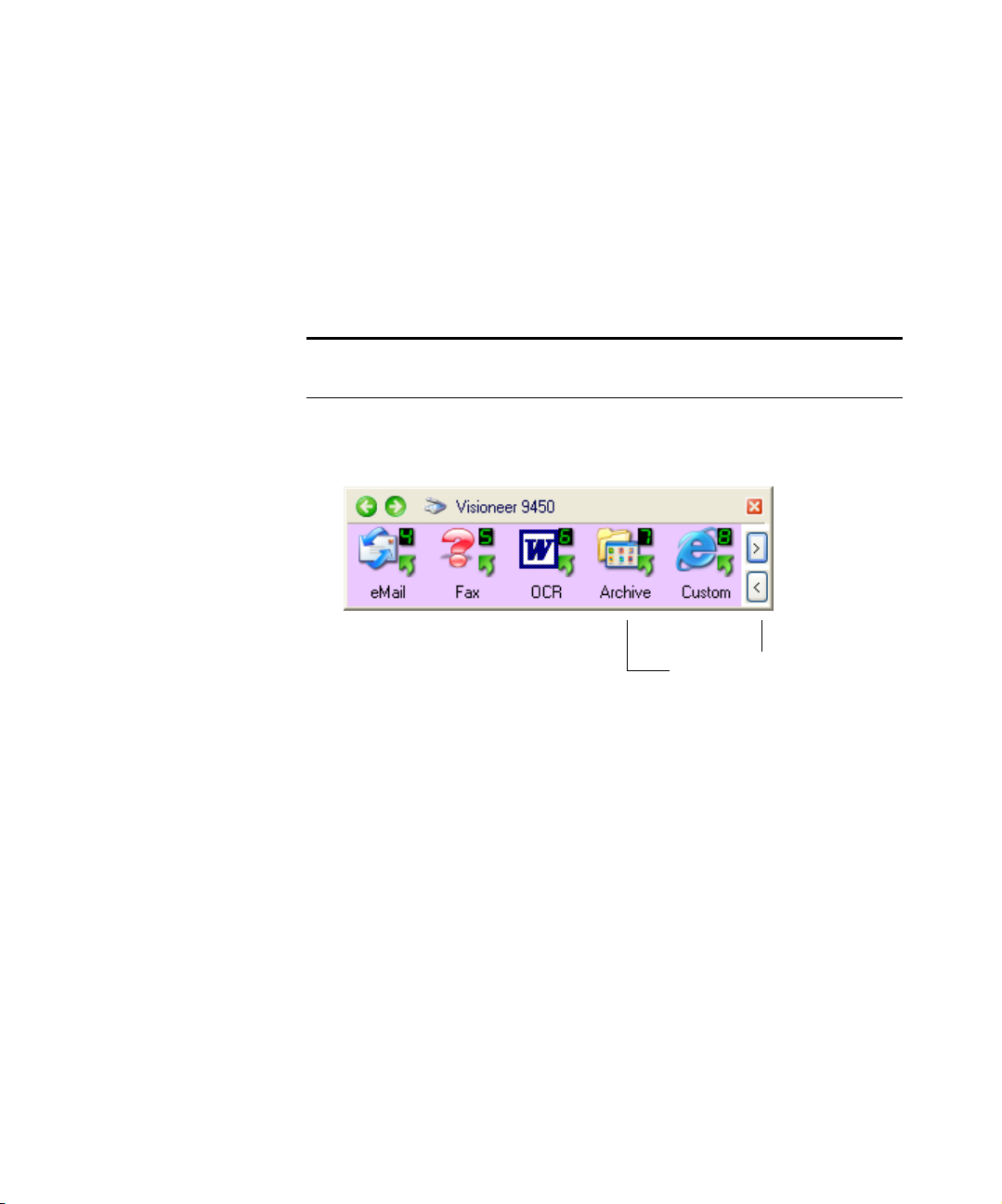
84 VISIONEER 9450 SCANNER USER’S GUIDE
TRANSFERRING SCANNED DOCUMENTS TO STORAGE
With the Transfer to Storage scanning process, you can scan documents
and save them in a folder in one step. The process is ideal for archiving
documents without having to manually save or process them in any
other way. If you choose a text format for the file format, the documents
are also automatically converted by the OCR process into editable text
and numbers before being stored.
Note: OneTouch Button 7 is preset as your Archive button. But you
can also set up any other button to scan to Archive the text.
1. On the OneTouch Panel, click the arrows to see Button 7, then
click Button 7.
Click the arrows until Button 7
is on the panel, then click it.
Page 92

CONFIGURING THE ONETOUCH BUTTONS 85
Your scanned pages are stored in the location that you specified on
the OneTouch 4.0 Link Properties window.
Your scanned documents
will be stored at this location.
To Use OCR Before Transferring to Storage
If the documents you want to transfer to storage are text documents or
spreadsheets, you can have them converted by the OCR process prior to
being stored.
1. Open the OneTouch Properties window.
2. Using the arrows, choose Button 7 (Archive), or any other button if
it is set up with Transfer to Storage as one of its Destination
Applications.
3. Choose a text format as the file format.
4. Choose a Scan Configuration.
5. Click OK.
The OneTouch Properties window closes.
Page 93

86 VISIONEER 9450 SCANNER USER’S GUIDE
6. Now start scanning using Button 7 (or other button you set up for
archiving).
When scanning is finished, the documents are saved in the text file
format and in the location you specified.
TO TRANSFER DOCUMENTS TO A SERVER OR MAPPED DRIVE
When selecting the storage location for scanned documents, you can
select a local folder, or a folder on a server or mapped drive.You select a
mapped drive using the Browse button.
1. See “Scanning to Multiple Folders” on page 70 or “Transferring
Scanned Documents to Storage” on page 84 for the steps to select
the Transfer to Storage options.
2. On either the OneTouch 4.0 Link Properties window, or from the
Scan Configuration Properties window, click the Browse button.
The Browse For Folder window opens.
Page 94

CONFIGURING THE ONETOUCH BUTTONS 87
3. Select a storage location on the mapped drive or server for the
scanned documents.
Servers and mapped drives are represented by an icon that indicates
its network connection.
Select a mapped drive or
server as indicated by the
icon.
4. Click OK.
Now when you scan using Transfer to Storage as the Destination
Application, the documents are stored on the server or mapped
drive.
Page 95

88 VISIONEER 9450 SCANNER USER’S GUIDE
CHECKING THE HARDWARE AND SETTING THE LAMP POWER SAVING
1. Right-click on the OneTouch icon and choose Show Hardware
from the pop-up menu.
You can also click the scanner icon at the top of the OneTouch
Button Panel.
The Hardware icon
If the Hardware View of the panel is open you can also right-click
on the 9450 icon.
Page 96

CONFIGURING THE ONETOUCH BUTTONS 89
The Hardware Properties dialog box opens and shows information
about your Visioneer 9450 scanner.
2. Click the Properties button.
Page 97

90 VISIONEER 9450 SCANNER USER’S GUIDE
Your scanner has a built-in power saving feature that is set to power
down after 15 minutes of idle time. You can change the time before
the scanner powers down, from 10 minutes to a maximum of 10
hours.
3. Click the arrows for the Lamp timeout setting and choose a time.
To turn the lamp on and off manually without turning off power to
the scanner, click the Lamp On or Lamp Off buttons.
To return the scanner to its factory settings, click Reset Device.
4. Click OK to save the changes and close the dialog box.
Page 98

CONFIGURING THE ONETOUCH BUTTONS 91
Scanning from the TWAIN Interface
Instead of using the OneTouch Button Panel to scan, you can scan from
the TWAIN interface. The PaperPort application that you received with
your scanner uses the TWAIN interface for scanning. This scanning
method is particularly helpful when you’re using PaperPort to file and
save scanned items, or if you want to adjust scanning settings prior to
scanning.
A Note About Your Scanner and the TWAIN standard: TWAIN is a
widely recognized standard that computers use to receive images from
scanners, digital cameras, and other digital devices. This guide shows
how to scan with the PaperPort TWAIN interface, but many other
graphics and imaging applications also comply with the TWAIN
standard, so you can use your scanner with those applications too. To
use your scanner with other TWAIN software, please refer to their user
guides.
Note: If the OneTouch configuration you are using to scan is set to
Configure Before Scan, and the selected option is TWAIN, the
TWAIN interface opens right away without opening PaperPort first.
GETTING HELP WITH THE PAPERPORT SOFTWARE
The PaperPort software includes a complete set of help topics that
answer questions about each feature of the software. To open the Help
Topics window, press the F1 key or choose PaperPort Help from the
Help menu.
You can also refer to the PaperPort Getting Started Guide and PaperPort
User’s Guide on the CD.
Page 99

92 VISIONEER 9450 SCANNER USER’S GUIDE
THE TWO TWAIN INTERFACE OPTIONS
When scanning with TWAIN, you have two interface options:
■ Basic Interface—Use the Basic Interface if you don’t need to make
many adjustments to the image before scanning. You can adjust
brightness, contrast, resolution, page size and picture type. You can
also choose to scan from the ADF or Flatbed. See “Scanning from the
TWAIN Basic Interface” on page 96.
■ Advanced Interface—The Advanced Interface includes all the
settings of the Basic Interface, plus a wide range of more advanced
settings, such as color saturation, gamma, and hue. See “Scanning
from the TWAIN Advanced Interface” on page 100.
The Basic Interface has the settings for
scanning typical documents.
To switch between the Basic and Advanced Interfaces, click the Basic
Interface or Advanced Interface button.
The Advanced Interface has all the
scan settings of the Basic Interface,
plus a range of additional settings for
more advanced image adjustment.
Page 100
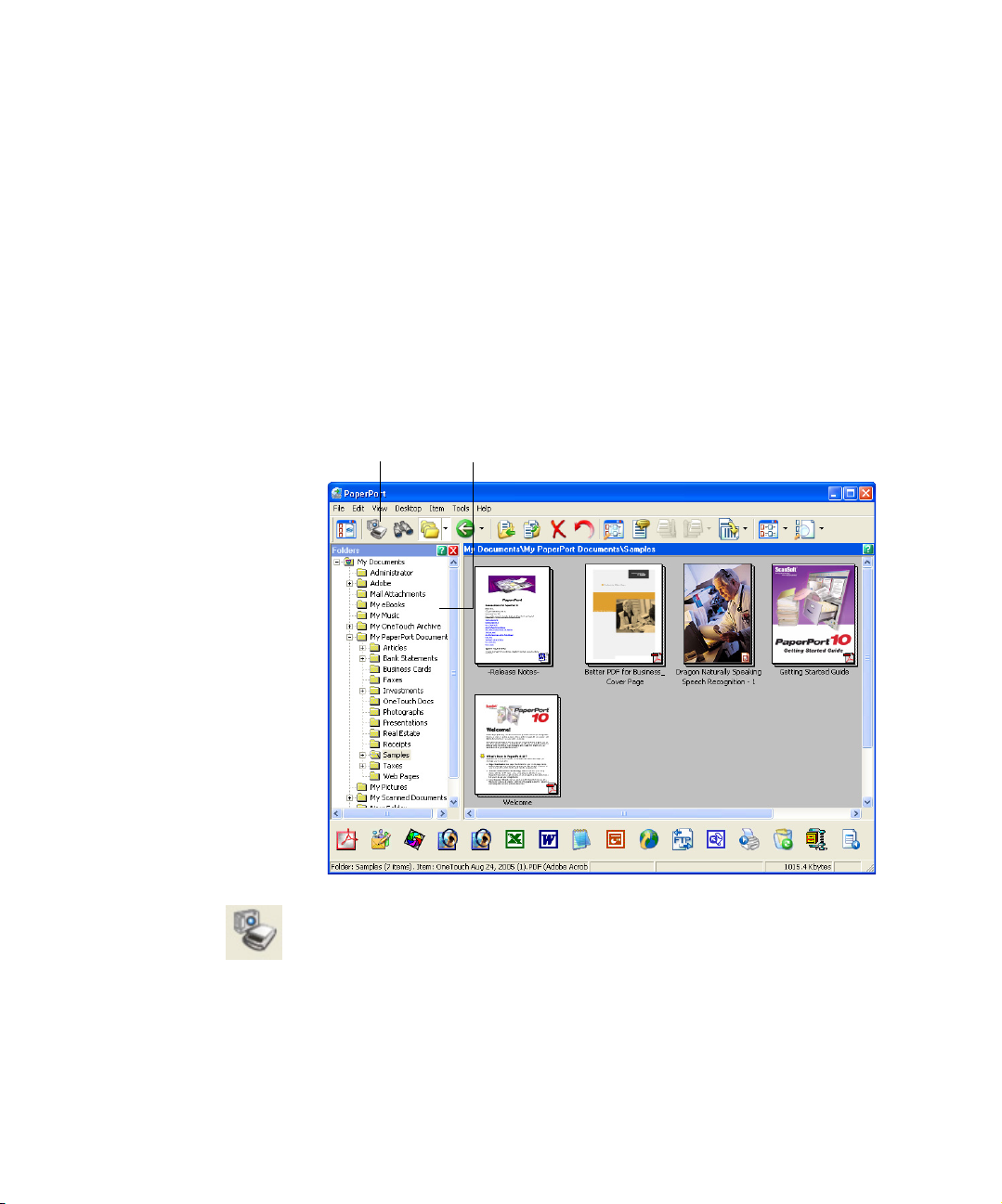
SCANNING WITH THE TWAIN INTERFACE FROM PAPERPORT 93
SCANNING WITH THE TWAIN INTERFACE FROM
APERPORT
P
The instructions in this section are for scanning with the TWAIN
interface in the PaperPort application.
To scan an item in PaperPort using the TWAIN interface:
1. On the Windows taskbar, click Start, point to Programs, point to
ScanSoft PaperPort, then click PaperPort.
The PaperPort desktop opens.
Scan icon Folders pane
2. Click the Scan icon on the PaperPort command bar.
 Loading...