

Page 1
VSB050 (EZC-5201BS)
USB Wireless Adapter
User Guide
IMPORTANT: Please read this User Guide to obtain important information on installing and using your product in
a safe manner, as well as registering your product for future service. Warranty information contained in this User
Guide will describe your limited coverage from ViewSonic® Corporation, which is also found on our web site at
http://www.viewsonic.com in English, or in specific languages using the Regional selection box in the upper right
corner of our website. “Antes de operar su equipo lea cu idadosamente las instrucciones en este manual”
Model No. VS18141
P/N: VSB050
Page 2

Thank you for choosing ViewSonic®
As a world-leading provider of visual solutions, ViewSonic® is dedicated to exceeding
the world’s expectations for technological evolution, innovation, and simplicity.
At ViewSonic®, we believe that our products have the potential to make a positive
impact in the world, and we are confident that the ViewSonic® product you have
chosen will serve you well.
Once again, thank you for choosing ViewSonic®!
2
Page 3

Contents
Scope ...................................................................................4
1.1 Document .........................................................................................................4
1.2 Product Feature ................................................................................................ 4
Requirements .......................................................................5
2.1 Hardware Specification.....................................................................................5
2.1.1 Block Diagram................................................................................................. 5
2.1.2 Hardware Interface ........................................................................................ 5
2.1.3 Electrical Characteristic .................................................................................. 5
2.1.4 Wireless Specifications ................................................................................... 6
2.2 Mechanical Requirements ................................................................................ 6
2.3 Environmental Requirements ........................................................................... 6
2.4 Certification Requirements ...............................................................................6
Introduction .........................................................................7
3.1 Windows 10 ...................................................................................................... 8
3.2 Windows 8 / 7 / XP ...........................................................................................8
3.3 MacOS ..............................................................................................................9
3.4 Android OS ......................................................................................................10
Product informations............................................................................................15
Regulatory and Service Information ................................... 16
Please read before proceeding ............................................................................. 16
Compliance Information ....................................................................................... 16
FCC Compliance Statement ................................................................................... 16
FCC Radiation Exposure Statement ....................................................................... 17
CE Conformity for European Countries ................................................................. 17
European Union Regulatory Conformance ........................................................... 17
IC Warning Statement ........................................................................................... 18
Country Code Statement ....................................................................................... 18
For MPE Statement – Mobile device ..................................................................... 18
IMPORTANT NOTE: ................................................................................................ 18
IC Radiation Exposure Statement: ......................................................................... 18
Declaration of RoHS2 Compliance......................................................................... 19
Product Disposal at End of Product Life ................................................................ 19
Copyright Information ..........................................................................................20
Customer Service .................................................................................................. 21
Limited Warranty .................................................................................................. 22
Mexico Limited Warranty ...................................................................................... 25
3
Page 4

Scope
1.1 Document
This document provides an overview of the requirements for the VSB050. The
VSB050 is a USB Wireless adaptor, that supports both Wi-Fi 2.4G, 5G and Bluetooth
4.2 to add Wi-Fi, Bluetooth functionally to your laptops, desktop and Mac.
1.2 Product Feature
• Wireless Interface:
2.4GHz
- Complies IEEE 802.11b/g/n specification
- Supports 20/40MHz, up to 150Mbps data rate.
5GHz
- Complies IEEE 802.11a/n/ac specification
- Supports 20/40/80MHz, up to 433Mbps data rate.
• Wireless Security
- 64/128-bit WEP
- WPA/WPA2
- WPA-PSK/WPA2-PSK
• Bluetooth v4.2 (Windows only)
-SupportsBluetoothv4.2+HS,BLEandcompa俿blewithBluetooth1.2,2.x+.
- Supports Bluetooth for class1 and class2 power level transmissions.
• Supported Wi-Fi hotspot (Windows only)
4
Page 5
Requirements
The following sections identify the detailed requirements of the VSB050.
2.1 Hardware Specica⿿on
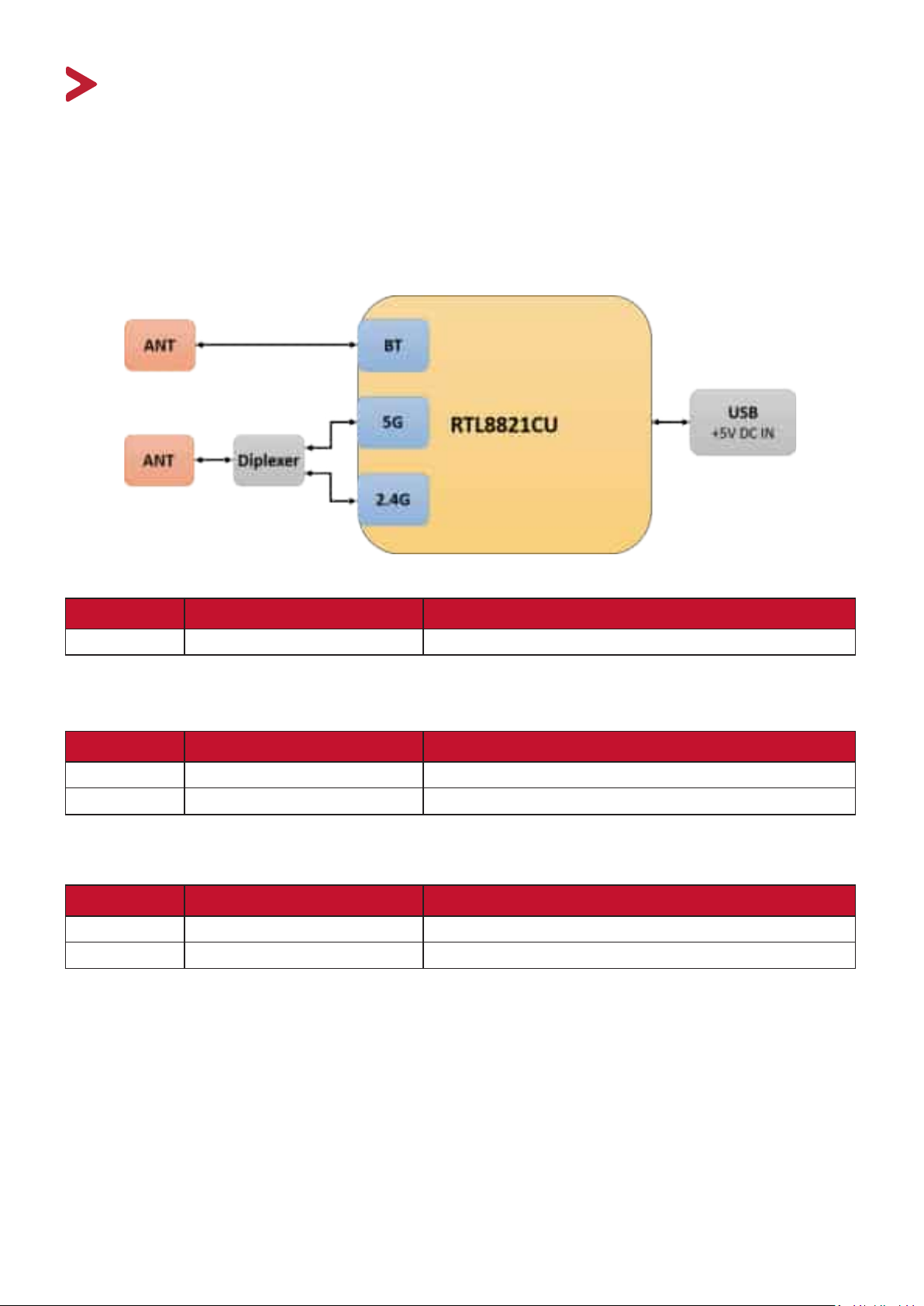
2.1.1 Block Diagram
Hardware Component Detailed Descrip⿿on
2.1.1.1 Chipset RTL8821CU
2.1.2 Hardware Interface
Feature Detailed Descrip⿿on
2.1.2.1 USB Interface USB2.0
2.1.2.2 LED 1 LED for system indicate
2.1.3 Electrical Characteris⿿c
Feature Detailed Descrip⿿on
2.1.3.1 Power Input DC 5V/1A
2.1.3.2 PowerConsump俿on 5W
5
Page 6
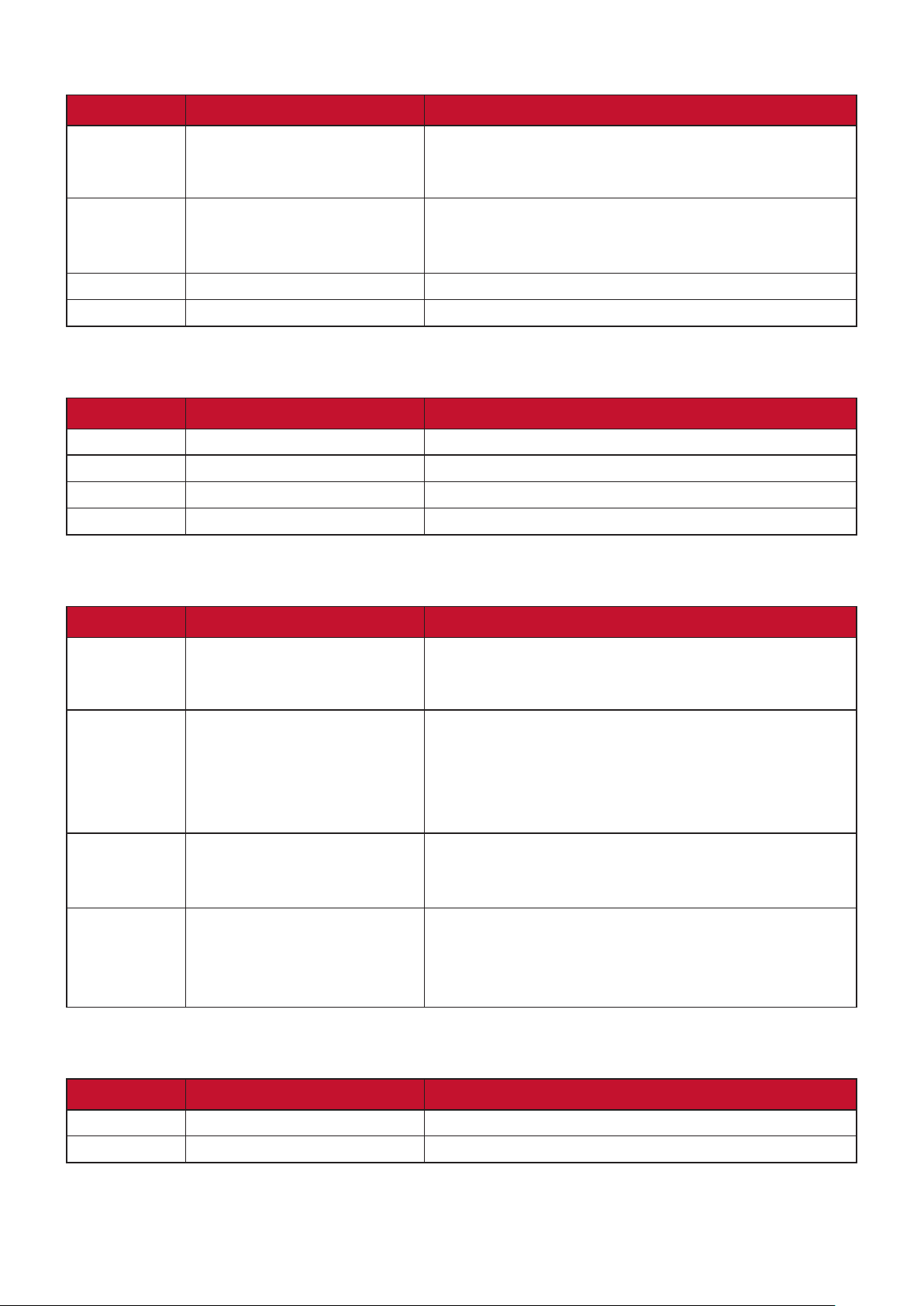
2.1.4 Wireless Specica⿿ons
Feature Detailed Descrip⿿on
2.1.4.1 Wi-Fi interface
(2.4GHz)
2.1.4.2 Wi-Fi interface
(5GHz)
2.1.4.3 Bluetooth Bluetooth v4.2+HS, BLE
2.1.4.4 Security Open/WEP/WPA/WPA2
Compa俿blewithIEEE802.11bspecica俿on
Compa俿blewithIEEE802.11gspecica俿on
Compa俿blewithIEEE802.11nspecica俿on
Compa俿blewithIEEE802.11acspecica俿on
Compa俿blewithIEEE802.11nspecica俿on
Compa俿blewithIEEE802.11aspecica俿on
2.2 Mechanical Requirements
Feature Detailed Descrip⿿on
2.2.1 Length 33.3mm
2.2.2 Width 20mm
2.2.3 Height 8.8mm
2.2.4 Weight 4.2g
2.3 Environmental Requirements
Feature Detailed Descrip⿿on
2.3.1 Opera俿ngTemperature
Condi俿ons
2.3.2 Non-Opera俿ng
TemperatureCondi俿ons
2.3.3 Opera俿ngHumidity
condi俿ons
2.3.4 Non-Opera俿ngHumidity
Condi俿ons
Theproductiscapableofcon俿nuousreliable
opera俿onwhenopera俿nginambienttemperature
of 0 ℃ to +40℃.
Neither subassemblies is damaged nor the
opera俿onalperformancebedegradedwhen
restoredtotheopera俿ngtemperaturea㿿er
exposing to storage temperature in the range of
-20 ℃ to +70 ℃.
Theproductiscapableofcon俿nuousreliable
opera俿onwhensubjectedtorela俿vehumidityin
the range of 10% and 90% non-condensing.
The product is not be damaged nor the
performancebedegradeda㿿erexposureto
rela俿vehumidityrangingfrom5%to90%non-
condensing.
2.4 Cer⿿ca⿿on Requirements
Feature Detailed Descrip⿿on
2.4.1 EMC/Safety FCC, CE, NCC, MIC
2.4.2 Other RoHS
6
Page 7
Introduc⿿on
Introduction
Introduction
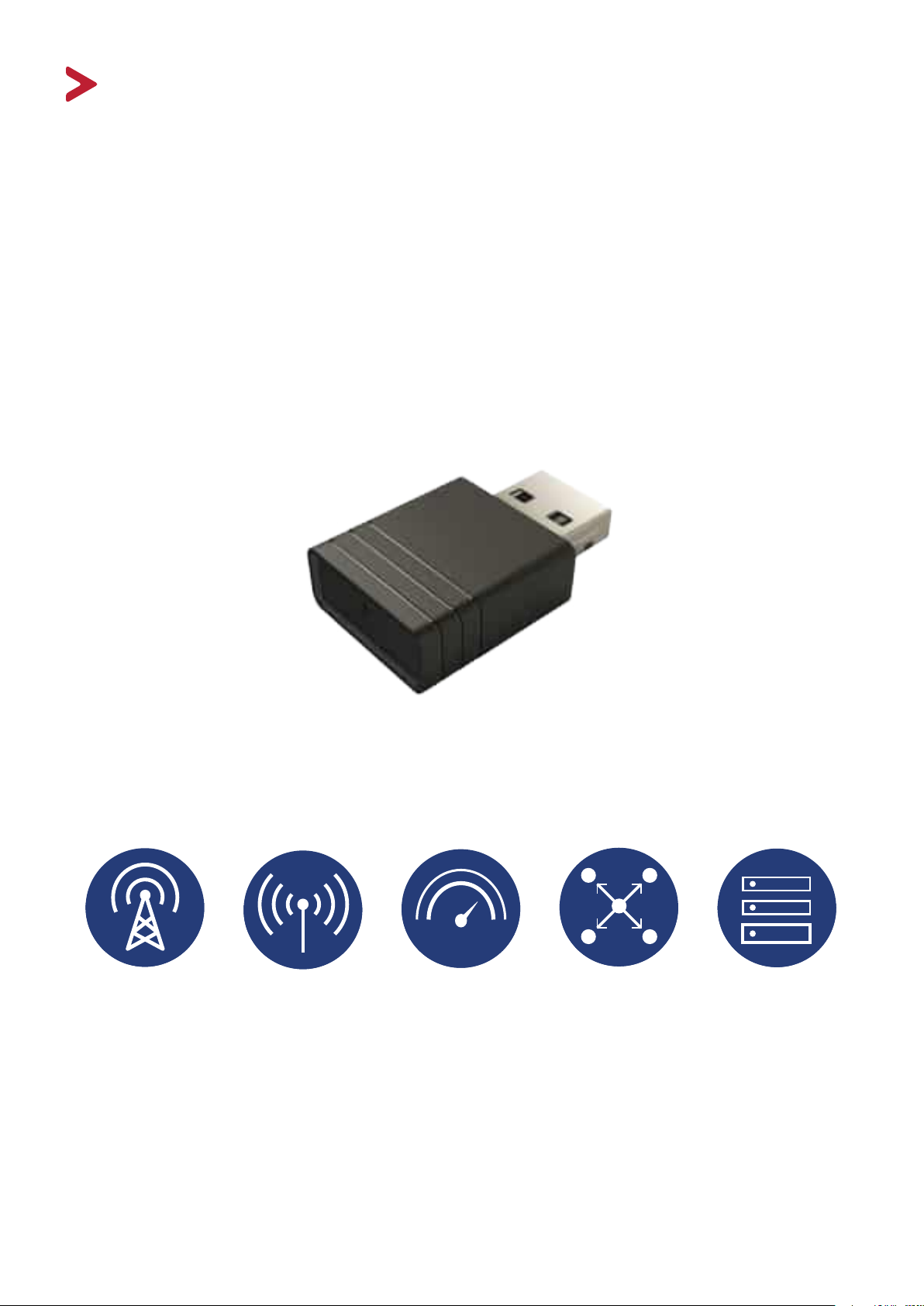
VSB050 (EZC-5201BS) is a USB Wireless Adapter that supports both 2.4G and 5G
toaddWi-Fifunctionalitytoyourlaptopsandprojectors.Furthermore,it’sable
to turn ethernet into wireless router that shares Wi-Fi for other devices. The
Bluetooth transmitter and receiver attached in VSB050 (EZC-5201BS) allow your
PCtoconnecttoBluetoothdeviceswirelessly.Enjoyyoursmartwirelesslifewith
VSB050 (EZC-5201BS)!
Wider
Coverage
Hot
Spot
High
Speed
7
Good
MU-MIMO
Compa俿bility
Page 8
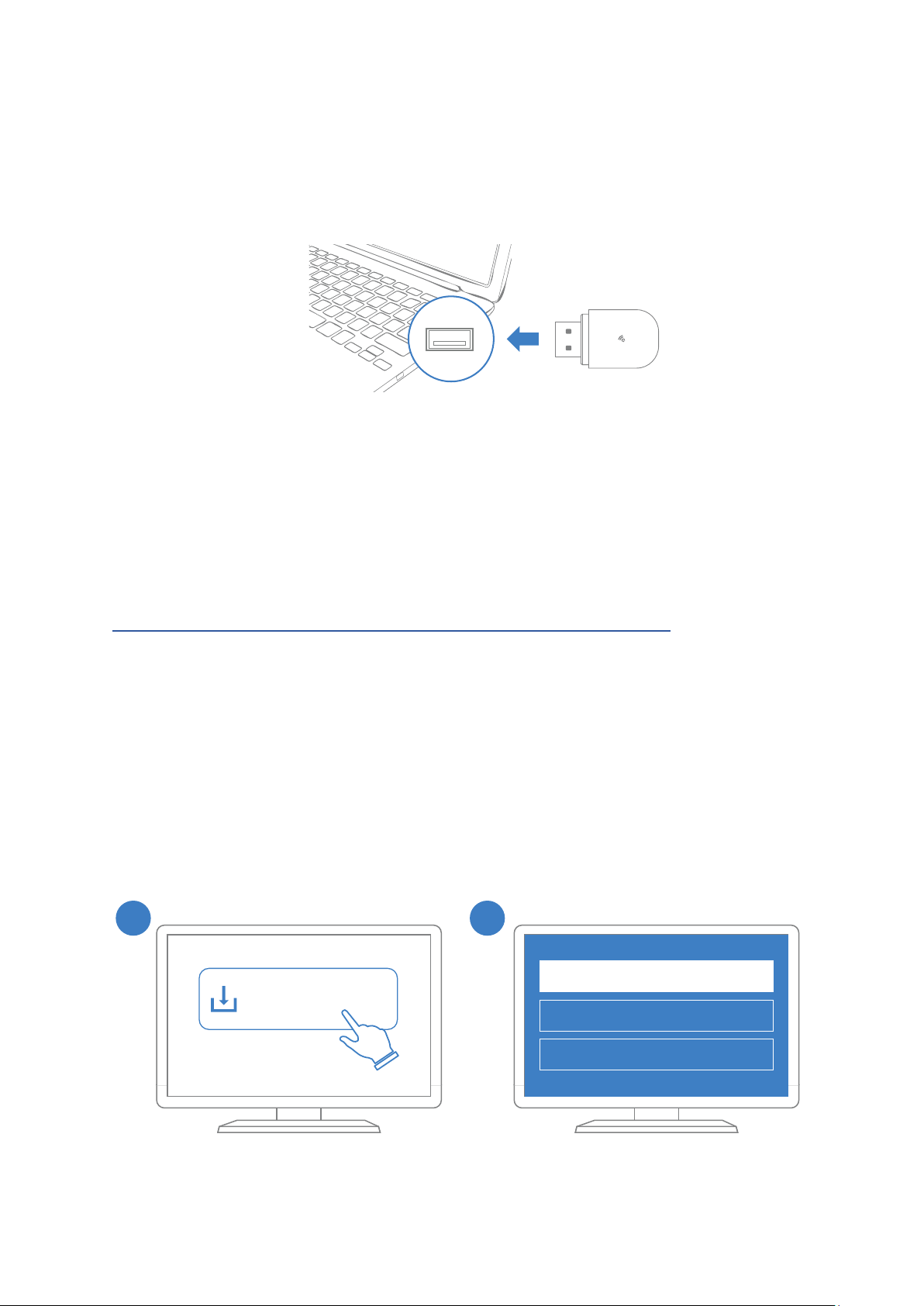
3.1 Windows 10
The driver shall be installed automatically once the EZC-5201
USB is plugged in. Windows 10 supports wifi and bluetooth
driver of EZC-5201.
Tips: If the driver failed to
install automatically, please
try to install it manually.
(Please refer to Windows
8/7/XP installation method)
Windows 10
1. Find the driver from EZC-5201 internal memory or download
it at www.ezcast.com. Double click “Installer.exe.”
2. Run the installation of wifi driver.
For bluetooth, please run the installation of bluetooth driver
with internet connection.
Windows 8 / 7 / XP
The driver shall be installed automatically once the EZC-5201
USB is plugged in. Windows 10 supports wifi and bluetooth
driver of EZC-5201.
Tips: If the driver failed to
install automatically, please
try to install it manually.
(Please refer to Windows
8/7/XP installation method)
Note: Windows XP does NOT support the bluetooth
driver of EZC-5201.
Windows 10
EZCa
st
The driver shall be installed automatically once the VSB050 (EZC-5201BS) USB is
plugged in. Windows 10 supports Wi-Fi and Bluetooth driver of VSB050
(EZC-5201BS).
EZCa
st
NOTE: If the driver failed to install automatically, please try to install it
manually. (Please refer to Windows 8/7/XP installation method)
3.2 Windows 8 / 7 / XP
1. Find the driver from VSB050 (EZC-5201BS) internal memory or download it
at h忿ps://www.ezcast.com/app/ezcast/wi-adapter/windows Double click
“Installer.exe.”
2. Run the installa⿿on of Wi-Fi driver.
For Bluetooth, please run the installation of Bluetooth driver with internet
connection.
NOTE: Windows XP does NOT support the Bluetooth driver of VSB050 (EZC-
5201BS).
1 2
install wifi driver
Installer.exe
install bluetooth driver
enable hotspot and windowsRX
8
2
Page 9
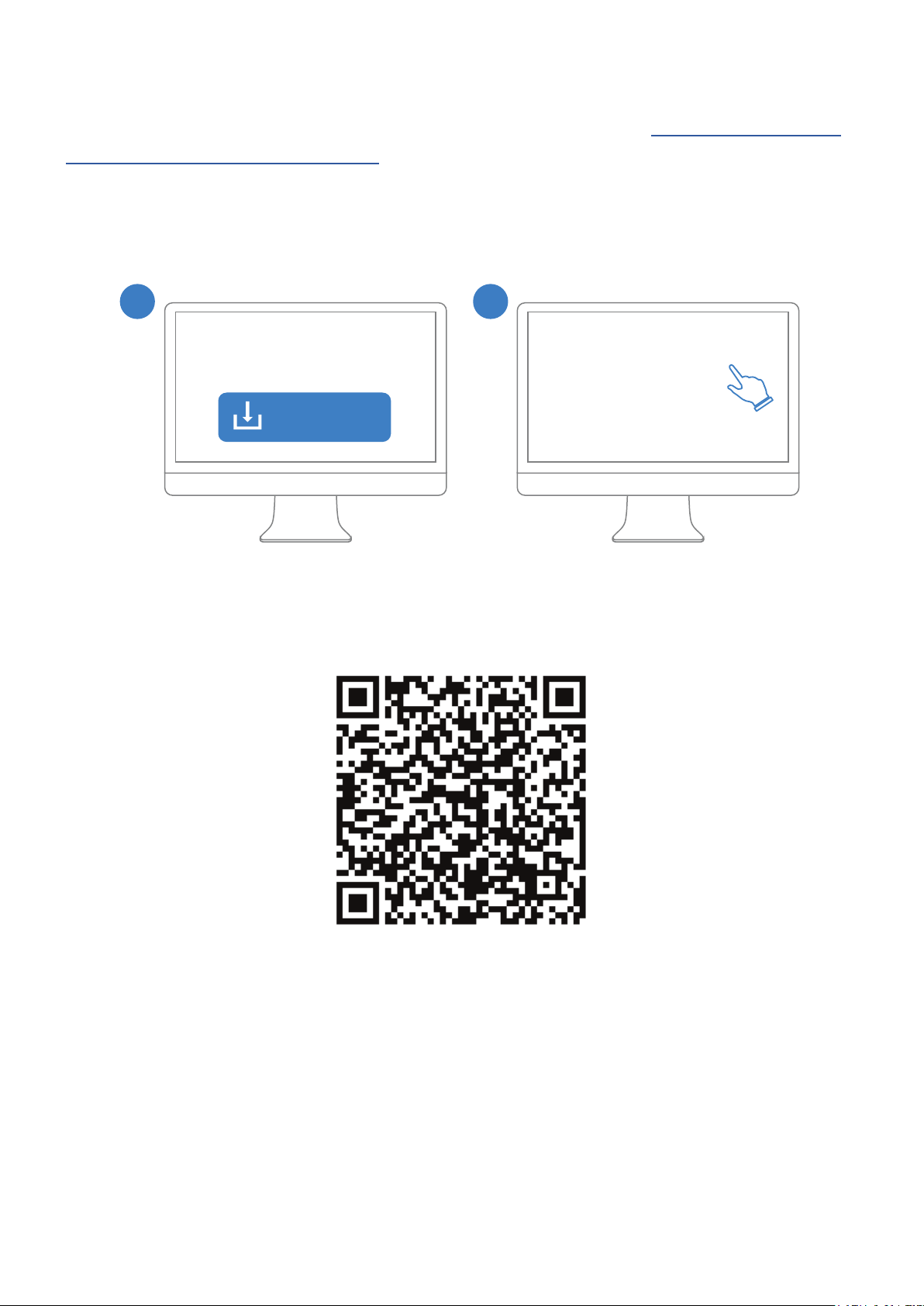
3.3 MacOS
MacOS
Note: MacOS does NOT support the bluetooth driver of
EZC-5201.
The wifi driver shall be installed manually from our website:
https://www.ezcast.com/app/ezcast/ezc-5200/macos
(please select EZC-5200 for EZC-5201)
Scan the QRcode for more information
MacOS
EZC-5200 Mac OS Wi-Fi
Driver Download
Download
1 2
Uninstaller.pkg
Installer.pkg
Release_RTWlanU_
Note: MacOS does NOT support the bluetooth driver of
EZC-5201.
The wifi driver shall be installed manually from our website:
https://www.ezcast.com/app/ezcast/ezc-5200/macos
(please select EZC-5200 for EZC-5201)
The Wi-Fi driver shall be installed manually from our website: h忿ps://www.ezcast.
com/app/ezcast/ezc-5200/macos (please select EZC-5200 for VSB050 (EZC-5201BS)
NOTE: MacOS does NOT support the Bluetooth driver of VSB050 (EZC-5201BS).
1 2
EZC-5201BS Mac OS Wi-Fi
EZC-5200 Mac OS Wi-Fi
Driver Download
Download
Installer.pkg
Uninstaller.pkg
Release_RTWlanU_
Scan the QRcode for more information
9
Page 10
3.4 Android OS
Compa⿿ble Devices
VSB050 supports ViewSonic Android devices, but driver needs to be pre-installed
in system by ViewSonic and supported devices listed as below. The list will be
updated as upcoming new models become available.
• IFP30 series
• IFP50-2 series
• IFP50-3 series
• IFP50-4 series
• IFP70 series
• myViewBoard Box
• myViewBoard Mouse
• CDE20 series
• EP5542T
NOTE: VSB050 only supports Android 7 or above devices, so **couldn’t support
CDE10 series.
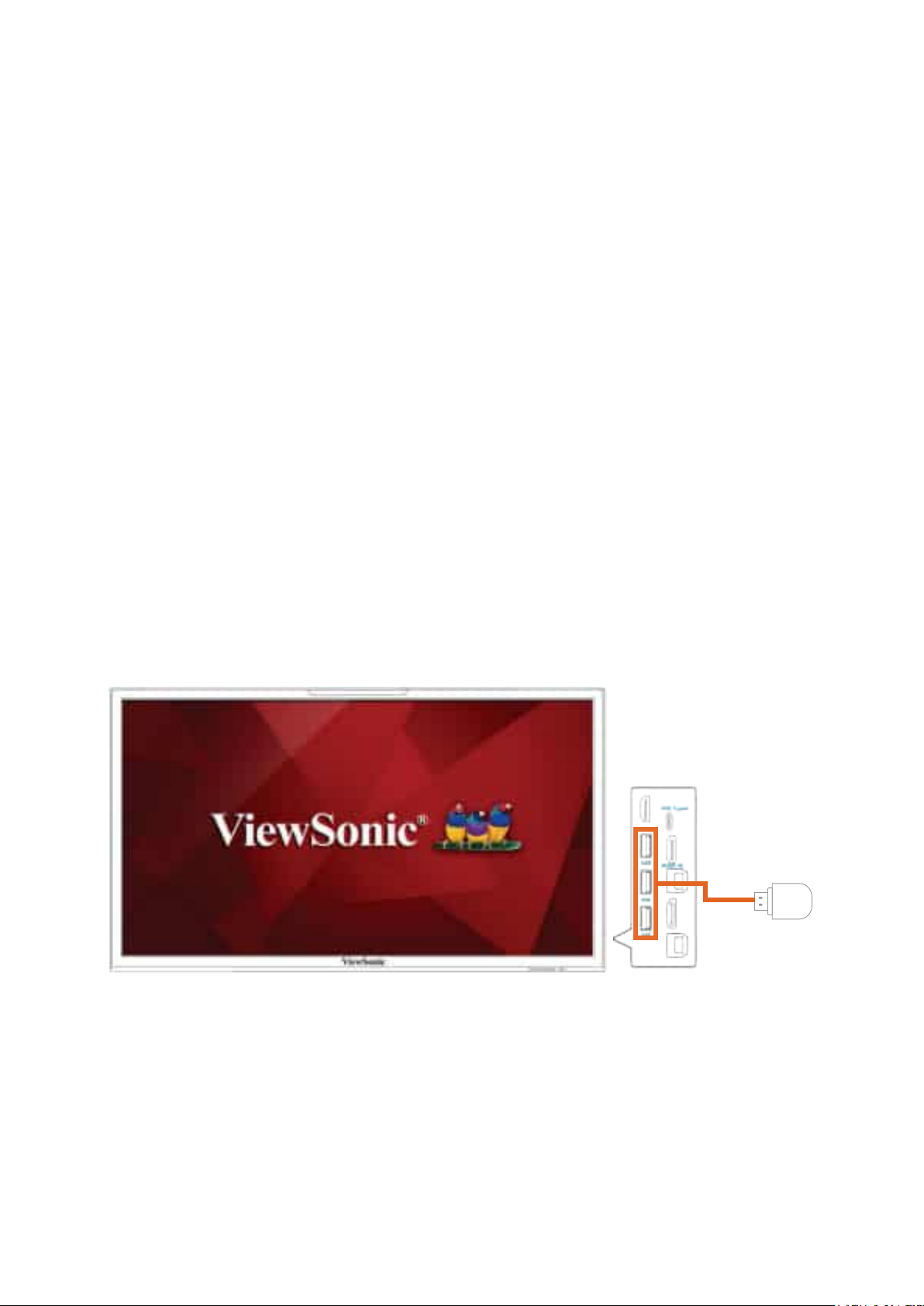
Enable Wireless & Network Se㿿ngs
1. Plug VSB050 USB dongle into the USB port of ViewSonic Android Device.
NOTE: To make sure VSB050 dongle works properly, update the latest version of
so㿿wareavailableforyourandroiddevice.
10
Page 11
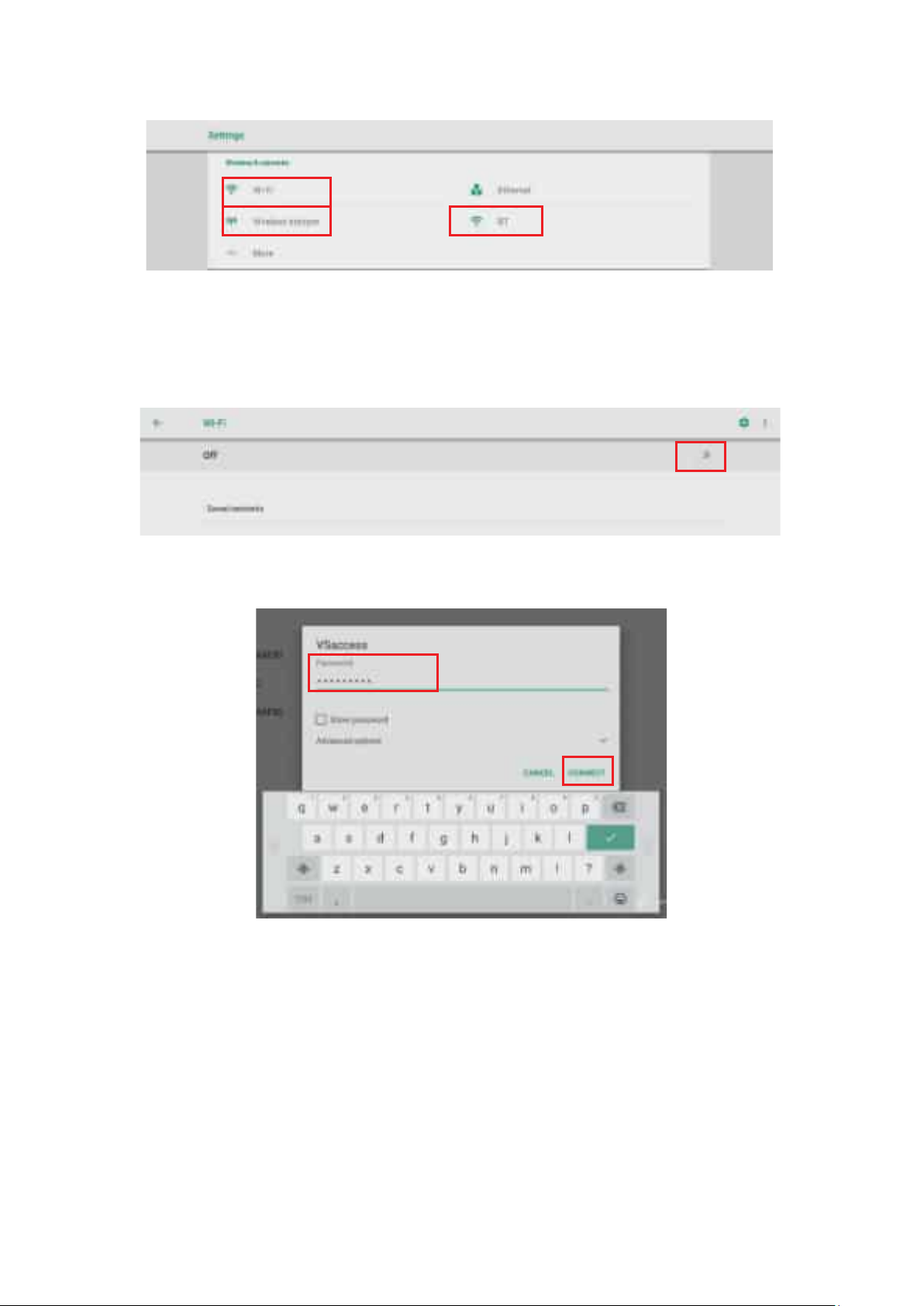
2. WhenVSB050USBdongleisplugged-in,Wi-Fi,Wi-FiHotspot,andBTse濿ngswill
appearunderSe濿ngs/Wireless&Networksmenu.
Connect to a Wi-Fi network
a. GotoSe濿ngs>Wireless&networks>Wi-Fi>tapthetogglebu忿ontoturnon
Wi-Fi.
b. Tap one network from the available Wi-Fi network list then input the password
and tap Connectbu忿on.
11
Page 12
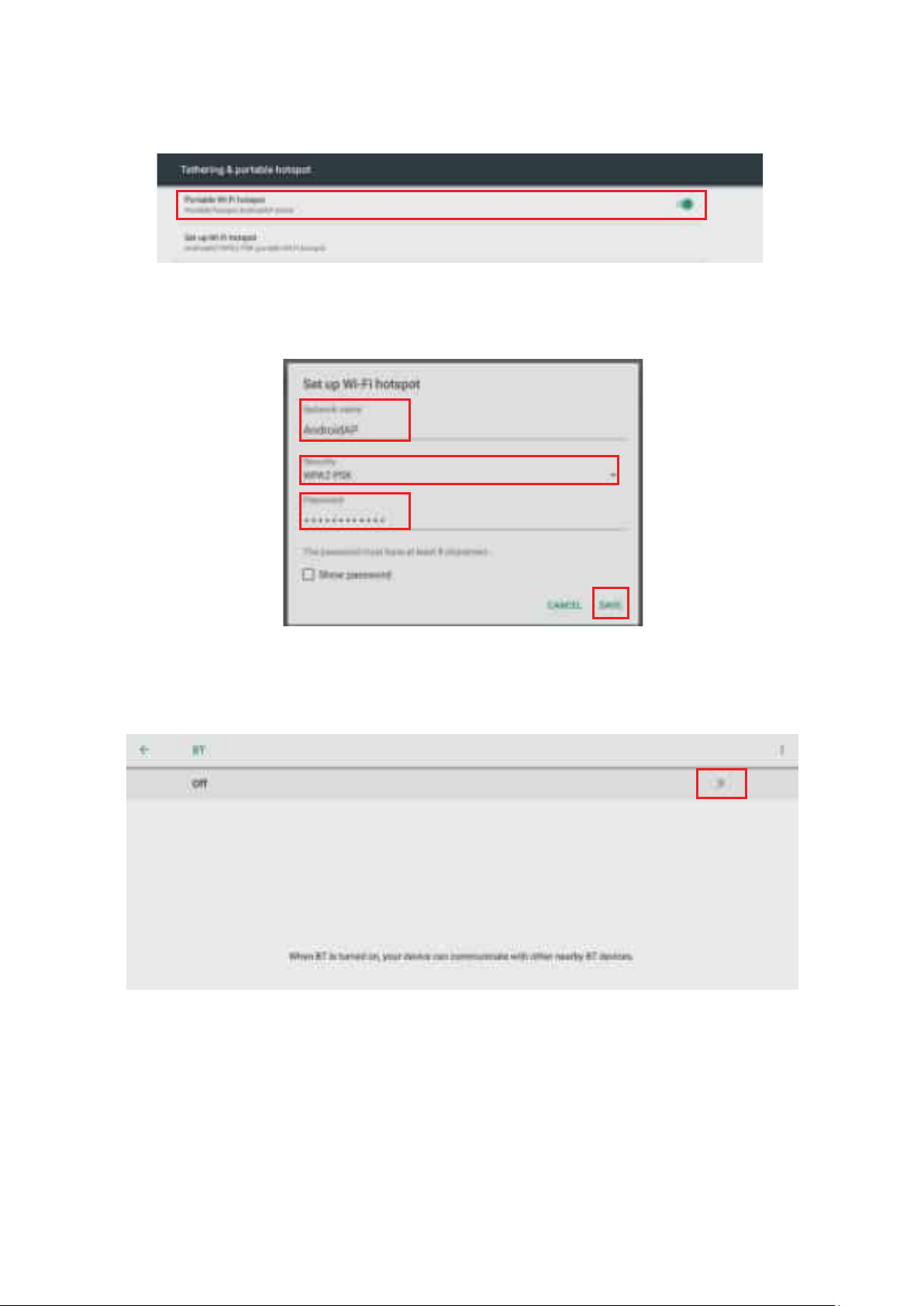
Share Data Network through Wi-Fi Hotspot
a. GotoSe濿ngs>Wireless&networks>Wirelesshotspot>taptogglebu忿onto
turn on Portable Wi-Fi hotspot.
b. When other devices try to connect the hotspot, users are required to input the
password. Tap Set up Wi-Fi hotspot to change the network name, security type,
and password and tap Savebu忿on.
Connect to a BT device
a. GotoSe濿ngs>Wireless&networks>BT>Tapthetogglebu忿ontoturnon
Bluetooth.
12
Page 13
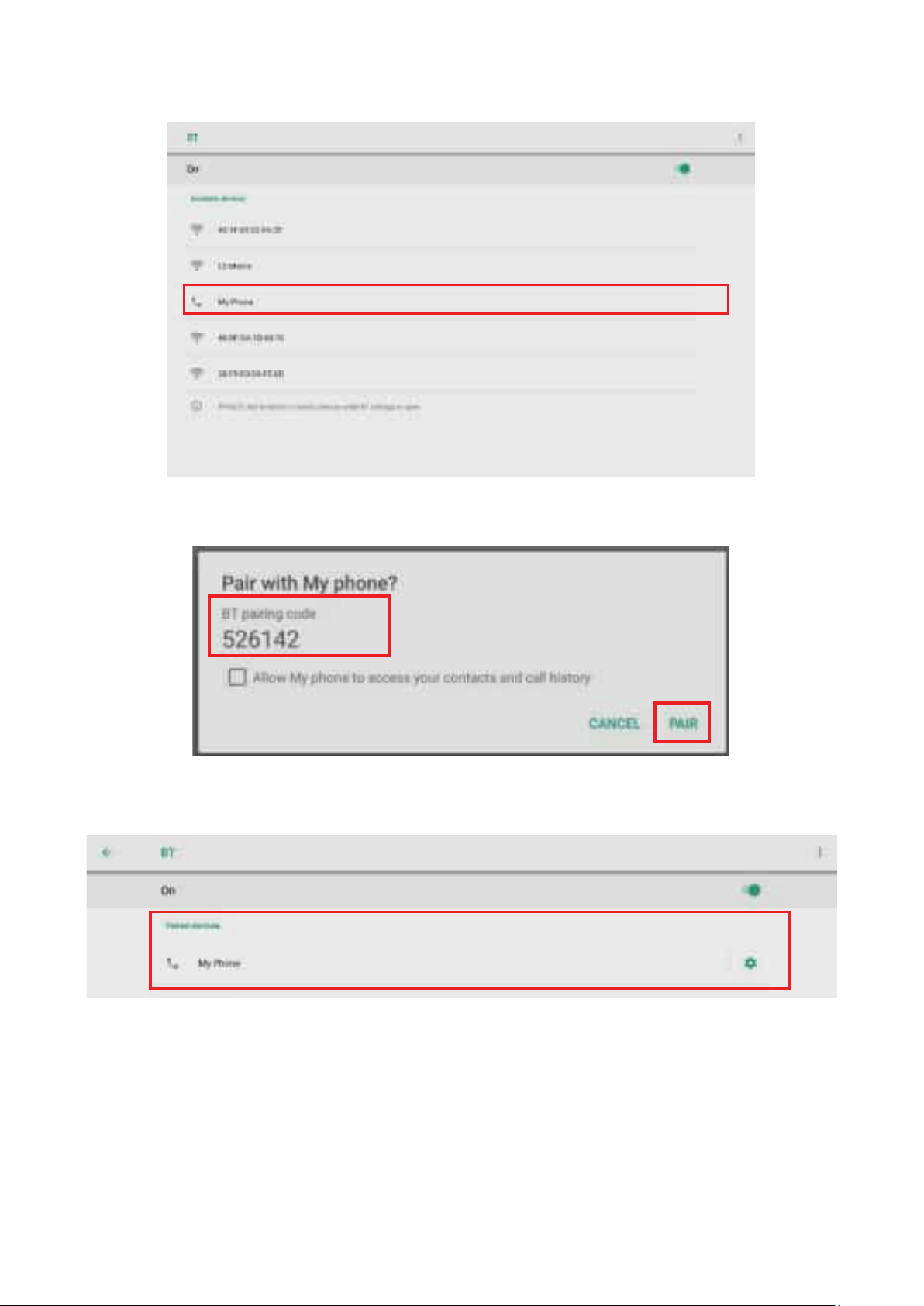
b. When Bluetooth is enabled, a list of available Bluetooth devices will appear. Tap
a device to select it.
c. A paring request message will appear on both Android device and the requested
device with the same BT paring code. Tap on PAIR to pair with the device.
d. When the Android device paired with the other device, the device name will
appear in the Paired devices list.
13
Page 14

©2019 Actions Microelectronics Co., Ltd. All right reserved. EZCast are trademarks
of Actions Microelectronic Co., Ltd., registered in US, Europe, and other countries.
Other product and company names mentioned herein may be trademarks other
respective companies.
FCC STATEMENT
1.ThisdevicecomplieswithPart15oftheFCCRules.Operationissubjecttothe
following two conditions:
(1) This device may not cause harmful interference.
(2) This device must accept any interference received, including
interference that may cause undesired operation.
2. Changes or modifications not expressly approved by the party responsible for
compliance could void the user’s authority to operate the equipment.
NOTE: This equipment has been tested and found to comply with the limits
for a Class B digital device, pursuant to Part 15 of the FCC Rules. These
limits are designed to provide reasonable protection against harmful
interference in a residential installation.
NOTE: This equipment generates uses and can radiate radio frequency energy
and, if not installed and used in accordance with the instructions, may
cause harmful interference to radio communications. However, there is
no guarantee that interference will not occur in a particular installation.
If this equipment does cause harmful interference to radio or television
reception, which can be determined by turning the equipment off and
on, the user is encouraged to try to correct the interference by one
or more of the following measures: Reorient or relocate the receiving
antenna. Increase the separation between the equipment and receiver.
NOTE: Connect the equipment into an outlet on a circuit different from that to
which the receiver is connected. Consult the dealer or an experienced
radio/TV technician for help.
FCC Radiation Exposure Statement
This equipment complies with FCC radiation exposure limits set forth for an
uncontrolled environment. This equipment should be installed and operated with
minimumdistance20cmbetweentheradiator&yourbody
14
Page 15

Product informa⿿ons
Transmission 600Mbps
Antenna Onboard
Standard IEEE 802.11b/g/n/a/ac
Driver Autoinstalla俿on
Interface USB 2.0
Bluetooth Bluetooth 4.2
15
Page 16

Regulatory and Service Informa⿿on
Please read before proceeding
• Do not store your device in temperatures higher than 50°C (122°F).
• Theopera俿ngtemperatureforthisdeviceisfrom0°C(32°F)to35°C(95°F).
Compliance Informa⿿on
Thissec俿onaddressesallconnectedrequirementsandstatementsregarding
regula俿ons.Conrmedcorrespondingapplica俿onsshallrefertonameplatelabels
and relevant markings on the unit.
FCC Compliance Statement
Thisdevicecomplieswithpart15ofFCCRules.Opera俿onissubjecttothefollowing
twocondi俿ons:(1)thisdevicemaynotcauseharmfulinterference,and(2)this
device must accept any interference received, including interference that may
causeundesiredopera俿on.Thisequipmenthasbeentestedandfoundtocomply
with the limits for a Class B digital device, pursuant to part 15 of the FCC Rules.
Theselimitsaredesignedtoprovidereasonableprotec俿onagainstharmful
interferenceinaresiden俿alinstalla俿on.Thisequipmentgenerates,uses,and
can radiate radio frequency energy, and if not installed and used in accordance
withtheinstruc俿ons,maycauseharmfulinterferencetoradiocommunica俿ons.
However,thereisnoguaranteethatinterferencewillnotoccurinapar俿cular
installa俿on.Ifthisequipmentdoescauseharmfulinterferencetoradioortelevision
recep俿on,whichcanbedeterminedbyturningtheequipmento�andon,theuser
is encouraged to try to correct the interference by one or more of the following
measures:
• Reorient or relocate the receiving antenna.
• Increasethesepara俿onbetweentheequipmentandreceiver.
• Connecttheequipmentintoanoutletonacircuitdi�erentfromthattowhich
the receiver is connected.
• Consult the dealer or an experienced radio/TV technician for help.
Changesormodica俿onsnotexpresslyapprovedbythepartyresponsiblefor
compliance could void the user’s authority to operate the equipment.
Theantenna(s)usedforthistransmi忿ermustnotbecollocatedoropera俿ngin
conjunc俿onwithanyotherantennaortransmi忿er.
The device was tested and complies to measurement standards and procedures
speciedinFCCCFRTile47Part15SubpartC
16
Page 17
FCC Radia⿿on Exposure Statement
ThisequipmentcomplieswithFCCradia俿onexposurelimitssetforthforan
uncontrolledenvironment.Endusersmustfollowthespecicopera俿nginstruc俿ons
forsa俿sfyingRFexposurecompliance.
Thistransmi忿ermustnotbeco-locatedoropera俿nginconjunc俿onwithanyother
antennaortransmi忿er.Thisequipmentshouldbeinstalledandoperatedwitha
minimumdistanceof20cen俿metersbetweentheradiatorandyourbody.
Theusersmanualorinstruc俿onmanualforaninten俿onaloruninten俿onalradiator
shallcau俿ontheuserthatchangesormodica俿onsnotexpresslyapprovedbythe
party responsible for compliance could void the user’s authority to operate the
equipment.
CE Conformity for European Countries
ThedevicecomplieswiththeEMCDirec俿ve2014/30/EUandLowVoltage
Direc俿ve2014/35/EU.andRadioEquipmentDirec俿ve2014/53/EU.
The following informa⿿on is only for EU-member states:
The mark shown to the right is in compliance with the Waste Electrical
and Electronic Equipment Directive 2012/19/EU (WEEE). The mark
indicates the requirement NOT to dispose of the equipment as unsorted
municipal waste, but use the return and collection systems according to
local law.
If the batteries, accumulators and button cells included with this
equipment, display the chemical symbol Hg, Cd, or Pb, then it means that
the battery has a heavy metal content of more than 0.0005% Mercury, or
more than 0.002% Cadmium, or more than 0.004% Lead.
European Union Regulatory Conformance
The equipment complies with the RF Exposure Requirement 2014/53/EU, Council
Recommenda俿onof16April2014onthelimita俿onofexposureofthegeneral
publictoelectromagne俿celds(0-300GHz).Thisequipmentmeetsthefollowing
conformance standards: EN301489-1, EN301489-17, EN60950-1, EN300328.
We,hereby,declarethatthisWi-Firadioisincompliancewiththeessen俿al
requirementsandotherrelevantprovisionsofDirec俿ve2014/53/EU.
17
Page 18

IC Warning Statement
This device complies with Industry Canada license- exempt RSS standard(s).
Opera俿onissubjecttothefollowingtwocondi俿ons:(1)thisdevicemaynot
cause interference, and (2) this device must accept any interference, including
interferencethatmaycauseundesiredopera俿onofthedevice.
Le présent appareil est conforme aux CNR d’Industrie Canada applicables aux
appareilsradioexemptsdelicence.L’exploita俿onestautoriséeauxdeuxcondi俿ons
suivantes:(1)l’appareilnedoitpasproduiredebrouillage,et(2)l’u俿lisateurde
l’appareil doit accepter tout brouillage radioélectrique subi, méme si le brouillage
estsuscep俿bled’encomprome忿relefonc俿onnement.
Country Code Statement
For product available in the USA/Canada market, only channel 1~11 can be
operated.Selec俿onofotherchannelsisnotpossible.
Pour les produits disponibles aux États-Unis/Canada du marché, seul le canal 1 à 11
peuventêtreexploités.Sélec俿ond’autrescanauxn’estpaspossible.
For MPE Statement – Mobile device
IMPORTANT NOTE:
IC Radia⿿on Exposure Statement:
ThisequipmentcompliedwithICRSS-102radia俿onexposurelimitssetforthfor
an uncontrolled environment. This equipment should be installed and operated
withminimumdistance20cmbetweentheradiator&yourbody.Thedevicefor
theband5150-5825MHzisonlyforindoorusagetoreducepoten俿alforharmful
interference to co-channel mobile satellite systems.
Cetéquipementestconformeauxlimitesd’exposi俿onauxrayonnementsIC
établies pour un environnement non contrôlê. Cet équipement doit être installé
etu俿lizeavecunminimumde20cmdedistanceentrelasourcederayonnement
etvotrecorps.lesdisposi俿fsfonc俿onnantdanslabande5150-5825MHzsont
réservésuniquementpouruneu俿lisa俿onàl’intérieuranderéduirelesrisques
debrouillagepréjudiciableauxsystèmesdesatellitesmobilesu俿lisantlesmêmes
canaux.
18
Page 19
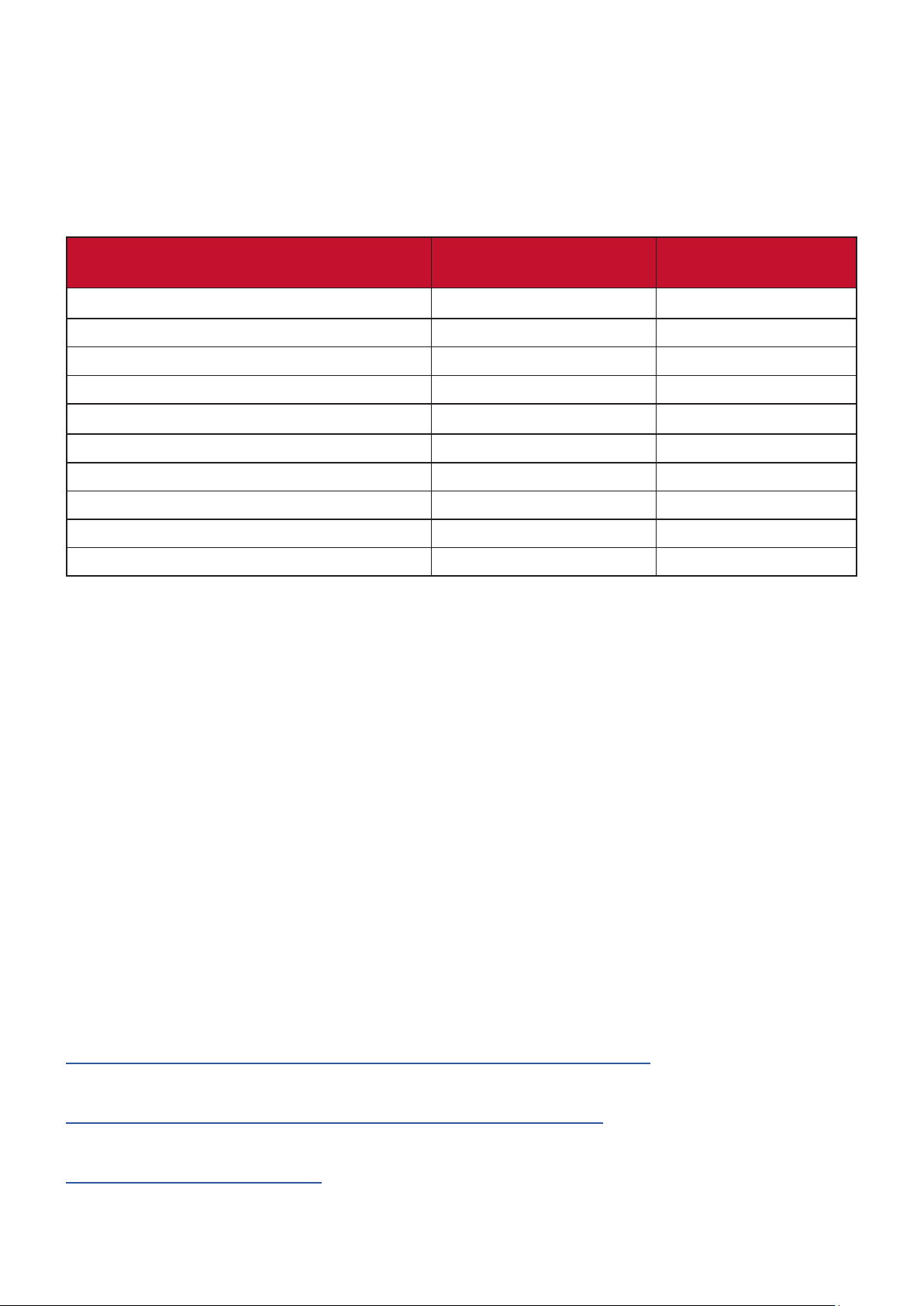
Declara⿿on of RoHS2 Compliance
ThisproducthasbeendesignedandmanufacturedincompliancewithDirec俿ve
2011/65/EUoftheEuropeanParliamentandtheCouncilonrestric俿onoftheuse
of certain hazardous substances in electrical and electronic equipment (RoHS2
Direc俿ve)andisdeemedtocomplywiththemaximumconcentra俿onvaluesissued
bytheEuropeanTechnicalAdapta俿onCommi忿ee(TAC)asshownbelow:
Substance
Lead (Pb) 0.1% < 0.1%
Mercury (Hg) 0.1% < 0.1%
Cadmium (Cd) 0.01% < 0.01%
HexavalentChromium(Cr6⁺) 0.1% < 0.1%
Polybrominated biphenyls (PBB) 0.1% < 0.1%
Polybrominated diphenyl ethers (PBDE) 0.1% < 0.1%
Bis(2-ethylhexyl) phthalate (DEHP) 0.1% < 0.1%
Butyl benzyl phthalate (BBP) 0.1% < 0.1%
Dibutyl phthalate (DBP) 0.1% < 0.1%
Diisobutyl phthalate (DIBP) 0.1% < 0.1%
Proposed Maximum
Concentra⿿on
Actual Concentra⿿on
Certain components of products as stated above are exempted under the Annex
III of the RoHS2 Direc⿿ves as noted below:
• Copper alloy containing up to 4% lead by weight.
• Leadinhighmel俿ngtemperaturetypesolders(i.e.lead-basedalloyscontaining
85% by weight or more lead).
• Electrical and electronic components containing lead in a glass or ceramic other
than dielectric ceramic in capacitors, e.g. piezoelectronic devices, or in a glass or
ceramic matrix compound.
• Lead in dielectric ceramic in capacitors for a rated voltage of 125V AC or 250V DC
or higher.
Product Disposal at End of Product Life
ViewSonic®respectstheenvironmentandiscommi忿edtoworkingandliving
green.ThankyouforbeingpartofSmarter,GreenerCompu俿ng.Pleasevisitthe
ViewSonic® website to learn more.
USA & Canada:
h忿p://www.viewsonic.com/company/green/recycle-program/
Europe:
h忿p://www.viewsoniceurope.com/eu/support/call-desk/
Taiwan:
h忿ps://recycle.epa.gov.tw/
19
Page 20

Copyright Informa⿿on
Copyright©ViewSonic®Corpora俿on,2020.Allrightsreserved.
Macintosh and Power Macintosh are registered trademarks of Apple Inc.
Microso㿿,Windows,andtheWindowslogoareregisteredtrademarksofMicroso㿿
Corpora俿onintheUnitedStatesandothercountries.
ViewSonic®, the three birds logo, OnView, ViewMatch, and ViewMeter are
registeredtrademarksofViewSonic®Corpora俿on.
VESAisaregisteredtrademarkoftheVideoElectronicsStandardsAssocia俿on.
DPMS, DisplayPort, and DDC are trademarks of VESA.
ENERGYSTAR®isaregisteredtrademarkoftheU.S.EnvironmentalProtec俿on
Agency (EPA).
Disclaimer: ViewSonic®Corpora俿onshallnotbeliablefortechnicaloreditorial
errorsoromissionscontainedherein;norforincidentalorconsequen俿aldamages
resul俿ngfromfurnishingthismaterial,ortheperformanceoruseofthisproduct.
Intheinterestofcon俿nuingproductimprovement,ViewSonic®Corpora俿on
reservestherighttochangeproductspecica俿onswithoutno俿ce.Informa俿onin
thisdocumentmaychangewithoutno俿ce.
Nopartofthisdocumentmaybecopied,reproduced,ortransmi忿edbyanymeans,
foranypurposewithoutpriorwri忿enpermissionfromViewSonic®Corpora俿on.
VSB050_UG_ENG_1a_20191125
20
Page 21
Customer Service
For technical support or product service, see the table below or contact your
reseller.
NOTE: You will need the product’s serial number.
Country/ Region Website Country/ Region Website
Asia Pacic & Africa
Australia
中国 (China)
Hong Kong (English)
Indonesia
日本 (Japan)
Malaysia
Myanmar
New Zealand
Philippines
臺灣 (Taiwan)
Việt Nam
www.viewsonic.com/au/
www.viewsonic.com.cn
www.viewsonic.com/hk-en/
www.viewsonic.com/id/
www.viewsonic.com/jp/
www.viewsonic.com/my/
www.viewsonic.com/mm/
www.viewsonic.com/nz/
www.viewsonic.com/ph/
www.viewsonic.com/tw/
www.viewsonic.com/vn/
Bangladesh
香港 (繁體中文)
India
Israel
Korea
Middle East
Nepal
Pakistan
Singapore
ประเทศไทย
SouthAfrica&Mauri俿us
www.viewsonic.com/bd/
www.viewsonic.com/hk/
www.viewsonic.com/in/
www.viewsonic.com/il/
www.viewsonic.com/kr/
www.viewsonic.com/me/
www.viewsonic.com/np/
www.viewsonic.com/pk/
www.viewsonic.com/sg/
www.viewsonic.com/th/
www.viewsonic.com/za/
Americas
United States
La俿nAmerica
Europe
Europe
Deutschland
Россия
Türkiye
United Kingdom
www.viewsonic.com/us
www.viewsonic.com/la
www.viewsonic.com/eu/
www.viewsonic.com/de/
www.viewsonic.com/ru/
www.viewsonic.com/tr/
www.viewsonic.com/uk/
Canada
France
Қазақстан
España
Україна
www.viewsonic.com/us
www.viewsonic.com/fr/
www.viewsonic.com/kz/
www.viewsonic.com/es/
www.viewsonic.com/ua/
21
Page 22

Limited Warranty
ViewSonic®WirelessPresenta俿onGateway
What the warranty covers:
ViewSonic® warrants its products to be free from defects in material and
workmanshipduringthewarrantyperiod.Ifaproductprovestobedefec俿ve
in material or workmanship during the warranty period, ViewSonic® will, at its
soleop俿on,andasyoursoleremedy,repairorreplacetheproductwithasimilar
product. Replacement Product or parts may include remanufactured or refurbished
parts or components. The repair or replacement unit or parts or components will
becoveredbythebalanceofthe俿meremainingonthecustomer’soriginallimited
warranty and the warranty period will not be extended. ViewSonic® provides
nowarrantyforanythird-partyso㿿warewhetherincludedwiththeproductor
installedbythecustomer,installa俿onofanyunauthorizedhardwarepartsor
components(e.g.ProjectorLamps).(Pleasereferto:“Whatthewarrantyexcludes
anddoesnotcover”sec俿on).
How long the warranty is e�ec⿿ve:
ViewSonic® displays are warranted for between 1 and 3 years, depending on your
country of purchase, for all parts including the light source and for all labor from
thedateoftherstconsumerpurchase.
Who the warranty protects:
Thiswarrantyisvalidonlyfortherstconsumerpurchaser.
What the warranty excludes and does not cover:
• Anyproductonwhichtheserialnumberhasbeendefaced,modied,or
removed.
• Damage,deteriora俿on,ormalfunc俿onresul俿ngfrom:
Accident,misuse,neglect,re,water,lightning,orotheractsofnature,
unauthorizedproductmodica俿on,orfailuretofollowinstruc俿onssupplied
with the product.
Repairora忿emptedrepairbyanyonenotauthorizedbyViewSonic®.
Damage to or loss of any programs, data, or removable storage media.
Normal wear and tear.
Removalorinstalla俿onoftheproduct.
• So㿿wareordatalossoccurringduringrepairorreplacement.
• Any damage of the product due to shipment.
22
Page 23

• Causesexternaltotheproduct,suchaselectricpower⿿uctua俿onsorfailure.
• Useofsuppliesorpartsnotmee俿ngViewSonic’sspecica俿ons.
• Failure of owner to perform periodic product maintenance as stated in the User
Guide.
• Any other cause which does not relate to a product defect.
• Damagecausedbysta俿c(non-moving)imagesdisplayedforlengthyperiodsof
俿me(alsoreferredtoasimageburn-in).
• So㿿ware-Anythird-partyso㿿wareincludedwiththeproductorinstalledbythe
customer.
• Hardware/Accessories/Parts/Components–Installa俿onofanyunauthorized
hardware,accessories,consumablepartsorcomponents(e.g.ProjectorLamps).
• Damageto,orabuseof,thecoa俿ngonthesurfaceofthedisplaythrough
inappropriate cleaning as described in the product User Guide.
• Removal,installa俿on,andset-upservicecharges,includingwall-moun俿ngofthe
product.
How to get service:
• Forinforma俿onaboutreceivingserviceunderwarranty,contactViewSonic®
Customer Support (Please refer to the “Customer Service” page). You will need
to provide your product’s serial number.
• To obtain warranty service, you will be required to provide: (a) the original dated
salesslip,(b)yourname,(c)youraddress,(d)adescrip俿onoftheproblem,and
(e) the serial number of the product.
• Take or ship the product, freight prepaid, in the original container to an
authorized ViewSonic® service center or ViewSonic®.
• Foraddi俿onalinforma俿onorthenameofthenearestViewSonic®servicecenter,
contact ViewSonic®.
Limita⿿on of implied warran⿿es:
Therearenowarran俿es,expressorimplied,whichextendbeyondthedescrip俿on
containedhereinincludingtheimpliedwarrantyofmerchantabilityandtnessfora
par俿cularpurpose.
23
Page 24

Exclusion of damages:
ViewSonic’s liability is limited to the cost of repair or replacement of the product.
ViewSonic® shall not be liable for:
• Damage to other property caused by any defects in the product, damages
baseduponinconvenience,lossofuseoftheproduct,lossof俿me,lossof
prots,lossofbusinessopportunity,lossofgoodwill,interferencewithbusiness
rela俿onships,orothercommercialloss,evenifadvisedofthepossibilityofsuch
damages.
• Anyotherdamages,whetherincidental,consequen俿alorotherwise.
• Any claim against the customer by any other party.
• Repairora忿emptedrepairbyanyonenotauthorizedbyViewSonic®.
E�ect of state law:
Thiswarrantygivesyouspeciclegalrights,andyoumayalsohaveotherrights
whichvaryfromstatetostate.Somestatesdonotallowlimita俿onsonimplied
warran俿esand/ordonotallowtheexclusionofincidentalorconsequen俿al
damages,sotheabovelimita俿onsandexclusionsmaynotapplytoyou.
Sales outside the U.S.A. and Canada:
Forwarrantyinforma俿onandserviceonViewSonic®productssoldoutsideofthe
U.S.A. and Canada, contact ViewSonic® or your local ViewSonic® dealer.
The warranty period for this product in mainland China (Hong Kong, Macao,
andTaiwanExcluded)issubjecttothetermsandcondi俿onsoftheMaintenance
Guarantee Card.
For users in Europe and Russia, full details of warranty provided can be found at:
http://www.viewsonic.com/eu/ under “Support/WarrantyInforma俿on”.
WirelessPresenta俿onGatewayWarrantyTermTemplateInUG
VSC_TEMP_2007
24
Page 25

Mexico Limited Warranty
ViewSonic®WirelessPresenta俿onGateway
What the warranty covers:
ViewSonic® warrants its products to be free from defects in material and
workmanship, under normal use, during the warranty period. If a product
provestobedefec俿veinmaterialorworkmanshipduringthewarrantyperiod,
ViewSonic®will,atitssoleop俿on,repairorreplacetheproductwithalikeproduct.
Replacement product or parts may include remanufactured or refurbished parts or
components&accessories.
How long the warranty is e�ec⿿ve:
ViewSonic® LCD displays are warranted for between 1 and 3 years, depending on
your country of purchase, for all parts including the light source and for all labour
fromthedateoftherstconsumerpurchase.
Who the warranty protects:
Thiswarrantyisvalidonlyfortherstconsumerpurchaser.
What the warranty excludes and does not cover:
• Anyproductonwhichtheserialnumberhasbeendefaced,modiedor
removed.
• Damage,deteriora俿on,ormalfunc俿onresul俿ngfrom:
Accident,misuse,neglect,re,water,lightning,orotheractsofnature,
unauthorizedproductmodica俿on,unauthorizeda忿emptedrepair,or
failuretofollowinstruc俿onssuppliedwiththeproduct.
Causesexternaltotheproduct,suchaselectricalpower⿿uctua俿onsor
failure.
Useofsuppliesorpartsnotmee俿ngViewSonic®’sspecica俿ons.
Normal wear and tear.
Any other cause which does not relate to a product defect.
• Anyproductexhibi俿ngacondi俿oncommonlyknownas“imageburn-in”which
resultswhenasta俿cimageisdisplayedontheproductforanextendedperiodof
俿me.
• Removal,installa俿on,insurance,andset-upservicecharges.
25
Page 26

How to get service:
Forinforma俿onaboutreceivingserviceunderwarranty,contactViewSonic®
CustomerSupport(Pleaserefertothea忿ached“CustomerService”page).You
will need to provide your product’s serial number, so please record the product
informa俿oninthespaceprovidedbelowonyourpurchaseforyourfutureuse.
Please retain your receipt of proof of purchase to support your warranty claim.
For Your Records
Product Name: Model Number:
Document Number: Serial Number:
Purchase Date: Extended Warranty Purchase? (Y/N)
If so, what date does warranty expire?
• To obtain warranty service, you will be required to provide (a) the original dated
salesslip,(b)yourname,(c)youraddress,(d)adescrip俿onoftheproblem,and
(e) the serial number of the product.
• Take or ship the product, in the original container packaging, to an authorized
ViewSonic® service center.
• Roundtriptransporta俿oncostsforin-warrantyproductswillbepaidby
ViewSonic®.
Limita⿿on of implied warran⿿es:
Therearenowarran俿es,expressorimplied,whichextendbeyondthedescrip俿on
containedhereinincludingtheimpliedwarrantyofmerchantabilityandtnessfora
par俿cularpurpose.
Exclusion of damages:
ViewSonic®’s liability is limited to the cost of repair or replacement of the product.
ViewSonic® shall not be liable for:
• Damage to other property caused by any defects in the product, damages
baseduponinconvenience,lossofuseoftheproduct,lossof俿me,lossof
prots,lossofbusinessopportunity,lossofgoodwill,interferencewithbusiness
rela俿onships,orothercommercialloss,evenifadvisedofthepossibilityofsuch
damages.
• Anyotherdamages,whetherincidental,consequen俿alorotherwise.
• Any claim against the customer by any other party.
• Repairora忿emptedrepairbyanyonenotauthorizedbyViewSonic®.
26
Page 27
ContactInforma俿onforSales&AuthorizedService(CentroAutorizadodeServicio)withinMexico:
Name, address, of manufacturer and importers:
México,Av.delaPalma#8Piso2Despacho203,Corpora俿voInterpalmas,
Col. San Fernando Huixquilucan, Estado de México
Tel:(55)3605-1099h忿p://www.viewsonic.com/la/soporte/index.htm
NÚMERO GRATIS DE ASISTENCIA TÉCNICA PARA TODO MÉXICO: 001.866.823.2004
Hermosillo:
Distribuciones y Servicios Computacionales SA de CV.
Calle Juarez 284 local 2
Col. Bugambilias C.P: 83140
Tel: 01-66-22-14-9005
E-Mail: [email protected]
Puebla, Pue. (Matriz):
RENTA Y DATOS, S.A. DE C.V. Domicilio:
29 SUR 721 COL. LA PAZ
72160 PUEBLA, PUE.
Tel: 01(52).222.891.55.77 CON 10 LINEAS
E-Mail: [email protected]
Chihuahua:
Soluciones Globales en Computación
C. Magisterio # 3321 Col. Magisterial
Chihuahua, Chih.
Tel: 4136954
E-Mail: [email protected]
Distrito Federal:
QPLUS, S.A. de C.V.
Av. Coyoacán 931
Col. Del Valle 03100, México, D.F.
Tel: 01(52)55-50-00-27-35
E-Mail : [email protected]
Villahermosa:
CompumantenimietnosGaran俿zados,S.A.deC.V.
AV. GREGORIO MENDEZ #1504
COL, FLORIDA C.P. 86040
Tel: 01 (993) 3 52 00 47 / 3522074 / 3 52 20 09
E-Mail: [email protected]
Veracruz, Ver.:
CONEXION Y DESARROLLO, S.A DE C.V. Av.
Americas # 419
ENTRE PINZÓN Y ALVARADO
Fracc. Reforma C.P. 91919
Tel: 01-22-91-00-31-67
E-Mail: [email protected]
Cuernavaca:
Compusupport de Cuernavaca SA de CV
Francisco Leyva # 178 Col. Miguel Hidalgo
C.P. 62040, Cuernavaca Morelos
Tel: 01 777 3180579 / 01 777 3124014
E-Mail: [email protected]
Guadalajara, Jal.:
SERVICRECE, S.A. de C.V.
Av. Niños Héroes # 2281
Col. Arcos Sur, Sector Juárez
44170,Guadalajara,Jalisco
Tel: 01(52)33-36-15-15-43
E-Mail: [email protected]
Guerrero Acapulco:
GS Computación (Grupo Sesicomp)
Progreso #6-A, Colo Centro
39300 Acapulco, Guerrero
Tel: 744-48-32627
MERIDA:
ELECTROSER
Av Reforma No. 403Gx39 y 41
Mérida, Yucatán, México CP97000
Tel: (52) 999-925-1916
E-Mail: [email protected]
Tijuana:
STD
Av Ferrocarril Sonora #3780 L-C
Col 20 de Noviembr
Tijuana,Mexico
Monterrey:
Global Product Services
Mar Caribe # 1987, Esquina con Golfo Pérsico
Fracc. Bernardo Reyes, CP 64280
Monterrey N.L. México
Tel: 8129-5103
E-Mail: [email protected]
Oaxaca, Oax.:
CENTRO DE DISTRIBUCION Y
SERVICIO, S.A. de C.V.
Murguía # 708 P.A., Col. Centro, 68000, Oaxaca
Tel: 01(52)95-15-15-22-22
Fax: 01(52)95-15-13-67-00
E-Mail. [email protected]
FOR USA SUPPORT:
ViewSonic®Corpora俿on
381 Brea Canyon Road, Walnut, CA. 91789 USA
Tel: 800-688-6688
E-Mail:h忿p://www.viewsonic.com
WirelessPresenta俿onGatewayMexicoWarrantyTermTemplateInUG
VSC_TEMP_2008
27
Page 28

 Loading...