

Page 1

GUI Software User Guide Tt eSPORTS | THERON Plus GUI Software User Guide Tt eSPORTS | THERON Plus
Page 2

A
CONTENTS
PAGE 01
PAGE 09
PAGE 15
Main Interface
Main
Profiles
Normal Mode / Battle Mode
Key Assignment
Macro Setting
Macro Setting Interface
Macro Manager
Macro Record Setting
Macro Record Timeline
Insert Command
Performance Setting
Performance Interface
DPI
--------------------------------------- 01
--------------------------------------- 02
--------------------------------------- 03
--------------------------------------- 04
--------------------------------------- 09
--------------------------------------- 10
--------------------------------------- 11
--------------------------------------- 12
--------------------------------------- 14
--------------------------------------- 15
--------------------------------------- 16
PAGE 20
PAGE 21
Other Speed Performance
Polling Rate
Lift-off Control
Light Setting
Light Option Interface
Firmware Update
How to Update Firmware
--------------------------------------- 17
--------------------------------------- 18
--------------------------------------- 19
--------------------------------------- 20
--------------------------------------- 21
Page 3

CONTENT ONE
Main Interface
GUI Software User Guide Tt eSPORTS | THERON Plus
Page 4
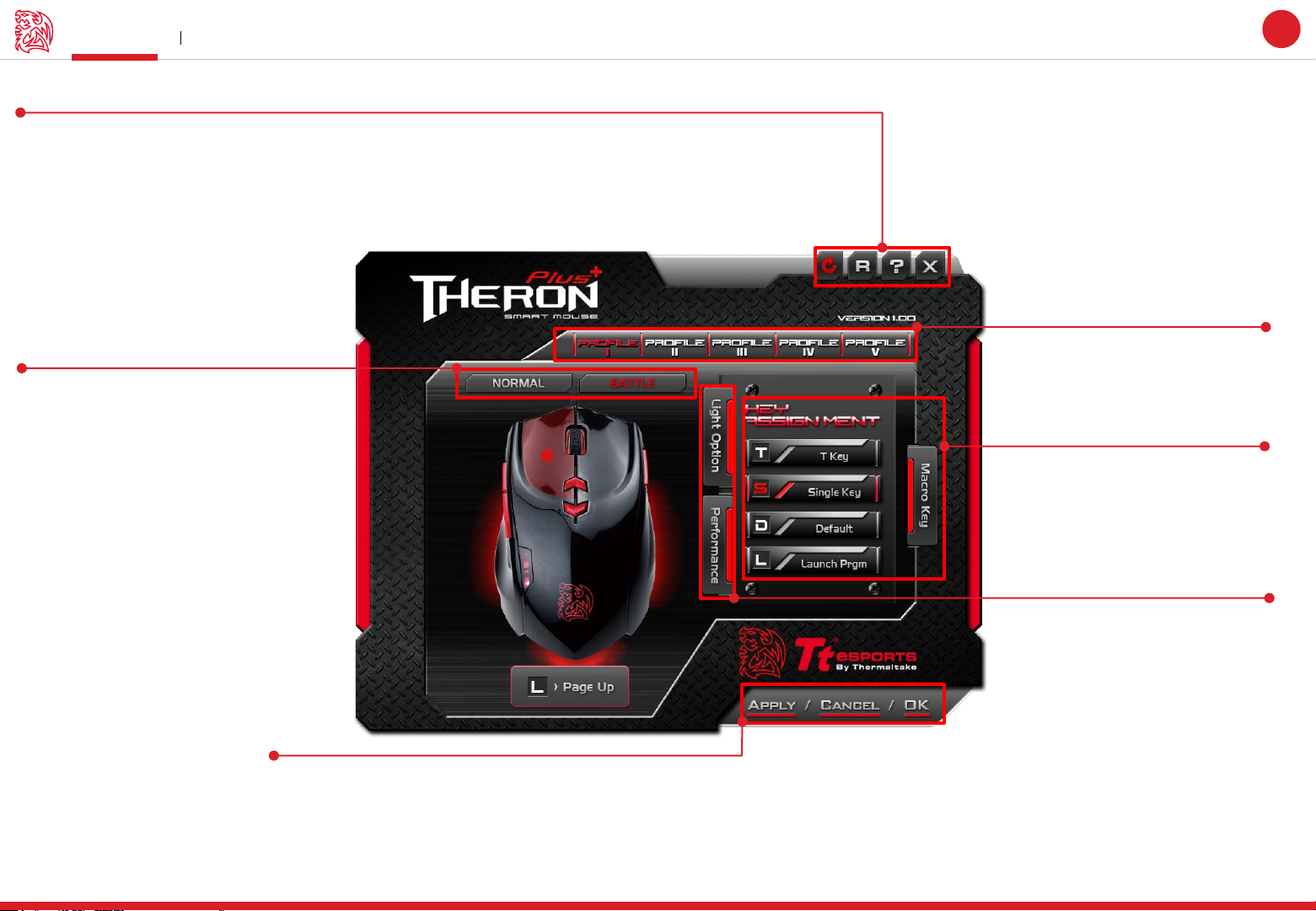
Main Main Interface
Reset / Register / Guide / Close
Reset : Reset all setting
Register : Register as Tt eSPORTS’s follower and receive updates from Tt eSPORTS via E-mail.
Guide : Configuration software manual
Close : Close Tt eSPORTS THERON Plus GUI Software
Challenger is the Game
Tt eSPORTS | THERON Plus
GUI Software User Guide
Page : 02
01
Page : 03
Switch Normal/Battle Mode
The light frame indicates the Mode
(Normal/Battle) you have selected
Apply / Cancel / OK
Apply: Click Apply after completing profile setting and it will import setting into THERON Plus
Cancel: Click Cancel if you wish to cancel the setting
OK: Click OK after setting has been completed
Profile
THERON Plus has 5 profiles setting .
Key Assignment / Macro
Manager
Assign function to each button
Macro Manager:
Page : 09
Page : 04
Performance / Light
Performance :
Adjust THERON Plus’s
DPI / Polling Rate / Lift-off
Light Option :
Change THERON Plus light
Page : 15
Page : 20
Page 5
Challenger is the Game
Profiles Main Interface
Tt eSPORTS | THERON Plus
GUI Software User Guide
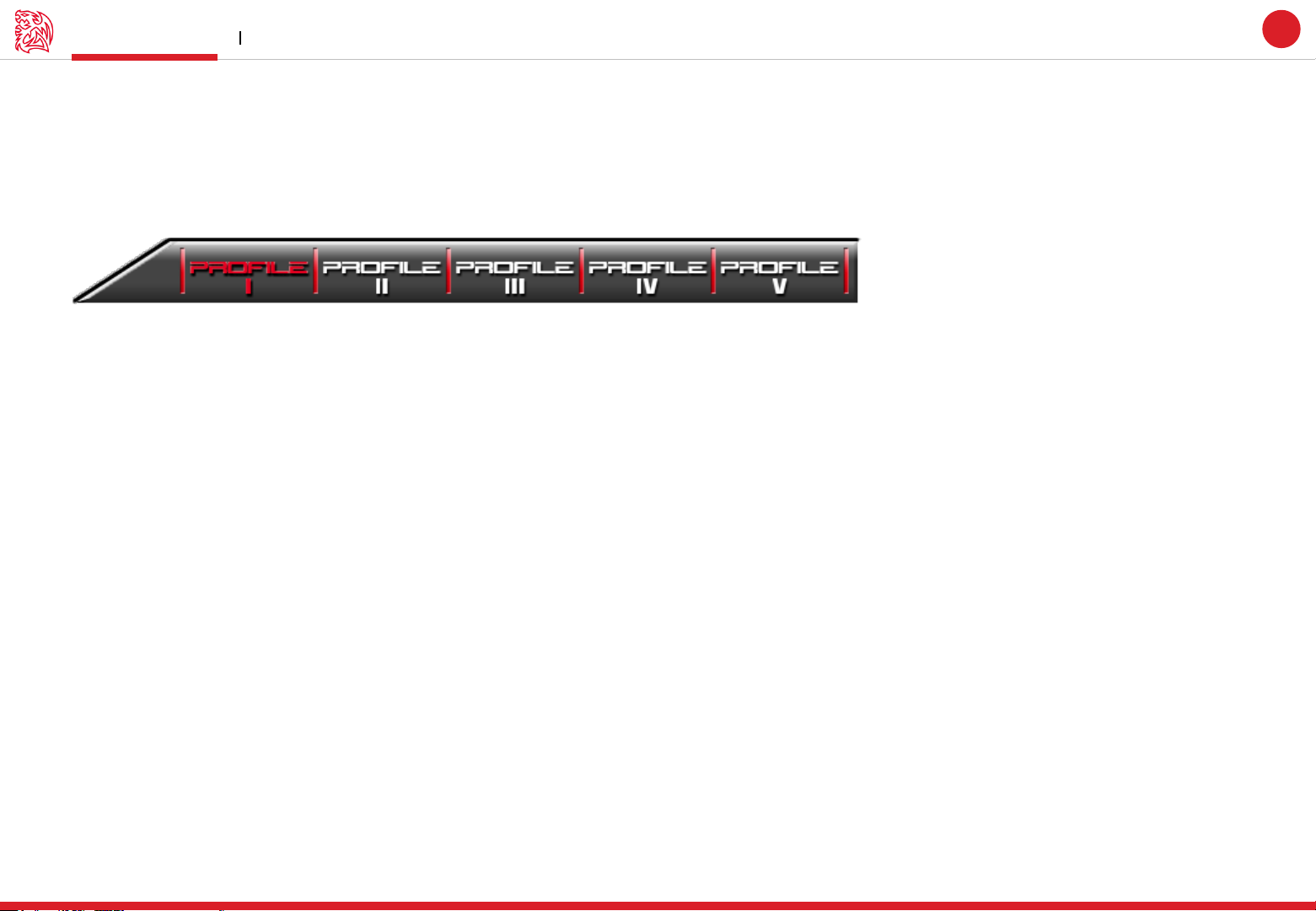
Tt eSPORTS GUI of Profile
Tt eSPORTS first version of Gaming User’s Interface. We set GUI have Profiles can switch. Make Gamers convinced and customized to use a
real design and make for gamer.
Switch to Profile
Choose the Profile you wanted to change to.
02
Page 6
Challenger is the Game
Normal / Battle Mode Main Interface
Tt eSPORTS | THERON Plus
GUI Software User Guide
Light Effect into Game
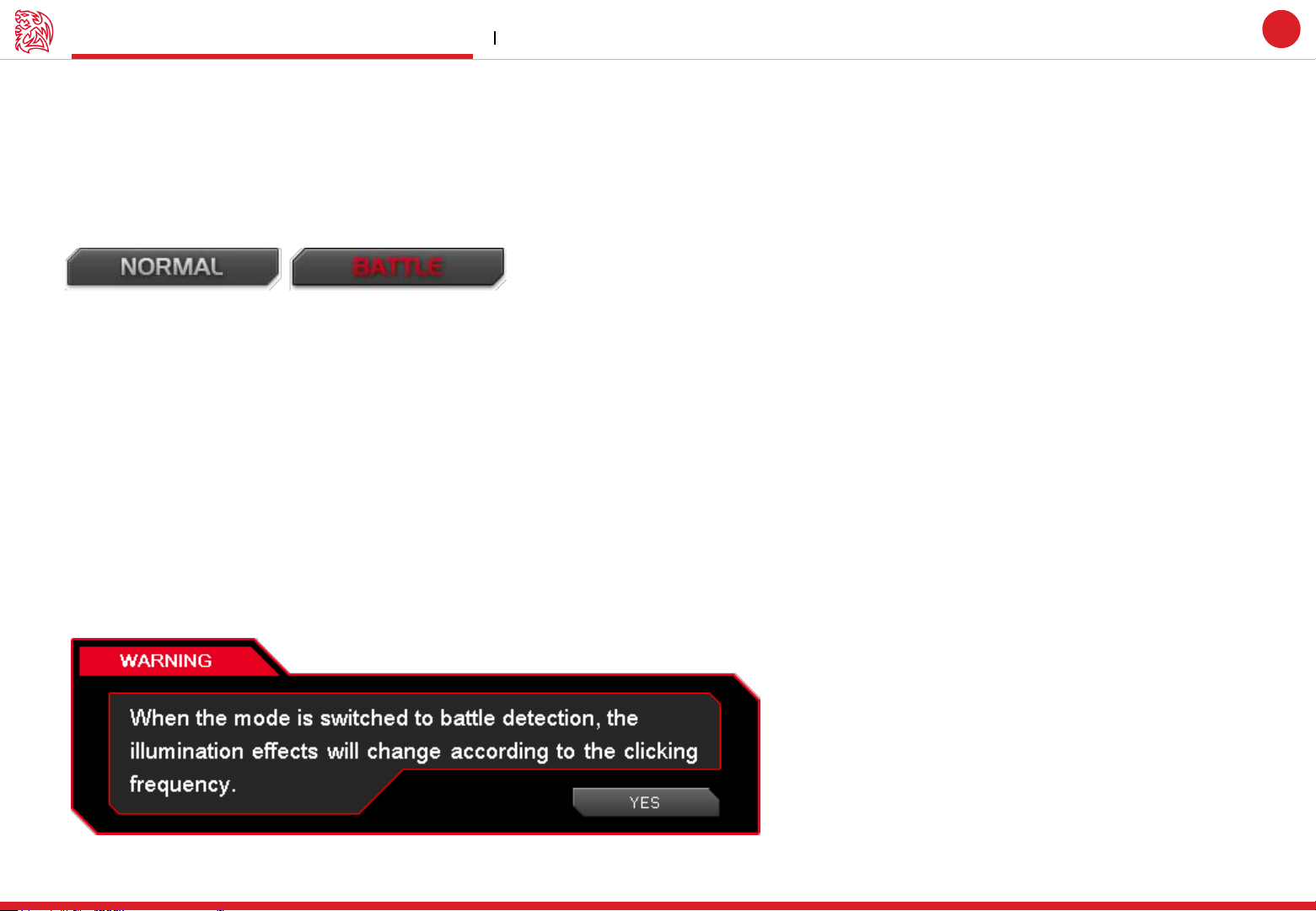
Tt eSPORTS develop a fancy light effect. Just switch the mode and you can experience a different sensation in your place.
When you are in Battle Mode, higher A.P.M (Action Per Minute) will have a higher frequency flashes, while in lower A.P.M, the flash frequency
decreases. This make THERON Plus a gaming weapon that will enhance your gaming experience!
Normal Mode
In Normal Mode
Scroll Wheel lights up.
Tt Dragon light with Pulse-break lighting effect.
Two lights can turn on or off independently.
Bottom Panels will light up.
Battle Mode
In Battle Mode, colors will change accordingly to the frequency of current A.P.M
Low A.P.M BLUE – GREEN – YELLOW –RED –PUPPLE High A.P.M
Scroll Wheel with Pulse-break lighting effect.
Tt Dragon light with Pulse-break lighting effect.
Bottom Panels with Pulse-break lighting effect.
03
Once mode switched to Battle Mode, reminder as below will pop up:
Page 7
Key Assignment Main Interface
Tt eSPORTS | THERON Plus
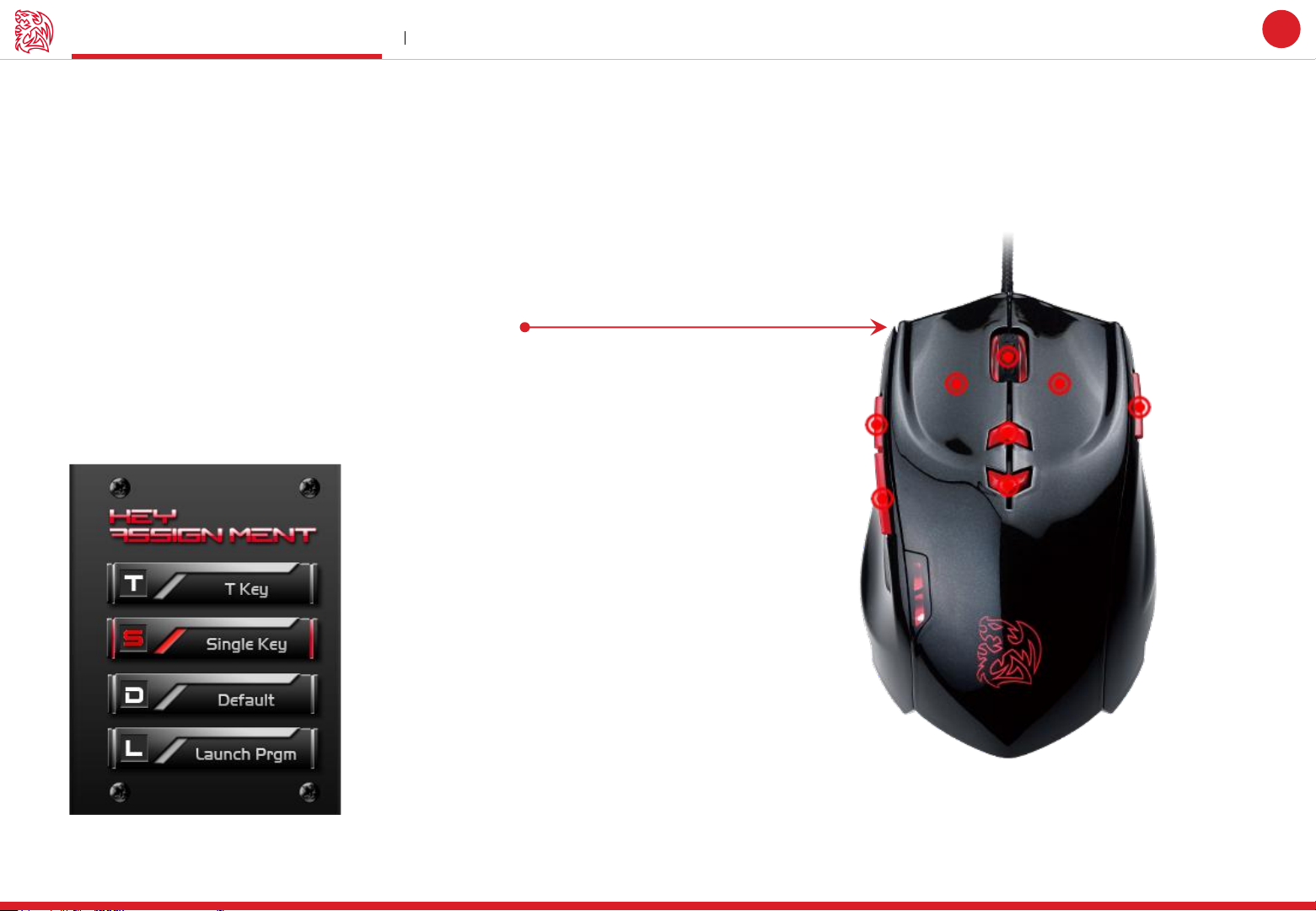
Customization for each of THERON Plus’s button
Each THERON Plus’s button can be customized as your preferred, even the Scroll Wheel’s function can be changed!
Customize it and make the THERON Plus your very own ultimate weapon to conquer!
THERON Plus Can Do More than You Expect!
Buttons Configuration
Click on each button to change its function (See right picture)
Click each button to assign functions.
Key Assignment
Choose the key to manage function
Challenger is the Game
GUI Software User Guide
04
Page 8
Key Assignment Main Interface
Tt eSPORTS | THERON Plus
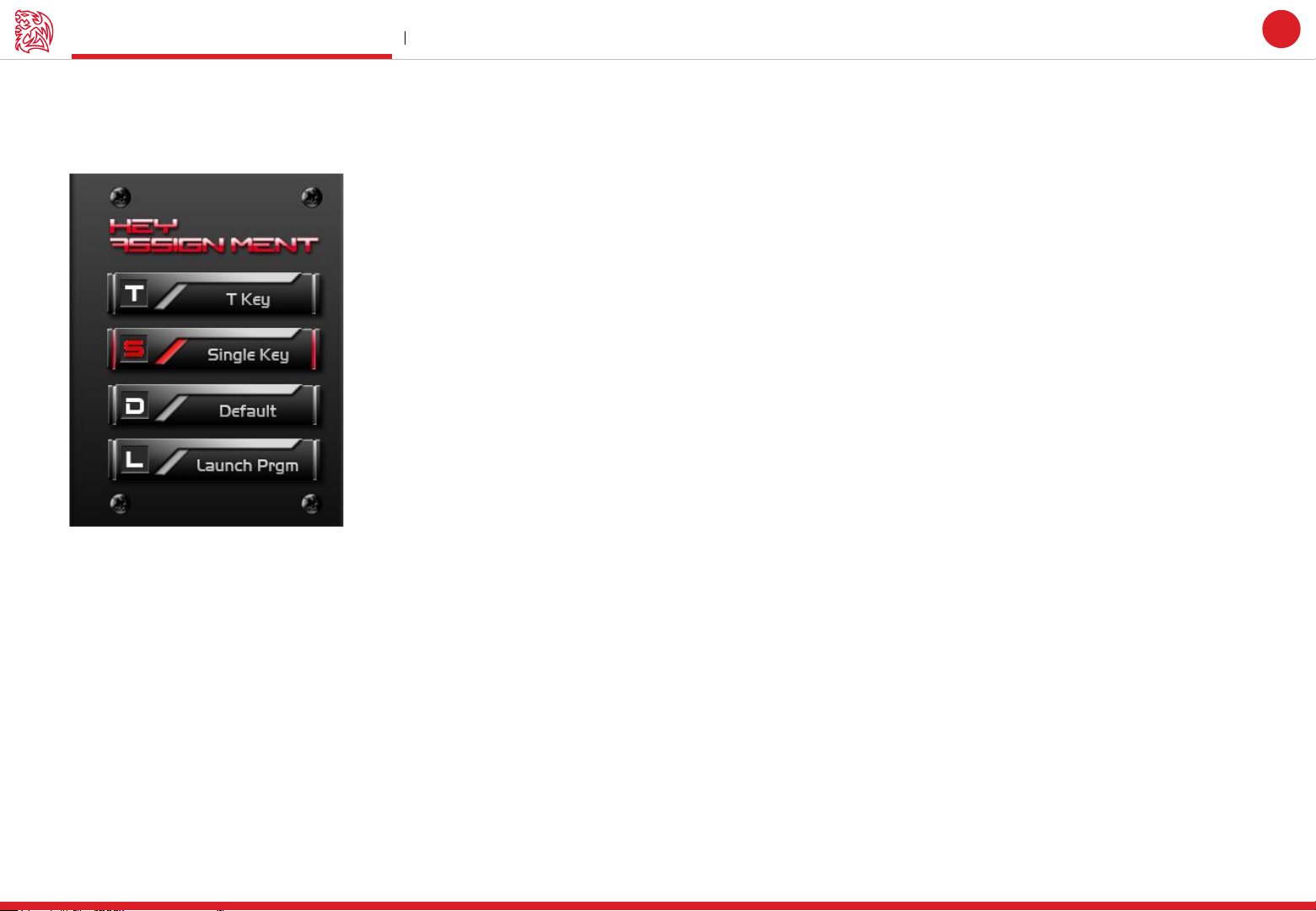
4 Key Functions to be Assigned!
Each of button can be assigned by four function ( Macro(T Key) / Single Key / Default / Launch Program ).
Challenger is the Game
GUI Software User Guide
05
Default :
Macro(T Key) :
Single Key :
Launch Program :
All buttons function will be set as default setting. ( i.g : Left button as the Click action)
Assign macro that has been recorded from Macro Manager.
Set be mouse click function signal.
Launch the pre-set program directly
Page 9
Key Assignment Main Interface
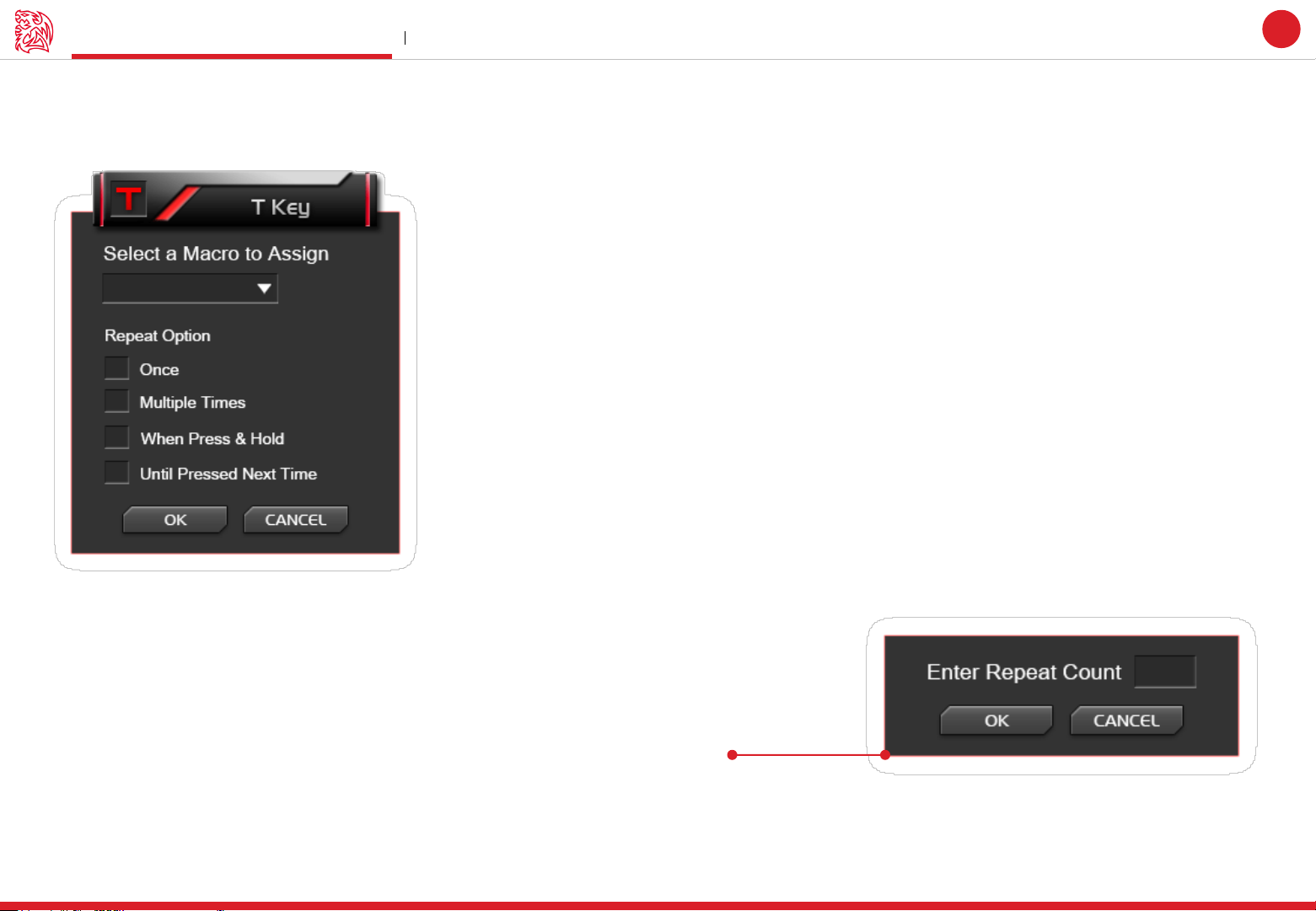
Macro (T Key)
T Key is the Macro key that you programmed.
Challenger is the Game
Tt eSPORTS | THERON Plus
GUI Software User Guide
06
Assign macro
Select a programmed macro that already recorded from Macro Manager (Macro record detail, see Page 17)
Repeat
Customize the times that you want to have the macro repeats..
Once :
Multiple Times :
When press & hold :
Until press next time :
Macro will repeat once.
Macro will repeat depends on the repeat count set.
Macro will keep repeating while pressing and holding.
Macro will start repeating when you click and stop unless you click again
Page 10
Key Assignment Main Interface
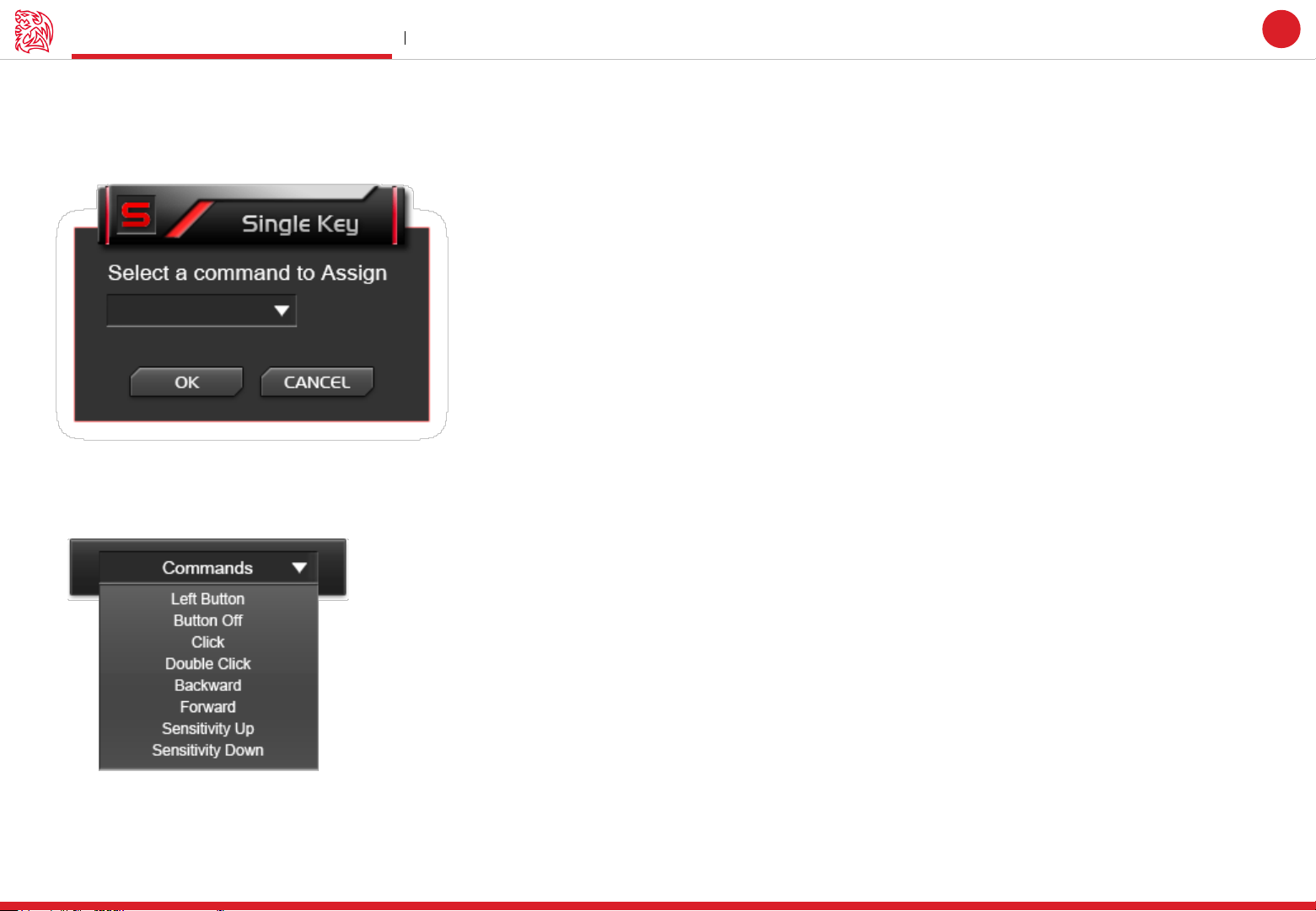
Single Key
Assign a function to a key
Commands
Commands that are available to be assigned
Challenger is the Game
Tt eSPORTS | THERON Plus
GUI Software User Guide
07
Page 11
Challenger is the Game
Key Assignment Main Interface
Tt eSPORTS | THERON Plus
GUI Software User Guide
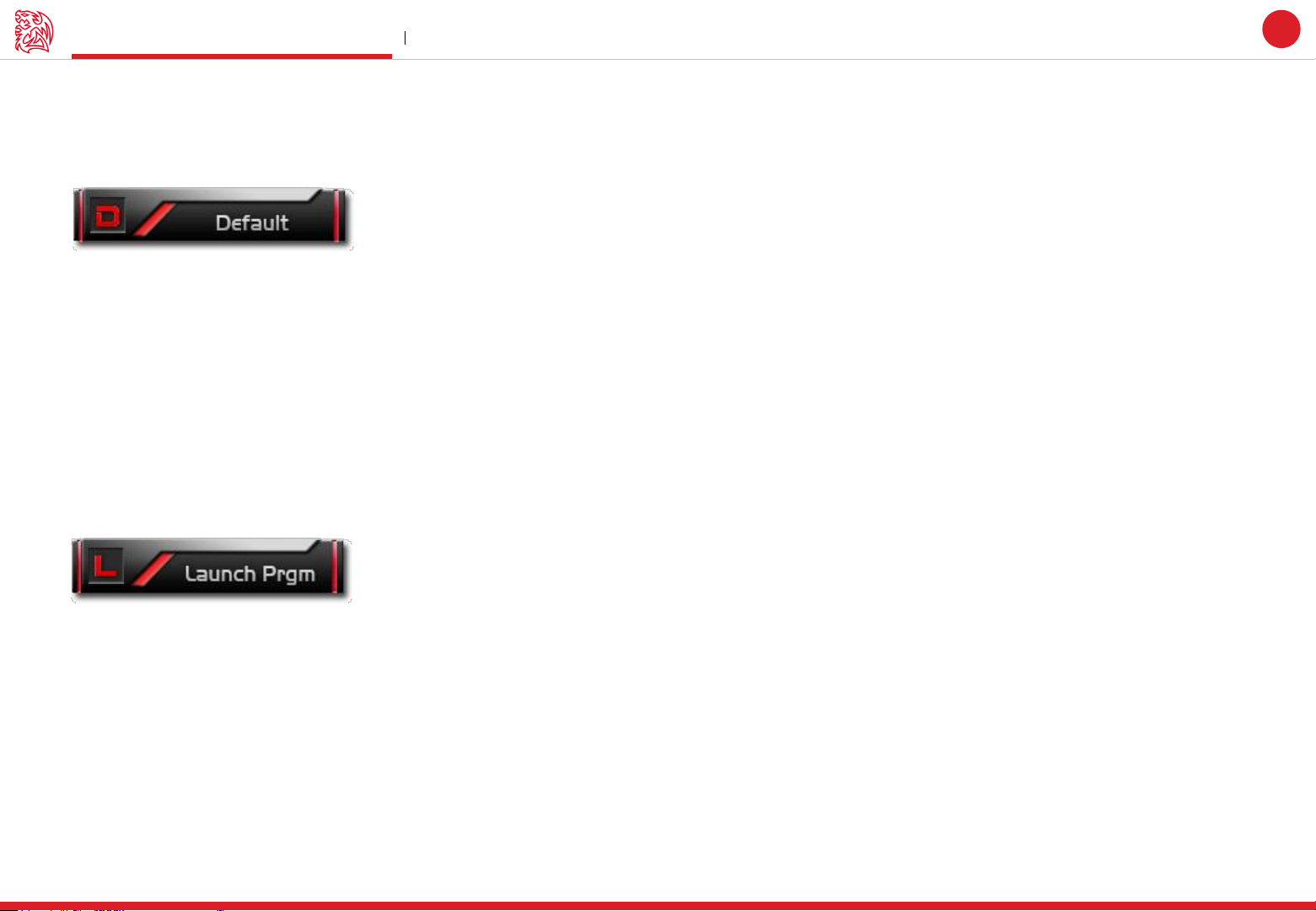
Default
THERON Plus has its own pre-configured functions, which is the default. If you wanted to change back to the default setting, you can just
choose Default and it will be changed back to the pre-configured functions.
Launch Program
Pre-set a program and the program will showed up whenever you click on the button that has been programmed.
08
Launch Program button
Click the Launch Program button and system will pop out file manager for you to choose the program that you want to launch.
Page 12

CONTENT TWO
Macro Setting
GUI Software User Guide Tt eSPORTS | THERON Plus
Page 13
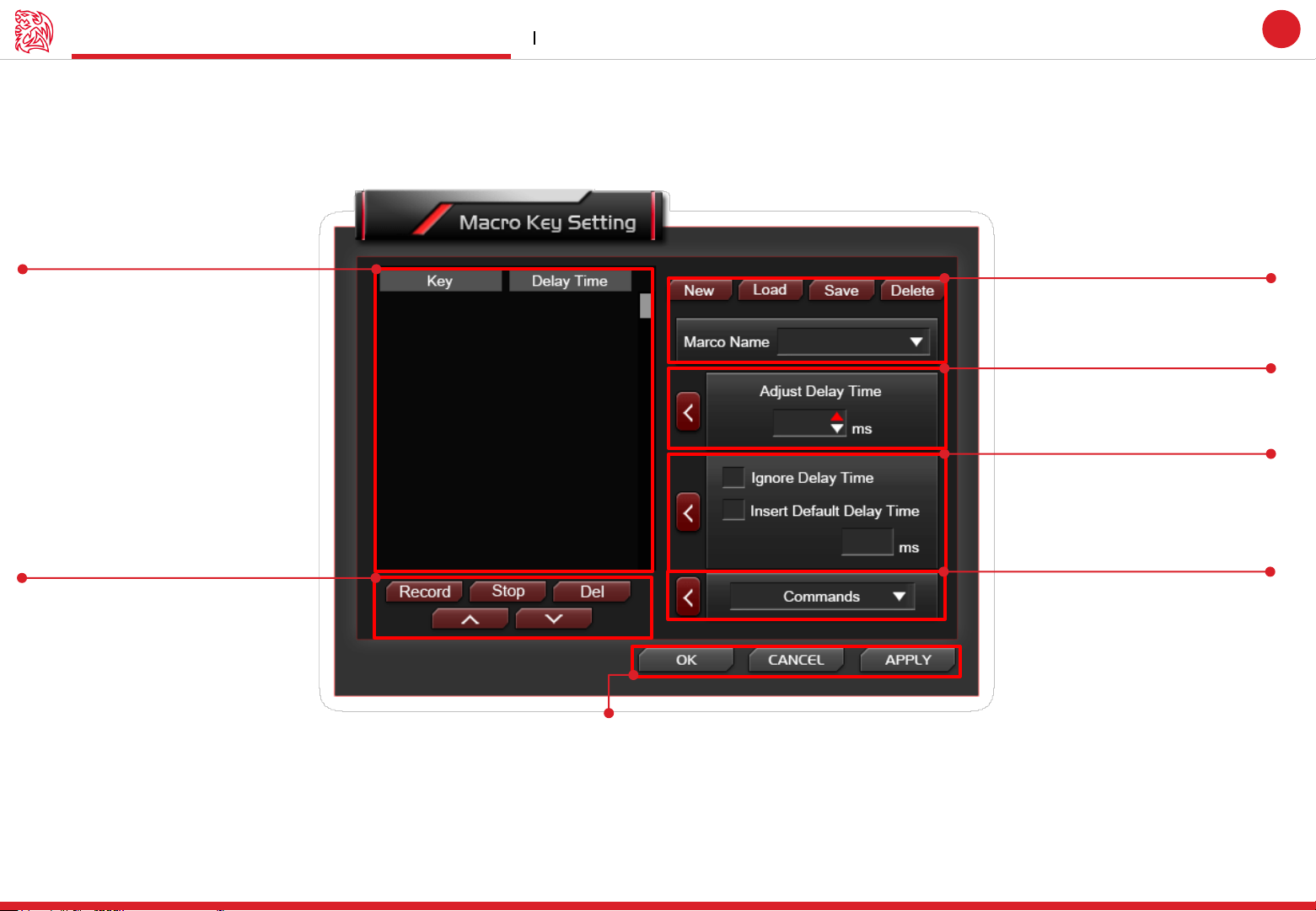
Macro setting Interface Macro Setting
Challenger is the Game
Tt eSPORTS | THERON Plus
GUI Software User Guide
09
Page : 12
Record Macro Timeline
To check the macro
programmed.
Page : 12
Macro Modification
Modified recorded macro
Page : 10
Macro Manager
Create / Load / Save / Delete
Macro and Modifying Macro Name.
Page : 11
Adjust Delay Time
Customize the delay time
Page : 11
Macro Record Setting
2 selections for delay time
Page : 14
Commands
Set commands to macro
Apply / Cancel / OK
APPLY: Click Apply when Macro Setting completed
CANCEL: Click Cancel to cancel the setting
OK: Click OK after Macro Setting has been fully completed
Page 14
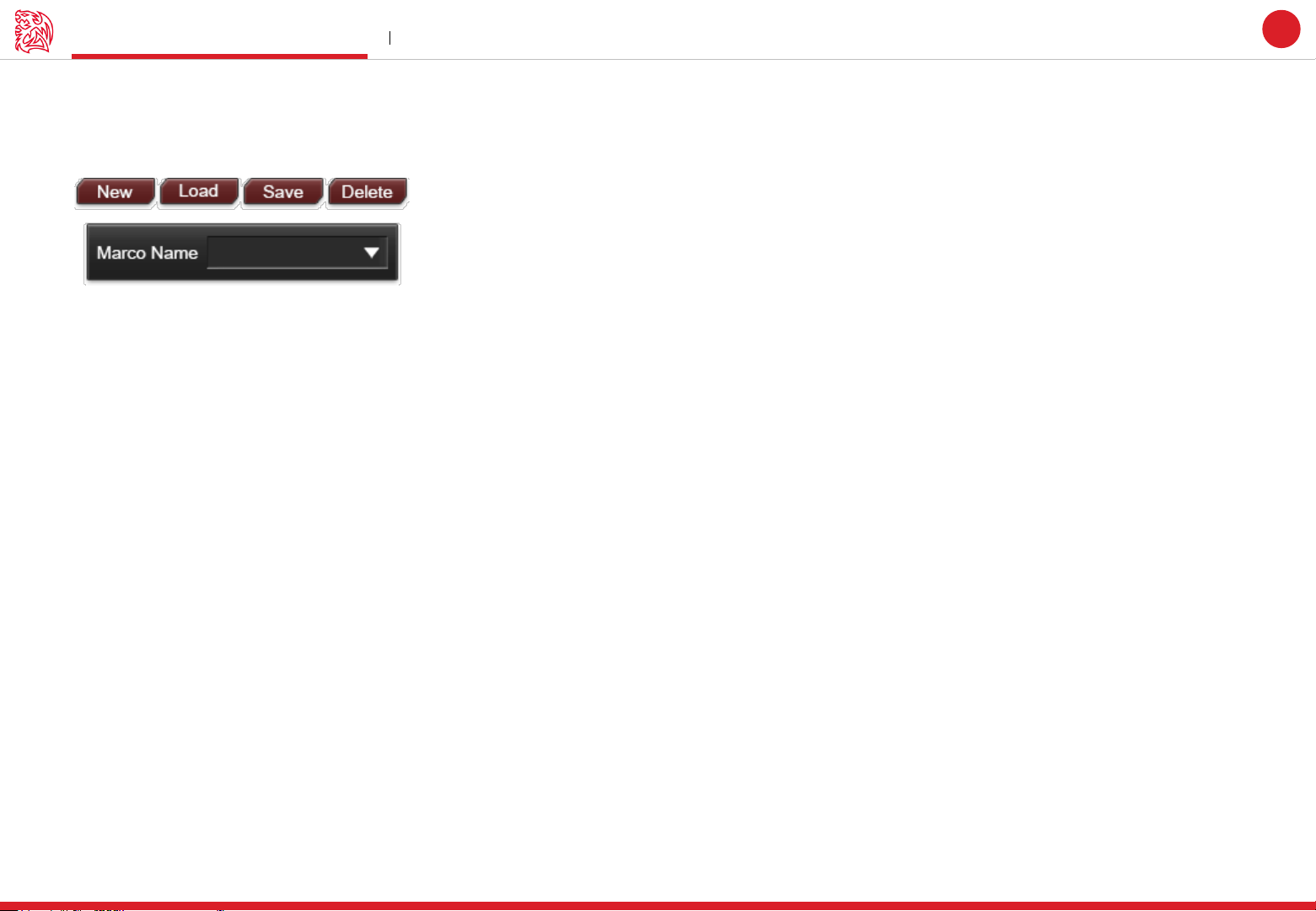
Macro Manager Macro Setting
Macro Manager
Macro manager allows you to create, delete, save and load a macro.
Manage Macro
NEW / DELETE / SAVE / LOAD macro
NEW - Create a new Macro
DELETE - Delete existing Macro
SAVE - Save a Macro .
LOAD - Load a Macro that had been saved.
Macro Name
Select a Macro.
Challenger is the Game
Tt eSPORTS | THERON Plus
GUI Software User Guide
10
Page 15
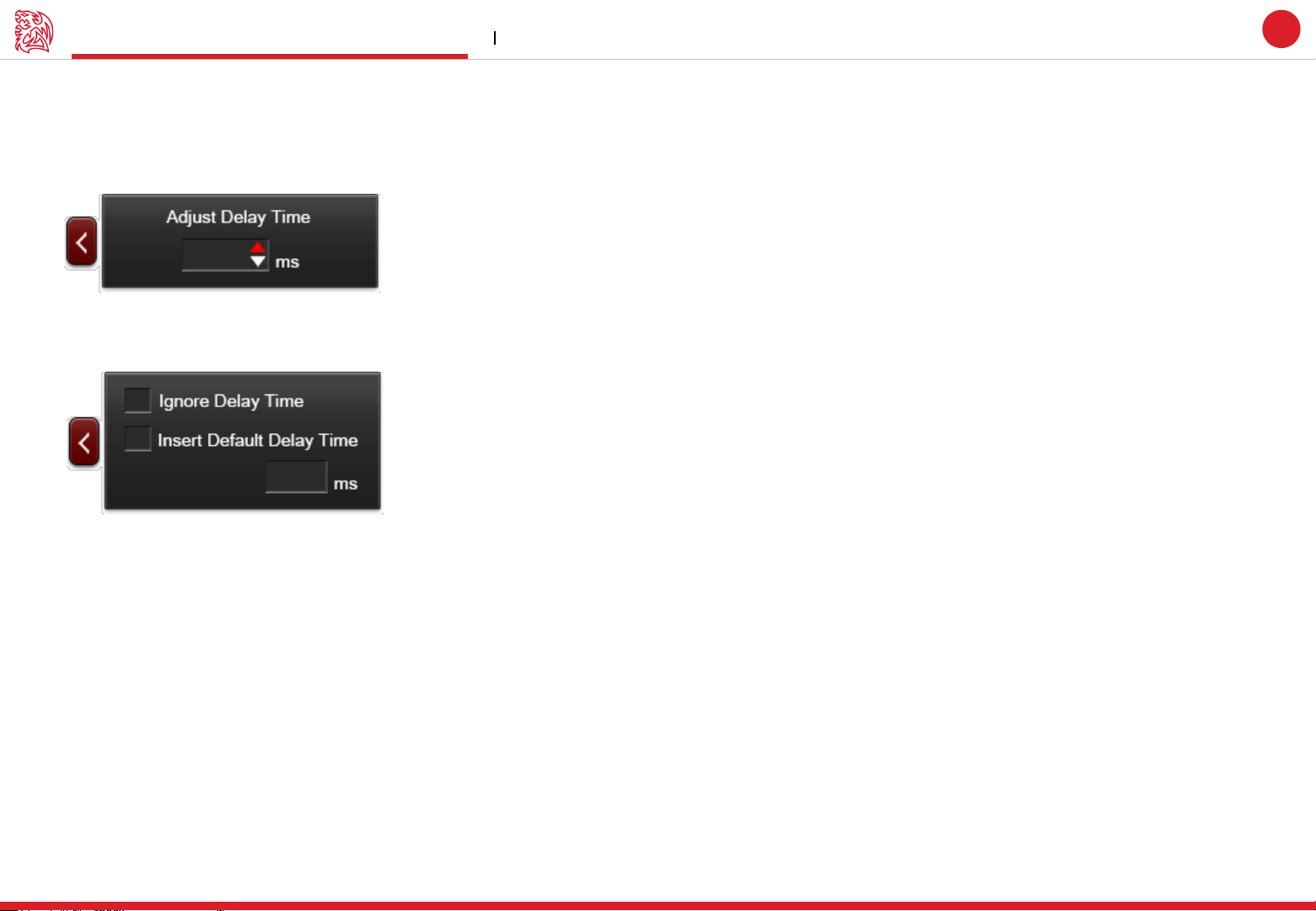
Macro record setting Macro Setting
Macro Record Setting
3 selections provided for you to choose for setting the Delay Time.
Adjust Delay Time
You can adjust Delay Time that already record
Challenger is the Game
Tt eSPORTS | THERON Plus
GUI Software User Guide
11
Macro Delay Time Setting
Ignore Delay Time : No delay time between key signal.
Insert Default Delay Time ___ ms : Delay time depend on the preferred time set.
Page 16
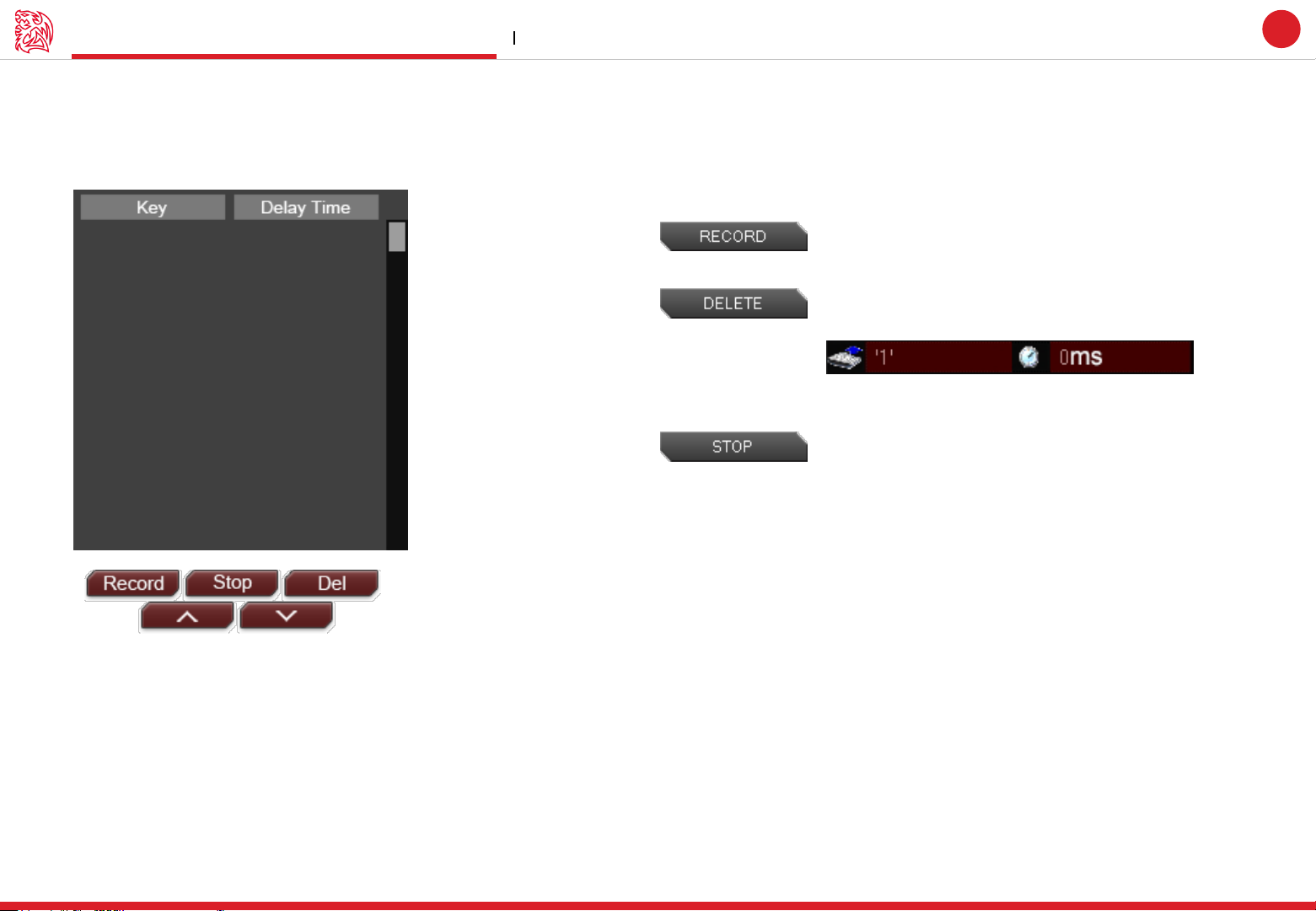
Macro record timeline Macro Setting
Macro Record Timeline
Allow you to program your macro as preferred.
Challenger is the Game
Tt eSPORTS | THERON Plus
Record program : Click Record to start recording via your
keyboard or mouse and all signal will be recorded on this
timeline.
Delete signal : Choose the recorded signal that you wish to
delete (Once signal has been chosen, the background will turn
RED as below picture)
Click Delete and the selected signal will be removed.
Stop program : Click Stop whenever recording has been
completed.
GUI Software User Guide
12
Page 17
Macro record timeline Macro Setting
Tt eSPORTS | THERON Plus
Macro Record Timeline
Once Macro Name and Recording have been completed, you can proceed to programming your macro now.
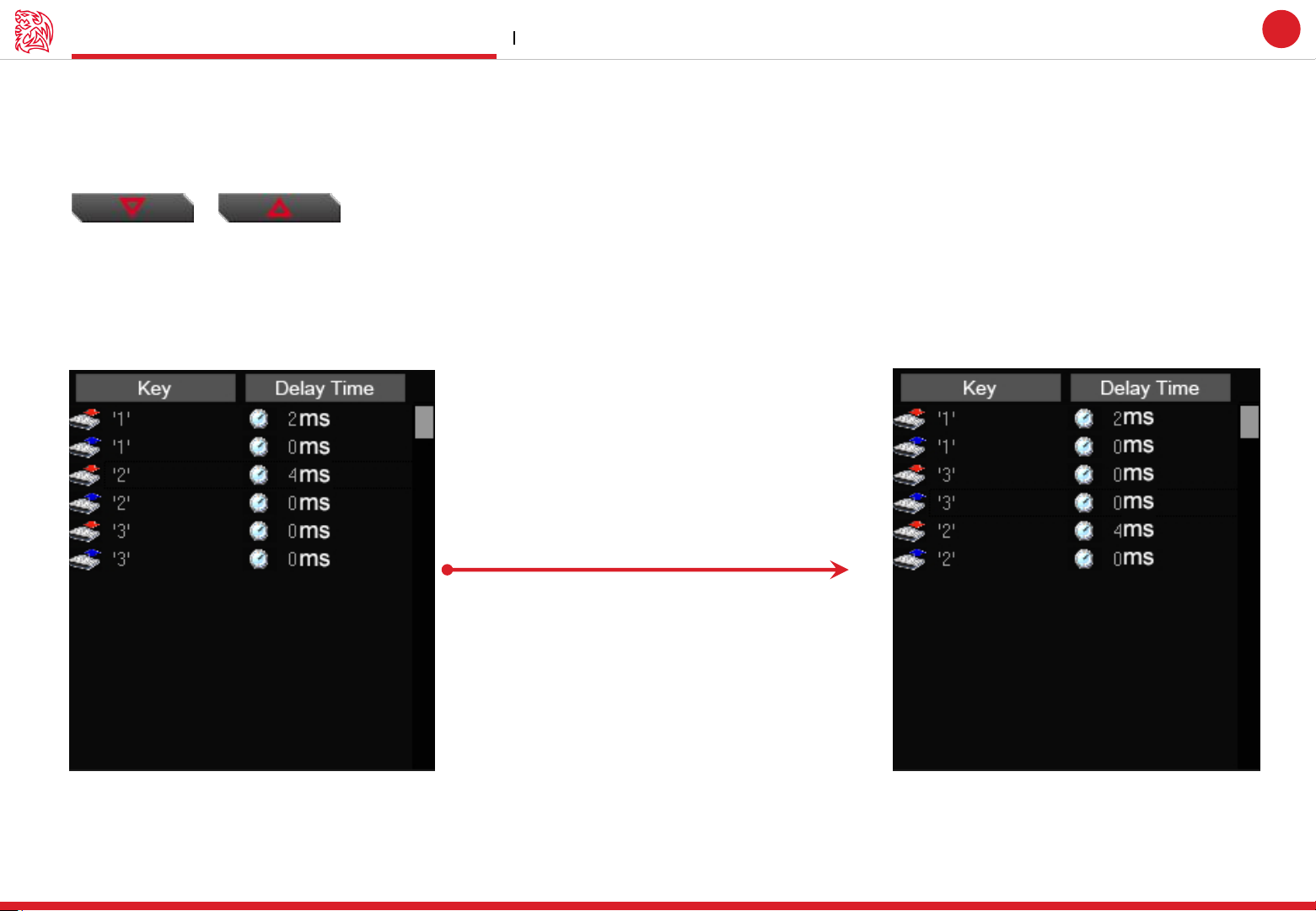
Switch signal up or down
Select the signal and click Up/ Down to rearrange the recorded signals
Note : Please be careful while arranging the “Press” & “Release” signal
Challenger is the Game
GUI Software User Guide
13
Choose “3” and press “UP” or “ DOWN” to arrange
Page 18
Challenger is the Game
Insert Command Macro Setting
Tt eSPORTS | THERON Plus
GUI Software User Guide
Insert Command
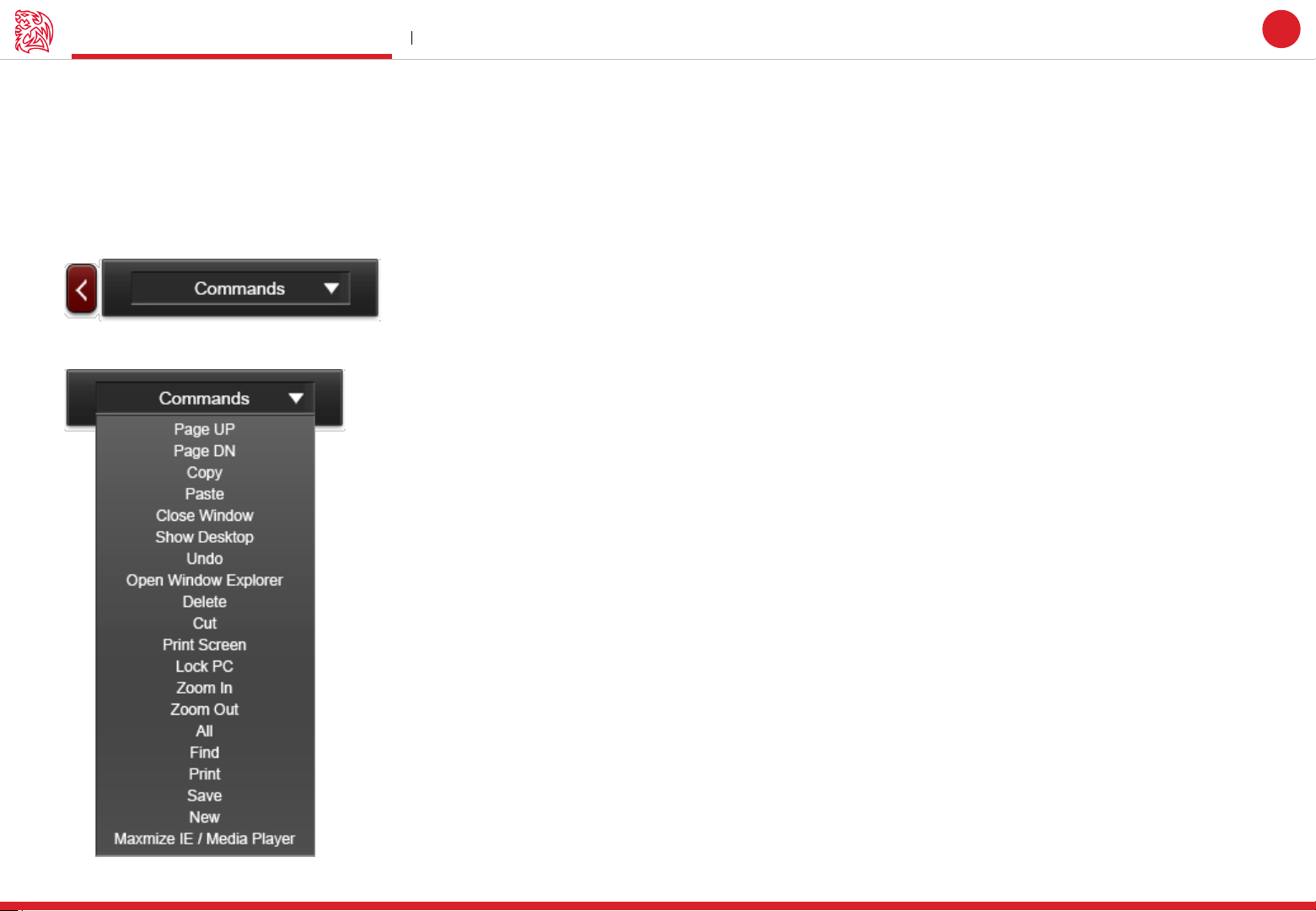
If you want to modify or insert Command to the programmed macro, please click the Command button and select a command into macro
from the drop down selection.
Insert Command
Select a command as below picture
14
Page 19

CONTENT THREE
Performance Setting
GUI Software User Guide Tt eSPORTS | THERON Plus
Page 20
Performance Interface Performance Setting
Page : 16
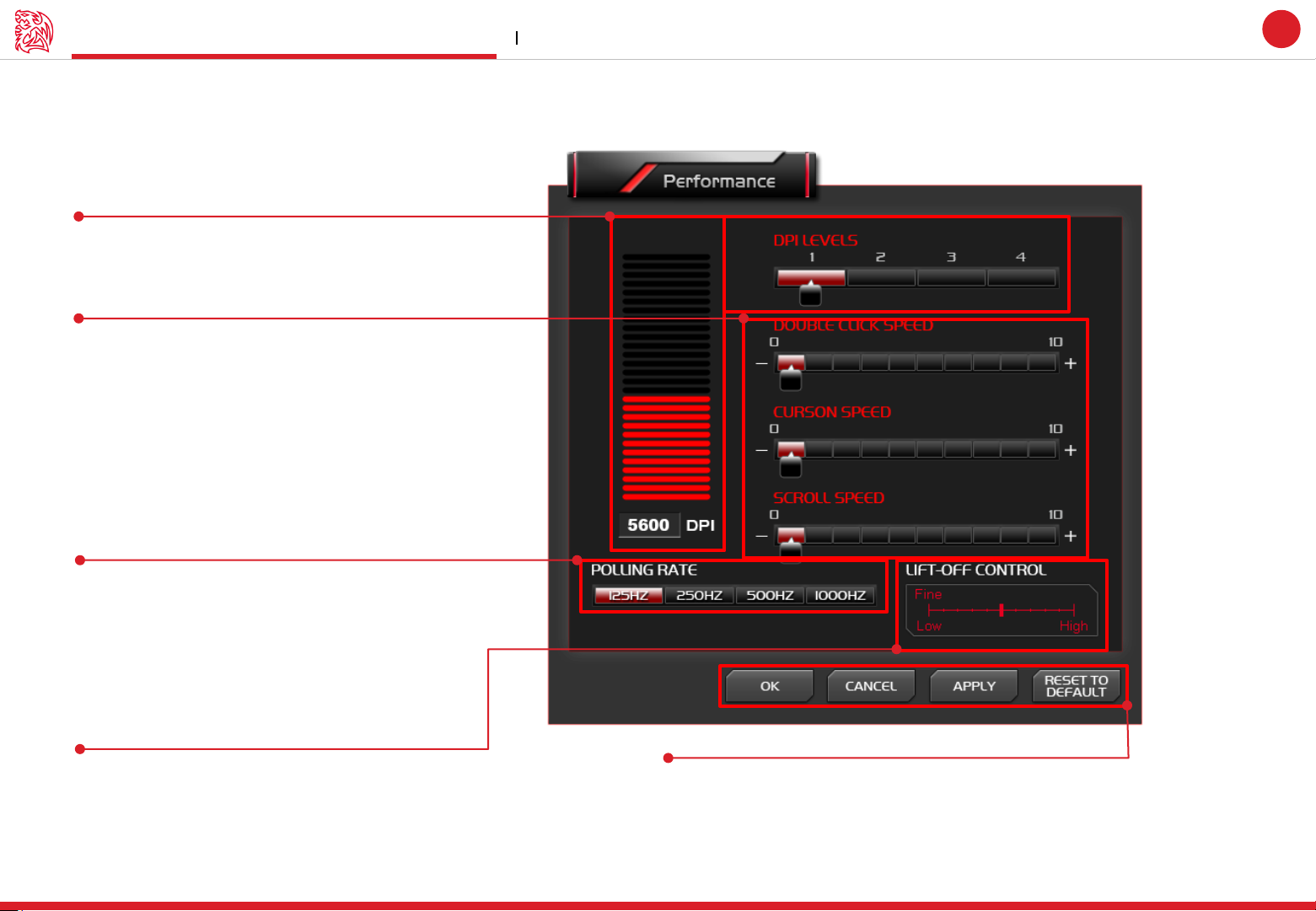
DPI
DPI setting
Page : 17
Mouse speed adjust of Scroll /
Double Click / Cursor
Challenger is the Game
Tt eSPORTS | THERON Plus
GUI Software User Guide
15
Page : 18
Polling Rate
Adjust Polling Rate
Page : 19
Lift-Off Control
Adjust the sensor distance
Apply / Cancel / OK
APPLY: Click Apply you completed the setting
CANCEL: Click Cancel to cancel the setting
OK: Click OK after DPI Setting has been fully completed
Page 21
Challenger is the Game
DPI Performance Setting
Tt eSPORTS | THERON Plus
GUI Software User Guide
Dot Per Inch – The Mouse DPI
Do you know what DPI means?
DPI stands for Dot Per Inch, is a measurement of how sensitive a mouse is. The higher a mouse’s DPI, the farther the cursor on your
screen will move when you move the mouse. A mouse with a higher DPI setting detects and reacts to smaller movements.
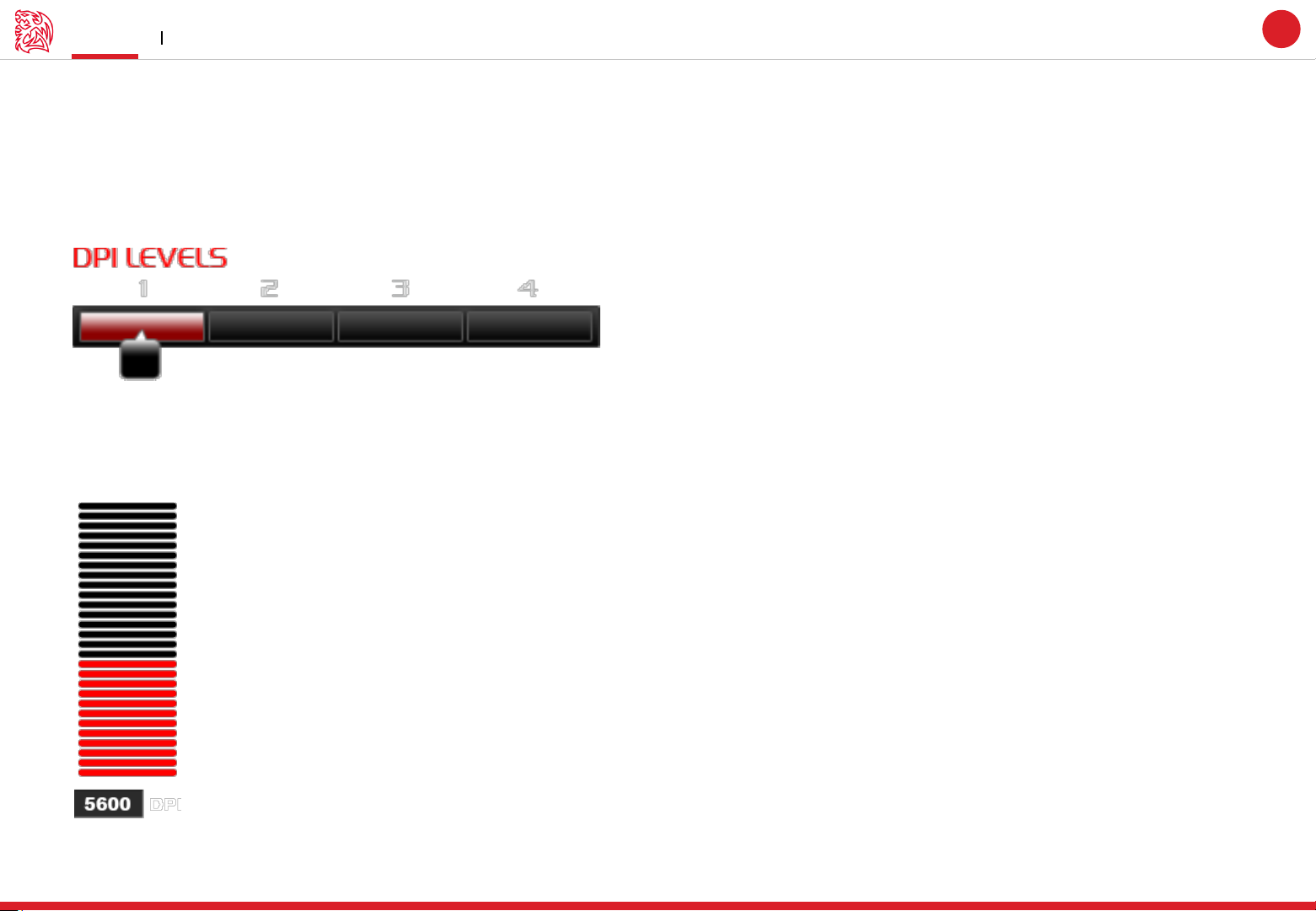
DPI levels for each Profile
You can choose your preferred DPI level (Each profile can have up to 4 DPI levels).
16
Configure a DPI
Choose the DPI level by adjusting the RED bar to your preferred
DPI level or fill in the DPI number at the [5600] box.
Page 22
Other Speed Performance Performance Setting
Tt eSPORTS | THERON Plus
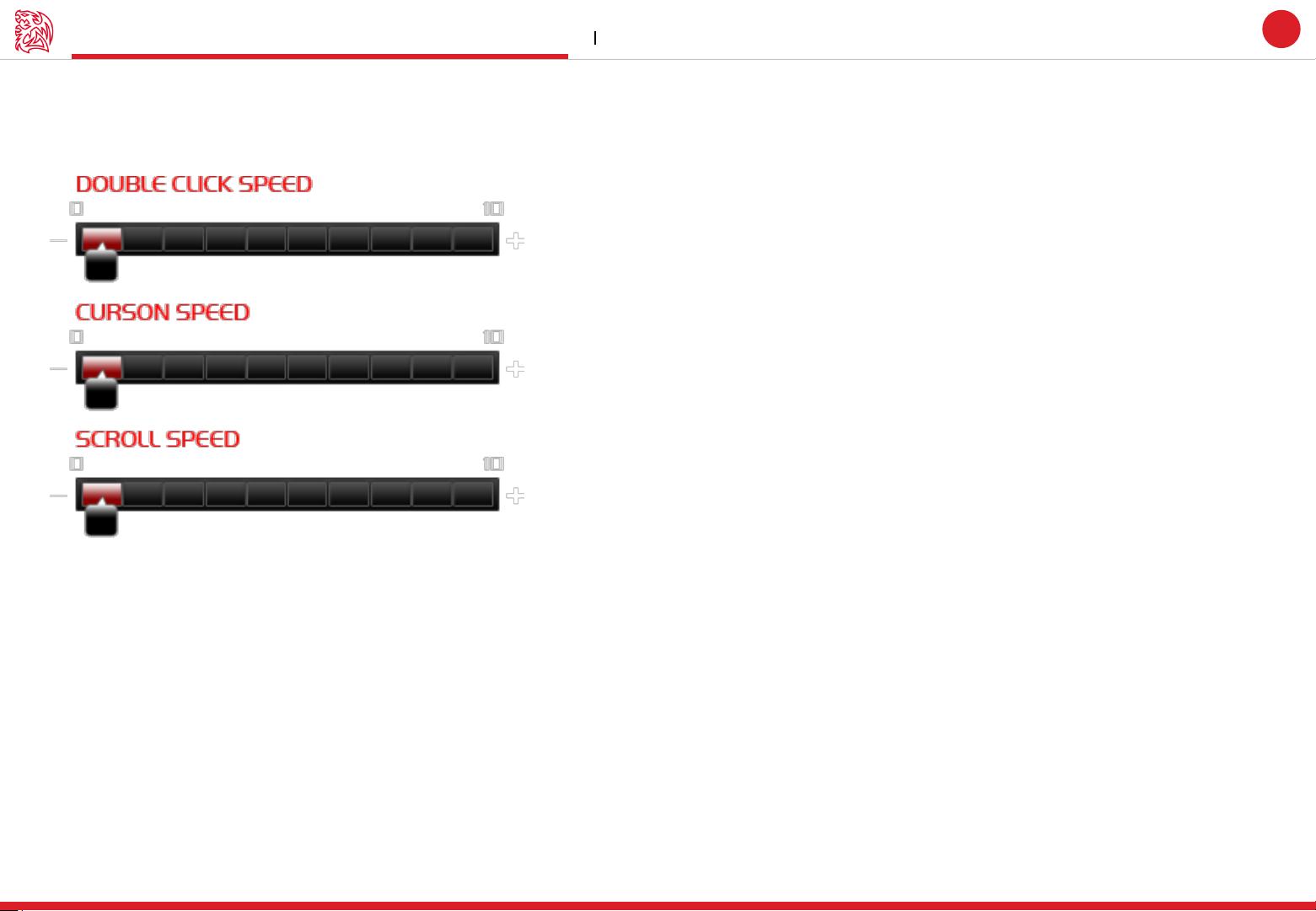
Mouse speed adjust of Scroll / Double Click / Cursor
The other Mouse function speed can be adjusted.
Challenger is the Game
GUI Software User Guide
17
Double Click Speed : To adjust the speed of double click to detonate signal.
Cursor Speed : To increase or decrease the mouse’s moving speed.
Scroll Speed : To adjust the scrolling speed.
Page 23
Challenger is the Game
Polling Rate Performance Setting
Tt eSPORTS | THERON Plus
GUI Software User Guide
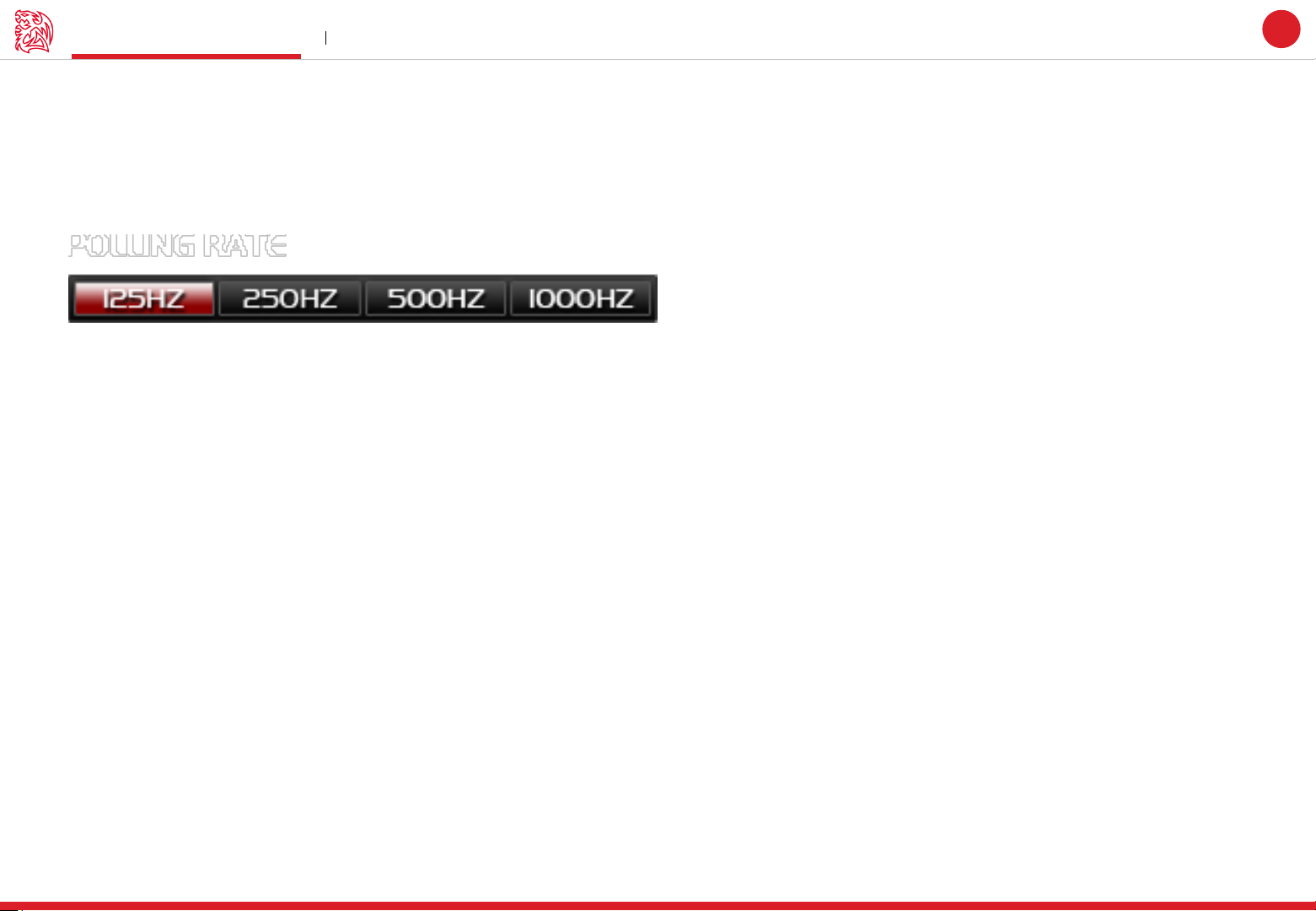
Polling Rate
A higher polling rate could decrease the lag that occurs between when you move your mouse and when the movement shows up on your
screen. Higher Polling Rate does not mean that you can move fast, that will depends on what DPI level.
Adjust your THERON Plus Polling Rate
There are 4 levels for Polling Rate to choose from:
125 Hz polling rate, it’s reporting THERON Plus’s position to the computer 125 times every second (Also known as 8ms)
250 Hz polling rate, it’s reporting THERON Plus’s position to the computer 250 times every second (Also known as 4ms)
500 Hz polling rate, it’s reporting THERON Plus’s position to the computer 500 times every second (Also known as 2ms)
1000 Hz polling rate, it’s reporting THERON Plus’s position to the computer 1000 times every second (Also known as 1ms)
18
Page 24
Challenger is the Game
Lift-Off Control Performance Setting
Tt eSPORTS | THERON Plus
GUI Software User Guide
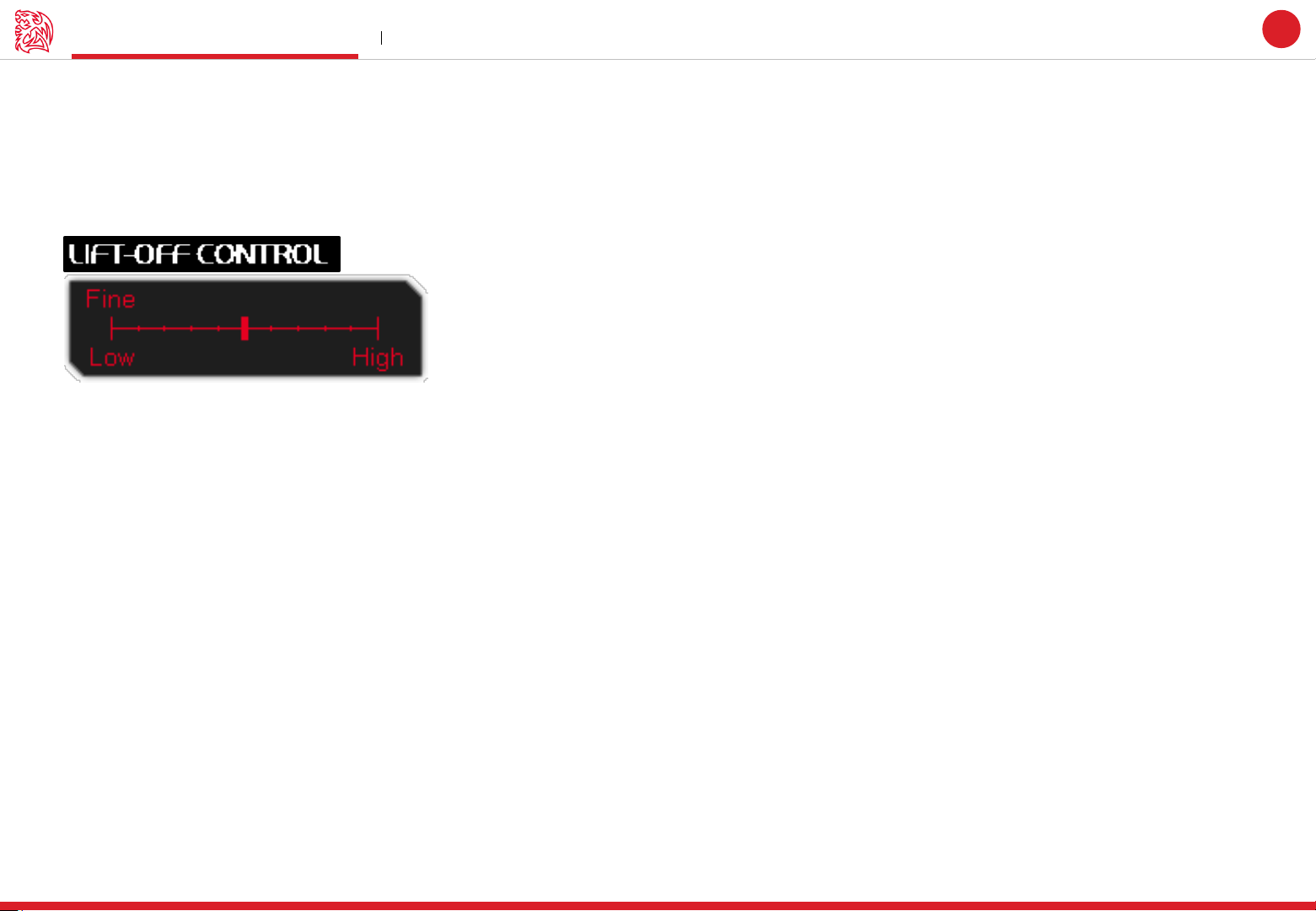
Lift-Off Control
Lift-off trace sometimes required for particular games and some mouse-pads that will influence the trace distance and affected gameplay.
Now with THERON Plus, this allow gamers to adjust the distance to the best distance they want while gaming!
Adjust your THERON Plus Lift-Off
Adjust the sensitivity by adjusting the level.
CAUTION : Lowest is not recommended as THERON Plus might not be able to sense the mouse pad.
19
Page 25

CONTENT FOUR
Light Setting
GUI Software User Guide Tt eSPORTS | THERON Plus
Page 26
Light Option Interface Light Setting
Challenger is the Game
Tt eSPORTS | THERON Plus
GUI Software User Guide
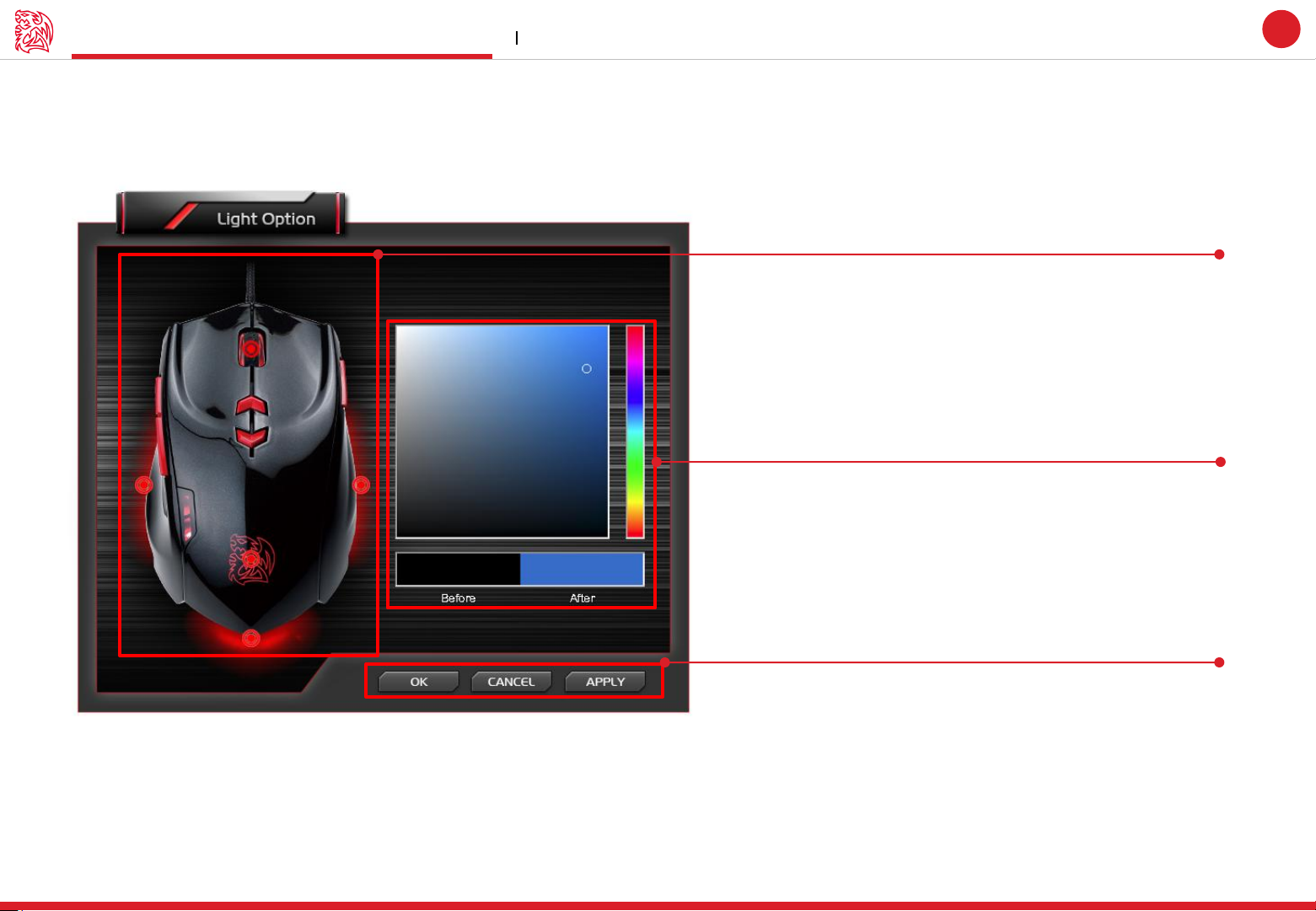
Click and Choose THERON Plus Light Part
THERON Plus have four part can select and customize light color.
Scroll / Left and Right bottom panel / Down bottom panel / Tt
DRAGON LOGO
Note: Tt DRAGON LOGO will have a pulse-break light effect.
Select a Light color
You can select a color on left picture spectrum.
20
OK / CANCEL/ APPLY
OK: Click OK to save the setting
CANCEL: Click CANCEL to cancel the setting
APPLY: Click APPLY to save the setting
Page 27

CONTENT FIVE
Firmware Update
GUI Software User Guide Tt eSPORTS | THERON Plus
Page 28

How to update Firmware Firmware Update
Update Your THERON Plus Firmware
Please follow our official Website on : www.ttesports.com
Go to the Product web page, scroll down to the “Download” section for firmware updates information.
Challenger is the Game
Tt eSPORTS | THERON Plus
GUI Software User Guide
21
 Loading...