

Page 1
RGB
GUI Software User Guide Tt eSPORTS | POSEIDON Z RGB
Page 2

A
CONTENTS
PAGE 01
PAGE 09
PAGE 15
PAGE 17
Main Interface
Main
Profiles
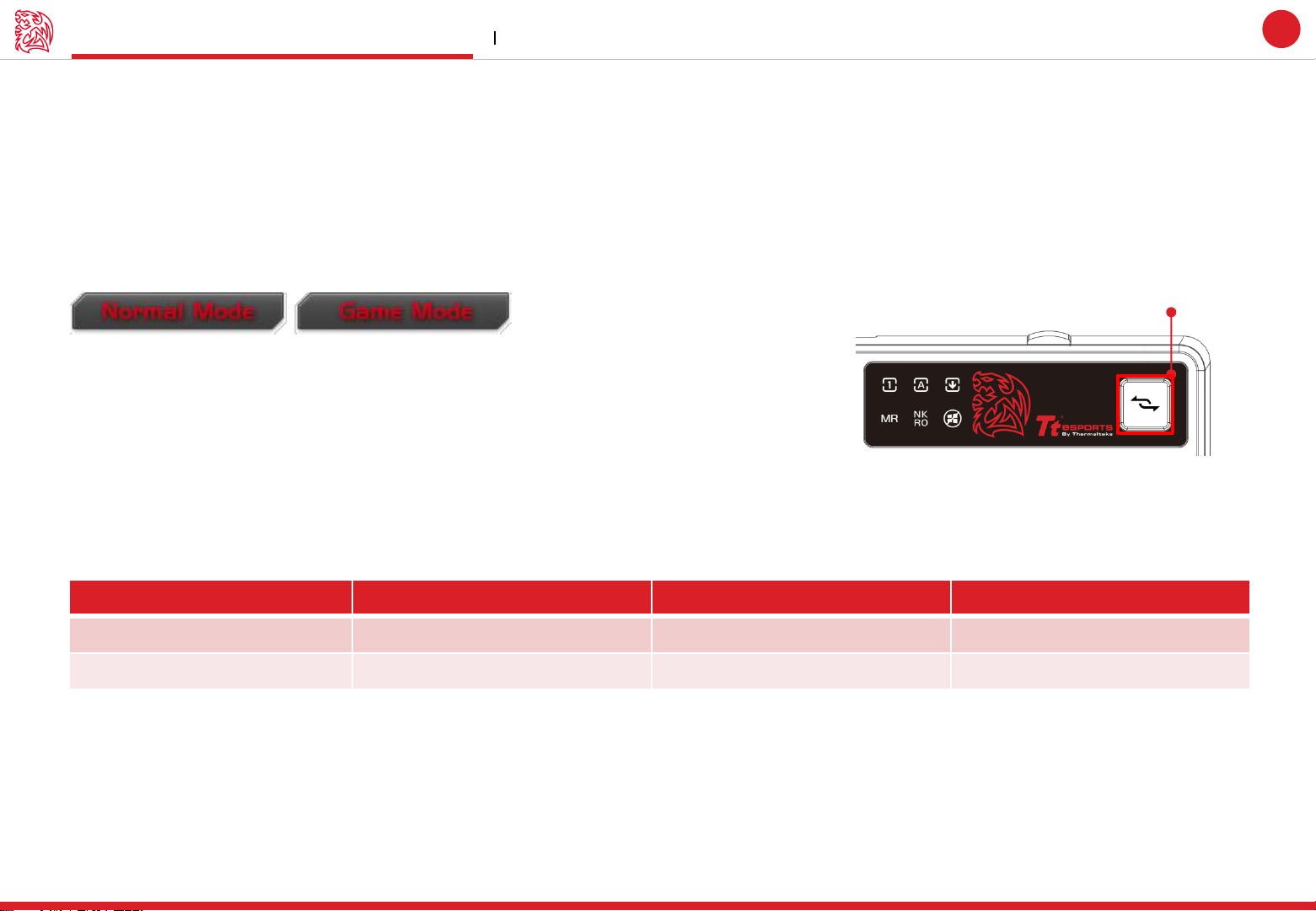
Normal Mode / Game Mode
Key Assignment
Macro Setting
Macro Setting Interface
Macro Manager
Macro Record Setting
Macro Record Timeline
Insert Command
I.S.S (Instant Shift System)
I.S.S Button and Setting
Light Setting
--------------------------------------- 01
--------------------------------------- 02
--------------------------------------- 03
--------------------------------------- 04
--------------------------------------- 09
--------------------------------------- 10
--------------------------------------- 11
--------------------------------------- 12
--------------------------------------- 14
--------------------------------------- 15
PAGE 22
Light Option Interface
ZONE One : Keyboard
ZONE Two : Layer
ZONE Three : Color Control
ZONE Four : Effect Control
Firmware Update
How to Update Firmware
--------------------------------------- 17
--------------------------------------- 18
--------------------------------------- 19
--------------------------------------- 20
--------------------------------------- 21
--------------------------------------- 22
GUI Software User Guide Tt eSPORTS | POSEIDON Z RGB
Page 3

CONTENT ONE
Main Interface
GUI Software User Guide Tt eSPORTS | POSEIDON Z RGB
Page 4

Main Main Interface
Reset / Register / Guide / Close
Reset : Reset all setting
Register : Register as Tt eSPORTS’s follower and receive updates from Tt eSPORTS via E-mail.
Guide : Configuration software manual
Close : Close Tt eSPORTS POSEIDON Z RGB GUI Software
Challenger is the Game
Tt eSPORTS | POSEIDON Z RGB
GUI Software User Guide
Page : 02
01
Page : 03
Indicator
Normal/Game Mode
The Macro frame indicates the Mode
(Normal/Game) which you are.
*Normal/Game Mode can be switched
on-the-fly with the Windows Disable Key
located at the Top-Right Button on
POSEIDON Z RGB Keyboard.
Key Assignment
Assign function to each key
Page : 04
Apply / Cancel / OK
Apply: Click Apply after completing profile setting and for importing setting
Cancel: Click Cancel if you wish to cancel the setting
OK: Click OK after setting has been completed
Profile
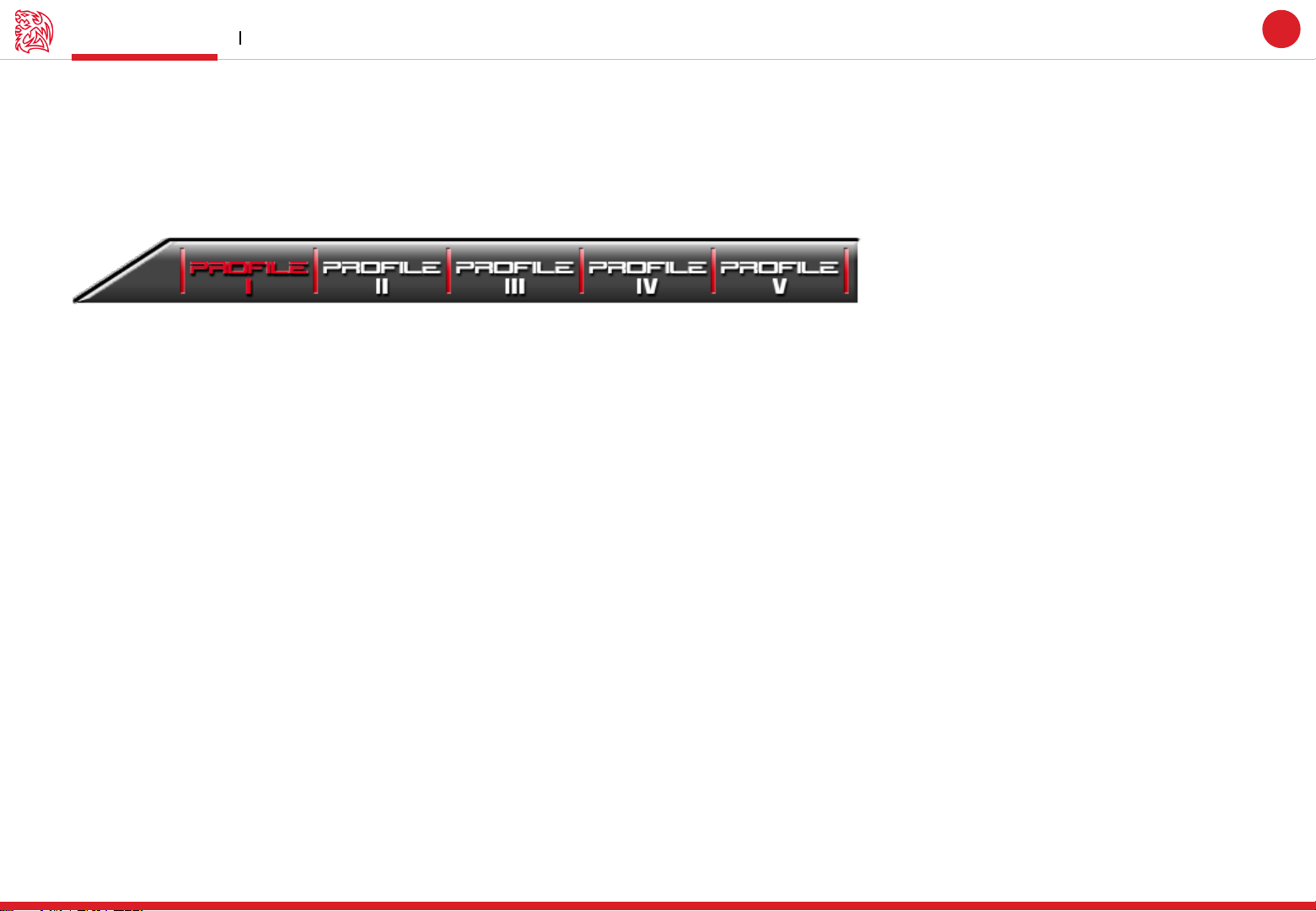
POSEIDON Z RGB has 5 profiles
setting .
Macro Manager / Light
Macro Manager
Light Option :
Change POSEIDON Z RGB light
Page : 09
Page : 17
Page : 15
INSTANT SHIFT SYSTEM
I.S.S allows users to use either the
Shift, Ctrl, or Alt key to quickly switch
between macro groups
Page 5
Challenger is the Game
Profiles Main Interface
Tt eSPORTS | POSEIDON Z RGB
GUI Software User Guide
Tt eSPORTS GUI of Profile
Tt eSPORTS’ offers users to set profiles for different purposes and offers gamers to customize their own macros, making it one-of-a-kind!
Switch to Profile by Software
Choose the Profile you wanted to switch to
Switch to Profile by Hardware
Click the Hotkey as below:
Fn + Insert : switch to Profile 1
Fn + Home : switch to Profile 2
Fn + Page Up : switch to Profile 3
Fn + Delete : switch to Profile 4
Fn + End : switch to Profile 5
02
Page 6
Challenger is the Game
Mode \ Key Assignment
T Key
Single Key
Launch Prgm
Normal Mode
0 0 0
Game Mode
102(All keys besides Win and Fn key)
102(All keys besides Win and Fn key)
102(All keys besides Win and Fn key)
Normal / Game Mode Main Interface
Tt eSPORTS | POSEIDON Z RGB
GUI Software User Guide
More Macro Key for Games
Tt eSPORTS develops a powerful macro setting. Just switch the Mode Key on the keyboard to either normal or game mode and you can
experience a powerful and useful function!
You can program more macro keys when you switch to Game Mode! This will make the POSEIDON Z RGB a gaming weapon that will
enhance your gaming experience!
Normal / Game Mode switch
Normal Mode
In Normal Mode
• Standard Keyboard without any Macro function.
Game Mode
In Game Mode, Left Windows key will be locked. And only in Game Mode can set Macro function
• You can set all the keys to macro keys besides the Windows Key and Fn Key.
03
Normal and Game Mode Comparison
*T Key is an assignment command which can be set to a key to become a macro key. (More information about T Key please go to Page 6)
Page 7
Challenger is the Game
Key Assignment Main Interface
Tt eSPORTS | POSEIDON Z RGB
GUI Software User Guide
Customization for each of POSEIDON Z RGB’s Key
Each POSEIDON Z RGB’s button can be customized as your preferred key in Game mode, even A to Z or F1 to F12 can be changed!
Customize it and make the POSEIDON Z RGB your very own ultimate weapon to conquer!
POSEIDON Z RGB Can Do More than You Expected!
Key Configuration
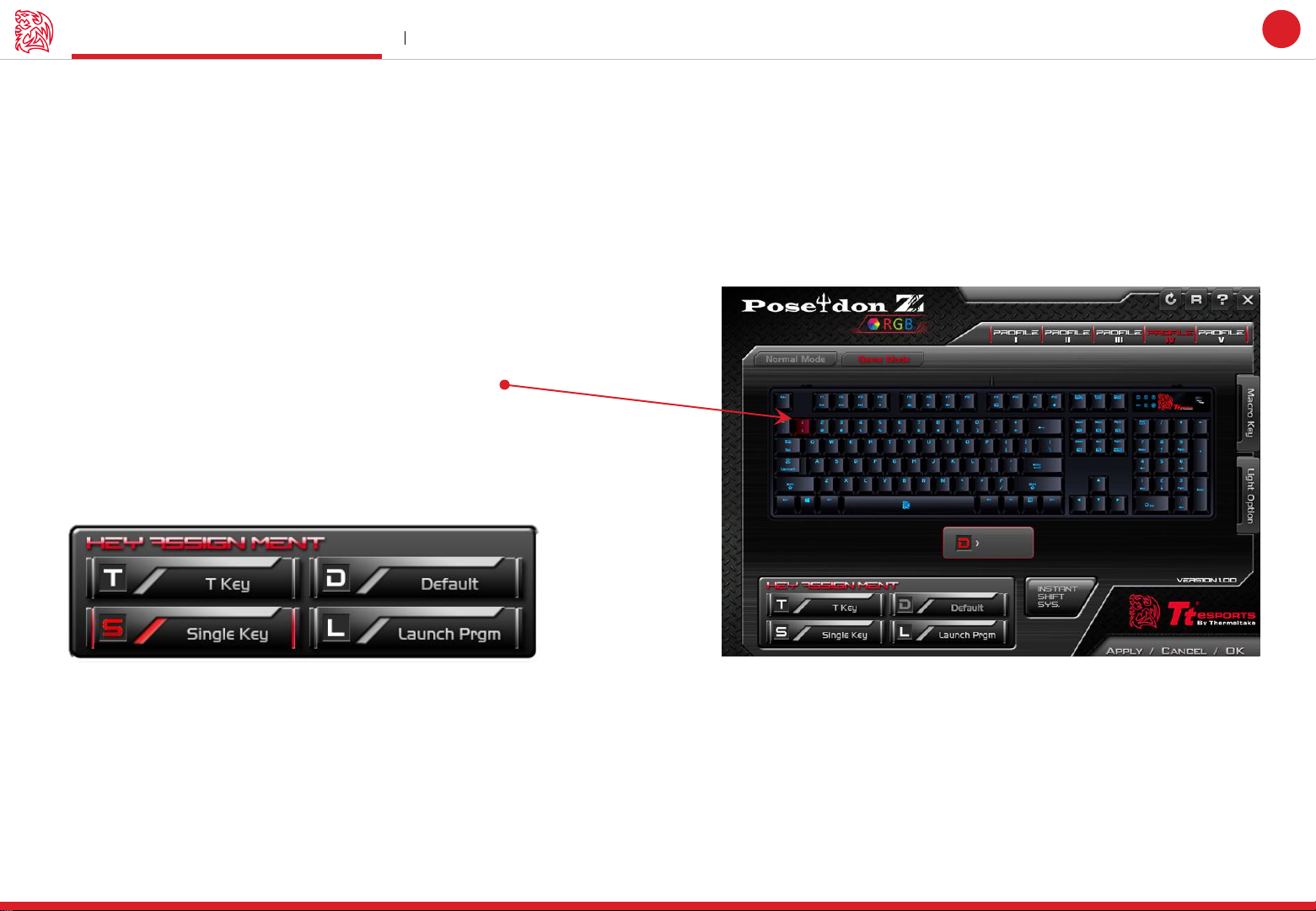
Click on each key to change its function (See right picture)
Click each key to assign functions. Once the key which had been chosen
or been set it will become Red
Key Assignment
Choose the key to manage function
04
Page 8
Key Assignment Main Interface
Tt eSPORTS | POSEIDON Z RGB
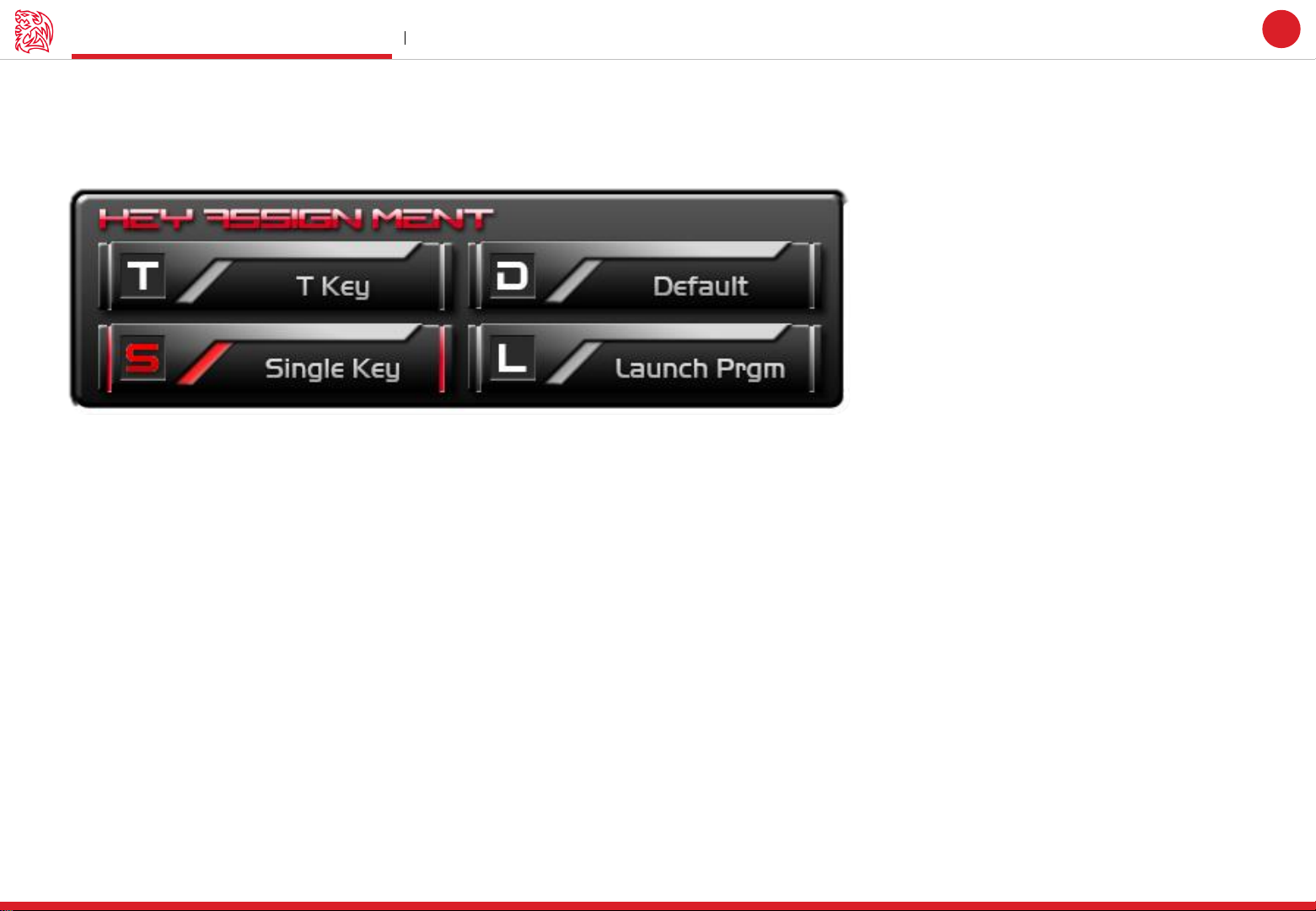
4 Key Functions to be Assigned!
Keys can be assigned for four functions ( Macro(T Key) / Single Key / Default / Launch Program ).
Challenger is the Game
GUI Software User Guide
05
Default :
Macro(T Key) :
Single Key :
Launch Program :
All keys function will be set as default setting.
Assign macro that has been recorded from Macro Manager.
Set any key to become a key signal ( i.g. : “A” key as the “B” signal)
Launch the pre-set program directly
Page 9
Key Assignment Main Interface
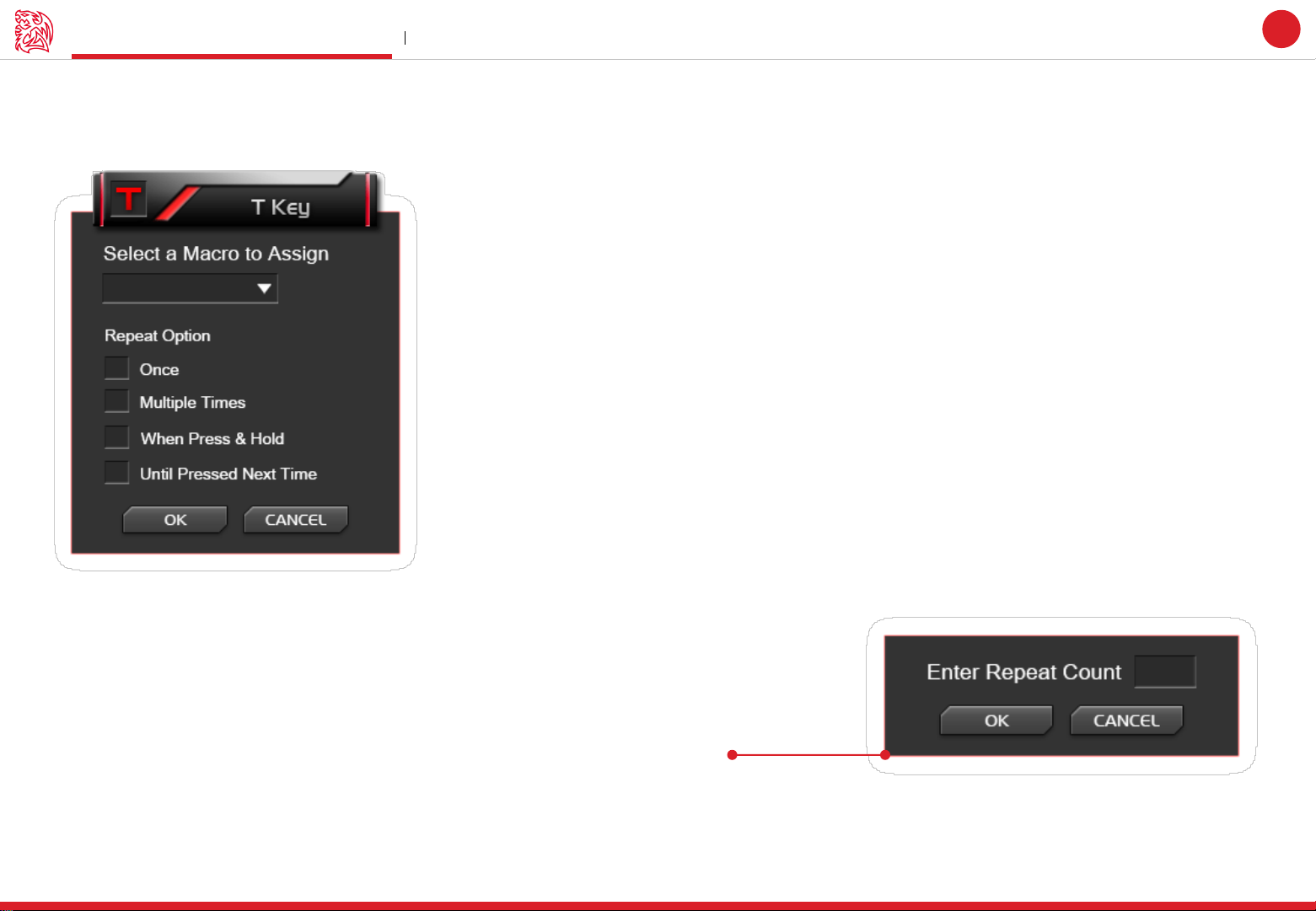
Macro (T Key)
T Key is the Macro key that you programmed.
Challenger is the Game
Tt eSPORTS | POSEIDON Z RGB
GUI Software User Guide
06
Assign macro
Select a programmed macro that already recorded from Macro Manager (Macro record detail, see Page 09)
Repeat
Customize the times that you want to have the macro repeats..
Once :
Multiple Times :
When press & hold :
Until press next time :
Macro will repeat once.
Macro will repeat depends on the repeat count set.
Macro will keep repeating as long as you press and hold the key.
Macro will start repeating until you click the key again.
Page 10
Key Assignment Main Interface
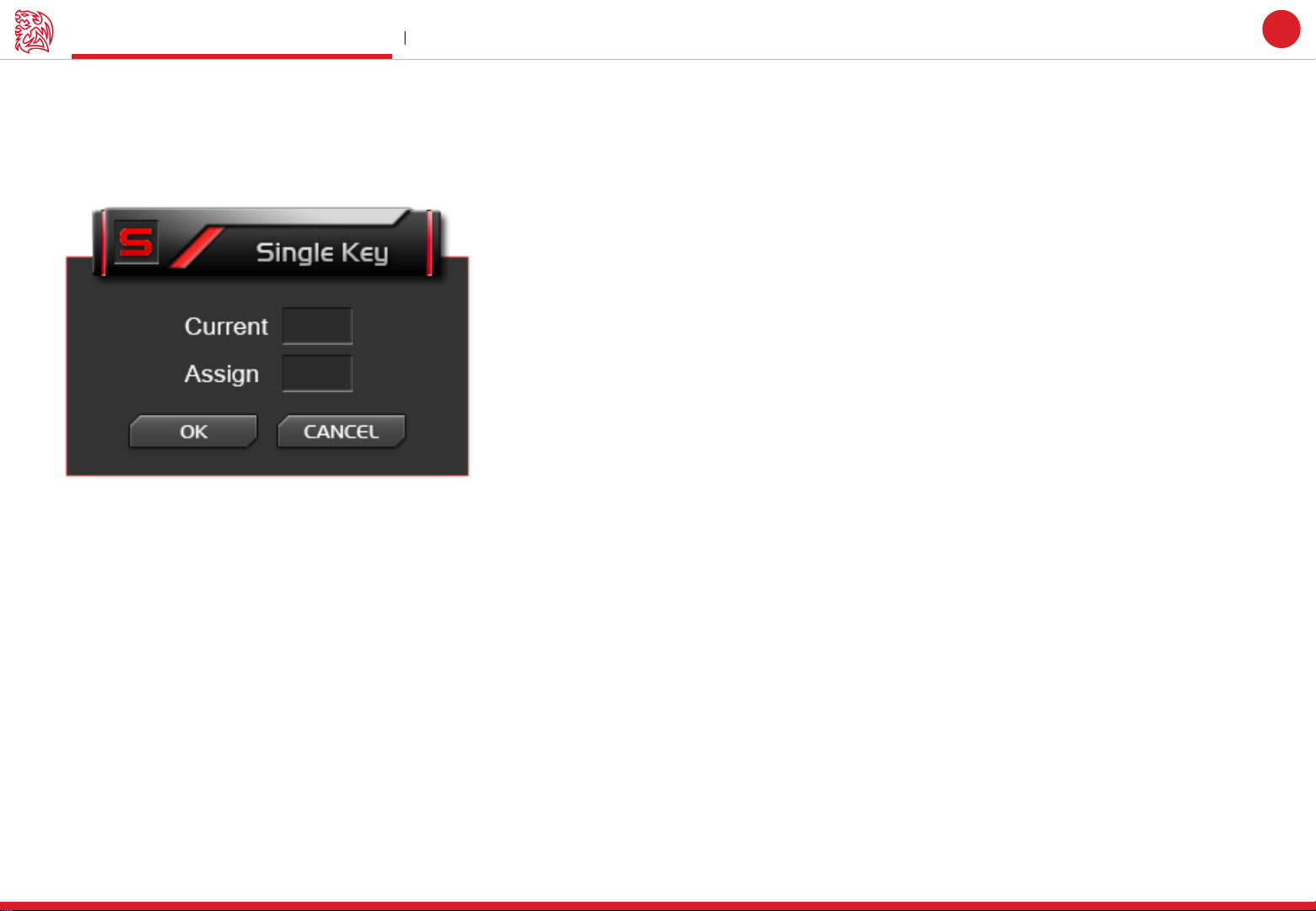
Single Key
Change a Key to become other key signal.
I.G. Choose “A” key and change it become “B” key.
Challenger is the Game
Tt eSPORTS | POSEIDON Z RGB
GUI Software User Guide
07
Page 11
Challenger is the Game
Key Assignment Main Interface
Tt eSPORTS | POSEIDON Z RGB
GUI Software User Guide
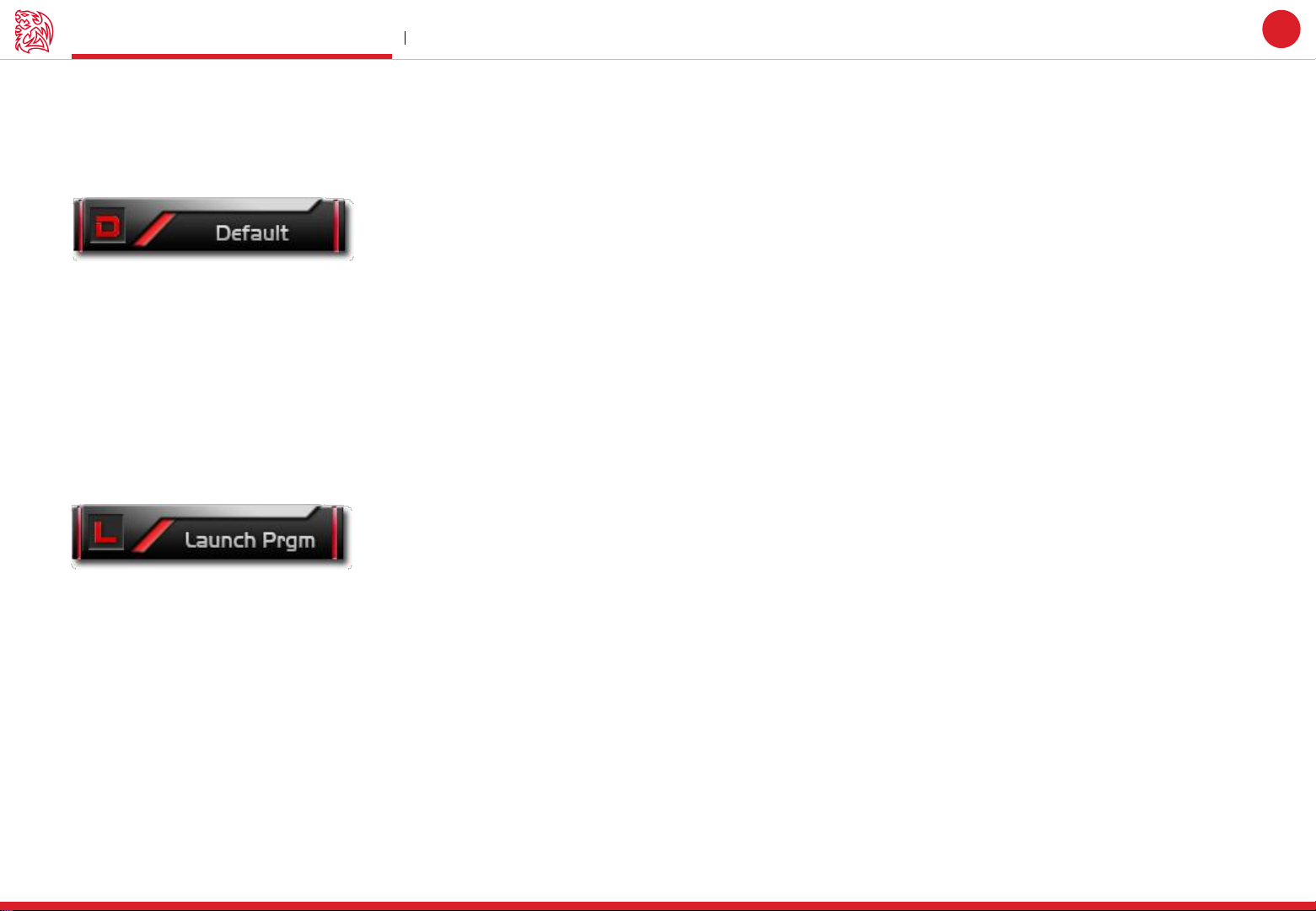
Default
POSEIDON Z RGB has its own pre-configured functions, which is the default. If you wanted to change back to the default setting, you can
just choose Default and it will be changed back to the pre-configured functions.
Launch Program
Pre-set a program and the program will showed up whenever you click on the keys that has been programmed.
08
Launch Program button
Click the Launch Program button and system will pop out the file manager for you to choose the program that you want to launch.
Page 12

CONTENT TWO
Macro Setting
GUI Software User Guide Tt eSPORTS | POSEIDON Z RGB
Page 13
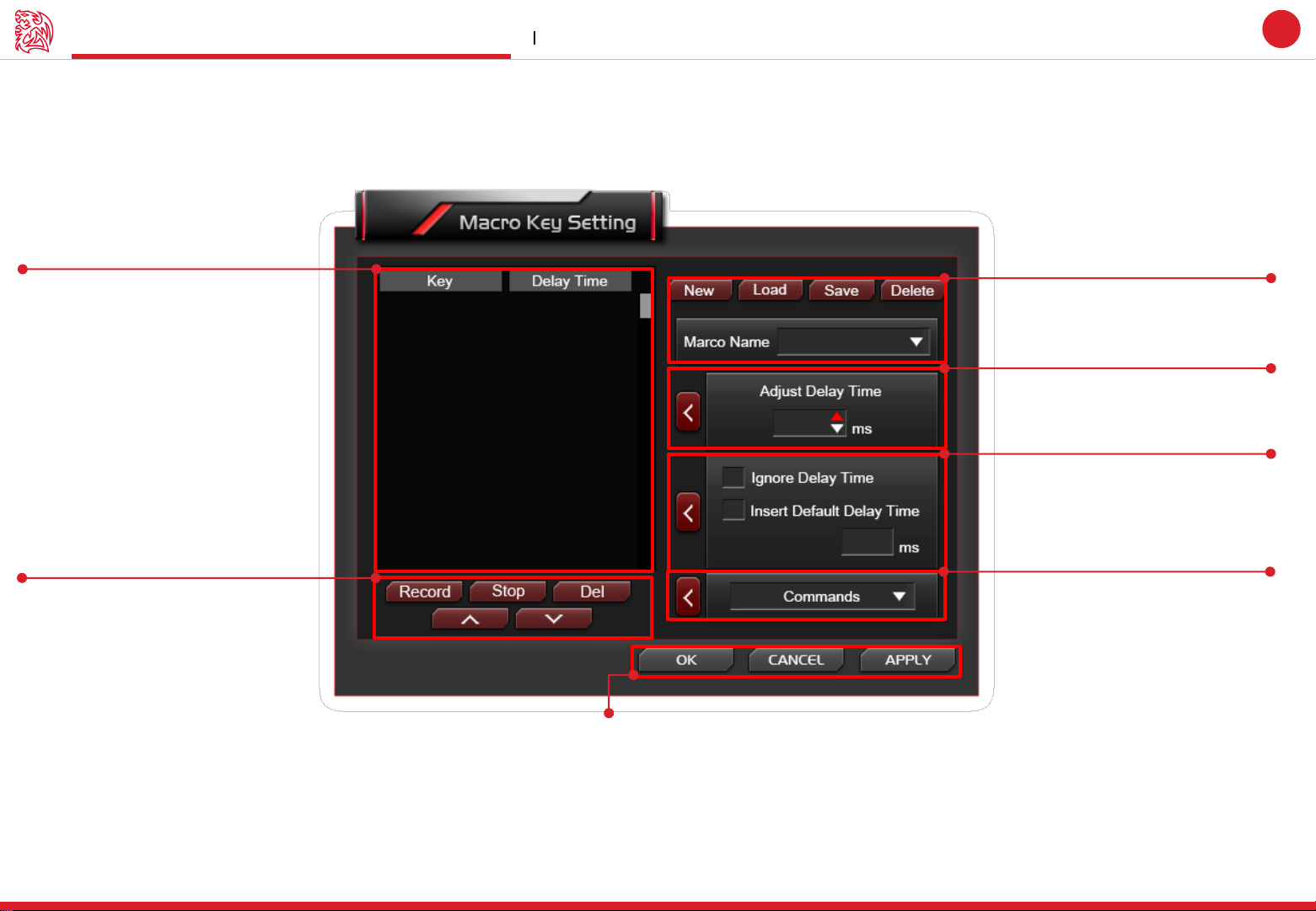
Macro setting Interface Macro Setting
Challenger is the Game
Tt eSPORTS | POSEIDON Z RGB
GUI Software User Guide
09
Page : 12
Record Macro Timeline
To check the programmed
macros.
Page : 12
Macro Modification
Modified recorded macros
Page : 10
Macro Manager
Create / Load / Save / Delete
Macro and Modifying Macro Name.
Page : 11
Adjust Delay Time
Customize the delay time
Page : 11
Macro Record Setting
2 selections for delay time
Page : 14
Commands
Set commands to macro
Apply / Cancel / OK
APPLY: Click Apply when Macro Setting completed
CANCEL: Click Cancel to cancel the setting
OK: Click OK after Macro Setting has been fully completed
Page 14
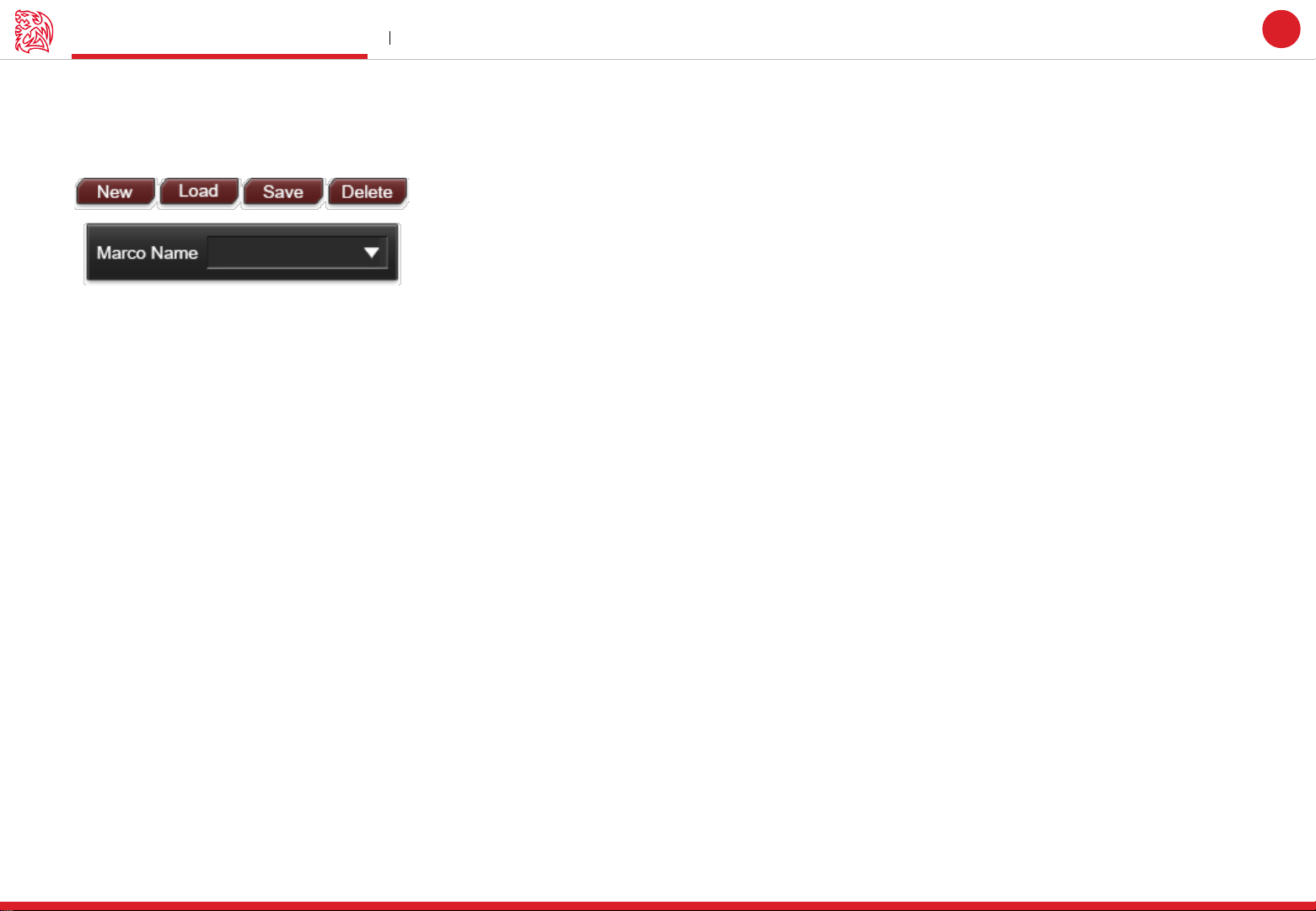
Macro Manager Macro Setting
Macro Manager
Macro manager allows you to create, delete, save and load a macro.
Manage Macro
NEW / DELETE / SAVE / LOAD macro
NEW - Create a new Macro
DELETE - Delete existing Macro
SAVE - Save a Macro .
LOAD - Load a Macro that had been saved.
Macro Name
Select a Macro.
Challenger is the Game
Tt eSPORTS | POSEIDON Z RGB
GUI Software User Guide
10
Page 15
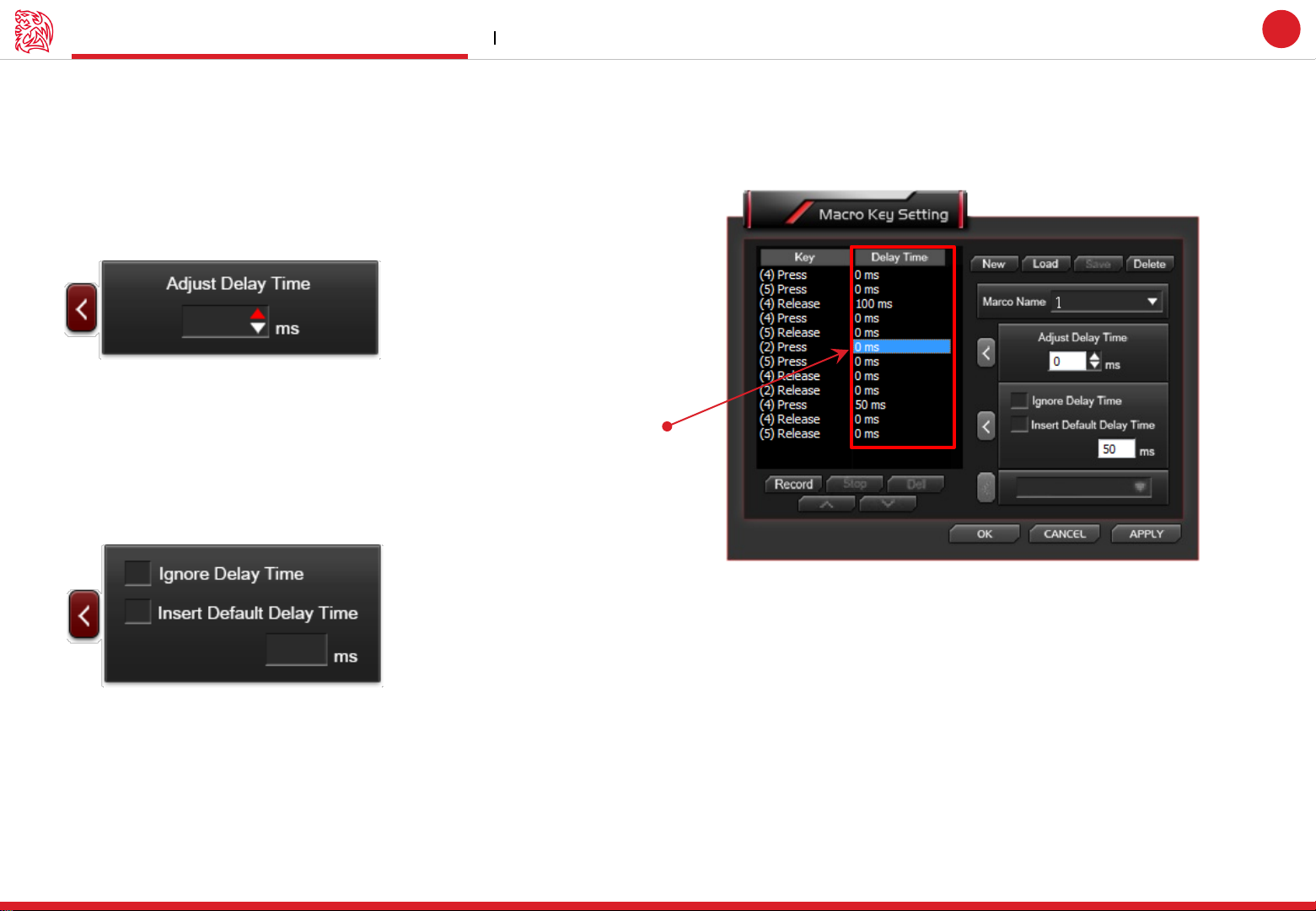
Macro record setting Macro Setting
Macro Record Setting
3 selections provided for you to choose for setting the Delay Time.
Adjust Delay Time
You can adjust Delay Time that already record.
If want to Adjust Delay Time, select the particular Delay Time and start adjusting.
*Interval for Each of Delay Time is 50ms
Challenger is the Game
Tt eSPORTS | POSEIDON Z RGB
GUI Software User Guide
11
Macro Delay Time Setting
Ignore Delay Time : No delay time between key signal.
Insert Default Delay Time ___ ms : Delay time depend on the preferred time set.
*Before you record Macro, you should set to ignore or insert default Delay Time.
*Insert Default Time interval has to be 50ms
Page 16
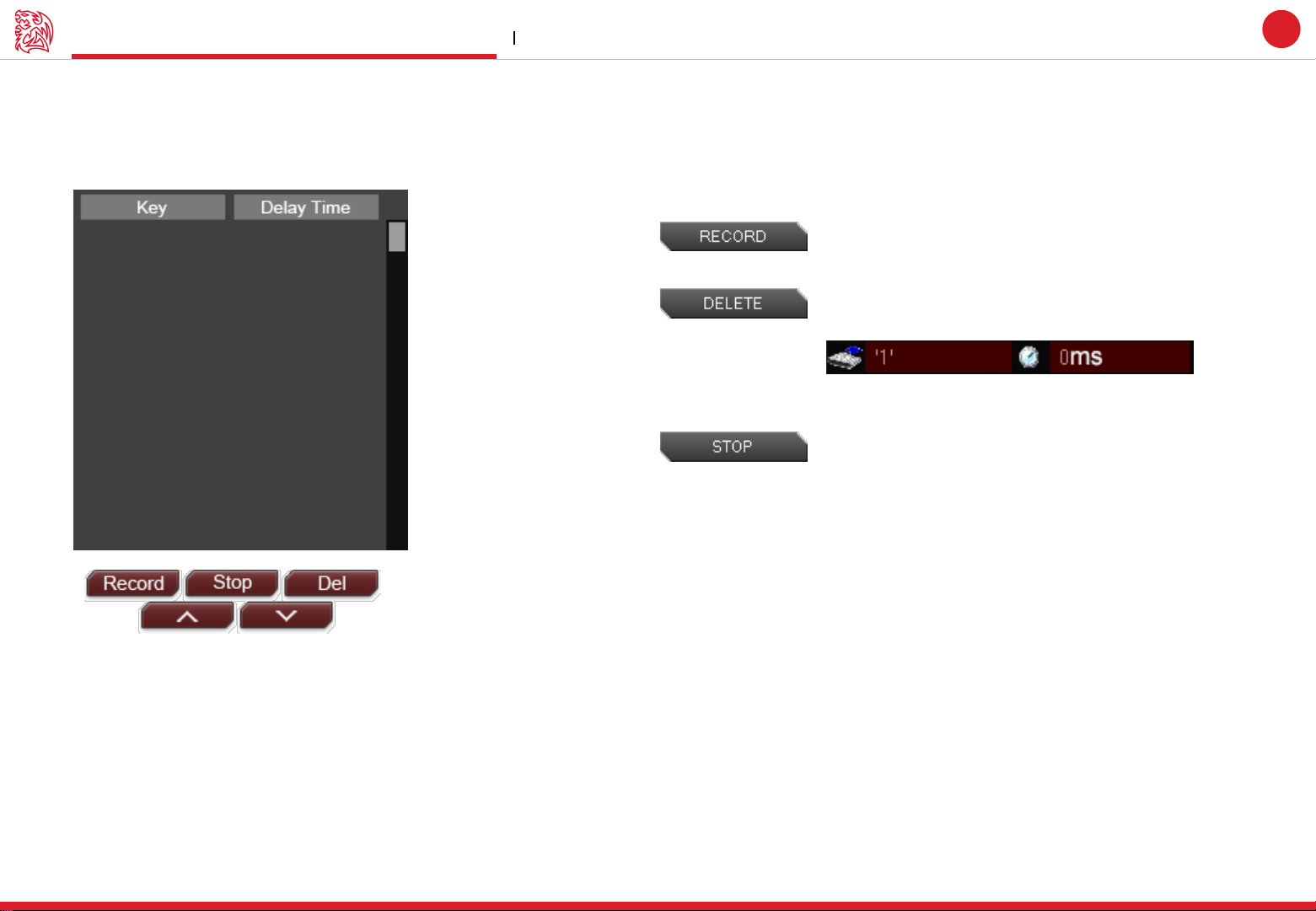
Macro record timeline Macro Setting
Macro Record Timeline
Allow you to program your macro as preferred.
Challenger is the Game
Tt eSPORTS | POSEIDON Z RGB
Record program : Click Record to start recording via your
keyboard or mouse and all signal will be recorded on this
timeline.
Delete signal : Choose the recorded signal that you wish to
delete (Once signal has been chosen, the background will turn
RED as below picture)
Click Delete and the selected signal will be removed.
Stop program : Click Stop whenever recording has been
completed.
GUI Software User Guide
12
Page 17
Macro record timeline Macro Setting
Tt eSPORTS | POSEIDON Z RGB
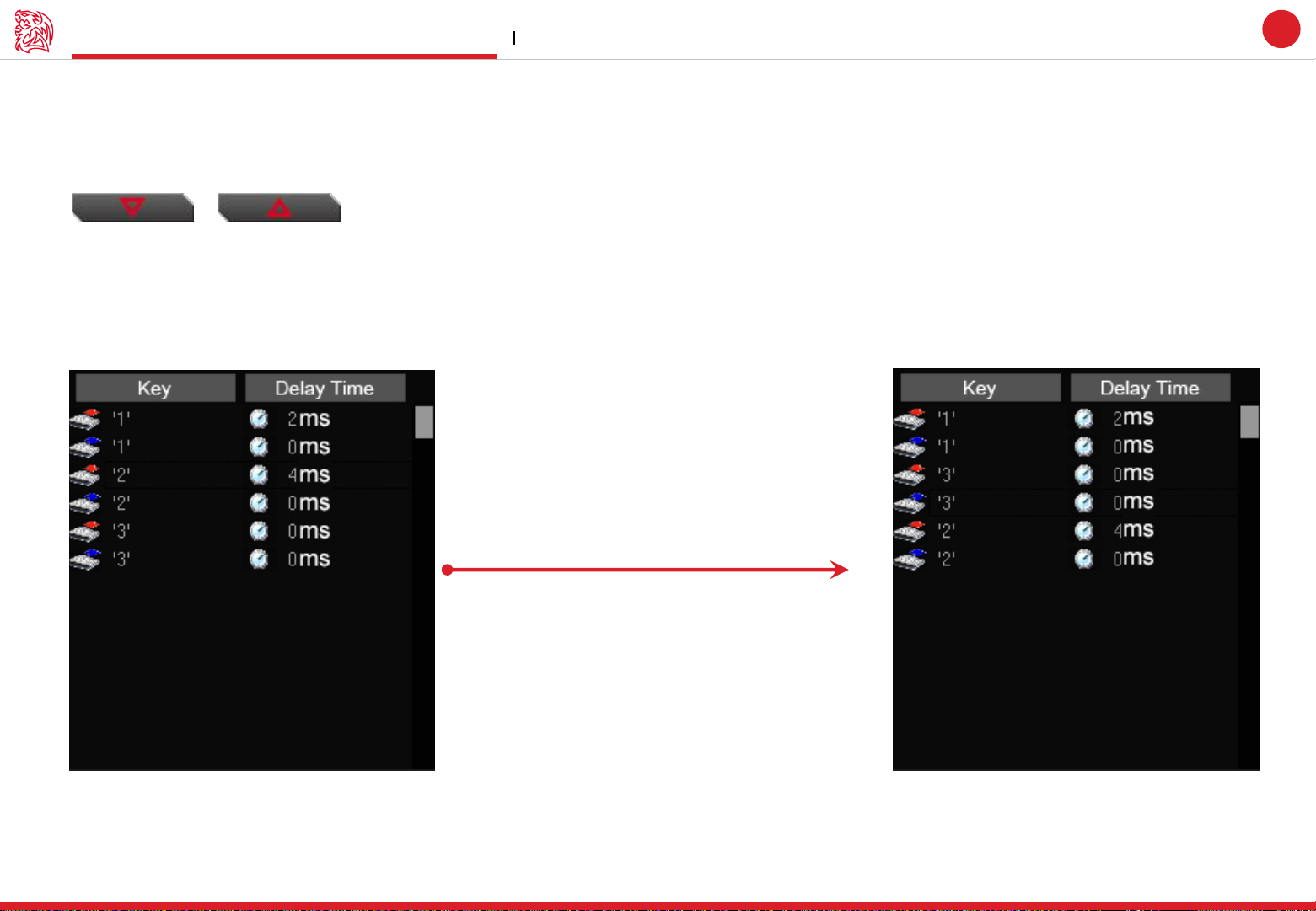
Macro Record Timeline
Once Macro Name and Recording have been completed, you can proceed to programming your macro now.
Switch signal up or down
Select the signal and click Up/ Down to rearrange the recorded signals
Note : Please be careful while arranging the “Press” & “Release” signal
Challenger is the Game
GUI Software User Guide
13
Choose “3” and press “UP” or “ DOWN” to arrange
Page 18
Challenger is the Game
Insert Command Macro Setting
Tt eSPORTS | POSEIDON Z RGB
GUI Software User Guide
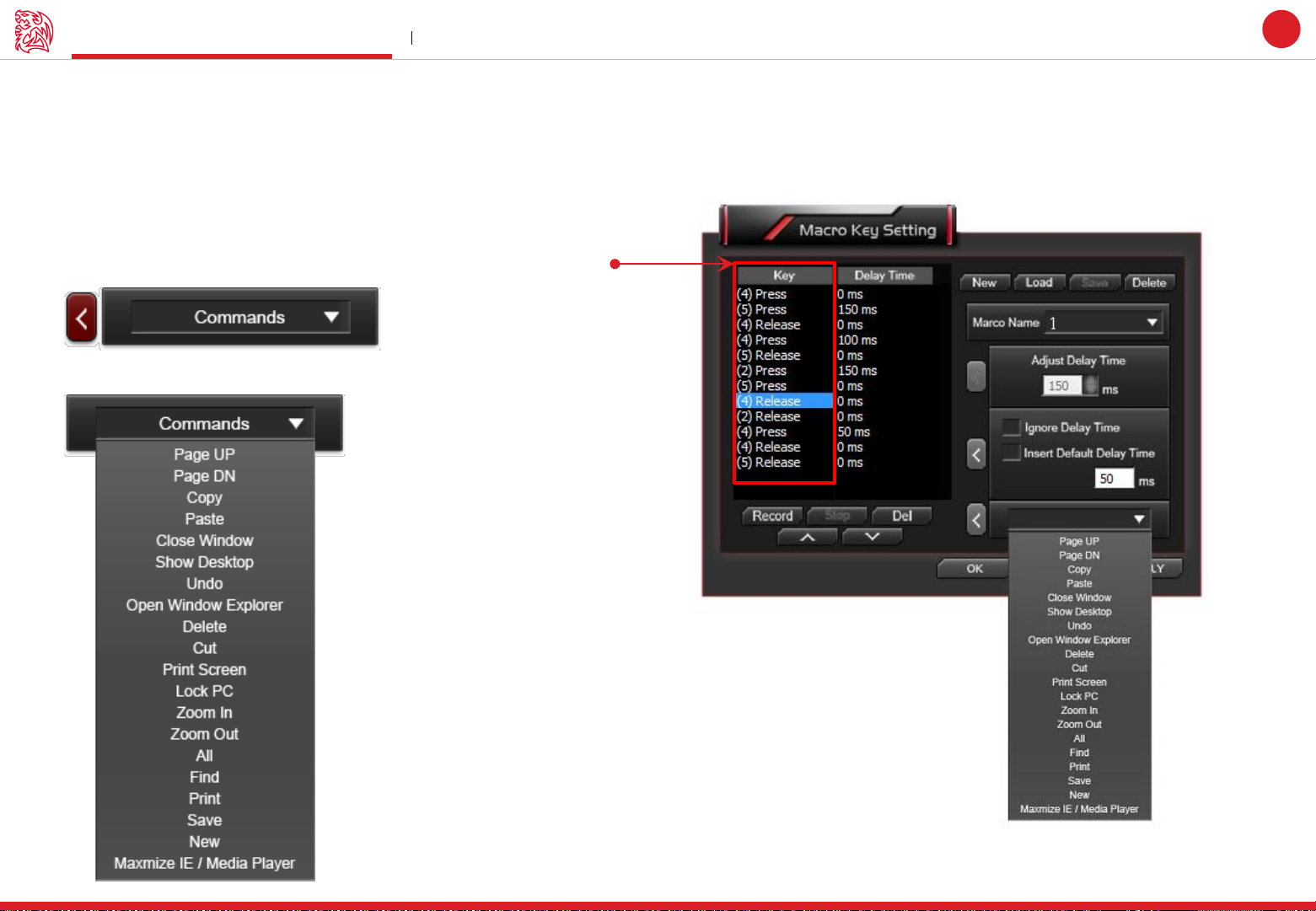
Insert Command
If you want to modify or insert Command to the programmed macro, please click the Command button and select a command into macro
from the drop down selection.
Insert Command
Choose the key that you want to insert the Commands to
Select a command as below picture
14
Page 19

CONTENT THREE
Instant Shift System
GUI Software User Guide Tt eSPORTS | POSEIDON Z RGB
Page 20
Instant Shift System I.S.S.
Tt eSPORTS | POSEIDON Z RGB
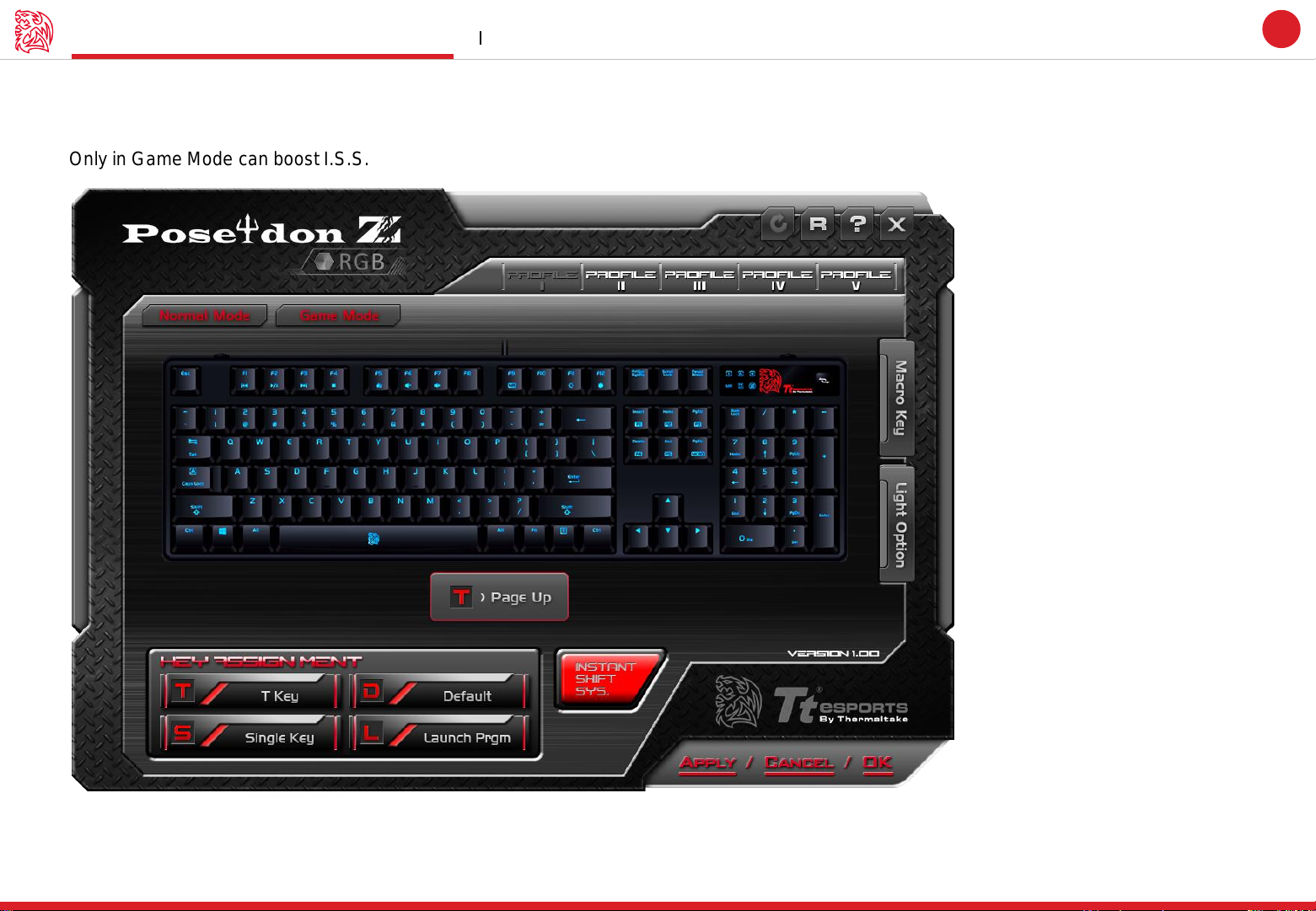
POWERFUL I.S.S function create by Tt eSPORTS
Instant-Switch-System (I.S.S.) allows for instant access to all stored macros, without changing profiles.
Only in Game Mode can boost I.S.S.
Challenger is the Game
GUI Software User Guide
15
Page 21
Instant Shift System I.S.S.
Tt eSPORTS | POSEIDON Z RGB
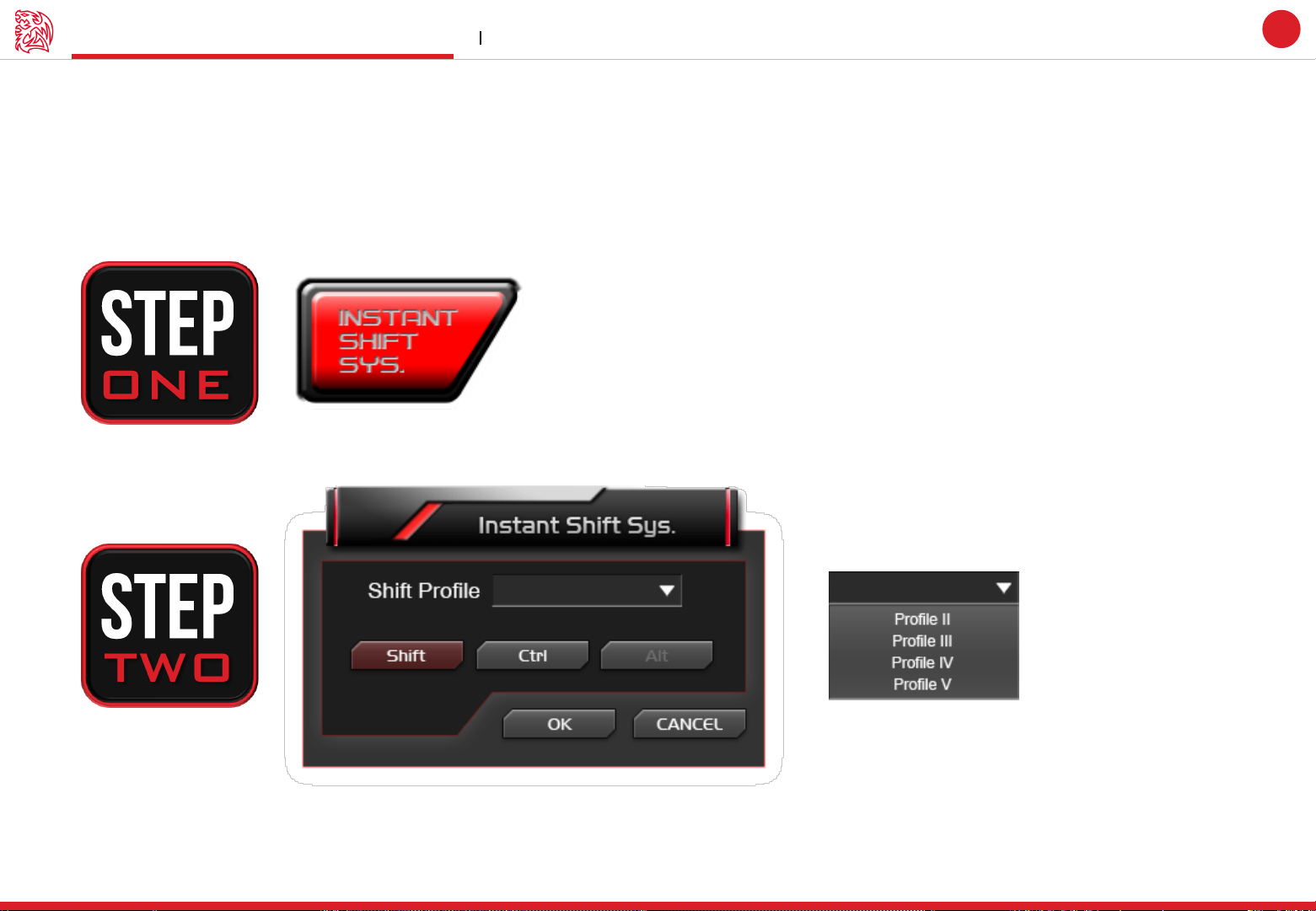
Click I.S.S Boost button at GUI Main Page to shift profiles
Click I.S.S allows users to use either the Shift, Ctrl, or Alt key to quickly switch between macro groups.
Boost ISS should in Game Mode.
Challenger is the Game
GUI Software User Guide
16
Page 22

CONTENT FOUR
Light Setting
GUI Software User Guide Tt eSPORTS | POSEIDON Z RGB
Page 23
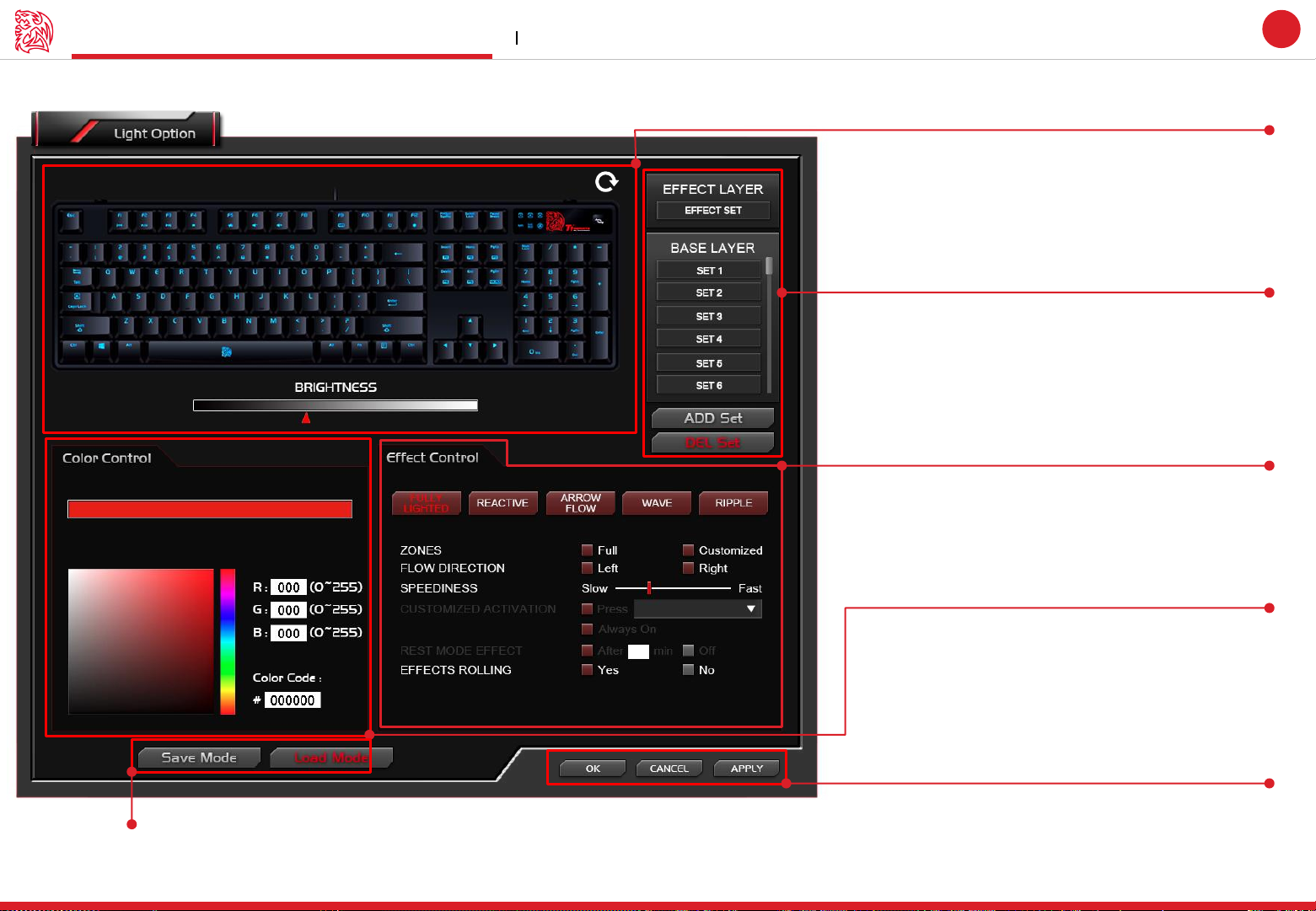
Light Option Interface Light Setting
Challenger is the Game
Tt eSPORTS | POSEIDON Z RGB
GUI Software User Guide
Page : 18
ZONE ONE : Keyboard
Keyboard : Select color and Drag or click key.
Circle : Click to reset light option.
Brightness : Drag to adjust brightness.
Page : 19
ZONE TWO : Layer
Layers can be added and can create your own color
puzzle at POESIDON Z RGB.
Effect Layer : Only one set for creating the whole
Keyboard light.
Base Layer : Basic layer can be customized with
different color.
Page : 21
ZONE FOUR : Effect Control
Five Effects for you to select and customize on
POSEIDON Z RGB.
17
SAVE / LOAD Mode
Share your own POSEDION Z RGB color set to everyone!!
Or Load any settings created by users from around the word who uses
the POSEIDON Z RGB.
Page : 20
ZONE THREE : Color Control
Choose the colors you like.
There are two ways to pick a color:
1.Type (0~255,0~255.0~255)
2. Type Color Code
OK / CANCEL/ APPLY
OK: Click OK to save the setting
CANCEL: Click CANCEL to cancel the setting
APPLY: Click APPLY to save the setting
Page 24
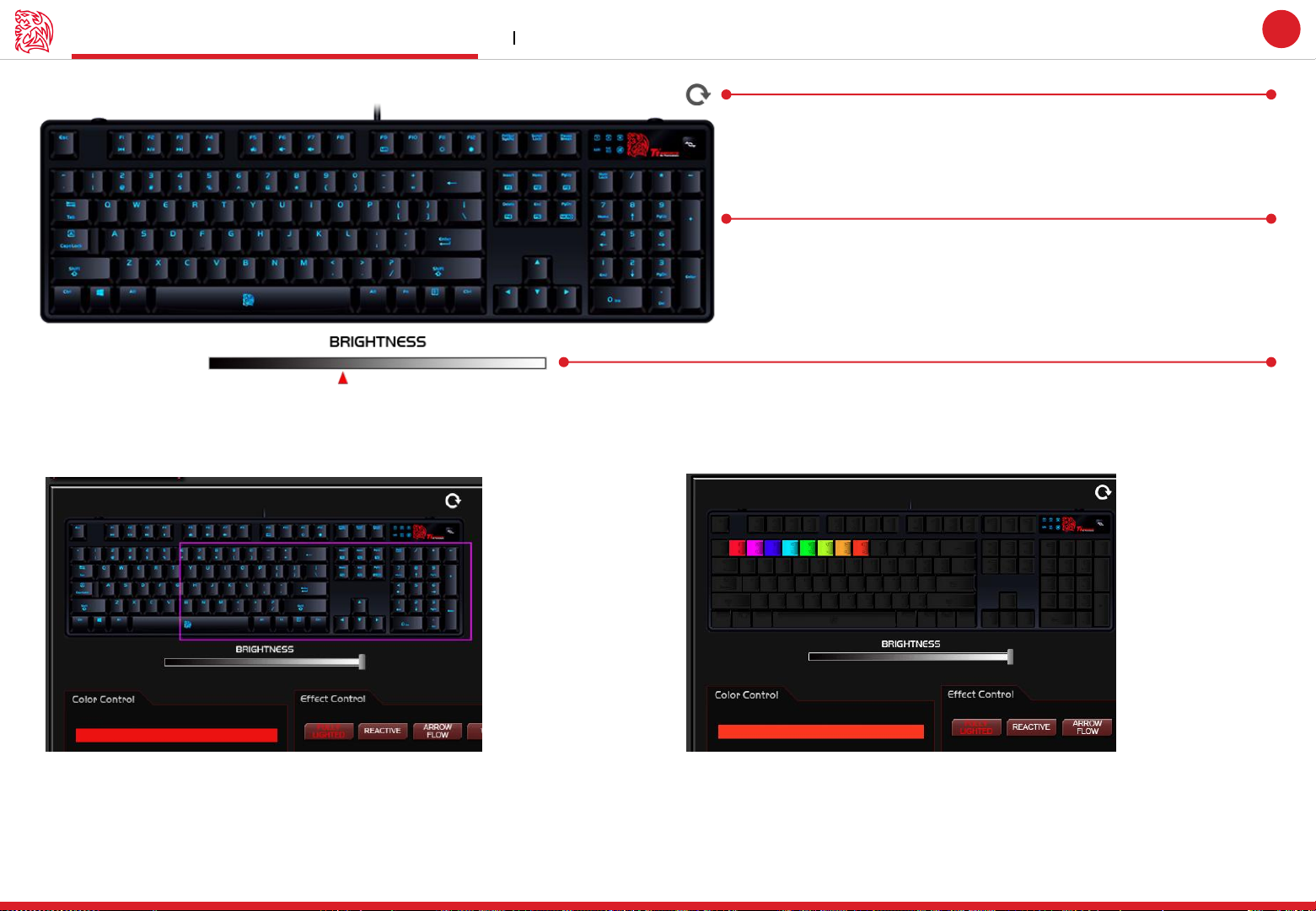
Zone One : Keyboard Light Setting
Challenger is the Game
Tt eSPORTS | POSEIDON Z RGB
GUI Software User Guide
RESET Button
Click to reset profile.
This will reset back to the default setting.
And all base layers set will be deleted.
Key color preview and set
Before you want to set the key color.
There are steps you should know before:
1. Effect Control [FULL ZONE] only set all keyboard color
2. Effect Control [Customized ZONE] can set each key to different
color
Keyboard brightness adjust
You can adjust all back light brightness by Software. There are five
levels brightness (included OFF)
18
Drag to assignment Key color
Assign area to become a color by dragging the mouse to make a
area become a color.
Before assign key color you should pick a color at Color Control.
Click to assignment per Key color
Assign single key become a color, you can click mouse left button
to make a key become a color.
Right click if you want to cancel key color.
Before assign key color, you should pick a color at Color Control.
Page 25
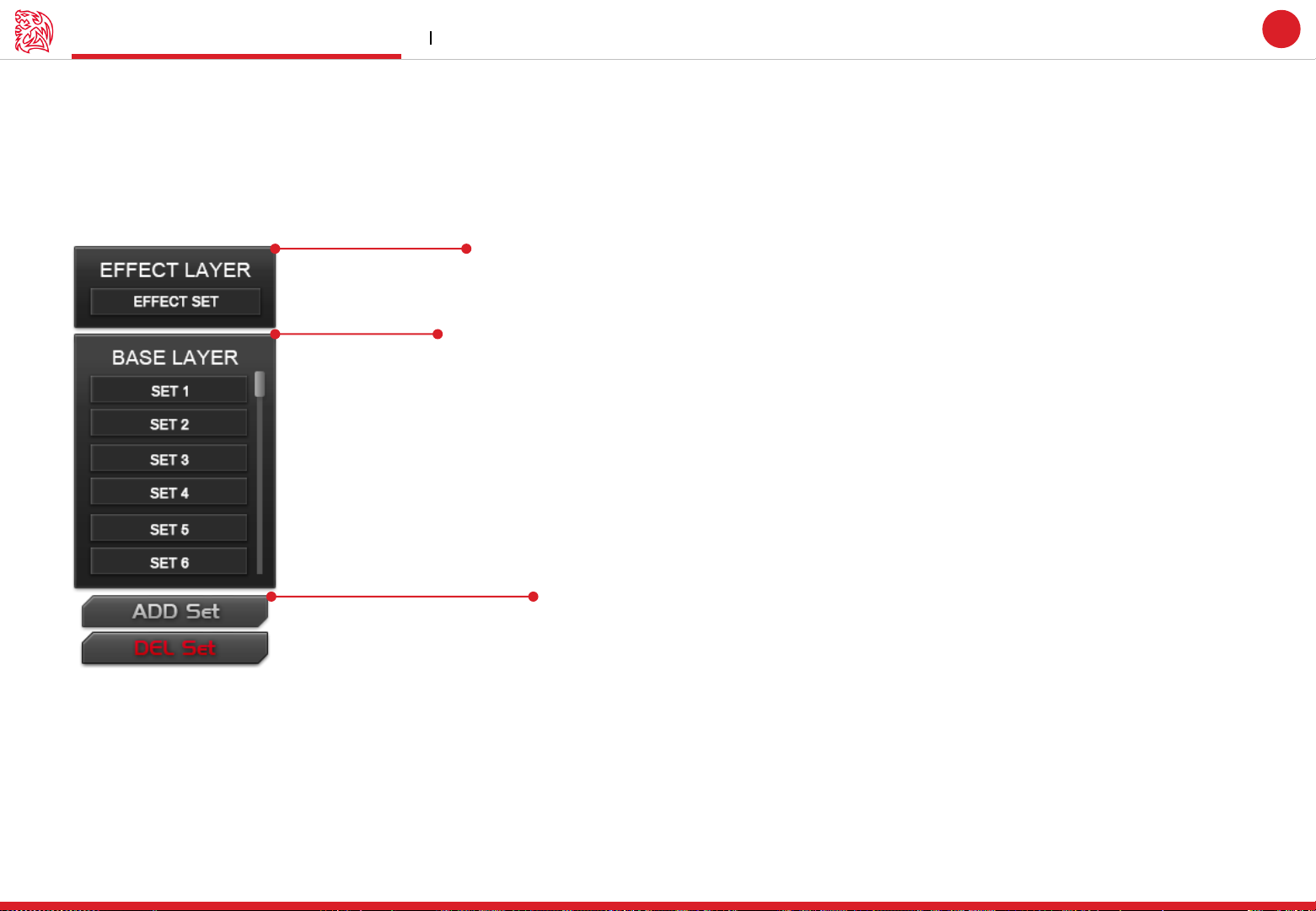
Zone Two : Layer Light Setting
EFFECT LAYER
Only one set to make all keyboard color become a color or default effect. Depends on what kind of effect.
BASE LAYER
To make each key with different color.
There is a default set you can choose as well.
You can even customize the name. Just double click on set. You can change the name of the set.
Challenger is the Game
Tt eSPORTS | POSEIDON Z RGB
GUI Software User Guide
19
ADD/DELETE LAYER
Only add or delete BASE LAYER set.
Page 26
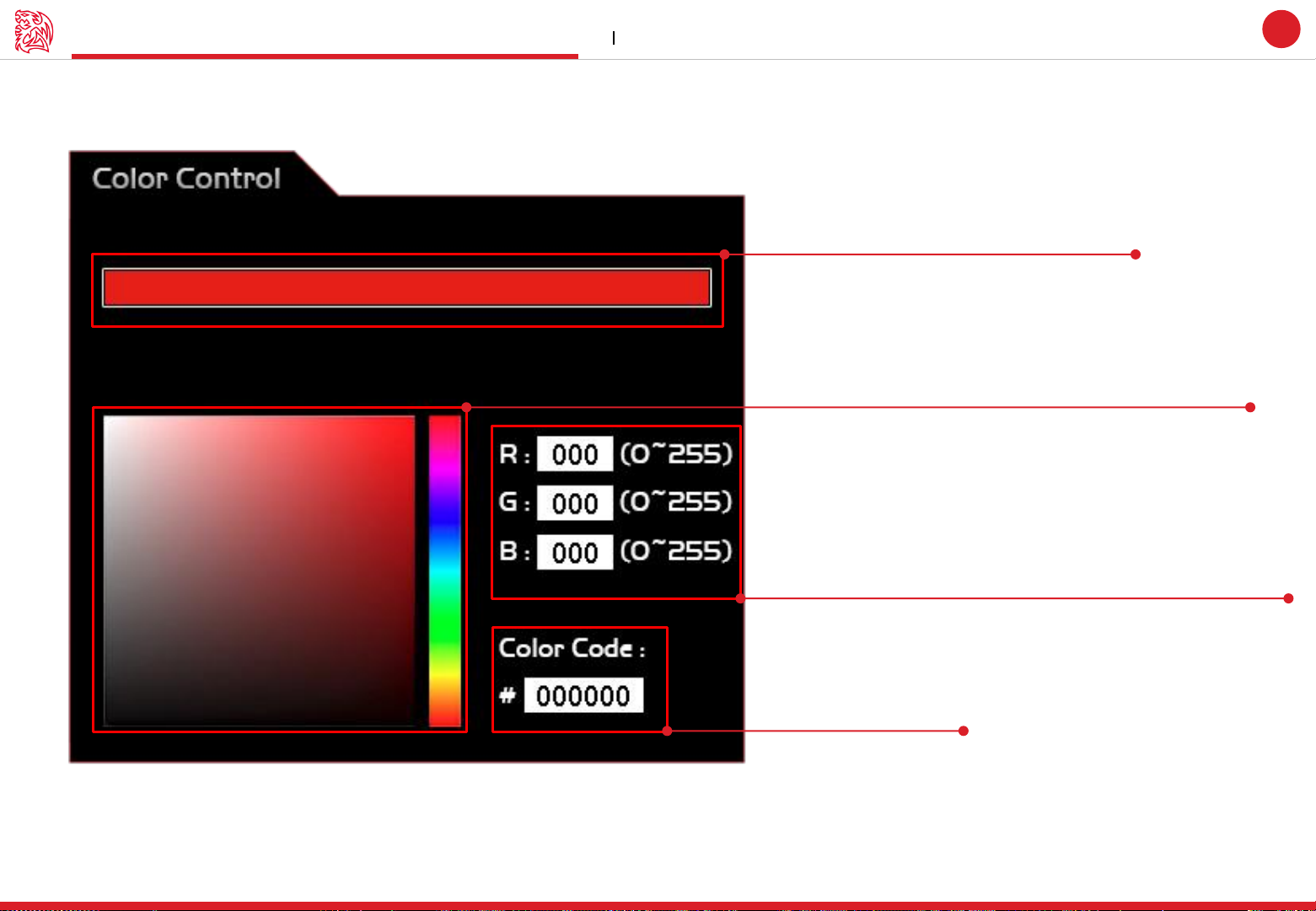
Zone Three : Color Control Light Setting
Preview on the color you have selected
Select a color. The left is Hue Bar
Challenger is the Game
Tt eSPORTS | POSEIDON Z RGB
GUI Software User Guide
20
Select 0 to 255 for the colors you desire.
Each of primacy color have 256 gray
Choose your own Color Code
Page 27
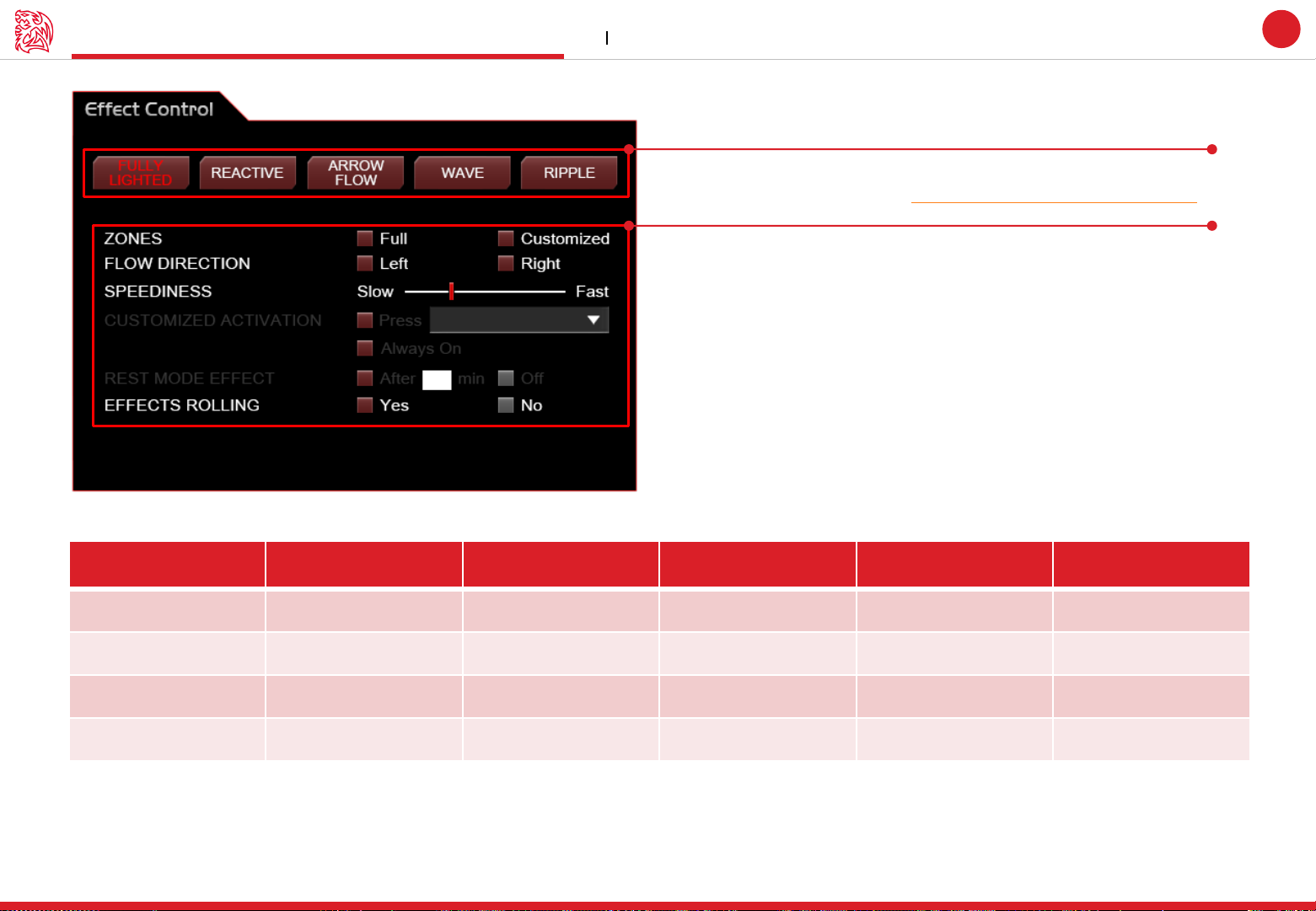
Zone Four : Effect Control Light Setting
Option / Effect
FULLY Lighted
REACTIVE
ARROW FLOW
WAVE
RIPPLE
ZONE
Full / Customized
Full / Customized
Full / Customized
X
Full / Customized
FLOW DIRECTION
X
X
Two Ways
Two Ways
X
SPEEDINESS
X
X
Yes
Yes
Yes
EFFECT ROLLING
X
Yes
Yes
X
X
Choose Effects : Five effect to choose.
Effects preview, please check POSEIDON Z RGB official website.
Effect adjust terms
ZONES : select all keys or per key set.
FLOW DIRECTION : select Effect direction.
SPEEDINESS : adjust Effect speeding.
EFFECTS ROLLING : select Effect finishing or not can action again
Challenger is the Game
Tt eSPORTS | POSEIDON Z RGB
GUI Software User Guide
21
Page 28

CONTENT FIVE
Firmware Update
GUI Software User Guide Tt eSPORTS | POSEIDON Z RGB
Page 29
Challenger is the Game
How to update Firmware Firmware Update
Tt eSPORTS | POSEIDON Z RGB
GUI Software User Guide
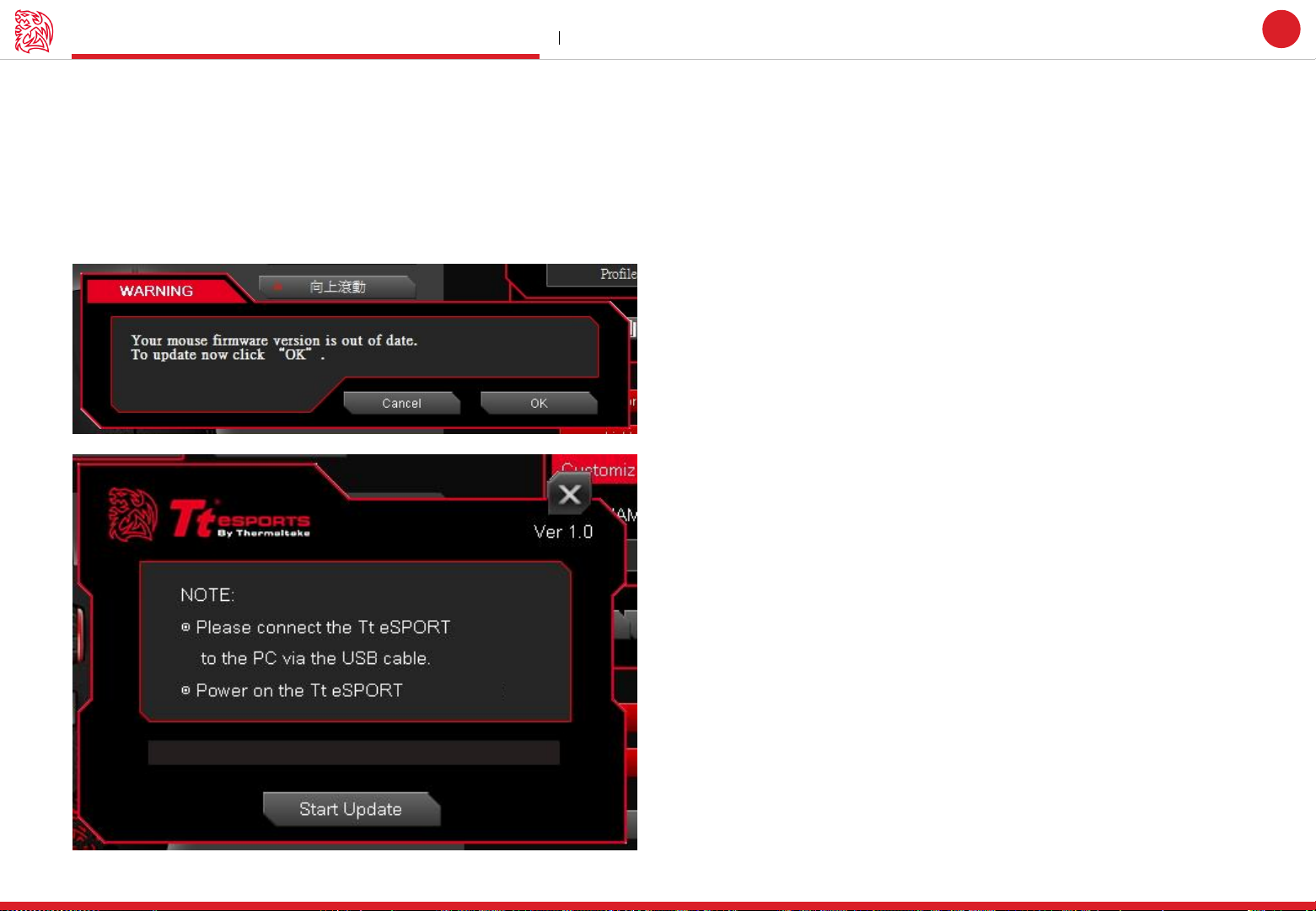
Update Your POSEIDON Z RGB Firmware
The New GUI can automatically detect new updates whenever there is new update available for installation.
You will just need to plug the POSEIDON Z RGB and launch GUI and system will notify you about the new update.
If you missed or closed the update, just re-plug in POSEIDON Z RGB and launch POSEIDON Z RGB GUI and system will notify you
again.
22
Gaming Device
Gaming Device
 Loading...