

Page 1
Challenge Is The Game
CHALLENGER
Prime
GUI SOFTWARE GUIDE
Tt eSPORTS | CHALLENGER Prime RGB GUI Software User Guide
RGB
Page 2
CONTENTS
Challenge Is The Game
PAGE 01
PAGE 09
PAGE 17
Main Interface
Main
Profiles
Key Assignment
Macro Key Setting
Advanced Setting
Macro Setting
Macro Setting Interface
Macro Manager & Record Setting
Macro Record Timeline
Light Setting
--------------------------------------- 01
--------------------------------------- 02
--------------------------------------- 05
--------------------------------------- 06
--------------------------------------- 07
--------------------------------------- 08
--------------------------------------- 09
--------------------------------------- 10
Light Option Interface
Effect Control
Color Control
--------------------------------------- 11
--------------------------------------- 12
--------------------------------------- 13
Tt eSPORTS | CHALLENGER Prime RGB GUI Software User Guide
Page 3

CONTENT ONE
Main Interface
Tt eSPORTS | CHALLENGER Prime RGB GUI Software User Guide
Page 4
Main Main Interface
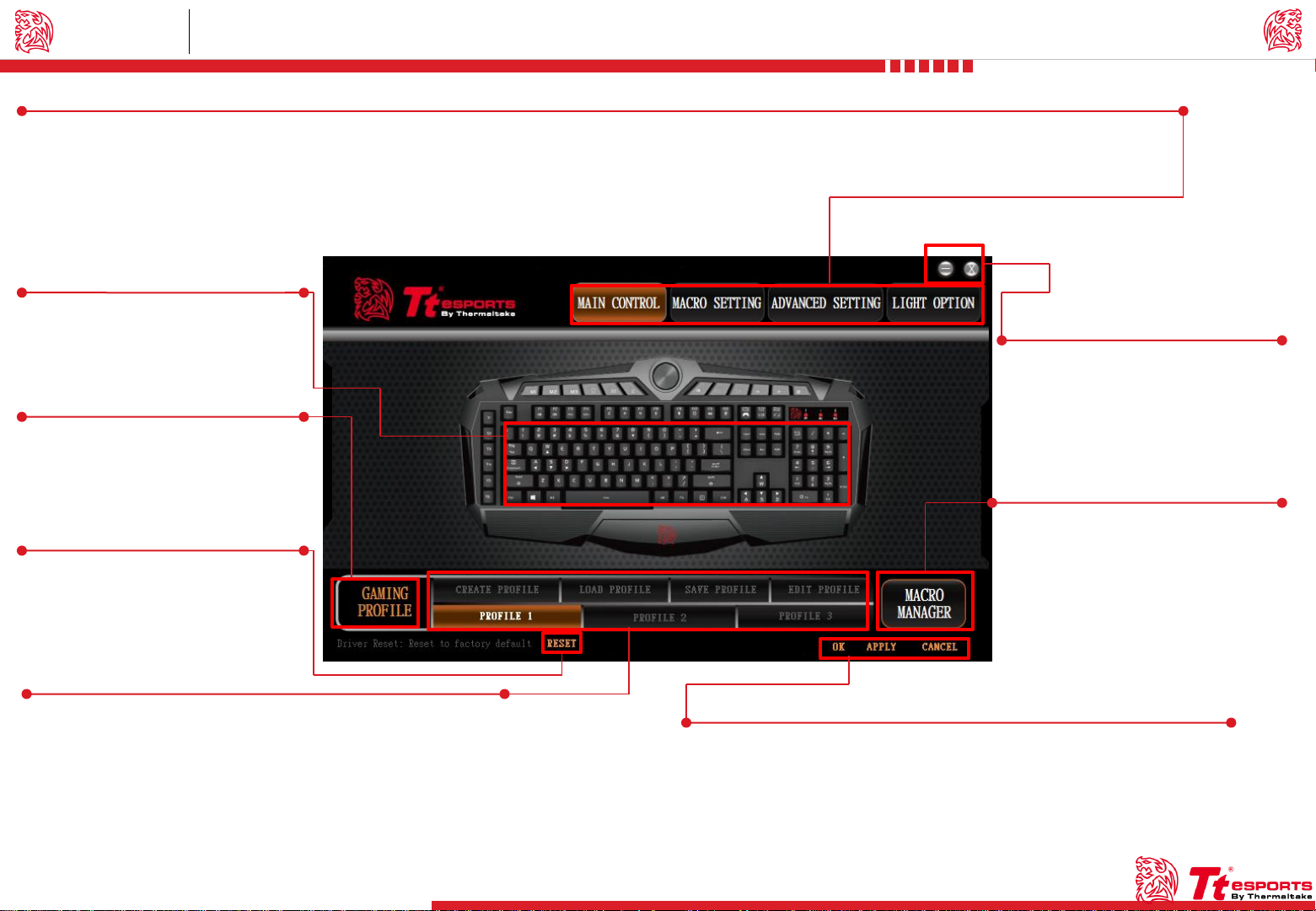
Main Control / Macro Setting / Advanced Setting / Light Option
MAIN CONTROL : Key Assignment & Profile Setting.
MACRO SETTING : T1 - T6 Macro Key Setting.
ADVANCED SETTING : Polling Rate & Response Time Setting.
LIGHT OPTION : Light Mode , Pulse Freqency , Color Setting.
Page : 05
Key Assignment
Click on each key to change its
function.
Page : 02
Gaming Profile
Click the icon to switch to game
mode.
Challenger Is The Game
Tt eSPORTS | CHALLENGER Prime RGB GUI Software User Guide
Minimize / Close
Minimize : Window minimizer.
Close : Close GUI software.
Page : 09
Reset
Reset all setting.
Page : 02
Profile
CHALLENGER Prime RGB has three profiles setting.
CREATE PROFILE : Create a new profile.
LOAD PROFILE : Load a profile that has been exported.
SAVE PROFILE : Save profile into a file.
EDIT PROFIE : Change the profile name & path to executable.
01
Macro Manager
Click the icon to open macro manager.
OK / APPLY / CANCEL
OK : Click OK after setting has been completed.
APPLY : Click Apply after completing profile setting and for importing setting.
CANCEL : Click Cancel if you wish to cancel the setting.
Page 5
Profiles Main Interface
Tt eSPORTS | CHALLENGER Prime RGB GUI Software User Guide
Challenger Is The Game
Tt eSPORTS GUI of Profile
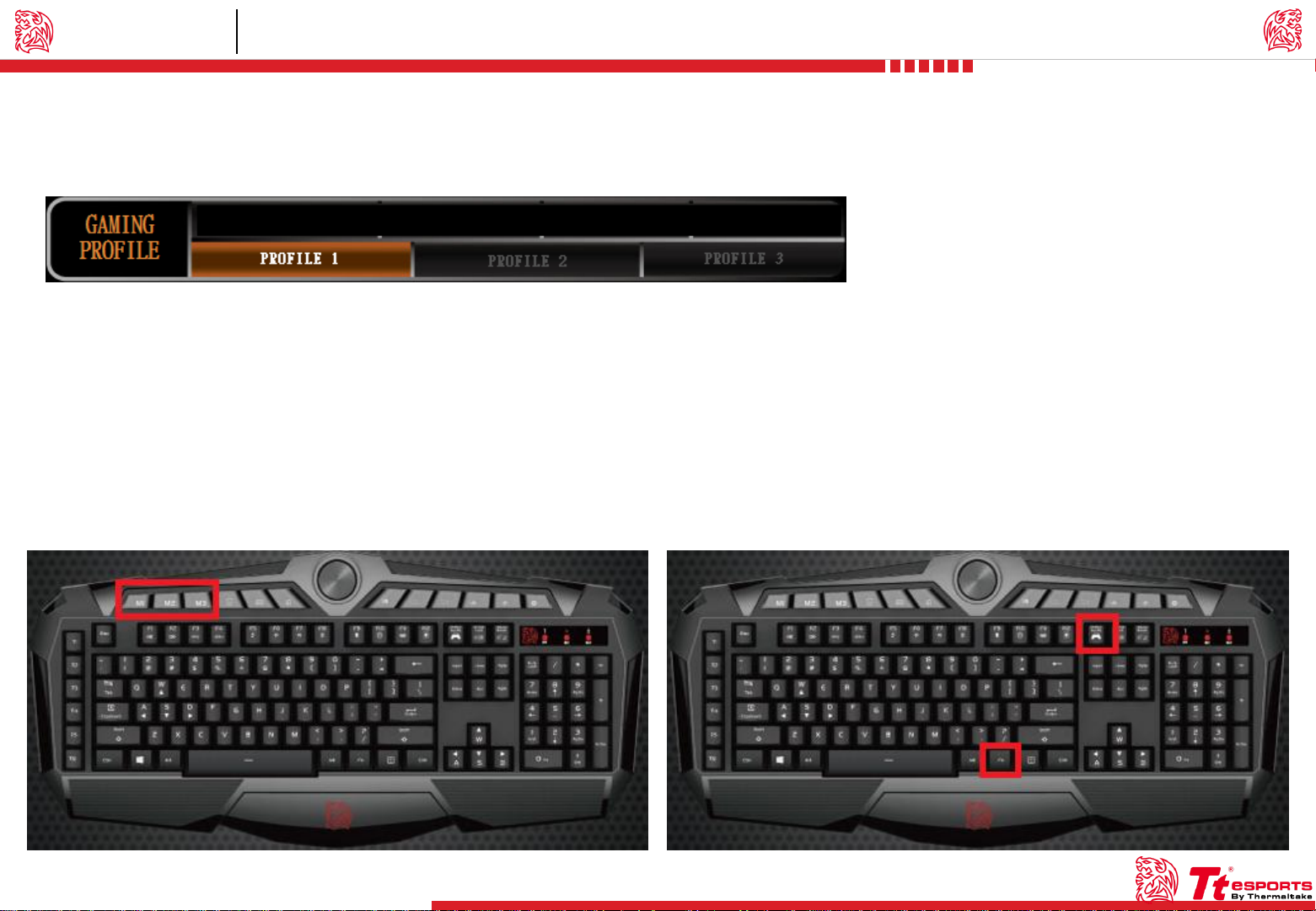
CHALLENGER Prime RGB software provide three profiles, offering users to set profile for different purposes and offer gamers to customize their own macros.
Switch Profiles by Software
For the figure shown above , choose the Profile you wanted to switch to.
Switch Profiles by Hardware
For the figure shown below , click on the M1 , M2 , M3 shortcut key.
Switch to Game Mode by Software
For the figure shown above , click on the GAME MODE shortcut key.
Switch to Game Mode by Hardware
For the figure shown below , click on the hotkey as Fn + PrtSc.
02
Page 6
Profiles Main Interface
Tt eSPORTS GUI of Profile
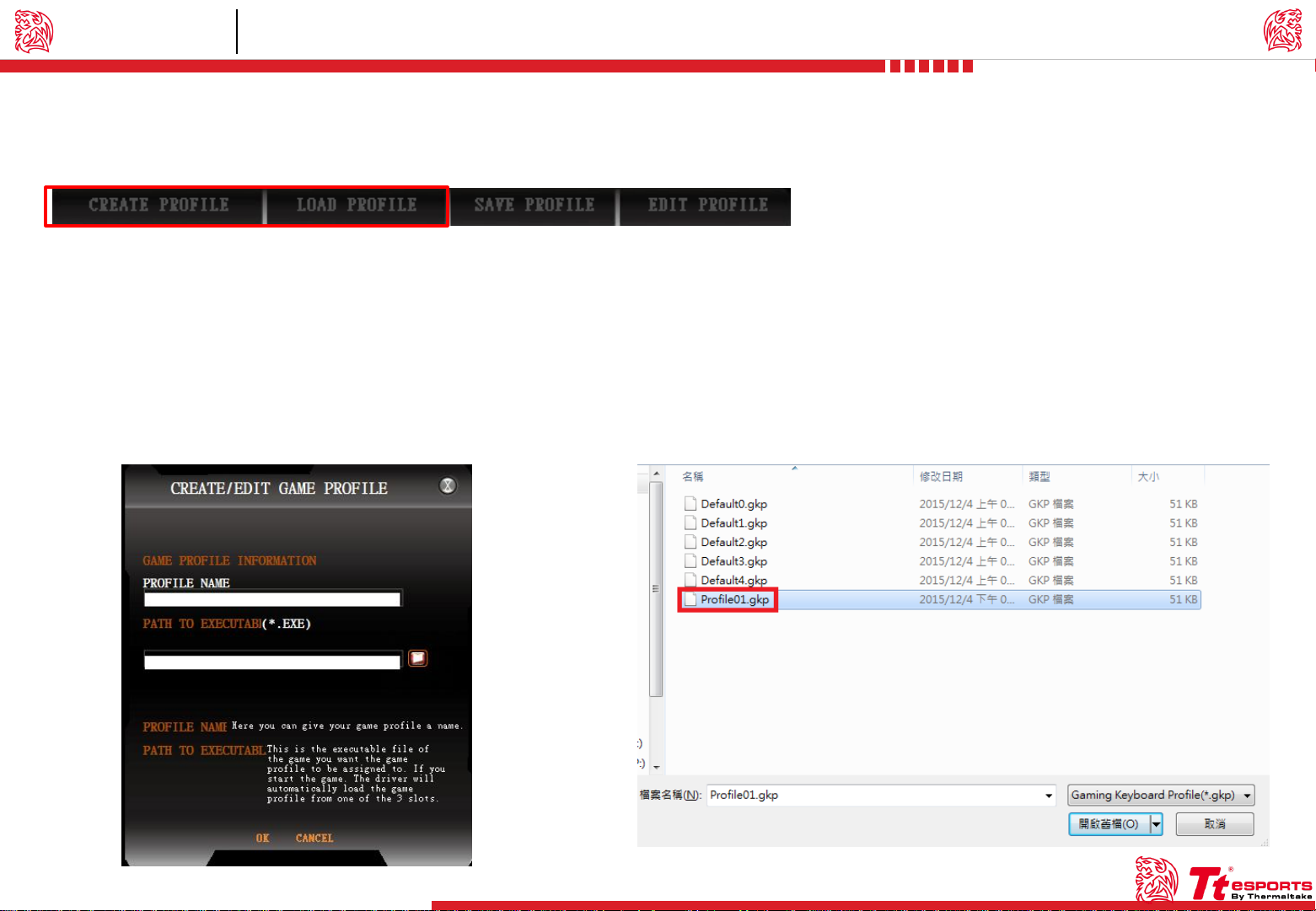
CHALLENGER Prime RGB software allows you to create , load , save and edit a profile.
Create Profile Load Profile
For the figure shown below , finish fill in table and than click on the
OK button.
PROFILE NAME : You can give your profile a name.
PATH TO EXECUTABL : This is the executable file of the game you want
the profile to be assigned to.
For the figure shown below , select had been saved and than click on the
open button.
Challenger Is The Game
Tt eSPORTS | CHALLENGER Prime RGB GUI Software User Guide
03
Page 7
Profiles Main Interface
Tt eSPORTS GUI of Profile
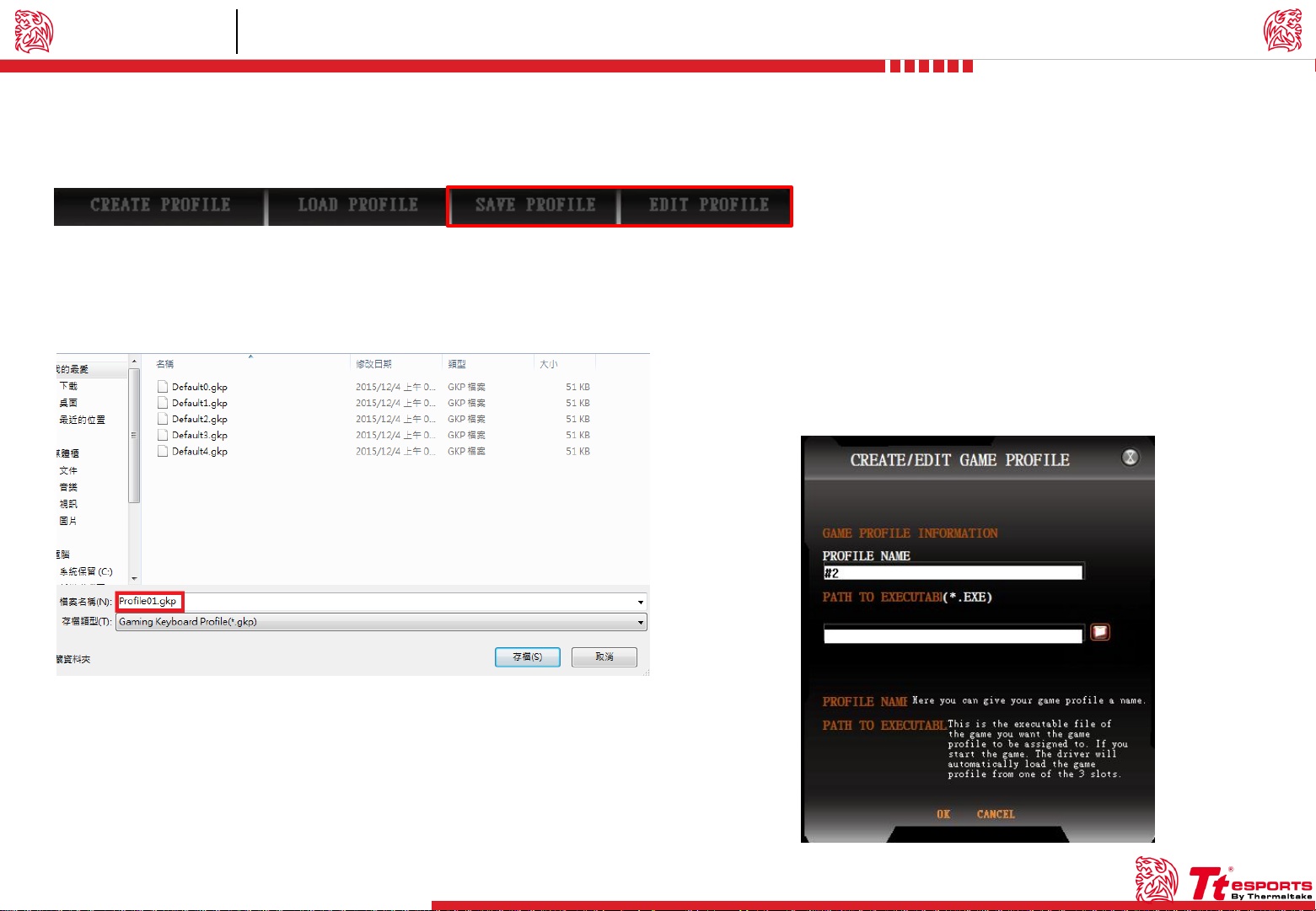
CHALLENGER Prime RGB software allows you to create , load , save and edit a profile.
Challenger Is The Game
Tt eSPORTS | CHALLENGER Prime RGB GUI Software User Guide
Save Profile
Fill in profile name and click on the save button.
Edit Profile
Edit your profile information and click OK to save
the OK button.
PROFILE NAME : You can give your profile a new name.
PATH TO EXECUTABL : Reassign path to executable.
04
Page 8
Key Assignment Main Interface
Tt eSPORTS | CHALLENGER Prime RGB GUI Software User Guide
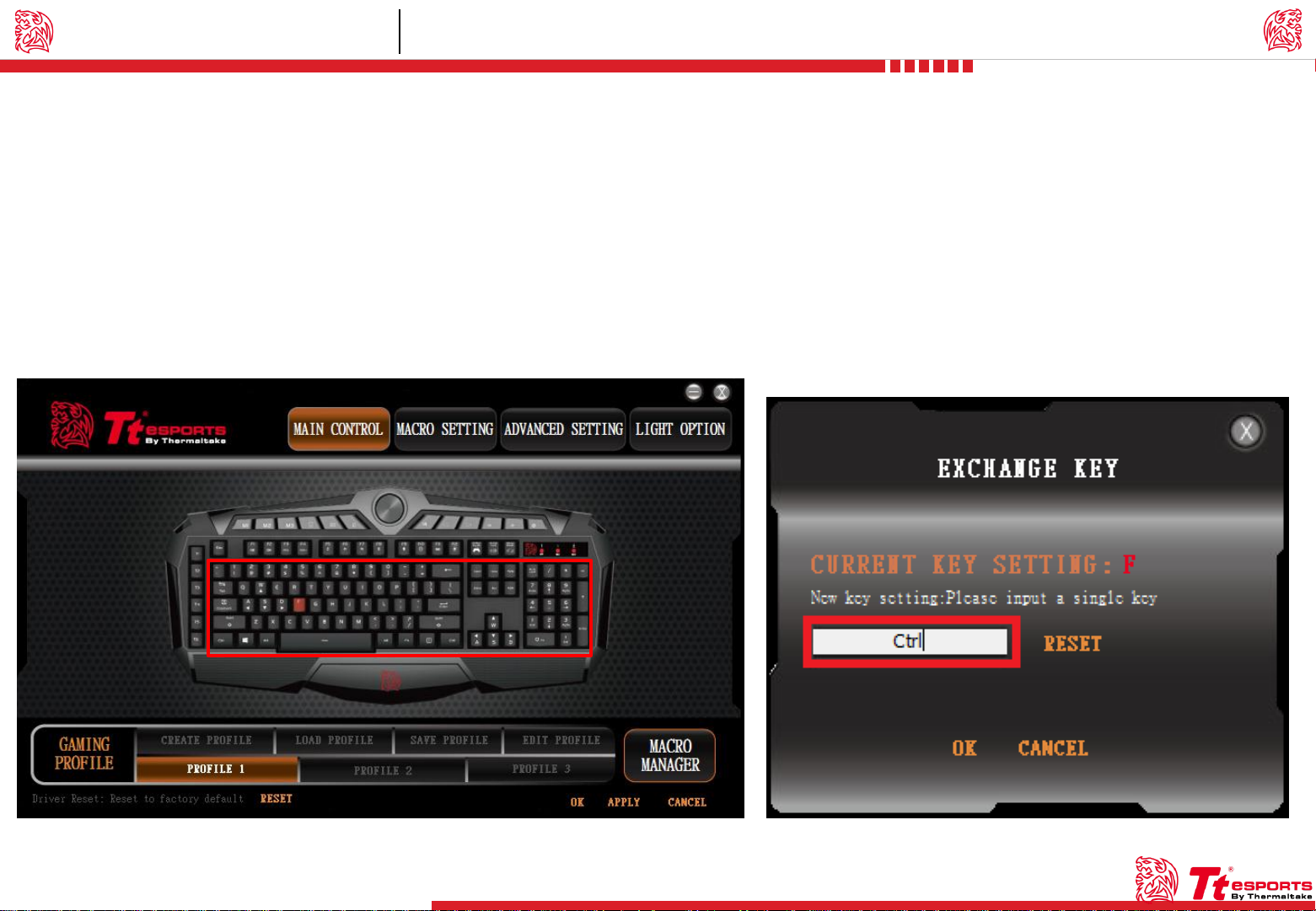
Customization for each of CHALLENGER Prime RGB’s Key
Each CHALLENGER Prime RGB’s button can be customized as your preferred key , even A to Z or F1 to F12 can be changed.
Key Configuration Exchange Key
Click each key to assign functions. Once the key which had been chosen or been set
it will become Red.
Change a Key to become other key signal.
Challenger Is The Game
05
Page 9
Macro Key Setting Main Interface
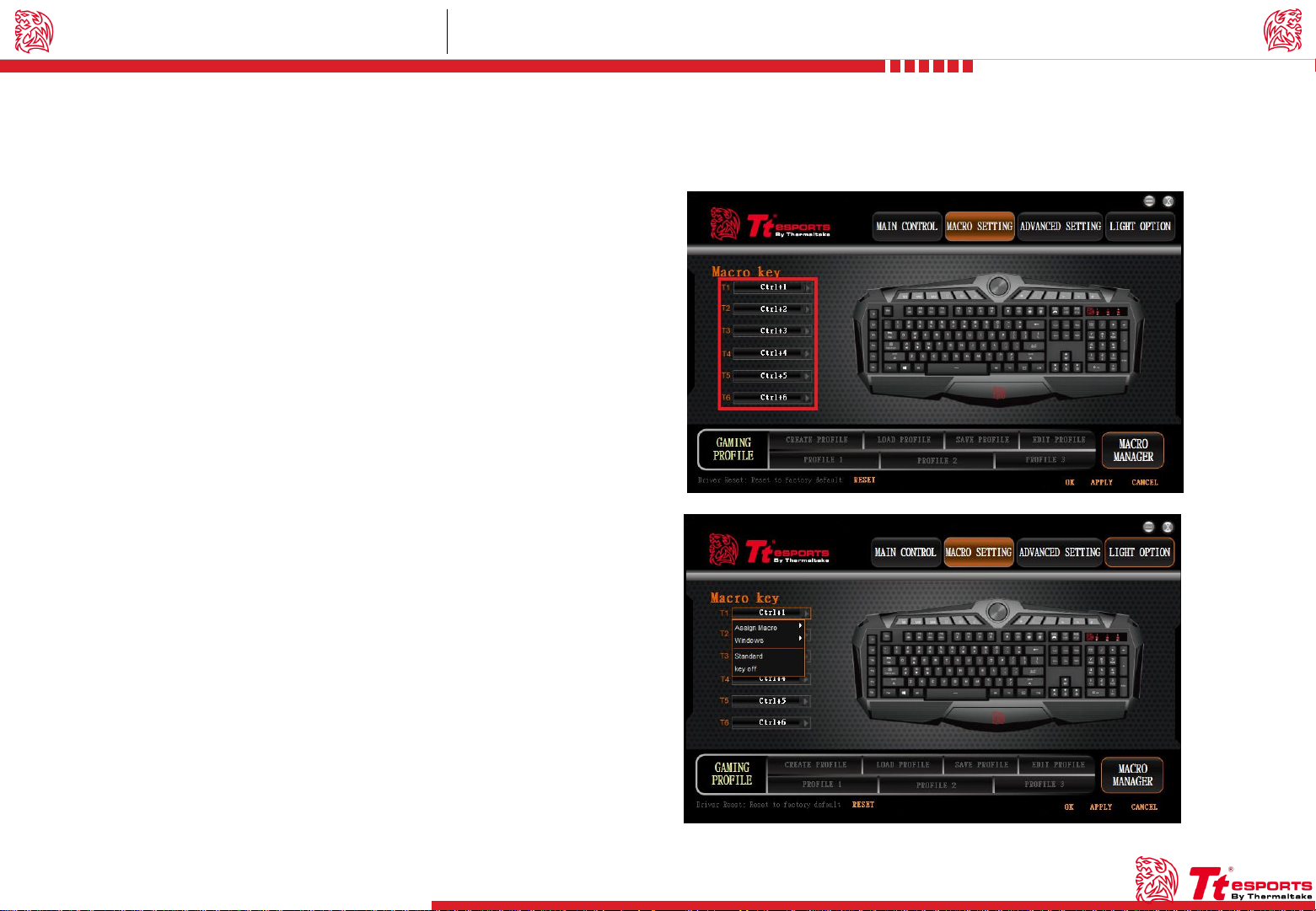
Customization for each of CHALLENGER Prime RGB’s T1 – T6 Key
CHALLENGER Prime RGB software provide six macro key to offers gamers to customize their own macros.
Key Assignment(T1 ~ T6)
For the figure shown below.
Challenger Is The Game
Tt eSPORTS | CHALLENGER Prime RGB GUI Software User Guide
06
Exchange Key
Keys can be assigned for four functions.
Assign Macro : Assign macro that has been recorded from Macro Manager.
Windows : Windows shortcut key.
Standard : Default setting.
Key Off : Disable function.
Page 10
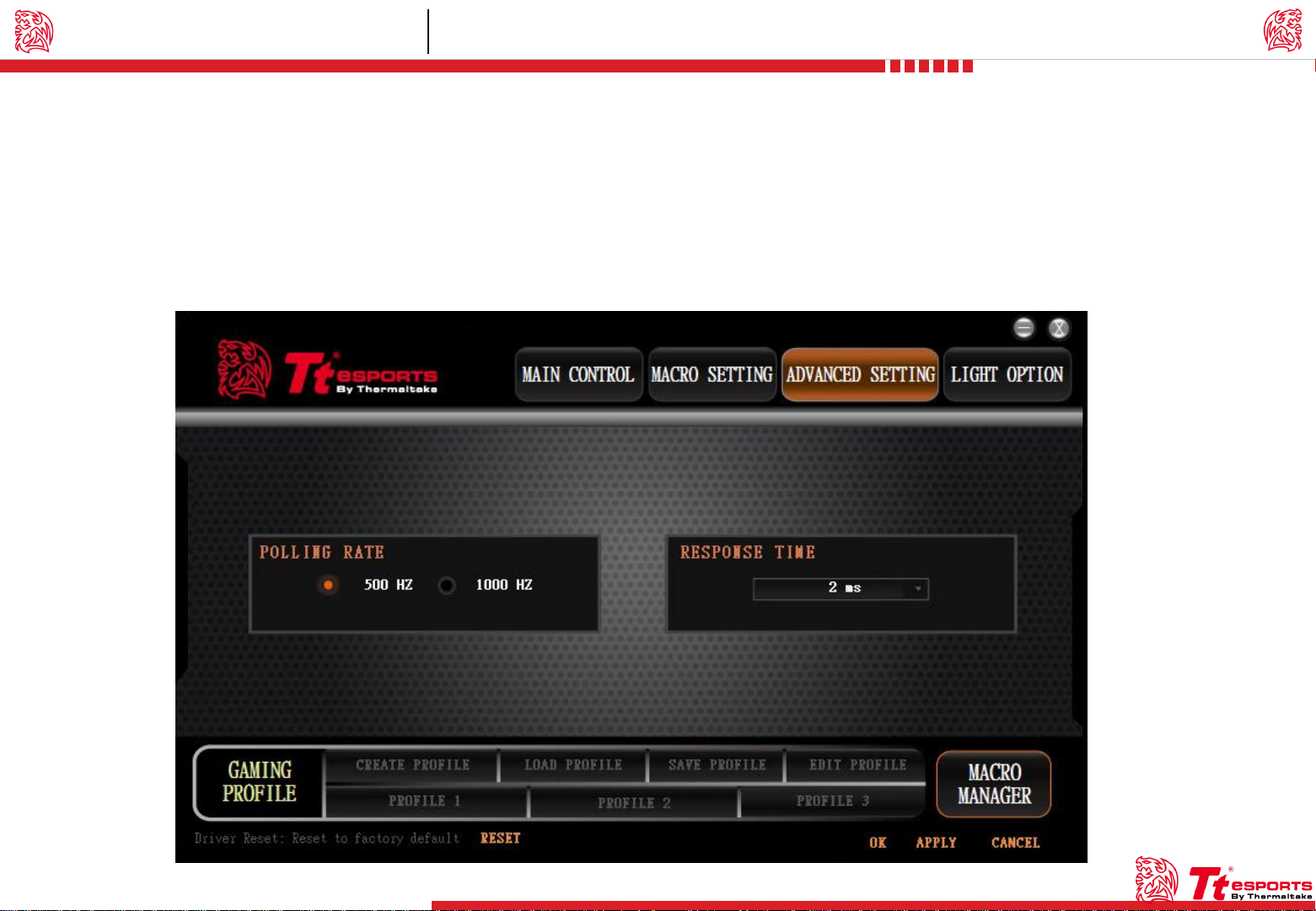
Advanced Setting Main Interface
Tt eSPORTS | CHALLENGER Prime RGB GUI Software User Guide
Customization for advanced setting of CHALLENGER Prime RGB
CHALLENGER Prime RGB software provides polling rate and response time setting, offering gamers to customize their own setting.
Polling Rate Response Time
Adjust Polling Rate(500Hz , 1000Hz). Adjust Response time(1ms , 2ms).
Challenger Is The Game
07
Page 11

CONTENT TWO
Macro Setting
Tt eSPORTS | CHALLENGER Prime RGB GUI Software User Guide
Page 12
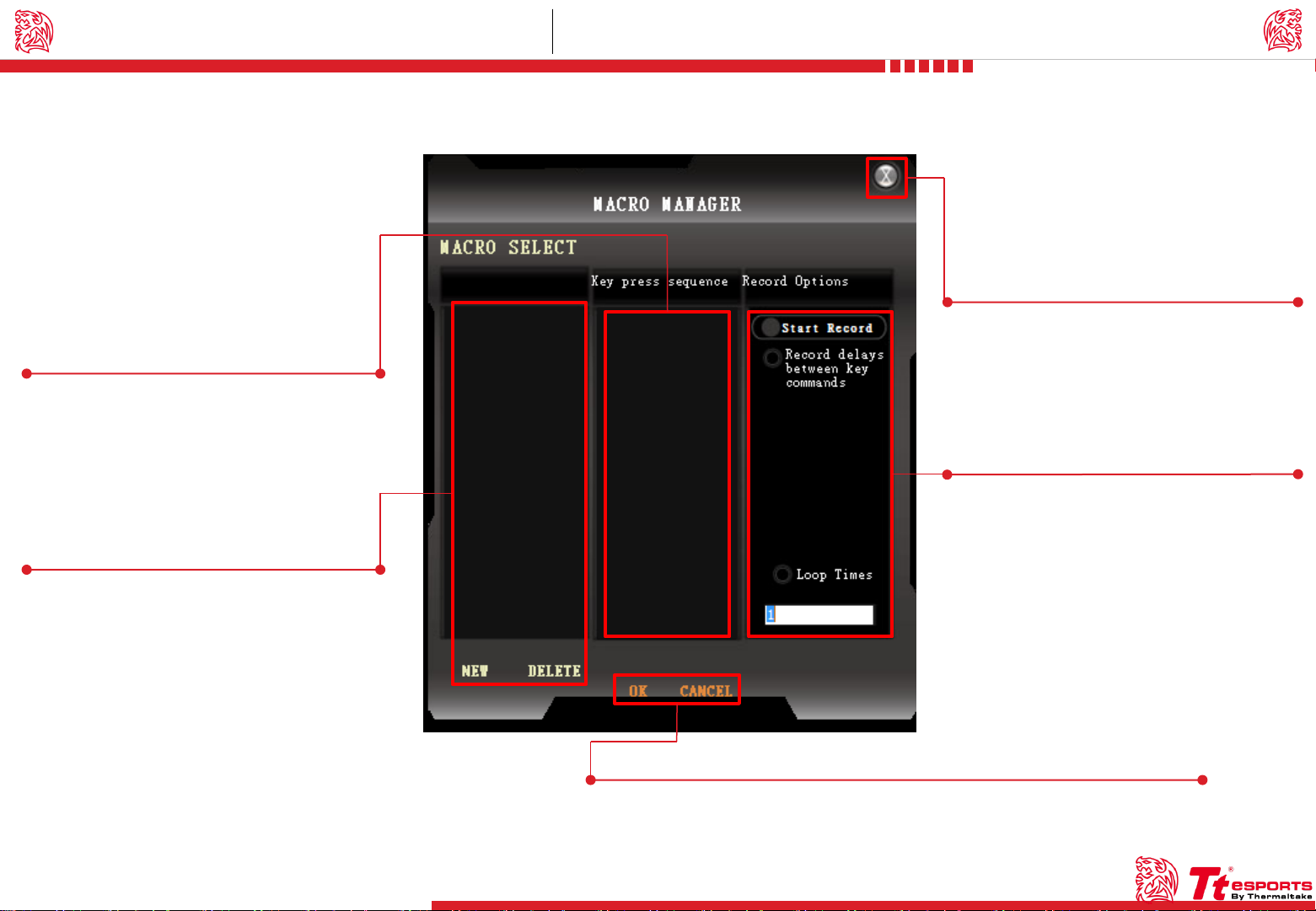
Macro Setting Interface Macro Setting
Record Macro Timeline
To check the programmed macros.
Page : 09
Challenger Is The Game
Tt eSPORTS | CHALLENGER Prime RGB GUI Software User Guide
Close
Close Macro Setting Interface.
Page : 10
Macro Record Setting
Start Record , Record delays between Key
commands Setting、Loop Times Setting.
Macro Manager
New / Delete.
08
OK / CANCEL
OK : Click OK after Macro Setting has been fully completed.
CANCEL : Click cancel to cancel the setting.
Page 13
Macro Manager & Record Setting Macro Setting
Tt eSPORTS | CHALLENGER Prime RGB GUI Software User Guide
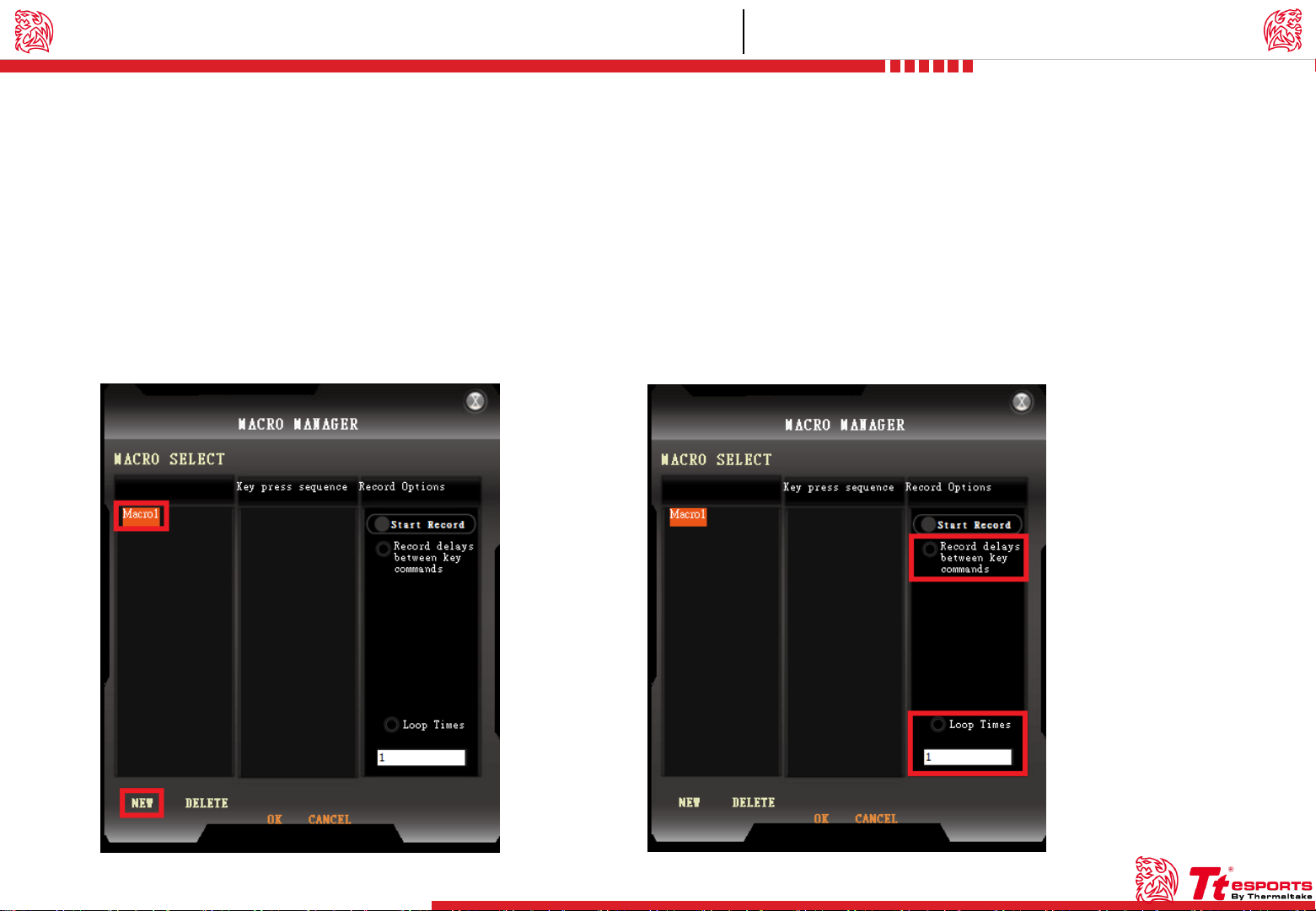
Macro Manager
Macro manager allows you to create , delete , delay time setting and loop time setting a macro.
Manage Macro Macro Record Setting
Challenger Is The Game
NEW / DELETE macro.
NEW : Create a new Macro.
DELETE : Delete existing Macro.
Two selections provided for you to choose for setting the Delay Time and Loop Time.
Record Delays Between Key Commands : Turn On / Off delay time between key
signal.
Loop Times : Customize the times that you want to have the macro repeats.
09
Page 14
Macro Record Timeline Macro Setting
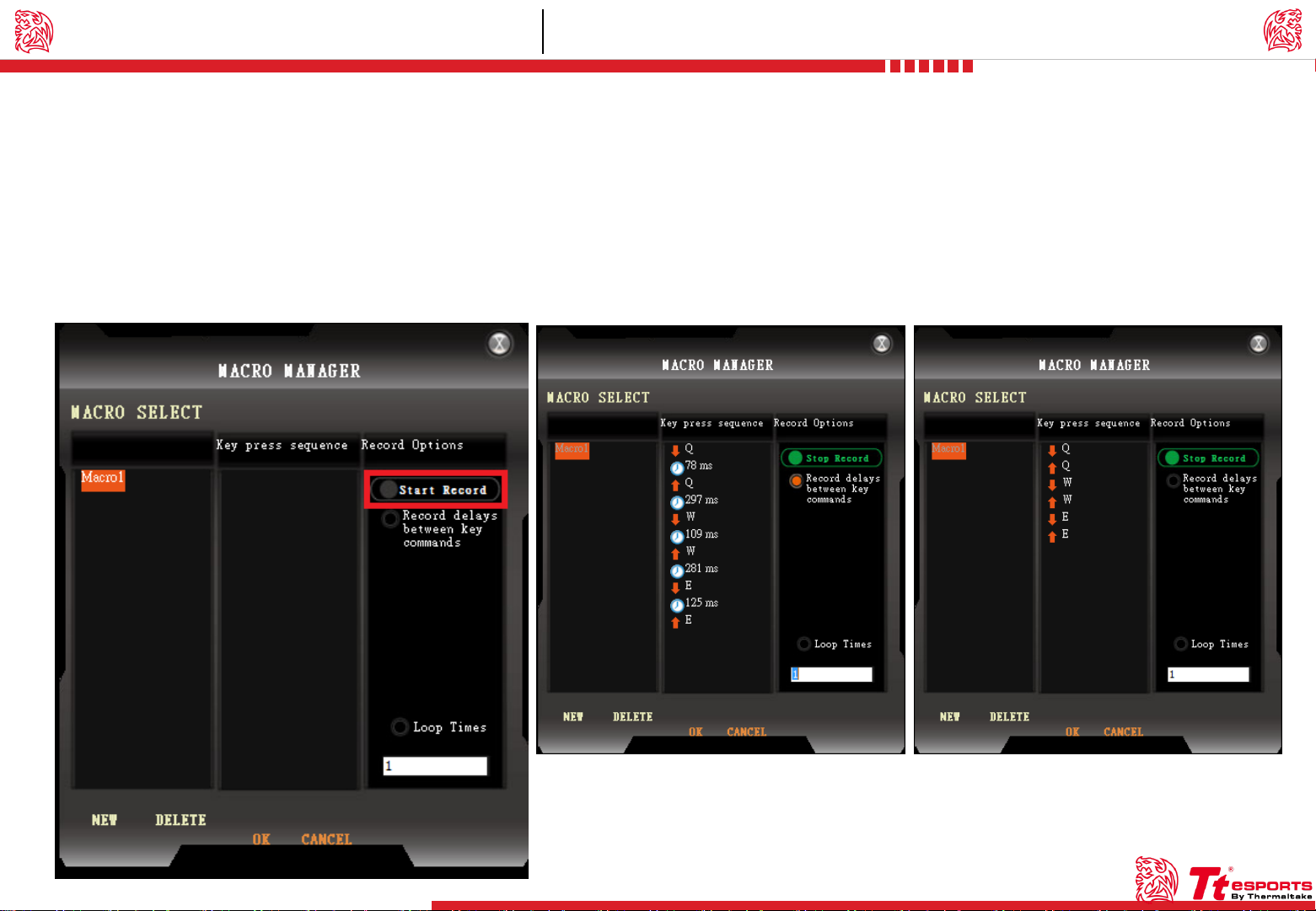
Macro Record Timeline
Once Macro Name and Recording have been completed , you can proceed to program your macro now.
Macro Record
Start Record : Click Start Record to start recording via your keyboard and all
signal will be recorded on this timeline.
Challenger Is The Game
Tt eSPORTS | CHALLENGER Prime RGB GUI Software User Guide
10
Page 15

CONTENT THREE
Light Setting
Tt eSPORTS | CHALLENGER Prime RGB GUI Software User Guide
Page 16
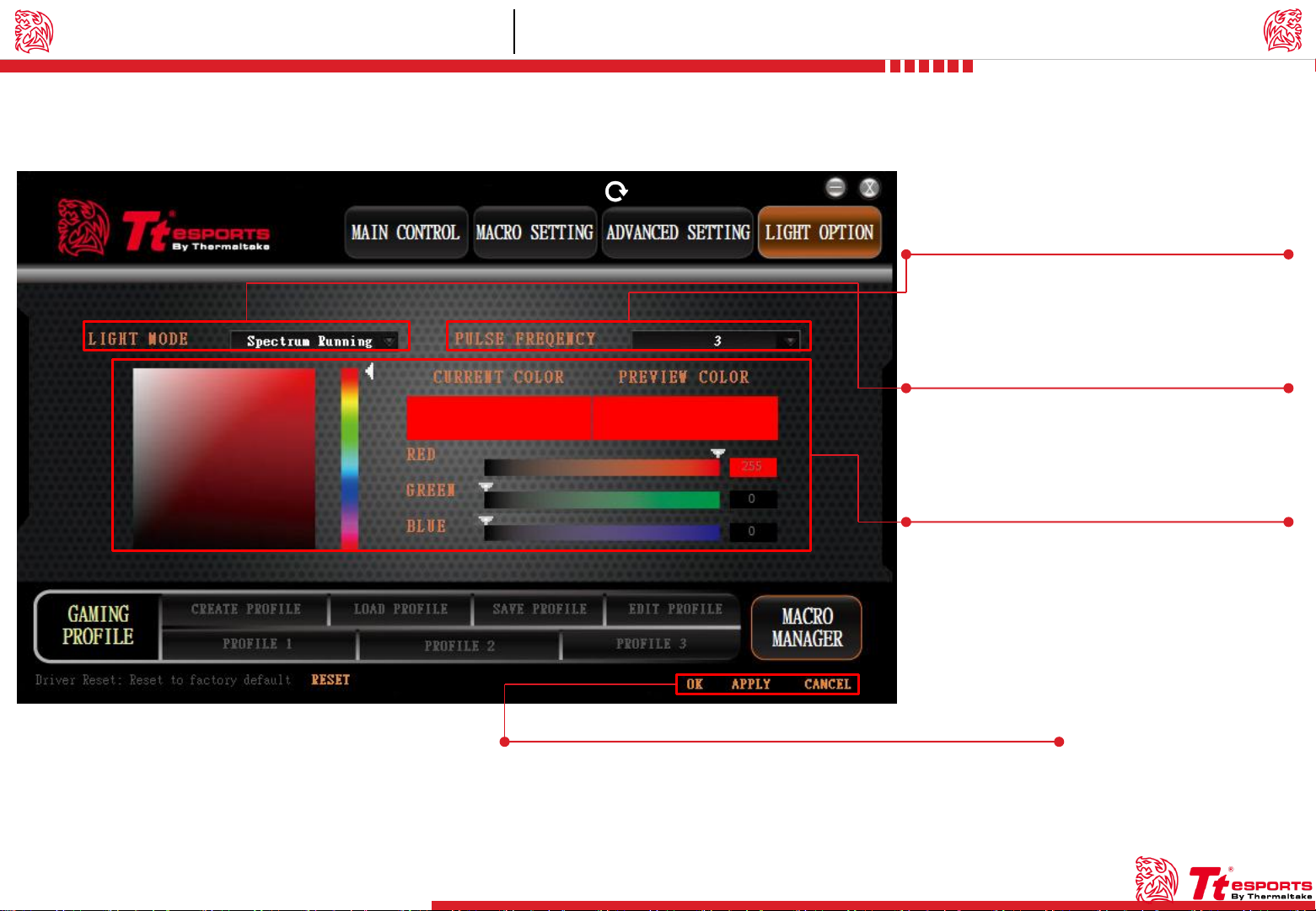
Light Option Interface Light Setting
Challenger Is The Game
Tt eSPORTS | CHALLENGER Prime RGB GUI Software User Guide
Page : 12
Pulse Frequency
Three effects frequency for you to select and
customize.
Page : 12
Light Mode
Five light modes for you to select
Page : 13
11
Color Control
Choose the colors you like.
There are two ways to pick a color :
1.Type (0~255 , 0~255 , 0~255).
2.Type Color Code.
OK / CANCEL / APPLY
OK : Click OK to save the setting.
CANCEL : Click CANCEL to cancel the setting.
APPLY : Click APPLY to save the setting.
Page 17
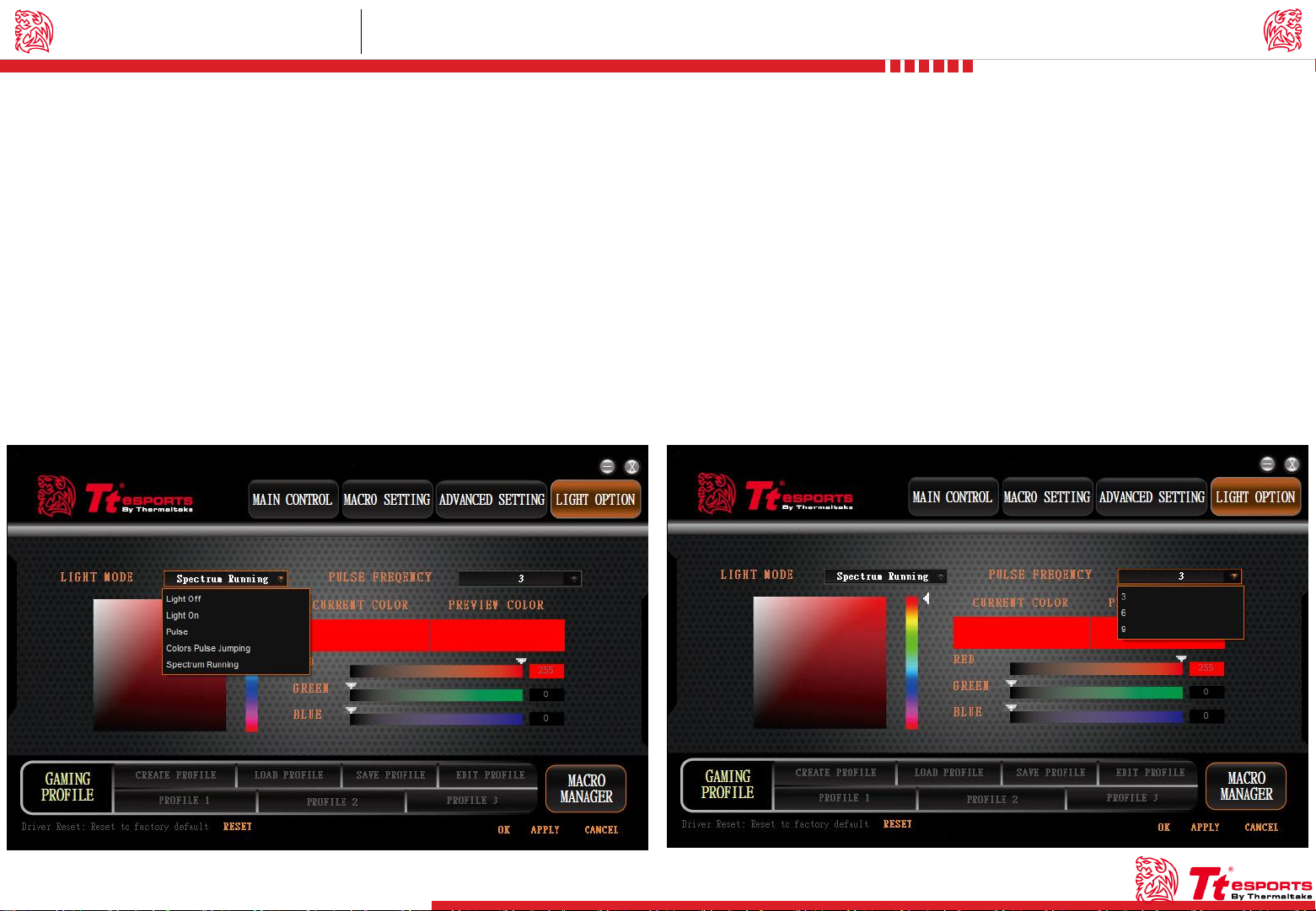
Effect Control Light Setting
Challenger Is The Game
Tt eSPORTS | CHALLENGER Prime RGB GUI Software User Guide
Light Mode
Choose the light mode you like and customize on.
LIGHT OFF : Close RGB Setting.
LIGHT ON : Open RGB Setting.
PULSE : Breath with one single color
COLORS PULSE JUMPING : RGB colors on a non- stop pulse effect.
SPECTRUM RUNNING : Changing colors from one to another with fading
in effect. Mix along with different colors.
Pulse Frequency
Choose the pulse frequency you like and customize on.
Low Speed(9) : Lighting effect low speed.
Middle Speed(6) : Lighting effect middle speed.
High Speed(3) : Lighting effect high speed.
12
Page 18
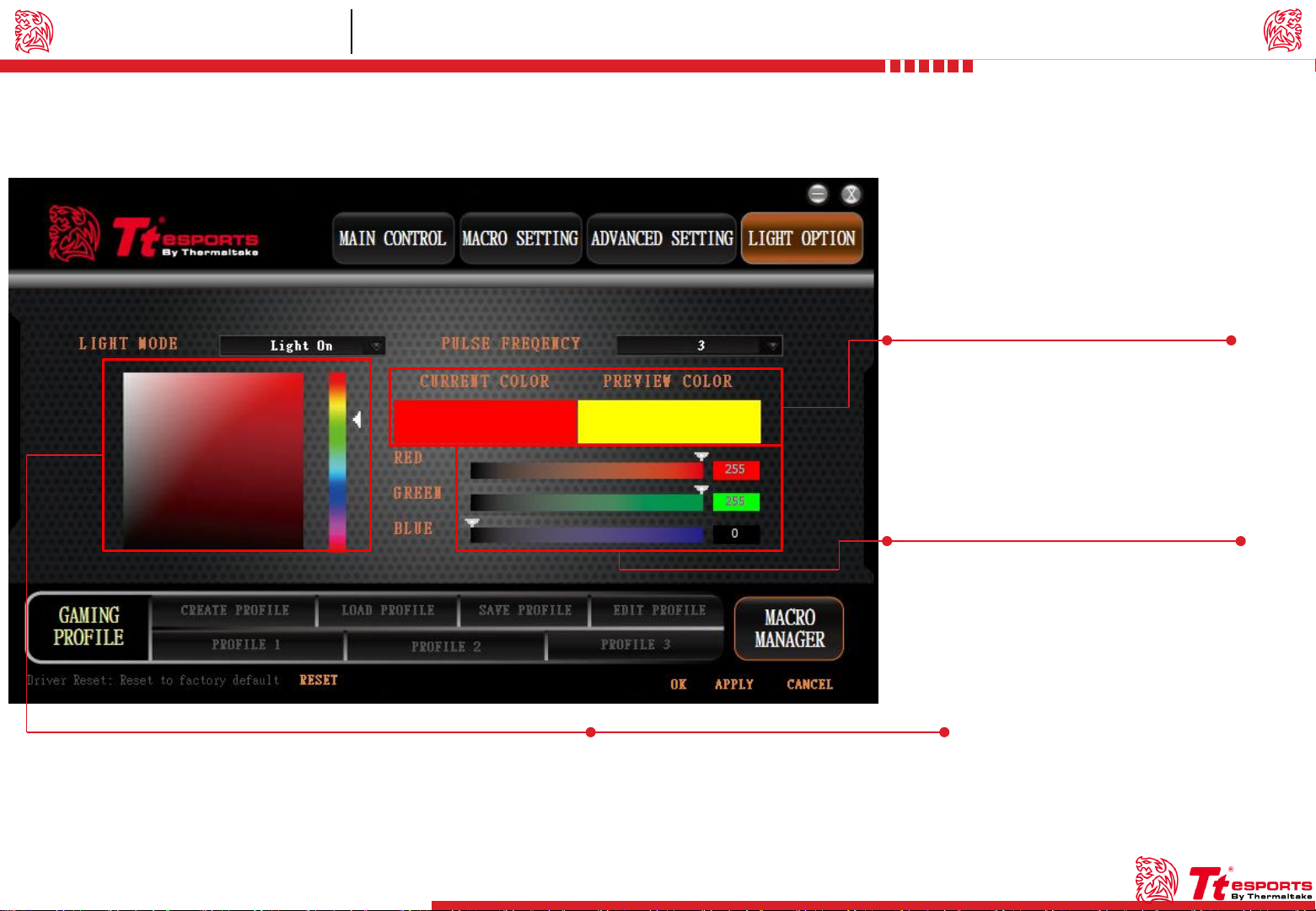
Color Control Light Setting
Challenger Is The Game
Tt eSPORTS | CHALLENGER Prime RGB GUI Software User Guide
Preview the color you have selected.
13
Select 0 to 255 for the colors you desire.
Each of primacy color have 256 gray.
Select a color.
 Loading...