

Page 1
HL
J
K
M
A
G
H
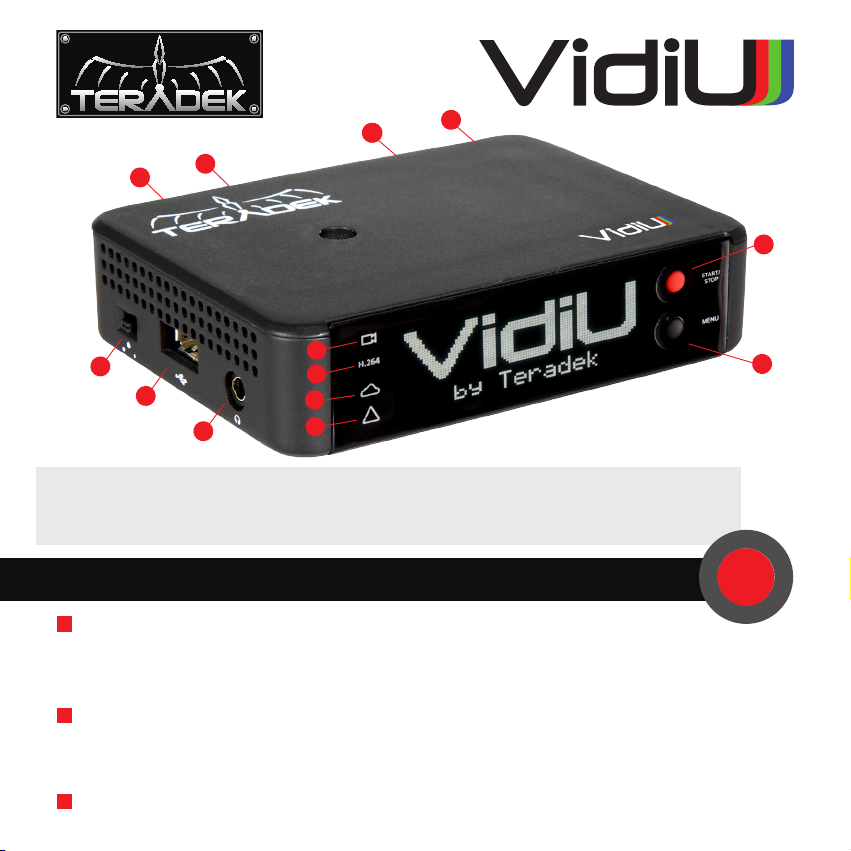
A: Start/Stop Joystick
B: Menu Joystick
C: Video Input Status
I
D: Encoder Status
E: Broadcast Status
F: Warning Indicator
C
D
E
F
G: Power Switch
H: USB Modem Port
I: Headphone Output
J: Power
K: Ethernet
L: Mic/Line Input
M: HDMI In
STARTING A BROADCAST USING FRONT PANEL
1
Connect to the Internet via any one of the options below:
• Plug in 3G/4G USB modem (H).
• Connect an Ethernet cable.
• To connect via WiFi, press the menu button (B) when prompted and follow the instructions on-screen.
2
Connect to Streaming Platform:
• Select your platform (Ustream, Livestream or Manual).
• Enter username/password.
• Pick your channel.
3
Go Live:
Press the Start/Stop button (A) to start and stop your broadcast.
B
Page 2
STARTING BROADCAST WITH AN iOS DEVICE
1
Download VidiU from the iTunes App Store.
2
Connect to VidiU’s network, or join the same local network VidiU is connected to.
Please note: If VidiU does not appear on your iOS device’s WiFi network list, set VidiU’s
AP Channel to 2.4GHz
3
Open the VidiU app to discover your device on the network.
4
Press the Broadcast button ( ) to start broadcasting.
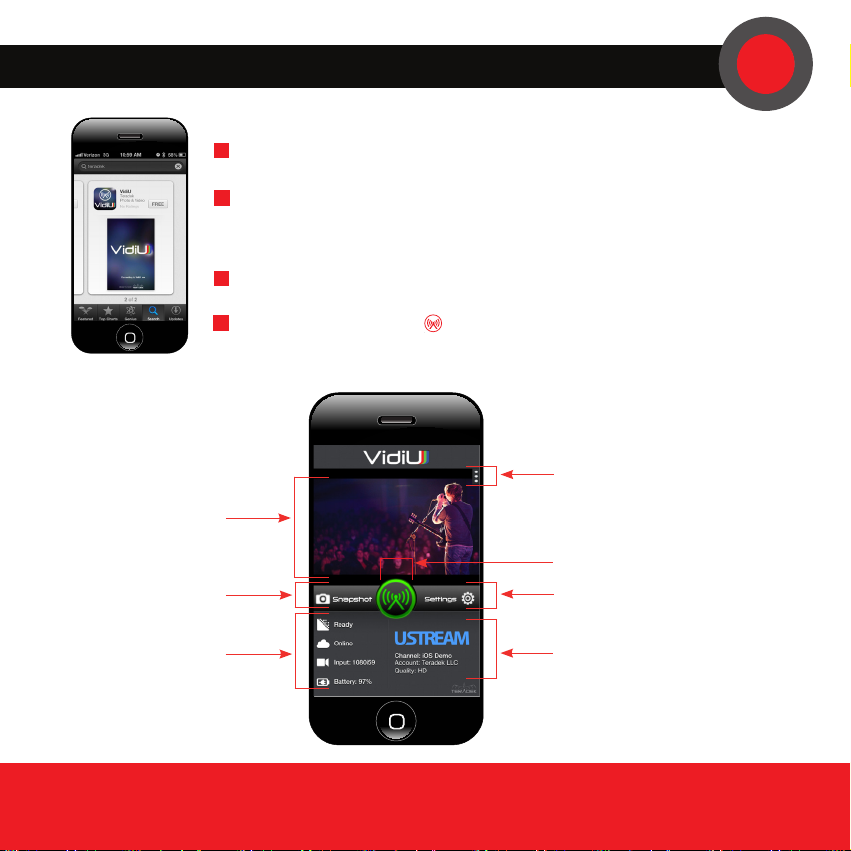
Preview start/stop button
Video preview
Broadcast start/stop button
Snapshot
Configuration settings
VidiU Status
NEED MORE HELP?
1. Support forum: http://support.teradek.com → Contains tips, information and all the latest firmware & software updates.
2. Training videos: http://www.teradek.com/training
TERADEK SUPPORT STAFF: support@teradek.com
Channel and account information
 Loading...