

Page 1

© 2014 Teradek, LLC. All Rights Reserved.
User Guide v1.0
October, 2014
Page 2
Revision
Date
Description
v1.0
October 1, 2014
Initial release of Beam User’s Manual v1.0 based on firmware version 1.0.1.
V1.1
October 14, 2014
Updated instructions for streaming to multiple RX over WiFi
Document Revision History
Contents
Document Revision History .........................................................1
Beam RX ............................................................................ 17
1. Introduction ............................................................................1
1.1 About this Manual.............................................................1
1.2 Overview ...........................................................................1
1.3 Features ............................................................................1
Video ...................................................................................1
Audio ...................................................................................1
Network ..............................................................................1
User Interface ......................................................................2
1.4 Package Contents ..............................................................3
1.4.1 Front and Rear panel of Beam TX ..............................4
1.4.2 Front and Rear panel of Beam RX ..............................6
1.5 Quick Start Guide ..............................................................7
Connect and Power Your Device .........................................7
Wireless operation ..............................................................7
Ethernet operation ..............................................................7
Accessing the Configuration Interface ................................8
Video/audio streaming server for RTSP client ....................8
2.3 Operation of Multicast for 1:N A/V Transmission ........... 22
Beam TX configuration via Web UI ................................... 22
Beam RX configuration via Web UI ................................... 22
2.4 Connecting to Beam TX’s WiFi Network ......................... 22
3. System Specifications ............................................................ 23
3.1 General ........................................................................... 23
3.2 Beam TX (Encoder/Transmitter) Overview ..................... 24
Video Input ....................................................................... 24
Audio Inputs ..................................................................... 24
Audio Output (wireless intercom) .................................... 24
Video Encoder................................................................... 24
Wireless Interface for Audio/Video .................................. 24
Ethernet Interface for Audio/Video .................................. 25
Other ................................................................................. 25
3.3 Beam RX (Decoder/Receiver) Overview ......................... 25
Wireless Interface for Audio/Video .................................. 25
Ethernet for Audio/Video Input/Output ........................... 25
Streaming video to VLC player/set-top box via MPEG-TS ...8
2. Operating the Beam TX and RX ...............................................9
2.1 Front Panel Operation .......................................................9
Status Screens .....................................................................9
Menu Operation ..................................................................9
Beam TX ..............................................................................9
Beam RX ............................................................................10
2.2 Web-based Operation .....................................................11
Beam TX ............................................................................11
© 2 0 1 4 . T e r a d e k , L L C P a g e | 1
Decoder ............................................................................ 25
Video Output .................................................................... 25
Audio Outputs/Input ........................................................ 25
Other ................................................................................. 25
3.4 Factory Defaults .............................................................. 25
3.5 Supported Video Formats ............................................... 26
3.6 Power Input Description ................................................. 26
3.7 RS-422 Pin Configuration ................................................ 27
Page 3
1. Introduction
1.1 About this Manual
This user manual provides step-by-step instructions for the setup and configuration of Beam.
1.2 Overview
Beam is a WiFi-equipped H.264 encoder for applications demanding high quality, low-latency video transmission. Beam can transmit
to up to 4 decoders over WiFi or an unlimited number on a wired network using multicast. Beam supports SD/HD/3G-SDI video
inputs with embedded stereo audio and bidirectional stereo IFB communication. Beam can stream video in RTP and MPEG-TS
formats, re-stream from the decoder, and more.
1.3 Features
Video
High performance SD/HD/3G-SDI transmission over Wi-Fi or Ethernet LAN (IP)
H.264 encoding/decoding engine: Baseline profile level 4.2 with de-interlacing
Full HD encoding up to 1920x1080p60
Streaming server function on both Beam TX and Beam RX
Very low encode/decode end-to-end latency in 1080i59.94 HD: 70ms ~ 80ms
Single video stream + stereo audio
SDI/HD-SDI/3G-SDI supported for PAL, NTSC and full HD video
Supports DTV Standards
o SMPTE 244, BT601 (NTSC): 525i59.94
o IEC61179-5, BT601 (PAL): 625i50
o SMPTE 296M: 720p23.98, 720p24, 720p25, 720p30, 720p50, 720p59.94, 720p60
o SMPTE 274M: 1080i50, 1080i59.94, 1080i60, 1080PsF23.98,1080PsF24, 1080PsF25, 1080PsF29.97, 1080PsF30,
1080p23.98, 1080p24, 1080p25, 1080p29.97, 1080p30, 1080p50, 1080p59.94, 1080p60
Supported bitrates : 100kbps - 30Mbps over Wireless, 50Mbps over Ethernet
Error resiliency : Variable GOP size, random intra-refresh, contiguous intra-refresh, I-frame control
Audio
SD/HD/3G-SDI embedded audio
Mini-stereo phone jack in and out for analog stereo audio
Analog stereo audio: 48kHz sampling with 16 bit ADC
Wireless IFB audio from TX to RX and from RX to TX with 8kHz sampling and 16bit ADC
Network
Wireless Output for Audio/Video : Supporting IEEE 802.11n/5GHz
Wide radio coverage up to 800m (2,500ft) with 12Mbps at line of sight
Ethernet port for audio/video transmission: Ethernet LAN (10/100 BASE-TX, Cat.5e UTP cable)
1 TX to 1 RX connection or 1 TX to 4 RX connections on wireless mode
© 2 0 1 4 . T e r a d e k , L L C P a g e | 1
Page 4
One to one connection & one to many connection on the Ethernet LAN mode
Multi-casting and simulcast modes to both the Beam RX and software decoder on PC
RTSP streaming server or MPEG-TS streaming device over Wi-Fi or LAN port on the Beam TX
RTSP streaming relay server over LAN port on the Beam RX
User Interface
Internet Explorer/Chrome web browser for changing system configurations or firmware upgrade
USB for firmware upgrade
OLED front panel for configuration and status information
RS-422 serial port for relaying bidirectional external control signals
© 2 0 1 4 . T e r a d e k , L L C P a g e | 2
Page 5
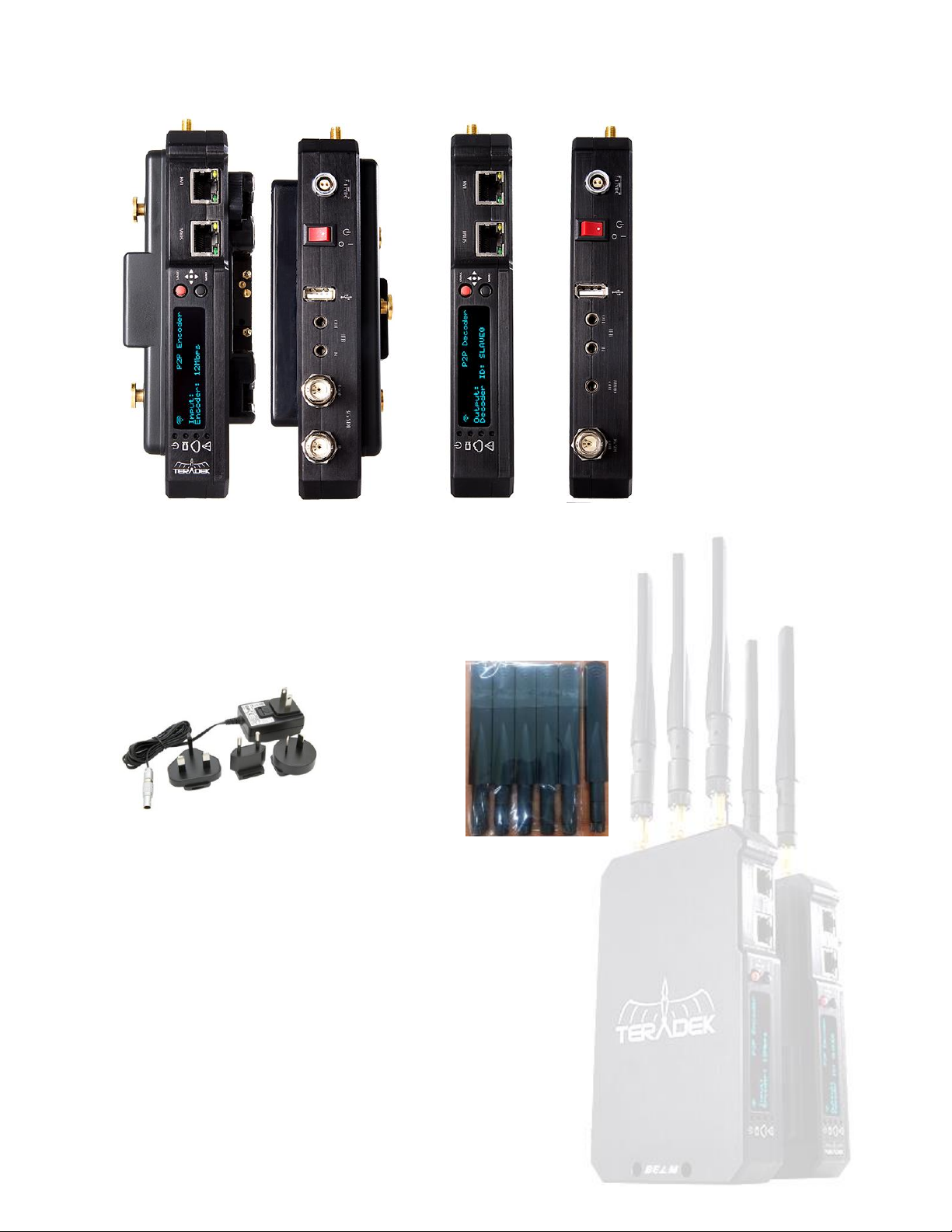
1.4 Package Contents
Front View Back View Front View Back View
Beam TX Beam RX
© 2 0 1 4 . T e r a d e k , L L C P a g e | 3
Page 6
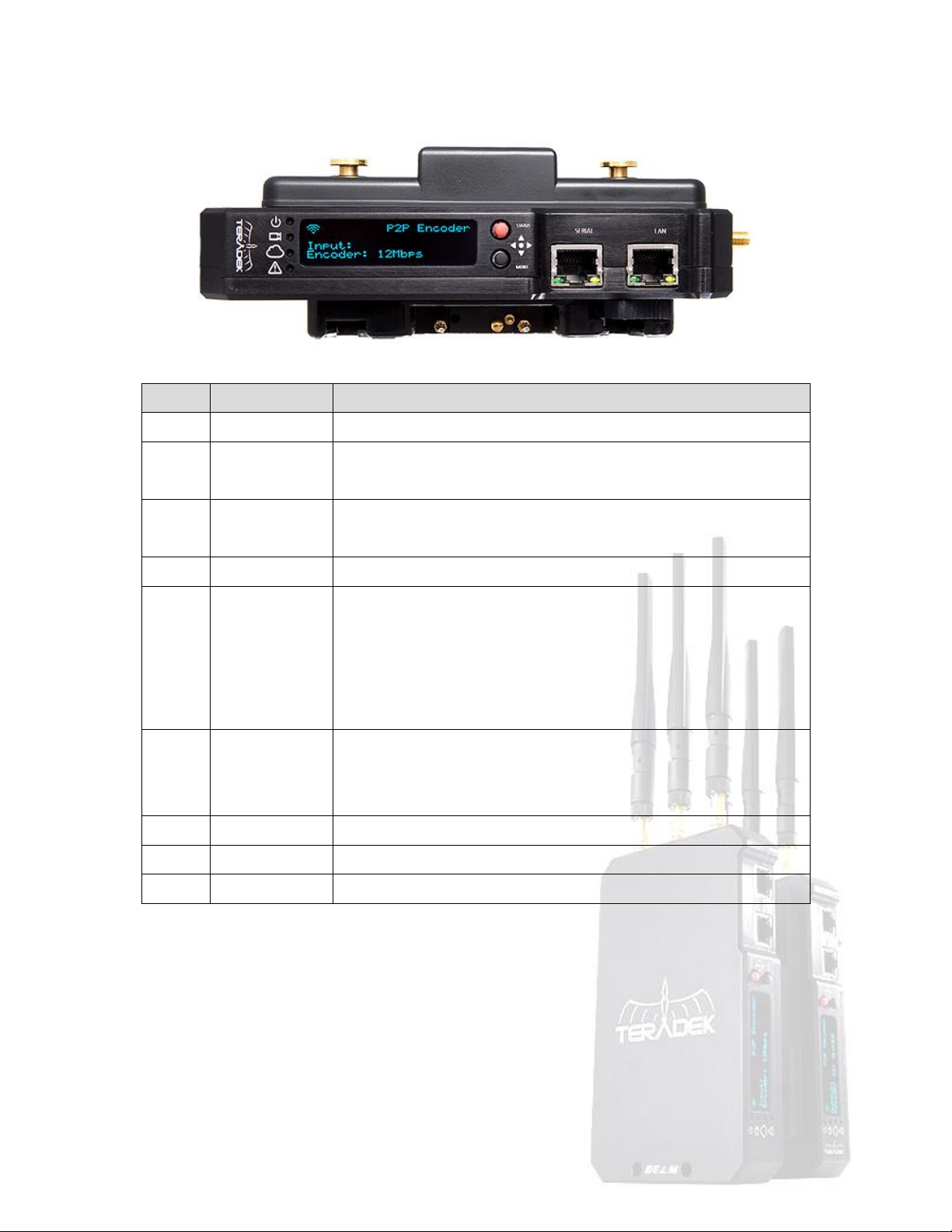
Item
Component
Description
1
Power (LED)
This LED shows the power status
2
Video (LED)
This LED shows the SDI video input signal status. This LED illuminates
when video is present and the TX is encoding
3
Link (LED)
This LED shows the link status. This LED illuminates when a valid client is
connected
4
Fault (LED)
This LED illuminates during boot up, or if an error occurs
5
OLED Display
The OLED display contains multiple status and configuration screens.
These can be navigated using the Status (6) and Menu (7) joysticks. The
main status screen (shown) displays the WiFi or Ethernet status at top
left, the device mode, video resolution (if connected), and the encoder
bitrate
6
Status Joystick
Use the status Joystick to cycle between Beam’s status screens. Separate
screens contain information about the WiFi, Ethernet, video resolution,
and firmware version
7
Menu Joystick
Use the menu joystick to view and modify Beam’s configuration
8
RS-422
RS-422 interface (See section 3.7 for pin description)
9
LAN
RJ-45 Ethernet LAN port
1.4.1 Front and Rear panel of Beam TX
Front View
© 2 0 1 4 . T e r a d e k , L L C P a g e | 4
Page 7
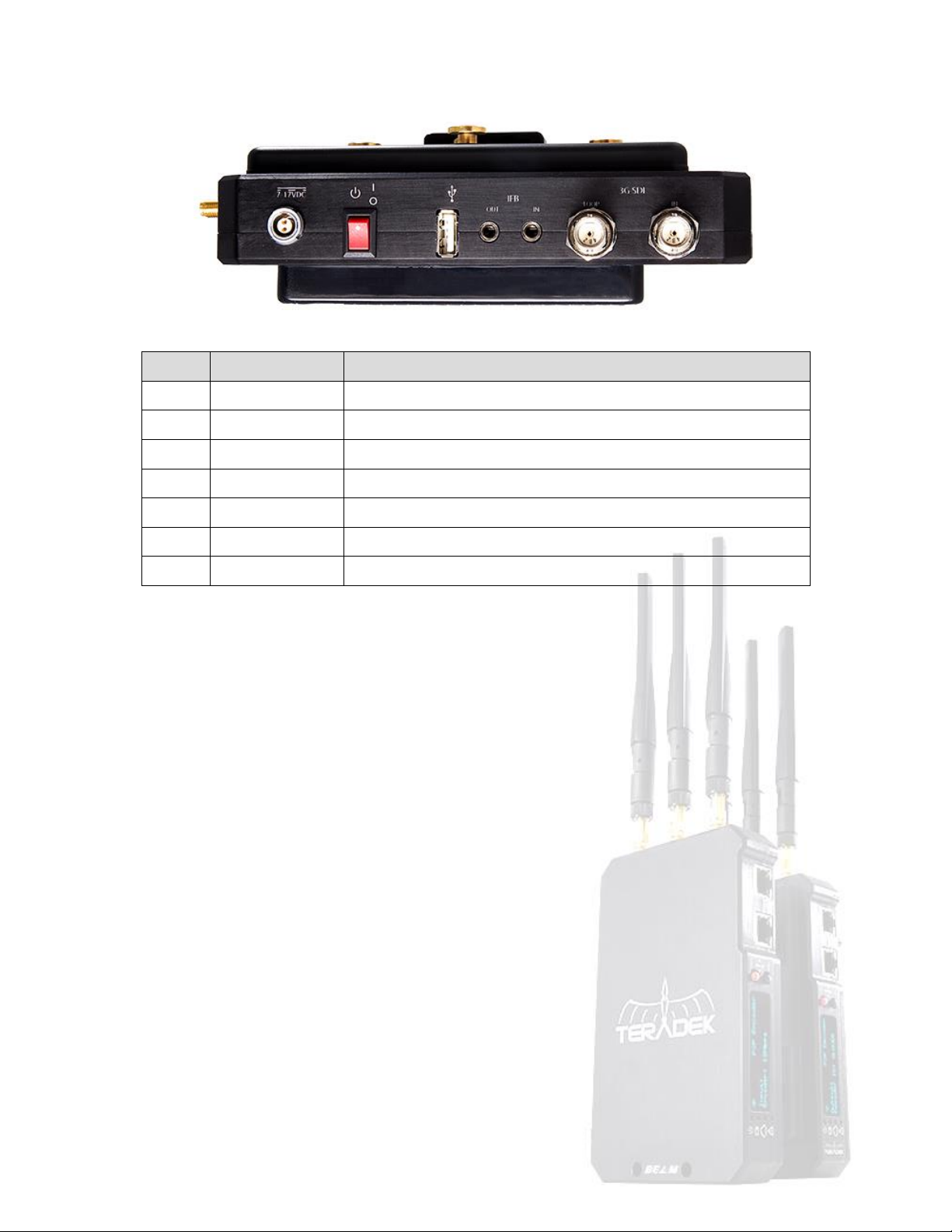
Item
Component
Description
1
Power Input
2-pin Lemo DC Input (7-17V)
2
Power switch
On/off switch
3
USB Port
Used for Firmware upgrade
4
Aux. Audio out
IFB audio (Intercom) stereo output (Analog)
5
Aux. Audio in
IFB audio (Intercom) stereo input (Analog)
6
SDI output
SD/HD/3G-SDI looped output
7
SDI input
SD/HD/3G-SDI input
Rear View
© 2 0 1 4 . T e r a d e k , L L C P a g e | 5
Page 8
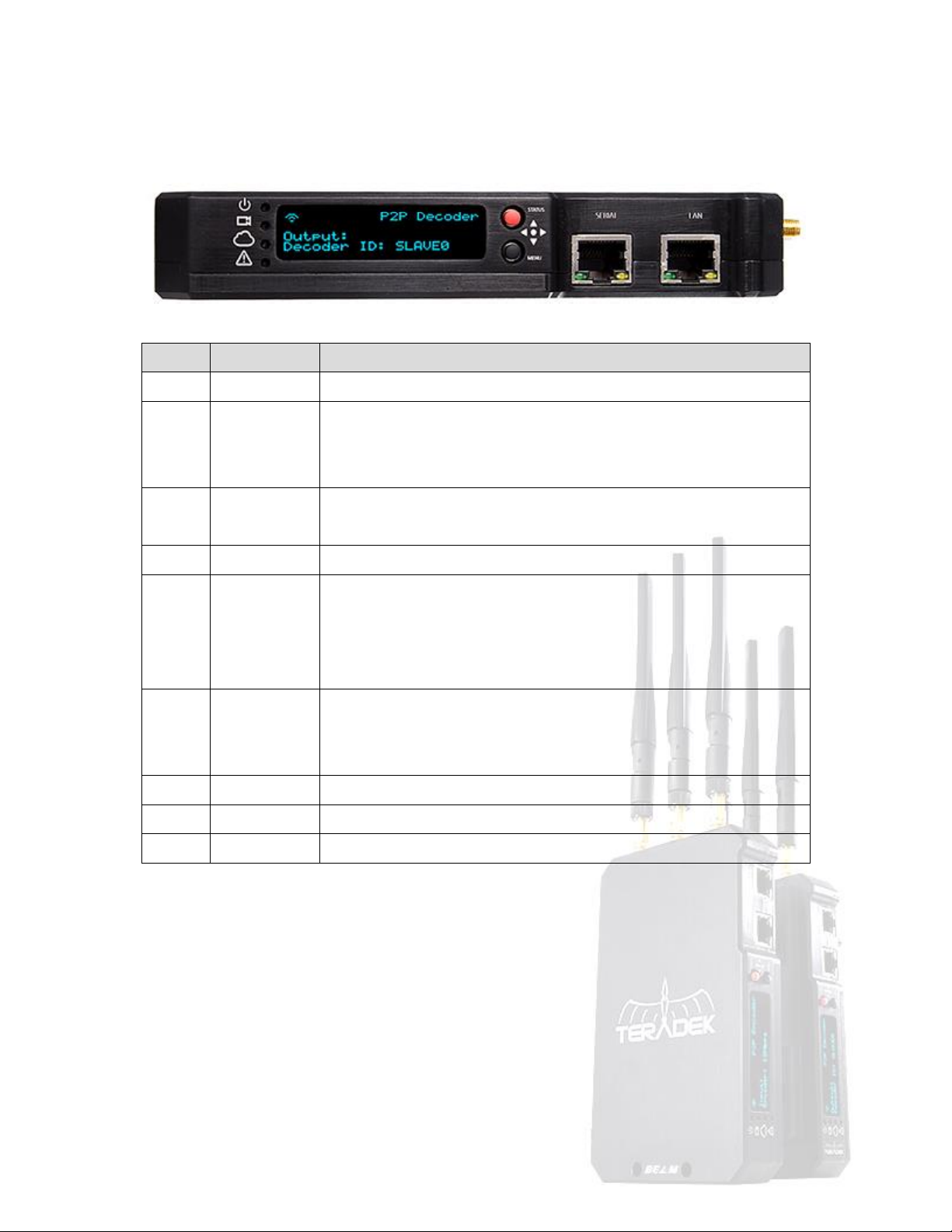
Item
Component
Description
1
Power (LED)
This LED shows the power status
2
Video (LED)
This LED shows the SDI video output signal status. It will blink when there
is no SDI video signal output, and will light when SDI video signal is
outputting
3
Link (LED)
This LED shows the Wi-Fi link status. This LED illuminates when video is
received from the TX
4
Fault (LED)
This LED illuminates during boot up, or if an error occurs
5
OLED Display
The OLED display contains multiple status and configuration screens. These
can be navigated using the Status (6) and Menu (7) joysticks. The main
status screen (shown) displays the WiFi or Ethernet status at top left, the
device mode, video resolution (if decoding), and decoder ID
6
Status Joystick
Use the status Joystick to cycle between Beam’s status screens. Separate
screens contain information about the WiFi, Ethernet, video resolution,
and firmware version
7
Menu Joystick
Use the menu joystick to view and modify Beam’s configuration
8
RS-422
RS-422 interface (See section 3.7 for pin description)
9
LAN
RJ-45 Ethernet LAN port
1.4.2 Front and Rear panel of Beam RX
Front View
© 2 0 1 4 . T e r a d e k , L L C P a g e | 6
Page 9
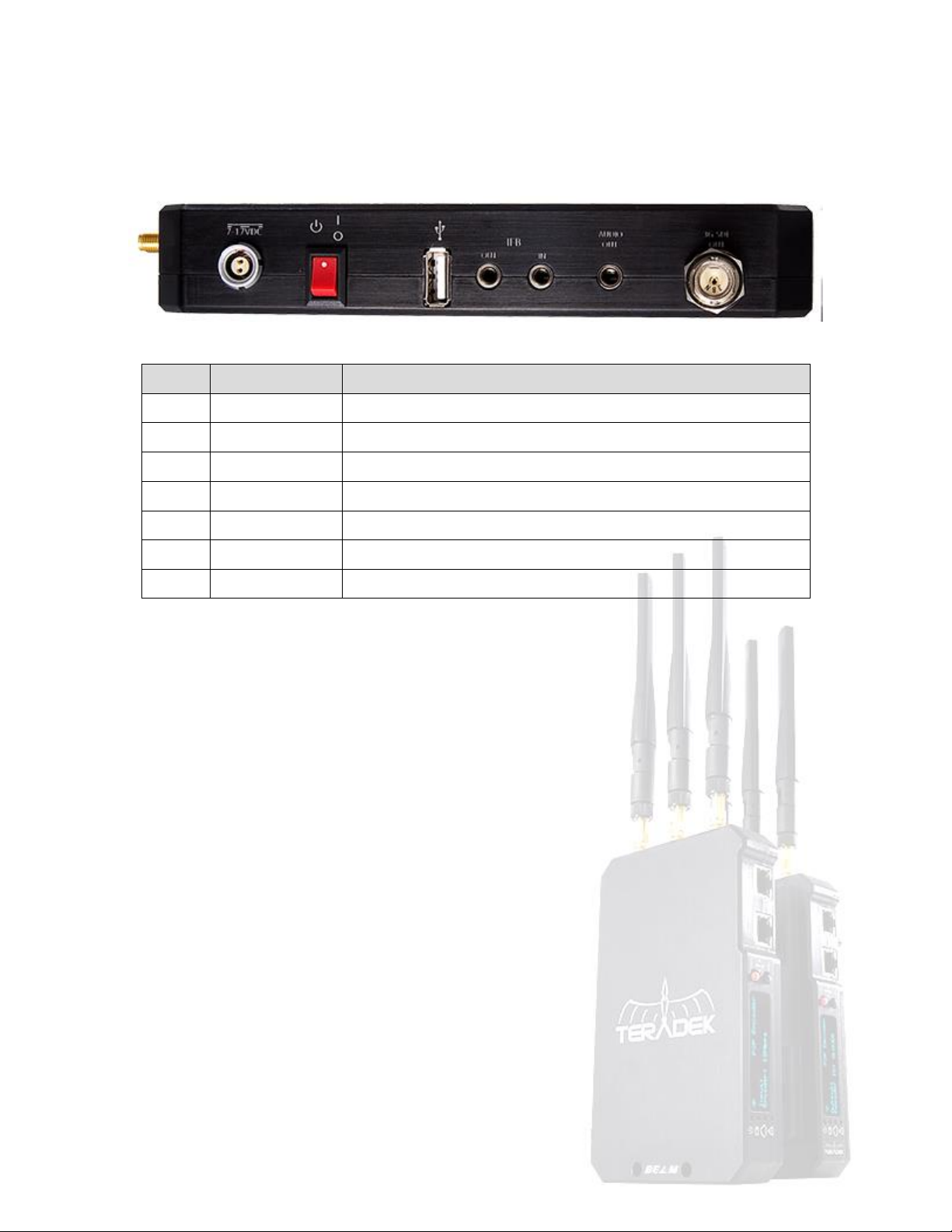
Item
Component
Description
1
Power Input
2-pin Lemo DC Input (7-17V)
2
Power switch
On/off switch
3
USB Port
Used for Firmware upgrade
4
Aux. Audio out
IFB audio (Intercom) stereo output (Analog)
5
Aux. Audio in
IFB audio (Intercom) stereo input (Analog)
6
Audio output
Program audio output
7
SDI output
SD/HD/3G-SDI output
Rear View
1.5 Quick Start Guide
Connect and Power Your Device
1. Connect the SDI output from your video source to the SD/HD/3G-SDI input on the Beam TX. Connect the SD/HD/3G-SDI output
from the Beam RX to the SDI input on your monitor.
2. Connect power to your Beam TX using the included A/C adapter or a compatible AB/V-mount battery. Power the Beam RX with
the included A/C adapter.
3. Attach the included antennas to the Beam TX and RX.
4. Move the power switches on both the transmitter and receiver to the ON position. Boot up time is approximately 45 seconds.
Wireless operation
1. The Beam TX and RX are pre-configured for point-to-point operation over WiFi. When powered on, they will connect to the same
Wireless network, TeradekBeam_00 (SSID number may vary if multiple units are purchased together).
2. Beam TX can send video to up to four RX units over WiFi. To enable multicast, enter the Beam TX Streamer menu and set the
Mode to Multicast. Do the same for all Beam RX units. Next, set a different Decoder ID for each receiver, available values are 1 to
4. This can be configured via the Beam RX front panel, under the Decoder ID menu.
Ethernet operation
1. Connect the Beam TX and RX LAN ports to a network switch. The TX and RX default IP addresses are 192.168.0.161 and
192.168.0.162, respectively.
2. Enter the WiFi menu on the TX and select ‘Ethernet LAN’. Repeat this process on the TX.
© 2 0 1 4 . T e r a d e k , L L C P a g e | 7
Page 10
3. After the network mode is switched, the TX will transmit to the RX.
Network settings can be changed using Beam’s web interface. See the next section for information on configuring the network
interfaces.
Accessing the Configuration Interface
To access Beam’s configuration interface via Ethernet, connect a computer to the same network as Beam TX or RX. Change the
computer’s IP address to 192.168.0.100 (or any other valid value not equal to 192.168.0.161 or 192.168.0.162). Next, open a web
browser and navigate to http://192.168.0.161 to access the TX, or http://192.168.0.162 to access the RX.
To access Beam’s configuration interface via WiFi, connect a computer to the Beam TX’s WiFi network. The TX is available at
http://192.168.2.1 and the RX can be accessed at http://192.168.2.2.
Video/audio streaming server for RTSP client
1. First, enable the RTSP Server on the Beam TX. To do this, enter the Streamer menu on Beam’s front panel, select RTSP Server and
set it to enabled. Verify that the Streamer -> Encapsulation value is set to RTP.
2. The RTSP URL is rtsp://192.168.0.161:8554/stream when streaming over Ethernet from a Beam TX, or
rtsp://192.168.2.1:8554/stream if streaming over WiFi. Note that the URL will change if the Ethernet address is changed.
Streaming video to VLC player/set-top box via MPEG-TS
Beam TX can stream to a software decoder or set-top box over IP by using the MPEG Transport Stream (MPEG-TS) stream type.
1. From the Beam TX front panel, Enter the WiFi menu and select Ethernet LAN.
2. Open the Beam TX web UI and Navigate to the Streaming Control page. Set the Encapsulation to TS2UDP, and enter the decoder
client’s IP address (P2P mode) or multicast group IP address (Multicast mode). Click Submit.
3. Next, navigate to Encoder Control and set the Coding Mode to Frame Encoding. Click Submit, and then Save.
4. If the Beam TX is set to P2P mode, the stream URL (for players like VLC), will be udp://@:1234/ and udp://@227.2.2.7:1234/ in
multicast mode (replace the default group IP or 227.2.2.7 with the group IP configured in step 2, if necessary).
© 2 0 1 4 . T e r a d e k , L L C P a g e | 8
Page 11
SSID
Wi-Fi Ch.
(Frequency)
SSID
Wi-Fi Ch.
(Frequency)
TeradekBeam_00
36
(5180 MHz)
TeradekBeam_07
157
(5785MHz)
TeradekBeam_01
44
(5220MHz)
TeradekBeam_08
36
(5180 MHz)
TeradekBeam_02
149
(5745MHz)
TeradekBeam_09
44
(5220MHz)
TeradekBeam_03
157
(5785MHz)
TeradekBeam_10
149
(5745MHz)
TeradekBeam_04
36
(5180 MHz)
TeradekBeam_11
157
(5785MHz)
TeradekBeam_05
44
(5220MHz)
Ethernet LAN
N/A
TeradekBeam_06
149
(5745MHz)
2. Operating the Beam TX and RX
2.1 Front Panel Operation
Status Screens
Cycle through status screens or return from the menu by pressing the red Status joystick.
Main Status screen – The main status screen displays the WiFi/Ethernet status, and encoder/decoder mode. On the Beam
TX, video input and encoder bitrate are also displayed. On Beam RX the decoder output and ID are displayed instead.
WiFi – Displays the WiFi SSID and wireless IP address.
Ethernet – Displays the current Ethernet IP address.
System – Displays the device serial number and firmware version.
Menu Operation
Launch the menu and navigate through it with the black ‘Menu’ joystick.
Beam TX
Encoder – Contains controls for the encoding bitrate and frame rate
Bitrate – Select bitrates between 5 and 30 mbps from this menu. Settings take effect immediately after they are applied.
Frame rate – Select from Same as input, 25, 30, 50, or 60 frames per second.
WiFi – This menu allows you to configure the WiFi SSID and channel, or to enable Ethernet LAN mode.
WiFi Channels/SSIDs – The Following options are available:
© 2 0 1 4 . T e r a d e k , L L C P a g e | 9
Ethernet LAN mode – Select Ethernet LAN when using MPEG-TS or multicast over a wired network.
Page 12
Streamer
Mode – Select P2P mode when streaming to a client via WiFi or to a single receiver on a LAN. Select Multicast when
streaming to 2-4 Beam receivers wirelessly or to many devices over a multicast-enabled wired network.
Encapsulation – Select RTP when streaming to a Beam RX or when the RTSP server is enabled. Select UDP TS when
using MPEG-TS to a compatible decoder.
RTSP Server – Enabling this allows multiple clients to pull the stream from an encoder using the RTSP stream mode.
Audio
Mode – Select Stereo, Mono, or Disabled for the primary embedded audio stream.
IFB – Select Enabled to allow for two-way stereo talkback communication.
Factory Default – To reset all settings to their factory default values, select this menu, and then select Reset All Settings. The
device reboots after the configuration is reset.
Beam RX
Decoder – Use this menu to set the decoder ID value. When streaming from one Beam TX to multiple Beam RX units, each RX
must be configured with a different ID. There are four different IDs available.
WiFi – This menu allows you to configure the WiFi SSID and channel, or to enable Ethernet LAN mode. See the encoder WiFi
menu description for the available options.
Streamer
Mode – Select P2P mode when streaming point-to-point over WiFi or a LAN. Select Multicast when connecting to a
multicast encoder. If multicast is selected, the Group IP can be configured via the web UI.
RTSP Server – Enabling this allows multiple clients to pull the stream from a decoder using the RTSP stream mode.
Audio
IFB – Select Enabled to allow for two-way stereo talkback communication.
Factory Default – To reset all settings to their factory default values, select this menu, and then select Reset All Settings. The
device reboots after the configuration is reset.
© 2 0 1 4 . T e r a d e k , L L C P a g e | 10
Page 13
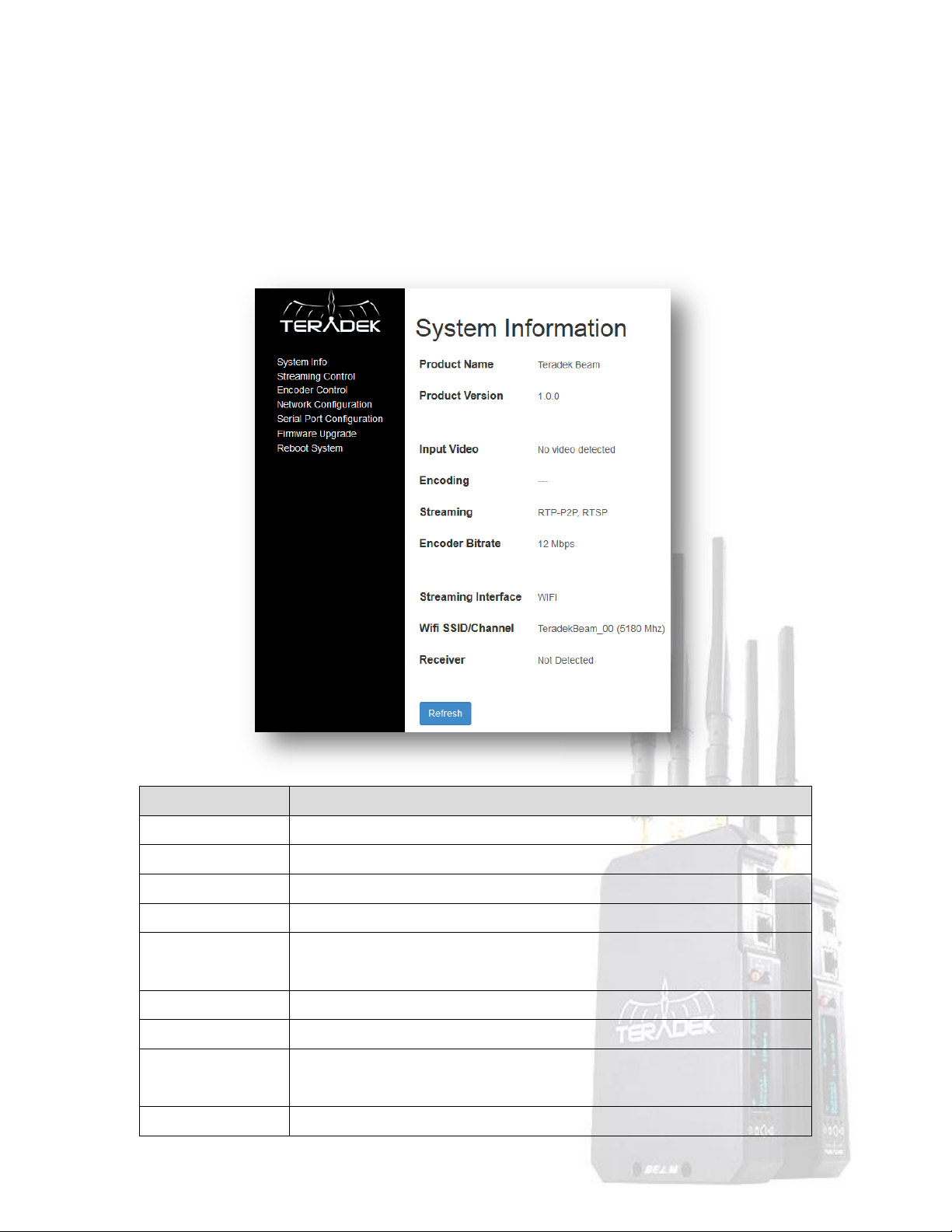
Item
Description
Product Name
Displays the product name.
Product Version
Firmware version number.
Input Video
Displays the video input resolution if a video signal is present.
Encoding
Indicates whether or not the Encoder is running.
Streaming
Displays the current encapsulation (RTP/TS2UDP), encoder mode (P2P or
Multicast), and whether or not the RTSP server is enabled.
Encoder Bitrate
Current Encoder Bitrate.
Streaming Interface
Current streaming interface: WiFi or Ethernet LAN.
Wi-Fi SSID/Channel
Disaplys the current WiFi SSID and channel (frequency): 36(5180MHz),
44(5220MHz), 149(5745MHz), or 157(5785MHz).
Receiver
Displays whether or not a Beam RX is connected.
2.2 Web-based Operation
All Beam TX and RX parameters (except the WiFi/LAN mode) can be configured via Beam’s web interface. The interface can be
accessed by connecting to the same network as Beam and opening the device’s IP address in a web browser. The current IP address
can be seen on Beam’s front panel display.
Beam TX
System Information
© 2 0 1 4 . T e r a d e k , L L C P a g e | 11
Page 14
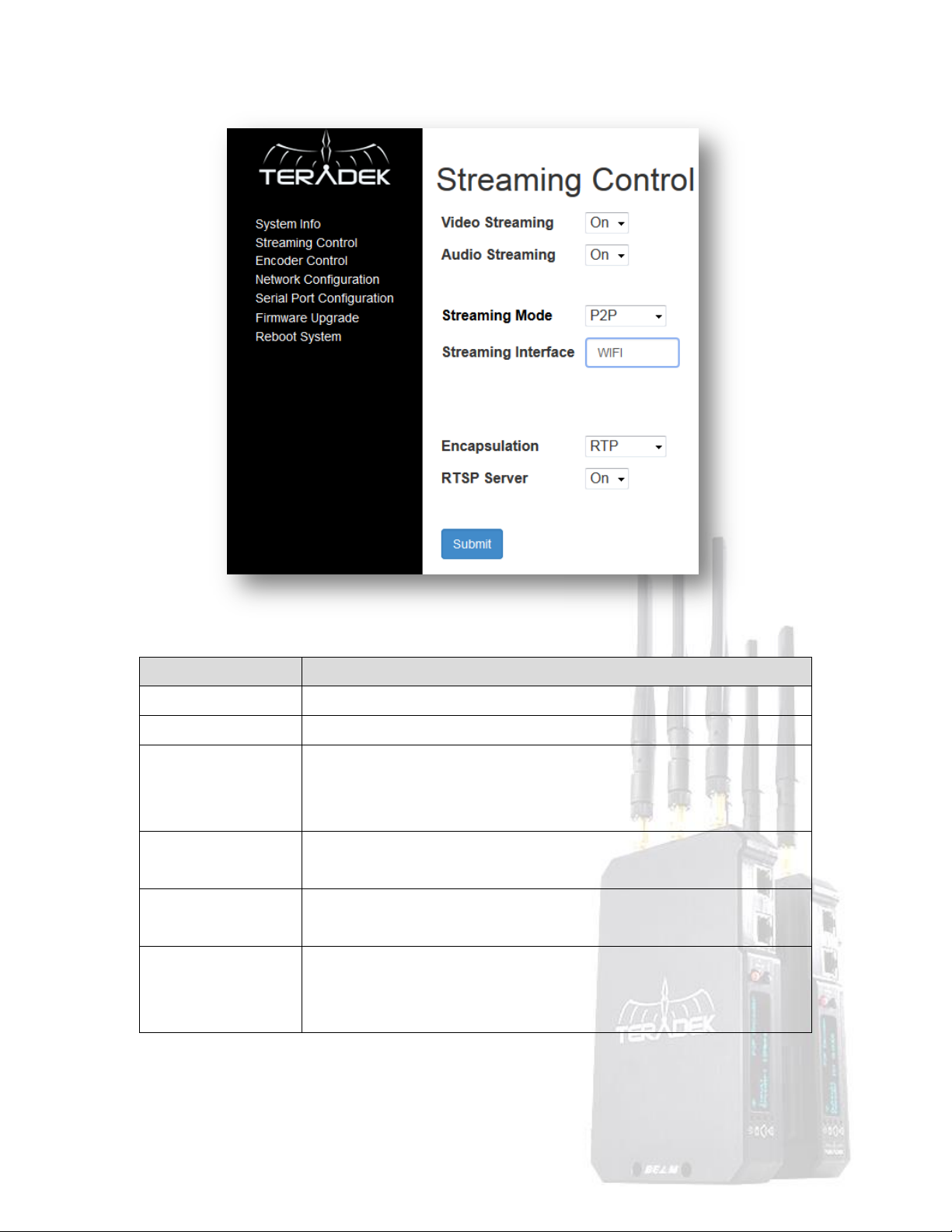
Item
Description
Video Streaming
Select On/Off to enable or disable Video Streaming.
Audio Streaming
Select On/Off to enable or disable Audio Streaming.
Streaming Mode
Select P2P mode when streaming to a client via WiFi or to a single Beam RX
on a LAN. Select Multicast when streaming to multiple devices over a
multicast-enabled wired network.
Streaming Interface
Current streaming interface: WiFi or Ethernet LAN, this can be configured
from Beam’s front panel.
Encapsulation
Select RTP when streaming to a Beam RX or when the RTSP server is enabled.
Select UDP TS when using MPEG-TS to a compatible decoder.
RTSP Server
Enabling this allows multiple clients to pull the stream from an encoder using
the RTSP stream mode. Beam RX can still decode video while other RTSP
clients are connected.
Streaming Control
© 2 0 1 4 . T e r a d e k , L L C P a g e | 12
Page 15
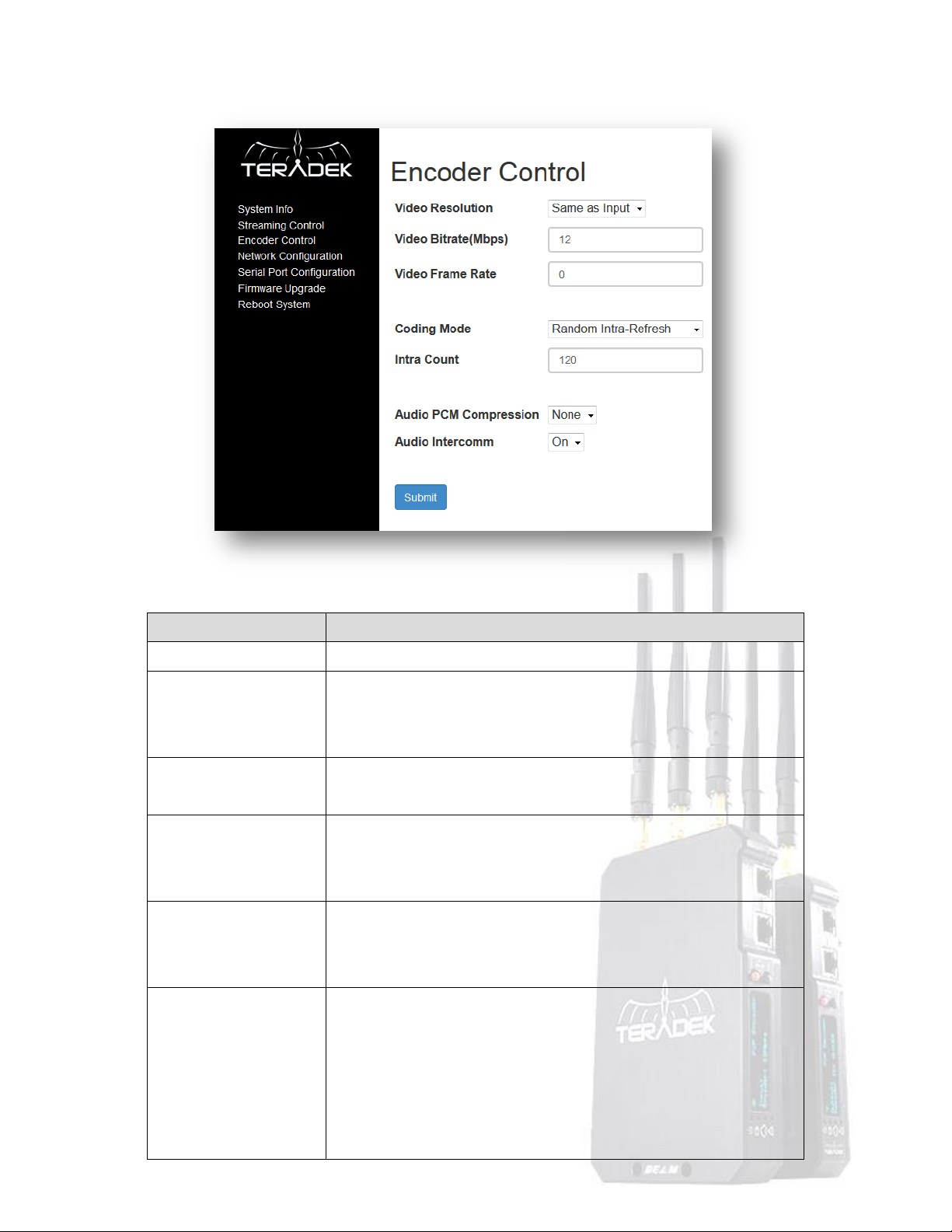
Item
Description
Video Resolution
Select Same as Input, 720, or 480 to set the streamed video resolution.
Video Bitrate
Use this to set the video bitrate, in Mbps. Maximum bitrates are 30
Mbps over WiFi, and up to 50 Mbps over Ethernet, depending on the
video resolution.
Video Frame Rate
Frame rate can be set to any value up to the source frame rate. Set this
to zero to match the input frame rate.
Coding Mode
Select Frame coding, Random Intra-refresh, or continuous intra-refresh.
Frame coding is necessary for MPEG-TS, while random intra-refresh gives
the best encoding performance at a given bitrate.
Intra Count/GOP size
When using intra-refresh modes, this specifies the amount of I-frame
segments. In Frame coding mode, GOP size specifies the number of
frames between I-frames.
Audio PCM Compression
Select None, aLaw, or uLaw.
None: no PCM linear compression is applied. 768kbps for one channel
audio, and 1,536kbps for stereo audio.
aLaw: European standard of G.711 compression. 384kbps for one
channel audio, and 768kbps for stereo audio.
uLaw: North American standard of G.711 compression. 384kbps for one
Encoder Control
© 2 0 1 4 . T e r a d e k , L L C P a g e | 13
Page 16
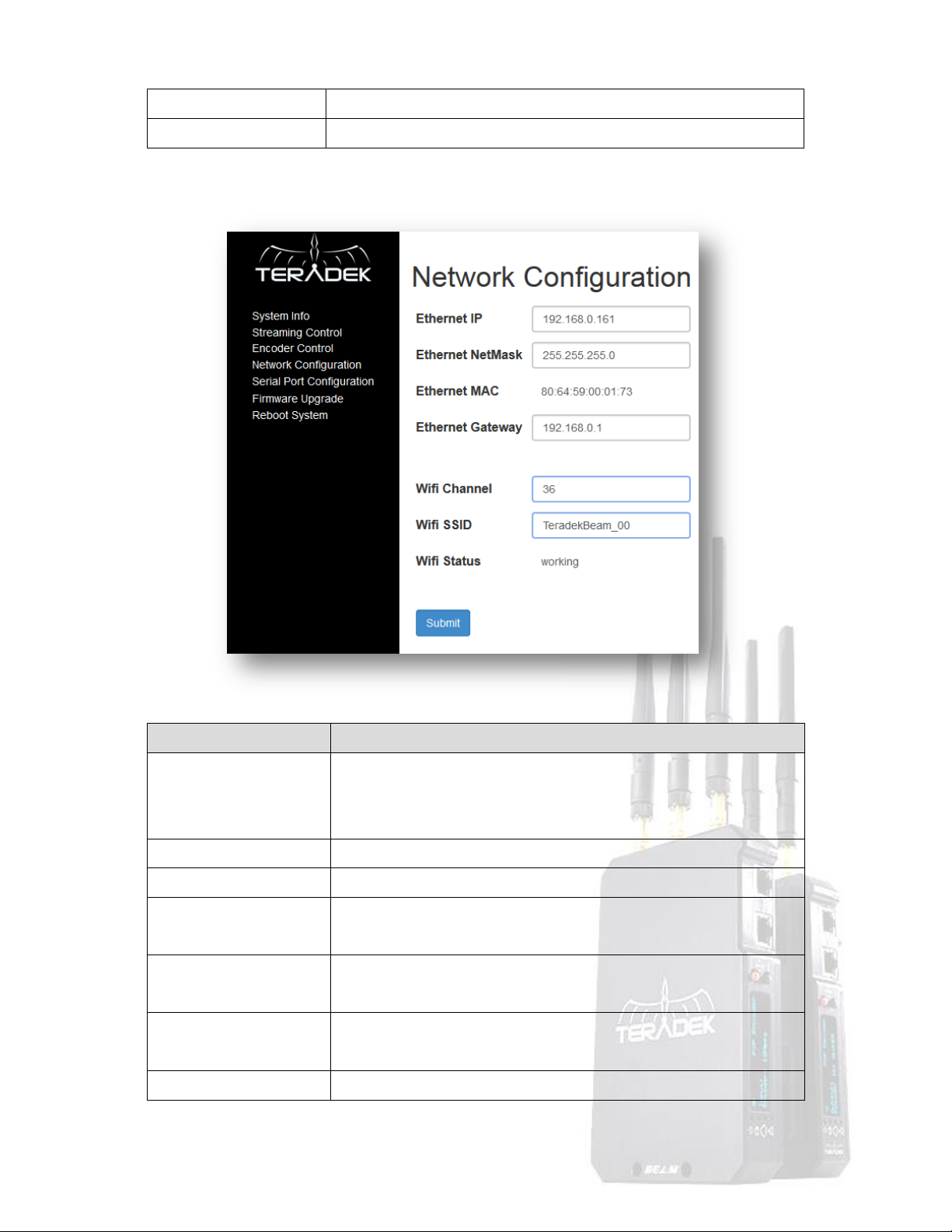
channel audio, and 768kbps for stereo audio.
Audio Intercomm
Select On to allow for two-way stereo talkback communication.
Item
Description
Ethernet IP
Displays the current IP address and allows users to set a new value.
Note that if the IP address is changed, you will need to reload the web
UI using the new address.
Ethernet NetMask
Displays the current subnet mask and allows users to set a new value.
Ethernet MAC
Displays the device’s MAC address.
Ethernet Gateway
Displays the Ethernet gateway IP address and allows users to set a new
value.
WiFi Channel
Displays the current WiFi channel. This value can be changed from
Beam’s front panel.
WiFi SSID
Displays the current WiFi SSID. This value can be changed from Beam’s
front panel.
WiFi Status
Indicates whether or not the WiFi is enabled.
Network Configuration
© 2 0 1 4 . T e r a d e k , L L C P a g e | 14
Page 17
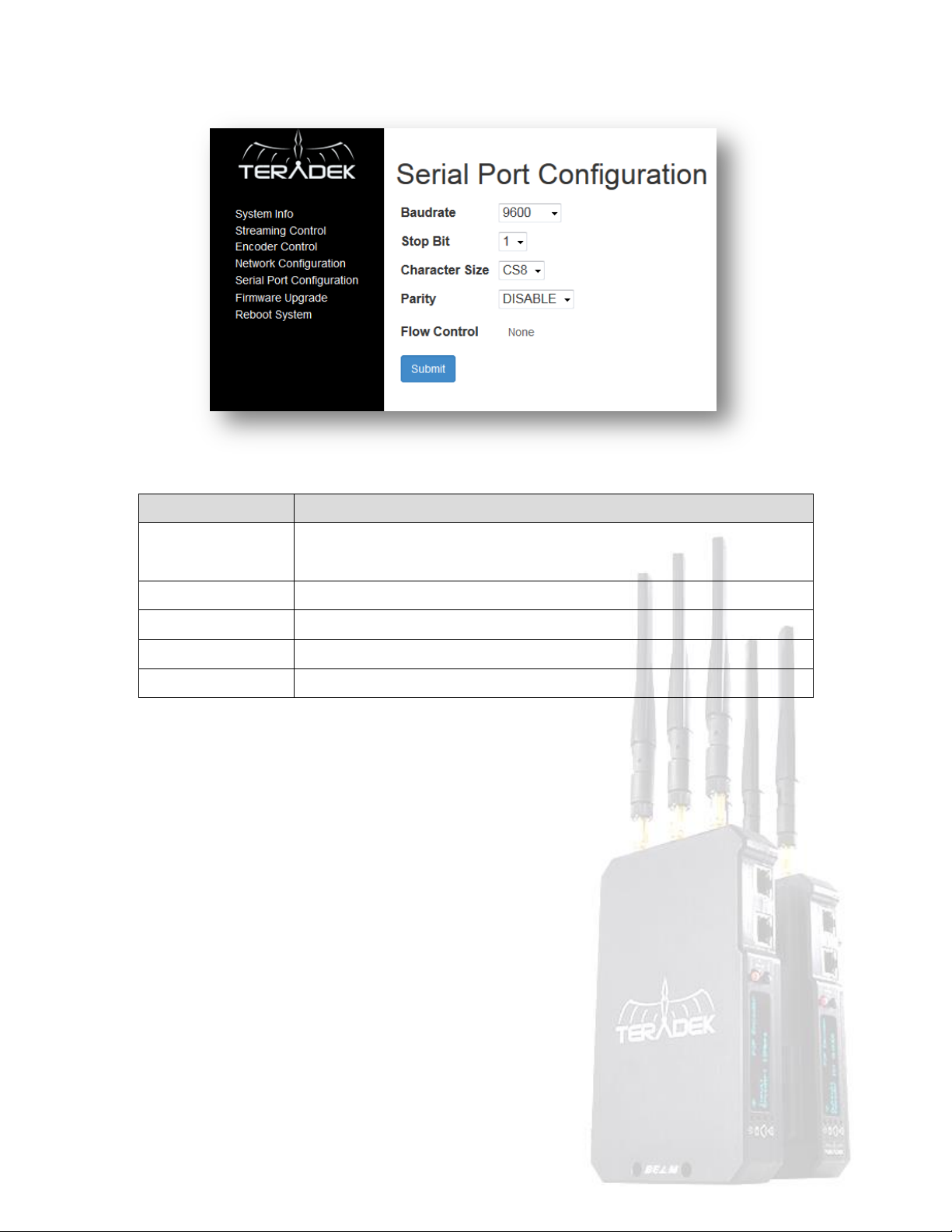
Item
Description
Baud Rate
Sets the serial port baud rate. This should match the receiver’s baud rate and
the equipment you wish to connect.
Stop Bit
Sets the stop bit – 1 or 2.
Character Size
Character size can be set from 5 bits (CS5) to 8 bits (CS8).
Parity
Set to Odd, Even, or Disable.
Flow Control
Flow Control is disabled.
Serial Port configuration
© 2 0 1 4 . T e r a d e k , L L C P a g e | 15
Page 18
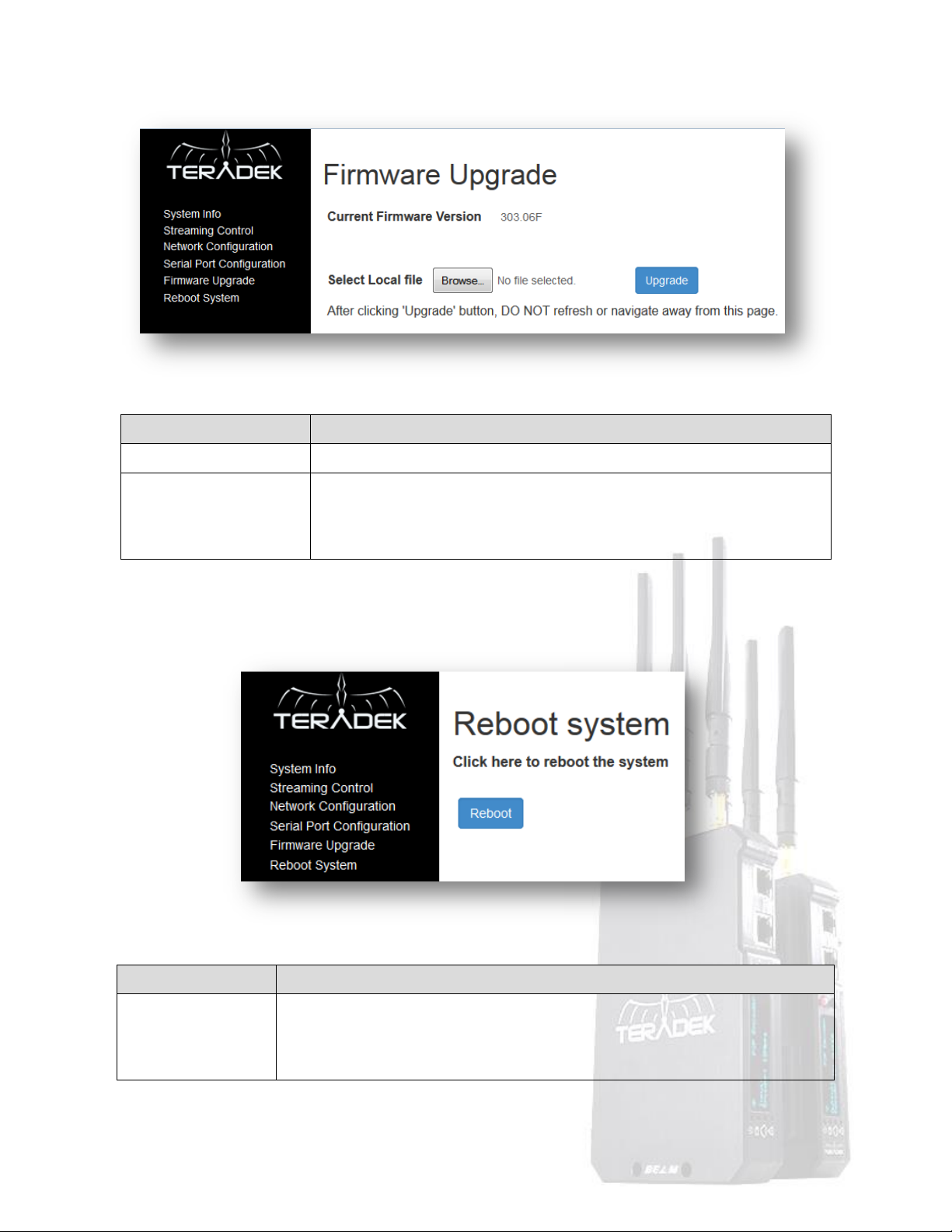
Item
Description
Current Firmware Version
Indicates the Device’s current firmware version.
Select Local File
Allows users to browse for a locally stored firmware image. Firmware can be
found at Teradek.com. After selecting the file, click ‘Upgrade’ and follow the
instructions. The device will reboot after an update.
Item
Description
Reboot
Click on “Reboot” will restart the system with all settings which were modified and
saved. It will show the “Reboot” button one more time to confirm rebooting the
system.
Save Changes
Reboot System
© 2 0 1 4 . T e r a d e k , L L C P a g e | 16
Page 19
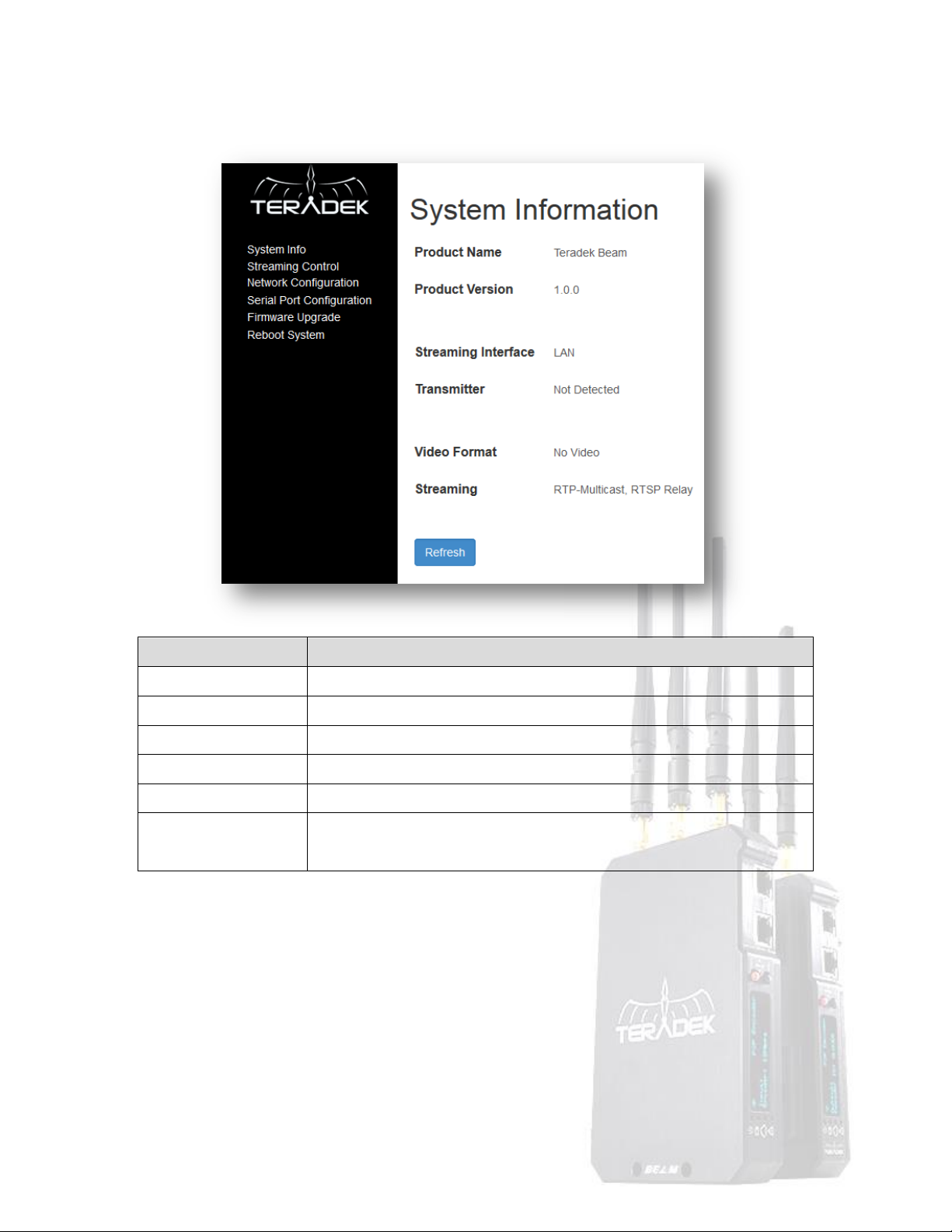
Item
Description
Product Name
Displays the product name.
Product Version
Firmware version number.
Streaming Interface
Current streaming interface: WiFi or Ethernet LAN.
Transmitter
Indicates whether or not a Beam TX is detected.
Video Format
Displays the detected stream format, if present.
Streaming
Displays the current encapsulation (RTP/TS2UDP), mode (P2P or Multicast),
and whether or not the RTSP server is enabled.
Beam RX
System Configuration
© 2 0 1 4 . T e r a d e k , L L C P a g e | 17
Page 20
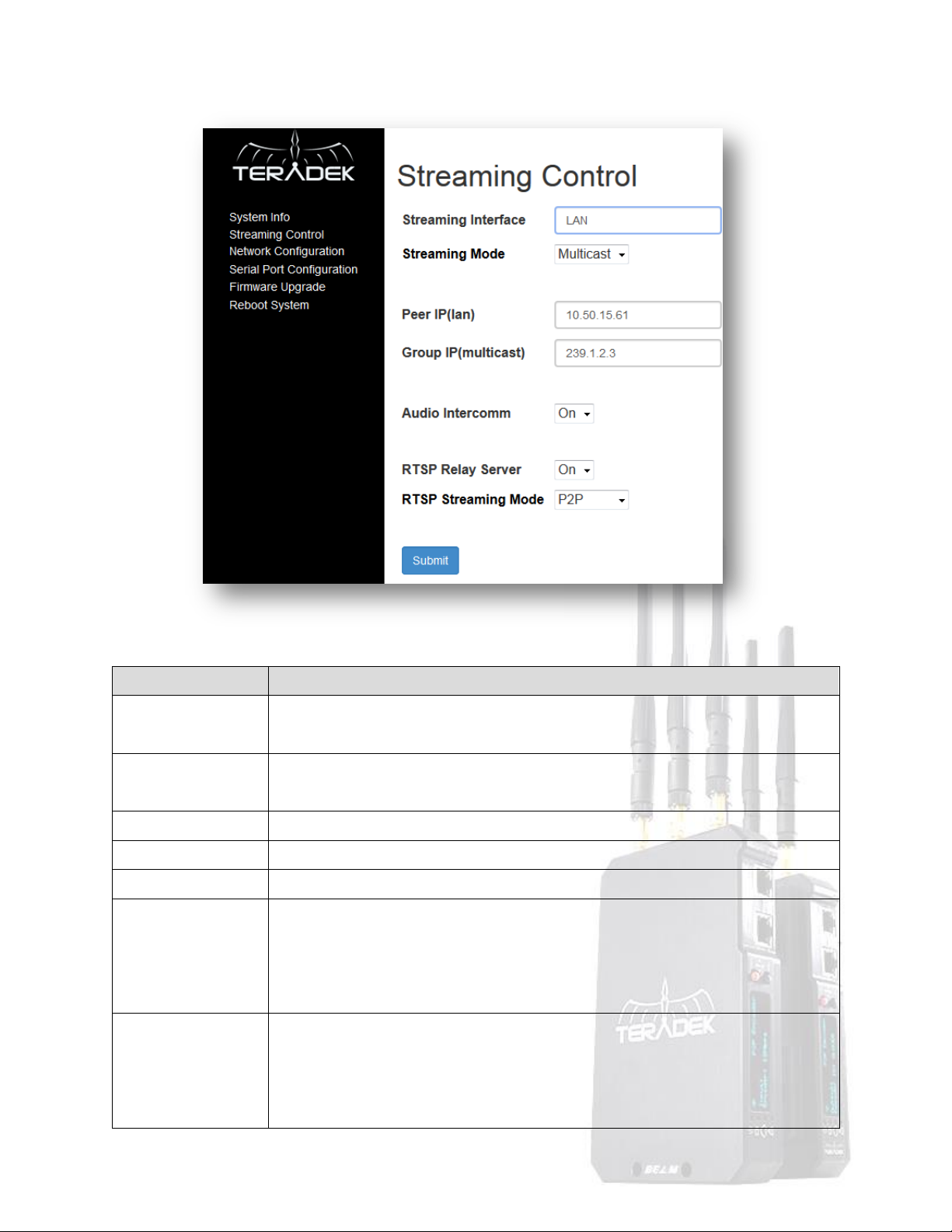
Item
Description
Streaming Interface
Current streaming interface: WiFi or Ethernet LAN. This can be configured via Beam’s
Front panel.
Streaming Mode
Select P2P mode when streaming over WiFi, or when connecting point-to-point over a
LAN. Select Multicast when connecting to a multicast encoder.
Peer IP (LAN)
In P2P mode, set the Peer IP to the encoder’s IP address.
Group IP (Multicast)
In Multicast mode, set the Group IP to match the address configured at the Beam TX.
Audio Intercomm
Select On to allow for two-way stereo talkback communication.
RTSP Relay Server
Enabling this allows multiple clients to pull the stream from a decoder using the RTSP
stream type. When enabled, video from the encoder is re-streamed to clients on the
same network as the Beam RX. Beam RX will relay video and re-stream video
simultaneously.
RTSP Streaming Mode
Select whether to use Unicast (P2P) or Multicast for the decoder’s RTSP server. When
multicast is enabled, the RTSP stream is still available at
rtsp://192.168.0.162:8554/stream (replace the IP address with the decoder’s Ethernet
LAN or WiFi address, not the multicast group IP).
Streaming Control
© 2 0 1 4 . T e r a d e k , L L C P a g e | 18
Page 21
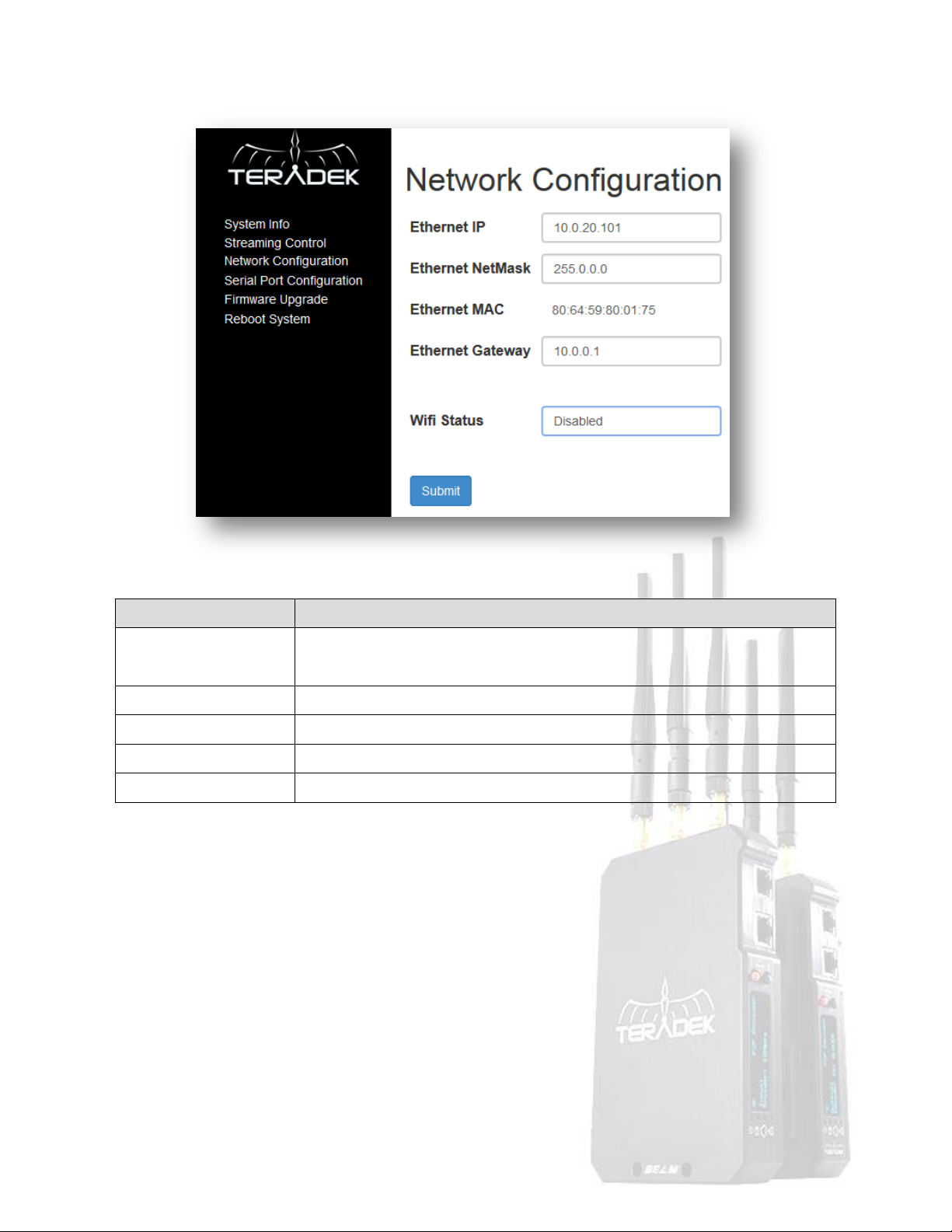
Item
Description
Ethernet IP
Displays the current IP address and allows users to set a new value. Note that if the
IP address is changed, you will need to reload the web UI using the new address.
Ethernet NetMask
Displays the current subnet mask and allows users to set a new value.
Ethernet MAC
Displays the device’s MAC address.
Ethernet Gateway
Displays the Ethernet gateway IP address and allows users to set a new value.
WiFi Status
Indicates whether or not the WiFi is enabled.
Network Configuration
© 2 0 1 4 . T e r a d e k , L L C P a g e | 19
Page 22
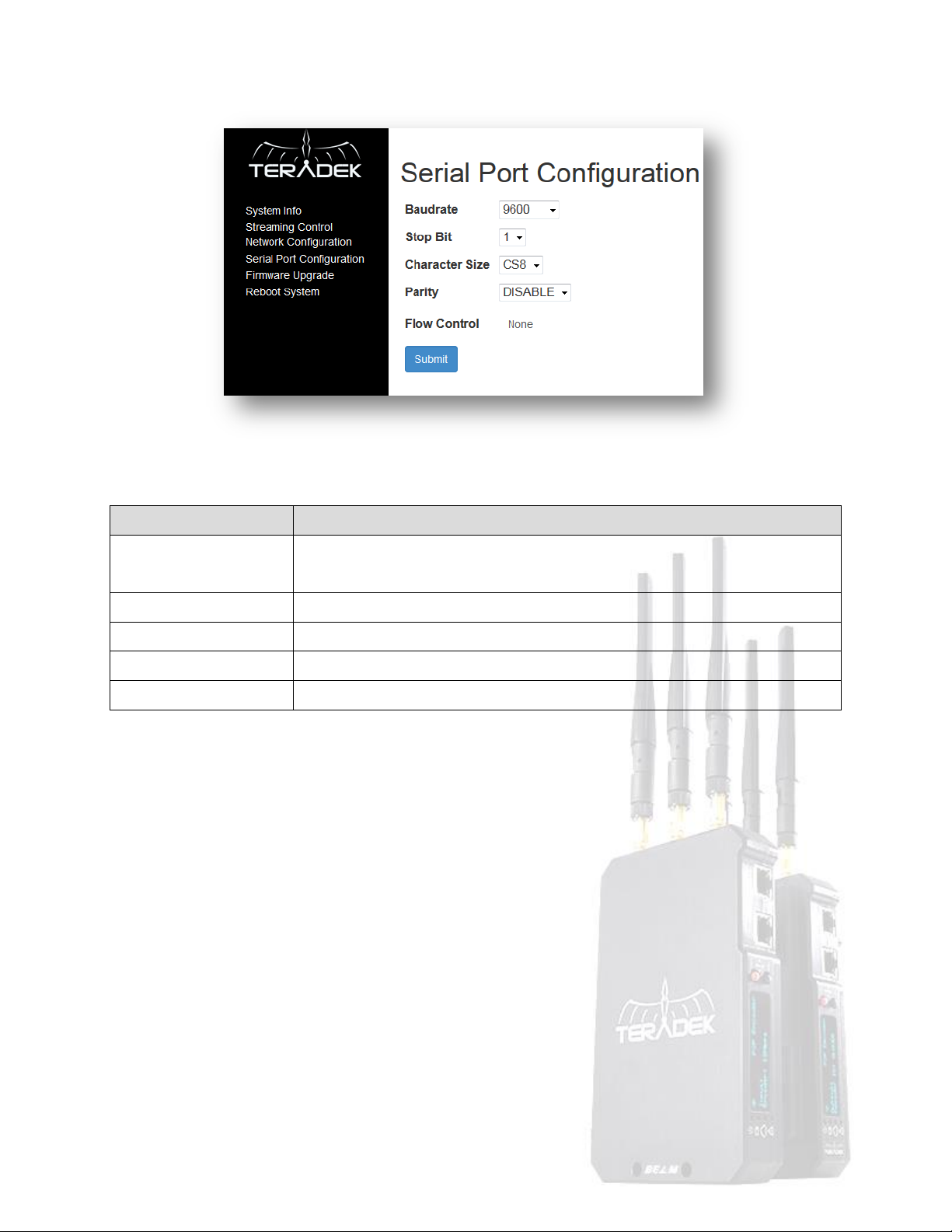
Item
Description
Baud Rate
Sets the serial port baud rate. This should match the transmitter’s baud rate and the
equipment you wish to connect.
Stop Bit
Sets the stop bit – 1 or 2.
Character Size
Character size can be set from 5 bits (CS5) to 8 bits (CS8).
Parity
Set to Odd, Even, or Disable.
Flow Control
Flow Control is disabled.
Serial Port Configuration
© 2 0 1 4 . T e r a d e k , L L C P a g e | 20
Page 23
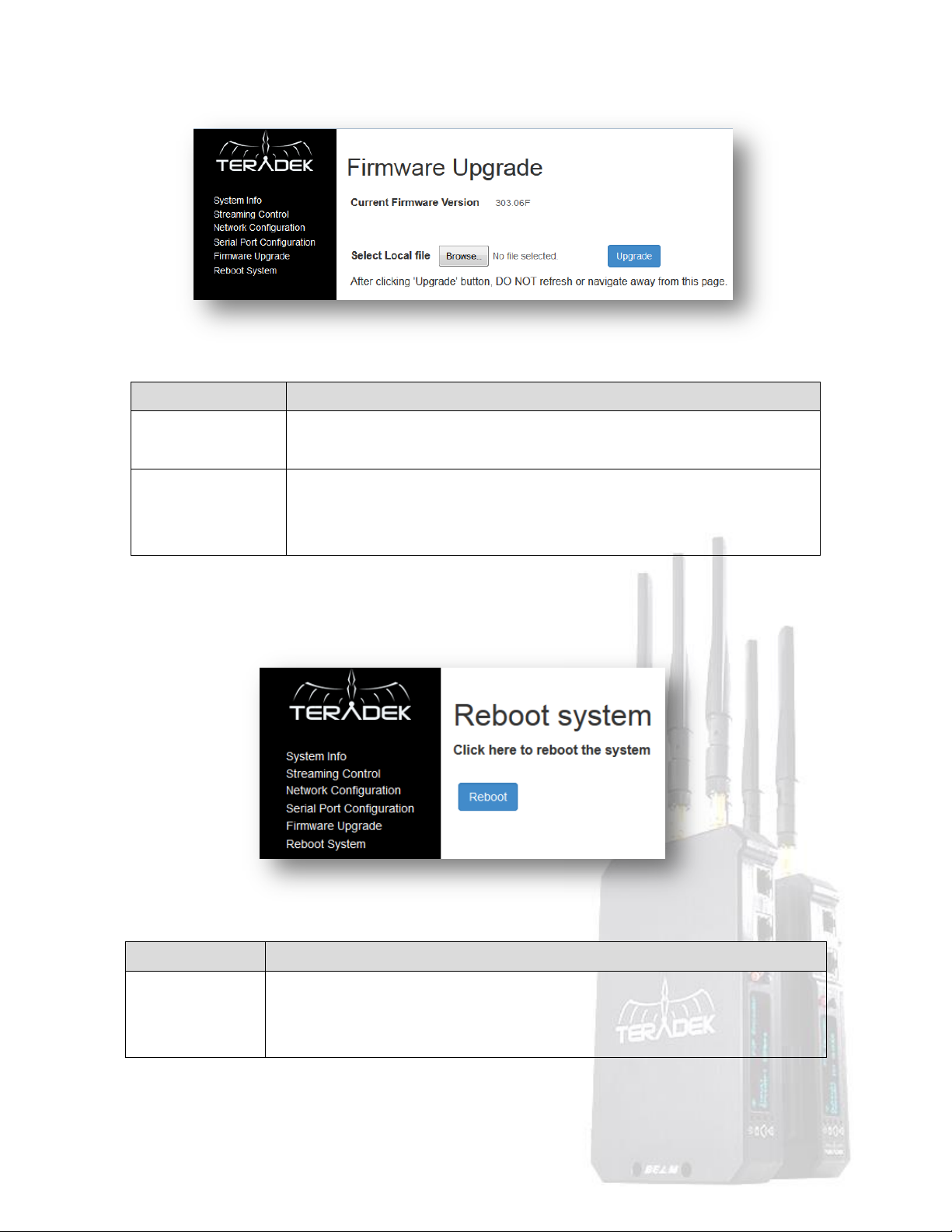
Item
Description
Current Firmware
Version
Indicates the Device’s current firmware version.
Select Local File
Allows users to browse for a locally stored firmware image. Firmware can be
found at Teradek.com. After selecting the file, click ‘Upgrade’ and follow the
instructions. The device will reboot after an update.
Item
Description
Reboot
Click on “Reboot” will restart the system with all settings which were modified and
saved. It will show the “Reboot” button one more time to confirm rebooting the
system.
Firmware Upgrade
Reboot System
© 2 0 1 4 . T e r a d e k , L L C P a g e | 21
Page 24
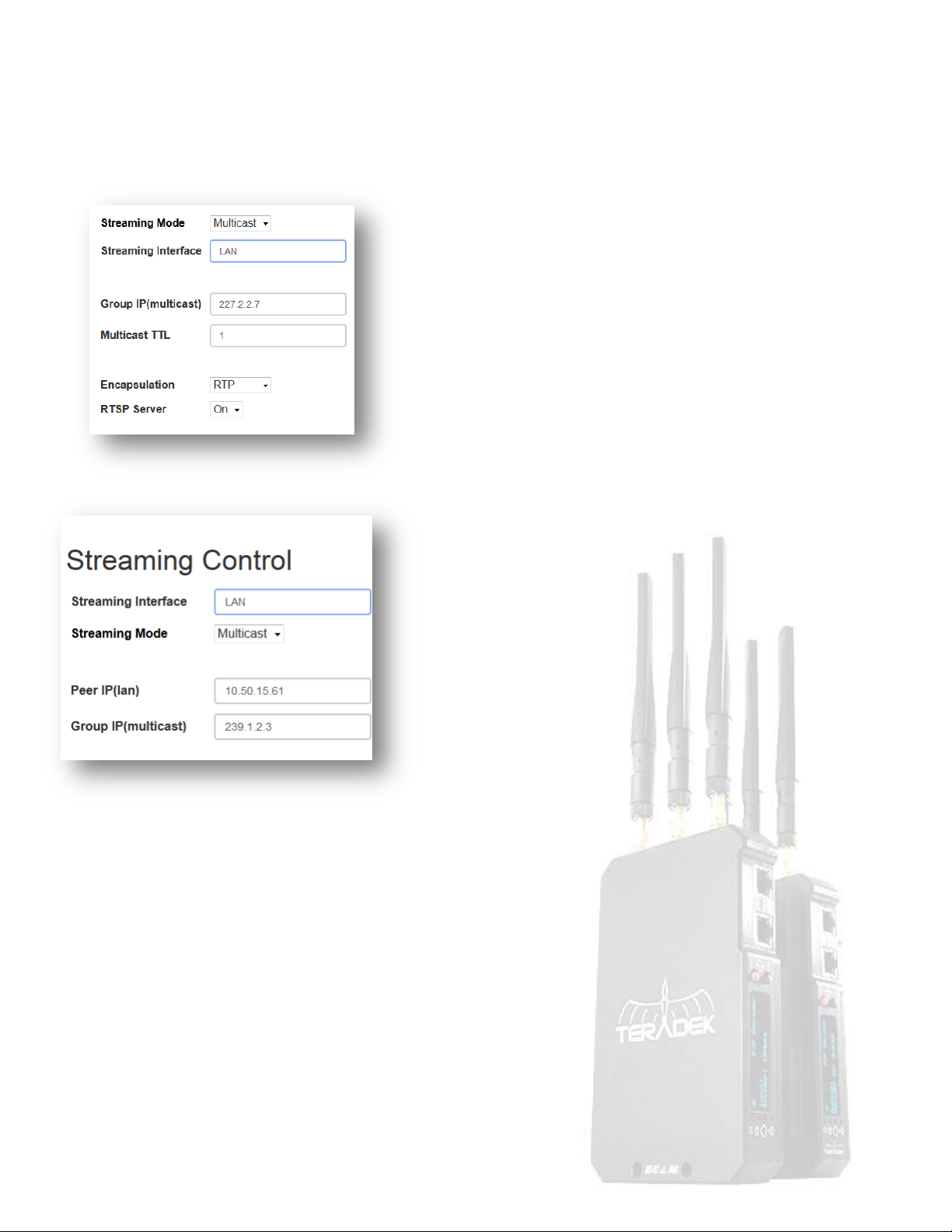
2.3 Operation of Multicast for 1:N A/V Transmission
Beam TX can be configured to stream a single multicast stream over a LAN for decoding at multiple BEAM RX units. This section
describes the necessary configuration.
Beam TX configuration via Web UI
1. Ensure that the Beam TX is set to Ethernet LAN mode via
the front panel.
2. Open your browser to the Beam TX web configuration
interface and navigate to the Streaming Control page.
3. Select Multicast for the streaming mode and click Submit.
4. You can specify any valid multicast group IP address within
the range 224.0.0.0 to 239.255.255.255. The default value is
227.2.2.7.
Beam RX configuration via Web UI
1. Ensure that each Beam RX to be used is set to Ethernet
LAN mode via the front panel.
2. Open your browser to the Beam RX web configuration
interface and navigate to the Streaming Control page.
3. Select Multicast for the streaming mode and click Submit.
4. Configure the Group IP (multicast) value to match the
value set at your Beam TX.
NOTE: Multicast streaming requires properly configured multicast-capable networking equipment. Failure to configure your network
infrastructure correctly may cause the encoder’s stream traffic to broadcast over the entire network.
2.4 Connecting to Beam TX’s WiFi Network
Computers and tablets can connect directly to the Beam TX WiFi network, if active. Connected devices can preview the video and
access Beam’s configuration interface.
Depending on Which WiFi channel is selected, Beam’s WiFi SSID will be advertised as TeradekBeam_xx, where xx is a two digit
number. The default SSID is TeradekBeam_00 and SSIDs range from 00 to 11. The current SSID can be seen on Beam’s front panel
display.
After finding Beam’s network with your WiFi utility, you will need to enter a WPA password. The password is xyj<SSID>, where <SSID>
is the current SSID. This value cannot be modified.
© 2 0 1 4 . T e r a d e k , L L C P a g e | 22
Page 25

Video Compression
H.264 Baseline Profile Level 4.2 with de-interlacing
System Latency
70 ~ 80 millisecond end-to-end delay between Transmitter and Receiver
Digital Video In/Out
SD-SDI, HD-SDI, 3G-SDI
Video Port
TX: SDI input and looped output, RX: SDI output
Supported
Video Resolutions
SMPTE 244
480i59.94 (NTSC), 480i60 (861-D)
IEC61179-5
576i50 (PAL)
SMPTE 296M
720p23.98, 720p24, 720p25, 720p29.97, 720p30, 720p50, 720p59.94,
720p60
SMPTE 274M
1080i50, 1080i59.94, 1080i60,
1080PsF23.98,1080PsF24, 1080PsF25, 1080PsF29.97, 1080PsF30,
1080p23.98, 1080p24, 1080p25, 1080p29.97,1080p30, 1080p50,
1080p59.94, 1080p60
SDI Compliance
SMPTE 259M
BT.656
SDTV Digital Signal/Data Serial Digital Interface
SMPTE 292M
BT.1120
1.5Gb/s Signal/Data Serial Digital Interface
SMPTE 425M
(option)
3Gb/s Signal/Data Serial Digital Interface
SMPTE 299M
16bit Digital Audio Format for SMPTE 292M
SMPTE 352M
Video Payload Identification for Digital Interfaces
Main Digital Audio
In/Out
TX/RX
SDI embedded audio: 48kHz 16-bit stereo linear PCM
Main Analog Audio
Out
RX
48kHz 16-bit stereo linear PCM with mini stereo phone output jack
Talk-Back Analog
Audio In/Out
RX/TX
8kHz 16-bit stereo linear PCM with mini stereo phone input/output
jack
Radio Power
Aggregate Power: 150mW (22dBm), 50mW (17dBm)/antenna
Radio standard
IEEE 802.11a/n: OFDM
Frequencies
U-NII-1 (5.15~5.25 GHz), U-NII-3 (5.725~5.85 GHz)
Once connected, Beam TX will assign your device an IP address in the 192.168.2.x range. Beam TX’s web interface can be accessed at
192.168.2.1, and the RTSP stream (if RTSP server is enabled) can be opened with rtsp://192.168.2.1:8554/stream. Beam RX can be
found at 192.168.2.2.
Please see your computer or tablet’s user guide for information on connecting to Wireless networks.
Note: Beam operates on the 802.11a/n 5GHz band. Ensure that your device has a 5GHz compatible wireless adapter.
3. System Specifications
3.1 General
© 2 0 1 4 . T e r a d e k , L L C P a g e | 23
Page 26
Antenna
3T x 3R MIMO, 3 antennas per Beam TXW/Beam RXW
Security
802.1x, 802.11i, WPA2, WPA and WEP 64/128 TKIP 128bit AES
Ethernet LAN
10/100 BASE-TX, RJ-45 jack
External Control
Full duplex RS422 serial port
USB
Firmware upgrade without PC
Power Input/
Consumption
DC 7V - 17/ 12 Watts
Dimensions
(H x W x D)
323 x 30 x 118 (mm), Including mount plates: 315 x 60 x 118 (mm)
Weight (g)
520g, Including mount plate: 695g
Operating
Temperature
Operating from 0°C ~ 50°C
3.2 Beam TX (Encoder/Transmitter) Overview
Video Input
SD-SDI, HD-SDI or 3G-SDI
Pass-through SDI output port
Audio Inputs
SD-SDI/HD-SDI/3G-SDI: Embedded audio
Analog stereo audio for wireless intercom: 8kHz sampling with 16-bit resolution
Audio Output (wireless intercom)
Audio received from RX IFB Audio Input: 8kHz sampling with 16-bit resolution per channel
Video Encoder
H.264 (MPEG-4 part 10 : AVC)
Baseline Profile with Level 4.2 (up to 1920 x 1080p60)
Encoding rate of max. 30Mbps for 1080p60/50 over WiFi, 50Mbps over Ethernet LAN
Encoding rate selectable via front panel or web UI
Video downscaling function:
o 1080i60/59.94 480i60/59.94
o 1080p60/59.94 720p60/59.94 or 480p60/59.94
o 720p60/59.94 480p60/59.94
Wireless Interface for Audio/Video
Supporting IEEE802.11n (5 GHz)
MIMO interface (3x3)
Coverage: up to 800m (2500 ft) at line of sight (LOS)
© 2 0 1 4 . T e r a d e k , L L C P a g e | 24
Page 27
Encoder bitrate
12 mbps
Encoder mode
P2P Encoder
Frequency selection via front panel interface
Ethernet Interface for Audio/Video
10/100 BASE-TX, Cat.5e UTP cable (100~150m)
Multicasting over Ethernet LAN environment
RTSP streaming server & MPEG-TS streaming
MPEG-TS streaming: H.264 NAL video and 48kHz linear PCM audio only
Other
USB for firmware upgrade
RS422 serial port for bi-directional external control
3.3 Beam RX (Decoder/Receiver) Overview
Wireless Interface for Audio/Video
Supporting IEEE802.11n (5 GHz)
MIMO interface (3x3)
Coverage: up to 800m (2500 ft) at line of sight (LOS)
Multiple receiver operation against one Beam TX transmitter
Ethernet for Audio/Video Input/Output
10/100 BASE-TX, Cat.5e UTP cable (100~150m)
Multicasting over Ethernet LAN environment
Decoder
H.264 (MPEG-4 Parts10: AVC)
Baseline Profile with Level 4.2 (up to 1920 x 1080p60) with de-interlacing
Video Output
SD-SDI (480i60), HD-SDI (1080i60) or 3G-SDI (1080p60)
Audio Outputs/Input
SD audio output for talk-back audio: 8kHz sampling with 16-bit
input for talk-back audio: 8kHz sampling with 16-bit
Other
RTSP relay streaming server
USB for firmware upgrade
RS422 serial port for bi-directional external control
3.4 Factory Defaults
© 2 0 1 4 . T e r a d e k , L L C P a g e | 25
Page 28
Decoder ID
1
WiFi SSID and Channel
TeradekBeam_00, channel 36
WiFi password
xyjTeradekBeam_00
IP address (WiFi)
192.168.2.1 (TX), 192.168.2.2 (RX)
IP address (LAN)
192.168.0.161 (TX), 192.168.0.162 (RX)
720 x 480 i59.94 (NTSC)
1920 x 1080 P24/23.98
720 x 576 i50 (PAL)
1920 x 1080 PsF24/PsF23.98
1280 x 720 P60/59.94
1920 x 1080 P25
1280 x 720 P50
1920 x 1080 P30/29.97
1280 x 720 P30/29.97
1920 x 1080 PsF30/PsF29.97
1280 x 720 P25
1920 x 1080 P50
1280 x 720 P24/23.98
1920 x 1080 P60/59.94
1920 x 1080 i50
1920 x 1080 PsF60/PsF59.94
1920 x 1080 i60/59.94
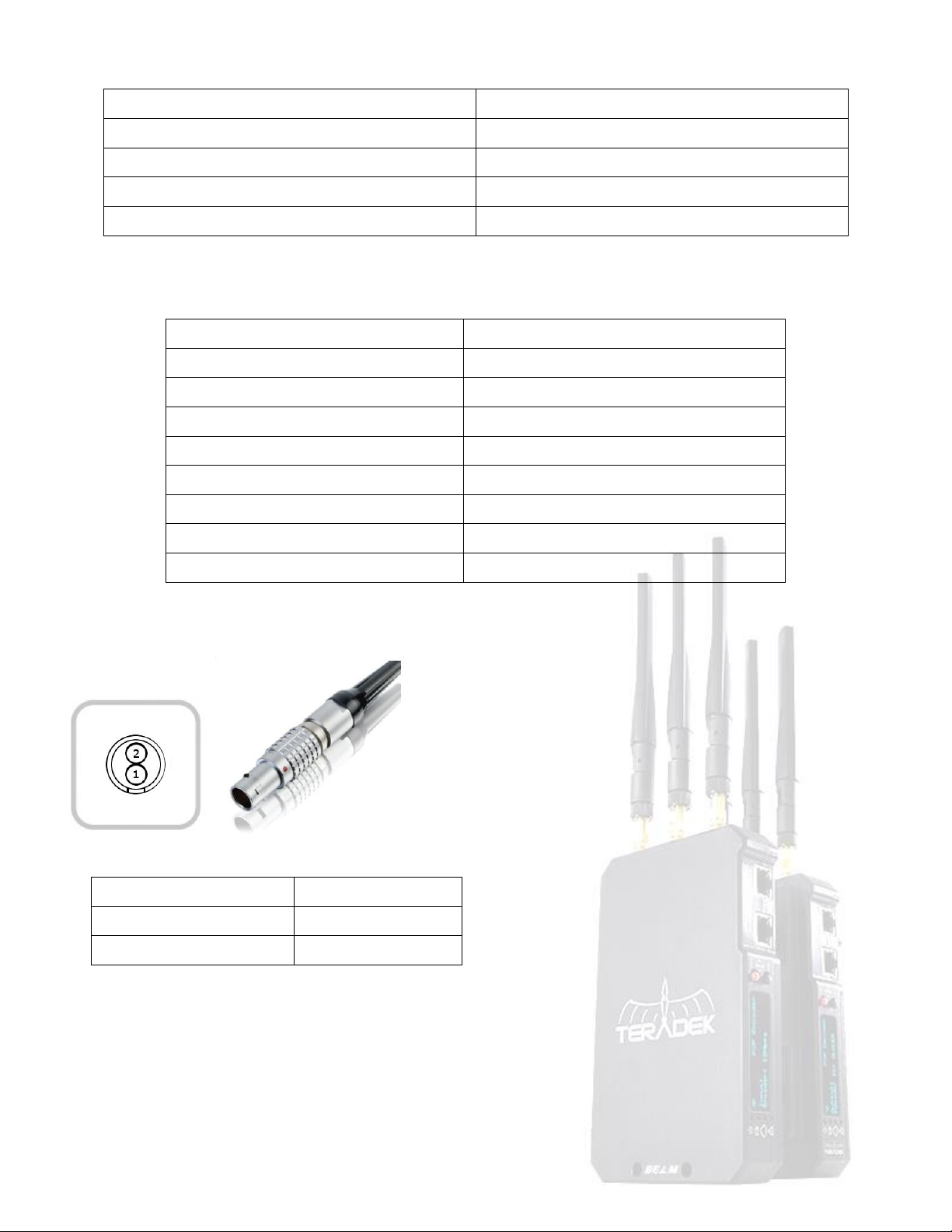
Pin
Description
1 (Closest to the red dot)
GND
2
+DC
3.5 Supported Video Formats
The following resolutions and frame rates are supported by Beam.
3.6 Power Input Description
Lemo Connector / Pin-Out: Beam uses a OB 302 series LEMO connector (FGG.0B.302.CLADxx)
Custom / 3rd Party Cables
Test the power cable polarity with ONLY the power cable connected to Beam. Do not connect video cables.
Check the power cable for shorts and proper grounding.
CAUTION: Using a reverse polarity or improperly-constructed power cable can damage the product and is not covered under
warranty.
© 2 0 1 4 . T e r a d e k , L L C P a g e | 26
Page 29
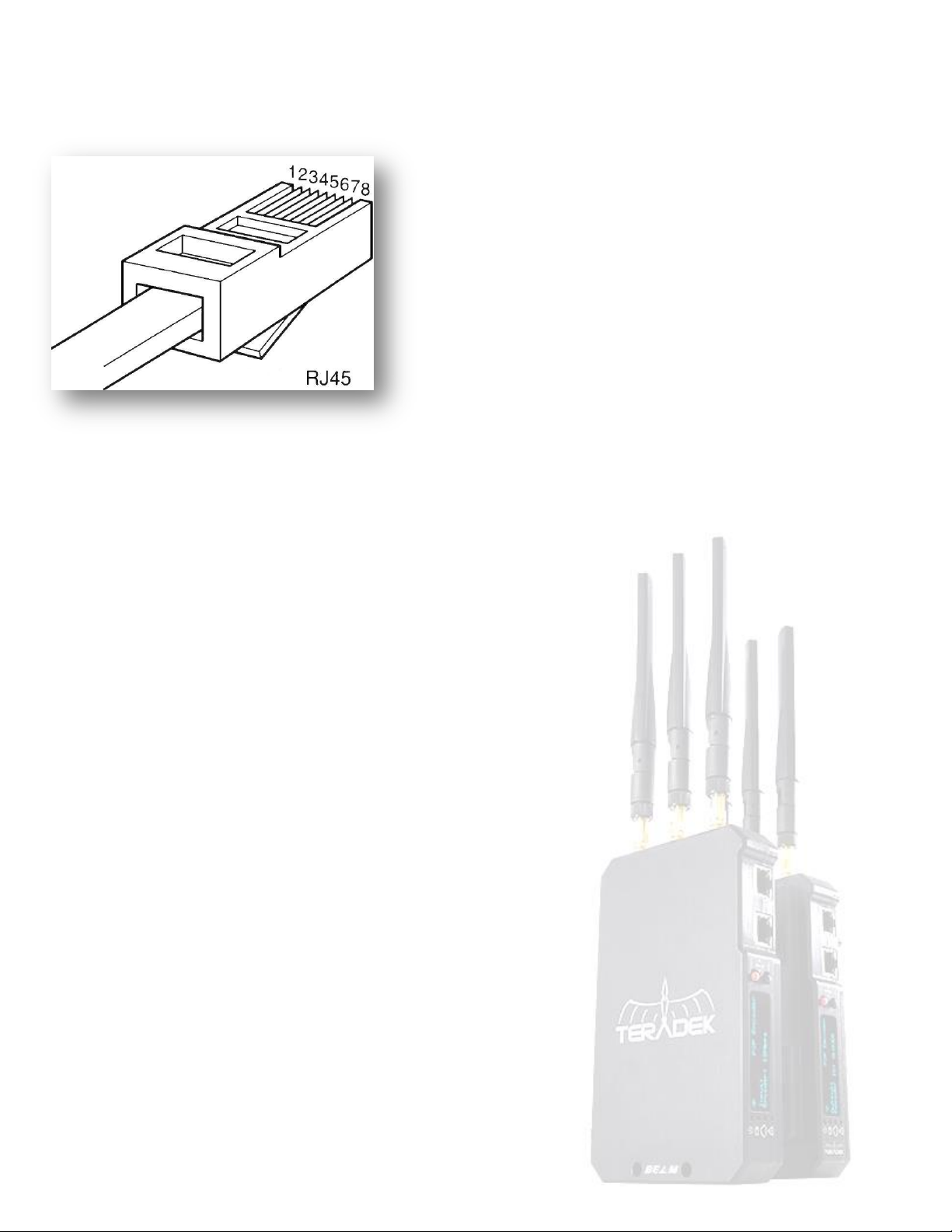
3.7 RS-422 Pin Configuration
Pin 1: RXD positive
Pin 2: RXD negative
Pin 3: TXD positive
Pin 6: TXD negative
NOTE: RXD (receive) refers to input into Beam, TXD (transmit)
refers to output from Beam.
© 2 0 1 4 . T e r a d e k , L L C P a g e | 27
 Loading...