

Page 1

Contents
Welcome.......................................................9
Using Your VAIO Computer .....................11
Using the Keyboard...................................................12
Functions of the keyboard keys .........................................12
Indicators ...........................................................................14
Indicator lights ...................................................................14
Combinations and functions with the Windows key .........15
Combinations and functions with the Fn key ....................16
Using the Touchpad ..................................................18
VAIO Action Setup...................................................20
Using the Center Jog Dial Control ............................21
Using the center Jog Dial control ......................................21
Launcher mode ..................................................................22
Using Guide Mode.............................................................23
Using the center Jog Dial control with Sony software ......23
Using the center Jog Dial control with other software ......24
Using a PC Card........................................................25
Notes on using PC Cards ...................................................27
1
Page 2

VAIO® Computer User Guide
Using Memory Stick Media...................................... 28
Types of Memory Stick media.......................................... 28
Inserting Memory Stick media.......................................... 28
Viewing the contents of a Memory Stick media............... 29
Removing Memory Stick media ....................................... 29
Write-protecting a Memory Stick media .......................... 30
Formatting a Memory Stick media ................................... 30
Notes on Memory Stick media.......................................... 31
Using Power Saving Modes...................................... 33
Normal mode..................................................................... 33
Standby mode.................................................................... 33
Hibernate mode................................................................. 33
Notes on power saving modes .......................................... 34
Connecting a Telephone Line ................................... 35
Connecting to a LAN................................................ 36
Setting up your Ethernet connection................................. 36
Connecting to a Wireless LAN................................. 38
Turning On Wireless LAN................................................ 38
The Wireless LAN Access Point ...................................... 38
Communication with an Access Point (infrastructure) ..... 39
Communicating without an Access Point (peer-to-peer).. 40
Turning Off Wireless LAN ............................................... 41
Notes on using Wireless LAN .......................................... 41
Connecting Peripheral Devices ...............43
Connecting the Docking Station ............................... 44
Connecting the computer to the docking station............... 46
Disconnecting the computer from the docking station ..... 48
Disconnecting the docking station when the computer is on
49
Using the Floppy Disk Drive .................................... 52
2
Page 3

Using an Optical Disc Drive .....................................54
Playing a DVD...................................................................55
Playing an audio CD ..........................................................56
Notes on CD and DVD discs .............................................57
Connecting an i.LINK Optical Disc Drive................58
Connecting an i.LINK optical disc drive ...........................58
Notes on using i.LINK optical disc drives.........................60
Connecting a Parallel Port Printer.............................61
Connecting a USB Printer .........................................62
Connecting an External Display................................63
Connecting a USB Device.........................................68
Connecting an i.LINK Device...................................70
Notes on i.LINK devices ...................................................71
Connecting VAIO Computers...................................73
If your computer is connected to the docking station........74
Connecting External Speakers ..................................76
Connecting an External Microphone.........................77
Expanding Your Computer Capabilities ...................78
Personal Digital Assistant..................................................78
Wireless LAN Access Point ..............................................78
Customizing Your VAIO Computer..........81
Displaying the Sony Notebook Setup Screen ...........82
Sony Notebook Setup tabs.................................................83
Controlling Power Management ...............................84
Viewing the Power Management status icons ...................84
Power Management profiles ..............................................85
Power Management commands .........................................87
Conserving battery power..................................................88
3
Page 4

VAIO® Computer User Guide
Displaying Battery Information ................................ 89
Battery icon descriptions................................................... 89
Displaying detailed battery information ........................... 90
Selecting the Display Mode...................................... 92
To select the display mode................................................ 92
To change the window design of Sony software .............. 92
Adding Memory .........................................95
Precautions and Procedures ...................................... 96
Typical expansion memory configuration ........................ 96
Removing a Memory Module................................... 98
Installing a Memory Module ....................................99
Viewing Memory.................................................... 102
About the Software on Your Computer.103
Overview of the Software on Your Computer........ 104
Software Support Information ................................ 110
Sony Service Center................................................ 113
VAIO AV Applications.............................115
Overview of Preinstalled Software ......................... 116
DigitalPrint Software .............................................. 119
Using PhotoCapture ........................................................ 119
Using PhotoCollection .................................................... 122
Using PhotoDecor ........................................................... 124
Using PhotoAlbum.......................................................... 125
Using LabelMaker........................................................... 127
DVgate Software..................................................... 129
4
Page 5

MovieShaker Software............................................131
Creating movies with MovieShaker software..................132
Using the ImageStation online service with MovieShaker
software............................................................................136
Smart Capture Software ..........................................139
Using Still Mode..............................................................140
Using Net Movie Mode ...................................................143
Using the ImageStation online service with Smart Capture
software............................................................................146
SonicStage Software ...............................................149
Electronic Music Distribution (EMD) Services...............149
Starting SonicStage Software ..........................................149
Recording from a CD.......................................................151
Transferring songs (Check-In/Check-Out) ......................153
Additional features...........................................................155
SonicStage Premium Software................................157
Overview of SonicStage Premium Software ...................157
Using SonicStage Premium Software..............................159
Using Playback and Recording Features .........................165
Using the Visualizer, Equalizer, and Sound Effects........171
Using the FM Tuner.........................................................173
Using the Timer Functions ..............................................175
Additional Information ....................................................177
Additional Software Information............179
Legal Information ....................................181
Using the Recovery CDs.........................183
Application and System Recovery CDs ..................184
5
Page 6

VAIO® Computer User Guide
Using Your Recovery CDs ..................................... 185
Using the Application Recovery CD(s) .......................... 185
Using the System Recovery CD(s) ................................. 187
Troubleshooting......................................191
Troubleshooting Your Computer............................ 192
My computer does not start............................................. 192
My computer starts but a BIOS error appears................. 192
My computer starts, but the message “Operating system not
found” appears, and Windows does not start.................. 193
My computer stops responding or does not shut down... 194
My computer is unstable. ................................................ 195
The sound of my computer’s fan is too loud. ................. 195
Why does the System Properties dialog box display a slower
CPU speed than advertised?............................................ 195
Troubleshooting the Docking Station ..................... 196
I cannot operate the optical drive in the docking station,
when the docking station is connected to the computer.. 196
I cannot operate the optical drive in the docking station,
when the docking station is connected to the computer and
the computer is connected to another computer via an
i.LINK connection. ......................................................... 196
An error message appears while disconnecting the docking
station, even after following the correct procedure for dis-
connecting the docking station........................................ 197
I cannot remove the disc. ................................................ 197
The disc tray does not eject even after I press the Eject but-
ton.................................................................................... 197
Troubleshooting the LCD Screen ........................... 198
My LCD screen is blank. ................................................ 198
My LCD screen continues to show the previous screen. 198
The image on my connected external display is not centered
6
Page 7

or sized properly. .............................................................198
I want to change the video resolution of my display. ......198
Troubleshooting the Mouse and Touchpad.............199
My mouse does not work.................................................199
My touchpad does not work properly. .............................199
The pointer does not move when I use the Touchpad or
Mouse...............................................................................200
Troubleshooting Drives, PC Cards, and Peripheral De-
vices.........................................................................201
My floppy disk drive cannot write to a floppy disk.........201
My optical drive is not playing my CD or DVD properly.....
201
My optical drive tray does not open. ...............................202
I cannot use Digital Video (DV) devices. The message “DV
equipment seems to be disconnected or turned off” appears.
202
My PC Card does not work..............................................202
Troubleshooting the Software .................................203
My software program stops responding or crashes. ........203
When I click an application icon, the message “You must insert the application CD into your optical drive” appears, and
the software does not start. ..............................................203
The application cannot find a file while a PC Card is insert-
ed......................................................................................203
What software do I use for CD-R/CD-RW software func-
tions?................................................................................203
Troubleshooting i.LINK Devices............................204
I cannot establish a connection between two VAIO comput-
ers when using an i.LINK cable.......................................204
Troubleshooting the Modem ...................................205
My modem does not work. ..............................................205
My modem connection is slow. .......................................205
7
Page 8

VAIO® Computer User Guide
Troubleshooting Audio ........................................... 206
My speakers have no sound. ........................................... 206
My microphone does not work. ...................................... 207
Troubleshooting Wireless LAN functions.............. 208
I cannot use the Wireless LAN functionality.................. 208
I cannot set up a Wireless LAN. ..................................... 208
The computer cannot connect to a Wireless LAN Access
Point. ............................................................................... 209
I cannot access the Internet. ............................................ 209
The data transfer speed is slow. ...................................... 210
The communication speed is interrupted or slowed down
when MPEG2 data is transferred. ................................... 210
The IBSS Ad-hoc mode channel is different from the one I
specified. ......................................................................... 210
The settings cannot be saved in “Edit Configuration,” even
when I enter the encryption key with “Use hexadecimal.”...
210
The computer connects automatically to a Wireless LAN
Access Point.................................................................... 210
Troubleshooting the Printer .................................... 211
I cannot print. .................................................................. 211
Getting Help.............................................213
Support Options ...................................................... 213
Index.........................................................215
8
Page 9

Welcome
Congratulations on your purchase of this Sony VAIO® computer, and
welcome to the online VAIO® Computer User Guide.
This user guide provides detailed information on all aspects of using your
new VAIO computer, from keyboard functions to preinstalled software
applications.
In the left navigation window, click the topics you want to learn more
about, and that information will be displayed in this main window.
✍ Click here to find the latest updates and supplemental information about your
computer.
9
Page 10

VAIO® Computer User Guide
10
Page 11

Using Your VAIO Computer
This section describes the following aspects of your new computer:
❑ Using the Keyboard
❑ Using the Touchpad
❑ VAIO Action Setup
❑ Using the Center Jog Dial Control
❑ Using a PC Card
❑ Using Memory Stick Media
❑ Using Power Saving Modes
❑ Connecting a Telephone Line
❑ Connecting to a LAN
❑ Connecting to a Wireless LAN
11
Page 12
VAIO® Computer User Guide
Using the Keyboard
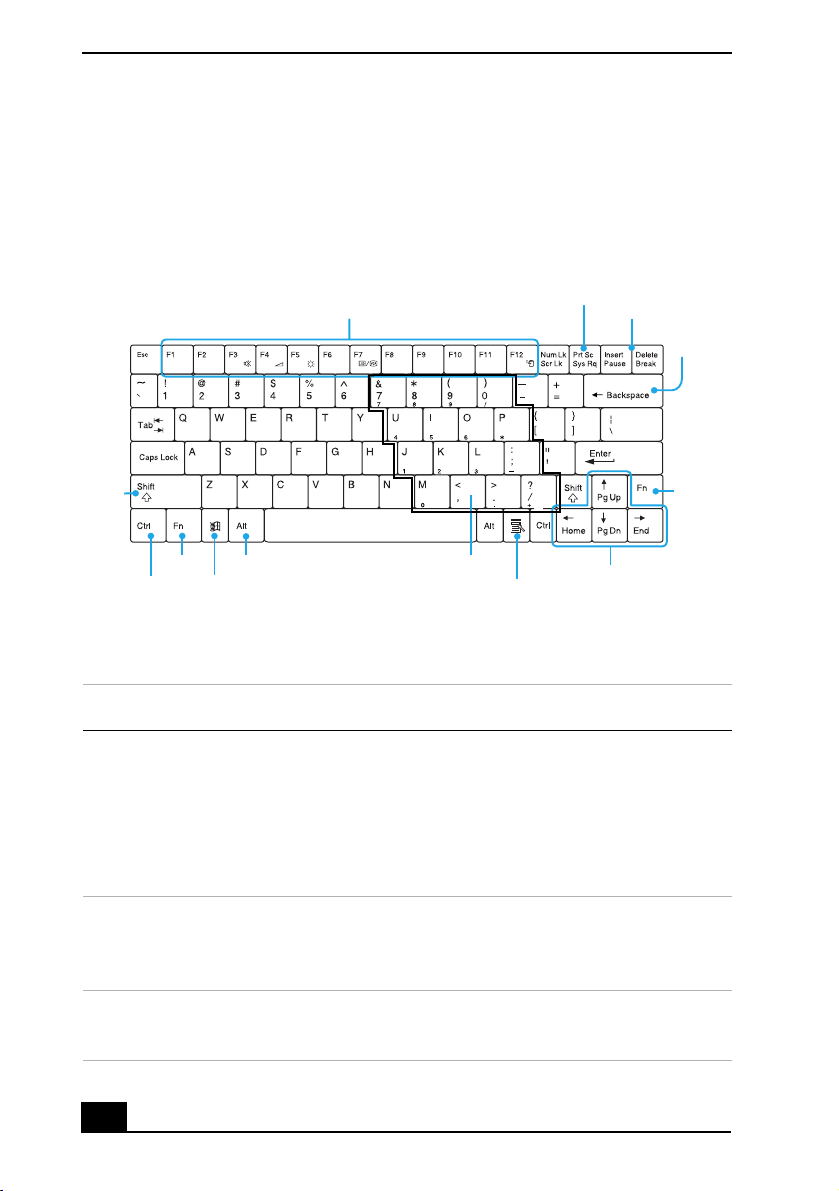
Your keyboard is very similar to that of a typewriter, but the keyboard has
additional keys that perform specific computer-related tasks.
Keyboard
Function Keys
Shift
Key
Fn Key
Ctrl Key
Alt Key
Windows® Key
Numeric Keypad Area
Functions of the keyboard keys
Key Description
Numeric keypad
area
Contains the keys found on a typical calculator. Use the
numeric keypad area to type numbers or to perform
mathematical calculations such as addition and subtraction.
Note: You must press the Num Lock key to activate the
numeric keypad. (When you do so, the Num Lock indicator
will be on.) Press the Num Lock key again to deactivate it.
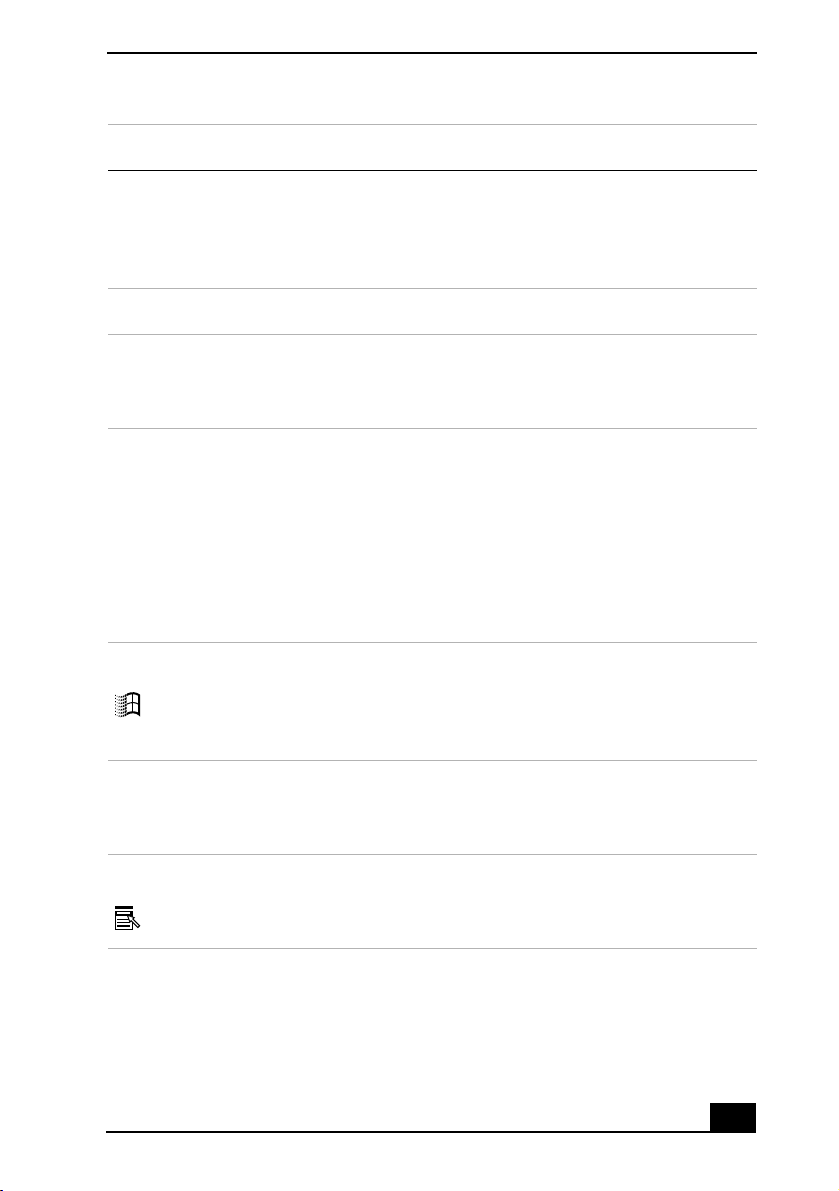
Print Screen Key
Applications Key
Correction Keys
Backspace
Navigation Keys
Key
Fn
Key
Navigation keys The Left/Right/Up/Down arrows move the cursor on the
screen and also function as the Home, End, Page Up, and Page
Down keys, respectively.
Correction keys The Insert, Backspace, and Delete keys enable you to make
corrections in your documents.
12
Page 13
Using the Keyboard
Key Description
Function keys The 12 function keys along the top of the keyboard are used to
perform designated tasks. For example, in many applications,
F1 is the Help key. The task associated with each function key
may vary from one application to the next.
Escape key The Esc (Escape) key is used to cancel commands.
Print Screen key The Print Screen key takes an electronic snapshot of the
screen and places it in the Windows® Clipboard. You can then
paste the screen shot into a document and print it.
Operator keys Several keys are always used with at least one other key: Ctrl,
Alt, and Shift. When held down with another key, the Ctrl
(Control) and Alt (Alternate) keys offer another way to give
commands. For example, in many applications, instead of
choosing the Save command from a menu, you can hold down
Ctrl and press S (referred to as Ctrl+S). The Shift key operates
the same way as on a typewriter; it is used to produce capital
letters or special symbols such as @ and $.
Windows key The key with the Windows® logo displays the Windows Start
menu; it is the equivalent of clicking the Start button on the
task bar. See “Combinations and functions with the Windows
key” for more information.
Fn key The Fn key is used in combination with other keys to issue
commands. See “Combinations and functions with the Fn
key” for more information.
Applications key The Applications key displays a shortcut menu of context-
sensitive choices. Pressing this key is the equivalent of
clicking the right mouse button.
13
Page 14
VAIO® Computer User Guide
Indicators
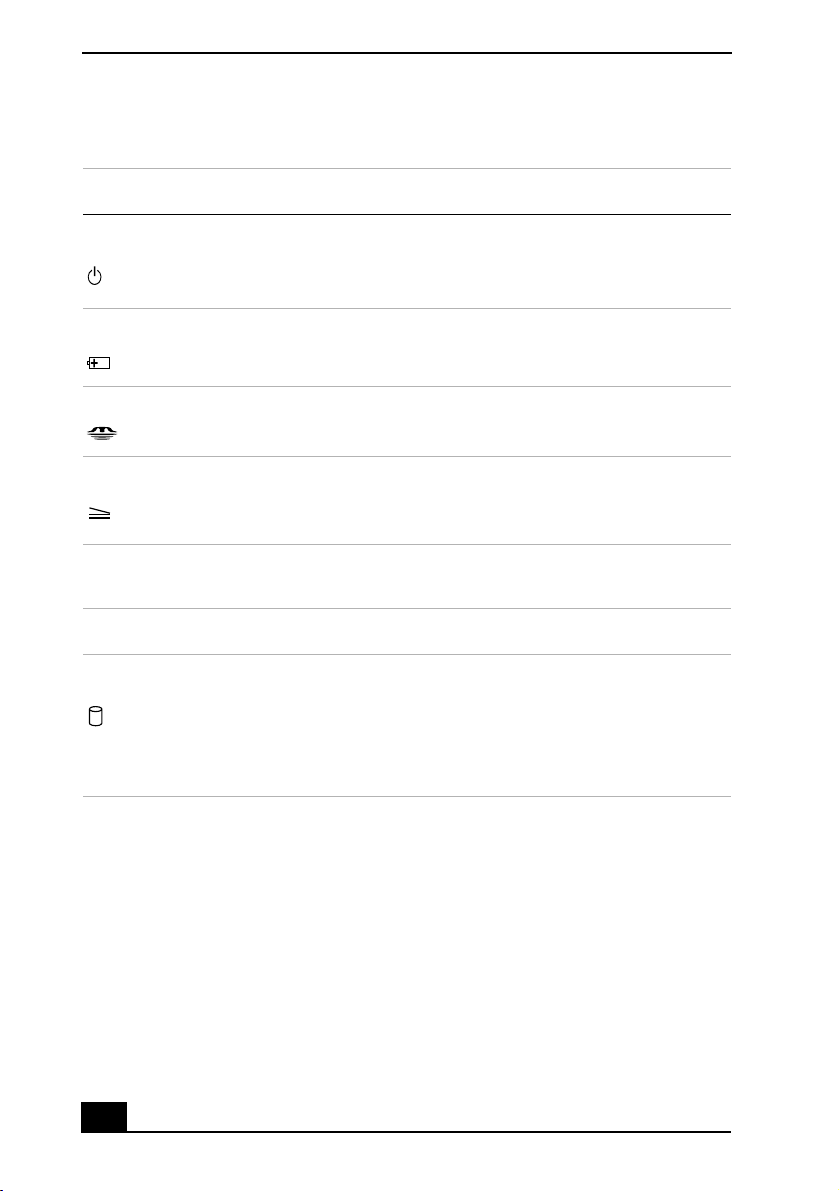
Indicator Function
Power Light is green when the computer is powered on, flashes amber
when the computer is in Standby mode, and turns off when the
computer is in Hibernate mode or is powered off.
Battery
Indicates the status of the battery, which is attached at the rear
of the computer.
Memory Stick Indicates the Memory Stick® slot is in use.
Docking Station Indicates the docking station is in use.
Indicator lights
Light On Off
Hard disk Data is being read from or
written to the hard drive. Do
not enter Standby mode or
turn off the computer when
this indicator light is on.
The hard drive is not being
accessed.
14
Page 15
Light On Off
Using the Keyboard
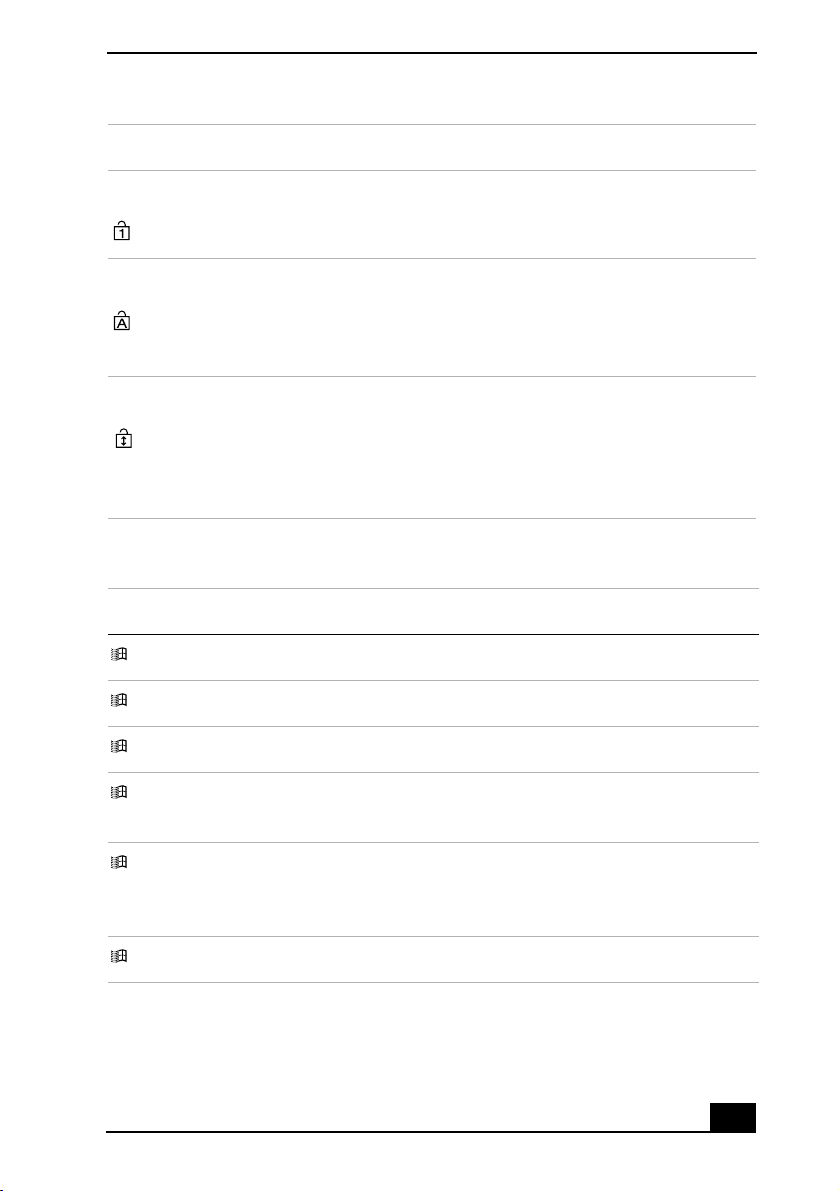
Num Lock The number keys in the
numeric keypad are active.
Caps Lock Letters appear in uppercase as
you type. The Shift key lowers
the case of typed letters when
Caps Lock is on.
Scroll Lock The screen scrolls differently.
(Exactly how it scrolls
depends on the specific
application. It has no effect in
many applications.)
The character keys in the
keypad area are active.
Letters appear in lower case as
you type (unless you hold down
the Shift key).
Information moves across the
display normally.
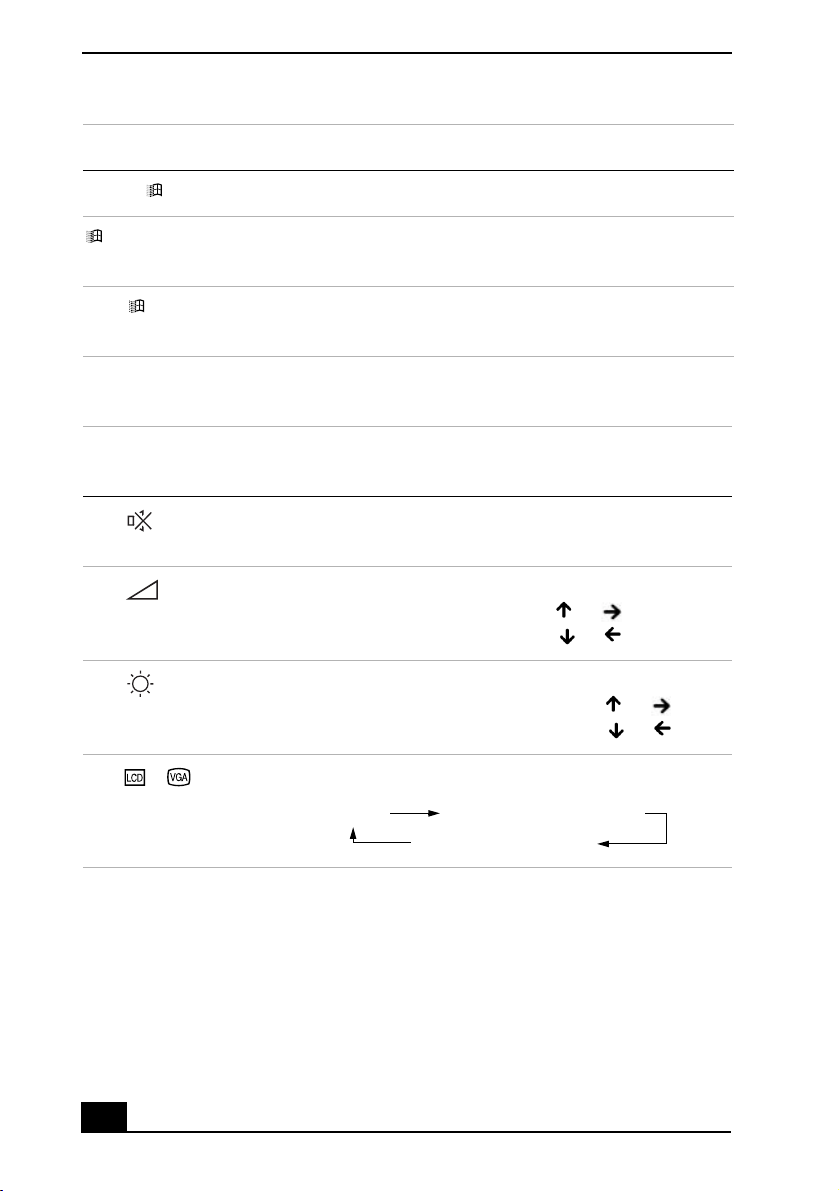
Combinations and functions with the Windows key
Combination Function
+ F1 Displays Windows® Help.
+ Tab Switches the selected button on the taskbar.
+ E Displays Windows Explorer.
+ F Displays the Search window to find a file or folder. This is the
equivalent of selecting Search from the Start menu.
+ Ctrl + F Displays the Search Results: Computers window where you can
locate other computers. This is the equivalent of selecting Search
and then Computers from the Start menu.
+ M Minimizes all displayed windows.
15
Page 16
VAIO® Computer User Guide
Combination Function
Shift + + M Returns all minimized windows to their previous size.
+ R Displays the Run window. This is the equivalent of selecting Run
from the Start menu.
Fn + +
Insert
Displays the System Properties window. This is the equivalent of
selecting Control Panel and then System from the Start menu.
Combinations and functions with the Fn key
Combination/
Feature Functions
Fn+ (F3)
Speaker switch
Fn+ (F4)
Speaker volume
Fn+ (F5)
Brightness control
Fn+ / (F7)
Switch to the
external display
Toggles the built-in speaker off and on.
Adjusts the built-in speaker volume.
To increase volume, press Fn+F4, then or .
To decrease volume, press Fn+F4, then or .
Adjusts brightness of the LCD.
To increase light intensity, press Fn+F5, then or .
To decrease light intensity, press Fn+F5, then or .
Toggles through the LCD and external display.
Only LCD
LCD and external display
Only external display
16
Page 17
Combination/
Feature Functions
Using the Keyboard
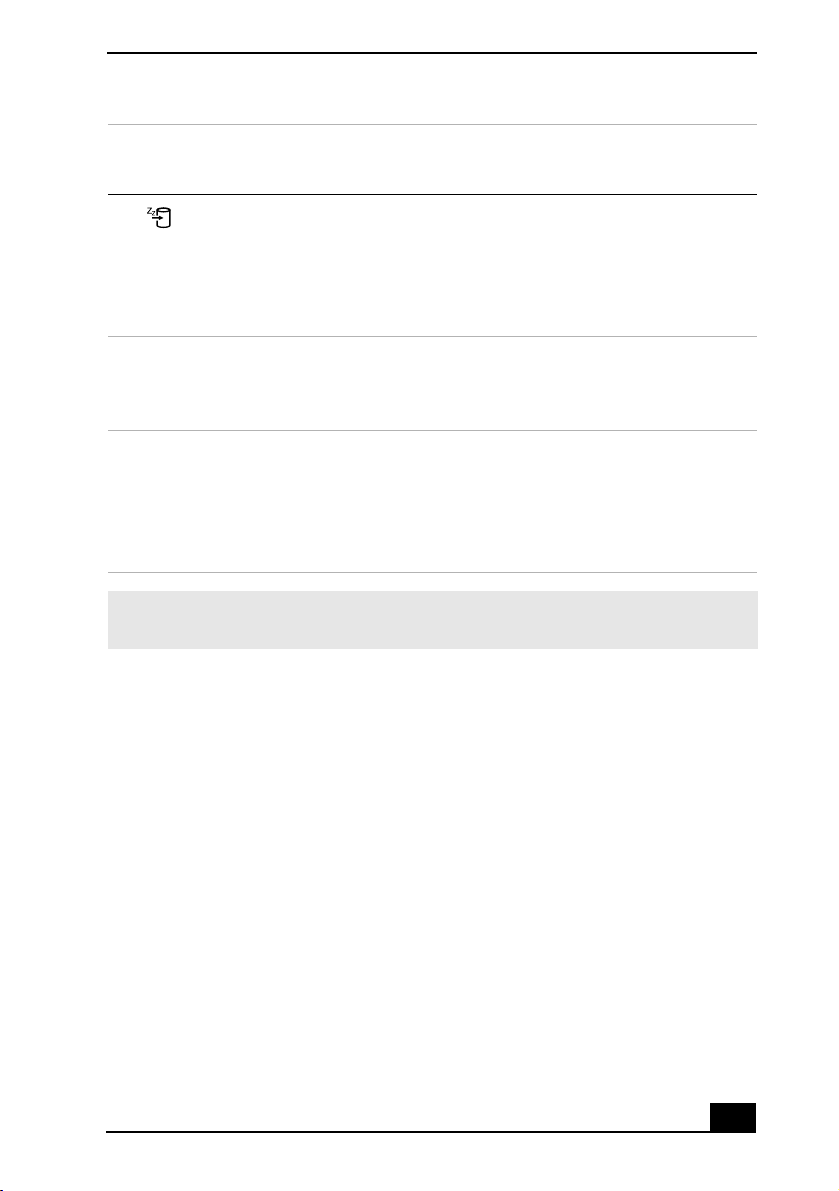
Fn+ (F12)
Hibernate
Fn + Esc
Standby
Fn +F
Display control
Provides for the lowest level of power consumption. When
you execute this command, the state of the system and state of
the peripheral devices are written to the hard disk and the
system power is turned off. To return the system to the
original state, use the power switch to turn on power.
Puts the system into Standby mode, a power management
state. To return the system to the active state, press any key or
press the power button on your computer.
Minimizes or maximizes the display window. If the default
display resolution is reduced, this function maximizes the
display resolution to fit the screen size. Maximizing the
display window allows you to view the display at a greater
resolution.
✍ You can also carry out these functions using the center Jog Dial™ control. Some
functions are not available until Windows® launches.
17
Page 18
VAIO® Computer User Guide
Using the Touchpad
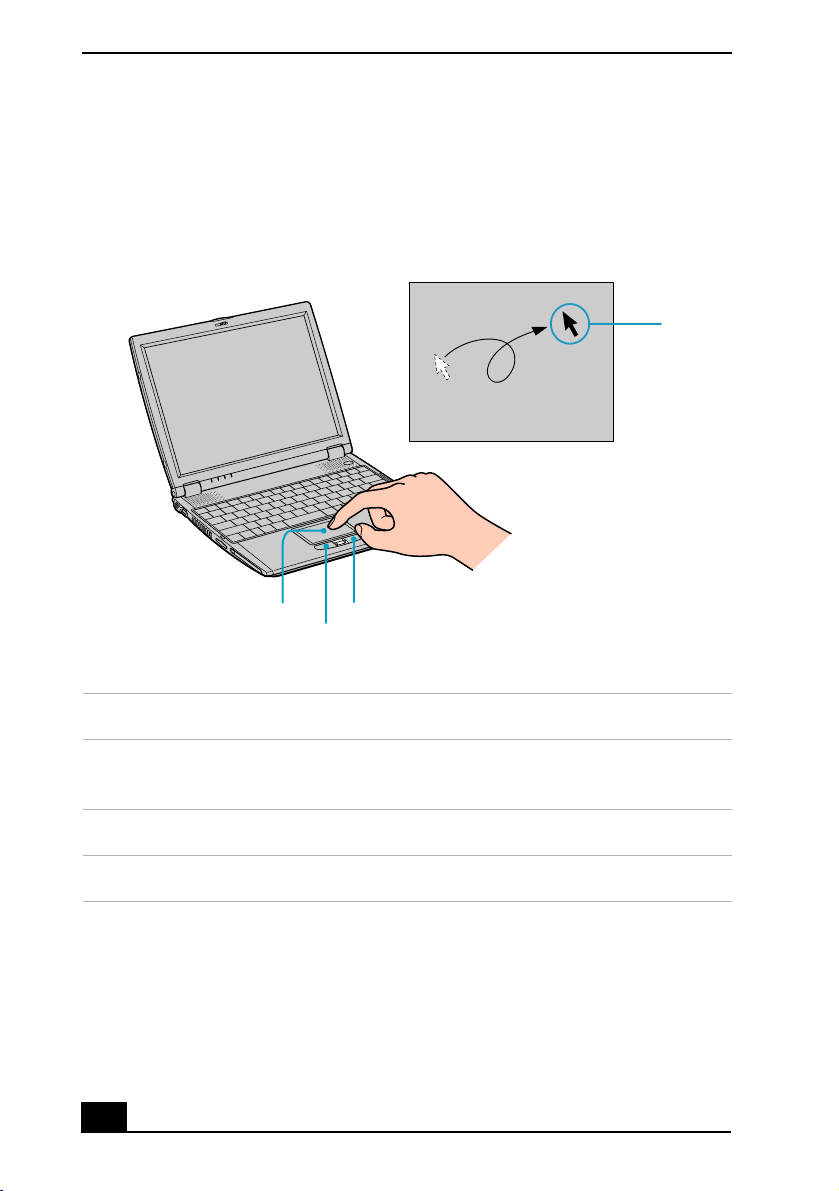
The keyboard contains a pointing device called a touchpad. You can point to,
select, drag, and scroll objects on the screen using the built-in touchpad.
Tou chpad
Pointer
Touchpad Right Button
Left Button
Actions Descriptions
Point Slide one finger on the touchpad to place the pointer on an item
or object.
Click Press the left button once.
Double-click Press the left button twice.
18
Page 19

Using the Touchpad
Actions Descriptions
Right-click Press the right button once. In many applications, this action
displays a shortcut menu of context-sensitive choices.
Drag Slide one finger while pressing the left button.
Scroll Move your finger along the right edge of the touchpad to scroll
vertically. Move your finger along the bottom edge to scroll
horizontally. (The scroll function is available only with
applications that support a touchpad scroll feature.)
The Mouse Properties dialog box lets you customize your mouse and touchpad
features, such as touch sensitivity, motion, and buttons.
To open the Mouse Properties dialog box:
1 Click Start on the Windows taskbar, point to Settings, and then Control
Panel.
2 Select Mouse. The Mouse Properties dialog box opens.
19
Page 20

VAIO® Computer User Guide
VAIO Action Setup
VAIO Action Setup manages the settings for your computer’s center Jog Dial™
control and Timer. An overview of some of the functions controlled by VAIO
Action Setup is provided below. For more information on changing the settings
using VAIO Action Setup, right-click the Jog Dial Utility icon or in the
taskbar and click Help Topics.
20
Page 21
Using the Center Jog Dial Control
Using the Center Jog Dial Control
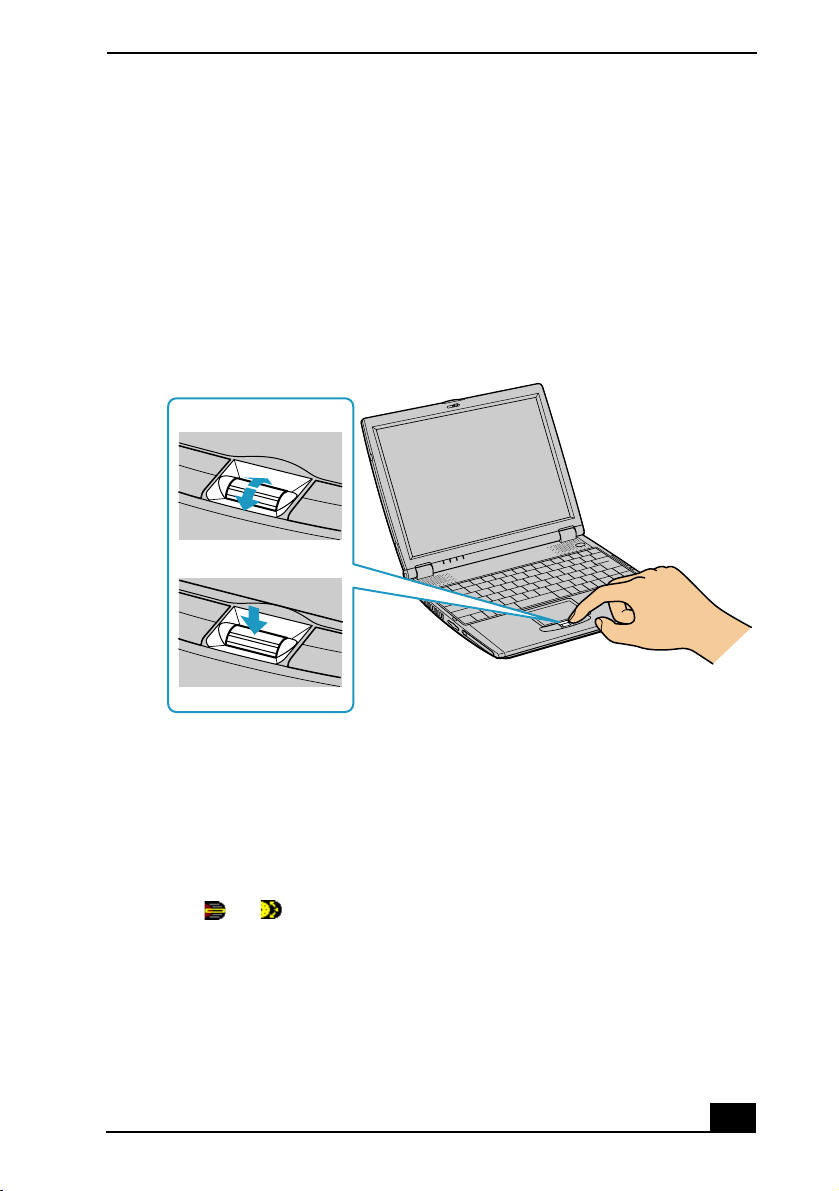
Your computer is equipped with a center Jog Dial™ control located below the
touchpad and between the left and right buttons. The center Jog Dial control
enables you to open an application, folder, or document from a predefined list by
rotating and pressing the center Jog Dial control. In addition, when you press the
center Jog Dial control, you can turn on your computer automatically and start
the selected application or document.
Center Jog Dial Control
Turn
Press
Center Jog Dial Control
The Jog Dial control window always appears in the display. It is either in the
launcher mode or in the guide mode.
Using the center Jog Dial control
This section explains how to use the center Jog Dial control. For information on
how to change the settings of the center Jog Dial control, right-click the Jog Dial
utility icon or in the task tray and click Help Topics.
21
Page 22
VAIO® Computer User Guide
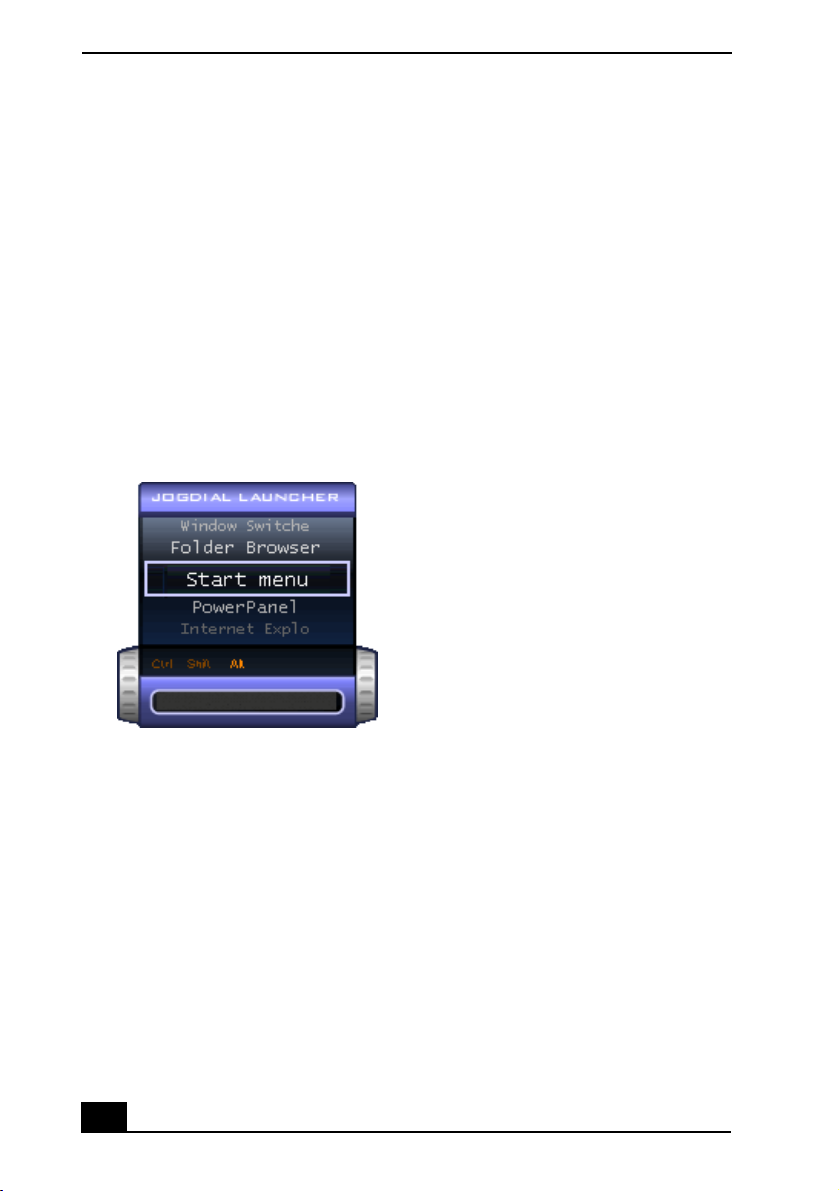
Launcher mode
The Jog Dial control window is in launcher mode until a software application is
launched or the Jog Dial control window becomes active. When you select an
item in the Jog Dial window and it is displayed between orange bars, you can
press the center Jog Dial control to view a submenu of that item.
Using Launcher mode
To use the center Jog Dial control, click the Jog Dial control window or the Jog
Dial utility icon in the task tray. Alternatively, you can press the Ctrl key and the
center Jog Dial control while the Jog Dial window is active to switch to launcher
mode.
Jog Dial Launcher
To select a desired item, proceed as follows:
22
Page 23
Using the Center Jog Dial Control
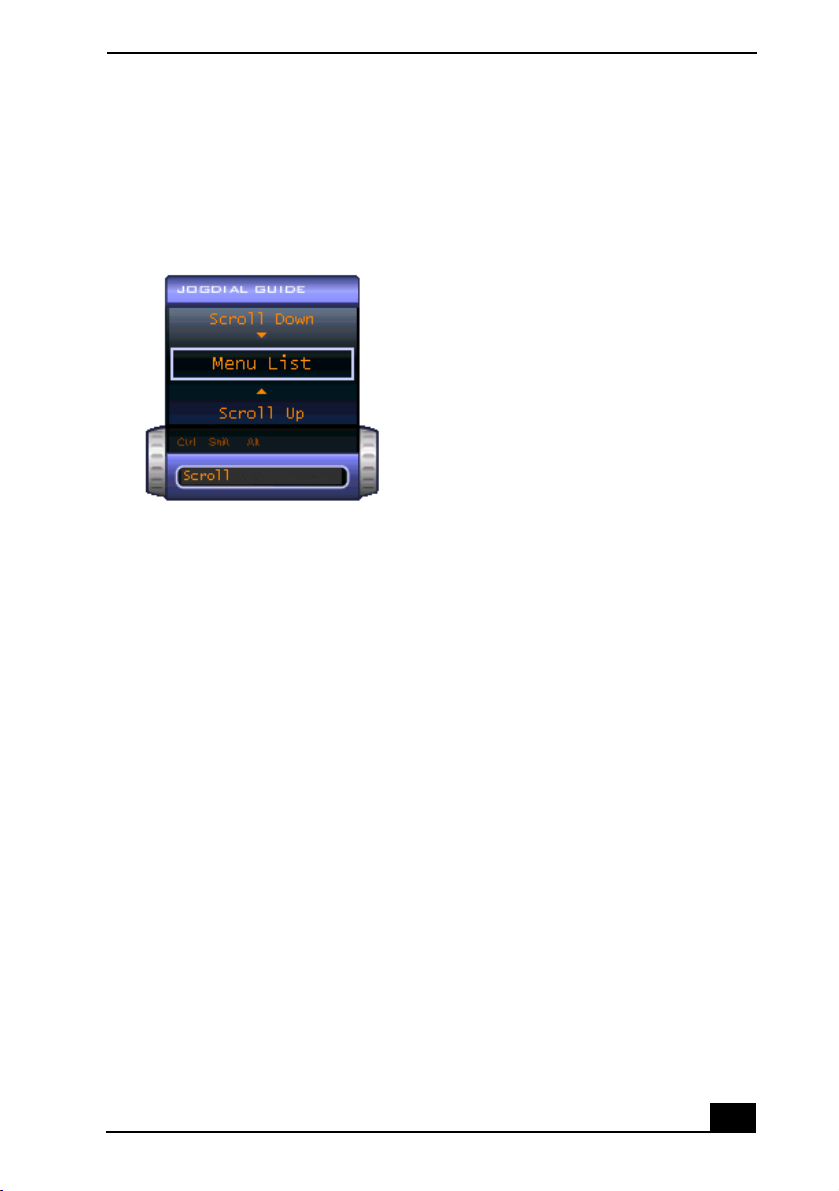
1 Rotate the center Jog Dial control to select the item you want, then press the
center Jog Dial control. The Jog Dial launcher window switches to guide
mode and shows the function of the center Jog Dial control.
Jog Dial Guide
2 Rotate or press the center Jog Dial control to use the desired function.
3 To select another item, repeat steps 1 through 3 above.
Using Guide Mode
The Jog Dial control window is in the guide mode when software is in use and
the software window is active. Depending on the software you are using, you can
select items from the displayed list using the center Jog Dial control. You can
switch between guide mode and launcher mode by pressing the Ctrl key and the
center Jog Dial control.
The Jog Dial control window displays the function of the center Jog Dial control.
Using the center Jog Dial control with Sony software
If Sony software that supports the center Jog Dial control is active, you can use
the functions of the center Jog Dial control that are allocated to that software. For
more information on functions allocated to software, see the software
application’s online Help.
23
Page 24
VAIO® Computer User Guide
Using the center Jog Dial control with other software
If the software you are using does not support the center Jog Dial control, you
can still use the center Jog Dial control to scroll the window or adjust the window
size.
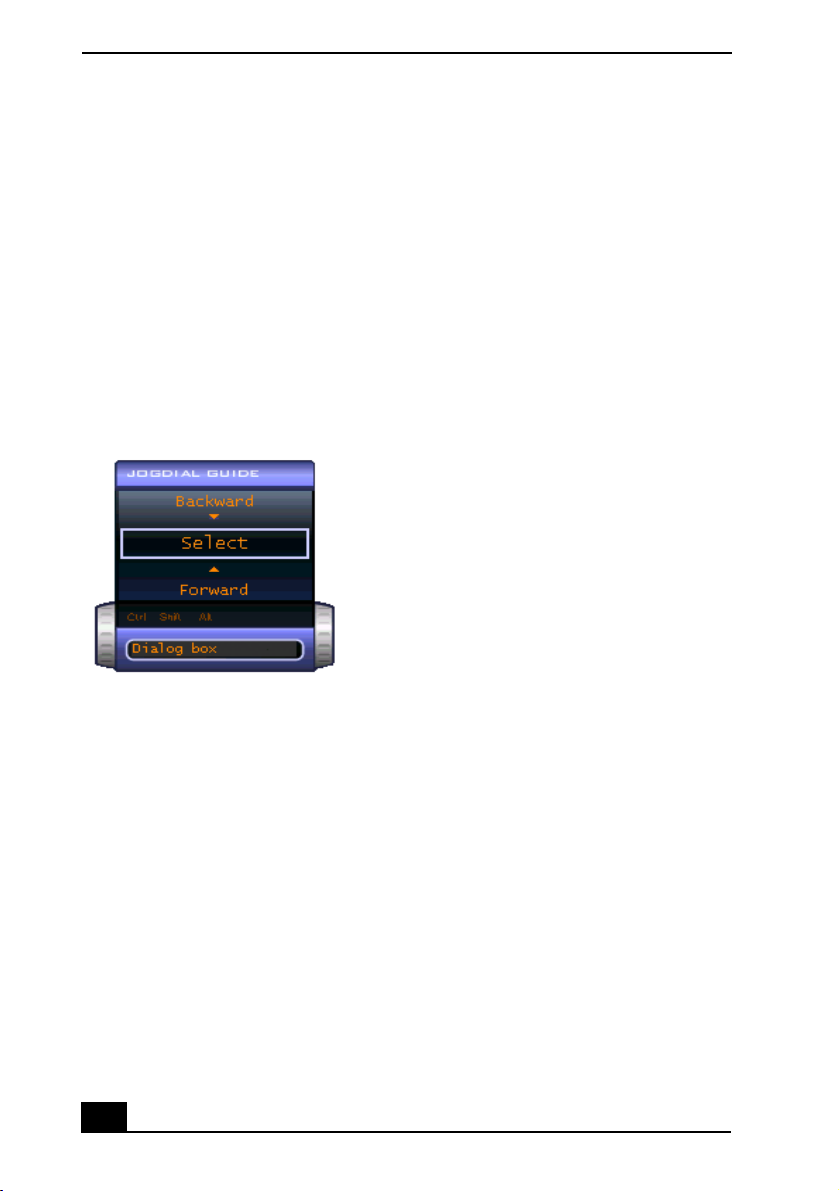
Using a dialog box
When a window such as Screen Properties is active, the Dialog box is displayed
in the Jog Dial window. You can select an item in the window by rotating the
center Jog Dial control. Pressing the center Jog Dial control is the equivalent of
pressing Enter or Select.
Jog Dial Guide Dialog Box
24
Page 25
Using a PC Card
Using a PC Card
Your computer includes one PC Card slot. A PC Card enables you to connect
portable external devices, such as another hard disk drive, to your computer. It
also lets you connect to a network using a PC Network Interface Card (NIC).
The PC Card slot accommodates one Type II PC Card. This slot is compatible
with CardBus. You do not need to turn off your computer before inserting or
removing a PC Card.
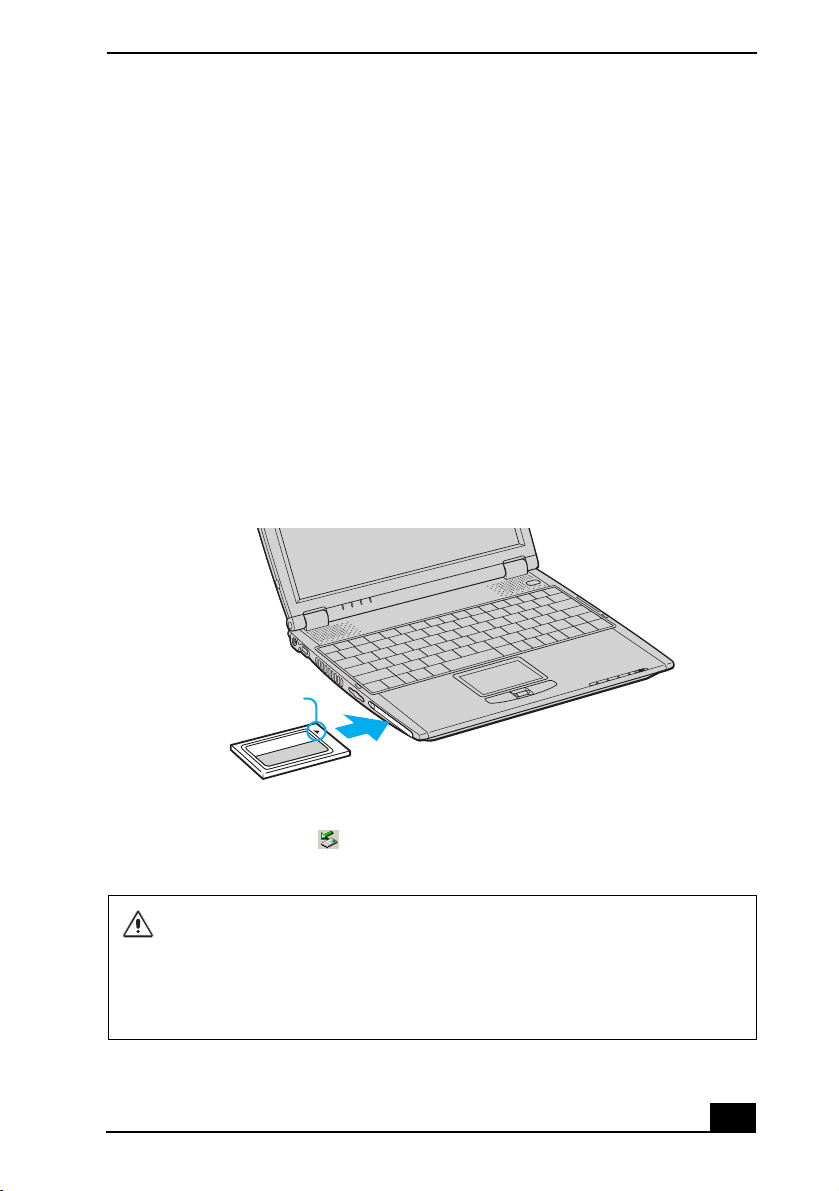
To insert a PC Card
1 Insert the PC Card into the PC Card slot. Make sure the front label of the PC
Card is facing up.
Inserting a PC Card
Insert with the
arrow facing toward
the slot
PC Card
2 Push the PC Card gently into the slot. The PC Card is automatically detected
by your system. The Safely Remove Hardware icon appears in the
taskbar.
Do not force a PC Card into the slot. It may damage the connector pins.
If you have difficulty inserting a card, check that you are inserting the card
with the correct orientation.
Do not carry your computer while the head of the PC Card is out of the slot.
Pressure or shock may damage the connector pins.
25
Page 26

VAIO® Computer User Guide
To remove a PC Card
If your computer is turned on, follow these instructions. If your computer is
turned off, skip to step number 5.
1 Close all applications that use the PC Card; otherwise, data may be lost.
2 Double-click the green arrow icon in the taskbar.
3 Select an option in the Hardware devices box, and click Stop. The Stop a
Hardware device window opens.
4 Click OK to confirm your selection, and then Close.
5 Press the PC Card Release button. The Release button pops out.
6 Press the PC Card Release button a second time (in some cases). Remove the
card.
Removing PC Card
26
PC Card Release button
Do not choose a USB disk or a Sony i.LINK® optical drive in the Stop a
Hardware device dialog box.
If you removed a Sony i.LINK optical drive by mistake, disconnect the docking
station and reconnect it. See “Disconnecting the computer from the docking
station” for more information.
Page 27

Using a PC Card
Notes on using PC Cards
❑ For some PC Cards, if you alternate between normal power operation and
the Standby or Hibernate modes while the card is inserted, you may find that
a device connected to your system is not recognized. Reboot your system to
correct the problem.
❑ Some PC Cards may require that you disable idle devices when using the PC
Card. You can use Sony Notebook Setup to disable devices. See “To display
the Sony Notebook Setup screen” for more information.
❑ Make sure you use the most recent software driver provided by the PC Card
manufacturer.
❑ If an exclamation mark (!) appears on the Device Manager tab in the System
Properties dialog box, remove the software driver and then reinstall it.
❑ You may not be able to use some PC Cards or some functions of the PC Card
with this computer. If you have difficulty inserting a PC Card, check that you
are orienting the card correctly. See the manual that came with your PC Card
for more information on its use.
27
Page 28
VAIO® Computer User Guide
Using Memory Stick Media
Memory Stick® media is a compact, portable, and versatile recording medium
that has a data capacity exceeding that of a floppy disk. The medium is specially
designed for exchanging and sharing digital data with compatible products.
Because it is removable, you can use the media for external data storage.
Types of Memory Stick media
You can use these types of Memory Stick media with your computer:
❑ MagicGate™ Memory Stick
Stick media), which is provided with copyright protection
❑ Memory Stick
†
media, which does not have the same copyright
protection as MagicGate media
Some music files encoded with secure copyright protection may be stored on MG
Memory Stick media but not on regular Memory Stick media. You can also use
MagicGate media-compatible devices to record and playback music when they
are connected to your computer.
You can store mixed data on the Memory Stick media. For example, you can
copy an image on to MG Memory Stick media that already contains music.
*
media (hereafter called MG Memory
What is MagicGate media?
MagicGate media provides copyright protection that consists of authentication
and encryption technology. Authentication technology ensures that protected
content is only transferred between compliant devices and media. Protected
content is recorded and transferred in an encrypted format to prevent
unauthorized duplication or playback.
✍ MG Memory Stick media has the MG mark .
Inserting Memory Stick media
When you insert a Memory Stick media, the Visual Flow™ application starts
automatically. You can change this setting in VAIO Action Setup.
* MagicGate Memory Stick and are trademarks of Sony Corporation.
† Memory Stick and are trademarks of Sony Corporation.
28
Page 29
Using Memory Stick Media
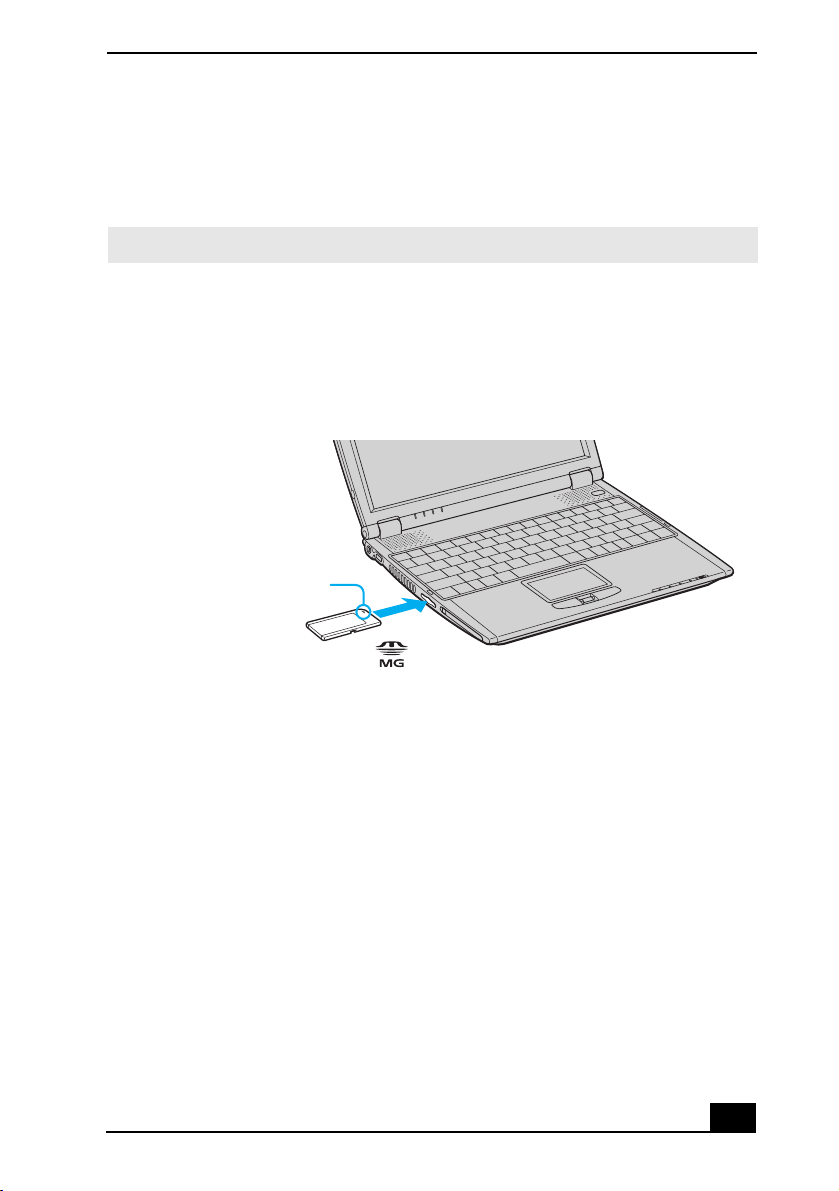
To insert a Memory Stick media
1 Insert the Memory Stick media with the arrow facing upward and toward the
Memory Stick media slot.
✍ Inserting the media in the wrong direction may damage the connector pins.
2 Carefully slide the Memory Stick media into the slot until it clicks in place.
The Memory Stick media indicator light on the right of the computer briefly
flashes.
Inserting Memory Stick Media
Insert Memory Stick media
with arrow facing forward
Memory Stick media
Viewing the contents of a Memory Stick media
To view the contents of a Memory Stick media
1 Click the My Computer icon on your desktop. The My Computer window
opens.
2 Click Removable Disk. A new window opens, displaying the Memory Stick
media contents.
Removing Memory Stick media
When you are not using a Memory Stick media, be sure to remove it from your
computer.
29
Page 30
VAIO® Computer User Guide
LOCK
LOCK LOCK
To remove a Memory Stick media
1 Make sure the Memory Stick media indicator light on the right of the
computer is off.
2 Push the Memory Stick media in toward the computer.
3 When the Memory Stick media ejects, pull it out.
✍ Be careful when removing the Memory Stick media, as it may eject completely from
the slot.
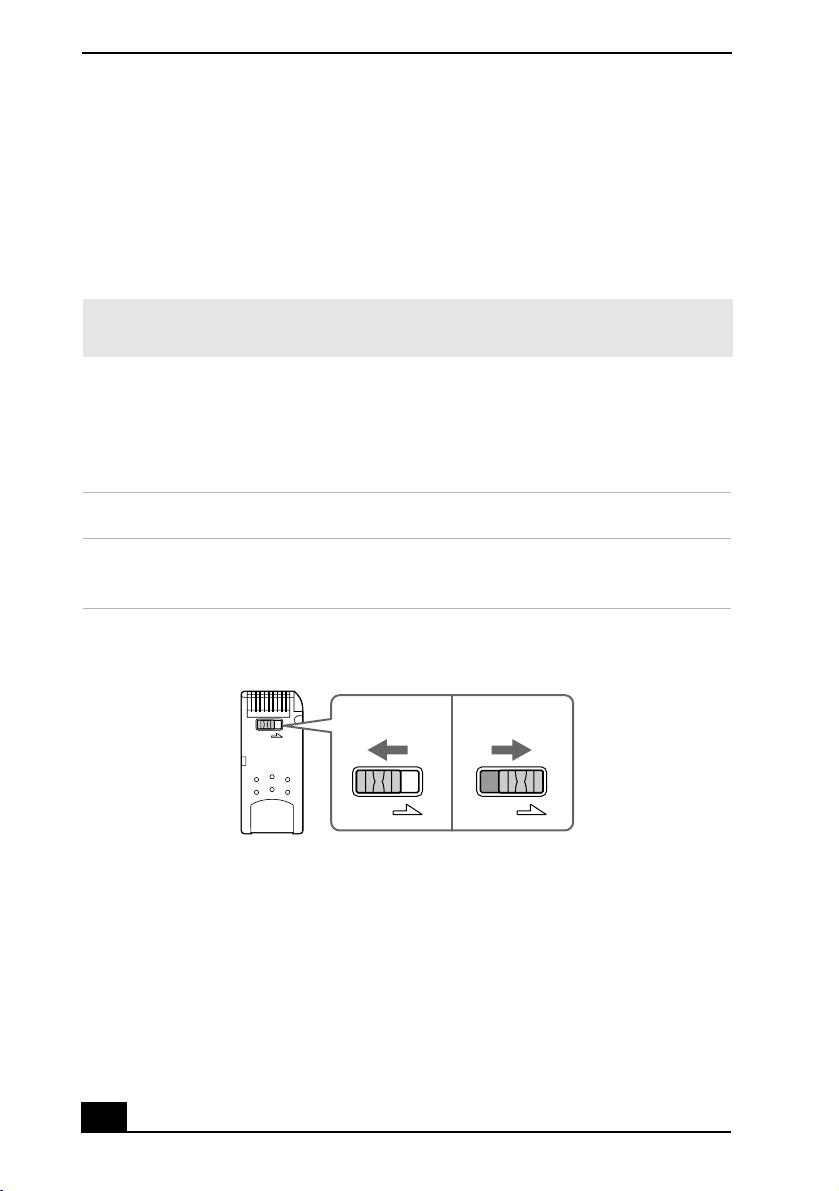
Write-protecting a Memory Stick media
Memory Stick media is designed with a write-protect tab to protect valuable data
from accidental erasure or overwriting. Move the tab to the right or left to set or
release write-protection.
Write-protect off Data can be saved on the Memory Stick media.
Write-protect on Data can be read from but not saved on the Memory Stick
media.
Using the Write-protect Tab
Write-protect
off
(Back of Memory Stick Media)
Write-protect
on
Formatting a Memory Stick media
Memory Stick media is formatted for immediate use when you purchase it;
however, if you need to reformat a Memory Stick media, follow the procedure
below.
30
Page 31

Using Memory Stick Media
Reformatting erases all current data that is stored on a Memory Stick media.
Before you reformat, confirm that the media does not contain files you want
to keep.
To reformat a Memory Stick media:
1 Insert the Memory Stick media into the Memory Stick media slot. See
“Inserting Memory Stick media” for more information.
2 Click Start in the Windows taskbar, and point to Programs, then Memory
Stick Utility.
3 Select Memory Stick Formatter. The Memory Stick Formatter window
appears.
4 Select an option from the Drive List, and click Start Format.
Notes on Memory Stick media
❑ When the write-protect tab of the Memory Stick media is set to LOCK, data
cannot be recorded or erased.
❑ Before using Memory Stick media, back up important data.
❑ Wait a minimum of 10 seconds after the Memory Stick media finishes
reading or writing data before removing the media.
❑ If the media is removed prematurely, a blue screen with an error message
appears, prompting you to continue or exit. Reinsert the media into the slot
and press the Enter key to continue. This allows the media to finish reading
or writing data.
❑ You can enjoy video clips that you have recorded with Memory Stick media-
compatible video camera recorders.
❑ The media slot accommodates one Memory Stick media at a time.
❑ You may copy images from a digital video camera using Memory Stick
media.
❑ Only use MG Memory Stick media with copyright protected data such as
music.
❑ Copyright protected music cannot be checked-out to any Memory Stick
media other than MG Memory Stick media.
31
Page 32

VAIO® Computer User Guide
❑ Recorded music is limited to private use only. Using recorded music for any
other purpose requires permission of the copyright holders.
❑ Sony is not responsible for music files that cannot be recorded from a CD or
downloaded from other sources.
❑ Formatting Memory Stick media erases all data (including music data)
previously saved to it. Before you format Memory Stick media, confirm that
the media does not contain files you want to keep.
❑ Do not use the media in locations that are subject to static electricity or
electrical noise.
❑ Do not touch the media connector with your finger or metallic objects.
❑ Do not attach labels other than the supplied label to a media.
❑ Do not bend, drop, or apply strong shock to the media.
❑ Do not disassemble or modify the media.
❑ Do not allow the media to get wet.
❑ Do not use or store the media in a location that is subject to:
❑ Extremely high temperatures, such as in a car parked in the sun
❑ Direct sunlight
❑ High humidity or places with corrosive substances
❑ To prolong the life of the media, use the supplied storage case. See the
instructions that came with your media for more information on its use.
32
Page 33

Using Power Saving Modes
Using Power Saving Modes
When you use a battery as the source of power for your computer, you can use
the power management settings to conserve battery life. In addition to the normal
operating mode, which allows you to turn off specific devices, your computer has
two distinct power saving modes: Standby and Hibernate. When using battery
power, be aware that the computer automatically enters Hibernate mode when the
remaining battery charge drops below 5 percent, regardless of the power
management setting you select.
✍ If the battery level falls below 10 percent, you should either attach the AC adapter to
recharge the battery or turn off your computer and insert a fully charged battery.
Normal mode
Normal mode is the normal state of your computer when it is in use. The power
indicator displays green when your computer is in this mode. To save power, you
can turn off a specific device such as the LCD or the hard disk drive.
Standby mode
In Standby mode the computer saves the current state of the system in RAM and
switches off power to the CPU. The amber power indicator flashes in this mode.
To activate Standby mode
1 Press the key combination Fn + Esc.
2 Press any key to return to normal mode.
Hibernate mode
In the Hibernate mode, the state of the system is saved on the hard drive and
power is turned off. The power indicator is off in this mode.
33
Page 34

VAIO® Computer User Guide
To activate Hibernate mode
1 Press the key combination Fn + F12, or press the power button and release it
immediately. The “Save to Disk Manager” window appears and the
computer enters Hibernate mode.
✍ Do not move the computer until its power indicator turns off.
Pressing the power button and releasing it immediately caused prior computer
systems to enter Standby mode.
2 Press the power button to return to normal mode.
Notes on power saving modes
❑ When returning from Hibernate mode, the system status stored on the hard
disk is erased and the computer starts normally if you press the power button
and hold it for more than 4 seconds.
❑ Standby uses more power than Hibernate.
❑ Standby requires less time than Hibernate to return to normal mode.
34
Page 35

Connecting a Telephone Line
Connecting a Telephone Line
You need to connect a telephone line to use online services and the Internet.
✍ In order to register your Sony VAIO® computer, register your software online, and use
Sony Customer Support, you must connect the computer to a telephone line.
1 Gently peel back the rubber telephone jack cover. Pulling the telephone jack
cover too hard or too far could damage it.
✍ Do not plug the telephone cable into the Ethernet port located to the left of the
telephone jack as this may damage your computer.
2 Plug one end of the telephone cable into the telephone jack, under the
telephone jack cover. Make sure you insert the telephone cable from the rear
of the computer and that the modular jack clicks into place.
3 Plug the other end into the wall jack.
Plugging Telephone Cable into Telephone Jack
Telephone Line Jack
Telephone Cable (optional)
✍ Your computer does not work with party lines, cannot be connected to a coin-operated
telephone, and may not work with multiple telephone lines or a private branch
exchange (PBX). Some of these connections might result in excess electrical current
and could cause a malfunction in the internal modem.
35
Page 36

VAIO® Computer User Guide
Connecting to a LAN
You can connect your computer to 10BASE-T and 100BASE-TX-type Local
Area Networks (LANs). For the detailed settings and devices needed to connect
to the network, please ask your network administrator.
Connecting to LAN
Ethernet
Cable
Warning: Only connect 10BASE-T and 100BASE-TX cables to the Ethernet
port. Do not connect any other type of network cable or any telephone line.
Connecting cables other than those listed above may result in an electric
current overload and could cause a malfunction, excessive heat, or fire in the
port. To connect the unit to the network, contact your network administrator.
Setting up your Ethernet connection
To connect to a network
1 Click Start on the Windows® taskbar, and point to Settings.
2 Select Network and Dial-up Connections.
36
Page 37

Connecting to a LAN
3 Click the Make New Connection icon. The Network Connection Wizard
appears.
4 Follow the on-screen instructions.
37
Page 38

VAIO® Computer User Guide
Connecting to a Wireless LAN
Depending on the R505 model you purchased, your computer comes equipped
with a built-in mini PCI card that allows for wireless connections. With Sony’s
Wireless Local Area Network (LAN) functionality, all compatible digital devices
can communicate freely without cable connections. A Wireless LAN is a network
in which a mobile user can connect to a LAN through a wireless (radio)
connection. You can opt to purchase a Wireless LAN Access Point to set up a
LAN.
Turning On Wireless LAN
To enable Wireless LAN functionality, open the computer and move the Wireless
LAN switch on the right to ON. The Wireless LAN indicator to the left of the
switch lights up.
Turning on wireless LAN function
Wireless LAN switch
Wireless LAN indicator
The Wireless LAN Access Point
The Wireless LAN Access Point, which is also called the access point, is
designed for building a Wireless LAN environment. If you purchase an access
point, you can easily build a wireless LAN environment by plugging the access
point into an AC power outlet and using the provided software with compatible
devices. Because a wireless LAN configuration requires no wiring, you can
operate multiple computers more freely than ever before.
You can also connect an access point to a telephone line, Integrated Services
Digital Network (ISDN) router, cable modem, or Digital Subscriber Line (DSL)
modem to share access to the Internet among multiple computers.
38
Page 39

Connecting to a Wireless LAN
✍ For information on available Sony products, go to:
http://www.sonystyle.com/wirelesslan.
Communication with an Access Point (infrastructure)
An infrastructure network is one that extends an existing wired local network to
wireless devices by providing an access point. The access point bridges the
wireless and wired LAN and acts as a central controller for the Wireless LAN.
The access point coordinates transmission and reception from multiple wireless
devices within a specific range.
Communicating via Wireless LAN Access Point
Access Point (not supplied)
To communicate with an Access Point
1 Open the computer and move the Wireless LAN switch on the right to ON.
The Wireless LAN indicator to the left of the switch lights up.
2 Click Start, and point to Settings.
3 Point to Control Panel, and select Wireless Network. The Add/Edit
Configuration Profile window opens.
4 Click Add. The Edit Configuration window opens.
5 Type a profile name, and make sure Access Point is selected under Network
Type.
6 Click Next.
7 Click Scan to select a network, and then click Next.
39
Page 40

VAIO® Computer User Guide
8 Click Enable Data Security if the access point was set up with an encryption
key, and select either alphanumeric characters or hexadecimal, depending on
your encryption key.
9 Type your key in the first box, and make sure “Key 1” is selected near the
bottom of the screen.
10 Click Next.
11 Select a power management option, and click Next.
12 Click the check box next to “Renew IP Address when selecting this profile”
to select it, and then click Finish.
Communicating without an Access Point (peer-to-peer)
A peer-to-peer network is one in which a local network is created only by the
wireless devices themselves, with no other central controller or Access Point.
Each device communicates directly with other devices in the network. You can
set up a peer-to-peer network easily at home.
To communicate without an Access Point
1 Open the computer and move the Wireless LAN switch on the right to ON.
The Wireless LAN indicator to the left of the switch lights up.
2 Click Start, and point to Settings.
3 Point to Control Panel, and select Wireless Network. The Add/Edit
Configuration Profile window opens.
4 Click Add. The Edit Configuration window opens.
5 Type a profile name, and use the drop-down menu to select Peer-to-Peer
Group under Network Type.
6 Click Next.
7 Create a network name, and use the drop-down menu to select a channel
number.
8 Click Next.
40
Page 41

Connecting to a Wireless LAN
9 If you want to set up an encryption key so only those who know the key can
access the network, then click the check box next to Enable Data Security,
select either alphanumeric characters or hexadecimal (depending on your
encryption key), and type a five digit key.
10 Click Next.
11 Click the check box next to “Renew IP Address when selecting this profile”
to select it, and then click Finish.
Turning Off Wireless LAN
Move the Wireless LAN switch on the right to the OFF position. The Wireless
LAN indicator to the left of the switch shuts off.
Turning off the Wireless LAN functionality while accessing remote documents,
files, or resources may result in data loss.
Notes on using Wireless LAN
❑ Sony Wireless LAN devices support the IEEE 802.11b standard. Devices
connecting to a Wireless LAN using the IEEE 802.11a standard cannot
connect to devices using the IEEE 802.11b standard.
❑ Wireless LAN communication occurs on divided frequency bands known as
channels. Third-party Wireless LAN Access Point channels may be preset to
different channels from Sony devices.
❑ If using a Wireless LAN Access Point, refer to connectivity information
contained in those instructions.
41
Page 42

VAIO® Computer User Guide
42
Page 43

Connecting Peripheral Devices
You can add functionality to your computer by connecting it to a variety
of peripherals, as discussed in the following sections:
❑ Connecting the Docking Station
❑ Using the Floppy Disk Drive
❑ Using an Optical Disc Drive
❑ Connecting an i.LINK Optical Disc Drive
❑ Connecting a Parallel Port Printer
❑ Connecting a USB Printer
❑ Connecting an External Display
❑ Connecting a USB Device
❑ Connecting an i.LINK Device
❑ Connecting VAIO Computers
❑ Connecting External Speakers
❑ Connecting an External Microphone
❑ Expanding Your Computer Capabilities
43
Page 44

VAIO® Computer User Guide
Connecting the Docking Station
Your computer may come with a PCGA-DSM51 docking station, depending on
the model you purchased. Optional docking stations are also available. Both
Sony docking stations provide you with the following:
❑ A floppy disk drive.
❑ An optical drive.
❑ A back panel that enables you to connect additional peripherals to your
computer, as shown below.
Back Panel
1 USB ports 5 Ethernet/Network port
(10BASE-T/100BASE-TX)
2 VGA (monitor) port 6 i.LINK®
*
(IEEE 1394)
S400 port
3 Serial port 7 Printer port
4 DC In port
44
Page 45

Connecting the Docking Station
* i.LINK is a trademark of Sony used only to designate that a product contains an IEEE 1394
connection. The i.LINK connection may vary, depending on the software applications, operating system and compatible i.LINK devices. All products with an i.LINK connection may
not communicate with each other. Refer to the documentation that came with your compatible
i.LINK device for information on operating conditions and proper connection. Before connecting compatible i.LINK PC peripherals to your system, such as a CD-RW or hard disk
drive, confirm their operating system compatibility and required operating conditions.
Left
1 Left lever 3 Floppy disk drive
*
2 Air vent 4 i.LINK
network switch
* i.LINK is a trademark of Sony used only to designate that a product contains an IEEE 1394
connection. The i.LINK connection may vary, depending on the software applications, operating system and compatible i.LINK devices. All products with an i.LINK connection may
not communicate with each other. Refer to the documentation that came with your compatible
i.LINK device for information on operating conditions and proper connection. Before connecting compatible i.LINK PC peripherals to your system, such as a CD-RW or hard disk
drive, confirm their operating system compatibility and required operating conditions.
45
Page 46

VAIO® Computer User Guide
Right
1 Docking station connector 4 DC In indicator
2 Optical drive 5 Right lever
3 UNDOCK switch
Connecting the computer to the docking station
You may connect your computer to the docking station as long as it is not in a
power saving mode, i.e., Standby or Hibernate. Connecting the computer while it
is in a power saving mode may result in data loss or a computer malfunction.
Note the following before connecting your computer to the docking station:
❑ Disconnect the VGA, USB, AC, and Ethernet devices from your computer.
Leaving these devices connected while you connect the docking station
could damage them.
❑ Ensure that the battery is installed. If you install a charged battery, you can
connect the docking station while the computer is on.
46
Page 47

Connecting the Docking Station
To connect your computer to the docking station
1 Plug one end of the AC adapter cable into the DC In port of the docking
station and the other end into an AC outlet. The LED of the DC In port
switches on.
2 Holding the computer with the front side facing you, insert the two holes on
the front of the computer into the two corresponding latches protruding from
the front side of the docking station.
Latching the Computer to the Docking Station
Latches Protruding
from Docking Station
Docking Station
3 Firmly press down the two rear corners of the computer until it clicks into
place and is securely fastened to the docking station.
47
Page 48

VAIO® Computer User Guide
Be careful not to press the top of the computer too strongly. The LCD display
may become damaged.
Securing the Computer to the Docking Station
Firmly press down the two rear corners
of the computer until it clicks into place.
Disconnecting the computer from the docking station
You may disconnect the computer from the docking station when the computer is
off or on; however, do not disconnect the computer from the docking station
while the docking indicator is on, while the computer is in Standby or Hibernate
mode, or while battery power is low. If you do attempt to disconnect the docking
station in any of these three states, you may lose data or the computer may
malfunction.
✍ When the battery is low, turn off the computer before you disconnect the docking
station.
Follow one of the procedures below to disconnect the docking station when the
computer is off or on.
Disconnecting the docking station when the computer is off
1 Disconnect all peripheral devices (i.e., i.LINK® devices) from the computer
and the docking station.
2 Remove all objects placed on top of the computer.
3 Pull out the two release levers on either side of the rear corners of the
docking station, to release the computer from the docking station.
48
Page 49

Connecting the Docking Station
Releasing the Computer from the Docking Station
Pull release levers on either side of
rear corners of docking station
4 Remove the computer from the docking station, while moving the computer
slightly back to disengage it from the two front latches of the docking
station.
Removing the Computer from the Docking Station
Disconnecting the docking station when the computer is on
You can use the Start menu in the Windows® taskbar or the UNDOCK switch on
the docking station to disconnect your computer from the docking station while
the computer is on.
49
Page 50

VAIO® Computer User Guide
To disconnect the docking station from the Start menu
1 Click Start in the Windows® taskbar.
2 Select Eject PC and wait for a message to appear, telling you it is safe to
undock the computer.
Wait for the docking indicator to switch off before undocking the computer.
Docking Indicator
Docking
Indicator
3 Release and remove your computer. See “Disconnecting the docking station
when the computer is off” for instructions.
To disconnect the docking station, using the UNDOCK switch
1 Slide the UNDOCK switch on the right toward the front of your computer.
2 Wait for a message to appear, telling you it is safe to undock your computer.
50
Page 51

Connecting the Docking Station
UNDOCK switch
UNDOCK
Switch
3 Release and remove your computer as described in the “Disconnecting the
docking station when the computer is off” section.
51
Page 52

VAIO® Computer User Guide
Using the Floppy Disk Drive
If your computer came with a docking station, you may use the built-in floppy
disk drive. However, if your computer did not come with a docking station or you
chose not to utilize the docking station drive, you may connect an optional,
external PCGA-UFD5 floppy disk drive to one of the two USB ports, identified
by the symbol, on your computer.
Do not use an optional PCGA-UFD5 floppy disk drive while your computer is
connected to the docking station.
To insert a floppy disk
1 Hold the floppy disk with the label side facing up.
2 Gently push the floppy disk into the drive until it clicks into place.
Inserting Floppy Disk
Floppy disk
To remove a floppy disk
1 Make sure the LED indicator light on the floppy disk drive is off.
2 Press the Eject button.
52
Page 53

Using the Floppy Disk Drive
Removing Floppy Disk
Eject Button
✍ Do not push the Eject button when the LED indicator is turned on; otherwise, you may
lose data.
Notes on handling floppy disks
❑ Do not open the shutter manually and touch the surface of the floppy disk.
❑ Keep floppy disks away from magnets.
❑ Keep floppy disks away from direct sunlight and other heat sources.
53
Page 54

VAIO® Computer User Guide
Using an Optical Disc Drive
You may use the PCGA-DSM51 CD-RW/DVD Docking Station or the PCGADSM5 CD-RW/DVD Docking Station if your computer came with a docking
station. Both Sony docking stations have a built-in optical drive. If your
computer did not come with a docking station or you chose not to utilize the
docking station drive, you may connect an external optical drive (such as PCGACRWD2) to the i.LINK port.
Do not use an optional PC Card optical drive while your computer is connected
to the docking station.
To insert a disc
When the computer is in Standby or Hibernate mode, you cannot insert a disc
because the disc tray will not open. See “Controlling Power Management” for
more information.
1 Press the Eject button to open the optical drive. The disc tray slides out.
Ejecting the tray
Eject Button
2 Place the disc on the tray with the label side facing up. For DVDs that can be
played on both sides, the side of the disc facing up is the side that plays.
3 Push the disc onto the hub until the disc clicks into place.
If the disc is not secured, it could damage the optical drive and you may not be
able to open the tray.
54
Page 55

Using an Optical Disc Drive
Inserting an optical disc
Disc
4 Close the tray by pushing it gently. The LED indicator on the drive flashes
while your computer reads data from the disc.
To remove a disc
When the computer is in Standby or Hibernate mode, you cannot remove a disc
because the disc tray will not open. See “Controlling Power Management” for
more information.
1 After you finish using a disc, wait until the LED indicator turns off.
2 Press the Eject button to remove the disc.
3 If the disc does not come out when you press the Eject button, turn off the
computer and insert a thin, straight object (such as a paper clip) into the
manual eject hole.
Playing a DVD
To play a DVD, you may use the optical disc drive and the preinstalled
WinDVD® software. For more information on WinDVD, see the Help menu in
the WinDVD application.
✍ Before you use the optical disc drive to play a DVD, close any open applications.
Your optical drive can read most DVD-R media. When you are ready to play a
DVD, read the suggestions below to maximize your video viewing experience.
55
Page 56

VAIO® Computer User Guide
❑ When using an optional optical drive or an optional PC Card drive to play a
DVD, set the power management profile to DVD. You can also set the power
management profile to Automatic Profile Selection if the display is not clear
when using other profiles.
✍ Automatic Profile Selection sets the power management profile to DVD whenever a
DVD is inserted into the drive. See
information.
❑ When playing a DVD with an optional PC Card drive, you may use battery
power; however, connect the computer to AC power when using the docking
station to play a DVD.
❑ Some DVD videos may allow limited operations or functions, or present
sound noise or dropped frames.
Some discs recorded at 20 or 24 bits may produce noise while playing. If you
have audio devices connected, this may damage your hearing and the speakers.
Reduce the volume before playing a DVD.
Do not switch between LCD and external display once a DVD is playing. This
may cause a malfunction, and you may need to restart the DVD software.
Do not switch the power saving modes while you are playing the DVD.
Do not install the software that comes with PCGA-DVD51/A drive.
“Controlling Power Management” for more
Playing an audio CD
To play an audio CD
1 Insert the CD into the optical disc tray. The Audio CD window opens.
2 Select either Play Audio CD using Windows Media Player or Play Audio
CD using SonicStage.
3 Click OK.
To write data to a CD-R or CD-RW disc
You can use Sony SonicStage™ software to write data to a CD-R or CD-RW
disc. To create a CD-R disc that is readable in a CD-ROM drive, make sure you
finish the writing process before ejecting it.
56
Page 57

Using an Optical Disc Drive
❑ For optimal writing speed, deactivate the screen saver and exit anti-virus
software before writing data to a disc.
❑ For best results, use CD-Rs that are compatible with 8x speed.
Do not use the Eject PC option in Windows® or press the UNDOCK switch on the
docking station while writing data to a CD-R or CD-RW. Doing so may severely
damage your computer.
Do not put your computer into power saving mode while writing data to a CD-R
or CD-RW disc.
Do not strike or shake the computer while writing data to a disc.
Memory-resident disc utilities, such as the screen saver and virus checker, may
cause unstable operation or data loss. Deactivate these utilities (if they are
active) before writing data to a disc.
Always use the AC adapter as the power source for your computer when you are
writing data to a CD-R or CD-RW. Using battery power may result in data
transfer failure.
Notes on CD and DVD discs
❑ Do not drop or bend the disc.
❑ Do not touch the surface of the disc. Fingerprints and dust on the surface of a
disc may cause reading errors.
❑ For normal cleaning, hold the disc by its edge and use a soft cloth to wipe the
surface from the center out.
❑ If the disc is badly soiled, moisten a soft cloth with water, wring it out well,
and use it to wipe the surface of the disc from the center out. Wipe off any
remaining moisture with a dry, soft cloth.
❑ Do not use solvents such as benzine, thinner, commercially available
cleaners or anti-static spray, as they may damage to the disc.
57
Page 58

VAIO® Computer User Guide
Connecting an i.LINK Optical Disc Drive
You can use an optional i.LINK®* optical disc drive with your computer. This
Sony VAIO® computer is preinstalled with software that enables you to create
CDs and play DVD movies. The i.LINK optical disc drive draws power from the
computer through the power cable that is integrated with the VAIO computer
Peripheral Cable. This peripheral cable connects to both the i.LINK port and
peripheral cable DC Out jack on the left side of the computer.
†
✍ If you use an optional drive when your computer is running on battery power, the
battery life will be shorter.
Connecting an i.LINK optical disc drive
Use a VAIO® Computer Peripheral Cable (supplied with the i.LINK drive) to
connect the optical disc drive to the computer.
✍ Before connecting or disconnecting this drive, close any active applications to help
prevent data loss.
To connect an i.LINK optical disc drive
1 Turn on power to the computer. Insert the L-shaped plug of the VAIO®
Computer Peripheral Cable into the matching jack on the rear of the i.LINK
* i.LINK is a trademark of Sony used only to designate that a product contains an IEEE 1394
connection. The i.LINK connection may vary, depending on the software applications, operating system and compatible i.LINK devices. All products with an i.LINK connection may
not communicate with each other. Refer to the documentation that came with your compatible i.LINK device for information on operating conditions and proper connection. Before
connecting compatible i.LINK PC peripherals to your system, such as a CD-RW or hard disk
drive, confirm their operating system compatibility and required operating conditions.
† If you connect and use an optional drive when your computer is running on battery power,
the battery life will be reduced.
58
Page 59

Connecting an i.LINK Optical Disc Drive
drive. Secure the plug by turning the screw on the cable connector
clockwise.
Connecting i.LINK optical disc drive
i.LINK cable
i.LINK port
Peripheral device
DC Out jack
L-shaped
cable
connector
2 Insert the straight-shaped, two-prong plug of the VAIO® computer
peripheral cable into both the computer’s i.LINK port and peripheral device
DC Out jack.
3 The i.LINK drive’s power indicator lights up, and the computer will
automatically detect and identify the connected drive.
4 Click My Computer on the desktop to verify that an icon for the i.LINK
optical disc drive has been added in the window.
✍ The Sony i.LINK optical disc drive is compatible only with certain Sony VAIO® PCG
series computers preinstalled with Microsoft® Windows®.
59
Page 60

VAIO® Computer User Guide
Notes on using i.LINK optical disc drives
❑ You can use the supplied Application Recovery and System Recovery CDs
with an i.LINK optical disc drive. See “Application and System Recovery
CDs” for more information.
❑ Do not use an optional i.LINK optical disc drive and an optional optical disc
drive with PC Card at the same time. Connecting both drives may cause a
system malfunction.
60
Page 61

Connecting a Parallel Port Printer
Connecting a Parallel Port Printer
If your computer came with a docking station, you can connect a Windows®
operating system-compatible parallel port printer to the docking station.
However, if your computer did not come with a docking station, see “Connecting
a USB Printer” for information on connecting a printer to your computer.
✍ Turn off the computer before connecting peripherals. In normal use, you should turn
on the peripherals before turning on your computer.
To connect a parallel port printer
1 Locate the Printer port, identified by the symbol, on the docking station.
2 Plug the printer cable (not supplied) into the Printer port.
3 Make sure the Printer setting in the Sony Notebook Setup software is
properly set. See “Displaying the Sony Notebook Setup Screen” for more
information.
4 See the manual supplied with your printer for more information on its
installation and use
Connecting a Printer to the Docking Station
Power cord
To
Printer
Printer cable (not supplied)
✍ If your printer stops functioning after resuming from a power saving mode, see
“Troubleshooting the Printer” for more information.
61
Page 62

VAIO® Computer User Guide
Connecting a USB Printer
You may connect a Windows® operating system-compatible Universal Serial
Bus (USB) printer to either of your computer’s two USB ports.
✍ To use a printer, first install the driver software that came with your printer.
To connect a USB printer
1 Locate the USB ports, identified by the symbol, on your computer and
printer.
2 Plug the USB printer cable into one of the two USB ports.
3 Make sure the Printer setting in the Sony Notebook Setup software is
properly set. See “Displaying the Sony Notebook Setup Screen” for more
information.
4 See the manual supplied with your printer for more information on its
installation and use.
Connecting a USB Printer
Power cord
To U S B
To U S B
Printer
USB printer cable (not supplied)
✍ If your printer stops functioning after resuming from a power saving mode, see
“Troubleshooting the Printer” for more information.
62
Page 63

Connecting an External Display
Connecting an External Display
You can connect a computer display (such as a monitor or a projector) to your
computer or docking station.
✍ The docking station is supplied with selected models only.
To connect a monitor to your computer
1 Make sure the external display is plugged into an AC outlet.
2 Open the monitor port panel on the right side of the computer.
3 Plug the display cable (VGA connector) into the monitor port.
4 Restart your computer.
5 Press the key combination Fn + F7 to change the display to monitor.
6 See the manual that came with your computer display for more information
on its installation and use.
63
Page 64

VAIO® Computer User Guide
Connecting Monitor to the Computer
Computer display
Power cord
Display cable (optional)
✍ You cannot use the monitor port on your computer when the docking station is
connected to the computer; however, you can use the monitor port on the docking
station.
To connect an external display to your docking station
1 Make sure the external display is plugged into an AC outlet.
2 Open the rear panel of the docking station, and locate the monitor port.
3 Plug the display cable into the monitor port.
4 Make sure the cable is connected to the external display.
5 Restart your computer.
6 Press the key combination Fn + F7 to change the display to monitor.
7 See the manual that came with your computer display for more information
on its installation and use.
64
Page 65

Connecting an External Display
Connecting Monitor to the Docking Station
Computer display
Power cord
Display cable (optional)
To connect a projector (such as a Sony LCD Projector) to your computer
1 Make sure the projector is plugged into an AC outlet.
2 Open the monitor port panel on the right side of the computer.
3 Plug the RGB signal cable into the monitor port, and make sure it is
connected to the projector.
4 Plug the audio cable into the green Headphone jack on the right side of the
computer, and make sure it is connected to the projector.
5 Press the key combination Fn + F7 to change the display to projector.
6 See the manual that came with your projector for more information on
installation and operation.
65
Page 66

VAIO® Computer User Guide
Connecting Projector to the Computer
To Monitor
To He a d p h o n es
RGB signal cable
(optional)
Audio cable
(optional)
Projector
Power cord
To connect a projector (such as a Sony LCD Projector) to your docking station
1 Make sure the projector is plugged into an AC outlet.
2 Open the rear panel of the docking station, and locate the monitor port.
3 Plug the RGB signal cable into the monitor port, and make sure it is
connected to the projector.
4 Plug the audio cable into the green Headphone jack on the right side of the
computer, and make sure it is connected to the projector.
5 Plug the audio cable into the green Headphone jack on the right side of the
computer.
66
Page 67

Connecting Projector to the Docking Station
Connecting an External Display
Projector
To
Headphones
RGB signal cable
Audio cable
(optional)
(optional)
Power cord
6 See the manual that came with your projector for more information on
installation and operation.
✍ You cannot use the Monitor port on your computer when the docking station is
connected to the computer.
To select a display
When you connect an external display to the Monitor port, press the key
combination Fn+F7 to toggle the output between the Liquid Crystal Display
(LCD), the external monitor, or both devices. See “Selecting the Display Mode”
for more information.
67
Page 68

VAIO® Computer User Guide
Connecting a USB Device
You can connect a variety of Universal Serial Bus (USB) devices such as an
external mouse, keyboard, speaker, and microphone to your computer.
To connect a USB device to your computer
1 Locate a USB port, identified by the symbol, on the computer. There are
two USB ports on the computer, one on the right side and one on the left
side.
2 Plug one end of the USB cable into a port and the other end into the USB
device.
Connecting USB Device to the Computer
USB mouse
To U S B
To U S B
To connect a USB device to the docking station
1 Open the rear panel of the docking station, and locate the USB ports,
identified by the symbol. There are two USB ports located on the back
side of the docking station.
2 Plug one end of the USB cable into a port and the other end into the USB
device.
68
Page 69

Connecting a USB Device
Connecting USB Device to the Docking Station
USB mouse
To U S B
You can use an optional Sony USB mouse, such as a PCGA-UMS1 series, with
this computer. Since the USB mouse software driver is preinstalled in the
computer, you simply plug the USB mouse into the USB port to use it. One USB
port supports one USB device.
✍ See the manual that came with your USB device for more information on its
installation and use.
69
Page 70

VAIO® Computer User Guide
Connecting an i.LINK* Device
Your VAIO computer includes an i.LINK® (IEEE 1394) S400 port, which
connects to a compatible i.LINK device such as a digital video camera recorder.
To connect a digital video camera recorder
Plug one end of an i.LINK cable (not supplied) into the S400 port on the right
side of the computer and the other end into the DV In/Out port on the digital
video camera recorder. If your digital video camera recorder includes a Memory
Stick® media slot, you can copy images from it to your computer via a Memory
Stick media. Copy images to the Memory Stick media and insert the media into
the Memory Stick media slot on your computer. See “Using Memory Stick
Media” for more information on using Memory Stick® media
* i.LINK is a trademark of Sony used only to designate that a product contains an IEEE 1394
connection. The i.LINK connection may vary, depending on the software applications, operating system, and compatible i.LINK devices. All products with an i.LINK connection may
not communicate with each other. Refer to the documentation that came with your compatible i.LINK device for information on operating conditions and proper connection. Before
connecting compatible i.LINK PC peripherals to your system, such as CD-RW or hard disk
drive, confirm their operating system compatibility and required operating conditions.
70
Page 71

Connecting Digital Video Camera Recorder
Connecting an i.LINK Device
To D V
In/Out
To S400
i.LINK
i.LINK cable
(optional)
Digital video
camera recorder
Notes on i.LINK devices
❑ The above figure displays connection to a Sony digital video camera; your
digital video camera recorder may need to be connected differently.
❑ Only Sony digital video cameras and ports labeled “DV In/Out” or “i.LINK”
are compatible i.LINK devices.
❑ See the manual that came with your digital video camera recorder for more
information on installation and use.
❑ The i.LINK port does not supply power to external devices. If the external
device requires power from the i.LINK port, you cannot use the device with
your computer.
❑ The VAIO computer supports transfer rates up to 400 Mbps, however, the
actual transfer rate is the lowest transfer rate of the external device.
❑ The i.LINK features available may vary depending on the software
applications you use. See the documentation that came with your software
for more information.
71
Page 72

VAIO® Computer User Guide
❑ You can connect a digital video camera to the i.LINK port on your computer
or the i.LINK port on the optional port replicator. When a camera is
connected to the i.LINK port on the computer, you should not connect any
other devices to the i.LINK port on the port replicator. When a camera is
connected to the i.LINK port on the port replicator, you should not connect
any other devices to the i.LINK port on the computer.
❑ i.LINK* cables compatible with your VAIO computer include cables with
the following part numbers: VMC-IL4415A (a 1.5-meter cable with a 4-pin
connector at each end), VMC-IL4615A (a 1.5-meter cable with a 4-pin
connector at one end and a 6-pin connector at the other). You can purchase
these cables from your local retailer, through the Sony VAIO® Direct Web
site (http://vaio.sonystyle.com) or by calling 1-888-315-7669 (toll free).
72
Page 73

Connecting VAIO Computers
Connecting VAIO Computers
You may use an optional i.LINK®*cable to connect your VAIO® computer to
another VAIO computer that has the preinstalled Microsoft® Windows®
operating system or the Sony Smart Connect software preinstalled. You may use
an i.LINK cable (not supplied) to connect the two systems and then use one
computer to edit, copy, or delete files on the other computer. You can also print
from a printer that is attached to either computer.
To connect VAIO computers that do not have the latest Windows® operating
system, Smart Connect software may be necessary. Consult the Sony Web site for
support options (http://www.sony.com/pcsupport).
Connecting with an i.LINK cable
i.LINK Cable (optional)
✍ When you connect two VAIO computers, you must assign each computer a unique
name. The computers can be identified by this unique name when the two computers
are networked together.
* i.LINK is a trademark of Sony used only to designate that a product contains an IEEE 1394
connection. The i.LINK connection may vary, depending on the software applications, operating system, and compatible i.LINK devices. All products with an i.LINK connection may
not communicate with each other. Refer to the documentation that came with your compatible i.LINK device for information on operating conditions and proper connection. Before
connecting compatible i.LINK PC peripherals to your system, such as CD-RW or hard disk
drive, confirm their operating system compatibility and required operating conditions.
73
Page 74

VAIO® Computer User Guide
If your computer is connected to the docking station
If you want to exchange data with another computer using the optional i.LINK
cable and your computer is connected to the docking station (supplied with
selected models), perform the following:
1 Disconnect your computer from the docking station as described in the
“Disconnecting the computer from the docking station” section.
2 Disconnect the AC adapter and all cables from the docking station.
3 Using a thin pen tip, set the i.LINK network switch on the bottom of the
docking station to the side marked .
Do not set the i.LINK network switch when the computer is on. The computer
will malfunction.
i.LINK Network Switch
i.LINK Network Switch
4 Connect the docking station to your computer as described in the
“Connecting the computer to the docking station” section.
5 Turn on the computer, and use the i.LINK cable to connect your computer to
another computer.
6 After you have finished the “smart connect” session tasks, proceed as
follows:
❑ Disconnect your computer from the docking station.
❑ Disconnect the i.LINK cable and all other cables from the docking
station.
74
Page 75

Connecting VAIO Computers
❑ Set the i.LINK network switch to the unmarked side.
75
Page 76

VAIO® Computer User Guide
Connecting External Speakers
You can connect external speakers to your computer to enhance the sound quality
of your computer. See the manual that came with your speakers for more
information on its installation and use.
Do not place floppy disks on the speakers. The magnetic field of the
speakers may damage the data on the floppy disks.
Before connecting your external speakers
1 Verify that your speakers are designed for computer use.
2 Turn down the volume of the speakers before you turn them on.
To connect your external speakers
1 Locate the green Headphone jack on the right side of your computer.
2 Plug the speaker cable into the Headphone jack.
Connecting Speakers to the Headphone Jack
76
To Headphones
Speakers
Speaker cable
(supplied with speakers)
Page 77

Connecting an External Microphone
Connecting an External Microphone
You can use an external microphone to enhance the quality of the sound input.
See the manual that came with your microphone for more information on its
installation and use.
✍ Verify that your microphone is designed for computer use. The microphone should be
compliant with the plug-in power microphone.
To connect an external microphone
1 Locate the red Microphone jack on the right side of your computer.
2 Plug the microphone cable into the Microphone jack.
Connecting Microphone to Microphone Jack
Microphone
(optional)
To
To Microphone
77
Page 78

VAIO® Computer User Guide
Expanding Your Computer Capabilities
The following peripheral devices can be connected to your computer, to expand
the capabilities of your computer and enhance its versatility to meet your various
business or personal needs:
❑ A Personal Digital Assistant (PDA)
❑ A Wireless LAN Access Point
❑ A Wireless LAN PC Card
Personal Digital Assistant
A handheld PDA is the quintessential personal planner and entertainment center
that fits in your pocket. With a PDA, you can easily perform the following
functions:
❑ Enter your schedule details in the calendar and view them by the day, week,
or month, and even set an alarm to remind you of important events.
❑ Keep your contact names, addresses, telephone numbers, and other details in
the address book, and find them when you need them.
❑ Add tasks to the To Do List, prioritize them, and assign them due dates.
❑ Synchronize your data with the software on your computer to back up your
data.
❑ Track expenses when you are out of the office, then transfer the data to your
computer.
❑ Exchange data with your computer.
Wireless LAN Access Point
The Wireless LAN Access Point is designed for building a wireless Local Area
Network (LAN) environment. The Access Point comes with the Wireless LAN
PC Card and required software. You can easily build a wireless LAN
environment by plugging the Access Point into an AC power outlet, installing the
Wireless LAN PC Card in your computer, and using the provided software.
Because a wireless LAN configuration requires no wiring, you can operate
multiple computers more freely than ever before.
You can also connect your Access Point to a telephone line, Integrated Services
Digital Network (ISDN) router, cable modem, or Digital Subscriber Line (xDSL)
modem to share access to the Internet among multiple computers.
78
Page 79

Expanding Your Computer Capabilities
✍ For information on wireless LAN, go to http://www.sonystyle.com/wirelesslan.
79
Page 80

VAIO® Computer User Guide
80
Page 81

Customizing Your
VAIO Computer
The following sections briefly describe how to change your computer’s
default settings:
❑ Displaying the Sony Notebook Setup Screen
❑ Controlling Power Management
❑ Displaying Battery Information
❑ Selecting the Display Mode
81
Page 82

VAIO® Computer User Guide
Displaying the Sony Notebook Setup Screen
To display the Sony Notebook Setup screen
1 Click Start on the Windows taskbar, and point to Settings, then Control
Panel.
2 Select Sony Notebook Setup. The Sony Notebook Setup screen appears.
Sony Notebook Setup Screen
3 Select the tab for the item you want to change. See “Sony Notebook Setup
tabs” for more information.
4 After you finish making your changes, click OK.
82
Page 83

Displaying the Sony Notebook Setup Screen
Sony Notebook Setup tabs
Tab Description
About This Computer Display system information, including memory
capacity, serial number, and BIOS version.
Printer Select printer port mode settings.
Initial Setting Change the volume of the sounds that play while the
operating system is loading. Select the order of drives
and devices from which you want to load the operating
system. You can specify the hard drive as well as other
drives inserted into your computer.
Touchpad When you connect an optional mouse to the Serial port
of your computer, you can make your touchpad
inactive. You can also customize the settings of your
mouse using the mouse utility.
Power On Password Set the password to secure your computer.
Enable Ports Enable or disable ports. Disabling ports releases
resources to the system. To change the serial settings,
click Advanced on the Basic/Advanced tab.
Basic/Advanced Switch between Advanced mode (additional screens
with advanced settings) and Basic mode of display.
✍ For more information about each option, click Help on the Sony Notebook Setup
screen to display the Help file.
83
Page 84

VAIO® Computer User Guide
Controlling Power Management
The PowerPanel™ utility allows you to control the power settings of your
computer and provides key information about system activity and battery life.
The following sections briefly describe how to conserve your computer’s battery
power. You can also refer to PowerPanel help for more detailed information. To
activate a profile or command, see “Displaying Battery Information” for more
information.
Viewing the Power Management status icons
The Power Management status icons are displayed in the taskbar at the lower
right side of your screen. Move the pointer over the icons to see the tool tip that
displays information about the active profile. The CPU status icon indicates the
performance level of the CPU. Double-clicking the CPU status icon also displays
the PowerPanel battery information.
To activate your Power Management toolbar
1 Right-click on the taskbar at the bottom of the screen.
2 Select Toolbars from the pop-up menu, and then click Power Management.
The Power Management toolbar appears on the taskbar.
To change the Power Management profile
1 Right-click the battery icon on the taskbar, and then select Profiles.
2 Choose a new profile from the pop-up list. See “Power Management
profiles” for a description of available options.
If you don’t see any new icons on the taskbar, double-click “Power
Management” on the taskbar, and the toolbar appears.
The current profile icon is the first icon farthest to the left, and its appearance
changes depending on which power management profile is currently selected.
To change the power management profile, click the current profile icon, then
select a new profile from the pop-up list. See “Power Management profiles” for a
description of available options. To select another power management profile,
click that icon in the Power Management toolbar.
84
Page 85

Controlling Power Management
✍ When you use the battery pack to power your computer, your system selects the
Maximum Battery Life power management profile by default. If you select a different
power management profile while using battery power, the new profile is selected
automatically the next time you use the battery pack to power your computer.
Refer to PowerPanel help for information on customizing the Power Management
toolbar.
To customize Power Management settings
You can customize power management settings, such as the system timer and the
brightness of the screen.
1 Right-click the Battery icon on the Window taskbar.
2 Select Edit/Create Profiles from the menu.
3 In the left panel, click a profile in which you want to change the settings.
4 In the right panel, double-click an item in which you want to change the
settings.
5 Select an option from the drop-down list.
6 Click the File menu, then click Save.
7 Click the File menu, then click Exit.
Power Management profiles
The PowerPanel™ utility provides several predefined power management
profiles. Each profile consists of a group of power management settings that are
designed to meet specific power management goals— ranging from maximum
power management to no power management. You can change the settings for
any of the predefined profiles (except for the Disable Power Management
profile), or you can create your own profile to suit your portable computing
needs. The predefined profiles are:
85
Page 86

VAIO® Computer User Guide
Icon Description
Maximum Performance
Provides the best system performance while still conserving power.
Maximum Battery Life
Provides power saving features to give you maximum battery life and
good performance. It slows the computer and puts it into Standby
mode after a specified time period.
Disable Power Management
Turns off all power management features such as Standby and
Hibernate modes.
You can not change the settings of this profile.
AC Power
The power management state when AC power is in use. Similar to the
Power Management Off setting. Power Management automatically
loads the AC profile unless you disable this feature.
Games
Disables the display and the Hard Disk Standby timer.
86
Presentation
Keeps the display on at all times while it conserves power. This option
is ideal for slide show presentations. You can establish settings for
LCD (Video) Standby, Hard Disk Standby, and Standby to optimize
power management for your system.
Camera
Optimizes performance and power requirements for camera usage.
DVD
Optimizes performance and power requirements for DVD usage.
Page 87

Icon Description
Word Processing
Optimizes power management with longer timeouts on the hard disk
and display screen. You can also establish settings for LCD (Video)
Standby, Hard Disk Standby, and Standby to optimize power
management for your system.
Spreadsheet
Optimizes performance and power requirements for spreadsheet
applications.
Communications
Extends battery life by initiating a quick display timeout. The Internal
modem remains powered. You can also establish settings for LCD
(Video) Standby, Hard Disk Standby, and Standby to optimize power
management for your system.
Automatic Profile Selection
Automatically switches to a profile suitable for active applications.
Controlling Power Management
Power Management commands
PowerPanel™ also provides power management commands that you can use to
activate specific power management functions and to control power for a specific
device. You can use these commands to override a profile setting or initiate an
immediate action.
87
Page 88

VAIO® Computer User Guide
Icon Description
Standby
Puts the system into Standby mode, a power management state that
saves the state of the system and peripheral devices in memory
(RAM). Power consumption reduces to a minimum, and the system
remains on. To return the system to the active state, press any key or
the power button on your computer.
Hibernate
Provides for the lowest level of power consumption. The system
writes the state of the system and peripheral devices to the hard disk
and turns off the system power. To return the system to the original
state, use the power button to turn on power. The system saves the
data in the Save to Disk Partition on the hard drive.
Conserving battery power
When using the computer with a battery, the LCD display and the hard drive can
be set to switch off automatically to conserve battery power.
See “Power Management profiles” for more information.
88
Page 89

Displaying Battery Information
Displaying Battery Information
You can display detailed information for each of the batteries in your computer.
The following sections briefly describe how to display your computer’s general
battery information. Refer to PowerPanel™ Help for more detailed information.
To activate the battery information toolbar
1 Right-click on the taskbar at the bottom of the screen.
2 Select Toolbars from the pop-up menu, then click Battery Information. The
Battery Information toolbar appears on the taskbar.
You can also view the total capacity remaining in the battery by placing the
pointer over the battery status icon in the task tray on the lower right side of the
screen.
Battery Information Toolbar
❑ Percentage indicator — Displays the percentage of the remaining battery
capacity.
❑ Time indicator — Displays estimated time (hours/minutes) remaining
before the battery fully drains, also referred to as the time-to-empty.
Battery icon descriptions
Battery Icon Battery Status
Charging
89
Page 90

VAIO® Computer User Guide
Battery Icon Battery Status
Fully charged
Discharging
No battery
Displaying detailed battery information
Double-click the battery icon on the task tray to display the Battery Information
window. The screen appears displaying the Battery tab, which contains
information such as the estimated time-to-empty and charging time.
Battery Information Window
90
Page 91

Displaying Battery Information
To customize the Battery Information toolbar and alarm system
You can customize the Battery Information toolbar to suit your portable
computing needs, including modifications to the alarm settings. Refer to
PowerPanel™ Help for more information.
91
Page 92

VAIO® Computer User Guide
Selecting the Display Mode
This computer uses the Intel® video controller, which enables you to select the
desired display when the computer is connected to an external monitor. When
you connect an external display, you can switch the display mode between your
computer’s LCD display and the external monitor.
✍ See “Connecting an External Display” for more information.
To select the display mode
1 Make sure the external display you are connecting to is turned on and the
VGA connector is securely in place.
2 On your computer, press the key combination Fn+F7 to switch the display
mode. The image that was on your computer’s monitor should appear on the
external display.
If the display mode does not switch, do the following:
1 Click Start, and then point to Settings.
2 Point to Control Panel, and select the Display icon. The Display Properties
window opens.
3 Click the Settings tab, and then Advanced.
4 Click the Monitor tab. In the Monitor Type box, use the drop-down arrow to
select the external monitor option.
✍ You may not be able to display the computer LCD screen and an external display or
projector at the same time, depending on the types of computer displays and
projectors you are using.
Turn on the computer after you turn on the peripheral devices.
To change the window design of Sony software
1 Click Start in the Windows taskbar, and then point to Settings.
2 Point to Control Panel, and select UI Design Selector.
3 Click << or >> and select the desired design.
92
Page 93

Selecting the Display Mode
4 Click Apply. The UI Design Selector window design changes. The window
design for your Sony software will match the UI Design Selector window.
✍ This feature is available with UI Design Selector-compatible software only.
93
Page 94

VAIO® Computer User Guide
94
Page 95

Adding Memory
In the future you may want to install memory modules to expand the
functionality of your computer. See the Specifications sheet supplied with
your computer for the amount of preinstalled memory. Expansion memory
modules are available as options. For memory upgrades and information
about which memory modules to use, refer to the Specifications sheet.
This section provides you with information on removing and replacing a
memory module:
❑ Precautions and Procedures
❑ Installing a Memory Module
❑ Removing a Memory Module
❑ Vie w ing Memor y
95
Page 96

VAIO® Computer User Guide
Precautions and Procedures
The procedures described below assume familiarity with the general terminology
associated with personal computers and with the safety practices and regulatory
compliance required for using and modifying electronic equipment. Personal
injury or equipment damage may result from failure to take these precautions.
Sony recommends memory upgrades be performed by an authorized Sony
Service Center. To find the nearest center or agent, see
http://www.sony.com/pcsupport.
Observe the proper safety precautions when installing memory modules in
your computer. See the bulleted list below. Use care when adding memory.
Mistakes when installing or removing a memory module may cause a
malfunction.
❑ Disconnect the system from its power source and from any
telecommunications links, networks, or modems before you open the
system.
❑ Electrostatic discharge (ESD) can damage disk drives and other components.
Perform the procedures described below only at an ESD workstation. If such
a station is not available, do not work in a carpeted area, and do not handle
materials that produce or hold static electricity (cellophane wrappers, for
example). Ground yourself by maintaining contact with an unpainted metal
portion of the chassis while performing the procedure.
❑ Do not open the memory module package until you are ready to install the
module. The package protects the module from ESD.
❑ Use the special bag for preventing ESD or use aluminum foil when you store
the memory module.
Typical expansion memory configuration
Total System Memory (MB) On board (MB) Slot (MB)
256 256 0
384 256 128
*
512
96
256 256
Page 97

Precautions and Procedures
* The 512 MB memory configuration may require the removal and replacement of original
factory-installed memory module.
97
Page 98

VAIO® Computer User Guide
Removing a Memory Module
To remove a memory module
1 Turn off your computer and disconnect all peripheral devices, such as your
printer.
2 Unplug the computer and remove the battery packs.
3 After the computer has cooled, loosen and remove the two screws with the
mark located on the bottom of your computer. Use an appropriate
screwdriver.
4 Slide the LCD lock lever and lift the cover. Slide the keyboard toward the
LCD display, then lift it away slightly.
5 Lift the keyboard from the LCD display side, then gently turn it over on the
touchpad space. Be careful not to detach the cable when lifting the keyboard.
6 Touch a metal object (such as the connector panel on the back of your
computer) to discharge any static electricity.
7 Slide the memory module out of the slot.
8 Gently replace the keyboard, then press it into your computer. Be careful not
to detach the cable when lifting the keyboard.
9 Close the computer cover, then tighten the screws on the bottom of the
computer.
98
Page 99

Installing a Memory Module
Installing a Memory Module
To install a memory module
1 Turn off your computer and disconnect all peripheral devices, such as your
printer.
2 Unplug the computer and remove the battery packs.
3 After the computer has cooled, loosed and remove the two screws with the
mark located on the bottom of your computer. Use an appropriate
screwdriver.
Screws on Bottom of Computer
4 Slide the LCD lock lever and lift the cover. Slide the keyboard toward the
LCD display, then lift it away slightly.
99
Page 100

VAIO® Computer User Guide
Lifting the Keyboard
5 Lift the keyboard from the LCD display side, then gently turn it over on the
touchpad space. Be careful not to detach the cable when lifting the keyboard.
Turning the Keyboard
Cable
6 You must remove the existing memory module before you can install a new
module. See “Removing a Memory Module” for instructions.
7 Touch a metal object (such as the connector panel on the back of your
computer) to discharge any static electricity.
8 Remove the new memory module from its packaging.
9 Slide the memory module into the empty slot.
100
 Loading...