

Page 1
Help Guide
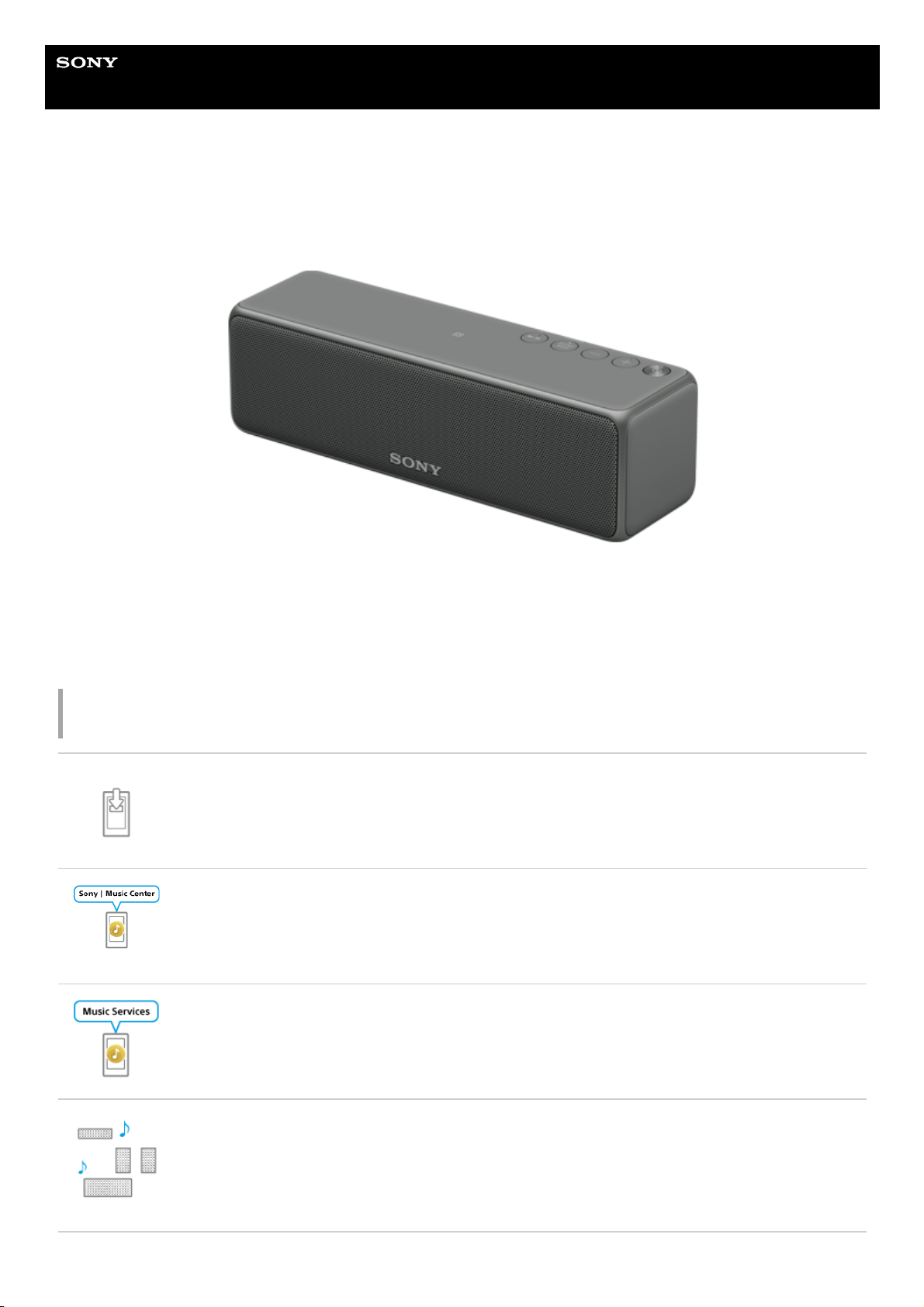
Wireless Speaker
h.ear go 2 (SRS-HG10)
The following explains how to use this speaker.
The content referenced in the Operating Instructions is described in detail through the
following links.
Installing “Sony | Music Center”
“Sony | Music Center” is an application for controlling Sony audio devices which are compatible with
“Sony | Music Center,” by your smartphone or iPhone.
Connecting by using “Sony | Music Center”
This section explains how to connect the speaker to a Wi-Fi network.
Playback via a network (Internet music streaming service)
You can stream music from the Internet using “Sony | Music Center.”
Playback via a network (Wireless Multi-room, Wireless Surround, Wireless Stereo)
Enjoy music in any room via Wi-Fi. You can listen to your favorite music stored in your PC or
smartphone, or from music streaming services by using “Sony | Music Center,” in different rooms
with high sound quality.
1
Page 2
Getting Started
Parts and controls
Power source/Charging
Charging the battery
Turning the power on
Using the BLUETOOTH®/Network standby mode
Auto Power Off (Auto Standby) mode
Using “Sony | Music Center”
About “Sony | Music Center”
Installing “Sony | Music Center”
Main setting items of “Sony | Music Center”
Wi-Fi network connection (“Sony | Music Center”)
Listening to music on a device connected to the home network(“Sony | Music Center”)
Listening with multiple speakers (Wireless Multi-room, Wireless Surround, Wireless Stereo)
Listening to music on a PC
Without a Wi-Fi network
Connecting via a USB cable
Making a wireless connection (BLUETOOTH connection)
With a Wi-Fi network
Using “Windows Media Player” (Windows 7 or later)
Using other music playback software
Listening to music on a smartphone such as an Xperia or WALKMAN® equipped with Android
Without a Wi-Fi network
Making a wireless connection (BLUETOOTH connection)
Connecting via an audio cable (with stereo mini plugs/no resistance)
With a Wi-Fi network
Using “Sony | Music Center”
Listening to music on an Xperia compatible with High-Resolution Audio formats
Without a Wi-Fi network
2
Page 3
Connecting via a USB cable
Making a wireless connection (BLUETOOTH connection)
Connecting via an audio cable (with stereo mini plugs/no resistance)
With a Wi-Fi network
Using “Sony | Music Center”
Listening to music on an iPhone/iPod touch
Without a Wi-Fi network
Making a wireless connection (BLUETOOTH connection)
Connecting via an audio cable (with stereo mini plugs/no resistance)
With a Wi-Fi network
Using “Sony | Music Center”
Listening to music on a WALKMAN®
Making a wireless connection (BLUETOOTH connection)
Connecting via an audio cable (with stereo mini plugs/no resistance)
Listening to music on a WALKMAN® compatible with High-Resolution Audio formats
Connecting via a USB cable
Making a wireless connection (BLUETOOTH connection)
Connecting via an audio cable (with stereo mini plugs/no resistance)
Listening to music from an Internet music service
Without a Wi-Fi network (PC)
Connecting via a USB cable
Making a wireless connection (BLUETOOTH connection)
Without a Wi-Fi network (Smartphone)
Making a wireless connection (BLUETOOTH connection)
With a Wi-Fi network
Using “Sony | Music Center” (Chromecast built-in)
Connections
Wi-Fi network connection
Selecting the Wi-Fi network connection method
3
Page 4
DLNA (Digital Living Network Alliance)
Connecting to a Wi-Fi network using the Wi-Fi Protected Setup (WPS) button of the wireless router
Connecting to a Wi-Fi network using a PC connected wirelessly
How to turn off the Wi-Fi network/BLUETOOTH function
Wireless Surround/Wireless Stereo connection
Using this speaker as a rear speaker (Wireless Surround)
Connecting two speakers (Wireless Stereo)
BLUETOOTH connection (pairing)
How to make a wireless connection with BLUETOOTH devices
Pairing and connecting with a BLUETOOTH device
Pairing and connecting with a PC (Windows 10)
Pairing and connecting with a PC (Windows 8.1)
Pairing and connecting with a PC (Windows 7)
BLUETOOTH connection (NFC)
Connecting with an NFC-compatible device by one touch (NFC)
BLUETOOTH connection (with a paired device)
Connecting with a paired BLUETOOTH device
Connecting with a paired PC (Windows 10)
Connecting with a paired PC (Windows 8.1)
Connecting with a paired PC (Windows 7)
Speaker Add function
Connecting two speakers (Speaker Add function)
Switching between double mode and stereo mode (Speaker Add function)
Terminating the BLUETOOTH connection (After use)
USB device
Connecting a WALKMAN® compatible with High-Resolution Audio formats
Connecting an Xperia compatible with High-Resolution Audio formats
AUDIO IN
Connecting to a portable audio device, etc.
Settings
4
Page 5
Network
Setting your PC as a DLNA server and controller (Windows 10)
Setting your PC as a DLNA server and controller (Windows 8.1)
Setting your PC as a DLNA server and controller (Windows 7)
USB
Connecting a PC/Installing the dedicated driver
Listening
Network
Listening to music on a PC via a network (“Windows Media Player”)
Listening to music on a PC via a network (“Windows Media Player” with “Sony | Music Center” operation)
Listening with multiple speakers (Wireless Multi-room, Wireless Surround, Wireless Stereo)
Listening to an Internet music service (Spotify)
BLUETOOTH
Selecting the BLUETOOTH audio streaming playback quality (Codec)
Listening to music on a device via a BLUETOOTH connection
Terminating the BLUETOOTH connection (After use)
USB
Listening to music on a WALKMAN® compatible with High-Resolution Audio formats
Listening to music on an Xperia compatible with High-Resolution Audio formats
Listening to music on a PC
AUDIO IN
Listening to music on a portable audio device, etc.
Phone calls
Receiving a call
Making a call
Terminating the BLUETOOTH connection (After use)
Button functions for a phone call
Using the voice assist function
Using the voice assist function (Google app)
5
Page 6

Using the voice assist function (Siri)
Listening to High-Resolution Audio format files
About High-Resolution Audio format files
Installing “Hi-Res Audio Player” to a PC
Listening to High-Resolution Audio format files via a network
Information
Specifications
About the indicators
Compatible devices and operating systems
Compatible iPhone/iPod touch models
Compatible WALKMAN® models
Compatible operating systems (Windows)
Compatible operating systems (Mac)
Compatible DLNA devices
Compatible BLUETOOTH devices
Compatible USB devices
Software update
Updating the pre-installed software
Update method 1: Automatic update via the Internet
Update method 2: Manual update via the Internet
Searching the latest software via a network connection
Wi-Fi signal strength
Checking the Wi-Fi signal strength (reception sensitivity)
Notes on use
Precautions
What is BLUETOOTH wireless technology?
What is LDAC?
About the voice guidance
Trademarks
Important information on software
6
Page 7
Notes on software
Support website
Customer support websites
Troubleshooting
What can I do to solve a problem?
Power supply/Charging
Unable to turn on the speaker or charge the built-in battery
Any button on the speaker cannot be operated
The power suddenly turns off
The power indicator flashes in red
The CHARGE indicator flashes
Sound
No sound/Sound from only one speaker/Low sound level
Distorted sound/humming or noise from the speaker
The volume is getting smaller while using
Network connection
The speaker cannot connect to the network (Other equipment on the network cannot find or recognize the speaker)
Unable to connect to a network via a Wi-Fi connection
Unable to connect to a network via a Wi-Fi connection (even though a correct SSID is selected)
The speaker cannot connect to a network using the UPDATE/WPS button
The speaker does not appear in the device list of the PC's music playback application
The speaker does not appear in the device select screen of “Sony | Music Center”
The speaker cannot connect to music services
The controller cannot find the speaker (The controller cannot browse the contents of the speaker)
Music started automatically (home network)
The sound is interrupted
Playback does not start
BLUETOOTH
Smartphone, iPhone, etc. cannot be paired
Unable to connect the speaker to a BLUETOOTH device with One-touch (NFC)
7
Page 8
4-735-503-11(1) Copyright 2018 Sony Corporation
There is no sound (BLUETOOTH)
Distorted sound/humming or noise from the speaker
USB device
An unsupported USB device is connected
There is no sound (USB)
There is noise, skipping, or distorted sound
Playback does not start
Playback does not start from the first track
Software update
Updating the pre-installed software
Update method 1: Automatic update via the Internet
Update method 2: Manual update via the Internet
Searching the latest software via a network connection
Reset
Reset the speaker
Initializing the speaker
Disposal and transfer
Disposing of or giving away this speaker
8
Page 9
Help Guide
Wireless Speaker
h.ear go 2 (SRS-HG10)
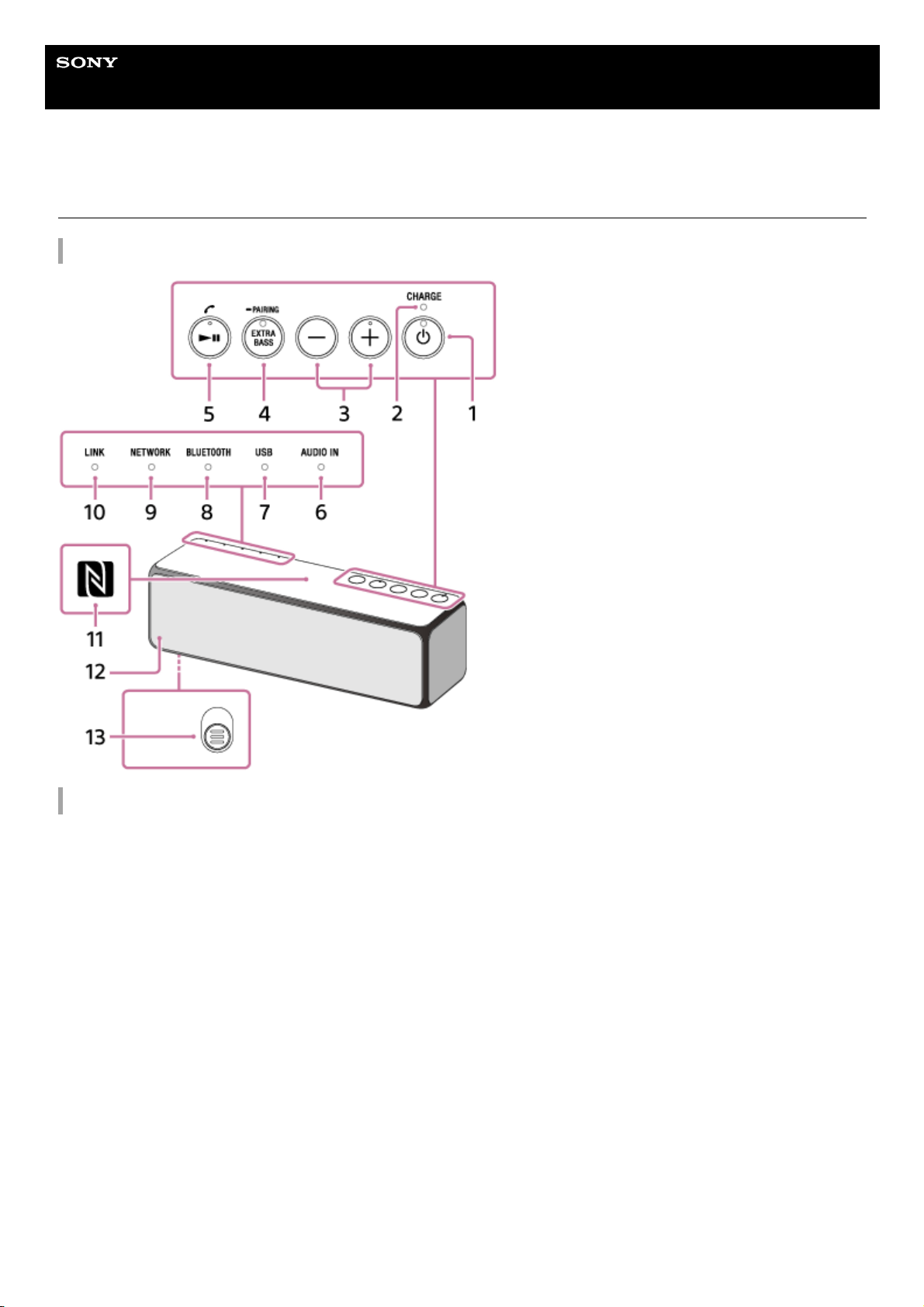
Parts and controls
Top and bottom
Rear
9
Page 10
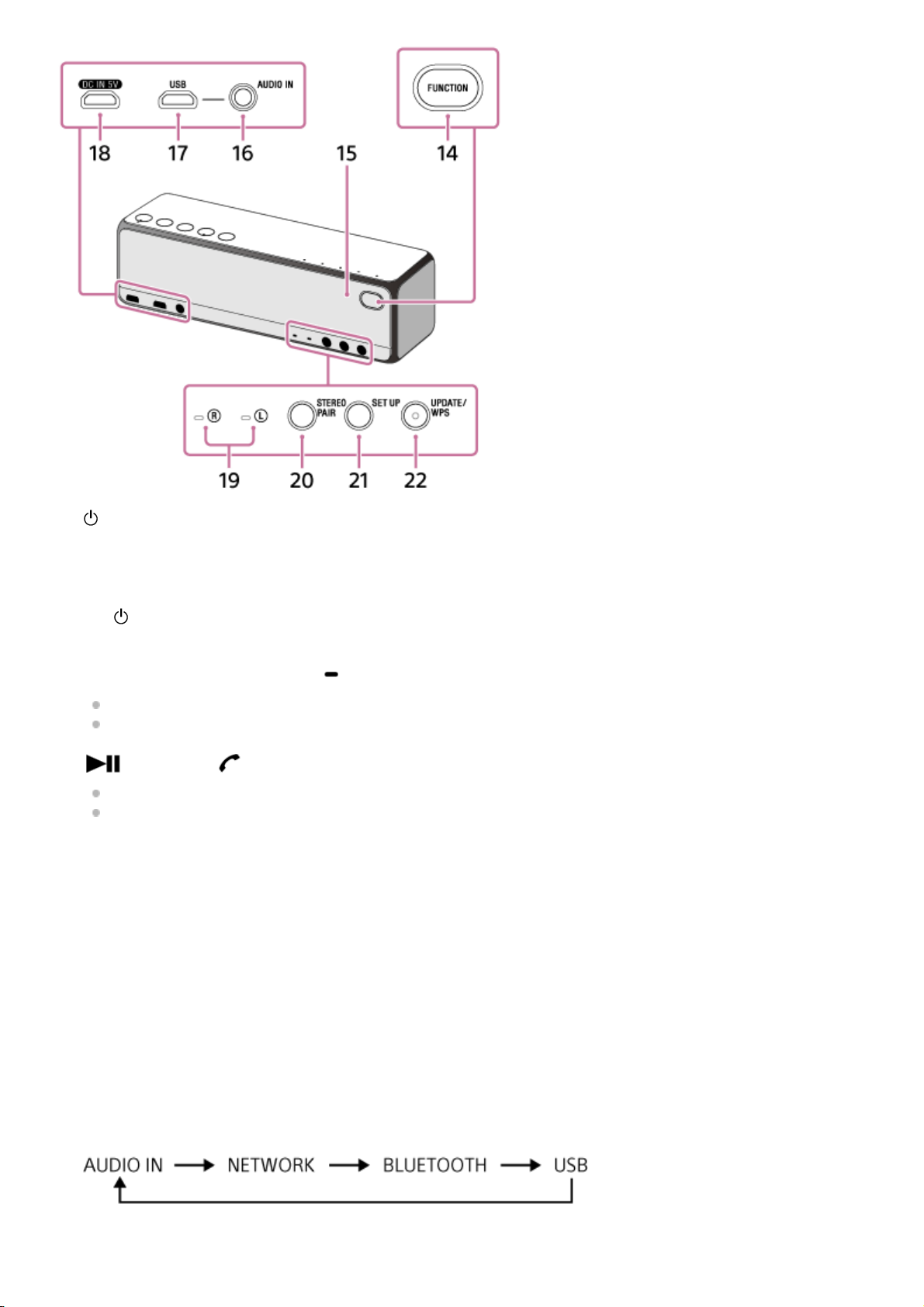
(power) button with indicator
Press and hold for 8 seconds to reset the speaker.
1.
CHARGE indicator2.
–/+ (volume) buttons
The
(power) indicator flashes 3 times when reaching maximum or minimum volume.
The + (volume) button has a tactile dot. Use the tactile dot as reference when operating the speaker.
3.
EXTRA BASS button with indicator/ PAIRING button
Press to set sound effects. It is set off by default at time of purchase.
While the speaker is turned on, press and hold for more than 3 seconds to switch to BLUETOOTH pairing mode.
4.
(play) button/ (call) button
Operate to play/pause/skip/go back.
Press to receive a call.
It has a tactile dot. Use the tactile dot as a reference when operating the speaker.
5.
AUDIO IN indicator6.
USB indicator7.
BLUETOOTH indicator8.
NETWORK indicator9.
LINK indicator10.
N-Mark
Touch this mark with an NFC (FeliCa) compatible device.
11.
Speaker grille12.
(Bottom) Grille detachment lever
Removes the front speaker grille.
13.
FUNCTION button
Press to change the speaker modes in the following order:
14.
Microphone
Built in for a hands-free call.
15.
10
Page 11
Related Topic
About the indicators
Using this speaker as a rear speaker (Wireless Surround)
Connecting two speakers (Wireless Stereo)
Connecting two speakers (Speaker Add function)
4-735-503-11(1) Copyright 2018 Sony Corporation
AUDIO IN jack
Connect to the headphone jack of a portable audio devices, etc., using a commercially-available audio cable (with
stereo mini plugs/no resistance).
16.
USB port
Connect to a PC or High-Resolution Audio compatible WALKMAN® or Xperia.
17.
DC IN 5V jack18.
(right)/ (left) indicator
Lights up when Speaker Add function, Wireless Surround function*1 or Wireless Stereo function*1 is used.
19.
STEREO PAIR button
Press to use Speaker Add function or Wireless Stereo function*1 with two speakers.
20.
SET UP button
Press to use Stereo Mode function with two speakers or to use Wireless Surround function*1 by combining the
speaker with other audio devices.
21.
UPDATE button with indicator/WPS button
Indicates the status of the speaker's software update. After pressing and holding for 2 seconds when the indicator
is lit, the speaker beeps and the software update starts.
If your wireless router has a Wi-Fi Protected Setup™ (WPS) button, you can use this button to connect to the
network*2.
If your wireless router has an AOSS button, it can be used as a Wi-Fi Protected Setup™ (WPS) button. For
details, refer to the operating instructions supplied with your wireless router.
22.
For more details, refer to the following URL.
http://sony.net/nasite
*1
Not available while the UPDATE indicator is lit
*2
11
Page 12
Help Guide
Wireless Speaker
h.ear go 2 (SRS-HG10)
Charging the battery
You can operate the speaker by connecting to the AC outlet with the supplied USB AC adaptor or by using the built-in
lithium-ion battery (rechargeable).
Before turning on the speaker for the first time, be sure to charge the speaker for more than 1 hour.
When the battery is charged, you can use the speaker without using the USB AC adaptor.
Lifespan of a lithium-ion battery
When making a BLUETOOTH (SBC) connection: Approx. 12 hours (at normal playback)
*2
When connected to a network: Approx. 8 hours (at normal playback)
*3
When the battery is running low
When the CHARGE indicator flashes slowly, the built-in battery is running low and needs to be charged. Charge the
speaker for more than 1 hour by connecting it to an AC outlet via the USB AC adaptor.
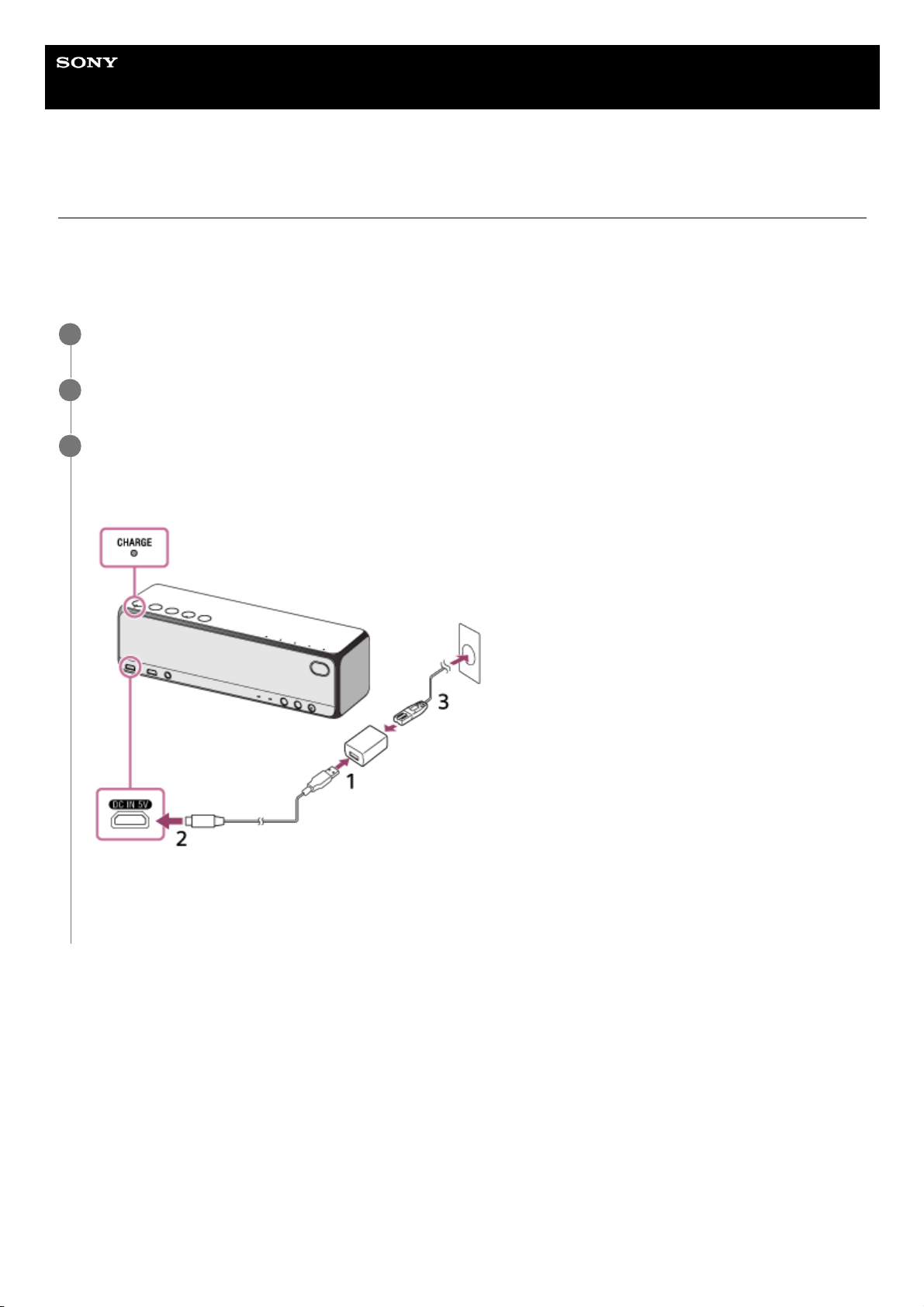
Connect the supplied USB AC adaptor and micro-USB cable.
1
Connect the micro-USB cable to a DC IN 5V jack.
2
Connect the USB AC adaptor to an AC outlet.
Do not use other than the supplied USB AC adaptor, micro-USB cable, and AC power cord.
According to your country or region, connect the AC power cord and plug adaptor to the USB AC adaptor.
When the speaker is connected to an AC outlet via the USB AC adaptor, charging starts and the CHARGE indicator
lights up in orange. Charging is completed in about 5 hours*1 and the indicator turns off.
3
When the speaker is turned off, time that is required to charge the empty battery to its full capacity.
*1
When the specified music source is used, the BLUETOOTH device is set to the maximum volume, and the volume level of the speaker is set to
43.
The battery life when the volume level of the speaker is set to maximum will be about 4 hours.
*2
When the specified music source is used, the network device is set to the maximum volume, and the volume level of the speaker is set to 43.
The battery life when the volume level of the speaker is set to maximum will be about 4 hours.
*3
12
Page 13

Hint
Even when listening to music from the speaker, you can charge the speaker if it is connected to the AC outlet. However, it is
recommended to turn off the speaker for charging because the charging time may become longer.
The voice guidance for the remaining battery capacity can be turned on or off by using the dedicated app “Sony | Music Center.”
Note
When you switch the power source between an AC outlet and battery by connecting/disconnecting the USB AC adaptor, sound
output will stop for a short while. This is not a malfunction.
If you use the speaker at a high volume, the battery power may reduce even when connected to an AC outlet. When using the
speaker while charging the battery, turn the volume to low. Otherwise, turn off the speaker and charge it for at least 1 hour.
If you use the speaker at a high volume for a long time, the battery power and the volume may reduce even when connected to
an AC outlet. This is not a malfunction. In this case, turn off the speaker and charge it for at least 1 hour.
When the battery life is low (CHARGE indicator flashes), the maximum output level of the speaker becomes low.
In a very high or low temperature, charging the battery will be stopped for its safety. If the charging continues for a long time, the
charging may be stopped. Charge the battery in the usable temperature range (5 °C to 35 °C).
If you do not intend to use the speaker for a long time, charge the battery to its full capacity once every 6 months to maintain its
performance.
4-735-503-11(1) Copyright 2018 Sony Corporation
13
Page 14
Help Guide
Wireless Speaker
h.ear go 2 (SRS-HG10)
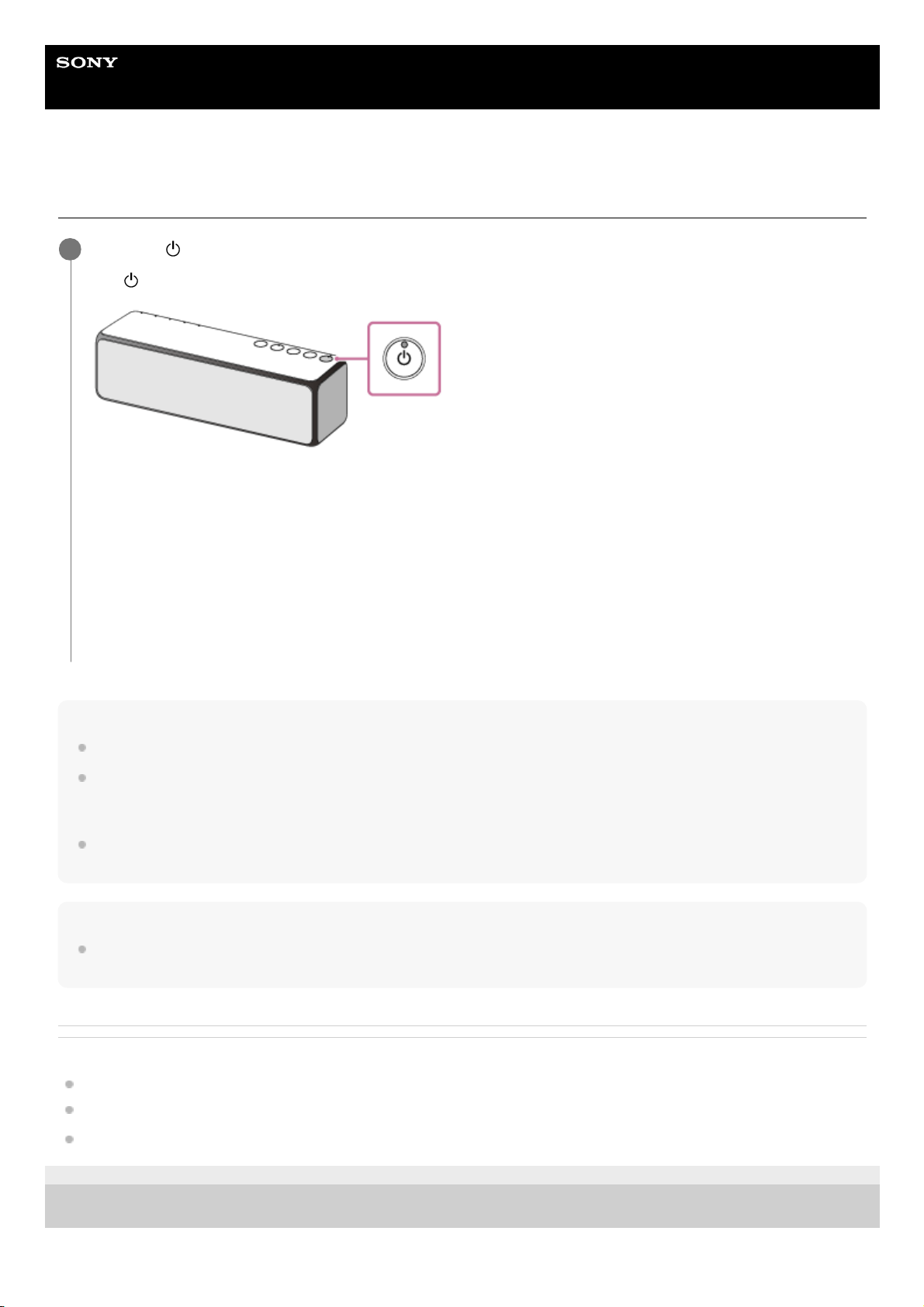
Turning the power on
Hint
The LINK indicator may also begin to flash or light up when the speaker is turned on.
When you turn on the speaker in the BLUETOOTH/Network standby mode, the speaker turns on automatically by operating a
BLUETOOTH device or network device, and then the BLUETOOTH or network connection starts (only when using the USB AC
adaptor).
The voice guidance for the remaining battery capacity (BATT Level) can be turned off by selecting [Setting] - [Power Option] [BATT Level] - [Off] on the menu of “Sony | Music Center.”
Note
When the CHARGE indicator flashes, this indicates that the built-in battery is running low and needs to be charged. Charge the
speaker for at least 1 hour by connecting it to an AC outlet via the USB AC adaptor.
Related Topic
About the indicators
Using the BLUETOOTH®/Network standby mode
About the voice guidance
4-735-503-11(1) Copyright 2018 Sony Corporation
Press the
(power) button.
The
(power) indicator lights up in green.
It may take a while before the speaker turns on.
Depending on the remaining power of the built-in battery, the voice guidance is output from the speaker as follows.
“Battery fully charged”
“Battery about 80%”
“Battery about 60%”
“Battery about 40%”
“Battery about 20%”
“Battery level low, please charge”
“Battery level low” (While the speaker is charging)
1
14
Page 15
Help Guide
Wireless Speaker
h.ear go 2 (SRS-HG10)
Using the BLUETOOTH®/Network standby mode
If the BLUETOOTH/Network standby mode is on, the speaker turns on when a BLUETOOTH device or network device is
operated. The start-up time becomes shorter and the speaker will become operational sooner than in normal start-up.
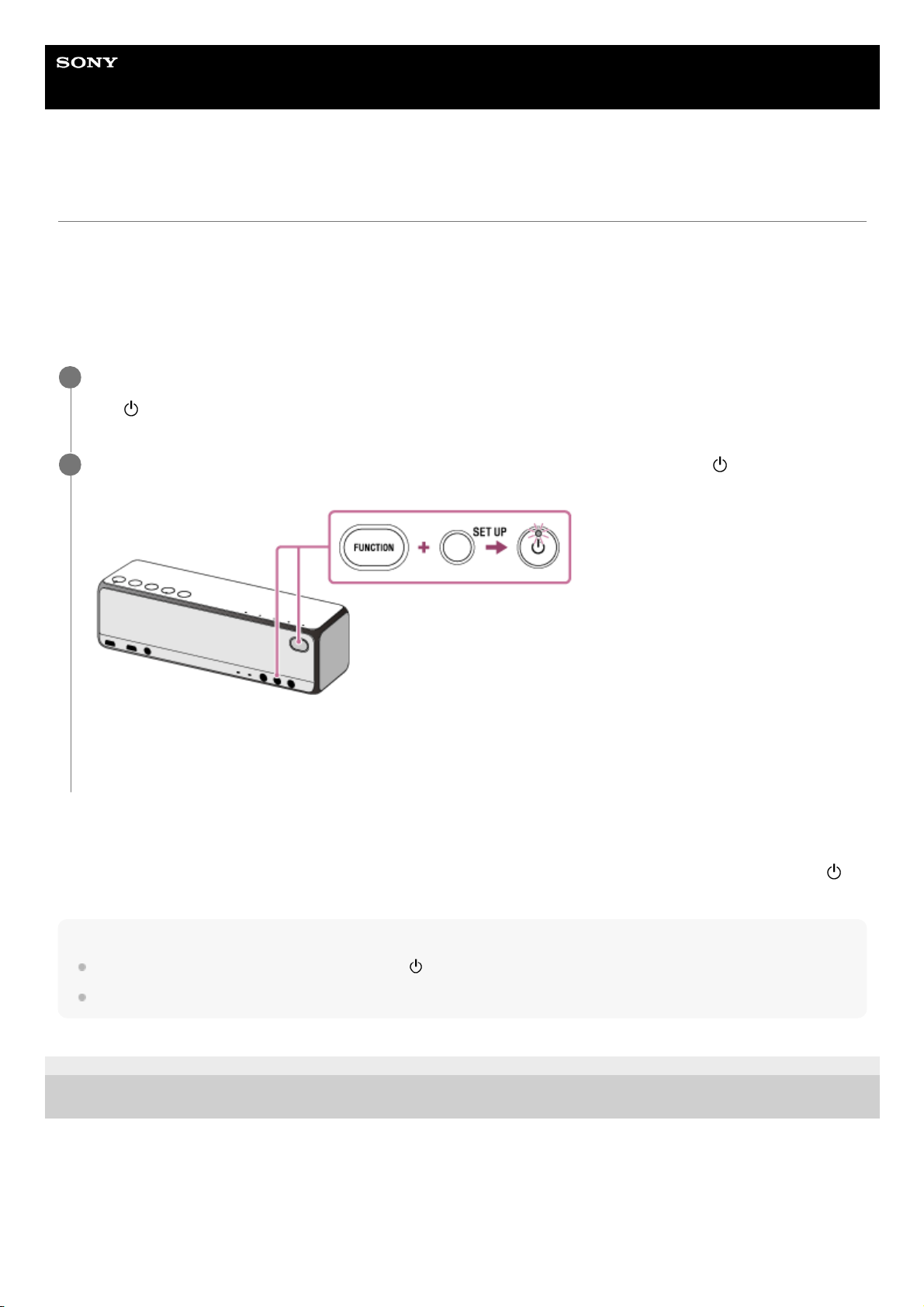
The BLUETOOTH/Network standby mode can be set only when the speaker is connected to an AC outlet via the USB
AC adaptor (supplied).
When the speaker is being powered by the built-in battery only, the BLUETOOTH/Network standby mode is not
available.
To turn off the BLUETOOTH/Network standby mode
With the speaker turned on, press and hold the FUNCTION button and the SET UP button simultaneously until the
(power) indicator turns off. The BLUETOOTH/Network standby mode is turned off.
Hint
If the BLUETOOTH/Network standby mode is on, the
(power) indicator lights up in orange when the speaker turns off.
The BLUETOOTH/Network standby mode can be set to on or off by using the dedicated app “Sony | Music Center.”
4-735-503-11(1) Copyright 2018 Sony Corporation
Connect the speaker to the AC outlet via the USB AC adaptor, then turn the speaker on.
The
(power) indicator lights up in green.
1
Press and hold the FUNCTION button and the SET UP button simultaneously until the
(power) indicator
lights up in orange.
The speaker turns off and enters the BLUETOOTH/Network standby mode.
If you operate a network device or BLUETOOTH device to connect to the speaker, the speaker turns on
automatically and connection starts.
2
15
Page 16
Help Guide
Wireless Speaker
h.ear go 2 (SRS-HG10)
Auto Power Off (Auto Standby) mode
The speaker powers off automatically if the speaker remains in any of the following states for 15 minutes.
Auto power off (auto standby) mode is set to on at time of purchase.
BLUETOOTH mode
No operation of the speaker.
No connect/disconnect operations to the speaker from a mobile phone (smartphone/iPhone) via BLUETOOTH using
HFP/HSP.
HFP/HSP are types of BLUETOOTH profile.
HSP (Headset Profile): It enables calls and operations on phone.
HFP (Hands-free Profile): It enables hands-free calls and operations on phone.
No music (audio) is played.
NETWORK/USB/AUDIO IN mode
No operation of the speaker.
No music (audio) is played.
Hint
The auto power off (auto standby) mode can be turned off by using “Sony | Music Center.”
The auto power off (auto standby) mode may not work depending on the connecting device during the AUDIO IN mode.
Related Topic
Main setting items of “Sony | Music Center”
4-735-503-11(1) Copyright 2018 Sony Corporation
16
Page 17
Help Guide
Wireless Speaker
h.ear go 2 (SRS-HG10)
About “Sony | Music Center”
“Sony | Music Center” is an application for controlling Sony audio devices which are compatible with “Sony | Music
Center,” by your smartphone etc.
For more details about “Sony | Music Center,” refer to the following website.
http://www.sony.net/smcqa/
What you can do with this application
Play back music files, including High-Resolution Audio files saved on smartphones, etc.
Play back music files, including High-Resolution Audio files saved on devices (PC, server, etc.) on your home
network.
Use Internet music services (Chromecast built-in)
Sound quality settings and equalizer adjustment
Check the battery level of the rechargeable battery built in to the speaker
Power option settings (auto power off (auto standby) mode/the voice guidance for the remaining battery capacity)
BLUETOOTH/Network standby mode settings
Change the BLUETOOTH mode and the AUDIO IN mode
Select the BLUETOOTH Codec (audio streaming playback quality)
Form groups with other devices (Speaker Add function/Wireless Multi-room function/Wireless stereo
function/Wireless surround function)
...etc.
Note
What you can control with “Sony | Music Center” varies depending on the connected device. The specification and design of the
application may change without notice.
4-735-503-11(1) Copyright 2018 Sony Corporation
17
Page 18
Help Guide
Wireless Speaker
h.ear go 2 (SRS-HG10)
Installing “Sony | Music Center”
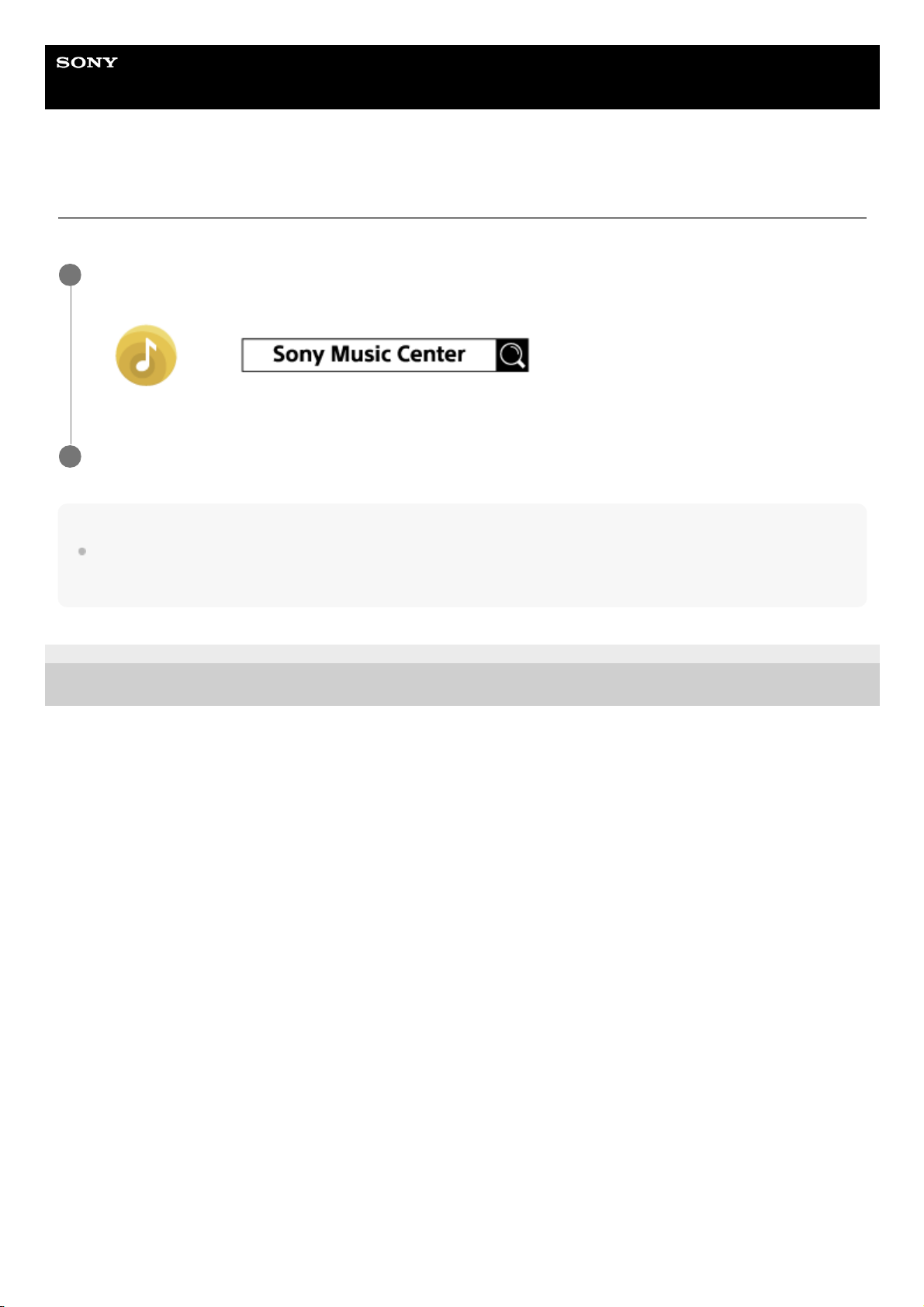
Install “Sony | Music Center” to your smartphone, etc. from Google Play or App Store.
Note
Use the latest “Sony | Music Center.” If you cannot connect the speaker and your smartphone, etc., or sound is not output from
the speaker, uninstall “Sony | Music Center” and try to make a BLUETOOTH connection again. For details, refer to Google Play
or App Store.
4-735-503-11(1) Copyright 2018 Sony Corporation
Download “Sony | Music Center” from Google Play or App Store and install it to your smartphone, etc.
1
After finishing installation, start “Sony | Music Center.”
2
18
Page 19
Help Guide
Wireless Speaker
h.ear go 2 (SRS-HG10)
Main setting items of “Sony | Music Center”
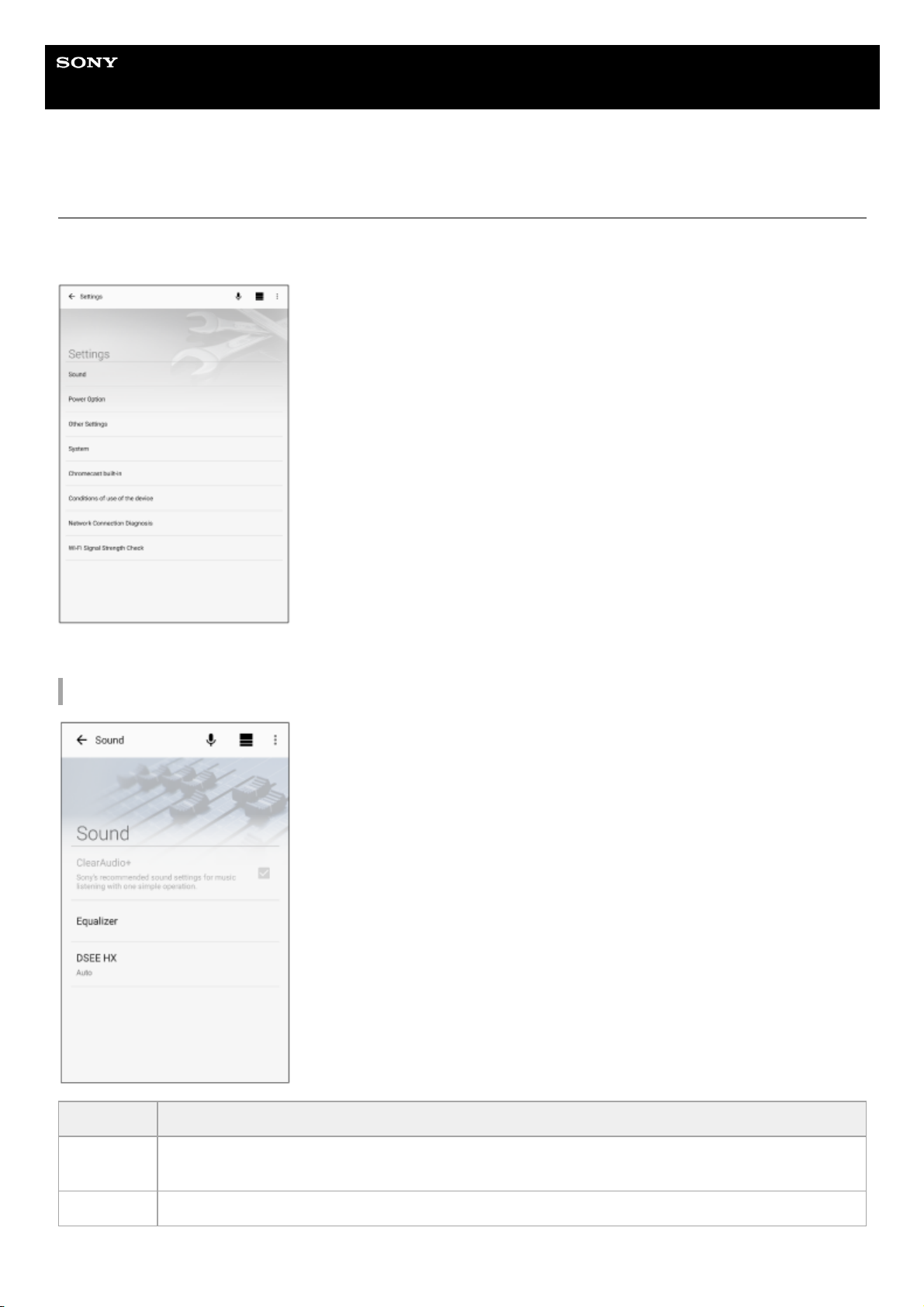
You can configure Sound settings, Power Option settings, BLUETOOTH Codec settings, Chromecast built-in settings,
etc.
Below is the list of main setting items of “Sony | Music Center.”
Sound settings
Item Description
ClearAudio+
You can enjoy ClearAudio+ (Sony's recommended sound quality). ClearAudio+ is set as default at time
of purchase.
Equalizer You can set the sound quality according to the music genre.
19
Page 20
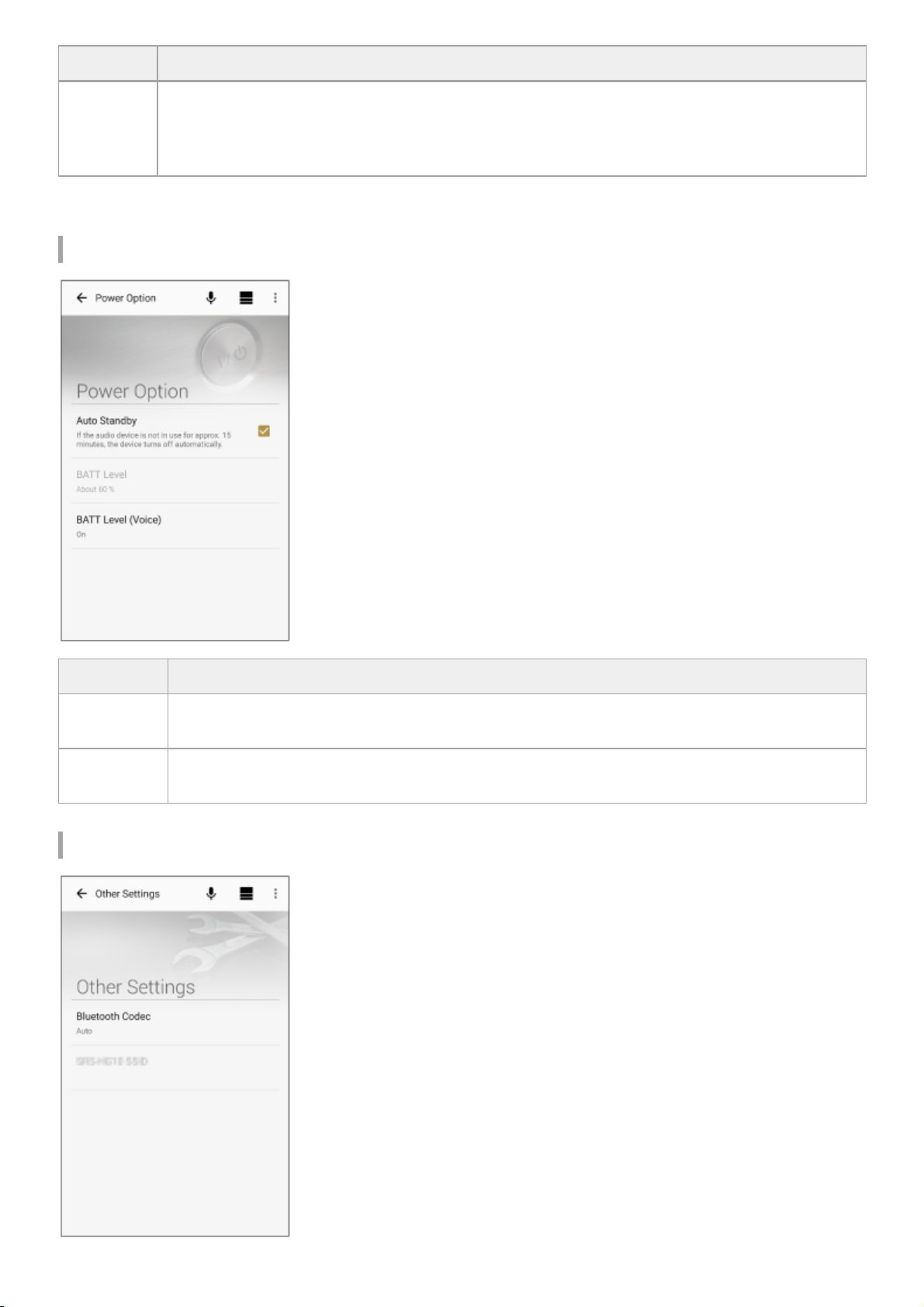
Power Option settings
Other settings
Item Description
DSEE HX
This function enables enhancement* of the sound quality (equivalent to High-Resolution) for
compressed audio files and restores high-range sound lost during the compression process. [Auto] is
set as default at time of purchase, which effectively enhances compressed audio, while High-Resolution
Audio can be enjoyed in its original state.
It extends up to 192 kHz / 24 bit equivalent.
*
Item Description
Auto Standby
If no operation is performed on the speaker for more than 15 minutes, the speaker powers off
automatically auto power off.
BATT Level
(Voice)
Set whether or not to enable the voice guidance that informs you of the remaining battery capacity
(BATT level) when the speaker is on.
20
Page 21
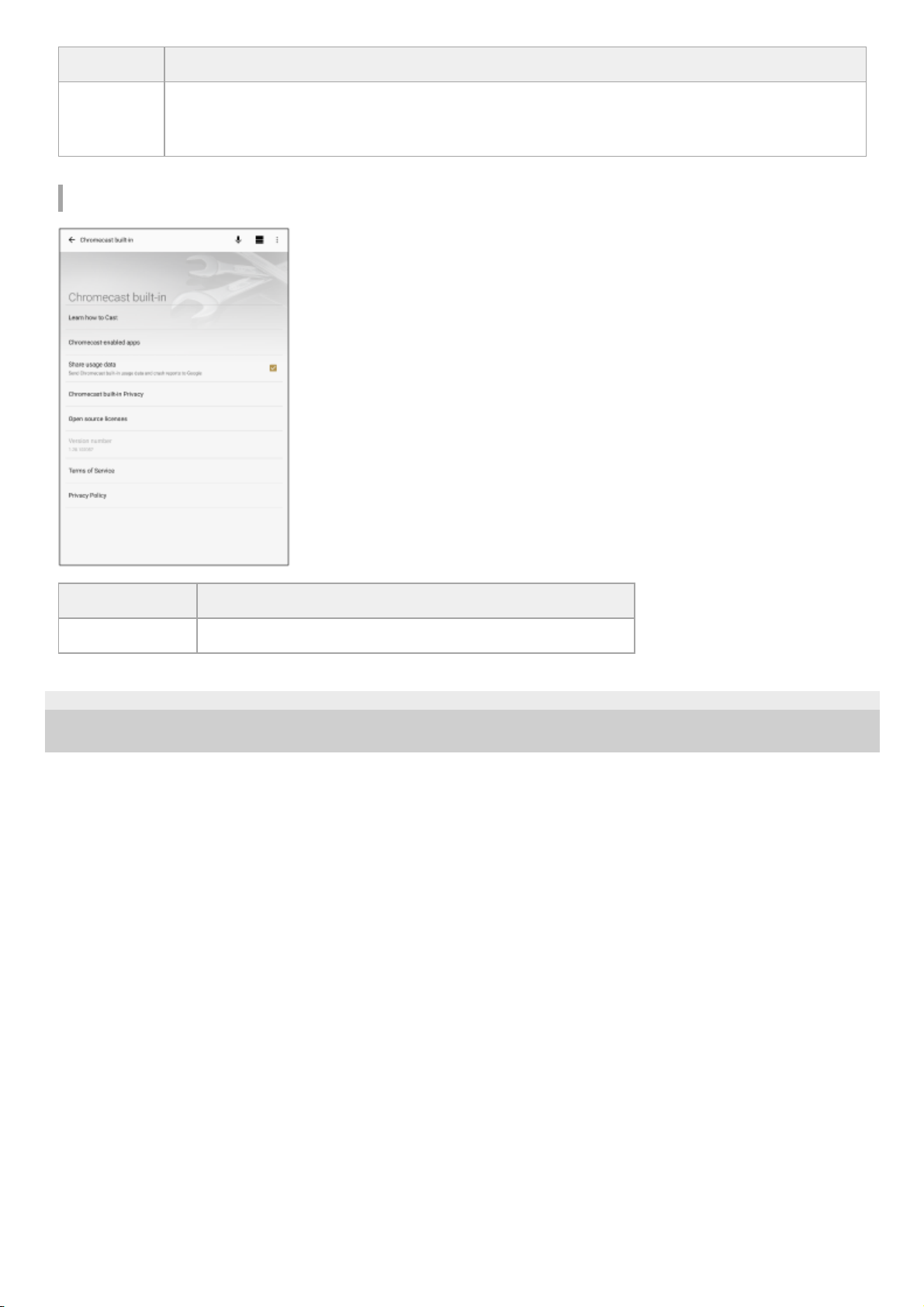
Chromecast built-in
4-735-503-11(1) Copyright 2018 Sony Corporation
Item Description
Bluetooth
Codec
Auto: Setting that prioritizes sound quality. The optimal codec is automatically selected from among
AAC, LDAC, and SBC.
SBC: Setting that prioritizes stable connection.
Item Description
Learn how to Cast Links to the page describing how to set up Chromecast built-in.
21
Page 22

Help Guide
Wireless Speaker
h.ear go 2 (SRS-HG10)
Wi-Fi network connection (“Sony | Music Center”)
You can connect the speaker to a Wi-Fi network using “Sony | Music Center.” First, make a BLUETOOTH connection
between the speaker and a smartphone/iPhone. Then configure the Wi-Fi network settings. Wi-Fi network settings in
“Sony | Music Center” are sent from your smartphone/iPhone to the speaker via BLUETOOTH communication.
Complete step
within 15 minutes after turning on the speaker. If the speaker is not operated for more than 15
minutes, it will turn off automatically by the auto power off (auto standby) mode.
Note
While performing Wi-Fi network setting according to procedures below, the setting information of your Wi-Fi network will not be
protected until the setting is complete. After completing the setting, setting information of your Wi-Fi network will be protected
again by setting the wireless LAN security.
Place your speaker as close as possible to the wireless router.
1
Connect your smartphone to your wireless router.1.
Record the SSID and password of the wireless router for reference.
Some wireless routers have multiple SSIDs. Be sure to record the SSID which your smartphone is connected
to.
For details, refer to the operating instructions supplied with your wireless router.
2.
Make a BLUETOOTH connection.
For NFC-compatible smartphones
Unlock the smartphone screen, turn on the NFC function, and then establish BLUETOOTH connection between the
speaker and smartphone with one touch (NFC).
Keep touching the smartphone to the N-Mark (
) of the speaker until the smartphone responds.
For smartphones not compatible with NFC
See “Pairing and connecting with a BLUETOOTH device.”
For iPhone/iPod
See “How to make a wireless connection with BLUETOOTH devices.”
If [Share Wi-Fi Settings?] is displayed, tap [Allow].
2
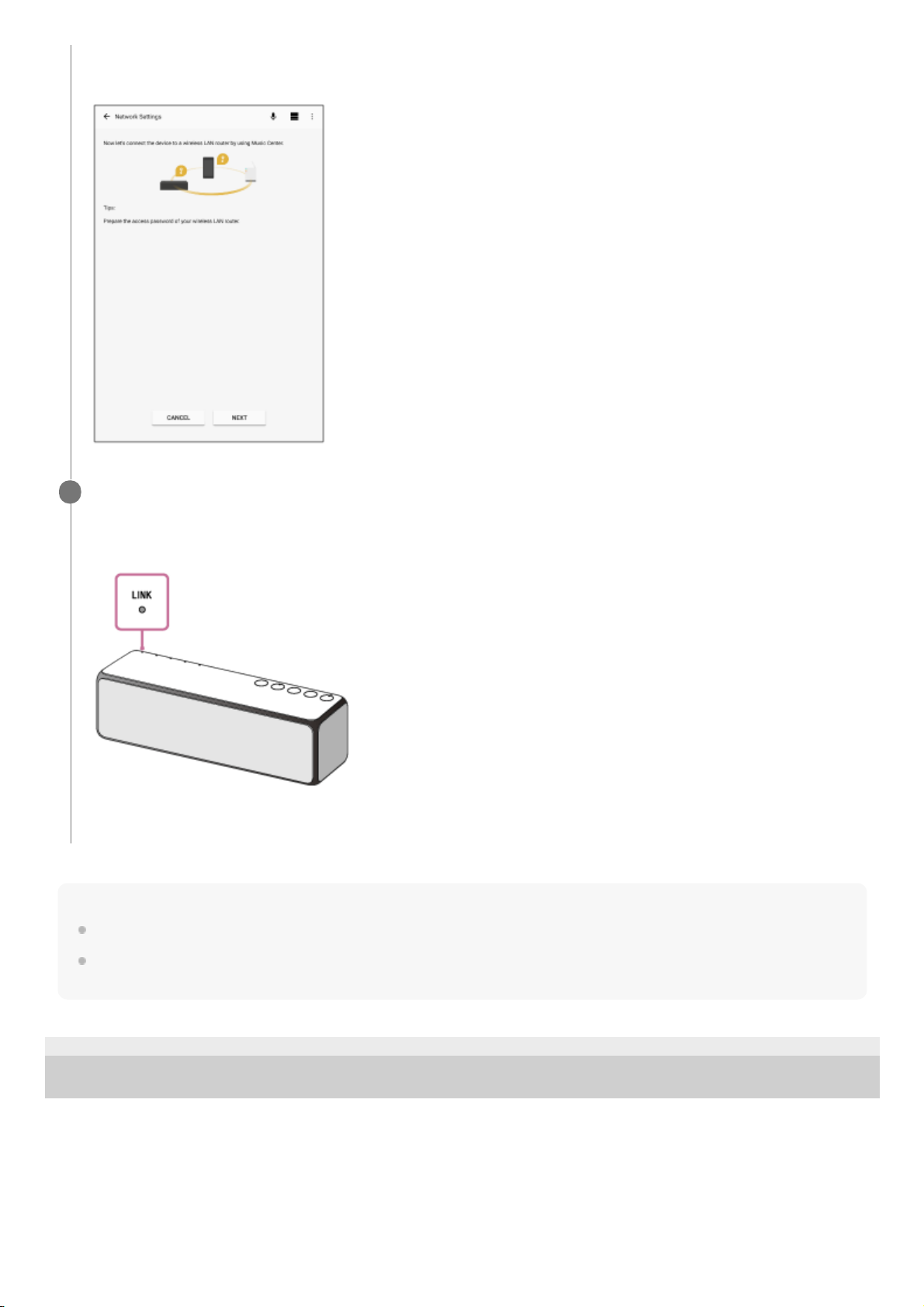
Connect to a Wi-Fi network following the instructions on the screen of “Sony | Music Center.”
3
22
Page 23
Note
To download the app, you may have to pay a communication fee, depending on your Internet contract.
When you connect the speaker to a Wi-Fi network for the first time after purchase, or after you initialize the speaker, the
BLUETOOTH/Network standby mode is turned on automatically.
4-735-503-11(1) Copyright 2018 Sony Corporation
“Sony | Music Center” will automatically start up when BLUETOOTH connection is completed. Follow the
instructions on the screen.
Check that the LINK indicator on the speaker lights up in orange.
When the Wi-Fi connection is completed, the LINK indicator lights up in orange.
Depending on the environment, it may take more than a minute for the LINK indicator to light up.
Connection is completed.
4
23
Page 24
Help Guide
Wireless Speaker
h.ear go 2 (SRS-HG10)
Listening to music on a device connected to the home network(“Sony | Music
Center”)
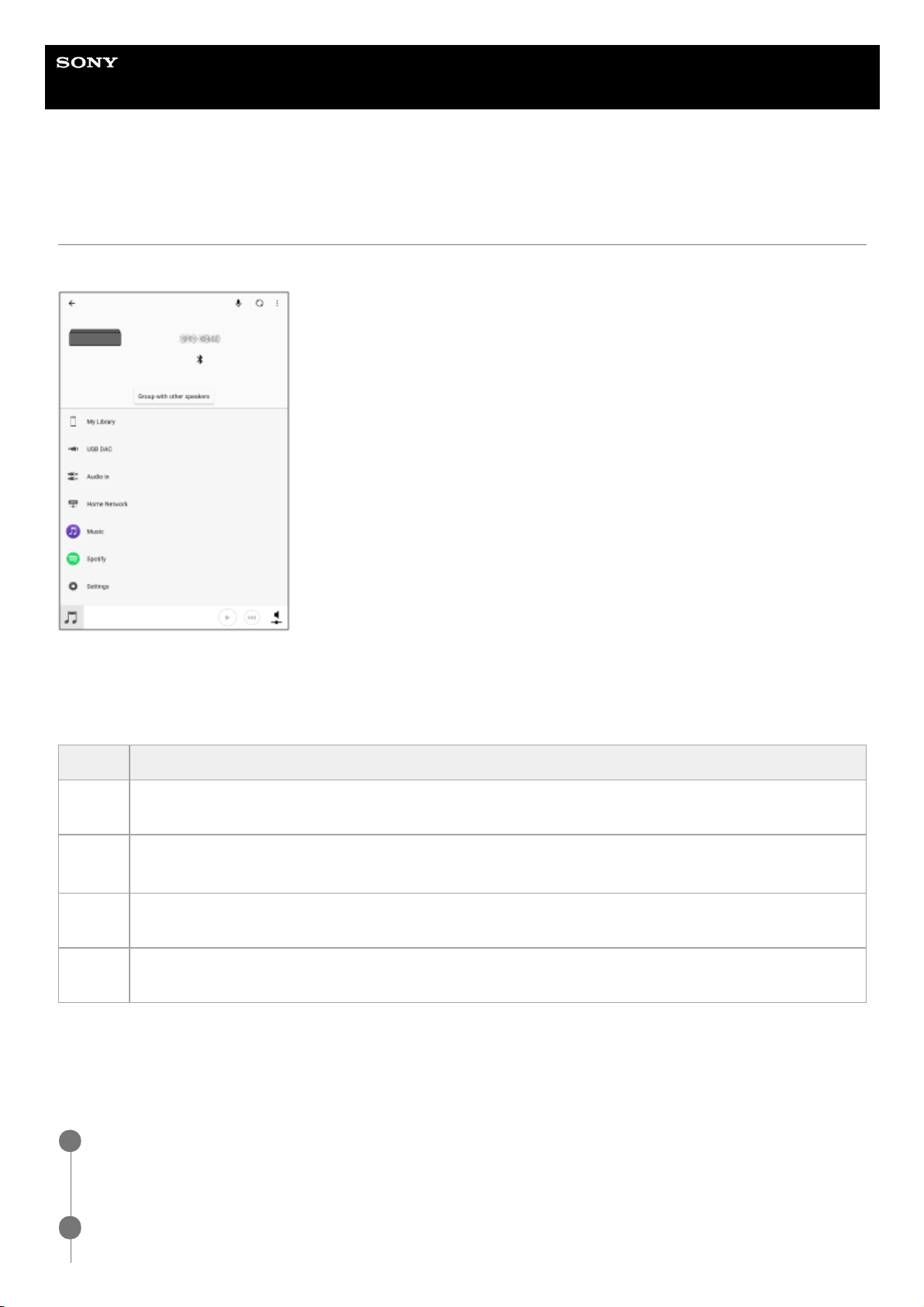
Operating from the “Sony | Music Center” home screen
Functions supported by the speaker are listed, and can be used for operation/configuration.
Below is a list of the main functions.
For details, refer to the Help page in “Sony | Music Center.”
http://www.sony.net/smcqa/
Listening to music on a PC via a Wi-Fi network
Play back music stored in your home network's PC via Wi-Fi network. You can use “Sony | Music Center” as a DLNA
controller, then operate it for playback.
Item Description
My
Library
Play back music files (including high-resolution audio) stored in your smartphone/iPhone, etc.
USB
DAC
Play back music files stored in USB devices (PC, WALKMAN®, Xperia, etc.). Connect through the speaker
USB port, and operate from the connected USB device for playback.
Home
Network
See “Listening with multiple speakers (Wireless Multi-room, Wireless Surround, Wireless Stereo).”
Settings
Use to configure Sound settings, Power Option settings, BLUETOOTH Codec settings, Chromecast built-in
settings, etc. See “Main setting items of “Sony | Music Center”.”
Set the PC as a DLNA server beforehand.
For details on the setting method, see the Related Topic below.
1
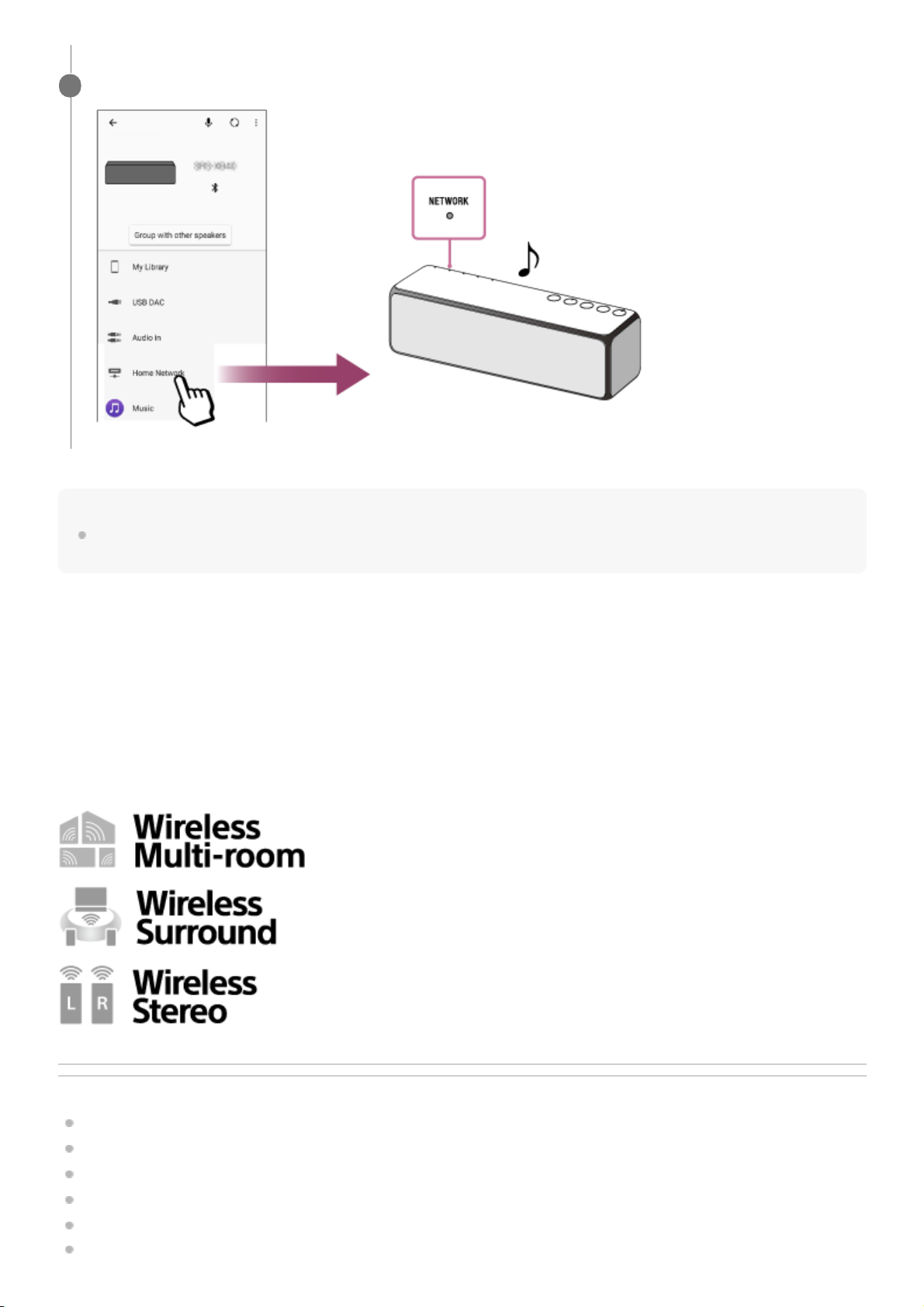
Select [Home Network] on the home screen of “Sony | Music Center” with the smartphone and select the
DLNA server you have set from the sever list.
2
24
Page 25
Note
When you use “Sony | Music Center” as a DLNA controller, you cannot adjust the volume with the connected device. Adjust the
volume with the application or speaker.
Listening to Internet music services
You can use an Internet music service.
To use Chromecast built-in, refer to [Setting] – [Chromecast built-in] – [Learn how to Cast]. Check how to use the service
and install an application compatible with Chromecast built-in. Also refer to the Help page in “Sony | Music Center.”
http://www.sony.net/smcqa/
Listening to music with multiple speakers
By combining speakers of compatible model, you can enjoy your favorite music in various styles via a Wi-Fi network.
For more details about compatible models and available function, see “Listening with multiple speakers (Wireless Multi-
room, Wireless Surround, Wireless Stereo).”
Related Topic
DLNA (Digital Living Network Alliance)
Compatible DLNA devices
Setting your PC as a DLNA server and controller (Windows 10)
Setting your PC as a DLNA server and controller (Windows 8.1)
Setting your PC as a DLNA server and controller (Windows 7)
Listening to music on a PC via a network (“Windows Media Player” with “Sony | Music Center” operation)
Select the folder or audio file which has music you want to listen.
3
25
Page 26

4-735-503-11(1) Copyright 2018 Sony Corporation
26
Page 27
Help Guide
Wireless Speaker
h.ear go 2 (SRS-HG10)
Listening with multiple speakers (Wireless Multi-room, Wireless Surround, Wireless
Stereo)
You can enjoy listening to your favorite music in various styles by wireless speaker combinations.
Compatible models
For more details about Wireless Surround and Wireless Stereo functions, and compatible models for Wireless Surround
and Wireless Stereo functions, refer to the following URL.
http://sony.net/nasite/
Enjoying music using multiple speakers
The Wireless Multi-room function, Wireless Surround function, and Wireless Stereo function are available.
To switch between functions, cancel the function you are using, and then operate for the other function. To cancel a
function, operate on “Sony | Music Center.” For the Wireless Surround function or Wireless Stereo function, you can also
cancel the function by pressing and holding the SET UP button on the rear of the speaker until a beep is heard. The
(right)/ (left) indicators turn off, and the function is canceled. The grouping is also canceled.
Note
You can enjoy the Wireless Multi-room function, Wireless Surround function and Wireless Stereo function only on the network
connection via Wi-Fi. These functions are not available with BLUETOOTH connection.
To play back music stored on a PC, the DLNA server function is required on the PC. For more information, refer to the operating
instructions for the PC.
Only music files on the server device of the home network can be played back. Sound from video files cannot be played back.
You will not be able to cast from the Chromecast compatible application to the grouping (Wireless Multi-Room function) created
using “Sony | Music Center.” Use the “Google Home” application to create a new grouping.
Enjoying music in any room of the home
27
Page 28
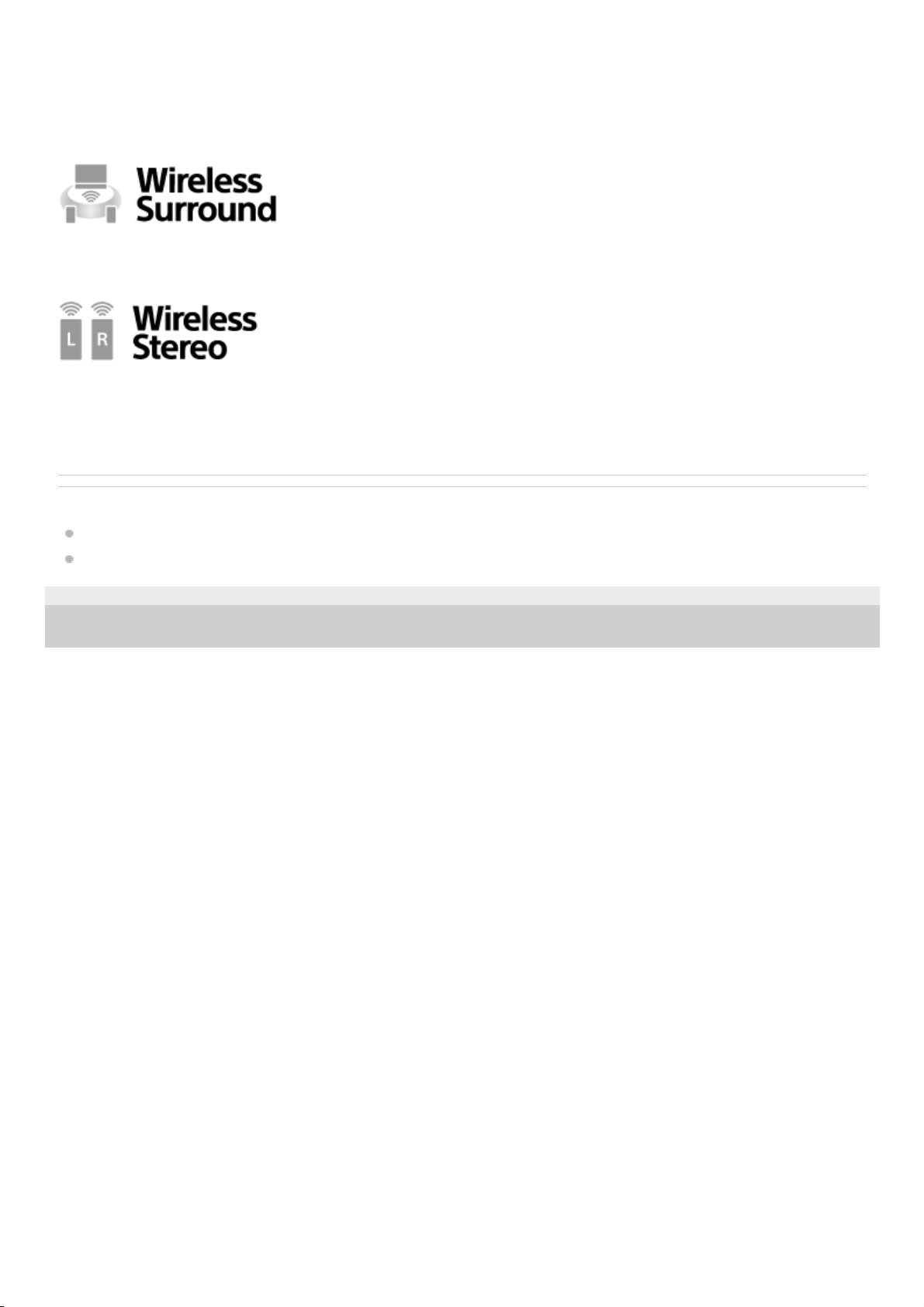
By grouping speakers, you can fill your rooms with same music simultaneously.
For music stored on a PC or NAS, you can also listen to different songs from each speaker.
You can set and save one favorite speaker group.
For more details on the Wireless Multi-room function (such as grouping and group playback), refer to the following URL.
http://www.sony.net/smcqa/
Enjoy even greater surround sound with additional speakers compatible with wireless surround function.
For more details, see “Using this speaker as a rear speaker (Wireless Surround).”
Pair two speakers together to create wider, stereo sound.
For more details, see “Connecting two speakers (Wireless Stereo).”
Related Topic
Using this speaker as a rear speaker (Wireless Surround)
Connecting two speakers (Wireless Stereo)
4-735-503-11(1) Copyright 2018 Sony Corporation
It is not recommended watching video by connecting a TV or game machine with Wireless Stereo function.
*
28
Page 29

Help Guide
Wireless Speaker
h.ear go 2 (SRS-HG10)
Connecting via a USB cable
Operate an application such as “Hi-Res Audio Player” to play back music.
This connection method is suitable for playing back high-resolution audio files.
Note
Use other music playback application such as “Sony | Music Center” to play back audio files which are not High-Resolution Audio
format.
4-735-503-11(1) Copyright 2018 Sony Corporation
Connecting a PC/Installing the dedicated driver1.
Installing “Hi-Res Audio Player” to a PC2.
Listening to music with “Hi-Res Audio Player”3.
29
Page 30
Help Guide
Wireless Speaker
h.ear go 2 (SRS-HG10)
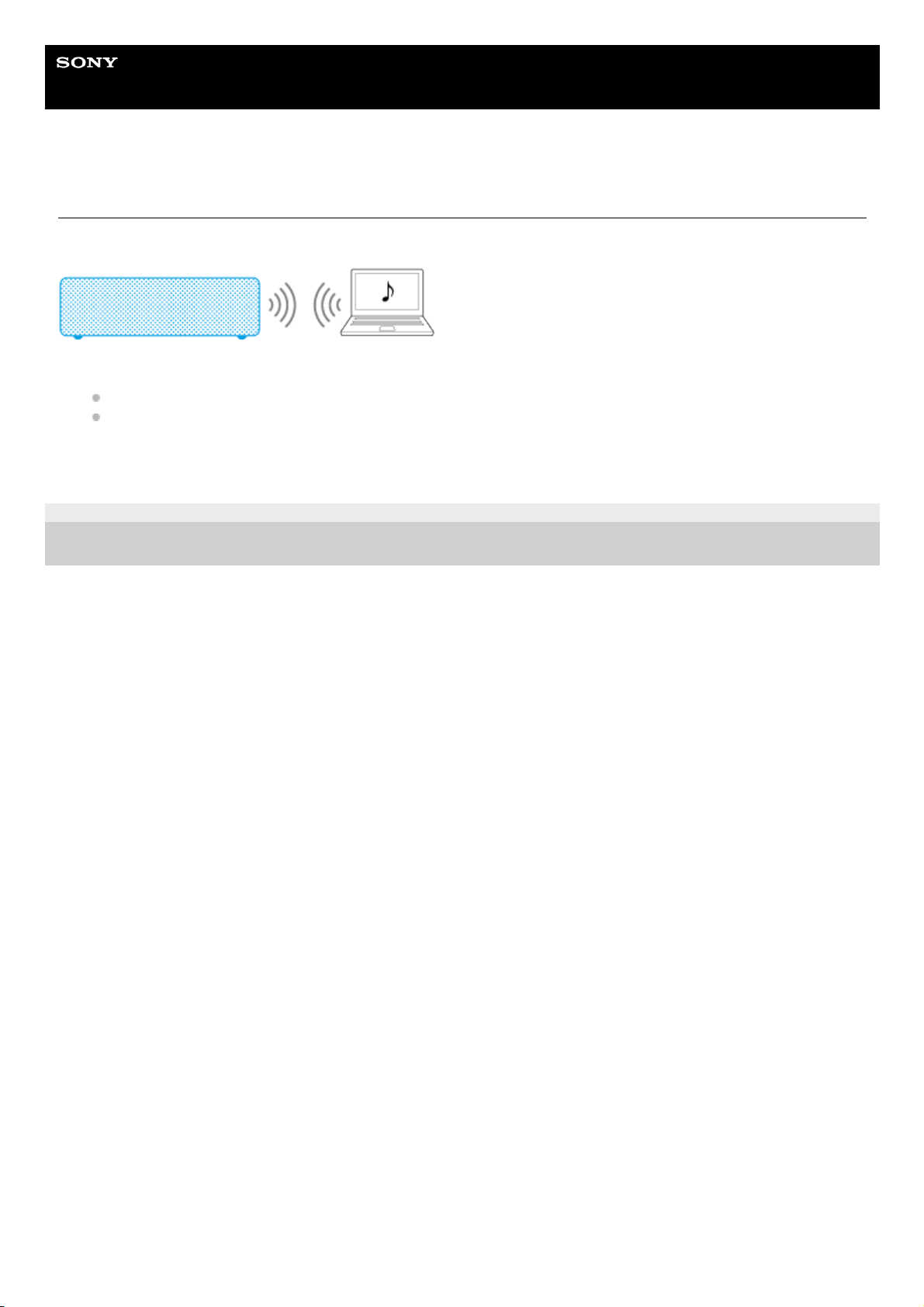
Making a wireless connection (BLUETOOTH connection)
Confirm that your PC is equipped with the BLUETOOTH function.
4-735-503-11(1) Copyright 2018 Sony Corporation
Making a BLUETOOTH connection between your PC and the speaker by using either of the following methods
Pairing a device to connect to the speaker for the first time (Windows 10)/(Windows 8.1)/(Windows 7)
Connecting a paired PC and the speaker (Windows 10)/(Windows 8.1)/(Windows 7)
1.
Listening to music on a device via a BLUETOOTH connection2.
30
Page 31
Help Guide
Wireless Speaker
h.ear go 2 (SRS-HG10)
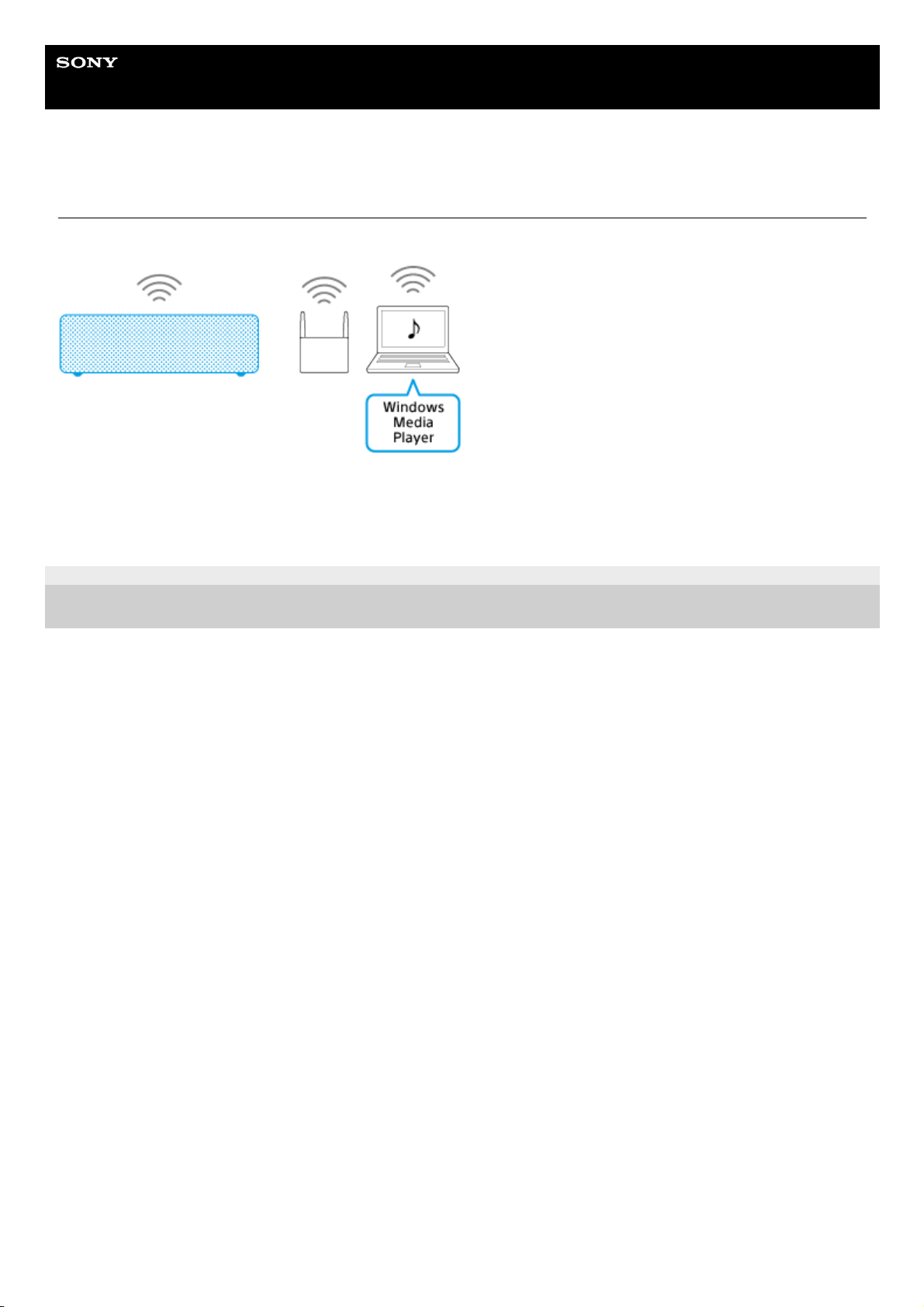
Using “Windows Media Player” (Windows 7 or later)
Operate “Windows Media Player” on your PC to listen to music from the speaker via a Wi-Fi network.
4-735-503-11(1) Copyright 2018 Sony Corporation
Connecting to a Wi-Fi network1.
Setting your PC as a DLNA server and controller (Windows 10)/(Windows 8.1)/(Windows 7)2.
Listening to music on a PC via a network (“Windows Media Player”)3.
31
Page 32

Help Guide
Wireless Speaker
h.ear go 2 (SRS-HG10)
Using other music playback software
If you want to use the server function to listen to the music files stored on your PC from the speaker via a network, move
or copy music files to the library of “Hi-Res Audio Player.”
Note
If you want to use a music playback software other than “Hi-Res Audio Player,” make a BLUETOOTH connection with a PC.
4-735-503-11(1) Copyright 2018 Sony Corporation
32
Page 33
Help Guide
Wireless Speaker
h.ear go 2 (SRS-HG10)
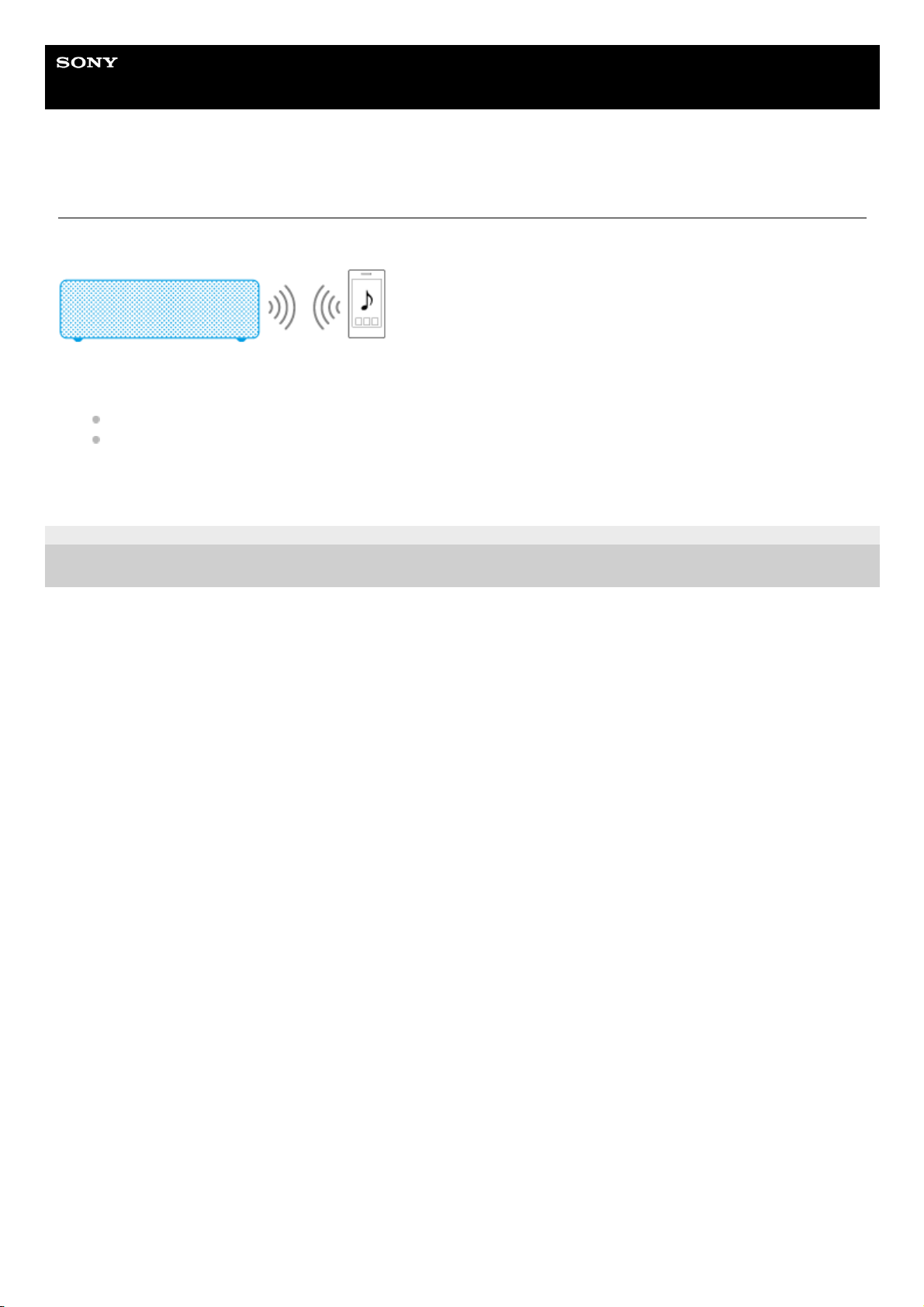
Making a wireless connection (BLUETOOTH connection)
Confirm that your smartphone is equipped with the BLUETOOTH function.
4-735-503-11(1) Copyright 2018 Sony Corporation
Making a BLUETOOTH connection between your smartphone and the speaker by using either of the following
methods
Pairing and connecting with a BLUETOOTH device (Android)/(Other devices)/(NFC-compatible device)
Connecting with a paired BLUETOOTH device
1.
Listening to music on a device via a BLUETOOTH connection2.
33
Page 34
Help Guide
Wireless Speaker
h.ear go 2 (SRS-HG10)
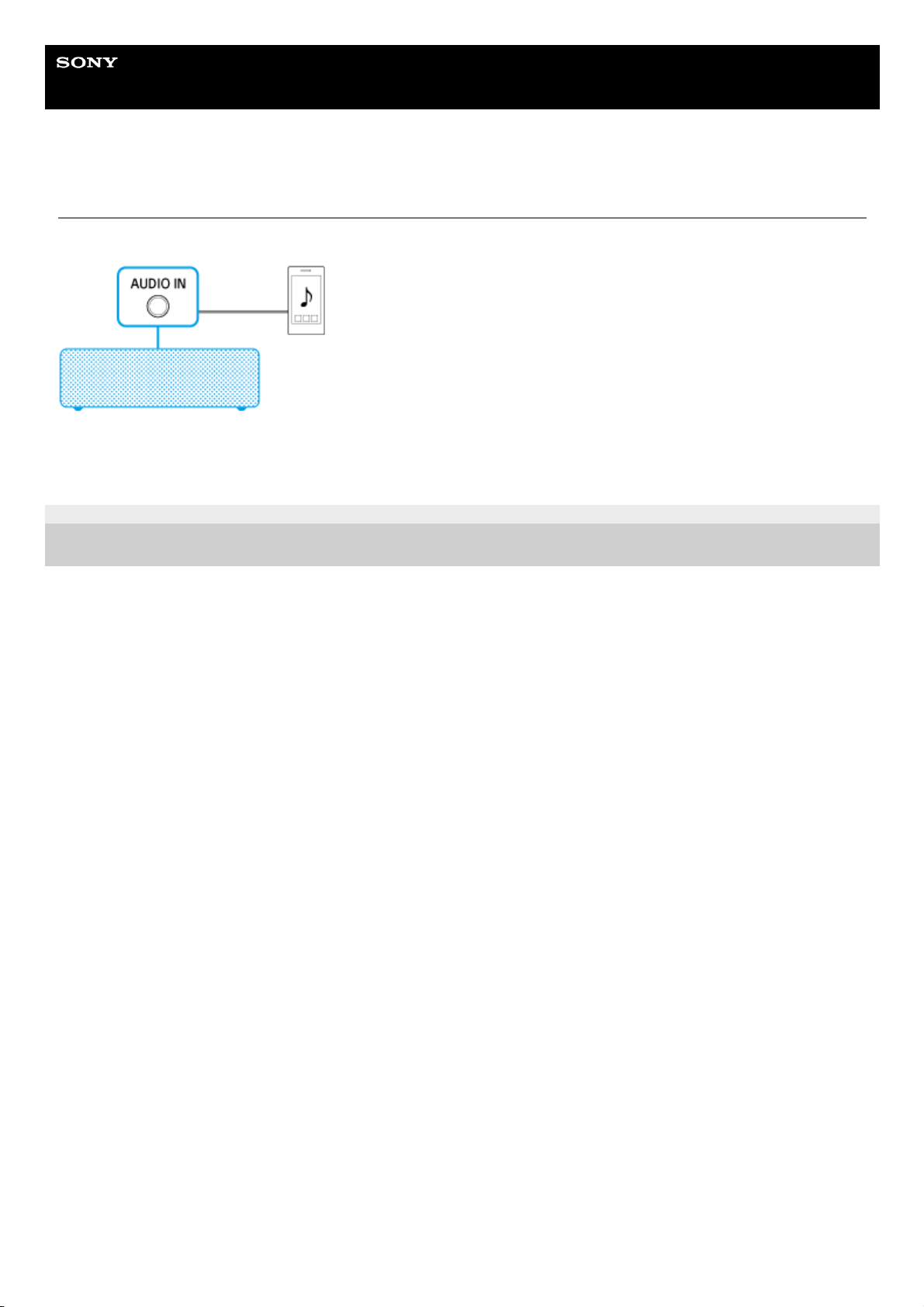
Connecting via an audio cable (with stereo mini plugs/no resistance)
A commercially-available audio cable (with stereo mini plugs/no resistance) is required.
4-735-503-11(1) Copyright 2018 Sony Corporation
Connecting a smartphone1.
Listening to music on a portable audio device, etc.2.
34
Page 35
Help Guide
Wireless Speaker
h.ear go 2 (SRS-HG10)
Using “Sony | Music Center”
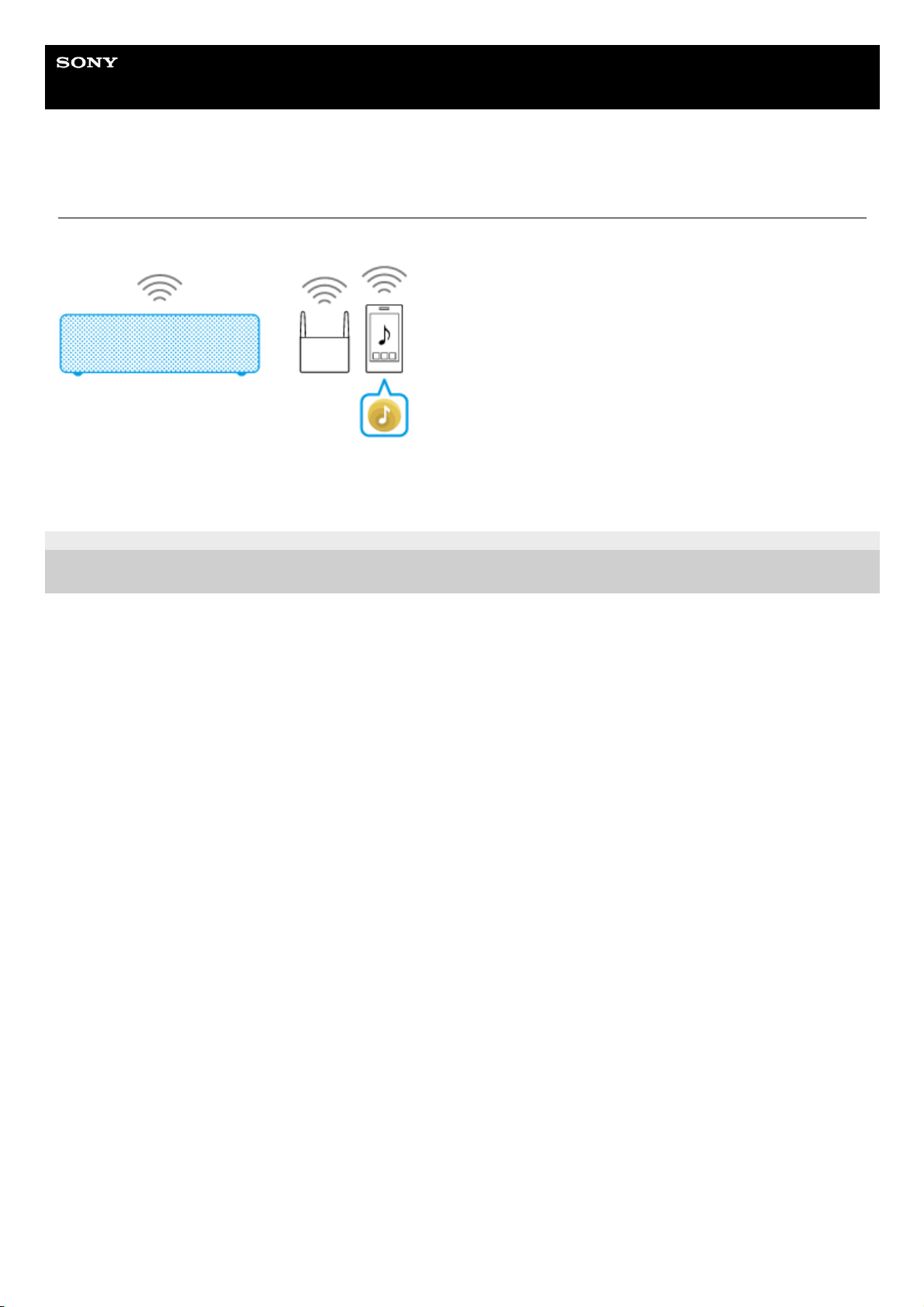
Use your smartphone, iPhone, etc. with “Sony | Music Center” installed.
4-735-503-11(1) Copyright 2018 Sony Corporation
Wi-Fi network connection (“Sony | Music Center”)1.
Listening to music on a device connected to the home network(“Sony | Music Center”)2.
35
Page 36
Help Guide
Wireless Speaker
h.ear go 2 (SRS-HG10)
Connecting via a USB cable
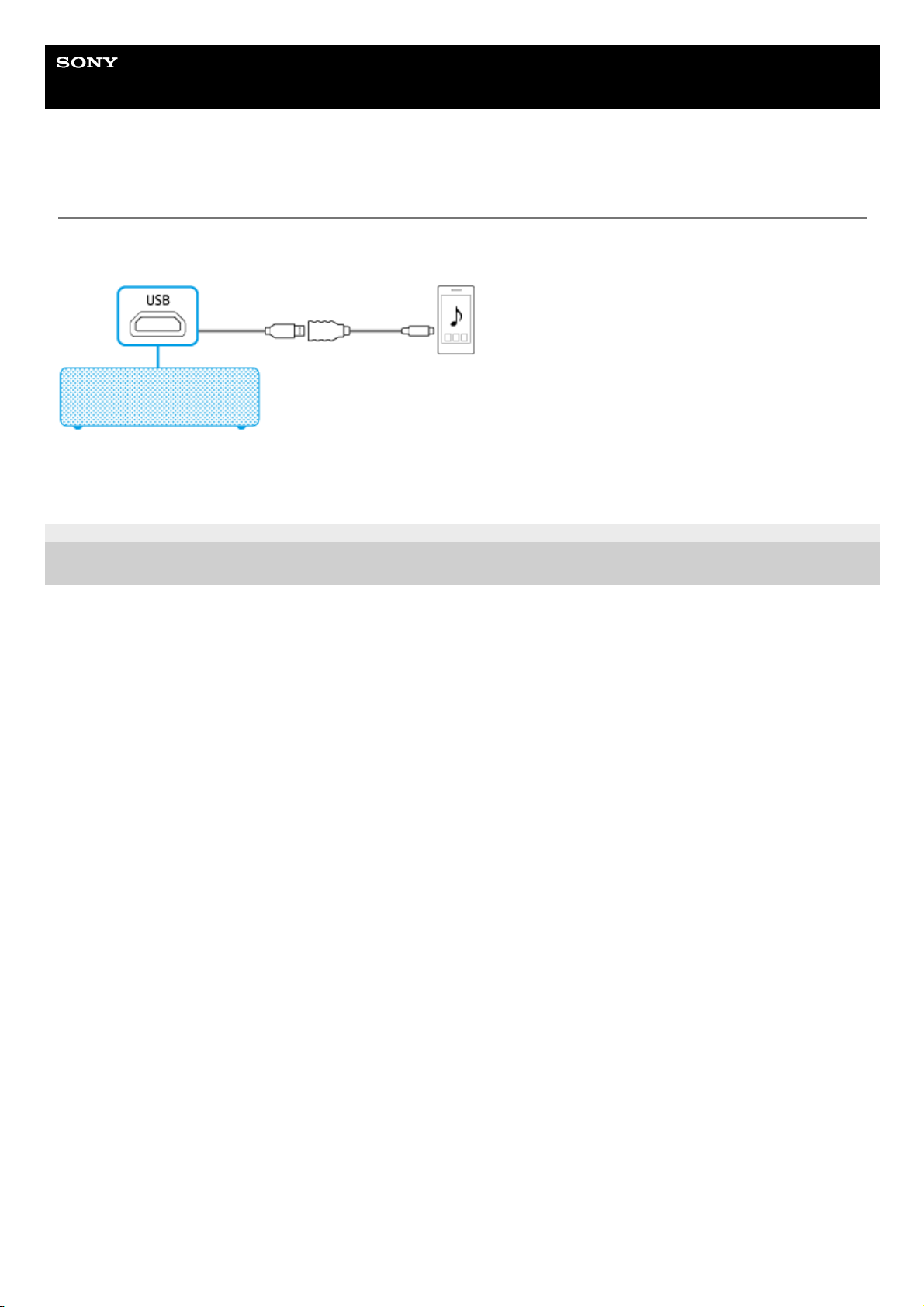
A commercially-available adapter cable (OTG cable) is required.
This connection method is suitable for playing back high-resolution audio files.
4-735-503-11(1) Copyright 2018 Sony Corporation
Connecting an Xperia compatible with High-Resolution Audio formats1.
Listening to music on an Xperia compatible with High-Resolution Audio formats2.
36
Page 37
Help Guide
Wireless Speaker
h.ear go 2 (SRS-HG10)
Making a wireless connection (BLUETOOTH connection)
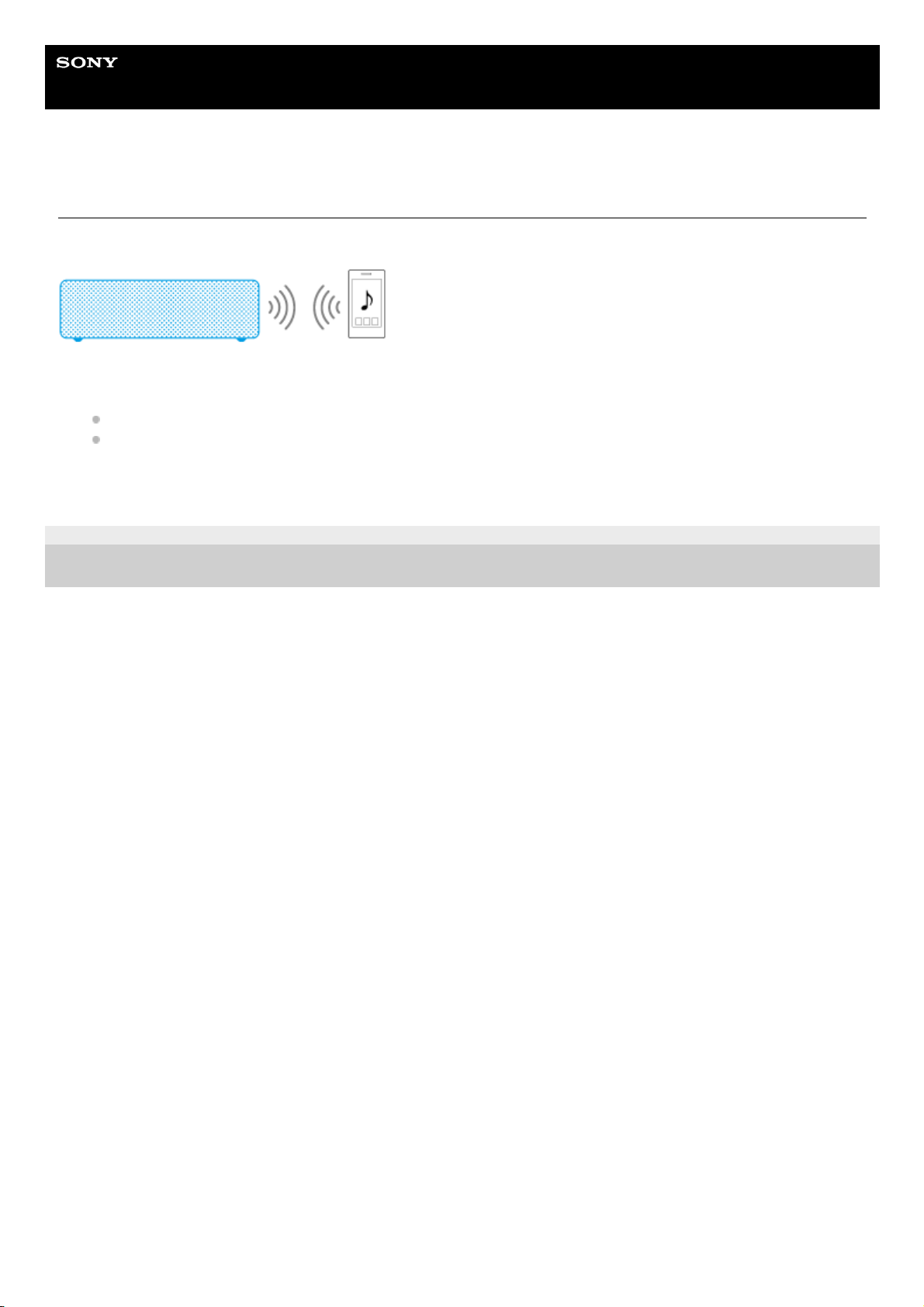
Confirm that your smartphone is equipped with the BLUETOOTH function.
4-735-503-11(1) Copyright 2018 Sony Corporation
Making a BLUETOOTH connection between your smartphone and the speaker by using either of the following
methods
Pairing and connecting with a BLUETOOTH device (Android)/(Other devices)/(NFC-compatible device)
Connecting with a paired BLUETOOTH device
1.
Listening to music on a device via a BLUETOOTH connection2.
37
Page 38
Help Guide
Wireless Speaker
h.ear go 2 (SRS-HG10)
Connecting via an audio cable (with stereo mini plugs/no resistance)
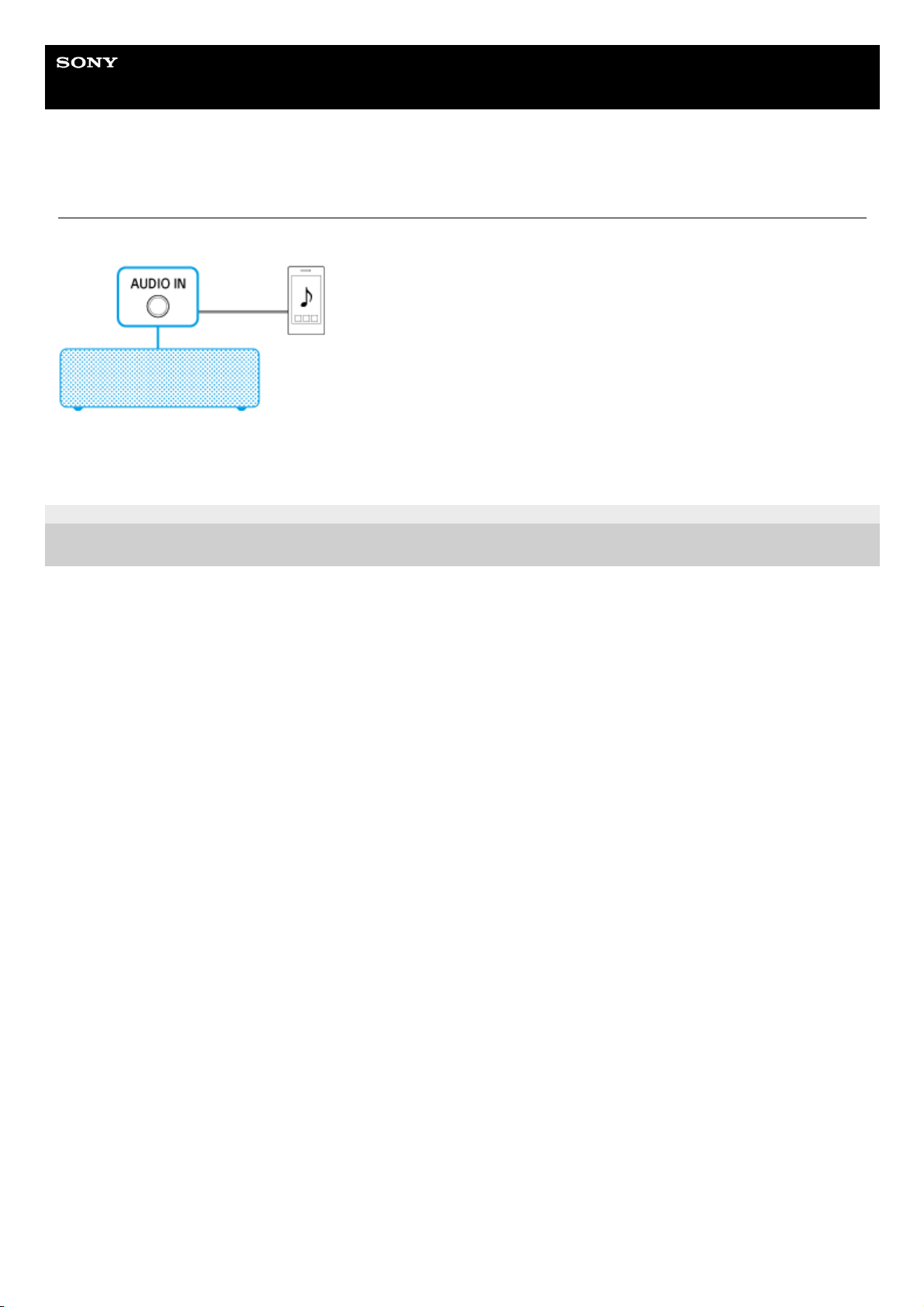
A commercially-available audio cable (with stereo mini plugs/no resistance) is required.
4-735-503-11(1) Copyright 2018 Sony Corporation
Connecting a smartphone1.
Listening to music on a portable audio device, etc.2.
38
Page 39
Help Guide
Wireless Speaker
h.ear go 2 (SRS-HG10)
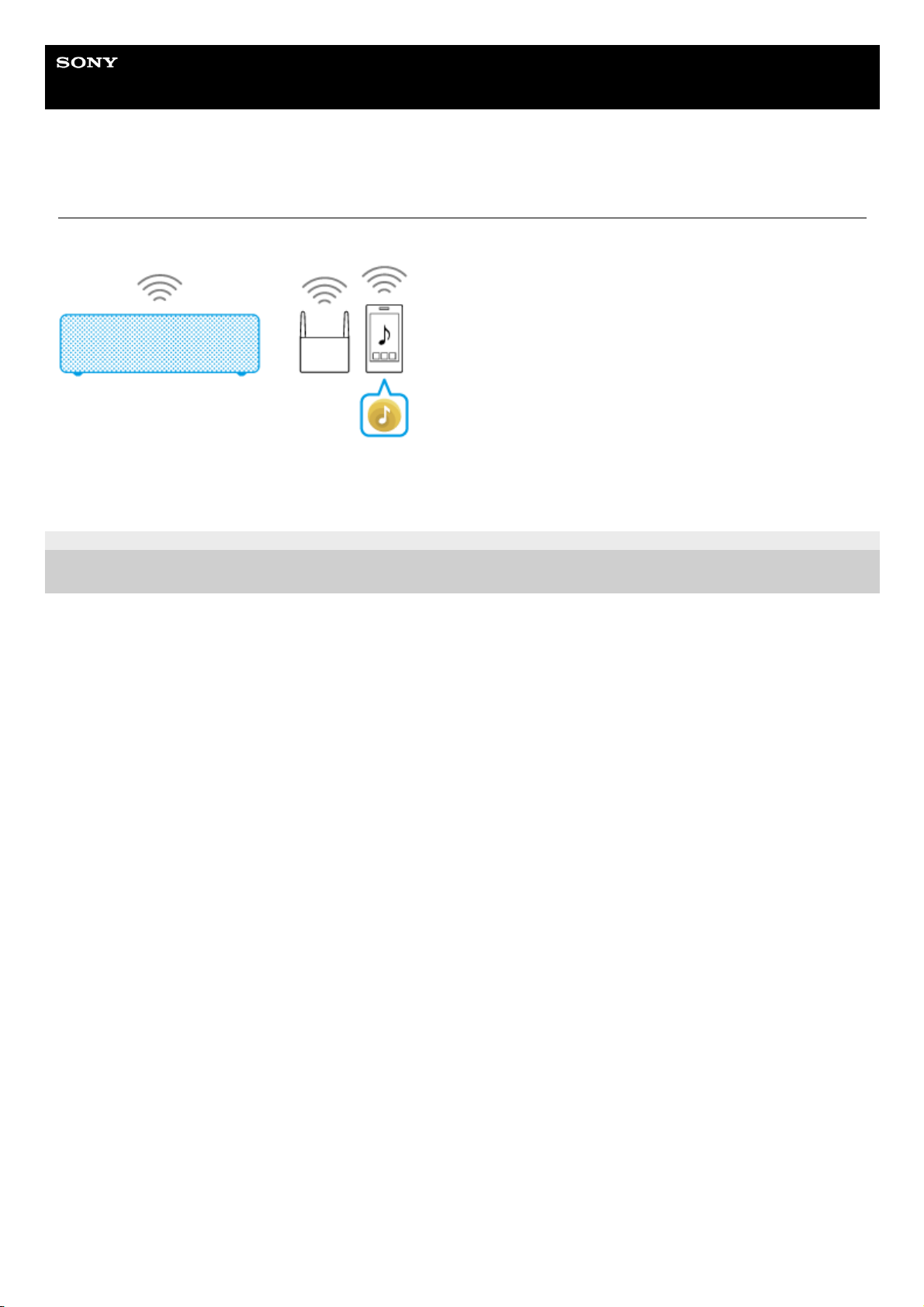
Using “Sony | Music Center”
Use your smartphone, iPhone, etc. with “Sony | Music Center” installed.
4-735-503-11(1) Copyright 2018 Sony Corporation
Wi-Fi network connection (“Sony | Music Center”)1.
Listening to music on a device connected to the home network(“Sony | Music Center”)2.
39
Page 40
Help Guide
Wireless Speaker
h.ear go 2 (SRS-HG10)
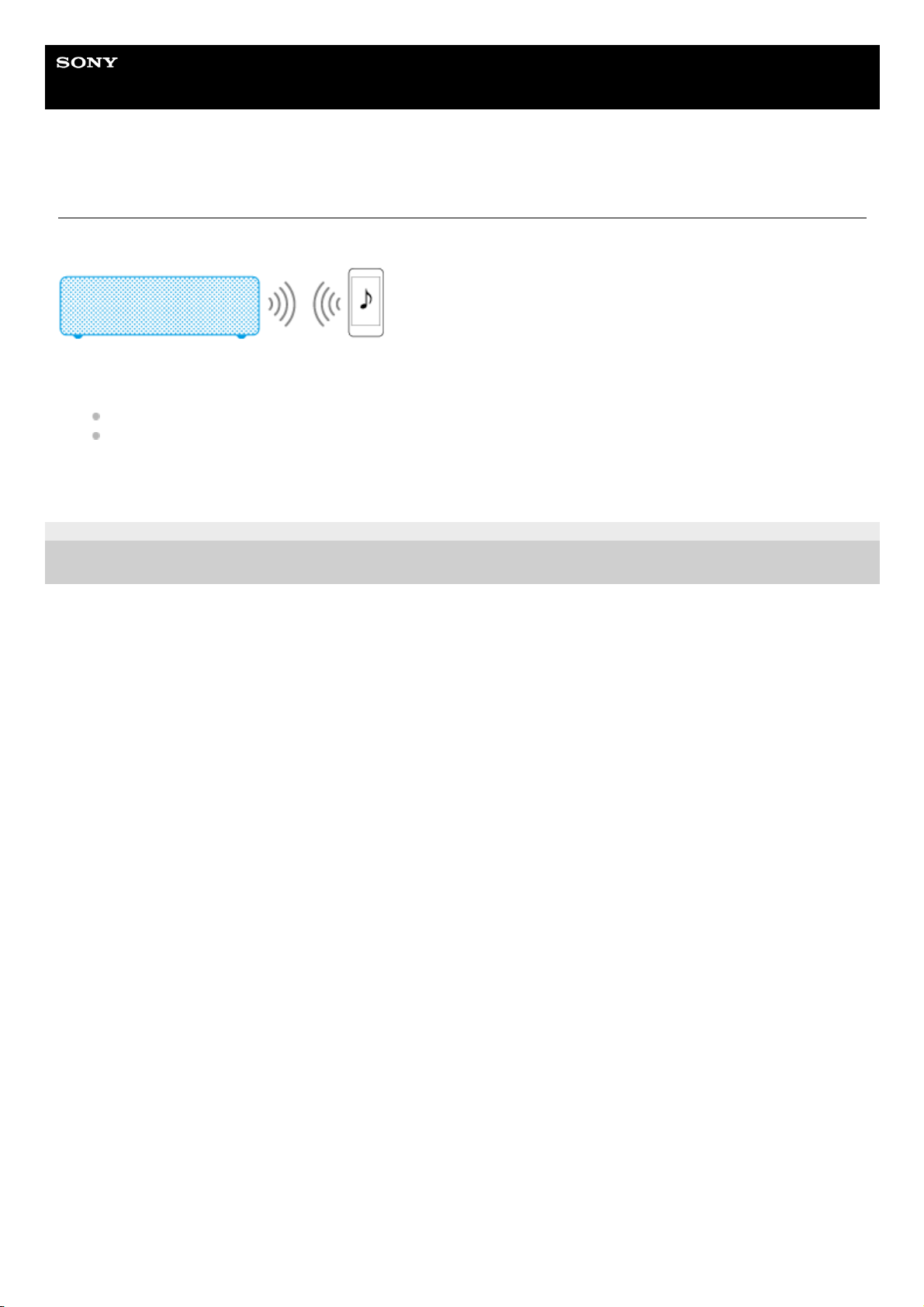
Making a wireless connection (BLUETOOTH connection)
Check whether your iPhone/iPod touch is equipped with the BLUETOOTH function.
4-735-503-11(1) Copyright 2018 Sony Corporation
Making a BLUETOOTH connection between your iPhone/iPod touch and the speaker by using either of the following
methods
Pairing iPhone/iPod touch to connect to the speaker for the first time
Connecting a paired iPhone/iPod touch and the speaker
1.
Listening to music on a device via a BLUETOOTH connection2.
40
Page 41
Help Guide
Wireless Speaker
h.ear go 2 (SRS-HG10)
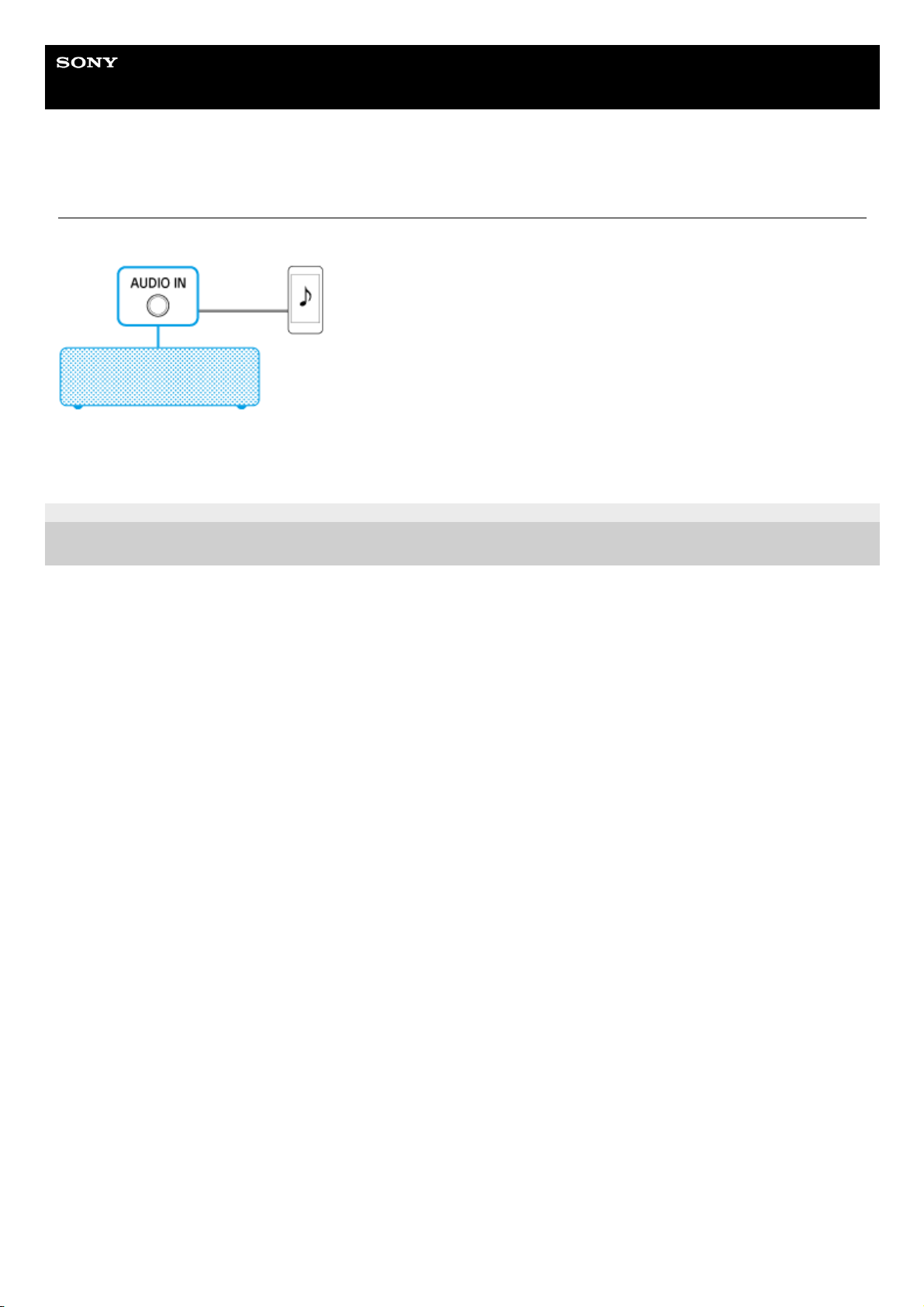
Connecting via an audio cable (with stereo mini plugs/no resistance)
A commercially-available audio cable (with stereo mini plugs/no resistance) is required.
4-735-503-11(1) Copyright 2018 Sony Corporation
Connecting an iPhone/iPod touch1.
Listening to music on a portable audio device, etc.2.
41
Page 42
Help Guide
Wireless Speaker
h.ear go 2 (SRS-HG10)
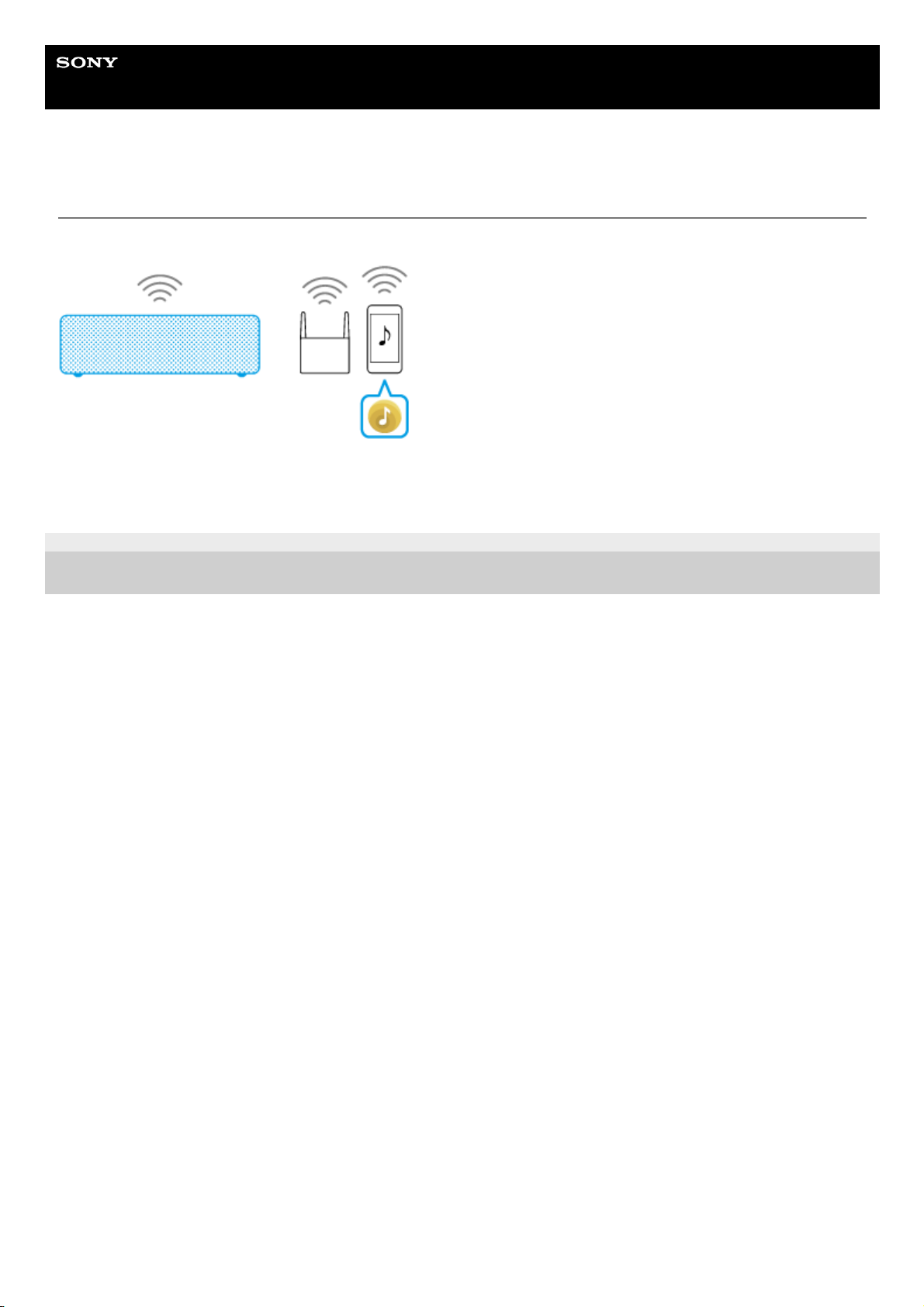
Using “Sony | Music Center”
Use your iPhone/iPod touch with “Sony | Music Center” installed.
4-735-503-11(1) Copyright 2018 Sony Corporation
Wi-Fi network connection (“Sony | Music Center”)1.
Listening to music on a device connected to the home network(“Sony | Music Center”)2.
42
Page 43
Help Guide
Wireless Speaker
h.ear go 2 (SRS-HG10)
Making a wireless connection (BLUETOOTH connection)
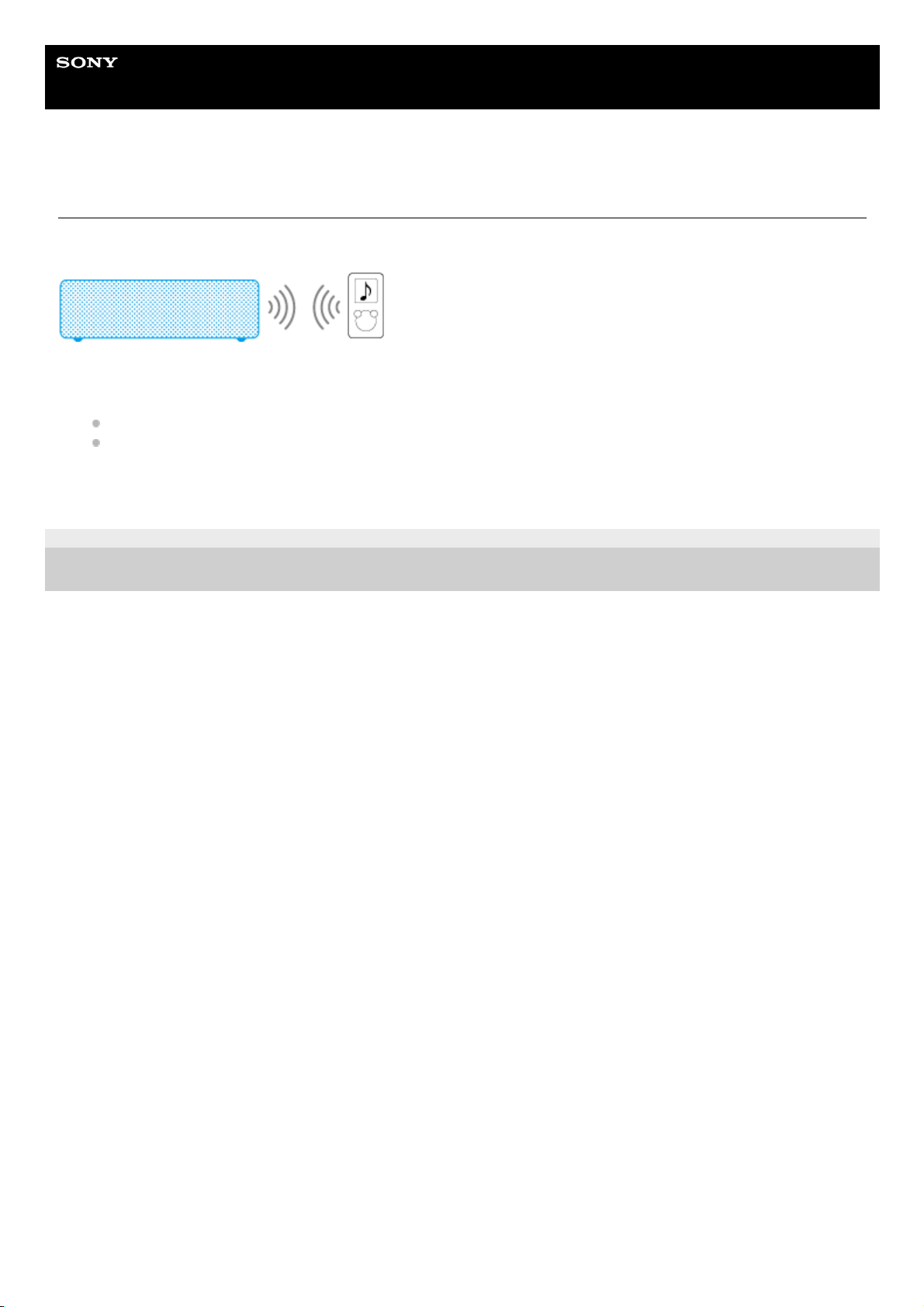
Confirm that your WALKMAN® is equipped with the BLUETOOTH function.
4-735-503-11(1) Copyright 2018 Sony Corporation
Making a BLUETOOTH connection between your WALKMAN® and the speaker by using either of the following
methods
Pairing and connecting with a BLUETOOTH device
Connecting with a paired BLUETOOTH device
1.
Listening to music on a device via a BLUETOOTH connection2.
43
Page 44
Help Guide
Wireless Speaker
h.ear go 2 (SRS-HG10)
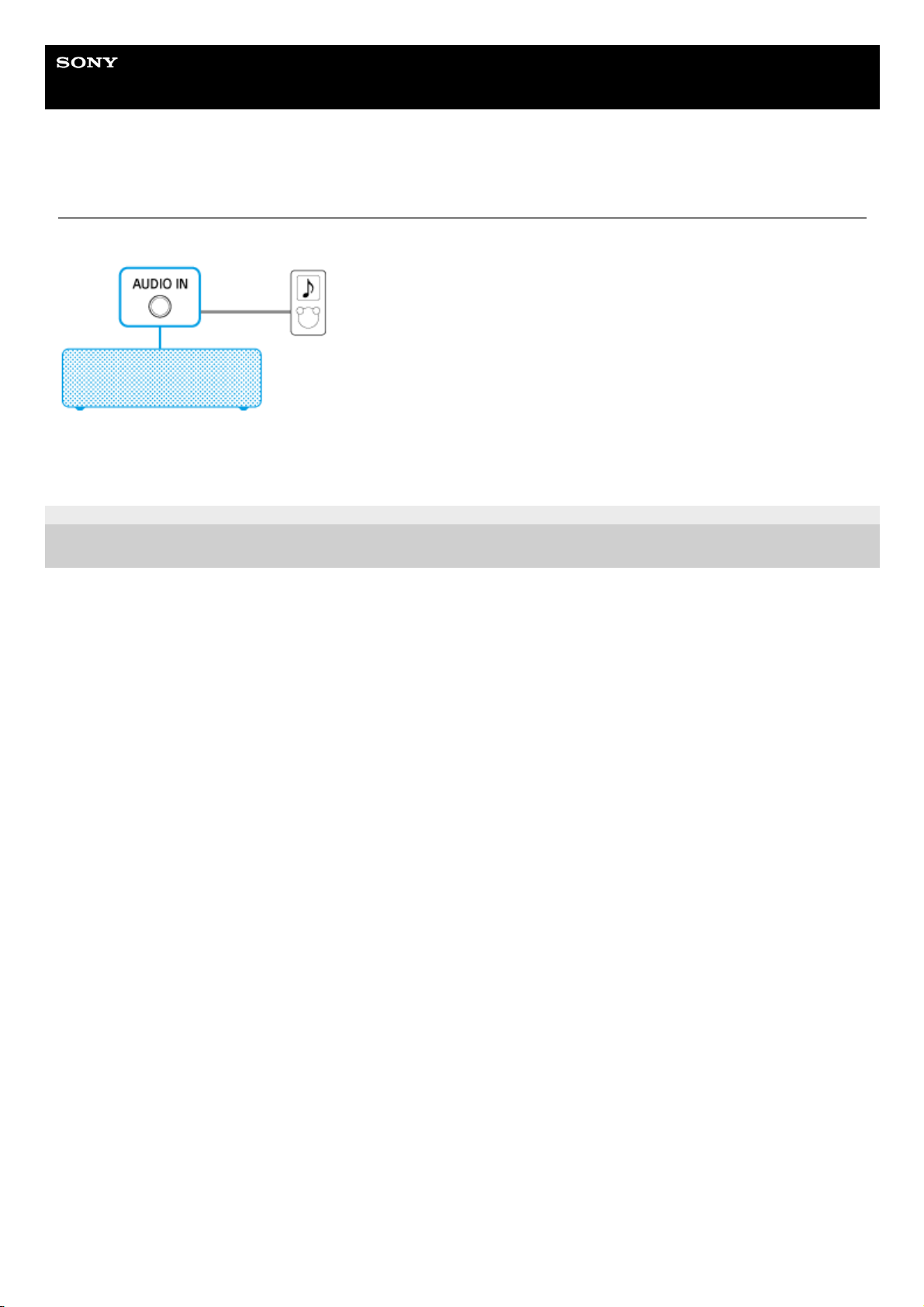
Connecting via an audio cable (with stereo mini plugs/no resistance)
A commercially-available audio cable (with stereo mini plugs/no resistance) is required.
4-735-503-11(1) Copyright 2018 Sony Corporation
Connecting to a portable audio device, etc.1.
Listening to music on a portable audio device, etc.2.
44
Page 45
Help Guide
Wireless Speaker
h.ear go 2 (SRS-HG10)
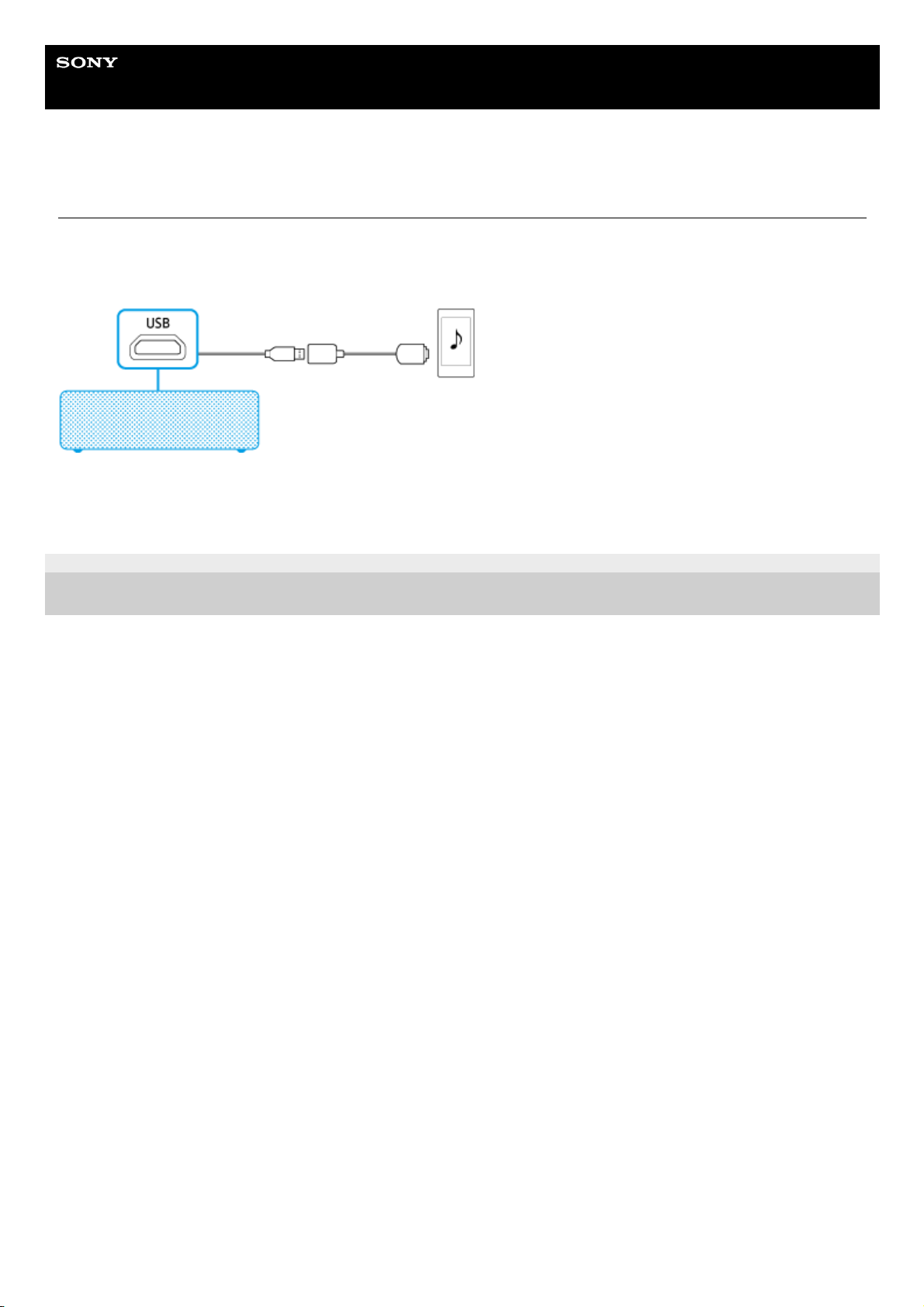
Connecting via a USB cable
An optional High-Resolution Audio USB Adaptor WM-PORT cable* is required.
This connection method is suitable for playing back high-resolution audio files.
4-735-503-11(1) Copyright 2018 Sony Corporation
Optional High-Resolution Audio USB Adaptor WM-PORT cable can be ordered from your nearest Sony Service Center.
*
Connecting a WALKMAN® compatible with High-Resolution Audio formats
1.
Listening to music on a WALKMAN® compatible with High-Resolution Audio formats
2.
45
Page 46
Help Guide
Wireless Speaker
h.ear go 2 (SRS-HG10)
Making a wireless connection (BLUETOOTH connection)
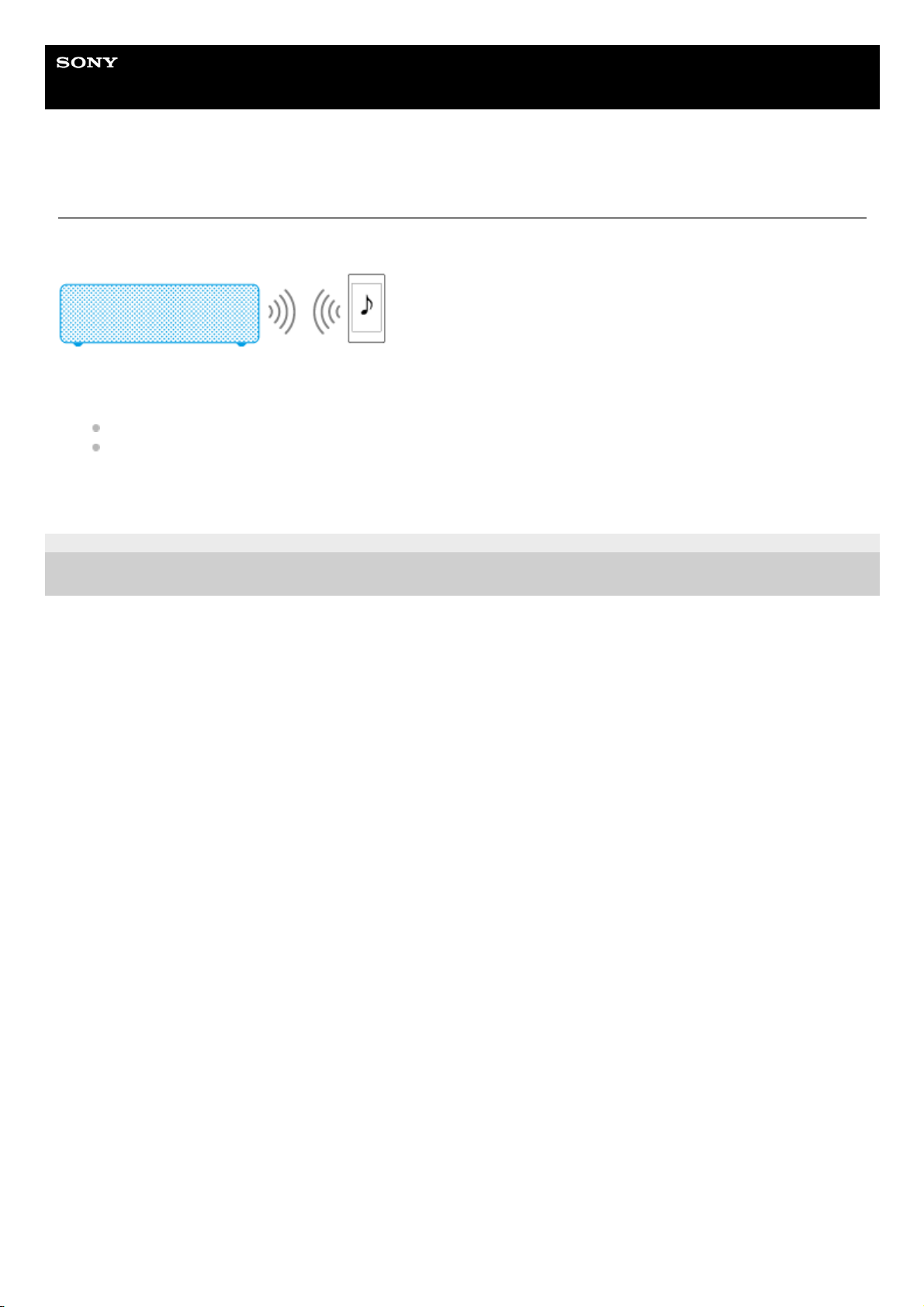
Confirm that your WALKMAN® is equipped with the BLUETOOTH function.
4-735-503-11(1) Copyright 2018 Sony Corporation
Making a BLUETOOTH connection between your WALKMAN® and the speaker by using either of the following
methods
Pairing and connecting with a BLUETOOTH device
Connecting with a paired BLUETOOTH device
1.
Listening to music on a device via a BLUETOOTH connection2.
46
Page 47
Help Guide
Wireless Speaker
h.ear go 2 (SRS-HG10)
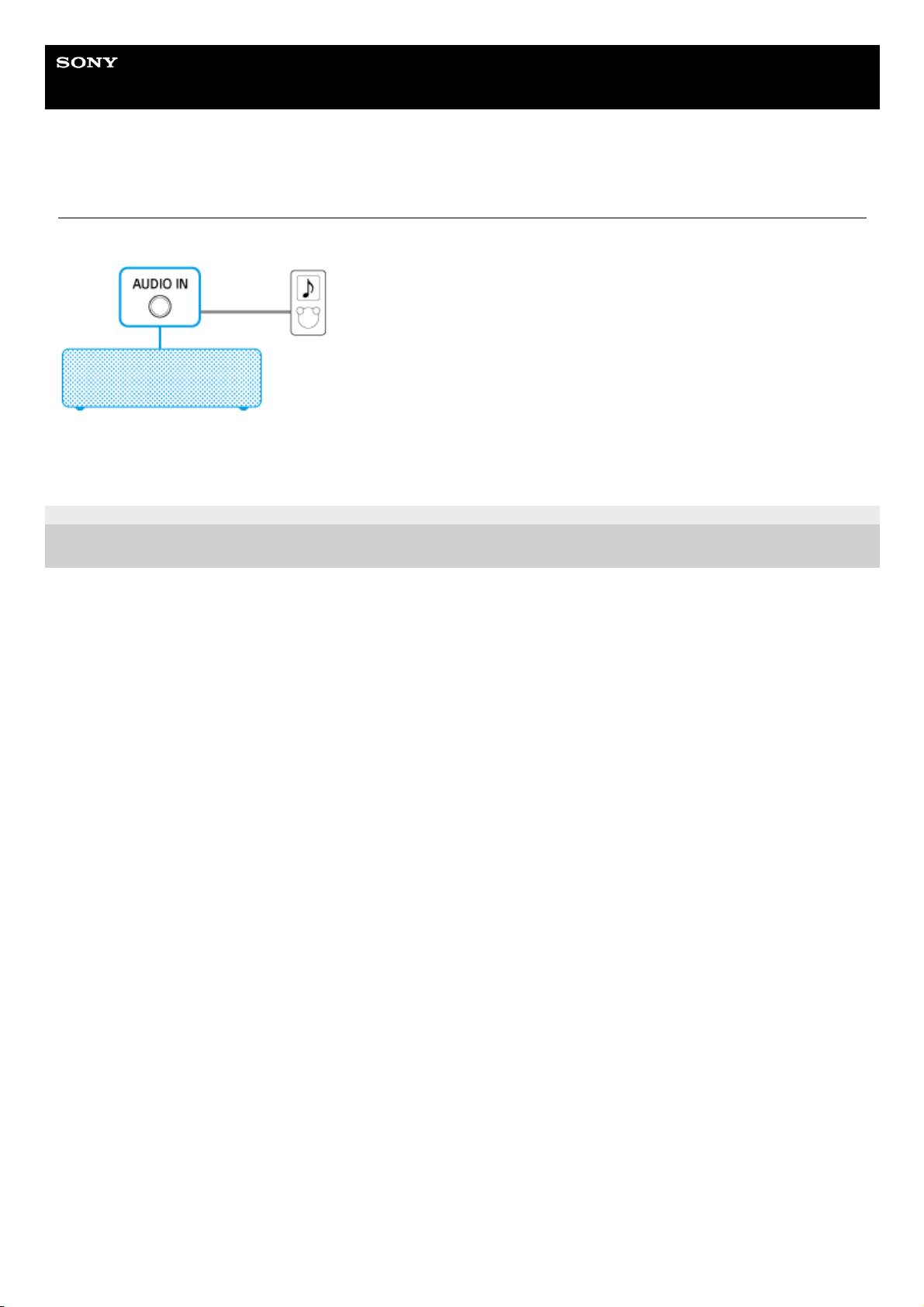
Connecting via an audio cable (with stereo mini plugs/no resistance)
A commercially-available audio cable (with stereo mini plugs/no resistance) is required.
4-735-503-11(1) Copyright 2018 Sony Corporation
Connecting to a portable audio device, etc.1.
Listening to music on a portable audio device, etc.2.
47
Page 48
Help Guide
Wireless Speaker
h.ear go 2 (SRS-HG10)
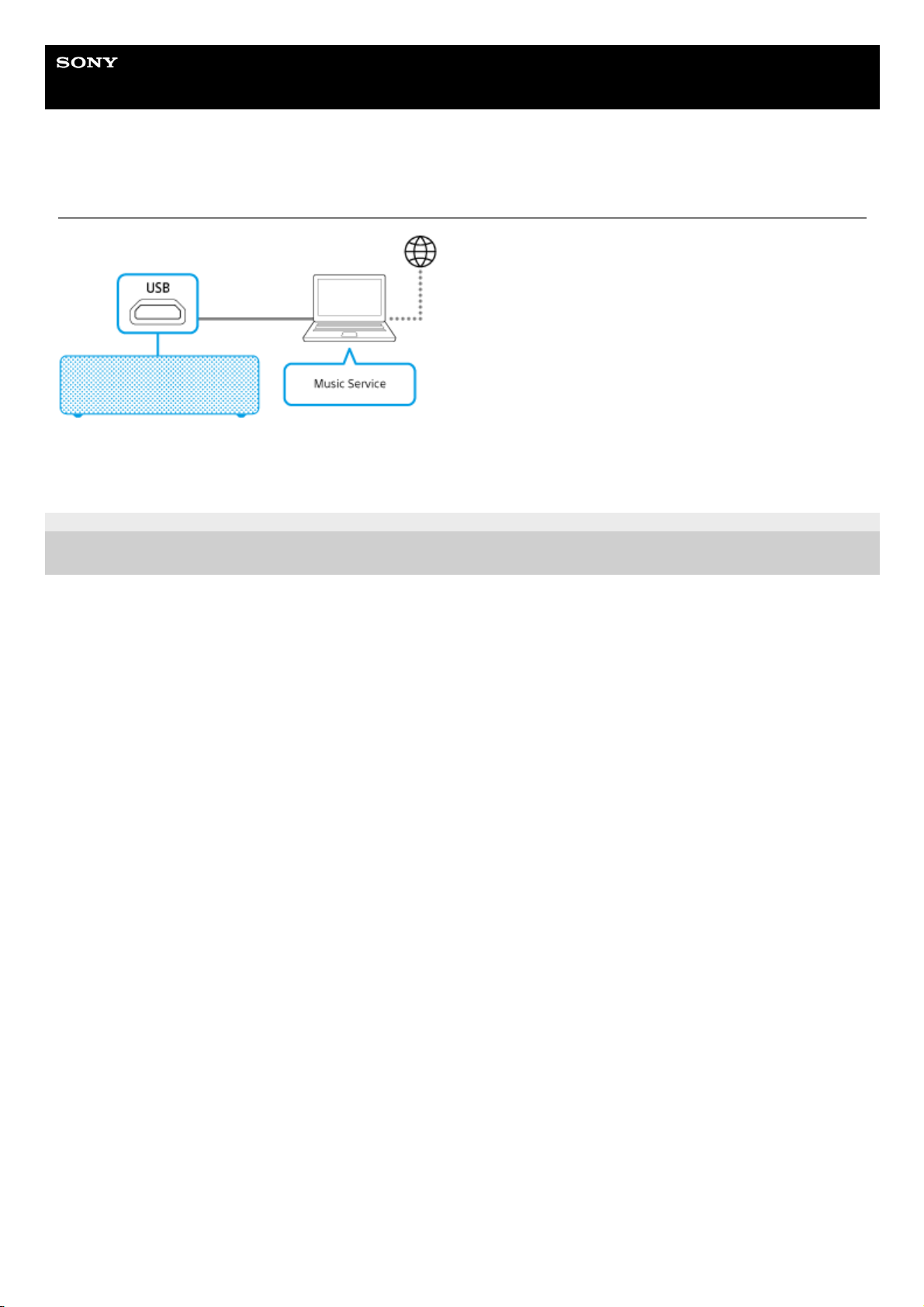
Connecting via a USB cable
4-735-503-11(1) Copyright 2018 Sony Corporation
Connecting a PC/Installing the dedicated driver1.
Receiving music services on your PC2.
48
Page 49
Help Guide
Wireless Speaker
h.ear go 2 (SRS-HG10)
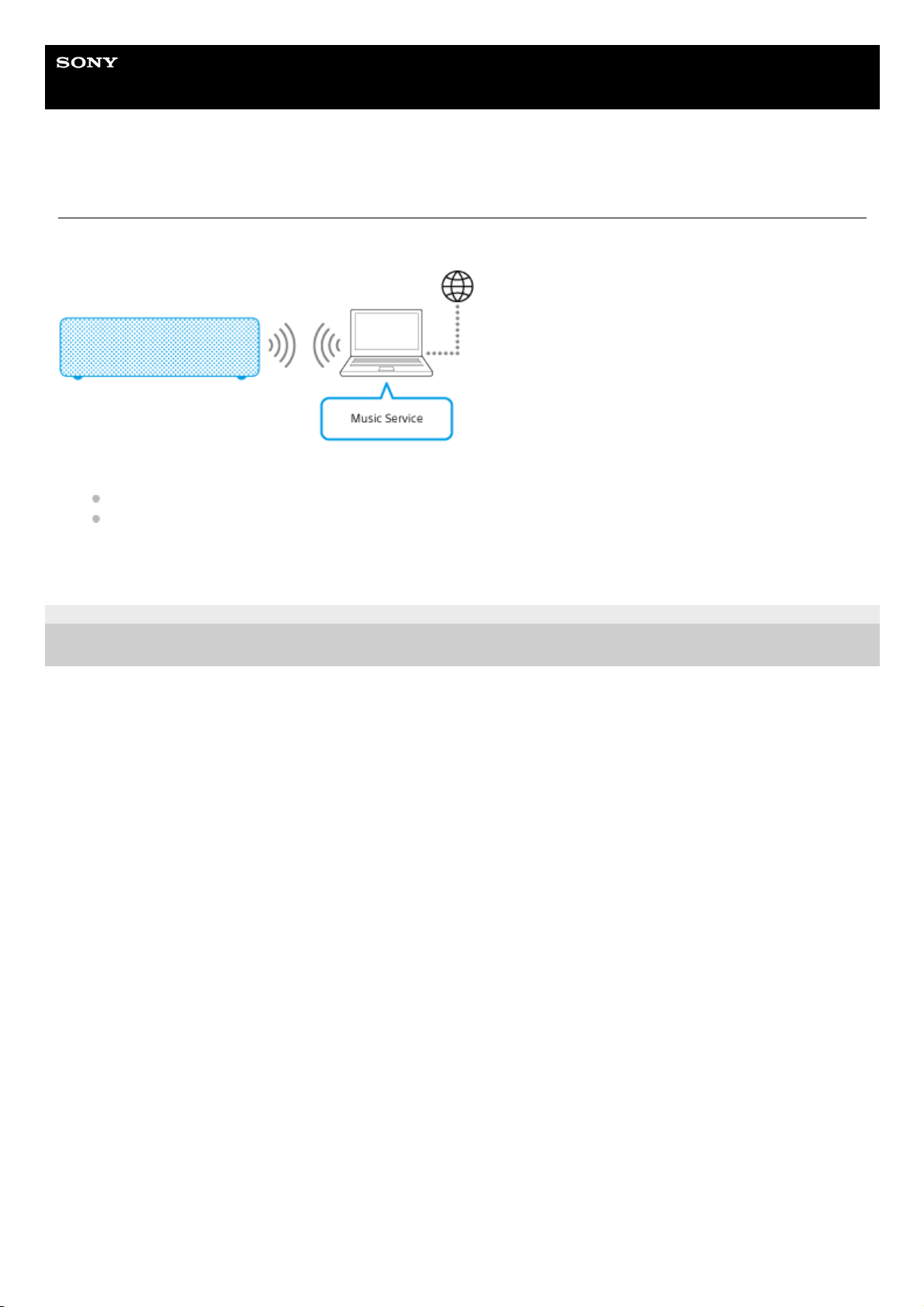
Making a wireless connection (BLUETOOTH connection)
Confirm that your PC is equipped with the BLUETOOTH function.
4-735-503-11(1) Copyright 2018 Sony Corporation
Making a BLUETOOTH connection between your PC and the speaker by using either of the following methods
Pairing a device to connect to the speaker for the first time (Windows 10)/(Windows 8.1)/(Windows 7)
Connecting a paired PC and the speaker (Windows 10)/(Windows 8.1)/(Windows 7)
1.
Receiving music services on your PC2.
49
Page 50
Help Guide
Wireless Speaker
h.ear go 2 (SRS-HG10)
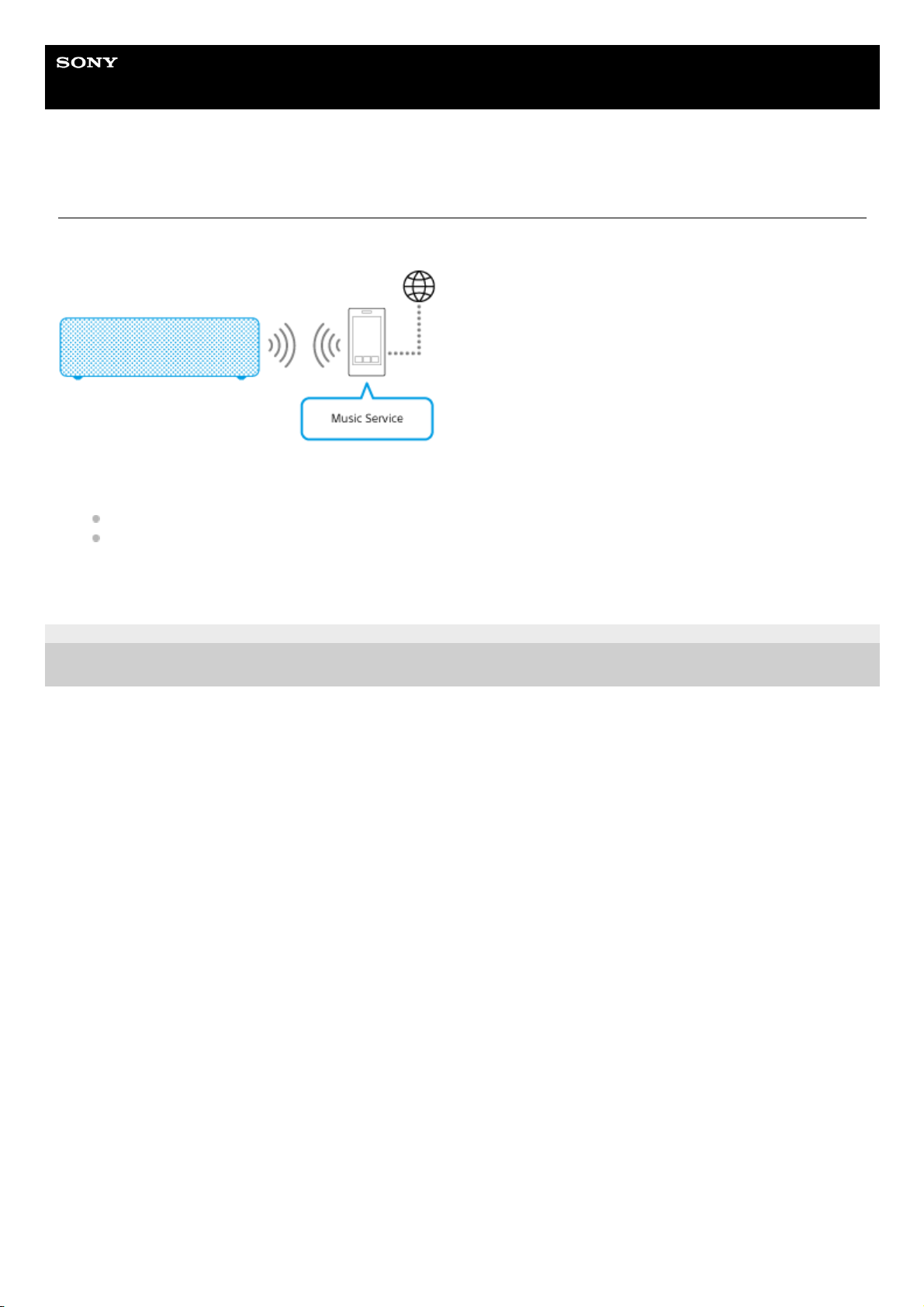
Making a wireless connection (BLUETOOTH connection)
Make sure whether your smartphone, iPhone, etc. is equipped with the BLUETOOTH function.
4-735-503-11(1) Copyright 2018 Sony Corporation
Making a BLUETOOTH connection between your smartphone or iPhone, etc. and the speaker by using either of the
following methods
Pairing and connecting with a BLUETOOTH device
Connecting with a paired BLUETOOTH device
1.
Receiving music services on the smartphone, iPhone, etc.2.
50
Page 51
Help Guide
Wireless Speaker
h.ear go 2 (SRS-HG10)
Using “Sony | Music Center” (Chromecast built-in)
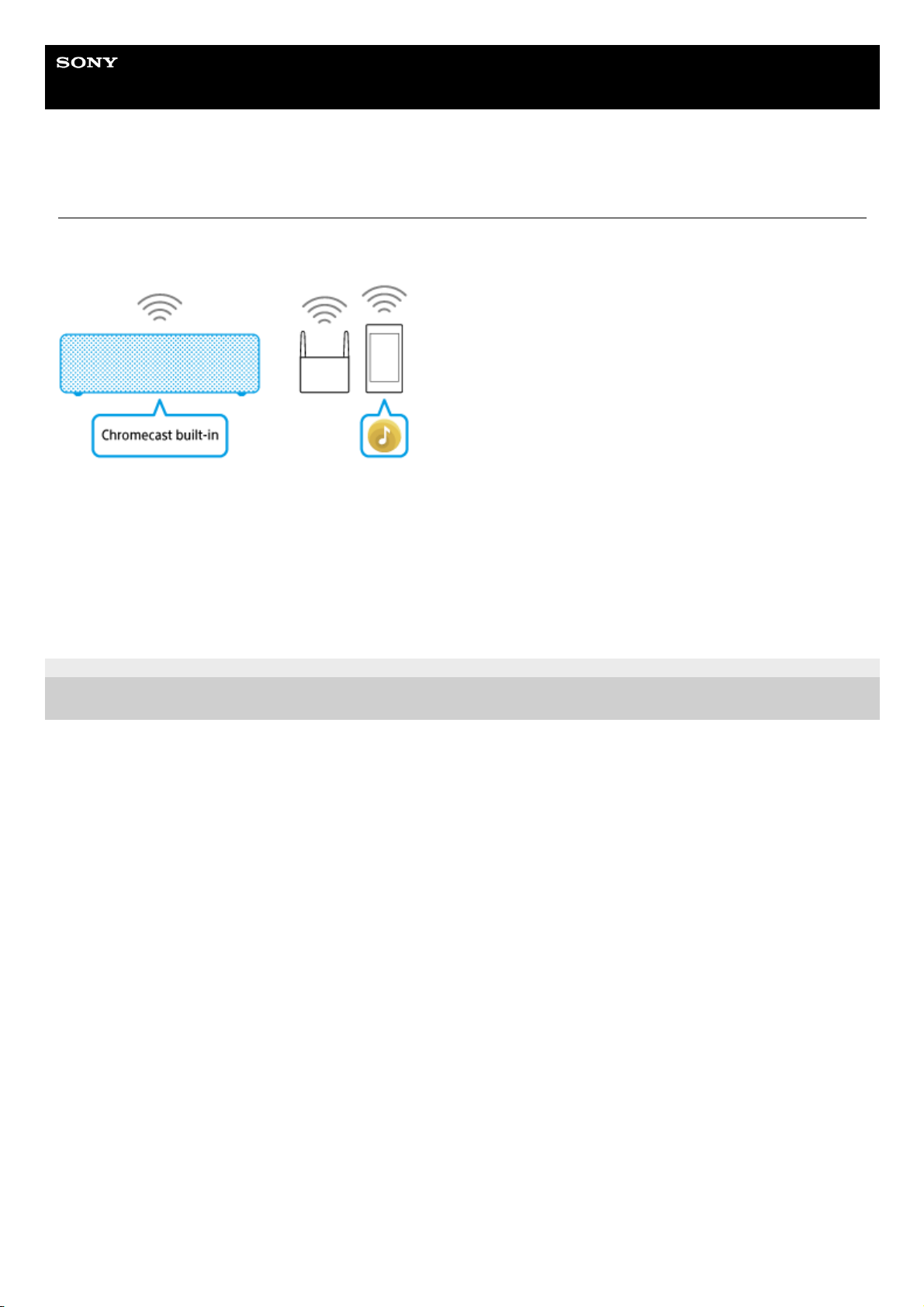
A smartphone, iPhone, etc. with “Sony | Music Center” installed is required.
You can listen to music services from the speaker via a Chromecast built-in-enabled app.
Refer also to the “Sony | Music Center” support website.
http://www.sony.net/smcqa/
4-735-503-11(1) Copyright 2018 Sony Corporation
Wi-Fi network connection (“Sony | Music Center”)1.
Listening to music on a device connected to the home network(“Sony | Music Center”)
See “Listening to Internet music services.”
2.
Receiving music services on the smartphone, iPhone, etc.3.
51
Page 52
Help Guide
Wireless Speaker
h.ear go 2 (SRS-HG10)
Selecting the Wi-Fi network connection method
Select the appropriate connection method for your network environment from below. Do the following before starting.
Check that the Wi-Fi network function is turned on.
If the NETWORK indicator flashes continuously when changing the speaker to the NETWORK mode, turn on the WiFi network function.
Place the speaker closer to the wireless router.
Connecting to a Wi-Fi network using “Sony | Music Center”
Download “Sony | Music Center” to your smartphone, iPhone, etc. This application provides Wi-Fi connection setup with
the speaker, and allows you to select/play music in a DLNA server (such as a PC).
For details, see “Wi-Fi network connection (“Sony | Music Center”).”
Connecting to a Wi-Fi network using the Wi-Fi Protected Setup (WPS) button of the wireless
router
If your wireless router has a Wi-Fi Protected Setup (WPS) button, connect to the Wi-Fi network by this method.
To check if your wireless router is compatible with Wi-Fi Protected Setup (WPS), refer to the operating instructions of
your router.
For details, see “Connecting to a Wi-Fi network using the Wi-Fi Protected Setup (WPS) button of the wireless router.”
Connecting to a Wi-Fi network using a PC
If your wireless router does not have a Wi-Fi Protected Setup (WPS) button, connect this speaker to your PC wirelessly,
and then connect the speaker to the Wi-Fi network.
The speaker should be initialized to the factory default settings for this connection.
For details, see “Connecting to a Wi-Fi network using a PC connected wirelessly.”
Hint
If your wireless router has an AOSS button, it is possible to use it as Wi-Fi Protected Setup (WPS) button. For details, refer to the
operating instructions supplied with your wireless router.
Related Topic
Wi-Fi network connection (“Sony | Music Center”)
Checking the Wi-Fi signal strength (reception sensitivity)
4-735-503-11(1) Copyright 2018 Sony Corporation
52
Page 53
Help Guide
Wireless Speaker
h.ear go 2 (SRS-HG10)
DLNA (Digital Living Network Alliance)
You can listen to music stored in a DLNA server (such as a PC) on a home network using the speaker.
By connecting DLNA-compatible digital devices with each other on the network, you can play back music stored in a
DLNA server by using a DLNA controller.
To use the PC as a DLNA server or controller, it is necessary to set the PC.
To listen to music in a DLNA server (PC, etc.) by operating a smartphone, iPhone, etc.
Download “Sony | Music Center” to your smartphone, iPhone, etc.
This application provides Wi-Fi connection setup with the speaker, and allows you to select/play music in the DLNA
server (such as a PC).
For details, see “Wi-Fi network connection (“Sony | Music Center”)” or “ Listening to music on a PC via a network
(“Windows Media Player” with “Sony | Music Center” operation).”
To listen to music in a DLNA server using your PC as a controller
You can play back music stored in a DLNA server by operating your PC.
Start “Windows Media Player” on your PC, then play back music by using the “Cast to Device” function (Windows 10) or
“Play To” function (Windows 8.1/Windows 7).
Follow the instructions on the PC screen to operate.
To use the PC as a DLNA server or controller, it is necessary to set the PC.
For details, see “Setting your PC as a DLNA server and controller (Windows 10)/(Windows 8.1)/(Windows 7)” or
“Listening to music on a PC via a network (“Windows Media Player”).”
Note
The speaker can play MP3, Linear PCM, WMA, AAC, WAV, FLAC, ALAC and AIFF format files (only AAC files with the extension
“.m4a,” “.mp4,” or “.3gp” are playable). Even if the bit rate and file format are supported, the playback of all files is not
guaranteed.
Files with DRM (Digital Rights Management) copyright protection cannot be played on the speaker. To check if a WMA file is
protected by DRM, right-click the file on the PC. If you see the [License] tab, the file is protected by DRM.
When you listen to music via a home network, it may take some time to start, since each DLNA-compatible device has to
recognize the component currently used.
Some content may not be playable with DLNA certified products.
Related Topic
Listening to music on a device connected to the home network(“Sony | Music Center”)
Listening to music on a PC via a network (“Windows Media Player” with “Sony | Music Center” operation)
Listening to music on a PC via a network (“Windows Media Player”)
4-735-503-11(1) Copyright 2018 Sony Corporation
53
Page 54
Help Guide
Wireless Speaker
h.ear go 2 (SRS-HG10)
Connecting to a Wi-Fi network using the Wi-Fi Protected Setup (WPS) button of the
wireless router
If your wireless router has a Wi-Fi Protected Setup (WPS) button, you can connect to the Wi-Fi network by this method.
To check if your wireless router is compatible with Wi-Fi Protected Setup (WPS), refer to the operating instructions of
your router.
Do the following before starting.
Place the speaker closer to the wireless router.
Turn on the speaker.
1
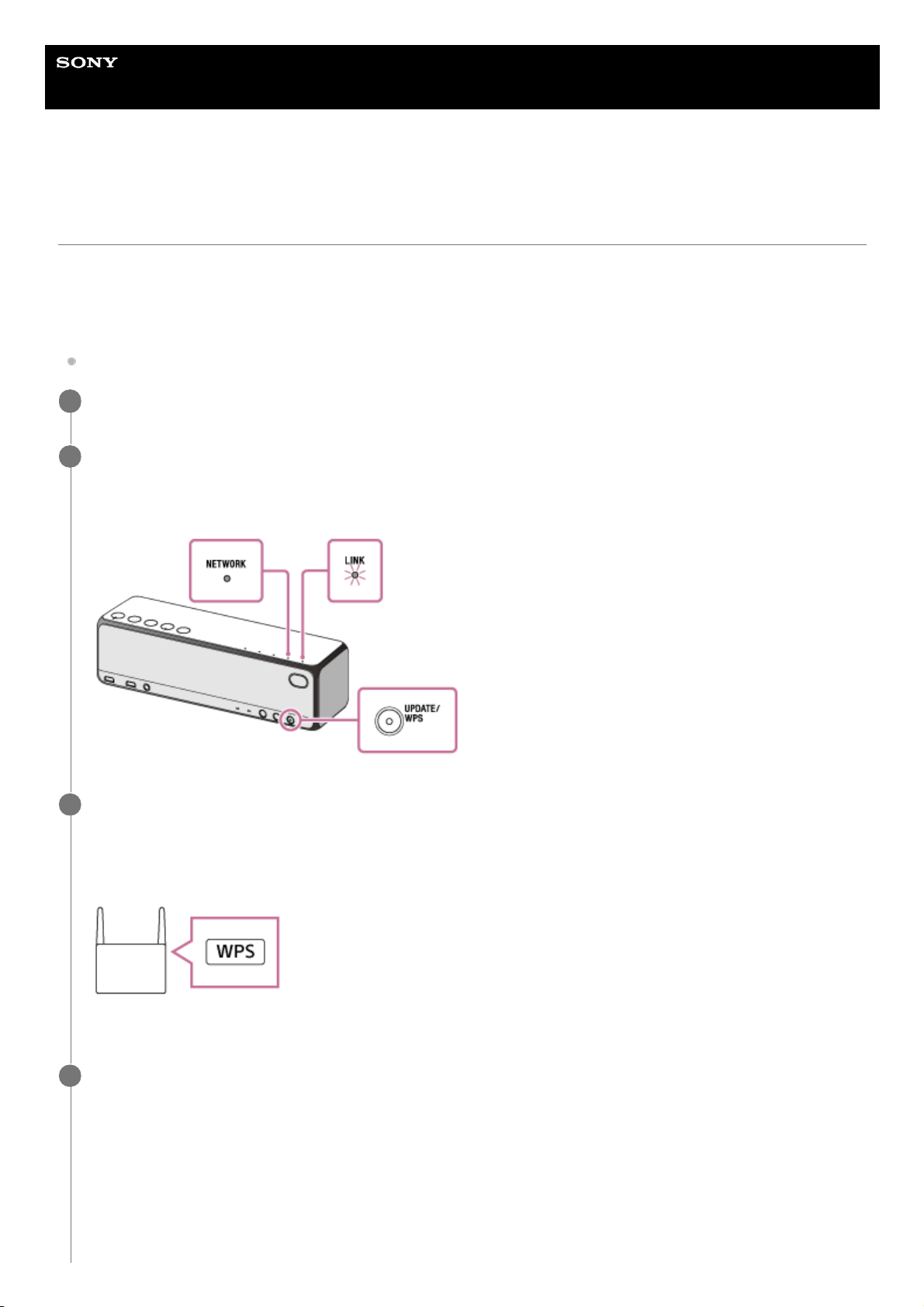
Press and hold the UPDATE/WPS button on the rear of the speaker until a beep is heard (for about 2
seconds).
The NETWORK indicator lights up in white and the LINK indicator flashes in orange.
2
Press the Wi-Fi Protected Setup (WPS) button* of the wireless router.
Operate within 90 seconds after pressing the UPDATE/WPS button of the speaker. Depending on the wireless
router, press and hold the Wi-Fi Protected Setup (WPS) button of the wireless router for a few seconds. For details,
refer to the operating instructions of your wireless router.
3
The position and shape of the Wi-Fi Protected Setup (WPS) button differ depending on the wireless router.
*
Check that the LINK indicator changes from flashing to staying lit in orange.
When the Wi-Fi connection is established, the LINK indicator lights up in orange.
Depending on the environment, it may take more than a minute for the LINK indicator to light up.
4
54
Page 55
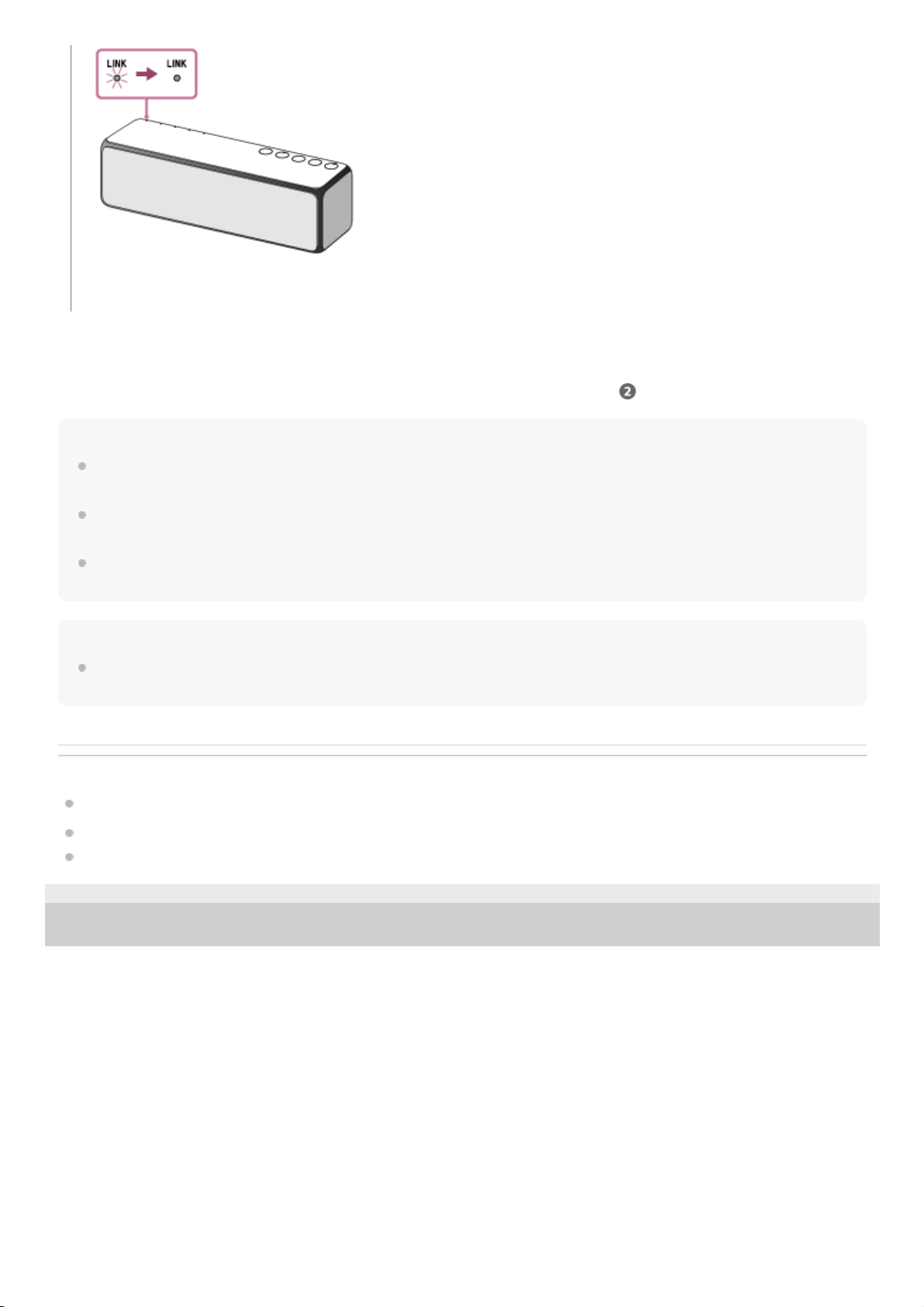
If the LINK indicator flashes in red
The speaker failed to connect to the Wi-Fi network. Try connecting again from step
.
Hint
For details on the Wi-Fi Protected Setup (WPS) button of your wireless router, refer to the operating instructions of your wireless
router.
If your wireless router has an AOSS button, it is possible to use it as Wi-Fi Protected Setup (WPS) button. For details, refer to the
operating instructions supplied with your wireless router.
If the Wi-Fi connection fails even if you try several times, initialize the speaker and delete the setting information of the Wi-Fi
connection, then try connecting again.
Note
When you connect the speaker to a Wi-Fi network for the first time after purchase, or after you initialize the speaker, the
BLUETOOTH/Network standby mode is turned on automatically.
Related Topic
Using the BLUETOOTH®/Network standby mode
Updating the pre-installed software
Initializing the speaker
4-735-503-11(1) Copyright 2018 Sony Corporation
The connection is established.
55
Page 56
Help Guide
Wireless Speaker
h.ear go 2 (SRS-HG10)
Connecting to a Wi-Fi network using a PC connected wirelessly
Note that the speaker should be initialized to the factory default for this connection. All BLUETOOTH device registration
(pairing) information is deleted. To use the BLUETOOTH connection after that, delete all pairing information on the PC,
and then set pairing again.
This section describes how to connect a PC and the speaker wirelessly, then how to connect the speaker to a wireless
router, using the PC.
Do the following before starting.
Place the speaker closer to the wireless router.
Locate the SSID (the name of a wireless network) and encryption key (WEP or WPA), which are required to set up a
Wi-Fi network. The encryption key restricts access to devices on a network. It is used to make more secure
communication between the devices connected to wireless routers or access points.
Have the Wi-Fi network name (SSID) and password (encryption key) of the wireless router available for
reference.
For details, refer to the operating instructions supplied with your wireless router.
1
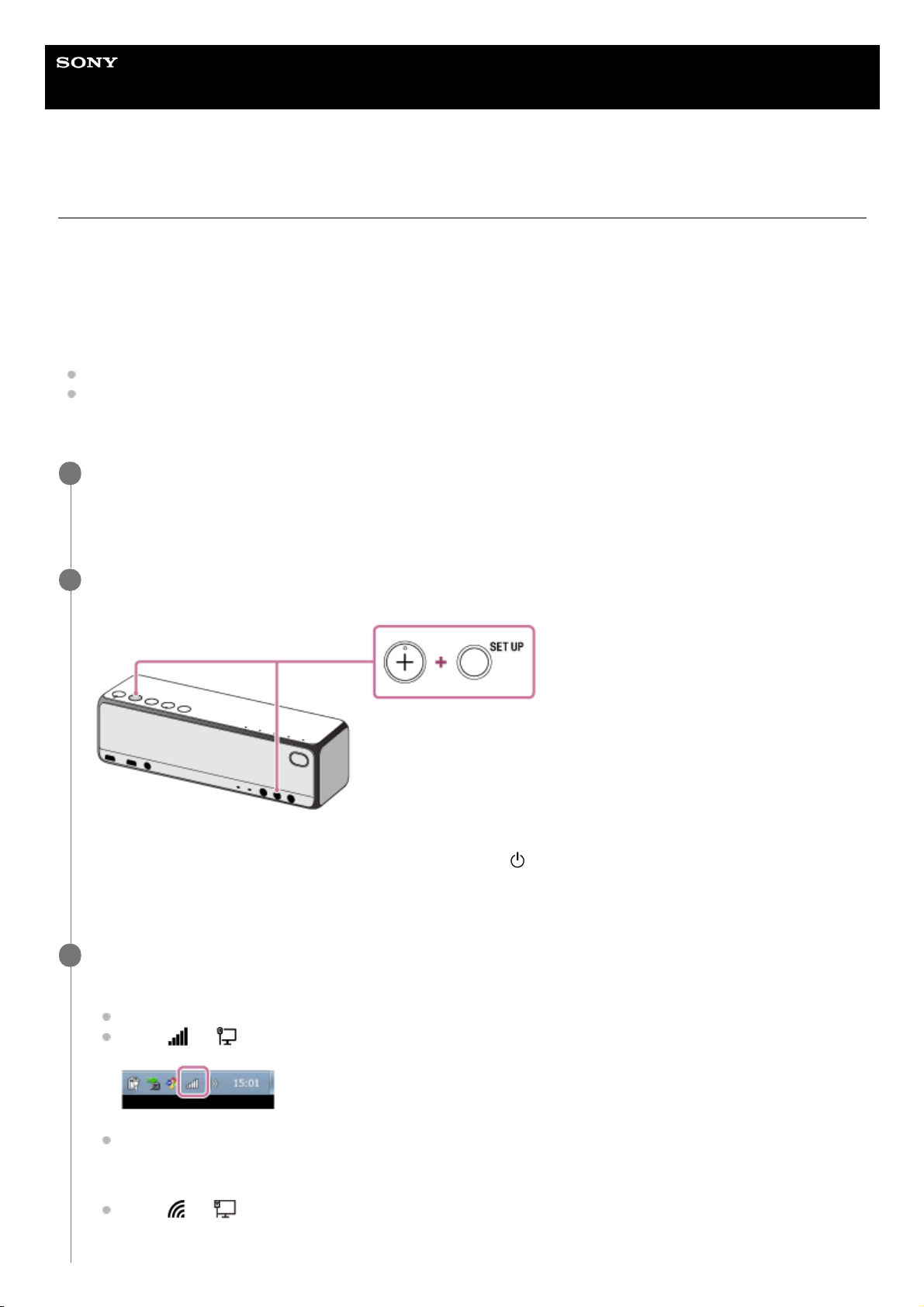
With the speaker turned on, press and hold the + (volume) button on the top and the SET UP button on the
rear at the same time for more than 4 seconds to initialize the settings of the speaker.
NETWORK indicator, BLUETOOTH indicator, USB indicator and AUDIO IN indicator light up in white, then
initialization starts. Initialization takes about 60 to 80 seconds.
(power) indicator lights up in green when
initialization is complete. Initializing the settings will delete all BLUETOOTH pairing information and network
settings.
2
Connect the speaker to the PC.
Windows 7/Windows 8.1:
For Windows 8.1, click or tap the desktop on the Start screen.
Select
or icon on the bottom right of the screen.
Select [SRS-HG10] from the network list.
Windows 10:
Select
or icon on the bottom right of the screen.
3
56
Page 57
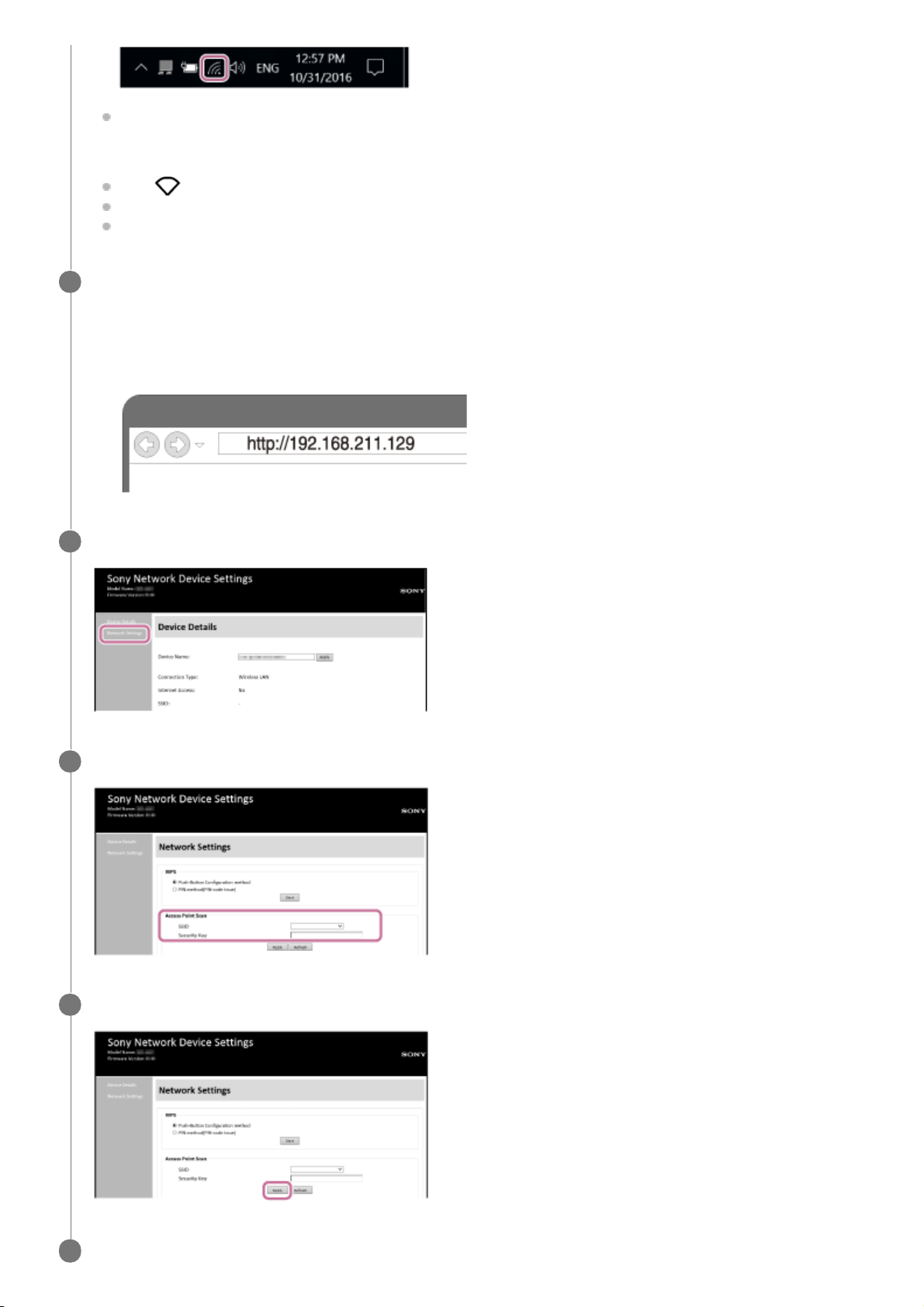
Select [SRS-HG10] – [Connect] from the network list.
Mac:
Click
at the top of the screen.
Select [Open Network Preferences...].
Select [SRS-HG10] from the network list.
Display the [Sony Network Device Settings] screen.
4
Launch a browser (Internet Explorer, Safari, etc.).
1.
Enter the following URL in the address bar.
http://192.168.211.129
2.
Select [Network Settings] from the menu.
5
Enter the SSID of the wireless router and the password.
6
Select [Apply].
7
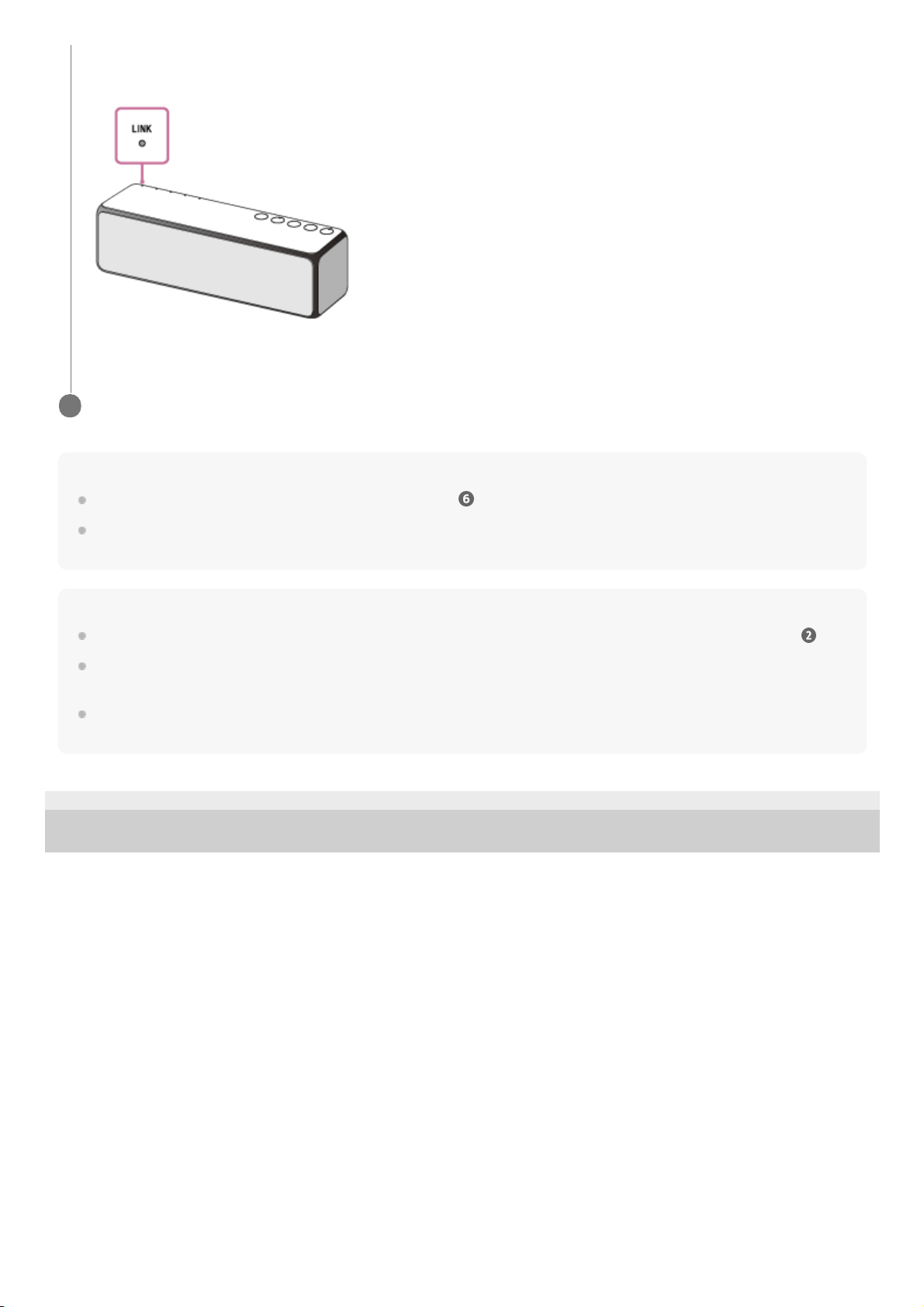
Check that the LINK indicator lights up in orange.
8
57
Page 58
Hint
If you want to set a fixed IP address, set in the screen in step
above.
When the connection of the speaker to your Wi-Fi network has completed, connect your PC to the previous destination or your
wireless router.
Note
This procedure needs to be completed within 30 minutes. If you cannot complete within 30 minutes, start over from step
.
Until you finish the Wi-Fi network setting, it will not be protected. The Wi-Fi network will be protected again after setting the Wi-Fi
security.
When you connect the speaker to a Wi-Fi network for the first time after purchase, the BLUETOOTH/Network standby mode is
turned on automatically.
4-735-503-11(1) Copyright 2018 Sony Corporation
When the Wi-Fi connection is completed, the LINK indicator lights up in orange. It may take more than a minute for
the LINK indicator to light up.
Connection is completed.
Connect the PC to the wireless router to be used.
9
58
Page 59
Help Guide
Wireless Speaker
h.ear go 2 (SRS-HG10)
How to turn off the Wi-Fi network/BLUETOOTH function
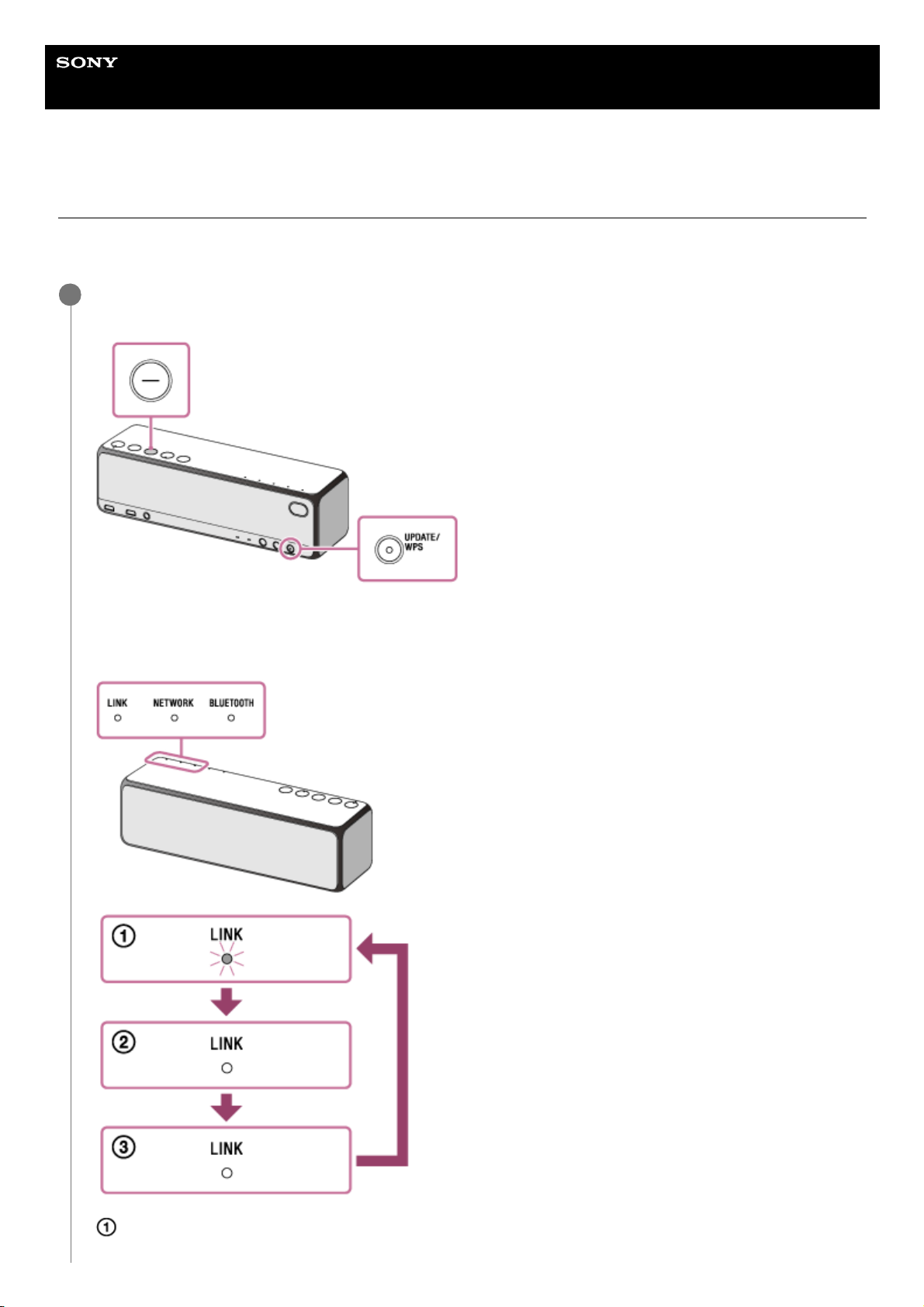
To use the speaker outdoors, set the Wi-Fi network function to off or both the Wi-Fi network function and the
BLUETOOTH function to off.
When the speaker is turned on, press and hold the – (volume) button on the top and the UPDATE/WPS
button on the rear of the speaker.
Each time you press the – (volume) button and the UPDATE/WPS button, the status of the Wi-Fi network function
and the BLUETOOTH function changes between on and off.
You can check the status by means of the LINK indicator, the NETWORK indicator, and the BLUETOOTH indicator.
Wi-Fi network function: ON / BLUETOOTH function: ON
1
59
Page 60

Hint
When the Wi-Fi network function is turned off, if you select the NETWORK mode by pressing the FUNCTION button repeatedly,
the NETWORK indicator does not light up but flashes irregularly.
When the BLUETOOTH function is turned off, if you select the BLUETOOTH mode by pressing the FUNCTION button
repeatedly, the BLUETOOTH indicator does not light up but flashes irregularly.
4-735-503-11(1) Copyright 2018 Sony Corporation
The speaker is in this status by default at time of purchase.
The LINK indicator flashes or turns on.
Wi-Fi network function: OFF / BLUETOOTH function: ON
The NETWORK indicator and the BLUETOOTH indicator flash quickly for 2 seconds, and then the LINK indicator
turns off. The Wi-Fi network function is set to off while the BLUETOOTH function remains on.
Wi-Fi network function: OFF / BLUETOOTH function: OFF
The NETWORK indicator and the BLUETOOTH indicator flash quickly for 2 seconds while the LINK indicator
remains off. Both the Wi-Fi network function and the BLUETOOTH function are set to off.
The NETWORK indicator and the BLUETOOTH indicator flash slowly, and then the LINK indicator flashes or turns
on. Both the Wi-Fi network function and the BLUETOOTH function are set to on (the same status with
).
60
Page 61
Help Guide
Wireless Speaker
h.ear go 2 (SRS-HG10)
Using this speaker as a rear speaker (Wireless Surround)
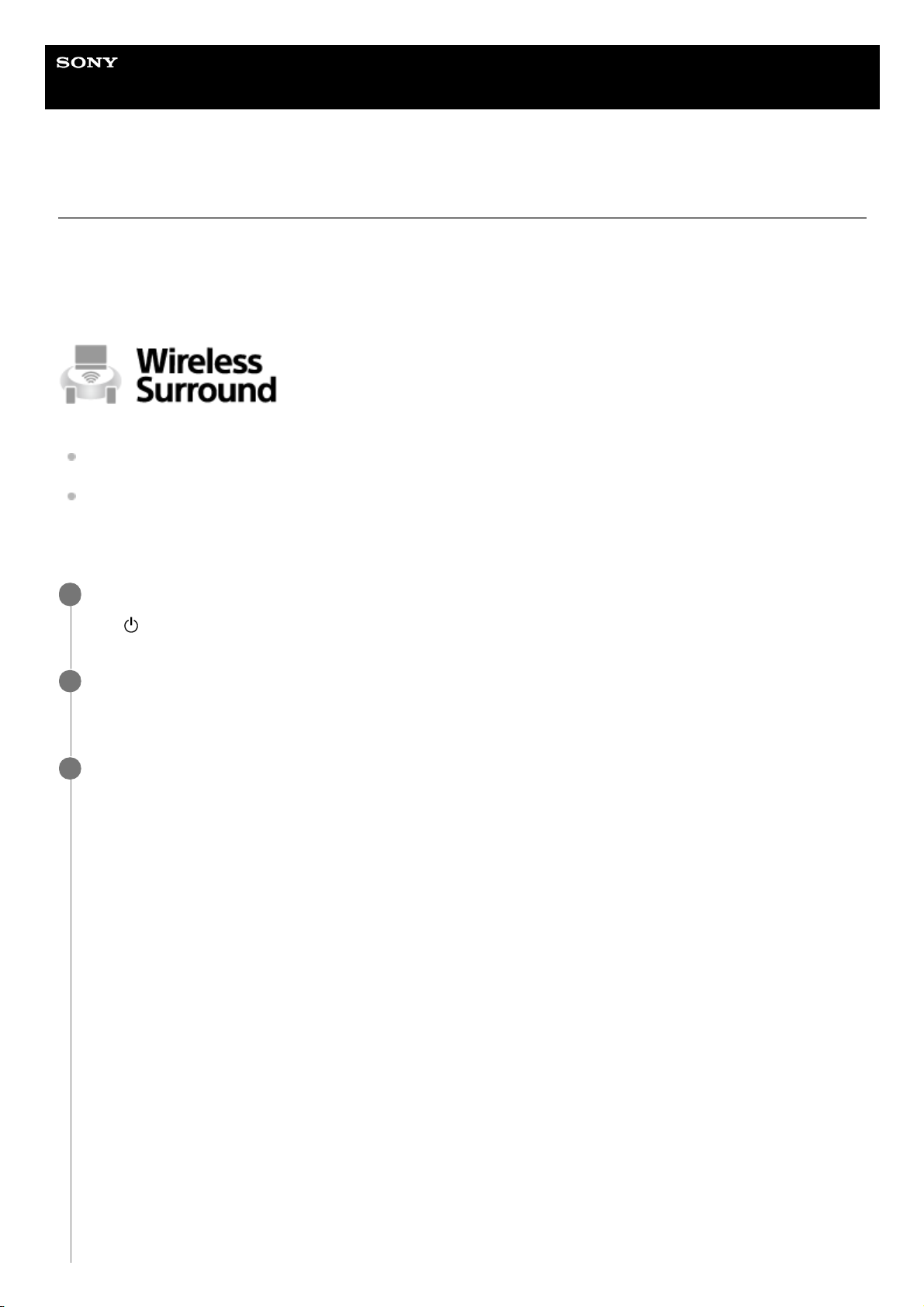
You can enjoy surround sound by combining with products that support the Wireless Surround function.
A Sony product (such as a sound bar/home theater system) that supports the Wireless Surround function and two h.ear
go 2 (SRS-HG10) are required.
For more information including compatible models, refer to the following URL.
http://sony.net/nasite/
Preparing for using the Wireless Surround function
Connect the speakers ( h.ear go 2 (SRS-HG10) ) to the wireless network.
For details about the wireless network connection, see “Selecting the Wi-Fi network connection method.”
Check if the software of these speakers are the latest version.
For details how to check the software version, see “Searching the latest software via a network connection.”
Setting speakers to use as rear speakers (Wireless Surround function)
Place the speakers at a distance 1 m (3 ft) or less from each other, and then turn on them.
The
(power) indicator lights up in green.
1
On each speaker, press the FUNCTION button repeatedly until the NETWORK indicator lights up.
Both speakers enter the NETWORK mode.
2
Set up the Wireless Surround function on the connecting equipment.
Follow the instructions on the screen. The following operations use a sound bar (HT-NT5) as an example.
For more details, refer to the operating instructions of the connecting equipment.
3
Press the HOME button on the remote control.1.
Select [Setup], and then press the enter button.2.
Select [Wireless Surround], and then follow the instructions on the screen.3.
61
Page 62
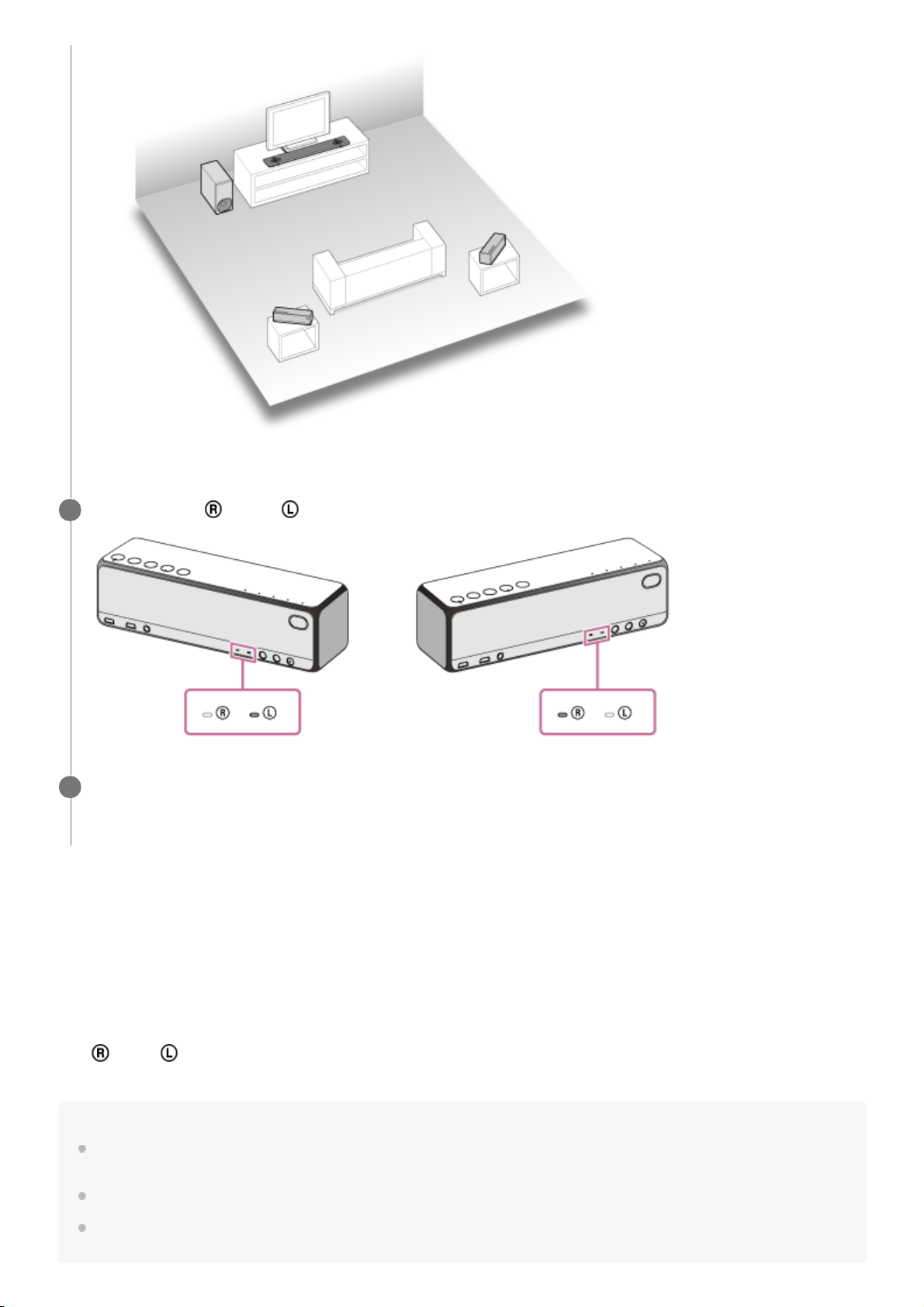
Changing R (right) and L (left) of rear speakers
When using the Wireless Surround function, press the SET UP button on the rear of the speaker repeatedly. Each press
switches between R (right) and L (left). This operation is possible with either speaker.
Canceling the Wireless Surround function/using other functions
While using the Wireless Surround function, other functions (such as the Wireless Multi-room function, Wireless Stereo
function, Speaker Add function, BLUETOOTH connection) are not available.
Press and hold the SET UP button on this speaker until a beep is heard.
The
(right)/ (left) indicators turn off and the Wireless Surround function is canceled. Then, the grouping is also
canceled.
Hint
When connecting two speakers to the AC outlet using the USB AC adaptors, the power of the connected equipment and two
speakers can be linked by turning on or off the equipment or speaker (Power Interlock).
You can also set the Wireless Surround function using “Sony | Music Center”.
You cannot cancel the Wireless Surround function by using “Sony | Music Center.” For operation on the speaker, see "Canceling
the Wireless Surround function/using other functions" noted above.
Check that the (right)/ (left) indicators on these speakers light up.
4
On the connecting equipment, start playback and adjust the volume.
For more details, refer to the operating instructions of the connecting equipment.
5
62
Page 63

Note
When using the Wireless Surround function, the automatic software update feature of the speaker and sound bar/home theater
system is not activated. To update the software, cancel the Wireless Surround function, and then connect the speaker or sound
bar/home theater system to the wireless network.
When using the Wireless Surround function, the speaker and sound bar/home theater system cannot be connected to the
wireless network. Also, you cannot control the speaker using “Sony | Music Center.” When using the Wi-Fi network function and
“Sony | Music Center,” cancel the Wireless Surround function, and then connect it to the wireless network.
When using the Wireless Multi-room function on this speaker, setting (grouping) for the Wireless Surround function cannot be
operated on this speaker.
Related Topic
Listening with multiple speakers (Wireless Multi-room, Wireless Surround, Wireless Stereo)
Connecting two speakers (Wireless Stereo)
Connecting two speakers (Speaker Add function)
4-735-503-11(1) Copyright 2018 Sony Corporation
63
Page 64
Help Guide
Wireless Speaker
h.ear go 2 (SRS-HG10)
Connecting two speakers (Wireless Stereo)
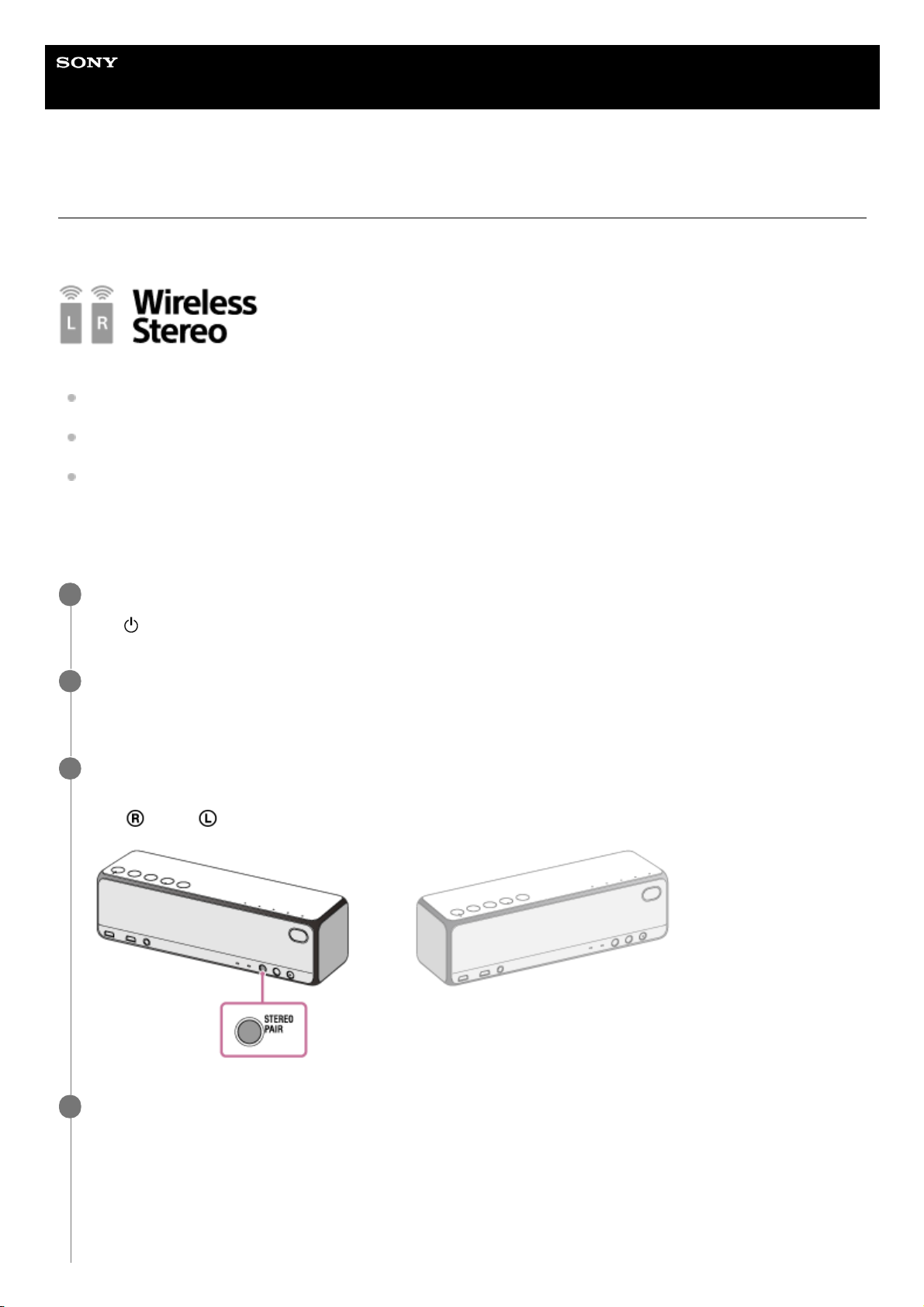
By connecting two h.ear go 2 (SRS-HG10) , you can enjoy more expanding stereo sound.
Two h.ear go 2 (SRS-HG10) are required.
Preparing for the Wireless Stereo function
Connect the speakers ( h.ear go 2 (SRS-HG10) ) to the wireless network. For details about the wireless network
connection, see “Selecting the Wi-Fi network connection method.”
Check if the software of these speakers are the latest version. For details how to check the software version, see
“Searching the latest software via a network connection.”
You can only enjoy the Wireless Stereo function on a wireless network. This function is not available with a
BLUETOOTH connection. To use the BLUETOOTH connection, use the Speaker Add function.
For details, see “Connecting two speakers (Speaker Add function).”
Connecting two speakers (Wireless Stereo function)
Place the speakers at a distance 1 m (3 ft) or less from each other, and then turn on them.
The
(power) indicator lights up in green.
1
On each speaker, press the FUNCTION button repeatedly until the NETWORK indicator lights up.
Both speakers enter the NETWORK mode.
2
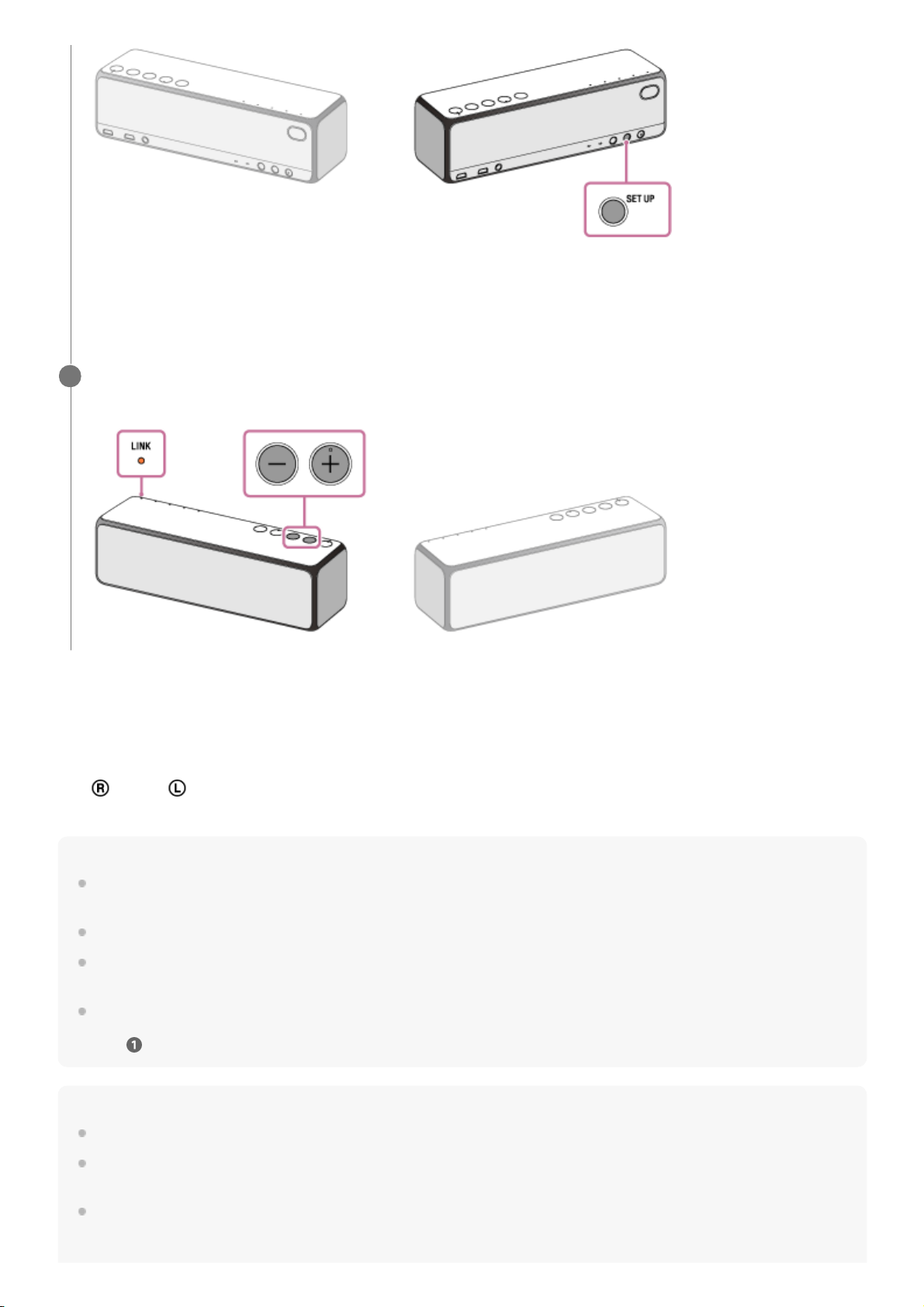
Press and hold the STEREO PAIR button on the rear of one of the speakers until beeps are heard, which
informs you to start setting the function.
The
(right)/ (left) indicators flash.
3
Press and hold the SET UP button on the rear of the other speaker until beeps are heard, which informs
you to start the connection.
Do this operation within 30 seconds from pressing the STEREO PAIR button on the previous step.
Beeps sound on each speaker to inform which speaker is set to the left or right position, and the two speakers are
connected with the Wireless Stereo function.
4
64
Page 65
To cancel the Wireless Stereo function or use other functions
While using the Wireless Stereo function, other functions (such as the Wireless Multi-room function, Wireless Surround
function, Speaker Add function, BLUETOOTH connection) are not available.
Press and hold the SET UP button on this speaker until a beep is heard.
The
(right)/ (left) indicators turn off, and the Wireless Stereo function is canceled. Then, the grouping is also
canceled.
Hint
When connecting both speakers to the AC outlet using the USB AC adaptors, the power of both speakers can be turned off by
operating one of the speakers (Power Interlock).
You can also set Wireless Stereo function using “Sony | Music Center.”
If the signal strength is weak due reasons such as separating the speakers, the connection may be canceled temporarily. Place
the speakers in a position that provides enough signal strength.
When the connection is canceled temporarily, the speakers automatically reconnect. If it takes 10 minutes or more to reconnect
after canceling, the Wireless Stereo function is canceled. When using the Wireless Stereo function the next time, operate from
step
.
Note
Viewing videos using the Wireless Stereo function is not recommended. A slight deviation occurs between video and audio.
When using the Wireless Stereo function, the automatic software update feature of the speakers is not activated. To update the
software, cancel the Wireless Stereo function, and then connect the speaker to the wireless network.
While using the Wireless Stereo function, one of the speakers may inform you that the latest software is available (the UPDATE
indicator lights up in orange). In this case, update the software of the speaker whose UPDATE indicator lights up in orange. For
details on how to update, see “Update method 2: Manual update via the Internet.” Grouping of the Wireless Stereo function is
Changing R (right) and L (left) of speakers
When using the Wireless Stereo function, press the SET UP button on the rear of the speaker repeatedly. Each
press switches between R (right) and L (left). This operation is possible with either speaker.
On the device connected to the speaker*, start playback, and adjust the volume.
5
* Operate the speaker whose LINK indicator lights up in orange.
65
Page 66

automatically canceled. Then, connect the other speaker to the wireless network, and then update the software of the speaker.
For details on how to update, see “Searching the latest software via a network connection.” After updating both speakers to the
latest software, set the Wireless Stereo function again.
When the wireless network is disconnected, the Wireless Stereo function is canceled. In this case, set the Wireless Stereo
function manually.
When using the Wireless Stereo function, the speaker cannot be used with the BLUETOOTH connection. To use the
BLUETOOTH connection, cancel the Wireless Stereo function.
It is recommended to turn down the volume of the speaker which of pressing the STEREO PAIR button before setting the
Wireless Stereo function. The two speakers output sound for the Wireless Stereo function, so a louder sound may be output than
that with playback with one speaker.
Related Topic
Listening with multiple speakers (Wireless Multi-room, Wireless Surround, Wireless Stereo)
Using this speaker as a rear speaker (Wireless Surround)
Connecting two speakers (Speaker Add function)
4-735-503-11(1) Copyright 2018 Sony Corporation
66
Page 67

Help Guide
Wireless Speaker
h.ear go 2 (SRS-HG10)
How to make a wireless connection with BLUETOOTH devices
You can enjoy music and talking with the speaker wirelessly by using your device’s BLUETOOTH function.
Do the following before starting.
Place the BLUETOOTH device within 1 m (3 ft) of the speaker.
Connect the speaker to the AC outlet or charge the battery sufficiently.
Prepare the operating instructions supplied with the BLUETOOTH device for reference.
Turn down the volume of the BLUETOOTH device.
Stop playback on the BLUETOOTH device to avoid sudden loud sound output from the speaker.
Pairing the speaker with a BLUETOOTH device
Pairing is the process required to mutually register the information on BLUETOOTH devices to be connected wirelessly.
It is necessary to pair a device with the speaker to be able to make a BLUETOOTH connection for the first time. Perform
same procedures to pair to other devices.
See the following topic.
Pairing and connecting with a BLUETOOTH device
Pairing and connecting with a PC (Windows 10)/(Windows 8.1)/(Windows 7)
Connecting the speaker with a paired device
Once BLUETOOTH devices are paired, there is no need to pair them again. To connect a device already paired, see the
following topic.
Connecting with a paired BLUETOOTH device
Connecting with a paired PC (Windows 10)/(Windows 8.1)/(Windows 7)
Connecting the speaker with an NFC-compatible device by one touch (NFC)
By touching the speaker with an NFC-compatible device such as a smartphone or WALKMAN®, etc., the speaker turns
on automatically, then pairs with the device and makes a BLUETOOTH connection.
Connecting with an NFC-compatible device by one touch (NFC)
Compatible smartphones
NFC-compatible smartphones with Android 4.1 or later installed
For details, access the following URL:
For customers in Europe:
http://www.sony.eu/support
For customers in the USA:
http://esupport.sony.com/US
For customers in Canada:
http://esupport.sony.com/CA/
For customers in other countries/regions:
http://www.sony-asia.com/section/support
Compatible WALKMAN® models
NFC-compatible WALKMAN® models*
Even if your WALKMAN® is compatible with the NFC function, it may not be able to make a BLUETOOTH connection with the speaker by one
touch. For details on the compatible models, refer to the operating instructions supplied with your WALKMAN®.
*
67
Page 68

NFC
NFC (Near Field Communication) is a technology enabling short-range wireless communication between various
devices, such as smartphones and IC tags. The data communication is easily activated by touching the device to the
specific position on the speaker.
Note
Once BLUETOOTH devices are paired, there is no need to pair them again, except in the following cases:
Pairing information has been deleted after repair, etc.
The speaker is already paired with 9 devices and another device is to be paired.
The speaker can be paired with up to 9 devices. If a new device is paired after 9 devices are already paired, the paired device
with the oldest connection time is replaced by the new one.
The pairing information with the speaker has been deleted from the BLUETOOTH device.
The speaker is initialized.
All pairing information will be deleted. If you initialize the speaker, it may not be able to connect your iPhone/iPod touch or PC.
In this case, erase the pairing information of the speaker on your iPhone/iPod touch or PC, and then perform the pairing
procedure again.
The speaker can be paired with multiple devices, but can only play music from one paired device at a time.
The passkey of this speaker is "0000." If a passkey besides "0000" is set on the BLUETOOTH device, pairing cannot be done
with the speaker.
4-735-503-11(1) Copyright 2018 Sony Corporation
68
Page 69
Help Guide
Wireless Speaker
h.ear go 2 (SRS-HG10)
Pairing and connecting with a BLUETOOTH device
Pairing is the process required to mutually register the information on BLUETOOTH devices to be connected wirelessly.
It is necessary to pair a device with the speaker to be able to make a BLUETOOTH connection for the first time. Perform
same procedures to pair to other devices.
Do the following before starting.
Place the BLUETOOTH device within 1 m (3 ft) of the speaker.
Connect the speaker to the AC outlet or charge the battery sufficiently.
Prepare the operating instructions supplied with the BLUETOOTH device for reference.
Turn down the volume of the BLUETOOTH device.
Stop playback on the BLUETOOTH device to avoid sudden loud sound output from the speaker.
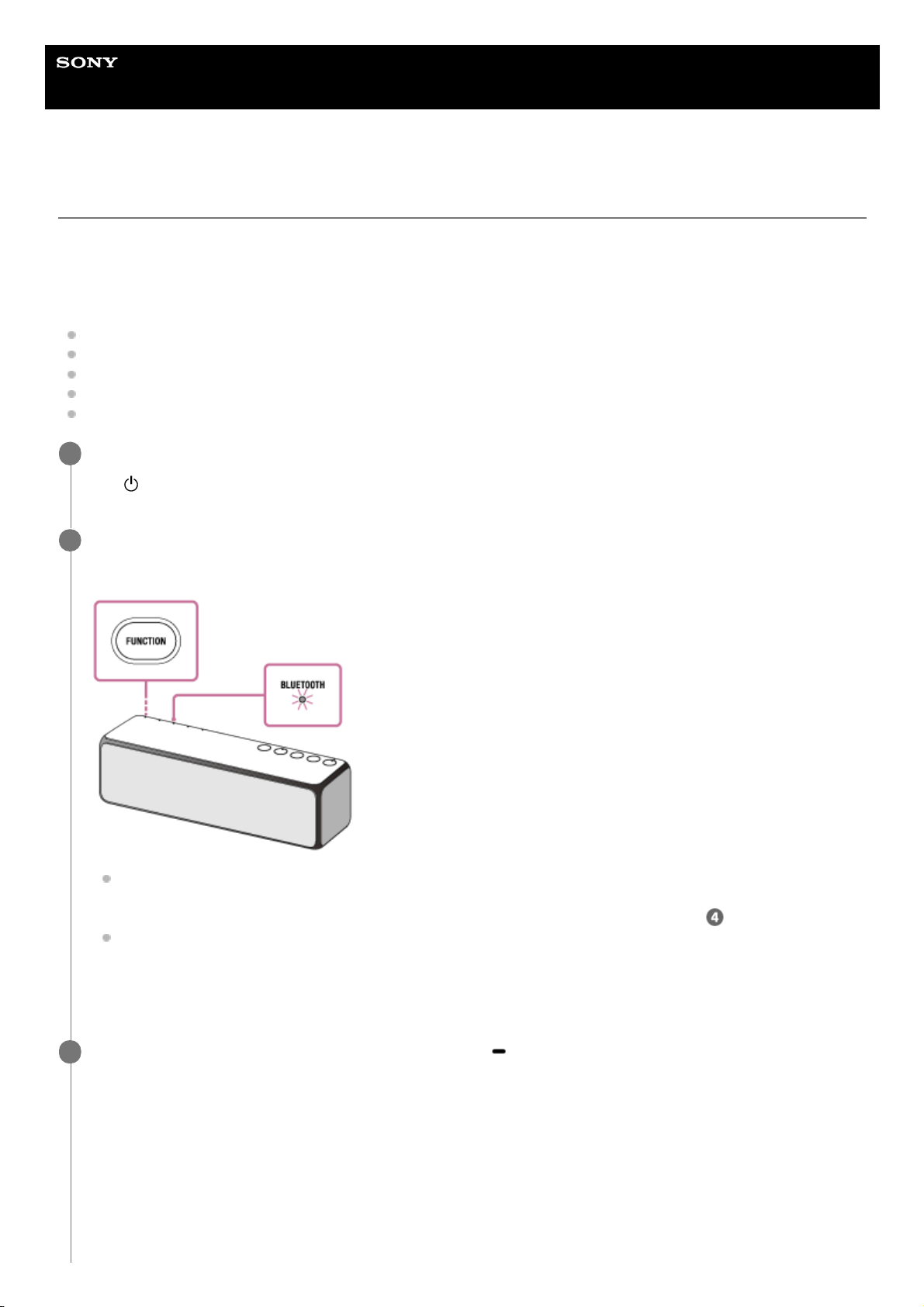
Turn on the speaker.
The
(power) indicator lights up in green.
1
Press the FUNCTION button repeatedly until the BLUETOOTH indicator flashes.
The speaker enters the BLUETOOTH mode.
When you turn on the speaker for the first time after purchase, pairing information is not stored in the speaker.
In this case, by only placing the speaker in the BLUETOOTH mode, the BLUETOOTH indicator will begin to
flash quickly and the speaker will enter the pairing mode automatically. Then go to step
.
When you turn on the BLUETOOTH mode, the speaker will try to make a BLUETOOTH connection with the last
connected BLUETOOTH device. If the device is nearby, the BLUETOOTH connection establishes automatically
and the BLUETOOTH indicator stays lit. In this case, turn off the BLUETOOTH function on the BLUETOOTH
device, or turn off the BLUETOOTH device.
2
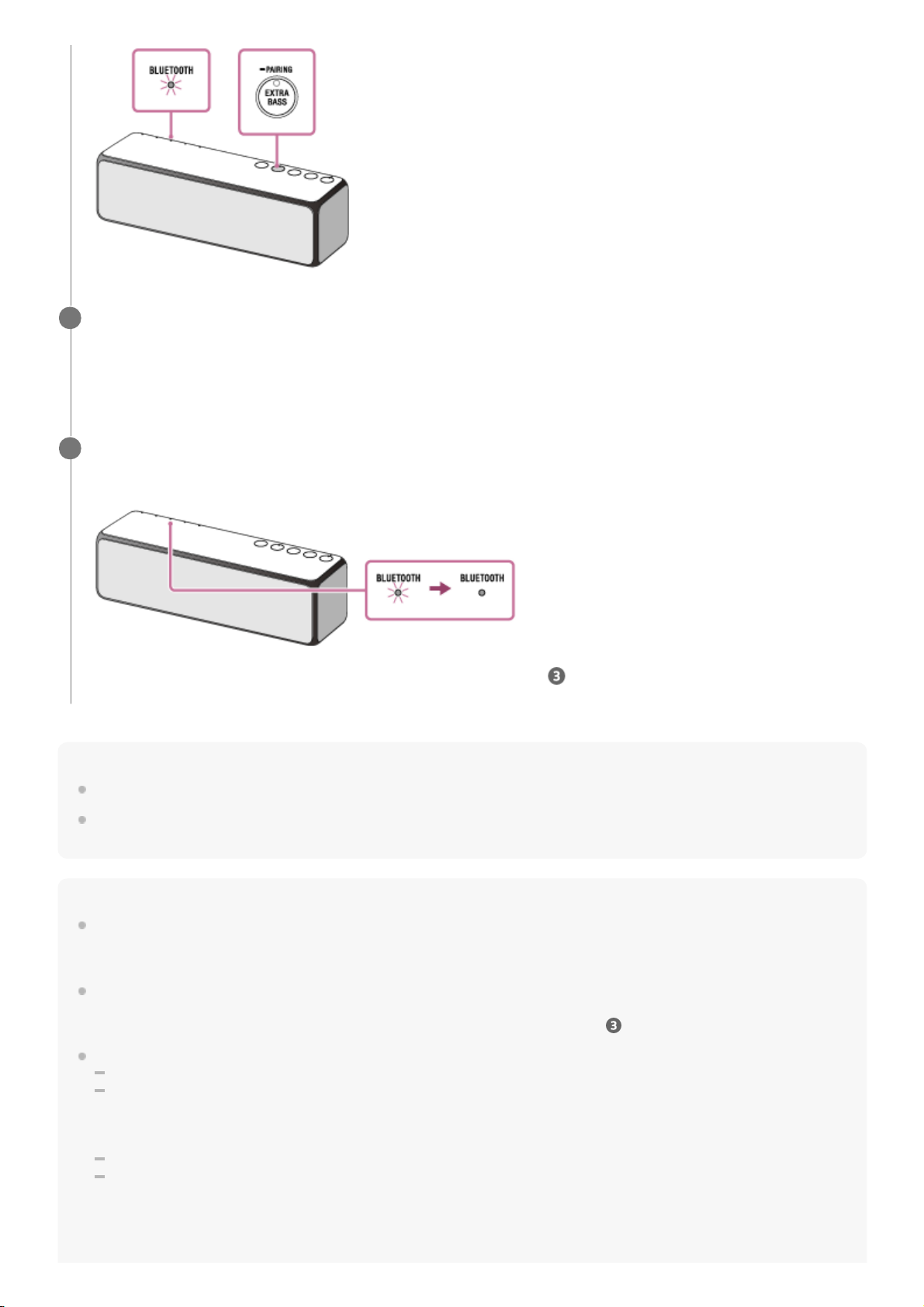
Press and hold the EXTRA BASS button with indicator/
PAIRING button of the speaker until the voice
guidance are heard.
The BLUETOOTH indicator begins to flash quickly (three times a second), and the speaker enters the pairing
mode.
3
69
Page 70
Hint
For details on operating a BLUETOOTH device, refer to the operating instructions supplied with the BLUETOOTH device.
You can perform pairing or connect to another BLUETOOTH device even when a BLUETOOTH connection is established. In this
case, the previous connection will be disconnected.
Note
Stop playback on the BLUETOOTH device and turn down the volume of the device beforehand. When pairing is completed, loud
sound may output from the speaker. Otherwise, you may experience sudden loud sound from the speaker when music is played
back for the first time after pairing.
The pairing mode of the speaker is released after about 5 minutes and the BLUETOOTH indicator flashes slowly. However, when
pairing information is not stored in the speaker, or you turn on the speaker for the first time after purchase, the pairing mode is not
released. If the pairing mode is released before finishing the process, repeat from step
.
Once BLUETOOTH devices are paired, there is no need to pair them again, except in the following cases:
Pairing information has been deleted after repair, etc.
The speaker is already paired with 9 devices and another device is to be paired.
The speaker can be paired with up to 9 devices. If a new device is paired after 9 devices have already been paired, the paired
device with the oldest connection time is replaced by the new one.
The pairing information with the speaker has been deleted from the BLUETOOTH device.
The speaker is initialized.
All pairing information will be deleted. If you initialize the speaker, it may not be able to connect your iPhone/iPod touch or PC.
In this case, erase the pairing information of the speaker on your iPhone/iPod touch or PC, and then perform the pairing
procedure again.
Perform the pairing procedure on the BLUETOOTH device to detect the speaker.
When a list of detected devices appears on the display of the BLUETOOTH device, select [h.ear go 2].
If a passkey* is required on the display of the BLUETOOTH device, enter “0000.”
4
A passkey may be called “Passcode,” “PIN code,” “PIN number” or “Password.”
*
Check that the BLUETOOTH indicator on the speaker is changed to lit from flashing.
When the BLUETOOTH connection is established, the BLUETOOTH indicator stays lit.
If the BLUETOOTH connection is not established, repeat from step .
5
70
Page 71

The speaker can be paired with multiple devices, but can only play music from one paired device at a time.
The passkey of this speaker is “0000.” If a passkey besides “0000” is set on the BLUETOOTH device, pairing cannot be done
with the speaker.
Related Topic
Listening to music on a device via a BLUETOOTH connection
4-735-503-11(1) Copyright 2018 Sony Corporation
71
Page 72
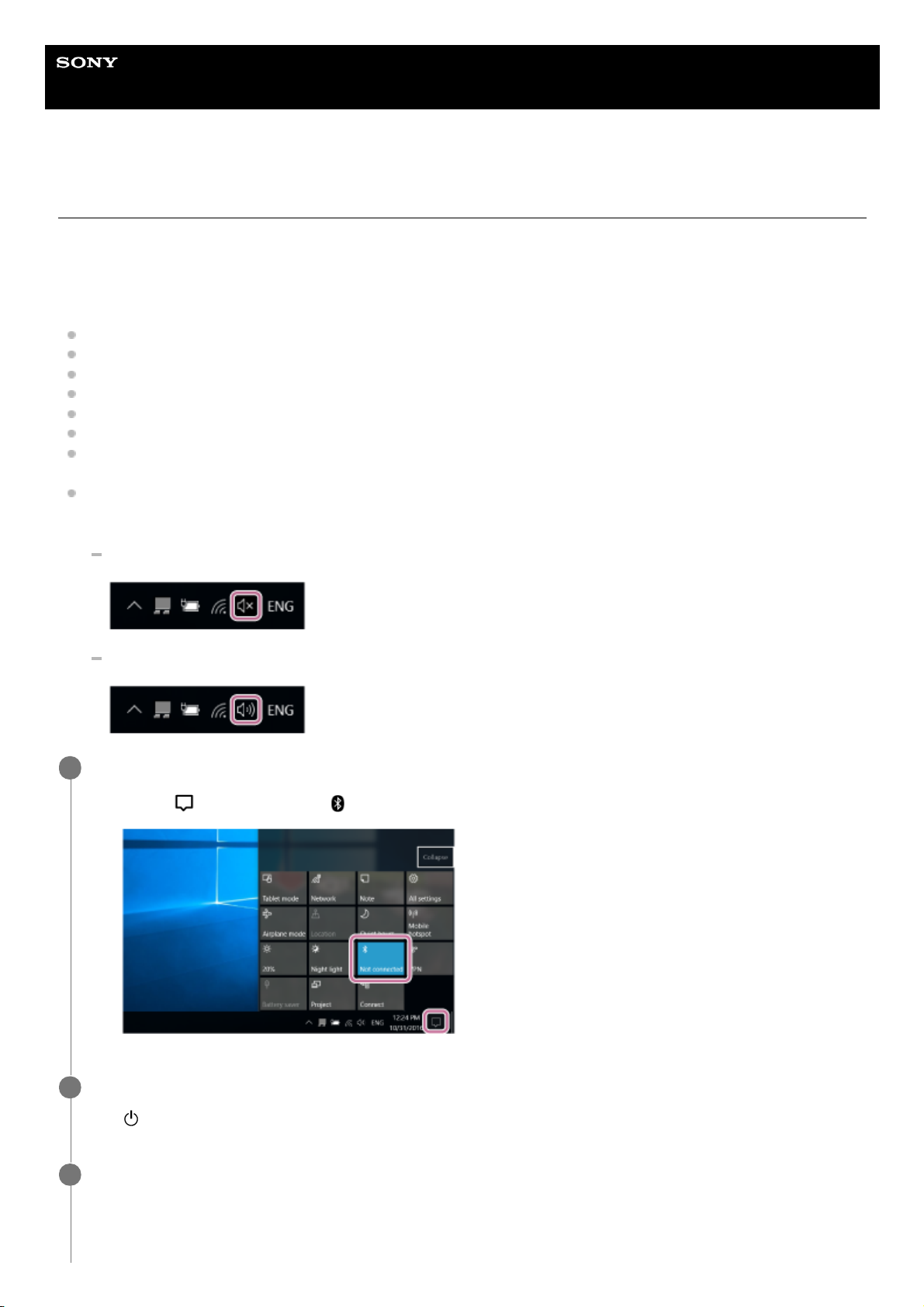
Help Guide
Wireless Speaker
h.ear go 2 (SRS-HG10)
Pairing and connecting with a PC (Windows 10)
Pairing is the process required to mutually register the information on BLUETOOTH devices to be connected wirelessly.
It is necessary to pair a device with the speaker to be able to make a BLUETOOTH connection for the first time. Perform
same procedures to pair to other devices.
Do the following before starting.
Make sure that your PC has the BLUETOOTH wireless function.
Place your PC within 1 m (3 ft) of the speaker.
Connect the speaker to the AC outlet or charge the battery sufficiently.
Locate the operating instructions supplied with the PC for reference.
Turn down the volume of the PC.
Stop playback on the PC to avoid any sudden loud sound from the speaker.
Activate the BLUETOOTH function on your PC. For details how to activate the BLUETOOTH function or to confirm
that your PC has the BLUETOOTH function, refer to the operating instructions of the PC.
Set the speaker setting on the PC to on. If the mute (off) mode is set in the speaker’s setting on the PC, the speaker
will not output sound.
If the speaker setting on the PC is the mute (off) mode
If the speaker setting on the PC is the on mode
Prepare to search for the speaker on the PC.
1
Select [
(Action Center)] – [ ] in the taskbar on the right-bottom of the screen.
1.
Turn the speaker on.
The
(power) indicator lights up in green.
2
Press the FUNCTION button repeatedly until the BLUETOOTH indicator flashes.
The speaker enters the BLUETOOTH mode.
3
72
Page 73
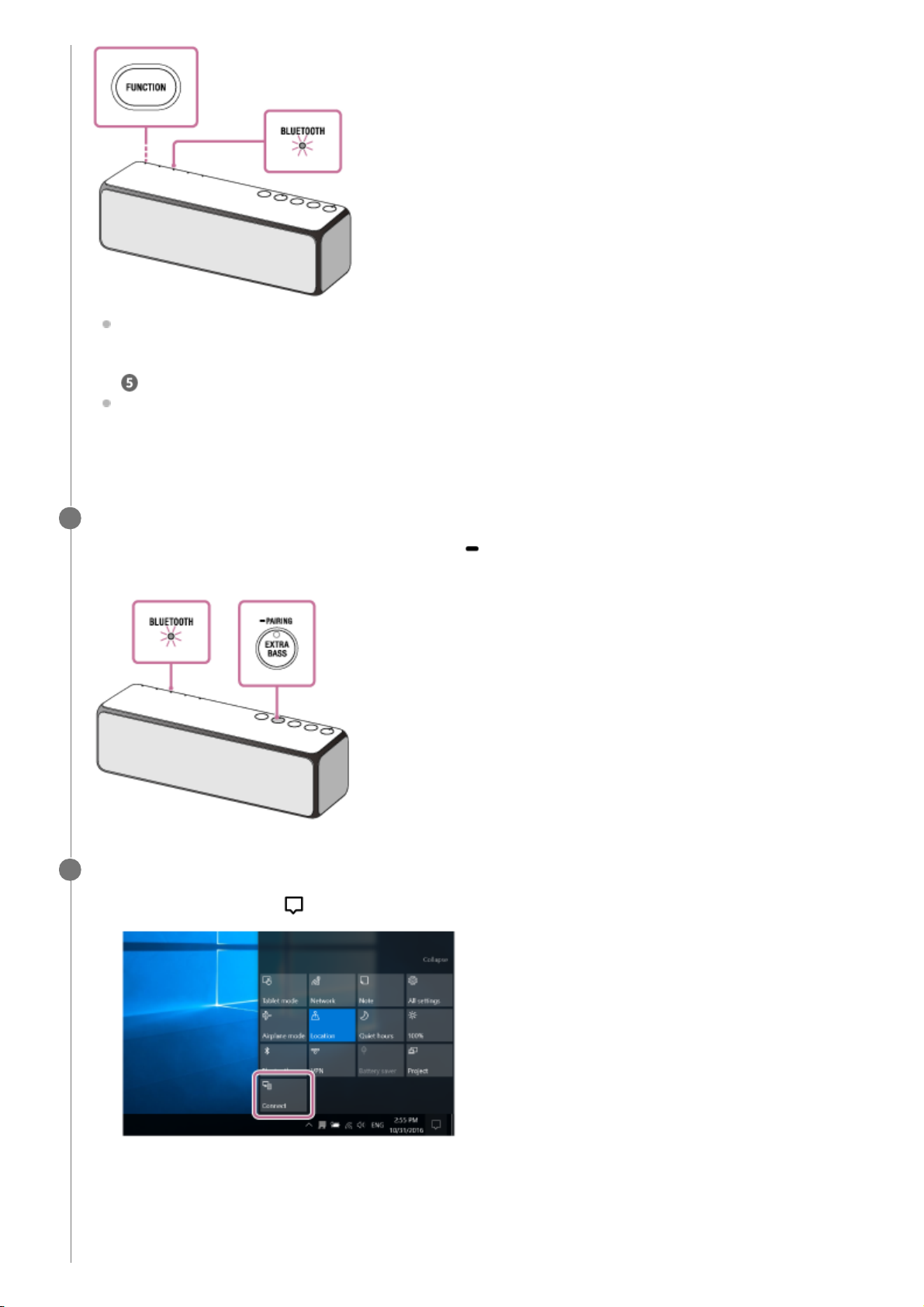
When you turn on the speaker for the first time after purchase, pairing information is not stored in the speaker.
In this case, by only placing the speaker in the BLUETOOTH mode, the BLUETOOTH indicator will begin to
flash quickly (three times a second) and the speaker will enter the pairing mode automatically. Then go to step
.
When you turn on the BLUETOOTH mode, the speaker will try to make a BLUETOOTH connection with the last
connected BLUETOOTH device. If the device is nearby, the BLUETOOTH connection establishes automatically
and the BLUETOOTH indicator stays lit. In this case, turn off the BLUETOOTH function on the BLUETOOTH
device, or turn off the BLUETOOTH device.
Set the speaker to the pairing mode.
Press and hold the EXTRA BASS button with indicator/
PAIRING button until the voice guidance is heard and
the BLUETOOTH indicator starts flashing quickly (three times a second).
4
Search for the speaker on the PC.
5
Select [Connect] in the [
Action Center] on the right-bottom of the screen.
1.
Select [h.ear go 2].
2.
73
Page 74
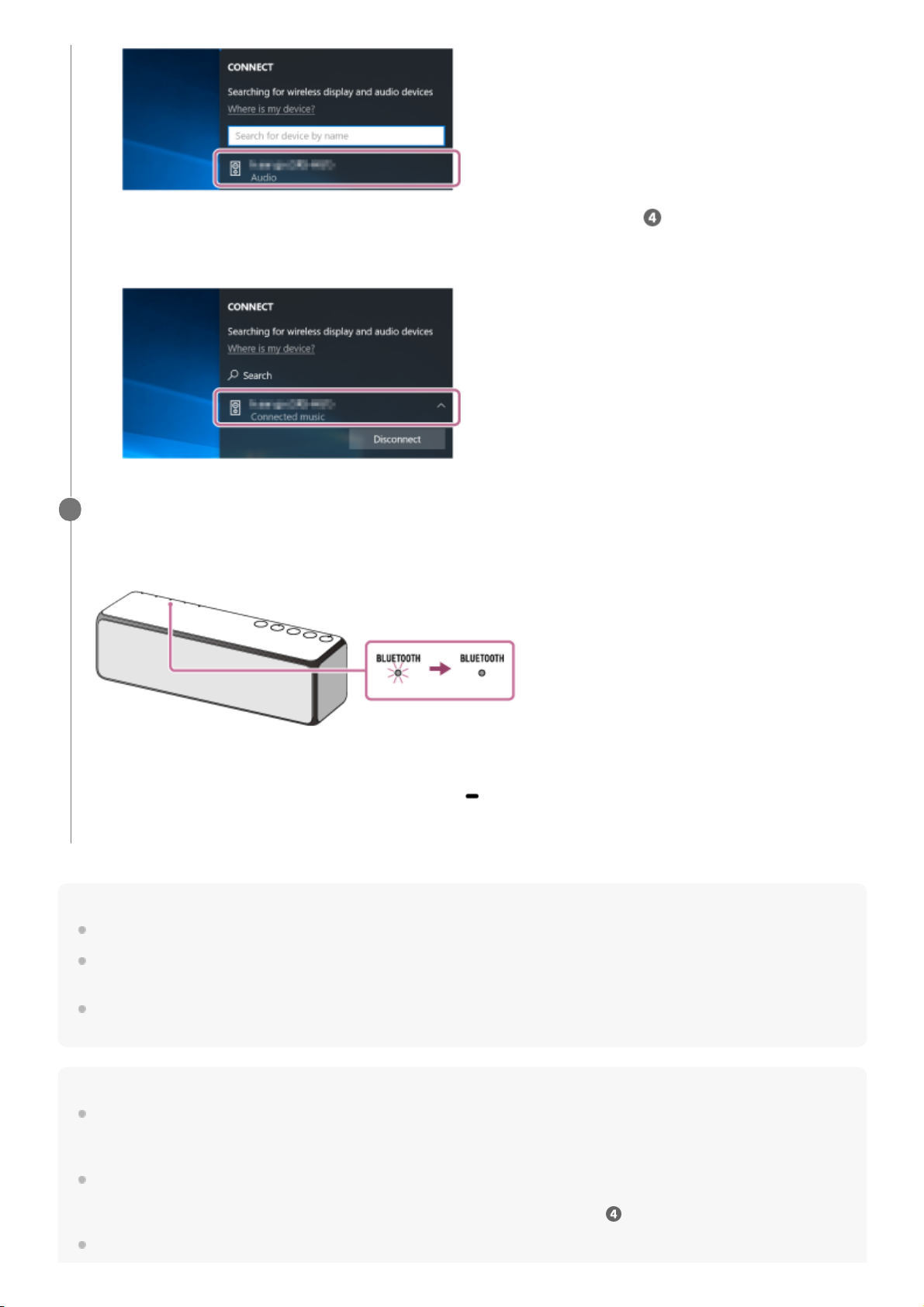
Hint
The procedure explained above is for guidance only. For details, refer to the operating instructions supplied with the PC.
You can perform pairing or connect to another BLUETOOTH device even when a BLUETOOTH connection is established. In this
case, the previous connection will be disconnected.
If your PC does not have the BLUETOOTH function, it will be necessary to connect a commercially available BLUETOOTH
adaptor to the PC.
Note
Stop playback on the BLUETOOTH device and turn down the volume of the device beforehand. When pairing is completed, loud
sound may output from the speaker. Otherwise, you may experience sudden loud sound from the speaker when music is played
back for the first time after pairing.
The pairing mode of the speaker is released after about 5 minutes and the BLUETOOTH indicator flashes slowly. However, when
pairing information is not stored in the speaker, or you turn on the speaker for the first time after purchase, pairing mode is not
released. If the pairing mode is released before finishing the process, repeat from step
.
Once BLUETOOTH devices are paired, there is no need to pair them again, except in the following cases:
If [h.ear go 2] does not appear on the screen, repeat the procedure from step .
After pairing, the BLUETOOTH connection establishes automatically and [Connected music] will be displayed
on the screen.
Check that the BLUETOOTH indicator on the speaker changes from flashing to staying lit.
When the BLUETOOTH connection is established, the BLUETOOTH indicator stays lit. You can enjoy the music
playback from your PC.
If the connection is not completed even though [h.ear go 2] is displayed on the screen, place the speaker in the
pairing mode to connect.
Press and hold the EXTRA BASS button with indicator/
PAIRING button until the voice guidance are heard and
the BLUETOOTH indicator starts flashing quickly (three times a second).
6
74
Page 75

Pairing information has been deleted after repair, etc.
The speaker is already paired with 9 devices and another device is to be paired.
The speaker can be paired with up to 9 devices. If a new device is paired after 9 devices have already been paired, the paired
device with the oldest connection time is replaced by the new one.
The pairing information with the speaker has been deleted from the BLUETOOTH device.
The speaker is initialized.
All pairing information will be deleted. If you initialize the speaker, it may not be able to connect your iPhone/iPod touch or PC.
In this case, erase the pairing information of the speaker on your iPhone/iPod touch or PC, and then perform the pairing
procedure again.
The speaker can be paired with multiple devices, but can only play music from one paired device at a time.
The passkey of this speaker is “0000.” If a passkey besides “0000” is set on the BLUETOOTH device, pairing cannot be done
with the speaker.
4-735-503-11(1) Copyright 2018 Sony Corporation
75
Page 76
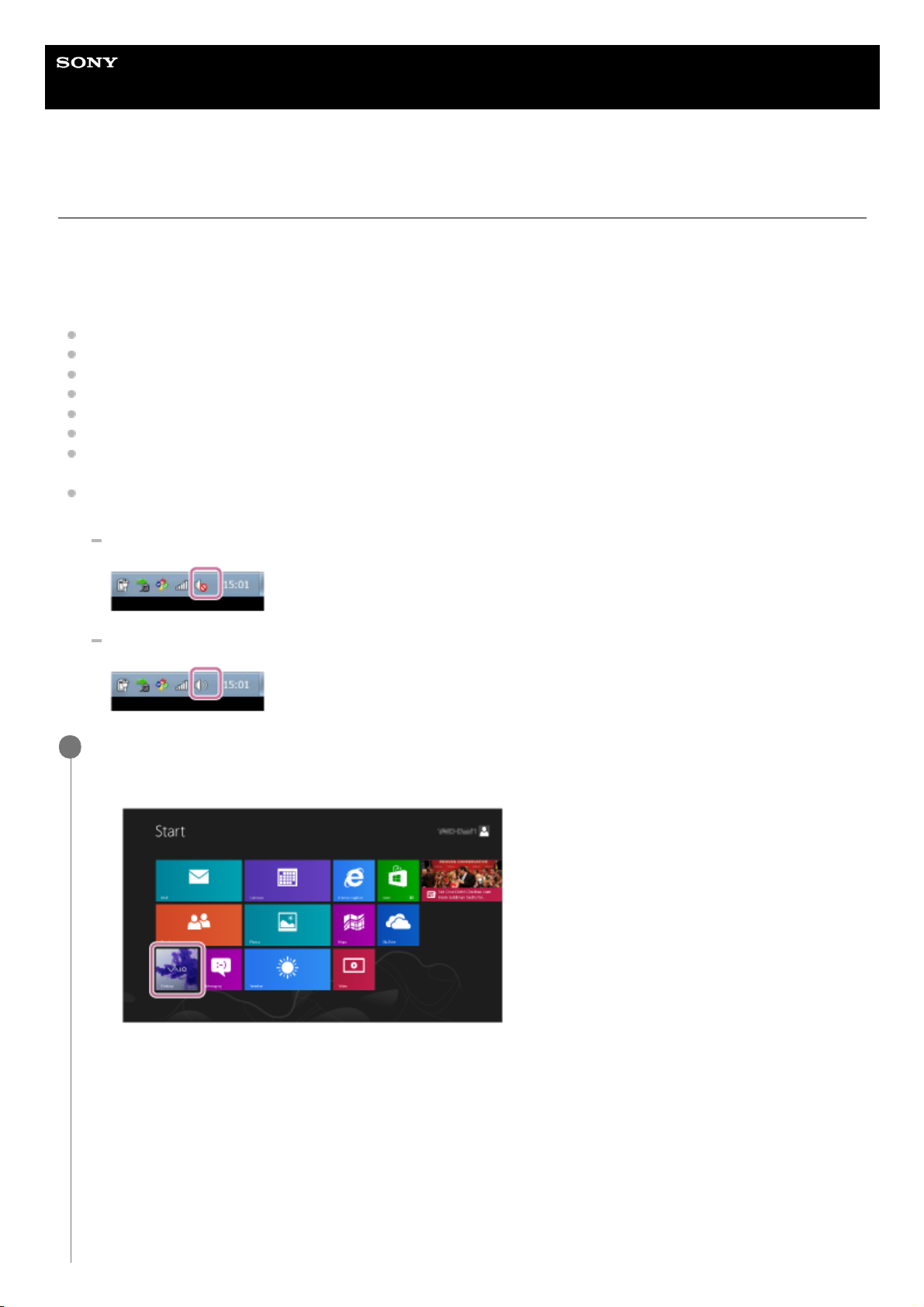
Help Guide
Wireless Speaker
h.ear go 2 (SRS-HG10)
Pairing and connecting with a PC (Windows 8.1)
Pairing is the process required to mutually register the information on BLUETOOTH devices to be connected wirelessly.
It is necessary to pair a device with the speaker to be able to make a BLUETOOTH connection for the first time. Perform
same procedures to pair to other devices.
Do the following before starting.
Make sure that your PC has the BLUETOOTH wireless function.
Place your PC within 1 m (3 ft) of the speaker.
Connect the speaker to the AC outlet or charge the battery sufficiently.
Locate the operating instructions supplied with the PC for reference.
Turn down the volume of the PC.
Stop playback on the PC to avoid any sudden loud sound from the speaker.
Activate the BLUETOOTH function on your PC. For details how to activate the BLUETOOTH function or to confirm
that your PC has the BLUETOOTH function, refer to the operating instructions of the PC.
Set the speaker setting on the PC to on. If the mute (off) mode is set in the speaker’s setting on the PC, the speaker
will not output sound.
If the speaker setting on the PC is the mute (off) mode
If the speaker setting on the PC is the on mode
Prepare to search for the speaker on the PC.
1
Select [Desktop] from the Start screen.
1.
Align your mouse with the upper-right side of the screen (if using a touch panel, swipe from the right edge of
the screen), and select [Settings] from the charms that are displayed.
2.
76
Page 77
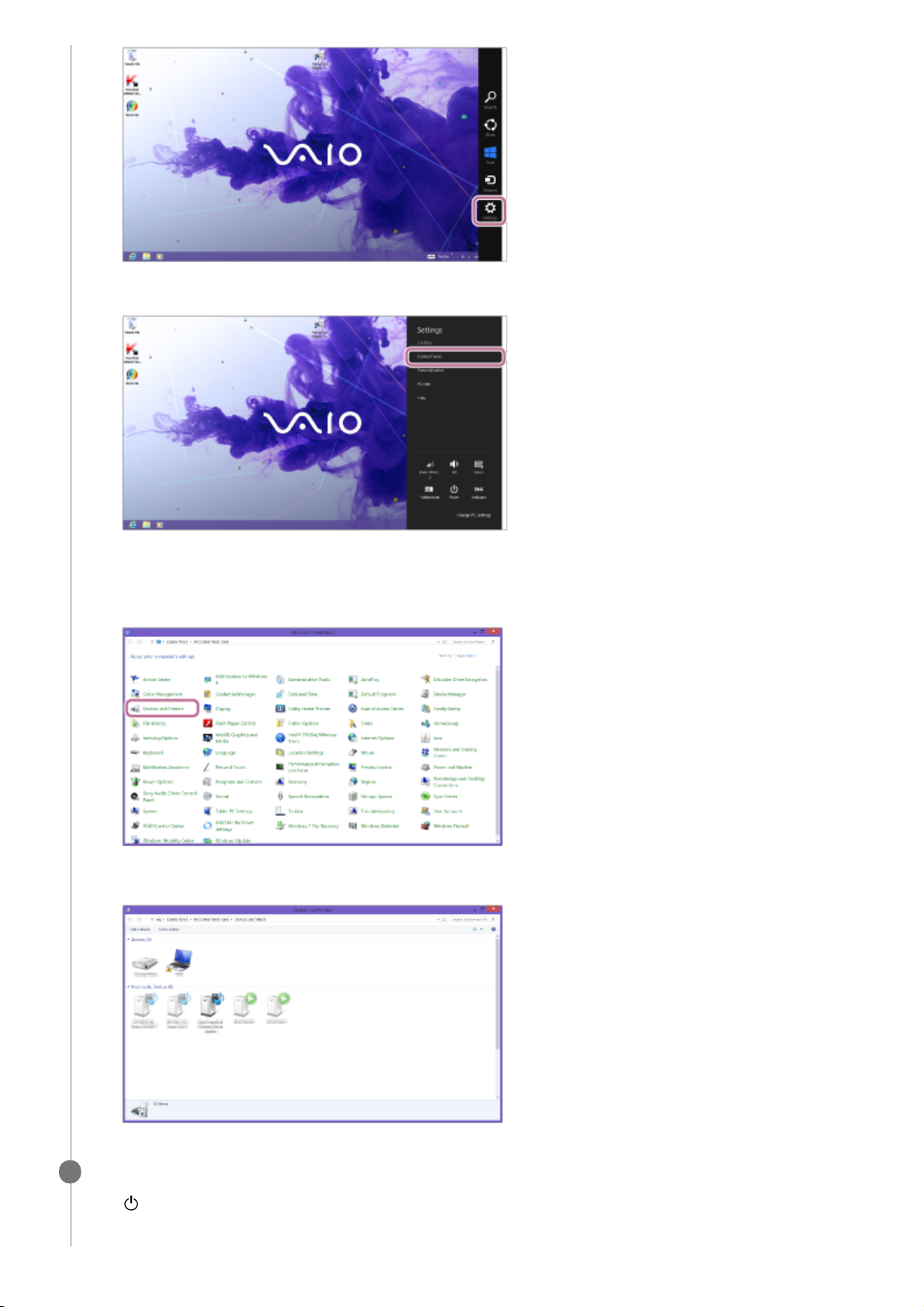
When the [Settings] charms are displayed, click [Control Panel].
3.
When [All Control Panel Items] is displayed, select [Device and printer].
If the [Control Panel] screen is displayed instead of [All Control Panel Items], select [Large icons] or [Small
icons] from [View by] on the upper right of the screen.
The following screen will be displayed.
4.
Turn the speaker on.
The
(power) indicator lights up in green.
2
77
Page 78
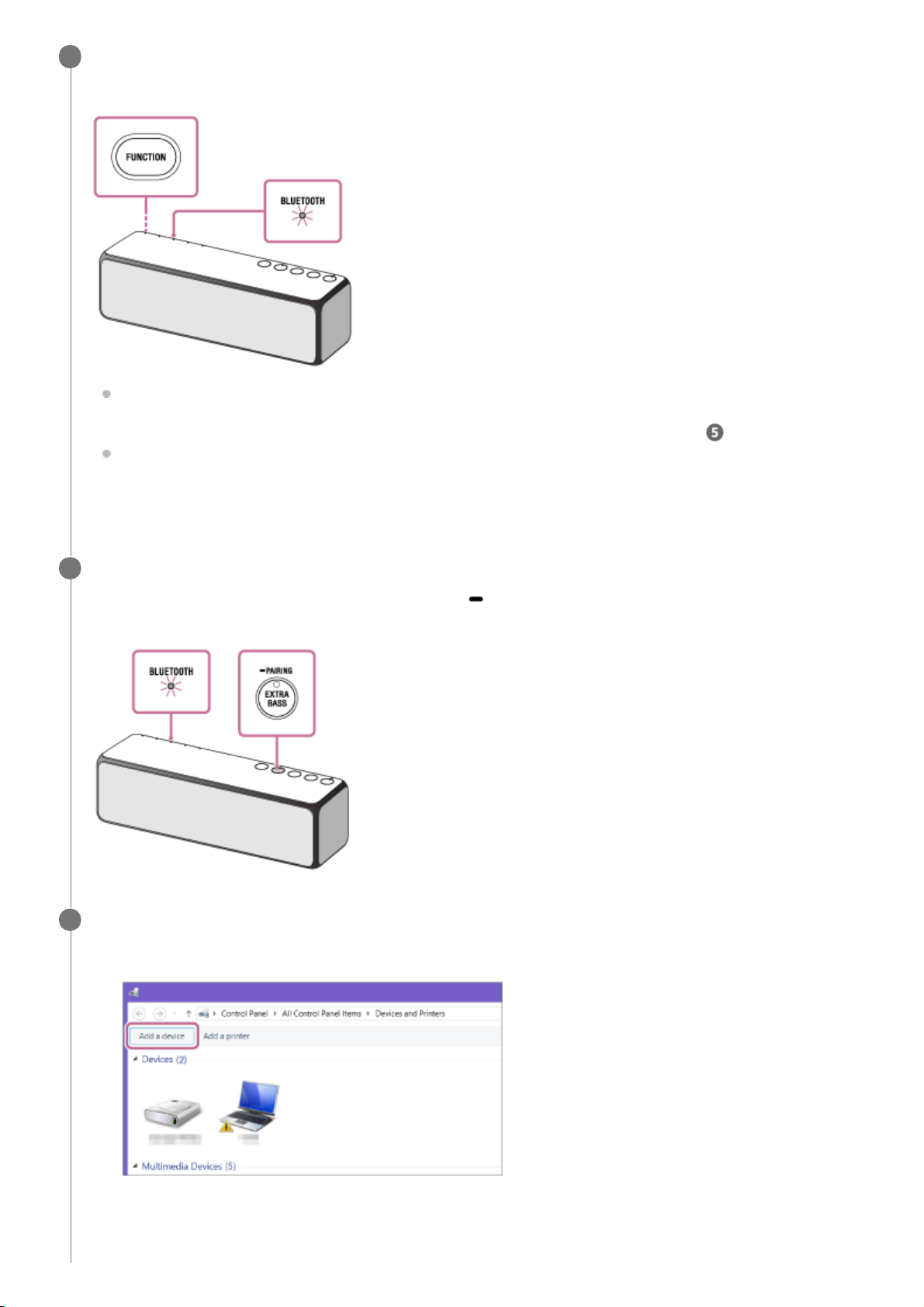
Press the FUNCTION button repeatedly until the BLUETOOTH indicator flashes.
The speaker enters the BLUETOOTH mode.
When you turn on the speaker for the first time after purchase, pairing information is not stored in the speaker.
In this case, by only placing the speaker in the BLUETOOTH mode, the BLUETOOTH indicator will begin to
flash quickly and the speaker will enter the pairing mode automatically. Then go to step
.
When you turn on the BLUETOOTH mode, the speaker will try to make a BLUETOOTH connection with the last
connected BLUETOOTH device. If the device is nearby, the BLUETOOTH connection establishes automatically
and the BLUETOOTH indicator stays lit. In this case, turn off the BLUETOOTH function on the BLUETOOTH
device, or turn off the BLUETOOTH device.
3
Set the speaker to the pairing mode.
Press and hold the EXTRA BASS button with indicator /
PAIRING button until the voice guidance are heard and
the BLUETOOTH indicator starts flashing quickly (three times a second).
4
Perform the pairing procedure on the PC.
5
Click [Add a device].
1.
Click [h.ear go 2], and then click [Next].
2.
78
Page 79
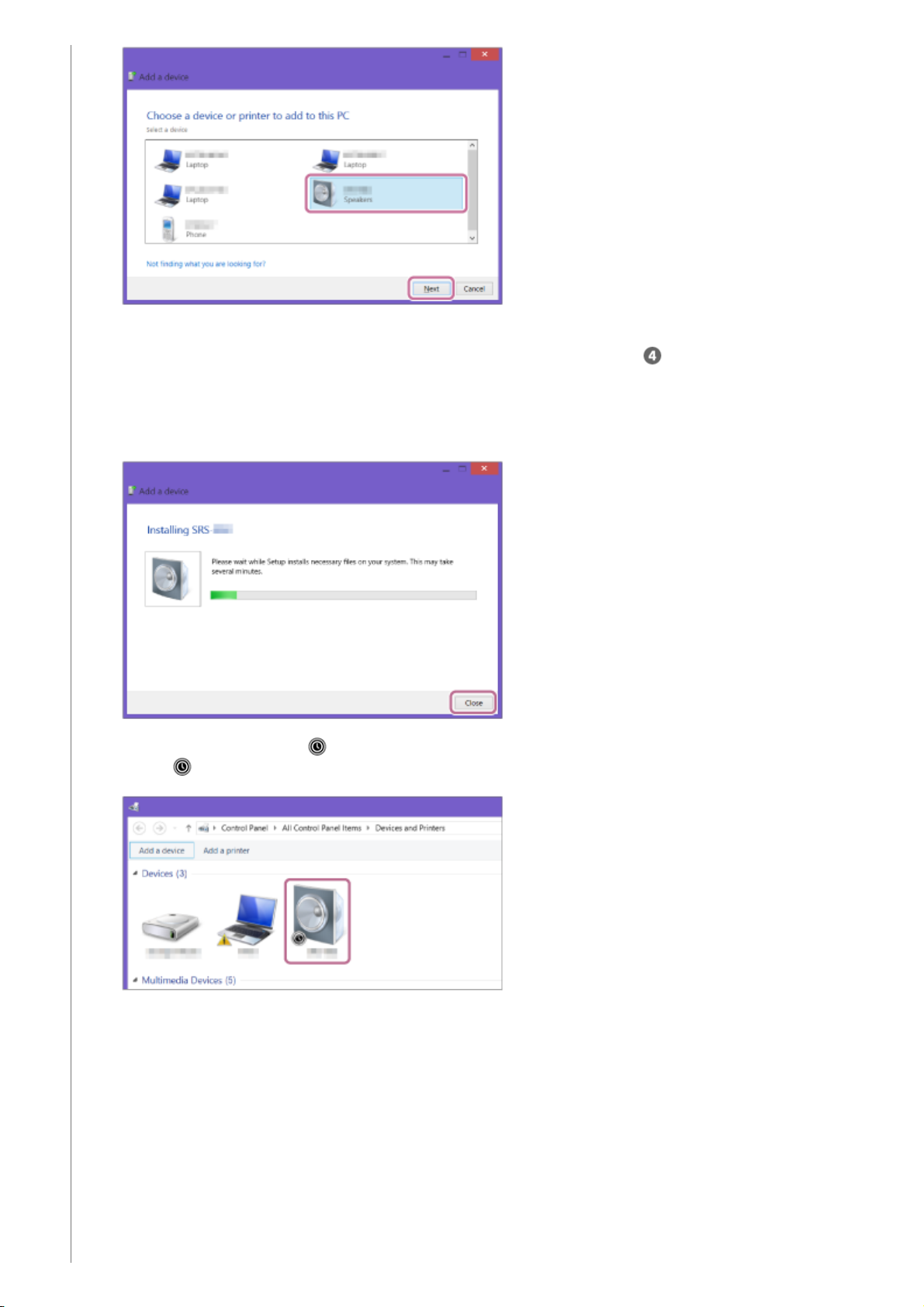
If a passkey* is required, enter “0000.”
If [h.ear go 2] does not appear on the screen, repeat the procedure from step
.
A passkey may be called “Passcode,” “PIN code,” “PIN number” or “Password.”
*
When the following screen is displayed, click [Close].
The driver installation for the PC begins.
During the installation, the [ ] mark is displayed on the bottom left of the [h.ear go 2] icon.
When [
] disappears, the driver installation has finished. Go to step 4.
Depending on the PC, this installation may take a while. If the driver installation takes a long time, the speaker
enters the BLUETOOTH/Network standby mode automatically. In this case, turn on the speaker again.
3.
Right-click [h.ear go 2] of [Device], and then select [Sound settings] from the displayed menu.
4.
79
Page 80
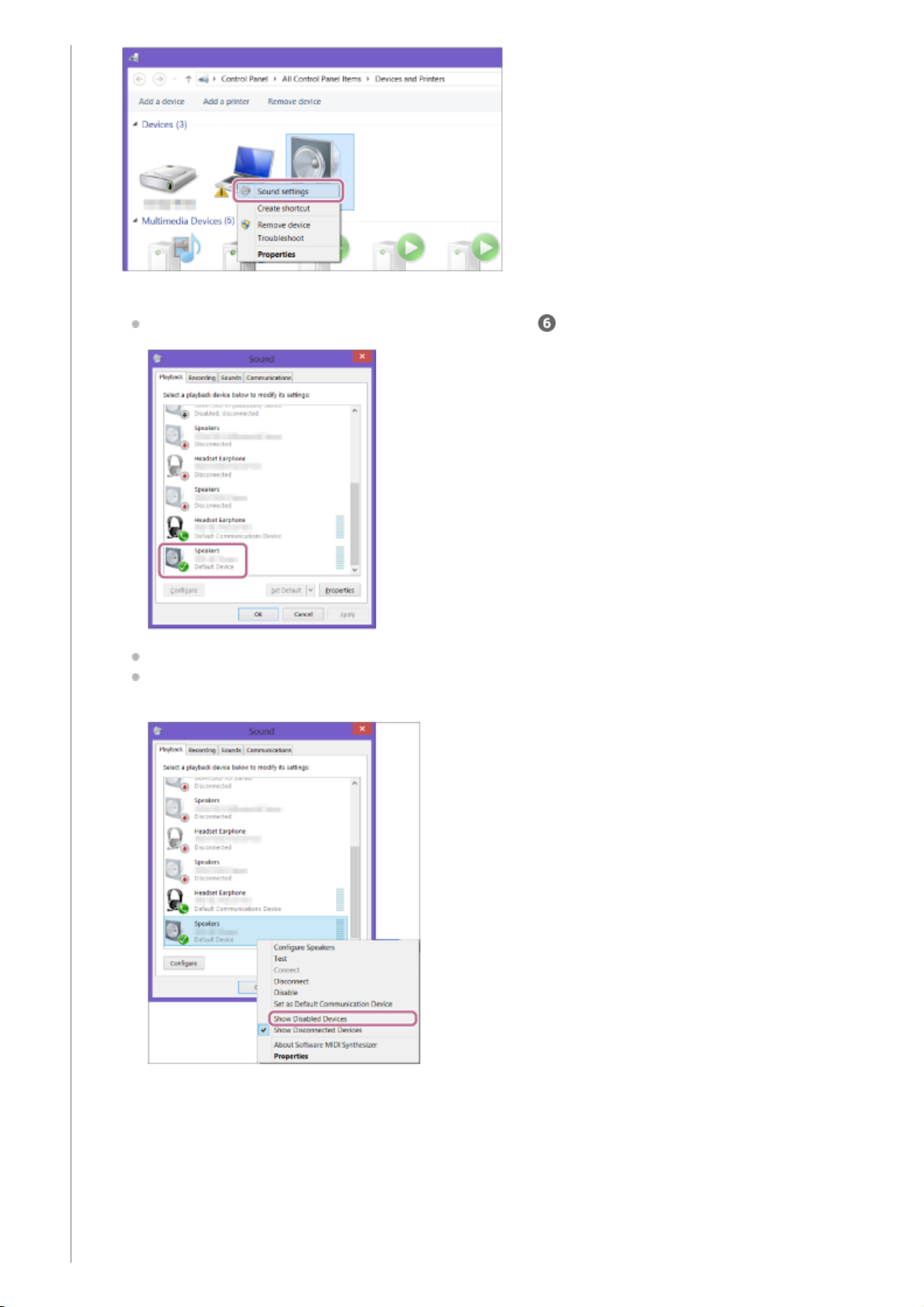
Check [h.ear go 2 Stereo] on the [Sound] screen.
If [h.ear go 2 Stereo] has a checkmark (green), go to step
.
If [h.ear go 2 Stereo] does not have a checkmark (green), go to step 6.
If [h.ear go 2 Stereo] does not appear on the [Sound] screen, right-click on the [Sound] screen, and place a
checkmark by [Show Disabled Devices].
5.
Right-click [h.ear go 2 Stereo], and then select [Connect] from the displayed menu.
6.
80
Page 81
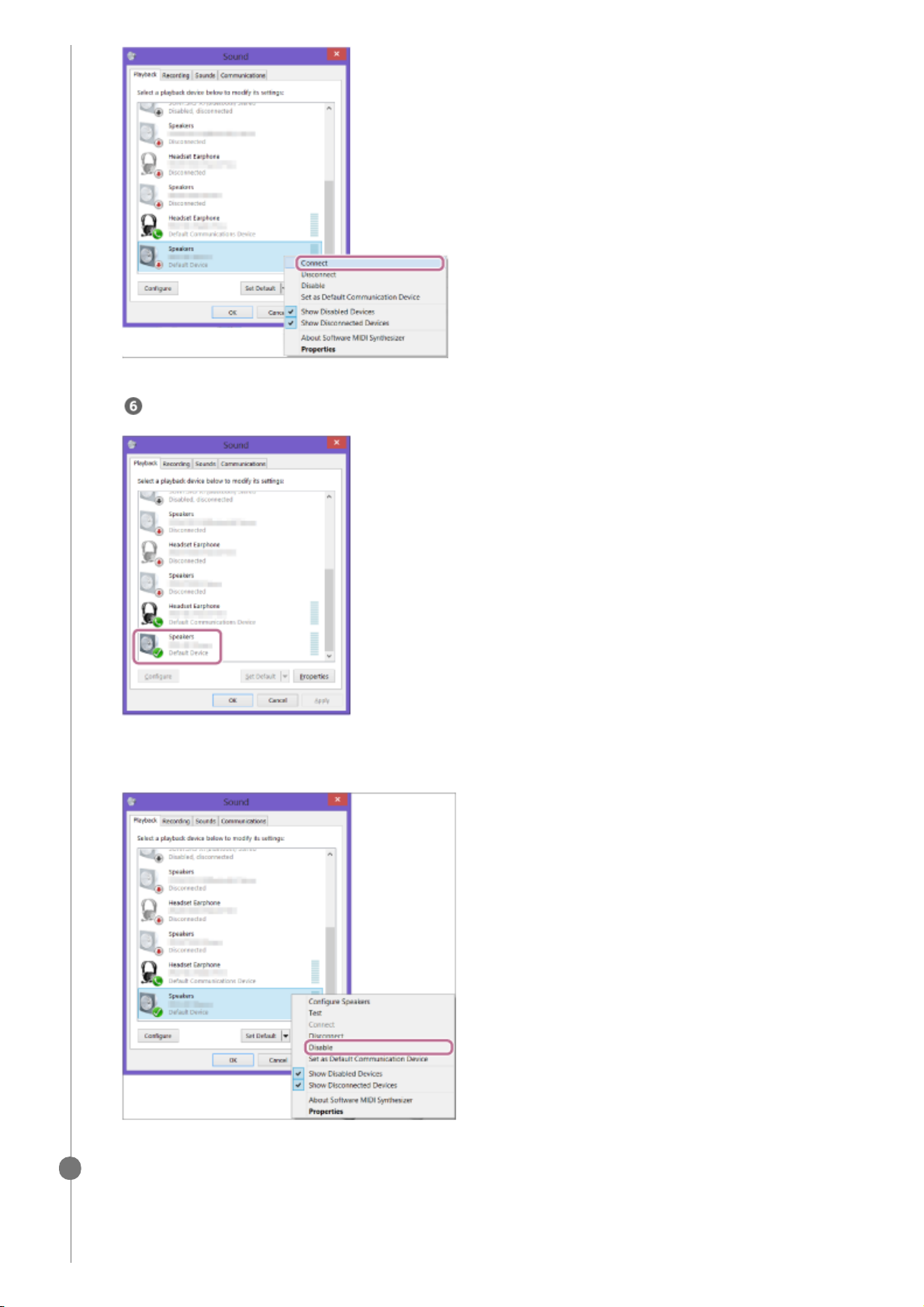
When the connection is finished, a checkmark appears on [h.ear go 2 Stereo] of the [Sound] screen. Go to step
.
If you cannot select [Connect] of [h.ear go 2 Stereo], select [Disable] of [Default Device] displayed with a
checkmark (green).
Check that the BLUETOOTH indicator on the speaker changes from flashing to staying lit.
When the BLUETOOTH connection is established, the BLUETOOTH indicator stays lit. You can enjoy the music
playback from your PC.
6
81
Page 82
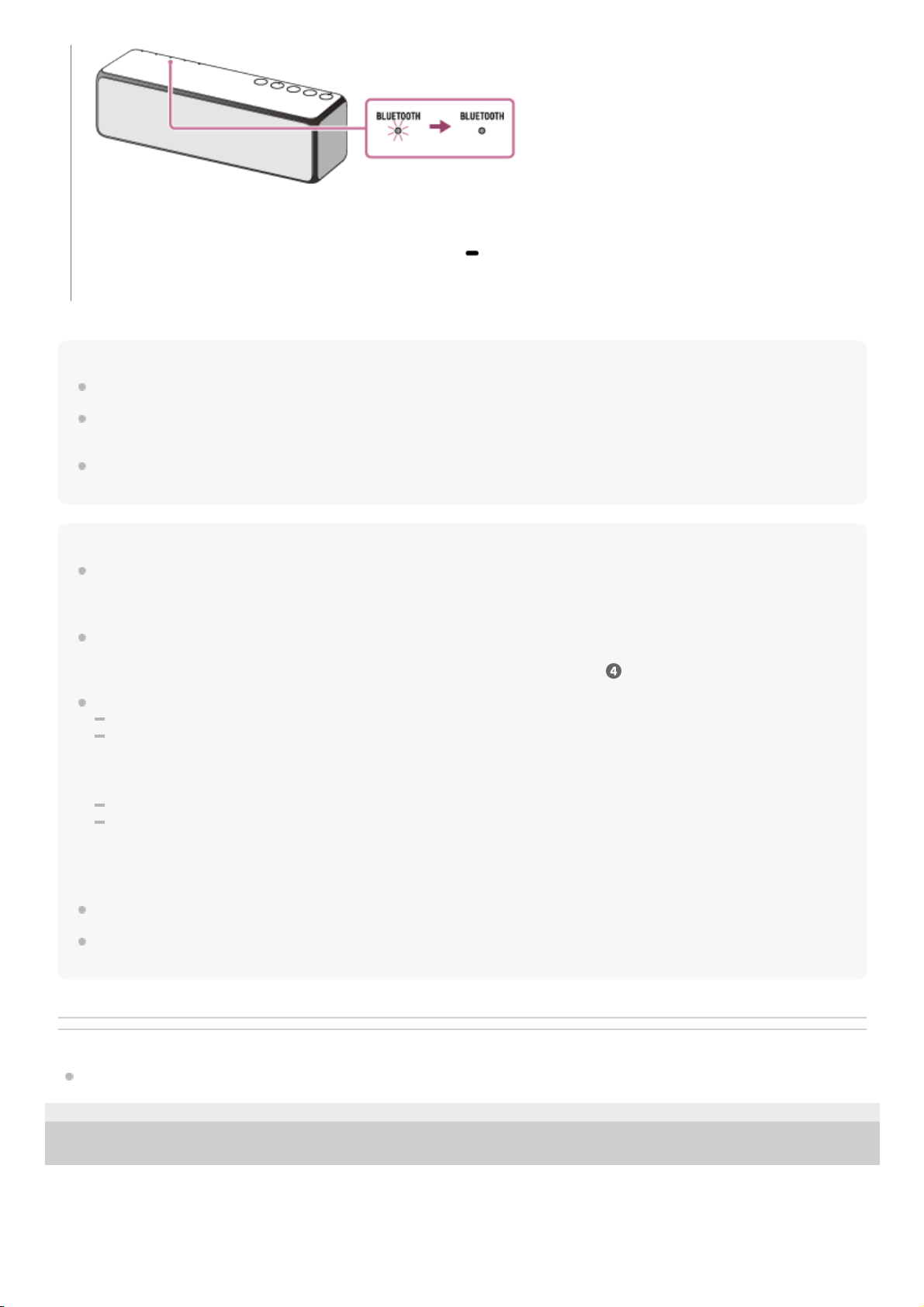
Hint
The procedure explained above is for guidance only. For details, refer to the operating instructions supplied with the PC.
You can perform pairing or connect to another BLUETOOTH device even when a BLUETOOTH connection is established. In this
case, the previous connection will be disconnected.
If your PC does not have the BLUETOOTH function, it will be necessary to connect a commercially available BLUETOOTH
adaptor to the PC.
Note
Stop playback on the BLUETOOTH device and turn down the volume of the device beforehand. When pairing is completed, loud
sound may output from the speaker. Otherwise, you may experience sudden loud sound from the speaker when music is played
back for the first time after pairing.
The pairing mode of the speaker is released after about 5 minutes and the BLUETOOTH indicator flashes slowly. However, when
pairing information is not stored in the speaker, or you turn on the speaker for the first time after purchase, pairing mode is not
released. If the pairing mode is released before finishing the process, repeat from step
.
Once BLUETOOTH devices are paired, there is no need to pair them again, except in the following cases:
Pairing information has been deleted after repair, etc.
The speaker is already paired with 9 devices and another device is to be paired.
The speaker can be paired with up to 9 devices. If a new device is paired after 9 devices have already been paired, the paired
device with the oldest connection time is replaced by the new one.
The pairing information with the speaker has been deleted from the BLUETOOTH device.
The speaker is initialized.
All pairing information will be deleted. If you initialize the speaker, it may not be able to connect your iPhone/iPod touch or PC.
In this case, erase the pairing information of the speaker on your iPhone/iPod touch or PC, and then perform the pairing
procedure again.
The speaker can be paired with multiple devices, but can only play music from one paired device at a time.
The passkey of this speaker is “0000.” If a passkey besides “0000” is set on the BLUETOOTH device, pairing cannot be done
with the speaker.
Related Topic
Listening to music on a device via a BLUETOOTH connection
4-735-503-11(1) Copyright 2018 Sony Corporation
If the connection is not completed even though [h.ear go 2 Stereo] is displayed on the screen, place the speaker in
the pairing mode to connect.
Press and hold the EXTRA BASS button with indicator/
PAIRING button until the voice guidance is heard and
the BLUETOOTH indicator starts flashing quickly (three times a second).
82
Page 83
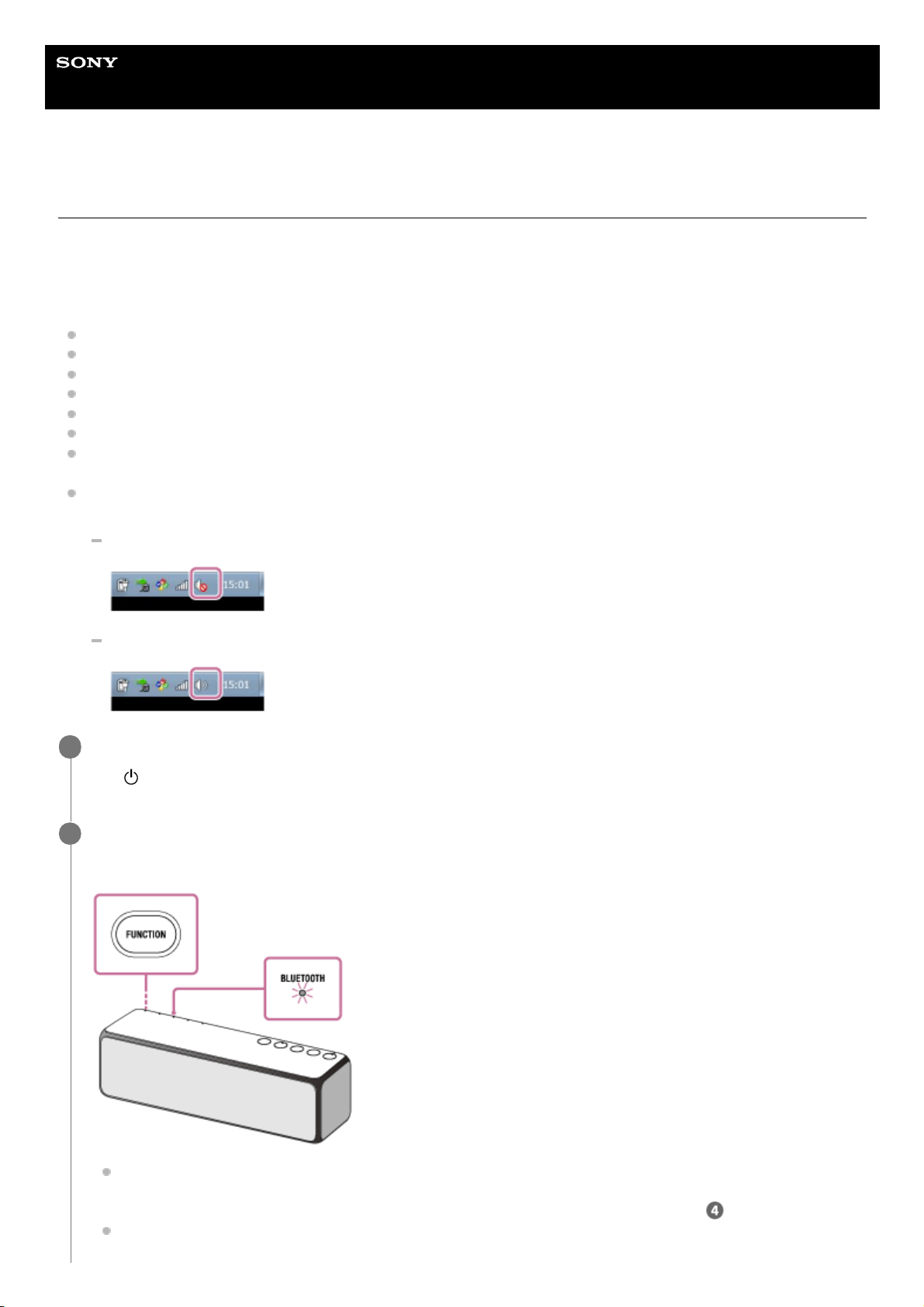
Help Guide
Wireless Speaker
h.ear go 2 (SRS-HG10)
Pairing and connecting with a PC (Windows 7)
Pairing is the process required to mutually register the information on BLUETOOTH devices to be connected wirelessly.
It is necessary to pair a device with the speaker to be able to make a BLUETOOTH connection for the first time. Perform
same procedures to pair to other devices.
Do the following before starting.
Make sure that your PC has the BLUETOOTH wireless function.
Place your PC within 1 m (3 ft) of the speaker.
Connect the speaker to the AC outlet or charge the battery sufficiently.
Locate the operating instructions supplied with the PC for reference.
Turn down the volume of the PC.
Stop playback on the PC to avoid any sudden loud sound from the speaker.
Activate the BLUETOOTH function on your PC. For details how to activate the BLUETOOTH function or to confirm
that your PC has the BLUETOOTH function, refer to the operating instructions of the PC.
Set the speaker on the PC to on. If the speaker setting on the PC is the mute (off) mode, the speaker does not output
sound.
If the speaker setting on the PC is the mute (off) mode
If the speaker setting on the PC is the on mode
Turn the speaker on.
The
(power) indicator lights up in green.
1
Press the FUNCTION button repeatedly until the BLUETOOTH indicator flashes.
The speaker enters the BLUETOOTH mode.
When you turn on the speaker for the first time after purchase, pairing information is not stored in the speaker.
In this case, by only placing the speaker in the BLUETOOTH mode, the BLUETOOTH indicator will begin to
flash quickly and the speaker will enter the pairing mode automatically. Then go to step
.
When you turn on the BLUETOOTH mode, the speaker will try to make a BLUETOOTH connection with the last
connected BLUETOOTH device. If the device is nearby, the BLUETOOTH connection establishes automatically
2
83
Page 84
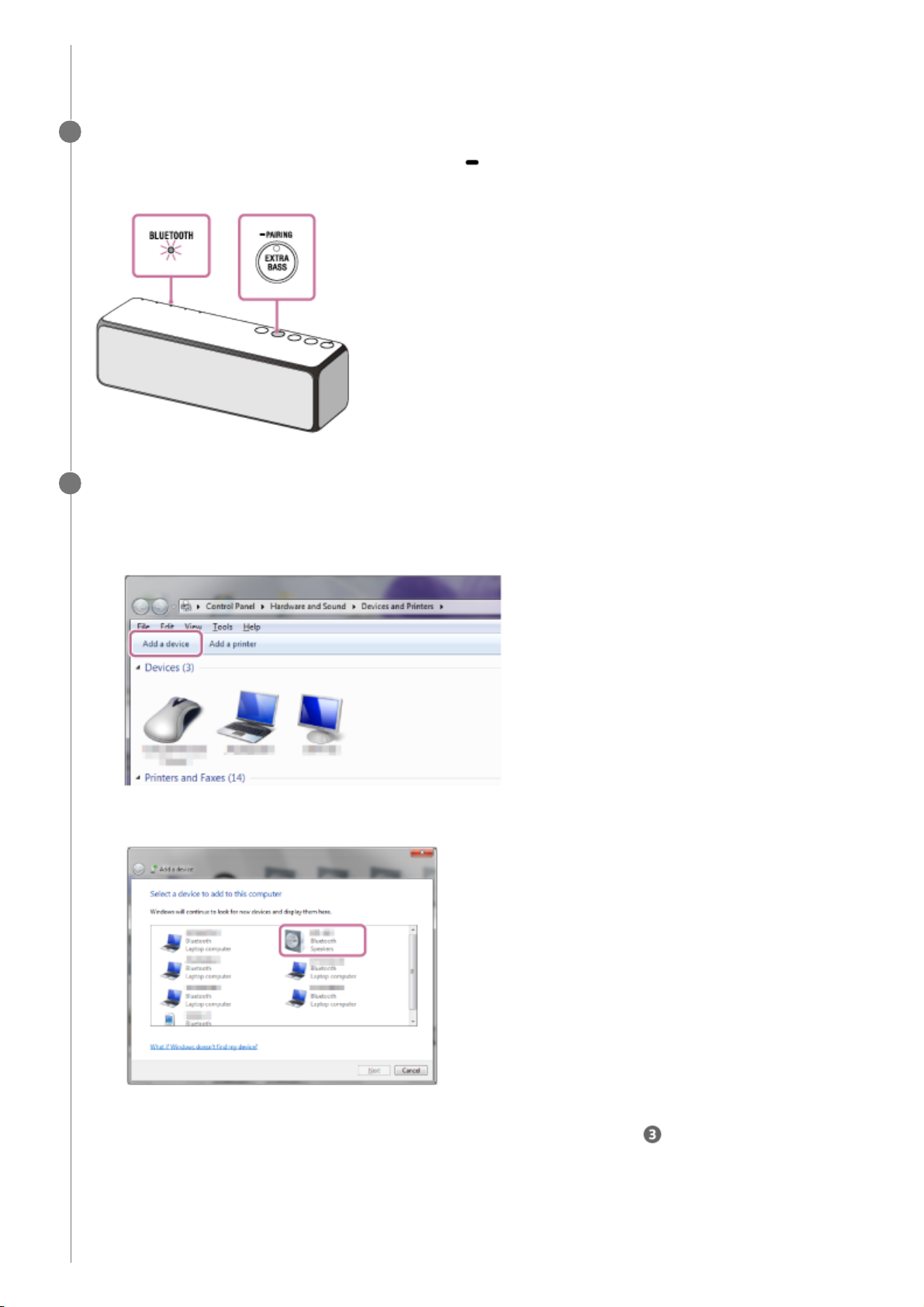
and the BLUETOOTH indicator stays lit. In this case, turn off the BLUETOOTH function on the BLUETOOTH
device, or turn off the BLUETOOTH device.
Set the speaker to the pairing mode.
Press and hold the EXTRA BASS button with indicator/
PAIRING button until the voice guidance are heard and
the BLUETOOTH indicator starts flashing quickly (three times a second).
3
Perform the pairing procedure on the PC.
4
Click the [Start] button and then [Devices and Printers].
1.
Click [Add a device].
2.
Click [h.ear go 2], and then click [Next].
If a passkey* is required, enter “0000.”
If [h.ear go 2] does not appear on the screen, repeat the procedure from step
.
3.
A passkey may be called “Passcode,” “PIN code,” “PIN number” or “Password.”
*
When the following screen is displayed, click [Close].
The driver installation for the PC begins.
4.
84
Page 85
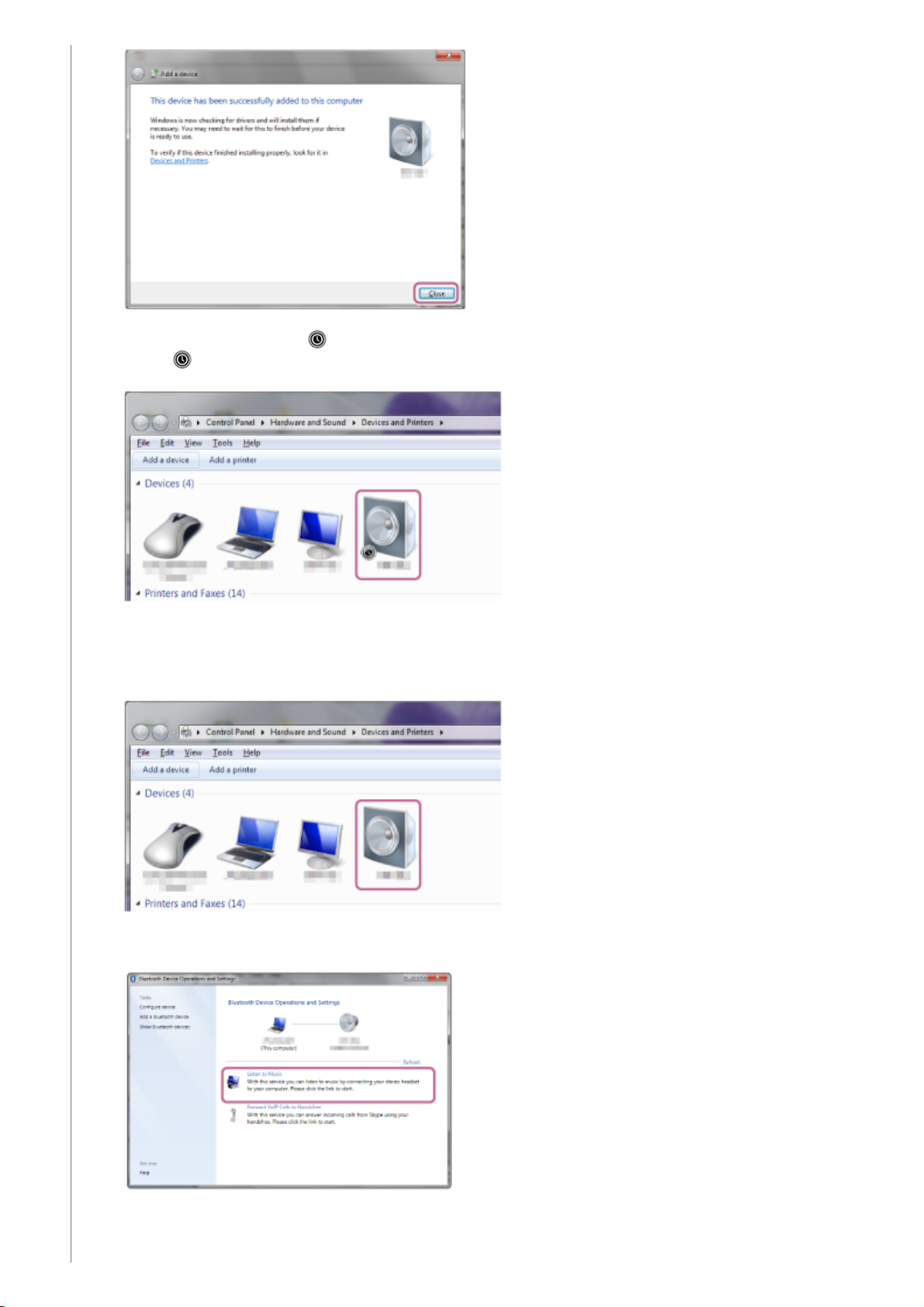
During the installation, the [ ] mark is displayed on bottom-left of the [h.ear go 2] icon.
When [
] disappears, the driver installation is finished. Go to step 5.
Depending on a PC, this installation may take a time.
Double-click [h.ear go 2] on [Devices].
5.
Click [Listen to Music].
When the connection is established, a checkmark appears.
6.
85
Page 86
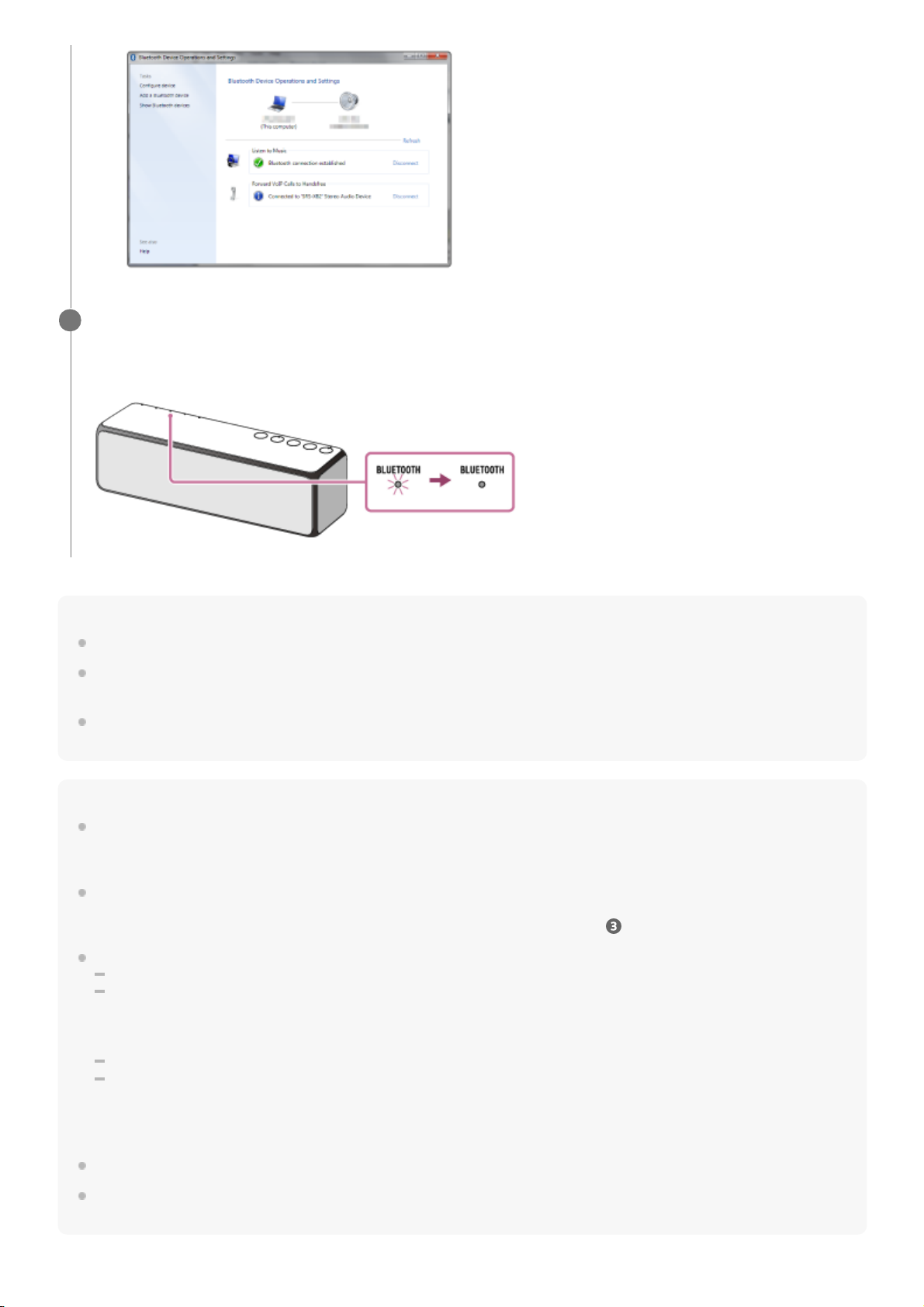
Hint
The procedure explained above is for guidance only. For details, refer to the operating instructions supplied with the PC.
You can perform pairing or connect to another BLUETOOTH device even when a BLUETOOTH connection is established. In this
case, the previous connection will be disconnected.
If your PC does not have the BLUETOOTH function, it will be necessary to connect a commercially available BLUETOOTH
adaptor to the PC.
Note
Stop playback on the BLUETOOTH device and turn down the volume of the device beforehand. When pairing is completed, loud
sound may output from the speaker. Otherwise, you may experience sudden loud sound from the speaker when music is played
back for the first time after pairing.
The pairing mode of the speaker is released after about 5 minutes and the BLUETOOTH indicator flashes slowly. However, when
pairing information is not stored in the speaker, or you turn on the speaker for the first time after purchase, pairing mode is not
released. If the pairing mode is released before finishing the process, repeat from step
.
Once BLUETOOTH devices are paired, there is no need to pair them again, except in the following cases:
Pairing information has been deleted after repair, etc.
The speaker is already paired with 9 devices and another device is to be paired.
The speaker can be paired with up to 9 devices. If a new device is paired after 9 devices have already been paired, the paired
device with the oldest connection time is replaced by the new one.
The pairing information with the speaker has been deleted from the BLUETOOTH device.
The speaker is initialized.
All pairing information will be deleted. If you initialize the speaker, it may not be able to connect your iPhone/iPod touch or PC.
In this case, erase the pairing information of the speaker on your iPhone/iPod touch or PC, and then perform the pairing
procedure again.
The speaker can be paired with multiple devices, but can only play music from one paired device at a time.
The passkey of this speaker is “0000.” If a passkey besides “0000” is set on the BLUETOOTH device, pairing cannot be done
with the speaker.
Check that the BLUETOOTH indicator on the speaker changes from flashing to staying lit.
When the BLUETOOTH connection is established, the BLUETOOTH indicator stays lit. You can enjoy the music
playback from your PC.
5
86
Page 87

Related Topic
Listening to music on a device via a BLUETOOTH connection
4-735-503-11(1) Copyright 2018 Sony Corporation
87
Page 88
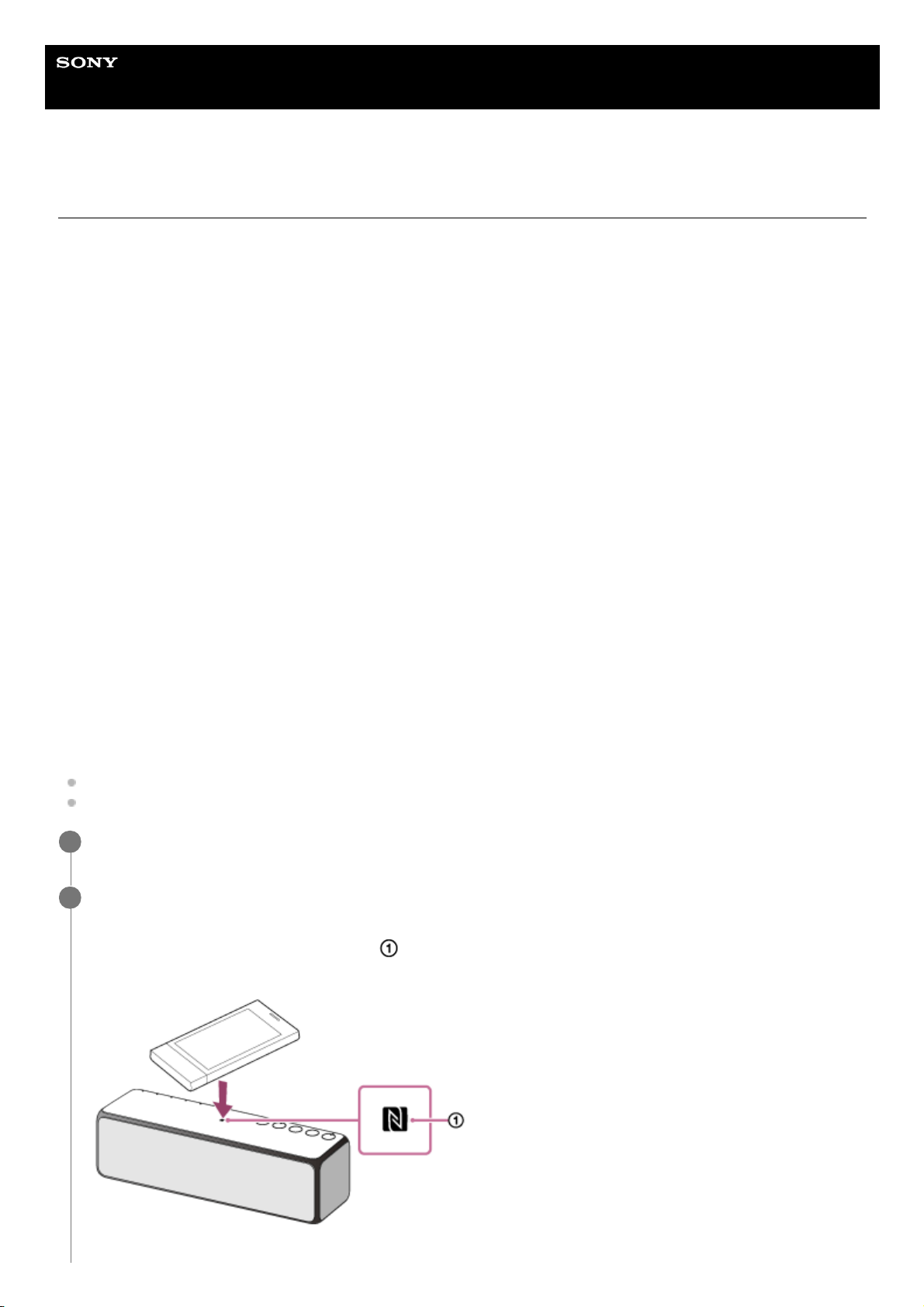
Help Guide
Wireless Speaker
h.ear go 2 (SRS-HG10)
Connecting with an NFC-compatible device by one touch (NFC)
By only touching the speaker with an NFC-compatible device such as a smartphone, pairing (registration) will be made
automatically.
Compatible smartphones
NFC-compatible smartphones with Android 4.1 or later installed
For details, access the following URL:
For customers in Europe:
http://www.sony.eu/support
For customers in the USA:
http://esupport.sony.com/US
For customers in Canada:
http://esupport.sony.com/CA/
For customers in other countries/regions:
http://www.sony-asia.com/section/support
Compatible WALKMAN® models
NFC-compatible WALKMAN® models*
NFC
NFC (Near Field Communication) is a technology enabling short-range wireless communication between various
devices, such as smartphones and IC tags. The data communication is easily activated by touching the device to the
specific position on the speaker.
Do the following before starting.
Turn down the volume of the device.
Stop playback on the BLUETOOTH device to avoid sudden loud sound output from the speaker.
Even if your WALKMAN® is compatible with the NFC function, it may not be able to make a BLUETOOTH connection with the speaker by one
touch. For details on the compatible models, refer to the operating instructions supplied with your WALKMAN®.
*
Turn on the NFC function of the device.
1
Touch the speaker with the device.
Unlock the screen of the device.
Keep touching the device on the N-Mark (
) of the speaker until the device responds (it may take a few
seconds).
2
88
Page 89
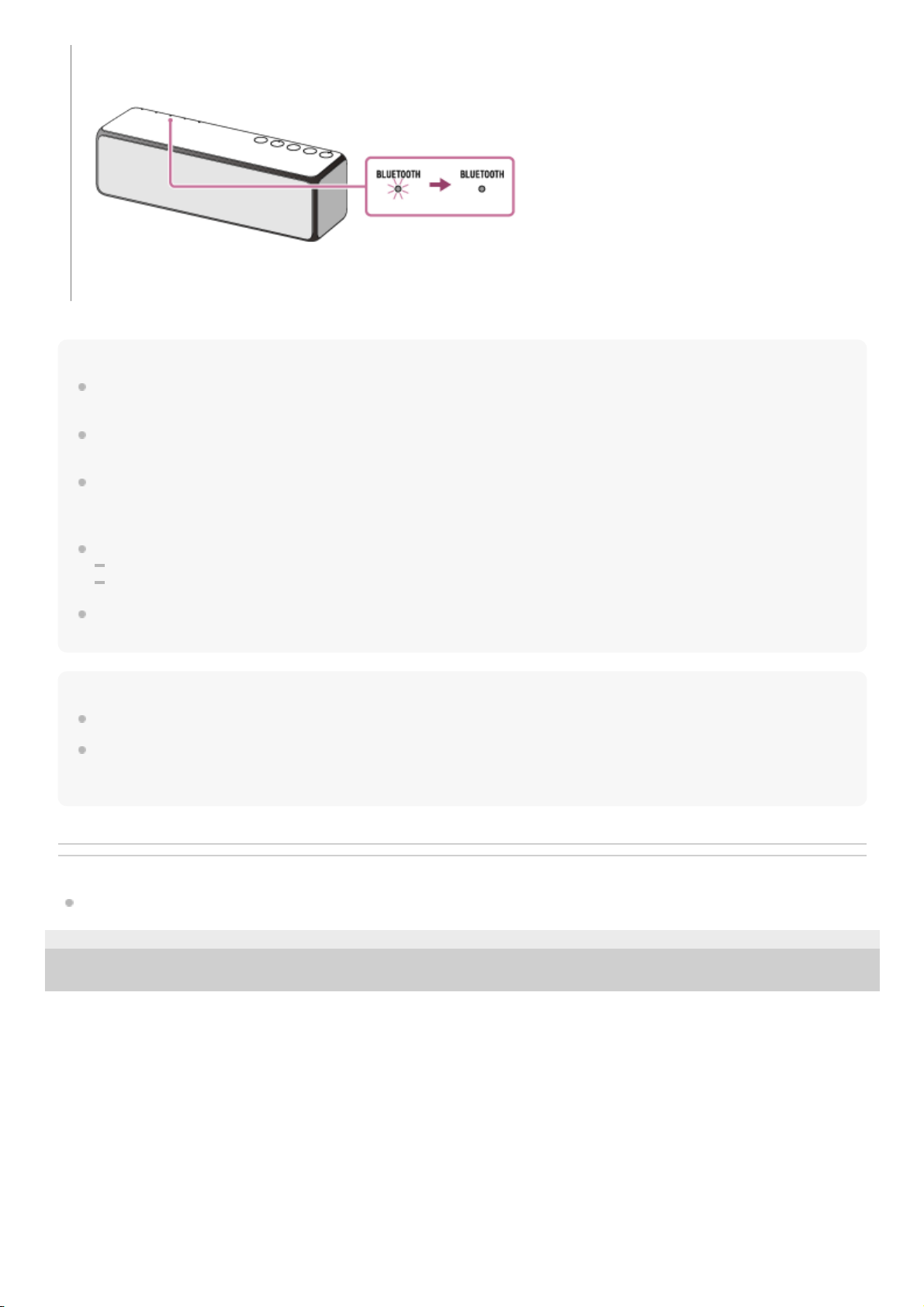
Hint
The procedure explained above is for guidance only. For details, refer to the operating instructions supplied with the
BLUETOOTH device.
You can perform pairing or connect to another BLUETOOTH device even when a BLUETOOTH connection is established. In this
case, the previous connection will be disconnected.
Even if the speaker is not turned on, the BLUETOOTH indicator flashes when touching with a device. When the connection is
established, the speaker is turned on automatically. If the Wi-Fi network function and BLUETOOTH network function is off, it will
not connect by touching with a device. For details, see “How to turn off the Wi-Fi network/BLUETOOTH function.”
If the connection is not established, do the following.
Move the device over the N-Mark of the speaker slowly.
If the device is in a case, remove it.
When you touch an NFC-compatible device which is connected with another NFC-compatible device such as a headphone, the
connection is switched to the speaker automatically.
Note
If the NFC fails to connect, touch with the device again.
Stop playback on the BLUETOOTH device and turn down the volume of the device beforehand. When pairing is completed, loud
sound may output from the speaker. Otherwise, you may experience sudden loud sound from the speaker when music is played
back for the first time after pairing.
Related Topic
Listening to music on a device via a BLUETOOTH connection
4-735-503-11(1) Copyright 2018 Sony Corporation
Follow the instructions on the screen.
When the BLUETOOTH connection is established, the BLUETOOTH indicator stops flashing and stays lit.
To disconnect, touch the speaker with the device again.
89
Page 90
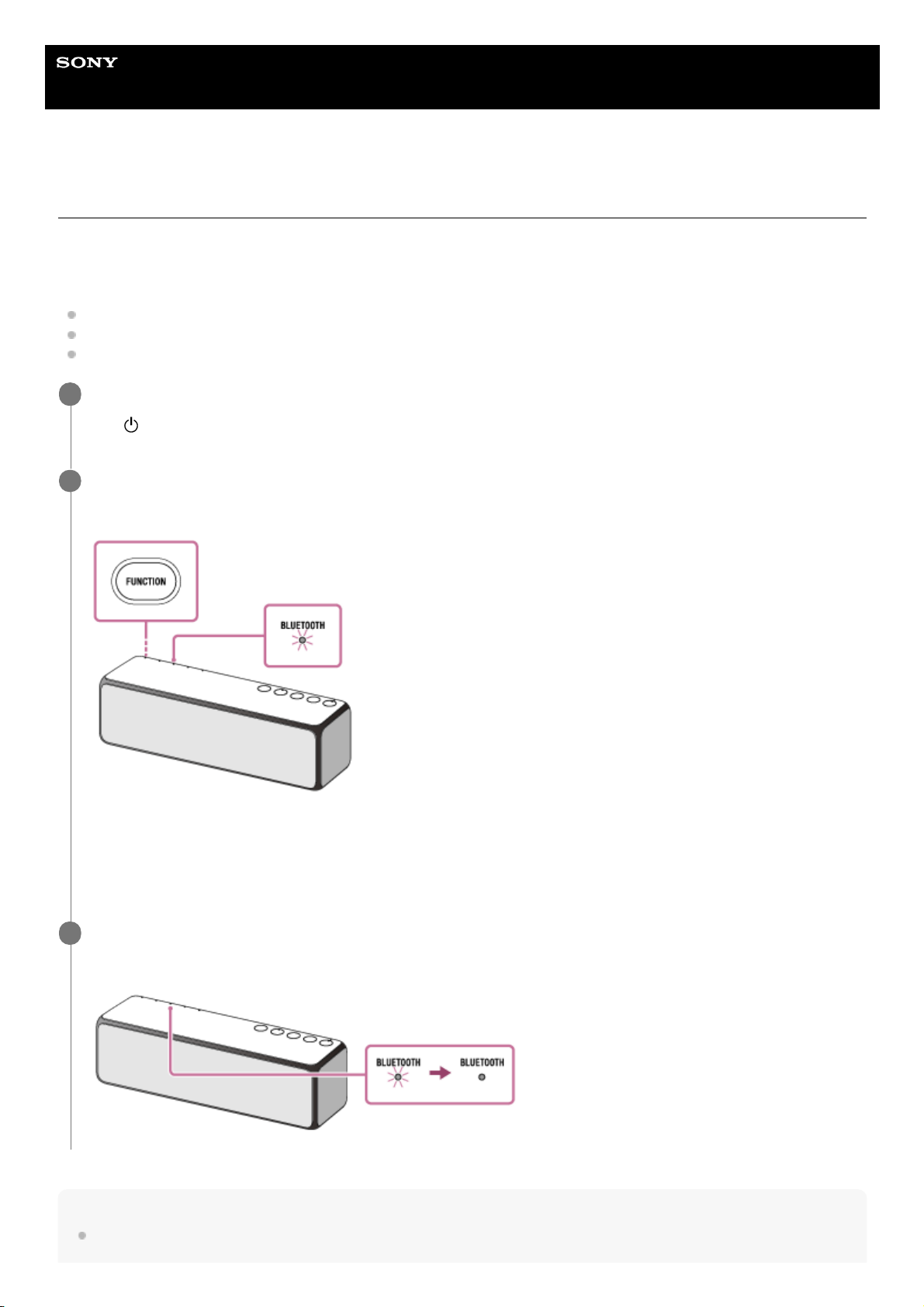
Help Guide
Wireless Speaker
h.ear go 2 (SRS-HG10)
Connecting with a paired BLUETOOTH device
The procedure explained below is for guidance only. For details, refer to the operating instructions supplied with the
BLUETOOTH device.
Do the following before starting.
If you have connected the speaker with another device, turn off the BLUETOOTH function on that device.
Turn down the volume of the BLUETOOTH device.
Stop playback on the BLUETOOTH device to avoid sudden loud sound output from the speaker.
Hint
You can perform pairing or connect to another BLUETOOTH device even when a BLUETOOTH connection is established. In this
case, the previous connection will be disconnected.
Turn on the speaker.
The
(power) indicator lights up in green.
1
Press the FUNCTION button repeatedly until the BLUETOOTH indicator flashes.
The speaker enters the BLUETOOTH mode.
When you turn on the BLUETOOTH mode, the speaker will try to make a BLUETOOTH connection with the last
connected BLUETOOTH device. If the device is nearby, the BLUETOOTH connection establishes automatically and
the BLUETOOTH indicator stays lit. In this case, turn off the BLUETOOTH function on the BLUETOOTH device, or
turn off the BLUETOOTH device.
2
Perform the pairing procedure on the BLUETOOTH device to detect the speaker.
When the BLUETOOTH connection is established, the BLUETOOTH indicator lights up.
3
90
Page 91

When you turn on the speaker or the BLUETOOTH mode, the speaker tries to make a BLUETOOTH connection with the last
connected BLUETOOTH device. If the device’s BLUETOOTH function is on, the BLUETOOTH connection is started
automatically.
When the BLUETOOTH/Network standby mode is turned on, the speaker turns on automatically by operating a BLUETOOTH
device, and starts the BLUETOOTH connection.
Note
Stop playback on the BLUETOOTH device and turn down the volume of the device beforehand. When pairing is completed, loud
sound may output from the speaker. Otherwise, you may experience sudden loud sound from the speaker when music is played
back for the first time after pairing.
If the speaker tries to reconnect with the last connected BLUETOOTH device, the connection may fail. In this case, turn off the
BLUETOOTH function on the BLUETOOTH device, or turn off the BLUETOOTH device.
Related Topic
Listening to music on a device via a BLUETOOTH connection
Using the BLUETOOTH®/Network standby mode
4-735-503-11(1) Copyright 2018 Sony Corporation
91
Page 92
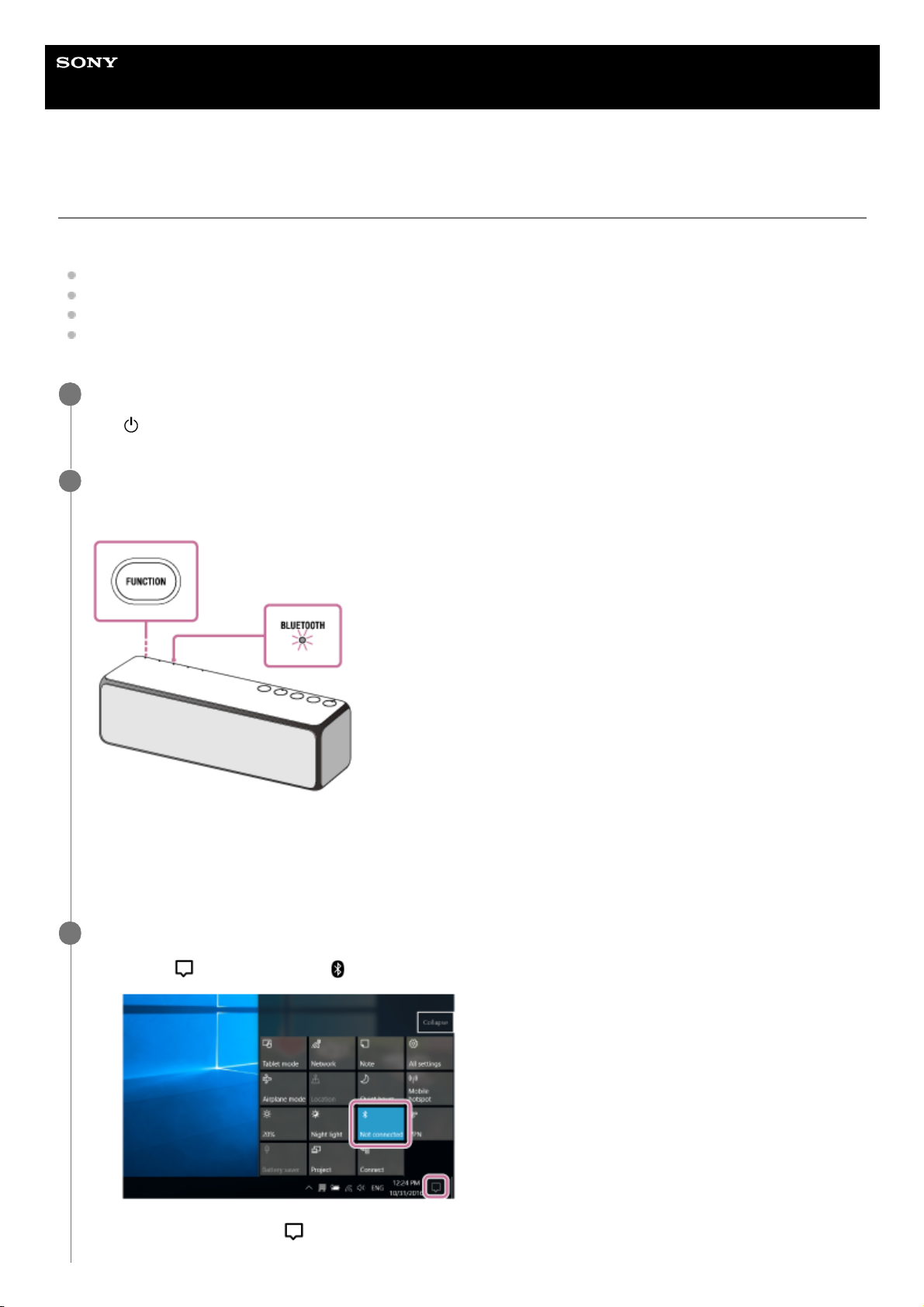
Help Guide
Wireless Speaker
h.ear go 2 (SRS-HG10)
Connecting with a paired PC (Windows 10)
Do the following before starting.
If you have connected the speaker with the other device, turn off the BLUETOOTH function on the device.
Turn down the volume of the PC.
Stop playback on the PC to avoid any sudden loud sound from the speaker.
Activate the BLUETOOTH function on your PC. For details how to activate the BLUETOOTH function, refer to the
operating instructions of the PC.
Turn the speaker on.
The
(power) indicator lights up in green.
1
Press the FUNCTION button repeatedly until the BLUETOOTH indicator flashes.
The speaker enters the BLUETOOTH mode.
When you turn on the BLUETOOTH mode, the speaker will try to make a BLUETOOTH connection with the last
connected BLUETOOTH device. If the device is nearby, the BLUETOOTH connection establishes automatically and
the BLUETOOTH indicator stays lit. When you want to connect another BLUETOOTH device, terminate the current
BLUETOOTH connection by operating the currently connected BLUETOOTH device.
2
Search for the speaker by the PC.
3
Select [
(Action Center)] – [ ] in the taskbar on the right-bottom of the screen.
1.
Select [Connect] in the [
Action Center] on the right-bottom of the screen.
2.
92
Page 93
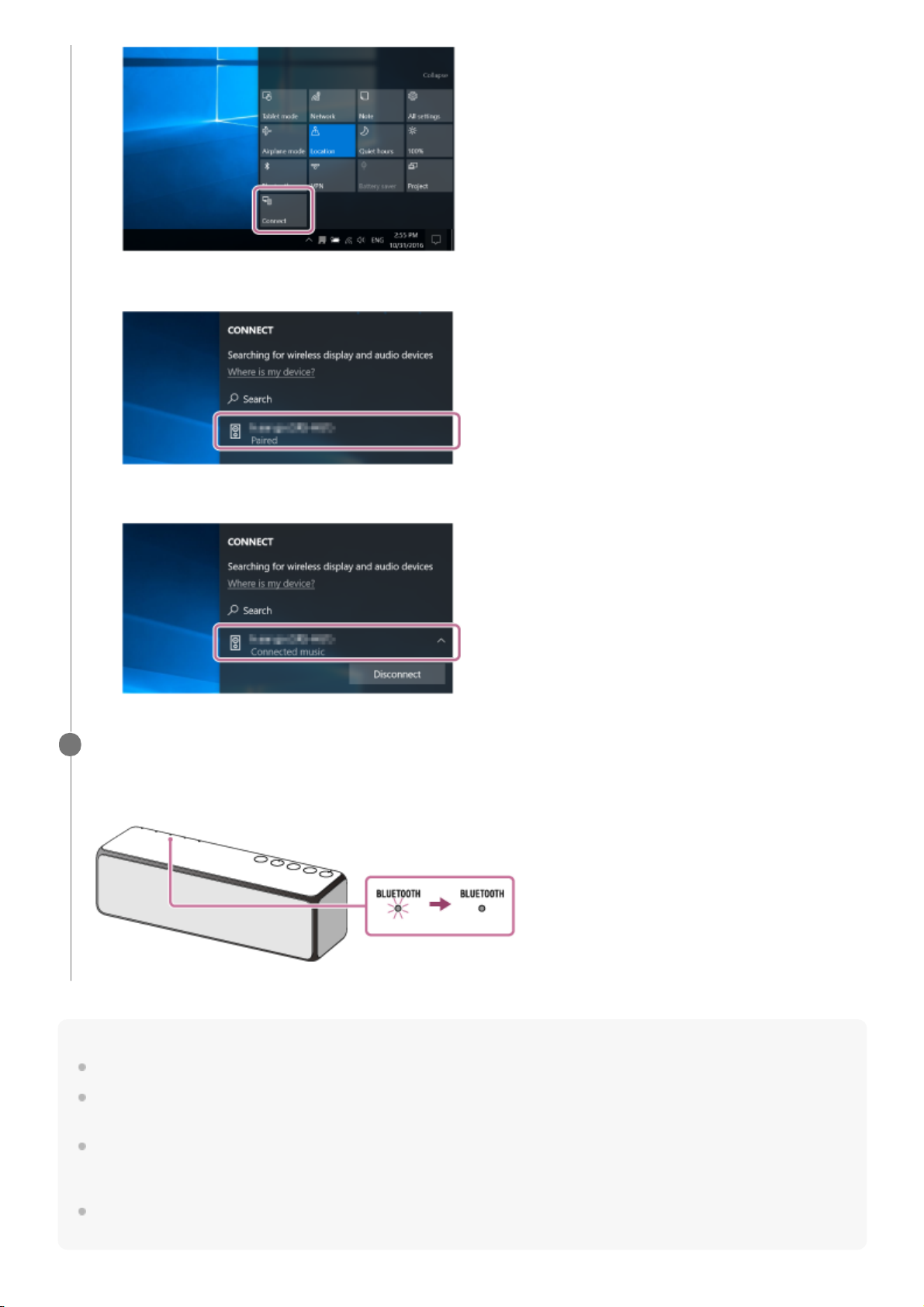
Hint
The procedure explained above is for guidance only. For details, refer to the operating instructions supplied with the PC.
You can perform pairing or connect to another BLUETOOTH device even when a BLUETOOTH connection is established. In this
case, the previous connection will be disconnected.
When you turn on the speaker or the BLUETOOTH mode, the speaker tries to make a BLUETOOTH connection with the last
connected BLUETOOTH device. If the device’s BLUETOOTH function is on, the BLUETOOTH connection is started
automatically.
When the BLUETOOTH/Network standby mode is turned on, the speaker turns on automatically by operating a BLUETOOTH
device, and starts the BLUETOOTH connection.
Select [h.ear go 2].
[Connected music] will be displayed on the screen.
3.
Check that the BLUETOOTH indicator on the speaker changes from flashing to staying lit.
When the BLUETOOTH connection is established, the BLUETOOTH indicator stays lit. You can enjoy the music
playback from your PC.
4
93
Page 94

Note
Stop playback on the BLUETOOTH device and turn down the volume of the device beforehand. When pairing is completed, loud
sound may output from the speaker. Otherwise, you may experience sudden loud sound from the speaker when music is played
back for the first time after pairing.
If the speaker tries to reconnect with the last connected BLUETOOTH device, the connection may fail. In this case, turn off the
BLUETOOTH function on the BLUETOOTH device, or turn off the BLUETOOTH device.
Related Topic
Listening to music on a device via a BLUETOOTH connection
Using the BLUETOOTH®/Network standby mode
4-735-503-11(1) Copyright 2018 Sony Corporation
94
Page 95
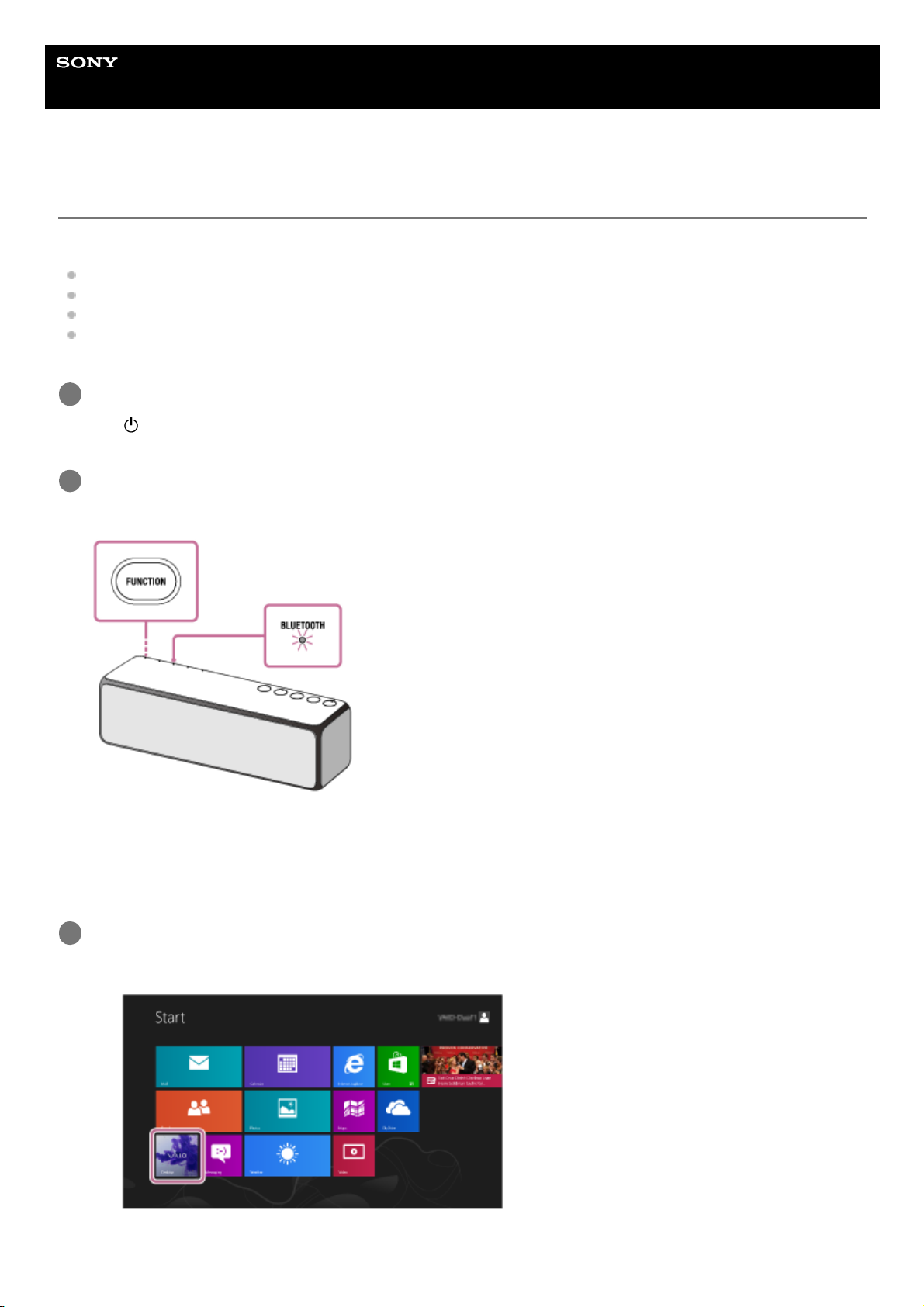
Help Guide
Wireless Speaker
h.ear go 2 (SRS-HG10)
Connecting with a paired PC (Windows 8.1)
Do the following before starting.
If you have connected the speaker with the other device, turn off the BLUETOOTH function on the device.
Turn down the volume of the PC.
Stop playback on the PC to avoid any sudden loud sound from the speaker.
Activate the BLUETOOTH function on your PC. For details how to activate the BLUETOOTH function, refer to the
operating instructions of the PC.
Turn the speaker on.
The
(power) indicator lights up in green.
1
Press the FUNCTION button repeatedly until the BLUETOOTH indicator flashes.
The speaker enters the BLUETOOTH mode.
When you turn on the BLUETOOTH mode, the speaker will try to make a BLUETOOTH connection with the last
connected BLUETOOTH device. If the device is nearby, the BLUETOOTH connection establishes automatically and
the BLUETOOTH indicator stays lit. When you want to connect another BLUETOOTH device, terminate the current
BLUETOOTH connection by operating the currently connected BLUETOOTH device.
2
Search for the speaker by the PC.
3
Select [Desktop] from the Start screen.
1.
95
Page 96
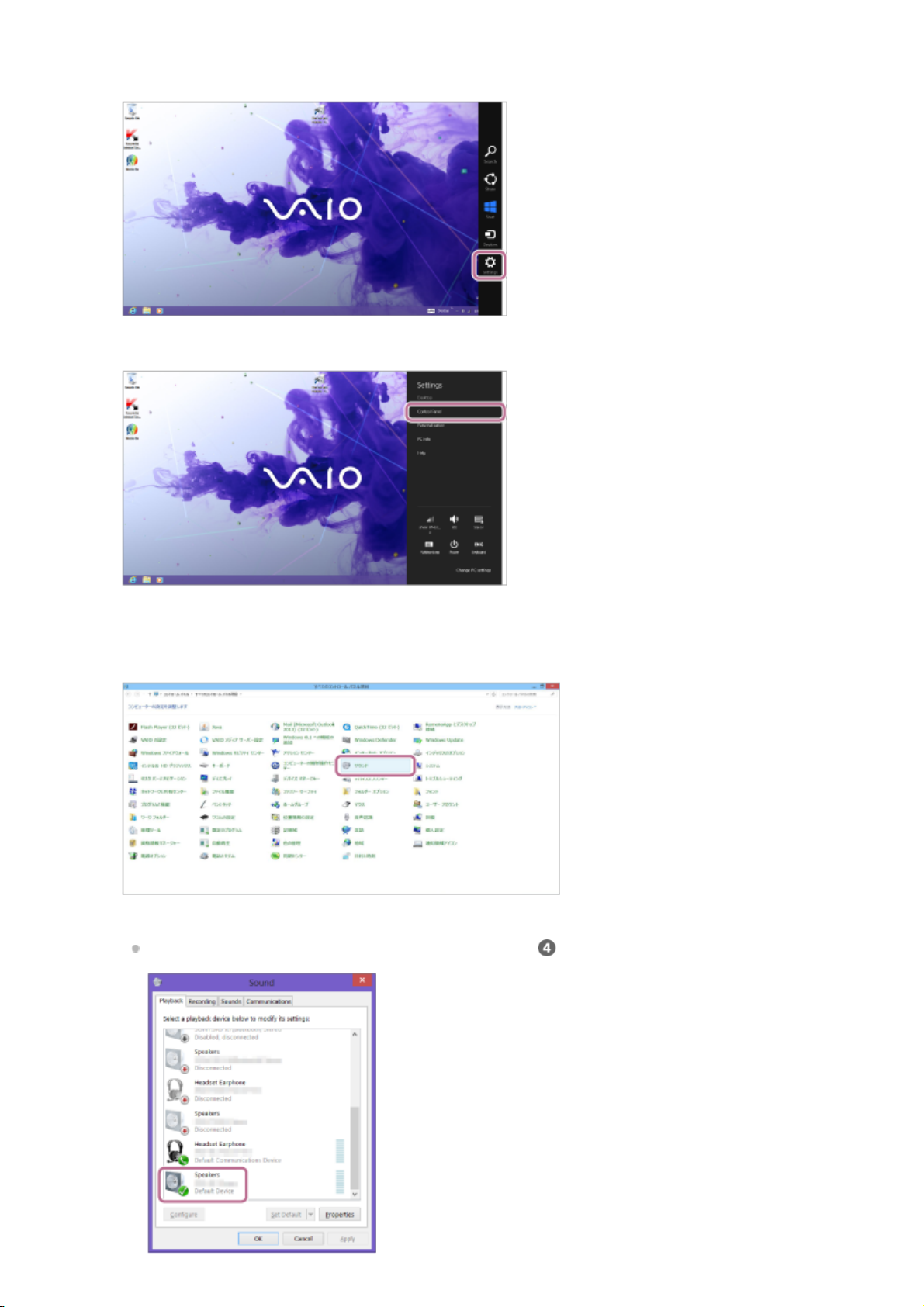
Align your mouse with the upper-right side of the screen (if using a touch panel, swipe from the right edge of
the screen), and select [Settings] from the charms that are displayed.
2.
When the [Settings] charms are displayed, click [Control Panel].
3.
When [All Control Panel Items] is displayed, select [Sound].
If the [Control Panel] screen is displayed instead of [All Control Panel Items], select [Large icons] or [Small
icons] from [View by] on upper right of the screen.
4.
Check [h.ear go 2 Stereo] on the [Sound] screen.
If [h.ear go 2 Stereo] has a checkmark (green), go to step
.
5.
96
Page 97
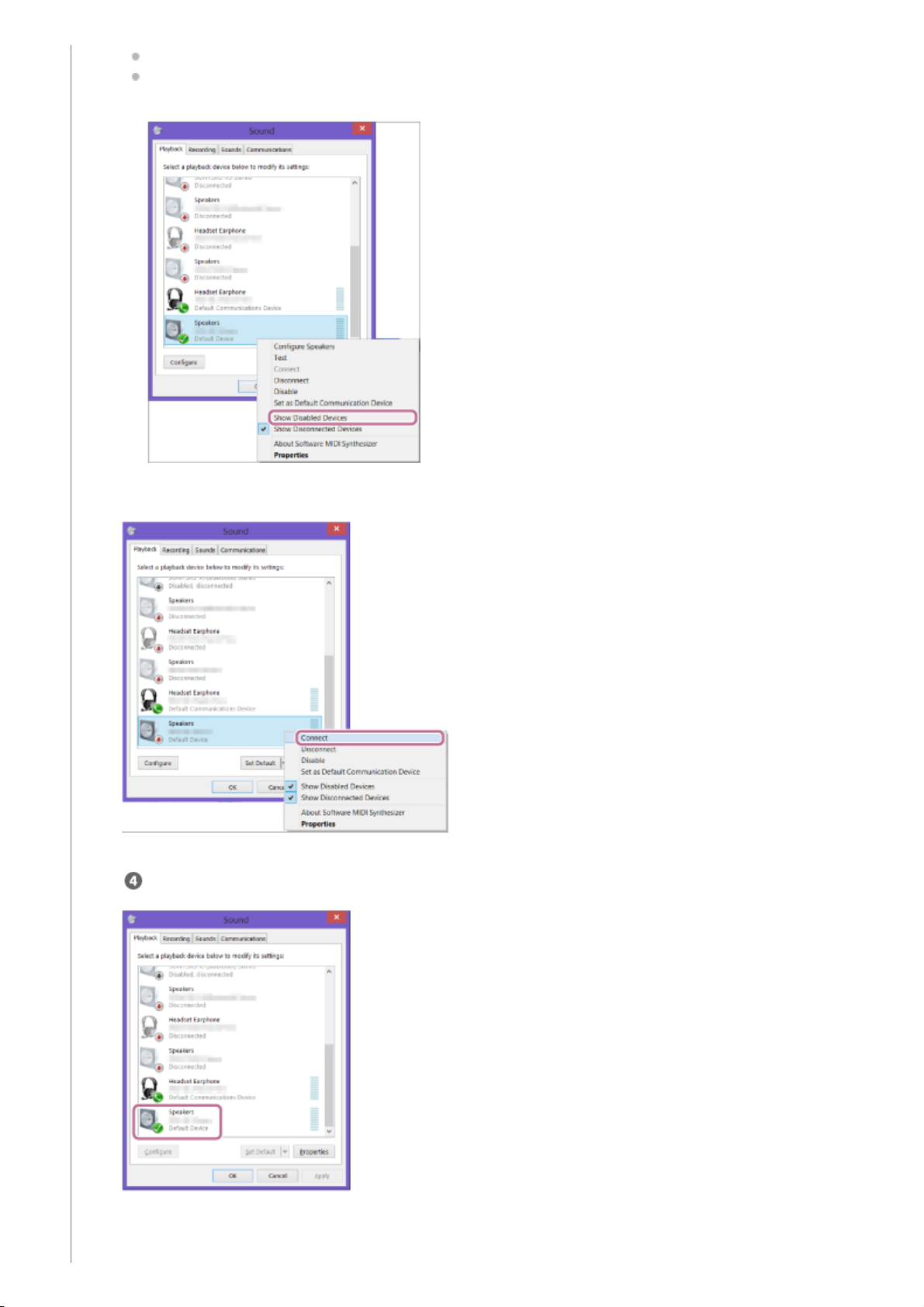
If [h.ear go 2 Stereo] does not have a checkmark (green), go to step 6.
If [h.ear go 2 Stereo] does not appear on the [Sound] screen, right-click on the [Sound] screen, and place a
checkmark by [Show Disabled Devices].
Right-click [h.ear go 2 Stereo], and then select [Connect] from the displayed menu.
When the connection is finished, a checkmark appears on [h.ear go 2 Stereo] of the [Sound] screen. Go to step
.
If you cannot select [Connect] of [h.ear go 2 Stereo], select [Disable] of [Default Device] displayed with a
checkmark (green).
6.
97
Page 98
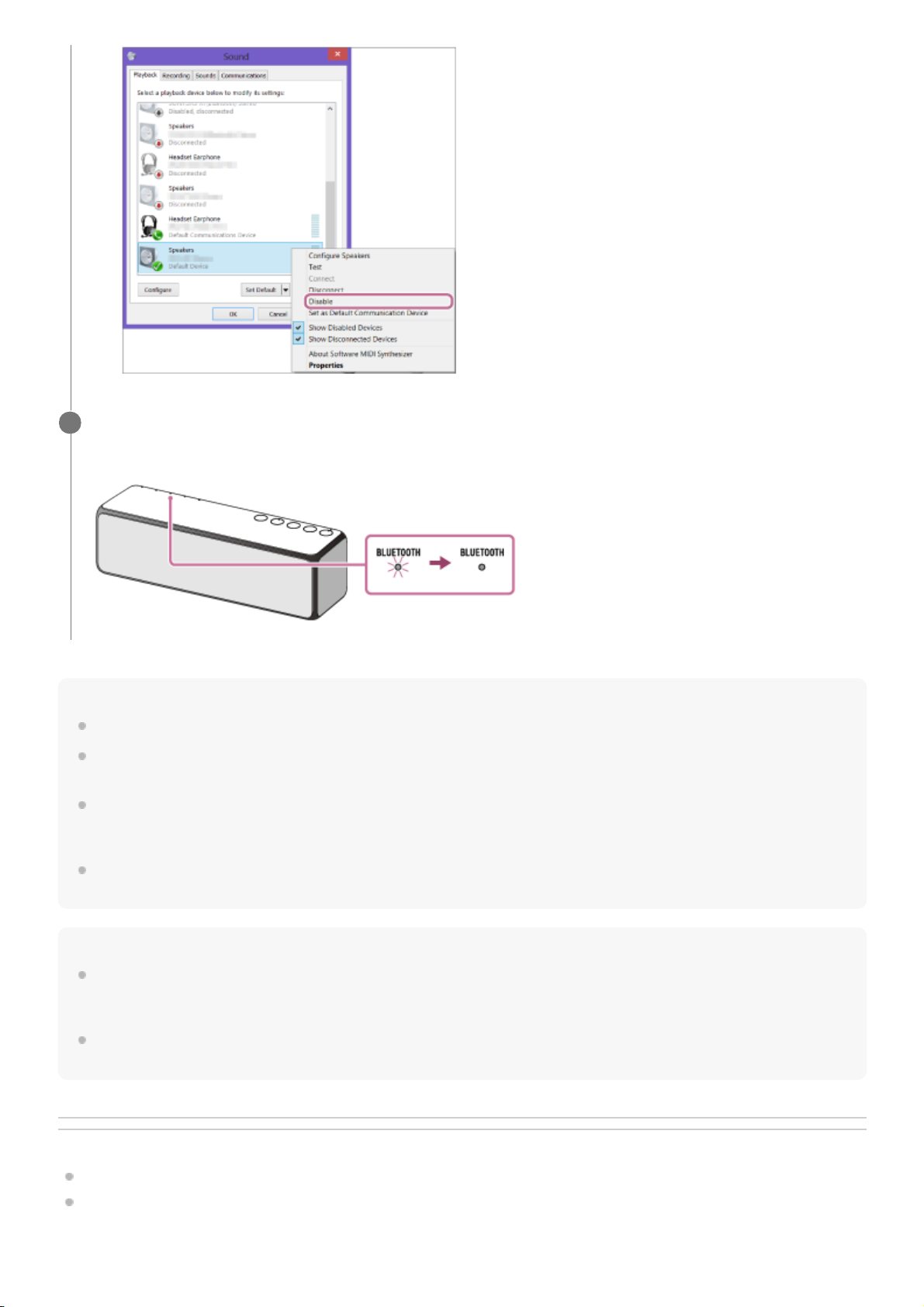
Hint
The procedure explained above is for guidance only. For details, refer to the operating instructions supplied with the PC.
You can perform pairing or connect to another BLUETOOTH device even when a BLUETOOTH connection is established. In this
case, the previous connection will be disconnected.
When you turn on the speaker or the BLUETOOTH mode, the speaker tries to make a BLUETOOTH connection with the last
connected BLUETOOTH device. If the device’s BLUETOOTH function is on, the BLUETOOTH connection is started
automatically.
When the BLUETOOTH/Network standby mode is turned on, the speaker turns on automatically by operating a BLUETOOTH
device, and starts the BLUETOOTH connection.
Note
Stop playback on the BLUETOOTH device and turn down the volume of the device beforehand. When pairing is completed, loud
sound may output from the speaker. Otherwise, you may experience sudden loud sound from the speaker when music is played
back for the first time after pairing.
If the speaker tries to reconnect with the last connected BLUETOOTH device, the connection may fail. In this case, turn off the
BLUETOOTH function on the BLUETOOTH device, or turn off the BLUETOOTH device.
Related Topic
Listening to music on a device via a BLUETOOTH connection
Using the BLUETOOTH®/Network standby mode
Check that the BLUETOOTH indicator on the speaker changes from flashing to staying lit.
The connection of the speaker and PC is established. You can enjoy the music playback from your PC.
4
98
Page 99

4-735-503-11(1) Copyright 2018 Sony Corporation
99
Page 100
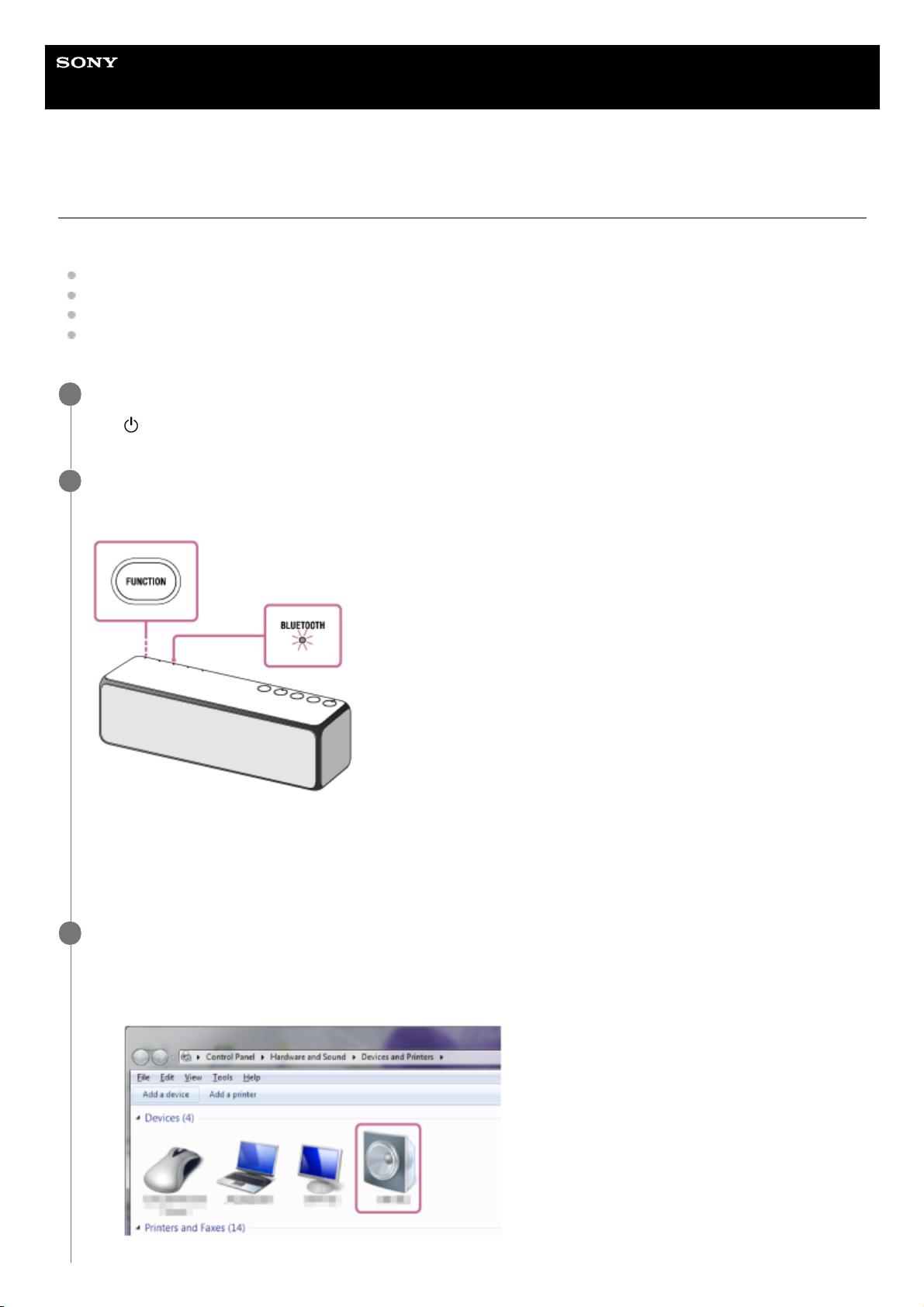
Help Guide
Wireless Speaker
h.ear go 2 (SRS-HG10)
Connecting with a paired PC (Windows 7)
Do the following before starting.
If you have connected the speaker with the other device, turn off the BLUETOOTH function on the device.
Turn down the volume of the PC.
Stop playback on the PC to avoid any sudden loud sound from the speaker.
Activate the BLUETOOTH function on your PC. For details how to activate the BLUETOOTH function, refer to the
operating instructions of the PC.
Turn the speaker on.
The
(power) indicator lights up in green.
1
Press the FUNCTION button repeatedly until the BLUETOOTH indicator flashes.
The speaker enters the BLUETOOTH mode.
When you turn on the BLUETOOTH mode, the speaker will try to make a BLUETOOTH connection with the last
connected BLUETOOTH device. If the device is nearby, the BLUETOOTH connection establishes automatically and
the BLUETOOTH indicator stays lit. When you want to connect another BLUETOOTH device, terminate the current
BLUETOOTH connection by operating the currently connected BLUETOOTH device.
2
Search for the speaker by the PC.
3
Click the [Start] button and then [Devices and Printers].
1.
Double-click [h.ear go 2].
2.
100
 Loading...