

Page 1
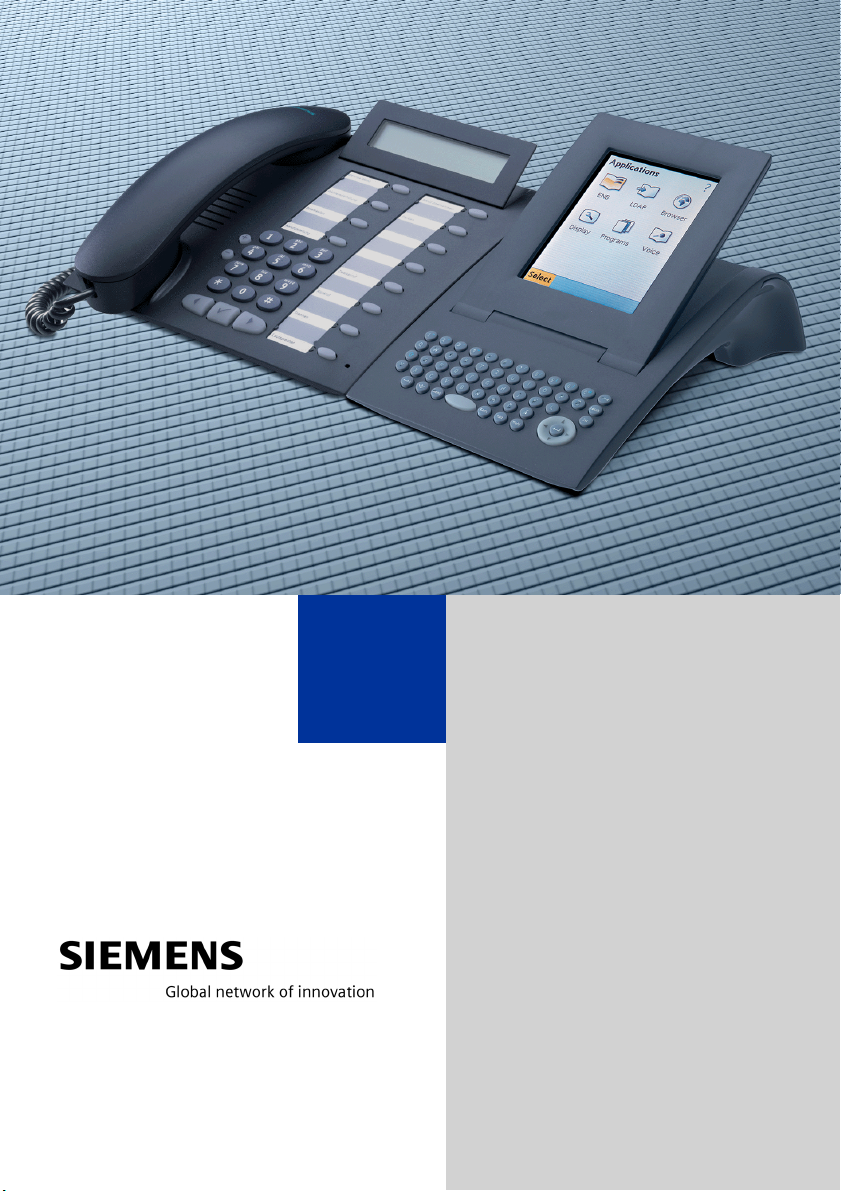
optiPoint application module
Informationen und
wichtige Bedienprozeduren
Information and
Important Operating Procedures
Page 2
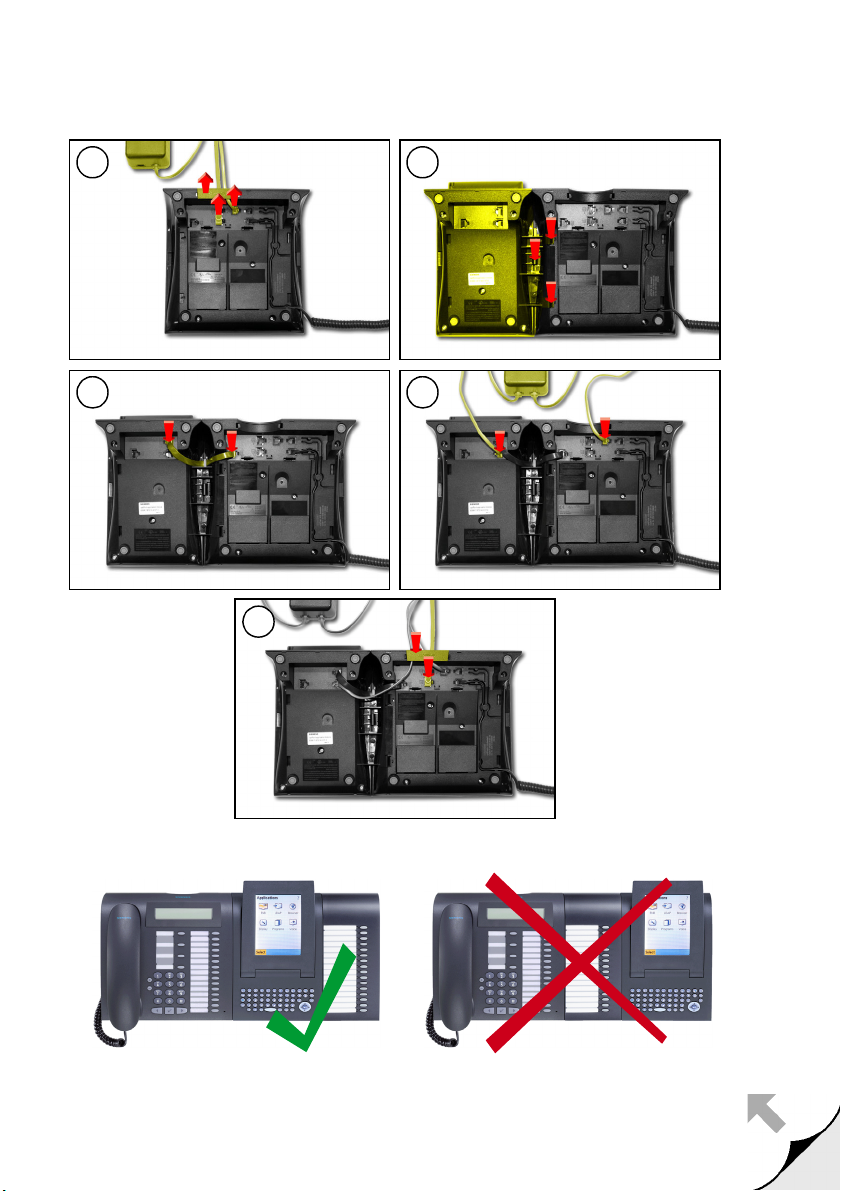
Anschließen / Connecting
E
BA
DC
쮕
খ
2
Pos. 1 Pos. 2 Pos. 1 Pos. 2
Bedienoberfläche siehe Ausklappseite.
Control panel see fold-out page.
Page 3
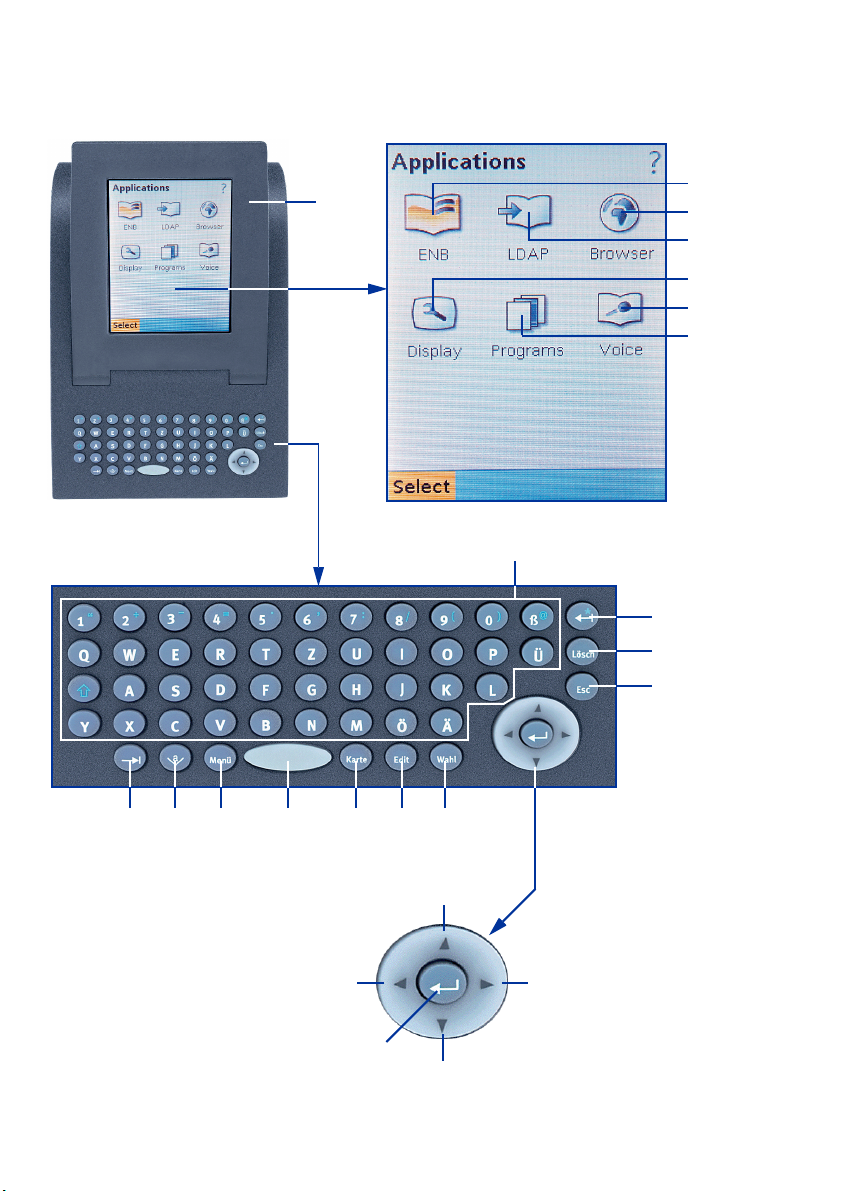
Bedienoberfläche / Control panel
7
8
1
3
2
4
6
5
9
10
11
12 13 14 15 16 17 18
21
2019
23
22
3
Page 4

쮕
খ
Erklärungen zum Bedienfeld siehe Æ 8
Description of the control panel see Æ 14
4
Page 5

Ø Deutsch
Allgemeine Hinweise und Informationen . . . . . . . . . . . .6
Wichtige Hinweise. . . . . . . . . . . . . . . . . . . . . . . . . . . . . . . . . . . . . . . . . . . . . . 6
Pflegehinweise. . . . . . . . . . . . . . . . . . . . . . . . . . . . . . . . . . . . . . . . . . . . . . . . . 6
Kennzeichen. . . . . . . . . . . . . . . . . . . . . . . . . . . . . . . . . . . . . . . . . . . . . . . . . . . 7
Häufig gestellte Fragen . . . . . . . . . . . . . . . . . . . . . . . . . . . . . . . . . . . . . . . . . . 7
Wichtige Bedienprozeduren . . . . . . . . . . . . . . . . . . . . . . .9
Ø English
General Notes and Information . . . . . . . . . . . . . . . . . . . .12
Important Notes. . . . . . . . . . . . . . . . . . . . . . . . . . . . . . . . . . . . . . . . . . . . . . . 12
Telephone Maintenance. . . . . . . . . . . . . . . . . . . . . . . . . . . . . . . . . . . . . . . . . 12
Marks . . . . . . . . . . . . . . . . . . . . . . . . . . . . . . . . . . . . . . . . . . . . . . . . . . . . . . . 13
Frequently Asked Questions . . . . . . . . . . . . . . . . . . . . . . . . . . . . . . . . . . . . . 13
Important Operating Procedures. . . . . . . . . . . . . . . . . . .15
Deutsch
5
Page 6
Allgemeine Hinweise und Informationen
Allgemeine Hinweise und Informationen
Wichtige Hinweise
Die Informationen in diesem Dokument enthalten lediglich allgemeine Beschreibungen bzw. Leistungsmerkmale, welche im konkreten Anwendungsfall nicht
immer in der beschriebenen Form zutreffen bzw. welche sich durch Weiterentwicklung der Produkte ändern können.
Die gewünschten Leistungsmerkmale sind nur dann verbindlich, wenn sie bei
Vertragsschluss ausdrücklich vereinbart werden.
Die verwendeten Marken sind Eigentum der Siemens AG bzw. der jeweiligen Inhaber.
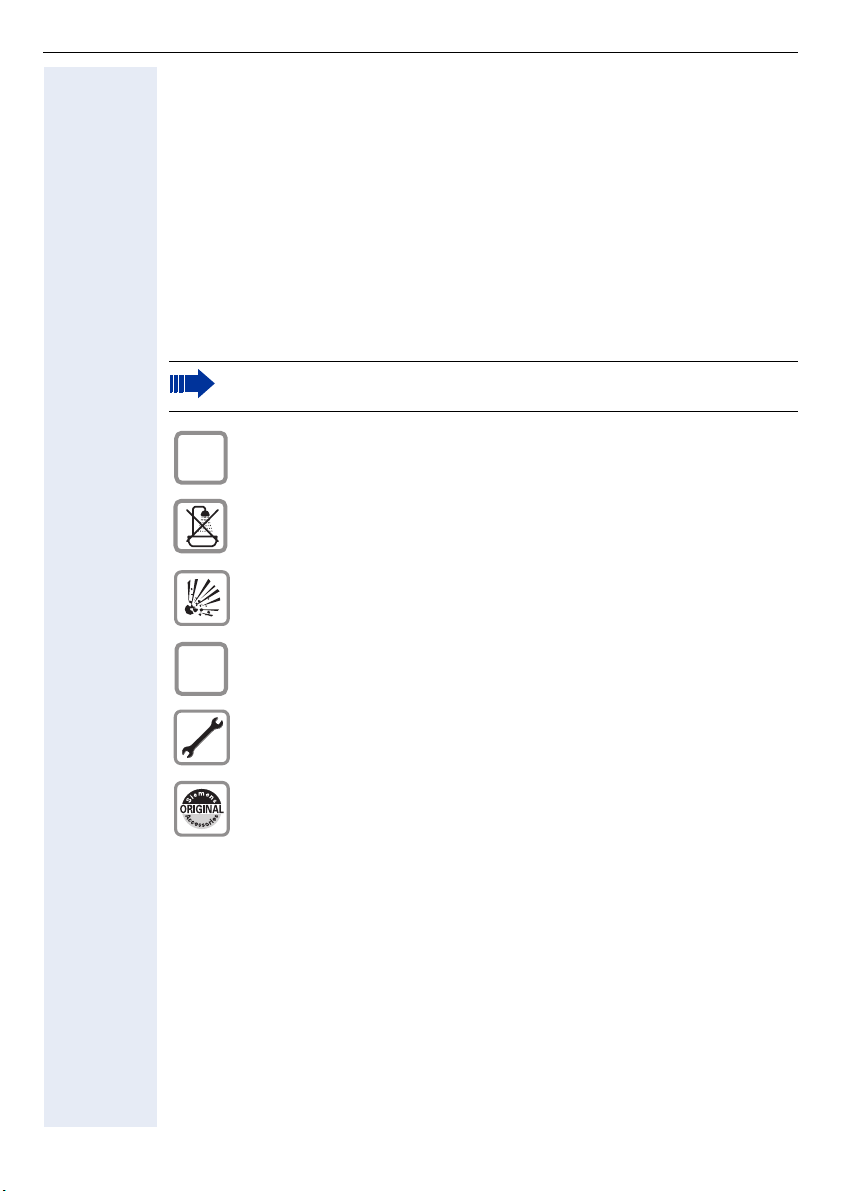
Lesen Sie vor Gebrauch des optiPoint application module die Sicherheitshinweise und die Bedienungsanleitung.
$
Œ
Verwenden Sie nur das für das Gerät geeignete Steckernetzgerät.
Stellen Sie das Gerät nicht in Bädern oder Duschräumen auf. Das Gerät ist nicht spritzwassergeschützt.
Nutzen Sie das Gerät nicht in explosionsgefährdeten Umgebungen
(z. B. Lackierereien).
Geben Sie das Gerät nur mit der Begleitdokumentation an Dritte weiter.
Öffnen Sie niemals das Gerät! Bei Problemen wenden Sie sich an das
zuständige Fachpersonal.
Benutzen Sie nur Siemens Original-Zubehör! Das Benutzen von anderem Zubehör ist gefährlich und führt zum Erlöschen der Garantie und
der CE-Kennzeichnung.
Pflegehinweise
• Reinigen Sie das Gerät mit einem feuchten Tuch oder einem Antistatiktuch.
Kein trockenes Tuch verwenden!
• Bei starker Verschmutzung reinigen Sie das Gerät mit verdünntem, tensidhaltigen Neutralreiniger, z. B. Spülmittel. Entfernen Sie den Reiniger anschließend restlos mit einem feuchten Tuch (nur Wasser).
• Verwenden Sie keine alkoholhaltigen oder kunststoffangreifenden Reinigungsmittel, auch kein Scheuerpulver!
• Das Gerät soll nicht mit färbenden oder aggressiven Flüssigkeiten, wie z. B.
Tee, Kaffee, Säften oder Erfrischungsgetränken in Berührung kommen.
6
Page 7

Allgemeine Hinweise und Informationen
Kennzeichen
Die Konformität des Gerätes zu der EU-Richtlinie 1999/5/EG wird
durch das CE-Kennzeichen bestätigt.
Dieses Gerät wurde unter einem zertifizierten Umweltmanagementsystem (ISO 14001) hergestellt. Dieser Prozess stellt die Minimierung des Primärrohstoff- und des Energieverbrauchs sowie der
Abfallmenge sicher.
Elektro(nik)-Geräte und Batterien, die mit dem nebenstehenden
Symbol gekennzeichnet sind, dürfen gemäß EU-Richtlinie nicht mit
dem Hausmüll entsorgt werden. Für die Rückgabe nutzen Sie bitte
die Ihnen zur Verfügung stehenden länderspezifischen Rückgabeund Sammelsysteme.
Häufig gestellte Fragen
An welchem Telefonmodell kann mein optiPoint application module betrieben werden?
Der Betrieb ist an folgenden Telefonen möglich:
• optiPoint 410 standard, optiPoint 410 advance
• optiPoint 420 standard, optiPoint 420 advance
• optiPoint 500 basic, optiPoint 500 standard, optiPoint 500 advance
DeutschEnglishFrançaisNederlandsItalianoEspañolPortuguês
Welche Anwendungen stehen mir zur Verfügung?
Siehe Ausklappseite:
Anwendung beim Betrieb an ... optiPoint 410/420 optiPoint 500
1 ENB (Persönliches Telefonbuch) 99
2 LDAP (Firmen-Telefonbuch) 9 -
3 Browser (WAP-Client) 9 -
4 Display (Konfiguration) 99
5 Programs (Java-Midlets) 9 -
6 Voice (Sprachwahl) 9 -
7
Page 8

Allgemeine Hinweise und Informationen
Welche Bedienelemente stehen mir zur Verfügung?
Siehe Ausklappseite:
Bedienelement
7 Kippbares beleuchtetes Farbdisplay (320 x 240 Pixel)
8 Schreibtastatur (QWERTZ) mit Groß-/Kleinschreibung
9 Löscht zeichenweise nach links
10 Löscht zeichenweise nach rechts
11 Bricht aktuelle Eingabe/Aktion ab
12 Springt zum nächsten Element
13 Öffnet die Display-Tastatur
14 Öffnet das Kontext-Menü
15 Schreibt Leerzeichen
16 Zeigt Details zu einem Eintrag in einer Liste an
17 Fügt einen Eintrag in einer Liste hinzu oder ändert einen bestehenden
18 Wählt die Standard-Rufnummer eines Listen-Eintrags
19 Navi-Key: Bewegt den Cursor nach links
20 Navi-Key: Bewegt den Cursor nach rechts
21 Navi-Key: Bewegt den Cursor nach oben oder blättert nach oben
22 Navi-Key: Bewegt den Cursor nach unten oder blättert nach unten
23 Navi-Key: Bewegt den Cursor in nächste Zeile oder führt Funktion aus
Wieso ist eine Funktion nicht verfügbar?
Dies kann folgende Ursachen haben:
• Die Funktion ist beim Betrieb an einem Telefon der optiPoint 500-Familie
nicht verfügbar Æ Seite 7.
• Die Funktion ist für Sie und Ihr Telefon nicht eingerichtet – bitte wenden Sie
sich an Ihre Systembetreuung.
• Ihre Kommunikationsplattform verfügt nicht über diese Funktion – bitte wenden Sie sich an Ihren Siemens-Vertriebspartner zur Hochrüstung.
Wo bekomme ich die ausführliche Bedienungsanleitung?
• Bei Ihrer Systembetreuung.
Ihre Systemverwaltung besitzt eine CD-ROM mit elektronischen Bedienungsanleitungen in HTML- und PDF-Format.
• Im Internet http://www.siemens.de/hipath
Æ „Bedienungsanleitungen“.
8
unter „Downloads“
Page 9
Wichtige Bedienprozeduren
Wichtige Bedienprozeduren
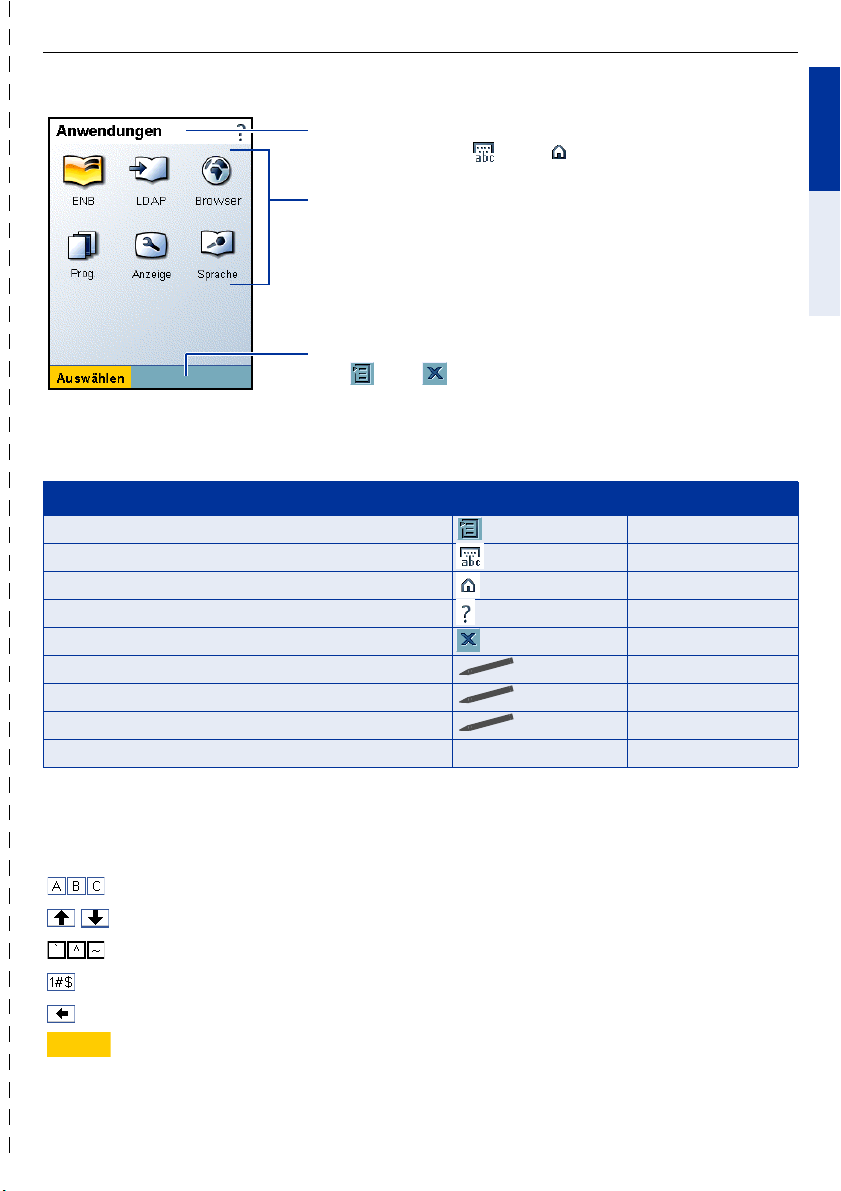
Systemleiste zur Anzeige von Anwendungsnamen und
Display-Tasten wie oder .
Anwendungsbereich z. B. für Menüs, Listen,
Meldungsfenster u.s.w.
Bei übergroßem Inhalt wird am rechten Rand eine ScrollLeiste angezeigt.
Durch Klick auf ein Symbol im Start-Display öffnen Sie die
entsprechende Anwendung.
Anwendungsleiste zur Anzeige von Display-Tasten
wie oder .
Die Bedienung des optiPoint application module erfolgt über das Grafik-Display mit Touchscreen-Funktionalität. Alternativ können Sie mit den Navigations- und Auswahltasten am Gerät
Einträge markieren und Funktionen aufrufen.
Funktion Touchscreen Funktionstasten
Kontextmenü aufrufen e
Display-Tastatur öffnen (siehe unten) d
Aus einer Anwendung zur Startseite wechseln e Startseite
Hilfe-Funktion aufrufen (nur an optiPoint 410/420) e Hilfe
Aktuelle Anwendung schließen e Abbrechen
Eintrag aus Listen auswählen Klick r s
Ausgewählten Eintrag öffnen Doppelklick t
Cursor in Textfeld bewegen Klick p q
Sprachwahl anwenden - b + h
DeutschEnglishFrançaisNederlandsItalianoEspañolPortuguês
Display-Tastatur
Alternativ zur Schreibtastatur können Sie die Display-Tastatur zum Eingeben von Texten, Ziffern
und Sonderzeichen verwenden.
Buchstaben und Interpunktionszeichen eingeben.
Auf Groß- oder Kleinbuchstaben umschalten.
Auf diakritische Zeichen umschalten.
Auf Ziffern und Sonderzeichen umschalten.
Zeichenweise links vom Cursor löschen.
Übernehmen
Daten übernehmen, Display-Tastatur schließen.
English
9
Page 10
Wichtige Bedienprozeduren
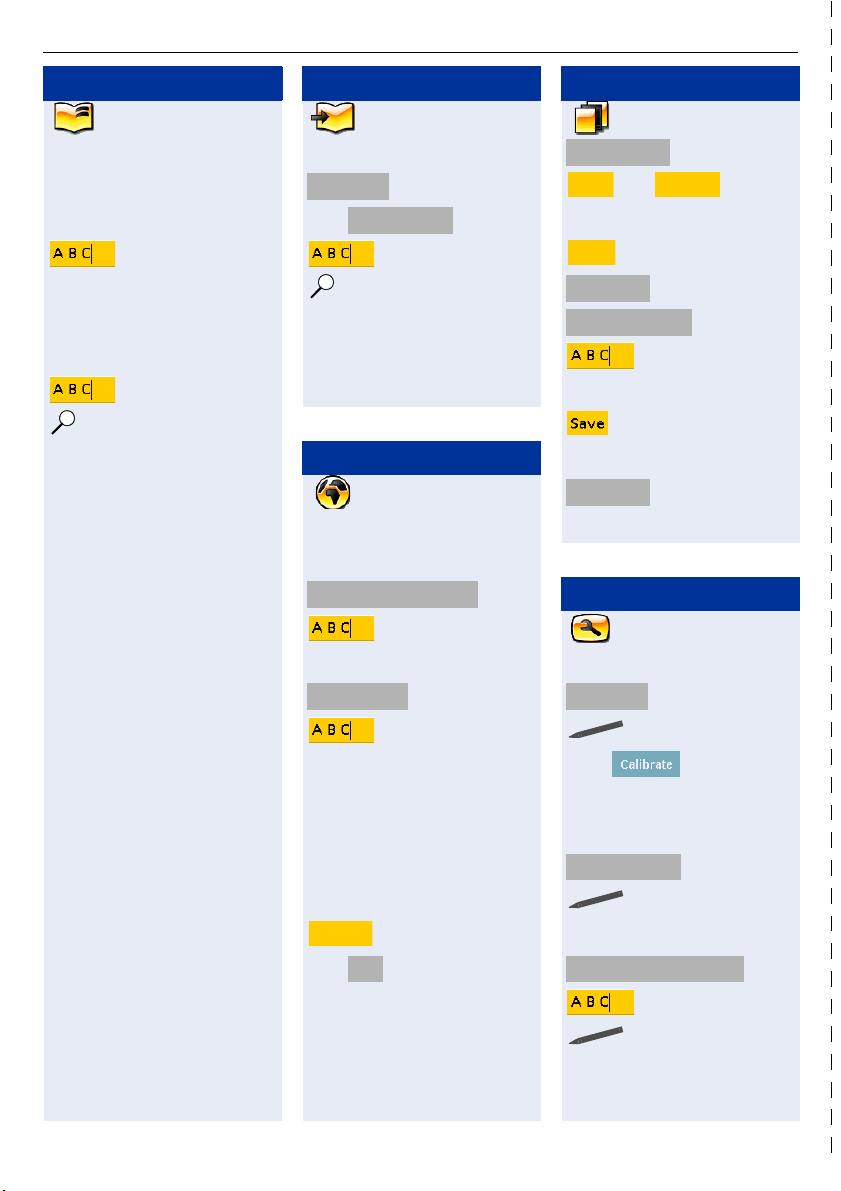
Pers. Telefonbuch
„ENB“ öffnen
Eintrag erstellen
e Neuer Eintrag
r s blättern
Informationen eingeben.
t sichern
Eintrag suchen/ansehen
Name eingeben
oder r s blättern
f
Eintrag wählen
h Standardrufnr .wählen
oder r s blättern
h weitere Rufnr. wählen
Sprachwahl hinzufügen
e VoiceDial-Add
n
t w
Firmentelefonbuch
„LDAP“ öffnen
Eintrag suchen/ansehen
Basis Suche
oder öffnen
öffnen
Erweiterte Suche
Name eingeben
t bzw. f
Eintrag wählen
h Wahl
Browser
„Browser“ öffnen
Konfiguration
e Einstellungen
Einstellungen für WEB Zugang
Name/Kennwort eingeben
Startseite
URL der Startseite eingeben
öffnen
öffnen
Kurzwahlliste
„Prog.“ öffnen
SpeedDialApplet
Run Launch
Eintrag erstellen
Edit
empty
Enter Entry Manually
Name und Rufnr. eingeben
Eintrag wählen
<Name>
auswählen
und
auswählen
auswählen
n
Einstellungen
„Anzeige“ öffnen
Displayeinstellungen
Display
oder klicken
öffnen
Scroll-Leisten ziehen
s Namen sprechen
t w
s Namen wiederholen
t w
Display-Hinweise beachten
Sprachwahl anwenden
n + b+h
w Signalton abwarten
s Namen sprechen
Benutzerführung folgen!
10
t Änderungen sichern
WAP-Seiten laden
e Startseite
oder
Favori ten
Favoritenliste öffnen
URL
oder
Adresse eingeben
t Seite laden
Benutzerführung folgen!
Display-Sperre einschalten
Displaysperre Zeit
Passwort eingeben
Passwort für Displaysperre einrichten
öffnen
Zeitangabe markieren
öffnen
Passwort eingeben
t Änderungen sichern
Page 11

Notizen
Wichtige Bedienprozeduren
DeutschEnglishFrançaisNederlandsItalianoEspañolPortuguês
11
Page 12
General Notes and Information
General Notes and Information
Important Notes
The information provided in this document contains merely general descriptions
or characteristics of performance features which in case of actual use do not always apply as described or which may change as a result of further development
of the products.
An obligation to provide the respective performance features only exists if expressly agreed in the terms of contract.
The trademarks used are owned by Siemens AG or their respective owners.
Read the security notes and the user manual before using the
optiPoint application module.
$
Œ
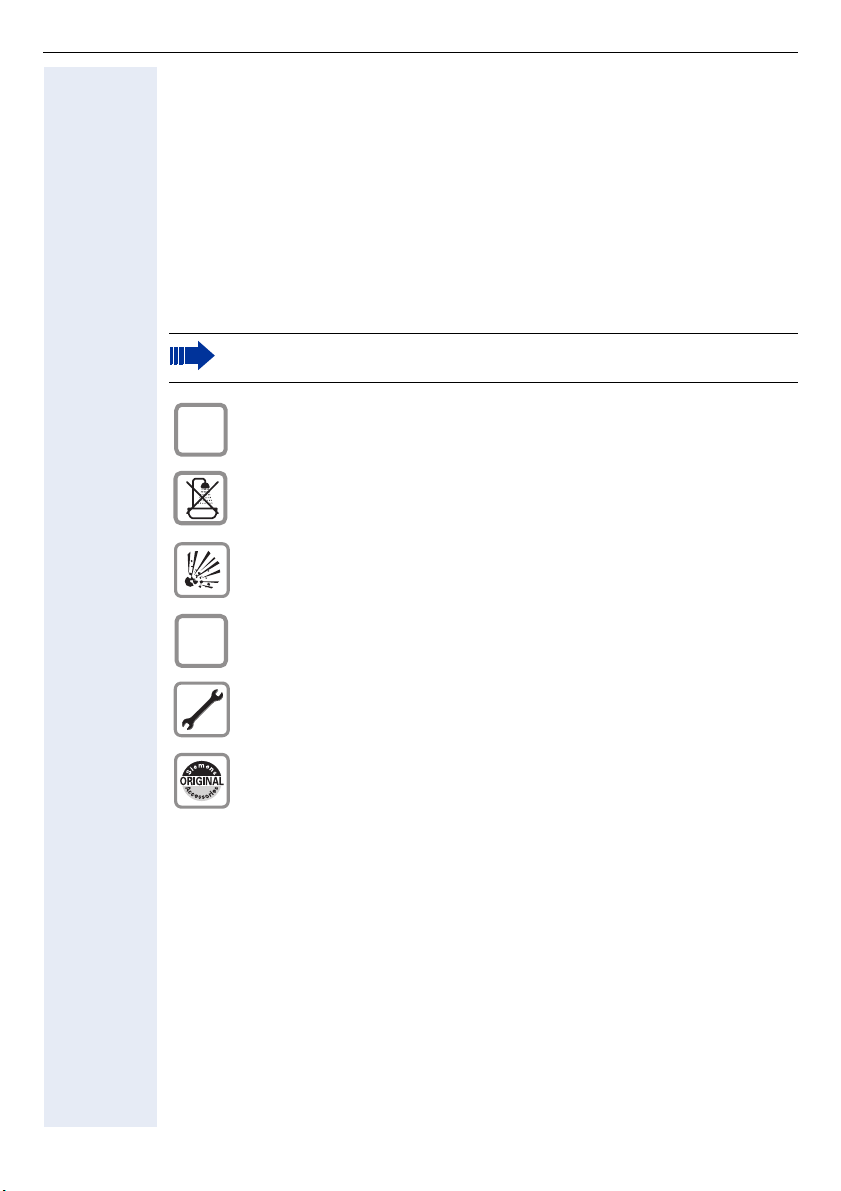
Only use the plug-in power supply suitable for the equipment.
Do not operate the equipment in baths or shower rooms. The equipment is not splash-proof.
Do not operate the equipment in environments where there is a danger of explosions.
Do not pass on the equipment without the documentation.
Never open the telephone or a key module. If you encounter any problems, contact System Support.
Use only original Siemens accessories Æ page 15!
Using other accessories may be dangerous, and will invalidate the
warranty and the CE mark.
Telephone Maintenance
• Always use a damp or antistatic cloth to clean the telephone. Never use a dry
cloth.
• If the telephone is very dirty, clean it with a diluted neutral cleaner containing
some form of surfactant, such as a dish detergent. Afterwards, remove all
traces of the cleaner with a damp cloth (using water only).
• Never use cleaners containing alcohol, cleaners that corrode plastic, or abrasive powders.
• Never allow the telephone to come into contact with staining or corrosive liquids, such as coffee, tea, juice or soft drinks.
12
Page 13

General Notes and Information
Marks
The device conforms to the EU guideline 1999/5/EG, as attested by
the CE mark.
This device has been manufactured in accordance with our certified
environmental management system (ISO 14001). This process
ensures that energy consumption and the use of primary raw materials are kept to a minimum, thus reducing waste production.
In accordance with EU directives, electrical/electronic devices and
batteries marked with this symbol may not be disposed of in household waste. To dispose of them, please use the return and recycling systems available in your country.
Note! (for U.S.A and Canada only)
This equipment has been tested and found to comply with the limits for a Class B digital device, pursuant to Part 15 of the FCC Rules. These limits are designed to provide reasonable protection against
harmful interference when the equipment is operated in a residential installation. This equipment generates, uses, and can radiate radio frequency energy and, if not installed and used in accordance with
the instructions, may cause harmful interference to radio communications. However, there is no guarantee that interference will not occur in a particular installation. If this equipment does cause harmful
interference to radio or television reception, which can be determined by turning the equipment off and
on, the user is encouraged to try to correct the interference by one or more of the following measures:
• Reorient or relocate the receiving antenna.
• Increase the separation between the equipment and receiver.
• Connect the equipment into an outlet on a circuit different from that to which the receiver is
connected.
• Consult the dealer or an experienced radio/TV technician for help.
This product is a UL Listed Accessory, I.T.E., in U.S.A. and Canada.
DeutschEnglishFrançaisNederlandsItalianoEspañolPortuguês
Frequently Asked Questions
At which telephone can the optiPoint application module be operated?
The operation is possible at the following telephones:
• optiPoint 410 standard, optiPoint 410 advance
• optiPoint 420 standard, optiPoint 420 advance
• optiPoint 500 basic, optiPoint 500 standard, optiPoint 500 advance
Which applications can I use?
See fold-out page:
Application with operation at ... optiPoint 410/420 optiPoint 500
1 ENB (Personal phonebook) 99
2 LDAP (Corporate directory) 9 -
3 Browser (WAP-Client) 9 -
4 Display (Configuration) 99
5 Programs (Java Midlets) 9 -
6 Voice (Voice dialling) 9 -
13
Page 14

General Notes and Information
Which control elements are available?
See fold-out page:
Control element
7 Tiltable lit color display (320 x 240 pixels)
8 Keyboard (QWERTY) with upper and lower case capability
9 Deletes character by character to the left
10 Deletes character by character to the right
11 Cancels current input/action
12 Jumps to the next element
13 Opens the display keyboard
14 Opens the context menu
15 Writes blanks
16 Shows details to a list entry
17 Adds an entry in a list or changes an existing entry
18 Selects the standard call number of a list entry
19 Navi-Key: moves the cursor to the left
20 Navi-Key: moves the cursor to the right
21 Navi-Key: moves the cursor upward or scrolls upward
22 Navi-Key: moves the cursor downward or scrolls downward
23 Navi-Key: moves the cursor into next line or runs a function
Why is a function not available?
This may be due to one of the following reasons:
• The function is not available with operation at optiPoint 500 telephones
Æ page 13.
• The function has not been configured for your telephone - address any questions to Customer Support.
• Your communications platform does not support this function - contact your
Siemens sales representative to upgrade your system.
Where can I get the accompanying operating instructions?
• From your system administrator, who will have a CD-ROM containing your
User Guide in HTML and PDF format.
• On the Internet at http://www.siemens.com/hipath
Æ "User Guides" or, for the Realitis DX platform, at
14
, under "Downloads"
http://www.realitis.com.
Page 15
Important Operating Procedures
Important Operating Procedures
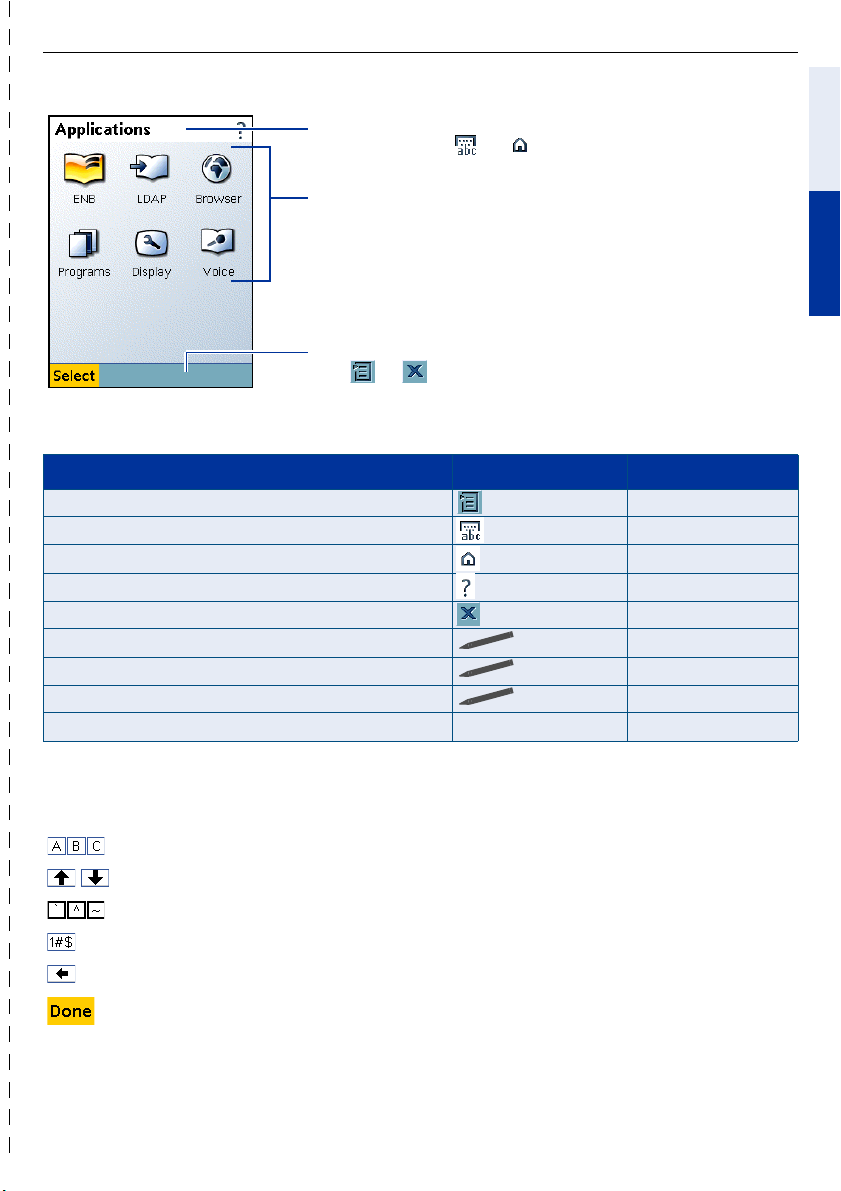
In the system bar are displayed the application names and
display keys like or .
Use area e.g., for menus, lists, message windows etc.
If the content is too large, a scroll bar is displayed at the right
and bottom edge.
Applications are started by clicking on the image.
In the application bar are displayed the display keys
like or .
The graphic display has touch screen functionality. Alternativly you can select entries and call
functions with the navigation hardkeys on the device.
Function Touchscreen Function key
Open context menu k
Open display keyboard (see below) d
Open start page without quitting current application k Home
Invoke Help function (optiPoint 410/420 only) k Help
Close current application k Exit
Choose entry click r s
Open selected entry double click t
Move cursor in input field click p q
Using speech dialing - b + m
DeutschEnglishFrançaisNederlandsItalianoEspañolPortuguês
Display keyboard
You can alternatively use the display keyboard to enter text, numbers and special characters.
Enter characters and punctuation marks.
Switch from capital letters or small letters.
Switch to diacritical characters.
Switch to numbers and special characters.
Delete one character at a time to the left of the cursor.
Take over entered data and close the display keyboard.
15
Page 16
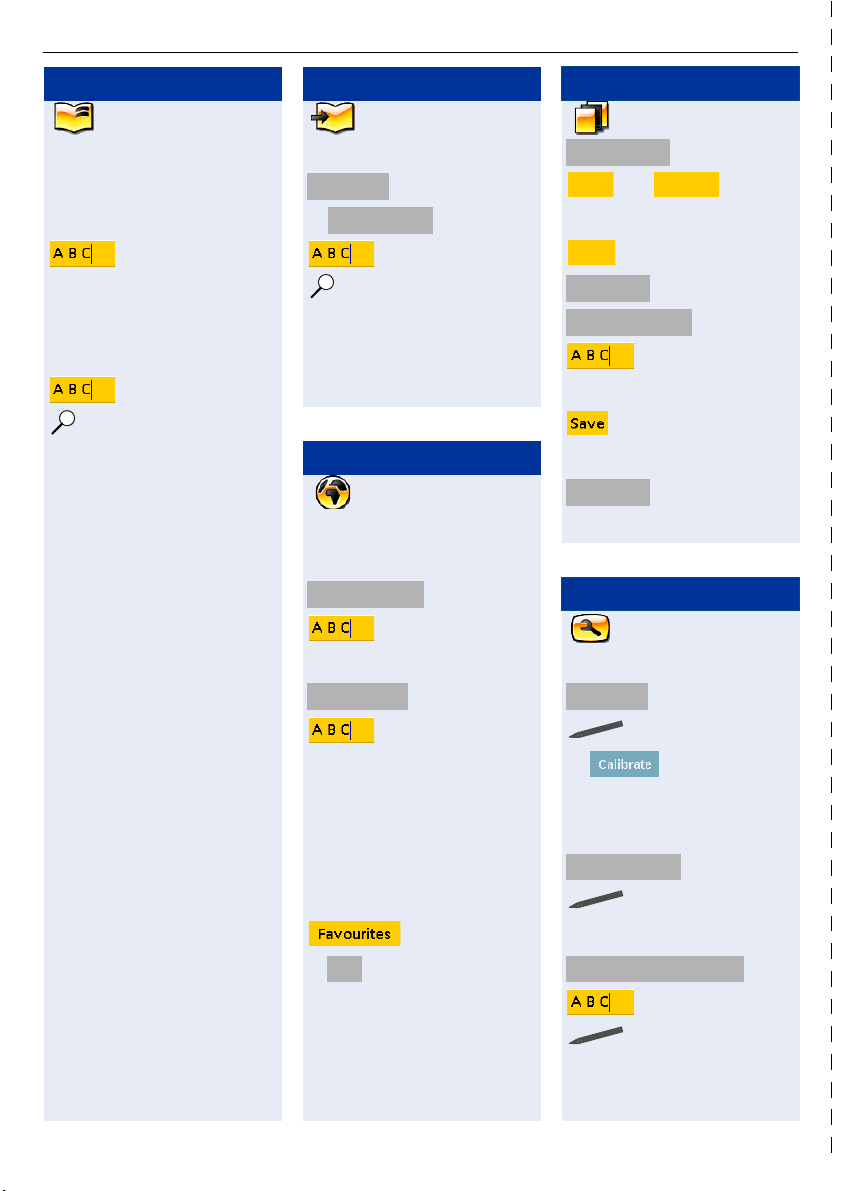
Important Operating Procedures
Personal Telephone Dir.
open "ENB"
Set up entry
k New Entry
r s browse
enter information
t save
Search/view entry
enter name
or r s choose entry
l
Dial phone number
m dial Standard call no.
or r s browse
m dial further call no.
Add Voice Dialling
k VoiceDial-Add
n
t w
Company Telephone Dir.
open "LDAP"
Search/view entry
Basic Search
or open
open
Advanced Search
enter name
t or l
Dial phone number
m Dial
Browser
open "Browser"
Configuration
k Settings
Web access settings
enter name/password
Home Page
enter home page URL
open
open
Speed Dial List
open "Programs"
SpeedDialApplet
Run Launch
Create entry
Edit
empty
Enter Entry Manually
enter name and call no.
Dial entry
<Name>
select
and
select
select
n
Settings
open "Display"
Display settings
Display
or click
open
pull scroll bars
s speak name
t w
s repeat name
t w
consider display hints
Using Voice Dialling
n + b+m
w wait for signal tone
s speak name
consider display hints
16
t save changes
Load WAP-pages
k Home Page
or
open favorites
URL
or
enter URL
t load page
follow instructions
Activate screen lock
Screen Lock Time
Enter password
Change Screen Lock Password
öffnen
Specify time
Enter password
t save changes
open
Page 17

www.siemens.com/hipath
쮕
খ
Die Informationen in diesem Dokument enthalten lediglich allgemeine Beschreibungen bzw. Leistungsmerkmale, welche im konkreten Anwendungsfall nicht immer in der beschriebenen Form zutreffen bzw. welche
sich durch Weiterentwicklung der Produkte ändern können.
Die gewünschten Leistungsmerkmale sind nur dann verbindlich, wenn sie
bei Vertragsschluss ausdrücklich vereinbart werden. Die verwendeten Marken sind Eigentum der Siemens AG bzw. der jeweiligen Inhaber.
The information provided in this document contains merely general descriptions or characteristics of performance which in case of actual use do
not always apply as described or which may change as a result of further development of the products.
An obligation to provide the respective characteristics shall only exist if expressly agreed in the terms of contract. The trademarks used are owned by
Siemens AG or their respective owners.
© Siemens AG 2005
Siemens Communications
Hofmannstr. 51 • D-81359 Munich
Ref. No.: A31003-A2056-M425-1-6Z19
Subject to availability. Right of modification reserved.
Printed in the Federal Republic of Germany.
09.08.2005
 Loading...