

Page 1

HiPath
optiPoint application module
XML Applications
Developer’s Guide
Page 2

bkIVZ.fm
For internal distribution only
1 Introduction . . . . . . . . . . . . . . . . . . . . . . . . . . . . . . . . . . . . . . . . . . . . . . . . . . . . . . . . . . . 2
1.1 Overview . . . . . . . . . . . . . . . . . . . . . . . . . . . . . . . . . . . . . . . . . . . . . . . . . . . . . . . . . . . . . 2
1.2 Prerequisites . . . . . . . . . . . . . . . . . . . . . . . . . . . . . . . . . . . . . . . . . . . . . . . . . . . . . . . . . . 3
2 Functions and Features. . . . . . . . . . . . . . . . . . . . . . . . . . . . . . . . . . . . . . . . . . . . . . . . . . . 4
2.1 Infrastructure . . . . . . . . . . . . . . . . . . . . . . . . . . . . . . . . . . . . . . . . . . . . . . . . . . . . . . . . . . 4
2.2 Basic Functionality . . . . . . . . . . . . . . . . . . . . . . . . . . . . . . . . . . . . . . . . . . . . . . . . . . . . . 5
2.3 Push Technology . . . . . . . . . . . . . . . . . . . . . . . . . . . . . . . . . . . . . . . . . . . . . . . . . . . . . . 6
2.4 Using Predefined Images . . . . . . . . . . . . . . . . . . . . . . . . . . . . . . . . . . . . . . . . . . . . . . . . 6
3 Installation and Starting the Program . . . . . . . . . . . . . . . . . . . . . . . . . . . . . . . . . . . . . . 7
3.1 Generating a Program on the Telephone . . . . . . . . . . . . . . . . . . . . . . . . . . . . . . . . . . . . 7
3.2 Starting the Program. . . . . . . . . . . . . . . . . . . . . . . . . . . . . . . . . . . . . . . . . . . . . . . . . . . . 9
4 XML Object Reference . . . . . . . . . . . . . . . . . . . . . . . . . . . . . . . . . . . . . . . . . . . . . . . . . . 10
4.1 Phone . . . . . . . . . . . . . . . . . . . . . . . . . . . . . . . . . . . . . . . . . . . . . . . . . . . . . . . . . . . . . . 11
4.2 Display . . . . . . . . . . . . . . . . . . . . . . . . . . . . . . . . . . . . . . . . . . . . . . . . . . . . . . . . . . . . . 12
4.3 Screen. . . . . . . . . . . . . . . . . . . . . . . . . . . . . . . . . . . . . . . . . . . . . . . . . . . . . . . . . . . . . . 12
4.4 Action . . . . . . . . . . . . . . . . . . . . . . . . . . . . . . . . . . . . . . . . . . . . . . . . . . . . . . . . . . . . . . 14
4.5 Command . . . . . . . . . . . . . . . . . . . . . . . . . . . . . . . . . . . . . . . . . . . . . . . . . . . . . . . . . . . 15
4.6 Alert. . . . . . . . . . . . . . . . . . . . . . . . . . . . . . . . . . . . . . . . . . . . . . . . . . . . . . . . . . . . . . . . 17
4.7 List. . . . . . . . . . . . . . . . . . . . . . . . . . . . . . . . . . . . . . . . . . . . . . . . . . . . . . . . . . . . . . . . . 20
4.8 TextBox. . . . . . . . . . . . . . . . . . . . . . . . . . . . . . . . . . . . . . . . . . . . . . . . . . . . . . . . . . . . . 24
4.9 Ticker . . . . . . . . . . . . . . . . . . . . . . . . . . . . . . . . . . . . . . . . . . . . . . . . . . . . . . . . . . . . . . 27
4.10 Hidden. . . . . . . . . . . . . . . . . . . . . . . . . . . . . . . . . . . . . . . . . . . . . . . . . . . . . . . . . . . . . 28
4.11 Form . . . . . . . . . . . . . . . . . . . . . . . . . . . . . . . . . . . . . . . . . . . . . . . . . . . . . . . . . . . . . . 30
4.12 Image . . . . . . . . . . . . . . . . . . . . . . . . . . . . . . . . . . . . . . . . . . . . . . . . . . . . . . . . . . . . . 52
5 Push Technology . . . . . . . . . . . . . . . . . . . . . . . . . . . . . . . . . . . . . . . . . . . . . . . . . . . . . . 54
6 Appendix. . . . . . . . . . . . . . . . . . . . . . . . . . . . . . . . . . . . . . . . . . . . . . . . . . . . . . . . . . . . . . 56
6.1 Glossary . . . . . . . . . . . . . . . . . . . . . . . . . . . . . . . . . . . . . . . . . . . . . . . . . . . . . . . . . . . . 56
6.2 XML Schema. . . . . . . . . . . . . . . . . . . . . . . . . . . . . . . . . . . . . . . . . . . . . . . . . . . . . . . . . 56
May 18, 2006
1 optiPoint application module - XML Applications, Developer’s Guide
Page 3

c01.fm
Introduction
Overview
1 Introduction
1.1 Overview
In conjunction with the optiPoint application module, users of Siemens optiPoint 410/420 410/
420 IP telephones have simple access to many applications.
In addition to local services such as the integrated address book, these applications also include those that can live anywhere on the network and which can be just as easily accessed
thanks to the existing IP connection.
The optiPoint application module uses not only a standard WAP browser for Internet or intranet
contents conforming to the WML standard, it can also be integrated with numerous applicationspecific solutions.
The application platform for the Siemens optiPoint telephones described here represents a new
angle in the convergence between telephony and web applications. An XML interface makes it
possible, using only a suitably-equipped telephone, to interact with applications in the back office. Since XML and HTTP serve as interfaces, technologies normally used for web applications
can also be used for server-side applications: Apache, Microsoft IIS, Tomcat, Java servlets,
J S P, P H P, e t c .
An important characteristic of convergence is that the server-side application can initiate the
transfer of data to the application platform of the telephone, just as a phone not only makes calls
but also receives them.
In this way, you can extend the range of application of your optiPoint IP phone considerably and,
at the same time, optimize access to your applications using a highly available gateway – independent of or as an addition to your other access options such as computer installations.
The XML communication interface is available in the firmware for the device types
optiPoint 410/420 standard and advance in the corenet IP variant (HFA). The application type
described here distinguishes itself in terms of installation, basic functionality and range of application from Java MIDlets, which always function as stand-alone applications.
This document describes the XML interface as well as error handling for invalid XML data. In
view of this, note that error handling is not visible to the user. If some of the elements in an object are missing, the existing elements are displayed anyway. When developing applications,
validation of the XML documents using an XML schema is recommended (see Section 6.2,
"XML Schema").
This document is meant for use by Siemens internal developers as well as by third party application developers. It contains the following sections:
• Functions and Features
• Installation and Starting the Program
18. May 2006
optiPoint application module - XML Applications, Developer’s Guide
2
Page 4

c01.fm
Introduction
Prerequisites
• XML Object Reference
• Push Technology
• Appendix
1.2 Prerequisites
The following components and tools are required for developing applications for the application
platform:
1. optiPoint phone, type optiPoint 410 standard/advance or optiPoint 420 standard/advance
2. A DSM (display module) or APM (application module) must be connected to the telephone.
3. Infrastructure:
• IP network to which the IP phone is connected
• Web browser for creating programs for the telephone using the Web Based Manager
(e. g., Internet Explorer, Firefox, Opera)
• Web server for sending the XML data to the IP phone (e. g., Microsoft IIS, Apache,
Tomcat). It is important that the server is configured with the MIME type text/xml.
• For interactive applications: Application platform on the server for dynamically generating XML data (e. g., Java servlet, ASP, CGI, PHP).
4. XML editor:
An XML editor that can validate the documents using XML schema is recommended (e. g.,
Oxygen, XMLWriter, EditiX, XMLSpy).
5. For developing Java servlets: A suitable development environment, e. g., Eclipse, NetBeans, IBM Websphere Studio.
18. May 2006
3 optiPoint application module - XML Applications, Developer’s Guide
Page 5
c01.fm
Functions and Features
Infrastructure
2 Functions and Features
2.1 Infrastructure
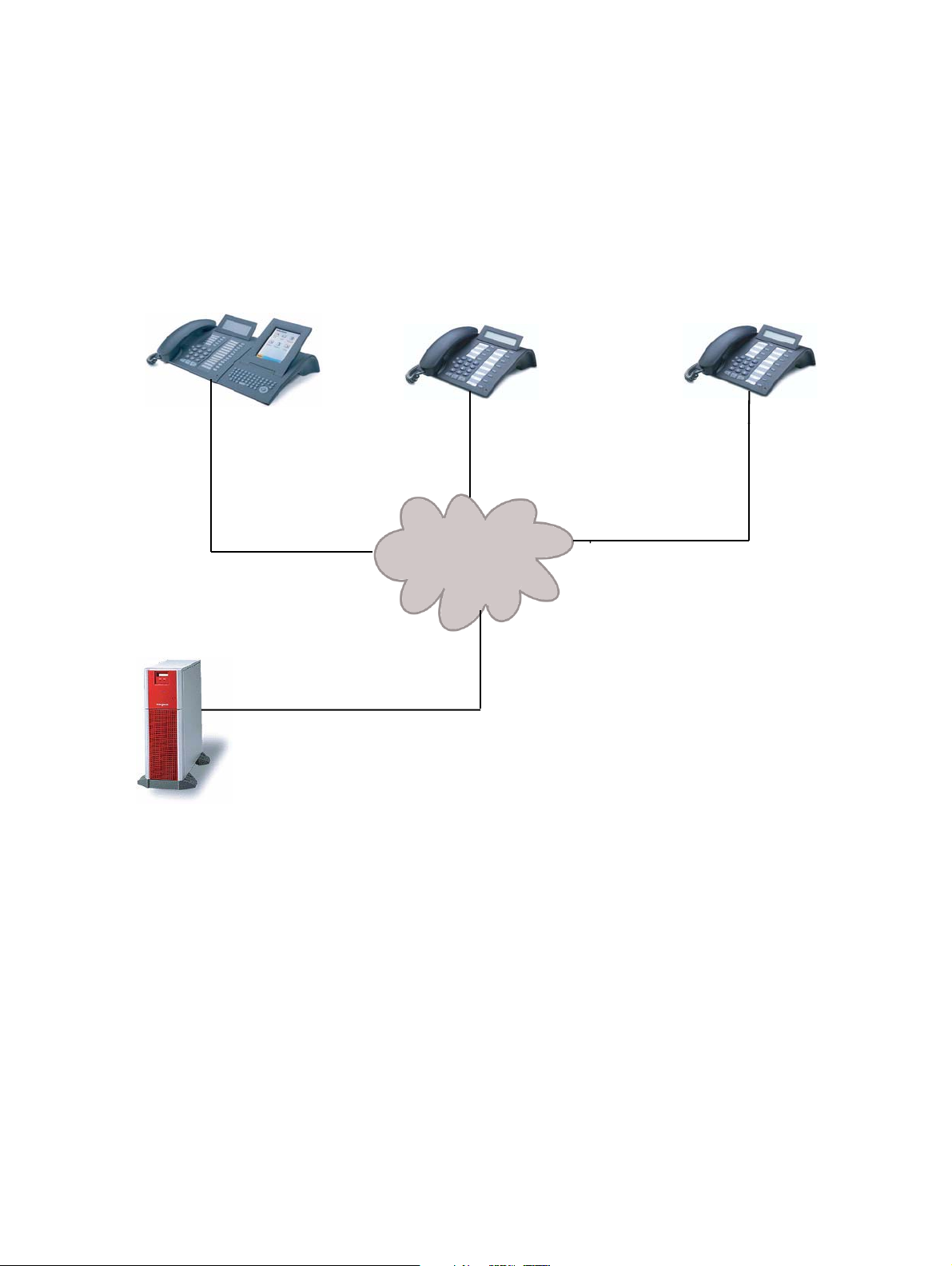
The following diagram shows the lines of communication between the various components:
optiPoint
Application Server /
Web Server
optiPoint
application module
optiPoint
optiPoint
LAN
18. May 2006
optiPoint application module - XML Applications, Developer’s Guide
4
Page 6
c01.fm
Functions and Features
Basic Functionality
2.2 Basic Functionality
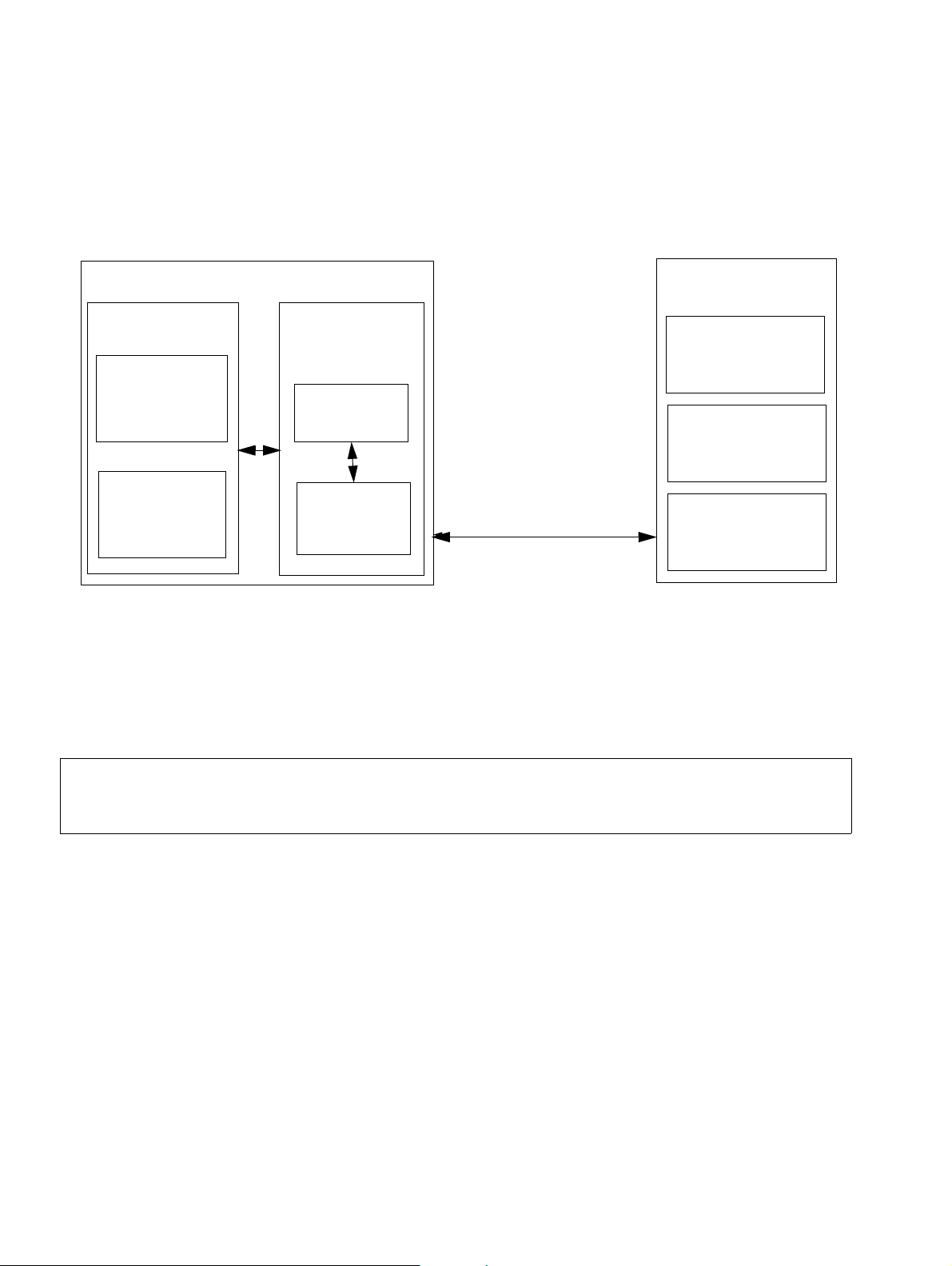
The following diagram shows the basic functions of the application:
IP Phone 410/420
DSM or APM
Display
Keypad
The functional process of an application can be described as follows:
1. The user installs an application on the optiPoint phone.
2. The user calls an application from the list of programs installed.
3. The phone calls the URL of the program on the server.
Java
Environment
XML
Application
XML
Parser
HTTP/HTTPS
Server
Business
Logic
XML
Webserver
When the program starts, the HTTP GET request that requests the XML document
>
4. The server-side program generates an XML document that corresponds to the specified
5. The XML document is parsed and shown on the display of the DSM or the APM.
6. The user enters commands and data via the touchscreen or the keyboard of the DSM or
7. The user’s commands and entries are detected by listeners in the telephone software.
8. The phone passes the user entries as key/value pairs on to the server-side program.
5 optiPoint application module - XML Applications, Developer’s Guide
from the server also contains the IP address and the telephone number of the IP
phone, e.g., ipaddress=137.223.238.174&phonenumber=2256.
XML schema (see Section 6.2, "XML Schema"). The web server sends the XML document
to the phone via an HTTP connection.
the APM.
18. May 2006
Page 7

c01.fm
Functions and Features
Push Technology
2.3 Push Technology
Push technology makes it possible for the program to be started and, therefore, the data to be
pushed from the server-side.
With Push technology, a program on the server calls a specified URL for the IP phone and
prompts it to load a specific XML document from a specific server. After this, the XML document
is also parsed and displayed as in normal operation.
2.4 Using Predefined Images
In addition to being able to link any images saved on a server within an XML document, preprepared images, for example, for buttons, are also available. These images are already included
in the telephone software. One advantage of this is reduced data traffic and, therefore, increased application speed. For more information about linking images, see Section 4.12, "Image".
18. May 2006
optiPoint application module - XML Applications, Developer’s Guide
6
Page 8
c01.fm
Installation and Starting the Program
Generating a Program on the Telephone
3 Installation and Starting the Program
3.1 Generating a Program on the Telephone
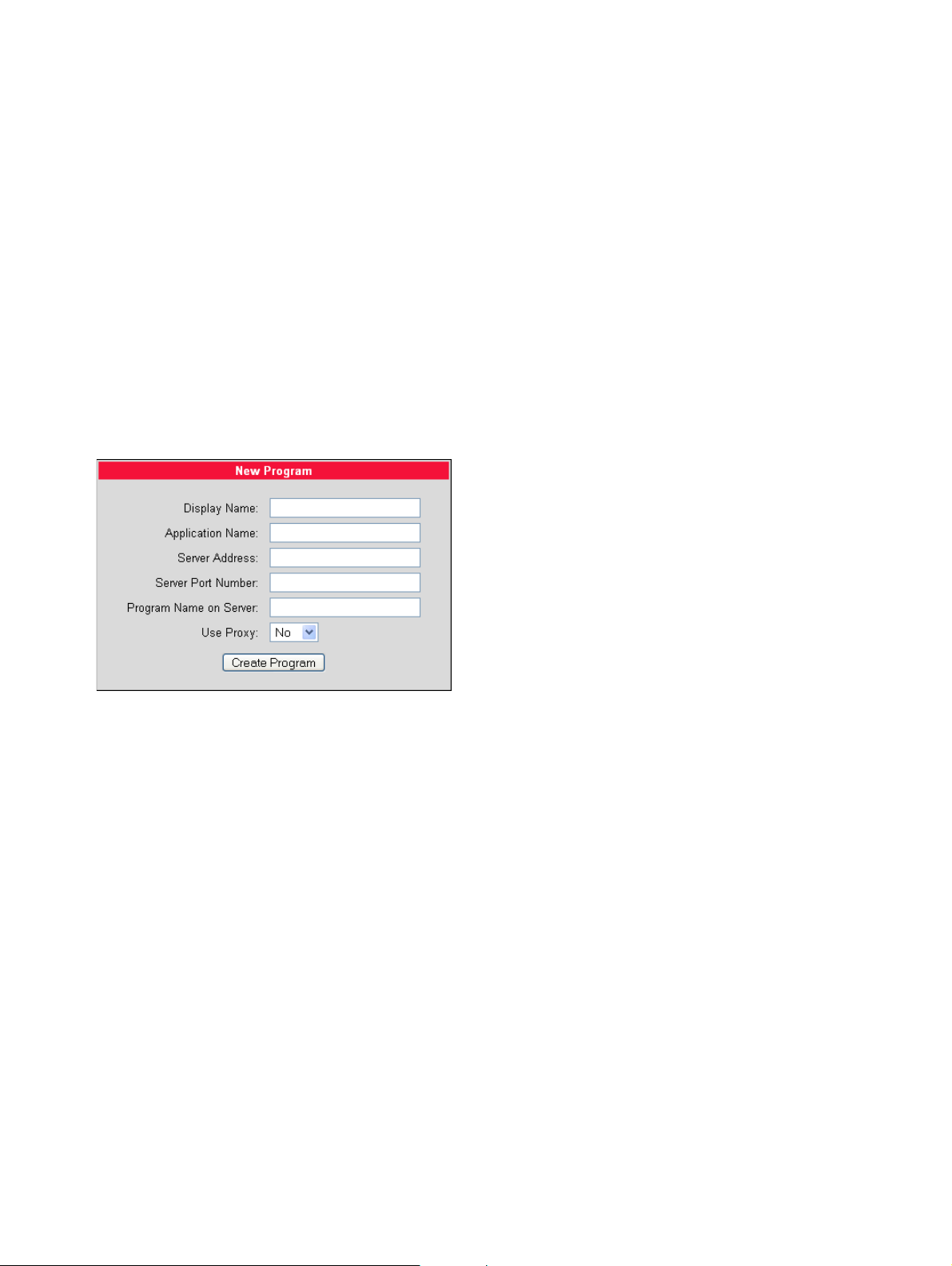
Programs for the application platform described here are generated using the Web Based Manager. For this, the following steps are necessary:
1. Enter the IP address of the telephone in the web browser. The introduction page appears.
2. Go to Administration and enter the administrator password. In the Administration menu,
select New Program. The following input screen is displayed:
3. Now enter the following information:
• Display Name: The name of the program as it appears in the program menu on the
APM or the DSM. The display name must meet the following criteria:
• It must be a unique name on the telephone.
• It cannot contain ’^’ characters.
• It cannot be empty.
• It cannot be longer than 100 characters.
• Application Name: This is used internally by the application to identify the program
running on the telephone. The application name must meet the following criteria:
• It must be a unique name on the telephone.
• It cannot contain any non-alphanumeric characters.
• The first character must be a letter.
• It cannot be empty.
18. May 2006
7 optiPoint application module - XML Applications, Developer’s Guide
Page 9
c01.fm
Installation and Starting the Program
Generating a Program on the Telephone
• It cannot be longer than 20 characters.
• Server Address: The IP address or domain/host name of the server (example,
www.domain.de) that provides the application or the XML document.
• Server Port Number: The number of the port that the server uses to provide the application or the XML document.
• Program Name on Server: The relative path to the servlet or to the first XML page of
the application on the server. The relative path refers to the root directory for documents on the web server, e. g., for Apache htdocs. For instance, if an XML document
is saved in C:\programs\Apache Group\Apache\htdocs\ipp\ippTest.xml, the entry
is ipp/ippTest.xml. The information cannot be longer than 100 characters.
• Use Proxy: This specifies whether a proxy should be used. If Yes has been set, the
program uses the default Java proxy. This can be configured in the Web Based Manager under Administration > Applications > Java. In order to use a proxy, not only
must the telephone be visible to the proxy but also the server.
4. Click the Create Program button to start generating the program.
The information entered is validated after being sent. If the information is incorrect,
>
the program is not generated and an error message is returned.
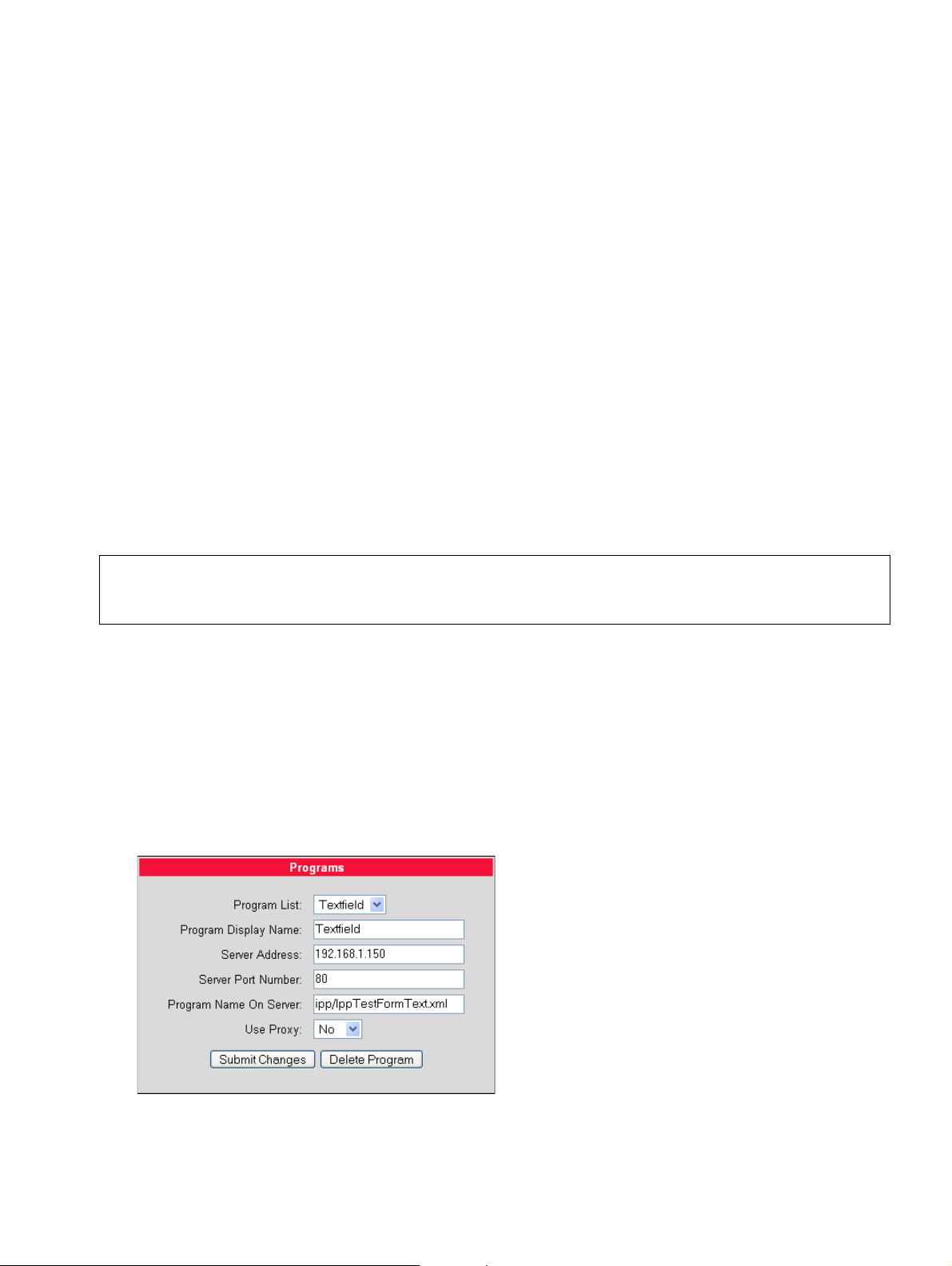
3.1.1 Configuring and Deleting Programs Using the Web Based Manager
Complete the following steps to configure or delete a program:
1. Enter the IP address of the telephone in the web browser. The introduction page appears.
2. Go to Administration and enter the administrator password. In the Administration menu,
select Configure/Delete Program. The following input screen is displayed:
18. May 2006
optiPoint application module - XML Applications, Developer’s Guide
8
Page 10

c01.fm
Installation and Starting the Program
Starting the Program
select the program that you would like to configure or delete from the Program List pulldown menu.
If you would like to reconfigure the program, change the respective parameters. For more
information about these parameters, see Section 3, "Installation and Starting the Program".
Click the Submit Changes button to confirm the changes.
If you would like to delete the program, click the Delete Program button.
3.2 Starting the Program
If the user starts a program on the telephone, the application calls the URL of the program from
its end on the server.
The telephone tells the server its IP address and telephone number using key/value pairs within
the URL. The key/value pairs are sent in the following format:
ipaddress=<telephone-IP-address>&phonenumber=<telephone number>
18. May 2006
9 optiPoint application module - XML Applications, Developer’s Guide
Page 11

c01.fm
XML Object Reference
Starting the Program
4 XML Object Reference
This chapter describes the usage, content and error handling for the individual XML objects.
The objects are comprised of a main element, its attributes and one or more child elements and
their attributes. The names of the basic XML elements are prefixed with "Ipp" which stands for
"IP phone", for example, "IppAction".
Examples of the individual objects are provided. You will find the associated XML
>
The following table gives an overview of the individual objects and their function:
Category Object Functional Description
files under:
http://siemens.com/hipath
Basic XML
structure
Navigation Command (BACK,
Form Form Form for sending the contents of data fields to the serv-
Message window
Ticker Ticker Ticker text in the title bar
Text, layout,
image
Selection lists List List of selectable options
Phone Optional root element; for future objects outside of the
display
Display root element
BACK: Leads to the screen displayed previously
NEXT or UPDATE)
Alert Temporarily appears over the currently displayed
Form/StringItem Shows text on the display
Form/Spacer Generates a line break
Image Links an image file
Form/ImageItem Positions an image
Form/ChoiceGroup List of selectable options
SCREEN: Leads to a specific screen
UPDATE: Reloads the screen from the server
er
screen and contains a message
Data input TextBox Text input field with multiple lines
Form/TextField Text input field with a single line
Form/DateField Date input field
Form/Gauge (interactive)
Table 4-1
18. May 2006
optiPoint application module - XML Applications, Developer’s Guide
Entry of a numerical value using a horizontal slider
10
Page 12

c01.fm
XML Object Reference
Phone
Category Object Functional Description
Hidden data
transfer
Visualization
of chronologi-
Hidden Invisible field for transmitting data between telephone
and server
Form/Gauge (not in-
Horizontal bar that grows with adjustable speed
teractive)
cal processes
Sending data
to the server
Command (SELECT)
The data contained in the entry fields on the screen are
sent to the server.
Form/Button Sends the data saved in attributes to the server
Telephony Action (MAKE-
Initiates a call to a specific telephone number
CALL)
Ta bl e 4 - 1
4.1 Phone
If IppPhone is used as the root element, it is possible to integrate special objects in the XML
application but not shown on the display. This type of object will be available in future versions
of the application platform. Using this in current XML applications has the advantage of allowing
applications to be easily extended with new objects in the future.
Using IppPhone as the root element is, therefore, not mandatory; IppDisplay (see Section
4.2, "Display") can also be the root element of an XML application.
Syntax
<IppPhone>
<IppDisplay/>
<IppDisplay/>
</IppPhone>
18. May 2006
11 optiPoint application module - XML Applications, Developer’s Guide
Page 13

c01.fm
XML Object Reference
Display
4.2 Display
This object enables multiple screens within a single XML document. A screen corresponds to
the content that is simultaneously shown on the display, comparable to a web page. Accordingly, the IppScreen element functions as the root element of an XML document and, therefore,
as the container for various screen objects, comparable to cards in an WML document.
Syntax
<IppDisplay>
<IppScreen/>
<IppScreen/>
</IppDisplay>
4.3 Screen
The IppScreen element serves as a container for additional specified contents. The ID attribute enables switching between different screens.
The following attributes are available to the IppScreen element:
Attribute Value Functionality/Remarks
ID
(optional)
ID of the
screen ele-
Enables referencing of the screen object, so that the
screen can be accessed directly.
ment
(integer)
HiddenCount
(mandatory)
Number of
Hidden objects
All Hidden objects are displayed.
0 All Hidden objects are ignored.
A number
greater than
All the Hidden objects that exceed the number indicated
are ignored.
the actual
number of Hidden objects
18. May 2006
optiPoint application module - XML Applications, Developer’s Guide
12
Page 14

c01.fm
XML Object Reference
Screen
IppCommand
(mandatory)
Number of
Command ob-
All Command objects are displayed.
jects
0 All Command elements are ignored.
A number
greater than
All the Command elements that exceed the number indicated are ignored.
the actual
number of
Command objects
Syntax
<IppScreen ID="i" HiddenCount="m" CommandCount="n">
<IppAction/>
<IppCommand/>
<IppAlert/>
<IppList/>
<IppTextBox/>
<IppTicker/>
<IppHidden/>
<IppForm/>
<Image/>
</IppScreen>
18. May 2006
13 optiPoint application module - XML Applications, Developer’s Guide
Page 15

c01.fm
XML Object Reference
Action
4.4 Action
The Action object represents a specific task for the phone. This task is specified in the Type
attribute. Currently, only the MAKECALL value, which triggers a telephone call, is available.
The following attributes are available to the IppAction element:
Attribute Value Function
TYPE
(mandatory)
The action type "MAKECALL" can be executed on the models Siemens
>
Syntax
<IppAction Type="MAKECALL">
<Number> </Number>
</IppAction>
Child elements
•Number
Example
<?xml version="1.0" encoding="UTF-8" ?>
<IppDisplay>
<IppScreen ID="1" HiddenCount="0" CommandCount="0">
</IppScreen>
</IppDisplay>
optiPoint 410/420 410/420 standard and advance in the SIP and in the HFA variants.
The telephone number to be dialed.
<IppAlert Type="CONFIRMATION" Delay="FOREVER">
<Title>IppAction</Title>
<Text>Dialing a number...</Text>
<Image></Image>
</IppAlert>
<IppAction Type="MAKECALL">
<Number>12345</Number>
</IppAction>
MAKECALL A call made to the telephone number specified in the
child element <Number> is pushed.
18. May 2006
optiPoint application module - XML Applications, Developer’s Guide
14
Page 16

c01.fm
XML Object Reference
Command
4.5 Command
This object generates a softkey on the lower edge of the display, comparable to the do element
in WML. A maximum of two softkeys can be displayed simultaneously on a screen. If there are
more than two Command elements, the second softkey is labeled as "Menu" and not given a
yellow background; when it is selected, it opens a new screen on which the user can select from
the remaining Command objects.
The following attributes are available to the IppCommand element:
Attribute Value Function
Type
(mandatory)
Priority
(optional)
Auto
(optional)
SELECT This transmits the key/value pairs from the current form
to the URL indicated.
BACK Switches to the screen displayed previously. When this
is selected, the cached version is used.
If there is only a single screen in the XML document, no
softkey is generated.
UPDATE Switches to the screen displayed previously. The docu-
ment is then reloaded from the server.
SCREEN Switches to the specified screen.
If the data in the ScreenID child element are missing
or invalid, the current screen will continue to be displayed.
Priority (integer)
Total duration
in seconds
This determines the order of the Command objects,
whereby 0 represents the one with the highest priority.
The Command object is automatically executed after
the specified time, that is, without the user doing anything. If multiple Command objects containing the Auto
attribute exist, the one that is set for the shortest total
duration is executed. This means that only one command per screen is executed automatically.
Key
Key The key for the key/value pair that is sent to the server.
(optional)
Value
Value The value for the key/value pair that is sent to the server.
(optional)
18. May 2006
15 optiPoint application module - XML Applications, Developer’s Guide
Page 17
c01.fm
XML Object Reference
Command
Syntax
<IppCommand Type="SELECT|BACK|UPDATE|SCREEN" Priority="[Number]" Auto="[Number]" Key="[Key]" Value="[Value]">
<Label> </Label>
<ScreenID> </ScreenID>
</IppCommand>
Multiple occurrences of a type can appear on a screen as long as each occurrence
>
>
is uniquely distinguishable. If two or more occurrences are not distinguishable from
each other, the second as well as any further occurrences are ignored.
If the Type attribute is missing or has an invalid value, it is not displayed. If the <La-
bel> child element is missing, a softkey is displayed with the English language data
for the command type instead of a label.
Child elements
• Label
Contains the label for the softkey.
• ScreenID
Indicates which screen should be accessed next.
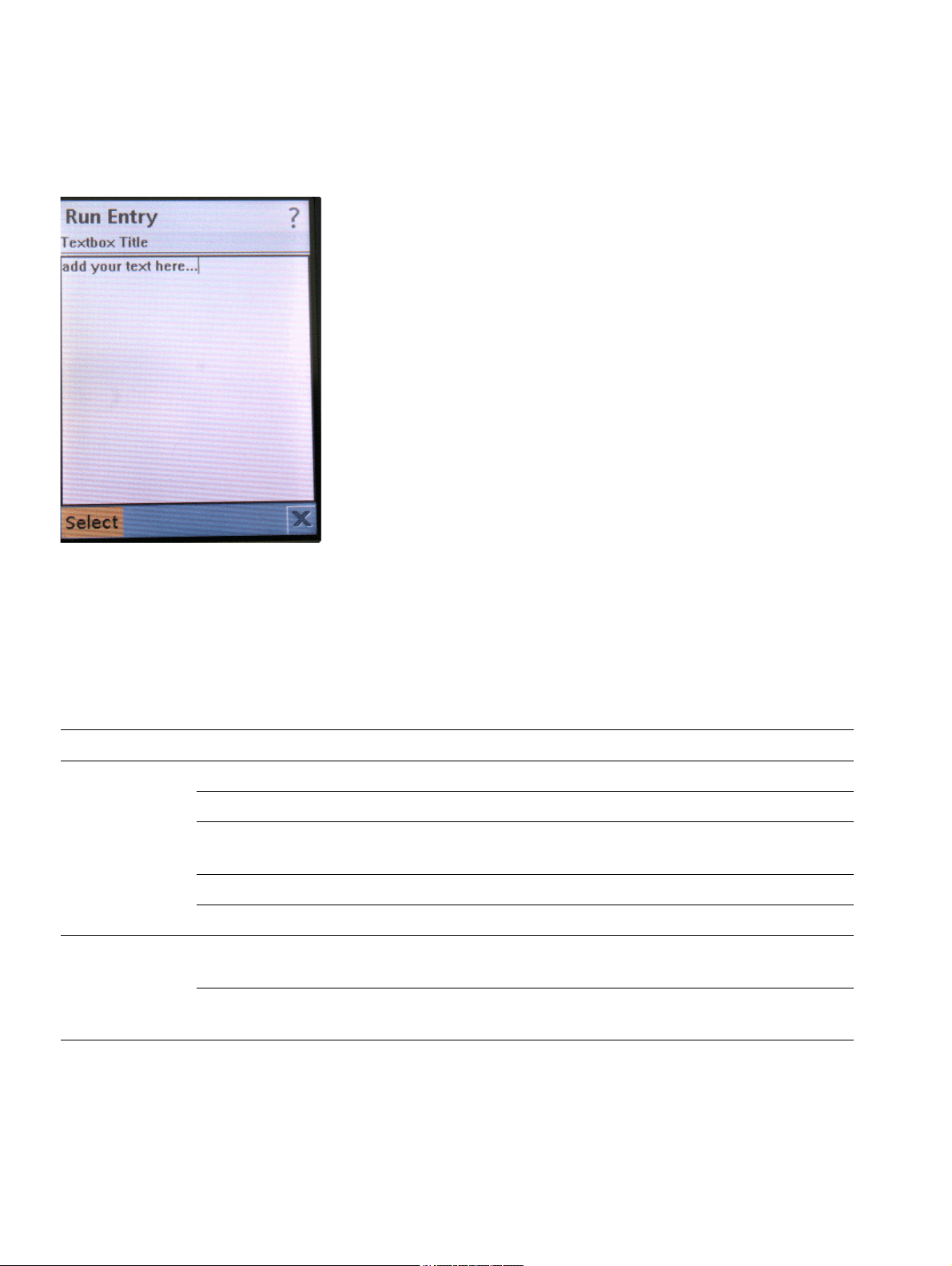
Example
<?xml version="1.0" encoding="UTF-8" ?>
<IppDisplay>
<IppScreen ID="1" HiddenCount="0" CommandCount="1">
<IppTextBox MaxSize="30" Constraint="ANY" Default="TEXT"
Key="TB1">
<Title>Textbox Title</Title>
<Text>add your text here...</Text>
<Url>http://subdomain.domain/path/program</Url>
</IppTextBox>
<IppCommand Type="SELECT" Priority="0">
<Label>Select</Label>
<ScreenID>1</ScreenID>
</IppCommand>
</IppScreen>
</IppDisplay>
18. May 2006
optiPoint application module - XML Applications, Developer’s Guide
16
Page 18
c01.fm
XML Object Reference
Alert
Screenshot
4.6 Alert
An Alert is a message window that temporarily replaces the currently displayed screen. Different types of Alert can be selected using the Type attribute. Title, text as well as an image can
be specified in the child elements.
The following attributes are available to the IppAlert element:
Attribute Value Functionality/Remarks
Type
(optional)
Delay
(optional)
ALARM No specific properties are perceptible by the user.
CONFIRMATION No specific properties are perceptible by the user.
ERROR Default value. No specific properties are perceptible by
the user.
INFO No specific properties are perceptible by the user.
WARNING No specific properties are perceptible by the user.
Timeout in milliseconds
After the specified time elapses, the Alert disappears
and the previously displayed screen reappears.
FOREVER Default value. The display of the Alert can be deactivat-
ed only by the user.
18. May 2006
17 optiPoint application module - XML Applications, Developer’s Guide
Page 19

c01.fm
XML Object Reference
Alert
Syntax
<IppAlert Type="ALARM|CONFIRMATION|INFO|WARNING" Delay="[Number]|FOREVER">
<Title> </Title>
<Text> </Text>
<Image Cache="n"> </Image>
</IppAlert>
Child elements
•Title
The title of the Alert is displayed in the title bar.
•Text
Text in an Alert.
•Image
The image for the Alert. For more information about the Image tag, see Section 4.12, "Image".
18. May 2006
optiPoint application module - XML Applications, Developer’s Guide
18
Page 20
c01.fm
XML Object Reference
Alert
Example
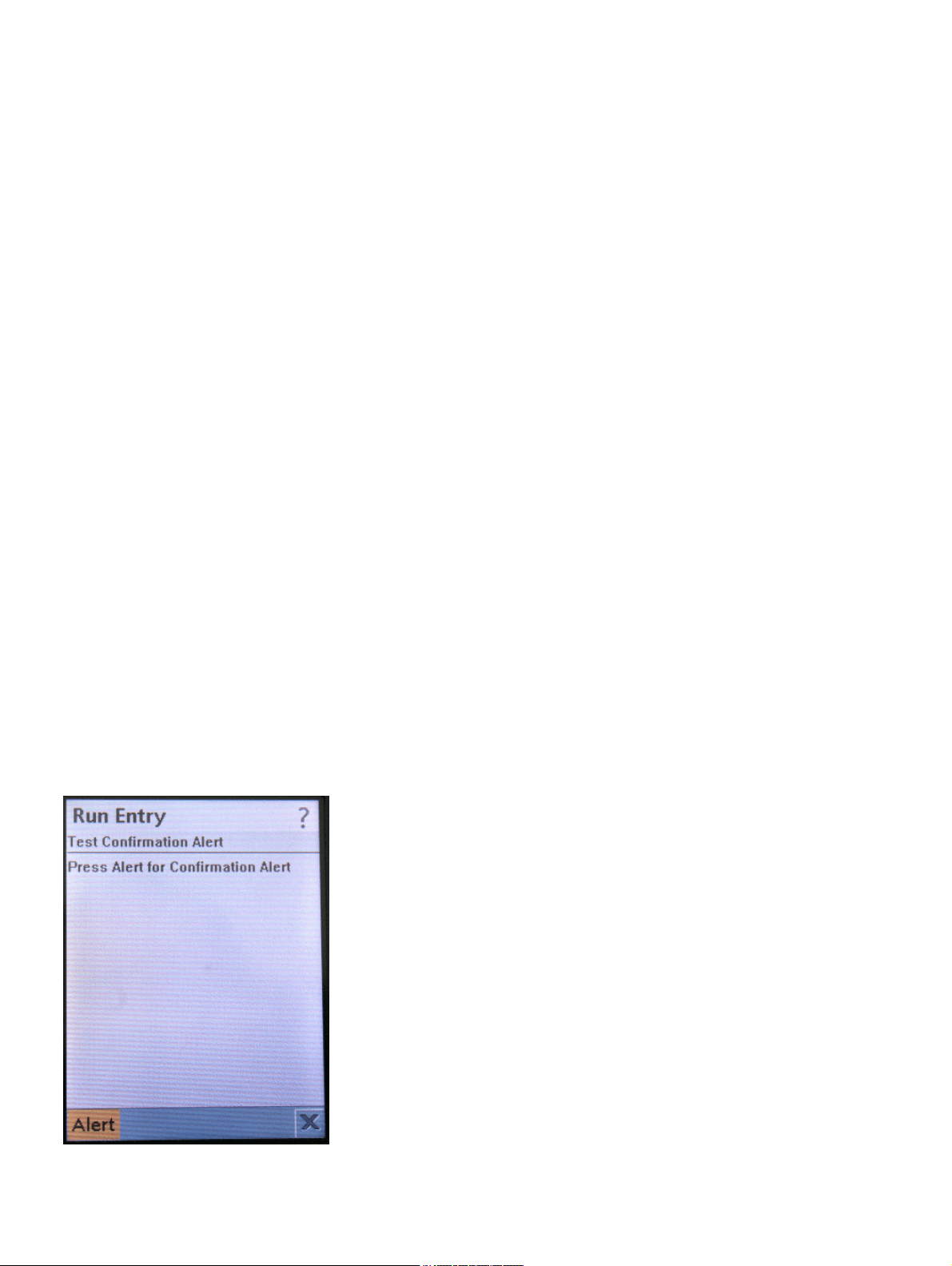
<?xml version="1.0" encoding="UTF-8" ?>
<IppDisplay>
<IppScreen ID="1" HiddenCount="0" CommandCount="1">
<IppForm ItemCount="1">
<Title>Test Confirmation Alert</Title>
<Url>http://subdomain.domain/path/program</Url>
<IppStringItem>
<Label>Press Alert</Label>
<Text>for Confirmation Alert</Text>
</IppStringItem>
</IppForm>
<IppCommand Type="SCREEN" Priority="0">
<Label>Alert</Label>
<ScreenID>2</ScreenID>
</IppCommand>
</IppScreen>
<IppScreen ID="2" HiddenCount="0" CommandCount="0">
<IppAlert Type="CONFIRMATION" Delay="FOREVER">
<Title>Alert</Title>
<Text>Alert1</Text>
<Image></Image>
</IppAlert>
</IppScreen>
</IppDisplay>
Screenshot
18. May 2006
19 optiPoint application module - XML Applications, Developer’s Guide
Page 21

c01.fm
XML Object Reference
List
4.7 List
This object represents a selection list comparable to the <select> and <option> elements
in HTML or WML. A screen can only contain one List object.
There are three types of selection lists: "IMPLICIT", "EXCLUSIVE" and "MULTIPLE". While the
types "IMPLICIT" and "EXCLUSIVE" permit the selection of only one single option, the type
"MULTIPLE" permits the selection of one or more options.
The uniqueness of keys and values is not checked in the telephone.
>
If the URL indicated in the <Url> element is missing or invalid thereby permitting no
>
The following attributes are available to the element:
data to be sent to a server, the screen will continue to be displayed unchanged.
Attribute Value Function
Type
(mandatory)
Count
(mandatory)
IMPLICIT Default value. As soon as an option has been selected,
the data are sent to the URL specified. As opposed to
the types EXCLUSIVE and IMPLICIT, the user does not
have to press a button or softkey. Only the key/value pair
selected is sent to the server.
EXCLUSIVE Exactly one option can be selected (radio button func-
tion). On submit, only the key/value pair selected is sent
to the server.
MULTIPLE One or more options can be selected. On submit, all the
key/value pairs are sent to the server. For selected options, the value of the value attribute is then sent; for
non-selected options, this value is prefixed with _not.
Number of options
0 No options are displayed.
Only as many options as indicated here are displayed.
If the actual number of options exceeds this amount, all
further options are ignored.
18. May 2006
optiPoint application module - XML Applications, Developer’s Guide
20
Page 22

c01.fm
XML Object Reference
List
Syntax
<IppList Type="IMPLICIT|EXCLUSIVE|MULTIPLE" Count="[Number]">
<Title> </Title>
<Url> </Url>
<Option ID="[Number]" Selected="FALSE|TRUE" Key="[Key]" Val-
ue="[Value]">
<OptionText> </OptionText>
<Image Cache="[Name]"> </Image>
</Option>
</IppList>
Child elements
• Title
Title text for the selection list. The title is displayed in the system bar.
• URL
The URL to which the data of the selected option are sent.
If the URL is missing or is invalid, thereby allowing no data to be sent to the serv-
>
•Option
This contains the data that are sent to the server. It can also contain descriptive text (Op-
tionText) and an image (Image).
Attribute Value Function
Selected
(optional)
Key
(optional)
Value
(optional)
er, the current screen will continue to be displayed unchanged.
FALSE Default value. The option is not preselected.
TRUE The option is preselected.
Key The key for the key/value pair that is sent to the
server. For selection lists of type IMPLICIT and
EXCLUSIVE, multiple options can have the same
value for key. If the type is MULTIPLE, all the val-
ues must be different.
Value The value for the key/value pair that is sent to the
server. If the selection list type is MULTIPLE, all
the key/value pairs are sent. For selected options,
the value of the value attribute is then sent; for
non-selected options, this value is prefixed with
_not.
Ta bl e 4 - 2
18. May 2006
21 optiPoint application module - XML Applications, Developer’s Guide
Page 23

XML Object Reference
If a key or value is missing or the values are invalid, the key/value pair ’0-0’ is
>
• OptionText
Descriptive text for the option.
•Image
Illustrative image for the option. The image is displayed to the left of the text. For more information about the Image element, see Section 4.12, "Image".
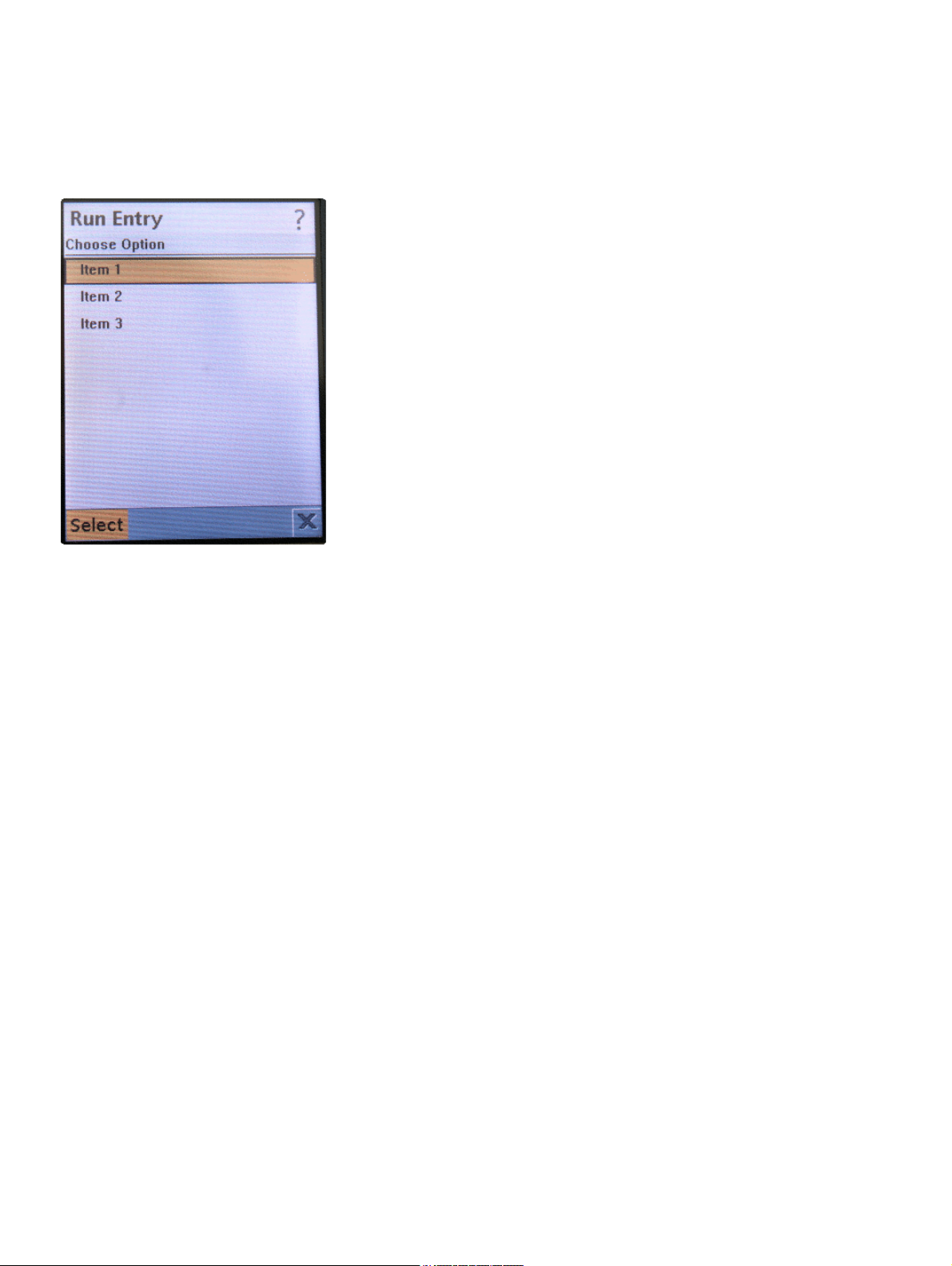
Example
<?xml version="1.0" encoding="UTF-8" ?>
<IppDisplay>
<IppScreen ID="1" HiddenCount="0" CommandCount="1">
<IppList Type="IMPLICIT" Count="3">
</IppList>
<IppCommand Type="SELECT" Priority="0">
</IppCommand>
</IppScreen>
</IppDisplay>
sent.
<Title>Choose Option</Title>
<Url>http://subdomain.domain/path/program</Url>
<Option ID="1" Selected="TRUE" Key="1" Value="1">
<OptionText>Item 1</OptionText>
<Image></Image>
</Option>
<Option ID="2" Selected="FALSE" Key="2" Value="2">>
<OptionText>Item 2</OptionText>
<Image></Image>
</Option>
<Option ID="3" Selected="FALSE" Key="1" Value="1">>
<OptionText>Item 3</OptionText>
<Image></Image>
</Option>
<Label>Select</Label>
<ScreenID>1</ScreenID>
c01.fm
List
18. May 2006
optiPoint application module - XML Applications, Developer’s Guide
22
Page 24
c01.fm
XML Object Reference
List
Screenshot
18. May 2006
23 optiPoint application module - XML Applications, Developer’s Guide
Page 25

c01.fm
XML Object Reference
TextBox
4.8 TextBox
The user can enter text in a textbox. Predefined content, a title for the textbox, the permitted
data types (Constraint) as well as a URL can be specified for sending the data to a server.
The following attributes are available to the IppTextBox element:
Attribute Value Functionality/Remarks
MaxSize
(optional)
Constraint
(optional)
Default
(optional)
Maximum number
of characters
If the attribute is missing or the value is invalid, the maximum number of characters is limited only by the capacity of the display and the buffer of the optiPoint phone
connected.
ANY Default value. Any character string is permitted.
NUMERIC The data entered must be numeric. Other keyboard en-
tries are ignored.
PASSWORD The data entered are treated as a password.
Asterisks * are displayed instead of the characters actually entered.
PHONENUMBER The data entered must be in a telephone number for-
mat. Validation is currently not yet implemented.
URL The data entered must represent a valid URL. Validation
is currently not yet implemented.
EMAILADDR The data entered must represent a valid e-mail address.
Validation is currently not yet implemented.
NULL An empty textbox is displayed; the Text element con-
tent is ignored.
TEXT The textbox contains the content of the Text element.
PHONENUMBER The textbox contains the telephone number of the opti-
Point phone.
Key
(optional)
Key The value of this attribute is used as a key for submitting
the data. The associated value is the content of the
Text element.
18. May 2006
optiPoint application module - XML Applications, Developer’s Guide
24
Page 26

c01.fm
XML Object Reference
TextBox
Syntax
<IppTextBox MaxSize="[Number]" Constraint="ANY|NUMERIC|PASSWORD|PHONENUMBER|URL|EMAILADDR" Default="NULL|TEXT|PHONENUMBER"
Key="[Key]">
<Title> </Title>
<Text> </Text>
<Url> </Url>
</IppTextBox>
Child elements
• Title
Title of the textbox. This is displayed in the system bar.
•Text
Predefined text contained in the textbox.
• URL
URL of the server to which the data are sent.
If the URL is missing or is invalid, thereby allowing no data to be sent to the serv-
>
Example
<?xml version="1.0" encoding="UTF-8" ?>
<IppDisplay>
<IppScreen ID="1" HiddenCount="0" CommandCount="1">
<IppTextBox MaxSize="30" Constraint="ANY" Default="TEXT"
Key="TB1">
<Url>http://subdomain.domain/path/program</Url>
</IppTextBox>
<IppCommand Type="SELECT" Priority="0">
</IppCommand>
</IppScreen>
</IppDisplay>
er, the current screen will continue to be displayed unchanged.
<Title>Textbox Title</Title>
<Text>add your text here...</Text>
<Label>Select</Label>
<ScreenID>2</ScreenID>
18. May 2006
25 optiPoint application module - XML Applications, Developer’s Guide
Page 27
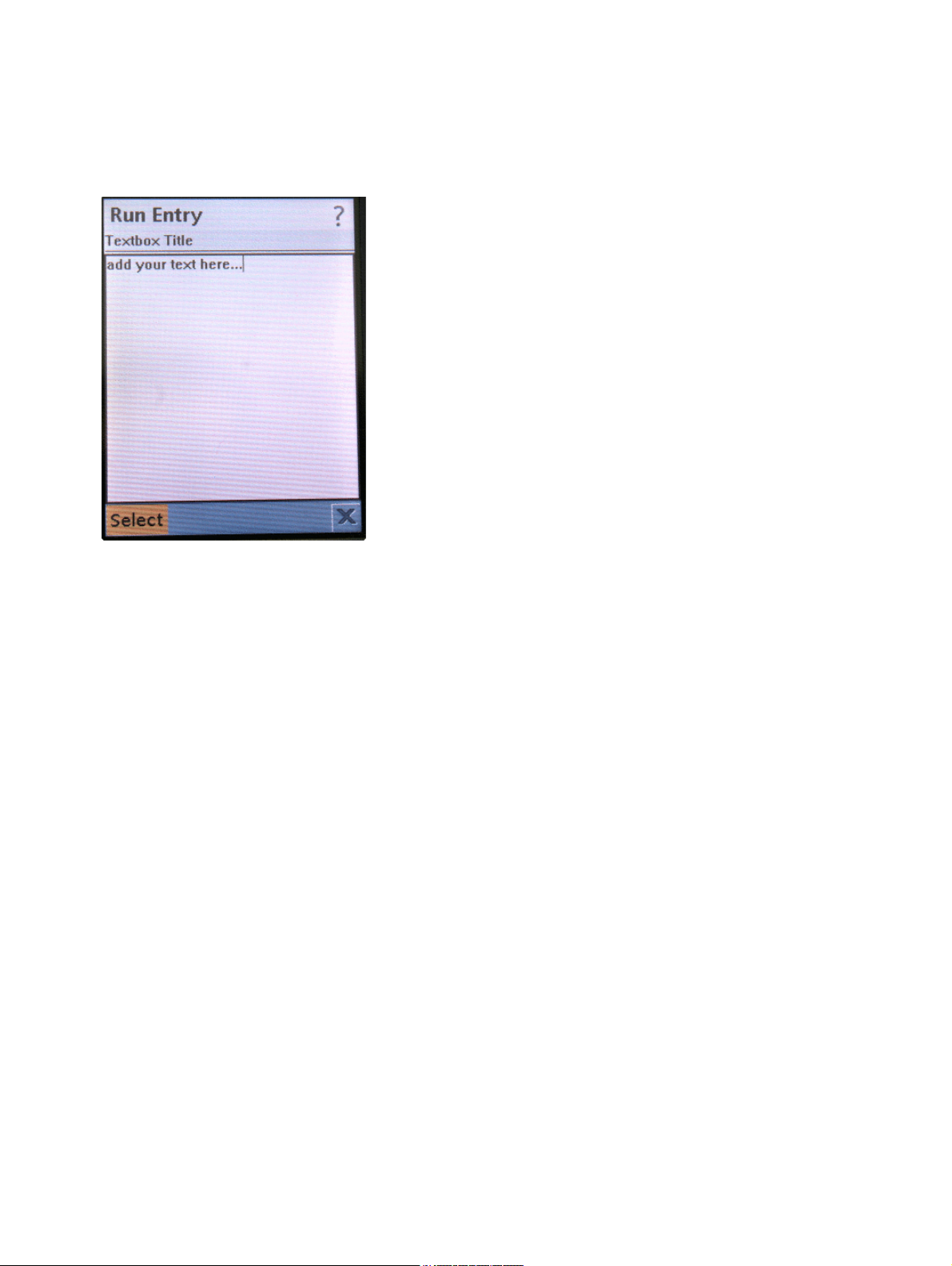
Screenshot
c01.fm
XML Object Reference
TextBox
18. May 2006
optiPoint application module - XML Applications, Developer’s Guide
26
Page 28

c01.fm
XML Object Reference
Ticker
4.9 Ticker
Ticker text is displayed in the system bar and continually moves from right to left above the display.
Syntax
<IppTicker>
<Text> </Text>
</IppTicker>
If the text is missing or is invalid, an empty ticker, unnoticeable to the user, is dis-
>
Example
played.
<?xml version="1.0" encoding="UTF-8" ?>
<IppDisplay>
<IppScreen ID="1" HiddenCount="0" CommandCount="1">
<IppTextBox MaxSize="30" Constraint="ANY" Default="TEXT"
Key="TB1">
<Title>Title</Title>
<Text>TextBox</Text>
<Url>http://subdomain.domain/path/program</Url>
</IppTextBox>
<IppCommand Type="SELECT" Priority="0">
<Label>Select</Label>
<ScreenID>1</ScreenID>
</IppCommand>
<IppTicker>
<Text>Ticker Text</Text>
</IppTicker>
</IppScreen>
</IppDisplay>
18. May 2006
27 optiPoint application module - XML Applications, Developer’s Guide
Page 29
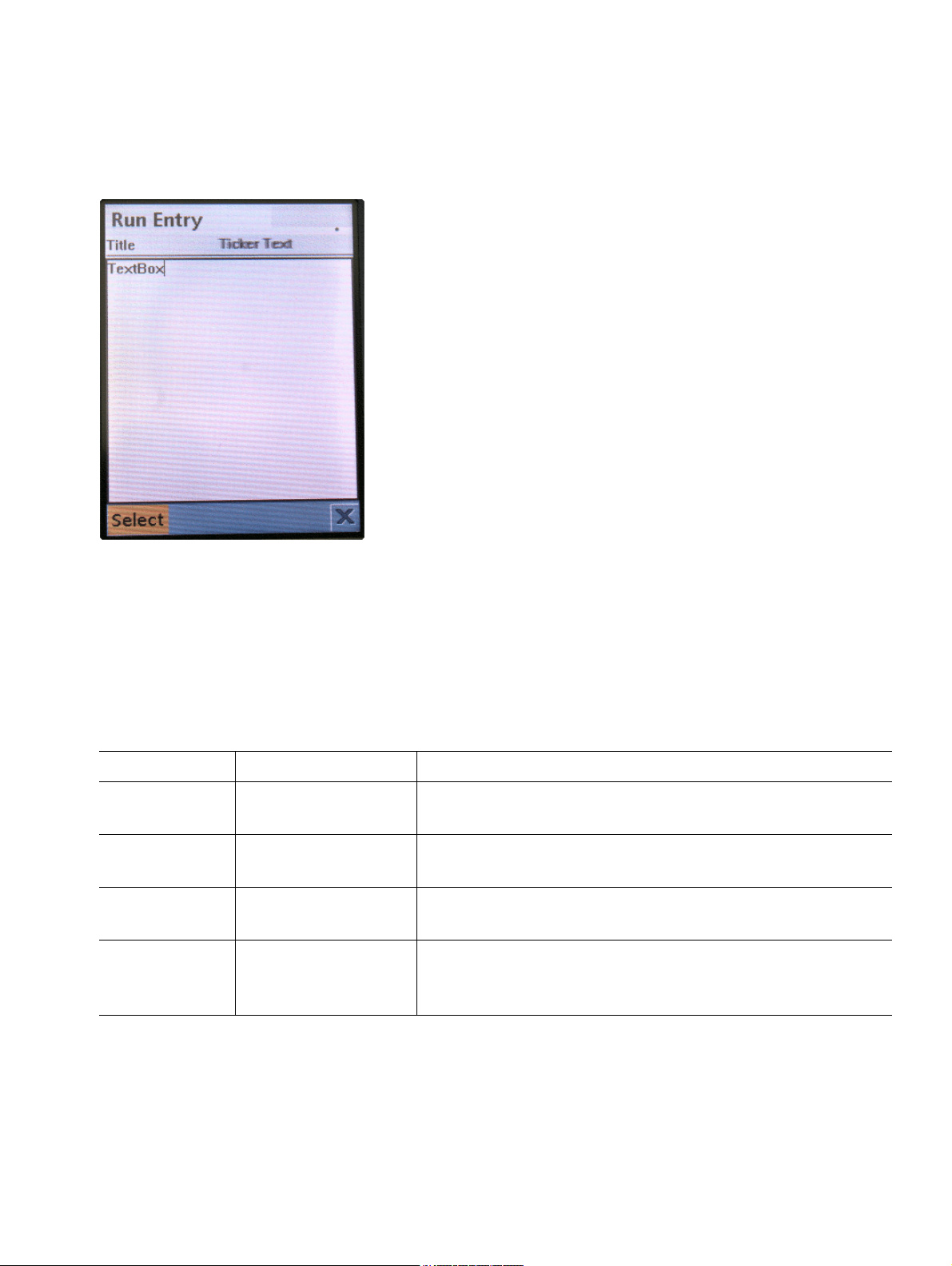
Screenshot
c01.fm
XML Object Reference
Hidden
4.10 Hidden
The function of this object is comparable to that of hidden entry fields in HTML. This makes it
possible to not only receive data from the server using key/value pairs but to also send data to
the server without these data being visible to the user. In addition to context information, it can
also contain the telephone number of the optiPoint phone connected or its IP address.
The following attributes are available to the IppHidden element:
Attribute Value Function
Type VALUE Default value. The value of the key/value pair is the val-
ue saved in the Value child element.
PHONENUMBER The value of the key/value pair is the telephone number
of the optiPoint phone connected.
IPADDRESS The value of the key/value pair is the IP address of the
optiPoint phone connected.
Key Key The key that, together with the content of the Value
child element, builds the key/value pair to be sent. The
key must be unique within a screen.
18. May 2006
optiPoint application module - XML Applications, Developer’s Guide
28
Page 30

c01.fm
XML Object Reference
Hidden
Syntax
<IppHidden Type="VALUE|PHONENUMBER|IPADDRESS" Key="[Key]">
<Value> </Value>
</IppHidden>
Child elements
• Value
This contains the value that is sent to the server. Together with the Key attribute of the Ip-
pHidden element, the content of Value builds a key/value pair.
Example
<?xml version="1.0" encoding="UTF-8" ?>
<IppDisplay>
<IppScreen ID="1" HiddenCount="1" CommandCount="1">
<IppTextBox MaxSize="30" Constraint="ANY" Default="TEXT"
Key="TB1">
<Title>Title</Title>
<Text>TextBox</Text>
<Url>http://subdomain.domain/path/program</Url>
</IppTextBox>
<IppCommand Type="SELECT" Priority="0">
<Label>Select</Label>
<ScreenID>1</ScreenID>
</IppCommand>
<IppHidden Type="VALUE" Key="H1">
<Value>V1</Value>
</IppHidden>
</IppScreen>
</IppDisplay>
18. May 2006
29 optiPoint application module - XML Applications, Developer’s Guide
Page 31

c01.fm
XML Object Reference
Form
4.11 Form
The Form object is used to generate a frame that provides certain layout options for a screen.
With regard to the structure of XML, the IppForm element represents a container for the ele-
ments StringItem, ImageItem, Spacer, TextField, DateField, ChoiceGroup and
Gauge. It also contains the elements Title and Url.
The following attributes are available to the IppForm element:
Attribute Value Function
ItemCount Number of elements
contained
Syntax
<IppForm ItemCount="[Number]">
<Title> </Title>
<Url> </Url>
<StringItem/>
<ImageItem/>
<Spacer/>
<TextField/>
<DateField/>
<ChoiceGroup/>
<Gauge>
</IppForm>
Child elements
•Title
Title of the form.
Indicates the number of elements contained (Title
and Url are not counted).
•URL
URL of the server, to which the data should be sent.
If the URL indicated in the Url element is missing or invalid, thereby allowing no
>
18. May 2006
optiPoint application module - XML Applications, Developer’s Guide
data to be sent to a server, the screen will continue to be displayed unchanged.
30
Page 32

c01.fm
XML Object Reference
Form
4.11.1 Form/StringItem
This object provides a read-only text field. The text field consists of a label and the actual text.
The text follows the label on the same line, separated by a simple space.
The characters ’&’, ’<’, ’>’, ’"’ and ’’’ must be represented by the corresponding char-
>
acter entities ’&’, ’<’, ’>’, ’"’ and ’'’.
Line breaks within Label or Text are noted with the character combination ’\NL’.
>
Syntax
<IppStringItem>
<Label> </Label>
<Text> </Text>
</IppStringItem>
Child elements
• Label
Label that precedes the text.
•Text
Content in the text field.
18. May 2006
31 optiPoint application module - XML Applications, Developer’s Guide
Page 33
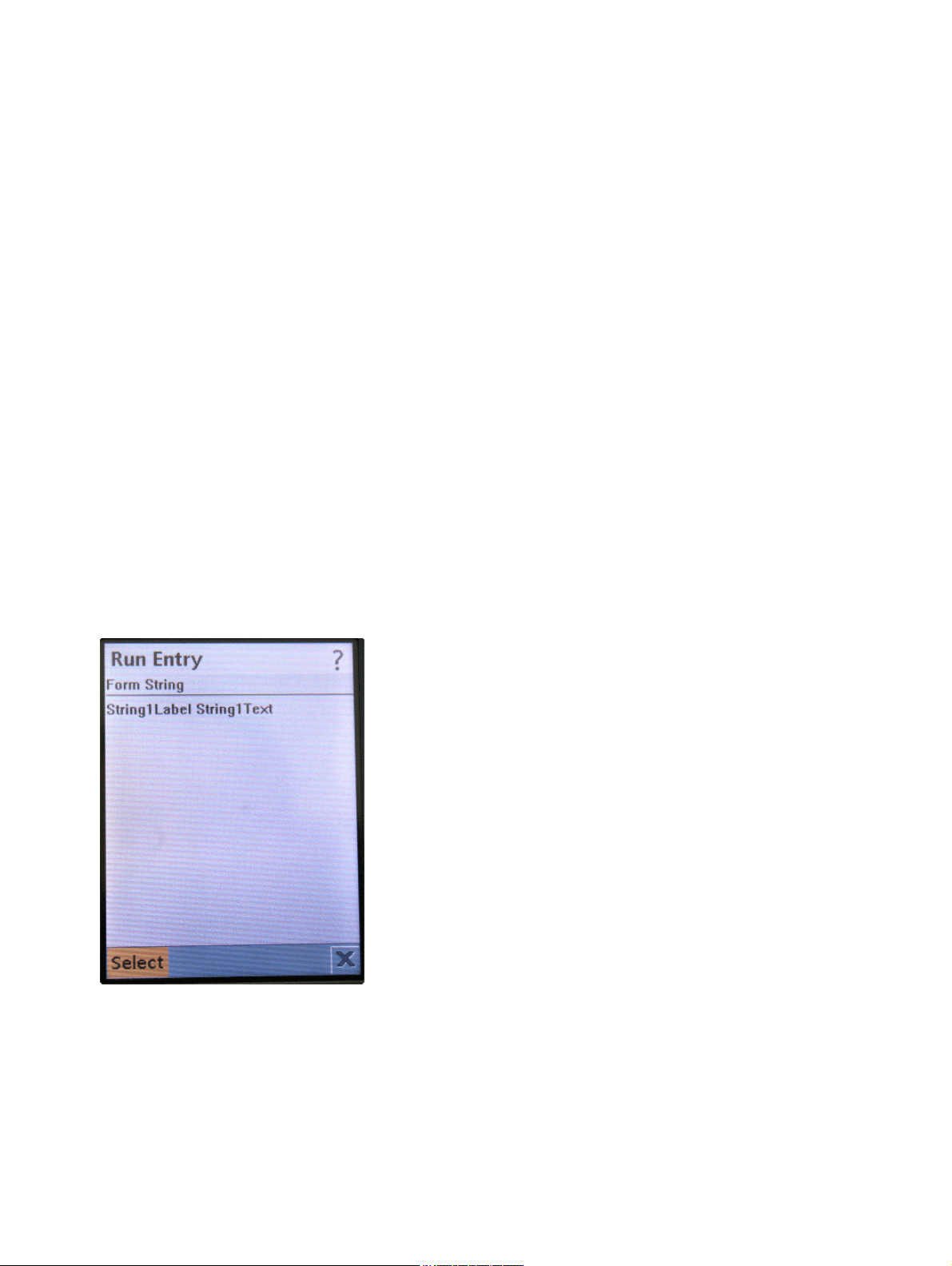
Example
<?xml version="1.0" encoding="UTF-8" ?>
<IppDisplay>
<IppScreen ID="1" HiddenCount="0" CommandCount="1">
<IppForm ItemCount="1">
<Title>Form String</Title>
<Url>http://subdomain.domain/path/program</Url>
<IppStringItem>
<Label>String1Label</Label>
<Text>String1Text</Text>
</IppStringItem>
</IppForm>
<IppCommand Type="SELECT" Priority="0">
<Label>Select</Label>
<ScreenID>1</ScreenID>
</IppCommand>
</IppScreen>
</IppDisplay>
c01.fm
XML Object Reference
Form
Screenshot
18. May 2006
optiPoint application module - XML Applications, Developer’s Guide
32
Page 34

c01.fm
XML Object Reference
Form
4.11.2 Form/ImageItem
This object functions as a frame for linking an image in the screen layout within a Form object.It
enables control over the positioning of the image and the data for alternative text if the image
cannot be displayed, as well as the addition of a label. (optional)
The following attributes are available to the IppImageItem element:
Attribute Value Function
Layout
(optional)
CENTER The image is centered.
DEFAULT Position according to the default setting.
LEFT The image is positioned flush left.
NEWLINE_AFTER A line break is inserted after the image.
NEWLINE_BEFORE A line break is inserted before the image.
RIGHT The image is positioned flush right.
Syntax
<IppImageItem Layout="CENTER|DEFAULT|LEFT|NEWLINE_AFTER|NEWLINE_BEFORE|RIGHT">
<Label> </Label>
<Image Cache="[Name]"> </Image>
<AltText> </AltText>
</IppImageItem>
Child elements
• Label
Label that is displayed to the left in front of the image.
• Image
Links the image file. For more information about the Image element, see Section 4.12, "Image".
•AltText
Alternate text that is displayed if the image cannot be loaded or displayed.
18. May 2006
33 optiPoint application module - XML Applications, Developer’s Guide
Page 35

Example
<?xml version="1.0" encoding="UTF-8" ?>
<IppDisplay>
<IppScreen ID="1" HiddenCount="0" CommandCount="1">
<IppForm ItemCount="1">
<Title>Sunset</Title>
<Url>http://subdomain.domain/path/program</Url>
<IppImageItem Layout="CENTER">
<Label> </Label>
<Image>http://subdomain.domain/path/image.png</Image>
<AltText>Image1</AltText></IppImageItem>
</IppForm>
<IppCommand Type="SELECT" Priority="0">
<Label>Select</Label>
<ScreenID>1</ScreenID>
</IppCommand>
</IppScreen>
</IppDisplay>
c01.fm
XML Object Reference
Form
Screenshot
18. May 2006
optiPoint application module - XML Applications, Developer’s Guide
34
Page 36

c01.fm
XML Object Reference
Form
4.11.3 Form/Spacer
The Spacer object is used to structure the layout within a Form object. It generates a line break
at a specified position. Without the Spacer object, all the subelements in a form are displayed
inline, that is, without line breaks.
The following attributes are available to the IppSpacer element:
Attribute Value Function
NewLine BEGIN The line break is inserted before the element.
BOTH Line breaks are inserted before and after the element.
END The line break is inserted after the element.
Syntax
<IppSpacer NewLine="BEGIN|BOTH|END" />
>
If the NewLine attribute is missing or its value is invalid, no line break is inserted.
18. May 2006
35 optiPoint application module - XML Applications, Developer’s Guide
Page 37
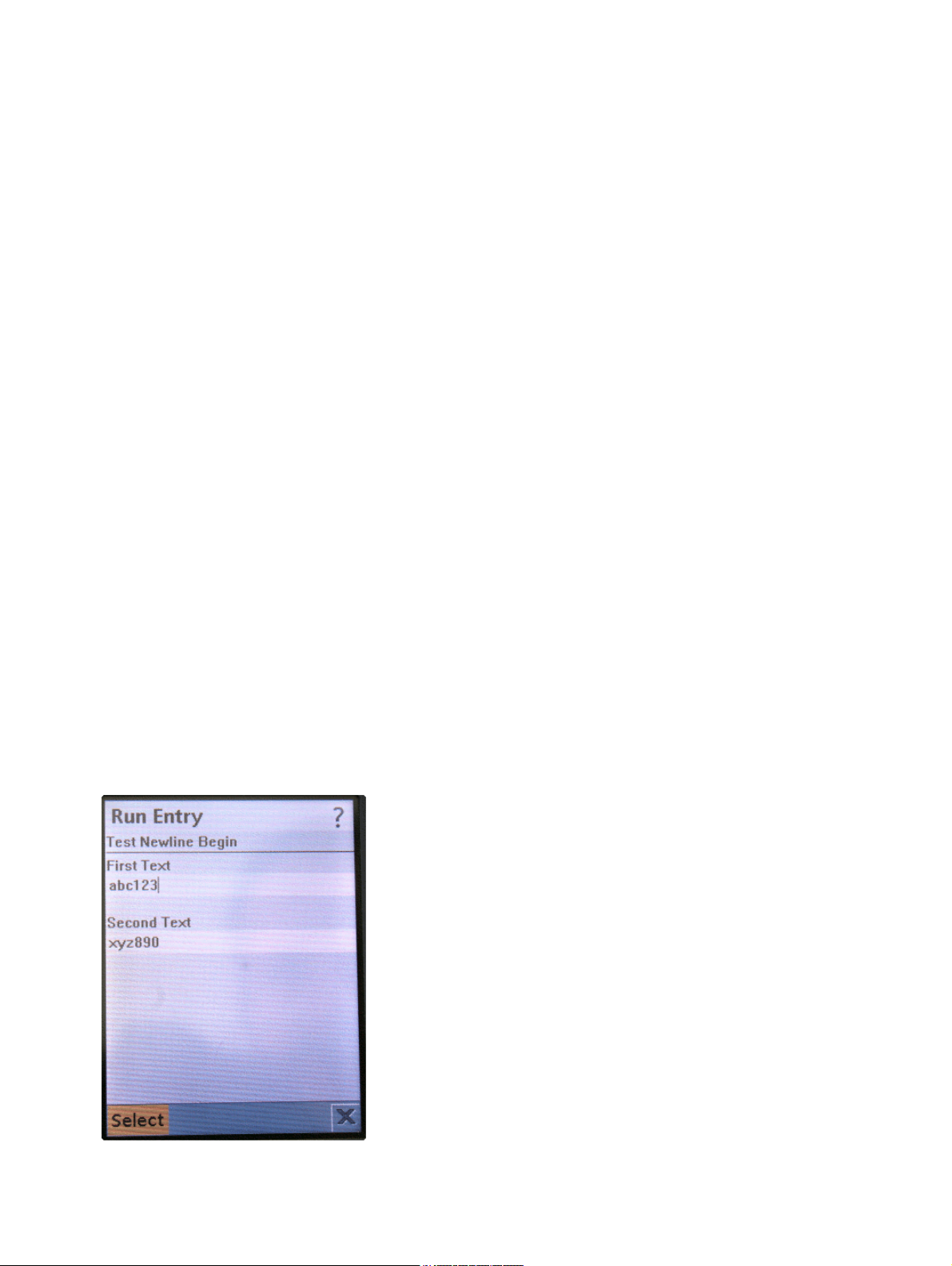
Example
<?xml version="1.0" encoding="UTF-8" ?>
<IppDisplay>
<IppScreen ID="1" HiddenCount="0" CommandCount="1">
<IppForm ItemCount="3">
<Title>Test Newline Begin</Title>
<Url>http://subdomain.domain/path/program</Url>
<IppTextField MaxSize="30" Constraint="ANY" Default="TEXT"
Key="TF2">
<Label>First Text</Label>
<Text>abc123</Text>
</IppTextField>
<IppSpacer NewLine="BEGIN" />
<IppTextField MaxSize="30" Constraint="ANY" Default="TEXT"
Key="TF2">
<Label>Second Text</Label>
<Text>xyz890</Text>
</IppTextField>
</IppForm>
<IppCommand Type="SELECT" Priority="0">
<Label>Select</Label>
<ScreenID>1</ScreenID>
</IppCommand>
</IppScreen>
</IppDisplay>
c01.fm
XML Object Reference
Form
Screenshot
18. May 2006
optiPoint application module - XML Applications, Developer’s Guide
36
Page 38

c01.fm
XML Object Reference
Form
4.11.4 Form/TextField
An entry field for data is generated, comparable to the input tag in HTML. The entry field contains a label. In addition, the data type of the entry can be defined using the Constraint attribute.
The following attributes are available to the TextField element:
Attribute Value Function
MaxSize Maximum number
of characters
Constraint
ANY Default value. Any character string is permitted.
(optional)
NUMERIC The data entered must be numeric. Other keyboard en-
PASSWORD The data entered are treated as a password.
PHONENUMBER The data entered must be in a telephone number for-
URL The data entered must represent a valid URL. Validation
EMAILADDR The data entered must represent a valid e-mail address.
Default
NULL An empty entry field is displayed; the Text element
(optional)
If the attribute is missing or the value is invalid, the maximum number of characters is limited by the capacity of
the display and the buffer of the optiPoint phone connected.
tries are ignored.
Asterisks * are displayed instead of the characters actually entered.
mat. Validation is currently not yet implemented.
is currently not yet implemented.
Validation is currently not yet implemented.
content is ignored.
Text The entry field contains the content of the Text ele-
ment.
PHONENUMBER The textbox contains the telephone number of the opti-
Point phone.
Key
(optional)
Key The value of this attribute is used as a key for submitting
the data. The associated value is the content of the
Text element.
Ta bl e 4 - 3
18. May 2006
37 optiPoint application module - XML Applications, Developer’s Guide
Page 39

XML Object Reference
Syntax
<IppTextField MaxSize="[Number]" Constraint="ANY|NUMERIC|PASSWORD|PHONENUMBER|URL|EMAILADDR" Default="NULL|TEXT|PHONENUMBER"
Key="[Key]">
<Label > </Label >
<Text> </Text>
</IppTextField >
Child elements
• Label
Label for identifying the entry field. The label is displayed above the entry field.
•Text
Text that is preset in the entry field.
c01.fm
Form
18. May 2006
optiPoint application module - XML Applications, Developer’s Guide
38
Page 40

c01.fm
XML Object Reference
Form
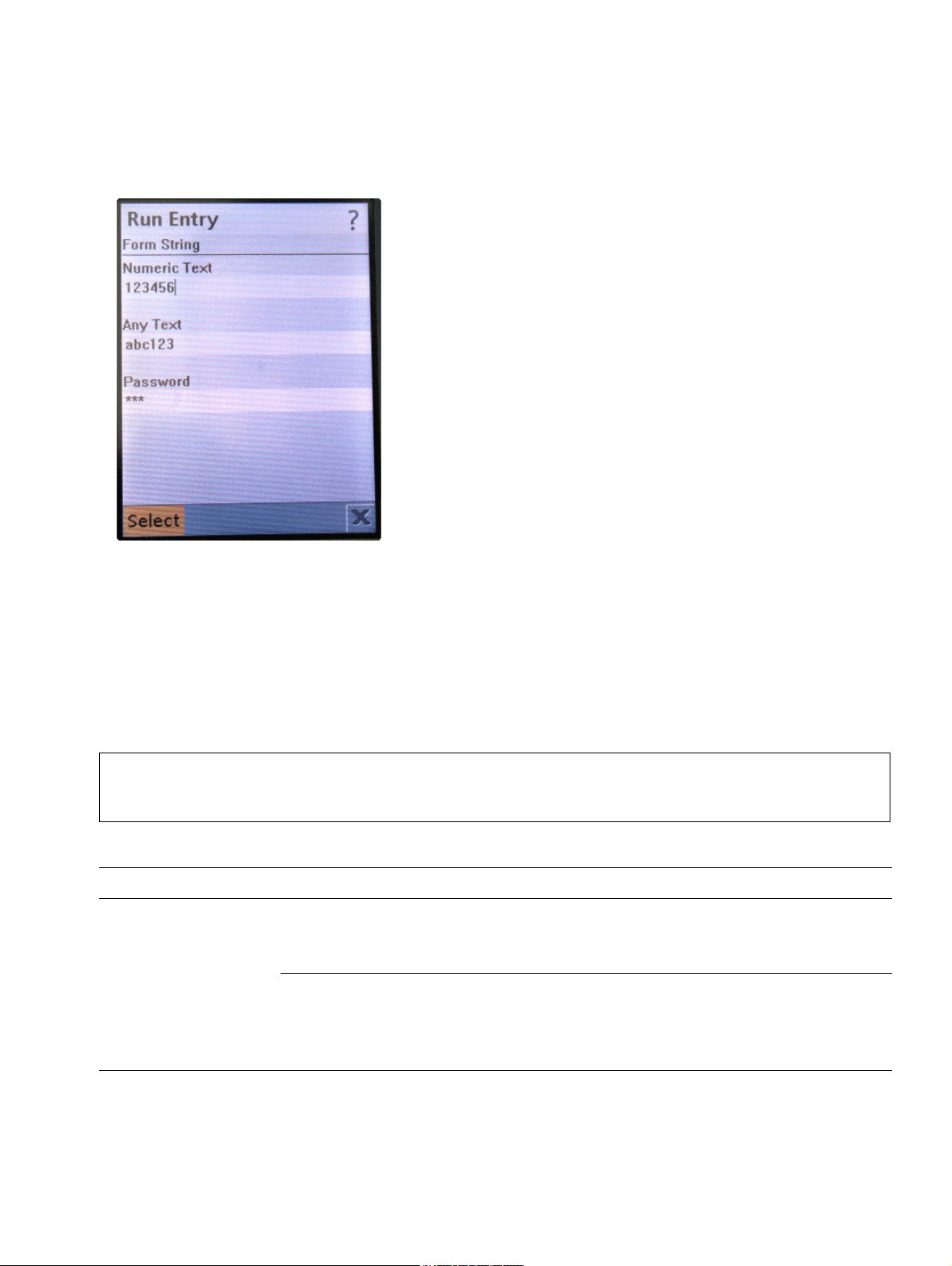
Example
<?xml version="1.0" encoding="UTF-8" ?>
<IppDisplay>
<IppScreen ID="1" HiddenCount="0" CommandCount="1">
<IppForm ItemCount="3">
<Title>Form String</Title>
<Url>http://subdomain.domain/path/program</Url>
<IppTextField MaxSize="30" Constraint="NUMERIC" De-
fault="TEXT" Key="TF1">
<Label>Numeric Text</Label>
<Text>123456</Text>
</IppTextField>
<IppTextField MaxSize="30" Constraint="ANY" Default="TEXT"
Key="TF2">
<Label>Any Text</Label>
<Text>abc123</Text>
</IppTextField>
<IppTextField MaxSize="30" Constraint="PASSWORD" De-
fault="TEXT" Key="TF3">
<Label>Password</Label>
<Text>999</Text>
</IppTextField>
</IppForm>
<IppCommand Type="SELECT" Priority="0">
<Label>Select</Label>
<ScreenID>1</ScreenID>
</IppCommand>
</IppScreen>
</IppDisplay>
18. May 2006
39 optiPoint application module - XML Applications, Developer’s Guide
Page 41
Screenshot
c01.fm
XML Object Reference
Form
4.11.5 Form/ChoiceGroup
This element, together with its child elements, forms a selection list within a form, comparable
to the <select> and <option> elements in HTML and WML.
There are two types of ChoiceGroups: "EXCLUSIVE" and "MULTIPLE". While only one single
option is permitted for the type "EXCLUSIVE", the type "MULTIPLE" permits the selection of
one or more options.
The uniqueness of keys and values is not checked in the telephone.
>
The following attributes are available to the IppChoiceGroup element:
Attribute Value Function
Type
(mandatory)
EXCLUSIVE Default value. Exactly one option can be selected (radio
button function). On submit, only the key/value pair selected is sent to the server.
MULTIPLE One or more options can be selected. On submit, all the
key/value pairs are sent to the server. For selected options, the value of the value attribute is then sent; for
non-selected options, this value is prefixed with _not.
18. May 2006
optiPoint application module - XML Applications, Developer’s Guide
40
Page 42

c01.fm
XML Object Reference
Form
Count
(mandatory)
Syntax
<IppChoiceGroup Type="EXCLUSIVE|MULTIPLE" Count="[Number]">
<Label> </Label>
<Option ID="i" Selected="FALSE|TRUE" Key="[Key]" Value="[Value]">
<OptionText> </OptionText>
<Image Cache="[Name]"> </Image>
</Option>
</IppChoiceGroup>
Child elements
•Option
Stores the data to be sent to the server in attributes. It can also contain descriptive text
(OptionText) and an image (Image).
Number of options
0 No options are displayed.
Only as many options as indicated here are displayed.
If the actual number of options is greater, all further options that exceed this setting are ignored.
Attribute Value Function
Selected
(optional)
Key
(optional)
Value
(optional)
Ta bl e 4 - 4
>
If a key or value is missing or the values are invalid, the key/value pair ’0-0’ is
sent.
FALSE Default value. The option is not preselected.
TRUE The option is preselected.
Key The key for the key/value pair that is sent to the
Value The value for the key/value pair that is sent to the
server. For selection lists of type IMPLICIT and
EXCLUSIVE, multiple options can have the same
value for key. If the type is MULTIPLE, all the val-
ues must be different.
server. If the selection list type is MULTIPLE, all
the key/value pairs are sent. For selected options,
the value of the value attribute is then sent; for
non-selected options, this value is prefixed with
_not.
• OptionText
18. May 2006
41 optiPoint application module - XML Applications, Developer’s Guide
Page 43

XML Object Reference
Descriptive text for the option.
•Image
Illustrative image for the option. The image is displayed to the left of the text. For more information about the Image element, see Section 4.12, "Image".
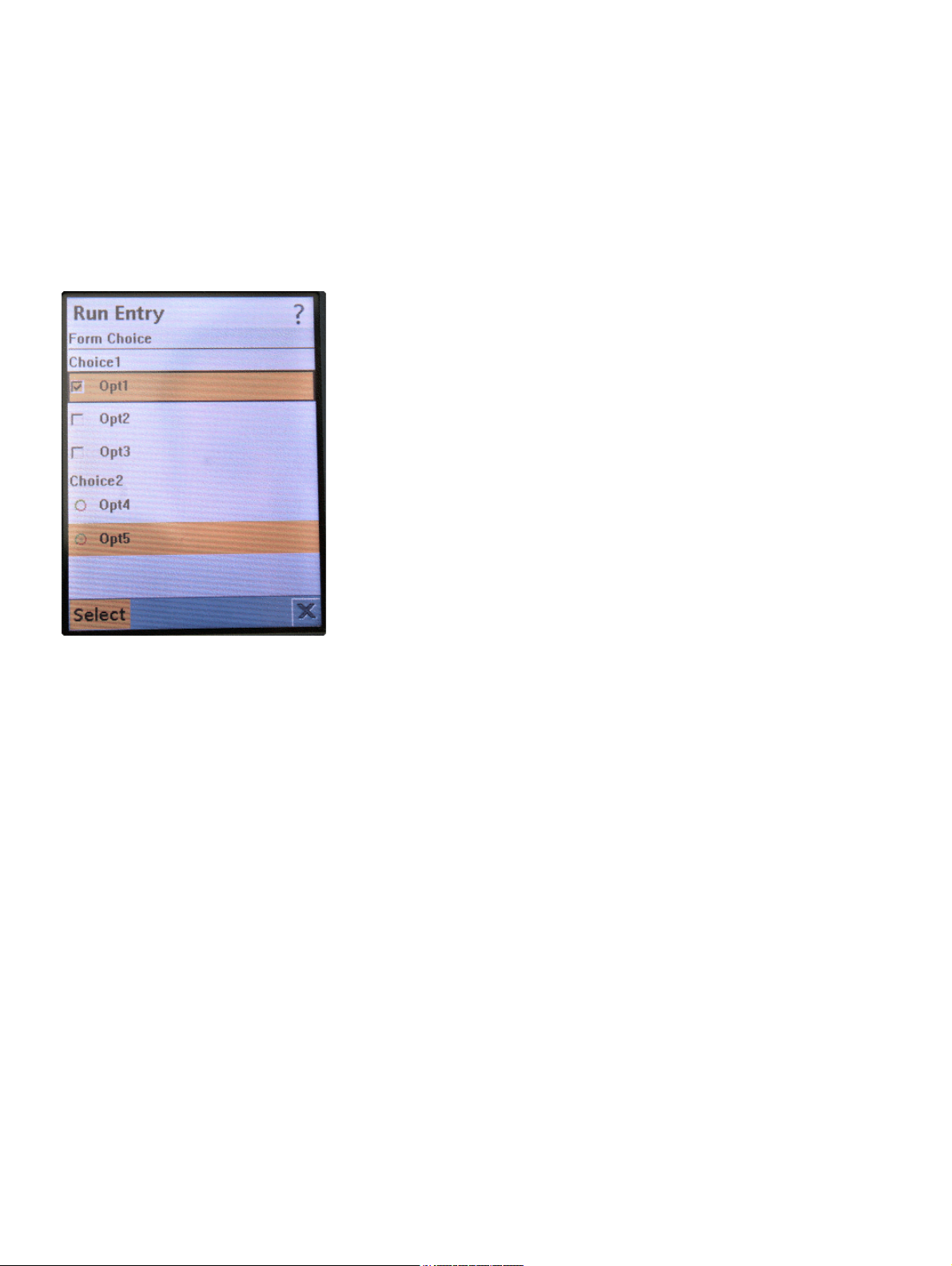
Example
<?xml version="1.0" encoding="UTF-8" ?>
<IppDisplay>
<IppScreen ID="1" HiddenCount="0" CommandCount="1">
<IppForm ItemCount="2">
<Title>Form Choice</Title>
<Url>http://subdomain.domain/path/program</Url>
<IppChoiceGroup Type="MULTIPLE" Count="3">
<Label>Choice1</Label>
<Option ID="1" Selected="TRUE" Key="C1" Value="1">
<OptionText>Opt1</OptionText>
<Image></Image>
</Option>
<Option ID="2" Selected="FALSE" Key="C2" Value="2">
<OptionText>Opt2</OptionText>
<Image></Image>
</Option>
<Option ID="3" Selected="FALSE" Key="C3" Value="3">
<OptionText>Opt3</OptionText>
<Image></Image>
</Option>
</IppChoiceGroup>
<IppChoiceGroup Type="EXCLUSIVE" Count="2">
<Label>Choice2</Label>
<Option ID="4" Selected="FALSE" Key="C4" Value="4">
<OptionText>Opt4</OptionText>
<Image></Image>
</Option>
<Option ID="5" Selected="TRUE" Key="C5" Value="5">>
<OptionText>Opt5</OptionText>
<Image></Image>
</Option>
</IppChoiceGroup>
</IppForm>
<IppCommand Type="SELECT" Priority="0">
<Label>Select</Label>
<ScreenID>1</ScreenID>
c01.fm
Form
18. May 2006
optiPoint application module - XML Applications, Developer’s Guide
42
Page 44
c01.fm
XML Object Reference
Form
</IppCommand>
</IppScreen>
</IppDisplay>
Screenshot
18. May 2006
43 optiPoint application module - XML Applications, Developer’s Guide
Page 45

c01.fm
XML Object Reference
Form
4.11.6 Form/DateField
The object generates a field, in which date and time information can be prespecified or entered
by the user. The DateField contains a label. The data to be displayed (date, time, date and time)
as well as the time zone can be specified.
The date is displayed in three separate fields representing day, month and year; the time in
three fields representing hours, minutes and seconds.
If the key in a DateField is invalid or not present, the URL indicated in the form is
>
The following attributes are available to the IppDateField element:
Attribute Value Function
opened, but the data in this DateField are not sent.
Mode
(optional)
DEFAULT
(optional)
DateKey
(optional)
TimeKey
(optional)
Syntax
<IppDateField Mode="DATE|TIME|DATETIME" Default="NULL|MODE"
DateKey="[Key]" TimeKey="[Key]">
<Label> </Label>
<TimeZone> </TimeZone>
<Date> </Date>
<Time> </Time>
</IppDateField>
DATE Only the content of the Date field is submitted to the
server.
TIME Only the content of the Time field is submitted to the
server.
DATETIME Default value. The contents of the Date field and of the
Time field are submitted to the server.
NULL The field is considered empty; no data are sent to the
server.
MODE Selected data are sent via the Mode attribute.
Key for the date field Together with the content of the Date field, this builds
the key/value pair to be sent to the server.
Key for the time field Together with the content of the Time field, this builds
the key/value pair to be sent to the server.
18. May 2006
optiPoint application module - XML Applications, Developer’s Guide
44
Page 46

c01.fm
XML Object Reference
Form
Child elements
• Label
Generates a label for identifying the respective fields. The label is displayed above the
fields.
• TimeZone
Entry for the time zone.
•Date
Entry for the date in the order of day - month - year.
The YYYY-MM-DD format is used for indicating the date in the XML document,
>
for example: 2006-03-20.
•Time
Time data is entered in the order of hours - minutes - seconds.
The HH-MM-SS format, followed by a period and the milliseconds, is used for
>
indicating the time in the XML document, for example: 13:00:00.000.
18. May 2006
45 optiPoint application module - XML Applications, Developer’s Guide
Page 47

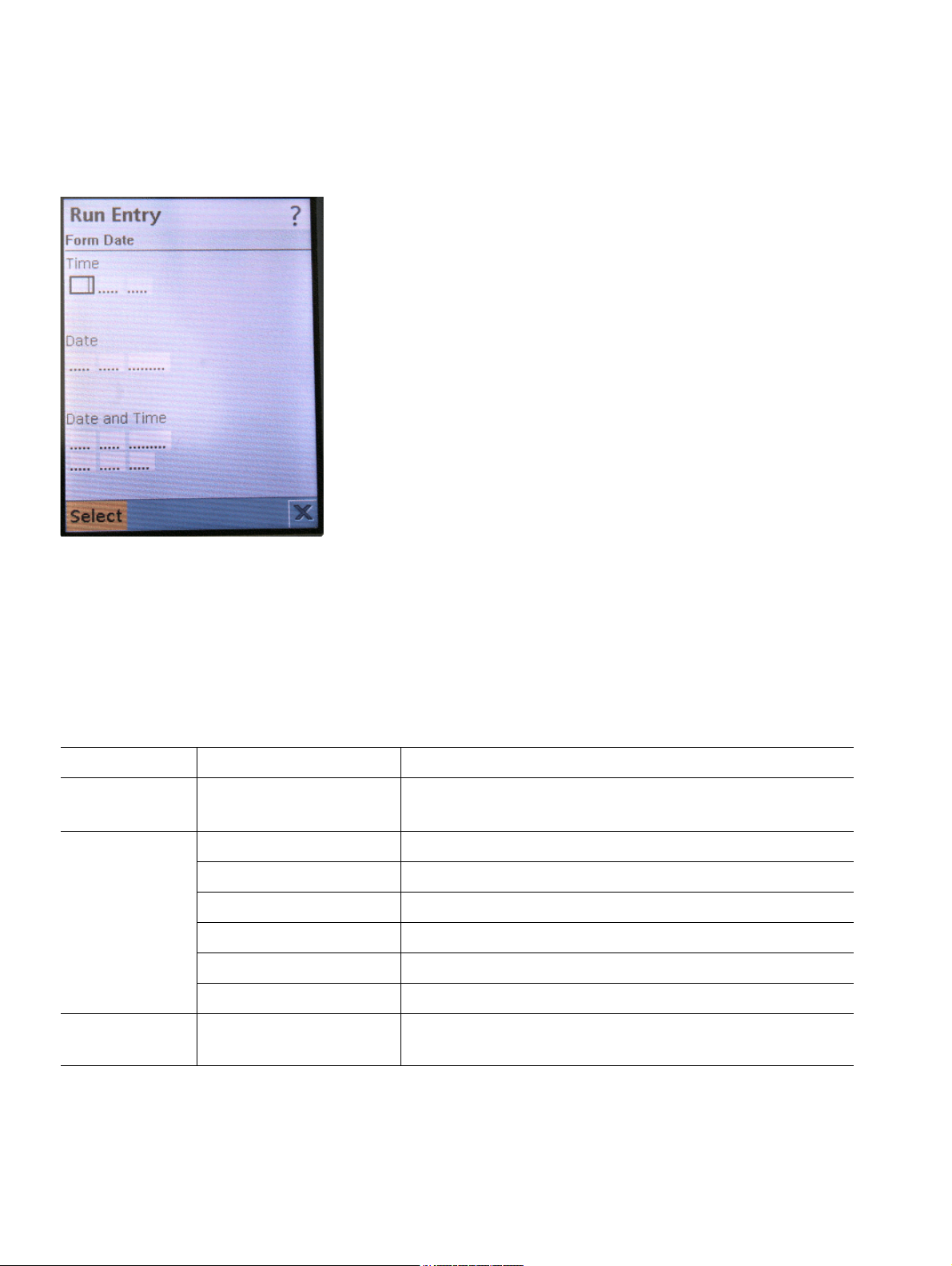
Example
<?xml version="1.0" encoding="UTF-8" ?>
<IppDisplay>
<IppScreen ID="1" HiddenCount="0" CommandCount="1">
<IppForm ItemCount="3">
<Title>Form Date</Title>
<Url>http://subdomain.domain/path/program</Url>
<IppDateField Mode="TIME" Default="MODE" DateKey="DK1"
TimeKey="TK1">
<Label>Time</Label>
<TimeZone>GMT+1</TimeZone>
<Date>2005-04-08</Date>
<Time>13:00:00.000</Time>
</IppDateField>
<IppDateField Mode="DATE" Default="MODE" DateKey="DK2"
TimeKey="TK2">
<Label>Date</Label>
<TimeZone>GMT + 1</TimeZone>
<Date>2005-04-09</Date>
<Time>13:00:00.000</Time>
</IppDateField>
<IppDateField Mode="DATETIME" Default="MODE" DateKey="DK3"
TimeKey="TK3">
<Label>Date and Time</Label>
<TimeZone>GMT + 1</TimeZone>
<Date>2005-04-08</Date>
<Time>12:00:00.000</Time>
</IppDateField>
</IppForm>
<IppCommand Type="SELECT" Priority="0">
<Label>Select</Label>
<ScreenID>1</ScreenID>
</IppCommand>
</IppScreen>
</IppDisplay>
c01.fm
XML Object Reference
Form
18. May 2006
optiPoint application module - XML Applications, Developer’s Guide
46
Page 48
c01.fm
XML Object Reference
Form
Screenshot
4.11.7 Form/Button
The Button object generates a clickable area. When clicked, the key/value pair contained in the
attributes of the IppButton element as well as the key/value pairs the Hidden objects in the
XML document (see Section 4.10, "Hidden") are sent to the server, the URL of which is indicated in the Form element.
The following attributes are available to the IppButton element:
Attribute Value Function
Type
(optional)
Layout
(optional)
Key
(mandatory)
IMAGE Default value. This is the only available setting in the
current versions.
CENTER The button is centered.
DEFAULT Position according to the default setting.
LEFT The image is positioned flush left.
NEWLINE_AFTER A line break is inserted after the image.
NEWLINE_BEFORE A line break is inserted before the image.
RIGHT The image is positioned flush right.
Key The key for the key/value pair that is sent to the serv-
er.
Ta bl e 4 - 5
18. May 2006
47 optiPoint application module - XML Applications, Developer’s Guide
Page 49

Attribute Value Function
c01.fm
XML Object Reference
Form
Value
(mandatory)
Table 4-5
Syntax
<IppButton Type="IMAGE" Layout="[CENTER|DEFAULT|LEFT|NEWLINE_AFTER|NEWLINE_BEFORE|RIGHT]" Key="[Key]" Value="[Value]">
<Label> </Label>
<Image Cache="n"> </Image>
</IppButton>
Child elements
• Label
Generates a label for identifying the button.
>
Value The value of the key/value pair that is sent to the
server.
Horizontal spacing between two successive inline buttons can be generated by
entering an empty space in the label.
•Image
Links an image file. The image is used as a clickable area.
18. May 2006
optiPoint application module - XML Applications, Developer’s Guide
48
Page 50
c01.fm
XML Object Reference
Form
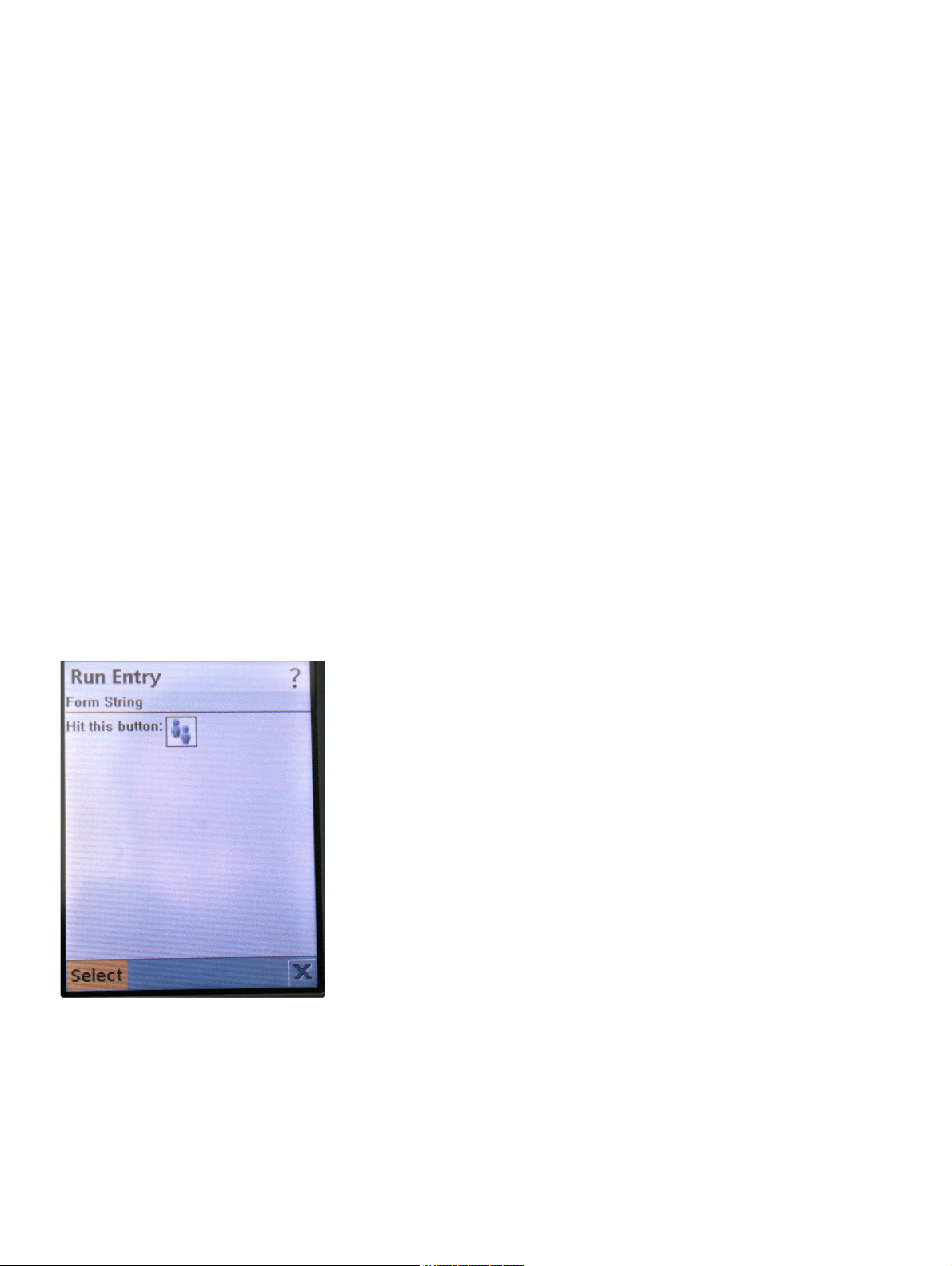
Example
<?xml version="1.0" encoding="UTF-8" ?>
<IppDisplay>
<IppScreen ID="1" HiddenCount="0" CommandCount="1">
<IppForm ItemCount="1">
<Title>Form String</Title>
<Url>http://subdomain.domain/path/program</Url>
<IppButton Type="IMAGE" Layout="CENTER" Key="KEY" Val-
ue="WERT">
<Label>Hit this button: </Label>
<Image>inCall.png</Image>
</IppButton>
</IppForm>
<IppCommand Type="SELECT" Priority="0">
<Label>Select</Label>
<ScreenID>1</ScreenID>
</IppCommand>
</IppScreen>
</IppDisplay>
Screenshot
18. May 2006
49 optiPoint application module - XML Applications, Developer’s Guide
Page 51

c01.fm
XML Object Reference
Form
4.11.8 Form/Gauge
A value is represented graphically using a horizontal status bar. A label is provided to identify
the value.
Depending on what is specified, the value can be set by the user and sent to a server (slider
functionality) or be made dependent on processes which last a longer period of time (e. g., status bar functionality). In the latter, the bar automatically grows from the left to the right; the
speed and initial value are specified by the corresponding child elements.
The following attributes are available to the IppGauge element:
Attribute Value Function
Interactive
(optional)
USER Default value. The user can change the value graphical-
ly represented by a bar.
AUTO The user has no influence on the graphical bar. The
bars grows automatically from the left to the right. The
speed is specified by the content of the Maximum element; the initial value is specified by the content of the
Initial element.
Key
(optional)
Key for the current value
Only effective if the value of the Interactive attribute
is USER. Together with the value currently set (value
range 1-100), forms a key/value pair that can be sent to
a server. If the key is invalid or not present, the URL
specified is opened, but no data are sent to the server.
Syntax
<IppGauge Interactive="USER|AUTO" Key="k">
<Label> </Label>
<Maximum> </Maximum>
<Initial> </Initial>
</IppGauge>
Child elements
• Label
The label for identifying the value represented by the graphical bar is displayed above the
status bar.
• Maximum
Data format and function are differentiated depending on the value of the Interactive
attribute:
18. May 2006
optiPoint application module - XML Applications, Developer’s Guide
50
Page 52
c01.fm
XML Object Reference
Form
USER: The number entered here in the range 0-100 indicates the maximum value that can
be sent to the server.
If the maximum value is set at under 100, for instance, at 80, the status bar will
>
still reach to the right end of the scale. This position is set with the specified maximum value.
If the setting is not an integer, the status bar including the label is not displayed.
>
Auto: If the type is non-interactive, the time duration is indicated until the status bar has
reached the right end. The value is given in MM:SS format, for instance, 01:20 for one
minute and 20 seconds.
If the data format is different than MM:SS, the status bar, together with the label,
>
is not displayed.
•Initial
The number indicated here in the range 1-100 determines the initial value and, therefore,
the starting position of the status bar. If the value is ’20’, for instance, the status bar is displayed at 20% of its total width.
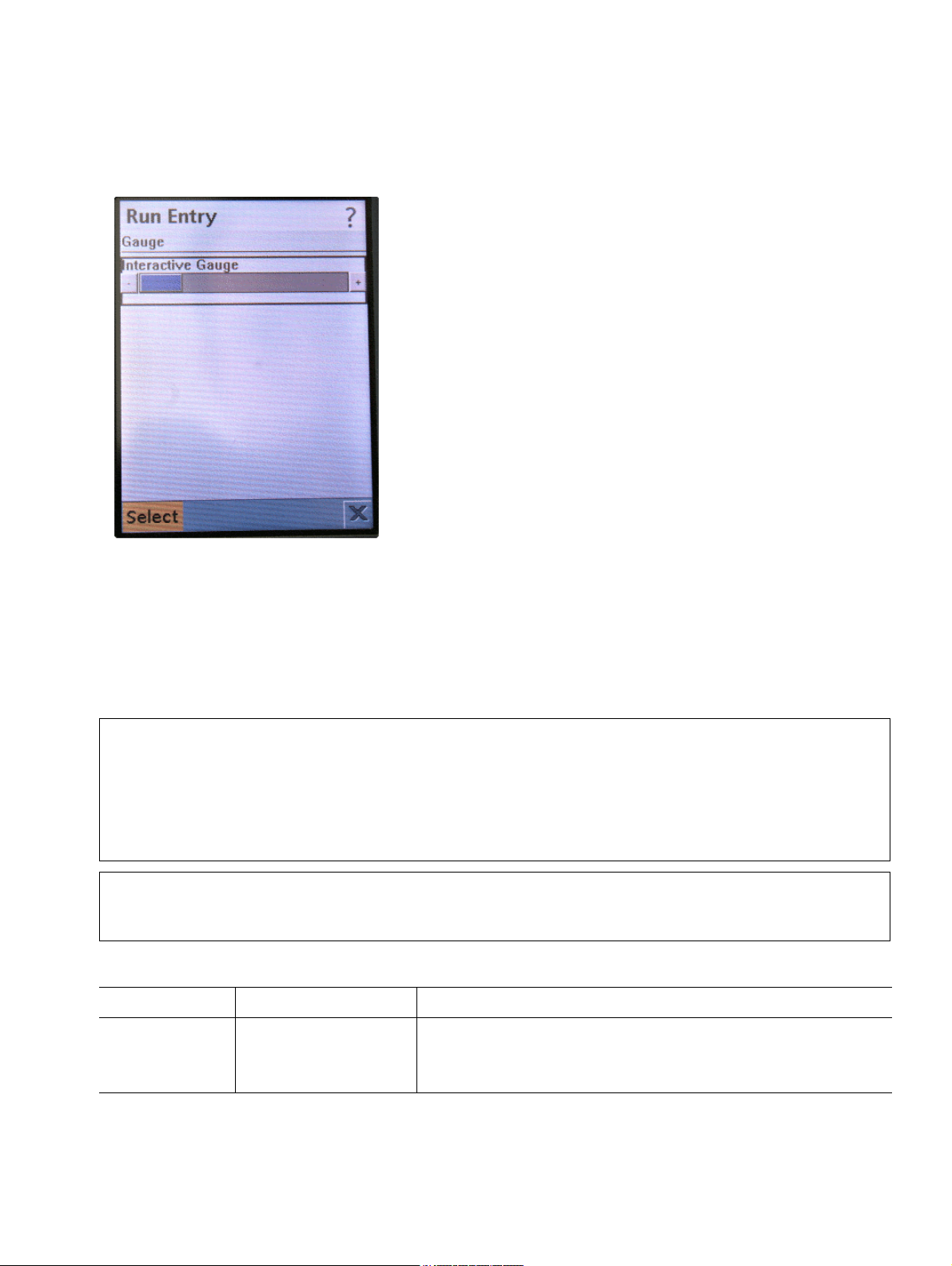
Example
<?xml version="1.0" encoding="UTF-8" ?>
<IppDisplay>
<IppScreen ID="1" HiddenCount="0" CommandCount="1">
<IppForm ItemCount="1">
<Title>User Gauge</Title>
<Url>http://subdomain.domain/path/program</Url>
<IppGauge Interactive="USER" Key="G1">
<Label>Interactive Gauge</Label>
<Maximum>100</Maximum>
<Initial>20</Initial>
</IppGauge>
</IppForm>
<IppCommand Type="SELECT" Priority="0">
<Label>Select</Label>
<ScreenID>1</ScreenID>
</IppCommand>
</IppScreen>
</IppDisplay>
18. May 2006
51 optiPoint application module - XML Applications, Developer’s Guide
Page 53
Screenshot
c01.fm
XML Object Reference
Image
4.12 Image
The Image element is used to link an image. It can be specified whether the image should be
cached or not. The image can be linked in two ways: 1) a file on the server is downloaded per
HTTP or 2) a predefined image file in the telephone software is used (for more information, see
Section 2.4, "Using Predefined Images").
Saving images in cache is explicitly indicated in the XML document. In addition to
>
>
The following attributes are available to the Image element:
Attribute Value Function
Cache
(optional)
the source of the image file, the cache name must be defined as well. This is necessary because specific areas in the cache are overwritten when new images are loaded and insufficient memory is available. When this is occurs, the images that have
been deleted from cache must then be reloaded if possible. The maximum available
cache amounts to 500 kB.
If downloading a single image file would exceed the maximum available memory for
active images, the image file is not downloaded.
Name The image can be accessed in cache under the name
indicated here. If the attribute is invalid or not present, it
is not cached.
18. May 2006
optiPoint application module - XML Applications, Developer’s Guide
52
Page 54
c01.fm
XML Object Reference
Image
Syntax
<Image Cache="[Name]"> </Image>
The content of the Image element indicates the source of the image to be displayed. Depending
on the situation, this value may have various formats:
A predefined image that is already available in the telephone software:
• Filename, e. g., inCall.png
• Filename with preceding slash, e. g., /inCall.png
Images saved in the telephone software cannot be cached.
>
The image is downloaded:
• URL for the image file: http://<IP address>:<Port>/<filename>
• URL of a program on the server that sends the desired image file; the key/value pair identifies the image:
http://<IP address>:<Port>/<filename of the program>?<key/value
pair>
If the source of the image file is missing, but the Cache attribute exists and the image
>
>
is cached, the image in cache is displayed.
If the image is saved in the jar archive and the Cache attribute exists, the telephone
software initially attempts to retrieve the image from cache. If it is not in cache, it is
loaded from the jar archive.
18. May 2006
53 optiPoint application module - XML Applications, Developer’s Guide
Page 55

c01.fm
Push Technology
Image
5 Push Technology
A Push request to an optiPoint phone is a specific HTTP POST request that is sent to the Web
service of the telephone.
The Push request is sent to the following URL:
http://<phone IP address>:<phone port>/server_push.html/ServerPush
Example:
http://137.223.234.11:8085/server_push.html/ServerPush
The Push request must contain the following Information:
Key Value Function
ServerAddr IP address IP address of the server where the program is located.
ServerPort Port number Port number of the server where the program is located.
ProgramName File name Name of the program located on the server.
RequestType queue The request is remains queued until the currently run-
ning program is ended.
indicate The request is signaled to the user. The prerequisite for
this is that the XML document contains a Ticker object
within an existing screen or Alert object.
force The currently running application is forced to end and
the application specified in the request is started.
MidletName Name of the
MIDlet
Name of the application that is to be started by the Push
request. This is the "application name" entered when
the application was created on the telephone (see Section 3.1, "Generating a Program on the Telephone").
ServerProtocol Communica-
tion protocol
Indicates which protocol to use for communicating with
the server. Examples: ’http’, ’https’.
ServerContextKey Key The key for the key/value pair that is returned to the pro-
gram running on the server. The server uses this key/
value pair to detect whether the XML document request
goes back to the previous Push request that had been
sent to the telephone.
ServerContextValue Value The value for the key/value pair that is returned to the
program running on the server.
Table 5-1
18. May 2006
optiPoint application module - XML Applications, Developer’s Guide
54
Page 56

c01.fm
Push Technology
Image
The following table gives information about the behavior of the IP phone in various conditions
for various types of Push requests:
Application status Push request type and phone behavior
queue indicate force
Installed, not running
Starts the application, loads the XML document from the server and
shows it on the display.
Installed, running Loads the XML document from the server and shows it on the display.
Installed, another
application is running
The request is queued
until the other application has ended. After
this, the same behavior
occurs as in the case
Loads the XML document from the server
and displays a Ticker
or an Alert.
The other application is
ended. After this, the
same behavior occurs
as in the case of "In-
stalled, not running".
of "Installed, not running".
Installed, an application of another
type (MIDlet) is running
The request is queued
until the other MIDlet
has ended. After this,
the same behavior occurs as in the case of
Since MIDlets cannot
include any Push functionality, the Push request is ignored.
The MIDlet is ended.
After this, the same be-
havior occurs as in the
case of "Installed, not
running".
"Installed, not running".
Not installed, no ap-
Error: The Push request is ignored.
plication is running
Not installed, an ap-
Error: The Push request is ignored.
plication is running
Not installed, a
Error: The Push request is ignored.
MIDlet is running
Ta bl e 5 - 2
18. May 2006
55 optiPoint application module - XML Applications, Developer’s Guide
Page 57

6 Appendix
6.1 Glossary
Term/Abbreviation Definition/Description
APM Application Module
DSM Display Module
HFA HiPath Feature Access
jad Java Application Descriptor
Jar Java Archive File
SIP Session Initiation Protocol
c01.fm
Appendix
Glossary
Web Based Manager Telephone configuration program that is used via a web browser
6.2 XML Schema
This appendix contains the entire XML schema supported by the HFA and SIP variants of the
Siemens optiPoint 410/420 410/420 standard and advance.
The XML schema printed here may deviate from the current version. You can down-
>
<?xml version="1.0" encoding="UTF-8"?>
<xs:schema xmlns:xs="http://www.w3.org/2001/XMLSchema">
<xs:annotation>
load the current version here:
http://www.siemens.com/hipath
<xs:documentation xml:lang="en">
XML Schema for Siemens IP Phone Generic MIDlet.
Copyright 2005 Siemens plc. All rights reserved.
</xs:documentation>
</xs:annotation>
<xs:element name="IppPhone">
<xs:complexType>
<xs:sequence>
18. May 2006
optiPoint application module - XML Applications, Developer’s Guide
56
Page 58

c01.fm
Appendix
XML Schema
<xs:choice>
<xs:element ref="IppDisplay"/>
</xs:choice>
</xs:sequence>
</xs:complexType>
</xs:element>
<xs:element name="IppDisplay">
<xs:complexType>
<xs:sequence>
<xs:element ref="IppScreen" minOccurs="1" maxOccurs="20"/
>
</xs:sequence>
<xs:attribute name="InitialScreen" type="xs:nonNegativeInte-
ger"/>
</xs:complexType>
</xs:element>
<xs:element name="IppScreen">
<xs:complexType>
<xs:sequence>
<xs:choice>
<xs:element ref="IppAlert"/>
<xs:element ref="IppList"/>
<xs:element ref="IppTextBox"/>
<xs:element ref="IppTicker"/>
<xs:element ref="IppForm"/>
</xs:choice>
<xs:element ref="IppAction" minOccurs="0" maxOccurs="1"/>
18. May 2006
57 optiPoint application module - XML Applications, Developer’s Guide
Page 59

<xs:element ref="IppCommand" minOccurs="0" maxOccurs="un-
bounded"/>
<xs:element ref="IppHidden" minOccurs="0" maxOccurs="un-
bounded"/>
<xs:element ref="IppTicker" minOccurs="0" maxOccurs="1"/>
</xs:sequence>
<xs:attribute name="HiddenCount" default="0" type="xs:nonNe-
gativeInteger"/>
<xs:attribute name="CommandCount" default="0" type="xs:non-
NegativeInteger"/>
<xs:attribute name="ID" default="0" type="xs:nonNegativeIn-
teger"/>
c01.fm
Appendix
XML Schema
</xs:complexType>
</xs:element>
<xs:element name="IppAction">
<xs:complexType>
<xs:sequence>
<xs:element name="Number" minOccurs="0" maxOccurs="1">
<xs:simpleType>
<xs:restriction base="xs:string">
<xs:pattern value="\d*"/>
</xs:restriction>
</xs:simpleType>
</xs:element>
</xs:sequence>
<xs:attribute name="Type" use="required">
<xs:simpleType>
<xs:restriction base="xs:string">
<xs:enumeration value="MAKECALL" />
18. May 2006
optiPoint application module - XML Applications, Developer’s Guide
58
Page 60

c01.fm
Appendix
XML Schema
<xs:enumeration value="ENDCALL" />
</xs:restriction>
</xs:simpleType>
</xs:attribute>
</xs:complexType>
</xs:element>
<xs:element name="IppAlert">
<xs:complexType>
<xs:sequence>
<xs:element ref="Title" minOccurs="0" maxOccurs="1"/>
<xs:element ref="Text" minOccurs="0" maxOccurs="1"/>
<xs:element ref="Image" minOccurs="0" maxOccurs="1"/>
</xs:sequence>
<xs:attribute name="Type" default="ERROR">
<xs:simpleType>
<xs:restriction base="xs:string" >
<xs:enumeration value="ALARM" />
<xs:enumeration value="CONFIRMATION" />
<xs:enumeration value="ERROR" />
<xs:enumeration value="INFO" />
<xs:enumeration value="WARNING" />
</xs:restriction>
</xs:simpleType>
</xs:attribute>
<xs:attribute name="Delay" default="FOREVER">
<xs:simpleType>
<xs:union>
18. May 2006
59 optiPoint application module - XML Applications, Developer’s Guide
Page 61

<xs:simpleType>
<xs:restriction base="xs:positiveInteger"/>
</xs:simpleType>
<xs:simpleType>
<xs:restriction base="xs:string">
<xs:enumeration value="FOREVER"/>
</xs:restriction>
</xs:simpleType>
</xs:union>
</xs:simpleType>
c01.fm
Appendix
XML Schema
</xs:attribute>
</xs:complexType>
</xs:element>
<xs:element name="IppChoiceGroup">
<xs:complexType>
<xs:sequence>
<xs:element ref="Label" minOccurs="0" maxOccurs="1"/>
<xs:element ref="Option" minOccurs="0" maxOccurs="un-
bounded"/>
</xs:sequence>
<xs:attribute name="Numbered" default="NO">
<xs:simpleType>
<xs:restriction base="xs:string" >
<xs:enumeration value="NO" />
<xs:enumeration value="YES" />
</xs:restriction>
</xs:simpleType>
</xs:attribute>
18. May 2006
optiPoint application module - XML Applications, Developer’s Guide
60
Page 62

c01.fm
Appendix
XML Schema
<xs:attribute name="Type" default="EXCLUSIVE">
<xs:simpleType>
</xs:simpleType>
</xs:attribute>
<xs:attribute name="Count" default="0" type="xs:nonNega-
tiveInteger"/>
</xs:complexType>
<xs:restriction base="xs:string" >
<xs:enumeration value="EXCLUSIVE" />
<xs:enumeration value="MULTIPLE" />
</xs:restriction>
</xs:element>
<xs:element name="IppCommand">
<xs:complexType>
<xs:sequence>
<xs:element name="Label" minOccurs="1" maxOccurs="1"
type="xs:string"/>
<xs:element name="ScreenID" minOccurs="0" maxOccurs="1"
type="xs:nonNegativeInteger"/>
</xs:sequence>
<xs:attribute name="Type" use="required">
<xs:simpleType>
<xs:restriction base="xs:string" >
<xs:enumeration value="SELECT" />
<xs:enumeration value="BACK" />
<xs:enumeration value="UPDATE" />
<xs:enumeration value="SCREEN" />
<xs:enumeration value="CANCEL" />
18. May 2006
61 optiPoint application module - XML Applications, Developer’s Guide
Page 63

<xs:enumeration value="EXIT" />
</xs:restriction>
</xs:simpleType>
</xs:attribute>
<xs:attribute name="Priority" default="0">
<xs:simpleType>
<xs:restriction base="xs:nonNegativeInteger">
<xs:maxInclusive value="9"/>
</xs:restriction>
</xs:simpleType>
c01.fm
Appendix
XML Schema
</xs:attribute>
<xs:attribute name="Auto" default="0">
<xs:simpleType>
<xs:restriction base="xs:nonNegativeInteger"/>
</xs:simpleType>
<xs:attribute name="Auto" default="0"/>
<xs:attribute ref="Key"/>
<xs:attribute ref="Value"/>
</xs:complexType>
</xs:element>
<xs:element name="IppDateField">
<xs:complexType>
<xs:sequence>
<xs:element ref="Label" minOccurs="0" maxOccurs="1"/>
<xs:element ref="Timezone" minOccurs="0" maxOccurs="1"/>
<xs:element ref="Date" minOccurs="0" maxOccurs="1"/>
<xs:element ref="Time" minOccurs="0" maxOccurs="1"/>
18. May 2006
optiPoint application module - XML Applications, Developer’s Guide
62
Page 64

c01.fm
Appendix
XML Schema
</xs:sequence>
<xs:attribute name="Mode" default="DATETIME">
<xs:simpleType>
<xs:restriction base="xs:string" >
<xs:enumeration value="DATE" />
<xs:enumeration value="TIME" />
<xs:enumeration value="DATETIME" />
</xs:restriction>
</xs:simpleType>
</xs:attribute>
<xs:attribute name="Default" default="NULL">
<xs:simpleType>
<xs:restriction base="xs:string" >
<xs:enumeration value="NULL" />
<xs:enumeration value="MODE" />
</xs:restriction>
</xs:simpleType>
</xs:attribute>
<xs:attribute ref="DateKey" use="required"/>
<xs:attribute ref="TimeKey" use="required"/>
</xs:complexType>
</xs:element>
<xs:element name="IppForm">
<xs:complexType>
<xs:sequence>
<xs:element ref="Title" minOccurs="0" maxOccurs="1"/>
<xs:element ref="Url" minOccurs="0" maxOccurs="1"/>
18. May 2006
63 optiPoint application module - XML Applications, Developer’s Guide
Page 65

<xs:element ref="IppChoiceGroup" minOccurs="0" maxOc-
curs="unbounded"/>
<xs:element ref="IppDateField" minOccurs="0" maxOc-
curs="unbounded"/>
<xs:element ref="IppGauge" minOccurs="0" maxOccurs="un-
bounded"/>
<xs:element ref="IppImageItem" minOccurs="0" maxOc-
curs="unbounded"/>
<xs:element ref="IppSpacer" minOccurs="0" maxOccurs="un-
bounded"/>
<xs:element ref="IppStringItem" minOccurs="0" maxOc-
curs="unbounded"/>
c01.fm
Appendix
XML Schema
<xs:element ref="IppTextField" minOccurs="0" maxOc-
curs="unbounded"/>
</xs:sequence>
<xs:attribute name="ItemCount" default="0" type="xs:nonNega-
tiveInteger"/>
</xs:complexType>
</xs:element>
<xs:element name="IppGauge">
<xs:complexType>
<xs:sequence>
<xs:element ref="Label" minOccurs="0" maxOccurs="1"/>
<xs:element ref="Maximum" minOccurs="0" maxOccurs="1"/>
<xs:element ref="Initial" minOccurs="0" maxOccurs="1"/>
</xs:sequence>
<xs:attribute name="Interactive" default="USER">
<xs:simpleType>
<xs:restriction base="xs:string" >
<xs:enumeration value="USER" />
18. May 2006
optiPoint application module - XML Applications, Developer’s Guide
64
Page 66

c01.fm
Appendix
XML Schema
<xs:enumeration value="AUTO" />
</xs:restriction>
</xs:simpleType>
</xs:attribute>
<xs:attribute ref="Key" use="required"/>
</xs:complexType>
</xs:element>
<xs:element name="IppHidden">
<xs:complexType>
<xs:sequence>
<xs:element ref="Value" minOccurs="0" maxOccurs="1"/>
</xs:sequence>
<xs:attribute name="Type" default="VALUE">
<xs:simpleType>
<xs:restriction base="xs:string" >
<xs:enumeration value="VALUE" />
<xs:enumeration value="PHONENUMBER" />
<xs:enumeration value="IPADDRESS" />
</xs:restriction>
</xs:simpleType>
</xs:attribute>
<xs:attribute ref="Key" use="required"/>
</xs:complexType>
</xs:element>
<xs:element name="IppImageItem">
<xs:complexType>
18. May 2006
65 optiPoint application module - XML Applications, Developer’s Guide
Page 67

XML Schema
<xs:sequence>
<xs:element ref="Label" minOccurs="0" maxOccurs="1"/>
<xs:element ref="Image" minOccurs="0" maxOccurs="1"/>
<xs:element ref="AltText" minOccurs="0" maxOccurs="1"/>
</xs:sequence>
<xs:attribute name="Layout" default="CENTER">
<xs:simpleType>
<xs:restriction base="xs:string" >
<xs:enumeration value="CENTER" />
<xs:enumeration value="DEFAULT" />
c01.fm
Appendix
<xs:enumeration value="LEFT" />
<xs:enumeration value="NEWLINE_AFTER" />
<xs:enumeration value="NEWLINE_BEFORE" />
<xs:enumeration value="RIGHT" />
</xs:restriction>
</xs:simpleType>
</xs:attribute>
</xs:complexType>
</xs:element>
<xs:element name="IppList">
<xs:complexType>
<xs:sequence>
<xs:element ref="Title" minOccurs="0" maxOccurs="1"/>
<xs:element ref="Url" minOccurs="1" maxOccurs="1"/>
<xs:element ref="Option" minOccurs="0" maxOccurs="un-
bounded"/>
</xs:sequence>
<xs:attribute name="Numbered" default="NO">
18. May 2006
optiPoint application module - XML Applications, Developer’s Guide
66
Page 68

c01.fm
Appendix
XML Schema
<xs:simpleType>
<xs:restriction base="xs:string" >
<xs:enumeration value="NO" />
<xs:enumeration value="YES" />
</xs:restriction>
</xs:simpleType>
</xs:attribute>
<xs:attribute name="Type" default="IMPLICIT">
<xs:simpleType>
<xs:restriction base="xs:string" >
</xs:simpleType>
</xs:attribute>
<xs:attribute name="Count" default="0" type="xs:nonNega-
tiveInteger"/>
<xs:attribute ref="FColor" />
<xs:attribute ref="TColor" />
<xs:attribute ref="SFColor"/>
<xs:attribute ref="STColor"/>
</xs:complexType>
</xs:element>
<xs:enumeration value="IMPLICIT" />
<xs:enumeration value="EXCLUSIVE" />
<xs:enumeration value="MULTIPLE" />
</xs:restriction>
<xs:element name="IppSpacer">
<xs:complexType>
<xs:attribute name="NewLine" default="BOTH">
<xs:simpleType>
18. May 2006
67 optiPoint application module - XML Applications, Developer’s Guide
Page 69

<xs:restriction base="xs:string" >
</xs:restriction>
</xs:simpleType>
</xs:attribute>
</xs:complexType>
</xs:element>
c01.fm
Appendix
XML Schema
<xs:enumeration value="BEGIN" />
<xs:enumeration value="BOTH" />
<xs:enumeration value="END" />
<xs:element name="IppStringItem">
<xs:complexType>
<xs:sequence>
<xs:element ref="Label" minOccurs="0" maxOccurs="1"/>
<xs:element ref="Text" minOccurs="0" maxOccurs="1"/>
</xs:sequence>
</xs:complexType>
</xs:element>
<xs:element name="IppTextBox">
<xs:complexType>
<xs:sequence>
<xs:element ref="Title" minOccurs="1" maxOccurs="1"/>
<xs:element ref="Text" minOccurs="0" maxOccurs="1"/>
<xs:element ref="Url" minOccurs="1" maxOccurs="1"/>
</xs:sequence>
<xs:attribute name="MaxSize" type="xs:nonNegativeInteger"/>
<xs:attribute name="Constraint" default="ANY">
18. May 2006
optiPoint application module - XML Applications, Developer’s Guide
68
Page 70

c01.fm
Appendix
XML Schema
<xs:simpleType>
<xs:restriction base="xs:string" >
<xs:enumeration value="ANY" />
<xs:enumeration value="NUMERIC" />
<xs:enumeration value="PASSWORD" />
<xs:enumeration value="PHONENUMBER" />
<xs:enumeration value="URL" />
<xs:enumeration value="EMAILADDR" />
</xs:restriction>
</xs:simpleType>
</xs:attribute>
<xs:attribute ref="DefaultText" use="required"/>
<xs:attribute ref="Key" use="required"/>
</xs:complexType>
</xs:element>
<xs:element name="IppTextField">
<xs:complexType>
<xs:sequence>
<xs:element ref="Label" minOccurs="0" maxOccurs="1"/>
<xs:element ref="Text" minOccurs="0" maxOccurs="1"/>
</xs:sequence>
<xs:attribute name="MaxSize" type="xs:nonNegativeInteger"/>
<xs:attribute name="Constraint" default="ANY">
<xs:simpleType>
<xs:restriction base="xs:string" >
<xs:enumeration value="ANY" />
<xs:enumeration value="NUMERIC" />
18. May 2006
69 optiPoint application module - XML Applications, Developer’s Guide
Page 71

<xs:enumeration value="PASSWORD" />
<xs:enumeration value="PHONENUMBER" />
<xs:enumeration value="URL" />
<xs:enumeration value="EMAILADDR" />
<xs:enumeration value="VALIDATE" />
</xs:restriction>
</xs:simpleType>
</xs:attribute>
<xs:attribute ref="DefaultText" use="required"/>
<xs:attribute ref="Key" use="required"/>
c01.fm
Appendix
XML Schema
</xs:complexType>
</xs:element>
<xs:element name="IppTicker">
<xs:complexType>
<xs:sequence>
<xs:element ref="Text" minOccurs="0" maxOccurs="1"/>
</xs:sequence>
</xs:complexType>
</xs:element>
<xs:element name="AltText" type="xs:string"/>
<xs:element name="Date" type="xs:date"/>
<xs:element name="Image">
<xs:complexType>
<xs:sequence>
18. May 2006
optiPoint application module - XML Applications, Developer’s Guide
70
Page 72

c01.fm
Appendix
XML Schema
<xs:union>
<xs:simpleType>
<xs:restriction base="xs:string"/>
</xs:simpleType>
<xs:simpleType>
<xs:restriction base="xs:string"/>
<xs:pattern value="/.+"/>
</xs:simpleType>
<xs:simpleType>
<xs:restriction base="xs:string"/>
<xs:pattern value="http.+"/>
</xs:simpleType>
</xs:union>
</xs:sequence>
<xs:attribute name="Cache" type="xs:string"/>
</xs:complexType>
</xs:element>
<xs:element name="Initial" type="gaugeTimeType"/>
<xs:element name="Label" type="xs:string"/>
<xs:element name="Maximum" type="gaugeTimeType"/>
<xs:element name="OptionText" type="xs:string"/>
<xs:element name="Text" type="xs:string"/>
18. May 2006
71 optiPoint application module - XML Applications, Developer’s Guide
Page 73

<xs:element name="Timezone" type="timeZoneType"/>
<xs:element name="Time" type="xs:time"/>
<xs:element name="Title" type="xs:string"/>
<xs:element name="Url" type="xs:anyURI"/>
<xs:element name="Value" type="xs:string"/>
c01.fm
Appendix
XML Schema
<xs:element name="Option">
<xs:complexType>
<xs:sequence>
<xs:element ref="OptionText" minOccurs="1" maxOccurs="1"/
>
<xs:element ref="Image" minOccurs="0" maxOccurs="1"/>
</xs:sequence>
<xs:attribute name="ID" type="xs:nonNegativeInteger"/>
<xs:attribute name="Selected" default="FALSE">
<xs:simpleType>
<xs:restriction base="xs:string" >
<xs:enumeration value="TRUE" />
<xs:enumeration value="FALSE" />
</xs:restriction>
</xs:simpleType>
</xs:attribute>
<xs:attribute ref="Key" use="required"/>
<xs:attribute ref="Value" use="required"/>
<xs:attribute ref="FColor" />
18. May 2006
optiPoint application module - XML Applications, Developer’s Guide
72
Page 74

c01.fm
Appendix
XML Schema
<xs:attribute ref="TColor" />
<xs:attribute ref="SFColor"/>
<xs:attribute ref="STColor"/>
</xs:complexType>
</xs:element>
<xs:attribute name="DateKey" type="xs:string"/>
<xs:attribute name="FColor" type="colourType"/>
<xs:attribute name="Key" type="xs:string"/>
<xs:attribute name="SFColor" type="colourType"/>
<xs:attribute name="STColor" type="colourType"/>
<xs:attribute name="TColor" type="colourType"/>
<xs:attribute name="TimeKey" type="xs:string"/>
<xs:attribute name="Value" type="xs:string"/>
<xs:attribute name="DefaultText">
<xs:simpleType>
<xs:restriction base="xs:string" >
<xs:enumeration value="NULL" />
<xs:enumeration value="TEXT" />
<xs:enumeration value="PHONENUMBER" />
18. May 2006
73 optiPoint application module - XML Applications, Developer’s Guide
Page 75

</xs:restriction>
</xs:simpleType>
</xs:attribute>
<xs:simpleType name="gaugeTimeType">
<xs:union>
<xs:simpleType>
<xs:restriction base="xs:nonNegativeInteger"/>
</xs:simpleType>
<xs:simpleType>
c01.fm
Appendix
XML Schema
<xs:restriction base="xs:string">
<xs:pattern value="\d{2}:\d{2}"/>
</xs:restriction>
</xs:simpleType>
</xs:union>
</xs:simpleType>
<xs:simpleType name="timeZoneType">
<xs:union>
<xs:simpleType>
<xs:restriction base="xs:string"/>
</xs:simpleType>
<xs:simpleType>
<xs:restriction base="xs:string">
<xs:pattern value="GMT[+-]\d*"/>
</xs:restriction>
</xs:simpleType>
</xs:union>
18. May 2006
optiPoint application module - XML Applications, Developer’s Guide
74
Page 76

c01.fm
Appendix
XML Schema
</xs:simpleType>
<xs:simpleType name="colourType">
<xs:union>
<xs:simpleType>
<xs:restriction base="xs:string">
<xs:pattern value="#[0-9ABCDEF]{6}"/>
</xs:restriction>
</xs:simpleType>
<xs:simpleType>
<xs:restriction base="xs:string" >
<xs:enumeration value="BLACK" />
<xs:enumeration value="RED" />
<xs:enumeration value="GREEN" />
<xs:enumeration value="BROWN" />
<xs:enumeration value="BLUE" />
<xs:enumeration value="MAGENTA" />
<xs:enumeration value="CYAN" />
<xs:enumeration value="LIGHTGRAY" />
<xs:enumeration value="DARKGRAY" />
<xs:enumeration value="LIGHTRED" />
<xs:enumeration value="LIGHTGREEN" />
<xs:enumeration value="YELLOW" />
<xs:enumeration value="LIGHTBLUE" />
<xs:enumeration value="LIGHTMAGENTA" />
<xs:enumeration value="LIGHTCYAN" />
<xs:enumeration value="WHITE" />
</xs:restriction>
18. May 2006
75 optiPoint application module - XML Applications, Developer’s Guide
Page 77

</xs:simpleType>
</xs:union>
</xs:simpleType>
</xs:schema>
c01.fm
Appendix
XML Schema
18. May 2006
optiPoint application module - XML Applications, Developer’s Guide
76
Page 78

Page 79

www.siemens.com/hipath
The information provided in this document contains merely general
descriptions or characteristics of performance which in case of actual use
do not always apply as described or which may change as a result of
further development of the products.
An obligation to provide the respective characteristics shall only exist if
expressly agreed in the terms of contract.
The trademarks used are owned by Siemens AG or their respective
owners.
© Siemens AG 2006 • Siemens Communications •
Hofmannstraße 51 • D-81359 München, Germany
Subject to availability. Right of modification reserved.
 Loading...