

Page 1
Siemens Aktiengesellschaft,
issued by Communications,
Haidenauplatz 1
D-81667 Munich
© Siemens AG 2005
All rights reserved. Subject to availability.
Rights of modification reserved.
Siemens Aktiengesellschaft
www.siemens.com/cf75
CF75
ss
Designed for life
Page 2

Table of Contents
1
Safety precautions ............................. 2
Telephone list ..................................... 4
Display symbols .................................. 6
Getting started ................................... 7
Switch on/off, PIN ............................... 8
General instructions ........................... 9
Standard functions ........................... 10
Security ............................................ 11
Text entry ......................................... 12
Calling .............................................. 13
Default book ..................................... 14
Addressbook ..................................... 15
Phonebook ....................................... 15
Call records ....................................... 16
Durat/charges ................................... 16
Camera ............................................. 17
Message list ...................................... 18
SMS ................................................... 18
MMS ................................................. 19
E-mail ............................................... 21
Voice message/CB ............................ 21
Surf & fun ......................................... 22
Setup ................................................ 24
Fast access key ................................. 29
Organiser ......................................... 30
Extras ............................................... 31
My stuff ............................................ 34
Mobile Phone Manager ................... 34
Accessories ...................................... 35
Customer Care ................................. 36
Care and maintenance ..................... 38
Product data ..................................... 39
SAR ................................................... 40
Guarantee ........................................ 41
License Agreement .......................... 43
Menu tree ........................................ 46
Index ................................................ 48
This is a summarised version of the Operating Manual.
The complete version can be found in the Internet at this
address: www.siemens.com/cf75
Page 3
2
Safety precautions
Safety precautions
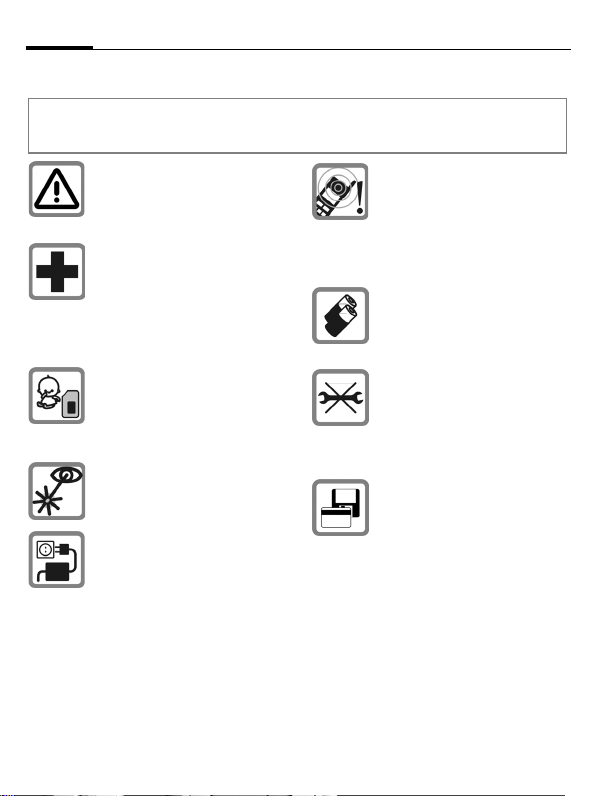
Information for parents
Please read the operating instructions and safety precautions carefully before use.
Explain the content to your children and the hazards associated with using the phone.
Remember to comply with legal requirements and local restrictions
when using the phone. For example,
in aeroplanes, petrol stations, hospitals or while driving.
Mobile phones can interfere with the
functioning of medical devices such
as hearing aids or pacemakers. Keep
at least 20 cm between phone and
pacemaker. When using the mobile
phone hold it to the ear which is further away from the pacemaker. For
more information consult your doctor.
Small parts such as the SIM card,
sealing stop, lens ring and lens cap
can be dismantled and swallowed by
small children. The phone must
therefore be stored out of the reach
of small children.
Do not use an optical magnifier to
look at the activated infrared interface [Class 1 LED product (classification as per IEC 60825-1)].
The mains voltage specified on the
power supply unit (V) must not be
exceeded. Otherwise the charging
device may be destroyed.
The power supply must be plugged
into an easily accessible AC mains
power socket when charging the
battery. The only way to turn off the
charging device after charging the
battery is to unplug it.
Ringtones (p. 25), info tones (p. 26)
and handsfree (p. 14) talking are reproduced through the loudspeaker.
Do not hold the phone to the ear
when it rings or when you have
switched on the handsfree function.
Otherwise you risk serious permanent damage to your hearing.
Only use original Siemens batteries
(100% mercury-free) and charging
devices. Otherwise you risk serious
damage to health and property. The
battery could explode, for instance.
You may only open the phone to replace the battery (100% mercuryfree) or SIM card. You must not open
the battery under any circumstances. All other changes to this device
are strictly prohibited and will invalidate the guarantee.
Do not place the phone near to electromagnetic data carriers such as
credit cards and floppy disks. Information stored on them could be lost.
Page 4
Important
Please dispose of unwanted batteries and phones as permitted by the
laws in your country.
The phone may cause interference
in the vicinity of TV sets, radios and
PCs.
Use only Siemens original accessories. This will avoid potential risks to
health or property and ensure compliance with all relevant regulations.
Improper use will invalidate the guarantee! These
safety instructions also apply to Siemens original
accessories.
Distance required for body worn at
data transfer (GPRS) only
As mobile devices offer a range of functions, they
can be used in positions other than the head,
such as on the body. In this case, at data transfer
(GPRS) a separation distance of 1.5 cm is required.
Safety precautions
3
Page 5
4
Telephone list
Telephone list
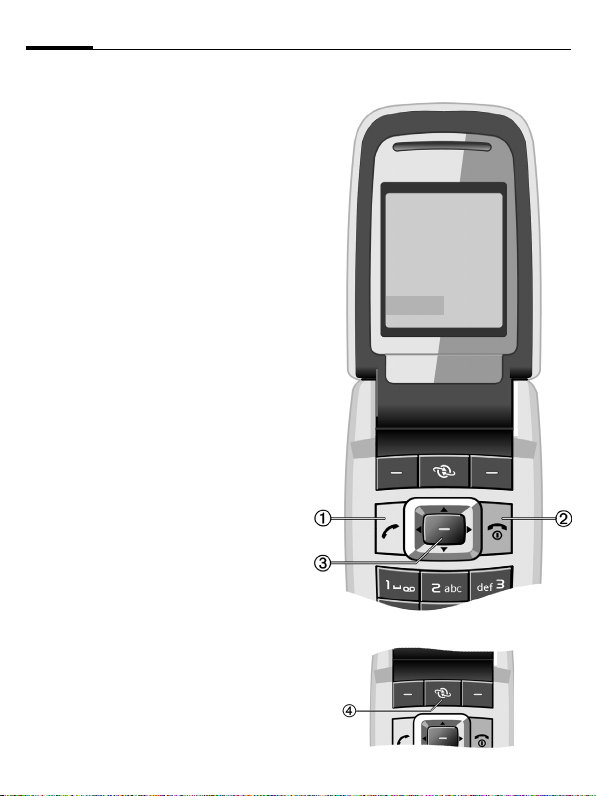
A Call key
1
Dial phone number/name displayed/highlighted, take calls. Show last phone numbers dialled in standby mode.
B On/Off/End key
2
• Switched off: Press and hold to
switch on.
• During a conversation or in an application: press briefly to finish.
• In menus: Press briefly to go back
a level. Press and hold to go back to
standby mode.
• In standby mode: Press and hold to
switch off phone.
Navi key
3
Press the navi key down vertically to
start an application or function (p. 9).
In standby mode
Open main menu.
E Open user profiles.
F Open Phonebook/Addressbook.
D Open Inbox.
C Start the camera.
In lists, messages and menus
G Scroll up and down.
H Back one level.
During a call
G Set volume.
D Call options.
Access to the Internet
4
Z £ X
Service provider
01.08.2005
NewMMS
í
10:10
Ï
Page 6
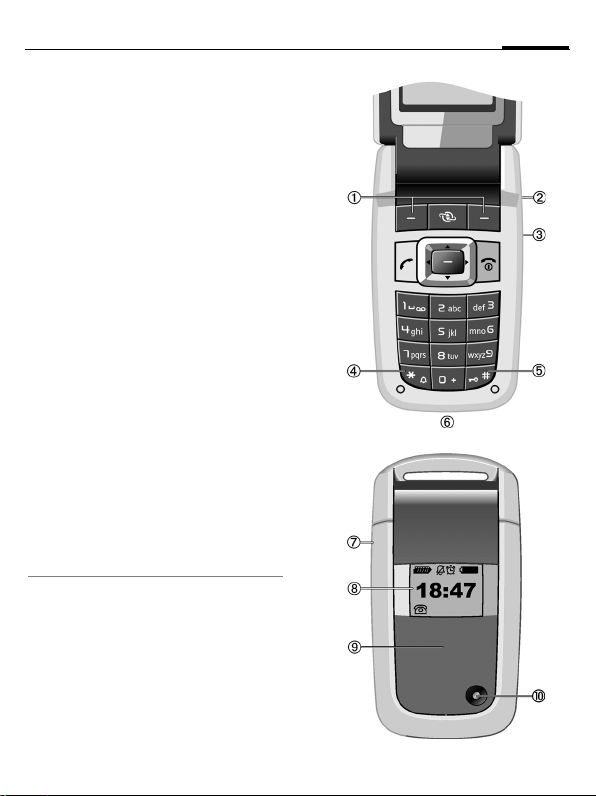
Softkeys
1
The current functions of this key are
shown in the bottom line of the display as
§Text§/symbol (e.g.
a Camera sidekey
2
In standby mode: Start the camera.
During a voice call: Increase volume.
b Push to talk sidekey
3
In standby mode: Start the push to talk.
During a voice call: Decrease volume.
* Ringtone
4
Press and hold.
• In standby mode: Switch all audible
signals on/off (except alarm).
• On incoming call:
Switch off ringtone for this call only.
Key lock
5
Press and hold in standby mode:
Switch key lock on/off.
Connection socket
6
Infrared interface (IrDA)
7
2nd display
8
Displays time, incoming calls, screensaver
and certain other information when the
clamshell is closed.
Clamshell
9
Camera lens
:
When Clamshell answ (p. 26) is activated a
call can be accepted by opening the
clamshell.
A call can be ended by simply closing the
clamshell.
p
).
Telephone list
5
Page 7
6
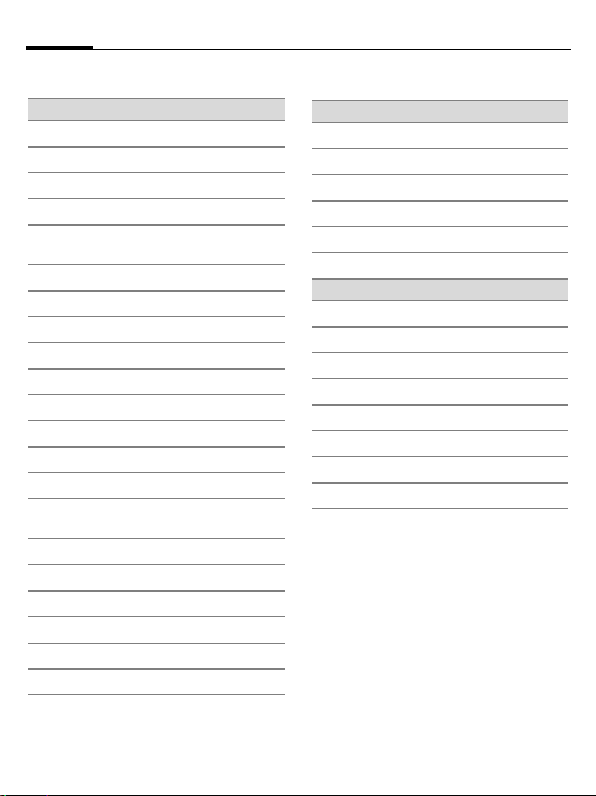
Display symbols
Display symbols
Display symbols (selection)
Z
W
L
P
O
Q
M
R
S
N
T
Ç
¿
¾
¼
¹
Ä
Å
£
²
®
Signal strength.
Battery charge level, e.g. 50%
Phonebook/Addressbook
Call records
Surf & fun/
Service supplier portal
Organiser
Messages
Camera
Extras
My stuff
Setup
All calls are diverted
Ringing tone off
Short ring (beep) only
Ringtone only if the caller is stored in
the Phonebook
Alarm set
Keypad locked
Auto answer feature on
Activated and available
Browser connecting
IrDA transmission
Events (selection)
ã
ä
å
Æ
l
Ê
Message symbols (selection)
p
q
s
w
y
z
{
k
SIM card memory full
MMS memory full
Phone memory full
No network access
Missed call
Memory assistant
Unread
Read
Sent
MMS received
MMS with DRM contents (p. 10)
E-mail forwarded
E-mail with attachment
Voice mail received
Page 8
Getting started
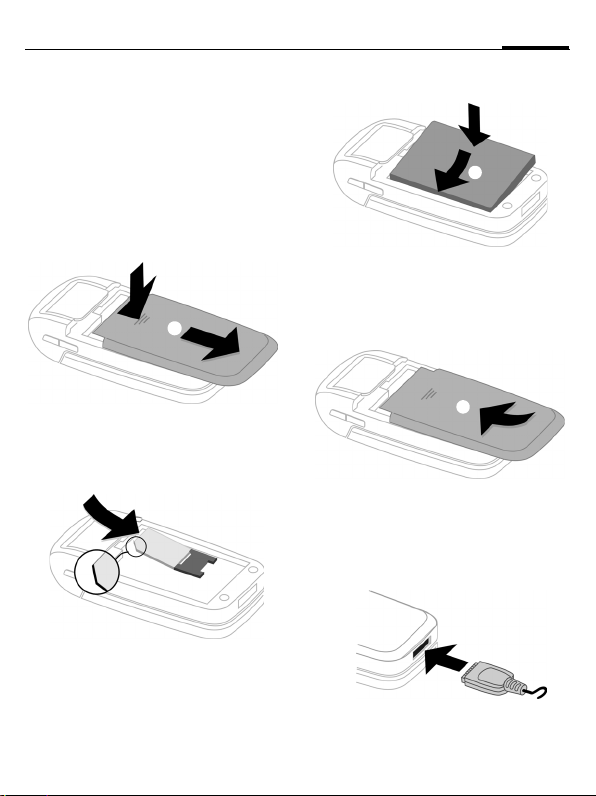
Inserting the SIM card/battery
The service provider supplies you with a
SIM card on which all the important data
for your line is stored. If the SIM card has
been delivered in credit-card size, snap
the smaller segment out and remove any
rough edges.
Press the grooved area
er towards the front in the direction indicated by the arrow
1
1, then push cov-
2.
2
Getting started
5
4
• To remove, press the retaining tab on
the side of the battery, then lift the battery out.
• Place the cover in position and push it
towards the front
place.
6 until it latches into
7
• Place the SIM card in front of the slot
with the contact surface facing down-
wards. Then press the SIM card slightly
to push it in
fered corner is in the correct position).
3 (ensure that the cham-
3
• Insert the battery sideways into the
phone
4, then press it downwards 5
until it engages.
6
Charging the battery
The battery is not fully charged when delivered. Plug charger cable into the bottom of the phone, plug power supply unit
into a mains power socket and charge for
at least two hours.
When charging in progress
displayed.
Y is
Page 9

8
Switch on/off, PIN
Charging time
An empty battery is fully charged after
about 2 hours. Charging is only possible
within a temperature range of +5 °C to
45 °C. If the temperature rises/falls 5 °C
above/below this, the charge symbol
flashes a warning. The mains voltage
specified on the power supply unit must
not be exceeded.
Operating time
The operating time depends upon the respective conditions of use. Extreme temperatures considerably reduce the
phone’s standby time. Avoid placing the
phone in the sun or on a heater.
Call time: 100 to 330 minutes
Stand-by time: 60 to 275 hours
Charge icon not visible
If the battery has been discharged fully,
the charge icon is not immediately visible
when the power supply is plugged in. It
will appear after up to two hours. In this
case the battery is fully charged after 3 to
4 hours.
Only use the plug-in power supply included in
delivery!
Display while in service
Charge level display during operation
(empty–full): V W X
A beep sounds when the battery is nearly
empty. The charge level of the battery is
only displayed correctly after an uninterrupted charging/discharging cycle. You
should therefore not remove the battery un-
necessarily and where possible not finish
the charging process prematurely.
The power supply unit heats up when
used for long periods. This is normal and
not dangerous.
If the battery is removed for longer than
30 seconds, the clock must be reset.
Switch on/off, PIN
Switching phone on and off
To switch on or off press and hold B.
Enter PIN
The SIM card can be protected with a 4 to
8-digit PIN.
Enter the PIN using the number keys. The
characters **** appear to ensure nobody
can read your PIN on the display. Correc-
].
tion with
Confirm with
work will take a few seconds.
Emergency number (SOS)
Only to be used in real emergencies!
By pressing the softkey
make an emergency call on any network
without a SIM card and without entering a
PIN (not available in all countries).
Switching on your phone for the first time
Time/date
During commissioning, set the clock so
that it displays the correct time. You will
not have to make this setting again.
Press
First enter the date (day/month/year),
then the time (24 hours, including seconds). Press
updated.
Time zones
Set the time zone for your area.
Select the city in the desired time zone
with
Use
§OK§. Logging on to the net-
§SOS§ you can
, then select §Change§.
. The time and date are
G.
§Options§ ¢ Set time zone to save.
Page 10

General instructions
9
Copying SIM addresses
The first time the SIM card is inserted, the
entries on it can be copied to the Addressbook. Please do not interrupt this procedure.
During this time, do not accept incoming
calls. Follow the instructions in the display.
You can also copy data from the SIM card
at a later time.
General instructions
User guide
Menu controls
The steps needed to reach a function are
shown in a condensed form in the user
guide, e.g. to display call list for missed
calls in condensed form:
¢ P ¢Calls missed
This comprises the following steps:
Open main menu.
Select P, then function
E
Calls missed.
§Select§ Press to confirm.
Menu speed dialling
All menus are numbered so that a function (such as writing a new SMS) can be
selected directly from standby mode by
entering a number:
Press this key to display the main
menu.
5 Press this key for Messages.
1 Press this key for
Write message.
1 Press this key for SMS.
Symbols
The following symbols are used to explain
operation:
J
B
A
<
>
§Menu§
C H D
F G E
L
Press navi key
The symbol in the centre of the lower line
of the display shows the current function
when the navi key is pressed down vertically, e.g.:
Enter numbers/letters
On/Off/End key
Call key
Left softkey
Right softkey
Displays a softkey function.
Press the navi key vertically,
e.g., to call up the menu.
Press the navi key in the
direction indicated.
Function dependent on service provider, special registration may be required.
í Display menu
î Take photos
ï Zoom
ð Call, accept call
ì OK
Standby mode
The phone is in standby mode and is ready
for use when the name of the service pro-
vider appears on the display.
By pressing and holding
turn to standby mode from any situation.
B, you can re-
Page 11
10
Standard functions
Signal strength
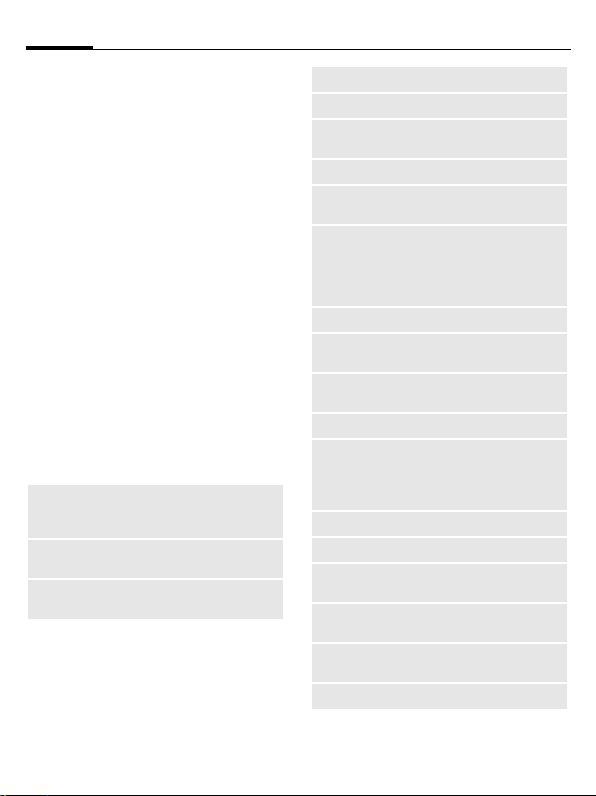
Z Strong receive signal.
[ A weak signal reduces the call
quality and may lead to loss of
the connection. Change your
location.
Digital Rights Mgmt. (DRM)
Remember that your mobile phone has
digital rights management. The use of
downloaded pictures, tones or appliations
can be restricted by the suppliers, e.g.
copy protection, use for a limited period
of time only, number of times it can be
used etc.
Main menu
The main menu is displayed graphically
with symbols:
Call up from standby mode
HG Select the application symbols.
Start an application.
Main menu options
§Options§ Open menu.
Different functions are available depending on the context:
Search
Big letters
Illumination
List output of the menu. Entering letters will access a function directly.
Selection between two font
sizes.
Set display light brighter/
darker.
Standard functions
Option menus
List of functions repeatedly appearing in
options menus.
§Options§ to open menu.
Press
Edit
View
Delete/
Delete all
New entry
Send...
Reply/
Reply to all
Save
Save to 9
Sort
Mark (p. 11)
Text input
(p. 12)
Rename
Capacity
Attributes
Print...
Drive info
Help
Open the entry to edit.
Display entry.
Delete entry/delete all entries after confirmation.
Create new entry.
Select transmission service and
medium for sending.
The sender becomes the recipient, "Re" is placed in front of the
subject matter and the received
text is transferred into the new
message.
Store entry.
Save recipients in the current
address directory.
Set sort criteria (alphabetical,
type, time).
Activate highlighting mode.
T9 preferred: Activate/
deactivate T9 input.
Input language: Select lan-
guage for text.
Rename selected entry.
Display memory capacity.
Display properties of the highlighted object.
Select transmission service for
printing.
Display drive name and
capacity.
Display help text.
Page 12
Security
11
Highlighting mode
Highlight one or more entries in order to
perform a function on it/them.
§Options§
Press
tries with G.
Press
highlighting.
Press
entry.
Press
from a highlighted entry.
Additional highlighting functions:
Press
Mark all
Unmark all
Delete marked
¢ Mark and select entry/en-
to highlight or delete
§Mark§ to highlight a non-highlighted
§Unmark§ to remove the highlighting
§Options§ to open menu.
Highlight all entries.
Delete highlighting on all
marked entries.
All selected entries are deleted.
Security
The phone and SIM card are protected
against misuse by several security codes.
Keep these confidential numbers in a safe
place where you can access them again if
required.
PIN codes
PIN
PIN2
PUK
PUK2
Phone
code
Protects your SIM card (personal
identification number).
This is needed to set the charge detail display and to access additional
functions on special SIM cards.
Key code. Used to unlock SIM cards
after the wrong PIN has been entered repeatedly.
Protects your phone. Must be entered at the first security setting.
¢ T ¢ Security ¢ PIN codes
¢ Select function.
PIN control
The PIN is usually requested each time
the phone is switched on. You can deactivate this feature but you risk unauthorised use of the phone. Some service providers do not permit deactivating the
control.
§Change§. Enter PIN and confirm
Press
.
with
Change PIN
You can change the PIN to any 4- to 8-digit number you find easier to remember.
§Select§. Enter current PIN and confirm
Press
. Enter new PIN twice and confirm
with
each time with .
Change PIN2
(Display only if PIN2 is available)
Proceed as with Change PIN.
Chg.phonecode
(Change phone code)
You define the phone code (4–8 digits)
when you call up a phone-code protected
function for the first time (e.g. Direct call,
p. 28). It is then valid for all phone-code
protected functions.
Following the third unsuccessful attempt,
access to the phone code and the functions that use it is denied. If this occurs,
contact the Siemens Service (p. 36).
Clearing SIM card barring
If the PIN is entered incorrectly three
times, the SIM card is barred. Enter the
PUK (MASTER PIN) provided by your service provider with the SIM card in accordance with the instructions. If the PUK
(MASTER PIN) has been lost, please contact your service provider.
Page 13

12
Text entry
Preventing accidental activation
Even if PIN use is deactivated (p. 11) confirmation is required to switch on the
phone.
Press and hold
Press
Press
does not switch on.
B.
§OK§. The phone switches on.
§Cancel§ or take no action. The phone
Connecting to PCs
You can connect your phone using IrDA or
a data cable (see Accessories) to a PC. The
PC program MPM (Mobile Phone Manager) enables you to backup data on your
PC and to synchronise the Addressbook
with Outlook®, Lotus Notes™ and other
Siemens phones (as well as Gigaset). You
can download the Mobile Phone Manager
from the Internet at www.siemens.com/cf75
Text entry
Text entry without T9
Press number key repeatedly until the required letter appears. Example:
2 Press once briefly to type the letter a,
twice to type b etc. Press and hold to
write the number.
] Press briefly to delete the letter before
the cursor, press and hold to erase the
whole word.
H Move the cursor (forwards/back).
Press briefly: Swap between abc, Abc,
T9
abc, T9Abc, 123.
Press and hold: All inputvariants are
displayed.
* Press briefly: Special characters are
shown.
Press and hold: Open input menu.
0 Press once/repeatedly:
. , ? ! ’ " 0 + - ( ) @ / : _
Press and hold: Writes 0.
1 Writes blank.
Press twice = line break.
Special characters
Press * briefly. The character map is
displayed:
1
) ¿¡_; . ,?!
+-"’:
¤¥$£€@\&#
[ ] { }%~<=>
| ^`§ Γ ∆ Θ Λ Ξ
Π Σ Φ Ψ Ω
1
) Line break
Navigate to characters with
press §Select§.
*/()
G, H and
Text entry menu
Press and hold * with text input. The in-
put menu is displayed: Format text (SMS
only), Input language, Mark, Copy/Paste.
Text input with T9
"T9" combines the correct value from the
various key inputs.
to activate/deactivate T9.
Press
Select input language
To select the language press §Options§
¢ Input language, then select language
and confirm with §Select§.
Write with T9
Since the display changes as you proceed,
it is best if you finish a word without looking at the display.
Simply press the keys where the relevant
letter is located once only.
1 or moving to the right D
A blank
ends the word.
Do not use special characters such as Ä.
Instead use the standard characters such
as A and T9 will do the rest for you.
Page 14

Calling
13
Additional information
Press briefly: Switch between:
abc, Abc, T9abc, T9Abc, 123.
Press and hold: All input modes
are displayed.
* Press and hold: Open input
menu (p. 12).
T9 word suggestions
If several options are found in the dictionary for a word, the most probable is displayed first. If this word is incorrect press
^ (if necessary repeatedly) until the
correct word is displayed.
To add a new word to the dictionary press
§Spell§. Enter a word without T9 and
§Save§.
press
Correct a word
Words written with T9:
H move left or right, word by
With
word, until the required word is
§highlighted§.
^ scroll through the T9 word
With
suggestions again.]deletes the character to the left of the cursor and displays a
new possible word!
®
T9
Text Input is licensed under one or more
of the following:
U.S. Pat. Nos. 5,818,437, 5,953,541, 5,187,480,
5,945,928 and 6,011,554;
Canadian Pat. No. 1,331,057;
United Kingdom Pat. No. 2238414B;
Hong Kong Standard Pat. No. HK0940329;
Republic of Singapore Pat. No. 51383;
Euro.Pat. No. 0 842 463 (96927260.8)
DE/DK, FI, FR, IT, NL, PT, ES, SE, GB;
and additional patents are pending worldwide.
Text modules
¢ M ¢Text modules
Text modules can be stored in the phone
for adding to your messages (SMS, MMS,
e-mail).
Calling
Enter the number (always with prefix/international dialling code). Press]briefly
to clear the last digit, a long press clears
the entire phone number.
To dial international dialling code press
0 until a "+" is displayed. Press
and hold
§Country§ and select country.
A to dial phone number.
Press
End call
Press the End key B briefly or simply
close the clamshell.
Set volume
Press G upwards/downwards or use the
sidekeys in order to regulate the volume.
Redial previous numbers
Press A twice press to redial the phone
number last called:
To call up the redial list press
Pick out a phone number with G, then
A to select it.
press
Auto redial
Press §Auto dial§ for automatically dialling
the phone number ten times at increasing time intervals.
Reminder
Press §Prompt§ and abeep reminds you to
redial the displayed phone number after
15 minutes.
Accept call
Press A.
Accept the call before bringing the telephone
to your ear in order to avoid ear damage
caused by the ringing tones.
When Clamshell answ (p. 26) is activated a
call can be answered by simply opening
the clamshell.
Reject call
Press B briefly.
A once.
Page 15

14
Default book
Handsfree
Press §Handsfr.§ to playback via loudspeaker.
Always switch off "handsfree talking" before
holding the phone to your ear! Otherwise, you
might damage your hearing!
Call options
Press §Options§ to use functions which are
only available during the call.
Swapping between 2 calls b
To establish a second connection press
§Options§ ¢ Hold and dial a new phone
number. With §Options§ ¢ Swap you can
swap between calls.
Incoming calls during a call
You will hear a "knocking tone" and you
can now:
• Accept the waiting call and put the current call on hold with
• Reject the waiting call with
divert it to the mailbox with §Divert§.
• End the current call with
cept the waiting call with .
§Swap§.
B
§Reject§ or
and ac-
End call(s)
Press the End key B and §Yes§ to take call
on hold or §No§ to end all calls.
Conference b
You call 5 up to conference particicpants
one after the other. Once you have established a connection:
§Options§ ¢ Hold and dial a new
Press
phone number to establish a new connection. Press
open a conference. Repeat until all participants are connected.
End
When the End key
clamshell is closed, all calls in the multiparty conversation are ended.
§Options§ ¢ Conference to
B is pressed or the
Tone sequences (DTMF)
Enter tone sequences (numbers) for remote inquiries to an answering machine
§Options§ ¢ Send DTMF.
with
Default book
L
¢
Show entries
The entries in the standard directory
(Addressbook or Phonebook) are shown.
Select a name with the first letter and/or
scroll with
New entry
Create new entry.
Addressbook (see also p. 15)
Phonebook (see also p. 15)
Default book
You can set a particulary directory as your
preferred one to use.
The selected standard book (Phonebook
or Addressbook) is opened in standby
mode with the navi key
Addressbook
In the address book, a lot of data can be
recorded for each entry and additional
functions such as pictures, birthdays, Inst.
Message can be used.
Phonebook
The Phonebook is located on the
SIM card. Only one phone number can be
entered per entry. The Phonebook on the
SIM card can easily be transferred into a
different phone.
Business card
Create your own business card to sent to
a different GSM-phone. If no business
card has been created yet, you will be
asked for your input.
Move from field to field with
your details. Press §Save§.
Groups
See p. 15.
¢Select function.
G.
F.
F to put in
Page 16

Addressbook
15
Addressbook
The Addressbook can store up to
1,000 entries, each with a variety of telephone and fax numbers as well as additional address details. These entries are
managed separately from those in the
Phonebook in the phone memory.
New entry
The address book is set as standard:
Open Addressbook (in standby mode).
F ¢ ¢Select input field.
Fill in input fields. At least one name must
be entered. Always enter phone number
with prefix. Press
Special input fields
Group: Allocation to a group.
Address: Extension to enter the complete
Com. services
Birthday: After activation, you can enter
Picture: Assign a picture to the entry. It is
All fields/Reduced fields
Display/find entry
F ¢ Select required entry ¢
§Options§ to display functions for the
Press
selected input field.
§Save§ to save the entry.
address: Street:, Post code:, City:,
Country:
Information if the entry is being
used as an inst. message contact
(p. 18) or for push to talk (p. 31):
Nickname:, Push to talk ID:, Push to
talk type:, WV user ID:, ICQ number:,
AIM screen name:
the date of birth. When Reminder
is active, the telephone reminds
you one day before the birthday
at the time entered.
displayed if you are called by a
corresponding phone number.
Display of number of input
fields.
Change entry
F ¢ Select required entry
¢§Edit§ ¢Select input field
¢Make changes ¢§Save§
Calling an entry
Open Adressbook (in standby mode) F,
select a name with the first letter and/or
scroll, then press
If there are several numbers in the address book entry, these are offered for selection.
A to dial.
Groups
Nine groups are specified in your phone
to enable you to arrange your Addressbook entries clearly. You can rename seven groups.
F ¢<Groups> ¢Select group ¢
Ringing tone for group
See p. 25.
Phonebook
Entries in the Phonebook (on the SIM
card) are managed separately from those
in the Addressbook.
New entry
If the Phonebook has been selected as
standard:
Open Phonebook (in standby mode).
F ¢ <New entry> ¢
¢Select entry field.
Number: Always enter phone number
with prefix. An entry is not saved
without a phone number.
Name: Enter first and/or last names.
Group: Default No group
Important phone numbers can
be combined together in a group
(VIP). This is independent of the
Addressbook groups.
Page 17

16
Call records
Location: Default SIM
Special SIM cards can save
phone numbers in a protected
area (Protected SIM) (PIN2 required).
Record number:
Is automatically allocated to every entry. The phone number can
be dialled with your record
number.
§Save§ to store the new entry.
Press
Call (search for an entry)
Open Phonebook F, select a name with
the first letter and/or scroll, then press A
to dial.
Change entry
G ¢ §Edit§ ¢
¢Select desired input field.
Make changes and press
§Save§.
<Special books>
F ¢ <Special books>
<Own numbers>
Enter "own" phone numbers in Phonebook (e.g., fax) for information.
<VIP numbers>
Display the phone numbers saved in the
VIP group.
<SIM phonebook>
Entries stored in the Phonebook on the
SIM card can also be used on other GSM
phones.
<Protected SIM> b
On special SIM cards, phone numbers can
be stored in a protected location. PIN2 is
required for editing.
<Service nos.>
There might be phone numbers saved in
your Phonebook that have been provided
by your service provider.
Call records
Phone numbers are saved to make it easier to redial them.
¢ P ¢Select record ¢
¢Select phone number ¢A
Up to 500 entries are stored in the
records:
Calls missed b
The phone numbers of calls that you have
received but not answered are stored for
call back purposes.
 Missed call.
Calls received
Accepted calls are listed.
Calls dialled
Access to the last numbers dialled by you.
A for fast access in standby mode.
Press
Delete records
The records are deleted.
Durat/charges
¢ P ¢Durat/charges
Select function: Last call, All outg. calls, All
incoming, Remain. units, Charge sett.
to open report or settings.
Press
§Reset§ reset the selected report.
Press
Charge sett.
Press to open menu.
Currency
Edit your currency.
Personal rate
Enter the currency as well as the charge
per unit and time.
Page 18

Camera
17
Account limit
Special SIM cards allow you or the service
provider to define a credit or a period after which the phone is barred for outgoing calls.
Auto display
Call duration and charges are
automatically displayed.
Camera
You can view photos/videos recorded on
the integrated camera immediately and,
• use the photo as a background image,
logo, a switch on/off animation or a
screensaver
• send the photo/video via MMS or
e-mail.
Switch on
¢ R
Or
a Starts camera in standby mode.
Ñ Switch over to single image
Ò and video recording.
The current (preview) image is displayed.
You will see the following in the first line
from left to right:
Ù Brightness
Ú Zoom factor.
Û White balance.
× Flash connected.
In the top right-hand corner of the preview image, the number of photos which
can still be taken in the selected resolution is displayed. This number varies considerably from motif to motif (storage
space required).
Beneath the preview image, you will find
a reference to the selected resolution. In
video mode, the recording time already
used and the maximum recording time
still available is shown here.
When clamshell is closed press the
sidekey to start the camera.
a
The second display shows the preview image, the number of photos which can still
be taken and the current resolution.
In this way you can make self portraits.
Photo mode
/ a Takes a photo.
/ a Displays the preview image of
the next photo.
The photo is saved with a name, the date
and the time. To enter the name, see
Settings in the options menu.
Settings prior to taking a photo:
H Sets the brightness.
G Sets the zoom factor.
Image resolution
A setting can be made for the quality of
the image regardless of the preview image resolution.
Premium: 640 × 480 (VGA)
High: 320 × 240 (QVGA)
Medium: 160 × 120 (QQVGA)
Wallpaper: 132 × 176
The resolution may decrease depending
on the selected digital zoom.
Video mode
The video mode resolution is the same as
the preview image resolution.
Start/terminate the video recording
.
with
A red point appears in the top right in the
display while the video recording is being
made.
§Play§ Plays the video recording.
Flash (Accessories)
If the flash is active, this is shown by a
symbol in the display. The flash is constantly loaded while connected to the telephone. This reduces the stand-by time.
× flashes when the flash is being loaded.
Settings, see options menu.
Page 19

18
Message list
Message list
Inbox
The central input folder contains
all messages which have been received.
The entries are marked with a symbol to
indicate their type and status (p. 6).
To call up the central input folder, e.g. if a
new SMS has been received, press
When you open an entry, the relevant application also starts. After a set time span,
entries which have already been read and
opened are only displayed in the (
message-related incoming lists.
In the central input folder, you will find
the following message types:
SMS, MMS, E-mail
System messages
Message about MMS, Missed alarm,
Missed appts., Calls missed, WAP push,
Voice message.
Data objects
Ringtones, Pictures and Videos, calendar
entries, Notes and Business card.
Message lists
All SMS, MMS and E-mail are each displayed
infour separate lists.
¢ M ¢Inbox
¢Select message type.
List of receive messages.
¢ M ¢Draft
¢Select message type.
List of saved drafts.
¢ M ¢Unsent
¢Select message type.
List of messages not yet successfully sent.
¢ M ¢Sent
¢Select message type.
List of received messages.
§Options§ calls up the function menu to
process the messages.
.
p
§Options§)
Inst. message b
This function is not offered by all service
providers. Please contact your service
provider for more information. You will
find a description in the comprehensive
operating instructions on the Internet at
this address:
www.siemens.com/cf75
SMS
You can transmit and receive very long
messages (up to 760 characters) on your
phone. They are automatically composed
of several "normal" SMS messages (note
higher charges). Additionally you can insert pictures and sounds in an SMS.
Write/send
¢ M ¢Create new ¢ SMS text
¢Enter text ¢A
Select phone number from the Phonebook/Addressbook Ï or enter it and
press .
The SMS is transmitted to the service centre to be sent.
Special functions
Picture&sound
Send the pictures and tones with or without accompanying text. Remember that
these may be protected (DRM, p. 10).
The text input field is open:
§Options§ ¢ Picture&sound ¢ Select area.
The menu contains:
Fix animations, Fix sounds, Own animat.,
Own pictures, Own sounds
Confirm with
selected section is displayed. Scroll to entry required with G.
For Fix animations/Fix sounds:
With
SMS.
. The first entry of the
the selection is added to the
Page 20

MMS
19
For Own animat., Own pictures,
Own sounds:
the selection is displayed/played
With
back.
the selection is added to the
With
SMS.
SMS archive
¢ M ¢SMS archive
The list of SMS messages stored in the
phone is displayed.
SMS to group
You can send an SMS message as
a "circular" to a recipient group.
A ¢ §Group§ ¢ <Groups>
¢ Select group ¢
Highlight all/individual entries and
. Sending is started after
press
a safety inquiry.
Read
Arrival of a new SMS is announced by
in the display.
p
The Inbox is opened. It offers you a quick
overview of the messages currently received.
To read the SMS, press the navi key
Scroll through message line by line.
ã flashes, the SIM memory is full. De-
If
lete or file messages.
Reply
You can answer the SMS now open immediately with
text is placed above the received text.
. The new additional
.
Setting
SMS signature
¢ M ¢Message setup
¢SMS setup ¢SMS signature
You can enter a "signature" with
a maximum of 16 characters. This signature will then be attached to each SMS
§Reply§ and when changes are made
except
to an existing SMS.
SMS profiles
¢ M ¢Message setup
¢SMS setup ¢SMS profiles
Up to 5 SMS profiles can be set. The transmission characteristics of an SMS are defined in these.
Activate profile
Select profile and activate it with
Set profile
Select profile and open with
ess it.
.
§Edit§ to proc-
MMS
The Multimedia Messaging Service enables you to send texts, pictures/
videos and sounds in a combined message to another mobile phone or to an
e-mail address.
Depending on your telephone setting
(p. 20), you will either receive the complete message or only a notification with
sender details and size. The actual MMS
can then be downloaded manually later.
Create
An MMS consists of the address header
and the content. This may consist of a series of pages. Each page may contain a
text, a picture and a sound. Remember
that pictures and sounds may be protected (DRM, p. 10).
Create standard MMS
¢ M ¢Create new ¢ MMS
First select an object for processing to be
added to the first page of the MMS:
to display picture/video func-
Press
tions: Insert picture, Insert video, Camera.
¢
SOUND
Display sound functions:
Insert sound, Record
¢
TEXT
Display text functions (see also p. 12).
Page 21

20
MMS
Tem pla tes
¢ M ¢MMS templates
MMS templates are saved MMS with not
address. They can be sent as new MMS or
used as part of a new MMS. A maximum
of 10 templates can be saved.
Create templates by writing a new MMS
or using an MMS which you have already
received.
Open menu
Save as templ.
§Options§ and select
Send
The page(s) of the new MMS is(are) already created. The MMS is displayed.
A ¢ Enter input fields ¢ A ¢.
The MMS is sent after confirmation.
Subject: Enter a brief description of the
MMS.
Send to: Enter one or more phone
number(s)/e-mail address(es).
Size: Display the MMS size.
Attachments:
Insert attachments.
More: Provide additional address fields.
Receive
Arrival of new MMS/notification announced on display with p/ w.
Press < to start reception. Depending on the setting (p. 20), the MMS/message is transferred into the central incoming message list (Inbox).
In order to receive the complete MMS sub-
sequently, the message must be opened.
Start transfer with
§Receive§.
Read
An MMS has been fully received.
Start playback with
Key functions for playback:
D To the next page.
Press briefly once to return to the
C
start of the current page; press
briefly twice to return to the start
of the previous page.
G
Set volume.
/B Terminate.
When the MMS is complete, the message
details are displayed.
Subject: Description of the MMS.
From: Information about the sender.
Size: Size of the MMS in KB.
More: Additional input fields.
.
Setting
¢ M ¢Message setup
¢MMS setup
¢Select function.
Connection profile:
Five MMS profiles can be set. The sending
properties are specified in these profiles.
If the setting has not yet been set, you
will receive the necessary data from the
service provider or via the "Setting Configurator" at:
www.siemens.com/
mobilephonescustomercare
Select profile and confirm with
Setting options
Display list of profiles with
lect profile. Press
§Edit§ to make settings.
User settings
Set the MMS dispatch to suit your
requirements.
§OK§.
§Change§ and se-
Page 22

21
E-mail
Your telephone has an e-mail program
(Client) with which you can write and receive e-mails.
Write/send
¢ M ¢Create new ¢ E-mail
Enter address data:
To: Enter one or more
e-mail address(es).
Subject: Enter the title of the e-mail.
Text: Enter text.
Expanded address fields
More: Open additional input fields.
Cc: Address(es) of copy recipient(s).
Bcc: Address(es) of copy recipient(s)
who are not visible to the other
recipients.
Attachments:
Adds attachments such as images and sounds.
To sen d: press
Receive/read
¢ M ¢Inbox
¢Select function.
Before an e-mail can be read, it must be
retrieved from the server.
Retr. e-mail
§Options§ Open menu and select Retrieve
Send/rec. mail
Setting
¢ M ¢Message setup
¢E-mail setup
¢Select function.
A.
Only the message header is sent.
body.
All e-mails are sent into Inbox
and all completed e-mails from
the Unsent list are sent.
Accounts
Before using this service you must set the
server access (account) and your e-mail
parameters. You will receive the necessary data from the service provider.
G Select account.
Activate access
Activate an account that has already been
created with
Set access
Press
fields as specified by your service
provider.
.
§Edit§ to start editing. Fill in the data
Voice message/CB
Voice message
¢ M ¢Message setup
¢Voice message
If you have a mailbox, a caller can leave a
voice message for you
• if your phone is switched off or not
ready to receive,
• if you do not want to answer,
• or if you are making a phone call.
You may have to register for this function
and make manual settings.
Setup b
The service provider supplies you with
two phone numbers:
Save mailbox number
Call this phone number to listen to your
voice messages.
¢ M ¢Message setup
¢Voice message
Enter phone number and confirm
§OK§.
with
Save call divert number
Calls are diverted to this phone number.
¢ T ¢Call setup ¢ Divert
¢e.g. Unanswered ¢Set
Enter phone number and register it at the
network with
§OK§.
Page 23

22
Surf & fun
Listening to message b
A new voice message can be announced
as follows, depending on the service provider:
À plus beep or p (Notification
Icon
via SMS) or you receive a call with an automatic announcement.
Call your mailbox and play the message(s)
back.
Press and hold
box number once only). Confirm with §OK§
§Mailbox§ depending on your service
and
provider.
1 (if necessary enter mail-
CB services
¢ M ¢Message setup
¢CB services
Some service providers offer information
services (info channels, Cell Broadcast). If
reception is activated, your Topic list will
supply you with messages on the activated topics.
Surf & fun
Get the latest information from the Internet that is specifically adapted to the display options of your phone. In addition,
you can download games and applications to your phone. Internet access may
require registration with the service provider.
Internet
¢ O ¢Internet
The browser is activated with the pre-set
option as soon as you call up the function
(Browser settings; may be specified/preassigned by service provider).
End connection
Press and hold B to clear down the connection and close the browser.
Navigation in the browser
• Select a link.
• Settings, status on/off.
B
•Press briefly: back a page.
• One input field/link forward/back.
G
• Scroll one line.
Display symbols in the browser
²
Connecting
±
Network
Enter special characters
*,0 Select important special
characters.
´
³
No network
GPRS online
Browser settings
¢ O ¢Internet ¢ §Options§
¢Setup
Your Internet browser is licensed by:
Profiles
Preparation of the phone for Internet access depends on the service provider concerned:
Profile pre-set
In most cases, access profiles have already been created for one or more service provider(s).
Select profile and activate it with
Set profile manually
You will receive the necessary data from
the service provider or via the "Setting
Configurator" at:
www.siemens.com/
mobilephonescustomercare
.
Page 24

Surf & fun
23
Bookmarks
¢ O ¢Bookmarks
URLs stored in the phone are displayed.
New bookmarks can be saved. It is possible to process or manage bookmarks in
files.
Games and Applications
Games and applications are offered on
the Internet. Once downloaded, these are
available to you via the telephone. Most
applications include instructions. Some
applications and games are already preinstalled on your telephone. You will find
these listed here:
www.siemens.com/cf75
Requirements
WAP profile (p. 22) and the access (p. 27)
must be configured.
Download
Select the correct access depending on
whether you are loading games or applications:
¢ O ¢Games
or
¢ O ¢Applications
Load or start games, or else start applications or reload them with Download-
Assistant.
Downl. assist.
¢ O ¢Downl. assist.
You will not be left on your own during
the download!
Additional information
You can use the browser to download applications (e.g. ringtones, games, pictures, animations) from the Internet.
Siemens excludes all warranty and liability claims
in respect of or in connection with any applications subsequently installed by the customer and
any software not included in the original delivery
package. This also applies to functions enabled
subsequently at the customer's instigation. The
purchaser bears sole risk for the loss of, damage
to, and any defects arising in, this device or the
applications and for any direct damage or consequential damage of whatever nature resulting
from the use of this application. For technical reasons, such applications and subsequent enabling
of certain functions are lost in the event of the device being replaced/re-supplied and may be lost if
it is repaired. In such cases, the buyer is required
to download or enable the application again.
Please ensure that your phone has Digital Rights
Management (DRM) so that downloaded applications are protected from unauthorised reproduction. These applications are then exclusively
intended for your phone and cannot be transferred from this even to create a backup.
Siemens offers no warranty or guarantee nor
does it accept any liability for the customer's ability to download or enable applications again or to
do so free of charge. We recommend that you
carry out a backup from time to time of the applications on your Windows
Phone Manager" (www.siemens.com/cf75).
®
PC using the "Mobile
Page 25

24
Setup
Setup
Profiles
¢ T ¢Profiles
Several settings can be stored in a phone
profile in order, for example, to adapt the
phone to the surrounding level of noise.
• Five standard profiles are provided with
default settings. They can be changed
however: Normal environment, Quiet envi-
ronment, Noisy environment, Car Kit,
Headset.
• You can set two personal profiles
(<Name>).
• The special profile Aircraft mode is fixed
and cannot be changed.
Profile settings
Edit a default profile or create a new personal profile:
G ¢ §Options§ ¢ Change sett.
The list of available functions is displayed.
When you have finished setting a function, you return to the profile menu
where you can change a further setting.
Car Kit
If an original Siemens Car Kit is used, the
profile is switched on automatically as
soon as the phone is inserted into the cradle.
Headset
The profile is only switched on automatically if an original Siemens headset is
used.
Aircraft mode
All alarms (appointments, alarm clock)
are deactivated. This profile cannot be
modified.
Switch on
F ¢ Aircraft mode.
Confirm selection with
safety inquiry again with
activate the profile. The phone switches
itself off automatically.
and confirm
in order to
Normal mode
When you switch on your phone again,
the previously set profile will be reactivated automatically.
Themes
¢ T ¢Themes
Load a completely new user interface in
your telephone. At the press of a button,
various functions are re-arranged thematically, e.g. start up/shutdown animation,
Wallpaper, Screensaver, start-up/shutdown melody, additional animations.
It is possible that the existing settings
could be overwritten.
Topic files are compressed to save memory space. After a download or a call from
My stuff, these are automatically unzipped
when activated.
Activate new topic
Select topic and activate new theme
with .
Display
¢ T ¢Display
¢Select function.
Language
Set the language of the display text.
When "automatic" is set, the language of
your home service provider is used.
If a language that you do not understand
happens to be set, the phone can be reset
to the language of your service provider
with the following input (in standby
mode):
*
Text input
T9 preferred
Input language
A
# 0 0 0 0 #
Activate/deactivate intelligent
text entry.
Select language for text entry.
Page 26

Setup
25
Wallpaper
Set wallpaper graphic for display.
Logo
Choose picture to be displayed instead of
the provider logo.
Colour skin
Select colour scheme, incl. background
image for the entire user interface
Screensaver
The screensaver shows a picture in the
2nd display when a period set by you has
elapsed. An incoming call, pressing any
key and opening the clamshell will end
the function except if the safety function
is activated.
The Digital clock screensaver reduces the
phone standby time.
Start up anim.
Shown when the phone is switched on.
Shutdn anim.
Shown when the phone is switched off.
Own greeting
Is displayed instead of an animation when
you switch on the phone.
Big letters
You can choose between two font sizes
for the display.
Illumination
Set display light brighter/darker.
Contrast
Set the contrast of the main display.
Ringtones
¢ T ¢Ringtones
¢Select function.
Set the tones on the telephone to suit
your requirements.
Ringer setting
Activate/deactivate the ringer or reduce it
to a short beep.
Silent alert
To avoid the disturbance caused by a ringing phone, you can activate the silent
alert function as an alternative. The vibration alarm can be switched on in addition
to the ring tone. This function is deactivated when the battery is being loaded
and accessories are connected.
Vol ume
Set different volumes for types of call/
functions.
Please make sure you have accepted the call
before holding the phone to your ear. This will
avoid damage to your hearing from loud ringtones.
Allocate ringtone
A ringtone which has already been selected will be played or the list of possible
ringtones will be displayed for selection.
Phone Pilot
¢ T ¢Phone Pilot
¢Select function.
You r Phone Pilot accompanies you with instructions for many actions you can perform with your phone. It reminds you of
important deadlines or birthdays.
A Phone Pilot is in the phone by default
and cannot be deleted.
Activate/deactivate
With Off you can deactivate Phone Pilot
function.
With Standard you select the included
"standard figure".
If you have additional figures downloaded, you can also install, activate, or delete
them:
Select entry and activate it with
Install
You can download additional figures on
the Internet.
Select entry in the list or Inbox. When installing a new Phone Pilot you can give it
its own name. Press
§Yes§ to activate.
.
Page 27

26
Setup
Call setup
¢ T ¢Call setup
¢Select function.
Hide ID b
If activated, your phone number will not
appear on the other party’s display (depending on the service providers).
Call waiting b
If you are registered for this service, you
can check whether it is set and you can
activate/deactivate it.
Divert
You can specify when calls should be diverted to your mailbox or other numbers.
Set up call divert (example)
The most common condition is
Unanswered.
It includes the conditions Not reachable,
No reply, Busy, see below.
Unanswered
phone number to which the call will be
diverted ¢ §OK§.
The network setting confirms.
All calls
All calls are diverted.
top line of the display in standby mode.
Other possibilities for divert:
Not reachable, No reply, Busy,
Receiving fax, Receiving data
Call screening
Only calls from phone numbers that are
in the Phonebook/Addressbook or in a
group are signalled. Other calls are only
displayed.
Any key answ.
Incoming calls can be accepted by pressing any key (except for B).
Clamshell answ
Incoming calls can be accepted by opening the clamshell.
¢ ¢ Set ¢ Enter the
Ç is shown in the
Minute beep
During the call, you (and only you!) will
hear a beep after each minute as a reminder of the time elapsed.
Phone setup
¢ T ¢Phone setup
¢Select function.
Key tones
Set the type of acoustic key acknowledgement.
Info tones
Set service and alarm tones.
Auto off
The phone switches off each day at the
set time.
Phone identity
The phone identity number (IMEI) is displayed. This information may be useful
for customer service.
§More§ several times to display addi-
Press
tional information about the device.
Device check
After the last information page, a self-test
as well as individual test are offered. If
you select Selftest, all individual test are
carried out.
Software version
Display in standby mode:
# 0 6 #, then press §More§.
Enter
*
Memory assis.
The memory assistant will help you if
there is insufficient phone memory.
File system
Format
(Phone-code protected)
The telephone memory is formatted and
all saved data such as ringtones, pictures,
games, etc. is deleted. Formatting can
last longer than one minute.
Page 28

Setup
27
Clean up
Create more memory by deleting temporary files no longer required.
Master reset
Reset phone to default values (factory
setting). This does not affect the SIM card
or the network settings.
Alternatively enter in standby mode:
# 9 9 9 9 # A
*
Clock
¢ T ¢Clock
¢Select function.
Time/date
Press §Change§, then enter the date and the
time.
Time zones
Set the time zone for your area.
World map
Display of the world time zones.
Select a time zone with
City list
List of world cities.
Select a city in the selected time zone
G.
with
Date format
Select the display format for the date.
Time format
Select 24h or 12h.
Buddhist year b
Switch over to the Buddhism date.
Show clock
Activate/deactivate time display.
Auto time b
The time setting is made automatically in
the GSM network.
H.
Connectivity
¢ T ¢Connectivity
¢Select function.
GPRS b
(General Packet Radio Service)
GPRS is a new method for transmitting
data faster in the mobile network. Symbols in the display, see p. 6.
GPRS info
Display connection information.
IrDA
Your phone has an infrared interface. The
distance between the two devices must
not exceed 30 cm. The infrared windows
in both appliances must be aligned as accurately as possible with each other. Symbols in the display, see p. 6.
Data services
Default setting and activation of the connection profiles for the applications MMS,
WAP. The phone default setting varies
from service provider to service provider:
You will receive any data necessary from
the service provider or via the "Setting
Configurator" at:
www.siemens.com/
mobilephonescustomercare
HTTP profile
The phone default setting varies from
service provider to service provider. Consult your service provider or go to this address in the Internet for more information
www.siemens.com/
mobilephonescustomercare
Authentication
Activate or deactivate encrypted WAP
dial-up (CSD connections only).
Fax/data
Send voice/fax b
Set this function on the phone before
transmission so that you can switch from
voice mode to fax mode.
Page 29

28
Setup
Rec. voice/fax b
Start the required communication program on your PC and select the function
on the phone during the call (the PC will
take over the connection).
Rec. fax/data
The call is signalled by a special ringtone
and the type of call (fax or data) is displayed. Now start the communication
program in your PC to receive the fax/
data.
b
Security
¢ T ¢Security
¢Select function.
Auto key lock
If activated, the keypad is locked automatically if no key has been pressed for
one minute in standby mode. This prevents the phone from being used accidentally. However, you can still be called
and you can still make an emergency call.
Press and hold
pad in standby mode.
Direct call
Only one phone number can be dialled.
The required phone code (4 to 8 digits) is
set by you and entered at the first security
setting.
To s wit ch o ff, pre ss a nd hold
the telephone code.
Only ‚ b
Restrict calls to SIM-protected numbers in
the Phonebook.
PIN codes
Description, see p. 11:
PIN control, Change PIN, Change PIN2,
Chg.phonecode
This SIM only b
Your phone is prevented from being used
with a different SIM card.
to block/unblockthe key-
, then enter
Barrings b
Network barring restricts the use of your
SIM card.
All outgoing
All outgoing calls except emergency numbers are barred.
Outgoing intl.
(International outgoing)
Only national calls can be made.
Out.int.x.home
(International outgoing without home country)
No international calls, only calls to the
home country.
All incoming
The phone is barred for all incoming calls.
When roaming
You will not receive calls when outside
your home network.
Status check
Status check for network barring
Clear all
Clear all barrings.
Network
¢ T ¢Network
¢Select function.
Line b
Two independent phone numbers must be
registered.
Network info
The list of GSM networks currently available is displayed.
Choose netwrk
Network search is restarted.
Auto network
If activated, the next network is dialled in
the order of your "preferred networks".
Pref. network
Set the service providers you prefer when
you leave your home network.
Page 30

Fast access key
29
Band selection b
Select either GSM 900, GSM 1800 or
GSM 1900. Make sure that your service
provider supports the selected band.
Fast search
Network reconnection is speeded up.
User group b
Depending on service provider, you can
create groups with this service. These can
have access to internal (company) information, for example, or special tariffs apply. Please check with your service provider for details.
Accessories
¢ T ¢Accessories
¢Select function.
Car Kit
Only in combination with an original Siemens handsfree car kit. The car kit profile
is activated automatically as soon as the
phone is inserted into the cradle.
Auto answer
(factory default: off)
Calls are accepted automatically after a
few seconds. Eavesdropping is possible!
Automatic switch off
(factory default: 2 hours)
The phone is powered by the car's power
supply. Set the time which must elapse
after the ignition has been switched off
and before the telephone is automatically
switched off.
Car loudspk.
Improves playback in certain
circumstances.
Headset
Only in conjunction with an original
Siemens headset. If an original Siemens
Headset is used the profile is automatically activated when the headset is
plugged in.
Auto answer
(factory default: off)
Calls are accepted automatically after a
few seconds (except where the ringer is
switched off or set to beep). You should
therefore be wearing the headset.
If you do not notice that your phone has accepted a call, there is the danger that the caller
may eavesdrop.
In conjunction with a Car kit or headset
closing the clamshell will not cancel dialling
or incomming calls.
Fast access key
Softkeys
Assign one phone number or function to
each of the two softkeys.
Change
For example, the Internet function is assigned to the softkey. To change this (in
standby mode):
Briefly press
new function from the list and confirm
with
Apply
The "Internet" is just used as an example
here.
Press and hold
started.
Speed keys
Assign one phone number or function to
each of the keys from 2 to 9. Number key
1 is reserved for the mailbox.
Assigning functions
Press a number key (e.g. 3) briefly,
then press
be assigned from the list and confirm
with .
Apply
Select a stored phone number or start a
stored application (e.g. Calendar).
In standby mode: Press and hold
§Internet§, then §Change§. Select a
.
§Internet§, the application is
§Set§. Select a new function to
3.
Page 31

30
Organiser
My menu
¢ §My menu§
Set up your own menu. The list of
10 entries is preset, but can be changed.
Change menu
You can replace each entry (1–10) with
another entry from the selection list.
Select entry and press
tion list is opened for selection. Select the
new entry from the list and confirm
. The entry is saved.
with
Reset all
Select §Reset all§. After a securityquery, the
default setting is reset.
§Change§. The func-
Organiser
¢ Q ¢Select function.
Calendar
You can enter appointments in the calendar. Time and date must be set correctly.
The calendar offers you three views:
monthly view, weekly view, daily view.
The various entries are colour-coded. Appointments are shown as a horizontal colour bar on the vertical hour division.
Navigation:
H/G Scroll between weeks/days/
hours.
Calendar setup
Start of day:
Hour when the working day begins.
Start of week:
Weekday on which the monthly and
weekly view on the left starts.
Set weekend
Set the days for the weekend.
Show birthdays:
Yes /No .
Appointments
Appointments are displayed in chronological order in a list.
Enter new appointment
Select <New entry>.
Category:
Memo Text input for description
Voice memo
Enter voice memos.
Call Enter phone number. Shown
with alarm.
Meeting Text input for description.
Holiday Enter start and end date.
Birthday Enter name and date.
Different input/selection fields are displayed depending on the type. The
number of fields can be restricted.
An alarm sounds even when the phone is
switched off (except in Aircraft mode,
p. 24). The phone does not go to standby
mode. To deactivate it press any key.
¢ Q ¢Select function.
Tasks
A task is displayed like an appointment in
the agenda of the selected day. However,
unlike an appointment it does not require
a time. When no time is entered the task
appears at the top of the list every day until it is marked as completed. The entries
are made in the same was as Appointments
(see "Appointments").
Notes
T9-support (p. 12) makes writing short
notes such as shopping lists easier. Save
confidential notes with the phone code.
Missed appts.
Events with an alarm (Appointments,
Tasks) to which you have not reacted are
listed for reading.
Page 32

Extras
31
Dictat.machine
Use the dictating machine to record short
voice memos.
New recording
Select <Record new>. Press . After a
brief beep, say the text.
Pause/recording alternately.
End recording. The recording is
C
automatically saved with a time
stamp. Rename with
§Options§.
Playback
G Select the desired recording.
Playback/pause, alternately.
C/D Press and hold rapid rewind and
fast forward.
Time zones
See p. 27.
Extras
¢ S ¢Select function.
Push to talk b
This application can be used to simultaneously connect multiple subscribers. Like a
normal Walkie Talkie, only one subscriber
can speak at a time. The others can only
listen until the speaker allows others to
talk.
A recipient is selected using their push to
talk address (ptt-ID) or their phone
number. Groups created in advance
(p. 32) can be invited to a session. Your
service provider will supply you with your
own pu sh to talk add ress. Please note that
using this application can incur additional
costs. Please contact your service provider for more information.
To use the application, GPRS (p. 27) must
be switched on and Push to talk (p. 32)
activated.
To use the
the clamshell.
b
sidekey you must first open
Preparing a session
From the Addressbook
Open Addressbook with
mode) and select an entry with push to
talk ID (Com. services).
b
to start the session with the se-
Press
lected subscriber. For details of how to invite additional subscribers.
From standby mode
¢ S ¢Push to talk
¢<New session>
The possible functions as well as already
added subscribers are displayed.
You have several options to combine the
subscribers:
<Add from
Search and add a recipient in the
Addressbook.
<Enter ptt ID>
Enter ptt address for a recipient or
agroup.
<Add f. sess.>
Select a subscriber from an earlier
session.
<Add from grp>
First select the group, and then select the
recipient.
d>
F (in standby
Starting a session
Press b to start a session.
Speaking rights
The list of subscribers is displayed. The
current authorised speaker is shown in
bold.
b
to request speaking rights. When
Press
this is delegated, the requester can speak.
b
to return speaking rights.
Press
Inviting additional subscribers
You can invite additional subscribers during a session.
§Options§ ¢ Invite.
Mark new subscribers.
Page 33

32
Extras
You are being invited
The invitation is shown in a window.
Accept the invitation with
.
Leaving the session and ending
Only if you yourself started the session.
§Options§ ¢ Quit session
You will leave and end the current session.
Letting the session run in the
background
The current session remains active in the
background. A phone call ends the
session.
Putting push to talk in the background
Press and hold
Using push to talk again
¢ S ¢Push to talk
The session continues again.
B.
¢Sessions
Records
¢ S ¢Push to talk ¢ Records
Select the list of received and made ptt
calls as well as the option to delete all
lists.
Groups
¢ S ¢Push to talk ¢ Groups
Only your groups are displayed and can be
edited.
<New entry>
Create and define a new group.
<Rejectlist>
List of subscribers with whom a
session is not desired.
<Acceptlist>
List of subscribers whose invitation is automatically accepted.
Starting a session (group conversation)
Select a group and press
session.
b
to start a
Viewing group properties
Select a group and press
§Options§ to open menu for further proper-
ties or for editing.
. Press
My presence
¢ S ¢Push to talk
¢Presence ¢My presence
The following of your properties can be
set:
Interruption
Allow, forbid interruption.
Mood Display your mood.
Notes Note.
Settings
¢ S ¢Push to talk ¢ Settings
Some settings must be made by the user
or can be copied from your service provider. You can find further information in the
full version of the user guide at
www.siemens.com/cf75
G Select and confirm the function,
area.
Push to talk
Activate/deactivate push to talk.
Dwnl. settings
Download settings from the server of the
service provider.
¢ S ¢Select function.
SIM services (optional)
Your service provider may offer applications such as mobile banking, share prices, etc. via the SIM card.
U Symbol for SIM services.
For further information, please contact
your service provider.
Alarm clock
The alarm will ring at the time set by you,
even when the phone is switched off.
§Edit§ to set the alarm.
Press
H to activate/deactivate the
Press
alarm.
Page 34

Extras
33
Set the time for the alarm call (hh:mm).
H
to navigate to the various days.
Press
to display options: alarm call
Press
time and days.
to set days for alarm calls. Press
Press
to highlight/unhighlight all
and hold
the days.
§OK§ to confirm setting.
Press
You can set the alarm to repeat with
Snooze.
Sound recorder
Use the sound recorder to record noises
and tones for use as ringtones.
New recording
Start from main menu
¢ S ¢Sound recorder
or also start from another application:
Select <Record new>. The remaining time
available, as well as the recording time,
are shown in the display.
. A brief beep sounds when the
Press
recording starts.
Press
to switch between pause/
record.
End recording with
saved with a timestamp in the folder
Sounds. Rename with §Options§.
If starting from another application, e.g.
create MMS:
§Insert§ to transfer the recording into
Press
the application.
Playback
Select the desired recording. Press
switch between playback/pause.
Press and hold
and fast forward.
C. The recording is
to
C/D for rapid rewind
Calculator
The calculator can be used in a basic version or with an extended range of func-
§Options§).
tions (
¢ S ¢Calculator
¢Enter digit(s) ¢Select function
¢
Enter digit(s), select function and
press repeatedly.
Unit converter
¢ S ¢Unit converter
You can convert various measurement
units into other measurement units.
Select the source unit/currency with
then enter the quantity.
Select the target measurement unit/currency with
Special key functions:
H. The result is displayed.
H,
Set decimal point.
* Change sign.
Currency
When you call up the function the first
time, enter the basic currency.
Enter currency (e.g. euro) and press
to save the entry. Now enter the name
and exchange rate of the currency to be
converted.
§Save§
Stopwatch
¢ S ¢Stopwatch
Two intermediate times can be recorded
and saved.
to start/stop.
Press
§Reset§ to reset to zero.
Press
Countdown
¢ S ¢Countdown
A set time elapses. The last 3 seconds are
indicated by a beep. At the end a special
beep sounds.
Page 35

34
My stuff
Remote synchronisation
¢ S ¢Remote syncr.
Synchronise externally saved data
(addresses, calendar etc.) with data on
the phone.
Synchronise
§Sync§ Select computer, start
synchronisation.
§Next§ Scroll through the various
displays.
Sync. Setting
You can choose between 5 profiles.
Device manag.
¢ S ¢Device manag.
If you were informed about software updates by a push message, you can establish a connection to the provider's server,
so you can download them.
My stuff
To organise your files, you can use the file
system like a PC file manager. There are
some folders in My stuff for the various
data types for this purpose. If, for example, you want to download new pictures
or sounds, the download function is contained in the relevant folder.
Remember that pictures and sounds may
be protected (DRM, p. 10).
¢ N
The list of the folders and files is
displayed.
Navigation
G you select file/folder in lists.
With
The cursor can be moved freely in the
preview with
Press
related application.
Press
tion functions.
H/G.
to open folder or start file with
§Options§ to use various administra-
Media player
When you are viewing a picture/video or
listening to a melody, the application
starts a media playback.
H you scroll to the next media file.
With
0–9 to switch on display
Enter
illumination.
Pictures
Zoom. The two softkeys (+/–)
enlarge/reduce the picture. The
navi key moves the picture
detail.
5 Centre the picture.
Switch to full screen mode and
back again.
§Send§ Send via MMS or e-mail, for ex-
ample.
Melodies/video
Play or pause, depending on the
situation.
* Switch to mute.
G Set volume.
B End playback.
Picture processing
§Options§ Open menu and select Edit.
Mobile Phone Manager
MPM (Mobile Phone Manager) enables
you to use extended phone functions
from your PC. The phone and PC communicate via IrDA or a data cable
(Accessories).
Write EMS and SMS messages from the
convenience of your PC. Use all the options your PC offers and use your sounds
and pictures to create EMS messages. You
can read, forward, print, delete and archive your messages.
Your photos, pictures and backgrounds
can comfortably yet easily be altered and
enhanced using several effects with
MPM.
Page 36

Accessories
35
With the Mobile Modem Assistant you
can use your phone as a modem at home
and abroad with ease. You can gather
your WAP favorites and move them to
your phone in a convenient way.
Of course your phone's data and settings
can also be backed up on your PC. With
Phone Explorer you can access your
phone's files as if it was just another folder on your PC.
You can download the newest version of
MPM from the Internet at:
www.siemens.com/cf75
Please consult the online help for further
information on the functions and use of
MPM.
Accessories
Available Accessories are:
Textile Case FCT-600
Li-Ion Battery EBA-670 (600 mAh)
Travel Charger EU ETC-500
Travel Charger UK ETC-510
Car Charger Plus ECC-600
Desktop Stand EDS-600
Headset Basic HHS-500
Headset HHS-510
Headset Purestyle HHS-610
Car Kit Portable HKP-500
Flash IFL-600
Data Cable DCA-500
Data Cable USB DCA-510
Data Cable USB DCA-540
SyncStation DSC-510
Products can be obtained in specialist
shops.
Siemens Original Accessories
www.siemens.com/shop
For more detailed product information
please see:
www.siemens.com/cf75
Page 37

36
Customer Care
Customer Care
We offer fast, individual advice! You have several options:
Our online support on the Internet:
www.siemens.com/
mobilephonescustomercare
We can be reached any time, any place. You are
given 24 hour support on all aspects of our products. Here you will find an interactive fault-finding
system, a compilation of the most frequently
asked questions and answers, plus user guides
and current software updates to download.
When calling customer service, please have
ready your receipt and the phone identity
number (IMEI, to display press
ware version (to display, press
§More§) and if available, your Siemens Service
customer number.
You can also get personal advice about our range
of products on our Premium Hotline:
United Kingdom ............................ 0906 9597500
(0.75 £ per minute)
Qualified Siemens employees are waiting to offer
you expert information about our products and
installation.
In some countries repair and replace services are
impossible where the products are not sold through
our authorised dealers.
If repair work is necessary, please contact one of
our service centres:
Abu Dhabi .........................................0 26 42 38 00
Argentina .....................................0 80 08 88 98 78
Australia..........................................13 00 66 53 66
Austria.............................................05 17 07 50 04
Bahrain .................................................... 40 42 34
Bangladesh....................................... 0 17 52 74 47
Belgium.............................................0 78 15 22 21
Bolivia ...............................................0 21 21 41 14
Bosnia Herzegovina..........................0 33 27 66 49
Brunei ..................................................02 43 08 01
Bulgaria................................................02 73 94 88
Cambodia ............................................12 80 05 00
Canada ........................................1 88 87 77 02 11
#06#), the soft-
*
#06#, then
*
Chile..................................................8 00 53 06 62
China ...........................................0 21 23 01 71 88
Colombia....................................01 80 07 00 66 24
Croatia ..............................................0 16 10 53 81
Czech Republic.................................2 33 03 27 27
Denmark ............................................. 35 25 86 00
Dubai ................................................0 43 96 64 33
Ecuador ..........................................18 00 10 10 00
Egypt.................................................0 23 33 41 11
Estonia.................................................. 6 30 47 97
Finland ............................................09 22 94 37 00
France.............................................01 56 38 42 00
Germany ......................................0 18 05 33 32 26
Greece ............................................80 11 11 11 16
Hong Kong.......................................... 28 61 11 18
Hungary ..........................................06 14 71 24 44
Iceland .................................................. 5 11 30 00
India .............................22 24 98 70 00 Extn: 70 40
Indonesia .....................................0 21 46 82 60 81
Ireland.............................................18 50 77 72 77
Italy .................................................02 24 36 44 00
Ivory Coast.......................................... 05 02 02 59
Jordan...............................................0 64 39 86 42
Kenya.................................................... 2 72 37 17
Kuwait ................................................... 2 45 41 78
Latvia .................................................... 7 50 11 18
Lebanon.............................................. 01 44 30 43
Libya ...............................................02 13 50 28 82
Lithuania ...........................................8 70 07 07 00
Luxembourg........................................ 43 84 33 99
Macedonia .......................................... 02 13 14 84
Malaysia....................................+ 6 03 77 12 43 04
Malta .......................................+ 35 32 14 94 06 32
Mauritius ............................................... 2 11 62 13
Mexico .......................................01 80 07 11 00 03
Morocco .............................................. 22 66 92 09
Netherlands .................................0 90 03 33 31 00
New Zealand...................................08 00 27 43 63
Nigeria ..............................................0 14 50 05 00
Norway................................................ 22 70 84 00
Oman ....................................................... 79 10 12
Pakistan ..........................................02 15 66 22 00
Paraguay ..........................................8 00 10 20 04
Peru ..................................................0 80 05 24 00
Page 38

Philippines ........................................0 27 57 11 18
Poland.............................................08 01 30 00 30
Portugal ............................................8 08 20 15 21
Qatar....................................................04 32 20 10
Romania .........................................02 12 09 99 66
Russia.......................................... 8 80 02 00 10 10
Saudi Arabia .....................................0 22 26 00 43
Serbia .............................................01 13 07 00 80
Singapore ............................................62 27 11 18
Slovak Republic ..............................02 59 68 22 66
Slovenia............................................0 14 74 63 36
South Africa ....................................08 60 10 11 57
Spain.................................................9 02 11 50 61
Sweden............................................. 0 87 50 99 11
Switzerland .....................................08 48 21 20 00
Taiwan ............................................02 23 96 10 06
Thailand............................................0 27 22 11 18
Tunisia .................................................71 86 19 02
Turkey.......................................... 0 21 64 59 98 98
Ukraine ........................................8 80 05 01 00 00
United Arab Emirates........................ 0 43 66 03 86
United Kingdom ...........................0 87 05 33 44 11
USA .............................................1 88 87 77 02 11
Venezuela.................................... 0 80 01 00 56 66
Vietnam...........................................84 89 20 24 64
Zimbabwe ............................................04 36 94 24
Customer Care
37
Page 39

38
Care and maintenance
Care and maintenance
Your phone has been designed and manufactured
to the highest of standards and should be treated
with great care. The suggestions below will help
you to enjoy your phone for many years.
• Protect your phone from moisture and humidity!
Precipitation, humidity and liquids contain minerals that will corrode electronic circuits. Should
your phone nonetheless become wet, disconnect it immediately from any power supply, remove the battery and leave the open phone to
dry at room temperature!
• Do not use or store the phone in dusty, dirty areas. Its moving parts may become damaged.
• Do not store your phone in hot areas. High temperatures can shorten the life of electronic devices, damage batteries and warp or melt
certain plastics.
• Do not store your phone in cold areas. When
the phone warms up again (to its normal ambient temperature), moisture can form inside the
phone, which may damage electronic circuit
boards.
• Do not drop, knock or shake your phone. Rough
handling can damage internal circuit boards!
• Do not use harsh chemicals, cleaning solvents,
or strong detergents to clean the phone!
The suggestions given above apply equally to your
phone, battery, charger and all accessories. If any
of these parts are not working properly, take them
to your nearest qualified service outlet. The personnel there will assist you and, if necessary,
repair the device.
Battery quality statement
The capacity of your mobile phone battery will reduce each time it is charged/emptied. Storage at
too high or low temperatures will also result in a
graduly capacity loss. As a result the operating
time of your mobile phone may be considerably reduced, evan after a rull recharge of the battery.
Regardless of this, the battery has been designed
and manufactured so that it can be recharged and
used for six months after the purchase of your mobile phone. After six months, if the battery is clearly
suffering from loss of performance, we recommend
that your replace it. Please buy only Siemens original batteries.
Display quality declaration
For technological reasons, a few small dots with
different colours may appear in the display in exceptional cases.
Just remember that the appearance of brighter or
darker dots generally does not mean that a fault
has occurred.
Page 40

Product data
Declaration of conformity
Siemens Information and Communication
mobile hereby declares that the phone
described in this user guide is in compliance with the essential requirements and
other relevant provisions of European Directive 1999/5/EC (R&TTE). The declaration of conformity (DoC) concerned has
been signed. Please call the company hotline if you require a copy of the original,
or:
www.siemens.com/mobiledocs
Technical data
GSM class: 4 (2 watt)
Frequency range: 880 … 960 MHz
GSM class: 1 (1 watt)
Frequency range: 1,710 … 1,880 MHz
GSM class: 1 (1 watt)
Frequency range: 1,850 … 1,990 MHz
Weight: 91 g
Size: 94 × 47 × 22 mm
Li-Ion battery: 600 mAh
Operating
temperature: –10 °C… +55 °C
SIM card: 3.0 V
(80 ccm)
Product data
Phone ID
You will need the following details if you lose your
phone or SIM card:
The number of the SIM card (on the card):
..............................................................
15-digit serial number of the phone
(under the battery):
..............................................................
The customer service number of the service
provider:
..............................................................
Lost phone
If you lose your phone or SIM card contact your
service provider immediately to prevent misuse.
Operating time
The operating time depends upon the respective conditions of use: Extreme temperatures considerably reduce the
phone’s standby time. Avoid placing the
phone in the sun or on a heater.
Call time: 100 to 330 minutes
Standby time: 60 to 275 hours
Action taken Time
Calling 1 30– 90 minutes
Light * 1 40 minutes
Network
search 1 5 –10 minutes
* Key input, games, organiser etc.
Reduction of stand-by
(min)
time by
39
Page 41

40
SAR
SAR
European Union (RTTE) and
international (ICNIRP)
INFORMATION ON RF EXPOSURE/SPECIFIC
ABSORPTION RATE (SAR)
THIS MODEL MEETS INTERNATIONAL GUIDELINES FOR EXPOSURE TO RADIO WAVES
Your mobile device is a radio transmitter and receiver. It is designed not to exceed the limits for
exposure to radio waves recommended by international guidelines. These guidelines were developed by the independent scientific organization
ICNIRP and include safety margins designed to
assure the protection of all persons, regardless of
age and health.
The guidelines use a unit of measurement known
as the Specific Absorption Rate, or SAR. The SAR
limit for mobile devices is 2 W/kg and was adopted
into the European Standard EN 50360 and into
other national standards. The CE mark demonstrates that the EU requirements are met.
The highest SAR value for this device when tested
at the ear was 0.798 W/kg
fer a range of functions, they can be used in positions other than the head, such as on the body. In
this case, at data transfer (GPRS) a separation distance of 1.5 cm is required.
As SAR is measured utilizing the device's highest
transmitting power, the actual SAR of this device
while operating is typically below that indicated
above. This is due to automatic changes to the
power level of the device to ensure it only uses the
minimum level required to reach the network.
1
. As mobile devices of-
The World Health Organization has stated that
present scientific information does not indicate the
need for any special precautions for the use of mobile devices. They note that if you nevertheless
want to reduce your exposure then you can do so
by limiting the length of calls or using a 'hands-free'
device to keep the mobile phone away from the
head and body.
Additional Information can be found on the websites of the World Health Organization
www.who.int/emf
or Siemens
www.siemens.com/mobilephones
1 The tests are carried out in accordance with
international guidelines for testing.
Page 42

Guarantee
Guarantee certificate (UK)
Without prejudice to any claim the user (customer)
may have in relation to the dealer or retailer, the
customer shall be granted a manufacturer's Guarantee under the conditions set out below:
• In the case of new devices and their components exhibiting defects resulting from manufacturing and/or material faults within 24 months of
purchase, Siemens shall, at its own option and
free of charge, either replace the device with another device reflecting the current state of the
art, or repair the said device. In respect of parts
subject to wear and tear (including but not limited to, batteries, keypads, casings, small parts
on casings, protective coverings where included
in the scope of delivery), this warranty shall be
valid for six months from the date of purchase.
• This Guarantee shall be invalid if the device defect is attributable to improper treatment and/or
failure to comply with information contained in
the user manuals.
• This Guarantee shall not apply to or extend to
services performed by the authorised dealer or
the customer themselves (e.g. installation, configuration, software downloads). User manuals
and any software supplied on a separate data
medium shall be excluded from the Guarantee.
• The purchase receipt, together with the date of
purchase, shall be required as evidence for invoking the Guarantee. Claims under the Guarantee must be submitted within two months of
the Guarantee default becoming evident.
• Ownership of devices or components replaced
by and returned to Siemens shall vest in
Siemens.
Guarantee
• This Guarantee shall apply to new devices purchased in the European Union. For Products
sold in the United Kingdom the Guarantee is issued by Siemens plc, Siemens House, Oldbury,
Bracknell, Berkshire, RG12 8FZ.
• Any other claims resulting out of or in connection with the device shall be excluded from this
Guarantee. Nothing in this Guarantee shall attempt to limit or exclude a Customers Statutory
Rights, nor the manufacturer's liability for death
or personal injury resulting from its negligence.
• The duration of the Guarantee shall not be extended by services rendered under the terms of
the Guarantee.
• Insofar as no Guarantee default exists, Siemens
reserves the right to charge the customer for replacement or repair.
• The above provisions does not imply a change
in the burden of proof to the detriment of the
customer.
To invoke t his Guarantee, please contact our
online support on the Internet
www.siemens.com/
mobilephonescustomercare
or the Siemens telephone service. The relevant
number is to be found in the accompanying user
guide.
41
Page 43

42
Guarantee
Guarantee certificate (IRL)
Without prejudice to any claim the user (customer)
may have in relation to the dealer or retailer, the
customer shall be granted a manufacturer’s Guarantee under the conditions set out below:
• In the case of new devices and their components exhibiting defects resulting from manufacturing and/or material faults within 24 months of
purchase, Siemens shall, at its own option and
free of charge, either replace the device with another device reflecting the current state of the
art, or repair the said device. In respect of parts
subject to wear and tear (including but not limited to, batteries, keypads, casings, small parts
on casings, protective coverings where included
in the scope of delivery), this warranty shall be
valid for six months from the date of purchase.
• This Guarantee shall be invalid if the device defect is attributable to improper care or use and/
or failure to comply with information contained
in the user manuals.
In particular claims under the Guarantee cannot
be made if:
• The device is opened (this is classed as third
party intervention)
• Repairs or other work done by persons not authorised by Siemens.
• Components on the printed circuit board are
manipulated
• The software is manipulated
• Defects or damage caused by dropping, breaking, lightning or ingress of moisture. This also
applies if defects or damage was caused by
mechanical, chemical, radio interference or
thermal factors (e.g.: microwave, sauna etc.)
• Devices fitted with accessories not authorised
by Siemens
• This Guarantee shall not apply to or extend to
services performed by the authorised dealer or
the customer themselves (e.g. installation, configuration, software downloads). User manuals
and any software supplied on a separate data
medium shall be excluded from the Guarantee.
• The purchase receipt, together with the date of
purchase, shall be required as evidence for invoking the Guarantee. Claims under the Guarantee must be submitted within two months of
the Guarantee default becoming evident.
• Ownership of devices or components replaced
by and returned to Siemens shall vest in Siemens.
• This Guarantee shall apply to new devices purchased in the European Union. For Products
sold in the Republic of Ireland the Guarantee
is issued by Siemens Ireland Limited,
Ballymoss Road, Sandyford Industrial Estate,
Dublin 18 – The Republic of Ireland.
• Any other claims resulting out of or in connection with the device shall be excluded from this
Guarantee. Nothing in this Guarantee shall attempt to limit or exclude a Customers Statutory
Rights, nor the manufacturer’s liability for death
or personal injury resulting from its negligence.
• The duration of the Guarantee shall not be extended by services rendered under the terms of
the Guarantee.
• Insofar as no Guarantee default exists, Siemens
reserves the right to charge the customer for replacement or repair.
• The above provisions does not imply a change
in the burden of proof to the detriment of the
customer.
To invoke t his Guarantee, please contact our
online support on the Internet
www.siemens.com/
mobilephonescustomercare
or the Siemens telephone service. The relevant
number is to be found in the accompanying user
guide.
Page 44

License Agreement
This License Agreement ("Agreement") is between
You and Siemens Aktiengesellschaft ("Siemens").
The Agreement authorizes You to use the Licensed Software, speci-fied in Clause 1 below,
which may be included in your phone, stored on a
CD-ROM, sent to You by electronic mail or over the
air, downloaded from Siemens Web pages or servers or from other sources under the terms and conditions set forth below.
Read this Agreement carefully before using your
phone. By using your phone or installing, copying,
and/or using the Licensed Software, You acknowledge that You have read and understood the
Agreement and agree to be bound by all of the
terms and conditions stated below. You further
agree that if Siemens or any licensor of Siemens
("Licensor") is required to engage in any proceeding, legal or otherwise, to enforce their rights under
this Agreement, Siemens and/or its Licensor shall
be entitled to recover from You, in addition to any
other sums due, reasonable attorney's fees, costs
and disbursements. If You do not agree to all of the
terms and conditions of this Agreement, do not install or use the Licensed Software. This Agreement
governs any Updates, releases, revisions, or enhancements to the Licensed Software.
1. LICENSED SOFTWARE. As used in this
Agreement, the term "Licensed Software" means
collectively: all the software in Your phone, all of
the contents of the disk(s), CD-ROM(s), electronic
mail and its file attachments, or other media with
which this Agreement is provided and includes any
related Siemens or third party software and upgrades, modified versions, updates, additions and
copies of the Licensed Software, if any, distributed
over the air, downloaded from Siemens Web pages
or servers or from other sources.
2. COPYRIGHT. The Licensed Software and all
related rights, without limitation including proprietary rights therein, are owned by Siemens, its
Licensors or affiliates and are protected by international treaty provisions and all applicable national laws. This Agreement does not convey to You
nor allow You to acquire any title or ownership interest in the Licensed Software or rights therein.
The structure, organization, data and code of the
License Agreement
Licensed Software are the valuable trade secrets
and confidential information of Siemens, its Licensors or affiliates. You must reproduce and include
the copyright notices with any permitted copies
You make of the Licensed Software.
3. LICENSE AND USE. Siemens grants to You
a non-exclusive, non-transferable end user right to
install the Licensed Software or use the Licensed
Software installed on the phone. The Licensed
Software is licensed with the phone as a single integrated product and may be used with the phone
only as set forth in these licensing terms.
4. LIMITATIONS ON LICENSE. You may not
copy, distribute, or make derivative works of the
Licensed Software except as follows:
(a) You may make one copy of the Licensed
Software, excluding the documentation, as an archival backup copy of the original. Any other copies
You make of the Licensed Software are in violation
of this Agreement.
(b) You may not use, modify, or transfer the right
to use the Licensed Software other than together
with the accompanying hardware or copy the
Licensed Soft-ware except as expressly provided
in this Agreement.
(c) You may not sublicense, rent or lease the
Licensed Software.
(d) You may not reverse engineer, decompile,
modify, or disassemble those Licensed Software
programs except and only to the extent that such
activity is ex-pressly permitted by applicable law
notwithstanding this limitation.
Parts of the Licensed Software may be supplied by
third parties and may be subject to separate license terms. Such terms are set out within the
documentation.
5. MISUSE OF THE LICENSED SOFTWARE
OR DATA GENERATED BY THE LICENSED
SOFTWARE IS STRICTLY PROHIBITED BY
SIEMENS, MAY VIOLATE GERMAN, U.S. AND
OTHER LAWS AND MAY SUBJECT YOU TO
SUBSTANTIAL LIABILITY. You are solely responsible for any misuse of the Licensed Software under this Agreement and for any liability or damage
related in any way to your use of the Licensed
43
Page 45

44
License Agreement
Software in violation of this Agreement. You are also responsible for using the Licensed Software in
accordance with the limitations of this Agreement.
6. TERMINATION. This Agreement is effective
from the first date You install, copy or otherwise
use the Licensed Software. You may terminate this
license at any time by deleting or destroying the
Licensed Software, all back up copies and all related materials provided to You by Siemens. Your license rights terminate automati-cally and immediately without notice if You fail to comply with any
provision of this Agreement. The rights and obligations under sections 2, 5, 6, 7, 9, 12 and 13 of this
Agreement shall survive the termination of this
Agreement.
7. YOU ACKNOWLEDGE THE LICENSED
SOFTWARE IS PROVIDED "AS IS" AND NEITHER SIEMENS NOR ANY OF ITS LICENSORS
MAKE ANY REPRESENTATIONS OR WARRANTIES, EXPRESS OR IMPLIED, INCLUDING BUT
NOT LIMITED TO THE WARRANTIES OF MERCHANTABILITY OR FITNESS FOR A PARTICULAR PURPOSE OR THAT THE LICENSED
SOFTWARE WILL NOT INFRINGE ANY THIRD
PARTY PATENTS, COPYRIGHTS, TRADEMARKS OR OTHER RIGHTS. THERE IS NO
WARRANTY BY SIEMENS OR ITS LICENSORS
OR BY ANY OTHER PARTY THAT THE FUNCTIONS CONTAINED IN THE LICENSED SOFTWARE WILL MEET YOUR REQUIREMENTS OR
THAT THE OPERATION OF THE LICENSED
SOFTWARE WILL BE UNINTERRUPTED OR
ERROR-FREE AND SIEMENS AND ITS LICENSORS HEREBY DISCLAIM ANY AND ALL
LIABILITY ON ACCOUNT THEREOF. NO ORAL
OR WRITTEN INFORMATION OR ADVICE GIVEN BY A SIEMENS REPRESENTATIVE SHALL
CREATE A WARRANTY OR IN ANY WAY AFFECT THIS DISCLAIMER. YOU ASSUME ALL
RESPONSIBILITY TO ACHIEVE YOUR INTENDED RESULTS AND FOR THE INSTALLATION,
USE, AND RESULTS OBTAINED FROM IT.
8. NO OTHER OBLIGATIONS. This Agreement
creates no obligations on the part of Siemens other
than as specifically set forth herein.
9. LIMITATION OF LIABILITY. IN NO EVENT
SHALL SIEMENS, ITS EMPLOYEES, LICENSORS, AFFILIATES OR AGENTS BE LIABLE
FOR ANY DIRECT DAMAGES, LOST PROFITS,
DATA OR BUSINESS, OR COSTS OF PROCUREMENT OF SUBSTITUTE GOODS OR
SERVICES, PROPERTY DAMAGE, INTERRUPTION OF BUSINESS OR FOR ANY SPECIAL,
INDIRECT, INCIDENTAL, EXEMPLARY, ECONOMIC, PUNITIVE OR CONSEQUENTIAL DAMAGES, HOWEVER CAUSED, AND WHETHER
ARISING UNDER CONTRACT, TORT, NEGLIGENCE, OR OTHER THEORY OF LIABILITY, OR
ARISING OUT OF THE USE OF OR INABILITY
TO USE THE LICENSED SOFTWARE, EVEN IF
SIEMENS IS ADVISED OF THE POSSIBILITY OF
SUCH DAMAGES. THE LIMITATION OF LIABILITY SHALL NOT APPLY IF AND TO THE EXTENT
SIEMENS´ LIABILITY IS MANDATORY UNDER
THE APPLICABLE LAW E.G. ACCORDING TO
PRODUCT LIABILITY LAW OR IN THE EVENT
OF INTENTIONAL MISCONDUCT, PERSONAL
INJURY OR DEATH.
10. TECHNICAL SUPPORT. Siemens has and
its Licensors have no obligation to furnish You with
technical support unless separately agreed in writing between You and Siemens or the applicable
Licensor.
Siemens and where applicable its Licensors in the
Licensed Software shall be free to use any feedback received from You resulting from your access
to and use of the Licensed Software for any purpose including (without limitation) the manufacture,
marketing and maintenance or support of products
and services.
11. EXPORT CONTROL. The Licensed Software
may include technical data and cryptographic software and is subject to German, European Union
and U.S. export controls and may be subject to import or export controls in other countries. You
agree to strictly comply with all applicable import
and export laws and regulations. Specifically, You
agree, to the extent required by U.S. Export Administration Regulations, that You shall not disclose or
otherwise export or re-export the Licensed Software or any part thereof delivered under this
Agreement to (a) Cuba, Iran, Iraq, Libya, North
Korea, Sudan, Syria or any other country (including
a national or resident of such country) to which the
U.S. has restricted or prohibited the export of
goods or services.
Page 46

12. APPLICABLE LAW AND FORUM. The laws
of Germany govern this Agreement. No choice of
law rules of any jurisdiction will apply. The courts in
Munich shall settle any disputes arising out of or
relating to this Agreement provided you are a
merchant.
13. MISCELLANEOUS. This Agreement represents the entire agreement between You and
Siemens relating to the Licensed Software and
(i) supersedes all prior or contemporaneous oral or
written communications, proposals, and representations with respect to its subject matter; and
(ii) prevails over any conflicting or additional terms
of any acknowledgement or similar communication
between the parties during the term of this License.
Notwithstanding the foregoing, some products of
Sie-mens may require You to agree to additional
terms through an on-line "click-wrap" license, and
such terms shall supplement this Agreement. If any
provision of this Agreement is held invalid, all other
provisions shall remain valid unless such validity
would frustrate the purpose of this Agreement, and
this Agreement shall be en-forced to the full extent
allowable under applicable law. No modification to
this Agreement is binding, unless in writing and
signed by a duly authorized representative of each
party. This Agreement shall be binding on and shall
inure to the benefit of the heirs, successors, and
assigns of the parties hereto. The failure of either
party to enforce any right resulting from the breach
of any provision of this Agreement by the other party will not be deemed a waiver of any right related
to a subsequent breach of such provision or any
other right hereunder. Notwithstanding anything to
the contrary in this Agreement, Siemens and/or its
licensors may enforce its rights, including but not
limited to copyright, trademark or trade names, in
accordance with the rules of law in each country.
License Agreement
45
Page 47

46
Menu tree
Menu tree
Default book
>
Show entries
New entry
Business card
Groups
Default book
<Info numbers>
Call records
Surf & fun
Camera
Messages
>
Calls missed
Calls received
Calls dialled
Delete records
Durat/charges
>
URL/service provider
Games
Applications
Downl. assist.
Bookmarks
Internet
>
Create new
Inst. message
Inbox
Draft
Unsent
Sent
MMS templates
SMS archive
Text modules
Message setup
Page 48

Menu tree
47
Organiser
Extras
My stuff
Setup
>
Calendar
Appointments
Tasks
Notes
Missed appts.
Dictat.machine
Time zones
Calendar setup
>
SIM services
Push to talk
Alarm clock
Sound recorder
Calculator
Unit converter
Stopwatch
Countdown
Device manag.
Remote syncr.
>
Profiles
Themes
Display
Ringtones
Phone Pilot
Call setup
Phone setup
Clock
Connectivity
Security
Network
Accessories
Page 49

48
Index
Index
A
Additional books.................................16
Addressbook
Dial entry........................................ 15
Groups ...........................................15
New entry ...................................... 15
Read entry...................................... 15
Aircraft mode...................................... 24
Alarm (alarm clock)............................. 32
Alarm clock......................................... 32
All calls (diversion).............................. 26
All incoming (barrings) ....................... 28
Answering service (external)............... 21
Any to answer..................................... 26
Appointments..................................... 30
Auto display
Clock .............................................. 27
Duration/charges ............................17
Auto key lock ...................................... 28
Auto. Network selection...................... 28
Auto. redial......................................... 13
B
Band selection ....................................29
Battery
Charge .............................................7
Insert................................................ 7
Operating time ...........................8, 39
quality declaration..........................38
Big letters ...........................................25
Bookmarks.......................................... 23
Browser ..............................................22
Buddh. Date........................................ 27
Business card...................................... 14
C
Calculator ...........................................33
Calendar............................................. 30
Call
Accept/end .....................................13
Barring ...........................................28
Charges..........................................16
Conference..................................... 14
Divert .............................................26
End................................................ 13
Hold............................................... 14
Menu............................................. 14
Reject............................................. 13
Swap (change)............................... 14
Call divert........................................... 26
Call waiting ........................................ 26
Calling................................................ 13
Calls dialled (call list) .......................... 16
Calls received (call list)........................ 16
Camera .............................................. 17
Car kit (setting) .................................. 29
Care of phone .................................... 38
Cell Broadcast (CB) ............................. 22
Central input ...................................... 18
Charge rate ........................................ 16
Charging the battery ............................ 8
Clamshell to answer ........................... 26
Clock.................................................. 27
Codes................................................. 11
Colour scheme ................................... 25
Conference ........................................ 14
Control code (DTMF) .......................... 14
Converter........................................... 33
Countdown ........................................ 33
Credit limit ......................................... 17
Currency converter............................. 33
D
Data connection ................................. 27
Date format........................................ 27
Default book ...................................... 14
Device manag. ................................... 34
Dialling code ...................................... 13
Dialling with number keys .................. 13
Dictating machine .............................. 31
Display
Illumination ................................... 25
Language....................................... 24
Symbols........................................... 6
Divert................................................. 26
DRM................................................... 10
DTMF codes (tone sequences) ............ 14
Duration/charges................................ 16
Page 50

Index
49
E
E-mail
Receive/read................................... 21
Settings..........................................21
Write ..............................................21
Emergency number .............................. 8
Extras .................................................31
F
Factory settings ..................................27
Fast access.......................................... 29
Fast search ......................................... 29
Filter................................................... 26
Formatting (telephone memory)......... 26
Frequency range................................. 29
G
Games and applications ......................23
GPRS................................................... 27
Groups ............................................... 15
Guarantee certificate .......................... 41
H
Handsfree talking................................ 14
Headset (setting) ................................29
Hide ID ............................................... 26
Highlighting mode..............................11
Hold call .............................................14
Hotline ...............................................36
I
Identity number (IMEI)........................26
IMEI number.......................................26
Info tones ........................................... 26
Information services (CB) ....................22
Infrared ..............................................27
Infrared (IrDA) .................................... 27
Input language (T9) ............................12
Inst. Message...................................... 18
International dialling code .................. 13
Internet ..............................................22
K
Key tones............................................ 26
L
Language ........................................... 24
License Agreement .............................43
Limit (call time/charge) .......................17
Logo...................................................25
Loss of phone, SIM card ......................39
M
Mailbox.............................................. 21
Maintenance of phone ....................... 38
Media player ...................................... 34
Menu
Controls ........................................... 9
My menu ....................................... 30
Speed dialling .................................. 9
Menu tree .......................................... 46
Message
CB.................................................. 22
E-mail ............................................ 21
Lists ............................................... 18
MMS .............................................. 19
SMS ..........................................18, 19
Minute beep....................................... 26
Missed appointments ......................... 30
Missed calls (call list) .......................... 16
MMS
Receive .......................................... 20
Send .............................................. 20
Write.............................................. 19
Mobile Phone Manager....................... 34
My stuff ............................................. 34
N
Network
Barring........................................... 28
connection..................................... 28
Settings ......................................... 28
Notes ................................................. 30
O
Only ‚ ............................................. 28
Only this SIM...................................... 28
Operating times (battery) ................8, 39
Organiser ........................................... 30
Own (phone) numbers ....................... 16
P
PC connection .................................... 12
Phone code ........................................ 11
Phone data......................................... 39
Phone identity number (IMEI) ............. 26
Phone number transmission ............... 26
Phone Pilot......................................... 25
Page 51

50
Index
Phonebook
Additional books............................. 16
Call an entry ...................................16
New entry ...................................... 15
Protected SIM .................................16
VIP numbers ...................................16
Pictures & sounds (SMS)...................... 18
PIN
Change........................................... 11
Control...........................................11
Enter ................................................8
PIN2 ...................................................11
Preferred network...............................28
Preventing accidental activation.......... 12
Product data .......................................39
Profiles (telephone) ............................ 24
Provider logo ......................................25
PUK, PUK2 ..........................................11
Push to talk......................................... 31
R
Records .............................................. 16
redial..................................................13
Reminder............................................ 13
Remote synchronisation...................... 34
Ringtones ...........................................25
S
Safety precautions ................................2
Screensaver ........................................25
Security ..............................................11
Service tones ......................................26
Set time/date ......................................27
Settings ..............................................24
Short message (SMS) ..........................18
Shown in the display............................. 6
Shut down animation ......................... 25
Signal strength ...................................10
Silent alert ..........................................25
SIM card
Clear barring................................... 11
Insert................................................ 7
SIM services (optional)........................ 32
SMS
Archive........................................... 19
Read............................................... 19
Settings..........................................19
To group ........................................ 19
Write ..............................................18
SMS push............................................ 18
SOS...................................................... 8
Sound recorder................................... 33
Special characters............................... 12
Speech time (battery)......................... 39
Speed dialling keys ............................. 29
Standard functions ............................. 10
Standby mode...................................... 9
Standby time........................................ 8
Start up animation.............................. 25
Stopwatch.......................................... 33
Storage location (Phonebook)............. 16
Surf & fun........................................... 22
Swap.................................................. 14
Switch off phone
Automatic...................................... 26
Manually.......................................... 8
Switch on phone .................................. 8
Symbols ............................................... 6
Synchronisation ................................. 34
T
T9
Text entry ...................................... 12
Word suggestions........................... 13
Tasks.................................................. 30
Technical data .................................... 39
Text module....................................... 13
Time zones......................................8, 27
U
Unanswered....................................... 26
Upper and lowercase letters ............... 12
User group ......................................... 29
V
Volume
Handset volume............................. 13
Profiles........................................... 24
ringtone......................................... 25
W
Wallpaper (display)............................. 25
WAP ................................................... 22
 Loading...