

Page 1

SyncMaster 740BF / 940BF
Install drivers Install programs
Page 2
Notational
Failure to follow directions noted by this symbol could result in bodily harm or damage to
equipment.
Prohibited Important to read and understand at all times
Power
Do not disassemble Disconnect the plug from the outlet
Do not touch Grounding to prevent an electric shock
When not used for an extended period of time, set your computer to DPMS.
If using a screen saver, set it to the active screen mode.
Page 3

Do not use a damaged or loose plug.
z This may cause an electric shock or fire.
Do not pull the plug out by the wire nor touch the plug with wet hands.
This may cause an electric shock or fire.
z
Use only a properly grounded plug and receptacle.
z An improper ground may cause electric shock or equipmen t da mag e.
Insert the power plug firmly so that it does not come loose.
A bad connection may cause fire.
z
Do not excessively bend the plug and wire nor place heavy objects upon
them, which could cause da mage.
This may cause an electric shock or fire.
z
Do not connect too many extension cords or plugs to an outlet.
z This may cause fire.
Do not disconnect the power cord while using the monitor.
z A surge may be caused by the separation and may damage the monitor.
Do not use the power cord when the connector or plug is dusty.
If the connector or plug of the power cord is dusty, clean it with a dry
z
cloth.
z Using the power cord with a dusty plug or connector may cause an
electric shock or fire.
Installation
Page 4
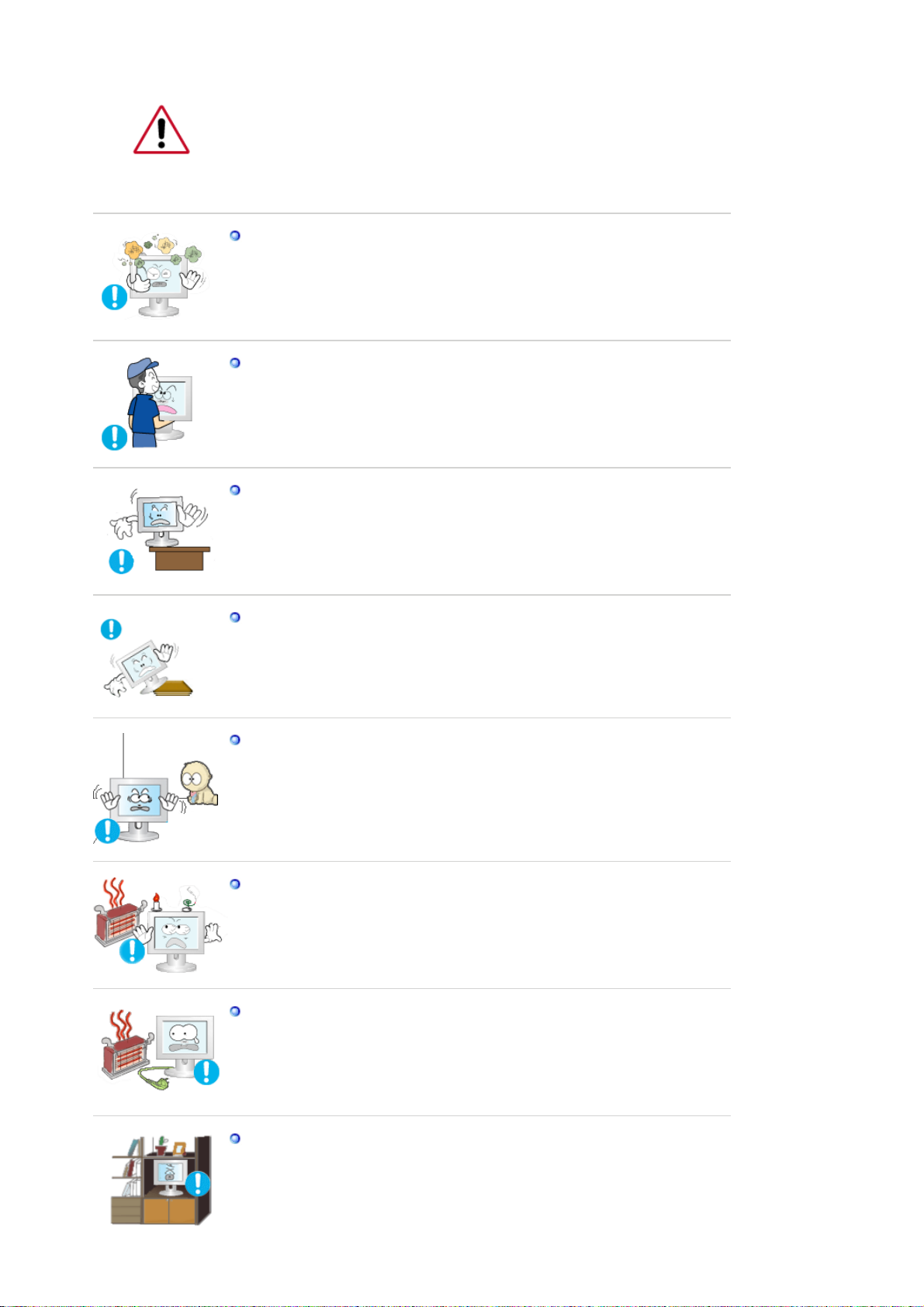
Be sure to contact an authorized Service Center, when installing your monitor in
a location with the heavy dust, high or low temperatures, high humidity, chemical
substance and where it operates for 24 hours such as the airport, the train
station or etc.
Failure to do so may cause a serious damage to your monitor.
Put your monitor in a location with low humidity and a minimum of dust.
z Failure to do so may cause an electric shock or fire inside the monitor.
Do not drop the monitor when moving it.
This may cause damage to the product or human body.
z
Install the monitor base in a showcase or shelf so that the end of the
base does not protrude from the showcase or sh elf.
z Dropping the product may cause damage to the product or personal
injury.
Do not place the product on an unstable or small surface area.
Place the product on an even, stable surface, as the product may fall
z
and cause harm to someone walking by, specifically children.
Do not place the product on the floor.
z Someone, specifically children could trip over it.
Keep any flammable objects such as candles, insecticides or cigarettes
away from the product.
z Otherwise, this may cause a fire.
Keep any heating devices away from the power cable.
z A melted coating may lead to electric shock or fire.
Do not install the product in places w i th poo r ve ntilation, for instance, a
bookshelf, closet, etc.
z Any increase in internal temperature may cause fire.
Page 5

Set down the monitor carefully.
z The monitor could be damaged or broken.
Do not place the monitor face down.
The TFT-LCD surface may be damaged.
z
Installing a wall bracket must be done by a qualified professional.
z Installation by unqualified personnel may result in injury.
z Always use the mounting device specified in the owner's manual .
When installing the product, make sure to keep it away from the wall
(more than 10 cm / 4 inch ) for ventilation purposes.
Clean
z Poor ventilation may cause an increase in the internal temperature of the
product, resulting in a shortened component life and degraded
performance.
Keep the plastic packaging (bag) out of children’s reach.
z The plastic packaging (bag) may cause suffocation if children play with
it.
When cleaning the monitor case or the surface of the TFT-LCD screen, wipe with
a slightly moistened, soft fabric.
Do not spray water or detergent directly on the monitor.
z This may cause damage, electric shock or fire.
Use the recommended detergent with a smooth cloth.
Page 6

If the connector between the plug and the pin is dusty or dirty, clean it
properly with a dry cloth.
A dirty connector may cause an electric shock or fire.
z
Make sure to unplug the power cord before cleaning the product.
z Otherwise, this may cause electric shock or fire.
Unplug the power cord from the power outlet and wipe the product using
a soft, dry cloth.
z Do not use any chemicals such as wax, benzene, alcohol, thinners,
insecticide, air freshener, lubricant or detergent.
Contact the Service Center or Customer Center for interior cleaning
once a year.
Others
z Keep the product's interior clean. Dust which has accumulated in the
interior over an extended period of time may cause malfunction or fire.
Do not remove cover (or back).
z This may cause an electric shock or fire.
z Refer servicing to qualified service personnel.
If your monitor does not operate normally - in particular, if there are any
unusual sounds or smells coming from it - unplug it immediately and
contact an authorized dealer or service.
z This may cause an electric shock or fire.
Keep the product away from places exposed to oil, smoke or moisture;
do not install inside a vehicle.
z This may cause malfunction, an electric shock or fire.
z Especially avoid operating the monitor near water or outdoors where it
could be exposed to snow or rain.
Page 7

If the monitor is dropped or the casing is damaged, turn the monitor off
and unplug the power cord. Then contact the Service Center .
z The monitor may malfunction, causing an electric shock or fire.
Disconnect the plug from the outlet during storms or lightening or if it is
not used for a long period of time.
z Failure to do so may cause an electric shock or fire.
Do not try to move the monitor by pulling only the wire or the signal
cable.
This may cause a breakdown, electric shock or fire due to damage to
z
the cable.
Do not move the monitor right or left by pulling only the wire or the
signal cable.
z This may cause a breakdown, electric shock or fire due to damage to
the cable.
Do not cover the vents on the monitor cabinet.
z Bad ventilation may cause a breakdown or fire.
Do not place water containers, chemical products or small metal objects
on the monitor.
z This may cause malfunction, an electric shock or fire.
z If a foreign substance enters the monitor, unplug the power cord and
contact the Service Center.
Keep the product away from combustible chemical sprays or
inflammable substances.
This may cause an explosion or fire.
z
Never insert anything metallic into the monitor openings.
z This may cause an electric shock, fire or injury.
Do not insert metal objects such as chopsticks, wire and gimlet or
inflammable objects such as paper and match into the vent, headphone
port or AV ports.
z It may cause a fire or an electric shock. If an alien substances or water
Page 8

flows into the product, turn the product off, unplug the power connector
from the wall outlet and contact Service Center.
If you view a fixed screen for an extended period of time, resi dual image
or blurriness may appear.
z Change the mode to energy save or set a screensaver to moving picture
when you need to be away from the monitor for an extended period of
time.
Adjust the resolution and frequency to the levels appropriate for the
model.
z Inappropriate resolution may cause undesirable picture quality.
17,19 inch (43, 48 cm)- 1280 X 1024
Watching the monitor continuously at a too close angle may result in
eyesight damage.
To ease eye strain, take at least a five-minute break after every hour of
using the monitor
.
Do not install the product on an unstable, uneven surface or a location
prone to vibrations.
z Dropping the product may cause damage to the product or personal
injury. Using the product in a location prone to vibrations may shorten
the lifetime of the product or may catch fire.
When moving the monitor, turn off and unplug the power cord.
Make sure that all cables, including the antenna cable and cables
connecting to other devices, are disconnected before moving the
monitor.
Failure to disconnect cables may damage it and lead to fire or an electric
z
shock.
Place the product out of children’s reach, as they could damage it by
hanging onto it.
z A falling product could cause physical damage even de ath.
When not using the product for an extended time period, keep the
product unplugged.
z Otherwise, this may cause heat emission from the accumul ated dirt or
Page 9

degraded insulation, leading to electric shock or fire.
Do not place children’s favorite objects (or anything else that may be
tempting) on the product.
z Children may try to climb on the product to retrieve an object. The
product could fall, causing physical damage or even death.
Page 10

List of Features
r
p
RTA Monitor
RTA(Response Time Accelerator)
A function that accelerates the response speed of the panel so as to provide a sharper and
more natural video display.
z
RTA On
Activates the RTA function so that the panel operates at a higher
response speed than its original speed.
z
RTA Off
Deactivates the RTA function so that the panel operates at its original
response speed.
(
: If you turn the power off and on again after switching RTA off, the RTA function is
Note
automatically switched On (Factory Setting)
Please make sure the following items are included with your monitor.
If any items are missing, contact your dealer.
Contact a local deale
to buy optional items.
Unpacking
Type 1
Monitor & Sim
le stand Bottom
MagicRotation™ program can not be provided as Simple
Page 11

Stand does not support Pivot function.
g
g
)
Type 2
Type 3
Manual
Cable
Monitor & Pivot stand
Monitor & Slidin
Quick Setup Guide
Stand
Warranty Card
(Not available in all
locations)
User's Guide,
Monitor Driver,
Natural Color software,
MagicTune™ software
Ma
icRotation software
D-sub Cable Power Cord DVI Cable (option
Front
Page 12

MENU button [ ]
MagicBright™
[]
Opens the OSD menu. Also use to exit the OSD menu or return to
the previous menu.
MagicBright™ is a new feature providing optimum viewing
environment depending on the contents of the image you are
watching. Currently six different modes are available: Custom,
Text, Internet, Game, Sport and Movie. Each mode has its own
pre-configured brightness value. You can easily select one of six
settings by simply pressing MagicBright control button.
1) Custom
Although the values are carefully chosen by our engineers,
the pre-configured values may not be comfortable to your eyes
depending on your taste.
If this is the case, adjust the brightness and contrast by using
the OSD menu.
2) Text
For documentations or works involving heavy text.
3) Internet
For working with a mixture of images such as text and
graphics.
4) Game
For watching motion pictures such as a game.
5) Sport
For watching motion pictures such as a sport.
6) Movie
For watching motion pictures such as a DVD or Video CD.
>>Click here to see an animation clip
Brightness button
[]
Adjust buttons [ ]
Enter button [ ] /
Source button
When OSD is not on the screen, push the button to adjust
brightness.
Adjust items in the menu.
Activates a highlighted menu item. /
Push the ' ', then selects the video signal while the OSD is off.
(When the source button is pressed to change the input mode, a
message appears in the upper left of the screen displaying the
current mode -- analog or digital input signal.)
Note : If you select the digital mode, you must connect your monitor
to the graphic card's DVI port using the DVI cable.
Page 13

AUTO button
g
Use this button for auto adjustment.
Power button [ ]/
Power indicator
See PowerSaver described in the manual for further information regarding power saving
functions. For energy conservation, turn your monitor OFF when it is not needed, or when
leaving it unattended for long periods.
Rear
Use this button for turn the monitor on and off. /
This light glows blue during normal operation, and blinks blue
once as the monitor saves your adjustments.
(The configuration at the back of the monitor may vary from product to product.)
POWER port
DVI IN port
RGB IN port
Kensington Lock
Simple stand Pivot stand / Sliding Stand
Connect the power cord for your monitor to the power port on the back
of the monitor.
Connect the DVI Cable to the DVI port on the back of your monitor.
Connect the signal cable to the 15-pin, D-sub port on the back of your
monitor.
The Kensington lock is a device used to physically fix the system
when using it in a public place.
(The locking device has to be purchased separately. )
For usin
See Connecting the Monitor for further information regarding cable connections.
a locking device, contact where you purchase it.
Page 14
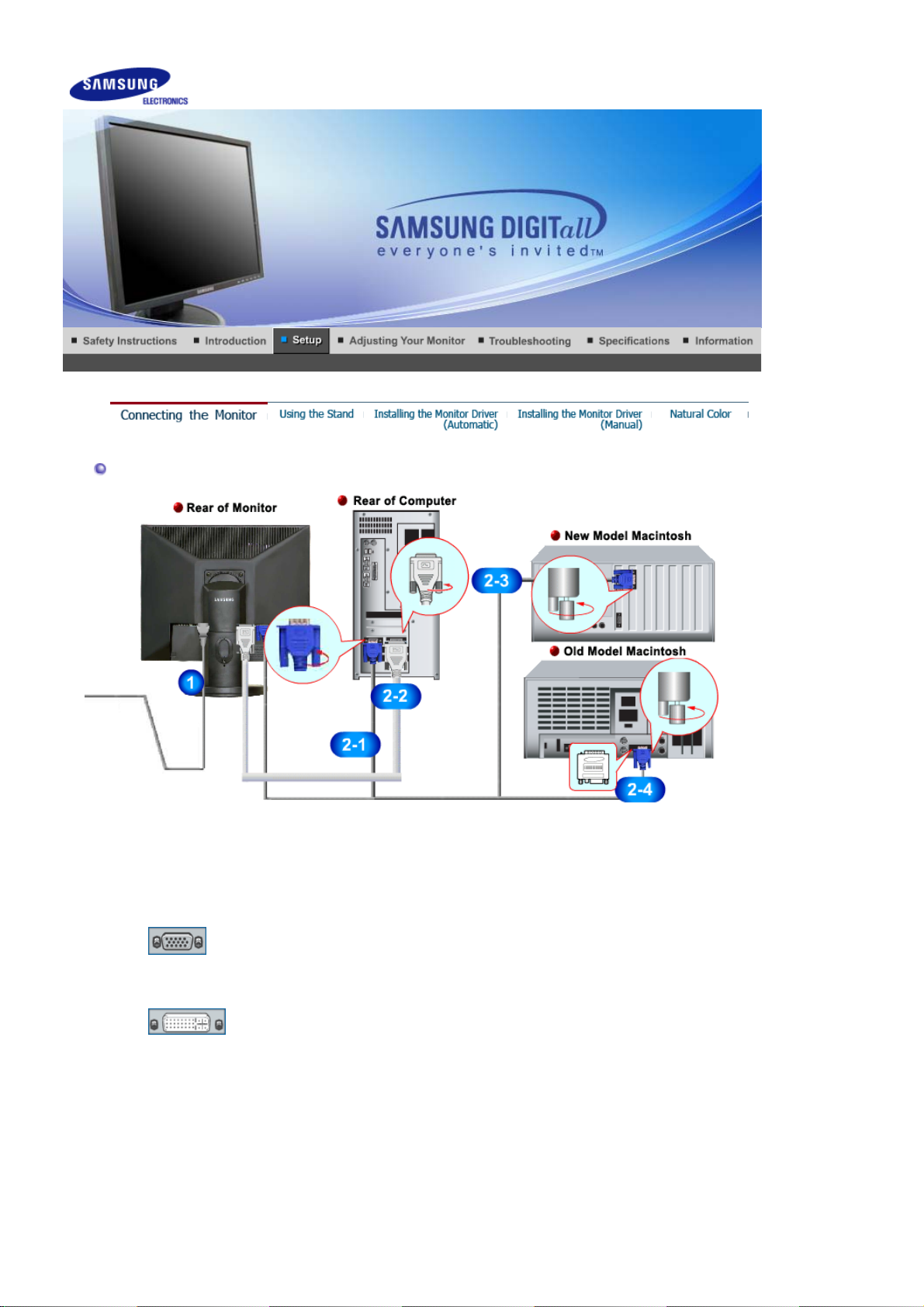
Connecting the Monitor
1.
2-1.
2-2.
2-3.
2-4.
3.
Connect the power cord for your monitor to the power port on the back of the monitor.
Plug the power cord for the monitor into a nearby outlet.
Using the D-sub (Analog) connector on the video card.
Connect the signal cable to the 15-pin, D-sub port on the back of your monitor.
[ RGB IN ]
Using the DVI (Digital) connector on the video card.
Connect the DVI Cable to the DVI Port on the back of your Monitor.
[ DVI IN ]
Connected to a Macintosh.
Connect the monitor to the Macintosh computer using the D-sub connection cable.
In the case of an old model Macintosh, you need to connect the monitor using a special Mac
adapter.
Turn on your computer and monitor. If your monitor displays an image, installation is
complete.
Page 15
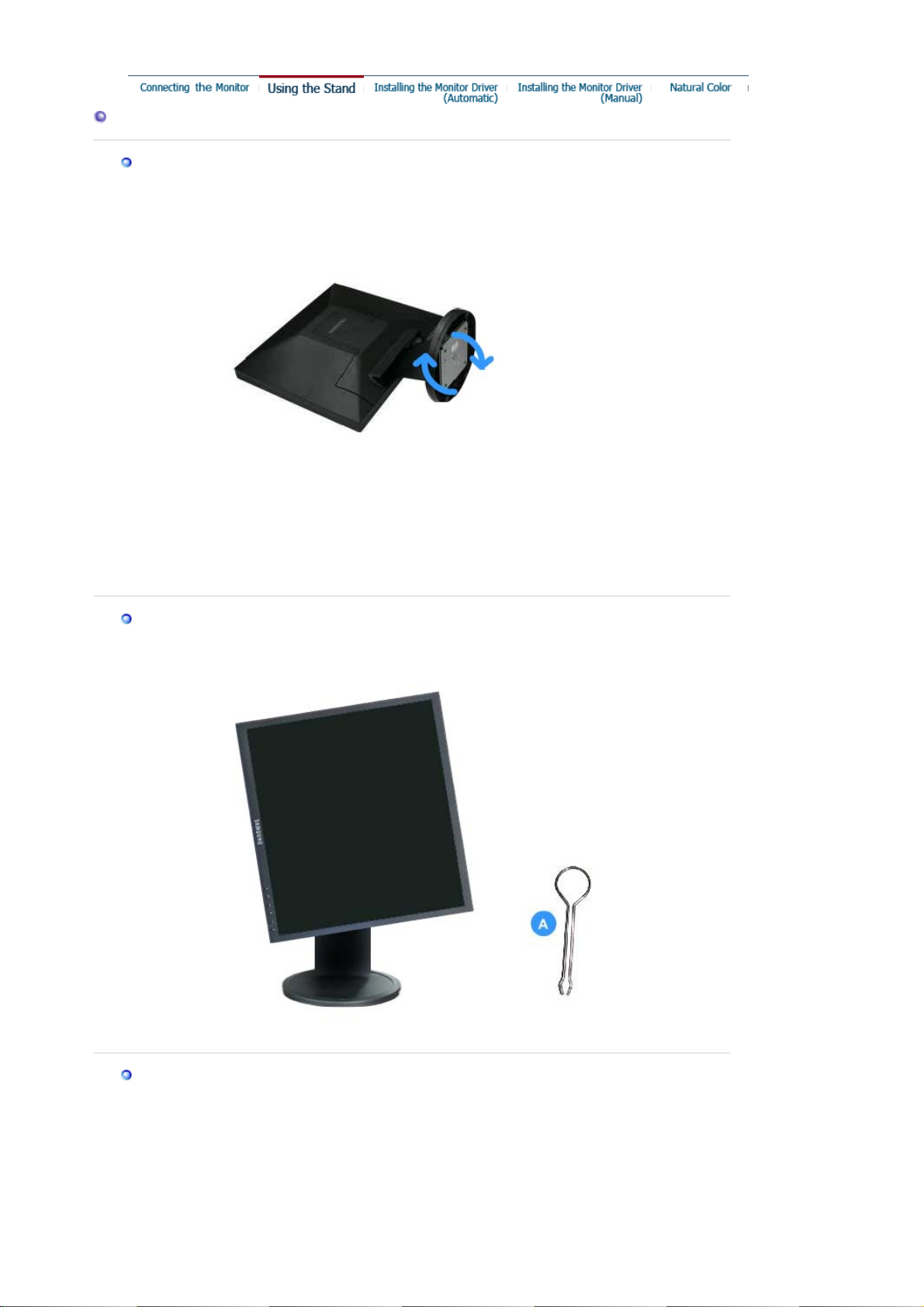
A
Using the Stand
Monitor Assembly
Monitor and Bottom
Pivot Stand / Sliding Stand
Stand Stopper
Attaching a Base
This monitor accepts a 75 mm x 75 mm VESA-compliant mounting interface pad.
.
Page 16

Pivot stand
Sliding Stand
Monitor
A.
Simple stand
Mounting interface pad
B.
1. Turn off your monitor and unplug its power cord.
2. Lay the LCD monitor face-down on a flat surface with a cushion benea th it to protect th e
screen.
3. Remove four screws and then remove the stand from the LCD monitor.
4. Align the mounting interface pad with the holes in the rear cover mounting Pad and secure it
with four screws that came with the arm-type base, wall mount hanger or other base.
Installing the Monitor Driver (Automatic)
When prompted by the operating system for the monitor driver, insert the CD-ROM
included with this monitor. Driver installation is slightly different from one operating
system to another. Follow the directions appropriate for the operating system you
have.
Prepare a blank disk and download the driver program file at the Internet web site shown
here.
z Internet web site : http://www.samsung.com/ (Worldwide)
http://www.samsung.com/monitor (U.S.A)
http://www.sec.co.kr/monitor (Korea)
http://www.samsungmonitor.com.cn/ (China)
Windows ME
1. Insert CD into the CD-ROM drive.
2. Click
"Windows ME Driver"
.
3. Choose your monitor model in the model list, then click the
"OK"
button.
Page 17

4. Click the
"Install"
button in the
"Warning"
window.
5. Monitor driver installation is completed.
Windows XP/2000
1. Insert CD into the CD-ROM drive.
2. Click
3. Choose your monitor model in the model list, then click the
4. If you can see following message window, then click the
"Windows XP/2000 Driver"
Then click
"OK"
button.
button.
"OK"
"Continue Anyway"
button.
This monitor driver is under certifying MS logo,and this installation don't
damage your system.The certified driver will be posted on Samsung
Monitor momepage
http://www.samsung.com/.
5. Monitor driver installation is completed.
Page 18
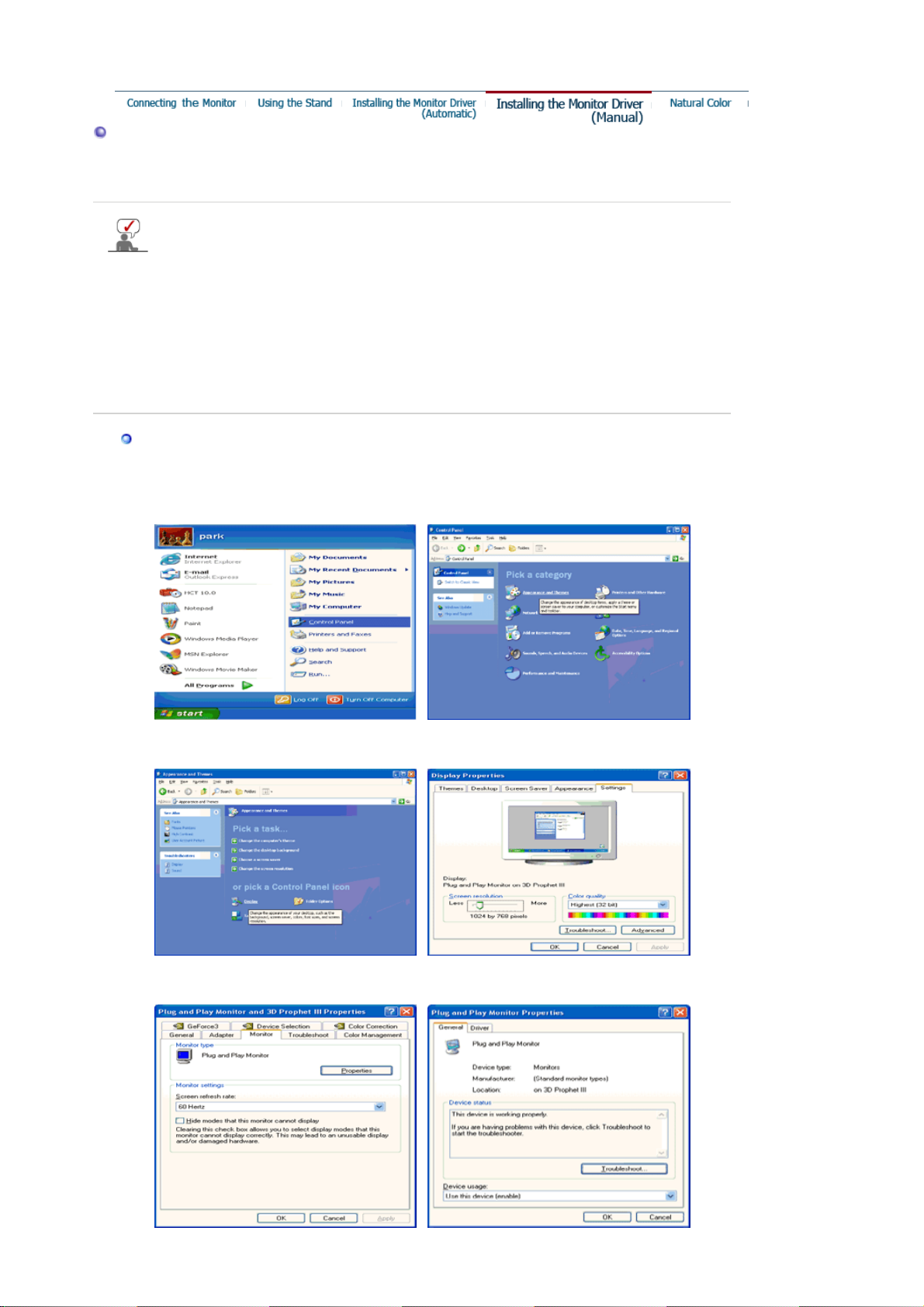
Installing the Monitor Driver (Manual)
Windows XP | Windows 2000 |Windows Me |Windows NT | Linux
When prompted by the operating system for the monitor driver, insert the CD-ROM
included with this monitor. Driver installation is slightly different from one operating
system to another. Follow the directions appropriate for the operating system you
have.
Prepare a blank disk and download the driver program file at the Internet web site shown
here.
z Internet web site : http://www.samsung.com/ (Worldwide)
http://www.samsung.com/monitor (U.S.A)
http://www.sec.co.kr/monitor (Korea)
http://www.samsungmonitor.com.cn/ (China)
Microsoft® Windows® XP Operating System
1. Insert CD into the CD-ROM driver.
2. Click "
Start
" —> "
Control Panel
" then click the "
Appearance and Themes
" Icon.
3. Click "
Display
4. Click the "
" icon and choose the "
Properties
" button on the "
Settings
" tab then click "
Advanced..
".
Monitor
" tab and select "
Driver
" tab.
Page 19
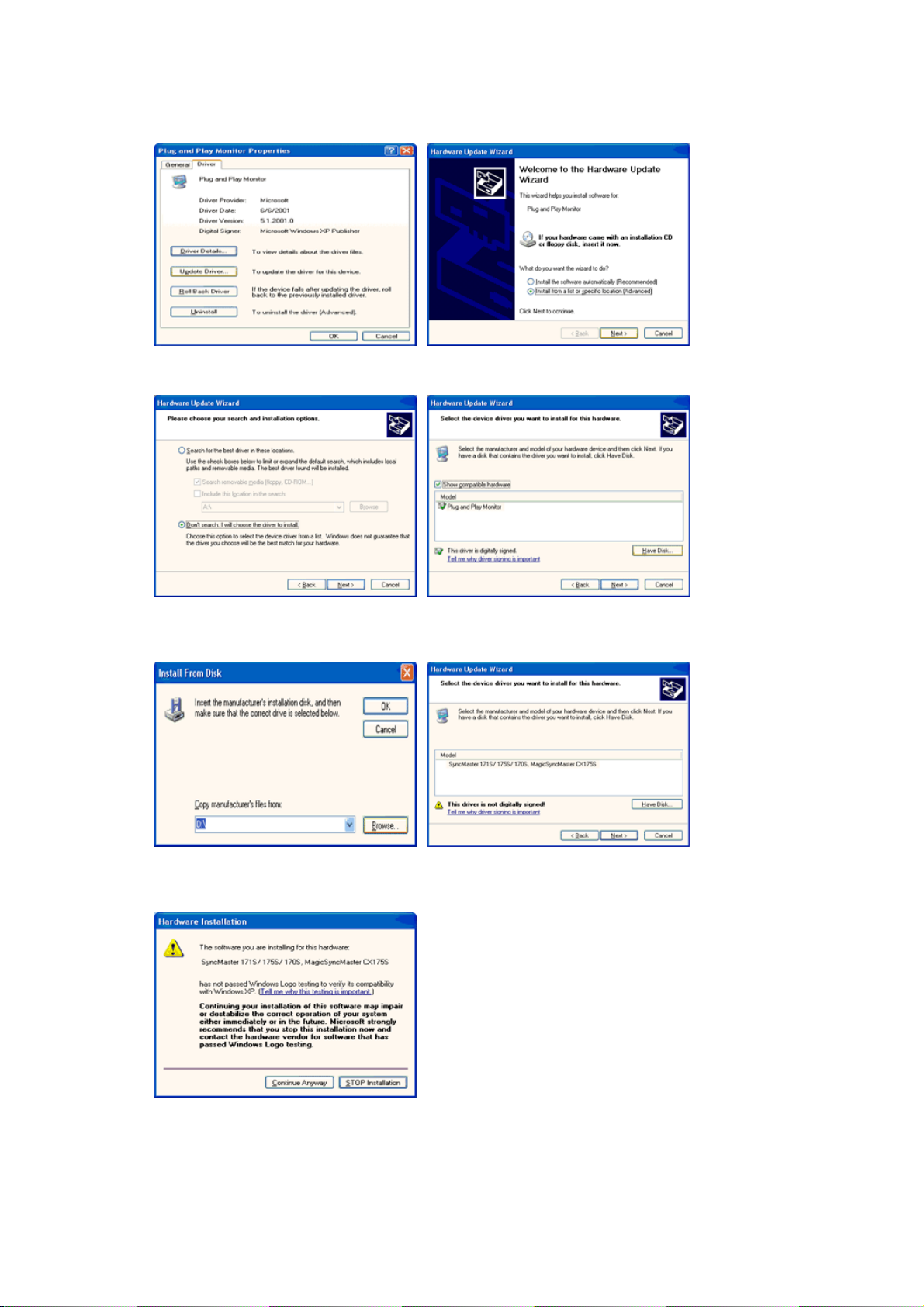
5. Click "
6. Select "
Update Driver..
Don't search ,I will..
" and select "
Install from a list or..
" then click "
Next
" then click "
" and then click "
Have disk
Next
" button.
".
7. Click the "
model list and click the "
8. If you can see following "
click "OK" button.
Browse
" button then choose A:(D:\Driver) and choose your monitor model in the
" button.
Next
Message
" window, then click the "
Continue Anyway
" button. Then
This monitor driver is under certified MS logo,and this installation doesn't damage your
system.The certified driver will be posted on Samsung Monitor homepage.
http://www.samsung.com/
9. Click the "
" button then click "OK" button continually.
Close
Page 20

10. Monitor driver installation is completed.
Microsoft® Windows® 2000 Operating System
When you can see "Digital Signature Not Found" on your monitor, follow these steps.
1. Choose "OK" button on the "
2. Click the "
Browse
" button on the "
Insert disk
" window.
File Needed
" window.
3. Choose A:(D:\Driver) then click the "Open" button and then click "OK" button.
How to install
1. Click "
2. Double click the "
3. Choose the "
4. Choose "
Start
Monitor
" , "
Setting
Settings
" , "
Control Panel
Display
" Icon.
" tab and then click "
".
".
Advanced..
".
Case1:If th e "Properties" button is inactive, it means your monitor is properly configured.
Please stop installation
Case2:If th e "Properties" button is active, click the "Properties" button then follow next steps
continually.
5. Click "
6. Choose "
specific driver
7. Click the "
8. Click the "
9. Choose your monitor model and click the "
10. Click the "
" and then click on "
Driver
Update Driver..
" then click on the "Next" button.
Display a list of the known drivers for this device so that I can choose a
" then click "
Browse
Open
Finish
" button then choose A:(D:\Driver).
" button, then click "OK" button.
" button then the "
" and then click "
Next
Close
Have disk
" button then click "
Next
" button.
".
Next
" button.
Microsoft
1. Click "
2. Double click "
3. Select the "
4. Select the "
5. Click the "
6. Choose "
7. Choose "
8. Click the "
If you can see the "
And click the "
®
Windows® Millennium Operating System
" , "
Start
Settings
Monitor
Change
Specify the location of the driver
Display a list of all the driver in a specific location..
Have Disk
Digital Signature Not Found
" button then the "
Finish
Setting
Display
" , "
Control Panel
" icon.
" tab and click "
" tab.
" button in the "
" button
9. Specify A:\(D:\driver) then click "OK" button.
10. Select "
Show all devices
" and choose the monitor that corresponds to the one you
connected to your computer and click "OK".
11. Continue choosing "
" button and "OK" button until you close the Display Properties
Close
dialogue box.
" window then click the "
" button.
Close
".
Advanced Properties
Monitor Type
" area.
".
" button.
" then click "
Yes
"button.
" button.
Next
Page 21

r
Microsoft
1. Click
2. In Display Registration Information window, click Settings Tab and then click
Modes
®
Windows® NT Operating System
Start, Settings, Control Panel
.
, and then double-click
Display
icon.
All Display
3. Select a mode that you wish to use (Resolution, Number of colors and Vertical frequency)
and then click OK.
4. Click
button if you see the screen working normally after clicking
Apply
. If the screen is
Test
not normal, change to a different mode (lower mode of resolution, colors or frequency).
If there is no Mode at
All Display Modes
, select the level of resolution and vertical
frequency by referring to the Preset Timing Modes in the user guide.
Linux Operating System
To execute X-Window, you need to make the X86Config file, which is a type of system setting file.
1. Press Enter at the first and the second screen after executing the X86Config file.
2. The third screen is for
setting your mouse
.
3. Set a mouse for your computer.
4. The next screen is for
selecting a keyboard
.
5. Set a Keyboard for your computer.
6. The next screen is for
7. First of all, set a
horizontal frequency
setting your monitor
.
for your monitor. (You can enter the frequency
directly.)
8. Set a
vertical frequency
9. Enter the
model name of your monitor
for your monitor. (You can enter the frequency directly.)
. This information will not affect the actual execution
of X-Window.
10. You have
Execute
finished
X-Window after setting other requested hardware.
setting up your monitor.
Natural Color
Natural Colo
One of the recent problems in using a computer is that the color of the images printed out by a
printer or other images scanned by a scanner or a digital camera are not the same as those
shown on the monitor.
The Natural Color S/W is the very solution for this problem. It is a color administration system
developed by Samsung Electronics in association with Korea Electronics &
Telecommunications Research Institute (ETRI).
This system is available only for Samsung monitors and makes the color of the images on the
monitor the same as the printed or scanned images.
Page 22

For more information, refer to Help (F1) in the software program.
How to install the Natural Color software
Insert the CD included with the Samsung monitor into the CD-ROM Drive. Then , the initial
screen of the program Natural Color will be executed. Click Natural Color on the initial screen
to install the Natural Color software.
To install the program manually, insert the CD included with the Samsung mo nitor into the CDROM Drive, click the [Start] button of Windows and then select [Execute].
Enter D:\color\eng\setup.exe and then press the <Enter > key.
(If the drive where the CD is inserted is not D:\, enter the applicable drive.)
How to delete the Natural Color software program
Select
"Setting/Control Panel"
program"
Select Natural Color from the list and then click the
.
on the
menu and then double-click
"Start"
"Add/Delete"
"Add/Delete a
button.
Page 23
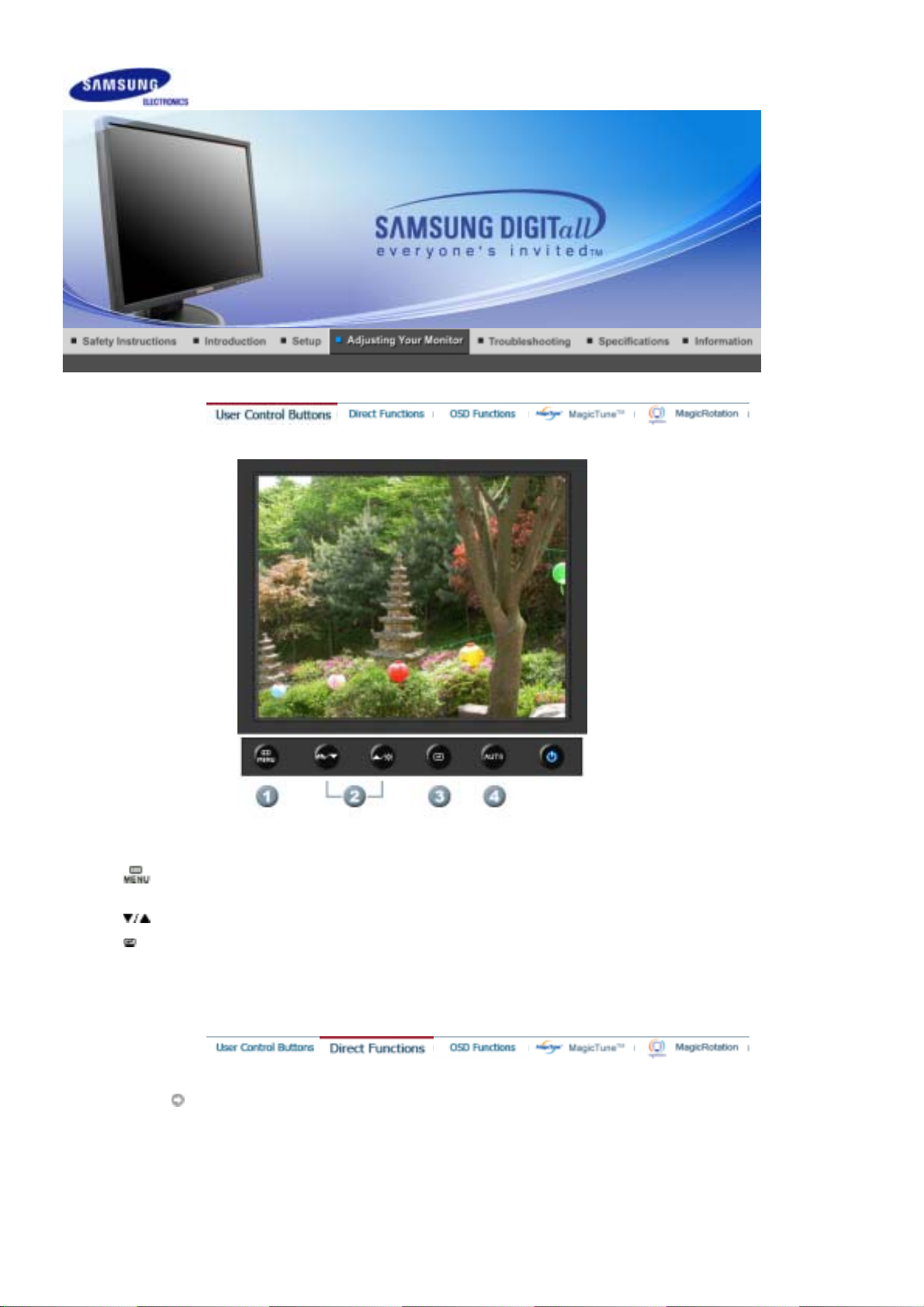
1.
[ ]Use this button to open the on-screen menu and exit from the menu screen or close screen
adjustment menu.
[ ]This button allows you to adjust items in the menu.
2.
[ ]Press this button to activate a highlighted menu item.
3.
4. [AUTO
]Press to self-adjust to the incoming PC signal. The values of fine,coarse and position are
adjusted automatically.
AUTO
Page 24

Menu Description
AUTO
OSD Lock & Unlock
When the '
as shown in the animated screen on the center.
Auto adjustment allows the monitor to self-adjust to the incoming video
signal. The values of fine, coarse and position are adjusted automatically.
(Available in analog mode only)
To make the automatic adjustment function sharper, execute the 'AUTO'
function while the AUTO PATTERN is on.
- If auto adjustment does not work properly, press AUTO button again to
adjust picture with more accuracy.
- If you change resolution in the control panel, auto function will be
executed automatically.
' button is pressed, the Auto Adjustment screen appears
AUTO
Page 25

Menu Description
OSD Lock & Unlock
MagicBright™
After pushing the "MENU" button more than 5 seconds, OSD function is
locked (unlocked).
You can also adjust the brightness and contrast of the
monitor with the OSD adjustment locking feature.
Menu Description
Push the MagicBright button to circle through available preconfigured
MagicBright™
Brightness
modes.
- Six different modes (Custom/Text/Internet/Game/Sport/Movie)
Page 26

Menu Description
Brightness
When OSD is not on the screen, push the button to adjust brightness.
SOURCE
Menu Description
SOURCE
Picture
Selects the video signal while the OSD is off.
Brightness Contrast
Page 27

Color
Image
OSD
Setup
Information
Picture
MagicColor Color Tone Color Control Gamma
Coarse Fine Sharpness H-Position V-Position
Language H-Position V-Position Transparency Display Time
Auto Source Image Reset Color Reset RTA
Menu Description Play/Stop
You can use the on-screen menus to change the
brightness according to personal preference.
Brightness
Contrast
Color
Direct Access Feature
push the button to adjust brightness.
You can use the on-screen menus to change the contrast
according to personal preference.
(Not available in MagicColor mode of Full and Intelligent.)
: When OSD is not on the screen,
Page 28

Menu Description Play/Stop
MagicColor is a new technology that Samsung has
exclusively developed to improve digital image and to
display natural color more clearly without disturbing image
quality.
- Returns to the original mode.
1) Off
2) Demo
- The screen before applying MagicColor
appears on the right and the screen after applying
MagicColor appears on the left.
- Displays not only vivid natural color but also
3) Full
more realistic natural skin color with clearness.
4) Intelligent
5) MagicZone
sharp display of animated multimedia or photo images by
- Displays vivid natural color with clearness.
- The MagicZone ensures the clear and
MagicZone
enhancing the brightness, sharpness, saturation, hue of a
certain area on the screen.
Especially, MagicZone is appropriate to using the moving
picture.
Hue
MagicColor
: This function is to adjust the hue of the MagicZone.
Saturation
: This function is to adjust the saturation of the
MagicZone.
Brightness
: This function is to adjust the brightness of the
Brightness
MagicZone.
Sharpness
: This function is to adjust the sharpness of the
Sharpness
MagicZone.
H-Position
: This function is to move the MagicZone horizontally.
V-Position
: This function is to move the MagicZone vertically.
H-Size
: This function is to adjust the horizontal size of the
MagicZone.
V-Size
Hue
Saturation
H-Position
V-Position
H-Size
V-Size
Page 29

Color Tone
: This function is to adjust the vertical size of the
MagicZone.
The tone of the color can be changed and one of four
modes can be selected - Cool, Normal, Warm and
Custom.
(Not available in MagicColor mode of Full and Intelligent.)
Color Control
Gamma
Image
Adjusts individual R,G,B color balance.
(Not available in MagicColor mode of Full and Intelligent.)
Gamma correction changes the luminance of the colors
with intermediate luminance.
z Mode 1
z
Mode 2
z
Mode 3
Menu Description Play/Stop
Removes noise such as vertical stripes. Coarse
Coarse
adjustment may move the screen image area. You may
relocate it to the center using the horizontal control menu.
(Available in analog mode only)
Removes noise such as horizontal stripes. If the noise
Fine
persists even after fine tuning, repeat it after adjusting the
frequency (clock speed).
(Available in analog mode only)
Sharpness
Changes the clearance of image.
(Not available in MagicColor mode of Full and Intelligent.)
Changes the horizontal position of the monitor's entire
H-Position
display.
(Available in analog mode only)
Changes the vertical position of the monitor's entire
Page 30

V-Position
OSD
display.
(Available in analog mode only)
Menu Description Play/Stop
You can choose one of nine languages.
Language
H-Position
V-Position
Transparency
Display Time
Setup
:The language chosen affects only the language of
Note
the OSD. It has no effect on any software running on the
computer.
You can change the horizontal position where the OSD
menu appears on your monitor.
You can change the vertical position where the OSD menu
appears on your monitor.
Change the transparency of the background of the OSD.
The menu will be automatically turned off if no adjustments
are made for a certain time period.
You can set the amount of time the menu will wait before it
is turned off.
Page 31

Menu Description Play/Stop
Auto Source
Image Reset
Color Reset
RTA
Select
Auto Source
the signal source.
Image parameters are replaced with the factory default
values.
Color parameters are replaced with the factory default
values.
RTA(Response Time Accelerator)
A function that accelerates the response speed of the
panel so as to provide a sharper and more natural video
display.
: Activates the RTA function so that the panel
RTA
On
RTA
Off
(
operates at a higher response speed than its
original speed.
: Deactivates the RTA function so that the panel
operates at its original response speed.
: If you turn the power off and on again after
Note
switching RTA off, the RTA function is automatically
switched On (Factory Setting))
for the monitor to automatically select
Information
Page 32

Menu Description
Information
Shows a video source, display mode on the OSD screen.
Page 33

Color
Overview | Installation | OSD Mode |
Calibration
| Uninstall | Troubleshooting
Overview
What is MagicTune™?
Monitor performance can vary due to the graphics card, host computer lighting conditions and other
environmental factors. In order to get the best image on a monitor requires you to adjust it for your unique
setting. Unfortunately, the manual controls available to tune the image often prove to be challenging. Proper
adjustment (tuning) requires an easy to use program that goes through a step-by-step process to obtain the best
overall picture quality.
In most cases even simple adjustments to Brightness, or Contrast require navigation of the multi-level, on-screen
display (OSD) menus that are not easy to understand. Furthermore, there is no feedback to assist in correctly
setting the controls of the monitor. MagicTune™ is a software utility that guides you through the tuning process
with easy to understand instructions and back ground patterns designed for each monitor control. The display
settings for each user can be saved, providing an easy way to select display characteristics in a multi-user
environme or having a single user have multiple defined presets based on content and ambient lighting.
Basic Functionality
MagicTune™ is a software utility that allows monitor adjustment and color tuning using the Display Data
Channel Command Interface (DDC/CI)
to eliminate the need to use the monitor on-screen disp la y (OS D).
MagicTune™ supports Windows™ 98 SE, Me, 2000, XP Home, and XP Professional.
It is recommended using MagicTune™ in Windows™ 2000 or later.
MagicTune™ allows for quick accurate tuning of the display with the ability to easily save and use monitor
configurations that are best suited for you.
protocol. All adjustments to the display are controlled via software
OSD Mode
The OSD mode allows easy adjustment of monitor settings without taking pre-defined steps. You can access the
desired menu item to set with ease.
Page 34

Overview | Installation | OSD Mode |
Installation
1. Insert the installation CD into the CD-ROM drive.
2. Click th e M ag i cT un e™ installation file.
3. Select installation Language, Click "Next".
Color
Calibration
| Uninstall | Troubleshooting
4. When the Installation Shield Wizard window appears, click "Next."
5. Select "I accept the terms of the license agreement" to accept the terms of use.
Page 35

6. Choose a folder to install the MagicTune™ program.
7. Click "Install."
8. The "Installation Status" window appears.
Page 36

9. Click "Finish."
10. When the installation is complete, the MagicTune™ executable icon appears on your desktop.
Double-click the icon to start the program.
MagicTune™ execution icon may not appear depending on specification of computer
system or monitor. If that happens, press F5 Key.
Installation Problems
The installation of MagicTune™ can be affected by such factors as the video card, motherboard and the network
environment.
See
"Troubleshooting"
if you have trouble during installation.
System Requirem en ts
Page 37

OS
z Windows™ 98 SE
z Windows™ Me
z Windows™ 2000
z Windows™ XP Home Edition
z
Windows™ XP Professional
Hardware
z 32MB Memory above
z 25MB Hard disk space above
It is recommended using MagicTune™ in Windows™ 2000 or
later.
* For more information, visit the MagicTune™
website.
Page 38

Overview | Installation | OSD Mode |
g
g
g
g
MagicTune™ allows for quick accurate tuning of the display with the ability to easily
save and use monitor configurations that are best suited for you.
z OSD mode may appear inconsistent with the explanation in
guidance book depending on specification of each monitor.
z When Rotation is functioning, portion of MagicTune™ pro
not operate normally.
z AutoRotation : The screens display will automatically rotate when
the monitor is rotated.
To execute Auto Rotation, it should be done as below.
z Please install both MagicRotation and MagicTune™ 3.6 programs in
your computer.
z Launch MagicTune™ 3.6
z Option → Preference → Click the small box in the enable task
tray menu.
z MagicTune™ control mode will be different according to monitor
models.
z The permitted an
model of the monitor.
OSD Mode
Color
Calibration
le of rotation of the monitor is determined by the
| Uninstall | Troubleshooting
ram may
The OSD mode makes the adjustment of settings on all monitors easy. When selected , each tab on top of the control
window displays the general descriptions of the sub-menu items for adjustment.
When selected, each tab displays a list of menus. For quick adjustment of the monitor settings, the OSD mode allows
easy and convenient access to all tabs and sub-menu items.
Button Tab Definition
OK
Reset
Cancel
Applies any changes made and exits MagicTune™.
Restores the display settings to the factory settings.
Exits MagicTune™ without applyin
in the control window, clicking "Cancel" does not cause any actions.
the changes made. If you have not made any changes
Picture Tab Definition
Allows the user to adjust the screen settings to the desired values.
Brightness
Contrast
Makes the entire screen bri
if the brightness is not adjusted to the proper level. Adjust the brightness for best viewing conditions.
Adjusts the difference in brightness between the bright and dark areas on screen. Determines the
crispness of the images.
hter or darker. The detailed data of the images in the dark areas can be lost
Page 39

Resolution
g
Lists all display resolutions supported by the program.
MagicBright™ is a new feature providing the optimum viewing environment depending on the contents
of the ima
e you are watching. Currently four different modes are available: Text, Internet,Game, Sport,
Movie and Custom. Each mode has its own pre-configured brightness value. You can easily select one of
six settings by simply pressing MagicBright control buttons.
1. Text: For documentations or works involving heavy text.
2. Internet: For working with a mixture of images such as text and graphics.
3. Game : For watching motion pictures such as a Game.
MagicBright™
4. Sport : For watching motion pictures such as a Sport.
5. Movie: For watching motion pictures such as a DVD or Video CD.
6. Custom: Although the values are carefully chosen by our engineers, the pre-configured values
may not be comfortable to your eyes depending on your taste. If this is the case, adjust the
Brightness and Contrast by using the OSD menu.
Color Tab Definition
MagicBright control mode will be different according to monitor models.
Some monitor will only support Four modes(Text, Internet, Entertain, Custom)
Adjusts the "warmth" of the monitor background or image color.
MagicColor and Gamma will be shown only in the monitor that supports these
functions.
The tone of the color can be changed.
z Warm2 - Warm1 - Cool 1 - Cool 2 - Cool 3 - Cool 4 - Cool 5 - Cool 6 - Cool 7
z Off
Color Tone
Color Tone mode will be different according to monitor models.
Some monitor will only support Four modes( Warm, Normal, Cool, Custom)
Color
Control
Adjusts of the monitor image color.
You can change the monitor color to your desired color.
z R- G - B
The process through which the colors of your choice are optimized and maintained. You will find
Calibration
MagicTune™ extremely useful if you are one of those who wish to view images with their full details
accurately reproduced - including web images and ones produced by a digital camera or scanner.
MagicColor is a new technology that Samsung has exclusively developed to improve digital image and to
display natural color more clearly without disturbing image quality.
1. OFF : Retu rn s to th e or ig in a l mod e.
2. DEMO : The screen before applying MagicColor appears on the right and the screen after
applying MagicColor appears on the left.
3. Full : Displays not only vivid natural color but also more realistic natural skin color with clearness.
4. Intelligent : Displays vivid natural color with clearness.
5. MagicZone
{ The MagicZone ensures the clear and sharp display of animated multimedia or photo
Page 40

MagicColor
images by enhancing the brightness, sharpness, saturation, Hue of a certain area on the
screen. This offers an easy-to-use interface that highlights the video-playing portion of
your multimedia program by automatically detecting and highlight the desired area by
dragging.
{ When the mouse cursor is activated( )and it is necessary to de-activate it to use it for
other tasks, right click your mouse, or put the activated cursor ( )on the taskbar and
click. When de-activated, the icon on the screen changes back to the one shown before
activation.
{ Especially, MagicZone is appropriate to using the moving picture.
{
Auto Detect : If you run the Movie in some players, MagicZone will automatically get
the play screen highlighted (it will be supported in players of Gom, Adrenalin, KCP,
Window Media, and Power DVD etc., )Some other players also can be highlighted but
could have some problems.
{ Tusk menu
HUE Adjust the tint of the color.
Saturation Adjusts the color saturation.
Brightness Adjusts the Brightness.
Sharpness
Adjusts the difference between the lightest and darkest areas of the
display.
Zone Off Turn off the zone that you have captured.
Reset Returns to the the default setting that vendor has set.
Gamma correction changes the luminance of the colors with intermediate luminance.
Gamma
Gamma mode will be different according to monitor models. Some monitor will only
support Three modes( Mode1, Mode2, Mode3).
Image Tab Definition
z Depending on the monitor models Color Control, Sharpness, Contrast,
Color Tone, Brightness will not be adjustable in MagicColor mode of Full
and Intelligent.
z MagicTune™ will be disappear if you excute MagicZone, and closing the
MagicZone after adjusting, will show the MagicTune™ again.
(System Tray is Unhecked)
MagicTune™ will be disappear if you excute MagicZone, and closing the
MagicZone after adjusting. will not show MagicTune™ again.
(System Tray is Checked)
z
MagicColor mode will be different according to monitor models.
MagicZone mode will show if the monitor supports the function.
Adjusts the Fine , Coarse and Position values.
z Fine : Removes noise such as horizontal stripes.
If the noise persists even after Fine tuning, repeat it after adjusting the frequency
(clock speed).
Image Setup
z Coarse : Removes noise such as vertical stripes.
Coarse adjustment may move the screen image area.
You may relocate it to the center using the Horizontal Control menu.
z Auto Setup : Auto adjustment allows the monitor to self-adjust to the incoming
video signal. The values of fine, coarse and position are adjusted automatically.
Position
Adjusts the screen location horizontally and vertically.
Page 41

Sharpness
g
Changes the clearance of image.
Option Tab Definition
You can configure MagicTune™ using the following options.
Preferences
Source Select
Loads the Preferences Dialo
turn on or off any Preference, position the cursor over the box and click.
z Enable task tray menu .
- To access the MagicTune™ menus, click the icon on the [task tray menu].
The menus are not displayed if the [Enable System Tray] is deselected in
[Options] ' [Basic Settings].
z Select Language - The language chosen affects only the language of the OSD.
z Analog
z Digital
Box. Preferences in use will have an "V" in the check box. To
Support Tab Definition
Shows the Asset ID and the version number of the program, and allows you to use the Help feature.
Visit the MagicTune™ website or click to open the Help files (User Manual) if you need any
Help
Asset ID
Location
Version
help installing or running MagicTune™. The User Manual opens within a basic browser
window.
you can use the server to control the Client monitor.
(Server program should be installed to use this program as Client)
User Name
User ID
Server IP
Department
Displays the version of MagicTune™.
Shows the user name that is registered in PC.
Shows the user ID that is register in PC.
Write down the server IP .
Write down the department.
Write down the location.
Page 42

Color
Overview | Installation | OSD Mode |
Calibration
| Uninstall | Troubleshooting
Color Calibration
1. Color Calibration
Color Calibration guides you to get optimal color condition for your monitor.
Proceed following 5steps for getting optimal monitor color condition .
1. Control "Brightness control bar" for matching the brightness of control patch and the brightness of background
pattern
2. When you detect specific color tone on "Control patch", move the control cursor toward to the direction of the
color tone referring to "Color reference Circle".
=> Adjustment is finished properly, you won't detect any color tone on Control patch.
3. When you finish adjustment for step1,Click "Next" button .
4. Repeat 1), 2), 3) procedures for remaining step2 ~ step5.
5. You can easily view the calibration effect through clicking "Preview " button!
How multiple users can use adjusted color values
Definition
When monitor is used by multiple users, color values which are adjusted via Color calibration for each users can be
saved and used. Up to 5 users can use the saved color values.
1. How to save adjusted color values:
Press Next to make it change into Apply and then you can save adjusted color values.
As many as 5 values can be saved.
2. How to apply the saved color values:
Press Multi User button on main screen to select and use one of the saved color values.
2. Preview
Press "Preview" button on the Color Calibration.
The above picture will be shown.
1. Press "View Calibrated" button to see the calibration effect which you adjusted.
Page 43

2. Press "View Uncalibrated" button to see the original image.
Page 44

Color
Overview | Installation | OSD Mode |
Calibration
| Uninstall | Troubleshooting
Uninstall
The MagicTune™ program can be removed only by using the "Add or Remove Programs" option of the
Windows™ Control Panel.
Perform the following steps remove MagicTune™.
1. Go to [Task Tray] ' [Start] ' [Settings] and select [Control Panel] in the menu. If the program runs on
Windows™ XP, go to [Control Panel] in the [Start] menu.
2. Click the "Add or Remove Programs" icon in Control Panel.
3. In the "Add or Remove Programs" screen, scroll down to find "MagicTune™." Click on it to highlight
it.
4. Click the "Change/Remove" button to remove the program.
5. Click "Yes" to begin the uninstall process.
6. Wait until the "Uninstall Complete" dialog box appears.
Visit the MagicTune™
software upgrades.
website for technical support for MagicTune™, FAQs (questions and answers) and
Page 45

Overview | Installation | OSD Mode |
Troubleshooting
The current computing system is not compatible with MagicTune™.
Please press OK and click on the "Shortcut to the MagicTune™ site" to view our home
page for further reference.
An error may occur when your video/graphic card is not in t he 'Available' list.
(The latest or oldest video cards may not be compatible.)
Color
Calibration
| Uninstall | Troubleshooting
Please visit our homepage to see the Troubleshooting section.
An error may occur if the card maker has modified the video card driver or the
graphics chip even when the video card is in the list.
Please visit our homepage to see the Troubleshooting section.
Check if your monitor is manufactured by Samsung.
Products from other manufacturers may cause errors.
Only Samsung products are able to support this feature.
An error may occur even when your monitor is manufactured by Samsung but is
out of date.
Check if your monitor is able to support MagicTune™.
This feature is only suppor ted by those monitors that are registered on our homepage.
Check for the monitor before purchasing it as out-of-date models are not supported.
An error occurs when no information on EDID (Extended Display Identification
Data) exists for the current monitor.
This happens when from your desktop, Start > Setup > Control Panel > System >
Hardware > Device Manager > Monitor is selected, the current "Plug-and-play
monitor" is removed and new hardware is searched for but the system couldn't find
any "Plug-and-play monitor".
Please visit our homepage to see the Troubleshooting section.
An error occurs when replacing the monitor with a new one when the system
power is off but the system has not been restarted.
Please restart the system each time the monitor is replaced before using
MagicTune™.
An error occurs when the video card driver is not installed properly.
This happens when the current video card list is not displayed normally. You can
check this via Start > Setup > System > Hardware > Device Manager > Display
Adapter.
Page 46

Visit the video card maker's homepage and download and install the latest driver.
For more information about the video card, contact the card manufacturer.
To ensure normal operation, please restart your system.
An error occurs when the system is not restarted after installing MagicTune™.
(This is for Win98SE and WinMe only.)
Restart the system before use.
For the best performance of MagicTune™, adjust to the optimal resolution. Refer to the
User Guide for the optimal resolutio n.
If you do not adjust to the optimal resolution and perform Color Calibration, the
monitor cannot be adjusted to the optimal condition.
Refer to the manual for the optimal resolution.
This video card does not support MagicTune™.
Please install a new video card driver.
An error occurs when the video card driver is not installed properly.
This happens when the current video card list is not displayed normally. You can
check this from Start > Setup > System > Hardware > Device Manager > Display
Adapter.
Visit the video card manufacturer's homepage and download and install the latest
driver.
For more information about the video card, contact the card manufacturer.
As the Highlight program uses the communication lines,
please exit the Highlight program before you can access MagicTune™.
Some of Samsung CDT monitors support the Highlight feature.
When using both the Highlight feature and MagicTune™ simultaneously, conflicts
occur, which cause errors.
Make sure to turn OFF Highlight before using MagicTune™.
Troubleshooting
z MagicTune™ may not work in case monitor is replaced or driver of graphic card is updated while
MagicTune™ is operating. If so, please restart the system.
Symptom Check List Solutions
Check when
MagicTune™ does
not function
properly.
MagicTune™ feature is
found only on PC (VGA)
with Window OS that
supports Plug and Play.
* To check whether your PC is available for
MagicTune™ feature, follow the
steps below (When Windows™ is XP);
Control Panel -> Performance and Maintenance
-> System -> Hardware -> Device Manager ->
Monitors -> After deleting Plug and Play
monitor, find 'Plug and Play monitor' by
searching new Hardware.
MagicTune™ is an additional software for the
monitor. Some graphic cards may not support
your monitor. When you have a problem with
Page 47

the graphic card, visit our website to check the
compatible graphic card list provided.
http://www.samsung.com/monitor/MagicTune
MagicTune™
doesn't work
properly.
z Visit the MagicTune™
and software upgrades.
z Visit the MagicTune™
Have you changed your PC
or video graphic card?
for technical support for MagicTune™, FAQs (questions and answers)
website
and download the installation software for MagicTune™ MAC.
website
Download the latest program. The program can
be downloaded
http://www.samsung.com/monitor/MagicTune.
Page 48

Overview | Installation | Interface | Uninstall | Troubleshooting
Overview
What is MagicRotation?
Traditionally, computer displays allowed the user to view only in landscape mode.
In today's information age, more users need to view documents, web pages, emails, etc. in
there day to day life. These types of applications can be better viewed in portrait mode where
the entire contents are available on the screen. This greatly improves the user's productivity
allowing him the flexibility to switch between landscape and portrait modes.
The MagicRotation Software from Samsung Electronics, Inc. provides the user with a rotation
feature (0, 90, 180, 270 orientation) that facilitates the optimum utilization of computer display
screen, better viewing and improved user productivity.
Basic Function
MagicRotation will support Windows™ 98 SE, Me, NT 4.0, 2000, XP Home and XP Professional.
* Windows™ is registered trademark of Microsoft Corporation,Inc.
Page 49

Overview | Installation | Interface | Uninstall | Troubleshooting
Installation
1. Insert the installation CD into the CD-ROM drive.
2. Click the MagicRotation installation file.
3. Select installation Language, Click "Next".
4. When the InstallShield Wizard window appears, click "Next."
5. Select "I accept the terms of the license agreement" to accept the terms of use.
Page 50

6. Choose a folder to install the MagicRotation program.
7. Click "Install."
8. The "Setup Status" window appears.
Page 51

9. Click "Finish."
Have to reboot the system in order for the MagicRotation to work properly.
10. When the installation is complete, the MagicRotation executable icon appears on your
desktop.
Installation Problems
The installation of MagicRotation can be affected by the factors such as video card,
motherboard and the network environment.
See "Troubleshooting" if you have trouble during installation.
Limitation
1. The "Display Driver" should be properly loaded for the MagicRotation to work properly.
The installed "Display Driver" should be the latest driver supplied by the vendor.
2. If some applications like Windows Media Player, Real Player, etc. are not displaying
Page 52

movie files properly in 90, 180 and 270 orientations then do the following :
{ Close the application.
{ Select the Orientation (90, 180, 270) you want to view the application.
{ Relaunch the application.
In most cases this should fix the problem.
3. User Applications using OpenGL and DirectDraw (3D drawing) will not function as per the
orientation mode selected (90, 180, 270).
e.g. 3D games
4. DOS based applications in Full Screen Mode will not function as per the orientation mode
selected (90, 180, 270).
5. Dual is not supported in Windows™ 98, ME, NT 4.0.
6. MagicRotation does not provide support for 24 bits per pixel (Bit depth/Color Quality).
7. If you are changing your Graphic Card it is recommended that you uninstall the
MagicRotation Software before doing so.
System Requirements
OS
z Windows™ 98 SE
z Windows™ Me
z Windows™ NT 4.0
z Windows™ 2000
z Windows™ XP Home Edition
z Windows™ XP Professional
Hardware
z
128MB Memory above(recommended)
z
25MB Free Hard disk space above
Service Packs
z
It is recommended that your System has the latest Service Pack installed.
z
For Windows™ NT 4.0, it is recommended to install Internet Explorer 5.0 and above with
Active Desktop component.
* For more information, visit the MagicRotation website.
* Windows™ is registered trademark of Microsoft Corporation,Inc.
Page 53

Overview | Installation | Interface | Uninstall | Troubleshooting
z When Rotation is functioning, portion of MagicTune™ program may not
operate normally.
z AutoRotation : The screens display will automatically rotate when the
monitor is rotated.
To execute Auto Rotation, it should be done as below.
z Please install both MagicRotation and MagicTune™ 3.6 programs in your
computer.
z Launch MagicTune 3.6
z
Option → Preference → Click the small box in the enable task tray
menu.
z
MagicRotation™ program can not be provided as Simple Stand does
not support Pivot function.
z The permitted angle of rotation of the monitor is determined by the
model of the monitor.
Interface
Task Bar Menu
Rotate : Display will get rotated by the unit of 90 degree.
Menu pops up when the right mouse
button is click.
Rotate to 0 : Display will get rotated to 0 degree from the current angle of
Rotation.
Page 54

Rotate to 90 : Display will be rotated 90 degrees from the current angle.
Rotate to 180 : Display will be rotated 180 degrees from the current angle.
Page 55

Rotate to 270 : Display will be rotated 270 degrees from the current angle.
Hot key : Hot Keys are available by default and can be changed by user.
It can be assigned by user directly with keyboard after changing the existing
HotKey . User can create the hot key with the combination of Shift, Ctrl, Alt and
general keys. In case only general key is pressed, it will be assigned in the form of
Alt+general key.
Help : Shows the HELP of MagicRotation program.
About : Shows the version and copyright of MagicRotation program.
Exit : Exits from MagicRotation program.
Page 56

Page 57

Overview | Installation | Interface | Uninstall | Troubleshooting
Uninstall
The MagicRotation program can be removed only by using the "Add/Remove Programs" option
of the Windows Control Panel.
Perform the following steps to remove MagicRotation.
1. Go to [Task Tray] ' [Start] ' [Settings] and select [Control Panel] in the menu.
If the program runs on Windows™ XP, go to [Control Panel] in the [Start] menu.
2. Click the "Add/Remove Programs" icon in Control Panel.
3. In the "Add/Remove Programs" screen, scroll down to find "MagicRotation"
Click on it to highlight it.
4. Click the "Change/Remove" button to remove the program.
5. Click "Yes" to begin the uninstall process.
6. Wait until the "Uninstall Complete" dialog box appears.
7. After uninstall restart the system to complete the uninstallation.
Visit the MagicRotation website for technical support for MagicRotation, FAQs (questions and
answers) and software upgrades.
* Windows™ is registered trademark of Microsoft Corporation,Inc.
Page 58

Overview | Installation | Interface | Uninstall | Troubleshooting
Troubleshooting
Before You Call Technical Support
z
MagicRotation Software works with the installed "Display Driver" supplied by your
Graphic Card Vendor to provide screen rotation capabilities. If the installed "Display
Driver" is working incorrectly or has bugs in it, then these bugs would still exist even
after MagicRotation Software is installed.
Any incorrect/random behaviour resulting due to problems in the installed "Display
Driver" are not due to MagicRotation Software.
In order to verify if a problem exists in the installed "Display Driver" , you can perform
the following diagnostic steps :
1. Check if the problem is occurring in both 0 orientation (Landscape mode) and 90
orientation (Portrait mode).
2. Check if the problem occurs with different color depths (8/16/32 bits per pixel)
and different resolution modes (800 x 600, 1024 x 768).
3. Check if the problem occurs without installing MagicRotation Software.
If the problem is repeating in any/all of the following scenarios then it may be the
problem with your installed "Display Driver" :
In order to correct the problem you need to perform the following steps :
1. Uninstall MagicRotation Software.
2. Obtain the latest "Display Driver" from your Graphic Card Vendor.
The latest "Display Driver" from (ATI, NVIDIA, MATROX, INTEL, etc.) are easily
available for download from their respective websites.
3. Install the latest "Display Driver"
4. Install MagicRotation Software. In most of the cases this should correct the
problem.
z
MagicRotation may not work in case monitor is replaced or driver of graphic card is
updated while MagicRotation is operating.
If so, please restart the system.
z
Visit the MagicRotation website for technical support for MagicRotation, FAQs (questions
and answers) and software upgrades.
Page 59

Check List
Before calling for service, check the information in this section to see if you can remedy any
problems yourself. If you do need assistance, please call the phone number on the
Information section or contact your dealer.
Symptom Check List Solutions
No images on the
screen. I cannot turn
on the monitor.
Is the power cord
connected properly?
Can you see
Signal Cable"
screen?
If the power is on, reboot
the computer to see the
initial screen(the login
screen), which can be
seen.
Can you see
Optimum
Mode","Recommended
mode 1280 x 1024 60Hz"
on the screen?
"Check
on the
"Not
Check the power cord connection
and supply.
(Connected using the D-sub
cable)
Check the signal cable connection.
(Connected using the DVI cable)
If you still see an (error) message
on the screen when the monitor is
connected properly, check to see if
the monitor status is set to analog.
Press Source button to have the
monitor double-check the input
signal source.
If the initial screen (the login screen)
appears, boot the computer in the
applicable mode (the safe mode for
Windows ME/XP/2000) and then
change the frequency of the video
card.
(Refer to the Preset Timing Modes)
Note: If the initial screen (the login
screen) does not appear, contact
the Service Center or your dealer.
You can see this message when the
signal from the video card exceeds
the maximum resolution and
frequency that the monitor can
handle properly.
Adjust the maximum resolution and
frequency that the monitor can
handle properly.
If the display exceeds SXGA or
75Hz, a
"Not Optimum
Page 60

Mode","Recommended mode
1280 x 1024 60Hz"
displayed. If the display exceeds
85Hz, the display will work properly
but the
Mode","Recommended Mode
1280 x 1024 60Hz"
appears for one minute and then
disappears.
Please change to the recommended
mode during this one-minute period.
(The message is displayed again if
the system is rebooted.)
"Not Optimum
message is
message
I cannot see the On
Screen Display.
The screen shows
strange colors or just
black and white.
There is no image on the
screen.
Is the power indicator on
the monitor blinking at 1
second intervals?
Connected using the DVI
cable?
Have you locked the On
Screen Display (OSD)
Menu to prevent changes?
Is the screen displaying
only one color as if looking
at the screen through a
cellophane paper?
The monitor is in PowerSaver mode.
press a key on the keyboard to
activate the monitor and restore the
image on the screen.
If there is still no image, press the
'
Source
Then press any key on the keyboard
again to activate the monitor and
restore the image on the screen.
You may get a blank screen if you
boot the system before you connect
the DVI cable, or disconnect and
then reconnect the DVI cable while
the system is running as certain
types of graphic cards do not send
out video signals.
Connect the DVI cable and then
reboot the system.
Unlock the OSD by pressing the
MENU button for at least 5 seconds.
Check the signal cable
connection.Make sure the video
card is fully inserted in it's slot.
' button.
The screen suddenly
has become
unbalanced.
The screen is out of
focus or OSD cannot
be adjusted.
LED is blinking but no
images on the screen.
Have the screen colors
become strange after
running a program or due
to a crash between
applications?
Has the video card been
set properly?
Have you changed the
video card or the driver?
Have you adjusted the
resolution or frequency to
the monitor?
The screen can be unbalanced due to the cycle of the video card signals.
Readjust Position by referring to the OSD.
Have you adjusted the
resolution or frequency on
the monitor?
Is the frequency properly
adjusted when checking
the Display Timing on the
menu?
Reboot the computer.
Set the video card by referring to the
video card manual.
Adjust screen image position and
size using the OSD.
Adjust the resolution and frequency
at the video card.
(Refer to the Preset Timing Modes).
Adjust the resolution and frequency
of the video card.
(Refer to the Preset Timing Modes).
Adjust the frequency properly by
referring to the video card manual
and the Preset Timing Modes.
(The maximum frequency per
Page 61

resolution may differ from product to
product.)
There are only 16
colors shown on the
screen.
The screen colors
have changed after
changing the video
card.
There is a message
that reads
"Unrecognized
monitor, Plug & Play
(VESA DDC) monitor
found".
Check when
MagicTune™ does not
function properly.
Have the Windows colors
been set properly?
Has the video card been
set properly?
Have you installed the
monitor driver?
See the video card
manual to see if the Plug
& Play (VESA DDC)
function can be supported.
MagicTune™ feature is
found only on PC (VGA)
with Window OS that
supports Plug and Play.
Windows ME/2000/XP:
Set the colors properly at the
Control Panel → Display →
Settings
Set the video card by referring to the
video card manual.
Install the monitor driver according
to the Driver Installation Instructions.
Install the monitor driver according
to the Driver Installation Instructions.
* To check whether your PC is
available for MagicTune™ feature,
follow the
steps below (When Windows is
XP);
Control Panel -> Performance and
Maintenance -> System ->
Hardware -> Device Manager ->
Monitors -> After deleting Plug and
Play monitor, find 'Plug and Play
monitor' by searching new
Hardware.
.
MagicTune™ is an additional
software for the monitor. Some
graphic cards may not support your
monitor. When you have a problem
with the graphic card, visit our
website to check the compatible
graphic card list provided.
http://www.samsung.com/monitor/magictune
MagicTune™ doesn't
work properly.
Visit the MagicTune™ website and download the installation software for MagicTune™
MAC.
Check the following items if there is trouble with the monitor.
1. Check if the power cord and the video cables are properly connected to the computer.
2. Check if the computer beeps more than 3 times when booting.
(If it does, request an after-service for the main board of the computer.)
3. If you installed a new video card or if you assembled the PC, check if the installed the ada pter
(video) driver and the monitor driver.
4. Check if the scanning ratio of the video screen is set at 56Hz ~ 75Hz.
(Do not exceed 75Hz when using the maximum resolution.)
5. If you have problems in installing the adapter (video) driver, boot the computer in Safe Mode,
remove the Display Adapter at the "
reboot the computer to reinstall the adapter (video) driver.
If problems repeatedly occur, contact an authorized service center.
Have you changed your
PC or video graphic card?
Control Panel→System→Device Administrator
Download the latest program. The
program can be downloaded
http://www.samsung.com/monitor/magictune.
" and then
Page 62

Y
Q & A
Question Answer
How can I change the
frequency?
How can I adjust the resolution? Windows ME/XP/2000 : Set the resolution at the Control
How can I set the Power Saving
function?
How can I clean the outer
case/LCD Panel?
Self-Test Feature Check
Self-Test Feature Check | Warning Messages | Environment | Useful Tips
our monitor provides a self test feature that allows you to check whether your monitor is
functioning properly.
Self-Test Feature Check
1. Turn off both your computer and the monitor.
2. Unplug the video cable from the back of the computer.
3. Turn on the monitor.
If the monitor is functioning properly, you will see a box in the illustration below.
Frequency can be changed by reconfiguring the video card.
Note that video card support can vary, depending on the version
of the driver used. (Refer to the computer or the video card
manual for details.)
Panel→Display→Settings.
* Contact the video card manufacturer for details.
Windows ME/XP/2000 : Set the function at BIOS-SETUP of the
computer or the screen saver. (Refer to Windows/Computer
Manual).
Disconnect the power cord and then clean the monitor with a soft
cloth, using either a cleaning solution or plain water.
Do not leave any remains of the detergent nor scratch the case.
Do not allow any water to go inside the monitor.
This box appears during normal operation if the video cable becomes disconnected or
damaged.
4. Turn off your monitor and reconnect the video cable; then turn on both your computer an d the
monitor.
If your monitor screen remains blank after using the previous procedure, check your video
controller and computer system; your monitor is functioning properly.
Warning Messages
If there is something wrong with the input signal, a message appears on the screen or the
screen goes blank although the power indicator LED is still on. The message may indicate
that the monitor is out of scan range or that you need to check the signal cable.
Page 63

Environment
The location and the position of the monito r may influence the quality and other
features of the monitor.
1. if there are any sub woofer speakers near the monitor, unplug and relocate the woofer
to another room.
2. Remove all electronic devices such as radios, fans, clocks and telephones that are
within 3 feet (one meter) of the monitor.
Useful Tips
z A monitor recreates visual signals received from the computer. The ref ore, if there is trouble with
the computer or the video card, this can cause the monitor to become blank, have poor coloring,
noise, Video mode not supported, etc. In this case, first check the source of the problem, and
then contact the Service Center or your dealer.
z
Judging the monitor's working condition
If there is no image on the screen or a
1024 60Hz"
message comes up, disconnect the cable from the computer while the monitor is still
"Not Optimum Mode","Recommended Mode 1280 x
powered on.
If there is a message coming up on the screen or if the screen goes white, this means the
{
monitor is in working condition.
{ In this case, check the computer for trouble.
Page 64

General
General
Model Name SyncMaster 740BF
LCD Panel
Size 17" Diagonal
Display area 337.92mm (H) x 270.336mm (V)
Pixel Pitch 0.264mm (H) x 0.264mm (V)
Type a-si TFT active matrix
Synchronization
Horizontal 30 ~ 81 kHz
Vertical 56 ~ 75 Hz
Display Color
16.2M Colors
Resolution
Optimum resolution 1280 x 1024@60 Hz
Maximum resolution 1280 x 1024@75 Hz
Input Signal, Terminated
RGB Analog , DVI(Digital Visual Interface) Compliant Digital RGB
0.7Vp-p Positive at 75Ω +-10%
Separate H/V sync, Composite sync, TTL level positive or negative.
Maximum Pixel Clock
140 MHz
Power Supply
AC 100 to 240 VAC(+/- 10%) ,60/50Hz ± 3Hz
Signal Cable
15pin to 15pin D-sub cable, Detachable, 1.8m
DVI-D to DVI-D connector, Detachable, 2.0m
(option)
Power Consumption
Page 65

Less than 34W
Dimensions (WxDxH)/ Weight (Simple Stand)
366.0 x 200.0 x 391.2mm / 14.4 x 7.9 x 15.4inch (with Basic Stand) / 3.4kg
Dimensions (WxDxH)/ Weight (Pivot Stand)
366.0 x 200.0 x 391.2mm / 14.4 x 7.9 x 15.4inch (with Basic Stand) / 4.7kg
Dimensions (WxDxH)/ Weight (Sliding Stand)
366.0 x 200.0 x 391.2mm / 14.4 x 7.9 x 15.4inch (with Basic Stand) / 4.7kg
VESA Mounting Interface
75mm x 75mm (for use with Specialty(Arm) Mounting hardware.)
Environmental considerations
Operating Temperature: 50°F ~ 104°F(10°C ~ 40°C)
Humidity: 10% ~ 80%, non-condensing
Storage Temperature: -4°F ~113°F (-20°C ~ 45°C)
Humidity: 5% ~ 95%, non-condensing
Plug and Play Capability
This monitor can be installed on any Plug & Play compatible system. Interaction of the monitor and
computer systems will provide the best operating conditions and monitor settings. In most cases,
monitor installation will proceed automatically, unless the user wishes to select alternate settings.
Dot Acceptable
TFT LCD panel manufactured by using advanced semiconductor technology with precision of 1ppm
(one millionth) above is used for this product. But the pixels of RED, GREEN, BLUE and WHITE
color seem to be bright sometimes or some of black pixels could be seen. This is not from bad
quality and you can use it without uneasiness.
z For example, the number of TFT LCD sub pixels that is contained in this product are 3,932,160.
Note: Design and specifications are subject to change without prior notice.
PowerSaver
This monitor has a built-in power management system called PowerSaver. This system saves energy
by switching your monitor into a low-power mode when it has not been used for a certain amount of
time. The monitor automatically returns to normal operation when you press a key on the keyboard. For
energy conservation, turn your monitor OFF when it is not needed, or when leaving it unattended for
long periods. The PowerSaver system operates with a VESA DPMS compliant video card installed in
your computer. Use a software utility installed on your computer to set up this feature.
Power saving
State
Normal
Operation
mode
EPA/ENERGY
2000
Power off
(Power button)
Power off
(Power Switch)
Power Indicator Blue Blue, Blinking Black Black
Power
Consumption
Less than 34W
Less than 1W
(Off-mode)
Less than 1W
(120Vac/220 Vac)
Less than 0W
This monitor is EPA ENERGY STAR® compliant and ENERGY2000
compliant when used with a computer equipped with VESA DPMS
functionality.
As an ENERGY STAR
®
Partner, SAMSUNG has determined that this
product meets the ENERGY STAR
®
guidelines for energy efficiency.
Page 66

Preset Timing Modes
If the signal transferred from the computer is the same as the following Preset Timing Modes, the
screen will be adjusted automatically. However, if the signal differs, the screen may go blank while
the power LED is on. Refer to the video card manual and adjust the screen as follows.
Table 1. Preset Timing Modes
Horizontal
Display Mode
IBM, 640 x 350 31.469 70.086 25.175 +/-
IBM, 640 x 480 31.469 59.940 25.175 -/-
IBM, 720 x 400 31.469 70.087 28.322 -/+
MAC, 640 x 480 35.000 66.667 30.240 -/-
MAC, 832 x 624 49.726 74.551 57.284 -/-
MAC, 1152 x 870 68.681 75.062 100.00 -/-
VESA, 640 x 480 37.500 75.000 31.500 -/-
VESA, 640 x 480 37.861 72.809 31.500 -/-
VESA, 800 x 600 35.156 56.250 36.000 -/-
VESA, 800 x 600 37.879 60.317 40.000 +/+
VESA, 800 x 600 46.875 75.000 49.500 +/+
VESA, 800 x 600 48.077 72.188 50.000 +/+
VESA, 1024 x 768 48.363 60.004 65.000 -/-
VESA, 1024 x 768 56.476 70.069 75.000 -/-
Frequency
(kHz)
Vertical
Frequency
(Hz)
Pixel Clock
(MHz)
Sync Polarity
(H/V)
VESA, 1024 x 768 60.023 75.029 78.750 +/+
VESA, 1152 x 864 67.500 75.000 108.00 +/+
VESA, 1280 x 1024 63.981 60.020 108.00 +/+
VESA, 1280 x 1024 79.976 75.025 135.00 +/+
Horizontal Frequency
The time to scan one line connecting the right edge to the left edge of
the screen horizontally is called Horizontal Cycle and the inverse
number of the Horizontal Cycle is called Horizontal Frequency. Unit:
kHz
Vertical Frequency
Like a fluorescent lamp, the screen has to repeat the same image
many times per second to display an image to the user. The
frequency of this repetition is called Vertical Frequency or Refresh
Rate. Unit: Hz
Page 67

General
General
Model Name SyncMaster 940BF
LCD Panel
Size 19" Diagonal
Display area 376.32mm (H) x 301.056mm (V)
Pixel Pitch 0.294mm (H) x 0.294mm (V)
Type a-si TFT active matrix
Synchronization
Horizontal 30 ~ 81 kHz
Vertical 56 ~ 75 Hz
Display Color
16.7M Colors
Resolution
Optimum resolution 1280 x 1024@60 Hz
Maximum resolution 1280 x 1024@75 Hz
Input Signal, Terminated
RGB Analog , DVI(Digital Visual Interface) Compliant Digital RGB
0.7Vp-p Positive at 75Ω +-10%
Separate H/V sync, Composite sync, SOG, TTL level positive or negative.
Maximum Pixel Clock
140 MHz
Power Supply
AC 100 to 240 VAC(+/- 10%) ,60/50Hz ± 3Hz
Signal Cable
15pin to 15pin D-sub cable, Detachable, 1.8m
DVI-D to DVI-D connector, Detachable, 2.0m
(option)
Power Consumption
Page 68

Less than 38W
Dimensions (WxDxH)/ Weight (Simple Stand)
407.6 x 217.0 x 421.5mm / 16.0 x 8.5 x 16.6inch (with Basic Stand) / 4.85kg
Dimensions (WxDxH)/ Weight (Pivot Stand)
407.6 x 200.0 x 408.0mm / 16.0 x 7.9 x 16.1inch (with Basic Stand) / 5.55kg
Dimensions (WxDxH)/ Weight (Sliding Stand)
407.6 x 200.0 x 408.0mm / 16.0 x 7.9 x 16.1inch (with Basic Stand) / 5.7kg
VESA Mounting Interface
75mm x 75mm (for use with Specialty(Arm) Mounting hardware.)
Environmental considerations
Operating Temperature: 50°F ~ 104°F(10°C ~ 40°C)
Humidity: 10% ~ 80%, non-condensing
Storage Temperature: -4°F ~113°F (-20°C ~ 45°C)
Humidity: 5% ~ 95%, non-condensing
Plug and Play Capability
This monitor can be installed on any Plug & Play compatible system. Interaction of the monitor and
computer systems will provide the best operating conditions and monitor settings. In most cases,
monitor installation will proceed automatically, unless the user wishes to select alternate settings.
Dot Acceptable
TFT LCD panel manufactured by using advanced semiconductor technology with precision of 1ppm
(one millionth) above is used for this product. But the pixels of RED, GREEN, BLUE and WHITE
color seem to be bright sometimes or some of black pixels could be seen. This is not from bad
quality and you can use it without uneasiness.
z For example, the number of TFT LCD sub pixels that is contained in this product are 3,932,160.
Note: Design and specifications are subject to change without prior notice.
PowerSaver
This monitor has a built-in power management system called PowerSaver. This system saves energy
by switching your monitor into a low-power mode when it has not been used for a certain amount of
time. The monitor automatically returns to normal operation when you press a key on the keyboard. For
energy conservation, turn your monitor OFF when it is not needed, or when leaving it unattended for
long periods. The PowerSaver system operates with a VESA DPMS compliant video card installed in
your computer. Use a software utility installed on your computer to set up this feature.
Power saving
State
Normal
Operation
mode
EPA/ENERGY
2000
Power off
(Power button)
Power off
(Power Switch)
Power Indicator Blue Blue, Blinking Black Black
Power
Consumption
Less than 38W
Less than 1W
(Off-mode)
Less than 1W
(120Vac)
Less than 0W
This monitor is EPA ENERGY STAR® compliant and ENERGY2000
compliant when used with a computer equipped with VESA DPMS
functionality.
As an ENERGY STAR
®
Partner, SAMSUNG has determined that this
product meets the ENERGY STAR
®
guidelines for energy efficiency.
Page 69

Preset Timing Modes
If the signal transferred from the computer is the same as the following Preset Timing Modes, the
screen will be adjusted automatically. However, if the signal differs, the screen may go blank while
the power LED is on. Refer to the video card manual and adjust the screen as follows.
Table 1. Preset Timing Modes
Horizontal
Display Mode
IBM, 640 x 350 31.469 70.086 25.175 +/-
IBM, 640 x 480 31.469 59.940 25.175 -/-
IBM, 720 x 400 31.469 70.087 28.322 -/+
MAC, 640 x 480 35.000 66.667 30.240 -/-
MAC, 832 x 624 49.726 74.551 57.284 -/-
MAC, 1152 x 870 68.681 75.062 100.00 -/-
VESA, 640 x 480 37.500 75.000 31.500 -/-
VESA, 640 x 480 37.861 72.809 31.500 -/-
VESA, 800 x 600 35.156 56.250 36.000 -/-
VESA, 800 x 600 37.879 60.317 40.000 +/+
VESA, 800 x 600 46.875 75.000 49.500 +/+
VESA, 800 x 600 48.077 72.188 50.000 +/+
VESA, 1024 x 768 48.363 60.004 65.000 -/-
VESA, 1024 x 768 56.476 70.069 75.000 -/-
Frequency
(kHz)
Vertical
Frequency
(Hz)
Pixel Clock
(MHz)
Sync Polarity
(H/V)
VESA, 1024 x 768 60.023 75.029 78.750 +/+
VESA, 1152 x 864 67.500 75.000 108.00 +/+
VESA, 1280 x 1024 63.981 60.020 108.00 +/+
VESA, 1280 x 1024 79.976 75.025 135.00 +/+
Horizontal Frequency
The time to scan one line connecting the right edge to the left edge of
the screen horizontally is called Horizontal Cycle and the inverse
number of the Horizontal Cycle is called Horizontal Frequency. Unit:
kHz
Vertical Frequency
Like a fluorescent lamp, the screen has to repeat the same image
many times per second to display an image to the user. The
frequency of this repetition is called Vertical Frequency or Refresh
Rate. Unit: Hz
Page 70

Contact SAMSUNG WORLD-WIDE
If you have any questions or comments relating to Samsung products, please
contact the SAMSUNG customer care center.
North America
CANADA 1-800-SAMSUNG (7267864) http://www.samsung.com/ca
MEXICO 01-800-SAMSUNG (7267864) http://www.samsung.com/mx
U.S.A 1-800-SAMSUNG (7267864) http://www.samsung.com
Latin America
ARGENTINE 0800-333-3733 http://www.samsung.com/ar
BRAZIL 0800-124-421 http://www.samsung.com/br
CHILE 800-726-7864 (SAMSUNG) http://www.samsung.com/cl
COSTA RICA 0-800-507-7267 http://www.samsung.com/latin
ECUADOR 1-800-10-7267 http://www.samsung.com/latin
EL SALVADOR 800-6225 http://www.samsung.com/latin
GUATEMALA 1-800-299-0013 http://www.samsung.com/latin
JAMAICA 1-800-234-7267 http://www.samsung.com/latin
PANAMA 800-7267 http://www.samsung.com/latin
PUERTO RICO 1-800-682-3180 http://www.samsung.com/latin
REP. DOMINICA 1-800-751-2676 http://www.samsung.com/latin
TRINIDAD & TOBAGO 1-800-7267-864 http://www.samsung.com/latin
VENEZUELA 1-800-100-5303 http://www.samsung.com/latin
Europe
BELGIUM 02 201 2418 http://www.samsung.com/be
Page 71

CZECH REPUBLIC 844 000 844 http://www.samsung.com/cz
DENMARK 38 322 887 http://www.samsung.com/dk
FINLAND 09 693 79 554 http://www.samsung.com/fi
FRANCE 08 25 08 65 65 ( € 0,15/min) http://www.samsung.com/fr
GERMANY 01805 - 121213 (€ 0,12/Min) http://www.samsung.de
HUNGARY 06 40 985 985 http://www.samsung.com/hu
ITALIA 199 153 153 http://www.samsung.com/it
LUXEMBURG 02 261 03 710 http://www.samsung.lu
NETHERLANDS 0900 20 200 88 (€ 0.10/Min) http://www.samsung.com/nl
NORWAY 231 627 22 http://www.samsung.com/no
POLAND 0 801 801 881 http://www.samsung.com/pl
PORTUGAL 80 8 200 128 http://www.samsung.com/pt
SLOVAKIA 0850 123 989 http://www.samsung.com/sk
SPAIN 902 10 11 30 http://www.samsung.com/es
SWEDEN 08 585 367 87 http://www.samsung.com/se
U.K 0870 242 0303 http://www.samsung.com/uk
CIS
RUSSIA 8-800-200-0400 http://www.samsung.ru
UKRAINE 8-800-502-0000 http://www.samsung.com/ur
Asia Pacific
AUSTRALIA 1300 362 603 http://www.samsung.com/au
CHINA 800-810-5858, 010- 6475 1880 http://www.samsung.com.cn
HONG KONG 2862 6001 http://www.samsung.com/hk
INDIA 3030 8282, 1600 1100 11 http://www.samsung.com/in
INDONESIA 0800-112-8888 http://www.samsung.com/id
JAPAN 0120-327-527 http://www.samsung.com/jp
MALAYSIA 1800-88-9999 http://www.samsung.com/my
PHILIPPINES 1800-10-SAMSUNG (7267864) http://www.samsung.com/ph
SINGAPORE 1800-SAMSUNG (7267864) http://www.samsung.com/sg
THAILAND 1800 - 29-3232, 02-689-3232 http://www.samsung.com/th
TAIWAN 0800-329-999 http://www.samsung.com/tw
VIETNAM 1 800 588 889 http://www.samsung.com/vn
Middle East & Africa
SOUTH AFRICA 0860 7267864 (SAMSUNG) http://www.samsung.com/za
U.A.E 800SAMSUNG (7267864) http://www.samsung.com/mea
Page 72

Terms
Dot Pitch
The image on a monitor is composed of red, green and blue dots. The closer the dots, the
higher the resolution. The distance between two do ts of the same col or is called the 'Dot
Pitch'. Unit: mm
Vertical Frequency
The screen must be redrawn several times per second in order to create and display an image
for the user. The frequency of this repetition per second is called Vertical Frequency or
Refresh Rate. Unit: Hz
Example : If the same light repeats itself 60 times per second, this is regarded as 60 Hz.
Horizontal Frequency
The time to scan one line connecting the right edge to the left edge of the screen horizontally
is called Horizontal Cycle. The inverse number of the Horizontal Cycle is called Horizontal
Frequency. Unit: kHz
Interlace and Non-Interlace Methods
Showing the horizontal lines of the screen from the top to the bottom in order is called the
Non-Interlace method while showing odd lines and then even lines in turn is called the
Interlace method. The Non-Interlace method is used for the majority of monitors to ensure a
clear image. The Interlace method is the same as that used in TVs.
Plug & Play
This is a function that provides the best quality screen for the user by allowing the computer
and the monitor to exchange information automatically. T his monitor follows the international
standard VESA DDC for the Plug & Play function.
Resolution
The number of horizontal and vertical dots used to compose the screen image is called
'resolution'. This number shows the accuracy of the display. High resolution is good for
performing multiple tasks as more image information can be shown on the screen.
Example: If the resolution is 1 280 x 1024 , this means the screen is composed of 1280
horizontal dots (horizontal resolution) and 1024 vertical lines (vertical resolution).
For Better Display
1. Adjust computer resolution and screen injection rate (refresh rate) oncomputer as described
below to enjoy the best quality of picture. You can have an uneven quality of picture in th e
screen if the best quality of picture is not provided in TFT-LCD.
{ Resolution: 1280 x 1024
{ Vertical frequency (refresh rate): 60 Hz
2. TFT LCD panel manufactured by using advanced semiconductor technolog y with precision of
1ppm (one millionth) above is used for this product. But the pixels of RED, GREEN, BLUE
and WHITE color seem to be bright sometimes or some of black pixels could be seen.
This is not from bad quality and you can use it without uneasiness.
For example, the number of TFT LCD sub pixels that is contained in this product are
{
3,932,160.
3. When you clean the monitor and the panel outside, please apply the recommended small
amount of cleaner by using soft and dry cloth and polish it. Let LCD area not to be forced but
to be scrubbed out softly.
If excessive force is applied, you can have a stain on it.
Page 73

4. If you are not satisfied with the quality of picture, you can get better quality o f pi cture by
executing "auto adjustment function" in display screen that is appeared as window
termination button is pressed.
If there's still noise after automatic adjustment, use FINE/COARSE adjustment function.
5. If you view a fixed screen for an extended period of time, residual image or blurriness may
appear.
Change the mode to energy save or set a screensaver to moving picture when you need to
be away from the monitor for an extended period of time.
Authority
Information in this document is subject to change without notice.
© 2006 Samsung Electronics Co., Ltd. All rights reserved.
Reproduction in any manner whatsoever without the written permission of Samsu ng Electronics
Co., Ltd. is strictly forbidden.
Samsung Electronics Co., Ltd. shall not be liable for errors contained herein or for incidental or
consequential damages in connection with the furnishing, performance, or use of this material.
Samsung is the registered trademark of Samsung Electronics Co., Ltd.; Microsoft, Windows and
Windows NT are registered trademarks of Microsoft Corporation; VESA, DPMS and DDC are
registered trademarks of Video Electronics Standard Association; the ENERGY STAR® name and
logo are registered trademarks of the U.S. Environmental Protection Agency (EPA). As an
ENERGY STAR® Partner, Samsung Electronics Co., Ltd. has determined that this product meets
the ENERGY STAR® guidelines for energy efficiency. All other product names mentioned herein
may be the trademarks or registered trademarks of their respective owners.
RoHS Verified:
The RoHS directive 2002/95/EC bans using the 6 substances listed below with electric and
electronic equipment.
- Lead(Pb), Cadmium(Cd), Mercury(Hg), Chromium VI(Cr VI), Polybrominated Biphenyls(PBB),
Polybrominated Diphenyl Ethers(PBDE)
This certification will contribute to the protection of health and the environmentally sound
recovery and disposal of electric and electronic waste equipment.
Class B
This device is a Class B digital apparatus. For Safety and EMC compliance gu ide, you may refer to
"Regulatory" Guide.
MÉXICO
IMPORTADO POR: SAMSUNG ELECTRONICS MÉXICO. S.A . de C.V.
Vía Lopez Portillo No. 6, Col. San Fco. Chilpan
Tultitlán, Estado de México, C.P. 54940
Tel: 01-55-5747-5100 / 01-800-726-7864
Page 74

EXPORTADO POR: Samsung Electronics CO.,LTD.
416, Mae tan-3dong, Yeongtong - gu,
Suwon City, Gyeonggi-do Korea
Page 75

PRODUCT INFORMATION (Image Retention Free)
y
LCD Monitors and TVs may have image retention when switching from one image to another
especially after displaying a stationary image for a long time.
This guide is to demonstrate correct usage of LCD products in order to protect them from Image
retention.
Warrant
Warranty does not cover any damage caused by image retention.
Burn-in is not covered by the warranty.
What is Image retention ?
During normal operation of a LCD panel, pixel image retention doesn't occur. However,
if the same image is displayed for a long time, a slight difference in electric charge
accumulates between the two electrodes which encase the liquid crystal. This may
cause the liquid crystal to build up in a certain areas of the display. Thus, the previous
image is retained when switching to a new video image. All display products, including
LCD,are subject to image retention. This is not a product defect.
Please follow the suggestions below to protect your LCD from image retention
Power Off, Screen Saver, or Power Save Mode
Ex)
z Turn the power off when using a stationary pattern.
- Turn the power off for 4 hours after 24 hours in use
- Turn the power off for 2 hours after 12 hours in use
z Use a Screen saver if possible
- Screen saver in one color or a moving image is recommended.
z Set the Monitor to power off with the PC Display Properties Power Scheme.
Suggestions for specific applications
Ex) Airports, Transit Stations, Stock Markets, Banks, and Controlling Systems
We recommend that you follow set up of your display system program as below:
Display Information together with Logo or Moving image cycle.
Ex) Cycle : Display Information for 1 hour followed by a
Display Logo or moving image for 1 minute.
Change the Color Information periodically (Use 2 different colors).
Ex) Rotate the Color Information with 2 colors every 30 minutes.
Avoid using a combination of characters and background color with large
difference in luminance.
Avoid using Grey colors, which can cause Image retention easily.
z Avoid: Colors with big difference in luminance (Black & White, Grey)
Ex)
z Recommended settings: Bright colors with little difference in luminance
- Change the characters color and background color every 30 minutes
Ex)
- Every 30 minutes, change the characters with movement.
Page 76

Ex)
The best way to protect your monitor from Image retention is to set your PC or
System to operate a Screen Saver program when you are not using it.
Image retention may not occur when a LCD panel is operated under normal conditions.
Normal conditions are defined as continuously changing video patterns. When the LCD
panel is operated for a long time with a fixed pattern (-over 12 hours-), there may be
slight difference in voltage between electrodes that work the liquid crystal (LC) in a
pixel. The voltage difference between electrodes increases with time, forcing the liquid
crystal to lean. When this occurs, the previous image may be seen when the pattern is
changed.
To prevent this, the accumulated voltage difference must be decreased.
Our LCD Monitor satisfies ISO13406-2 Pixel fault Class II
Page 77

Correct Disposal of This Product
(Waste Electrical & Electronic Equipment) - Europe only
(Applicable in the European Union and other European countries with
separate collection systems)
This marking shown on the product or its literature, indicates that it should not
be disposed with other household wastes at the end of its working life. To
prevent possible harm to the environment or human health from uncontrolled
waste disposal, please separate this from other types of wastes and recycle it
responsibly to promote the sustainable reuse of material resources.
Household users should contact either the retailer where they purchased this
product, or their local government office, for details of where and how they
can take this item for environmentally safe recycling.
Business users should contact their supplier and check the terms and
conditions of the purchase contract. This product should not be mixed with
other commercial wastes for disposal.
 Loading...