

Page 1

Page 2
Look What You Can Do!
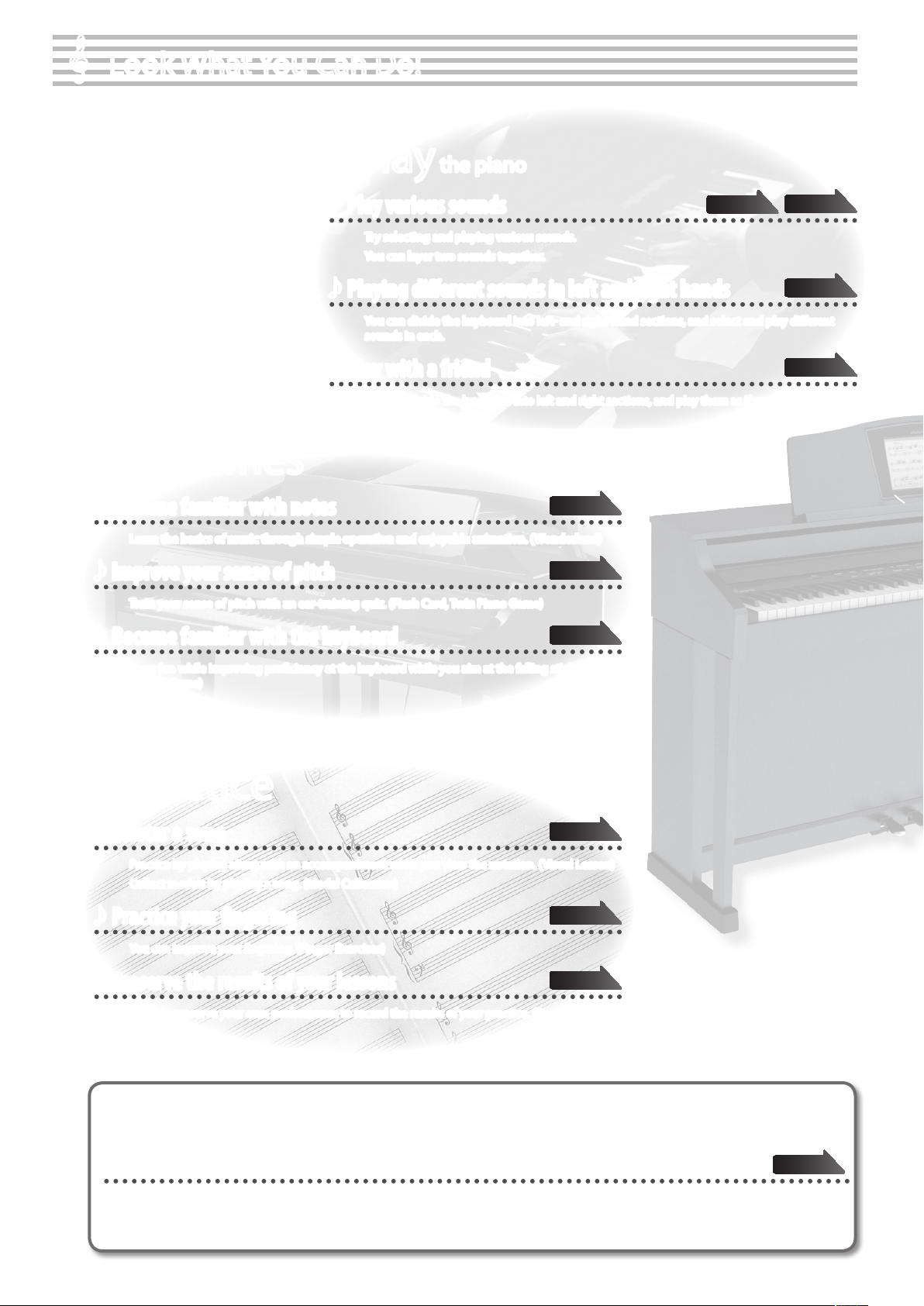
Play the piano
Play various sounds
Try selecting and playing various sounds.
You can layer two sounds together.
Playing dierent sounds in left and right hands
You can divide the keyboard into left- and right-hand sections, and select and play dierent
sounds in each.
Play with a friend
You can divide the keyboard into left and right sections, and play them as if you were using two
pianos.
Enjoy games
Become familiar with notes
Learn the basics of music through simple operation and enjoyable animation. (Wonderland)
Improve your sense of pitch
Train your sense of pitch with an ear-training quiz. (Flash Card, Twin Piano Game)
Become familiar with the keyboard
page 28
page 28
page 28
page 20
page 21
page 22
page 26
Have fun while improving prociency at the keyboard while you aim at the falling sticks.
º(Scroll Game)
Practice
Master a song
Practice by playing along with an accompaniment while you view the notation. (Visual Lesson)
Collect medals by playing a song. (Medal Collection)
Practice your ngering
You can improve your ngering. (Finger Exercises)
Preserve the results of your lessons
You can preserve your own performance to record the results of your practice. (Recording)
page 29
page 29
page 36
Eco-friendly power conservation
Power will turn o after a certain time has elapsed
The power will turn o automatically 30 minutes after you stop playing or operating the instrument.
* If you don’t want the power to turn o automatically, you can make that setting in “Auto O” (p. 52).
2
page 52
Page 3
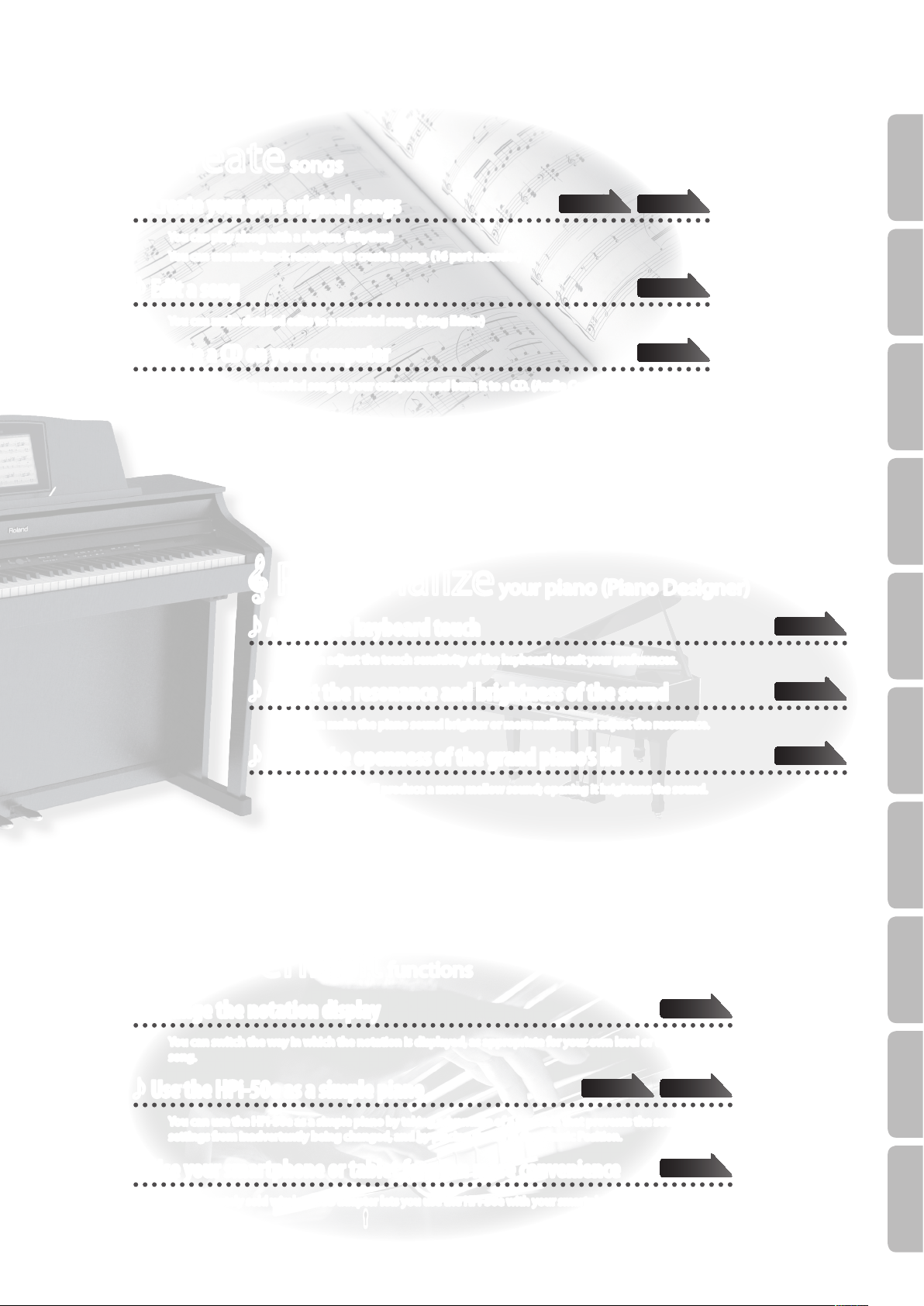
Create songs
Operation Guide Before You Play Performing Lessons Practicing Recording Piano Designer
Create your own original songs
You can play along with a rhythm. (Rhythm)
You can use multi-track recording to create a song. (16 part recorder)
Edit a song
You can make detailed edits to a recorded song. (Song Editor)
Create a CD on your computer
You can copy the recorded song to your computer and burn it to a CD. (Audio Conversion)
Personalize your piano (Piano Designer)
Adjust the keyboard touch
page 42
page 43
page 44
page 41
page 48
You can adjust the touch sensitivity of the keyboard to suit your preferences.
Adjust the resonance and brightness of the sound
You can make the piano sound brighter or more mellow, and adjust the resonance.
Adjust the openness of the grand piano’s lid
Closing the lid will produce a more mellow sound; opening it brightens the sound.
Convenient functions
Change the notation display
You can switch the way in which the notation is displayed, as appropriate for your own level or the type of
song.
Use the HPi-50e as a simple piano
page 13
page 48
page 48
page 14
Settings
page 18
You can use the HPi-50e as a simple piano by taking advantage of a function that prevents the sounds or
settings from inadvertently being changed, and by placing the lid in the Classic Position.
Use your smartphone or tablet for even more convenience
The separately sold wireless USB adapter lets you use the HPi-50e with your smartphone or tablet.
page 59
AppendixFunctions
3
Page 4

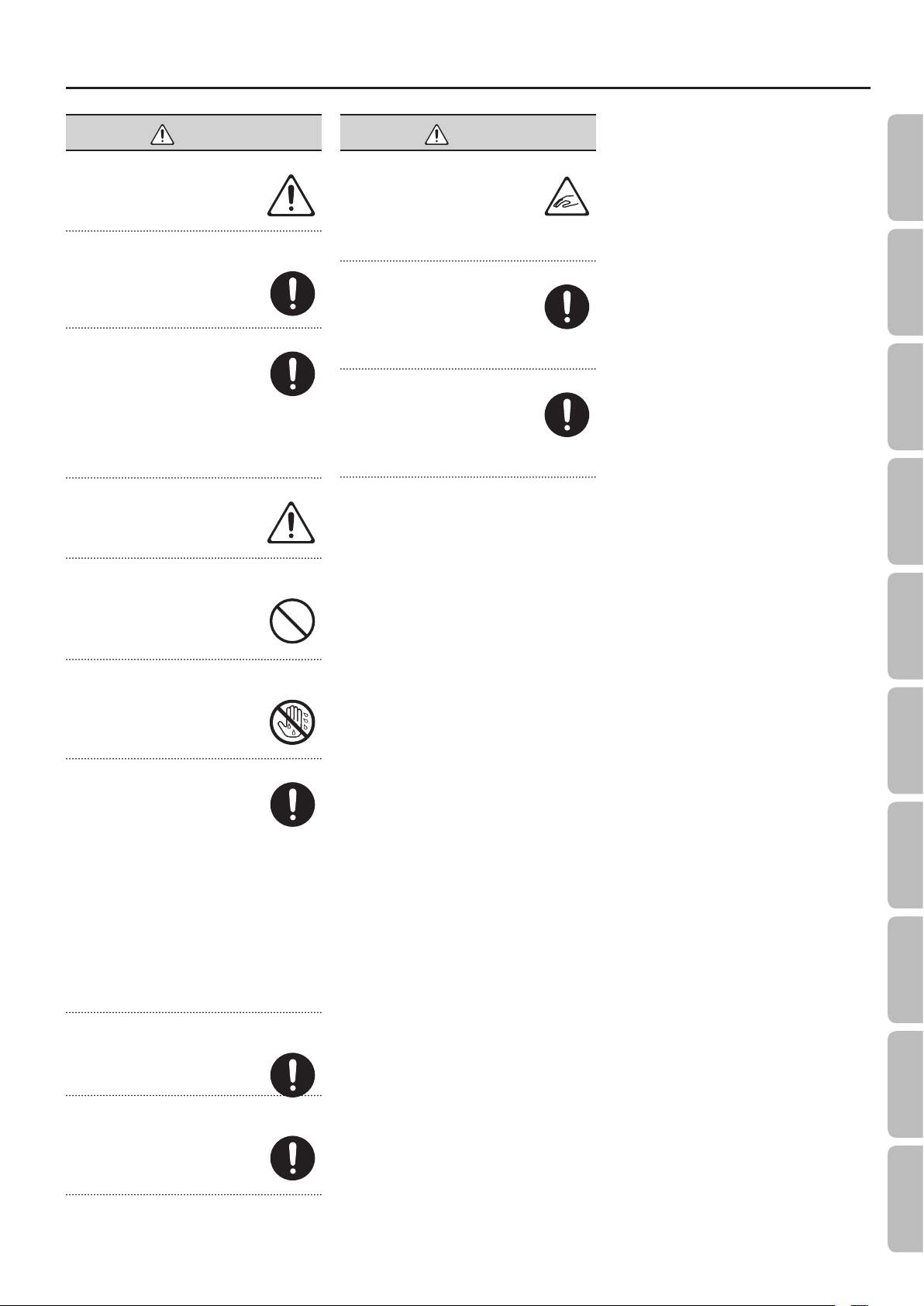
USING THE UNIT SAFELY
About WARNING and CAUTION Notices
Used for instructions intended to alert the
user to the risk of death or severe injury
should the unit be used improperly.
Used for instructions intended to alert the
user to the risk of injury or material
damage should the unit be used
improperly.
* Material damage refers to damage or
other adverse effects caused with
respect to the home and all its
furnishings, as well to domestic animals
or pets.
ALWAYS OBSERVE THE FOLLOWING
WARNING
Do not disassemble or modify by yourself
Do not open (or modify in any way) the
unit or its AC adaptor.
Do not repair or replace parts by yourself
Do not attempt to repair the unit, or
replace parts within it (except when this
manual provides specic instructions
directing you to do so). Refer all servicing
to your retailer, the nearest Roland Service
Center, or an authorized Roland distributor, as listed on
the “Information” page.
Do not use or store in the following types of locations
• Subject to temperature extremes (e.g.,
direct sunlight in an enclosed vehicle,
near a heating duct, on top of heatgenerating equipment); or are
• Damp (e.g., baths, washrooms, on wet
oors); or are
• Exposed to steam or smoke; or are
• Subject to salt exposure; or are
• Humid; or are
• Exposed to rain; or are
• Dusty or sandy; or are
• Subject to high levels of vibration and shakiness.
Do not place in an unstable location
Make sure you always have the unit
placed so it is level and sure to remain
stable. Never place it on stands that could
wobble, or on inclined surfaces.
Use only the supplied AC adaptor and the correct
voltage
Be sure to use only the AC adaptor
supplied with the unit. Also, make
sure the line voltage at the installation
matches the input voltage specied on
the AC adaptor’s body. Other AC adaptors
may use a dierent polarity, or be designed for a
dierent voltage, so their use could result in damage,
malfunction, or electric shock.
Use only the supplied power cord
Use only the attached power-supply cord.
Also, the supplied power cord must not
be used with any other device.
Do not bend the power cord or place heavy objects on
it
Do not excessively twist or bend the
power cord, nor place heavy objects
on it. Doing so can damage the cord,
producing severed elements and short
circuits. Damaged cords are re and shock
hazards!
Avoid extended use at high volume
This unit, either alone or in combination
with an amplier and headphones or
speakers, may be capable of producing
sound levels that could cause permanent
hearing loss. Do not operate for a long
period of time at a high volume level, or at a level that
is uncomfortable. If you experience any hearing loss or
ringing in the ears, you should immediately stop using
the unit, and consult an audiologist.
Don’t allow foreign objects or liquids to enter unit;
never place containers with liquid on unit
Do not place containers containing liquid
(e.g., ower vases) on this product. Never
allow foreign objects (e.g., ammable
objects, coins, wires) or liquids (e.g., water
or juice) to enter this product. Doing so
may cause short circuits, faulty operation,
or other malfunctions.
Turn o the unit if an abnormality or malfunction
occurs
Immediately turn the unit o, remove the
AC adaptor from the outlet, and request
servicing by your retailer, the nearest
Roland Service Center, or an authorized
Roland distributor, as listed on the “Information” page
when:
• The AC adaptor, the power-supply cord, or the plug
has been damaged; or
• If smoke or unusual odor occurs; or
• Objects have fallen into, or liquid has been spilled
onto the unit; or
• The unit has been exposed to rain (or otherwise has
become wet); or
• The unit does not appear to operate normally or
exhibits a marked change in performance.
About the Symbols
The symbol alerts the user to important instructions or
warnings.The specific meaning of the symbol is
determined by the design contained within the triangle. In
the case of the symbol at left, it is used for general
cautions, warnings, or alerts to danger.
The symbol alerts the user to items that must never be
carried out (are forbidden). The specific thing that must
not be done is indicated by the design contained within
the circle. In the case of the symbol at left, it means that
the unit must never be disassembled.
The symbol alerts the user to things that must be
carried out. The specific thing that must be done is
indicated by the design contained within the circle. In the
case of the symbol at left, it means that the power-cord
plug must be unplugged from the outlet.
WARNING
WARNING
Adults must provide supervision in places where
children are present
When using the unit in locations where
children are present, be careful so no
mishandling of the unit can take place.
An adult should always be on hand to
provide supervision and guidance.
Do not drop or subject to strong impact
Protect the unit from strong impact.
(Do not drop it!)
Do not share an outlet with an unreasonable number
of other devices
Do not force the unit’s power-supply cord
to share an outlet with an unreasonable
number of other devices. Be especially
careful when using extension cords—the
total power used by all devices you
have connected to the extension cord’s outlet must
never exceed the power rating (watts/amperes) for
the extension cord. Excessive loads can cause the
insulation on the cord to heat up and eventually melt
through.
Do not use overseas
Before using the unit in overseas, consult
with your retailer, the nearest Roland
Service Center, or an authorized Roland
distributor, as listed on the “Information”
page.
4
Page 5
CAUTION
Place in a well ventilated location
The unit and the AC adaptor should
be located so their location or position
does not interfere with their proper
ventilation.
When disconnecting an AC adaptor, grasp it by the
plug
To prevent conductor damage, always
grasp the AC adaptor by its plug when
disconnecting it from this unit or from a
power outlet.
Periodically clean the AC adaptor’s plug
At regular intervals, you should unplug
the AC adaptor and clean it by using
a dry cloth to wipe all dust and other
accumulations away from its prongs.
Also, disconnect the power plug from the
power outlet whenever the unit is to remain unused
for an extended period of time. Any accumulation of
dust between the power plug and the power outlet
can result in poor insulation and lead to re.
Manage cables for safety
Try to prevent cords and cables from
becoming entangled. Also, all cords and
cables should be placed so they are out
of the reach of children.
Avoid climbing on top of the unit, or placing heavy
objects on it
Never climb on top of, nor place heavy
objects on the unit.
USING THE UNIT SAFELY
Operation Guide Before You Play Performing Lessons Practicing Recording Piano Designer
CAUTION
Take care so as not to get ngers pinched
When handling the following moving
parts, take care so as not to get ngers,
etc., pinched. An adult should always be
in charge of handling these items.
• Lid (p. 18)
• Pedal (p. 16)
Keep small items out of the reach of children
To prevent accidental ingestion of the
parts listed below, always keep them out
of the reach of small children.
• Included Parts/Removable Parts
Stereo phone plug adaptor (p. 17)
Screws (p. 72)
Handle the ground terminal carefully
If you remove the screw from the ground
terminal, be sure to replace it; don’t leave
it lying around where it could accidently
be swallowed by small children. When
refastening the screw, make that it is
rmly fastened, so it won’t come loose.
Do not connect or disconnect the AC adaptor with wet
hands
Never handle the AC adaptor or its plugs
with wet hands when plugging into, or
unplugging from, an outlet or this unit.
Cautions when moving this unit
If you need to move the instrument, take
note of the precautions listed below. At
least two persons are required to safely lift
and move the unit. It should be handled
carefully, all the while keeping it level.
Make sure to have a rm grip, to protect yourself from
injury and the instrument from damage.
• Check to make sure the screws for stand assembly
securing the unit to the stand have not become
loose. Fasten them again securely whenever you
notice any loosening.
• Disconnect the power cord.
• Disconnect all cords coming from external devices.
• Raise the adjusters on the stand (p. 72).
• Close the lid.
• Remove the music stand.
Unplug the AC adaptor from the outlet before
cleaning
Before cleaning the unit, turn it o and
unplug the AC adaptor from the outlet
(p. 72).
If there is a possibility of lightning strike, disconnect
the AC adaptor from the outlet
Whenever you suspect the possibility of
lightning in your area, disconnect the AC
adaptor from the outlet.
Settings
AppendixFunctions
5
Page 6
IMPORTANT NOTES
Power Supply
• Do not connect this unit to same electrical outlet
that is being used by an electrical appliance that
is controlled by an inverter or a motor (such as a
refrigerator, washing machine, microwave oven, or
air conditioner). Depending on the way in which
the electrical appliance is used, power supply noise
may cause this unit to malfunction or may produce
audible noise. If it is not practical to use a separate
electrical outlet, connect a power supply noise lter
between this unit and the electrical outlet.
• The AC adaptor will begin to generate heat after
long hours of consecutive use. This is normal, and is
not a cause for concern.
• To prevent malfunction and equipment failure,
always make sure to turn o the power on all your
equipment before you make any connections.
• With the factory settings, the HPi-50e will
automatically be switched o 30 minutes after you
stop playing or operating the unit. If you don’t want
the unit to turn o automatically, change the “AUTO
OFF” setting to “OFF” as described on p. 52.
NOTE
The settings you were editing will be lost when the
unit is turned o. If you want to keep your settings,
you must save your settings before turning the unit
o.
Placement
• Using the unit near power ampliers (or other
equipment containing large power transformers)
may induce hum. To alleviate the problem, change
the orientation of this unit; or move it farther away
from the source of interference.
• This device may interfere with radio and television
reception. Do not use this device in the vicinity of
such receivers.
• Noise may be produced if wireless communications
devices, such as cell phones, are operated in the
vicinity of this unit. Such noise could occur when
receiving or initiating a call, or while conversing.
Should you experience such problems, you should
relocate such wireless devices so they are at a greater
distance from this unit, or switch them o.
• Do not expose the unit to direct sunlight, place
it near devices that radiate heat, leave it inside
an enclosed vehicle, or otherwise subject it to
temperature extremes. Also, do not allow lighting
devices that normally are used while their light
source is very close to the unit (such as a piano light),
or powerful spotlights to shine upon the same area
of the unit for extended periods of time. Excessive
heat can deform or discolor the unit.
• When moved from one location to another where
the temperature and/or humidity is very dierent,
water droplets (condensation) may form inside
the unit. Damage or malfunction may result if you
attempt to use the unit in this condition. Therefore,
before using the unit, you must allow it to stand for
several hours, until the condensation has completely
evaporated.
• Do not allow rubber, vinyl, or similar materials to
remain on this unit for long periods of time. Such
objects can discolor or otherwise harmfully aect
the nish.
• Do not allow objects to remain on top of the
keyboard. This can be the cause of malfunction, such
as keys ceasing to produce sound.
• Do not paste stickers, decals, or the like to this
instrument. Peeling such matter o the instrument
may damage the exterior nish.
• Do not place containers or anything else containing
liquid on top of this unit. Also, whenever any liquid
has been spilled on the surface of this unit, be sure
to promptly wipe it away using a soft, dry cloth.
Maintenance
• To clean the unit, use a dry, soft cloth; or one that
is slightly dampened. Try to wipe the entire surface
using an equal amount of strength, moving the cloth
along with the grain of the wood. Rubbing too hard
in the same area can damage the nish.
• Never use benzine, thinners, alcohol or solvents of
any kind, to avoid the possibility of discoloration
and/or deformation.
• The pedals of this unit are made of brass.
Brass eventually darkens as the result of the natural
oxidization process. If the brass becomes tarnished,
polish it using commercially available metal polisher.
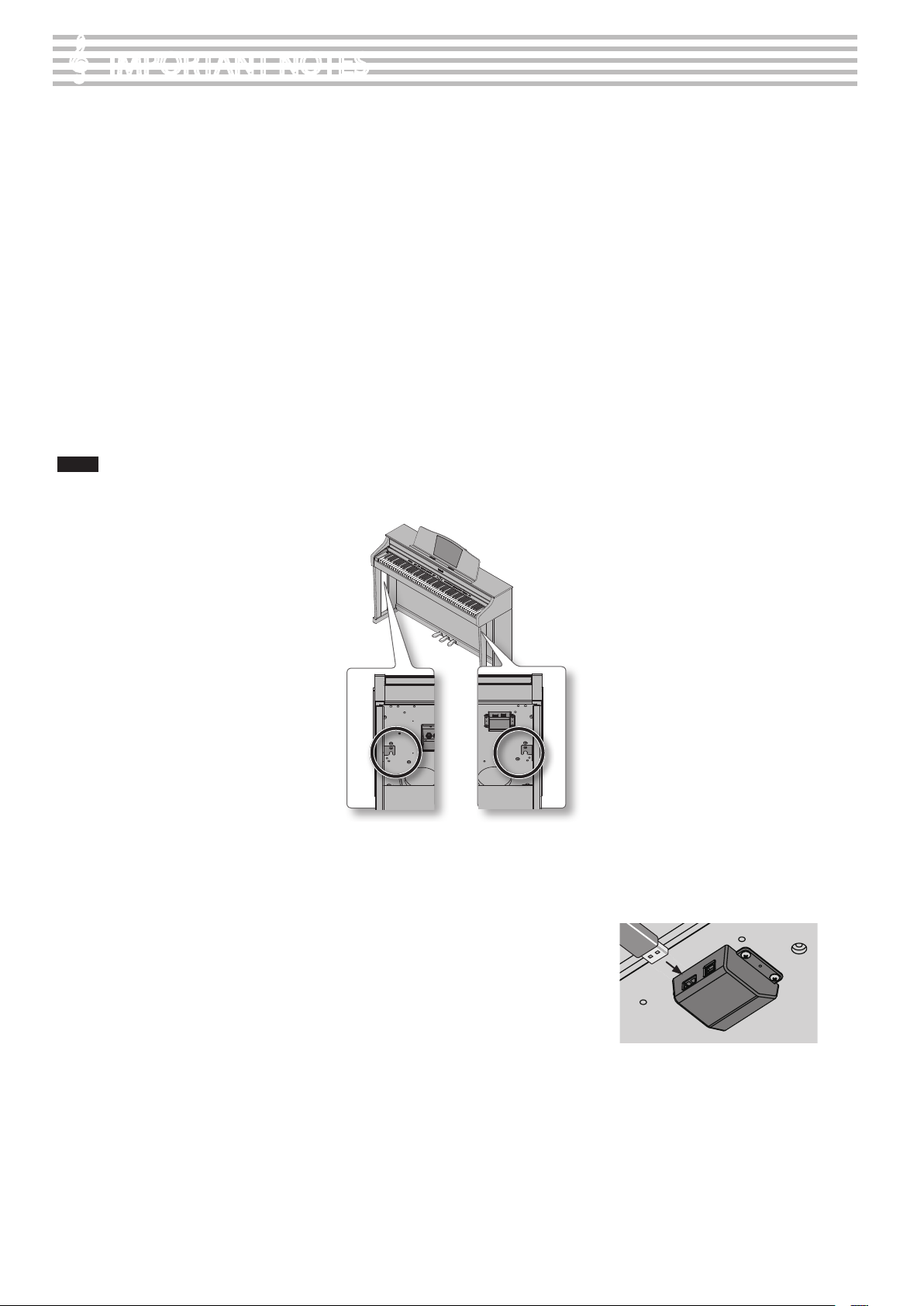
• Since wood will expand and contract depending
on how it is used and the environment in which it is
located, products made of wood may experience a
gradual loosening of the screws over time. To ensure
that your piano remains in safe, optimal condition,
you should regularly check the tightness of the
screws in the locations shown in the illustration. If
you nd that any screws are Loose, use a screwdriver
to tighten them.
Repairs and Data
• Please be aware that all data contained in the
unit’s memory may be lost when the unit is sent for
repairs. Important data should always be backed up
USB ash drives, or written down on paper (when
possible). During repairs, due care is taken to avoid
the loss of data. However, in certain cases (such
as when circuitry related to memory itself is out
of order), we regret that it may not be possible to
restore the data, and Roland assumes no liability
concerning such loss of data.
Additional Precautions
• Please be aware that the contents of memory can
be irretrievably lost as a result of a malfunction,
or the improper operation of the unit. To protect
yourself against the risk of loosing important data,
we recommend that you periodically save a backup
copy of important data you have stored in the unit’s
memory USB ash drives.
• Unfortunately, it may be impossible to restore
the contents of data that was stored in the unit’s
memory, USB ash drives once it has been lost.
Roland Corporation assumes no liability concerning
such loss of data.
• Use a reasonable amount of care when using the
unit’s buttons, sliders, or other controls; and when
using its jacks and connectors. Rough handling can
lead to malfunctions.
• Never strike or apply strong pressure to the display.
• When disconnecting all cables, grasp the connector
itself—never pull on the cable. This way you will
avoid causing shorts, or damage to the cable’s
internal elements.
• To avoid disturbing others nearby, try to keep the
unit’s volume at reasonable levels. You may prefer
to use headphones, so you do not need to be
concerned about those around you.
• The sound of keys being struck and vibrations
produced by playing an instrument can be
transmitted through a oor or wall to an unexpected
extent. Please take care not to cause annoyance to
others nearby.
• When you need to transport the unit, package it
in the box (including padding) that it came in, if
possible. Otherwise, you will need to use equivalent
packaging materials.
• Do not apply undue force to the music stand while
it is in use.
• Some connection cables contain resistors. Do not
use cables that incorporate resistors for connecting
to this unit. The use of such cables can cause the
sound level to be extremely low, or impossible to
hear. For information on cable specications, contact
the manufacturer of the cable.
• Before opening or closing the keyboard lid, always
make sure that no pets or other small animals are
located on top of the instrument (in particular, they
should be kept away from the keyboard and its
lid). Otherwise, due to the structural design of this
instrument, small pets or other animals could end
up getting trapped inside it. If such a situation is
encountered, you must immediately turn o the unit
and disconnect the power cord from the outlet. You
should then consult with the retailer from whom the
instrument was purchased, or contact the nearest
Roland Service Center.
• When opening or closing the lid or operating the
pedals, please be careful not to get your ngers
pinched between the movable part and the panel. In
places where small children are present, make sure
that an adult provides supervision and guidance.
Before Using External Memories
Using External Memories
• Carefully insert the USB ash drives all the way in—
until it is rmly in place.
• Never touch the terminals of the USB ash drives.
Also, avoid getting the terminals dirty.
6
Page 7

IMPORTANT NOTES
• USB ash drives are constructed using precision
components; handle the memories carefully, paying
particular note to the following.
• To prevent damage to the cards from static
electricity, be sure to discharge any static
electricity from your own body before
handling the cards.
• Do not touch or allow metal to come into
contact with the contact portion of the
cards.
• Do not bend, drop, or subject cards to
strong shock or vibration.
• Do not keep cards in direct sunlight, in
closed vehicles, or other such locations.
• Do not allow cards to become wet.
• Do not disassemble or modify the cards.
Note regarding display of musical
notation
• When you start song playback, performance data
will be read from Favorites or from a USB ash drive.
It may take several tens of seconds for the data to be
read. Please wait for this to take place.
• The displayed musical notation is generated based
on the music data.
Priority is given to visual clarity rather than to the
precision needed for complex or sophisticated
performance.
For this reason, the displayed musical notation
may dier from commercially available notation. In
particular, the displayed notation is not suitable for
sophisticated or complex songs that require detailed
notation.
• In some cases, the lyrics or notes may fall outside the
displayed area, and might not be visible.
• Musical notation cannot be displayed for audio les
or songs from a music CD.
• In some cases, the song may play back again from
the beginning if you display the musical notation or
change the displayed tracks.
• Copyright law prohibits the unauthorized use of
this musical notation for any purpose other than
personal enjoyment.
• Unauthorized use of the exported notation data for
purposes other than personal enjoyment without
permission from the copyright holder is forbidden
by law.
• MMP (Moore Microprocessor Portfolio) refers to a
patent portfolio concerned with microprocessor
architecture, which was developed by Technology
Properties Limited (TPL). Roland has licensed this
technology from the TPL Group.
• XGlite (
of Yamaha Corporation.
• Microsoft product screen shot(s) reprinted with
permission from Microsoft Corporation.
• Roland, GS, SuperNATURAL, DigiScore are either
registered trademarks or trademarks of Roland
Corporation in the United States and/or other
countries.
• Company names and product names appearing
in this document are registered trademarks or
trademarks of their respective owners.
• Microsoft, Windows, Windows Vista, and DirectX
are either registered trademarks or trademarks of
Microsoft Corporation.
• Mac OS and iTunes are either registered trademarks
or trademarks of Apple Inc.
• The notation display in “Notation (Large, with note
names)” (p. 14) is based on E-Z Play ® Today Music
Notation from Hal Leonard Corporation USA.
E-Z Play ® Today Music Notation © 1975 by HAL
LEONARD CORPORATION
E-Z PLAY and EASY ELECTRONIC KEYBOARD
MUSIC are registered trademarks of HAL LEONARD
CORPORATION
) is a registered trademark or a trademark
Operation Guide Before You Play Performing Lessons Practicing Recording Piano Designer
Intellectual Property Right
• It is forbidden by law to make an audio recording,
video recording, copy or revision of a third party’s
copyrighted work (musical work, video work,
broadcast, live performance, or other work), whether
in whole or in part, and distribute, sell, lease,
perform, or broadcast it without the permission of
the copyright owner.
• Do not use this product for purposes that could
infringe on a copyright held by a third party. We
assume no responsibility whatsoever with regard to
any infringements of third-party copyrights arising
through your use of this product.
• The copyright of content in this product (the sound
waveform data, style data, accompaniment patterns,
phrase data, audio loops and image data) is reserved
by Roland Corporation.
• Purchasers of this product are permitted to utilize
said content for the creating, performing, recording
and distributing original musical works.
• Purchasers of this product are NOT permitted to
extract said content in original or modied form, for
the purpose of distributing recorded medium of said
content or making them available on a computer
network.
• You cannot save song data that is copyrighted.
Settings
AppendixFunctions
7
Page 8

Contents
Look What You Can Do! . . . . . . . . . . . . . . . . . . . . . . . . . . . . . .2
USING THE UNIT SAFELY . . . . . . . . . . . . . . . . . . . . . . . . . . . . . 4
IMPORTANT NOTES . . . . . . . . . . . . . . . . . . . . . . . . . . . . . . . . . .6
Operation Guide . . . . . . . . . . . . . . . . . . . . . . . . . . . . . . . . . . .10
Storing Your Settings (memory backup) . . . . . . . . . . . . . . . 12
Main Screens . . . . . . . . . . . . . . . . . . . . . . . . . . . . . . . . . . . . . . .14
Panel Descriptions . . . . . . . . . . . . . . . . . . . . . . . . . . . . . . . . .16
Before You Play . . . . . . . . . . . . . . . . . . . . . . . . . . . . . . . . . . . . .18
Opening/Closing the Lid . . . . . . . . . . . . . . . . . . . . . . . . . . . . .18
Using the Music Holders . . . . . . . . . . . . . . . . . . . . . . . . . . . . . . 18
Turning the Power On/O . . . . . . . . . . . . . . . . . . . . . . . . . . . . 19
Performing. . . . . . . . . . . . . . . . . . . . . . . . . . . . . . . . . . . . . . . . .20
Performing with Various Sounds . . . . . . . . . . . . . . . . . . . . . . 20
Switching Tones . . . . . . . . . . . . . . . . . . . . . . . . . . . . . . . . . . . . . . .20
Performing with Two Layered Tones (Dual Play) . . . . . . . .21
Playing Dierent Tones with the Right and Left
Hands (Split Play) . . . . . . . . . . . . . . . . . . . . . . . . . . . . . . . . . . . . .22
Adjusting the Sound to Your Taste . . . . . . . . . . . . . . . . . . . . 24
Adding Reverberation to the Sound (Ambience)/
Adjusting the Brightness of the Sound (Brilliance) . . . . . .24
Adjusting the Keyboard Response (Key Touch) . . . . . . . . .25
Dividing the Keyboard for Two-Person Performance
(Twin Piano) . . . . . . . . . . . . . . . . . . . . . . . . . . . . . . . . . . . . . . . . . . 26
Shifting the Pitch (Transpose) . . . . . . . . . . . . . . . . . . . . . . . . . 27
Lessons . . . . . . . . . . . . . . . . . . . . . . . . . . . . . . . . . . . . . . . . . . . .28
Playing Games . . . . . . . . . . . . . . . . . . . . . . . . . . . . . . . . . . . . . . . 28
Practicing with DigiScore . . . . . . . . . . . . . . . . . . . . . . . . . . . . .29
Practicing . . . . . . . . . . . . . . . . . . . . . . . . . . . . . . . . . . . . . . . . . .30
Practicing with the Metronome . . . . . . . . . . . . . . . . . . . . . . . 30
Changing the Tempo . . . . . . . . . . . . . . . . . . . . . . . . . . . . . . . . . .30
Practicing with a Song . . . . . . . . . . . . . . . . . . . . . . . . . . . . . . . . 31
Selecting and Playing a Song . . . . . . . . . . . . . . . . . . . . . . . . . .31
Adding a Count-in to Synchronize Your Performance . . .32
Storing a Song in Favorites . . . . . . . . . . . . . . . . . . . . . . . . . . . .32
Playing Songs Consecutively (All Songs Play) . . . . . . . . . . .32
Adjusting the Volume Balance of the Song and the
Keyboard Performance (Song Balance) . . . . . . . . . . . . . . . . .33
Adjusting a Song’s Tempo for Easier Practicing . . . . . . . . .33
Practicing One Hand at a Time (Part Mute) . . . . . . . . . . . . .34
Repeatedly Practicing a Portion of a Song (AB Repeat) . .35
Recording . . . . . . . . . . . . . . . . . . . . . . . . . . . . . . . . . . . . . . . . . .36
Getting Ready to Record . . . . . . . . . . . . . . . . . . . . . . . . . . . . . . 36
Making a New SMF Recording . . . . . . . . . . . . . . . . . . . . . . . . 37
Saving a Song . . . . . . . . . . . . . . . . . . . . . . . . . . . . . . . . . . . . . . . . .38
Overdubbing a Recorded Song . . . . . . . . . . . . . . . . . . . . . . . 39
Making a New Audio Recording . . . . . . . . . . . . . . . . . . . . . . . 40
Audio Recording a Performance with SMF
Accompaniment . . . . . . . . . . . . . . . . . . . . . . . . . . . . . . . . . . . . . .40
Using an Audio File without Melody (Center Cancel) . . . 40
Burning an Audio Recording of a Song (WAV le) to a
CD . . . . . . . . . . . . . . . . . . . . . . . . . . . . . . . . . . . . . . . . . . . . . . . . . . . .41
Creating a Song . . . . . . . . . . . . . . . . . . . . . . . . . . . . . . . . . . . .42
Play Along with Rhythms . . . . . . . . . . . . . . . . . . . . . . . . . . . . .42
Editing the Rhythm Performance and Automatic
Accompaniment Settings . . . . . . . . . . . . . . . . . . . . . . . . . . . . .42
Recording the Rhythm Performance and Automatic
Accompaniment . . . . . . . . . . . . . . . . . . . . . . . . . . . . . . . . . . . . . .
42
Recording with 16 Parts . . . . . . . . . . . . . . . . . . . . . . . . . . . . . . 43
About the 16 part recorder Screen . . . . . . . . . . . . . . . . . . . . .43
Editing the Part Settings . . . . . . . . . . . . . . . . . . . . . . . . . . . . . . .44
Recording Each Part . . . . . . . . . . . . . . . . . . . . . . . . . . . . . . . . . . .44
Saving Your Multitrack Recording . . . . . . . . . . . . . . . . . . . . . .44
Editing a Song . . . . . . . . . . . . . . . . . . . . . . . . . . . . . . . . . . . . . . .44
Copying Measures (Copy) . . . . . . . . . . . . . . . . . . . . . . . . . . . . .44
Inserting Blank Measures (Insert) . . . . . . . . . . . . . . . . . . . . . .44
Deleting Measures (Delete) . . . . . . . . . . . . . . . . . . . . . . . . . . . .45
Erasing Measures (Erase) . . . . . . . . . . . . . . . . . . . . . . . . . . . . . .45
Exchanging Parts (Part Exchange) . . . . . . . . . . . . . . . . . . . . . .45
Tightening Up the Note Timing (Quantize) . . . . . . . . . . . . .45
Transposing an Entire Part (Transpose) . . . . . . . . . . . . . . . . .45
Editing Individual Notes (Note Edit) . . . . . . . . . . . . . . . . . . . .45
Editing Tone Changes During the Song (PC Edit) . . . . . . .45
Cancelling an Edit (Undo) . . . . . . . . . . . . . . . . . . . . . . . . . . . . .46
Saving a Song You’ve Edited by Note or Measure . . . . . . .46
Inserting Notation Marks . . . . . . . . . . . . . . . . . . . . . . . . . . . . . 46
Deleting a Notation Mark . . . . . . . . . . . . . . . . . . . . . . . . . . . . . .46
Saving a Song After Editing Its Notation Marks . . . . . . . . .46
Editing the Key Signature . . . . . . . . . . . . . . . . . . . . . . . . . . . . . 46
Editing the Time Signature (Beat Map) . . . . . . . . . . . . . . . .46
Editing the Tempo . . . . . . . . . . . . . . . . . . . . . . . . . . . . . . . . . . . . 47
Recording Tempo Data (Tempo Recording) . . . . . . . . . . . . 47
Converting an SMF Song to Audio (WAV File) . . . . . . . . . . 47
Personalizing Your Piano Sound (Piano Designer) . . . .48
Making Detailed Adjustments to the Piano Sound . . . . . 48
Convenient Functions . . . . . . . . . . . . . . . . . . . . . . . . . . . . . .50
Changing the Notation Screen Settings . . . . . . . . . . . . . . . 50
Changing the Screen Display and Lesson Grading
Standard (Resolution) . . . . . . . . . . . . . . . . . . . . . . . . . . . . . . . . 50
Changing the Number of Measures Displayed . . . . . . . . . 50
Saving Notation Data in BMP Format . . . . . . . . . . . . . . . . . . 50
Saving Tone and Rhythm Settings . . . . . . . . . . . . . . . . . . . . . 51
Writing a User Program . . . . . . . . . . . . . . . . . . . . . . . . . . . . . . . .51
Calling Up a User Program . . . . . . . . . . . . . . . . . . . . . . . . . . . . .51
Managing User Programs . . . . . . . . . . . . . . . . . . . . . . . . . . . . . .52
Making the Power Automatically Turn O After a
Time ( Auto O ) . . . . . . . . . . . . . . . . . . . . . . . . . . . . . . . . . . . . . . 52
Loading/Saving Piano Setups . . . . . . . . . . . . . . . . . . . . . . . . . 53
Loading a Piano Setup . . . . . . . . . . . . . . . . . . . . . . . . . . . . . . . .53
Saving a Piano Setup . . . . . . . . . . . . . . . . . . . . . . . . . . . . . . . . . .53
8
Page 9
Contents
1
2
Various Settings . . . . . . . . . . . . . . . . . . . . . . . . . . . . . . . . . . . .54
Basic Operations in the Function Screen. . . . . . . . . . . . . . .54
Applying a Headphones 3D Ambience Eect to the
Piano Sound . . . . . . . . . . . . . . . . . . . . . . . . . . . . . . . . . . . . . . . . . .54
Matching the Pitch with Other Instruments . . . . . . . . . . . .54
Changing the Tuning Method . . . . . . . . . . . . . . . . . . . . . . . . .54
Specifying a Song’s Tonic . . . . . . . . . . . . . . . . . . . . . . . . . . . . . .54
Turning On/O the Display . . . . . . . . . . . . . . . . . . . . . . . . . . . .54
Adjusting the Display’s Brightness . . . . . . . . . . . . . . . . . . . . .54
Adjusting the Volume of an Audio Playback Device . . . . .54
Playing Back an Audio File with Its Central Sound
Minimized . . . . . . . . . . . . . . . . . . . . . . . . . . . . . . . . . . . . . . . . . . . .55
Transposing an Audio File (Audio Transpose) . . . . . . . . . . .55
Changing the Pitch of the Tone in Octave Steps . . . . . . . .55
Selecting the Format for Recording . . . . . . . . . . . . . . . . . . . .55
Choosing the Recording Method for Overdub-
Recording . . . . . . . . . . . . . . . . . . . . . . . . . . . . . . . . . . . . . . . . . . . .55
Copying a Saved Song . . . . . . . . . . . . . . . . . . . . . . . . . . . . . . . .55
Deleting a Saved Song . . . . . . . . . . . . . . . . . . . . . . . . . . . . . . . .55
Initializing the Memory . . . . . . . . . . . . . . . . . . . . . . . . . . . . . . . .55
Changing How the Pedal Eects Are Applied . . . . . . . . . . .55
Changing How the Pedals Work (Center Pedal) . . . . . . . . .56
Changing How the Pedals Work (Left Pedal) . . . . . . . . . . . .56
Using a Pedal to Switch User Programs . . . . . . . . . . . . . . . .56
Loading/Saving Piano Setups . . . . . . . . . . . . . . . . . . . . . . . . . .57
Preventing Doubled Notes When Connected to a
Sequencer . . . . . . . . . . . . . . . . . . . . . . . . . . . . . . . . . . . . . . . . . . . .57
MIDI Transmit Channel Settings . . . . . . . . . . . . . . . . . . . . . . . .57
Changing the USB Driver Settings . . . . . . . . . . . . . . . . . . . . .57
Changing the USB Flash Drive Setting . . . . . . . . . . . . . . . . . .57
Controlling Video Equipment . . . . . . . . . . . . . . . . . . . . . . . . . .57
Specifying the Visual Control Channel. . . . . . . . . . . . . . . . . .58
Specifying the Maximum Volume . . . . . . . . . . . . . . . . . . . . . .58
Specifying the Screen Display Language . . . . . . . . . . . . . . .58
Restoring the Factory Settings . . . . . . . . . . . . . . . . . . . . . . . . .58
About the Wireless LAN Function . . . . . . . . . . . . . . . . . . . .59
What Is Wireless LAN Function? . . . . . . . . . . . . . . . . . . . . . . . 59
Basic Connection Method (Connect by WPS) . . . . . . . . . . 59
Wireless LAN Function Settings . . . . . . . . . . . . . . . . . . . . . . .60
Status Indication . . . . . . . . . . . . . . . . . . . . . . . . . . . . . . . . . . . . . .60
Connecting to a Wireless LAN Access Point That You
Select (Select AP) . . . . . . . . . . . . . . . . . . . . . . . . . . . . . . . . . . . . .60
Other Settings (Option) . . . . . . . . . . . . . . . . . . . . . . . . . . . . . . .61
Troubleshooting . . . . . . . . . . . . . . . . . . . . . . . . . . . . . . . . . . .62
Error Messages . . . . . . . . . . . . . . . . . . . . . . . . . . . . . . . . . . . . .64
Tone List . . . . . . . . . . . . . . . . . . . . . . . . . . . . . . . . . . . . . . . . . . .65
Internal Song List . . . . . . . . . . . . . . . . . . . . . . . . . . . . . . . . . . .66
Chord Fingering List . . . . . . . . . . . . . . . . . . . . . . . . . . . . . . . .68
Settings That Can Be Saved . . . . . . . . . . . . . . . . . . . . . . . . .69
Settings That Can Be Saved by Memory Backup . . . . . . .69
Items Saved in a User Program . . . . . . . . . . . . . . . . . . . . . . . . 69
Main Specications . . . . . . . . . . . . . . . . . . . . . . . . . . . . . . . . .70
Assembling . . . . . . . . . . . . . . . . . . . . . . . . . . . . . . . . . . . . . . . .72
Attaching the Music Rest . . . . . . . . . . . . . . . . . . . . . . . . . . . . . 74
Connecting the Display Cable . . . . . . . . . . . . . . . . . . . . . . . .74
About the Ivory Feel Keyboard . . . . . . . . . . . . . . . . . . . . . .75
Index . . . . . . . . . . . . . . . . . . . . . . . . . . . . . . . . . . . . . . . . . . . . . . 76
Operation Guide Before You Play Performing Lessons Practicing Recording Piano Designer
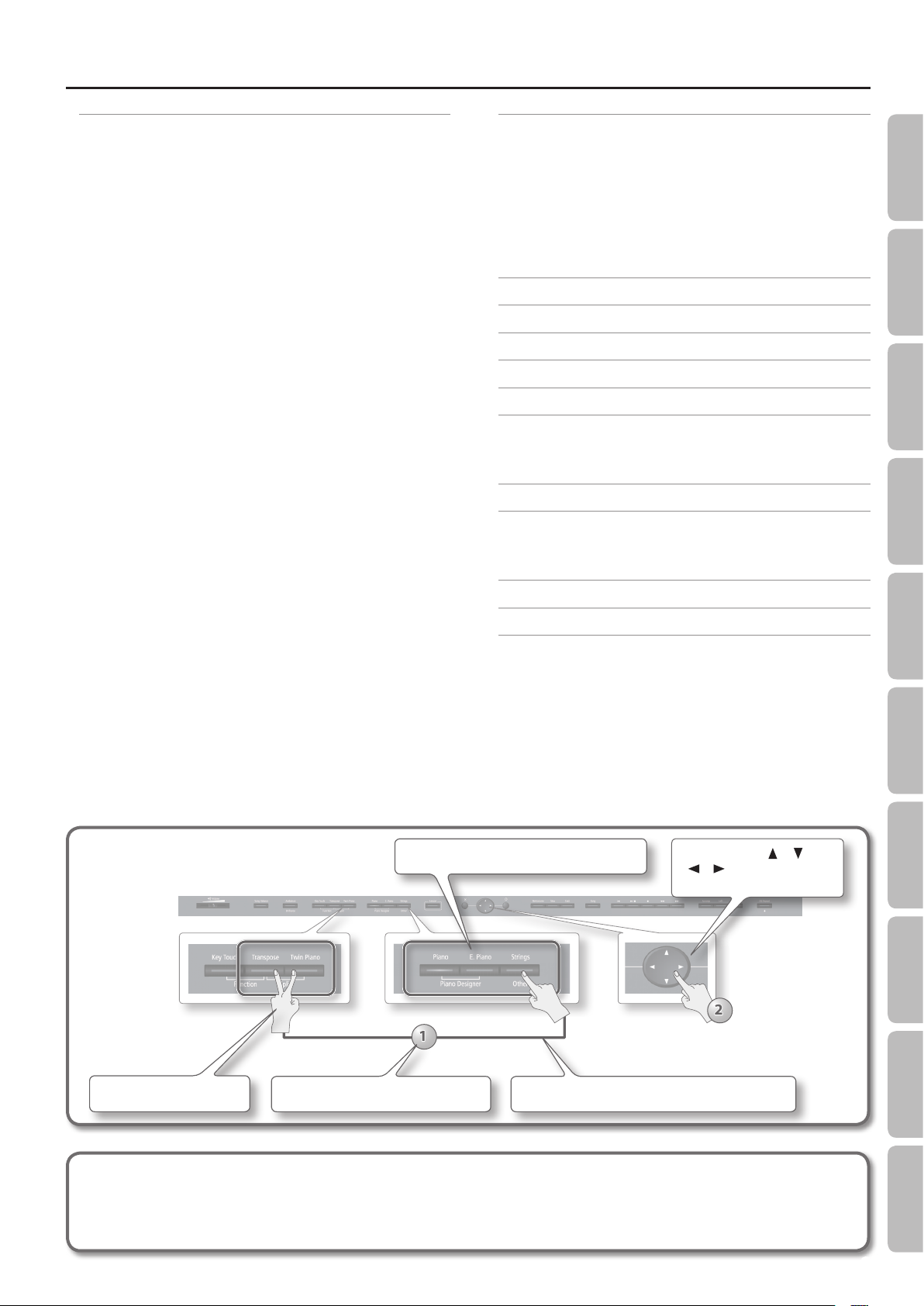
How to read the explanatory illustrations
Press two buttons.
Before using this unit, carefully read the sections entitled “USING THE UNIT SAFELY” (p. 4) and “IMPORTANT NOTES” (p. 6). These sections provide important information
concerning the proper operation of the unit. Additionally, in order to feel assured that you have gained a good grasp of every feature of your new unit, read Owner’s
Manual should be read in its entirety. This manual should be saved and kept on hand as a convenient reference.
Copyright © 2014 ROLAND CORPORATION
All rights reserved. No part of this publication may be reproduced in any form without the written permission of ROLAND CORPORATION.
Numerals indicate the sequence of steps.
Press one of the enclosed buttons.
While holding down a button, press another button.
Use the cursor [ ] [ ]
[ ] [ ] buttons.
Settings
AppendixFunctions
9
Page 10
Operation Guide
Describing this area
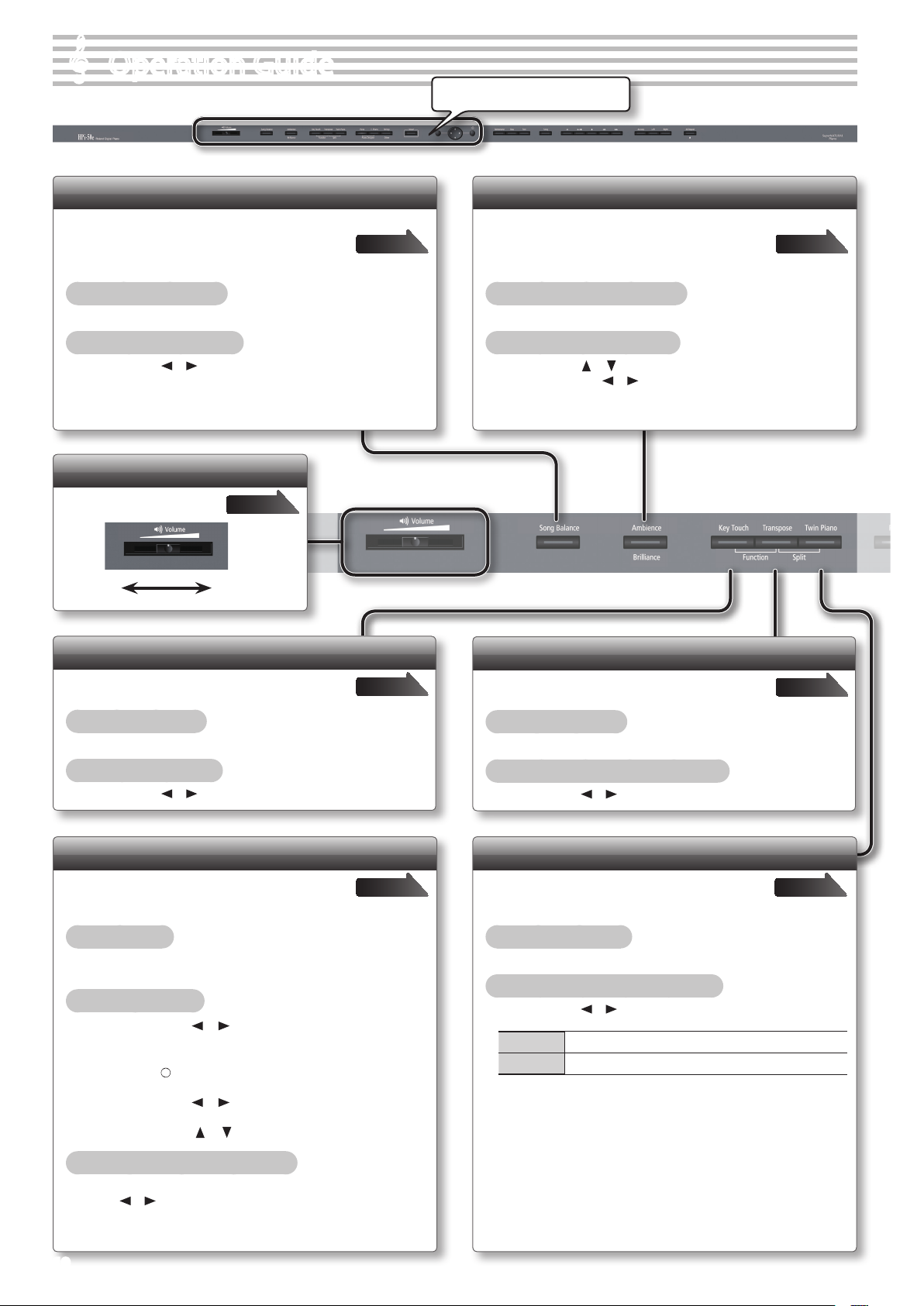
Adjusting the Song Volume (Song Balance)
By modifying the playback volume of the song, you
can adjust the balance between the song and your
keyboard performance.
To turn song balance on
Press the [Song Balance] button so it’s lit.
To adjust the song balance
Use the cursor [ ] [ ] buttons.
Adjusting the Overall Volume
Adjust the sound’s volume
page 19
MaxMin
page 33
Adjusting the Resonance or Brightness (Ambience/Brilliance)
You can adjust the spatial ambiance reminiscent
of a performance in a concert hall, and vary the
brilliance of the sound.
To turn ambience/brilliance on
Press the [Ambience/Brilliance] button so it’s lit.
To adjust ambience/brilliance
Use the cursor [ ] [ ] buttons to select “ambience” or “brilliance,”
and use the cursor [ ] [ ] buttons to adjust the setting.
page 24
Adjusting the Keyboard Touch (Key Touch)
You can adjust the way in which the keyboard
responds to your playing.
To turn key touch on
Press the [Key Touch] button so it’s lit.
To adjust the key touch
Use the cursor [ ] [ ] buttons.
page 25
Playing Dierent Tones with the Right and Left Hands (Split Play)
This function divides the keyboard into left and
right zones, allowing you to play a dierent tone
in each zone.
To turn split on
While holding down the [Transpose] button, press the [Twin Piano]
button.
To change the tones
page 22
1. Use the cursor [ ] [ ] buttons to select the left-hand
or right-hand tone.
2. Press the [ ] button to access the tone select screen.
3. Use the cursor [ ] [ ] buttons to select a category.
Transposing Your Performance (Transpose)
You can transpose your keyboard performance or
the song.
To turn transpose on
Press the [Transpose] button so it’s lit.
To adjust the amount of transposition
Use the cursor [ ] [ ] buttons.
page 27
Dividing the Keyboard for Two-person Performance (Twin Piano)
This function divides the keyboard into left and
right, allowing two people to play the same range
of pitches.
To turn twin piano on
Press the [Twin Piano] button so it’s lit.
To change how the sounds are heard
Use the cursor [ ] [ ] buttons.
Individual Two people using headphones can practice independently.
Pair Two people can practice together.
page 26
4. Use the cursor [ ] [ ] buttons to select a tone.
Changing the keyboard’s split point
In the split screen, select the keyboard illustration, and then use the
cursor [ ] [ ] buttons.
10
Page 11
Operation Guide
Operation Guide Before You Play Performing Lessons Practicing Recording Piano Designer
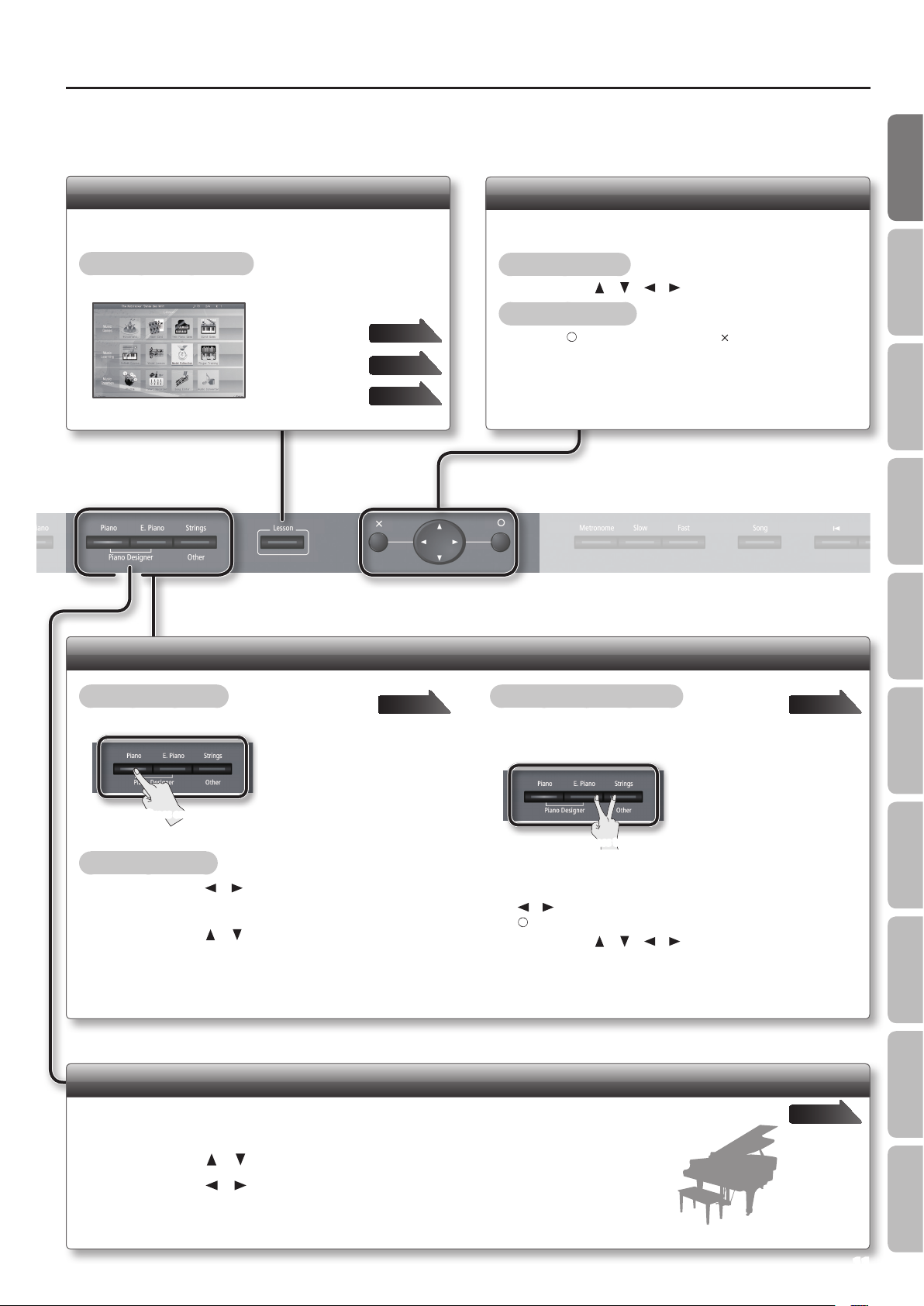
Enjoy Lessons (Lesson Function)
You can play games and practice enjoyably in other ways.
To access the lesson menu
Press the [Lesson] button so it’s lit.
Playing games
Practicing
Creating a song
page 28
page 29
page 42
Selecting an Item in the Screen
To select an item that’s shown in the screen, move the cursor.
To move the cursor
Use the cursor [ ] [ ] [ ] [ ] buttons.
To conrm or cancel
Press the [ ] button to conrm, or the [ ] button to cancel.
Switching Tones
To select a single tone
Press one of the tone buttons.
Press one
To change the tones
page 20 page 21
1. Use the cursor [ ] [ ] buttons to select a tone
category.
2. Use the cursor [ ] [ ] buttons to select a tone.
If you hold down a cursor button, the tone selection will change
successively.
To layer two tones (dual play)
While holding down the [Piano] button or the [E. Piano] button, press
the [Strings/Other] button.
If you want to change the tones for Dual Play, use the cursor
[ ] [ ] buttons to select either tone 1 or tone 2, and press the
[ ] button to access the tone select screen.
Use the cursor [
category and the tone.
* You can’t select tones of the same category for tone 1 and
* Tone 2 can be selected only when using Dual Play.
Customizing Your Piano Sound (Piano Designer)
You can adjust various elements of a grand piano’s sound to create your own personalized piano.
1. While holding down the [Piano] button, press the [E. Piano] button.
2. Use the cursor [ ] [ ] buttons to select the item that you want to edit.
3. Use the cursor [ ] [ ] buttons to edit the value.
* By holding down the [Piano]
button and pressing the [E. Piano]
button, you can access the Piano
Designer screen.
Press two
] [ ] [ ] [ ] buttons to select the tone
tone 2.
Settings
page 48
AppendixFunctions
11
Page 12
Operation Guide
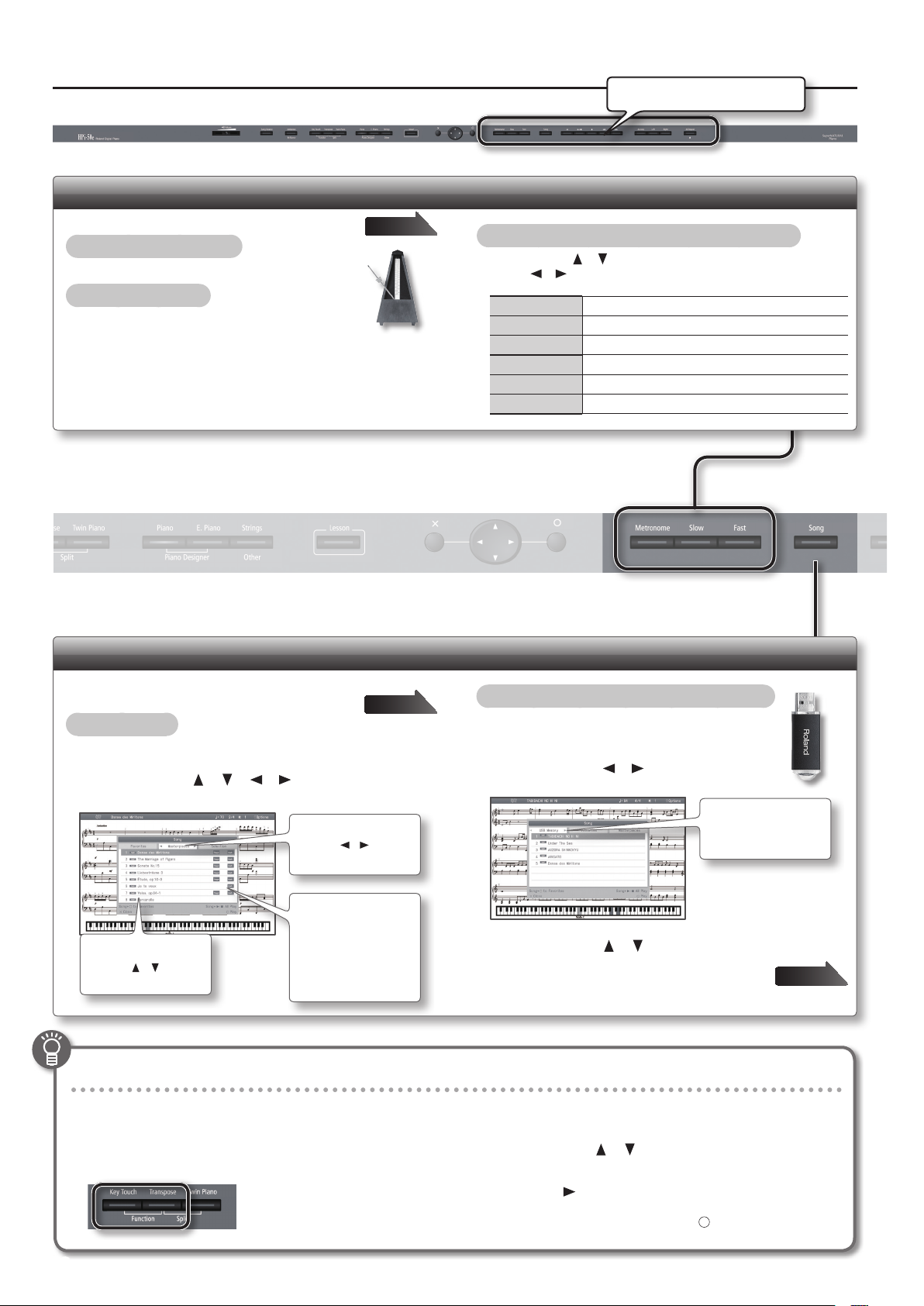
Using the Metronome
Here’s how to sound the metronome.
To turn the metronome on
Press the [Metronome] button so it blinks.
To change the tempo
Press the [Slow] [Fast] button.
page 30
Describing this area
To adjust the metronome volume or time signature
Use the cursor [ ] [ ] buttons to select the item, and use the
cursor [ ] [ ] buttons to specify the desired setting.
Volume Metronome volume
Beat E.g., 2/2 or 4/4
Sound Click tone or an electronic sound
Pattern Species how the weak beats are to be sounded.
Beat Lamp Switches the [Metronome] button’s illumination on/o.
Tempo Mute If this is “On,” playback at a xed tempo.
Selecting a Song
Access the song screen.
To select a song
page 31
1. Press the [Song] button to access the song select screen.
2. Use the cursor [ ] [ ] [ ] [ ] buttons to select the
category and song.
Category
] [ ] cursor
Song list
Use the [
buttons to choose.
] [ ] cursor
Use the [
buttons to select.
Icon
Icons are shown to
indicate the type of
data, and to indicate
whether the song
contains lyrics or
ngering.
To select a song that’s saved on a USB ash drive
1. Press the [Song] button to access the song
select screen.
2. Use the cursor [ ] [ ] buttons to select
“USB Memory.”
Category
Choose “USB Memory.”
3. Use the cursor [ ] [ ] buttons to select a song.
Copying a song from your computer to a USB ash
drive
Storing Your Settings (memory backup)
The HPi-50e allows you to adjust numerous settings, but these settings will return to their default values as soon as you turn o the power.
However, by using the Memory Backup feature, you can have the changes you’ve made in settings be retained.
1. While holding down the [Key Touch] button, press the
[Transpose] button.
2. Use the cursor [ ] [ ] buttons to select “Memory
Backup.”
3. Press the [ ] cursor button.
page 31
12
4. Choose “Execute,” and press the [ ] button.
Page 13
Operation Guide
Operation Guide Before You Play Performing Lessons Practicing Recording Piano Designer
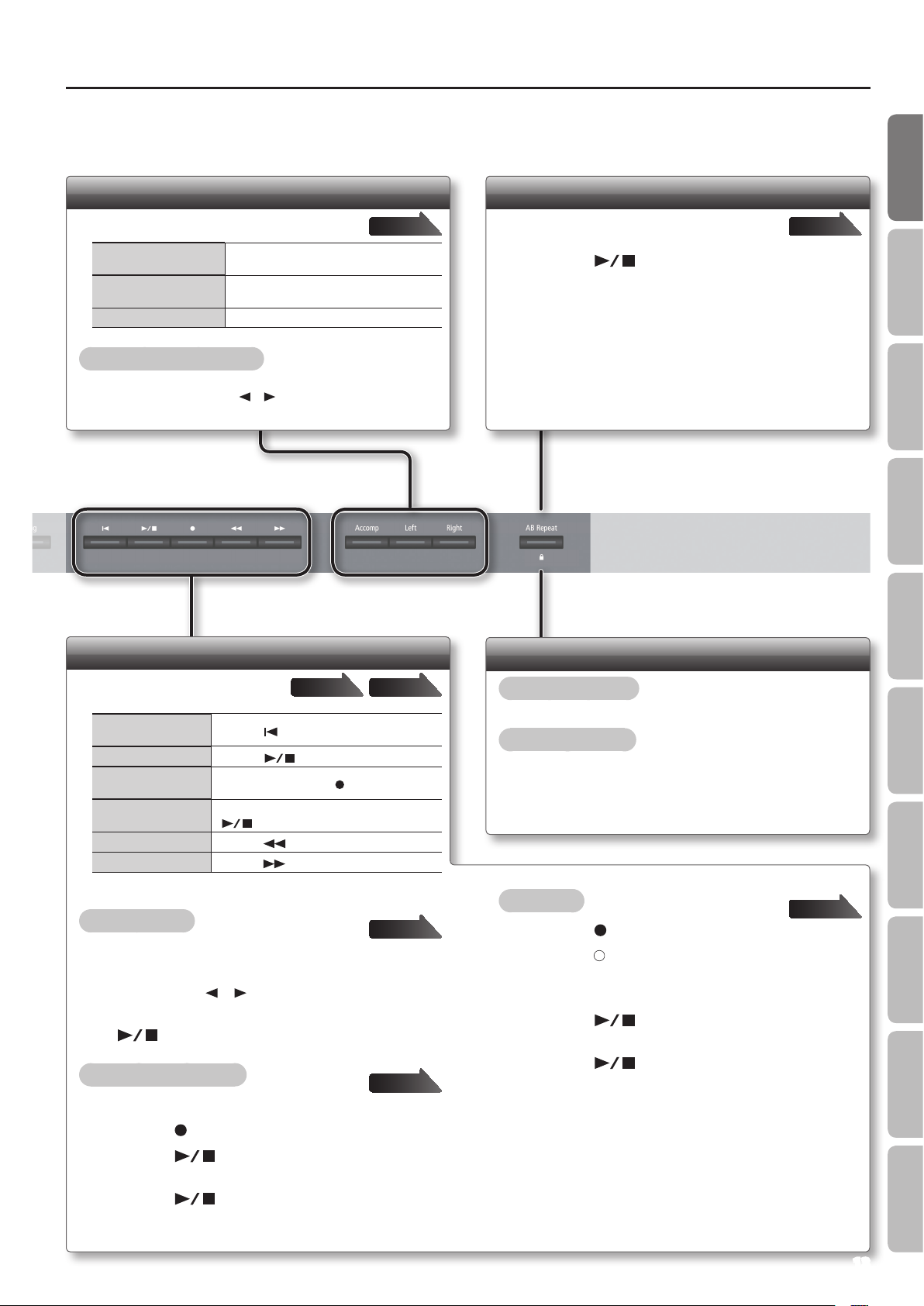
Selecting the Parts That Will Play
Here’s how to select the parts that will play.
To select the right-hand
part
To select the left-hand
part
To select the other parts Press the [Accomp] button so it’s lit.
To change the mute volume
Hold down the button of the part whose volume you want to
change, and use the cursor [ ] [ ] buttons.
Press the [Right] button so it’s lit.
Press the [Left] button so it’s lit.
page 34
Repeatedly Practicing a Portion of a Song (AB Repeat)
Here’s how you can make a specic portion of a
song play back repeatedly.
page 35
1. Press the [ ] (Play/Stop) button to play back the
song.
2. At the beginning of the portion to be repeated, press
the [
AB Repeat
] button.
3. At the end of the portion to be repeated, press the
[AB Repeat] button once again.
Recording/Playback
Here’s how to play back or record a
song.
Return to the beginning of the song
Play/Stop
Enter recordingstandby mode
Record
Rewind
Fast-forward
To play all songs
Press the [
Press the [
While stopped, press the [
While in recording-standby mode, press the
[
] (Play/Stop) button.
Press the [
Press the [
] (Reset) button.
] (Play/Stop) button.
] (Bwd) button.
] (Fwd) button.
page 36page 31
] (Rec) button.
page 32
1. Press the [Song] button to access the song select
screen.
2. Use the cursor [ ] [ ] buttons to select a category.
3. While holding down the [Song] button, press the
[ ] (Play/Stop) button.
To make a new recording
page 37
1. Select the tone that you want to play.
2. Press the [ ] (Rec) button.
3. Press the [ ] (Play/Stop) button to start
recording.
4. Press the [ ] (Play/Stop) button to stop
recording.
Disabling the Buttons (Panel Lock)
To enable panel lock
Hold down the [AB Repeat] button f for several seconds
To cancel panel lock
Hold down the [AB Repeat] button once again for several seconds.
To overdub
page 39
1. Press the [ ] (Rec) button.
2. Press the [ ] button to select overdub recording.
As desired, press the button of the part that you want to record,
making the button blink.
3. Press the [ ] (Play/Stop) button to start
recording.
4. Press the [ ] (Play/Stop) button to stop
recording.
Settings
AppendixFunctions
13
Page 14
Main Screens
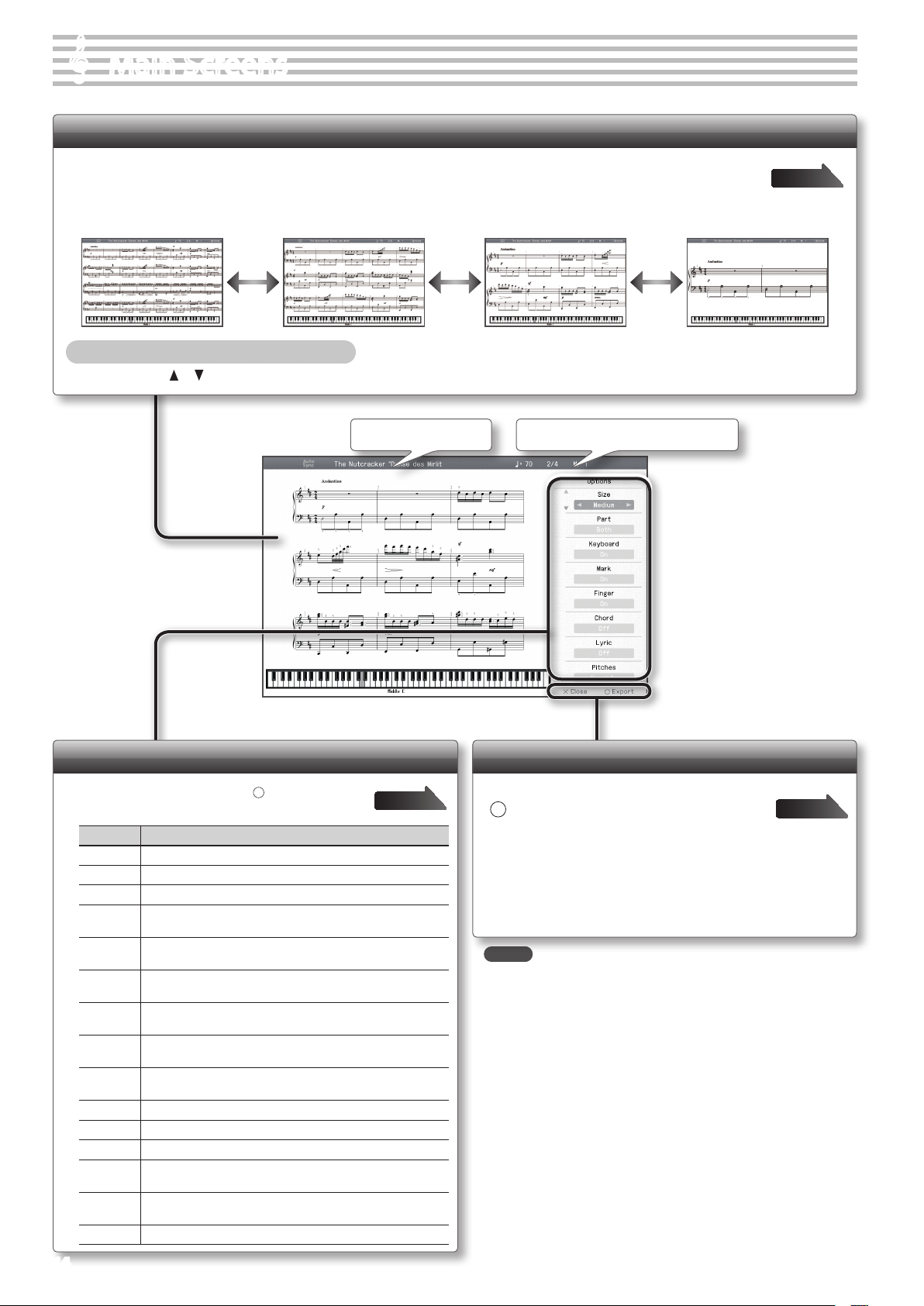
Notation Display Screen
When you turn on the power, the notation display screen will appear. You can view the notation display screen in four sizes: “small,”
“medium,” “large,” or “with note names.” Use the Options screen to specify the desired “Size.”
Small
(32 measures displayed)
Medium (upon power-up)
(15 measures displayed)
Large
(8 measures displayed)
With note names
(2 measures displayed)
Changing the Number of Measures Displayed
Press the cursor [ ] [ ] button
Tempo Time signature Measure numberSong name
page 50
Options screen
In the notation screen, press the [ ] button to access
the option screen for notation.
Item Explanation
Size Species the size of the notation display.
Part Species the part to be shown as notation.
Keyboard If this is “On,” a keyboard is shown below the notation.
Mark
Finger
Chord
Lyric
Pitches
Auto Sync
Key Display the notation in the specied key.
Clef R Species the clef of the notation shown for the right-hand part.
Clef L Species the clef of the notation shown for the left-hand part.
Upper Part
Lower Part
Resolution Changes the screen display and lesson grading standard.
14
If this is “On,” performance marks are shown when you play back
song data that contains performance marks.
If this is “On,” ngering numbers are shown when you play back
song data that contains ngering numbers.
If this is “On,” chord names are shown when you play back song
data that contains chord data.
If this is “On,” lyrics are shown when you play back song data that
contains song lyric data.
Specify how note names are displayed when the notation screen
is expanded.
If this is “On,” the notation will be shown in synchronization with
the performance.
Species the part for which notation will be shown as the upper
part.
Species the part for which notation will be shown as the lower
part.
page 50
Notation menu
[
] button
Writes (exports) the displayed notation in BMP format to a USB ash
drive.
page 50
[ × ] button
Returns to the notation display screen.
MEMO
• Not only the built-in songs but also SMF music data and
performances you’ve recorded on the HPi-50e can be displayed in
the notation screen.
• If you select a part that contains no performance data, no notes
will be shown in the notation. To change the part that’s displayed,
change the “Upper Part” or “Lower Part” setting in the Options
screen.
• The ngering numbers displayed by the HPi-50e are just one
possible example.
• The performance marks displayed by the HPi-50e are just one
possible example, and are not intended to limit the expressivity of
your performances.
* The explanations in this manual include illustrations that depict what
should typically be shown by the display.
Note, however, that your unit may incorporate a newer, enhanced
version of the system (e.g., includes newer sounds), so what you
actually see in the display may not always match what appears in the
manual.
Page 15
Main Screens
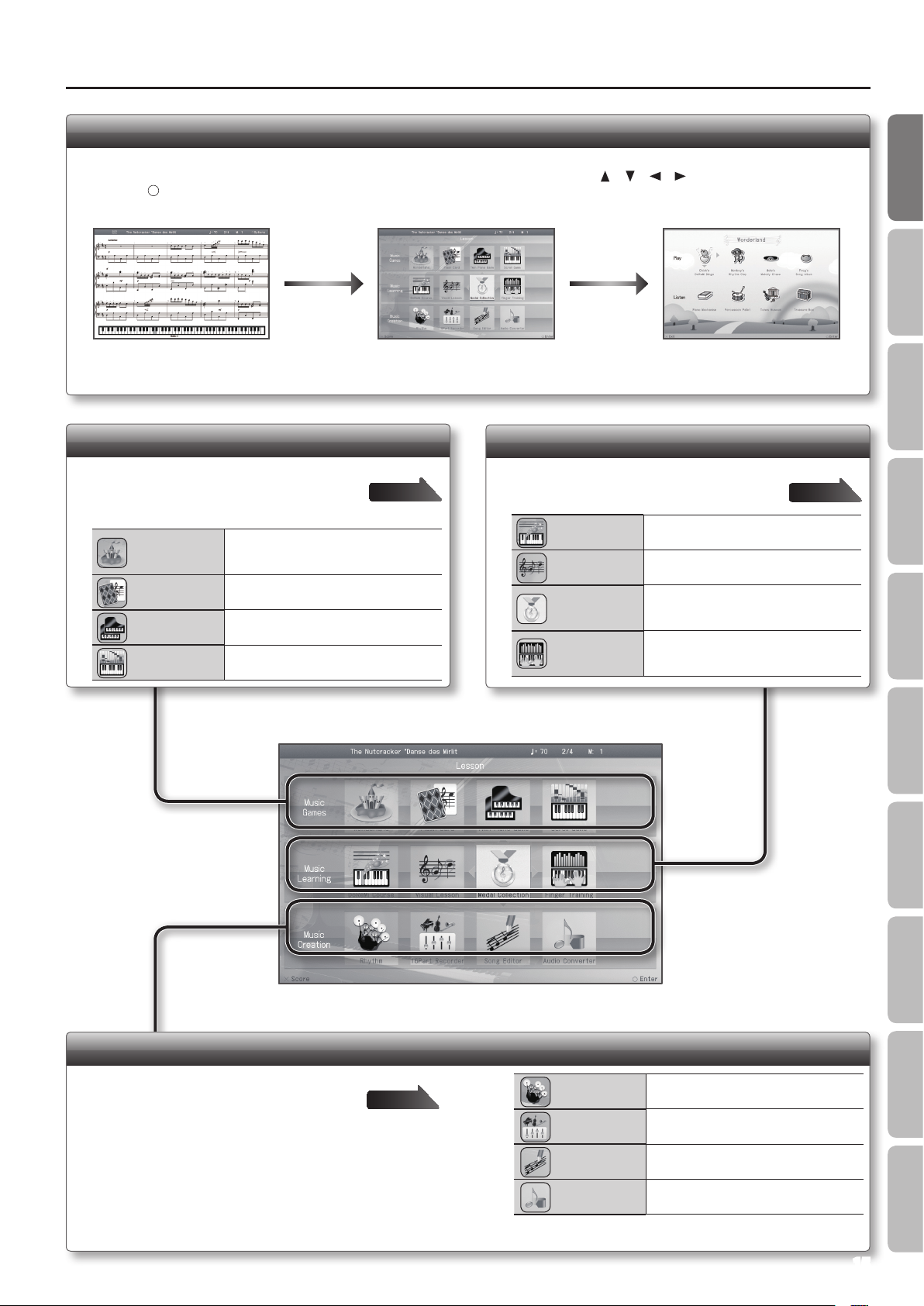
Lesson Menu Screen
When you press the [Lesson] button, a list of games and practice helps will appear. Use the cursor [ ] [ ] [ ] [ ] buttons to select an item, and
press the [ ] button to conrm your choice.
Normal (upon power-up) Lesson Menu screen Wonderland (example)
Playing a Game
You can become familiar with the sounds and
built-in songs through easy operation and
enjoyable animation.
Wonderland
Flash Card
Twin Piano Game
Scroll Game
This includes enjoyable game such as
“Monkey’s Rhythm Clap,” “Mole’s Melody
Chase,” and “Frog’s Song Album.”
In this game you’ll guess the note from the
notation you see or the pitch you hear.
Use the right keyboard section to match the
note played in the left keyboard section.
This is a game where you play notes while
watching the scrolling bars.
page 28
Practicing
You can study or practice while you view the
screen.
DoReMi Course Learn about the piano in a game-like way.
Visual Lesson
Medal Collection
Finger Training
This is a practice application that lets you
score points.
Play along with the accompaniment; you’ll get
points for your performance and be awarded
the corresponding medal.
This application lets you practice while
checking the force with which each nger
strikes the key.
page 29
Operation Guide Before You Play Performing Lessons Practicing Recording Piano Designer
Creating a Song
You can layer 16 parts by overdubbing, and edit
the song you recorded.
page 42
Rhythm
16 Part Recorder
Song Editor
Audio Converter
Settings
You can perform along with a variety of
rhythms.
You can create multi-track recordings with
16 parts.
You can edit the data you recorded.
AppendixFunctions
A song recorded as an SMF can be converted
to audio.
15
Page 16
Panel Descriptions
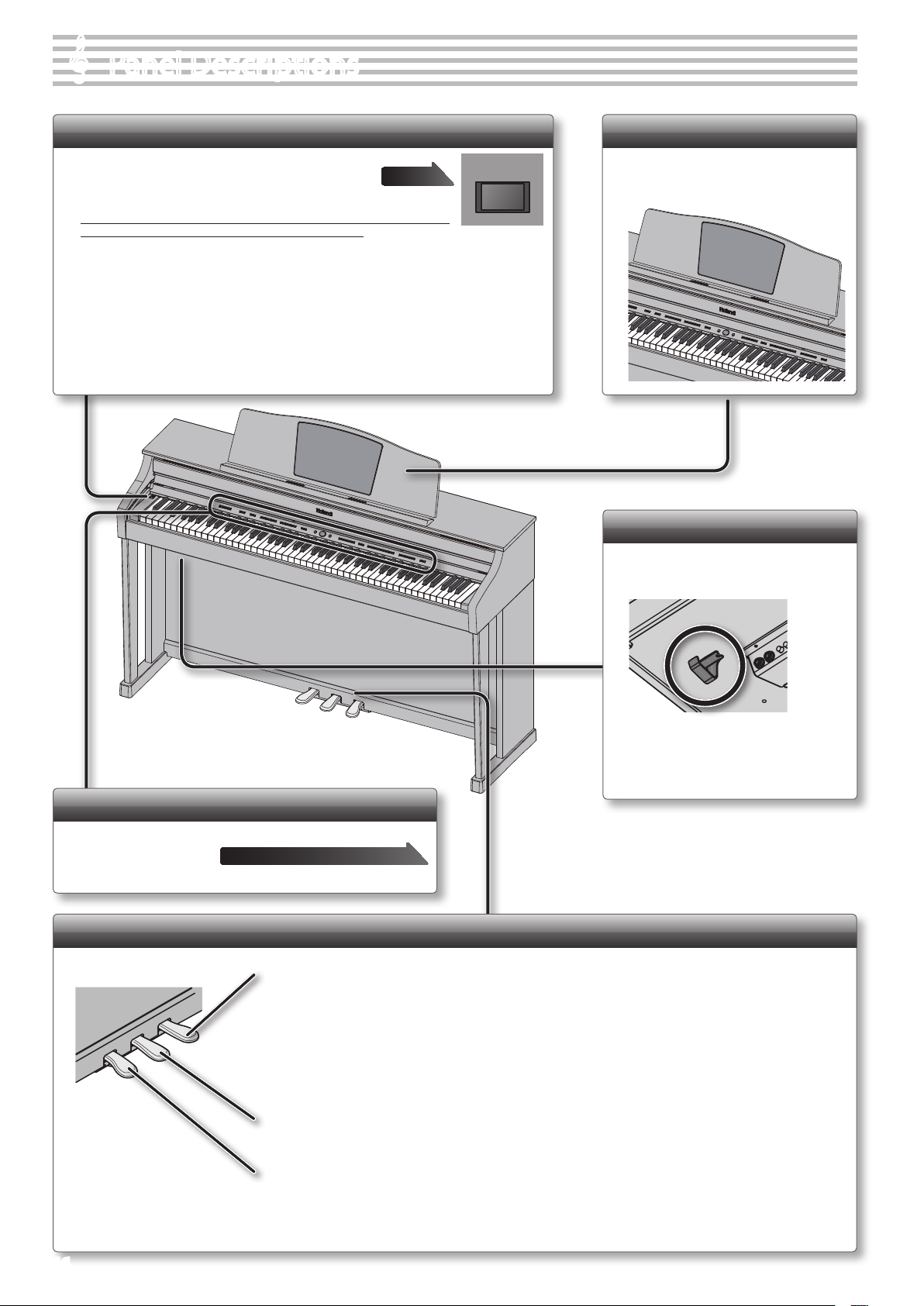
[Power] Switch
This turns the power on/o.
* With the factory settings, the HPi-50e’s power will automatically be switched
o 30 minutes after you stop playing or operating the unit.
If the unit’s power has been turned o automatically, you can use the [Power] switch to turn the unit
back on again.
If you don’t want the power to turn o automatically, change the “Auto O” setting to “O ” as
described on “Making the Power Automatically Turn O After a Time ( Auto O )” (p. 52).
* When turning the power on again, you must allow at least ve seconds after power-o before you
once again turn the power on.
If you fail to allow enough time, the Auto O function might not be reset, preventing the power from
turning on correctly.
page 19
Power
Display (Music Stand)
Various screens and settings are shown here.
You can also use it as a music stand.
Headphone Hook
Whenever you are not using the
headphones, you can hang them on the
headphone hook.
Front Panel
These buttons and sliders are used to operate the HPi-50e.
“Operation Guide” page 10–13
Pedals
Damper Pedal
Use this pedal to sustain the sound. While this pedal is held down, notes will be sustained for an extended time even if you
release your ngers from the keyboard. With the damper pedal on an acoustic piano, when you step on the pedal it will at
rst oer only a slight amount of resistance, but as you press down further it will start to feel much heavier. On the HPi-50e, this
change in the feeling of resistance is simulated. On an acoustic piano, when you step on the damper pedal, you’ll rst hear the
sound of the dampers releasing the strings. Then, you should also be able to hear the sound of strings adjacent to the ones for
the notes actually played resonate sympathetically, resulting in a rich, resounding tone. Additionally, when using half-pedaling
techniques, the core of the sound disappears rapidly while a rich, spacious resonance remains, producing a unique form of
reverberation. On the HPi-50e, the unique, lingering tones produced by the half-pedaling technique are reproduced in addition
to released-string sounds (Damper Noise) and resonating sounds (Damper Resonance).
Sostenuto Pedal
The notes you are pressing when this pedal is depressed will be sustained.
* Don’t hang anything other than headphones on
this hook, and don’t apply excessive force to it.
Doing so may damage the headphone hook.
When opening or closing the lid or operating the pedals, please be
careful not to get your ngers pinched between the movable part and
the panel. In places where small children are present, make sure that
an adult provides supervision and guidance.
16
Soft Pedal
This pedal is used to make the sound softer. Playing with the soft pedal depressed produces a sound that is not as strong
as when otherwise played with the equivalent strength. This is the same function as the left pedal of an acoustic piano. The
softness of the tone can be varied subtly by the depth to which you press the pedal.
Page 17
Panel Descriptions
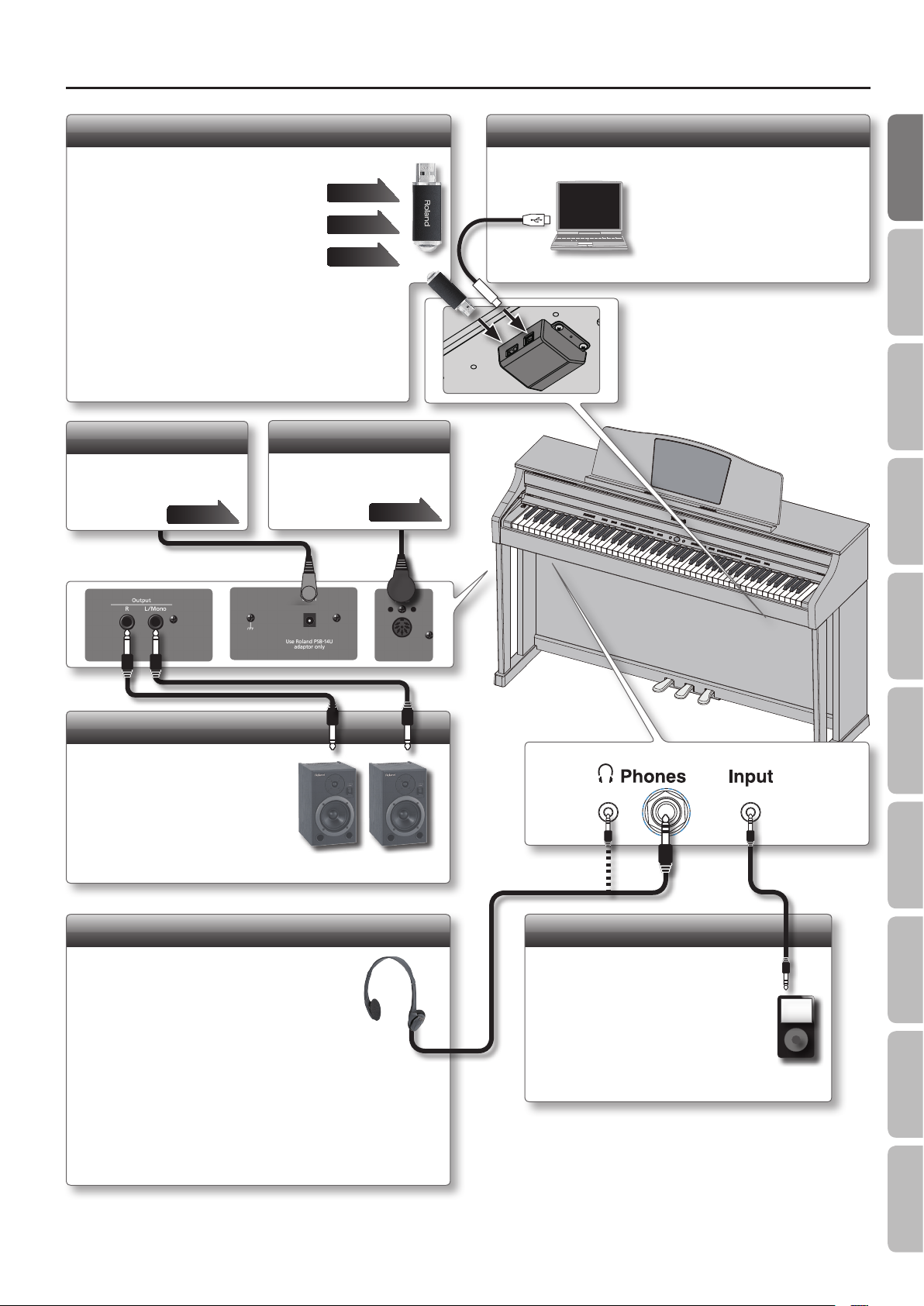
USB Memory Port
You can do the following things using a USB ash drive.
• WAVE les or MIDI les (SMF) data copied from
your computer can be played back by the HPi-50e.
• You can make audio recordings of your
performances on the HPi-50e.
• The audio recordings of songs that you’ve made
can be played on your computer, or burned to a
CD.
* Do not disconnect the USB ash drive while it is being read from, or
written to (i.e., while the USB ash drive access indicator will blink).
* Carefully insert the USB ash drives all the way in-until it is rmly
in place.
* Use a USB ash drive sold by Roland. We cannot guarantee
operation if any other USB ash drive is used.
DC In Jack
Connect the included AC
adaptor here.
page 72
Pedal Connector
page 31
page 40
page 41
Connect the pedal cord of
the dedicated stand to this
connector.
page 72
Rear side
USB Computer Port
Operation Guide Before You Play Performing Lessons Practicing Recording Piano Designer
If you use a commercially available
USB cable to connect the HPi-50e
to your computer, you’ll be able to
use MIDI-compatible software to
record and play back the HPi-50e’s
performance.
Output Jacks
If you connect these jacks to
amplied speakers, the sound of
HPi-50e will be heard through
them.
* Before turning o the power of
the HPi-50e, you must rst turn o
the power of the devices that are
connected to the Output jacks.
Phones Jacks
Here you can connect headphones.
The HPi-50e has two jacks, two people can also
use headphones simultaneously.
A Headphones 3D Ambience eect will be applied,
producing the sensation that the sound is emanating
from the piano itself even when using headphones.
* The Headphones 3D Ambience eect applies only to piano tones; it
does not apply to other tones.
* You can also turn the Headphones 3D Ambience eect o (p. 54).
* You can use the [Ambience] button to adjust the Headphones 3D
Ambience eect.
Input jack
If a digital audio player or other audio
playback device is connected here,
you’ll be able to listen to its playback
through the HPi-50e.
The volume of the device connected
to the Input jack can be adjusted by
means of Input Volume (p. 54).
Settings
AppendixFunctions
* To prevent malfunction and equipment failure, always turn down the volume, and turn o all the units before making any connections.
* When connection cables with resistors are used, the volume level of equipment connected to the Input jack may be low. If this happens, use
connection cables that do not contain resistors.
17
Page 18
Before You Play
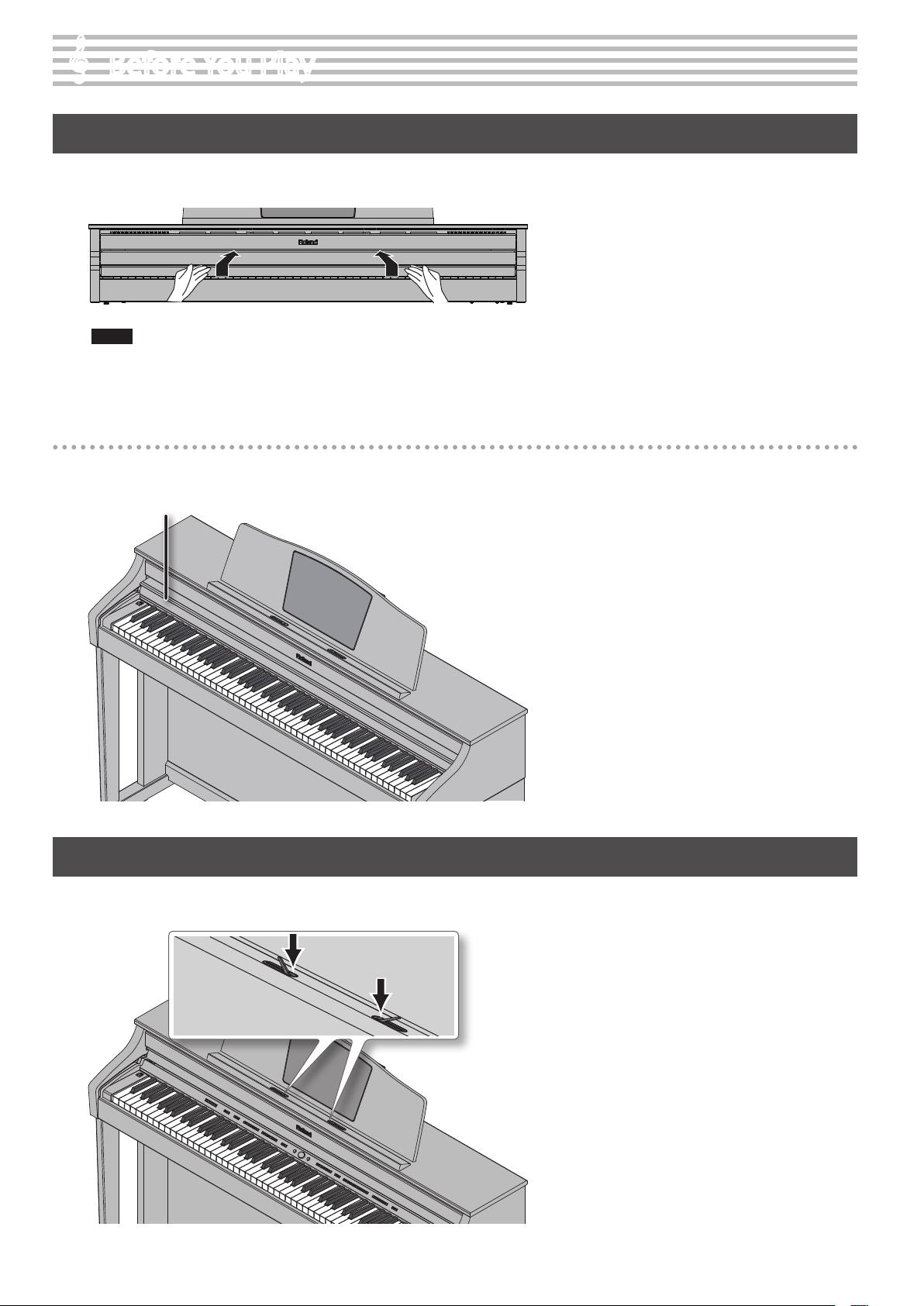
Opening/Closing the Lid
To open the lid, use both hands to lift it lightly, and slide it away from yourself.
To close the lid, pull it gently toward yourself, and lower it softly after it has been fully extended.
NOTE
•
When opening or closing the lid or operating the pedals, please be careful not to get your ngers pinched between the movable part and the panel. In places where
small children are present, make sure that an adult provides supervision and guidance.
• If you need to move the piano, make sure the lid is closed rst to prevent accidents.
Using the Lid to Conceal the Buttons (Classic Position)
You can use the lid to conceal the buttons (Classic Position).
This allows you to concentrate on performing without being distracted by the buttons.
Lid
Using the Music Holders
You can use the holders to hold pages in place.
When not using the holders, leave them folded down.
18
Push
Page 19
Before You Play
Turning the Power On/O
NOTE
• Once everything is properly connected, be sure to follow the procedure below to turn on their power. If you turn on equipment in the wrong
order, you risk causing malfunction or equipment failure.
• Before turning the unit on/o, always be sure to turn the volume down. Even with the volume turned down, you might hear some sound when
switching the unit on/o. However, this is normal and does not indicate a malfunction.
2
1
Min
3
Min Max
On
O
Power
Operation Guide Before You Play Performing Lessons Practicing Recording Piano Designer
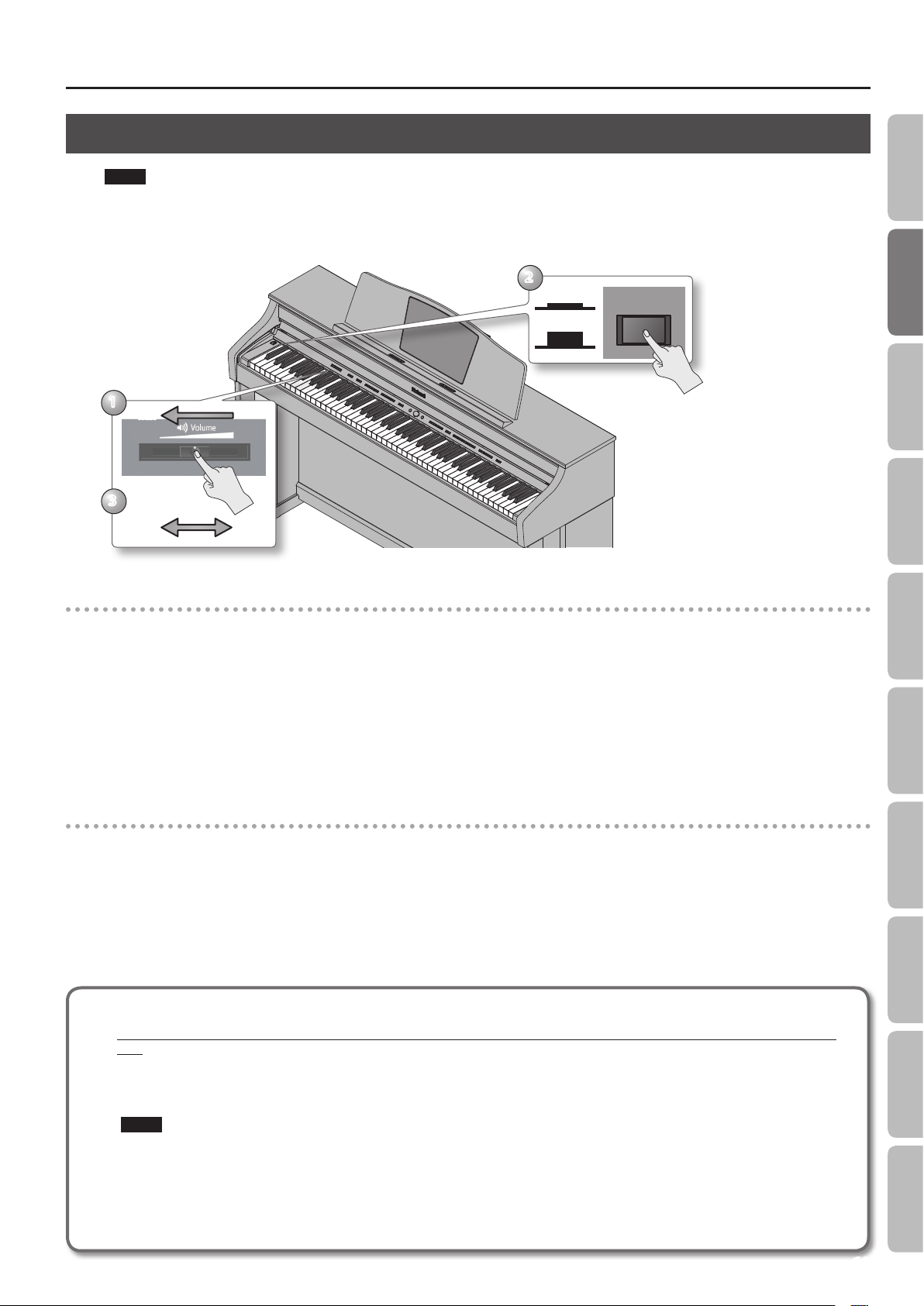
Turning the power on
1. Move the [Volume] slider all the way to the left to minimize the volume.
2. Press the [Power] switch.
The power will turn on, the music rest screen will show an opening animation, and then the notation screen (p. 14) will appear.
* This unit is equipped with a protection circuit. A brief interval (a few seconds) after turning the unit on is required before it will operate normally.
3. Use the [Volume] slider to adjust the volume.
This will adjust the volume of the speakers if you’re using the speakers of the unit, or the volume of the headphones if headphones are connected.
Each volume setting (for speaker or headphone) is saved automatically.
Turning the power o
1. Move the [Volume] slider all the way to the left to minimize the volume.
2. Press the [Power] switch.
The screen goes blank and the power is turned o.
If you don’t want the power to turn o automatically, change the “Auto O” setting to “O”!
With the factory settings, the HPi-50e’s power will automatically be switched o 30 minutes after you stop playing or operating the
unit.
If the unit’s power has been turned o automatically, you can use the [Power] switch to turn the unit back on again. If you don’t want the power
to turn o automatically, change the “Auto O” setting to “O” as described on “Making the Power Automatically Turn O After a Time ( Auto
O )” (p. 52).
Settings
NOTE
• When turning the power on again, you must allow at least ve seconds after power-o before you once again turn the power on. If you fail
to allow enough time, the Auto O function might not be reset, preventing the power from turning on correctly.
• The settings will be initialized after the power has been turned o. If you want to still be retained the next time you turn on the power, you
should refer to “Having Your Settings Be Retained after the Power Is Turned O (Memory Backup)” (p. 12) and save your settings.
AppendixFunctions
19
Page 20
Performing
Performing with Various Sounds
In addition to piano sounds, the HPi-50e lets you enjoy performing with many other sounds (350 types).
These sounds are called “Tones.” The Tones are divided into three groups (p. 65), each of which is assigned to a dierent Tone button.
Switching Tones
Let’s start by performing with a piano tone.
When you turn on the power, the “ConcertPiano” tone is selected.
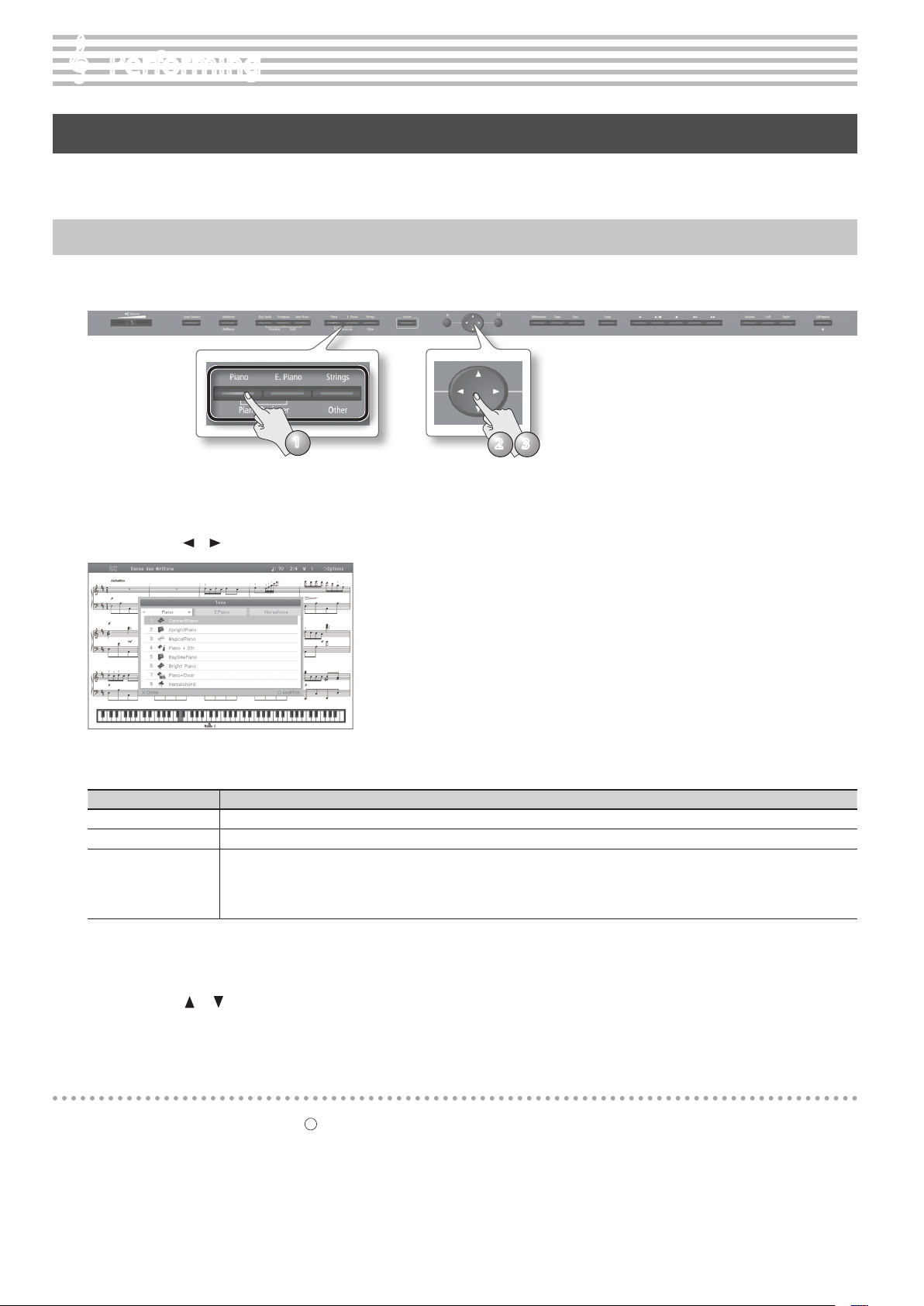
1
1. Press a tone button.
The tone button will light, and the tone select screen will appear.
2. Use the cursor [ ] [ ] buttons to switch tone categories.
Tone categories
Tone button Explanation
[Piano] button Selects grand piano sounds, upright piano sounds and the sounds of historical pianos.
[E. Piano] button Selects electric piano sounds often used in pop and rock.
Selects high quality vibraphone sound and various other sounds such as orchestral instruments, organ, bass, or accompaniment sounds.
[Strings/Other]
button
If you select the drum set category, you’ll be able to play the sounds of a drum set from the keyboard.
* If you’ve selected an organ sound for which the rotary eect (*1) is available, such as Combo Jz. Org or Ballad Organ, you can press the
[Strings/Other] button to switch the modulation speed of the rotary eect.
32
For details on the tones, refer to “Tone List” (p. 65).
*1 Rotary eect:
Rotary is an eect which simulates the sound of rotating speakers. There is a choice of two settings: Fast and Slow.
3. Use the cursor [ ] [ ] buttons to select a tone.
If you hold down a cursor button, the selected tone will change successively.
* If you’ve selected a drum set tone or an SFX set tone, some notes of the keyboard will not produce sound.
Auditioning tones
1. In the tone select screen, press the [ ] button.
A phrase using the selected tone will play.
20
Page 21
Performing
Performing with Two Layered Tones (Dual Play)
You can play two tones simultaneously from each note of the keyboard. This feature is called “Dual Play.”
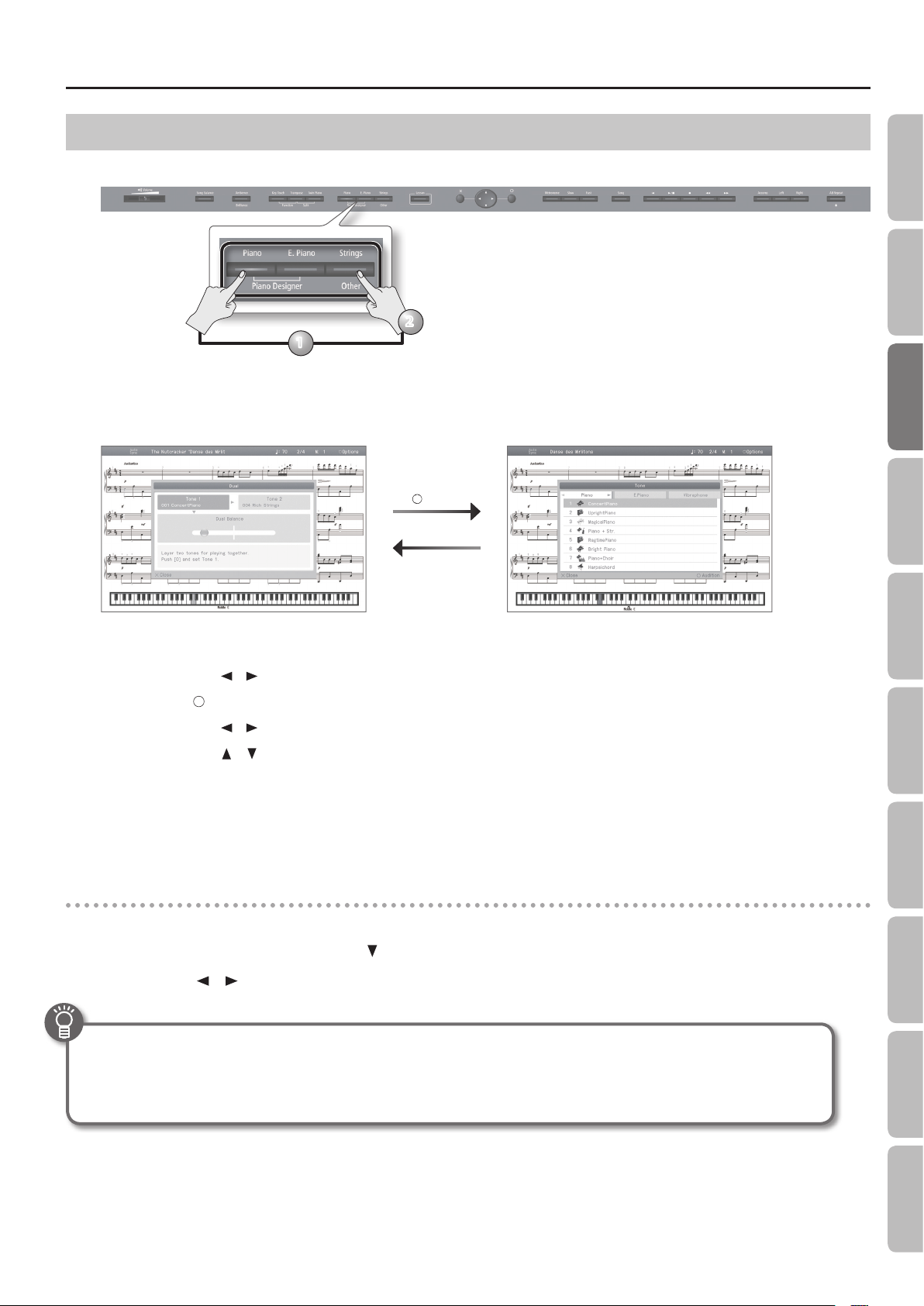
2
1
1. While holding down the [Piano] button or the [E. Piano] button, press the [Strings/Other] button.
The tone select button will light, and the dual tone 1/tone 2 screen will appear.
When selecting
tone 1/tone 2
[ ] button
[ × ] button
Operation Guide Before You Play Performing Lessons Practicing Recording Piano Designer
Selecting tones for dual play
1. Use the cursor [ ] [ ] buttons to select tone 1 or tone 2.
2. Press the [ ] button to access the tone select screen.
3. Use the cursor [ ] [ ] buttons to select the tone category.
4. Use the cursor [ ] [ ] buttons to select the tone.
If you hold down a cursor button, the selected tone will change successively.
* You can’t select tones of the same category for tone 1 and tone 2.
5. Press the [×] button to return to the dual tone 1/tone 2 screen.
2. To exit Dual Play, press one of the tone buttons.
Dual balance
Here’s how to adjust the volume balance between tone 1 and tone 2.
1. In the Dual Tone 1/Tone 2 screen, press the [ ] cursor button to select “Dual Balance.”
2. Use the cursor [ ] [ ] buttons to adjust the balance.
Advanced techniques
• Changing the pitch of tone 2 in octaves: “Octave Shift” (p. 55)
• Specifying the part aected by the damper pedal: “Right Pedal” (p. 55)
Settings
21
AppendixFunctions
Page 22
Performing
Playing Dierent Tones with the Right and Left Hands (Split Play)
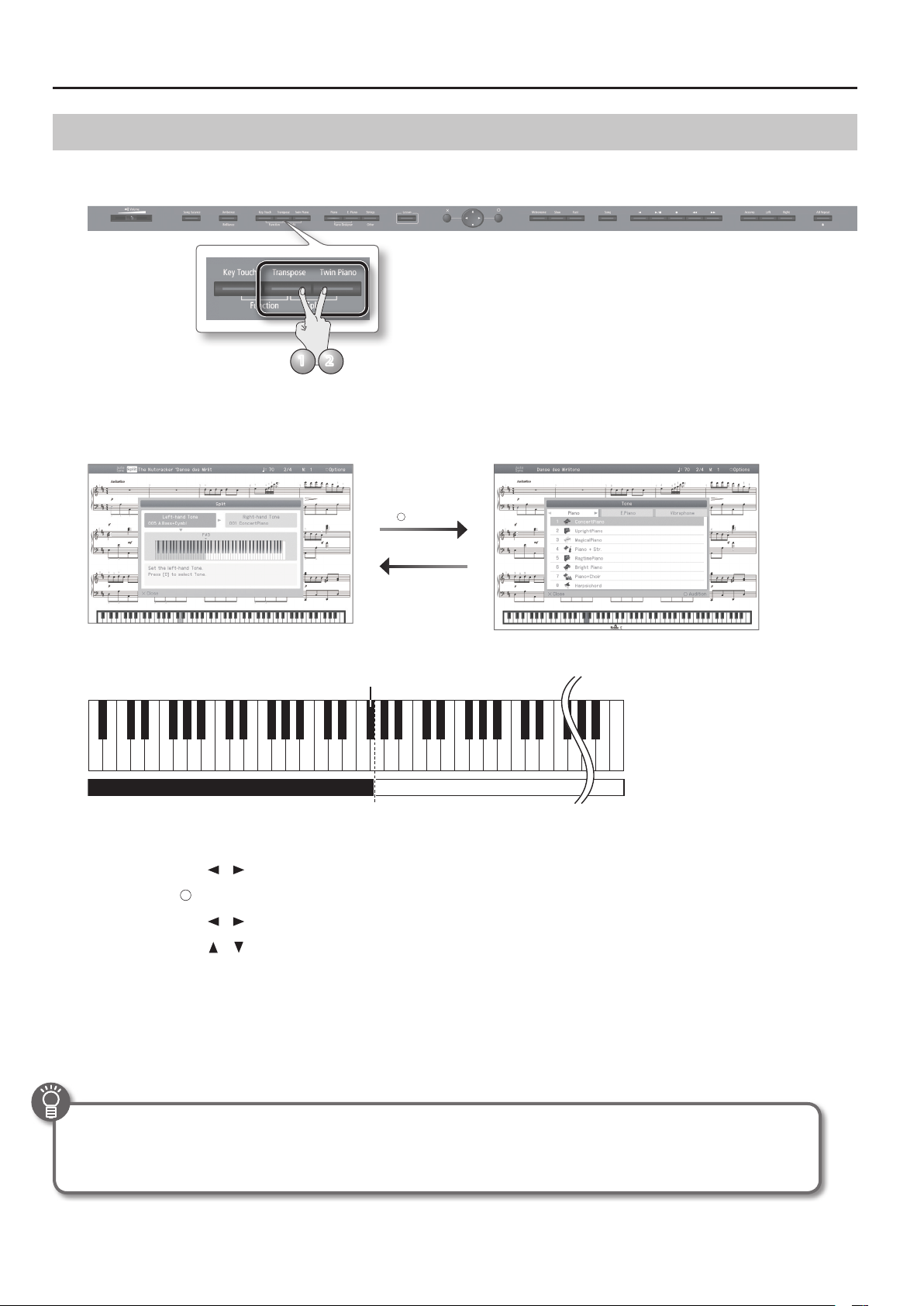
You can play dierent tones in the left- and right-hand sections of the keyboard, divided at the key you specify.
This feature is called “Split Play,” and the key at which the keyboard is divided is called the “Split Point.”
21
1. While holding down the [Transpose] button, press the [Twin Piano] button.
The Split Left-hand Tone/Right-hand Tone screen will appear.
When selecting
Left-hand Tone/
Right-hand Tone
[ ] button
[×] button
When Split is turned on, the keyboard settings will be as follows.
Split Point (Power-up default: F#3)
C1 D1 E1 F1 G1 A1 B1A0 B0 C2 C3 C4 C5 C8B7
…
Left-hand Tone Right-hand Tone
Selecting the split tones
1. Use the cursor [ ] [ ] buttons to select the right-hand tone or left-hand tone.
2. Press the [ ] button to access the tone select screen.
3. Use the cursor [ ] [ ] buttons to select the tone category.
4. Use the cursor [ ] [ ] buttons to select the tone.
If you hold down a cursor button, the selected tone will change successively.
5. Press the [×] button to return to the Left-hand Tone/Right-hand Tone screen.
2. To exit Split Play, hold down the [Transpose] button and press the [Twin Piano] button once again.
* Depending on which tones are being used together, the tones might sound dierent because no eect is applied to the left-hand zone.
Advanced techniques
• Specifying the part(s) aected by the damper pedal: “Right Pedal” (p. 55)
• Changing the pitch of the left-hand tone in octaves: “Octave Shift” (p. 55)
22
Page 23
Performing
Changing the keyboard’s split point
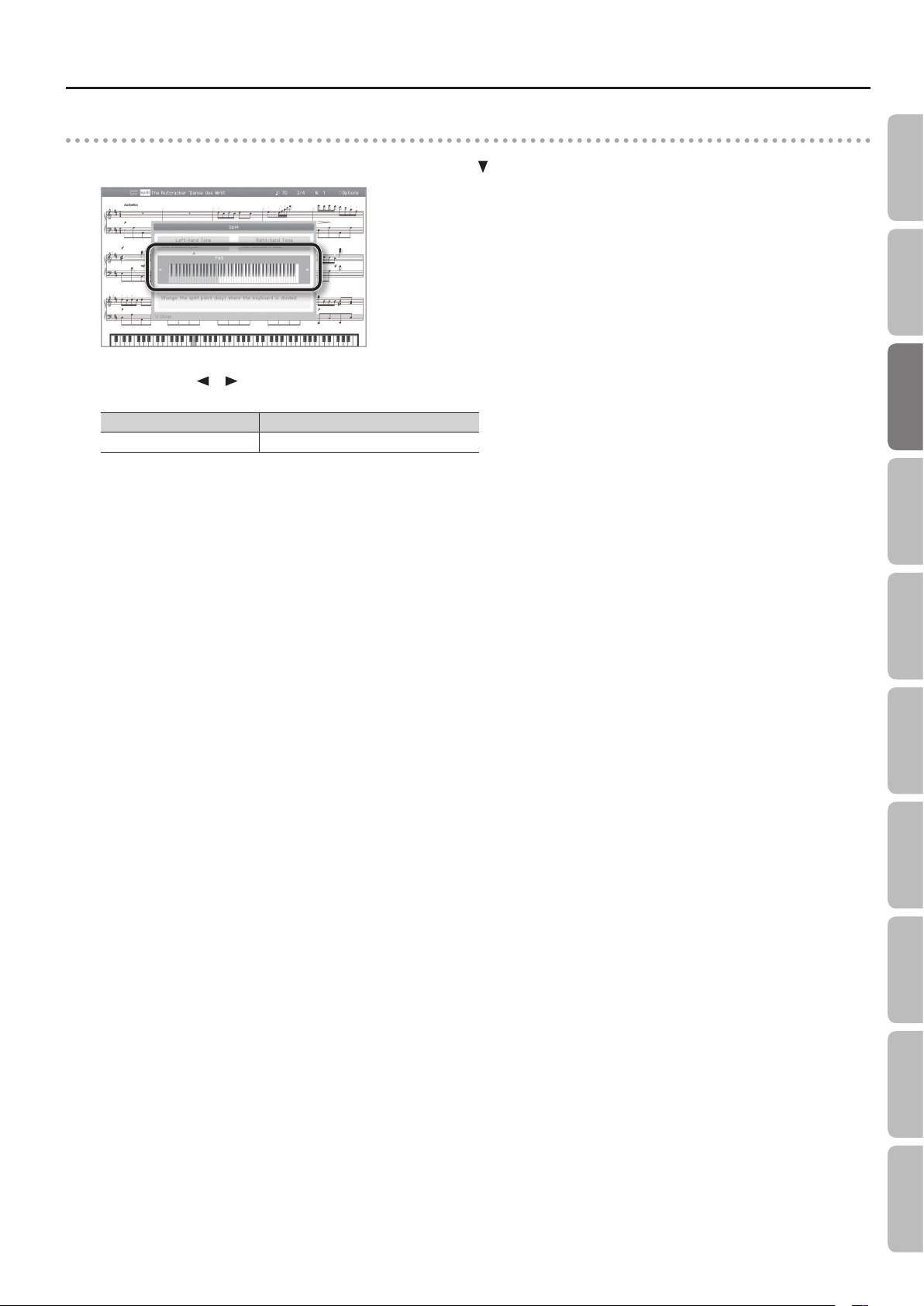
1. In the Split Left-hand Tone/Right-hand Tone screen, press the [ ] cursor button to select the keyboard illustration.
2. Use the cursor [ ] [ ] buttons to change the split point.
Item Value
Split point B1–B6
Operation Guide Before You Play Performing Lessons Practicing Recording Piano Designer
23
Settings
AppendixFunctions
Page 24
Performing
Adjusting the Sound to Your Taste
The HPi-50e lets you add reverberation or modify the brightness of the sound.
Adding Reverberation to the Sound (Ambience)/Adjusting the Brightness of the Sound (Brilliance)
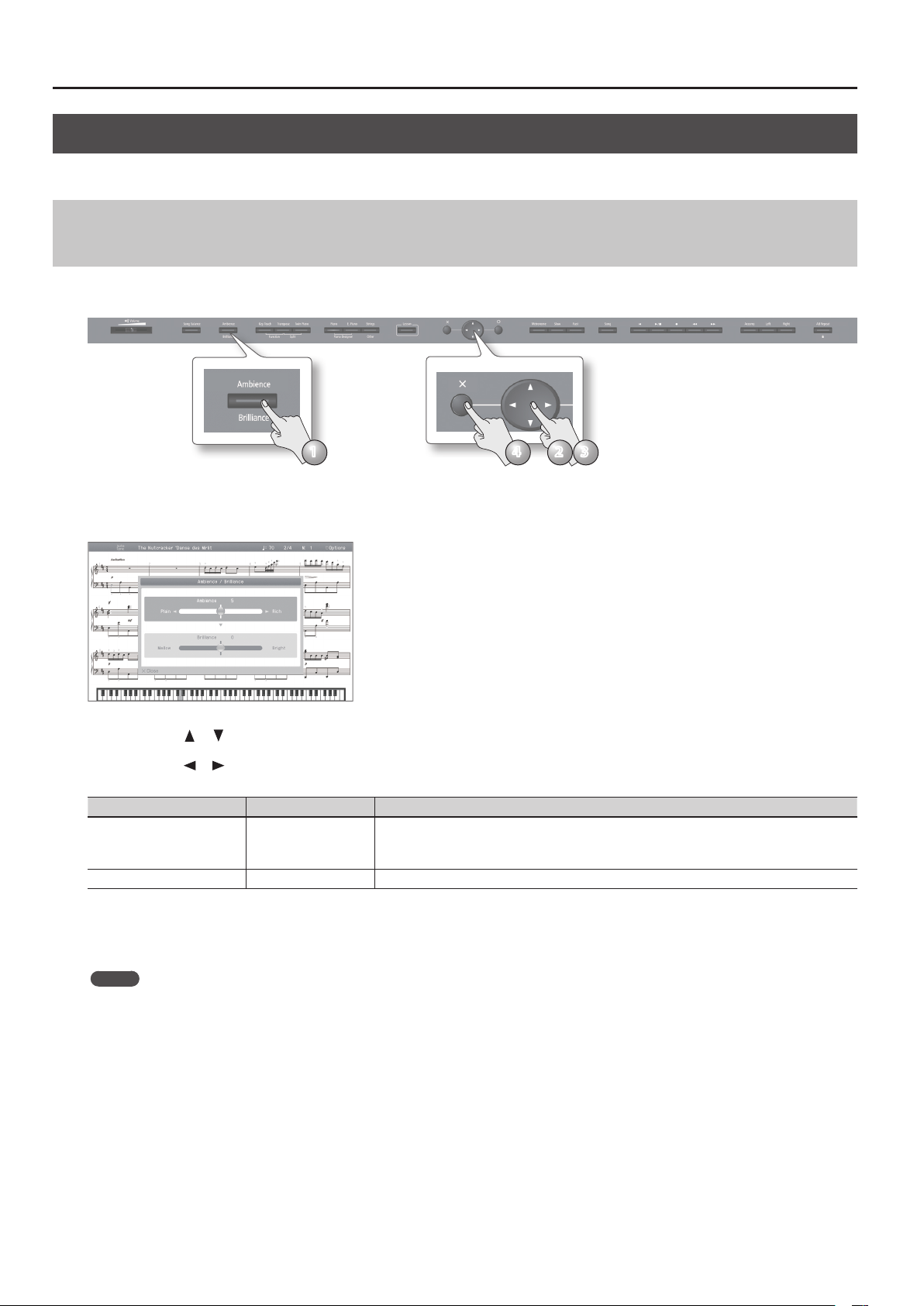
You can add a pleasant reverberation to the sounds of the HPi-50e, producing the impression that you are performing in a concert hall. This eect is
called “Ambience.”
3241
1. Press the [Ambience/Brilliance] button.
The [Ambience/Brilliance] button will light, and the ambience/brilliance screen will appear.
2. Use the cursor [ ] [ ] buttons to select either “ambience” or “brilliance.”
3. Use the cursor [ ] [ ] buttons to adjust the depth of the eect.
Item Value Explanation
Higher values apply deeper ambience.
Ambience 0–10
Brilliance 1–10 Positive (+) values make the sound brighter; negative (-) values make the sound more mellow.
* If you’re using headphones and the Headphones 3D Ambience eect (p. 54) is set to “On,” this lets you
adjust the depth of the Headphones 3D Ambience eect.
4. To turn o ambience and brilliance, press the [Ambience/Brilliance] button once again.
The [Ambience/Brilliance] button will go out.
MEMO
The on/o settings for ambience and brilliance will switch simultaneously.
24
Page 25

Performing
Adjusting the Keyboard Response (Key Touch)
The way in which the keyboard responds to your playing strength can be adjusted to your personal taste.
41
1. Press the [Key Touch] button.
The [Key Touch] button will light, and the key touch screen will appear.
2 3
Operation Guide Before You Play Performing Lessons Practicing Recording Piano Designer
2. Use the cursor [ ] [ ] buttons to select either the “Key Touch” or “Fix” switch.
3. Use the cursor [ ] [ ] buttons to adjust the key touch.
Item Value Explanation
Key Touch 1–100
Fix OFF, ON
Higher values will make the keyboard feel heavier.
At a value of 50, the result is the same as when the [Key Touch] button is unlit.
If this is on, notes will be sounded at a xed volume regardless of how strongly you play the keyboard;
the key touch setting will be ignored.
4. To turn o key touch, press the [Key Touch] button once again.
The [Key Touch] button will go out.
25
Settings
AppendixFunctions
Page 26

Performing
Dividing the Keyboard for Two-Person Performance (Twin Piano)
You can divide the keyboard into left and right zones so that two people can play the same range of pitches, just as though there were two pianos.
This function is called “Twin Piano.”
For example, Twin Piano allows two children to play dierent songs at the same time.
31 2
1. Press the [Twin Piano] button.
The [Twin Piano] button will light, and the Twin Piano screen will
appear.
When you turn Twin Piano on, the keyboard and pedal settings will
be as shown in the illustration.
NOTE
If Twin Piano is on, damper resonance will not be applied; this
may cause the piano to sound dierent.
2. Select the tone to be played (p. 20).
The left and right sections will have the same tone.
Conventional
keyboard
Twin Piano
The damper pedal
for the left area
3. To cancel Twin Piano, press the [Twin Piano] button once again.
The [Twin Piano] button will go out.
Changing the way in which the sound is heard (twin piano mode)
1. In the Twin Piano screen, use the cursor [ ] [ ]
buttons to specify the desired Twin Piano mode.
1
C4 C5 C6 C7 C8C3C2C1
C4 C5 C6C3C4 C5C3 C6
divide point
The damper pedal
for the right area
Saving your settings
The HPi-50e’s settings will revert to the
default values when you turn o the power,
but you can save them as described in “Storing Your Settings (memory backup)” (p. 12).
Item Value Explanation
Individual
Twin Piano Mode
Pair
26
Two people using headphones can practice independently.
The sound of the right-hand keyboard zone will be heard only from the right speaker.
The sound of the left-hand keyboard zone will be heard only from the left speaker.
When using headphones, you won’t be able to hear the other person’s playing.
* Ambience will turn o.
* For some tones, the sound might not be divided to left and right.
* If using headphones, connect them to the left Phones jack if playing the left keyboard zone; connect
them to the right Phones jack if playing the right keyboard zone.
* If you record while this is set to Individual, the playback might not be the same as what you heard
during recording.
Two people can practice together.
The sound of the right-hand keyboard zone will be heard more loudly from the right speaker than from
the left speaker.
The sound of the left-hand keyboard zone will be heard more loudly from the left speaker than from the
right speaker.
When using headphones, you’ll be able to hear the other person’s playing.
Page 27

Performing
Shifting the Pitch (Transpose)
“Transpose” means to shift the pitches of songs and the keyboard.
The Transpose function makes it easy to do the following.
• You can use unchanged ngering to accompany a singer who is singing in a key dierent than the original music.
• A song written in a dicult key with numerous sharps (
• Notation of a transposing instrument such as trumpet or sax can be played as written, while hearing the transposed pitches.
For example if the song is written in E major but you want to play it using the ngering of the key of C major, you would set Transpose (Keyboard) to
“4.”
If you play C E G It will sound E G# B
MEMO
• With the factory settings, both the song and the keyboard will be transposed. If you want to transpose only the song or only the keyboard, turn
the “Link” setting on/o as necessary.
• If you want to transpose an audio le, refer to “Transposing an Audio File (Audio Transpose)” (p. 55).
) or ats ( ) can be performed in a key that’s easier for you to play.
Operation Guide Before You Play Performing Lessons Practicing Recording Piano Designer
41
2 3
1. Press the [Transpose] button.
The [Transpose] button will light, and the Transpose screen will appear.
2. Use the cursor [ ] [ ] buttons to select a parameter.
3. Use the cursor [ ] [ ] buttons to specify the transposition for the keyboard or song, or turn link on/o.
Item Value Explanation
Keyboard -6–0–6 (semitone units)
Song -6–0–6 (semitone units)
Link ON, OFF
* The transpose setting will be cleared when you select a dierent song.
Species transposition for the keyboard.
Positive (+) values raise the pitch in semitone steps, and negative (-) values lower the pitch in semitone
steps.
Species transposition for the song.
Positive (+) values raise the pitch in semitone steps, and negative (-) values lower the pitch in semitone
steps.
If this is on, transposition settings for the keyboard and the song will change in tandem.
If this is o, transposition settings for the keyboard and the song can be made independently.
4. To cancel the transposition, press the [Transpose] button once again.
The [Transpose] button will go out.
Settings
27
AppendixFunctions
Page 28

Lessons
Playing Games
Here you can enjoy playing games that teach the basics of the piano and familiarize you with the keyboard.
1
1. Press the [Lesson] button.
The [Lesson] button will light, and the “Lesson” screen will appear.
2. Use the cursor [ ] [ ] [ ] [ ] buttons to select the
game that you want to play.
3. Press the [ ] button to conrm your choice.
Follow the instructions on the screen, and enjoy the game.
About the HPi-50e’s built-in games
Wonderland
Wonderland contains the following applications that will enjoyably familiarize you with notes and sounds.
Application Explanation
Chick’s DoReMi Bingo
Monkey’s Rhythm Clap
Mole’s Melody Chase
Frog’s Song Album
Piano Mechanism Here you can learn how a piano works. Become a piano expert!
Percussion Pallet
Tones Museum
Treasure Box
A chick will hatch when you play the key corresponding to the note you hear.
Help the chicks hatch out of their shells!
When you play the keyboard in time with the rhythm, a monkey will grab a
banana. As you gain skill, the monkey will climb a tree.
Catch a mole by playing the key from which the mole emerges. Can you catch
all of those pesky moles?
Practice singing along with the frog. Maybe you can learn to sing better than
the frog!
Here you can play the sounds of various percussion instruments. Try out
various rhythms.
Here you can play the sounds of various instruments. Try playing your favorite
songs.
Here you can play a variety of sound eects. Try creating a story using sound
eects.
2 3
Flash Card
In this game you’ll use the keyboard
to play the note (chord) that you
hear or the note (chord) you see in the onscreen notation.
This game will improve your sense of pitch.
28
Twin Piano Game
Use the right side of the keyboard
to match the note played on the left
side. Improve your sense of pitch through
this enjoyable parent/child experience.
Scroll Game
Play according to the scrolling bars.
As you keep trying, you’ll become
familiar with the keyboard.
Page 29

Lessons
Practicing with DigiScore
You can enjoy piano lessons by playing games or performing while you view the on-screen notation.
1
1. Press the [Lesson] button.
The [Lesson] button will light, and the “Lesson” screen will appear.
2. Use the cursor [ ] [ ] [ ] [ ] buttons to select the
lesson application that you want to use.
3. Press the [ ] button to conrm your choice.
Follow the instructions on the screen, and enjoy the game.
2 3
Operation Guide Before You Play Performing Lessons Practicing Recording Piano Designer
About the HPi-50e’s built-in lesson applications
Do Re Mi Course
The Do Re Mi Course teaches you about reading musical notation and the location of the notes on the keyboard. The Do Re Mi Course includes
the following applications.
Application Explanation
DoReMi (Pitch Training) Here you’ll learn the location of the keys, the notes, and their names.
Note and Rest (Rhythm) This game teaches the length of notes and rests.
Fingering Number Here you’ll learn the ngering numbers while you play a song.
Thumb Under This lets you practice crossing your thumb.
Let’s feel the eect of the Dumper
Pedal
Visual Lesson
You’ll be graded on how well you play along with the performance examples.
Course Explanation
Beginner's You’ll be graded on how well your right hand played the right-hand part.
Repertoire You’ll be graded on how well you played the example.
Medal Collection
Learn to play a song, and you’ll win a gold, silver, or bronze
medal according to your level.
This helps you learn how the damper pedal aects the sound.
You can also enjoy
the Medal Collection
game with songs from
Favorites.
Storing a song in
Favorites
page 32
Finger Exercises
Here you can practice while checking the force with which
each nger strikes the keys.
Start practicing at a
slow tempo, and speed
up gradually.
The practice songs are
from Hanon.
Settings
AppendixFunctions
29
Page 30

Practicing
Practicing with the Metronome
Here you can practice keeping an accurate rhythm while listening to the metronome.
The HPi-50e’s metronome allows you to change the volume and time signature for the metronome, as well as the way in which the beats are divided.
1. Press the [Metronome] button.
The metronome screen will appear.
The [Metronome] button will blink, and the
metronome will sound.
The [Metronome] button will blink red and green
according to the currently selected time signature;
red indicates the strong beats, and green indicates the weak beats.
2. Use the cursor [ ] [ ] buttons to select the item that you want to set.
3. Use the cursor [ ] [ ] buttons to change the setting.
To return to the previous screen, press the [ × ] button.
2 3
41
Item Setting
Volume
(no sound) Minimum ... Maximum
Beat
Sound
Pattern
Beat LED Switches the [Metronome] button’s indicator between lit and unlit.
Tempo Mute
2/2, 0/4 (only weak beats), 2/4, 3/4, 4/4, 5/4, 6/4, 7/4, 3/8, 6/8, 9/8, 12/8
* You can’t change the “Time signature” setting while a song is playing.
Click, Electronic sound, Voice (Japanese “1,” “2,” “3,” ...), Voice (English “1,” “2,” “3,” ...),
Dog & cat, Woodblock, Triangle & castanet, Hands clapping
Normal,
Dotted half note, Half note, Dotted quarter note, Quarter note,
Dotted eighth note, Eighth note, Sixteenth note,
+Double Add a note to the back beat of the every beat, +Triple Add notes to make the every beat a triplet,
+Shue Add notes to create a shue
Species whether playback will occur at the tempo specied by the song or at a xed tempo (i.e., without using the tempo data embedded in the song).
4. To stop the metronome, press the [Metronome] button once again.
The [Metronome] button will go out.
Changing the Tempo
Here’s how to change the tempo of the metronome or song.
1. Use the Tempo [Slow] [Fast] buttons to change the setting.
The tempo will change.
The tempo will change continuously if you hold down the [Slow] button or the
[Fast] button.
30
1
Page 31

Practicing
Practicing with a Song
Here’s how you can practice one hand at a time, or practice along with an accompaniment.
Selecting and Playing a Song
Let’s listen to the built-in songs. The HPi-50e provides a variety of built-in songs, which are organized into various categories.
* Copyright law prohibits unauthorized use of these built-in songs for any purpose other than personal enjoyment.
1. Press the [Song] button.
The [Song] button will light, and the “Song” screen will
appear.
Song title
Indicates the title of the
currently selected song.
32 1 4
Category
Use the cursor [
category. The songs you can select will depend on
the category.
You can also switch to a USB ash drive.
Operation Guide Before You Play Performing Lessons Practicing Recording Piano Designer
] [ ] buttons to select a
Song list
Use the up/down cursor
] [ ] buttons to select a
[
song. The selection will be
highlighted in blue.
2. Use the cursor [ ] [ ] buttons to select a category.
3. Use the cursor [ ] [ ] buttons to select a song from the list.
If you hold down a cursor button, the selected song will change continuously.
4. Press the [ ] (Play/Stop) button.
When the song has played to its end, playback will stop.
To pause the playback, press the [
The next time you press the [
from where you paused.
] (Play/Stop) button once again.
] (Play/Stop) button, playback will resume
5. Press the [Song] button or the [×] button to close the song screen.
Icons
These are shown for songs that contain chord,
ngering, lyric, or performance marks.
SMF music data
Audio data
Lyrics
Fingering
Category Explanation
USB Memory Songs saved on a USB ash drive
Favorites Songs saved in Favorites (internal memory)
Masterpieces
Selection
Kids
Beyer
Burgmüller
Czerny100
Czerny30
Hanon
Invention
The HPi-50e’s built-in songs
Chords
Performance
marks
page 66
Playing WAV or MIDI les (SMF) from your computer on the HPi-50e
1. Copy the song data from your computer to a USB ash drive.
2. Insert the USB ash drive into the HPi-50e.
3. In the song select screen, choose “USB Memory” as the category.
4. From the list, select and play the song that you copied to the USB ash drive.
* Depending on the data, it may
not be played back correctly.
Settings
AppendixFunctions
31
Page 32

Practicing
Adding a Count-in to Synchronize Your Performance
A series of sounds rhythmically played to indicate the tempo before a song starts is called a “count-in.”
Sounding a count will make it easier for you to begin playing at the correct moment when you’re playing along with a song.
1. Hold down the [Metronome] button
and press the [ ] (Play/Stop)
button.
A two-measure count sound will be produced
before the song starts playing.
1
Storing a Song in Favorites
Here’s how a song stored in internal memory or on a USB ash drive can be registered in Favorites.
1. Press the [Song] button.
The song select screen will appear.
2. Use the cursor [ ] [ ] [ ] [ ]
buttons to select the song that you
want to register in Favorites.
2
4 1
3
3. Hold down the [Song] button and press
the [ ] button.
A conrmation screen will appear.
4. Choose “OK” and press the [ ] button.
The song will be registered in Favorites.
Playing Songs Consecutively (All Songs Play)
You can consecutively play back the built-in songs or the songs saved in Favorite (internal memory) or on a USB ash drive. This function is called “All
Songs Play.”
1. Hold down the [Song] button and press the [ ]
(Play/Stop) button.
All songs of the selected category will play successively.
When all songs have nished playing, playback will continue
from the rst song.
To stop All Songs Play, press the [
once again.
] (Play/Stop) button
1
32
MEMO
All Songs Play will turn o when you stop playback or turn o the power.
Page 33

Practicing
Adjusting the Volume Balance of the Song and the Keyboard Performance (Song Balance)
You can adjust the balance between the song and your keyboard performance by changing the volume of the song.
31
2
1. Press the [Song Balance] button.
The [Song Balance] button will light, and the Song Balance screen will appear. .
2. Use the cursor [ ] [ ] buttons to adjust the balance between the sound of your performance and the accompaniment.
3. To cancel the Song Balance function, press the [Song Balance] button once again.
The [Song Balance] button will go out.
Adjusting a Song’s Tempo for Easier Practicing
You can change the tempo at which a song plays back.
For a dicult song that contains rapid phrases, you can slow down the tempo and practice at a comfortable speed.
Operation Guide Before You Play Performing Lessons Practicing Recording Piano Designer
1. Press the [Slow] button or the [Fast] button.
The tempo will change.
MEMO
If you press the [Slow] button and [Fast] button simultaneously, the tempo will be reset to the default value.
1
Settings
33
AppendixFunctions
Page 34

Practicing
Practicing One Hand at a Time (Part Mute)
Here’s how to have only the selected part play back. This allows you to practice playing the left or right-hand part of a song while listening to the
other hand played automatically.
Part button
Part
The performance data is assigned to the three Part buttons:
Accomp, Left, and Right.
What is “Part Mute”?
You can “part mute” a specic part so that it will not be heard.
* If you’ve selected a song that does not contain an
accompaniment, the [Accomp] button will not light even
if you press it.
Accompaniment part
Left-hand
part
Right-hand
part
1. Press the part button for the part that you want to mute.
The button you pressed will go out, and the selected part will not be heard (or will be heard at a reduced volume).
MEMO
• The mute setting will be cancelled when you switch songs.
• Although the Part Mute function cannot be used with respect to the playback of an audio le, you can reduce the volume during playback of
sounds that are localized at the center of the sound eld, such as vocals or bass. See “Playing Back an Audio File with Its Central Sound Minimized”
(p. 55).
2. To un-mute the sound, press the part button once again so it’s lit.
Using the sound of a specic part as a “guide” (mute volume)
If desired, you can specify that the sound of a part will play at a reduced volume rather than going completely silent when you press a part button
and turn o its indicator.
This setting lets you play a specic part at a reduced volume and use it as a “guide” for your playing.
1
1. While holding down the part button, use the cursor [ ] [ ] buttons to adjust the mute volume.
34
Page 35

Practicing
Repeatedly Practicing a Portion of a Song (AB Repeat)
Here’s how you can repeatedly play back a specied portion of the song. You can use this function to repeatedly practice that portion.
Section to repeat
Time
A (Repeat Start)
1. Press the [ ] (Play/Stop) button.
The song will play back.
2. Press the [AB Repeat] button at the point where you want to start repeating (point A).
The [AB Repeat] button will blink.
If the notation screen is displayed, an “A” symbol will appear at the measure you specied.
3. Press the [AB Repeat] button at the point where you want to stop repeating (point B).
The [AB Repeat] button will light, and repeat playback will begin.
If the notation screen is displayed, an “B” symbol will appear at the measure you specied.
B (Repeat End)
Operation Guide Before You Play Performing Lessons Practicing Recording Piano Designer
4321
4. To cancel the repeat function, press the [AB Repeat] button once again.
The [AB Repeat] button will go out, and the repeat region settings will be cleared.
If the notation screen is displayed, the “A” and “B” symbols will disappear.
MEMO
• The repeat points can be specied in measures of beats for an SMF song, or in 1/100ths of a second for audio.
• Instead of playing back the song, you can also specify the portion to repeat by using the [
Moving the portion to repeat forward or backward
When AB Repeat is on, you can move the repeated portion forward or backward.
Section to repeat
Section to repeat
Time
A (Repeat Start)
B (Repeat End)
] [ ] buttons.
1
1. Hold down the [AB Repeat] button and use the cursor [ ] [ ] buttons.
The repeated portion will be moved without its length being changed.
Settings
AppendixFunctions
35
Page 36

Recording
It’s easy to record your own performances.
You can play back a recorded performance to check your playing, or perform along with a recorded performance.
The HPi-50e can record SMF and audio.
SMF Recording and Audio Recording
Type of recording Explanation
The musical performance is recorded as data that describes everything that happened, such as which notes were played, and for how
long and how strongly.
SMF recording
Audio recording
* SMF (Standard MIDI File) is a unied format for handling MIDI-format music data. A wide variety of SMF data can be purchased for listening
enjoyment, instrumental practice, or karaoke.
This method of recording allows you to record the parts separately, or to re-record just a specic region of the song. You can also do
overdubbing.
A song recorded using SMF recording can be viewed as a DigiScore in the notation screen.
* Normally, you should use SMF recording.
Your performance will be recorded as audio data. The recorded song can be used on your computer.
* In order to use audio recording, you must connect a USB ash drive (sold separately) to the USB memory port (p. 17).
* The HPi-50e’s piano sound reproduces the depth and spatial feel of a piano by emitting dierent sounds from the multiple speakers built
into the instrument (Acoustic Projection).
If you record your performance as audio, the song will be recorded as two-channel (stereo) data, meaning that the Acoustic Projection
eect will not be reproduced. (The Acoustic Projection eect is reproduced when you play the keyboard or when you play back a song
that was recorded as SMF data.)
Getting Ready to Record
1. Hold down the [Key Touch] button and press the [Transpose] button to access the setup screen.
2. Choose the desired recording method.
Recording method Value Explanation
Recording Mode
Mix Recording
MEMO
You can also change the recording mode by holding down the record button and using the cursor [
3. If you want to overdub an SMF song, select the song that you want to overdub (p. 31).
* You can’t overdub onto an audio song.
4. Select the tone that you want to use for performing (p. 20).
5. If desired, sound the metronome (p. 30).
How the recorded parts correspond to the part buttons
SMF The song will be recorded in SMF format.
Audio The song will be recorded in audio format.
O
On
When you record over existing material, the previously recorded part will be erased as
the new performance is recorded.
When you record over existing material, the newly recorded performance will be
combined with the existing performance of the recorded part.
] [ ] buttons.
36
The recorded performance is assigned to the part buttons as follows.
Conventional Play (playing one tone from the entire keyboard)/Dual Play
Part button Performance that will be recorded
Record with only one part
specied
Record with multiple parts
specied
Your performance will be recorded on the part you specied.
[Right] [Left] parts
[Accomp] part.
Page 37

Recording
Making a New SMF Recording
654 32
1. As described in “Getting Ready to Record” (p. 36), turn mix recording on/o and select the recording mode.
In this example, turn mix recording “o” and choose “SMF” as the recording mode.
2. Press the [ ] (Rec) button.
The [ ] (Rec) button will light, the [ ] (Play/Stop) button will blink, and the HPi-50e
will enter the recording-standby state in new recording mode.
Explanation
New Song A new song will be recorded.
Add On
If you decide to cancel recording, press the record button once again.
Record an parts while listening to the recorded song (SMF only).
For details refer to “Overdubbing a Recorded Song” (p. 39).
Operation Guide Before You Play Performing Lessons Practicing Recording Piano Designer
3. As necessary, use the part buttons to select the part(s) that you want to record.
Your performance will be recorded on the part(s) whose button is blinking.
You can choose the following parts.
• [Right] part and [Left] part (the performances of both hands)
• [Right] part
• [Left] part
• [Accomp] part
When using Split or Twin Piano, your performance will be divided at the split point and assigned to the [Right] and [Left] parts for recording.
4. As necessary, use the [Slow] [Fast] buttons to set the tempo.
5. Press the [ ] (Play/Stop) button.
After a two-measure count is heard (the measure number is shown as “-2” and “-1”), recording will start.
When recording starts, the [
MEMO
You can also start recording by playing the keyboard while in the recording-standby state. In this case, recording starts immediately and no count
will be sounded.
] (Rec) button and [ ] (Play/Stop) button will light.
6. Press the [ ] (Play/Stop) button.
Recording will stop, and a screen allowing you to save the song will appear.
Refer to “Saving a Song” (p. 38).
Twin Piano (p. 26)/Split Play (p. 22)
Part button
[Right] button Right side Right-hand tone
[Left] button Left side Left-hand tone
Performance that will be recorded
Twin Piano Split Play
Settings
AppendixFunctions
37
Page 38

Recording
Saving a Song
You can assign a name to the recorded song or the currently selected SMF, and save it in Favorites (internal memory) or on a USB ash drive.
The song save screen will appear when you choose “Save Song” in the setup screen, when you nish recording, and when you edit the song in “16
part recorder” or “Song Edit.”
* Audio songs can’t be saved in Favorites (internal memory).
NOTE
If you turn o the HPi-50e’s power without saving your recorded performance, that performance will be lost. If you want to keep your recorded
performance, you must save it as described below.
1. The song save screen will appear when you stop recording or when you switch songs.
2. Use the cursor [ ] [ ] buttons to select the Media and Save Destination, and use the cursor [ ] [ ] buttons to change the setting.
You can’t select a USB ash drive as the media unless a USB ash drive is connected to the USB memory port.
If a folder is selected as the save destination, you can enter that folder by pressing the [
] (Play/Stop) button.
3. If you want to change the song title, use the cursor [ ] [ ] buttons to select the Song Name and then press the [ ] cursor button.
Use the cursor [ ] [ ] buttons to select the character that you want to change, and use the cursor [ ] [ ] buttons to change the character.
To conrm the name, press the [
If you decide to cancel the name change, press the [
] button.
] button.
4. Press the [ ] button; the song will be saved to the specied media, destination, and song title.
If a folder is selected as the save destination, you can’t save by pressing the [ ] button.
If you save to a song number for which a song title is shown, the newly saved song will overwrite the previously saved song.
NOTE
Never turn o the power while the screen indicates “Executing...”
Cancelling the song save operation
1. You can cancel the song save operation by pressing the [×] button in the song save screen.
If you’ve previously recorded or edited, the following conrmation screen will appear.
Use the cursor [ ] [ ] buttons to select “OK” and then press the [ ] button; the song you recorded or edited will be erased.
38
Page 39

Recording
Overdubbing a Recorded Song
While listening to a recorded song or an internal song, you can record again using either Replace or Mix recording.
6 587
1. As described in “Getting Ready to Record” (p. 36), turn mix recording on/o and choose the recording mode.
In this example, choose “SMF” as the recording mode.
2. Press the [ ] (Rec) button to enter recording-standby mode.
3. Press the [ ] button to switch to overdubbing mode.
4. As necessary, use the part buttons to select the part that you want to record.
For details, refer to step 2 of “Making a New SMF Recording” (p. 37).
5. As necessary, use the [ ] (Bwd) [ ] (Fwd) buttons to specify the point at
which recording will start.
Operation Guide Before You Play Performing Lessons Practicing Recording Piano Designer
6. As necessary, use the [Slow] [Fast] buttons to specify the tempo.
7. Press the [ ] (Play/Stop) button.
A two-measure count will be heard (the measure number is shown as “-2” and “-1”), and recording will start.
When recording starts, the [
MEMO
You can also start recording by playing the keyboard while in the recording-standby state. In this case, recording starts immediately and no count
will be sounded.
] (Rec) button and [ ] (Play/Stop) button will light.
8. Press the [ ] (Play/Stop) button.
Recording will stop, and the song save screen will appear.
Refer to “Saving a Song” (p. 38).
MEMO
When you overdub-record, the time signature will be the time signature of the original song.
To re-record
If the recording mode setting “Mix Recording” (p. 55) is “o” (i.e., replace recording), and you select a previously recorded part and
then record, your new performance will overwrite the previously recorded part, replacing it. In other words, the previously recorded
performance will be discarded.
First recording
Second recording
Replaced by the second
recorded performance.
First recorded
performance will remain.
Settings
If the recording mode setting “Mix Recording” (p. 55) is “on” (i.e., mix recording), and you select a previously recorded part and then record,
your new performance will be combined with the previously recorded performance.
First recording
Second recording
First and second recorded
performances will be mixed.
First recorded
performance will remain.
AppendixFunctions
39
Page 40

Recording
Making a New Audio Recording
1. Connect a USB ash drive (sold separately) to the USB memory port (p. 17).
2. Select the recording mode as described in “Getting Ready to Record” (p. 36).
In this example, choose “Audio” as the recording mode.
3. Press the [ ] (Rec) button to enter recording-standby mode.
4. Press the [ ] (Play/Stop) button.
When recording starts, the [ ] (Rec) button and [ ] (Play/Stop) button will light.
5. Press the [ ] (Play/Stop) button.
Recording will stop, and the song save screen will appear.
Refer to “Saving a Song” (p. 38).
Audio Recording a Performance with SMF Accompaniment
65
1. Connect a USB ash drive (sold separately) to the USB memory port (p. 17).
2. Select the recording mode as described in “Getting Ready to Record” (p. 36).
In this example, choose Audio as the recording mode.
3. Press the [ ] (Rec) button to enter recording-standby mode.
4. Press the [ ] button to switch to overdub recording mode.
5. As necessary, use the [ ] (Bwd) [ ] (Fwd) buttons to specify the location at which recording will start.
6. As necessary, use the [Slow] [Fast] buttons to specify the tempo.
7. Press the [ ] (Play/Stop) button.
When recording starts, the [ ] (Rec) button and [ ] (Play/Stop) button will light.
8. Press the [ ] (Play/Stop) button.
Recording will stop, and the song save screen will appear.
Refer to “Saving a Song” (p. 38).
Using an Audio File without Melody (Center Cancel)
Here’s how you can minimize the sounds (such as the vocal or the melody instrument) that are heard from the center position of the selected audio
le or a digital audio player connected to the Input jack.
This is called the “Center Cancel” function.
1. As described in steps 1–3 of “Selecting and Playing a Song” (p. 32), select a song for which an audio icon is shown.
2. Press the [ ] (Play/Stop) button.
The song will play.
3. Press the [Right] button.
The [Right] button will go out, and the sound of the vocal or melody will be minimized.
MEMO
• For some songs, the sounds heard from the center position might not be completely eliminated.
• You can clear the Center Cancel function by pressing the [Right] button. The Center Cancel function will also be cleared when you select another
song.
• Using the Center Cancel function may aect the tone quality of some songs.
• You can use the [right] button to specify the Center Cancel setting only if an audio le selected.
• If you want to use Center Cancel when you’ve selected something other than an audio le, refer to “Center Cancel” (p. 55) in “Various Settings.”
40
Page 41

Burning an Audio Recording of a Song (WAV le) to a CD
After an audio recording of a song has been
saved to a USB ash drive, you can copy it
to your computer and burn it to a CD. If you
want to burn a CD from a song that you
recorded as an SMF, you must rst convert it
to audio (WAV le) (p. 47).
In order to burn a CD on your computer,
you’ll need software such as “iTunes.” For
details, refer to the owner’s manual or the
online help of your software.
A song recorded on the HPi-50e can be
copied to your computer by means of a
USB ash drive.
Copy the recorded song to your computer
WAV
Recording
Operation Guide Before You Play Performing Lessons Practicing Recording Piano Designer
Use computer software (such as
iTunes) to burn the song to a CD.
1. Connect the USB ash drive
containing the song to your
computer.
If you’re using Windows, a
“Removable disk” icon will appear in “Computer.” If you’re
using Mac OS X, a “NO NAME” icon will appear on the
desktop.
2. Double-click the icon that appeared.
The contents of the USB ash drive will be displayed.
The audio recording of the song (WAV le) will be among the
contents.
Use iTunes to burn the song to CD
The following explanation uses iTunes 10 for Windows. If you’re
using a dierent version or other software, refer to its online
help or owner’s manual.
1. From the Start menu, click [All Programs] - [iTunes].
2. From the iTunes [File] menu, click [New Playlist] to
create a playlist.
3. Copy the song (WAV le) that you want to burn to
CD to your computer’s desktop or another location
where you can easily nd it.
Copy to desktop
5. Select the playlist that you created in step 2, and in
the [File] menu, click [Burn playlist to Disc].
Newly created
playlist
3. From the desktop (or other location) where you
copied it, drag and drop the song (WAV le) to add it
to the playlist you created in step 2.
Drag & drop
4. Insert a blank CD-R into your computer.
6. Make the appropriate settings in the disc creation
dialog box, and then click the [Burn] button.
Settings
AppendixFunctions
41
Page 42

Creating a Song
1. Press the [Lesson] button.
The Lesson menu screen will appear.
2. Use the cursor [ ] [ ] [ ] [ ] buttons to choose
“Music Creation,” and press the [ ] button to conrm
your choice.
Rhythm
You can play along with a variety of rhythms.
16 Part Recorder
Create 16 part multitrack recordings.
Song Editor
Edit a song you recorded.
Audio Converter
Convert a song recorded as SMF into audio.
page 42
page 43
page 44
page 47
Play Along with Rhythms
The HPi-50e lets you enjoy performing while you listen to rhythms in
a variety of styles.
1. Press the [Lesson] button.
2. Use the cursor [ ] [ ] [ ] [ ] buttons to select
“Rhythm,” and press the [ ] button.
The “Rhythm” screen will appear.
MEMO
If the pedal’s function is set to “Fill In,” you’ll be able to add a llin to the rhythm performance. To change the pedal’s function,
refer to “Changing How the Pedals Work (Left Pedal)” (p. 56) or
“Changing How the Pedals Work (Center Pedal)” (p. 56).
5. If you want to end your performance with an added
ending, press [
If you want to end your performance without an added
ending, press [×] (Stop) button.
The rhythm performance will stop.
] (Ending) button.
Editing the Rhythm Performance and Automatic Accompaniment Settings
Here’s how to edit the rhythm performance and automatic
accompaniment settings.
1. In the rhythm screen, hold down the [Key Touch] button
and press the [Transpose] button.
2. Use the cursor [ ] [ ] buttons to select the parameter
that you want to edit.
3. Use the cursor [ ] [ ] buttons to edit the setting.
Items Value Explanation
If this is on, you’ll be able to play the
sound of the left-hand part while the
Left-hand Tone O, On
Sync O, On
Arranger O, On
MEMO
For details on how to nger automatic accompaniment chords
on the keyboard, refer to “Chord Fingering List” (p. 68).
automatic accompaniment plays.
If this is o, the left-hand part will not
be heard.
If this is on, the rhythm will start the
instant you begin playing the keyboard.
If this is o, use the[
the rhythm.
If this is on, an accompaniment suitable
for the selected rhythm will be automatically generated according to the chords
you play in the left hand.
If this is o, only the rhythm will be heard.
] button to start
3. Use the cursor [ ] [ ] buttons to select a rhythm
pattern.
4. If you want to perform with an intro, press the [ ] (Intro)
cursor button.
If you want to perform without an intro, press the [ ]
button.
The rhythm will start playing.
If “Arranger” is on, an accompaniment suitable for the selected
rhythm will play according to the chords you play with your left
hand.
42
Recording the Rhythm Performance and Automatic Accompaniment
1. Press the [Lesson] button.
2. Use the cursor [ ] [ ] [ ] [ ] buttons to select
“Rhythm,” and press the [ ] button.
The “Rhythm” screen will appear.
3. Use the cursor [ ] [ ] buttons to select a rhythm
pattern.
4. Select the tone that you want to play (p. 20).
5. Press the [ ] (Rec) button.
6. Use the [ ] button to select the recording mode and
recording format (p. 36).
If you’re using overdub-recording, use the [ ] (Bwd)
[ ] (Fwd) buttons to move to the location at which you want to
start recording.
Page 43

Creating a Song
7. Press the [ ] (Play/Stop) button.
A two-measure count will be heard (the measure number is shown
as “-2” and “-1”), and then recording will begin.
8. Press the [ ] (Play/Stop) button.
Recording will stop, and the song save screen will appear.
Refer to “Saving a Song” (p. 38).
MEMO
If desired, you can sound the lowest note of the chord you press
(“leading bass”). Leading bass can be switched using a pedal.
To change the pedal’s function, refer to “Changing How the
Pedals Work (Left Pedal)” (p. 56) or “Changing How the Pedals Work
(Center Pedal)” (p. 56).
Recording with 16 Parts
The HPi-50e provides 16 parts for multitrack recording. One tone can
be recorded on each part, meaning that you can create song data
by overdubbing performances for up to 16 dierent tones.
The “16 part recorder” function lets you record and play back each
of these 16 parts individually.
Overdub-recording allows you to listen to the previously recorded
parts while you overdub performances for additional parts.
What’s MIDI
MIDI, short of “Musical Instrument Digital Interface,” was developed
as a universal standard for the exchange of performance data
between electronic instruments and computers. MIDI data consists
of information describing what took place during a musical
performance; for example, which key (which note) was played, for
how long, and how strongly.
Unlike the data on a music CD, MIDI data does not contain
information about the sound itself, so you are free to change the
tempo and key, opening up a wide range of possibilities.
What is SMF?
“SMF” stands for “Standard MIDI File,” which is a standard le format
for handling MIDI-format musical data.
Since most MIDI playback devices support SMF, it is a useful format
for making musical data widely available.
Commercially Available SMF Music les
Commercially available Roland SMF music les also consists of 16
parts. You can load this type of song data from a USB ash drive,
and use the 16 part recorder to edit the data.
NOTE
• Some commercially available SMF music les cannot be edited.
• Please be aware that derivative works that you create based on
existing copyrighted material such as commercially available
SMF music les may infringe copyright law if used for purposes
other than personal enjoyment. Roland takes no responsibility
for any infringement of a third party’s copyrights that may arise
from a derivative work you create.
Operation Guide Before You Play Performing Lessons Practicing Recording Piano Designer
16 part recorder and part buttons
In addition to the “16 part recorder,” the HPi-50e’s recording and
playback functionality also includes the “part buttons” ([Accomp]
[Left] [Right]). These part buttons combine the 16 part recorder’s 16
parts into three buttons. This means that after you’ve used the part
buttons to record your performance, you can then use the 16 part
recorder to overdub additional parts, or to edit your performance in
greater detail.
The part buttons correspond with the parts of the 16 part recorder
as follows.
Part buttons Part (part number)
[Accomp] button
[Left] button Left-hand part (part 3)
[Right] button Right-hand part (part 4)
Since the 16 part recorder records one tone on each part, you can’t
use Dual Play (p. 21) or Split Play (p. 22) to record two or more tones
simultaneously.
Parts other than left-hand and right-hand
(i.e., parts 1, 2 and 5–16)
About the 16 part recorder Screen
Access the “16 part recorder screen” when you want to record on
the 16 part recorder or make settings for it.
1. Press the [Lesson] button to select “16 Part Recorder,” and
then press the [ ] button (p. 29).
The 16 Part Recorder screen will appear.
Indication Explanation
This shows the tone that’s assigned to each part. Use the
[
] [ ]
1–16
[
] Solo
[
] Mute
[
] Setting
The operations subsequently explained in “Editing the Part Settings”
(p. 44) and “Recording Each Part” (p. 44) are performed within the “16
part recorder” screen.
cursor buttons to select a part.
Undimmed parts contain a recorded performance.
Dimmed parts do not contain a recorded performance.
Only the selected part will play.
The selected part will be muted (unheard).
The Part Settings screen will appear, allowing you to make
detailed settings for each part. For details, refer to “Editing
the Part Settings” (p. 44).
Settings
Mute and Solo
When using the 16 part recorder to play back song data, you can
press the track buttons to easily “mute” specic parts so that they
will not be heard or “solo” a specic part so that only it will be heard.
Mute and solo settings can be changed even while the song plays.
MEMO
Playing back with a specic part muted is called “minus-one
playback.”
AppendixFunctions
43
Page 44

Creating a Song
Editing the Part Settings
7. If you want to record additional parts, repeat step 2 and
following as many times as necessary.
For each part of a song recorded on the 16 part recorder or an
internal song, you can edit the volume and tone of each part, or
mute it.
Commercially available Roland SMF music les also consists of 16
parts, each playing a dierent instrumental sound, and you can edit
the settings for each part of such data in the same way.
* Before you continue, select the song that you want to edit (p. 31).
1. Use the cursor [ ] [ ] buttons to select the part that
you want to edit, and press the [ ] button.
A “Part” screen like the following will appear.
The part name and tone name are shown in the center of the
screen. When this screen is shown, you can use the tone buttons to
switch the tone of this part.
2. Use the cursor [ ] [ ] buttons to select an item, and use
the cursor [ ] [ ] buttons to edit the setting.
Item Explanation
Volume Adjusts the volume
Reverb
Chorus
Pan
Adjusts the depth of the reverb eect.
The reverberation that is typical of a concert hall will be
added, giving the sound a greater spatial spread.
Adjusts the depth of the chorus eect.
A slightly pitch-shifted sound will be added, giving the sound
depth and spaciousness.
Adjusts the stereo position at which the sound is heard.
By editing the pan setting you can specify the perceptual
location from which the sound will be heard between the left
and right speakers.
Raising the setting will move the sound toward the right, and
lowering it will move the sound toward the left.
NOTE
The song you recorded will disappear when you turn o
the power. If you don’t want to lose your song, save it to the
Favorites or to USB memory.
Saving Your Multitrack Recording
Here’s how to save a song that you’ve multitrack-recorded or whose
part settings you’ve edited.
1. In the “16 part recorder” screen, press the [×] button.
The 16 part recorder will close, and the song save screen will
appear.
For details, refer to “Saving a Song” (p. 38).
Editing a Song
Here’s how to edit the performance you’ve recorded using the part
buttons (p. 39) or the 16 part recorder (p. 43).
Basic operation
1. Select the song that you want to edit (p. 31).
2. Press the [Lesson] button, select “Song Editor,” and press
the [ ] button.
3. Use the cursor [ ] [ ] buttons to select “Note/Measure”
and press the [ ] button.
4. Use the cursor [ ] [ ] [ ] [ ] buttons to select an
editing function, and press the [
Copying Measures (Copy)
You can copy a specied range of measures to other measures or to
another part.
This is a convenient way to create songs in which similar phrases are
repeated.
Example: Copying measures 5–7 to measure 8 and following
] button.
Recording Each Part
1. Use the cursor [ ] [ ] buttons to select the part that
you want to edit.
2. Use the [ ] (Bwd) [ ] (Fwd) buttons to move to the
measure at which you want to record.
3. Specify the recording tempo (p. 47) and metronome
settings (p. 30). Also select the tone (p. 20) you’ll use when
recording.
4. Press the [ ] (Rec) button.
The HPi-50e will enter recording-standby mode.
5. Press the [ ] (Play/Stop) button to start recording.
A count will be heard, and then recording will start.
6. To stop recording, press the [ ] (Play/Stop) button.
44
1 2 3 4 5 6 7
1 2 3 4 5 6 7 8 9 10
Inserting Blank Measures (Insert)
You can insert blank measures at the specied location.
Example: Inserting three blank measures at measure 5
1 2 3 4 5 6 7
1 2 3 4 5 6 7 8 9 10
Page 45

Creating a Song
1 2 3 4
Deleting Measures (Delete)
You can delete a specied range of measures from your
performance. This will cause the subsequent measures to be moved
forward to ll the gap.
Example: Deleting measures 5–8
1 2 3 4 5 6 7 8 9 10
1 2 3 4 5 6
Erasing Measures (Erase)
You can erase a specied range of measures, causing those
measures to be blank.
Erasing performance data will not aect the length of the song.
Example: Erasing the performance data from measures 5–8 (make blank)
1 2 3 4 5 6 7 8 9 10
1 2 3 4 5 6 7 8 9 10
Blank measures
Transposing an Entire Part (Transpose)
You can transpose the entire part you specify.
Editing Individual Notes (Note Edit)
You can edit the individual notes of a recorded performance. This
function is called “ Note Edit.”
You can use Note Edit to make the following changes.
• Delete an unintended note
• Change the pitch of a single note
• Change the playing strength (velocity) of a single note
• Change the ngering number
1. Use the cursor [ ] [ ] buttons to select the part
containing the note that you want to edit.
The number of the selected part is shown in the center of the
screen.
2. Use the [ ] (Bwd) button, [ ] (Fwd) button, or
cursor [ ] [ ] buttons to select the note that you want
to edit.
Make the note you want to edit appear in the center of the screen.
The location of each note is shown in terms of “measure: beat: tick.”
MEMO
A “tick” is a ner division of timing than a beat. There are 120
ticks in one beat.
3. Press the [O] button.
The edit screen will appear.
Operation Guide Before You Play Performing Lessons Practicing Recording Piano Designer
Exchanging Parts (Part Exchange)
You can exchange the notes recorded for one part with the notes
recorded for a dierent part.
Tightening Up the Note Timing (Quantize)
Inaccuracies in the timing of your performance can be corrected
to the timing interval you specify. This is called the “ Quantize”
function.
For example, if you intended to play at quarter-note timing, but
were not perfectly accurate, you can tighten-up your performance
by quantizing to quarter-note (1/4) timing.
Example: Resolution set to “1/4”
Example: Resolution set to “1/16”
Played timing
Corrected by Quantize
Played timing
1 2 3 4
4. Use the cursor [ ] [ ] buttons to select the note’s
“Note,” “velocity,” “Finger,” or ”Part”, and use the cursor
[ ] [ ] buttons to edit the value.
If you want to delete the selected note, press the [ ]
button.
5. When you’re nished editing, press the [×] button
Editing Tone Changes During the Song (PC Edit)
Songs in which the instrumental sound changes during the song
(i.e., when the tone used by a part is switched during the song)
contain commands that specify when the tone should change.
These commands are called “program changes (PC).” You can use “
PC Edit” to delete a program change or to change the tone that is
selected.
MEMO
You can’t insert a program change into a measure or beat that
does not already contain a program change.
1. Use the cursor [ ] [ ] buttons to select the part
containing the program change that you want to edit.
The number of the selected part is shown in the center of the
screen.
Settings
Corrected by Quantize
AppendixFunctions
45
Page 46

Creating a Song
2. Use the [ ] (Bwd) button, [ ] (Fwd) button, or
cursor [ ] [ ] buttons to select the program change
that you want to edit.
Make the program change you want to edit appear in the center of
the screen.
The location of each note is shown in terms of “measure: beat: tick.”
MEMO
A “tick” is a ner division of timing than a beat. There are 120
ticks in one beat.
Deleting a Notation Mark
1. Use the cursor [ ] [ ] buttons to select a notation mark.
The notation mark will be shown in red.
2. Press the [O] button.
The selected notation mark will be deleted.
3. Press the [O] button.
The edit screen will appear.
4. Press a tone button to select the tone group, and use the
cursor buttons to select a tone.
If you want to delete the selected program change, press
the [O] button
5. When you’ve nished editing, press the [×] button.
Cancelling an Edit (Undo)
For the “note/measure” editing functions, you can cancel the mostrecently executed operation.
This is a convenient way to return to the original state after an edit.
Undoable editing is indicated accordingly.
Use the cursor
[O] button to undo the previous editing operation, returning the
data to its prior
If you use the cursor [
press the [O] button, you’ll return to the Song Edit screen.
[ ] [ ] buttons to select “Yes” and then press the
] [ ] buttons to select “Cancel” and then
Saving a Song You’ve Edited by Note or Measure
Saving a Song After Editing Its Notation Marks
1. In the notation mark screen, press the [×] button.
“Notation mark” editing will end, and the song save screen will
appear.
For details, refer to “Saving a Song” (p. 38).
Editing the Key Signature
You can change the key signature to make the notation easier to
read.
1. Press the [Lesson] button, select “Song Editor,” and press
the [ ] button.
2. Use the cursor [ ] [ ] buttons to select “Key Signature”
and press the [ ] button.
3. Use the cursor [ ] [ ] buttons to select the key
signature.
4. Press the [×] button.
Key signature editing will end, and the song save screen will appear.
For details, refer to “Saving a Song” (p. 38).
1. In the Note/Measure screen, press the [×] button.
“Note/Measure” editing will end, and the song save screen will
appear.
For details, refer to “Saving a Song” (p. 38).
Inserting Notation Marks
You can insert a variety of notation marks to be displayed in the
notation.
1. Press the [Lesson] button, select “Song Editor,” and press
the [ ] button.
2. Use the cursor [ ] [ ] buttons to select “Notation Mark”
and press the [ ] button.
3. Use the [ ] (Bwd) [ ] (Fwd) buttons or the cursor
left/right buttons to select the location at which you want
to insert a notation mark.
4. Use the [Slow] [Fast] buttons to select the type of notation
mark you want to insert.
5. Use the cursor [ ] [ ] buttons to select a notation mark.
6. Press the [O] button.
The notation mark will be inserted.
Editing the Time Signature (Beat Map)
You can create songs in which the time signature changes during
the song.
The beat map can be edited only when creating a new song.
You’ll need to use the beat map to create a blank song containing
time signature data.
1. Press the [Lesson] button, select “Song Editor,” and press
the [ ] button.
2. Use the cursor [ ] [ ] buttons to select “Beat Map” and
press the [
3. Use the [ ] (Bwd) button or [ ] (Fwd) button to
select the measure at which you want to change the time
signature.
4. Use the cursor [ ] [ ] buttons to select the time
signature.
5. Press the [ ] button.
6. Repeat steps 1–3 to enter the time signature data for the
entire song.
] button.
46
Page 47

Creating a Song
7. Press the [×] button.
Time signature editing will end, and you’ll be in overdub-recording
mode.
Proceed as described in step 4 and following of “Overdubbing a
Recorded Song” (p. 39).
Editing the Tempo
You can edit the tempo of a recorded song.
1. Select the song whose tempo you want to edit (p. 31).
2. Use the [Slow] [Fast] buttons to change the tempo.
3. Hold down the [ ] (Rec) button and press the [ ]
(Reset) button.
The song’s tempo will be changed.
4. When the save screen appears, save the song.
For details, refer to “Saving a Song” (p. 38).
Recording Tempo Data (Tempo Recording)
You can change the tempo of a song that you recorded or of an
internal song.
1. Select the song whose tempo you want to change.
4. Use the [Slow] [Fast] buttons to specify the starting
tempo.
5. Press the [ ] (Play/Stop) button.
Recording will start. In this case, recording starts immediately and
no count will be sounded.
6. As the song proceeds, use the [Slow] [Fast] buttons to
change the tempo.
7. Press the [ ] (Play/Stop) button.
Recording will stop, and a conrmation message will ask whether
you want to save the song whose tempo you changed.
8. Save or discard the data.
Converting an SMF Song to Audio (WAV File)
By converting a song recorded in SMF format to audio, you’ll be
able to listen to it on your computer. You can also burn the song to
a music CD on your computer, or upload it to the Internet.
1. Connect your USB ash drive (sold separately) to the USB
memory port (p. 17).
* Audio les cannot be saved to Favorites (internal memory).
2. Select the song that you want to convert to audio (WAV
le) (p. 31).
3. Press the [Lesson] button.
The “Lesson” screen will appear.
Operation Guide Before You Play Performing Lessons Practicing Recording Piano Designer
4. Use the cursor [ ] [ ] [ ] [ ] buttons to select “Audio
5. To convert the song, press the [ ] button.
2. Hold down the [ ] (Rec) button and press the [Slow] or
[Fast] button.
The [ ] (Rec) button will light, the [ ] (Play/Stop) button
will ash, and the HPi-50e will be in the tempo record standby
condition.
If you decide to cancel recording, press the [
again.
] (Rec) button once
6. When the save screen appears, save the song.
3. If desired, press the [Metronome] button to sound the
metronome.
Copying an audio recording of a song to your computer
If you save an audio recording of a song on a USB
ash drive, you’ll be able to listen to it on your
computer.
In order for an SMF song recording to be used on your
computer, you’ll need to convert it to audio (WAV le).
Audio recordings of songs are saved as WAVE les
(16-bit, 44.1 kHz).
You can use your computer to burn them to a music
CD or upload them to the Internet.
A song recorded on the HPi-50e can be
copied to your computer by means of
a USB ash drive.
Converter,” and press the [ ] button.
A conrmation screen will appear.
Use the cursor [
If you decide to cancel without converting, press the [×] button.
The screen will indicate “Converting...”
For details, refer to “Saving a Song” (p. 38).
page 41
WAV
] [ ] buttons to select “Save song.”
Use computer software (such as
iTunes) to burn the song to a CD.
Settings
AppendixFunctions
47
Page 48

Personalizing Your Piano Sound (Piano Designer)
What is Piano Designer?
The HPi-50e lets you adjust the piano sound to your taste by
modifying various aspects of a grand piano’s sound, such as its
strings and pedal, as well as the keyboard resonances.
This function is called “Piano Designer.”
Making Detailed Adjustments to the Piano Sound
Hammer
Noise
Adjusting the
piano sound to
your taste
String
Resonance
Temperament
2 351
1. While holding down the [Piano] button, press the [E. Piano] button.
The Piano Designer screen will appear.
The “ConcertPiano” tone will be selected.
2. Use the cursor [ ] [ ] buttons to select the parameter that you want to adjust.
3. Use the cursor [ ] [ ] buttons to adjust the value.
4. Repeat steps 2–3 to adjust the piano sound to your taste.
5. When you’re nished using Piano Designer, press the [Piano] button or the [E. Piano]
button.
Piano designer parameter
Parameter Value Explanation
Lid 0–6
Damper Resonance 0–10
Hammer Noise 1–5
Hammer Response 0–10
Duplex Scale 0–10
Dynamic Harmonic 0–10
String Resonance 0–10
Key O Resonance 0–10
48
Adjusts the extent to which the lid of the grand piano is open.
The sound will become more mellow as you close the lid of the piano in the screen. The sound will become brighter as
you open the lid of the piano in the screen.
This adjusts the damper resonance of the acoustic piano sound (the sympathetic vibration produced in strings other
than those actually played when you press the damper pedal).
Higher settings will make the sympathetic vibration louder.
This adjusts the sound produced when the hammer of an acoustic piano strikes the string.
Higher settings will produce a louder sound of the hammer striking the string.
For softly played notes, this adjusts the time from when you strike the key until the piano sound is heard.
Higher settings will produce slower response.
This adjusts the sympathetic vibrations of an acoustic piano’s Duplex Scale.
Higher settings will make the sympathetic vibration louder.
This adjusts the metallic resonance that is produced when you play strongly on an acoustic piano.
Higher settings will produce a louder metallic sound.
This adjusts the string resonance of the acoustic piano sound (the sympathetic vibrations of strings for previously played
notes that occur when you play another note).
Higher settings will make the sympathetic vibration louder.
This adjusts sympathetic vibrations such as an acoustic piano’s key-o sound (the subtle sound that occurs when you
release a note).
Higher settings will make the sympathetic vibration louder.
Saving your settings
The HPi-50e’s settings will revert to the default
values when you turn o the power, but you
can save them as described in “Storing Your
Settings (memory backup)” (p. 12).
Page 49

Personalizing Your Piano Sound (Piano Designer)
Parameter Value Explanation
Cabinet Resonance 0–10
Sound Board
Behavior
Damper Noise 0–10
Master Tuning 415.3–440.0–466.2 Hz
Temperament
0–10
Equal, Just Major, Just
Minor, Pythagorean,
Kirnberger, Meantone,
Werckmeister, Arabic
Adjusts the body resonance of the grand piano itself.
Higher values will produce a larger body resonance.
When you play a chord, this setting improves the clarity of the individual notes in the chord, creating a more beautiful
resonance.
Higher settings produce a clearer resonance.
This adjusts the damper noise of the acoustic piano sound (the sound of the damper releasing the strings when you
press the damper pedal).
* No damper noise will be heard if Damper Resonance is set to “O.”
This adjusts the HPi-50e’s standard pitch (the pitch of the middle A note).
When playing ensemble with other instruments and in other such instances, you can match the standard pitch to
another instrument.
The standard pitch generally refers to the pitch of the note that’s played when you nger the middle A key. For a cleaner
ensemble sound while performing with one or more other instruments, ensure that each instrument’s reference pitch is
in tune with that of the other instruments. This tuning of all the instruments to a reference pitch is called “master tuning.”
You can play classical styles such as Baroque using historic temperaments (tuning methods).
Most modern songs are composed for and played in equal temperament, the most common tuning in use today. But at
one time, there were a wide variety of other tuning systems in existence.
By playing in the temperament that was in use when a composition was created, you can experience the sonorities of
chords originally intended for that song.
REFERENCE
When playing with tuning other than equal temperament, you need to specify the temperament key for tuning the song
Temperament Key C–B
O, Preset 1, Preset
Stretch Tuning
Note Volume
Note Character
2, User
(User: -50–0–+50)
O, User
(User: -50–0)
O, User
(User: -5–0–+5)
For some parameters, you can listen to a demo song.
to be performed (that is, the note that corresponds to C for a major key or to A for a minor key).
If you choose an equal temperament, there’s no need to select a temperament key.
This lets you specify the amount of “stretch tuning,” a tuning method specically for pianos, in which the high range is
tuned slightly sharper, and the low range is tuned slightly atter.
If you select “Preset,” a standard tuning curve created for the HPi-50e will be used.
If you select “User,” you’ll be able to edit the stretched tuning yourself. Play the key whose pitch you want to adjust, then
use the cursor [
This lets you adjust the volume of each individual key. Higher settings will make the volume louder.
If you select “User,” you’ll be able to edit the Note Volume settings.
Press the key whose volume you want to adjust, and use the cursor [
This lets you adjust the tonal character of each individual key. Higher settings will make the tone harder, and lower
settings will make the tone softer.
If you select “User,” you’ll be able to adjust the Note Character settings.
Press the key whose tone you want to adjust, and use the cursor [
1. Press the [ ] button.
Demo
2. Use the cursor [ ] [ ] buttons to select the type of demo.
3. Press the [ ]button.
The demo will begin.
Operation Guide Before You Play Performing Lessons Practicing Recording Piano Designer
For details, refer to “Temperaments.”
] [ ] buttons to adjust its pitch.
] [ ] buttons to adjust its volume.
] [ ] buttons to adjust its tone.
Temperaments
Temperament Qualities
Equal In this tuning, each octave is divided into twelve equal steps. Every interval produces about the same amount of slight dissonance.
Just Major
Just Minor The Just tunings dier from major and minor keys. You can get the same eect with the minor scale as with the major scale.
Pythagorean
Kirnberger
Meantone This scale makes some compromises in just intonation, enabling transposition to other keys.
Werckmeister This temperament combines the Meantone and Pythagorean tunings. Performances are possible in all keys (rst technique, III).
Arabic This tuning is suitable for the music of Arabia.
This tuning eliminates ambiguities in the fths and thirds. It is unsuited to playing melodies and cannot be transposed, but is capable of
beautiful sonorities.
This tuning, devised by the philosopher Pythagoras, eliminates dissonance in fourths and fths.
Dissonance is produced by third-interval chords, but melodies are euphonious.
This is an improvement of the Meantone and Just tunings that provides a high degree of freedom of modulation. Performances are possible
in all keys (III).
What is the duplex scale?
The Duplex Scale is a system of sympathetically vibrating strings sometimes included in grand pianos.
These sympathetically vibrating strings are not struck directly with hammers, but sound by vibrating in sympathy with the vibrations of other strings. By resonating
with the overtones, these strings add richness and brilliance to the sound. These sympathetic strings are added only to the high register above approximately C4.
Since they do not have a damper (a mechanism that stops them from sounding), they will continue sounding even after you play a note and then release it to stop
the sound of the string that was actually struck.
Settings
AppendixFunctions
49
Page 50

Convenient Functions
Changing the Notation Screen Settings
You can change the parts shown in the notation screen, and specify
how they will be displayed.
1. In the notation screen, press the [ ] button.
The notation setup screen will appear.
2. Use the cursor [ ] [ ] buttons to select an item.
3. Use the cursor [ ] [ ] buttons to change the setting.
Item Explanation
Size Species the size of the notation display.
Part Species the part to be shown as notation.
Keyboard If this is “On,” a keyboard is shown below the notation.
Mark
Finger
Chord
Lyric
Pitches
Auto Sync
Key Display the notation in the specied key.
Clef R
Clef L
Upper Part
Lower Part
Resolution
If this is “On,” performance marks are shown when you
play back song data that contains performance marks.
If this is “On,” ngering numbers are shown when you
play back song data that contains ngering numbers.
If this is “On,” chord names are shown when you play
back song data that contains chord data.
If this is “On,” lyrics are shown when you play back song
data that contains song lyric data.
Specify how note names are displayed when the
notation screen is expanded.
If this is “On,” the notation will be shown in synchronization with the performance.
Species the clef of the notation shown for the
right-hand part.
Species the clef of the notation shown for the left-hand
part.
Species the part for which notation will be shown as
the upper part.
Species the part for which notation will be shown as
the lower part.
Changes the screen display and lesson grading
standard.
Changing the Screen Display and Lesson Grading Standard (Resolution)
You can change the minimum note value that is shown in the
screen and the standard by which Visual Lesson and Medal
Collection will be graded.
1. In the notation display screen, press the [ ] button to
access the Options screen.
2. Use the cursor [ ] [ ] buttons to select “Resolution .”
3. Use the cursor
[ ] [ ] buttons
to choose either
“32nd note” “16th
note.”
Saving your settings
The HPi-50e’s settings will revert to the
default values when you turn o the power,
but you can save them as described in “Storing Your Settings (memory backup)” (p. 12).
32nd note
This setting is ideal when viewing songs that include 32nd
notes.
The grading standard for Visual Lesson and Medal Collection
will also be 32nd notes. Since this setting requires you to
play with accurate timing, it allows advanced lessons.
16th note
This setting is ideal when viewing songs in which 16th notes
are the smallest note value.
The grading standard for Visual Lesson and Medal Collection
will also be 16th notes.
Changing the Number of Measures Displayed
1. In the notation screen, use the cursor [ ] [ ] buttons to
change the setting.
50
Saving Notation Data in BMP Format
The notation displayed by the HPi-50e can be saved to a separately
sold USB ash drive as image data. You can use this saved image
data on your computer.
NOTE
• You cannot save copyrighted song data.
• Copyright law prohibits the unauthorized use of exported
notation for any purpose other than personal enjoyment.
• For details on how note names are shown in the BMP output,
refer to “Changing the Notation Screen Settings” (p. 50).
Page 51

Convenient Functions
1. Connect your USB ash drive to the USB memory port.
2. Select the song for which you want to save the notation
(p. 31).
If you want to save a notation image for a song that you record,
record your performance before you continue (p. 36).
3. In the notation screen, press the [ ] button.
4. In the Options screen, press the [ ] button.
5. Read the message, and then press the [ ] button.
If you’ve selected a copyrighted song, a screen like the following
will appear.
If this screen appears, press the [ ] button to return to step 2 and
then select a dierent song.
6. Use the cursor [ ] [ ] [ ] [ ] buttons to specify the
region that will be saved and the layout of the notation.
7. Press the [ ] button.
The notation will be saved as image data in BMP (bitmap) format.
NOTE
Do not disconnect the USB ash drive until saving is completed.
Saving Tone and Rhythm Settings
5. Press the cursor [ ] button several times to select the
“Write Destination.”
6. Use the cursor [ ] [ ] buttons to specify the desired
“Write Destination.”
7. Press the [ ] button.
The current settings will be wrote as a “User Program.”
NOTE
Never turn o the power while the screen indicates “Saving...”
MEMO
If you want to return the “User Program” to their factory-set
state, refer to “Restoring the Factory Settings” (p. 58).
Calling Up a User Program
Here’s how to call up a User Program that you’ve saved.
1. While holding down the [Key Touch] button, press the
[Transpose] button.
2. Use the cursor [ ] [ ] buttons to select “Load a User
Program File,” and press the [ ] cursor button.
The User Program screen will appear.
3. Use the cursor [ ] [ ] buttons to select the User
Program that you want to call up.
The current performance settings will be replaced by the
performance settings you choose.
Using a pedal to select a User Program
You can use a pedal to consecutively select “User Program.” This is
called the “Pedal Shift” function.
If you’ve stored “User Program” in the desired order, you’ll be able
to select the User Program for the next song simply by pressing a
pedal.
Operation Guide Before You Play Performing Lessons Practicing Recording Piano Designer
The state of the currently selected tone buttons and Rhythm
settings can be stored as a set, which can be called up instantly
when desired. This is called a “User Program,” and you can save 40
such sets in the HPi-50e.
For details on the setting that can be stored, refer to “Items Saved in
a User Program” (p. 69)
Writing a User Program
1. Hold down the [Key Touch] button and press the
[Transpose] button.
2. Use the cursor [ ] [ ] buttons to select “User Program,”
and then press the cursor [ ] button.
The User Program screen will appear.
3. Press the [ ] button.
The “Write the Favorite User Program” screen will appear.
4. Enter a name for the “User Program le.”
Use the cursor [ ] [ ] buttons to select the character that you
want to change, and use the cursor [
the character.
MEMO
If you don’t need to change the User Program, simply proceed
to step 5.
] [ ] buttons to change
1. While holding down the [Key Touch] button, press the
[Transpose] button.
2. Use the cursor [ ] [ ] buttons to select “User Programs.”
3. Use the cursor [ ] [ ] buttons to change the setting.
Value Explanation
O
Left Pedal
Center Pedal
The function originally assigned to the pedals will be
available.
The left pedal will operate only to switch User Programs.
The function originally assigned to the left pedal will not
be available.
The center pedal will operate only to switch User
Programs. The function originally assigned to the center
pedal will not be available.
Settings
AppendixFunctions
51
Page 52

Convenient Functions
Managing User Programs
You can save or delete User Programs.
MEMO
If you want to save User Programs on a USB ash drive, connect
your USB ash drive to the USB memory port before you
continue.
1. Hold down the [Key Touch] button and press the
[Transpose] button.
2. Use the cursor [ ] [ ] buttons to select an item.
Item Explanation
Load User Program
Save User Program
Copy User Program
Delete User Program
3. Select the desired item, and press the [ ] cursor button.
The corresponding screen will appear.
4. Proceed according to the instructions in the screen.
NOTE
Never turn o the power or disconnect the USB ash drive while
the screen indicates “Executing...”
Loads a set of User Programs from Favorites or a USB
ash drive into the HPi-50e.
Saves a set of 40 User Programs in Favorites or User
Program User Program Set.”
Copies a set of User Programs from a USB ash drive
to Favorites in internal memory.
Alternatively, copies a set of User Programs from
Favorites to a USB ash drive.
Deletes a set of User Programs from Favorites or
from a USB ash drive.
Making the Power Automatically
Turn O After a Time ( Auto O )
With the factory settings, the HPi-50e’s power will automatically be
switched o 30 minutes after you stop playing or operating the
unit.
If you don’t need the power to turn o automatically, set “Auto O “
to the “O “ setting as described below.
1. Hold down the [Key Touch] button and press the
[Transpose] button.
2. Use the cursor [ ] [ ] buttons to select “Auto O .”
3. Use the [ ] [ ] buttons to change the setting.
Value Explanation
O The power will not turn o automatically.
10 min.
30 min. (default)
240 min.
MEMO
This setting is automatically saved in the HPi-50e.
4. Press the [x] button.
You will exit the “Function” screen.
The power will automatically turn o if no operation
is performed for 10 minutes.
The power will automatically turn o if no operation
is performed for 30 minutes.
The power will automatically turn o if no operation
is performed for 240 minutes (4 hours).
52
Page 53

Convenient Functions
Loading/Saving Piano Setups
The HPi-50e lets you load a piano setup that you’ve saved on a USB
ash drive, or save your piano setup to a USB ash drive.
MEMO
Only piano setups that were created on the HPi-50e can be
loaded.
Loading a Piano Setup
1. Connect your USB ash drive to the piano’s USB memory
port.
2. Hold down the [Key Touch] button and press the
[Transpose] button.
The [Key Touch] button and [Transpose] button will light; the
HPi-50e will be in Function mode.
3. Use the cursor [ ] [ ] buttons to select “Piano Setup
Import.”
4. Press the [ ] button.
The Piano Setup Import screen will appear.
If you decide to cancel without loading the piano setup, press the
[X] button.
5. Use the cursor [ ] [ ] buttons to select the piano setup
that you want to load.
6. Press the [O] button.
The piano setup will be loaded from the USB ash drive.
7. Press the [Key Touch] button or the [Transpose] button to
exit Function mode.
Saving a Piano Setup
1. Connect your USB ash drive to the piano’s USB memory
port.
6. Press the [O] button to conrm the name.
7. Press the [O] button to save the piano setup to your USB
ash drive.
When the piano setup has been saved, you will return to the screen
of step 3.
NOTE
Never turn o the power or disconnect the USB ash drive while
the screen indicates “Executing...”
8. Press the [Key Touch] button or the [Transpose] button to
exit Function mode.
Items saved in the piano setup
Lid
Damper Resonance
Hammer Noise
Hammer Response
Duplex Scale
Dynamic Harmonic
String Resonance
Key O Resonance
Piano Designer settings
Other
Items automatically
remembered by the HPi-50e
Cabinet Resonance
Soundboard Behavior
Damper Noise
Master Tuning
Temperament
Temperament Key
Stretch Tuning
Note Volume
Note Character
Ambience (On/O, value)
Brilliance (value)
Key Touch (On/O, value)
Headphones 3D Ambience
Volume Limit
Volume (Speaker, headphones)
Operation Guide Before You Play Performing Lessons Practicing Recording Piano Designer
2. Hold down the [Key Touch] button and press the
[Transpose] button.
The [Key Touch] button and [Transpose] button will light; the
HPi-50e will be in Function mode.
3. Use the cursor [ ] [ ] buttons to select “Piano Setup
Export.”
4. Press the [ ] button.
The Piano Setup Export screen will appear.
If you decide to cancel without saving the piano setup, press the [X]
button.
5. Use the cursor [ ] [ ] buttons to specify the save-
destination number.
No piano setup has been saved in numbers whose piano setup
name is shown as (Empty).
If you want to save by overwriting an unwanted piano setup,
choose the unwanted piano setup number.
You can use the [
the [ ] button to edit the name of the piano setup.
Use the [
change the character.
Use the [
] [ ] buttons to select the name, and then press
] [ ] buttons to select the position at which to
] [ ] buttons to change the character.
Settings
AppendixFunctions
53
Page 54

Various Settings
Basic Operations in the Function Screen
The “Function” screen lets you edit various settings for performance and recording.
1. While holding down the [Key Touch] button, press the
[Transpose] button.
The “Function” screen will appear.
2. Use the cursor [ ] [ ] buttons to select the item that
you want to edit.
Indication Explanation
MEMO
Depending on the item you select, the screen might show
additional choices.
3. Use the cursor [ ] [ ] buttons to edit the setting.
The content of the setting is shown in the screen.
4. While holding down the [Key Touch] button, press the
[Transpose] button.
You will exit the “Function” screen.
MEMO
• The settings you edit will return to their original state when you
turn o the power.
• By using the “Memory Backup” function, you can have these
settings be retained even while the power is turned o. For
details, refer to “Storing Your Settings (memory backup)” (p. 12).
Headphones 3D Ambience (*1)
Master Tuning (*1)
Temperament (*1)
Temperament Key (*1)
Display
Applying a Headphones 3D Ambience Eect to the Piano Sound
You can apply a Headphones 3D Ambience eect which produces the sensation that the sound is emanating from the piano itself
even when using headphones.
Matching the Pitch with Other Instruments
When playing ensemble with other instruments and in other such instances, you can match the standard pitch to another instrument.
The standard pitch generally refers to the pitch of the note that’s played when you nger the middle A key. For a cleaner ensemble
sound while performing with one or more other instruments, ensure that each instrument’s standard pitch is in tune
with that of the other instruments.
Changing the Tuning Method
You can play classical styles such as Baroque using historic temperaments (tuning methods).
Most modern songs are composed for and played in equal temperament, the most common tuning in use today. But at one time,
there were a wide variety of other tuning systems in existence.
By playing in the temperament that was in use when a composition was created, you
can experience the sonorities of chords originally intended for that song.
REFERENCE
For details, refer to “Temperaments” (p. 49).
Specifying a Song’s Tonic
When playing with tuning other than equal temperament, you need to specify the temperament key for tuning the song to be
performed (that is, the note that corresponds to “Do” for a major key or to “La” for a minor key).
If you choose an equal temperament, there’s no need to select a temperament key.
Turning On/O the Display
You can turn on/o the HPi-50e’s display.
54
Display Brightness
Input Volume
Adjusting the Display’s Brightness
You can adjust the brightness of the HPi-50e’s display.
MEMO
This setting is automatically saved in the HPi-50e.
Adjusting the Volume of an Audio Playback Device
You can adjust the volume of an audio playback device that’s connected to the Input jack.
Page 55

For details of the procedure on setting
up the Function mode, refer to p. 54.
Various Settings
Indication Explanation
Playing Back an Audio File with Its Central Sound Minimized
Center Cancel
You can minimize the playback of sounds located in the center of the sound eld (e.g., vocals or melody instruments) of the selected
audio le or music from a digital audio player connected to the Input jack.
* For some songs, sounds located in the center might not disappear completely, or the tone quality of the sound might be aected.
MEMO
Transposing an Audio File (Audio Transpose)
Audio Transpose
The selected audio le and the sound of a digital audio player connected to the Input jack can both be transposed for playback.
* For some songs, an audio transpose setting other than 0 may aect the tone quality of the sound.
MEMO
Changing the Pitch of the Tone in Octave Steps
Octave Shift
You can change the pitch of the Tone 2 in Dual Play (p. 21) and Lower tone in Split Play (p. 22) an octave at a time.
Altering the pitch in one-octave units in this way is called “Octave Shift.”
For example, you can raise the pitch of the Lower Tone to the same pitch of the Upper Tone in Split Play.
Selecting the Format for Recording
You can choose whether to record as SMF or as audio.
Recording Mode
MEMO
SMF
Audio The recording will be made as audio data. The recorded song can be used in your computer.
Operation Guide Before You Play Performing Lessons Practicing Recording Piano Designer
You can also turn the Center Cancel function on/o by pressing the [Right] button.
You can also change this setting by holding down the [Transpose] button and using the cursor [ ] [ ] buttons.
You can also switch the recording mode by holding down the [ ] (Rec) button and using the [ ] [ ] buttons.
SMF parts will be recorded separately. This allows you to re-record just a single part, or to overdub dierent
parts.
Mix Recording
Save Song
Copy Song
Delete Song
Format Media
Right Pedal
(*1)
Choosing the Recording Method for Overdub-Recording
You can choose how the previously recorded performance will be handled when you overdub.
O The previously recorded performance will be erased as the new performance is recorded (Replace Recording).
On
Here’s how to rename a song you’ve saved.
REFERENCE
The previously recorded performance will be kept, and the new performance will be added to it (Mix
Recording).
For details, refer to “Saving a Song” (p. 38).
Copying a Saved Song
A song you’ve saved to Favorite can be copied to a USB ash drive. Alternatively, a song saved to a USB ash drive can be copied to
Favorite.
Deleting a Saved Song
You can delete a saved song from Favorite or a USB ash drive.
Initializing the Memory
You can delete all songs from Favorite or a separately sold USB ash drive.
NOTE
• Once an initialization is performed, all songs that have been saved in Favorite (internal memory) or USB ash drive will be erased.
The erased data cannot be recovered, so we recommend that you check the contents of memory before you proceed.
• If you’re using new USB ash drive (sold separately) with the HPi-50e for the rst time, you’ll need to initialize (format) the USB ash
drive before using it. The HPi-50e can’t use USB ash drive that has not been initialized.
Changing How the Pedal Eects Are Applied
When you press the damper pedal during Dual play or Split play, the pedal eect is normally applied to both tones, but you can also
select the tone to which the eect is to be applied.
Right & Left All enabled
Right Applied only to the Tone 1 (in dual mode)/Right-hand Tone (in split mode)
Left Applied only to the Tone 2 (in dual mode)/Left-hand Tone (in split mode)
Settings
AppendixFunctions
MEMO
(*1) This parameter can be saved by the “Memory Backup” operation (p. 12).
55
Page 56

Various Settings
Indication Explanation
Center Pedal
Left Pedal
For details of the procedure on setting
up the Function mode, refer to p. 54
Changing How the Pedals Work (Center Pedal)
When you turn on the power, the center pedal functions as the sostenuto pedal (p. 16).
You can change the function of the pedal to a variety of other operations.
Sostenuto Sets function to sostenuto pedal.
Play/Stop
Tap Tempo The tempo can be specied by pressing the pedal twice at the desired timing.
Page Fwd Pressing the pedal will advance you to the next page of notation.
Layer
Octave
Fill In
Leading Bass
The pedal will have the same function as the [
Pressing the pedal will layer on Tone 2, used for Dual play.
* The Layer function can be applied only when using Dual play.
Pressing the pedal will layer on a sound one octave higher.
* The Octave function cannot be applied while using Twin Piano, Dual play, or Split play.
Pressing the pedal will add a ll-in to the rhythm performance.
* This will work only while rhythm is playing.
Pressing the pedal will cause the lowest note of the chord you press during rhythm performance to be
sounded.
Normally, the root of the chord you press will be sounded.
* This will work only while rhythm is playing.
] (Play/Stop) button.
Changing How the Pedals Work (Left Pedal)
When you turn on the power, the left pedal functions as the soft pedal (p. 16).
You can change the function of the pedal to a variety of other operations.
Soft Sets function to soft pedal.
Play/Stop
Tap Tempo The tempo can be specied by pressing the pedal twice at the desired timing.
Page BWD Pressing the pedal will return you to the previous page of notation.
Layer
Octave
Fill In
Leading Bass
The pedal will have the same function as the [
Pressing the pedal will layer on Tone 2, used for Dual play.
* The Layer function can be applied only when using Dual play.
Pressing the pedal will layer on a sound one octave higher.
* The Octave function cannot be applied while using Twin Piano, Dual play, or Split play.
Pressing the pedal will add a ll-in to the rhythm performance.
* This will work only while rhythm is playing.
Pressing the pedal will cause the lowest note of the chord you press during rhythm performance to be
sounded.
Normally, the root of the chord you press will be sounded.
* This will work only while rhythm is playing.
] (Play/Stop) button.
User Program Pedal Shift
User Program
Load User Program
Save User Program
Copy User Program
Delete User Program
56
Using a Pedal to Switch User Programs
You can use a pedal to switch sequentially through User Programs.
If you’ve saved your User Programs in the order in which you want to select them, you can call up the setup for the next song simply
by pressing a pedal.
* The pedal to which this function is assigned will no longer perform its originally assigned function (p. 51).
O The pedal will not switch User Programs.
Left Pedal The left pedal will switch User Programs.
Center Pedal The center pedal will switch User Programs.
The current tone button selections and the rhythm settings can be saved as a User Program.
REFERENCE
You can call up a previously saved User Program.
REFERENCE
Forty User Programs stored in the HPi-50e can be saved together as a “User Program Set” to Favorites or to a USB ash drive.
REFERENCE
A user program set saved on a USB ash drive can be copied to Favorites of the HPi-50e.
Conversely, a user program set saved in Favorites can be copied to a USB ash drive.
REFERENCE
A set of User Programs can be deleted from Favorites or from the USB ash drive.
REFERENCE
For details, refer to “Writing a User Program” (p. 51).
For details, refer to “Calling Up a User Program” (p. 51).
For details, refer to “Managing User Programs” (p. 52).
For details, refer to “Managing User Programs” (p. 52).
For details, refer to “Managing User Programs” (p. 52).
Page 57

For details of the procedure on setting
up the Function mode, refer to p. 54.
Various Settings
Indication Explanation
Piano Setup Import
Piano Setup Export
Loading/Saving Piano Setups
The HPi-50e lets you load a piano setup that you’ve saved on a USB ash drive, or save your piano setup to a USB ash drive.
REFERENCE
Preventing Doubled Notes When Connected to a Sequencer
When you have a MIDI sequencer connected via USB, set this parameter to
Local O.
Since most sequencers have their Thru function turned on, notes you play
on the keyboard may be sounded in duplicate, or get dropped. To prevent
this, you can enable the “Local O” setting so that the keyboard and
Local Control
internal sound generator will be disconnected.
On
O
MIDI Transmit Channel Settings
MIDI Tx Channel (*1)
This setting species the MIDI channel on which the HPi-50e will transmit. MIDI uses sixteen “MIDI channels,” which are numbered
1 through 16. By connecting MIDI devices (USB MIDI) and specifying the appropriate MIDI channel for each device, you can play or
select sounds on those devices.
The HPi-50e will receive all sixteen channels (1–16).
For details, refer to “Loading/Saving Piano Setups” (p. 53).
Local Control
USB MIDI
Sound Generator
Local Control is on.
The keyboard and composer are connected to the internal sound generator.
Local Control is o.
The keyboard and composer are disconnected from the internal sound generator. Playing the keyboard will
not produce sound.
In
USB MIDI
Out
MIDI
Sequencer
Operation Guide Before You Play Performing Lessons Practicing Recording Piano Designer
USB Driver
USB Memory Mode
Visual Control Mode
Changing the USB Driver Settings
Normally, you don’t need to install a driver in order to connect the HPi-50e to your computer.
However, if some problem occurs, or if the performance is poor, using the Roland original driver may solve the
problem.
In this case setting “USB Driver” to “Original” on the HPi-50e, install the driver on your personal computer.
After changing this setting, you need to turn o the HPi-50e, then turn it back on again.
MEMO
For details on downloading and installing the Roland original driver, refer to the Roland website.
Roland website:
http://www.roland.com/
Generic
Original Choose this if you want to use a USB driver downloaded from the Roland website.
This setting is automatically saved in the HPi-50e.
Choose this if you want to use the standard USB driver that was included with your computer.
Normally, you should use this mode.
Changing the USB Flash Drive Setting
In some cases, when USB ash drive is connected to the USB memory port, it may take longer for data to be loaded, or data may fail to
be loaded successfully. If this occurs, you may be able to solve the problem by changing the USB Memory Mode setting.
When the unit left the factory, this was set to “Mode 2” Normally, there is no need to make this setting.
MEMO
This setting is automatically saved in the HPi-50e.
Controlling Video Equipment
Visual Control is a function that lets you control images along with your performance. If you’ve set Visual Control mode to MIDI VISUAL
CONTROL or V-LINK, playing the keyboard of HPi-50e will control the images produced by the Visual Control device connected to
HPi-50e using a USB cable.
REFERENCE
O Visual Control is o.
MIDI VISUAL
CONTROL
V-LINK V-LINK mode is selected.
For details, refer to “What is MIDI Visual Control?” (p. 58) and “What is V-LINK?” (p. 58).
MIDI Visual Control mode is selected.
Settings
AppendixFunctions
MEMO
(*1) This parameter can be saved by the “Memory Backup” operation (p. 12).
57
Page 58

Various Settings
Indication Explanation
For details of the procedure on setting
up the Function mode, refer to p. 54
Visual Control Tx Channel
Volume Limit (*1)
Language
Auto O
Wireless
Memory Backup
Factory Reset
Specifying the Visual Control Channel
Here’s how to specify the channel on which messages used to control video will be sent.
Specifying the Maximum Volume
You can specify the maximum volume setting. This will prevent undesirably high volumes even if the [Volume] slider are operated
unintentionally.
20, 40, 60 ,80, 100
Specifying the Screen Display Language
You can change the language that’s displayed in the screen.
English, Français, Deutsch, Italian, Spanish, Nederland,
With the factory settings, the unit’s power will automatically be switched o 30 minutes after you stop playing or operating the unit.
If you don’t want the power to turn o automatically, change the “Auto O” setting to “O ” as follows.
MEMO
Time ( Auto O )” (p. 52).
By inserting the wireless USB Adapter (WNA1100-RL; sold separately) into the HPi-50e’s USB memory port, you’ll be able to use wirelesscompatible applications (such as the “Piano Partner” iPad app).
REFERENCE
The HPi-50e’s settings will return to their default settings when you turn o the power, but you can store these settings so that they will
retain the changes you made even after the power is turned o, then on again.
REFERENCE
This setting is automatically saved in the HPi-50e. For details, refer to “Making the Power Automatically Turn O After a
For details, refer to “About the Wireless LAN Function” (p. 59).
For details, refer to “Storing Your Settings (memory backup)” (p. 12).
(Japanese)
Restoring the Factory Settings
When you execute the “Factory Reset” function, the settings you’ve edited in Function mode will be restored to their factory-set state.
NOTE
MEMO
If you want to erase Favorite or USB ash drive, “Initializing the Memory” (p. 55).
When you execute “Factory Reset,” all stored settings will be erased and returned to the factory settings.
This function will not erase the songs from Favorite (internal memory) or USB ash drive (sold separately).
What is MIDI Visual Control?
MIDI Visual Control is an internationally-used recommended practice that was added to the MIDI specication so that visual
expression could be linked with musical performance. Video equipment that is compatible with MIDI Visual Control can be
connected to electronic musical instruments via MIDI in order to control video equipment in tandem with a performance.
What is V-LINK?
V-LINK is Roland’s proprietary specication that allows visual expression to be linked with musical performance.
Video equipment that is compatible with V-LINK can be connected to electronic musical instruments, making it easy
to enjoy a variety of visual eects that are linked with the performance.
Connection examples
Connect a USB cable from this unit’s USB port (p. 17) to the USB port of your Visual Control compatible device.
* You’ll need a commercially available USB cable in order to connect this unit to a device that supports Visual Control.
Visual control function chart
Playing the lowest 12 keys of this unit (A0–G#1) will transmit the following MIDI messages.
58
Visual Control
function
Switch images
MEMO
(*1) This parameter can be saved by the “Memory Backup” operation (p. 12).
Transmitted MIDI message
CC 0 (Bank Select): 0–4 Play black keys
Program Change: 1–7 Play white keys
HPi-50e’s
operation
Page 59

About the Wireless LAN Function
What Is Wireless LAN Function?
By inserting the wireless USB Adapter (WNA1100-RL; sold separately)
into the HPi-50e’s USB memory port, you’ll be able to use wirelesscompatible applications (such as the “Piano Partner” iPad app).
iPad etc.
Items required to use the wireless LAN
function
F Wireless USB Adapter (sold separately: WNA1100-RL) *4
F Wireless LAN access point (e.g., wireless LAN router) *1 *2 *3
F iPad etc.
*1 The wireless LAN access point you use must support WPS. If
your wireless LAN access point does not support WPS, you can
connect using the procedure described in “Connecting to a
Wireless LAN Access Point That You Select (Select AP)” (p. 60).
*2 The ability to connect with all kinds of wireless LAN access
points is not guaranteed.
*3 If you’re unable to connect to the wireless LAN access point, try
connecting using Ad-Hoc mode (p. 61).
*4 In some countries, the Wireless USB Adapter is not sold due to
regulations concerning radio-frequency equipment.
For information on whether the Wireless USB Adapter can be
used in your country, please contact the nearest Roland Service
Center, or an authorized Roland distributor, as listed on the
“Information” page.
Wireless LAN access point
(e.g., wireless LAN router)
Wireless USB Adapter (sold
separately: WNA1100-RL)
Wireless LAN Wireless LAN
HPi-50e
3. Use the cursor [ ] [ ] buttons to select “Wireless,” and
press the cursor [ ] button.
4. Press the cursor [ ] [ ] buttons to select the “Connect
By WPS,” then press the [ ] button.
“Press the WPS button on your Wireless Access Point. Then push
[Circle] to setup connection,” will appear.
5. Perform the WPS operation on your wireless LAN access
point (e.g., press the WPS button on your wireless LAN
access point).
For details on WPS operation of your wireless LAN access point,
refer to the documentation for your wireless LAN access point.
6. Press the [ ] button of the HPi-50e.
Once successfully connected, “Completed” will appear.
Press the [×] button to return to the wireless screen.
7. Press the [Key Touch] or [Transpose] button to exit
Function mode.
NOTE
* The device (e.g., iPad) running the app must be connected to
the same network.
MEMO
• The connection data is stored in memory when you perform
the WPS procedure; the device will automatically connect to the
wireless network the next time.
• All connection data will be erased if you perform a factory reset.
Icons in the display
The status of the wireless LAN will be indicated in the upperleft part of the display.
Icon Explanation
Currently connected to the wireless LAN access
point. Three bars are used to indicate the signal
level (the strength of the connected wireless LAN
access point’s radio signal).
The wireless USB adapter is inserted, but not
connected with a wireless LAN access point.
Operation Guide Before You Play Performing Lessons Practicing Recording Piano Designer
Basic Connection Method (Connect by WPS)
The rst time you connect the HPi-50e to a wireless network, you’ll
need to perform the following procedure (WPS) to join the wireless
network.
This procedure is required only the rst time. (Once you’ve joined
the network, this procedure will no longer be necessary.)
What is WPS?
This is a standard that makes it easy to make security
settings when connecting to a wireless LAN access point.
We recommend that you use WPS when connecting to a
wireless LAN access point.
1. Insert the wireless USB Adapter (WNA1100-RL; sold
separately) into the HPi-50e’s USB memory port.
2. While holding down the [Key Touch] button, press the
[Transpose] button.
The “Function” screen will appear.
The wireless USB adapter is not inserted (nothing
is displayed).
Ad-Hoc mode (p. 61).
Settings
AppendixFunctions
59
Page 60

About the Wireless LAN Function
Wireless LAN Function Settings
You can view or edit the wireless settings.
Basic Operation
1. While holding down the [Key Touch] button, press the
[Transpose] button.
2. Use the cursor [ ] [ ] buttons to select “Wireless,” and
press the cursor [ ] button.
3. Press the cursor [ ] [ ] buttons to select menu, then
press the [ ] button.
Menu Explanation
Connect By WPS Connection will be made using WPS.
Select Access
Point
Option Make settings for Wireless ID or Ad-Hoc mode (p. 61).
In the explanations that follow, procedures will be indicated
using arrows, like this: “Wireless” g “Connect By WPS.”
Status Indication
Once you’re in the wireless screen, the status will be displayed,
allowing you to conrm the details concerning the wireless LAN.
Display Explanation
Access Point
Now Connecting
Not Connected
Not Available The wireless USB adapter is not inserted.
Ad-Hoc SSID
Connection will be made to the wireless LAN device you
specify.
Currently connected to the wireless LAN access
point.
The identier (name) of the connected wireless LAN
access point is shown.
A connection with the wireless LAN access point is
being established.
The wireless USB adapter is inserted, but not
connected to a wireless LAN access point.
Ad-Hoc mode (p. 61).
The Ad-Hoc SSID, Ad-Hoc key, and IP address will be
displayed.
For details, refer to “Connecting in Ad-Hoc mode”
(p. 61).
Connecting to a Wireless LAN Access Point That You Select (Select AP)
This method lets you connect by choosing a wireless LAN access
point from the list that is displayed.
* Wireless standards 802.11g/n (2.4 GHz) and authentication
methods WPA/WPA2 are supported.
1. Choose “Wireless” g “Select Access Point,” and press the
[ ] button.
The Select Access Point screen will appear.
• An “*” symbol is shown for the currently-connected wireless LAN
access point.
2. Use the cursor [ ] [ ] buttons to select the wireless
LAN system to which you want to connect, and press the
[ ] button.
• You will be connected to the selected wireless LAN access point.
• If you’re using this wireless LAN access point for the rst time,
you’ll proceed to the authorization (Passphrase) screen.
• If this is a wireless LAN access point to which you have
connected in the past, just press the [
be connected. Once successfully connected, “Completed” will
appear.
Press [×] button to return to the wireless screen.
Passphrase screen
3. Enter the security code (passphrase) of your wireless LAN
access point, and press the [ ] button.
How to enter characters
Use the cursor [
you want to specify a character. Use the cursor [ ] [ ] buttons
to change the character.
* You cannot enter a space at the end of the passphrase.
When connection has succeeded, the screen will indicate
“Connected.” Press the [×] button to return to the wireless screen.
4. Press the [Key Touch] or [Transpose] button to exit
Function mode.
] [ ] buttons to select the position at which
] button and you’ll
60
Page 61

About the Wireless LAN Function
Other Settings (Option)
Make settings for Wireless ID or Ad-Hoc mode.
1. Select “Wireless” g “Option.”
2. Press the cursor [ ] [ ] buttons to select the parameter
that you want to change.
3. Press the cursor [ ] [ ] buttons to edit the value of the
setting.
Parameter Explanation
Species the nal digits of the
and Ad-Hoc SSID (HPi-50) that will be shown as the
instrument in the wirelessly connected app.
Normally, you should specify “0,” but if you have more
than one of the same instrument, you can set the Wireless
Wireless ID
Ad-Hoc Mode Turns Ad-Hoc mode on/o.
Ad-Hoc
Ch.
ID in the range of 1–99 to change the device name and
Ad-Hoc SSID for each instrument, as follows.
If Wireless ID=0, “HPi-50” (default value)
If Wireless ID=1, “HPi-50_1”
:
If Wireless ID=99, “HPi-50_99”
Species the channel (1–11) for Ad-Hoc mode.
Normally, you won’t need to change the channel.
Try changing the channel only if you have problems
connecting.
HPi-50e
’s device name
1. Select “Wireless” g “Option.”
2. Use the cursor [ ] [ ] buttons to select “Ad-Hoc Mode,”
and press the cursor [ ] button to turn Ad-Hoc mode
“ON.”
* If you want to turn it o, press the cursor [ ] button.
3. Press the [×] button to return to the wireless screen.
4. When Ad-Hoc mode is selected, the Ad-Hoc SSID (HPi-50),
Ad-Hoc key (a ve-character text string), and IP address
will be displayed.
MEMO
• The Ad-Hoc SSID (HPi-50) will be the value that you specied in
the option screen “Wireless ID” setting.
• The Ad-Hoc SSID and the Ad-Hoc key can also be veried in the
status screen.
5. On the iPad or other wireless device that you want to
connect, select the Ad-Hoc SSID shown in the above
screen to make the connection. (For example, on an iPad,
choose [Settings]
g [Wi-Fi] g [Choose a Network] to
select the above Ad-Hoc SSID (HPi-50). A password entry
screen will appear; enter the above Ad-Hoc key.)
For details on how to connect to a wireless LAN from an iPad or
other device, refer to the owner’s manual of that device.
6. Press the [Key Touch] or [Transpose] button to exit
Function mode.
Operation Guide Before You Play Performing Lessons Practicing Recording Piano Designer
Connecting in Ad-Hoc mode
Here’s how to connect in Ad-Hoc mode.
What is Ad-Hoc mode?
Ad-Hoc mode lets you connect the HPi-50e directly to an iPad or
other wireless device without using a wireless LAN access point.
This is a convenient way to use the HPi-50e with an iPad or other
wireless device if you’re in a location where the wireless LAN
access point you normally use is unavailable, such as when you’re
away from home.
iPad etc.
Wireless LAN
Limitations
The iPad or other wireless device connected in Ad-Hoc mode
will be unable to communicate with the Internet or with another
wireless device. However, an iPad or other wireless device that
has cellular capability will be able to connect to the Internet via
the cellular connection.
Please be aware that if you use a cellular connection for Internet
connectivity, you may incur costs depending on your rate plan.
HPi-50e
Wireless USB Adapter (sold
separately: WNA1100-RL)
7. When you have nished the Ad-Hoc mode connection,
restore the iPad settings in [Settings]
a Network] to their previous state.
g [Wi-Fi] g [Choose
Settings
61
AppendixFunctions
Page 62

Troubleshooting
Problem Cause/Action Page
Even though you’re using headphones
and the sound is muted, a thumping
sound is heard when you play the
keyboard
Power turns o on its own
Power does not turn on
Screen display is irregular when power
is turned on/o
Pedal does not work, or is “stuck”
Unable to read from/write to USB
ash drive
“Buzz” is heard from external devices
The volume level of the instrument
connected to Input jack is too low.
No sound
No sound
No sound when you play back a song
No sound from the left most notes of
the keyboard
Notes don’t sound right
Pitch of the keyboard or song is
incorrect
Not all the notes you play are sounded
Sounds are heard twice (doubled)
when the keyboard is played
Eect does not apply
Reverberation remains even if You
defeat the Ambience eect
The sound of the higher notes
suddenly changes from a certain key
The unit uses a hammer action keyboard in order to simulate an acoustic piano’s playing touch as realistically as possible. For this reason,
you’ll hear the hammers thump when you play the keyboard, just as you would when playing an acoustic piano.
Since this unit allows you to adjust its volume, you might notice the sound of the hammers in certain situations, but this does not
indicate a malfunction. If vibration transmitted to the oor or walls is a concern, you may be able to minimize the vibration by moving
the piano away from the wall, or by laying down a commercially available anti-vibration mat designed for use with pianos.
When 30 minutes have elapsed since you last played or operated this unit, the power will turn o automatically. (This is the factory
setting).
If you don’t need the power to turn o automatically, turn the “Auto O ” setting “OFF.”
Is the AC adaptor connected correctly? p. 72
Could you have turned the power on again immediately after turning the power o?
Allow an interval of at least ve seconds before turning the power on again.
Since the unit uses a liquid-crystal display, you may nd that it is unable to display letters or other things in environments where
temperatures go below 0 degrees Celsius (32 degrees Fahrenheit).
Is the pedal connected correctly?
Plug the cable rmly into the pedal connector.
If you disconnect the pedal cord from the unit while the power is on, the pedal eect may remain “stuck” in the On condition.
You must power-o the unit before connecting or disconnecting the pedal cord.
Could you have changed how the pedal eect is applied?
If the damper pedal part is set to “R,” the pedal will apply only to the right tone; if it is set to “L,” the pedal will apply only to the left tone.
Could Twin Piano be turned on?
If Twin Piano is on, the right pedal will aect only the right-hand keyboard zone and the left pedal will aect only the left-hand keyboard
zone.
Could you have changed the function of the pedal?
If you’ve reassigned the function of the center pedal, this pedal will not operate as the sostenuto pedal.
Are you using (optional) Roland USB ash drive?
Reliable performance cannot be guaranteed if you use non-Roland USB ash drive products.
If you are unable to read or write USB ash drive successfully, change the USB memory mode. p. 57
Are the external devices connected to more than one AC power outlet?
If you connect external devices, be sure to connect them to the same AC outlet.
Could the Input volume be set to “0”? p. 54
Raise the volume of the connected device. –
Could you be using a connection cable that contains a resistor?
Use a connection cable that does not contain a resistor.
Could the unit’s volume or the volume of the connected equipment be turned down? p. 19
Could headphones be connected?
Could there be a plug inserted in a headphone jack?
The speakers will not produce sound if headphones or plug are connected to the headphone jacks.
Has Local Control been set to “OFF”?
When Local Control is set to “OFF,” no sound is produced by playing the keyboard. Set Local Control to “ON.”
Could Twin Piano mode be set to “2”?
If headphones are connected when Twin Piano is ON and the mode is set to “2,” notes played in the left-hand keyboard zone will not
be heard from the headphones connected to the right Phones jack. Similarly, notes played in the right-hand keyboard zone will not be
heard from the headphones connected to the left Phones jack.
Has Local Control been set to “OFF”?
When Local Control is set to “OFF,” no sound is produced by playing the song. Set Local Control to “ON.”
Could the Visual Control mode be set to “MIDI VISUAL CONTROL” or” VLNK”?
If the Visual Control mode is set to “MIDI VISUAL CONTROL” or “VLNK,” the lowest 12 keys of the keyboard (A0–G#1) are used to control
images; they will not produce sound.
Could you have made Transpose settings?
Is the Master Tune setting appropriate? p. 54
Is the setting for the Temperament correct? p. 54
If stretch tuning is “ON,” the piano will be tuned in a unique way; notes in the piano’s upper range will be tuned slightly sharper, while
notes in the lower range will be tuned slightly lower. For this reason, certain pitches may seem to be o, but this is actually the way that
an acoustic piano should sound.
The maximum simultaneous polyphony is 128 voices. If you are playing along with a song and making heavy use of the damper pedal,
the number of notes the unit is attempting to produce may exceed the maximum polyphony, meaning that some of the notes will drop
out.
Is the unit in Dual play? p. 21
When the unit is connected to an external sequencer, set the Local Control to o. Alternatively, the sequencer could be set so its Soft Thru
feature is O.
When you are using Dual play or Split play, and dierent eects are specied for the two selected tones, the eect will not be applied to
Tone 2 (when using Dual play) or the left-hand tone (when using Split play).
The unit’s piano sound faithfully simulates the depth and resonance of an acoustic piano, and this may give the impression of reverbera-
tion even if you’ve defeated the Ambience eect.
Also, you may be able to eliminate some reverberation by reducing the value set for “Cabinet Resonance.”
On an acoustic piano, the approximately one and a half octaves of notes at the top of the keyboard will continue sounding regardless of
the damper pedal. These notes also have a somewhat dierent tonal character. The unit faithfully simulate this characteristic of acoustic
pianos. On the unit, the range that is unaected by the damper pedal will change according to the key transpose setting.
–
p. 52
–
–
p. 72
p. 72
p. 55
p. 26
p. 51
–
–
–
p. 17
p. 57
p. 26
p. 57
p. 57
p. 27,
p. 45,
p. 55
p. 49
–
p. 57
–
p. 48
–
62
Page 63

Troubleshooting
Problem Cause/Action Page
If you hear this in headphones:
Piano sounds that have a brilliant and crisp character contain substantial a metallic ringing has been added. This is because the character
of malfunction.
This sound can be adjusted by modifying the following settings.
High-pitched ringing is heard
Low notes sound wrong, or are buzzy
Song does not play correctly
Only the sound of a particular
instrument in a song does not play
Sound is heard from a muted part
Song volume is low / Volume diers
between recording and playback
Can’t play back a song saved in USB
ash drive
Song tempo becomes unstable When playing a song from USB ash drive, the tempo may become unstable if there is an excessive amount of performance data. –
Song name in USB ash drive is not
shown
Can’t record / play back
Can’t record audio Is a USB ash drive connected to the USB memory port? –
Tone quality of the piano sound
changes when you record a
performance as audio
The recorded performance
disappeared
Problems when connecting to a wireless LAN
Cannot connect to wireless LAN
“Error : 46” appears on the display and
the HPi-50e cannot connect to the
wireless LAN access point
Connection is unstable
• String Resonance (p. 48)
• Ambience (p. 24)
• Duplex Scale (p. 48)
If you don’t hear this in headphones:
It is likely that there is some other reason (such as resonances within the unit). Please contact your dealer or a nearby Roland service
center.
If you set the volume to the maximum setting, the sound may be distorted depending on how you perform.
If this occurs, turn down the volume.
If you don’t hear this in headphones:
Performing at high volumes may cause the speakers or objects near the unit to resonate. Fluorescent lights or glass doors may also
resonate sympathetically. In particular, this is more likely to occur for lower notes and higher volumes. You can take the following
measures to minimize resonances.
• Locate the speakers 10–15 cm (4–6 inch) away from walls or other surfaces.
• Keep the volume down.
• Move away from the objects that are resonating.
If you hear this in headphones:
It is likely that there is some other reason. Please contact your dealer or a nearby Roland service center.
Could a part be muted?
If the button indicator is out, the music on that part is not heard. Press the part button so the indicator is illuminated.
Could the part mute volume be set to other than “0”?
If you set this to “0,” the sound of a muted part will be completely inaudible.
Could the Song Balance volume be lowered? p. 33
Could the Audio les of the format be played?
Audio les of the following format can be played back.
• File extension “.WAV”
• 16-bit linear
• “44.1 kHz” sampling rate
Is the lename extension “.MID”?
Files with other lename extensions cannot be handled as song data.
The song name will not be shown if the song information in the le is empty or consists only of spaces. –
Is the lename extension “.MID”?
Files with other lename extensions cannot be handled as song data.
Thanks to its multiple number of speakers, each of which can be used to play a dierent portion of the overall sound, the unit is capable
of producing piano sounds that possess great depth and seem to have three-dimensional presence.
Such eects are produced when you play something on the keyboard, or when you play back a song that’s been recorded as an SMF.
However, when you make an audio recording, the song will consist of two channels (stereo), and such eects cannot be reproduced.
Your recorded performance will disappear if you switch o the unit’s power or select a song.
There is no way to recover the lost performance. Before you turn o the power, save your recorded performance in the internal memory
or the USB ash drive.
• Check that your wireless LAN access point supports the WPS standard.
If your wireless LAN access point does not support WPS, connect using the procedure described in “Connecting to a Wireless LAN
Access Point That You Select (Select AP)” (p. 60).
• The HPi-50e does not support the 802.11a and 802.11b wireless standards. Please use 802.11g or 802.11n (both at 2.4 GHz).
• WEP authentication is not supported. Please use WPA or WPA2 authentication.
• Be sure that your wireless LAN access point is set to use DHCP.
• If the HPi-50e cannot connect to a wireless LAN access point that it previously could connect to, make sure the “Connecting in Ad-Hoc
mode” (p. 61) setting is set to “OFF.”
• You may not be able to connect to the wireless network depending on the condition of the wireless signal. In this case, refer to the
procedure described in “About the Wireless LAN Function” (p. 59) and try selecting and connecting to the wireless LAN access point
again.
• The HPi-50e remembers a limited amount of information about network connections. Once the limit is reached, data from new
connections may overwrite older data.
All connection data will be erased if you perform a factory reset.
If network connection information is erased, repeat the connection procedure and connect again.
The access point is not supported. Please use WPA or WPA2 authentication. p. 59
Wireless communications may be unstable if the condition of the wireless signal is poor.
If the wireless communications are unstable, responsiveness may deteriorate and audio drop-outs may occur.
The following may solve the trouble.
• Move the HPi-50e and the wireless LAN access point closer to each other.
• Change the channel setting on the wireless LAN access point.
–
p. 19
–
p. 34
p. 34
–
–
–
–
–
p. 59
p. 59
Operation Guide Before You Play Performing Lessons Practicing Recording Piano Designer
Settings
AppendixFunctions
63
Page 64

Troubleshooting
Problem Cause/Action Page
• Is the HPi-50e turned on?
The HPi-50e does not appear among
the instruments connected to your
application (such as Piano Partner for
iPhone)
The iPhone cannot connect to the
Internet
Limitations regarding audio les
• Ambience will not be applied to audio les (p. 24).
• Audio data cannot be saved in the HPi-50e’s internal memory. In order to record audio, you must connect a USB ash drive (sold separately) (p. 17).
• The part mute function cannot be used for audio le playback (p. 34).
• Audio les cannot be copied.
• Is a wireless USB adapter (WNA1100-RL) connected to the HPi-50e’s USB Memory port?
• Is the HPi-50e connected to the wireless LAN?
• Are the HPi-50e and the iPhone connected to the same network (i.e., the same wireless LAN access point)?
• Is the wireless LAN access point set to allow communication among the devices connected to it?
Refer to the wireless LAN’s documentation for information about the relevant settings.
• Is the wireless LAN access point connected to the Internet?
• Could you be connected in Ad-Hoc mode?
The iPhone or other wireless device connected in Ad-Hoc mode will be unable to communicate with the Internet or with another
wireless device. However, an iPhone or other wireless device that has cellular capability will be able to connect to the Internet via the
cellular connection. Please be aware that if you use a cellular connection for Internet connectivity, you may incur costs depending on
your rate plan.
p. 59
p. 59
Error Messages
Indication Meaning
Error 1
Error 2
Error 10
Error 11
Error 14
Error 15 The le is unreadable. The data format is not compatible with the unit.
Error 16
Error 18
Error 30 The internal memory capacity of the unit is full.
Error 40
Error 43
Error 46
Error 51
Error 65
You can only read the music le.
It can not be saved.
An error occurred during writing. The external media may be corrupted.
Insert other external media and try again. Alternatively, you can initialize the external media.
The external media’s protect tab may be in the “Protect” (writing prohibited) position may not yet be initialized.
No external media is inserted.
Insert the external media and try again.
There is not sucient free memory in the save destination.
Either insert other external media or delete unneeded les and try again.
An error occurred during reading. The external media may be corrupted.
Insert other external media and try again. Alternatively, you can initialize the external media.
Data was not called up in time for playback of the song.
After waiting several seconds, you may be able to play back the song by pressing the [
This audio format is not supported.
Please use 44.1 kHz 16-bit linear WAV format audio les.
The HPi-50e cannot deal with the excessive MIDI data sent from the USB MIDI.
Reduce the amount of MIDI data sent to the HPi-50e.
A MIDI transmission error has occurred.
Check the connected USB MIDI device.
This access point is not compatible.
Use WPA/WPA2 authentication methods.
There may be a problem with the system. Repeat the procedure from the beginning.
If it is not solved after you have tried several times, contact the Roland service center.
The USB ash drive connector was subjected to excessive current.
Make sure that there is no problem with the external media, then turn the power o, then on again.
] (Play/Stop) button again.
* External media: USB ash drive
64
Page 65

Tone List
Piano
No. Tone name Explanation
This is the sound of a splendid concert grand piano. It is the
1 ConcertPiano
2 UprightPiano
3 MagicalPiano
4 Piano + Str.
5 RagtimePiano
6 Bright Piano
7 Piano+Choir
8 Harpsichord
9 MellowUprght
10 Fortepiano
11 BalladePiano
12 Piano + Pad
13 Mellow Forte
14 Harpsi 8'+4'
15 BrightUprght
16 Dolcechord
17 Pure Piano
18 Rock Piano
19 Bright Forte
most highly recommended piano tone, and can be used for
any musical style.
The sound of an upright piano. The sound will feel closer
to you.
This is a charming sound that layers a synth bell with
ConcertPiano.
This sound layers strings with ConcertPiano.
This is a honky-tonk piano sound, ideal for playing ragtime.
This is the sound of a bright grand piano, ideal when you
want the piano to stand out in an ensemble.
This sound layers a choir with ConcertPiano.
This is the delicate sound of a keyboard instrument widely
used in Baroque music.
A mellow upright piano sound.
This is the sound of an early piano, with a somewhat dierent
timbre than a modern piano.
This is a mellow grand piano sound, suitable for relaxed
songs.
This sound layers a pad with ConcertPiano.
This is a mellow fortepiano sound.
This sound layers a harpsichord with a sound one octave
higher.
A brilliant upright piano sound.
This is a fantasy-like sound that can be heard either as a
piano or as a harpsichord.
This is a grand piano sound with a clear and transparent
tone. When using headphones, it will sound the same as
ConcertPiano.
This is a strong and robust piano sound, ideal for
boogie-woogie.
This is a brilliant fortepiano sound.
E. Piano
No. Tone name Explanation
This is the sound of an electric piano with a tremolo eect
1 Tremolo EP
2 E.Grand
3 Pop E.Piano
4 Vintage EP
5 Clav.
6 FM E.Piano
7 Stage Phaser
8 '60s E.Piano
9 EP Belle
10 '70s E.Piano
applied. Since the speed of the tremolo will change according to the tempo, it will match the feel of your song.
This is the sound of an electric piano with a sound-producing
mechanism similar to that of an acoustic piano. It has a
strong attack with a somewhat dierent character than a
conventional electric piano.
This is a distinctively sharp sound with a clear metallic attack,
particularly good for fusion styles.
This is a classic electric piano sound that can be used with
any musical style.
This is the sound of an electric clavichord, ideal for percussive
playing, and particularly good for funk.
This is the sound of an FM electric piano reminiscent of the
1980s. It is especially good for ballades.
This is the sound of an electric piano with a phaser eect
applied.
This is the sound of an electric piano that used vibrating
reeds to produce sound, distinctive for its mellow tone. It is
ideal for classic pop and rock songs of the past.
This is a sparkling electric piano sound. It is recommended
for playing melody lines or memorable phrases.
This is the sound of an electric piano that produced sound
by striking metal bars with hammers. It has a distinctively
hard sound.
Operation Guide Before You Play Performing Lessons Practicing Recording Piano Designer
Strings/Other
No. Tone name
Vibraphone
1 Vibraphone
2 Marimba
3 Celesta
4 Mallet Isle
5 Ballad Bells
6 Morning Lite
Strings
1 SymphonicStr
2 Epic Strings
3 Violin
4 Rich Strings
5 PizzicatoStr
6 OrchestraStr
7 Harp
8 Orchestra
9 Velo Strings
10 Cello
11 DecayStrings
No. Tone name
Organ
1 Pipe Organ
2 Nason t 8'
3 Combo Jz.Org
4 Ballad Organ
5 Accordion
6 Gospel Spin
7 ChurchOrgan1
8 Light Organ
9 Full Stops
10 Mellow Bars
11 Lower Organ
12 ChurchOrgan2
13 '60s Organ
Voice
1 Jazz Scat
2 SymphonicCho
3 Beauty Vox
4 Angels Choir
5 Male Aahs
6 Aerial Choir
7 Decay Choir
No. Tone name
8 Female Aahs
9 Thum Voice
Pad
1 Soft Pad
2 Harpvox
3 Glass Pad
4 Lunar Strngs
5 Dcy ChoirPad
Guitar/Bass
1 Nylon-str.Gt
2 Steel-str.Gt
3 Jazz Guitar
4 AcousticBass
5 A.Bass+Cymbl
6 FingeredBass
Winds
1 ChamberWinds
2 Flute
3 OrchestraBrs
4 Alto Sax
5 BrassSection
6 Tenor Sax
No. Tone name
Drums
1 STANDARD Set
2 ROOM Set
3 POWER Set
4 ELEC.Set
5 ANALOG Set
6 JAZZ Set
7 BRUSH Set
8 ORCH.Set
9 SFX Set
GM2
Accompaniment-use GM2
1~256
tones
Settings
AppendixFunctions
65
Page 66

Internal Song List
No.
Song Title Composer
Masterpiece
1 The Nutcracker “Danse des Mirlitons” Peter Ilyich Tchaikovsky
2 The Marriage of Figaro “Overture” Wolfgang Amadeus Mozart
3 Sonate No.15 Wolfgang Amadeus Mozart
4 Liebesträume 3 Franz Liszt
5 Étude, op.10-3 Fryderyk Franciszek Chopin
6 Je te veux Erik Satie
7 Valse, op.64-1 Fryderyk Franciszek Chopin
8 Barcarolle Fryderyk Franciszek Chopin
9 Zhavoronok
10 Floral Pursuits (*)
11 Sonate für Klavier Nr.23 1 Ludwig van Beethoven
12 Sonate für Klavier Nr.23 2 Ludwig van Beethoven
13 Sonate für Klavier Nr.23 3 Ludwig van Beethoven
14 Valse, op.34-1 Fryderyk Franciszek Chopin
15 Polonaise op.53 Fryderyk Franciszek Chopin
16 Nocturne No.20 Fryderyk Franciszek Chopin
17 Die Forelle
18 Reets dans l’Eau Claude Achille Debussy
19 La Fille aux Cheveux de Lin Claude Achille Debussy
20 La Campanella Franz Liszt
21 Scherzo No.2 Fryderyk Franciszek Chopin
22 Étude, op.10-12 Fryderyk Franciszek Chopin
23 Golliwog’s Cakewalk Claude Achille Debussy
24 Fantaisie-Impromptu Fryderyk Franciszek Chopin
25 Arabesque 1 Claude Achille Debussy
26 An der schönen, blauen Donau Johann Strauss, Sohn
27 Auf Flügeln des Gesanges Felix Mendelssohn
28 Mazurka No.5 Fryderyk Franciszek Chopin
29 Gymnopédie 1 Erik Satie
30 Étude, op.25-1 Fryderyk Franciszek Chopin
31 Clair de Lune Claude Achille Debussy
32 Étude, op.10-5 Fryderyk Franciszek Chopin
33 Dr. Gradus ad Parnassum Claude Achille Debussy
34 Grande Valse Brillante Fryderyk Franciszek Chopin
35 La prière d’une Vierge Tekla Badarzewska
36 Course en Troïka Peter Ilyich Tchaikovsky
37 To The Spring Edvard Hagerup Grieg
38 Valse, op.64-2 Fryderyk Franciszek Chopin
39 Radetzky Marsch Johann Baptist Strauss
40 Träumerei Robert Alexander Schumann
41 Moments Musicaux 3 Franz Peter Schubert
42 Prélude, op.28-15 Fryderyk Franciszek Chopin
43 Harmonious Blacksmith Georg Friedrich Händel
44 Ungarische Tänze 5 Johannes Brahms
45 Türkischer Marsch Ludwig van Beethoven
46 Nocturne No.2 Fryderyk Franciszek Chopin
47 Frühlingslied Felix Mendelssohn
48 Präludium Johann Sebastian Bach
49 Jägerlied Felix Mendelssohn
50 Passepied Claude Achille Debussy
51 Für Elise Ludwig van Beethoven
52 Türkischer Marsch Wolfgang Amadeus Mozart
53 Ständchen Franz Peter Schubert
54 Humoreske Antonín Dvořák
55 Blumenlied Gustav Lange
Mikhail Ivanovich Glinka,
Arranged by Mily Alexeyevich
Balakirev
Léo Delibes, Arranged by John
Maul
Franz Peter Schubert, Arranged
by Franz Liszt
No.
Song Title Composer
56 Alpenglöckchen Theodor Oesten
57 Menuett G dur Ludwig van Beethoven
58 Venezianisches Gondellied Felix Mendelssohn
59 Alpenabendröte Theodor Oesten
60 Farewell to the Piano Ludwig van Beethoven
61 Brautchor Wilhelm Richard Wagner
62 Forget-Me-Not Heinrich Lichner
63 Wiener Marsch Carl Czerny
64 Le Coucou Louis Claude Daquin
65 Menuett G dur Johann Sebastian Bach
66 Spinnerlied Albert Ellmenreich
67 Gavotte François Joseph Gossec
68 Heidenröslein Gustav Lange
69 Zigeuner Tanz Heinrich Lichner
70 La Cinquantaine Gabriel Marie
71 Csikos Post Hermann Necke
72 Dolly’s Dreaming Awakening Theodor Oesten
73 La Violette Louis Streabbog
74 Fröhlicher Landmann Robert Alexander Schumann
75 Sonatine op.36-1 Muzio Clementi
76 Sonatine op.20-1 Friedrich Kuhlau
77 Sonatine No.5 Ludwig van Beethoven
78 Trio Grande (*) John Maul
79 My Pleasure (*) Masashi Hirashita
80 Late Night Chopin (*) John Maul
Selection
• For information concerning the names of the songs in the selection, see
“About the Internal Songs (Selection),” which is provided on separate
sheet.
Kids
1 Oh! Susanna Stephen Collins Foster
2 De Camptown Races Stephen Collins Foster
3 Red River Valley Traditional American
4 Old Folks at Home Stephen Collins Foster
5 The Other Day I Met a Bear Traditional American
6 Scarborough Fair Traditional British
7 Old MacDonald Had A Farm Traditional Children’s Song
8 Mary Had A Little Lamb E. P. Christy
9 London Bridge Traditional English
10 Twinkle Twinkle, Little Star Traditional Children’s Song
11 Frog Song Traditional
12 Puppy’s March Traditional
13 Little Fox Traditional
14 Lightly Row Traditional
15 The Cuckoo Traditional
16 Grandfather’s Clock Henry Work
17 We Wish You a Merry Christmas Traditional Christmas Carol
18 Jingle Bells James Pierpont
19 Joy To The World Lowell Mason
20 Silent Night, Holy Night Franz Gruber
Beyer
1–106 Beyer 1-106 Ferdinand Beyer
66
Page 67

Internal Song List
No.
Song Title Composer
Burgmüller
1 Openness
2 Arabesque
3 Pastoral
4 A Small Gathering
5 Innocence
6 Progress
7 The Clear Stream
8 Gracefulness
9 The Hunt
10 Tender Flower
11 The Young Shepherdess
12 Farewell
13 Consolation
14 Austrian Dance
15 Ballad
16 Sighing
17 The Chatterbox
18 Restlessness
19 Ave Maria
20 Tarantella
21 Angelic Harmony
22 Gondola Song
23 The Return
24 The Swallow
25 The Knight Errant
Czerny 100
1–100 Czerny 100 Carl Czerny
Czerny 30
1–30 Czerny 30 Carl Czerny
Hanon
1–20 Hanon 1-20 Charles Hanon
Invention
1–15 Invention Johann Sebastian Bach
Friedrich Burgmüller
Operation Guide Before You Play Performing Lessons Practicing Recording Piano Designer
* Use of the internal songs for any purpose other than private, personal enjoyment
without the permission of the copyright holder is forbidden by law.
* No data for the music that is played will be output from MIDI Out connector and
USB Computer port.
* The copyrights to the songs marked by an asterisk “*” are owned by the Roland
Corporation.
Settings
AppendixFunctions
67
Page 68

Chord Fingering List
symbol: Indicates the constituent notes of chords.
symbol: Chords shown with an “ ” can be played by pressing just the key marked with the “ ”.
Major Major seventh Seventh Minor Minor seventh Diminished
68
Page 69

Settings That Can Be Saved
Settings That Can Be Saved by Memory Backup
Although the settings of the HPi-50e will return to their default
values when you turn o the power, the following settings can be
saved by carrying out the “Storing Your Settings (memory backup)”
(p. 12).
Setting item Page
Ambience/Brilliance p. 24
Key touch p. 25
Transpose link p. 27
Twin piano mode p. 26
Split point p. 23
Dual balance p. 21
Metronome volume p. 30
Metronome sound p. 30
Master tuning p. 54
Temperament p. 54
Temperament key p. 54
Right pedal p. 55
Midi Tx Channel p. 57
Visual control Tx channel p. 58
Volume Limit p. 58
Language p. 58
Piano designer parameter p. 48
Items Saved in a User Program
The following settings are saved as part of a User Program.
Setting item Page
Song balance p. 33
Ambience p. 24
Transpose on/o p. 27
Transpose value
* Depending on the setting for Transpose
Link that is in eect at the time loading
takes place, the keyboard will be set to
keyboard/song.
Twin Piano on/o p. 26
Tone (Tone 1) p. 20
Split on/o p. 22
Split left-hand tone p. 22
Split point p. 23
Dual on/o p. 21
Dual tone (Tone 2) p. 21
Dual balance p. 21
Rotary speed p. 20
Tempo p. 30
Center pedal p. 56
Left pedal p. 56
Style p. 42
Intro p. 42
Arranger p. 42
Sync p. 42
p. 27
Operation Guide Before You Play Performing Lessons Practicing Recording Piano Designer
69
Settings
AppendixFunctions
Page 70

Main Specications
Roland HPi-50e: Digital Piano
Keyboard
Keyboard
Touch Sensitivity
Keyboard Mode
Pedals
Pedals
Sound Generator
Piano Sound SuperNATURAL Piano Sound
MIDI Format Conforms to GM2, GS, XG Lite
Max. Polyphony 128 voices
Tones
Temperament 8 types, selectable temperament key
Individual Note
Voicing (adjustable
in individual notes)
Master Tuning 415.3 Hz–466.2 Hz (adjustable in increments of 0.1 Hz)
Transpose
Eects
Metronome
Tempo Quarter note = 10–500
Beat 2/2, 0/4, 2/4, 3/4, 4/4, 5/4, 6/4, 7/4, 3/8, 6/8, 9/8, 12/8
Volume O, 10 levels
Pattern 11 patterns
Sound 8 types
88 keys (PHA-4 Concert Keyboard: with Escapement and
Ebony/Ivory Feel)
Key Touch: 100 types, Fixed Touch
Hammer Response: O, 10 levels
Whole, Dual (volume balance adjustable),
Split (split point adjustable), Twin Piano
Damper (Progressive Damper Action Pedal, capable of
continuous detection)
Soft (capable of continuous detection, function assignable)
Sostenuto (function assignable)
Total 350 tones
Piano: 19 tones
E. Piano: 10 tones
Vibraphone: 6 tones
Strings: 11 tones
Organ: 13 tones
Voice: 9 tones
Pad: 5 tones
Guitar/Bass: 6 tones
Winds: 6 tones
Drums: 9 tones (8 drum sets, 1 SFX set)
GM2: 256 tones
Stretched Tuning: -50.0–+50.0 cent
Note Volume: -50–0
Note Character: -5–+5
Key Transpose: -6–+6 (in semitones)
Playback Transpose (including audio les): -6–+6 (in
semitones)
Ambience (0–10)
Brilliance (0–10)
Only for piano tones (Piano Designer)
Open/close lid (7 levels)
Hammer Response (O, 10 levels)
Hammer Noise (5 levels)
Damper Noise (O, 10 levels)
Damper Resonance (O, 10 levels)
String Resonance (O, 10 levels)
Key O Resonance (O, 10 levels)
Cabinet Resonance (O, 10 levels)
Duplex Scale (O, 10 levels)
Dynamic Harmonic (O, 10 levels)
Soundboard Behavior (O, 10 levels)
Only for organ tones
Rotary Speaker Eect (Slow/Fast)
SMF Recorder
Tracks 3 part
Song Format Standard MIDI Files (Format 0)
Note Storage Approx. 30,000 notes
Recording Method Replace, Mix
Control
Tempo Quarter note = 10–500
Resolution 120 ticks per quarter note
Edit
Audio
Playback File Format: Audio File (WAV 44.1 kHz, 16-bit linear format)
Recording
Transpose
Tempo Audio Playback Speed: 75–125 %
Control
DigiScore
Score Display Great Sta, G Clef, F Clef
Mark Notation Mark, Pitch Name, Lyrics, Chord, Finger Number
Size
Resolution 32nd note, 16th note
Function Auto Sync, Keyboard indication
Lesson Application
Music Games Wonderland, Flash Card, Twin Piano Game, Scroll Game
Music Learning
Music Creation Rhythm, 16 Part Recorder, Song Edit, Audio Convert
Rhythm
Rhythm 50 rhythms
Control
User Program
Preset 40 types
Storage Quantity
Song Select, Play/Stop, Rec, Rewinding, Fast-forwarding,
Reset, Track Mute, Mute Volume, Tempo, Tempo Mute, All
Songs Play, Count-in, Song Balance, AB Repeat
Copy, Insert, Delete, Erase, Part Exchange, Quantize,
Transpose, Note Edit, PC Edit, Notation Mark, Key Signature,
Beat Map
Keyboard, SMF data, Audio from Input jack
File Format: Audio File (WAV 44.1 kHz, 16-bit linear format)
Playback Transpose (with Audio from Input jack): -6–+6 (in
semitones)
Song Select, Play/Stop, Rec, Rewinding, Fast-forwarding,
Reset, Tempo, All Songs Play, Song Balance, AB Repeat,
Center Cancel (with Audio from Input jack)
Small (32 measures *), Medium (15 measures *), Large (8
measures *), With note names (2 measures *)
* Use default setting.
DoReMi Course, Visual Lesson, Medal Collection, Finger
Training
Start/Stop, Intro/Ending, Sync Start, Fill-in, Leading Bass,
Arranger On/O, Tempo
Internal memory: Max. 99 sets
External memory: Max. 99 sets
70
Page 71

Main Specications
Internal Memory
Save Format Standard MIDI Files (Format 0)
Storage Quantity Max. 99 songs
External Memory
External Storage USB Flash Memory
Playable Song
Format
Save Format
Others
Internal Songs
Display Graphic color LCD 1,280 x 800 dots (with a music rest)
Language
Music Rest
Keyboard Lid Slide type (with Classic Position)
Other Functions
Connectors
Rated Power Output
Volume Level (SPL)
Speakers
Headphones Eects: Headphones 3D Ambience
Controls
Power Consumption
Dimensions (including piano stand)
Weight (including
piano stand)
Standard MIDI Files (Format 0, 1), Roland original format
(i-Format), Audio Files (WAV format, 44.1 kHz, 16-bit linear)
Standard MIDI Files (Format 0)
Audio Files (WAV format, 44.1 kHz, 16-bit linear)
Piano Masterpieces: 80 songs
Kids: 20 songs
Bayer: 106 songs
Burgmuller: 25 songs
Czerny 100: 100 songs
Czerny 30: 30 songs
Hanon: 20 songs
Invention: 15 songs
English, French, German, Japanese, Spanish, Italian, Dutch
(French, German, Spanish, Italian and Dutch only apply to
some messages in the screen)
with Display
Tilt Adjustment: 3 levels
Wireless Connect (when using optional Wireless USB Adapter)
Panel Lock
Auto O
V-LINK
MIDI Visual Control
Demo
Score BMP Export
DC In jack
Input jack: Stereo miniature phone type
Output (L/Mono, R) jacks: 1/4-inch phone type
USB COMPUTER port: USB Type B
USB MEMORY port: USB Type A
Phones jacks (Stereo, with Twin Piano Individual Mode) x 2:
Stereo miniature phone type, Stereo 1/4-inch phone type
30 W x 2
7 W x 2
109 dB
* This value was measured according to the method that is
based on Roland’s technical standard.
Cabinet speakers: 12 cm (4-3/4 inches) x 2
Spatial/Neareld speakers: 5 cm (2 inches) x 2
Volume (Slider, with the speaker volume and the
headphones volume automatically select function, with the
volume limit function)
18 W (17–39 W)
18 W: Average power consumption while piano is played
with volume at center position
17 W: Power consumption immediately after power-up;
nothing being played
39 W: Rated power consumption
1,387 (W) x 430 (D) x 1,097(H) mm
54-5/8 (W) x 16-15/16 (D) x 43-3/16(H) inches
58 kg
128 lbs
Owner’s manual
Assembly manual (*1)
AC Adaptor
Accessories
Options (sold
separately)
Power Cord (for AC Adaptor)
Headphone hook
Music rest
Screw set (*1)
*1 Supplied with the stand.
Headphones
USB Flash Memory (*2)
Wireless USB Adapter (*2)
Audio Cable
*2 Use USB Flash Memory and Wireless USB Adapter sold by
Roland. We cannot guarantee operation if other products
are used.
* In the interest of product improvement, the specications and/
or appearance of this unit are subject to change without prior
notice.
Operation Guide Before You Play Performing Lessons Practicing Recording Piano Designer
Settings
71
AppendixFunctions
Page 72

Stand Assembly
• To assure that assembly is carried out properly, make sure to read these instructions before you begin the assembly. Please keep these instructions
close at hand, so you can refer to them whenever you need.
• To move the piano, lift it carefully—all the while keeping it level.
• Be careful not to pinch your hands or drop this unit on your foot during assembly or transport.
• Make sure to enlist the help of at least one other person when assembling this unit and moving it to a di erent location.
• Make sure to keep screws and any other small parts in a safe location that is out of the reach of small children, so such small parts won’t accidentally get swallowed.
• All screws should be tightened provisionally rst, then tightened later. To tighten a screw provisionally, screw it in until about half of its length is no longer visible. Do not use
an electric screwdriver when tightly securing the screws. Otherwise, you risk stripping the threads.
* The screwdriver needed to perform the assembly is not supplied. You’ll need to have ready a Phillips screwdriver that matches the size of the screws.
* After rmly tightening all the screws, place the unit at a location that is level and sure to remain stable. The unit must never be placed on top of deep-pile carpet. Otherwise, you risk
causing damage to the pedals due to instability and unnecessary movement.
* The surface of the piano unit and the stand are very delicate; handle with care to avoid scratching them.
* Do not place the piano unit directly on the oor. Doing so will damage the bottom panel case and the connectors and holders on the bottom of the piano.
Copyright© 2011 ROLAND CORPORATION
All rights reserved. No part of this publication may be reproduced in any form without the written permission of ROLAND CORPORATION.
1. Assembly Procedure
* At rst, assemble the entire stand in a temporary fashion, without really
tightening the screws. Then, after checking the overall alignment of the
boards (and gently shifting certain parts where necessary), go around and
tightly fasten each of the screws.
* If necessary, spread out a blanket or similar material to prevent the stand or
oor from being scratched during assembly.
* Be careful not to pinch the pedal cord during assembly.
1. As shown in the illustration, place the left and right side
boards on the pedal board so that the metal brackets are on
the inside, and fasten them provisionally using screws
A
(M5 x 40 mm).
2. Firmly tighten the screws
A
(four locations) that you
tightened provisionally in step 1.
* When attaching the pedal board, do not allow any gap to remain between the
side board and pedal board when the pieces are assembled.
Screw A x 2
Screw
A
x 2
Side board
Leave the pedal
cord extended
Side
board
Don’t allow
a gap!
3. With the help of another person, raise the left and right side
boards to an upright position.
* Take care that the pedal boards are not twisted.
4. Loosen the screws attached to the left and right side boards
approximately three turns, so that they protrude about
5 mm, as shown in the illustration.
Space
5 mm
Parts Check
1
Side Board (left)
2
Side Board (right)
3
Pedal Board
4
Rear Board
* You will also need to have a Phillips screwdriver (size: #2).
A
B
C
D
Screw (M5 × 40 mm) x 4
Screw (M5 × 20 mm) x 6
Screw (M4 × 16 mm) x 2
Headphone Hook x 1
* 5 1 0 0 0 2 5 3 6 9 - 0 3 *
1
2
3
4
Assembling
72
Page 73

5. Hook the metal brackets of the rear board over the screws
you loosened, as shown in the illustration.
6. Use four screws
B
(M5 x 20 mm) to provisionally fasten the
pedal board.
7. Securely tighten the two side board screws and four pedal
board screws.
* When attaching the rear board, before tightening the screws, adjust things as
necessary at all the points where there are screws so as to assure that the rear
board is aligned in parallel with the pedal board.
Rear view
5.
Screws you loosened in step 4 x 2
Screws B x 4
6.
2. Install the Piano onto the Stand
1. Align the screws on the bottom of the piano (one each at left
and right) with the metal brackets on the side boards. Then,
while lifting the front of the piano one or two centimeters,
pull it toward yourself so that the screws engage the metal
brackets.
* When handling the piano, rmly grasp it. Be careful, so you do not get your
ngers pinched.
2. Fasten the piano to the stand with the screw
B
(M5×20 mm).
2.
Please don’t
get your ngers
pinched.
Pull the piano
toward yourself
while keeping
the front slightly
raised.
Screw
B
1.
3.
Connect the AC adaptor to the DC In jack on the back of the
piano, and connect the pedal cord to the Pedal connector.
As needed, use the coated clip on the bottom of the piano to
fasten the power cord and the pedal cord.
AC adaptor Pedal cord
Coated clip
4. Fasten the headphone hook
D
using screws C (M4 x
16 mm).
Screw C x 2
5. Connect the supplied AC adaptor and power cord.
Place the AC adaptor so the side with the indicator faces upwards and
the side with textual information faces downwards. The indicator will
light when you plug the AC adaptor into an AC outlet.
To AC outlet
Power cord
6. Adjust the Adjuster.
Turn the adjuster to lower it until the adjuster is in rm contact with
the oor. In particular, when you’ve placed the piano on carpet, you
must turn the adjuster until it is pressing rmly against the oor.
Adjuster
* The pedal may be damaged if there is a gap between the adjuster and the
oor.
When Moving the Piano
When you need to move the unit, you should rst close the keyboard cover,
disconnect the AC adaptor, and raise the adjusters of the stand. When moving
the unit, at least two people should work together and lift the unit carefully, all
the while keeping it level, and being very careful so as not to pinch your hands
or drop the unit on your feet.
About ground terminal
Depending on the circumstances of a particular setup, you may experience a
discomforting sensation, or perceive that the surface feels gritty to the touch
when you touch this device. This is due to an in nitesimal electrical charge,
which is absolutely harmless. However, if you are concerned about this,
connect the ground terminal (see gure) with an external ground. When the
unit is grounded, a slight hum may occur, depending on the particulars of your
installation. If you are unsure of the connection method, contact the nearest
Roland Service Center, or an authorized Roland distributor.
HP505 rear panel
HP503 rear panel
Unsuitable places for connection
• Water pipes (may result in shock or electrocution)
• Gas pipes (may result in re or explosion)
• Telephone-line ground or lightning rod (may be dangerous in the event of
lightning)
* 5 1 0 0 0 2 5 3 6 9 - 0 3 *
Operation Guide Before You Play Performing Lessons Practicing Recording Piano Designer
Depending on the circumstances of a particular setup, you may experience a discomforting sensation, or perceive that the surface feels gritty to the touch when you touch this
device, microphones connected to it, or the metal portions of other objects, such as
guitars. This is due to an innitesimal electrical charge, which is absolutely harmless.
However, if you are concerned about this, connect the ground terminal (see gure) with
an external ground. When the unit is grounded, a slight hum may occur, depending on
the particulars of your installation. If you are unsure of the connection method, contact
the nearest Roland Service Center, or an authorized Roland distributor, as listed on the
“Information” page.
HPi-50e rear panel
Settings
AppendixFunctions
73
Page 74

Assembling
Attaching the Music Rest
The HPi-50’s music rest has a built-in liquid crystal display.
Attach the music rest as described in the following procedure, and
handle it with care.
Screw Screw
1. Remove the music rest screws (two locations) from the
top surface.
2. Fasten the music rest using the screws you removed.
Use one hand to support the music rest, use the other hand to
tighten the screws. When attaching the music rest, use your hand to
support it so that it does not fall. Take care not to pinch your hand.
NOTE
• Do not apply excessive force to the music rest.
• You must use the included screws to attach the music rest.
• For safety, be sure to remove the music rest before transporting
the HPi-50e.
• Take care that the music rest attachment screws you remove are
not lost or accidentally swallowed by small children.
• Completely remove the screws from the top surface before
attaching the music rest. If screws are left on the top surface
when you attach the music rest, the top surface may be
scratched.
• The screwdriver needed to perform the assembly is not
supplied. You’ll need to have ready a Phillips screwdriver that
matches the size of the screws.
Seen from behind
Connecting the Display Cable
Coated clip
2
1
1. Connect the music rest display cable to the display cable
connector located on the bottom of the HPi-50e.
NOTE
You must turn o the power before connecting the display
cable.
2. Use the coated clip on the bottom of the piano to fasten
the display cable.
3. Fit the latch into one of the slots so that the music rest is
at the desired angle.
74
Page 75

About the Ivory Feel Keyboard
Features of an ivory feel keyboard
Traditional piano keys are made from the best materials-ivory (for white keys) and ebony (for black keys). The Ivory Feel keyboard uses the latest in
technology to reproduce the touch and feel of these materials.
An Ivory Feel keyboard oers the following features.
• We’re sure you’ll develop a fondness for the distinctive texture of these keys, which feels better the more you play them.
• Surfaces incorporate stripes of moisture-absorbing material for improved touch and playability.
• The keys feature subtle gloss and understated coloring, enhancing the look and elegance.
• The white keys are nished with a slight yellowish tinge for the look of real ivory.
Handling
• Do not write on the keyboard with any pen or other implement, and do not stamp or place any marking on the instrument. Ink will seep into the
surface lines and become unremovable.
• Do not ax stickers on the keyboard. You may be unable to remove stickers that use strong adhesives, and the adhesive may cause discoloration.
Care and maintenance
Please note the following points. Failure to do so may result in scratches on the surface nish, damaged gloss, or other discoloration or deformation.
• To remove dirt, use a soft cloth.
Using a moistened and tightly wrung-out cloth, gently wipe o any dirt.
Do not rub the surface vigorously.
• To remove stubborn dirt, use a commercially available keyboard cleaner that does not contain abrasives.
Start by wiping lightly. If the dirt does not come o , wipe using gradually increasing amounts of pressure while taking care not to scratch the
keys.
• Do not use benzene, paint thinner, or alcohol on the instrument.
Operation Guide Before You Play Performing Lessons Practicing Recording Piano Designer
75
Settings
AppendixFunctions
Page 76

Index
A
AB Repeat . . . . . . . . . . . . . . . . . . . . . . . 35
Ad-Hoc mode . . . . . . . . . . . . . . . . . . . 61
All Songs Play . . . . . . . . . . . . . . . . . . . 32
Ambience . . . . . . . . . . . . . . . . . . . . . . . 24
Assembling. . . . . . . . . . . . . . . . . . . . . . 72
Audio Transpose . . . . . . . . . . . . . . . . . 55
Audition . . . . . . . . . . . . . . . . . . . . . . . . . 20
Auto O . . . . . . . . . . . . . . . . . . . . . . . . . 58
B
Beat Map . . . . . . . . . . . . . . . . . . . . . . . . 46
BMP Format . . . . . . . . . . . . . . . . . . . . . 50
Brilliance . . . . . . . . . . . . . . . . . . . . . . . . 24
Burn the song to CD . . . . . . . . . . . . . 41
C
Center Cancel . . . . . . . . . . . . . . . 40, 55
Center Pedal . . . . . . . . . . . . . . . . . . . . . 56
Chord Fingering List . . . . . . . . . . . . . 68
Classic Position . . . . . . . . . . . . . . . . . . 18
Convert . . . . . . . . . . . . . . . . . . . . . . . . . 47
Copy Song . . . . . . . . . . . . . . . . . . . . . . 55
Copy User Program . . . . . . . . . . . . . . 56
Count-in. . . . . . . . . . . . . . . . . . . . . . . . . 32
Creating a Song . . . . . . . . . . . . . . . . . 42
D
Damper Pedal . . . . . . . . . . . . . . . . . . . 16
DC In Jack . . . . . . . . . . . . . . . . . . . . . . . 17
Delete Song . . . . . . . . . . . . . . . . . . . . . 55
Delete User Program . . . . . . . . . . . . . 56
DigiScore . . . . . . . . . . . . . . . . . . . . . . . . 29
Display . . . . . . . . . . . . . . . . . . . . . . 16, 54
Display Brightness . . . . . . . . . . . . . . . 54
Do Re Mi Course . . . . . . . . . . . . . . . . . 29
Dual balance . . . . . . . . . . . . . . . . . . . . 21
Dual Play . . . . . . . . . . . . . . . . . . . . . . . . 21
Duplex scale . . . . . . . . . . . . . . . . . . . . . 49
F
Factory Reset . . . . . . . . . . . . . . . . . . . . 58
Finger Exercises . . . . . . . . . . . . . . . . . 29
Flash Card . . . . . . . . . . . . . . . . . . . . . . . 28
Format Media . . . . . . . . . . . . . . . . . . . 55
H
Headphone Hook . . . . . . . . . . . . . . . . 16
Headphones 3D Ambience. . . 17, 54
I
Input Jack . . . . . . . . . . . . . . . . . . . . . . . 17
Input Volume . . . . . . . . . . . . . . . . . . . . 54
Internal Song List . . . . . . . . . . . . . . . . 66
Ivory Feel Keyboard . . . . . . . . . . . . . . 75
K
Key Signature . . . . . . . . . . . . . . . . . . . 46
Key Touch . . . . . . . . . . . . . . . . . . . . . . . 25
L
Language . . . . . . . . . . . . . . . . . . . . . . . 58
Left Pedal . . . . . . . . . . . . . . . . . . . . . . . 56
Lessons . . . . . . . . . . . . . . . . . . . . . . . . . 28
Load User Program . . . . . . . . . . . . . . 56
Local Control . . . . . . . . . . . . . . . . . . . . 57
M
Main Screens . . . . . . . . . . . . . . . . . . . . 14
Mark . . . . . . . . . . . . . . . . . . . . . . . . . . . . 46
Master Tuning . . . . . . . . . . . . . . . . . . . 54
Medal Collection . . . . . . . . . . . . . . . . 29
Memory Backup . . . . . . . . . . . . . . . . . 58
Metronome . . . . . . . . . . . . . . . . . . . . . 30
MIDI Transmit Channel . . . . . . . . . . . 57
MIDI Visual Control . . . . . . . . . . . . . . 58
Mix Recording . . . . . . . . . . . . . . . . . . . 55
Music Holders . . . . . . . . . . . . . . . . . . . 18
Music Stand . . . . . . . . . . . . . . . . . . . . . 16
Mute volume . . . . . . . . . . . . . . . . . . . . 34
O
Octave Shift . . . . . . . . . . . . . . . . . . . . . 55
Operation Guide . . . . . . . . . . . . . . . . . 10
Output Jacks . . . . . . . . . . . . . . . . . . . . 17
Overdubbing . . . . . . . . . . . . . . . . . . . . 39
P
Panel Lock . . . . . . . . . . . . . . . . . . . . . . . 13
Part Mute . . . . . . . . . . . . . . . . . . . . . . . 34
Pedal Connector . . . . . . . . . . . . . . . . . 17
Pedals . . . . . . . . . . . . . . . . . . . . . . . . . . . 16
Phones Jacks . . . . . . . . . . . . . . . . . . . . 17
Piano Designer . . . . . . . . . . . . . . . . . . 48
Play
Song . . . . . . . . . . . . . . . . . . . . . . . . 31
[Power] Switch . . . . . . . . . . . . . . . . . . 16
R
Recording . . . . . . . . . . . . . . . . . . . . . . . 36
Audio . . . . . . . . . . . . . . . . . . . . . . . 40
SMF . . . . . . . . . . . . . . . . . . . . . . . . . 37
Recording Mode . . . . . . . . . . . . . . . . . 55
Rhythm . . . . . . . . . . . . . . . . . . . . . . . . . 42
Right Pedal . . . . . . . . . . . . . . . . . . . . . . 55
S
Save
Favorites . . . . . . . . . . . . . . . . . . . . 32
Song . . . . . . . . . . . . . . . . . . . . 38, 46
Save Song . . . . . . . . . . . . . . . . . . . . . . . 55
Save User Program . . . . . . . . . . . . . . . 56
Scroll Game . . . . . . . . . . . . . . . . . . . . . 28
Select
Song . . . . . . . . . . . . . . . . . . . . . . . . 31
Settings That Can Be Saved . . . . . . 69
16-part recorder . . . . . . . . . . . . . . . . . 43
Soft Pedal . . . . . . . . . . . . . . . . . . . . . . . 16
Song
Play . . . . . . . . . . . . . . . . . . . . . . . . . 31
Save . . . . . . . . . . . . . . . . . . . . . . . . . 38
Select . . . . . . . . . . . . . . . . . . . . . . . 31
Song Balance . . . . . . . . . . . . . . . . . . . . 33
Song Editor
Copy . . . . . . . . . . . . . . . . . . . . . . . . 44
Delete . . . . . . . . . . . . . . . . . . . . . . . 45
Erase . . . . . . . . . . . . . . . . . . . . . . . . 45
Insert . . . . . . . . . . . . . . . . . . . . . . . . 44
Note Edit . . . . . . . . . . . . . . . . . . . . 45
Part Exchange . . . . . . . . . . . . . . . 45
PC Edit . . . . . . . . . . . . . . . . . . . . . . 45
Quantize . . . . . . . . . . . . . . . . . . . . 45
Transpose . . . . . . . . . . . . . . . . . . . 45
Undo . . . . . . . . . . . . . . . . . . . . . . . . 46
Sostenuto Pedal . . . . . . . . . . . . . . . . . 16
Split Play . . . . . . . . . . . . . . . . . . . . . . . . 22
Split point . . . . . . . . . . . . . . . . . . . . . . . 23
T
Temperament . . . . . . . . . . . . . . . . . . . 54
Temperament Key . . . . . . . . . . . . . . . 54
Temperaments . . . . . . . . . . . . . . . . . . 49
Tempo . . . . . . . . . . . . . . . . . . . . . . 30, 33
Tone categories. . . . . . . . . . . . . . . . . . 20
Tone List . . . . . . . . . . . . . . . . . . . . . . . . 65
Transpose . . . . . . . . . . . . . . . . . . . . . . . 27
Twin Piano . . . . . . . . . . . . . . . . . . . . . . 26
Twin Piano Game . . . . . . . . . . . . . . . . 28
Twin piano mode . . . . . . . . . . . . . . . . 26
U
USB Computer Port . . . . . . . . . . . . . . 17
USB Driver . . . . . . . . . . . . . . . . . . . . . . . 57
USB Memory Mode . . . . . . . . . . . . . . 57
USB Memory Port . . . . . . . . . . . . . . . . 17
User Program . . . . . . . . . . . . . . . . . . . . 56
Call up. . . . . . . . . . . . . . . . . . . . . . . 51
Manage . . . . . . . . . . . . . . . . . . . . . 52
Write . . . . . . . . . . . . . . . . . . . . . . . . 51
User Program Pedal Shift . . . . . . . . . 56
V
Visual Control Function Chart . . . . 58
Visual Control Mode . . . . . . . . . . . . . 57
Visual Control Tx Channel . . . . . . . . 58
Visual Lesson . . . . . . . . . . . . . . . . . . . . 29
V-LINK . . . . . . . . . . . . . . . . . . . . . . . . . . . 58
Volume Limit . . . . . . . . . . . . . . . . . . . . 58
W
Wireless . . . . . . . . . . . . . . . . . . . . . . . . . 58
Wireless LAN . . . . . . . . . . . . . . . . . . . . 59
Wonderland . . . . . . . . . . . . . . . . . . . . . 28
76
Page 77

Operation Guide Before You Play Performing Lessons Practicing Recording Piano Designer
77
Settings
AppendixFunctions
Page 78

For EU Countries
For China
78
Page 79

For the U.K.
IMPORTANT: THE WIRES IN THIS MAINS LEAD ARE COLOURED IN ACCORDANCE WITH THE FOLLOWING CODE.
Operation Guide Before You Play Performing Lessons Practicing Recording Piano Designer
BLUE:
BROWN:
As the colours of the wires in the mains lead of this apparatus may not correspond with the coloured markings identifying
the terminals in your plug, proceed as follows:
The wire which is coloured BLUE must be connected to the terminal which is marked with the letter N or coloured BLACK.
The wire which is coloured BROWN must be connected to the terminal which is marked with the letter L or coloured RED.
Under no circumstances must either of the above wires be connected to the earth terminal of a three pin plug.
This product complies with the requirements of EMC Directive 2004/108/EC.
NEUTRAL
LIVE
For EU Countries
For the USA
FEDERAL COMMUNICATIONS COMMISSION
RADIO FREQUENCY INTERFERENCE STATEMENT
This equipment has been tested and found to comply with the limits for a Class B digital device, pursuant to Part 15 of the
FCC Rules. These limits are designed to provide reasonable protection against harmful interference in a residential
installation. This equipment generates, uses, and can radiate radio frequency energy and, if not installed and used in
accordance with the instructions, may cause harmful interference to radio communications. However, there is no guarantee
that interference will not occur in a particular installation. If this equipment does cause harmful interference to radio or
television reception, which can be determined by turning the equipment off and on, the user is encouraged to try to correct the
interference by one or more of the following measures:
– Reorient or relocate the receiving antenna.
– Increase the separation between the equipment and receiver.
– Connect the equipment into an outlet on a circuit different from that to which the receiver is connected.
– Consult the dealer or an experienced radio/TV technician for help.
This device complies with Part 15 of the FCC Rules. Operation is subject to the following two conditions:
(1) this device may not cause harmful interference, and
(2) this device must accept any interference received, including interference that may cause undesired operation.
This equipment requires shielded interface cables in order to meet FCC class B limit.
Any unauthorized changes or modifications not expressly approved by the party responsible for compliance could void the user’s
authority to operate the equipment.
CAN ICES-3 (B)/NMB-3 (B)
For C.A. US (Proposition 65
WARNING
This product contains chemicals known to cause cancer, birth defects and other reproductive harm, including lead.
DECLARATION OF CONFORMITY
Compliance Information Statement
Model Name :
Type of Equipment :
Responsible Party :
Address :
Telephone :
HPi-50
Digital Piano
Roland Corporation U.S.
5100 S. Eastern Avenue, Los Angeles, CA 90040-2938
(323) 890-3700
For Canada
For Korea
)
Settings
For the USA
AppendixFunctions
79
Page 80

* 5 1 0 0 0 3 6 7 7 7 - 0 1 *
 Loading...