

Page 1
TM
For Sales Information Please Contact RoadTrucker Inc (www.RoadTrucker.com)
8312 Sidbury Rd.; Wilmington, NC 28411 - (800) 507-0482 / (910) 686-4281
TND 760
Fleet Edition
User Manual
Page 2

For Sales Information Please Contact
RoadTrucker Inc
(www.RoadTrucker.com)
8312 Sidbury Rd.
Wilmington, NC 28411
(800) 507-0482 / (910) 686-4281
Support
This manual is organized to help you efficiently accomplish all your
work-related tasks. However, if you have questions that are not
addressed here, we invite you to contact us.
Call us: 1-800-641-RAND (7263)
E-mail us: fl[email protected]
Write to us:
Rand McNally
Attn: TND™ 760 Fleet Edition Customer Support
106 Hi-Lane
Richmond, KY 40475
Safe Driving Practices:
Always use your best judgment, exercise caution and common sense
when the vehicle is in motion. Do not become distracted by the device
while driving. Minimize the amount of time spent looking at the device
while driving and use voice prompts when possible.
Do not input destinations, change settings, or access any functions
requiring prolonged use of the device controls while driving. Pull over
in a safe and legal manner before attempting such operations.
Page 3

FCC Compliance Statement
For Sales Information Please Contact
RoadTrucker Inc
(www.RoadTrucker.com)
8312 Sidbury Rd.
Wilmington, NC 28411
(800) 507-0482 / (910) 686-4281
IC Compliance Statement
This device complies with part 15 of the FCC Rules. Operation is subject to the following two conditions:
1. This device may not cause harmful interference, and
2. This device must accept any interference received, including
interference that may cause undesired operation.
FCC WARNING
This equipment has been tested and found to comply with the limits for a Class B digital device,
pursuant to Part 15 of the FCC Rules. These limits are designed to provide reasonable protection against
harmful interference in a residential installation. This equipment generates, uses and can radiate radio
frequency energy and, if not installed and used in accordance with the instructions, may cause harmful
interference to radio communications. However, there is no guarantee that interference will not occur
in a particular installation. If this equipment does cause harmful interference to radio or television
reception, which can be determined by turning the equipment off and on, the user is encouraged to
try to correct the interference by one or more of the following measures:
• Reorient or relocate the receiving antenna.
• Increase the separation between the equipment and the receiver.
• Connect the equipment into an outlet different from that to which the receiver is connected.
• Consult the dealer or an experienced radio/TV technician for help.
Exposure to Radio Frequency Radiation.
™
760 device transmits and receives radio frequency (RF) energy through its internal
The TND
antennas. The TND
The Wi-Fi antenna is located near the center of the bottom edge of the device. TND
designed to operate with internal antennas and has no provisions for external antennas.
The TND
exposure to RF energy set by the FCC. The radiated output power of the TND
below the FCC radio frequency exposure limits. The FCC has granted an Equipment Authorization
for this model device with all reported SAR levels evaluated as in compliance with the FCC RF
exposure guidelines. SAR information on this model device is on file with the FCC and can be
found under the Display Grant section of http://www.fcc.gov/oet/fccid after searching on
FCC ID: A4C 01001A.
FCC Caution
Any changes or modifications not expressly approved by the party responsible for compliance
could void the user’s authority to operate this equipment.
™
760 cellular antenna is located at the top of the left edge of the device.
™
760 has been designed, tested and manufactured to comply with the limits for
™
™
760 device is
760 is
This device complies with Part 15 of the FCC Rules and Industry Canada license-exempt RSS
standard(s). Operation is subject to the following two conditions:
1. This device may not cause interference, and
2. This device must accept any interference, including interference that may cause undesired
operation of the device.
IC CAUTION
Intentional or unintentional changes or modifications to the equipment not expressly approved by Rand
McNally could void the user’s authority to operation the equipment.
IC ATTESTATION DE CONFORMITÉ
Ce dispositif est conforme à la norme FCC Partie 15 et aux norme(s) RSS permis-exempte(s) d’Industrie
Canada. L’opération est soumise aux deux conditions suivantes:
1. Ce dispositif ne peut pas provoquer d’interférence nocive et
2. Ce dispositif doit accepter toute interference reçue, y compris les interférences qui peuvent causer
un mauvais fonctionnement du dispositif.
ATTENTION
Les changements ou modifications à l’équipement, que ce soient intentionnelles ou non, non
expressément approuvés par Rand McNally pourraient annuler l’autorisation de l’utilisateur à utiliser cet
équipement.
IC: 10199A-01001A
Page 4
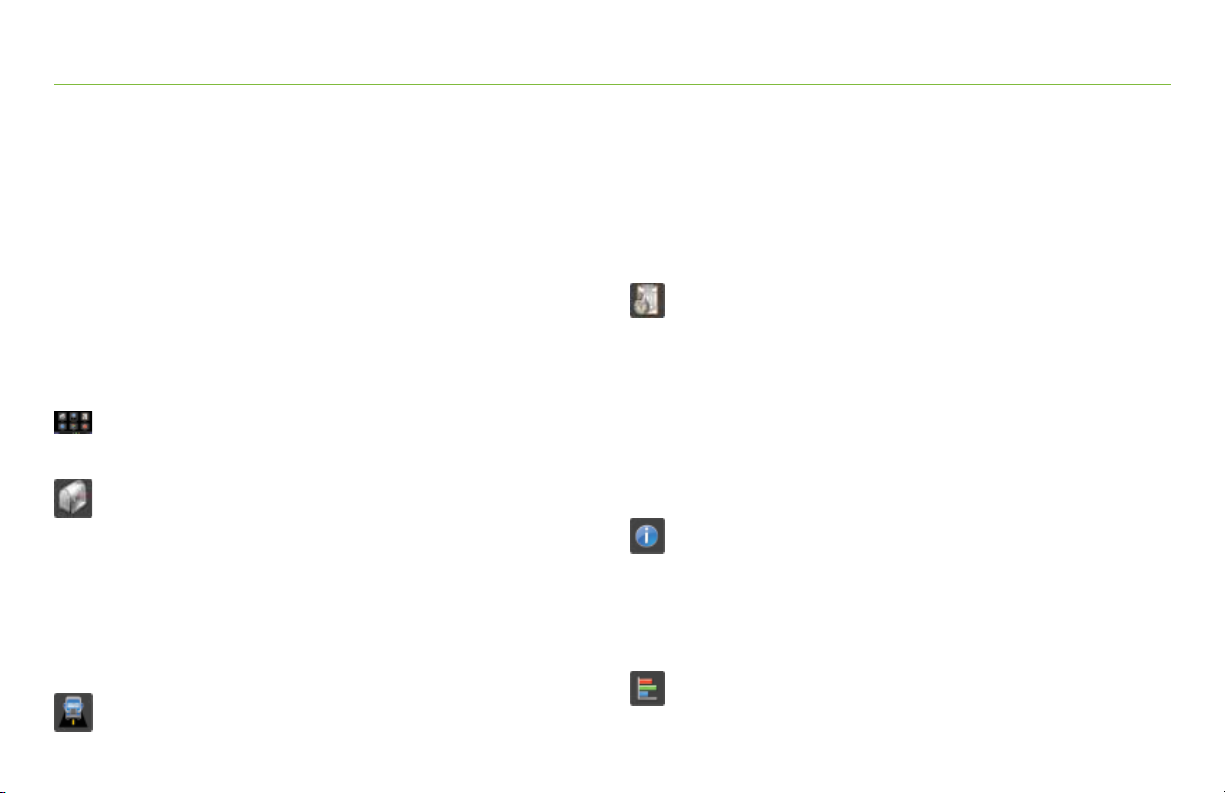
Table of Contents
For Sales Information Please Contact RoadTrucker Inc (www.RoadTrucker.com)
8312 Sidbury Rd.; Wilmington, NC 28411 - (800) 507-0482 / (910) 686-4281
Welcome to Your Rand McNally TND™ 760 Fleet Edition ........................2
Device Overview......................................................................................3
Getting Started .......................................................................................4
System Registration ..............................................................................4
Power On .............................................................................................5
Log On ................................................................................................5
Warning Screen ....................................................................................6
On-screen Keyboard ..............................................................................7
Status Bar ............................................................................................8
Screen Calibration ................................................................................9
TND
™
760 Home Menu ................................................................. 10
Home Menu Safe-driving Screen .........................................................11
™
TND
760 Mail ............................................................................. 12
Inbox .................................................................................................13
Open Message ...................................................................................14
Outbox ...............................................................................................15
Send ..................................................................................................16
Options ..............................................................................................17
Mail Safe-driving Screen .....................................................................17
™
TND
760 IntelliRoute® ...............................................................18
Main Menu ........................................................................................18
Truck Info ...........................................................................................19
General, Route and Map Preferences ........................................... 19-20
Warnings ...........................................................................................20
Route to Destination .................................................................... 21-22
POIs ...................................................................................................23
Trails ............................................................................................ 24-25
™
TND
760 Hours of Service .........................................................26
Summary ...................................................................................... 27-28
Duty Status ................................................................................... 29-31
Logs ............................................................................................ 32-36
DVIR ............................................................................................ 37-40
Options ........................................................................................ 41-43
Company ............................................................................................44
HOS Safe-driving Screen .....................................................................45
™
TND
760 SysInfo ........................................................................ 46
Settings .............................................................................................47
Info ....................................................................................................47
Diagnostics .........................................................................................48
SysInfo Safe-driving Screen .................................................................49
™
TND
760 Stats ............................................................................50
Driver Performance ............................................................................51
Fault Codes .......................................................................................52
Page 5
Welcome to Your Rand McNally TNDTM 760 Fleet Edition
For Sales Information Please Contact
RoadTrucker Inc
(www.RoadTrucker.com)
8312 Sidbury Rd.
Wilmington, NC 28411
(800) 507-0482 / (910) 686-4281
Easy. Convenient. Accurate. Flexible. Responsive.
The Rand McNally TND
designed to improve your work life.
1. Easy. The format, the applications and the processes are easy
to understand and easy to use. Safe-driving screens simplify
tasks you may need to perform while driving.
2. Convenient. From Log on to Log off, every task you need to
perform has touch-screen convenience. From start to finish,
instructions are clear and intuitive.
3. Accurate. HOS logs are recorded with
accurate-to-the-second technology.
4. Flexible. Tools are built into the system to allow you to
manage several applications simultaneously.
5. Responsive. Buttons fit your fingers so managing the touch
screen is comfortable. Going back a step is as easy as going
forward so you can quickly arrive at where you want to be
2
TND™ 760 Fleet Edition User Manual
in the system.
™
760 Fleet Edition is
Page 6
Device Overview
For Sales Information Please Contact RoadTrucker Inc (www.RoadTrucker.com)
8312 Sidbury Rd.; Wilmington, NC 28411 - (800) 507-0482 / (910) 686-4281
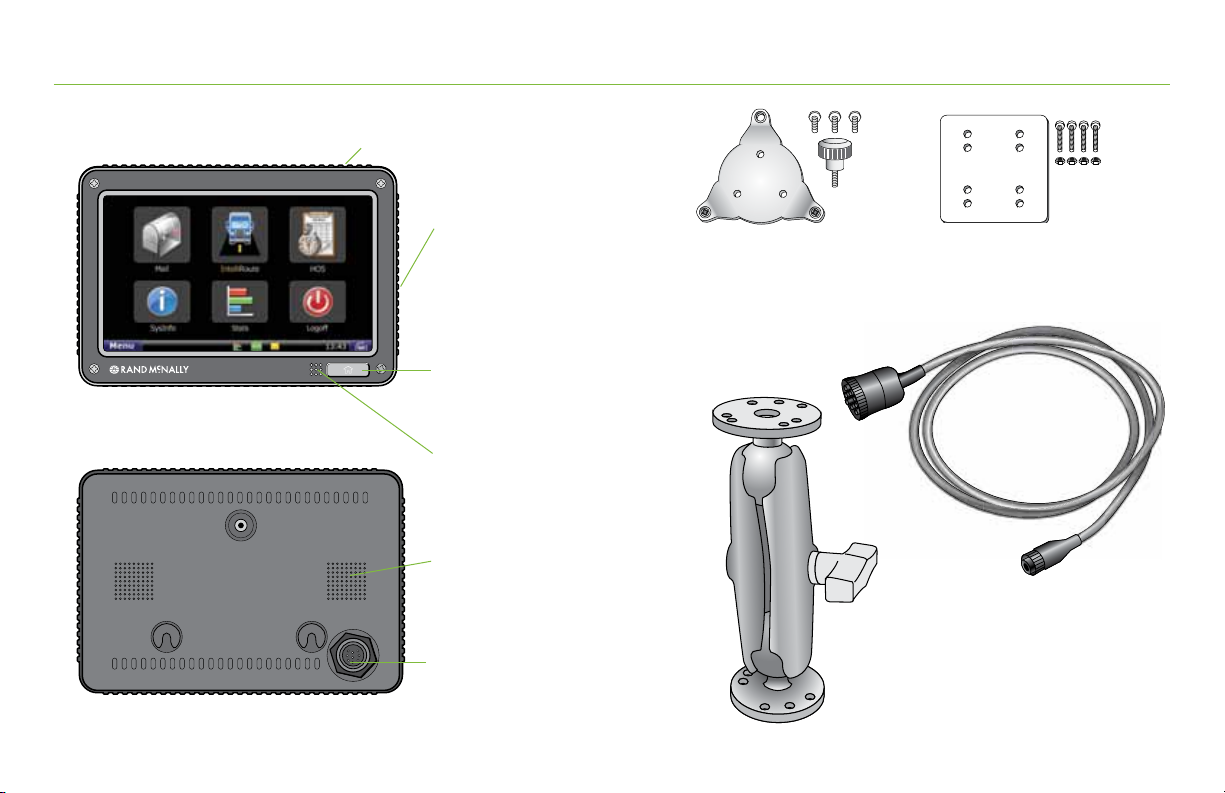
Front of Display
Back of Display
Power Button
USB
Use the USB to connect
a keyboard or mouse to your
TND
Home Button
Press to return to Home Menu screen.
LED Light
Lights up when unit is powered on.
Speaker
Power and OBD Access
TM
760.
Mounting Bracket
(with (3) 10-32 x 3/8” screws)
Dash Mount
To adjust the position of the
mount, turn the mount knob to
loosen tension.
Support Plate
(with (4) 10-24 x 1”screws
and (4) 10-24 nuts)
Power and OBD Cable
TND™ 760 Fleet Edition User Manual
3
Page 7
Getting Started
For Sales Information Please Contact
RoadTrucker Inc
(www.RoadTrucker.com)
8312 Sidbury Rd.
Wilmington, NC 28411
(800) 507-0482 / (910) 686-4281
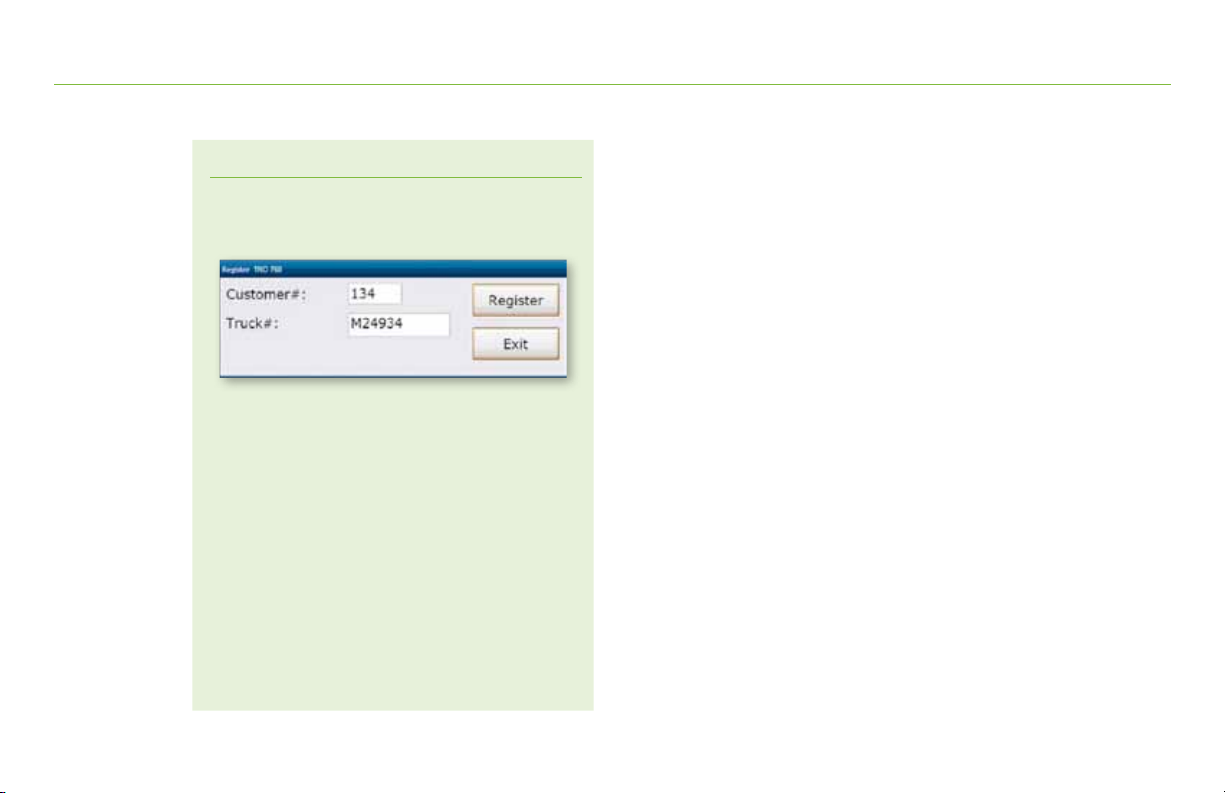
TND™ 760 Fleet Edition System Registration
Register TND™ 760 Fleet Edition.
and powered on, the Registration screen should display. Enter
your truck number in the
Send test message. Select the Mail icon on the Home
Menu and tap Send. Type message subject and message
text and tap Send in the upper left hand corner. Make sure
message indicator changes from X to a green check mark.
Verify GPS.
Select
and that there are values in the Latitude and Longitude fields.
Verify J1708/1939 data.
Select the SysInfo icon on the Home Menu. Select the
Diagnostics, then the J-Bus tab. Verify that there is an
odometer value in the Engine Odometer field. Then go back
to the Home Menu and select the Stats icon, then the
4
TND™ 760 Fleet Edition User Manual
Driver Performance tab. Verify there is a value in the
Engine Odometer field on the second line in the first column.
Select the
Diagnostics, then the GPS tab. Verify GPS status is good
Once system is installed
Truck # field and tap
SysInfo
icon on the Home Menu.
Drive the truck at least .2 miles.
Register.
System Registration
The first time you power up your TND™ 760,
you will need to register your unit.
Page 8
Getting Started
For Sales Information Please Contact
RoadTrucker Inc
(www.RoadTrucker.com)
8312 Sidbury Rd.
Wilmington, NC 28411
(800) 507-0482 / (910) 686-4281
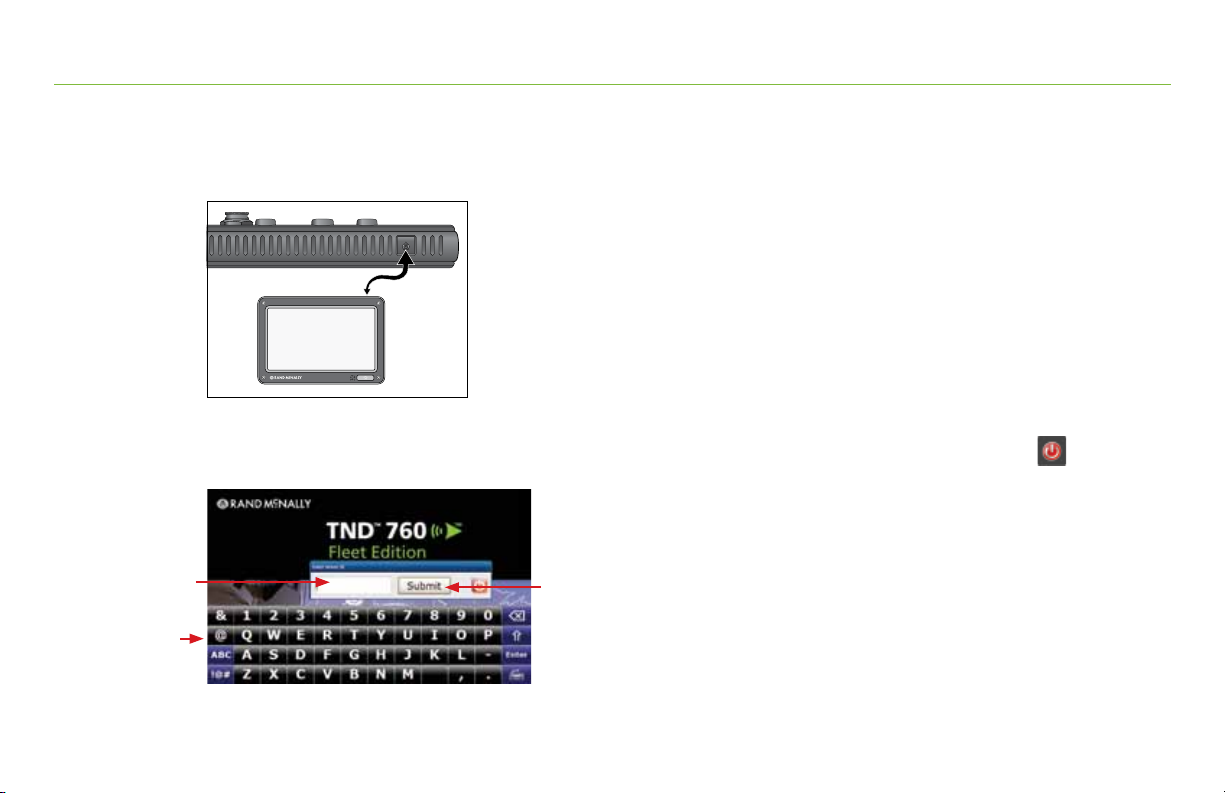
Exhibit 1.
TND™ 760 Power Button
Exhibit 2.
TND™ 760 Log On Screen
(a)
(b)
(c)
Power On
Press the Power button on the top right of the TND™ 760 display.
Log On
The start-up screen for the TNDTM 760 displays a log on pop-up
[Exhibit 2, (a)] and the on-screen keyboard [Exhibit 2, (b)].
• Use the on-screen keyboard to enter your Driver ID
(assigned by your company).
• Tap Submit [Exhibit 2, (c)].
Note: To log off your TNDTM 760, select the Logoff icon
on the Home Menu.
TND™ 760 Fleet Edition User Manual
5
Page 9

Getting Started
For Sales Information Please Contact
RoadTrucker Inc
(www.RoadTrucker.com)
8312 Sidbury Rd.
Wilmington, NC 28411
(800) 507-0482 / (910) 686-4281
Exhibit 3.
Warning Screen
Icon Definition
Wi-Fi
Cell
6
TND™ 760 Fleet Edition User Manual
Warning Screen
The Warning Screen [Exhibit 3] reminds you that using
your TNDTM 760 while driving can be distracting.
Be cautious and wise.
• Ta p Continue [Exhibit 3] to complete the logon.
Communication Status
You must have a cell or Wi-Fi connection to log on
for the first time.
• Locate the communication icon on the status bar. Icons and
their definitions are shown in the table to the left.
• Tap the keyboard button in the bottom left corner of the
keyboard if you cannot view the status bar.
Note: If you have a signal but still see errors (such as Invalid
Logon), contact your company for instructions.
Page 10
Getting Started
For Sales Information Please Contact
RoadTrucker Inc
(www.RoadTrucker.com)
8312 Sidbury Rd.
Wilmington, NC 28411
(800) 507-0482 / (910) 686-4281
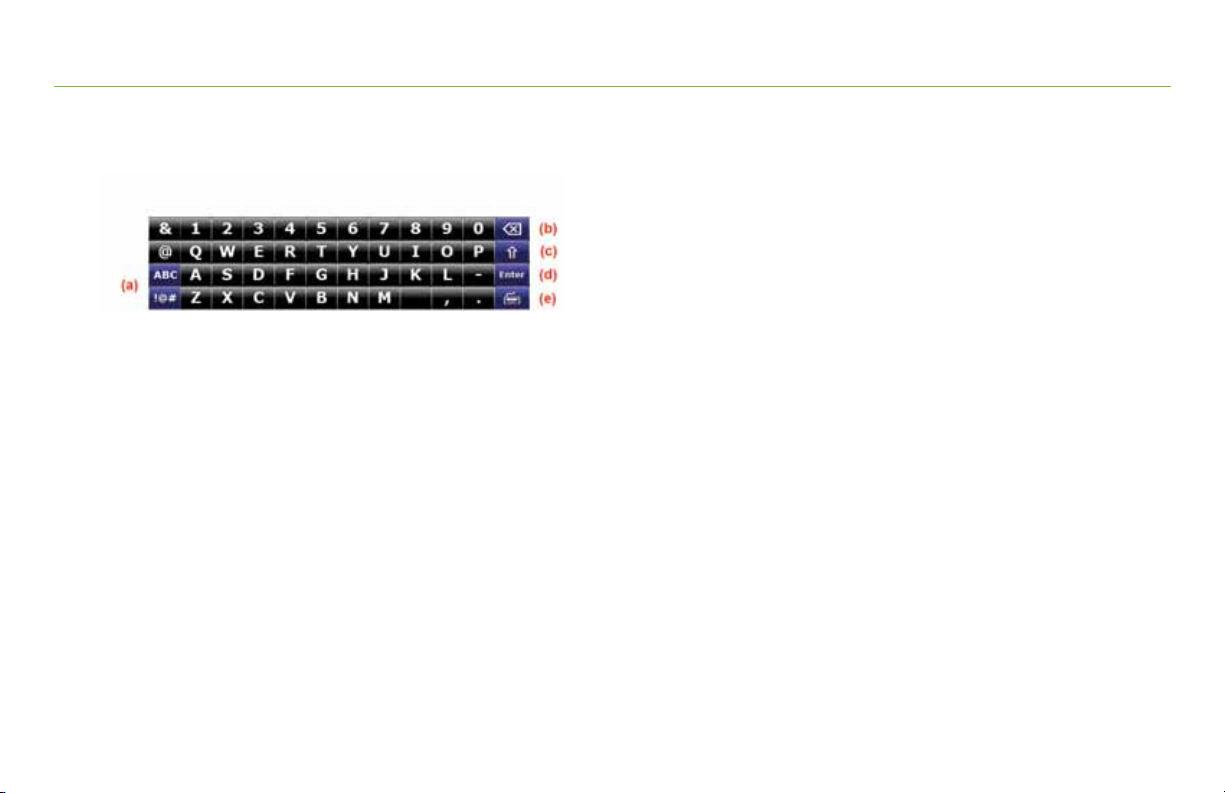
Exhibit 4.
On-screen Keyboard
On-screen Keyboard
The TND™ 760 on-screen keyboard is quick to access and easy to use.
• All controls are on the screen.
• Large button faces fit your fingers.
(f)
To use the keyboard:
• Tap the keyboard button [Exhibit 4, (e)] on the
TND™ 760 status bar to display the keyboard.
• Tap the ABC or !@# buttons [Exhibit 4, (a)] to view alphanumeric
characters and symbols respectively. The arrow button [Exhibit 4, (c)]
on the right on the ABC screen allows you to change between upper
and lower-case letters.
• Tap the Delete button [
Exhibit 4,
(b)] to erase a character.
• Tap the space bar button to insert a space [Exhibit 4, (f)].
• Tap
Enter [
Exhibit 4,
(d)] to type on the next line.
• Tap the keyboard button [Exhibit 4, (e)] again to
hide the keyboard.
TND™ 760 Fleet Edition User Manual
7
Page 11
Getting Started
For Sales Information Please Contact
RoadTrucker Inc
(www.RoadTrucker.com)
8312 Sidbury Rd.
Wilmington, NC 28411
(800) 507-0482 / (910) 686-4281
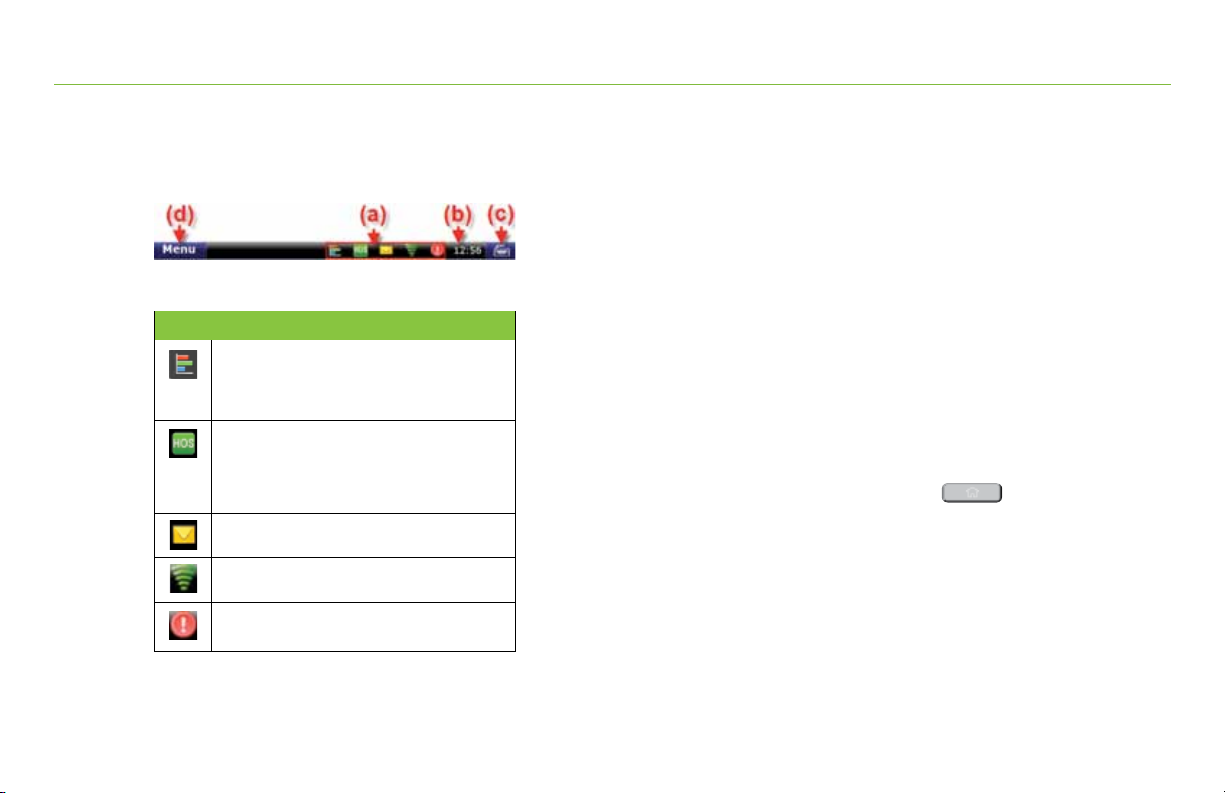
Exhibit 5.
Status Bar
Icon Definition
Driver Peformance. Balloon messages appear
over the icon to help you manage your performance.
Messages are related to metrics such as over idling
and speeding.
HOS. The icon changes color according to your HOS
status. The icon is green when you are within acceptable
limits for each HOS status. The icon changes to yellow
when you are nearing violation status and to red when
you are in violation.
Mail. The icon appears on the status bar when
you have unopened mail.
Communications. The icon shows your communication
status (Wi-Fi, Cellular, No communication).
System message. System alerts appear in
balloon messages over the icon.
8
TND™ 760 Fleet Edition User Manual
Status Bar
The status bar remains visible at the bottom of every screen and gives
you access to current information about the TND™ 760.
Any status or alert icons are found on the status bar [Exhibit 5, (a)].
Icons and their definitions are shown in the table to the left.
The status bar also allows you to:
• Check your terminal time [Exhibit 5, (b)].
• Pull up the on-screen keyboard [Exhibit 5, (c)].
• Return to the Home Menu [Exhibit 5, (d)].
Note: You can also tap the Home button on the
unit to return to the Home Menu.
Page 12
Getting Started
For Sales Information Please Contact
RoadTrucker Inc
(www.RoadTrucker.com)
8312 Sidbury Rd.
Wilmington, NC 28411
(800) 507-0482 / (910) 686-4281
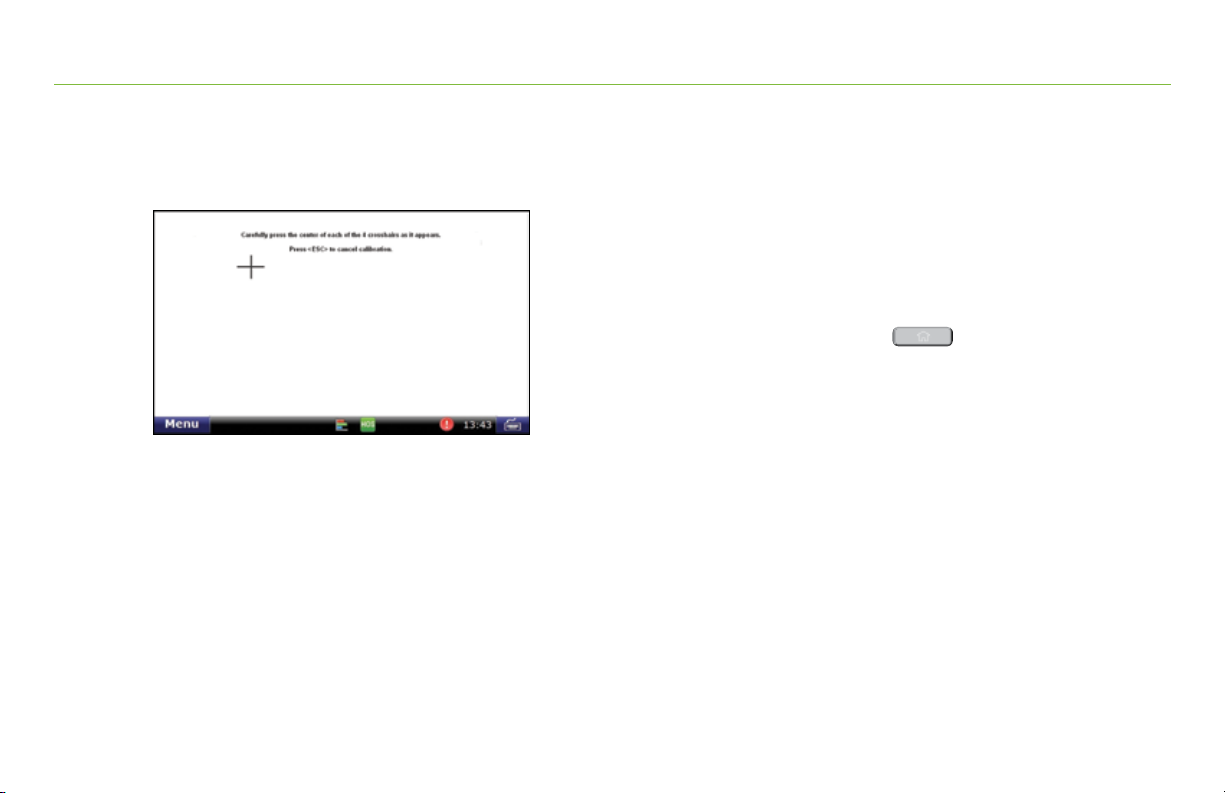
Exhibit 6.
Calibrate Screen
Screen Calibration
As soon as the TND™ 760 is running, calibrate your screen.
Recalibrate from time to time, especially if the screen “slips”
when you touch it.
To calibrate your screen:
• Press and hold the Home button for 10 seconds.
Calibration starts once button is released.
• Tap the center of the crosshairs as they appear on the calibration
screen [Exhibit 6]. There are four total.
-
Tap as close to the center of the crosshairs symbol (+) as possible.
- Use the same pressure you normally use when tapping the screen
- If you receive an error, try again.
Note:
Do NOT press and hold finger on the center of the crosshairs.
Just tap.
TND™ 760 Fleet Edition User Manual
9
Page 13
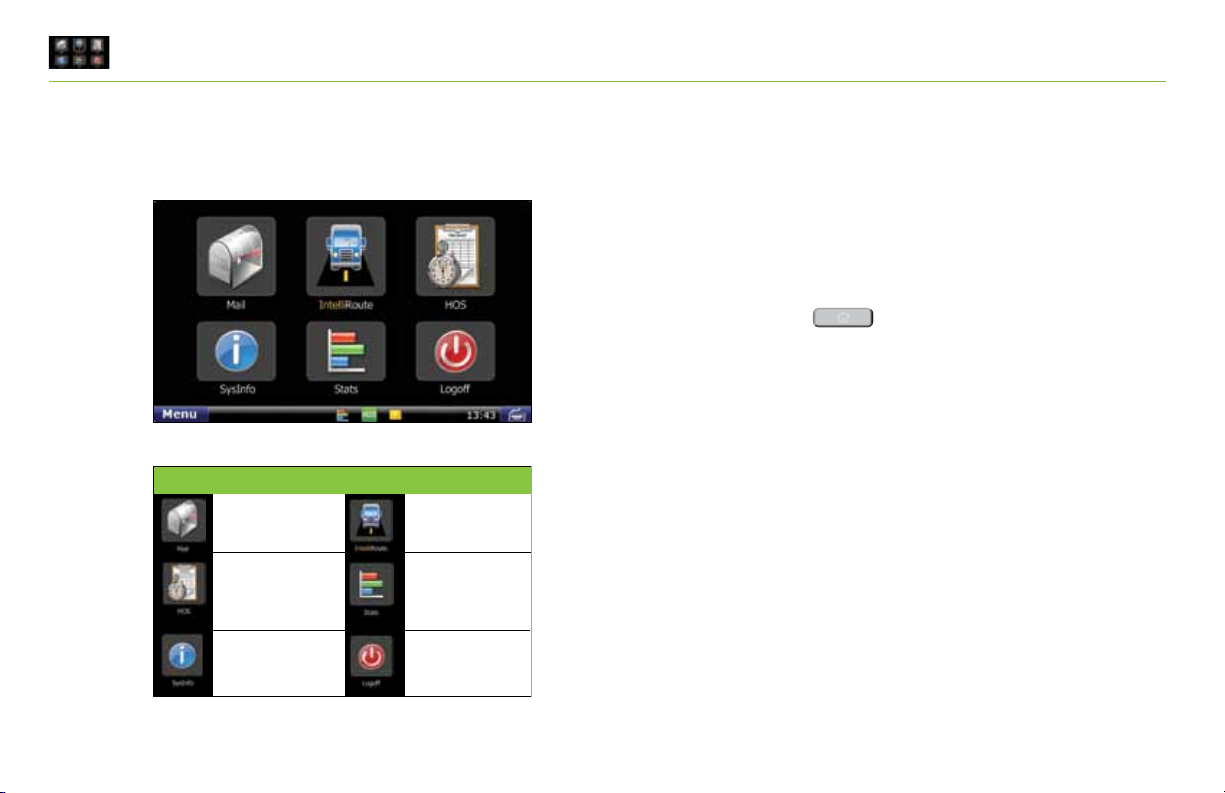
TNDTM 760 Home Menu
Icon Function Icon Function
View, listen
and respond
to messages.
Pinpoint location
and find routes.
Manage
settings, tasks and
communication.
Review, create
and send logs.
Access company
information.
View driver
perfomance stats.
Log off the
TND
TM
760.
For Sales Information Please Contact
RoadTrucker Inc
(www.RoadTrucker.com)
8312 Sidbury Rd.
Wilmington, NC 28411
(800) 507-0482 / (910) 686-4281
Exhibit 7.
Home Menu Screen
10
TND™ 760 Fleet Edition User Manual
Home Menu
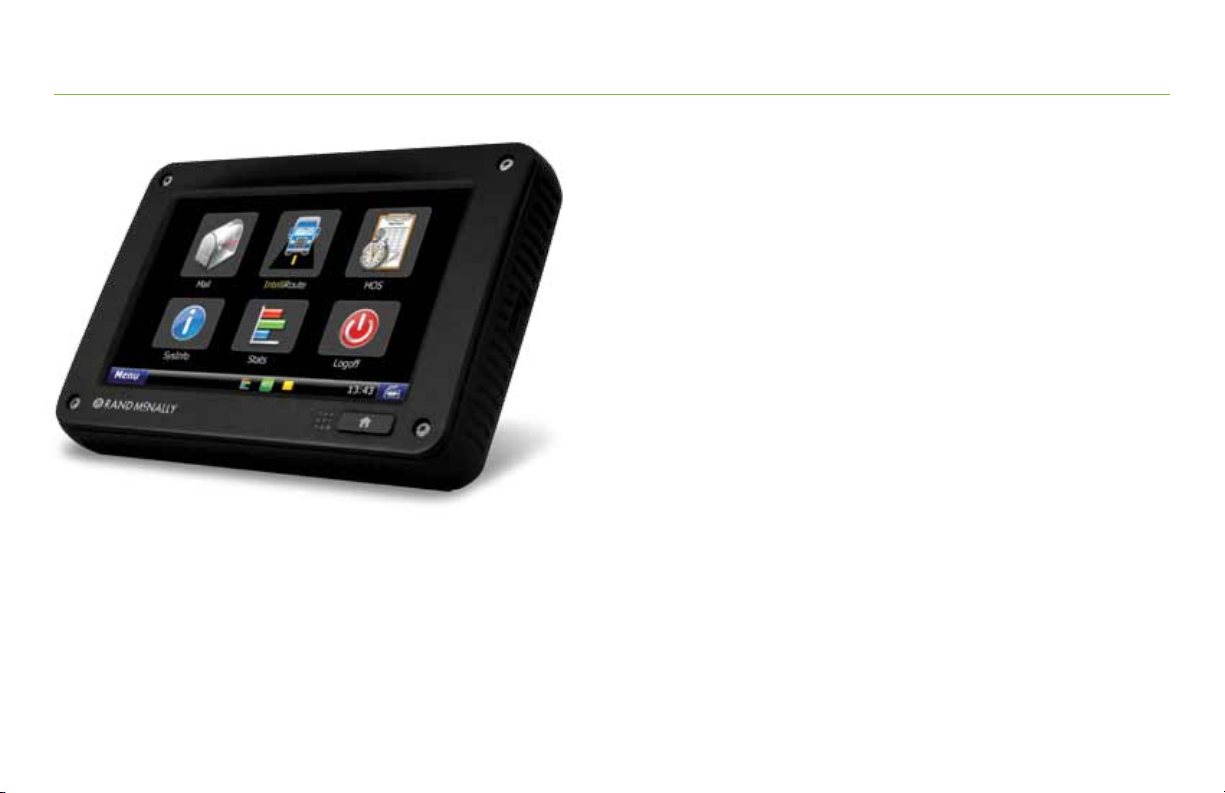
The Home Menu [Exhibit 7] is the home screen of the TND™ 760.
The applications available to you on the TND™ 760 are
identified by icons.
The icons on the Home Menu are explained in the table to the left.
• Press the Home button to return to the Home Menu screen.
Page 14
TNDTM 760 Home Menu
For Sales Information Please Contact
RoadTrucker Inc
(www.RoadTrucker.com)
8312 Sidbury Rd.
Wilmington, NC 28411
(800) 507-0482 / (910) 686-4281
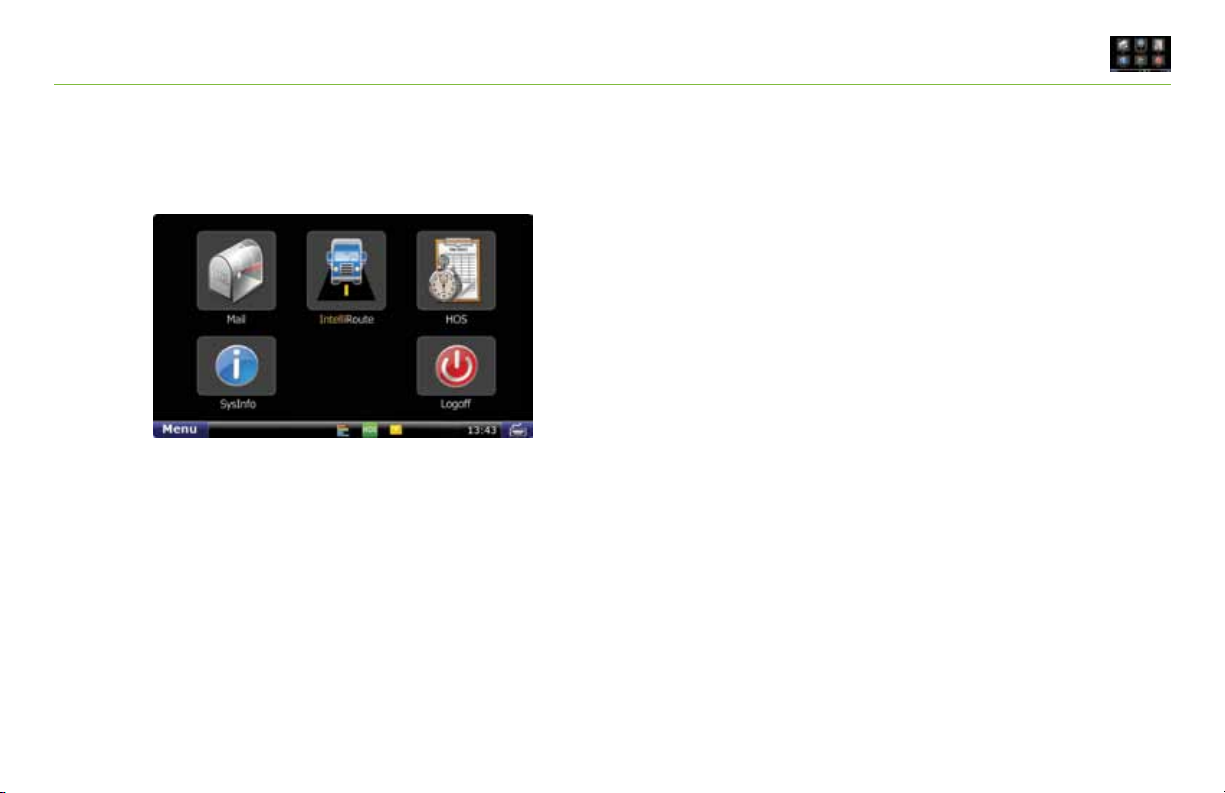
Exhibit 8.
Home Menu Safe-driving Screen
Home Menu Safe-driving Screen
Menu options are limited while you are driving. When your
truck is moving, the home menu safe-driving screen displays.
Note: Functionality within the Mail, HOS and SysInfo
applications is simplified while you are driving.
TND™ 760 Fleet Edition User Manual
11
Page 15
TNDTM 760 Mail
For Sales Information Please Contact
RoadTrucker Inc
(www.RoadTrucker.com)
8312 Sidbury Rd.
Wilmington, NC 28411
(800) 507-0482 / (910) 686-4281
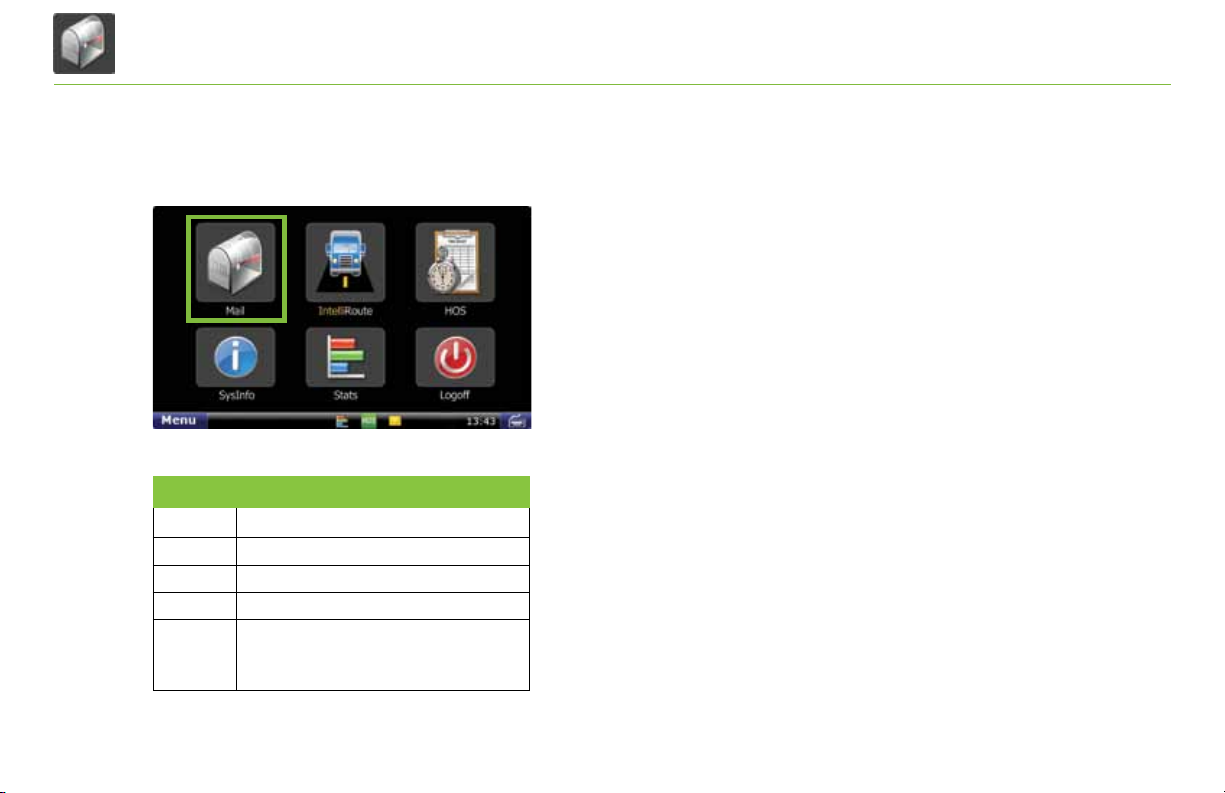
Exhibit 9.
Mail Icon on Home Menu
Tab Function
Inbox Holds incoming messages.
Holds outgoing messages.
Outbox
Send
Allows you to send messages.
Helps you process assignments.
Work
Options
Displays your e-mail address
12
TND™ 760 Fleet Edition User Manual
and allows you to manage
your e-mail contacts.
Mail
Select the Mail icon on the Home Menu [Exhibit 9]
to access messages and send e-mails.
Mail opens to the Inbox tab. The tabs in Mail are explained
in the table to the left.
Page 16
TNDTM 760 Mail
For Sales Information Please Contact
RoadTrucker Inc
(www.RoadTrucker.com)
8312 Sidbury Rd.
Wilmington, NC 28411
(800) 507-0482 / (910) 686-4281
Exhibit 10.
Inbox Tab
Inbox
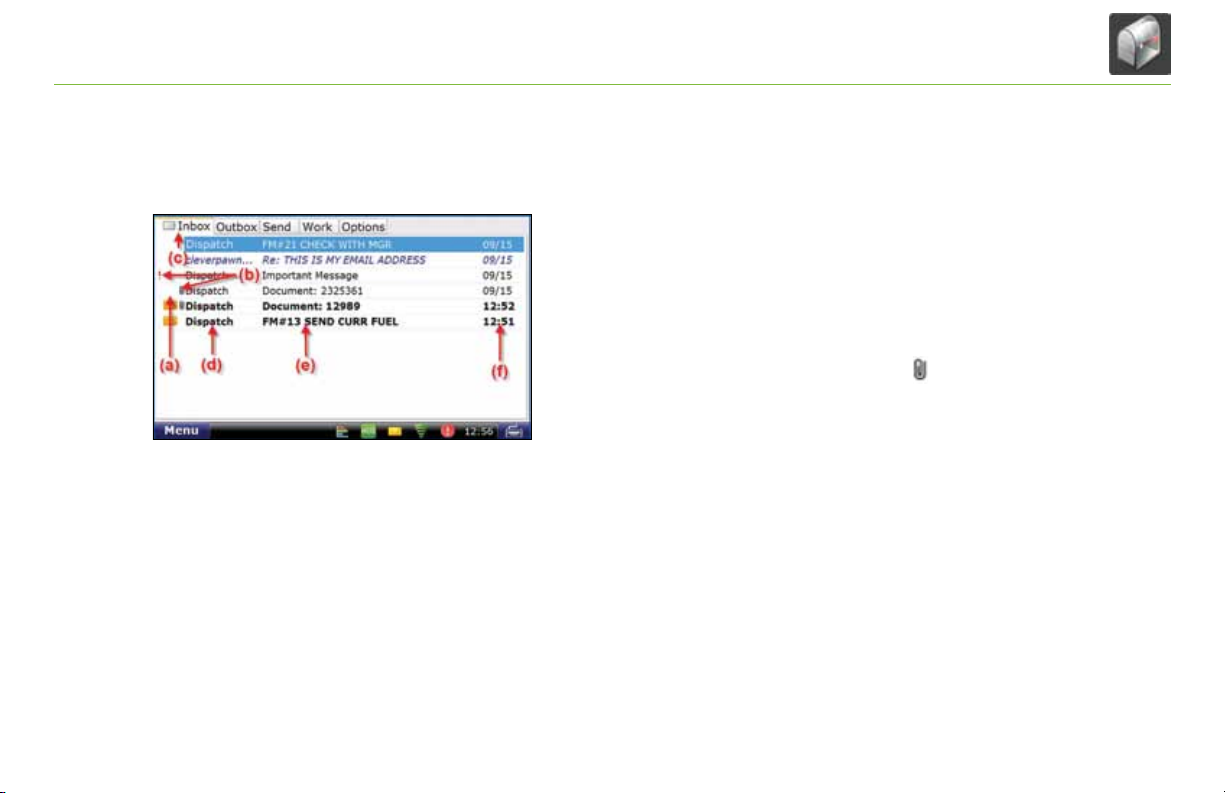
All incoming messages appear in your Inbox
of the Inbox tell you details about your messages.
Status information is clustered together [Exhibit 10, (a), (b) and (c)].
•(a). A blank space in this column means the message
has been opened. An envelope means it has not been opened.
•(b). A red exclamation point ( ! ) icon means the
message is important. A paperclip ( ) icon means the message
has an attachment.
•(c).
When you are working in another Mail tab, an
envelope icon appears on the tab indicating that you have
an unopened message.
Other columns in the Inbox tell you more about your messages
[Exhibit 10, (d), (e) and (f)].
•(d). This column tells you who sent the message.
•(e). This column tells you the subject of the message.
•(f). This column tells you when the message arrived.
-The time displays for messages that arrived on that current day
(based on your terminal time).
-The date displays for messages that arrived on previous days.
[Exhibit 10]
TND™ 760 Fleet Edition User Manual
. Special features
13
Page 17

TNDTM 760 Mail
For Sales Information Please Contact
RoadTrucker Inc
(www.RoadTrucker.com)
8312 Sidbury Rd.
Wilmington, NC 28411
(800) 507-0482 / (910) 686-4281
Exhibit 11.
Open Message Screen
(a)
(c) (b)
14
TND™ 760 Fleet Edition User Manual
(d)
Open Message
Select a message to open it [Exhibit 11].
Four action buttons are available once a message is open.
• (a). Back returns you to the Inbox.
• (b). Play lets you listen to the message.
• (c). Reply lets you send a response to the message.
• (d). Delete lets you delete the open message.
Your Inbox holds 200 messages. When more messages arrive,
the oldest messages in your Inbox are automatically deleted.
Personal E-mail Access
• If your carrier has enabled personal e-mail access, you can save up to
5 personal e-mail addresses to communicate with while on the road.
• Personal e-mails are color-coded blue in your Inbox so you can identify
them quickly. The color coding remains after the e-mail is read.
• You can view your assigned e-mail address by selecting the Options
tab on the Mail screen and tapping the View E-mail Address button.
Page 18
TNDTM 760 Mail
For Sales Information Please Contact
RoadTrucker Inc
(www.RoadTrucker.com)
8312 Sidbury Rd.
Wilmington, NC 28411
(800) 507-0482 / (910) 686-4281
Exhibit 12.
Outbox Tab
(a)
(b) (c) (d)
Outbox
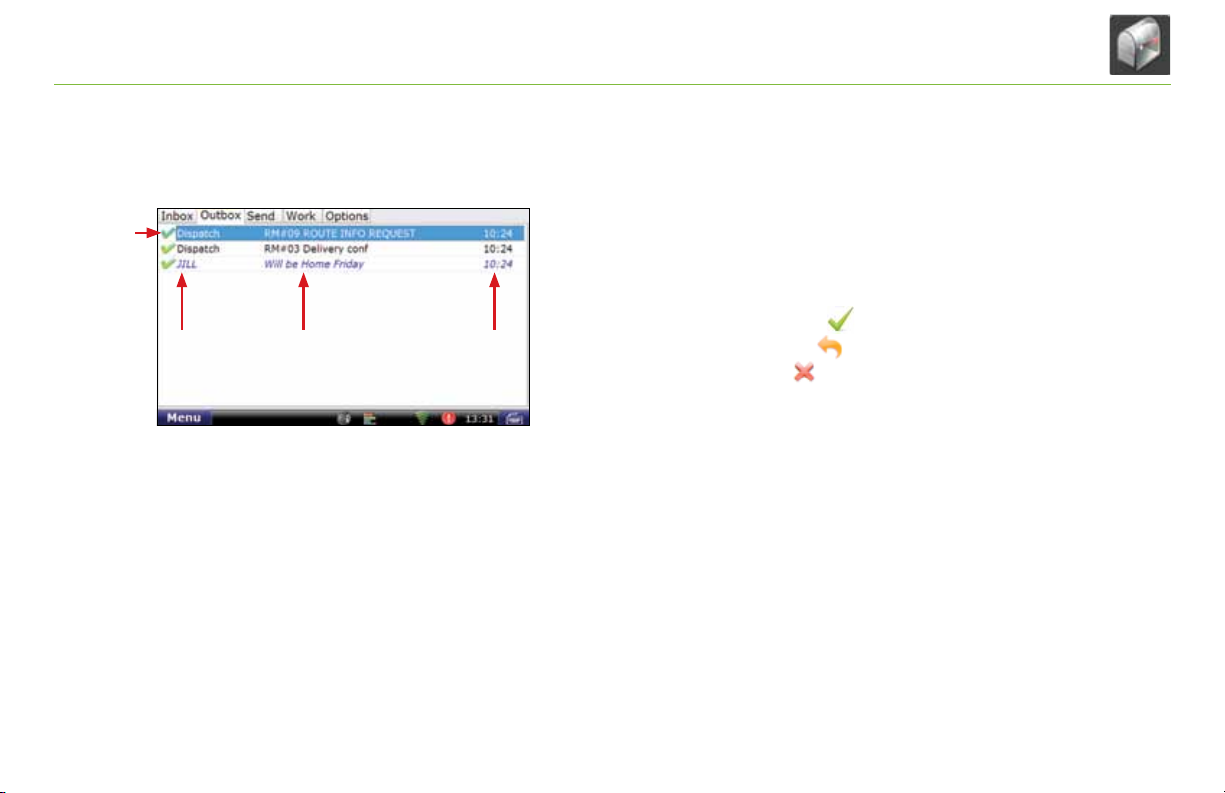
All outgoing messages appear in your Outbox [Exhibit 12]. Special
features of the Outbox tell you details about your messages.
Your Outbox holds 50 messages. When you have sent more than
that, the oldest messages in your Outbox are automatically deleted.
• (a). A green check mark ( ) icon means the message has been
sent. An orange arrow ( ) icon means the message is waiting
to be sent. A red X ( ) icon means the message has not yet
been sent.
Other columns in the Outbox tell you more about your messages
[Exhibit 10, (b), (c) and (d)].
• (b). This column tells you who received the message.
• (c). This column tells you the subject of the message.
• (d). This column tells you when the message arrived.
-The time displays for messages that arrived on that current day
(based on your terminal time).
-The date displays for messages that arrived on previous days.
TND™ 760 Fleet Edition User Manual
15
Page 19
TNDTM 760 Mail
For Sales Information Please Contact
RoadTrucker Inc
(www.RoadTrucker.com)
8312 Sidbury Rd.
Wilmington, NC 28411
(800) 507-0482 / (910) 686-4281
Exhibit 13.
Send Tab
16
TND™ 760 Fleet Edition User Manual
Send Messages
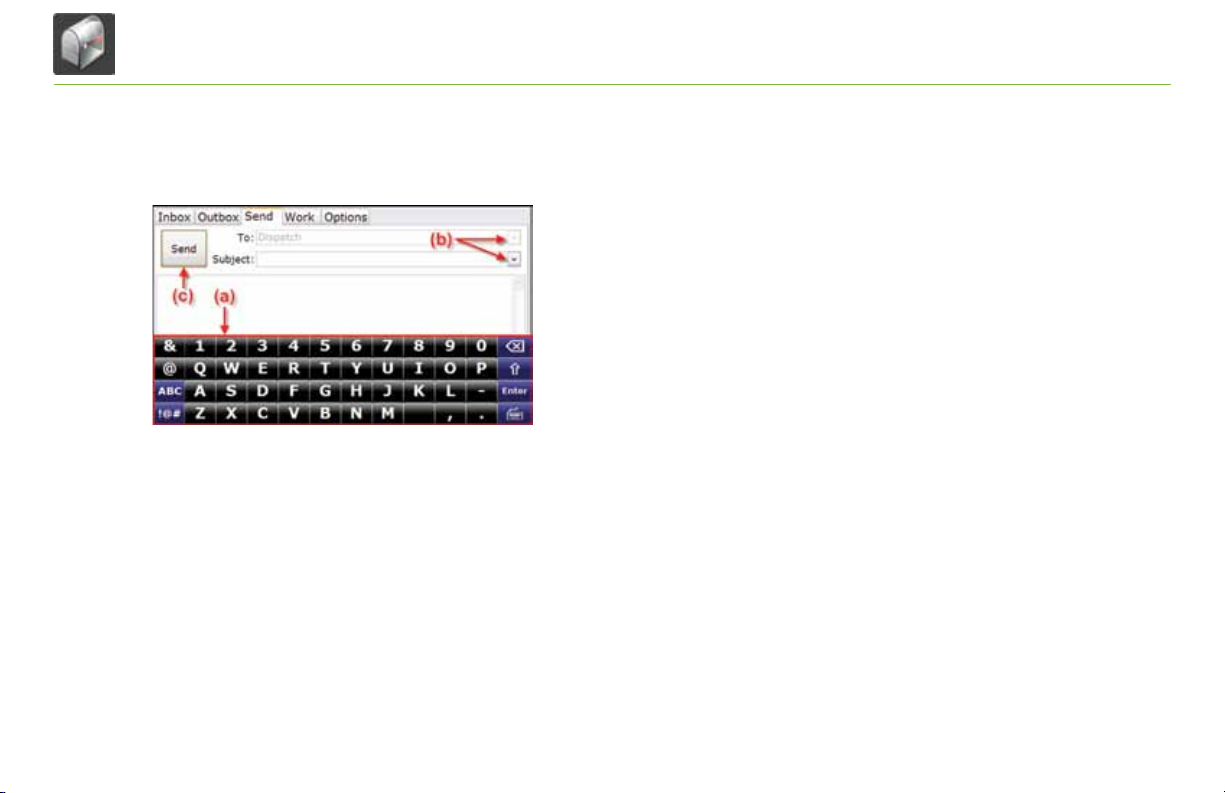
You can send messages from the Send tab [Exhibit 13].
The on-screen keyboard [Exhibit 13, (a)] appears automatically when
you select the Send tab.
Drop-down boxes [Exhibit 13, (b)] make it easy for you to complete
the To and Subject fields.
• The To field automatically selects Dispatch. The drop-down box
lists other saved contacts.
• You can fill in the Subject field by using either the drop-down
list (if you want to send a form) or the on-screen keyboard
(if you want to send a message). If you choose a form from the
drop-down list, the screen displays the form in the message
field (the body of the screen).
When you are done, tap Send [Exhibit 13, (c)].
Page 20
TNDTM 760 Mail
For Sales Information Please Contact RoadTrucker Inc (www.RoadTrucker.com)
8312 Sidbury Rd.; Wilmington, NC 28411 - (800) 507-0482 / (910) 686-4281
Exhibit 14.
Options Tab
Exhibit 15.
Mail Safe-driving Screen
Options
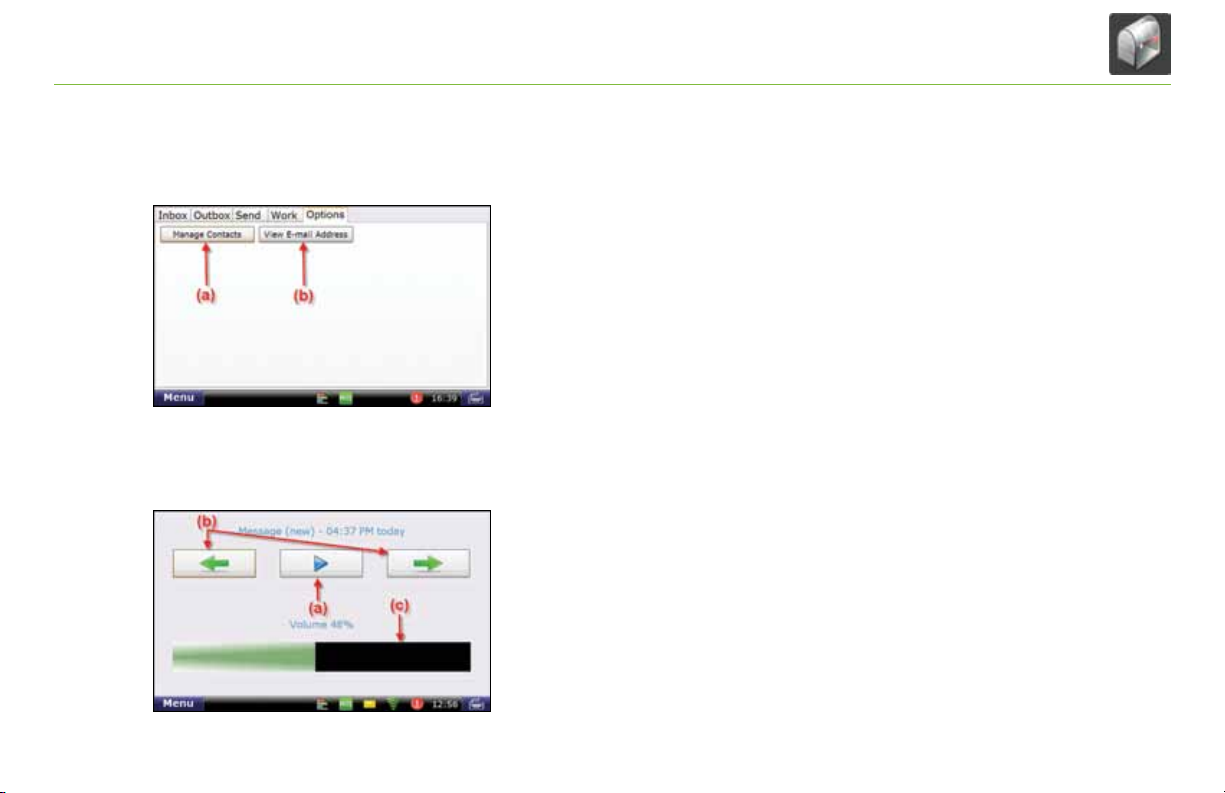
The Options tab has two buttons [Exhibit 14].
•Manage Contacts [Exhibit 14, (a)]. This button lets you add
contacts
your Send message screen)
enter a new truck and make changes to your contact list.
•View E-mail Address [Exhibit 14, (b)]. This button
lets you review your TND™ 760 e-mail address.
(for the list that displays in the To drop-down box on
, request your contact list when you
Mail Safe-driving Screen
When you select the Mail icon while vehicle is in motion, the mail
safe-driving screen will appear. With the mail safe-driving screen
[Exhibit 15], you can hear a message rather than read it.
• Play and stop messages [Exhibit 15, (a)].
• Hear the previous or next message [Exhibit 15, (b)].
• Control volume by dragging a finger across the volume box
[Exhibit 15, (c)].
TND™ 760 Fleet Edition User Manual
17
Page 21
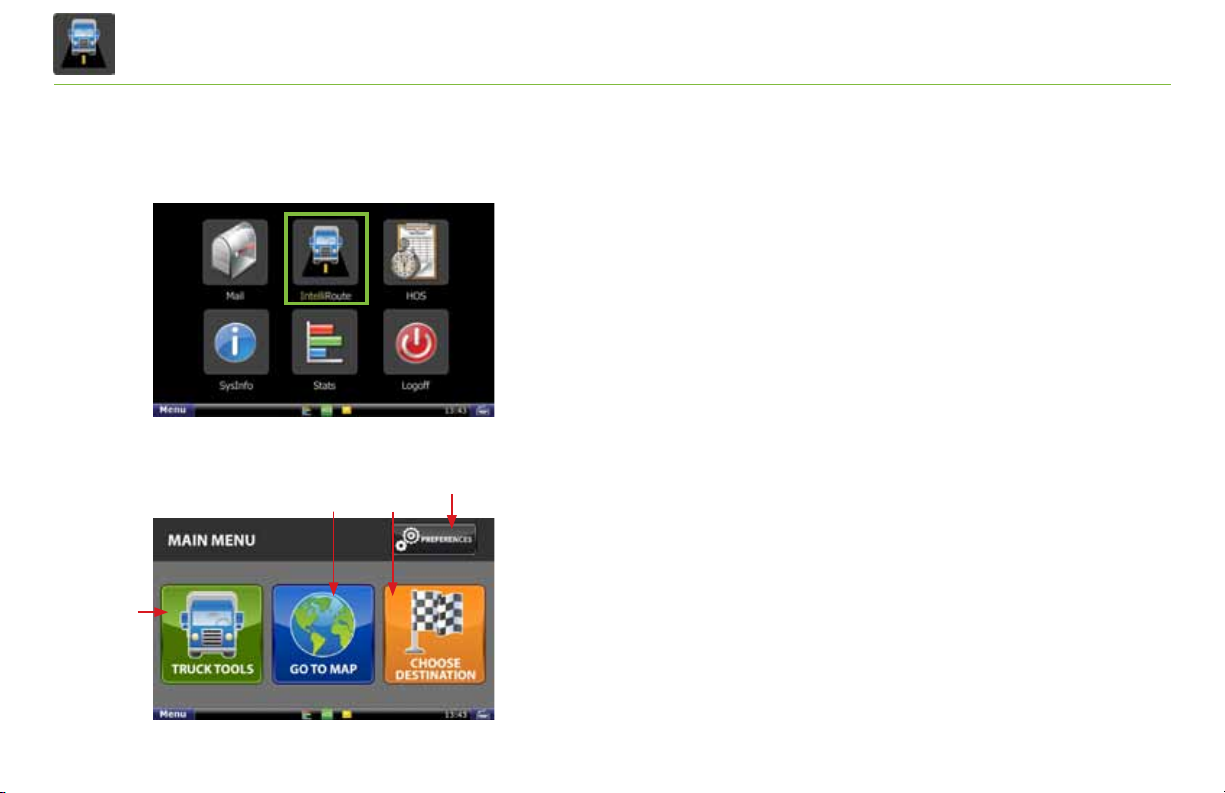
TNDTM 760 IntelliRoute
For Sales Information Please Contact RoadTrucker Inc (www.RoadTrucker.com)
8312 Sidbury Rd.; Wilmington, NC 28411 - (800) 507-0482 / (910) 686-4281
®
Exhibit 16.
IntelliRoute® Icon on Home Menu
Exhibit 17.
IntelliRoute® Screen
(a)
(b) (c)
(d)
IntelliRoute
®
Select the IntelliRoute® icon on the Home Menu [Exhibit 16] to
access the truck-specific routing application. IntelliRoute® will route
you around low bridges, truck-restricted roads and help you find
driver-specific points of interest.
Main Menu
a. Enter truck information and access truck-specific use tools.
b. Show location on the map and view navigation instructions.
c. Choose a destination.
d. Select general, route and map preferences.
18
TND™ 760 Fleet Edition User Manual
Page 22
TNDTM 760 IntelliRoute
For Sales Information Please Contact RoadTrucker Inc (www.RoadTrucker.com)
8312 Sidbury Rd.; Wilmington, NC 28411 - (800) 507-0482 / (910) 686-4281
®
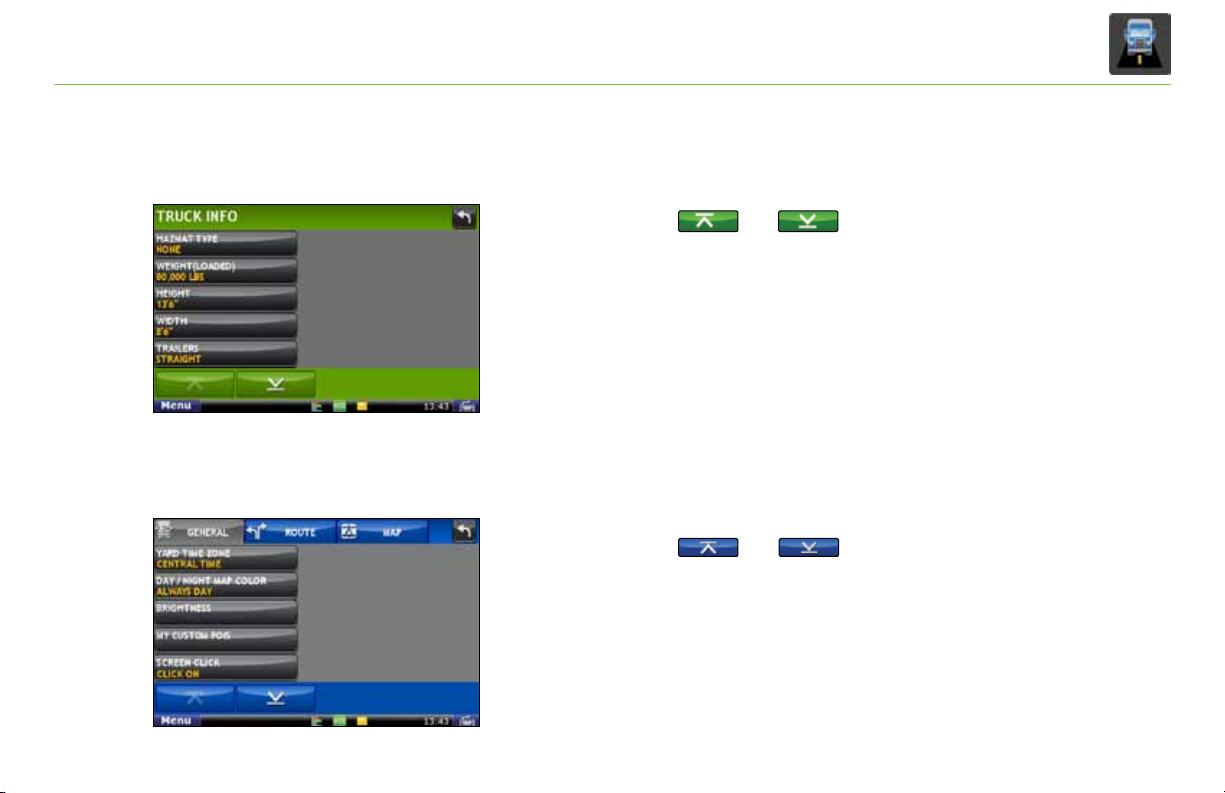
Exhibit 18.
Truck Info Screen
Exhibit 19.
General Preferences
Enter Truck Information
1. Tap Truck Tools > Truck Info [Exhibit 18].
2. Tap and to view all options.
3. Tap to select the options to be changed.
4. Enter new truck information settings.
5. Tap Back to save changes.
Set General, Route and Map Preferences
1. Tap Preferences.
2. Tap the General tab [Exhibit 19].
3. Tap and to view general device options.
4. Tap the option button to be changed.
5. Enter the new settings for the option.
TND™ 760 Fleet Edition User Manual
19
Page 23
TNDTM 760 IntelliRoute
For Sales Information Please Contact RoadTrucker Inc (www.RoadTrucker.com)
8312 Sidbury Rd.; Wilmington, NC 28411 - (800) 507-0482 / (910) 686-4281
®
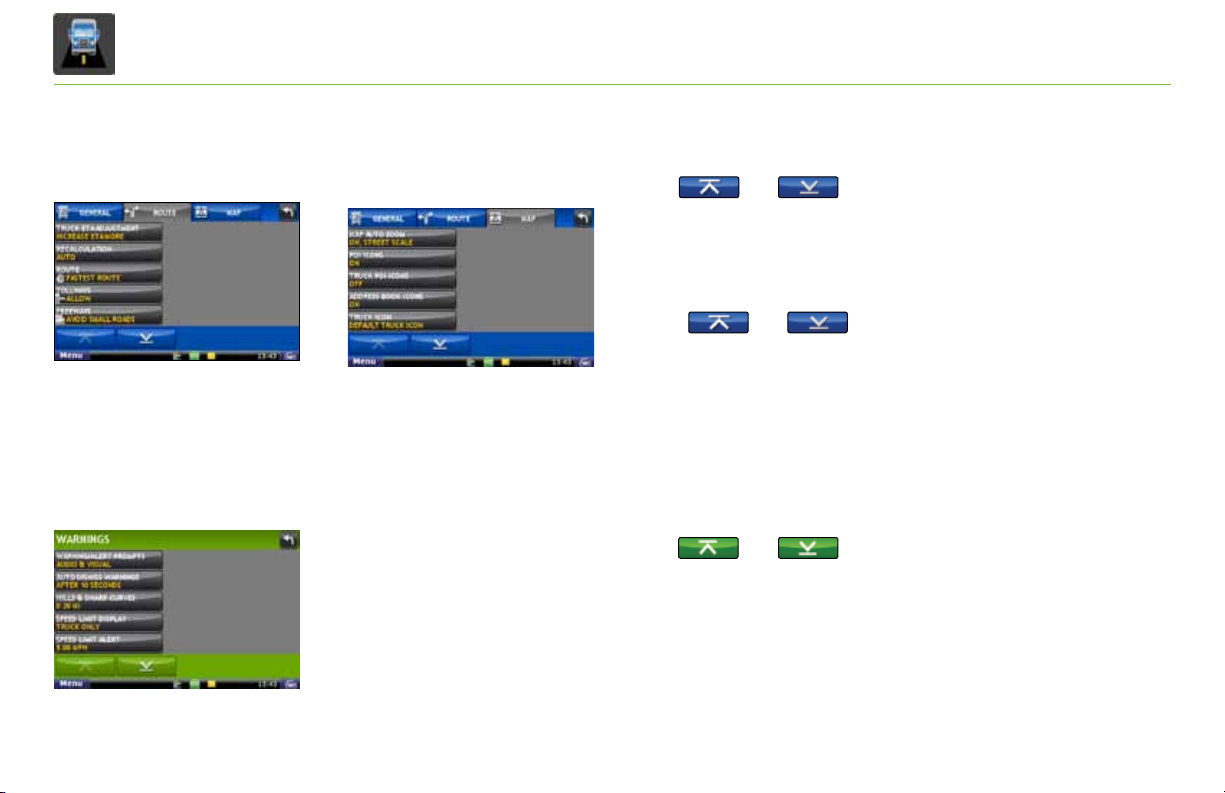
Exhibit 20.
Route Preferences Tab
Exhibit 22.
Warnings Screen
Exhibit 21.
Map Preferences Tab
6. Tap the Route tab [Exhibit 20].
7. Tap and to view route options.
8. Tap the option button to be changed.
9. Enter the new settings for the option.
10. Tap the Map tab [Exhibit 21].
11. Tap and to view mapping options.
12. Tap the option button to be changed.
13. Enter the new settings for the option.
14. Tap Back to save changes.
Set Warnings
1. Tap Truck Tools > Warnings [Exhibit 22].
2. Tap and to view all warning options.
3. Tap the option button to be changed.
4. Enter the new settings for the option.
5. Tap Back to save changes.
20
TND™ 760 Fleet Edition User Manual
Page 24
TNDTM 760 IntelliRoute
For Sales Information Please Contact RoadTrucker Inc (www.RoadTrucker.com)
8312 Sidbury Rd.; Wilmington, NC 28411 - (800) 507-0482 / (910) 686-4281
®
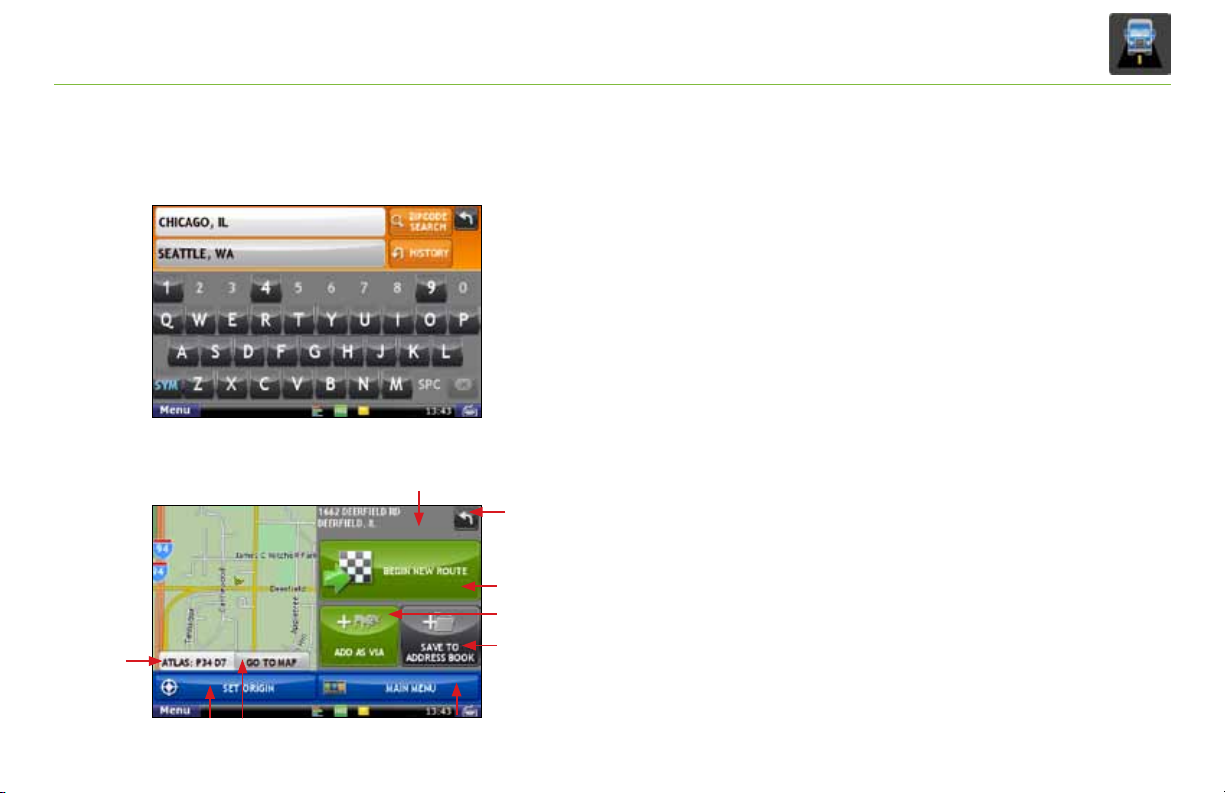
Exhibit 23.
Keyboard Screen
Exhibit 24.
Destination Screen
(c)
(e)
(f)
(a)
(g)
(b)
(h)
(i)
(d)
Route to New Destination
Find an Address
1. Tap Choose Destination > New Location.
2. Select a search type (Address, City Center, Intersection, or Lat/Long).
3. Use the keyboard to type location information [Exhibit 23].
4. Tap on the location in the displayed list.
5. Tap Begin New Route.
Confirm Destination
a. Destination address.
b. Begin route to destination.
c. Cross reference to printed Rand McNally
Motor Carriers’ Road Atlas.
d. Return to previous window.
e. View the map.
f. Change the starting address for a route to the location displayed
on the map screen.
g. Return to Main Menu.
h. Add the location as an interim stop between the origin and destination.
i. Save location to the Address Book.
TND™ 760 Fleet Edition User Manual
21
Page 25
TNDTM 760 IntelliRoute
For Sales Information Please Contact RoadTrucker Inc (www.RoadTrucker.com)
8312 Sidbury Rd.; Wilmington, NC 28411 - (800) 507-0482 / (910) 686-4281
®
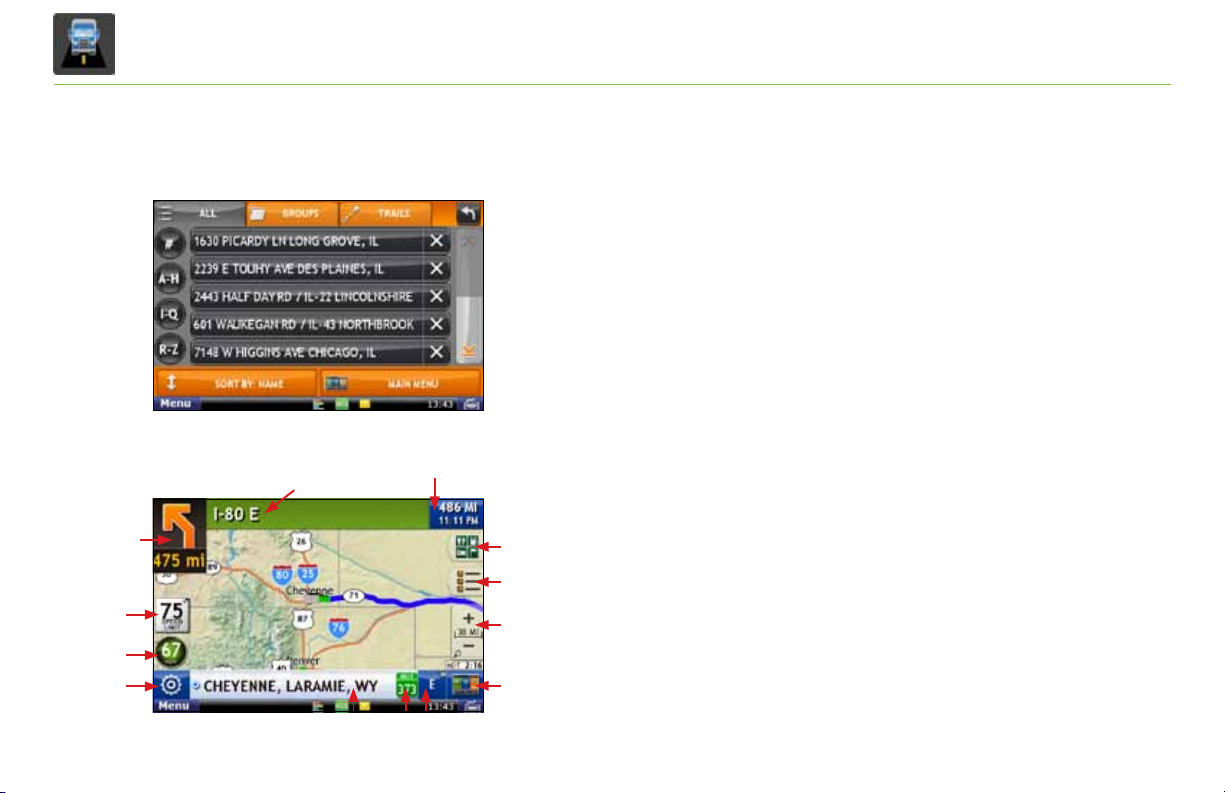
Exhibit 25.
Address Book Tab
Exhibit 26.
Route Map Screen
(a)
(m)
(l)
(k)
22
TND™ 760 Fleet Edition User Manual
(b)
Route to Saved Destination
1. Tap Choose Destination > History or Address Book [Exhibit 25].
2. Tap on the desired destination in the displayed list.
3. Tap Begin New Route.
Route Map Screen
a. Repeat spoken next-maneuver instructions.
b. Name of street you will turn onto next.
c. Select an option to display: yard arrival time, arrival time,
remaining
d. Information on upcoming exits.
(c)
e. Directions slide-out list.
f. Zoom in/zoom out.
g. Return to IntelliRoute® Main Menu.
(d)
(e)
(f)
h. Compass Direction. Tap to change map display: North (N),
Heading Up (arrow) or 3D View (3).
i. Current mile marker.
j. Tap to view current information by city, street, or upcoming intersection.
k. Tap to see current location information, change route settings,
detour, or cancel a route.
(g)
(h)(i)(j)
l. Current vehicle speed. Tap to view Virtual Dashboard.
m. Posted speed limit: orange for truck limit; white for general limit.
time, yard time or elevation.
Page 26
TNDTM 760 IntelliRoute
For Sales Information Please Contact
RoadTrucker Inc
(www.RoadTrucker.com)
8312 Sidbury Rd.
Wilmington, NC 28411
(800) 507-0482 / (910) 686-4281
®
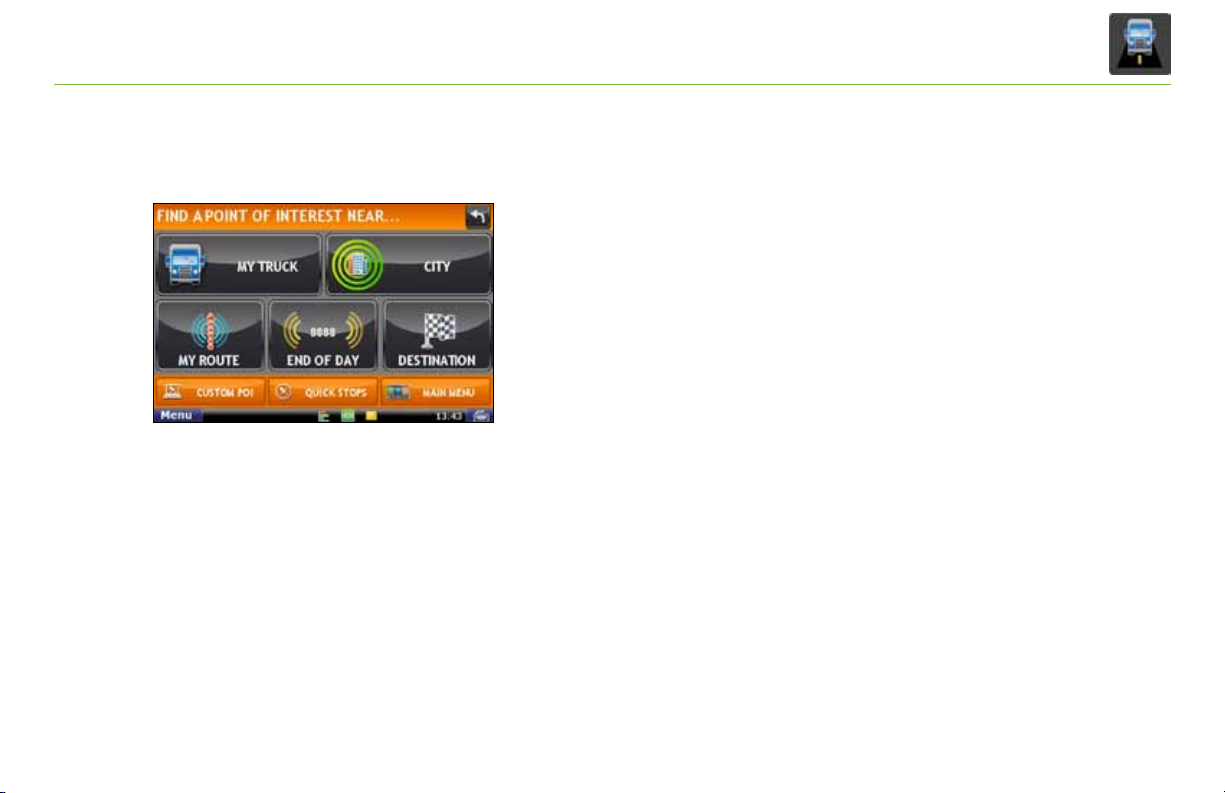
Exhibit 27.
Point of Interest Screen
Find a Point of Interest (POI)
1. Tap Choose Destination > Points of Interest [Exhibit 27].
2. Select a search type (My Truck, City, My Route,
End of Day, Destination, Custom POI, or Quick Stops).
3. Select a category and if necessary, a subcategory.
4. Tap on the Point of Interest in the displayed list.
TND™ 760 Fleet Edition User Manual
23
Page 27
TNDTM 760 IntelliRoute
For Sales Information Please Contact
RoadTrucker Inc
(www.RoadTrucker.com)
8312 Sidbury Rd.
Wilmington, NC 28411
(800) 507-0482 / (910) 686-4281
®
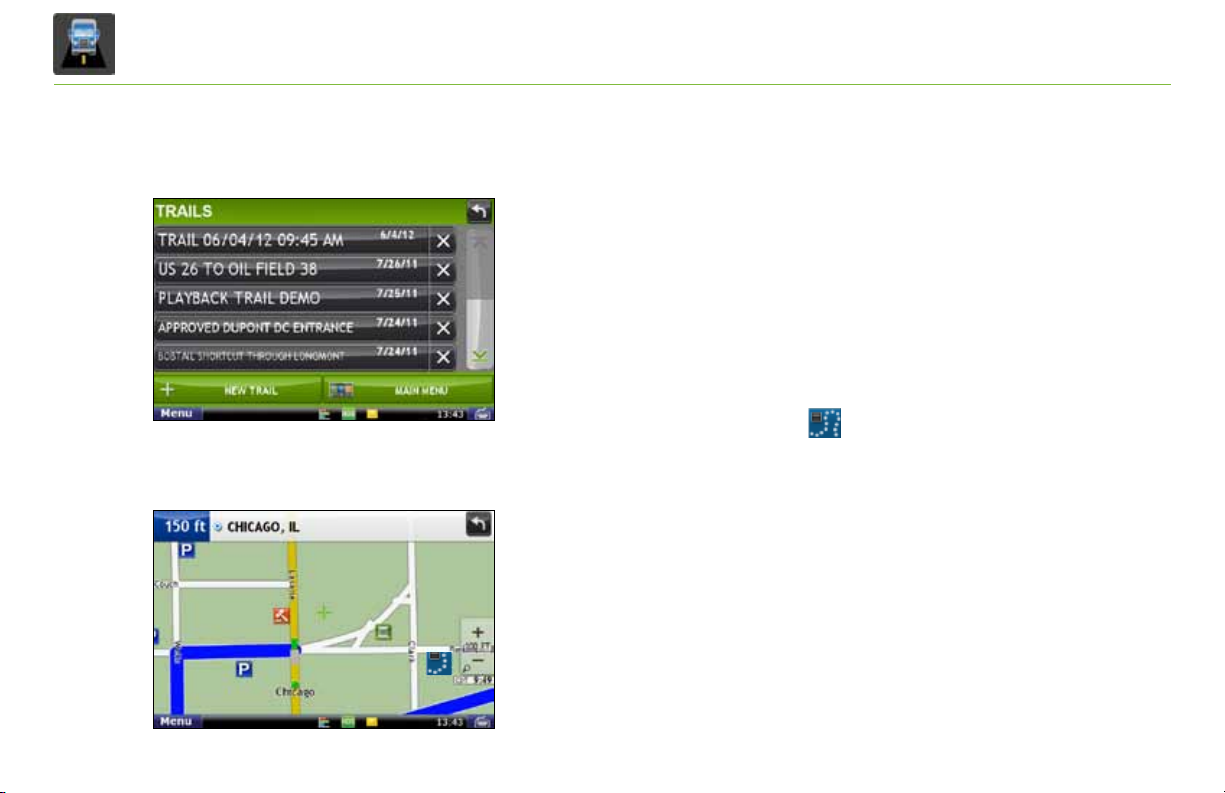
Exhibit 28.
Trails Screen
Exhibit 29.
Route Map Screen
24
TND™ 760 Fleet Edition User Manual
Trails
The Trails feature allows you to record and later view or follow route
information on the map. This capability is particularly useful when
driving off-road or through private facilities such as a terminal or
distribution center where road data is not available.
Record a New Trail
1. Tap Truck Tools > Trails [Exhibit 28].
2. Tap New Trail.
3. Tap OK. The Trail Icon displays on the map screen [Exhibit 29].
4. When you wish to stop recording, tap on the Trail icon.
5. Tap OK.
Page 28
TNDTM 760 IntelliRoute
For Sales Information Please Contact
RoadTrucker Inc
(www.RoadTrucker.com)
8312 Sidbury Rd.
Wilmington, NC 28411
(800) 507-0482 / (910) 686-4281
®
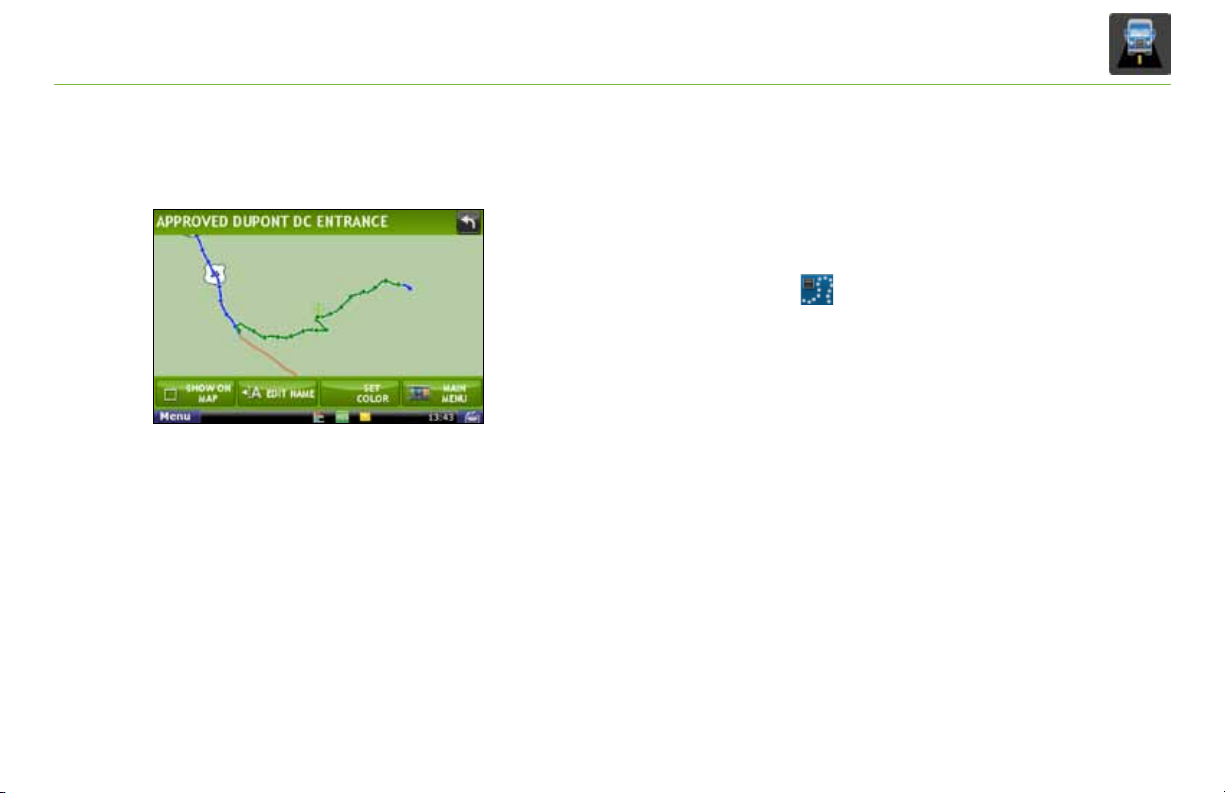
Exhibit 30.
Trail Route Screen
View Saved Trails
1. Tap Truck Tools > Trails.
2. Tap on the trail you want to run.
3. Tap on Show on Map.
4. Tap on the Trail icon.
5. Tap:
- Trail Only to show only the trail.
- Trail and Vehicle to show the trail and your current location.
- Hide Trail to not display the trail.
6. Visually follow the trail. The trail is denoted by green diamond icons.
Note:
- Because Trails mode may not contain roads, no voice
direction is available.
- You can also rename and delete recorded trails.
TND™ 760 Fleet Edition User Manual
25
Page 29
TND
For Sales Information Please Contact RoadTrucker Inc (www.RoadTrucker.com)
8312 Sidbury Rd.; Wilmington, NC 28411 - (800) 507-0482 / (910) 686-4281
TM
760 Hours of Service
Exhibit 31.
HOS Icon on Home Menu
Tab Function
Summary
Logs
DVIR
Options
Company
Displays critical HOS information based
on your current duty status.
Displays list of duty statuses for the
current 8-day period.
Allows you to enter and certify your
DVIRs for the current 8-day period.
Allows you to manage log information and
settings related to violations and enforcement.
Displays information related to your
carrier and terminal.
Hours of Service
With the TND™ 760, your HOS information is well-organized
and user-friendly.
What You Do
Mark the beginning of your day by submitting an On Duty status and
Trip Info entry. From that point on, the TND™ 760 records Driving
and On Duty segments automatically. The only entries you need to submit
manually are Off Duty and Sleeper Berth statuses. When your day ends,
you can review and certify your logs—all in one streamlined process.
What the System Does
The TND™ 760 logs all your HOS activities with accurate-to-the-second
technology so you can make the most of each day.
• When you tap the Trip Info button, the 14-hour day officially begins.
• When you begin driving after your pre-trip work is complete, Driving
status is activated as soon as the tractor detects motion.
• When you stop, the system waits to be sure you have completed a
driving segment before marking the time and activating the On Duty
status. You do not need to worry about the system changing statuses
when you stop for traffic lights or signs.
26
TND™ 760 Fleet Edition User Manual
Page 30
TND
For Sales Information Please Contact
RoadTrucker Inc
(www.RoadTrucker.com)
8312 Sidbury Rd.
Wilmington, NC 28411
(800) 507-0482 / (910) 686-4281
TM
760 Hours of Service
Exhibit 32.
HOS Main Screen-Summary Tab
Summary
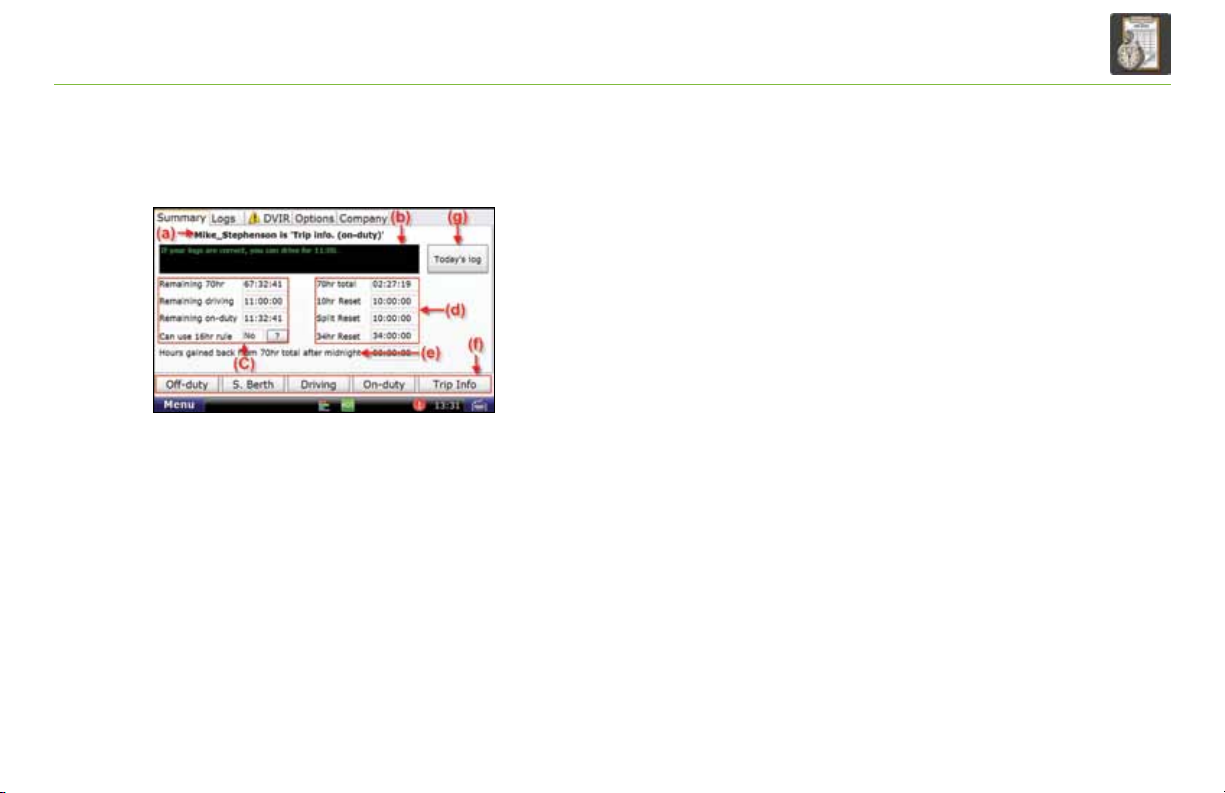
This tab gives you critical HOS information at-a-glance.
• The top of the Summary tab shows the name and HOS status
of the driver logged on to the TND™ 760 [Exhibit 32, (a)]. If the
driver shown is not you, log off then log back on.
• The Status Box provides a summary of your current status
[Exhibit 32, (b)].
• Screen left tells the time remaining before you reach HOS limits
and whether you can use the 16-hour rule [Exhibit 32, (c)]. Tap
the (?) button for details.
• Screen right shows the time remaining before each type of reset
occurs [Exhibit 32, (d)].
- 70hr total. Time until a new 70-hour log starts.
- 10hr Reset. Time until a 10-hour reset.
- Split Reset. Time until reset with sleeper-berth
statuses calculated in.
Note: The TND
FMCSA regulation §395.15.
TM
760 Fleet Edition is compliant with
TND™ 760 Fleet Edition User Manual
27
Page 31
TND
For Sales Information Please Contact
RoadTrucker Inc
(www.RoadTrucker.com)
8312 Sidbury Rd.
Wilmington, NC 28411
(800) 507-0482 / (910) 686-4281
TM
760 Hours of Service
Exhibit 32.
HOS Main Screen - Summary Tab
28
TND™ 760 Fleet Edition User Manual
Summary (continued)
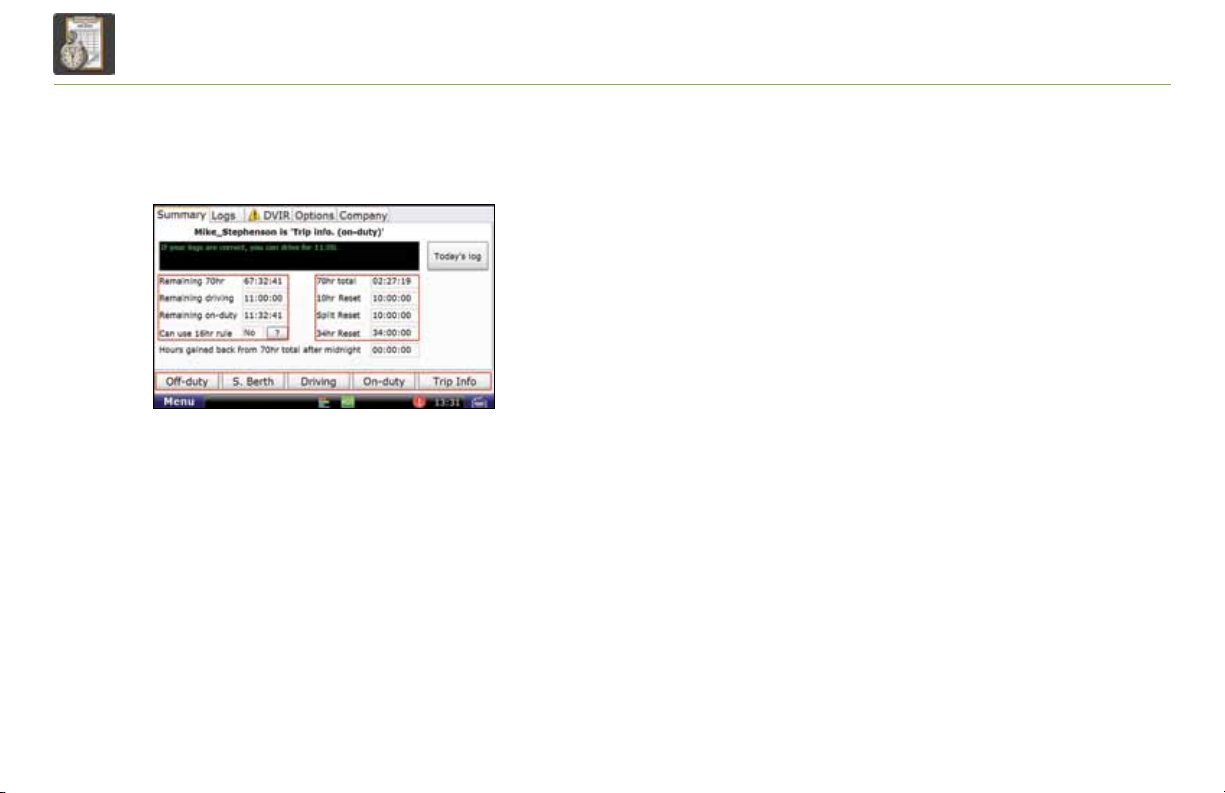
• The Summary tab also reports Hours gained back from
70hr total after midnight [Exhibit 32, (e)].
Buttons at the bottom let you change your HOS status or
add specific trip information to the log [Exhibit 32, (f)].
The buttons display at the bottom of each HOS tab.
The Today’s log button accesses the graph and tabs you
need to manage your day [Exhibit 32, (g)].
The functions of adding a duty status, adding trip information
and managing the current day’s log are explained on the
following pages.
Page 32
TND
For Sales Information Please Contact RoadTrucker Inc (www.RoadTrucker.com)
8312 Sidbury Rd.; Wilmington, NC 28411 - (800) 507-0482 / (910) 686-4281
TM
760 Hours of Service
Exhibit 33.
Pop-up for Adding a Duty Status
Exhibit 34.
Pop-up for Choosing a Location
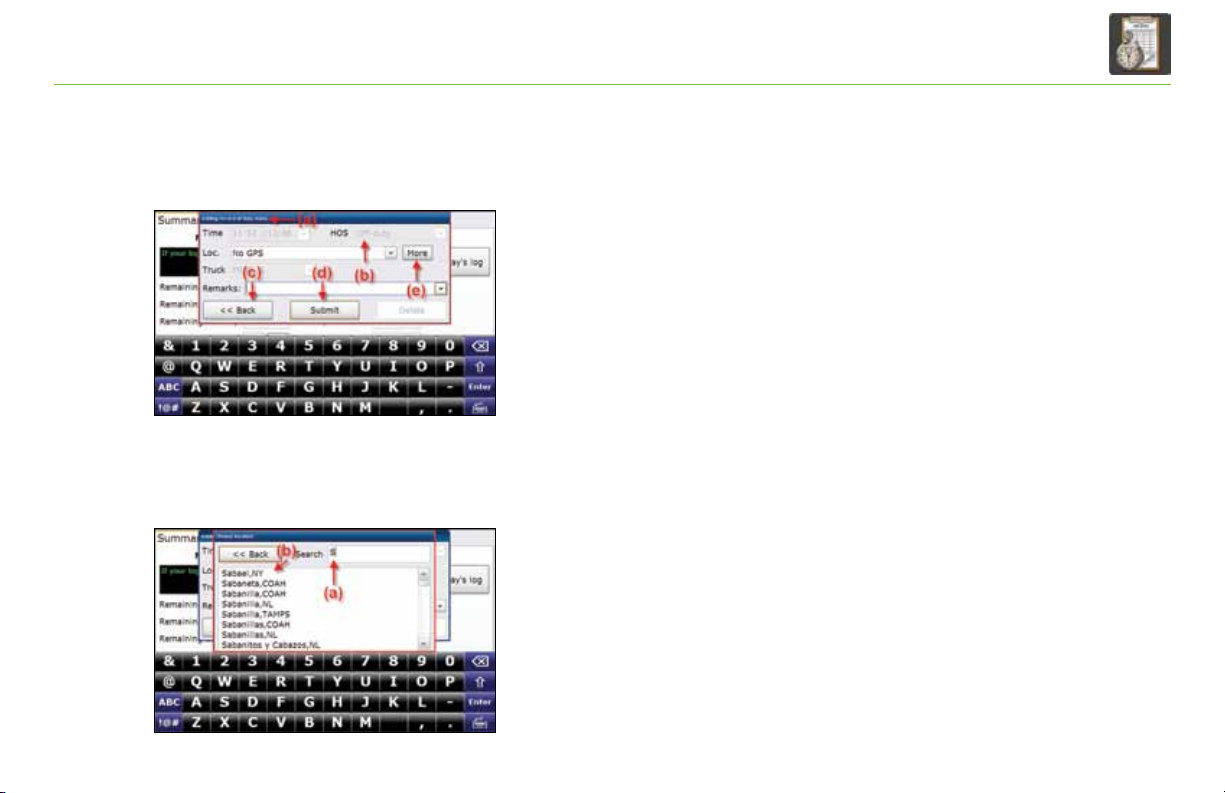
Add a Duty Status
• Tap any duty-status button to view the [Exhibit 32, (f)) Adding
record of duty status pop-up [Exhibit 33, (a)]. Most fields are
grayed out, which means you do not need to do anything; the
system records the required information automatically.
• The pop-up shows the status selected [Exhibit 33, (b)].
For a different status, tap Back [Exhibit 33, (c)] and
select the status you want.
• Tap Submit [Exhibit 33, (d)] if the record is correct.
• If GPS is on, the Loc. field will be grayed out. If GPS is off, tap
More [Exhibit 33, (e)] to view the Choose location
pop-up [Exhibit 34].
Choose a Location
• Begin typing your location in the Search box [Exhibit 34, (a)]
to bring up the section of the location list showing places
beginning with those letters [Exhibit 34, (b)].
• Select your location to fill in the Loc. field.
TND™ 760 Fleet Edition User Manual
29
Page 33
TND
For Sales Information Please Contact
RoadTrucker Inc
(www.RoadTrucker.com)
8312 Sidbury Rd.
Wilmington, NC 28411
(800) 507-0482 / (910) 686-4281
TM
760 Hours of Service
Exhibit 35.
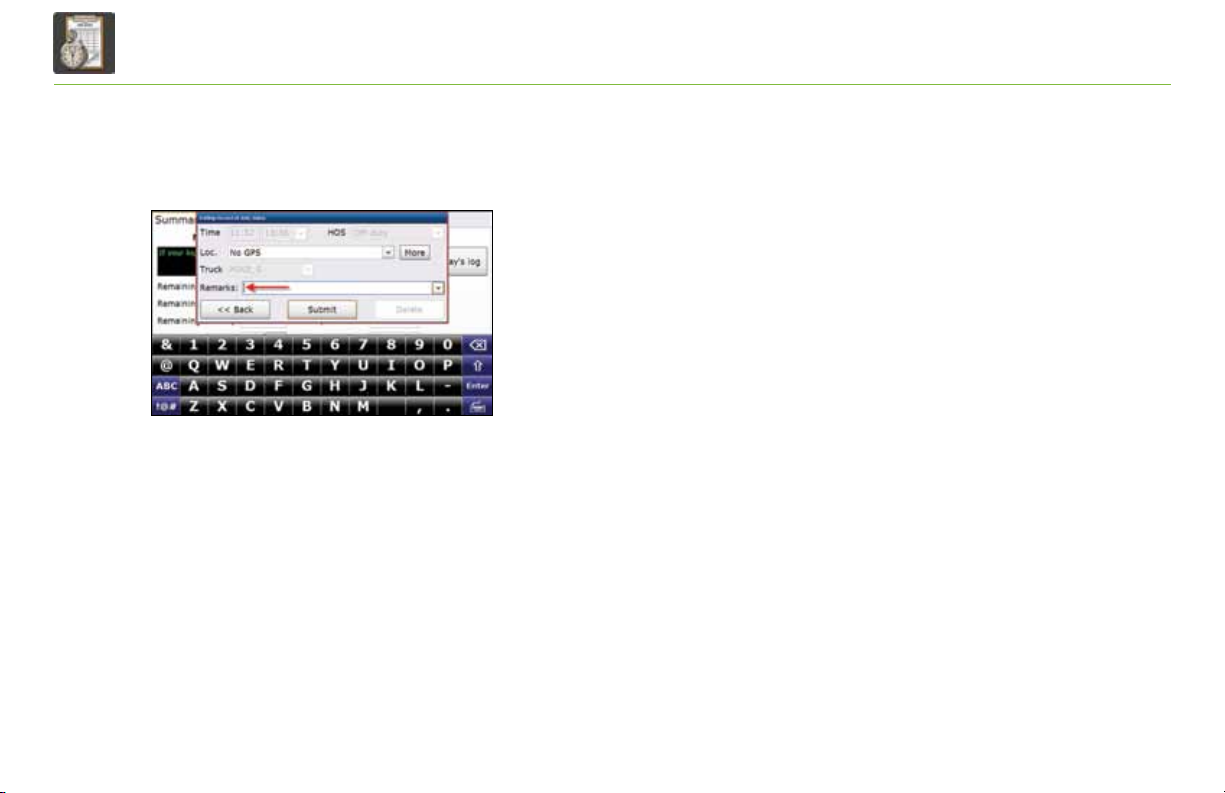
Pop-up for Adding a Duty Status - Remarks Field
30
TND™ 760 Fleet Edition User Manual
Add a Remark to a Duty Status
You may need to include a comment about your duty status.
The cursor automatically appears in the Remarks field
[Exhibit 35].
• Use the drop-down arrow to view company-provided options.
• If a standard remark applies, select it to fill in the field.
• If a standard remark does not apply, type your own remark
using the on-screen keyboard.
• Tap Submit to record the enhanced duty-status entry.
Page 34
TND
For Sales Information Please Contact
RoadTrucker Inc
(www.RoadTrucker.com)
8312 Sidbury Rd.
Wilmington, NC 28411
(800) 507-0482 / (910) 686-4281
TM
760 Hours of Service
Exhibit 36.
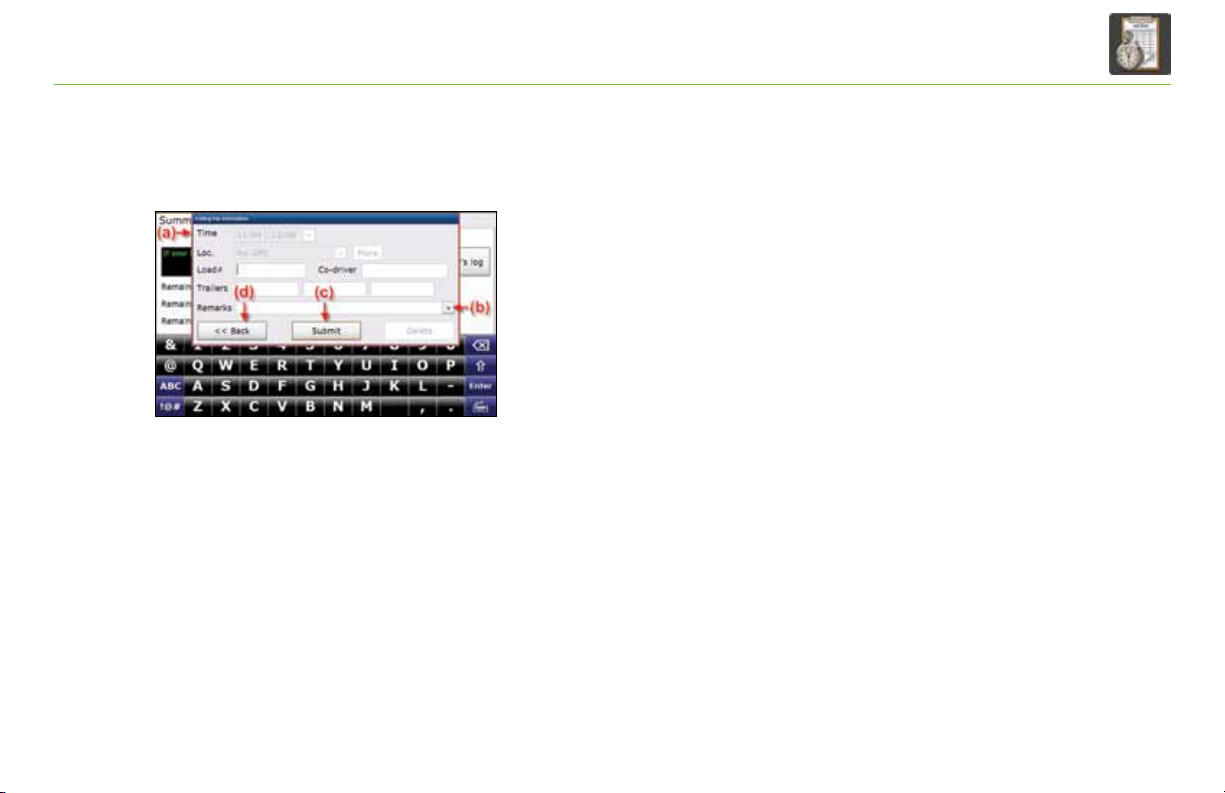
Pop-up for Adding Trip Information
Add Trip Information
• Tap the Trip Info button on the Summary tab to view
the Adding trip information pop-up [Exhibit 36, (a)].
The on-screen keyboard automatically appears so you can
enter Load, Co-driver (if appropriate), Trailer numbers
and Remarks.
• The cursor appears in the active field. To move the cursor
to another field, just touch the field you want.
• Standard remarks are included in the Remarks drop-down
[Exhibit 36, (b)]. Select the remark you want or use the
on-screen keyboard to enter a non-standard remark.
• Tap Submit [Exhibit 36, (c)] to record your information and
return to the Summary tab. Tap Back [Exhibit 36, (d)] to return
to the Summary tab without recording your information.
TND™ 760 Fleet Edition User Manual
31
Page 35
TND
For Sales Information Please Contact
RoadTrucker Inc
(www.RoadTrucker.com)
8312 Sidbury Rd.
Wilmington, NC 28411
(800) 507-0482 / (910) 686-4281
TM
760 Hours of Service
Exhibit 37.
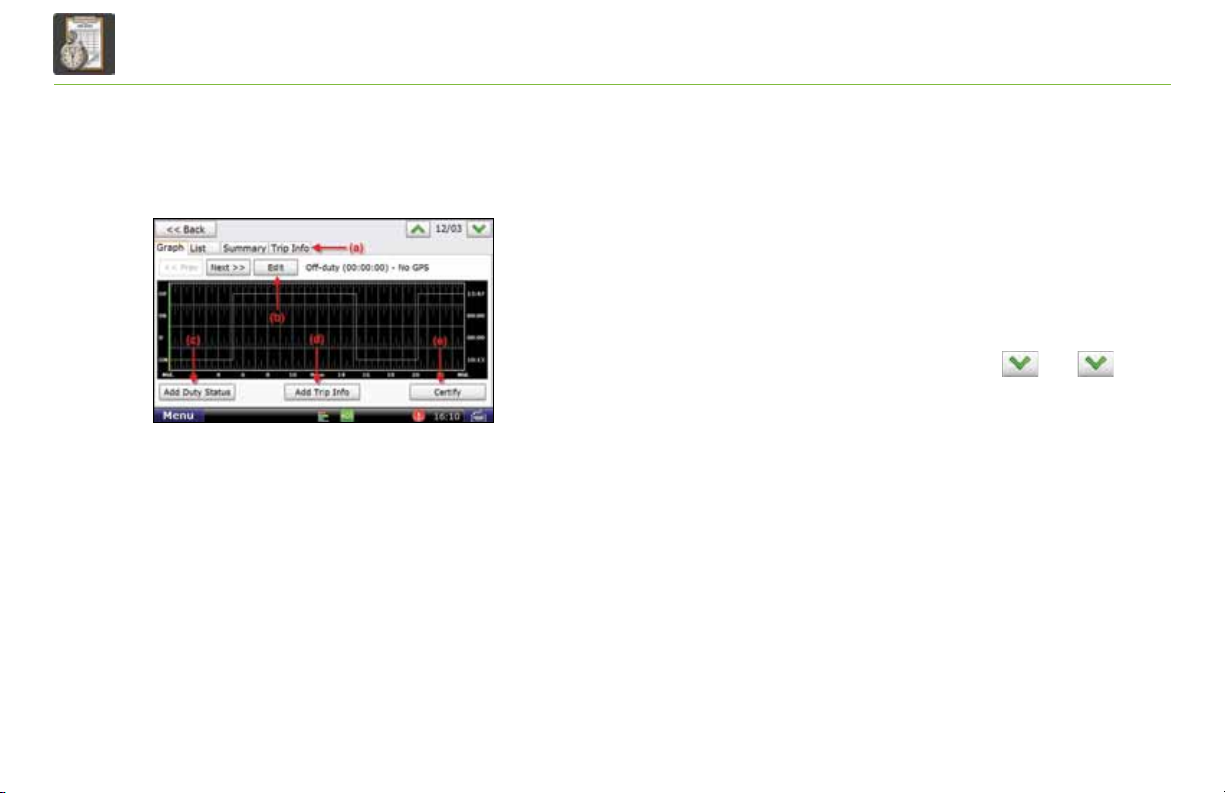
Today’s Log Main Screen - Graph Tab
32
TND™ 760 Fleet Edition User Manual
Today’s Log
The Today’s log button can be accessed on the Summary tab
[Exhibit 32, (g)]. Four tabs display across the top of the
Today’s log screen [Exhibit 37, (a)].
Graph is the tab that opens when you select Today’s log. This screen
has three buttons: Edit, Add Duty Status and Add Trip Info.
• Edit. This button [Exhibit 37, (b)] allows you to edit any uncertified
log from the last 8 days (select the arrow buttons and
to view a previous day’s log).
•Add Duty Status. This button
Log Graph screen allows you to add a current duty status to the
current day. Any changes to earlier statuses must be made using
the Edit button.
•Add Trip Info. This button
information for a new trip for the current day. Any changes
to the trip information for previous trips must be made using the
Edit button.
Note: Driving status time cannot be edited once recorded.
[Exhibit 37, (c)]
[Exhibit 37, (d)]
on the Today’s
allows you to add
Page 36
TND
For Sales Information Please Contact
RoadTrucker Inc
(www.RoadTrucker.com)
8312 Sidbury Rd.
Wilmington, NC 28411
(800) 507-0482 / (910) 686-4281
TM
760 Hours of Service
Exhibit 38.
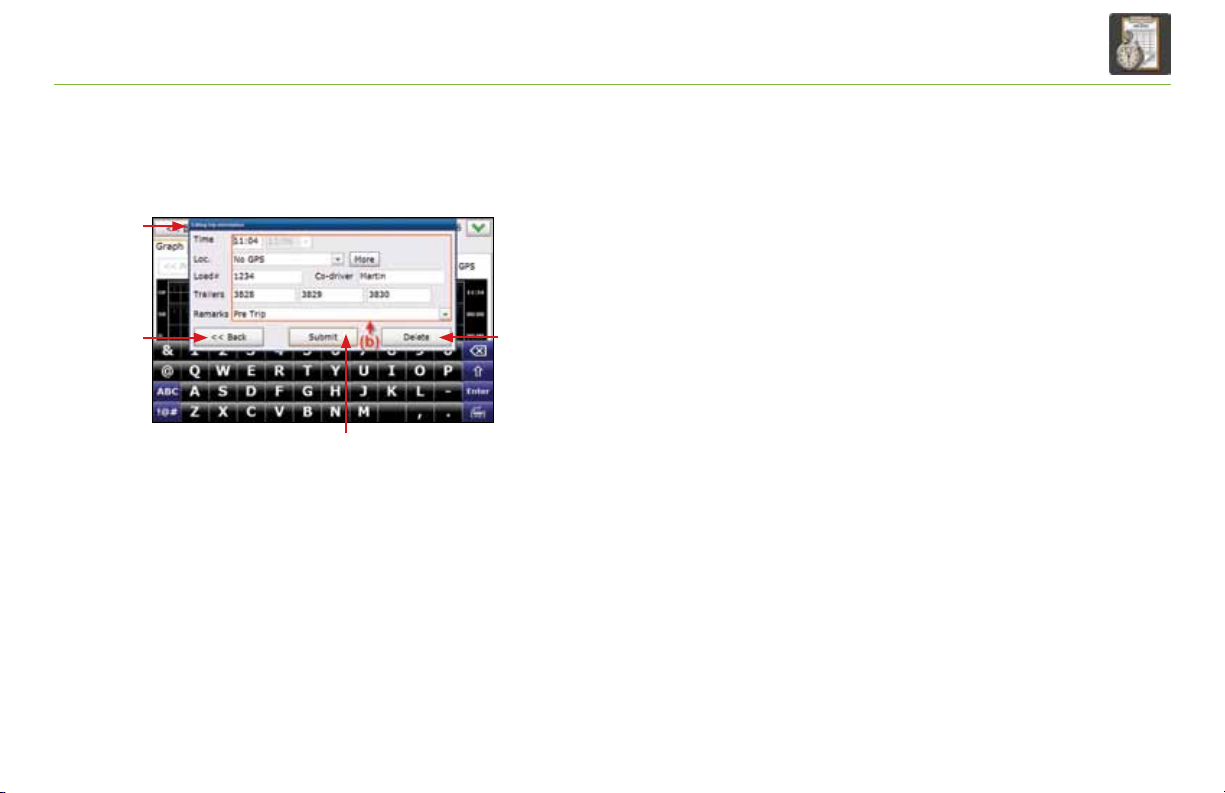
Pop-up for Editing Trip Information
(a)
(e)
(c)
(d)
Edit Trip Information
Before selecting the Edit button [Exhibit 37, (b)], you can tap the
graph screen on the point where you would like to make an edit.
The green line on the graph indicates a change in duty status. You
can also tap the Prev and Next buttons to move the green line to
the desired point on the graph.
Once you tap Edit, the Editing trip information pop-up will
appear [Exhibit 38, (a)]. Make any changes to the preexisting
information [Exhibit 38, (b)].
• Tap Delete [Exhibit 38, (d)] if you wish to delete the
entire status entry.
• Tap Back [Exhibit 38, (e)] to go back to the Graph tab.
• Tap Submit [Exhibit 38, (c)] to save your entry.
TND™ 760 Fleet Edition User Manual
33
Page 37
TND
For Sales Information Please Contact
RoadTrucker Inc
(www.RoadTrucker.com)
8312 Sidbury Rd.
Wilmington, NC 28411
(800) 507-0482 / (910) 686-4281
TM
760 Hours of Service
Exhibit 39.
Graph Tab - Day to be Certified
34
TND™ 760 Fleet Edition User Manual
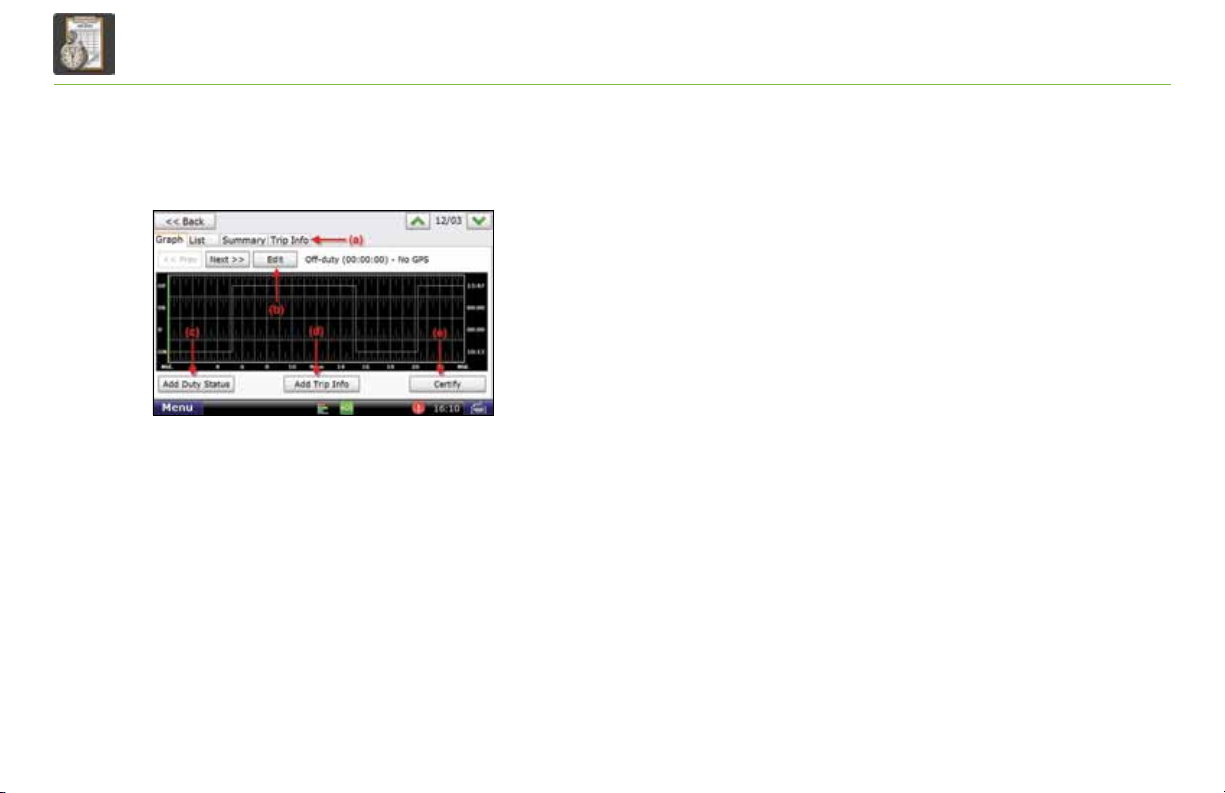
Certify Logs
• If you have outstanding uncertified log entries (those that do
not have a check mark next to them), you should review and
certify them as soon as possible.
• Uncertified log entries must be certified in order of
oldest to newest.
• Review the entry using the tabs (Graph, List, Summary and
Trip Info) to verify that the log is accurate.
• Make any required changes.
- To change an incorrect status, select the correct status from
either the Graph or the List tab. Tap Edit [Exhibit 39, (b)]
to access the required pop-up. Make your changes and
tap Submit.
Note: If a status that cannot be edited on the TND™ 760 is
incorrect, contact your manager for help.
Page 38
TND
For Sales Information Please Contact
RoadTrucker Inc
(www.RoadTrucker.com)
8312 Sidbury Rd.
Wilmington, NC 28411
(800) 507-0482 / (910) 686-4281
TM
760 Hours of Service
Exhibit 39.
Graph Tab - Day to be Certified
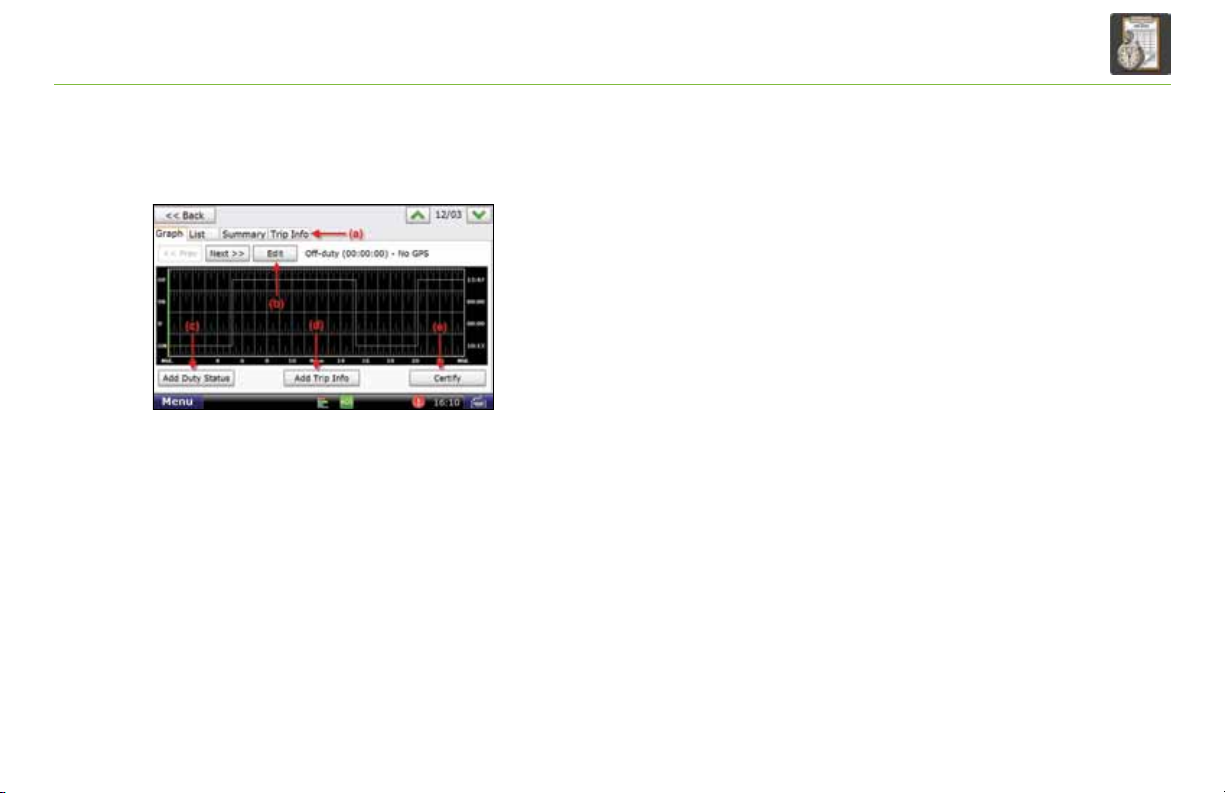
Certify Logs (continued)
-To add a status, tap Add Duty Status [Exhibit 39, (c)].
Fill in the time, change the duty status field (if required) and
enter the location. Add Remarks if appropriate. Tap Submit.
-To alter the trip information record, tap Add Trip Info
[Exhibit 39, (d)], fill in the form and tap Submit.
• Once you are satisfied that the log is accurate, tap Certify
[Exhibit 39, (e)]. A pop-up asks you to confirm the log is correct.
-Tap No to return to the previous screen.
-Tap Yes to return to the Logs tab.
When the log has been certified and recorded, a green check mark
appears at the beginning of the row.
TND™ 760 Fleet Edition User Manual
35
Page 39
TND
For Sales Information Please Contact
RoadTrucker Inc
(www.RoadTrucker.com)
8312 Sidbury Rd.
Wilmington, NC 28411
(800) 507-0482 / (910) 686-4281
TM
760 Hours of Service
Exhibit 40.
Logs Tab
36
TND™ 760 Fleet Edition User Manual
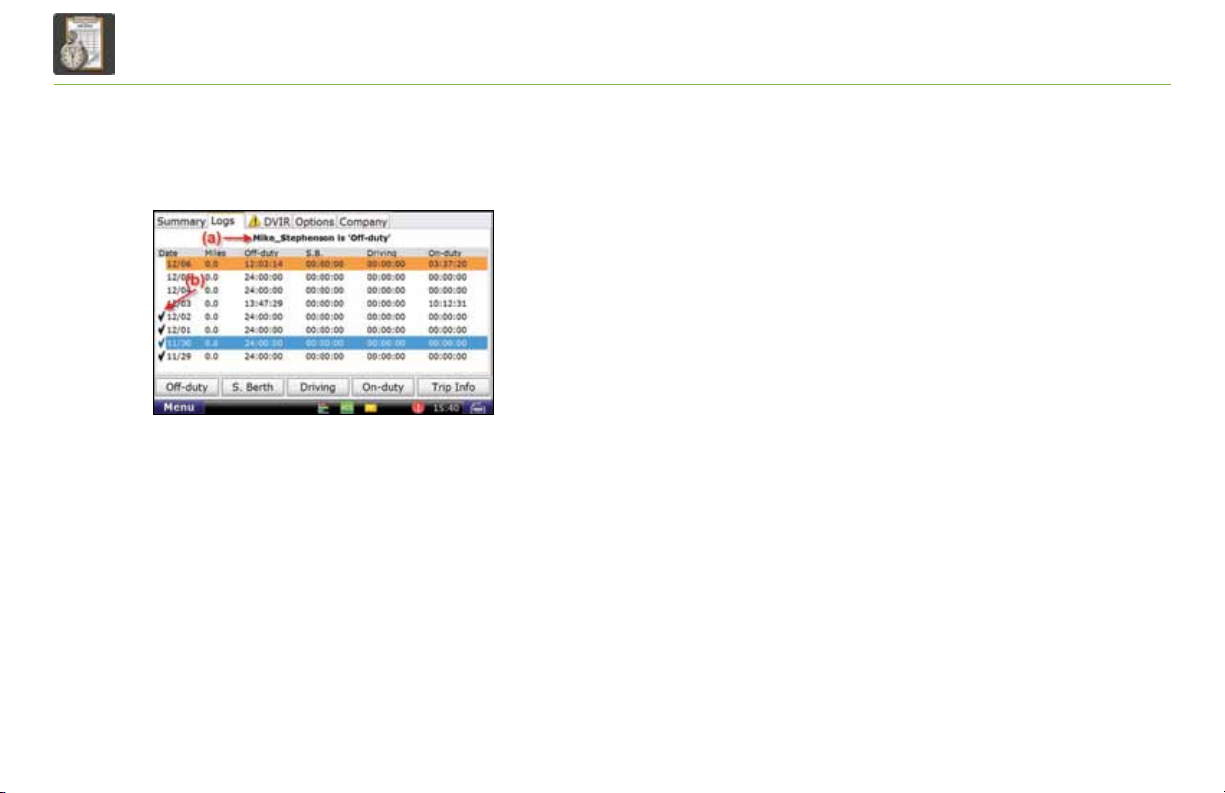
Logs
The Logs tab gives a summary of the totals for the last 8 days
[Exhibit 40]. Past days that you want to review, edit, or certify
are displayed.
• The top of the tab lists your name and current HOS status
[Exhibit 40, (a)]. If you are not the driver shown, log off
the TND™ 760, then log back on.
•
The columns on this tab show summary information
about each day’s log.
- Date. Displays the last eight days with the current date at
the top of the list.
- Miles. States the number of miles traveled for the day.
- Off-duty. Gives the number of off-duty hours logged for the day.
- S.B. Indicates the time spent in the sleeper berth for the day.
- Driving. Gives the time spent driving for the day.
- On-duty. Gives the time spent on-duty but not driving for the day.
•
The check marks to the left of the date column show which days
have been certified [Exhibit 40, (b)].
Page 40
TND
For Sales Information Please Contact
RoadTrucker Inc
(www.RoadTrucker.com)
8312 Sidbury Rd.
Wilmington, NC 28411
(800) 507-0482 / (910) 686-4281
TM
760 Hours of Service
Exhibit 41.
DVIR Tab
(a)
(b)
(c)
(d) (e) (f)
(h)
(g)
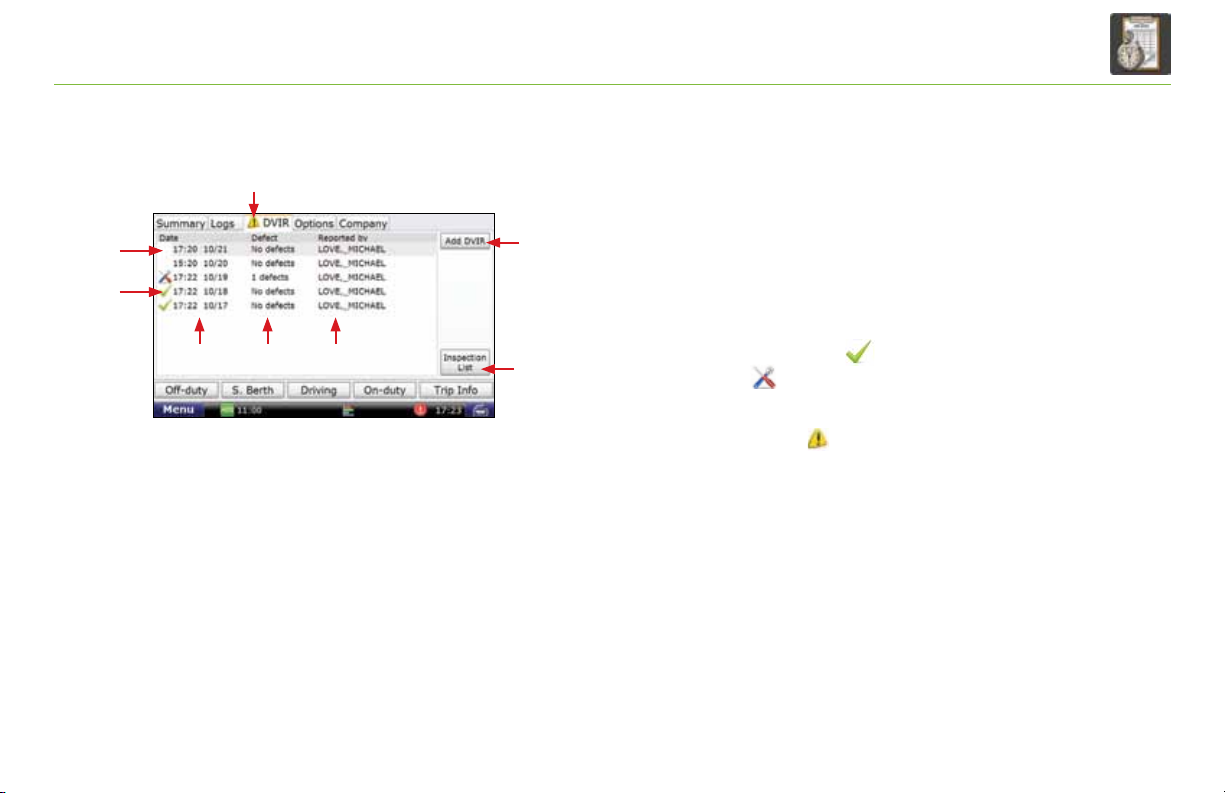
DVIR
The DVIR (Daily Vehicle Inspection Report) tab contains information
regarding all DVIR entries from the last 8 days.
DVIR information is clustered together [Exhibit 41, (a), (b) and (c)].
•(a). A blank space in this column means the DVIR entry has not yet
been certified.
•(b). A green check mark ( ) means the DVIR has been certied.
A tool icon ( ) means a DVIR entry has been added and that
there is an outstanding defect that should be reviewed and certified.
•(c). A warning icon ( ) on the DVIR tab means there is an
outstanding defect.
•(d). This column tells you when the DVIR entry was made.
• The time and date are listed.
•(e). This column tells you the number of defects listed
in the DVIR entry.
•(f). This column tells you the Driver ID of the person who added
the DVIR entry.
TND™ 760 Fleet Edition User Manual
37
Page 41
TND
For Sales Information Please Contact
RoadTrucker Inc
(www.RoadTrucker.com)
8312 Sidbury Rd.
Wilmington, NC 28411
(800) 507-0482 / (910) 686-4281
TM
760 Hours of Service
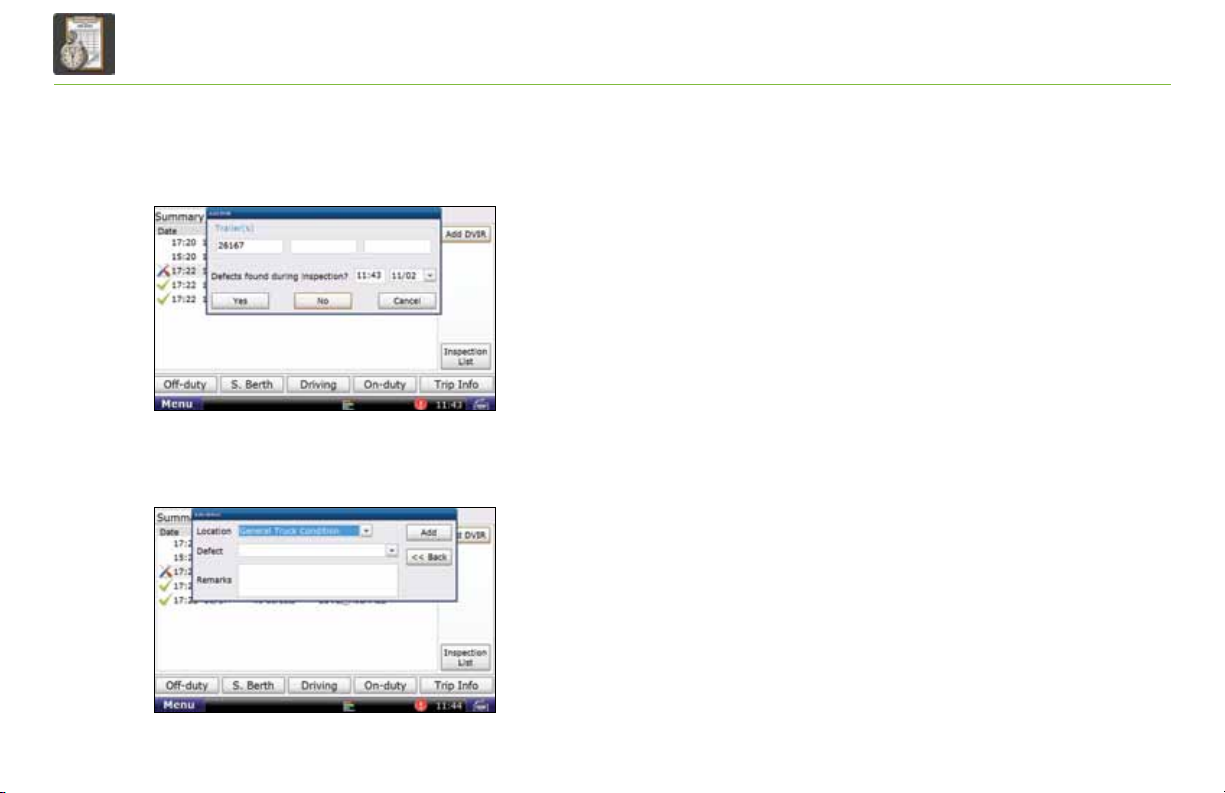
Exhibit 42.
Pop-up for Adding DVIR
Exhibit 43.
Pop-up for Adding Defect
38
TND™ 760 Fleet Edition User Manual
Add a DVIR
•Add DVIR. Use this button when you want to add a DVIR
for the current day or for any day within the last 8 days
[Exhibit 41, (g)].
- Trailer(s).
- Time and Date.
• You may have to enter defects from your inspection.
If so, select Yes [Exhibit 42].
- Enter the Location and Defect fields [Exhibit 43]
- You can also add other notes about the inspection
in the Remarks field.
Note: You can also view this screen by selecting any DVIR entry
from the past 8 days on the DVIR main screen. This will allow you
to add a defect to a previous day’s DVIR.
Page 42
TND
For Sales Information Please Contact
RoadTrucker Inc
(www.RoadTrucker.com)
8312 Sidbury Rd.
Wilmington, NC 28411
(800) 507-0482 / (910) 686-4281
TM
760 Hours of Service
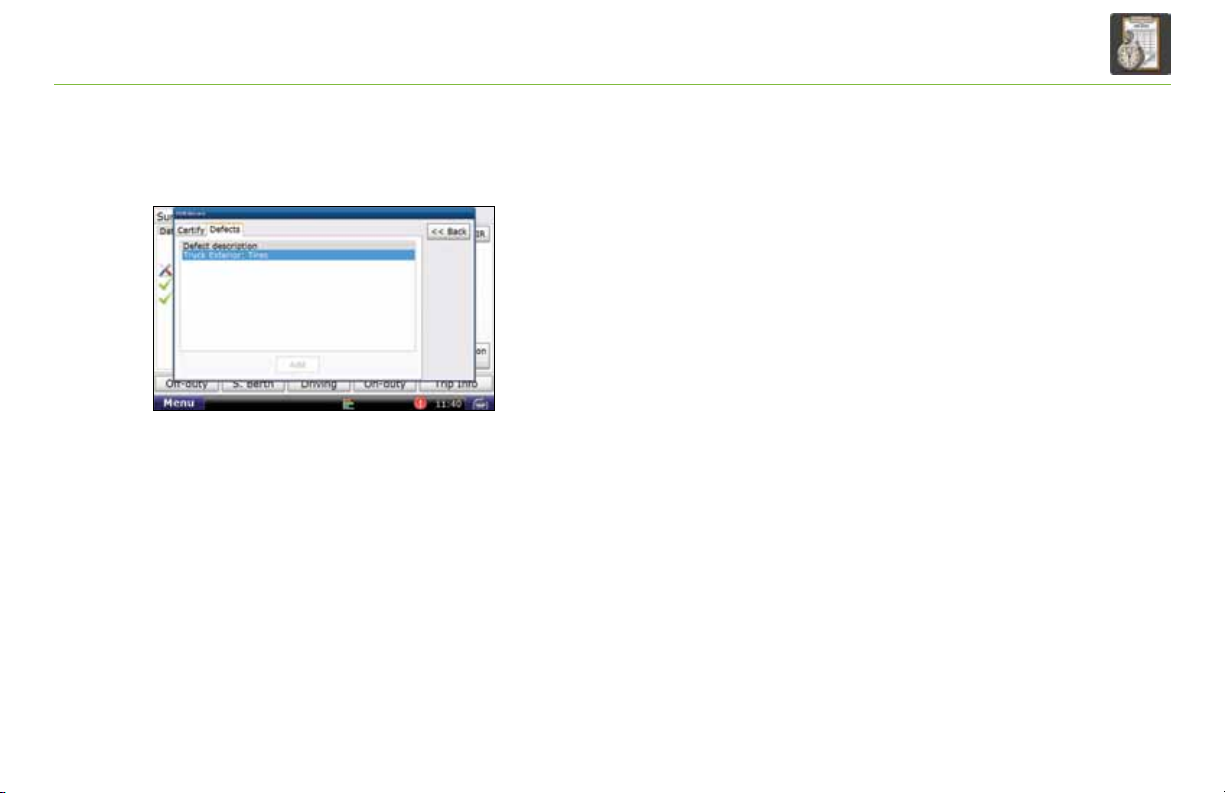
Exhibit 44.
DVIR Record-Defects Tab
Certify DVIR Entries and Repairs
To review the entered defects of previous DVIR entries, select
any entry from the last 8 days on the DVIR tab [Exhibit 40].
-Defects tab [Exhibit 44].
Select this tab to view the description of each defect listed for
the selected DVIR. Click on any of the defect entries to view
any entered remarks.
TND™ 760 Fleet Edition User Manual
39
Page 43
TND
For Sales Information Please Contact
RoadTrucker Inc
(www.RoadTrucker.com)
8312 Sidbury Rd.
Wilmington, NC 28411
(800) 507-0482 / (910) 686-4281
TM
760 Hours of Service
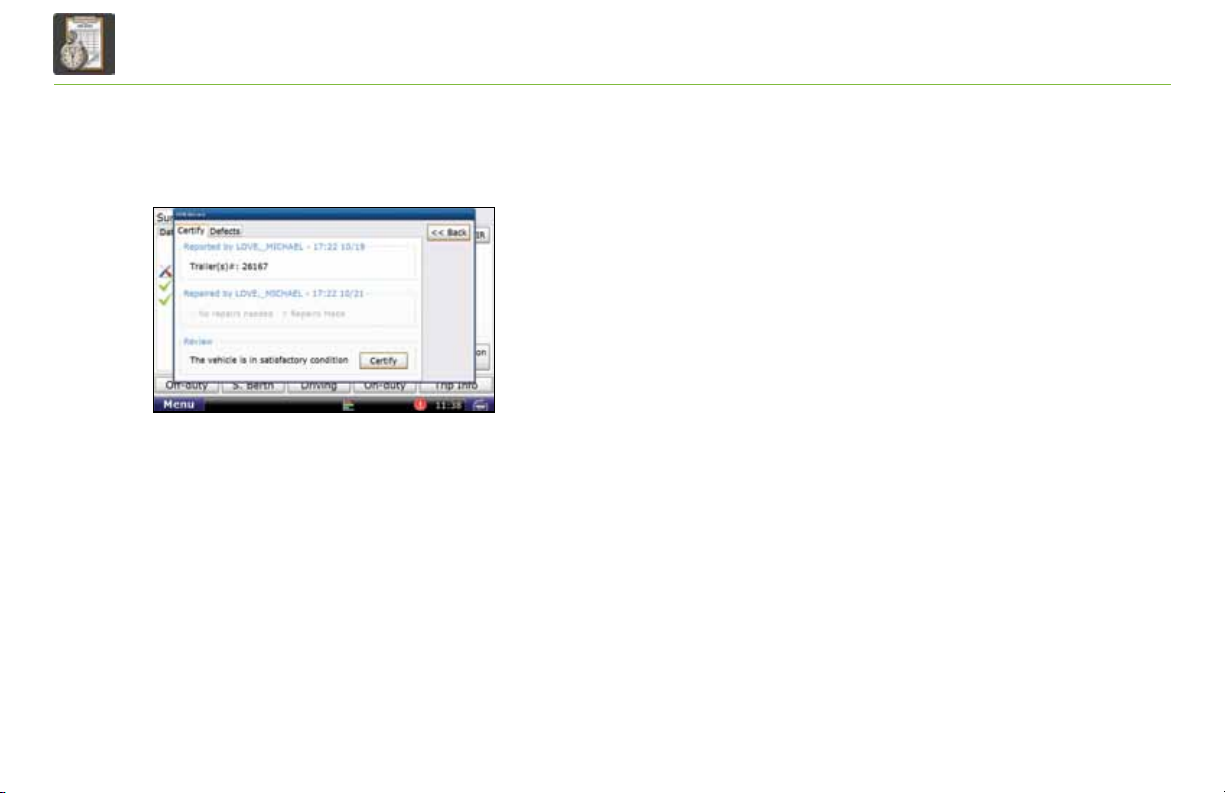
Exhibit 45.
DVIR Record - Certify Tab
40
TND™ 760 Fleet Edition User Manual
Certify DVIR Entries and Repairs (continued)
- Certify tab [Exhibit 45].
Select this tab to certify the DVIR entry.
• Reported by: lists Driver ID and time and date of DVIR entry.
• Repaired by: lists Driver ID and time and date of repair.
- Tap No repairs needed.
- Tap Repairs Made to indicate that defects have
been repaired.
Note: You must select one of these options in order to
certify your DVIR.
• Review:
- Tap Certify to submit the DVIR.
As with other HOS screens, you can update your current status
with the buttons at the bottom [Exhibit 40].
Page 44
TND
For Sales Information Please Contact
RoadTrucker Inc
(www.RoadTrucker.com)
8312 Sidbury Rd.
Wilmington, NC 28411
(800) 507-0482 / (910) 686-4281
TM
760 Hours of Service
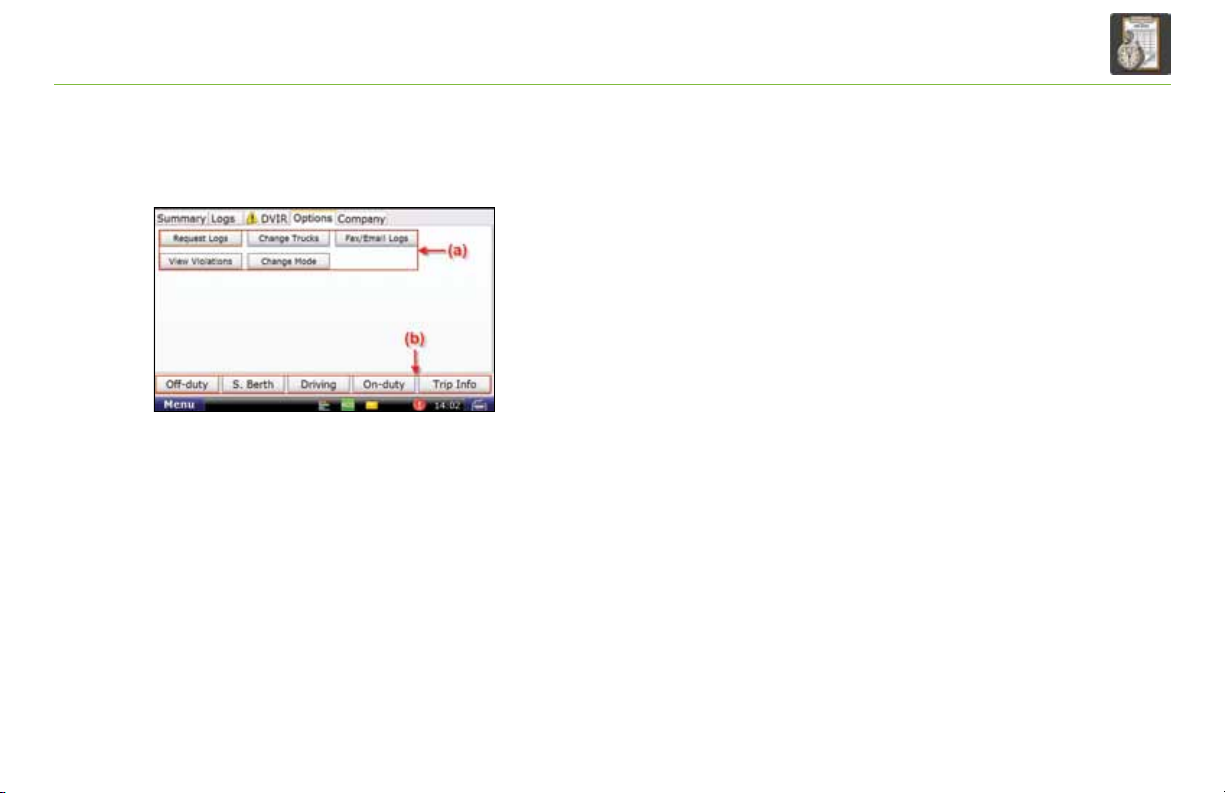
Exhibit 46.
Options Tab
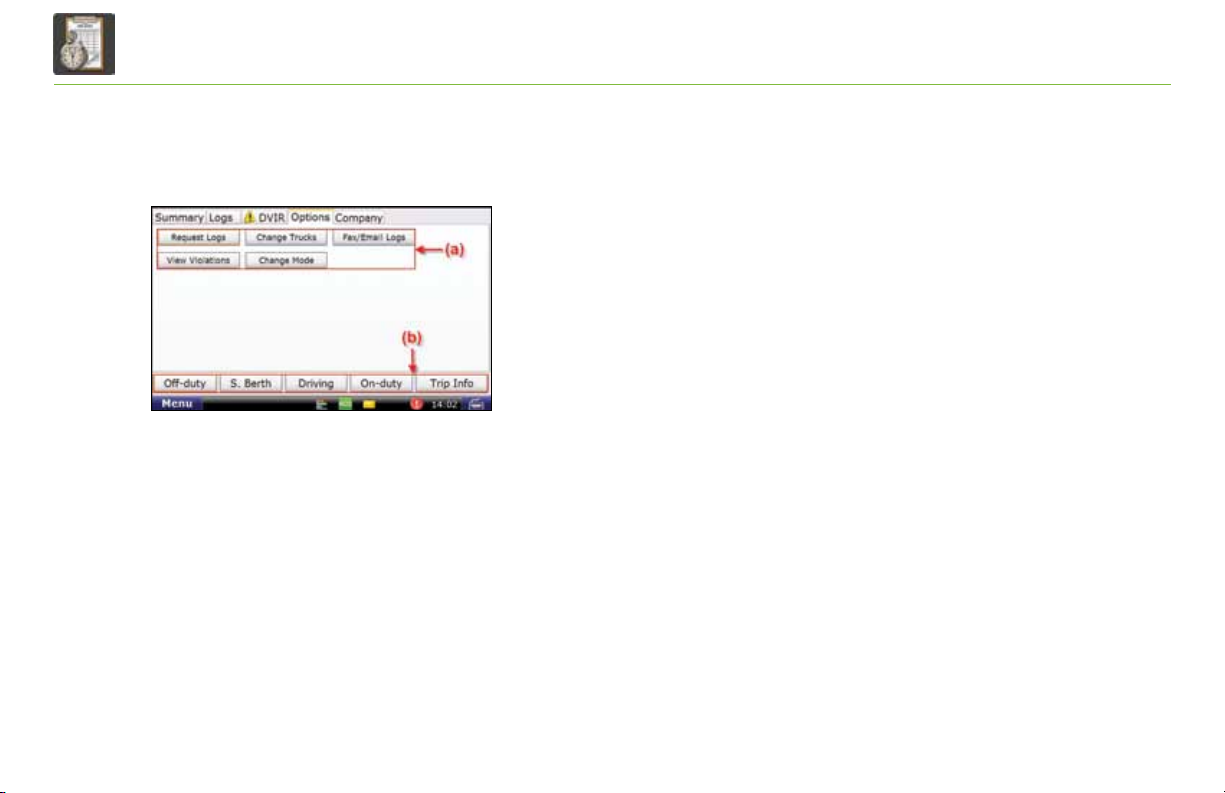
The Options tab allows you to:
•Request Logs. Use this button when you want to move your logs
from a previous tractor or when you have previous logs that you
cannot view. The button brings up a pop-up box that displays the
following notice:
“Those portions of your log that haven’t been received by the back-end
may be deleted when your HOS logs are downloaded.”
- You choose whether to continue (Yes) or to cancel the request (No).
•Change Trucks. Use this button before you move to another tractor
to confirm for yourself that your logs are sent to the server and will
be available for you when you log on in the new truck (you may
need to use Request Logs on the new truck, but usually the logs
arrive as you log in).
TND™ 760 Fleet Edition User Manual
41
Page 45
TND
For Sales Information Please Contact
RoadTrucker Inc
(www.RoadTrucker.com)
8312 Sidbury Rd.
Wilmington, NC 28411
(800) 507-0482 / (910) 686-4281
TM
760 Hours of Service
Exhibit 46.
Options Tab
42
TND™ 760 Fleet Edition User Manual
Options (continued)
•Fax/E-mail Logs. Use this button to fax or e-mail your logs.
Note: You cannot send your logs unless you have certified all
logs from the last 8 days. You must wait 10 minutes before
sending your log again.
•View Violations. Use this button to review any violations
that are currently part of your weekly log.
- The screen shows the type of violation, the time and
date the violation began, and the time and date the
violation ended.
- If you have multiple violations on the same day, each
driving segment is its own violation. However, violations
on the same day count as a single violation for the day.
Page 46
TND
For Sales Information Please Contact
RoadTrucker Inc
(www.RoadTrucker.com)
8312 Sidbury Rd.
Wilmington, NC 28411
(800) 507-0482 / (910) 686-4281
TM
760 Hours of Service
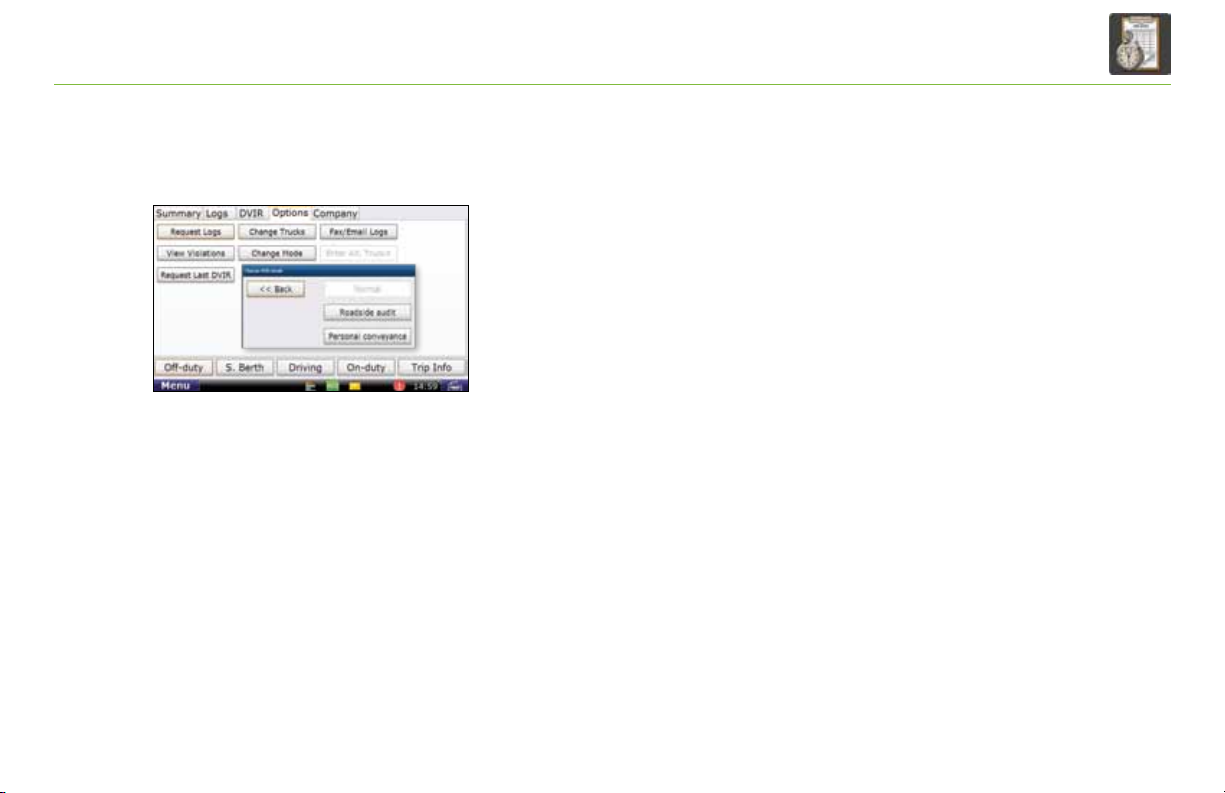
Exhibit 47.
Pop-up for Changing Mode
Options (continued)
•Change Mode. This button lets you govern the information
displayed by the TND™ 760.
- Normal. This option is the default or standard working mode.
- Roadside Audit. This option provides limited access to your logs
when enforcement asks to see them. No additional information
is shown except what is required by law. No log information can
be changed by you or enforcement while you are in Roadside
Audit mode.
• Tap Normal to exit Roadside Audit mode.
- Enter your Driver ID.
- Personal Conveyance. This option, if allowed by your carrier,
lets you use your vehicle for personal use. Use this mode only
when your vehicle is not laden. The use of personal conveyance
is strictly monitored by your carrier as your carrier may have
additional requirements not specifically listed in §395.8.
If you have questions, ask your carrier before using this feature.
As with other HOS screens, you can update your current status
with the buttons at the bottom [Exhibit 46, (b)].
TND™ 760 Fleet Edition User Manual
43
Page 47
TND
For Sales Information Please Contact
RoadTrucker Inc
(www.RoadTrucker.com)
8312 Sidbury Rd.
Wilmington, NC 28411
(800) 507-0482 / (910) 686-4281
TM
760 Hours of Service
Exhibit 48.
Company Tab
44
TND™ 760 Fleet Edition User Manual
Company
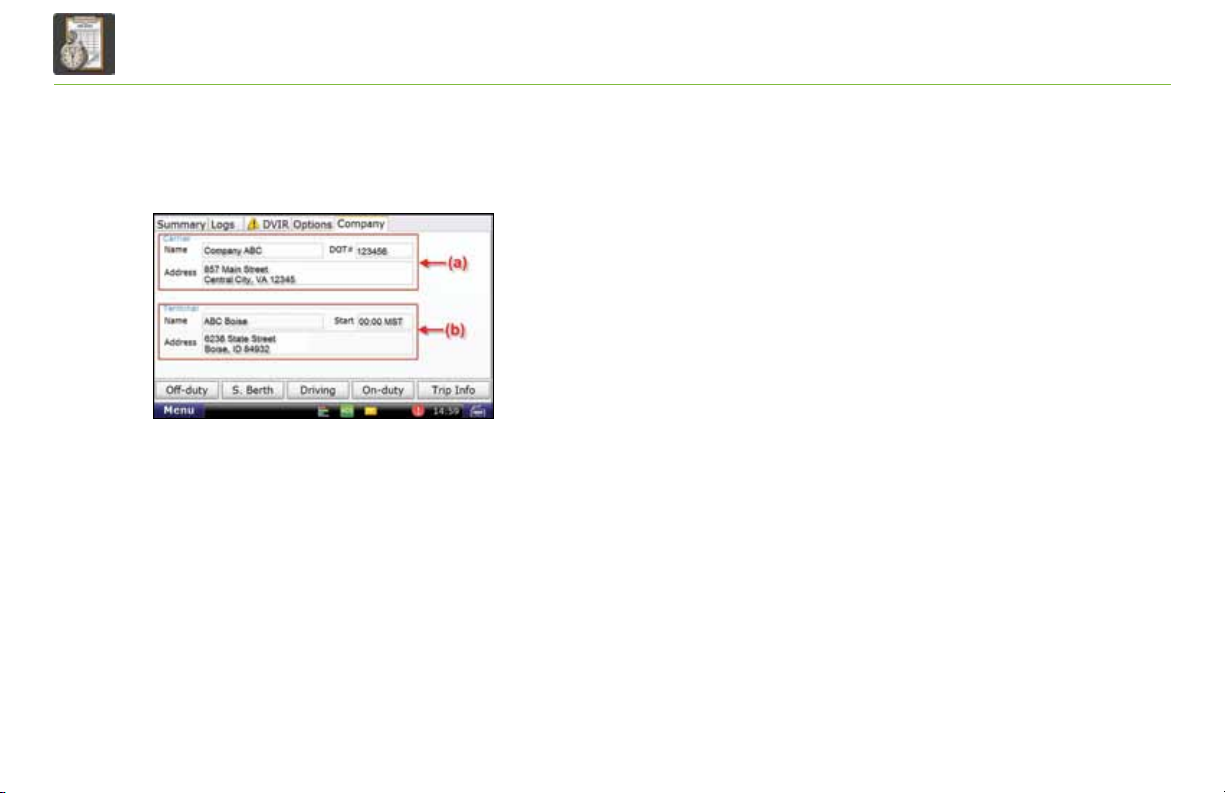
The Company tab [Exhibit 48] contains information required for
your log. Your carrier must make the changes to this screen. If any
of the information is incorrect, contact your manager for help.
Carrier
The upper half of the screen identifies your carrier
[Exhibit 48, (a)].
- Name.
- Address.
- DOT number.
Terminal
The lower half of the screen identifies the home terminal to which
the TND™ 760 is assigned [Exhibit 48, (b)].
- Name.
- Address.
- Start. This field shows the time and time zone for the terminal,
which governs the HOS information captured by the unit.
Page 48
TND
For Sales Information Please Contact
RoadTrucker Inc
(www.RoadTrucker.com)
8312 Sidbury Rd.
Wilmington, NC 28411
(800) 507-0482 / (910) 686-4281
TM
760 Hours of Service
Exhibit 49.
HOS Safe-driving Screen
HOS Safe-driving Screen
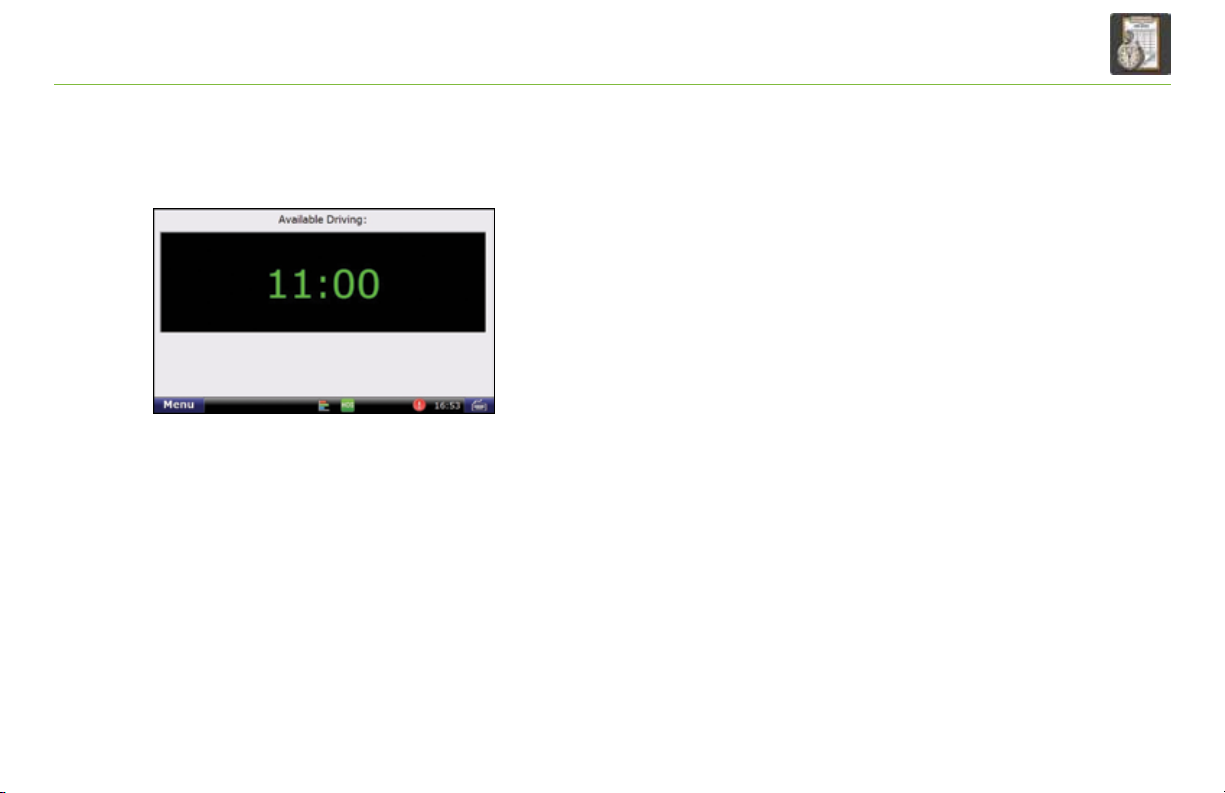
The time shown on the HOS safe-driving screen is the effective
drive time available to you for the day [Exhibit 49]. The time
indicates how long you can drive before going into
so the time displayed may not be your actual available drive time
if you are close to your 14 or 70-hour limit.
•Time. Two numbers appear for your remaining drive time if
the 16-hour rule is active.
•Color. Color coding lets you closely monitor your HOS
statuses and take whatever action is necessary to remain
in compliance.
• When vehicles are in compliance with HOS limits, the
time displays in green.
• When a vehicle is within one hour of the legal limit for
any HOS requirement, the display changes to yellow.
• When a vehicle is out of time for
requirement, the display changes to red.
TND™ 760 Fleet Edition User Manual
any
any
HOS
violation,
45
Page 49
TND
For Sales Information Please Contact
RoadTrucker Inc
(www.RoadTrucker.com)
8312 Sidbury Rd.
Wilmington, NC 28411
(800) 507-0482 / (910) 686-4281
TM
760 SysInfo
Exhibit 50.
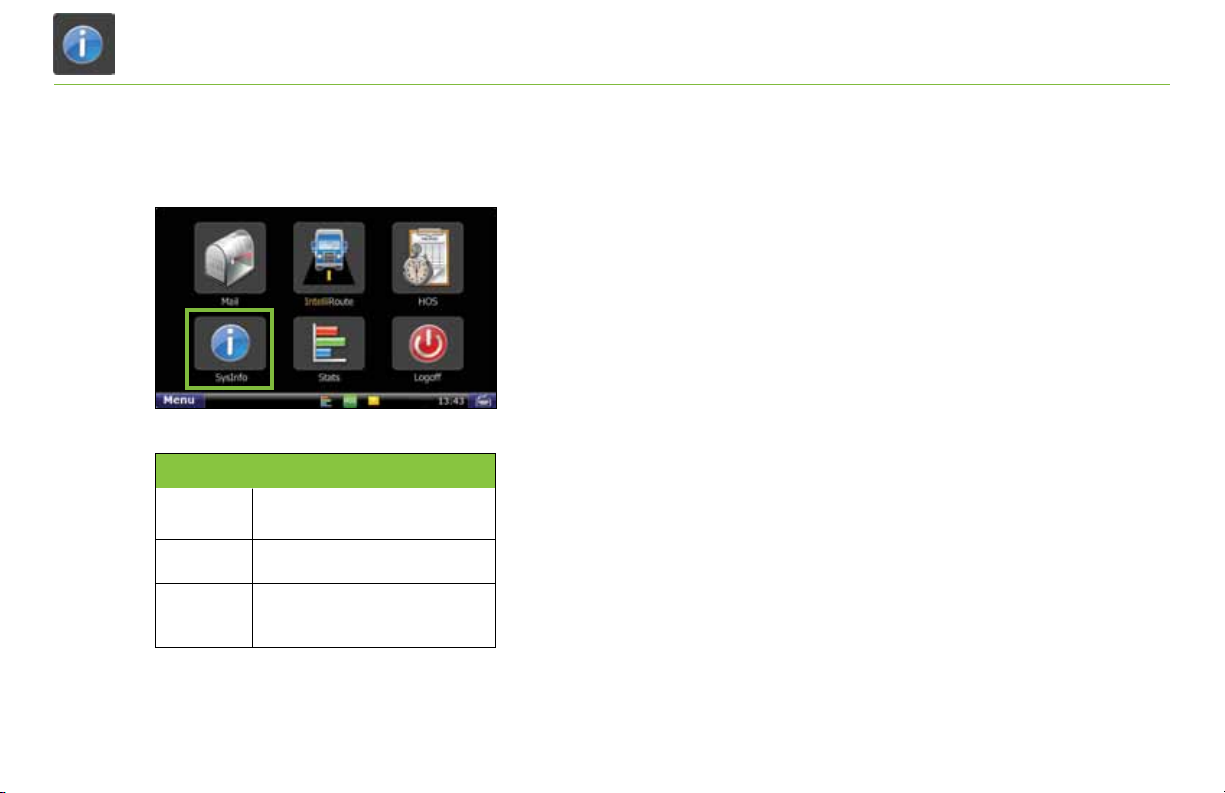
SysInfo Icon on Home Menu
Tab Function
Settings
Info
Diagnostics
46
TND™ 760 Fleet Edition User Manual
Allows you to control the volume and
screen brightness.
Displays system information.
Displays information related to your
™
760's communication status.
TND
SysInfo
Select the SysInfo icon on the Home Menu [Exhibit 50] to
control system settings and to view technical information
about your TNDTM 760.
SysInfo opens to the Settings tab. The tabs in SysInfo are explained
in the table to the left.
Page 50
TND
For Sales Information Please Contact RoadTrucker Inc (www.RoadTrucker.com)
8312 Sidbury Rd.; Wilmington, NC 28411 - (800) 507-0482 / (910) 686-4281
TM
760 SysInfo
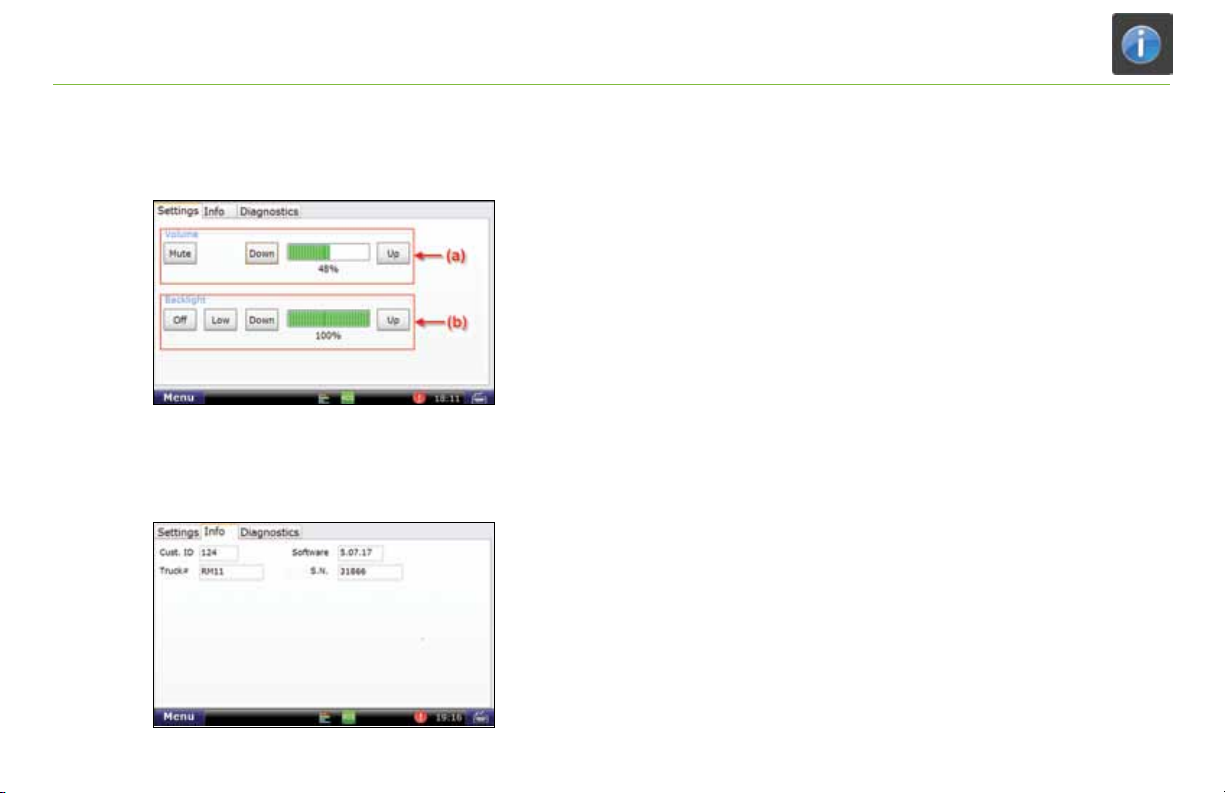
Exhibit 51.
Settings Tab
Exhibit 52.
Info Tab
Settings
•Volume. Control the volume of your TND™ 760 by selecting
Mute or by tapping the Down and Up buttons [Exhibit 51, (a)].
Each tap changes the volume by 10 percent. You can also
change the volume by pressing down and drawing your finger
across the percentage box.
•Backlight. Control the backlight by selecting Off or by adjusting
the screen’s brightness by tapping the Down and Up buttons
[Exhibit 51, (b)]. You can also press down and draw your finger
across the percentage box. Low dims the screen to less than
10 percent.
Info
• Tap Info to access registration information for your
TND™ 760. The fields on the tab window include Cust. ID.
(Customer Number), Software Version, Truck # and
S.N. (Serial Number).
TND™ 760 Fleet Edition User Manual
47
Page 51
TND
For Sales Information Please Contact RoadTrucker Inc (www.RoadTrucker.com)
8312 Sidbury Rd.; Wilmington, NC 28411 - (800) 507-0482 / (910) 686-4281
TM
760 SysInfo
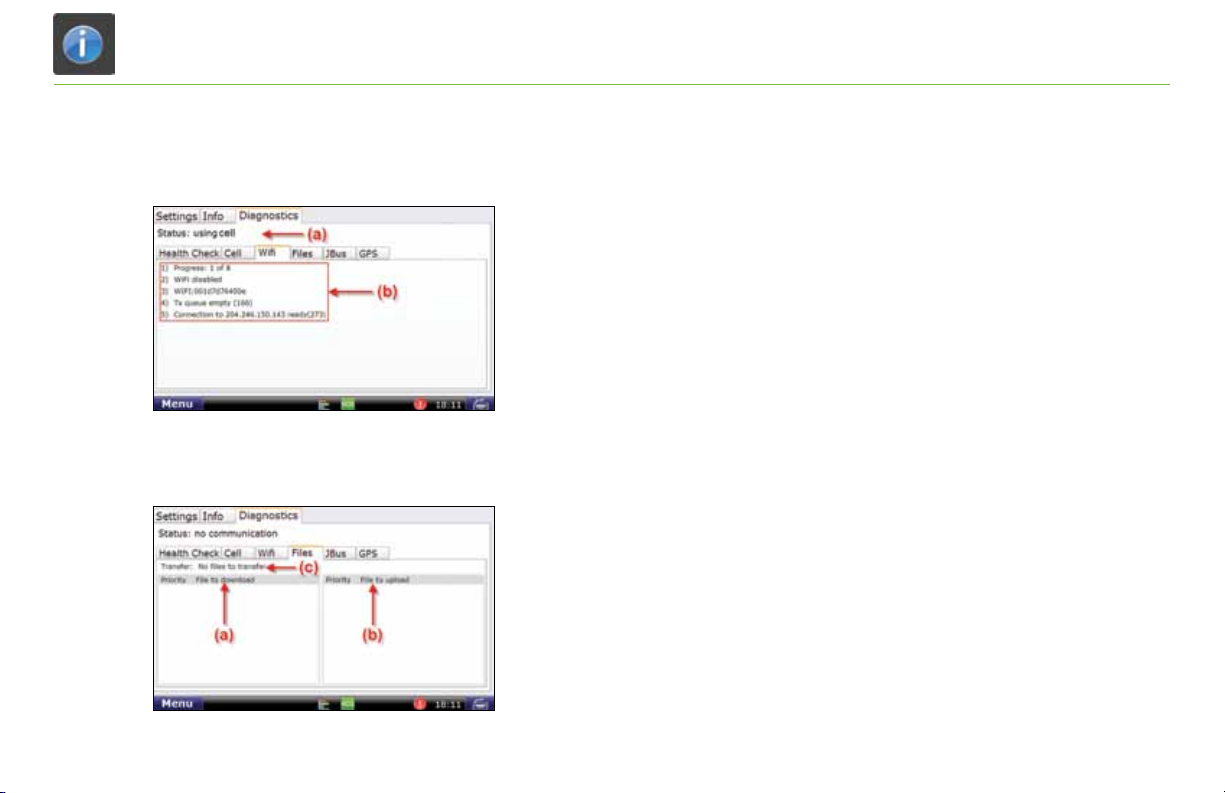
Exhibit 53.
Diagnostics – Wi-Fi Sub-Tab
Exhibit 54.
Diagnostics – Files Sub-Tab
Diagnostics
•Status. Shows the current method of communication
[Exhibit 53, (a)].
•Health Check. Confirms function of system hardware.
•Cell. Provides status of cell connection.
•Wi-Fi. Provides status of Wi-Fi connection
[Exhibit 53, (a) and (b)].
•Files. Shows files scheduled for download or upload [Exhibit 54].
- Downloads to the truck [Exhibit 54, (a)] can include
software updates and dispatch files.
- Transfer [Exhibit 54, (c)] provides the current status of the
file being transferred. If you are expecting a software update, you
can look here to see the status of that download. The percentage
shown indicates how much of the file has been received.
•JBus. Confirms connection to on-board computer.
•GPS. Captures latitude, longitude, altitude, speed, direction and
provides debug information for the GPS.
48
TND™ 760 Fleet Edition User Manual
Page 52
TND
For Sales Information Please Contact
RoadTrucker Inc
(www.RoadTrucker.com)
8312 Sidbury Rd.
Wilmington, NC 28411
(800) 507-0482 / (910) 686-4281
TM
760 SysInfo
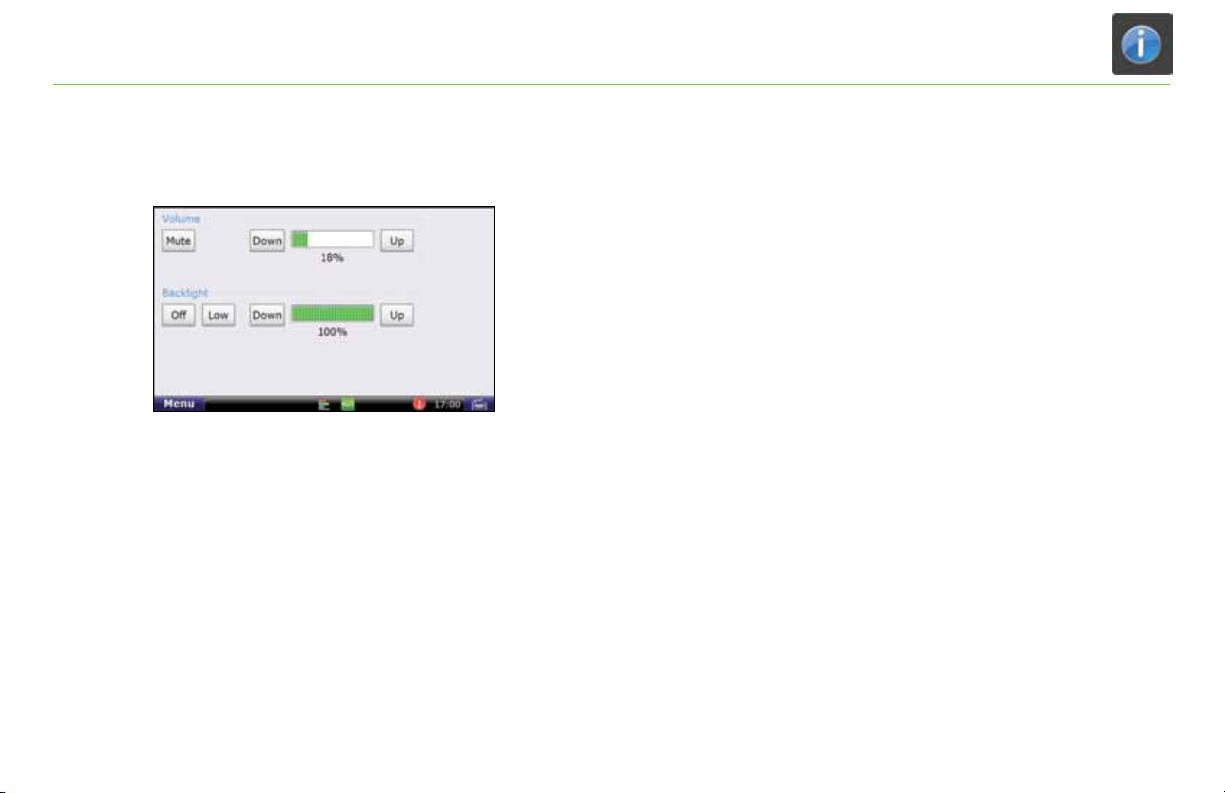
Exhibit 55.
SysInfo Safe-driving Screen
SysInfo Safe-driving Screen
The SysInfo safe-driving screen allows you to adjust the
TND™ 760’s volume and screen brightness [Exhibit 55].
TND™ 760 Fleet Edition User Manual
49
Page 53
TND
For Sales Information Please Contact
RoadTrucker Inc
(www.RoadTrucker.com)
8312 Sidbury Rd.
Wilmington, NC 28411
(800) 507-0482 / (910) 686-4281
TM
760 Stats
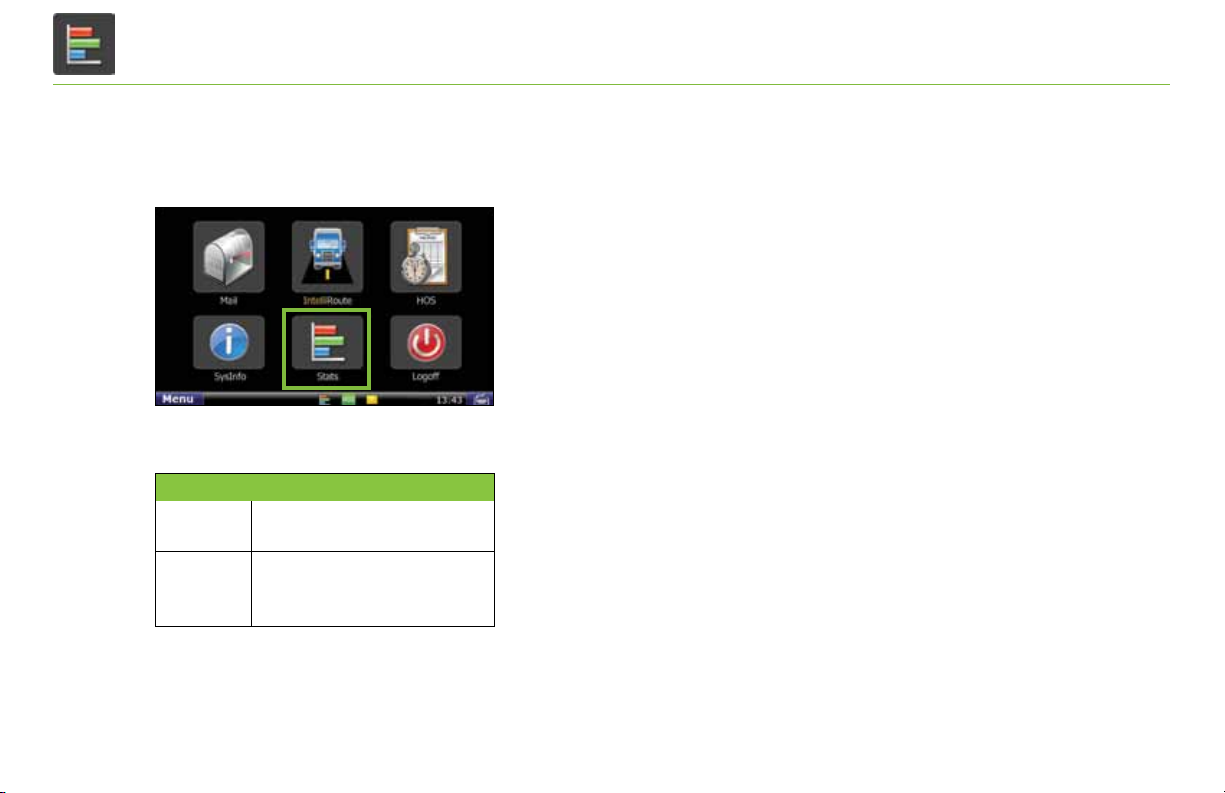
Exhibit 56.
Stats Icon on Home Menu
Tab Function
Driver
Performance
Fault Codes
50
TND™ 760 Fleet Edition User Manual
Displays statistics based on idle time, RPM,
engine and motion time.
Displays fault codes and the location and type
of fault in relation to your vehicle.
Stats
Select the Stats icon on the Home Menu [Exhibit 56] to access
information about driver performance and fault codes.
Stats opens to the Driver Performance tab. The tabs in
stats are explained in the table to the left.
Page 54
TND
For Sales Information Please Contact
RoadTrucker Inc
(www.RoadTrucker.com)
8312 Sidbury Rd.
Wilmington, NC 28411
(800) 507-0482 / (910) 686-4281
TM
760 Stats
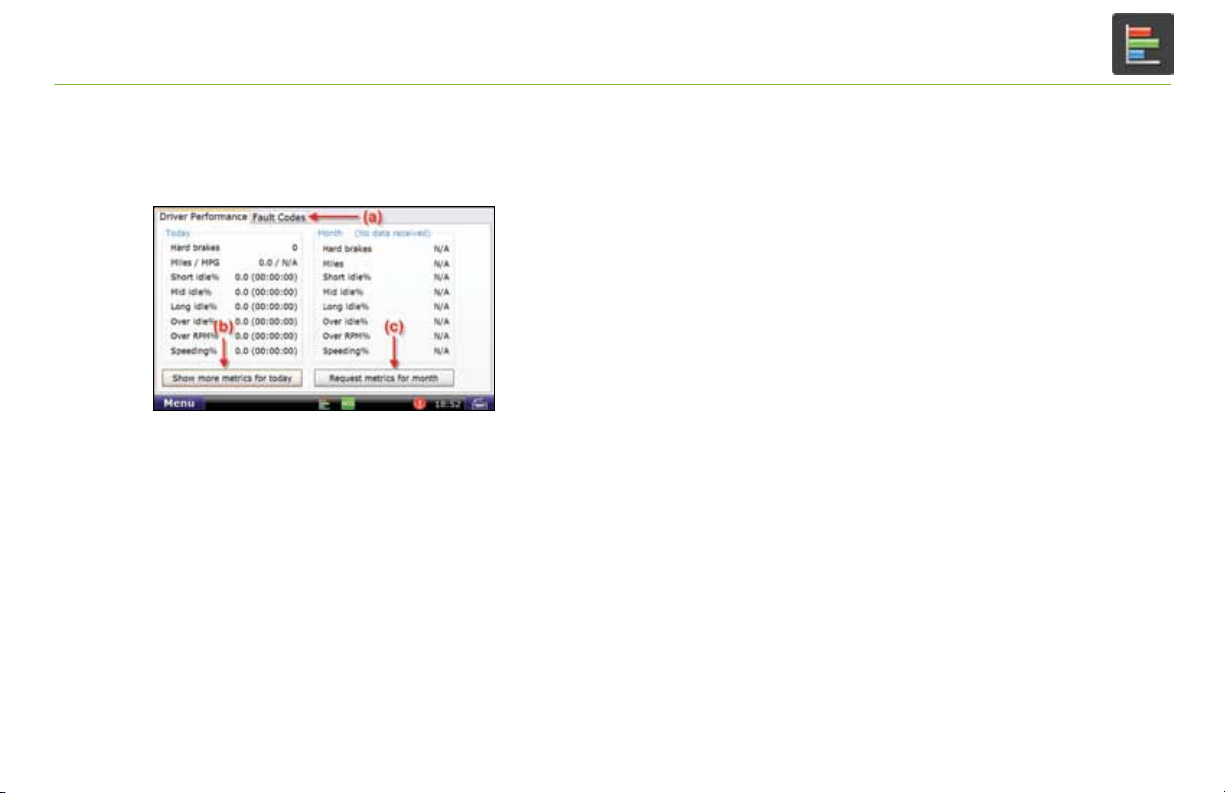
Exhibit 57.
Driver Performance Tab
Driver Performance
The Driver Performance tab displays these statistics:
• Hard brakes—where vehicle speed is over 20MPH.
• Miles / MPG.
• Idling percentages for Short, Mid and Long Idles.
• Over Idle %—where idle is over your fleet’s grace period.
• Over RPM%.
• Speeding%.
You can tap the Show more metrics for today button
[Exhibit 57, (b)] to view a pop-up with information on
Idle fuel, Stop Idle %, Total Idle %, Driving %, Engine time
and Motion time.
You can tap the Request metrics for month button
[Exhibit 57, (c)] to receive an update on driver performance.
The report includes month-to-date information.
TND™ 760 Fleet Edition User Manual
51
Page 55
TND
For Sales Information Please Contact
RoadTrucker Inc
(www.RoadTrucker.com)
8312 Sidbury Rd.
Wilmington, NC 28411
(800) 507-0482 / (910) 686-4281
TM
760 Stats
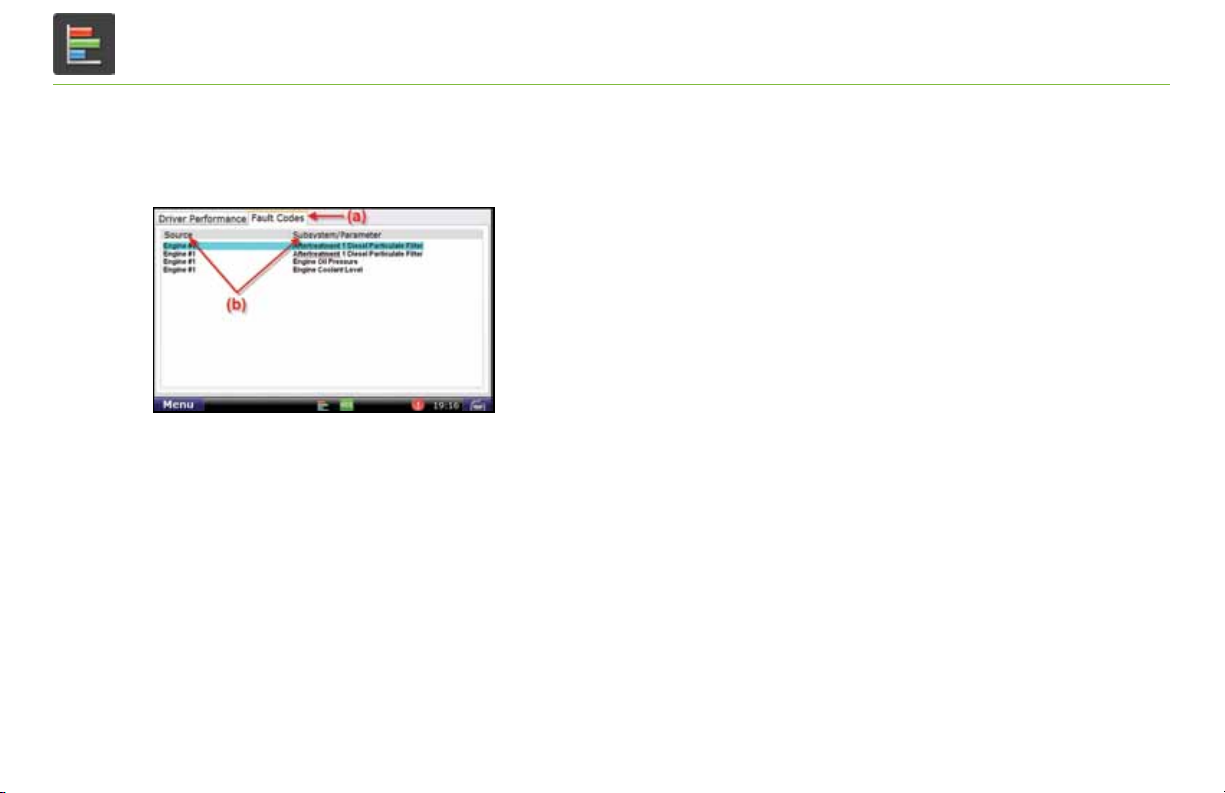
Exhibit 58.
Fault Codes Tab
52
TND™ 760 Fleet Edition User Manual
Fault Codes
The Fault Codes tab [Exhibit 58, (a)] displays
recorded fault codes for the vehicle.
Two columns provide details about the fault
[Exhibit 58, (b)].
•Source. Indentifies the location of the fault
(e.g., engine, cab controller, etc.).
•Subsystem/Parameter. Identifies the type of fault.
Page 56

Problem Possible Solutions
For Sales Information Please Contact
RoadTrucker Inc
(www.RoadTrucker.com)
8312 Sidbury Rd.
Wilmington, NC 28411
(800) 507-0482 / (910) 686-4281
No power or
intermittent
power loss:
Unable to
register:
Unable to
send and receive
messages:
Unable to
connect cellular
modem, GPS
or Wi-Fi:
Nothing appears
on display:
Unable to use
touch screen:
J-Bus not
responding:
Check power connection
- Ensure that the cable is secured to Deutsch port and display.
- Reestablish the cable connections by unplugging them, then plugging them back in.
Check communications
- Look for any crossed-out icons on the lower right of the display.
- Take the truck for a drive to ensure that the issue is not signal interference.
Verify registration information
- Check the Registration screen to make sure you have entered the correct Truck #.
Verify your customer number (Customer # or Cust. ID). If you have questions about
-
your customer number, please call Customer Support at 1-800-641-RAND (7263).
Check communications
- Look for any crossed-out icons on the lower right of the display.
- Take the truck for a drive to ensure that the issue is not signal interference.
Restart the unit
- Restart the unit by first logging off, then pressing the On/Off button.
This will cause the unit to reset and reconnect.
Check communications
- Take the truck for a drive to ensure that the issue is not signal interference.
Restart the unit
- Restart the unit by first logging off, then pressing the On/Off button.
This will cause the unit to reset and reconnect.
Check communications
- Take the truck for a drive to ensure that the issue is not signal interference.
Check connections
- Ensure that the cable is connected to the Deutsch port and display.
Restart the unit
- Restart the unit by first logging off, then pressing the On/Off button.
This will cause the unit to reset and reconnect.
Try a different unit
Try a different unit to determine whether the issue is with the unit or cable.
-
Check connection
Make sure truck ignition is on
Restart engine
Troubleshooting
Troubleshooting
To assist you with troubleshooting, please refer to the list
of possible solutions to the left. You are always welcome to call
Customer Support, but the solutions listed may be all you need
to have your system up and running quickly.
Page 57

Rand McNally follows a continuous improvement process
For Sales Information Please Contact
RoadTrucker Inc
(www.RoadTrucker.com)
8312 Sidbury Rd.
Wilmington, NC 28411
(800) 507-0482 / (910) 686-4281
and reserves the right to provide enhancements that may not
be reflected in the pictures and specifications of this manual.
Rand McNally and IntelliRoute are registered trademarks and TND is a trademark of Rand McNally.
The Trucker’s Friend and National Truck Stop Directory are registered trademarks of TR information Publishers,
Truck Down is a registered trademark of TruckDown Info International, Inc.
NAVTEQ ON BOARD is a trademark of NAVTEQ ©NAVTEQ. All rights reserved.
©2012 Rand McNally. All rights reserved.
While the information contained herein is believed correct when compiled, Rand McNally does not
guarantee its accuracy.
U.S. Patent No. 7,580,791
 Loading...