

Page 1

Plantronics DA80 Audio
Processor
User Guide
Page 2

Contents
Welcome 3
Power 4
Plantronics Spokes Software 5
Install Plantronics Hub 5
Start Hub 5
Hub Tabs 5
Use your headset 7
Answer, end and make calls with Spokes 7
Put a call on hold 7
Adjust volume 7
Mute a call 7
Troubleshooting 8
2
Page 3

Welcome
Congratulations on purchasing your new Plantronics product. This guide contains instructions
for setting up and using your Plantronics DA80 Audio Processor.
Please refer to the safety instructions for important product safety information prior to
installation or use of the product.
3
Page 4
Power
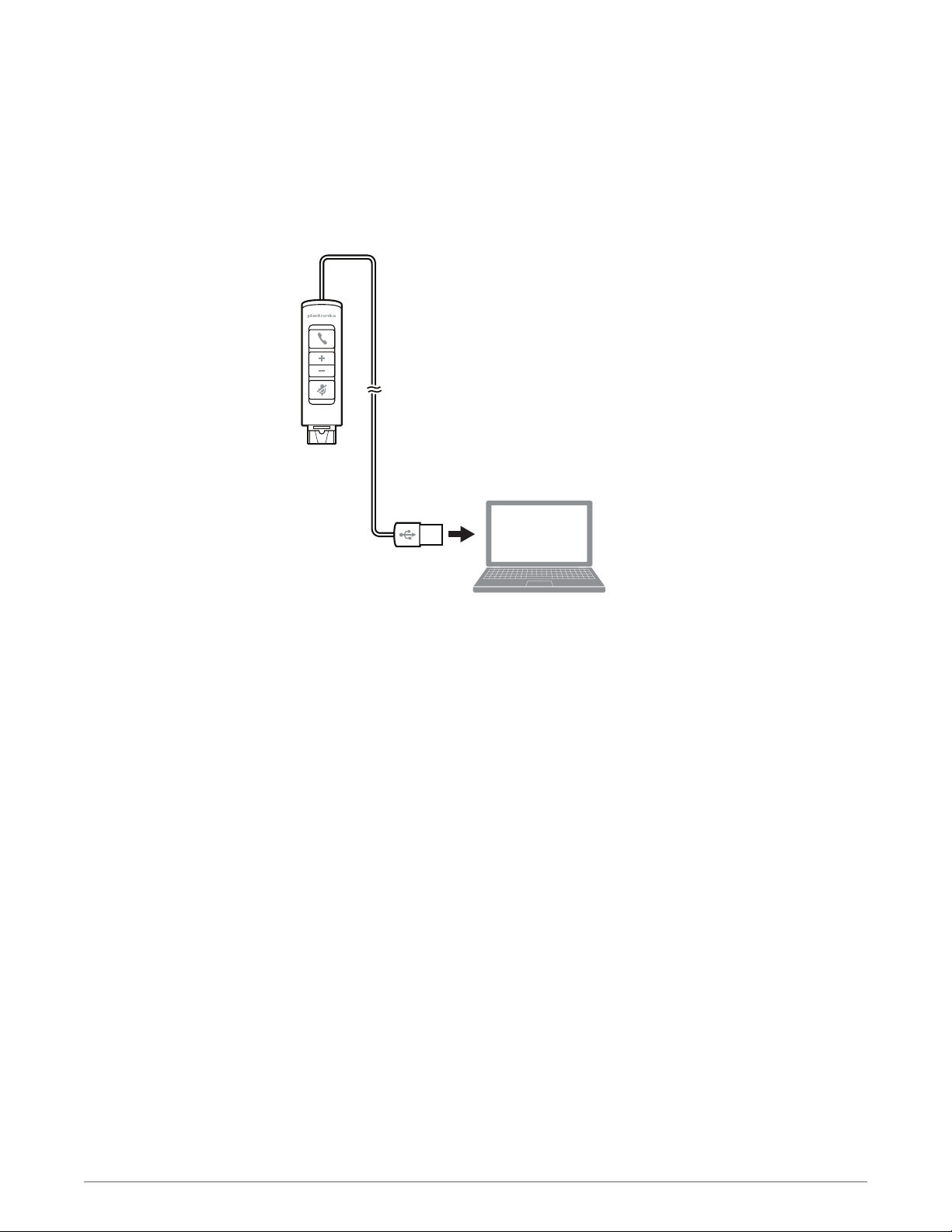
Powering the USB Audio Processor
The USB Audio Processor is automatically powered on upon inserting into the USB port of the
computer.
4
Page 5
Plantronics Spokes Software
Plantronics Spokes software provides the link between your headset and the softphone
application on your computer. Spokes software provides the ability to remotely detect and
answer/end a call from your softphone application via the headset call button.
Install Plantronics Hub
Start Hub
Hub Tabs
To access the Plantronics Hub, load Plantronics software by visiting
plantronics.com/us/support/software-downloads/ and click on download button.
To start Hub, click Start > Programs > Plantronics > Hub
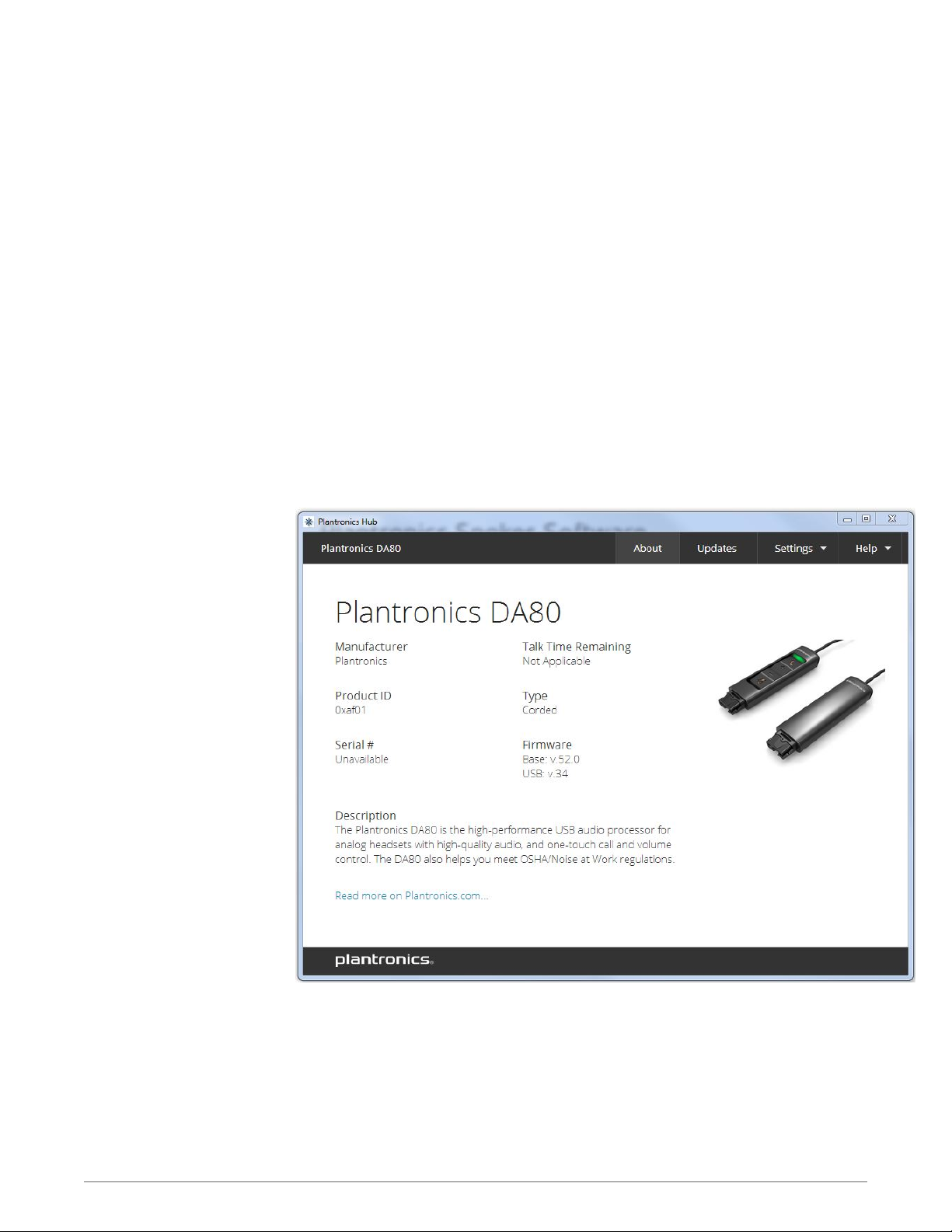
When you first start Plantronics Hub the About Tab will be displayed. If you have at least one
Plantronics device connected to your computer using a USB connector you will see an image
of your device along with some information about that device. You will also see tabs across the
top of the application that read "About", "Updates", "Settings", and "Help" which are described
below.
5
Page 6

About Tab
Provides information about your connected device or devices; switch between devices
or set primary device (pull down menu, upper left, appears when multiple devices
present).
Updates tab
Check for device firmware and Hub software updates; get information about updates
when available, install as necessary
Settings tab
Configure available settings for your device or devices, Hub software
Help tab
Support, contact, and troubleshooting information and resources
6
Page 7
Use your headset
Answer, end and make
calls with Spokes
Put a call on hold
Adjust volume
To make a call: dial the number via your softphone application.
To answer or end a call: press the answer/end button
For softphones not compatible with Spokes: check the Spokes compatibility list at
www.plantronics.com/media/downloads/SoftphoneCompatibility.pdf for the most current
information.
If your softphone is not currently supported by Spokes, answer/end via pressing the call button
on the headset will not function; you must answer the call from the softphone.
If your softphone has this feature, holding down the answer/end button for 2 seconds will
place the call on hold. Refer to your phone's user guide for additional features available while
on hold. Pressing the answer/end button will take the call off hold.
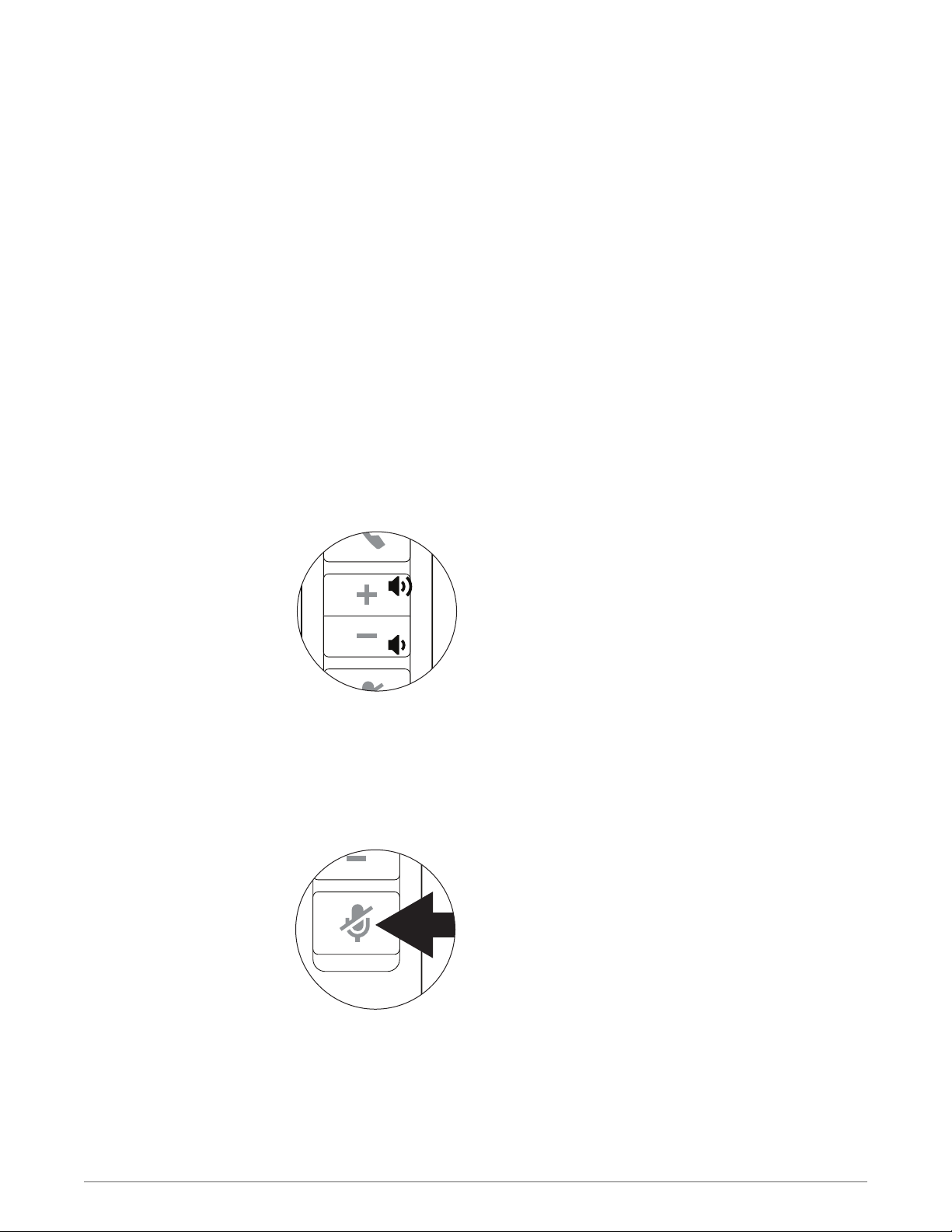
To increase listening volume, press the upper end (+) of the volume button. To decrease the
listening volume, press the lower end (-).
Mute a call
To adjust the listen or speak volume of the softphone, please refer to the softphones user
documentation.
To adjust the listen or speak volume of the audio device on the computer, use the Sound and
Audio Device section of the control panel.
During a call, briefly press the mute button to mute the microphone. When muted, the mute
indicator light will be lit.
To unmute press the button again.
7
Page 8

Troubleshooting
My headset does not
work with the DA80 I am
using on my PC. (I cannot
answer or disconnect
from the headset call
button.)
I cannot hear the caller.
Callers can not hear me.
Sound in headset is
distorted. I can hear echo
in headset.
Check compatibility list at www.plantronics.com/media/downloads/
1
SoftphoneCompatibility.pdf to ensure your softphone is compatible for
remote answer and disconnect.
When a PC goes into standby or hibernation, the USB audio processor is no
2
longer powered on. Be sure your PC is in an active state.
Be sure you have the Spokes software installed.
3
The USB audio processor is not set as the default audio device. Use the
1
audio setting in Windows under Sounds and Audio Devices to select DA80
as the audio device.
Listening volume is too low. Press the volume up button on the headset.
2
Headset is muted. Press the mute button on the headset to unmute the
1
microphone.
Headset microphone boom aligned incorrectly. Align headset boom with
2
your mouth.
The USB audio processor is not set as the default audio device. Use the
3
audio setting in Windows under Sounds and Audio Devices to select DA80
as the audio device.
Lower the listen volume on your softphone until the distortion disappears.
1
Adjust volume on headset.
2
The other headset I was
using to listen to music
does not work any more.
My headset stops
responding to button
presses.
The USB audio processor will set itself as the default audio device in
1
Windows. Use the audio setting in Windows under Sounds and Audio
Devices to change the device used for audio.
When a PC goes into standby or hibernation, the USB audio processor is no
1
longer powered on. Be sure your PC is in an active state.
8
Page 9

NEED MORE HELP?
plantronics.com/support
Plantronics, Inc. Plantronics BV
345 Encinal Street
Santa Cruz, CA 95060
United States
©
2014
New copyright info to come
Plantronics, Inc. Plantronics, Plantronics Explorer and Simply Smarter Communications are trademarks of Plantronics, Inc. registered in the US and
other countries, and Explorer is a trademark of Plantronics, Inc. Bluetooth trademarks are owned by Bluetooth SIG Inc., any use by Plantronics, Inc. is
under license. iPhone is a trademark of Apple Inc., registered in the US and other countries. All other trademarks are the property of their respective
owners.
Patents pending
xxxxx-06 (11.14)
South Point Building C
Scorpius 140
2132 LR Hoofddorp, Netherlands
 Loading...