

Page 1

This unit sold by:
www.phonak.com
029-0654-02/V00 1004/A+W Printed in Switzerland © Phonak AG All rights reserved
Page 2
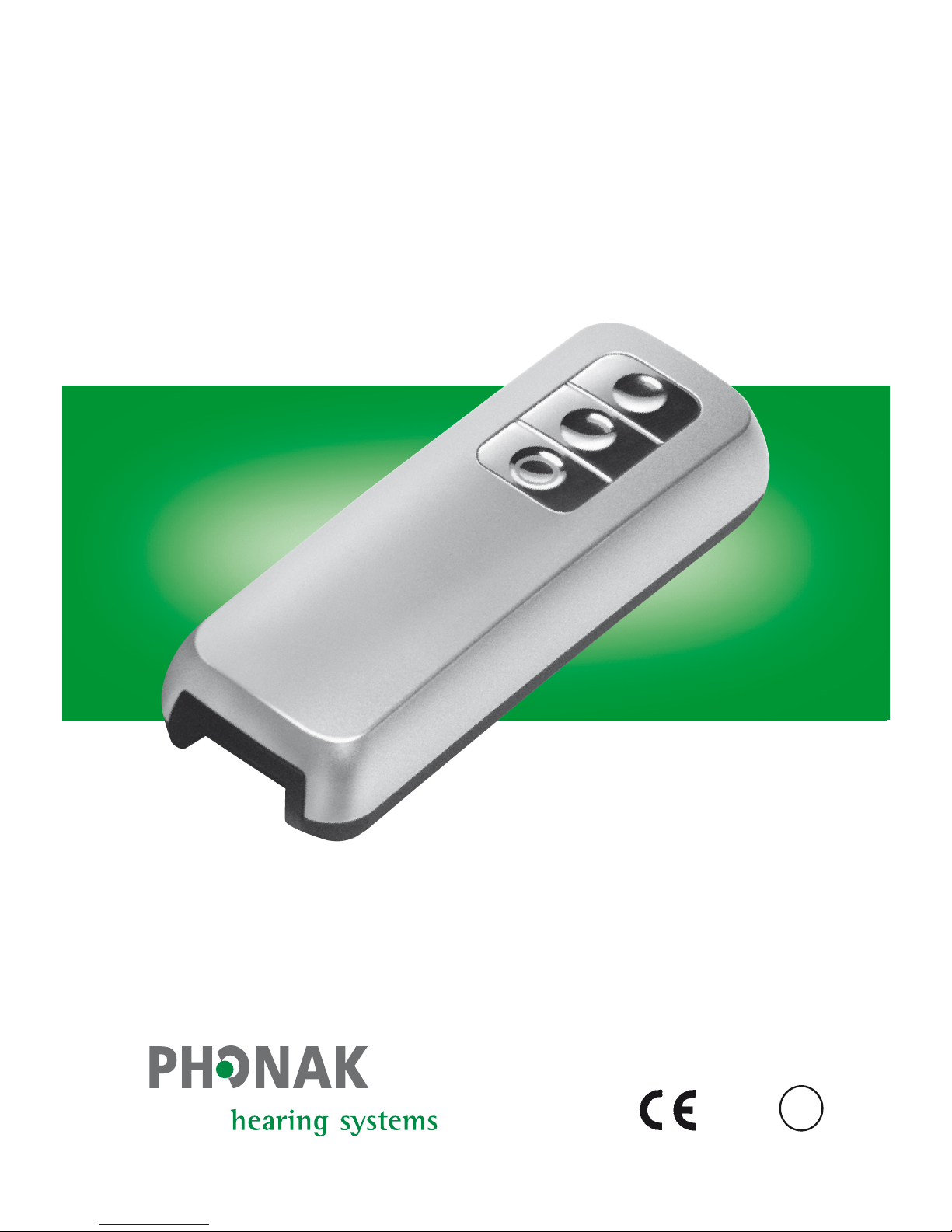
SmartLink
™
SX
User Guide
0682
!
Page 3

Contents
Controls 4
Welcome 6
SmartLink and accessories 7
First steps 8
Charging the SmartLink 8
Switching on/off 10
Operating range 13
Attaching/detaching the lavalier cord 14
Choosing the best microphone setting 16
Keypad lock 18
Using the hearing instrument remote control 19
Program selection 21
Using an external microphone 22
Connecting SmartLink to a television 26
SmartLink and mobile phones 30
Bluetooth link 30
How SmartLink interacts with a mobile phone 32
Pairing SmartLink 33
Activating SmartLink for mobile phone use 35
Page 4

Answering a call 37
Rejecting a call 39
Making a call 40
Switching off the Bluetooth link 41
Special functions 42
Changing the FM channel 42
Finding a third-party channel (scan) 44
Using SmartLink – examples 46
Optional charging units 49
FM-Receivers 50
Setup of FM-Receivers 50
Principle benefits of multi-frequency receivers 50
Switch settings on MLxS 52
Important points 53
Troubleshooting 54
Declaration of conformity 58
Service and warranty 59
Phonak distributors worldwide 60
Page 5
4
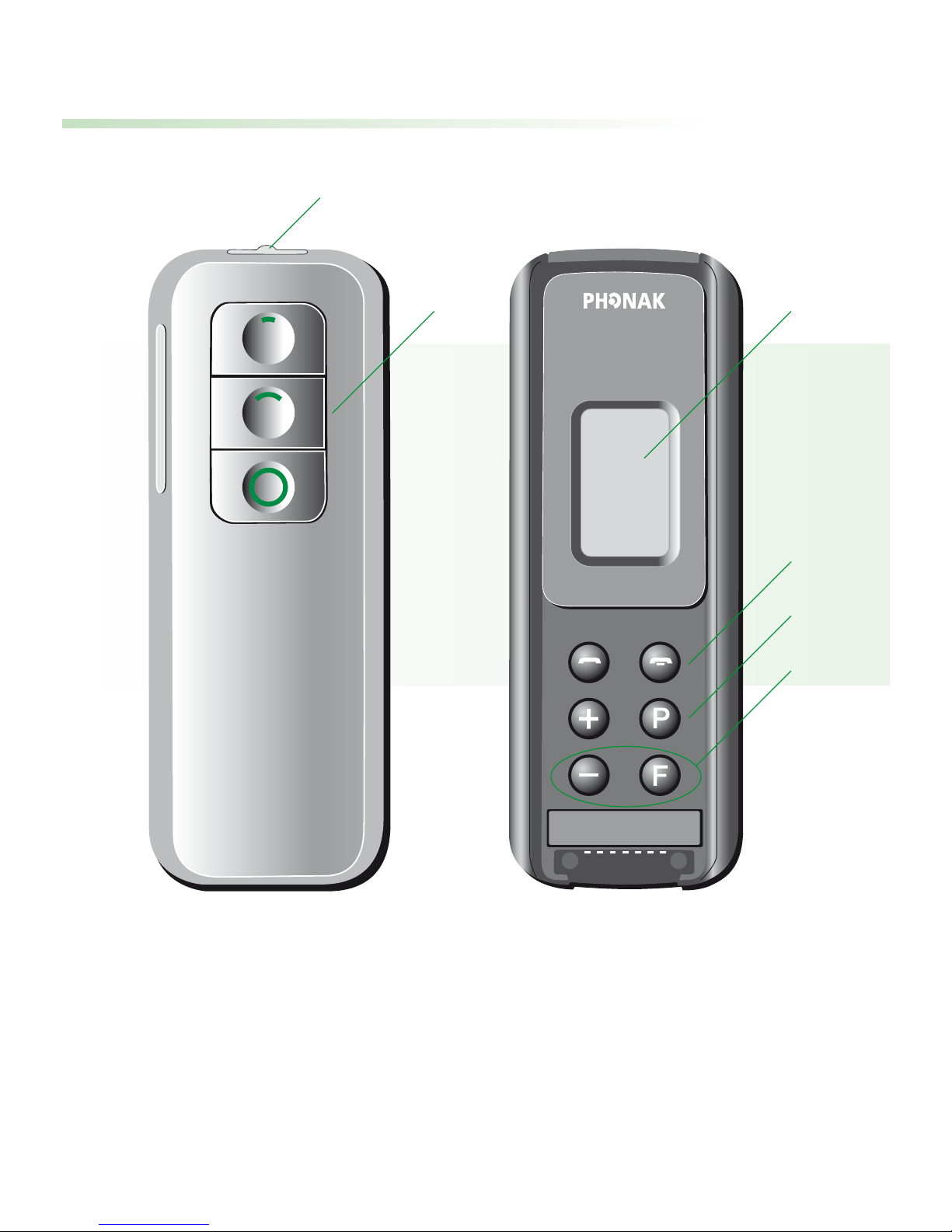
Controls
Page 6
5
Microphone on/off switch
Microphone functions
SuperZoom
2
(narrow-angle sound pickup)
Zoom (wider-angle sound pickup)
Omni (360° sound pickup)
LCD
Telephone keys
Call answer
Call end
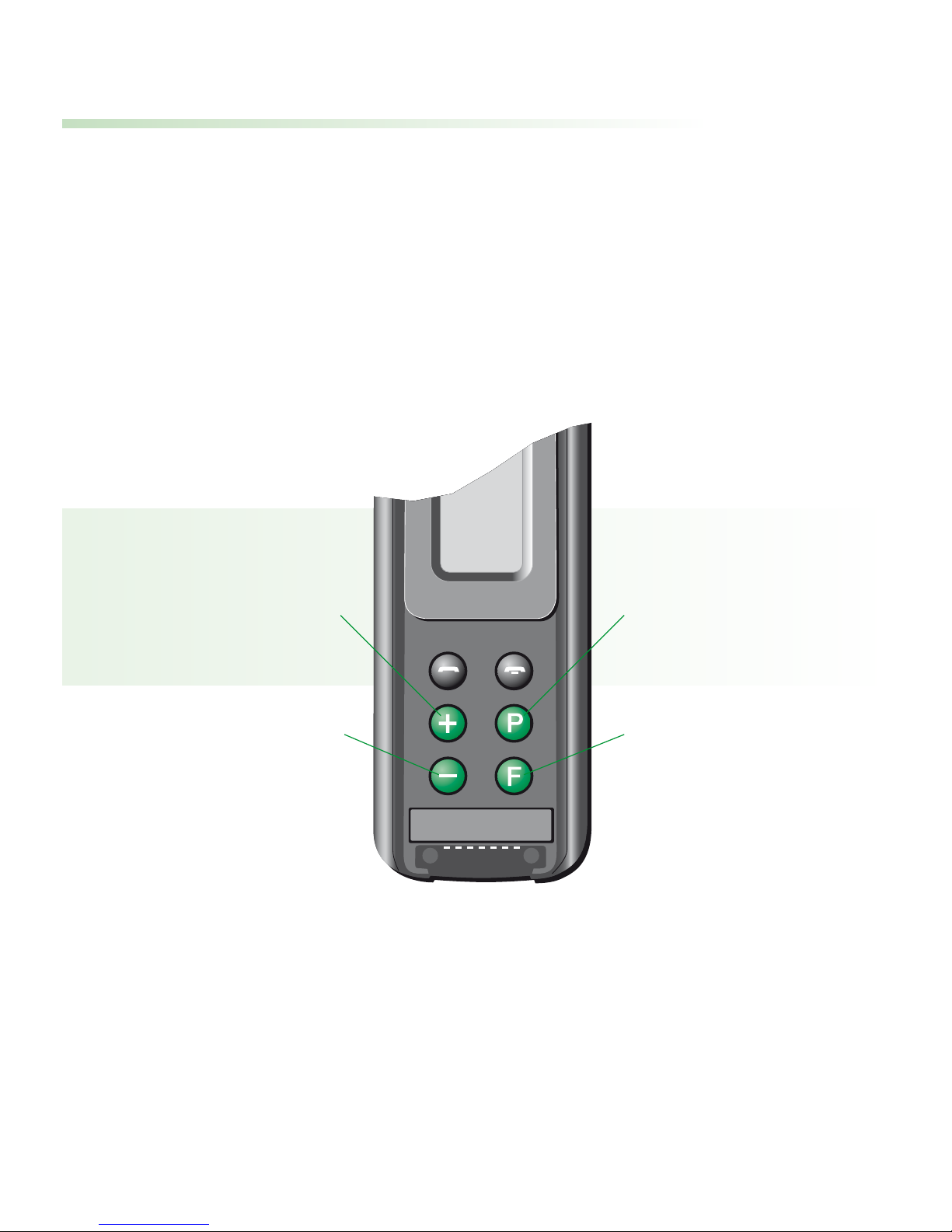
Hearing instrument remote control
Hearing instrument volume increase
Hearing instrument volume decrease
Hearing instrument program change
Program change: “FM active”/
”FM + hearing instrument microphone active”
Keypad lock
To lock: Press and together
To unlock: Press the same keys again
See page 42ff. for key combinations to access
special functions.
P
F
F
–
–
+
Page 7

6
Welcome
This unique combination of an FM transmitter, mobile
phone link and hearing instrument remote control is
the gateway to a completely new hearing experience.
To obtain maximum benefit from the SmartLink and
its comprehensive features, please read this user
guide carefully. Ask your hearingcare professional if
you have any questions.
Phonak wishes you much hearing enjoyment with
the SmartLink.
The following symbols appear
in this user guide:
Important notes for all users.
Special notes for users of Phonak hearing
instruments with remote control compatibility
(Perseo, Claro, Supero and all future remotecontrollable Phonak hearing instruments.)
!
Page 8
7
SmartLink and accessories
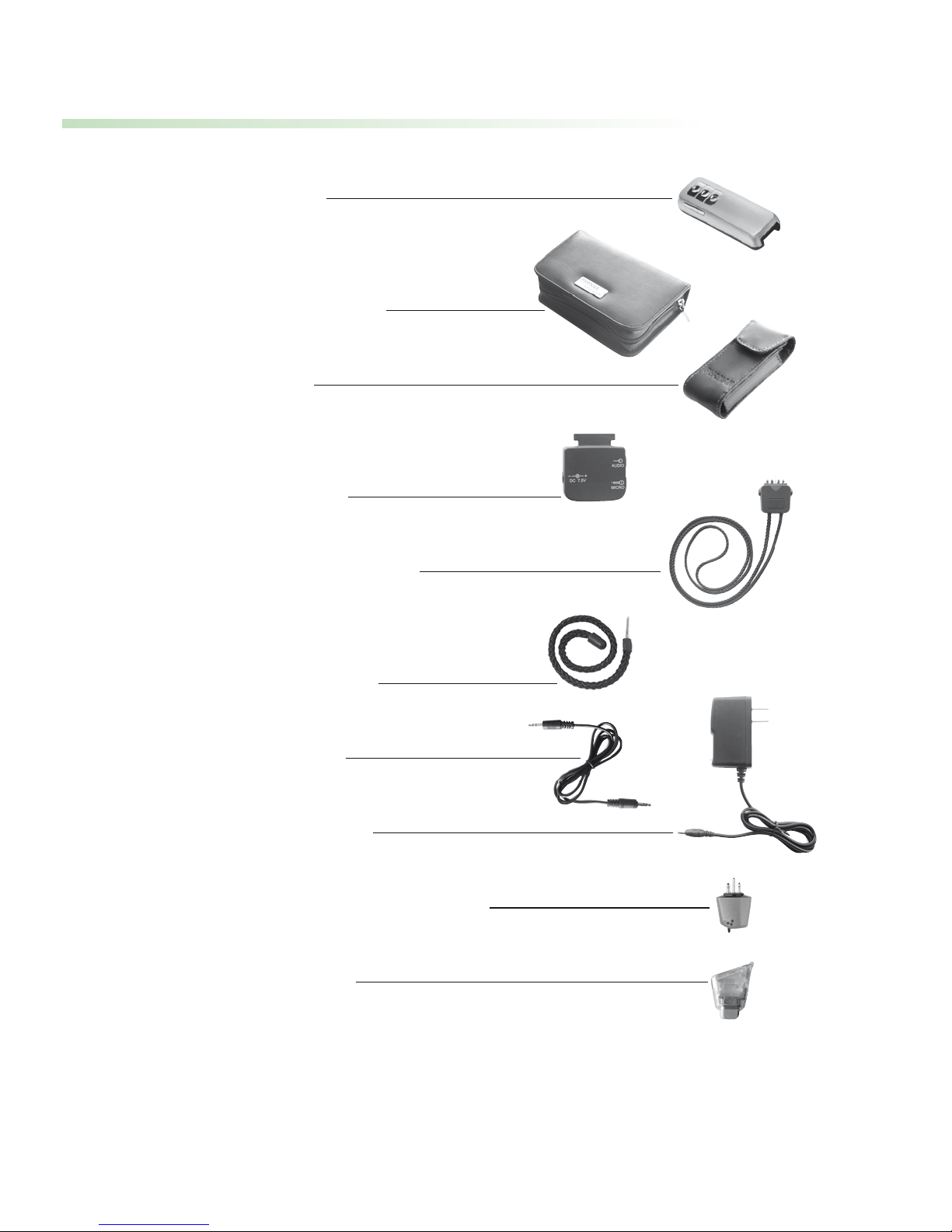
SmartLink
SmartLink home
and travel case
Soft case
Adapter for external
connections
Lavalier cord with
integrated antenna
Short antenna
Audio cable
Charging unit
MicroLink FM receiver *
Audio shoe *
*
MicroLink receiver or audio shoe may differ, depending on the
hearing instrument model.
Page 9
8
D
C
7
.5
V
DC 7.5V
click
First steps:
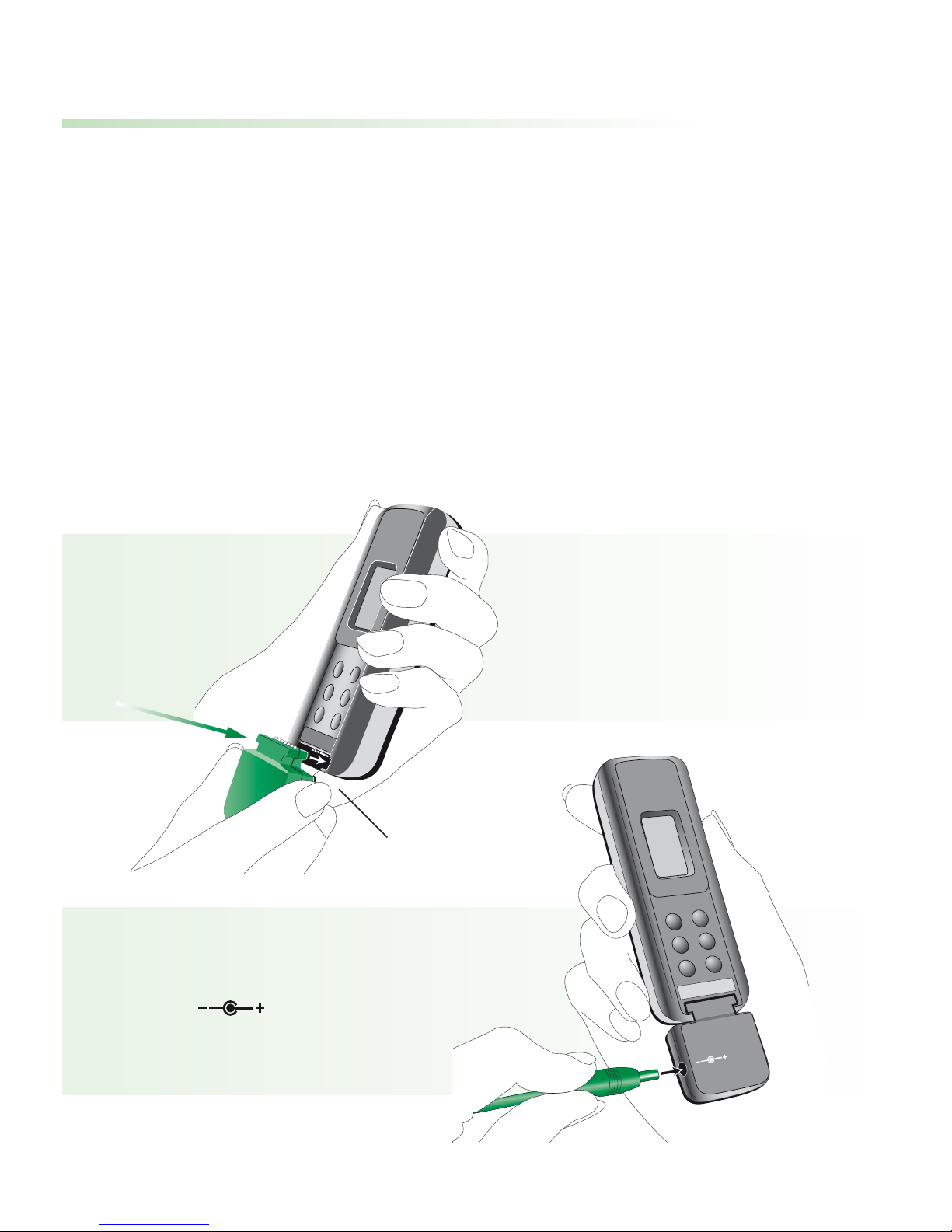
Charging the SmartLink
The SmartLink contains a non-removable Lithium-ion
battery with fast-charge capability. A fully exhausted
battery takes around 2 hours to charge. The battery
will be about 80% charged within an hour.
Attach the
SmartLink adapter
Plug the charging unit
into the power jack marked
Page 10
9
Use only original Phonak charging units
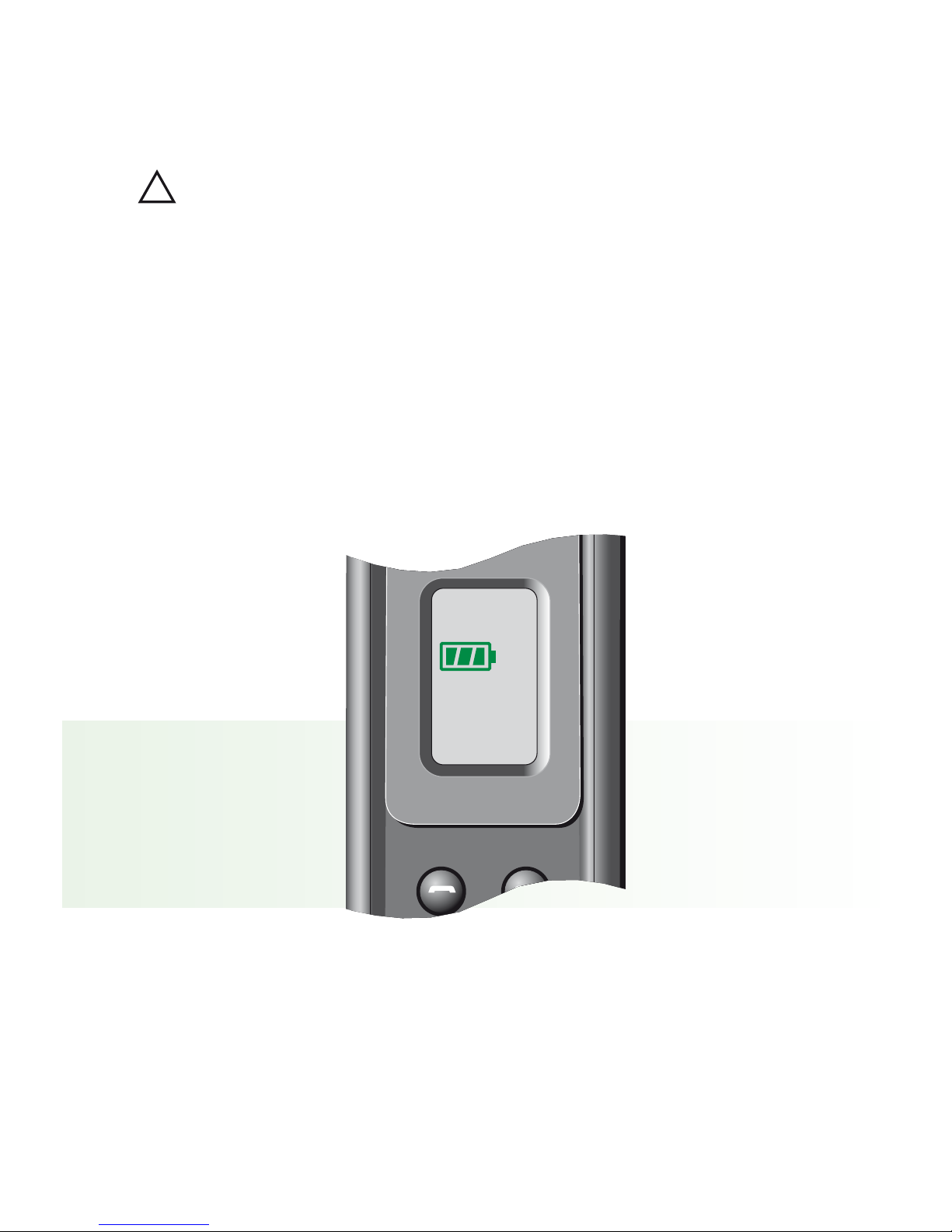
• The battery symbol in the SmartLink display
flashes during charging. The battery cannot be
over-charged.
• The battery symbol stops flashing when the
SmartLink is 100% charged.
• Battery consumption greatly depends on the
functions in use (especially Bluetooth).
Fully charged, the SmartLink operates for approx.
10–12 hours in normal use.
!
Page 11
10
Switching the SmartLink on/off
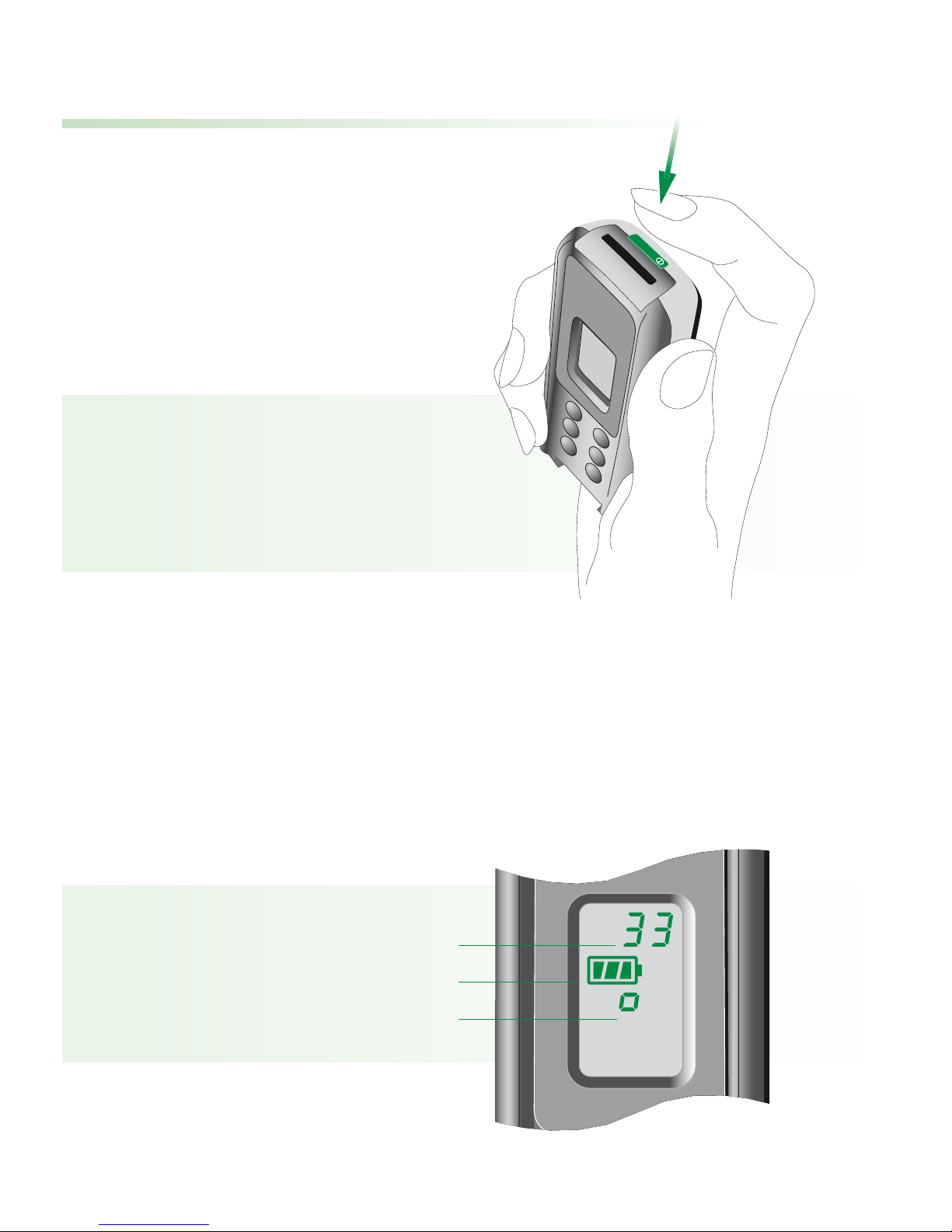
To switch on:
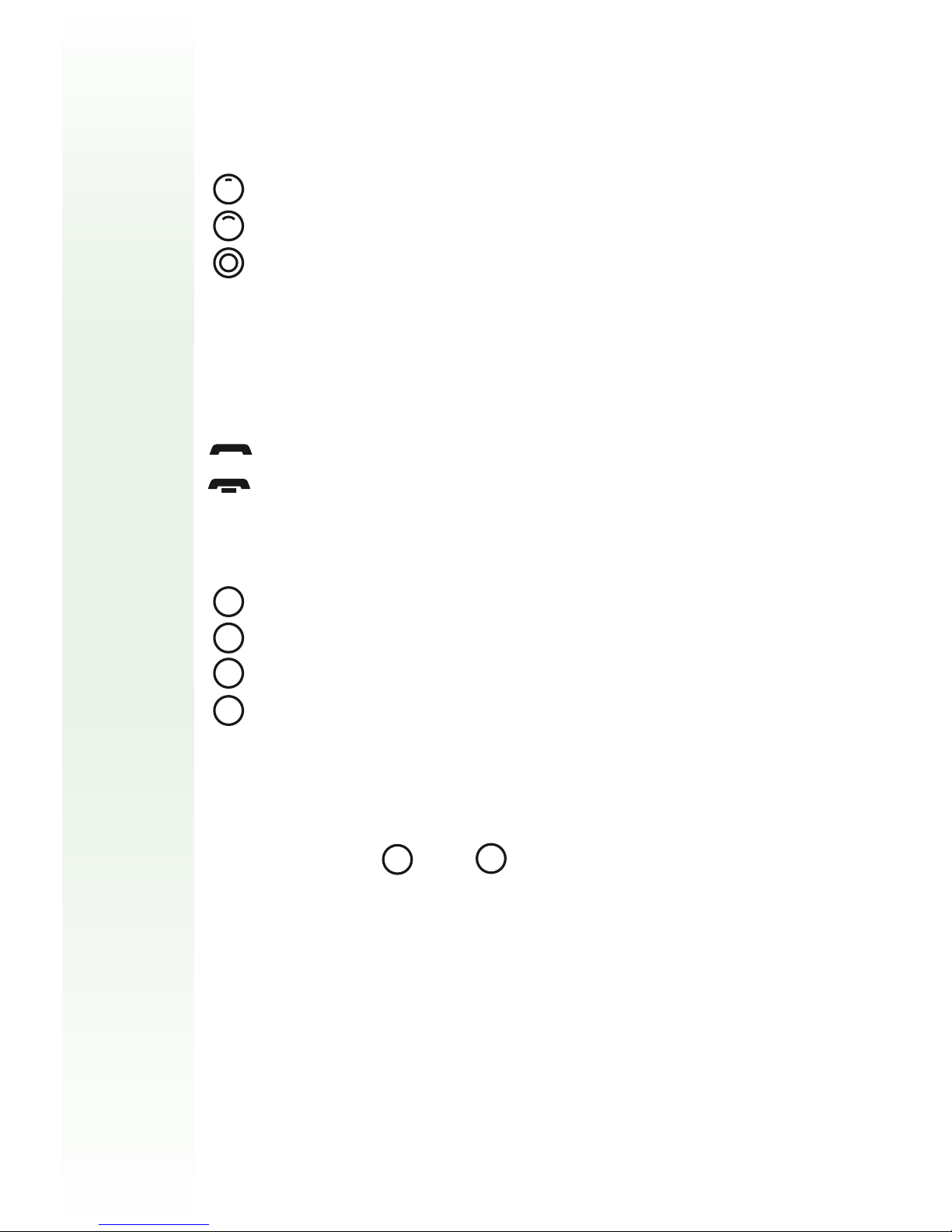
• Press and hold
the main switch
for 2 seconds.
• The display shows startup information during
switch-on. When the SmartLink is ready, the
following information appears:
FM channel number
Battery status
Microphone setting
Page 12

11
• At switch-on, the SmartLink automatically selects
the most recently used FM channel.
The SmartLink automatically synchronizes multichannel receivers to this channel.
• The initial microphone setting at switch-on is
always Omni (display symbol: )
At switch-on, the SmartLink automatically sets
Phonak hearing instruments with remote control
compatibility to the “FM + hearing instrument
microphone active“ program.
If you prefer another program, it is easy to select
using the remote control (see page 19).
To switch off:
• Press and hold the main switch again
for 2 seconds.
Page 13

12
At switch-off, the SmartLink automatically resets
Phonak hearing instruments with remote control
compatibility to the program that was previously
in use.
Example:
• Multi-channel FM receivers automatically enter
power-saving mode about 40 seconds after the
SmartLink is switched off. Because they consume
practically no current in this mode, the receivers
can stay connected to the hearing instrument
without having to be switched off.
The receivers automatically resume normal operation when the SmartLink switches on again.
Program 1
SmartLink
switched on
SmartLink
switched off
Automatic reset
to program 1
FM + hearing
instrument
microphone active
Page 14

13
SmartLink operating range
With built-in antenna: up to 3 meters ( 10 ft)
With short antenna: up to 10meters ( 32 ft)
With lavalier cord antenna: up to 30 meters (100 ft)
The short antenna and lavalier cord plug in at the
front of the SmartLink, next to the on/off switch.
The lavalier cord is recommended when:
• The distance between the SmartLink and the
hearing instrument user is greater than 10 meters.
• The SmartLink is handed to a speaker
(for example at a lecture or presentation).
• SmartLink is used in the presence of interfering
radio signals.
• The short antenna or lavalier cord must also
be connected when using the SmartLink with an
external microphone or a television set.
High-powered electronic equipment, larger
electronic installations and metallic structures
may impair and significantly reduce the
operating range.
!
Page 15
14
Attaching and detaching
the lavalier cord
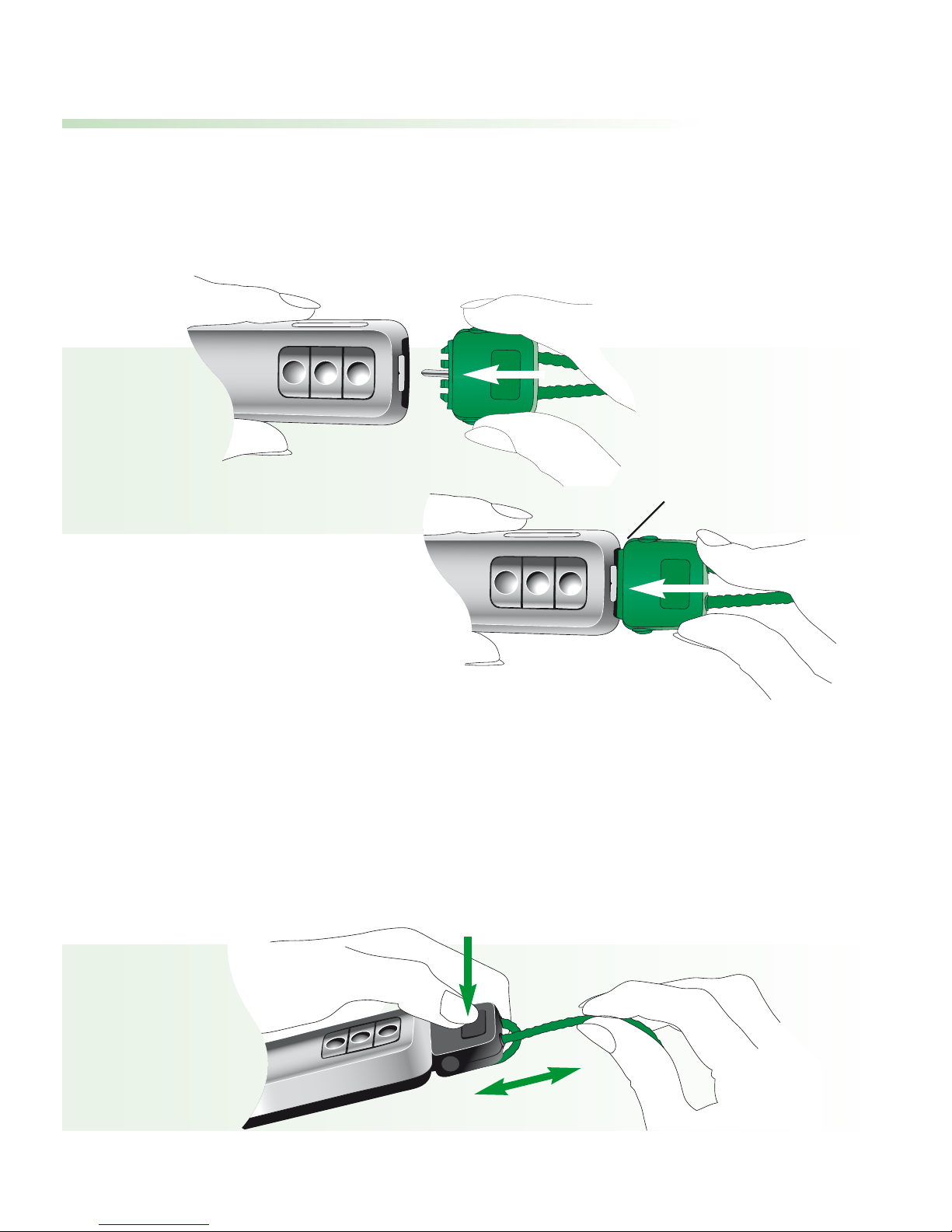
• To attach: Slide in gently, following a straight line.
• To adjust the cord length:
Press on the large button and retract or withdraw
the cord. The cord length should be adjusted so that
the SmartLink is 20–30 cm (8–12") away from the
wearer’s mouth.
click
1.
2.
Page 16
15
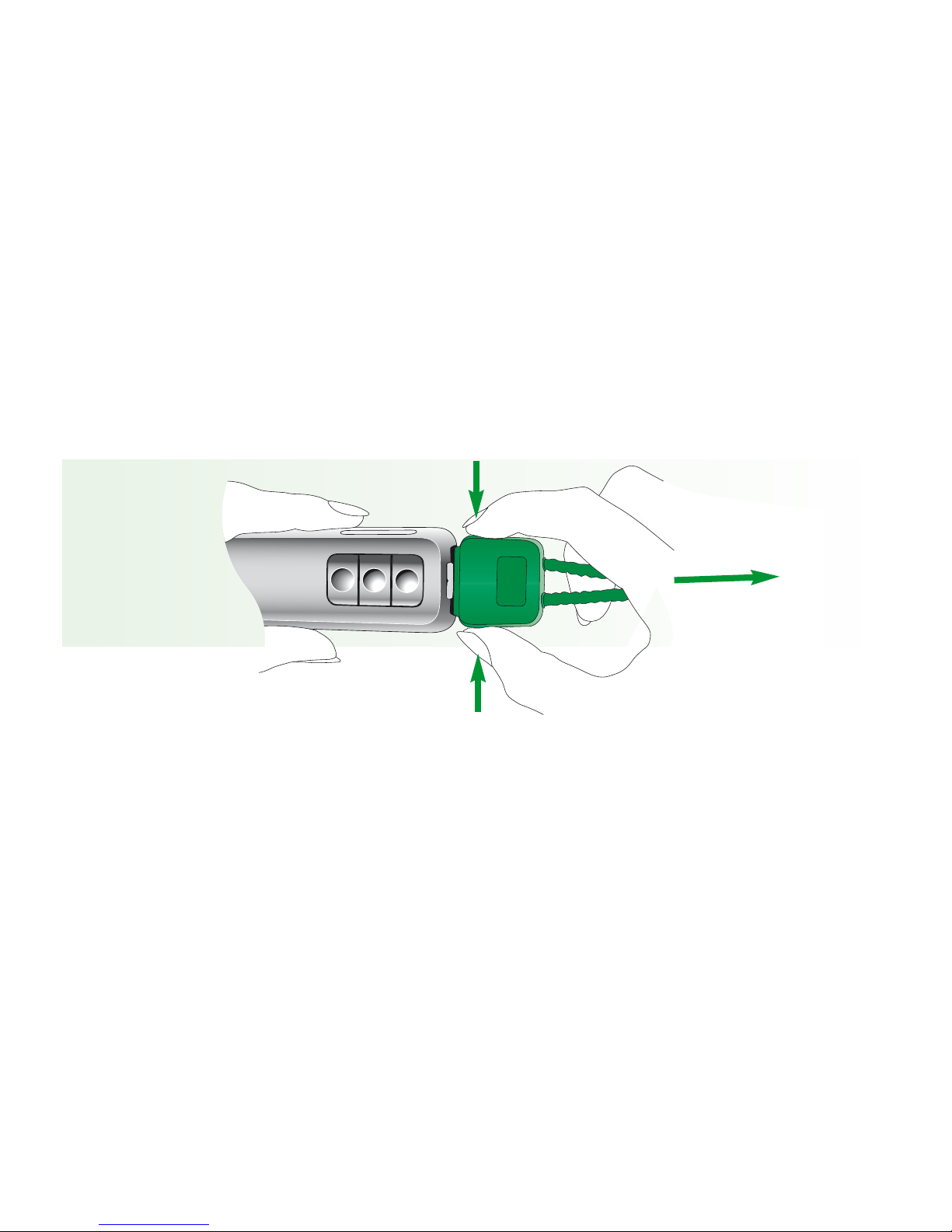
• To detach:
Press together the side buttons and gently slide
out from the SmartLink.
Page 17
16
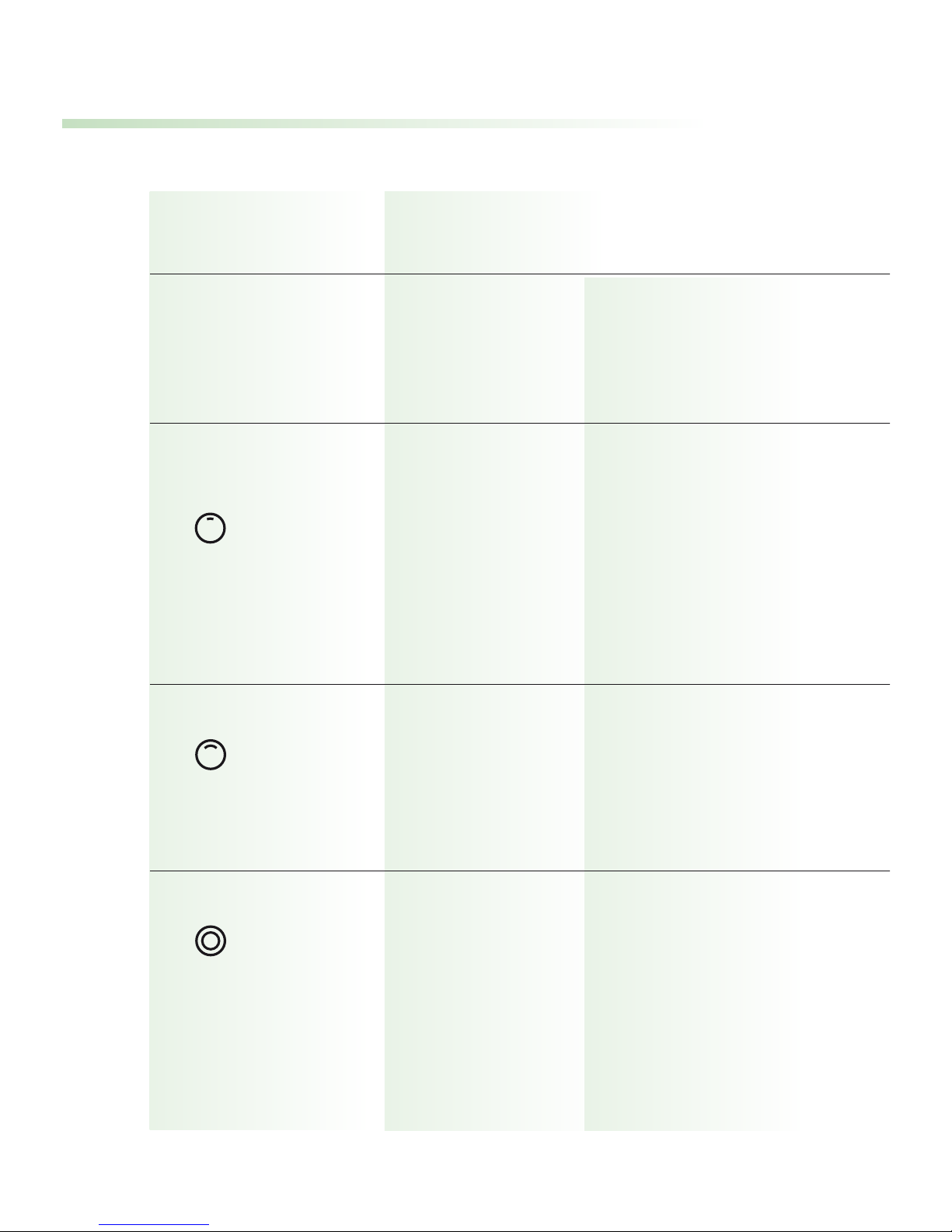
Choosing the best microphone setting
Recommended for
Noise level Focus
Super high fewer speakers
Zoom
2
Zoom medium fewer speakers
Omni low more speakers
Page 18
17
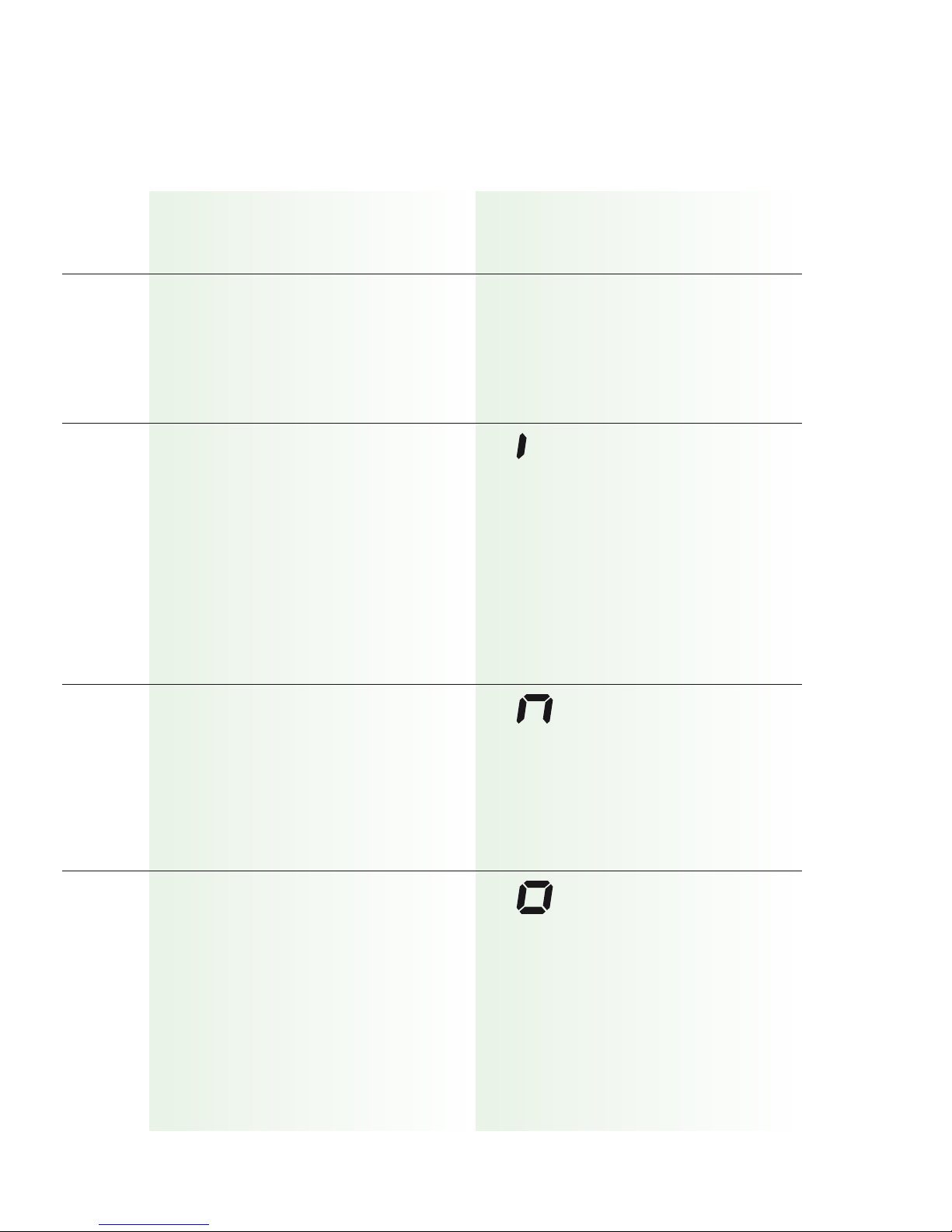
Voice pickup Symbol in
pattern display
focused in
a narrow angle
in front of
the SmartLink
wider angle
in front of
the SmartLink
360° around
the SmartLink
Page 19
18
Keypad lock
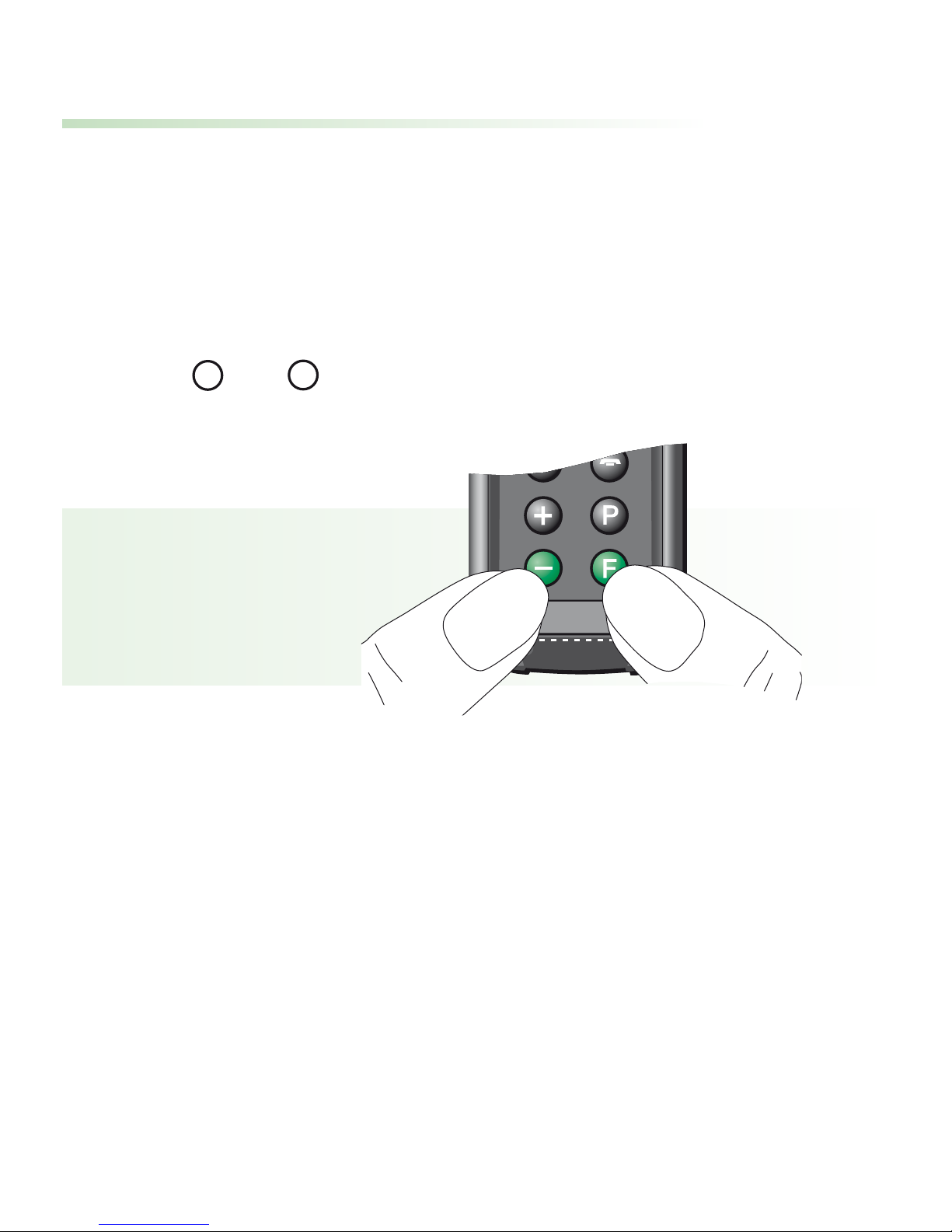
The SmartLink features a keypad lock, to prevent
inadvertent operation of the controls.
• To lock the controls:
Switch on the SmartLink, then simultaneously press
and . ”LOC” appears in the display.
• To unlock the controls:
Press the same two keys again.
Incoming calls can be answered while the SmartLink is
locked: simply press the green telephone key.
The keypad lock automatically reactivates at the end of
the call.
F
–
Page 20
19
Using the hearing instrument
remote control
• The built-in remote control is a simple and convenient way to operate Phonak digital hearing
instruments with remote control compatibility.
• The remote control works all the time, even if the
SmartLink is switched off.
Program selector
Switches hearing
instrument
programs without FM
Switches hearing
instrument
programs with FM
Volume adjustment
Increase
hearing aid volume
Decrease
hearing aid volume
Page 21
20
Using the hearing instrument remote control
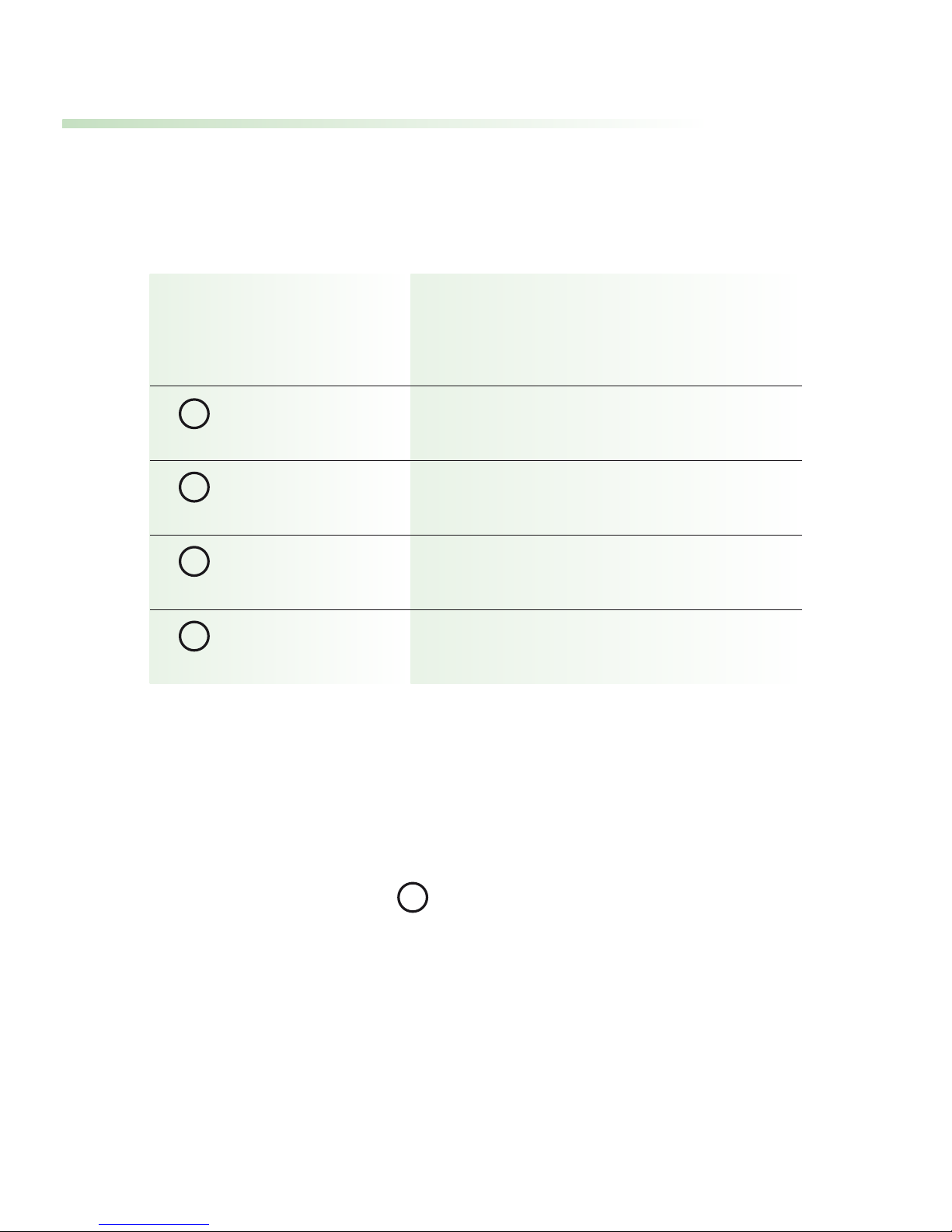
Symbols in the display
• Your hearing instruments produce an acoustic con-
firmation of program selection. Refer to your hearing
instrument user guide for further information.
• Pressing the key automatically synchronizes the
frequency, indicated by a sequence of 4 confirmation
beeps.
• We recommend holding the SmartLink less than
50 cm (20") away from the hearing instruments, in
a position where the LCD is easily visible.
Press key
Symbol in display
for one second
V+
V-
P1 (or P2, P3, P4)
FM or FM+M
P
F
–
+
F
Page 22
21
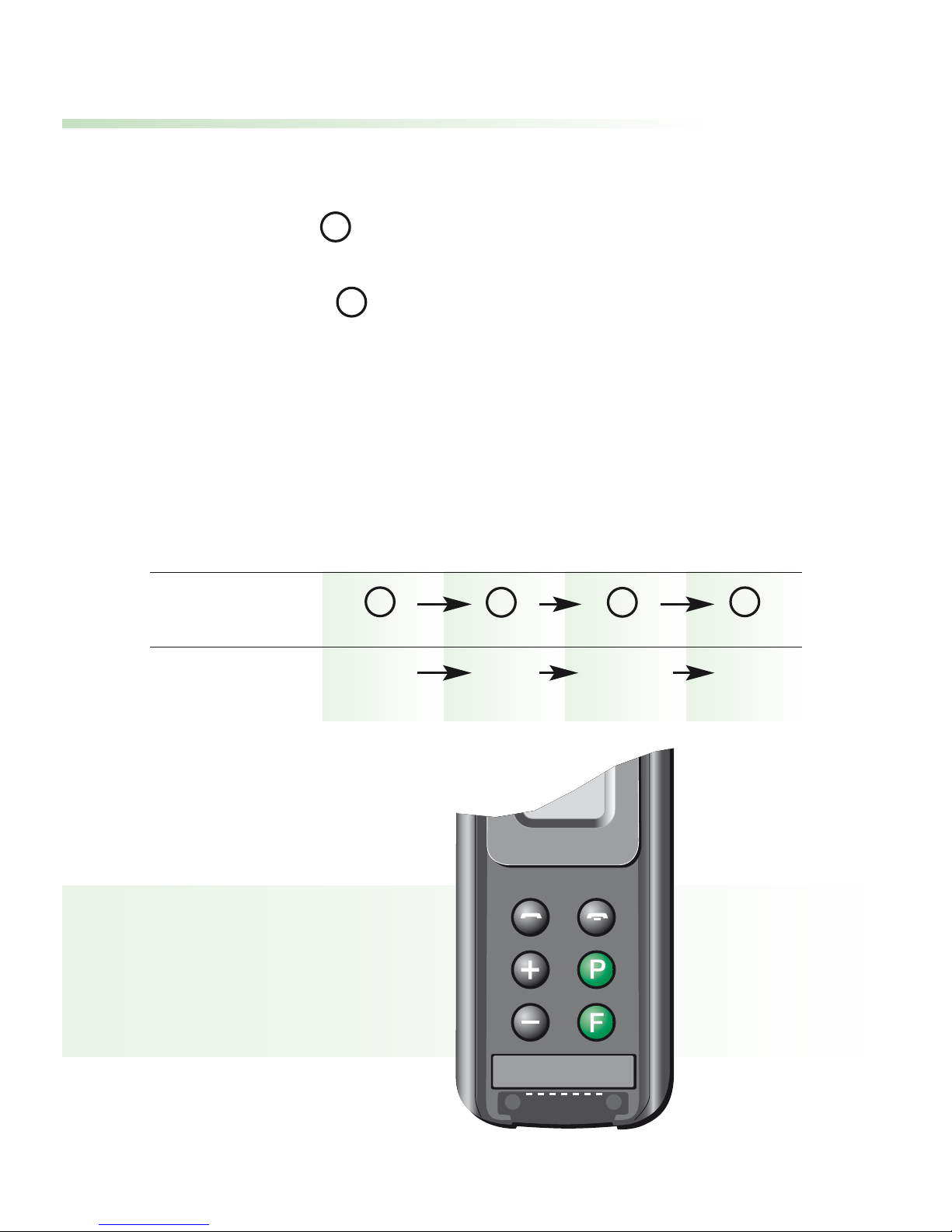
Program selection
• Press the key to activate the next program in
your hearing instruments.
• Every time is pressed, the program alternates
between FM (SmartLink active, hearing instrument
microphones switched off) and FM+M mode
(SmartLink and hearing instrument microphones
active simultaneously).
Example:
Key
Program P1 FM FM+M P1
P
F
P
P
F
F
Page 23
22
Using an external microphone
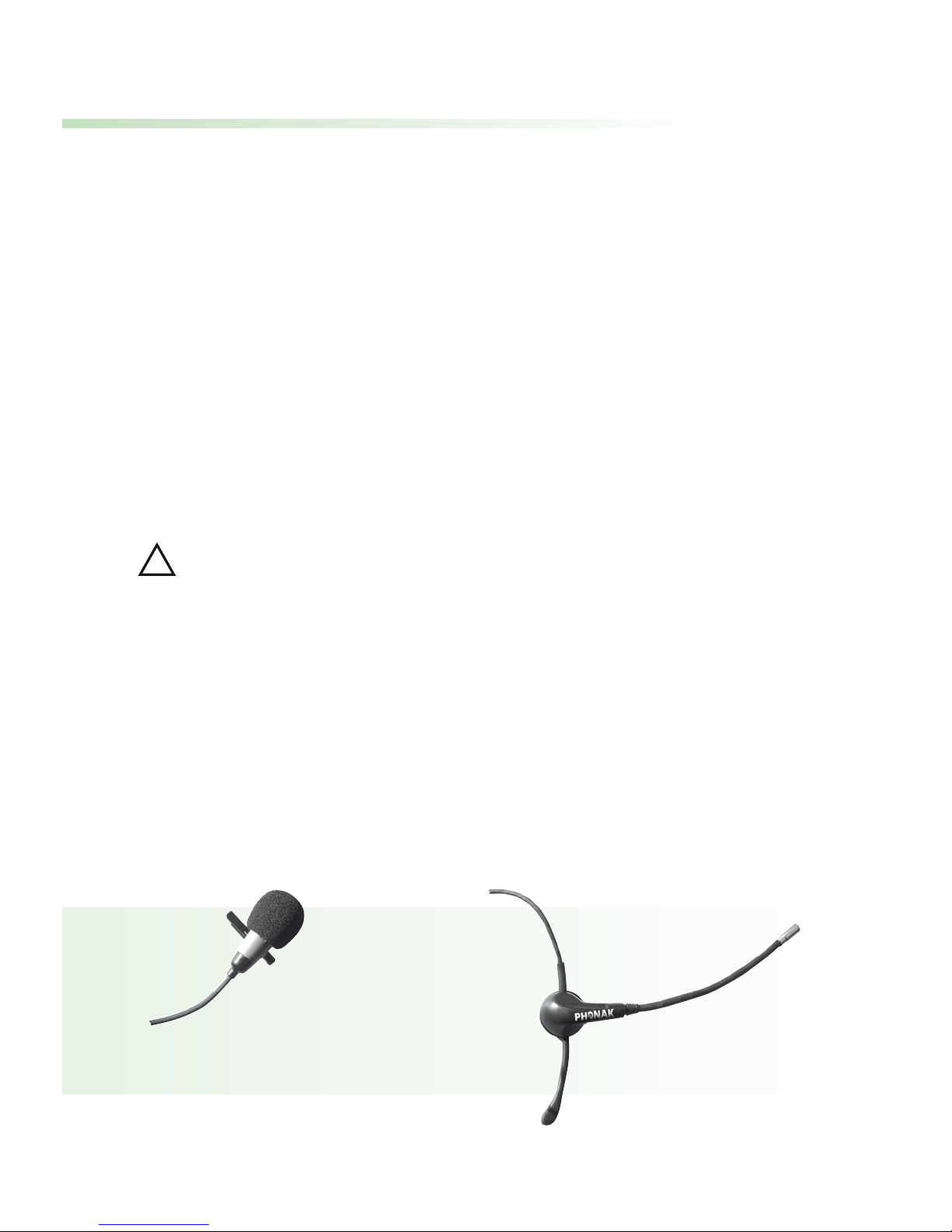
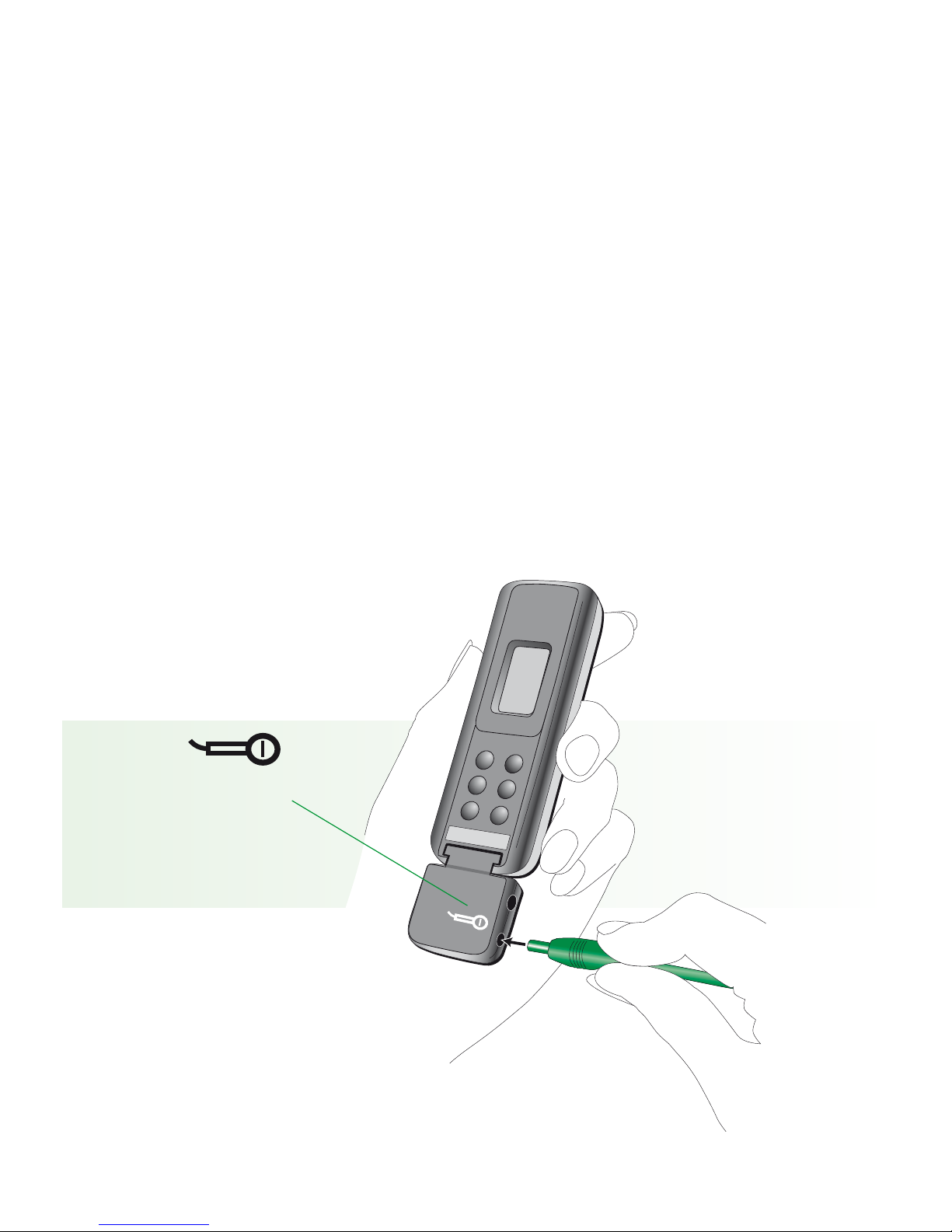
• The SmartLink can be used with an external mini
clip-on or MiniBoom microphone. These can be
advantageous in a variety of situations like college,
lectures or presentations, or in an automobile.
• “ A “ in the display means that the SmartLink is
relaying an audio signal from an external microphone or an external source like a television.
Use the short antenna, or the lavalier cord as an
antenna.
Mini clip-on microphone MiniBoom
!
Page 24
23
• If the SmartLink was switched off before using the
external microphone: When the microphone is
switched off, the SmartLink automatically switches
off 40-50 seconds later.
• Some external microphones have a separate on/off
switch. Ensure that the external microphone is
correctly switched on.
Plug in here:
MICRO
MICRO
Page 25

24
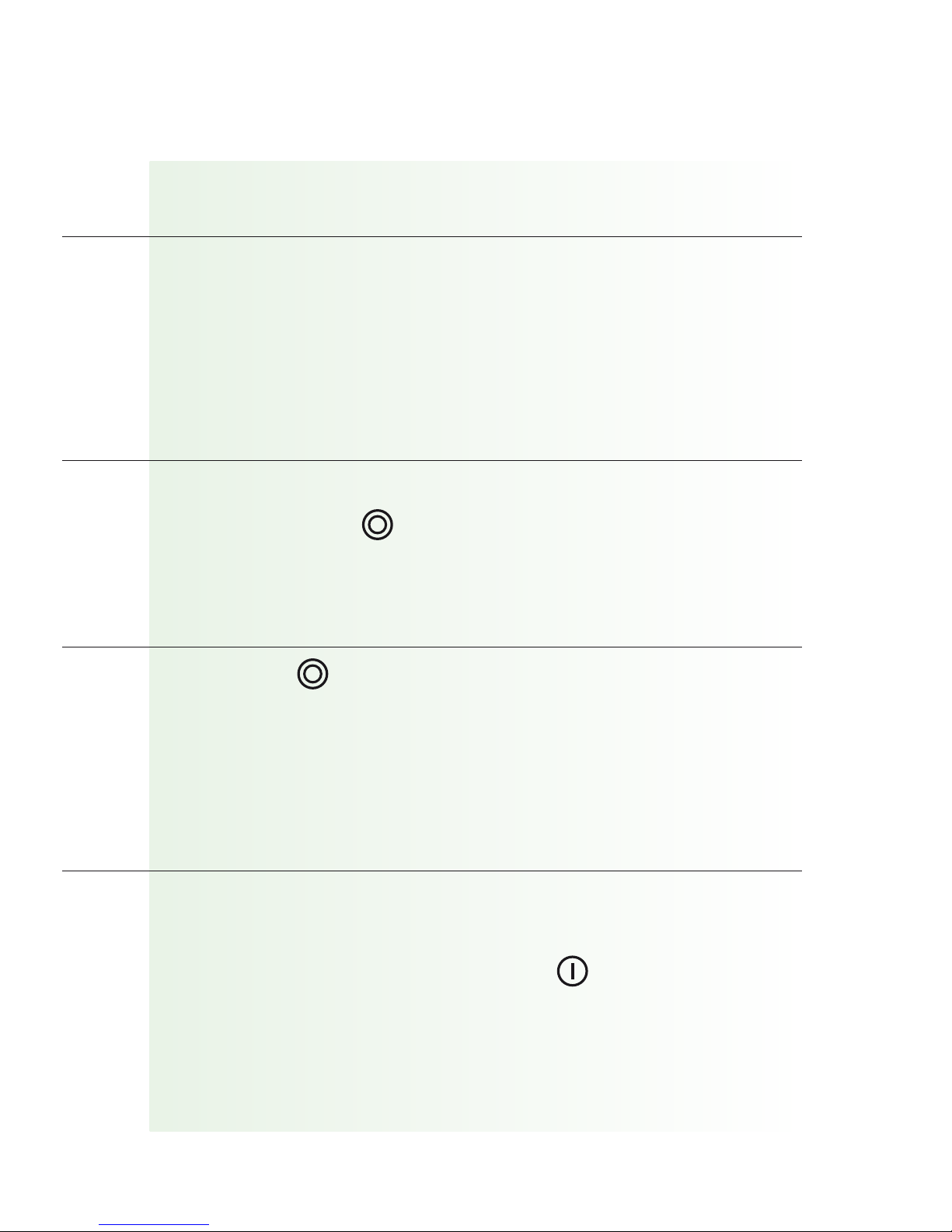
Usage
External microphone only.
SmartLink microphone and
external microphone simultaneously.
Switch off SmartLink microphone;
only the external microphone remains active.
End of use.
Using an external microphone
Page 26
25
Action
Plug in the external microphone as illustrated and
switch it on, if necessary.
The SmartLink begins relaying speech as soon as it
detects a signal. “ A “ appears in the display.
Plug in the external microphone and press
the SmartLink key.
Press the key again.
Unplug the external microphone and detach the
SmartLink adapter.
Then switch off the SmartLink .
Page 27
26
Connecting SmartLink to a television
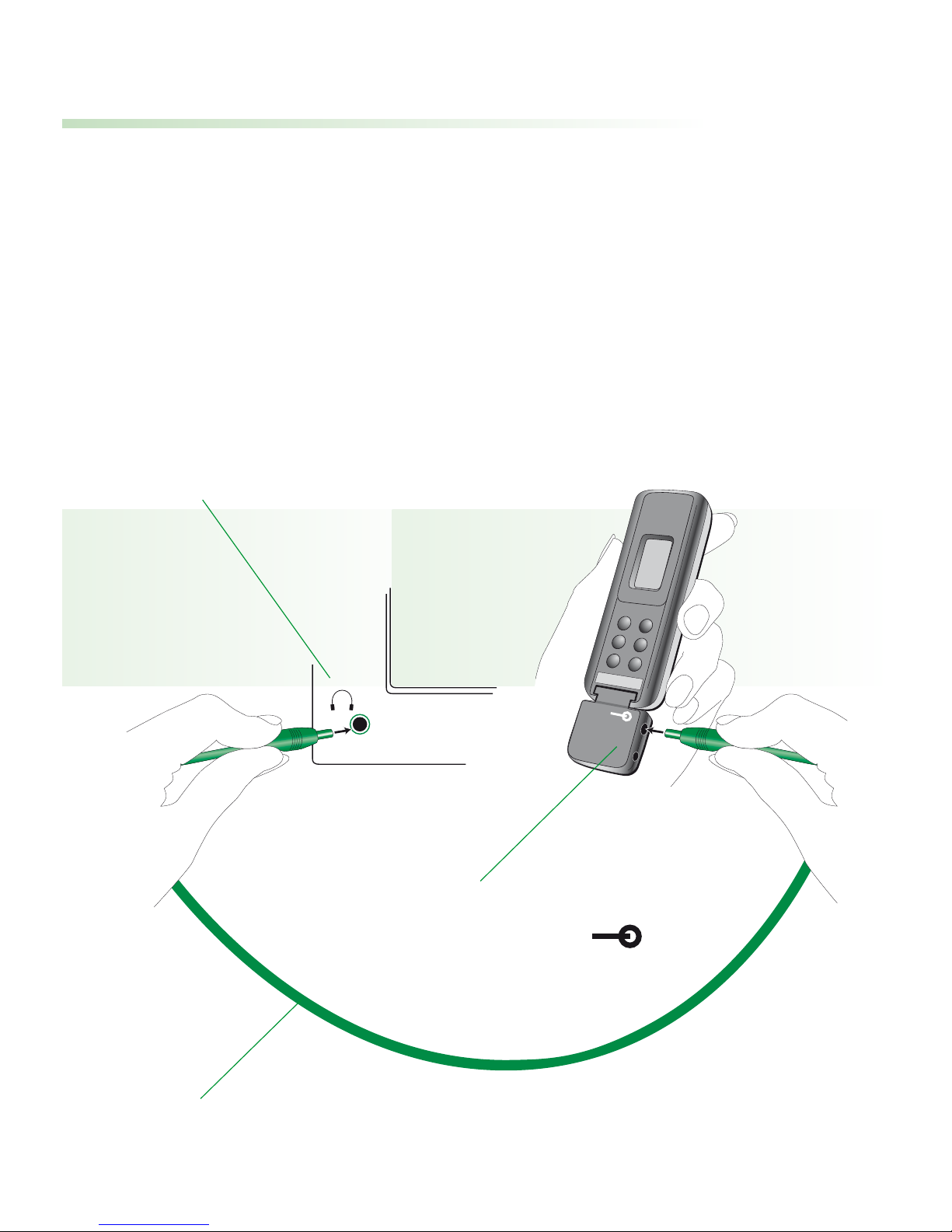
• The SmartLink can be directly connected to audio
equipment like televisions, CD and MP3 players, and
computers with audio outputs.
AUDIO
Plug in to the television’s
headphone jack
Audio cable (standard accessory)
Plug in to the
audio jack
AUDIO
Page 28

27
• “ A ” appears in the display to indicate that the
SmartLink is relaying an audio signal from a television or other external source.
Use the short antenna or the lavalier cord as an
antenna.
• If the SmartLink was switched off before using the
audio cable:
When the television is switched off, the SmartLink
automatically switches off 40-50 seconds later.
• Some televisions have a separate audio output
volume control, or muting. Please refer to the television’s operating instructions.
!
Page 29

28
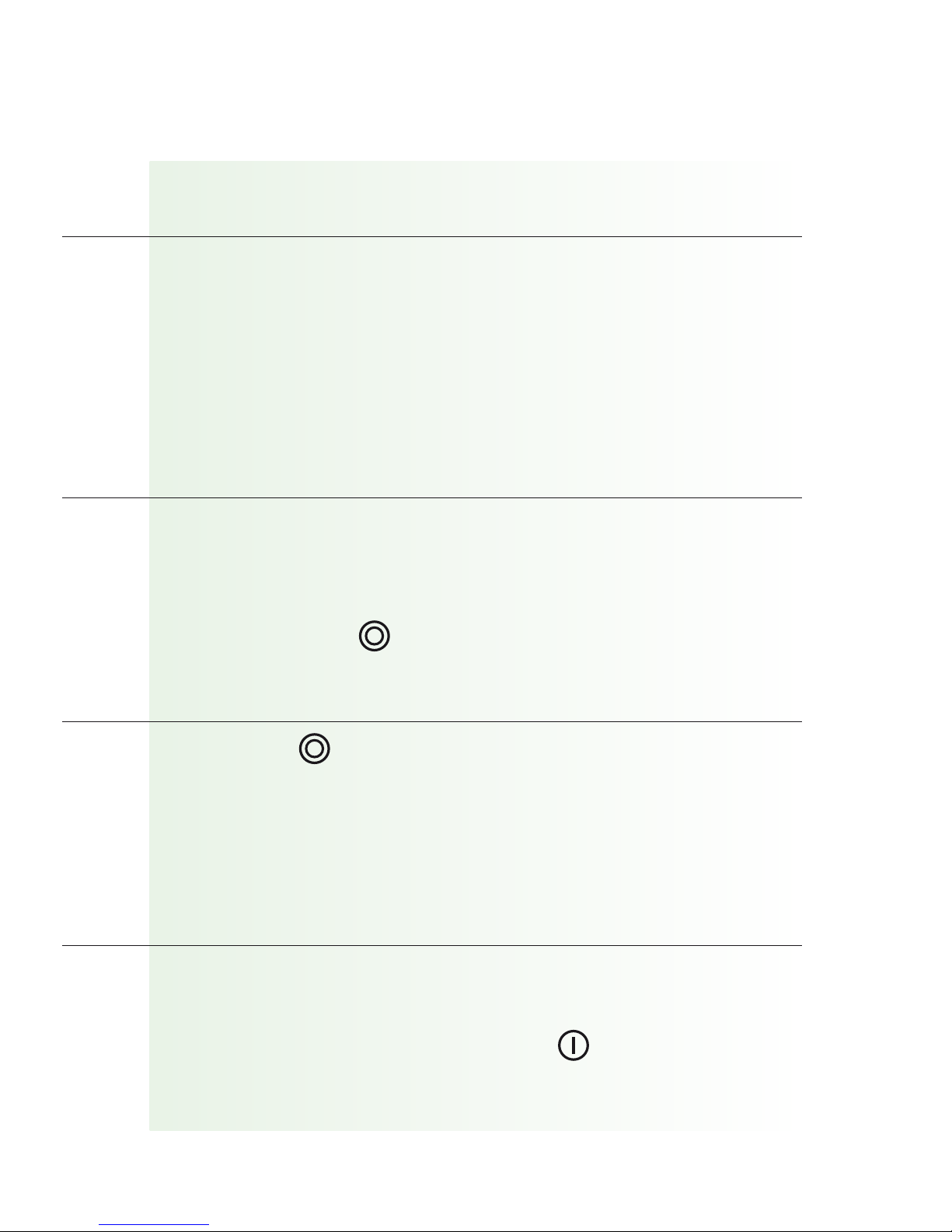
Usage
Television only.
Simultaneous television sound
and people speaking in the room.
Switch off SmartLink microphone;
only the television audio signal remains audible.
End of use.
Connecting SmartLink to a television
Page 30
29
Action
Plug in the SmartLink as illustrated and switch
on the television.
The SmartLink switches on automatically when it
detects an audio signal from the television.
" A “ appears on the LCD.
Connect the SmartLink to the television as
described previously.
Switch on the television and press
the SmartLink key.
Press the key again.
Switch off the television or disconnect the
audio cable and detach the SmartLink adapter.
Then switch off the SmartLink .
Page 31

30
SmartLink and mobile phones
Bluetooth link
• SmartLink can communicate with a Bluetooth
compatible mobile phone. Please ask your mobile
phone dealer if you are uncertain whether your
model is Bluetooth-capable.
Page 32

31
Bluetooth operating range:
• SmartLink works within a maximum 2–3 meter
(7–10 ft) radius of the mobile phone –
similar to the effective operating range of
Bluetooth headsets.
• A line of sight between SmartLink and the mobile
phone is not required.
• Further information about Bluetooth is available
at: www.bluetooth.com
Page 33
32
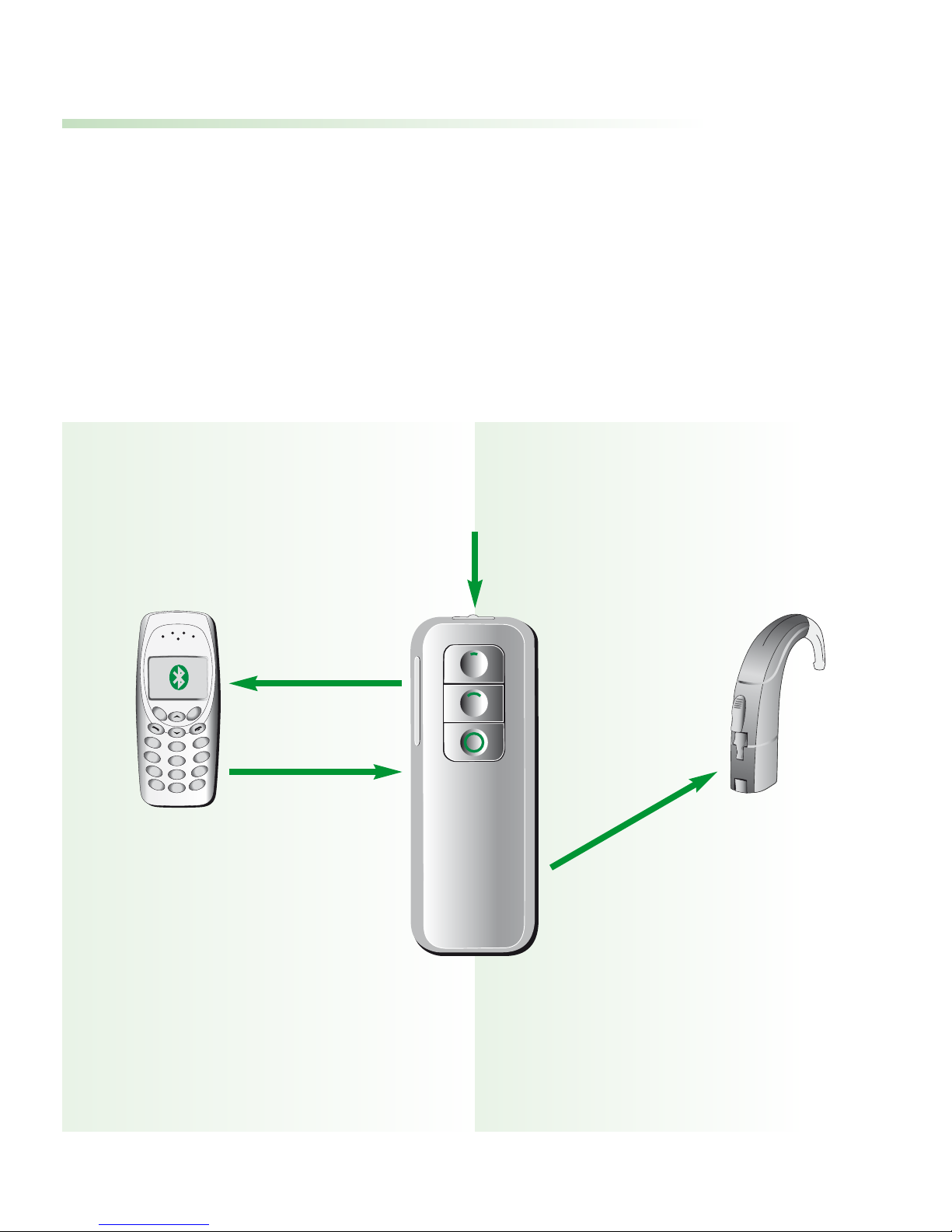
How SmartLink interacts
with a mobile phone
• SmartLink works like a Bluetooth headset.
Bluetooth Radio signal
1
2
3
4
5
6
7
8
9
0
*#
Your voice
Speak into
here
Caller’s voice
audible here
Caller’s voice
Caller’s voice
Page 34

33
Pairing SmartLink
Pairing is the process of associating Bluetooth
devices with the mobile phone. Most mobile phones can
be paired with multiple devices simultaneously.
Pairing is necessary only once, before first use. To do
this, refer to the instructions for your mobile phone
and proceed as follows:
• Switch the SmartLink on and follow the
instructions to select the pairing function from
the mobile phone menu.
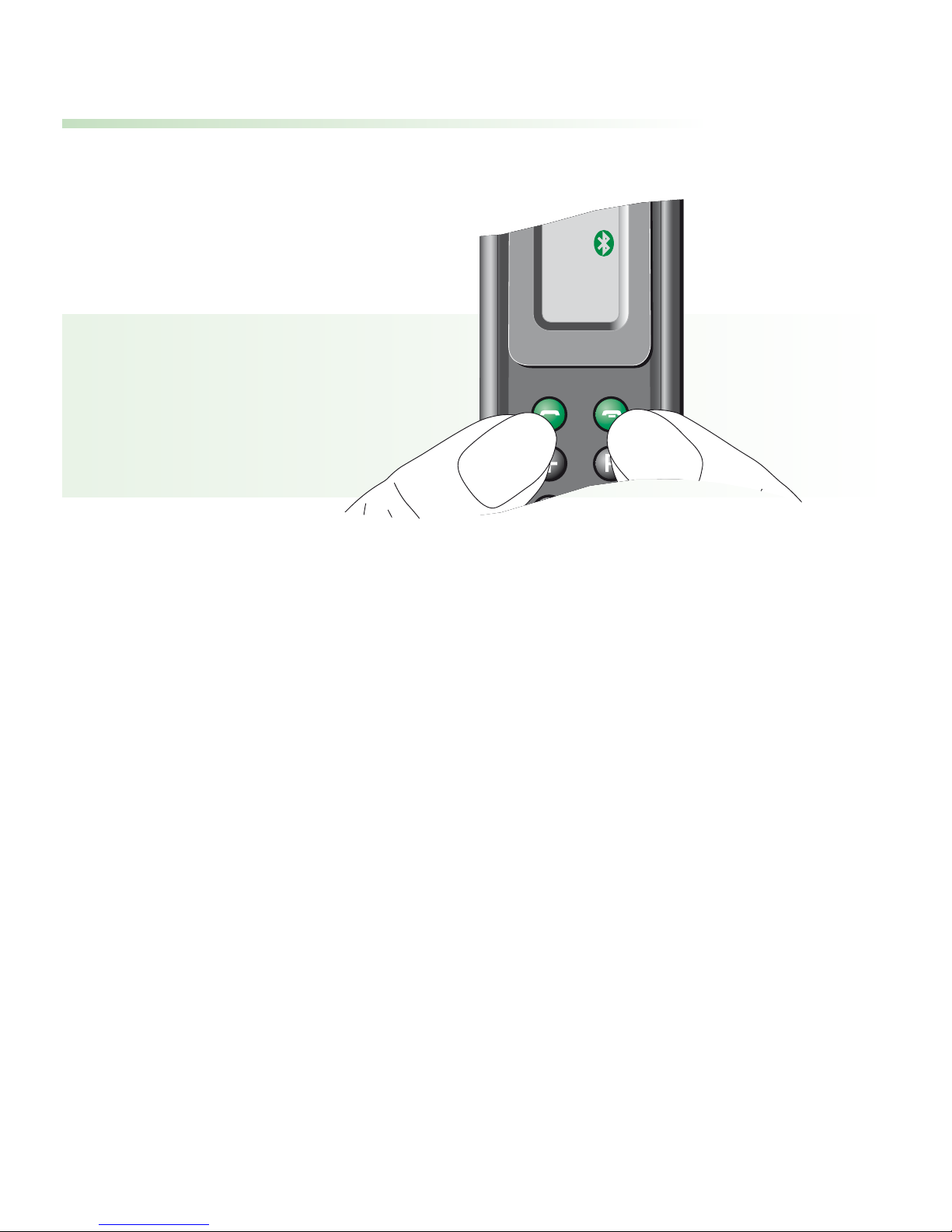
• Press and hold both SmartLink telephone keys
for 2 seconds. “P “, then appears in the display.
The entire display flashes.
See illustration on following page.
The mobile phone controls pairing, so exact procedures
may differ among models or manufacturers.
Page 35
34
Pairing SmartLink
• The mobile phone automatically recognizes the
SmartLink and displays a newly found headset
named “SmartLink”.
• Select SmartLink on the mobile phone. The mobile
phone requests an identification code (pass key).
Enter: 1234
Pairing is then completed.
The SmartLink is now registered on your mobile phone
as an available Bluetooth device.
P
Page 36
35
Activating SmartLink
for mobile phone use
To use SmartLink with the mobile phone, activate
the Bluetooth link between the mobile phone and the
SmartLink:
• Select SmartLink from the mobile phone list of
coupled devices (refer to instructions).
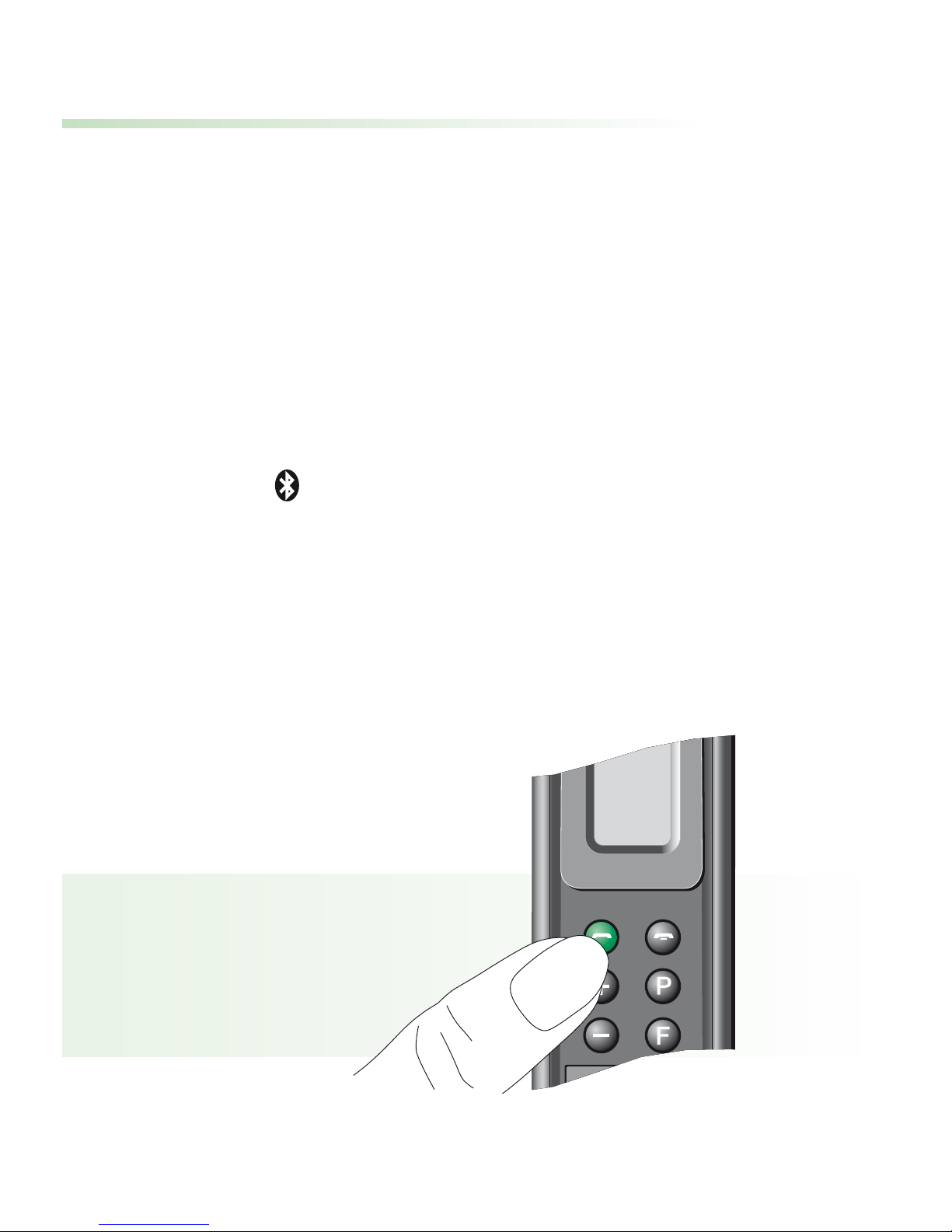
• If the symbol is not already showing in the
SmartLink LCD, switch on the SmartLink and press
the green telephone key until the “+” symbol
appears.
±
Page 37

36
Activating SmartLink for mobile phone use
The SmartLink is now ready to take incoming calls.
For possible options such as automatic language
selection or various Bluetooth operating modes, please
refer to your mobile phone instructions.
Using Bluetooth increases power consumption
by both the SmartLink and the mobile phone.
!
Page 38
37
Answering a call
To answer calls, the SmartLink must be activated for
mobile phone use. To answer an incoming call, you do
not need to operate the mobile phone.
• The LCD indicator starts flashing when a call is
received.
SmartLink automatically switches hearing
instruments to the “FM + hearing instrument
microphone active“ program to relay the
ringing tone.
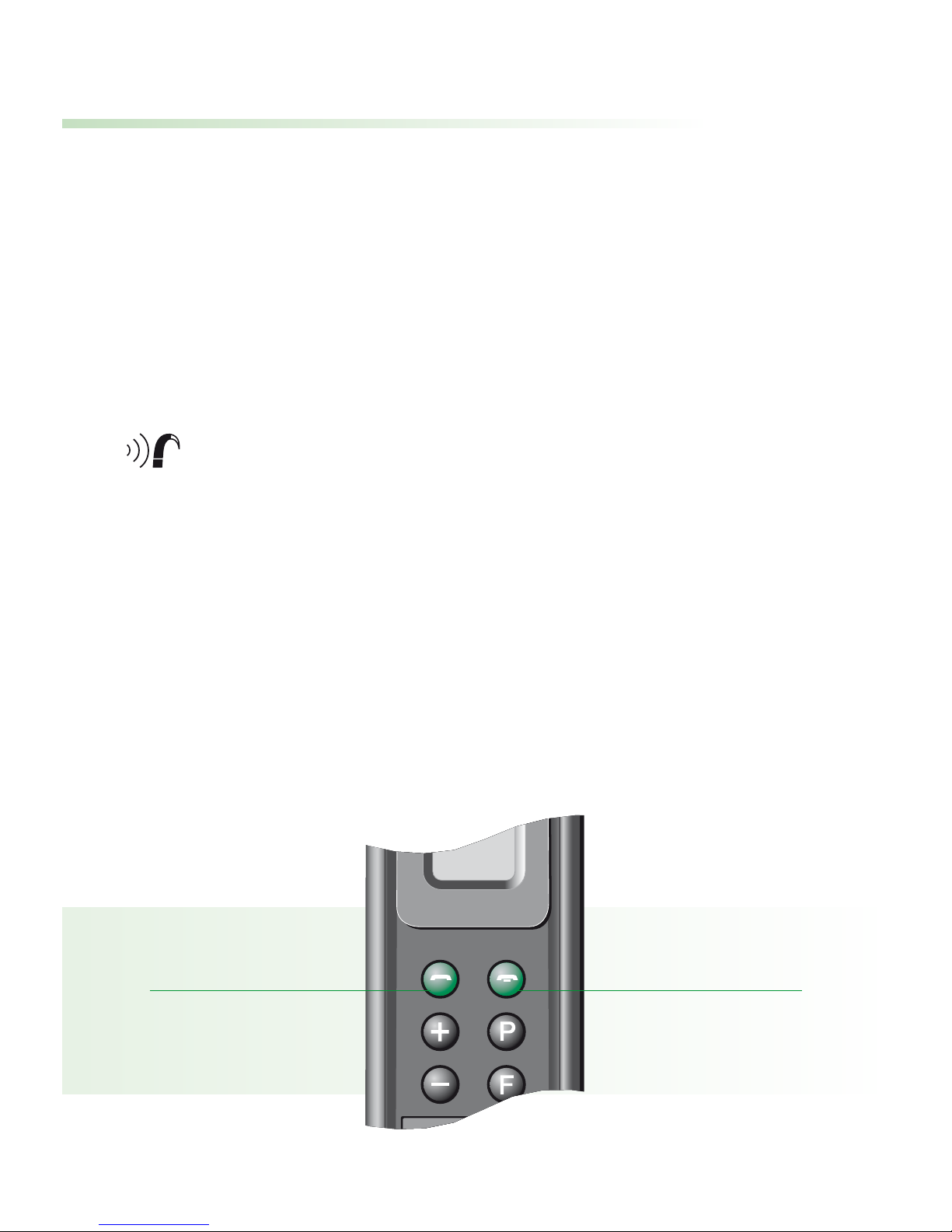
• To answer the call, briefly press the green
SmartLink telephone key on the left.
Answer call End call
Page 39

38
Answering a call
• Speak directly into the SmartLink. You hear the
caller’s voice in both hearing instruments.
• SmartLink continues to relay incoming calls to the
hearing instruments even while it is switched off.
Ensure that the MicroLink receivers are
permanently switched on.
Users of hearing instruments without remote control
must ensure that their hearing instruments are
switched to an FM program, in order to hear the
ringing tone of an incoming call.
!
Page 40
39
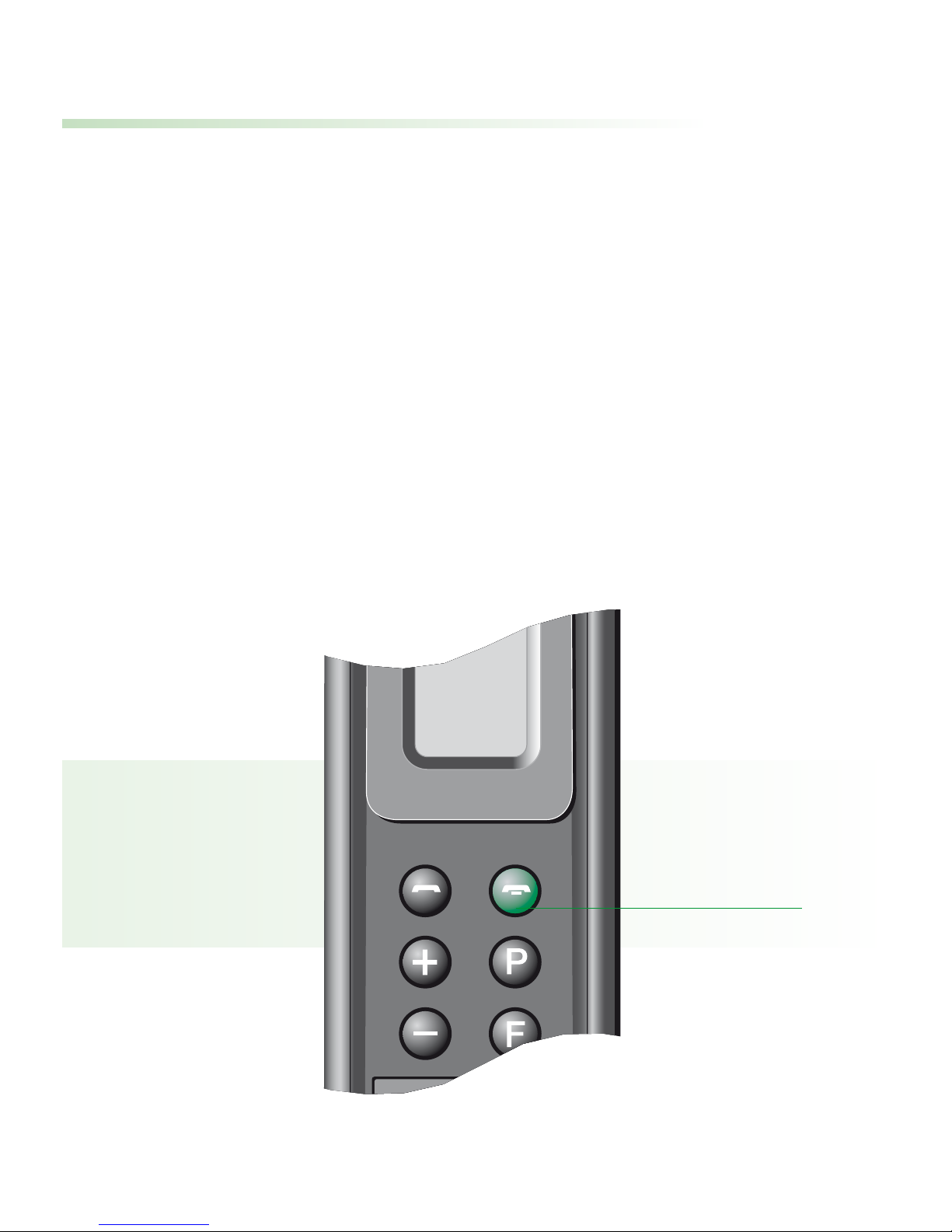
Rejecting a call
If you prefer not to answer a call, press the red telephone key on the right until the “+“ symbol appears.
Depending on the mobile phone, this may also
deactivate the Bluetooth link. To reactivate the link,
press the red telephone key again until the
“+“ symbol appears.
Reject call
±
Page 41

40
Making a call
The SmartLink must be switched on and connected
with the mobile phone in order to make calls
(see page 35).
• Enter or select a number to call on the mobile
phone.
The mobile phone’s voice dialing feature can also
be used, if available. Refer to the mobile phone’s
instructions.
SmartLink automatically switches hearing
instruments to the “FM + hearing instrument
microphone active“ program.
• Speak into the SmartLink when the called party
answers.
• To end the call, briefly press the red SmartLink
telephone key. The hearing instruments automatically reset to the program that was previously
in use.
Page 42
41
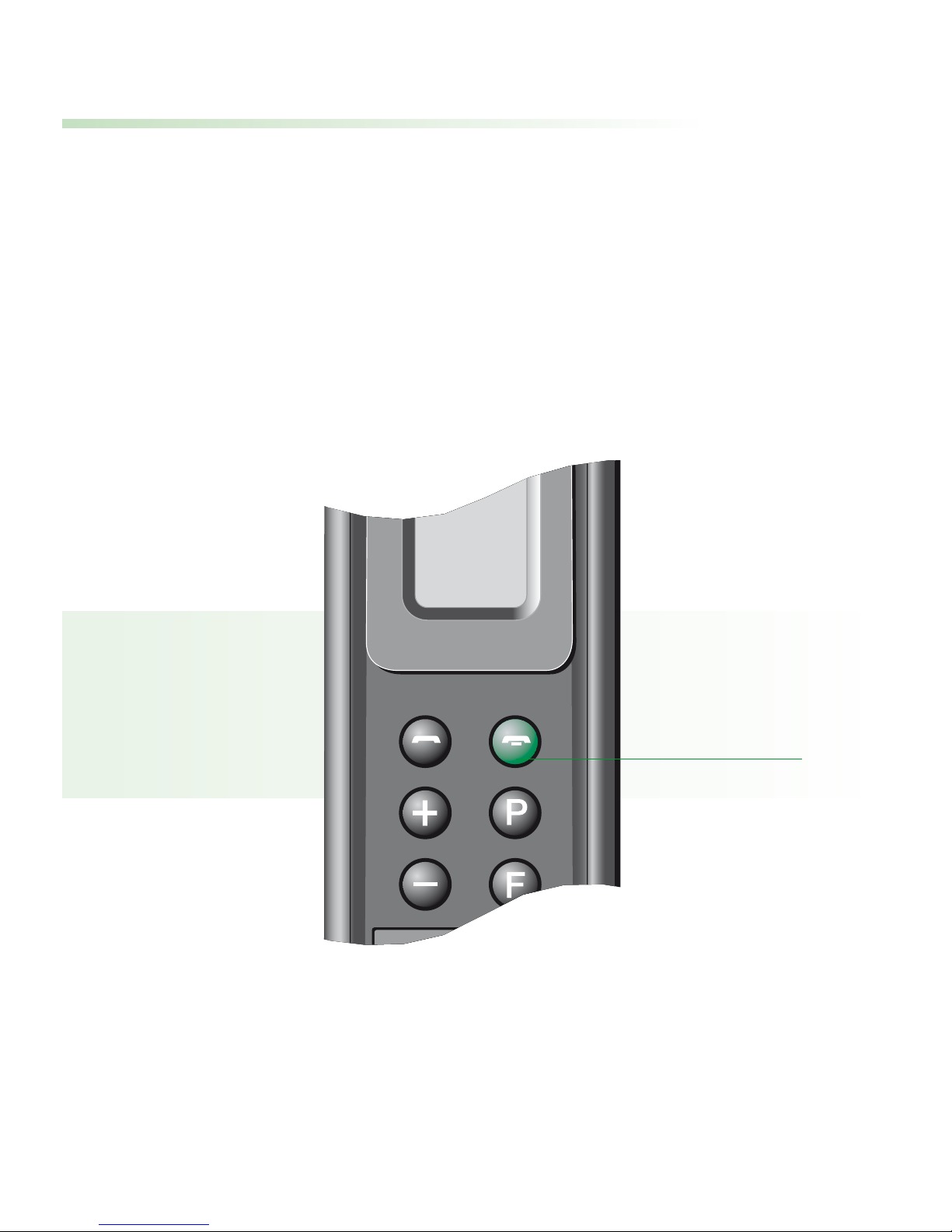
Switching off the Bluetooth link
Switching off economizes on power.
To switch off Bluetooth on the SmartLink, press the
red telephone key on the right until the “+“ symbol
appears.
See page 35 for instructions on reactivating the link.
Switch off link
±
Page 43
42
Special functions
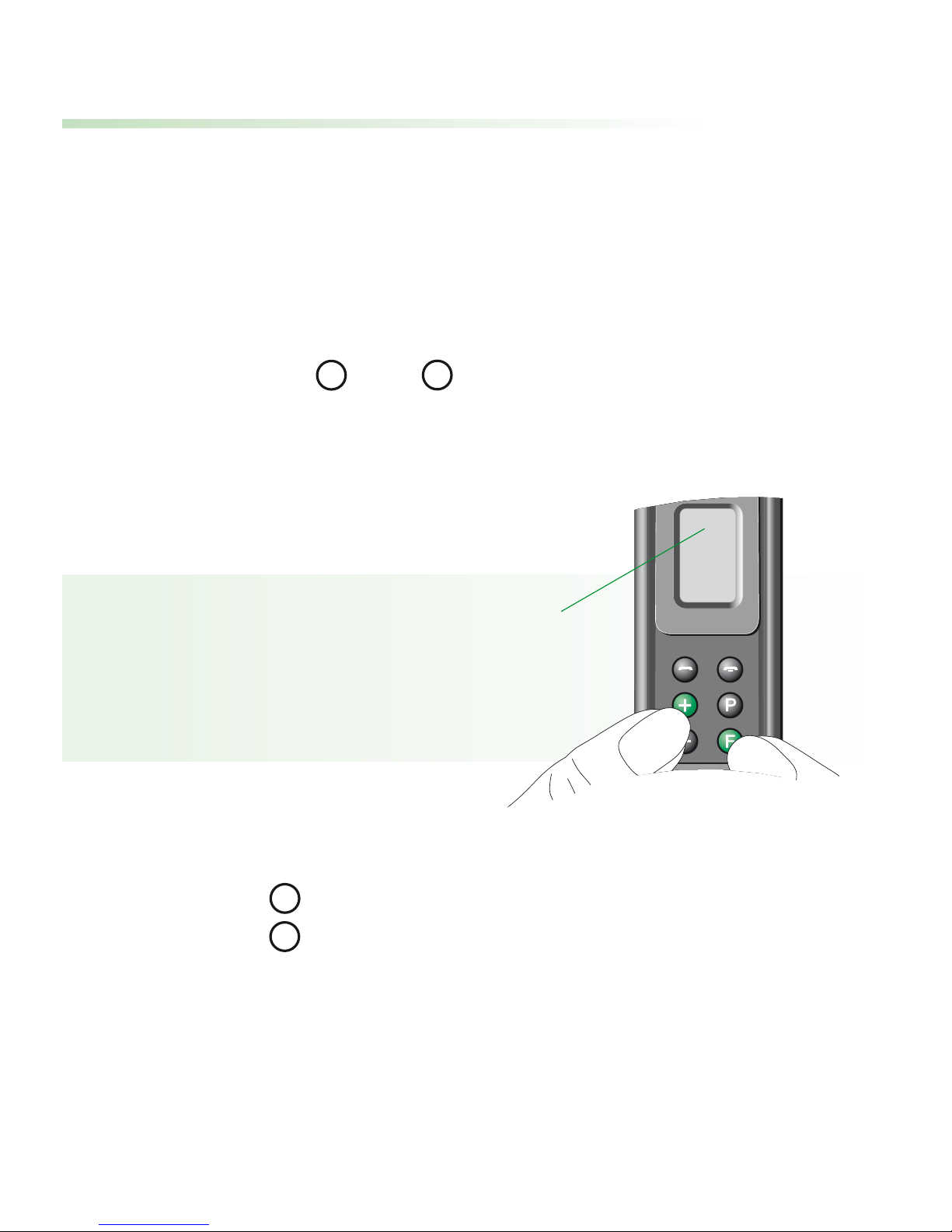
Changing the FM channel
This function should only be used with multi-channel
FM receivers.
• Press the and keys together.
The channel indicator in the display starts flashing.
• Press to move up a channel, or
Press to move down a channel.
• The SmartLink automatically synchronizes multichannel FM receivers to the new frequency.
The SmartLink and the FM receivers must be no
more than 50 cm (20") apart.
33
Channel
indicator
F
+–+
Page 44

43
• SmartLink resumes normal mode 10 seconds after
the last key press. The channel indicator stops
flashing, and the frequency change is complete.
The SmartLink remote control is again ready for
use.
Changing the channel is recommended in the
following situations:
• When there is external interference on the current
channel.
• When hearing instrument users with FM are using
the same frequency nearby.
Page 45
44
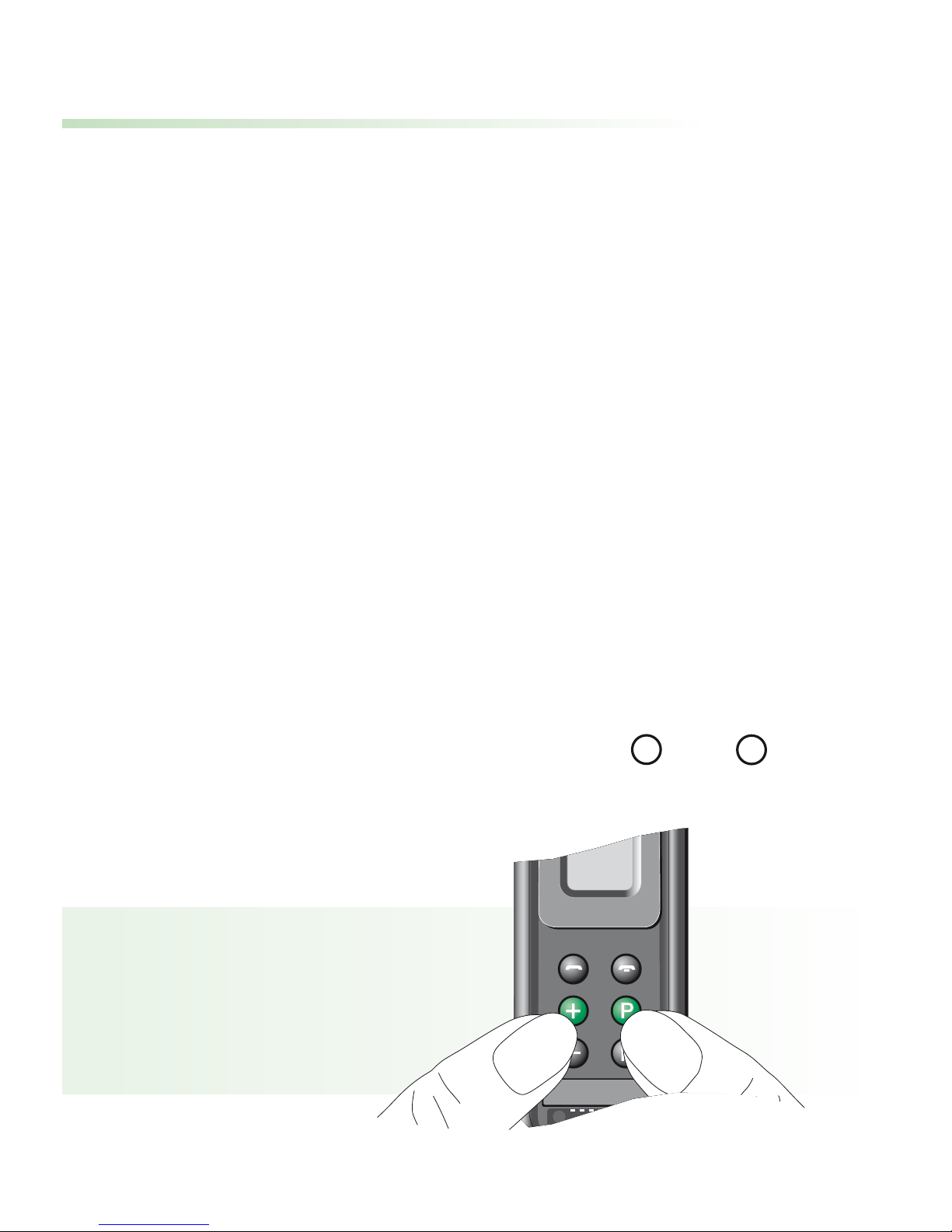
Finding a third-party channel (scan)
This function is only available with multi-channel FM
receivers.
With this function, FM receivers can seek out the
channel being used by another system on an unknown
frequency and synchronize accordingly.
It is useful in lectures or presentations, for example,
when the speaker is already using somebody else’s FM
transmitter.
• Switch on the SmartLink and press and
simultaneously.
P
+
Page 46

45
• The SmartLink automatically switches off while
the FM receivers start scanning for the third-party
channel.
“S“ in the display indicates that the SmartLink is
in scanning mode.
• When you hear a voice, decide whether it is the
one you are seeking. If yes, there is nothing else to
do. If no, press and once more to continue
scanning.
• To return to your own FM channel, simply switch
on the SmartLink.
The FM receivers may not detect a third-party FM
transmitter or an unknown frequency, if its signal
is too weak. It is also possible for the FM receivers
to stop scanning on a channel with interference or
indistinct voice signals.
P
+
Page 47
46
Using SmartLink – examples
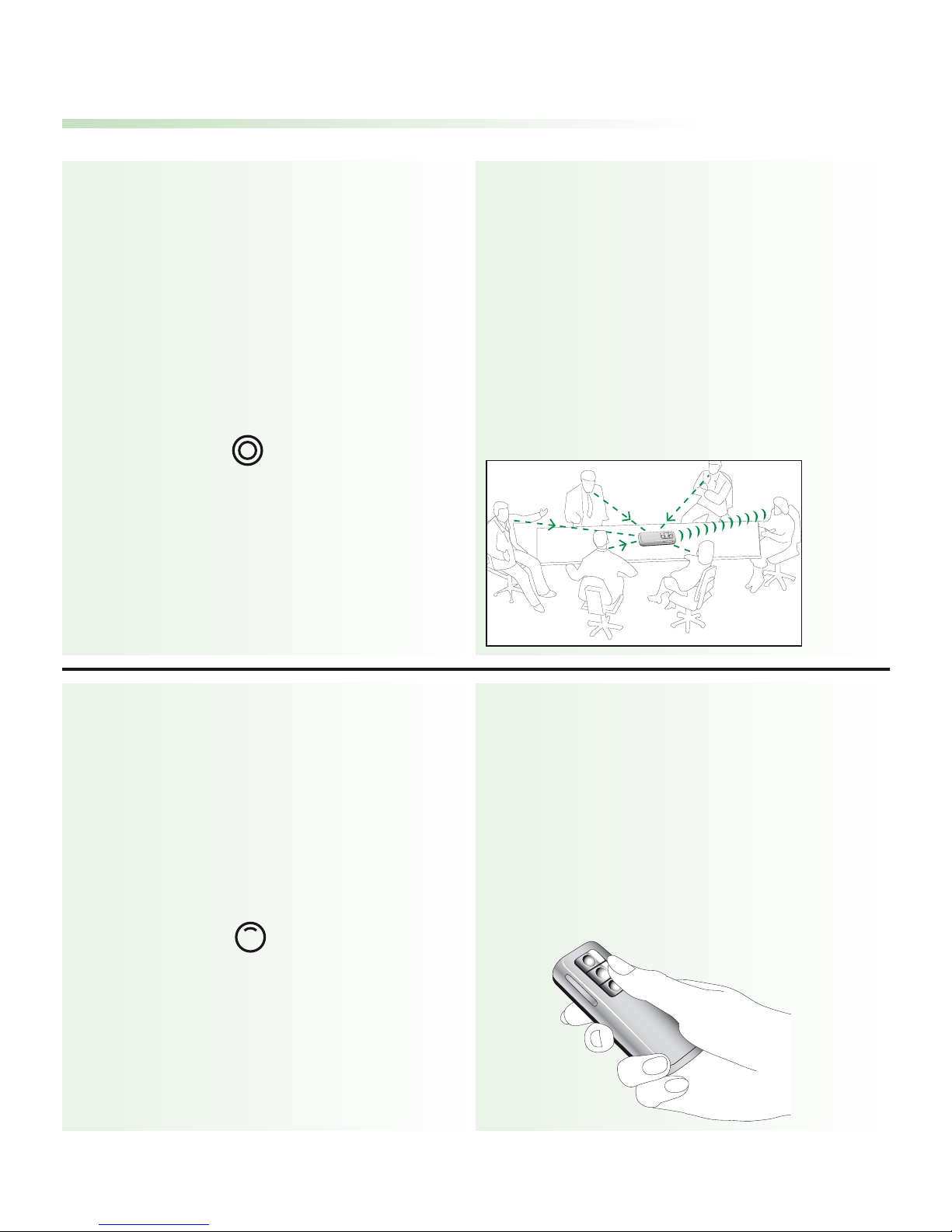
Recommended for:
- Business meetings
- In restaurants
- Conferences
- At home
In practical use:
Recommended for:
- Parties
- Conversations while
traveling
- Shopping
In practical use:
Around a table
Microphone setting:
Omni
Antenna:
Short antenna
Hand-held
(reporter-style)
Microphone setting:
Zoom
Antenna:
Short antenna
(where necessary)
Page 48
47
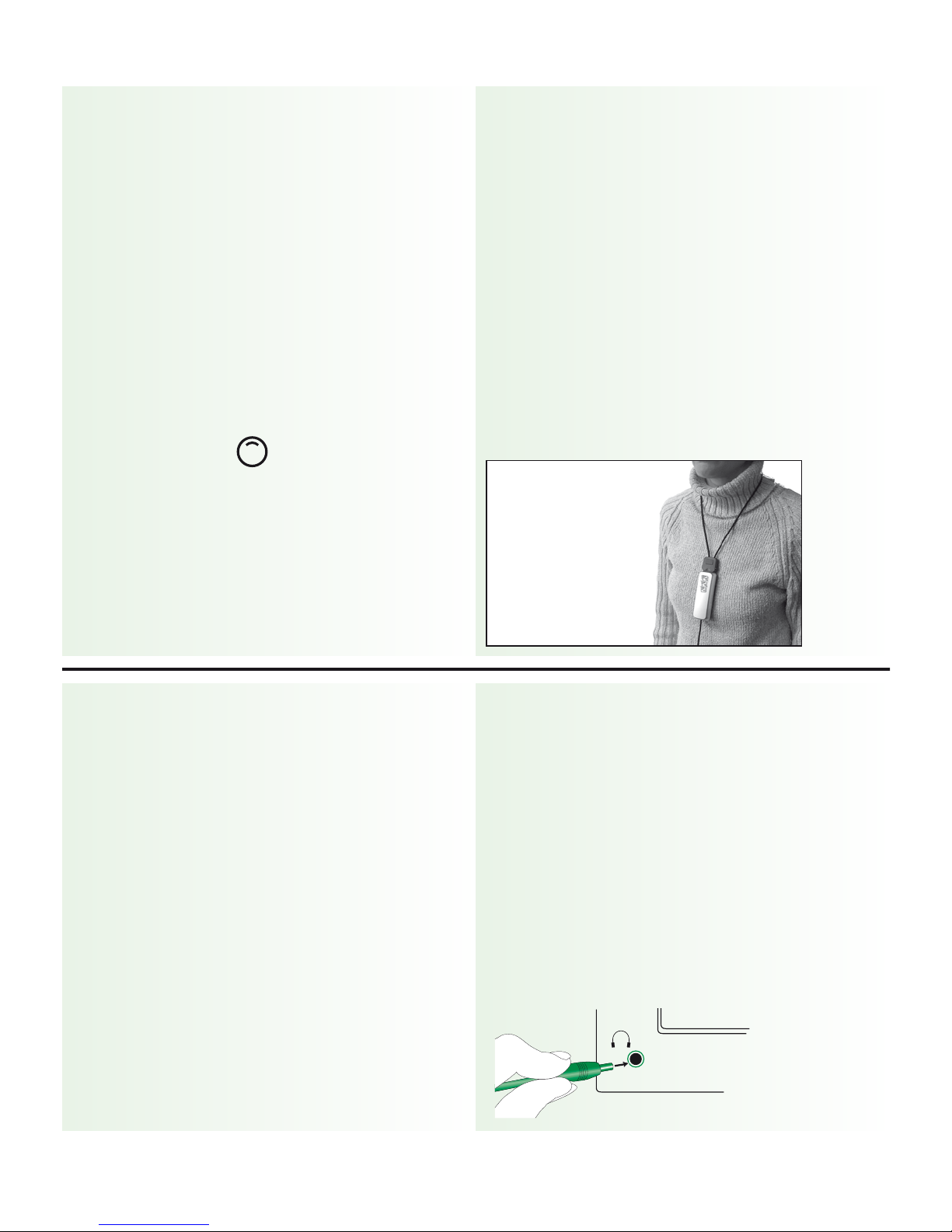
Recommended for:
- Walks
- Lectures
- Sport
- Whenever traveling
with another person
In practical use:
Also recommended for:
- CD players and other
audio equipment
- Computers with
an audio output
- MP3 players
In practical use:
Hand to your
conversation partner
Microphone setting:
Zoom
Antenna:
Lavalier cord
Connected
to a television
Microphone setting:
none
Antenna:
Short antenna
Page 49
48
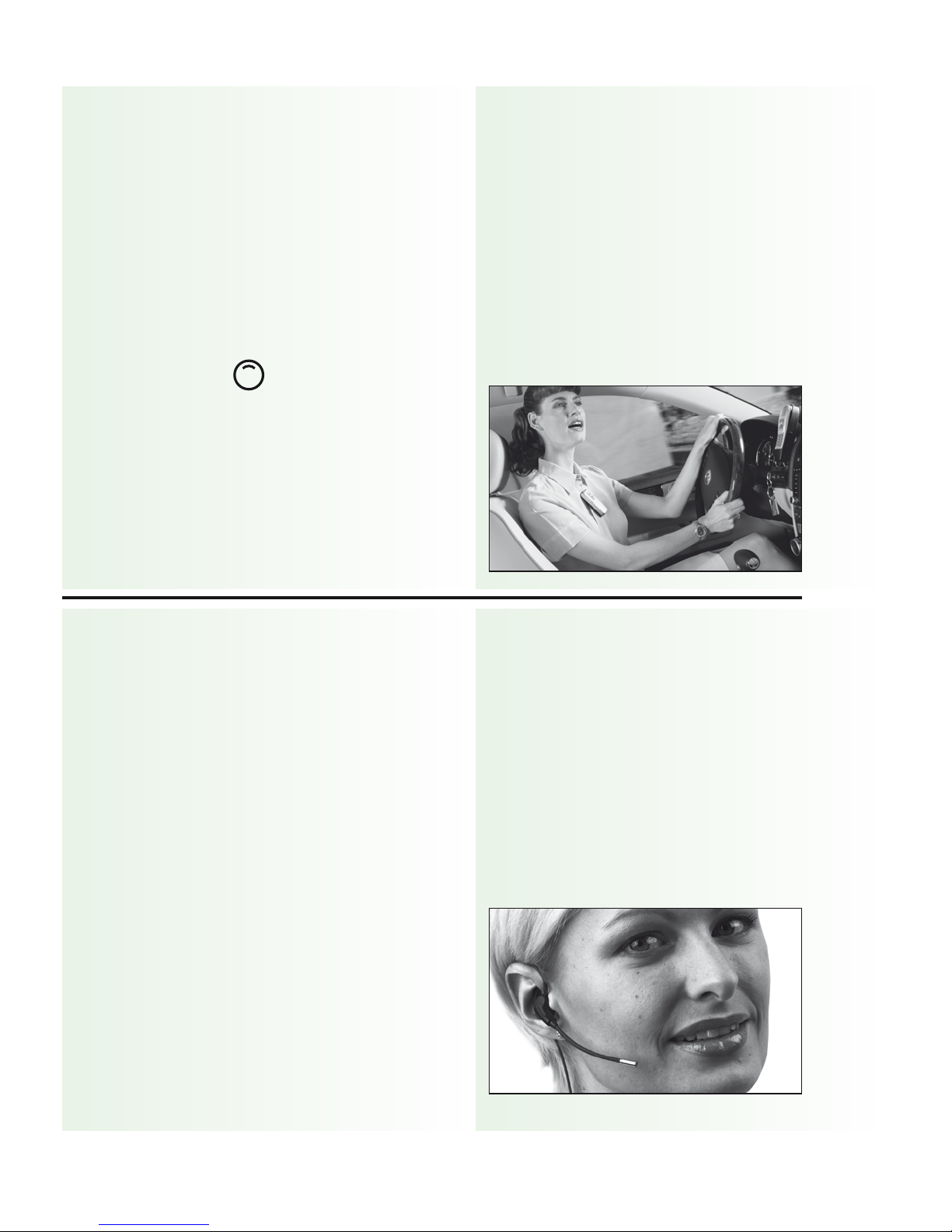
Recommended for:
- Use while driving
- General
In practical use:
Recommended for:
- Teaching situations
- Using the telephone
while driving
In practical use:
On the telephone
Microphone setting:
Zoom
(set automatically)
Antenna:
short antenna
Using a MiniBoom
external microphone
Antenna:
Short antenna
Page 50
49
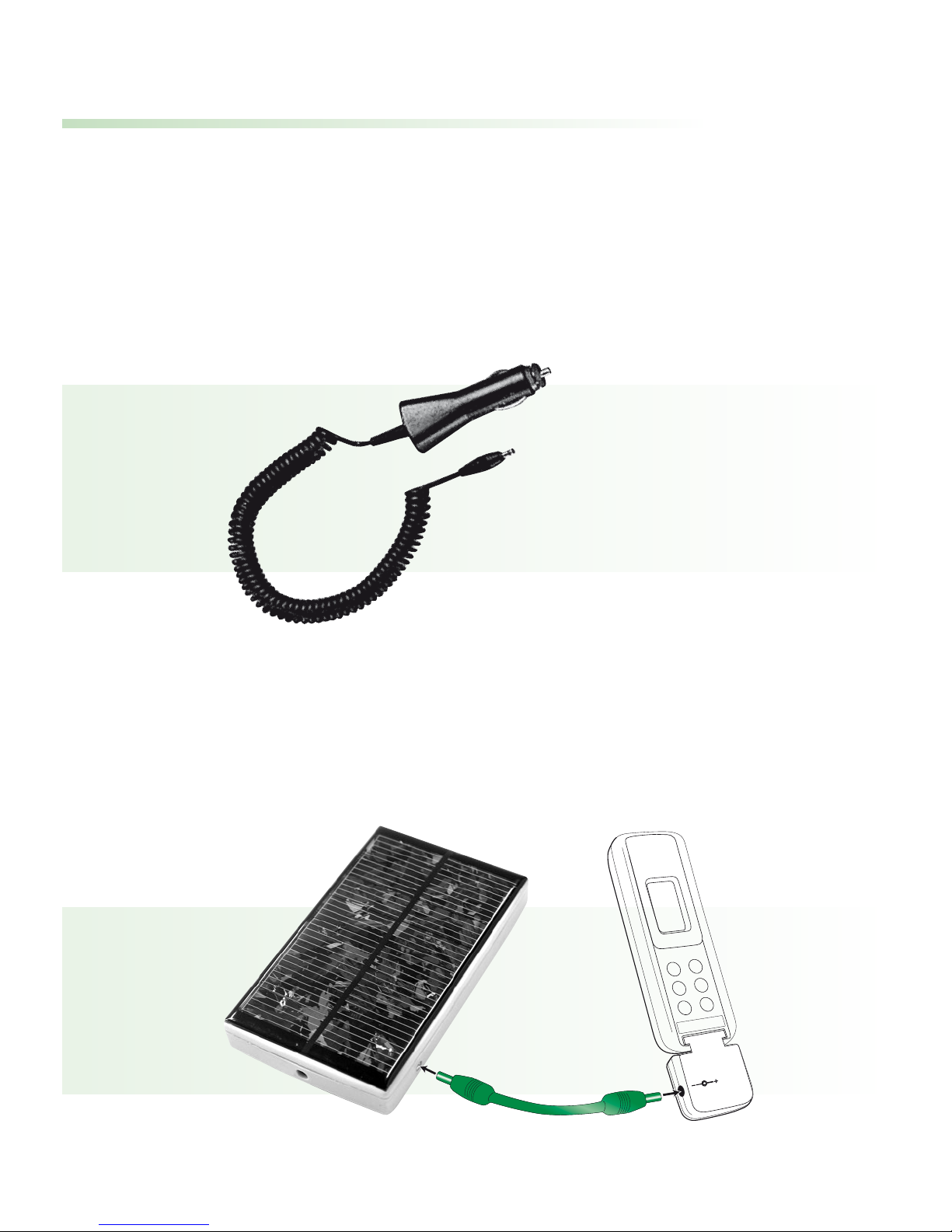
Optional charging units
The optional automotive charging unit can be used to
charge the SmartLink while on the road.
The solar charging unit can even charge the SmartLink
outdoors, without a mains electricity supply.
(Available starting in Autumn 2004.)
D
C
7
.5
V
Page 51

50
FM-Receivers
Setup of FM-Receivers
Users of Phonak hearing instruments should check
recommended receiver settings in the respective user
guide.
Principle benefits of multi-frequency
receivers
• Default frequency
MicroLink receivers are programmed with a
standard default frequency activated at startup.
It can be modified at Phonak service centers.
Page 52

51
• Frequency synchronization
SmartLink can change your MicroLink receiver
frequency directly ‘over the air’ (see page 42).
Changing frequency is quick and easy, for example
when there are nearby FM users on the same
frequency (FM channel).
• Standby mode (power saving)
This function helps economize on power.
Switch off the transmitter, and about 40 seconds
later your receivers automatically enter standby
mode.
The receivers consume practically no power in
standby. They detect when the transmitter switches
on again and automatically resume normal
operation.
Page 53
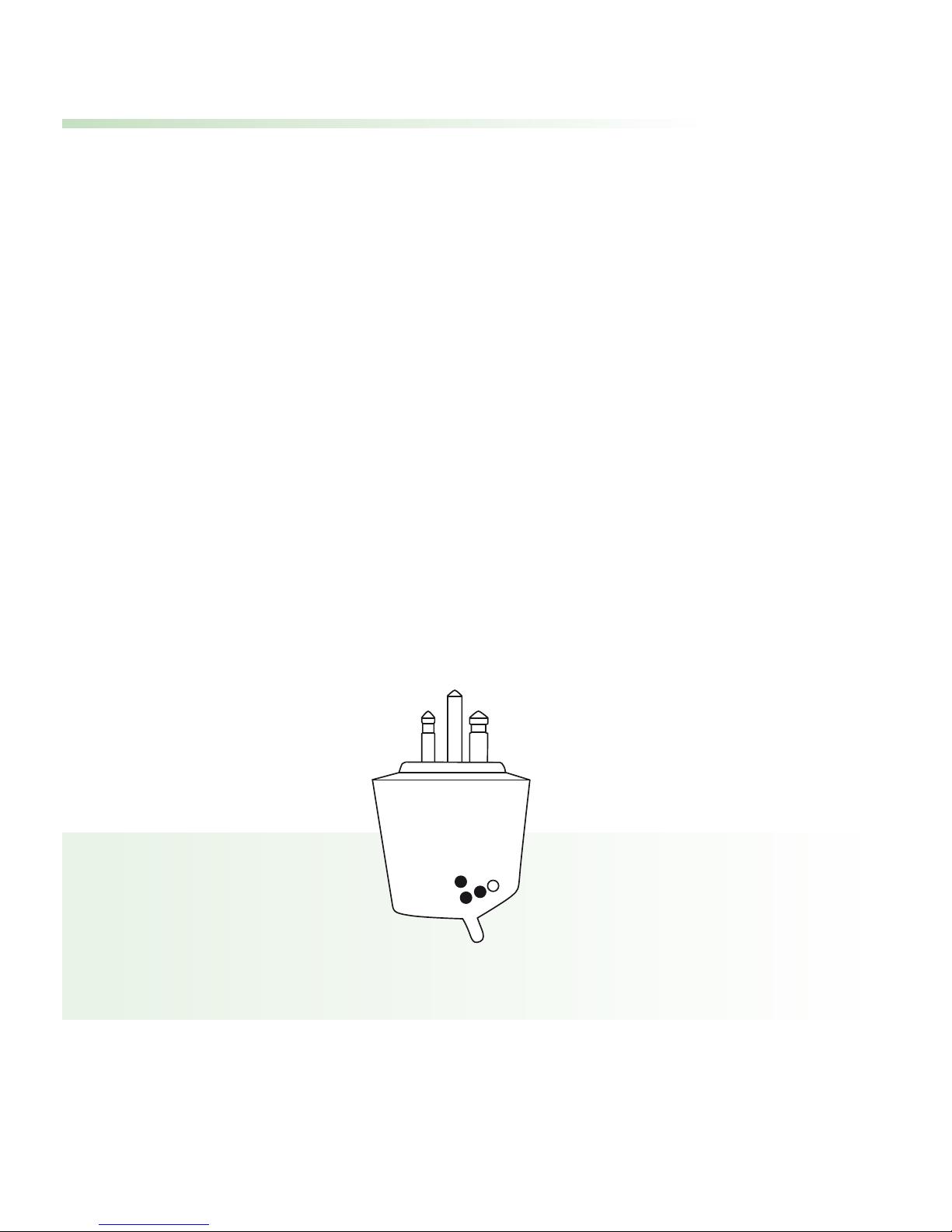
52
MLxS switch settings
For correct MLxS switch settings with Phonak hearing
instruments, please refer to the respective hearing
instrument user guide.
For all other models, MLxS switch setting depend on
the type of instrument.
Ask your hearingcare professional about the right
switch settings for your hearing instruments.
Page 54

53
Important points
• Do not use two transmitters on the same
frequency.
• Do not use water or other fluids for cleaning.
• Use only original Phonak accessories.
• Do not use SmartLink in locations where it is
forbidden to use electronic devices, for instance
in aero planes.
• Be aware that radio signals might also be picked
up and overheard by other receivers.
• Before using the system in another country,
contact your hearingcare professional to make
sure your radio channels are permitted in that
country.
• The SmartLink SX may only be repaired by an
authorized service center.
Page 55

54
Troubleshooting
Situation
SmartLink does not switch on.
Radio interference.
Voices are inaudible when
the SmartLink is switched on.
Poor speech intelligibility.
Page 56

55
Remedy
Charge the SmartLink
(2 hours minimum).
Change channel
(see page 42).
a) Check hearing
instrument program/
press .
b) Switch on receiver.
c) Press
to make the
SmartLink
resynchronize.
a) Select another
microphone setting
(see page16).
b) Move the SmartLink
closer to the speaker.
Most probable cause
Battery exhausted.
Extraneous cause: radio
antenna or similar interfering devices nearby.
a) Hearing instrument
set to wrong program.
b) Receiver switched off.
c) Radio frequency not
synchronized.
SmartLink is positioned
too far away from the
speaker.
F
F
Page 57

56
Troubleshooting
Situation
Insufficient operating range.
A second person’s voice is audible.
Remote-controllable
Phonak hearing instruments
do not respond.
SmartLink does not couple
or connect with a mobile phone.
Page 58

57
Remedy
Connect the short
antenna, or the lavalier
cord.
Change channel
(see page 42).
Hold the SmartLink
50 cm (20") or closer
to the hearing
instruments when
using remote
control functions.
Ask your mobile
phone dealer.
Most probable cause
Antenna not connected.
Another hearing aid user
uses the same channel.
SmartLink and hearing
instruments too far apart.
Non-Bluetooth phone.
Page 59

58
Declaration of conformity
Phonak AG,
Laubisrütistrasse 28, CH-8712 Stäfa, Switzerland
confirms that the SmartLink conforms to EN 300-422,
EN 300-328 and EN 301-489 guidelines including
all necessary annexes.
The SmartLink is used by hearing-impaired people.
To operate the SmartLink, BTE hearing instruments
with MicroLink receivers are required.
The user benefit of FM is an improved signal-to-noise
ratio, which leads to an optimized speech understanding even in very difficult listening situations.
Phonak AG
Stäfa, Switzerland
Date: March 8, 2004
Page 60

59
Important Notes for Users in the USA and Canada
This device complies with Part 15 of the FCC Rules
and with RSS-210 of Industry Canada.
Operation is subject to the following two conditions:
(1)this device my not cause harmful interference, and
(2)this device must accept any interference received,
including interference that may cause undesired
operation.
Warning: Changes or modifications made to this
equipment not expressly approved by Phonak Inc.
may void the FCC authorization to operate this
equipment.
NOTE: This equipment has been tested and found to
comply with the limits for a Class B digital device,
pursuant to Part 15 of the FCC Rules. These limits
are designed to provide reasonable protection against
harmful interference in a residential installation. This
equipment generates, uses and can radiate radio frequency energy and, if not installed and used in
accordance with the instructions, may cause harmful
interference to radio communications. However, there
is no guarantee that interference will not occur in a
particular installation. If this equipment does cause
harmful interference to radio or television reception,
which can be determined by turning the equipment
off and on, the user is encouraged to try to correct
Page 61

60
the interference by one or more of the following
measures:
• Reorient or relocate the receiving antenna.
• Increase the separation between the equipment
and receiver.
• Connect the equipment into an outlet on a circuit different from that to which the receiver is
connected.
• Consult the dealer or an experienced radio/TV
technician for help.
Restrictions
This transmitter is authorized by rule under the Low
Power Radio Service (47 C.F.R. Part 95) and must
not cause harmful interference to TV reception or
United States Navy SPASUR installations. You do not
need an FCC license to operate this transmitter. This
transmitter may only be used to provide: auditory
assistance to persons with disabilities, persons who
require language translation, or persons in educational settings; health care services to the ill; law
enforcement tracking services under agreement with
a law enforcement agency; or automated maritime
telecommunications system (AMTS) network control
communications. Two-way voice communications
and all other types of uses not mentioned above are
expressly prohibited.
This device may not interfere with TV reception or
Federal Government radar.
Page 62

61
Service and warranty
Phonak provides a manufacturer’s limited warranty for
your
SmartLink
. This covers all manufacturing and
material defects. Problems with
SmartLink
arising from
improper handling or care and repairs made by an
unauthorized party are not covered by the warranty.
Please ask at the point of sale for full details of this
warranty. The salesperson will note the serial number of
your
SmartLink
below. It will be needed in the event
of a warranty repair.
Serial number
SmartLink:
Date of purchase:
Serial number FM receiver:
Page 63

62
0682
!
Phonak distributors worldwide
Group companies: (detailed information on
www.phonak.com)
Australia Phonak Australasia Pty. Ltd.
Baulkham Hills N. S. W. 2153
Austria Hansaton Akustische Geräte GmbH
5020 Salzburg
Belgium Lapperre N.V., 1702 Groot-Bijgaarden
Canada Phonak Canada Limited,
Mississauga, Ontario L5S 1V9
Denmark Phonak Danmark A/S, Nitivej 10
2000 Frederiksberg
France Phonak France SA, 69500 Bron
Germany Phonak GmbH, 70736 Fellbach-Oeffingen
Italy Phonak Italia S.r.l., 20159 Milano
Japan Phonak Japan Co., Ltd., Tokyo 101-0044
Jordan Phonak Middle East, 11181 Amman
Netherlands Phonak B.V., 3439 ME Nieuwegein
New Zealand Phonak New Zealand Ltd.
Takapuna, Auckland 9
Norway Phonak AS, 0105 Oslo
Spain Phonak Iberica S.A., 03008 Alicante
Sweden Phonak AB,11734 Stockholm
Switzerland Phonak AG, Phonak Schweiz, 8712 Stäfa
United Kingdom Phonak UK Limited
Warrington, Cheshire WA1 1PP
USA Phonak LLC, Warrenville, IL 60555-3927
Independent A complete list of Phonak distributors
general agents: is available at Phonak's Internet site:
www.phonak.com. Please visit us or ask
your hearingcare professional for
information.
Manufacturer: Phonak AG, Laubisrütistrasse 28
CH-8712 Stäfa, Switzerland
Page 64

63
Notes
Page 65

64
Notes
 Loading...