

Page 1

This product may be purchased from Connevans Limited
secure online store at www.DeafEquipment.co.uk
DeafEquipment.co.uk
Offering you choice
Helping you choose
Connevans.info
Solutions to improve the quality of life
Page 2
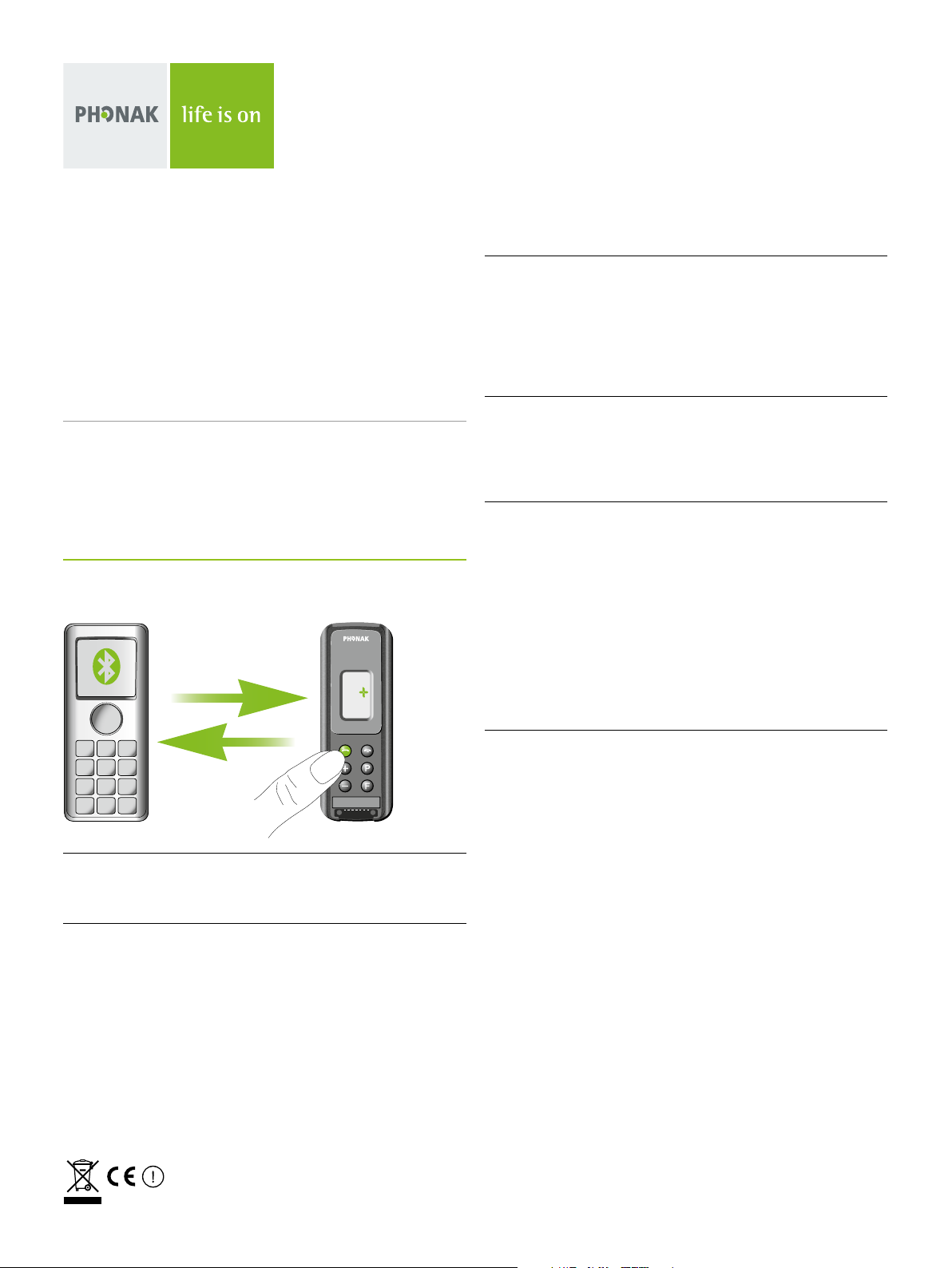
Bluetooth Pairing Guide
SmartLink+
SmartLink+ can be connected to Bluetooth devices that support the
following profiles:
Headset (HS)
Handsfree (HF)
Advanced Audio Distribution Profile (A2DP)
Note :
When running Bluetooth, SmartLink+ depends on the Bluetooth
functionality of the cellphone or other Bluetooth device. However
Bluetooth is not always well implemented in such devices. Therefore if
SmartLink+'s Bluetooth functionality does not work as expected, please
start by contacting your Bluetooth device dealer.
Pairing with a cellphone
3. Set SmartLink+ in pairing mode
Initiate the pairing process with SmartLink+ by pressing and holding the green telephone button for 5 seconds, until the entire display
starts flashing. SmartLink+ will remain in pairing mode for one minute
or until pairing is completed.
4. Search for SmartLink+ with your cellphone
Choose to “add a new Bluetooth device” on your cellphone. The phone
will start searching for all Bluetooth enabled devices within range.
5. Finalize the pairing
When a list of available Bluetooth devices appears on your phone,
select SmartLink+ and when asked for the passcode or passkey enter
«0000» (four zeros).
Note: «0000» is the default code and can be changed by your
audiologist or hearing professional if required.
Your cellphone will now complete the pairing process. When the SmartLink+ has been successfully paired with your cellphone, its
display will stop flashing.
1. Turn on both your cellphone and SmartLink+.
Place these next to each other.
2. Turn on your cellphone's Bluetooth function.
To activate your phone's Bluetooth feature, browse through its mainand sub-menus. Its Bluetooth settings could be found under «Options»,
«Tools», «Settings», «Connections», «Connectivity», «Applications»,
«Control Panel», «Setup», or any combination of these (e.g. «Menu» /
«Settings» / «Connectivity» / «Bluetooth»).
V1.00/2010-03/visu’l © Phonak AG/All rights reserved/page 1/3
6. Connect
In addition to being paired, which is done only once, the SmartLink+
and cellphone also need to be connected. This is done either
automatically or via the cellphone's menu. If not automatically connected, in your phone's Bluetooth feature menu select «Paired device»,
or «My devices», highlight «SmartLink+» and select «Connect». Some
phones may ask which Bluetooth service you wish to enable. Select
«headset» and if available «stereo headphones». With some cellphones,
a headset icon will appear to indicate that SmartLink+ is connected.
If prompted to allow automatic reconnection, it is recommended to
do so. This way SmartLink+ and the phone will automatically
(re)connect whenever they are within range.
Page 3
Bluetooth Pairing Guide
SmartLink+
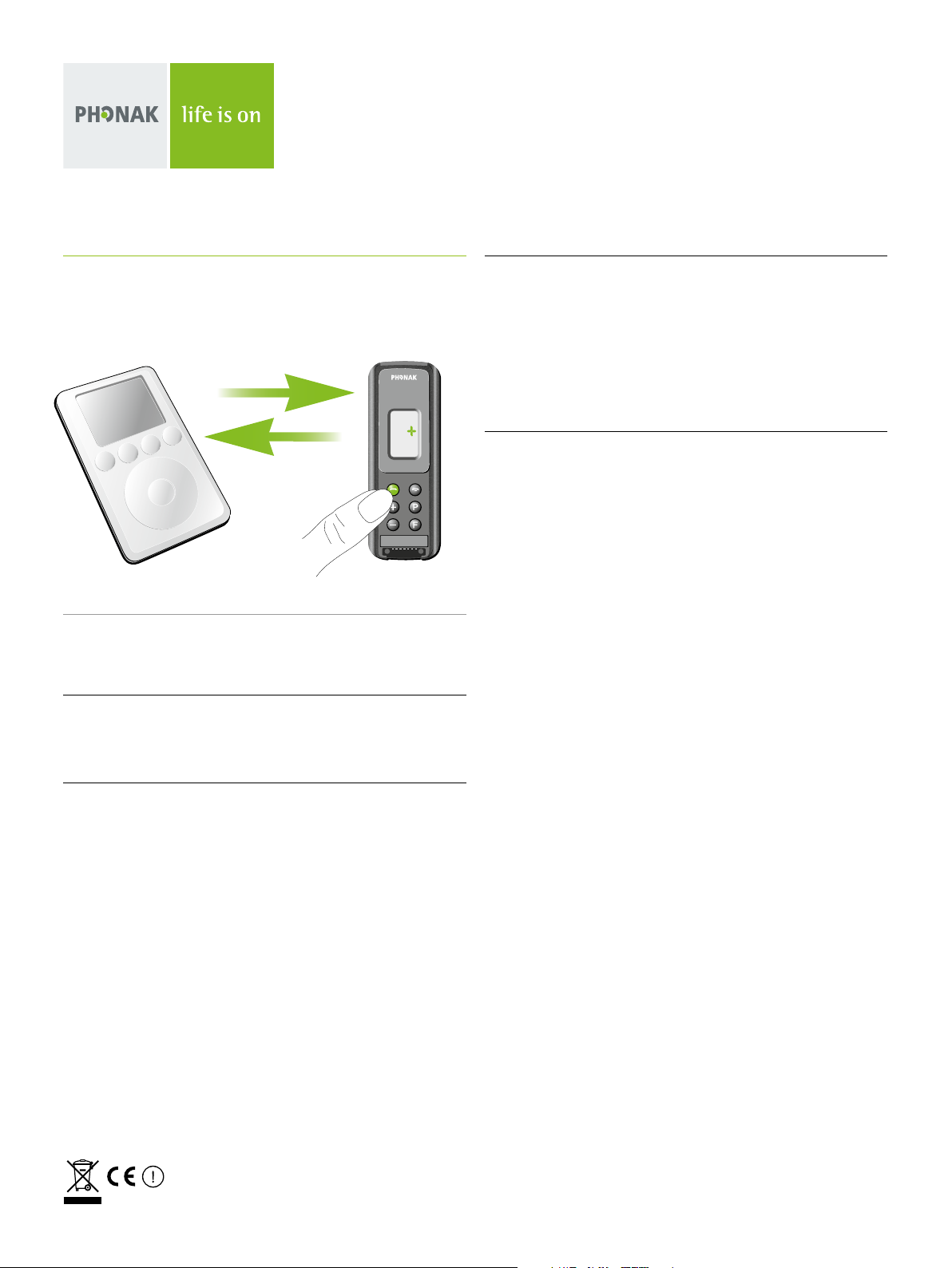
Pairing with an A2DP such as a
Bluetooth MP3 player
Note :
Due to simplicity, the expression «Bluetooth MP3» is used in the text
below to refer to a A2DP capable Bluetooth device.
1. Charge and turn On both Bluetooth MP3 device and
SmartLink+.
Place them next to each other.
3. Prepare the Bluetooth MP3 player for pairing
Set your Bluetooth MP3 in pairing mode. Please consult the manual
of your Bluetooth MP3 to learn how the device can be set into pairing
mode.
If your Bluetooth MP3 comes with a display and menu option, the
pairing process will be similar to the pairing process with mobile
phones described on the first page.
4. Finalize the pairing
When the SmartLink+ display stops flashing, the pairing process is
complete. Press “Play” on your audio device and you should hear sound
through your hearing instruments.
2. Set SmartLink+ in pairing mode
Initiate the pairing process on SmartLink+ by pressing and holding the
green telephone button for 5 seconds, until the entire display starts
flashing. SmartLink+ will remain in pairing mode for one minute or
until pairing is completed.
V1.00/2010-03/visu’l © Phonak AG/All rights reserved/page 2/3
Page 4
Bluetooth Pairing Guide
SmartLink+
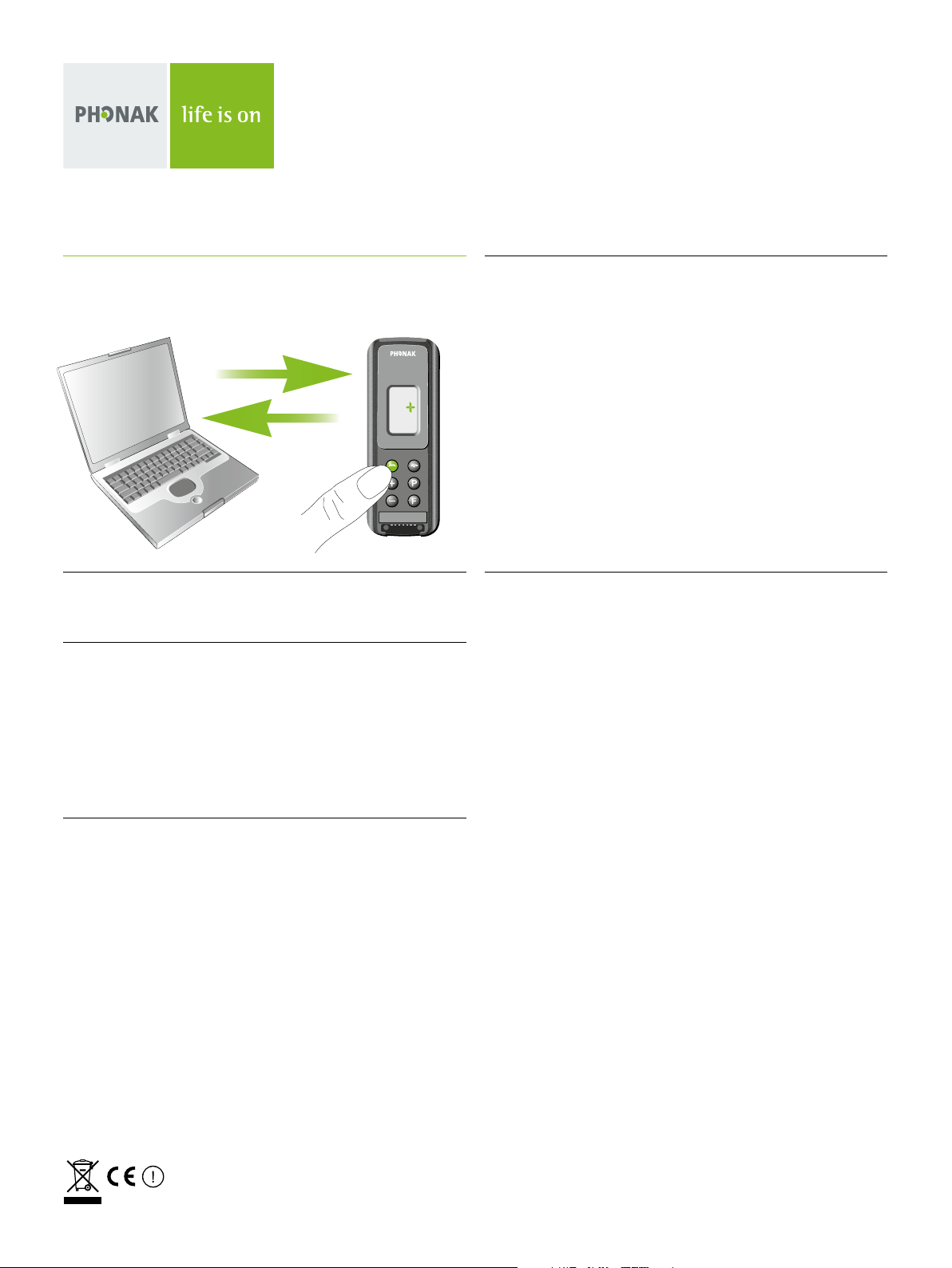
Pairing with a personal computer (PC)
1. Turn on both your PC and SmartLink+.
Place them next to each other.
2. Turn On your PC‘s Bluetooth function
Ensure your PC's Bluetooth function is turned ON:
Either activate your PC's built-in Bluetooth functionality or if your PC
doesn't have Bluetooth, connect an external USB Bluetooth adapter.
On your PC, open “Bluetooth devices” in Control Panel or access your
PC's Bluetooth settings via its Bluetooth icon.
4. Search and pair SmartLink+ with your PC
On the PC, choose to find and add a Bluetooth device.
Choose SmartLink+ from the list of Bluetooth devices found.
When the PC prompts you for a passcode or PIN, enter «0000»
(four zeros).
«0000» is the default code an can be changed by the audiologist if
desired. If the code has been changed, then the personal code has to
be entered.
The devices will now establish a trusted link. When the SmartLink+ has
been successfully paired with your PC, its display will stop flashing.
5. Connect
If prompted by your PC to choose Bluetooth services, you might have
several options available. Select «Stereo Headset» to stream audio in
stereo. After choosing which services you wish to enable, you can complete the connection and exit your PC's Bluetooth settings.
3. Set SmartLink+ to pairing mode
Initiate the pairing process by pressing and holding SmartLink+'s green
telephone button for 5 seconds, until entire display starts flashing.
SmartLink+ will remain in pairing mode for one minute or until pairing
is completed.
V1.00/2010-03/visu’l © Phonak AG/All rights reserved/page 3/3
 Loading...