

Page 1

SC-BTT270, 268, 273
Blu-Ray Home Theater System Firmware Installation Instructions
Table of Contents
Table of Contents...................................................................................................1
1 Firmware History.............................................................................................2
Applicable Models.....................................................................................................2
Version...................................................................................................................2
Release Date...........................................................................................................2
Purpose..................................................................................................................2
2 Check Firmware Version..................................................................................2
3 Download Firmware........................................................................................4
4 Burn Firmware.................................................................................................5
4.1 Windows® OS CD Writing Program......................................................................5
4.2 Other OS CD Writing Program..............................................................................7
4.3 3rd Party CD Burning Software.............................................................................7
4.4 Dragging & Dropping..........................................................................................7
5 Install Firmware..............................................................................................8
Page 2

If the Blu-Ray Disc Player is correctly connected to a home network with
internet access, firmware updates can be installed manually or automatically
via the internet without the user having to download the firmware to a
computer and burn the firmware to a CD-R disc. Please see page 22 of the
Operating Instructions for more information.
Page 3

Firmware History
Applicable Models
SC-BTT270, 268 , 273
Version
1.56
Release Date
3/21/2012
Purpose
Stability and functionality of VIERA Connect™ Apps
Playability of Blu-ray Disc™
Page 4

Check Firmware Version
CAUTION: If the player has the most recent firmware, there is no need to perform a
firmware update.
1)
Press the [POWER] button on the player to turn it ON.
2)
Press the [HOME] button on the remote control to display the player’s HOME MENU, this step is
only necessary if there is a disc in the Blu-ray player. The Blu-ray player should be in the stop
mode.
3)
Using the [ARROWS] on the remote control, highlight OTHERS and then press [OK].
4)
Press the [OK] button while Setup is selected.
5)
Using the [UP ARROW] or [DOWN ARROW] on the remote control, highlight OTHERS and
then press [OK].
6)
Using the [UP ARROW] or [DOWN ARROW] on the remote control, highlight
SYSTEM INFORMATION and then press [OK].
Page 5
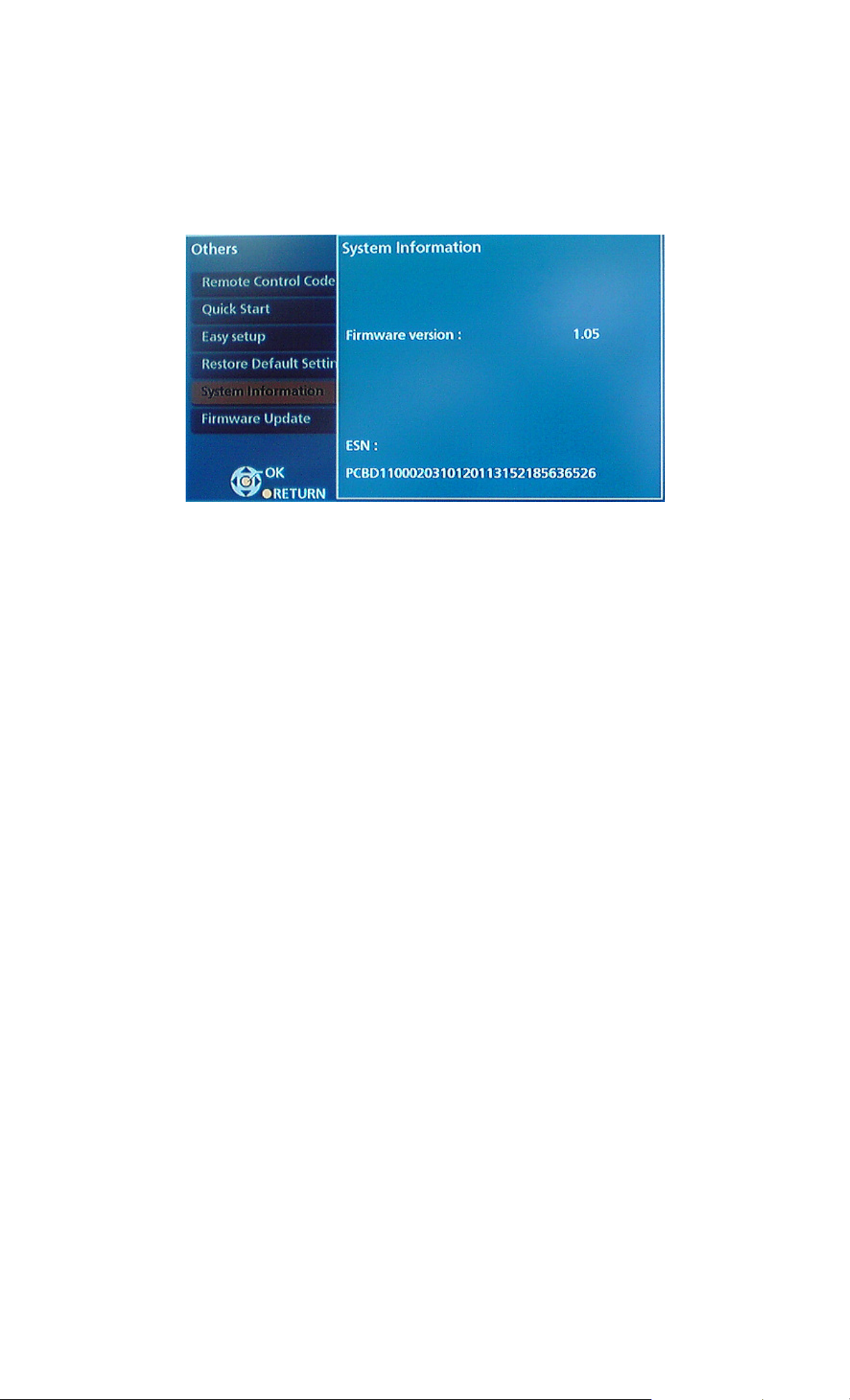
CAUTION: Compare the current firmware version displayed to the firmware version
received or downloaded. If they are the same, or the firmware version displayed in the
player is higher, there is no need to install the firmware.
Reasons why the player may have a more recent firmware version:
If the player was manufactured after the firmware was released, the firmware update
may have already been installed.
If the player was serviced by an authorized Panasonic service center, a service
technician may have already installed the latest firmware update.
The number displayed is dependent upon the firmware version installed.
Page 6
Download Firmware
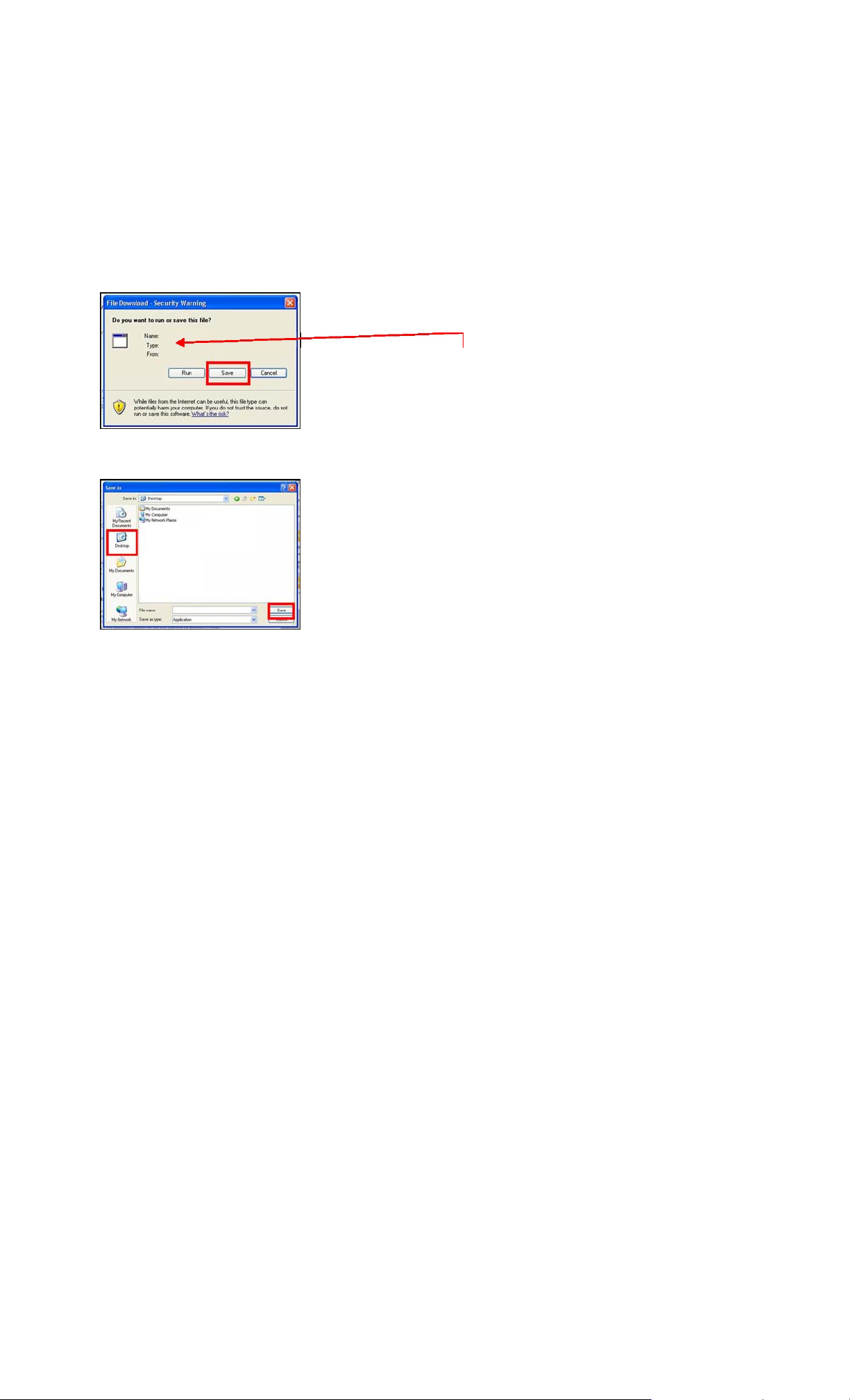
1)
Left click on the DOWNLOAD icon for the Firmware.
2)
Left click on the “I agree to the terms of use” checkbox.
3)
Left click on DOWNLOAD.
Left click on SAVE.
to the DESKTOP.
The file name displayed should be PANA_DVD.FRM.
4)
5)
Left click on DESKTOP, and then left click on SAVE.
NOTE: The PANA_DVD.FRM firmware file will be saved
Page 7
Burn Firmware
NOTES:
Use one of the below methods to burn the firmware file to a CD-R disc.
Use the ISO-9660 file system without using Joliet.
4.1
® OS CD Writing Program
3)
Windows
1)
Insert a blank CD-R disc into a CD Burner Drive installed in
or attached to the computer.
2)
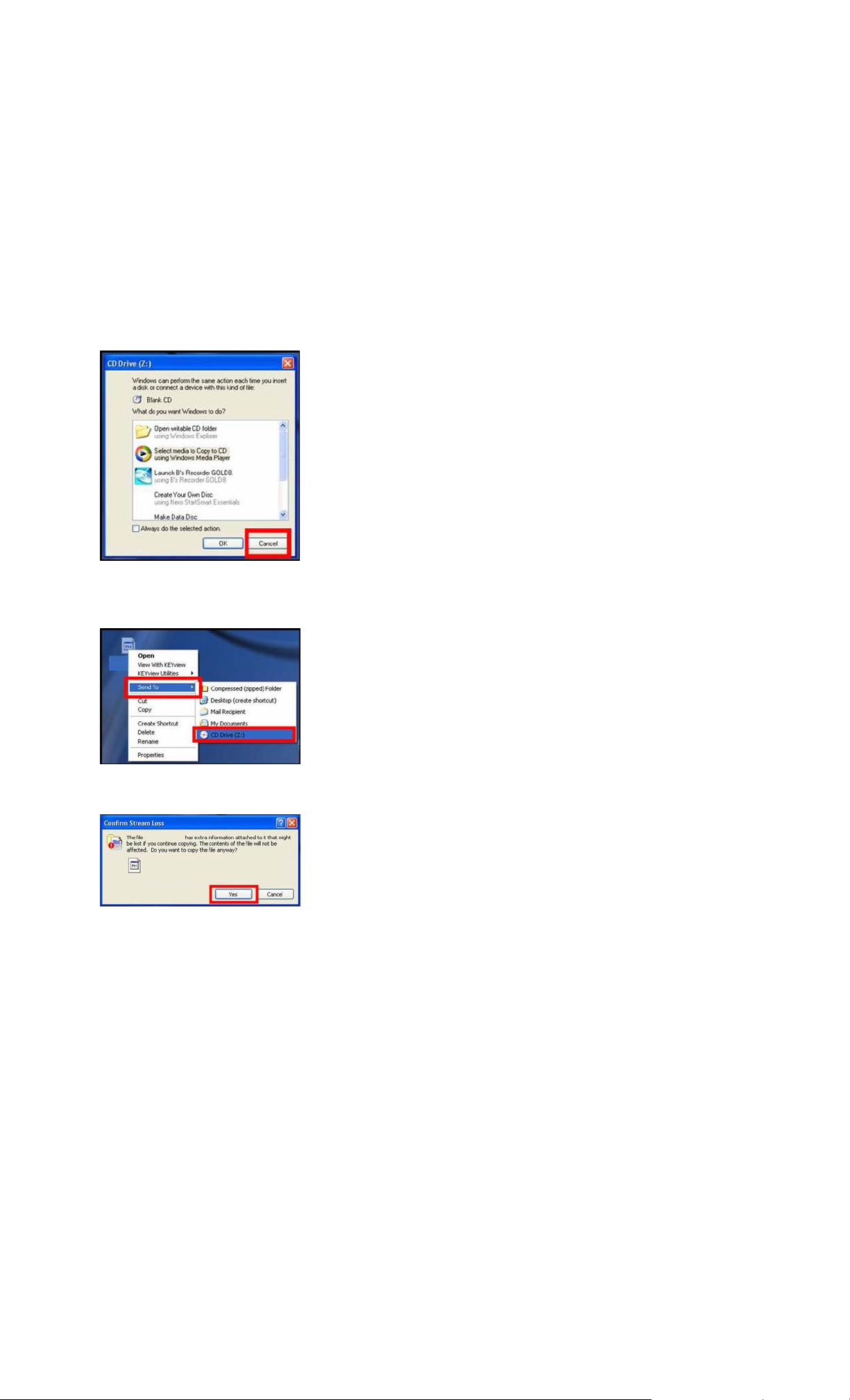
If the below (or similar) screen appears (Windows XP), left
click on CANCEL.
Right click on the PANA_DVD.FRM file on the DESKTOP,
mouse over SEND TO, and then left click on the CD
BURNER DRIVE.
NOTE: If the below screen appears, left click on YES.
NOTE: The below screen may appear moment arily.
Page 8
4)
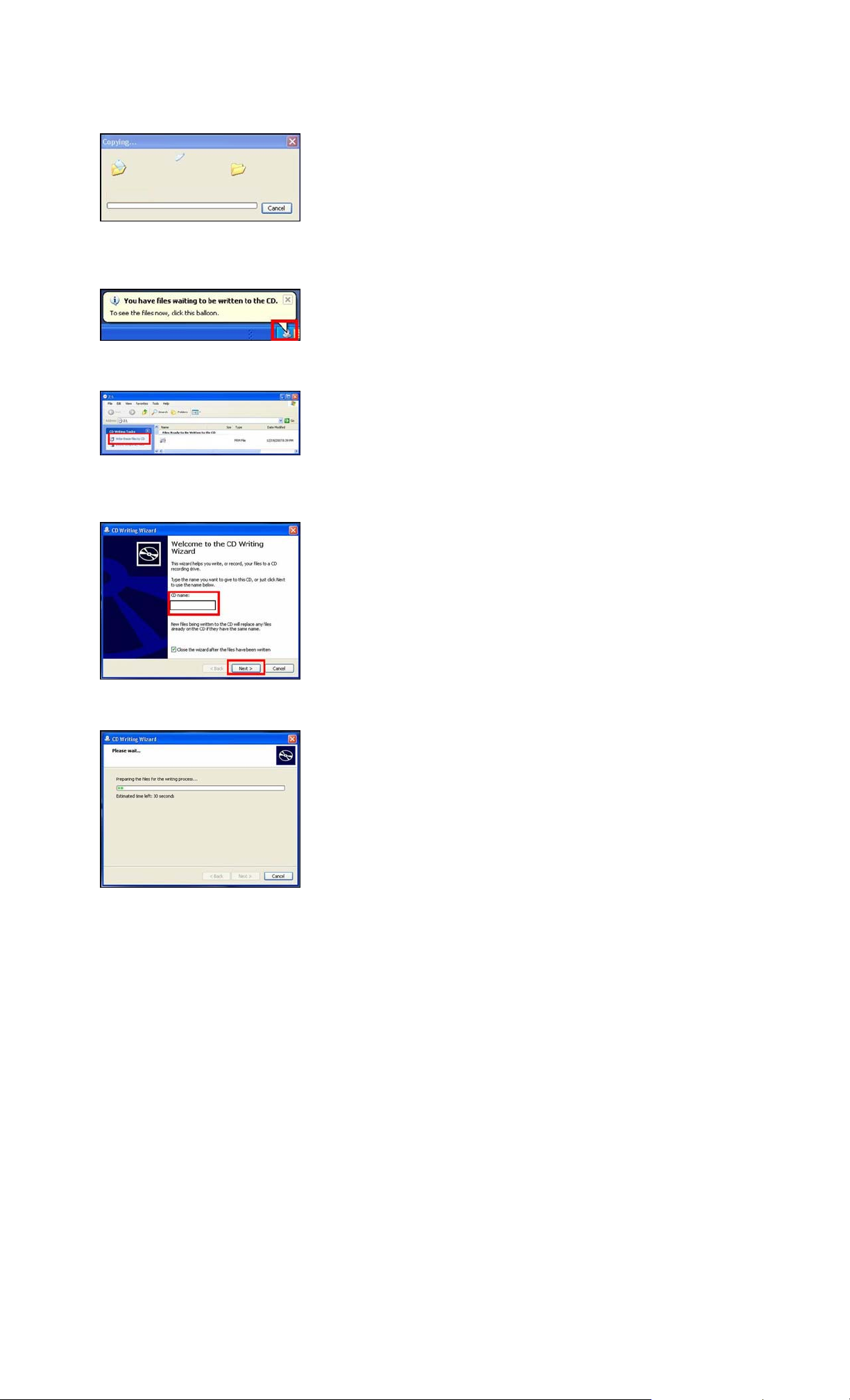
Left click on the YOU HAVE FILES WAITING TO BE
WRITTEN TO THE CD icon in the SYSTEM TRAY.
5)
Left click on WRITE THESE FILES TO CD.
6)
Type a name for the CD, check the CLOSE THE WIZARD
AFTER THE FILES HAVE BEEN WRITTEN check box, and
then left click on NEXT.
NOTE: The below screen will appear during the
burning process.
7)
After the PANA_DVD.FRM has been burned to the CD, the
disc should automatically eject from the CD Burner Drive. If
it doesn’t, manually eject the disc.
Page 9

4.2
Other OS CD Writing Program
Refer to the computer’s or operating system’s owner’s manual, or HELP files for instructions on
how to copy the PANA_DVD.FRM to a CD-R disc using the ISO-9660 format without using
Joliet.
4.3
rd Party CD Burning Software
3
Refer to the software application’s owner’s manual or HELP files for instructions on how to copy
the PANA_DVD.FRM to a CD-R disc using the ISO-9660 format without using Joliet.
4.4
Dragging & Dropping
If an icon for the CD Burner Drive has been placed on the DESKTOP, left click on the firmware file,
hold the left mouse button down, drag the file to the CD Burner Drive icon and release the left
mouse button.
Refer to the software application’s owner’s manual or HELP
files for instructions on how to copy the PANA_DVD.FRM to
a CD-R disc using the ISO-9660 format without using
Joliet.
Follow the procedure beginning with STEP 4) under SECTION 4.1 on PAGE 5 of 8.
Page 10

Install Firmware
CAUTIONS:
The firmware update may take up to 10 minutes to install.
Do NOT press any other buttons during the firmware update.
Do NOT turn off the Blu-ray player or disconnect the power during the firmware update.
1)
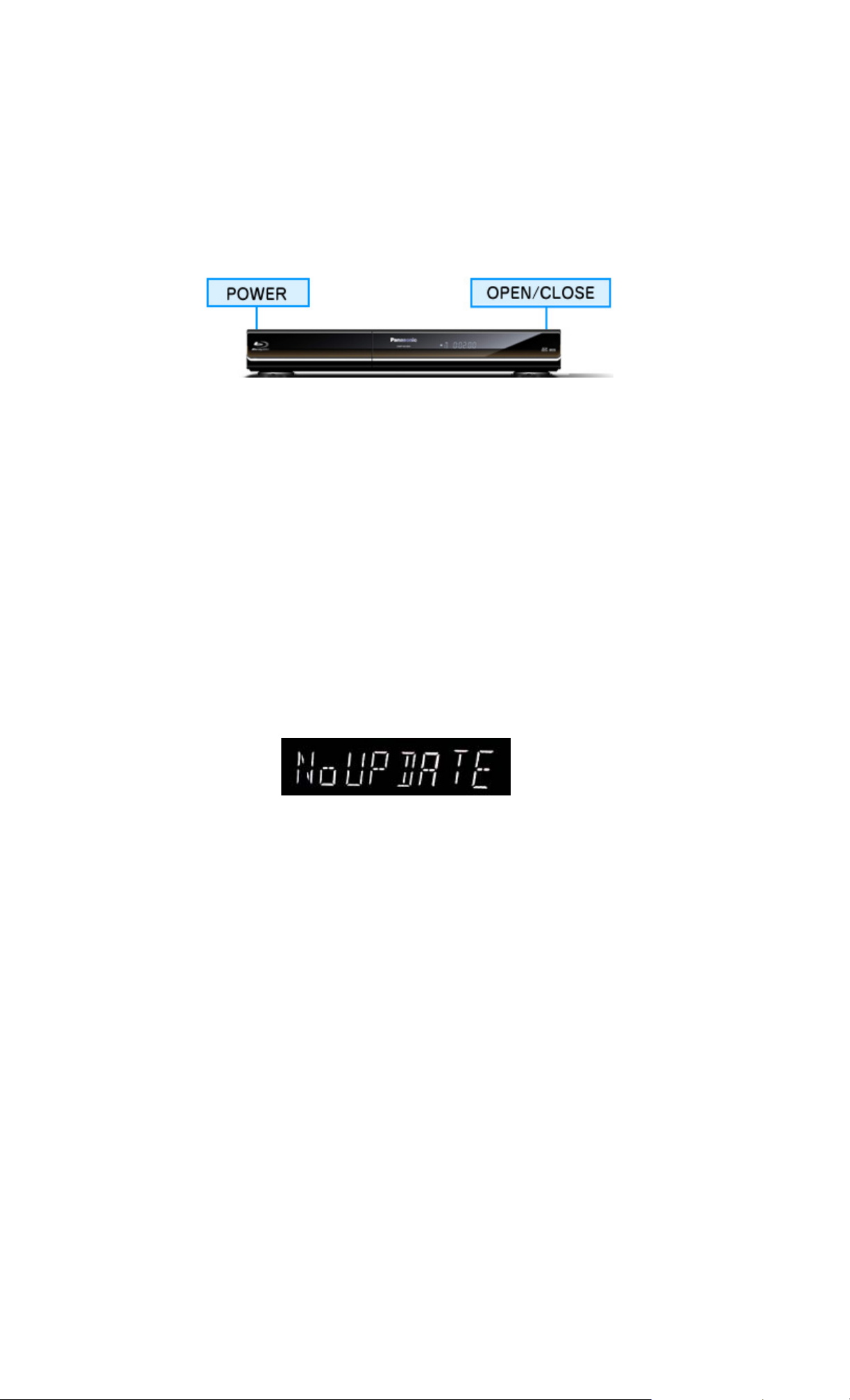
Press the [POWER] button on the Blu-Ray Disc Player to turn it ON, if it is not already powered
ON.
2)
Press the [OPEN/CLOSE] button to open the disc tray.
3)
Load the CD with the firmware update into the disc tray.
4)
Press the [OPEN/CLOSE] button to close the disc tray.
NOTES:
After the disc tray closes, the player will first display BYE on the front panel display,
automatically turn itself OFF, restart again within a few seconds, and begin installing
the firmware update from the CD.
If the player does not restart automatically following powering OFF, press the [POWER]
button on the main unit to turn it ON.
During the installation process you’ll see various messages flash on the front panel
display.
If the firmware version in the unit is the same as or higher than the firmware CD,
NoUPDATE will display on the front for a few seconds. In this case, an update is
unnecessary. Please remove the disc.
Page 11
5)
When the firmware installation is complete, the disc tray will open automatically. (If it doesn’t,
press the [OPEN/CLOSE] button.)
6)
Remove the firmware update
CD, but do not close the disc
tray.
7)
Press the [POWER]
button to turn the power OFF. The disc tray will automatically close and the unit will power OFF.
 Loading...