

Page 1
Digital Color Imaging System
Model No.
DP-C106
Documentation
Options
DA-TL28C/TL26C/RM64C/RM128C/DU26C/SM112C/S27C
®
Page 2

TRADEMARKS/COPYRIGHTS
The following trademarks and registered trademarks are used throughout this manual.
Microsoft, MS-DOS, Windows, and Windows NT are either registered trademarks or trademarks
of Microsoft Corporation in the United Stat es and/or other co untr ies .
i386, i486, and Pentium are either registered trademarks or trademarks of Intel Corporation.
Adobe, the Adobe logo, Adobe Post Scr ipt, Acr oba t, Ac robat R ead er, and Ac r obat lo go are either
registered trademarks or trademarks of Adobe Systems Incorporated in the United States and/or
other countries.
Apple, the Apple logo, ColorSync, FireWire, LaserWriter, Mac, Mac logo, Macintosh, Power
Macintosh, and TrueType are either registered trademarks or trademarks of Apple Computer, Inc.
in the United States and/or other countries.
Fiery, the Fiery logo, Fiery Driven, Fiery Link, ColorWise, NetWise, RIP-While-Print, VisualCal,
WebTools, WebSpooler, WebInstaller, and WebStatus are either registered trademarks or
trademarks of Electronics For Imaging, Inc., in the United States and certain other foreign
jurisdictions.
Novell, Novell Client, Novell Directory Services, Novell Distributed Print Services, Netware,
intraNetware, NDPS, NDS, , IPX, IPX/SPX, NDS Admin, NDS Administrator are either registered
trademarks or trademarks of Novell, Inc., in the United States and/or other countries.
Panasonic Document Imaging Company has made every effort to supply trademark information
about company names, products and services mentioned in this documentation. All third party
and/or other trademarks identified herein are the property of their respective owners.
Copyright © 2001 by Matsushita Graphic Communication Systems, Inc.
All rights reserved.
Copyright protection claimed includes all forms and matters of copyrightable material and
information now allowed by statutory or judicial law or hereinafter granted, including without
limitation, material generated from the software programs that are displayed on the screen such
as styles, templates, icons, screen displays, looks, etc.
Contents are subject to change without notice.
Printed in Japan.
Page 3

iii
Safety Notes, Compliances
Certifications, and Other Notices
Panasonic reserves the right to change this information without notice, and
makes no warranty, express or implied, with respect to this information.
Panasonic shall not be liable for any loss or damage, including consequential
or special damages, resulting from the use of this information, even if loss or
damage is caused by Panasonic's negligence or other fault.
Safety Notes
Your DP-C106 and its supplies have been designed and tested to meet strict
safety requirements. These include safety agency examination and approval,
and compliance with established environmental standards. Please read the
following instructions carefully before operating the DP-C106.
Failure to follow the recommendations in this section ma y resu lt in personal
injury or rescinding of the Dealer's Warranty/Maintenance Agreement.
WARNING
An improper connection to the DP-C106 grounding conductor can result in
electrical shock. Always connect the copier to a properly grounded wall
outlet. If in doubt, have the outlet checked by a qualified electrician.
Never use an extension cord between the copier power cord and an electrical
outlet.
Do not allow anything to rest on the power cord.
Do not place the DP-C106 where people may step on the power cord.
Follow all warnings and instructions that are marked on or supplied with the
DP-C106.
Never override or "cheat" electrical or mechanical interlock devices.
Always locate the DP-C106 on a solid support surface with adequate
strength for the weight of the copier.
Do not use the DP-C106 near water, wet locations, or outdoors.
Page 4

Safety Notes, Compliances, Certifications, and Other Notices
iv
Never push objects of any kind into the slots in the covers, as they may touch
dangerous voltage points or short out parts that could result in a risk of fire or
electric shock.
The DP-C106 is designed to prevent user access to unsafe areas and to
ensure that the device will not operate with the covers opened. Never attempt
any maintenance function that is not specified in the DP-C106 Operating
Instructions.
Never remove any covers or guards that require a tool for removal, unless
you are instructed to do so. Ensure that you read all Warnings and Cautions,
and follow each step in the instructions exactly as they are written.
Never attempt any activity that is not specified in the DP-C106 Operating
Instructions, or on the User Interface, or that is not specifically directed by an
authorized Panasonic representative.
Do not look directly at the exposure lamps. The exposure lamps are not
harmful but they are very bright and may cause discomfort. It is
recommended that the Scanner Cover be closed when the DP-C106 is in use.
Never operate the DP-C106 if unusual noises or odors are detected.
Disconnect the power cord from the wall outlet and call your local authorized
Panasonic service representative to correct any problems.
Maintenance Safety
Refer to these instructions as needed in order to ensure the safe operation
of the Copier/Printer.
Always use materials that are supplied or approved by Panasonic. Use of
other materials may result in poor performance and could create a hazardous
situation.
Do not use aerosol cleaners. Follow the instructions in the DP-C106
Operating Instructions for the appropriate cleaning methods.
Never use supplies or cleaning materials for purposes other than what they
were intended. Keep all supplies and cleaning materials out of the reach of
children.
Never place coffee or other liquids on the machine.
Never spill liquid of any kind o n the machine.
The DP-C106 is equipped with an energy-saving device to conserve power
when not in use.
Page 5

Safety Notes, Compliances, Certifications, and Other Notices
v
Unplug the DP-C106 from the wall outlet and refer servicing to qualified
service personnel under the following conditions:
• When the power cord is damaged or frayed
• If liquid has been spilled into the DP-C106
• If the DP-C106 has been exposed to rain or water
• If the DP-C106 is producing unusual noises or odors
If the system does not work or continues to malfunction after following the
Problem Solving procedures in the DP-C106 Operating Instructions, call your
local authorized Panasonic service representative.
Ozone Safety
Make sure that the machine is installed in a spacious or well-ventilated room
so as not to increase the amount of ozone in the air, since ozone is heavier
than air, it is recommended that air at floor level be ventilated.
Laser Safety
Use of controls, adjustments or performance procedures other than those
specified herein, may result in hazardous laser radiation exposure.
This equipment complies with safety standards. With specific regard to laser
safety, the equipment complies with performance standards for laser products
set by government agencies as a Class I laser product and does not emit
hazardous lights, the beam is totally enclosed during all modes of customer
operation and maintenance.
.
Page 6

Safety Notes, Compliances, Certifications, and Other Notices
vi
Safety Notes
FCC
This equipment has been tested and found to comply with the limits for a
Class A digital device, pursuant to Part 15 of the FCC Rules. These limits
are designed to provide reasonable protection against harmful interference
when the equipment is operated in a commercial environment. This
equipment generates, uses, and can radiate radio frequency energy and, if
not installed and used in accordance with the instruction manual, may cause
harmful interference to radio communications. Operation of this equipment
in a residential area is likely to cause harmful interference in which case the
user will be required to correct the interference at his own expense.
Responsible Party: Matsushita Electric Corporation of America
One Panasonic Way, Secaucus, NJ 07094
Technical Support: Panasonic Document Imaging Company/
Technical Support Departme nt
Two Panasonic Way, Secaucus, NJ 07094
1-800-225-5329
Email: consumerproducts@panasonic.com
The user could lose the authority to operate this equipment if any
unauthorized changes or modifications are made to this equipment.
Shielded cables must be used with this equipment to maintain compliance
with FCC regulations.
European Union
This product complies with the requirements of EC Council Directives
73/23/EEC amended by 93/68/EEC, and 89/336/EEC amended by
92/31/EEC and 93/68/EEC.
Page 7

Safety Notes, Compliances, Certifications, and Other Notices
vii
WARNING
This product is certified, manufactured and tested in compliance with strict
safety and radio frequency interference regulations. Any unauthorized
alteration, which includes the addition of new functions or the connection of
external devices, may impact this certification. Please contact your local
authorized Panasonic representative for a list of approved accessories.
WARNING
In order to allow this equipment to operate in proximity to Industrial, Scientific
and Medical (ISM) equipment, the external radiation from the ISM equipment
may have to be limited or special mitigation measures taken.
Page 8
Safety Notes, Compliances, Certifications, and Other Notices
viii
WARNING
This is a Class A product. In a domestic environment this product may
cause radio frequency interference in which case the user may be required
to take adequate measures.
The user could lose the authority to operate this equipment if any
unauthorized changes or modifications are made to this equipment.
Shielded cables must be used with this equipment to maintain compliance
with the Radio Communications Act of 1992.
Documentation Conventions
The following conventions are used throughout the Operating Instructions.
WARNING
Warnings alert you to potential hazard that could result in serious injury or
death.
CAUTION
Cautions alert you to operations that may result in minor injury or damage to
the machine.
Notes contain additional information, explanations, and helpful suggestions.
Keypoints provide techniques or shortcuts.
Page 9

ix
Table of Contents
1. Setting Up the DP-C106........................................................................................1-1
Preparing for the Installation.....................................................................................1-1
Selecting a Location..............................................................................................1-1
Space Requirements for the DP-C106 Printer......................................................1-2
Space Requirements Without the Optional 10 Bin Sorter..................................1-2
Space Requirements With the Optional 10 Bin Sorter.......................................1-3
Checking the Installation Components..............................................................1-4
Installing the System Console ..................................................................................1-5
Unpacking the Printer...............................................................................................1-9
Printer Installation...................................................................................................1-19
Installing the Duplex Unit/Kit (option)......................................................................1-27
Loading Paper in the Paper Tray............................................................................1-35
Installing the Scanner Rack....................................................................................1-39
Installing the Scanner with ADF..............................................................................1-45
Installing the 10 Bin Sorter......................................................................................1-51
Switching the Power On.........................................................................................1-65
Switching the Power Off.........................................................................................1-66
Printing a Test Page from the Printer Control Panel...............................................1-67
Making a Test Copy from the Scanner ...................................................................1-68
Adding Memory to the Printer.................................................................................1-69
Adding Memory to the Scanner..............................................................................1-75
Installing the Oversize Paper Tray/Transparency Tray (option)..............................1-79
2. Getting to Know the DP-C106 ..............................................................................2-1
Printer, Front View....................................................................................................2-1
Printer, Rear View.....................................................................................................2-2
Printer, Internal View................................................................................................2-3
Printer Control Panel................................................................................................2-4
Scanner and Automatic Document Feeder (ADF) Components...............................2-5
Scanner Control Panel..............................................................................................2-7
Page 10

Table of Contents Operating Instructions
x
Options and Supplies................................................................................................2-9
Options..................................................................................................................2-9
Supplies..............................................................................................................2-10
3. System Administrator Functions.........................................................................3-1
Map to the Networking Chapters..............................................................................3-2
Guide to the Networking Chapters............................................................................3-3
4. Connecting to the Network...................................................................................4-1
Supported Network Protocols and Frame Types......................................................4-3
Quick Path to Installation..........................................................................................4-4
Ethernet Cabling...................................................................................................4-4
Parallel Cable Connection.....................................................................................4-4
Mac OS Environment with AppleTalk....................................................................4-6
Windows Computers in a Novell Environment......................................................4-7
Windows NT 4.0 Server Environment...................................................................4-8
Windows Computers Using Windows Printing......................................................4-9
Unix and Windows NT. 4.0 Workstations on a TCP/IP Network..........................4-10
Parallel Port Connection .....................................................................................4-11
Connecting the DP-C106 to the Network................................................................4-12
5. Preparing for the Setup ........................................................................................5-1
Levels of Access and Control...................................................................................5-1
Printer Connections...............................................................................................5-2
Passwords ............................................................................................................5-3
Where to Set Passwords...................................................................................5-3
Control Level Scenarios ....................................................................................5-4
Fiery WebTools ........................................................................................................5-6
Network Server Setup Requirements....................................................................5-7
Ensuring the Printer Connection ...........................................................................5-8
6. Setting Up the Network Server.............................................................................6-1
Support for Fiery Utilities ..........................................................................................6-1
Printing on a NetWare 3.x, 4.x, or 5.x Network.........................................................6-2
Page 11

Operating Instructions Table of Contents
xi
Overview of IPX Printing to the DP-C106.................................................................6-3
Configuring a NetWare 3.x, 4.x, or 5.x Server for Printing........................................6-4
Setting Up an NDS Connection.............................................................................6-6
Setting the NetWare 4.x or 5.x Bindery Context....................................................6-6
Setting Up a NetWare Print Queue for Bindery.....................................................6-7
Setting Up NetWare Windows Clients for Printing....................................................6-7
The DP-C106 on a TCP/IP Network with Windows NT 4.0.......................................6-8
Configuring a Windows NT 4.0 Server..................................................................6-9
Adding the DP-C106 to the TCP/IP Network
(Windows NT 4.0).................................................................................................6-9
Installing the DP-C106 as a Shared Printer........................................................6-10
Configuring Clients of a Windows NT 4.0
or Windows 2000 Server.....................................................................................6-11
Configuring the Server and Client Workstations for Fiery WebTools......................6-12
Setting Up Fiery WebTools on the Printer...........................................................6-12
Setting Up Fiery WebTools on a Client Workstation ...........................................6-12
Accessing the Fiery WebTools............................................................................6-13
Changing the WebLink Destination.....................................................................6-13
The Printer on a Network with UNIX Workstations.................................................6-14
Setting Up the Printer on TCP/IP Networks ........................................................6-15
Setting Up Printing on UNIX Systems.............................................................6-15
Setting Up TCP/IP for Communication with the Printer...................................6-16
7. Performing the Setup from the Printer Control Panel........................................7-1
Set Up the Print Functions........................................................................................7-1
Top-level Menus....................................................................................................7-2
System Setup........................................................................................................7-3
Printer Setup.........................................................................................................7-4
PostScript Setup...................................................................................................7-5
PCL Setup.............................................................................................................7-6
Specify Network Information.....................................................................................7-7
Specify Network Protocol Options.........................................................................7-8
Perform Network Services Setup............................................................................7-10
NDS Setup..........................................................................................................7-10
Bindery Setup .....................................................................................................7-13
Page 12

Table of Contents Operating Instructions
xii
SMB Setup..........................................................................................................7-15
Print Information Pages..........................................................................................7-16
8. Installing User Software in a Windows 95/98/Me Environment.........................8-1
Overview of Installation.............................................................................................8-2
Before You Begin......................................................................................................8-2
Installing PostScript or PCL Print Drivers.................................................................8-3
Installing the PostScript or PCL Print Drivers (Windows 95/98/Me)......................8-3
Completing the Connection......................................................................................8-7
Parallel Port Printing.............................................................................................8-7
To Prepare the Port for Parallel Port Printing in Windows 95............................8-7
To Prepare the Port for Parallel Port Printing in Windows 98/Me......................8-9
Setting Up Parallel Port Printing......................................................................8-12
Setting Up IPX/SPX Printing with Windows 95/98/Me.........................................8-14
Setting Up SMB Printing on Windows 95/98/Me.....................................................8-17
Setting Printer Options............................................................................................8-22
Installing Additional Software for Windows 95/98/Me.............................................8-23
Copying Printer Description Files........................................................................8-24
Installing the ICM Profile.....................................................................................8-24
Loading the Working Space Profile Using Photoshop 5.0...............................8-25
Loading the ICM Profile...................................................................................8-26
9. Installing User Software in a Windows 2000 Environment................................9-1
Overview of Installation.............................................................................................9-2
Before You Begin......................................................................................................9-2
Installing the User Software for Parallel Port Printing...............................................9-3
Installing the Software for TCP/IP and LPR Printing
(New Installation of Windows 2000)..........................................................................9-9
Installing TCP/IP and LPR Printing
(Upgrade Installation of Windows NT 4.0 to Windows 2000)..................................9-13
Installing the User Software for IPX/SPX Printing...................................................9-15
Installing the User Software for SPM Printing.........................................................9-22
Installing the User Software for SMB Printing.........................................................9-24
Setting Printer Options............................................................................................9-30
Installing Additional Software for Windows 2000....................................................9-31
Page 13

Operating Instructions Table of Contents
xiii
Copying Printer Description Files........................................................................9-32
Installing the ICM Profile.....................................................................................9-32
Loading the Working Space Profile Using Photoshop 5.0...............................9-33
Loading the ICM Profile...................................................................................9-34
10. Installing User Software in a Windows NT 4.0 Environment.........................10-1
Overview of Installation...........................................................................................10-2
Before You Begin....................................................................................................10-2
Installing the User Software fo r Parallel Port Printing
(Windows NT 4.0)...................................................................................................10-3
Installing the User Software for IPX Printing (Windows NT 4.0).............................10-9
Installing the User Software for TCP/IP and LPR Printing
for Windows NT 4.0..............................................................................................10-15
Installing the User Software for SMB Printing ......................................................10-18
Setting Printer Options..........................................................................................10-24
Installing Additional Software for Windows NT 4.0...............................................10-25
Copying Printer Description Files......................................................................10-26
Installing the ICM Profile...................................................................................10-26
Installing the ICM Profile on Windows NT 4.0 ...............................................10-26
Loading the Working Space Profile using Photoshop 5.0..............................10-27
Loading the ICM Profile.................................................................................10-28
11. Installing User Software in a Macintosh OS Environment.............................11-1
General Steps for Installing the User Software.......................................................11-1
Setting Up the DP-C106 as a PostScript Printer.................................................11-2
Setting Up the DP-C106 in the Chooser.............................................................11-4
Installing Fiery Software and Fonts.....................................................................11-6
Installing Mac OS Software.............................................................................11-6
Installing Mac OS Runtime for Java................................................................11-7
Installing Additional Software..................................................................................11-8
Loading Profiles..................................................................................................11-9
Setting the ColorSync System Profile..............................................................11-9
Loading the Monitor Settings File Using Photoshop 5.0................................11-10
Loading the ICC Printer Profile in Photoshop 4.0..........................................11-11
Loading the ICC Printer Profile in Photoshop 5.0..........................................11-12
Page 14

Table of Contents Operating Instructions
xiv
12. Installing the Fiery Software for Windows and Macintosh............................12-1
Installing the Fiery Link Software ............................................................................12-1
Using the Software for the First Time .....................................................................12-2
Configuring a Connection for Fiery Link
for Windows and Macintosh OS..........................................................................12-2
Configuring the Connection to Fiery Servers
in a Local Subnet.............................................................................................12-3
Manually Configuring the Connection to Fiery Printers....................................12-4
Configuring the Connection for Fiery Link
Using an Advanced IP Search.........................................................................12-6
Configuring the Connection for Fiery Link
Using an Advanced Subnet Search .................................................................12-9
Installing ColorWise Pro Tools for Windows and Macintosh OS...........................12-12
Configuring a Connection for ColorWise Pro Tools...........................................12-12
Modifying the Configuration...........................................................................12-14
Downloading Installers with Fiery WebTools........................................................12-15
Setting Up Fiery WebTools...............................................................................12-15
Setting Up Fiery WebTools on the Printer.....................................................12-15
Setting Up Client Workstations
to Use Fiery WebTools..................................................................................12-16
13. Printing from the Windows Workstations.......................................................13-1
Printing from Applications.......................................................................................13-2
Setting Options and Printing with Windows 95/98/Me and Windows 2000.........13-2
Configuring the PostScript Print Options for Windows 95/98/Me........................13-3
Configuring the PCL Print Options for Windows 95/98/Me..................................13-5
Setting Options and Printing from Windows 2000..................................................13-7
Using Saved Settings (Windows 95/98/Me and Windows NT 4.0)......................13-9
Creating Saved Settings..................................................................................13-9
Loading Saved Settings...................................................................................13-9
Deleting Saved Settings................................................................................13-10
Modifying Saved Settings..............................................................................13-10
Exporting Saved Settings..............................................................................13-11
Importing Saved Settings..............................................................................13-11
Using Shortcuts....................................................................................................13-12
Page 15

Operating Instructions Table of Contents
xv
Setting Print Options Using Shortcuts...............................................................13-12
Setting Print Options Using Page Shortcuts......................................................13-12
Working with Custom Page Sizes in Windows 95/98/Me or Windows 2000.........13-13
Defining a Custom Page Size...........................................................................13-13
Printing a Custom Page Size............................................................................13-14
Saving Files to Print at a Remote Location...........................................................13-15
Setting Print Options for a Job with Windows NT 4.0...........................................13-15
Setting Print Options for a PostScript Job (Windows NT 4.0)...........................13-16
Setting Print Options for all PostScript Jobs (Windows NT 4.0)........................13-18
Setting Print Options for a PCL Job (Windows NT 4.0).....................................13-18
Setting Print Options for all PCL Jobs (Windows NT 4.0).................................13-19
Printing with WebDownloader...............................................................................13-20
14 Printing from the Macintosh OS Workstations.................................................14-1
Printing from Applications.......................................................................................14-1
Selecting the Printer in the Chooser....................................................................14-1
Setting Options and Printing from Mac OS Workstations....................................14-3
Printing from an Application................................................................................14-5
Defining a Custom Page Size.................................................................................14-6
15. Using the Fiery WebTools................................................................................15-1
Fiery WebTools Overview.......................................................................................15-1
Accessing the Fiery WebTools...............................................................................15-3
Using the Status WebTool......................................................................................15-4
Using the Installer WebTool....................................................................................15-5
Using WebDownloader...........................................................................................15-7
Font Manager.........................................................................................................15-8
16. Using Fiery Link ................................................................................................16-1
Fiery Link Tools......................................................................................................16-4
Setting Preferences................................................................................................16-6
Using My Fiery List of Fiery Link.............................................................................16-8
Page 16

Table of Contents Operating Instructions
xvi
17. Using Fiery WebSpooler................................................................................... 17-1
Tracking and Managing Jobs with Fiery WebSpooler.............................................17-1
Accessing the Fiery WebSpooler Window ..........................................................17-2
About the Fiery WebSpooler Window .................................................................17-3
Job Icons.............................................................................................................17-3
Job Types ...........................................................................................................17-3
Manipulating Job Options and Job Flow .............................................................17-4
Overriding Job Option Settings ...........................................................................17-6
Using the Job Log...................................................................................................17-7
Displaying the Job Log........................................................................................17-7
Updating, Printing and Deleting the Job Log.......................................................17-8
18. Performing the Setup from WebSetup............................................................18-1
Accessing Setup.....................................................................................................18-1
Enabling Java Services..........................................................................................18-2
Accessing Fiery WebSetup.....................................................................................18-3
General Setup Options...........................................................................................18-4
Server Setup...........................................................................................................18-5
Network Setup........................................................................................................18-8
Printer Setup.........................................................................................................18-20
Exiting Setup ........................................................................................................18-23
19. Using ColorWise Pro Tools..............................................................................19-1
Calibrator................................................................................................................19-1
Introduction.........................................................................................................19-1
Understanding Calibration...................................................................................19-2
How Calibration Works....................................................................................19-2
Scheduling Calibration.....................................................................................19-3
Checking Calibration Status............................................................................19-4
Using a Densitometer..........................................................................................19-4
Setting Up the Densitometer ...........................................................................19-4
To Connect the X-Rite DTP32 to the Computer..............................................19-4
Calibrating with ColorWise Pro Tools..................................................................19-5
To Calibrate the Copier Using Calibrator.........................................................19-5
Page 17

Operating Instructions Table of Contents
xvii
To Restore Default Calibration Measurements................................................19-6
Expert Mode........................................................................................................19-6
Color Editor.............................................................................................................19-6
Editing Profiles....................................................................................................19-7
To Edit a Simulation Profile in Master Mode
or an Output Profile in Custom Mode ..............................................................19-7
To Edit a Simulation in Quick or Full Mode......................................................19-9
Undoing Simulation Edits..................................................................................19-10
To Undo Edits Made to a Custom Linked Simulation....................................19-10
Checking Edited Profiles...................................................................................19-11
To Check a Profile.........................................................................................19-11
Profile Manager....................................................................................................19-11
Setting the Default Profiles................................................................................19-12
To Specify a Default Profile...........................................................................19-13
Downloading Profiles........................................................................................19-13
To Download a Profile...................................................................................19-13
Editing Profiles..................................................................................................19-15
Managing Profiles.............................................................................................19-15
To Back Up Profiles.......................................................................................19-15
To Delete Profiles from the Fiery Hard Disk..................................................19-16
Defining Profiles................................................................................................19-16
To Define a Profile.........................................................................................19-16
Changing Global Settings.................................................................................19-17
To Change the Global Settings......................................................................19-17
20. Basic Copying...................................................................................................20-1
The Copier Control Panel.......................................................................................20-1
Copy Mode.............................................................................................................20-3
Auto Start............................................................................................................20-4
The Copier Main Screen.....................................................................................20-4
Positioning the Originals.........................................................................................20-5
The Document Glass ..........................................................................................20-5
The Automatic Document Feeder (ADF).............................................................20-7
Making a Copy......................................................................................................20-10
Page 18

Table of Contents Operating Instructions
xviii
21. Copy Features...................................................................................................21-1
Reduce/Enlarge......................................................................................................21-1
Using the Reduce/Enlarge Feature.....................................................................21-2
Paper Supply..........................................................................................................21-4
Using Paper Trays 1, 2, and 3 ............................................................................21-4
Using the Bypass Tray........................................................................................21-5
Loading the Bypass Tray.................................................................................21-5
Loading Transparencies into the Bypass Tray.................................................21-8
Loading Postcards into the Bypass Tray.........................................................21-9
Loading Envelopes in the Bypass Tray.........................................................21-10
Making a Copy Using the Bypass Tray..........................................................21-11
Color Mode...........................................................................................................21-12
Using the Color Mode Feature..........................................................................21-14
Lighten/Darken.....................................................................................................21-15
Using the Lighten/Darken Feature....................................................................21-15
Quality Adjustment................................................................................................21-16
Using the Sharpness Option.............................................................................21-16
Using the Color Level Adjustment .....................................................................21-17
Using the Background Mask Feature................................................................21-18
Advanced Features...............................................................................................21-19
Using the Output Feature..................................................................................21-20
Determining the Output with the Optional 10 Bin Sorter....................................21-21
Using the Erase Feature...................................................................................21-22
Using the 2-Sided Feature................................................................................21-23
Using the 2 Up Feature.....................................................................................21-25
22. Tools Mode ........................................................................................................22-1
Meter Check...........................................................................................................22-1
Administrative Features..........................................................................................22-2
Defaults for Copy ................................................................................................22-4
Color ...................................................................................................................22-7
Auto Color Adjust................................................................................................22-9
Detect Document Size ......................................................................................22-11
Page 19

Operating Instructions Table of Contents
xix
Auto Mode Change...........................................................................................22-12
Limit Copy Set...................................................................................................22-13
Timer Preset .....................................................................................................22-14
Sound Preset....................................................................................................22-16
User Password..................................................................................................22-17
ADMIN Password..............................................................................................22-19
Version Information...........................................................................................22-20
Self Diagnostics................................................................................................22-21
Transporting the Scanner..................................................................................22-22
23. Problem Solving................................................................................................ 23-1
Avoiding Paper Jams..............................................................................................23-1
Printer Jam Clearance Areas..................................................................................23-2
ADF Jam Clearance Area.......................................................................................23-3
Clearing a Paper Tray Jam.....................................................................................23-5
Clearing a Duplex Unit/Kit Jam...............................................................................23-7
Clearing Area 1 Jams.............................................................................................23-9
Clearing Area 2 Jams...........................................................................................23-13
Clearing Area 3 Jams...........................................................................................23-15
Clearing Area 4 Jams...........................................................................................23-17
Clearing Area 5 Jams...........................................................................................23-19
Clearing the Fuser Area....................................................................................23-19
Clearing the Upper Inverter...............................................................................23-21
Clearing Area 6 Jams...........................................................................................23-25
Clearing Jams in the 10 Bin Sorter.......................................................................23-26
Copy/Print Quality Problems.................................................................................23-27
Adjusting the Printer Color....................................................................................23-29
VisualCal...........................................................................................................23-29
1. Print Limits Page......................................................................................23-29
2. Gray Balance Page..................................................................................23-31
3. Comparison Page.....................................................................................23-32
Printer Error Messages.........................................................................................23-33
Printer Error Codes...............................................................................................23-37
Scanner Error Codes............................................................................................23-39
Page 20

Table of Contents Operating Instructions
xx
10 Bin Sorter Error Messages..............................................................................23-41
Network Problem Solving.....................................................................................23-43
Problems During Setup from the Control Panel................................................23-43
Network Protocol Setup Messages...................................................................23-44
Novell Problems During Network Setup............................................................23-48
Novell Error Messages......................................................................................23-49
Runtime Printer Error Messages .......................................................................23-51
Name Table ......................................................................................................23-53
Printing Problems.................................................................................................23-54
On a Windows Workstation...............................................................................23-54
On a Mac OS Workstation ................................................................................23-55
General Printing Problems................................................................................23-56
Problems with Print Quality...............................................................................23-59
Job Management Problem Solving.......................................................................23-61
Job Management Error Messages....................................................................23-61
Unexpected Printing Results.............................................................................23-63
Clearing the Printer...........................................................................................23-64
Users are Unable to Connect to the DP-C106..................................................23-64
24. Maintenance ......................................................................................................24-1
Cleaning Procedures..............................................................................................24-1
Cleaning the Printer Covers................................................................................24-1
Cleaning the Scanner..........................................................................................24-2
Document Glass and ADF Cover....................................................................24-2
Cleaning the Automatic Document Feeder (ADF)...........................................24-3
Replacing the Toner Cartridges..............................................................................24-5
Replacing the Print/Copy Cartridge ........................................................................24-9
Replacing the Toner Waste Container..................................................................24-15
Storing the Supplies..............................................................................................24-17
Toner Cartridges...............................................................................................24-17
Handling Precautions ....................................................................................24-17
Print/Copy Cartridge..........................................................................................24-18
Handling Precautions ....................................................................................24-18
Page 21

Operating Instructions Table of Contents
xxi
25. Technical Data...................................................................................................25-1
Printer Specifications..............................................................................................25-1
Electrical Specifications..........................................................................................25-3
Emissions...............................................................................................................25-3
Supplies..................................................................................................................25-4
Fiery Server Hardware Components ......................................................................25-5
Font List..................................................................................................................25-6
PostScript Printer Fonts......................................................................................25-6
Adobe Type 1 Fonts........................................................................................25-6
PostScript TrueType Fonts ...............................................................................25-12
PCL Printer Fonts.................................................................................................25-13
10 Bin Sorter Specifications..................................................................................25-14
A. System Administrator Tips..................................................................................A-1
B. Print Options........................................................................................................ B-1
Where to Set Print Options.......................................................................................B-1
Print Option Override Hierarchy................................................................................B-2
Default Settings........................................................................................................B-2
Print Options Table...............................................................................................B-3
More About Print Options......................................................................................B-9
Black Overprint..................................................................................................B-9
CMYK Simulation Profile................................................................................. B-10
Electronic Collation..........................................................................................B-11
Custom Output Direction.................................................................................B-11
Duplex.............................................................................................................B-12
Output Profile...................................................................................................B-13
Page Range ....................................................................................................B-13
Rendering Style...............................................................................................B-13
RGB Source Profile.........................................................................................B-14
Glossary
Index
Page 22

1-1
Setting Up the DP-C106
This chapter contains the hardware installation instructions only. To install the printer
driver software, go to the Installing Your User Software chapter. To install to the
network, go to the appropriate chapter for your operating system.
Preparing for the Installation
Before you begin the installation of your Panasonic DP-C106, read this entire
section. You must locate an appropriate site for the installation of the
DP-C106. Reading this section assists you with the decision making process.
Selecting a Location
WARNING
The wall outlet must be rated for 115 or 240 volts. It must also be protected
for at least 15 amps for 115 volts, or 8 amps for 240 volts. If you are in
doubt about a power source, ensure that a qualified electrician checks the
outlet.
Do not connect any other devices to the wall outlet designated for the
DP-C106.
Install the Panasonic DP-C106 in a location that meets the following
conditions:
• The DP-C106 has a designated wall outlet.
• The power cord cannot be stepped on, or be a tripping hazard.
• The location has a level, stable surface.
DO NOT install the DP-C106 in a location that has any of the following
conditions:
• In direct sun light • Near an air conditioner or heater
• In a dusty place • Near an open flame
• In a windy place • Near water
• Where it might be subject to
vibration
• Near a magnetic field
• Where abrupt changes in temperature or humidity occur
1
Page 23

Setting Up the DP-C106 Preparing for the Installation
1-2
Space Requirements for the DP-C106 Printer
CAUTION
The Panasonic DP-C106 has ventilation openings on the side and rear,
which must remain unobstructed for safe operation. The Printer should be
located at least 6 and 1/2 inches (165 mm) from the wall. Obstructing the
ventilation openings could present a fire hazard.
Using the space requirements illustrated below ensures that the Printer has
the ventilation it requires. It also ensures that you have the space needed for
replacing the supplies.
Space Requirements Without the Optional 10 Bin Sorter
The following illustration is a top view of the printer.
18 inches
(457.2 mm)
36 inches (914.4 mm)
6.5 inches (165 mm)
63 inches
(1600 mm)
67 inches
(1702 mm)
23 inches
(584.2 mm)
Page 24

Preparing for the Installation Setting Up the DP-C106
1-3
Space Requirements With the Optional 10 Bin Sorter
The following illustration shows the dimen s ions for the largest configurat ion of
the Copier/Printer, which includes a Duplex Unit/Kit and a 10 Bin Sorter.
67 inches
1702 mm
23 inches
(
584.2 mm
)
36 inches
(900 mm)
36 inches
(914.4 mm)
6.5 inches
(
165 mm
)
22.75 inches
(
569 mm
)
81 inches
(2057 mm)
Page 25

Setting Up the DP-C106 Preparing for the Installation
1-4
Checking the Installation Components
Ensure that all of the components you ordered are available before you begin
the installation. All of the components are listed below.
• Printer
• Scanner with ADF
• Scanner Rack
• System Console
• Duplex Unit (For North America) (optional)
Duplex Kit (Except North America) (optional)
You may need a phillips head and a flat blade screwdriver in order to
perform the installation of the DP-C106.
Following the instructions ensures that the DP-C106 components are installed
in the following order:
1. System Console
2. Printer
3. Duplex Unit/Kit, if ordered
4. Scanner Rack
5. Scanner with ADF
6. Accessories, if ordered
7. Client Software (customer installed)
The First Step
If the DP-C106 was installed for you, go to Chapter 2. Getting to Know the
DP-C106.
Go to Installing the System Console procedure in this section.
Page 26

Installing the System Console Setting Up the DP-C106
1-5
Installing the System Console
To install the System Console, perform the following steps.
WARNING
You will need at least two people to remove it from the carton.
1. Open the System Console carton.
2. Remove the styrofoam and the plastic wrap from the top of the System
Console.
3. With a person on each side of the box, grasp the crossbars in the
locations indicated by the labels.
4. Lift the System Console from the box and place it in the selected
location.
5. Lock the front casters as shown below.
Page 27
Setting Up the DP-C106 Installing the System Console
1-6
6. Remove all the tape from the outside of the System Console.
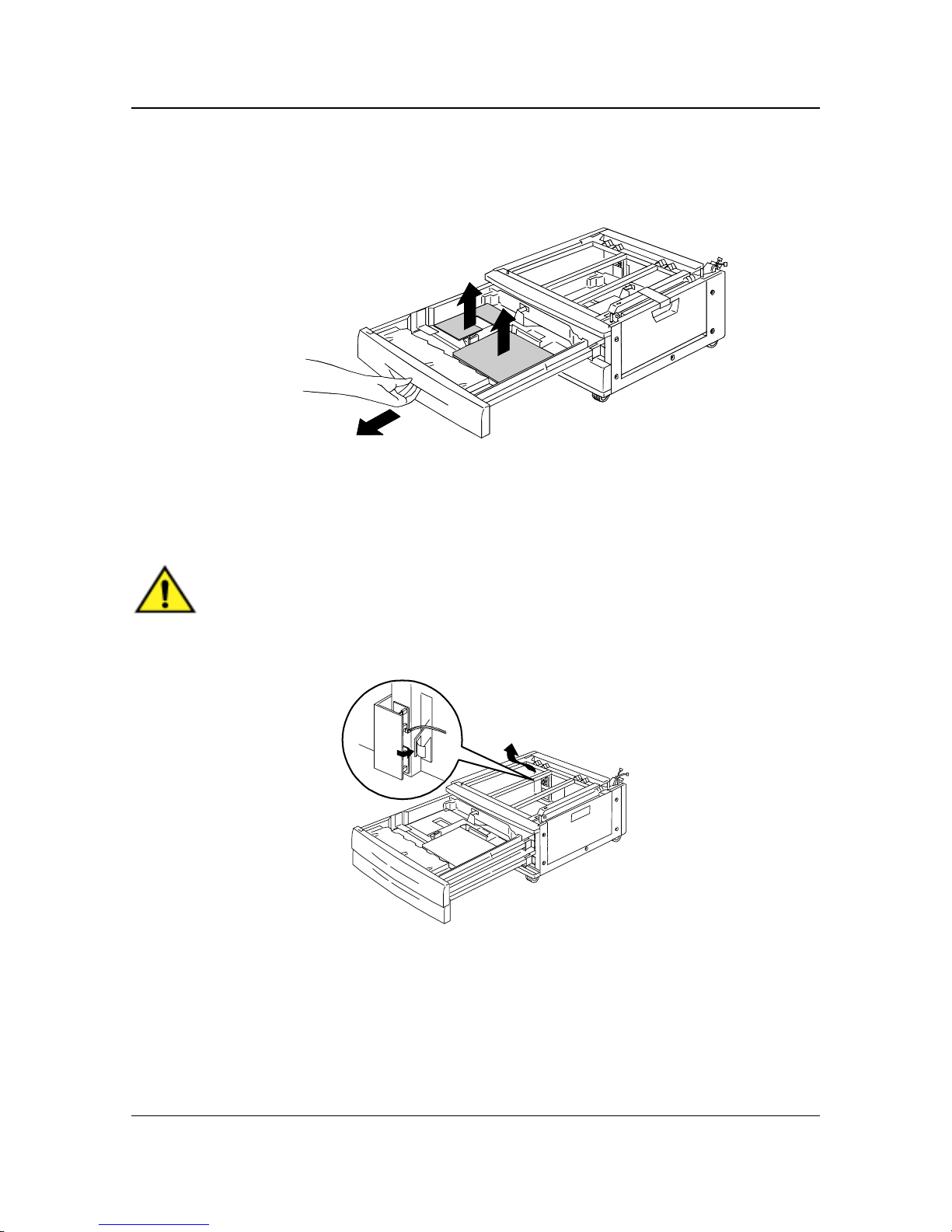
7. Pull the top paper tray open until it stops, and remove the packing
shown below.
8. Close the top tray and repeat step 7 for the lower paper tray.
9. Open the two paper trays.
WARNING
Use care when removing the packing from connectors and wire harnesses.
10. Remove the cardboard protector from the rear post shown below.
11. Close the two paper trays.
Page 28

Installing the System Console Setting Up the DP-C106
1-7
12. Remove the tape from the paper feed area access door, and then open
the door.
13. Remove the cardboard packing shown below.
CAUTION
Open the Harness Access Cover before placing the Printer on top of the
System Console.
14. Close the paper feed area access door.
The Next Step
Go to the Unpacking the Printer procedure in this section.
Page 29

Setting Up the DP-C106 Installing the System Console
1-8
This page is intentionally left blank.
Page 30

Unpacking the Printer Setting Up the DP-C106
1-9
Unpacking the Printer
Read all the steps before performing this pr oced ur e. There are deci sions to
make before removing the Printer from the packing.
Ensure that the following items are included in the carton:
1. Remove the four cardboard supports and the Styrofoam packing from
the top of the Printer.
2. Remove the cardboard tray from the top of the Printer and place it in a
safe place, out of the way of the installation.
The cardboard tray contains the following items:
• One Print/Copy Cartridge Box
(with Toner Waste Container)
• Four Toner Boxes
(Yellow, Cyan, Magenta and Black)
• CD Package Containing one CD
(DP-C106 Printer Drivers,
Utilities & Documentation)
• Installation Instructions Booklet
Operating Instructions Booklet
• Power Cord
• Output Tray
3. Pull the plastic wrap that is around the Printer down around the pallet
and away from the bottom of the Printer.
4. Before lifting the Printer from the pallet, read all the Warnings and
Cautions on the next page.
Page 31

Setting Up the DP-C106 Unpacking the Printer
1-10
WARNING
The Printer weighs 153 pounds (69.5 kg) without the Toner Cartridges and
the Print/Copy Cartridge installed. ALWAYS USE FOUR PEOPLE TO LIFT
THE PRINTER.
Ensure that you keep the Printer LEVEL. Please note that the rear of the
Printer is heavier than the front.
WARNING
Ensure that you have a firm footing and bend your knees to avoid possible
back injuries. When lifting the Printer, face the machine and grip the
recessed areas shown in the illustration below.
NEVER lift the Printer by gripping any other area. The Printer could fall and
cause injuries.
5. With a person at each corner, place your hands inside the plastic wrap,
in the positions shown below.
CAUTION
DO NOT lift or support the Printer by the Bypass Tray that is located on the
right-hand side.
REAR
FRONT
Page 32

Unpacking the Printer Setting Up the DP-C106
1-11
6. Carefully, lift the Printer from the pallet.
CAUTION
Ensure that the Harness Access Cover is open before placing the Printer on
top of the System Console in step 8.
7. Open the Harness Access Cover.
8. Place the Printer on the System Console:
a. Align the two pins in the System Console with the corresponding
holes in the Printer. Aligning the left rear covers of the two devices
will assist you in aligning the pins. Aligning the pins and the left
rear covers is shown below.
Page 33

Setting Up the DP-C106 Unpacking the Printer
1-12
b. Remove the Paper Tray 2, and tighten the two Thumb Screws
shown below. Do not over tighten the Thumb Screws.
c. Reinstall the Paper Tray 2.
9. Remove all the tape from the exterior of the Printer:
a. Left side
b. Right side
Page 34

Unpacking the Printer Setting Up the DP-C106
1-13
c. Inside the Front Cover
10. Remove all the internal packing from the Printer by performing steps a
through m.
a. Remove the spacer styrofoam labeled B.
b. Remove the cardboard collar labeled H from the knob shown below.
Page 35

Setting Up the DP-C106 Unpacking the Printer
1-14
c. Pull and remove the narrow strip labeled G fr om the Toner cha mb er.
d. Press the Anti-rotation button to release the rotating chambers.
e. Turn the Rotary Knob in the direction of the arrow, until it stops.
Pull and remove the next visible strip labeled G.
f. Repeat steps c through e until all four of the strips labeled G are
removed from the Toner Carousel .
g. Close the Front Cover.
h. Pull open Paper Tray 1 until it stops. Remove the two spacers
labeled C and E, shown below.
Page 36

Unpacking the Printer Setting Up the DP-C106
1-15
i. Close the Paper Tray 1.
j. Gently pull the Fuser area open and remove the spacer labeled A.
k. Lift the Fuser Pressure Release Lever to remove the spacer
labeled J, then lower the lever down until it stops.
l. Close the Fuser area.
m. Open the Bypass Tray and remove the spacer labeled F.
n. Close the Bypass Tray.
Page 37

Setting Up the DP-C106 Unpacking the Printer
1-16
o. Gently pull the handle until the Bypass Transport is completely
opened, then remove the two spacers labeled D.
p. Close the Bypass Transport.
11. Close the Front Cover.
12. After installing the Printer on the System Console , pe rform the following
steps:
a. Remove the Rear Connector Cover from the rear of the Printer by
pressing down on the release latch while grasping under the Rear
Connector Cover, then pull it away from the Printer.
Page 38

Unpacking the Printer Setting Up the DP-C106
1-17
b. Open the Harness Access Cover.
c. Connect the two small connectors from the System Console into
the jacks in the Printer.
d. While holding the Harness Access Cover on the System Console
closed, align the Rear Connector Cover to the plastic rails, and
slide it into the Printer.
The Next Step
Go to the Printer Installation procedure.
Page 39

Setting Up the DP-C106 Unpacking the Printer
1-18
This page is intentionally left blank.
Page 40

Printer Installation Setting Up the DP-C106
1-19
Printer Installation
Perform this procedure after the Printer is unpacked, and placed in a suitable
location.
If you are installing the 10 Bin Sorter, skip step 1 and go to step 2.
1. Locate the Output Tray in the cardboard tray removed from the top of
the printer. Install the tray by performing steps a through c.
a. Standing on the left-hand side of the Printer, hold the Output Tray
as shown.
301031BWOL0
Do not place the metal spring into the hole. Ensure that the metal spring
extends down against the outside of the cover.
b. Place the right-hand arm of the tray into the corresponding hole as
shown.
301032BWOL0
Page 41

Setting Up the DP-C106 Printer Installation
1-20
c. Place the left-hand arm of the tray into the corresponding hole as
shown.
301033BWOL0
2. Install the Print/Copy Cartridge:
a. Open the Front Cover of the Printer.
b. Rotate the beige lever A in the direction of the arrows, until the dot
is aligned with the Unlocked symbol.
A
Page 42

Printer Installation Setting Up the DP-C106
1-21
3. Install the Print/Copy Cartridge:
a. Remove the Print/Copy Cartridge from the box.
b. Tear open the notched end of the silver protective bag and remove
the Print/Copy Cartridge.
CAUTION
DO NOT touch the blue surface of the drum. If the drum is scratched, or
contaminated with oil from your hand, the output can be degraded.
c. Hold the cartridge by the strap. While keeping it level, remove the
foam wrapper.
Page 43

Setting Up the DP-C106 Printer Installation
1-22
d. Holding the cartridge by the strap, align the guide with the Printer
rail.
e. Push the cartridge all the way into the Printer until it snaps into
place.
f. Rotate lever B in the direction of the arrow until the dot is aligned
with the Locked symbol.
If lever B will not move to the Locked position, ensure that the cartridge is
inserted all the way into the Printer.
B
Page 44

Printer Installation Setting Up the DP-C106
1-23
g. Rotate lever A in the direction of the arrow until the dot is aligned
with the Locked symbol.
4. Install the Toner Cartridges:
Each Toner Cartridge chamber is designated for a specific color. Ensure
that the correct Toner Cartridge is installed into the corresponding color on
the chamber.
a. Locate the correct Toner Cartridge box for the color of the current
chamber.
b. Remove the Toner Cartridge from the box.
c. Shake the cartridge seven or eight times as shown below.
A
Page 45

Setting Up the DP-C106 Printer Installation
1-24
d. Align the arrow visible on the top of the cartridge with the Red Dot
sticker on the chamber (located at 11 o’clock position), insert the
cartridge into the Printer as far as it will go.
e. Use the handle on the end of the cartridge to rotate the cartridge in
the direction of the arrow. Ensure that the dot on the cartridge is
aligned with the Locked symbol as shown.
CAUTION
Ensure that the cartridge is in the Locked position. If the cartridge is NOT in
the Locked position, Toner can spill into the Printer.
Page 46

Printer Installation Setting Up the DP-C106
1-25
f. Press and release the Anti-rotation button.
g. Rotate the Rotary Knob in the direction of the arrow until it stops at
the next chamber.
If the Toner Cartridge is not in the Printer all the way, the knob will not rotate.
5. Repeat step 5 for the three remaining Toner Cartridges.
Rotate the carousel again to ensure that the last cartridge is inserted all the
way into the Printer.
Page 47

Setting Up the DP-C106 Printer Installation
1-26
6. Close the Printer Front Cover.
The Next Step
If you have ordered the optional Duplex Unit/Kit, go to the Installing the
Duplex Unit/Kit procedure.
If you do not have a Duplex Unit/Kit, go to Loading Paper in the Paper Tray
procedure.
Page 48

Installing the Duplex Unit/Kit Setting Up the DP-C106
1-27
Installing the Duplex Unit/Kit (option)
The Duplex Unit/Kit enables the DP-C106 to print two-sided output.
1. Open the Duplex Unit/Kit box and remove the contents:
• Duplex Unit/Kit
• Upper Inverter
• Lower Inverter
• Two Thumb Screws
• Connector Cover (w/ Cutout)
• Special Tool
2. Remove the Duplex Unit/Kit from the plastic wrap.
Page 49

Setting Up the DP-C106 Installing the Duplex Unit/Kit
1-28
3. Open Paper Tray 1.
301128A-WOL0
4. Using a phillips head screwdriver, remove the screw shown below.
301050B-WOL0
5. To remove the cover, shift it to the right then pull it away from the Printer.
Discard the cover.
Page 50

Installing the Duplex Unit/Kit Setting Up the DP-C106
1-29
6. Install the Duplex Unit/Kit:
a. Align the rails on the tray with the rails in the Printer.
b. Partially close the Duplex Unit/Kit and the paper tray.
7. Install the Lower Inverter:
Skip step a and go to step b, if the Output Tray is not installed.
a. Gently squeeze the sides of the Output Tray toward each other in
order to remove the tray from the Printer.
301053BWOL0
Page 51

Setting Up the DP-C106 Installing the Duplex Unit/Kit
1-30
b. Using a screwdriver, remove the two screws from lower left-hand
cover of the Printer as shown below.
301054BWOL0
c. Remove the cover by shifting it to the front of the Printer then
pulling it away from the Printer. Discard the cover.
d. Close the Duplex Tray and Paper Tray 1.
8. Using the Special Tool from the contents of the Printer carton, remove
the two Fuser Tray Caps (Plain) from the left-hand side of the Printer.
Discard the two covers.
Page 52

Installing the Duplex Unit/Kit Setting Up the DP-C106
1-31
9. Remove the Left Connector Cover (Plain) located on the lower left-hand
side of the Printer. DO NOT discard this cover.
CAUTION
Ensure that the small connector and cable on the left-hand side of the Lower
Inverter are pulled back out of the way.
10. Install the Lower Inverter as shown below.
The Lower Inverter does not install flush with the Printer covers.
a. Install the two Thumb Screws from the contents of the box.
SMALL
CONNECTOR
AND CABLE
Page 53

Setting Up the DP-C106 Installing the Duplex Unit/Kit
1-32
b. Connect the small connector from the Lower Inverter to the small
jack located at the rear of the left-hand side of the Printer.
c. Reinstall the Left Connector Cover (Plain).
11. Install the Upper Inverter:
a. Install the Upper Inverter into the Printer as shown.
Page 54

Installing the Duplex Unit/Kit Setting Up the DP-C106
1-33
b. Connect the tiny connector on the rear of the Upper Inverter to the
small jack in the access hole, as shown below.
c. Install the new Connector Cover (w/ Cutout) into the access hole,
guiding the wires through the cutout in the cover.
301133AWOL0
CAUTION
Use caution if you must rearrange the tiny wires on the connector in order to
close the Connector Cover.
Page 55

Setting Up the DP-C106 Installing the Duplex Unit/Kit
1-34
12. Reinstall the Output Tray if it was removed in step 7.
The Next Step
Go to the Loading the Paper in the Paper Tray procedure.
Page 56

Loading Paper in the Paper Tray Setting Up the DP-C106
1-35
Loading Paper in the Paper Tray
When loading paper, use paper weight between 14 to 23 lbs. Refer to Types
of Paper in the Operating Instructions or the Color Materials Usage Guide on
the CD.
1. From the front of the Printer, pull the paper tray out of the Printer as far
as it will go.
301128A-WOL0
If you are loading paper in the System Console paper trays, skip step 2. It is
not necessary to press down on the metal plate in Tray 2 or Tray3.
2. Press down on the metal plate in the tray until it latches.
301066BWOL0
Page 57

Setting Up the DP-C106 Loading Paper in the Paper Tray
1-36
3. Pinch the Horizontal and Vertical Paper Guides and move them away
from the center of the tray as far as they will go.
4. Place the right edge of the paper stack against the right metal edge and
under the front right-hand side paper tab as shown below.
5. Ensure that the paper stack does not cover the MAX guideline.
To avoid jams, load paper with the long edge against the side of the tray
when possible.
6. Adjust the two Paper Guides so that they lightly touch the edges of the
paper stack.
Page 58

Loading Paper in the Paper Tray Setting Up the DP-C106
1-37
Moving the guides too tight against the paper stack can cause a jam.
7. Ensure that the vertical Paper Guide is aligned with the appropriate
paper size mark on the bottom of the tray.
Automatic paper size detection cannot occur if the vertical Paper Guide is
out of position.
8. Push the paper tray firmly into the Printer.
9. Repeat this procedure until all the trays are loaded with the desired
paper stock.
The Next Step
Go to the Installing the Scanner Rack procedure.
Page 59

Setting Up the DP-C106 Loading Paper in the Paper Tray
1-38
This page is intentionally left blank.
Page 60

Installing the Scanner Rack Setting Up the DP-C106
1-39
Installing the Scanner Rack
You will need a phillips head screwdriver to perform this installation
1. Open the Scanner Rack carton.
2. Ensure that the following parts are included in the carton:
1. Right Leg 6. Rear/Bottom Plate with casters
2. Left Leg 7. Spacer Bar
3. Right Support 8. 2 Braces
4. Left Support 9. 2 Stabilizing Feet
5. Table Top 10. 2 Bumpers
6mm Hex Key, not shown
32 Screws (M4 x 10), not shown
8 Hex Screws, not shown
8 Lock Washers, not shown
8 Flat Washers, not shown
1.
2.
3.
4.
5.
6.
7.
8.
9.
10.
Page 61

Setting Up the DP-C106 Installing the Scanner Rack
1-40
3. Attach the Left Leg and Right Leg to the Rear/Bottom Plate using eight
screws (M4 x 10) as shown below.
4. Install the Spacer Bar between the tops of the two legs using four
screws (M4 x 10). You have just completed the Lower Assembly.
5. Turn the Lower Assembly over.
6. Install the two Stabalizing Feet, using four screws (M4 x 10) as shown.
Page 62

Installing the Scanner Rack Setting Up the DP-C106
1-41
7. Place the table top face-down on the floor.
a. Place the Left Support and the Right Support into the table top and
install the two screws (M4 x 10). This is the Upper Assembly
b. Install four screws (M4 x 10) through the supports and into the top
of the table.
c. Install eight screws (M4 x 10) through the two braces into the
positions shown below.
Page 63

Setting Up the DP-C106 Installing the Scanner Rack
1-42
8. Turn the Upper Assembly over, and slide it into the legs of the Lower
Assembly. Line up the alignment mark of the Upper Assembly with the
height mark (3 settings) of the Lower Assembly according your height
requirements.
9. Attach the two assemblies together with eight Hex Screws, Lock
Washers and Flat Washers using the Hex Key.
Page 64

Installing the Scanner Rack Setting Up the DP-C106
1-43
10. Install the two Bumpers into the rear slots of the bottom plate.
If the optional Duplex Unit/Kit is being installed, insert the Bumpers into the
front slots of the bottom plate.
11. Move the Scanner Table around the Printer as shown.
Page 65

Setting Up the DP-C106 Installing the Scanner Rack
1-44
The Next Step
Go to the Installing the Scanner wi t h ADF procedure.
Page 66

Installing the Scanner with ADF Setting Up the DP-C106
1-45
Installing the Scanner with ADF
1. Open the Scanner with ADF carton.
2. Ensure that the following items are in the carton.
• Scanner with ADF
• Power Cord
• Printer Interface Cable
• Power Cable
3. Remove the plastic from the top of the Scanner with ADF and push it
down the side of the carton away from the Scanner with ADF.
4. With a person on each side of the box, place your hands inside the
plastic and under the Scanner with ADF.
5. Lift the Scanner with ADF from the box and place it on the Scanner Rack.
Page 67

Setting Up the DP-C106 Installing the Scanner with ADF
1-46
6. Ensure that the front Scanner feet are placed into the round recessed
areas on the top front of the Scanner Rack.
7. Tighten the Thumb Screw, shown below, in order to secure the Scanner
to the Table Top.
8. Remove the three Thumb Screws from the left-hand side of the Scanner.
Please store these screws in a safe place, or tape them to the rear of the
Scanner Rack. The screws lock the Scanner Drive into a secure position.
You will need them if the Scanner has to be moved.
Page 68

Installing the Scanner with ADF Setting Up the DP-C106
1-47
9. Connect the Scanner cables by performing the following steps:
a. Install one end of the Interface Cable to the rear of the Scanner,
and the other end to the left-hand side (Rear view) of the Printer.
b. Connect the Power Cable between the Printer and the Scanner as
shown.
Page 69

Setting Up the DP-C106 Installing the Scanner with ADF
1-48
c. Connect the cable to the back of the Scanner and tighten the two
screws.
10. Connect the Scanner Power Cord to the wall outlet and to the rear of the
Scanner.
11. Install the Exit Tray.
Page 70

Installing the Scanner with ADF Setting Up the DP-C106
1-49
The Next Step
If you are installing the optional 10 Bin Sorter, go to the Installing the 10 Bin
Sorter procedure. Otherwise, go to the Printing the Test Page procedure.
Page 71

Setting Up the DP-C106 Installing the Scanner with ADF
1-50
This page is intentionally left blank.
Page 72

Installing the 10 Bin Sorter Setting Up the DP-C106
1-51
Installing the 10 Bin Sorter
The 10 Bin Sorter is an optional accessory for the DP-C106. It attaches to the
left side of the unit and consists of 10 Bins and a high capacity bin.
The 10 Bin Sorter functions are available to copy jobs only. Sorting functions
are not available to print jobs.
1. Ensure that there is adequate space for the unit to the left of the
Copier/Printer. The 10 Bin Sorter dimensions are as follows:
Width 17.2 in (437mm)
Height 28 in (710 mm)
Depth 19.1 in (484 mm)
An additional 14 in (356 mm) must be allowed to the left of the 10 Bin
Sorter to enable jam clearance.
Page 73

Setting Up the DP-C106 Installing the 10 Bin Sorter
1-52
2. Review the 10 Bin Sorter components before installing the unit.
1 Sorter Bins 2 High Capacity Bin
3 Attachment Plate 4 Jam Clearance Cover
5 Interface Cable 6 Connector Cover
1
2
3
4
5
Page 74

Installing the 10 Bin Sorter Setting Up the DP-C106
1-53
Unpacking the 10 Bin Sorter
Read all the steps before performi ng this pr oced ur e.
1. Open the box. Remove the plastic bag with the Left Connector Cover (w/
Cutout).
2. Remove the plastic bag.
Page 75

Setting Up the DP-C106 Installing the 10 Bin Sorter
1-54
3. Remove the cardboard inserts that hold the unit in place. Move any
plastic away from the bottom wheels of the 10 Bin Sorter.
4. Gently tip the box so the 10 Bin Sorter is standing on its wheels
Page 76

Installing the 10 Bin Sorter Setting Up the DP-C106
1-55
CAUTION
When rolling an unattached 10 Bin Sorter, hold the unit from the inboard
side, not the bins. Do not press down on the attachment plate as this may
cause the unit to tip.
5. Carefully roll the 10 Bin Sorter out of the box.
6. Remove the plastic wrapping from around the 10 Bin Sorter.
Page 77

Setting Up the DP-C106 Installing the 10 Bin Sorter
1-56
7. Remove the tape and cardboard from the inboard side of the 10 Bin
Sorter.
8. Remove the cardboard from the top of the 10 Bin Sorter. Remove the
cardboard protector and tape from the sorting bins. Remove the strap
around the high capacity bin. Remove any tape or cardboard from the
outboard side of the 10 Bin Sorter.
9. Open the cover and remove any packing material inside it.
Page 78

Installing the 10 Bin Sorter Setting Up the DP-C106
1-57
CAUTION
Do not remove the plastic tie wrap on the metal roller under the jam
clearance cover. The tie wrap holds a sensor wire out of the way, as
illustrated in the figure belo w.
10. Remove the tape that is holding the Interface Cable in place. Keep the
cable wrapped to protect the connector.
11. Ensure that any remaining tape is removed from the unit.
Page 79

Setting Up the DP-C106 Installing the 10 Bin Sorter
1-58
Connecting the 10 Bin Sorter
Read all the steps before performi ng this pr oced ur e.
CAUTION
Ensure that the power is Off on the Copier/Printer before you begin to install
the 10 Bin Sorter.
1. Switch Off the Copier/Printer.
2. Remove the Output Tray from the Copier/Printer.
3. At the 10 Bin Sorter, extend the Attachment Plate.
CAUTION
Do not press down on the Attachment Plate as this may cause the unit to tip.
Page 80

Installing the 10 Bin Sorter Setting Up the DP-C106
1-59
4. Perform one of the following:
• If the DP-C106 does not have the optional Duplex Unit/Kit, ensure
that the vertical edge of the spacer plate is positioned to the right,
near the vertical edge of the attachment plate. No icon should be
visible in the spacer plate cut out. Proceed to step 5.
• If the DP-C106 has the optional Duplex Unit/Kit, remove the spacer
plate using the two Thumb Screws. Position the plate so its vertical
edge is to the left and Thumb Screws align with the holes in the
base of the extension. Ensure that the Duplex Unit/Kit icon is visible
in the spacer plate cut out. Tighten the Thumb Screws.
Page 81

Setting Up the DP-C106 Installing the 10 Bin Sorter
1-60
5. Align the 10 Bin Sorter with the left side of the DP-C106 so the Thumb
Screws on the plate align with the holes in the left cover of the
Copier/Printer. The upper horizontal edges of the alignment plate should
fit under Jam Clearance Area 5.
6. Tighten the Thumb Screws on the front and rear of the alignment plate.
Page 82

Installing the 10 Bin Sorter Setting Up the DP-C106
1-61
7. Remove the Left Connector Cover (Plain) that is below the power plug
on the left side (Rear view) of the Copier/Printer.
8. Remove the protective plastic wrap from the 10 Bin Sorter Interface
Cable and Connector.
9. Plug in the Interface Cable Connector.
Page 83

Setting Up the DP-C106 Installing the 10 Bin Sorter
1-62
CAUTION
Be careful not to squeeze or disconnect any of the wires or the Interface
Cable with the cover in the following step.
10. Remove the new Left Connector Cover (w/ Cutout) from the plastic bag.
Holding the cable to the left (Rear view) cutout side of the opening, place
the lower edge into the opening and push the new Left Connector Cover
(w/ Cutout) up into place.
Page 84

Installing the 10 Bin Sorter Setting Up the DP-C106
1-63
11. Slide the 10 Bin Sorter to the right into position.
Page 85

Setting Up the DP-C106 Installing the 10 Bin Sorter
1-64
The Next Step
Go to the Printing the Test Page procedure.
Page 86

Printing the Test Page Setting Up the DP-C106
1-65
Switching the Power On
1. Press the Power Switch to the On (I) position on the Printer.
2. Press the Power Switch to the On (I) position on the left-hand side of the
Scanner.
0
301232A
-WOL
The DP-C106 performs a registration setup, then after a few moments
messages indicating the Scanner is ready are displayed on the Printer
Control Panel and on the Scanner Control Panel.
Page 87

Setting Up the DP-C106 Printing the Test Page
1-66
Switching the Power Off
1. Ensure that the READY message is displayed on the two Control Panels.
Do not switch Off the power if any other message is displayed. There may
be a problem, or if the DP-C106 is networked, it may be receiving data.
2. Press the Power Switch to the Off (O) position on the Scanner only.
The Scanner controls the power for the Printer, therefore it is not necessary
to switch Off the power on the Printer.
Page 88

Printing the Test Page Setting Up the DP-C106
1-67
Printing a Test Page from the Printer Control Panel
Print the test page in order to ensure that the Printer is functioning. An
original document is not required. The Test Page can be generated from the
Printer Control Panel.
For a quick overview of the Control Panel, refer to the Getting to Know the
DP-C106 section of the Operati ng Instructions.
C/
101
0
0
101
0010
1. Ensure that READY is displayed on the Printer Control Panel Screen.
2. Press the Printer MENU button repeatedly until the message PRINT
PAGES FROM LIST is displayed on the Control Panel Screen.
3. Press the ITEM/ENTER button.
PRINT CONFIGURATION appears on the Control Panel.
4. Press the ( ) ARROW button until PRINT TEST PAGE appears on the
Control Panel.
5. Press the ITEM/ENTER button.
PROCESSING JOB FROM TRAY 1 is displayed.
After a moment the Test Page is delivered to the Output Tray on the top
of the Printer.
ARROW buttons MENU button
ITEM/ENTER button
Page 89

Setting Up the DP-C106 Printing the Test Page
1-68
Making a Test Copy from the Scanner
For a quick overview of the Scanner Control Panel, refer to Getting to Know
the DP-C106 section of the Operating Instructions.
1. Ensure that READY is displayed on the Printer Control Panel Screen.
2. Lift the Scanner Cover and place an original on the Document Glass.
3. Press the Copy button to enter Copy mode.
4. Press the Start button on the Scanner Control Panel.
After a moment the copy is delivered to the Output Tray on the top of the
Printer.
5. Remove the original from the Document Glass.
The Next Step
Perform one of the following steps:
• If you are adding memory to the Printer, go to the Adding Memory to the
Printer procedure.
• If you are adding memory to the Scanner, go to the Adding Memory to
the Scanner procedure.
• If you are not adding memory, go to Getting to Know the DP-C106
section of the Operating Instructions.
Copy button
Start button
Page 90

Adding Memory to the Printer Setting Up the DP-C106
1-69
Adding Memory to the Printer
You will need a phillips head screwdriver to perform this procedure.
CAUTION
• Protect the Memory Card from static electricity by keeping it in the anti-
static bag until you are ready to install it.
• Handle the card by the top or side edges only. Do not touch the card
components or the gold connector edge.
• Avoid placing the card near magnetic devices, such as a PC Monitor.
• Avoid exposing the card to direct sunlight, high temperatures, or
humidity.
1. Switch Off the power to the Printer and to the Scanner.
2. Remove the three screws from the upper right-hand side panel of the
Printer.
Page 91

Setting Up the DP-C106 Adding Memory to the Printer
1-70
3. Slide the panel to the rear and lift to remove. The memory card slots are
located behind the panel.
• The upper slot contains the 64MB memory card, already installed
• The lower slot is empty.
4. If you are replacing the 64MB memory card with one or two memory
cards, go to step 6. If you are adding another memory card to the
existing 64MB memory, perform step 5.
5. Remove the additional Memory Card from the anti-static bag.
a. Separate the clips and slide the card into the lower slot below the
64MB memory card.
b. Using your thumbs, press the card into the slot until it clicks.
03010
63A-WOL
c. Go to step 7.
Page 92

Adding Memory to the Printer Setting Up the DP-C106
1-71
6. To replace the 64MB memory card perform the following steps:
a. In order to remove the 64MB memory card separate the two clips
on the sides of the card slot using your thumbs.
b. When the clips are separated, remove the 64MB card.
c. Remove the new Memory Card from the anti-static bag.
d. Place the 64MB memory card in the anti-static bag.
e. Slide the new Memory Card into the upper slot.
f. Using your thumbs, press the card into the slot until it clicks.
g. If you are installing a second card, slide it into the lo wer slot and
press it into place.
Page 93

Setting Up the DP-C106 Adding Memory to the Printer
1-72
7. Insert the left-hand side Printer panel into place as shown below.
8. Press the panel closed and slide it to the front of the unit.
9. Reinstall the three screws into the side panel.
Page 94

Adding Memory to the Printer Setting Up the DP-C106
1-73
10. Switch On the Printer and the Scanner power.
0
301232A
-WOL
11. After a few moments, READY is displayed on the control panel.
Page 95

Setting Up the DP-C106 Adding Memory to the Printer
1-74
The Next Step
Perform one of the following steps:
• If you are adding memory to the Scanner, go to Adding Memory to the
Scanner procedure.
• If you are not installing memory to the Scanner, go to the Getting to
Know the DP-C106 section of the Operating Instructions.
Page 96

Adding Memory to the Scanner Setting Up the DP-C106
1-75
Adding Memory to the Scanner
The Scanner Memory Card enables 2-Sided copying.
You will need a flat blade screwdriver to perform this procedure.
CAUTION
• Protect the Memory Card from static electricity by keeping it in the anti-
static bag until you are ready to install it.
• Handle the card by the top or side edges only. Do not touch the
memory card components or the gold connector edge.
• Avoid placing the memory card near magnetic devices, such as a PC
Monitor.
• Avoid exposing the memory card to direct sunlight, high temperatures,
or humidity.
1. Switch Off the power to the Scanner and unplug the Power Cord.
2. Locate the access cover on the left side of the Scanner.
Page 97

Setting Up the DP-C106 Adding Memory to the Scanner
1-76
3. Press the latch toward the front, and remove the access cover from the
Printer.
4. Using a Slotted Blade Screwdriver, loosen 2 screws on the Memory
Protective Cover and remove it.
5. Remove the Memory Card from the anti-static bag.
6. With the card connector facing upwards, align the card to the rails in the
access slot, then push the memory card into the Scanner as far as it will
go.
Page 98

Adding Memory to the Scanner Setting Up the DP-C106
1-77
7. Align the screws on the end of the memory card to the holes in the rear
Printer cover.
8. Use a Slotted Blade Screwdriver to tighten the screws.
9. Replace the access cover, plug the Power Cord into the Scanner and
switch On the power.
10. After a few moments, READY is displayed on the printer control panel.
Page 99

Setting Up the DP-C106 Adding Memory to the Scanner
1-78
The Next Step
Go to the Installing the Oversize Paper Tray/Transparency Tray (option)
section of the Operating Instructions.
Page 100

Installing the Oversize Paper Tray/Transparency Tray (option) Setting Up the DP-C106
1-79
Installing the Oversize Paper Tray/Transparency Tray (option)
The optional Oversize Paper Tray (DA-TL28C) can be used for oversized
paper.
The optional Transparency Tray (DA-TL26C) can be used for OHP.
1. Open the carton box and remove the packing.
2. Remove the current Paper Tray.
1
2
2
3. Install Oversize Paper Tray/Transparency Tray.
<Oversize Paper Tray> <Transparency Tray>
(DA-TL28C) (DA-TL26C)
Packing
 Loading...