

Page 1
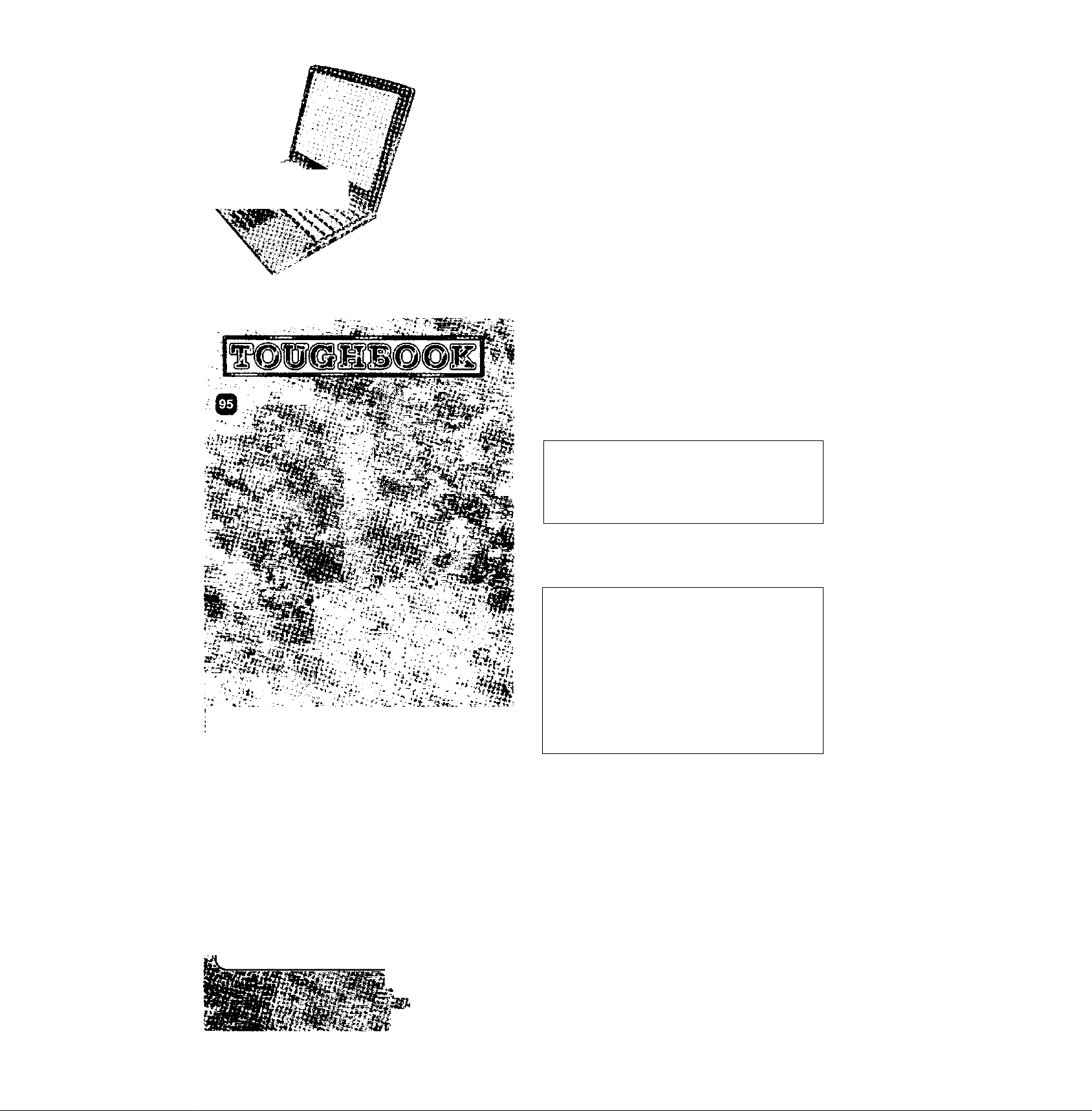
Panasonic
Personal Computer
OPERATING INSTRUCTIONS
Model No. CF-37 Series
Contents
Getting Started
Read Me First
First-time Operation
Touch Pad {Basic Operation)
Reference Manual............
♦ Read Me First • Touchscreen
• Key Combination • Panasonic Harfo Writing
• LED Indicators (Touchscreen)
^ • Touch Pad (Advanced) • Display Rotation Jot^ ^
..................
.........
Reference Manual
:v:-- Si
.••. .
i^; ITiis n»anual can be acccAScd on your coinpuicr.
Refer to page 14 on how to access the RefeieiKe Manual.
......
'I.',. -* Jg ' ■
[Additional Manual]
Reference \hinual
Operation
Starting Up/Shutting Down
• Suspend/Hibernation
Functions
• Security Measures
• Computing On The Road
• Battery Power
• Multimedia Pocket
• CD-ROM/DVD-ROM Drive
* SuperDisk™ Drive
• PC Cards
• RAM Module
Troubleshooting
List of Error Codes
Dealing With Problems (Summary)
Reinstalling Software
Technical Information ♦ List of Error Codes
DMI Viewer ♦ Dealing With Problems
Appendix
LIMITED USE LICENSE AGREEMENT
Names and Functions of Parts
<-;•
Specifications
LIMITED WARRANTY
Reference Manual
• Printer
• External Display
• USB Devices
• Infrared Data
Communications
• Modem
• Hard Disk Drive
• Setup Utility
• Smart Bool
_________________
......................
..................
Reference Manual
lAdvanced)
..........................
............
15
J
Please read these instructions carefully before using this product and save this manual for future use.
Page 2

Customer's Record
>
Model No,''
Serial No,
or
Code No.
Product ID'^
Date of Purchase
*' For the Model No,, insert the 12 digit number (for example, CF-37LB8DBAM) located on the
bottom of the computer.
For Product ID, record the Product ID shown on the "Certificate of Authenticity" located on the
bottom of the computer or on the cover of the Windows book (provided with this computer).
Dealer's Name
Dealer's Address
J
Introduction
Thank you for purchasing the Panasonic computer. Please read the operating instructions thoroughly for proper operation of your
new computer.
Illustrations in this Manual
NOTE:
NOTE provides a useful fact or helpful information.
CAUTION:
WARNING:
[Start]-[Shut Dowiij:
Center):
CEnD + CHD:
Reference .
Ur Manual
CAUTION indicates a condition that may result in minor or moderate injury.
WARNING indicates a hazard that may result in moderate or serious injury.
This illustration means to click [Start], then to click (Shut Down].
(For some applications, you may need to double-click.)
This illustration means to press the [Enter] key.
This illustration means to press and hold the [Fn] key. then press the |F5] key.
Where to go for referred information.
This illustration means to refer to the Reference Manual, which is available on your computer.
Refer to page 14 on how to access this manual.
Copyright
This manual is copyrighted by Matsushita Electric Industrial Co., Ltd. with all rights reserved. No part of this manual may be
reproduced in any form without the prior written permission of Matsushita Electric Industrial Co., Ltd.
No patent liability is assumed with respect to the use of the information contained herein.
©2000 Matsushita Electric Indu.strial Co., Ltd. All Rights Reserved.
Disclaimer
Computer specifications and manuals are subject to change without notice. Matsushita Electric Indu.strial Co., Ltd. assumes no
liability for damage incurred directly or indirectly from errors, omissions or discrepancies between the computer and the manuals.
Trademarks
PS/2JM is a trademark of International Business Machines Corporation.
Microsoft®. MS-DOS® and Windows® are registered trademarks of Microsoft Corporation of the United States and/or other coun
tries.
Intel® is a registered trademarks of Intel Corporation.
Celeron^^^ is a trademark of Intel Corporation.
Imation, the Imation Logo, the circle-pyramid logo, SuperDisk and SuperDisk logo are trademarks of Imation Corp.
Acrobat® is a registered trademark of Adobe Systems Incorporated.
Panasonic® is a registered trademark of Matsushita Electric Indu.strial Co., Ltd.
Page 3

Read Me First
For U.S.A.
Federal Communications Commission Radio Frequency interference Statement
Note; This equipment has been tested and found to comply with
the limits for a Class B digital device, pursuant to Part 15 of the
FCC Rules. These limits are designed to provide reasonable
protection against harmful interference in a residential
installation. This equipment generates, uses and can radiate
radio frequency energy and, if not installed and used in
accordance with the instructions may cause harmful interference
to radio communications. However, there is no guarantee that
interference will not occur in a particular installation. If this
equipment does cause harmful interference to radio or television
reception, which can be determined by turning the equipment
off and on, the user is encouraged to try to correct the interference
by one or more of the following measures:
• Reorient or relocate the receiving antenna.
• Increase the separation between the equipment and receiver.
• Connect the equipment into an outlet on a circuit different
from that to which the receiver is connected.
• Consult the Panasonic Service Center or an experienced radio/TV technician for help.
Warning
To assure continued compliance, use only shielded interface
cables when connecting to a computer or peripheral. Also, any
changes or modifications not expressly approved by the party
responsible for compliance could void the user's authority to
operate this equipment.
This device complies with Part 15 of the FCC Rules. Operation
is subject to the following two conditions:
(1) This device may not cause harmful interference, and
(2) This device must accept any interference received, including
interference that may cause undesired operation.
Responsible Party: Matsushita Electric Corporation of America
One Panasonic Way
Secaucus, NJ 07094
Tel No: 1-800-LAPTOP-5 (1-800-527-8675)
FCC Regulation Notice for modem
This equipment contains a FCC approved modem.
Manufacturer of modem: 3Com Corporation
Model No. 3CN3BM556
Tested To Comply
With FCC Standards
FOR HOME OR OFFICE USE
1. This equipment complies with Part 68 of the FCC rules. On the com
puter is a label that contains, lunong other infonnation, the FCC reg
istration number and ringer equivalence numberf REN)for this equip
ment. If required, this infonnation must be provided to the telephone
company.
2. An FCC compliant telephone cord and modular plug is provided
with this equipment. This equipment is designed to be connected to
the telephone network or premises wiring using a compatible modu
lar jack which is Part 68 compliant. See Installation Instructions for
details.
3. The REN is u.sed to determine the quantity of devices which may be
connected to the telephone line. Excessive RENs on the telephone line
may result in the devices not ringing in response to an incoming call. In
most, but not all area, the sum of RENs should not exceed five (5.0). To
be certain of the number of devices that may be connected to a line, its
determined by the total RENs. contact the local telephone company.
4. If your telephone equipment cause harm to the telephone network, the
telephone comptuiy will notify you in advice that temporary discontinu
ance of service may be required. But if advice notice isn’t pmctical, the
telephone compiiny will notify the customer as soon as possible. Also,
you will be advised of your right to file a cotnpUiint with the FCC if you
believe it is necessary.
5. The telephone company may take changes in it’s facilities, equip
ment, operations or procedures that could affect the opertttion of the
equipment. If this happens the telephone coinpimy will provide ad
vance notice in order for you to make necessary modifications to
maintain unintermpted service.
6. If trouble is experienced with this equipment, for repair or wammty
information, please contact Matsushita Electric
Corporation of America, toll free at 1-800-LAPTOP5 (1-800-527-
8675). If the equipment is causing harm to the telephone network, the
telephone comptmy may request that you disconnect the equipment
until the problem is re.solved.
7. There are no user seiviceable paits contained in this equipment.
8. This equipment may not be used on coin service provided by the
telephone company. Connection to party lines is subject to state
tariffs.
9. The Telephone Coasumer Protection Act of 1991 makes it unlawful for
any person to u.se a computer or other electronic device to send any mes
sage via a telephone fax inachine unless such message clearly contaîas in
a maigin tit the top or bottom of each traasmitted page or on the first ptige
of the transmission, the date and time it is sent and an identification ol'the
business or other entry, or other individual sending the message and the
telephone number of the sending machine or such Easiness, other entity,
or individual. In order to program this information into your fax software,
you should refer to the manual of the Fax software being used.
"Caution ': To reduce the risk of fire, use only No.26 AWC or larger telecom
munication line cord.''
"ATTENTION : Pour réduire le risque d'incendie, utiliser uniquement des
conducteurs de télécommunications 26 AWG ou de section supérieure." ^
Page 4

Read Me First
For Canada
Industry Canada (1C) Notice for modem
This equipment contains an Industry Canada approved modem unit.
The Industry Canada label is alTixed on the modem unit.
EQUIPMENT ATTACHEMENT LIMITATIONS
“NOTICE; The Industry Canada label identifies certified
equipment. This certification means that the equipment meets
telecommunications network protective, operational and
safety requirements as prescribed in the appropriate Tenninal
Equipment Technical Requirements document(s). The
Department does not guarantee the equipment will operate
to the user's satisfaction.
Before installing this equipment, users should ensure that it
is permissible to be connected to the facilities of the local
telecommunications company. The equipment must also be
installed using an acceptable method of connection. The
customer should be aware that compliance with the above
conditions may not prevent degradation of service in some
situations.
Repairs to certified equipment should be coordinated by a
representative designated by the supplier. Any repairs or
alterations made by the user to this equipment, or equipment
malfunctions, may give the telecommunications company
cause to request the user to disconnect the equipment.
Users should ensure for their own protection that the
electrical ground connections of the power utility, telephone
lines and internal metallic water pipe system, if present, are
connected together. This precaution may be particularly
important in rural areas. Caution: Users should not attempt
to make such connections themselves, but should contact
the appropriate electric inspection authority, or electrician,
as appropriate."
“NOTICE: The Ringer Equivalence Number (REN) assigned
to each terminal device provides an indication of the
maximum number of terminals allowed to be connected to a
telephone interface. The termination on an interface may
consist of any combination of devices subject only to the
requirement that the sum of the Ringer Equivalence Numbers
of all the devices does not exceed 5."
REN; See bottom of the computer
RESTRICTIONS CONCERNANT LE RACCORDEMENT
DE MATÉRIEL
“AVIS: L’étiquette d’industrie Canada identifie le matériel
homologué. Cette étiquette certifie que le matériel est
conforme aux normes de protection, d’exploitation et de
sécurité des réseaux de télécommunications, comme le
prescrivent les documents concernant les exigences
techniques relatives au matériel terminal. Le Ministère
n’assure toutefois pas que le matériel fonctionnera à la
satisfaction de futiiisateur.
Avant d’installer ce matériel, l’utilisateur doit s’assurer qu’il
est permis de le raccorder aux installations de l’entreprise
locale de télécommunication. Le matériel doit également être
installé en suivant une méthode acceptée de raccordement.
L’abonné ne doit pas oublier qu’il est possible que la
conformité aux conditions énoncées ci-dessus n'empêche
pas la dégradation du service dans certaines situations.
Les réparations de matériel homologué doivent être
coordonnées par un représentant désigné par le fournisseur.
L’entreprise de télécommunications peut demander à
l’utilisateur de débrancher un appareil à la suite de
réparations ou de modifications effectuées par l’utilisateur
ou à cause de mauvais fonctionnement.
Pour sa propre protection, l’utilisateur doit s’assurer que tous
les fils de mise à la terre de la source d’énergie électrique,
des lignes téléphoniques et des canalisations d’eau
métalliques, s’il y en a, sont raccordés ensemble. Cette
précaution est particulièrement importante dans les régions
rurales. Avertissement: L’utilisateur ne doit pas tenter de faire
ces raccordements lui-même; il doit avoir recours à un service
d’inspection des installations électriques, ou à un électricien,
selon le cas."“AVIS; L’indice d’équivalence de la sonnerie
(lES) assigné à chaque dispositif terminal indique le nombre
maximal de terminaux qui peuvent être raccordés à une
interface. La terminaison d’une interface téléphonique peut
consister en une combinaison de quelques dispositifs, à la
seule condition que la somme d’indices d’équivalence de la
sonnerie de touts les dispositifs n’excède pas 5."
R EN: Voir sous le fond de l’ordinateur
Important Safety Instructions / Importantes Mesures De Sécurité
When using your telephone equipment, basic safety pre
cautions should always be followed to reduce the risk of
fire, electric shock and injury to persons, including the fol
lowing:
1 .Do not u.se this product near water, for example, near a
bath tub, wash bowl, kitchen sink or laundry tub, in a wet
basement or near a swimming pool.
2. Avoid using a telephone (other than a cordless type) dur
ing an electrical storm. There may be a remote risk of
electric shock from lightning.
3. Do not use the telephone to report a gas leak in the vicin
ity of the leak.
4. Use only the power cord and batteries indicated in this
manual. Do not dispose of batteries in a fire. They may
explode. Check with local codes for possible special dis
posal instructions.
SAVE THESE INSTRUCTIONS
Certaines mesures de sécurité doivent être prises pendant
l'utilisation de matérial téléphonique afin de réduire les
risques d'incendie, de choc électrique et de blessures. En
voici quelquesunes:
1. Ne pas utiliser l'appareil près de l'eau, p.ex., près d'une
baignoire, d’un lavabo, d'un évier de cuisine, d'un bac à
laver, dans un sous-sol humide ou près d'une piscine.
2. Eviter d'utiliser le téléphone (sauf s'il s'agit d'un appareil
sans fil) pendant un orage électrique. Ceci peut présenter
un risque de choc électrique causé par la foudre.
3. Ne pas utiliser l'appareil téléphonique pour signaler une
fuite de gaz s'il est situé près de la fuite.
4. Utiliser seulement le cordon d'alimentation et le type de
piles indiqués dans ce manual. Ne pas jeter les piles dans
le feu: elles peuvent exploser. Se confonner aux règlements
pertinents quant à l'élimination des piles.
CONSERVER CES INSTRUCTIONS
Page 5
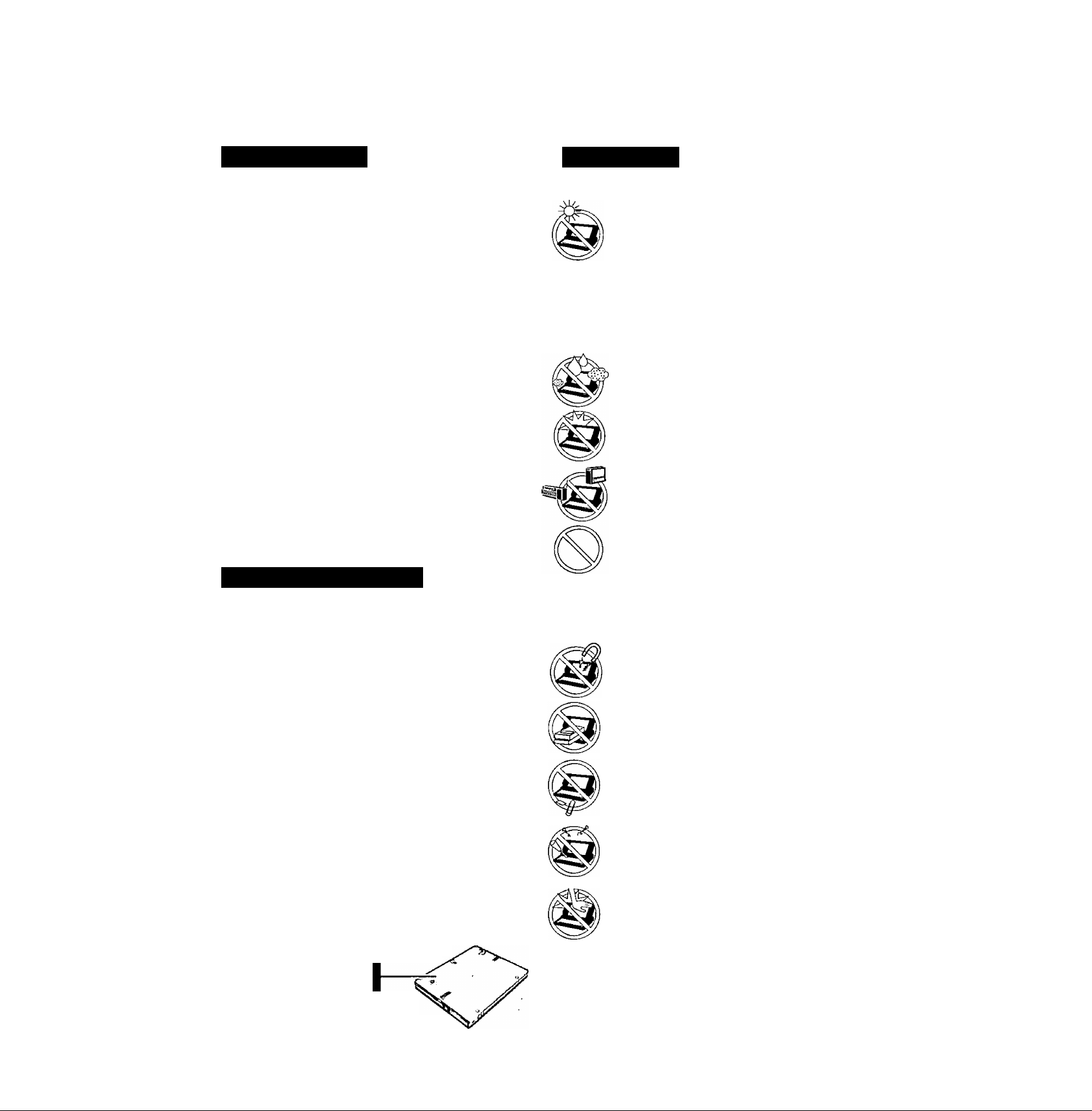
Lithium Battery Precautions
Lithium Battery!
This computer contains a lithium battery to enable the date, time,
and other data to be stored. The battery' should only be exchanged
by authorized service personnel.
Warning! A risk of explosion from incorrect installation or mis
application may possibly occur.
Warnung bezüglich der Lithiumbatterie
(Sicherungsbatterie)
Lithiumbatterie!
Dieser Computer enthält eine Lithiumbatterie zur Sicherung von
Datum und Uhrzeit der eingebauten Uhr sowie anderer
Systemdaten im Speicher bei einer Unterbrechung der
Hauptstromversorgung. Diese Sicherungsbatterie darf nur von
Kundendienstpersonal ausgewechselt werden.
Warnung! Bei falschem Gebrauch besteht Explosionsgefahr!
Entsorgung gebrauchter Batterien nach Angaben des Herstellers.
Avertissement concernant la pile au lithium
(pile de sauvegarde)
Pile au lithium!
Le micro-ordinateur renferme une pile au lithium qui permet de
sauvegarder certaines données comme la date et l'heure notamment.
Elle ne devra être remplacée que par un technicien qualifié.
Avertissement! Risque d'explosion en cas de non respect de cette
mise en garde!
CD-ROM Drive Caution
CAUTION!
THIS PRODUCT UTILIZES A LASER.
USE OF CONTROLS, ADJUSTMENTS OR PERFORMANCE OF
PROCEDURES OTHER THAN THOSE SPECIFIED HEREIN MAY
RESULT IN HAZARDOUS RADIATION EXPOSURE.
DO NOT OPEN COVERS AND DO NOT REPAIR YOURSELF.
REFER SERVICING TO QUALIFIED PERSONNEL
WARNUNG!
DIESES PROUKT ERZEUGT LASERSTAHLUNG.
DURCHFÜHRUNG ANDERER VORGÄNGE ALS DER HIER
ANGEGEBENEN KANN ZU GEFÄHRLICHER STRAHLUNG
FÜHREN.
REPARATUREN DÜRFEN NUR VON QUALIFIZIERTEM
FACHPERSONAL DURCHGEFÜHRT WERDEN.
AVERTISSEMENT!
CET APPAREIL UTILISE UN LASER.
L'UTILISATION DE COMMANDES OU DE RÉGLAGES OU
L'EXÉCUTION DE PROCÉDURES AUTRES QUE CELLES
SPÉCIFIÉES ICI PEUVENT PROVOQUER UNE EXPOSITION À
DES RADIATIONS DANGEREUSES.
NE PAS OUVRIR LES COUVERCLES NI ESSAYER DE RÉPARER
SOI-MÊME.
CONFIER TOUT TRAVAIL D'ENTRETIEN À UN PERSONNEL
QUALIFIÉ.
CLASS 1 LASER PRODUCT
LASER KLASSE1
I
Laser safety information is appropriate only
when drive with laser is installed.
Les mesures de .sécurité relatives au laser ne s’appliquent
que lors de l’installation d'une unité avec laser.
Bottom
Usage
Avoid Extreme Heat and Cold
Do not store or use the computer in locations
exposed to heat, direct sunlight, or extreme cold.
Avoid moving the computer between locations with
large temperature differences.
Operation: 5 ”C to 35 ‘*C (41 "F to 95 "F)
Storage: -20 "C to 60 "C (-4 "F to 140 "F)
Avoid Direct Sunlight on the LCD Panel
The LCD panel should not be exposed to direct
sunlight or ultraviolet light.
Avoid Humidity, Liquids and Dust
Do not store or use the computer in locations exposed
to high humidity, liquids (including rain) or dust.
Prevent Shock
Avoid subjecting the computer to severe vibrations
or impact. Do not place the computer inside a car
trunk.
Avoid Radio Frequency Interference
Do not place the computer near a television or ra
dio receiver.
Avoiding low-temperature burns
Avoid more than casual contact with any heat pro
ducing area of the notebook computer, power
adapter, and any option or accessory you use with
it. Even low heat, if warmer than body tempera
ture, can cause a bum, if the skin is exposed to the
heat source for a long enough period of time.
Handling
Avoid Magnetic Field.s
Keep the computer away from magnets.
Avoid Stacking
Do not place heavy objects on top of the computer.
Keep Small Objects Away
Do not insert paper clips or other small objects into
the computer.
Do Not Disassemble the Computer
Do not attempt to disassemble your computer.
Avoid Excessive Force on the Display
Do not apply excessive downwiird force on the display
when it is completely opened, especially when plugs
and/or cables are connected to the rear of the computer.
Peripherals
Incorrectly asing periphoal devices may lead toa decrease in perfomwice,
anincreaseintemperatiireand/ordamageyourcomputer. Formtseinfor-
niiition on peripheral devices, please refer to the Reference Manual.
Cables
Use of :m interface cable longer than 3 m (9.84 feet) is not recom
mended. g
Page 6
Read Me First
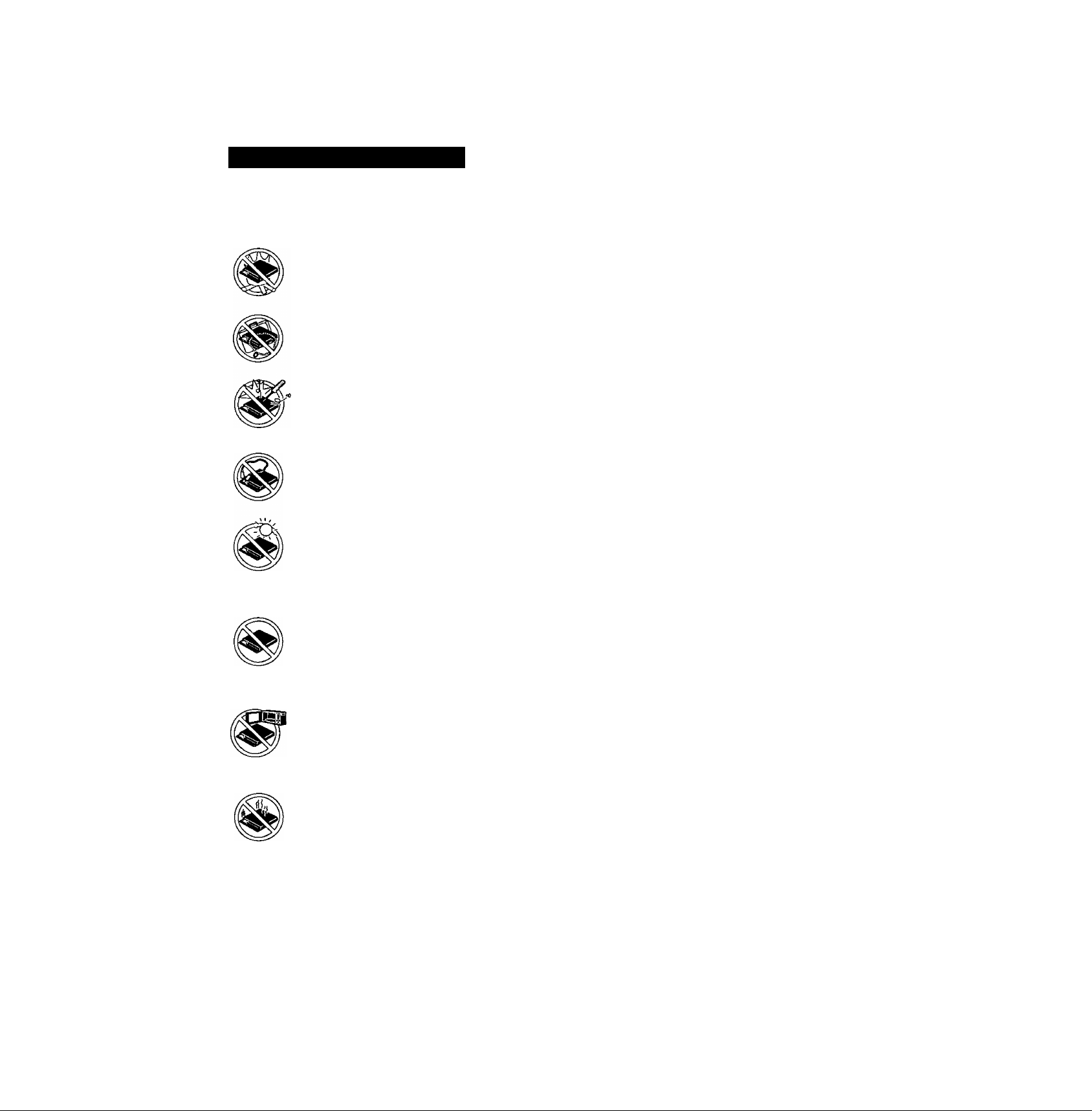
Precautions (Battery Pack)
• Care should be exercised with regard to the following in
order to avoid the possibility of liquid leakage, overheat
ing, or bursting.
Avoid Heat
Do not throw the battery pack into a fire or
expose it to excessive heat.
Keep Articles Away
Do not place the battery pack together with ar
ticles such as necklaces or hairpins when carry
ing or storing.
Do Not Disassemble
Do not insert sharp objects into the battery pack,
expose it to bumps or shocks, deform, disas
semble, or modify it.
Do Not Short
Do not short the positive (+) and negative (-)
contacts.
Avoid Extreme Heat, Cold and Direct Sun
light
Do not charge, use or leave the battery pack for
extended periods where it will be exposed to
direct sunlight, in a hot place (in an automobile
on a sunny day, for example), or in a cold place.
Do Not Use With Any Other Computer
The battery pack is rechargeable and was in
tended for the specified computer or charger.
Do not use it with a computer other than the
one for which it was designed.
Do Not Put into a Microwave
Do not put the battery pack into a microwave
oven or a pressurized chamber.
Discontinue Use
Should the battery emit an abnormal odor, be
come hot to the touch, become discolored,
change shape, or become in any way different
from normal, remove it from the computer or
charger and discontinue use.
Do not touch the terminals on the battery pack. The bat
tery pack may no longer function properly if the contacts
are dirty or damaged.
Do not expose the battery pack to water, or allow it to
become wet.
If the battery pack will not be used for a long period of time
(a month or more), charge or discharge (use) the battery pack
until the remaining battery level becomes 30% to 40% and
store it in a cool, dry place.
This computer prevents overcharging of the battery by re
charging only when the remaining power is less than approx.
95% of capacity.
The battery pack is not charged when the computer is first
purchased. Be sure to charge it before using it for the first
time. When the AC adapter is connected to the computer,
charging begins automatically.
Should the battery leak and the Iluid get into your eyes, do not
rub your eyes. Immediately flush your eyes with clear water
and .see a doctor for medical treatment as soon as possible.
• The battery pack may become warm during recharging or
normal use. This is completely normal.
• Recharging will not commence outside of the allowable
temperature range (0 °C to 45 °C {32°F to 113 °F})C?’
"Battery Power". Once the allowable range re
quirement is satisfied, charging begins automatically.
Note that the recharging time varies based on the usage
conditions. (Recharging takes longer than usual when the
temperature is 10 °C {50 °F} or less.)
• If the temperature is low', the operating time is shortened. Only
use the computei' within the allowable temperature mnge.
• Although the battery has remaining capacity, the battery
indicator may light up red or emit a beep. This indicates a
significant rise in the temperature (60 °C {140 °F) or
more) of the battery pack "Battery Power".
This is typically caused by the fact that the battery pack
has been delivering a high level of power because the com
puter has been used with the display at the brightest .set
ting and with the power-saving function off.
To protect the battery pack from increases in temperature,
the brightness of the display automatically decreases, al
lowing the temperature of the battery to drop. In this con
dition, if the computer is left as is, it will automatically go
off after about three minutes have elapsed. Within that
period, therefore, be sure to connect the AC adapter or
shut the computer OFF after saving any open data (if nec
essary).
• The battery pack is a consumable item. If the amount of
time the computer can be run off a particuhir battery pack
becomes dramatically shorter and repeated rechargings do
not restore its performance, the battery pack should be
replaced with a new one.
• When a spare battery pack is to be carried in a pocket or
bag, it is recommended that it be placed in a plastic bag so
that its contacts are protected.
• Always power off the computer when it is not in use.
Leaving the computer on when the AC adapter is not
connected will exhaust the remaining battery capacity.
* •
Page 7
Saving Data on the Hard Disk
Do not expose your computer to shock.
Please use care when handling your computer, shock may damage your hard disk or make
your software applications and data unusable.
Do not power off your computer while software applications are running or HDD
indicator (^) is on.
Properly shut Windows* down to avoid problems ([Start] - [Shut Down] ).
Save all valuable data to disks.
Backing up data to disks will limit damage should trouble occur to your computer or should
you inadvertently change or erase data.
Use the security function for all important data. (C^ "Security Measures")
Saving Data on Disks
Xnote>
In this manual, the followings are described as disks.
When using disks, an optional SuperDisk Drive Pack (CF-VFS371/CF-VFS372) is needed.
----------------------------------------------------------------------------------------------------------------------------
I Do not power off your computer or press the SuperDisk drive eject button while the
MP indicator (^) is on.
Doing so may damage the data on the disk and render the disk useless.
I Use care when handling disks.
To protect the data on your disks or to prevent a disk from becoming stuck in your com
puter, avoid the following:
• Sliding the shutter on the disk manually.
• Exposing the disk to a magnetic field.
• Storing the disk in locations prone to high temperatures, low pitched noise, dampness, or dust.
• Applying more than one label on the disk.
> Confirm the contents of a disk before formatting it.
Confirm that no important data is on the disk, because all data on the disk will be erased.
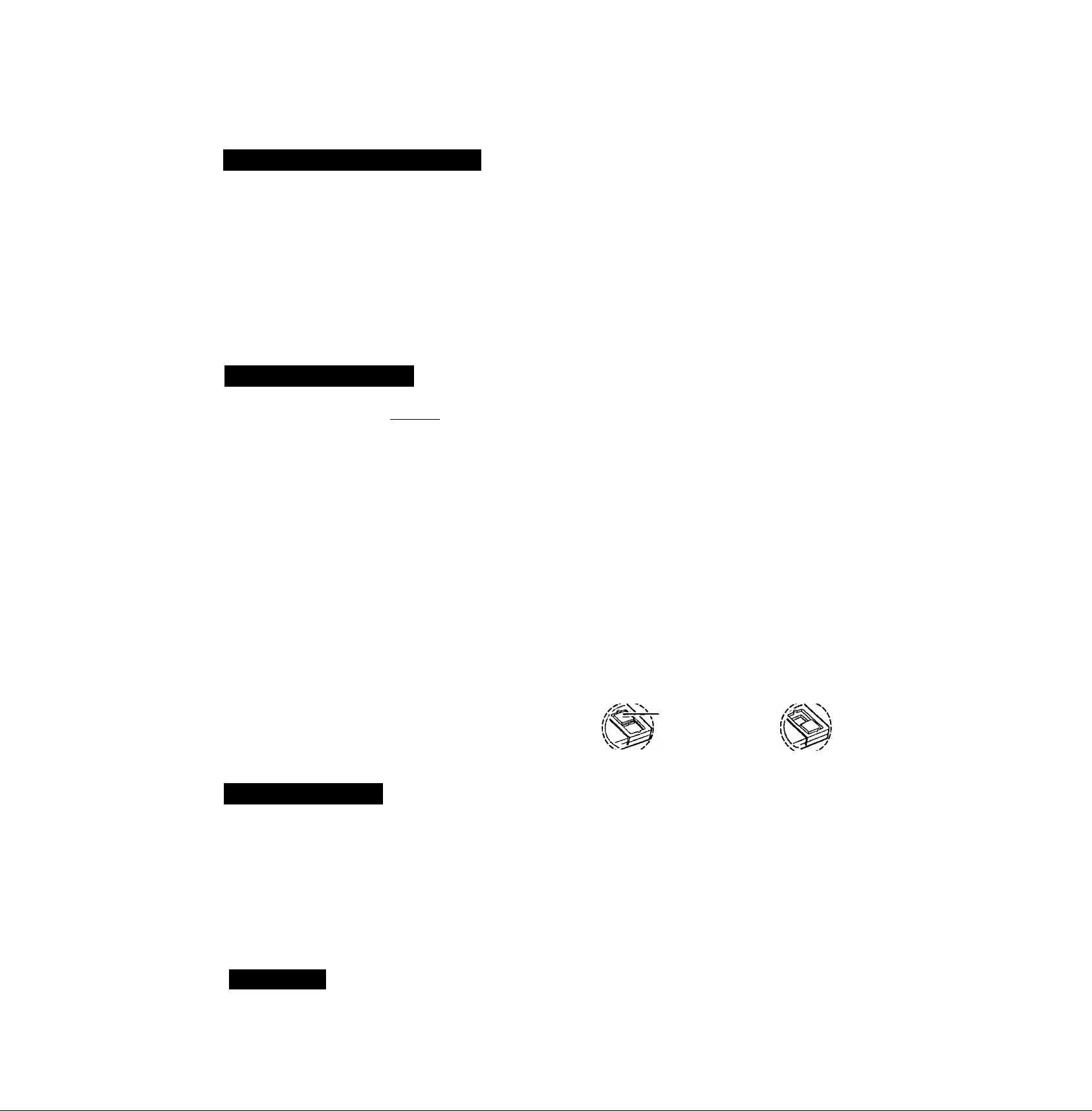
Use the write-protect tab.
This is a must for preserving impor
tant data. This prevents your data from
being entsed or overwritten.
* This computer uses Microsoft® Windows® 95 Operating System.
SuperDisk (120 MB)
Floppy disk (720 KB, 1.44 MB)
Write Enable
-
Write-protect Tab
Write Disable
Computer Viruses
LCD Panel
Users are advised to purchase the latest versions of virus protection software and use
them regularly.
We recommend you run the software:
• When booting your computer.
• After receiving data.
We recommend that you check data received on disks or from external sources, such as
data downloaded from the Internet, e-mail, etc. (For compressed files, please uncompress
them before running a check).
High-precision and advanced technologies are necessary in the production of color liquid
crystal displays (color LCDs). Therefore, if 99.998% or more of the picture elements are
functioning properly, no defect is considered to exist.
Page 8
Read Me First
Usage Environment
Handling
Environment
9 Place the computer on a flat stable surface.
9 In use: Temperature: 5 °C to 35 °C {41 °F to 95 °F}
Humidity: 30% to 80% RH (No condensation)
Not in u.se: Temperature: -20 “C to 60 “C (-4 °F to 140 ®F}
Humidity: 30% to 90% RH (No condensation)
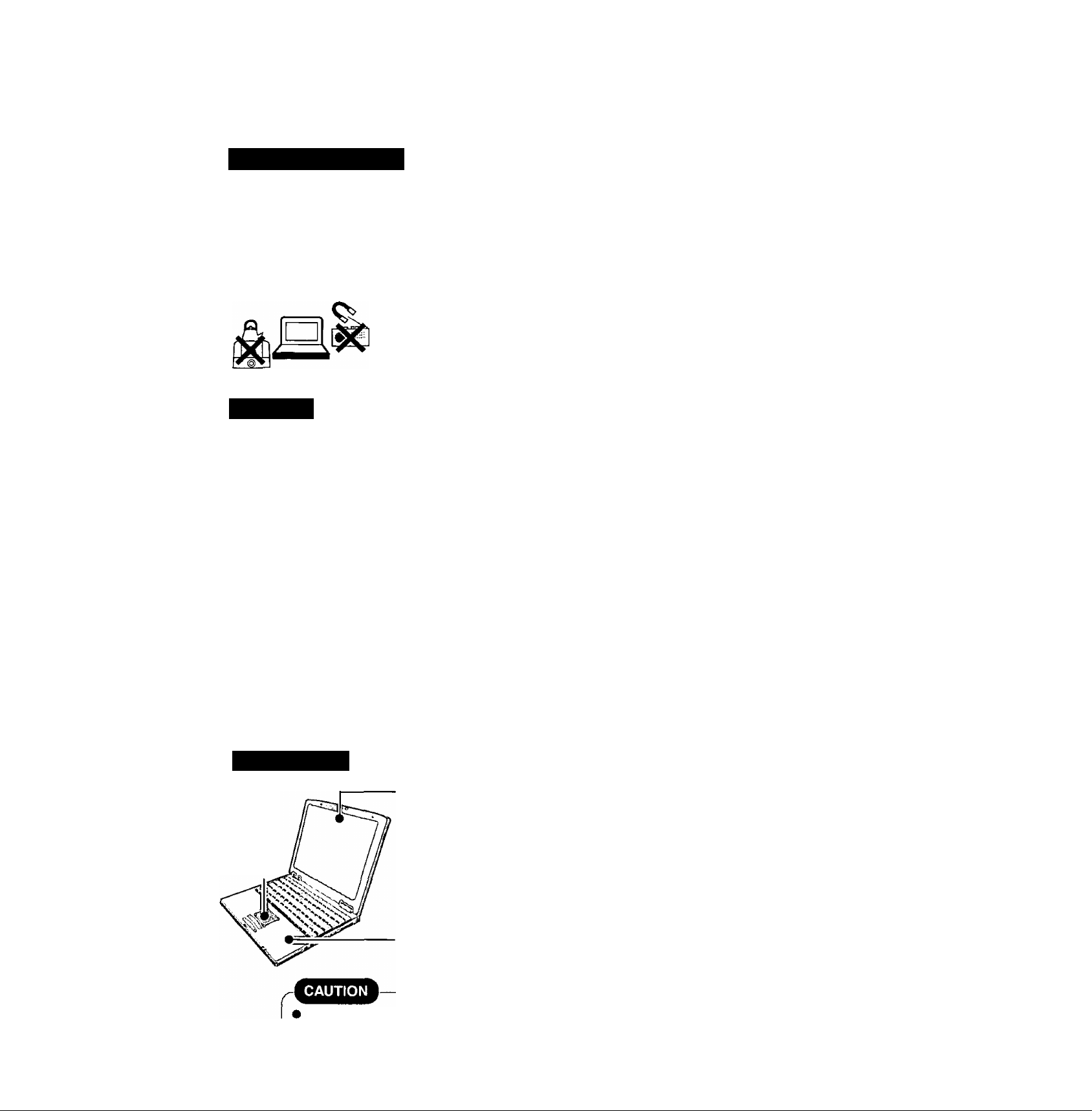
Places not to use your computer
• Such areas may result in damage to the computer.
Areas with electronic equipment
These areas may interfere with your display or cause your computer to produce strange sounds.
Areas with extremely high/Iow temperatures
• Do not leave things near the computer that are sensitive to heat. During operation, the
computer may become warm.
• This computer has been designed so as to minimize shock to the LCD and hard disk drive, the
leakage of liquid (e.g., water) from the keyboard, etc., but no warranty is provided against such
trouble. Therefore, as a precision instrument, be extremely careful in the handling.
• Do not drop or hit youi' cotnputer against solid objects.
Do not stand the computer on its side or allow it to tip over. When the computer receives extremely
strong shock after falling, the hard di.sk or floppy disk drive, etc., may become inoperable.
• Do not carry your computer when it is ON.
• Remove all cables before transporting your computer.
• We recommend preparing a fully charged battery (and optional charger, if possible).
When transporting spare batteries inside a package, briefcase, etc., it is recommended that
the batteries be stored in a plastic bag.
• Do not place the computer upright. When the computer receives extremely strong shock after
falling, the hard disk or floppy disk drive, etc., may become inoperable.
• Do not carry the computer while the display is open, or carry it by gripping the display.
• Do not put anything (e.g., a piece of paper) between the display and keyboard.
• Aiway.s carry your computer with you. Never check it in with luggage. For use of the com
puter inside an aircraft, we recommend asking the airlines regarding their policy on this issue.
<When using the SuperDtsk drive>
• It is a good idea to make backup copies on disks and carry them with you.
• Do not leave a disk in the drive while transporting your computer.
8
Maintenance
Touch Pad
CP’ page 13
Display
Avoid using water when cleaning the panel, ingredients included in water may leave residue
and reduce readability of the screen,
<When cleaning dust/dirt>
Avoid rubbing off dusL/dirt with cloth since it may leave scratch on the screen.
Sweep dust/dirt with fine brush, then wipe it with “dry” soft cloth used for cleaning glasses.
<When cleaning oily surface>
Apply camera lens cleaner on a soft gauze and clean it with gentle force. Then, wipe with dry
soft cloth used for cleaning glasses.
Areas excluding the display
Wipe these areas with a soft cloth, after applying water or detergent diluted with water to the
soft cloth and firmly wringing out excess water.
Do not use benzene, tliinner, or rubbing alcohol. Doing so may adversely affect the surface, e.g., discoloration. In addition,
do not use commercially-available cleaners and cosmetics, as they may contain components harmful to the suiface.
Do not directly add or spray water or detergent. If liquid enters the inside of the computer, it may cause it to work
improperly or be damaged.__________________________________________________________________________
Page 9
First-time Operation
Read the steps below to help you learn what parts are included, and to gain an understanding of
some basic computer-related operations.
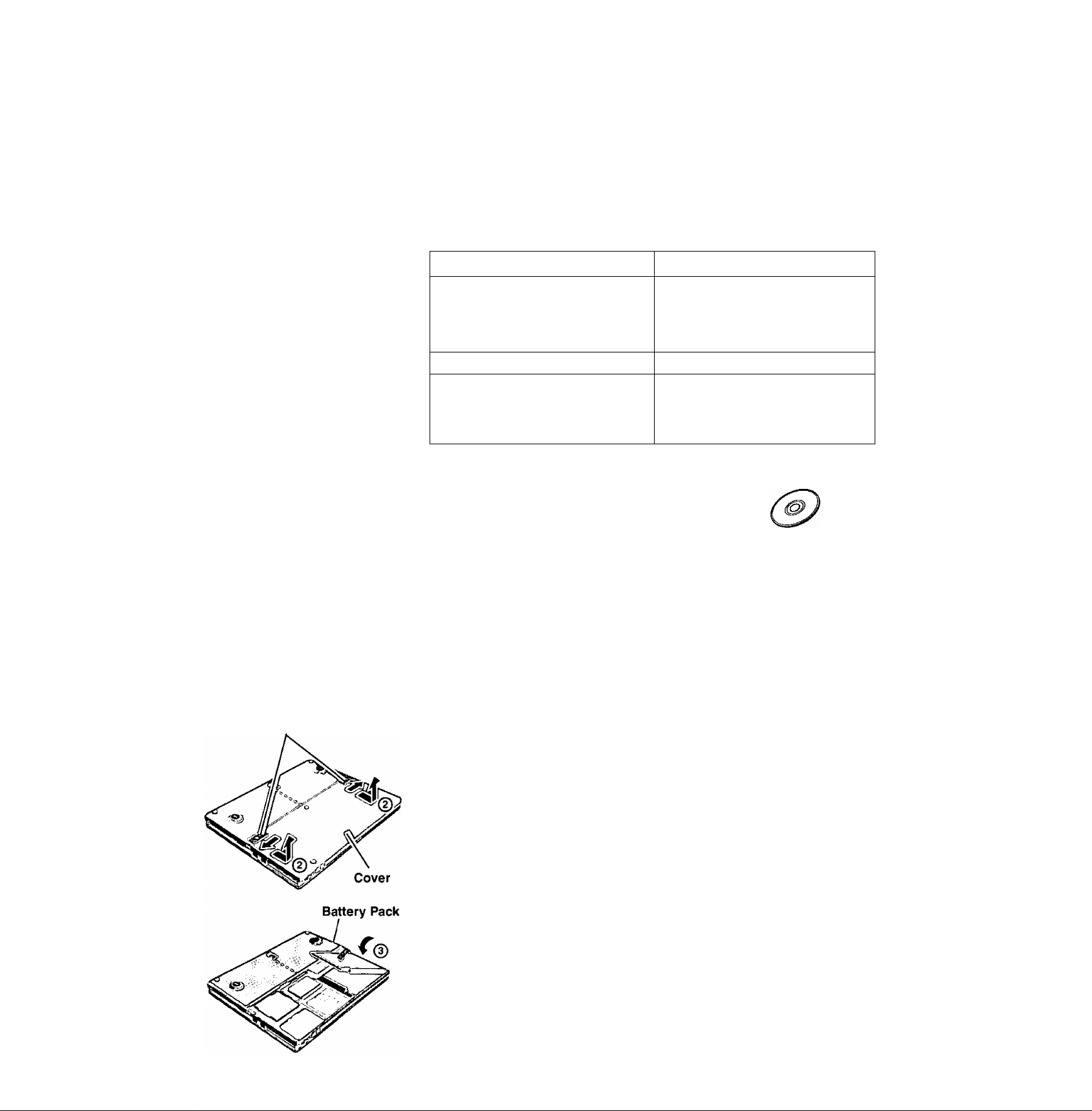
Confirm the inclusion of all parts
1
Make sure the parts shown in the figure have been supplied. If any of these items are
missing or is not working properly, contact Panasonic Technical Support.
AC Adapter
Battery Pack
.................................
CF-AA1639
...............................
1
1
AC Cord......................................
Modem Telephone Cable...........1
O
CF-VZSU14
Operating
Instructions
........
(This book)
1
Windows®
Book
......................
1
2 Write down the Product ID
The Product ID is necessary during the setup procedure for Windows (Q= pages
11,21). Record the number shown on the “Certificate of Authenticity’* located on
the bottom of the computer in the “Customer’s Record’* section on page 2 of this
manual.
Product Recovery
CD-ROM
.................
1
1
Latches
3 Read the LIMITED USE LICENSE AGREEMENT (o-page 22)
Before removing the seal covering the power switch, read the LIMITED USE LICENSE
AGREEMENT.
4 Connect the battery pack
© Turn your computer over.
@ While sliding and holding the latches in the outward positions, slide the cover to
open it.
(3) Use the blue tab to lower the battery pack into place.
r
• Be sure the battery pack is properly connected to the connector.
• Do not touch the battery connector on the computer. The computer may not
operate properly.
Page 10
First-time Operation
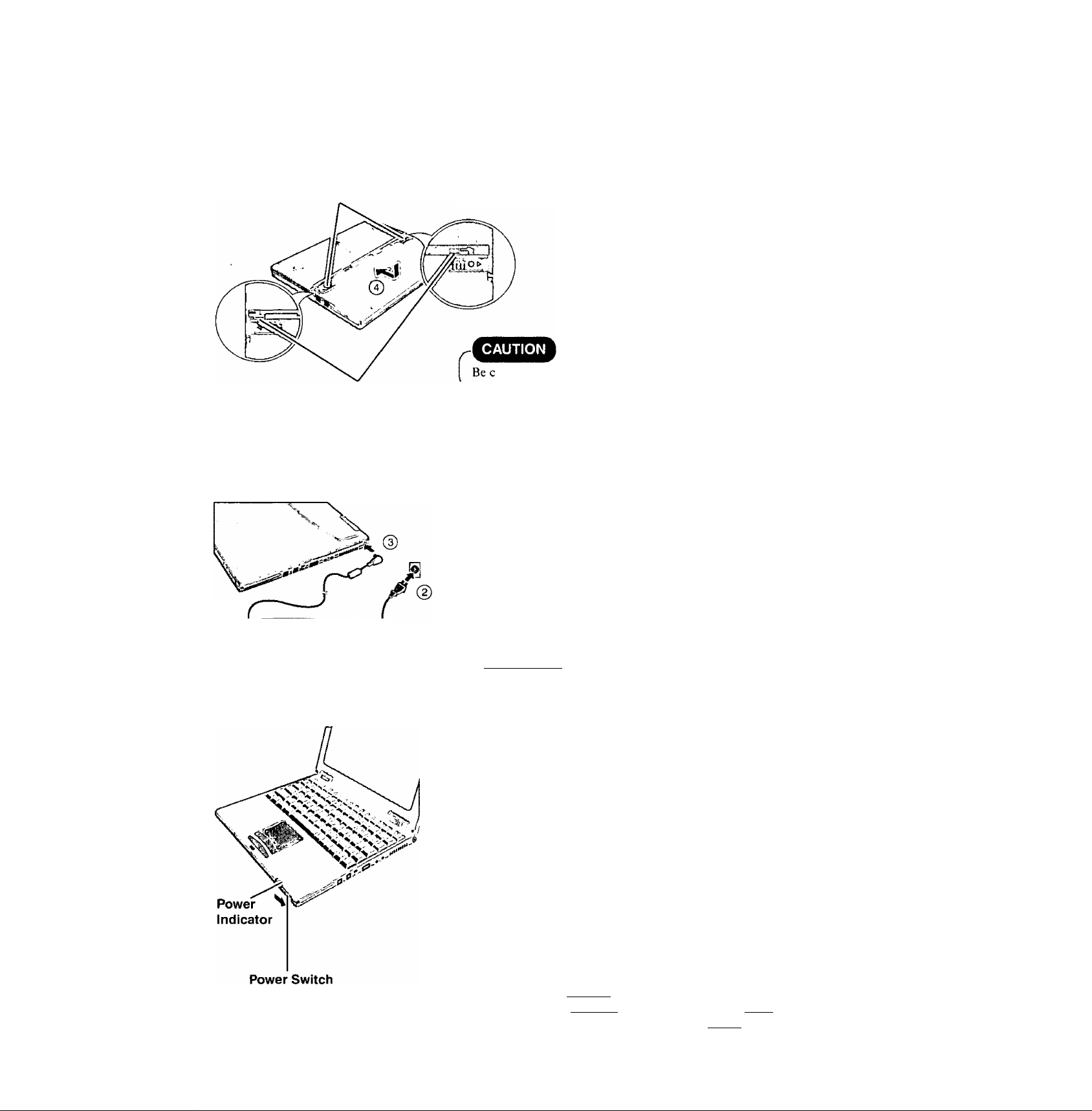
@ Position the cover so that the edge of the cover is aligned with the lines of the
computer.
Latches
Lines
^Connect your computer to a power outlet
Then, while lightly pressing down on the center of the cover (with suppressing the back
of the computer by one hand), gently slide the cover until it snaps into place.
ireful not to get your fingers caught in the cover.
r
Be sure the AC adapter is connected until completing Step 7on page 11.
Handling the AC adapter
• Do not twist or pull the AC power cord forcefully. Doing so may damage the
connections.
• Use only the specified AC adapter with your computer. Using an AC adapter
other than the one supplied might damage the battery and/or the computer.
• When the DC plug is not connected to the computer, disconnect the AC cord
from your AC wall outlet.
• Problems such as sudden voltage drops may arise during periods of thunder
and lightning. Since this could adversely affect your computer, an
uninterruptible power source (UPS) is highly recommended unless the battei^
pack is installed.______________________________________________________ ^
Open the display (o=page 15) and turn your computer on
Slide the power switch and hold it for approximately one second until the power
indicator (ф) turns on before releasing it.
r
• After confirming that the power indicator has turned on, do not touch the
power switch until Windows setup has started.
• Once the computer is powered off, you must wait at least ten seconds before
powering it on again.
10
ДмотеУ
The power saving function is factory set, so if there is no input from the key
board, touch pad, or external mouse for two minutes, the LCD is powered off
(ECO modeO'lj^^fi^^® "Computing on the Road" )*.
In the ECO mode the LCD will resume operation when the touch pad is used, or
when a key or the touchscreen is pressed.
The computer may enter the ECO mode while Windows is setting up or even
when an application software is being installed. In this case, because it is con
ceivable that a selection dialog box will be shown, for resuming from the ECO
mode, do not press C Enter) which may trigger a selection, instead, press a key
unrelated to the direct triggering of a selection, likeC CtrOkev.
* This excludes a pointing device connected to the USB port, e.g., a USB mouse.
Page 11

7 Setup Windows 95
(T) Select settings for your region, then press [Next].
Xnote>
Moving the cursor (i^) or clicking buttons can be performed with the touch
^ pad, a key or the touchscreen. (c>page 13, "Touchscreen")
(D Select your keyboard layout, then press [Next],
(for U.S.A.: United States 101)
@ Enter your name and your company’s name, then press [Next].
(It is possible to omit the company name item.)
The License Agreement will be displayed.
After reading the agreement, select |1 accept the agreement] or [1 don’t accept
the agreement), then press [Next],
Xnote)-------------------------------------------------------------------------------------------------- ,
If [I accept the agreement] is selected, the (Certificate of Authenticity] will appear. If [I
don't accept the agreement] is selected, the Windows setup will be aborted.
(X) Input the Product ID written down in the “Customer’s Record” section,
d) Press [Finish].
(T) Input the correct date, time and time zone and press [Close].
You can also complete these settings at a later time.
(s) Press [Next] to complete the printer setup or [Cancel] to skip.
__________
^
ЛИ21Е>
I Follow the cFollow the on-screen instructions. You can complete these settings at a later time.
_
________________________________________________________
(9) When the following screen is displayed, add the check mark depending on
your needs.
If this box is checked, it is possible to shorten the
start-up time from the computer OFF state and
the following occurs.
• The Windows Logo display (i.e., the cloud dis
play) is not shown at start-up.
• The channel bar of Internet Explorer 4.0 is not
shown.
• No background paper is displayed.
Optinee Hibeeiihoh
ИймпчМг tv* b« iMt«.
] I ^ j ^ 11|^ ^ I
If this box is checked, the time to enter the hibernation mode and the time to
resume from the hibernation mode are shortened.
• "Welcome” of Internet Explorer 4.0 is not shown.
• To display the start-up menu by pressing
(Ж) at start-up, it is necessary to press
slightly faster than normal.
I You can conYou can complete these settings at a later time. (C^ "Smart Boot")
✓
1
Then, when the alignment of the touchscreen is needed, perform [Calibrate] in
[Start] - [Programs] - [Updd]. (C^ "Touchscreen" )
f This concludes the first-time use operation guidelines. )
11
Page 12
First-time Operation
Create backup disks
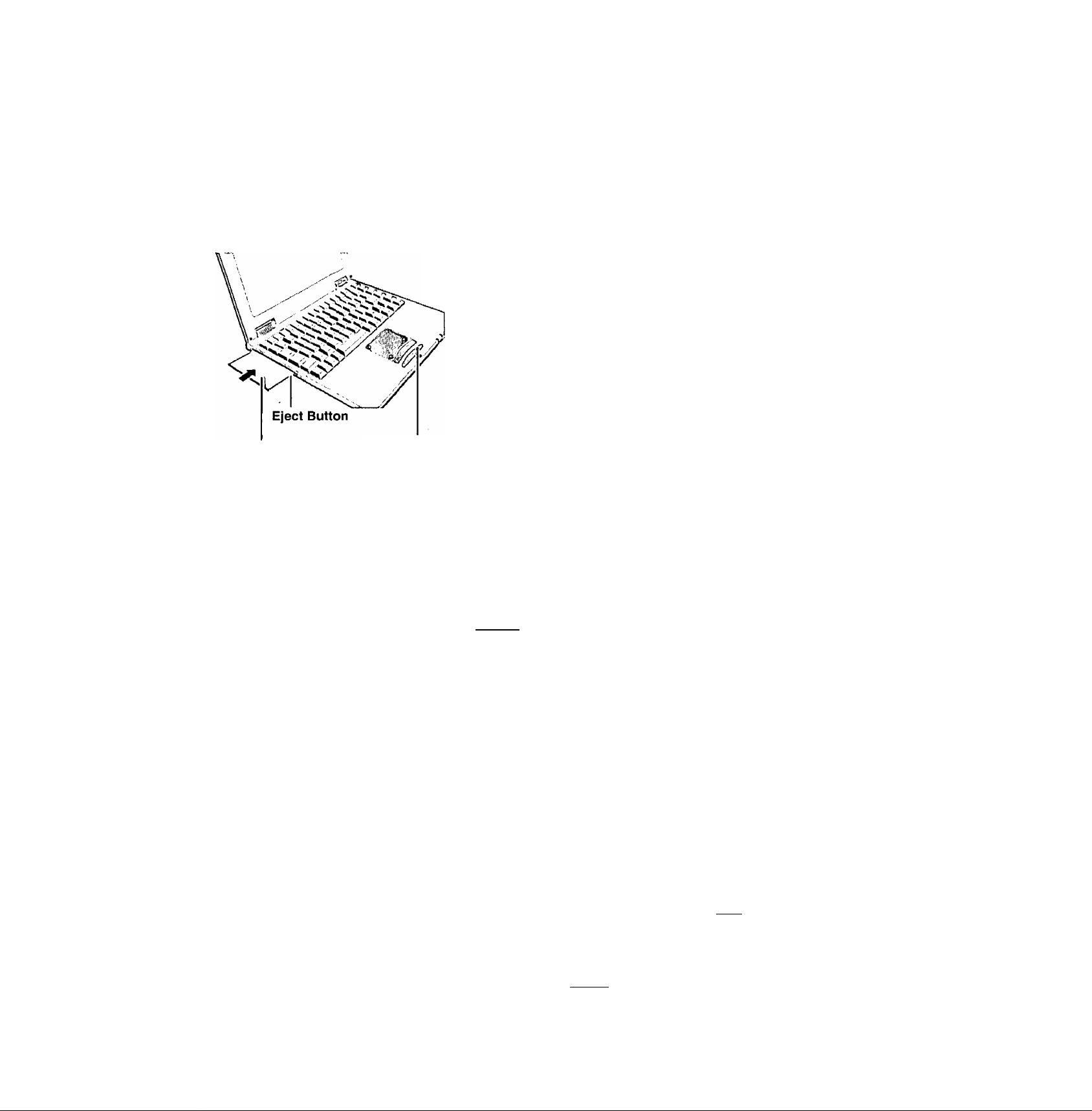
For reinstalIation((^ page 21). create backup disks. To create backup disks, the
optional SuperDisk Drive Pack (CF-VFS371) and 2HD floppy disks are needed.
® Turn the computer off, then remove the CD-ROM drive "Multimedia
Pocket").
® Insert the SuperDisk Drive Pack in the multimedia pocket and turn the computer on.
@ Set a floppy disk and make sure it is not in the write-protected state, then select
[Start] - [Programs] - [Panasonic] - [Create BACKUP DISK] and follow the
on-screen instructions. Place a label identifying the contents on each disk.
• Name of created backup disk
FIRSTAID FD
(When the display for creating the UPDATE FD is shown, create the disk by
following the on-screen instructions.)
r
Store the Hoppy disks in a safe place. They will enable you to return your
computer to the condition at the time of purchase should any problems oc
cur.
When creating floppy disks, do not run any other application program.
When creating floppy disks and the message [Insufficient files to copy] is
displayed, click [OK] and then contact Panasonic Technical Support.
While the MP indicator (^) is on, do not remove the floppy disk, power
down your computer or use the suspend or hibernation function (q=
"Suspend/Hibernation Functions").
Label-side up
Insert the shutter-side
headfirst.
MP Indicator
hote)-
When using the files in the following folders available on the retail version of
the Windows 95 CD-ROM, it is necessary to run a separate file decompression
program.
\admin
\datalink
\d rivers
\help
\other
To uncompress the file, it is necessary to have about 75 MB of free disk space
on the hard disk.
To be able to use the CD-ROM drive, or DVD-ROM drive in the MS-DOS
mode, perform the operation below after modifying config.sys and autoexec.bat
( or "CD-ROM/DVD-ROM Drive" ).
File decompression method:
(i) Turn your computer on.
(g) When [Starting Windows 95] is displayed, press ( F8 ).
Select [Command prompt only],
(4) Insert the Product Recovery CD-ROM.
At the prompt, input the following:
L:\en\addfile ( Enter )
Follow the message on the screen.
After this program is executed, the contents of the above folders will be
decompressed to the c:\util\win95add folder.
12
Page 13
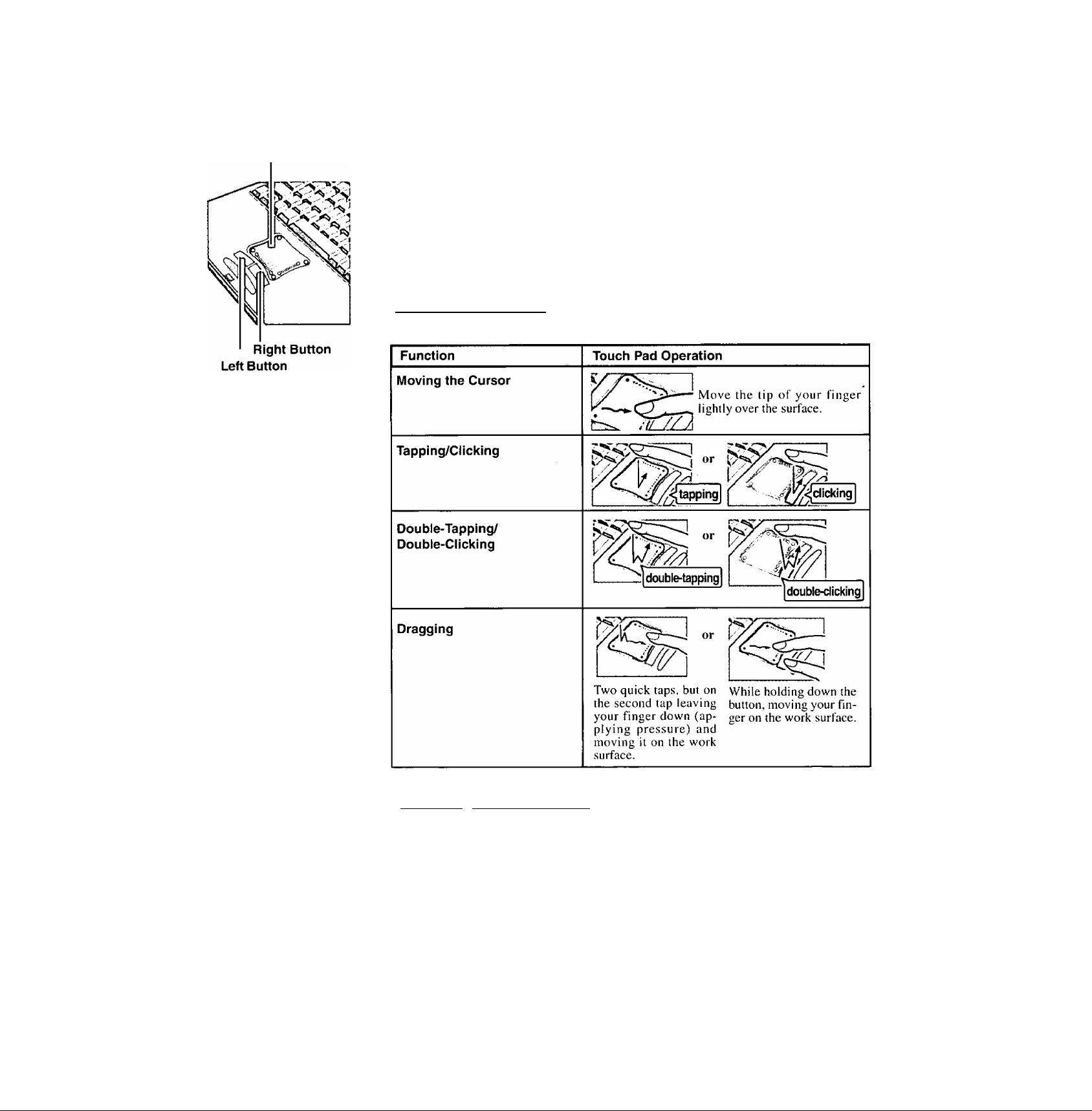
Touch Pad (Basic Operation)
Work Surface
Use the touch pad to move the cursor on the display and perform normal computer operations.
For instructions on how to operate, refer to "Touch Pad (Advanced)".
note)-
The touch pad has been designed to work only when a finger is used. Therefore, do not use
any implement on the touch pad.
■Basic-Operation-i
Handling-theTouch-Pad
c
Do not place any object on the work surface or press down forcefully with sharp-pointed
objects (i.e. nails), hard objects that can leave marks (i.e. pencils and ball point pen).
Do not allow things that could dirty the touch pad, such as oil. The cursor may not work
properly in such cases.
When the touch pad becomes dirty:
Wipe to remove dirty areas by using a dry soft cloth such as gauze or a soft cloth first
applied with detergent diluted with water and then thoroughly wrung.
Do not use benzene, thinner, or disinfectant-type alcohol.
3
13
Page 14
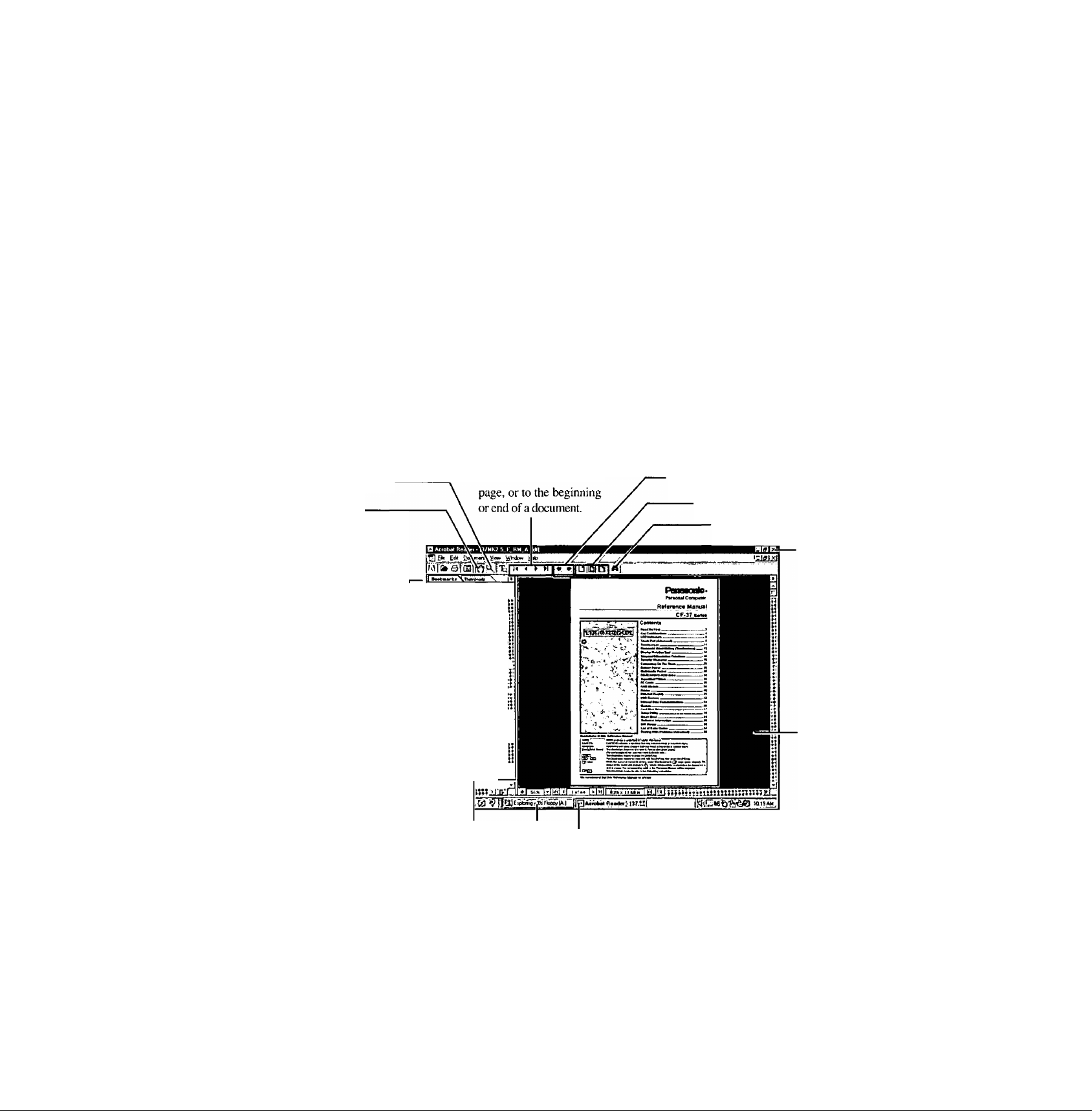
Reference Manual
The Reference Manual can be accessed on your computer. When a printer is connected, the
Reference Manual can also be printed.
This manual explains functions for you to make greater use of the computer, such as how to
add peripheral devices, how the Setup Utility works and other useful information.
Zoom-in
Hand tool
To move around
the current page.
Table of Content
---------------
(Items)
By clicking an item, the cor
responding page will be dis
played at 100%.
Run-the-Reference Manual
□
Turn your computer on
Select [Reference Manual] in [Start] - [Programs] - [Panasonic]
- [On-Line Manuals]
When the Reference Manual is started up for the first time, the License Agreement will be
displayed. After reading the agreement, select [Accept] to access the Reference Manual.
Xnote>
When the Reference Manual is run for the first time, an error message may appear if the
Reference Manual is run using a method that differs from the above explanation. If an error
message appears, press [OK].
Display the page
Go forward or backward a
¡jReddMeFirtt
[J KeyCombinatJons
[J LED Indicator*
Q Touch Pad C'^ifvanced)
[jTouchscrMn 1
U Panasonic Hand Wnting G
[J Display Rotation Tool
[J SuspendTHibarnaDon Fum
U Security Meaturai
Q Computing On The Road
[J Battery Power ?:
[J Multimedia Pockel
□ COROM/DVD-ROW Drive
{J8i;f)er0isk Drive »4
y PC Card« -
[] RAM Module
□ Printer jj
y EtfamaiOiepiav [*
yUESDiMcet d
□ Infrared Data Communica>I
□ Modem
□ Hard Disk Driva
□ Setup Uility
□ Smart eoot
□ Tachriical into;i2222!l
□ DMIVewer'
iidiit:«;;:
Cancel or correct an operation
Change the display size
Perform a “Find” operation
Exit
Display of
the manual
14
(The display may be changed without noiillcation.)
Movable splitter bar
This bar can be dragged,
for example, to the right
— Page indicator
A desired page can be displayed by inputting the page
number after clicking here.
to enlarge the display of
the Table of Contents.
Change the display size
You can choose to magnify/de-magnify the display.
Illustrations may be difficult to view depending on the magnification. If this is the case,
we recommend that the display be magnified.
When the taskbar is hidden at the bottom portion of Acrobat® Reader, set the maximum
display window size.
If a printer is connected, we recommend printing pages. The illustrations and display
samples may not print with a high quality.
Page 15
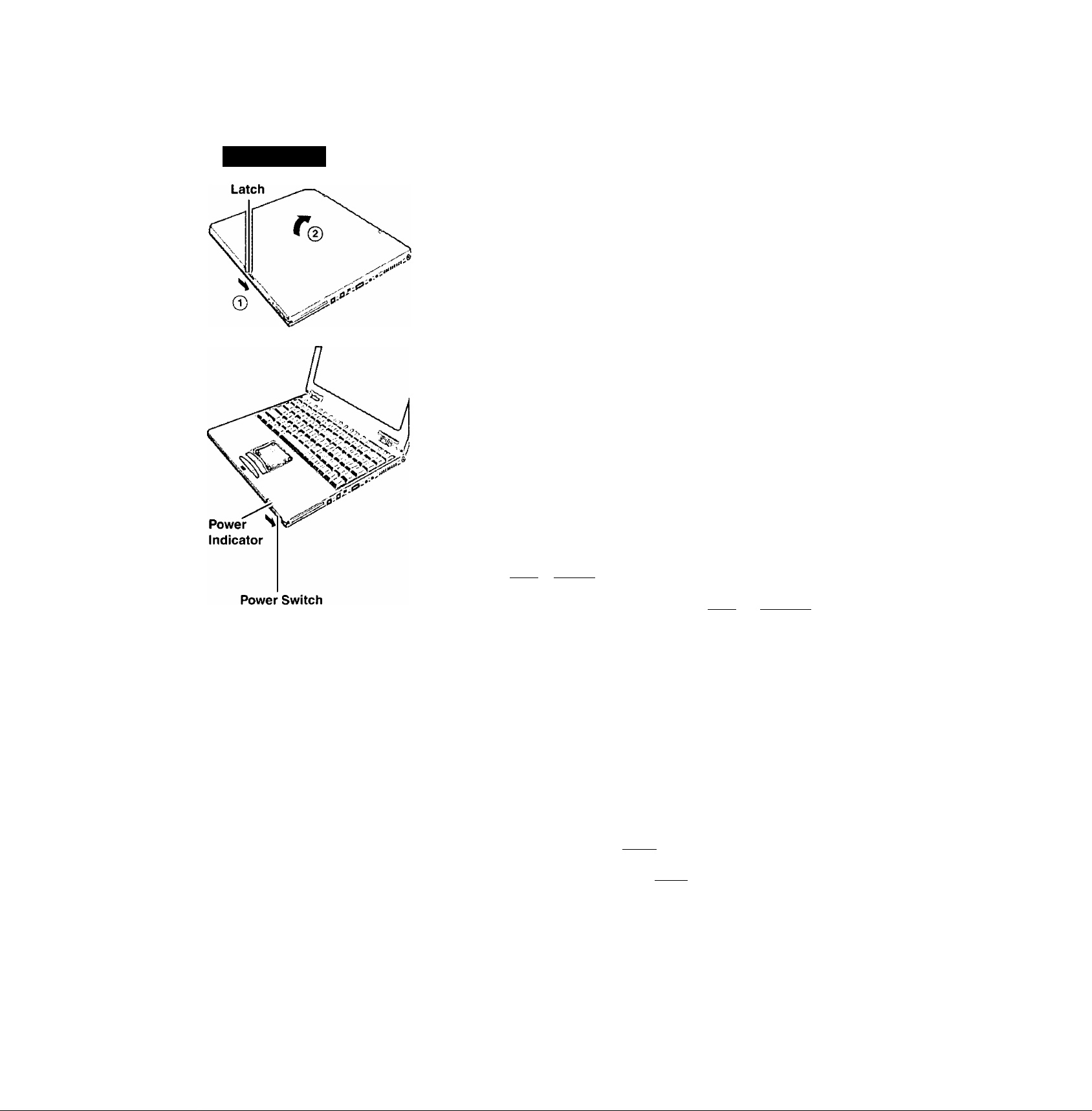
starting Up/Shutting Down
Starting Up
1
Open the display
(T) Slide the latch as shown.
@ Lift open the display.
Turn your computer on
Slide the power switch as shown and hold it for approximately one second until
the power indicator turns on before releasing it.
The computer will not power on when the display is closed (except when
connecting an external display or when [Panel SwitchJ has been set to [LCD
Off] in the Setup Utility O’ "Setup Utility").
After confinning that the power indicator has turned on, avoid the follow
ing until Windows has completed loading.
• Touching the power switch.
• Performing any keyboard, touch pad, touchscreen (or external mouse)
operations.
• Closing the display,
If the display is closed while Windows is starting up, it is possible that color,
etc,, will not be displayed properly. Run the [MS-DOS Prompt] ([Start] [Programs] - [MS-DOS Prompt]), and use full screen di.splay mode by press
ing OD + CEoteD
After retuniing from the full screen mode ( Alt) -f- C Enter 3 again, the
display will be shown coirectly,
Once the computer is powered off, you must wait at least ten seconds before
powering it on again.
When the CPU temperature rises, the computer may not power on to prevent the
CPU from overheating. Should tliis happen, allow the computer to cool down then
switch the power on again.
If the computer still does not power on, please contact Panasonic Technical Support.
Select a device to start up the Operating System
You can select the device for starting up the Operating System when starting up the
computer. It is not necessary to change the settings of the [ Boot] menu in the Setup
Utility.
1 Turn the computer on and press C Esc ) when [Press <Esc> to enter Boot First Menu]
is displayed.
2 Select the device from the menu, press (Enter).
Xnote>
When the Operating System is unable to start up from the selected device,
it will start up from the device last used for start up.
If no start up device is selected, the Operating System will start up in the
order of the settings of the [Boot] menu in the Setup Utility during subse
quent start ups.
When you want to change the settings in the Setup Utility, select <Enter
Setup> from the menu.
15
Page 16

starting Up/Shutting Down
If security indicator (g) is displayed,
you must first enter your password. (O’ *^nuar "Security Measures")
Upon entering your
password and press
ing C Enter J. If correct password is input.
Over three incorrect attempts,
or no pa.ssword ¡s entered for about a minute,
1
* If iit'ler ihrec ailcnipls the correct password is not input, or if no password is
entered for about a minute, the computer returns to the condition just before the
attempt was made to start up the computer.
When an application or file that was previously displayed appears on your screen,
the suspend or hibernation function has been set. (O’ "Suspend/Hibernation
Functions")
Select your application
You are able to start working on your computer.
Will Not Starf^
Xnote)-----------------------------------------------------------------------------------------------------•
• The petwer saving function is factory set, so if there is no input from a key. the touch
pad, or the touchscreen for two minutes. The LCD is powered off (ECO mode).
The LCD will resume operation when the touch pad or the touchscreen is used
or a key is pressed. We recommend using a key that will not result in an input
from the keyboard, such as (Shift).
• [System Devices] in [Start] - [Settings] - [Control Panel] - [System] - [Device
Manager] may contain a device or devices bearing an exclamation mark or ques
tion mark. This does not indicate a malfunction. Such a mark (exclamation or
question mark) will not be displayed if the operating environment of the device
showing the mark is corrected, by for instance installing the driver of the device.
Shutting Down (power off your computer)
This procedure is shutting down without using the suspend or hibernation function.
(Q^ "Suspend/Hibernation Functions")
y Display the shut down screen
After saving important data and closing each application, select [Shut Down] from
the [Start] menu.
Х5Ё!>
From the keyboard,
You may choose to press down on [ ^ ] , then select the menu with or
16
2 Confirm shut down
Select [Shut down], then press jOKj. Your computer will power off automatically,
(III the OPK .stiiie. it you are not recharging ytmr battery pack or if the pack is fully charged, your com
puter consumes approximately 1.5 W.)
I Restarting your computer (without shutting down)
Select jOK) after .selecting [Restart],
/Nori>
To quickly resume computer operation after shutting dovrn,
The suspend or hibernation function is available. (Q= "Suspeiid/Hibemation Functions")
Page 17

List of Error Codes
The following is a list of the messages that BIOS can display. Most of them occur during POST. Some of them
display information about a hardware device, e.g,, the amount of memory installed. Others may indicate a
problem with a deviee, such as the way it has been configured. Following the list are explanations of the mes
sages and remedies for reported problems.
If your system displays one of except the messages marked below with an asterisk (*), write down the message
and contact Panasonic Technical Support. If your system fails after you make changes in the Setup menus, reset
the computer, enter Setup and install Setup defaults or correct the error.
0200 Failure Fixed Disk
Fixed disk in not working or not configured properly. Check to see if fixed disk is nltached properly. Run Setup. Find out
if the fixed-disk type is correctly identified.
0210 Stuck key
Stuck key on keyboard.
0211 Keyboard error
Keyboard not working.
0212 Keyboard Controller Failed
Keyboard controller failed test. May require replacing keyboard controller.
0213 Keyboard locked - Unlock key switch
Unlock the system to proceed.
0230 Shadow RAM Failed at ofTset: n««/i
Shadow RAM failed at offset nnnti of the 64k block at which the error was detected.
0231 System RAM Failed at offset: nnnn
System RAM failed at offset nnnn of in the 64k block at which the error was detected,
0232 Extended RAM Failed at offset: nnnn
Extended memory not working or not configured properly at offset nnnn.
0250 System battery is dead - Replace and run SETUP
The CMOS clock battery indicator shows the battery is dead. Replace the battery and run Setup to reconfigure the
system.
*0251 System CMOS checksum bad - Default configuration used
System CMOS has been corrupted or modified incorrectly, perhaps by an application program that changes data
stored in CMOS. The BIOS installed Default SETUP Values, If you do not want these values, enter Setup and enter
your own values. If the error persists, check the system battery or contact Panasonic Technical Support.
0260 System timer error
The timer te.st failed. Requires repair of system board.
0270 Real time clock error
Real-time clock fails BIOS test. May require board repair.
*0280 Previous hoot incomplete - Default configuration used
Previous POST did not complete successfully. POST loads default values and offers to run Setup. If the failure was
caused by incorrect values and they are not corrected, the next boot will likely fail. On systems with control of wait
states, improper Setup settings can afso terminate POST and cause this error on the next boot. Run Setup and verify
that the wail-state configuration is correct. This error is cleared the next time the system is booted.
0281 Memory Size found by POST differed from CMOS
Memory size found by POST differed from CMOS.
02B0 Diskette drive A error
02B1 Diskette drive B error
Drive A: or B: is present but fails the BIOS POST diskette tests. Check to see that the drive is defined with the proper
diskette type in Setup and that the diskette drive is attached correctly.
02B2 Incorrect Drive A type - run SETUP
Type of floppy drive A: not correctly identified in Setup.
02B3 Incorrect Drive B type - run SETUP
Type of tloppy drive B: not correctly identified in Setup,
02D0 System cache error - Cache disabled
Contact Panasonic Technical Support.
02F0: CPU ID:
CPU socket number for Multi-Processor error.
02F4: EISA CMOS not writable
ServcrBIOS2 test error: Cannot write to EISA CMOS,
17
Page 18

List of Error Codes
02F5: DMA Test Failed
ScrvcrB(OS2 test error: Cannot write to extended DMA (Direct Memory Access) registers.
02F6: Software NMl Failed
ScrverBIOS2 lest error: Cannot generate software NMI (Non-Maskable Interrupt).
02F7: Fail - Safe Timer NMl Failed
ScrvcrB10S2 test error: Fail-Safe Timer lakes too long,
device address Conflict
Address conilict for specified device.
Allocation Error for: device
Run ISA or EISA Conllguration Utility to resolve resource conflict for the specified device.
CD ROM Drive
CD ROM Drive identified.
Entering SETUP ...
Starting Setup Utility,
Failing Bits : nniin
The hex number nnnn is a map of the bits at the RAM address which failed the memory test. Each I (one) in the map
indicates a failed bit. See error 230,231 or 232 for offset address of the failure in System. Extended or Shadow
тепюгу.
Fixed Disk n
Fixed disk ti (0-3) identified.
Invalid System Configuration Data
Problem with NVRAM (CMOS) data.
I/O device IRQ conflict
I/O device IRQ conllict error.
PS/2 Mouse Boot Summary Screen:
PS/2 Mouse installed,
titinn кВ Extended RAM Passed
Where nmm is the amount of RAM in kilobytes successfully tested.
nnmi Cache SRAM Passed
Where nnnn is the amount of system cache in kilobytes successfully tested.
nnnn кВ Shadow' RAM Passed
Where iiimn is the amount of shadow RAM in kilobytes successfully tested.
nnnn кВ System RAM Passed
Where nnnn is the amount of system RAM in kilobytes successfully tested.
Operating System not found
Operating system cannot be located on cither drive A: or drive C:. Enter Setup and see if fixed disk and drive A: are
properly identified.
Parity Check 1 nnnn
Parity error found in the system bus, BIOS attempts to locate the address and display it on the .screen. If it cannot
locate the address, it displays ????, Parity is a method for checking errors in binary data. A parity error indicates that
some data has been corrupted.
Parity Check 2 nnnn
Parity error found in the I/O bus. BIOS attempts to locate the address and display it on the screen. If it cannot locate
the address, it displays ?7??.
Pres.s <FI> to resume, <F2> to Setup, <F3> for previous
Displayed after any recoverable error message. Press <FI > to start the boot process or <F2> to enter a Setup and
change the settings. Press <F3> to display the previous screen (usually an initialization error of an Option ROM, I.e.,
an add-on card). Write down and follow the information shown on the screen.
Press <F2> to enter Setup
Optional message displayed during POST. Can be turned off in Setup.
PS/2 Mouse:
PS/2 mouse identified.
System BIOS shadowed
System BIOS copied to shadow RAM,
UMB upper limit segment address : nnnn
Displays the address nnnn of the upper limit of Upper Memory Blocks, indicating released segments of the BIOS
which can be reclaimed by a virtual memory manager.
Video BIOS shadowed
Video BIOS successfully copied to shadow RAM,
18
Page 19
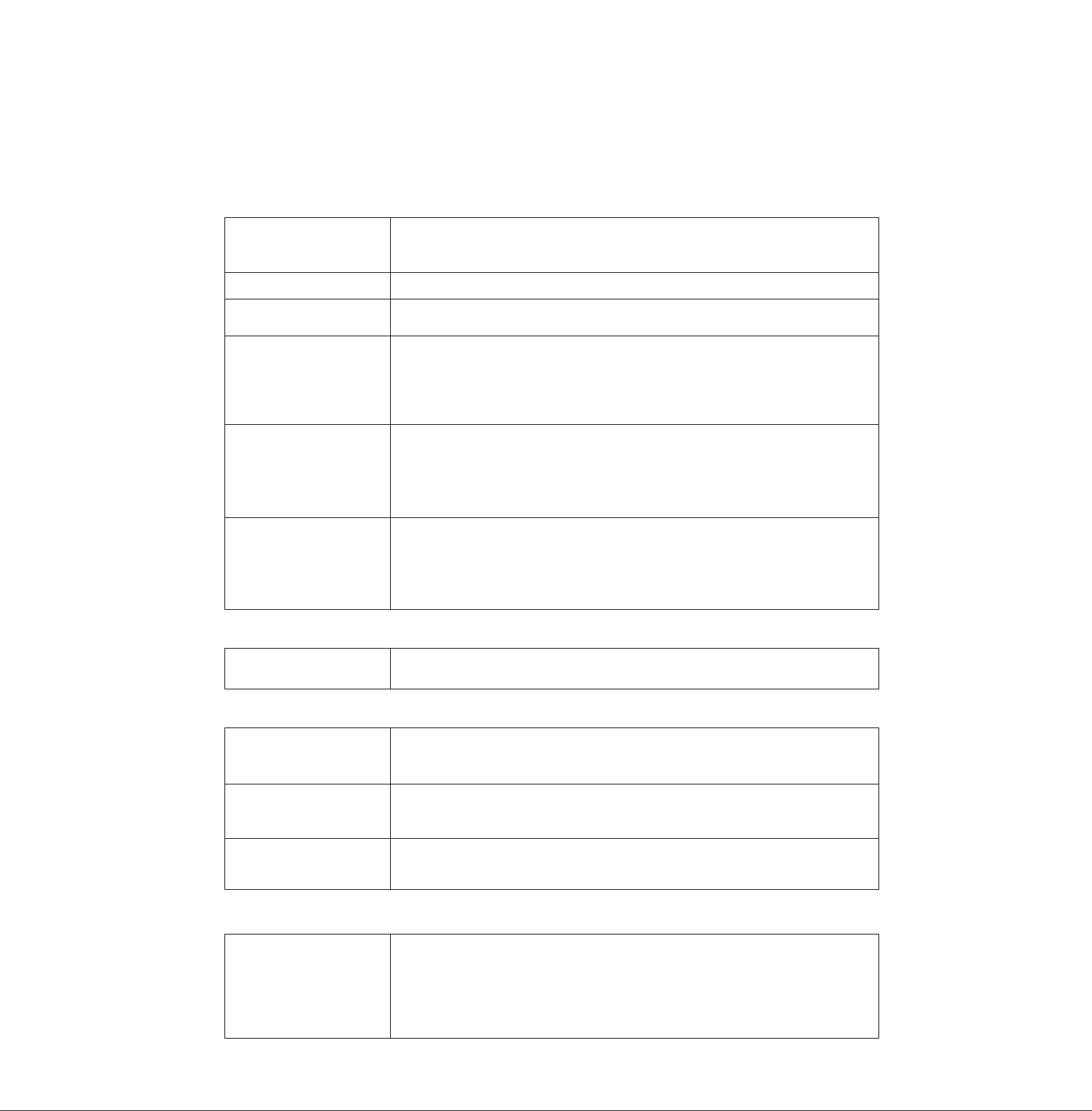
Dealing With Problems (Summary)
When a problem occurs, refer to this page. The Reference Manual also contains detailed information. If you still cannot
troubleshoot the problem, contact Panasonic Technical Support.
• starting Up
The power indicator or bat
tery indicator is nut lit
B is displayed
[POST Startup Error(s)] is
displayed
Windows startup, or an op
eration is extremely slow
The date and time are
incorrect
When the previous item is
not the cause
• Check the cable connection for the AC adapter.
• Check to see if a fully charged battery is properly installed.
• Remove the battery pack and disconnect the AC adapter, then connect them again.
Input your password. If you have forgotten it, contact Panasonic Technical Support.
O’ page 17
Press ( F9 ] in the Setup Utility ((S’ "Setup Utility"). This will restore the Setup
Utility's settings to their default values (except the password settings). Then, the Setup Utility
must be run once again for you to input the appropriate operating environment settings. (The
processing speed depends on the application software used, so this operation may not cause the
processing speed to increase.)
• You can set the date and time through [Date/Time] in [Start] - [Settings] -1 Control Panel].
• When the computer is connected to a Local Area Network (LAN), confirm the date and
time of the server.
• If you continue to experience problems, the internal battery maintaining the clock may
need to be replaced. Contact Panasonic Technical Support.
• Press C F9 ) in the Setup Utility (C^ "Setup Utility"). This will restore the Setup
Utility's settings to their default values (except the password settings).
• In the MS-DOS mode, run SCANDISK to check the hard disk.
• At start-up, press C F8 ) to operate the computer in the Safe mode.
• Try removing all peripheral devices.
# Shutting down
Unable to shut down Win
dows 95
# Battery Indicator
The red indicator lights.
Repeated beeping sound
while the computer is in use.
The red indicator blinks
After the AC adapter is con
nected, the orange indicator
blinks five times
# Application Software
Computer hangs
• If a USB device is connected, try removing it.
• Do not shut down Windows 95 during music playback.
The battery level is low. Save your data and power off your computer.
After connecting the AC adapter or replacing the battery pack with a fully charged one, turn
your computer on.
• The battery pack or recharging function may be defective. Quickly remove the battery
pack and disconnect the AC adapter, then connect them again.
• If the problem persists, contact Panasonic Technical Support.
Unable to charge because of an improper temperature range. ((3> page 6)
• Press C Ctrl )-(-( Alt)-(-( Del ) to reboot the computer.
• After cutting the power by pressing the power switch for more than four seconds, slide
the power switch to power on and open the application again.
If the program no longer works normally, go to [Start] - [Settings] - [Control Panel] [Add/Remove Programs] to delete the program. Then try installing the program once
again.
19
Page 20

Dealing With Problems (Summary)
Display
No display after powering
on
The power has not been
turned off, but after a certain
period of time, there is no dis
play
The resolution of the display
cannot be changed
An afterimage appears(i,e.,
green, red, and blue dots re
main on the display) or
there are dots not display
ing the correct colors
• At the time of purchase, the display setting is preset for an external display. If you connect
an external display, the screen is displayed on the external display.
• When there is no display to an external display,
• Check your cable connection to the external display.
• Confirm your display is powered on.
• Check the settings for your external display.
• Try changing the display by pressing ( Fn ) + C F3 ).
• When displaying only through an external display, if the computer is shut down by using
the suspend or hibernation function, there will be no display on the LCD unless the exter
nal display is connected when operations are resumed. In this case, connect the external
display.
• Has the computer been set to the power-saving mode?
To resume operation of your computer from ECO mode, press any key.
• To save power, your computer may have automatically entered the suspend or hiberna
tion mode. (C^ "Computing On the Road")
Set [None] for [Wallpaper] in [Start] - [Settings) - [Control Panel] - [Display] - [Back
ground], and then press (OK). Then, once again try changing the resolution. After the
change, be sure to restart the computer.
If an image is displayed for a prolonged period of time, an afterimage may appear. This is
not a malfunction. The afterimage will disappear when a different screen is displayed.
High-precision and advanced technologies are necessary in the production of color liquid
crystal displays (color LCDs). Therefore, if 99.998% or more of the picture elements are
functioning properly, no defect is considered to exist.
The motion of the mouse
cursor is not smooth
The cursor cannot be con
trolled
During simultaneous dis
play, the screen of the ex
ternal display becomes dis
ordered
The external display no
longer displays properly
Select [Start] - [Settings] - (Control Panel] - [Mouse] - [Motion] and try to change the speed
or acceleration.
Restart the computer by using the keyboard (e.g.,(
Trv chanuine the disolav bv Dressing f Fn )-i-( F3 ).
When an external display not compatible with the power saving mode is used with the
computer, the external display may no longer display properly when the computer enters the
ECO mode. In such cases, turn off the power to the external display.
20
Page 21

Reinstalling Software
Before Reinstallation
Preparing
9 You will need the Product Recover)' CD-ROM and the BACKUP DISK (e.g,, FIRSTAID FD) you made earlier. (CT page 12)
Xnote)------------------------------------------------------------------------------------------------------------------------------------------------------
If you have not created the BACKUP DISK, you can create by selecting [Create BACKUP DISK] in [Start] 1 Programs] - [Panasonic]. If you can not create this di.sk, contact Panasonic Technical Support.
'
____________________________________________________________________________________
• The SuperDisk Drive Pack (CF-VFS371/CF-VFS372) is required for the following reinstallation procedure.(Q*
"SuperDisk Drive")
i Important
• Save all important data. If reinstallation is carried out, all data existing prior to the installation will be lost. The reinstal
lation will return the computer to the conditions at time of purchase.
• Before the reinstallation procedure, remove all peripherals (except for the CD-ROM/DVD-ROM drive).
• Be sure the AC adapter is connected until the reinstallation procedure is completed.
• When the computer enter the ECO mode, the power to the LCD is automatically cut. In this ca.se, perfomi the touch pad operation.
Reinstalling
Windows 95
If data on your hard disk is compressed, the data should
be uncompressed.
^
-------------------------------------------------- -----
1 Turn the computer on.
2 When the message [Press <F2> to enter SETUP] is dis
played, press CeD and then run the Setup Utility.
If the password has been set, enter the supervisor pass
word.
3 Press fF9^.
At the confirmation message, select [ Yes] and press
C
Enter )■
4 Select [Boot] menu, press CED/CfL) and ©/©
until jCD-ROM/DVD-ROMI is at the top of the [Boot]
menu and [Floppy Drive] is the next position.
5 Set the Product Recovery CD-ROM in the CD-ROM drive.
6 Press C F10 )■
At the confirmation message, select [ Yes| and press
[ Enter ). The computer will reboot, and this screen
should appear.
Select the number
2. Restore the drive C to factory
3. End
7 Make a selection from the menu.
To restore all contents of the hard disk to factory
default, including the partition setting(s):
Select [I, Restore the whole HDD to factory default I.
To restore the hard disk (C drive) to factory de
fault, excluding the partition setting(s):
Select [2. Re.store the drive C to factory default].
tory defi
default
8 At the confirmation message , press
The operations of ''format’’ and ‘'restore” for the hard
disk start automatically. (The operations take about
one hour.)
-
9 After the "restore" procedure completes, remove the
Product Recovery CD-ROM, then close the tray.
10 Turn the computer off by sliding the power switch and
remove the CD-ROM drive.
11 Set the SuperDisk drive pack in the multimedia pocket,
set the FIRSTAID FD and turn the computer on.
Follow the on-screen instructions.
12 After the reinstallation procedure completes, the fol
lowing message will appear on the display.
Alt diita on the whole HDD has been restored to the factory default.
After removing floppy disk , re,start the computer and set up Windows
again.
Restart the computer by pressing ( Ctrl >CSD
+ i'Din.
13 When the message [Press <F2> to enter SETUP] is dis
played, press C F2 ) and then run the Setup Utility.
If the password has been set, enter the supervisor pass
word. _____
14 Press i F9).
At the confirmation message, select [YesI and press
C
Enter ).
15 Press (MO).
At the confirmation message, select [ Yes] and press
(Enter ].
16 Perform the setup procedure for Windows 95 by fol
lowing the instructions on the screen. (3° page 11
^note)-
If necessary, set the CD-ROM drive in the multimedia
pocket (C3 "Multimedia Pocket").
21
Page 22

LIMITED USE LICENSE AGREEMENT
THE SOFTWARE PROGRAM(S) ("PROGRAMS") FURNISHED WITH THIS PANASONIC® PRODUCT {"PRODUCT")
ARE LICENSED ONLY TO THE END-USER ("YOU"), AND MAY BE USED BY YOU ONLY IN ACCORDANCE WITH
THE LICENSE TERMS DESCRIBED BELOW. YOUR USE OFTHE PROGRAMS SHALL BE CONCLUSIVELY DEEMED
TO CONSTITUTE YOUR ACCEPTANCE OF THE TERMS OF THIS LICENSE.
Matsushita Electric Industrial Co., Ltd. ("MEI") has developed or otherwise obtained the Programs and hereby licenses
their use to you. You assume sole responsibility for the selection of the Product (including the associated Programs) to
achieve your intended results, and for the installation, use and results obtained therefrom.
LICENSE
A. MEI hereby grants you a personal, non-transferable and non-exclusive right and license to use the Programs in
accordance with the terms and conditions stated in this Agreement. You acknowledge that you are receiving only
a LIMITED LICENSE TO USE the Programs and related documentation and that you shall obtain no title,
ownership nor any other rights in or to the Programs and related documentation nor in or to the algorithms,
concepts, designs and ideas represented by or incorporated In the Programs and related documentation, all of
which title, ownership and rights shall remain with MEI or its suppliers.
B. You may use the Programs only on the single Product which was accompanied by the Programs.
C. You and your employees and agents are required to protect the confidentiality of the Programs. You may not
distribute or otherwise make the Programs or related documentation available to any third party, by time-sharing
or otherwise, without the prior written consent of MEI.
D. You may not copy or reproduce, or permit to be copied or reproduced, the Programs or related documentation
for any purpose, except that you may make one (1 ) copy of the Programs for backup purposes only in support of
your use of the Programs on the single Product which was accompanied by the Programs. You shall not modify,
or attempt to modify, the Programs.
E. You may transfer the Programs and license them to another party only in connection with your transfer of the
single Product which was accompanied by the Programs to such other party. At the time of such a transfer, you
must also transfer all copies, whether in printed or machine readable form, of every Program, and the related
documentation, to the same party or destroy any such copies not so transferred.
F. You may not remove any copyright, trademark or other notice or product identification from the Programs and
you must reproduce and include any such notice or product identification on any copy of any Program.
YOU MAY NOT REVERSE ASSEMBLE, REVERSE COMPILE, OR MECHANICALLY OR ELECTRONICALLY TRACE
THE PROGRAMS, OR ANY COPY THEREOF, IN WHOLE OR IN PART.
YOU MAY NOT USE, COPY, MODIFY, ALTER, OR TRANSFER THE PROGRAMS OR ANY COPY THEREOF, IN
WHOLE OR IN PART, EXCEPT AS EXPRESSLY PROVIDED IN THE LICENSE.
IF YOU TRANSFER POSSESSION OF ANY COPY OF ANY PROGRAM TO ANOTHER PARTY, EXCEPT AS PERMIT
TED IN PARAGRAPH E ABOVE, YOUR LICENSE IS AUTOMATICALLY TERMINATED.
TERM
This license is effective only for so tong as you own or lease the Product, unless earlier terminated. You may terminate
this license at any time by destroying, at your expense, the Programs and related documentation together with all
copies thereof in any form. This license will also terminate effective immediately upon occurrence of the conditions
therefor set forth elsewhere in this Agreement, or if you fail to comply with any term or condition contained herein. Upon
any such termination, you agree to destroy, at your expense, the Programs and reiated documentation together with all
copies thereof in any form.
YOU ACKNOWLEDGE THAT YOU HAVE READ THIS AGREEMENT, UNDERSTAND IT AND AGREE TO BE BOUND
BY ITS TERMS AND CONDITIONS. YOU FURTHER AGREE THAT IT IS THE COMPLETE AND EXCLUSIVE STATE
MENT OF THE AGREEMENT BETWEEN US, WHICH SUPERSEDES ANY PROPOSAL OR PRIOR AGREEMENT,
ORAL OR WRITTEN, AND ANY OTHER COMMUNICATIONS BETWEEN US, RELATING TO THE SUBJECT MAT
TER OF THIS AGREEMENT.
22
Page 23

Contrat de licence d'usage limité
Le(s) logiciel(s) (les "Logiciels") fournis avec ce produit Panasonic® (le "Produit") sont exclusivement concédés en
licence à l'utilisateur ultime ("vous"), et ils ne peuvent être utilisés que conformément aux clauses contractuelles cidessous. En utilisant les logiciels, vous vous engagez de manière définitive à respecter les termes, clauses et condi
tions des présentes.
Matsushita Electric Industrial Co., Ltd. ("MEI") a mis au point ou obtenu les Logiciels et vous en concède l'utilisation par
les présentes. Vous assumez l'entière responsabilité du choix de ce Produit (y compris des Logiciels associés) pour
obtenir les résultats escomptés, ainsi que de l'installation, de l'utilisation et des résultats obtenus.
Licence
A. MEI vous octroie par les présentes le droit et la licence personnels, non cessibles et non exclusifs d'utiliser les
Logiciels conformément aux termes, clauses et conditions de ce Contrat. Vous reconnaissez ne recevoir qu'un
droit limité d'utiliser les Logiciels et la documentation les accompagnant et vous vous engagez à n'obtenir aucun
droit de titre, propriété ni aucun autre droit vis-à-vis des Logiciels et de la documentation les accompagnant ni
vis-à-vis des algorithmes, concepts, dessins, configurations et idées représentés par ou incorporés dans les
Logiciels et la documentation les accompagnant, dont les titres, propriété et droits resteront tous à MEI ou à
leurs propriétaires.
B. Vous ne pouvez utiliser les Logiciels que sur le Produit unique qui est accompagné par les Logiciels.
C. Vous et vos employés ou agents êtes requis de protéger la confidentialité des Logiciels. Vous ne pouvez ni
distribuer ni mettre les Logiciels et la documentation les accompagnant à la disposition d'un tiers, par partage de
temps ou de quelque autre manière que ce soit, sans l'autorisation écrite préalable de MEI.
D. Vous ne pouvez ni copier ni reproduire ni permettre la copie ni la reproduction des Logiciels ni de la documen
tation les accompagnant pour quelque fin que ce soit, à l'exception d'une (1) copie des Logiciels à des fins de
sauvegarde uniquement pour soutenir votre utilisation des Logiciels sur le Produit unique qui est accompagné
par les Logiciels. Vous ne pouvez ni modifier ni tenter de modifier les Logiciels.
E. Vous ne pouvez céder les Logiciels et en octroyer la licence à une autre partie qu'en rapport avec votre cession
du Produit unique qui est accompagné par les Logiciels à cette autre partie. Au moment de cette cession, vous
devez céder également toutes les copies, que ce soit sous forme imprimée ou lisible par la machine, de tous les
Logiciels ainsi que de la documentation les accompagnant, à la même partie ou détruire les copies non cédées.
F. Vous ne pouvez retirer aucune marque de droits d'auteur, marque ou autre ni aucune identification de produit
des Logiciels et vous devez reproduire et inclure toutes ces notices ou identifications de produit sur toutes les
copies des Logiciels.
Vous ne pouvez assembler en sens inverse, compiler en sens inverse ni retracer les Logiciels ni aucune de leurs
copies, de façon électronique ou mécanique, en tout ou en partie.
Vous ne pouvez utiliser, copier, modifier, altérer ni céder les Logiciels ni aucune de leurs copies, en tout ou en partie,
à l'exception de ce qui est expressément stipulé dans ce contrat.
Si vous cédez la possession de toute copie ou de tout Logiciel à une autre partie, à l'exception de ce qui est autorisé
au paragraphe E ci-dessus, votre licence est automatiquement résiliée.
Termes, clauses et conditions
Cette licence n'est effective que pour la durée de possession ou de crédit-bail du Produit, à moins d'une résiliation
antérieure. Vous pouvez résilier cette licence à tout moment en détruisant, à vos frais, les Logiciels et la documentation
les accompagnant avec toutes leurs copies, sous quelque forme que ce soit. Cette licence sera également résiliée,
avec application immédiate, si les conditions de résiliation définies ailleurs dans ce contrat se sont réalisées ou si vous
ne respectez pas les termes, clauses et conditions qui y sont contenues. Au moment de la résiliation, vous acceptez de
détruire, à vos frais, les Logiciels et la documentation les accompagnant avec toutes leurs copies, sous quelque forme
que ce soit.
Vous reconnaissez avoir lu ce contrat, en avoir compris toute la substance et avoir accepté de respecter ses termes,
clauses et conditions. Vous reconnaissez en outre qu'ils sont la description complète et exclusive du contrat conclu
entre nous, contrat qui remplace et annule toute proposition ou contrat précédent, écrit ou oral, et toute autre commu
nication entre nous, relativement à l'objet du présent contrat.
23
Page 24
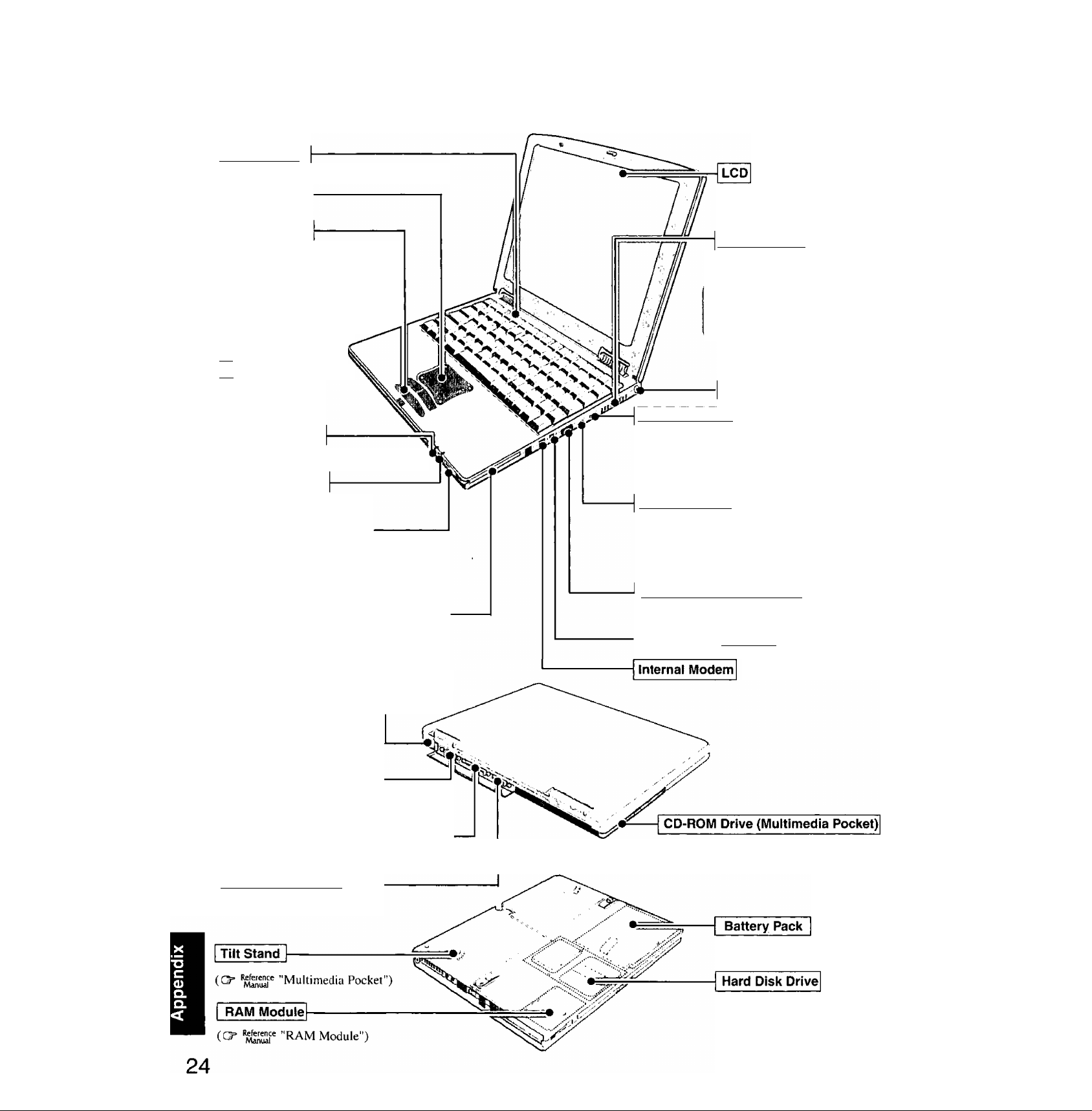
Names and Functions of Parts
Function Keys
"Key Combinations")
Touch Pad
page 13
LED Indicators
"LED Indicators")
^ Power status
Q Battery pack status
^ Hard disk status
© Multimedia pocket device status
[ffj Scroll lock (ScrLk)
iTl Numeric key (NumLk)
|X) Caps Lock
Battery Indicator
"LED Indicator")
POWER Indicator
"LED Indicator")
Power Switch power ►
Before using the computer for the first time,
carefully read the [LIMITED USE LICENSE
AGREEMENT]. If you agree to the condi
tions, remove the seal.
PC Card Slots
Cards")
Microphone Jack /
Use only a monaural condenser microphone (min
iature jack). Using an input source other than a
monaural condenser microphone may not allow
audio to be input or may damage the equipment.
Headphone Jack 0
Use this Jack to connect headphones or ampli
fier-equipped speakers. Audio output from the
internal speaker is disabled when headphones or
external speakers are connected.
Infrared Communication Port
vanced)", "Touchscreen")
Ventilation Hole
These holes allow heat to exit.
Do not block or place the com
puter in a location that may pre
vent proper ventilation.
DC-IN Jack
"Infrared Data Communications")
USB Port I ^ (Q= "USB Devices")
"Touch Pad (Ad
DC IN
15.6 V
External Keyboard/Mouse Port | R fvw?l
Serial Port
Use this port to a serial mouse or serial
communication devices.
Parallel Port Jl,
"Printer")
External Display Port] Q
(C^ Sap "External Display")
Û (O-"Modem”)
(O "CD-ROM/DVD-ROM Drive"
"Multimedia Pocket")
Manur "Battery Power")
(O’ 'MinuaP "Hard Disk Drive")
Page 25
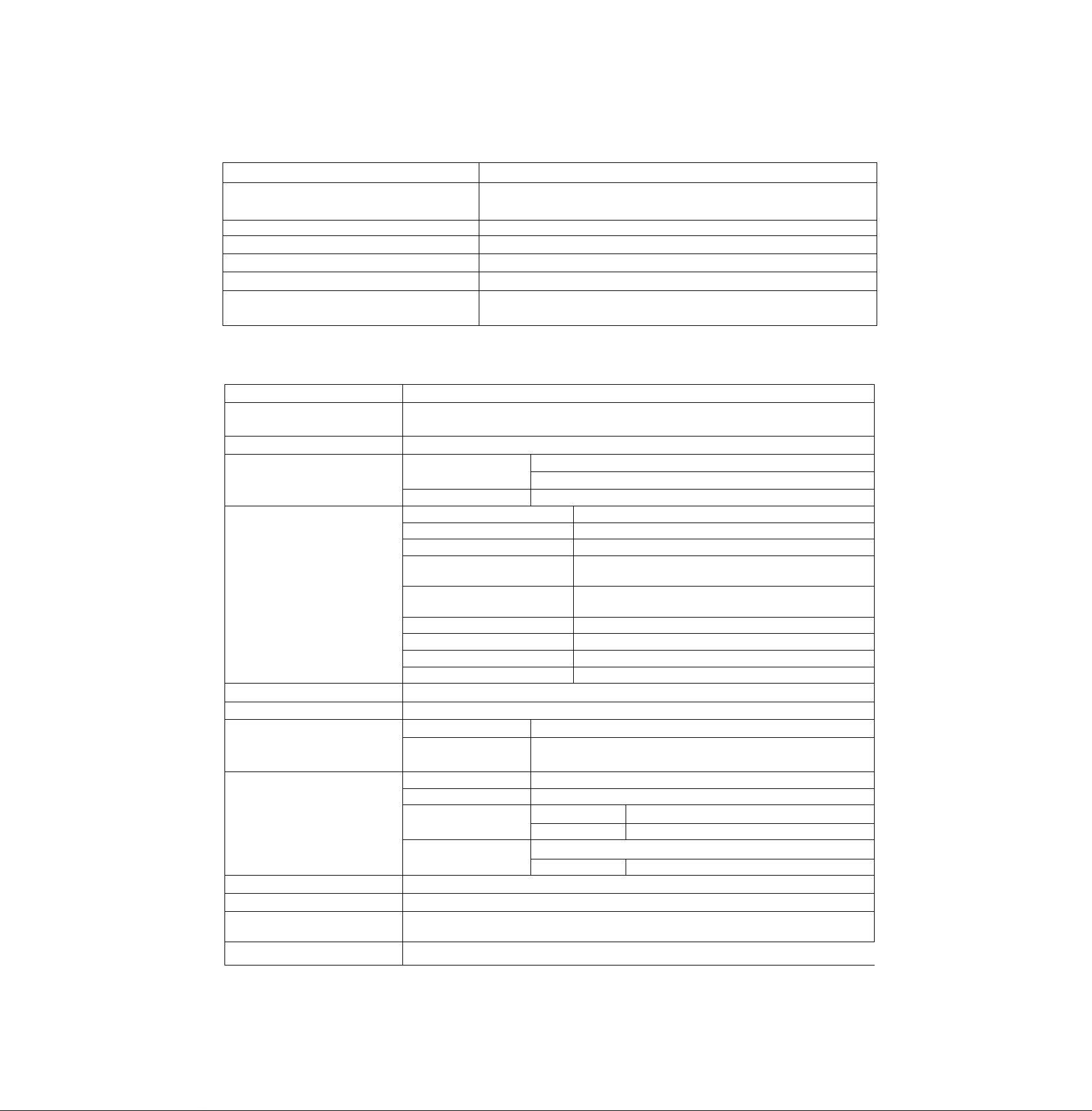
Specifications
Main Specifications
Model No. CF-37LB82BAM
CPU Mobile Pentium® III Processor 500 mh/,
LI Cache Memory; 32 KB L2 (Second) Cache Memory: 256 KB
Memory (Expandable to) 64 MB (192 MB Max. )
Video Memory
LCD 1 Type
1 Displayed Colors*^
Hard Disk Drive (including about 200 mb used
specifically by the system)
* ’ A 16M color display on the LCD is achieved by using the dithering function.
1GB = 10® bytes
Other Specifications
Keyboard
Pointing Device
CD-ROM Drive
Slots
Interface
Speaker
Sound
Software
Battery
AC Adapter*"
Power Consumption
Physical Dimensions (w x h x d)
Weight
* I
Use only a monaural condenser microphone (miniature jack).
*2
A communications software is necessary.
Varies depending on the usage conditions.
*4
The AC adapter is compatible with power sources up to 240 V AC.
This computer is supplied with a 125 V AC compatible AC cord.
Approx. 1,5 W when the battery pack is fully charged (or not being charged) and the computer is OFF.
Windows 95 keyboard (87 keys)
Touch Pad
Touchscreen {Anti-Reflection, Finger touch capable)
24x Speed (Max.)
PC Card Slot
RAM Module Slot
Parallel Port
External Display Port
Serial Port
Microphone Jack*'
Headphone Jack
infrared Communication Port
External Keyboard/Mouse Port
USB Port 4-pin
Internal Modem
Stereo Speaker (built in)
16 bits, 44.1 kHz AC '97 2.1 Compatible
Operating System
Utility Programs
Battery Pack
Operating Time
Charging Time Power On
Clock Battery
Input I 100V-240V AC, 50Hz/60Hz Output 15.6 V DC, 3.85 A
Approx. 49 W*^ (maximum when recharging in the ON state)
297 mm X 25.6 mm (front of computer) or 27.9 mm (rear of computer) X 236.5 mm
{11.7 " X 1.0 " or 1.1 "X 9.3 "} (excluding the rear height adjustment parts)
Approx. 2.0 kg {Approx. 4.4 lb.} (including the CD-ROM drive) j
4 MB
12.1 Type(TFT)
256/65536/262144 colors (640 x 480 dots/800 x 600 dots)
8.1 GB*®
Type I or Type li
Allowable current 3.3 V: 400 niA, 5 V; 400 mA
144-pin, SO-DIMM, 3.3 V, SDRAM, PC 100 Compliant
Dsub 25-pin female
Mini Dsub 15-pin female
Dsub 9-pin male
Miniature jack, 3.5 DIA
Input impedance 600 Ì2, Input voltage range 0.01 V[p-p]
Miniature jack, 3.5 DIA
Impedance 32 Q, Output Power 4 mW (Impedance 32 ii) x 2
IrDA 1.1 compliant, 4 Mbps data transmission speed*^
Mini DIN 6-pin female
Data:56 kbps (V.90 & X2) FAX;14.4 kbps
Microsoft® Windows® 95 (FAT32 File System)
Setup Utility, DMI Viewer, Panasonic Handwriting,
Panasonic Battery Monitor, Smart Boot, Display Rotation Tool
Lithium ion 10.8 V, 3.0 Ah
Approx. 1.0 - 3.5 h*3
Power Off
Coin type lithium battery 3.0 V
Operating Time
Approx. 5.5 h*3
Approx. 2.5 h*3
Approx. 7 years
25
Page 26
LIMITED WARRANTY
For U.S.A.
PANASONIC PERSONAL COMPUTER AND PERIPHERALS LIMITED WARRANTY
Panasonic Personal Computer Company {referred to as “Panasonic”) will repair this product (other than software, which is covered by a separate
warranty) with new or rebuilt parts, free of charge in the U.S.A. for three (3) years from the date of original purchase in the event of a defect in
materials or workmanship. This warranty includes the AC Adapter but excludes the batteries and all other options and accessories which are
covered for a period of one (1) year from the date of purchase.
This warranty is extended solely to the original purchaser. A purchase receipt or other proof of date of original purchase will be required before
warranty performance is rendered.
This warranty only covers failures due to defects in materials or workmanship which occur during normal use. It does not cover damage which
occurs in shipment or failures which are caused by products not supplied by Panasonic, or failures which result from alteration, accident, misuse,
introduction of liquid or other foreign matter into the unit, abuse, neglect, installation, maladjustment of consumer controls, improper maintenance,
modification or service by anyone other than a Factory Service Center or authorized Panasonic Service Dealer, or damage that is attributable to
acts of God.
Limits and Exclusions:
There are no other express warranties except as listed below.
PANASONIC SHALL NOT BE LIABLE FOR LOSS OF DATA OR OTHER INCIDENTAL OR CONSEQUENTIAL DAMAGES RESULTING FROM
THE USE OF THIS PRODUCT, OR ARISING OUT OF ANY BREACH OF THIS WARRANTY. ALL EXPRESS AND IMPLIED WARRANTIES,
INCLUDING THE WARRANTIES OF MERCHANTABILITY AND FITNESS FOR A PARTICULAR PURPOSE ARE LIMITEDTOTHE APPLICABLE
WARRANTY PERIOD SET FORTH ABOVE. Some states do not allow the exclusion or limitation of incidental or consequential damages, or
limitations on how long an implied warranty lasts, so the above limitations or exclusions may not apply to you.
This limited warranty gives you specific legal rights, and you may also have other rights which vary from state to state. If a problem with your product
develops during or after the warranty period, you may contact our representatives at 1-800-LAPTOP5. If the problem is not handled to your
satisfaction, then write to the Consumer Affairs Division at the address indicated below.
SOFTWARE LIMITED WARRANTY
Panasonic Personal Computer Company {referred to as “Panasonic") warrants to you only that the disk{s) or other media on which the Programs
are furnished will be free from defects in materials and workmanship under normal use for a period of sixty (60) days from the date of delivery
thereof to you, as evidenced by your purchase receipt.
This is the only warranty Panasonic makes to you. Panasonic does not warrant that the functions contained in the Programs will meet your
requirements or that the operation of the Programs will be uninterrupted or error free.
Panasonic’s entire liability, and your exclusive remedy under this warranty shall be limited to the replacement, in the United States, of any defective
disk or other media which is returned to Panasonic’s Authorized Service Center, together with a copy of the purchase receipt, within the aforesaid
warranty period.
Anything in the foregoing to the contrary notwithstanding, Panasonic shall have no obligation for any defects in the disk(s) or other media on which
the Programs are furnished resulting from your storage thereof, or for defects that have been caused by operation of the disk(s) or other media
otherwise than on the Product or in environmental conditions other than those specified by Panasonic by alteration, accident, misuse, abuse,
neglect, mishandling, misapplication, installation, maladjustment of consumer controls, improper maintenance, modification of damage that is
attributable to acts of God. In addition, Panasonic shall have no obligation for any detects in the disk(s) or other media if you have modified, or
attempted to modify any Program.
DURATION OF IMPLIED WARRANTIES, IF ANY, IS LIMITED TO SIXTY (60) DAYS.
PANASONIC ASSUMES NO RISK OF AND SHALL NOT IN ANY CASE BE LIABLE FOR ANY DAMAGES, INCLUDING, WITHOUT LIMITATION,
ANY SPECIAL, INCIDENTAL, CONSEQUENTIAL, OR PUNITIVE DAMAGES ARISING FROM BREACH OF WARRANTY OR CONTRACT, NEG
LIGENCE OR ANY OTHER LEGAL THEORY, INCLUDING, WITHOUT LIMITATION LOSS OF GOODWILL, PROFITS OR REVENUE, LOSS OF
USE OF THE PROGRAMS OR PRODUCTS OR ANY ASSOCIATED EQUIPMENT, COST OF CAPITAL, COST OF ANY SUBSTITUTE EQUIP
MENT, FACILITIES, SERVICES, DOWNTIME COSTS, OR CLAIMS OF ANY PARTY DEALING WITH YOU FOR SUCH DAMAGES.
Some states do not allow the exclusion or limitation of incidental or consequential damages, or limitations on how long an implied warranty lasts,
so the above limitations or exclusions may not apply to you.
This limited warranty gives you specific legal rights, and you may also have other rights which vary from state to state.
This Limited Warranty will be governed by the laws the State of New York, without regard to its conflict-of-laws rules.
26
* * *
To obtain service or technical assistance within the continental U.S.A. and Alaska.
Correspondence requesting product information should be sent
to: Panasonic Personal Computer Company,
50 Meadowlands Parkway, Panazip 2F-5, Secaucus, NJ 07094
Page 27

For Canada
PANASONIC COMPUTER AND PERIPHERALS LIMITED WARRANTY
Coverage - Panasonic Canada Inc. ("PCI”) warrants to you, the first end user customer, this computer product (excluding software media), when
purchased from PCI or from a PCI authorized reseller, to be free from defects in materials and workmanship under normal use, subject to the terms
set forth below, during the period of warranty coverage specified.
Scope of Coverage
Whole Product (except Batteries), AC Adapter, CD-ROM (if
factory installed). Port Replicator, Extra Memory Modules
and all other Options and Accessories
Batteries, CD-ROM (unless factory installed). Port
Replicator, Extra Memory Modules and all other Peripher
als, Options and Accessories
Remedy - In the event of a warranty claim, contact PCI’s representatives within the applicable warranty period, identifying the nature of the defect
claimed, at 1-800-668-8386 between 9:00 A.M, and 5:00 P.M., Eastern Time Zone, Mon. - Fh. (excluding holidays) for instructions on how to obtain
service. A purchase receipt or other proof of date of original purchase is required before warranty service is performed. Defective parts covered by
this Limited Warranty will be repaired or replaced with new or comparable rebuilt parts on an exchange basis. Warranty replacement or repair is
subject to the terms of this Limited Warranty for the balance of the original period of warranty coverage.
No Coverage - This Limited Warranty does not cover products purchased outside Canada. Neither does it cover damage to, failure of, or defects
in a product or accessory through mishandling, improper installation, abnormal use, misuse, neglect, accident, introduction of liquid or other
foreign matter into the product, alteration or servicing by anyone not authorized by PCI, or act of God.
IF YOU SHIPTHE PRODUCT FOR WARRANTY SERVICE
Carefully pack the product, preferably in the original carton. Include details of defect claimed and proof of date of original purchase. No liability
is assumed for loss or damage to the product while in transit, if you chose your own transportation carrier.
SOFTWARE MEDIA LIMITED WARRANTY
Coverage - Panasonic Canada Inc. ("PCI") warrants to you, the first end user customer, that the disk(s) or other media on which software
program(s) is/are supplied will be free from defects in materials and workmanship under normal use in Canada for a period of sixty (60) days from
date of receipt as evidenced by your purchase receipt for your Panasonic Computer product.
THIS IS THE ONLY WARRANTY THAT PCI MAKES RESPECTING THE SOFTWARE MEDIA. PCI does not warrant the software. Please refer to
the software licensor’s written warranty (accompanying the copy of the software) for any software warranty claim.
Claim Procedure - In the event of a defect in material or workmanship in the media during the sixty (60) day warranty period, and you return it,
transportation costs prepaid, to Panasonic Canada Inc., Computer Products Marketing, at the above address, within the warranty period, together
with a copy of your purchase receipt, and an explanation of the suspected defect, PCI will replace in Canada the defective disk(s) or other media.
Remedy - PCI’s entire liability, and your only remedy for any breach of this software media warranty is limited to replacement of the media only. It
does not cover any other damages, including, but not limited to, loss of use or profit loss, or special, indirect or consequential damages, or other
claims, whether or not of similar character.
No Coverage -This limited warranty does not apply if the disk(s) or other media has been used in other than a Panasonic product, or in environ
mental conditions other than those specified by PCI or the manufacturer, or if subjected to misuse, neglect, mishandling, modification or attempted
modification of the program, or if damaged by accident or act of God. PCI is not responsible for damage to or loss of any program, data or
removable storage media.
NO OTHER WARRANTIES - PCI DISCLAIMS ALL OTHER WARRANTIES, EITHER EXPRESS OR IMPLIED, INCLUDING, BUT NOT LIMITED
TO, IMPLIED WARRANTIES OF MERCHANTABILITY AND FITNESS FOR A PARTICULAR PURPOSE, WITH RESPECT TO THE SOFTWARE,
SOFTWARE MEDIA, COMPUTER PRODUCT, OPTIONS AND ACCESSORIES.
NO LIABILITY FOR CONSEQUENTIAL DAMAGES - IN NO EVENT SHALL PCI BE LIABLE FOR ANY SPECIAL, INDIRECT OR CONSEQUEN
TIAL DAMAGESARISING FROM ANY BREACH OFTHE LIMITED WARRANTIES SET OUT INTHIS DOCUMENT, OR FROM THE USEOFTHE
COMPUTER PRODUCT, INCLUDING, WITHOUT LIMITATION, LOSS OF DATA, BUSINESS, PROFIT OR GOODWILL
IN ANY EVENT, PCI'S MAXIMUM LIABILITY FOR ANY BREACH SHALL NOT EXCEED THE AMOUNT ACTUALLY PAID BY YOU FOR THE
COMPUTER PRODUCT.
NO ACTION, REGARDLESS OF ITS BASIS, MAY BE BEGUN AGAINST PCI MORE THAN TWO (2) YEARS AFTER THE CAUSE OF ACTION
AROSE.
Statutory Warranties - Some jurisdictions do not allow these limitations or exclusions, so they may not apply to you.
Period of Coverage
Three (3) Years from Date of Original End
User Customer Purchase
One (1) Year from Date of Original End
User Customer Purchase
GENERAL
Type of Failure Coverage
Defective Materials or Workmanship
Defective Materials or Workmanship
27
Page 28
As an Energy Star® Partner, Matsushita Electric Industrial Co., Ltd. has
detemiined that this product meets the ENERGY STAR® guidelines for energy
efficiency.
Outline of the International ENERGY STAR® Office Equipment Program
The international ENERGY STAR® Office Equipment Program is an international program
that promotes energy saving through the use of computers and other office equipment.
The program backs the development and dissemination of products with functions that
effectively reduce energy consumption. It is an open system in which business proprietors
can participate voluntarily. The targeted products are office equipment such as computers,
displays, printers, facsimiles, and copiers. Their standards and logos are uniform among
participating nations.
Panasonic Personal Computer Company,
50 Meadowlands Parkway, Panazip 2F-5,
Secaucus, NJ 07094
©2000 Matsushita Electric Industrial Co., LTD. All Rights Reserved.
Printed in Japan
Panasonic Canada Inc.
5770 Ambler Drive Mississauga,
Ontario L4W 2T3
FJ0300-0
DFQX2845ZA
 Loading...