

Page 1

1
... English
Table of Contents
Table of Contents ....................................................................................... 1
Usage Notice .............................................................................................. 2
Precautions ......................................................................................................... 2
Introduction ............................................................................................... 4
Product Features ................................................................................................. 4
Package Overview ............................................................................................... 5
Product Overview ................................................................................................ 6
Main Unit ......................................................................................................................... 6
Control Panel .................................................................................................................. 7
Connection Ports ............................................................................................................ 8
Wireless Remote Control ................................................................................................ 9
Installation ................................................................................................ 10
Connecting the Projector ................................................................................... 10
Powering On/Off the Projector ............................................................................ 12
Powering On the Projector ............................................................................................ 12
Powering Off the projector ............................................................................................ 13
Warning Indicator ......................................................................................................... 13
Adjusting the Projected Image ........................................................................... 14
Adjusting the Projector Image Height ........................................................................... 14
Adjusting the Projector Zoom / Focus .......................................................................... 15
Adjusting Projected Image Size ................................................................................... 15
User Controls .......................................................................................... 16
Control Panel & Remote Control ........................................................................ 16
On-Screen Display Menus ................................................................................ 19
How to operate .............................................................................................................. 19
Menu Tree ..................................................................................................................... 20
Language ...................................................................................................................... 21
Image-I ......................................................................................................................... 22
Image-II (Computer Mode) ............................................................................................ 24
Image-II (Video Mode) .................................................................................................. 26
Audio ............................................................................................................................ 28
Management ................................................................................................................. 29
Lamp Setting ................................................................................................................ 32
Appendices ............................................................................................... 33
Troubleshooting ................................................................................................. 33
Replacing the lamp ............................................................................................ 37
Compatibility Modes .......................................................................................... 38
Ceiling Mount Installation ................................................................................... 39
Page 2

2
English ...
Usage Notice
Precautions
Follow all warnings, precautions and maintenance as recommended in this user’s guide to maximize the life of your
unit.
Warning- Do not look into the projector’s lens when the lamp is
on. The bright light may hurt your eyes.
Warning- To reduce the risk of fire or electric shock, do not
expose this product to rain or moisture.
Warning- Please do not open or disassemble the product as this
may cause electric shock.
Warning- When changing the lamp, please allow unit to cool
down, and follow all changing instructions.
Warning- This product will detect the life of the lamp itself.
Please be sure to change the lamp when it shows
warning messages.
Warning- Reset the “Lamp Reset” function from the On Screen
Display “Lamp Setting” menu after replacing the lamp
module (refer to page 32).
Warning- When switching the projector off, please ensure the
projector completes its cooling cycle before
disconnecting power.
Warning- Turn on the projector first and then the signal sources.
Warning- Do not use lens cap when projector is in operation.
Warning- When the lamp reaches the end of its life, it will burn
out and may make a loud popping sound. If this
happens, the projector will not turn back on until the
lamp module has been replaced. To replace the lamp,
follow the procedures listed under “Replacing the
Lamp”.
Page 3

3
... English
Do:
Turn off the product before cleaning.
Use a soft cloth moistened with mild detergent to clean the
display housing.
Disconnect the power plug from AC outlet if the product is not
being used for a long period of time.
Don’t:
Block the slots and openings on the unit provided for
ventilation.
Use abrasive cleaners, waxes or solvents to clean the unit.
Use under the following conditions:
- In extremely hot, cold or humid environments.
- In areas susceptible to excessive dust and dirt.
- Near any appliance that generates a strong magnetic field.
- Place in direct sunlight.
Usage Notice
Page 4

4
English ...
Product Features
This product is an XGA single chip 0.55” DLPTM projector.
Outstanding features include:
True XGA, 1024 x 768 addressable pixels
Single chip DLPTM technology
NTSC/NTSC4.43/PAL/PAL-M/PAL-N/SECAM and
HDTV compatible (480i/p, 576i/p, 720p, 1080i)
Multi-Auto functions: Auto detection, Auto image and
Auto saving the adjustments
Full function remote control
User friendly multilingual on screen display menu
Advanced digital keystone correction and high
quality full screen image re-scaling
User friendly control panel
Built-in one speaker with 2 Watt amplifier
SXGA+, SXGA compression and VGA, SVGA re-sizing
Mac compatible
Introduction
Page 5

5
... English
Power Cord 1.8m VGA Cable 1.8m
Wireless Remote
Controller
2 x Battery
Introduction
Composite Video Cable
1.8m
Projector with lens cap
Package Overview
This projector comes with all the items shown below. Check
to make sure your unit is complete. Contact your dealer
immediately if anything is missing.
Carrying Case
Documents :
;
User’s Guide
;
Quick Start Card
;
Warranty Card
SCART RGB/S-Video
Adaptor
(For European Use Only)
Due to the differ-
ence in applications for each
country, some
regions may have
different
accessories.
Page 6
6
English ...
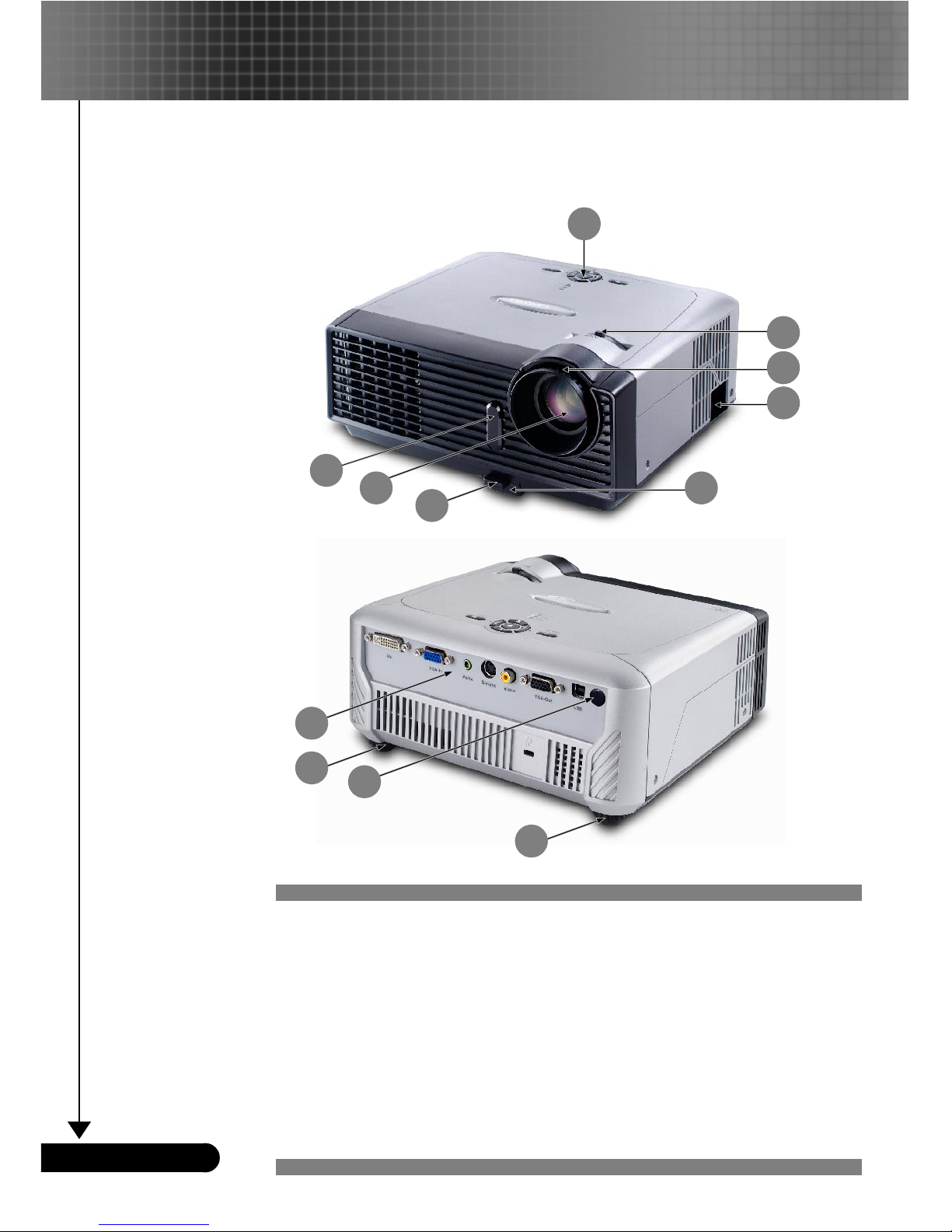
1. Control Panel
2. Zoom Lever
3. Focus Ring
4. Power Socket
5. Elevator Foot
6. Elevator Button
7. Zoom Lens
8. IR Receivers
9. Connection Ports
10. Tilt Adjusting Wheel
Main Unit
Product Overview
Introduction
8
6
9
1
2
4
5
3
10
10
8
7
Page 7
7
... English
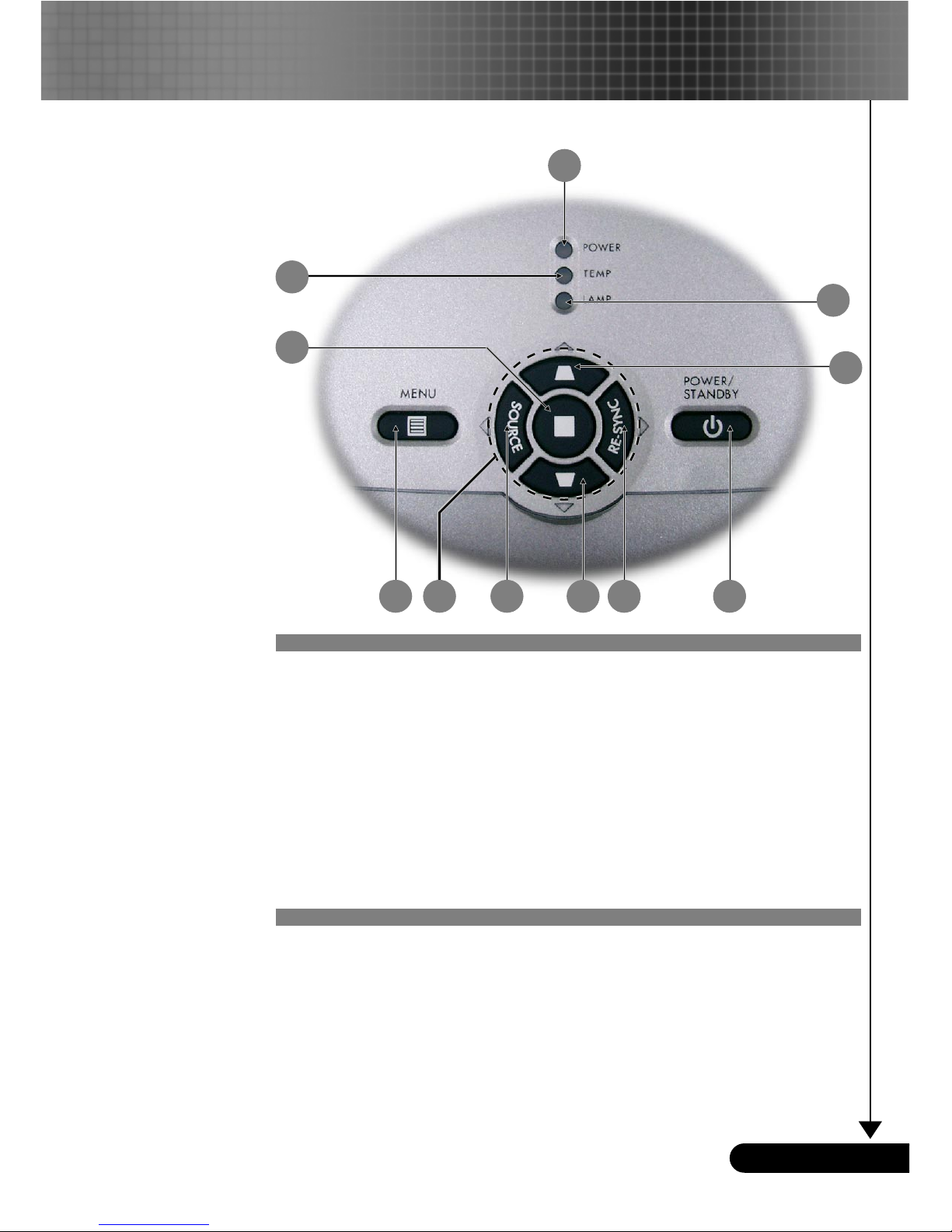
Control Panel
1. Power Indicator LED
2. Temp Indicator LED
3. Lamp Indicator LED
4. Keystone Correction
5. Power/Standby
6. Re-Sync
7. Source
8. Four Directional Select Keys
9. Menu (On/Off)
10. Enter
Introduction
4
4
59 67
2
3
1
10
8
Page 8

8
English ...
Introduction
Connection Ports
1. IR Receiver
2. USB Input Connector
3. Monitor Loop-through Output Connector
4. Composite Video Input Connector
5. S-Video Input Connector
6. Audio Input Connector
7. PC Analog signal/SCART RGB/HDTV/Component Video
Input Connector
8. PC Analog signal/HDTV/Component Video Input
Connector
8. DVI-I Input Connector (for Digital signal with HDCP
function)
9. KensingtonTM Lock Port
8
7 123456
9
7 123456
9
8
USA
EU
USA
EU
Page 9

9
... English
Wireless Remote Control
1. Power
2. IR LED
3. Hide
4. Freeze
5. D-Zoom
6. Display Mode
7. Menu
8. Keystone Correction
9. Re-Sync
10. Volume +
11. Volume -
12. Reset
13. Enter
14. Four Directional
Select Keys
----------------------------
15. VGA1 Source
16. VGA2 Source
----------------------------
15. DVI-D Source
16. VGA Source
-----------------------------
17. Composite Video
Source
18. S-Video Source
Introduction
4
5
6
15
9
10
11
13
2
7 12
17
16
18
14
8
3
1
EU
USA
15
16
USA
EU
Page 10
10
English ...
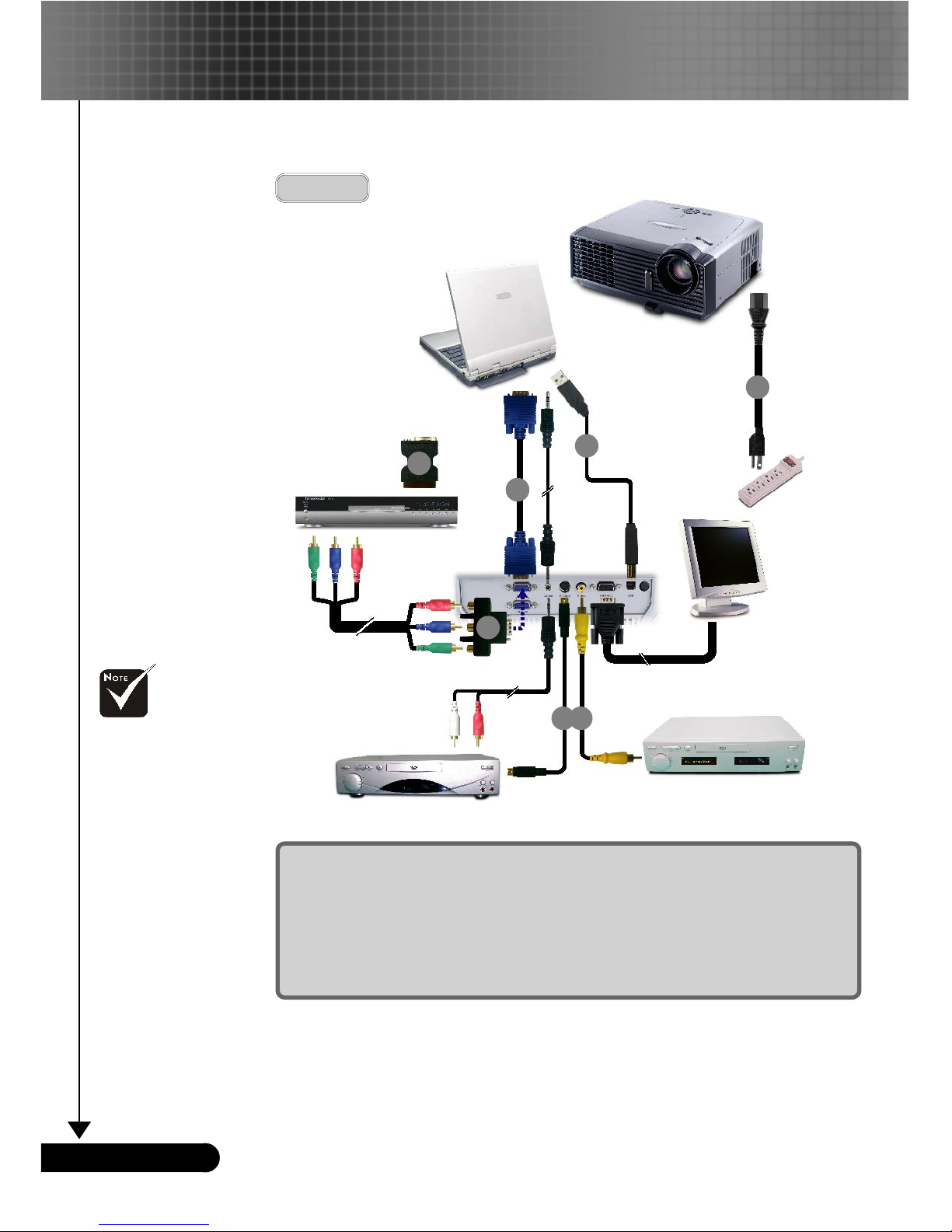
Connecting the Projector
Installation
Due to the differ-
ence in applications for each
country, some
regions may have
different
accessories.
To ensure the projector works well with your computer, please
set the display mode of your graphic card less than or equal to
1024 X 768 resolution. Make sure the timing of the display mode is
compatible with the projector. Refer to the “Compatibility Modes”
section on page 38.
S-Video Output
Video Output
DVD Player,
Settop Box,
HDTV receiver
5
7
1
6
RGB
1. ............................................................................................................. Power Cord
2. .............................................................................................................. VGA Cable
3. ................................ SCART RGB/S-Video Adaptor (For European Use Only)
4. ......................................................................................... Composite Video Cable
5. .................................................................... S-Video Cable (Optional Accessory)
6. ..................................... D-15 to RCA Adapter for YPbPr (Optional Accessory)
7. .......................................................................... USB Cable (Optional Accessory)
USB
4
EU
32
3
Page 11
11
... English
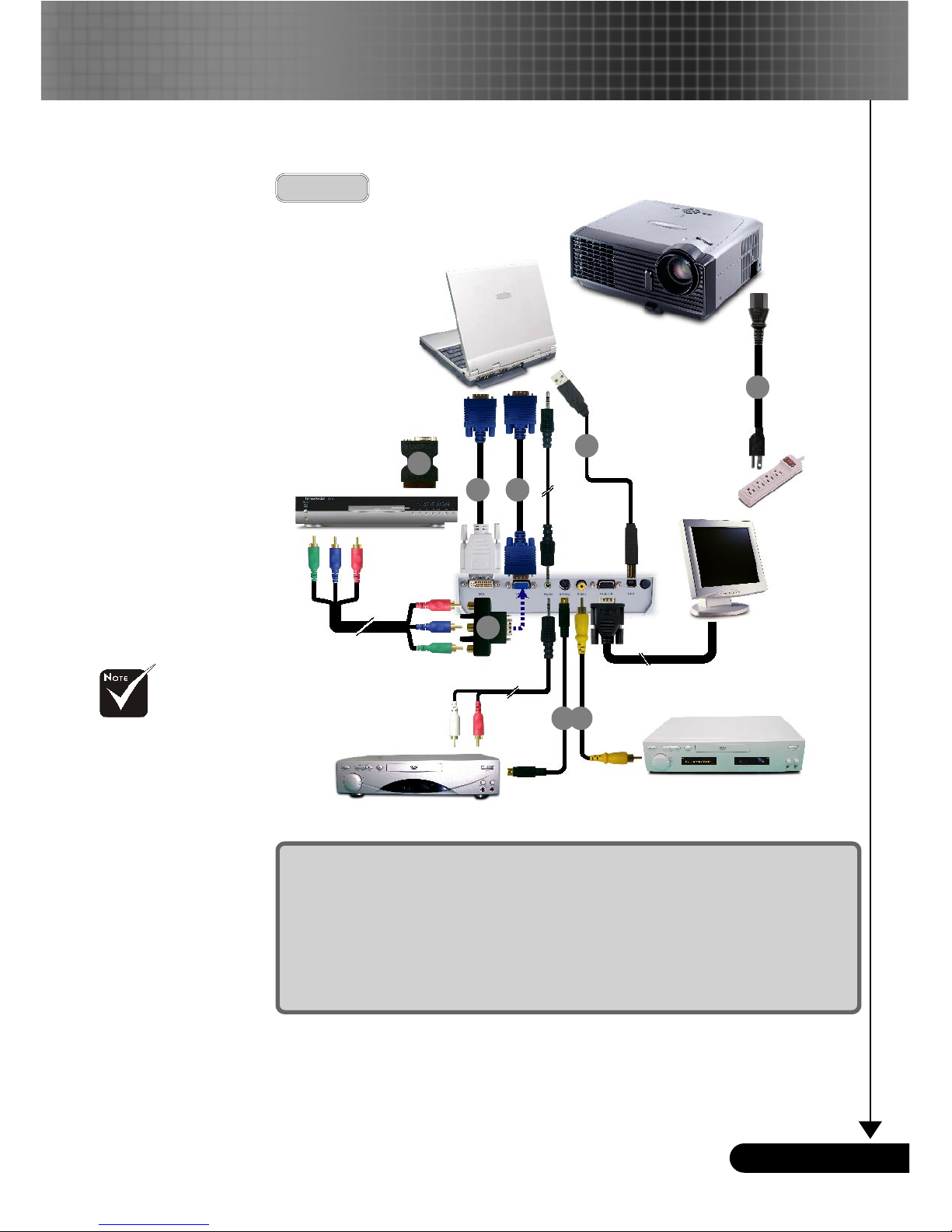
To ensure the projector works well with your computer, please
set the display mode of your graphic card less than or equal to
1024 X 768 resolution. Make sure the timing of the display mode is
compatible with the projector. Refer to the “Compatibility Modes”
section on page 38.
S-Video Output
Video Output
DVD Player,
Settop Box,
HDTV receiver
6
8
1
7
RGB
1. ............................................................................................................. Power Cord
2. .............................................................................................................. VGA Cable
3. ................................................................................................. DVI to VGA Cable
4. ................................ SCART RGB/S-Video Adaptor (For European Use Only)
5. ......................................................................................... Composite Video Cable
6. .................................................................... S-Video Cable (Optional Accessory)
7. ..................................... D-15 to RCA Adapter for YPbPr (Optional Accessory)
8. .......................................................................... USB Cable (Optional Accessory)
USB
5
USA
323
4
Connecting the Projector
Installation
Due to the differ-
ence in applications for each
country, some
regions may have
different
accessories.
Page 12
12
English ...
Installation
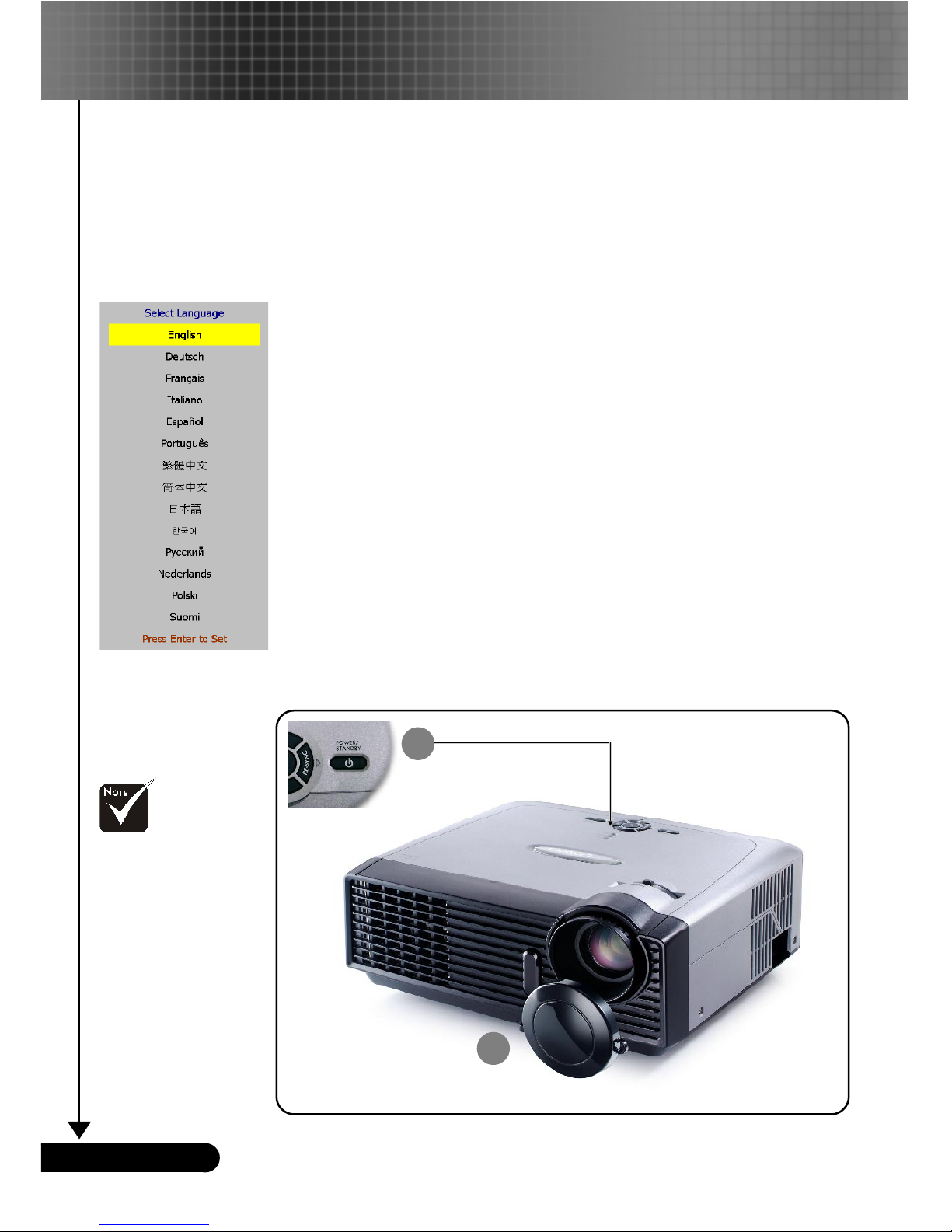
Powering On the Projector
1. Remove the lens cap. n
2. Ensure that the power cord and signal cable are securely
connected. The Power LED will flash green.
3. Turn on the lamp by pressing “Power/Standby” button on
the control panel.o And the Power LED will turn green.
The first time you use the projector, you can select your
prefered language from quick menu after the startup
screen display.
4. Turn on your source (computer, notebook, video player,
etc.). The projector will detect your source automatically.
If you connect multiple sources at the same time, use the
“Source” button on the control panel or remote control to
switch.
Powering On/Off the Projector
Turn on the
projector first and then
the signal sources.
1
Power/Standby
2
Lens Cap
Quick Menu
Page 13

13
... English
Warning Indicator
When the “LAMP” indicator lights solid red, the projector will
automatically shut itself down. Please contact your local
reseller or service center. See page 35~36.
When the “TEMP” indicator lights solid red for about 10
seconds, it indicates the projector has been overheated. The
projector will automatically shut itself down.
Under normal conditions, the projector can be switched on
again after it has cooled down. If the problem persists, you
should contact your local dealer or our service center. See page
35~36.
When the “TEMP” indicator flashs red for about 5 seconds, it
indicates the fan failed. Please contact your local dealer or our
service center. See page 35~36.
Powering Off the Projector
1. Press the “Power/Standby” button to turn off the projector
lamp, you will see a message
“ ” displayed on the
projector’s screen. Press the “Power/Standby” button
again to confirm, otherwise the message will disappear
after 5 seconds.
Please note that if the key is pressed instead, the projector will enter the “Picture Mute” mode and no image will
be displayed. To exit the “Picture Mute” mode, press the
“Power/Standby” button again.
2. The cooling fans continue to operate for about 30 seconds
for cooling cycle and the Power LED will turn green. When
the Power LED begins flashing, the projector has entered
standby mode.
If you wish to turn the projector back on, you must wait
until the projector has completed the cooling cycle and has
entered standby mode. Once in standby mode, simply
press “Power/Standby” button to restart the projector.
3. Disconnect the power cord from the electrical outlet and
the projector.
4. Do not turn on the projector immediately following a
power off procedure.
Installation
Page 14
14
English ...
Installation
Adjusting the Projected Image
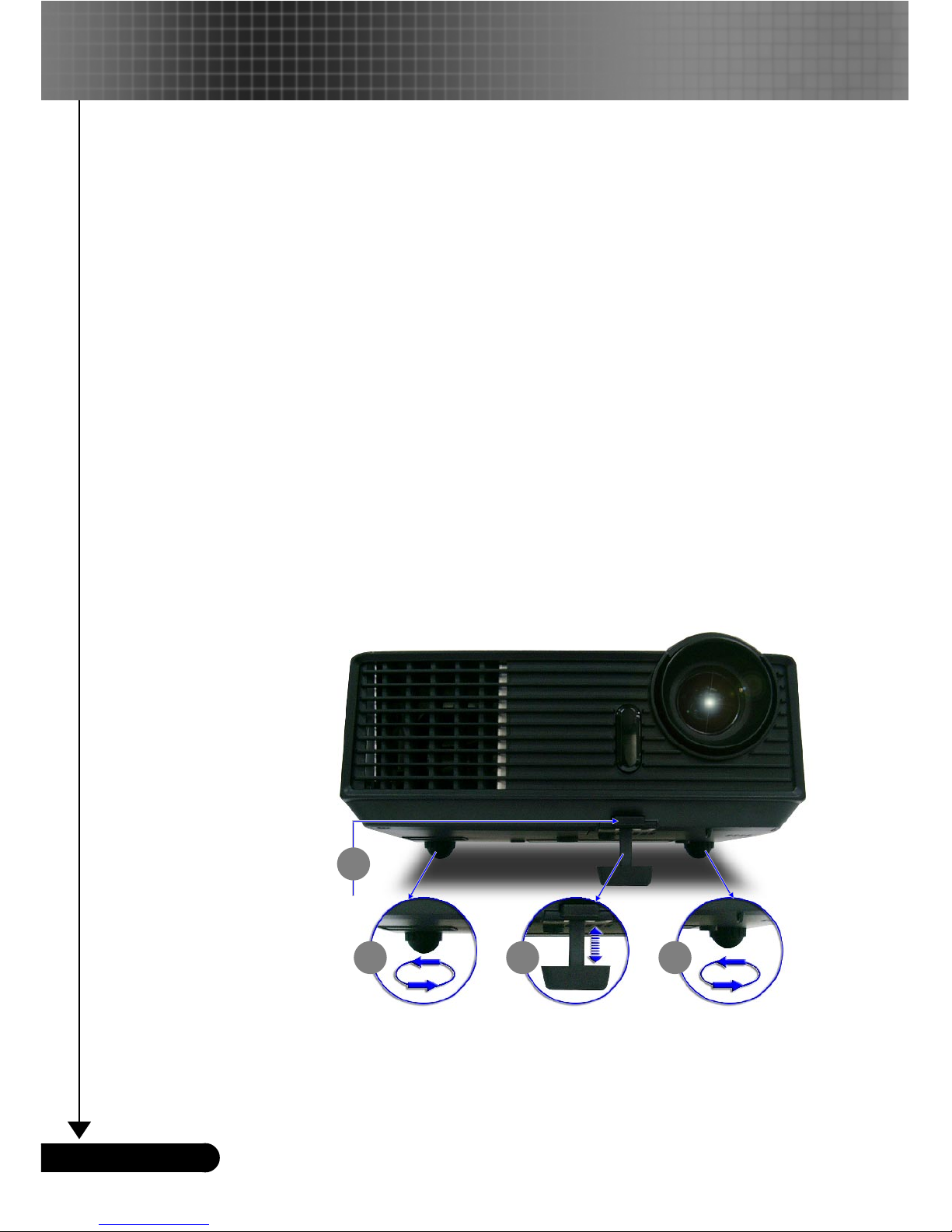
Adjusting the Projector Image Height
Tilt Adjusting
Wheel
Elevator Foot
2
3
Elevator Button
The projector is equipped with an elevator foot for adjusting
the image height.
To raise the image:
1. Press the elevator button n.
2. Raise the image to the desired height angle o, then release
the button to lock the elevator foot into position.
3. Use p to fine-tune the display angle.
To lower the image:
1. Press the elevator button.
2. Lower the image, then release the button to lock the elevator
foot into position.
3. Use p to fine-tune the display angle.
1
3
Page 15
15
... English
69.3"
(176.1cm)
115.6"
(293.5cm)
161.8"
(410.9cm)
184.9"
(469.6cm)
231.1"
(587.0cm)
38.1"
(96.8cm)
76.2"
(193.6cm)
127.1"
(322.7cm)
177.9"
(451.8cm)
203.3"
(516.3cm)
254.1"
(645.4cm)
4.92'
32.81'
26.25'
22.97'
16.40'
9.84'
(1.5m)
(10.0m)
(8.0m)
(7.0m)
(5.0m)
(3.0m)
34.7"
(88.1cm)
Max. 38.1"( 96.8cm) 76.2"( 193.6c m) 127.1"(322.7cm) 177.9"(451.8cm) 203.3"(516.3cm) 254.1"(645.4cm)
Min. 34.7"( 88.1cm) 69.3"( 176.1c m) 115.6"( 293.5c m) 161.8"(410.9cm) 184.9"(469.6cm) 231.1"(587.0cm)
Max.(WxH)
30.48" x 22.86"
(77.4 x 58.1cm)
60.96" x 45.72"
(154.9 x 116.2cm)
101.68" x 76.26"
(258.2 x 193.6cm)
142.32" x 106.74"
(361.4 x 271.1cm)
162.64" x 121.98"
(413.0 x 309.8cm)
203.28" x 152.46"
(516.3 x 387.2cm)
Min.(WxH)
27.76" x 20.82"
(70.5 x 52.9cm)
55.44" x 41.58"
(140.9 x 105.7cm)
92.48" x 69.36"
(234.8 x 176.1cm)
129.44" x 97.08"
(328.7 x 246.5cm)
147.92" x 110.94"
(375.7 x 281.8cm)
184.88" x 138.66"
(469.6 x 352.2cm)
4.92'(1.5m) 9.84'(3.0m) 16.40'(5.0m ) 22.97'(7.0m) 26.25'(8. 0m) 32.81'(10.0m)
Screen
(Diagonal)
Screen
Size
Distance
Diagonal
Focus Ring
Zoom Lever
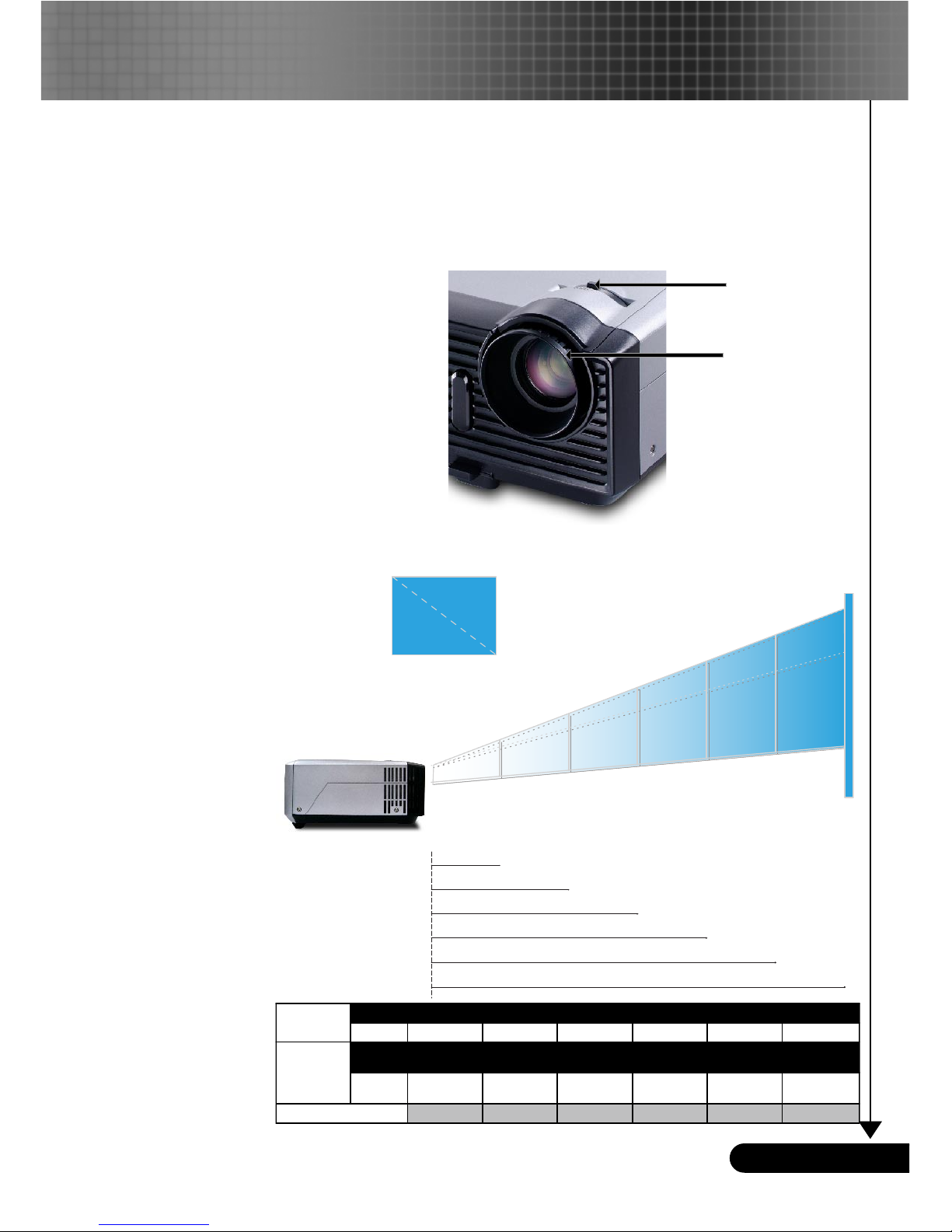
Adjusting the Projector Zoom / Focus
You may turn the zoom lever to zoom in or out. To focus the
image, rotate the focus ring until the image is clear. The projector will focus at distances from 4.9 to 32.8 feet (1.5 to 10.0 meters).
Adjusting Projection Image Size
This graph is for user’s reference only.
Installation
Page 16

16
English ...
Remote ControlControl Panel
Control Panel & Remote Control
There are two ways for you to control the functions: Remote
Control and Control Panel.
Using the Control Panel
Power/Standby
4
Refer to the “Power On/Off the Projector” section on pages
12-13.
Source
4
Press “Source” to choose RGB, Component-p, Component-i,
S-Video, Composite Video and HDTV sources.
Menu
4
Press “Menu” to launch the on screen display (OSD) menu.
To exit OSD, press “Menu” again.
Keystone /
4
Adjusts image distortion caused by tilting the projector (±8
degrees).
Four Directional Select Keys
4
Use to select items or make adjustments to
your selection.
Enter
4
Confirm your selection of items.
Re-Sync
4
Automatically synchronizes the projector to the input source.
Installation
Page 17

17
... English
Installation
Using the Remote Control
Power
4
Refer to the “Power On/Off the Projector” section on pages
12-13.
Re-Sync
4
Automatically synchronizes the projector to the input source.
Volume + / - (Vol+/Vol-)
4
Increases/decreases speaker volume.
Reset
4
Changes the adjustments and settings to the factory default
value.
Hide
4
Press “Hide” to hide image, press again to restore display of the
image.
Keystone /
4
Adjusts image distortion caused by tilting the projector (±15
degrees).
Freeze
4
Press “Freeze” to pause the screen image.
D-Zoom
4
Press “D-Zoom” button to zoom in of an image.
Display Mode
4
Select the display mode from PC, Movie, Game, sRGB and User.
Four Directional Select Keys
4
Use to select items or make adjustments to
your selection.
Enter
4
Confirm your selection of items.
Menu
4
Press “Menu” to launch the on screen display menu. To exit
OSD, press “Menu” again.
VGA1
4
Press “VGA1” to choose VGA1 connector.
VGA2
4
Press “VGA2” to choose VGA2 connector.
S-Video
4
Press “S-Video” to choose S-Video source.
EU
EU
Page 18

18
English ...
Composite
4
Press “composite” to choose Composite video source.
VGA
4
Press “VGA” to choose VGA connector.
DVI-D
4
Press “DVI-D” to choose DVI connector.
Installation
USA
USA
Page 19
19
... English
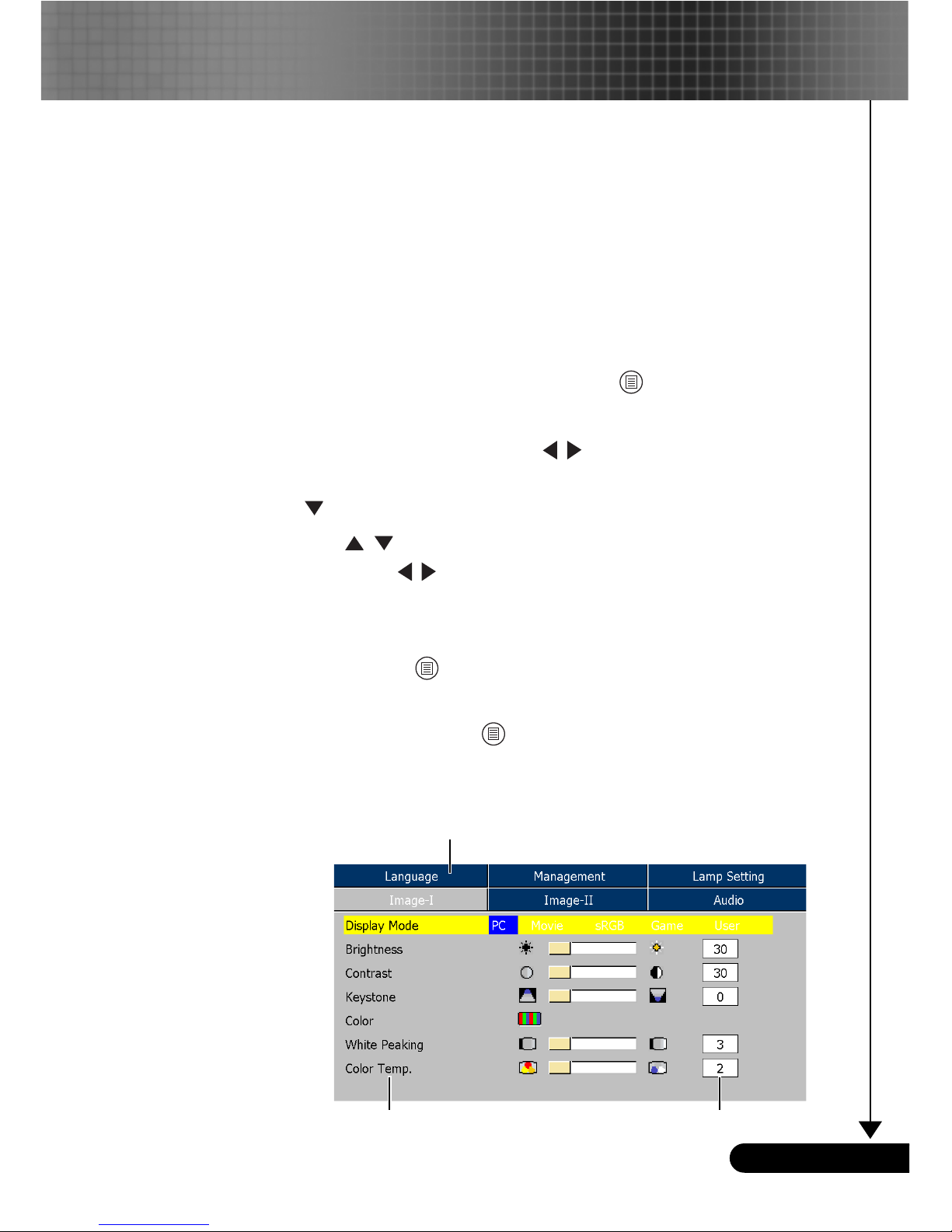
The Projector has multilingual On Screen Display menus
that allow you to make image adjustments and change a
variety of settings. The projector will automatically detect
the source.
How to operate
1. To open the OSD menu, press “Menu ” on the Remote Control
or Control Panel.
2. When OSD is displayed, use keys to select any item in the
main menu. While making a selection on a particular page, press
or “Enter” key to enter sub menu.
3. Use keys to select the desired item and adjust the
settings by key.
4. Select the next item to be adjusted in the sub menu and adjust as
described above.
5. Press “Menu ” to confirm, and the screen will return to the main
menu.
6. To exit, press “Menu ”again. The OSD menu will close and the
projector will automatically save the new settings.
On Screen Display Menus
Main Menu
Sub Menu
Setting
User Controls
Page 20

20
English ...
User Controls
Menu Tree
Page 21

21
... English
Language
Language
Choose the multilingual OSD menu . Use the or key to select
your preferred language.
Press “Enter” to finalize the selection.
User Controls
Page 22

22
English ...
Image-I
Display Mode
There are many factory presets optimized for various types of
images.
4
PC: For computer or notebook.
4
Movie: For home theater.
4
Game : For game.
4
sRGB: For standard color.
4
User: Memorize user’s settings.
Brightness
Adjust the brightness of the image.
4
Press the to darken image.
4
Press the to lighten the image.
Contrast
The contrast controls the degree of difference between the lightest
and darkest parts of the picture. Adjusting the contrast changes
the amount of black and white in the image.
4
Press the to decrease the contrast.
4
Press the to increase the contrast.
Keystone (Keystone Correction)
Adjust image distortion caused by tilting projector. (±8 degrees)
Color
Press “Enter” to adjust the red, green and blue colors.
White Peaking
Use the white peaking control to set the white peaking level of
DMD chip. 0 stands for minimal peaking, and 10 stands for
User Controls
Page 23
23
... English
User Controls
“Saturation” function
is not supported under
computer mode.
maximum peaking. If you prefer a stronger image, adjust towards
the maximum setting. For a smooth and more natural image,
adjust towards the minimum setting.
Color Temp.
Adjust the color temperature. At higher temperature, the screen
looks colder; at lower temperature, the screen looks warmer.
Page 24
24
English ...
Image-II
(Computer Mode)
User Controls
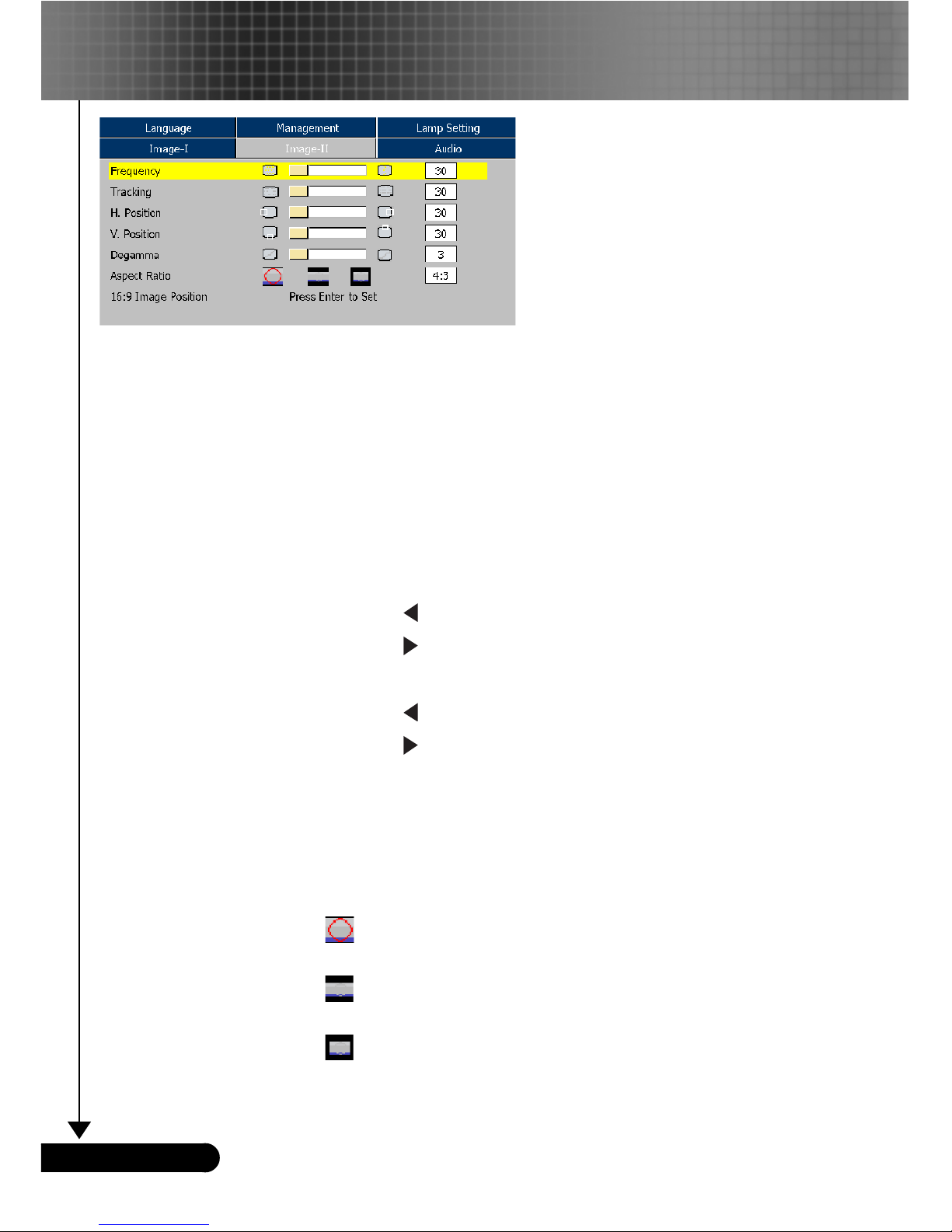
Frequency
“Frequency”changes the display data frequency to match the
frequency of your computer’s graphic card. If you experience a
vertical flickering bar, use this function to make an adjustment.
Tracking
“Tracking” synchronizes the signal timing of the display with the
graphic card. If you experience an unstable or flickering image, use
this function to correct it.
H.Position (Horizontal Position)
4
Press the to move the image left.
4
Press the to move the image right.
V. Position (Vertical Position)
4
Press the to move the image down.
4
Press the to move the image up.
Degamma
This allows you to choose a degamma table that has been finetuned to bring out the best image quality for the input.
Aspect Ratio
Use this function to choose your desired aspect ratio.
4
4:3 : The input source will be scaled to fit the projection
screen.
4
16:9 : The input source will be scaled to fit the width of
the screen.
4
Window: When a 4:3 image is bigger than a 16:9 screen,
select the “Window” mode to fit the image onto the screen
without changing the projection distance.
Page 25

25
... English
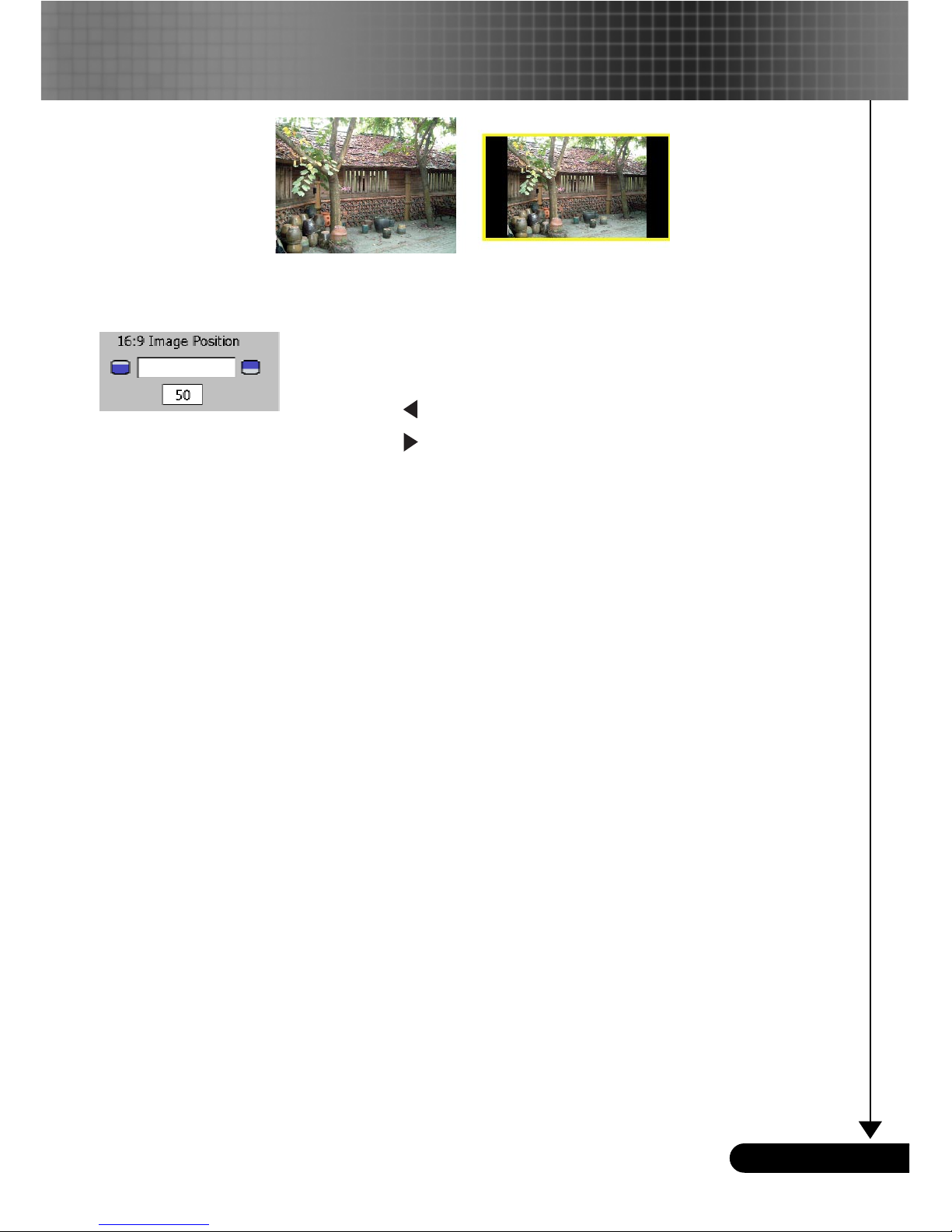
16:9 Image Position
Adjust the image position to up or down, when you select the
aspect ratio to 16:9.
4
Press the to move the image down.
4
Press the to move the image up.
WindowOriginal Pixel
User Controls
Page 26

26
English ...
Image-II
(Video Mode)
User Controls
Degamma
This allows you to choose a degamma table that has been finetuned to bring out the best image quality for the input.
Saturation
Adjusts a video image from black and white to fully saturated
color.
4
Press the to decrease the amount of color in the image.
4
Press the to increase the amount of color in the image.
Tint
Adjusts the color balance of red and green.
4
Press the to increase the amount of green in the image.
4
Press the to increase the amount of red in the image.
Sharpness
Adjusts the sharpness of the image.
4
Press the to decrease the sharpness.
4
Press the to increase the sharpness.
Aspect Ratio
Use this function to choose your desired aspect ratio.
4
4:3 : The input source will be scaled to fit the projection
screen.
4
16:9 : The input source will be scaled to fit the width of
the screen.
4
Window: When a 4:3 image is bigger than a 16:9 screen,
select the “Window” mode to fit the image onto the screen
without changing the projection distance.
“Saturation”, “Tint”
and “Sharpness”
function is not
supported under
DVI-D mode.
Page 27
27
... English
User Controls
16:9 Image Position
Adjust the image position to up or down, when you select the
aspect ratio to 16:9.
4
Press the to move the image down.
4
Press the to move the image up.
WindowOriginal Pixel
Page 28
28
English ...
Audio
User Controls
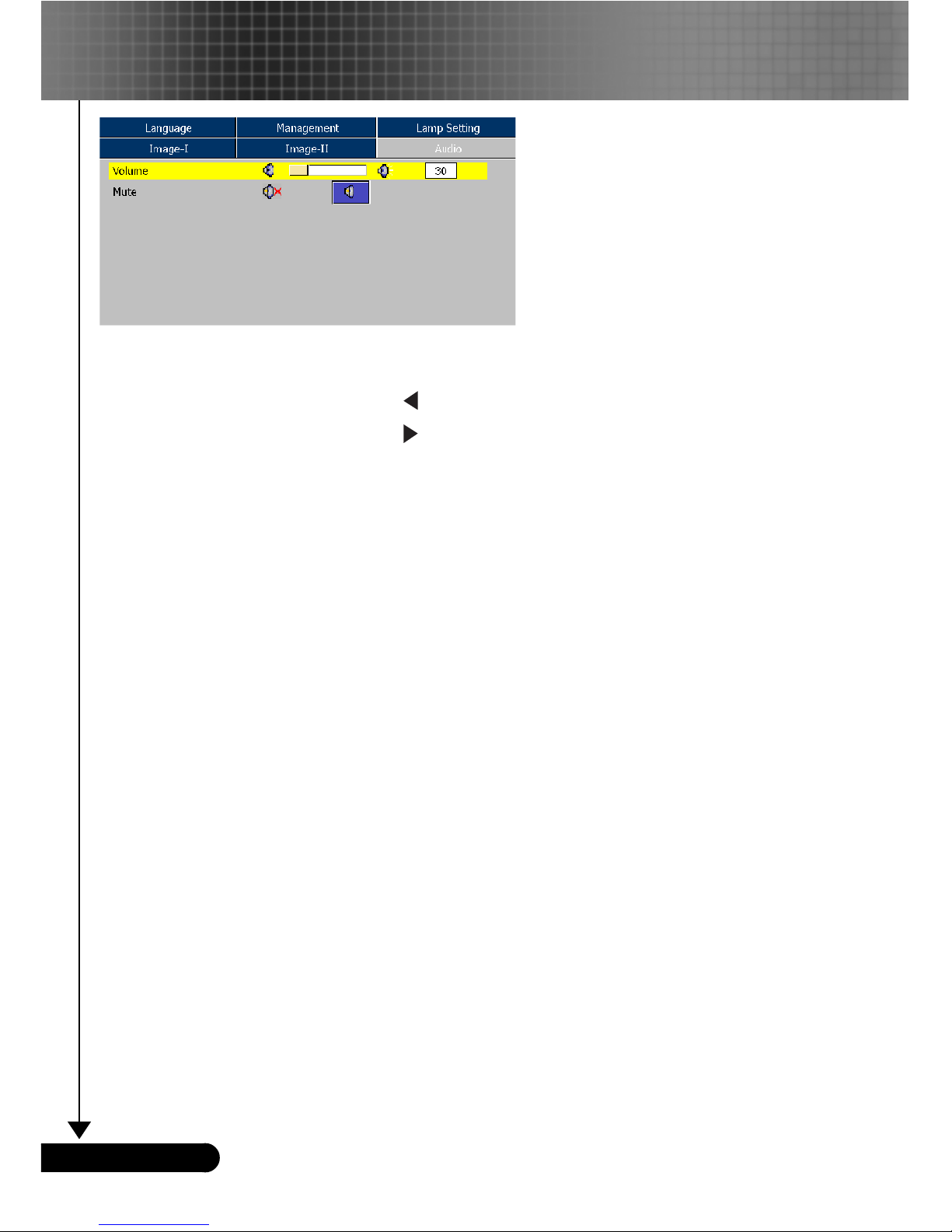
Volume
4
Press the to decrease the volume.
4
Press the to increase the volume.
Mute
4
Choose the left icon to turn mute on.
4
Choose the right icon to turn mute off.
Page 29

29
... English
Menu Location
Choose the menu location on the display screen.
Projection
4
Front-Desktop
The factory default setting.
4
Rear-Desktop
When you select this function, the projector reverses the image
so you can project behind a translucent screen.
4
Front-Ceiling
When you select this function, the projector turns the image
upside down for ceiling-mounted projection.
4
Rear-Ceiling
When you select this function, the projector reverses and turns
the image upside down at same time. You can project from
behind a translucent screen with ceiling mounted projection.
Signal Type
Select signal type RGB or Video sources.
Keystone
Correct image distortion caused by tilting the projector vertically.
Source Lock
When this function is turned off, the projector will search for other
signals if the current input signal is lost. When this function is
turned on, it will search specified connection port.
High Altitude
Management
User Controls
Page 30

30
English ...
Choose “On” to turn on High Altitude mode. Operates the fans at
full speed continuously to allow for proper high altitude cooling of
the projector.
Security Settings
A. Press “Enter” to set password. (First time)
1. Password is allowed of 4~8 bits, Default value is “0000”.
2. Display on the screen by “*” while inputting.
3. Use
keys to select your input bits, and then press
“Enter” key to confirm your selection.
4. Move to and then press “Enter” key to confirm finally.
5. On this screen, press the “Menu” key will jump to directly,
and then press “Enter” key to confirm your selection. (“Menu”
can be switched over between the position and at present)
6. When input error to go to to delete the bit. (You can press
the “Menu”, and then press the
key.)
B. Press “Enter” to set the security protection.
4
Security Mode
On: Choose “On” to use security verification while user
switch on projector.
Off: When user switch on projector without password.
Timer: Displays the usable hours when switch on the
projector. When the time remaining is 0, the time out message
User Controls
Page 31

31
... English
User Controls
will appear, and then press “Menu” or “Enter” to select input
password.
4
Timer Setting: When the Timer is selecting, this functions can be
used.
4
Change Password: Press “Enter” to change password.
1. Input the the old Password.
2. Changes a new Password.
3. Confirms the password, please input the new password once
again.
4. Password is allowed of 4~8 bits, Default value is “0000”.
5. Display on the screen by “*” while inputting.
6. Use
keys to select your input bits, and then press
“Enter” key to confirm your selection.
7. Move to
and then press “Enter” key to confirm finally.
8. On this Screen, press “Menu” key to switch over between in the
position at present, Old Password, New Password, Confirm
Password and .
9. When input error to go to to delete the bit. (You can press
the “Menu”, and then press the key.)
Zoom
4
Press the to reduce the size of an image.
4
Press the to magnify an image on the projection screen.
Reset
Choose “Yes” to return the display parameters on all menus to the
factory default settings.
Page 32
32
English ...
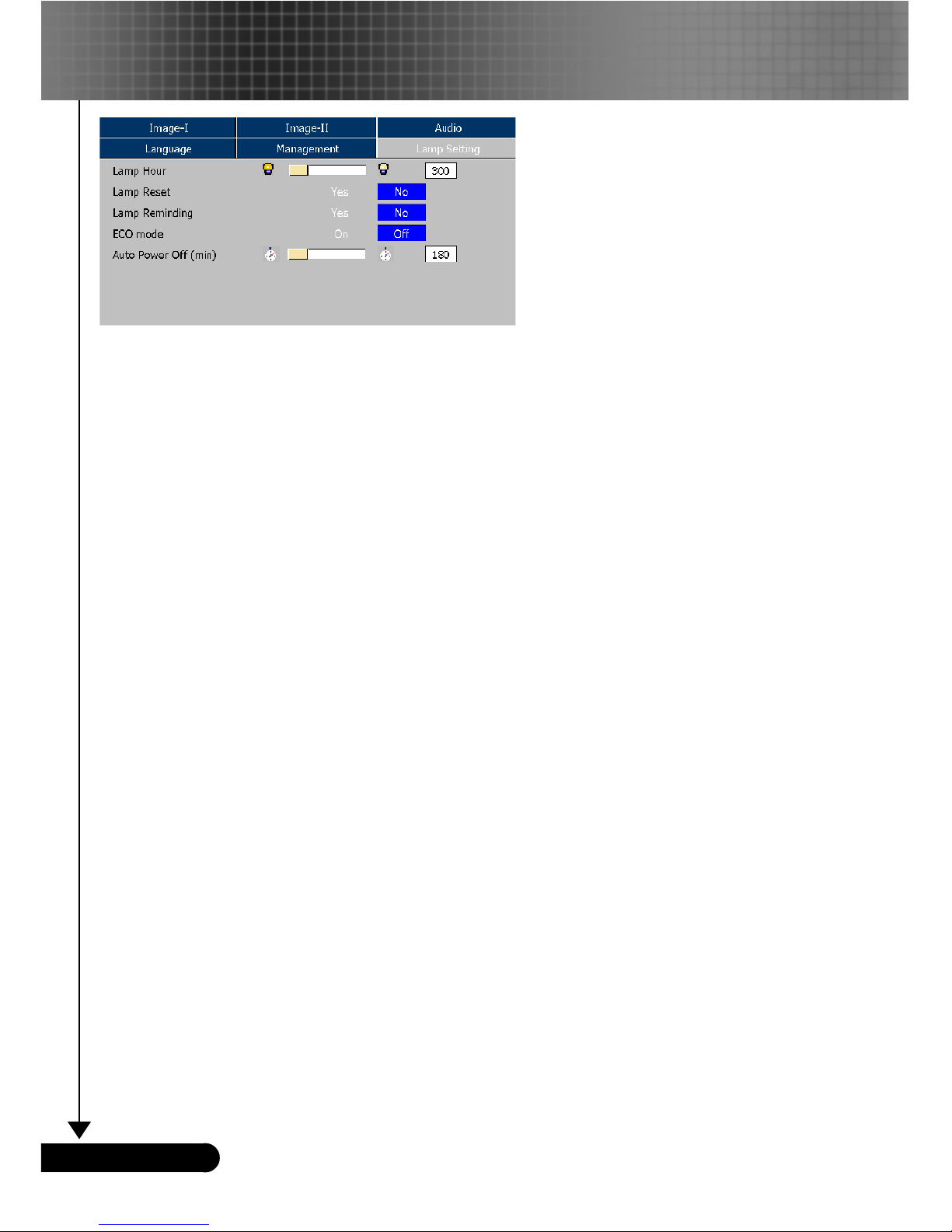
Lamp Hours
Display the cumulative lamp operating time.
Lamp Reset
Reset the lamp life hour after replacing a new lamp.
Lamp Reminding
Choose this function to show or to hide the warning message when
the changing lamp message is displayed. The message will show up
30 hours before end of life.
ECO Mode
Choose “On” to dim the projector lamp which will lower power
consumption and extend the lamp life by up to 130%. Choose ”Off”
to return to normal mode.
Sleep Timer
Sets the interval of power-off of the system, if there is no signal
input. (In minutes)
Lamp Setting
User Controls
Page 33
33
... English
Appendices
Problem: No image appears on screen.
4
Ensure all the cables and power connections are correctly and
securely connected as described in the “Installation” section.
4
Ensure the pins of connectors are not crooked or broken.
4
Check if the projection lamp has been securely installed. Please
refer to the “Replacing the lamp” section.
4
Make sure you have removed the lens cap and the projector is
switched on.
4
Ensure that the “Hide” feature is not turned on.
Problem: Partial, scrolling or incorrectly displayed image.
4
Press “Re-Sync” on the remote control or control panel.
4
If you are using a PC:
For Windows 3.x:
1. In the Windows Program Manager, double click the “Windows
Setup” icon in the Main group.
2. Verify that your display resolution setting is less than or equal
to 1280 x 1024.
For Windows 95, 98, 2000, XP:
1. From the “My Computer” icon, open the “Control Panel”
folder, and double click the “Display” icon.
2. Select the “Settings” tab
3. Click on the “Advanced Properties” button.
If the projector is still not projecting the whole image, you will
also need to change the monitor display you are using. Refer to
the following steps.
Troubleshooting
If you experience trouble with the projector, refer to
the following information. If the problem persists, please
contact your local reseller or service center.
Page 34

34
English ...
4. Verify the resolution setting is less than or equal to 1280 x 1024
resolution.
5. Select the “Change” button under the “Monitor” tab .
6. Click on “Show all devices.” Next, select “Standard monitor
types” under the SP box; choose the resolution mode you need
under the “Models” box.
4
If you are using a Notebook:
1. First, follow the steps above to adjust resolution of the
computer.
2. Press the toggle output settings. example:[Fn]+[F4]
4
If you experience difficulty changing resolutions or your
monitor freezes, restart all equipment including the projector.
Problem: The screen of the Notebook or PowerBook computer is not displaying a presentation.
4
If you are using a Notebook PC:
Some Notebook PCs may deactivate their own screens when a
second display device is in use. Each has a different way to be
reactivated. Refer to your computer’s documentation for detailed
information.
Problem: Image is unstable or flickering
4
Use “Tracking” to correct it.
4
Change the monitor color setting from your computer.
Problem: Image has vertical flickering bar
4
Use “Frequency” to make an adjustment.
4
Check and reconfigure the display mode of your graphic card to
make it compatible with the product.
Appendices
Compaq=> [Fn]+[F4]
Dell => [Fn]+[F8]
Gateway=> [Fn]+[F4]
IBM=> [Fn]+[F7]
Mac Apple:
System Preference-->Display-->Arrangement-->Mirror
display
Hewlett
=> [Fn]+[F4]
Packard
NEC=> [Fn]+[F3]
Toshiba => [Fn]+[F5]
Page 35

35
... English
Problem: Image is out of focus
4
Adjusts the Focus Ring on the projector lens. Refer to page 14.
4
Make sure the projection screen is between the required distance
4.9 to 32.8 feet (1.5 to 10.0 meters) from the projector.
Problem: The image is stretched when displaying 16:9 DVD.
The projector automatically detects 16:9 DVD and adjusts the aspect
ratio by digitizing to full screen with 4:3 default setting.
If the image is still stretched, you will also need to adjust the aspect
ratio by referring to the following:
4
Please select 4:3 aspect ratio type on your DVD player if you are
playing a 16:9 DVD.
4
If you can’t select 4:3 aspect ratio type on your DVD player, please
select 4:3 aspect ratio in the on screen menu.
Problem: Image is reversed.
4
Select “Management-->Projection” from the OSD and adjust the
projection direction.
Problem: Lamp burns out or makes a popping sound
4
When the lamp reaches its end of life, it will burn out and may
make a loud popping sound. If this happens, the projector will not
turn on until the lamp module has been replaced. To replace the
lamp, follow the procedures in the “Replacing the Lamp”.
Problem: LED lighting message
Message
Power LED
Temp LED Lamp LED
Green
Standby State
Flashing
(Input power cord)
Lamp lighting
Power on
Power off (Cooling)
Error (Lamp fail)
Error (Thermal fail)
Error (Fan fail) Flashing
Error (Over Temp.)
Error
(Lamp Breakdown)
Appendices
Steady light =>
No light =>
Page 36

36
English ...
Appendices
Problem: Message Reminders
4
Fan Failed:
will be shown when the fan is out of order.
4
Over Temperature:
will be shown when the system temperature is too high.
4
Replacing the lamp:
will be shown when lamp is nearing end of life.
4
Password error :
4Time out:
Page 37

37
... English
Replacing the lamp
The projector will detect the lamp life itself. It will show you a
warning message
“ ”
When you see this message, change the lamp as soon as
possible.
Make sure the projector has been cooled down for at least
30 minutes before changing the lamp.
Warning: Lamp
compartment is hot!
Allow it to cool down
before changing lamp!
Warning: To
reduce the risk of
personal injury, do not
drop the lamp module
or touch the lamp
bulb. The bulb may
shatter and cause
injury if it is dropped.
Appendices
Lamp Replacing Procedure:
1. Switch off the power to the projector by pressing the Power/
Standby button.
2. Allow the projector to cool down at least 30 minutes.
3. Disconnect the power cord.
4. Use a screwdriver to remove the screw from the cover.n
5. Push up and remove the cover.o
6. Remove the 2 screws from the lamp module.p
7. Pull out the lamp module. q
To replace the lamp module, reverse the previous steps.
1
3
4 2
Page 38
38
English ...
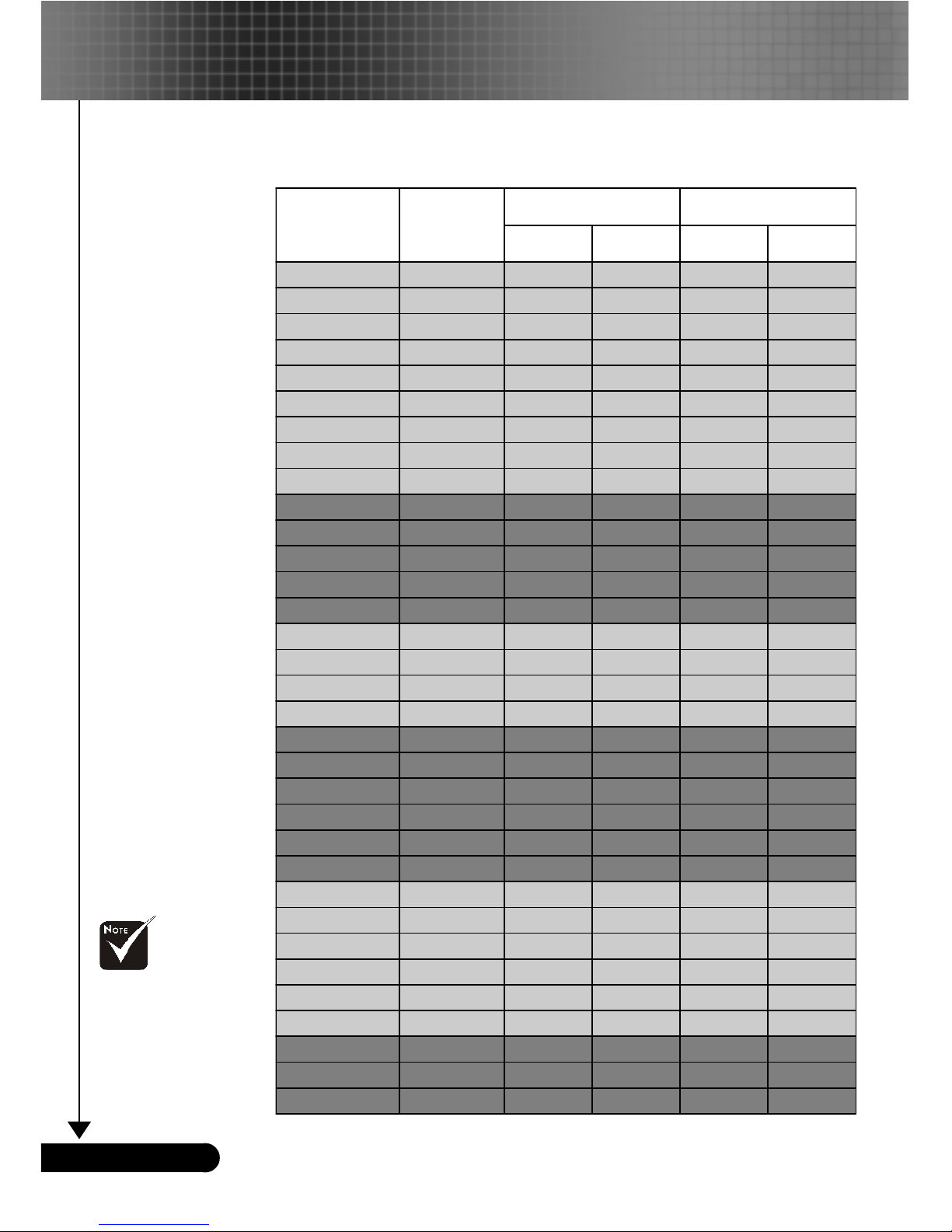
Remark :
1.> “*”compressed
computer image.
2.> The column of
Digital is support DVID connector.
Compatibility Modes
Appendices
VESA VGA 640 x 350 70 31 .5 70 31 .5
VESA VGA 640 x 350 85 37 .9 85 37 .9
VESA VGA 640 x 400 85 37 .9 ** * ***
VESA VGA 640 x 480 60 31 .5 60 31 .5
VESA VGA 640 x 480 72 37 .9 72 37 .9
VESA VGA 640 x 480 75 37 .5 75 37 .5
VESA VGA 640 x 480 85 43 .3 85 43 .3
VESA VGA 720 x 400 70 31 .5 70 31 .5
VESA VGA 720 x 400 85 37 .9 85 37 .9
SVGA 800 x 600 56 35 .2 56 35 .2
SVGA 800 x 600 60 37 .9 60 37 .9
SVGA 800 x 600 72 48.1 72 48 .1
SVGA 800 x 600 75 46 .9 75 46 .9
SVGA 800 x 600 85 53 .7 85 53 .7
VESA XGA 1024 x 768 60 48.4 60 48.4
VESA XGA 1024 x 768 70 56. 5 70 56.5
VESA XGA 1024 x 768 75 60. 0 75 60.0
VESA XGA 1024 x 768 85 68. 7 85 68.7
* VESA SXGA 115 2 x 864 70 63.8 ** * ** *
* VESA SXGA 115 2 x 864 75 67.5 ** * ** *
* VESA SXGA 115 2 x 864 85 77 .1 ** * ***
* VESA SXGA 1280 x 1024 60 63. 98 60 63.9 8
* VESA SXGA 1280 x 1024 75 79. 98 *** ***
* VESA SXGA+ 1400 x 1050 60 63. 98 *** ***
MAC LC 13" 640 x 48 0 66.66 34.98 *** ***
MAC II 13" 640 x 480 66.6 8 35 *** ***
MAC 16" 83 2 x 624 74.55 49.725 *** ***
MAC 19" 1024 x 768 75 60.24 *** ** *
* MAC 1152 x 870 75.0 6 68. 68 *** ** *
MAC G4 64 0 x 480 60 31.3 5 ** * ***
i Mac DV 1024 x 768 75 60. 0 *** ***
* i Mac DV 1152 x 870 75 68. 49 *** ***
* i Mac DV 1280 x 960 75 75. 0 *** ***
Mode Resolution
(ANALOG)
V.Frequency
(Hz)
H.Frequency
(kHz)
(DIGITAL)
V.Frequency
(Hz)
H.Frequency
(kHz)
Page 39

39
... English
67.55
602.5/402.5
50.05
55.00
50.30
110.00
73.46
82.30
Max./Min.
215.21
Please note that
damage resulting from
incorrect installation
will invalidate the
warranty.
Appendices
Ceiling Mount Installation
1. To prevent damaging your projector, please use the ceiling
mount package for installation.
2. If you wish to use a third party ceiling mount kit, please
ensure the screws used to attached a mount to the projector
met the following specifications:
4
Screw type: M2.6
4
Maximum screw length: 10mm
4
Minimum screw length: 8mm
 Loading...