

Page 1
B6250/B6500
Reference Guide
B6250/B6500
Page 2

Adobe, the Adobe logo, PostScript, PostScript 3 and the PostScript logo are
trademarks of Adobe Systems Incorporated. Microsoft, Windows, Windows
NT, Windows Server are either registered trademarks or trademarks of
Microsoft Corporation in the United States and/or other countries.
Permission has been obtained from Microsoft Corporation for use of software
screen shots. PCL, HP, HP-GL, HP-GL/2 and HP-UX are registered trademarks
of Hewlett-Packard Corporation. Netware is a registered trademark of Novel,
Inc., in the United States and other countries . Macintosh, MacOS , AppleTalk,
EtherTalk and TrueType are trademarks of Apple Computer, Inc., registered
in the U.S. and other countries. Intel and Pentium are trademarks or
registered trademarks of Intel Corporation or its subsidiaries in the United
States and other countries. UNIX is a registered trademark of the Open
Group in the United States and other countries. Solaris, SunOS and NIS
(Network Information Services) are trademarks or registered trademarks of
Sun Microsystems, Inc. in the United States and other countries. All product/
brand names are trademarks or registered trademarks of the respective
holders.
Data Loss in Hard Disk/Compact Flash Disk
Saved data may be lost if the hard disk/compact flash in the machine breaks down
due to external shocks or if the power is accidentally cut off in a manner not following
the methods listed in manuals or other documentation. OKI is not responsible for such
data loss and any consequence caused by such data loss.
Damage related to computer virus
OKI is not responsible for any breakdown of machines due to infection of computer
virus.
Important
This manual is copyrighted with all rights reserved. Under the copyright laws, this
manual may not be copied or modified in whole or part, without the written consent
of the publisher.
Parts of this manual are subject to change without prior notice.
We welcome any comments on ambiguities, errors, omissions, or missing pages.
Never attempt any procedure on the machine that is not specifically described in this
manual. Unauthorized operation can cause faults or accidents. OKI is not liable for any
problems resulting from unauthorized operation of the equipm ent.
B6250/B6500 User’s Guide> i
Page 3
P
REFACE
Thank you for choosing this printer. This is a guide on operating this
printer and the important points to note. To understand the features
fully and to use the printer correctly and effectively, please read this
guide before using it.
Keep this guide handy for a quick reference on using the printer.
This guide is written with the assumption that you are familiar with
the basic knowledge and way of operating your computer
environment and the network environment.
In this manual, safety instructions are described with the following
symbol:
Always read and follow these instructions before performing the
required procedure.
This product is a “Class I Laser System” that does not emit
dangerous laser beam. Operate the machine according to the
instructions in the manual. Do not carry out any operation not
mentioned in the manual. Otherwise, it may lead to unforeseen
accident or machine breakdown.
B6250/B6500 User’s Guide> ii
Page 4

C
ONVENTIONS
1. In this guide, “computer” refers to both the personal
computer and workstation.
2. The following headers are used in this guide:
Important Indicates important information which you
should read.
Note Indicates additional information on operations or
features.
Refer to Indicates reference sources.
3. The following conventions are used in this guide:
Refer to “xxx”The cross-reference is within this guide.
Refer to YYY The cross-reference is not within this guide.
[ ] Indicates items displayed on the computer and
the printer control panel. Also indicates the title
of printed reports/lists from the printer.
< > Indicates items such as hard buttons and
indicators on the keyboard and printer.
B6250/B6500 User’s Guide> iii
Page 5

L
OW POWER
This product has a power-saving feature, which switches the
machine to the low power mode automatically if the machine is on
and not operated for a certain period of time. In this mode the
machine stops power to the fuser and saves power consumption.
The default low power mode start time is set at 15 minutes.
You can set the low power mode start time between 5 and 240
minutes.
M
ODE FEATURE
B6250/B6500 User’s Guide> iv
Page 6

I
LLEGAL COPIES AND PRINTOUTS
Copying or printing certain documents may be illegal in your
country. Penalties of fines or imprisonment may be imposed on
those found guilty. The following are examples of items that may be
illegal to copy or print in your country.
• Currency
• Banknotes and checks
• Bank and government bonds and securities
• Passports and identification cards
• Copyright material or trademarks without the consent of the
owner
• Postage stamps and other negotiable instruments
This list is not inclusive and no liability is assumed for either its
completeness or accuracy. In case of doubt, contact your legal
counsel.
B6250/B6500 User’s Guide> v
Page 7

B6250/B6500 User’s Guide> vi
Page 8

T
ABLE OF CONTENTS
Preface . . . . . . . . . . . . . . . . . . . . . . . . . . . . . . . . . . ii
Conventions . . . . . . . . . . . . . . . . . . . . . . . . . . . . . iii
Low Power Mode Feature . . . . . . . . . . . . . . . . . . . .iv
Illegal Copies and Printouts . . . . . . . . . . . . . . . . . . v
Table Of Contents . . . . . . . . . . . . . . . . . . . . . . . . . . 7
Basic Operations . . . . . . . . . . . . . . . . . . . . . . . . . . 11
Main Components and Their Functions . . . . . . . . . 11
Standard Configuration. . . . . . . . . . . . . . . . . . 11
With Optional Accessories . . . . . . . . . . . . . . . . 12
Internal View. . . . . . . . . . . . . . . . . . . . . . . . . 13
Control Panel . . . . . . . . . . . . . . . . . . . . . . . . . . . 14
Display . . . . . . . . . . . . . . . . . . . . . . . . . . . . . . . 15
Print Screen. . . . . . . . . . . . . . . . . . . . . . . . . . 15
Menu Screen . . . . . . . . . . . . . . . . . . . . . . . . . 16
Switching On and Off the Power. . . . . . . . . . . . . . 17
Switching On the Power. . . . . . . . . . . . . . . . . . . . 17
Switching Off the Power . . . . . . . . . . . . . . . . . . . 17
Power Saver Modes. . . . . . . . . . . . . . . . . . . . . . . 18
Exiting the Power Saver Mode . . . . . . . . . . . . . 18
Cancelling/Checking Printing . . . . . . . . . . . . . . . . 19
Cancelling Printing . . . . . . . . . . . . . . . . . . . . . 19
Checking Status of Print Data . . . . . . . . . . . . . 20
Displaying Optional Accessory Configuration
and Paper Tray Settings . . . . . . . . . . . . . . . . . . 20
Printing . . . . . . . . . . . . . . . . . . . . . . . . . . . . . . . . . 22
Printing From the Computer. . . . . . . . . . . . . . . . . 22
Useful Print Features In Properties Dialog Box . . 22
Printing on Envelopes . . . . . . . . . . . . . . . . . . . . . 23
Loading Envelopes . . . . . . . . . . . . . . . . . . . . . 23
Printing on Envelopes . . . . . . . . . . . . . . . . . . . 24
Printing on Transparencies. . . . . . . . . . . . . . . . . . 25
Loading Transparencies. . . . . . . . . . . . . . . . . . 25
Printing on Transparencies . . . . . . . . . . . . . . . 25
Printing on Custom Size Paper/Long Paper . . . . . . 26
Loading Custom Size Paper . . . . . . . . . . . . . . . 26
Setting Custom Paper Sizes. . . . . . . . . . . . . . . 26
Printing on Custom Size Paper. . . . . . . . . . . . . 28
Print Confidential Document - Secure Print . . . . . . 29
About Secure Print . . . . . . . . . . . . . . . . . . . . . 29
B6250/B6500 User’s Guide> 7
Page 9

Stored Job. . . . . . . . . . . . . . . . . . . . . . . . . . . 29
Configuring Secure Print . . . . . . . . . . . . . . . . . 30
Proof Print - Print After Checking Printing Result . . 31
About Proof Print . . . . . . . . . . . . . . . . . . . . . . 31
Configuring Proof Print . . . . . . . . . . . . . . . . . . 32
Print at a Specified Time - Timed Job . . . . . . . . . . 34
Registering Timed Job. . . . . . . . . . . . . . . . . . . 34
Cancelling Timed Job . . . . . . . . . . . . . . . . . . . 35
Direct Printing of PDF Files. . . . . . . . . . . . . . . . . . 36
Printing PDF File. . . . . . . . . . . . . . . . . . . . . . . 36
Printing via Electronic Mail - E-mail Printing. . . . . . 37
Environment Settings for E-mail Printing. . . . . . 37
Sending E-mails. . . . . . . . . . . . . . . . . . . . . . . 37
Printing Barcoding Using PCL . . . . . . . . . . . . . . . . 44
Intelligent barcoding. . . . . . . . . . . . . . . . . . . . 44
About Paper . . . . . . . . . . . . . . . . . . . . . . . . . . . . . 45
About Paper. . . . . . . . . . . . . . . . . . . . . . . . . . . . 45
Usable Paper . . . . . . . . . . . . . . . . . . . . . . . . . 45
Unusable Paper . . . . . . . . . . . . . . . . . . . . . . . 48
Storing and Handling Paper . . . . . . . . . . . . . . . 49
Loading Paper . . . . . . . . . . . . . . . . . . . . . . . . . . 49
Loading Paper in a Paper Tray . . . . . . . . . . . . . 49
Automatic Tray Selection . . . . . . . . . . . . . . . . 51
Setting Custom Paper Sizes . . . . . . . . . . . . . . . . . 52
Setting Paper Types . . . . . . . . . . . . . . . . . . . . . . 54
Settings on the Control Panel . . . . . . . . . . . . . . . . 57
About this Chapter . . . . . . . . . . . . . . . . . . . . . . . 57
Control Panel Features . . . . . . . . . . . . . . . . . . . . 57
LCD Display. . . . . . . . . . . . . . . . . . . . . . . . . . 58
Menu Screen . . . . . . . . . . . . . . . . . . . . . . . . . 59
Navigating the Control Panel Menus . . . . . . . . . 59
Menu Structure . . . . . . . . . . . . . . . . . . . . . . . 61
Print Jobs Menu . . . . . . . . . . . . . . . . . . . . . . . . . 65
Information Menu. . . . . . . . . . . . . . . . . . . . . . . . 66
Print Menu. . . . . . . . . . . . . . . . . . . . . . . . . . . . . 68
Media Menu . . . . . . . . . . . . . . . . . . . . . . . . . . . . 71
Sys Config Menu. . . . . . . . . . . . . . . . . . . . . . . . . 76
PCL Emulation . . . . . . . . . . . . . . . . . . . . . . . . . . 78
FX Emulation . . . . . . . . . . . . . . . . . . . . . . . . . . . 80
Parallel Menu . . . . . . . . . . . . . . . . . . . . . . . . . . . 83
Serial Menu . . . . . . . . . . . . . . . . . . . . . . . . . . . . 84
USB Menu . . . . . . . . . . . . . . . . . . . . . . . . . . . . . 87
Network Menu . . . . . . . . . . . . . . . . . . . . . . . . . . 88
B6500 User’s Guide> 8
Page 10

Sys Adjust Menu. . . . . . . . . . . . . . . . . . . . . . . . . 91
Date/Time Menu. . . . . . . . . . . . . . . . . . . . . . . . . 95
Maintenance Menu . . . . . . . . . . . . . . . . . . . . . . . 97
Usage Menu. . . . . . . . . . . . . . . . . . . . . . . . . . . . 98
Flash Menu . . . . . . . . . . . . . . . . . . . . . . . . . . . . 99
Disk Menu . . . . . . . . . . . . . . . . . . . . . . . . . . . . 101
Comp FLASH Menu . . . . . . . . . . . . . . . . . . . . . . 103
Job Accounting. . . . . . . . . . . . . . . . . . . . . . . . . 105
Spooling . . . . . . . . . . . . . . . . . . . . . . . . . . . . . 106
Troubleshooting . . . . . . . . . . . . . . . . . . . . . . . . . 107
When Paper Jams. . . . . . . . . . . . . . . . . . . . . . . 107
When Problems Occur . . . . . . . . . . . . . . . . . . . . 111
When the Print Quality is Poor . . . . . . . . . . . . . . 117
Message List . . . . . . . . . . . . . . . . . . . . . . . . . . 121
Message List (alphabetical order) . . . . . . . . . 121
Network Related Troubles . . . . . . . . . . . . . . . . . 125
Using TCP/IP . . . . . . . . . . . . . . . . . . . . . . . . 125
For Windows NT 4. 0/Windows 98/Windows 2000/Windows
XP . . . . . . . . . . . . . . . . . . . . . . . . . . . . . . 127
Using Printer Web Page. . . . . . . . . . . . . . . . . 128
Mail Related Troubles . . . . . . . . . . . . . . . . . . . . 129
Networks and Systems . . . . . . . . . . . . . . . . . . . . 130
Checking/Managing the Printer Status on the Computer130
Settings For Network . . . . . . . . . . . . . . . . . . 130
Computer OSs . . . . . . . . . . . . . . . . . . . . . . . 130
Browsers. . . . . . . . . . . . . . . . . . . . . . . . . . . 131
Web Browser Settings. . . . . . . . . . . . . . . . . . 131
Setting Up Printer Networking . . . . . . . . . . . . 132
IP Filter Feature via IP Address List . . . . . . . . 133
Novell . . . . . . . . . . . . . . . . . . . . . . . . . . . . . . . 133
Netware . . . . . . . . . . . . . . . . . . . . . . . . . . . 133
Queue-based printing . . . . . . . . . . . . . . . . . . 133
Novell Printing Mechanisms . . . . . . . . . . . . . . 134
Novell Protocols . . . . . . . . . . . . . . . . . . . . . . 136
Daily Care . . . . . . . . . . . . . . . . . . . . . . . . . . . . . . 138
Toner Coverage Average . . . . . . . . . . . . . . . . . . 138
Replacing the Drum/Toner Cartridge. . . . . . . . . . 140
Caution on Handling the Drum/Toner Cartridge 141
Replacing the Drum/Toner Cartridge . . . . . . . 141
Printing Reports/Lists . . . . . . . . . . . . . . . . . . . . 144
Types of Reports/Lists . . . . . . . . . . . . . . . . . 144
Printing Job Accounting Summary . . . . . . . . . 144
B6250/B6500 User’s Guide> 9
Page 11

Printing Storage Summary . . . . . . . . . . . . . . 145
Checking Printer Status via E-mail . . . . . . . . . . . 146
About Email Send Service . . . . . . . . . . . . . . . 146
Settings for Email Send. . . . . . . . . . . . . . . . . 147
Setting the Email Send Environment (at This Printer)147
Setting the Printer Driver Properties. . . . . . . . 149
Job Accounting. . . . . . . . . . . . . . . . . . . . . . . 150
Checking Printed Pages . . . . . . . . . . . . . . . . . . . 151
Checking Total Printed Pages on Meter . . . . . . 151
Cleaning the Printer . . . . . . . . . . . . . . . . . . . . . 152
Cleaning the Exterior . . . . . . . . . . . . . . . . . . 152
Cleaning the Interior. . . . . . . . . . . . . . . . . . . 152
Cleaning the Feed Roll . . . . . . . . . . . . . . . . . 154
When Moving the Printer . . . . . . . . . . . . . . . . . . 156
Appendix A . . . . . . . . . . . . . . . . . . . . . . . . . . . . . 158
PCL Emulation Symbol Sets . . . . . . . . . . . . . . . . 158
Appendix B . . . . . . . . . . . . . . . . . . . . . . . . . . . . . 159
Introduction. . . . . . . . . . . . . . . . . . . . . . . . . . . 159
How Barcoding Works . . . . . . . . . . . . . . . . . . . . 159
Interpretation of Font Selection Parameters. . . . . 161
Barcode Symbology . . . . . . . . . . . . . . . . . . . . . 161
Human Readable Interpretation (HRI) Output Control162
Human Readable Interpretation (HRI) Font Control163
Barcode Height Specification . . . . . . . . . . . . . 163
Bar Width Configuration . . . . . . . . . . . . . . . . 164
Function 1 parameter interpretation . . . . . . . . 164
Function 2 parameter interpretation . . . . . . . . 165
Space Width Configuration . . . . . . . . . . . . . . 165
Code 128 Control Codes . . . . . . . . . . . . . . . . 166
PCL Escape Sequence Example . . . . . . . . . . . 166
Parameter Meaning . . . . . . . . . . . . . . . . . . . 166
Another PCL ESCAPE SEQUENCE EXAMPLE . . . 167
Parameter Meaning . . . . . . . . . . . . . . . . . . . 167
Index. . . . . . . . . . . . . . . . . . . . . . . . . . . . . . . . . . 168
B6500 User’s Guide> 10
Page 12
B
ASIC OPERATIONS
M
AIN COMPONENTS AND THEIR FUNCTIONS
S
TANDARD CONFIGURATION
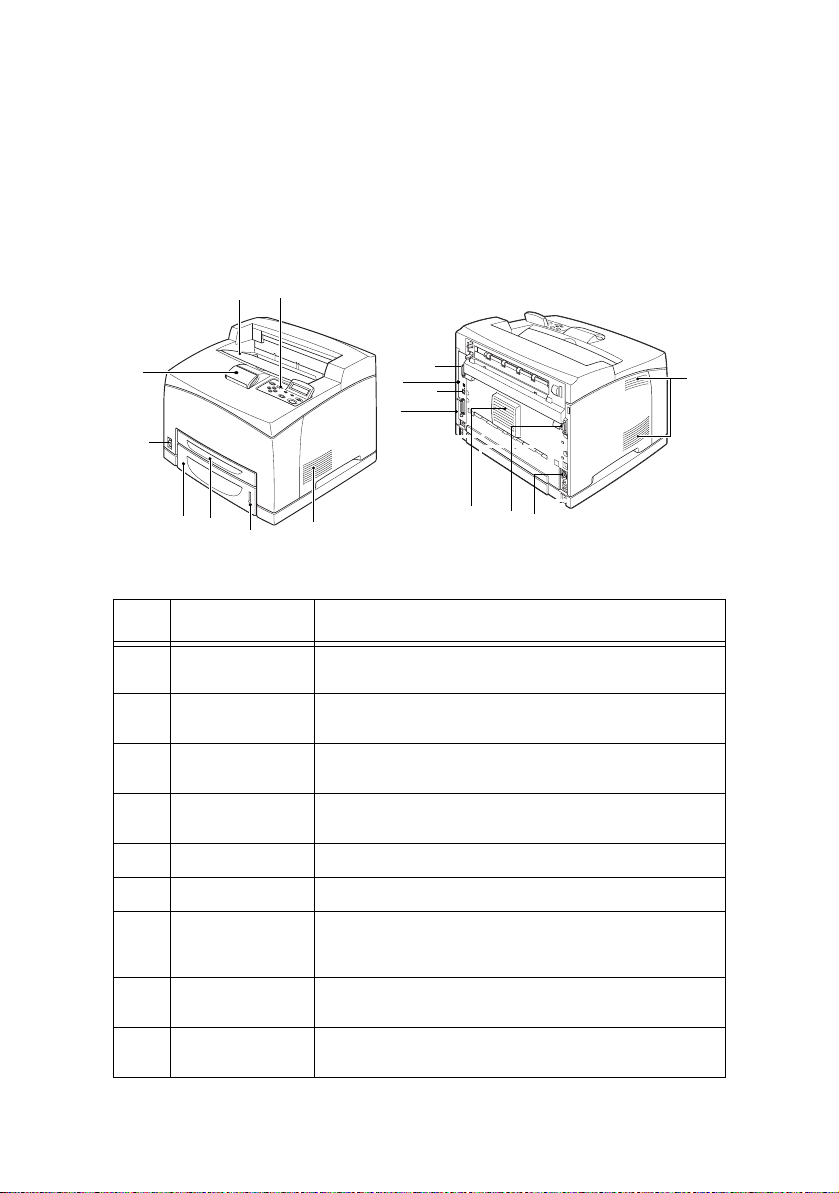
1
2
8
13
14
12
3
11
7
3
10
6
5
4
3
9
NO. NAME DESCRIPTION
1 Center output
tray
2 Control panel Consists of the essential operation buttons, indicators
3 Ventilation hole Releases heat to prevent the interior of the printer
4 Paper meter A meter to check the amount of remaining paper.
5 Tray 1 Sets the 150 tray.
6 Tray 2 Sets the 550 tray.
7 Power switch Switches the power of the printer on and off. Pressing
8 Paper stopper Raise this when printing on paper larger than Letter/
Print jobs are output here with the printed side facing
down.
and display.
from heating up.
Attached to the 550 tray.
the switch to the <|> position switches it on and
pressing it to the <0> position switches it off.
A4 size.
9 Duplex unit
connector
For connecting the optional duplex unit.
B6250/B6500 User’s Guide> 11
Page 13
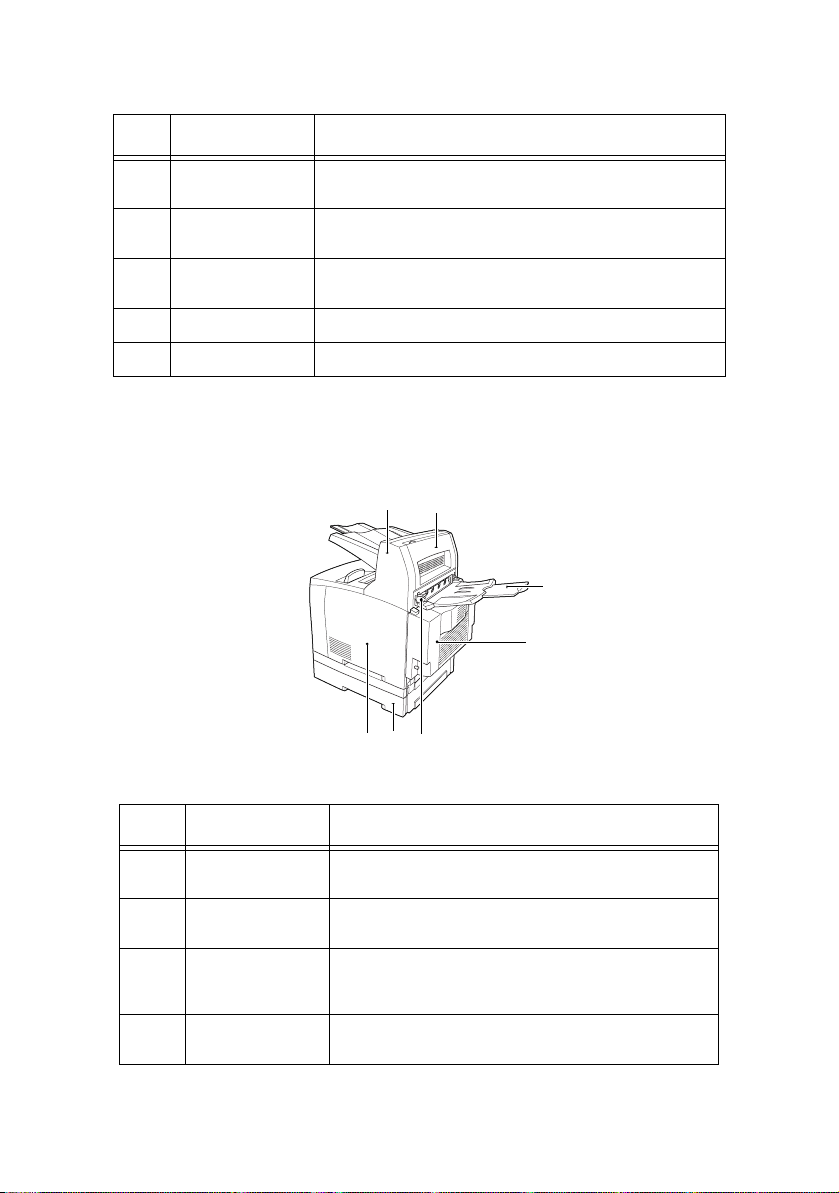
NO. NAME DESCRIPTION
10 Power cord
connector
11 Parallel
connector
12 Network
connector
13 USB connector For connecting the USB cable.
14 Serial connector For connecting the serial cable.
W
ITH OPTIONAL ACCESSORIES
For connecting the power cord.
For connecting the parallel cable.
For connecting the network cable when connecting this
printer to the network for use.
1
2
6
7
5
3
4
NO. NAME DESCRIPTION
1 Offset catch tray
2Cover D
3Rear tray
4 Duplex unit
(optional)
(optional)
(optional)
(Cover C)
Allows you to stagger the output position for each
print job (offset output).
Open this when paper is jammed inside the offset
catch tray.
Use this tray if you want to reduce curling of paper
when printing heavyweight paper. Print jobs are
output here with the printed side facing up.
Enables 2 sided printing. When paper is jammed
inside the duplex unit, it is described as cover C.
B6250/B6500 User’s Guide> 12
Page 14
NO. NAME DESCRIPTION
5 Rear output tray
6 A4 universal tray Can install up to two levels of an Letter/A4
7 Right detachable
I
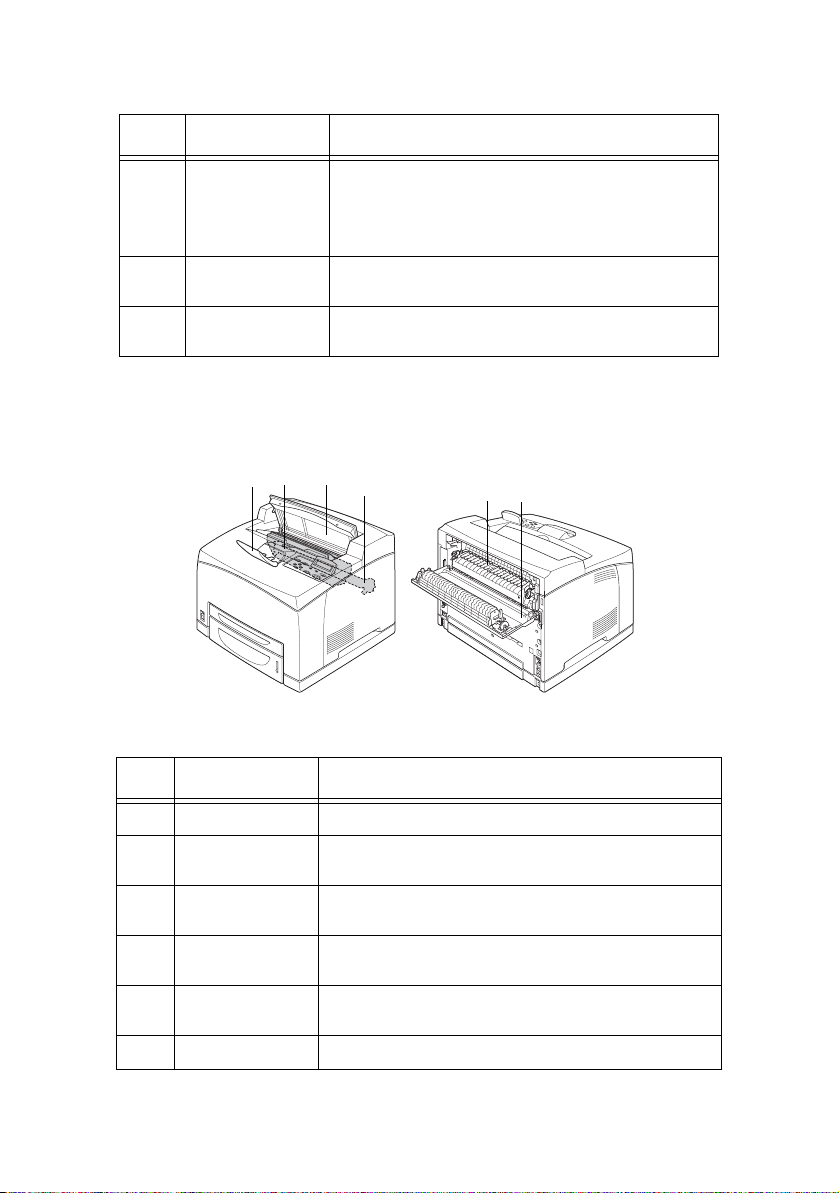
NTERNAL VIEW
lever
cover
1
When the rear tray has been installed, the paper
output location can be switched between it and the
center output tray. Raise the lever to output to the
rear tray and lower the lever to output to the center
output tray.
universal tray (550) to this printer.
Remove this when installing optional accessories
such as hard disk and additional memory.
32
5
46
NO. NAME DESCRIPTION
1 Paper stopper Raise this when printing on paper larger than A4 size.
2 Drum/toner
cartridge
3 Cover A Open this when replacing the drum/toner cartridge
4 Fuser unit Fixes the toner on the paper. Do not touch this when
5 Transfer roll
cartridge
6 Cover B Open this when removing jammed paper.
Contains the toner and the photosensitive drum.
and removing jammed paper.
using the printer as it is hot.
Transfers the toner image on the surface of the
photosensitive drum to the paper.
B6250/B6500 User’s Guide> 13
Page 15
C
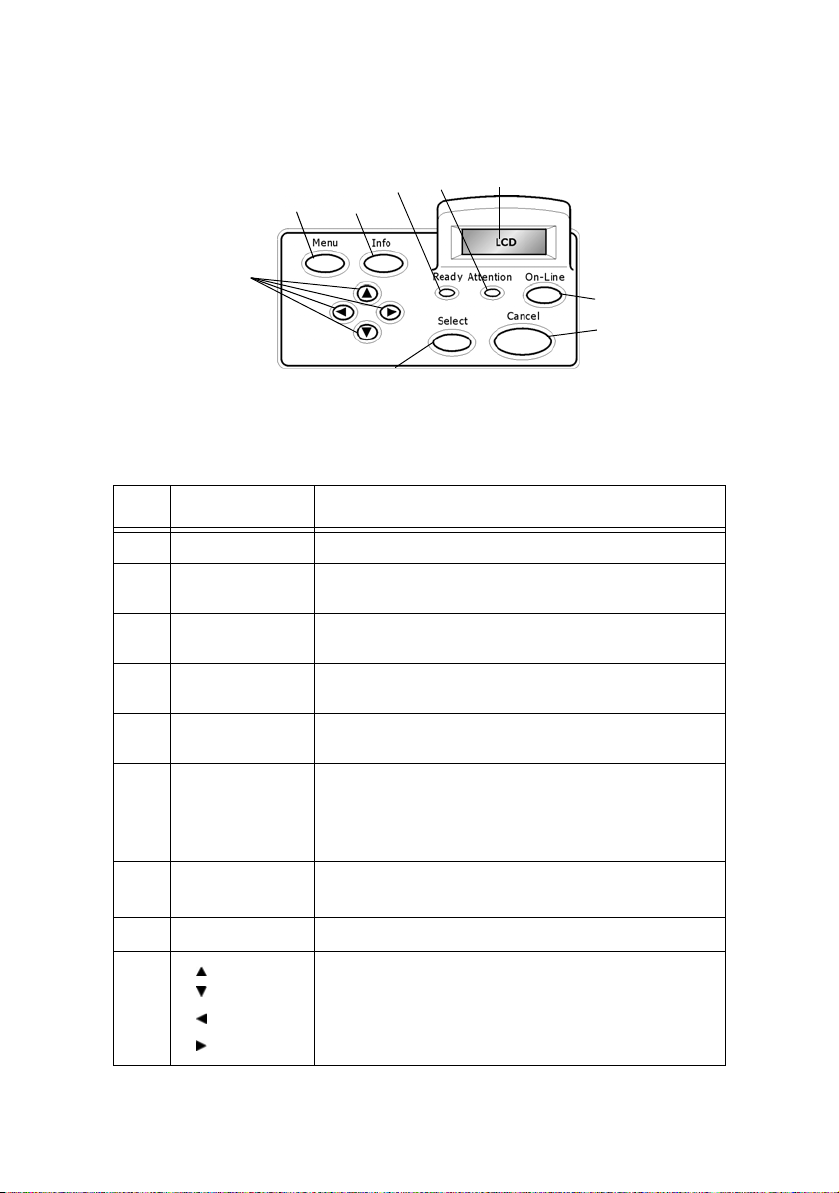
ONTROL PANEL
5
1
3
2
4
9
6
7
8
Note: see “Settings on the Control Panel” on page 57 for further
detail.
NO. NAME DESCRIPTION
1 <Menu> button Press to move to menu operation.
2 <Info> button Press to print the menu map. The menu map (2 pages)
3<Ready>
indicator
4 LCD display Displays the setting items, machine status, and
5 <Attention>
indicator
will print with all the current printer settings.
When the light is on, the printer is ready to receive
data from the computer.
messages.
When the light is on, there is a malfunction in the
printer.
6 <On-Line>
button
7 <Cancel> button Press to cancel printing.
8 <Select> button Press to enter the menu item currently displayed.
9
<>
<>
<>
<>
Press to enter the off-line status. When in the off-line
status, the machine cannot receive data or process
printing. Press again to exit the off-line status and
enter the on-line status (where the machine can
receive data from the computer).
Press to exit Menu Mode.
Press these buttons to move to the required menu,
item and candidate value on the display.
B6250/B6500 User’s Guide> 14
Page 16

D
ISPLAY
There are two types of screens shown: Print screen (for displaying
printer status) and Menu screen (for setting configuration).
NOTE
The message displayed differs according to the options installed
and setting status.
P
RINT SCREEN
The Print screen appears when the machine is printing or waiting for
data. The following contents are shown on the screen.
Current printer status
Printing
USB
Port Receiving Data
(USB, Net, LPD, Etc.)
B6250/B6500 User’s Guide> 15
PCL
Language
(PCL, PS, etc.)
Page 17

M
ENU SCREEN
Screen for configuring settings related to the printer.
This screen appears when you press the <MENU> button. The initial
Menu screen displayed is as follows.
Print Jobs Menu
Refer to:
• Items that can be set on the Menu screen: “Settings on the
Control Panel” on page 57
B6250/B6500 User’s Guide> 16
Page 18
S
WITCHING ON AND OFF THE POWER
S
WITCHING ON THE POWER
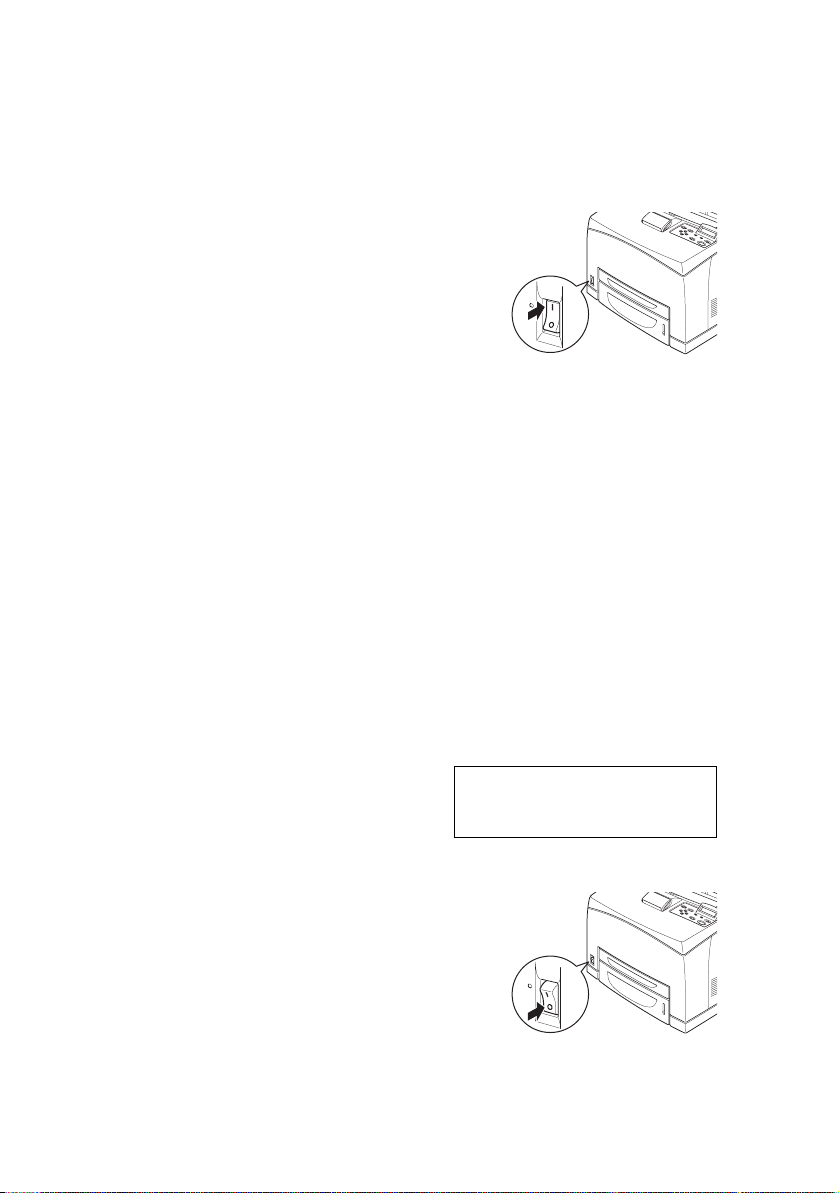
1. Press the power switch of the printer
to the <|> position.
2. When the power is switched on,
various screens will be displayed on
the control panel. Check that this
display changes to “Online”.
NOTE
When “Please wait...” is displayed, the printe r is in the process of
warming up. Printing is unavailable during this period. When the
printer is ready for printing, “Online” will be displayed.
Important:
• If error message is displayed, refer to “Message List
(alphabetical order)” on page 121 on how to fix it.
S
WITCHING OFF THE POWER
Important:
• Do not switch off the printer power when printing is in
progress. It may lead to a paper jam.
• Once the power is switched off, print data remaining in this
printer or information saved in the memory of this printer will
be deleted.
1. By checking the display on the
control panel, confirm that the
printer is not processing any
data. “Online” or “Power Saver
Mode” should be displayed.
2. Press the power switch to the <O>
position to switch the power off.
B6250/B6500 User’s Guide> 17
Online
Page 19

P
OWER SAVER MODES
This printer is equipped with a Power Save mode to reduce power
consumption when it is left idle. The default idle time from last print
activity until the printer enters Power Saver mode is 5 minutes. This
time can be adjusted by the operator to any of the following: 5, 15,
30, 60 and 120 minutes.
When no print data is received within 5 minutes (default) since the
last page is printed, the printer will enter Power Save mode. An
informative message is displayed on the operator panel indicating
Power Save Mode. Consumption of power during Power Save mode
is 10 Watts or less, and the time required to exit from Power Saver
mode to a print-ready status is about 10 seconds.
E
XITING THE POWER SAVER MODE
The printer automatically exits from Power Saver mode once it
receives data from the computer or if any key on the operator panel
is pressed.
B6250/B6500 User’s Guide> 18
Page 20
C
ANCELLING/CHECKING PRINTING
C
ANCELLING PRINTING
To cancel printing, you can either cancel the print job at the printer
or at the computer.
Cancelling a Print Job at the Printer
Press the <CANCEL> button then press the <ON-LINE> button on
the control panel. However, pages being printed at the moment will
continue to be printed.
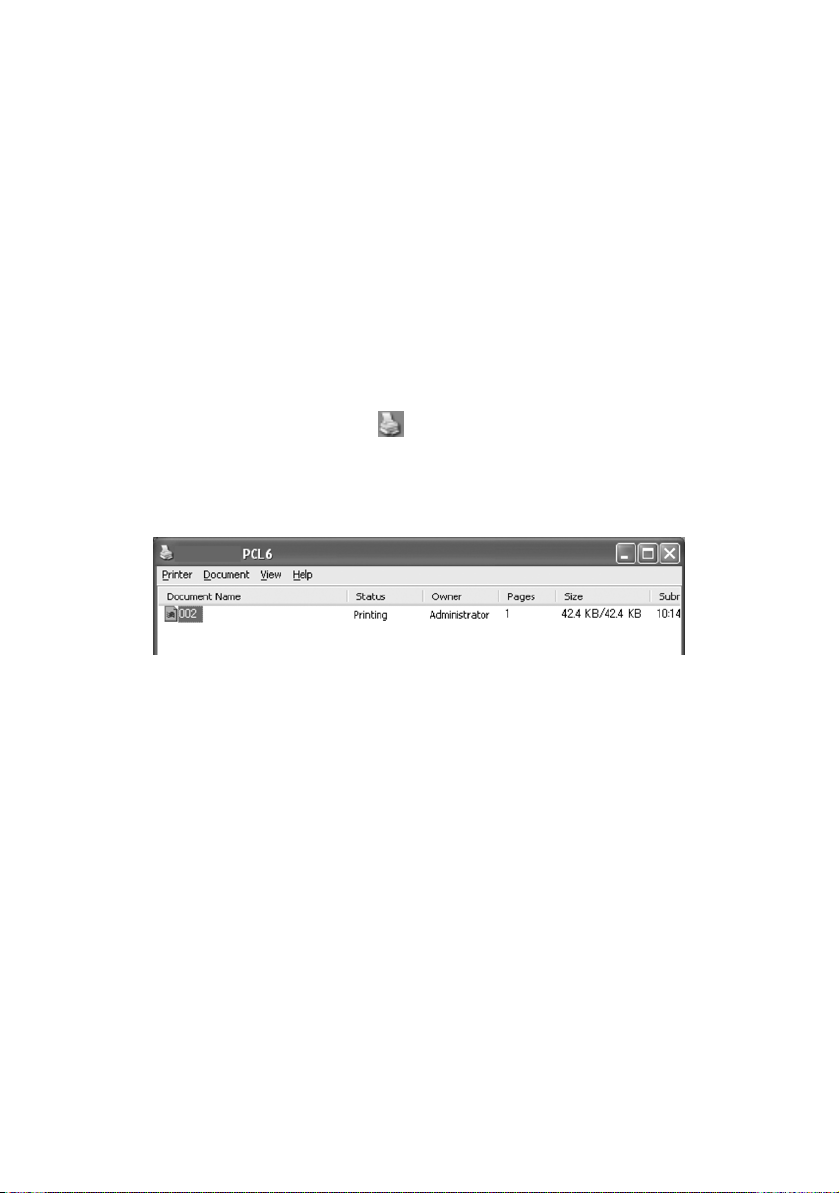
Cancelling Print Jobs at the Computer
Double-click the printer icon at the bottom right of the taskbar
in Windows.
From the displayed window, click the document name that you wish
to delete and press the <Delete> key.
B6250/B6500 User’s Guide> 19
Page 21
C
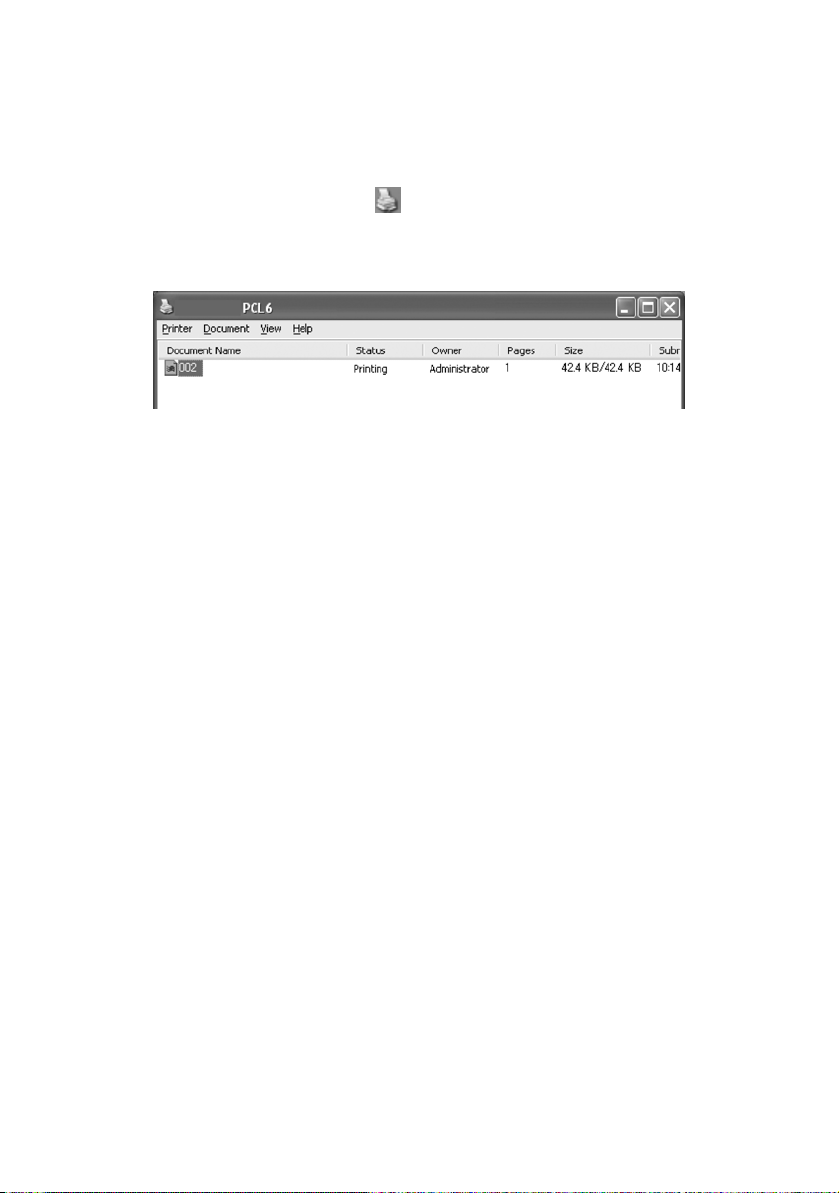
HECKING STATUS OF PRINT DATA
Checking in Windows
Double-click the printer icon on the task bar at the bottom right
of the screen.
From the displayed window, check the column, [Status].
D
ISPLAYING OPTIONAL ACCESSORY CONFIGURATION
AND PAPER TRAY SETTINGS
When using this printer as a network printer and with SNMP protocol
enabled, you can display on the printer driver, the optional
accessory configuration and settings configured at the control panel
such as paper type or size. The printer can by used on network, USB
or parallel. These settings are displayed on the [Options] tab. This
section explains the procedure using Windows XP as an example.
Important:
• When using a serial connection to this printer, this feature
cannot be used. You have to manually set the items on the
printer driver.
• The rear tray information cannot be obtained automatically.
You have to manually set the item.
• For paper size and paper type settings, you must configure
them at the control panel beforehand. Even if you change the
settings here, they will not be reflected on the printer itself.
B6250/B6500 User’s Guide> 20
Page 22

NOTE
> When using this feature on the network interface, you
have to activate the SNMP port (default: [Enable]) on the
printer using the control panel.
> For Windows NT 4. 0/Windows 2000/Windows XP, only
users with administrator’s rights can change the settings.
Users without administrator’s rights can only check the
contents.
1. From the [Start] menu, click [Printers and Faxes] and then
display the properties of the printer to be used.
2. Click the [Device Options] tab.
3. Click [Get Information from Printer].
NOTE
The properties of the printer can be displayed on the printer
driver.
4. Click [OK]. The contents of the [Device Options] tab will be
updated based on the data obtained from the printer.
B6250/B6500 User’s Guide> 21
Page 23

P
RINTING
P
RINTING FROM THE COMPUTER
This section explains the basic flow when printing from application
software in a Windows
(The procedure may differ according to the computer or system
configuration used.)
Important:
• Do not switch off the power to the printer when printing is in
progress. It may lead to a paper jam.
NOTE
> This section explains printing with the PCL driver as an
example.
1. From the [File] menu of the application software, select
[Print].
2. Select this printer as the printer to be used to start printing.
To use the various print features of this printer, display the
printer properties dialogue box to set the necessary items.
For details on each item and how to set them, refer to the
Online Help for the print driver.
Important:
• If the paper tray information is not correct, change the
settings on the [Set Up] tab of the print driver before
continuing. For details on how to do the settings, refer to the
Online Help for the print driver.
®
environment.
U
SEFUL PRINT FEATURES IN PROPERTIES DIALOG BOX
• The following selections are available in the [Setup] tab:
Paper Size, Media Type, Paper Source, Paper Destination
Paper Feed Options*, Finishing Mode**, and 2-sided Printing.
*Paper Feed Options include: Auto Resize, Covers, Auto Tray
Change, Media Check, and Skip Blank Pages, Tray 1 Settings,
and Media Type.
**Finishing Mode includes: Standard, 2-up, 4-up, 6-up, 8-up,
9-up, 16-up, PosterPrint, and Booklet.
B6250/B6500 User’s Guide> 22
Page 24
NOTE
> You can set the print features in the properties dialog box
from the printer icon by selecting [Printers and Faxes] (or
[Settings] > [Printers] depending on the OS).
P
RINTING ON ENVELOPES
For details on the envelopes that can be used, refer to “Usable
Paper” on page 45. The procedure to print on envelopes is as
follows.
L
OADING ENVELOPES
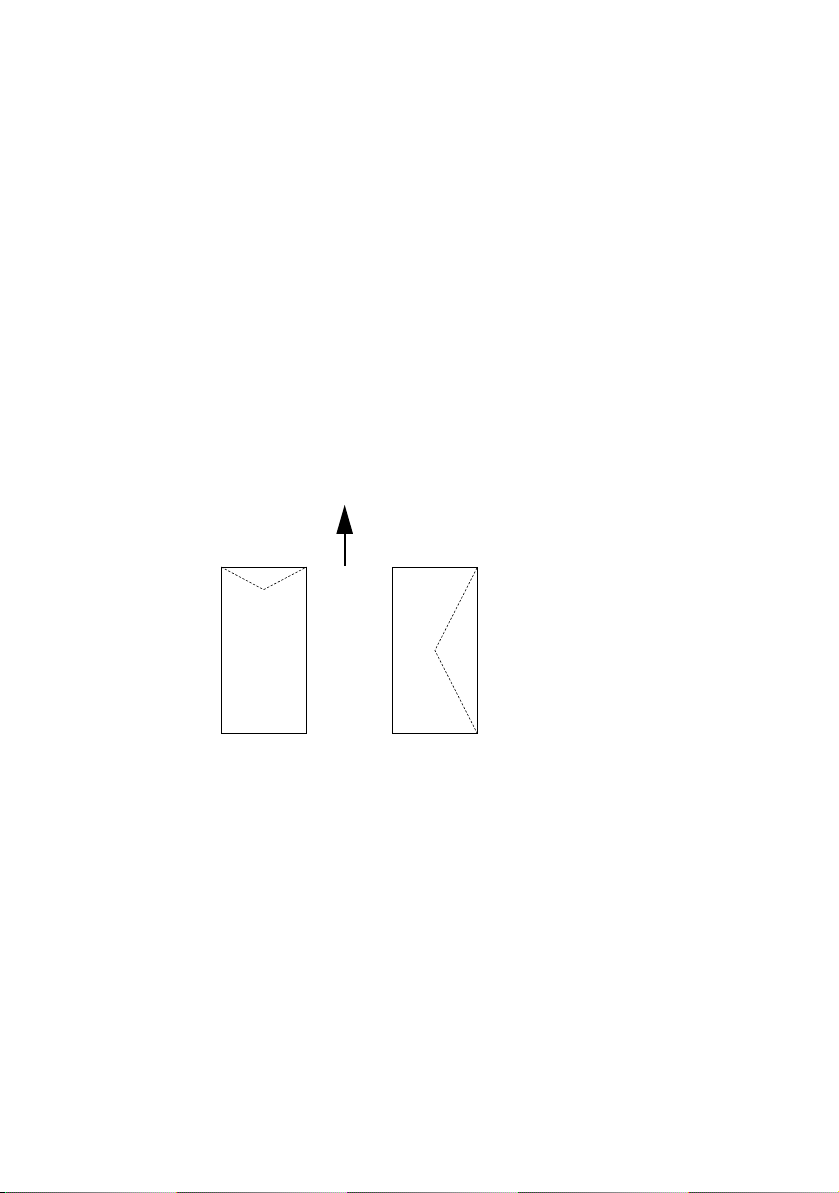
You have to close the flaps of the envelopes and load them with the
address side facing up in the orientation shown in the diagram
below.
Paper feed direction
* The flap faces down
The following explains how to load the envelopes, using COM-10
envelopes as an example, in trays 1 to 4.
Important:
• The reverse side of the envelope cannot be printed on.
NOTE
> For details on the procedure to load paper in a paper tray,
refer to “Loading Paper in a Paper Tray” on page 49.
B6250/B6500 User’s Guide> 23
Page 25

1. Load the envelopes in the portrait
orientation so that the flaps are
turned to the right side.
2. Slide the length guide and right
width guide to the size of the loaded
envelopes.
3. On the control panel, change the
paper type to [Envelope]. For
details, refer to “Setting Paper Types” on page 54.
4. On the control panel, change the paper size of the tray to
[COM-10 Envelope]. For details, refer to “Setting Custom
Paper Sizes” on page 52.
P
RINTING ON ENVELOPES
To print on envelopes, display the [Tray/Output] tab and [Basic] tab.
This section explains the procedure using WordPad on Windows XP
as an example.
NOTE
> The way to display the printer properties dialog box differs
according to the application software. Refer to the manual
of each application software.
1. From the [File] menu, select [Print].
2. Select this printer from the drop down list and click
[Properties].
3. Click the [Setup] tab.
4. Select the loaded paper tray from [Source] or click the
[Media Type] and then select [Com10].
5. Click [OK].
6. Click [Print] in the [Print] dialog box to start printing.
B6250/B6500 User’s Guide> 24
Page 26

P
RINTING ON TRANSPARENCIES
L
OADING TRANSPARENCIES
Load transparencies in trays 1 to 4.
Important
• Transparencies with white frames or full-color transparencies
cannot be used.
The way to load transparencies in the paper tray is the same as the
way to load standard size paper. For details, refer to “ Loading
Paper” (P. 49).
You must also set paper type for the paper tray to [Transparency]
on the control panel.
Refer to “ Setting Paper Types” (P. 54) to change the setting.
P
RINTING ON TRANSPARENCIES
To print on transparencies, click on [Properties] from the [File]
[Print] menu, click the [Setup] tab. This section explains the
procedure using WordPad on Windows XP as an example.
NOTE
> The way to display the printer properties dialog box differs
according to the application software. Refer to the manual
of your respective application software.
> Printing transparencies continuously may lead to the
output transparencies sticking to each other. As a guide,
remove the transparencies from the output tray after
about 20 sheets and then fan them to lower their
temperatures.
1. From the [File] menu, select [Print].
2. Select this printer as the printer to be used and click
[Preferences].
3. Click the Media Ty pe drop down box and click on
transparencies.
4. Select the loaded paper tray from Source Drop down and
click on the tray that contains the transparencies.
5. Click the Paper Size drop down.
B6250/B6500 User’s Guide> 25
Page 27
6. From [Paper Size], select the size of the original document.
7. Click [OK].
8. Click [Print] in the [Print] dialog box to start printing.
P
RINTING ON CUSTOM SIZE PAPER/LONG PAPER
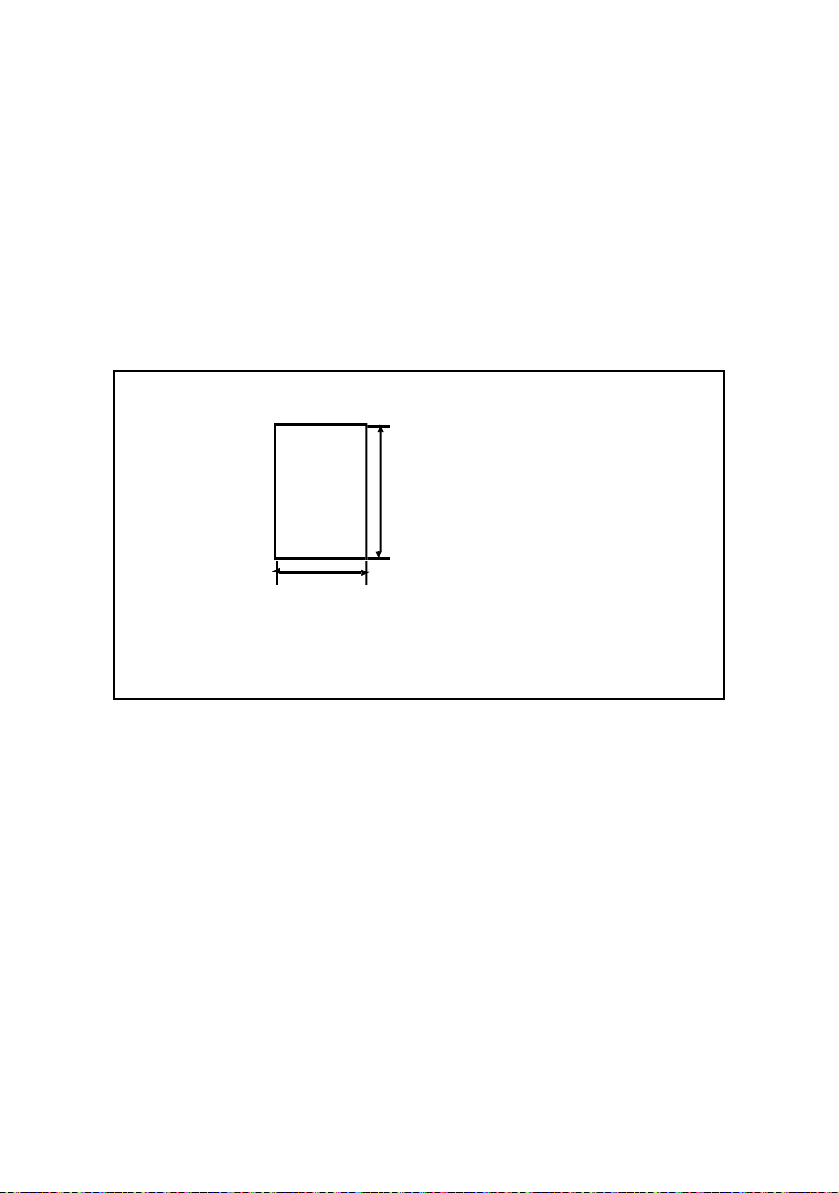
This section explains how to print on custom size paper such as long
paper.
The paper sizes that can be set on this printer are as follows:
For trays 1 - 4
Long edge:
146 to 356 mm
(5.75 to 14 in.)
Short edge:
89 to 216 mm
(3 to 8.5 in.)
L
OADING CUSTOM SIZE PAPER
The way to load custom size paper in trays 1 to 4 is the same as
loading standard size paper. For details, refer to “ Loading Paper”
(P. 49).
S
ETTING CUSTOM PAPER SIZES
NOTE
> The following paper sizes are not auto detectable by the
trays: Statement, COM9, COM10, Monarch, A6, C5 and
DL. To use these sizes you must use the operator panel on
the printer to turn off auto detect for the tray and set the
intended paper size.
Before printing, set the custom size on the print driver.
B6250/B6500 User’s Guide> 26
Page 28

You have to configure the settings on the control panel too when
loading custom size paper in trays 1 to 4 for printing. For details on
setting the control panel, refer to “ Setting Custom Paper Sizes”
(P. 52).
Important:
• When setting the paper size on the print driver and the
control panel, be sure to specify the same size as the actual
paper used. Setting the wrong size for printing will cause
machine failure. This is especially true if you configure a
bigger size when using a narrow width paper.
On the print driver, set the custom size in the [Paper Size] dialogue
box. This section explains the procedure using Windows XP as an
example.
NOTE
> For Windows NT 4.0/Windows 2000/Windows XP, only
users with administrator’s rights can change the settings.
Users without the rights can only check the contents.
1. From the [File] menu, click [Print].
2. Select [Properties] then select the [Setup] tab.
3. Select Option as needed: Source, Media Type, etc.
4. You may select a previously stored custom size from the list
or you may add an additional custom size.
5. To add a new custom size:
A. Select paper feed options.
B. Select Custom Size.
C. In the Name Field, Type a name for your custom size.
D. Click on the unit of measure radio button for the units
you would like to use (mm for millimeters or inch for
inches.)
E. In the width field, enter the width of the custom size
paper (89 to 216 mm, 3 to 8.5 in.).
F. In the length field, enter the length of the custom size
paper (146 to 356 mm, 5.75 to 14 in.).
G. Click add to store the new custom size.
B6250/B6500 User’s Guide> 27
Page 29

H. Click OK to close the Dialog Box.
NOTE
You may use the modify selection to change a previously stored
custom size.
NOTE
You may use the Delete Selection to delete a previously stored
custom size.
P
RINTING ON CUSTOM SIZE PAPER
The procedure to print on custom size paper is as follows.
This section explains the procedure using WordPad on Windows XP
as an example.
NOTE
> The way to display the printer properties dialog box differs
according to the application software. Refer to the manual
of your respective application software.
1. From the [File] menu, select [Print].
2. Select this printer as the printer to be used and click
[Preferences].
3. Click the [Setup] tab.
4. Select the appropriate tray from [Source].
5. From [Paper Size], select the size of the original document.
6. From [Media Types], select the registered custom size, and
then click [OK].
7. Click [Print] in the [Print] dialog box to start printing.
B6250/B6500 User’s Guide> 28
Page 30
P
RINT CONFIDENTIAL DOCUMENT
Using the optional hard disk, compact flash or the standard user
flash, you can use the secure print feature.
Important:
• The hard disk may be damaged and erase important data
saved in the hard disk. We recommend you back up your
data.
A
BOUT SECURE PRINT
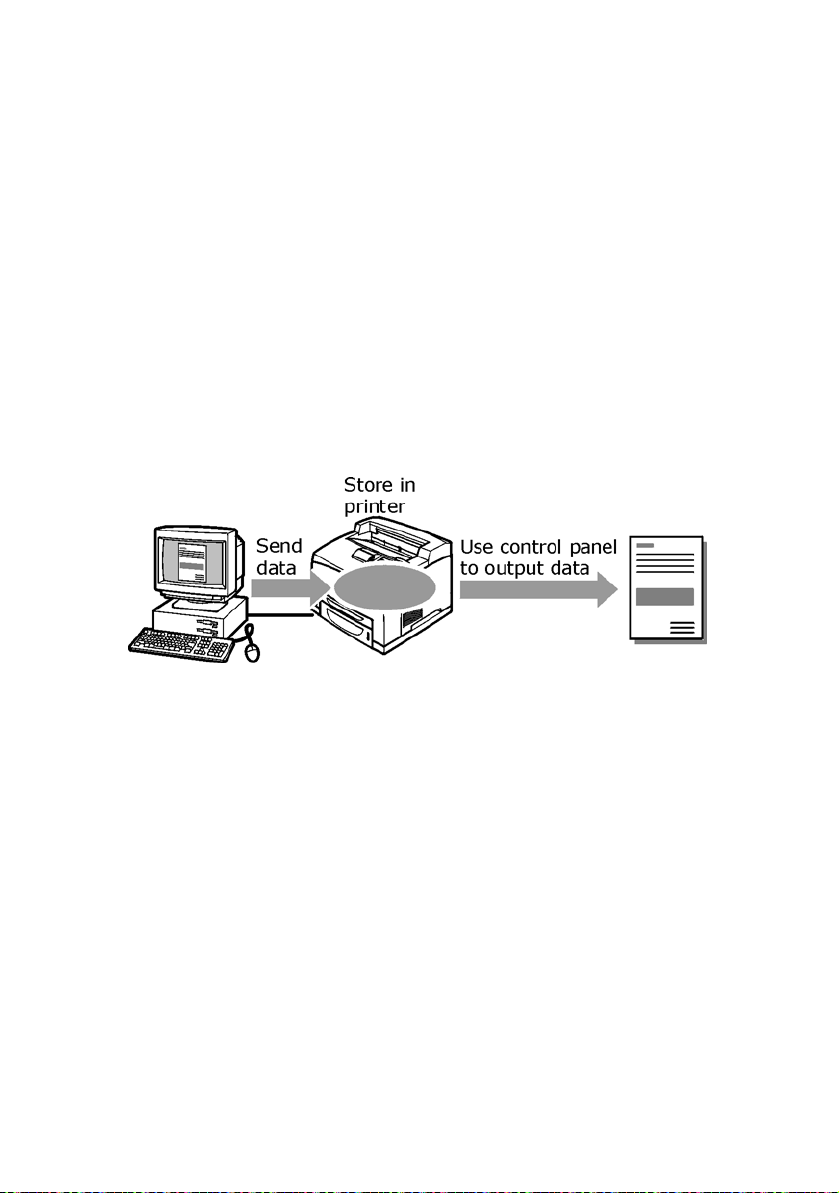
Secure Print is a feature that allows you to attach a password to a
print job on the computer, send it to the printer for temporary
storage, and then print the job from the printer control panel. When
the printing of a Secure Print job is complete, the job is
automatically deleted.
NOTE
> The administrator can view a list of jobs using a password
protected feature under Print Jobs Info in the Web page.
The User id is root, and the password is a combination of
su and the printer serial number, e.g. suCBxxxxxxQP.
(The password is case sensitive, where su is lower case,
and the serial number is uppercase.)
- S
ECURE PRINT
S
TORED JOB
A stored job is the same as a secure print job except that it is not
deleted from the storage device after it is printed. By storing
frequently-used data in the printer, you can print the job from the
printer control panel, without sending it from the computer again
and again.
NOTE
B6250/B6500 User’s Guide> 29
Page 31

> You can select whether to delete the print data after
printing. For details, refer to “ At the Control Panel”
(P. 33).
C
ONFIGURING SECURE PRINT
The procedure to configure Secure Print is as follows.
At the Computer
This section explains the procedure using WordPad on Windows XP
as an example. The procedure is the same for other OSs.
NOTE
> The way to display the printer properties dialog box differs
according to the application software. Refer to the manual
of your respective application software.
1. From the [File] menu, select [Print].
2. Select this printer as the printer to be used and click
[Preferences].
3. From [Job Options] tab in the [Job Type] group, select
[Secure Print].
4. In the [Job Identification] group, enter a name at [Job
Name]. A job name must be entered. The job name will be
used at the printer to retrieve the job.
5. Enter a password in the [Job Identification] group at [Job
Pin].
Enter four numeric characters.
6. Click [OK].
7. Click [Print] in the [Print] dialog box to start printing.
The document will be stored in the printer.
At the Control Panel
This section explains the procedure to print data stored in the printer
by Secure Print.
NOTE
> You can also delete, without printing, secure print data
stored in the printer.
Refer to:
“Print Jobs Menu” on page 65
B6250/B6500 User’s Guide> 30
Page 32

1. Press the <Menu> button.
2. Check that [Print Jobs Menu] is displayed and then press the
<> button.
3. Press the < > or < > button until the desired digit of the
Password (PIN number) is displayed, then press the < >
button.
4. Repeat step 3 until all four digits of the password are
displayed.
5. Press the <SELECT> button.
6. Press the < > or < > button until the desired document is
displayed and then press the < > button.
7. Input the number of copies desired, then press <Select>.
8. After printing, the job is deleted.
9. Press [Cancel] to exit the menu.
P
ROOF PRINT
Using the optional hard disk, compact flash or the standard User
Flash, you can use the proof print feature.
Important:
• We recommend you back up your data.
- P
RINT AFTER CHECKING PRINTING RESULT
A
BOUT PROOF PRINT
Proof Print is a feature that allows you to store the print data of
multiple copies on the hard disk or flash, print out only the first set
to check the print result and if satisfactory, print the remaining
copies from the control panel.
NOTE
> The administrator can view a list of jobs using a password
protected feature under Print Jobs Info in the Web page.
The User id is root, and the password is a combination of
su and the printer serial number, e.g. suCBxxxxxxQP.
(The password is case sensitive, where su is lower case,
and the serial number is uppercase.)
B6250/B6500 User’s Guide> 31
Page 33

C
ONFIGURING PROOF PRINT
The procedure to configure Proof Print is as follows.
At the Computer
This section explains the procedure using WordPad on Windows XP
as an example.
NOTE
> The way to display the printer properties dialog box differs
according to the application software. Refer to the manual
of your respective application software.
1. From the [File] menu, select [Print].
2. Select this printer from the drop down list and click
[Properties].
NOTE
> [Copies] must be set to at least two before [Proof Print]
can be selected.
3. On the [Job Options] tab, set [Copies] to at least two.
4. Select [Proof and Print] from [Job Type].
5. In the [Job Identification] group, enter a name at [Job
Name]. The default job name is “blank”, if left blank the job
may fault.
6. Enter a password in the [Job Identification] group at [Job
Pin].
Enter four numeric characters.
B6250/B6500 User’s Guide> 32
Page 34

7. Click [OK].
8. Click [Print] in the [Print] dialog box to start printing.
At the Control Panel
This section explains the procedure to print and delete data stored
in the printer by Proof Print.
Refer to:
“Print Jobs Menu” on page 65
1. Press the <Menu> button.
2. Press the < > or < > button until [Print Jobs Menu] is
displayed and then press the < > button.
3. Press the < > or < > button until the desired digit of the
Password (PIN number) is displayed, then press the < >
button.
4. Repeat step 3 until all four digits of the password are
displayed.
5. Press the <SELECT> button.
6. Press the < > or < > button until the required document is
displayed and then press the <Select> button. The proof
document will print.
7. Press the < > or < > button to select print or delete the
saved document and then press the < > button. If Print is
selected enter the number of copies.
8. Press the <SELECT> button. The document will be deleted or
printed.
9. After the document is deleted or printed, press the <Cancel>
button to exit the menu.
B6250/B6500 User’s Guide> 33
Page 35

P
RINT AT A SPECIFIED TIME
Using the optional hard disk, compact flash or the standard User
Flash, you can use the delayed print feature. The delayed print
feature allows you to store the data in the printer beforehand and
then print it out automatically at the specified time.
Important:
• We recommend you back up your data.
NOTE
> The administrator can view a list of jobs using a password
protected feature under Print Jobs Info in the Web page.
The User id is root, and the password is a combination of
su and the printer serial number, e.g. suCBxxxxxxQP.
(The password is case sensitive, where su is lower case,
and the serial number is uppercase.)
R
EGISTERING TIMED JOB
The procedure to configure Delayed Print is as follows.
This section explains the procedure using WordPad on Windows XP
as an example. The procedure is the same for other OS.
1. From the [File] menu, select [Print].
2. Select this printer as the printer to be used and click
[Preferences].
3. From [Job Type] on the [Job Options] tab, select [Timed
Jobs].
4. Set the time to start printing by selecting [Elapse time] or
[Real Time]. For [Elapse Time] specify the number of
minutes to delay before printing. For [Real Time] specify the
Year, Month, Day, Hour, and Minute to start printing.
- T
IMED JOB
5. In the [Job Identification] group, enter a name at [Job
Name]. The default job name is “blank”, if left blank the job
may fault.
6. Click [OK].
7. Click [Print] in the [Print] dialog box to start printing. Printing
will start at the specified time.
B6250/B6500 User’s Guide> 34
Page 36

C
ANCELLING TIMED JOB
Use the control panel to cancel Timed Job or to print without waiting
for the specified time.
1. Press the <Menu> button.
2. Press the < > or < > button until [Print Jobs Menu] is
displayed and then press the < > button.
3. Press the < > or < > button until the desired digit of the
Password (PIN number) is displayed, then press the < >
button.
4. Repeat step 3 until all four digits of the password are
displayed.
5. Press the <SELECT> button.
6. Press the < > or < > button until the required document is
displayed and then press the < > button.
7. To delete job press the <Cancel> button.
8. Press < > to print displayed job.
9. Enter the number of copies using the < > or < > buttons.
10. Press the <SELECT> button. The document will be printed.
11. After the document is deleted or printed, press the <Cancel>
button until Online is displayed.
NOTE
> The document name displayed (up to 12 characters) is the
[Document Name] set in the [Timed Job] dialogue box of
the [Job Option] tab of the print driver.
B6250/B6500 User’s Guide> 35
Page 37

D
IRECT PRINTING OF
This feature is available when the optional hard disk drive is
installed.
> For additional information refer to the OKI Direct PDF
Printing utility found on the installation CD
You can send a PDF file directly to the printer for printing without
using the print driver. As the print data is sent directly to the printer,
the printing process is simpler than printing with the print driver and
is faster.
PDF Files That Can Be Printed
PDF files that can be printed are those created by Adobe Acrobat 4
and Adobe Acrobat 5. The B6250/B6500 supports Adobe PDF
version 1.3
NOTE
> You may not be able to print some PDF files directly by the
printer due to the way they were created. When this
happens, open the PDF files and use the print driver to
print them.
P
RINTING
When sending the PDF file to the printer, printing will be done with
the defaults set at the control panel. These defaults include:
PDF F
ILE
PDF F
ILES
• Copies • Paper size
• Duplex • Paper feed
• Print mode
B6250/B6500 User’s Guide> 36
Page 38

P
RINTING VIA ELECTRONIC MAIL
When the optional hard disk has been installed and the printer is
connected to a network, enabling it to receive e-mails via TCP/IP
communication, e-mails can be sent from the computer to this
printer.
Printing of e-mail contents and PDF attachments can be done from
this printer.
This feature is known as E-mail Printing.
Important:
• It is recommended that you back up your data.
- E-
MAIL PRINTING
E
NVIRONMENT SETTINGS FOR
To use the E-mail Printing feature, you need to configure the server
settings on your network environment.
NOTE
> Wrong e-mail environment settings may cause disruptions
in your network. Always ask your network administrator
to configure e-mail environment settings.
S
ENDING
E-
MAILS
Attachments That Can Be Sent
The following files can be sent as an attachment.
• PDF file created by Adobe Acrobat versions 4 & 5
E-
MAIL PRINTING
B6250/B6500 User’s Guide> 37
Page 39

NOTE
> The PDF files sent will be printed by using the PostScript
feature and according to the [PDF] setting on the control
panel. For details on the print features of the PDF file in
this printer, refer to “ Direct Printing of PDF Files” (P. 36).
Sending E-mails
This section explains how to send e-mails from the computer to the
printer using Outlook Express as an example.
1. Create mail contents using your mailing software and attach
PDF files if any.
Important:
• Only plain text format can be used for the mail contents. Set
the format of the e-mail content to text format in your
mailing software.
NOTE
> If the extension of the attached file is not “pdf”, it will not
be printed correctly.
2. Enter the printer’s e-mail address in the address column.
3. Send the e-mail. The printer will print the e-mail
automatically after receiving it.
Email Receive
The “Email Receive” feature allows the user to send Email directly to
the printer. This facilitates printing Email without the need for a
shared network driver.
B6250/B6500 User’s Guide> 38
Page 40
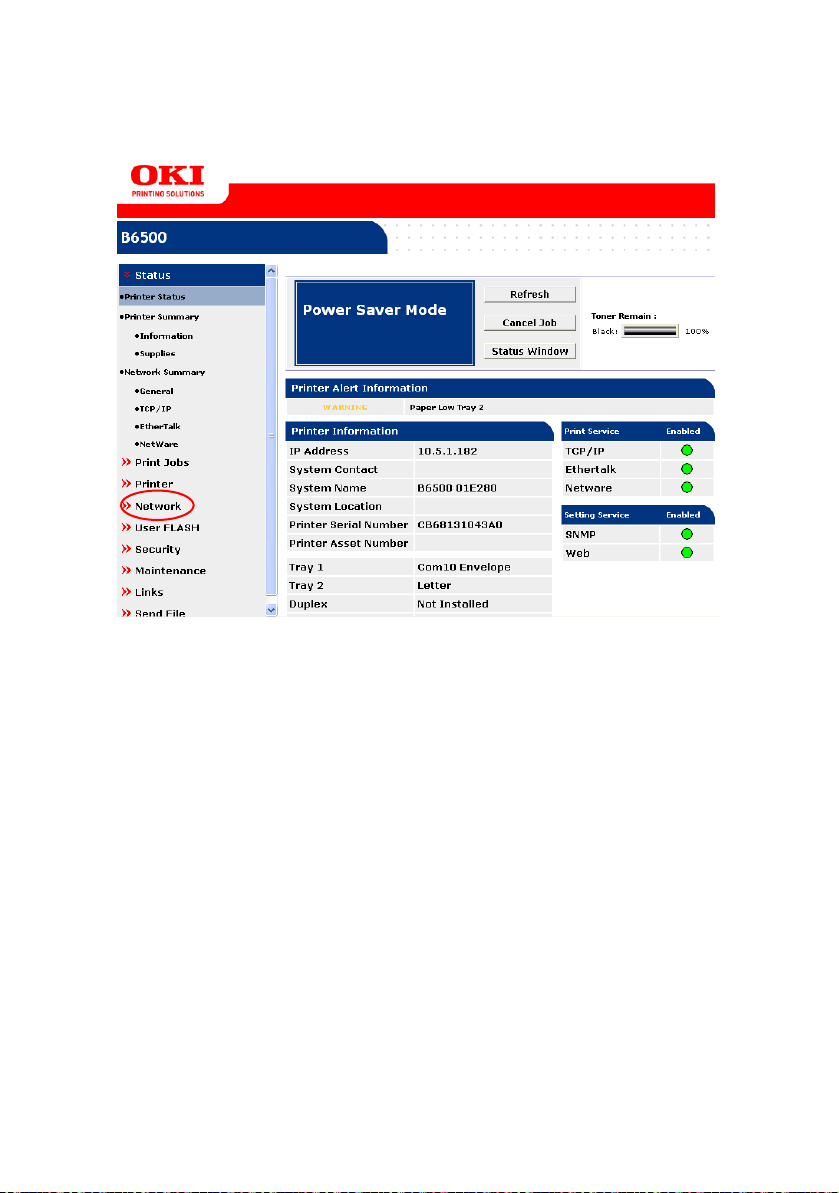
1. From the printer web page select “Network” from the menu
listing on the lower left side of the screen.
B6250/B6500 User’s Guide> 39
Page 41
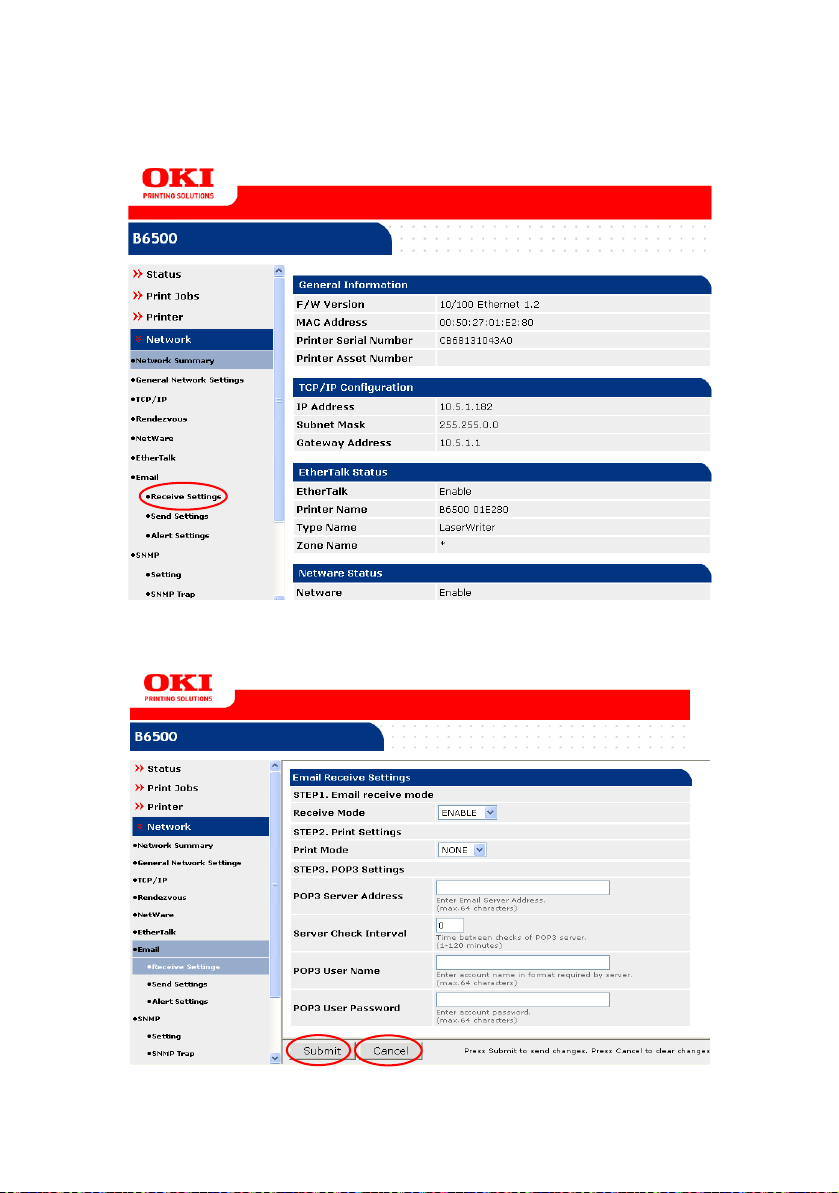
2. Under the “Email” bullet on the lower left side of the screen,
select “Receive Settings”.
3. The “Email Receive Settings” window will open allowing you
to make the necessary selections.
B6250/B6500 User’s Guide> 40
Page 42

Once the necessary selections have been made select either
“Submit” or “Cancel”.
Send File
The “Send File” feature allows the user to browse to a file that
resides on the host PC and send the file to the printer. This facilitates
the printing feature without the need for a shared network driver.
To use this feature:
1. From the printer web page select “Send File” from the menu
listing on the lower left side of the screen.
B6250/B6500 User’s Guide> 41
Page 43
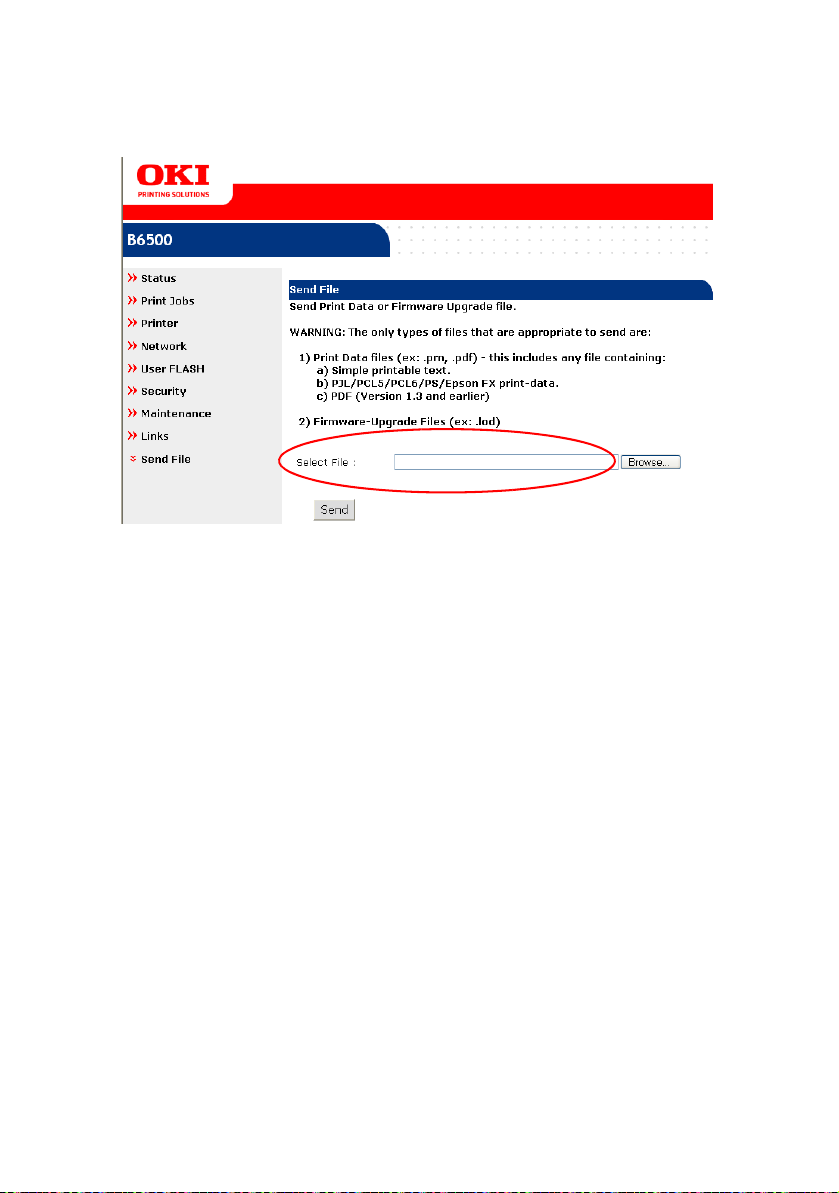
2. Using the “Select File:” window, browse to the file in the host
PC directory or type in the path to the requested file.
WARNING
The only types of files that are appropriate to send are:
> Simple printable text
> PJL/PCL5/PCL6/PS/Epson FX print-data
> PDF (Version 1.3 and earlier)
> Firmware-Upgrade Files (ex: .lod)
B6250/B6500 User’s Guide> 42
Page 44

3. Select “Send” to print the file.
B6250/B6500 User’s Guide> 43
Page 45

P
RINTING BARCODING USING
Algorithm generated barcodes are printed by firmware that uses
special PCL font selection commands.
Benefits:
• Any size barcode generation
• Automatically generates checksums
• Automatically add stop and start characters
I
NTELLIGENT BARCODING
Unlike some barcode solutions, which merely add fonts to a PC or
printer, this firmware actually extends the PCL5 language. Barcode
formatting, error detection and checksum calculation are performed
by the firmware, reducing the load on the host and the network.
Barcodes can be printed in almost any size or rotation, bar width and
height. The printing of HRI text is user selectable.
Other features that the user can select are:
• Barcode symbology
• Height of the barcode
• Rotation of the barcode
• HRI select or de-select
• HRI placement
PCL
• Width of bars
• Wide to narrow ratio of bars
Note: See Appendix B for detailed use information (page 159)
B6250/B6500 User’s Guide> 44
Page 46

A
BOUT PAPER
A
BOUT PAPER
Using unsuitable paper may lead to paper jams, poor print quality,
breakdown and damage to your printer. In order to use the features
of this printer effectively, we suggest using only paper that is
recommended here.
NOTE
> The following paper sizes are not auto detectable by the
trays: Statement, COM9, COM10, Monarch, A6, C5 and
DL. To use these sizes you must use the operator panel on
the printer to turn off auto detect for the tray and set the
intended paper size.
When you use paper that is not recommended, contact service.
U
SABLE PAPER
The types of paper that can be used on this printer are as follows.
When printing on paper that is commonly sold, use the types of
paper in the following table. However, it is recommended to use
paper in the next category, standard paper for clearer printing.
PAPER
SIZE WEIGHT LOADING
TRAY
Tray 1 Standard sizes that can be
automatically detected:
A5, B5, A4,
Executive (7.25 × 10.5"),
Letter (8.5 × 11"),
Legal (8.5 × 13"),
Legal (8.5 × 14")
Others:
*1
A6
, COM-10 Envelope*1,
Monarch Envelope
DL Envelope
C5 Envelope
Custom*2 (76×127 216×900
Statement
*3
*1
,
*1
,
*1
mm)
B6250/B6500 User’s Guide> 45
64 - 216 g/m
(16 - 57.5 lb)
CAPACITY
2
150 sheets (P
paper) or 17. 5
mm or below
Page 47

PAPER
TRAY
SIZE WEIGHT LOADING
CAPACITY
Trays 2 to
4
(trays 3
and 4 are
optional)
Standard sizes that can be
automatically detected:
A5, B5, A4,
Executive (7.25 × 10.5"),
Letter (8. 5 × 11"),
Legal (8. 5 × 13"),
Legal (8. 5 × 14")
Others:
*1
, COM-10 Envelope*1,
A6
Monarch Envelope
Envelope
C5 Envelope
Custom
216×356 mm),
Statement
*1
*2
*1
,
*1
,
(98×148 -
, DL
64 - 216 g/m
(16 - 57.5 lb)
2
250-sheet tray:
250 sheets (P
paper) or 27.6
mm or below
550-sheet tray:
550 sheets (P
paper) or 59.4
mm or below
*1: Requires the paper size settings be done on the control panel.
*2: Requires the paper size settings be done on the control panel and the
printer driver.
*3: Print quality on the part of the paper that extends beyond 356 mm
cannot be guaranteed.
Important:
• Printing on paper whose setting is different from the paper
size or paper type selected on the printer driver or loading
paper into an unsuitable paper tray for printing may lead to
paper jams. To ensure printing is correctly done, select the
correct paper size, paper type, and paper tray.
• The printed image may fade due to moisture such as water,
rain or vapor. For details, contact service.
Standard Paper
The following table shows the standard paper for this printer.
PAPER
NAME
FX P
XEROX 4024
WEIGHTPAPER
TYPE
2
68 g/m
(17 lb)
75 g/m
(20 lb)
Plain Medium weight paper for internal
2
Plain Medium weight paper for internal
B6250/B6500 User’s Guide> 46
PAPER CHARACTERISTICS AND
CAUTION ON USAGE
distribution and general office use.
distribution and general office use.
Page 48

PAPER
NAME
WEIGHTPAPER
TYPE
PAPER CHARACTERISTICS AND
CAUTION ON USAGE
XEROX 4200
RX 80
(3R 91720)
75 g/m
(20 lb)
80 g/m
(21.3 lb)
2
Plain Medium weight paper for internal
2
Plain Medium weight paper for internal
distribution and general office use.
distribution and general office use.
Special Media
The following types of paper can be used for printing on this printer.
These types of paper are called special media.
PAPER NAME PAPER
TYPE
Transparencies
XEROX P/N 3R2780
XEROX P/N JE-001
XEROX P/N 3R91334
3M P/N CG3300
Labels
XEROX P/N 3R4469
Avery Laser Labels
P/N 5160
XEROX P/N V860
XEROX P/N 3R97408
Envelopes
Com#10
(104.8 × 241.3 mm)
C5 (162 × 229 mm)
DL (110 × 220 mm)
Monarch
(98.4 × 190.5 mm)
3" × 5" Oxford Index
Card (40801)
Classic Crest Super
Smooth Cover
3R3254 (Long Gain)
Transparency Transparency without any white frame
Thick 1
Thick 1
Thick 1
Thick 2
*Thick 3
PAPER CHARACTERISTICS AND
CAUTION ON USAGE
Note: As output transp arencies may
stick together, remove the
transparencies from the output tray
after about 20 sheets, and then fan
them to lower their temperature.
Note*: For rough or uneven media
such as envelope, choose Thick3.
When using Thick3, duplex is not
available.
B6250/B6500 User’s Guide> 47
Page 49

Important:
• The reverse side of the envelope cannot be printed on.
• It may take a very long time (maximum 60 seconds) to print
custom size Thick 2 paper.
NOTE
> For details on special media, such as heavyweight not
listed in the table, contact service.
> For details on printing transparencies and envelopes, refer
to “ Printing” (P. 22).
U
NUSABLE PAPER
Using the following types of paper might cause paper jams,
malfunctions or damage to the machine. Do not use them.
• Fuji Xerox full-color transparencies (example: V556, V558,
V302)
• Paper exclusively for ink-jet printer use
• Paper that is too thick or thin
• Paper that has been printed on before (including color
printing)
• Wrinkled, folded or torn paper
• Wet paper
• Curled paper
• Paper with static electricity
• Adhesive paper
• Paper with special coatings
• Treated colored paper
• Paper using ink that will run at a temperature of 150°C
• Thermal paper
• Carbon paper
• Paper with staples, paper clips, ribbons or tape
• Paper with rough surfaces such as pulp paper, or fibrous
paper
B6250/B6500 User’s Guide> 48
Page 50

• If acid paper is used, the characters might appear fuzzy.
Replace it with alkaline paper.
• Envelopes that are not flat or have metal fasteners
• Labels that do not fully cover the adhesive backing
S
TORING AND HANDLING PAPER
Even for suitable papers, poor storage conditions may lead to a
change in the paper quality, paper jams, poor print quality and
machine breakdown. Take note of the following points when storing
paper:
• Store paper in the following locations: Temperature of 10 -
30 °C with a relative humidity of 30 - 65%
• After opening a ream of paper, use the original cover sheets
to wrap up the paper not used and store it in a cabinet or a
location with low humidity.
• Do not let the paper stand but store it in a flat location.
• Ensure that the paper is stored properly without being bent
or curled.
• Store the paper in a location not exposed to direct sunlight.
L
OADING PAPER
L
OADING PAPER IN A PAPER TRAY
Refer to:
Paper type and size that can be loaded in paper tray: “ Usable Paper”
(P. 45)
1. Place the paper tray on a flat
surface and remove the lid (if
installed).
B6250/B6500 User’s Guide> 49
Page 51

2. If the base plate of the paper tray
is raised, push it down.
3. When loading paper longer than A4
size, slide the left and right lock
tabs in the paper tray outwards to
unlock them.
4. Hold the grip of the paper tray and
pull its extendable part to the front
until it reaches its maximum.
5. Squeeze the length guide and slide
it to the desired paper size (1).
Squeeze the right width guide and
slide it to the desired paper size
(2).
6. Load the paper with the side to be
printed facing up and with all four
corners aligned.
B6250/B6500 User’s Guide> 50
Page 52

Important:
• Do not place paper over the right width guide.
• Do not load paper exceeding the maximum fill line or the
maximum capacity allowed.
• Align the right width guide with the paper width correctly . If
the right width guide is not in place, the paper will not be
properly fed and this may cause paper jams.
7. Close the lid of the paper tray and push the tray completely
into the printer.
Important:
• The lid of the tray must be firmly closed. If not, the paper
might become misaligned.
8. Depending on the types and sizes of the loaded paper, you
need to configure settings on the control panel. Change the
paper type when non-plain paper such as recycled paper,
heavyweight paper or transparencies are loaded. Configure
the paper size when custom size paper is loaded.
Refer to:
• Paper type and size that can be loaded: “Usable Paper” on
page 45
• Setting paper size: “Setting Custom Paper Sizes” on page 52
• Setting paper type: “Setting Paper Types” on page 54
A
UTOMATIC TRAY SELECTION
If you display the properties dialog box of the printer driver and
select a paper type for [Specify Paper Type] and [Auto] for [Paper
Source] on the [Tray/Output] tab for printing, this printer will be
able to automatically detect paper trays loaded with the selected
paper type and then among them, select the tray that matches the
size and orientation of the document to be printed. This feature is
known as automatic tray selection.
If there are multiple trays that match those criteria for automatic
tray selection, a tray is selected based on the lowest tray number.
For example, if tray 1 and tray 2 match the criteria, tray 1 will be
selected.
B6250/B6500 User’s Guide> 51
Page 53

NOTE
> If there are no paper trays that match the automatic tray
selection, an error message prompting for replenishment
of paper will be displayed. You can configure the printer
not to display this message but to automatically select a
nearest or larger paper size of the document for printing.
(Substitute Tray)
> If paper runs out during printing, a paper tray containing
paper of the same size and orientation of the paper used
for printing will be selected to continue printing
(automatic tray switching).
> If there are no paper trays that match the paper types
that are set for [Specify Paper Type], a message
prompting to confirm printing on another paper type will
be displayed. Press the <FEED/SELECT> button to print
on paper of another type or press <CANCEL> to cancel
the job.
Refer to:
• Specify Paper Type: Online Help for the printer driver
S
ETTING CUSTOM PAPER SIZES
To print on custom size paper loaded in trays 1 to 4, you must set
the paper size on the control panel.
You may also need to set it on the printer driver, depending on the
paper size.
This section explains how to set the size on the control panel.
B6250/B6500 User’s Guide> 52
Page 54

Important:
• When setting the paper size on the printer driver and control
panel, be sure to specify the same size as the actual paper
used. Setting the wrong size for printing will cause machine
failure. This is especially true if you configure a bigger size
when using a narrow width paper.
NOTE
> To return to standard paper size settings, select [Auto] in
step below. This printer will automatically detect the size
and orientation of the loaded paper.
1. Press the <MENU> button to display the Menu screen.
2. Press the < > or < > button until [Media Menu] is
displayed, then press the < > button.
3. Press the < > or < > button until [Tray X Auto Sense] is
displayed (X = the tray number you wish to set), then press
the < > button. Set Auto Sense to OFF.
4. Press the < > or < > button until [Tray X Paper Size] is
displayed (X = the tray number you wish to set). Then press
the < > button.
5. Press the < > or < > button until the desired paper size is
displayed, Then press the < > button.
OR
Press the < > button to display [Custom], then press the
<SELECT> button.
6. Press the < > or < > button to display [Portrait (Y) Size] or
[Landscape (X) Size], then press the < > button.
Enter values for the paper size to be used by pressing the
< > or < > button
7. Press the <SELECT> button.
8. Press the <CANCEL> button to exit the menus.
B6250/B6500 User’s Guide> 53
Page 55

S
ETTING PAPER TYPES
"Media Type" selects the type of material to print on.
Examples: Plain paper, Transparency, and Card stock. Ensure that
the selected media type is loaded into the selected input tray. Some
applications may override this setting.
MEDIA WEIGHT
Plain 68-105 gsm
Thin 64-67 gsm
Thick1 106-159 gsm
Thick2 160-216 gsm
Thick3* 106-216 gsm
*For rough or uneven media such as
envelope, choose Thick3. When
using Thick3, duplex is not available.
Settings on the control panel are required for the types of paper
loaded in trays 1 to 4. For accurate image quality processing, refer
to the following table and set the paper types on the control panel.
Important:
• Paper type settings must match those of the actual paper
loaded in the trays. Otherwise, image quality cannot be
processed accurately. Toner may not fuse properly on the
paper, resulting in dirty and poor quality printouts.
• Changes in paper type settings on the printer driver are not
reflected in this printer.
Refer to:
• Paper sizes that can be loaded: “Usable Paper” on page 45
Paper types available:
Plain Post Card Colored
Other Card Stock Letter Head
Thin Label Pre-Punched
Thick 2 Bond Transparency
Thick 1 Pre-Printed
Envelope Thick 3
B6250/B6500 User’s Guide> 54
Page 56

PAPER NAME WEIGHT PAPER TYPE SET IN TRAY
FX P
68 - 105 g/m
2
Plain (default)
(16-24 lb)
Label, envelope
106 - 159 g/m
2
Thick 1
(24 - 42 lb)
2
160 - 216 g/m
Thick 2
(42 - 57.5 lb)
2
106 - 216 g/m
Thick 3
(24 - 57.5 lb)
JE001 - Transparency
B6250/B6500 User’s Guide> 55
Page 57

Settings on the Control Panel
1. Press the <MENU> button to display the Menu screen.
2. Press the < > or < > button until [Media Menu] is
displayed, then press the < > button.
3. Press the < > or < > button until [Tray X Media Menu] is
displayed (X = the tray number you wish to set). Then press
the < > button.
4. Press the < > or < > button until the desired media type is
displayed, then press the <SELECT> button.
5. Press the <CANCEL> button to exit the menu.
B6250/B6500 User’s Guide> 56
Page 58
S
ETTINGS ON THE CONTROL PANEL
A
BOUT THIS CHAPTER
This chapter explains the control panel and its functions, and also
demonstrates how to navigate through the control panel menus and
submenus that allow you to view and change the printer settings.
Web access to the printer is also discussed.
C
ONTROL PANEL FEATURES
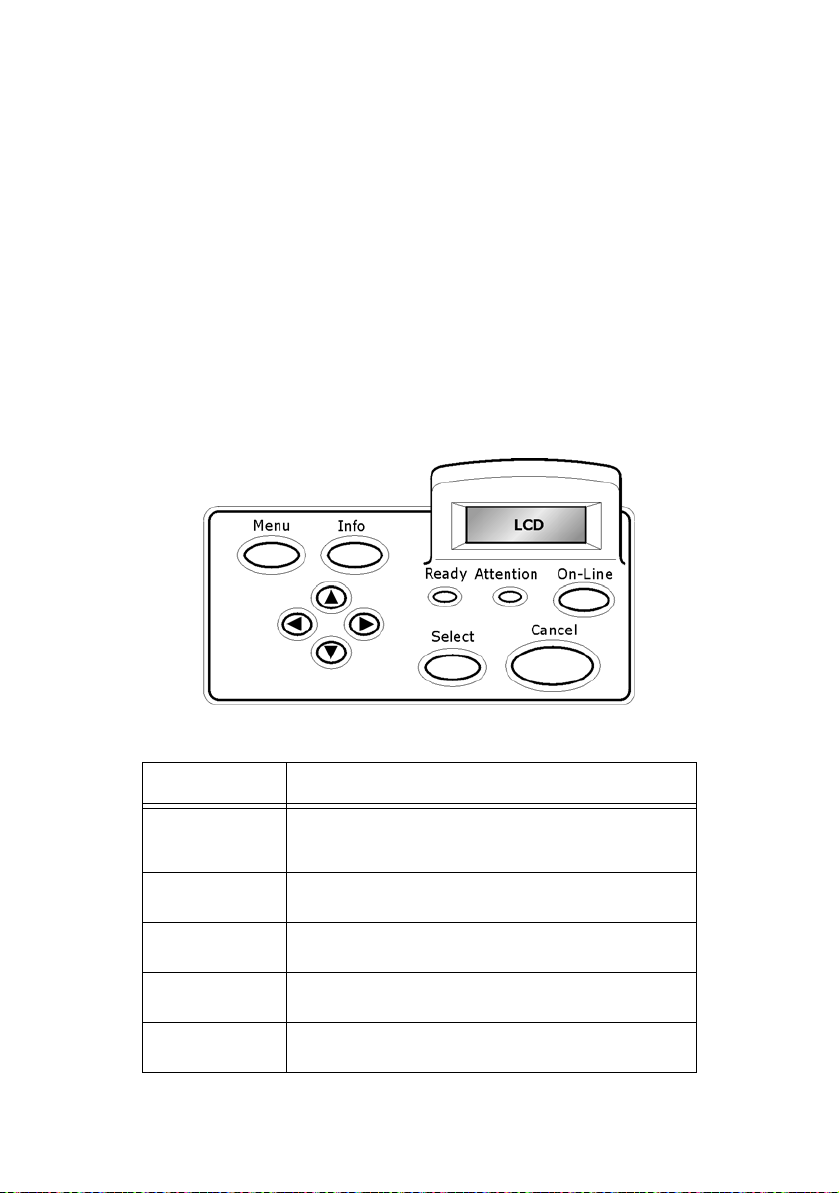
The control panel is located on the front of the printer (Figure
below), and contains the display (LCD), indicators, and push buttons
that allow you to view and change the printer settings.
NAME DESCRIPTION
<MENU> button Press to move to the menu operation. Once in the
<INFO> button Press to print the menu map. The menu map (2pages)
<READY>
indicator
LCD display Displays the setting items, machine status, and
<ATTENTION>
indicator
menu operation, repeatedly pressing the menu button
moves down the menu list.
will print with all the current printer settings.
When the light is on, the printer is ready to receive
data from the computer.
messages.
When the light is on, there is a malfunction in the
printer.
B6250/B6500 User’s Guide> 57
Page 59

NAME DESCRIPTION
<On-Line>
button/indicator
<CANCEL>
button
<Select> button Press to activate the displayed setting. When you are
<> <>
<> <>
buttons
LCD D
ISPLAY
Press to enter the off-line status. When in the off-line
status, the machine cannot receive data or process
printing. Press again to exit the off-line status and
enter the on-line status (where the machine can
receive data from the computer).
Press to cancel printing.
Press to exit the menu mode.
changing the candidate values, pressing the Select
button runs the currently displayed activity or saves
the currently displayed candidate.
Press these to move to the required menu, item and
candidate value on the display.
The LCD display shows status and error messages that inform you
of the current status of the printer, and also displays menus,
submenus, and printer settings when you are in the menu system.
The display contains two lines of text, each with a maximum of
sixteen characters.
Current printer status
Printing
USB
Port Receiving Data
(USB, Net, LPD, Etc.)
B6250/B6500 User’s Guide> 58
PCL
Language
(PCL, PS, etc.)
Page 60

M
ENU SCREEN
Screen for configuring settings related to the printer.
This screen appears when you press the <MENU> button. The initial
Menu screen displayed is as follows.
Print Jobs Menu
N
AVIGATING THE CONTROL PANEL MENUS
When you press the MENU button on the control panel, you
enter the printer’s menu system. At that point, the first line of the
display lists the active menu. You can change the active menu
by pressing the < > or < > button or by pressing the MENU
button.
If you press the < > button repeatedly, the first line of the display
cycles through the main menus in the following order:
• Print Jobs Menu
• Information Menu
• Print Menu
• Media Menu
• Sys Config Menu
• PCL Emulation
• FX Emulation
• Parallel Menu
• Serial Menu
• USB Menu
• Network Menu
• Sys Adjust Menu
B6250/B6500 User’s Guide> 59
Page 61

• Date/Time Menu
• Maintenance Menu
• Usage Menu
• Flash Menu
• Disk Menu
• Comp FLASH Menu
• Job Accounting
• Spooling
Menus and submenus may or may not be displayed, depending on
the options installed.
The following text describes the sequence of push buttons and
display messages that would allow you to print the PS (PostScript)
font list. This example illustrates the basic relationship between
menus and submenus and demonstrates how the < >, < >,
SELECT, and Cancel buttons help you to navigate through the
menus.
1. Press the MENU button on the control panel.
2. The LCD will display “Print Jobs Menu” on the first line of
the display.
3. Press the <> or <Menu> button to display “Information
Menu” on the first line of the display.
4. Press the <> button to enter the “Information Menu”.
“Print Menu Map” is displayed on the first line and
“Execute” is on the second line of the display.
5. Press the < > button to display “Print PCL Fonts” on the
first line of the display.
6. Press the <> button to display “Print PS Fonts” on the
first line of the display.
7. Press the Select button to print the list, or press the
CANCEL button to exit the menu system.
B6250/B6500 User’s Guide> 60
Page 62

M
ENU STRUCTURE
The following shows the structure of the control panel main menus
and submenus.
Print Jobs Menu Media Menu
Tray1 Auto Sense
Tray1 Paper Size
Information Menu Tray1 Media Type
Print Menu Map Tray2 Auto Sense
Print PCL Fonts Tray2 Paper Size
Print PS Fonts Tray2 Media Type
Print FX Fonts Tray3 Auto Sense
Print Demo Tray3 Paper Size
Tray3 Media Type
Unit Of Measure
Print Menu Tray1 X Dimen
Copies Tray1 Y Dimen
Duplex Tray2 X Dimen
Duplex Bind Tray2 Y Dimen
Paper Feed Tray3 X Dimen
Auto Tray Switch Tray3 Y Dimen
Output Tray
Separator Page
Resolution Sys Config Menu
Print Density Power save time
Toner Save Mode Personality
Orientation Wait Timeout
Lines Per Page Toner Low
Auto Resize Language
Media Check Print PS Errors
White Page Skip
B6250/B6500 User’s Guide> 61
Page 63

PCL Emulation Serial Menu
Font Source Serial
Font No. Baud Rate
Font Pitch Data Bits
Symbol Set Stop Bits
CR Function Parity
LF Function DTR Ready/Busy
A4 Print Width DTR Onl/Offl
Print Area DTR Error
RTS Ready/Busy
FX Emulation RTS Onl/Offl
Character Pitch RTS Error
Character Set XON Ready/Busy
Symbol Set XON Onl/Offl
Letter 0 Style XON Error
Zero Character DTR Polarity
Line Pitch RTS Polarity
CR Function Robust XON
Line Length PS Protocol
Form Length
Top Position
Left Margin
Fit To Letter
Text Height
Parallel Menu USB Menu
Parallel USB
Bi-Direction PS Protocol
PS Protocol
B6250/B6500 User’s Guide> 62
Page 64

Network Menu Date/Time Menu
TCP/IP Month
Netware Day
Ethertalk Year
IP Address Set Hour
IP Address Minute
Subnet Mask Second
Gateway Address GMT Offset/Hours
Factory Default GMT Offset/Mins
Web Daylight Saving
SNMP
Hub Link Setting
PS Protocol
HTTP Port
Netware Frame Maintenance Menu
Sys Adjust Menu Menu Reset
Tray1 X Adjust Save Menu
Tray1 Y Adjust Power Save
Tray2 X Adjust
Tray2 Y Adjust Usage Menu
Tray3 X Adjust Page Count
Tray3 Y Adjust Fuser Count
Duplex X Adjust Toner
Duplex Y Adjust Tray1 Level
PCL Tray1 ID# Tray2 Level
PCL Tray2 ID# Tray3 Level
PCL Tray3 ID#
PCL Auto ID#
Hex Dump
PCL Auto ID
B6250/B6500 User’s Guide> 63
Page 65

Flash Menu Job Accounting
Data Security Enabled
Print Print Info
Format Usr FLASH
Flash Summary Spooling
Start Spooling
Disk Menu Destination
Data Security
Print
Delete
Format Disk
Disk Summary
Comp FLASH Menu
Data Security
Print
Delete
Format Cmp FLASH
CFLASH Summary
NOTE
Menus and submenus may or may not appear in the printer menu
system depending upon the options installed.
B6250/B6500 User’s Guide> 64
Page 66

P
RINT JOBS MENU
1. Press the MENU button on the control panel.
2. “Print Jobs Menu” is shown on the first line of the display.
3. Press the < > button to enter the Print Jobs Menu. “Enter
Password” is displayed on the first line and “****” is
displayed on the second line.
NOTE
The password is entered by you at the PC using the print driver,
see “Configuring Secure Print” on page 30.
4. To enter the first digit of your password (Pin Number), press
the < > to increase the number or < > to decrease the
number.
5. When the correct number is displayed, press the < > button
to move to the next digit position
6. Repeat steps 4 & 5 until all four numbers are correct.
7. Press the SELECT button to enter the submenu.
8. All the jobs associated with your password will be available.
Use the < > or < > buttons to scroll through the list of jobs
or you can select “ALL JOBS”.
9. With the desired job displayed, you may press “Select” to
print the job or you may press “Cancel” to delete the job.
10. If you press Select to print the job, “Copies” will be shown on
the display. You may select the number of copies to be
printed by using the < > or < > buttons.
11. With the desired number displayed, press the “Select” button
to print the job.
Use the procedures in the following table to access and change the
system settings.
SUBMENU DEFAULT
SETTING
Enter Password User Selected 0-65535 See Steps Above
B6250/B6500 User’s Guide> 65
AVAILABLE
SETTINGS
PROCEDURE FOR
CHANGING SETTING
Page 67

I
NFORMATION MENU
The Information Menu provides access to the printer settings for various printing functions. Use the following procedure to enter the information menu:
1. Press the MENU button on the control panel.
2. Press the < > button until the text “Information Menu” is
shown on the first line of the display.
3. Press the < > button to enter the Information Menu.
4. Press the < > or < > buttons to move through the
submenus.
5. Press the SELECT button to print the displayed submenu.
Use the procedures in the following table to access and change the
printer information settings:
SUBMENUS PROCEDURE TO
EXECUTE
Print Menu Map
This function
allows you to
print the menu
map.
Print PCL Fonts
This function
allows you to
print the PCL
font list.
Print PS Fonts
This function
allows you to
print the
Postscript font
list.
B6250/B6500 User’s Guide> 66
Press SELECT to print the
Menu Map.
Press SELECT to print the
PCL font list.
Press SELECT to print the
Postscript fonts list.
Page 68

SUBMENUS PROCEDURE TO
EXECUTE
Print FX Fonts
This function
allows you to
print the FX
font list.
Print Demo
This function
allows you to
print a demo
page.
Press SELECT to print the FX
Fonts list.
Press SELECT to print a
Demo Page.
B6250/B6500 User’s Guide> 67
Page 69

P
RINT MENU
The Print Menu provides access to the print setup procedures. These settings are defaults for the printer. A print job can specify and use other settings. Use the following procedure to enter the print menu:
1. Press the MENU button on the control panel.
2. Press the < > button until the text “Print Menu” is shown
on the first line of the display.
3. Press the < > button to enter the print menu.
4. Press the < > or < > buttons to move through the
submenus.
5. Press the < > button to enter the submenu.
Use the procedures in the following table to access and change the
print menu settings:
SUBMENUS DEFAULT
SETTING
Copies
This submenu
allows you to
change the
number of
copies printed.
Duplex
This submenu
allows you to
turn the duplex
on or off
Duplex Bind
This submenu
allows you to
choose the bind
edge. Choose
Long Edge or
Short Edge.
1Numbers 1 -
Off On/Off
Long Edge Long Edge/
B6250/B6500 User’s Guide> 68
AVAILABLE
SETTINGS
999
Short Edge
PROCEDURE FOR
CHANGING SETTING
Press < > or < >
buttons to increase or
decrease the number of
copies printed.
Press <SELECT> to save
this setting.
Press < > or < >
buttons toggle between ON
and OFF.
Press <SELECT> to save
this setting.
Press < > or < >
buttons toggle between
Long Edge and Short Edge.
Press <SELECT> to save
this setting.
Page 70

SUBMENUS DEFAULT
SETTING
AVAILABLE
SETTINGS
PROCEDURE FOR
CHANGING SETTING
Paper Feed
This submenu
allows you to
choose the
default paper
tray.
Auto Tray
Switch
This submenu
allows you to
switch the tray
auto switch
function on or
off.
Output Tray
This submenu
allows you to
choose the
default output
tray.
Separator Page
This submenu
allows you to
select the tray
for the
separator page
or switch it off.
Resolution
This submenu
allows you to
set the
resolution (dpi).
Print Density
This submenu
allows you to
set the print
density.
Toner Save
Mode
Tray 1 Tray 1
Tray 2
Tray 3
Tray 4
On On
Off
Face Down Tray Face Down Tray
Offset Catch
Tray (option)
Rear Tray
(option)
Off Off
Tray 1
Tray 2
Tray 3
Tray 4
600 DPI 600 DPI
1200 DPI
41 to 7
On On
Off
Press < > or < >
buttons to select the tray.
Press <SELECT> to save
this setting.
Press < > or < >
buttons to toggle between
ON and OFF.
Press <SELECT> to save
this setting.
Press < > or < >
buttons to scroll through the
available trays.
Press <SELECT> to save
the tray.
Press < > or < >
buttons to scroll through the
available trays.
Press <SELECT> to save
the tray.
Press < > or < >
buttons to scroll through the
available resolutions.
Press <SELECT> to save
the dpi.
Press < > or < >
buttons to increase of
decrease the setting.
Press <SELECT> to save
this setting.
Press < > or < >
buttons to toggle between
ON and OFF.
Press <SELECT> to save
this setting.
B6250/B6500 User’s Guide> 69
Page 71

SUBMENUS DEFAULT
SETTING
AVAILABLE
SETTINGS
PROCEDURE FOR
CHANGING SETTING
Orientation Portrait Portrait
Landscape
Lines Per Page 60 5 to 128
Auto Resize Disable Enable
Disable
Media Check Enable Enable
Disable
White Page Skip Disable Enable
Disable
Press < > or < >
buttons to toggle between
Portrait and Landscape.
Press <SELECT> to save
this setting.
Press < > or < >
buttons to increase or
decrease the setting.
Press <SELECT> to save
this setting.
Press < > or < >
buttons to toggle between
Enable and Disable.
Press <SELECT> to save
the selection.
PPress < > or < >
buttons to toggle between
Enable and Disable.
Press <SELECT> to save
the selection.
PPress < > or < >
buttons to toggle between
Enable and Disable.
Press <SELECT> to save
the selection.
B6250/B6500 User’s Guide> 70
Page 72

M
EDIA MENU
The Media Menu provides access to the paper tray settings. Use the
following procedure to enter the media menu:
1. Press the MENU button on the control panel.
2. Press the < > button until the text “Media Menu” is shown
on the first line of the display.
3. Press the < > button to enter the media menu.
4. Press the < > or < > button to move through the
submenus.
5. Press the < > button to enter the submenu.
Use the procedures in the following table to access and change the
printer media settings:
SUBMENUS DEFAULT
SETTING
Tray1 AutoSense
This submenu
allows you to
set the Paper
size auto sense
feature on or
off.
Tray1 Paper
Size
This submenu
allows you to
set the media
size.
Tray1 AutoSense must be
off.
On On
Letter (US)
else (A4)
AVAILABLE
SETTINGS
Off
Letter, A4,
Legal13,
Legal14,
Custom,
Executive,
Monarch Envel.,
Com10
Envelope, DL
Envelope, C5
Envelope,
Com9
Envelope, A6,
A5, Statement,
B5
PROCEDURE FOR
CHANGING SETTING
Press < > or < > button
to toggle on or off.
Press <SELECT> to save
the selected size.
Press < > or < >
buttons to scroll through the
available sizes.
Press <SELECT> to save
the selected size.
B6250/B6500 User’s Guide> 71
Page 73

SUBMENUS DEFAULT
SETTING
AVAILABLE
SETTINGS
PROCEDURE FOR
CHANGING SETTING
Tray1 Media
Type
This submenu
allows you to
set the media
type.
Tray2 AutoSense
This submenu
allows you to
set the Paper
size auto sense
feature on or
off.
Tray2 Paper
Size
This submenu
allows you to
set the media
size.
Tray 2 AutoSense must be
off.
Plain Plain,
ON ON
Letter (US)
else (A4)
Transparency,
Prepunched,
Letterhead,
Colored,
Preprinted,
Bond, Label,
Card Stock,
Postcard,
Envelop, Thick
1, Thick 2,
Thick 3, Thin,
Other
OFF
Letter, A4,
Legal13,
Legal14,
Custom,
Executive,
Monarch Envel.,
Com10
Envelope, DL
Envelope, C5
Envelope, COM
9 Envelope,
Envelope, A6,
A5, Statement,
B5
Press < > or < >
buttons to scroll through the
available MEDIA TYPES.
Press <SELECT> to set a
media type.
Press < > or < > button
to toggle on or off.
Press <SELECT> to save
the selected size.
Press < > or < > button
to scroll through the
available sizes.
Press <SELECT> to set a
paper size.
Tray2 Media
Type
This submenu
allows you to
set the media
type.
Plain Plain,
B6250/B6500 User’s Guide> 72
Transparency,
Prepunched,
Letterhead,
Colored,
Preprinted,
Bond, Label,
Card Stock,
Postcard,
Envelop, Thick
1, Thick 2,
Thick 3, Thin,
Other
Press < > or < > button
to scroll through the
available media types
Press <SELECT> to set a
type.
Page 74
SUBMENUS DEFAULT
SETTING
AVAILABLE
SETTINGS
PROCEDURE FOR
CHANGING SETTING
Tray3 AutoSense
This submenu
allows you to
set the Paper
size auto sense
feature on or
off.
Tray3 Paper
Size
This submenu
allows you to
set the media
size.
Tray 3 AutoSense must be
off.
Tray3 Media
Type
This submenu
allows you to
set the media
type.
On On
Off
Letter (US)
else (A4)
Plain Plain,
Letter, A4,
Legal13,
Legal14,
Custom,
Executive,
Monarch Envel.,
Com10
Envelope, DL
Envelope, C5
Envelope,
Com9
Envelope, A6,
A5, Statement,
B5
Transparency,
Prepunched,
Letterhead,
Colored,
Preprinted,
Bond, Label,
Card Stock,
Postcard,
Envelop, Thick
1, Thick 2,
Thick 3, Thin,
Other
Press < > or < > button
to toggle on or off.
Press <SELECT> to save
the selected size.
Press < > or < > button
to scroll through the
available sizes.
Press <SELECT> to set a
paper size.
Press < > or < > button
to scroll through the
available media types
Press <SELECT> to set a
type.
Tray4 AutoSense
This submenu
allows you to
set the Paper
size auto sense
feature on or
off.
On On
Off
B6250/B6500 User’s Guide> 73
Press < > or < > button
to toggle on or off.
Press <SELECT> to save
the selected size.
Page 75
SUBMENUS DEFAULT
SETTING
AVAILABLE
SETTINGS
PROCEDURE FOR
CHANGING SETTING
Tray4 Paper
Size
This submenu
allows you to
set the media
size.
Tray 4 AutoSense must be
off.
Tray4 Media
Type
This submenu
allows you to
set the media
type.
Unit Of Measure
This menu is
used to set the
unit of
measurement
for the Custom
Paper Size
feature.
Letter (US)
else (A4)
Plain Plain,
Inch (Default If
US)
Millimeter
(Default If NonUS)
Letter, A4,
Legal13,
Legal14,
Custom,
Executive,
Monarch Envel.,
Com10
Envelope, DL
Envelope, C5
Envelope,
Com9
Envelope, A6,
A5, Statement,
B5
Transparency,
Prepunched,
Letterhead,
Colored,
Preprinted,
Bond, Label,
Card Stock,
Postcard,
Envelop, Thick
1, Thick 2,
Thick 3, Thin,
Other
Inches
Millimeters
Press < > or < > button
to scroll through the
available sizes.
Press <SELECT> to set a
paper size.
Press < > or < > button
to scroll through the
available media types
Press <SELECT> to set a
type.
Press < > or < >
buttons to toggle between
INCHES and MILLIMETERS.
Press <SELECT> to save
this setting.
Tray1 X Dimen
Sets the paper
width.
Tray1 Y Dimen
Sets the paper
length
8.50 Inch
(216 Millimeter)
11.00 Inch (279
Millimeter)
B6250/B6500 User’s Guide> 74
3.88 - 8.50
Inch (99 - 216
Millimeter)
5.83 - 14.00
Inch
(148 - 356
Millimeter)
Press < > or < >
buttons to select the X
dimension
Press <SELECT> to set
dimension.
Press < > or < >
buttons to select the Y
dimension
Press <SELECT> to set
dimension.
Page 76

SUBMENUS DEFAULT
SETTING
AVAILABLE
SETTINGS
PROCEDURE FOR
CHANGING SETTING
Tray2 X Dimen
Sets the paper
width
Tray2 Y Dimen
Sets the paper
length
Tray3 X Dimen
Sets the paper
length
Tray3 Y Dimen
Sets the paper
length
Tray4 X Dimen
Sets the paper
length
Tray4 Y Dimen
Sets the paper
length
8.50 Inch
(216 Millimeter)
11.00 Inch (279
Millimeter)
8.50 Inch
(216 Millimeter)
11.00 Inch (279
Millimeter)
8.50 Inch
(216 Millimeter)
11.00 Inch (279
Millimeter)
3.88 - 8.50
Inch (99 - 216
Millimeter)
5.83 - 14.00
Inch (148 - 356
Millimeter)
3.88 - 8.50
Inch (99 - 216
Millimeter)
5.83 - 14.00
Inch (148 - 356
Millimeter)
3.88 - 8.50
Inch (99 - 216
Millimeter)
5.83 - 14.00
Inch (148 - 356
Millimeter)
Press < > or < > button
to select the X dimension
Press <SELECT> to set
dimension.
Press < > or < > button
to select the Y dimension
Press <SELECT> to set
dimension.
Press < > or < > button
to select the Y dimension
Press <SELECT> to set
dimension.
Press < > or < > button
to select the Y dimension
Press <SELECT> to set
dimension.
Press < > or < > button
to select the Y dimension
Press <SELECT> to set
dimension.
Press < > or < > button
to select the Y dimension
Press <SELECT> to set
dimension.
B6250/B6500 User’s Guide> 75
Page 77

SYS C
ONFIG MENU
The Sys Config Menu provides access to the system settings. Use the following procedure to enter the Sys Config menu:
1. Press the MENU button on the control panel.
2. Press the < > button until the text “Sys Config Menu” is
shown on the first line of the display.
3. Press the < > button to enter the sys config menu.
4. Press the <> or <> button to move through the submenus.
5. Press the < > button to enter the submenu.
Use the procedures in the following table to access and change the
Sys Config Menu settings:
SUBMENUS DEFAULT
SETTING
Power Save
Time
This submenu
allows you to
change the time
(in minutes)
when the
printer enters
the Power
Saver Mode.
Personality Auto Emulation Auto Emulation,
5 5 min, 15 min,
AVAILABLE
SETTINGS
30 min, 60 min,
120 min
PCL, Postscript
3, FX
PROCEDURE FOR
CHANGING SETTING
Press < > or < >
buttons to select the
number of minutes.
Press <SELECT> to save
the time.
Press < > or < >
buttons to scroll through the
selections.
Press <SELECT> to save
the selection.
B6250/B6500 User’s Guide> 76
Page 78
SUBMENUS DEFAULT
SETTING
AVAILABLE
SETTINGS
PROCEDURE FOR
CHANGING SETTING
Wait Timeout
This submenu
allows you to
increase or
decrease the
length of time
(in seconds)
that the printer
will remain in
the waiting
state—a job is
being
processed, no
end-of-file has
been detected,
and there is no
more data to
process.
Toner Low
This submenu
sets the printer
to either stop or
continue
printing when it
goes into a low
toner condition.
Language
This submenu
sets the default
language for
the display.
Print PS Errors Off On
00020 0 - 65535
Continue Continue
Stop
English English,
Czecho,
Hungary,
Finland, Brazil,
Turkish,
Russian, Polish,
Greek,
Swedish,
Norwegian,
Danish, Dutch,
Portugal,
spanol, Italiano,
Deutsch,
Francais
Off
Press < > or < >
buttons to increase or
decrease the digit in the
selected position.
Press the < > to select the
digit and move to the next
position
Press <SELECT> after
changing the last digit to
save this setting.
Press < > or < >
buttons to toggle between
Continue and Stop.
Press <SELECT> to save
this setting.
Press < > or < >
buttons to scroll through the
options.
Press <SELECT> to save
this setting.
Print PS Errors
B6250/B6500 User’s Guide> 77
Page 79

PCL E
MULATION
The PCL Emulation provides access to the PCL settings and functions. Use the following procedure to enter PCL Emulation Menu:
1. Press the MENU button on the control panel.
2. Press the < > button until the text “PCL Emulation” is
shown on the first line of the display.
3. Press the < > button to enter the PCL emulation menu.
4. Press the <> or <> buttons to move through the
submenus.
5. Press the < > button to enter the submenu.
Use the procedures in the following table to access and change the
PCL Emulation settings:
SUBMENUS DEFAULT
SETTING
Font Source
This submenu
allows you to
choose a font
source.
Font No.
This submenu
allows you to
set the font
number.
Font P itch
This submenu
allows you to
change the font
pitch of text.
Symbol Set
This submenu
allows you to
choose a
symbol set.
Internal Internal
50 0 - 152
10.00 0.08 - 100.00
10U:PC-8
CP437
AVAILABLE
SETTINGS
See Appendix A
for a complete
list of all the
available
symbol sets
PROCEDURE FOR
CHANGING SETTING
Press < > or < >
buttons to scroll through the
selections.
Press <SELECT> to save
the selection.
Press < > or < >
buttons to scroll through the
selections.
Press <SELECT> to save
the selection.
Press < > or < >
buttons to scroll through the
selections.
Press <SELECT> to save
the selection.
Press < > or < >
buttons to scroll through the
selections.
Press <SELECT> to save
the selection.
B6250/B6500 User’s Guide> 78
Page 80
SUBMENUS DEFAULT
SETTING
AVAILABLE
SETTINGS
PROCEDURE FOR
CHANGING SETTING
CR Function
This submenu
allows you to
define the
action
prompted by a
carriage
return—a
carriage return
equals either a
carriage return
alone, or a
carriage return
and a line feed
together.
LF function
This submenu
allows you to
define the
action
prompted by a
line feed—a line
feed equals
either a line
feed alone or a
carriage return
and a line feed
together.
A4 Print Width 78 Columns 78 Columns
Print Area Normal Normal
CR CR
CR+LF
LF LF
LF+CR
80 Columns
Expanded
Press < > or < >
buttons to toggle between
CR and CR+LF.
Press <SELECT> to save
the selection.
Press < > or < >
buttons to toggle between
LF and LF+CR.
Press <SELECT> to save
the selection.
Press < > or < >
buttons to toggle between
78 and 80.
Press <SELECT> to save
the selection.
Press < > or < >
buttons to toggle between
Normal and Expanded.
Press <SELECT> to save
the selection.
B6250/B6500 User’s Guide> 79
Page 81

FX E
MULATION
The FX Emulation provides access to the FX settings and functions.
Use the following procedure to enter FX Emulation Menu:
1. Press the MENU button on the control panel.
2. Press the < > button until the text “FX Emulation” is
shown on the first line of the display.
3. Press the < > button to enter the FX emulation menu.
4. Press the <> or <> buttons to move through the
submenus.
5. Press the < > button to enter the submenu.
Use the procedures in the following table to access and change the
FX Emulation settings:
SUBMENUS DEFAULT
SETTING
Character Pitch
This submenu
allows you to
choose the
Characters Per
Inch.
Character Set Set-2 Set-1
Symbol Set
This submenu
allows you to
choose a
symbol set.
Letter 0 Style Disable Enable/Disable
10 CPI 10 cpi
8U:Roman 8
AVAILABLE
SETTINGS
12 cpi
17 cpi
20 cpi
Proportional
Set-2
PROCEDURE FOR
CHANGING SETTING
Press < > or < >
buttons to scroll through the
selections.
Press <SELECT> to save
the selection.
Press < > or < >
buttons to scroll through the
selections.
Press <SELECT> to save
the selection.
Press < > or < >
buttons to scroll through the
selections.
Press <SELECT> to save
the selection.
Press < > or < >
buttons to scroll through the
selections.
Press <SELECT> to save
the selection.
B6250/B6500 User’s Guide> 80
Page 82

SUBMENUS DEFAULT
SETTING
AVAILABLE
SETTINGS
PROCEDURE FOR
CHANGING SETTING
Zero Character Normal Normal/Slashed
Line Pitch
This submenu
allows you to
choose the
Lines Per Inch.
CR Function
This submenu
allows you to
define the
action
prompted by a
carriage
return—a
carriage return
equals either a
carriage return
alone, or a
carriage return
and a line feed
together.
Line Length 80 80
Form Length
This submenu
allows you to
choose the
paper length.
6 LPI 6 LPI
8 LPI
CR CR
CR+LF
136
11 Inch 11 Inch
11.7 Inch
12 Inch
Press < > or < >
buttons to scroll through the
selections.
Press <SELECT> to save
the selection.
Press < > or < >
buttons to scroll through the
selections.
Press <SELECT> to save
the selection.
Press < > or < >
buttons to toggle between
CR and CR+LF.
Press <SELECT> to save
the selection.
Press < > or < >
buttons to toggle between
80 and 136.
Press <SELECT> to save
the selection.
Press < > or < >
buttons to scroll through the
selections.
Press <SELECT> to save
the selection.
TOF Position
This submenu
allows you to
shift the image
down in 0.1
Inch
increments.
0 Inch 0 Inch
0.1 Inch
1.0 Inch
B6250/B6500 User’s Guide> 81
Press < > or < >
buttons to scroll through the
selections.
Press <SELECT> to save
the selection.
Page 83

SUBMENUS DEFAULT
SETTING
AVAILABLE
SETTINGS
PROCEDURE FOR
CHANGING SETTING
Left Margin
This submenu
allows you to
shift the image
to the right in
0.1 Inch
increments.
Fit To Letter
This submenu
allows you to fit
the image to
letter size
paper.
Text Height Sa me Same/Diff
0 Inch 0 Inch
0.1 Inch
1.0 Inch
Disable Enable
Disable
Press < > or < >
buttons to scroll through the
selections.
Press <SELECT> to save
the selection.
Press < > or < >
buttons to scroll through the
selections.
Press <SELECT> to save
the selection.
Press < > or < >
buttons to scroll through the
selections.
Press <SELECT> to save
the selection.
B6250/B6500 User’s Guide> 82
Page 84

P
ARALLEL MENU
The Parallel Menu provides access to the Parallel settings. Use the following procedure to enter the parallel menu:
1. Press the MENU button on the control panel.
2. Press the < > button until the text “Parallel Menu” is
shown on the second line of the display.
3. Press the < > button to enter the parallel menu.
4. Press the <> or <> buttons to move through the
submenus.
5. Press the < > button to enter the submenu.
Use the procedures in the following table to access and change the
Parallel Menu settings:
SUBMENUS DEFAULT
SETTING
Parallel
This submenu
allows you to
set up the
parallel
interface.
Bi-Direction
Enable
bidirectional
communication
with the PC.
PS Protocol ASCII ASCII
Enable Enable
Enable Enable
AVAILABLE
SETTINGS
Disable
Disable
Raw
PROCEDURE FOR
CHANGING SETTING
Press < > or < >
buttons to toggle between
Enable and Disable.
Press <SELECT> to save
the selection.
Press < > or < >
buttons to toggle between
Enable and Disable.
Press <SELECT> to save
the selection.
Press < > or < >
buttons to toggle between
EASCII and Raw.
Press <SELECT> to save
the selection.
B6250/B6500 User’s Guide> 83
Page 85

S
ERIAL MENU
The Serial Menu provides access to the Serial settings. Use the following procedure to enter the serial menu:
1. Press the MENU button on the control panel.
2. Press the < > button until the text “Serial Menu” is shown
on the first line of the display.
3. Press the < > button to enter the serial menu.
4. Press the <> or <> buttons to move through the
submenus.
5. Press the < > button to enter the submenu.
Use the procedures in the following table to access and change the
Serial Menu settings:
SUBMENUS DEFAULT
SETTING
Serial Enable Enable
Baud Rate 9600 1200, 2400,
Data Bits 8 8
Stop Bits 1 1
AVAILABLE
SETTINGS
Disable
4800, 9600,
19200, 38400,
57600, 115200
7
2
PROCEDURE FOR
CHANGING SETTING
Press < > or < >
buttons to toggle between
Enable and Disable.
Press <SELECT> to save
the selection.
Press < > or < >
buttons to scroll through the
selections.
Press <SELECT> to save
the selection.
Press < > or < >
buttons to toggle between 7
and 8.
Press <SELECT> to save
the selection.
Press < > or < >
buttons to toggle between 1
and 2.
Press <SELECT> to save
the selection.
B6250/B6500 User’s Guide> 84
Page 86

SUBMENUS DEFAULT
SETTING
AVAILABLE
SETTINGS
PROCEDURE FOR
CHANGING SETTING
Parity None None
Even
Odd
DTR Ready/
Busy
DTR Onl/Offl Off Off
DTR Error Off Off
RTS Ready/
Busy
RTS Onl/Offl Off Off
RTS Error Off Off
XON Ready/
Busy
Off Off
On
On
On
Off Off
On
On
On
On Off
On
Press < > or < >
buttons to toggle between
None, Even, and Odd.
Press <SELECT> to save
the selection.
Press < > or < >
buttons to toggle between
Off and On.
Press <SELECT> to save
the selection.
Press < > or < >
buttons to toggle between
Off and On.
Press <SELECT> to save
the selection.
Press < > or < >
buttons to toggle between
Off and On.
Press <SELECT> to save
the selection.
Press < > or < >
buttons to toggle between
Off and On.
Press <SELECT> to save
the selection.
Press < > or < >
buttons to toggle between
Off and On.
Press <SELECT> to save
the selection.
Press < > or < >
buttons to toggle between
Off and On.
Press <SELECT> to save
the selection.
Press < > or < >
buttons to toggle between
Off and On.
Press <SELECT> to save
the selection.
B6250/B6500 User’s Guide> 85
Page 87

SUBMENUS DEFAULT
SETTING
AVAILABLE
SETTINGS
PROCEDURE FOR
CHANGING SETTING
XON Onl/Offl On Off
On
XON Error Off Off
On
DTR Polarity High High
Low
RTS Polarity High High
Low
Robust XON Off Off
On
PS Protocol ASCII ASCII
Raw
Press < > or < >
buttons to toggle between
Off and On.
Press <SELECT> to save
the selection.
Press < > or < >
buttons to toggle between
Off and On.
Press <SELECT> to save
the selection.
Press < > or < >
buttons to toggle between
High and Low.
Press <SELECT> to save
the selection.
Press < > or < >
buttons to toggle between
High and Low.
Press <SELECT> to save
the selection.
Press < > or < >
buttons to toggle between
Off and On.
Press <SELECT> to save
the selection.
Press < > or < >
buttons to toggle between
ASCII and Raw.
Press <SELECT> to save
the selection.
B6250/B6500 User’s Guide> 86
Page 88

USB M
ENU
The USB Menu provides access to the USB settings. Use the following procedure to enter the USB menu:
1. Press the MENU button on the control panel.
2. Press the < > NEXT button until the text “USB Menu” is
shown on the first line of the display.
3. Press the < > button to enter the USB menu.
4. Press the <> or <> buttons to move through the
submenus.
5. Press the < > button to enter the submenu.
Use the procedures in the following table to access and change the
USB Menu settings:
SUBMENUS DEFAULT
SETTING
USB
This submenu
allows you to
set up the USB
interface.
PS Protocol ASCII ASCII
Enable Enable
AVAILABLE
SETTINGS
Disable
Raw
PROCEDURE FOR
CHANGING SETTING
Press < > or < >
buttons to toggle between
Enable and Disable.
Press <SELECT> to save
the selection.
Press < > or < >
buttons to toggle between
ASCII and Raw.
Press <SELECT> to save
the selection.
B6250/B6500 User’s Guide> 87
Page 89

N
ETWORK MENU
The Network Menu provides access to the printer network settings.
Use the following procedure to enter the network menu:
1. Press the MENU button on the control panel.
2. Press the < > button until the text “Network Menu” is
shown on the first line of the display.
3. Press the < > button to enter the Network menu.
4. Press the <> or <> buttons to move through the
submenus.
5. Press the < > button to enter the submenu.
Use the procedures in the following table to access and change the
Network Menu settings:
SUBMENUS DEFAULT
SETTING
TCP/IP Enable Enable
Netware Enable Enable
Ethertalk Enabled Enable
IP Address Set Automatic Automatic
AVAILABLE
SETTINGS
Disable
Disable
Disable
Manual
PROCEDURE FOR
CHANGING SETTING
Press < > or < >
buttons to toggle between
Enable and Disable.
Press <SELECT> to save
the selection.
Press < > or < >
buttons to toggle between
Enable and Disable.
Press <SELECT> to save
the selection.
Press < > or < >
buttons to toggle between
Enable and Disable.
Press <SELECT> to save
the selection.
Press < > or < >
buttons to toggle between
Automatic and Manual.
Press <SELECT> to save
the selection.
B6250/B6500 User’s Guide> 88
Page 90

SUBMENUS DEFAULT
SETTING
AVAILABLE
SETTINGS
PROCEDURE FOR
CHANGING SETTING
IP Address (user-specified) (user-specified) The first set of numbers
Subnet Mask (user-specified) (user-specified) The first set of numbers
Gateway
Address
(user-specified) (user-specified) The first set of numbers
blinks
Press < > or < > to
scroll to the desired
number.
Press < > to save the
current set of numbers and
move to the next set.
Repeat the procedure for
each set of numbers.
When the last set of
numbers is set, press
<SELECT> to save the IP
address.
blinks
Press < > or < > to
scroll to the desired
number.
Press < > to save the
current set of numbers and
move to the next set.
Repeat the procedure for
each set of numbers.
When the last set of
numbers is set, press
<SELECT> to save the IP
address.
blinks
Press < > or < > to
scroll to the desired
number.
Press < > to save the
current set of numbers and
move to the next set.
Repeat the procedure for
each set of numbers.
When the last set of
numbers is set, press
<SELECT> to save the IP
address.
B6250/B6500 User’s Guide> 89
Page 91

SUBMENUS DEFAULT
SETTING
AVAILABLE
SETTINGS
PROCEDURE FOR
CHANGING SETTING
Factory Default Execute Execute Press <SELECT> to save
Web Enable Enable
Disable
SNMP Enable Enable
Disable
Hub Link
Setting
PS Protocol ASCII ASCII
HTTP Port 80 1 - 65535
Auto Negotiate Auto Negotiate
10 Base-T Full
10 Base-T Half
100 Base-T Full
100 Base-T Half
Raw
the selection.
Press < > or < >
buttons to toggle between
Enable and Disable.
Press <SELECT> to save
the selection.
Press < > or < >
buttons to toggle between
Enable and Disable.
Press <SELECT> to save
the selection.
Press < > or < >
buttons to scroll through the
selections.
Press <SELECT> to save
the selection.
Press < > or < >
buttons to toggle between
ASCII and Raw.
Press <SELECT> to save
the selection.
Press < > or < >
buttons to scroll through the
selections.
Press <SELECT> to save
the selection.
Netware Frame Auto-Sense 802.2
802.2 SNAP
Ethernet II
802.3
B6250/B6500 User’s Guide> 90
Press < > or < >
buttons to scroll through the
selections.
Press <SELECT> to save
the selection.
Page 92
SYS A
DJUST MENU
The Sys Adjust Menu provides access to the tray adjustment settings. Use the following procedure to enter the Sys Adjust menu:
1. Press the MENU button on the control panel.
2. Press the < > button until the text “Sys Adjust Menu” is
shown on the first line of the display.
3. Press the < > button to enter the Sys Adjust menu.
4. Press the <> or <> button to move through the submenus.
5. Press the < > button to enter the submenu.
Use the procedures in the following table to access and change the
Sys Adjust Menu settings:
SUBMENUS DEFAULT
SETTING
Tray1 X Adjust
This submenu
fine adjusts the
registration in
the X axis.
Tray1 Y Adjust
This submenu
fine adjusts the
registration in
the Y axis.
Tray2 X Adjust
This submenu
fine adjusts the
registration in
the X axis.
80 to 15
80 to 15
80 to 15
AVAILABLE
SETTINGS
PROCEDURE FOR
CHANGING SETTING
Press < > (increase
number) to move the image
to the right or press < >
(decrease number) to mov e
the image to the left.
Press <SELECT> to save
the selection.
Press < > (increase
number) to move the image
to the down or press < >
(decrease number) to mov e
the image to the up.
Press <SELECT> to save
the selection.
Press < > (increase
number) to move the image
to the right or press < >
(decrease number) to mov e
the image to the left.
Press <SELECT> to save
the selection.
B6250/B6500 User’s Guide> 91
Page 93
SUBMENUS DEFAULT
SETTING
AVAILABLE
SETTINGS
PROCEDURE FOR
CHANGING SETTING
Tray2 Y Adjust
This submenu
fine adjusts the
registration in
the Y axis.
Tray3 X Adjust
This submenu
fine adjusts the
registration in
the X axis.
Tray3 Y Adjust
This submenu
fine adjusts the
registration in
the Y axis.
Tray4 X Adjust
This submenu
fine adjusts the
registration in
the X axis.
Tray4 Y Adjust
This submenu
fine adjusts the
registration in
the Y axis.
80 to 15
80 to 15
80 to 15
80 to 15
80 to 15
Press < > (increase
number) to move the image
to the down or press < >
(decrease number) to mov e
the image to the up.
Press <SELECT> to save
the selection.
Press < > (increase
number) to move the image
to the right or press < >
(decrease number) to mov e
the image to the left.
Press <SELECT> to save
the selection.
Press < > (increase
number) to move the image
to the down or press < >
(decrease number) to mov e
the image to the up.
Press <SELECT> to save
the selection.
Press < > (increase
number) to move the image
to the right or press < >
(decrease number) to mov e
the image to the left.
Press <SELECT> to save
the selection.
Press < > (increase
number) to move the image
to the down or press < >
(decrease number) to mov e
the image to the up.
Press <SELECT> to save
the selection.
B6250/B6500 User’s Guide> 92
Page 94
SUBMENUS DEFAULT
SETTING
AVAILABLE
SETTINGS
PROCEDURE FOR
CHANGING SETTING
Duplex X Adjust
This submenu
fine adjusts the
registration in
the X axis.
Duplex Y Adjust
This submenu
fine adjusts the
registration in
the Y axis.
PCL Tray1 ID#
PCL escape
sequence
parameter
value.
PCL Tray2 ID#
PCL escape
sequence
parameter
value.
80 to 15
80 to 15
0001 0000 to 9999
0004 0000 to 9999
Press < > (increase
number) to move the image
to the right or press < >
(decrease number) to mov e
the image to the left.
Press <SELECT> to save
the selection.
Press < > (increase
number) to move the image
to the down or press < >
(decrease number) to mov e
the image to the up.
Press <SELECT> to save
the selection.
Press < > or < >
buttons to increase or
decrease the digit in the
selected position.
Press the < > to select the
digit and move to the next
position
Press <SELECT> after
changing the last digit to
save this setting.
Press < > or < >
buttons to increase or
decrease the digit in the
selected position.
Press the < > to select the
digit and move to the next
position
Press <SELECT> after
changing the last digit to
save this setting.
B6250/B6500 User’s Guide> 93
Page 95
SUBMENUS DEFAULT
SETTING
AVAILABLE
SETTINGS
PROCEDURE FOR
CHANGING SETTING
PCL Tray3 ID#
PCL escape
sequence
parameter
value.
PCL Tray4 ID#
PCL escape
sequence
parameter
value.
PCL Auto ID#
PCL escape
sequence
parameter
value.
Hex Dump Disable Enable
0005 0000 to 9999
0006 0000 to 9999
0007 0000 to 9999
Disable
Press < > or < >
buttons to increase or
decrease the digit in the
selected position.
Press the < > to select the
digit and move to the next
position
Press <SELECT> after
changing the last digit to
save this setting.
Press < > or < >
buttons to increase or
decrease the digit in the
selected position.
Press the < > to select the
digit and move to the next
position
Press <SELECT> after
changing the last digit to
save this setting.
Press < > or < >
buttons to increase or
decrease the digit in the
selected position.
Press the < > to select the
digit and move to the next
position
Press <SELECT> after
changing the last digit to
save this setting.
Press < > or < > to
toggle between Enable and
Disable.
Press <SELECT> to save
this setting.
B6250/B6500 User’s Guide> 94
Page 96

D
ATE/TIME MENU
The Date/Time Menu provides access to the printer time settings. Use the following procedure to enter the date/time menu:
1. Press the MENU button on the control panel.
2. Press the < > button until the text “Date/Time Menu” is
shown on the first line of the display.
3. Press the < >button to enter the date/time menu.
4. Press the <> or <> buttons to move through the
submenus.
5. Press the < > button to enter the submenu.
Use the procedures in the following table to access and change the
Date/Time Menu settings:
SUBMENUS DEFAULT
SETTING
Month
This submenu
allows you to
set the current
month.
Day
This submenu
allows you to
set the current
day.
Year
This submenu
allows you to
set the current
year.
Hour
This submenu
allows you to
set the current
hour.
Minute
This submenu
allows you to
set the current
minute.
Current month January thru
Current day of
month
Current year 2000 - 2099
Current hour Midnight, 1 AM
Current minute 0 - 59
AVAILABLE
SETTINGS
December
1 to 31
to 11 AM, Noon,
1 PM to 11 PM
PROCEDURE FOR
CHANGING SETTING
Press < > or < > to
scroll through the months.
Press <SELECT> to set the
month.
Press < > or < > to
scroll through the days.
Press <SELECT> to set the
day.
Press < > or < > to
scroll through the years.
Press <SELECT> to set the
year.
Press < > or < > to
scroll through the hours.
Press <SELECT> to set the
hour.
Press < > or < > to
scroll through the minutes.
Press <SELECT> to set the
minute.
B6250/B6500 User’s Guide> 95
Page 97

SUBMENUS DEFAULT
SETTING
AVAILABLE
SETTINGS
PROCEDURE FOR
CHANGING SETTING
Second
This submenu
allows you to
set the current
second.
GMT Offset/
Hours
This submenu
allows you to
set time for a
different time
zone in hours.
GMT Offset/
Mins
This submenu
allows you to
set time for a
different time
zone in
minutes.
Daylight Saving On On
Current second 0 - 59
0 -12 through +
12
00
30
Off
Press < > or < > to
scroll through the seconds.
Press <SELECT> to choose
and set the second.
Press < > or < > to
scroll through the offset
selections.
Press <SELECT> to set the
offset hours.
Press < > or < > to
toggle between 0 and 30.
Press <SELECT> to set the
offset hours.
Press < > or < > to
toggle between On and Off.
Press <SELECT> to save
the selection.
B6250/B6500 User’s Guide> 96
Page 98

M
AINTENANCE MENU
The Maintenance Menu provides access to the printer maintenance settings. Use the following procedure to enter the maintenance menu:
1. Press the MENU button on the control panel.
2. Press the < > button until the text “Maintenance Menu” is
shown on the first line of the display.
3. Press the < >button to enter the maintenance menu.
4. Press the
<> or <> buttons to move through the
submenus.
5. Press the < > button to enter the submenu.
Use the procedures in the following table to access and change the
Maintenance Menu settings:
SUBMENUS DEFAULT
SETTING
Menu Reset Execute Execute Press <SELECT> to reset
Save Menu Execute Execute Press <SELECT> to save
Power Save Disable Enable
AVAILABLE
SETTINGS
Disable
PROCEDURE FOR
CHANGING SETTING
the menu.
the menu.
Press < > or < > to
toggle between enable and
disable.
Press <SELECT> to save
the setting.
B6250/B6500 User’s Guide> 97
Page 99
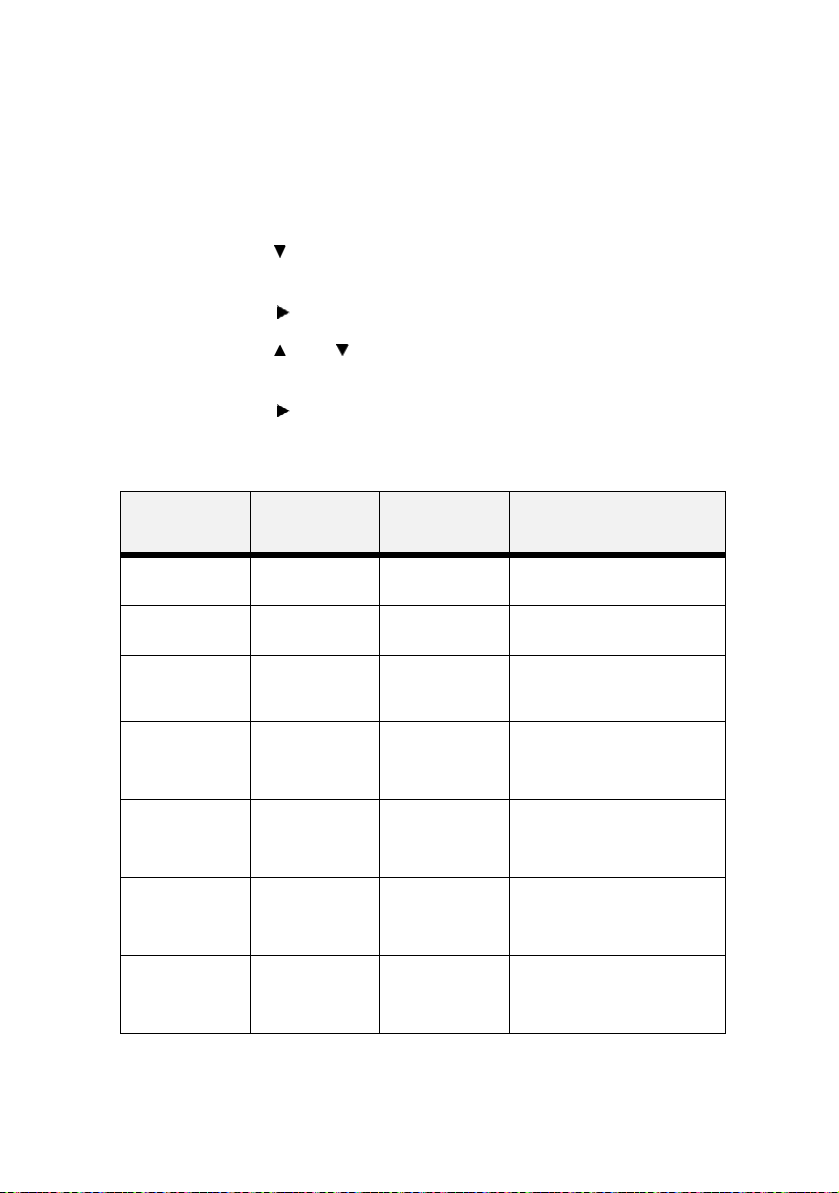
U
SAGE MENU
The Usage Menu provides access to the printer status. Use the following procedure to enter the usage menu:
1. Press the MENU button on the control panel.
2. Press the < > button until the text “Usage Menu” is shown
on the first line of the display.
3. Press the < > button to enter the usage menu.
4. Press the <> or <> buttons to move through the
submenus.
5. Press the < > button to enter the submenu.
Use the procedures in the following table to display the Usage Menu
settings:
SUBMENUS EXAMPLE AVAILABLE
SETTINGS
Page Count 123456 Press <SELECT> to display
Fuser Count 123456 Current Count Press <SELECT> to display
Toner 97% Press <SELECT> to display
Tray1 Level OK OK
Low
Empty
Tray2 Level OK OK
Low
Empty
Tray3 Level OK OK
Low
Empty
Tray4 Level OK OK
Low
Empty
PROCEDURE FOR
CHANGING SETTING
the total prints produced.
the total prints produced.
the percentage of toner
remaining.
Press <SELECT> to display
the paper supply level in
tray 1.
Press <SELECT> to display
the paper supply level in
tray 2.
Press <SELECT> to display
the paper supply level in
tray 3.
Press <SELECT> to display
the paper supply level in
tray 4.
B6250/B6500 User’s Guide> 98
Page 100

F
LASH MENU
The Flash Menu provides access to the flash device. Use the following procedure to enter the flash menu:
1. Press the MENU button on the control panel.
2. Press the < > button until the text “Flash Menu” is shown
on the first line of the display.
3. Press the < > button to enter the flash menu.
4. Press the <> or <> buttons to move through the
submenus.
5. Press the < > button to enter the submenu.
Use the procedures in the following table to perform the Flash Menu
options.
SUBMENUS DEFAULT
SETTING
Data Security
When set to ON, as
data is deleted, the
location where the
data was stored, is
overwritten by
random data. When
set to OFF, the data
is deleted.
Print
This selection will
read the selected
file from FLASH and
print it as if it were
being received from
one of the input
ports.
Off On/Off
Selected File Files
AVAILABLE
SETTINGS
PROCEDURE FOR
CHANGING
SETTING
Press < > or < > to
toggle between On or
OFF.
Press <SELECT> to save
the selection.
Press < > or < > to
scroll through the files.
Press <SELECT> to print
the file.
B6250/B6500 User’s Guide> 99
 Loading...