

Page 1
B6250/B6500
User’s Guide
B6250/B6500
Page 2

P
REFACE
Every effort has been made to ensure that the information in this document is
complete, accurate, and up-to-date. The manufacturer assumes no responsibility for
the results of errors beyond its control. The manufacturer also cannot guarantee that
changes in software and equipment made by other manufacturers and referred to in
this guide will not affect the applicability of the information in it. Mention of software
products manufactured by other companies does not necessarily constitute
endorsement by the manufacturer .
While all reasonable efforts have been made to make this document as accurate and
helpful as possible, we make no warranty of any kind, expressed or implied, as to the
accuracy or completeness of the information contained herein.
The most up-to-date drivers and manuals are available from the Oki web site:
Copyright © 2009 Oki Printing Solutions
Oki, Oki Printing Solutions and Microline are registered trademarks of Oki Electric
Industry Company, Ltd.
Microsoft, MS-DOS and Windows are registered trademarks of Microsoft Corporation.
Other product names and brand names are registered trademarks or trademarks of
their proprietors.
Printer Model No: B6500: JEB-6, B6250: JEB-2
http://www.okiprintingsolutions.com
Achieves ENERGY STAR energy savings; product fully qualifies when
packaged with (or used with) a duplex unit.
This product complies with the requirements of the Council Directives
89/336/EEC (EMC), 73/23/EEC (LVD) and 1999/5/EC (R&TTE) as
amended where applicable on the approximation of the laws of the
member states relating to electromagnetic compatibility, low voltage
and radio & telecommunications terminal equipment.
I
MPORTER TO THE
Oki Europe Limited (trading as OKI Printing Solutions)
Blays House
Wick Road
Egham, Surrey
TW20 0HJ
United Kingdom
For all sales, support and general enquiries contact your local distributor.
EU
B6250/B6500 User’s Guide > 2
Page 3

E
NVIRONMENTAL INFORMATION
B6250/B6500 User’s Guide > 3
Page 4

C
ONTENTS
Preface . . . . . . . . . . . . . . . . . . . . . . . . . . . . . . . . . . . . 2
Notes, cautions and warnings. . . . . . . . . . . . . . . . . . . 5
Basic Operations . . . . . . . . . . . . . . . . . . . . . . . . . . . . . 6
Main Components and Their Functions . . . . . . . . . . . . 6
Standard Configuration . . . . . . . . . . . . . . . . . . . . . 6
With Optional Accessories . . . . . . . . . . . . . . . . . . . 7
Internal View . . . . . . . . . . . . . . . . . . . . . . . . . . . . 8
Control Panel . . . . . . . . . . . . . . . . . . . . . . . . . . . . . . 9
Display . . . . . . . . . . . . . . . . . . . . . . . . . . . . . . . . . 10
Print Screen. . . . . . . . . . . . . . . . . . . . . . . . . . . . 10
Menu Screen . . . . . . . . . . . . . . . . . . . . . . . . . . . 10
Switching On and Off the Power . . . . . . . . . . . . . . . . 11
Switching On the Power. . . . . . . . . . . . . . . . . . . . . . 11
Switching Off the Power . . . . . . . . . . . . . . . . . . . . . 11
Power Save Modes . . . . . . . . . . . . . . . . . . . . . . . . . 12
Exiting the Power Save Mode . . . . . . . . . . . . . . . 12
Cancelling/Checking Printing . . . . . . . . . . . . . . . . . . 13
Cancelling Printing . . . . . . . . . . . . . . . . . . . . . . . 13
Checking Status of Print Data . . . . . . . . . . . . . . . 13
Displaying Optional Accessory Configuration
and Paper Tray Settings . . . . . . . . . . . . . . . . . . 14
Printing . . . . . . . . . . . . . . . . . . . . . . . . . . . . . . . . . . . 15
Printing From the Computer. . . . . . . . . . . . . . . . . . . 15
Useful Print Features In Properties Dialog Box . . . . 15
Printing on Envelopes . . . . . . . . . . . . . . . . . . . . . . . 16
Loading Envelopes . . . . . . . . . . . . . . . . . . . . . . . 16
Printing on Envelopes . . . . . . . . . . . . . . . . . . . . . 17
Printing on Transparencies. . . . . . . . . . . . . . . . . . . . 18
Loading Transparencies. . . . . . . . . . . . . . . . . . . . 18
Printing on Transparencies . . . . . . . . . . . . . . . . . 18
Printing on Custom Size Paper/Long Paper . . . . . . . . 19
Loading Custom Size Paper . . . . . . . . . . . . . . . . . 19
Setting Custom Paper Sizes. . . . . . . . . . . . . . . . . 20
Printing on Custom Size Paper . . . . . . . . . . . . . . . 21
Special Printing Features . . . . . . . . . . . . . . . . . . . . . 22
Print Confidential Document - Secure Print . . . . . . 22
Stored Job. . . . . . . . . . . . . . . . . . . . . . . . . . . . . 22
Proof Print - Print After Checking Printing
Result . . . . . . . . . . . . . . . . . . . . . . . . . . . . 22
Print at a Specified Time - Timed Job . . . . . . . . . . 22
B6250/B6500 User’s Guide > 4
Page 5

Direct Printing of PDF Files . . . . . . . . . . . . . . . . . 23
Printing via Electronic Mail - E-mail Printing. . . . . . 23
Barcode Printing. . . . . . . . . . . . . . . . . . . . . . . . . 24
Loading Paper . . . . . . . . . . . . . . . . . . . . . . . . . . . . . . 25
Settings on the Control Panel . . . . . . . . . . . . . . . . . . 27
About this Chapter . . . . . . . . . . . . . . . . . . . . . . . . . 27
Control Panel Features . . . . . . . . . . . . . . . . . . . . . . 27
LCD Display. . . . . . . . . . . . . . . . . . . . . . . . . . . . 28
Navigating the Control Panel Menus . . . . . . . . . . . . . 28
Changing the Display and Reporting Language. . . . . . 29
Troubleshooting . . . . . . . . . . . . . . . . . . . . . . . . . . . . 30
When Paper Jams . . . . . . . . . . . . . . . . . . . . . . . . . . 30
Inside Cover A . . . . . . . . . . . . . . . . . . . . . . . . . . 30
Inside Paper Tray . . . . . . . . . . . . . . . . . . . . . . . . 31
Inside Cover B . . . . . . . . . . . . . . . . . . . . . . . . . . 32
Inside Cover C (Duplex Unit) . . . . . . . . . . . . . . . . 32
Inside Cover D (Offset Catch Trays) . . . . . . . . . . . 32
When Problems Occur . . . . . . . . . . . . . . . . . . . . . . . 33
When the Print Quality is Poor . . . . . . . . . . . . . . . . . 38
Network Related Troubles . . . . . . . . . . . . . . . . . . . . 40
Using TCP/IP . . . . . . . . . . . . . . . . . . . . . . . . . . . 40
Daily Care . . . . . . . . . . . . . . . . . . . . . . . . . . . . . . . . . 41
Drum/Toner Cartridge Replacement . . . . . . . . . . . . . 41
Caution on Handling the Drum/Toner Cartridge . . . 41
Replacing the Drum/Toner Cartridge . . . . . . . . . . 42
Cleaning the Printer . . . . . . . . . . . . . . . . . . . . . . . . 44
Cleaning the Exterior . . . . . . . . . . . . . . . . . . . . . 44
Cleaning the Interior. . . . . . . . . . . . . . . . . . . . . . 45
Cleaning the Feed Rolls. . . . . . . . . . . . . . . . . . . . 46
When Moving the Printer . . . . . . . . . . . . . . . . . . . . . 49
Index. . . . . . . . . . . . . . . . . . . . . . . . . . . . . . . . . . . . . 51
Oki contact details . . . . . . . . . . . . . . . . . . . . . . . . . . 53
B6250/B6500 User’s Guide > 5
Page 6

N
OTES, CAUTIONS AND WARNINGS
NOTE
A note provides additional information to supplement the main
text.
CAUTION!
A caution provides additional information which, if
ignored, may result in equipment malfunction or
damage.
WARNING!
A warning provides additional information which, if
ignored, may result in a risk of personal injury.
For the protection of your product, and in order to ensure that
you benefit from its full functionality, this model has been
designed to operate only with genuine OKI Printing Solutions
print (toner/drum) cartridges. These can be identified by the OKI
Printing Solutions trademark. Any other print cartridge may not
operate at all, even if it is described as “compatible”, and if it does
work, your product's performance and print quality may be
degraded.
Specifications subject to change without notice. All trademarks
acknowledged.
B6250/B6500 User’s Guide > 6
Page 7
B
ASIC OPERATIONS
M
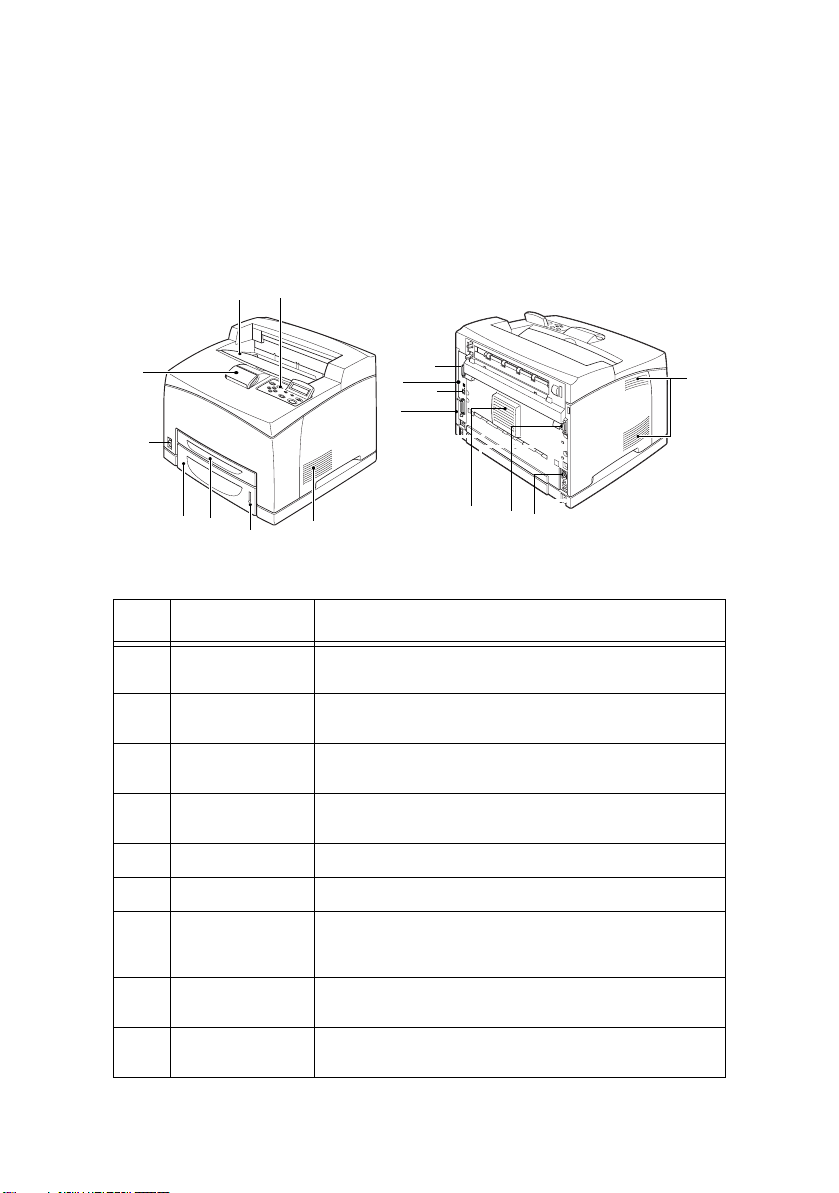
AIN COMPONENTS AND THEIR FUNCTIONS
S
TANDARD CONFIGURATION
1
2
8
13
14
12
3
11
7
3
10
6
5
4
3
9
NO. NAME DESCRIPTION
1 Centre output
tray
2 Control panel Consists of the essential operation buttons, indicators
3 Ventilation hole Releases heat to prevent the interior of the printer
4 Paper meter A meter to check the amount of remaining paper.
5 Tray 1 Sets the 150 tray.
6 Tray 2 Sets the 550 tray.
7 Power switch Switches the power of the printer on and off. Pressing
8 Paper stopper Raise this when printing on paper larger than Letter/
Print jobs are output here with the printed side facing
down.
and display.
from heating up.
Attached to the 550 tray.
the switch to the <|> position switches it on and
pressing it to the <0> position switches it off.
A4 size.
9 Duplex unit
connector
For connecting the optional duplex unit.
B6250/B6500 User’s Guide> 7
Page 8
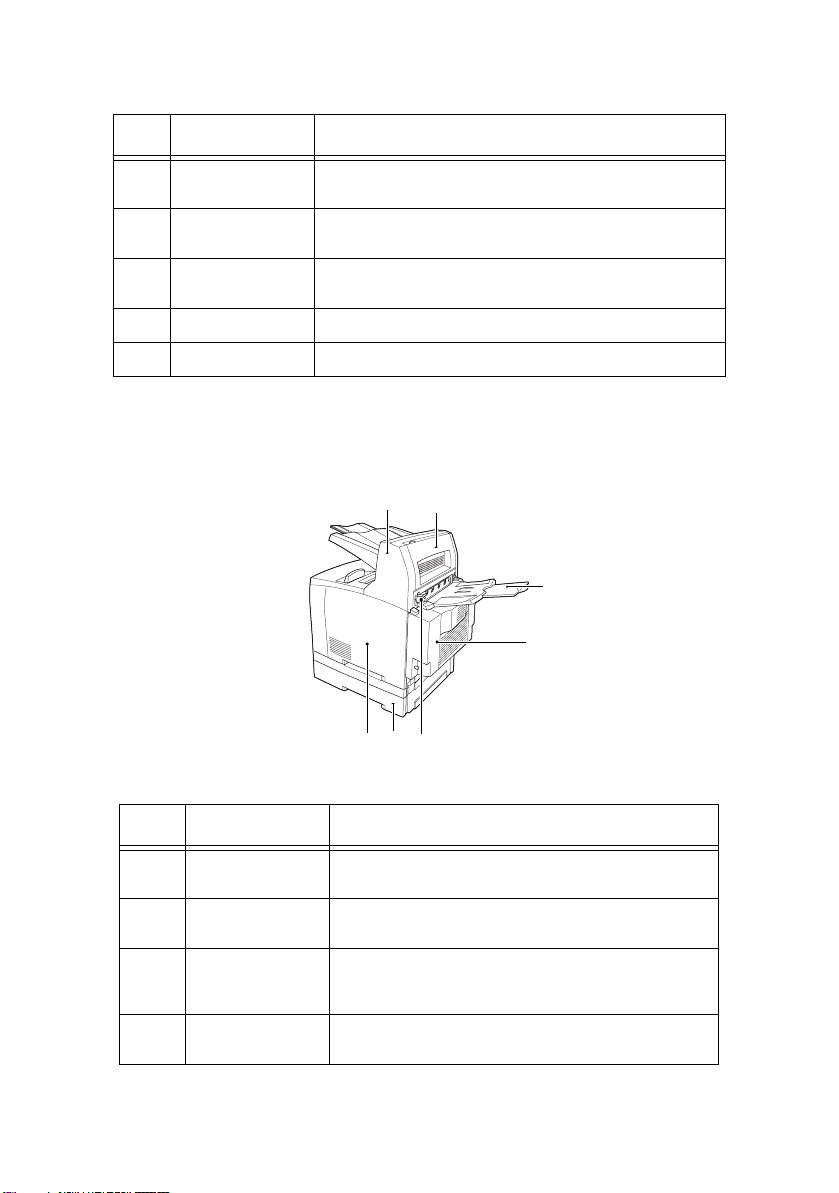
NO. NAME DESCRIPTION
10 Power cord cable
connector
11 Parallel
connector
12 Network
connector
13 USB connector For connecting the USB cable.
14 Serial connector For connecting the serial cable.
W
ITH OPTIONAL ACCESSORIES
For connecting the power cord cable.
For connecting the parallel cable.
For connecting the network cable when connecting this
printer to the network for use.
1
2
6
7
5
3
4
NO. NAME DESCRIPTION
1 Offset catch tray
2Cover D
3Rear tray
4 Duplex unit
(optional)
(optional)
(optional)
(Cover C)
Allows you to stagger the output position for each
print job (offset output).
Open this when paper is jammed inside the offset
catch tray.
Use this tray if you want to reduce curling of paper
when printing heavyweight paper. Print jobs are
output here with the printed side facing up.
Enables 2 sided printing. When paper is jammed
inside the duplex unit, it is described as cover C.
B6250/B6500 User’s Guide> 8
Page 9
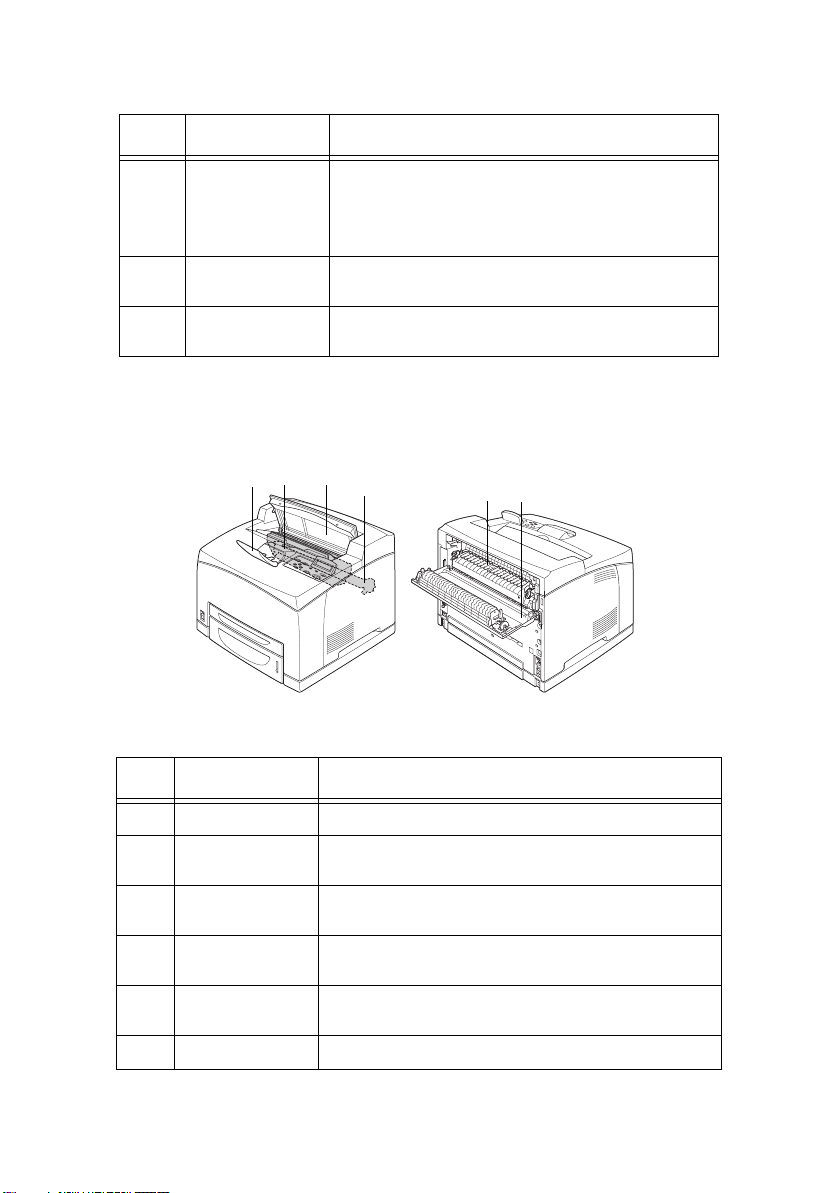
NO. NAME DESCRIPTION
5 Rear output tray
6 A4 universal tray Can install up to two levels of an Letter/A4
7 Right detachable
I
NTERNAL VIEW
lever
cover
1
When the rear tray has been installed, the paper
output location can be switched between it and the
centre output tray. Raise the lever to output to the
rear tray and lower the lever to output to the centre
output tray.
universal tray (550) to this printer.
Remove this when installing optional accessories
such as hard disk and additional memory.
32
5
46
NO. NAME DESCRIPTION
1 Paper sto ppe r Raise this when pr inting on paper larger t han A4 size.
2 Drum/toner
cartridge
3 Cover A Open this when replacing the drum/toner cartridge
4 Fuser unit Fixes the toner on the paper. Do not touch this when
5 Transfer roll
cartridge
6 Cover B Open this when removing jammed paper.
Contains the toner and the photosensitive drum.
and removing jammed paper.
using the printer as it is hot.
Transfers the toner image on the surface of the
photosensitive drum to the paper.
B6250/B6500 User’s Guide> 9
Page 10
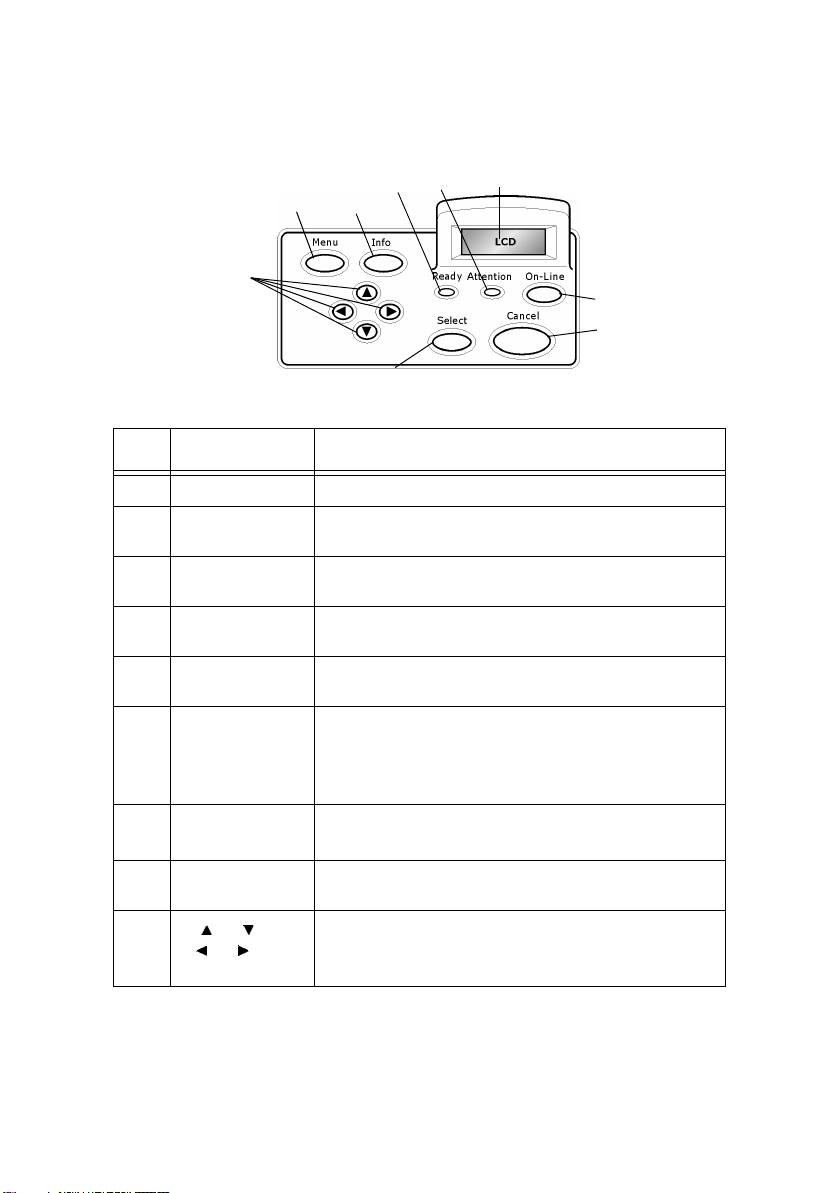
C
ONTROL PANEL
5
1
3
2
4
9
6
7
8
NO. NAME DESCRIPTION
1 <MENU> button Press to move to menu operation.
2 <INFO> button Press to print the menu map. The menu map (2 pages)
3<READY>
indicator
4 LCD display Displays the setting items, machine status, and
5 <ATTENTION>
indicator
6 <On-Line>
button
7<CANCEL>
button
8 <Select> button Press to select the currently displayed menu on
will print with all the current printer settings.
When the light is on, the printer is ready to receive
data from the computer.
messages.
When the light is on, there is a malfunction in the
printer.
Press to enter the off-line status. When in the off-line
status, the machine cannot receive data or process
printing. Press again to exit the off-line status and
enter the on-line status (where the machine can
receive data from the computer).
Press to cancel printing.
Press to exit Menu Mode.
setting.
9
<> <>
<> <>
buttons
Press these to move to the required menu, item and
candidate value on the display.
B6250/B6500 User’s Guide> 10
Page 11

D
ISPLAY
There are two types of screens shown: Print screen (for displaying
printer status) and Menu screen (for setting configuration).
NOTE
The message displayed differs according to the options installed
and setting status.
P
RINT SCREEN
The Print screen appears when the machine is printing or waiting for
data. The following contents are shown on the screen.
Current printer status—Shown at top left, e.g. Online (ready to
print), printing, etc.
Port receiving data—Shown at bottom left. Which printer port is
currently receiving print data, e.g. USB, Net, etc.
Emulation—Shown at bottom right. Which page description
language emulation is currently in use, e.g. PCL, PS, etc.
M
ENU SCREEN
Screen for configuring settings related to the printer.
This screen appears when you press the <Menu> button. The first
of a list of menus appears at top right. Further depressions of the
<Menu> button or the < > < > buttons cycle through the
available printers menus.
Refer to:
> Items that can be set on the Menu screen: “Settings on the
Control Panel” on page 28.
B6250/B6500 User’s Guide> 11
Page 12
S
WITCHING ON AND OFF THE POWER
S
WITCHING ON THE POWER
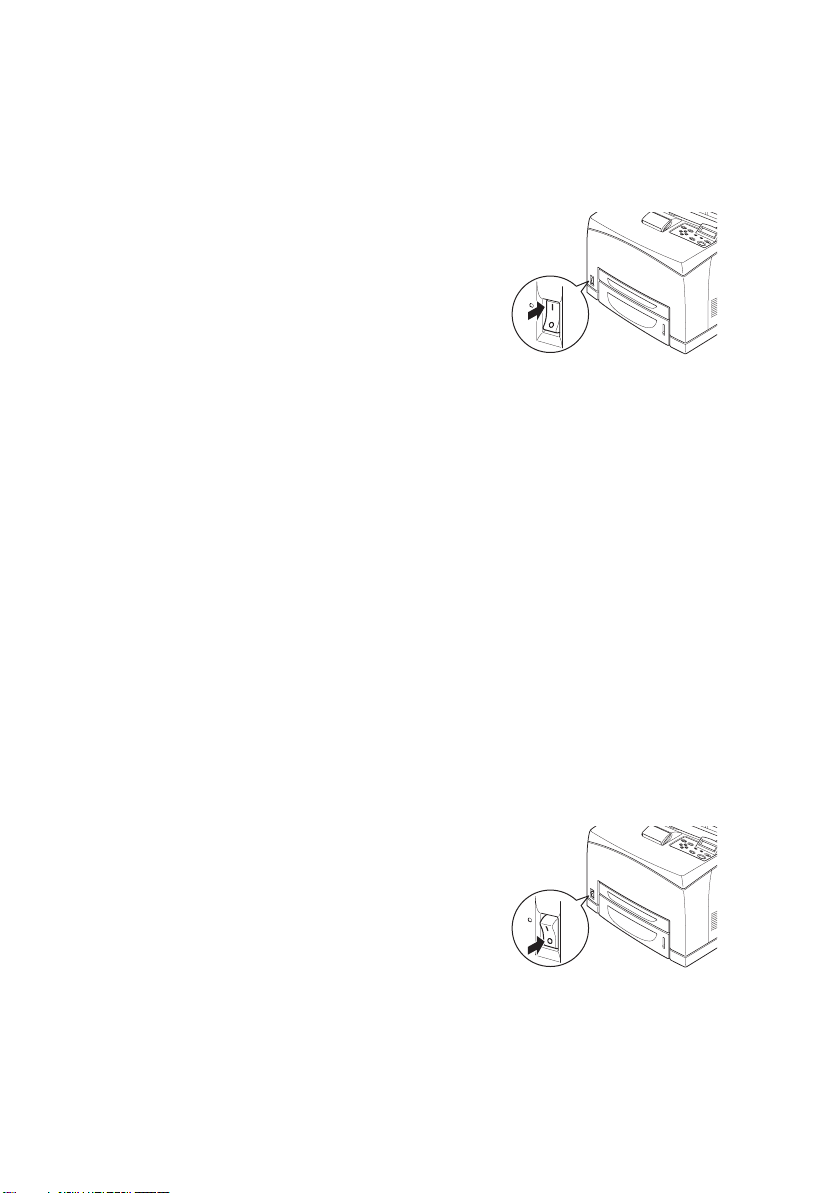
1. Press the power switch of the printer
to the <|> position.
2. When the power is switched on,
various screens will be displayed on
the control panel. Check that this
display changes to “Online”.
NOTE
When “Please wait…” is displayed, the printer is in the process of
warming up. Printing is unavailable during this period. When the
printer is ready for printing, “Online” will be displayed.
Important:
> If error message is displayed, refer to the Message List in the
Reference Guide for guidance on how to fix it.
S
WITCHING OFF THE POWER
Important:
> Do not switch off the printer power when printing is in
progress. It may lead to a paper jam.
> Once the power is switched off, print data remaining in this
printer or information saved in the memory of this printer will
be deleted.
1. By checking the display on the control panel, confirm that the
printer is not processing any data.
2. Press the power switch to the <O>
position to switch the power off.
B6250/B6500 User’s Guide> 12
Page 13

P
OWER SAVE MODES
This printer is equipped with a Power Save mode to reduce power
consumption when it is left idle. The default idle time from last print
activity until the printer enters Power Save mode is 5 minutes. This
time can be adjusted by the operator to any of the following: 5, 15,
30, 60 or 120 minutes.
When no print data is received within 5 minutes (default) since the
last page is printed, the printer will enter Power Save mode. An
informative message is displayed on the operator panel indicating
Power Save Mode. Consumption of power during Power Save mode
is 10 Watts or less, and the time required to exit from Power Save
mode to a print-ready status is about 10 seconds.
E
XITING THE POWER SAVE MODE
The printer automatically exits from Power Save mode once it
receives data from the computer or if any key on the operator panel
is pressed.
B6250/B6500 User’s Guide> 13
Page 14
C
ANCELLING/CHECKING PRINTING
C
ANCELLING PRINTING
To cancel printing, you can either cancel the print job at this printer
or at the computer.
Cancelling a Print Job at the Printer
Press the <CANCEL> button then press the <ON-LINE> button on
the control panel. However, pages being printed at the moment will
continue to be printed.
Cancelling Print Jobs at the Computer
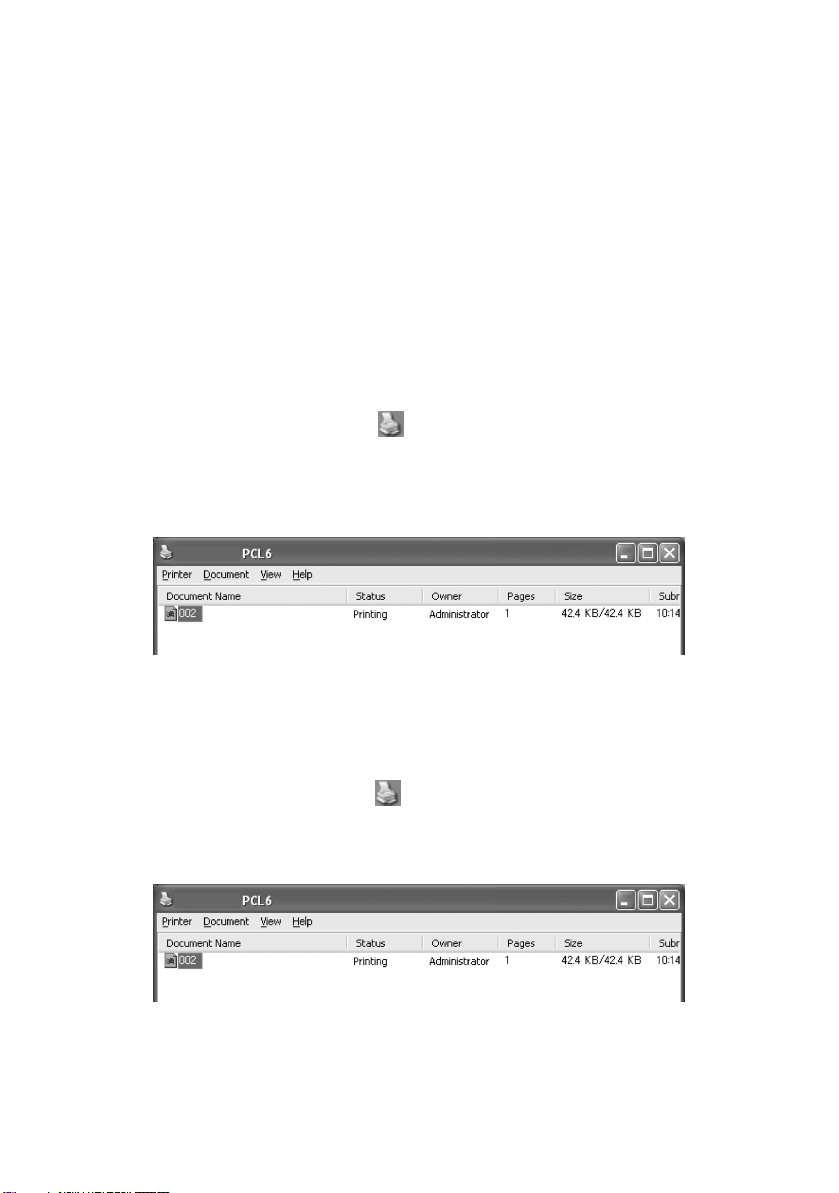
Double-click the printer icon at the bottom right of the taskbar
in Windows.
From the displayed window, click the document name that you wish
to delete and press the <Delete> key.
C
HECKING STATUS OF PRINT DATA
Checking in Windows
Double-click the printer icon on the task bar at the bottom right
of the screen.
From the displayed window, check the column, [Status].
B6250/B6500 User’s Guide> 14
Page 15

D
ISPLAYING OPTIONAL ACCESSORY CONFIGURATION
AND
P
APER TRAY SETTINGS
When using this printer as a network printer and with SNMP protocol
enabled, you can display on the printer driver, the optional
accessory configuration and settings configured at the control panel
such as paper type or size. These settings are displayed on the
[Options] tab. This section explains the procedure using Windows XP
as an example.
Important:
> When using USB or Parallel connection to this printer, this
feature cannot be used. You have to manually set the items
on the printer driver.
> The rear tray information cannot be obtained. You have to
manually set the item.
> For paper size and paper type settings, you must configure
them at the control panel beforehand. Even if you change the
settings here, they will not be reflected on the printer itself.
NOTE
> When using this feature, you have to activate the SNMP port
(default: [Enable]) on the printer using the control panel.
> For Windows NT 4. 0/Windows 2000/Windows XP, only users with
administrator’s rights can change the settings. Users without
administrator’s rights can only check the contents.
1. From the [Start] menu, click [Printers and Faxes] and then
display the properties of the printer to be used.
2. Click the [Device Options] tab.
3. Click [Get Information from Printer].
NOTE
The properties of the printer can be displayed on the printer
driver.
4. Click [OK]. The contents of the [Device Options] tab will be
updated based on the data obtained from the printer.
B6250/B6500 User’s Guide> 15
Page 16

P
RINTING
P
RINTING FROM THE COMPUTER
This section explains the basic flow when printing from application
software in a Windows
(The procedure may differ according to the computer or system
configuration used.)
Important:
> Do not switch off the power to the printer when printing is in
progress. It may lead to a paper jam.
NOTE
> This section explains printing with the PCL driver as an example.
1. From the [File] menu of the application software, select
[Print].
2. Select this printer as the printer to be used to start printing.
To use the various print features of this printer, display the
printer properties dialog box to set the necessary items.
For details on each item and how to set them, refer to the
Online Help for the printer driver.
Important:
> If the paper tray information is not correct, change the
settings on the [Set Up] tab of the printer driver before
continuing. For details on how to do the settings, refer to the
Online Help for the printer driver.
®
environment.
U
SEFUL PRINT FEATURES IN PROPERTIES DIALOG BOX
> The following selections are available in the [Setup] tab:
Paper Size, Media Type, Paper Source, Paper Destination
Paper Feed Options*, Finishing Mode**, and 2-sided Printing.
*Paper Feed Options include: Auto Resize, Covers, Auto Tray
Change, Media Check, and Skip Blank Pages, Tray 1 Settings,
and Media Type.
**Finishing Mode includes: Standard, 2-up, 4-up, 6-up, 8-up,
9-up, 16-up, PosterPrint, and Booklet.
B6250/B6500 User’s Guide> 16
Page 17
NOTE
> You can set the print features in the properties dialog box from
the printer icon by selecting [Printers and Faxes] (or [Settings] >
[Printers] depending on the OS).
P
RINTING ON ENVELOPES
For details on the envelopes that can be used, refer to “Usable
Paper” in the Reference Guide. The procedure to print on envelopes
is as follows.
L
OADING ENVELOPES
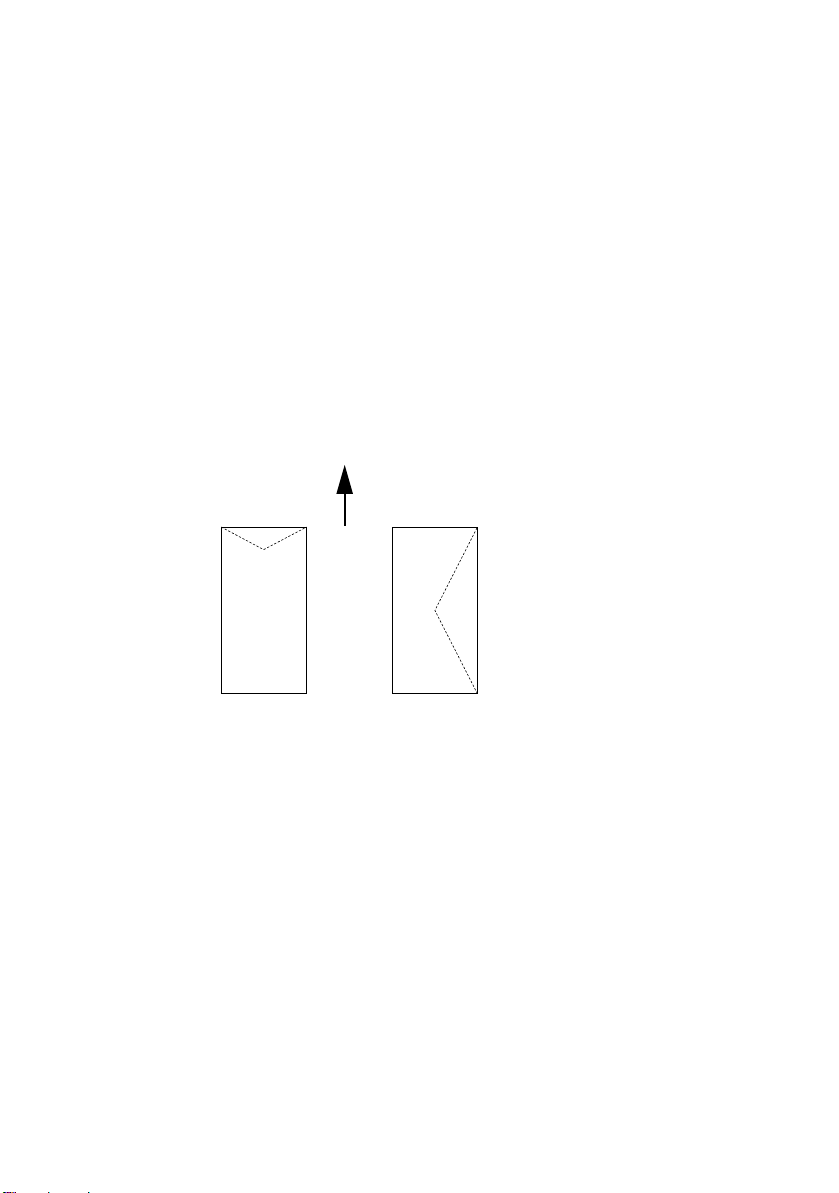
You have to close the flaps of the envelopes and load them with the
address side facing up in the orientation shown in the diagram
below.
Envelopes should be loaded with the flap side down and to be fed
into the printer in the direction indicated by the arrow.
The following explains how to load the envelopes, using COM-10
envelopes as an example, in trays 1 to 4.
Important:
> The reverse side of the envelope cannot be printed on.
NOTE
> For details on the procedure to load paper in a paper tray, refer
to “Loading Paper” on page 26.
B6250/B6500 User’s Guide> 17
Page 18

1. Load the envelopes in the portrait
orientation so that the flaps are
turned to the right side.
2. Slide the length guide and right
width guide to the size of the loaded
envelopes.
3. On the control panel, change the
paper type to [Envelope]. For
details, refer to “Setting Paper Types” in the Reference Guide.
4. On the control panel, change the paper size of the tray to
[COM-10 Envelope]. For details, refer to “Setting Custom
Paper Sizes” in the Reference Guide.
P
RINTING ON ENVELOPES
To print on envelopes, display the [Tray/Output] tab and [Basic] tab.
This section explains the procedure using WordPad on Windows XP
as an example.
NOTE
> The way to display the printer properties dialog box differs
according to the application software. Refer to the manual of
each application software.
1. From the [File] menu, select [Print].
2. Select this printer from the drop down list and click
[Properties].
3. Click the [Setup] tab.
4. Select the loaded paper tray from [Source] or click the
[Media Type] and then select [Com10].
5. Click [OK].
6. Click [Print] in the [Print] dialog box to start printing.
B6250/B6500 User’s Guide> 18
Page 19

P
RINTING ON TRANSPARENCIES
L
OADING TRANSPARENCIES
Load transparencies in trays 1 to 4.
Important
> Transparencies with white frames or full-colour
transparencies cannot be used.
The way to load transparencies in the paper tray is the same as the
way to load standard size paper. For details, refer to “ Loading
Paper” (P. 26).
You must also set paper type for the paper tray to [Transparency]
on the control panel.
Refer to “Setting Paper Types” in the Reference Guide to change the
setting.
P
RINTING ON TRANSPARENCIES
To print on transparencies, click on [Properties] from the [File]
[Print] menu, click the [Setup] tab. This section explains the
procedure using WordPad on Windows XP as an example.
NOTE
> The way to display the printer properties dialog box differs
according to the application software. Refer to the manual of your
respective application software.
> Printing transparencies continuously may lead to the output
transparencies sticking to each other. As a guide, remove the
transparencies from the output tray after about 20 sheets and
then fan them to lower their temperatures.
1. From the [File] menu, select [Print].
2. Select this printer as the printer to be used and click
[Preferences].
3. Click the Media Type drop down box and click on
transparencies.
4. Select the loaded paper tray from Source Drop down and
click on the tray that contains the transparencies.
5. Click the Paper Size drop down.
B6250/B6500 User’s Guide> 19
Page 20

6. From [Paper Size], select the size of the original document.
7. Click [OK].
8. Click [Print] in the [Print] dialog box to start printing.
P
RINTING ON CUSTOM SIZE PAPER/LONG PAPER
This section explains how to print on custom size paper such as long
paper.
The paper sizes that can be set on this printer are as follows:
Tray 1 127–900mm (5”–35.4”) 76–216mm (3”–8.5”) To load long-size
Trays 2–4 148–356mm (5.8”–14”) 98–216mm (3.9–
L
OADING CUSTOM SIZE PAPER
LONG EDGE SHORT EDGE REMARKS
paper with the
long edge
exceeding
356mm, load the
paper with the
edge protruding
from the tray.
8.5”)
The way to load custom size paper with the long edge shorter than
356 mm in trays 1 to 4 is the same as loading standard size paper.
For details, refer to “ Loading Paper” (P. 26).
To load long paper in tray 1, follow the
procedure below:
1. Pull the paper tray out to its
maximum.
NOTE
> Pull the extendable part out to its
maximum. For details on the procedure to
extend the paper tray, refer to “ Loading Paper” (P. 26).
2. Load the paper with the side to be
printed facing up. Curl up the back
end of the paper so that it will not fall
from the tray.
3. Push the paper tray completely into
the printer.
B6250/B6500 User’s Guide> 20
Page 21

S
ETTING CUSTOM PAPER SIZES
Before printing, set the custom size on the printer driver.
You have to configure the settings on the control panel too when
loading custom size paper in trays 1 to 4 for printing. For details on
setting the control panel, refer to “Setting Custom Paper Sizes” in
the Reference Guide.
CAUTION!
When setting the paper size on the printer driver and
the control panel, specify the size of the actual paper
used. Setting the wrong size for printing will cause jam
detection. This is especially true if you configure a
bigger size when using a narrow width paper.
On the printer driver, set the custom size in the [Paper Size] dialog
box. This section explains the procedure using Windows XP as an
example.
NOTE
For Windows NT 4.0/Windows 2000/Windows XP, only users with
administrator’s rights can change the settings. Users without the
rights can only check the contents.
1. From the [File] menu, click [Print].
2. Select [Properties] then select the [Setup] tab.
3. Select Option as needed: Source, Media Type, etc.
4. You may select a previously stored custom size from the list
or you may add an additional custom size.
5. To add a new custom size:
A. Select paper feed options.
B. Select Custom Size.
C. In the Name Field, Type a name for your custom size.
D. Click on the Unit of measure radio button for the units
you would like to use (mm for millimetres or inch for
inches.)
E. In the Width field, enter the width of the custom size
paper.
B6250/B6500 User’s Guide> 21
Page 22

F. In the Length field, enter the length of the custom size
paper.
G. Click add to store the new custom size.
H. Click OK to close the Dialog Box.
NOTE
> You may use the Modify selection to change a previously stored
custom size.
> You may use the Delete Selection to delete a previously stored
custom size.
P
RINTING ON CUSTOM SIZE PAPER
The procedure to print on custom size paper is as follows.
This section explains the procedure using WordPad on Windows XP
as an example.
NOTE
The way to display the printer properties dialog box differs
according to the application software. Refer to the manual of your
respective application software.
1. From the [File] menu, select [Print].
2. Select this printer as the printer to be used and click
[Preferences].
3. Click the [Setup] tab.
4. Select the appropriate tray from [Source].
5. From [Paper Size], select the size of the original document.
6. From [Media Types], select the registered custom size, and
then click [OK].
7. Click [Print] in the [Print] dialog box to start printing.
B6250/B6500 User’s Guide> 22
Page 23

S
PECIAL PRINTING FEATURES
Use of these features requires the optional hard disk or compact
flash to be installed in the printer.
Detailed instructions on how to use these features are contained in
the User Reference Guide.
IMPORTANT:
> The hard disk may be damaged and erase important data
saved in the hard disk. We recommend you back up your
data.
P
RINT CONFIDENTIAL DOCUMENT
Secure Print is a feature that allows you to attach a password to a
print job on the computer, send it to the printer for temporary
storage, and then print the job from the printer control panel. When
the printing of a Secure Print job is complete, the job is
automatically deleted.
S
TORED JOB
A stored job is the same as a secure print job except that it is not
deleted from the storage device after it is printed unless you
specifically ask for this at the printer control panel. By storing
frequently-used data in the printer, you can print the job from the
printer control panel, without sending it from the computer again
and again.
- S
ECURE PRINT
P
ROOF PRINT
Proof Print is a feature that allows you to store the print data of
multiple copies in the hard disk or compact flash, print out only the
first set to check the print result and if satisfactory, print the
remaining copies from the control panel.
P
RINT AT A SPECIFIED TIME
The delayed print feature allows you to store the data in the printer
beforehand and then print it out automatically at the specified time.
- P
RINT AFTER CHECKING PRINTING RESULT
- T
IMED JOB
B6250/B6500 User’s Guide> 23
Page 24

D
IRECT PRINTING OF
PDF F
ILES
You can send a PDF file directly to the printer for printing without
using the printer driver. As the print data is sent directly to the
printer, the printing process is simpler than printing with the printer
driver and it is done at a faster speed. The way to print a PDF file
directly is as follows.
Using PostScript Feature
You can use the PostScript feature to send a PDF file to the printer
directly for printing.
PDF Files That Can Be Printed
PDF files that can be printed are those created by Adobe Acrobat 4
and Adobe Acrobat 5 (except one part of the features added by PS
1.4).
NOTE
> You may not be able to print some PDF files directly by the
printer due to the way they were created. When this happens,
open the PDF files and use the printer driver to print them.
P
RINTING VIA ELECTRONIC MAIL
- E-
MAIL PRINTING
When the optional hard disk or compact flash has been installed and
the printer is connected to a network, enabling it to receive e-mails
via TCP/IP communication, e-mails can be sent from the computer
to this printer.
Printing of e-mail contents and TIFF or PDF attachments can be done
from this printer.
This feature may need to be enabled via the webpage under
Networking/Receive Settings.
B6250/B6500 User’s Guide> 24
Page 25

B
ARCODE PRINTING
This printer uses standard PCL font selection commands to enable
printing of algorithm generated bar codes.
Benefits:
> Any size barcode generation
> Automatically generates checksums
> Automatically adds stop and start characters
Intelligent barcoding
Unlike some barcode solutions, which merely add fonts to a PC or
printer, this printer actually extends the PCL5 language. Barcode
formatting, error detection and checksum calculation are performed
by the printer, reducing the load on the host and the network.
Barcodes can be printed in almost any size or rotation, bar width and
height. Caption text can be embedded in the bars or printed above
or below the bars in a variety of fonts and sizes.
NOTE
See the Reference Guide for detailed use information.
B6250/B6500 User’s Guide> 25
Page 26

L
OADING PAPER
1. Place the paper tray on a flat
surface and remove the lid (if
installed).
2. If the base plate of the paper tray
is raised, push it down.
3. When loading paper longer than A4
size, slide the left and right lock
tabs in the paper tray outwards to
unlock them.
4. Hold the grip of the paper tray and
pull its extendable part to the front
until it reaches its maximum.
B6250/B6500 User’s Guide> 26
Page 27

5. Squeeze the length guide and slide
it to the desired paper size (1).
Squeeze the right width guide and
slide it to the desired paper size
(2).
6. Load the paper with the side to be
printed facing up and with all four
corners aligned.
7. Close the lid of the paper tray and push the tray completely
into the printer.
CAUTION!
Do not place paper over the right width guide.
Do not load paper exceeding the maximum fill line or the
maximum capacity allowed.
Align the right width guide with the paper width
correctly. If the right width guide is not in place, the
paper will not be properly fed and this may cause paper
jams.
The lid of the tray must be firmly closed. If not, the
paper might become misaligned.
8. Depending on the types and sizes of the loaded paper, you
need to configure settings on the control panel. Change the
paper type when non-plain paper such as recycled paper,
heavyweight paper or transparencies are loaded. Configure
the paper size when custom size paper is loaded.
B6250/B6500 User’s Guide> 27
Page 28

S
ETTINGS ON THE CONTROL PANEL
A
BOUT THIS CHAPTER
This chapter introduces the control panel and its functions, and also
demonstrates how to navigate through the control panel menus and
submenus that allow you to view and change the printer settings.
Full details of the menu system are given in the Reference Guide.
You can print a menu map showing all current printer settings by
pressing the Info button on the control panel.
C
ONTROL PANEL FEATURES
The control panel is located on the front of the printer and contains
the display (LCD), indicators and push buttons that allow you to view
and change the printer settings.
NAME DESCRIPTION
<Menu> button Press to move to the menu operation. Once in the
<Info> button Press to print the menu map. The menu map (2 pages)
<Ready>
indicator
menu operation, repeatedly pressing the menu button
moves down the menu list.
will print with all the current printer settings.
When the light is on, the printer is ready to receive
data from the computer.
B6250/B6500 User’s Guide> 28
Page 29

NAME DESCRIPTION
LCD display Displays the setting items, machine status, and
<Attention>
indicator
<On-Line>
button/indicator
<Cancel> button Press to cancel printing.
<Select> button Press to activate the displayed setting. When you are
<> <>
<> <>
buttons
LCD D
ISPLAY
messages.
When the light is on, there is a malfunction in the
printer.
Press to enter the off-line status. When in the off-line
status, the machine cannot receive data or process
printing. Press again to exit the off-line status and
enter the on-line status (where the machine can
receive data from the computer).
Press to exit the menu mode.
changing the candidate values, pressing the Select
button runs the currently displayed activity or saves
the currently displayed candidate.
Press these to move to the required menu, item and
candidate value on the display.
The LCD display shows status and error messages that inform you
of the current status of the printer, and also displays menus,
submenus and printer settings when you are in the menu system.
N
AVIGATING THE CONTROL PANEL MENUS
When you press the Menu button on the control panel, you enter the
printer’s menu system. At that point, the first line of the display lists
the active menu. You can change the active menu by pressing the
< > or < > button or by pressing the Menu button.
To move to a sub-menu or to the available settings for the item
selected press the < > button.
To cycle through the available settings for the currently selected
item use the < > and < > buttons, then press the Select button
to choose the setting you want.
To move back up a menu level and ultimately to exit the menu
system press the Cancel button.
B6250/B6500 User’s Guide> 29
Page 30

C
HANGING THE DISPLAY AND REPORTING LANGUAGE
The default language for display messages and printed reports is
English. You can change this to a different language as follows.
1. Press the MENU button on the control panel.
2. Press the <> button repeatedly to display the “System
Configuration Menu”.
3. Press the <> button to enter the “System Configuration
Menu”.
4. Press the < > button repeatedly to display the “Language”
sub-menu.
5. Press the <> button to display the current language.
6. Press the < > or < > button repeatedly until the language
you want is displayed.
7. Press the Select button to choose your preferred language,
then press the Cancel button to exit the menu system.
B6250/B6500 User’s Guide> 30
Page 31

T
ROUBLESHOOTING
W
HEN PAPER JAMS
CAUTION!
When removing jammed paper, make sure that no pieces
of torn paper are left in the machine. If a sheet of paper
is wrapped around the heat roller, or when clearing a
jammed paper that is difficult or impossible to see, do
not try to remove it by yourself. Doing so can cause
injuries or burns. Switch off the machine immediately,
and contact your dealer or service.
Following the message on the control panel, open the cover and
remove the jammed paper. If paper is torn, check for any remaining
torn pieces of paper.
I
NSIDE COVER
When the optional offset catch tray is installed, fold the tray first
before opening cover A.
Open Cover A when a message to remove the drum/toner cartridge
is displayed.
1. Open cover A (1), and
A
holding the drum/toner
cartridge by the grip,
remove it from the
printer (1).
2. Turn the roll as shown
and remove any jammed
paper inside (2).
3. Return the drum/toner
cartridge and cover A to
their original positions.
NOTE
> When the optional offset catch tray is installed, close cover A first
before returning the tray to its original position.
> If you continue to print with the offset catch tray folded, this may
cause a paper jam. Always use the printer with the tray open.
B6250/B6500 User’s Guide> 31
Page 32

I
NSIDE PAPER TRAY
Pulling out paper trays
1. Pull out all paper trays and
remove any wrinkled paper.
2. Examine the inside of the
printer and remove any
jammed paper.
After removing paper,
1. Push the paper trays
completely back into the
printer.
2. Open and close cover A.
Doing this will clear the error
message.
B6250/B6500 User’s Guide> 32
Page 33

I
NSIDE COVER
Remove the rear tray when
opening the back cover.
Raise the lever as shown in the
diagram and open the cover B (1).
After opening cover B, open the
cover of the fuser unit (2) and
remove any jammed paper.
B
CAUTION!
The fuser unit is hot. You may get burned if you touch it
directly.
I
NSIDE COVER
Remove the rear tray when
opening the back cover.
Push up the lever shown in the
diagram to open the cover.
C (D
UPLEX UNIT
)
I
NSIDE COVER
RAYS
)
T
Open the cover and remove paper
as shown.
D (O
FFSET CATCH
B6250/B6500 User’s Guide> 33
Page 34

W
HEN PROBLEMS OCCUR
Before treating the problem as a machine breakdown, refer to the
following table and check the printer condition again.
WARNING!
> Never open or remove machine covers that are
secured with screws unless specifically instructed in
the user guide. A high voltage component can cause
electric shock.
> Do not try to alter the machine configuration, or
modify any parts. An unauthorized modification can
cause smoke or fire.
NOTE
> Information on incorrect print processing will be stored in the
[Error Log]. When no print processing is carried out, print the
[Error Log] and check the print status. Print data that cannot be
correctly processed may be discarded. Refer to the Information
Menu in the Reference Guide for instructions on how to print the
[Error Log].
> Limitations of the printer and incorrect settings at the printer,
computer and server corresponding to your network environment
may also result in printing problems.
SYMPTOM REASON/ACTION
No power. Is the power of the printer switched off? Push the power
switch to the <|> position to switch on the power.
Is the power cord disconnected or not securely connected?
Switch off the power of the printer and connect the power
cord to the power outlet again. Then, switch on the power to
the printer.
Is the power cord connected to a power outlet with the correct
voltage? Connect the printer exclusively to a power outlet
with a suitable voltage and current rating.
B6250/B6500 User’s Guide> 34
Page 35

SYMPTOM REASON/ACTION
Cannot print. Is the light of the <READY> indicator off? If so, the printer is
Print job sent
but the light of
the <READY>
indicator is not
blinking or on.
Light of
<ATTENTION>
indicator is on.
Light of
<ATTENTION>
indicator is
blinking.
off-line or in menu setting mode.
Press the <ON LINE> button to return the printer to its online status.
Is there a message displayed on the control panel? Follow the
message to rectify the problem.
A list of messages and guidance on how to deal with them is
given in the Reference Guide.
When a parallel cable is used for connection, are you using a
computer that supports bi-directional communication? See
instructions on the Parallel Menu in the Reference Guide.
If the printer has insufficient memory, use one of the following
methods to rectify the problem.
When the printer driver is set to [1200dpi] on the [Graphics]
tab, set it to [600dpi].
Install the additional memory (optional) to increase the
memory.
Reduce the complexity of the print job.
See [Print Mode] / [Page Print Mode] in the Online Help for
the printer driver.
Is the interface cable disconnected? Switch off the power and
check the connection of the interface cable.
Is the interface configured? Check the port status of the
interface.
Is the computer environment correctly set up? Check the
computer environment, such as the printer driver.
Is there an error message displayed on the control panel?
Check the displayed message and rectify the error.
A list of messages and guidance on how to deal with them is
given in the Reference Guide.
An error that you cannot rectify yourself has occurred. Record
the displayed error message or error code, switch off the
power, pull out the power plug from the outlet, and then
contact service.
Although no
print job is sent,
the message
“Printing” is
displayed on the
control panel
(when using the
parallel
interface).
Did you switch on the power of the computer after switching
on the power to the printer? Pressing the <Cancel> button
cancels the printing.
Check that you switch on the power of the computer when
switching on the power to the printer.
B6250/B6500 User’s Guide> 35
Page 36

SYMPTOM REASON/ACTION
Poor print
quality.
The correct
characters are
not printed
(printing
garbage).
The printout is
different from
what is displayed
on the screen.
The light of the
<READY>
indicator is on
and blinking but
there is no print
output.
Printing is very
slow.
There may be a problem with the image. Refer to the section
after this, “When the Print Quality is Poor” to rectify the
problem.
“ When the Print Quality is Poor” (P. 39)
The printer is printing with non-standard built-in fonts. Check
the fonts used in the application. Download the necessary
fonts when using PostScript.
Did you change the TrueType font settings to printer fonts?
Change to TrueType font printing for [Font Substitution] on
the [Setup] tab of the printer driver.
Online Help for the printer driver
There are jobs remaining in the printer. Cancel printing or
force the remaining data to be printed.
To forcibly print the job, press the <ON LINE> button to set
the printer in off-line mode, then press the <FEED/SELECT>
button. After the job has been printed, press the <ON LINE>
button again to return the printer to online mode.
When a parallel/USB port is used, data may be transmitted in
the middle of a job depending on when the <ON LINE> button
is pressed. In this case, subsequent print data received after
the <FEED/SELECT> button is pressed, will be recognized as
a new job. The data will be printed after the off-line mode has
been cancelled. Furthermore, it may not be printed properly.
Cancelling printing: “ Cancelling/Checking Printing” (P. 14)
The receive buffer is insufficient. When printing documents of
high resolution, reduce the memory capacity of items not in
use.
It is recommended to disable ports not in use, and channel
the memory to other purposes.
Top s e c t i o n o f
printed
document is
missing.
Tex t i s r e d uc e d .
Is the printer driver set to [1200dpi] on the [Graphics] tab?
Changing the setting to [600dpi] will shorten the print time.
For guidance refer to the online help in the printer driver.
Printing with TrueType fonts may take up printing time.
Change the printing method for TrueType fonts in [Specify
Font] on the [Detailed Settings] tab of the printer driver.
For guidance refer to the online help in the printer driver.
Are the paper tray guides set in the correct positions?
Set the length guide and the right width guide in the correct
positions.
See “Loading Paper” on page 26.
B6250/B6500 User’s Guide> 36
Page 37

SYMPTOM REASON/ACTION
Paper cannot be
fed.
Paper jam.
Multiple papers
are fed.
Papers are fed at
an angle.
Paper is
wrinkled.
Envelope is
wrinkled.
Is the paper correctly set? Load the paper correctly. For
labels, transparencies or envelopes, fan them well first to
allow air to enter between each sheet before loading.
See “Loading Paper” on page 26.
Is the paper damp? Replace with paper from a new ream.
See “Loading Paper” on page 26.
Is the correct type of paper used? Load the correct type of
paper.
See “Usable Paper” in the Reference Guide.
Is the paper tray set correctly? Push the paper tray
completely into the printer.
Is the printer placed on a flat location? Place the printer on a
flat stable surface.
Are the paper tray guides set in the correct positions? Set the
length guide and right width guide in the correct positions.
See “Loading Paper” on page 26.
Have you used any picture papers? Clean the feed roll.
See “Cleaning the Feed Rolls” on page 47.
Papers are fed in more than 1 sheet at a time. Fan the paper
to be loaded and load again. Replenish paper only when the
paper tray is empty.
Envelopes can get wrinkled depending on the type used. Open
cover B of this printer and lift up the levers at both ends of the
fuser unit. The wrinkles can be reduced.
After printing the envelope, remember to return the levers to
their original positions.
B6250/B6500 User’s Guide> 37
Page 38

SYMPTOM REASON/ACTION
Strange noise. Is the printer placed on a flat location? Place the printer on a
stable surface.
Is cover A open? Close cover A securely.
Is the paper tray set correctly? Push the paper tray
completely into the printer.
Are there foreign objects inside the printer? Switch off the
power and remove any foreign objects inside the printer. If
the object cannot be removed unless the printer is
disassembled, contact service.
B6250/B6500 User’s Guide> 38
Page 39

W
HEN THE PRINT QUALITY IS POOR
When the print quality is poor, select the closest symptom from the
following table to rectify the problem.
If the print quality does not improve after carrying out the
appropriate action, contact service.
SYMPTOM REASON/ACTION
Printing is light.
(faded, blurred).
Black spots or
streaks are
printed.
Dirt appears at
equal intervals.
The paper is damp. Replace with paper from a new ream.
“ Loading Paper” (P. 26)
The drum/toner cartridge is defective/damaged or there is no
more toner inside the cartridge. Replace with a new drum/
toner cartridge.
“ Drum/Toner Cartridge Replacement” (P. 42)
The Toner Saving feature is on. Uncheck the [Toner Saving]
checkbox on the [Graphics] tab of the printer driver.
Online Help for the printer driver
Levers on both sides of the fuser unit are raised. Open cover B
of this printer and push down the levers at both ends of the
fuser unit.
The drum/toner cartridge is defective or damaged. Replace
with a new drum/toner cartridge.
“ Drum/Toner Cartridge Replacement” (P. 42)
The feed route of the paper is stained. Print a few pages to
remove the stains.
The drum/toner cartridge is defective or damaged. Replace
with a new drum/toner cartridge.
See “Drum/Toner Cartridge Replacement” on page 42.
B6250/B6500 User’s Guide> 39
Page 40

SYMPTOM REASON/ACTION
White dots
appear in black
filled areas.
Printed image
smudges when
rubbed with your
finger.
The toner is not
fixed on the
paper.
Paper is
smeared with
toner.
The whole piece
of paper is
printed black.
Nothing is
printed.
Spots of missing
text.
The paper used is not suitable. Load the correct type of paper.
See “Usable Paper” in the Reference Guide.
The drum/toner cartridge is defective or damaged. Replace
with a new drum/toner cartridge.
See “Drum/Toner Cartridge Replacement” on page 42.
The paper loaded in the paper tray does not match the paper
type set on the control panel. Set the appropriate paper type
of the paper loaded in the paper tray on the control panel.
See “Usable Paper” and “Setting Paper Types” in the
Reference Guide.
The paper is damp. Replace with paper from a new ream.
See “Loading Paper” on page 26.
The paper used is not suitable. Load the correct type of paper.
See “Usable Paper” in the Reference guide.
The drum/toner cartridge is defective or damaged. Replace
with a new drum/toner cartridge.
See “Drum/Toner Cartridge Replacement” on page 42.
This may be due to breakdown of high voltage power. Contact
service.
Multiple sheets of paper are fed simultaneously. Fan the paper
well and reload.
See “Loading Paper” on page 26.
The drum/toner cartridge is defective/damaged or there is no
more toner inside the cartridge. Replace with a new drum/
toner cartridge.
See “Drum/Toner Cartridge Replacement” on page 42.
This may be due to breakdown of high voltage power. Contact
service.
The paper is damp. Replace with paper from a new ream.
See “Loading Paper” on page 26.
The paper used is not suitable. Load the correct type of paper.
See “Usable Paper” in the Reference Guide.
Text is blurred. The paper used is not suitable. Load the correct type of paper.
See “Usable Paper” in the Reference Guide.
The paper is damp. Replace with paper from a new ream.
See “Loading Paper” on page 26.
B6250/B6500 User’s Guide> 40
Page 41

SYMPTOM REASON/ACTION
Missing
characters
throughout the
length of the
paper.
Tex t o r i m a ge s
are printed at an
angle.
Transparencies
and envelopes
are not printed
clearly.
N
ETWORK RELATED TROUBLES
U
SING
TCP/IP
The drum/toner cartridge is defective/damaged or there is no
more toner inside the cartridge. Replace with a new drum/
toner cartridge.
See “Drum/Toner Cartridge Replacement” on page 42.
The paper tray guides are not set in the correct positions. Set
the length guide and the right width guide in the correct
positions.
See “Loading Paper” on page 26.
The type of transparency or envelope loaded cannot be used
in this printer. Load the correct type of paper.
See “Usable Paper” in the Reference Guide.
Check that the paper type on the printer driver or the control
panel is correctly set.
See “Setting Paper Types” in the Reference Guide.
The Draft Mode feature is turned on and the resolution is set
at a low level on the printer driver. Change the settings on the
[Detailed Settings] or [Graphics] tab of the printer driver.
When a problem occurs in the TCP/IP environment refer to the
Reference Guide.
B6250/B6500 User’s Guide> 41
Page 42

D
AILY CARE
D
RUM/TONER CARTRIDGE REPLACEMENT
The drum/toner cartridge includes the toner and the photosensitive
drum. A message will appear on the control panel when it is about
time to replace the drum/toner cartridge. If the message indicates
that the printer is still ready to print you should still be able to print
about 200 pages before actually replacing the cartridge, otherwise
you should replace it immediately.
The possible number of pages that can be printed differs according
to factors such as the print contents, paper size, paper type,
environment used, and the frequency of switching on/off the power
of the machine.
If you continue to print with a drum/toner cartridge whose
replacement is long overdue, it may affect the functions of this
machine, such as the print quality. It is recommended to install a
new drum/toner cartridge.
You can set whether to stop printing when the drum/toner cartridge
is due for replacement.
WARNING!
Never expose a drum/toner cartridge to an open flame.
It can cause an explosion and you can be burnt.
C
AUTION ON HANDLING THE DRUM/TONER CARTRIDGE
When handling the drum/toner cartridge, take note of the following
points:
> Do not subject it to direct sunlight or strong light.
> When installing the drum/toner cartridge, select a location
not subject to strong light and try to finish the installation
within 5 minutes.
> Do not touch the surface of the photosensitive drum. Do not
let the drum/toner cartridge stand or place it upside down.
The drum might be damaged.
> A drum shutter protects the photosensitive drum from light.
Do not open the drum shutter.
B6250/B6500 User’s Guide> 42
Page 43

> Although the toner is not harmful to the body, wash it off
immediately if your hands or clothes are stained with it.
> It is recommended to use the drum/toner cartridge within 1
year after opening it.
R
EPLACING THE DRUM/TONER CARTRIDGE
1. Remove any output paper and
open cover A.
NOTE
> When the offset catch tray (optional) is
installed, fold the tray first before
opening cover A.
> Do not touch any parts inside the
printer.
2. Hold the drum/toner cartridge by
the grip and pull it out slowly.
NOTE
> To prevent the toner from dirtying the
floor, lay a piece of paper on the floor
first before putting the drum/toner
cartridge down.
>
3. Take the new drum/toner cartridge
out of the packaging box and shake
it 7 to 8 times as shown in the
diagram.
Important:
> If the toner is not evenly spread
out, the print quality may be
reduced. Also, if you did not shake the drum/toner cartridge
well, there may be operating noise or the interior of the
cartridge may be damaged during operation.
> Do not touch the surface of the photosensitive drum.
B6250/B6500 User’s Guide> 43
Page 44

4. Place the drum/toner cartridge on a
flat surface and pull out the seal
horizontally.
Important:
> When pulling out the seal, pull it out
horizontally. The tape might break if
it is pulled out diagonally.
> After the seal has been pulled out, do not shake or bump the
drum/toner cartridge.
5. Hold the drum/toner cartridge by
the grip and insert it into the slot
inside the printer.
Important:
> Do not touch any parts inside the
printer.
> Ensure that the drum/toner
cartridge is firmly set.
> After opening cover A, remove any dust or stains inside the
printer with a dry clean cloth.
6. Close cover A securely.
Important:
> If the offset catch tray is folded as in step 1, close cover A
and then return the tray to its original position.
> If you continue to print with the offset catch tray folded, this
may cause a paper jam. Always use the printer with the tray
open.
B6250/B6500 User’s Guide> 44
Page 45

C
LEANING THE PRINTER
This section describes how to clean the printer in order to maintain
it in good condition and print clean printouts all the time.
WARNING!
Be sure to switch off and unplug the machine before
accessing the interior of the machine for cleaning,
maintenance, or fault clearance. Access to a live
machine’s interior can cause electric shock.
C
LEANING THE EXTERIOR
Clean the exterior of the printer about once a month. Wipe the parts
with a wet but well-wrung soft cloth. Then wipe with another dry soft
cloth. For stubborn stains, moisten a soft cloth with a small amount
of neutral detergent, and gently wipe the stain off.
Important:
> Do not spray the detergent directly on the printer. The liquid
detergent may enter the printer through a gap and cause
problems. Never use cleaning agents other than water or
neutral detergent.
B6250/B6500 User’s Guide> 45
Page 46

C
LEANING THE INTERIOR
After clearing paper jams or replacing the drum/toner cartridge,
inspect the inside of the printer before closing cover A.
WARNING!
Never touch a labelled area found on or near the heat
roller. You can get burnt. If a sheet of paper is wrapped
around the heat roller, do not try to remove it by
yourself to avoid injuries or burns. Switch off the
machine immediately, and contact service.
> Remove any remaining pieces of paper.
> Remove any dust or stains with a clean dry cloth.
B6250/B6500 User’s Guide> 46
Page 47

C
LEANING THE FEED ROLLS
When feeding cannot be done, follow the procedure below to wipe
the feed roll gently with a well-wrung soft cloth.
There are feed rolls in the interior of this printer (two locations, total
of four), tray module (one location) and paper tray (one location).
Follow the cleaning procedure (page 48) to clean the feed rolls at
each location.
Inside of Machine (Two Locations)
Open cover A and after removing the drum/toner
cartridge, clean the feed roll.
Tray Module (One Location)
Even without uninstalling the tray module
you can clean the feed roll after pulling out
the paper tray.
Paper Tray (One Location)
Pull out the paper tray and clean the feed roll.
B6250/B6500 User’s Guide> 47
Page 48

Cleaning Procedure
The following procedure explains how to clean the feed roll set in the
paper tray. Follow this procedure also when cleaning the feed rolls
inside of the printer and the tray module.
NOTE
> The feed roll is a regular replacement part.
1. Pull the paper tray out of the printer.
2. While pushing the retard part (see
right diagram) down (1), widen the
tab on the feed roll to loosen it (2)
and then slowly remove the feed
roll from the shaft of the paper
tray (3).
3. Wipe the rubber parts with a wet
but well-wrung soft cloth.
4. Turn the short tab of the feed roll
to the right and slowly push it onto
the shaft of the paper tray.
B6250/B6500 User’s Guide> 48
Page 49

By aligning the slot of the feed roll
with that of the shaft, push the
feed roll completely in so that the
short tab fits into the slot of the
shaft.
5. Push the paper tray completely into the printer.
B6250/B6500 User’s Guide> 49
Page 50

W
HEN MOVING THE PRINTER
Carry out the following procedure when moving the printer.
WARNING!
> The machine, without the optional accessories,
paper trays, consumables and paper, weighs
18.8kg. When moving the equipment, make sure
that there are two or more persons carrying it.
> If the duplex unit (optional) or A4 universal tray
(optional) has been installed, uninstall it before
moving the printer. If these are not fixed securely
to the printer, they may fall to the ground and
cause injuries.
> When lifting the machine, be sure to observe the
following points, failure to do so may cause the
machine to fall and result in injuries.
• 2 persons, one facing the front of the machine
(control panel) and the other facing the back,
should firmly grip the recessed areas on the
bottom part of both sides of the machine.
Never try to lift the machine by gripping any
other areas.
• Bend your knees to avoid possible injuries to
your back.
CAUTION!
Do not tilt the machine more than 10 degrees.
B6250/B6500 User’s Guide> 50
Page 51

Correct Moving Procedure
Carry out the following procedure when moving the printer.
1. Press the power switch of this printer to the <O> position to
switch the power off.
2. Remove all cords, such as the power cord and interface
cables.
3. Remove any paper in the centre output tray and return the
paper stopper to its original position if it’s raised.
4. Pull out the paper tray from the printer and remove any
paper in the tray.
Keep the paper wrapped and away from humidity and dirt.
5. Push the paper tray completely into the printer.
6. Open cover A but do not touch any parts inside the printer.
7. Hold the drum/toner cartridge by the grip and pull it out
slowly.
CAUTION!
It is necessary to uninstall the drum/toner cartridge. If
you move the printer with the drum/toner cartridge
installed, the toner may spill out inside of the machine.
Do not shake the drum/toner cartridge after uninstalling
it from the printer. The toner will spill.
Put the uninstalled drum/toner cartridge back into its
original aluminium bag or wrap it with a thick cloth to
prevent it from being exposed to strong light.
8. Close cover A securely.
9. Lift the printer and move it gently. If the printer is to be
moved over a long distance, pack it inside a box.
B6250/B6500 User’s Guide> 51
Page 52

I
NDEX
A
A4 universal tray ............................ 9
arrow buttons ......................... 10, 29
<ATTENTION> indicator ...........10, 29
B
Barcode printing ........................... 25
C
<CANCEL> button ..............10, 14, 29
cancelling printing ........................ 14
centre output tray .......................... 7
cleaning the feed roll..................... 47
cleaning the printer....................... 45
configuring optional accessory ........ 15
control panel............................. 7, 10
cover A ......................................... 9
cover B ......................................... 9
cover C ......................................... 8
cover D ......................................... 8
D
Delayed Print ............................... 23
direct printing of PDF files .............. 24
drum/toner cartridge....................... 9
duplex unit .................................... 8
E
E-mail Printing ............................. 24
F
<FEED/SELECT> button ........... 10, 28
forced printing ............................. 36
fuser unit ...................................... 9
L
LCD display ............................ 10, 29
loading paper
loading envelope ...................... 17
loading transparencies .............. 19
long size...................................... 20
M
<MENU> button ...................... 10, 28
O
offset catch tray ............................. 8
<ON LINE> button .................. 10, 29
[Options] tab ............................... 15
P
paper meter................................... 7
paper transport section ................. 32
Paper trays
centre output tray ...................... 7
tray 1....................................... 7
tray 2....................................... 7
poor print quality...........................39
black spots or streaks are
printed ..................................39
dirt appears at equal
intervals ................................ 39
missing characters throughout the
length of the paper .................41
nothing is printed......................40
printed image smudges when
rubbed with your finger/the toner
is not fixed on the paper ..........40
printing is light (faded,
blurred).................................39
spots of missing text .................40
text is blurred...........................40
text or images are printed at an
angle ....................................41
the whole piece of paper is printed
black.....................................40
transparency/postcard/envelope not
printed clearly ........................41
white dots appear in black filled
areas ....................................40
<POWER SAVE> button/
indicator .............................. 10, 29
power save
power switch ................................. 7
print after checking printing result -
sample print ...............................23
print at a specified time..................23
print confidential document.............23
printing
printing on custom size paper/long
paper ........................................20
printing on envelope ......................17
printing on transparencies ..............19
printing via electronic mail ..............24
Proof Print ....................................23
modes ....................... 13
barcode printing .......................25
Delayed Print............................23
direct printing of PDF files ..........24
E-mail Printing..........................24
printing from the computer ........16
printing on custom size paper/
long paper ............................. 20
printing on envelope..................17
printing on transparencies ..........19
Proof Print................................23
Secure Print .............................23
B6250/B6500 User’s Guide > 52
Page 53

R
<READY> indicator .................. 10, 28
rear output tray.............................. 8
rear output tray lever...................... 9
replacing the drum/toner
cartridge ................................... 42
S
Secure Print ................................. 23
setting custom paper size .............. 21
switching off the power ................. 12
switching on the power.................. 12
T
transfer roll cartridge ...................... 9
troubleshooting ....................... 28, 31
W
when moving the printer ............... 50
when paper jams .......................... 31
when problems occur .................... 34
cannot print ............................ 35
envelope is wrinkled ................. 37
light of <Error> indicator is
blinking ................................ 35
light of <Error> indicator is
on........................................ 35
network related troubles ........... 41
no power ................................ 34
paper cannot be fed/paper jam/
multiple papers are fed/papers are
fed at an angle/paper is
wrinkled ............................... 37
printing is taking up a lot of
time ..................................... 36
strange noise........................... 38
the correct characters are not
printed (printing garbage) ....... 36
the light of the <READY> indicator is
not blinking or on................... 35
the light of the <READY> indicator is
on and blinking...................... 36
the printout is different from what is
displayed on the screen .......... 36
top section of document is missing/
text is reduced ...................... 36
B6250/B6500 User’s Guide > 53
Page 54

OKI
CONTACT DETAILS
Oki Systems (UK) Limited
550 Dundee Road
Slough Trading Estate
Slough, SL1 4LE
Tel:44 (0) 1753 819819
Fax:44 (0) 1753 819899
http://www.oki.co.uk
Oki Systems Ireland Limited
The Square Industrial Complex
Tallaght, Dublin 24, Ireland
Tel:+353 1 4049590
Fax:+353 1 4049591
http://www.oki.ie
Technical Support:
Tel:+353 1 4049570
Fax:+353 1 4049555
E-mail: tech.support@oki.ie
OKI Systems (Ireland) Ltd.
(Norther Ireland)
40 Sydenham Park
Belfast, BT4 1PW
Tel:+44 (0)28 90 20 1110
http://www.oki.ie
Technical Support:
Tel: +44 (0)28 90 221919
E-mail: tech.support@oki.ie
B6250/B6500 User’s Guide > 54
Page 55

Oki Europe Limited
Blays House
Wick Road
Egham, Surrey TW20 0HJ
United Kingdom
Tel: +44 (0) 208 219 2190
Fax: +44 (0) 208 219 2199
www.okiprintingsolutions.com
07083401 iss3
 Loading...