

Page 1
1
Quick Start Guide for the NEC SV Series Phone system
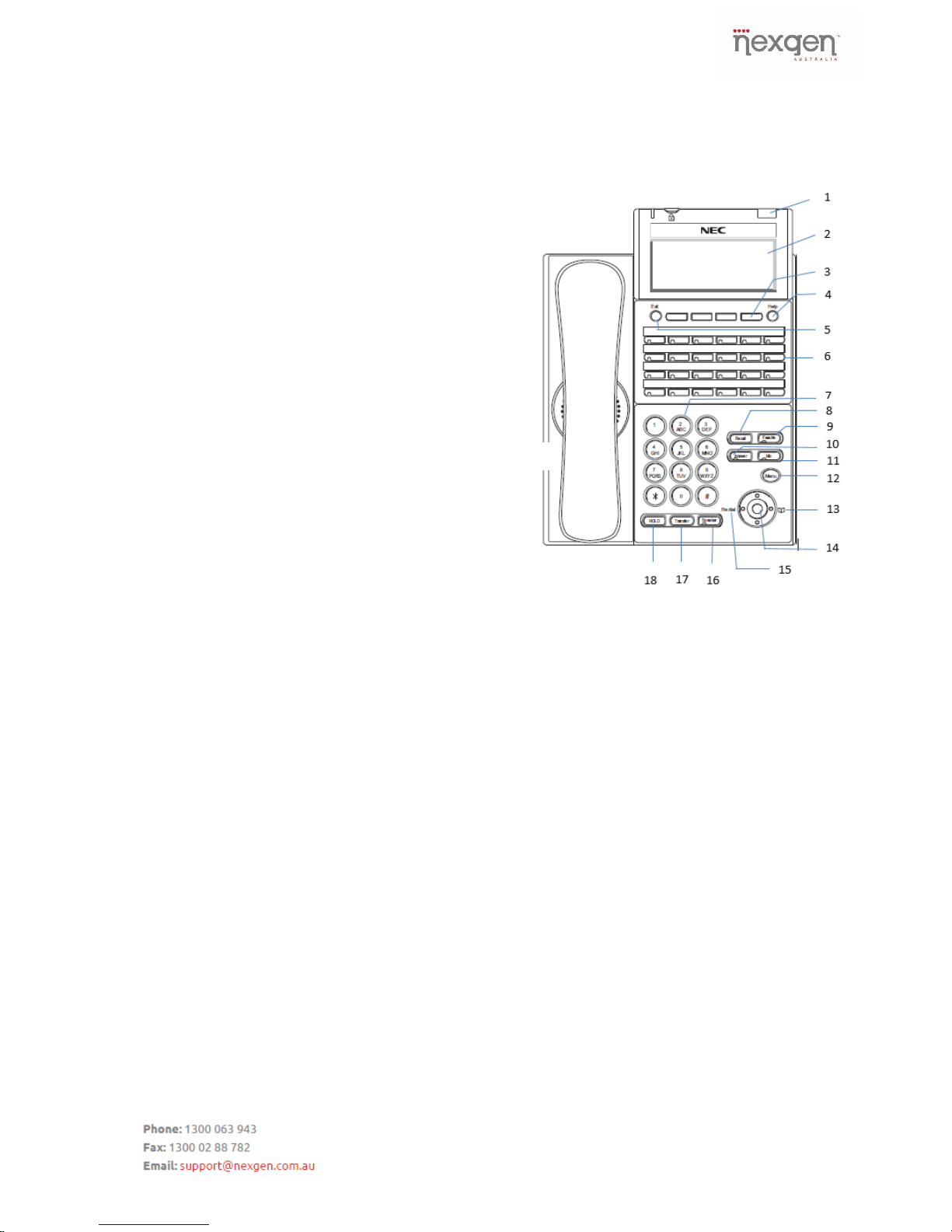
Icon Display
1. Call Indicator Lamp: Lamp at top corner of
phone that flashes when a call is ringing.
Lamp also lights steadily when a message
has been left.
2. LCD Display: LCD (Liquid Crystal Display)
provides activity information plus Extension
date, time and Soft Key Operation.
3. Soft Keys: Features change depending on
what function you are doing. Any feature
shown at the bottom of the LCD is available.
The appropriate feature key is displayed on
the screen according to the call handling
process.
4. Help: Explanations of the Soft Keys can be
called up on the LCD by pressing this key.
5. Exit: The user can exit from the Help key
mode by pressing this key.
6. Programmable Keys: These keys are programmed as Line key and other Programmable
Feature Keys by Telephony Server Administrator. Users can assign any numbers (i.e.
Telephone number, etc.) to the key (up to 24digits).
7. Keypad: The keypad is used to dial numbers.
8. Recall: Press key to finish the call and hear the dial tone.
9. Feature: Used to activate any features as terminal setup functions, etc.
10. Answer: When LED on this key is lit, press key to answer a waiting call. I.e. If you are on
the phone and another call is coming in press the answer key to answer the call waiting.
11. Mic: Press key to respond hands free. LED on this key lights during speakerphone
operation.
12. Menu: Press this key to access menu items such as Directory and User Settings
(Ringtones, Illumination etc.).
13. Directory: Press key to activate speed calling – system feature. (PROGRAMMABLE).
14. Centre key: Press to access Missed calls and Voicemail.
15. Redial: When pressed will list the last calls you have made.
16. Speaker: Controls the built-in speaker which can be used for Hands Free
dialling/monitoring. LED on key lights when key is active.
17. Transfer: Allows the user to transfer established calls.
18. Hold: Press this key to place an internal or external call on hold.
Page 2

2
Answering a Call
If phone is ringing then you can pick up handset or
press SPEAKER button.
Or
Press flashing MULTILINE APPEARANCE (for an
external call) button.
Transferring a Call- Screened
Press the TRANSFER key while on a call then dial
the extension number, alternatively when on a call
press the programmed one touch key of the person
you would like to transfer to.
You can then announce the call and hang up to
complete the transfer.
To cancel the transfer simply press the green
flashing Line key which has the held call.
Transferring a Call- Unscreened
Press the TRANSFER key while on a call then dial
the extension number, alternatively when on a call
press the programmed one touch key of the person
you would like to transfer to.
Hang up to complete the transfer.
Transferring to a Busy
Extension
Press the TRANSFER key while on a call then dial
the extension number, alternatively when on a call
press the programmed one touch key of the person
you would like to transfer to.
If you receive a busy tone press the TRF soft key
and hang-up. The call will go through to the
extension when they hang-up their call.
Parking a Call
While call in progress, press TRANSFER key and
dial * 6 followed by the Call Park access code, or
press Call Park Key. Call park access codes are
00-19.
To retrieve a Parked call
Dial Call Park access code # 6 followed by the
parked call location number (00-19) or press the
Call Park Key.
Making an External Call
Lift Handset or press the SPEAKER key for a dial
tone. Then dial 0 for next available line and dial the
number
Making an Internal Call
Lift Handset or press the SPEAKER key for a dial
tone. Then dial the station extension of the person
you would like to call.
Note: If you the press VOICE soft key following an
extension number the phone will go into hands free
mode and you can speak to the other party without
them picking up the handset.
To Put a Call on Hold
When you’re on a call press the HOLD button, the
held Line then flashes.
To Retrieve Held Call
Lift hand set or press SPEAKER.
Press held Line.
Conference Call
When on a call press the CONF soft key then dial
the next party.
When call is answered press the ADD soft key and
press the BEGIN soft key to join all parties.
Conference allows for 32 ports of Conferencing 16 Parties at one time, therefore 2 x 16 parties
conferences. This is also dependant on the
available lines you have on the phone system.
NOTE: Any party may exit the conference by
hanging up. The two parties will remain connected,
as long as one of the remaining parties is internal
Redial
Press REDIAL button which is the left Navigation
arrow. Press #. Last number will be redialled.
Alternatively scroll through the list and pick up
handset to call.
Page 3
3
Program System Speed Dial
Press the SPEAKER button then dial 7 5 3.
Enter the Speed Dial shortcut number from 000 to
999.
Enter the telephone number then press the HOLD
button.
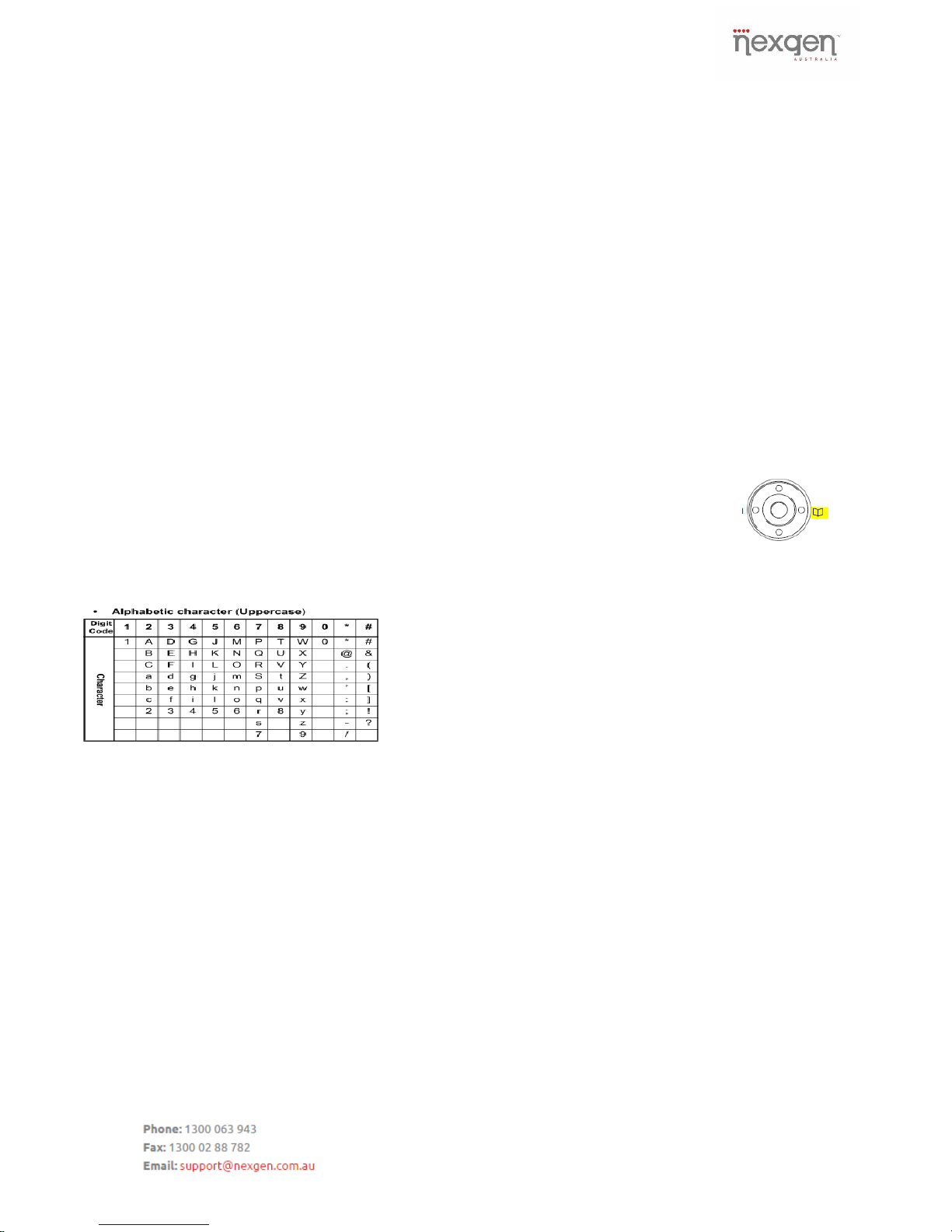
Enter the Name of the Speed Dial by using the
Keypad (see diagram) then press the HOLD button
Press the SPEAKER button to exit.
Note: Feature button = Delete. # = Consecutive
letter on same key. ## = Space.
Program Station Speed Dial
Press the SPEAKER button then dial 7 5 5.
Enter the Speed Dial shortcut number from 0 to 9.
Enter the telephone number then press the HOLD
button.
Enter the Name of the Speed Dial by using the
Keypad (see diagram) then press the HOLD button
Press the SPEAKER button to exit.
Note: FEATURE button = Delete. # = Consecutive
letter on same key. ## = Space.
Calling Speed Dials Via
Directory
Press the right navigation DIRECTORY button.
Start to type in the name you are searching and
use the down arrow on the navigation to start the
search.
Scroll to correct contact.
Pick up handset or press the SPEAKER button to
call the contact.
Call Pickup (Group)
Lift handset.
Press * #.
Call Pickup (Direct)
Lift handset. Dial * * then the extension number to
Pickup.
Call Back (Station)
Lift handset or press SPEAKER.
Dial desired station number and receive busy tone
or ring back tone.
Press # and restore handset.
Call History
Press MENU button.
Press the OK soft key on CALL
HISTORY menu.
Choose either REDIAL or CID soft key to view that
history.
Use the up/down arrows soft key to search through
the list.
Calling Speed Dials Via Code
For System Speed Dial:
Press the SPEAKER button or pick up the handset
and dial # 2.
Dial the Speed Dial Code.
For Station Speed Dial:
Press the SPEAKER button or pick up the handset
and dial # 7.
Dial the Speed Dial Code.
Page 4

4
Do Not Disturb
TO SET:
Press PROG soft key.
Press DND soft key.
Press SET soft key.
Choose which DND to set:
EXT: External, ICM: Internal, ALL: All incoming
calls, Cfwto: Call Forward to.
TO CANCEL:
Press PROG soft key.
Press DND soft key.
Press CNCL soft key.
Call Forward - Immediate (All
Calls)
TO SET:
Press SPEAKER 7 4 1 + 1.
Enter PHONE NUMBER (0 for External) then press
SPEAKER to exit.
TO CANCEL:
Press SPEAKER 7 4 1 + 0.
Enter PHONE NUMBER (0 for External) then press
SPEAKER to exit.
Call Forward - Busy/No Answer
TO SET:
Press SPEAKER 7 4 4 + 1.
Enter PHONE NUMBER (0 for External) then press
SPEAKER to exit.
TO CANCEL:
Press SPEAKER 7 4 4 + 0.
Enter PHONE NUMBER (0 for External) then press
SPEAKER to exit.
Flashing Light on the LED
To remove flashing Green light press the following
with the handset down:
Press EXIT button, then MW soft key, then ALL
soft key.
To remove flashing Red light press the following
with the handset down:
Press SPEAKER * 8 and follow prompts to listen to
your message.
To Page
Page to All Handsets:
Lift handset and Dial 7 0 1 0.
Wait for the tone and then speak, hang-up to end
the Page.
Page to Speake/Amplifier:
Lift handset and Dial 7 0 3 0.
Wait for the tone and then speak, hang-up to end
the Page.
Programming a button Extension or External Number
Press the SPEAKER key.
Press 7 5 1.
Press the Function Key.
Dial 0 1.
Dial Extension number (e.g 103) or press 0
followed by the external number.
Press HOLD.
Press SPEAKER.
Note: Programmable Function Keys can be erased
by dialling SPEAKER 7 5 1 press the button to
erase and dial 0 0.
Changing names:
Press SPEAKER 7 0 0 enter the Extension
Number.
Enter the Name using keypad.
Press HOLD to save and press SPEAKER to exit.
Note: FEATURE button = Delete. # = Consecutive
letter on same key. ## = Space.
Back Ground Music
To turn it off / on:
Press SPEAKER 725 and press SPEAKER to exit
Change Ring tone:
Press SPEAKER 7 2 0 press 1 for Internal or 2 for
External.
Select ring tone 1-8 and press SPEAKER to exit.
Page 5

5
Change the time:
Press SPEAKER 7 2 8.
Enter the time in 24 Hours.
Press SPEAKER to exit.
This will change the time on all handsets.
Day/Night Mode Change
On the Main Administration Handset Press
Day/Night Mode button once for Night (the screen
will read Night) and press again for Day Mode.
or
Press SPEAKER then 7 1 8 1 for Day mode and
SPEAKER then 7 1 8 2 for Night mode.
Press SPEAKER key to exit.
Voicemail
When the Message Lamp is Flashing, the phone
screen will display the number of messages you
have waiting.
Press the VMSG soft key or the Flashing Vmail key
on your handset, and if requested enter your
password.
Follow the Prompts to listen the messages or press
the soft keys to LSTN (Listen) and then you can
choose NEXT (Next Message), RPLY (Reply), DEL
(Delete).
Voicemail – Personal Greeting
To Record: - Press the pre-programmed
Voicemail button on your handset or dial * 8.
Press the GREET (Greeting) soft key on the
screen.
Press the GR1 soft key on the screen.
Press the REC (Record) soft key on the screen and
follow the prompts to record your greeting.
To Turn on: PRESS: SPEAKER 7 4 4 + 1200 SPEAKER
To Turn off: PRESS: SPEAKER 7 4 4 + 0
Changing Night Message
Press the pre-programmed NIGHT Voicemail
button on the allocated handset.
Press the GREET (Greeting) soft key on the
screen.
Press the GR1 soft key on the screen.
Press the REC (Record) soft key on the screen and
follow the prompts to record your greeting.
Volume
You can adjust the volume on the Handset,
Speaker and Ringtone. To do this use the up/down
Navigation keys while the Handset is off the hook
or press the SPEAKER button and use the
up/down Navigation keys for speaker volume, or
while the phone is ringing for Ringtone volume.
The volume setting will be stored for future.
Page 6

6
 Loading...