

Page 1
•
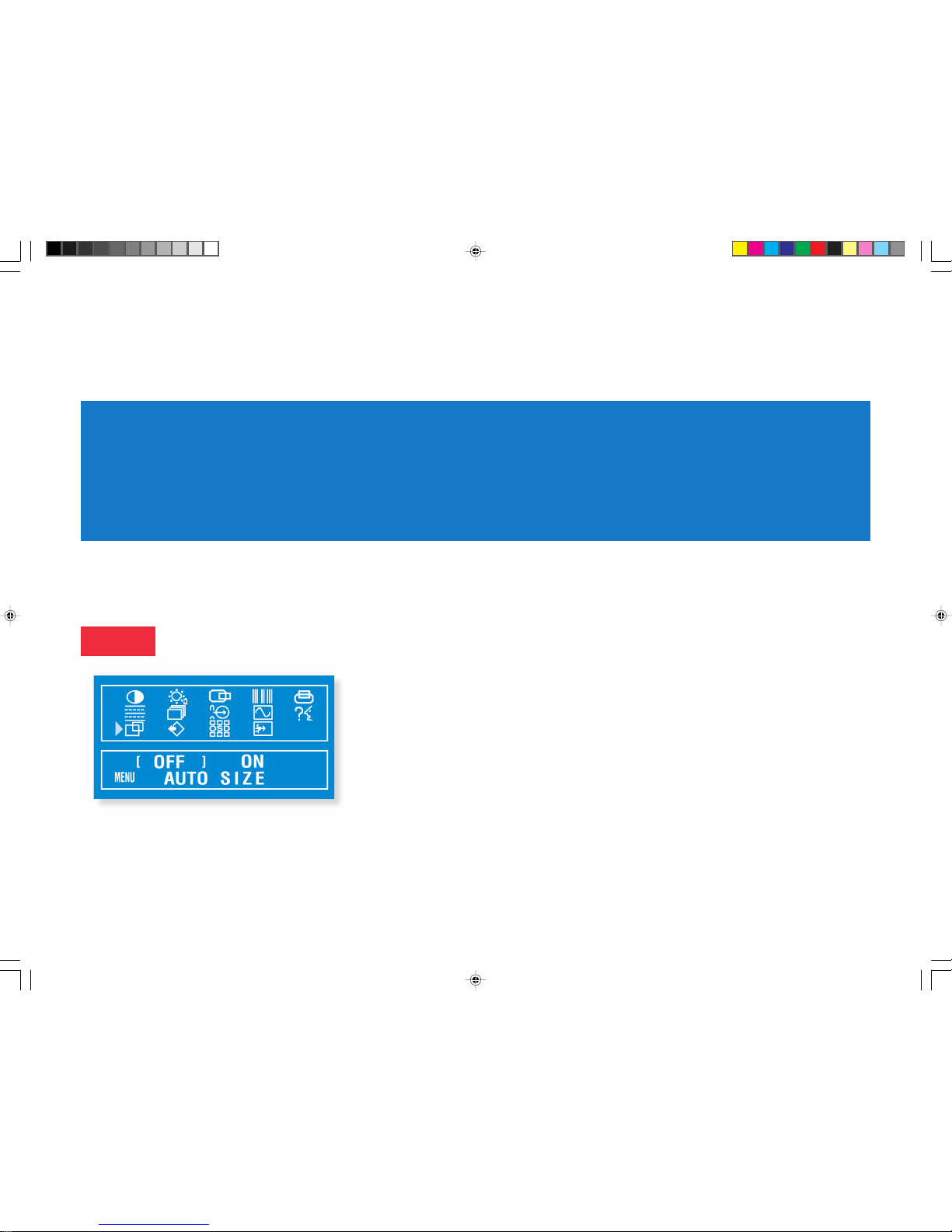
To begin the setup/adjustment of the NEC MultiSync LCD1500M monitor,
push the Menu button on the front bezel of the monitor to bring up the
NEC
On Screen Display
.
•
Press the right arrow until the words “AUTO SIZE” are displayed at the
bottom of the OSD window.
•
Press the “+” button to initiate the
Auto Size
Function.
•
Press MENU to close the OSD.
NEC Technologies, Inc. MultiSync
®
LCD1500M
™
Setup instructions for Windows® 95/98 & NT Computers
For Optimal Performance
the MultiSync LCD
1500M
should be set up for
1024x768 @ 75Hz.
Once you have booted up your computer and have entered Windows, please follow the instructions below
to fully optimize your MultiSync LCD monitor.
Step 1 Auto Size your MultiSync LCD monitor
see reverse side
(Proceed to Step 2)
Part No.
Printed in Japan
LCD1500 12/8/98, 4:36 PM1
Page 2
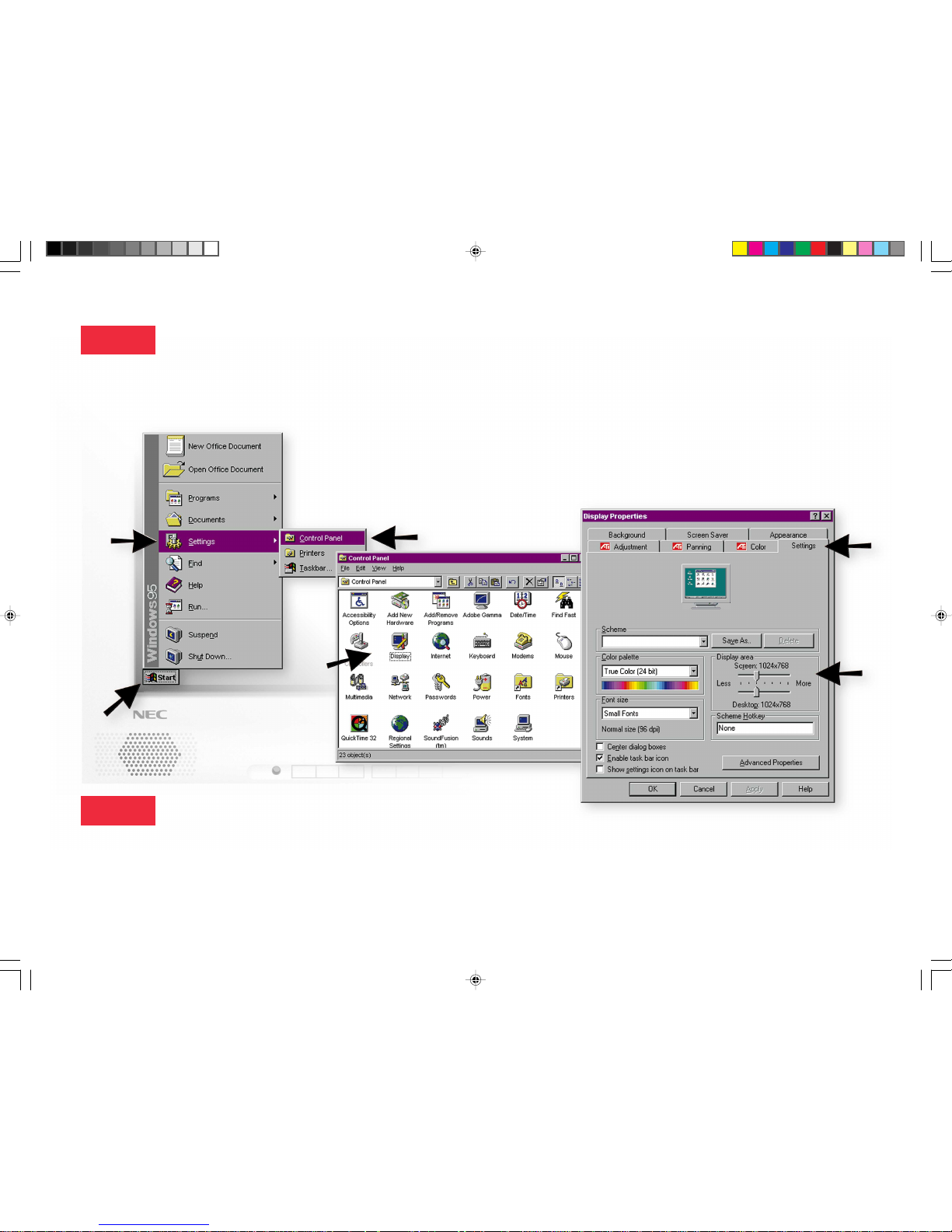
Step 2 Make sure that your computer is set up for 1024x768 resolution.
Open the Display Properties window by following this mouse click sequence (1, 2, 3, 4, & 5) indicated
by the numbered arrows below.
Step 3 Repeat Step 1.
This will ensure that the monitor is auto-adjusted to the new resolution.
If you have questions regarding the setup of your MultiSync LCD monitor, please refer to the user’s
manual or contact your NEC Technical Support representative.
On the right side of the Display Properties window there is a box labeled Display
area. Make sure the “Screen” slide bar (6) is set to 1024x768.
You may have to restart your computer for this change to take effect. After the restart,
double check the Display Properties/Settings window to make sure you are
now at 1024x768.
(Proceed to Step 3.)
2
1
3
4
5
6
LCD1500 12/8/98, 4:41 PM2
 Loading...