

Page 1
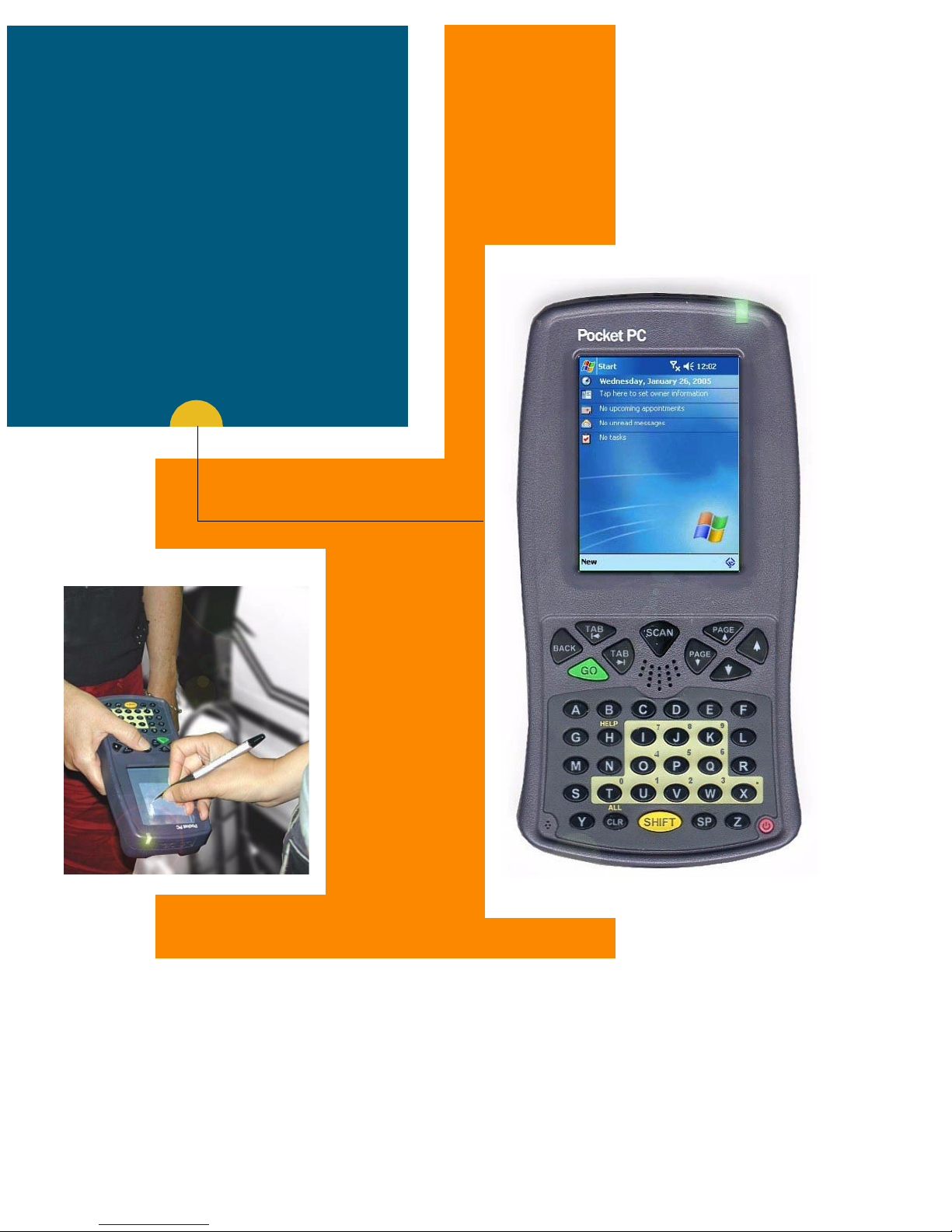
Owner’s Manual
X-Pad
Handheld
Data
Terminal
a
6802974C15-O
@6802974C15@
Page 2

Page 3

COMPUTER SOFTWARE COPYRIGHTS
The Motorola products described in this instruction manual may include copyrighted Motorola computer programs stored in semiconductor memories or other media. Laws in the
United States and other countries preserve for Motorola certain exclusive rights for copyrighted computer programs, including the exclusive right to copy or reproduce in any form
the copyrighted computer program. Accordingly, any copyrighted Motorola computer programs contained In the Motorola products described in this instruction manual may not be
copied or reproduced in any manner without the express written permission of Motorola.
Furthermore, the purchase of Motorola products shall not be deemed to grant either directly
or by implication, estoppel, or otherwise, any license under the copyrights, patents or patent
applications of Motorola, except for the normal non-exclusive, royalty free license to use
that arises by operation of law in the sale of a product.
EPS – 34440- B
This warranty applies within the fifty (50) United States, the District of Columbia and Canada.
Document Copyrights
No duplication or distribution of this document or any portion thereof shall take place without the express written permission of Motorola. No part of this manual may be reproduced,
distributed, or transmitted in any form or by any means, electronic or mechanical, for any
purpose without the express written permission of Motorola.
Disclaimer
The information in this document is carefully examined, and is believed to be entirely reliable. However, no responsibility is assumed for inaccuracies.
Furthermore, Motorola reserves the right to make changes to any products herein to improve
readability, function, or design. Motorola does not assume any liability arising out of the
applications or use of any product or circuit described herein; nor does it cover any license
under its patent rights nor the rights of others.
Page 4

Commercial Warranty
Limited Warranty
MOTOROLA COMMUNICATION PRODUCTS
I. What This Warranty Covers And For How Long
MOTOROLA INC. (“MOTOROLA”) warrants the MOTOROLA manufactured Communication Products listed
below (“Product”) against defects in material and workmanship under normal use and service for a period of
time from the date of purchase as scheduled below:
X-Pad Units One (1) Year
Product Accessories One (1) Year
Motorola, at its option, will at no charge either repair the Product (with new or reconditioned parts), replace it
(with a new or reconditioned Product), or refund the purchase price of the Product during the warranty period
provided it is returned in accordance with the terms of this warranty. Replaced parts or boards are warranted for
the balance of the original applicable warranty period. All replaced parts of Product shall become the property of
MOTOROLA.
This express limited warranty is extended by MOTOROLA to the original end user purchaser only and is not
assignable or transferable to any other party. This is the complete warranty for the Product manufactured by
MOTOROLA. MOTOROLA assumes no obligations or liability for additions or modifications to this warranty
unless made in writing and signed by an officer of MOTOROLA. Unless made in a separate agreement between
MOTOROLA and the original end user purchaser, MOTOROLA does not warrant the installation, maintenance
or service of the Product.
MOTOROLA cannot be responsible in any way for any ancillary equipment not furnished by MOTOROLA which
is attached to or used in connection with the Product, or for operation of the Product with any ancillary equipment, and all such equipment is expressly excluded from this warranty. Because each system which may use
the Product is unique, MOTOROLA disclaims liability for range, coverage, or operation of the system as a whole
under this warranty.
II. General Provisions
This warranty sets forth the full extent of MOTOROLA’s responsibilities regarding the Product. Repair, replacement or refund of the purchase price, at MOTOROLA’s option, is the exclusive remedy. THIS WARRANTY IS
GIVEN IN LIEU OF ALL OTHER EXPRESS WARRANTIES. IMPLIED WARRANTIES, INCLUDING WITHOUT
LIMITATION, IMPLIED WARRANTIES OF MERCHANTABILITY AND FITNESS FOR A PARTICULAR PURPOSE, ARE LIMITED TO THE DURATION OF THIS LIMITED WARRANTY. IN NO EVENT SHALL MOTOROLA BE LIABLE FOR DAMAGES IN EXCESS OF THE PURCHASE PRICE OF THE PRODUCT, FOR ANY
LOSS OF USE, LOSS OF TIME, INCONVENIENCE, COMMERCIAL LOSS, LOST PROFITS OR SAVINGS OR
OTHER INCIDENTAL, SPECIAL OR CONSEQUENTIAL DAMAGES ARISING OUT OF THE USE OR INABILITY TO USE SUCH PRODUCT, TO THE FULL EXTENT SUCH MAY BE DISCLAIMED BY LAW.
III. State Law Rights
SOME STATES DO NOT ALLOW THE EXCLUSION OR LIMITATION OF INCIDENTAL OR CONSEQUENTIAL
DAMAGES OR LIMITATION ON HOW LONG AN IMPLIED WARRANTY LASTS, SO THE ABOVE LIMITATION
OR EXCLUSIONS MAY NOT APPLY.
This warranty gives specific legal rights, and there may be other rights which may vary from state to state.
IV. How To Get Warranty Service
You must provide proof of purchase (bearing the date of purchase and Product item serial number) in order to
receive warranty service and, also, deliver or send the Product item, transportation and insurance prepaid, to an
authorized warranty service location. Warranty service will be provided by Motorola through one of its authorized
Page 5

warranty service locations. If you first contact the company which sold you the Product, it can facilitate your
obtaining warranty service. You can also call Motorola at 1-888-567-7347 US/Canada.
V. What This Warranty Does Not Cover
A. Defects or damage resulting from use of the Product in other than its normal and customary
manner.
B. Defects or damage from misuse, accident, water, or neglect.
C. Defects or damage from improper testing, operation, maintenance, installation, alteration, mod-
ification, or adjustment.
D. Breakage or damage to antennas unless caused directly by defects in material workmanship.
E. A Product subjected to unauthorized Product modifications, disassemblies or repairs (including,
without limitation, the addition to the Product of non-Motorola supplied equipment) which
adversely affect performance of the Product or interfere with Motorola's normal warranty
inspection and testing of the Product to verify any warranty claim.
F. Product which has had the serial number removed or made illegible.
G. Rechargeable batteries if:
•any of the seals on the battery enclosure of cells are broken or show evidence of tampering.
•the damage or defect is caused by charging or using the battery in equipment or service other
than the Product for which it is specified.
H. Freight costs to the repair depot.
I. A Product which, due to illegal or unauthorized alteration of the software/firmware in the Product,
does not function in accordance with MOTOROLA’s published specifications or the FCC type
acceptance labeling in effect for the Product at the time the Product was initially distributed
from MOTOROLA.
J. Scratches or other cosmetic damage to Product surfaces that does not affect the operation of
the Product.
K. Normal and customary wear and tear.
VI. Patent And Software Provisions
MOTOROLA will defend, at its own expense, any suit brought against the end user purchaser to the extent that
it is based on a claim that the Product or parts infringe a United States patent, and MOTOROLA will pay those
costs and damages finally awarded against the end user purchaser in any such suit which are attributable to any
such claim, but such defense and payments are conditioned on the following:
A. that MOTOROLA will be notified promptly in writing by such purchaser of any notice of such
claim;
B. that MOTOROLA will have sole control of the defense of such suit and all negotiations for its
settlement or compromise; and
C. should the Product or parts become, or in MOTOROLA’s opinion be likely to become, the sub-
ject of a claim of infringement of a United States patent, that such purchaser will permit
MOTOROLA, at its option and expense, either to procure for such purchaser the right to continue using the Product or parts or to replace or modify the same so that it becomes noninfringing or to grant such purchaser a credit for the Product or parts as depreciated and accept
its return. The depreciation will be an equal amount per year over the lifetime of the Product or
parts as established by MOTOROLA.
MOTOROLA will have no liability with respect to any claim of patent infringement which is based upon the combination of the Product or parts furnished hereunder with software, apparatus or devices not furnished by
MOTOROLA, nor will MOTOROLA have any liability for the use of ancillary equipment or software not furnished
by MOTOROLA which is attached to or used in connection with the Product. The foregoing states the entire liability of MOTOROLA with respect to infringement of patents by the Product or any parts thereof.
Laws in the United States and other countries preserve for MOTOROLA certain exclusive rights for copyrighted
MOTOROLA software such as the exclusive rights to reproduce in copies and distribute copies of such Motorola
software. MOTOROLA software may be used in only the Product in which the software was originally embodied
and such software in such Product may not be replaced, copied, distributed, modified in any way, or used to produce any derivative thereof. No other use including, without limitation, alteration, modification, reproduction, dis-
Page 6

tribution, or reverse engineering of such MOTOROLA software or exercise of rights in such MOTOROLA
software is permitted. No license is granted by implication, estoppel or otherwise under MOTOROLA patent
rights or copyrights.
VII. Governing Law
This Warranty is governed by the laws of the State of Illinois, USA.
Grant of Equipment Authorization
FCC Grant of Equipment Authorization
FCC ID: AZ489FT7010
Canada Grant of Equipment Authorization
IC: 109U-89FT7010
Radio Network Freq Band Rated Power
Wi-Fi 802.11b W-LAN 2412 - 2462MHz 16 mW
Bluetooth W-PAN 2402 - 2480MHz 1 mW
GPRS W-WAN 824.2 - 848.8 MHz / 1850.2 - 1909.8 MHZ 0.631 / 0.809 W
EPS – 48759 – O
FCC INTERFERENCE
NOTE: This equipment has been tested and found to comply with the limits for a
Class B digital device, pursuant to Part 15 of the FCC Rules. These limits are
designed to provide reasonable protection against harmful interference in a residential installation. This equipment generates, uses and can radiate radio frequency
energy and, if not installed and used in accordance with the instructions, may cause
harmful interference to radio communications. However, there is no guarantee that
interference will not occur in a particular installation. If this equipment does cause
harmful interference to radio or television reception, which can be determined by
turning the equipment off and on, the user is encouraged to try to correct the interference by one or more of the following measures:
Reorient or relocate the receiving antenna.
Increase the separation between the equipment and receiver.
Connect the equipment into an outlet on a circuit different from that to which the
receiver is connected.
Consult the dealer or an experienced radio/TV technician for help.
This device complies with Part 15 of the FCC Rules. Operation is subject to the following two conditions:
(1) This device may not cause harmful interference.
(2) This device must accept any interference received, including interference that
may cause undesired operation.
Page 7

Simultaneous Radio Transmission
- The GSM and Bluetooth transmitters may work simultaneously.
- The WLAN and Bluetooth transmitters may work simultaneously.
- The GSM and WLAN transmitters may NOT work
simultaneously.
For detailed product safety and RF exposure refer to Safety and General Information leaflet, Motorola publication Number
6802974C16.
Caution: Changes or modifications made in the radio terminal, not expressly
approved by Motorola, will void the user's authority to operate the equipment.
Trademarks
Motorola and the Motorola stylized M logo are registered trademarks of Motorola, Inc.
CompactFlash is a registed trademark of SanDisk Corporation.
Microsoft and PocketPC 2003 are registered trademarks of Microsoft Corporation.
Wi-Fi is a trademark of the Wi-Fi Alliance.
The Bluetooth trademarks are owned by their proprietor and used by Motorola, Inc. under license in the U.S.
and other countries.
All other product or service names are the property of their respective owners.
Page 8

Page 9

Contents
COMPUTER SOFTWARE COPYRIGHTS ........................................ i
Document Copyrights .................................................................. i
Disclaimer.................................................................................... i
Commercial Warranty................................................................. ii
Introduction................................................................................. 1
What is the X-Pad Terminal........................................................ 2
Unpacking ................................................................................... 3
X-Pad Parts.................................................................................. 4
Charging the Battery ................................................................... 6
Battery Installation and Removal ............................................... 6
The Universal Office Dock (UOD) Unit........................................ 7
FCC INTERFERENCE ................................................ iv
First Time Battery Charge ........................................................... 8
Routine Battery Charge .............................................................. 9
Battery Maintenance.................................................................. 9
Battery Storage........................................................................... 9
Extending Battery Life .............................................................. 10
Using the X-Pad ........................................................................ 11
Turning On the X-Pad................................................................ 11
Turning Off the X-Pad ............................................................... 11
Suspend Mode.......................................................................... 11
LED Indicator Function.............................................................. 11
Using the Stylus Pen................................................................. 12
Using the Keyboard .................................................................. 13
Key Assignment....................................................... 13
Action Keys ............................................................. 14
© Motorola Inc., 2005
Government & Enterprise Mobility Solutions
1301 E. Algonquin Road, Schaumburg, IL 60196
68P02974C15-O
May, 2005
Page 10

Scanning with the X-Pad .......................................................... 14
Capturing Images ................................................... 15
Resetting the X-Pad.................................................................. 16
Maintaining the X-Pad .............................................................. 17
Accessories ............................................................................... 17
Troubleshooting ........................................................................ 18
Safety Instructions .................................................................... 21
X-Pad On-board Aircraft ........................................................... 21
Battery Disposal ....................................................................... 21
To Prevent Injury Or Burns ........................................................ 21
Laser Safety.............................................................................. 21
Battery Warnings and Disposal................................................ 21
SPECIFICATIONS........................................................................ 23
ii
Page 11

Introduction
Motorola congratulates you on your purchase of the X-Pad Handheld Data
Terminal! Its unique functionality and features make this state-of-the-art
rugged Personal Digital Assistant (PDA) superior for use in a wide range of
applications.
This manual covers the basic setup operations and use of the X-Pad terminal. Since your X-Pad applications are designed by your company or organization, this manual does not cover any of the software applications
resident in your X-Pad. For software applications description, refer to the
specific application manual or contact your company or organization representative for instructions.
The X-Pad uses a Universal Office Dock (UOD) unit for power charge and
wire communication. Note that this manual briefly mentions the UOD. For
detailed installation and operation of the UOD, refer to UOD User Manual,
Motorola P.N. 98-08901C59.
1
Page 12

What is the X-Pad Terminal
The X-Pad handheld data terminal is a rugged device, designed for field
applications where fast data acquisition is required.
The X-Pad carries the functionality of a state-of-the-art Personal Digital
Assistant (PDA) that enables portable access to mobile applications, such
as mobile messaging, queries and Computer Aided Dispatch.
It contains a variety of options, including built-in CMOS imager for barcode
labels and image capture, Bluetooth
and General Packet Radio Service (GPRS) wireless radios, all with internal
antennas for increased ruggedization.
The 3.5” color touch screen with illumination enables easy access to various applications and signature capture in all light conditions. The IrDA port
serves for data exchange between the X-Pad and data network using the
®
, Wi-Fi® LAN (Local Area Network)
Universal Office Dock (UOD) unit.
The PocketPC 2003
®
-based operating system supports multimedia and
audio applications, using a built-in microphone, speaker and buzzer. A
removable CompactFlash (accessed only by service) is used for memory
expansion and operating system updates.
The X-Pad is powered by a 7.2V 1800 mAh Lithium-Ion battery pack that
supports 12 hours of typical operation. The battery is fully recharged
within three hours, using the UOD unit.
2
Page 13

Unpacking
The X-Pad package includes the following items:
• One X-Pad unit
• One 7.2V 1800 mAh Li-ion battery pack
• One Stylus pen
• This Owner’s Manual
• EME Safety and General Information leaflet, Motorola P.N.
6802974C16
Carefully unpack each item from the shipping carton. Check all items for
shipping damage, and check that you have received all items ordered. If
there is damage or missing items, keep the shipping carton packaging for
inspection.
Note: Retain the original carton packaging in the event that the X-Pad
should need to be returned for service.
The battery is shipped from factory uncharged and not installed. Charge
the battery fully for 24 hours before using the X-Pad for the first time (see
“First Time Battery Charge” on page 8).
The X-Pad is shipped with a plastic film, protecting the screen. Before
usage, remove the film and use a soft cloth to buff the display. This
ensures smooth gliding of the Stylus pen over the surface.
3
Page 14
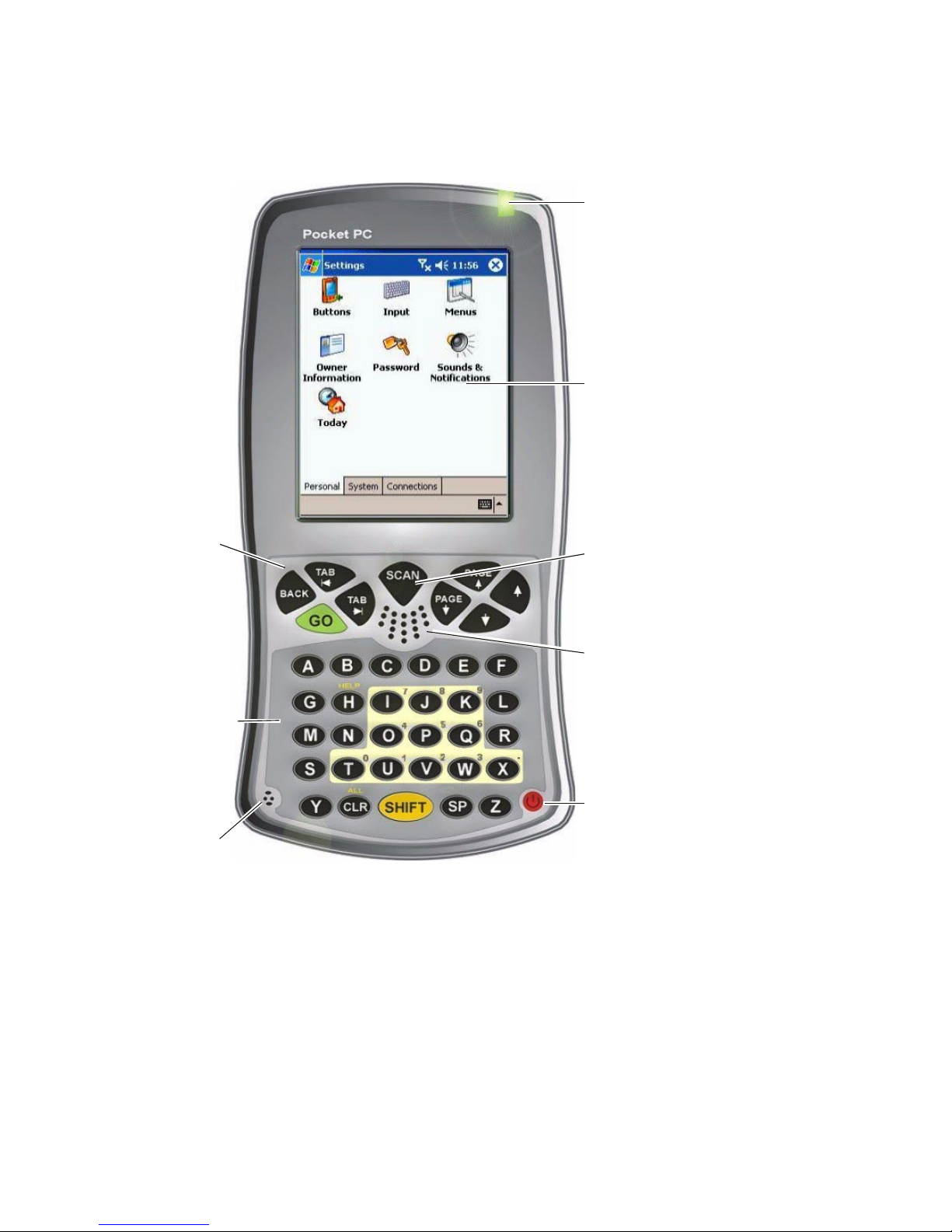
X-Pad Parts
r
.
LED Indicator
(see page 11)
Touch Sensitive
Screen
Navigation Key
Panel
(see page 13)
Keyboard Keys
(see page 13)
Microphone
Barcode SCAN (Image
Key (see page 14)
Speaker
Power Button
(On/Off/Suspend)
(see page 11)
Figure 1. X-Pad - Front View
Note that the gray and blue colors in picture are for illustration clarity purposes only and do not reflect the actual color of the unit
4
Page 15
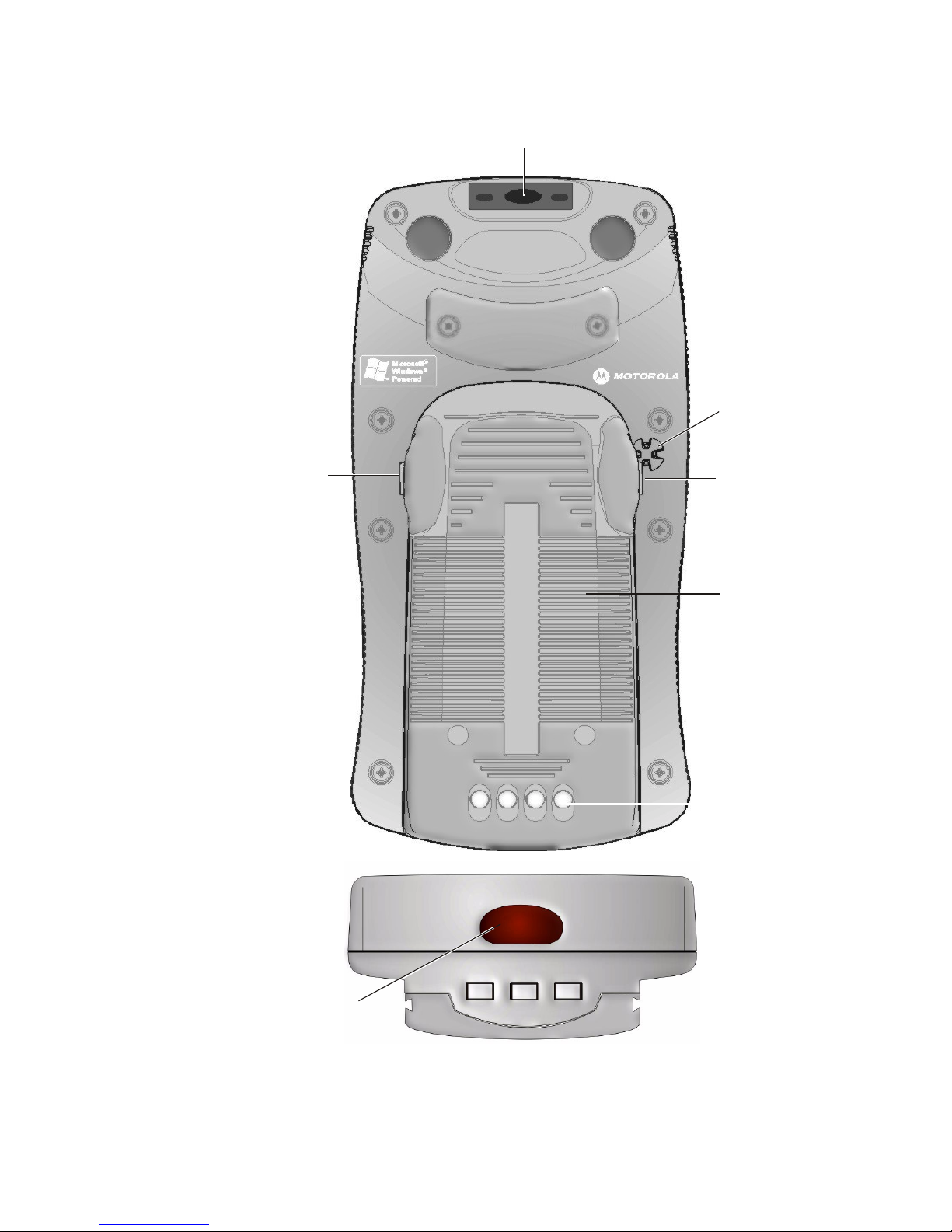
Imager Window (see page 14)
Buzzer
Battery Release
Button
(see page 6)
Battery Release
Button
Battery
(see page 6)
Docking
Contacts
IrDA Communication
Window
Figure 2. X-Pad - Back View
5
Page 16
Charging the Battery
The battery is shipped from the factory
uncharged and not installed. Charge the
battery before using the X-Pad for the
first time.
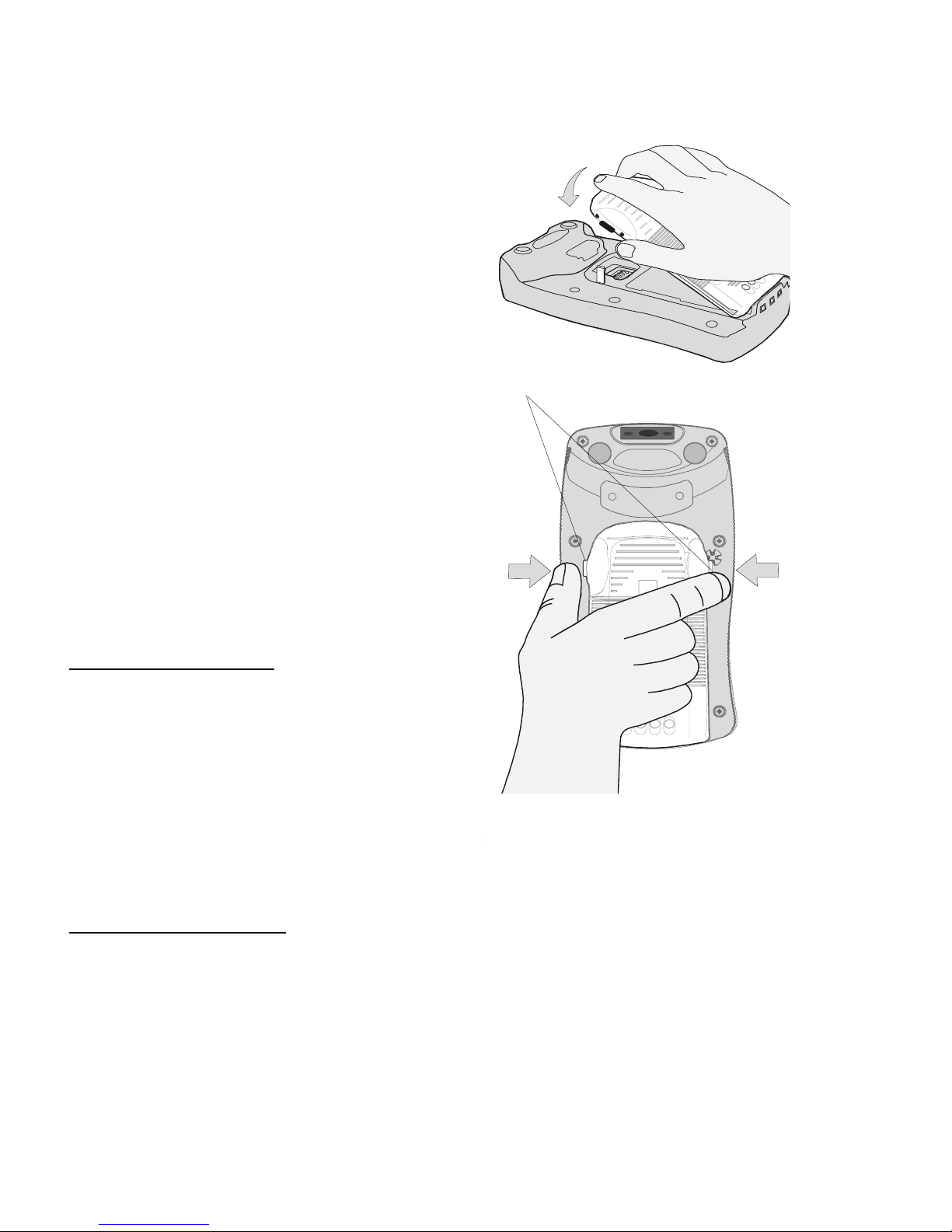
Battery Installation and
Removal
Important Note: The X-Pad enables
you to replace batteries without losing
information stored in its memory. To avoid
losing information stored in the memory,
a charged battery must be installed
within 4 hours after removing the empty
Release Buttons
battery.
Do not remove battery while the LED
indicator of the X-Pad shows red.
To install the battery:
1. Insert the battery, bottom end first,
into the battery compartment (see
Figure 3).
2. Carefully press the battery top downward until it clicks into place. When
Figure 3. Battery Installation
X-Pad is powered by battery installation for the first time, see note in “Turning On the X-Pad” on page 11.
To remove the battery:
1. Turn the X-Pad off by holding the Power button pressed (see Figure 1),
for at least four seconds.
2. Press the Release Buttons
away the battery from the X-Pad.
6
on the battery sides (see Figure 3) and pull
Page 17
The Universal Office Dock (UOD) Unit
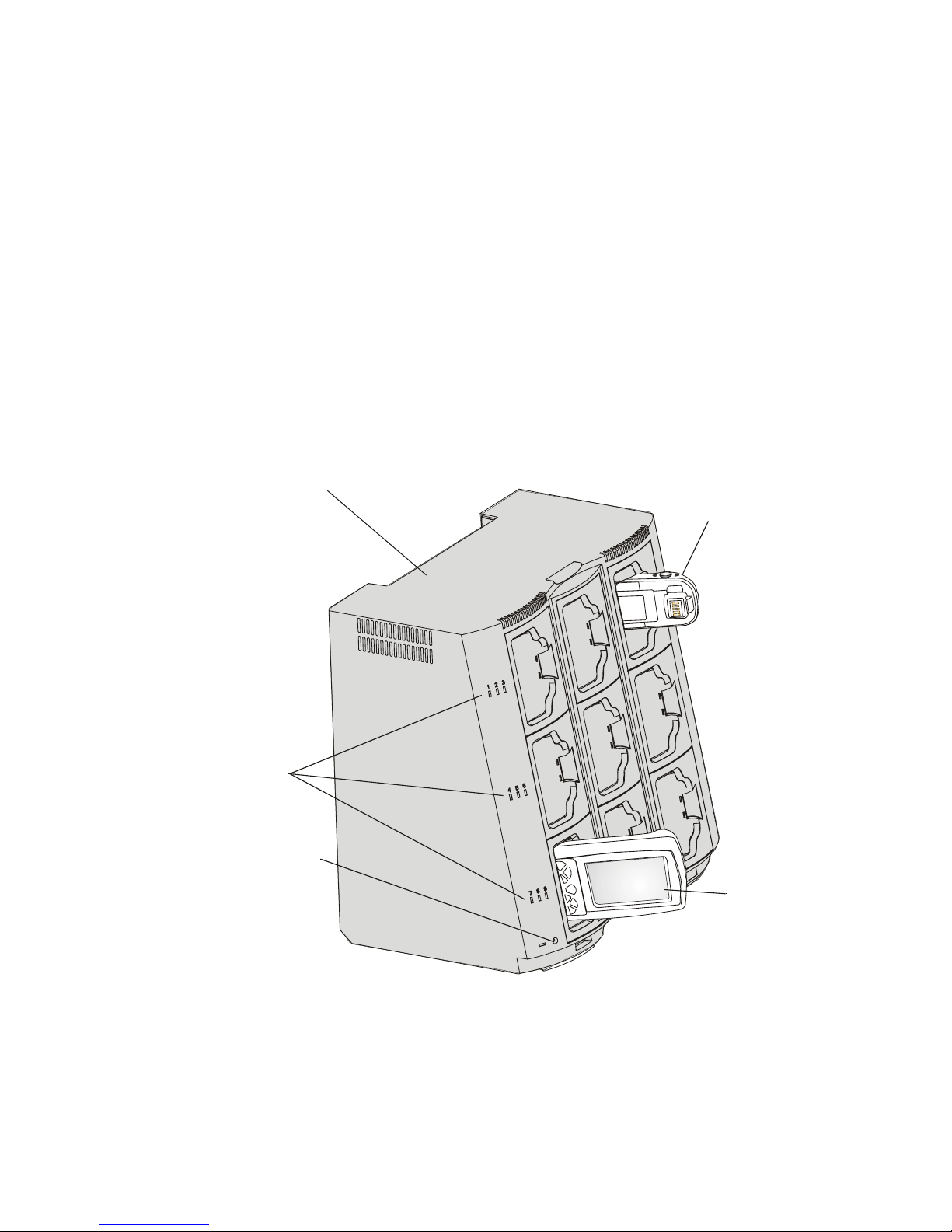
The UOD unit is used for charging the X-Pad battery and communicating
with the X-Pad through an IrDA port. Each UOD unit has nine slots. Each
slot may accommodate either a X-Pad with a battery attached, or a battery
(stand-alone). Each of the nine slots has a status LED with an associated
number. The LEDs are laid out in the same order as the slots. When a slot
is empty, its corresponding LED is Off. When a battery or a X-Pad with a
battery is inserted to a slot, the slot LED turns On, indicating the battery
charge (see Table 1). The battery power can also be tested by pressing the
battery power TEST button (see Figure 5).
Universal Office Dock
(UOD) Unit
Battery Charge
Slot LEDs
UOD status LED
X-Pad charged
with battery
installed
Figure 4. Universal Office Dock (UOD) Unit
7
Page 18
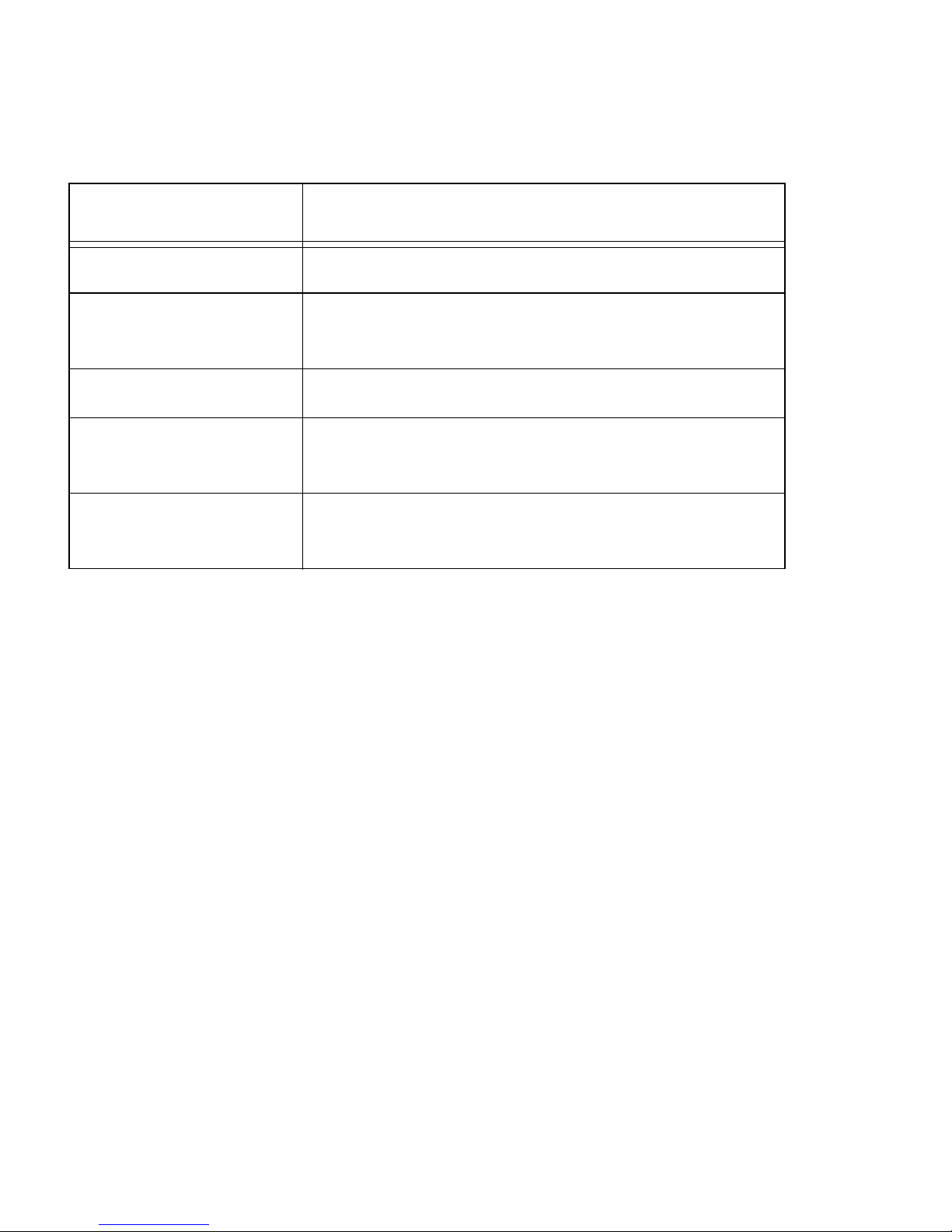
Table 1: Status of a UOD Slot LED During Battery Charge
Slot LED Status Indication
No Light No device inserted.
Blinking Amber Battery temperature out of tolerance and charging
has been temporarily stopped.
Solid Amber X-Pad Battery is being charged.
Solid Green X-Pad Battery is at least 90% charged after 2.5
hours and fully charged after 3.
Solid Red X-Pad Battery is not fully charged after 3 hours of
charging, and is considered failed.
First Time Battery Charge
The first time battery charge ensures maximum start capacity for the battery. Charge your new battery for at least 24 continuous hours before using
it or until the LED indicator of the UOD shows green.
Note: Out of box batteries are in sleep mode. Press the TEST pad, at the
back side of the battery (see Figure 5) for at least two seconds before any
attempt to charge or use. Pressing the TEST button awakes the battery
gas-gauge.
The UOD charges your battery effectively when it is at room temperature
[approx. 68°F (20° C)]. Battery charging temperature range is 32°F to 95°F
(0°C to 35°C).
8
Page 19
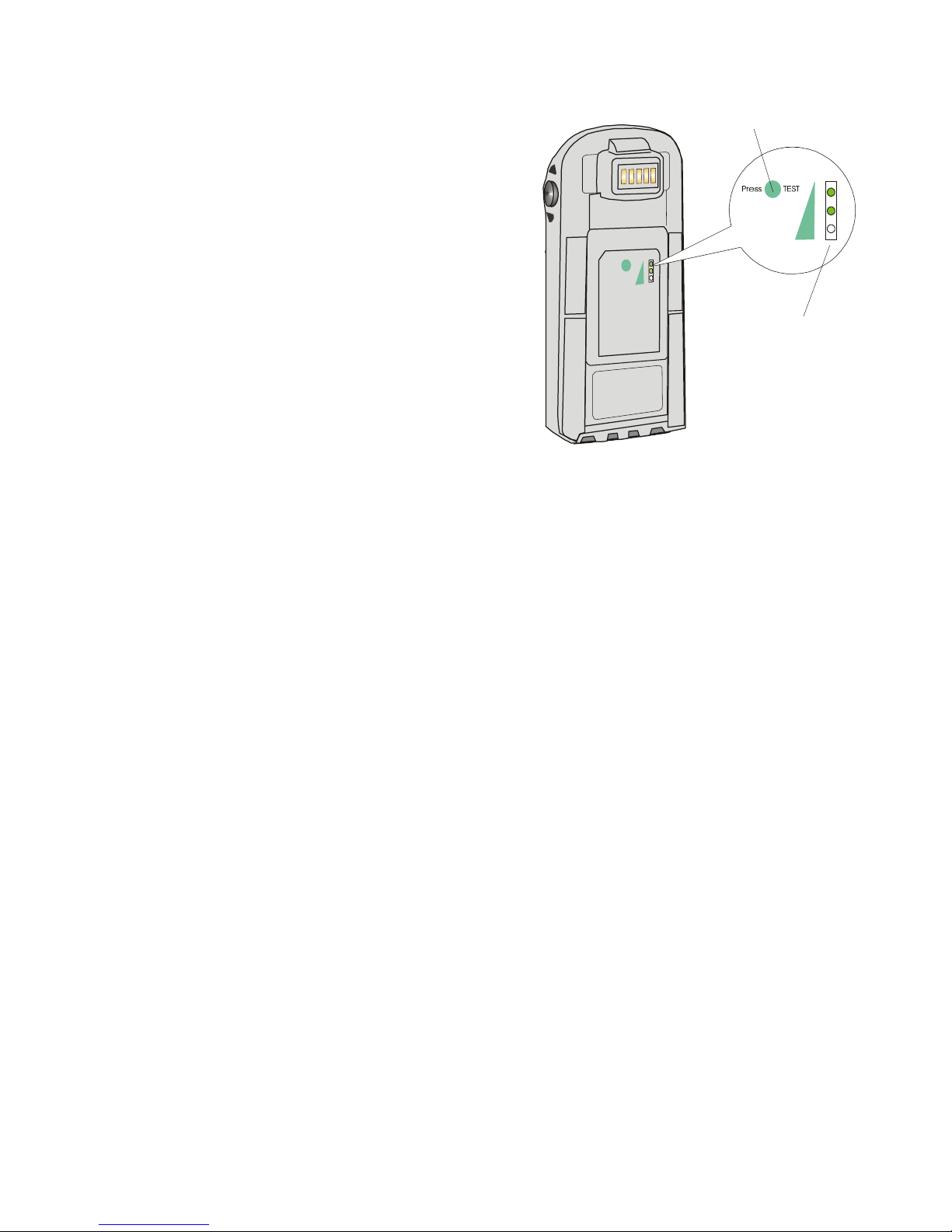
To test the power capacity of the
battery; press the TEST pad on back
side of the battery and view the
power level indicator.
Battery TEST Pad
Routine Battery Charge
100
A battery is charged to 90% of its
full capacity after approximately two
and a half hours, and is fully charged
Power Level
Indicator
after three hours, excluding out-ofrange periods.
Note: The power level indicator
shows only an approximate level of
the remaining battery life.
Figure 5. Battery Power Test
Important: The battery will not charge if the X-Pad or battery is not prop-
erly locked inside the UOD slot.
Battery Maintenance
The performance of the rechargeable battery delivered with your X-Pad
depends on the way the battery is treated. Therefore, to comply with the
Motorola warranty for batteries and to assure high performance and a long
life for your Motorola rechargeable battery, please read and follow the
maintenance rules stated below.
Battery Storage
Do not store your battery where the temperatures exceed 140°F (60°C) or
fall below -4°F
New Lithium-Ion batteries (i.e. batteries that have never been charged
before) may be stored for up to 3 months in well-ventilated, cool and dry
areas without significant loss in lifespan.
Batteries which have already been charged and then stored for more than
2 months should be recharged before use.
(-20°C).
9
Page 20

Extending Battery Life
A battery is an expendable part and may need replacing during the life of
the X-Pad. To ensure maximum service life of your X-Pad, always replace
the battery with a genuine Motorola replacement.
Your UOD will charge your battery effectively when it is at room temperature [approx. 68°F (20° C)]. Battery charging temperature range is 32°F to
95°F (0°C to 35°C).
10
Page 21

Using the X-Pad
Turning On the X-Pad
Press the Power button to turn On the X-Pad (see Figure 7) - when turned
On, the last displayed screen will be shown again.
Note: The X-Pad powers On immediately when the battery is installed for
the first time or after Cold Reset (see page 16) - the Motorola logo will
show for about 30 seconds and you will be required to follow on-screen
alignment (calibration) instructions.
Turning Off the X-Pad
When the X-Pad is On, hold the Power button pressed (see Figure 7) for at
least four seconds.
When the battery is removed (see “Battery Installation and Removal”)
from the X-Pad during operation, the X-Pad turns off automatically. To
resume operation after re-installing the battery, press the Power button.
Suspend Mode
When the X-Pad is On, press the Power button (see Figure 7) to enter Suspend mode. During Suspend mode the display turns off and the LED indicator slowly blinks green. To resume operation, press the Power button
again.
In Suspend mode, battery power is saved by turning off the display and
computer sections of the X-Pad. During Suspend mode, the GPRS and
Bluetooth radios continue to operate. When the X-Pad resumes operation,
it returns to the screen shown prior to Suspend mode.
Use Suspend mode as often as possible to save battery power.
LED Indicator Function
LED shows red - do not remove battery.
LED slowly blinks green - X-Pad in Suspend mode.
LED quickly blinks green - X-Pad is charged in UOD unit.
11
Page 22
Using the Stylus Pen
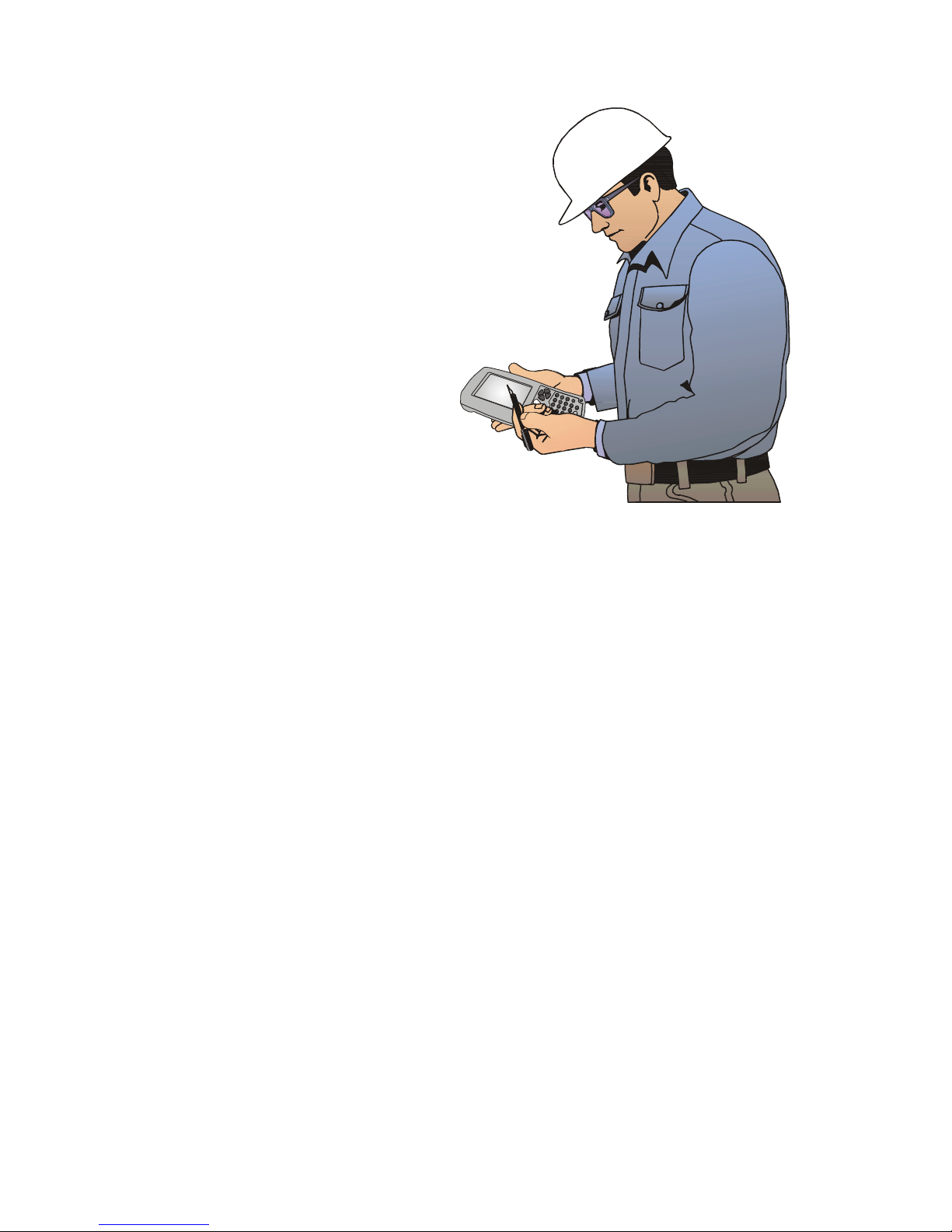
The Stylus pen selects items and
enters information. Use the pen as you
use your PC mouse.
• To open and select screen items,
tap on the item with the pen.
• To drag text or image items, hold
the pen on the item and drag
across the screen.
• To see a list of actions available
for a specific item, tap-and-hold
the pen on an item. When the
pop-up menu appears, tap the
action you want to perform.
Figure 6. Using the Stylus Pen
12
Page 23
Using the Keyboard
Key Assignment
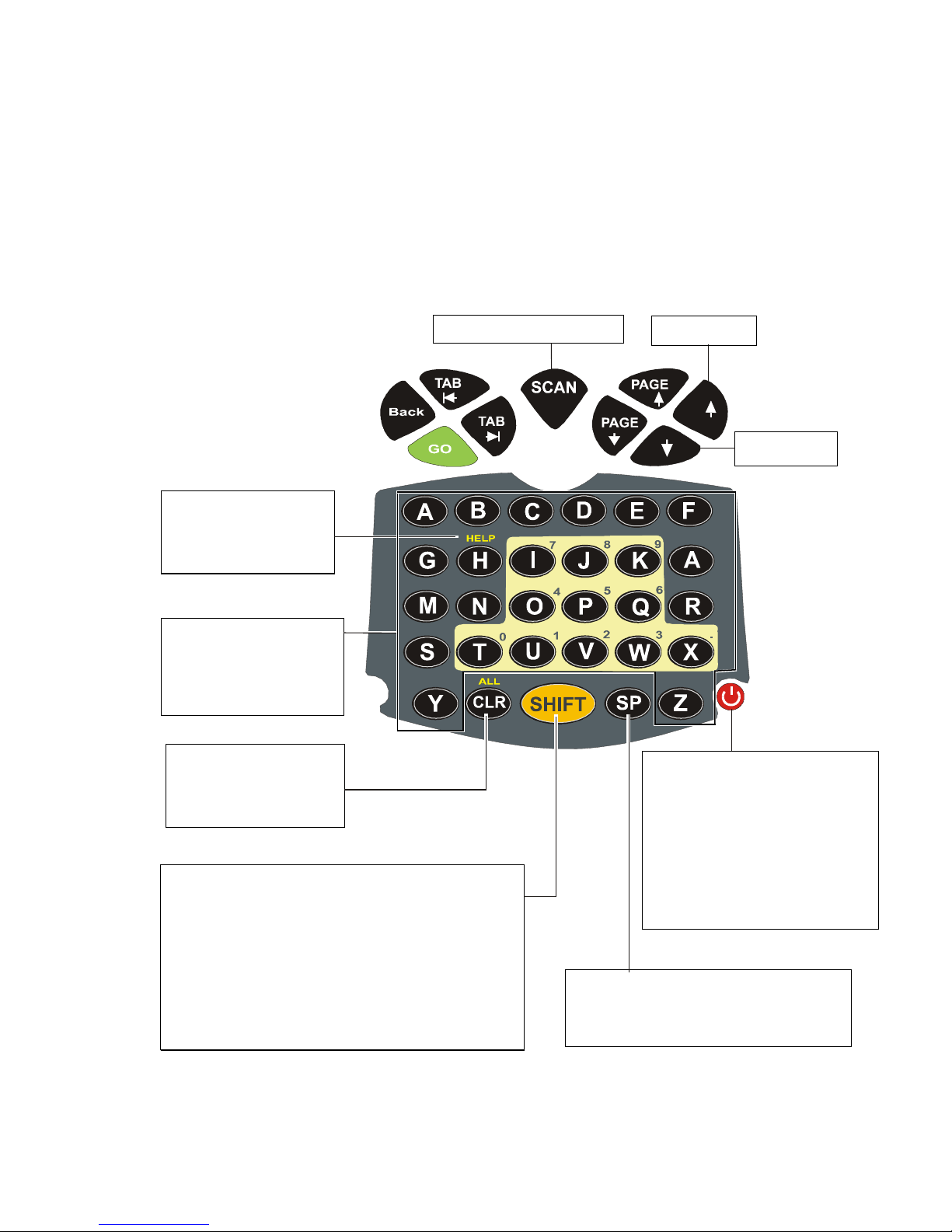
Figure 7 describes the X-Pad keyboard.
Note: Key assignment may vary by application. Therefore, your keyboard
may not function as described.
Barcode SCAN Key
Help Key
(active in
Numeric mode)
Alpha/Numeric
Keys
Use SHIFT key to
toggle
Clear Screen Key
(alpha mode) or
All (numeric mode)
SHIFT Key
• Press to toggle between alpha and
numeric modes
• In Alpha mode, press to produce capital
letters
• Hold pressed for 2 sec to turn screen
illumination On/Off
Up Key
Down Key
Power Button
• Hold pressed for 4 sec to
turn Off
• When On, press to Suspend
• When Off or in Suspend
mode, press to turn On
Blank Space Key
• Blank Space (alpha mode)
• Erase (numeric mode)
Figure 7. X-Pad - Key Function
13
Page 24
Action Keys
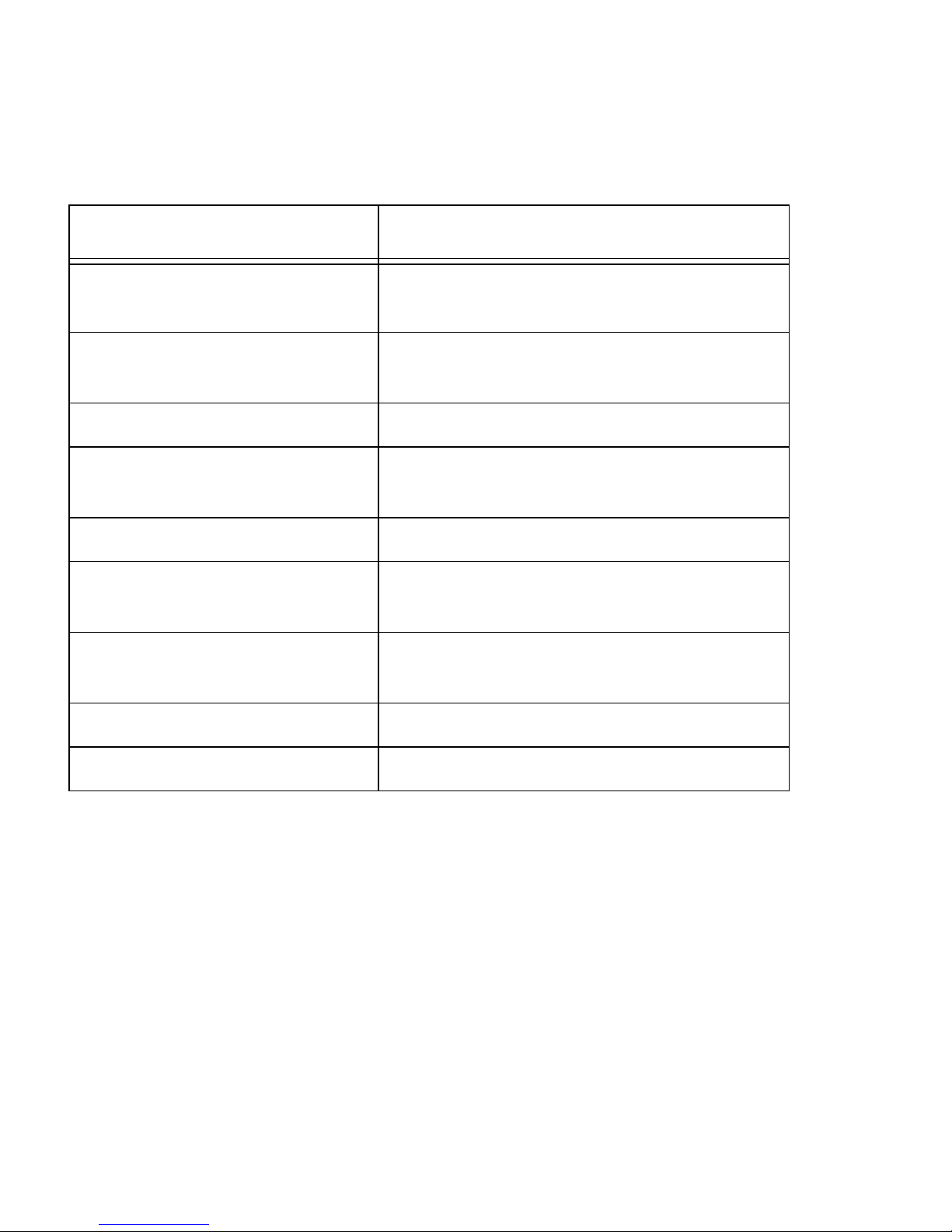
Table 2 describes the action keys combinations.
Table 2: Action Keys Combinations
Action Key Combination
Warm Reset (see also “Resetting the X-Pad”)
Lower Case to Upper Case Letters (default is lower case)
Audio Recording SHIFT + SP + R
Audio Volume Increase: SHIFT +SP + UP
Touch Screen Calibration SHIFT + SP + C
Display Illumination Intensity Increase: SHIFT + UP
Keyboard Back light Intensity Increase: SHIFT + PAGE UP
Virtual Keyboard Open/Close: SHIFT + SCAN + SP
H + CLR + GO
SHIFT + any alphabet key
Decrease: SHIFT + SP + DOWN
Decrease: SHIFT + DOWN
Decrease: SHIFT + PAGE DOWN
PocketPC 2003 Menu SP + SCAN
Scanning with the X-Pad
The X-Pad hand held terminal enables to decode many barcode symbologies and capture images in dim lighting conditions.
The terminal features a high-resolution digital imager for omni-directional
and auto-discrimination reading and decoding of linear barcodes, stacked
linear (PDF417) and 2D matrix codes. The imager functions like a digital
camera for either greyscale or black and white pictures.
14
Page 25
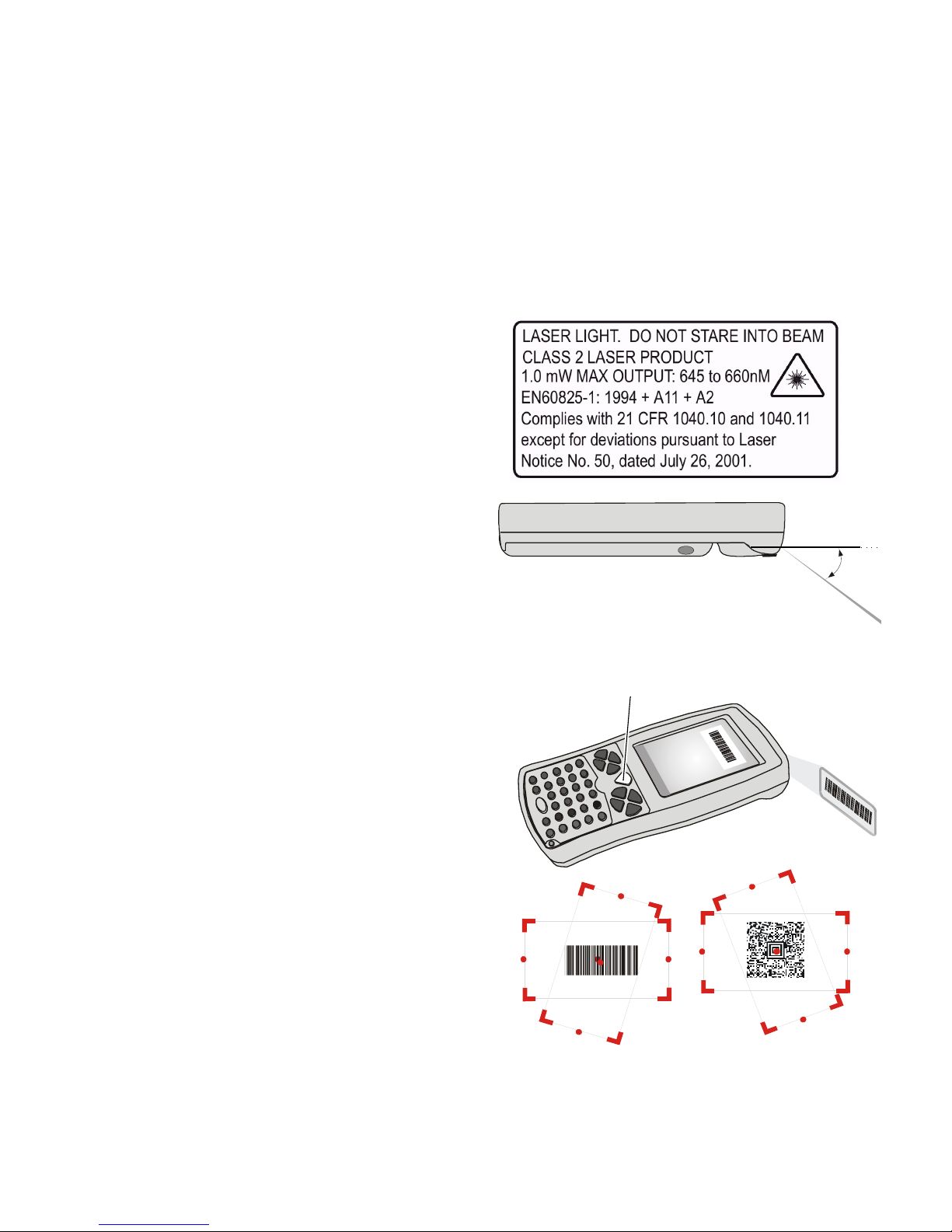
The X-Pad is equipped with a SCAN trigger button, designed for both lefthanded and right-handed users (see Figure 8). The button is located at the
center of the terminal navigation key panel.
Images taken by the X-Pad are stored in the terminal memory. Images can
be downloaded via IrDA communication to the cradle or transmitted via
one of the wireless radio options.
Capturing Images
To capture an Image:
1. Activate your scanning
application.
2. Aim and hold the X-Pad at
a 45° angle approximately 2
to 9 inches (5 to 22 cm) away
from the target.
3. Press the SCAN button
and use the red rectangle
light, emitted towards the
target, to adjust your position - a successful scan will
be followed by sound indication.
Note: When adjusting your
position, you may move back
and forth from the target.
When scanning, the emitted
rectangle light can be positioned at any angele to the
45° Capture Angle
Hold 2 to 9 inches (5 to 22 cm)
from target
SCAN Trigger Button
barcode symbol.
Figure 8. Capturing with the X-Pad Imager
15
Page 26
Resetting the X-Pad
In normal use, you should never
need to reset the X-Pad.
You may need to reset your X-Pad;
for example, you may reset due to
communication cut-off, or if the
operating system stops responding.
If your X-Pad stops responding, do
the following actions:
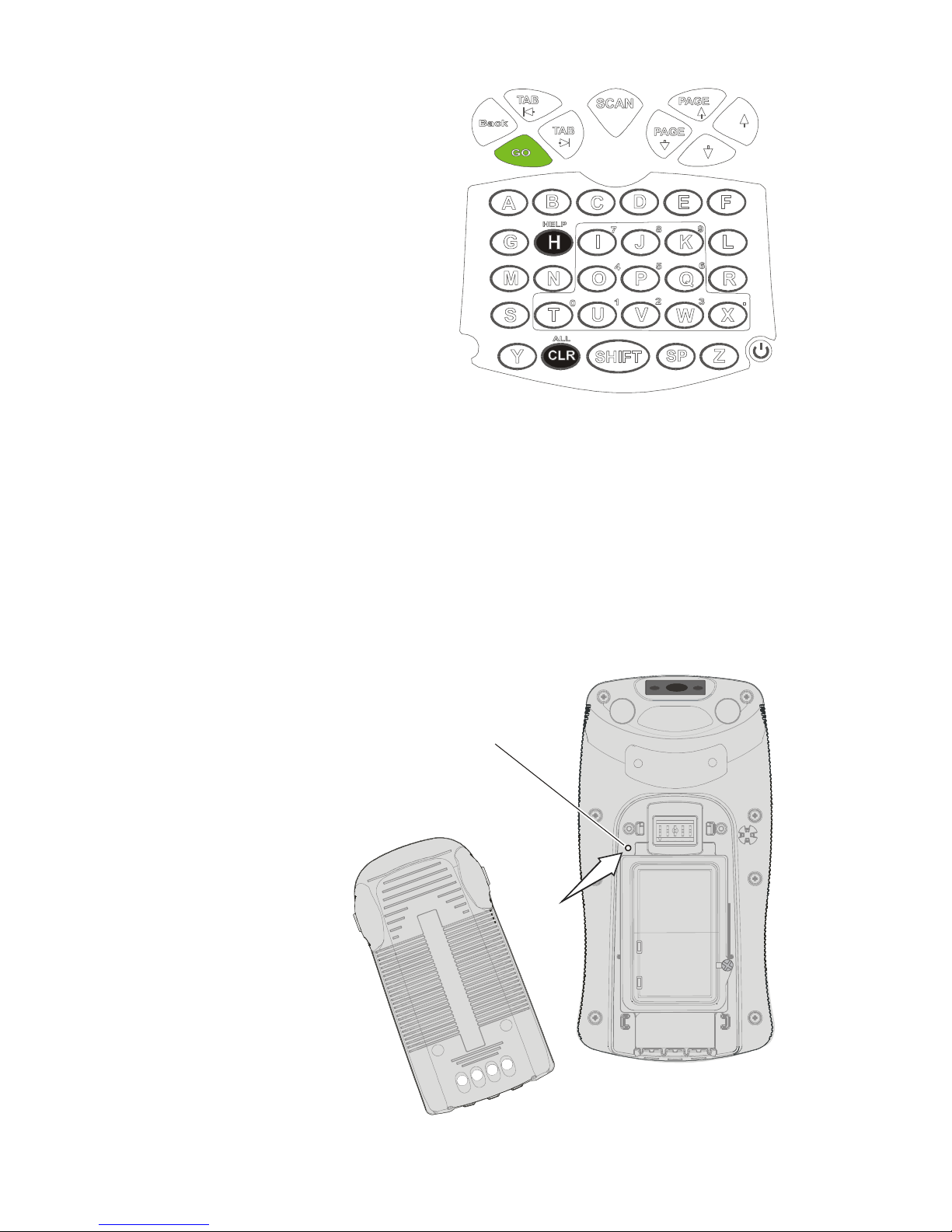
Figure 9. Warm Reset
Warm Reset
Important Note: When the X-Pad is warm reset, all recorded information
remains stored in memory.
Simultaneously, press keys H + CLR + GO (see Figure 9); the X-Pad will
function again.
If your X-Pad still does not respond, perform “Cold Reset”:
Cold Reset
Cold reset restarts the X-
For Cold Reset: insert the
Stylus tip into the hole
Pad by erasing all stored
records and entries.
Do Not perform Cold reset
unless Warm reset fails to
solve your problem.
Cold reset is performed by
Reset
hole
removing the battery and
inserting the Stylus tip into
the hole located on the
back side of the X-Pad (see
Figure 10).
16
Figure 10. Cold Reset
Page 27
Maintaining the X-Pad
In order to maintain your X-Pad in good working order:
• Do not scratch the screen. Use only Motorola supplied stylus pen with
the touch screen.
• Never use a pen or pencil or any sharp object on the screen.
• Although your X-Pad is water and dust resistant, do not expose it to
rain or moisture for long periods of time.
• Protect your X-Pad from temperature extremes. Do not leave the XPad on the dashboard of a car on a hot day, and keep the X-Pad away
from hot places.
• Do not drop your X-Pad or subject it to strong impact.
• Do not store or use your X-Pad in any location that is extremely dusty,
damp or wet.
• If the battery contacts, screen or surface of the X-Pad become dirty,
use a soft lint free cloth moistened with diluted Isopropyl Alcohol (IPA)
solution to remove dirt. The Isopropyl Alcohol (IPA) can be diluted with
water up to 20%.
Accessories
The following Motorola approved accessories are for use with your terminal.
Table 3: Accessories
Motorola Approved Accessory Part Number
Battery FTN6032
Stylus FLN9805
17
Page 28

It is the responsibility of the user to use only the approved accessories
supplied for this product, as detailed in Table 3 . Motorola is not responsible for the use of accessories not approved for this product.
For more information on the availability of these accessories, please call
your company supplier.
Troubleshooting
Table 4: Troubleshooting the X-Pad
Problem Cause Solution
X-Pad does not
turn On
Battery does not
charge in UOD
Battery is not
installed properly or
not charged
X-Pad in Suspend
mode
X-Pad is not locked in
UOD
X-Pad or UOD Dock
contacts are not clean
Battery temperature
is out of range
Ensure proper battery installation in X-Pad.
Charge or replace the battery
Press the Power Button
Reinstall X-Pad in UOD. Lock the
X-Pad properly in UOD. (See that
the UOD LED is On and charge
for three hours)
Clean contacts and remove dust
and objects from within the UOD
Ensure that the battery temperature range is 32°F to 95°F (0°C
to 35°C)
Bad battery Replace battery
18
Page 29

Table 4: Troubleshooting the X-Pad
Problem Cause Solution
X-Pad does not
decode the
SCAN input
X-Pad does not
respond
The capture frame
does not cover the
entire barcode symbol
The Imager window is
blocked
Capture again and make sure
that the entire barcode symbol
is covered
Clean the window with a lint
free, soft dry cloth.
If the Imager window is badly
scratched, send for service
Make sure that the correct barcode symbology is being used
Unreadable barcode Be sure the barcode symbol is
not covered or damaged
Problem in X-Pad
operating system or
communication network
Execute Warm reset by simultaneously pressing soft keys
H+CLR+GO for at least one second; the X-Pad should function
again
If X-Pad still does not respond,
perform Cold rest (see “Resetting the X-Pad” on page 16). The
operation system will reboot
after about 30 seconds
19
Page 30
Table 4: Troubleshooting the X-Pad
Problem Cause Solution
Incomplete or no
data transmission between XPad and UOD
Communication software was incorrectly
installed or configured
IrDA communication
window is obscured
Refer to the UOD user manual or
see your system administrator
Make sure that the IrDA window
of the X-Pad is clean and has a
clear line of sight with the IrDA
window of the UOD
20
Page 31
Safety Instructions
Laser Safety
Caution – Use of controls or adjustments or performance of procedures
other than those specified herein may result in hazardous radiation exposure.
Battery Warnings and Disposal
X-Pad On-board Aircraft
Always remove the battery from the X-Pad when shipped via air. Any use
of the X-Pad must be in accordance with applicable regulations per airline
crew instructions.
Battery Disposal
Batteries must be recycled or disposed of properly in accordance with local
requirements. Recycling facilities may not exist in all areas. Please contact
your local environmental agency for more information regarding proper
disposal.
To Prevent Injury Or Burns
• USE ONLY SPECIFIED BATTERIES AND CHARGERS
• DO NOT DISPOSE OF ANY BATTERIES IN FIRE, AS THEY MAY EXPLODE!
• DO NOT PUNCTURE OR ALLOW METAL TO CONTACT THE BATTERY TERMINALS
• DO NOT DISPOSE OF IN WATER
• DO NOT DISASSEMBLE
• DO NOT STORE ABOVE 140°F (60°C) OR BELOW - 4°F (-20°C)
21
Page 32

22
Page 33

SPECIFICATIONS
PHYSICAL SPECIFICATIONS
Weight 23.7 ± 0.3oz (672 ±10g)
Dimensions Width x Length x Depth: 4.1 x 8 x 1.9“ (104
x 202 x 48 mm)
ENVIRONOMENTAL
Operating Temperature Ambient temperature range of shall be 0°C
to +60°C
Storage Temperature Terminal: -20°C to +70°C
Battery: -20°C to +60°C
Humidity 8 hours exposure to 90-95% non condens-
ing relative humidity at 50°C.
ELECTRICAL SPECIFICATIONS
Processor type INTEL PXA270 Xscale running at 416MHz
Memory Flash: 64 MB, 32-bit data bus, SDRAM: 64
MB, 32-bit data bus
Non-Volatile Memory Compact Flash 128 MB
Display 3.5” color, transflective, native portrait LCD
with illumination. Resolution: 240 x 320 pixels (1/4 VGA) Viewing angle ± 35
° in both X
and Y axis. Viewing area smaller by about
2 mm all around
Touch Screen 65,000 signatures (<1% linearity change)
65,000 to 85,000 signatures (<4% linearity
change)
Operating force < 100 grams with stylus
23
Page 34

Keyboard 39 keys: 8 Navigation keys, Scan key, 28
alphanumeric keys and Power On/Off key.
Software controlled backlighting (On/Off
only)
Status Indicator Tricolor LED, Software controlled
Audio Microphone: For Mono sound recording
Speaker: Mono
(Bluetooth audio support as a remote
microphone and speaker)
Beeper: Piezo buzzer with adjustable tones,
maximum sound level is 85 db for audio
notification of proper scans
Imager 2D high-speed LASER (manual scan) sup-
port for common barcode symbologies
including PDF417
Main Battery Two rechargeable Lithium-Ion cells, Nomi-
nal 7.2V, 1800 mAh supporting
Gas gauging for power monitoring
Visible 3 LED bar-graph, switch activated
12 hours typical operation. Fully recharged
within 3 hours in UOD.
Minimum of 300 full discharge/charge
cycles
Built-in safety circuitry.
24
Page 35
Backup Battery Rechargeable 90 mAh Lithium coin cell (not
user replaceable)
4 hour preservation of RTC and memory
Minimum 1000+ 10% discharge/charge
cycles
Minimum 40+ 100% discharge/charge
cycles
Software
Operating System PocketPC 2003
Power Management As supported by PocketPC 2003: Run, Idle,
Stand By, Docked.
Communication
Personal Area Network (PAN): Bluetooth RF
communication (IEEE 802.15.1), 2.4 GHz
ISM band, 1mW
Wireless Local Area Network (WLAN):
Wi-Fi (IEEE 802.11b), 2.4 GHz ISM band,
50mW
Wireless Wide Area Network (WWAN):
Data-only GPRS compatible dual-band for
USA, 850/1900 MHz, 0.6W/1W
Infra-red (IrDA): supports SIR 9.6K/bits to
115.2 Kbps and FIR 4 Mbps data rates. All
PocketPC 2003 IR layers
Wire Interface An Auxiliary Connector support connection
to: USB device, External 12 V DC input,
headset and RS232 Serial interface (RxD,
TxD, CTS, RTS)
25
Page 36

26
Page 37

Index
A
Accessories
Action Keys 14
Aircraft 21
Alphabet Keys 4
Audio Recording 14
Audio Volume 14
B
Back light Intensity
Barcode Scan Key 13
Battery Charge 8
Battery charging temperature 8
battery contacts 17
Battery Maintenance 9
Battery Power Test 9
17
14
E
Extending Battery Life
H
Help Key
I
Illumination Intensity
Injury 21
Install Battery 6
Isopropyl Alcohol 17
K
Keys Assignment
L
Laser Warning
LED Indicator 11
LED shows red 11
13
13
15
10
14
Battery Storage 9
Battery Warnings 21
Blank Space Key 13
Blinking Amber 8
C
Charging
Clean 17
Clear Screen Key 13
Cold Rese 16
cool and dry areas 9
D
Disposal
Down Key 13
6
21
Lithium-Ion 2
M
Maintaining
Microphone 4
N
Navigation Key Panel
P
PocketPC 2003 Menu
Power Button 13
Power Level Indicator 9
PowerPad Parts 4
R
Remove Battery
Reset hole 16
17
4
14
6
27
Page 38

Resetting
16
W
resume operation 11
room temperature 8
S
Safety
Safety Instructions 21
Scan Angle 15
Scanning 16
Screen Calibration 14
SHIFT Key 13
Slot LEDs 7
Solid Amber 8
Solid Green 8
Solid Red 8
Speaker 4
storage temperatures 9
3
Warm Reset
16
store 17
Suspend Mode 11
T
TEST pad
Touch Sensitive Screen 4
Troubleshooting 18
Turning Off 11
Turning On 11
U
Universal Office Docking
Unpacking 3
UOD User Manual 1
Up Key 13
V
Virtual Keyboard
9
14
7
28
Page 39

HOW TO REACH US:
Government & Enterprise
Mobility Solutions
1301 E. Algonquin Road,
Schaumburg, IL 60196
Tel: 1-888-567-7347 (inside the US)
Tel: 1-847-576-5000 (outside the US)
Visit our Web site at
www.motorola.com
MOTOROLA and the Stylized M Logo are registered in the U.S. Patent and Trademark
Office. All other product or service names are
the property of their respective owners.
© Motorola, Inc. 2005.
 Loading...