

Page 1
M
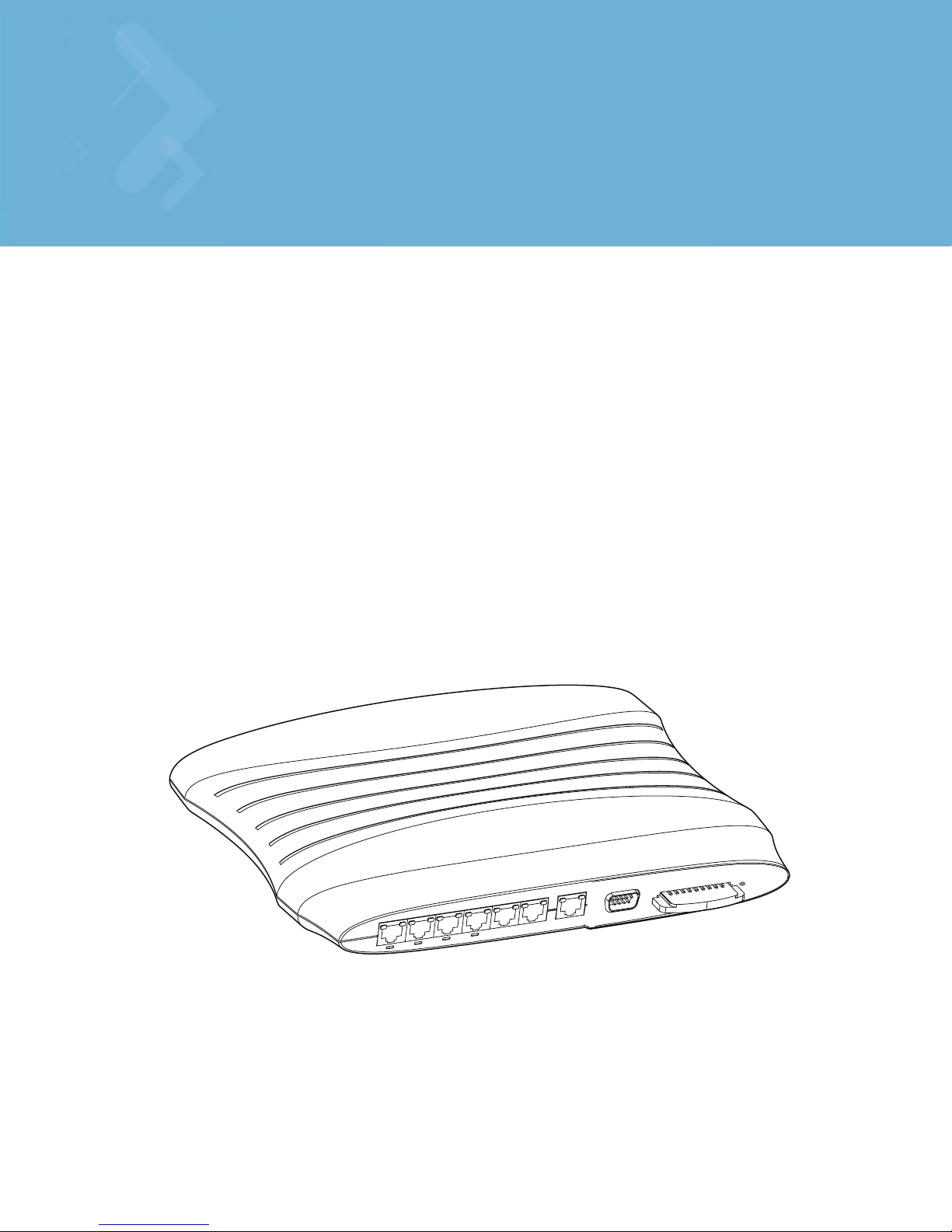
WS2000 Wireless Switch
CLI Reference Guide
Page 2

© 2009 Motorola, Inc. All rights reserved.
MOTOROLA and the Stylized M Logo are registered in the US Patent & Trademark Office. Symbol is a registered
trademark of Symbol Technologies, Inc. All other product or service names are the property of their respective owners.
Page 3

Contents
Chapter 1: Product Overview
1.1 WS2000 Wireless Switch CLI Reference Guide. . . . . . . . . . . . . . . . . . . . . . . . . . . . . . . . . . . . . . . . . . . . . . . . . . . . . . . . . 1-1
1.2 System Overview . . . . . . . . . . . . . . . . . . . . . . . . . . . . . . . . . . . . . . . . . . . . . . . . . . . . . . . . . . . . . . . . . . . . . . . . . . . . . . . . 1-4
1.3 Hardware Overview . . . . . . . . . . . . . . . . . . . . . . . . . . . . . . . . . . . . . . . . . . . . . . . . . . . . . . . . . . . . . . . . . . . . . . . . . . . . . . 1-5
1.4 Software Overview. . . . . . . . . . . . . . . . . . . . . . . . . . . . . . . . . . . . . . . . . . . . . . . . . . . . . . . . . . . . . . . . . . . . . . . . . . . . . . . 1-7
Chapter 2: Admin and Common Commands
2.1 Common Commands. . . . . . . . . . . . . . . . . . . . . . . . . . . . . . . . . . . . . . . . . . . . . . . . . . . . . . . . . . . . . . . . . . . . . . . . . . . . . . 2-2
? . . . . . . . . . . . . . . . . . . . . . . . . . . . . . . . . . . . . . . . . . . . . . . . . . . . . . . . . . . . . . . . . . . . . . . . . . . . . . . . . . . . . . . . . . . . 2-3
help . . . . . . . . . . . . . . . . . . . . . . . . . . . . . . . . . . . . . . . . . . . . . . . . . . . . . . . . . . . . . . . . . . . . . . . . . . . . . . . . . . . . . . . . . 2-4
quit . . . . . . . . . . . . . . . . . . . . . . . . . . . . . . . . . . . . . . . . . . . . . . . . . . . . . . . . . . . . . . . . . . . . . . . . . . . . . . . . . . . . . . . . . 2-5
save . . . . . . . . . . . . . . . . . . . . . . . . . . . . . . . . . . . . . . . . . . . . . . . . . . . . . . . . . . . . . . . . . . . . . . . . . . . . . . . . . . . . . . . . 2-6
.. . . . . . . . . . . . . . . . . . . . . . . . . . . . . . . . . . . . . . . . . . . . . . . . . . . . . . . . . . . . . . . . . . . . . . . . . . . . . . . . . . . . . . . . . . . . 2-7
/ . . . . . . . . . . . . . . . . . . . . . . . . . . . . . . . . . . . . . . . . . . . . . . . . . . . . . . . . . . . . . . . . . . . . . . . . . . . . . . . . . . . . . . . . . . . 2-8
2.2 Admin Menu Commands . . . . . . . . . . . . . . . . . . . . . . . . . . . . . . . . . . . . . . . . . . . . . . . . . . . . . . . . . . . . . . . . . . . . . . . . . .2-9
passwd . . . . . . . . . . . . . . . . . . . . . . . . . . . . . . . . . . . . . . . . . . . . . . . . . . . . . . . . . . . . . . . . . . . . . . . . . . . . . . . . . . . . . 2-10
summary . . . . . . . . . . . . . . . . . . . . . . . . . . . . . . . . . . . . . . . . . . . . . . . . . . . . . . . . . . . . . . . . . . . . . . . . . . . . . . . . . . . . 2-11
Chapter 3: Network CLI Commands Reference
3.1 network . . . . . . . . . . . . . . . . . . . . . . . . . . . . . . . . . . . . . . . . . . . . . . . . . . . . . . . . . . . . . . . . . . . . . . . . . . . . . . . . . . . . . . . . 3-1
3.2 Network AP Commands . . . . . . . . . . . . . . . . . . . . . . . . . . . . . . . . . . . . . . . . . . . . . . . . . . . . . . . . . . . . . . . . . . . . . . . . . . . 3-3
ap . . . . . . . . . . . . . . . . . . . . . . . . . . . . . . . . . . . . . . . . . . . . . . . . . . . . . . . . . . . . . . . . . . . . . . . . . . . . . . . . . . . . . . . . . . 3-3
add . . . . . . . . . . . . . . . . . . . . . . . . . . . . . . . . . . . . . . . . . . . . . . . . . . . . . . . . . . . . . . . . . . . . . . . . . . . . . . . . . . . . . . . . . 3-4
copydefaults . . . . . . . . . . . . . . . . . . . . . . . . . . . . . . . . . . . . . . . . . . . . . . . . . . . . . . . . . . . . . . . . . . . . . . . . . . . . . . . . . . 3-5
delete . . . . . . . . . . . . . . . . . . . . . . . . . . . . . . . . . . . . . . . . . . . . . . . . . . . . . . . . . . . . . . . . . . . . . . . . . . . . . . . . . . . . . . . 3-6
forget . . . . . . . . . . . . . . . . . . . . . . . . . . . . . . . . . . . . . . . . . . . . . . . . . . . . . . . . . . . . . . . . . . . . . . . . . . . . . . . . . . . . . . . 3-7
list . . . . . . . . . . . . . . . . . . . . . . . . . . . . . . . . . . . . . . . . . . . . . . . . . . . . . . . . . . . . . . . . . . . . . . . . . . . . . . . . . . . . . . . . . . 3-8
remap . . . . . . . . . . . . . . . . . . . . . . . . . . . . . . . . . . . . . . . . . . . . . . . . . . . . . . . . . . . . . . . . . . . . . . . . . . . . . . . . . . . . . . . 3-9
reset . . . . . . . . . . . . . . . . . . . . . . . . . . . . . . . . . . . . . . . . . . . . . . . . . . . . . . . . . . . . . . . . . . . . . . . . . . . . . . . . . . . . . . . 3-10
revert . . . . . . . . . . . . . . . . . . . . . . . . . . . . . . . . . . . . . . . . . . . . . . . . . . . . . . . . . . . . . . . . . . . . . . . . . . . . . . . . . . . . . . 3-11
set . . . . . . . . . . . . . . . . . . . . . . . . . . . . . . . . . . . . . . . . . . . . . . . . . . . . . . . . . . . . . . . . . . . . . . . . . . . . . . . . . . . . . . . . 3-12
show . . . . . . . . . . . . . . . . . . . . . . . . . . . . . . . . . . . . . . . . . . . . . . . . . . . . . . . . . . . . . . . . . . . . . . . . . . . . . . . . . . . . . . . 3-15
3.3 Network AP Default Commands. . . . . . . . . . . . . . . . . . . . . . . . . . . . . . . . . . . . . . . . . . . . . . . . . . . . . . . . . . . . . . . . . . . . 3-17
default . . . . . . . . . . . . . . . . . . . . . . . . . . . . . . . . . . . . . . . . . . . . . . . . . . . . . . . . . . . . . . . . . . . . . . . . . . . . . . . . . . . . . 3-17
set . . . . . . . . . . . . . . . . . . . . . . . . . . . . . . . . . . . . . . . . . . . . . . . . . . . . . . . . . . . . . . . . . . . . . . . . . . . . . . . . . . . . . . . . 3-18
loadfromcf . . . . . . . . . . . . . . . . . . . . . . . . . . . . . . . . . . . . . . . . . . . . . . . . . . . . . . . . . . . . . . . . . . . . . . . . . . . . . . . . . . 3-20
Page 4

TOC-2 WS2000 Wireless Switch CLI Reference Guide
show . . . . . . . . . . . . . . . . . . . . . . . . . . . . . . . . . . . . . . . . . . . . . . . . . . . . . . . . . . . . . . . . . . . . . . . . . . . . . . . . . . . . . . . 3-21
3.4 Network AP Test Commands . . . . . . . . . . . . . . . . . . . . . . . . . . . . . . . . . . . . . . . . . . . . . . . . . . . . . . . . . . . . . . . . . . . . . . 3-22
test . . . . . . . . . . . . . . . . . . . . . . . . . . . . . . . . . . . . . . . . . . . . . . . . . . . . . . . . . . . . . . . . . . . . . . . . . . . . . . . . . . . . . . . . 3-22
new . . . . . . . . . . . . . . . . . . . . . . . . . . . . . . . . . . . . . . . . . . . . . . . . . . . . . . . . . . . . . . . . . . . . . . . . . . . . . . . . . . . . . . . . 3-23
3.5 Network AP Selfheal commands . . . . . . . . . . . . . . . . . . . . . . . . . . . . . . . . . . . . . . . . . . . . . . . . . . . . . . . . . . . . . . . . . . . 3-24
selfheal . . . . . . . . . . . . . . . . . . . . . . . . . . . . . . . . . . . . . . . . . . . . . . . . . . . . . . . . . . . . . . . . . . . . . . . . . . . . . . . . . . . . . 3-24
set . . . . . . . . . . . . . . . . . . . . . . . . . . . . . . . . . . . . . . . . . . . . . . . . . . . . . . . . . . . . . . . . . . . . . . . . . . . . . . . . . . . . . . . . . 3-25
detect-neighbor . . . . . . . . . . . . . . . . . . . . . . . . . . . . . . . . . . . . . . . . . . . . . . . . . . . . . . . . . . . . . . . . . . . . . . . . . . . . . . 3-26
add . . . . . . . . . . . . . . . . . . . . . . . . . . . . . . . . . . . . . . . . . . . . . . . . . . . . . . . . . . . . . . . . . . . . . . . . . . . . . . . . . . . . . . . . 3-27
del . . . . . . . . . . . . . . . . . . . . . . . . . . . . . . . . . . . . . . . . . . . . . . . . . . . . . . . . . . . . . . . . . . . . . . . . . . . . . . . . . . . . . . . . . 3-28
show . . . . . . . . . . . . . . . . . . . . . . . . . . . . . . . . . . . . . . . . . . . . . . . . . . . . . . . . . . . . . . . . . . . . . . . . . . . . . . . . . . . . . . . 3-29
3.6 Network AP Denyap Commands. . . . . . . . . . . . . . . . . . . . . . . . . . . . . . . . . . . . . . . . . . . . . . . . . . . . . . . . . . . . . . . . . . . . 3-30
denyap . . . . . . . . . . . . . . . . . . . . . . . . . . . . . . . . . . . . . . . . . . . . . . . . . . . . . . . . . . . . . . . . . . . . . . . . . . . . . . . . . . . . . 3-30
add . . . . . . . . . . . . . . . . . . . . . . . . . . . . . . . . . . . . . . . . . . . . . . . . . . . . . . . . . . . . . . . . . . . . . . . . . . . . . . . . . . . . . . . . 3-31
delete . . . . . . . . . . . . . . . . . . . . . . . . . . . . . . . . . . . . . . . . . . . . . . . . . . . . . . . . . . . . . . . . . . . . . . . . . . . . . . . . . . . . . . 3-32
show . . . . . . . . . . . . . . . . . . . . . . . . . . . . . . . . . . . . . . . . . . . . . . . . . . . . . . . . . . . . . . . . . . . . . . . . . . . . . . . . . . . . . . . 3-33
3.7 Network AP Smartscan Commands . . . . . . . . . . . . . . . . . . . . . . . . . . . . . . . . . . . . . . . . . . . . . . . . . . . . . . . . . . . . . . . . . 3-34
smartscan . . . . . . . . . . . . . . . . . . . . . . . . . . . . . . . . . . . . . . . . . . . . . . . . . . . . . . . . . . . . . . . . . . . . . . . . . . . . . . . . . . . 3-34
set . . . . . . . . . . . . . . . . . . . . . . . . . . . . . . . . . . . . . . . . . . . . . . . . . . . . . . . . . . . . . . . . . . . . . . . . . . . . . . . . . . . . . . . . . 3-35
delete . . . . . . . . . . . . . . . . . . . . . . . . . . . . . . . . . . . . . . . . . . . . . . . . . . . . . . . . . . . . . . . . . . . . . . . . . . . . . . . . . . . . . . 3-36
show . . . . . . . . . . . . . . . . . . . . . . . . . . . . . . . . . . . . . . . . . . . . . . . . . . . . . . . . . . . . . . . . . . . . . . . . . . . . . . . . . . . . . . . 3-37
3.8 Network AP Test Commands . . . . . . . . . . . . . . . . . . . . . . . . . . . . . . . . . . . . . . . . . . . . . . . . . . . . . . . . . . . . . . . . . . . . . . 3-38
test . . . . . . . . . . . . . . . . . . . . . . . . . . . . . . . . . . . . . . . . . . . . . . . . . . . . . . . . . . . . . . . . . . . . . . . . . . . . . . . . . . . . . . . . 3-38
new . . . . . . . . . . . . . . . . . . . . . . . . . . . . . . . . . . . . . . . . . . . . . . . . . . . . . . . . . . . . . . . . . . . . . . . . . . . . . . . . . . . . . . . . 3-39
3.9 Network AP Mesh Commands . . . . . . . . . . . . . . . . . . . . . . . . . . . . . . . . . . . . . . . . . . . . . . . . . . . . . . . . . . . . . . . . . . . . . 3-40
mesh . . . . . . . . . . . . . . . . . . . . . . . . . . . . . . . . . . . . . . . . . . . . . . . . . . . . . . . . . . . . . . . . . . . . . . . . . . . . . . . . . . . . . . . 3-40
set . . . . . . . . . . . . . . . . . . . . . . . . . . . . . . . . . . . . . . . . . . . . . . . . . . . . . . . . . . . . . . . . . . . . . . . . . . . . . . . . . . . . . . . . . 3-41
add . . . . . . . . . . . . . . . . . . . . . . . . . . . . . . . . . . . . . . . . . . . . . . . . . . . . . . . . . . . . . . . . . . . . . . . . . . . . . . . . . . . . . . . . 3-43
del . . . . . . . . . . . . . . . . . . . . . . . . . . . . . . . . . . . . . . . . . . . . . . . . . . . . . . . . . . . . . . . . . . . . . . . . . . . . . . . . . . . . . . . . . 3-44
preferred-list . . . . . . . . . . . . . . . . . . . . . . . . . . . . . . . . . . . . . . . . . . . . . . . . . . . . . . . . . . . . . . . . . . . . . . . . . . . . . . . . 3-45
available-list . . . . . . . . . . . . . . . . . . . . . . . . . . . . . . . . . . . . . . . . . . . . . . . . . . . . . . . . . . . . . . . . . . . . . . . . . . . . . . . . . 3-46
show . . . . . . . . . . . . . . . . . . . . . . . . . . . . . . . . . . . . . . . . . . . . . . . . . . . . . . . . . . . . . . . . . . . . . . . . . . . . . . . . . . . . . . . 3-47
3.10 Network DCHP Commands. . . . . . . . . . . . . . . . . . . . . . . . . . . . . . . . . . . . . . . . . . . . . . . . . . . . . . . . . . . . . . . . . . . . . . . 3-48
dhcp . . . . . . . . . . . . . . . . . . . . . . . . . . . . . . . . . . . . . . . . . . . . . . . . . . . . . . . . . . . . . . . . . . . . . . . . . . . . . . . . . . . . . . . 3-48
set . . . . . . . . . . . . . . . . . . . . . . . . . . . . . . . . . . . . . . . . . . . . . . . . . . . . . . . . . . . . . . . . . . . . . . . . . . . . . . . . . . . . . . . . . 3-49
show . . . . . . . . . . . . . . . . . . . . . . . . . . . . . . . . . . . . . . . . . . . . . . . . . . . . . . . . . . . . . . . . . . . . . . . . . . . . . . . . . . . . . . . 3-50
3.11 Network Firewall Commands . . . . . . . . . . . . . . . . . . . . . . . . . . . . . . . . . . . . . . . . . . . . . . . . . . . . . . . . . . . . . . . . . . . . .3-51
fw . . . . . . . . . . . . . . . . . . . . . . . . . . . . . . . . . . . . . . . . . . . . . . . . . . . . . . . . . . . . . . . . . . . . . . . . . . . . . . . . . . . . . . . . . 3-51
set . . . . . . . . . . . . . . . . . . . . . . . . . . . . . . . . . . . . . . . . . . . . . . . . . . . . . . . . . . . . . . . . . . . . . . . . . . . . . . . . . . . . . . . . 3-52
show . . . . . . . . . . . . . . . . . . . . . . . . . . . . . . . . . . . . . . . . . . . . . . . . . . . . . . . . . . . . . . . . . . . . . . . . . . . . . . . . . . . . . . . 3-54
timeradd . . . . . . . . . . . . . . . . . . . . . . . . . . . . . . . . . . . . . . . . . . . . . . . . . . . . . . . . . . . . . . . . . . . . . . . . . . . . . . . . . . . . 3-55
timerdel . . . . . . . . . . . . . . . . . . . . . . . . . . . . . . . . . . . . . . . . . . . . . . . . . . . . . . . . . . . . . . . . . . . . . . . . . . . . . . . . . . . . 3-56
timerlist . . . . . . . . . . . . . . . . . . . . . . . . . . . . . . . . . . . . . . . . . . . . . . . . . . . . . . . . . . . . . . . . . . . . . . . . . . . . . . . . . . . . 3-57
timerset . . . . . . . . . . . . . . . . . . . . . . . . . . . . . . . . . . . . . . . . . . . . . . . . . . . . . . . . . . . . . . . . . . . . . . . . . . . . . . . . . . . . 3-58
3.12 Network Firewall Intrusion Prevention System Commands. . . . . . . . . . . . . . . . . . . . . . . . . . . . . . . . . . . . . . . . . . . . . . 3-59
ips . . . . . . . . . . . . . . . . . . . . . . . . . . . . . . . . . . . . . . . . . . . . . . . . . . . . . . . . . . . . . . . . . . . . . . . . . . . . . . . . . . . . . . . . . 3-59
set . . . . . . . . . . . . . . . . . . . . . . . . . . . . . . . . . . . . . . . . . . . . . . . . . . . . . . . . . . . . . . . . . . . . . . . . . . . . . . . . . . . . . . . . . 3-60
show . . . . . . . . . . . . . . . . . . . . . . . . . . . . . . . . . . . . . . . . . . . . . . . . . . . . . . . . . . . . . . . . . . . . . . . . . . . . . . . . . . . . . . . 3-62
Page 5

TOC-3
3.13 Network Firewall Policy Commands. . . . . . . . . . . . . . . . . . . . . . . . . . . . . . . . . . . . . . . . . . . . . . . . . . . . . . . . . . . . . . . . 3-64
policy . . . . . . . . . . . . . . . . . . . . . . . . . . . . . . . . . . . . . . . . . . . . . . . . . . . . . . . . . . . . . . . . . . . . . . . . . . . . . . . . . . . . . . 3-64
import . . . . . . . . . . . . . . . . . . . . . . . . . . . . . . . . . . . . . . . . . . . . . . . . . . . . . . . . . . . . . . . . . . . . . . . . . . . . . . . . . . . . . . 3-65
3.14 Network Firewall Policy Inbound Commands. . . . . . . . . . . . . . . . . . . . . . . . . . . . . . . . . . . . . . . . . . . . . . . . . . . . . . . . . 3-66
inbound . . . . . . . . . . . . . . . . . . . . . . . . . . . . . . . . . . . . . . . . . . . . . . . . . . . . . . . . . . . . . . . . . . . . . . . . . . . . . . . . . . . . . 3-66
add . . . . . . . . . . . . . . . . . . . . . . . . . . . . . . . . . . . . . . . . . . . . . . . . . . . . . . . . . . . . . . . . . . . . . . . . . . . . . . . . . . . . . . . . 3-67
delete . . . . . . . . . . . . . . . . . . . . . . . . . . . . . . . . . . . . . . . . . . . . . . . . . . . . . . . . . . . . . . . . . . . . . . . . . . . . . . . . . . . . . . 3-68
insert . . . . . . . . . . . . . . . . . . . . . . . . . . . . . . . . . . . . . . . . . . . . . . . . . . . . . . . . . . . . . . . . . . . . . . . . . . . . . . . . . . . . . . 3-69
list . . . . . . . . . . . . . . . . . . . . . . . . . . . . . . . . . . . . . . . . . . . . . . . . . . . . . . . . . . . . . . . . . . . . . . . . . . . . . . . . . . . . . . . . . 3-70
move . . . . . . . . . . . . . . . . . . . . . . . . . . . . . . . . . . . . . . . . . . . . . . . . . . . . . . . . . . . . . . . . . . . . . . . . . . . . . . . . . . . . . . . 3-71
set . . . . . . . . . . . . . . . . . . . . . . . . . . . . . . . . . . . . . . . . . . . . . . . . . . . . . . . . . . . . . . . . . . . . . . . . . . . . . . . . . . . . . . . . . 3-72
3.15 Network Firewall Policy Outbound Commands . . . . . . . . . . . . . . . . . . . . . . . . . . . . . . . . . . . . . . . . . . . . . . . . . . . . . . . 3-73
outbound . . . . . . . . . . . . . . . . . . . . . . . . . . . . . . . . . . . . . . . . . . . . . . . . . . . . . . . . . . . . . . . . . . . . . . . . . . . . . . . . . . . 3-73
add . . . . . . . . . . . . . . . . . . . . . . . . . . . . . . . . . . . . . . . . . . . . . . . . . . . . . . . . . . . . . . . . . . . . . . . . . . . . . . . . . . . . . . . . 3-74
delete . . . . . . . . . . . . . . . . . . . . . . . . . . . . . . . . . . . . . . . . . . . . . . . . . . . . . . . . . . . . . . . . . . . . . . . . . . . . . . . . . . . . . . 3-75
insert . . . . . . . . . . . . . . . . . . . . . . . . . . . . . . . . . . . . . . . . . . . . . . . . . . . . . . . . . . . . . . . . . . . . . . . . . . . . . . . . . . . . . . 3-76
list . . . . . . . . . . . . . . . . . . . . . . . . . . . . . . . . . . . . . . . . . . . . . . . . . . . . . . . . . . . . . . . . . . . . . . . . . . . . . . . . . . . . . . . . . 3-77
move . . . . . . . . . . . . . . . . . . . . . . . . . . . . . . . . . . . . . . . . . . . . . . . . . . . . . . . . . . . . . . . . . . . . . . . . . . . . . . . . . . . . . . . 3-78
set . . . . . . . . . . . . . . . . . . . . . . . . . . . . . . . . . . . . . . . . . . . . . . . . . . . . . . . . . . . . . . . . . . . . . . . . . . . . . . . . . . . . . . . . . 3-79
3.16 Network Firewall Submap Commands. . . . . . . . . . . . . . . . . . . . . . . . . . . . . . . . . . . . . . . . . . . . . . . . . . . . . . . . . . . . . . 3-80
submap . . . . . . . . . . . . . . . . . . . . . . . . . . . . . . . . . . . . . . . . . . . . . . . . . . . . . . . . . . . . . . . . . . . . . . . . . . . . . . . . . . . . . 3-80
add . . . . . . . . . . . . . . . . . . . . . . . . . . . . . . . . . . . . . . . . . . . . . . . . . . . . . . . . . . . . . . . . . . . . . . . . . . . . . . . . . . . . . . . . 3-81
delete . . . . . . . . . . . . . . . . . . . . . . . . . . . . . . . . . . . . . . . . . . . . . . . . . . . . . . . . . . . . . . . . . . . . . . . . . . . . . . . . . . . . . . 3-83
list . . . . . . . . . . . . . . . . . . . . . . . . . . . . . . . . . . . . . . . . . . . . . . . . . . . . . . . . . . . . . . . . . . . . . . . . . . . . . . . . . . . . . . . . . 3-84
set . . . . . . . . . . . . . . . . . . . . . . . . . . . . . . . . . . . . . . . . . . . . . . . . . . . . . . . . . . . . . . . . . . . . . . . . . . . . . . . . . . . . . . . . . 3-85
show . . . . . . . . . . . . . . . . . . . . . . . . . . . . . . . . . . . . . . . . . . . . . . . . . . . . . . . . . . . . . . . . . . . . . . . . . . . . . . . . . . . . . . . 3-86
3.17 Network LAN Commands . . . . . . . . . . . . . . . . . . . . . . . . . . . . . . . . . . . . . . . . . . . . . . . . . . . . . . . . . . . . . . . . . . . . . . . .3-87
lan . . . . . . . . . . . . . . . . . . . . . . . . . . . . . . . . . . . . . . . . . . . . . . . . . . . . . . . . . . . . . . . . . . . . . . . . . . . . . . . . . . . . . . . . . 3-87
set . . . . . . . . . . . . . . . . . . . . . . . . . . . . . . . . . . . . . . . . . . . . . . . . . . . . . . . . . . . . . . . . . . . . . . . . . . . . . . . . . . . . . . . . . 3-88
show . . . . . . . . . . . . . . . . . . . . . . . . . . . . . . . . . . . . . . . . . . . . . . . . . . . . . . . . . . . . . . . . . . . . . . . . . . . . . . . . . . . . . . . 3-90
updateDNS . . . . . . . . . . . . . . . . . . . . . . . . . . . . . . . . . . . . . . . . . . . . . . . . . . . . . . . . . . . . . . . . . . . . . . . . . . . . . . . . . . 3-91
updateAllDNS . . . . . . . . . . . . . . . . . . . . . . . . . . . . . . . . . . . . . . . . . . . . . . . . . . . . . . . . . . . . . . . . . . . . . . . . . . . . . . . 3-92
3.18 Network LAN DHCP Commands. . . . . . . . . . . . . . . . . . . . . . . . . . . . . . . . . . . . . . . . . . . . . . . . . . . . . . . . . . . . . . . . . . . 3-93
dhcp . . . . . . . . . . . . . . . . . . . . . . . . . . . . . . . . . . . . . . . . . . . . . . . . . . . . . . . . . . . . . . . . . . . . . . . . . . . . . . . . . . . . . . . 3-93
add . . . . . . . . . . . . . . . . . . . . . . . . . . . . . . . . . . . . . . . . . . . . . . . . . . . . . . . . . . . . . . . . . . . . . . . . . . . . . . . . . . . . . . . . 3-94
delete . . . . . . . . . . . . . . . . . . . . . . . . . . . . . . . . . . . . . . . . . . . . . . . . . . . . . . . . . . . . . . . . . . . . . . . . . . . . . . . . . . . . . . 3-95
list . . . . . . . . . . . . . . . . . . . . . . . . . . . . . . . . . . . . . . . . . . . . . . . . . . . . . . . . . . . . . . . . . . . . . . . . . . . . . . . . . . . . . . . . . 3-96
set . . . . . . . . . . . . . . . . . . . . . . . . . . . . . . . . . . . . . . . . . . . . . . . . . . . . . . . . . . . . . . . . . . . . . . . . . . . . . . . . . . . . . . . . . 3-97
show . . . . . . . . . . . . . . . . . . . . . . . . . . . . . . . . . . . . . . . . . . . . . . . . . . . . . . . . . . . . . . . . . . . . . . . . . . . . . . . . . . . . . . . 3-99
renew . . . . . . . . . . . . . . . . . . . . . . . . . . . . . . . . . . . . . . . . . . . . . . . . . . . . . . . . . . . . . . . . . . . . . . . . . . . . . . . . . . . . . 3-100
3.19 Network LAN Bridge commands . . . . . . . . . . . . . . . . . . . . . . . . . . . . . . . . . . . . . . . . . . . . . . . . . . . . . . . . . . . . . . . . .3-101
bridge . . . . . . . . . . . . . . . . . . . . . . . . . . . . . . . . . . . . . . . . . . . . . . . . . . . . . . . . . . . . . . . . . . . . . . . . . . . . . . . . . . . . . 3-101
show . . . . . . . . . . . . . . . . . . . . . . . . . . . . . . . . . . . . . . . . . . . . . . . . . . . . . . . . . . . . . . . . . . . . . . . . . . . . . . . . . . . . . . 3-102
set . . . . . . . . . . . . . . . . . . . . . . . . . . . . . . . . . . . . . . . . . . . . . . . . . . . . . . . . . . . . . . . . . . . . . . . . . . . . . . . . . . . . . . . . 3-104
3.20 Network QoS Commands . . . . . . . . . . . . . . . . . . . . . . . . . . . . . . . . . . . . . . . . . . . . . . . . . . . . . . . . . . . . . . . . . . . . . . . 3-105
qos . . . . . . . . . . . . . . . . . . . . . . . . . . . . . . . . . . . . . . . . . . . . . . . . . . . . . . . . . . . . . . . . . . . . . . . . . . . . . . . . . . . . . . . 3-105
clear . . . . . . . . . . . . . . . . . . . . . . . . . . . . . . . . . . . . . . . . . . . . . . . . . . . . . . . . . . . . . . . . . . . . . . . . . . . . . . . . . . . . . . 3-106
set . . . . . . . . . . . . . . . . . . . . . . . . . . . . . . . . . . . . . . . . . . . . . . . . . . . . . . . . . . . . . . . . . . . . . . . . . . . . . . . . . . . . . . . . 3-107
Page 6

TOC-4 WS2000 Wireless Switch CLI Reference Guide
show . . . . . . . . . . . . . . . . . . . . . . . . . . . . . . . . . . . . . . . . . . . . . . . . . . . . . . . . . . . . . . . . . . . . . . . . . . . . . . . . . . . . . . 3-108
3.21 Network Router Commands . . . . . . . . . . . . . . . . . . . . . . . . . . . . . . . . . . . . . . . . . . . . . . . . . . . . . . . . . . . . . . . . . . . . . 3-109
router . . . . . . . . . . . . . . . . . . . . . . . . . . . . . . . . . . . . . . . . . . . . . . . . . . . . . . . . . . . . . . . . . . . . . . . . . . . . . . . . . . . . . 3-109
add . . . . . . . . . . . . . . . . . . . . . . . . . . . . . . . . . . . . . . . . . . . . . . . . . . . . . . . . . . . . . . . . . . . . . . . . . . . . . . . . . . . . . . . 3-110
delete . . . . . . . . . . . . . . . . . . . . . . . . . . . . . . . . . . . . . . . . . . . . . . . . . . . . . . . . . . . . . . . . . . . . . . . . . . . . . . . . . . . . . 3-111
list . . . . . . . . . . . . . . . . . . . . . . . . . . . . . . . . . . . . . . . . . . . . . . . . . . . . . . . . . . . . . . . . . . . . . . . . . . . . . . . . . . . . . . . . 3-112
set . . . . . . . . . . . . . . . . . . . . . . . . . . . . . . . . . . . . . . . . . . . . . . . . . . . . . . . . . . . . . . . . . . . . . . . . . . . . . . . . . . . . . . . . 3-113
show . . . . . . . . . . . . . . . . . . . . . . . . . . . . . . . . . . . . . . . . . . . . . . . . . . . . . . . . . . . . . . . . . . . . . . . . . . . . . . . . . . . . . . 3-114
3.22 Network VLAN Commands. . . . . . . . . . . . . . . . . . . . . . . . . . . . . . . . . . . . . . . . . . . . . . . . . . . . . . . . . . . . . . . . . . . . . . 3-115
vlan . . . . . . . . . . . . . . . . . . . . . . . . . . . . . . . . . . . . . . . . . . . . . . . . . . . . . . . . . . . . . . . . . . . . . . . . . . . . . . . . . . . . . . . 3-115
set . . . . . . . . . . . . . . . . . . . . . . . . . . . . . . . . . . . . . . . . . . . . . . . . . . . . . . . . . . . . . . . . . . . . . . . . . . . . . . . . . . . . . . . . 3-116
show . . . . . . . . . . . . . . . . . . . . . . . . . . . . . . . . . . . . . . . . . . . . . . . . . . . . . . . . . . . . . . . . . . . . . . . . . . . . . . . . . . . . . . 3-117
3.23 Network WAN Commands . . . . . . . . . . . . . . . . . . . . . . . . . . . . . . . . . . . . . . . . . . . . . . . . . . . . . . . . . . . . . . . . . . . . . .3-118
wan . . . . . . . . . . . . . . . . . . . . . . . . . . . . . . . . . . . . . . . . . . . . . . . . . . . . . . . . . . . . . . . . . . . . . . . . . . . . . . . . . . . . . . . 3-118
renew . . . . . . . . . . . . . . . . . . . . . . . . . . . . . . . . . . . . . . . . . . . . . . . . . . . . . . . . . . . . . . . . . . . . . . . . . . . . . . . . . . . . . 3-119
set . . . . . . . . . . . . . . . . . . . . . . . . . . . . . . . . . . . . . . . . . . . . . . . . . . . . . . . . . . . . . . . . . . . . . . . . . . . . . . . . . . . . . . . 3-120
show . . . . . . . . . . . . . . . . . . . . . . . . . . . . . . . . . . . . . . . . . . . . . . . . . . . . . . . . . . . . . . . . . . . . . . . . . . . . . . . . . . . . . . 3-122
3.24 Network WAN App Commands . . . . . . . . . . . . . . . . . . . . . . . . . . . . . . . . . . . . . . . . . . . . . . . . . . . . . . . . . . . . . . . . . . 3-123
app . . . . . . . . . . . . . . . . . . . . . . . . . . . . . . . . . . . . . . . . . . . . . . . . . . . . . . . . . . . . . . . . . . . . . . . . . . . . . . . . . . . . . . . 3-123
addcmd . . . . . . . . . . . . . . . . . . . . . . . . . . . . . . . . . . . . . . . . . . . . . . . . . . . . . . . . . . . . . . . . . . . . . . . . . . . . . . . . . . . . 3-124
delcmd . . . . . . . . . . . . . . . . . . . . . . . . . . . . . . . . . . . . . . . . . . . . . . . . . . . . . . . . . . . . . . . . . . . . . . . . . . . . . . . . . . . . 3-126
list . . . . . . . . . . . . . . . . . . . . . . . . . . . . . . . . . . . . . . . . . . . . . . . . . . . . . . . . . . . . . . . . . . . . . . . . . . . . . . . . . . . . . . . 3-128
3.25 Network WAN DynDNS Commands. . . . . . . . . . . . . . . . . . . . . . . . . . . . . . . . . . . . . . . . . . . . . . . . . . . . . . . . . . . . . . . 3-129
dyndns . . . . . . . . . . . . . . . . . . . . . . . . . . . . . . . . . . . . . . . . . . . . . . . . . . . . . . . . . . . . . . . . . . . . . . . . . . . . . . . . . . . . 3-129
set . . . . . . . . . . . . . . . . . . . . . . . . . . . . . . . . . . . . . . . . . . . . . . . . . . . . . . . . . . . . . . . . . . . . . . . . . . . . . . . . . . . . . . . . 3-130
show . . . . . . . . . . . . . . . . . . . . . . . . . . . . . . . . . . . . . . . . . . . . . . . . . . . . . . . . . . . . . . . . . . . . . . . . . . . . . . . . . . . . . . 3-131
update . . . . . . . . . . . . . . . . . . . . . . . . . . . . . . . . . . . . . . . . . . . . . . . . . . . . . . . . . . . . . . . . . . . . . . . . . . . . . . . . . . . . 3-132
3.26 Network WAN L2TPVPN Commands . . . . . . . . . . . . . . . . . . . . . . . . . . . . . . . . . . . . . . . . . . . . . . . . . . . . . . . . . . . . . . 3-133
l2tpvpn . . . . . . . . . . . . . . . . . . . . . . . . . . . . . . . . . . . . . . . . . . . . . . . . . . . . . . . . . . . . . . . . . . . . . . . . . . . . . . . . . . . . 3-133
show-connected-users . . . . . . . . . . . . . . . . . . . . . . . . . . . . . . . . . . . . . . . . . . . . . . . . . . . . . . . . . . . . . . . . . . . . . . . . 3-134
3.27 Network WAN L2TPVPN LNS Commands . . . . . . . . . . . . . . . . . . . . . . . . . . . . . . . . . . . . . . . . . . . . . . . . . . . . . . . . . . 3-135
lns . . . . . . . . . . . . . . . . . . . . . . . . . . . . . . . . . . . . . . . . . . . . . . . . . . . . . . . . . . . . . . . . . . . . . . . . . . . . . . . . . . . . . . . . 3-135
set . . . . . . . . . . . . . . . . . . . . . . . . . . . . . . . . . . . . . . . . . . . . . . . . . . . . . . . . . . . . . . . . . . . . . . . . . . . . . . . . . . . . . . . . 3-136
show . . . . . . . . . . . . . . . . . . . . . . . . . . . . . . . . . . . . . . . . . . . . . . . . . . . . . . . . . . . . . . . . . . . . . . . . . . . . . . . . . . . . . . 3-138
3.28 Network WAN L2TPVPN Users Commands . . . . . . . . . . . . . . . . . . . . . . . . . . . . . . . . . . . . . . . . . . . . . . . . . . . . . . . . .3-139
users . . . . . . . . . . . . . . . . . . . . . . . . . . . . . . . . . . . . . . . . . . . . . . . . . . . . . . . . . . . . . . . . . . . . . . . . . . . . . . . . . . . . . . 3-139
add-user . . . . . . . . . . . . . . . . . . . . . . . . . . . . . . . . . . . . . . . . . . . . . . . . . . . . . . . . . . . . . . . . . . . . . . . . . . . . . . . . . . . 3-140
delete-user . . . . . . . . . . . . . . . . . . . . . . . . . . . . . . . . . . . . . . . . . . . . . . . . . . . . . . . . . . . . . . . . . . . . . . . . . . . . . . . . . 3-141
delete-all-users . . . . . . . . . . . . . . . . . . . . . . . . . . . . . . . . . . . . . . . . . . . . . . . . . . . . . . . . . . . . . . . . . . . . . . . . . . . . . 3-142
show-user . . . . . . . . . . . . . . . . . . . . . . . . . . . . . . . . . . . . . . . . . . . . . . . . . . . . . . . . . . . . . . . . . . . . . . . . . . . . . . . . . . 3-143
show-all-users . . . . . . . . . . . . . . . . . . . . . . . . . . . . . . . . . . . . . . . . . . . . . . . . . . . . . . . . . . . . . . . . . . . . . . . . . . . . . . 3-144
3.29 Network WAN TrunkIPFPolicy Commands. . . . . . . . . . . . . . . . . . . . . . . . . . . . . . . . . . . . . . . . . . . . . . . . . . . . . . . . . . 3-145
trunkipfpolicy . . . . . . . . . . . . . . . . . . . . . . . . . . . . . . . . . . . . . . . . . . . . . . . . . . . . . . . . . . . . . . . . . . . . . . . . . . . . . . . 3-145
add . . . . . . . . . . . . . . . . . . . . . . . . . . . . . . . . . . . . . . . . . . . . . . . . . . . . . . . . . . . . . . . . . . . . . . . . . . . . . . . . . . . . . . . 3-146
del . . . . . . . . . . . . . . . . . . . . . . . . . . . . . . . . . . . . . . . . . . . . . . . . . . . . . . . . . . . . . . . . . . . . . . . . . . . . . . . . . . . . . . . . 3-147
set . . . . . . . . . . . . . . . . . . . . . . . . . . . . . . . . . . . . . . . . . . . . . . . . . . . . . . . . . . . . . . . . . . . . . . . . . . . . . . . . . . . . . . . . 3-148
show . . . . . . . . . . . . . . . . . . . . . . . . . . . . . . . . . . . . . . . . . . . . . . . . . . . . . . . . . . . . . . . . . . . . . . . . . . . . . . . . . . . . . . 3-149
Page 7

TOC-5
3.30 Network WAN NAT Commands. . . . . . . . . . . . . . . . . . . . . . . . . . . . . . . . . . . . . . . . . . . . . . . . . . . . . . . . . . . . . . . . . . 3-150
nat . . . . . . . . . . . . . . . . . . . . . . . . . . . . . . . . . . . . . . . . . . . . . . . . . . . . . . . . . . . . . . . . . . . . . . . . . . . . . . . . . . . . . . . 3-150
add . . . . . . . . . . . . . . . . . . . . . . . . . . . . . . . . . . . . . . . . . . . . . . . . . . . . . . . . . . . . . . . . . . . . . . . . . . . . . . . . . . . . . . . 3-151
delete . . . . . . . . . . . . . . . . . . . . . . . . . . . . . . . . . . . . . . . . . . . . . . . . . . . . . . . . . . . . . . . . . . . . . . . . . . . . . . . . . . . . . 3-152
list . . . . . . . . . . . . . . . . . . . . . . . . . . . . . . . . . . . . . . . . . . . . . . . . . . . . . . . . . . . . . . . . . . . . . . . . . . . . . . . . . . . . . . . . 3-153
set . . . . . . . . . . . . . . . . . . . . . . . . . . . . . . . . . . . . . . . . . . . . . . . . . . . . . . . . . . . . . . . . . . . . . . . . . . . . . . . . . . . . . . . . 3-154
show . . . . . . . . . . . . . . . . . . . . . . . . . . . . . . . . . . . . . . . . . . . . . . . . . . . . . . . . . . . . . . . . . . . . . . . . . . . . . . . . . . . . . . 3-155
3.31 Network WAN VPN Commands . . . . . . . . . . . . . . . . . . . . . . . . . . . . . . . . . . . . . . . . . . . . . . . . . . . . . . . . . . . . . . . . . .3-156
vpn . . . . . . . . . . . . . . . . . . . . . . . . . . . . . . . . . . . . . . . . . . . . . . . . . . . . . . . . . . . . . . . . . . . . . . . . . . . . . . . . . . . . . . . 3-156
add . . . . . . . . . . . . . . . . . . . . . . . . . . . . . . . . . . . . . . . . . . . . . . . . . . . . . . . . . . . . . . . . . . . . . . . . . . . . . . . . . . . . . . . 3-157
delete . . . . . . . . . . . . . . . . . . . . . . . . . . . . . . . . . . . . . . . . . . . . . . . . . . . . . . . . . . . . . . . . . . . . . . . . . . . . . . . . . . . . . 3-158
ikestate . . . . . . . . . . . . . . . . . . . . . . . . . . . . . . . . . . . . . . . . . . . . . . . . . . . . . . . . . . . . . . . . . . . . . . . . . . . . . . . . . . . . 3-159
list . . . . . . . . . . . . . . . . . . . . . . . . . . . . . . . . . . . . . . . . . . . . . . . . . . . . . . . . . . . . . . . . . . . . . . . . . . . . . . . . . . . . . . . . 3-160
reset . . . . . . . . . . . . . . . . . . . . . . . . . . . . . . . . . . . . . . . . . . . . . . . . . . . . . . . . . . . . . . . . . . . . . . . . . . . . . . . . . . . . . . 3-161
set . . . . . . . . . . . . . . . . . . . . . . . . . . . . . . . . . . . . . . . . . . . . . . . . . . . . . . . . . . . . . . . . . . . . . . . . . . . . . . . . . . . . . . . . 3-162
stats . . . . . . . . . . . . . . . . . . . . . . . . . . . . . . . . . . . . . . . . . . . . . . . . . . . . . . . . . . . . . . . . . . . . . . . . . . . . . . . . . . . . . . 3-167
3.32 Network WAN VPN Cmgr Commands . . . . . . . . . . . . . . . . . . . . . . . . . . . . . . . . . . . . . . . . . . . . . . . . . . . . . . . . . . . . . 3-168
cmgr . . . . . . . . . . . . . . . . . . . . . . . . . . . . . . . . . . . . . . . . . . . . . . . . . . . . . . . . . . . . . . . . . . . . . . . . . . . . . . . . . . . . . . 3-168
delca . . . . . . . . . . . . . . . . . . . . . . . . . . . . . . . . . . . . . . . . . . . . . . . . . . . . . . . . . . . . . . . . . . . . . . . . . . . . . . . . . . . . . . 3-169
delprivkey . . . . . . . . . . . . . . . . . . . . . . . . . . . . . . . . . . . . . . . . . . . . . . . . . . . . . . . . . . . . . . . . . . . . . . . . . . . . . . . . . . 3-170
delself . . . . . . . . . . . . . . . . . . . . . . . . . . . . . . . . . . . . . . . . . . . . . . . . . . . . . . . . . . . . . . . . . . . . . . . . . . . . . . . . . . . . . 3-171
expcert . . . . . . . . . . . . . . . . . . . . . . . . . . . . . . . . . . . . . . . . . . . . . . . . . . . . . . . . . . . . . . . . . . . . . . . . . . . . . . . . . . . . 3-172
export-req . . . . . . . . . . . . . . . . . . . . . . . . . . . . . . . . . . . . . . . . . . . . . . . . . . . . . . . . . . . . . . . . . . . . . . . . . . . . . . . . . . 3-173
genreq . . . . . . . . . . . . . . . . . . . . . . . . . . . . . . . . . . . . . . . . . . . . . . . . . . . . . . . . . . . . . . . . . . . . . . . . . . . . . . . . . . . . 3-174
3.33 Network WAN VPN Cmgr impcert Command . . . . . . . . . . . . . . . . . . . . . . . . . . . . . . . . . . . . . . . . . . . . . . . . . . . . . . .3-175
impcert . . . . . . . . . . . . . . . . . . . . . . . . . . . . . . . . . . . . . . . . . . . . . . . . . . . . . . . . . . . . . . . . . . . . . . . . . . . . . . . . . . . . 3-175
listca . . . . . . . . . . . . . . . . . . . . . . . . . . . . . . . . . . . . . . . . . . . . . . . . . . . . . . . . . . . . . . . . . . . . . . . . . . . . . . . . . . . . . . 3-176
listprivkey . . . . . . . . . . . . . . . . . . . . . . . . . . . . . . . . . . . . . . . . . . . . . . . . . . . . . . . . . . . . . . . . . . . . . . . . . . . . . . . . . . 3-177
listself . . . . . . . . . . . . . . . . . . . . . . . . . . . . . . . . . . . . . . . . . . . . . . . . . . . . . . . . . . . . . . . . . . . . . . . . . . . . . . . . . . . . . 3-178
loadca . . . . . . . . . . . . . . . . . . . . . . . . . . . . . . . . . . . . . . . . . . . . . . . . . . . . . . . . . . . . . . . . . . . . . . . . . . . . . . . . . . . . . 3-179
loadself . . . . . . . . . . . . . . . . . . . . . . . . . . . . . . . . . . . . . . . . . . . . . . . . . . . . . . . . . . . . . . . . . . . . . . . . . . . . . . . . . . . . 3-180
showreq . . . . . . . . . . . . . . . . . . . . . . . . . . . . . . . . . . . . . . . . . . . . . . . . . . . . . . . . . . . . . . . . . . . . . . . . . . . . . . . . . . . 3-181
3.34 Network WLAN Commands . . . . . . . . . . . . . . . . . . . . . . . . . . . . . . . . . . . . . . . . . . . . . . . . . . . . . . . . . . . . . . . . . . . . . 3-182
wlan . . . . . . . . . . . . . . . . . . . . . . . . . . . . . . . . . . . . . . . . . . . . . . . . . . . . . . . . . . . . . . . . . . . . . . . . . . . . . . . . . . . . . . 3-182
add . . . . . . . . . . . . . . . . . . . . . . . . . . . . . . . . . . . . . . . . . . . . . . . . . . . . . . . . . . . . . . . . . . . . . . . . . . . . . . . . . . . . . . . 3-183
delete . . . . . . . . . . . . . . . . . . . . . . . . . . . . . . . . . . . . . . . . . . . . . . . . . . . . . . . . . . . . . . . . . . . . . . . . . . . . . . . . . . . . . 3-184
list . . . . . . . . . . . . . . . . . . . . . . . . . . . . . . . . . . . . . . . . . . . . . . . . . . . . . . . . . . . . . . . . . . . . . . . . . . . . . . . . . . . . . . . . 3-185
set . . . . . . . . . . . . . . . . . . . . . . . . . . . . . . . . . . . . . . . . . . . . . . . . . . . . . . . . . . . . . . . . . . . . . . . . . . . . . . . . . . . . . . . . 3-186
show . . . . . . . . . . . . . . . . . . . . . . . . . . . . . . . . . . . . . . . . . . . . . . . . . . . . . . . . . . . . . . . . . . . . . . . . . . . . . . . . . . . . . . 3-191
3.35 Network WLAN Rogue AP Commands. . . . . . . . . . . . . . . . . . . . . . . . . . . . . . . . . . . . . . . . . . . . . . . . . . . . . . . . . . . . . 3-193
rogueap . . . . . . . . . . . . . . . . . . . . . . . . . . . . . . . . . . . . . . . . . . . . . . . . . . . . . . . . . . . . . . . . . . . . . . . . . . . . . . . . . . . 3-193
set . . . . . . . . . . . . . . . . . . . . . . . . . . . . . . . . . . . . . . . . . . . . . . . . . . . . . . . . . . . . . . . . . . . . . . . . . . . . . . . . . . . . . . . . 3-194
show . . . . . . . . . . . . . . . . . . . . . . . . . . . . . . . . . . . . . . . . . . . . . . . . . . . . . . . . . . . . . . . . . . . . . . . . . . . . . . . . . . . . . . 3-195
3.36 Network WLAN Rogue AP Approvedlist Commands . . . . . . . . . . . . . . . . . . . . . . . . . . . . . . . . . . . . . . . . . . . . . . . . . .3-196
approvedlist . . . . . . . . . . . . . . . . . . . . . . . . . . . . . . . . . . . . . . . . . . . . . . . . . . . . . . . . . . . . . . . . . . . . . . . . . . . . . . . . 3-196
ageoute . . . . . . . . . . . . . . . . . . . . . . . . . . . . . . . . . . . . . . . . . . . . . . . . . . . . . . . . . . . . . . . . . . . . . . . . . . . . . . . . . . . 3-197
approve . . . . . . . . . . . . . . . . . . . . . . . . . . . . . . . . . . . . . . . . . . . . . . . . . . . . . . . . . . . . . . . . . . . . . . . . . . . . . . . . . . . . 3-198
erase . . . . . . . . . . . . . . . . . . . . . . . . . . . . . . . . . . . . . . . . . . . . . . . . . . . . . . . . . . . . . . . . . . . . . . . . . . . . . . . . . . . . . . 3-199
Page 8

TOC-6 WS2000 Wireless Switch CLI Reference Guide
show . . . . . . . . . . . . . . . . . . . . . . . . . . . . . . . . . . . . . . . . . . . . . . . . . . . . . . . . . . . . . . . . . . . . . . . . . . . . . . . . . . . . . . 3-200
3.37 Network WLAN Rogue AP Roguelist Commands. . . . . . . . . . . . . . . . . . . . . . . . . . . . . . . . . . . . . . . . . . . . . . . . . . . . . 3-201
roguelist . . . . . . . . . . . . . . . . . . . . . . . . . . . . . . . . . . . . . . . . . . . . . . . . . . . . . . . . . . . . . . . . . . . . . . . . . . . . . . . . . . . 3-201
ageout . . . . . . . . . . . . . . . . . . . . . . . . . . . . . . . . . . . . . . . . . . . . . . . . . . . . . . . . . . . . . . . . . . . . . . . . . . . . . . . . . . . . 3-202
approve . . . . . . . . . . . . . . . . . . . . . . . . . . . . . . . . . . . . . . . . . . . . . . . . . . . . . . . . . . . . . . . . . . . . . . . . . . . . . . . . . . . . 3-203
erase . . . . . . . . . . . . . . . . . . . . . . . . . . . . . . . . . . . . . . . . . . . . . . . . . . . . . . . . . . . . . . . . . . . . . . . . . . . . . . . . . . . . . . 3-204
show . . . . . . . . . . . . . . . . . . . . . . . . . . . . . . . . . . . . . . . . . . . . . . . . . . . . . . . . . . . . . . . . . . . . . . . . . . . . . . . . . . . . . . 3-205
set . . . . . . . . . . . . . . . . . . . . . . . . . . . . . . . . . . . . . . . . . . . . . . . . . . . . . . . . . . . . . . . . . . . . . . . . . . . . . . . . . . . . . . . . 3-206
deauth . . . . . . . . . . . . . . . . . . . . . . . . . . . . . . . . . . . . . . . . . . . . . . . . . . . . . . . . . . . . . . . . . . . . . . . . . . . . . . . . . . . . 3-207
3.38 Network WLAN Rogue AP Rogue List Locate Commands. . . . . . . . . . . . . . . . . . . . . . . . . . . . . . . . . . . . . . . . . . . . . . 3-208
locate . . . . . . . . . . . . . . . . . . . . . . . . . . . . . . . . . . . . . . . . . . . . . . . . . . . . . . . . . . . . . . . . . . . . . . . . . . . . . . . . . . . . . 3-208
list . . . . . . . . . . . . . . . . . . . . . . . . . . . . . . . . . . . . . . . . . . . . . . . . . . . . . . . . . . . . . . . . . . . . . . . . . . . . . . . . . . . . . . . . 3-209
start . . . . . . . . . . . . . . . . . . . . . . . . . . . . . . . . . . . . . . . . . . . . . . . . . . . . . . . . . . . . . . . . . . . . . . . . . . . . . . . . . . . . . . 3-210
3.39 Network WLAN Rogue AP Rogue List MU Scan Commands. . . . . . . . . . . . . . . . . . . . . . . . . . . . . . . . . . . . . . . . . . . . 3-211
muscan . . . . . . . . . . . . . . . . . . . . . . . . . . . . . . . . . . . . . . . . . . . . . . . . . . . . . . . . . . . . . . . . . . . . . . . . . . . . . . . . . . . . 3-211
list . . . . . . . . . . . . . . . . . . . . . . . . . . . . . . . . . . . . . . . . . . . . . . . . . . . . . . . . . . . . . . . . . . . . . . . . . . . . . . . . . . . . . . . . 3-212
start . . . . . . . . . . . . . . . . . . . . . . . . . . . . . . . . . . . . . . . . . . . . . . . . . . . . . . . . . . . . . . . . . . . . . . . . . . . . . . . . . . . . . . 3-213
3.40 Network WLAN Rogue AP Rule List Commands . . . . . . . . . . . . . . . . . . . . . . . . . . . . . . . . . . . . . . . . . . . . . . . . . . . . . 3-214
rulelist . . . . . . . . . . . . . . . . . . . . . . . . . . . . . . . . . . . . . . . . . . . . . . . . . . . . . . . . . . . . . . . . . . . . . . . . . . . . . . . . . . . . 3-214
add . . . . . . . . . . . . . . . . . . . . . . . . . . . . . . . . . . . . . . . . . . . . . . . . . . . . . . . . . . . . . . . . . . . . . . . . . . . . . . . . . . . . . . . 3-215
authsymbolap . . . . . . . . . . . . . . . . . . . . . . . . . . . . . . . . . . . . . . . . . . . . . . . . . . . . . . . . . . . . . . . . . . . . . . . . . . . . . . . 3-216
delete . . . . . . . . . . . . . . . . . . . . . . . . . . . . . . . . . . . . . . . . . . . . . . . . . . . . . . . . . . . . . . . . . . . . . . . . . . . . . . . . . . . . . 3-217
show . . . . . . . . . . . . . . . . . . . . . . . . . . . . . . . . . . . . . . . . . . . . . . . . . . . . . . . . . . . . . . . . . . . . . . . . . . . . . . . . . . . . . . 3-218
3.41 Network WLAN Enhanced Rogue AP Commands . . . . . . . . . . . . . . . . . . . . . . . . . . . . . . . . . . . . . . . . . . . . . . . . . . . . 3-219
enhancedrogueap . . . . . . . . . . . . . . . . . . . . . . . . . . . . . . . . . . . . . . . . . . . . . . . . . . . . . . . . . . . . . . . . . . . . . . . . . . . . 3-219
show . . . . . . . . . . . . . . . . . . . . . . . . . . . . . . . . . . . . . . . . . . . . . . . . . . . . . . . . . . . . . . . . . . . . . . . . . . . . . . . . . . . . . . 3-220
set . . . . . . . . . . . . . . . . . . . . . . . . . . . . . . . . . . . . . . . . . . . . . . . . . . . . . . . . . . . . . . . . . . . . . . . . . . . . . . . . . . . . . . . . 3-221
3.42 Network WLAN MU Probe Commands . . . . . . . . . . . . . . . . . . . . . . . . . . . . . . . . . . . . . . . . . . . . . . . . . . . . . . . . . . . .3-222
muprobe . . . . . . . . . . . . . . . . . . . . . . . . . . . . . . . . . . . . . . . . . . . . . . . . . . . . . . . . . . . . . . . . . . . . . . . . . . . . . . . . . . . 3-222
show . . . . . . . . . . . . . . . . . . . . . . . . . . . . . . . . . . . . . . . . . . . . . . . . . . . . . . . . . . . . . . . . . . . . . . . . . . . . . . . . . . . . . . 3-223
set . . . . . . . . . . . . . . . . . . . . . . . . . . . . . . . . . . . . . . . . . . . . . . . . . . . . . . . . . . . . . . . . . . . . . . . . . . . . . . . . . . . . . . . . 3-224
3.43 Network WLAN Hotspot Commands . . . . . . . . . . . . . . . . . . . . . . . . . . . . . . . . . . . . . . . . . . . . . . . . . . . . . . . . . . . . . . 3-225
hotspot . . . . . . . . . . . . . . . . . . . . . . . . . . . . . . . . . . . . . . . . . . . . . . . . . . . . . . . . . . . . . . . . . . . . . . . . . . . . . . . . . . . . 3-225
set . . . . . . . . . . . . . . . . . . . . . . . . . . . . . . . . . . . . . . . . . . . . . . . . . . . . . . . . . . . . . . . . . . . . . . . . . . . . . . . . . . . . . . . . 3-226
show . . . . . . . . . . . . . . . . . . . . . . . . . . . . . . . . . . . . . . . . . . . . . . . . . . . . . . . . . . . . . . . . . . . . . . . . . . . . . . . . . . . . . . 3-228
import . . . . . . . . . . . . . . . . . . . . . . . . . . . . . . . . . . . . . . . . . . . . . . . . . . . . . . . . . . . . . . . . . . . . . . . . . . . . . . . . . . . . . 3-229
3.44 Network WLAN Hotspot RADIUS commands . . . . . . . . . . . . . . . . . . . . . . . . . . . . . . . . . . . . . . . . . . . . . . . . . . . . . . . 3-230
radius . . . . . . . . . . . . . . . . . . . . . . . . . . . . . . . . . . . . . . . . . . . . . . . . . . . . . . . . . . . . . . . . . . . . . . . . . . . . . . . . . . . . . 3-230
show . . . . . . . . . . . . . . . . . . . . . . . . . . . . . . . . . . . . . . . . . . . . . . . . . . . . . . . . . . . . . . . . . . . . . . . . . . . . . . . . . . . . . . 3-231
set . . . . . . . . . . . . . . . . . . . . . . . . . . . . . . . . . . . . . . . . . . . . . . . . . . . . . . . . . . . . . . . . . . . . . . . . . . . . . . . . . . . . . . . . 3-232
3.45 Network WLAN Hotstpot White-list Commands . . . . . . . . . . . . . . . . . . . . . . . . . . . . . . . . . . . . . . . . . . . . . . . . . . . . . 3-234
white-list . . . . . . . . . . . . . . . . . . . . . . . . . . . . . . . . . . . . . . . . . . . . . . . . . . . . . . . . . . . . . . . . . . . . . . . . . . . . . . . . . . 3-234
add . . . . . . . . . . . . . . . . . . . . . . . . . . . . . . . . . . . . . . . . . . . . . . . . . . . . . . . . . . . . . . . . . . . . . . . . . . . . . . . . . . . . . . . 3-235
clear . . . . . . . . . . . . . . . . . . . . . . . . . . . . . . . . . . . . . . . . . . . . . . . . . . . . . . . . . . . . . . . . . . . . . . . . . . . . . . . . . . . . . . 3-236
show . . . . . . . . . . . . . . . . . . . . . . . . . . . . . . . . . . . . . . . . . . . . . . . . . . . . . . . . . . . . . . . . . . . . . . . . . . . . . . . . . . . . . . 3-237
3.46 Network WLAN WLAN IP Fiter Policy Commands. . . . . . . . . . . . . . . . . . . . . . . . . . . . . . . . . . . . . . . . . . . . . . . . . . . . 3-238
wlanipfpolicy . . . . . . . . . . . . . . . . . . . . . . . . . . . . . . . . . . . . . . . . . . . . . . . . . . . . . . . . . . . . . . . . . . . . . . . . . . . . . . . 3-238
Page 9

TOC-7
set . . . . . . . . . . . . . . . . . . . . . . . . . . . . . . . . . . . . . . . . . . . . . . . . . . . . . . . . . . . . . . . . . . . . . . . . . . . . . . . . . . . . . . . . 3-239
add . . . . . . . . . . . . . . . . . . . . . . . . . . . . . . . . . . . . . . . . . . . . . . . . . . . . . . . . . . . . . . . . . . . . . . . . . . . . . . . . . . . . . . . 3-240
del . . . . . . . . . . . . . . . . . . . . . . . . . . . . . . . . . . . . . . . . . . . . . . . . . . . . . . . . . . . . . . . . . . . . . . . . . . . . . . . . . . . . . . . . 3-241
show . . . . . . . . . . . . . . . . . . . . . . . . . . . . . . . . . . . . . . . . . . . . . . . . . . . . . . . . . . . . . . . . . . . . . . . . . . . . . . . . . . . . . . 3-242
3.47 Network Port Commands . . . . . . . . . . . . . . . . . . . . . . . . . . . . . . . . . . . . . . . . . . . . . . . . . . . . . . . . . . . . . . . . . . . . . . . 3-243
port . . . . . . . . . . . . . . . . . . . . . . . . . . . . . . . . . . . . . . . . . . . . . . . . . . . . . . . . . . . . . . . . . . . . . . . . . . . . . . . . . . . . . . . 3-243
set . . . . . . . . . . . . . . . . . . . . . . . . . . . . . . . . . . . . . . . . . . . . . . . . . . . . . . . . . . . . . . . . . . . . . . . . . . . . . . . . . . . . . . . . 3-244
show . . . . . . . . . . . . . . . . . . . . . . . . . . . . . . . . . . . . . . . . . . . . . . . . . . . . . . . . . . . . . . . . . . . . . . . . . . . . . . . . . . . . . . 3-245
3.48 Network IP Filter Commands . . . . . . . . . . . . . . . . . . . . . . . . . . . . . . . . . . . . . . . . . . . . . . . . . . . . . . . . . . . . . . . . . . . . 3-246
ipfilter . . . . . . . . . . . . . . . . . . . . . . . . . . . . . . . . . . . . . . . . . . . . . . . . . . . . . . . . . . . . . . . . . . . . . . . . . . . . . . . . . . . . . 3-246
add . . . . . . . . . . . . . . . . . . . . . . . . . . . . . . . . . . . . . . . . . . . . . . . . . . . . . . . . . . . . . . . . . . . . . . . . . . . . . . . . . . . . . . . 3-247
del . . . . . . . . . . . . . . . . . . . . . . . . . . . . . . . . . . . . . . . . . . . . . . . . . . . . . . . . . . . . . . . . . . . . . . . . . . . . . . . . . . . . . . . . 3-248
show . . . . . . . . . . . . . . . . . . . . . . . . . . . . . . . . . . . . . . . . . . . . . . . . . . . . . . . . . . . . . . . . . . . . . . . . . . . . . . . . . . . . . . 3-249
3.49 Network WIPS Command. . . . . . . . . . . . . . . . . . . . . . . . . . . . . . . . . . . . . . . . . . . . . . . . . . . . . . . . . . . . . . . . . . . . . . . 3-250
wips . . . . . . . . . . . . . . . . . . . . . . . . . . . . . . . . . . . . . . . . . . . . . . . . . . . . . . . . . . . . . . . . . . . . . . . . . . . . . . . . . . . . . . 3-250
set . . . . . . . . . . . . . . . . . . . . . . . . . . . . . . . . . . . . . . . . . . . . . . . . . . . . . . . . . . . . . . . . . . . . . . . . . . . . . . . . . . . . . . . 3-251
show . . . . . . . . . . . . . . . . . . . . . . . . . . . . . . . . . . . . . . . . . . . . . . . . . . . . . . . . . . . . . . . . . . . . . . . . . . . . . . . . . . . . . . 3-252
list . . . . . . . . . . . . . . . . . . . . . . . . . . . . . . . . . . . . . . . . . . . . . . . . . . . . . . . . . . . . . . . . . . . . . . . . . . . . . . . . . . . . . . . . 3-253
convert . . . . . . . . . . . . . . . . . . . . . . . . . . . . . . . . . . . . . . . . . . . . . . . . . . . . . . . . . . . . . . . . . . . . . . . . . . . . . . . . . . . . 3-254
revert . . . . . . . . . . . . . . . . . . . . . . . . . . . . . . . . . . . . . . . . . . . . . . . . . . . . . . . . . . . . . . . . . . . . . . . . . . . . . . . . . . . . . 3-255
update . . . . . . . . . . . . . . . . . . . . . . . . . . . . . . . . . . . . . . . . . . . . . . . . . . . . . . . . . . . . . . . . . . . . . . . . . . . . . . . . . . . . 3-256
3.50 Network WIPS Default commands. . . . . . . . . . . . . . . . . . . . . . . . . . . . . . . . . . . . . . . . . . . . . . . . . . . . . . . . . . . . . . . . 3-257
defaults . . . . . . . . . . . . . . . . . . . . . . . . . . . . . . . . . . . . . . . . . . . . . . . . . . . . . . . . . . . . . . . . . . . . . . . . . . . . . . . . . . . 3-257
set . . . . . . . . . . . . . . . . . . . . . . . . . . . . . . . . . . . . . . . . . . . . . . . . . . . . . . . . . . . . . . . . . . . . . . . . . . . . . . . . . . . . . . . . 3-258
show . . . . . . . . . . . . . . . . . . . . . . . . . . . . . . . . . . . . . . . . . . . . . . . . . . . . . . . . . . . . . . . . . . . . . . . . . . . . . . . . . . . . . . 3-259
3.51 Network WIDS Commands. . . . . . . . . . . . . . . . . . . . . . . . . . . . . . . . . . . . . . . . . . . . . . . . . . . . . . . . . . . . . . . . . . . . . . 3-260
wids . . . . . . . . . . . . . . . . . . . . . . . . . . . . . . . . . . . . . . . . . . . . . . . . . . . . . . . . . . . . . . . . . . . . . . . . . . . . . . . . . . . . . . 3-260
delete . . . . . . . . . . . . . . . . . . . . . . . . . . . . . . . . . . . . . . . . . . . . . . . . . . . . . . . . . . . . . . . . . . . . . . . . . . . . . . . . . . . . . 3-261
set . . . . . . . . . . . . . . . . . . . . . . . . . . . . . . . . . . . . . . . . . . . . . . . . . . . . . . . . . . . . . . . . . . . . . . . . . . . . . . . . . . . . . . . . 3-262
show . . . . . . . . . . . . . . . . . . . . . . . . . . . . . . . . . . . . . . . . . . . . . . . . . . . . . . . . . . . . . . . . . . . . . . . . . . . . . . . . . . . . . . 3-266
3.52 Network URL Filter Commands. . . . . . . . . . . . . . . . . . . . . . . . . . . . . . . . . . . . . . . . . . . . . . . . . . . . . . . . . . . . . . . . . . . 3-267
urlfilter . . . . . . . . . . . . . . . . . . . . . . . . . . . . . . . . . . . . . . . . . . . . . . . . . . . . . . . . . . . . . . . . . . . . . . . . . . . . . . . . . . . . 3-267
set . . . . . . . . . . . . . . . . . . . . . . . . . . . . . . . . . . . . . . . . . . . . . . . . . . . . . . . . . . . . . . . . . . . . . . . . . . . . . . . . . . . . . . . . 3-268
show . . . . . . . . . . . . . . . . . . . . . . . . . . . . . . . . . . . . . . . . . . . . . . . . . . . . . . . . . . . . . . . . . . . . . . . . . . . . . . . . . . . . . . 3-269
3.53 Network URL Filter Keyword Commands . . . . . . . . . . . . . . . . . . . . . . . . . . . . . . . . . . . . . . . . . . . . . . . . . . . . . . . . . . . 3-270
keyword . . . . . . . . . . . . . . . . . . . . . . . . . . . . . . . . . . . . . . . . . . . . . . . . . . . . . . . . . . . . . . . . . . . . . . . . . . . . . . . . . . . 3-270
add . . . . . . . . . . . . . . . . . . . . . . . . . . . . . . . . . . . . . . . . . . . . . . . . . . . . . . . . . . . . . . . . . . . . . . . . . . . . . . . . . . . . . . . 3-271
delete . . . . . . . . . . . . . . . . . . . . . . . . . . . . . . . . . . . . . . . . . . . . . . . . . . . . . . . . . . . . . . . . . . . . . . . . . . . . . . . . . . . . . 3-272
removeall . . . . . . . . . . . . . . . . . . . . . . . . . . . . . . . . . . . . . . . . . . . . . . . . . . . . . . . . . . . . . . . . . . . . . . . . . . . . . . . . . . 3-273
show . . . . . . . . . . . . . . . . . . . . . . . . . . . . . . . . . . . . . . . . . . . . . . . . . . . . . . . . . . . . . . . . . . . . . . . . . . . . . . . . . . . . . . 3-274
3.54 Network URL Filter White list Commands . . . . . . . . . . . . . . . . . . . . . . . . . . . . . . . . . . . . . . . . . . . . . . . . . . . . . . . . . . 3-275
whitelist . . . . . . . . . . . . . . . . . . . . . . . . . . . . . . . . . . . . . . . . . . . . . . . . . . . . . . . . . . . . . . . . . . . . . . . . . . . . . . . . . . . 3-275
add . . . . . . . . . . . . . . . . . . . . . . . . . . . . . . . . . . . . . . . . . . . . . . . . . . . . . . . . . . . . . . . . . . . . . . . . . . . . . . . . . . . . . . . 3-276
delete . . . . . . . . . . . . . . . . . . . . . . . . . . . . . . . . . . . . . . . . . . . . . . . . . . . . . . . . . . . . . . . . . . . . . . . . . . . . . . . . . . . . . 3-277
show . . . . . . . . . . . . . . . . . . . . . . . . . . . . . . . . . . . . . . . . . . . . . . . . . . . . . . . . . . . . . . . . . . . . . . . . . . . . . . . . . . . . . . 3-278
3.55 Network URL Filter Black List Commands . . . . . . . . . . . . . . . . . . . . . . . . . . . . . . . . . . . . . . . . . . . . . . . . . . . . . . . . . . 3-279
blacklist . . . . . . . . . . . . . . . . . . . . . . . . . . . . . . . . . . . . . . . . . . . . . . . . . . . . . . . . . . . . . . . . . . . . . . . . . . . . . . . . . . . 3-279
add . . . . . . . . . . . . . . . . . . . . . . . . . . . . . . . . . . . . . . . . . . . . . . . . . . . . . . . . . . . . . . . . . . . . . . . . . . . . . . . . . . . . . . . 3-280
Page 10

TOC-8 WS2000 Wireless Switch CLI Reference Guide
delete . . . . . . . . . . . . . . . . . . . . . . . . . . . . . . . . . . . . . . . . . . . . . . . . . . . . . . . . . . . . . . . . . . . . . . . . . . . . . . . . . . . . . 3-281
show . . . . . . . . . . . . . . . . . . . . . . . . . . . . . . . . . . . . . . . . . . . . . . . . . . . . . . . . . . . . . . . . . . . . . . . . . . . . . . . . . . . . . . 3-282
3.56 Network URL Filter Trusted IP Commands . . . . . . . . . . . . . . . . . . . . . . . . . . . . . . . . . . . . . . . . . . . . . . . . . . . . . . . . . .3-283
trustip . . . . . . . . . . . . . . . . . . . . . . . . . . . . . . . . . . . . . . . . . . . . . . . . . . . . . . . . . . . . . . . . . . . . . . . . . . . . . . . . . . . . . 3-283
add . . . . . . . . . . . . . . . . . . . . . . . . . . . . . . . . . . . . . . . . . . . . . . . . . . . . . . . . . . . . . . . . . . . . . . . . . . . . . . . . . . . . . . . 3-284
delete . . . . . . . . . . . . . . . . . . . . . . . . . . . . . . . . . . . . . . . . . . . . . . . . . . . . . . . . . . . . . . . . . . . . . . . . . . . . . . . . . . . . . 3-285
show . . . . . . . . . . . . . . . . . . . . . . . . . . . . . . . . . . . . . . . . . . . . . . . . . . . . . . . . . . . . . . . . . . . . . . . . . . . . . . . . . . . . . . 3-286
Chapter 4: System CLI Commands Reference
4.1 system. . . . . . . . . . . . . . . . . . . . . . . . . . . . . . . . . . . . . . . . . . . . . . . . . . . . . . . . . . . . . . . . . . . . . . . . . . . . . . . . . . . . . . . . . 4-1
lastpw . . . . . . . . . . . . . . . . . . . . . . . . . . . . . . . . . . . . . . . . . . . . . . . . . . . . . . . . . . . . . . . . . . . . . . . . . . . . . . . . . . . . . . 4-2
exec . . . . . . . . . . . . . . . . . . . . . . . . . . . . . . . . . . . . . . . . . . . . . . . . . . . . . . . . . . . . . . . . . . . . . . . . . . . . . . . . . . . . . . . . 4-3
4.2 System Authentication Commands . . . . . . . . . . . . . . . . . . . . . . . . . . . . . . . . . . . . . . . . . . . . . . . . . . . . . . . . . . . . . . . . . .4-4
authentication . . . . . . . . . . . . . . . . . . . . . . . . . . . . . . . . . . . . . . . . . . . . . . . . . . . . . . . . . . . . . . . . . . . . . . . . . . . . . . . . 4-4
set . . . . . . . . . . . . . . . . . . . . . . . . . . . . . . . . . . . . . . . . . . . . . . . . . . . . . . . . . . . . . . . . . . . . . . . . . . . . . . . . . . . . . . . . . . 4-5
show . . . . . . . . . . . . . . . . . . . . . . . . . . . . . . . . . . . . . . . . . . . . . . . . . . . . . . . . . . . . . . . . . . . . . . . . . . . . . . . . . . . . . . . . 4-6
4.3 System Authentication RADIUS Commands . . . . . . . . . . . . . . . . . . . . . . . . . . . . . . . . . . . . . . . . . . . . . . . . . . . . . . . . . . . 4-7
radius . . . . . . . . . . . . . . . . . . . . . . . . . . . . . . . . . . . . . . . . . . . . . . . . . . . . . . . . . . . . . . . . . . . . . . . . . . . . . . . . . . . . . . . 4-7
set . . . . . . . . . . . . . . . . . . . . . . . . . . . . . . . . . . . . . . . . . . . . . . . . . . . . . . . . . . . . . . . . . . . . . . . . . . . . . . . . . . . . . . . . . . 4-8
show . . . . . . . . . . . . . . . . . . . . . . . . . . . . . . . . . . . . . . . . . . . . . . . . . . . . . . . . . . . . . . . . . . . . . . . . . . . . . . . . . . . . . . . . 4-9
4.4 System Configuration Commands . . . . . . . . . . . . . . . . . . . . . . . . . . . . . . . . . . . . . . . . . . . . . . . . . . . . . . . . . . . . . . . . . .4-10
config . . . . . . . . . . . . . . . . . . . . . . . . . . . . . . . . . . . . . . . . . . . . . . . . . . . . . . . . . . . . . . . . . . . . . . . . . . . . . . . . . . . . . . 4-10
default . . . . . . . . . . . . . . . . . . . . . . . . . . . . . . . . . . . . . . . . . . . . . . . . . . . . . . . . . . . . . . . . . . . . . . . . . . . . . . . . . . . . . 4-11
export . . . . . . . . . . . . . . . . . . . . . . . . . . . . . . . . . . . . . . . . . . . . . . . . . . . . . . . . . . . . . . . . . . . . . . . . . . . . . . . . . . . . . . 4-12
import . . . . . . . . . . . . . . . . . . . . . . . . . . . . . . . . . . . . . . . . . . . . . . . . . . . . . . . . . . . . . . . . . . . . . . . . . . . . . . . . . . . . . . 4-14
partial . . . . . . . . . . . . . . . . . . . . . . . . . . . . . . . . . . . . . . . . . . . . . . . . . . . . . . . . . . . . . . . . . . . . . . . . . . . . . . . . . . . . . . 4-15
set . . . . . . . . . . . . . . . . . . . . . . . . . . . . . . . . . . . . . . . . . . . . . . . . . . . . . . . . . . . . . . . . . . . . . . . . . . . . . . . . . . . . . . . . . 4-16
show . . . . . . . . . . . . . . . . . . . . . . . . . . . . . . . . . . . . . . . . . . . . . . . . . . . . . . . . . . . . . . . . . . . . . . . . . . . . . . . . . . . . . . . 4-18
update . . . . . . . . . . . . . . . . . . . . . . . . . . . . . . . . . . . . . . . . . . . . . . . . . . . . . . . . . . . . . . . . . . . . . . . . . . . . . . . . . . . . . 4-19
sensor-fw-update . . . . . . . . . . . . . . . . . . . . . . . . . . . . . . . . . . . . . . . . . . . . . . . . . . . . . . . . . . . . . . . . . . . . . . . . . . . . . 4-20
loadtocf . . . . . . . . . . . . . . . . . . . . . . . . . . . . . . . . . . . . . . . . . . . . . . . . . . . . . . . . . . . . . . . . . . . . . . . . . . . . . . . . . . . . 4-21
4.5 System Logs Commands. . . . . . . . . . . . . . . . . . . . . . . . . . . . . . . . . . . . . . . . . . . . . . . . . . . . . . . . . . . . . . . . . . . . . . . . . . 4-22
logs . . . . . . . . . . . . . . . . . . . . . . . . . . . . . . . . . . . . . . . . . . . . . . . . . . . . . . . . . . . . . . . . . . . . . . . . . . . . . . . . . . . . . . . . 4-22
delete . . . . . . . . . . . . . . . . . . . . . . . . . . . . . . . . . . . . . . . . . . . . . . . . . . . . . . . . . . . . . . . . . . . . . . . . . . . . . . . . . . . . . . 4-23
send . . . . . . . . . . . . . . . . . . . . . . . . . . . . . . . . . . . . . . . . . . . . . . . . . . . . . . . . . . . . . . . . . . . . . . . . . . . . . . . . . . . . . . . 4-24
set . . . . . . . . . . . . . . . . . . . . . . . . . . . . . . . . . . . . . . . . . . . . . . . . . . . . . . . . . . . . . . . . . . . . . . . . . . . . . . . . . . . . . . . . . 4-25
show . . . . . . . . . . . . . . . . . . . . . . . . . . . . . . . . . . . . . . . . . . . . . . . . . . . . . . . . . . . . . . . . . . . . . . . . . . . . . . . . . . . . . . . 4-26
view . . . . . . . . . . . . . . . . . . . . . . . . . . . . . . . . . . . . . . . . . . . . . . . . . . . . . . . . . . . . . . . . . . . . . . . . . . . . . . . . . . . . . . . 4-27
4.6 System NTP Commands . . . . . . . . . . . . . . . . . . . . . . . . . . . . . . . . . . . . . . . . . . . . . . . . . . . . . . . . . . . . . . . . . . . . . . . . . . 4-28
ntp . . . . . . . . . . . . . . . . . . . . . . . . . . . . . . . . . . . . . . . . . . . . . . . . . . . . . . . . . . . . . . . . . . . . . . . . . . . . . . . . . . . . . . . . 4-28
set . . . . . . . . . . . . . . . . . . . . . . . . . . . . . . . . . . . . . . . . . . . . . . . . . . . . . . . . . . . . . . . . . . . . . . . . . . . . . . . . . . . . . . . . . 4-29
show . . . . . . . . . . . . . . . . . . . . . . . . . . . . . . . . . . . . . . . . . . . . . . . . . . . . . . . . . . . . . . . . . . . . . . . . . . . . . . . . . . . . . . . 4-30
date-zone . . . . . . . . . . . . . . . . . . . . . . . . . . . . . . . . . . . . . . . . . . . . . . . . . . . . . . . . . . . . . . . . . . . . . . . . . . . . . . . . . . . 4-31
zone-list . . . . . . . . . . . . . . . . . . . . . . . . . . . . . . . . . . . . . . . . . . . . . . . . . . . . . . . . . . . . . . . . . . . . . . . . . . . . . . . . . . . . 4-32
4.7 System RADIUS Commands . . . . . . . . . . . . . . . . . . . . . . . . . . . . . . . . . . . . . . . . . . . . . . . . . . . . . . . . . . . . . . . . . . . . . . .4-33
radius . . . . . . . . . . . . . . . . . . . . . . . . . . . . . . . . . . . . . . . . . . . . . . . . . . . . . . . . . . . . . . . . . . . . . . . . . . . . . . . . . . . . . . 4-33
generate-dh-param . . . . . . . . . . . . . . . . . . . . . . . . . . . . . . . . . . . . . . . . . . . . . . . . . . . . . . . . . . . . . . . . . . . . . . . . . . . 4-34
set . . . . . . . . . . . . . . . . . . . . . . . . . . . . . . . . . . . . . . . . . . . . . . . . . . . . . . . . . . . . . . . . . . . . . . . . . . . . . . . . . . . . . . . . . 4-35
Page 11

TOC-9
show . . . . . . . . . . . . . . . . . . . . . . . . . . . . . . . . . . . . . . . . . . . . . . . . . . . . . . . . . . . . . . . . . . . . . . . . . . . . . . . . . . . . . . . 4-36
4.8 System RADIUS Client Commands. . . . . . . . . . . . . . . . . . . . . . . . . . . . . . . . . . . . . . . . . . . . . . . . . . . . . . . . . . . . . . . . . . 4-37
client . . . . . . . . . . . . . . . . . . . . . . . . . . . . . . . . . . . . . . . . . . . . . . . . . . . . . . . . . . . . . . . . . . . . . . . . . . . . . . . . . . . . . . . 4-37
add . . . . . . . . . . . . . . . . . . . . . . . . . . . . . . . . . . . . . . . . . . . . . . . . . . . . . . . . . . . . . . . . . . . . . . . . . . . . . . . . . . . . . . . . 4-38
del . . . . . . . . . . . . . . . . . . . . . . . . . . . . . . . . . . . . . . . . . . . . . . . . . . . . . . . . . . . . . . . . . . . . . . . . . . . . . . . . . . . . . . . . . 4-39
show . . . . . . . . . . . . . . . . . . . . . . . . . . . . . . . . . . . . . . . . . . . . . . . . . . . . . . . . . . . . . . . . . . . . . . . . . . . . . . . . . . . . . . . 4-40
4.9 System RADIUS EAP Commands . . . . . . . . . . . . . . . . . . . . . . . . . . . . . . . . . . . . . . . . . . . . . . . . . . . . . . . . . . . . . . . . . . . 4-41
eap . . . . . . . . . . . . . . . . . . . . . . . . . . . . . . . . . . . . . . . . . . . . . . . . . . . . . . . . . . . . . . . . . . . . . . . . . . . . . . . . . . . . . . . . 4-41
import . . . . . . . . . . . . . . . . . . . . . . . . . . . . . . . . . . . . . . . . . . . . . . . . . . . . . . . . . . . . . . . . . . . . . . . . . . . . . . . . . . . . . . 4-42
set . . . . . . . . . . . . . . . . . . . . . . . . . . . . . . . . . . . . . . . . . . . . . . . . . . . . . . . . . . . . . . . . . . . . . . . . . . . . . . . . . . . . . . . . . 4-43
show . . . . . . . . . . . . . . . . . . . . . . . . . . . . . . . . . . . . . . . . . . . . . . . . . . . . . . . . . . . . . . . . . . . . . . . . . . . . . . . . . . . . . . . 4-44
4.10 System RADIUS EAP PEAP Commands . . . . . . . . . . . . . . . . . . . . . . . . . . . . . . . . . . . . . . . . . . . . . . . . . . . . . . . . . . . . .4-45
peap . . . . . . . . . . . . . . . . . . . . . . . . . . . . . . . . . . . . . . . . . . . . . . . . . . . . . . . . . . . . . . . . . . . . . . . . . . . . . . . . . . . . . . . 4-45
set . . . . . . . . . . . . . . . . . . . . . . . . . . . . . . . . . . . . . . . . . . . . . . . . . . . . . . . . . . . . . . . . . . . . . . . . . . . . . . . . . . . . . . . . . 4-46
show . . . . . . . . . . . . . . . . . . . . . . . . . . . . . . . . . . . . . . . . . . . . . . . . . . . . . . . . . . . . . . . . . . . . . . . . . . . . . . . . . . . . . . . 4-47
4.11 System RADIUS EAP TTLS Commands. . . . . . . . . . . . . . . . . . . . . . . . . . . . . . . . . . . . . . . . . . . . . . . . . . . . . . . . . . . . . . 4-48
ttls . . . . . . . . . . . . . . . . . . . . . . . . . . . . . . . . . . . . . . . . . . . . . . . . . . . . . . . . . . . . . . . . . . . . . . . . . . . . . . . . . . . . . . . . 4-48
set . . . . . . . . . . . . . . . . . . . . . . . . . . . . . . . . . . . . . . . . . . . . . . . . . . . . . . . . . . . . . . . . . . . . . . . . . . . . . . . . . . . . . . . . . 4-49
show . . . . . . . . . . . . . . . . . . . . . . . . . . . . . . . . . . . . . . . . . . . . . . . . . . . . . . . . . . . . . . . . . . . . . . . . . . . . . . . . . . . . . . . 4-50
4.12 System RADIUS LDAP Commands . . . . . . . . . . . . . . . . . . . . . . . . . . . . . . . . . . . . . . . . . . . . . . . . . . . . . . . . . . . . . . . . . 4-51
ldap . . . . . . . . . . . . . . . . . . . . . . . . . . . . . . . . . . . . . . . . . . . . . . . . . . . . . . . . . . . . . . . . . . . . . . . . . . . . . . . . . . . . . . . . 4-51
set . . . . . . . . . . . . . . . . . . . . . . . . . . . . . . . . . . . . . . . . . . . . . . . . . . . . . . . . . . . . . . . . . . . . . . . . . . . . . . . . . . . . . . . . . 4-52
show . . . . . . . . . . . . . . . . . . . . . . . . . . . . . . . . . . . . . . . . . . . . . . . . . . . . . . . . . . . . . . . . . . . . . . . . . . . . . . . . . . . . . . . 4-54
import . . . . . . . . . . . . . . . . . . . . . . . . . . . . . . . . . . . . . . . . . . . . . . . . . . . . . . . . . . . . . . . . . . . . . . . . . . . . . . . . . . . . . . 4-55
join . . . . . . . . . . . . . . . . . . . . . . . . . . . . . . . . . . . . . . . . . . . . . . . . . . . . . . . . . . . . . . . . . . . . . . . . . . . . . . . . . . . . . . . . 4-56
4.13 System RADIUS Policy Commands. . . . . . . . . . . . . . . . . . . . . . . . . . . . . . . . . . . . . . . . . . . . . . . . . . . . . . . . . . . . . . . . . 4-57
policy . . . . . . . . . . . . . . . . . . . . . . . . . . . . . . . . . . . . . . . . . . . . . . . . . . . . . . . . . . . . . . . . . . . . . . . . . . . . . . . . . . . . . . 4-57
set . . . . . . . . . . . . . . . . . . . . . . . . . . . . . . . . . . . . . . . . . . . . . . . . . . . . . . . . . . . . . . . . . . . . . . . . . . . . . . . . . . . . . . . . . 4-58
show . . . . . . . . . . . . . . . . . . . . . . . . . . . . . . . . . . . . . . . . . . . . . . . . . . . . . . . . . . . . . . . . . . . . . . . . . . . . . . . . . . . . . . . 4-59
4.14 System RADIUS Proxy Commands . . . . . . . . . . . . . . . . . . . . . . . . . . . . . . . . . . . . . . . . . . . . . . . . . . . . . . . . . . . . . . . . . 4-60
proxy . . . . . . . . . . . . . . . . . . . . . . . . . . . . . . . . . . . . . . . . . . . . . . . . . . . . . . . . . . . . . . . . . . . . . . . . . . . . . . . . . . . . . . . 4-60
add . . . . . . . . . . . . . . . . . . . . . . . . . . . . . . . . . . . . . . . . . . . . . . . . . . . . . . . . . . . . . . . . . . . . . . . . . . . . . . . . . . . . . . . . 4-61
del . . . . . . . . . . . . . . . . . . . . . . . . . . . . . . . . . . . . . . . . . . . . . . . . . . . . . . . . . . . . . . . . . . . . . . . . . . . . . . . . . . . . . . . . . 4-62
clearall . . . . . . . . . . . . . . . . . . . . . . . . . . . . . . . . . . . . . . . . . . . . . . . . . . . . . . . . . . . . . . . . . . . . . . . . . . . . . . . . . . . . . 4-63
set . . . . . . . . . . . . . . . . . . . . . . . . . . . . . . . . . . . . . . . . . . . . . . . . . . . . . . . . . . . . . . . . . . . . . . . . . . . . . . . . . . . . . . . . . 4-64
show . . . . . . . . . . . . . . . . . . . . . . . . . . . . . . . . . . . . . . . . . . . . . . . . . . . . . . . . . . . . . . . . . . . . . . . . . . . . . . . . . . . . . . . 4-65
4.15 System Redundancy Commands. . . . . . . . . . . . . . . . . . . . . . . . . . . . . . . . . . . . . . . . . . . . . . . . . . . . . . . . . . . . . . . . . . . 4-66
redundancy . . . . . . . . . . . . . . . . . . . . . . . . . . . . . . . . . . . . . . . . . . . . . . . . . . . . . . . . . . . . . . . . . . . . . . . . . . . . . . . . . . 4-66
set . . . . . . . . . . . . . . . . . . . . . . . . . . . . . . . . . . . . . . . . . . . . . . . . . . . . . . . . . . . . . . . . . . . . . . . . . . . . . . . . . . . . . . . . . 4-67
show . . . . . . . . . . . . . . . . . . . . . . . . . . . . . . . . . . . . . . . . . . . . . . . . . . . . . . . . . . . . . . . . . . . . . . . . . . . . . . . . . . . . . . . 4-69
4.16 System SNMP Commands . . . . . . . . . . . . . . . . . . . . . . . . . . . . . . . . . . . . . . . . . . . . . . . . . . . . . . . . . . . . . . . . . . . . . . . 4-70
snmp . . . . . . . . . . . . . . . . . . . . . . . . . . . . . . . . . . . . . . . . . . . . . . . . . . . . . . . . . . . . . . . . . . . . . . . . . . . . . . . . . . . . . . . 4-70
4.17 System SNMP Access Commands . . . . . . . . . . . . . . . . . . . . . . . . . . . . . . . . . . . . . . . . . . . . . . . . . . . . . . . . . . . . . . . . . 4-71
access . . . . . . . . . . . . . . . . . . . . . . . . . . . . . . . . . . . . . . . . . . . . . . . . . . . . . . . . . . . . . . . . . . . . . . . . . . . . . . . . . . . . . . 4-71
add . . . . . . . . . . . . . . . . . . . . . . . . . . . . . . . . . . . . . . . . . . . . . . . . . . . . . . . . . . . . . . . . . . . . . . . . . . . . . . . . . . . . . . . . 4-72
delete . . . . . . . . . . . . . . . . . . . . . . . . . . . . . . . . . . . . . . . . . . . . . . . . . . . . . . . . . . . . . . . . . . . . . . . . . . . . . . . . . . . . . . 4-74
list . . . . . . . . . . . . . . . . . . . . . . . . . . . . . . . . . . . . . . . . . . . . . . . . . . . . . . . . . . . . . . . . . . . . . . . . . . . . . . . . . . . . . . . . . 4-76
Page 12

TOC-10 WS2000 Wireless Switch CLI Reference Guide
show . . . . . . . . . . . . . . . . . . . . . . . . . . . . . . . . . . . . . . . . . . . . . . . . . . . . . . . . . . . . . . . . . . . . . . . . . . . . . . . . . . . . . . . 4-77
4.18 System SNMP Traps Commands . . . . . . . . . . . . . . . . . . . . . . . . . . . . . . . . . . . . . . . . . . . . . . . . . . . . . . . . . . . . . . . . . . 4-78
traps . . . . . . . . . . . . . . . . . . . . . . . . . . . . . . . . . . . . . . . . . . . . . . . . . . . . . . . . . . . . . . . . . . . . . . . . . . . . . . . . . . . . . . . 4-78
add . . . . . . . . . . . . . . . . . . . . . . . . . . . . . . . . . . . . . . . . . . . . . . . . . . . . . . . . . . . . . . . . . . . . . . . . . . . . . . . . . . . . . . . . 4-79
delete . . . . . . . . . . . . . . . . . . . . . . . . . . . . . . . . . . . . . . . . . . . . . . . . . . . . . . . . . . . . . . . . . . . . . . . . . . . . . . . . . . . . . . 4-81
list . . . . . . . . . . . . . . . . . . . . . . . . . . . . . . . . . . . . . . . . . . . . . . . . . . . . . . . . . . . . . . . . . . . . . . . . . . . . . . . . . . . . . . . . . 4-82
set . . . . . . . . . . . . . . . . . . . . . . . . . . . . . . . . . . . . . . . . . . . . . . . . . . . . . . . . . . . . . . . . . . . . . . . . . . . . . . . . . . . . . . . . . 4-83
show . . . . . . . . . . . . . . . . . . . . . . . . . . . . . . . . . . . . . . . . . . . . . . . . . . . . . . . . . . . . . . . . . . . . . . . . . . . . . . . . . . . . . . . 4-87
4.19 System SSH Commands . . . . . . . . . . . . . . . . . . . . . . . . . . . . . . . . . . . . . . . . . . . . . . . . . . . . . . . . . . . . . . . . . . . . . . . . . 4-89
ssh . . . . . . . . . . . . . . . . . . . . . . . . . . . . . . . . . . . . . . . . . . . . . . . . . . . . . . . . . . . . . . . . . . . . . . . . . . . . . . . . . . . . . . . . 4-89
set . . . . . . . . . . . . . . . . . . . . . . . . . . . . . . . . . . . . . . . . . . . . . . . . . . . . . . . . . . . . . . . . . . . . . . . . . . . . . . . . . . . . . . . . . 4-90
show . . . . . . . . . . . . . . . . . . . . . . . . . . . . . . . . . . . . . . . . . . . . . . . . . . . . . . . . . . . . . . . . . . . . . . . . . . . . . . . . . . . . . . . 4-91
4.20 System User Database Commands . . . . . . . . . . . . . . . . . . . . . . . . . . . . . . . . . . . . . . . . . . . . . . . . . . . . . . . . . . . . . . . .4-92
userdb . . . . . . . . . . . . . . . . . . . . . . . . . . . . . . . . . . . . . . . . . . . . . . . . . . . . . . . . . . . . . . . . . . . . . . . . . . . . . . . . . . . . . . 4-92
4.21 System User Database Group Commands . . . . . . . . . . . . . . . . . . . . . . . . . . . . . . . . . . . . . . . . . . . . . . . . . . . . . . . . . . . 4-93
group . . . . . . . . . . . . . . . . . . . . . . . . . . . . . . . . . . . . . . . . . . . . . . . . . . . . . . . . . . . . . . . . . . . . . . . . . . . . . . . . . . . . . . 4-93
add . . . . . . . . . . . . . . . . . . . . . . . . . . . . . . . . . . . . . . . . . . . . . . . . . . . . . . . . . . . . . . . . . . . . . . . . . . . . . . . . . . . . . . . . 4-94
create . . . . . . . . . . . . . . . . . . . . . . . . . . . . . . . . . . . . . . . . . . . . . . . . . . . . . . . . . . . . . . . . . . . . . . . . . . . . . . . . . . . . . . 4-95
delete . . . . . . . . . . . . . . . . . . . . . . . . . . . . . . . . . . . . . . . . . . . . . . . . . . . . . . . . . . . . . . . . . . . . . . . . . . . . . . . . . . . . . . 4-96
clearall . . . . . . . . . . . . . . . . . . . . . . . . . . . . . . . . . . . . . . . . . . . . . . . . . . . . . . . . . . . . . . . . . . . . . . . . . . . . . . . . . . . . . 4-98
remove . . . . . . . . . . . . . . . . . . . . . . . . . . . . . . . . . . . . . . . . . . . . . . . . . . . . . . . . . . . . . . . . . . . . . . . . . . . . . . . . . . . . . 4-99
set . . . . . . . . . . . . . . . . . . . . . . . . . . . . . . . . . . . . . . . . . . . . . . . . . . . . . . . . . . . . . . . . . . . . . . . . . . . . . . . . . . . . . . . . 4-100
show . . . . . . . . . . . . . . . . . . . . . . . . . . . . . . . . . . . . . . . . . . . . . . . . . . . . . . . . . . . . . . . . . . . . . . . . . . . . . . . . . . . . . . 4-102
4.22 System User Database User Commands . . . . . . . . . . . . . . . . . . . . . . . . . . . . . . . . . . . . . . . . . . . . . . . . . . . . . . . . . . . 4-103
user . . . . . . . . . . . . . . . . . . . . . . . . . . . . . . . . . . . . . . . . . . . . . . . . . . . . . . . . . . . . . . . . . . . . . . . . . . . . . . . . . . . . . . . 4-103
add . . . . . . . . . . . . . . . . . . . . . . . . . . . . . . . . . . . . . . . . . . . . . . . . . . . . . . . . . . . . . . . . . . . . . . . . . . . . . . . . . . . . . . . 4-104
del . . . . . . . . . . . . . . . . . . . . . . . . . . . . . . . . . . . . . . . . . . . . . . . . . . . . . . . . . . . . . . . . . . . . . . . . . . . . . . . . . . . . . . . . 4-105
clearall . . . . . . . . . . . . . . . . . . . . . . . . . . . . . . . . . . . . . . . . . . . . . . . . . . . . . . . . . . . . . . . . . . . . . . . . . . . . . . . . . . . . 4-106
set . . . . . . . . . . . . . . . . . . . . . . . . . . . . . . . . . . . . . . . . . . . . . . . . . . . . . . . . . . . . . . . . . . . . . . . . . . . . . . . . . . . . . . . . 4-107
show . . . . . . . . . . . . . . . . . . . . . . . . . . . . . . . . . . . . . . . . . . . . . . . . . . . . . . . . . . . . . . . . . . . . . . . . . . . . . . . . . . . . . . 4-108
4.23 System User Database User Guest commands . . . . . . . . . . . . . . . . . . . . . . . . . . . . . . . . . . . . . . . . . . . . . . . . . . . . . . 4-109
guest . . . . . . . . . . . . . . . . . . . . . . . . . . . . . . . . . . . . . . . . . . . . . . . . . . . . . . . . . . . . . . . . . . . . . . . . . . . . . . . . . . . . . . 4-109
set . . . . . . . . . . . . . . . . . . . . . . . . . . . . . . . . . . . . . . . . . . . . . . . . . . . . . . . . . . . . . . . . . . . . . . . . . . . . . . . . . . . . . . . . 4-110
show . . . . . . . . . . . . . . . . . . . . . . . . . . . . . . . . . . . . . . . . . . . . . . . . . . . . . . . . . . . . . . . . . . . . . . . . . . . . . . . . . . . . . . 4-111
clear . . . . . . . . . . . . . . . . . . . . . . . . . . . . . . . . . . . . . . . . . . . . . . . . . . . . . . . . . . . . . . . . . . . . . . . . . . . . . . . . . . . . . . 4-112
4.24 System WS2000 Commands . . . . . . . . . . . . . . . . . . . . . . . . . . . . . . . . . . . . . . . . . . . . . . . . . . . . . . . . . . . . . . . . . . . .4-113
WS2000 . . . . . . . . . . . . . . . . . . . . . . . . . . . . . . . . . . . . . . . . . . . . . . . . . . . . . . . . . . . . . . . . . . . . . . . . . . . . . . . . . . . 4-113
add . . . . . . . . . . . . . . . . . . . . . . . . . . . . . . . . . . . . . . . . . . . . . . . . . . . . . . . . . . . . . . . . . . . . . . . . . . . . . . . . . . . . . . . 4-114
delete . . . . . . . . . . . . . . . . . . . . . . . . . . . . . . . . . . . . . . . . . . . . . . . . . . . . . . . . . . . . . . . . . . . . . . . . . . . . . . . . . . . . . 4-115
restart . . . . . . . . . . . . . . . . . . . . . . . . . . . . . . . . . . . . . . . . . . . . . . . . . . . . . . . . . . . . . . . . . . . . . . . . . . . . . . . . . . . . . 4-116
set . . . . . . . . . . . . . . . . . . . . . . . . . . . . . . . . . . . . . . . . . . . . . . . . . . . . . . . . . . . . . . . . . . . . . . . . . . . . . . . . . . . . . . . . 4-117
show . . . . . . . . . . . . . . . . . . . . . . . . . . . . . . . . . . . . . . . . . . . . . . . . . . . . . . . . . . . . . . . . . . . . . . . . . . . . . . . . . . . . . . 4-121
4.25 System CF commands. . . . . . . . . . . . . . . . . . . . . . . . . . . . . . . . . . . . . . . . . . . . . . . . . . . . . . . . . . . . . . . . . . . . . . . . . . 4-122
cf . . . . . . . . . . . . . . . . . . . . . . . . . . . . . . . . . . . . . . . . . . . . . . . . . . . . . . . . . . . . . . . . . . . . . . . . . . . . . . . . . . . . . . . . . 4-122
ls . . . . . . . . . . . . . . . . . . . . . . . . . . . . . . . . . . . . . . . . . . . . . . . . . . . . . . . . . . . . . . . . . . . . . . . . . . . . . . . . . . . . . . . . . 4-123
4.26 System HTTP commands . . . . . . . . . . . . . . . . . . . . . . . . . . . . . . . . . . . . . . . . . . . . . . . . . . . . . . . . . . . . . . . . . . . . . . .4-124
http . . . . . . . . . . . . . . . . . . . . . . . . . . . . . . . . . . . . . . . . . . . . . . . . . . . . . . . . . . . . . . . . . . . . . . . . . . . . . . . . . . . . . . . 4-124
import . . . . . . . . . . . . . . . . . . . . . . . . . . . . . . . . . . . . . . . . . . . . . . . . . . . . . . . . . . . . . . . . . . . . . . . . . . . . . . . . . . . . . 4-125
Page 13

show . . . . . . . . . . . . . . . . . . . . . . . . . . . . . . . . . . . . . . . . . . . . . . . . . . . . . . . . . . . . . . . . . . . . . . . . . . . . . . . . . . . . . . 4-126
4.27 System Test Commands . . . . . . . . . . . . . . . . . . . . . . . . . . . . . . . . . . . . . . . . . . . . . . . . . . . . . . . . . . . . . . . . . . . . . . . .4-127
test . . . . . . . . . . . . . . . . . . . . . . . . . . . . . . . . . . . . . . . . . . . . . . . . . . . . . . . . . . . . . . . . . . . . . . . . . . . . . . . . . . . . . . . 4-127
set . . . . . . . . . . . . . . . . . . . . . . . . . . . . . . . . . . . . . . . . . . . . . . . . . . . . . . . . . . . . . . . . . . . . . . . . . . . . . . . . . . . . . . . . 4-128
show . . . . . . . . . . . . . . . . . . . . . . . . . . . . . . . . . . . . . . . . . . . . . . . . . . . . . . . . . . . . . . . . . . . . . . . . . . . . . . . . . . . . . . 4-129
Chapter 5: Statistics Commands
5.1 stats . . . . . . . . . . . . . . . . . . . . . . . . . . . . . . . . . . . . . . . . . . . . . . . . . . . . . . . . . . . . . . . . . . . . . . . . . . . . . . . . . . . . . . . . . .5-1
5.2 Stats Show Command . . . . . . . . . . . . . . . . . . . . . . . . . . . . . . . . . . . . . . . . . . . . . . . . . . . . . . . . . . . . . . . . . . . . . . . . . . . . 5-2
show . . . . . . . . . . . . . . . . . . . . . . . . . . . . . . . . . . . . . . . . . . . . . . . . . . . . . . . . . . . . . . . . . . . . . . . . . . . . . . . . . . . . . . . . 5-2
5.3 Statistics RF Commands. . . . . . . . . . . . . . . . . . . . . . . . . . . . . . . . . . . . . . . . . . . . . . . . . . . . . . . . . . . . . . . . . . . . . . . . . . . 5-5
rf . . . . . . . . . . . . . . . . . . . . . . . . . . . . . . . . . . . . . . . . . . . . . . . . . . . . . . . . . . . . . . . . . . . . . . . . . . . . . . . . . . . . . . . . . . . 5-5
reset . . . . . . . . . . . . . . . . . . . . . . . . . . . . . . . . . . . . . . . . . . . . . . . . . . . . . . . . . . . . . . . . . . . . . . . . . . . . . . . . . . . . . . . . 5-6
show . . . . . . . . . . . . . . . . . . . . . . . . . . . . . . . . . . . . . . . . . . . . . . . . . . . . . . . . . . . . . . . . . . . . . . . . . . . . . . . . . . . . . . . . 5-7
TOC-11
Page 14

TOC-12 WS2000 Wireless Switch CLI Reference Guide
Page 15
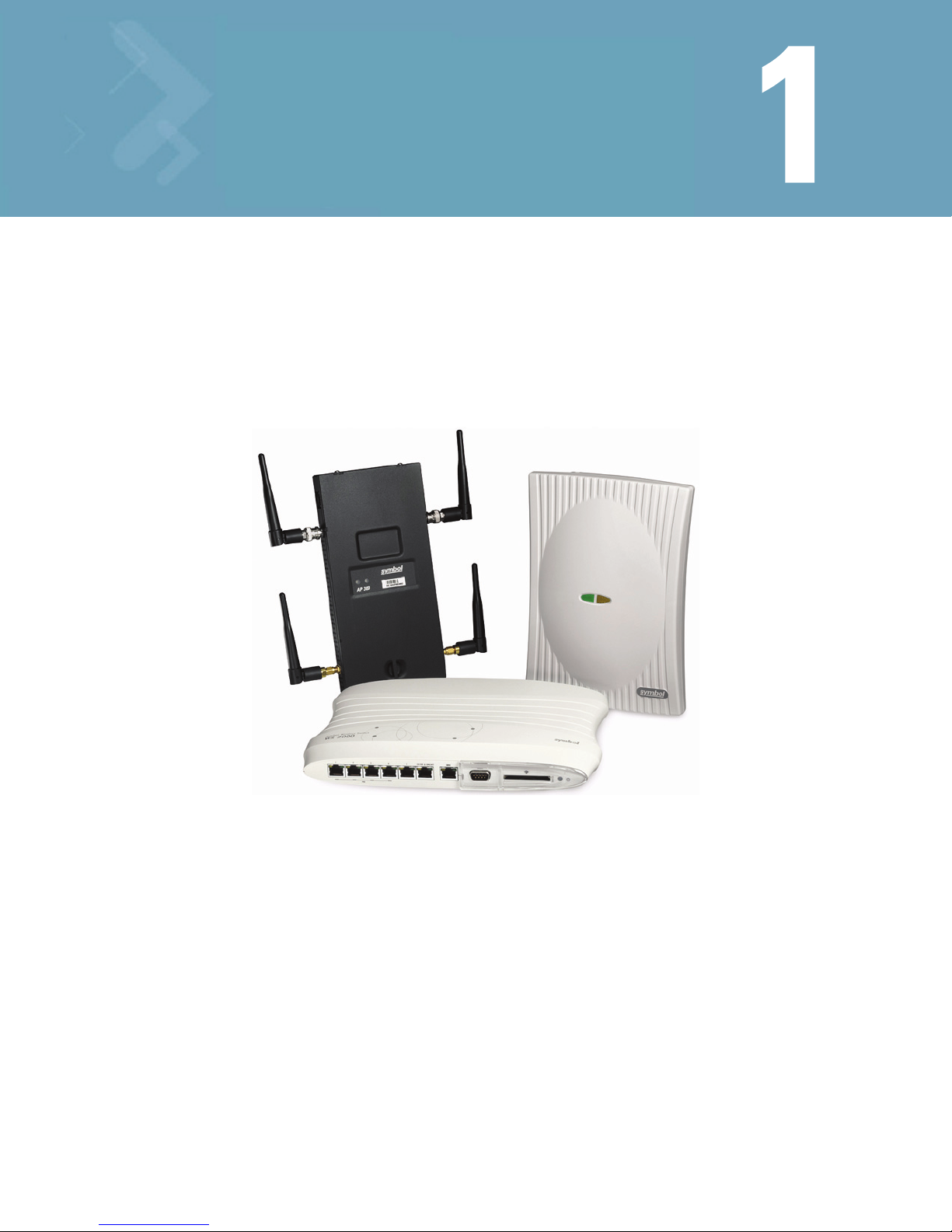
Product Overview
1.1 WS2000 Wireless Switch CLI Reference Guide
This guide is intended to support administrators responsible for understanding, configuring and maintaining
the Wireless Switch. This document provides information for the system administrator to use the command
line interface during the initial setup and configuration of the system. It also serves as a reference guide for
the administrator to use while updating or maintaining the system.
1.1.1 About this Document
This document contains information on all command that configure the WS2000 Wireless Switch. To view
the command syntax and a brief help on each command on your WS2000 Wireless Switch console, use the
following syntax:
admin> <command> ?
We recommend viewing this Command Line Reference Guide with Adobe Acrobat 5.0 or higher.
Page 16
1-2 WS2000 Wireless Switch CLI Reference Guide
1.1.2 Document Conventions
Notes and Warnings
NOTE: Indicates special tips or requirements
CAUTION: Indicates a condition that can cause equipment damage or data loss
WARNING! Indicates a condition or procedure that could result in personal injury or equip-
ment damage
CLI Conventions
command / keyword The first word is always a command. Keywords are words that must be entered
as is. Commands and keywords are mandatory.
For example, the command,
is documented as
where:
• show – The command
• ip – The keyword
<variable> Variables are described with a short description enclosed within a ‘<‘ and a ‘>’
pair.
For example, the command,
is documented as
where:
• show – The command – Display information.
• ip – The keyword – The IP address
• <idx> – The variable – WAN Index value.
admin(network.wan)> show ip 1
show ip <idx>
admin(network.wan)> show ip 1
show ip <idx>
Page 17

Product Overview 1-3
| The pipe symbol. This is used to separate the variables/keywords in a list.
For example, the command
admin(network.wan.vpn)> set .....
is documented as
set [ike|type|sub|remip|......]
where:
• set – The command
• [ike|type|sub|remip|...] – Indicates the different commands that can be combined with
the set command. However, only one of the above list can be used at a time.
set ike ...
set type ...
set sub ...
set remip ...
[ ] Of the different keywords and variables listed inside a ‘[‘ & ‘]’ pair, only one can
be used. Each choice in the list is separated with a ‘|’ (pipe) symbol.
For example, the command
admin(network.wan)> show ...
is documented as
show [ip|pppoe]
where:
• show – The command
• [ip|pppoe] – Indicates that two keywords are available for this command and only one
can be used at a time
{ } Any command/keyword/variable or a combination of them inside a ‘{‘ & ‘}’ pair
is optional. All optional commands follow the same conventions as listed
above. However they are displayed italicized.
For example, the command
admin(network.wan.vpn)> list ....
is documented as
list {<name>}
Here:
• list – The command. This command can also be used as
list
• {<name>} – The optional variable <name>.. The command can also be extended as
list vpn_tunnel_01
Here the value vpn_tunnel_01 is an optional tunnel name.
values Values to be entered as shown in Blue.
For example, the command
admin(network.wan)> show ip ....
is documented as
show ip <idx>
This command’s parameter <idx> is described as under:
“<idx> – <idx> (1-8) is the Wlan Index.”
Page 18

1-4 WS2000 Wireless Switch CLI Reference Guide
1.2 System Overview
The WS2000 Wireless Switch provides a low-cost, feature-rich option for sites with one to six Access Ports.
The WS2000 Wireless Switch works at the center of a network’s infrastructure to seamlessly and securely
combine wireless LANs (WLANs) and wired networks. The switch sits on the network. Wireless Access Ports
connect to one of the six available ports on the switch and the external wired network (WAN) connects to a
single 10/100 Mbit/sec. WAN port.
Mobile units (MUs) associate with the switch via an Access Port. When an MU contacts the switch, the
switch cell controller services attempt to authenticate the device for access to the network.
The WS2000 Wireless Switch acts as a WAN/LAN gateway and a wired/wireless switch.
1.2.1 Management of Access Ports
This wireless switch provides six 10/100 Mbit/sec. LAN ports for internal wired or wireless traffic. Four of
these ports provide IEEE 802.3af-compliant Power over Ethernet (PoE) support for devices that require power
from the Ethernet connection (such as Access Ports). Administrators can configure the six ports to
communicate with a private LAN or with an Access Port for a wireless LAN (WLAN). The switch provides up
to four extended service set identifiers (ESSIDs) for each Access Port connected to the switch.
1.2.1.1 Firewall Security
The LAN and Access Ports are placed behind a user-configurable firewall that provides stateful packet
inspection. The wireless switch performs network address translation (NAT) on packets passing to and from
the WAN port. This combination provides enhanced security by monitoring communication with the wired
network.
1.2.1.2 Wireless LAN (WLAN) Security
Administrators can configure security settings independently for each ESSID. Security settings and protocols
available with this switch include:
• Kerberos
•WEP-64
• WEP-128
• 802.1x with RADIUS
• 802.1x with Shared Key
• KeyGuard
• WPA/WPA2-TKIP
• WPA2/CCMP (802.11i)
1.2.1.3 VPN Security
Virtual Private Networks (VPNs) are IP-based networks that use encryption and tunneling to give users
remote access to a secure LAN. In essence, the trust relationship is extended from one LAN across the public
network to another LAN, without sacrificing security. A VPN behaves similarly to a private network; however,
because the data travels through the public network, it needs several layers of security. The WS2000
Wireless Switch acts as a robust VPN gateway.
Page 19

Product Overview 1-5
1.3 Hardware Overview
The WS2000 Wireless Switch provides a fully integrated solution for managing every aspect of connecting
wireless LANs (WLANs) to a wired network. This wireless switch can connect directly to a cable or DSL
modem, and can also connect to other wide area networks through a Layer 2/3 device (such as a switch or
router). The switch includes the following features:
• One WAN (RJ-45) port for connection to a DSL modem, cable modem, or any other Layer 2/3 network
device.
• Six 10/100 Mbit/sec. LAN (RJ-45) ports: four ports provide 802.3af “Power over Ethernet” (PoE) support;
the other two do not provide power.
• Each port has two LEDs, one indicating the speed of the transmission (10 or 100 Mbit/sec.), the other
indicating whether there is activity on the port. The four LAN ports with PoE have a third LED that
indicates whether power is being delivered over the line to a power device (such as an Access Port). (See
the WS 2000 Wireless Switch LED explanation for more information on the meaning of the different state
of the LEDs.)
• A DB-9 serial port for direct access to the command-line interface from a PC. Use Symbol’s Null-Modem
cable (Part No. 25-632878-0) for the best fitting connection.
• A CompactFlash slot that provides AirBEAM
®
support.
1.3.1 Technical Specifications
1.3.1.1 Physical Specifications
• Width: 203 mm
• Height: 38 mm
• Depth: 286 mm
• Weight: 0.64 kg
1.3.1.2 Power Specifications
• Maximum Power Consumption: 90-256 VAC, 47-63 Hz, 3A
• Operating Voltage: 48 VDC
• Operating Current: 1A
• Peak Current: 1.6A
1.3.1.3 Environmental Specifications
• Operating Temperature: 0ºC to 40ºC
• Storage Temperature: -40ºC to 70ºC
• Operating Humidity: 10% to 85% Non-condensing
• Storage Humidity: 10% to 85% Non-condensing
• Operating Altitude: 2.4 Km
• Storage Altitude: 4.6 km
Page 20

1-6 WS2000 Wireless Switch CLI Reference Guide
1.3.2 WS 2000 Wireless Switch LED Functions
The switch has a large blue LED on the right front that indicates that the switch is powered on.
Each port on the WS 2000 Wireless Switch has either two or three LEDs that indicate the status of the port.
Ports 1-4, which supply 802.3af Power over Ethernet (PoE), have three LEDs. The remaining two non-powered
LAN ports and the WAN port have two LEDs.
Location Function
Upper left LED This LED is present on all ports and indicates the speed of the transmissions through
the port. The LED is on when the transmission rate is 100 Mbit per second (100BaseT).
The light is off when the transmission rate is 10 Mbit per second.
Upper right LED This LED indicates activity on the port. This light is solid yellow when a link to a device
is made. The light flashes when traffic is being transferred over the line.
Lower LED This LED is only present on Ports 1-4. These ports provide 802.3af Power over Ethernet
(PoE) support to devices (such as Access Ports). The LED has several states:
OFF—A non-power device (or no device) is connected; no power is being delivered.
GREEN—The switch is delivering 48 volts to the power device connected to that port.
RED—There was a valid PoE connection; however, the switch has detected that the
power device is faulty. The red light will remain until a non-faulty connection is made
to the port.
Page 21

1.4 Software Overview
The WS2000 Wireless Switch software provides a fully integrated solution for managing every aspect of
connecting Wireless LANs (WLANs) to a wired network, and includes the following components:
1.4.1 Operating System (OS) Services
Operating System (OS) Services determine how the WS2000 Wireless Switch communicates with existing
network and operating system-centric software services, including:
• Dynamic Host Configuration Protocol (DHCP)
• Telnet and File Transfer Protocol (FTP/TFTP) servers
• The Simple Network Time Protocol (SNTP) client, used to keep switch time synchronized for Kerberos
authentication
• A mechanism for setting up a redundant (secondary) switch that takes over if the primary switch fails
1.4.2 Cell Controller Services
The Cell Controller provides the ongoing communication between mobile units (MUs) on the Wireless LAN
(WLAN) and the wired network. Cell Controller services perform the following:
Product Overview 1-7
• Initialize the Access Ports
• Maintain contact with Access Ports by sending a synchronized electronic “heartbeat” at regular intervals
• Track MUs when they roam from one location to another
• Manage security schemes based on system configuration
• Maintain system statistics
• Store policies and Access Port information
• Detect and manage rogue Access Ports
• Management of communications QoS
1.4.3 Gateway Services
Gateway services provide interconnectivity between the Cell Controller and the wired network, and include
the following:
• System management through a Web-based Graphical User Interface (GUI) and SNMP
• 802.1x RADIUS client
• Security, including Secure Sockets Layer (SSL) and Firewall
• Network Address Translation (NAT), DHCP services, and Layer 3 Routing
• Virtual Private Network (VPN)
Page 22

1-8 WS2000 Wireless Switch CLI Reference Guide
Page 23

Admin and Common Commands
The term Common Commands is used to indicate that these commands are available through the WS2000
Wireless Switch’s CLI. These commands provide easy access to help, navigation, and to save configuration
changes.
This chapter also lists of commands available at the admin menu.
• Common Commands
• Admin Menu Commands
Page 24

2-2 WS2000 Wireless Switch System Reference Guide
2.1 Common Commands
Admin and Common Commands
The following commands are available through the WS2000 CLI.
Command Description Ref.
? Displays the list of commands in the current menu. page 2-3
help Displays general user interface help. page 2-4
save Saves the configuration to the system flash. page 2-6
quit Quits the CLI. page 2-5
.. Goes to the parent menu. page 2-7
/ Goes to the root menu. page 2-8
Page 25

2.1.1 ? Command
?
Common Commands
Displays the commands available under the admin menu.
Syntax
?
Parameters
None
Example
admin> ?
admin>?
help : display general user interface help
passwd : change password
summary : show system summary
network : go to network sub menu
stats : go to stats sub menu
system : go to system sub menu
save : save cfg to system flash
quit : quit cli
.. : go to parent menu
/ : go to root menu
Admin and Common Commands 2-3
Page 26

2-4 WS2000 Wireless Switch System Reference Guide
2.1.2 help Command
help
Common Commands
Displays general CLI user interface help.
Syntax
help
Parameters
None
Example
admin>help
? : display command help - Eg. ?, show ?, s?
<ctrl-q> : go backwards in command history
<ctrl-p> : go forwards in command history
* Note : commands can be incomplete - Eg. sh = sho = show
Page 27

2.1.3 quit Command
quit
Common Commands
Quits the command line interface. Requires you to logon again.
Admin and Common Commands 2-5
This command appears in all the submenus under
out of the CLI.
Syntax
quit
Parameters
None
Example
admin>quit
admin menu. In each case, it has the same function, to exit
Page 28

2-6 WS2000 Wireless Switch System Reference Guide
2.1.4 save Command
save
Common Commands
Saves the configuration to system flash.
This command appears in all of the submenus under admin. In each case, it has the same function, to save
the configuration. The save command must be issued before leaving the CLI for the settings to be retained.
Syntax
save
Parameters
none
Example
admin> save
admin>
Page 29

2.1.5 .. Command
..
Common Commands
Displays the parent menu of the current menu.
This command appears in all of the submenus under admin. In each case, it has the same function, to move
up one level in the directory structure.
Syntax
..
Parameters
None
Example
admin(network.ap) ..
admin(network)
admin(network) ..
admin>
Admin and Common Commands 2-7
Page 30

2-8 WS2000 Wireless Switch System Reference Guide
2.1.6 / Command
/
Common Commands
Displays the root menu, that is, the top-level CLI menu.
This command appears in all of the submenus under admin. In each case, it has the same function, to move
up to the top level in the directory structure.
Syntax
/
Parameters
None
Example
admin(network.wan.nat)> /
admin>
Page 31

Admin and Common Commands 2-9
2.2 Admin Menu Commands
Admin and Common Commands
The following commands are only available at the admin menu.
Command Description Ref.
passwd Changes the admin password. page 2-10
summary Displays a system summary. page 2-11
network Goes to the network menu. page 3-1
system Goes to the system menu. page 4-1
stats Goes to the statistics menu. page 5-1
Page 32

2-10 WS2000 Wireless Switch System Reference Guide
2.2.1 passwd Command
passwd
Admin Menu Commands
Changes the password for the administrative logins - admin, guest-admin, and manager.
Syntax
passwd [admin|manager|guest-admin]
Parameters
passwd
[admin|manager|guest-admin]
Passwords for the Administrator, Guest-admin, and Manager accounts
can be changed.
To change password, type the old password once and the new password
twice at their respective prompts. Passwords can be up to 11 characters.
Example:
admin>passwd admin
Old Admin Password:******
New Admin Password:******
Verify Admin Password:******
Page 33

2.2.2 summary Command
summary
Admin Menu Commands
Displays system summary for the WS2000 Wireless Switch. The information displayed includes high-level
characteristics and settings for WAN, subnet, and WLAN.
Syntax
summary
Parameters
None
Example
admin> summary
System Information
WS2000 firmware version : 2.4.0.0-005X
country code : us
Admin and Common Commands 2-11
WLAN 1 Information
ess identifier : Bharat
wlan mode : enable
vlan_id : 1
enc type : none
auth type : none
WLAN 2 Information
ess identifier : 102
wlan mode : disable
vlan_id : 2
enc type : none
auth type : none
WLAN 3 Information
ess identifier : 103
wlan mode : disable
vlan_id : 3
enc type : none
auth type : none
WLAN 4 Information
ess identifier : 104
wlan mode : disable
vlan_id : 4
enc type : none
auth type : none
Page 34

2-12 WS2000 Wireless Switch System Reference Guide
WLAN 5 Information
ess identifier : 105
wlan mode : disable
vlan_id : 5
enc type : none
auth type : none
WLAN 6 Information
ess identifier : 106
wlan mode : disable
vlan_id : 6
enc type : none
auth type : none
WLAN 7 Information
ess identifier : 107
wlan mode : disable
vlan_id : 7
enc type : none
auth type : none
WLAN 8 Information
ess identifier : 108
wlan mode : disable
vlan_id : 8
enc type : none
auth type : none
Subnet 1 Information
subnet interface : enable
ip address : 192.168.0.50
network mask : 255.255.255.0
dhcp mode : server
default gateway : 192.168.0.50
ports : port1 port2 port3 port4 port5 port6
wlan : wlan1
Subnet 2 Information
subnet interface : disable
ip address : 192.168.1.1
network mask : 255.255.255.0
dhcp mode : server
default gateway : 192.168.1.1
ports :
wlan : wlan2
Page 35

Subnet 3 Information
subnet interface : disable
ip address : 192.168.2.1
network mask : 255.255.255.0
dhcp mode : server
default gateway : 192.168.2.1
ports :
wlan : wlan3
Subnet 4 Information
subnet interface : disable
ip address : 192.168.3.1
network mask : 255.255.255.0
dhcp mode : server
default gateway : 192.168.3.1
ports :
wlan : wlan4
Subnet 5 Information
Admin and Common Commands 2-13
subnet interface : disable
ip address : 192.168.4.1
network mask : 255.255.255.0
dhcp mode : server
default gateway : 192.168.4.1
ports :
wlan :
Subnet 6 Information
subnet interface : disable
ip address : 192.168.5.1
network mask : 255.255.255.0
dhcp mode : server
default gateway : 192.168.5.1
ports :
Page 36

2-14 WS2000 Wireless Switch System Reference Guide
Page 37

Network CLI Commands Reference
Network commands are used to configure the different network parameters of the WS2000 Wireless Switch.
3.1 network
Admin Menu Commands
Use the network command to go the Network menu.
admin> network
admin(network)>
The following commands are available under the Network menu:
Command Description Ref.
ap Goes to the Access Port Submenu. page 3-3
dhcp Goes to the DHCP Submenu page 3-48
fw Goes to the Firewall Submenu page 3-51
ipfilter Goes to the IP Filter Submenu page 3-234
lan Goes to the LAN Submenu page 3-87
port Goes to the Port Submenu page 3-231
qos Goes to the QOS Submenu page 3-105
router Goes to the Router Submenu page 3-109
urlfilter Goes to the URL Filter Submenu page 3-255
vlan Goes to the VLAN Submenu page 3-115
wan Goes to the WAN Submenu page 3-118
wids Goes to the WIDS Submenu page 3-248
wips Goes to the WIPS Submenu page 3-238
wlan Goes to the WLAN Submenu page 3-170
save Saves the configuration to system flash page 2-6
quit Quits the CLI page 2-5
.. Goes to the parent menu page 2-7
/ Goes to the root menu page 2-8
Page 38

3-2 WS2000 Wireless Switch System Reference Guide
Page 39

Network CLI Commands Reference 3-3
3.2 Network AP Commands
ap
network
Displays the Access Port submenu. The functionality provided by this menu is supplied by various screen
under the Wireless menu item of the Web interface.
Syntax
admin(network)> ap
admin(network.ap)>
The items available under this command are shown below.
Command Description Ref
add Adds entries to the Access Port adoption list. page 3-4
copydefaults Copies default AP settings to a connected AP. page 3-5
default Goes to the default submenu. page 3-17
delete Deletes entries from the Access Port adoption lists. page 3-6
denyap Goes to the Deny AP submenu page 3-30
forget Forgets AP parameters page 3-7
list Lists entries in the Access Port adoption list. page 3-8
mesh Goes to the Mesh submenu page 3-40
remap Remaps channels for the AP in auto mode. page 3-9
reset Resets an Access Port. page 3-10
revert Reverts AP to Access Point (AP4131 or AP4121) page 3-11
selfheal Goes to the Self-heal submenu page 3-24
set Sets Access Port parameters. page 3-12
show Shows Access Port parameters. page 3-15
smartscan Goes to the Smart scan submenu page 3-34
test Goes to the test submenu. page 3-38
save Saves the configuration to system flash page 2-6
quit Quits the CLI page 2-5
.. Goes to the parent menu page 2-7
/ Goes to the root menu page 2-8
Page 40

3-4 WS2000 Wireless Switch System Reference Guide
3.2.1 Network AP add Command
add
Network AP Commands
Adds entries to the Access Port adoption list. This allows the Access Ports with the MAC addresses specified
in the command to associate with the specified WLAN.
Performs functionality available in the Access Port Adoption List area of the Wireless screen.
Syntax
add <idx> <mac1> <mac2>
Parameters
<idx> The WLAN ID (1-8)
<mac1> The starting mac address for the range
<mac2> The last mac address in the range
Example
admin(network.ap)> add 1 00A0F8BFE9B0 00A0F8BFE9B0
admin(network.ap)list 1
admin(network.ap)>list 1
-------------------------------------------------------------------
index start mac end mac
-------------------------------------------------------------------
1 00A0F8BFE9B0 00A0F8BFE9B0
2 001570165200 001570165200
3 00A0F8B54D68 00A0F8B54D68
4 00A0F8BFEE3C 00A0F8BFEE3C
admin(network.ap)>
Related Commands
delete Removes the MAC address range from the adoption list for the specified WLAN.
list Displays entries in the Access Port adoption list.
Page 41

3.2.2 Network AP copydefaults Command
copydefaults
Network AP Commands
Copies default Access Port settings to a connected Access Port.
In the Web interface, the defaults are set on the Wireless, default AP screens (one for each radio type).
Syntax
copydefault <idx>
Parameters
<idx> The id of the AP to copy the defaults to
Example
admin(network.ap)>copydefaults 1
admin(network.ap)>
Related Commands
Network CLI Commands Reference 3-5
network.ap.default)>
Lists the current default settings for a selected Access Port type.
show default
show status Lists the index numbers for all currently connected Access Ports.
show ap Gets information about a particular Access Port.
Page 42

3-6 WS2000 Wireless Switch System Reference Guide
3.2.3 Network AP delete Command
delete
Network AP Commands
Deletes entries from the Access Port adoption list. In the Web interface, this functionality is found on the
Wireless screen in the Access Port Adoption list area.
Syntax
delete <idx> [<entry>|all]
Parameters
<idx> [<entry>|all] Deletes an entry in the Access Port adoption list as specified by <entry>, which is
the number listed in the adopted list (use the
(1-8).
all indicates deleting all the adoption list entries.
Example
The following example first lists out the adoption list entries for WLAN 1, deletes the second entry for WLAN
1, and finally displays the list for WLAN 1 showing that the entry has been deleted.
list command) for WLAN <idx>
admin(network.ap)>list 1
------------------------------------------------------------------------index start mac end mac
------------------------------------------------------------------------1 000000000000 00306542B965
2 004000000000 005000000000
admin(network.ap)>delete 1 2
admin(network.ap)>list 1
------------------------------------------------------------------------index start mac end mac
------------------------------------------------------------------------1 000000000000 00306542B965
Related Commands
add Adds entries to the adoption list.
list Lists entries in the Access Port adoption list.
Page 43

3.2.4 Network AP forget Command
forget
Network AP Commands
Forgets the AP parameters at a particular index specified by the <idx> value.
Syntax
forget [<idx>|all]
Parameters
<idx>|all <idx> – The index to remove the AP parameters.
all – Removes all AP parameters from all the indices in the AP adoption list.
Example
The following syntax shows the forget command.
admin(network.ap)>forget 1
admin(network.ap)>save
Network CLI Commands Reference 3-7
Page 44

3-8 WS2000 Wireless Switch System Reference Guide
3.2.5 Network AP list Command
list
Network AP Commands
Displays entries in the Access Port adoption list for a specified wireless LAN.
Syntax
list <idx>
Parameters
<idx> Lists the Access Port adoption entries for WLAN <idx> (1-8).
Example
The following example shows the access port adoption list for WLAN 1.
admin(network.ap)>list 1
---------------------------------------------------------------------index start mac end mac
----------------------------------------------------------------------1
1 00A0F8BFE9B0 00A0F8BFE9B0
2 001570165200 001570165200
3 00A0F8B54D68 00A0F8B54D68
4 00A0F8BFEE3C 00A0F8BFEE3C
Related Commands
add Adds entries to the adoption list.
delete Deletes entries from the adoption list.
Page 45

3.2.6 Network AP remap Command
remap
Network AP Commands
Remaps the channels for a radio at index specified by <idx>.
Syntax
remap [<idx>|all]
Parameters
<idx>|all <idx> – Remaps all channels for a radio specified by the index <idx>
all – Remaps all channels for all the radios in auto channel selection mode.
Example
admin(network.ap)>list 1
-------------------------------------------index start mac end mac
-------------------------------------------1 00A0F8BFE9B0 00A0F8BFE9B0
2 001570165200 001570165200
3 00A0F8B54D68 00A0F8B54D68
4 00A0F8BFEE3C 00A0F8BFEE3C
Network CLI Commands Reference 3-9
admin(network.ap)>remap 3
Page 46

3-10 WS2000 Wireless Switch System Reference Guide
3.2.7 Network AP reset Command
reset
Network AP Commands
Resets an Access Port.
Syntax
reset ap <idx>
Parameters
ap <idx> <idx> – Resets the Access Port with index <idx> in the Access Port Adoption list.
Example
--------------------------------------index start mac end mac
--------------------------------------1 00A0F8BFE9B0 00A0F8BFE9B0
2 001570165200 001570165200
3 00A0F8B54D68 00A0F8B54D68
4 00A0F8BFEE3C 00A0F8BFEE3C
admin(network.ap)>reset ap 2
admin(network.ap)>
Page 47

3.2.8 Network AP revert Command
revert
Network AP Commands
Reverts an Access Port to an Access Point (Only on AP4131 or AP4121).
Syntax
revert ap <idx>
Parameters
ap <idx> <idx> – Reverts the Access Port with index <idx> to an Access Point. Only on
AP4131 and AP 4121.
Example
admin(network.ap)>revert ap 1
admin(network.ap)>
Network CLI Commands Reference 3-11
Page 48

3-12 WS2000 Wireless Switch System Reference Guide
3.2.9 Network AP set Commands
set
Network AP Commands
Sets Access Port parameters.
Syntax
set [beacon|ch_mode|div|dtim|loc|name|primary|rate|
reg|rts|short-pre|802.1x|ap_scan|mac|radio_type|
ap_type|sip_cac_mode|allowed_sip_session]
Parameters
beacon intvl
<idx> <interval>
ch_mode <idx>
Sets the beacon interval for Access Port <idx> (1–12) to <interval> in K-us (50–
200).
Sets the channel mode for Access Port <idx> (1–12) to fixed, random or auto.
[fixed|random|auto]
div <idx> <mode> Sets the default antenna diversity to <mode> (one of full, primary, or
secondary).
dtim <idx>
[<period>|<bss_idx
<period>]]
Sets the DTIM period for Access Port <idx> to <period> (number of beacons from
1–50).
<bss_idx> is the index of the BSSID. If not specified for the AP300, the default
value of 1 is assumed for this parameter. For other APs, the <period> value is
used for all the BSSIDs.
loc <idx> <loc> Sets Access Port <idx> location description to <loc> (1–13 characters).
name <idx> <name> Sets Access Port <idx> name to <name> (1–13 characters).
primary <idx> <widx> Sets the primary WLAN <widx> (the WLAN index from 1 to 8) for 802.11a radio
associated with Access Port <idx> (1-12). The ESS ID configured for this WLAN
will be used in the 802.11a beacon as the primary ESS.
Note: This parameter is used only for AP200 APs with 802.11a radios
rate <idx> <basic>
<supported>
Sets Access Port <idx> (1-12) basic and supported rates. <basic> and
<supported> must be comma-separated lists of rates, such as 6,9,11,15 with
no spaces. Basic rates are a subset of supported rates. The different types of
radio support the following rates.
A - 6|9|12|18|24|36|48|54
B - 1|2|5.5|11
G - 1|2|5.5|6|9|11|12|18|24|36|48|54
Note: For a G radio, basic rates must be a subset of B Rates in order to associate legacy
B stations.
reg <idx> <indoor> <ch>
<pwr>
Sets Access Port <idx> (1-12)regulatory parameters, which <indoor> is one of
in or in/out; <ch> is the channel to use, and <pwr> is the power (in dB from 4
to 20). Select the value of <ch> from the appropriate list.
802.11b ch -- 1 to 14
802.11a ch -- 36,40,44,48,52,56,60,64,149,153,157,161
Note: Regulatory parameter values depend on country of operation and radio type. Refer
to documentation for regulatory information.
rts <idx> <bytes> Sets the RTS threshold for Access Port <idx> (1-12) to <bytes> (e.g., 2341).
Page 49

Network CLI Commands Reference 3-13
short-pre <idx>
Enables or disables the short preamble mode for Access Port <idx> (1-12)
[enable|disable]
802.1x <username>
<password>
Sets the 802.1x username and password on AP 300 Access Ports. Both
parameters can be up to 64 characters long.
mac <idx> <mac> Sets the MAC address of AP <idx> (1-12) to <mac> (MAC address format is
XX:XX:XX:XX:XX:XX)
ap_scan <idx> <mode> Sets the scan mode for Rogue AP detection where <idx> (1-12) is the access
port index and <mode> is one of none, detector, on-chan, full-detector.
radio_type <idx>
<radio_type>
Sets the Radio Type of an access port where <idx> (1-12) is the access port
index and <radio_type> is one of 802.11a, 802.11b,
802.11b/g.
ap_type <idx>
<radio_type>
sip_cac_mode
Sets the AP type of an Access Port <idx> (1-12) to AP type. AP type
<radio_type> is one of AP100, AP200, AP300
Enables or disables SIP Call Admission Control.
[enable|disable]
allowed_sip_session
<idx> <sip_session>
legacy_mode
Sets the allowed number of SIP sessions for this portal. The value for
<sip_session> lies between 1 and 100. <idx> (1-12) is the access port index.
Enables or disables legacy mode support for AP300s.
[enable|disable]
mu-power-adjustment
<ap-index> <adjvalue>
Sets Symbol MUs operating power in dBm. <ap-index> is the index of the
Symbol AP and <adjvalue> is the MU power adjustment value in dBm (valid 0-
20)
asset-name <idx>
<asset-name>
Sets asset name for the Access Port with <idx> (1-12) with <asset-name> (1-
50 characters)
Example:
admin(network.ap)>set short-pre enable
admin(network.ap)>set shor 1 enable
admin(network.ap)>set name 1 BigOffice
admin(network.ap)>set dtim 1 25
admin(network.ap)>set loc 1 BigBldg
admin(network.ap)>show ap 1
ap name : BigOffice
ap location : BigBldg
ap mac address : 00A0F8565656
ap serial number : 00A0F8565656
ap radio type : 802.11 B
adopted by : WLAN1
ap indoor use : indoor/outdoor
ap channel : 1
ap radio power : 4 dB
antenna gain : 0 dBi
rf power : 3 mW
antenna type : external
ap diversity : full
basic rates : 1 2
supported rates : 1 2 5.5 11
rts threshold : 2341
Page 50

3-14 WS2000 Wireless Switch System Reference Guide
beacon interval : 100
dtim period : 25
short preamble : enable
security beacon (hide ess) : disable
primary wlan index : wlan1
admin(network.ap)>
Page 51

3.2.10 Network AP show Command
show
Network AP Commands
Shows Access Port parameters.
Syntax
show [ap|status|sip|legacy-mode]
Parameters
ap <idx> Shows Access Port <idx> (1-12) radio parameters.
status Shows a list of Access Ports and their status.
sip <idx> Shows SIP statistics for the portal <idx> (1-12).
legacy-mode Shows the legacy mode configuration for the switch
Example
admin(network.ap)>show ap 1
Network CLI Commands Reference 3-15
ap name : BigOffice
ap location : BigBldg
ap mac address : 00A0F8565656
ap serial number : 00A0F8565656
ap radio type : 802.11 B
adopted by : WLAN1
ap indoor use : indoor/outdoor
ap channel : 1
ap radio power : 4 dB
antenna gain : 0 dBi
rf power : 3 mW
antenna type : external
ap diversity : full
basic rates : 1 2
supported rates : 1 2 5.5 11
rts threshold : 2341
beacon interval : 100
dtim period : 25
short preamble : enable
security beacon (hide ess) : disable
primary wlan index : wlan1
detector ap : disable
admin(network.ap)>show status
ap index : 1
ap status : connected
ap index : 2
ap status : not connected
ap index : 3
Page 52

3-16 WS2000 Wireless Switch System Reference Guide
ap status : not connected
ap index : 4
ap status : not connected
ap status : not connected
ap index : 6
ap status : not connected
ap index : 7
ap status : not connected
ap index : 8
ap status : not connected
ap index : 9
ap status : not connected
ap index : 10
ap status : not connected
ap index : 11
ap status : not connected
ap index : 12
ap status : not connected
admin(network.ap)>show legacy-mode
Legacy mode is enabled.
Related Commands
set Sets Access Port parameters.
Page 53

Network CLI Commands Reference 3-17
3.3 Network AP Default Commands
default
Network AP Commands
Displays the default Access Port (AP) submenu. Use these commands to set the default values for all APs.
Syntax
admin(network.ap)> default
The items available under this command are shown below.
Command Description Ref
set Sets default Access Port parameters. page 3-18
loadfromcf Loads the configured images from the CF card immediately page 3-20
show Shows default Access Port parameters. page 3-21
quit Quits the CLI. page 3-1
save Saves the configuration to system flash. page 3-1
.. Goes to the parent menu. page 3-1
/ Goes to the root menu. page 3-1
The items in this menu are available in the Web interface under the three default Access Port screens (one
for each radio type) within the Wireless menu area.
Page 54

3-18 WS2000 Wireless Switch System Reference Guide
3.3.1 Network AP Default set Command
set
Network AP Default Commands
Sets the default Access Port parameters.
Syntax
set [beacon|ch_mode|div|dtim|primary|reg|rate|rts|short-pre|sensor-img|
ap4131-img|ap4121-img]
Parameters
beacon intvl <type>
<interval>
ch-mode <type>
[fixed|random|auto]
Sets the default beacon interval for specified radio type <type> (one of
802.11a, 802.11b, or 802.11b/g) to <interval> in K-us (50–200).
Sets the default channel mode for radios of <type> (one of 802.11a, 802.11b,
or 802.11b/g) to fixed, random, or auto.
div <type> <mode> Sets the default antenna diversity for radios of <type> (one of 802.11a,
802.11b, or 802.11b/g) to <mode> (one of full, primary, or secondary).
dtim <type>
[<bss_idx>|<period>]
Sets the default DTIM period for radios of specified <type> (one of 802.11a,
802.11b, or 802.11b/g) to <period> number of beacons (1–50).
<bss_idx> is the index of the BSSID. If not specified for the AP300, the
default value of 1 is assumed for this parameter. For other APs, the <period>
value is used for all the BSSIDs.
primary <type> <wdix> Sets the default primary WLAN <widx> (1 to 8) for 802.11a radios of
specified <type> (one of 802.11a, 802.11b, or 802.11b/g). The ESS ID
configured for this WLAN will be used in the 802.11a beacon as the primary
ESS.
Note: This parameter is used only for AP200 APs with 802.11a radios.
rate <type> <basic>
<supported>
Sets the default basic and supported rates for radios of specified <type> (one
of 802.11a, 802.11b, or 802.11b/g). <basic> and <supported> must be a
comma separated list of rates, such as 6,9,11,15 with no spaces. Basic rates
are a subset of supported rates. The different types of radio support the
following rates.
A - 6|9|12|18|24|36|48|54
B - 1|2|5.5|11
G - 1|2|5.5|6|9|11|12|18|24|36|48|54
Note: For a G radio, basic rates must be a subset of B Rates in order to associate legacy
B stations.
reg <type> <indoor> <ch>
<pwr>
Sets the default regulatory parameters for radios of specified type (one of
802.11a, 802.11b, or 802.11b/g), where <indoor> is one of in or in/out;
<ch> is the channel to use, and <pwr> is the power (in dB from 4 to 20).
Select the value of <ch> from the appropriate list.
802.11b ch -- 1 to 14
802.11a ch -- 36,40,44,48,52,56,60,64,149,153,157,161
Note: Note: Regulatory parameter values depend on the country of operation and radio
type. Refer to the documentation for specific regulatory information.
rts <type> <bytes> Sets the default RTS threshold for radios of specified <type> (one of 802.11a,
802.11b, or 802.11b/g) to <bytes> (e.g., 2341).
Page 55

Network CLI Commands Reference 3-19
short-pre <type>
[enable|disable]
By default, enables or disables the short preamble mode for radios of
specified <type> (one of 802.11a, 802.11b, or 802.11b/g).
sensor-img <loc> Sets the default location of the sensor image. Location is specified in the
<loc> parameter.
ap4131-img <loc> Sets the default location <loc> of the AP 4131 image. Select from cf or def.
ap4121-img <loc> Sets the default location <loc> of the AP 4121 image. Select from cf or def.
Example
admin(network.ap.default)>set ch_mode 802.11a fixed
admin(network.ap.default)>set dtim 802.11a 10
admin(network.ap.default)>set short 802.11b/g enable
admin(network.ap.default)>show default 802.11a
ap indoor use : indoor only
ap channel : 36
ap channel mode : random
ap radio power : 17 dBm
: 50 mW
ap diversity : full
basic rates : 6 12 24
supported rates : 6 9 12 18 24 36 48 54
rts threshold : 2341
beacon interval : 100
------------------------------------------------------------------------BSSID | DTIM period
------------------------------------------------------------------------ 1 | 10
2 | 10
3 | 10
4 | 10
short preamble : disable
primary wlan index : wlan1
admin(network.ap.default)>
Related Commands
show default Displays the default AP settings for a particular radio type.
Page 56

3-20 WS2000 Wireless Switch System Reference Guide
3.3.2 Network AP Default loadfromcf Command
loadfromcf
Network AP Default Commands
Immediately loads configured images from the CF card.
Syntax
loadfromcf
Parameters
None
Example
admin(network.ap.default)>loadfromcf
Page 57

3.3.3 Network AP Default show Command
show
Network AP Default Commands
Shows the default Access Port parameters for a particular radio type.
Syntax
show [default|img-location]
Parameters
default <type> Shows the default Access Port parameters for radio type <type> (802.11a, 802.11b,
802.11bg).
img-location Shows the Sensor/Access Port image locations.
Example
admin(network.ap.default)>set ch_mode 802.11a fixed
admin(network.ap.default)>set dtim 802.11a 10
admin(network.ap.default)>set short 802.11b/g enable
admin(network.ap.default)>show default 802.11a
Network CLI Commands Reference 3-21
ap indoor use : indoor only
ap channel : 36
ap channel mode : random
ap radio power : 17 dBm
: 50 mW
ap diversity : full
basic rates : 6 12 24
supported rates : 6 9 12 18 24 36 48 54
rts threshold : 2341
beacon interval : 100
---------------------------------------------------------------------BSSID | DTIM period
--------------------------------------------------------------------- 1 | 10
2 | 10
3 | 10
4 | 10
short preamble : disable
primary wlan index : wlan1
Related Commands
set Sets the default parameters for the specified radio type.
Page 58

3-22 WS2000 Wireless Switch System Reference Guide
3.4 Network AP Test Commands
test
Network AP Commands
Displays the test submenu.
Syntax
admin(network.ap)> test
admin(network.ap.test)>
The items available under this command are shown below
Command Description Ref.
new Switches the Access Port to a new channel. page 3-23
quit Quits the CLI. page 3-1
save Saves the configuration to system flash. page 3-1
.. Goes to the parent menu. page 3-1
/ Goes to the root menu. page 3-1
Page 59

3.4.1 Network AP Test new Command
new
Network AP Test Commands
Switches the specified Access Port to a new channel.
Syntax
new <idx> <ch>
Parameters
<idx> <ch> Switches the Access Port indexed with <idx> (1–12) to channel <ch> (which must be
a valid channel for the specified Access Port.
Example
admin(network.ap.test)>new 2 15
admin(network.ap.test)>
Network CLI Commands Reference 3-23
Page 60

3-24 WS2000 Wireless Switch System Reference Guide
3.5 Network AP Selfheal commands
selfheal
Network AP Commands
Displays the selfheal submenu.
Syntax
admin(network.ap)> selfheal
The items available under this menu are shown below.
Command Description Ref.
set Sets self-heal parameters page 3-25
detect-neighbor Detects neighbors and prepares the neighbors list automatically page 3-26
add Adds entries to the self-heal table page 3-27
del Removes entries from the self-heal table page 3-28
show Shows entries in the self-heal table page 3-29
quit Quits the CLI. page 3-1
save Saves the configuration to system flash. page 3-1
.. Goes to the parent menu. page 3-1
/ Goes to the root menu. page 3-1
Page 61

3.5.1 Network AP Selfheal set Command
set
Network AP Selfheal commands
Sets the different self-heal parameters.
Syntax
set [interference-avoidance|neighbor-recovery]
Parameters
Network CLI Commands Reference 3-25
interference-avoidance
[mode
[enable|disable] |
max-retries
[<max-retries>|default] |
hold-time
[<hold-time>|default]]
• mode [enable|disable] – Sets the self-healing interference mode. Can be
one of enable or disable.
• max-retries [<max-retires|default] – Sets the threshold limit on the
maximum number of retires permitted. <max-retires> (0-15) is the
number of allowed retries. default has a value of 14.
• hold-time [<hold-time>|default] – Sets the hold-time between running two
consecutive interference avoidance algorithms. <hold-time> (0-65535) is
the duration in seconds. default has a value of 3600.
neighbor-recovery
[mode
[enable|disable] |
action <radio-idx> <action> |
offset <radio-idx>
[<offset>|default]]
• mode [enable|disable] – Enables or disables neighbor recovery.
• action <radio-idx> <action> – Sets the neighbor recovery action for the
portal. <radio-idx> (1-12) is the id of the radio for which action specified
in <action> must be taken. Select <action> from none, raise-power,
open-rates, both.
Sets the radio offset value for the radio <radio-idx> (1-12) when the set
action is raise-power. <offset> value is between 0-65535. default value is
0.
Example - Set interference-avoidance:
admin(network.ap.selfheal)>set interference-avoidance mode enable
admin(network.ap.selfheal)>set interference-avoidance mode disable
admin(network.ap.selfheal)>set interference-avoidance max-retries 15
admin(network.ap.selfheal)>set interference-avoidance max-retries default
admin(network.ap.selfheal)>set interference-avoidance hold-time 24000
admin(network.ap.selfheal)>set interference-avoidance hold-time default
Example - set neighbor-recovery:
admin(network.ap.selfheal)>set neighbor-recovery mode enable
admin(network.ap.selfheal)>set neighbor-recovery mode disable
admin(network.ap.selfheal)>set neighbor-recovery action none radio 1
admin(network.ap.selfheal)>set neighbor-recovery action raise-power radio
1
admin(network.ap.selfheal)>set neighbor-recovery action open-rates radio
1
admin(network.ap.selfheal)>set neighbor-recovery action both radio 1
Page 62

3-26 WS2000 Wireless Switch System Reference Guide
3.5.2 Network AP Selfheal detect-neighbor Command
detect-neighbor
Network AP Selfheal commands
Detects the neighbor devices.
Syntax
detect-neighbor
Parameters
None
Example
admin(network.ap.selfheal)>detect-neighbor
admin(network.ap.selfheal)>
Page 63

3.5.3 Network AP Selfheal add Command
add
Network AP Selfheal commands
Adds entries into the selfheal AP-AP neighbor table.
Syntax
add <from-ap> <to-ap>
Parameters
<from-ap> <to-ap> Adds the specified APs into the neighbor-recovery table. <from-ap> and <to-
ap> accepts values 1 to 12 and all. all indicates all the APs.
Example
admin(network.ap.selfheal)>add 2 4
admin(network.ap.selfheal)>show
Interference Avoidance Mode : disable
Retry Count : 14
Hold Time : 3600
Neighbor Recovery Mode : enable
PORTAL-IDX OFFSET-VALUE NEIGHBOR-RECOVERY-ACTION
1 0 none
2 0 open-rates
3 0 none
4 777 raise-power
5 0 none
6 0 none
7 0 none
8 0 none
9 0 none
10 0 none
11 0 none
12 0 none
Network CLI Commands Reference 3-27
FROM-AP TO-AP
2 4
4 2
-------------HEALING STATE OF PORTALS-----------PORTAL HEALING-MODE CONFIGURED-POWER(dBm) RAISED-POWER(dBm)
1 Normal 20 0
2 Normal 17 0
3 Normal 20 0
4 Normal 17 0
Page 64

3-28 WS2000 Wireless Switch System Reference Guide
3.5.4 Network AP Selfheal del Command
del
Network AP Selfheal commands
Deletes entries from the selfheal AP-AP neighbor table.
Syntax
del <from-ap> <to-ap>
Parameters
<from-ap> <to-ap>
Removes the specified APs from the neighbor-recovery table. <from-ap> and
<to-ap> accepts values 1 to 12 and all. all indicates all the APs.
Example
admin(network.ap.selfheal)> del 2 4
admin(network.ap.selfheal)> show
Interference Avoidance Mode : disable
Retry Count : 14
Hold Time : 3600
Neighbor Recovery Mode : enable
PORTAL-IDX OFFSET-VALUE NEIGHBOR-RECOVERY-ACTION
1 0 none
2 0 open-rates
3 0 none
4 0 none
5 0 none
6 0 none
7 0 none
8 0 none
9 0 none
10 0 none
11 0 none
12 0 none
FROM-AP TO-AP
-------------HEALING STATE OF PORTALS------------
PORTAL HEALING-MODE CONFIGURED-POWER(dBm) RAISED-POWER(dBm)
1 Normal 20 0
2 Normal 17 0
3 Normal 20 0
4 Normal 17 0
Page 65

3.5.5 Network AP Selfheal show Command
show
Network AP Selfheal commands
Shows the selfheal parameter details.
Syntax
show
Parameters
None
Example
admin(network.ap.selfheal)>show
Interference Avoidance Mode : disable
Retry Count : 14
Hold Time : 3600
Neighbor Recovery Mode : disable
PORTAL-IDX OFFSET-VALUE NEIGHBOR-RECOVERY-ACTION
1 0 none
2 0 none
3 0 none
4 0 none
5 0 none
6 0 none
7 0 none
8 0 none
9 0 none
10 0 none
11 0 none
12 0 none
Network CLI Commands Reference 3-29
FROM-AP TO-AP
1 2
2 1
-------------HEALING STATE OF PORTALS-----------PORTAL HEALING-MODE CONFIGURED-POWER(dBm) RAISED-POWER(dBm)
1 Normal 20 0
2 Normal 20 0
Page 66

3-30 WS2000 Wireless Switch System Reference Guide
3.6 Network AP Denyap Commands
denyap
Network AP Commands
Displays the denyap submenu. Use the denyap submenu to manage APs that have been denied access to the
switch.
Syntax
admin(network.ap)> denyap
admin(network.ap.denyap)>
The items available under this menu are shown below.
Command Description Ref.
add Adds access port deny list entries page 3-31
delete Deletes access port deny list entries page 3-32
show Shows access port deny list page 3-33
quit Quits the CLI. page 3-1
save Saves the configuration to system flash. page 3-1
.. Goes to the parent menu. page 3-1
/ Goes to the root menu. page 3-1
Page 67

3.6.1 Network AP Denyap add Command
add
Network AP Denyap Commands
Add entries to the Access Port Deny List.
Syntax
add <mac>
Parameters
<mac> Adds the MAC specified in the <mac> parameter to the Access Port Deny List. MAC
entries are to be entered without the ‘:’. For example
Example
admin(network.ap.denyap)>add 00b4c2114534
admin(network.ap.denyap)>
admin(network.ap.denyap)>show
------------------------------------------------------------------------Idx AP NIC MAC
------------------------------------------------------------------------1 00b4c2114535
2 00b4c2114534
Network CLI Commands Reference 3-31
00b4c2114534.
admin(network.ap.denyap)>
Page 68

3-32 WS2000 Wireless Switch System Reference Guide
3.6.2 Network AP Denyap delete Command
delete
Network AP Denyap Commands
Deletes an entry in the Access Port Deny List.
Syntax
delete [<mac>|all]
Parameters
<mac> Deletes the MAC specified in the <mac> parameter from the Access Port Deny List.
all Deletes all the entries in the Access Port Deny List
Example
admin(network.ap.denyap)>show
------------------------------------------------------------------------Idx AP NIC MAC
------------------------------------------------------------------------1 00b4c2114535
2 00b4c2114534
admin(network.ap.denyap)>delete 00b4c2114535
admin(network.ap.denyap)>show
------------------------------------------------------------------------Idx AP NIC MAC
------------------------------------------------------------------------1 00b4c2114534
Page 69

3.6.3 Network AP Denyap show Command
show
Network AP Denyap Commands
Displays the Access Port Deny List.
Syntax
show
Parameters
None
Example
admin(network.ap.denyap)>show
---------------------------------------------------------------------Idx AP NIC MAC
---------------------------------------------------------------------1 00b4c2114535
2 00b4c2114534
Network CLI Commands Reference 3-33
Page 70

3-34 WS2000 Wireless Switch System Reference Guide
3.7 Network AP Smartscan Commands
smartscan
Network AP Commands
Displays the smartscan submenu.
Syntax
admin(network.ap)> smartscan
admin(network.ap.smartscan)>
The items available under this menu are shown below.
Command Description Ref.
set Sets smartscan channels page 3-35
delete Removes smartscan channels page 3-36
show Shows all smartscan channels page 3-37
quit Quits the CLI. page 3-1
save Saves the configuration to system flash. page 3-1
.. Goes to the parent menu. page 3-1
/ Goes to the root menu. page 3-1
Page 71

3.7.1 Network AP Smartscan set Command
set
Network AP Smartscan Commands
Sets the smartscan channels. These channels are the ones that are scanned for presence of WLANs.
Syntax
set [11a <11a>|11bg <11bg>]
Parameters
11a <11a> Sets the smart scan channel list for the 5 GHz band. Channel list <11a> should
be a comma separated list. For example, 36,40,44,48
11bg <11bg> Sets the smart scan channel list for the 2.4 GHz band. Channel list <11bg>
should be a comma separated list. For example, 1-4,6,8
Note: When using a range for selecting multiple channels, all the channels that are
included in the range should be valid channel numbers for the current regulatory domain.
Example
admin<network.ap.smartscan>> set 11bg 1-6,8,10-12
admin(network.ap.smartscan)> show all
smart scan 11a channels :
smart scan 11bg channels : 1 2 3 4 5 6 8 10 11 12
Available valid 11a channels : 36 40 44 48 52 56 60 64 149 153 157
161 165
Available valid 11bg channels : 1 2 3 4 5 6 7 8 9 10 11 12 13
Network CLI Commands Reference 3-35
Page 72

3-36 WS2000 Wireless Switch System Reference Guide
3.7.2 Network AP Smartscan delete Command
delete
Network AP Smartscan Commands
Deletes all the channels in the smartscan list for a specific radio.
Syntax
delete [11a <11a>|11bg <11bg>]
Parameters
11a <11a> Sets the smart scan channel list for the 5 GHz band. Channel list <11a> should be a
comma separated list. For example, 36,40,44,48
11bg <11bg> Sets the smart scan channel list for the 2.4 GHz band. Channel list <11bg> should be a
comma separated list. For example, 1-4,6,8
Note: When using a range for selecting multiple channels, all the channels that are included in
the range should be valid channel numbers for the current regulatory domain.
Example
admin(network.ap.smartscan)> show all
smart scan 11a channels :
smart scan 11bg channels : 1 2 3 4 5 6 8 10 11 12
Available valid 11a channels : 36 40 44 48 52 56 60 64 149 153 157
161 165
Available valid 11bg channels : 1 2 3 4 5 6 7 8 9 10 11 12 13
admin(network.ap.smartscan)> delete 11bg
admin(network.ap.smartscan)> show all
smart scan 11a channels :
smart scan 11bg channels :
Available valid 11a channels : 36 40 44 48 52 56 60 64 149 153 157
161 165
Available valid 11bg channels : 1 2 3 4 5 6 7 8 9 10 11 12 13
admin(network.ap.smartscan)>
Page 73

3.7.3 Network AP Smartscan show Command
show
Network AP Smartscan Commands
Displays the list of channels used for smartscan for the different radios.
Syntax
show [all]
Parameters
all Shows the list of channels in the smartscan list.
Example
admin(network.ap.smartscan)> show all
smart scan 11a channels :
smart scan 11bg channels : 1 2 3 4 5 6 8 10 11 12
Available valid 11a channels : 36 40 44 48 52 56 60 64 149 153 157
161 165
Available valid 11bg channels : 1 2 3 4 5 6 7 8 9 10 11 12 13
Network CLI Commands Reference 3-37
Page 74

3-38 WS2000 Wireless Switch System Reference Guide
3.8 Network AP Test Commands
test
Network AP Commands
Displays the test submenu. Use this submenu commands to test APs.
Syntax
admin(network.ap)> test
admin(network.ap.test)>
The items available under this command are shown below.
Command Description Ref
new Switches the AP to a new channel page 3-39
show Shows mesh configuration information page 3-47
quit Quits the CLI. page 3-1
.. Goes to the parent menu. page 3-1
/ Goes to the root menu. page 3-1
Page 75

3.8.1 Network AP Test new Command
new
Network AP Test Commands
Switches AP to a new channel.
Syntax
test <idx> <ch>
Parameters
<idx> The access port index for which the channel has to be changed
<ch> The channel to change to. This must be a channel that is valid for the selected AP <idx>.
Example
admin(network.ap.test)> new 1 24
admin(network.ap.test)>
Network CLI Commands Reference 3-39
Page 76

3-40 WS2000 Wireless Switch System Reference Guide
3.9 Network AP Mesh Commands
mesh
Network AP Commands
Displays the mesh submenu. Use this menu to configure the different Mesh Network parameters.
Syntax
admin(network.ap)> mesh
admin(network.ap.mesh)>
The items available under this command are shown below.
Command Description Ref
set Sets mesh parameters page 3-41
add Adds a preferred base to the list page 3-43
del Removes preferred bases from the list page 3-44
preferred-list Shows a list of preferred bases page 3-45
available-list Shows a list of available bases page 3-46
show Shows mesh configuration information page 3-47
quit Quits the CLI. page 3-1
save Saves the configuration to system flash. page 3-1
.. Goes to the parent menu. page 3-1
/ Goes to the root menu. page 3-1
Page 77

3.9.1 Network AP Mesh set Command
set
Network AP Mesh Commands
Sets the mesh related parameters.
Syntax
set [client|vlan|auto|base|max-clients]
Parameters
Network CLI Commands Reference 3-41
client <radio-idx>
[enable|disable]
Enables or disables the mesh client for the radio with the index
<radio-idx> (1-12).
wlan <radio-idx> <wlan-id> Selects the WLAN <wlan-id> (1-8) for the mesh client radio index
<radio-idx> (1-12).
auto <radio-idx>
[enable|disable]
base <radio-idx>
Enables or disables automatic base selection for the radio with the index
<radio-idx> (1-12).
Enables or disables the radio <radio-idx> (1-12) as the mesh base.
[enable|disable]
max-clients <radio-idx>
<max-clients>
Example
admin(network.ap.mesh)> set client 1 enable
admin(network.ap.mesh)> show 1
------------------------------------------------------------------------"Mode" "WLAN" "Base Auto Selection" "Max Clients"
------------------------------------------------------------------------ Client Only WLAN1 Enabled N/A
admin(network.ap.mesh)> set base 1 enable
admin(network.ap.mesh)> show 1
------------------------------------------------------------------------"Mode" "WLAN" "Base Auto Selection" "Max Clients"
------------------------------------------------------------------------ Base and Client WLAN1 Enabled 6
admin(network.ap.mesh)> set wlan 1 3
admin(network.ap.mesh)> show 1
------------------------------------------------------------------------"Mode" "WLAN" "Base Auto Selection" "Max Clients"
------------------------------------------------------------------------ Base and Client WLAN3 Enabled 6
admin(network.ap.mesh)> set max-clients 1 4
admin(network.ap.mesh)> show 1
------------------------------------------------------------------------"Mode" "WLAN" "Base Auto Selection" "Max Clients"
------------------------------------------------------------------------ Base and Client WLAN3 Enabled 4
Sets the maximum number of client <max-clients> for the radio
<radio-idx> (1-12).
Page 78

3-42 WS2000 Wireless Switch System Reference Guide
admin(network.ap.mesh)> set auto 1 disable
admin(network.ap.mesh)> show 1
------------------------------------------------------------------------"Mode" "WLAN" "Base Auto Selection" "Max Clients"
------------------------------------------------------------------------ Base and Client WLAN3 Disabled 4
admin(network.ap.mesh)>
Page 79

3.9.2 Network AP Mesh add Command
add
Network AP Mesh Commands
Adds a preferred base to the device’s Preferred Base Bridge List.
Syntax
add <radio-idx> <mac>
Parameters
Network CLI Commands Reference 3-43
<radio-idx>
<mac>
Adds the base to the device’s Preferred Base Bridge List. The <radio-idx> (1-12) is the
unique ID for the radio. <mac> is the address of the base device to be added to the
list.
Example
admin(network.ap.mesh)> add 3 001570419F9F
admin(network.ap.mesh)> preferred-list 3
------------------------------------------------------------------------"Priority" "Base MAC"
------------------------------------------------------------------------ 1 00:15:70:41:9F:9F
admin(network.ap.mesh)>
Related Commands
del Removes preferred bases from the list
preferred-list Shows a list of preferred bases
Page 80

3-44 WS2000 Wireless Switch System Reference Guide
3.9.3 Network AP Mesh del Command
del
Network AP Mesh Commands
Removes a Mesh Base from the device’s Preferred Base Bridge List.
Syntax
del [<radio-idx>] [all|<index>]
Parameters
<radio-idx>
[all|<index>]
• Removes all preferred bases from the device’s Preferred Base Bridge List for the
radio specified by the <radio-idx> (1-12).
• all – Indicates all the preferred base devices.
• <index> – Indicates the selected preferred base device.
Example
admin(network.ap.mesh)> preferred-list 3
------------------------------------------------------------------------"Priority" "Base MAC"
------------------------------------------------------------------------ 1 00:15:70:41:9F:9F
2 00:15:45:70:9C:8D
3 15:03:54:07:23:45
admin(network.ap.mesh)> del 3 2
admin(network.ap.mesh)> preferred-list 3
------------------------------------------------------------------------"Priority" "Base MAC"
------------------------------------------------------------------------ 1 00:15:70:41:9F:9F
2 15:03:54:07:23:45
admin(network.ap.mesh)> del 3 all
admin(network.ap.mesh)> preferred-list 3
------------------------------------------------------------------------"Priority" "Base MAC"
-------------------------------------------------------------------------
admin(network.ap.mesh)>
Related Commands
add Adds a preferred base to the list
preferred-list Shows a list of preferred bases
Page 81

3.9.4 Network AP Mesh preferred-list Command
preferred-list
Network AP Mesh Commands
Displays the Preferred Base Bridge List for the device
Syntax
preferred-list <radio-idx>
Parameters
<radio-idx> Displays the selected radio’s (<radio-idx> (1-12)) Preferred Base Bridge List.
Example
admin(network.ap.mesh)> preferred-list 3
------------------------------------------------------------------------"Priority" "Base MAC"
------------------------------------------------------------------------ 1 00:15:70:41:9F:9F
2 00:15:45:70:9C:8D
3 15:03:54:07:23:45
Network CLI Commands Reference 3-45
admin(network.ap.mesh)>
Related Commands
add Adds a preferred base to the list
del Removes preferred bases from the list
Page 82

3-46 WS2000 Wireless Switch System Reference Guide
3.9.5 Network AP Mesh available-list Command
available-list
Network AP Mesh Commands
Displays the list of available base bridges along with their MAC addresses and the RSSI.
Syntax
available-list <radio-idx>
Parameters
<radio-idx> Displays the available base bridges for a particular radio indicated by the <radio-idx>
(1-12) value.
Example
admin(network.ap.mesh)> available-list 3
------------------------------------------------------------------------"MAC" "Channel" "RSSI"
------------------------------------------------------------------------00:15:70:41:9A:9A 11 189
admin(network.ap.mesh)>
Related Commands
add Adds a preferred base to the list
del Removes preferred bases from the list
preferred-list Shows a list of preferred bases
Page 83

3.9.6 Network AP Mesh show Command
show
Network AP Mesh Commands
Displays the mesh details for a particular radio.
Syntax
show <radio-idx>
Parameters
<radio-idx> Displays the mesh configuration information for the radio indicated by the
<radio-idx> (1-12) value.
Example
admin(network.ap.mesh)> show 3
------------------------------------------------------------------------"Mode" "WLAN" "Base Auto Selection" "Max Clients"
------------------------------------------------------------------------ Base and Client WLAN2 Enabled 4
Network CLI Commands Reference 3-47
Page 84

3-48 WS2000 Wireless Switch System Reference Guide
3.10 Network DCHP Commands
dhcp
network
Displays the DHCP submenu.
Syntax
admin(network)> dhcp
admin(network.dhcp)>
The items available under this command are shown below.
Command Description Ref.
set Sets system updated flags. page 3-49
show Shows system updated flags. page 3-50
quit Quits the CLI. page 3-1
save Saves the configuration to system flash. page 3-1
.. Goes to the parent menu. page 3-1
/ Goes to the root menu. page 3-1
Page 85

3.10.1 Network DHCP set Command
set
Network DCHP Commands
Sets parameters for automated firmware and configuration upgrades.
Syntax
set [firmwareupgrade|configureupgrade|interface|
dhcpvendorclassid|autoupgradeinterval]
firmwareupgrade [0|1] Enables (1) or disables (0) automatic switch firmware upgrade.
configupgrade [0|1] Enables (1) or disables (0) automatic switch configuration update.
interface <iface> Sets the interface <iface> for the upgrades to the device:
s1 – subnet 1
s2 – subnet 2
s3 – subnet 3
s4 – subnet 4
s5 – subnet 5
s6 – subnet 6
w – WAN
dhcpvendorclassid
<dhcp vendor class id>
autoupgradeinterval
<autoupgradeinterval>
Sets the DHCP vendor class id to <dhcp vendor class id>.
Note: Vendor class id must be preceded by “Sym”.
Sets the Light Weight DHCP Client Auto Upload time interval to
<autoupgradeinterval> (1-65535) seconds.
Network CLI Commands Reference 3-49
Example
admin(network.dhcp)>show all
Auto Firmware upgrade flag : 0
Auto Config upgrade flag : 0
Interface : w
admin(network.dhcp)>set firmwareupgrade 1
admin(network.dhcp)>set con 1
admin(network.dhcp)>set inter s1
admin(network.dhcp)>show all
Auto Firmware upgrade flag : 1
Auto Config upgrade flag : 1
Interface : s1
Related Commands
show all Shows the settings for all the automatic update parameters.
Page 86

3-50 WS2000 Wireless Switch System Reference Guide
3.10.2 Network DHCP show Command
show
Network DCHP Commands
Displays system updated flags.
Syntax
show all
Parameters
all Displays all of the DHCP-related system update parameters.
Example
admin(network.dhcp)>show all
Auto Firmware upgrade flag : 1
Auto Config upgrade flag : 1
Interface : w
Dhcp Vendor Class Id : SymbolWS.WS2K-V2-0
Auto Upgrade Interval : 600
Related Commands
set Sets the DHCP-related parameters for updating system firmware and configuration.
Page 87

3.11 Network Firewall Commands
fw
network
Displays the firewall submenu.
Syntax
admin(network)> fw
admin(network.fw)>
The items available under this command are shown below.
Command Description Ref.
set Sets firewall parameters. page 3-52
show Shows firewall parameters. page 3-54
submap Goes to the subnet mapping submenu. page 3-80
policy Goes to the advanced subnet mapping submenu. page 3-64
timeradd Creates a new timeout value page 3-55
timerset Sets timeout values page 3-58
timerdel Deletes a named timer page 3-56
timerlist Shows the list of timers page 3-57
ips Goes to the Intrusion Prevention System submenu. page 3-59
quit Quits the CLI. page 3-1
save Saves the configuration to system flash. page 3-1
.. Goes to the parent menu. page 3-1
/ Goes to the root menu. page 3-1
Network CLI Commands Reference 3-51
The commands in this menu are available in the Web interface on the Network>Firewall screen.
Page 88

3-52 WS2000 Wireless Switch System Reference Guide
3.11.1 Network Firewall set Command
set
Network Firewall Commands
Sets firewall parameters. In the Web interface, this functionality is provide by the Network->Firewall screen.
Syntax
set [mode|override|ftp|ip|seq|src|syn|win|spoof|rst|
range|netbios-alg] [enable|disable]
set mime [filter|hdr|len]
set mime filter [enable|disable]
set mime hdr <count>
set mime len <length>
set timeout <time>
set fin <time>
Parameters
mode [enable|disable] Enables or disables the firewall.
override [enable|disable] Enables or disables subnet access override.
ftp [enable|disable] Enables or disables FTP bounce attack check.
ip [enable|disable] Enables or disables IP unaligned timestamp check.
mime
[filter [enable|disable]|
hdr <count>|
len <length>]
• filter [enable|disable] – Enables or disables MIME flood attack check.
• hdr <count> – Sets the max number of headers as specified in <count>
(12-34463)
• len <length> – Sets the max header length in bytes as specified by <length>
(256-34463)
seq [enable|disable] Enables or disables sequence number prediction check.
src [enable|disable] Enables or disables source routing check.
syn [enable|disable] Enables or disables SYN flood attack check.
timeout <time> Sets the firewall timeout to <time> minutes (1–90).
win [enable|disable] Enables or disables Winnuke attack check.
spoof [enable|disable] Enables or disables IP Spoofing attack check
rst [enable|disable] Enables or disable reset attack check
range [enable|disable] Enables or disable sequence out of range check
fin <time> Sets fin timeout to <time> seconds.
netbios-alg
Enables or disables NetBIOS ALG support.
[enable|disable]
Example
admin(network.fw)>show all
Firewall Status : enable
Subnet Access Override : disable
Configurable Firewall Filters
Page 89

ftp bounce attack filter : enable
syn flood attack filter : enable
unaligned ip timestamp filter : enable
source routing attack filter : enable
winnuke attack filter : enable
seq num prediction attack filter : enable
mime flood attack filter : enable
max mime header length : 8192
max mime headers : 16
nat timeout interval in minutes : 30
ip spoofing attack filter : enable
reset attack filter : enable
ack/seq number out of range check : enable
fin timeout : 20
Always On Firewall Filters
land attack filter : enable
ping of death attack filter : enable
reassembly attack filter : enable
NetBIOS alg : disable
admin(network.fw)>
Network CLI Commands Reference 3-53
Related Commands
show Shows the current firewall settings.
Page 90

3-54 WS2000 Wireless Switch System Reference Guide
3.11.2 Network Firewall show Command
show
Network Firewall Commands
Displays the firewall parameters.
Syntax
show all
Parameters
all Shows all firewall settings.
Example
admin(network.fw)>show all
Firewall Status : enable
Subnet Access Override : disable
Configurable Firewall Filters
ftp bounce attack filter : enable
syn flood attack filter : enable
unaligned ip timestamp filter : enable
source routing attack filter : enable
winnuke attack filter : enable
seq num prediction attack filter : enable
mime flood attack filter : enable
max mime header length : 8192
max mime headers : 16
nat timeout interval in minutes : 30
ip spoofing attack filter : enable
reset attack filter : enable
ack/seq number out of range check : enable
fin timeout : 20
Always On Firewall Filters
land attack filter : enable
ping of death attack filter : enable
reassembly attack filter : enable
NetBIOS alg : disable
admin(network.fw)>
Related Commands
set Sets firewall settings.
Page 91

3.11.3 Network Firewall timeradd Command
timeradd
Network Firewall Commands
Adds a new named timeout value.
Syntax
timeradd <name> <protocol> <port> <value>
Parameters
Network CLI Commands Reference 3-55
timeradd <name>
<protocol>
<port> <value>
Adds a new named timeout value.
• <name> is the name of the time out value (1-15 characters)
• <protocol> is the protocol to be used. (tcp or udp)
• <port> is the port number (0-32767)
• <value> is the timeout value in seconds
(60-268400000)
Example
admin(network.fw)> timeradd newtcp tcp 21 4500
admin(network.fw)> timerlist
----------------------------------------------------------Name Protocol Port Timeout ( Secs )
----------------------------------------------------------newtcp tcp 21 4500
admin(network.fw)
Page 92

3-56 WS2000 Wireless Switch System Reference Guide
3.11.4 Network Firewall timerdel Command
timerdel
Network Firewall Commands
Deletes a named timeout value.
Syntax
timerdell <timer name>
Parameters
timerdel <timername> Deletes a timer named <timer name>.
Example
admin(network.fw)>timeradd newudp udp 21 4500
admin(network.fw)>timerlist
----------------------------------------------------------Name Protocol Port Timeout ( Secs )
----------------------------------------------------------newtcp tcp 21 4500
newudp udp 21 4500
admin(network.fw)timerdel newtcp
admin(network.fw)>timerlist
----------------------------------------------------------Name Protocol Port Timeout ( Secs )
----------------------------------------------------------newudp udp 21 4500
Page 93

3.11.5 Network Firewall timerlist Command
timerlist
Network Firewall Commands
Displays all named time outs.
Syntax
timerlist
Parameters
None
Example
admin(network.fw)>timerlist
----------------------------------------------------------Name Protocol Port Timeout ( Secs )
----------------------------------------------------------newtcp tcp 21 4500
newudp udp 21 4500
Network CLI Commands Reference 3-57
admin(network.fw)
Page 94

3-58 WS2000 Wireless Switch System Reference Guide
3.11.6 Network Firewall timerset Command
timerset
Network Firewall Commands
Sets the timeout value for a named timer.
Syntax
timerset <timer name> <value>
Parameters
timerset <timer name>
<value>
Example
admin(network.fw)>timerset newudp 5000
admin(network.fw)>timerlist
----------------------------------------------------------Name Protocol Port Timeout ( Secs )
----------------------------------------------------------newtcp tcp 21 4500
newudp udp 21 5000
Sets the timer value <value> (60-268400000) for a timer named
<timer name>.
Page 95

Network CLI Commands Reference 3-59
3.12 Network Firewall Intrusion Prevention System Commands
ips
Network Firewall Commands
Displays the firewall Intrusion Prevention System (IPS) submenu.
Syntax
admin(network.fw)> ips
admin(network.fw.ips)>
The items available under this command are shown below.
Command Description Ref.
set Sets the IPS parameters page 3-60
show Displays the IPS settings page 3-62
quit Quits the CLI. page 3-1
save Saves the configuration to system flash. page 3-1
.. Goes to the parent menu. page 3-1
/ Goes to the root menu. page 3-1
Page 96

3-60 WS2000 Wireless Switch System Reference Guide
3.12.1 Network Firewall IPS set Command
set
Network Firewall Intrusion Prevention System Commands
Sets the Intrusion Prevention System (IPS) parameters.
Syntax
set [mode|anomaly-config|signature-categories|direction]
set mode [enable|disable]
set signature-categorises <category-list>
set direction [default|bi-directional]
set anomaly-config[-sl <smtplen>|-ml <mimelen>|-md <mimedepth>|
mode [enable|disable] Enables or disables IPS.
anomaly-config
[-sl <smtplen>|
-ml <mimelen>|
-md <mimedepth>|
-hl <httphline>|
-hz <httphsize>|
-hlz <httplinesize>|
-huz <httpurisize>]
signature-categories
<category-list>
direction [default|bi-directional] Sets the direction to inspect packets.
-hl <httpline>|-hz <httpsize>|-hlz <httplinesize>|
-huz <httpurisize>]
• -sl <smtplen> – Sets the SMTP header length.
• -ml <mimelen> – Sets the MIME header length.
• -md <mimedepth> – Sets the depth of MIME boundary header.
• -hl <httphline> – Sets the field in the HTTP header.
• -hz <httphsize> – Sets the HTTP header size.
• -hlz <httplinesize> – Sets the HTTP header line size.
• -huz <httpurisize> – Sets the HTTP URI size.
Sets the signature categories for IPS. Select <category-list> from
TELNET, POP3, IMAP, NNTP, FTP, SNMP, TCPDNS, UDPDNS,
TCPRPC, UDPRPC, HTTP, SMTP, TCPGEN, UDPGEN, ICMP, TCP,
UDP, IP.
If more than one signature category is specified, separate each category
with a space. Each of the signature category must be specified in Upper
Case only.
• default – Sets direction as default. This is defined in the signature.
• bi-directional – Sets direction as bi-directional. Packets are inspected
when received or sent.
Example
admin(network.fw.ips)>set mode enable
admin(network.fw.ips)>set anomaly-config -sl 100
admin(network.fw.ips)>set direction default
admin(network.fw.ips)>set signature-categories TELNET POP3 TCP UDP
admin(network.fw.ips)>show all
IPS mode : enable
SMTP Header length : 1024
MIME header length : 1024
Depth of MIME boundary header : 5
Field in HTTP header : 50
HTTP header size : 4096
HTTP header line size : 3072
Page 97

Network CLI Commands Reference 3-61
HTTP URI size : 3072
Loaded Signature Categories : TELNET POP3 TCP UDP IMAP HTTP SMTP
Packet Direction of signatures : default
admin(network.fw.ips)>
Page 98

3-62 WS2000 Wireless Switch System Reference Guide
3.12.2 Network Firewall IPS show Command
show
Network Firewall Intrusion Prevention System Commands
Displays the Intrusion Prevention System (IPS) configurations.
Syntax
show all
Parameters
all Displays the IPS configuration.
Example
admin(network.fw.ips)>show all
IPS mode : enable
SMTP Header length : 1024
MIME header length : 1024
Depth of MIME boundary header : 5
Field in HTTP header : 50
HTTP header size : 4096
HTTP header line size : 3072
HTTP URI size : 3072
Loaded Signature Categories : TELNET POP3 TCP UDP IMAP HTTP SMTp
Packet Direction of signatures : default
admin(network.fw.ips)>
admin(network.fw)>show all
Firewall Status : enable
Subnet Access Override : disable
Configurable Firewall Filters
ftp bounce attack filter : enable
syn flood attack filter : enable
unaligned ip timestamp filter : enable
source routing attack filter : enable
winnuke attack filter : enable
seq num prediction attack filter : enable
mime flood attack filter : enable
max mime header length : 8192
max mime headers : 16
nat timeout interval in minutes : 10
ip spoofing attack filter : enable
reset attack filter : enable
ack/seq number out of range check : enable
fin timeout : 20
Always On Firewall Filters
land attack filter : enable
ping of death attack filter : enable
reassembly attack filter : enable
Page 99

NetBIOS alg : disable
HTTP alg : enable
admin(network.fw)>
Network CLI Commands Reference 3-63
Page 100
3-64 WS2000 Wireless Switch System Reference Guide
3.13 Network Firewall Policy Commands
policy
Network Firewall Commands
Displays the firewall policy submenu.
Syntax
admin(network.fw)> policy
admin(network.fw.policy)>
NOTE: The Policy menu can only be accessed when Subnet Access Override mode
is enabled. To enable Subnet Access Override use the command
admin(network.fw)> set override enable
The items available under this command are shown below.
Command Description Ref.
inbound Goes to the inbound policy submenu. page 3-66
outbound Goes to the outbound policy submenu. page 3-73
import Imports subnet access rules. page 3-65
quit Quits the CLI. page 3-1
save Saves the configuration to system flash. page 3-1
.. Goes to the parent menu. page 3-1
/ Goes to the root menu. page 3-1
 Loading...