

Page 1

ThinkPad13UserGuide
Page 2

Note:Beforeusingthisinformationandtheproductitsupports,besuretoreadandunderstandthefollowing:
•Safety,Warranty,andSetupGuide
•RegulatoryNotice
•“Importantsafetyinformation”onpageiv
•AppendixE“Notices”onpage51
ThelatestSafety,Warranty,andSetupGuideandtheRegulatoryNoticeareavailableontheLenovo
SupportWebsiteat:
http://www.lenovo.com/UserManuals
®
SecondEdition(July2016)
©CopyrightLenovo2016.
LIMITEDANDRESTRICTEDRIGHTSNOTICE:IfdataorsoftwareisdeliveredpursuanttoaGeneralServices
Administration“GSA”contract,use,reproduction,ordisclosureissubjecttorestrictionssetforthinContractNo.
GS-35F-05925.
Page 3

Contents
Readthisfirst.............iii
Importantsafetyinformation..........iv
Conditionsthatrequireimmediateaction...iv
Serviceandupgrades...........v
Poweradapters.............vi
Extensioncordsandrelateddevices.....vi
Plugsandoutlets.............vi
Powersupplystatement.........vii
Externaldevices............vii
Generalbatterynotice..........vii
Noticeforbuilt-inrechargeablebattery...viii
Heatandproductventilation.......viii
Electricalcurrentsafetyinformation.....ix
Liquidcrystaldisplay(LCD)notice......x
Usingheadphonesorearphones.......x
Additionalsafetyinformation........x
Staticelectricityprevention.........xi
Chapter1.Productoverview......1
Locatingcomputercontrols,connectors,and
indicators..................1
Frontview................1
Right-sideview..............2
Left-sideview..............3
Bottomview...............4
Statusindicators.............4
Locatingimportantproductinformation......5
Machinetypeandmodelinformation.....5
FCCIDandICCertificationinformation....6
Computerfeatures..............7
Computerspecifications............8
Operatingenvironment............8
Chapter2.Usingyourcomputer....9
Registeringyourcomputer...........9
Frequentlyaskedquestions..........9
Specialkeys...............10
Usingthemulti-touchscreen.........11
Usingthetouchpad............12
Powermanagement............13
Usingtheacpower...........13
Checkingthebatterystatus........14
Chargingthebattery..........14
Power-savingmodes..........15
Maximizingthebatterylife........15
ConnectingtoawirelessLAN.........15
Usingaudiofeatures............16
Usingthecamera.............17
Usingaflashmediacard...........17
Chapter3.Youandyourcomputer..19
Accessibilityandcomfort..........19
Ergonomicinformation..........19
Comfort...............20
Accessibilityinformation.........20
Travelingwithyourcomputer.........21
Traveltips...............21
Travelaccessories...........22
Chapter4.Troubleshootingcomputer
problems...............23
Takingcareofyourcomputer.........23
Cleaningthecoverofyourcomputer....24
Computerstopsresponding.........25
Spillsonthekeyboard............25
AwirelessLANproblem...........26
Keyboardproblems.............26
Problemswiththedisplayandmultimedia
devices.................26
Computerscreenproblems........26
Audioproblems............27
Batteryandpowerproblems.........27
Batteryproblems............27
Powerproblems............28
Apowerkeyproblem..........28
Sleepproblems............28
Chapter5.Gettingsupport......31
BeforeyoucontactLenovo..........31
Gettinghelpandservice...........31
LenovoSupportWebsite.........32
CallingLenovo.............32
FindingThinkPadoptions........33
Purchasingadditionalservices........33
AppendixA.Regulatory
information..............35
LocatingtheUltraConnect™wirelessantennas..35
Wirelessrelatedinformation.........35
Wireless-radiocomplianceinformation...37
Locatingwirelessregulatorynotices....37
Certificationrelatedinformation........37
Exportclassificationnotice..........37
Electronicemissionnotices..........37
©CopyrightLenovo2016
i
Page 4

FederalCommunicationsCommission
DeclarationofConformity........37
IndustryCanadaClassBemissioncompliance
statement...............38
EuropeanUnion-Compliancetothe
ElectromagneticCompatibility(EMC)Directive
orRadioEquipmentDirective.......38
GermanClassBcompliancestatement...39
KoreaClassBcompliancestatement....39
JapanVCCIClassBcompliancestatement.39
Japancompliancestatementforproducts
whichconnecttothepowermainswithrated
currentlessthanorequalto20Aperphase.39
Lenovoproductserviceinformationfor
Taiwan................40
Eurasiancompliancemark..........40
Brazilaudionotice.............40
AppendixB.WEEEandrecycling
information..............41
ImportantWEEEinformation.........41
RecyclinginformationforChina........41
RecyclinginformationforJapan........42
RecyclinginformationforBrazil........42
BatteryrecyclinginformationforTaiwan.....43
BatteryrecyclinginformationfortheEuropean
Union..................43
BatteryrecyclinginformationfortheUnitedStates
andCanada................44
AppendixC.RestrictionofHazardous
Substances(RoHS)Directive....45
EuropeanUnionRoHS...........45
TurkishRoHS...............45
UkraineRoHS...............45
IndiaRoHS................45
ChinaRoHS................46
TaiwanRoHS...............47
AppendixD.ENERGYSTARmodel
information..............49
AppendixE.Notices..........51
Trademarks................52
iiThinkPad13UserGuide
Page 5
Readthisfirst
Besuretofollowtheimportanttipsgivenheretogetthemostuseandenjoymentoutofyourcomputer.
Failuretodosomightleadtodiscomfortorinjury,orcauseyourcomputertofail.
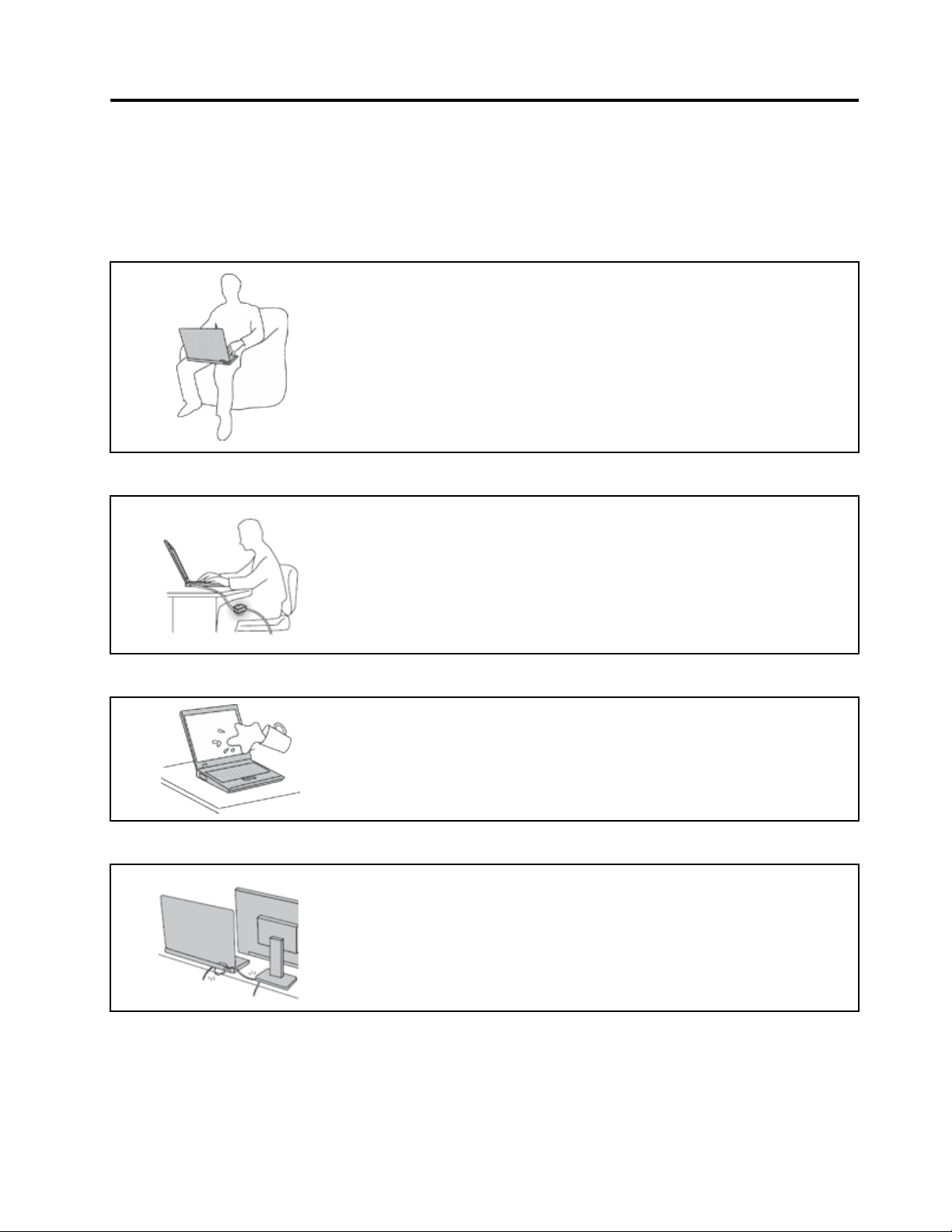
Protectyourselffromtheheatthatyourcomputergenerates.
Whenyourcomputeristurnedonorthebatteryischarging,thebase,thepalm
rest,andsomeotherpartsmaybecomehot.Thetemperaturetheyreach
dependsontheamountofsystemactivityandthelevelofchargeinthebattery.
Extendedcontactwithyourbody,eventhroughclothing,couldcause
discomfortorevenaskinburn.
•Avoidkeepingyourhands,yourlap,oranyotherpartofyourbodyin
contactwithahotsectionofthecomputerforanyextendedtime.
•Periodicallytakehandsfromusingthekeyboardbyliftingyourhandsfrom
thepalmrest.
Protectyourselffromtheheatgeneratedbytheacpoweradapter.
Whentheacpoweradapterisconnectedtoanelectricaloutletandyour
computer,itgeneratesheat.
Extendedcontactwithyourbody,eventhroughclothing,maycauseaskin
burn.
•Donotplacetheacpoweradapterincontactwithanypartofyourbody
whileitisinuse.
•Neveruseittowarmyourbody.
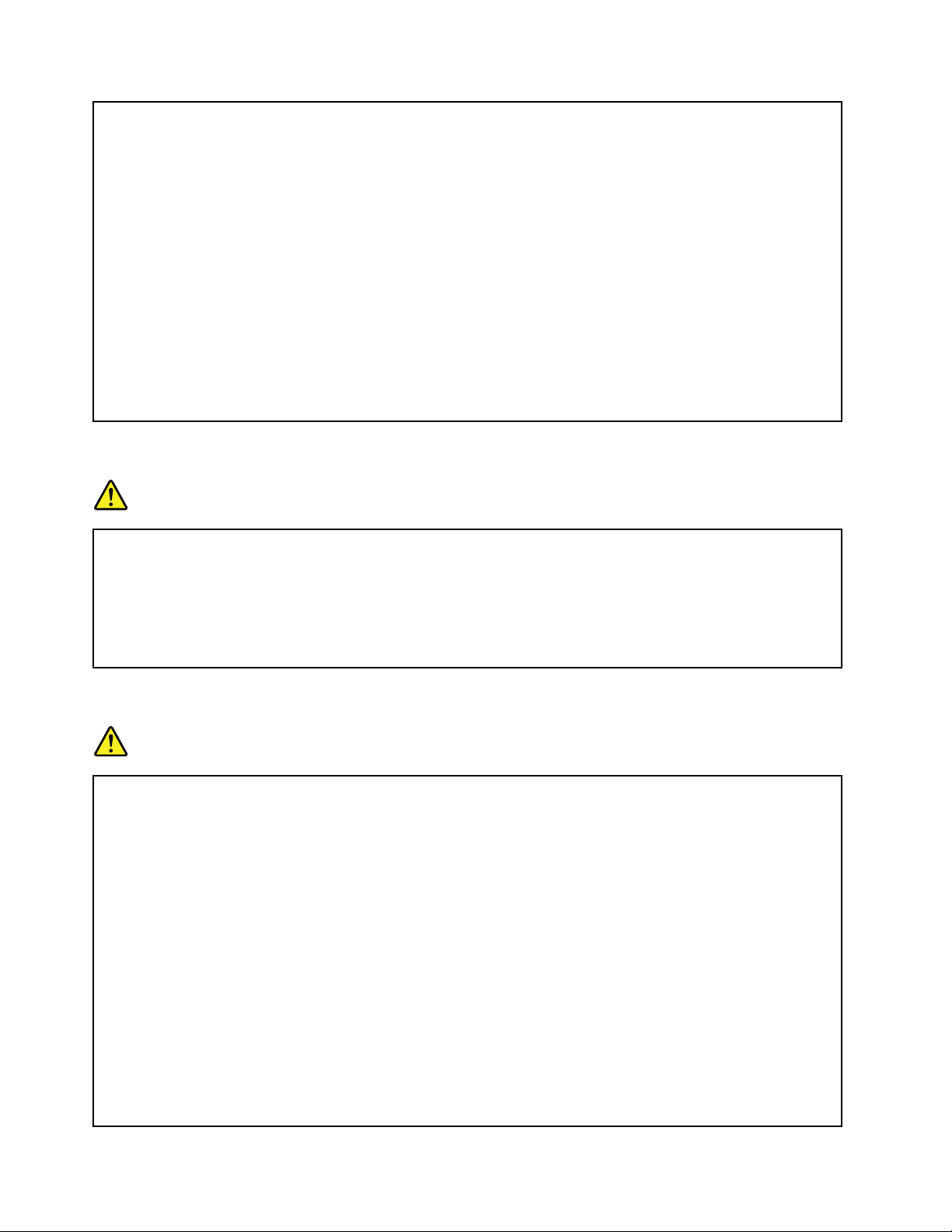
Preventyourcomputerfromgettingwet.
Protectthecablesfrombeingdamaged.
Toavoidspillsandthedangerofelectricalshock,keepliquidsawayfromyour
computer.
Applyingstrongforcetocablesmaydamageorbreakthem.
Routecommunicationlines,orthecablesofanacpoweradapter,amouse,a
keyboard,aprinter,oranyotherelectronicdevice,sothattheycannotbewalked
on,trippedover,pinchedbyyourcomputerorotherobjects,orinanyway
subjectedtotreatmentthatcouldinterferewiththeoperationofyourcomputer.
©CopyrightLenovo2016
iii
Page 6

Handleyourcomputergently.
Donotdrop,bump,scratch,twist,hit,vibrate,push,orplaceheavyobjectson
yourcomputer,display,orexternaldevices.
Carryyourcomputercarefully.
•Useaqualitycarryingcasethatprovidesadequatecushioningandprotection.
•Donotpackyourcomputerinatightlypackedsuitcaseorbag.
•Beforeputtingyourcomputerinacarryingcase,makesurethatitisofforin
Importantsafetyinformation
Note:Readtheimportantsafetyinformationfirst.
sleepmode.Donotputacomputerinacarryingcasewhileitisturnedon.
Thisinformationcanhelpyousafelyuseyournotebookcomputer.Followandretainallinformationincluded
withyourcomputer.Theinformationinthisdocumentdoesnotalterthetermsofyourpurchaseagreement
ortheLenovoLimitedWarranty.Formoreinformation,see“WarrantyInformation”intheSafety,Warranty,
andSetupGuidethatcomeswithyourcomputer.
Customersafetyisimportant.Ourproductsaredevelopedtobesafeandeffective.However,personal
computersareelectronicdevices.Poweradaptersandotherfeaturescancreatepotentialsafetyrisks
thatcanresultinphysicalinjuryorpropertydamage,especiallyifmisused.Toreducetheserisks,follow
theinstructionsincludedwithyourproduct,observeallwarningsontheproductandintheoperating
instructions,andreviewtheinformationincludedinthisdocumentcarefully.Bycarefullyfollowingthe
informationcontainedinthisdocumentandprovidedwithyourproduct,youcanhelpprotectyourselffrom
hazardsandcreateasafercomputerworkenvironment.
Note:Thisinformationincludesreferencestopoweradaptersandbatteries.Inadditiontonotebook
computers,someproducts(suchasspeakersandmonitors)shipwithexternalpoweradapters.Ifyouhave
suchaproduct,thisinformationappliestoyourproduct.Inaddition,computerproductscontainacoin-sized
internalbatterythatprovidespowertothesystemclockevenwhenthecomputerisunplugged,sothe
batterysafetyinformationappliestoallcomputerproducts.
Conditionsthatrequireimmediateaction
Productscanbecomedamagedduetomisuseorneglect.Someproductdamageisseriousenough
thattheproductshouldnotbeusedagainuntilithasbeeninspectedand,ifnecessary,repairedby
anauthorizedservicer.
Aswithanyelectronicdevice,paycloseattentiontotheproductwhenitisturnedon.Onveryrare
occasions,youmightnoticeanodororseeapuffofsmokeorsparksventfromyourproduct.Oryou
mighthearsoundslikepopping,crackingorhissing.Theseconditionsmightmerelymeanthatan
internalelectroniccomponenthasfailedinasafeandcontrolledmanner .Or,theymightindicate
apotentialsafetyissue.However,donottakerisksorattempttodiagnosethesituationyourself.
ivThinkPad13UserGuide
Page 7

ContacttheCustomerSupportCenterforfurtherguidance.ForalistofServiceandSupportphone
numbers,seethefollowingWebsite:
http://www.lenovo.com/support/phone
Frequentlyinspectyourcomputeranditscomponentsfordamageorwearorsignsofdanger.
Ifyouhaveanyquestionabouttheconditionofacomponent,donotusetheproduct.Contact
theCustomerSupportCenterortheproductmanufacturerforinstructionsonhowtoinspectthe
productandhaveitrepaired,ifnecessary.
Intheunlikelyeventthatyounoticeanyofthefollowingconditions,orifyouhaveanysafety
concernswithyourproduct,stopusingtheproductandunplugitfromthepowersourceand
telecommunicationlinesuntilyoucanspeaktotheCustomerSupportCenterforfurtherguidance.
•Plugs,poweradapters,extensioncords,surgeprotectors,orpowersuppliesthatarecracked,broken,or
damaged.
•Signsofoverheating,smoke,sparks,orfire.
•Damagetoabattery(suchascracks,dents,orcreases),dischargefromabattery,orabuildupofforeign
substancesonthebattery.
•Acracking,hissingorpoppingsound,orstrongodorthatcomesfromtheproduct.
•Signsthatliquidhasbeenspilledoranobjecthasfallenontothecomputerproductorthepoweradapter.
•Thecomputerproductorpoweradapterhasbeenexposedtowater.
•Theproducthasbeendroppedordamagedinanyway.
•Theproductdoesnotoperatenormallywhenyoufollowtheoperatinginstructions.
Note:Ifyounoticetheseconditionswithaproduct(suchasanextensioncord)thatisnotmanufacturedfor
orbyLenovo,stopusingthatproductuntilyoucancontacttheproductmanufacturerforfurtherinstructions,
oruntilyougetasuitablereplacement.
Serviceandupgrades
DonotattempttoserviceaproductyourselfunlessinstructedtodosobytheCustomerSupportCenteror
yourdocumentation.OnlyuseaServiceProviderwhoisapprovedtorepairyourparticularproduct.
Note:Somecomputerpartscanbeupgradedorreplacedbythecustomer.Upgradestypicallyare
referredtoasoptions.ReplacementpartsapprovedforcustomerinstallationarereferredtoasCustomer
ReplaceableUnits,orCRUs.Lenovoprovidesdocumentationwithinstructionswhenitisappropriatefor
customerstoinstalloptionsorreplaceCRUs.Youmustcloselyfollowallinstructionswheninstallingor
replacingparts.Beforeyouremovethecoversfromaproductequippedwithapoweradapter,alwaysmake
surethatthepoweristurnedoffandthattheproductisunpluggedfromanypowersource.Ifyouhave
anyquestionsorconcerns,contacttheCustomerSupportCenter.
Althoughtherearenomovingpartsinyourcomputerafterthepoweradapterhasbeendisconnected,
thefollowingwarningsarerequiredforyoursafety.
CAUTION:
Hazardousmovingparts.Keepfingersandotherbodypartsaway.
©CopyrightLenovo2016
v
Page 8

CAUTION:
Beforeyouopenthecomputercover,turnoffthecomputerandwaitseveralminutesuntilthe
computeriscool.
Poweradapters
DANGER
Useonlythepoweradapterssuppliedbytheproductmanufacturer.
Neverwrapapoweradaptercablearoundapoweradapterorotherobject.Doingsocanstressthe
cordinwaysthatcancausethepoweradaptercabletofray,crack,orcrimp.Thiscanpresent
asafetyhazard.
Alwaysroutethepoweradaptercablesothattheywillnotbewalkedon,trippedover,orpinched
byobjects.
Protectpoweradaptersfromliquids.Forinstance,donotleaveyourpoweradapternearsinks,
tubs,toilets,oronfloorsthatarecleanedwithliquidcleansers.Liquidscancauseashortcircuit,
particularlyifthepoweradapterhasbeenstressedbymisuse.Liquidsalsocancausegradual
corrosionoftheconnectorterminalsonapoweradapter,whichcaneventuallyresultinoverheating.
Ensurethatallpoweradapterconnectorsaresecurelyandcompletelypluggedintoreceptacles.
Donotuseanypoweradapterthatshowscorrosionattheacinputpinsorshowssignsof
overheating(suchasdeformedplastic)attheacinputpinsoranywhereonthepoweradapter .
Topreventpossibleoverheating,donotcoverthepoweradapterwithclothingorotherobjects
whenthepoweradapterispluggedintoanelectricaloutlet.
Extensioncordsandrelateddevices
Ensurethatextensioncords,surgeprotectors,uninterruptiblepowersupplies,andpowerstripsthatyouuse
areratedtohandletheelectricalrequirementsoftheproduct.Neveroverloadthesedevices.Ifpowerstrips
areused,theloadshouldnotexceedthepowerstripinputrating.Consultanelectricianformoreinformation
ifyouhavequestionsaboutpowerloads,powerrequirements,andinputratings.
Plugsandoutlets
DANGER
Ifareceptacle(poweroutlet)thatyouintendtousewithyourcomputerequipmentappearstobe
damagedorcorroded,donotusetheoutletuntilitisreplacedbyaqualifiedelectrician.
Donotbendormodifytheplug.Iftheplugisdamaged,contactthemanufacturertoobtain
areplacement.
Donotshareanelectricaloutletwithotherhomeorcommercialappliancesthatdrawlargeamounts
ofelectricity;otherwise,unstablevoltagemightdamageyourcomputer,data,orattacheddevices.
viThinkPad13UserGuide
Page 9

Someproductsareequippedwithathree-prongedplug.Thisplugfitsonlyintoagrounded
electricaloutlet.Thisisasafetyfeature.Donotdefeatthissafetyfeaturebytryingtoinsertitinto
anon-groundedoutlet.Ifyoucannotinserttheplugintotheoutlet,contactanelectricianforan
approvedoutletadapterortoreplacetheoutletwithonethatenablesthissafetyfeature.Never
overloadanelectricaloutlet.Theoverallsystemloadshouldnotexceed80percentofthebranch
circuitrating.Consultanelectricianformoreinformationifyouhavequestionsaboutpowerloads
andbranchcircuitratings.
Besurethatthepoweroutletyouareusingisproperlywired,easilyaccessible,andlocatedclose
totheequipment.Donotfullyextendpoweradaptercableinawaythatwillstressthecords.
Besurethatthepoweroutletprovidesthecorrectvoltageandcurrentfortheproductyouare
installing.
Carefullyconnectanddisconnecttheequipmentfromtheelectricaloutlet.
Powersupplystatement
DANGER
Neverremovethecoveronapowersupplyoranypartthathasthefollowinglabelattached.
Hazardousvoltage,current,andenergylevelsarepresentinsideanycomponentthathasthislabel
attached.Therearenoserviceablepartsinsidethesecomponents.Ifyoususpectaproblemwith
oneoftheseparts,contactaservicetechnician.
Externaldevices
CAUTION:
DonotconnectordisconnectanyexternaldevicecablesotherthanUSBand1394cableswhilethe
computerpowerison;otherwise,youmightdamageyourcomputer.T oavoidpossibledamageto
attacheddevices,waitatleastfivesecondsafterthecomputerisshutdowntodisconnectexternal
devices.
Generalbatterynotice
DANGER
BatteriessuppliedbyLenovoforusewithyourproducthavebeentestedforcompatibilityand
shouldonlybereplacedwithapprovedparts.AbatteryotherthantheonespecifiedbyLenovo,ora
disassembledormodifiedbatteryisnotcoveredbythewarranty.
Batteryabuseormishandlingcancauseoverheat,liquidleakage,oranexplosion.T oavoidpossible
injury,dothefollowing:
©CopyrightLenovo2016
vii
Page 10
•Donotopen,dissemble,orserviceanybattery.
•Donotcrushorpuncturethebattery.
•Donotshort-circuitthebattery,orexposeittowaterorotherliquids.
•Keepthebatteryawayfromchildren
•Keepthebatteryawayfromfire.
Stopusingthebatteryifitisdamaged,orifyounoticeanydischargeorthebuildupofforeign
materialsonthebatteryleads.
Storetherechargeablebatteriesorproductscontainingtherechargeablebatteriesatroom
temperature,chargedtoapproximately30to50%ofcapacity.Werecommendthatthebatteriesbe
chargedaboutonceperyeartopreventoverdischarge.
Donotputthebatteryintrashthatisdisposedofinlandfills.Whendisposingofthebattery,comply
withlocalordinancesorregulations.
Noticeforbuilt-inrechargeablebattery
DANGER
Donotattempttoreplacethebuilt-inrechargeablebattery.Replacementofthebatterymustbe
donebyaLenovo-authorizedrepairfacilityortechnician.
Onlyrechargethebatterystrictlyaccordingtoinstructionsincludedintheproductdocumentation.
TheLenovo-authorizedrepairfacilitiesortechniciansrecycleLenovobatteriesaccordingtolocal
lawsandregulations.
Heatandproductventilation
DANGER
Computers,acpoweradapters,andmanyaccessoriescangenerateheatwhenturnedonandwhen
batteriesarecharging.Notebookcomputerscangenerateasignificantamountofheatduetotheir
compactsize.Alwaysfollowthesebasicprecautions:
•Whenyourcomputeristurnedonorthebatteryischarging,thebase,thepalmrest,andsome
otherpartsmaybecomehot.Avoidkeepingyourhands,yourlap,oranyotherpartofyour
bodyincontactwithahotsectionofthecomputerforanyextendedlengthoftime.Whenyou
usethekeyboard,avoidkeepingyourpalmsonthepalmrestforaprolongedperiodoftime.
Yourcomputergeneratessomeheatduringnormaloperation.Theamountofheatdependson
theamountofsystemactivityandthebatterychargelevel.Extendedcontactwithyourbody,
eventhroughclothing,couldcausediscomfortorevenaskinburn.Periodicallytakebreaks
fromusingthekeyboardbyliftingyourhandsfromthepalmrest;andbecarefulnottouse
thekeyboardforanyextendedlengthoftime.
•Donotoperateyourcomputerorchargethebatterynearflammablematerialsorinexplosive
environments.
•Ventilationslots,fansand/orheatsinksareprovidedwiththeproductforsafety,comfort,and
reliableoperation.Thesefeaturesmightinadvertentlybecomeblockedbyplacingtheproducton
abed,sofa,carpet,orotherflexiblesurface.Neverblock,cover,ordisablethesefeatures.
viiiThinkPad13UserGuide
Page 11

•Whentheacpoweradapterisconnectedtoanelectricaloutletandyourcomputer,itgenerates
heat.Donotplacetheadapterincontactwithanypartofyourbodywhileusingit.Neverusethe
acpoweradaptertowarmyourbody.Extendedcontactwithyourbody,eventhroughclothing,
maycauseaskinburn.
Foryoursafety,alwaysfollowthesebasicprecautionswithyourcomputer:
•Keepthecoverclosedwheneverthecomputerispluggedin.
•Regularlyinspecttheoutsideofthecomputerfordustaccumulation.
•Removedustfromventsandanyperforationsinthebezel.Morefrequentcleaningsmightbe
requiredforcomputersindustyorhigh-trafficareas.
•Donotrestrictorblockanyventilationopenings.
•Donotoperateyourcomputerinsidefurniture,asthismightincreasetheriskofoverheating.
•Airflowtemperaturesintothecomputershouldnotexceed35°C(95°F).
Electricalcurrentsafetyinformation
DANGER
Electriccurrentfrompower,telephone,andcommunicationcablesishazardous.
Toavoidashockhazard:
•Donotuseyourcomputerduringalightningstorm.
•Donotconnectordisconnectanycablesorperforminstallation,maintenance,orreconfiguration
ofthisproductduringanelectricalstorm.
•Connectpoweradaptertoaproperlywiredandgroundedelectricaloutlet.
•Connecttoproperlywiredoutletsanyequipmentthatwillbeattachedtothisproduct.
•Wheneverpossible,useonehandonlytoconnectordisconnectsignalcables.
•Neverturnonanyequipmentwhenthereisevidenceoffire,water,orstructuraldamage.
•Disconnectthepoweradapterandallthecablesbeforeyouopenthedevicecovers,unless
instructedotherwiseintheinstallationandconfigurationprocedures.
•Donotuseyourcomputeruntilallinternalpartsenclosuresarefastenedintoplace.Neveruse
thecomputerwheninternalpartsandcircuitsareexposed.
DANGER
Connectanddisconnectcablesasdescribedinthefollowingprocedureswheninstalling,moving,
oropeningcoversonthisproductorattacheddevices.
Toconnect:
1.TurneverythingOFF.
2.First,attachallcablestodevices.
3.Attachsignalcablestoconnectors.
4.Attachpoweradaptertooutlets.
5.TurndevicesON.
Todisconnect:
1.TurneverythingOFF.
2.First,removepoweradapterfromoutlets.
3.Removesignalcablesfromconnectors.
4.Removeallcablesfromdevices.
©CopyrightLenovo2016
ix
Page 12

Thepoweradaptermustbedisconnectedfromthewalloutletorreceptaclebeforeinstallingall
otherelectricalcablesconnectedtothecomputer.
Thepoweradaptermaybereconnectedtothewalloutletorreceptacleonlyafterallotherelectrical
cableshavebeenconnectedtothecomputer.
Liquidcrystaldisplay(LCD)notice
CAUTION:
Theliquidcrystaldisplay(LCD)ismadeofglass,androughhandlingordroppingthecomputercan
causetheLCDtobreak.IftheLCDbreaksandtheinternalfluidgetsintoyoureyesoronyour
hands,immediatelywashtheaffectedareaswithwaterforatleast15minutes;ifanysymptomsare
presentafterwashing,getmedicalcare.
Note:Forproductswithmercury-containingfluorescentlamps(forexample,non-LED),thefluorescentlamp
intheLiquidcrystaldisplay(LCD)containsmercury;disposeofaccordingtolocal,state,orfederallaws.
Usingheadphonesorearphones
CAUTION:
Excessivesoundpressurefromearphonesandheadphonescancausehearingloss.Adjustmentof
theequalizertomaximumincreasestheearphoneandheadphoneoutputvoltageandthesound
pressurelevel.Therefore,toprotectyourhearing,adjusttheequalizertoanappropriatelevel.
Excessiveuseofheadphonesorearphonesforalongperiodoftimeathighvolumecanbedangerousifthe
outputoftheheadphoneorearphoneconnectorsdonotcomplywithspecificationsofEN50332-2.The
headphoneoutputconnectorofyourcomputercomplieswithEN50332-2Subclause7.Thisspecification
limitsthecomputer’smaximumwidebandtrueRMSoutputvoltageto150mV.Tohelpprotectagainst
hearingloss,ensurethattheheadphonesorearphonesyouusealsocomplywithEN50332-2(Clause7
limits)forawidebandcharacteristicvoltageof75mV.UsingheadphonesthatdonotcomplywithEN
50332-2canbedangerousduetoexcessivesoundpressurelevels.
IfyourLenovocomputercamewithheadphonesorearphonesinthepackage,asaset,thecombinationof
theheadphonesorearphonesandthecomputeralreadycomplieswiththespecificationsofEN50332-1.
Ifdifferentheadphonesorearphonesareused,ensurethattheycomplywithEN50332-1(Clause6.5
LimitationValues).UsingheadphonesthatdonotcomplywithEN50332-1canbedangerousdueto
excessivesoundpressurelevels.
Additionalsafetyinformation
Plasticbagnotice
DANGER
Plasticbagscanbedangerous.Keepplasticbagsawayfrombabiesandchildrentoavoiddanger
ofsuffocation.
Glasspartsnotice
CAUTION:
Somepartsofyourproductmaybemadeofglass.Thisglasscouldbreakiftheproductisdropped
onahardsurfaceorreceivesasubstantialimpact.Ifglassbreaks,donottouchorattempttoremove
it.Stopusingyourproductuntiltheglassisreplacedbytrainedservicepersonnel.
xThinkPad13UserGuide
Page 13

Staticelectricityprevention
Staticelectricity,althoughharmlesstoyou,canseriouslydamagecomputercomponentsandoptions.
Improperhandlingofstatic-sensitivepartscancausedamagetothepart.Whenyouunpackanoptionor
aCustomerReplaceableUnit(CRU),donotopenthestatic-protectivepackagethatcontainsthepart
untiltheinstructionsdirectyoutoinstallthepart.
WhenyouhandleoptionsorCRUs,orperformanyworkinsidethecomputer,takethefollowingprecautions
toavoidstatic-electricitydamage:
•Limityourmovement.Movementcancausestaticelectricitytobuilduparoundyou.
•Alwayshandlecomponentscarefully.Handleadaptersandothercircuitboardsbytheedges.Never
touchexposedcircuitry.
•Preventothersfromtouchingcomponents.
•Whenyouinstallastatic-sensitiveoptionorCRU,touchthestatic-protectivepackagecontainingthe
parttoametalexpansion-slotcoverorotherunpaintedmetalsurfaceonthecomputerforatleasttwo
seconds.Thisreducesstaticelectricityfromthepackageandyourbody.
•Whenpossible,removethestatic-sensitivepartfromthestatic-protectivepackageandinstallthepart
withoutsettingitdown.Whenthisisnotpossible,placethestatic-protectivepackageonasmooth,
levelsurfaceandplacethepartonthepackage.
•Donotplacethepartonthecomputercoverorothermetalsurface.
©CopyrightLenovo2016
xi
Page 14

xiiThinkPad13UserGuide
Page 15
Chapter1.Productoverview
Thischaptercontainsthefollowingtopics:
•“Locatingcomputercontrols,connectors,andindicators”onpage1
•“Locatingimportantproductinformation”onpage5
•“Computerfeatures”onpage7
•“Computerspecifications”onpage8
•“Operatingenvironment”onpage8
Locatingcomputercontrols,connectors,andindicators
Thistopicintroducesthecomputerhardwarefeaturestogiveyouthebasicinformationthatyouneed
tostartusingthecomputer.
Frontview
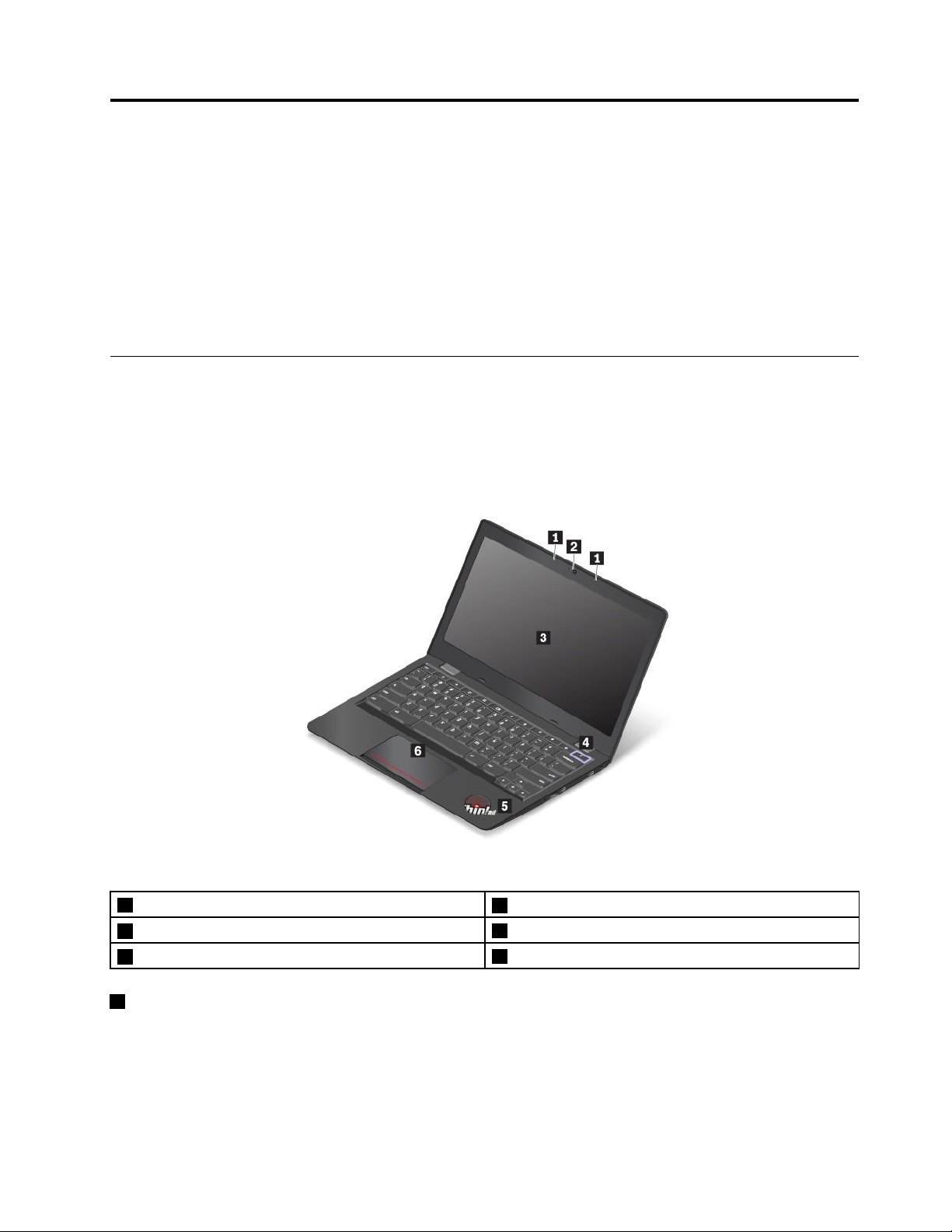
1Microphone
3Screen(multi-touchscreenonsomemodels)
5System-statusindicator
1Microphone
2Camera
4Powerkey
6Touchpad
Themicrophonecapturessoundandvoicewhenusedwithaprogramcapableofhandlingaudio.
©CopyrightLenovo2016
1
Page 16
2Camera
Usethecameratotakepicturesorholdavideoconference.Formoreinformation,see“Usingthecamera”
onpage17.
3Screen(multi-touchscreenonsomemodels)
Formoreinformation,see“Usingthemulti-touchscreen”onpage11.
4Powerkey
Pressthepowerkeytoturnonthecomputer.
Toturnoffthecomputer,dothefollowing:
•Ifyouarenotloggedintotheoperatingsystem,clickthepowericoninthelower-leftcornerofthe
screen.
•Ifyouareloggedintotheoperatingsystem,clickthestatusareainthelower-rightcornerofthescreen,
andthenclickthepowericon.
Ifthecomputerstopsresponding,pressandholdthepowerkeyforabouteightsecondstoturnoffthe
computer.Ifthecomputerstilldoesnotrespond,presstherefreshkeyandthepowerkeyat
thesametimetoturnoffthecomputer.
5System-statusindicator
TheilluminateddotintheThinkPad
®
logofunctionsasasystem-statusindicator.Formoreinformation,see
“Statusindicators”onpage4.
6Touchpad
Thetouchpadenablesyoutomovethepointer,withouttheuseofaconventionalmouse.Formore
information,see“Usingthetouchpad”onpage12.
Right-sideview
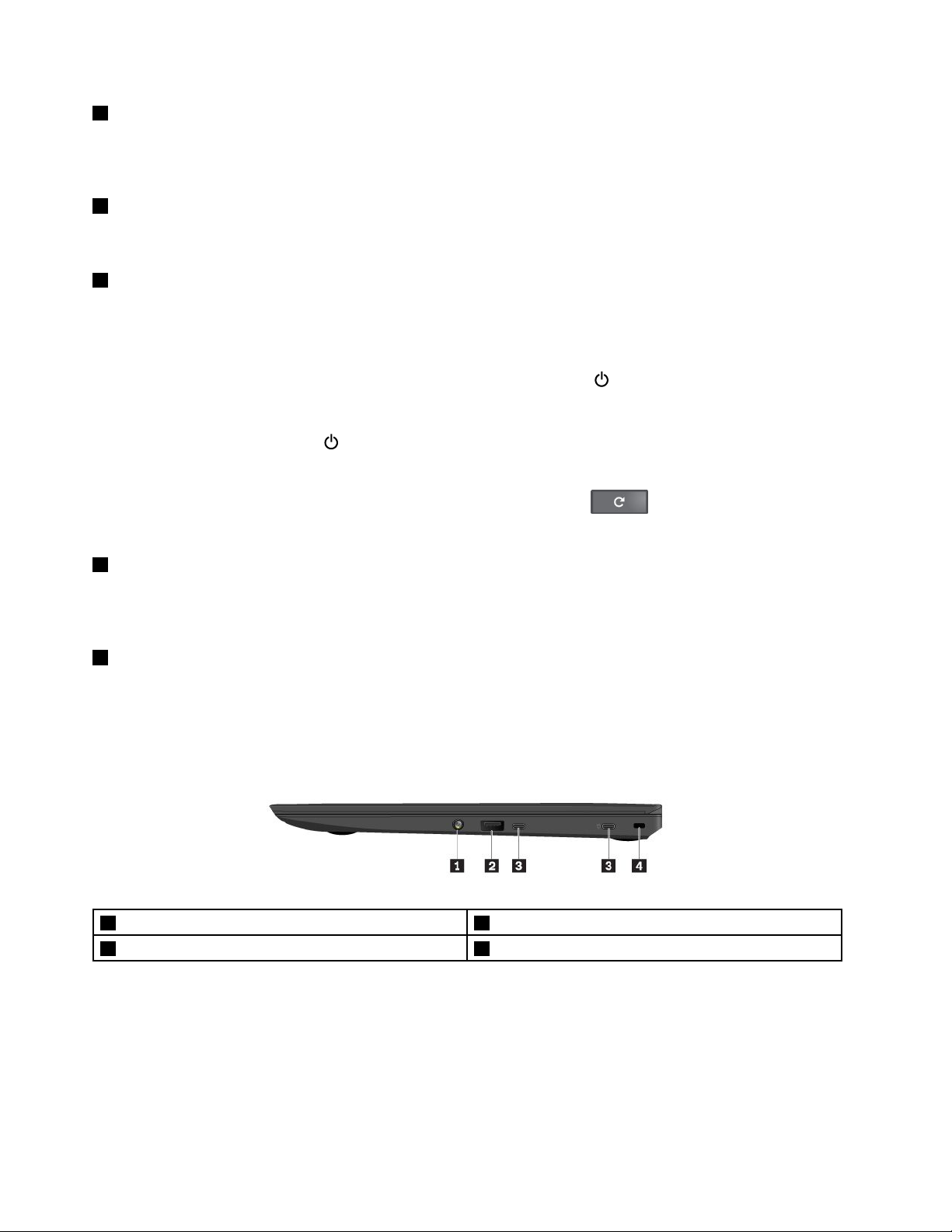
1Audioconnector
3USB-Cconnectors4Security-lockslot
2AlwaysOnUSBconnector(USB3.0)
2ThinkPad13UserGuide
Page 17
1Audioconnector
Connectheadphonesoraheadsetwitha3.5-mm(0.14-inch),4-poleplugtotheaudioconnectortolistento
thesoundfromthecomputer.
Notes:
•Ifyouareusingaheadsetwithafunctionswitch,suchasaheadsetforaniPhonemobiledigitaldevice,
donotpressthisswitchwhileusingtheheadset.Ifyoupressit,theheadsetmicrophonewillbedisabled.
•Theaudioconnectordoesnotsupportaconventionalmicrophone.Formoreinformation,see“Using
audiofeatures”onpage16
2AlwaysOnUSBconnectors(USB3.0)
.
TheAlwaysOnUSBconnectorenablesyoutochargemobiledigitaldevicesandsmartphoneswhenyour
computerisonorinsleepmode.
Attention:WhenyouconnectaUniversalSerialBus(USB)cabletothisconnector,ensurethattheUSB
markisfacingupward.Otherwisetheconnectormightgetdamaged.
3USB-Cconnectors
USB-CisanewUSBstandardthatsupportspower,datatransfer,andvideooutputatthesametime.Your
computercomeswiththeLenovoUSB-C45WACAdapter.ConnecttheLenovoUSB-C45WACAdapterto
theUSB-Cconnectortoprovideacpowertoyourcomputerandchargethebattery.
YoucanpurchasethefollowingUSB-CaccessoriesfromLenovo(http://www.lenovo.com/accessories)to
connectyourcomputertootherdevicesthroughtheUSB-Cconnector.ThefollowingLenovoaccessories
donotcomewithyourcomputer.
•LenovoUSB-CtoHDMIAdaptor:UsedtoconnectyourcomputertoanHDMI-compatibleaudiodevice
orvideomonitor.
•LenovoUSB-CtoVGAAdaptor:Usedtoconnectyourcomputertoavideographicsarray(VGA)
monitororotherVGA-compatiblevideodevice.
4Security-lockslot
Toprotectyourcomputerfromtheft,purchaseasecuritycablelockthatfitsthissecurity-lockslottolock
yourcomputertoastationaryobject.
Note:Youareresponsibleforevaluating,selecting,andimplementingthelockingdeviceandsecurity
feature.Lenovomakesnocomments,judgments,orwarrantiesaboutthefunction,quality,orperformance
ofthelockingdeviceandsecurityfeature.
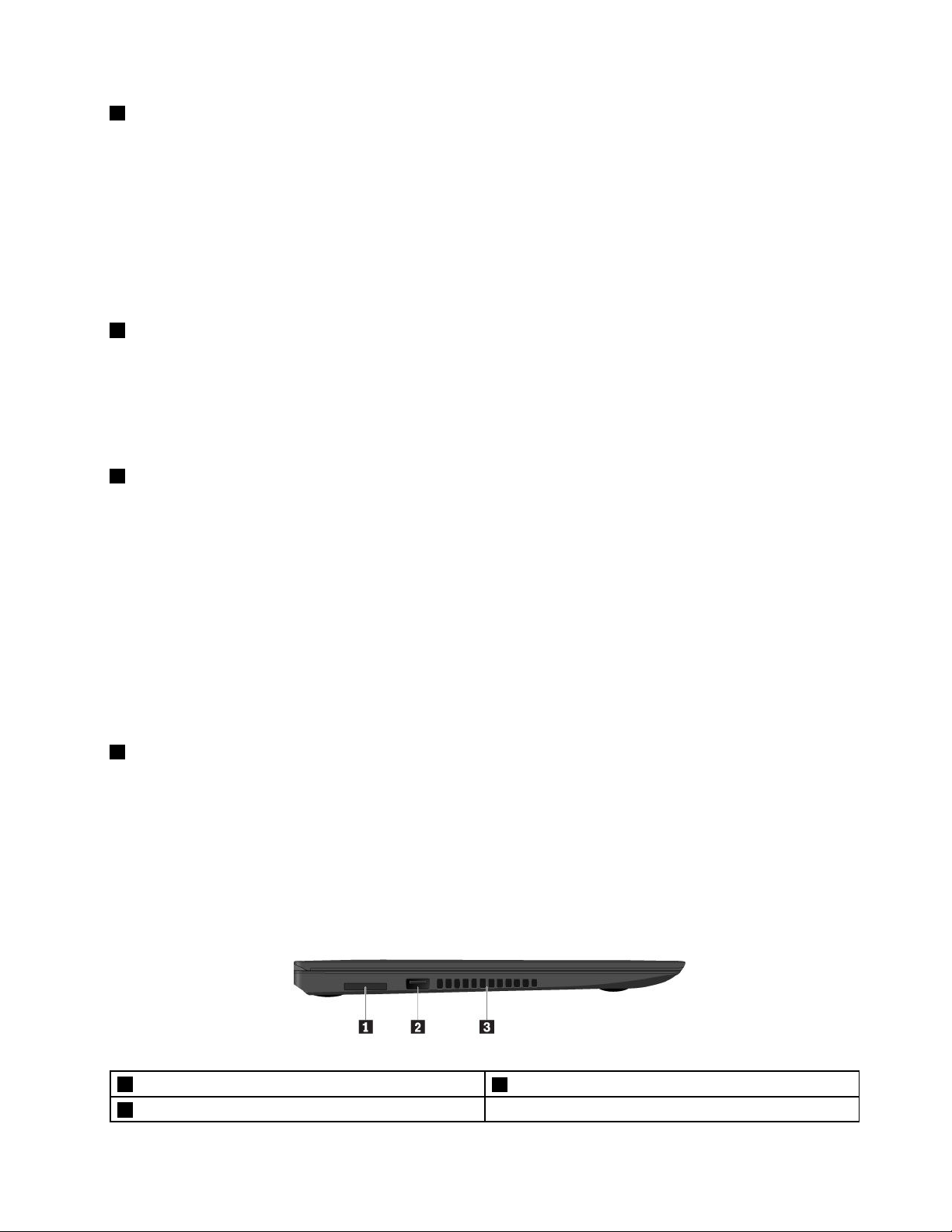
Left-sideview
1Media-cardslot
3Fanlouvers
2AlwaysOnUSBconnector(USB3.0)
Chapter1.Productoverview3
Page 18
1Media-cardslot
Yourcomputerisequippedwithamediacardreader,whichprovidesamedia-cardslot.Insertyourflash
mediacardintothemedia-cardslottoreadthedataonthecard.Formoreinformationaboutthesupported
cards,see.
2AlwaysOnUSBconnector(USB3.0)
TheAlwaysOnUSBconnectorenablesyoutochargemobiledigitaldevicesandsmartphoneswhenyour
computerisonorinsleepmode.
Attention:WhenyouconnectaUSBcabletothisconnector,ensurethattheUSBmarkisfacingupward.
Otherwisetheconnectormightgetdamaged.
3Fanlouvers
Thefanlouversandinternalfanenableairtocirculateinthecomputerandensurepropercooling,especially
thecoolingofthemicroprocessor.
Note:Toensureproperairflow,donotplaceanyobstaclesinfrontofthefanlouvers.
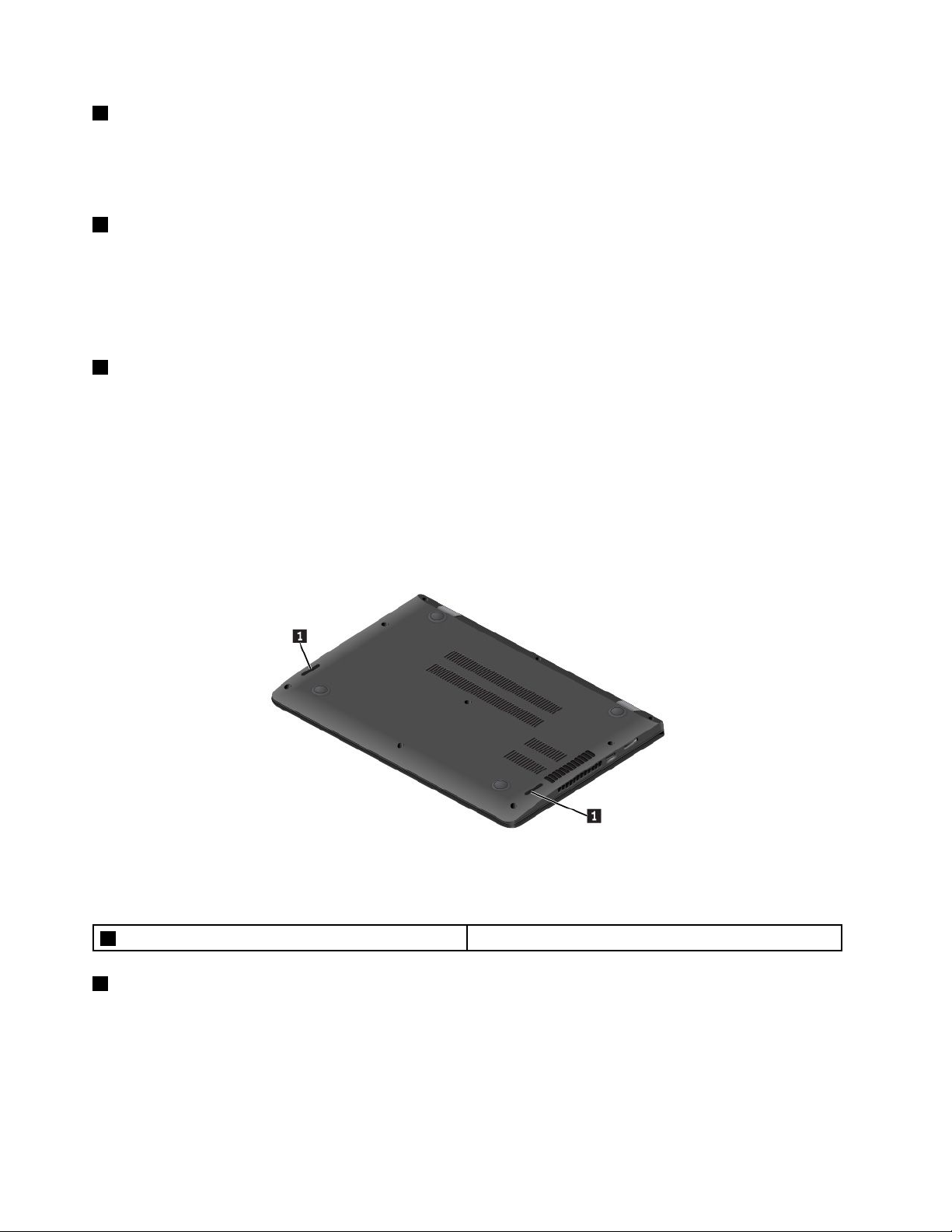
Bottomview
1Speakers
1Speakers
Yourcomputerisequippedwithapairofstereospeakers.
Statusindicators
Thistopichelpsyoulocateandidentifythevariousstatusindicatorsonyourcomputer.
4ThinkPad13UserGuide
Page 19

1Camera-statusindicator
Whenthecameraisstarted,thecamera-statusindicatorturnsoningreen.
23System-statusindicators
TherearetwoThinkPadlogosonyourcomputer,oneonthepalmrestandtheotherontheouterlid.
TheilluminateddotineachThinkPadlogoworksasasystem-statusindicatorandhelpsyouidentifythe
statusofyourcomputer.
•Solidon:Thecomputerison(innormaluse).
•Blinksslowly:Thecomputerisinsleepmode.
•Off:Thecomputerisoff.
Locatingimportantproductinformation
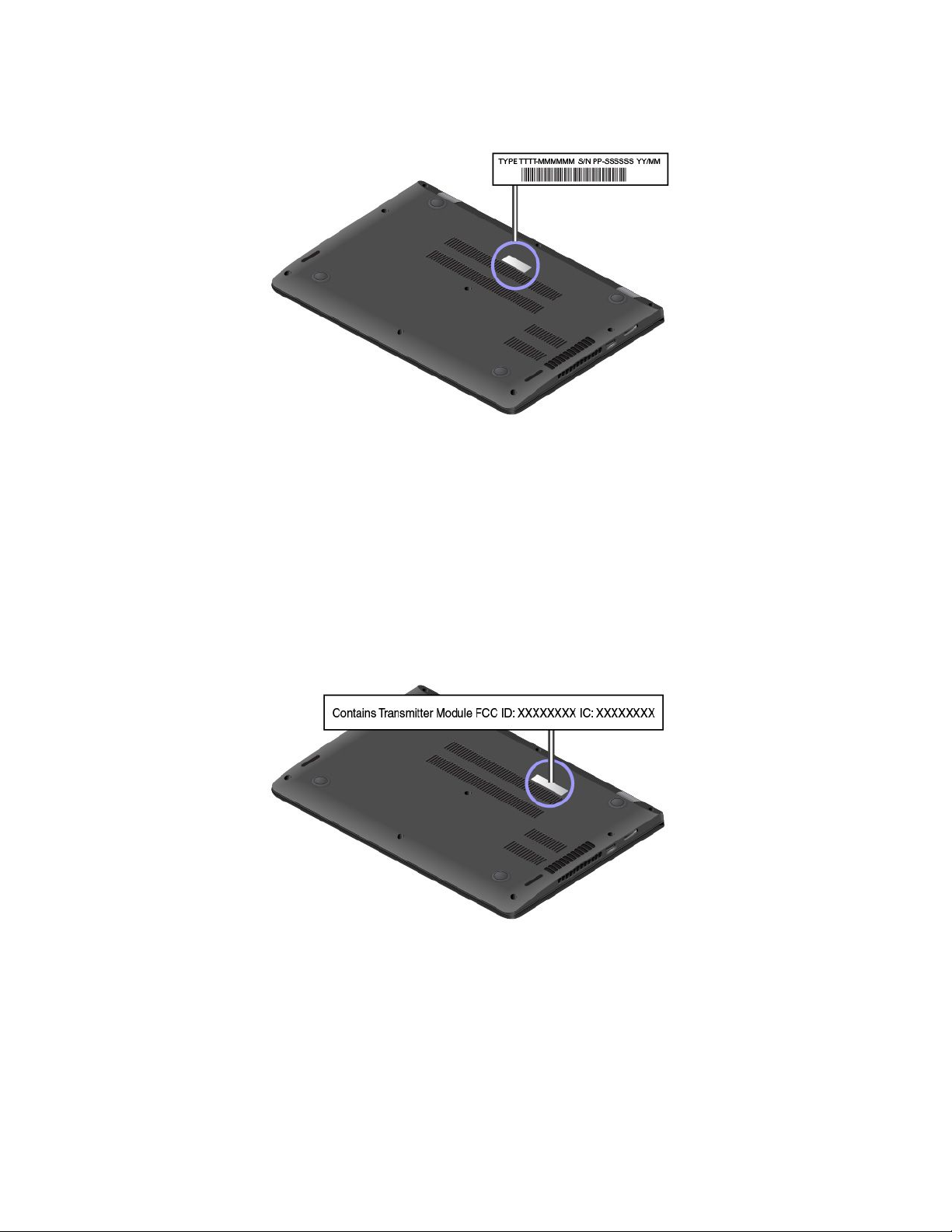
ThissectionhelpsyoulocatethemachinetypeandmodellabelandtheFCCIDandICCertificationlabel.
Machinetypeandmodelinformation
Themachinetypeandmodellabelidentifiesyourcomputer.WhenyoucontactLenovoforhelp,themachine
typeandmodelinformationhelpssupporttechnicianstoidentifyyourcomputerandprovidefasterservice.
Thefollowingillustrationshowsthelocationofthemachinetypeandmodelofyourcomputer.
Chapter1.Productoverview5
Page 20
FCCIDandICCertificationinformation
TheFCCandICCertificationinformationisidentifiedbyalabellocatedonthecomputerbasecover
assemblyasshowninthefollowingillustration.
Forapreinstalledwirelessmodule,thislabelidentifiestheactualFCCIDandICcertificationnumberforthe
wirelessmoduleinstalledbyLenovo.
Note:Donotremoveorreplaceapreinstalledwirelessmodulebyyourself.Formodulereplacement,you
mustcontactLenovoServicefirst.Lenovoisnotresponsibleforanydamagecausedbyunauthorized
replacement.
6ThinkPad13UserGuide
Page 21

Computerfeatures
Thistopicprovidesgeneralinformationaboutthecomputerfeaturesforvariousmodels.Dependingonyour
specificmodel,somefeaturesmightnotbeavailable.
Processor
®
Intel
Celeron™,IntelCore™i3,orIntelCorei5processor
Memory
Lowpower(LP)doubledatarate3(DDR3)synchronousdynamicrandomaccessmemory(SDRAM)
Battery
Built-inlithium-ion(Li-ion)battery
Internalstorage
EmbeddedMultiMediaCard(eMMC)
Display
•Colordisplaywiththethin-filmtransistor(TFT)technology
•Displaysize:337.8mm(13.3inches)
•Displayresolution:1920x1080pixelsor1366x768pixels,dependingonthemodel
•Brightnesscontrol
Keyboard
•Six-rowkeyboard
•Functionkeys
•T ouchpad
Interface
•Oneaudioconnector
•One3-in-1media-cardslot
•T woUSB-Cconnectors
•T woAlwaysOnUSBconnectors(USB3.0)
Integratedwirelessfeatures
•Wirelesslocalareanetwork(LAN)
•Bluetooth
Others
•Camera
•Microphones
Chapter1.Productoverview7
Page 22

Computerspecifications
Size
•Width:322.4mm(12.7inches)
•Depth:222.8mm(8.8inches)
•Height:19.1mm(0.7inches)or19.8mm(0.8inches),dependingonthemodel
Heatoutput
•45W(154Btu/hr)maximum
Powersource(LenovoUSB-C45WACAdapter)
•Sine-waveinputat50–60Hz
•InputratingoftheLenovoUSB-C45WACAdapter:100–240Vac,50–60Hz
Operatingenvironment
Altitudewithoutpressurization
•3048m(10000ft)maximum
Temperature
•Ataltitudesupto2438m(8000ft)
–Operating:5.0°Cto35.0°C(41°Fto95°F)
–Storage:5.0°Cto43.0°C(41°Fto109°F)
•Ataltitudesabove2438m(8000ft)
Maximumtemperaturewhenoperatingundertheunpressurizedcondition:31.3°C(88°F)
Note:Whenyouchargethebattery,thebatterytemperaturemustbeatleast10°C(50°F).
Relativehumidity
•Operating:8%to80%
•Storage:5%to95%
Ifpossible,placethecomputerinawell-ventilatedanddryareawithoutdirectexposuretosunshine.
Attention:
•Keepelectricalappliancessuchaselectricfans,radio,high-poweredspeakers,airconditioners,and
microwaveovensawayfromthecomputer.Thestrongmagneticfieldsgeneratedbytheseappliances
mightaffectproperoperatingofthecomputer.
•Donotplaceanybeveragesontopoforbesidethecomputerorotherattacheddevices.Ifliquidisspilled
onorinthecomputeroranattacheddevice,ashortcircuitorotherdamagemightoccur.
•Donoteatorsmokeoveryourkeyboard.Particlesthatfallintoyourkeyboardcancausedamage.
8ThinkPad13UserGuide
Page 23

Chapter2.Usingyourcomputer
Thischapterprovidesinformationaboutusingsomeofthecomputercomponents.
Tocreateamorecomfortableconditionforyouruseofthecomputer,seeChapter3“Y ouandyour
computer”onpage19first.
Thischaptercontainsthefollowingtopics:
•“Registeringyourcomputer”onpage9
•“Frequentlyaskedquestions”onpage9
•“Specialkeys”onpage10
•“Usingthemulti-touchscreen”onpage11
•“Usingthetouchpad”onpage12
•“Powermanagement”onpage13
•“ConnectingtoawirelessLAN”onpage15
•“Usingaudiofeatures”onpage16
•“Usingthecamera”onpage17
•“Usingaflashmediacard”onpage17
Registeringyourcomputer
Whenyouregisteryourcomputer,informationisenteredintoadatabase,whichenablesLenovotocontact
youincaseofarecallorothersevereproblem.Inaddition,somelocationsofferextendedprivilegesand
servicestoregisteredusers.
ToregisteryourcomputerwithLenovo,gotohttp://www.lenovo.com/registerandfollowtheinstructionson
thescreen.
Frequentlyaskedquestions
ThefollowingareafewtipsthatwillhelpyouoptimizetheuseofyourThinkPadnotebookcomputers.
Toensurethatyoureceivethebestperformancefromyourcomputer,gotothefollowingWebpage
tofindinformationsuchasaidsfortroubleshootingandanswerstofrequentlyaskedquestions:
http://www.lenovo.com/support/faq
CanIgetmyuserguideinanotherlanguage?
•T odownloadtheuserguideinanotherlanguage,gotohttp://www.lenovo.com/support.Thenfollow
theinstructionsonthescreen.
HowcanIusethebatterypowermoreeffectively?
•T oconservepower,ortosuspendoperationwithoutexitingprogramsorsavingfiles,see“Power-saving
modes”onpage15
•T oachievethebestbalancebetweenperformanceandpowersaving,lookformoreinformationabout
usingthebatteryin“Powermanagement”onpage13.
.
©CopyrightLenovo2016
9
Page 24

HowdoIgetconnectedindifferentlocations?
•T otroubleshootawirelessnetworkingissue,goto:
http://www.lenovo.com/support/faq
•T olearnmoreaboutusingthewirelessfeaturesofyourcomputer,referto“Connectingtoawireless
LAN”onpage15
•T otravelmoreconfidently,besuretocheckthetipsin“T ravelingwithyourcomputer”onpage21.
Printthefollowingsectionsandkeepthemwithyourcomputerincaseyouareunabletoaccessthisonline
userguidewhennecessary.
•“Computerstopsresponding”onpage25
•“Powerproblems”onpage28
FormoreinformationaboutusingandconfiguringtheChromeOSoperatingsystem,gototheChromeOS
Websiteathttp://support.google.com/chromeos.
.
Specialkeys
Yourcomputerhasseveralspecialkeystohelpyouworkmoreeasilyandeffectively.
Thefollowingillustrationshowsthelocationsofthespecialkeys.
Goestothepreviouspage.
Goestothenextpage.
Reloadsthecurrentpage.
Viewsthecurrentpageinfull-screenmode.
10ThinkPad13UserGuide
Page 25

Switchesbetweenwindows.
Decreasesthescreenbrightness.
Increasesthescreenbrightness.
Mutesthevolume.
Decreasesthevolume.
Increasesthevolume.
Turnsonthecomputer.
SearchesapplicationsandtheWeb.
Formoreinformationaboutcustomizingandusingthekeyboard,gototheChromeOSWebsiteat
http://support.google.com/chromeos.
Usingthemulti-touchscreen
Thistopicprovidesinstructionsonhowtousethemulti-touchscreenthatisavailableonsomemodels.
Note:Yourcomputerscreenmightlookdifferentfromthefollowingillustrations.
Touchgesture(touch
modelsonly)
Description
Click:T ouchthescreenontheareayouwanttoclick.
Right-click:Touchwithtwofingers,ortouchandholdontheareayouwantto
right-click.
Scroll,swipe,ordrag:Toscrollquicklyorgobackwardorforwardinyourbrowser
history,swipeonefingerfromonesideofaWebpagetotheother.
Chapter2.Usingyourcomputer11
Page 26

Touchgesture(touch
modelsonly)
Description
Hideorshowyourshelf:Swipeupfromthebottomofthescreen.
Zoomout:T ouchanareawithtwofingersandthenpinchthemtogether.
Note:ThisgestureworksonlyonsomeWebpages.
Zoomin:T ouchanareawithtwofingersandthenspreadthemapart.
Note:ThisgestureworksonlyonsomeWebpages.
Tipsforusingthemulti-touchscreen
•Themulti-touchscreenisaglasspanel.Donotapplypressureorplaceanymetallicobjectonthescreen,
whichmightdamagethetouchpanelorcauseittomalfunction.
•Donotusefingernails,glovedfingers,orinanimateobjectsforinputonthescreen.
Tipsforcleaningthemulti-touchscreen
•T urnoffthecomputerbeforecleaningthemulti-touchscreen.
•Useadry,soft,andlint-freeclothorapieceofabsorbentcottontoremovefingerprintsordustfromthe
multi-touchscreen.Donotapplysolventstothecloth.
•Gentlywipethescreenusingatop-downmotion.Donotapplyanypressureonthescreen.
Usingthetouchpad
Note:Yourcomputermightlookslightlydifferentfromtheillustrationsinthistopic.
Yourcomputerisequippedwithatouchpad1underthebottomedgeofthekeyboard.Tomovethepointer
2onthescreen,slideyourfingertipoverthetouchpadinthedirectioninwhichyouwantthepointerto
move.Theleftandrightbottomofthetouchpadworkasclickbuttons.Thefunctionscorrespondtothose
oftheleftandrightmousebuttonsonaconventionalmouse.
12ThinkPad13UserGuide
Page 27

Customizingthetouchpad
Youcancustomizethetouchpadasfollows:
•Enablethetap-to-clickfunction.
•Enablethesimplescrollingfunction.
Tochangeyourtouchpadsettings,clickthestatusareainthelower-rightcornerofthescreen.Thengoto
Settings➙Device➙T ouchpadsettings.Changethesettingsasdesired.
Powermanagement
ThepowertorunyourcomputercancomeeitherfromthebatteryorfromacpowerthroughtheLenovo
USB-C45WACAdapter.
Usingtheacpower
YourcomputercomeswiththeLenovoUSB-C45WACAdapter.WhileyouusetheLenovoUSB-C45WAC
Adapter,thebatterychargesautomatically.
Connectingtoacpower
Toconnectthecomputertoacpower,dothefollowing:
Attention:UseonlyLenovo-approvedacpoweradapters.Unauthorizedacpoweradapterscouldseverely
damagethecomputer.
Chapter2.Usingyourcomputer13
Page 28

1.EnsurethatyoufirstconnecttheLenovoUSB-C45WACAdaptertoeitherUSB-Cconnectoraof
yourcomputer.
2.ConnecttheLenovoUSB-C45WACAdaptertoaproperelectricoutlet.
TipsforusingtheLenovoUSB-C45WACAdapter
•WhentheLenovoUSB-C45WACAdapterisnotinuse,disconnectitfromtheelectricaloutlet.
•Beforeyouchargethebattery,makesurethattheirtemperatureisatleast10°C(50°F).
•Y oucanchargethebatterywhentheLenovoUSB-C45WACAdapterisconnectedtothecomputer.
Youneedtochargethebatteryinanyofthefollowingsituations:
–Whenthebatteryiconinthestatusareainthelower-rightcornerofthescreenshowsalowpercentage
ofbatterypowerremaining
–Whenthebatteryhasnotbeenusedforalongtime
Checkingthebatterystatus
Thebattery-statusiconinthelower-rightcornerofthescreendisplaysthepercentageofbatterypower
remaining.Tocheckfordetailedbatterystatusinformation,clickthebattery-statusicon.
Therateatwhichyouusebatterypowerdetermineshowlongyoucanusethebatteryofyourcomputer
betweencharges.Becauseeachcomputeruserhasdifferenthabitsandneeds,itisdifficulttopredicthow
longabatterychargewilllast.Therearetwomainfactors:
•Howmuchenergyisstoredinthebatterywhenyoubegintowork
•Thewayyouuseyourcomputer,forexample:
–Howbrightyoumakethecomputerdisplay
–Howoftenyouusethewirelessfeatures
Chargingthebattery
Itisrecommendedthatyouchargethebatterywhenthebatterypowerremainingislow,forexample:
14ThinkPad13UserGuide
Page 29

•Whenyoufindthatthepercentageoftheremainingpowerislow
•Whenthepoweralarmalertsyou
Ifanacoutletisconvenient,connecttheLenovoUSB-C45WACAdaptertothecomputerandtheacoutlet.
Dependingonthebatterysizeandthephysicalenvironment,thebatterywillbefullychargedinaboutthree
tosixhours.Thebattery-statusiconhelpsyouidentifythatthebatteryischarging,andthatthebattery
isfullycharged.
Note:T omaximizethelifeofthebattery,thecomputerdoesnotstartrechargingthebatteryiftheremaining
powerisgreaterthan95%.
Power-savingmodes
Thereareseveralpower-savingmodesthatyoucanuseatanytimetosavepower.Thissectionintroduces
eachmodeandgivestipsontheeffectiveuseofthebatterypower.
•Sleep
Insleepmode,yourworkissavedtothememory,andthecomputerdisplayisturnedoff.Whenyour
computerwakesup,yourworkisrestoredwithinseconds.T oputyourcomputerintosleepmode,close
thecomputerlidifyouareloggedin.Toresumefromsleepmode,openthelid.
Note:Ifyouarenotloggedin,closingthecomputerlidwillshutdownthecomputer.
•Wirelessoff
Disablethewirelessfeatures,suchasBluetoothorwirelessLAN,ifyouarenotusingthem.
–T odisablethewirelessLAN,clickthestatusareainthelower-rightcornerofthescreen,andthengoto
Settings➙Internetconnection➙Wi-Finetwork.Inthedrop-downlistbox,selectDisableWi-Fi.
–T odisablethebluetoothfeature,clickthestatusareainthelower-rightcornerofthescreen,goto
Settings➙Bluetooth,andthenclearEnableBluetooth.
Maximizingthebatterylife
Tomaximizethelifeofthebattery,dothefollowing:
•Usethebatteryuntilthechargeiscompletelydepleted.
•Rechargethebatterycompletelybeforeusingit.Youcanseewhetherthebatteryisfullychargedfromthe
battery-statusiconinthelower-rightcornerofthescreen.
•Alwaysusepower-savingmodes,suchassleepmode.
ConnectingtoawirelessLAN
Wirelessconnectionisthetransferofdatawithouttheuseofcablesbutbymeansofradiowavesonly.A
wirelesslocalareanetwork(LAN)coversarelativelysmallgeographicarea,suchasanofficebuildingora
house.Devicesbasedonthe802.11standardscanbeconnectedtothistypeofnetwork.
Yourcomputercomeswithabuilt-inwirelessnetworkcardandaconfigurationutilitytohelpyouestablish
wirelessconnectionsandmonitortheconnectionstatus.Thisenablesyoutostayconnectedtoyour
networkwhileyouareatworkorathome,withoutawiredconnection.
EstablishingwirelessLANconnections
Toestablishawirelessconnection,dothefollowing:
1.Clickthestatusiconinthelower-rightcornerofthescreen.
2.GotoSettings➙Internetconnection➙Wi-Finetwork.
Chapter2.Usingyourcomputer15
Page 30

3.ClicktheWi-Finetworkdrop-downlistbox,alistofavailablewirelessnetworksisdisplayed.
4.Double-clickanetworktoconnecttoit.Providerequiredinformationifneeded.
WirelessLANconnectionstatus
Youcanviewyourcomputerwirelessnetworkconnectionstatusandwirelesssignalstrengththroughthe
wirelessnetworkconnectionstatusicon.Thewirelessnetworkconnectioniconislocatedinthelower-right
cornerofthescreen.
Thefollowingtableliststhewirelessstatusiconsandthecorrespondingdescription.
IconDescription
WirelessLANconnectionisenabled.Todisableit,clickthisicon.
WirelessLANconnectionisdisabled.Toenableit,clickthisicon.
WirelessLANsecureconnection.T ouseasecureconnection,youmightneedapassword.
NoWirelessLANconnection.
Powertothewirelessradioisonandsignalstrengthisexcellent.
Powertothewirelessradioisonandthesignalstrengthismarginal.
Powertothewirelessradioisonandthesignalstrengthispoor.
Note:Ifyoucannotconnecttothewirelessnetwork,trymovingyourcomputerclosertothewireless
accesspoint.
TipsforusingthewirelessLANfeature
Toachievethebestwirelessnetworkconnection,followthefollowingguidelines:
•PlaceyourcomputersothatthereareasfewobstaclesaspossiblebetweenthewirelessLANaccess
pointandthecomputer.
•Openyourcomputerlidtoanangleofslightlymorethan90degrees.
•Ifyouusethewirelessfeature(the802.11standard)ofyourcomputersimultaneouslywithaBluetooth
option,thedatatransmissionspeedcanbedelayedandtheperformanceofthewirelessfeaturecanbe
degraded.
•Ifyouwanttousethewirelessfeaturesonanairplane,checkthewirelessserviceswiththeairlinebefore
boardingtheairplane.
•Iftherearerestrictionsontheuseofcomputerwirelessfeaturesonanairplane,youneedtodisable
yourcomputerwirelessfeaturesbeforeboarding.
Usingaudiofeatures
Yourcomputerisequippedwiththefollowingitems:
•Built-inmicrophone
•Built-inspeakers
•Comboaudioconnector,3.5mm(0.14inches)indiameter
16ThinkPad13UserGuide
Page 31

Yourcomputeralsohasanaudiochipthatenablesyoutoenjoyvariousmultimediaaudiofeatures:
•Playbackofmusicalinstrumentdigitalinterface(MIDI)andmovingpictureexpertsgroupaudiolayer-3
(MP3)files
•Recordingandplaybackofpulse-codemodulation(PCM)andwaveformaudiofileformat(WAV)files
•Recordingfromvarioussoundsources,suchasaheadsetattached
Thefollowingtableshowswhichfunctionsoftheaudiodevicesattachedtoyourcomputeraresupported.
Table1.Audiofeaturelist
Connector
Comboaudioconnector
Headsetwitha3.5mm
(0.14-inch),4-poleplug
Headphoneand
microphonefunctions
supported
Conventional
headphones
Headphonefunction
supported
Conventionalmicrophone
Notsupported
Usingthecamera
Yourcomputerhasanintegratedcamera.Y oucanusethecameratopreviewyourvideoimageandtakea
snapshotofyourcurrentimage.
Tousethecamera,downloadacameraapplicationthatiscompatiblewiththeChromeOSoperating
system.Youcanusethecameraapplicationtoenableandcontrolthecamera.Featuresandfunctions
varyamongapplications.
Whenthecameraisstarted,thecamera-statusindicatorturnsoningreen.Youalsocanusethecamera
withotherprogramsthatprovidefeaturessuchasphotographing,videocapturing,andvideoconferencing.
Tousethecamerawithotherprograms,openoneoftheprogramsandstartthephotographing,video
capturing,orvideoconferencingfunction.Then,thecamerawillstartautomaticallyandthecamera-status
indicatorwillturnoningreen.Formoreinformationaboutusingthecamerawithaprogram,refertothe
helpinformationsystemoftheprogram.
Usingaflashmediacard
Thissectionprovidesinformationaboutthesupportedflashmediacardtypeandinstructionsonhowto
installorremoveaflashmediacard.Formoreinformationaboutusingthecard,refertothedocumentation
thatcamewiththecard.
Supportedflashmediacardtype
Yourcomputerhasamedia-cardslot,itsupportsthefollowingcards:
•SecureDigital(SD)card
•SecureDigitalHigh-Capacity(SDHC)card
•SecureDigitaleXtended-Capacity(SDXC)card
Note:Yourcomputerdoesnotsupportthecontentprotectionforrecordablemedia(CPRM)feature
fortheSDcard.
Installingorremovingaflashmediacard
Attention:Beforeinstallingorremovingaflashmediacard,ensurethatyouobservethefollowing
precautions:
•Beforeyoustart,read“Staticelectricityprevention”onpagexi.
Chapter2.Usingyourcomputer17
Page 32

•Duringthedatatransfer,donotputyourcomputerintosleepmodeanddonotperformanyinstallationor
removalactions.Otherwise,yourdatacouldgetdamaged.
•Donotremoveasmartcardwhilethecomputerisinsleepmode.Otherwise,thesystemmightnot
respondwhenyoutrytoresumeoperation.
•Stopalltheactivitiesinvolvingthecardbeforeremovingit.Otherwise,dataonthecardmightbe
damagedorlost.
Toinstallaflashmediacard,dothefollowing:
1.Locatethemedia-cardslotonyourcomputer.See“Left-sideview”onpage3.
2.Makesurethatthecardiscorrectlyoriented,andtheninsertthecardintothemedia-cardslot.
Toremoveaflashmediacard,dothefollowing:
1.ClicktheLaunchericoninthelower-leftcornerofthescreen,andthenopentheFilesapp.
2.Clickthetriangulariconontherightsideoftheflashmediacardtoejectit.
3.Pressthecardtoejectitfromyourcomputer.Removethecardandstoreitsafelyforfutureuse.
Note:IfyoudonotremovethecardfromyourcomputerafteryouejectthecardfromtheChromeOS
operatingsystem,thecardcannolongerbeaccessed.Toaccessthecard,youmustremoveitfirst,
theninsertitagain.
18ThinkPad13UserGuide
Page 33

Chapter3.Youandyourcomputer
Thischaptercontainsthefollowingtopics:
•“Accessibilityandcomfort”onpage19
•“Travelingwithyourcomputer”onpage21
Accessibilityandcomfort
Goodergonomicpracticeisimportanttogetthemostfromyourpersonalcomputerandtoavoiddiscomfort.
Arrangeyourworkplaceandtheequipmentyouusetosuityourindividualneedsandthekindofwork
thatyouperform.Inaddition,usehealthyworkhabitstomaximizeyourperformanceandcomfortwhile
usingyourcomputer.
Thefollowingtopicsprovideinformationaboutarrangingyourworkarea,settingupyourcomputer
equipment,andestablishinghealthyworkhabits.
Lenovoiscommittedtoprovidingthelatestinformationandtechnologytoourcustomerswithdisabilities.
Refertotheaccessibilityinformationthatoutlinesoureffortsinthisarea.See“Accessibilityinformation”
onpage20
Ergonomicinformation
Workinginthevirtualofficemightmeanadaptingtofrequentchangesinyourenvironment.Forexample,
adaptingtothesurroundinglightingsources,properseating,andtheplacementofyourcomputerhardware,
canhelpyouimproveyourperformanceandachievegreatercomfort.
.
Thefollowingexampleshowssomeoneinaconventionalsetting.Evenwhennotinsuchasetting,youcan
followmanyofthesetips.Developgoodhabits,andtheywillserveyouwell.
Generalposture:Makeminormodificationsinyourworkingposturetodetertheonsetofdiscomfort
causedbylongperiodsofworkinginthesameposition.Frequent,shortbreaksfromyourworkalsohelp
topreventminordiscomfortassociatedwithyourworkingposture.
Display:Positionthedisplaytomaintainacomfortableviewingdistanceof510-760mm(20-30inches).
Avoidglareorreflectionsonthedisplayfromoverheadlightingoroutsidesourcesoflight.Keepthedisplay
screencleanandsetthebrightnesstolevelsthatenableyoutoseethescreenclearly.
Headposition:Keepyourheadandneckinacomfortableandneutral(vertical,orupright)position.
Chair:Useachairthatgivesyougoodbacksupportandseatheightadjustment.Usechairadjustmentsto
bestsuityourdesiredposture.
©CopyrightLenovo2016
19
Page 34

Armandhandposition:Ifavailable,usechairarmrestsoranareaonyourworkingsurfacetoprovide
weightsupportforyourarms.Keepyourforearms,wrists,andhandsinarelaxedandneutral(horizontal)
position.T ypewithasofttouchwithoutpoundingthekeys.
Legposition:Keepyourthighsparalleltothefloorandyourfeetflatonthefloororonafootrest.
Whatifyouaretraveling?
Itmightnotbepossibletoobservethebestergonomicpracticeswhenyouareusingyourcomputer
whileonthemoveorinacasualsetting.Regardlessofthesetting,trytoobserveasmanyofthetipsas
possible.Sittingproperlyandusingadequatelighting,forexample,willhelpyoumaintaindesirablelevels
ofcomfortandperformance.
Questionsaboutvision?
ThevisualdisplayscreensofThinkPadnotebookcomputersaredesignedtomeetthehigheststandards
andtoprovideyouwithclear,crispimagesandlarge,brightdisplaysthatareeasytosee,yeteasyonthe
eyes.Ofcourse,anyconcentratedandsustainedvisualactivitycanbetiring.Ifyouhavequestionsoneye
fatigueorvisualdiscomfort,consultavision-carespecialistforadvice.
Comfort
Observethefollowingguidelinestoachievegreatercomfortandimproveperformance.
Activesittingandrestbreaks:Thelongeryousitandworkwithyourcomputer,themoreimportantitisto
observeyourworkingposture.Follow“Ergonomicinformation”onpage19andpractice“activesitting”to
avoiddiscomfortassociatedwithyourworkingpostures.Makingminorvoluntaryposturalchangesand
takingshortfrequentworkbreaksarethekeyingredientsforhealthycomputing.Yourcomputerislightand
mobile;youcaneasilyrepositionyourworkingsurfacetoaccommodatemanyposturemodifications.
Workareasetupoptions:Familiarizeyourselfwithallofyourofficefurnituresothatyouknowhowtoadjust
yourworksurface,seat,andotherworktoolstoaccommodateyourpreferencesforcomfort.Ifyourwork
areaisnotinanofficesetting,besuretotakespecialnoteofemployingactivesittingandtakingwork
breaks.ManyThinkPadproductsolutionsareavailabletohelpyoumodifyandexpandyourcomputerto
bestsuityourneeds.Youcanfindsomeoftheseoptionsathttp://www.lenovo.com/essentials.Exploreyour
optionsfordockingsolutionsandexternalproductsthatprovidetheadjustabilityandfeaturesthatyouwant.
Accessibilityinformation
Lenovoiscommittedtoprovidingpeoplewithdisabilitiesgreateraccesstoinformationandtechnology.
Asaresult,thefollowinginformationprovideswaystohelpusersthathavehearing,vision,andmobility
limitationsgetthemostoutoftheircomputerexperience.
Lenovoiscommittedtoprovidinguserswhohavehearing,vision,andmobilitylimitationswithgreater
accesstoinformationandtechnology.Thissectionprovidesinformationaboutthewaystheseuserscanget
themostoutoftheircomputerexperience.Youalsocangetthemostup-to-dateaccessibilityinformation
fromthefollowingWebsite:
http://www.lenovo.com/accessibility.
Assistivetechnologies
SomeaccessibilitytechnologiesareavailablethroughtheAccessibilityOptionsprogram.Depending
onyouroperatingsystem,thenumberofaccessibilityoptionsavailablevaries.Ingeneral,accessibility
optionsenhancethewayuserswithhearing,vision,ormobilitylimitationsnavigateandusetheircomputer.
Forexample,someusersmightnothavethefinemotorskillsrequiredtouseamouseorselectkey
20ThinkPad13UserGuide
Page 35

combinations.Otherusersmightrequirelargerfontsorhigh-contrastdisplaymodes.Insomecases,
magnifiersandbuilt-inspeechsynthesizersareavailable.
Screen-readertechnologies
Screen-readertechnologiesareprimarilyfocusedonsoftwareprograminterfaces,helpinformationsystems,
andavarietyofonlinedocuments.Foradditionalinformationaboutscreenreaders,seethefollowing:
•UsingPDFswithscreenreaders:
http://www.adobe.com/accessibility.html?promoid=DJGVE
•UsingtheJAWSscreenreader:
http://www.freedomscientific.com/jaws-hq.asp
•UsingtheNVDAscreenreader:
http://www.nvaccess.org/
Industry-standardconnectors
Yourcomputerprovidesindustry-standardconnectorsthatenableyoutoconnectassistivedevices,
ifneeded.
Formoreinformationaboutthelocationandfunctionofeachconnector,see“Locatingcomputercontrols,
connectors,andindicators”onpage1.
Documentationinaccessibleformats
Lenovoprovideselectronicdocumentationinaccessibleformats.Lenovoelectronicdocumentation,suchas
properlytaggedPDFfilesorHyperT extMarkupLanguage(HTML)files,isdevelopedtoensurethatvisually
impaireduserscanreadthedocumentationthroughascreenreader.Eachimageinthedocumentationalso
includesadequatealternativetexttoexplaintheimagesothatvisuallyimpaireduserscanunderstandthe
imagewhentheyuseascreenreader.
Travelingwithyourcomputer
Thistopicprovidesinformationtohelpyouworkwithyourcomputerwhenyouaretraveling.
Traveltips
Usethefollowingtraveltipstotravelmoreconfidentlyandefficientlywithyourcomputer.
•Althoughitissafetoallowyourcomputertogothroughthex-raymachinesatairportsecuritystations,it
isimportanttokeepyoureyesonthecomputeratalltimestopreventtheft.
•Considerbringinganelectricaladapterforuseinanairplaneorautomobile.
Traveltipsonairplanes
Ifyoucarryyourcomputerintoanairplane,takenoteofthefollowingtips:
•Ifyouintendtouseyourcomputerorwirelessservices(suchasInternetandBluetooth),checkwiththe
airlineforrestrictionsandavailabilityofservicesbeforeboardingtheairplane.Iftherearerestrictions
ontheuseofcomputerswithwirelessfeaturesontheairplane,youmustabidebythoserestrictions.If
necessary,disablewirelessfeaturesbeforeboarding.
•Becarefulabouttheseatinfrontofyouonairplanes.Angleyourcomputerdisplaysothatitdoesnotget
caughtwhenthepersoninfrontofyouleansback.
•Whentakingoff,remembertoturnoffyourcomputerorputitintosleepmode.
Chapter3.Youandyourcomputer21
Page 36

Travelaccessories
Thefollowingisachecklistofitemstoconsiderpackingwhenyouaregoingtotravel:
•LenovoUSB-C45WACAdapter
•Externalmouse,ifyouareaccustomedtousingone
•Externalstoragedevice
•Aqualitycarryingcasethatprovidesadequatecushionandprotection
Ifyouaretravelingtoanothercountry,youmightwanttoconsideranacpoweradapterforthecountryto
whichyouaretraveling.
Topurchasetravelaccessories,gotohttp://www.lenovo.com/essentials.
22ThinkPad13UserGuide
Page 37

Chapter4.Troubleshootingcomputerproblems
Whenyouexperienceaproblem,refertothecorrespondingsectionsinthistopictotrytosolvetheproblem
byyourself.
Thischaptercontainsthefollowingtopics:
•“Takingcareofyourcomputer”onpage23
•“Computerstopsresponding”onpage25
•“Spillsonthekeyboard”onpage25
•“AwirelessLANproblem”onpage26
•“Keyboardproblems”onpage26
•“Problemswiththedisplayandmultimediadevices”onpage26
•“Batteryandpowerproblems”onpage27
Takingcareofyourcomputer
Althoughyourcomputerisdesignedtofunctionreliablyinnormalworkenvironments,youneedtouse
commonsenseinhandlingit.Byfollowingtheimportanttipsinthistopic,youwillgetthemostuseand
enjoymentoutofyourcomputer.
Becarefulaboutwhereandhowyouwork
•Storepackingmaterialssafelyoutofthereachofchildrentopreventtheriskofsuffocationfromplastic
bags.
•Keepyourcomputerawayfrommagnets,activatedcellularphones,electricalappliances,orspeakers
(morethan13cmor5inches).
•Avoidsubjectingyourcomputertoextremetemperatures(below5°C/41°Forabove35°C/95°F).
•Someappliances,suchascertainportabledesktopfansorairpurifiers,canproducenegativeions.Ifa
computerisclosetosuchanappliance,andisexposedforanextendedtimetoaircontainingnegative
ions,itmightbecomeelectrostaticallycharged.Suchachargemightbedischargedthroughyourhands
whenyoutouchthekeyboardorotherpartsofthecomputer,orthroughconnectorsonI/Odevices
connectedtothecomputer.Eventhoughthiskindofelectrostaticdischarge(ESD)istheoppositeofa
dischargefromyourbodyorclothingtothecomputer,itposesthesameriskofacomputermalfunction.
Yourcomputerisdesignedandmanufacturedtominimizeanyeffectsofelectrostaticcharge.Anelectrostatic
chargeaboveacertainlimit,however,canincreasetheriskofESD.Therefore,whenusingthecomputer
closetoanappliancethatcanproducenegativeions,givespecialattentiontothefollowing:
•Avoiddirectlyexposingyourcomputertotheairfromanappliancethatcanproducenegativeions.
•Keepyourcomputerandperipheralsasfaraspossiblefromsuchanappliance.
•Whereverpossible,groundyourcomputertofacilitatesafeelectrostaticdischarge.
Note:Notallsuchappliancescauseasignificantelectrostaticcharge.
Begentlewithyourcomputer
•Avoidplacinganyobjects(includingpaper)betweenthedisplayandthekeyboardorthepalmrest.
•DonotturnyourcomputeroverwhiletheLenovoUSB-C45WACAdapterisconnected.Thiscould
breaktheadapterplug.
©CopyrightLenovo2016
23
Page 38

Carryyourcomputerproperly
•Beforemovingyourcomputer,besuretoremoveanymedia,turnoffattacheddevices,anddisconnect
cordsandcables.
•Whenpickingupyouropencomputer,holditbythebottom.Donotpickuporholdyourcomputerby
thedisplay.
Handlestoragemediaanddrivesproperly
•Storeyourexternalharddiskdrivesoropticaldrivesintheappropriatecontainersorpackagingwhen
theyarenotbeingused.
•Beforeyouinstallanyofthefollowingdevices,touchametaltableoragroundedmetalobject.Thisaction
reducesanystaticelectricityfromyourbody.Thestaticelectricitycoulddamagethedevice.
–Memorycard,suchasanSDcard,SDHCcard,SDXCcard,andaMultiMediaCard
Note:Notalllisteddevicesareincludedinyourcomputer.
•Whiletransferringdatatoorfromaflashmediacard,donotputyourcomputerintosleepmodebefore
thedatatransferiscompleted.Otherwise,yourdatamightgetdamaged.
Registeryourcomputer
•RegisteryourThinkPadcomputerwithLenovoathttp://www.lenovo.com/register.Formoreinformation,
see“Registeringyourcomputer”onpage9.
Besurenottomodifyyourcomputer
•OnlyanauthorizedThinkPadrepairtechnicianshoulddisassembleandrepairyourcomputer.
Cleaningthecoverofyourcomputer
Occasionallycleanyourcomputerbydoingthefollowing:
1.Prepareamixtureofagentlekitchen-usedetergent.Thedetergentmustnotcontainabrasivepowderor
strongchemicalssuchasacidoralkaline.Usefivepartswatertoonepartdetergent.
2.Absorbthediluteddetergentintoasponge.
3.Squeezeexcessliquidfromthesponge.
4.Wipethecoverwiththesponge,usingacircularmotionandtakingcarenottoletanyexcessliquiddrip.
5.Wipethesurfacetoremovethedetergent.
6.Rinsethespongewithcleanrunningwater.
7.Wipethecoverwiththecleansponge.
8.Wipethesurfaceagainwithadry,soft,lint-freecloth.
9.Waitforthesurfacetodrycompletelyandremoveanyfibersfromthecloth.
Cleaningyourcomputerkeyboard
Tocleanthecomputerkeyboard,dothefollowing:
1.Applysomeisopropylrubbingalcoholtoasoft,dust-freecloth.
Note:Avoidsprayingcleanerdirectlyontothekeyboard.
2.Wipeeachkeytopsurfacewiththecloth.Wipethekeysonebyone;ifyouwipeseveralkeysatatime,
theclothmighthookontoanadjacentkeyandpossiblydamageit.Makesurethatnoliquiddripsonto
orbetweenthekeys.
3.Allowtodry.
24ThinkPad13UserGuide
Page 39

4.Toremoveanycrumbsordustfrombeneaththekeys,youcanuseacamerablowerwithabrush
orcoolairfromahairdryer.
Cleaningyourcomputerdisplay
Tocleanthecomputerdisplay,dothefollowing:
1.Gentlywipethedisplaywithadry,soft,lint-freecloth.Ifyouseeascratchlikemarkonyourdisplay,it
mightbeastaintransferredfromthekeyboardwhenthecoverwaspressedfromtheoutside.
2.Wipeordustthestaingentlywithasoft,drycloth.
3.Ifthestainremains,moistenasoft,lint-freeclothwithwaterora50-50mixtureofisopropylalcoholand
waterthatdoesnotcontainimpurities.
Note:Avoidsprayingcleanerdirectlyontothekeyboard.
4.Wringoutasmuchoftheliquidasyoucan.
5.Wipethedisplayagain;donotletanyliquiddripintothecomputer.
6.Besuretodrythedisplaybeforeclosingit.
Computerstopsresponding
Printtheseinstructionsnowandkeepitwithyourcomputerforreferencelater.
Ifyourcomputeriscompletelyunresponsive(youcannotusethetouchpadorthekeyboard),dothefollowing:
1.Pressandholdthepowerbuttonorpowerkeyuntilthecomputerturnsoff.Afterthecomputeris
turnedoff,restartthecomputerbypressingthepowerbuttonorpowerkey.Ifthecomputerdoesnot
turnon,continuewithstep2.
2.Whilethecomputerisoff,removetheLenovoUSB-C45WACAdapterfromthecomputer.Holddown
thepowerbuttonorpowerkeyforeightseconds.ConnecttheLenovoUSB-C45WACAdapter.Ifthe
computerdoesnotturnbackon,continuewithstep3.
3.Whilethecomputerisoff,removetheLenovoUSB-C45WACAdapterfromthecomputer.Remove
allexternaldevicesthatareattachedtoyourcomputer(keyboard,mouse,printer,scanner,andso
on).Repeatstep2.
Note:Ifthecomputerstartswithacpowerbutdoesnotstartwhenacpowerisdisconnected,callthe
CustomerSupportCenterforsupport.Gotohttp://www.lenovo.com/support/phoneforthelatestlistof
supportphonenumbersforyourcountryorregion.
Ifthecomputerstilldoesnotstartup,calltheCustomerSupportCenterandaCustomerSupportSpecialist
willassistyou.
Spillsonthekeyboard
Withamobilecomputer,thereareincreasedchancesofspillingliquidsonthekeyboard.Becausemost
liquidsconductelectricity,liquidspilledonthekeyboardcouldcreatenumerousshortcircuits,potentially
causingirreparabledamagetoyourcomputer.
Ifyouspillsomethingonyourcomputer:
Attention:EnsurethatnoliquidcreatesashortcircuitbetweenyouandtheLenovoUSB-C45WACAdapter
(ifinuse).Althoughyoumightlosesomedataorworkbyturningoffthecomputerimmediately,leavingthe
computeronmightmakeyourcomputerunusable.
1.CarefullydisconnecttheLenovoUSB-C45WACAdapterimmediately.
Chapter4.Troubleshootingcomputerproblems25
Page 40

2.Turnoffthecomputerimmediately.Themorequicklyyoustopthecurrentfrompassingthroughthe
computer,themorelikelyyouwillreducedamagefromshortcircuits.
3.Waituntilyouarecertainthatalltheliquidisdrybeforeturningonyourcomputer.
AwirelessLANproblem
Problem:Y oucannotconnecttothenetworkusingthebuilt-inwirelessnetworkcard.
Solution:Makesurethat:
•Thewirelessradioisenabled.
•Y ourwirelessLANdriveristhelatestversion.
•Y ourcomputeriswithinrangeofawirelessaccesspoint.
Keyboardproblems
•Problem:Allorsomekeysonthekeyboarddonotwork.
Solution:Ifanexternalnumerickeypadisconnected:
1.Turnoffthecomputer.
2.Removetheexternalnumerickeypad.
3.Turnonthecomputerandtryusingthekeyboardagain.
Ifthekeyboardproblemisresolved,carefullyreconnecttheexternalnumerickeypad.Makesurethatyou
haveseatedtheconnectorscorrectly.
Ifkeysonthekeyboardstilldonotwork,havethecomputerserviced.
•Problem:Allorsomekeysontheexternalnumerickeypaddonotwork.
Solution:Makesurethattheexternalnumerickeypadiscorrectlyconnectedtothecomputer.
Problemswiththedisplayandmultimediadevices
Thistopicincludesthemostcommonproblemswithdisplaysandmultimediadevices,includingthe
computerdisplay,theexternalmonitor,andtheaudiodevices.
Computerscreenproblems
•Problem:WhenIturnonthecomputer,nothingisdisplayedonthescreenandthecomputerdoesnot
beepwhilestartingup.
Solution:Ensurethat:
–TheLenovoUSB-C45WACAdapterisconnectedtothecomputerandtheLenovoUSB-C45WAC
Adapterispluggedintoaworkingelectricaloutlet.
–Thecomputeristurnedon.(Pressthepowerbuttonorpowerkeyagainforconfirmation.)
Iftheseitemsarecorrectlyset,andthescreenremainsblank,havethecomputerserviced.
•Problem:Incorrectcharactersaredisplayedonthescreen.
Solution:Ensurethatyouinstalltheoperatingsystemorprogramcorrectly.Iftheyareinstalledand
configuredcorrectly,havethecomputerserviced.
•Problem:Thescreenstaysonevenafteryouturnoffyourcomputer.
26ThinkPad13UserGuide
Page 41

Solution:Pressandholdthepowerbuttonorpowerkeyforabouteightsecondstoturnoffyour
computer;thenturnitonagain.
•Problem:Missing,discolored,orbrightdotsappearonthescreeneverytimeyouturnonyourcomputer.
Solution:ThisisanintrinsiccharacteristicoftheTFTtechnology.Y ourcomputerdisplaycontains
multiplethin-filmtransistors(TFTs).Asmallnumberofmissing,discolored,orbrightdotsonthescreen
mightexistallthetime.
•Problem:Myscreengoesblankwhilethecomputerison.
Solution:Y ourscreensaverorpowermanagementmighthavebeenenabled.Doeitherofthefollowing:
–T ouchthetouchpad,orpressakeytoexitthescreensaver.
–Pressthepowerbuttonorpowerkeytoresumefromsleep.
Audioproblems
•Problem:Avolumeorbalanceslidercannotbemoved.
Solution:Theslidermightbegrayedout.Thismeansthatitspositionisfixedbythehardwareand
cannotbechanged.
•Problem:Thebalanceslidercannotcompletelymuteonechannel.
Solution:Thecontrolisdesignedtocompensateforminordifferencesinbalanceanddoesnot
completelymuteeitherchannel.
•Problem:Whenyouconnectaheadphonetoyourcomputerwhileplayingsound,aspeakerdoesnot
producesound.
Solution:Oncetheheadphoneisattached,thestreamingisautomaticallyredirectedtoit.Ifyouwantto
listentosoundfromthespeakersagain,besuretosetthosespeakersasthedefaultdevice.
Batteryandpowerproblems
Thistopiccontainsinstructionsontroubleshootingbatteryandpowerproblems.
Batteryproblems
•Problem:Thebuilt-inbatterycannotbefullychargedinthestandardchargetimewhenthecomputeris
poweredoff.
Solution:Thebatterymightbeover-discharged.Dothefollowing:
1.Turnoffthecomputer.
2.ConnecttheLenovoUSB-C45WACAdaptertothecomputerandletitcharge.
Ifthebuilt-inbatterycannotbefullychargedin24hours,haveitserviced.
•Problem:Y ourcomputershutsdownbeforethebattery-statusindicatorshowsempty,oryourcomputer
operatesafterthebattery-statusindicatorshowsempty.
Solution:Dischargeandrechargethebuilt-inbattery.
•Problem:Theoperatingtimeforafullychargedbuilt-inbatteryisshort.
Solution:Dischargeandrechargethebuilt-inbattery.Ifyourbatteryoperatingtimeisstillshort,have
yourcomputerserviced.
•Problem:Thecomputerdoesnotoperatewithafullychargedbuilt-inbattery.
Chapter4.Troubleshootingcomputerproblems27
Page 42

Solution:Thesurgeprotectorinthebuilt-inbatterymightbeactive.Turnoffthecomputerforoneminute
toresettheprotector;thenturnonthecomputeragain.
•Problem:Thebuilt-inbatterycannotbecharged.
Youcannotchargethebatterywhenitistoohot.Turnoffthecomputerandallowittocooltoroom
temperature.Afterthecomputercools,rechargethebattery.Ifthebatterystillcannotbecharged,
haveyourcomputerserviced.
Powerproblems
Printtheseinstructionsnowandkeepitwithyourcomputerforreferencelater.
Ifyourcomputerisgettingnopoweratall,checkthefollowingitems:
1.Checkallpowerconnections.RemoveanypowerstripsandsurgeprotectorstoconnecttheLenovo
USB-C45WACAdapterdirectlytotheacpoweroutlet.
2.InspecttheLenovoUSB-C45WACAdapter.Checkforanyphysicaldamage,andmakesurethatthe
powerconnectorisfirmlyattachedtotheUSB-Cconnectoronthecomputer.
3.Verifytheacpowersourceisworkingbyattachinganotherdevicetotheoutlet.
4.Removealldevicesandthentestforsystempowerwithminimaldevicesattached.
Ifyourcomputerdoesnotrunonbatterypower,checkthefollowingitems:
1.Ifthebatteryrunsoutofpower,attachtheLenovoUSB-C45WACAdaptertorechargethebattery.
2.Ifthebatteryischargedbutthecomputerdoesnotrun,callLenovoCustomerServiceCentertohave
itserviced.
Apowerkeyproblem
Problem:Thesystemdoesnotrespond,andyoucannotturnoffthecomputer.
Solution:Turnoffthecomputerbypressingandholdingthepowerkeyforeightsecondsormore.Ifthe
systemisstillnotreset,removetheLenovoUSB-C45WACAdapter.
Sleepproblems
•Problem:Thecomputerenterssleepmodeunexpectedly.
Solution:Ifthemicroprocessoroverheats,thecomputerautomaticallyenterssleepmodetoallowthe
computertocoolandtoprotectthemicroprocessorandotherinternalcomponents.Checkthesettings
forsleepmode.
•Problem:Thecomputerenterssleepmodeimmediatelyafterthepower-onself-test.
Solution:Makesurethat:
–Thebatteryischarged.
–Theoperatingtemperatureiswithintheacceptablerange.Referto“Computerspecifications”on
page8
Ifthebatteryischargedandthetemperatureiswithinrange,havethecomputerserviced.
•Problem:Acriticallow-batteryerroroccurs,andthecomputerimmediatelyturnsoff.
Solution:Thebatterypowerisgettinglow.ConnecttheLenovoUSB-C45WACAdaptertothecomputer
andtoanelectricaloutlet.
.
•Problem:Thecomputerdoesnotreturnfromsleepmode,andthecomputerdoesnotwork.
28ThinkPad13UserGuide
Page 43

Solution:Ifthecomputerdoesnotreturnfromsleepmode,itmighthaveenteredsleepmode
automaticallybecausethebatteryisdepleted.Checkthesystem-statusindicator(illuminatedThinkPad
logo).
–Ifthesystem-statusindicator(illuminateddotintheThinkPadlogo)blinksslowly,yourcomputerisin
sleepmode.ConnecttheLenovoUSB-C45WACAdaptertothecomputer;thenopenthecomputer
screen.
–Ifthesystem-statusindicator(illuminateddotintheThinkPadlogo)isoff,yourcomputerisinpower-off
state.ConnecttheLenovoUSB-C45WACAdaptertothecomputer;thenpressthepowerbuttonor
powerkeytoresumeoperation.
Ifthesystemstilldoesnotreturnfromsleepmode,yoursystemmightstoprespondingandyoumightnot
beabletoturnoffthecomputer.Inthiscase,youneedtoresetthecomputer.Ifyouhavenotsavedyour
data,itmightbelost.Toresetthecomputer,pressandholdthepowerbuttonorpowerkeyforeight
secondsormore.Ifthesystemisstillnotreset,removetheLenovoUSB-C45WACAdapter
•Problem:Yourcomputerdoesnotentersleepmode.
Solution:Checkwhetheranyoptionhasbeenselectedtodisableyourcomputerfromenteringsleep
mode.
Chapter4.Troubleshootingcomputerproblems29
Page 44

30ThinkPad13UserGuide
Page 45

Chapter5.Gettingsupport
ThischapterprovidesinformationaboutgettinghelpandsupportfromLenovo.
•“BeforeyoucontactLenovo”onpage31
•“Gettinghelpandservice”onpage31
•“Purchasingadditionalservices”onpage33
BeforeyoucontactLenovo
Often,youcansolveyourcomputerproblemsbyreferringtotheinformationintheexplanationsoferror
codes,runningdiagnosticprograms,orbyconsultingtheLenovoWebsite.
Registeringyourcomputer
RegisteryourcomputerwithLenovoathttp://www.lenovo.com/register.Formoreinformation,see
“Registeringyourcomputer”onpage9.
Recordinginformation
BeforeyoutalktoaLenovorepresentative,recordthefollowingimportantinformationaboutyourcomputer.
Recordingproblemsymptomsanddetails
Collecttheanswerstothequestionsbelowbeforeyoucallforhelp.Then,youwillbeabletogethelp
asquicklyaspossible.
•Whatistheproblem?Isitcontinuousorintermittent?
•Isthereanerrormessage?Whatistheerrorcode,ifany?
•Whatoperatingsystemareyouusing?Whichversion?
•Whichsoftwareprogramswererunningatthetimeoftheproblem?
•Cantheproblembereproduced?Ifso,how?
Recordingsysteminformation
Theserialnumberlabelisonthebottomofyourcomputer.Recordthemachinetypeandtheserialnumber.
•WhatisthenameofyourLenovoproduct?
•Whatisthemachinetype?
•Whatistheserialnumber?
Gettinghelpandservice
Ifyouneedhelp,service,technicalassistance,orjustwantmoreinformationaboutLenovoproducts,you
willfindawidevarietyofsourcesavailablefromLenovotoassistyou.Thissectioncontainsinformation
aboutwheretogoforadditionalinformationaboutLenovoandourproducts,whattodoifyouexperiencea
problemwithyourcomputer,andwhomtocallforserviceshoulditbenecessary.
Informationaboutyourcomputerandpreinstalledsoftware,ifany,isavailableinthedocumentationthat
comeswithyourcomputer.Thatdocumentationincludesprintedbooks,onlinebooks,readmefiles,
andhelpfiles.Inaddition,informationaboutLenovoproductsisavailableontheWorldWideWeb.For
information,contacttheCustomerSupportCenter.
©CopyrightLenovo2016
31
Page 46

LenovoSupportWebsite
TechnicalsupportinformationisavailableontheLenovoSupportWebsiteat:
http://www.lenovo.com/support
ThisWebsiteisupdatedwiththelatestsupportinformationsuchasthefollowing:
•Productandservicewarranty
•Productandpartsdetails
•Userguidesandmanuals
•Knowledgebaseandfrequentlyaskedquestions
CallingLenovo
Ifyouhavetriedtocorrecttheproblemyourselfandstillneedhelp,duringthewarrantyperiod,youcan
gethelpandinformationbytelephonethroughtheCustomerSupportCenter.Thefollowingservicesare
availableduringthewarrantyperiod:
•Problemdetermination-Trainedpersonnelareavailabletoassistyouwithdeterminingifyouhavea
hardwareproblemanddecidingwhatactionisnecessarytofixtheproblem.
•Lenovohardwarerepair-IftheproblemisdeterminedtobecausedbyLenovohardwareunderwarranty,
trainedservicepersonnelareavailabletoprovidetheapplicablelevelofservice.
•Engineeringchangemanagement-Occasionally,theremightbechangesthatarerequiredafteraproduct
hasbeensold.Lenovooryourreseller,ifauthorizedbyLenovo,willmakeselectedEngineeringChanges
(ECs)thatapplytoyourhardwareavailable.
Thefollowingitemsarenotcovered:
•ReplacementoruseofpartsnotmanufacturedfororbyLenovoornon-warrantedparts
•Identificationofsoftwareproblemsources
•Changes,modifications,orupgradestodevicedrivers
•Installationandmaintenanceofnetworkoperatingsystems(NOS)
•Installationandmaintenanceofprograms
ForthetermsandconditionsoftheLenovoLimitedWarrantythatappliestoyourLenovohardwareproduct,
see“Warrantyinformation”intheSafety,Warranty,andSetupGuidethatcomeswithyourcomputer.
Ifpossible,benearyourcomputerwhenyoumakeyourcallincasethetechnicalassistancerepresentative
needstohelpyouresolveacomputerproblem.Ensurethatyouhavedownloadedthemostcurrentdrivers
andsystemupdates,rundiagnostics,andrecordedinformationbeforeyoucall.Whencallingfortechnical
assistance,havethefollowinginformationavailable:
•Machinetypeandmodel
•Serialnumbersofyourcomputer,monitor,andothercomponents,oryourproofofpurchase
•Descriptionoftheproblem
•Exactwordingofanyerrormessages
•Hardwareandsoftwareconfigurationinformationforyoursystem
Telephonenumbers
ForalistoftheLenovoSupportphonenumbersforyourcountryorregion,goto
http://www.lenovo.com/support/phoneorrefertotheSafety,Warranty,andSetupGuidethatcomeswith
yourcomputer.
32ThinkPad13UserGuide
Page 47

Note:Phonenumbersaresubjecttochangewithoutnotice.Thelatestphonenumbersareavailableat
http://www.lenovo.com/support/phone.Ifthenumberforyourcountryorregionisnotprovided,contact
yourLenovoresellerorLenovomarketingrepresentative.
FindingThinkPadoptions
Ifyouwanttoexpandthecapabilitiesofyourcomputer,Lenovohasanumberofhardwareaccessoriesand
upgradestomeetyourneeds.Optionsincludestoragedevices,networkcards,portreplicatorsordocking
stations,batteries,poweradapters,printers,scanners,keyboards,mice,andmore.
YoucanshopatLenovo24hoursaday,7daysaweekdirectlyovertheWorldWideWeb.Allyouneedisan
Internetconnectionandacreditcard.
ToshopatLenovo,goto:
http://www.lenovo.com/essentials
Purchasingadditionalservices
Duringandafterthewarrantyperiod,youcanpurchaseadditionalservices,suchassupportforLenovo
andnon-Lenovohardware,operatingsystems,andapplicationprograms;networksetupandconfiguration
services;upgradedorextendedhardwarerepairservices;andcustominstallationsservices.Service
availabilityandservicenamemightvarybycountry.
Formoreinformationabouttheseservices,goto:
http://www.lenovo.com/essentials
Chapter5.Gettingsupport33
Page 48

34ThinkPad13UserGuide
Page 49

AppendixA.Regulatoryinformation
Thelatestcomplianceinformationisavailableathttp://www.lenovo.com/compliance.
LocatingtheUltraConnect™wirelessantennas
ThinkPadmodelsfeatureadiversifiedantennasystembuiltintothedisplayforoptimalreception,which
enableswirelesscommunicationwhereveryouare.
1Wireless-LANantenna(auxiliary)
2Wireless-LANantenna(main)
Wirelessrelatedinformation
Wirelessinteroperability
TheM.2wireless-LANcardisdesignedtobeinteroperablewithanywireless-LANproductthatisbased
onDirectSequenceSpreadSpectrum(DSSS),ComplementaryCodeKeying(CCK),and/orOrthogonal
FrequencyDivisionMultiplexing(OFDM)radiotechnology,andiscompliantto:
•The802.11b/gStandard,802.11a/b/gor802.11n,or802.11aconWirelessLANs,asdefinedand
approvedbytheInstituteofElectricalandElectronicsEngineers.
•TheWirelessFidelity(WiFi)certificationasdefinedbytheWi-FiAlliance.
YourBluetoothcardiscompliantwithBluetoothSpecification4.0asdefinedbytheBluetoothSpecial
InterestGroupSIG.Itsupportsthefollowingprofiles:
Note:DependingontheBluetoothcardandtheoperatingsystemyouuse,someprofilesmightnot
beavailable.
©CopyrightLenovo2016
35
Page 50

•AdvancedAudioDistributionProfile(A2DP)
•Audio/VideoControlTransportProtocol(AVCTP)
•Audio/VideoDistributionTransportProtocol(AVDTP)
•A/VRemoteControlProfile(AVRCP)
•BasicImagingProfile(BIP)
•BasicPrintingProfile(BPP)
•Dial-UpNetworkingProfile(DUN)
•FileTransferProfile(FTP)
•GenericAccessProfile(GAP)
•GenericA/VDistributionProfile(GAVDP)
•HardcopyCableReplacementProfile(HCRP)
•HeadsetProfile(HSP)
•Hands-FreeProfile(HFP)
•HumanInterfaceDeviceProfile(HID)
•MessageAccessProfile(MAP)
•ObjectExchangeProtocol(OBEX)
•ObjectPushProfile(OPP)
•PersonalAreaNetworkingProfile(PAN)
•PhoneBookAccessProfile(PBAP)
•ServiceDiscoveryProtocol(SDP)
•SynchronizationProfile(SYNC)
•VideoDistributionProfile(VDP)
•GenericAttributeProfile(GATT)
•ProximityProfile
•FindMeProfile
•ImmediateAlertProfile
•BatteryStatusProfile
Usageenvironmentandyourhealth
Thiscomputercontainsintegratedwirelesscardsthatoperatewithintheguidelinesidentifiedbyradio
frequency(RF)safetystandardsandrecommendations;therefore,Lenovobelievesthisproductissafefor
usebyconsumers.Thesestandardsandrecommendationsreflecttheconsensusoftheworldwidescientific
community,andresultfromdeliberationsofpanelsandcommitteesofscientists,whocontinuallyreviewand
interprettheextensiveresearchliterature.
Insomesituationsorenvironments,theuseofwirelessdevicesmightberestrictedbytheproprietorofa
buildingorresponsiblerepresentativesofanorganization.Forexample,thesesituationsandareasmight
includethefollowing:
•Onboardofairplanes,inhospitalsornearpetrolstations,blastingareas(withelectro-explosivedevices),
medicalimplantsorbody-wornelectronicmedicaldevices,suchaspacemakers.
•Inanyotherenvironmentwheretheriskofinterferencetootherdevicesorservicesisperceivedor
identifiedasharmful.
36ThinkPad13UserGuide
Page 51

Ifyouareuncertainofthepolicythatappliestotheuseofwirelessdevicesinaspecificarea(suchasan
airportorhospital),youareencouragedtoaskforauthorizationtouseawirelessdevicepriortoturning
onthecomputer.
Wireless-radiocomplianceinformation
Computermodelsequippedwithwirelesscommunicationscomplywiththeradiofrequencyandsafety
standardsofanycountryorregioninwhichithasbeenapprovedforwirelessuse.
Brazilwireless-radiocomplianceinformation
Esteequipamentooperaemcarátersecundário,istoé,nãotemdireitoaproteçãocontrainterferência
prejudicial,mesmodeestaçõesdomesmotipo,enãopodecausarinterferênciaasistemasoperandoem
caráterprimário.
Thisequipmentisasecondarytypedevice,thatis,itisnotprotectedagainstharmfulinterference,even
iftheinterferenceiscausedbyadeviceofthesametype,anditalsocannotcauseanyinterferenceto
primarytypedevices.
Mexicowireless-radiocomplianceinformation
Advertencia:EnMexicolaoperacióndeesteequipoestásujetaalassiguientesdoscondiciones:(1)es
posiblequeesteequipoodispositivonocauseinterferenciaperjudicialy(2)esteequipoodispositivodebe
aceptarcualquierinterferencia,incluyendolaquepuedacausarsuoperaciónnodeseada.
Locatingwirelessregulatorynotices
Formoreinformationaboutthewirelessregulatorynotices,refertotheRegulatoryNoticeshippedwithyour
computer.
IfyourcomputerisshippedwithouttheRegulatoryNotice,youcanfinditontheWebsiteat:
http://www.lenovo.com/UserManuals
Certificationrelatedinformation
Thefollowingtablecontainsinformationoftheproductname,complianceID,andmachinetypes.
Productname
ThinkPad13TP00081A
ComplianceID
Machinetypes
20GLand20GM
Exportclassificationnotice
ThisproductissubjecttotheUnitedStatesExportAdministrationRegulations(EAR)andhasanExport
ClassificationControlNumber(ECCN)of5A992.c.Itcanbere-exportedexcepttoanyoftheembargoed
countriesintheEARE1countrylist.
Electronicemissionnotices
ThefollowinginformationreferstotheThinkPad13notebookcomputer,machinetypes20GLand20GM.
FederalCommunicationsCommissionDeclarationofConformity
ThisequipmenthasbeentestedandfoundtocomplywiththelimitsforaClassBdigitaldevice,pursuant
toPart15oftheFCCRules.Theselimitsaredesignedtoprovidereasonableprotectionagainstharmful
interferenceinaresidentialinstallation.Thisequipmentgenerates,uses,andcanradiateradiofrequency
AppendixA.Regulatoryinformation37
Page 52

energyand,ifnotinstalledandusedinaccordancewiththeinstructions,maycauseharmfulinterference
toradiocommunications.However,thereisnoguaranteethatinterferencewillnotoccurinaparticular
installation.Ifthisequipmentdoescauseharmfulinterferencetoradioortelevisionreception,whichcanbe
determinedbyturningtheequipmentoffandon,theuserisencouragedtotrytocorrecttheinterferenceby
oneormoreofthefollowingmeasures:
•Reorientorrelocatethereceivingantenna.
•Increasetheseparationbetweentheequipmentandreceiver.
•Connecttheequipmentintoanoutletonacircuitdifferentfromthattowhichthereceiverisconnected.
•Consultanauthorizeddealerorservicerepresentativeforhelp.
Lenovoisnotresponsibleforanyradioortelevisioninterferencecausedbyusingotherthanspecifiedor
recommendedcablesandconnectorsorbyunauthorizedchangesormodificationstothisequipment.
Unauthorizedchangesormodificationscouldvoidtheuser'sauthoritytooperatetheequipment.
ThisdevicecomplieswithPart15oftheFCCRules.Operationissubjecttothefollowingtwoconditions:(1)
thisdevicemaynotcauseharmfulinterference,and(2)thisdevicemustacceptanyinterferencereceived,
includinginterferencethatmaycauseundesiredoperation.
ResponsibleParty:
Lenovo(UnitedStates)Incorporated
1009ThinkPlace-BuildingOne
Morrisville,NC27560
PhoneNumber:919-294-5900
IndustryCanadaClassBemissioncompliancestatement
CANICES-3(B)/NMB-3(B)
EuropeanUnion-CompliancetotheElectromagneticCompatibility (EMC)DirectiveorRadioEquipmentDirective
Modelswithoutaradiodevice:ThisproductisinconformitywiththeprotectionrequirementsofEU
CouncilDirective2004/108/EC(until19April,2016)andCouncilDirective2014/30/EU(from20April,2016)
ontheapproximationofthelawsoftheMemberStatesrelatingtoelectromagneticcompatibility.
Modelswitharadiodevice:Thisproductisinconformitywithalltherequirementsandessentialnorms
thatapplytoEUCouncilR&TTEDirective1999/5/EContheapproximationofthelawsoftheMember
Statesrelatingtoradioequipment.
Lenovocannotacceptresponsibilityforanyfailuretosatisfytheprotectionrequirementsresultingfrom
anon-recommendedmodificationoftheproduct,includingtheinstallationofoptioncardsfromother
manufacturers.ThisproducthasbeentestedandfoundtocomplywiththelimitsforClassBequipment
accordingtoEuropeanStandardsharmonizedintheDirectivesincompliance.ThelimitsforClassB
equipmentwerederivedfortypicalresidentialenvironmentstoprovidereasonableprotectionagainst
interferencewithlicensedcommunicationdevices.
Lenovo,Einsteinova21,85101Bratislava,Slovakia
38ThinkPad13UserGuide
Page 53

GermanClassBcompliancestatement
DeutschsprachigerEUHinweis:
HinweisfürGerätederKlasseBEU-RichtliniezurElektromagnetischenVerträglichkeit
DiesesProduktentsprichtdenSchutzanforderungenderEU-Richtlinie2014/30/EU(früher2004/108/EC)zur
AngleichungderRechtsvorschriftenüberdieelektromagnetischeVerträglichkeitindenEU-Mitgliedsstaaten
undhältdieGrenzwertederKlasseBderNormgemäßRichtlinie.
Umdiesessicherzustellen,sinddieGerätewieindenHandbüchernbeschriebenzuinstallierenundzu
betreiben.DesWeiterendürfenauchnurvonderLenovoempfohleneKabelangeschlossenwerden.
LenovoübernimmtkeineVerantwortungfürdieEinhaltungderSchutzanforderungen,wenndasProdukt
ohneZustimmungderLenovoverändertbzw.wennErweiterungskomponentenvonFremdherstellernohne
EmpfehlungderLenovogesteckt/eingebautwerden.
Deutschland:
EinhaltungdesGesetzesüberdieelektromagnetischeVerträglichkeitvonBetriebsmitteln
DiesesProduktentsprichtdem„GesetzüberdieelektromagnetischeVerträglichkeitvonBetriebsmitteln“
EMVG(früher„GesetzüberdieelektromagnetischeVerträglichkeitvonGeräten“).DiesistdieUmsetzungder
EMVEU-Richtlinie2014/30/EU(früher2004/108/EWG)inderBundesrepublikDeutschland.
ZulassungsbescheinigunglautdemDeutschenGesetzüberdieelektromagnetischeVerträglichkeit
vonBetriebsmitteln,EMVGvom20.Juli2007(früherGesetzüberdieelektromagnetische
VerträglichkeitvonGeräten),bzw.derEMVEURichtlinie2014/30/EU(früher2004/108/EC),für
GerätederKlasseB.
DiesesGerätistberechtigt,inÜbereinstimmungmitdemDeutschenEMVGdasEG-Konformitätszeichen
-CE-zuführen.VerantwortlichfürdieKonformitätserklärungnachParagraf5desEMVGistdieLenovo
(Deutschland)GmbH,Meitnerstr.9,D-70563Stuttgart.
InformationeninHinsichtEMVGParagraf4Abs.(1)4:
DasGeräterfülltdieSchutzanforderungennachEN55024undEN55022KlasseB.
KoreaClassBcompliancestatement
JapanVCCIClassBcompliancestatement
Japancompliancestatementforproductswhichconnecttothepower mainswithratedcurrentlessthanorequalto20Aperphase
AppendixA.Regulatoryinformation39
Page 54

LenovoproductserviceinformationforT aiwan
Eurasiancompliancemark
Brazilaudionotice
Ouvirsonscommaisde85decibéisporlongosperíodospodeprovocardanosaosistemaauditivo.
40ThinkPad13UserGuide
Page 55

AppendixB.WEEEandrecyclinginformation
http://support.lenovo.com.cn/activity/551.htm
Lenovoencouragesownersofinformationtechnology(IT)equipmenttoresponsiblyrecycletheir
equipmentwhenitisnolongerneeded.Lenovooffersavarietyofprogramsandservicestoassist
equipmentownersinrecyclingtheirITproducts.ForinformationaboutrecyclingLenovoproducts,goto
http://www.lenovo.com/recycling.Thelatestenvironmentalinformationaboutourproductsisavailableat
http://www.lenovo.com/ecodeclaration.
ImportantWEEEinformation
TheWEEEmarkingonLenovoproductsappliestocountrieswithWEEEande-wasteregulations(for
example,theEuropeanWEEEDirective,IndiaE-WasteManagement&HandlingRules,2011).Appliancesare
labeledinaccordancewithlocalregulationsconcerningwasteelectricalandelectronicequipment(WEEE).
Theseregulationsdeterminetheframeworkforthereturnandrecyclingofusedappliancesasapplicable
withineachgeography.Thislabelisappliedtovariousproductstoindicatethattheproductisnottobe
thrownaway,butratherputintheestablishedcollectionsystemsforreclaimingtheseendoflifeproducts.
Usersofelectricalandelectronicequipment(EEE)withtheWEEEmarkingmustnotdisposeofendoflife
EEEasunsortedmunicipalwaste,butusethecollectionframeworkavailabletothemforthereturn,recycle,
andrecoveryofWEEEandtominimizeanypotentialeffectsofEEEontheenvironmentandhumanhealth
duetothepresenceofhazardoussubstances.Lenovoelectricalandelectronicequipment(EEE)maycontain
partsandcomponents,whichatend-of-lifemightqualifyashazardouswaste.
EEEandwasteelectricalandelectronicequipment(WEEE)canbedeliveredfreeofchargetotheplaceof
saleoranydistributorthatsellselectricalandelectronicequipmentofthesamenatureandfunctionas
theusedEEEorWEEE.
ForadditionalWEEEinformation,goto:
http://www.lenovo.com/recycling
WEEEinformationforHungary
Lenovo,asaproducer,bearsthecostincurredinconnectionwiththefulfillmentofLenovo’sobligations
underHungaryLawNo.197/2014(VIII.1.)subsections(1)-(5)ofsection12.
RecyclinginformationforChina
©CopyrightLenovo2016
41
Page 56

RecyclinginformationforJapan
CollectingandrecyclingadisusedLenovocomputerormonitor
IfyouareacompanyemployeeandneedtodisposeofaLenovocomputerormonitorthatistheproperty
ofthecompany,youmustdosoinaccordancewiththeLawforPromotionofEffectiveUtilizationof
Resources.Computersandmonitorsarecategorizedasindustrialwasteandshouldbeproperlydisposed
ofbyanindustrialwastedisposalcontractorcertifiedbyalocalgovernment.InaccordancewiththeLaw
forPromotionofEffectiveUtilizationofResources,LenovoJapanprovides,throughitsPCCollectingand
RecyclingServices,forthecollecting,reuse,andrecyclingofdisusedcomputersandmonitors.Fordetails,
visittheLenovoWebsiteathttp://www.lenovo.com/recycling/japan.
PursuanttotheLawforPromotionofEffectiveUtilizationofResources,thecollectingandrecyclingof
home-usedcomputersandmonitorsbythemanufacturerwasbegunonOctober1,2003.Thisservice
isprovidedfreeofchargeforhome-usedcomputerssoldafterOctober1,2003.Fordetails,goto
http://www.lenovo.com/recycling/japan.
DisposingofLenovocomputercomponents
SomeLenovocomputerproductssoldinJapanmayhavecomponentsthatcontainheavymetalsorother
environmentalsensitivesubstances.Toproperlydisposeofdisusedcomponents,suchasaprintedcircuit
boardordrive,usethemethodsdescribedaboveforcollectingandrecyclingadisusedcomputerormonitor.
DisposingofdisusedlithiumbatteriesfromLenovocomputers
Abutton-shapedlithiumbatteryisinstalledinsideyourLenovocomputertoprovidepowertothecomputer
clockwhilethecomputerisoffordisconnectedfromthemainpowersource.Ifyouneedtoreplaceitwitha
newone,contactyourplaceofpurchaseorcontactLenovoforservice.Ifyouneedtodisposeofadisused
lithiumbattery,insulateitwithvinyltape,contactyourplaceofpurchaseoranindustrial-waste-disposal
operator,andfollowtheirinstructions.
Disposalofalithiumbatterymustcomplywithlocalordinancesandregulations.
DisposingofadisusedbatterypackfromLenovonotebookcomputers
YourLenovonotebookcomputerhasalithiumionbatterypackoranickelmetalhydridebatterypack.Ifyou
areacompanyemployeewhousesaLenovonotebookcomputerandneedtodisposeofabatterypack,
contacttheproperpersoninLenovosales,service,ormarketing,andfollowthatperson'sinstructions.Y ou
alsocanrefertotheinstructionsathttp://www.lenovo.com/jp/ja/environment/recycle/battery/.
IfyouuseaLenovonotebookcomputerathomeandneedtodisposeofabatterypack,you
mustcomplywithlocalordinancesandregulations.Youalsocanrefertotheinstructionsat
http://www.lenovo.com/jp/ja/environment/recycle/battery/.
RecyclinginformationforBrazil
DeclaraçõesdeReciclagemnoBrasil
DescartedeumProdutoLenovoForadeUso
Equipamentoselétricoseeletrônicosnãodevemserdescartadosemlixocomum,masenviadosàpontosde
coleta,autorizadospelofabricantedoprodutoparaquesejamencaminhadoseprocessadosporempresas
especializadasnomanuseioderesíduosindustriais,devidamentecertificadaspelosorgãosambientais,de
acordocomalegislaçãolocal.
42ThinkPad13UserGuide
Page 57

ALenovopossuiumcanalespecíficoparaauxiliá-lonodescartedessesprodutos.Casovocêpossua
umprodutoLenovoemsituaçãodedescarte,ligueparaonossoSACouencaminheume-mailpara:
reciclar@lenovo.com,informandoomodelo,númerodesérieecidade,afimdeenviarmosasinstruções
paraocorretodescartedoseuprodutoLenovo.
BatteryrecyclinginformationforT aiwan
BatteryrecyclinginformationfortheEuropeanUnion
Notice:ThismarkappliesonlytocountrieswithintheEuropeanUnion(EU).
BatteriesorpackagingforbatteriesarelabeledinaccordancewithEuropeanDirective2006/66/EC
concerningbatteriesandaccumulatorsandwastebatteriesandaccumulators.TheDirectivedeterminesthe
frameworkforthereturnandrecyclingofusedbatteriesandaccumulatorsasapplicablethroughoutthe
EuropeanUnion.Thislabelisappliedtovariousbatteriestoindicatethatthebatteryisnottobethrown
away,butratherreclaimeduponendoflifeperthisDirective.
InaccordancewiththeEuropeanDirective2006/66/EC,batteriesandaccumulatorsarelabeledtoindicate
thattheyaretobecollectedseparatelyandrecycledatendoflife.Thelabelonthebatterymayalso
includeachemicalsymbolforthemetalconcernedinthebattery(Pbforlead,Hgformercury,andCdfor
cadmium).Usersofbatteriesandaccumulatorsmustnotdisposeofbatteriesandaccumulatorsasunsorted
municipalwaste,butusethecollectionframeworkavailabletocustomersforthereturn,recycling,and
treatmentofbatteriesandaccumulators.Customerparticipationisimportanttominimizeanypotential
effectsofbatteriesandaccumulatorsontheenvironmentandhumanhealthduetothepotentialpresenceof
hazardoussubstances.
Beforeplacingelectricalandelectronicequipment(EEE)inthewastecollectionstreamorinwastecollection
facilities,theenduserofequipmentcontainingbatteriesand/oraccumulatorsmustremovethosebatteries
andaccumulatorsforseparatecollection.
DisposingoflithiumbatteriesandbatterypacksfromLenovoproducts
Acoin-celltypelithiumbatterymightbeinstalledinsideyourLenovoproduct.Youcanfinddetailsaboutthe
batteryintheproductdocumentation.Ifthebatteryneedstobereplaced,contactyourplaceofpurchaseor
contactLenovoforservice.Ifyouneedtodisposeofalithiumbattery,insulateitwithvinyltape,contact
yourplaceofpurchaseorawaste-disposaloperator,andfollowtheirinstructions.
AppendixB.WEEEandrecyclinginformation43
Page 58

DisposingofbatterypacksfromLenovoproducts
YourLenovodevicemightcontainalithium-ionbatterypackoranickelmetalhydridebatterypack.Youcan
finddetailsonthebatterypackintheproductdocumentation.Ifyouneedtodisposeofabatterypack,
insulateitwithvinyltape,contactLenovosales,service,oryourplaceofpurchase,orawaste-disposal
operator,andfollowtheirinstructions.Youalsocanrefertotheinstructionsprovidedintheuserguide
foryourproduct.
Forpropercollectionandtreatment,goto:
http://www.lenovo.com/lenovo/environment
BatteryrecyclinginformationfortheUnitedStatesandCanada
44ThinkPad13UserGuide
Page 59

AppendixC.RestrictionofHazardousSubstances(RoHS) Directive
ThelatestenvironmentalinformationaboutLenovoproductsisavailableat:
http://www.lenovo.com/ecodeclaration
EuropeanUnionRoHS
ThisLenovoproduct,withincludedparts(cables,cords,andsoon)meetstherequirementsofDirective
2011/65/EUontherestrictionoftheuseofcertainhazardoussubstancesinelectricalandelectronic
equipment("RoHSrecast"or"RoHS2").
FormoreinformationaboutLenovoworldwidecomplianceonRoHS,goto:
http://www.lenovo.com/social_responsibility/us/en/RoHS_Communication.pdf
TurkishRoHS
TheLenovoproductmeetstherequirementsoftheRepublicofTurkeyDirectiveontheRestrictionoftheUse
ofCertainHazardousSubstancesinWasteElectricalandElectronicEquipment(WEEE).
UkraineRoHS
IndiaRoHS
RoHScompliantasperE-Waste(Management&Handling)Rules,2011.
©CopyrightLenovo2016
45
Page 60

ChinaRoHS
46ThinkPad13UserGuide
Page 61

TaiwanRoHS
AppendixC.RestrictionofHazardousSubstances(RoHS)Directive47
Page 62

48ThinkPad13UserGuide
Page 63

AppendixD.ENERGYSTARmodelinformation
ENERGYSTAR
®
isajointprogramoftheU.S.EnvironmentalProtectionAgencyandtheU.S.Department
ofEnergyaimedatsavingmoneyandprotectingtheenvironmentthroughenergyefficientproductsand
practices.
LenovoisproudtoofferourcustomersproductswiththeENERGYSTARqualifieddesignation.Y oumight
findanENERGYSTARmarkaffixedonthecomputerordisplayedonthepowersettingsinterface.Lenovo
computersofthefollowingmachinetypes,ifcarryanENERGYSTARmark,havebeendesignedandtested
toconformtotheENERGYST ARprogramrequirementsforcomputers.
20GLand20GM
ByusingENERGYSTARqualifiedproductsandtakingadvantageofthepower-managementfeatures
ofthecomputer,youcanhelpreducetheconsumptionofelectricity.Reducedelectricalconsumption
cancontributetopotentialfinancialsavings,acleanerenvironment,andthereductionofgreenhousegas
emissions.
FormoreinformationaboutENERGYSTAR,goto:
http://www.energystar.gov
Lenovoencouragesyoutomakeefficientuseofenergyanintegralpartofyourday-to-dayoperations.T o
helpinthisendeavor,Lenovohaspresetthefollowingpower-managementfeaturestotakeeffectwhenyour
computerhasbeeninactiveforaspecifiedlengthoftime:
Powerplan:Default
•T urnoffthedisplay:After10minutes
•Putthecomputerintosleep:After30minutes
Toawakenyourcomputerfromsleepmode,openthecomputercover.
©CopyrightLenovo2016
49
Page 64

50ThinkPad13UserGuide
Page 65

AppendixE.Notices
Lenovomaynotoffertheproducts,services,orfeaturesdiscussedinthisdocumentinallcountries.Consult
yourlocalLenovorepresentativeforinformationontheproductsandservicescurrentlyavailableinyour
area.AnyreferencetoaLenovoproduct,program,orserviceisnotintendedtostateorimplythatonlythat
Lenovoproduct,program,orservicemaybeused.Anyfunctionallyequivalentproduct,program,orservice
thatdoesnotinfringeanyLenovointellectualpropertyrightmaybeusedinstead.However,itistheuser's
responsibilitytoevaluateandverifytheoperationofanyotherproduct,program,orservice.
Lenovomayhavepatentsorpendingpatentapplicationscoveringsubjectmatterdescribedinthis
document.Thefurnishingofthisdocumentdoesnotgiveyouanylicensetothesepatents.Youcansend
licenseinquiries,inwriting,to:
Lenovo(UnitedStates),Inc.
1009ThinkPlace-BuildingOne
Morrisville,NC27560
U.S.A.
Attention:LenovoDirectorofLicensing
LENOVOPROVIDESTHISPUBLICATION“ASIS”WITHOUTWARRANTYOFANYKIND,EITHEREXPRESS
ORIMPLIED,INCLUDING,BUTNOTLIMITEDTO,THEIMPLIEDWARRANTIESOFNON-INFRINGEMENT,
MERCHANTABILITYORFITNESSFORAPARTICULARPURPOSE.Somejurisdictionsdonotallow
disclaimerofexpressorimpliedwarrantiesincertaintransactions,therefore,thisstatementmaynotapply
toyou.
Thisinformationcouldincludetechnicalinaccuraciesortypographicalerrors.Changesareperiodically
madetotheinformationherein;thesechangeswillbeincorporatedinneweditionsofthepublication.
Lenovomaymakeimprovementsand/orchangesintheproduct(s)and/ortheprogram(s)describedinthis
publicationatanytimewithoutnotice.
Theproductsdescribedinthisdocumentarenotintendedforuseinimplantationorotherlifesupport
applicationswheremalfunctionmayresultininjuryordeathtopersons.Theinformationcontainedinthis
documentdoesnotaffectorchangeLenovoproductspecificationsorwarranties.Nothinginthisdocument
shalloperateasanexpressorimpliedlicenseorindemnityundertheintellectualpropertyrightsofLenovo
orthirdparties.Allinformationcontainedinthisdocumentwasobtainedinspecificenvironmentsandis
presentedasanillustration.Theresultobtainedinotheroperatingenvironmentsmayvary.
Lenovomayuseordistributeanyoftheinformationyousupplyinanywayitbelievesappropriatewithout
incurringanyobligationtoyou.
Anyreferencesinthispublicationtonon-LenovoWebsitesareprovidedforconvenienceonlyanddonotin
anymannerserveasanendorsementofthoseWebsites.ThematerialsatthoseWebsitesarenotpartof
thematerialsforthisLenovoproduct,anduseofthoseWebsitesisatyourownrisk.
Anyperformancedatacontainedhereinwasdeterminedinacontrolledenvironment.Therefore,theresult
obtainedinotheroperatingenvironmentsmayvarysignificantly.Somemeasurementsmayhavebeen
madeondevelopment-levelsystemsandthereisnoguaranteethatthesemeasurementswillbethesame
ongenerallyavailablesystems.Furthermore,somemeasurementsmayhavebeenestimatedthrough
extrapolation.Actualresultsmayvary.Usersofthisdocumentshouldverifytheapplicabledatafortheir
specificenvironment.
©CopyrightLenovo2016
51
Page 66

Trademarks
ThefollowingtermsaretrademarksofLenovointheUnitedStates,othercountries,orboth:
Lenovo
Lenovologo
ThinkPad
ThinkPadlogo
UltraConnect
ChromeOSisatrademarkofGoogleInc.
Intel,IntelCeleron,andIntelCorearetrademarksofIntelCorporationoritssubsidiariesintheU.S.and/or
othercountries.
Othercompany,product,andservicenamesmaybetrademarksorservicemarksofothers.
52ThinkPad13UserGuide
Page 67

Page 68

 Loading...