

Page 1
PDVD-12509 MTK1389Q方 案(带EUP说 明书)
22,5 cm (9”) portable dvd player with
swivel screen & USB / SD
USER'S MANUAL
DVP-936
For information and support,WWW.lenco.eu
Before connecting, operating or adjusting this product,
please read this user's manual carefully and completely.
Page 2

Table of Content
Contents
Table of Co ntent s
Important Safety Instructions
Saf ety Precautions
Ide ntifi catio n of Cont rols
Main Unit
Remote control unit
Dear Customer:
Thank you for purchasing this Portable DVD player with swivel screen &
USB/SD. When opening the box for the first time, please check whether
all the accessories are present. Before connecting parts and power,
please carefully read the user manual and always keep these
instructions close by your Portable DVD player with swivel screen & USB/SD.
Box content:
1x main unit
1x Remote control including battery
1x AC/DC Power adaptor
1x Car Adaptor
1x AV Cable
1x Mounting bag
Note: if some parts are missing please contact your dealer as soon as possible.
1
2
3
4-6
4
5-6
SET UP Menu Set ting
General Page
Audio Setup Page
Video Setup Page
Preference Page
Password Setup Page
Battery Parameters
Paramete rs and sp ecifica tions
7-9
7
7-8
8
8-9
9
10
10
1
Page 3
Important Safety Instructions
War ni ng : To reduce the risk of electric shock, do not remove
the cover or back. Th er e ar e no u se r- se rv ic ea bl e pa rt s
inside. Refer servicing to qualified personnel.
War ni ng : To prevent fire or electric shock hazard, do not
expose the unit to rain or moisture.
Do not expose the Adaptor and portable DVD to water
(dripping or splashing) and no objects filled with liquids,
such as vases, should be placed on the unit.
Keep the portable DVD away from direct sunlight and heat
source such as radiators or stoves.
Do not block the ventilation openings. Slots and openings on
the unit are provided for ventilation. Th e op en in gs s ho ul d
never be blocked by placing your portable DVD on a cushion,
sofa or other similar surface.
Do not place the portable DVD on unstable cart, stand,
tripod, bracket or table. The u ni t ma y fa ll , re su lt in g in
possible damage or injury.
Never place heavy or sharp objects on the LCD panel or
frame.
Only use the AC adapter included with portable DVD. Using
any other adapter will void your warranty.
The plug of AC adaptor is used as the disconnect device, the
disconnect device shall remain readily operable.
Unplug the power from the outlet when the unit is not in use.
Attention should be drawn to the environmental aspects of
battery disposal.
CAUTION: Danger of explosion if battery is incorrectly
replaced. Replace only with the same or equivalent type.
WAR NN IN G: The battery (battery or batteries or battery
pack) shall not be exposed to excessive heat such as
sunshine, fire or the like.
WAR NN IN G: E xc es si ve s ou nd p re ss ur e fr om e ar ph on es o r
headphones can cause hearing loss.
WAR NN IN G: O nl y us e at ta ch me nt s/ ac ce ss or ie s sp ec if ie d
provided by the manufacturer, the portable DVD is supplied
by AC adapter, the AC adapter is used as disconnect device,
the disconnect device shall remain readily operable.
Caution: Danger of explosion if battery is incorrectly
replaced, replaced only with the same or equivalent type
(Lithium battery)
This marking indicates that this product should not
be disposed with other household wastes
throughout the EU. To pre ve nt p os si bl e ha rm t o th e
environment or human health from uncontrolled
waste disposal, recycle it responsibly to promote
the sustainable reuse of material resources. To
return your used device, please use the return and
collection systems or contact the retailer where
the product was purchased. Th ey c an t ak e th is
product for environmental safe recycling.
2
Page 4
Safety Precautions
WARNING
RISK OF ELECTRIC SHOCK
DO NOT OPEN
War ni ng : This digital video disc player employs a laser system.
Use of controls,adjustments, or the performance of procedures
other than those specified herein may result in hazardous
radiation Exposure.
War ni ng : To prevent direct exposure to laser beam,do not open
the enclosure.Vis ib le l as er r ad ia ti on w he n op en .
War ni ng : Ne ve r st ar e di re ct ly i nt o th e la se r be am .
Caution: Do not install this product in a confined space such
as a book case or similar unit.
War ni ng : wh en t he u ni t us in g by c hi ld , pa re nt s mu st m ak e su re
to let the child understand all contents in Instruction book how
battery using to guarantee using battery correctly all the time.
War ni ng : wh en f in d ba tt er y ov er he at , sw el l or d ou r, pl ea se
stop using battery and contact service centre for getting
replacement.
War ni ng : do n ot c ha rg in g ba tt er y on t he p la ce o f in su fficient
ventilation such as: mattress, sofa, cushion , soft mat......
War ni ng : we w il l no t ta ke a ny r es po ns ib il it y if u se r in co rr ec tl y
use battery, not f ol lo wi ng o ur w ar ni ng i ns tr uc ti on l ab el o n th e
battery case.
warning:The USB memory stick should be plugged in the unit
directly.USB extension cable should not be used to avoid failing
of data transferring and interference caused.
WARNING: When using the headphone: Prolonged exposure to
loud sounds may lead to temporary or permanent hearing loss.
When participating in the traffic listening to a personal player
can make the listener less aware of potential dangers such as
approaching cars.
N
N
Notes on Copyrights:
It is forbidden by law to copy, br oa dc as t, s ho w,b ro ad ca st v ia
cable, play in public, or rent copyrighted material without
permission.
This product features the copy protection function developed by
Macrovision.Copy protection signals are recorded on some discs.
When recording and playing the pictures of these discs picture
noise will appear.This product incorporates copyright protection
technology that is protected by method claims of certain U.S.
Patents and other intellectual property rights owned by Macrovision
Corporation and other rights owners.Use of this copyright protection
technology must be authorized by Macrovision Corporation, and is
intended for home and other limited viewing uses only unless
otherwise authorized by macrovision Corporation. Reverse
engineering or disassembly is prohibited.
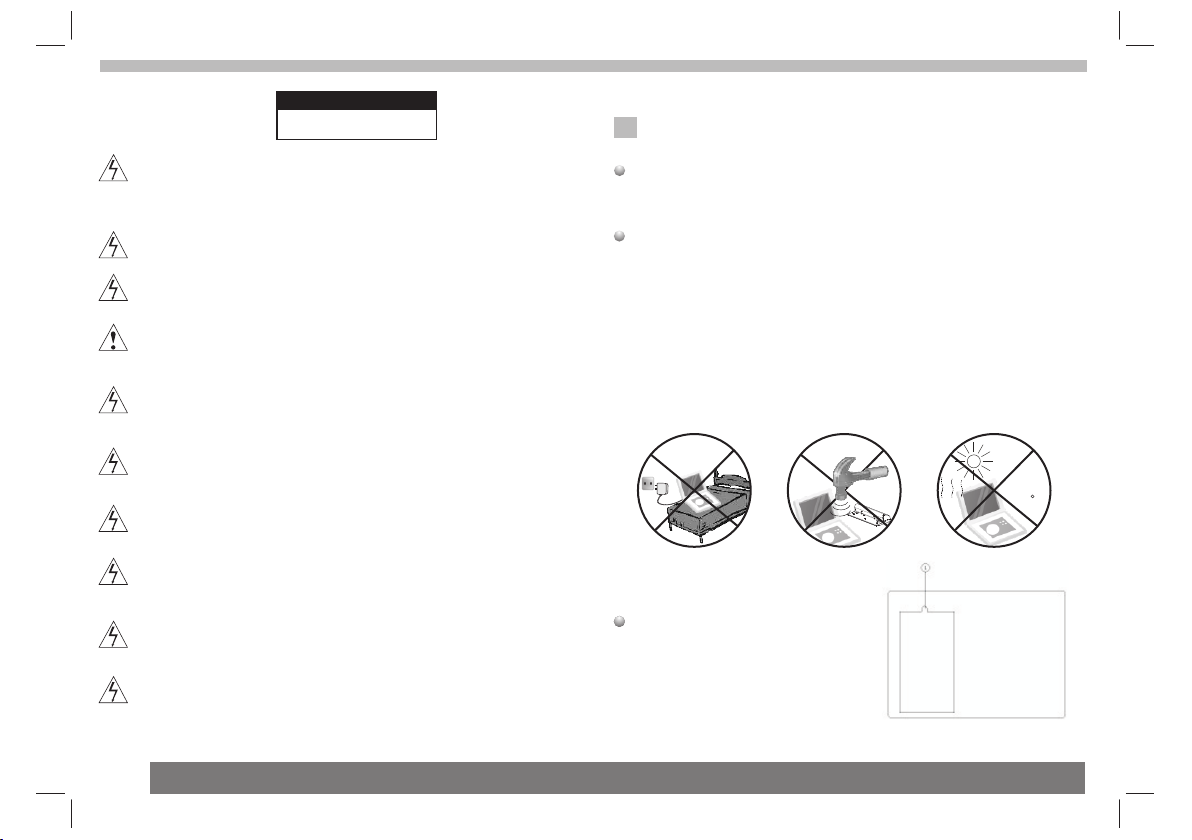
charge
Battery disposal / replacement
1. On the back side of the unit
remove screw 1
2. Remove the cover
3. Take out the battery
4. Carefully disconnect the battery
cable from the socke
strong
impact
over
heat
40 C
3
Page 5

Basic Operation:
I. How to connect the AC/DC adaptor
● Connect the adaptor plug on the adaptor cable to the DC IN
9-12 V connection.
● Connect the mains plug to a wall socket.
II. How to connect the car adaptor
● Collect the car adaptor to the unit and car
III. How to switch on the unit
● To switch on the appliance, slide the ON/OFF to the ON
position. To switch off the appliance, slide the ON/OFF to the
OFF position.
IV. How to connect the AV OUT cable
● AUDIO/VIDEO OUT: Connect a suitable cable to the AV OUT
connection.
V. How to insert a DVD
● To insert a disc:
• Press the OPEN button to open the disc compartment.
• Insert the disc with the label upwards.
• Close the disc compartment.
VI. How to insert a USB device(no disc in player)
● Insert the USB device in the slot. The device can only be
connected one way.
● Select the USB mode.
VII. How to insert a card (no disc in player)
● Insert the SD/MMC device in the slot. The device can only be
connected one way.
VIII. How to charge the battery
● Whilst the appliance is connected to the power source, its
battery is charged automatically. When the battery is fully
charged, the charging process is completed.
IX. What are the indicator lights for? What do they do?
Remote control indicate light:shining when using the remote.
Battery indicate light:battery charging indicate,if finished the
light turn to yellow.
Working indicate light:showing the unit is working.
X. How to mount the unit by using the mounting bag or bracket
1. open the bag
2. put the unit into the bag
3. mount the unit to the chair
4
Page 6

Identification of Controls
Main Unit
1.TFT scr ee n
2.Speakers
3.MENU(DVD),PBC(VCD)
4.SOURCE
Select input source, DVD, card,USB.
5. Display
6. Mute
7.OK(ENTER)
Confirms menu selection.
1
2
3
4
5
6
7
8
9
10
11
8. (Left/right/up/down)
Select an item in the menu.
When playing ,VCD,DVD,if available:
Up:Fast forward
Down:Fast reverse
Left:Previous track
Right:Next track
Insert the battery
1.Open the battery door.
When using the remote control for the first time do not forget to
remove the plastic card.
9. SETUP
10. STO P ( )
Stops playb ac k.
11. Pl ay /p au se .
12.Open
13.CARD
14.USB
15.VOL+/VOL -
16.Headphon e ou t ja ck s
17.AV OU T
18.Power ON/O FF s wi tc h
19.DC IN 9-12V
2.Insert battery.
5
12
13
14 15 16 17 18 19
NOTES:
N
Remove battery during storage or when you are not using the DVD
player for a long time.
Page 7

Identification of Controls
Remote control unit
16
20
26
19
18
21
23
25
22
24
STEP
1 2
5
9 0
SUBT ITLE
TITL E
REPE AT
6
ENTE R
SLOW
ZOOM
MUTE
10+
AUDI O
SOUR CE
3
4
7
8
DISP LAY
MENU
/PBC
MODE
VOL +VOL -
27
15
1. SOURCE
DVD/CARD/USB.
2. MUTE
Disable Audio output.
3.0-9 NUMBER BUTTON
Selects numbered items in a menu.
4.DISPLAY
To display the playtime and status information.
17
14
5
10
12
2
1
3
4
6
7
8
9
11
13
5.10+ BUTTO N
In order to select a track 10 or greater, first press 10+, For example;
select track 12, first press 10+, and then press number 2 button.
6. MENU/PBC
Return to DVD root menu(DVD).
PBC on/off sw it ch ( VC D) .
7.AUDIO
Press AUDIO repeatedly during playback to hear a diffe re nt
DVD
audio language or audio track, if avilable.
Press AUDIO repeatedly during playback to
MP3
hear a diff er en t au di o ch an ne l ( Le ft ,R ig ht ,M ix ,S te re o) .
8.PLAY/PAUSE
Press PLAY/PA US E on ce t o pa us e pl ay ba ck , pr es si ng P LAY/
PAUS E se co nd t im e wi ll r es um e th e pl ay ba ck .
9.STO P
When this buttom is pressed once, the unit records the stopped
point,from where playback will resume if PLAY( ) is p re ss ed a ft er
wards. But if STO P bu tt on i s pr es sd a ga in i ns te ad o f PL AY( )
button, there will be no resume function.
10.MODE
Set LCD parameter(adjust bightness, contrast,and saturation).
11.VOL+
Adjust volume
12.Forward Skip
Go to next chapter/ track.
13.Reverse Skip
Go to previous chapter/ track to the beginning.
14. BUTTO N
Press BUTTO N al lo w sk ip pi ng a he ad a t 5- le ve l sp ee d( X2 -> X4 ->
X8->X16->X32->PLAY), p re ss P LAY button return to normal playback.
VCDCD
6
Page 8

Identification of Controls
Remote control unit
15. BUTTO N
Press BUTTO N al lo w sk ip pi ng b ac k at 5 -l ev el s pe ed (X 2- >X 4- >
X8->X16->X32 PLAY), p re ss P LAY button return to normal playback.->
16.STEP
Step the motion in DVD mode.
17.SEARCH
Goto time point , title or chapter you want in DVD Mode.
18.SUBTITLE
Press SUBTITLE repeatedly during playback to hear a diffe re nt
subtitle languages.
19.ANGLE
:Press ANGLE will change the view angle, on DVDs that
DVD
support this feature.
20.TITLE
Return to DVD title menu
21.ENTER
Confirms menu selection..
22.SETUP
Accesses or removes setup menu.
23.VOL-
Adjust volume
24.REPEAT
Press REPEAT dur in g pl ay ba ck t o se le ct a d es ir ed r ep ea t mo de .
: you can play select repeat chapter/title/off.
DVD
VCD
: you can select repeat single/all/off.
: you can select repeat single/folder/off .
MP3
CD
25.SLOW
Press Slow button repeatedly to enter slow playback, and cycle
between diffe re nt s pe ed s. T he s pe ed s ar e 1/ 2, 1/ 4, 1/ 8, 1/ 16 ,a nd
normal.
26.PROGRAM
:The program function enables you to store your
DVD VCD
favourite tracks from the disc. Press PROGRAM button ,then
PROGRAM MENU will appear on screen, now you can use the
number key to direct input the titles,chapters or tracks number and
select PLAY op ti on . TO re su me n or ma l pl ay ba ck , pr es s PR OG RA M
and select clear program option on the program menu,press
PROGRAM again to exit program menu.
27.ZOOM
DVD V CD
2X size 3X size 4X size 1/2 size 1/3 size 1/4 size
normal size
JPEG
7
Page 9

SETUP Menu Setting
General Setup Page
Press SETUP but to n to g et t he s et up m en u. U se d ir ec ti on b ut to ns
to select the preferred item. After finishing settings, press
SETUP aga in t o no rm al d is pl ay.
The following menu items can be changed:
General Setup Page
- - GENERALSETUP PAGE - -
TV DISPLAY WIDE
TFT DISPLAY 16:9
ANGLE MARK ON
OSD LANGUAGE ENG
CLOSED CAPTIONS ON
SCREEN SAVER ON
GOTO GENERAL SETUP PAGE
TV DISPLAY: selects the aspect ratio of the playback picture.
4:3 PANS CA N: i f yo u ha ve a n or ma l TV a nd w an t bo th s id es o f th e
picture to be trimmed or formatted to fit your TV s cr ee n.
4:3 LETTERBOX: if you have a normal TV. In this case, a wide picture
with black bands on the upper and lower portions of the TV sc re en w il l
be displayed.
16:9:wide screen display.
TFT DISPLAY: selects the aspect ratio of the panel.
ON
OFF
ON
OFF
ENGLISH
FRENCH
GERMAN
SPANISH
HOLAND
POLISH
HUNGARIAN
ON
OFF
4:3 PANSCAN
4:3 LETTERBOX
16:9
16:9
4:3
Angle Mark
Displays current angle setting information on the right hand corner
of the TF T sc re en i f av ai la bl e on t he d is c.
OSD Language
You ca n se le ct y ou r ow n pr ef er re d la ng ua ge s ee ti ng s.
Closed Captions
Closed captions are data that are hidden in the video signal of some
discs.Before you select this function,please ensure that the disc
contains closed captions information and your TV se t al so h as t hi s
function.
Screen Saver
This function is used to turn the screen saver On or Off.
Audio Setup Page
Audio Setup Page
-- --
- - - -AUDIO SETUP PAGE
DOWNMINX
DIGITAL OUTPUT
DOLBY DIGITAL
GO TO AUDIO SETUP PAGE
STR
RAW
DUAL MONO
DYNAMIC
LT/RT
STR
STR
L-MONO
R-MONO
FULL
-
-
-
-
-
-
-
-
-
-
MIX-MONO
-
-
-
-
-
-
-
-
OFF
-
SPDIF/OFF
SPDIF/RAW
SPDIF/PCM
STEREO
8
Page 10

SETUP Menu Setting
Audio Setup Page
Downmix
This options allows you to set the stereo analog output of your
DVD Player.
LT/R T :S el ec t th is o pt io n if y ou r DV D Pl ay er i s co nn ec te d to a
Dolby Pro Logic decoder.
Stereo :Select this option when output delivers sound from only
the two front speakers.
Digital Output
The function is used to select the SPDIF Output:SPDIF Off,SPDIF
/RAW,SPDIF/PCM.
SPDIF Off: Turns off the SPDIF output.
SPDIF/RAW: If you have connected your DIGITAL AUDIO OUT
to a multi-channel decoder/receiver.
SPDIF/PCM: Only if your receiver is not capable of decoding
multi-channel audio.
Dolby digital
The options included in Dolby Digital Setup are: and
'Dynamic '.
Dual Mono
Stereo:Left mono sound will send output signals to Left speaker
and Right mono sound will send output signals to Right speaker.
L-Mono:Left mono sound will send output signals to Left speak er
and Right speaker.
R-Mono:Right mono sound will send output signals to Lef t sp eaker
and Right speaker.
Mix-Mono:Left and Right mixed mono sound will send output
signals to Left and Right speakers.
Dynamic
Dynamic range compression.
'Dual Mono '
Video Setup Page
Vid eo S et up P ag e
- - VIDEO SETUP PAGE - -
SHARPNESS MID
BRIGHTNESS 00
CONTRAST 00
HUE 00
SATURATION 00
GOTO VIDEO SETUP PAGE
Sharpness,Brightness,Contrast,Hue,Saturation:setting the video
quality.
HIGH
MEDIUM
LOW
Preference Page
Preference Page
- - PREFERENCE SETUP PAGE - -
TV TYPE PAL
AUDIO ENG
SUBTITLE
DISC MENU ENG
PARENTAL
DEFAULT
GOTO PREFERENCE PAGE
OFF
RESET
1 KID SAF
2 G
3 PG
4 PG13
5 PGR
6 R
7 NC17
8 ADULT
ENGLISH
FRENCH
GERMAN
SPANISH
HOLAND
POLISH
HUNGARIAN
OTHERS
ENGLISH
FRENCH
GERMAN
SPANISH
HOLAND
POLISH
HUNGARIAN
OFF
OTHERS
TV Typ e
Select in g th e co lo ur s ys te m th at c orresponds to your TV when AV
output s. Th is D VD P la ye r is c om pa tible with both NTSC and PAL.
ENGLISH
FRENCH
GERMAN
SPANISH
HOLAND
POLISH
HUNGARIAN
OTHERS
PAL
AUTO
NTSC
9
Page 11

SETUP Menu Setting
Preference Page
PAL - Se le ct t hi s if t he c on ne ct ed TV is PAL system.It will c ha ng e th e
video signal of a NTSC disc and output in PAL format.
NTSC-Select this if the connected TV is N TS C sy st em .I t wi ll c ha ng e
the video signal of a PAL disc and output in NTSC format.
Auto:Chang the video signal output automatic according to the
playing disk format.
Audio:Selects a language for audio (if available).
Subtitle:Selects a language for subtitle (if available).
Disc Menu:Selects a language for disc menu (if available).
Parental
Some DVDs may have a parental level assigned to the complete disc
or to certain scenes on the disc.This feature lets you set a playback
limitation level.The rating levels are from 1 to 8 and are country
dependent. You can prohibit the playing of certain discs that are not
suitable for your children or have certain discs played with alternative
scenes.
Default:Back to the factory setting.
Password Setup Page
Password Setup Page
- - PASSWORD SETUP PAGE - -
PASSWORD MODE ON
PASSWORD
GOTO PASSWORD SETUP PAGE
Password mode: Set password mode on/off . If s et t o of f, c ha ng e
parental level will not check password.
ON
OFF
Password Setup Page
Password: select the menu password change page.
OSD PASSWORD
NEW PASSWORD
CONFIRM PWD
OK
OSD PASS WO RD : En te r th e OL D pa ss wo rd , (F ac to ry s et ti ng i s
1369), and the cursor will jump automatically to
NEW PASS WO RD .
NEW PASS WO RD : En te r th e NE W pa ss wo rd . En te r 4 di gi ts f ro m
the remote control unit numeric buttons, and the
cursor will automatically jump to CONFIRM PASS WO RD .
CONFIRM PASS WO RD : Co nf ir m th e NE W pa ss wo rd b y en te ri ng
it again. If the confirmation is incorrect, the cursor
will stay in this column. After entering, the correct new password
again, the cursor will jump automatically to OK.
OK: When cursor is on this button, press ENTER key to confirm
setting.
Note: If the password has been changed, the parentaland disc
N
lock code will also be changed.
The default password(1369)is always active even the password
has been changed.
10
Page 12

Parameters and specifications
Battery Parameters
Electronical parameters
Item
Pow er r eq uir em en ts
Dim en si ons ( Ap pr ox. )
Pow er c on sum pt io n
Wei gh t (Ap pr ox .)
Ope ra ti ng hu mi di ty
VID EO O UT
AUDIO O UT
Output
Audio
: AC 100-2 40 V , 5 0/6 0 Hz
: 230 (L )X 175 (W )X 45( H) MM
: <10 W
: 0.9 k g
: 5 % to 90 %
:1.2 Vrm s (1 K Hz , 0 dB)
:Speaker:1WX2, outputHeadphones
Standard requirement
System
Las er
Sig na l sy ste m
Fre qu en cy
respo ns e
Sig nal-t o-noi se rati o
Dynam ic r ang e
Note: Design and specifications are subject to change prior notice.
N
:Se mi co ndu ct or l ase r, wa ve len gt h 65 0 nm
: NTS C / PAL
: 20H z to 2 0 kH z(1 dB )
:Mo re t ha n 80 dB ( AN AL OG OU T co nne ct or s onl y)
:Mo re t ha n 85 dB ( DV D/ CD)
Battery Parameters
Battery Specifications:
Output:7.4V
Charge / Discharge Time:
Standard charge time:3h ~ 4h
Storage and work circumstances:
1. Storage circumstances Temp er at ur e Hu mi di ty
6 months
1 week
2.Wor k ci rc um st an ce s Temp er at ur e Hu mi di ty
Standard charge
Standard discharge
If at any time in the future you should need to dispose of this
product please note that: Waste electrical products should
not be disposed of with household waste.
Please recycle where facilities exist. Check with your Local
Authority or retailer for recycling advice. (Waste Electrical
and Electronic Equipment Directive)
-20 C +45 C~
-20 C +65 C~
0 C +45 C~
-20 C +65 C~
65+20%
65+20%
65+20%
65+20%
11
 Loading...