

Page 1
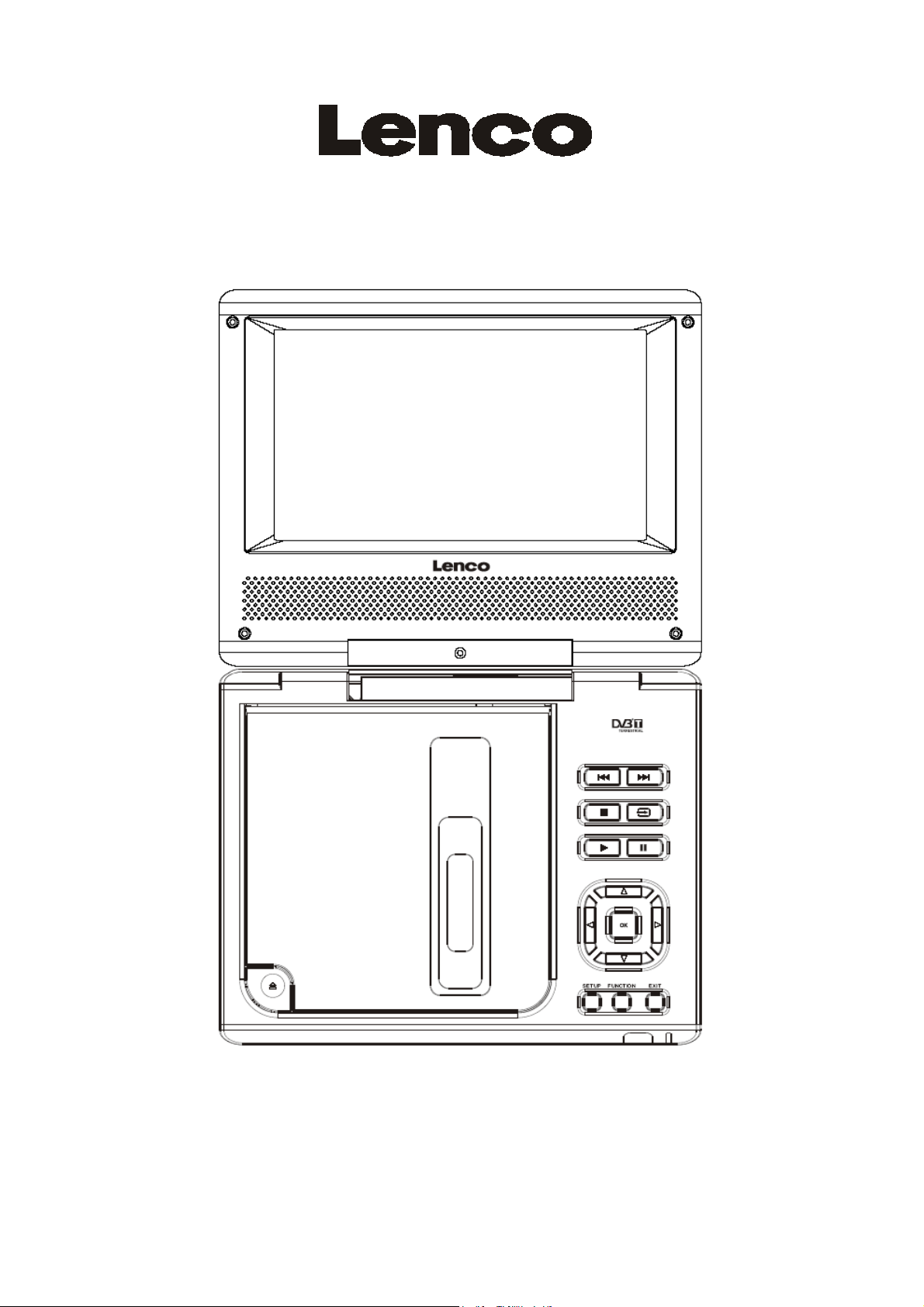
USER MANUAL
DVD/MPEG4/CD/MP3/ PLAYER /DVB-T tuner
DVP-741
Please read this User Manual carefully to ensure proper use of this product
and keep this manual for future reference.
For information and support, www.lenco.eu
Page 2

DVD Use Manual Content
INTRODUCTION
Safety
Panel Illustration...................................................................................................2
Connecting to a TV set.........................................................................................3
Remote Control.....................................................................................................4
Remote Control Operation....................................................................................4
Precautions...............................................................................................1
DVD PART
The Setup Menu System .......................................................................................5
MPEG4/MP3 PLAYBACK......................................................................................7
KODAK Picture CD playback.................................................................................8
DVB PART
The Setup Menu System.......................................................................................9
SC REEN SE T PAR T
The Setup Menu System.....................................................................................11
OTHERS
Troubleshooting.................................................................................................12
Specifications ....................................................................................................13
1. The apparatus shall not be exposed to dripping or Splashing and
that no objects filled with liquids, such as Vases, shall be placed the apparatus.
2. The mains plug is used as the disconnect device, the disconnect device
shall remain readily operable.
3. To be completely disconnect the power input, the mains plug of apparatus
shall be disconnected from the mains.
4. The mains plug of apparatus should not be obstructed or should be easily
accessed during intended use.
Warning:
Do not use the mode DVB-T in a moving vehicle etc.. The DVB-T function only works when
the vehicle is stationary.
Prolonged exposure to high volume from audio players can cause temporary or permanent
hearing loss
When you listen to traffic information or a personal audio player, be aware of potential
hazards, such as approaching cars.
The USB drive must be connected directly to the unit.
To prevent data loss by interference and transfer, do not use USB extension cords.
In DVBT, EXIT Button on unit and RC perform the channel swap function.
Page 3
Safety Instructions
Safety is Important
To ensure your safety and the safety of others, please ensure you read the Safety
Instructions before you operate this product.
Keep this information in a safe place for future reference.Please read all the safety information before
using the product.Safety Considerations.
Position the cables so that they cannot be walked on or pinched by items placed on or against them.
Do not use the portable DVD Player in humid or damp conditions.
Do not allow the portable DVD Player to get wet.
Do not expose the portable DVD Player to dripping or splashing.
Do not place water filled objects such as vases on top of the portable DVD Player.
Do not place naked flame sources, such as candles, on the top of the portable DVD Player.
Caution: Danger of explosion if battery is incorrectly replaced.Replace only with the same or
equivalent type.
Warning: The battery (battery or batteries or battery pack) shall not be exposed to excessive heat
such as sunshine,fire or the like.
Warning: To reduce the risk of fire or electric shock, do not expose this apparatus
to rain or moisture.The appapatus shall not be exposed to dripping or splashing and that no
objects filled with liquids,such as vases,shall not be placed on apparatus.
Warning: Only use attachments/accessories specified provided by the manufacturer,the
Portable DVD Player is supplied by AC adapter,the AC adapter is used as disconnect device,the
disconnect device shall remain readily operable.
Cleaning
ALWAYS unplug the portable DVD Player
before you c lean it.
Do not use liqu id or aerosol c lean er s. C lean
th e por tabl e DVD Pla ye r with a soft,
da mp (n ot wet) cloth.
Se rvic ing
There are no user serviceable parts in this
portable DVD Player.
When servicing, refer to qualified se rvice
personnel.
Consult your dealer if you are ever in doubt
about the installation, operation or safet y of
this unit.
This symbol indicates that this product incorporates double insulation between
hazardous mains voltage and user accessible parts. When servicing use only identical
replacement parts. W ARNING: To reduce the risk of fire or electric shock, do not expose this
apparatus to rain or cords.
Correct Disposal of this product. This making indicates that this product should not be disposed
with other household wastes throughout the EU. To prevent possible harm to the environment or
human health from uncontrolled waste disposal, recycle it responsibly to
promote the sustainable reuse of material resources. To return your used device, please use
the return and collection systems or contact the retailer where the product was purchased.
They can take t his product for environmental safe recycling.
CA UT ION
RI SK OF EL ECT RI C SH OC K
DO NO T OP EN
Ventilat ion
The slots and openings on the portable DVD
Player are for ventilation.
Do not cover or block them as it may cause
overheating.
NEVER let children push anything into the
holes or slots on the case.
Battery Dispo sal
Please ensure batt eries are dispos ed of
safely.
Never dispose of batt eries in a fire or with
other household wast e.
Chec k wit h your l oc al authority f or disposal
regulation s.
Special notice
A few highlights or dark spots may occur on the LCD scre en. It is a very common phenomenon
of the activematrix display technology, and does not mean any defects or faults. Never try to
repair this machine by yourself. In case of any faults. Please turn off the unit at once, and notify
our Company or the corresponding dealer. The display is made up of many precision electronic
When the apparatus was in electrostatic circumstance, it may be malfunction
and need to reset by user.
Warnin g T he USB mem ory stick should be plug in t he unit direct ly. USB extension cable should
not be use d t o avoid failing of data transferring and interference caused.
components. Any disassembly or modification may lead to further damage.
1
Page 4

Panel Illustration
1
LCD DISPLAY
2
SPEAKER LEFT/RIGHT
3
DISC TOP
4
OPEN DISC TOP
5
PREV
NEXT
6
STOP
7
SOURCE
8
9
PAUSE
10
PLAY
11
MOVE(
12
OK
13
SETUP
14
EXIT
15
FUNCTION
, , , )
SENSOR
16
CHANGE INDICATOR:
17
Red:charging / Green: full
POWER ( ON/OF)
18
DC 12V INPUT JACK(power supply)
19
20
PHONE JACK (Maximum output voltage
21
AV
22
VOLUME
23
USB
24
ANT IN 75 ohm
OUT
150mV)
2
Page 5
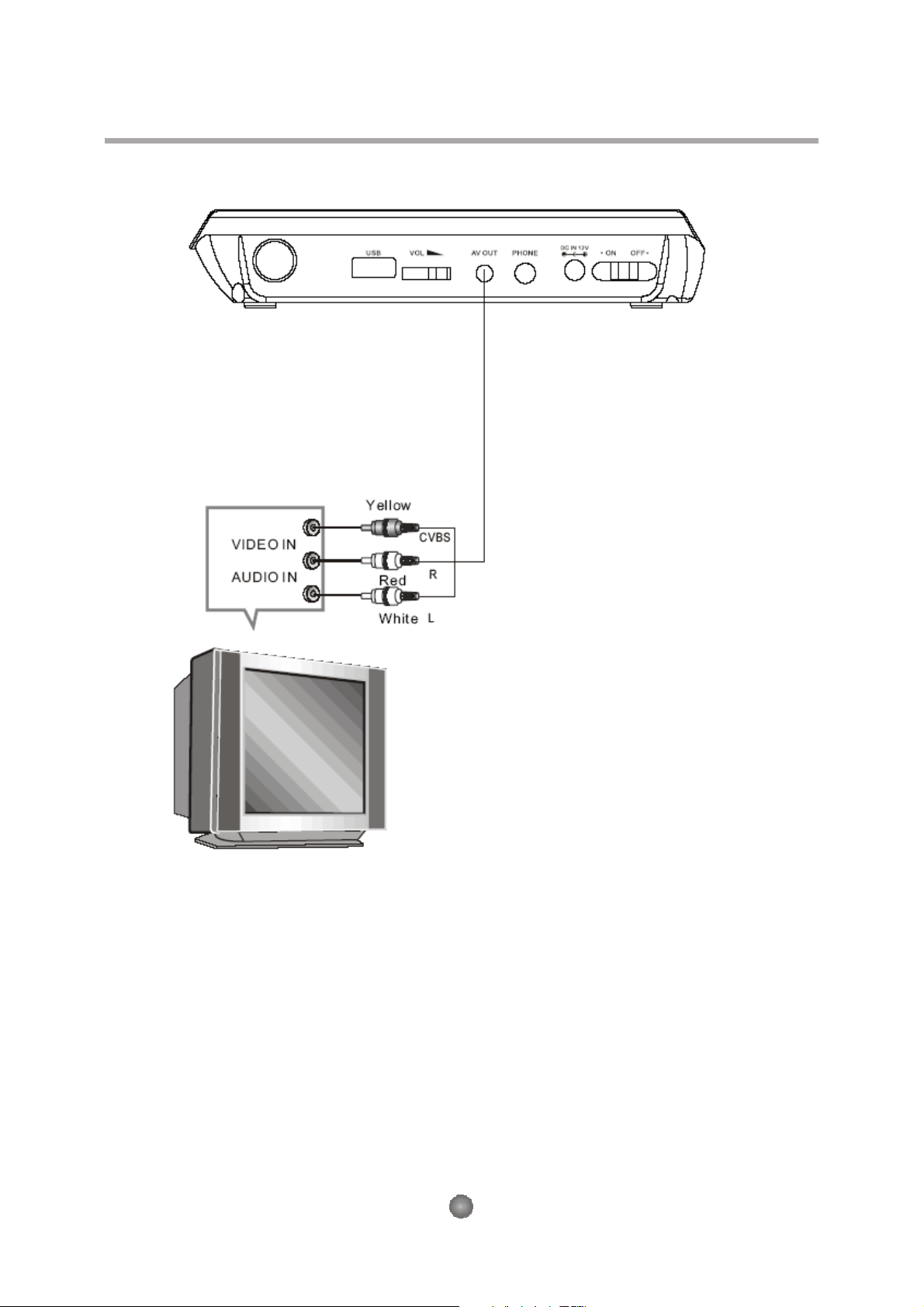
Connecting to a TV Set Connections
3
Page 6

Remote Control
Remote Control
Introduction
Note:
1. In this manu al,
the re mote re specti vely.
2. In orde r to op erate an y of th e re mote func tions, you must first pres s th e Powe r button on the
DVD play er.
3. Some of the keys is mult iple key. Th ey ca n be us ed
CR2025
1
2
BATTERIES
INCORRECT USE OF BATTERIES MAY CAUSE THEM TO LEAK, CORRODE OR EXPLODE.
Be sure to place the batteries in the correct direction.
It is dangerous to charge/heat/open or short-circuit the
Do not leave dead or expired batteries or mix old/new batteries.
When not using the remote control for a long duration of time, remove
operating range becomes reduced, replace all batteries with new, fresh ones.
If leakage from the battery occurs, wipe the battery liquid from the battery compartment, then
replace.
HOW TO REPLACE THE BATTERY
STEP 1: PUSH THE BUTTON TOWARD LEFT;
STEP 2: PULL THE BATTERY LOADER OUT.
will be used to repr esent differ ent NAVIG ATION ARRO WS on
in
DV D mode or in DVB
batteries.
mode .
the batteries. When
4
Page 7

About Built-in Rechargeable Battery
Precautions related to battery recharge
1. Once the battery is fully discharged, immediately recharge it (regardless of whether you plan
to use the battery or not) in order to maximize the battery life. When the power is low, the battery
icon will be shown on the upper left corner of the TFT for warning.
2. To charg e the batte ry, please connect this player to AC mains via the AC adapt er and the charge
indicator will turn on in red, and the indicator will turn into green when the battery is fully charged.
This will take about 2-2.5 hours if the player is in off mode or 4.5-6 hours if the player is in working
mode.
Using and mai ntaining your rechargeable batteries
1. Please make sure you always use only the AC adapter included with the player to recharge
your batteries.
2. Recharge efficiency will degrade when the envir onmental temperature drops below 50oF
(10oC) or exceed 95oF (35
3. The lasting time of the fully charged battery when a headphone is connect ed to the player is
approximate ly 1.5 hours
oC).
The setup menu system---DVD PART
General Steps of setup menu
In the DVD mode, Press the <STOP> button, Then press <setup>button, the DVD main setup
menu appears.
1. DVD MENU
A. DVD Setup-Language Setup
Press the Up and Down button move on the DVD setup and to enter.
The DVD Setup-lanuage Setup option appear the screen.
1) MENU
Highlight the MENU option, and press the Arrow buttons to choose
the menu language you prefer. Press <ENTER> to confirm. If the
disc you are playing has that Language availabel. It will display the
Menu in the languae.
Notes:
If your preferred language is not availabel, the disc s default
language will be played.
2) AUDIO
Hi ghlight the AUDIO option, and press the Arr ow buttons to choos e the audio language
you pref er. Press <ENTER> to confirm. If the disc you are playing has th at language
available, it will out put the la nguage.
3) SUBTITLE
Hi ghlight the SUBTITLE opti on, and pr es s the Arrow butt ons to choose the subtitle
language you prefer. Press <ENT ER> to confirm. If the disc you are playing has that
language avai lable, it will display subtitles in that language.
4) E X TE R N A L SU B TI T LE
Hig hlig ht the E XTERN A L SUBT I T LE opt i on, and press the A rrow but tons t o c h oos e
the support ed subtitle language when playing MPEG4 format disc s.
Advanced Features
5
Page 8

B. DVD Setup-Audio Setup
Press <DOWN> arrow button to highlight the Audio Setup
option on the s creen.
1) DOWNMIX
There are two modes, one is Lo/Ro, one is Lt/Rt.
C. DVD Setup-Custom Set up
Press the <Down> arrow button to highlight the Custom Setup option on the screen.
1) P ARENTAL CTRL
Par ental Ctrl:1,2:G,3:G,4:PG13, 5,6:R,7:N C17,8 the eight levels. The first level discs are
open t o people of ever age and eight level only suitable for the adult. If you want to change
the parental ctrl setting, enter the user s age control item and then enter four digital
password. The default password is 6666 (if you are using this player for the first time, just
input this code).If the input code has been confirmed, the level setting up menu will appear.
Move the cursor to choose the expected level and press <ENTER> butt on to c onfirm
and memory it. Move the cursor to the "ENTER" and press<ENTER> button to confirm and
withdraw to the user setup menu or press <ENTER> button to directly wit hdraw from
the operation.
2) ANGLE MARK
There are On and Off the two choices for this item. If in
the ON mode, when play a disc which the content is
multi-angle shot, you may press the <ANGLE> button on
the remote control to enjoy the Scene in different angles.
D. DVD Setup-Exit
Press the <DOWN> arrow button to highlight the
<EXIT> option on the screen In the DVD Setup-Exit ,Choose the Exit option to return the
DVD main Setup.
2.System Setting
Press the <SETUP> button, the DVD main setup menu appears the screen, then press the
<DOWN> button to highlight the system setting option.
A. System Setting Menu-language Setup
Press the <UP> and <DOW N> button moveon the System setting and to enter button. the
System setting Menu-lanuage Setup option appear the screen.In the System setting Menulanguage Setup, you can setup the OSD option.
1) OSD LANGUAGE
Highlight the OSD LANGUAGE option, and press the
Arrow buttons
to choose the OSD language you prefer. Press
<ENTER> to confirm, and it will display OSD in that
language.
B. System setting Menu-Display Setup
Press the <DOWN> arrow button to highlight the Setup
option on the screen In the System Setting MenuDisplay Setup.
1) TV Standard
According to the Color System of the TV, you can choose
the TV Standard.
2) Display TYPE
According to the Display type, you can choose 4:3PS, 4:3LB or16:9.
6
Page 9

The setup menu system---DVD PART
Advanced Features
C. System setting Menu-Preference
Press the Down arrow button to highlight the Preference option
on the screen.
1) UI Style
According to UI Style, you can c hoose Style1, Style2, Style3, Style4.
2). Change PIN
The default passwor d is 6666.
3). Default Type
In the Default Type options, you can choose the DVD MODE, DVBMODE, USB MODE, Last
operation Type MODE.
NOTE: In the Default Type, If you choose the DVB MODE. T hat next power on the PLAYER
will direct enter DVB MODE, no again display the SOURCE list.
4) Default The Def ault setup options are RESTORE f actory setup, Let your PLAYER work
on the default state.
5) System Info The system info includes model, HW, SW and Date.
3. Game options
Press the <SETUP> button, the DVD main setup menu appears the screen, then press the
<DOWN> button to highlight the Game option.
Press the <UP> and <DOWN> button move on the DVD setup and press <ENTER> button to
confirm the Main Menu-Game option,appear the screen.
In the Main Menu-Game Setup, you can setup the Mine, Tetris, Rush Hour, Calendar four kinds
of games. For example:If you want to play the Mine Game, you can press the <DOWN> button
to highlight the Mine options. Then press the <ENTER> button to Enter. As below:Other Game
Options operation same to the Mine Game.
7
Page 10

MP3 Playback
When a Mp3 disc is loaded, the screen will display as follow s:
Press
window. Press select to play the current file select by the cursor.
Press to switch between the directory window and the file
window.
Note:
The player will not function correctly under the following
condition:
1. The disc is badly scratched, damaged or dirty.
2. The disc is not finalized.
3. The recording format is not supported by the player.
to select the file when the cursor appears in the file
Kodak picture CD Playback
The Introduction of KODAK Picture CD
A Kodak picture CD has the size and shape of a r egular CD. You can order a KODAK Picture
CD simply by checki ng the box on the phot o finishing envelope when you drop off
a roll of film(35mm or Advanced Photo System(APS) color print film) at the time
of processing in Kodak Express store displayi ng Kodak Picture Cd sign. When your
order is returned, you receive your prints, negativ es, and your full r oll of pictures
safely stored on your KODAK Picture CD. Each KODAK Pictur e CD brings you the
tools to enhance, share and manage your pictures on your computer. You also can
record t he JPEG picture into CD-R or CD-RW with the CD-Rewriter yourself.
Note:
1. The Max. Size of JPEG Picture can be supported: 3840X3840 pels
2. JPEG st ands for Joint Picture Experts G roup. It is the first
nternational Standard on Still Picture Compressing: ISO 10918- 1, constituted
by the Committee on Still Picture compressing Standard of ISO. The pictures on
KODAK Picture CD are stored in this form at(JPEG). This player can decode the
JPEG picture in KODAK Picture CD and playback the pictures in differ ent modes.
Now, you can playback KODAK Picture CD on this player and view your wonderful
pictures on your TV in the comfort of your living room. When a Kodak Pict ure CD is
inserted on a player an automatic slide show is launched. Each picture in the
Kodak Picture CD will be displayed consecutively in a slide- show fashion and will be
scaled to fit in the whole TV screen.
Current
dir ector y
name
Cu rren t MP3/J PEG fil e
na me. If a JP EG file is
pla ying, the na me sho uld
ha ve a JP EG ex ten sion.
8
Page 11

The setup menu system---DVB PART
Advanced Features
1. First Time Installation
After all the connections have been madeproperly, switch on your TV.
Make sure the receiver is connected to the home antenna and press
<POWER> to switch the receiver on. If you are using the receiver for
the first time, a First Time Installation menu will be displayed to guide
you through the initial setup. Use the remote controller to finish the
setup.
A. At the First time installation menu, select YES and press<ENTER>
button on the remote controller to proceed.
B. Enter your regional settings, include your Country, Language, Time
Zone . Then select <NEXT> to proceed.
C. Select Yes to start the automatic channel search.
D. Wait to complete the scanning.In case you want to stop the scanning,
press the <RETURN> button. The channels already found will still be
stored.
E. When finished, all active channels found will be stored automatically.
The last found channel will be played.
2. DVB Mode of Main Menu
Press the <SETUP> button, the DVB main setup menu appears
the screen, then press the <DOW N> button t o highli ght the DVB
Menu option.
A. DVB ME NU-Program list
Pres s th e <U P> and <D OWN > button
move on th e DVB Menu an d to enter
button to enter th e DV B Menu-Pr og ram
list option , appe ar th e screen.
1) TV Program
Press the <RIGHT> button to highlight the TV Program, Then press the
<ENTER>button to enter the TV program options, appear the screen.
All active channels are listed in the Program List, allowing you to make
your own Favorite channel group, move, delete channels.
Creating Favorite Channel Groups
This feature allows you to group your favorite channels. To create your
favorite groups:
a. Select the channel which you would like to add to the group and go to the Favor column.
b. When the Favor column of the desired channel ishighlighted, one red heart symbol will appear
after press the <ENTER> button.Pressing the <ENTER> button again will un-select the channel
of the favorite group.
c. Once your favorite group is created, you can press the <FAVORITE> keys to quickly access
your favorite channels.
Moving a Channel
a. Select the channel which you like to move and go to the Move column.
b. Press <ENTER> button and a symbol will be displayed.
c. Use the <UP / DOWN> key to move the channel to a desired position.
d. Press <ENTER> button again will be exit the moving channel mode.
9
Page 12

T
he setup menu system---DVB PART
Deleting a Channel
a. Select the channel which you like to delete and go to the Del column.
b. Press <ENTER> button and an X symbol will be displayed. Repeat this step in the
channel to be deleted.
c. Press <SETUP> or <RETURN> button and the marked channel will be deleted.
d. Press <ENTER> button again will exit the deleting channel mode.
2) Music Program
Press the <DOWN> button to highlight the Music Program, Then press the <ENTER> button to
enter the Music program options, appear the screen.
NOTE: This Music program options operation same the TV Program.
3) Sort
Press the <DOWN> button to highlight the Sort options, yon can choose the channels Sort
style. As: By Name, By Service ID, By Channel number, By
LCN.
B. DVB Menu-Program Search
Press the Up and Down button moveon the DVB Menu-Program
Search option appear the screen. In the DVB Menu-Program
Search, you can setup the Automatic Search, Manual Search
options.
1) Automatic Search.
Choose the Automatic Search options, This operation same the
First Time
Installation. Refer to First time Installation.
2) Manual Search.
If any channel is missing after auto search, or you want to add
newly launched channels, you can use Manual Search to scan
the desired channels. To manually search the target channel, you
must know its parameters, e.g., the channel number. After the
channel is found, it is appended to the current channel list
a. Ent er the Manual Search menu via Main Menu >
Program
Search > Manual Search.
b. Specify the appr opriate channel number in the Channel No fiel d
by press <DOWN> and <UP> button. Enter your selecti on, the frequenc y and bandwidth
values are changed accordingly.
c. Select <ENTER> button to start manual search
d. If no signal is found, a message indicating no signal will appear. Otherwise scanned
channel will be saved and appended to the current channel list.
C. DVB Menu - Parental Control
This feature allows you to prevent children or unauthori zed people from watching channels.
1) Enter Main Menu > Parental Control. First, you will need to enter PIN as prompted to
use the parental control menu. (The default PIN is 6666.)
2) After correct PIN input, the following options are provided: Channel Lock: Allows you to
activate or de-activate the overall parental control. W hen set to YES,
all the channels with locking settings will be locked.
Advanced Features
Parental Setting: In the c hannel list, select the channel you
want to lock and then press <ENTER>. A padl ock sym bol
will be displa yed. To remove t he loc k, press <ENTER> again.
10
Page 13

The setup menu system---DVB PART
Advanced Features
D. DVB Menu-System Setting
1) Country
In the Co untry options, you can choos e a kinds of t he
Countri es. As: Engl and Germany, Ital y, Franc e, Spain etc.
2) Language
Pr ess the <DOW N> button to hi ghlig ht the Langu age options, the n Press the <ENTER>
butt on t o into the Lan guage set up.
1 st /2nd Audio : This opti on all ows you to select your first and second c hoice for the audio
language. If neither of your selected language is avail abl e on the program transmitted,
the mai n lang uage of the program will be use d.
Subtitle : Allows you t o sel ect the subtitle l anguage. If your sel ected l anguage i s not
avai lable o n the program tr ansmitted, t he main l anguage of the program will be used.
Exit: you can cho ose the Exit options to return t he System setting.
3) G MT usage:
Allows you to e nable/disable Greenwic h Me an Time (GMT) usage. If you know t he G MT
time zone of your locati on, set GMT usage to ON and select an ap propr iate time zone. I f
you pref er to s et t he time manuall y, select OFF in GMT usage item an d then manually
select t he date and time.
4) Time Zo ne
Select a n appr opriate time zo ne to display the local time correctly. Both EPG and system
sc hedul e need a correct time zo ne setting.
5) System Sch edule
Pr ess the <DOW N> button to hi ghlig ht the System Schedule options, then Press t he
<ENTER> button to int o the S yst em schedule set up.This feature allows the receiver to
automaticall y switch on and tune to a pr e-specif ied ch annel for a pr e-s et length of tim e. Up
to10 tasks can be scheduled.
A. In the Schedule pane, use the <UP / DOWN> key t o select
a task an d use <RIGHT / LEFT > key to switch between
Inactive and Active.
b. Press <ENTER> to ent er the detail page .c. Enter the
following set tings as required. Us e the <UP / DOWN> key to
move between setting items, the <RIGHT / LEFT> key t o
switch between available selecti ons and num eric keys to
enter numeric value. Mode: You can repeat the task by setting
The frequency as Once, Daily or Weekly. Or you can select Stop to disable the tas k. Start
and End Time: Enter the start and end time that aut omati cally turns on and off the receiver.
Channel Type: Select TV or radio channel as required. Channel No: Select the channel to
be played at scheduled time.
d. Wh en the setting is done, press <SETUP> or <R ETURN> to save the changes.
SCREEN SET PART
Press the FUNCTION button to display PICTURE setting as bellow:
Pr ess DOWN button to highlight the desired item.
Pr ess LE FT and RIGHT t o adjust the screen brightness,
cont rast, color, HUE(f or NTSC only), aspect ratio, color system,
OSD lang uage, or set t o default values.
11
Page 14

Troubleshooting
If you have any questions, please consult the troubleshooting guide below.
NO PICTURE OR SOUND
Ensure the power button is on.
Ensure the power outlet is operational.
Ensure the power cord is not damaged.
Ensure the power plug is connected firmly to the outlet.
PICTURE BUT NO SOUND
Ensure the audio jacks are securely connected.
Ensure the audio connector is not damaged.
Ensure the volume is turned up in VOL/CH setup.
Ensure you have set the player's AUDIO settings
correctly.
Ensure you have ENTERed the correct AV input for
your TV.
Ensure the audio is not set to mute.
SOUND BUT NO PICTURE
Ensure the video jacks are securely connected.
Ensure you have ENTE Red the correct AV input for your
TV.
Ensure the video connector is not damaged.
Ensure you have set the player's VIDEO settings correctly.
UNIT NOT WORKING
Turn off the power, and then turn it on again.
"BAD DISC" DISPLAYED
Ensure the disc is not warped, damaged or
deformed.
Ensure the disc is not badly stained or damaged.
Ensure the disc format is compatible with the player.
Please check whether you have tried to play a
software CD. If so, please restart the player.
REMOTE NOT WORKING
Ensure the remote batteries are working.
Point the remote control directly at the player's IR
sensor.
Remove any obstacles between the remote and the IR
sensor.
"NO DISC" DISPLAYED
Ensure you have put the disc on the tray.
Ensure the disc is not upside down.
Ensure the disc is not distorted, stained or scratched.
POOR PICTURE OR SOUND
Ensure you have set the player's AUDIO settings
correctly.
Ensure the disc is not scratched or stained.
Ensure the AV connector or the output terminal is not
damaged.
Other
Before you request for repair
Phenomena below does not necessarily mean failure with TV set.
Please check following before you request for repair.
Phenomena
No picture, no sound
No image
No sound
Diamonds in picture
No signal
Improper connection with AC adapter or Car adapter. Use of
unauthorized power supply. Power Switch is on OFF position.
Whether antenna adjusted correctly;
Whether the correct Channel or Countryselected.
May need to reset or search.
Whether the sound is turned to the end.
Whether earphone plugged in.
Whether press speaker button? Whether press mute button?
Whether antenna adjusted correctly; Maybe too
weak signal at the receiving place.
Whether the correct Country selected; Maybe signal too weak.
Dark picture
Diamonds in picture
orinferior sound during
driving.
Adjust Brightness, Contrast correctly
The signal too weak at that place
Possible causes
12
Page 15

Specifications
Play mode
Disc mode
Video characteristic
Video S/N ratio
Resolution
Audio characteristic
Frequency response
Audio S/N ratio
Dynamic range
Distortion
D/A Converter
Output characteristic
Display Device
Receiving Channel
Screen Size
Video output
Audio output
Power Voltage
Other
NTSC / PAL
DVD, VCD, CD, MP3, CD- R , CD- RW, JPEG , DVD+ -R/ W, MPEG 4,
65dB.
500 lines.
fs 96KHz: 20Hz-20KHz:+/-1dBI
90dB
80dB
< 0.01%
96KHz/24bit
Color TFT-LCD
DTV:
7 inches
1Vp-p(75 Ω)
2CH
DC IN 12V
VHF 177.5MHz~226.5MHz
UHF
474 MHz~858 Mhz
Power consumption
Size
Weight
15W
206x160x40mm
1.0kg
Specifications are subject to change without notice.
13
Page 16

 Loading...