

Page 1

LEC-6041 User Manual
LEC-6041
User Manual
Version: 1.1
Date of Release:2019-07-10
Industrial Communication
Platforms
1
Page 2
Chapter 1: Product Overview
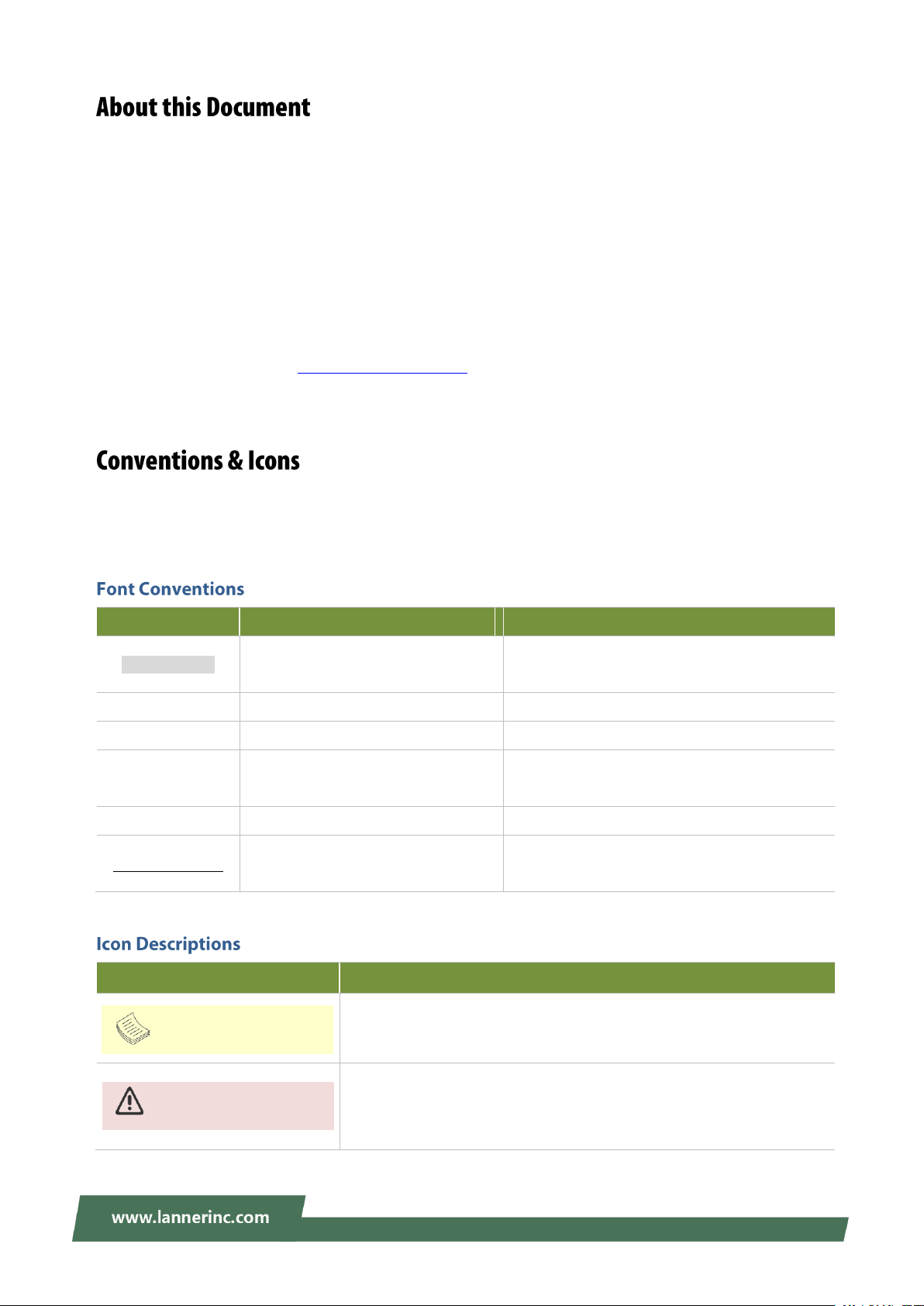
Example
Convention
Usage
iptables –F
Monospace, shaded
A command to be entered at a shell
command-line
Setup page
Bold
A title of a dialog box or a page
<Enter>
Between a pair of inequality signs
A physical keyboard button
“Menu”
Between a pair of quotation marks
A menu option or a software button to be
clicked
Readme.txt
In Italic
A filename or a file path
IPMI User Guide
Underlined
The name of another document or a chapter
in this document
Icon
Usage
This mark indicates that there is something you should pay special
attention to while using the product.
This mark indicates that there is a caution or warning and it is
something that could damage your property or product.
Note or Information
Warning or Important
This manual describes the overview of the various functionalities of this product, and the information you
need to get it ready for operation. It is intended for those who are:
- responsible for installing, administering and troubleshooting this system or Information Technology
professionals.
- assumed to be qualified in the servicing of computer equipment, such as professional system
integrators, or service personnel and technicians.
The latest version of this document can be found on Lanner’s official website, available either through the
product page or through the Lanner Download Center page with a login account and password.
This document utilizes different font types and icons in order to make selected text more transparent and
explicable to users. Please note that this document contains the following conventions:
2
Page 3

LEC-6041 User Manual
To obtain additional documentation resources and software updates for your system, please visit the
Lanner Download Center. As certain categories of documents are only available to users who are logged in,
please be registered for a Lanner Account at http://www.lannerinc.com/ to access published documents
and downloadable resources.
For troubleshooting the issues with your system, please check the Lanner Q&A page for a diagnostic
procedure and troubleshooting steps.
In addition to contacting your distributor or sales representative, you could use other available methods to
get support from Lanner:
Visit the Lanner Technical Support page at http://www.lannerinc.com/technical-support where you can fill
in a support ticket to our technical support department.
A toll-free phone support is offered to our customers in the United States and Canada, it is:
+1-855-852-6637
This document is copyrighted © 2019 by Lanner Electronics Inc. All rights are reserved. The original
manufacturer reserves the right to make improvements to the products described in this manual at any
time without notice.
No part of this manual may be reproduced, copied, translated or transmitted in any form or by any means
without the prior written permission of the original manufacturer.
Information provided in this manual is intended to be accurate and reliable. However, the original
manufacturer assumes no responsibility for its use, nor for any infringements upon the rights of third
parties that may result from such use.
Your feedback is valuable to us, as it will help us continue to provide you with more accurate and relevant
documentation. To provide any feedback, comments or to report an error, please email to
contact@lannerinc.com, Thank you for your time.
3
Page 4

Chapter 1: Product Overview
Taiwan Corporate Headquarters
Lanner Electronics Inc.
7F, No.173, Sec.2, Datong Rd. Xizhi District,
New Taipei City 22184, Taiwan
T: +886-2-8692-6060
F: +886-2-8692-6101
E: contact@lannerinc.com
China
Beijing L&S Lancom Platform Tech. Co., Ltd.
Guodong LOFT 9 Layer No. 9 Huinan Road,
Huilongguan Town, Changping District, Beijing
102208 China
T: +86 010-82795600
F: +86 010-62963250
E: service@ls-china.com.cn
USA
Lanner Electronics Inc.
47790 Westinghouse Drive Fremont, CA 94539
T: +1-855-852-6637
F: +1-510-979-0689
E: sales_us@lannerinc.com
Canada
LEI Technology Canada Ltd
3160A Orlando Drive Mississauga, ON L4V 1R5
Canada
T: +1 877-813-2132
F: +1 905-362-2369
E: sales_ca@lannerinc.com
Intel® and Intel® Atom® are trademarks of Intel Corporation or its subsidiaries in the U.S. and/or other
countries.
Microsoft Windows and MS-DOS are registered trademarks of Microsoft Corp.
All other product names or trademarks are properties of their respective owners.
4
Page 5

LEC-6041 User Manual
Note
1. An unshielded-type power cord is required in order to meet FCC emission limits and also to prevent
interference to the nearby radio and television reception. It is essential that only the supplied power cord be
used.
2. Use only shielded cables to connect I/O devices to this equipment.
3. Changes or modifications not expressly approved by the party responsible for compliance could void the user’s
authority to operate the equipment.
This equipment has been tested and found to comply with the limits for a Class A digital device, pursuant to
Part 15 of FCC Rules. These limits are designed to provide reasonable protection against harmful
interference in a residential installation. This equipment generates, uses and can radiate radio frequency
energy and, if not installed and used in accordance with the instruction, may cause harmful interference to
radio communications. However, there is no guarantee that interference will not occur in a particular
installation. If this equipment does cause harmful interference to radio or television reception, which can be
determined by turning the equipment off and on, the user is encouraged to try to correct the interference
by one or more of the following measures:
Reorient or relocate the receiving antenna.
Increase the separation between the equipment and receiver.
Connect the equipment into an outlet on a circuit different from that to which the receiver is connected.
Consult the dealer or an experienced radio/TV technician for help.
Any changes or modifications not expressly approved by the party responsible for compliance could
void the user's authority to operate this equipment.
This transmitter must not be co-located or operating in conjunction with any other antenna or
transmitter.
Operations in the 5.15-5.25GHz band are restricted to indoor usage only.
This device meets all the other requirements specified in Part 15E, Section 15.407 of the FCC Rules.
5
Page 6
Chapter 1: Product Overview
Follow these guidelines to ensure general safety:
Keep the chassis area clear and dust-free during and after installation.
Do not wear loose clothing or jewelry that could get caught in the chassis. Fasten your tie or scarf and
roll up your sleeves.
Wear safety glasses if you are working under any conditions that might be hazardous to your eyes.
Do not perform any action that creates a potential hazard to people or makes the equipment unsafe.
Disconnect all power by turning off the power and unplugging the power cord before installing or
removing a chassis or working near power supplies
Do not work alone if potentially hazardous conditions exist.
Never assume that power is disconnected from a circuit; always check the circuit.
Suivez ces consignes pour assurer la sécurité générale :
Laissez la zone du châssis propre et sans poussière pendant et après l’installation.
Ne portez pas de vêtements amples ou de bijoux qui pourraient être pris dans le châssis. Attachez votre
cravate ou écharpe et remontez vos manches.
Portez des lunettes de sécurité pour protéger vos yeux.
N’effectuez aucune action qui pourrait créer un danger pour d’autres ou rendre l’équipement
dangereux.
Coupez complètement l’alimentation en éteignant l’alimentation et en débranchant le cordon
d’alimentation avant d’installer ou de retirer un châssis ou de travailler à proximité de sources
d’alimentation.
Ne travaillez pas seul si des conditions dangereuses sont présentes.
Ne considérez jamais que l’alimentation est coupée d’un circuit, vérifiez toujours le circuit. Cet appareil
génère, utilise et émet une énergie radiofréquence et, s’il n’est pas installé et utilisé conformément aux
instructions des fournisseurs de composants sans fil, il risque de provoquer des interférences dans les
communications radio.
There is risk of Explosion if Battery is replaced by an incorrect type.
Dispose of used batteries according to the instructions.
Installation only by a trained electrician or only by an electrically trained person who knows all
Installation and Device Specifications which are to be applied.
Do not carry the handle of power supplies when moving to another place.
Please conform to your local laws and regulations regarding safe disposal of lithium BATTERY.
6
Page 7

LEC-6041 User Manual
Disposal of a battery into fire or a hot oven, or mechanically crushing or cutting of a battery can result in
an explosion.
Leaving a battery in an extremely high temperature surrounding environment can result in an explosion
or the leakage of flammable liquid or gas.
A battery subjected to extremely low air pressure that may result in an explosion or the leakage of
flammable liquid or gas.
Risque d’explosion si la pile est remplacée par une autre d’un mauvais type.
Jetez les piles usagées conformément aux instructions.
L’installation doit être effectuée par un électricien formé ou une personne formée à l’électricité
connaissant toutes les spécifications d’installation et d’appareil du produit.
Ne transportez pas l’unité en la tenant par le câble d’alimentation lorsque vous déplacez l’appareil.
Electrical equipment generates heat. Ambient air temperature may not be adequate to cool equipment
to acceptable operating temperatures without adequate circulation. Be sure that the room in which you
choose to operate your system has adequate air circulation.
Ensure that the chassis cover is secure. The chassis design allows cooling air to circulate effectively. An
open chassis permits air leaks, which may interrupt and redirect the flow of cooling air from internal
components.
Electrostatic discharge (ESD) can damage equipment and impair electrical circuitry. ESD damage occurs
when electronic components are improperly handled and can result in complete or intermittent failures.
Be sure to follow ESD-prevention procedures when removing and replacing components to avoid these
problems.
Wear an ESD-preventive wrist strap, ensuring that it makes good skin contact. If no wrist strap is
available, ground yourself by touching the metal part of the chassis.
Periodically check the resistance value of the antistatic strap, which should be between 1 and 10
megohms (Mohms).
L’équipement électrique génère de la chaleur. La température ambiante peut ne pas être adéquate pour
refroidir l’équipement à une température de fonctionnement acceptable sans circulation adaptée.
Vérifiez que votre site propose une circulation d’air adéquate.
Vérifiez que le couvercle du châssis est bien fixé. La conception du châssis permet à l’air de
refroidissement de bien circuler. Un châssis ouvert laisse l’air s’échapper, ce qui peut interrompre et
rediriger le flux d’air frais destiné aux composants internes.
7
Page 8

Chapter 1: Product Overview
Les décharges électrostatiques (ESD) peuvent endommager l’équipement et gêner les circuits
électriques. Des dégâts d’ESD surviennent lorsque des composants électroniques sont mal manipulés et
peuvent causer des pannes totales ou intermittentes. Suivez les procédures de prévention d’ESD lors du
retrait et du remplacement de composants.
Portez un bracelet anti-ESD et veillez à ce qu’il soit bien au contact de la peau. Si aucun bracelet n’est
disponible, reliez votre corps à la terre en touchant la partie métallique du châssis.
Vérifiez régulièrement la valeur de résistance du bracelet antistatique, qui doit être comprise entre 1 et
10 mégohms (Mohms).
Mounting Installation Precaution
Environment:
Do not install and/or operate this unit in any place that flammable objects are stored or used in.
If installed in a closed or multi-unit rack assembly, the operating ambient temperature of the rack
environment may be greater than room ambient. Therefore, consideration should be given to installing
the equipment in an environment compatible with the maximum ambient temperature (Tma) specified
by the manufacturer.
Installation of the equipment (especially in a rack) should consider the ventilation of the system’s intake
(for taking chilled air) and exhaust (for emitting hot air) openings so that the amount of air flow required
for safe operation of the equipment is not compromised.
To avoid a hazardous load condition, be sure the mechanical loading is even when mounting.
Consideration should be given to the connection of the equipment to the supply circuit and the effect
that overloading of the circuits might have on over-current protection and supply wiring. Appropriate
consideration of equipment nameplate ratings should be used when addressing this concern.
Reliable earthing should be maintained. Particular attention should be given to supply connections
other than direct connections to the branch circuit (e.g. use of power strips).
Installation & Operation:
The installation of this product must be performed by trained specialists; otherwise, a non-specialist
might create the risk of the system’s falling to the ground or other damages.
Lanner Electronics Inc. shall not be held liable for any losses resulting from insufficient strength for
supporting the system or use of inappropriate installation components.
8
Page 9
LEC-6041 User Manual
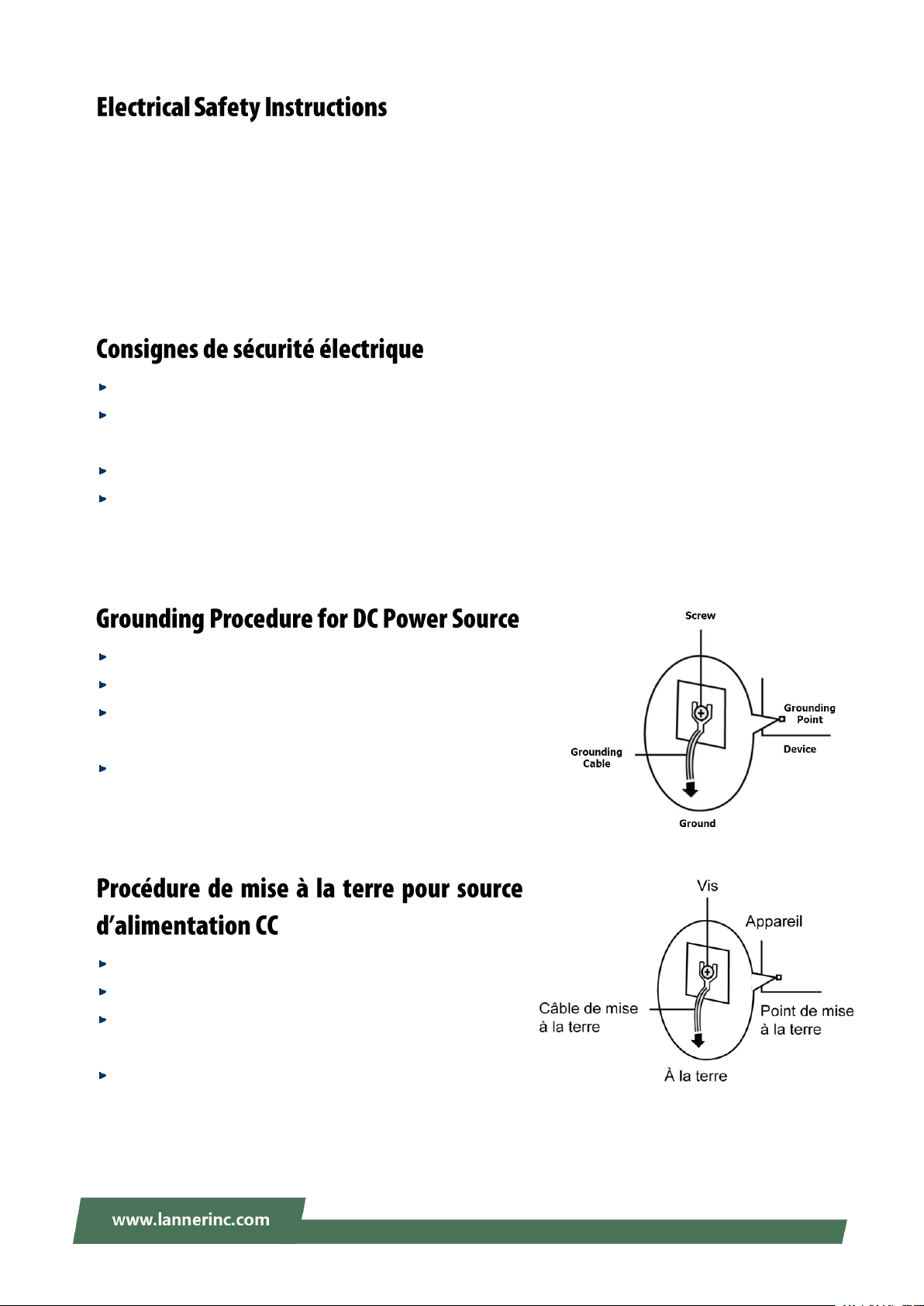
Before turning on the device, ground the grounding cable of the equipment. Proper grounding
(grounding) is very important to protect the equipment against the harmful effects of external noise and to
reduce the risk of electrocution in the event of a lightning strike. To uninstall the equipment, disconnect
the ground wire after turning off the power. A ground wire is required and the part connecting the
conductor must be greater than 4 mm2 or 10 AWG.
Avant d’allumer l’appareil, reliez le câble de mise à la terre de l’équipement à la terre.
Une bonne mise à la terre (connexion à la terre) est très importante pour protéger l’équipement contre
les effets néfastes du bruit externe et réduire les risques d’électrocution en cas de foudre.
Pour désinstaller l’équipement, débranchez le câble de mise à la terre après avoir éteint l’appareil.
Un câble de mise à la terre est requis et la zone reliant les sections du conducteur doit faire plus de 4
mm2 ou 10 AWG.
Loosen the screw of the earthing point.
Connect the grounding cable to the ground.
The protection device for the DC power source must provide
30 A current.
This protection device must be connected to the power source
before DC power.
Desserrez la vis du terminal de mise à la terre.
Branchez le câble de mise à la terre à la terre.
L’appareil de protection pour la source d’alimentation CC
doit fournir 30 A de courant.
Cet appareil de protection doit être branché à la source
d’alimentation avant l’alimentation CC.
9
Page 10

Chapter 1: Product Overview
This equipment must be grounded. The power cord for the product should be connected to a
socket-outlet with earthing connection.
Cet équipement doit être mis à la terre. La fiche d'alimentation doit être connectée à une prise de terre
correctement câblée
Suitable for installation in Information Technology Rooms in accordance with Article 645 of the National
Electrical Code and NFPA 75.
Peut être installé dans des salles de matériel de traitement de l'information conformément à l'article 645
du National Electrical Code et à la NFPA 75.
The machine can only be used in a restricted access location and has installation instructions by a skilled
person (for Fan side).
Les matériels sont destinés à être installés dans des EMPLACEMENTS À ACCÈS RESTREINT.
10
Page 11
LEC-6041 User Manual
Package Content ......................................................................................................................... 12
Ordering Information ................................................................................................................. 12
System Specifications ................................................................................................................. 13
Front Panel ................................................................................................................................. 14
Rear Panel ................................................................................................................................... 15
Motherboard Information .......................................................................................................... 16
Connecting Power ...................................................................................................................... 23
Installing Key Components ......................................................................................................... 24
Installing the Hard Disk ............................................................................................................... 26
Wall-Mounting the System ......................................................................................................... 28
Rack-Mounting the System ........................................................................................................ 29
Lanner SDK .................................................................................................................................. 30
BIOS Setup .................................................................................................................................. 31
Warranty Policy .......................................................................................................................... 72
RMA Service ................................................................................................................................ 72
RMA Service Request Form ........................................................................................................ 73
11
Page 12
Chapter 1: Product Overview
SKU No.
Main Features
LEC-6041A
IEC 61850-3 Wide Temperature ICS Cyber Security Gateway with Intel Atom
x5-E3930 processor
LEC-6041B
IEC 61850-3 Wide Temperature ICS Cyber Security Gateway with Intel Atom
x7-E3950 processor
Lanner’s LEC-6041, being the successor of LEC-6021, is designed to protect the communication in both IT
and OT domains. LEC-6041 Series is empowered by Intel Atom x7-E3950 or x5-E3930 for low power
consumption and high processing performance. As a rugged firewall deployed in challenging environments,
LEC-6041 comes with IEC 61850-3 and IEEE 1613 certification, as well as 1.5 KV magnetic isolation
protections for LAN port and 15KV ESD Protection for I/O ports. The system can operate in a wide range of
operating temperature from -40°C to 70°C. All of the hardware designs assure that the security gateway
LEC-6041 will never have downtime while operating in hazardous surroundings such as OT environment.
Your package contains the following items:
1x LEC-6041 Fanless Box PC
1x Power Terminal Block + 4 Disk Screw
1x Ear Bracket + 4x Ear Bracket Screw
1x SATA Cable
1x Heat Sink
2x Thermal Pad +2x Module Screw + 2x Heat Sink Screw
12
Page 13

LEC-6041 User Manual
Processor System
CPU
Intel Atom x7-E3950 or x5-E3930
Frequency
Atom x5-E3930: 1.3 GHz, Atom x7-E3950: 1.6 GHz
Core Number
Atom x5-E3930: 2, Atom x7-E3950: 4
BIOS
AMI SPI Flash BIOS
Chipset
SoC
Fanless
Yes
System Memory
Technology
DDR3L, up to 1866 MHz
Max. Capacity
8 GB
Socket
1x 204-pin SODIMM
Graphic
Controller
Intel HD 505 Graphics
Interface
1x HDMI
Ethernet
Controller
Intel i210
Speed
RJ45: 10/100/1000Mbps, SFP: 1 Gbps
Interface
5x RJ45 + 2 x SFP
Bypass
1 pair Bypass
Magnetic Isolation Protection
1.5 KV built-in
Storage
Type
SATA
Installation
1x SATA connector with 2.5” drive bay
Type
mSATA
Installation
1x optional mSATA socket
Expansion
mini-PCIe
1x mini-PCIe with 1 SIM card for 4G LTE module
(USB & PCIe signal) I/O
I/O
Serial Port
2x RS-232, DB9 male
Isolation Protection
Digital Isolation Protection with 15KV ESD
Protection
USB
2x USB 3.0 type A
Power-On/Reset Button
Internal reset button
LED
HDD,STA,PWR,L1~L5,F1~F2,C1~C2,LTE
Watchdog Timer
Watchdog timer 256 level time interval system
reset, software programmable
Power
Power Supply Voltage
Dual 20-54 Vdc
Connector
Phoenix contact 6-pin connector with lock
Power Consumption (Idle)
TBD
Power Consumption (Full Load)
TBD
Power Adaptor
None
Environment
Operating Temperature
-40 ~ 70ºC
Storage Temperature
40 ~ 85ºC
Relative Humidity
5% ~ 95%, non-condensing
Mechanical
Dimension(W x H x D)
160 x 166 x 53.5 mm
Construction
Aluminum + SGCC
Weight
SKU A: 1.6 kg
Mounting
DIN rail or Wall mount
Driver Support
Microsoft Windows
Windows 10 64 bit
Linux
Linux Kernel 4.X
Certification
FCC, CE, IEC61850-3, IEEE1613
13
Page 14
Chapter 1: Product Overview
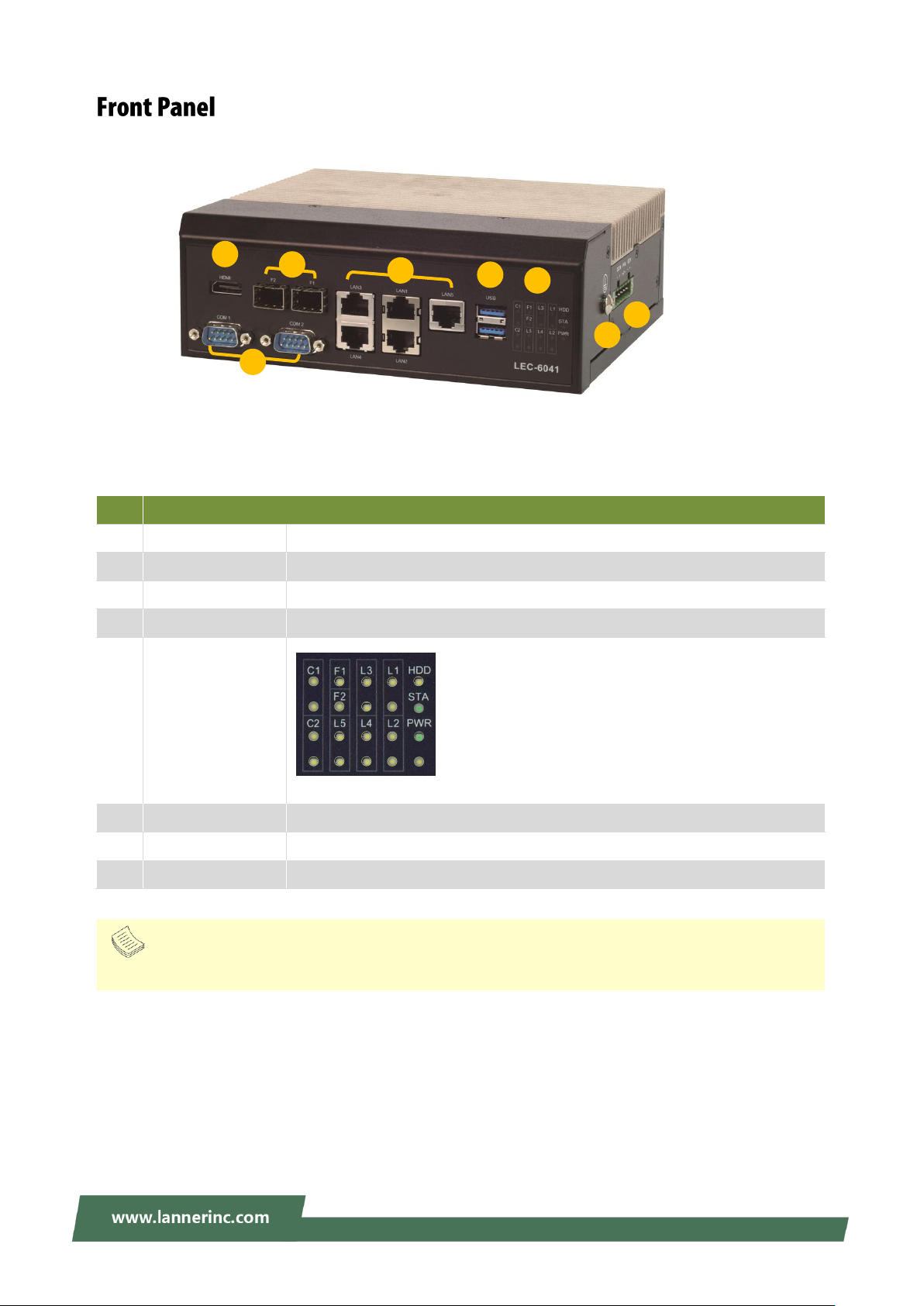
No.
Description
F1
HDMI
1x HDMI port
F2
SFP Port
2x 1G SFP port
F3
RJ45
5x RJ45 port (LAN1 & LAN2 with LAN Bypass support)
F4
USB Port
2x USB 3.0 port
F5
LED Indicators
F6
COM Port
2x DB9 RS-232 with isolation
F7
Grounding Point
For grounding cable to connect with ground
F8
DC-in Jack
1x 6-pin terminal block for 2 sets of 20~54Vdc direct power input
F4
F5
F1
F6
Note
Please refer to Appendix A: LED Indicator Explanations for descriptions of the LED Indicators.
F2
F3
F8
F7
HDD: Hard disk activity
STA: System status
PWR: system power
L1~L5: LAN ports activity
F1~F2: Fiber ports activity
C1~C2: COM port status
LTE: 4G/LTE connection status
LTE
14
Page 15
LEC-6041 User Manual
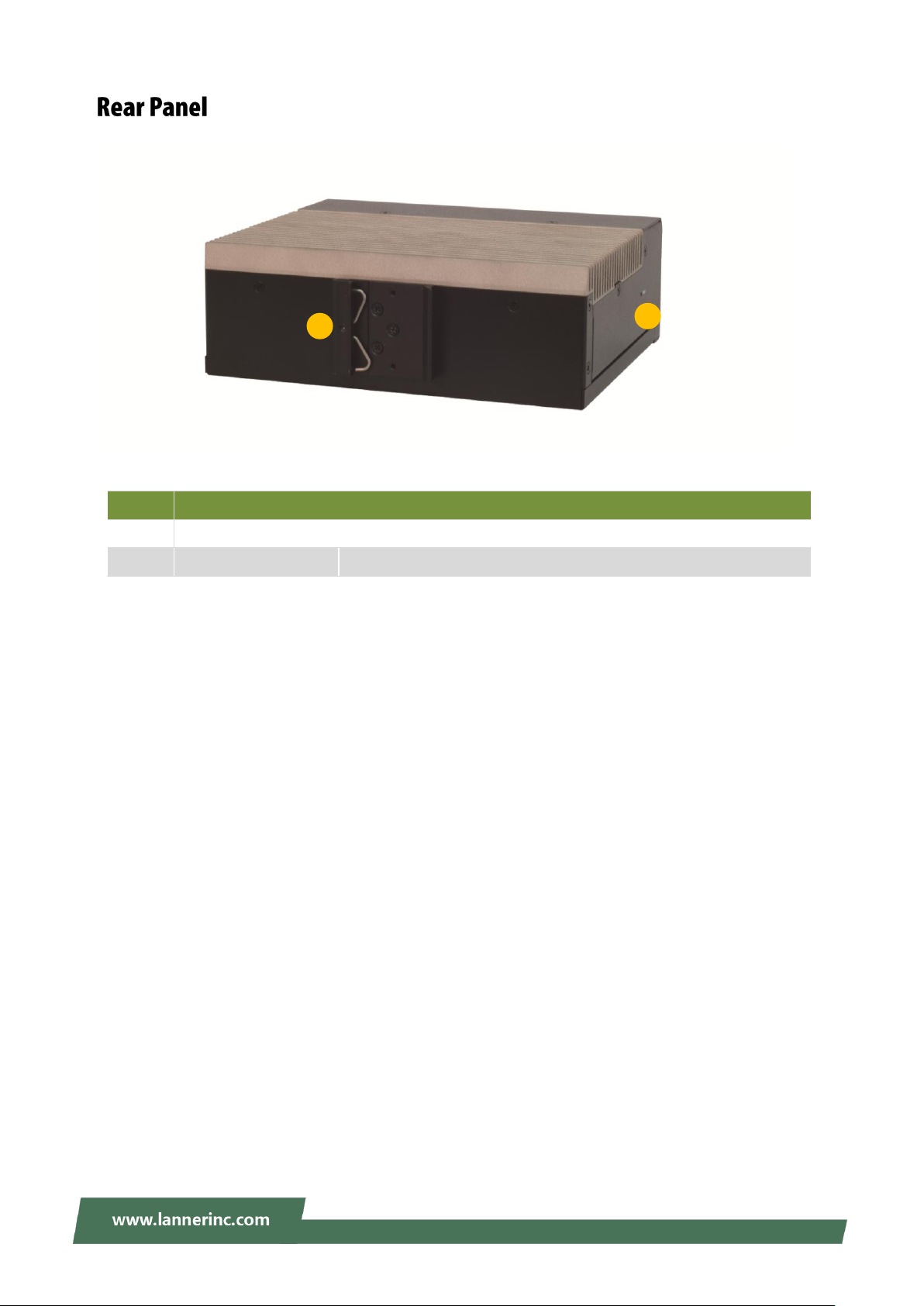
No.
Description
R1
DIN Rail Bracket
R2
Reset Button
For software reset
R1
R2
15
Page 16
Chapter 1: Product Overview
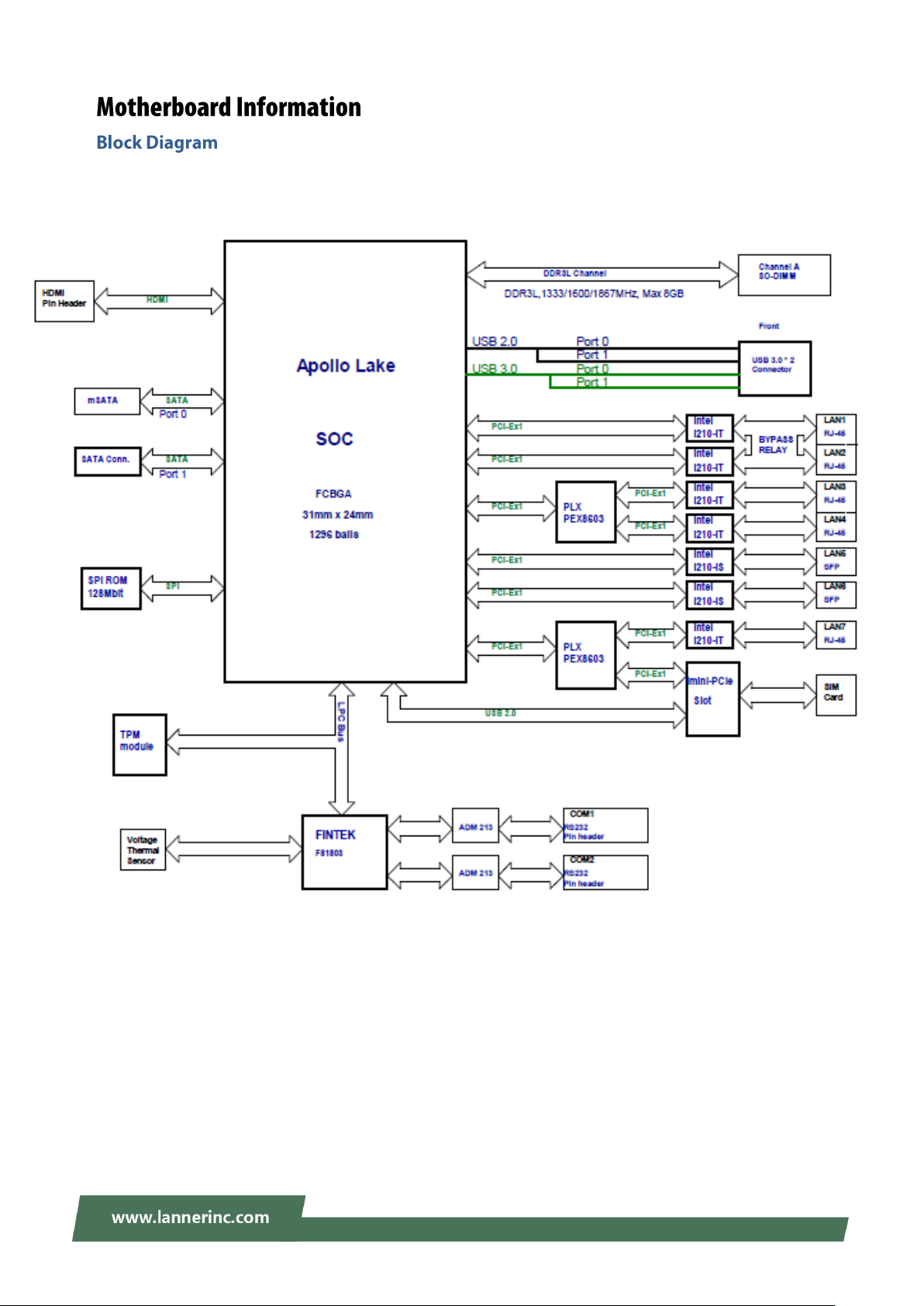
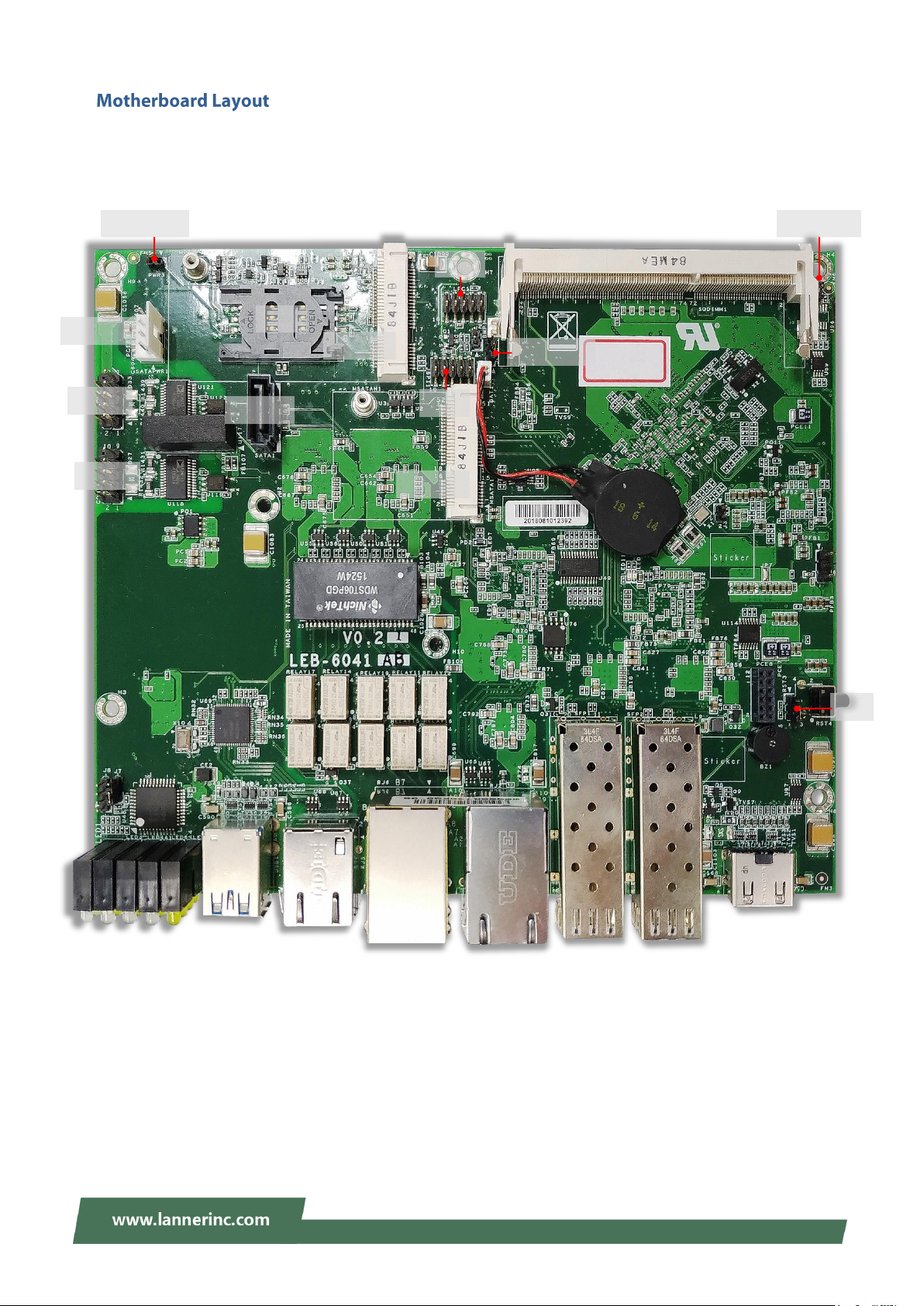
The block diagram indicates how data flows among components on the motherboard. Please refer to the
following figure for your motherboard’s layout design.
16
Page 17
LEC-6041 User Manual
PPWWRR33
CCOOMM22
CCOOMM11
SSAATTAAPPWWRR11
SSIIMM11
MMPPCCIIEE11
MMSSAATTAA11
SSAATTAA11
JJCCMMOOSS11
JJSSPPII11
RRSSTT33
LLPPCC11
JJCCMMOOSS22
The motherboard layout shows the connectors and jumpers on the board. Refer to the following picture as
a reference of the pin assignments and the internal connectors.
17
Page 18
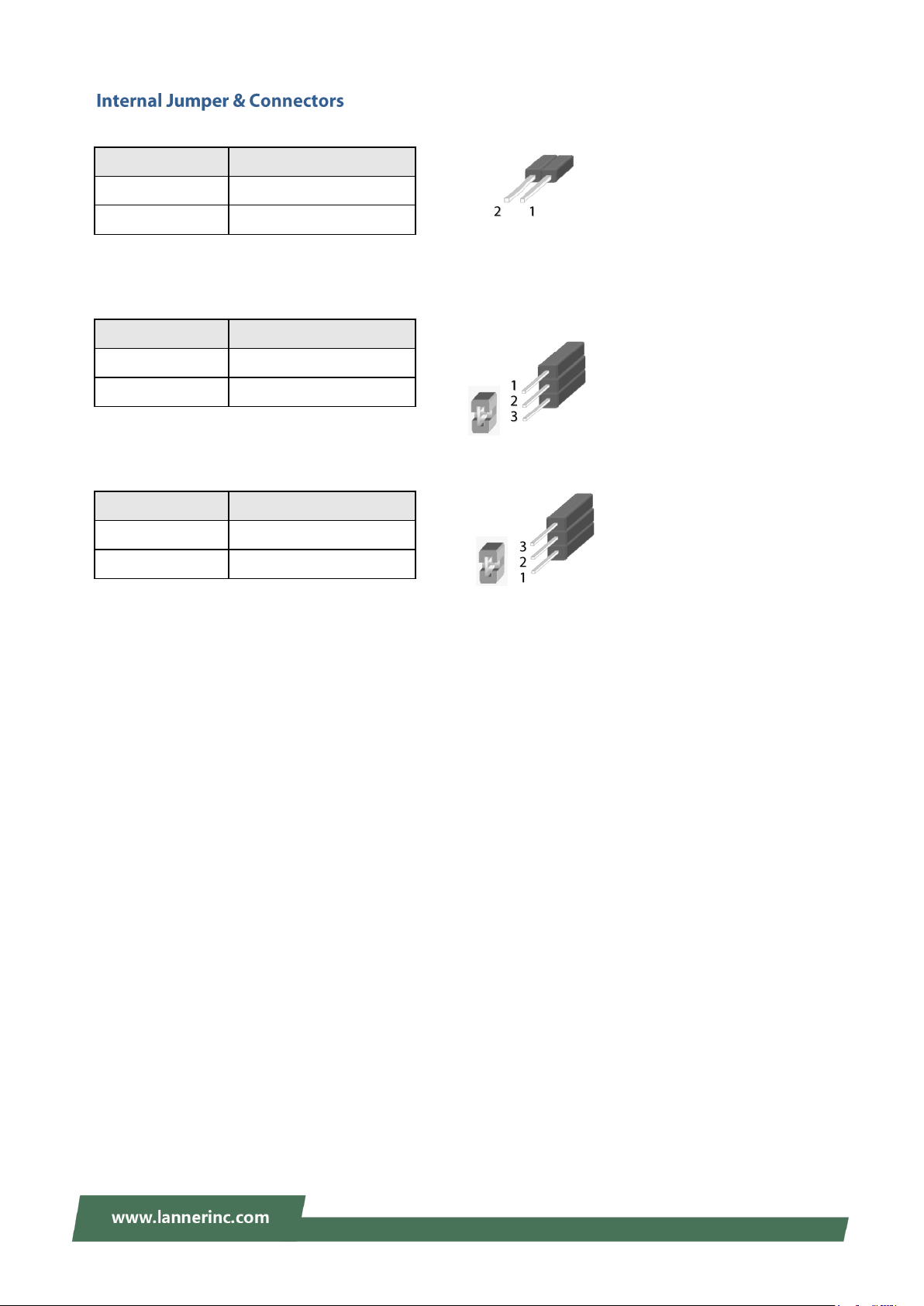
Jumper
Description
1-2
Power ON/OFF system
NC (Default)
Normal
Jumper
Description
1-2 (Default)
Normal
2-3
Clear CMOS
Jumper
Description
1-2
Software reset
2-3 (Default)
Hardware reset
PWR3: Power Button
RST3: HW/SW Reset Selection
JCMOS1/2: Clear CMOS
Chapter 1: Product Overview
18
Page 19
LEC-6041 User Manual
Pin No.
Description
Pin No.
Description
1
NC 2 NC
3
COM1_R_RXD
4
NC
5
COM1_R_TXD
6
NC 7 NC 8 NC
9
COM1_2_GND
Pin No.
Description
Pin No.
Description
1
NC 2 NC
3
COM2_R_RXD
4
NC
5
COM2_R_TXD
6
NC 7 NC 8 NC
9
COM1_2_GND
Pin No.
Description
Pin No.
Description
1
HOLD#
2
NC 3 CS#
4
+1.8V
5
MISO
6
NC 7 NC
8
CLK 9 GND
10
MOSI
Pin No.
Description
Pin No.
Description
1
CLK_24M_P80
2
L_AD1
3
PLTRST_P80_N
4
L_AD0
5
L_FRAME_N
6
P3V3S
7
L_AD3
8
GND
9
L_AD2
10
GND
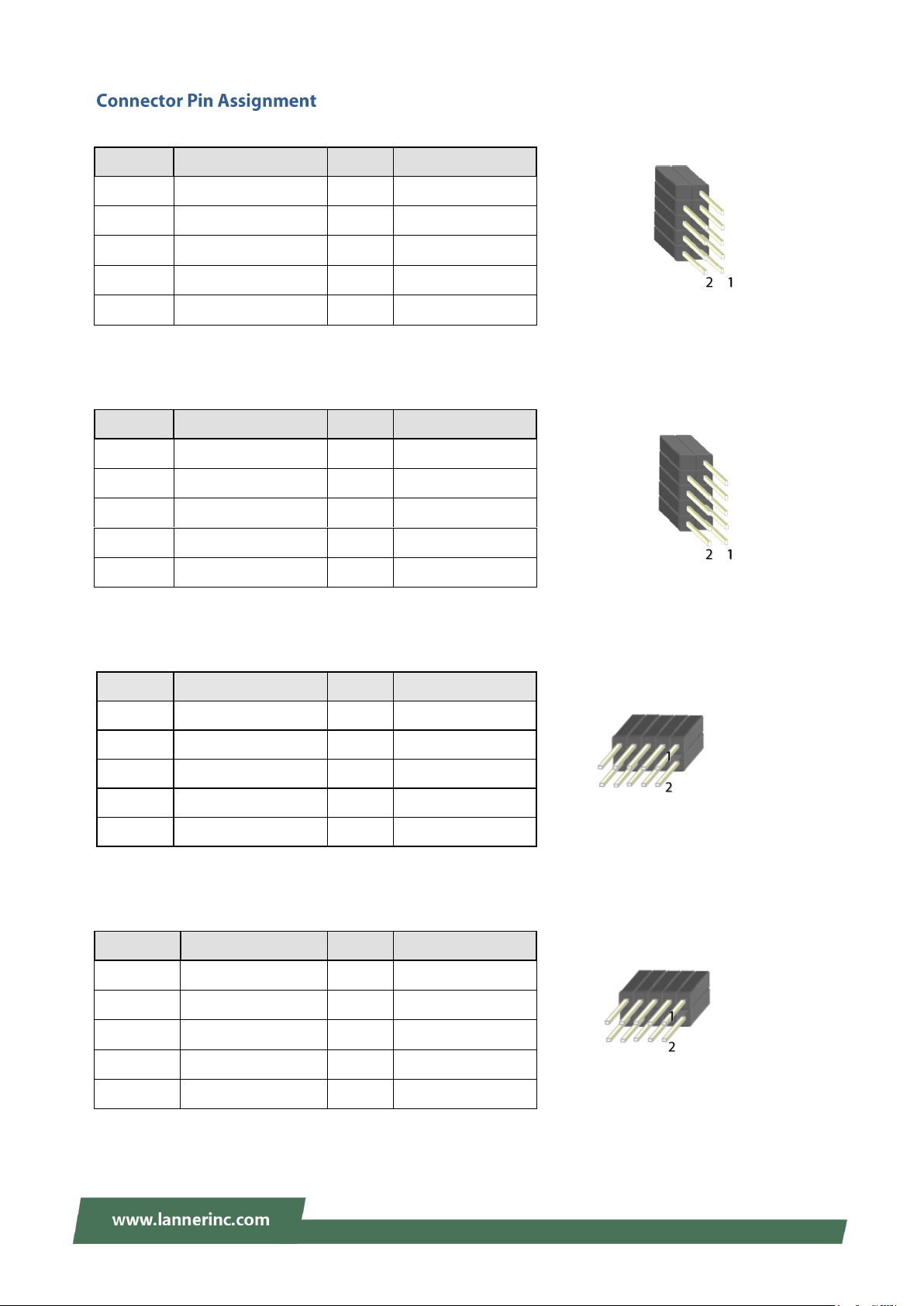
COM1: Serial Port 1 Connector
COM2: Serial Port 2 Connector
JSPI1: SPI ROM Connector (For RD debug)
LPC1: LPC Connector (For RD debug)
19
Page 20
Pin No.
Description
1
V12_S
2
GND
3
GND
4
V5_S
Pin No.
Description
Pin No.
Description
1
GND
5
SATA_RXN1_C
2
SATA_TXP1_C
6
SATA_RXP1_C
3
SATA_TXN1_C
7
GND
4
GND
Pin No.
Description
Pin No.
Description
1
NC
2
V3P3_S
3
NC 4 GND
5
NC 6 NC
7
NC 8 NC 9 GND
10
NC
11
NC
12
NC
13
NC-
14
NC
15
GND
16
NC
Mechanical Key
17
NC
18
GND
19
NC
20
NC
21
GND
22
NC
23
SATA_RXP0_C
24
V3P3_S
25
SATA_RXN0_C
26
GND
27
GND
28
NC
29
GND
30
NC
31
SATA_TXN0_C
32
NC
33
SATA_TXP0_C
34
GND
35
GND
36
NC-
37
GND
38
NC
39
V3P3_S
40
GND
41
V3P3_S
42
NC
43
GND
44
NC
45
NC
46
NC
47
NC
48
NC
49
NC
50
GND
51
NC
52
V3P3_S
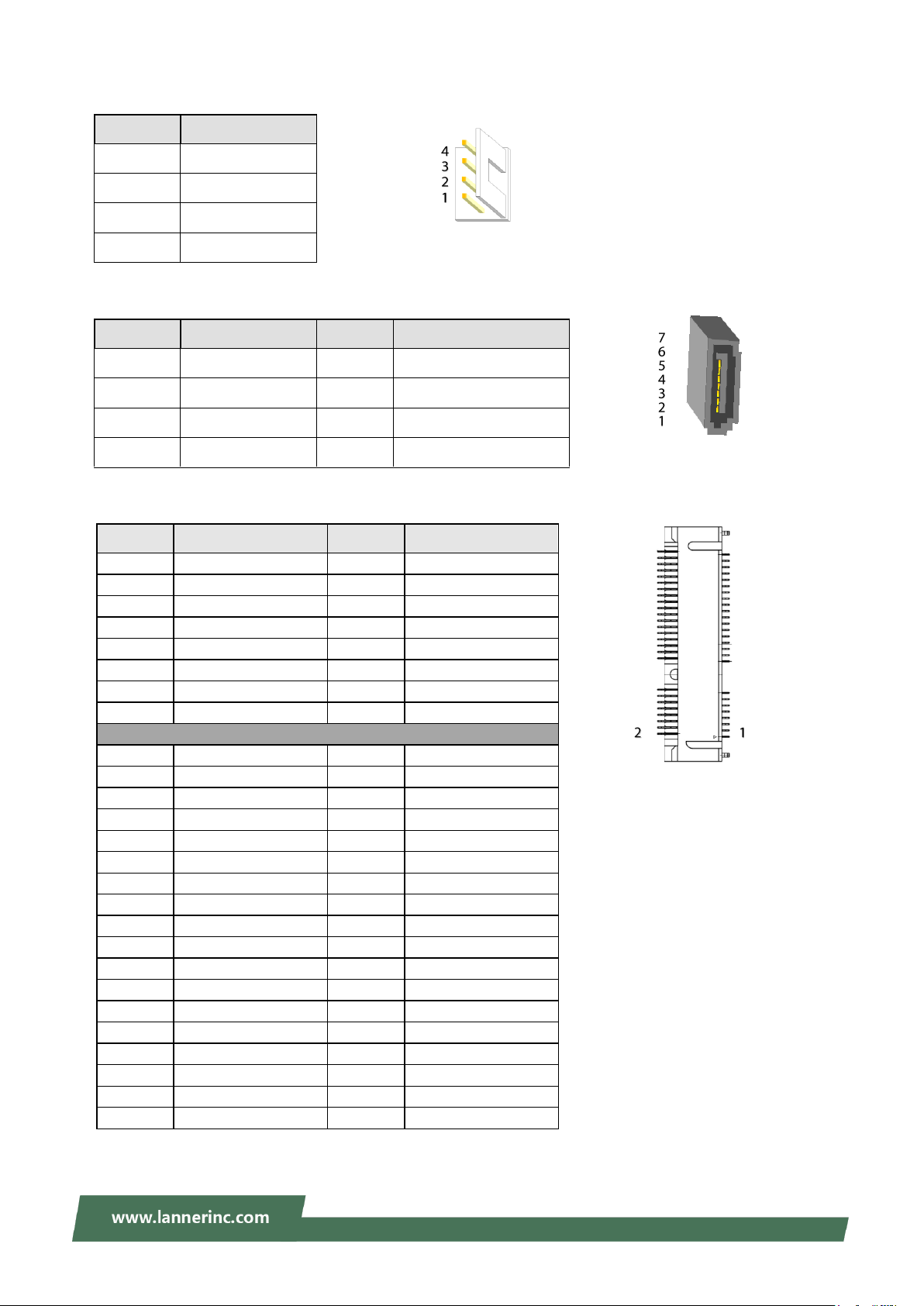
SATAPWR1: SATA Power Connector
SATA1: SATA Connector
Chapter 1: Product Overview
MSATA1: MSATA Connector
20
Page 21
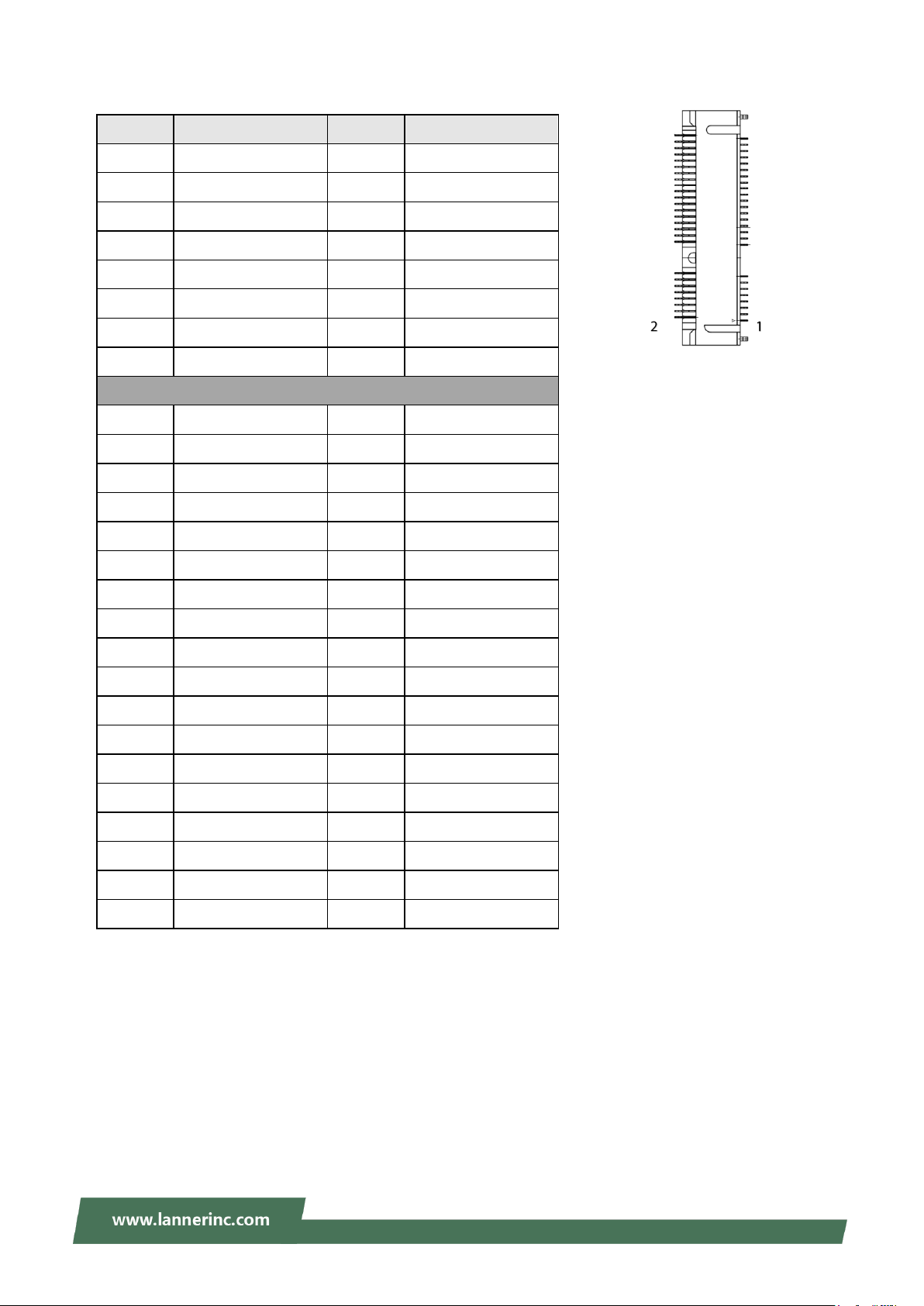
LEC-6041 User Manual
Pin No.
Description
Pin No.
Description
1
WAKE#
2
V3P3_S
3
NC 4 GND
5
NC
6
V1P5_S
7
CLKREQ#
8
UIM_PWR
9
GND
10
UIM_DATA
11
CLK_MPCIE_DN
12
UIM_CLK
13
CLK_MPCIE_DP
14
UIM_RESET
15
GND
16
NC
Mechanical Key
17
NC
18
GND
19
NC
20
W_DISABLE#
21
GND
22
PERST#
23
MPCIE_RXN
24
V3P3_S
25
MPCIE_RXP
26
GND
v27
GND
28
V1P5_S
29
GND
30
NC
31
MPCIE_TXN
32
NC
33
MPCIE_TXP
34
GND
35
GND
36
USB2_DN4
37
GND
38
USB2_DP4
39
V3P3_S
40
GND
41
V3P3_S
42
LED_WWAN#
43
GND
44
LED_WLAN#
45
NC
46
NC
47
NC
48
V1P5_S
49
NC
50
GND
51
NC
52
V3P3_S
MPCIE1: MPCIE Connector
21
Page 22
Pin No.
Description
Pin No.
Description
C1
UIM_PWR
C5
GND
C2
UIM_RST#
C6
NC
C3
UIM_CLK
C7
UIM_DATA
Pin No.
Description
1
DC2+
2
DC2-
3
ALARM1
4
ALARM2
5
DC1+
6
DC1-
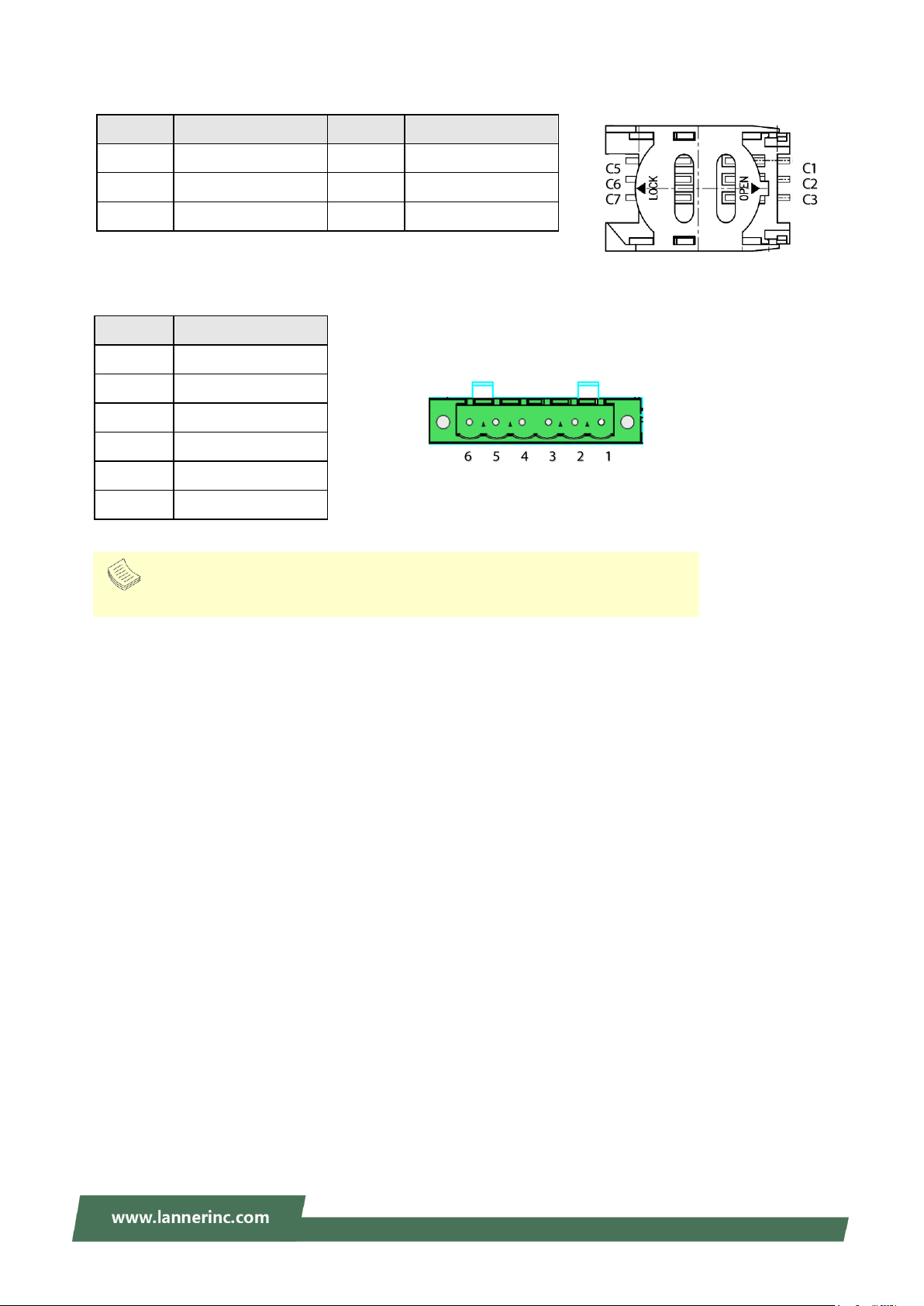
Note
The failure of either power (DC1 or DC2) will cause both Alarm1 and Alarm2 to short-circuit.
SIM1: SIM Card Socket
Input Power connector: Dual power input
Chapter 1: Product Overview
22
Page 23

LEC-6041 User Manual
Note
The failure of either power (DC1 or DC2) will cause both Alarm1 and Alarm2 to short-circuit.
1x Phoenix Contact
Terminal Block
Connect the device to a 20~54 VDC power source. The power source comes from the AC/DC Adapter
through a Phoenix contact. This power socket is specially designed to guard against a fault in power
contact, i.e., the reverse of the electrical polarity will not damage the system.
23
Page 24

Chapter 2: Hardware Installation
1. To install the key components including the SIM card, the mPCIe module, mSATA module and DDR2,
loosen the screws indicated below so that the chassis cover can be removed.
2. With some pressure, slide the cover away from the system as shown in the picture.
24
Page 25

LEC-6041 User Manual
Max screw driver torque
=0.5 kg.cm
2x Thermal Pad for mSATA/mPCIe modules
2x Screws for Heat sink
2x Screws for fixture of mSATA/mPCIe modules
3. Insert the modules into the corresponding sockets.
For the DDR2, please handle the heat sink screws with a torque screwdriver to ensure the tightening
to a torque of 0.5 kg.cm.
For the mSATA module and the mPCIe module, secure them onto the motherboard using the
provided screws, and attach a thermal pad to the surface of each. Please note, it is recommended to
purchase the mSATA module and the mPCIe module from Lanner, for the thermal pads that come
with the package were specifically chosen to fit into the gap between the selected modules and the
heat sink. If you prefer to use other modules, their thicknesses are very likely to differ from those of
Lanner-supplied ones (mSATA: 3.7mm / mPCIe: 2.5mm), which means you may have to replace the
provided thermal pads with suitable ones.
4. Make sure you secure the heat sink onto the chassis with the provided screws.
25
Page 26

Chapter 2: Hardware Installation
S
S
S
A
A
A
T
T
T
A
A
A
C
C
C
o
o
o
n
n
n
t
t
t
a
a
a
c
c
c
t
t
t
4x Disk Screw
1. Remove the empty Disk Tray which can accommodate a 2.5” disk from the chassis cover by loosening
the three screws on it.
2. Install the disk onto the tray using four provided disk screws, and then fix the tray onto the chassis
cover. Insert one end of the SATA cable to the SATA contact on the disk.
26
Page 27

LEC-6041 User Manual
SSAATTAAPPWWRR11
SSAATTAA11
3. Insert the other end of the SATA data cable to SATA1 port on the motherboard, and the end of the
SATA power cable to SATAPWR1 port. Arrange the cables and route them neatly to avoid them from
getting tangled.
27
Page 28

Chapter 2: Hardware Installation
The system can be mounted to a wall with a DIN Rail Bracket.
1. Attach the Bracket to the rear of the system with 3 screws.
2. Hang the system onto a rail by engaging the hook of the Bracket into the DIN Rail until it is totally
fixed.
28
Page 29

LEC-6041 User Manual
4x Ear Bracket Screw
2x Ear Bracket
With the short ear brackets provided in the Ear Bracket Accessory Pack, the
system can be mounted onto a desktop rack stand, or an adjustable rack the
width of which can fit this system.
1. To start, remove the screws (indicated in the picture) on both sides of the system, and fix the two ear
brackets onto the system using the provided black screws.
2. Hold the system with its back facing you, lift and carefully insert the system into the rack. Secure the
brackets onto the posts with rack-mounting screws and/or retainer nuts.
29
Page 30

Chapter 3 Software Setup
To meet today's security requirements, Lanner SDK derives unique platform identity design and integrates
TPM software stack 2.0 on optional base. By leveraging Lanner SDK, the application development can be
shortened, and time-to-market can be easily met, download the SDK package and instruction guide from
http://www.lannerinc.com/products/firmware-and-software/platform-sdk
30
Page 31

LEC-6041 User Manual
Control Keys
Description
select a setup screen
select an item/option on a setup screen
<Enter>
select an item/option or enter a sub-menu
+/-
adjust values for the selected setup item/option
F1
display General Help screen
F2
retrieve previous values, such as the last configured parameters during the last
time you entered BIOS
F3
load optimized default values
F4
save configurations and exit BIOS
<Esc>
exit the current screen
BIOS is a firmware embedded on an exclusive chip on the system’ s motherboard. Lanner's BIOS firmware
offering including market-proven technologies such as Secure Boot and Intel Boot Guard technology
deliver solid commitments for the shield protection against malware, uncertified sequences and other
named cyber threats. BIOS update for Lanner systems are available for download at
http://www.lannerinc.com/products/firmware-and-software/securityenhanced-bios
To enter the BIOS setup utility, simply follow the steps below:
1. Boot up the system.
2. Pressing the <Tab> or <Del> key immediately allows you to enter the Setup utility, then you will be
directed to the BIOS main screen. The instructions for BIOS navigations are as below:
31
Page 32

Feature
Description
BIOS Information
BIOS Vendor : American Megatrends
Core Version : AMI Kernel version, CRB code base, X64
Compliancy : UEFI version, PI version
Project Version : BIOS release version
Build Date and Time : MM/DD/YYYY
Access Level: Administrator / User
System Date
To set the Date, use <Tab> to switch between Date elements. Default
Range of Year: 2005-2099
Default Range of Month: 1-12
Days: dependent on Month.
System Time
To set the Date, use <Tab> to switch between Date elements.
Setup main page contains BIOS information and project version information.
Chapter 3 Software Setup
32
Page 33

LEC-6041 User Manual
Select the Advanced menu item from the BIOS setup screen to enter the “Advanced” setup screen. Users
can select any of the items in the left frame of the screen.
33
Page 34

Feature
Options
Description
Security Device
Support
Enabled
Disabled
Enables or disables BIOS support for security device.
By disabling this function, OS will not show Security
Device. TCG EFI protocol and INT1A interface will not
be available.
Trusted Computing
Chapter 3 Software Setup
34
Page 35

LEC-6041 User Manual
Feature
Options
Description
Security Device
Support
Enabled
Disabled
Enables or disables BIOS support for security device.
By disabling this function, OS will not show Security
Device. TCG EFI protocol and INT1A interface will not
be available.
TPM State
Enabled
Disabled
Enables or disables Security Device.
NOTE: Your computer will reboot during restart in
order to change State of the Device.
Pending
operation
None
TPM Clear
Schedules an Operation for the Security Device.
NOTE: Your computer will reboot during restart in
order to change State of Security Device.
Device Select
TPM 1.2
TPM 2.0
Auto
TPM 1.2 will restrict support to TPM 1.2 devices; while
TPM 2.0 will restrict support to TPM 2.0 devices; Auto
will support both with the default set to TPM 2.0
devices. If not found, TPM 1.2 devices will be
enumerated.
Trusted Computing (TPM1.2)
35
Page 36

Feature
Options
Description
Trusted Computing (TPM2.0)
Chapter 3 Software Setup
36
Page 37

LEC-6041 User Manual
Security Device
Support
Enabled
Disabled
Enables or disables BIOS support for security device.
By disabling this function, OS will not show Security
Device. TCG EFI protocol and INT1A interface will not
be available.
SHA-1 PCR Bank
Enabled
Disabled
Enables or disables SHA-1 PCR Bank.
SHA256 PCR Bank
Enabled
Disabled
Enables or disables SHA256 PCR Bank.
Pending
operation
None
TPM Clear
Schedules an Operation for the Security Device.
NOTE: Your computer will reboot during restart in
order to change State of Security Device.
Platform
Hierarchy
Enabled
Disabled
Enables or disables Platform Hierarchy.
Storage Hierarchy
Enabled
Disabled
Enables or disables Storage Hierarchy.
Endorsement
Hierarchy
Enabled
Disabled
Enables or disables Endorsement Hierarchy.
TPM2.0 UEFI Spec
Version
TCG_1_2
TCG_2
Select the TCG2 Spec Version,
TCG_1_2: Supports the Compatible mode for
Win8/Win10
TCG_2: Supports new TCG2 protocol and event format
for Win10 or later.
Physical Presence
Spec Version
1.2
1.3
Select to tell OS to support PPI Spec Version 1.2 or 1.3.
NOTE: Some HCK tests might not support 1.3.
TPM 20
InterfaceType
TIS
Select TPM 20 Device for the Communication
Interface.
Device Select
TPM 1.2
TPM 2.0
Auto
TPM 1.2 will restrict support to TPM 1.2 devices; while
TPM 2.0 will restrict support to TPM 2.0 devices; Auto
will support both with the default set to TPM 2.0
devices. If not found, TPM 1.2 devices will be
enumerated.
37
Page 38

Super IO Configuration
Chapter 3 Software Setup
38
Page 39

LEC-6041 User Manual
Feature
Options
Description
Serial Port
Enabled
Disabled
Enables or disables Serial Port 1.
Device Settings
NA
IO=3F8h; IRQ = 4
COM1 MODE
RS232
Select Com Mode as RS232
Serial Port 1 (CPOM0)
Serial port 1 Configuration
39
Page 40

Feature
Options
Description
Serial Port
Enabled
Disabled
Enables or disables Serial Port 2
Device Settings
NA
IO=2F8h; IRQ = 3
COM2 MODE
RS232
Select Com Mode as RS232
Serial Port2 (CPOM1)
Serial port 2 Configuration
Chapter 3 Software Setup
40
Page 41

LEC-6041 User Manual
Feature
Description
CPU Temp
This value reports the CPU temperature.
SYS Temp
This value reports the System temperature.
CPU VCORE
This value reports the CPU VCORE.
VSB5V
This value reports the VSB5V Input voltage.
VBAT
This value reports the VBAT Input voltage.
3.3V
This value reports the 3.3V Input voltage.
Hardware Monitor
41
Page 42

Feature
Options
Description
Watch Dog
Timer
Enabled
Disabled
Enables or disables Watch Dog Timer function
Watch Dog Timer Configuration
Chapter 3 Software Setup
42
Page 43

LEC-6041 User Manual
Feature
Options
Description
COM0
Console
Redirection
Enabled
Disabled
Enables or disables Console Redirection
Serial Port Console Redirection
43
Page 44

Feature
Options
Description
Terminal Type
VT100
VT100+
VT-UTF8
ANSI
VT100: ASCII char set
VT100+:Extends VT100 to support color, function
keys, etc.
VT-UTF8:Uses UTF8 encoding to map Unicode
chars onto 1 or more bytes
ANSI: Extended ASCII char set
Bits per second
9600
19200
38400
57600
115200
Selects serial port transmission speed. The speed
must be matched on the other side. Long or noisy
lines may require lower speeds.
Data Bits
7
8
Data Bits
Parity
None
Even
Odd
Mark
Space
A parity bit can be sent with the data bits to detect
some transmission errors.
Stop Bits
1
2
Indicates the end of a serial data packet.
Flow Control
None
Flow Control can prevent data loss from buffer
Console Redirection Settings
Chapter 3 Software Setup
44
Page 45

LEC-6041 User Manual
Hardware
RTS/CTS
overflow.
VT-UTF8 Combo Key
Support
Disabled
Enabled
Enables VT-UTF8 Combination Key Support for
ANSI/VT100 terminals
Recorder Mode
Disabled
Enabled
With this mode enabled, only text will be sent. This
is to capture Terminal data.
Resolution 100x31
Disabled
Enabled
Enables or disables extended terminal resolution
Legacy OS
Redirection
Resolution
80x24
80x25
On Legacy OS, the Number of Rows and Columns
supported redirection.
Putty KeyPad
VT100
LINUX
XTERM86
SCO
ESCN
VT400
Selects FunctionKey and KeyPad on Putty.
Redirection After
BIOS POST
Always Enable
BootLoader
When Bootloader is selected, Legacy Console
Redirection is disabled before booting to legacy
OS. When Always Enable is selected, then Legacy
Console Redirection is enabled for legacy OS.
Default setting for this option is set to Always
Enable.
45
Page 46

Feature
Options
Description
Legacy Serial
Redirection Port
COM0
Select a COM port to display redirection of Legacy OS
and Legacy OPROM Messages
Legacy Serial Redirection Port
Legacy Console Redirection Settings
Chapter 3 Software Setup
46
Page 47

LEC-6041 User Manual
Feature
Options
Description
Intel Virtualization
Technology
Disabled
Enabled
When enabled, a VMM can utilize the additional
hardware capabilities provided by Vanderpool
Technology
VT-d
Disabled
Enabled
Enable/Disable CPU VT-d
Bi-directional
PROCHOT
Disabled
Enabled
When a processor thermal sensor trips (either
core), the PROCHOT# will be driven. If bi-direction
is enabled, external agents can drive PROCHOT#
to throttle the processor.
Thermal Monitor
Disabled
Enabled
Enable/Disable Thermal Monitor
Monitor Mwait
Disabled
Enabled
Enable/Disable Monitor Mwait
CPU Configuration
47
Page 48

Socket 0 CPU Information
Chapter 3 Software Setup
48
Page 49

LEC-6041 User Manual
Feature
Options
Description
EIST
Disabled
Enabled
Enable/Disable Intel SpeedStep
CPU Power Management
49
Page 50

Feature
Options
Description
Above 4G Decoding
Disabled
Enabled
Globally Enables or Disables 64bit
capable Devices to be Decoded in Above
4G Address Space (Only if System
Supports 64 bit PCI Decoding).
Hot-Plug Support
Enabled
Disabled
Globally Enables or Disables Hot-Plug
support for the entire System. If System
has Hot-Plug capable Slots and this
option set to Enabled, it provides a Setup
screen for selecting PCI resource
padding for Hot-Plug.
PCI Subsystem Settings
Chapter 3 Software Setup
50
Page 51

LEC-6041 User Manual
Feature
Options
Description
CSM Support
Disabled
Enabled
Enables or disables CSM Support
Network
Do Not Launch
UEFI
Legacy
Controls the execution of UEFI and
Legacy PXE OpROM
Storage
Do Not Launch
UEFI
Legacy
Controls the execution of UEFI and
Legacy Storage OpROM
Video
Do Not Launch
UEFI
Legacy
Controls the execution of UEFI and
Legacy Video OpROM
Other PCI device
Do Not Launch
UEFI
Legacy
Determines OpROM execution policy for
devices other than Network, Storage, or
Video
CSM Configuration
51
Page 52

Feature
Options
Description
Legacy USB Support
Enabled
Disabled
Auto
Enables Legacy USB support.
Auto option disables legacy support if
no USB devices are connected;
Disabled option will keep USB devices
available only for EFI applications.
XHCI Hand-off
Enabled
Disabled
This is a workaround for OSes without
XHCI hand-off support. The XHCI
ownership change should be claimed by
XHCI driver.
USB Mass Storage
Driver Support
Enabled
Disabled
Enables or disables USB Mass Storage
Driver Support.
USB transfer time-out
1 sec
5 sec
10 sec
20 sec
The time-out value for Control, Bulk, and
Interrupt transfers
Device reset time-out
1 sec
5 sec
10 sec
20 sec
USB mass storage device Start Unit
command time-out
USB Configuration
Chapter 3 Software Setup
52
Page 53

LEC-6041 User Manual
Device power-up delay
Auto
Manual
Maximum time the device will take
before it properly reports itself to the
Host Controller. Auto uses default value:
for a Root port, it is 100 ms, for a Hub
port the delay is taken from Hub
descriptor.
53
Page 54

Feature
Options
Description
Control Legacy PXE Boot from
Disabled
LAN1
LAN2
Control Legacy PXE Boot from
which LAN
USB Configuration
Chapter 3 Software Setup
54
Page 55

LEC-6041 User Manual
Select the Chipset menu item from the BIOS setup screen to enter the Platform Setup screen. Users can
select any of the items in the left frame of the screen.
55
Page 56

Feature
Options
Description
Max TOLUD
2 GB
2.25 GB
2.5 GB
2.75 GB
3 GB
Maximum Value of TOLUD.
Above 4GB MMIO
BIOS assignment
Enabled
Disabled
Enable/Disable above 4GB
MemoryMappedIO BIOS assignment
This is disabled automatically when
Aperture Size is set to 2048MB
North Bridge
Chapter 3 Software Setup
56
Page 57

LEC-6041 User Manual
Feature
Options
Description
Serial IRQ Mode
Quiet
Continuous
Configure Serial IRQ Mode.
OS Selection
Windows
Android
Win7
Intel Linux
Select the target OS
South Bridge
57
Page 58

South Cluster Configuration
Chapter 3 Software Setup
58
Page 59

LEC-6041 User Manual
SATA Drives
Please refer to Connector Pin Assignment for the physical port location:
SATA Port0 = mSATA storage
SATA Port1 = SATA1 port (on motherboard)
59
Page 60

Chapter 3 Software Setup
Feature
Options
Description
Aggressive LPM
Support
Enabled
Disabled
Enable PCH to aggressively enter link
power state.
Port 0
Enabled
Disabled
Enable or Disable SATA Port
SATA Port 0 Hot Plug
Capability
Enabled
Disabled
If enabled, SATA port will be reported as
Hot Plug capable.
Spin Up Device
Enabled
Disabled
If enabled for any of ports Staggerred
Spin Up will be performed and only the
drives which have this option enabled
will spin up at boot. Otherwise all drives
spin up at boot.
SATA Device Type
Hard Disk Drive
Solid State Drive
Identify the SATA port is connected to
Solid State Drive or Hard Disk Drive
SATA Port 0 DevSlp
Enabled
Disabled
Enable/Disable SATA Port 0 DevSlp.
Board rework for LP needed before
enable.
Port 1
Enabled
Disabled
Enable or Disable SATA Port
SATA Port 1 Hot Plug
Capability
Enabled
Disabled
If enabled, SATA port will be reported as
Hot Plug capable.
Spin Up Device
Enabled
Disabled
If enabled for any of ports Staggered
Spin Up will be performed and only the
drives which have this option enabled
will spin up at boot. Otherwise all drives
spin up at boot.
SATA Device Type
Hard Disk Drive
Solid State Drive
Identify the SATA port is connected to
Solid State Drive or Hard Disk Drive
SATA Port 1 DevSlp
Enabled
Disabled
Enable/Disable SATA Port 1 DevSlp.
Board rework for LP needed before
enable.
60
Page 61

LEC-6041 User Manual
Feature
Options
Description
xHCI Mode
Enable
Disable
Once disabled, XHCI controller would be
function disabled, none of the USB
devices are detectable and usable during
boot and in OS. Do not disable it unless
for debug purpose.
USB Configuration
61
Page 62

Feature
Options
Description
Restore AC Power Loss
Power On
Power Off
Last State
Specify what state to go to when power
is re-applied after a power failure (G3
state).S0 State: System will boot directly
as soon as power applied.S5 State:
System keeps in power-off state until
power button is pressed.
BIOS Lock
Enabled
Disabled
Enable/Disable the SC BIOS Lock Enable
feature. Required to be enabled to
ensure SMM protection of flash.
RTC Lock
Enabled
Disabled
Enable will lock bytes 38h-3Fh in the
lower/upper 128-byte bank of RTC RAM
GPIO Lock
Enabled
Disabled
Enable to set GPIO Pad Configuration
Lock for security
Miscellaneous Configuration
Chapter 3 Software Setup
62
Page 63

LEC-6041 User Manual
Feature
Description
Setup Administrator Password
If ONLY the Administrator's password is set, it only
limits access to Setup and is only asked for when
entering Setup.
User Password
If ONLY the User's password is set, it serves as a
power-on password and must be entered to boot or
enter Setup. In Setup, the User will have Administrator
rights.
Select the Security menu item from the BIOS setup screen to enter the Security Setup screen. Users can
select any of the items in the left frame of the screen.
63
Page 64

Feature
Options
Description
Attempt Secure
Boot
Disabled
Enabled
Secure Boot is activated when Platform Key(PK) is
enrolled, System mode is User/Deployed, and CSM
function is disabled.
Secure Boot Mode
Standard
Custom
Secure Boot mode selector:
In Custom mode, Secure Boot Variables can be
configured without authentication
Secure Boot
Chapter 3 Software Setup
64
Page 65

LEC-6041 User Manual
Feature
Options
Description
Provision Factory
Default keys
Disabled
Enabled
Allows User to provision factory default Secure
Boot keys when System is in Setup Mode.
Install Factory
Default keys
None
Forces System to User Mode - install all Factory
Default keys
Enroll Efi Image
None
Allows the image to run in Secure Boot mode.
Enroll SHA256 hash of the binary into Authorized
Signature Database (db)
Key Management
65
Page 66

Chapter 3 Software Setup
Feature
Options
Description
Setup Prompt Timeout
5
The Number of seconds to wait for setup
activation key. 65535 means indefinite
waiting.
Bootup NumLock State
On
Off
Select the keyboard NumLock state.
Quiet Boot
Disabled
Enabled
Enables or disables Quiet Boot option.
Boot mode select
LEGACY
UEFI
DUAL
Select boot mode for LEGACY or UEFI.
Note: Set boot priority from boot option group
Select the Boot menu item from the BIOS setup screen to enter the Boot Setup screen. Users can select any
of the items in the left frame of the screen.
66
Page 67

Chapter 3 Software Setup
Select the Save & Exit menu item from the BIOS setup screen to enter the Save and Exit Setup screen.
Users can select any of the items in the left frame of the screen.
Discard Changes and Exit
Select this option to quit Setup without saving any modifications to the system configuration. The following
window will appear after the “Discard Changes and Exit” option is selected. Select “Yes” to Discard
changes and Exit Setup.
Save Changes and Reset
When Users have completed the system configuration changes, select this option to save the changes and
reset from BIOS Setup in order for the new system configuration parameters to take effect. The following
window will appear after selecting the “Save Changes and Reset” option is selected. Select “Yes” to Save
Changes and reset.
67
Page 68

Note: The items under Boot Override were not same with image. It should depend on devices connect to this
system.
Restore Defaults
Restore default values for all setup options. Select “Yes” to load Optimized defaults.
LEC-6041 User Manual
68
Page 69

Appendix A: LED Indicator Explanations
BBlliinnkkiinngg AAmmbbeerr
Data access activity
Off
No data access activity
Solid Green
Defined by GPIO
Solid Red
Defined by GPIO
Off
Defined by GPIO
Solid Green
The system is powered on
Off
The system is powered off
BBlliinnkkiinngg AAmmbbeerr
Link has been established and there is activity on this port
SSoolliidd AAmmbbeerr
Link has been established and there is no activity on this port
Off
No link is established
BBlliinnkkiinngg AAmmbbeerr
Link has been established and there is activity on this port
SSoolliidd AAmmbbeerr
Link has been established and there is no activity on this port
Off
No link is established
SSoolliidd AAmmbbeerr
Operating as a 100-Mbps connection (1000 Mbps)
Solid Green
Operating as a Gigabit connection
Off
Operating as a 10-Mbps connection
HDD Activity
If this LED blinks, it indicates data access activities; otherwise, it remains off.
System Status
This LED indicator is programmable. You could program it to display the operating status of the
behaviors described below:
System Power
LTE Status
L1-L5 LAN Port
Link Activity
Speed
69
Page 70

BBlliinnkkiinngg AAmmbbeerr
There is fiber activity on this port
SSoolliidd AAmmbbeerr
Fiber link status
Off
No link is established
SSoolliidd AAmmbbeerr
Data transmitting
Off
No data activity
SSoolliidd AAmmbbeerr
Data receiving
Off
No data activity
F1-F2 Fiber Port
C1-C2 COM Port
TX Activity
RX Activity
LEC-6041 User Manual
70
Page 71

Appendix B: Setting up Console Redirections
Console redirection lets you monitor and configure a system from a remote terminal computer by
re-directing keyboard input and text output through the serial port. The following steps illustrate how to
use this feature. The BIOS of the system allows the redirection of the console I/O to a serial port. With this
configured, you can remotely access the entire boot sequence through a console port.
1. Connect one end of the console cable to console port of the system and the other end to the serial port
of the Remote Client System.
2. Configure the following settings in the BIOS Setup menu:
BIOS > Advanced > Serial Port Console Redirection > Console Redirection Settings, select 115200
for the Baud Rate, None. for Flow control, 8 for the Data Bit, None for Parity Check, and 1 for the Stop
Bit.
3. Configure console redirection related settings on the client system. You can use a terminal emulation
program that features communication with serial COM ports such as TeraTerm or Putty. Make sure the
serial connection properties of the client conform to those for the server.
71
Page 72

LEC-6041 User Manual
Note
Customer is responsible for shipping damage(s) resulting from inadequate/loose packing of the defective
unit(s). All RMA# are valid for 30 days only; RMA goods received after the effective RMA# period will be
rejected.
1. All products are under warranty against defects in materials and workmanship for a period of one year
from the date of purchase.
2. The buyer will bear the return freight charges for goods returned for repair within the warranty period;
whereas the manufacturer will bear the after service freight charges for goods returned to the user.
3. The buyer will pay for repair (for replaced components plus service time) and transportation charges
(both ways) for items after the expiration of the warranty period.
4. If the RMA Service Request Form does not meet the stated requirement as listed on “RMA Service“, RMA
goods will be returned at customer’s expense.
5. The following conditions are excluded from this warranty:
Improper or inadequate maintenance by the customer
Unauthorized modification, misuse, or reversed engineering of the product
Operation outside of the environmental specifications for the product.
1. To obtain an RMA number, simply fill out and fax the “RMA Request Form“ to your supplier.
2. The customer is required to fill out the problem code as listed. If your problem is not among the codes
listed, please write the symptom description in the remarks box.
3. Ship the defective unit(s) on freight prepaid terms. Use the original packing materials when possible.
4. Mark the RMA# clearly on the box.
72
Page 73

Appendix C: Terms and Conditions
When requesting RMA service, please fill out the following form. Without this form enclosed, your RMA
cannot be processed.
73
 Loading...