

Page 1
Page 2

For correct usage please read these instructions carefully
and keep in a safe place for future reference!
CONTENTS
Safety Precautions ..................................................
Package Contents ..................................................
Description of Parts ................................................
Loading Slides ........................................................
Loading Negatives ..................................................
General Operations ................................................
Technical Specifications .......................................
1
2
3
4
5
6
21
Page 3

1. Safety Precautions
Please read these notes carefully before initial use.
General Notes:
Do not place the device on an unstable surface. If it falls it may cause
personal injury.
Follow the safety and operating instructions for the other devices to be
connected to your film scanner.
Do not overload your PC with USB connections. Connecting too many
devices to your computer, such as wireless mice, media players, mobile
phones, and other USB devices may result in an insufficient supply of power
to your film scanner for normal operation.
Please make sure that this scanner does not get into the hands of children it
is not a toy!
Please observe the regulations for the prevention of accidents of the
organization of commercial employer's liability insurance associations for
electrical installations and production facilities in commercial facilities.
Please contact our technical support for questions regarding the scanner, its
mode of operation, safety and proper connection.
Do not disassemble the device and do not open the housing, there is danger
of electric shock. The retailer is not liable for any damage incurred during use
of this device, or for the complaints of third parties.
1
Page 4

Ambient Conditions:
Set the scanner up so that the ventilation openings are not obstructed. For
example do not place it on a bed, sofa, carpet, or similar surfaces.
Do not place the device close to heat sources such as radiators or ovens.
And do not subject the device to high temperatures or severe temperature
fluctuations. Protect it against solar radiation.
Avoid severe stress, vibration and strong impact. Do not drop or shake the
device. It can also be damaged by strong pressure on the LCD display.
Keep the scanner away from water and other liquids. It should not be used
in rain or snow. Moisture may cause electric shock or even fire.
Cleaning and Care:
Use a soft, dry cloth to clean the surface and the cleaning brush provided for
the exposure area. Store the device in a clean and dry location.
Packing:
Do not leave the packing material lying around. Plastic bags are dangerous
and not toys.
Interference:
Most electronic devices such as lamps, computers, telephones, etc. create
an electromagnetic field. Keep the film scanner away from electrical devices
to avoid unwanted interference and interaction.
If liquid or a foreign object enters the device, have it checked by an authorized
person before you continue to use it.
We recommend you contact our service center.
1-2
Page 5

Start of Operation:
To ensure proper operation please read all the operating instructions and the
notes on safety carefully!
Power Connection:
Connect the device using the supplied USB cable and the
power adapter.
Insert the plug of the power adapter into a power outlet.
USB Connection:
Use the USB cable to connect the device to your PC.
Battery Operation:
Insert 4 alkaline batteries (Type AAA) into the device.
1-3
Page 6
2. Package Contents
Film Scanner
USB Cable
Negative Film Holder
Positive Slide Holder
AC/DC Adapter
User’s Manual
Cleaning Brush
NOTE: You can use the provided brush to clean the backlight panel.
Place the film scanner on the side and insert the end of the brush into
the door on the right side.
Clean the backlight panel placed in the film scanner.
2
Page 7
3. Description of Parts
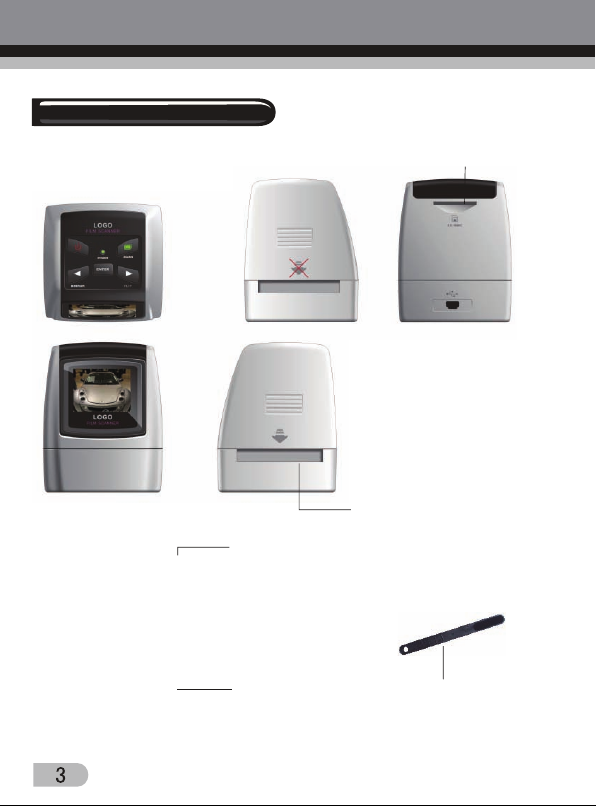
SD/MMC Card Slot
Slot
Positive Slide
Holder
Negative Film
Folder
Cleaning Brush
Page 8
4. Loading Slides
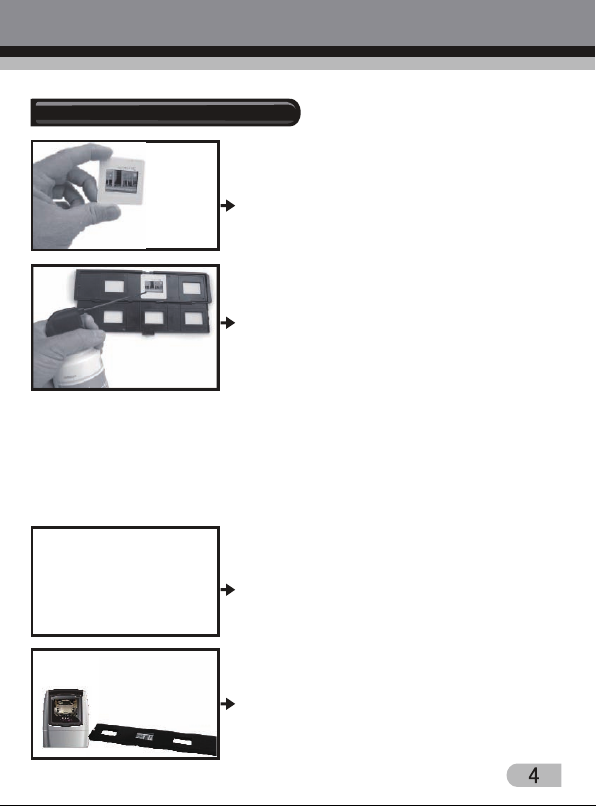
Hold up the slide toward the light. Face the
trademark side of the slide away from you. Look
through the slide and it should appear normally
(not a mirror image).
Now turn the slide so the image is upside down
while looking at the same side.
Open the slide holder at the marked spot on
the top.
With the slide holder laid open place the slide
into recessed area in the holder- the slide
should fit perfectly.
Note: Handle slides with care. Any dust scratches or fingerprints will show up
on your saved images. If possible use cotton gloves when handling slides. It
is recommended to use compressed air to remove any dust on the slides.
This is not included with the film scanner but can be purchased from an office
supply or electronics retailer.
Close the slide holder and press the edges so
that it locks in place.
Hold it in the position as shown in the film
scanner.
Insert the Slide Holder into the slot on the
right side of the film scanner as shown.
Page 9
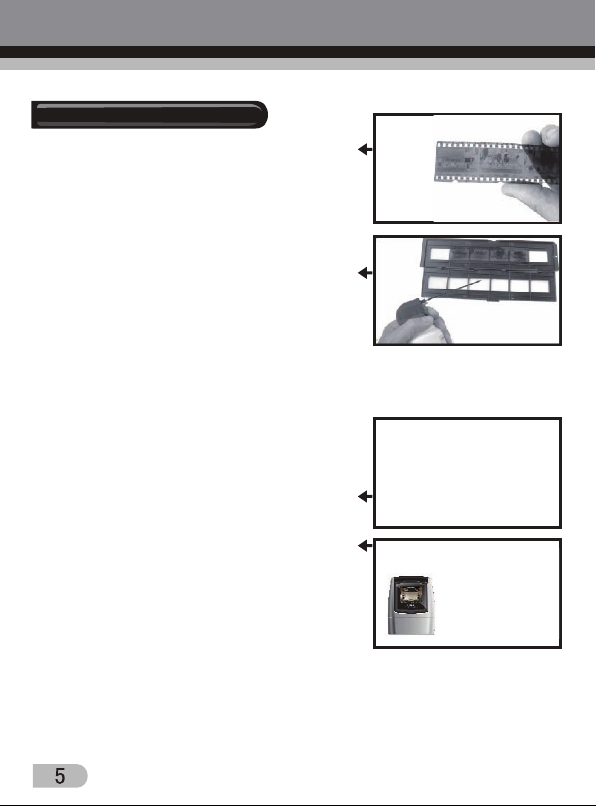
5. Loading Negatives
Hold up the negative toward the light. As you
look through the negative you should be able
to read the small negative numbers normally
(not a mirror image).
Now turn the negative so the image is upside
down while looking at the same side.
Open the negative holder at the marked spot
on the top. With the negative holder laid open
place the negative into holder so the notches
line up with the notches on the holder.
Note: Handle negatives with care. Any dust,
scratches or fingerprints will show up on your saved images. If possible use
cotton gloves when handling negatives. It is recommended to use compressed
air to remove any dust on the negatives.
This is not included with the film scanner but
can be purchased from an office supply or
electronics retailer.
Close the negative holder and press the edges
so that it locks in place
Hold it in the position as shown in the film
scanner.
Insert the negative holder into the slot on the
right side of the film scanner as shown.
Film Holder: The design of film holder is follow
ISO standard. In some cases the holes on the
film will not match exactly to alignment of the holder. This is caused by a nonstandard camera. In this case there will be a small black line on the edge of
the frame that can easily be cropped out using photo editing software.
ISO - International Organization for Standardization
Page 10

6. General Operations
Quick Start
1. Put Slide/Negative onto the Slide/Negative Holder.
2. Insert the Slide/Negative Holder into the slot on the right of the film scanner.
3. Apply the power to the film scanner by three ways:
(1) USB: Connect the film scanner to PC with USB cable.
(2) 4 x AAA alkaline batteries: Put alkaline batteries into the device (The
film scanner can work for about 90 minutes).
(3) 5V adapter: Connect the adapter to the device with USB cable.
4. Press POWER button to turn on the film scanner.
5. Press SCAN button to capture the image.
6. Follow the menu on screen for scanning.
7. After finished the capture, take out the memory card.
NOTE: The film scanner has a 32MB built-in memory for recording, when
there is a memory card inserted, it will be the top priority for saving data.
8. Or read pictures from PC by USB mode.
Operation Guide
Home: Main Menu
Language mode
USB mode
Capture mode
Playback mode
Film Type
Resolution
Page 11

Home: No Memory Card
No memory card indicator
If there is no memory card been inserted to device, a warning icon will be
shown on screen when enter main menu.
1. Capture
Capture
After welcome page, above menu will remain for 5 seconds. User can press
LEFT/RIGHT button for desired menu, or system will auto enter Capture mode
if there is no action during this 5 seconds period.
1.1 Capture: Mirror/Flip (Hard Key)
If any image requires for Mirror or Flip before capture, press LEFT/RIGHT
button for Mirror/Flip function, the live view will be adjusted accordingly (This
step is to correct user misplaced the film either upside down or flip). Mirror
and Flip buttons can only be used while in the live view mode.
Page 12

Mirror
Press LEFT/MIRROR button to change image left to right
Flip
Press RIGHT/FLIP button to upside down image
1.2 Capture Mode
Live view indicator
Page 13

Once enter capture mode, there will be an indicator on left top corner to
indicate it is in live view mode. When the film holder is inserted into the slot,
the image always shows the positive image according to preview defined film
type (after power on, the film type is default to negative film). Reconfirm the
film position through the display before press SCAN button.
User can also press ENTER button, then press LEFT/RIGHT button to adjust
EV value, press ENTER button again to confirm and back to live view mode.
1.3 Capture: Edit Menu
Selected image
Save: save captured image
Cancel: cancel any editing with this image
Home: back to main menu
1.4 Live view Capture/Edit Menu
SCAN
ENTER
Page 14

Once press SCAN button in live view, the edit menu will be appeared. When
user press ENTER button, the current image will be saved to internal memory
or memory card when there is a memory card inserted, the display will return
to live view again.
1.5 Capture: Save
Save
Once user press SCAN button, preview (live view) image will be selected and
shown on the TFT which will take between 1~2 second with 2 icons shown
on the left side of the screen. Save icon will be highlighted for user to confirm
by ENTER button, after the above step, the display will go back to live view
mode (preview).
1.6 Capture: Cancel
Selected image
Select Cancel icon with LEFT/RIGHT button and press ENTER button to
cancel any of editing step with present selected image and the display will
return to live view mode (nothing will be saved).
Page 15

1.7 Capture: Home
ENTER
Select Home icon with LEFT/RIGHT button, then press ENTER button or
press SCAN button anytime to back to main menu.
1.8 Exit from Edit Mode Back to Capture Mode (Live View)
Next image in
Film Holder
Once user press ENTER button for save or cancel option, the display will
return to capture mode/live view. Then user can move the film holder to next
target film to capture.
Page 16

1.9 Memory Full
Once internal memory or memory card is full, a memory full icon will be shown
on screen when press SCAN button. User has to download the images to PC
or replace another memory card for continue capture.
Memory full indicator
2. Playback
Playback
Press LEFT/RIGHT button to playback mode when power on the device or
access the main menu by Home icon/SCAN button anytime. Press ENTER
button to confirm the selection.
Page 17

2.1 Playback: Auto Slide Show
Slide show mode
Once user enter playback mode (default to slide show), TFT will auto display
all images stored in internal memory or memory card with 2 seconds interval
from previous captured image. User can also stop the slide show by press
ENTER button (Only the images captured by the film scanner are available in
playback mode).
2.2 Playback: Edit Menu
Rotate +90: Captured image rotate +90 degrees
Rotate -90: Captured image rotate -90 degrees
Delete: delete this picture stored in internal memory or memory card
Exit: return to Slide show mode
Save: save the modified image to internal memory or memory card
Home: return to main menu
Page 18

2.3 Playback: Slide Show Single Picture Edit Mode
User can interrupt (stop) slide show mode to stand alone playback mode
(single picture playback) by press ENTER button. (Pause slide show) Then
user is able to scroll each picture by LEFT/RIGHT button. Once user select
the picture stored in internal memory or memory card which intended to be
modified, press ENTER button again to bring out the edit mode for modification.
If there is no memory card inserted or no image in internal memory, TFT will
auto display 20 frames stored in internal memory when enter playback mode,
but they will not be edited anytime.
Slide show mode
ENTER
ENTER
Use LEFT/RIGHT button
Single picture mode
to scroll pictures
ENTER
Edit mode
ENTER
Page 19

2.4 Playback: Rotate/Save
ENTER
If user wants to rotate +90 degrees by ENTER button, the image will be rotated
+90 degrees and cursor will remain at Save. Press ENTER button again to
save modified result and next picture will be shown. For continuously rotate
+90 degrees, move cursor to rotate again and press ENTER button. (Same
for Rotate -90 function).
2.5 Playback: Exit
ENTER
Select delete icon with LEFT/RIGHT button then press ENTER button, that
will delete the present selected picture and next picture will be shown. Cursor
will remain at Exit icon. If user intend to process continuously delete, just
move cursor to delete icon again and press ENTER button to confirm.
Page 20

2.6 Playback: Delete
ENTER
Select delete icon with LEFT/RIGHT button then press ENTER button, that
will delete the present selected picture and next picture will be shown. Cursor
will remain at Exit icon. If user intend to process continuously delete, just
move cursor to delete icon again and press ENTER button to confirm.
2.7 Playback: Home
ENTER
Select Home icon with LEFT/RIGHT button, then press ENTER button or
press SCAN button anytime to back to main menu.
Page 21

2.8 Playback: No Picture
ENTER
If there is no picture when enter playback mode, a No picture symbol will show
on screen.
3. Film Type
Film Type
Change film type definition by enter Film Type menu when power on the
device or access the main menu by Home icon/SCAN button anytime. Press
LEFT/RIGHT button for Film Type and press ENTER button to confirm.
Page 22

3.1 Film Type: Select Film Type
Negatives Film: Select Negatives film when load color negative film in holder
Slides: Select Slides when load slide in holder
B&W: Select B&W when load B&W negative film in holder
User can press LEFT/RIGHT button to select film type, then press ENTER
button to confirm.
4. Resolution
Change resolution definition by enter resolution
menu when power on the device or access the
main menu by Home icon/SCAN button anytime.
Press LEFT/RIGHT button for Resolution and
press ENTER button to confirm.
4.1 Resolution: Select 5M/10M
5M Resolution
10M Resolution
User can press LEFT/RIGHT button to select
resolution, then press ENTER button to confirm.
Page 23

5. Language
Change language definition by enter language
menu when power on the device or access the
main menu by Home icon/SCAN button anytime.
Press LEFT/RIGHT button for language and
press ENTER button to confirm.
5.1 Select Language
User can press LEFT/RIGHT button to select language, then press ENTER
button to confirm and back to main menu.
Page 24

6. USB Mode
After finishing capture, please take out the memory card from the film scanner
to download the stored images from memory card.
When the device is connected with USB cable to PC, please press SCAN
button to main menu, then press LEFT/RIGHT button to select USB mode,
then press ENTER button to confirm, the film scanner will become a mass
storage device and user can review or edit images on PC.
6.1 USB Mode/Status
Once select USB mode, the film scanner will become a mass storage device
and a status icon will show on screen, then user can find a removable disk
device from my computer and review or edit images on PC.
User can also press SCAN button to go back to main menu.
Page 25

7. Technical Specifications
Lens F/3.6, f=4.83mm
Sensor 5.1 Megapixel CMOS Sensor
LCD 2.4 inch LTPS LCD Display
External Memory SD/MMC Card
Exposure Auto
Color Balance Auto
Scan High Resolution 3,600 dpi Interpolation Resolution
Data Conversion 12 bits Per Color Channel
Scan Method Single Pass
Light Source Backlight (3 White LED)
Power Powered from USB / 4 x AAA Alkaline Batteries /
5V Adapter
Interface USB 2.0
Dimension 86.5 x 87.5 x 104.5 mm
Weight Approx. 300 g
Language English, French, German, Italian, Spanish, Dutch,
Traditional Chinese, Simplified Chinese
Page 26

Declaration of Conformity:
It is confirmed that this product complies with the protective requirements
stipulated in EU guidelines.
Dia-/Film-Scanner FS170 + Power Adapter → EMV 2004/108/EG
The EU conformity declaration for this product is available under
www.jay-tech.de
Intended Use:
Dia-/Film-Scanner FS170 is suitable for private indoor use.
The device is used for the digitization of slides and negatives to internal
memory, and SD memory card, or a PC via a USB connection.
The dimensions of the film holders supplied conform to ISO standard
(ISO = International Organization for Standardization).
It is not permitted to modify or alter any part of the product!
The manufacturer is not responsible for damage to persons or property
resulting from unintended use. This is the responsibility of the operator.
Power is supplied via USB, 4 x AAA batteries, or the included 5V power
adapter. The use of a different power adapter may cause severe damage
and any warranty claim will be void.
Please understand that incorrect operation and/or connection are beyond
our sphere of influence. We understandably cannot be liable for any resulting
damage. Please read and observe the notes on safety.
22
Page 27

Service Procedures:
If you have reason for complaint, or your device is defective, please contact
your dealer or the service division of JAY-tech GmbH to make arrangements
for service procedures.
Service Hours: Monday – Thursday from 8:00 am to 5:00 pm
Friday from 8:00 am to 2:00 pm.
Phone No.: 02161-5758950
Email: info@jay-tech.de
Please do not send your scanner to our address unless requested to do so
by our service team. All costs and the risk of loss are the responsibility of the
sender.
We reserve the right to reject unrequested deliveries, or return the package
at the sender’s expense.
23
Page 28

 Loading...