

Page 1

FEB-9457 Intel 945GME with Atom N270
User’s Manual Rev.02, Nov. 2009
Page 2

Statement
All rights reserved. No part of this publication may be reproduced in any form or by
any means, without prior written permission of the publisher.
All trademarks are the properties of the respective owners.
All product specifications are subject to change without prior notice.
Packing List
None
FEB-9457 User’s Manual 2
Page 3

Contents
Chapter 1 Product Information..........................................................................................4
1.1 Block Diagram...................................................................................................................4
1.2 Features .............................................................................................................................6
1.3 PCB Layout .......................................................................................................................8
1.4 Jumper Setting................................................................................................................10
1.5 Connector Function List.................................................................................................12
1.6 Internal Connector Pin Define ......................................................................................14
Chapter 2 BIOS Setup........................................................................................................20
2.1 Main Menu .......................................................................................................................20
2.2 Standard CMOS Features.............................................................................................21
2.3 Advanced BIOS Features..............................................................................................22
2.4 Advanced Chipset Features..........................................................................................24
2.5 Integrated Peripherals ...................................................................................................25
2.6 Power Management Setup ...........................................................................................30
2.7 PnP/PCI Configurations.................................................................................................32
2.8 PC Health Status ............................................................................................................33
2.9 Frequency/Voltage Control............................................................................................34
2.10 Load Fail-Safe Defaults...............................................................................................35
2.11 Load Optimized Defaults .............................................................................................36
2.12 Set Supervisor Password............................................................................................37
2.13 Set User Password ......................................................................................................38
2.14 Save & Exit Setup ........................................................................................................39
2.15 Exit Without Saving......................................................................................................40
Chapter 3 Drivers Installation..........................................................................................41
3.1 Intel Chipset Device Software ......................................................................................41
3.2 Intel Graphic Media Accelerator Driver .......................................................................44
3.3 LAN Driver .......................................................................................................................47
3.4 Audio Driver.....................................................................................................................49
Appendix-A Watchdog.......................................................................................................50
Appendix-B GPIO................................................................................................................50
FEB-9457 User’s Manual 3
Page 4
Chapter 1 Product Information
This chapter introduces the product features, jumper and connector information.
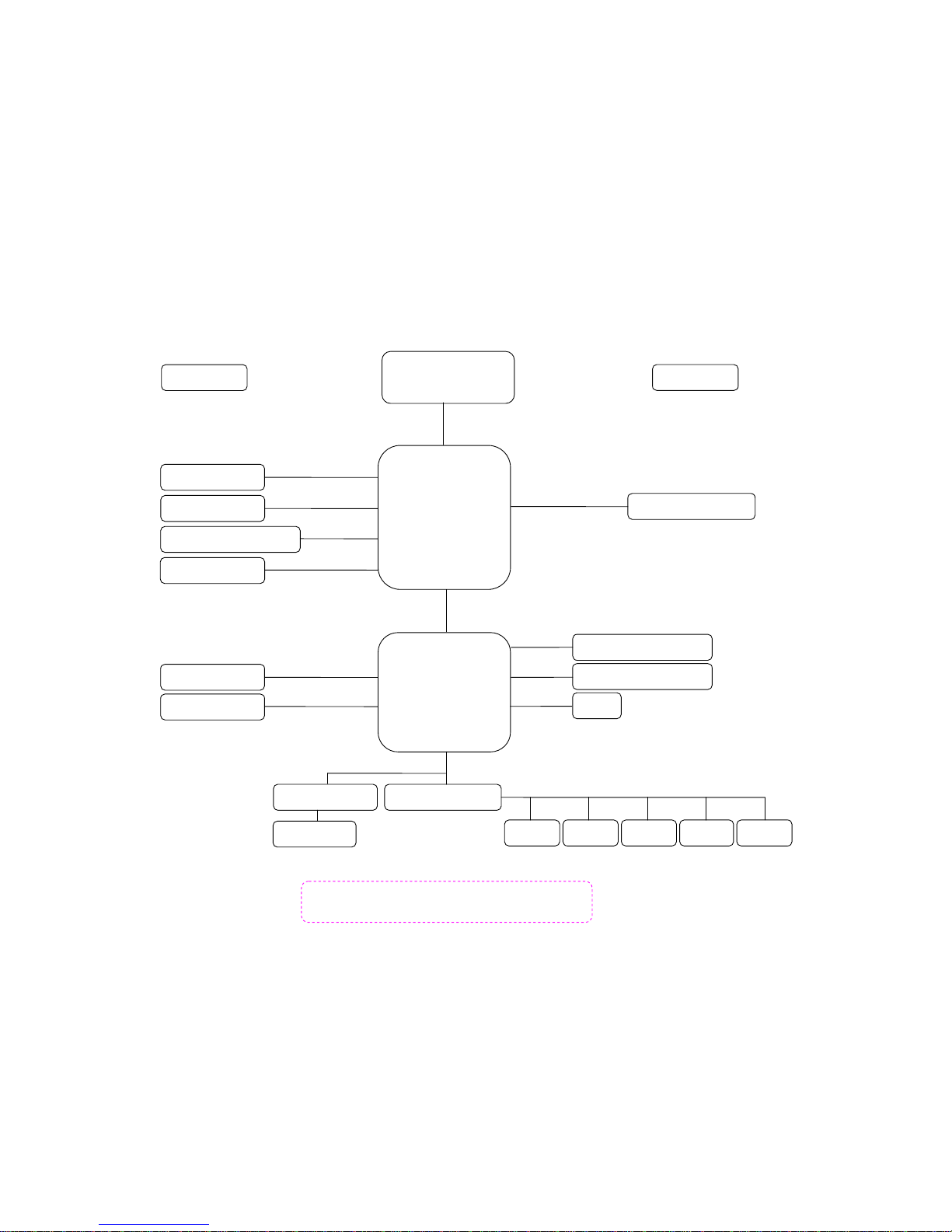
1.1 Block Diagram
Intel Atom N270
Intel 945GME
IMVP6
CK410
VGA
LVDS_CH7308 (24 bit)
FSB 533MHz
DDR2 533 MHz
DMI
S/IO W83627EHG
USB x8
COM1
SPI
DIOPrinterKB/MS COM2
LAN_RTL8111C x1
CODEC_ALC662
Intel ICH7M
USB
SATA
LPC
SPI
DDR2(SO-DIMM) x2
SATA x2
PCI-E
SDVO_B
S/IO F81216D
COM3/4/5/6
HDA
LVDS (18 bit)
DVI_(CH7307)
SDVO_C
IO_Docking
(+12V, VGA, Line-Out, COM5, COM6)
FEB-9457 User’s Manual 4
Page 5
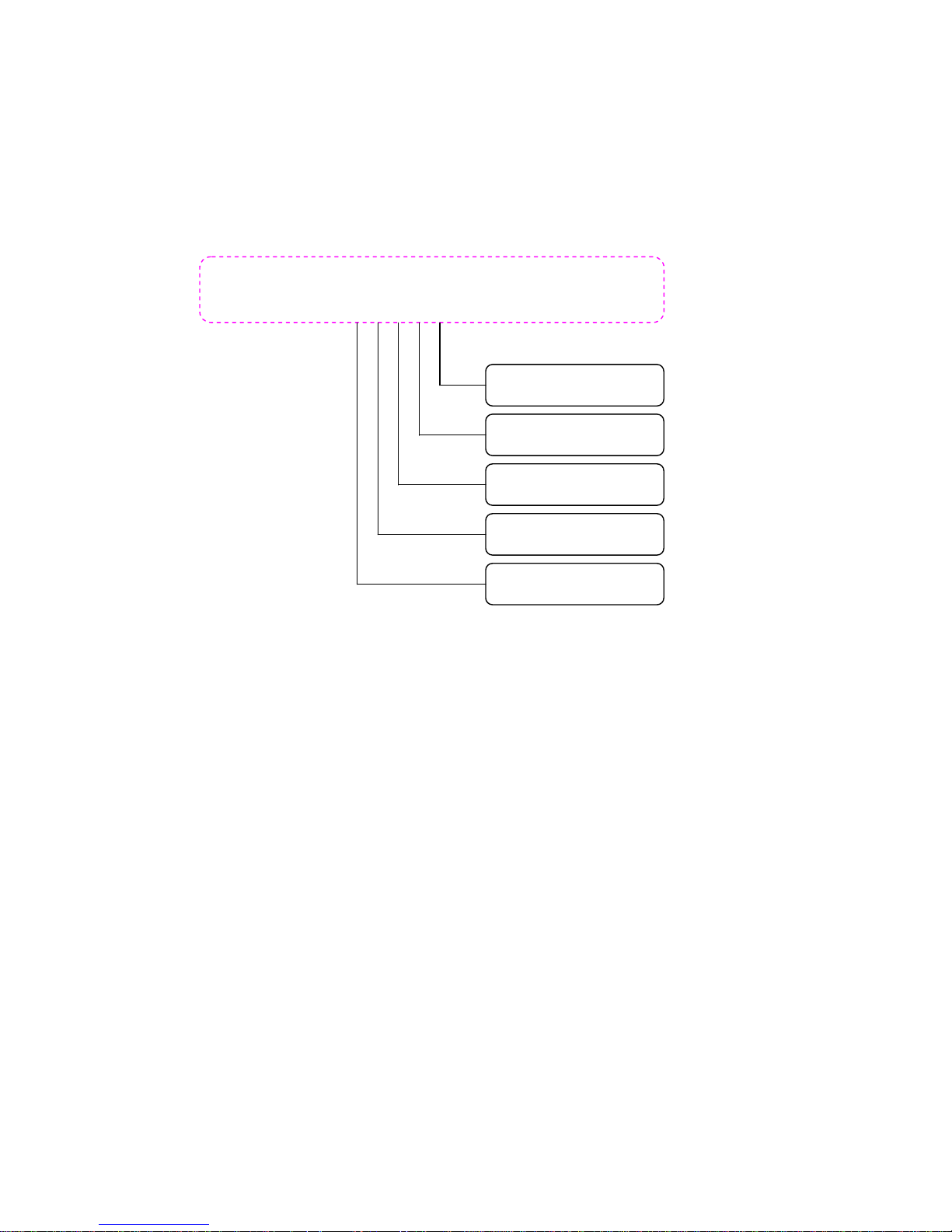
IO_Docking
(+12V, VGA, Line-Out, COM5, COM6)
DC-Jack (+12V)
COM5
COM6
VGA
AUDIO (Line_out)
FEB-9457 User’s Manual 5
Page 6

1.2 Features
Processor Intel Atom N270 1.6GHz (2.5W) on board
FSB 533 MHz
Chipset Intel 945GME + ICH7M
System
Processor / Chipset
BIOS AWARD 16Mb SPI
Technology Dual DDR2 533 MHz SDRAM
Max. Capacity Up to 4GB
Memory
Socket 2 x SO-DIMM DDR2
Chipset Intel 945GME integrated GMA950
VRAM Shared with 224MB system memory
Resolution Analog Display: Up to 2048 x 1536 (QXGA)
LVDS Chrontel CH7308 18/24 bit, Dual Channel
LVDS
Resolution
Digital LVDS: Up to 1600 x 1200 (UXGA)
DVI-D
Chrontel CH7307C, Up to 1600 x 1200
(UXGA)
Display
Dual Display CRT + LVDS, DVI + LVDS, CRT + DVI
Interface 10/100/1000 Mbps
Ethernet
Controller Realtek RTL8111C
Interface High Definition Audio
Audio
Controller Realtek ALC662 HD CODEC
Max. Data
Transfer Rates
300 MB/s
SATA
Port 2
LVDS 2
USB 2.0 4
COM
3 (RS-232, supply 5V / 12V), (1 on board,
2 on IO Board)
Parallel 1
Audio Amplifier
1 [6W(4Ω) stereo]
PS2 1
VGA 1
Internal Connector
DVI 1
FEB-9457 User’s Manual 6
Page 7

COM 2 (RS-232, supply 5V / 12V)
LAN 1 (RJ-45)
USB2.0 4
Cash Drawer RJ11, DIO: 3bit GPIO (1 In, 2 Out)
Rear I/O
Audio 3 (Mic.-In, Line-in, Line-out)
Power Type DC +12V Input
Interval Programmable 1~255 sec./min.
Watchdog Timer
Output System reset
Operating
Temp.
-5°C ~ 60°C (23°F ~ 140°F)
Storage Temp. -20°C ~ 80°C (-4°F ~ 176°F)
Environment
Relative
Humidity
0%~ 95% (non-condensing)
Form Factor
Dimension
(L x W)
188mm x 122mm, (7.4” x 4.8”)
FEB-9457 User’s Manual 7
Page 8
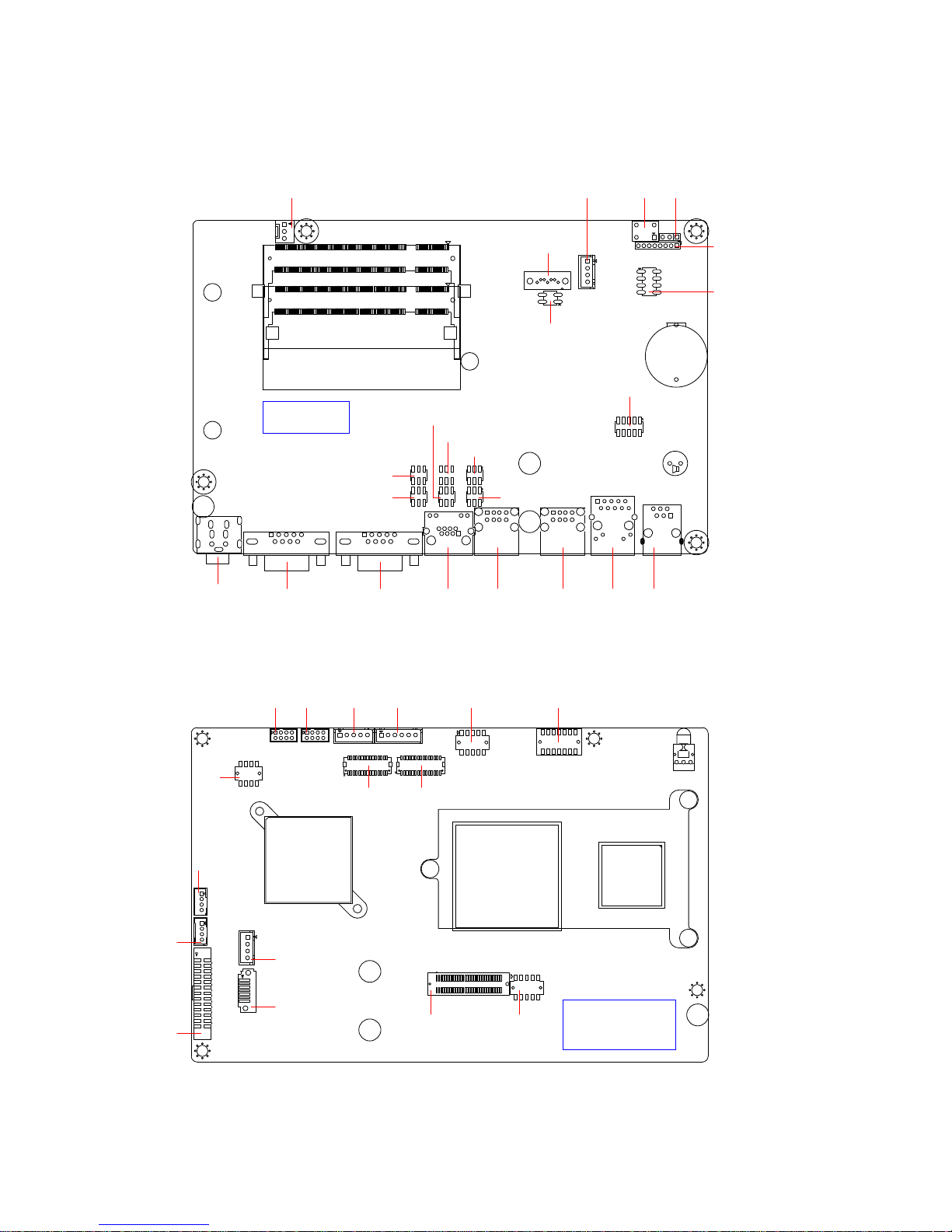
1.3 PCB Layout
4
1
1
+
2
8
7
1
2
4
3
1
8
CPUFAN
Top Side
DDR1
DDR2
PWR
COM1 COM2 COM4 USB2 USB1 LAN1 CASH_DRAWER
PS_ON JCMOS
FP1
SPI_PORT
SATA_PWR2
SATA1
JVLVDS1
DEBUG_PORT
JCOM6
JCOM1
JCOM4_SEL
JCOM4
JCOM5
JCOM2
1
Bottom Side
(Bottom View)
LPT
IO_DOCKING_F VGA1
MIC
AUDIO_AMP
SATA2
SATA_PWR1
FP2
LVDS1 LVDS2
USB4
USB3
INV KB_MS
COM3
DVI
FEB-9457 User’s Manual 8
Page 9
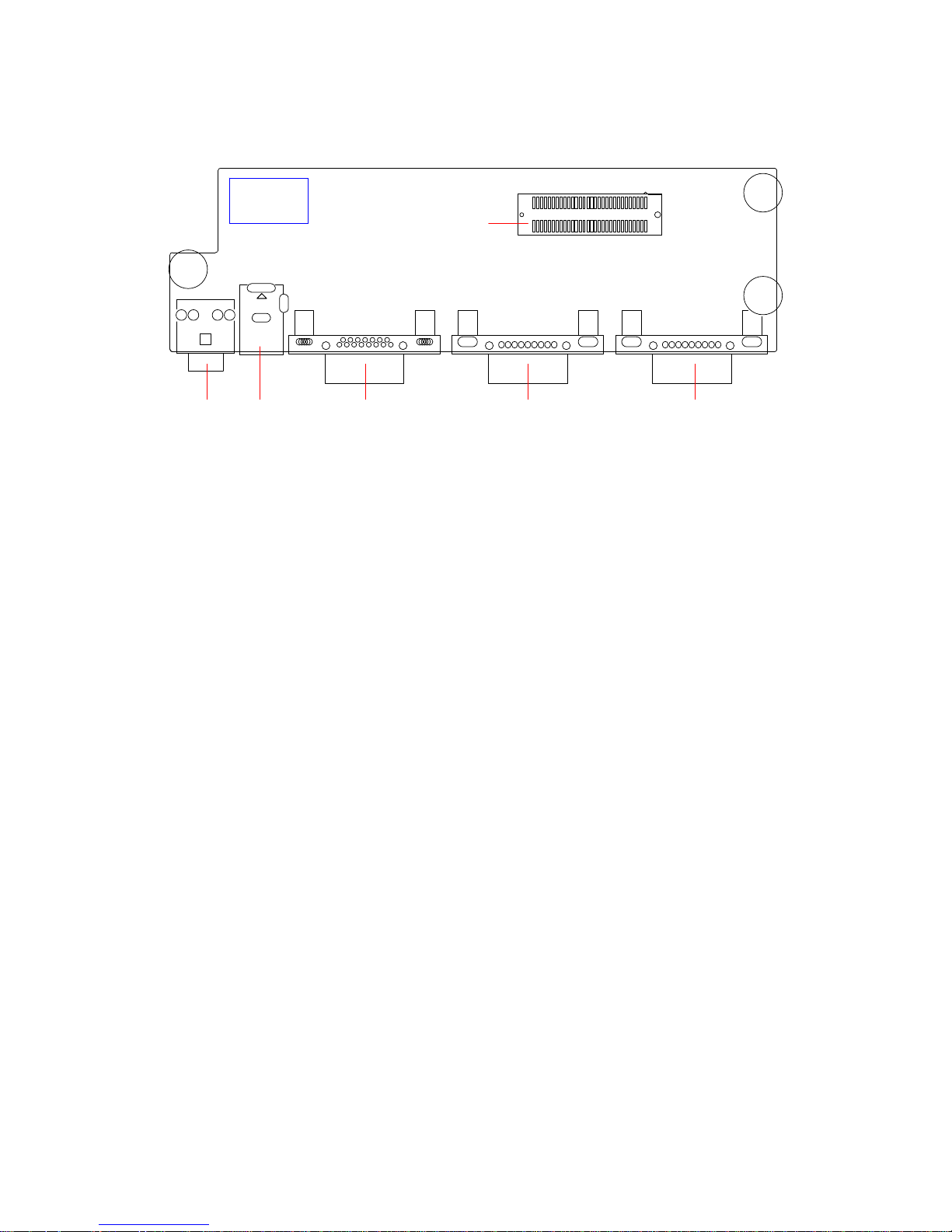
LINE-OUT +12V-OUT VGA2 COM6 COM5
IO_DOCKING_M
IO Board
Top Side
FEB-9457 User’s Manual 9
Page 10
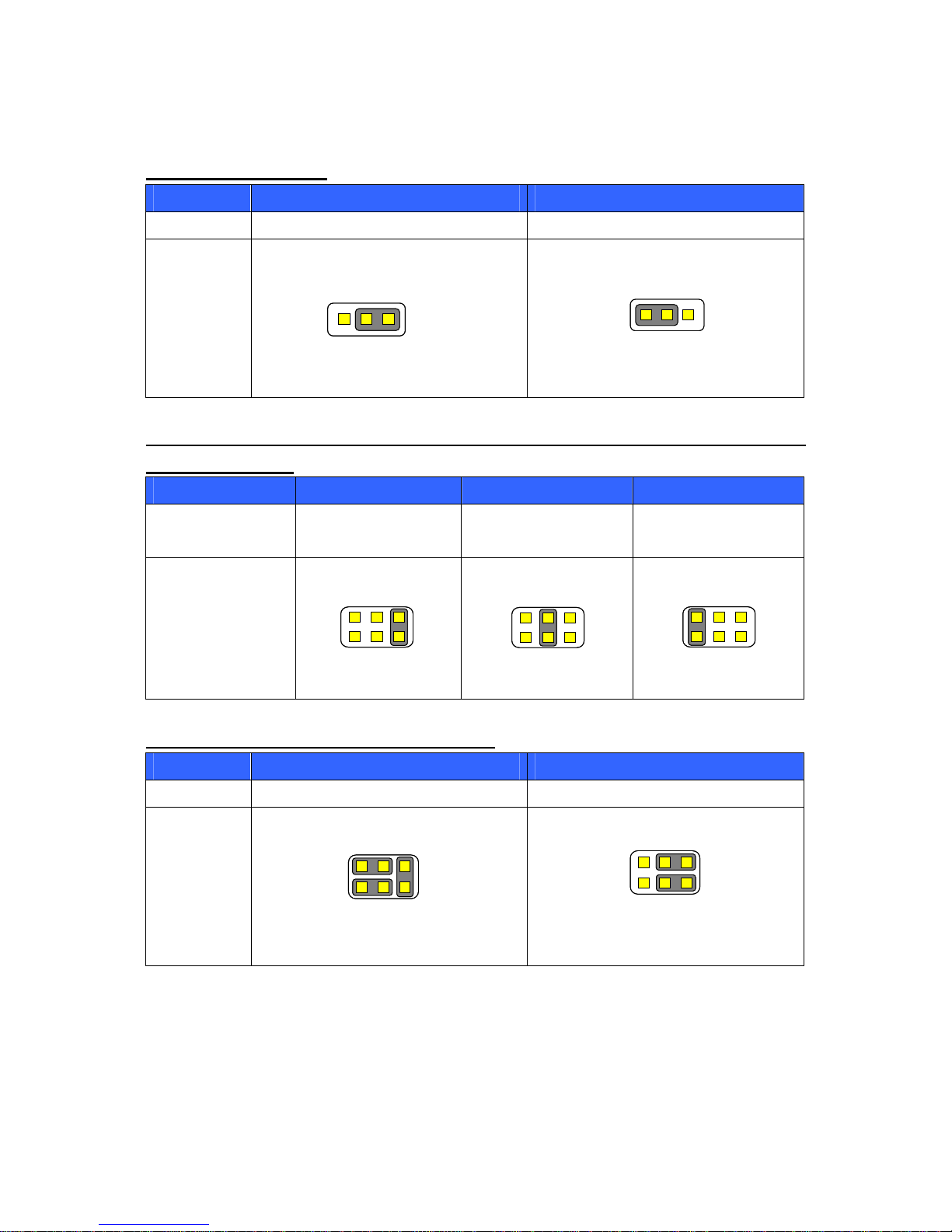
1.4 Jumper Setting
JCMOS:CMOS Clear
Pin No. 1-2 2-3
Function Normal Operation (Default) Clear CMOS Contents
Jumper
Setting
3 2 13 2 1
3 2 13 2 1
JCOM1/ JCOM2/ JCOM4/ JCOM5/ JCOM6:COM1/ COM2/ COM4/ COM5 / COM6
(5V/12V/RI) Select
Pin No. 1-2 3-4 5-6
Function +5V Modem Ring In
(Default)
+12V
Jumper Setting
6 4 2
5 3 1
6 4 2
5 3 1
6 4 2
5 3 1
6 4 2
5 3 1
6 4 2
5 3 1
6 4 2
5 3 1
JCOM4_SEL:COM4 (VFD / RS232) Select
Pin No. 1-2, 3-5, 4-6 1-3, 2-4
Function VFD (Default) RS232
Jumper
Setting
5 3 1
5 3 1
6 4 2
5 3 1
6 4 2
5 3 1
FEB-9457 User’s Manual 10
Page 11

JVLVDS1:LCD Power (+3.3V / +5V) Select
Pin No. 1-2 2-3
Function LCD Power: +3.3V (Default) LCD Power: +5V
Jumper
Setting
3 2 13 2 1
3 2 13 2 1
FEB-9457 User’s Manual 11
Page 12

1.5 Connector Function List
Connector Function Note
+12V-OUT +12v Output IO Board
AUDIO_AMP Audio Amplifier Out
CASH_DRAWER CASH DRAWER with RJ-11 Connector
CPUFAN CPUFAN 4-pin Connector
COM1, COM2 Serial port Connector
COM3 Serial port Connector with Box-header
COM4 Serial port with RJ-45 Connector
COM5, COM6 Serial port Connector IO Board
DEBUG_PORT Power On Self Test Card with Low Pin Count
interface Connector
DDR1, DDR2 DDR2 SO-DIMM Connector
DVI Digital Video Interface Connector wirh
Box-header
FP1, FP2 Front Panel Connector
INV Inverter Connector with Box-header
IO_DOCKING_F Docking Board to Board Connector
IO_DOCKING_M Docking Board to Board Connector IO Board
KB_MS Keyboard and Mouse Connector with
Box-header
LAN1 RJ-45 Connector
LINE-OUT Audio Line-Out Connector IO Board
LPT Printer Connector
LVDS1 LVDS 18 bit Connector with Box-header
LVDS2 LVDS 24 bit Connector with Box-header
MIC MIC-In Connector with Box-header
PS_ON Power On Button
PWR +12V Input Power Jack
SATA1, SATA2 SATA Connector
SATA_PWR1,
SATA_PWR2
SATA Power Connector with Box-header
SPI_PORT Serial Peripheral Interface Connector
USB1, USB2 USB A-Type x2 Connector
USB3, USB4 USB x2 Connector with Box-header
FEB-9457 User’s Manual 12
Page 13

Connector Function Note
VGA1 VGA Connector
VGA2 VGA Connector IO Board
FEB-9457 User’s Manual 13
Page 14
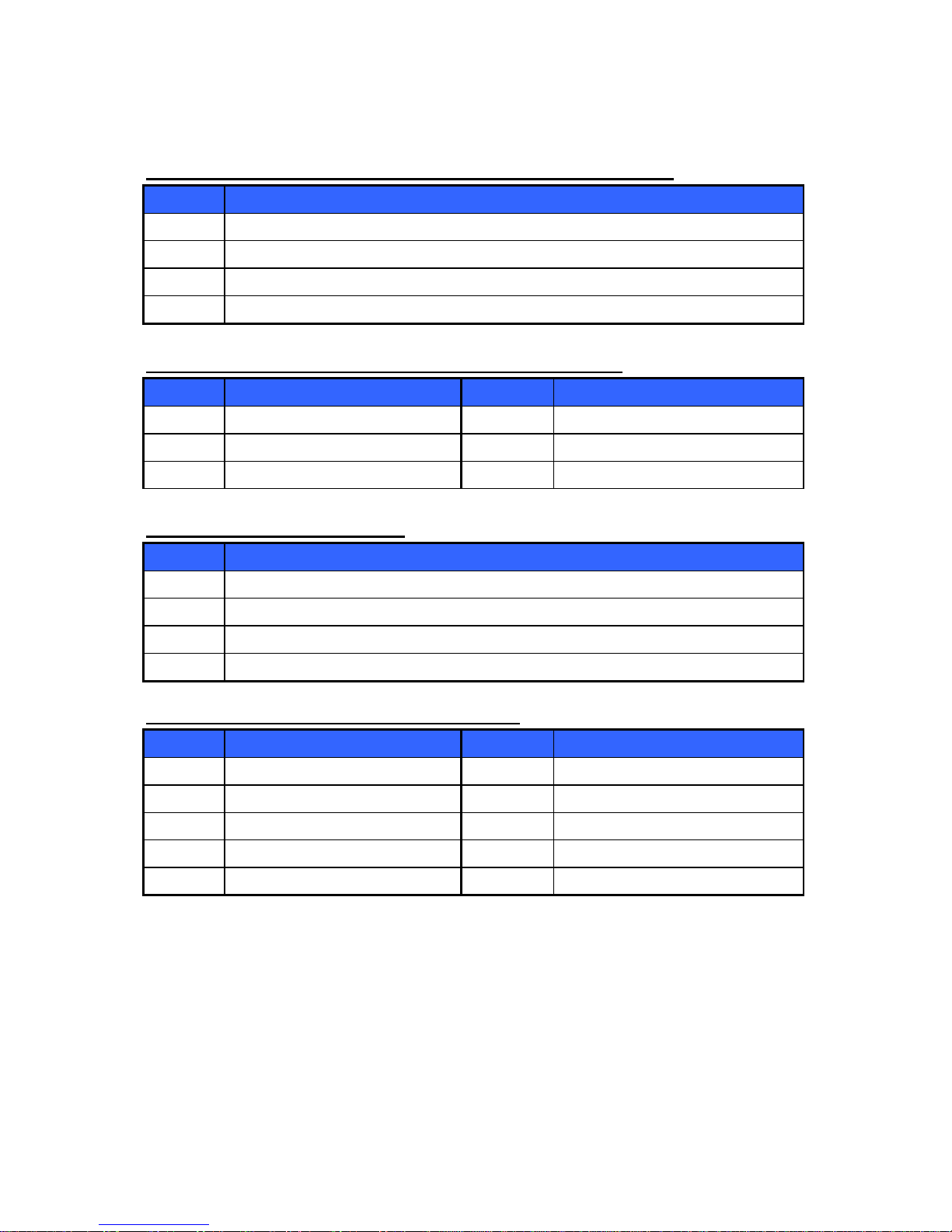
1.6 Internal Connector Pin Define
AUDIO_AMP:Audio Amplifier Output with Pin-header (2.0 mm)
Pin No. Signal
1 Amplifier Line-Out Right
2 Ground
3 Ground
4 Amplifier Line-Out Left
CASH_DRAWER:CASH_DRAWER with RJ-11 Connector
Pin No. Signal Pin No. Signal
1 Ground 2 DIO_OUT1
3 +12V 4 DGP_IN0
5 DIO_OUT0 6 Ground
CPUFAN:4Pin FAN Connector
Pin No. Signal
1 Ground
2 Fan Power (+12V)
3 Speed Sense
4 Control
COM3:Serial Port with Box-header (2.0 mm)
Pin No. Signal Pin No. Signal
1 DCD 2 DSR
3 RXD 4 RTS
5 TXD 6 CTS
7 DTR 8 RI
9 Ground 10 NC
FEB-9457 User’s Manual 14
Page 15
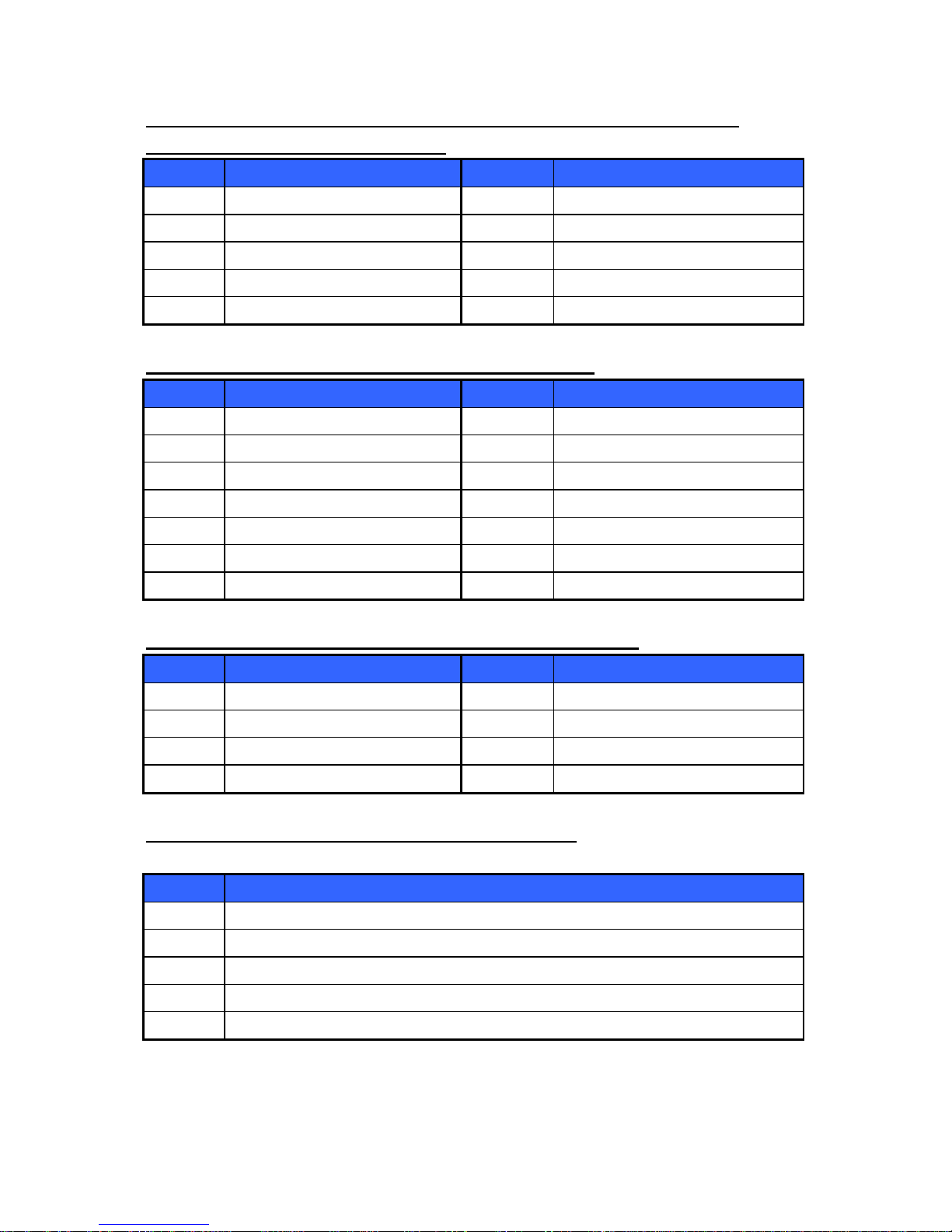
DEBUG_PORT:Power On Self Test Card with Low Pin Count interface
Connector with Pin-header (2.0 mm)
Pin No. Signal Pin No. Signal
1 LAD0 2 Reset#
3 LAD1 4 LFRAME#
5 LAD2 6 +3.3V
7 LAD3 8 Ground
9 LPC Clock 10 NC
DVI:Digital Video Interface with Box-header (2.0 mm)
Pin No. Signal Pin No. Signal
1 DVI_TD0 2 DVI_TD0#
3 DVI_TD1 4 DVI_TD1#
5 DVI_TD2 6 DVI_TD2#
7 DVI_TDC 8 DVI_TDC#
9 DVI_CLK 10 DVI_DATA
11 Ground 12 Ground
13 +5V 14 DVI_HPDET
FP1, FP2:Front Panel Connector with Pin-header (2.0 mm)
Pin No. Signal Pin No. Signal
1 HDD_LED# 2 +5V (470 Ohm)
3 Ground 4 PWR_LED
5 Ground 6 SBY_LED
7 Ground 8 SW_PWR#
INV:Inverter Connector with Box header (2.50 mm)
(Connector type: A2501WV-05P46G)
Pin No. Signal
1 +12V
2 +12V
3 Ground
4 Inverter Brightness Control
5 Inverter Enable
FEB-9457 User’s Manual 15
Page 16
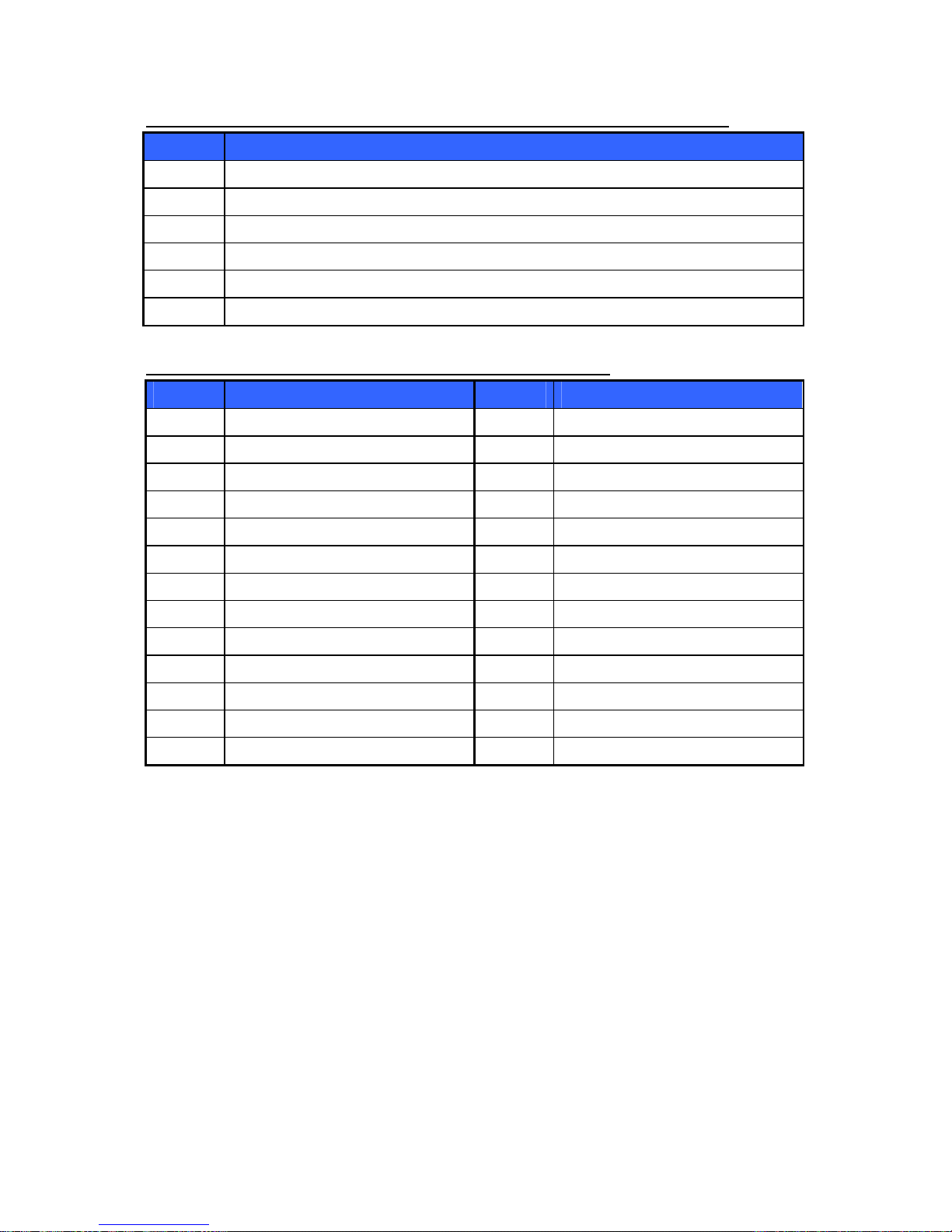
KB_MS:PS2 Keyboard, Mouse Connector with Box header (2.54 mm)
Pin No. Signal
1 PS2 Power
2 Keyboard Clock
3 Keyboard Data
4 Mouse Clock
5 Mouse Data
6 Ground
LPT:Parallel Port Connector with Box-header (2.0 mm)
Pin No. Signal Pin No. Signal
1 Strobe# 14 Auto Form Feed#
2 Data 0 15 Error#
3 Data 1 16 Initialization#
4 Data 2 17 Printer Select IN#
5 Data 3 18 Ground
6 Data 4 19 Ground
7 Data 5 20 Ground
8 Data 6 21 Ground
9 Data 7 22 Ground
10 Acknowledge# 23 Ground
11 Busy 24 Ground
12 Paper Empty 25 Ground
13 Printer Select 26 Ground
FEB-9457 User’s Manual 16
Page 17

LVDS1:18 bit LVDS Panel Signal with Wafer Connector (1.0 mm)
Pin No. Signal Pin No. Signal
1 Ground 2 Ground
3 NC 4 NC
5 A_CLK+ 6 A_CLK-
7 A_DATA2+ 8 A_DATA2-
9 A_DATA1+ 10 A_DATA1-
11 A_DATA0+ 12 A_DATA0-
13 Ground 14 Ground
15
NC
16
NC
17 B_CLK+ 18 B_CLK-
19 B_DATA2+ 20 B_DATA2-
21 B_DATA1+ 22 B_DATA1-
23 B_DATA0+ 24 B_DATA0-
25 Ground 26 Ground
27 LVDS Power 28 LVDS Power
29 LVDS Power 30 LVDS Power
Note:LVDS Power = +5V or +3.3V (Default)
LVDS2:24 bit LVDS Panel Signal with Wafer Connector (1.0 mm)
Pin No. Signal Pin No. Signal
1 Ground 2 Ground
3 A_DATA3+ 4 A_DATA3-
5 A_CLK+ 6 A_CLK-
7 A_DATA2+ 8 A_DATA2-
9 A_DATA1+ 10 A_DATA1-
11 A_DATA0+ 12 A_DATA0-
13 Ground 14 Ground
15 B_DATA3+ 16 B_DATA3-
17 B_CLK+ 18 B_CLK-
19 B_DATA2+ 20 B_DATA2-
21 B_DATA1+ 22 B_DATA1-
23 B_DATA0+ 24 B_DATA0-
25 Ground 26 Ground
27 LVDS Power 28 LVDS Power
29 LVDS Power 30 LVDS Power
Note:LVDS Power = +5V or +3.3V (Default)
FEB-9457 User’s Manual 17
Page 18

MIC:Micro Phone Input Connector with Box header (2.0 mm)
Pin No. Signal
1 Micro Detect
2 Micro Phone In-Right
3 Micro Phone In-Left
4 Ground
SATA_PWR1, SATA_PWR2:SATA Power Connector
Pin No. Signal
1 +5V
2 +5V
3 Ground
4 Ground
SPI_PORT:Serial Peripheral Interface Connector with Pin-header (2.54 mm)
Pin No. Signal Pin No. Signal
1 SPI_CS# 2 3.3V Standby
3 SPI_SO 4 SPI_HOLD#
5 NC 6 SPI_CLK
7 Ground 8 SPI_SI
USB3:USB6, USB7 Port Connector with Box-header (2.0mm)
Pin No. Signal Pin No. Signal
1 USB Power (+5V) 2 USB Power (+5V)
3 USB DATA6- 4 USB DATA7-
5 USB DATA6+ 6 USB DATA7+
7 Ground 8 Ground
USB4:USB4, USB5 Port Connector with Box-header (2.0mm)
Pin No. Signal Pin No. Signal
1 USB Power (+5V) 2 USB Power (+5V)
3 USB DATA4- 4 USB DATA5-
5 USB DATA4+ 6 USB DATA5+
7 Ground 8 Ground
FEB-9457 User’s Manual 18
Page 19

VGA1:VGA Connector with Box-header (2.0mm)
Pin No. Signal Pin No. Signal
1 RED 2 DDC Data
3 GREEN 4 DDC Clock
5 BLUE 6 Ground
7 H-SYNC 8 Ground
9 V-SYNC 10 +5V
FEB-9457 User’s Manual 19
Page 20

Chapter 2 BIOS Setup
This chapter introduces BIOS setup information.
Power on or reboot the system board, when screen appears message as “Press DEL
to enter SETUP“. Press <DEL> key to run BIOS SETUP Utility.
Note: The BIOS configuration for reference only, it may subject to change without
prior notice.
2.1 Main Menu
Please use arrow keys to select item, then press <Enter> key to accept or enter the
sub-menu.
Phoenix – Award WorkstationBIOS CMOS Setup Utility
Frequency / Voltage Control
Load Fail-Safe Defaults
Load Optimized Defaults
Set Supervisor Password
Set User Password
Save & Exit Setup
Exit Without Saving
Esc : Quit
↑↓ ← →
: Select Item
F10 : Save & Exit Setup
Time, Date, Hard Disk Type…
Standard CMOS Features
Advanced BIOS Features
Advanced Chipset Features
Integrated Peripherals
Power Management Setup
PnP/PCI Configurations
PC Health Status
FEB-9457 User’s Manual 20
Page 21

2.2 Standard CMOS Features
Phoenix – AwardBIOS CMOS Setup Utility
Standard CMOS Features
Item Help
↑↓←→
:Move Enter:Select +/-/PU/PD:Value F10:Save ESC:Exit F1: General Help
IDE Channel 0 Master [ None ]
IDE Channel 0 Slave [ None ]
IDE Channel 1 Master [ None ]
IDE Channel 1 Slave [ None ]
Video [ EGA / VGA ]
Halt On [ All , But Keyboard ]
Base Memory 640K
Extended Memory 514048K
Total Memory 515072K
Menu Level
Change the day, month,
year and century
F5: Previous Values F6: Fail-Safe Defaults F7: Optimized Defaults
Date (mm:dd:yy) Wed. Nov 18 2009
Time (hh:mm:ss) 19 : 28 : 15
□ Date
Set system date.
□ Time
Set system time.
□ IDE Channel 0 Master/Slave
Press <Enter> for IDE device automatic detection.
□ IDE Channel 1 Master/Slave
Press <Enter> for IDE device automatic detection.
□ Video
Select Video device type
FEB-9457 User’s Manual 21
Page 22

□ Halt on
Select stop procedure or ignore when error detected during POST (Power On Self
Test).
2.3 Advanced BIOS Features
Item Help
Menu Level
↑↓←→
:Move Enter:Select +/-/PU/PD:Value F10:Save ESC:Exit F1: General Help
CPU Feature
Hard Disk Boot Priority
CPU L1 & L2 Cache
CPU L3 Cache
Hyper-Threading Technology
First Boot Device
Second Boot Device
Third Boot Device
Security Option
HDD S.M.A.R.T. Capability
Small Logo(EPA) Show
Phoenix – AwardBIOS CMOS Setup Utility
Advanced BIOS Features
F5: Previous Values F6: Fail-Safe Defaults F7: Optimized Defaults
[ Press Enter ]
[ Press Enter ]
[ Enabled ]
[ Enabled ]
[ Enabled ]
[ USB-CDROM ]
[ Hard Disk ]
[ USB-FDD ]
[ Setup ]
[ Disabled ]
[ Disabled ]
□ CPU Feature
Press <Enter> to select CPU parameter.
□ Hard Disk Boot Priority
Press <Enter> to select Hard Disk boot device priority.
□ CPU L1 & L2 Cache
Select “CPU L1 & L2 Cache” Enabled/Disabled.
□ CPU L3 Cache
Select “CPU L3 Cache” Enabled/Disabled.
FEB-9457 User’s Manual 22
Page 23

□ Hyper-Threading Technology
Select “Hyper-Threading Technology” Enabled/Disabled.
□ First/Second/Third Boot Device
Select boot device priority.
□ Security Option
Select security mode,
Setup: Require password to permit BIOS setup utility.
System: Require password to permit boot-up and BIOS setup utility.
□ HDD S.M.A.R.T. Capability
Select “HDD S.M.A.R.T. (Self Monitoring Analysis And Reporting Technology)
Capability” Enabled/Disabled.
□ Small Logo(EPA) Show
Select EPA (Environmental Protection Agency) Energy Star logo appears during the
system boot-up process.
FEB-9457 User’s Manual 23
Page 24

2.4 Advanced Chipset Features
Item Help
Menu Level
↑↓←→
:Move Enter:Select +/-/PU/PD:Value F10:Save ESC:Exit F1: General Help
On-Chip Frame Buffer Size
DVMT Mode
DVMT / FIXED Memory Size
Boot Display
Panel Number
Onboard Lan
Phoenix – AwardBIOS CMOS Setup Utility
Advanced Chipset Features
F5: Previous Values F6: Fail-Safe Defaults F7: Optimized Defaults
[ 8MB ]
[ DVMT ]
[ 128MB ]
[ CRT + LFP1 ]
[ 1024x768-18 LVDS ]
[ Enabled ]
□ On-Chip Frame Buffer Size
Select share system memory 1MB or 8MB
□ DVMT Mode
DVMT (Dynamic Video Memory Technology) allowing the system to dynamically
allocate memory resources according to the demands of the system at any point in
time, that improve efficiency of the memory allocated to either system or graphics
processor.
□ DVMT/Fixed Memory Size
Select DVMT/Fixed Memory Size 64MB/128MB/224MB
□ Boot Display
Select which device to display
FEB-9457 User’s Manual 24
Page 25

□ Panel Number
Select LCD panel type
□ Onboard Lan
Select “Onboard Lan” Enabled/Disabled
2.5 Integrated Peripherals
Item Help
Menu Level
↑↓←→
:Move Enter:Select +/-/PU/PD:Value F10:Save ESC:Exit F1: General Help
OnChip IDE Device
Onboard Device
Super IO Device
Onboard Lan Boot ROM
Watch Dog Timer Select
Onboard Serial Port 3
Serial Port 3 Use IRQ
Onboard Serial Port 4
Serial Port 4 Use IRQ
Onboard Serial Port 5
Serial Port 5 Use IRQ
Onboard Serial Port 6
Serial Port 6 Use IRQ
USB Device Setting
Phoenix – AwardBIOS CMOS Setup Utility
Integrated Peripherals
[ Press Enter ]
[ Press Enter ]
[ Press Enter ]
[ Disabled ]
[ Disabled ]
[ 3E8 ]
[ IRQ10 ]
[ 2E8 ]
[ IRQ11 ]
[ 4F8 ]
[ IRQ5 ]
[ 4E8 ]
[ IRQ11 ]
[ Press Enter ]
F5: Previous Values F6: Fail-Safe Defaults F7: Optimized Defaults
FEB-9457 User’s Manual 25
Page 26

□ OnChip IDE Device
Set IDE and SATA device configuration
Item Help
Menu Level
↑↓←→
:Move Enter:Select +/-/PU/PD:Value F10:Save ESC:Exit F1: General Help
IDE HDD Block Mode
On-Chip Primary PCI IDE
IDE Primary Master PIO
IDE Primary Slave PIO
IDE Primary Master UDMA
IDE Primary Slave UDMA
On-Chip Secondary PCI IDE
IDE Secondary Master PIO
IDE Secondary Slave PIO
IDE Secondary Master UDMA
IDE Secondary Slave UDMA
*** On-Chip Serial ATA Setting ***
SATA Mode
On-Chip Serial ATA
SATA PORT Speed Settings
PATA IDE Mode
SATA Port
Phoenix – AwardBIOS CMOS Setup Utility
OnChip IDE Device
If your IDE hard drive
supports block mode
select Enabled for
automatic detection of
the optimal number of
block read/writes per
sector the drive can
support
F5: Previous Values F6: Fail-Safe Defaults F7: Optimized Defaults
[ Enabled ]
[ Enabled ]
[ Auto ]
[ Auto ]
[ Auto ]
[ Auto ]
[ Enabled ]
[ Auto ]
[ Auto ]
[ Auto ]
[ Auto ]
IDE
[ Auto ]
Disabled
Secondary
P0,P2 is Primary
x
x
x
FEB-9457 User’s Manual 26
Page 27

□ Onboard Device
Press <Enter> to select Azalia/AC97 Auto/All Disabled
.
Item Help
Menu Level
↑↓←→
:Move Enter:Select +/-/PU/PD:Value F10:Save ESC:Exit F1: General Help
Azalia/AC97 Audio Select
Phoenix – AwardBIOS CMOS Setup Utility
Onboard Device
F5: Previous Values F6: Fail-Safe Defaults F7: Optimized Defaults
[ Auto ]
FEB-9457 User’s Manual 27
Page 28

□ Super IO Device
Press <Enter> to select Serial, Parallel and “PWRON After PWR-Fail” configuration.
Item Help
Menu Level
↑↓←→
:Move Enter:Select +/-/PU/PD:Value F10:Save ESC:Exit F1: General Help
Onboard Serial Port 1
Onboard Serial Port 2
UART Mode Select
x RxD , TxD Active
x IR Transmission Delay
x UR2 Duplex Mode
x Use IR Pins
Onboard Parallel Port
Parallel Port Mode
x EPP Mode Select
x ECP Mode Use DMA
PWRON After PWR-Fail
Phoenix – AwardBIOS CMOS Setup Utility
Super IO Device
F5: Previous Values F6: Fail-Safe Defaults F7: Optimized Defaults
[ 3F8/IRQ4 ]
[ 2F8/IRQ3 ]
[ Normal ]
Hi , Lo
Enabled
Half
IR-Rx2Tx2
[ 378/IRQ7 ]
[ SPP ]
EPP1.7
3
[ Off ]
□ Onboard Lan Boot ROM
Decide whether to invoke the boot ROM of the onboard LAN chip.
□ Watch Dog Timer Select
Select Watch dog Disabled or setting timer value.
□ Onboard Serial Port 3/4/5/6
Select serial port address
□ Serial Port 3/4/5/6 Use IRQ
Select serial port IRQ
FEB-9457 User’s Manual 28
Page 29

□ USB Device Setting
Press <Enter> to select USB device configuration.
Item Help
Menu Level
↑↓←→
:Move Enter:Select +/-/PU/PD:Value F10:Save ESC:Exit F1: General Help
[Enable] or [Disable]
Universal Host
Controller Interface
for Universal Serial
Bus.
USB 1.0 Controller
USB 2.0 Controller
USB Operation Mode
USB Keyboard Function
USB Mouse Function
USB Storage Function
*** USB Mass Storage Device Boot Setting ***
[ Enabled ]
[ Enabled ]
[ High Speed ]
[ Enabled ]
[ Enabled ]
[ Enabled ]
F5: Previous Values F6: Fail-Safe Defaults F7: Optimized Defaults
Phoenix – Award WorkstationBIOS CMOS Setup Utility
USB Device Setting
FEB-9457 User’s Manual 29
Page 30

2.6 Power Management Setup
Item Help
Menu Level
↑↓←→
:Move Enter:Select +/-/PU/PD:Value F10:Save ESC:Exit F1: General Help
PCI Express PM Function
ACPI Function
ACPI Suspend Type
Run VGABIOS if S3 Resume
Soft-Off by PWR-BTTN
Power On by Ring
Resume by Alarm
Date(of Month) Alarm
Time(hh:mm:ss) Alarm
Phoenix – AwardBIOS CMOS Setup Utility
Power Management Setup
x
x
x
F5: Previous Values F6: Fail-Safe Defaults F7: Optimized Defaults
[ Press Enter ]
[ Enabled ]
S1(POS)
Auto
[ Instant-Off ]
[ Disabled ]
[ Disabled ]
0
0 : 0 : 0
FEB-9457 User’s Manual 30
Page 31

□ PCI Express PM Function
Press <Enter> to select “Wake-up by LAN” Enabled/Disabled.
Item Help
Menu Level
↑↓←→
:Move Enter:Select +/-/PU/PD:Value F10:Save ESC:Exit F1: General Help
Wake-up by LAN
Phoenix – AwardBIOS CMOS Setup Utility
PCI Express PM Function
[ Disabled ]
F5: Previous Values F6: Fail-Safe Defaults F7: Optimized Defaults
□ ACPI Function
Select ACPI (Advanced Configuration and Power Management) Enabled/Disabled.
□ Soft-Off by PWR-BTTN
Select power button function,
Instant-off: Press power button will power off instantly.
Delay 4 Sec: Press power button 4 second to power off.
□ Power On by Ring
Select Power on by Ring Indicator signal from Modem.
□ Resume by Alarm
Set date and time to power on system from soft-off state.
FEB-9457 User’s Manual 31
Page 32

2.7 PnP/PCI Configurations
Item Help
↑↓←→
:Move Enter:Select +/-/PU/PD:Value F10:Save ESC:Exit F1: General Help
Reset Configuration Data
Resources Controlled By
IRQ Resources
PCI/VGA Palette Snoop
** PCI Express relative items **
Maximum Payload Size
Phoenix – AwardBIOS CMOS Setup Utility
PnP / PCI Configurations
x
F5: Previous Values F6: Fail-Safe Defaults F7: Optimized Defaults
Menu Level
Default is Disabled,
Select Enabled to
reset Extended System
Configuration Data
ESCD) when you exit
Setup if you have
Installed a new add-on
and the system
reconfiguration has
Caused such a serious
Conflict that the OS
Cannot boot
[ Disabled ]
[ Auto(ESCD) ]
Press Enter
[ Disabled ]
[ 128 ]
□ Reset Configuration Data
Select Enabled to reset Extended System Configuration Data (ESCD) when you exit
BIOS setup utility, if you have installed new add-on card and the system
reconfiguration has caused such a serious conflict that the OS cannot boot.
□ Resources Controlled By
BIOS can automatically configure all the boot and Plug and Play compatible devices.
If you choose Auto, you cannot select IRQ DMA and memory base address fields,
since BIOS automatically assigns them.
□ PCI/VGA Palette Snoop
Select PCI/VGA Palette Snoop Enabled/Disabled.
□ Maximum Payload Size
Set maximum TLP payload size for the PCI Express devices. The unit is byte.
FEB-9457 User’s Manual 32
Page 33

2.8 PC Health Status
Item Help
Menu Level
↑↓←→
:Move Enter:Select +/-/PU/PD:Value F10:Save ESC:Exit F1: General Help
Shutdown Temperature
CPU Warning Temperature
Current CPU Temperature
CPU Fan Speed
Vcore
+12 (V)
+1.5 (V)
+1.8 (V)
+5 (V)
+3.3 (V)
VBAT (V)
3.3VSB (V)
** Smart FAN Setting **
CPU Smart Fan Temp..
Phoenix – AwardBIOS CMOS Setup Utility
PC Health Status
F5: Previous Values F6: Fail-Safe Defaults F7: Optimized Defaults
[ Disabled ]
[ Disabled ]
46℃/ 114
℉
0 RPM
1.15 V
11.96 V
1.50 V
1.84 V
5.02 V
3.36 V
3.02 V
3.31 V
[ Disabled ]
□ Shutdown Temperature
If CPU temperature reaches the setting value will automatic shutdown system.
□ CPU Warning Temperature
If CPU temperature reaches the setting value will beep in DOS mode.
□ CPU Smart Fan Temp.
Setup CPU Smart FAN temperature.
FEB-9457 User’s Manual 33
Page 34

2.9 Frequency/Voltage Control
Item Help
Menu Level
↑↓←→
:Move Enter:Select +/-/PU/PD:Value F10:Save ESC:Exit F1: General Help
Auto Detect PCI Clk
Spread Spectrum
Phoenix – AwardBIOS CMOS Setup Utility
Frequency / Voltage Control
F5: Previous Values F6: Fail-Safe Defaults F7: Optimized Defaults
[ Enabled ]
[ Disabled ]
□ Auto Detect PCI Clk
Select “Auto Detect PCI Clk” Enabled/Disabled
□ Spread Spectrum
Select “Spread Spectrum” Enabled/Disabled.
FEB-9457 User’s Manual 34
Page 35

2.10 Load Fail-Safe Defaults
Frequency / Voltage Control
Load Fail-Safe Defaults
Load Optimized Defaults
Set Supervisor Password
Set User Password
Save & Exit Setup
Exit Without Saving
Phoenix – AwardBIOS CMOS Setup Utility
Esc : Quit
↑↓ ← →
: Select Item
F10 : Save & Exit Setup
Load Fail-Safe Defaults
Standard CMOS Features
Advanced BIOS Features
Advanced Chipset Features
Integrated Peripherals
Power Management Setup
PnP/PCI Configurations
PC Health Status
Load Fail-Safe Defaults (Y/N)? N
Load Fail-Safe Defaults (Y/N)? N
This item will set configuration for non optimized system operation.
FEB-9457 User’s Manual 35
Page 36

2.11 Load Optimized Defaults
Phoenix – AwardBIOS CMOS Setup Utility
Frequency / Voltage Control
Load Fail-Safe Defaults
Load Optimized Defaults
Set Supervisor Password
Set User Password
Save & Exit Setup
Exit Without Saving
Esc : Quit
↑↓ ← →
: Select Item
F10 : Save & Exit Setup
Standard CMOS Features
Advanced BIOS Features
Advanced Chipset Features
Integrated Peripherals
Power Management Setup
PnP/PCI Configurations
PC Health Status
Load Optimized Defaults (Y/N)? N
Load Optimized Defaults (Y/N)? N
Load Optimized Defaults
This item will restore factory default setting for optimized system operation.
FEB-9457 User’s Manual 36
Page 37

2.12 Set Supervisor Password
Phoenix – AwardBIOS CMOS Setup Utility
Frequency / Voltage Control
Load Fail-Safe Defaults
Load Optimized Defaults
Set Supervisor Password
Set User Password
Save & Exit Setup
Exit Without Saving
Esc : Quit
↑↓ ← →
: Select Item
F10 : Save & Exit Setup
Standard CMOS Features
Advanced BIOS Features
Advanced Chipset Features
Integrated Peripherals
Power Management Setup
PnP/PCI Configurations
PC Health Status
Enter Password:
Change/Set/Disabled Password
If set supervisor password, it will request typing password before entering BIOS setup
utility.
FEB-9457 User’s Manual 37
Page 38

2.13 Set User Password
Phoenix – AwardBIOS CMOS Setup Utility
Frequency / Voltage Control
Load Fail-Safe Defaults
Load Optimized Defaults
Set Supervisor Password
Set User Password
Save & Exit Setup
Exit Without Saving
Esc : Quit
↑↓ ← →
: Select Item
F10 : Save & Exit Setup
Standard CMOS Features
Advanced BIOS Features
Advanced Chipset Features
Integrated Peripherals
Power Management Setup
PnP/PCI Configurations
PC Health Status
Enter Password:
Change/Set/Disabled Password
If set user password will request typing password to enter BIOS setup utility, and does
not allow modifying configuration.
FEB-9457 User’s Manual 38
Page 39

2.14 Save & Exit Setup
Frequency / Voltage Control
Load Fail-Safe Defaults
Load Optimized Defaults
Set Supervisor Password
Set User Password
Save & Exit Setup
Exit Without Saving
Phoenix – AwardBIOS CMOS Setup Utility
Esc : Quit
↑↓ ← →
: Select Item
F10 : Save & Exit Setup
Save Data to CMOS
Standard CMOS Features
Advanced BIOS Features
Advanced Chipset Features
Integrated Peripherals
Power Management Setup
PnP/PCI Configurations
PC Health Status
SAVE to CMOS and EXIT (Y/N)? Y
SAVE to CMOS and EXIT (Y/N)? Y
This item confirm save configuration or not before exit BIOS setup utility,
Press <Y> and <Enter> to save configuration, then reboot system.
Press <N> and <Enter> will back to BIOS setup utility.
FEB-9457 User’s Manual 39
Page 40

2.15 Exit Without Saving
Frequency / Voltage Control
Load Fail-Safe Defaults
Load Optimized Defaults
Set Supervisor Password
Set User Password
Save & Exit Setup
Exit Without Saving
Phoenix – AwardBIOS CMOS Setup Utility
Esc : Quit
↑↓ ← →
: Select Item
F10 : Save & Exit Setup
Abandon all Data
Standard CMOS Features
Advanced BIOS Features
Advanced Chipset Features
Integrated Peripherals
Power Management Setup
PnP/PCI Configurations
PC Health Status
Quit Without Saving (Y/N)? N
Quit Without Saving (Y/N)? N
This item confirm save configuration or not before quit BIOS setup utility,
Press <Y> and <Enter> will not save configuration, then reboot system.
Press <N> and <Enter> will back to BIOS setup utility.
FEB-9457 User’s Manual 40
Page 41

Chapter 3 Drivers Installation
This chapter introduces driver installation information.
Please insert the utility CD to CD-ROM drive, the install menu will appear
automatically, if the install menu did not list suitable driver of Operate System or did
not appear automatically, please select corresponding driver of utility CD to install.
The Windows XP driver installation steps are as below.
3.1 Intel Chipset Device Software
Step 1. Click “Next” to continue
FEB-9457 User’s Manual 41
Page 42

Step 2. Read the License Agreement and click “Yes” to continue
Step 3. Click “Next” to continue
FEB-9457 User’s Manual 42
Page 43

Step 4. Click “Next” to continue
Step 5. Click “Finish” to complete setup
FEB-9457 User’s Manual 43
Page 44

3.2 Intel Graphic Media Accelerator Driver
Step 1. Click “Next” to continue
Step 2. Click “Next” to continue
FEB-9457 User’s Manual 44
Page 45

Step 3. Read the License Agreement and click “Yes” to continue
Step 4. Click “Next” to continue
FEB-9457 User’s Manual 45
Page 46

Step 5. Click “Next” to continue
Step 6. Click “Finish” to complete setup
FEB-9457 User’s Manual 46
Page 47

3.3 LAN Driver
Step 1. Click “Next” to continue
Step 2. Click “Install” to continue
FEB-9457 User’s Manual 47
Page 48

Step 3. Click “Finish” to complete setup
FEB-9457 User’s Manual 48
Page 49

3.4 Audio Driver
Step 1. Click “Next” to continue
Step 2. Click “Finish” to complete setup
FEB-9457 User’s Manual 49
Page 50

Appendix-A Watchdog
The system board provides Watchdog function, the Super I/O setting step as below.
Step 1: CR2D, Bit0→0 (select pin77 to WDTO#)
Step 2: LD8, CR30, Bit0→1 (Active WDTO#)
Step 3: LD8, CRF7, Bit4→Write 0 to clear WDTO# status.
Step 4: LD8, CRF5, Bit3→0: Second mode, 1: Minute mode
Step 5: LD8, CRF6, Bit [7:0] →Set WDTO# Time out value. (WDTO# startup after
setting the system time, or setup from step 3 ~ step 5 to restart WDT.)
Appendix-B GPIO
The system board provides input and output ports that can be individually configured
to perform a simple basic I/O function. Users can configure each individual port to
become an input or output port by programming register bit of I/O selection. To invert
port value, the setting of Inversion Register has to be made. Port values can be set to
read or write through Data Register.
Please refer previous chapter for pin define description.
Access Cash Drawer GPIO Programming Guide
There are two PNP I/O port addresses that can be used to configure GPIO ports,
(1). 0x2E - EFER (Extended Function Enable Register, for entering Extended
Function Mode)
- EFIR (Extended Function Index Register, for identifying CR index
number)
(2). 0x2F - EFDR (Extended Function Data Register, for accessing desired CR)
Below are some example codes for demonstrate GPIO function.
FEB-9457 User’s Manual 50
Page 51

// Enter Extended Function Mode
outp(0x002E, 0x87);
outp(0x002E, 0x87);
// Assign Pin121-128 to be GPIO port 1
outp(0x002E, 0x29);
outp(0x002F, inp(0x002F) | 0x01);
// Select Logic Device 7
outp(0x002E, 0x07);
outp(0x002F, 0x07);
// Active Logic Device 7
outp(0x002E, 0x30);
outp(0x002F, 0x01);
// Select Inversion Mode
outp(0x002E, 0xF2);
outp(0x002F, 0x83);
// Select I/O Mode
// Bit0~bit3 output and bit4~bit7 input
outp(0x002E, 0xF1);
outp(0x002F, 0x00);
// Access GPIO ports
outp(0x002E, 0xF0);
outp(0x002F, 0x7C);
// Exit Extended Function Mode
outp(0x002E, 0xAA);
Definitions of Variables:
Each bit in the lower nibble of each Register represents the setting of a GPIO port.
Bit0 vs. GPIO DIO-Out 0
Bit1 vs. GPIO DIO-Out 1
Bit7 vs. GPIO DIO-Out 3
Bit4 vs. GPIO DIO-In 0
Bit3 vs. GPIO DIO-In 3
FEB-9457 User’s Manual 51
Page 52

FEB-9457 User’s Manual 52
Value of Inversion Register:
Only lower nibble is available for this function.
When set to a ‘1’, the incoming/outgoing port value is inverted.
When set to a ‘0’, the incoming/outgoing port value is the same as in Data Register.
Value of I/O Selection Register:
Only lower nibble is available for this function.
When set to a ‘1’, respective GPIO port is programmed as an input port.
When set to a ‘0’, respective GPIO port is programmed as an output port.
Value of Output Data / Input Data:
Only lower nibble is available for this function.
If a port is assigned to be an output port, then its respective bit can be read/write.
If a port is assigned to be an input port, then its respective bit can be read only.
Note:
Some other functions may occupy the high nibble of the registers. Altering any
content in high nibble will be undesired.
 Loading...