

Page 1

1
Quick Reference Guide
Ingenico
nDESK/5000
nDESK/5000 with IPP315 PIN Pad
nMOVE/5000
Page 2
2 3
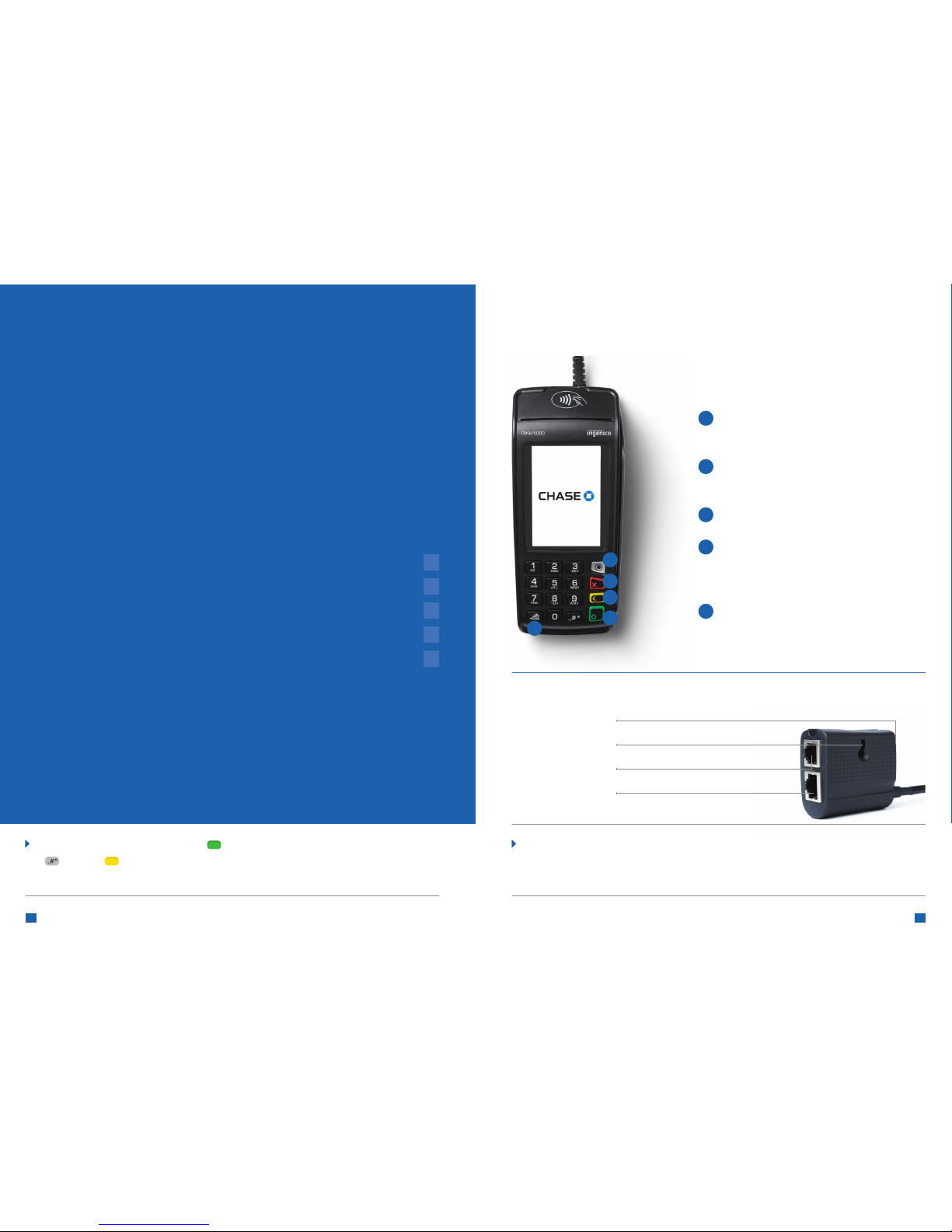
How to plug in your DESK/5000:
To Power Supply
To Cable Mount
To Phone Line
To Internet
Getting Started
To help you get started, this Quick Start Terminal Guide outlines some
of the most common transactions for the Ingenico terminal solutions.
For more information and guides, visit: chase.ca/merchantservices
Contents
Navigating and Setting Up Your Terminal
n DESK/5000
n DESK/5000 with IPP315 PIN Pad
n MOVE/5000
How to Process Basic Transactions
More Information and Support
3
4
5
6
7
DESK/5000
Note: Ins ert the supplied zip tie, or screw (not provided), through the cable mount and a x
the device to a at surface.
Keyboard functionality
The func tions key accesses the
dierent application menus.
The red key cancels the transac tion
or function in progress.
The yellow key deletes the last character.
The green key accepts or conrms
the action. It is also used to switch
on the terminal.
Advance paper feed.
1
2
3
4
5
1
2
3
4
5
Note: To turn ON the terminals, press [ ]. To turn OFF the terminals , press and hold
[ ] and the [ ] at the same time. To recharge the batter y, connect a supp orted wall
or car charger to the power supply port , or place the terminal on the charging base.
Page 3
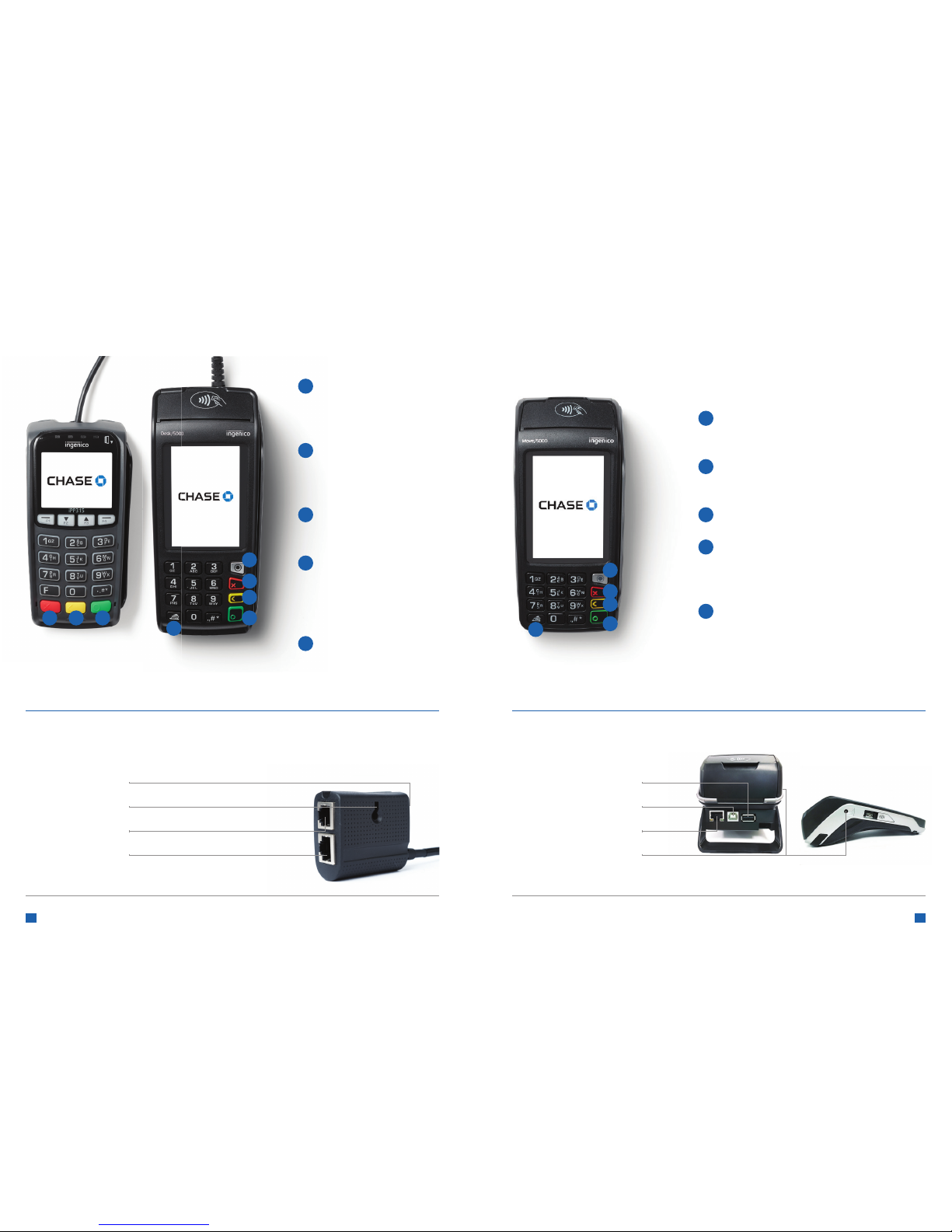
DESK/5000 with IPP315
Keyboard functionality
The functions key
accesses the di erent
application menus.
The red key cancels the
transaction or function
in progress.
The yellow key deletes
the last character
The green key accepts
or con rms the action.
It is also used to s witch
on the terminal.
Advance paper feed.
2 3 4
1
2
5
MOVE/5000
Keyboard functionality
The func tions key accesses the
di erent application menus.
The red key cancels the transac tion
or function in progress.
The yellow key deletes the last character
The green key accepts or con rms
the action. It is also used to switch
on the terminal.
Advance paper feed.
1
2
3
4
5
1
2
3
4
5
3
4
1
2
3
4
5
4 5
How to connect and/or charge your MOVE/5000
How to plug in your DESK/5000 with IPP315
To Power Supply
To Cable Mount
To Phone Line
To Internet
USA A (not applicable)
USA B (TSI)
To Internet
To Power supply
Page 4
6 7
How to Process Basic Transactions
Below are some common transactions to help you start processing right
away. For additional transactions, download the full guide at:
chase.ca/merchantservices (available Februar y, 2019)
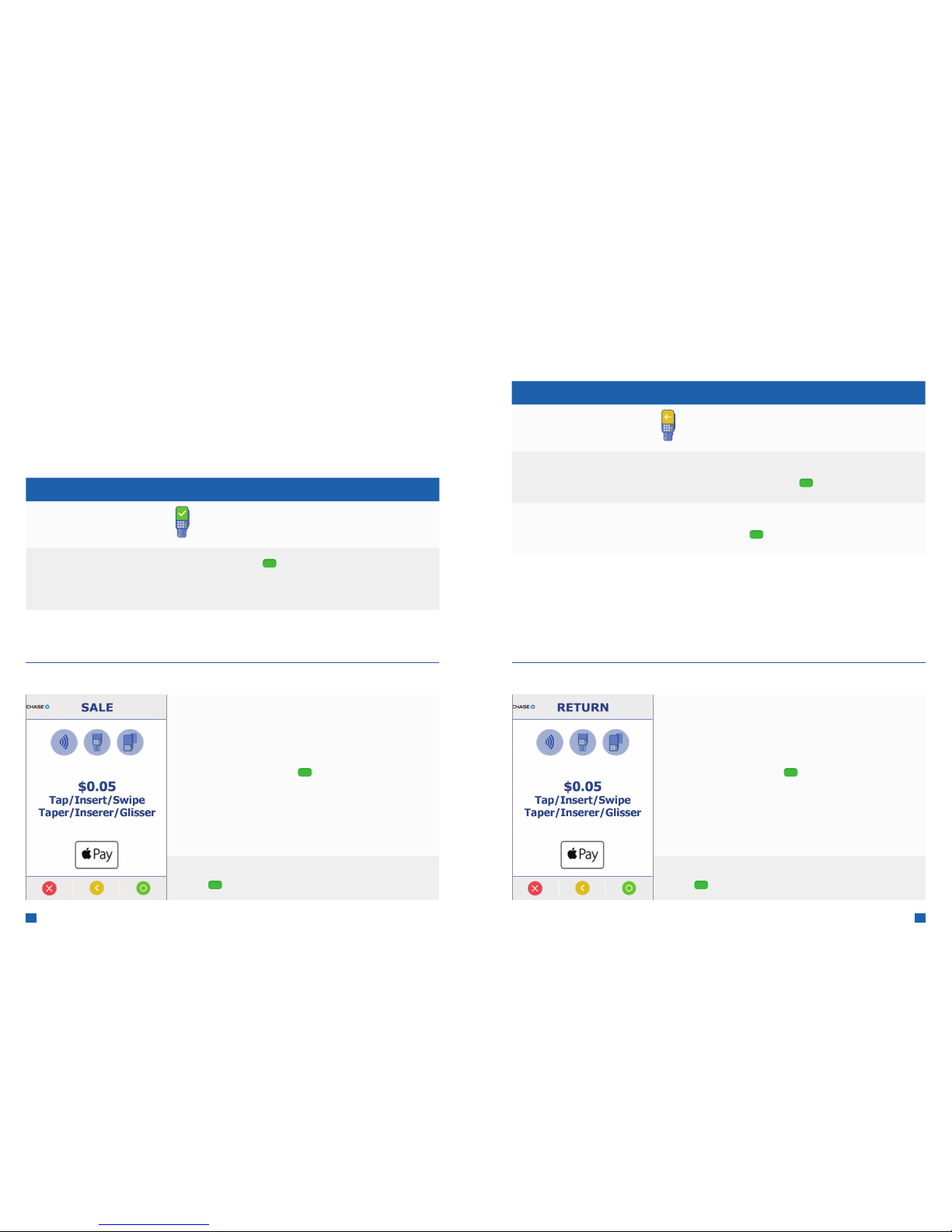
Sale
Perform a credit or debit card sale transaction when the card is present.
Display DESK/5000 / MOVE/5000
Idle Screen Press
SALE
Enter Sale
Amount: $ 0.00
Key in amount and press [ ]
Customer is prompted to Swipe/Insert/ Tap
1. Customer conrms the sale amount
2. Select s Chequing or Savings (Debit Only)
3. Enter PIN and press [ ]
4. While terminal connects, do not remove card
For contact less (tap) transac tions, the cus tomer holds their
card over the terminal until the reader ashes and/or beeps.
Receipt prints and approval is displayed
Press [ ] to print the customer copy
Return/Refund
Per form a return to refund money to a cardholder’s account from a sale completed
in a closed batch (e.g., previous day).
Display DESK/5000 / MOVE/5000
Idle Screen Press
RETURN Enter Manager Password
Enter Manager password and press [ ]
RETURN Enter Return Amount
Key in Amount and press [ ]
Customer is prompted to Swipe/Insert/ Tap
1. Customer conrms the refund amount
2. Select s Chequing or Savings (Debit Only)
3. Enter PIN and press [ ]
4. While terminal connects, do not remove card
For contact less (tap) transac tions, the cus tomer holds their
card over the terminal until the reader ashes and/or beeps.
Receipt prints and approval is displayed
Press [ ] to print the customer copy
What the customer seesWhat the customer sees
Page 5
8 9
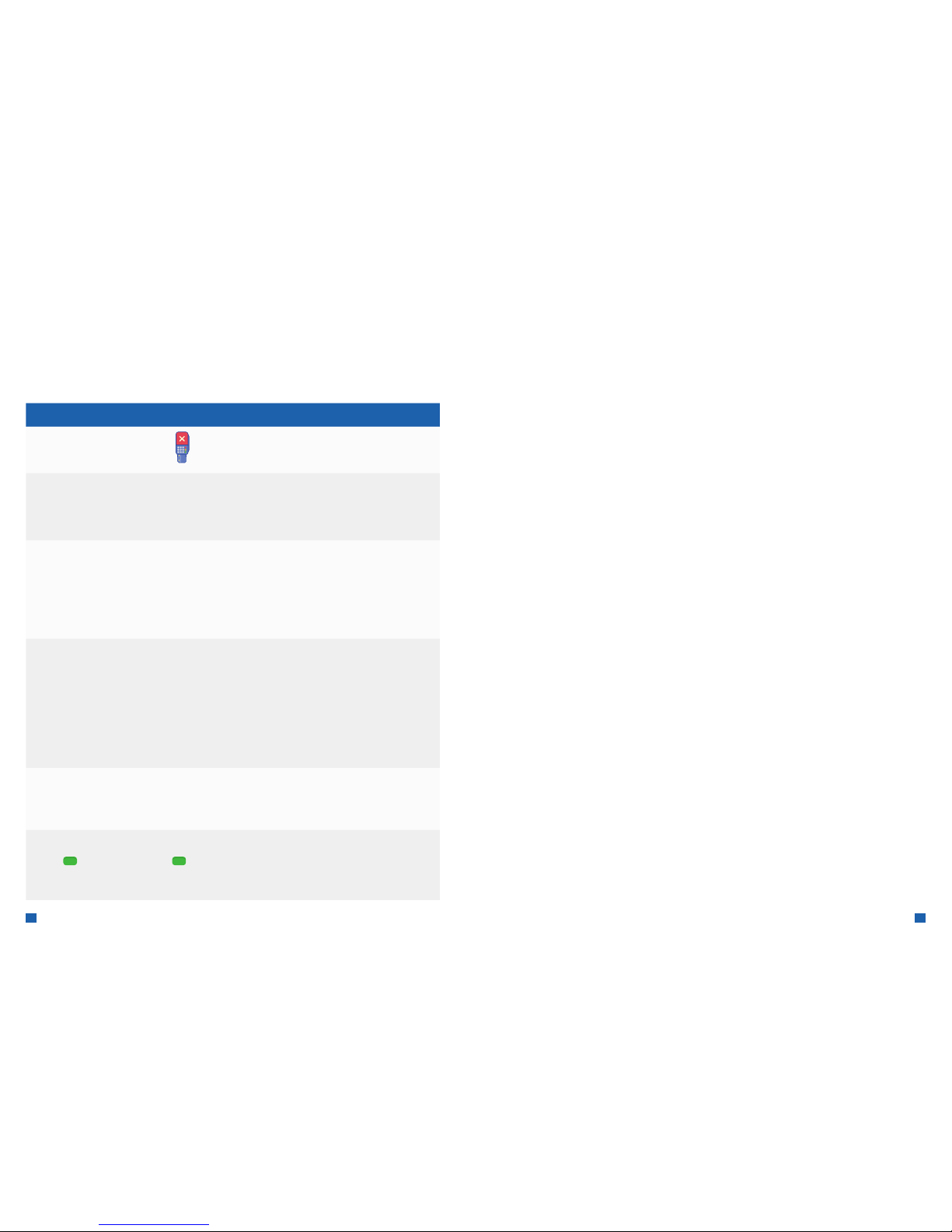
Void
Perform a void to reverse a credit or debit sale, force, or return transaction and
prevent any funds from transferring from the cardholder’s account. Only available
for transactions in the current batch (e.g., same day).
Display DESK/5000 / MOVE/5000
Idle Screen Press
Void Pre-Auth
(if applicable)
Yes/No
Press [1] for Yes to void an open pre-auth, or [2] for No and
follow screen prompts. Note: This prompt appears even when
there are no open pre-auth transactions.
SEARCH MENU
1 – All
2 – Reference #
3 – Clerk #
4 – Invoice #
Press [1] to search all the transac tions in the batch
Press [2] to search transac tions by the reference number
Press [3] to search transactions by th e clerk/server number
Press [4] to search t ransact ions by the invoice number
Acct: X XX Ref: X
Auth: XXX
TR: Credit Sale
Total: XX. XX
1/4 [] Select
Review the transaction to delete
Press [F4] to select the transaction to void
Conrm Void
$XX.XX
Yes/No
Conrm the amount to be voided
Press [F1] for Yes or [F4] for No
APPROVED XXXXXX
Press [ ]
Receipt print s and approval is displayed
Press [ ] to print the customer copy
Terminal returns to Main Menu
More Information and Support
Below is some helpful information about transactions and functions on
away. For additional transactions, download the full guide at:
chase.ca/merchantservices (available Februar y, 2019)
Other Transactions
Scroll through the screens to navigate to the transaction/function you
wish to perform. Press the GUI to start the transaction or function.
Access Reports
Scroll through the screens to navigate to the transaction/function you
wish to perform. Press the GUI to start the transaction or function.
Reprint a Receipt
Scroll through the screens to navigate to the transaction/function you
wish to perform. Press the GUI to start the transaction or function.
Set a Password
Call our 24/7 Merchant Support and we can outline your options
for password settings and help you set-up passwords for your terminals.
Once set-up, this security feature requires a password to be entered to
perform specic transactions on the terminal such as refunds and voids.
Settling the Batch
Your terminal batch contains all the daily transactions that need to be
settled. Settlement is the process of managing your elec tronic payment
transactions so they clear through the payment brands and are then
funded to your banking account.
F or the Ingenico terminals, there are two settlement options:
nManual Settlement
nAuto Settlement
Page 6

10 11
Manual Settlement
If your terminal is set to Manual Close, press [ ] to access the Main Menu,
use the scroll keys to navigate to Set tlement and press [ ] to select. Then
follow the prompts displayed on the terminal display.
Timed Auto Settlement
**
If your terminal is set to Timed Auto Settle, it will automatically settle transactions
in the current batch at a specic, predetermined time, within a 24-hour period.
If the terminal is unplug ged or turned o before the set time, the auto settlement
will occur when the terminal is turned on again.
The Information You Need,
When You Need it.
For Guides and Helpful Information:
chasepaymentech.ca/welcome
Call Merchant Support 24/7:
1.800.265.5158
Chase an d the Octag on logo are regis tered trademark s of JPMorgan Chase B ank, N. A. © 2019 JPMorgan Ch ase
& Co.
WK-QRG-IN-TETRA-EN-0319
Page 7

12
 Loading...