

Page 1

Valiant
User Guide
Welcome to HUAWEI
Page 2

•
Contents
Contents
Read Before Proceeding........................................................
Safety Precautions .................................................................... .............
Personal Information and Data Security.................................................
Legal notice............................................................................................
Getting Started.......................................................................
Key Functions at Your Fingertips ...........................................................
Important Information About the Battery.................................................
Power Saving Tips .................................................................................
Power On or Off Your Mobile Phone......................................................
Using the Touchscreen...................................................... .. ...................
Locking and Unlocking the Screen.........................................................
Home Screen.............................................. ......................... .. ...............
Applications and Widgets.....................................................................
Using a microSD Card............................................... .. .. .......................
Calling ..................................................................................
Making a Call........................................ ......................... .......................
Answering or Rejecting a Call..............................................................
Other Operations During a Call............................................................
TTY Operation .....................................................................................
Setting Hearing Aid Compatibility.........................................................
People..................................................................................
Opening the People Application...........................................................
Importing Contacts from a SIM Card....................................................
Adding a Contact..................................................................................
Adding a Contact to Your Favorites......................................................
Searching for a Contact........................................................................
Editing a Contact..................................................................................
Communicating with Your Contacts.....................................................
Deleting a Contact................................................................................
Backing Up and Synchronizing Contacts .............................................
Managing Groups.................................................................................
Joining and Separating Contacts..........................................................
Sending Contacts.................................................................................
1
1
2
3
6
6
6
7
8
9
9
10
14
15
16
16
17
18
19
19
20
20
20
20
21
21
21
21
22
22
23
24
25
Text Input .............................................................................
Displaying the Keyboard.......................................................................
i
26
26
Page 3

Contents
Choosing an Input Method ...................................................................
Using the Android Keyboard.................................................................
Using the Swype Keyboard..................................................................
Editing Text...........................................................................................
Using the Landscape Keyboard ...........................................................
Customizing Your Keyboard Settings...................................................
Messaging............................................................................
Opening Messaging..............................................................................
Creating and Sending a Text Message................................................
Creating and Sending a Multimedia Message......................................
Opening and Viewing a Multimedia Message ......................................
Replying to a Message.................. .............................. .........................
Searching for a Message.................................. .............................. ......
Customizing Message Settings............................................................
Getting Connected ...............................................................
Mobile Networks...................................................................................
Wi-Fi.....................................................................................................
Sharing Your Phone's Data Connection...............................................
Controlling Data Usage .............................. .. .. ............................. .........
Browser ................................................................................................
Bluetooth ..............................................................................................
Email ....................................................................................
Adding an Email Account .....................................................................
Switching Between Email Accounts .....................................................
Viewing an Email Message .............................................................. .. ..
Saving an Email Attachment ....................................................... ... ......
Creating and Sending an Email Message............................................
Replying to an Email Message................. ............................. ...............
Deleting an Email Account ...................................................................
Changing Email Account Settings........................................................
26
26
27
27
28
28
29
29
29
29
30
31
31
31
32
32
32
33
34
35
36
39
39
39
39
40
40
40
40
41
Entertainment.......................................................................
Taking Photos and Recording Videos..................................................
Using the Gallery........... .. ......................... .. ......................... .................
Enjoying Music ........................ .. ......................... ......................... ... ......
Listening to the FM Radio............................... .. .............................. .. ....
Google Services...................................................................
Creating a Google Account ..................................................................
Gmail....................................................................................................
ii
42
42
43
44
46
47
47
48
Page 4

Contents
Talk.......................................................................................................
Maps.....................................................................................................
YouTube...............................................................................................
Play Store.............................................................................................
Accounts and synchronization..............................................
Adding an Account ...............................................................................
Deleting an Account .............................................................................
Turning on data synchronization..........................................................
Changing an Account's Synchronization Settings................................
Using Other Applications......................................................
Calendar...............................................................................................
File Manager.........................................................................................
Clock.....................................................................................................
Calculator .............................................................................................
Notes....................................................................................................
Managing Your Mobile Phone................................ ..............
Setting the Date and Time....................................................................
Setting the Display................................................................................
Setting Ringers.....................................................................................
Setting Phone Services........................................................................
Configuring Text-to-Speech..................................................................
Protecting Your Mobile Phone..............................................................
Managing Applications .........................................................................
Resetting Your Mobile Phone...............................................................
Online Update.......................................................................................
49
50
51
52
54
54
54
54
55
56
56
57
59
60
60
61
61
61
62
62
63
63
65
65
66
iii
Page 5
Read Before Proceeding
•
Read Before Proceeding
Safety Precautions
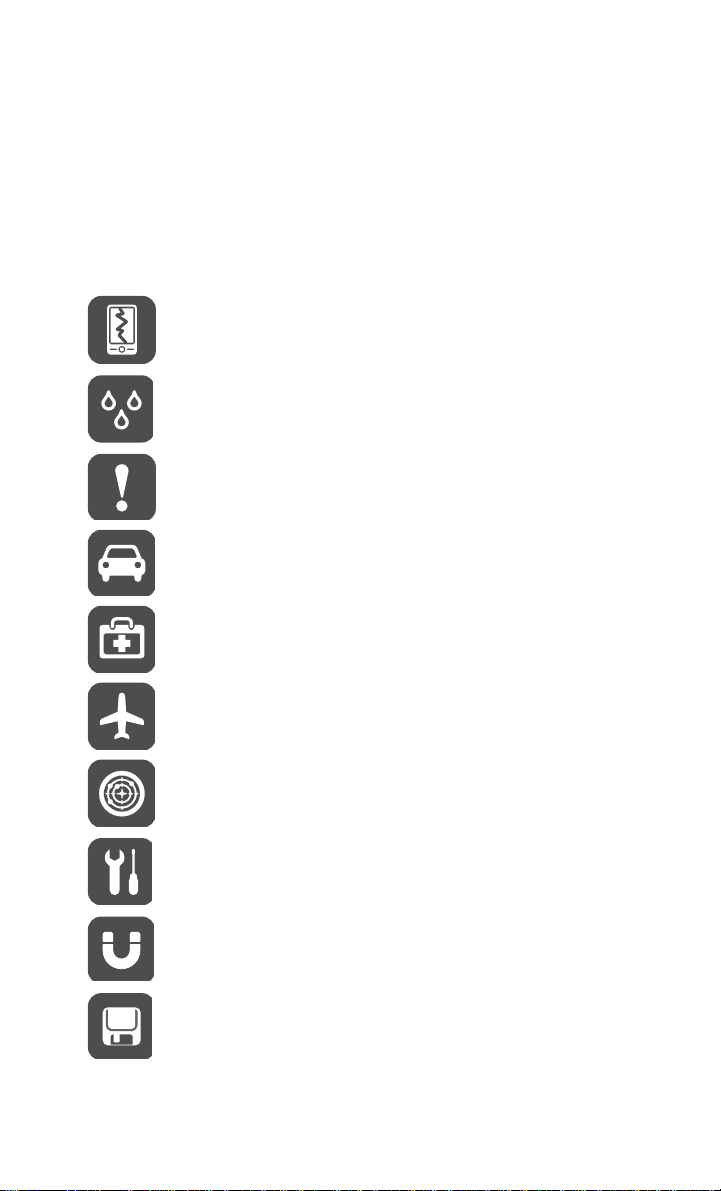
Please read the safety precautions carefully to ensure the correct use of
your mobile phone.
Do not crash, throw, or puncture your mobile phone. Avoid the
falling, squeezing, and bending of your mobile phone.
Do not use your mobile phone in a moist en
the bathroom. Prevent your mobile phone from being soaked or
washed in liquid.
Do not switch on your mobile phone wh
phones or when the phone may cause interference or danger.
Do not use your mobile phone while driving.
Follow any rules or regulations in hosp
facilities. Switch off your mobile phone near medical apparatus.
Switch off your mobile phone in aircraft. The phone may cause
rence to control equipment of the aircraft.
interfe
Switch off your mobile phone near high-precision electronic
devices.
Do not attempt to disassemble your mobile phone or its
accessories. Only qualified personnel are allowed to service or
repair the phone.
Do not place your mobile phone or its accessories in containers
with a strong electromagnetic field.
The phone may affect the performance of these devices.
vironment, such as
en it is prohibited to use
itals and health care
Do not place magnetic storage media near your mobile phone.
Radiation from the phone may erase the information stored on
them.
1
Page 6

Read Before Proceeding
Do not put your mobile phone in a high-temperature place or use
it in a place with flammable gas such as a gas station.
Keep your mobile phone and its accessories away
Do not allow children to use your mobile phone without
guidance.
Use only approved batteries and chargers to avoid the risk of
explosions.
Observe any laws or regulations on the use of wireless devices.
Respect others' privacy and legal rights when using your wireless
device.
Strictly follow the relevant instructions of th
the USB cable. Otherwise your mobile phone or PC may be
damaged.
from children.
is manual while using
Personal Information and Data Security
The use of some functions or third-party applications on your device could
result in your personal information and data being lost or becoming
accessible to others. Several measures are recommended to help you
protect personal and confidential information.
• Place your device in a safe area to prevent it from unauthorized use.
• Set your device screen to lock and create a password or unlock pattern to
open it.
• Periodically back up personal information
card, or stored in your device memory. If you change to a different device,
be sure to move or delete any personal information on your old device.
• If you are worried about viruses when you
from a stranger, you can delete them without opening them.
• If you use your device to browse the Internet, avoid
pose a security risk to avoid theft of your personal information.
• If you use services such as Wi-Fi tether or B
these services to prevent unauthorized access. When these services are
not in use, turn them off.
• Install or upgrade device security software and regularly scan for viruses.
kept on your SIM card, memory
receive messages or emails
websites that might
luetooth, set passwords for
2
Page 7

Read Before Proceeding
• Be sure to obtain third-party applications from a legitimate source.
Downloaded third-party applications should be scanned for viruses.
• Install security software or patches released by Huawei or third-party
application p
roviders.
• Some applications require and transmit location
information. As a result, a
third-party may be able to share your location information.
• Your device may provide detection and diagnostic information to thirdpar
ty application providers. Third party vendors use this information to
improve their products and services.
• If you have concerns about the security
of your personal information and
data, please contact [email protected].
Legal notice
Copyright © Huawei Technologies Co., Ltd. 2013. All rights reserved.
No part of this manual may be reproduced or transmitted in any form or by
any means without prior written consent of Huawei Technologies Co., Ltd.
and its affiliates (“Huawei”).
The product described in this manual may include copyrighted software of
Huawei and possible licensors. Customers shall not in any manner
reproduce, distribute, modify, decompile, disassemble, decrypt, extract,
reverse engineer, lease, assign, or sublicense the said software, unless
such restrictions are prohibited by applicable laws or such actions are
approved by respective copyright holders.
Trademarks and permissions
, , and are trademarks or registered trademarks of
Huawei Technologies Co., Ltd.
Android™ is a trademark of Google Inc.
®
The Bluetooth
word mark and logos are registered trademarks owned by
Bluetooth SIG, Inc. and any use of such marks by Huawei Technologies Co.,
Ltd. is under license.
Other trademarks, product, service and company names mentioned may be
the property of their respective owners.
3
Page 8

Read Before Proceeding
Notice
Some features of the product and its accessories described herein rely on
the software installed, capacities and settings of local network, and therefore
may not be activated or may be limited by local network operators or network
service providers. Thus, the descriptions herein may not exactly match the
product or its accessories which you purchase.
Huawei reserves the right to change or modify any information or
specifications contained in this manual without prior notice and without any
liability.
Third-Party software statement
Huawei does not own the intellectual property of the third-party software and
applications that are delivered with this product. Therefore, Huawei will not
provide any warranty of any kind for third party software and applications.
Neither will Huawei provide support to customers who use third-party
software and applications, nor be responsible or liable for the functions or
performance of third-party software and applications.
Third-party software and applications services may be interrupted or
terminated at any time, and Huawei does not guarantee the availability of
any content or service. Third-party service providers provide content and
services through network or transmission tools outside of the control of
Huawei. To the greatest extent permitted by applicable law, it is explicitly
stated that Huawei shall not compensate or be liable for services provided by
third-party service providers, or the interruption or termination of third-party
contents or services.
Huawei shall not be responsible for the legality, quality, or any other aspects
of any software installed on this product, or for any uploaded or downloaded
third-party works in any form, including but not limited texts, images, videos,
or software etc. Customers shall bear the risk for any and all effects,
including incompatibility between the software and this product, which result
from installing software or uploading or downloading the third-party works.
This product is based on the open-source Android™ platform. Huawei has
made necessary changes to the platform. Therefore, this product may not
support all the functions that are supported by the standard Android platform
or may be incompatible with third-party software. Huawei does not provide
any warranty and representation in connect with any such compatability and
expressly excludes all liability in connection with such matters.
4
Page 9

Read Before Proceeding
DISCLAIMER
ALL CONTENTS OF THIS MANUAL ARE PROVIDED “AS IS”. EXCEPT AS
REQUIRED BY APPLICABLE LAWS, NO WARRANTIES OF ANY KIND,
EITHER EXPRESS OR IMPLIED, INCLUDING BUT NOT LIMITED TO,
THE IMPLIED WARRANTIES OF MERCHANTABILITY AND FITNESS
FOR A PARTICULAR PURPOSE, ARE MADE IN RELATION TO THE
ACCURACY, RELIABILITY OR CONTENTS OF THIS MANUAL.
TO THE MAXIMUM EXTENT PERMITTED BY APPLICABLE LAW, IN NO
EVENT SHALL HUAWEI BE LIABLE FOR ANY SPECIAL, INCIDENTAL,
INDIRECT, OR CONSEQUENTIAL DAMAGES, OR LOSS OF PROF ITS,
BUSINESS, REVENUE, DATA, GOODWILL SAVINGS OR ANTICIPATED
SAVINGS REGARDLESS OF WHETHER SUCH LOSSES ARE
FORSEEABLE OR NOT.
THE MAXIMUM LIABILITY (THIS LIMITATION SHALL NOT APPLY TO
LIABILITY FOR PERSONAL INJURY TO THE EXTENT APPLICABLE LAW
PROHIBITS SUCH A LIMITATION) OF HUAWEI ARISING FROM THE USE
OF THE PRODUCT DESCRIBED IN THIS MANUAL SHALL BE LIMITED
TO THE AMOUNT PAID BY CUSTOMERS F OR THE PURCHASE OF THIS
PRODUCT.
Import and export regulations
Customers shall comply with all applicable export or import laws and
regulations and be responsible to obtain all necessary governmental permits
and licenses in order to export, re-export or import the product mentioned in
this manual including the software and technical data therein.
Privacy policy
To better understand how we protect your personal information, please see
the privacy policy at http://consumer.huawei.com/en/privacy-policy/
index.htm.
5
Page 10
Getting Started
•
Getting Started
All the pictures in this guide are for your reference only. Your phone's
actual display features may be different to those described here,
depending on its software version.
Key Functions at Your Fingertips
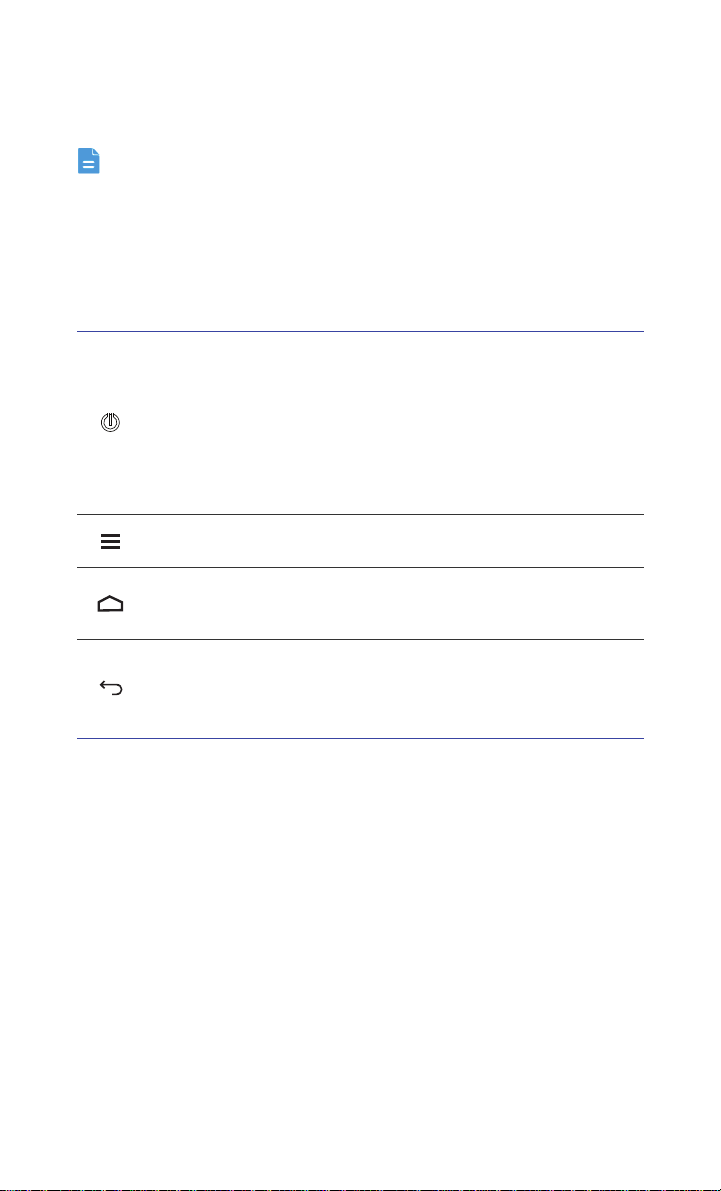
•Press and hold to power on your mobile phone.
•When your mobile phone is powered on, press and hold
Power Key
this button to display the options menu. You can then
choose to power off the phone or perform shortcut
operations.
•Press to lock the screen when your mobile phone is active.
Menu
Home
Back
Touch to open the menu on an active screen.
•Touch to return to the Home screen.
•Touch and hold to display recently used applications.
•Touch to return to the previous screen or exit the
application you are running.
•Touch to hide the keyboard.
Important Information About the Battery
• If the battery has not been used for a long time, you may not be able to
power on your mobile phone immediately after you begin charging the
battery. Allow the battery to charge for a few minutes with the phone
powered off before attempting to power the phone on.
• As it ages, the battery's performance will
hold charge as it did when it was new. When the battery life becomes
noticeably shorter than usual after being charged properly, replace the
battery with a new one of the same type.
degrade, in particular it will not
6
Page 11

Getting Started
• Using data services increases the power consumption of the phone and
will therefore reduce the length of time that the phone can be used between
battery charges.
• The time required to fully charge the batter
temperature and the age of the battery.
• When the battery power is low, the ph
message. When the battery power is almost exhausted, your phone will
power off automatically.
y depends on the ambient
one will alert you and display a
Power Saving Tips
The longevity of battery power depends on the network to which you
connect, and how you use your mobile phone.
Try the following to conserve battery power:
• When you do not need 3G services, set your phone to connect to a 2G
network.
• When your mobile phone is not in use, turn off the screen backlight.
• Reduce the time it takes for your scr
phone is idle.
• Lower the screen brightness.
een backlight to turn off when your
• Turn off Bluetooth when you are not using it. Only make your
to other Bluetooth devices when you need to establish a Bluetooth
connection.
• Turn off Wi-Fi when you are not using it.
• Turn off your phone's GPS receiver when you are not using it.
• Lower the volume.
• Close power-draining programs, when you
• Turn off the data service when you are not using it.
do not need them.
7
phone visible
Page 12

Getting Started
Power On or Off Your Mobile Phone
Powering On Your Mobile Phone
Press and hold . If you have protected your mobile phone with a
personal identification number (PIN), enter it before using the mobile phone.
Setting Up Your Mobile Phone
The first time you power on your mobile phone, the phone displays a setup
wizard to help you set up the phone.
The setup wizard helps you:
• Create or sign in to your account
• Make some initial decisions about how you want to use your mobile phone
Powering Off Your Mobile Phone
1.
Press and hold to display the options menu.
2. Touch
If
Fast boot
Fast boot
Power off
.
is enabled, the mobile phone will enter deep sleep mode. If
is disabled, touch OK to power off the phone.
Turning On Fast Boot
1.
Touch >
2. Touch the button next to
Do not turn on
Settings
Fast boot
.
Fast boot
.
while on an airplane.
Restarting Your Mobile Phone
1.
Press and hold to display the options menu.
2. Touch
3. Touch
Restart
OK
.
.
Using Airplane Mode
Some locations may require you to turn off your phone's wireless connections.
Rather than powering off your phone, you can place it in
8
Airplane mode
.
Page 13
1.
Press and hold .
Getting Started
2. Touch
Airplane mode
in the options menu.
Using the Touchscreen
Touchscreen Actions
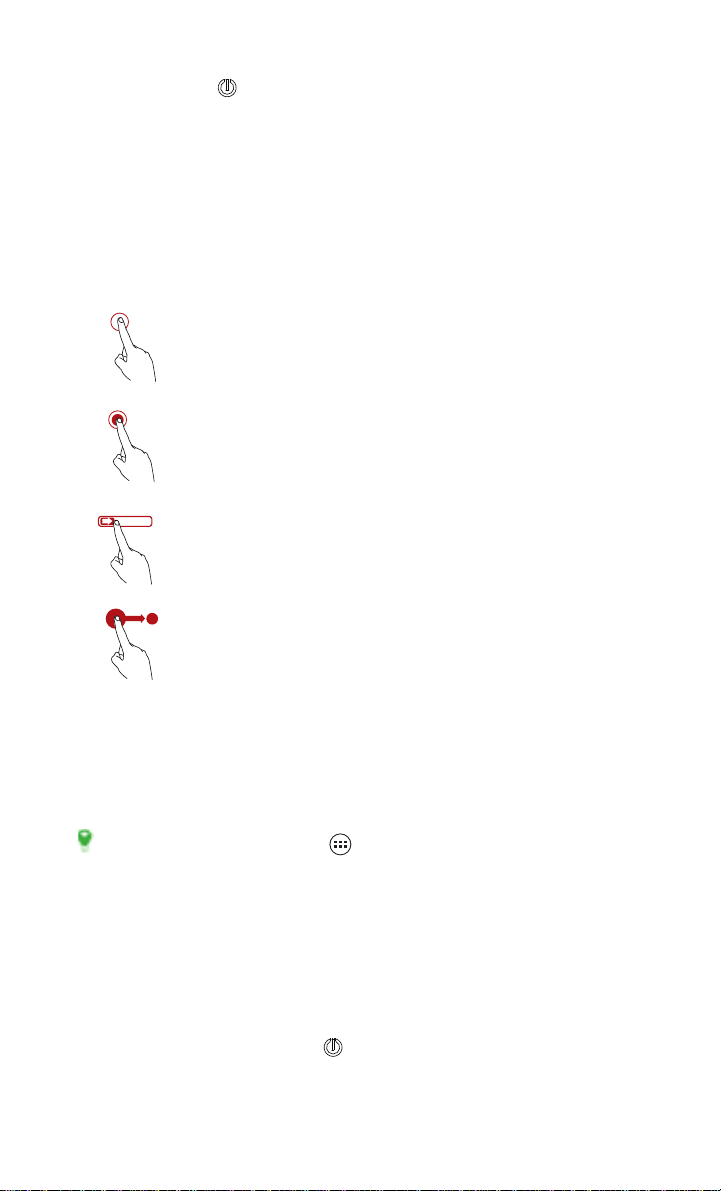
Touch
: Tap the screen with your finger to select an item, confirm a
selection, or start an application.
Touch and hold
release it until the mobile phone responds. For example, to open
the options menu for the active screen, touch and hold the screen
until the menu appears.
Flick
: Move your finger either vertically or horizontally across the
screen.
Drag
: Touch and hold the desired item with your finger. To move
an item, drag the item to any part of the screen. You can drag an
icon to move or delete it.
: Touch an item with your finger and do not
Rotating Your Mobile Phone Screen
The orientation of most screens will change to landscape or portrait view when
you rotate your phone sideways.
On the Home screen, touch >
rotate screen
to disable this function.
Settings
>
All
>
Display
>
Auto-
Locking and Unlocking the Screen
Locking the Screen
• When your phone is on, press to lock the screen. When the screen is
locked, you can still receive messages and calls.
9
Page 14
Getting Started
10:23
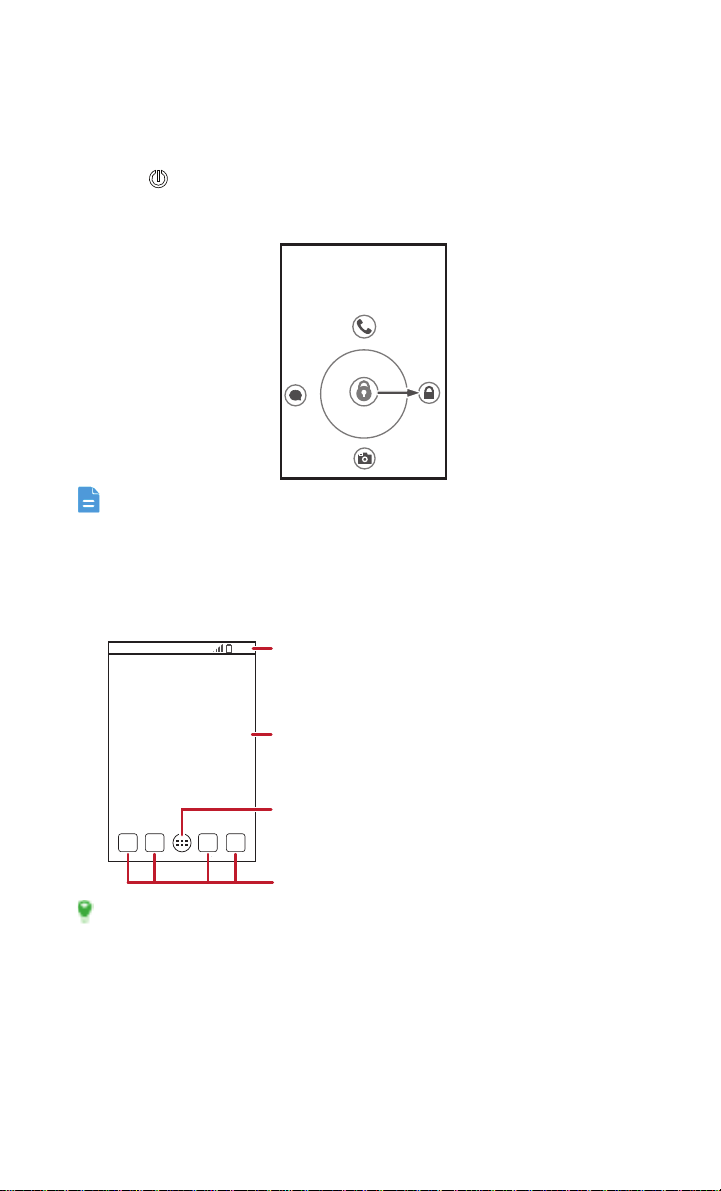
Touch to view all your applications.
Shortcuts
Notifications bar:
Displays the reminders and status icons of your phone.
Flick down to open the notifications panel.
Display area:
Shows the operation and display areas of your phone.
• If your phone is idle for a while, the screen will lock automatically.
Unlocking the Screen
1.
Press to wake up the screen.
2. Drag the unlocking icon to the small lock, the screen is
unlocked.
If you have set up a screen unlock pattern, you will be prompted to draw
the pattern on the screen to unlock it.
Home Screen
Touch and hold a shortcut until the mobile phone vibrates, you can then
drag it to your desired location or move it to the trash. You can also drag
an icon from another area of the screen to the shortcut position.
10
Page 15
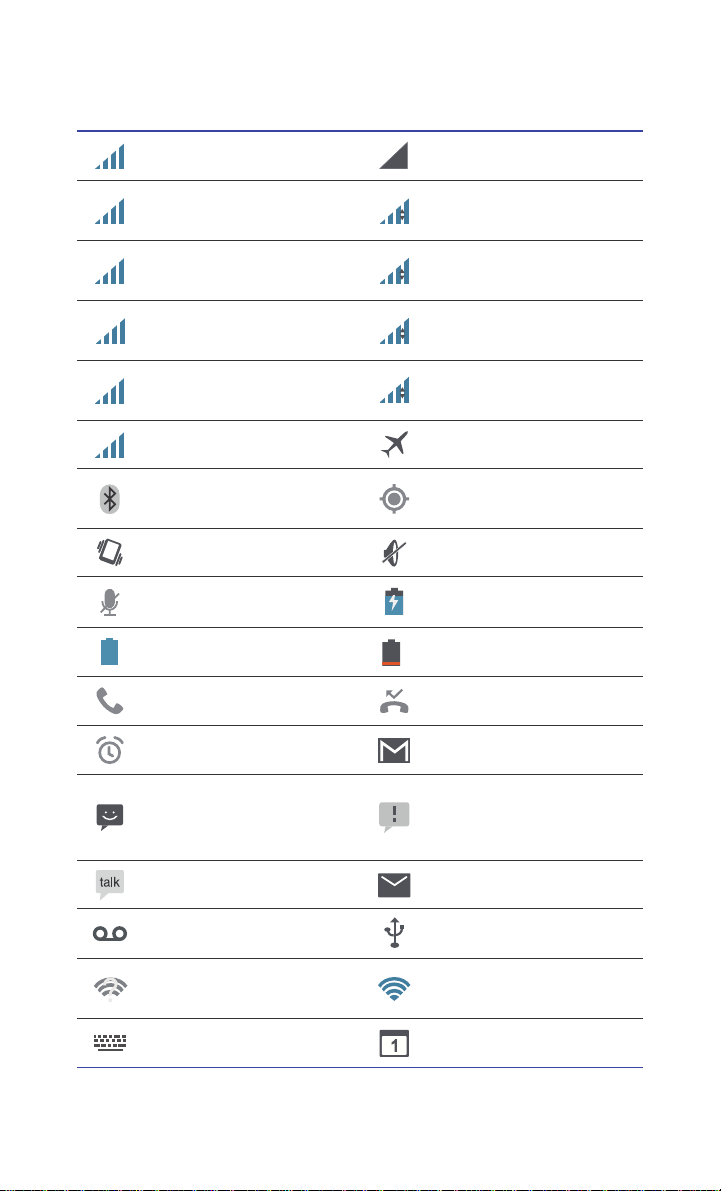
Notification and Status Icons
H
H
G
G
E
E
3G
R
Signal strength No signal
Getting Started
Connected to HSDPA
mob
ile network
Connected to GPRS mobile
ne
twork
Connected to EDGE mobile
ne
twork
Connected to 3G mobile
ne
twork
3G
HSDPA in use
GPRS in use
EDGE in use
3G in use
Roaming Airplane mode
Bluetooth on
Receiving location data from
GPS
Vibration mode Ringer silenced
Call muted Charging battery
Battery full Battery extremely low
Call in progress Missed call
Alarm enabled New mail from Gmail
Problem with text or
New text message
multimedia me
ssage
delivery
New chat message New email
New voicemail Connected to a PC
Open Wi-Fi network
available
Connected to a Wi-Fi
network
Select input method Upcoming event
11
Page 16
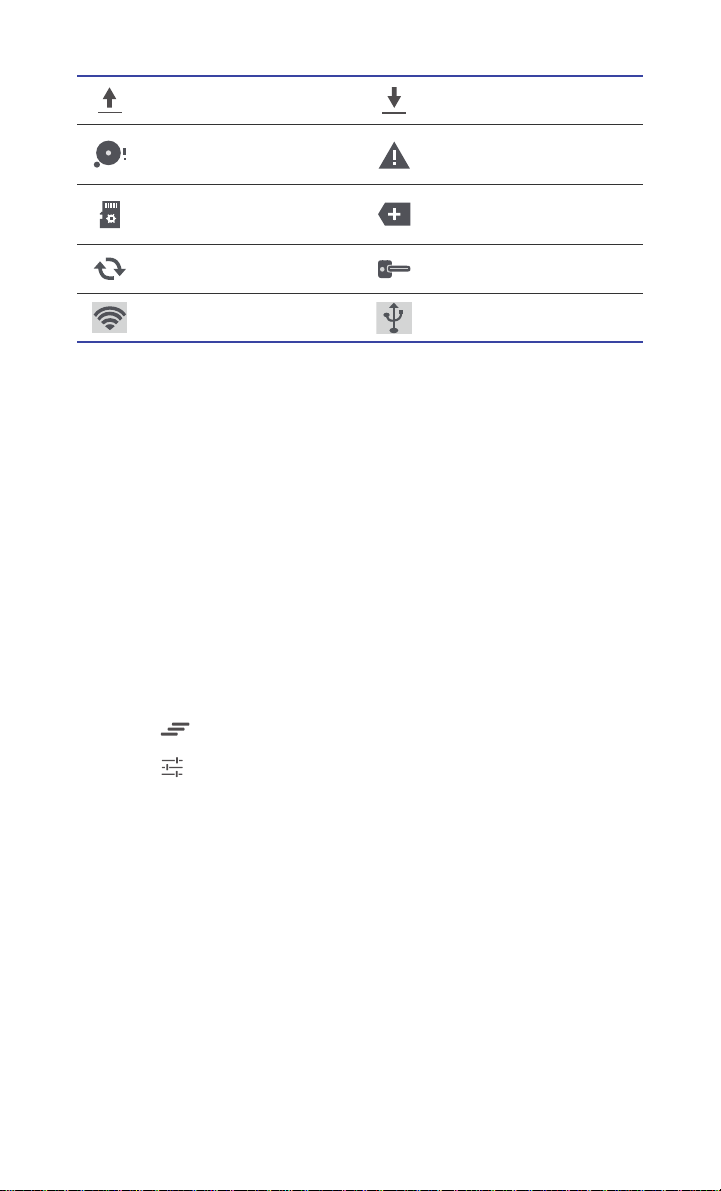
Uploading Downloading
Getting Started
Phone storage space is
getting lo
w
Preparing the mircoSD card
Sign-in or synchronization
problem
More undisplayed
notifications
Synchronizing data Connected to a VPN
Portable Wi-Fi hotspot on USB tethering on
Notification Panel
Your mobile phone will notify you when you receive a new message or there
is an upcoming event. The notification panel also informs you of alarms and
settings. Open the notification panel to see your network operator or to view
a message, reminder, or event notification.
Opening the Notification Panel
1.
When a new notification icon appears on the notification bar, place your
finger on the notification bar and flick down to open the notification panel.
2. On the panel, you can:
• Touch a notification to open the corr
• Flick left or right on a notification to delete it.
esponding application.
• Touch to clear all notifications.
• Touch to display the settings screen.
Closing the Notification Panel
T
ouch and hold the bottom of the panel. Then flick up to close it.
12
Page 17
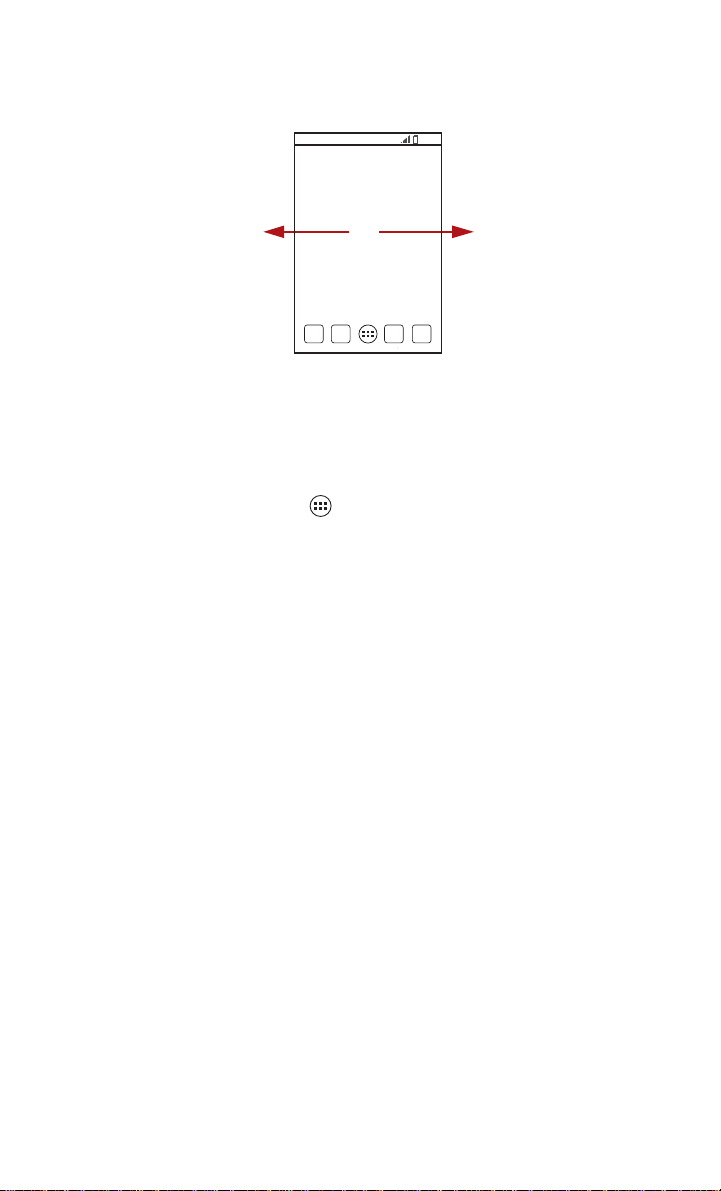
Viewing Other Parts of the Home Screen
Flick your finger left or right across the Home screen.
10:23
Customizing the Home Screen
Adding a New Home Screen Item
1.
On the Home screen, touch to display the application list.
Getting Started
2. Press and hold an application icon, and then dr
ag the icon to a blank area
on the Home screen.
Moving a Home Screen Item
1.
Touch and hold the item on the Home screen that you want to move until
your mobile phone vibrates.
2. Without lifting your finger, drag the item to the
desired position on the
screen, and then release it.
Removing an Icon from the Home Screen
1.
Touch and hold an item on the Home screen that you want to remove until
your mobile phone vibrates.
2. Without lifting your finger, dr
ag the item to the trash can. Wait until the item
and the trash can turn red.
3. Release the item.
Managing Folders on the Home Screen
• To create a folder: Drag an application
icon onto another application icon
to create a new folder that contains both icons.
• To rename a folder: On the Home screen, touch a folder, and then touch
the folder name field beneath
it.
13
Page 18

Getting Started
• To delete a folder: On the Home screen, touch and hold a folder, and then
drag it to the trash can.
• To move a folder to the shortcut bar: On the Home screen, touch and hold
lder, and then drag it to the shortcut bar.
a fo
Service Shortcuts
1.
Open the notification bar.
2. Touch , or to turn the corresponding services on or off.
You can touch to display the switch shortcut list.
Changing the Wallpaper
1.
On the Home screen, touch >
Wallpaper
.
2. Touch the following menu items to sele
wallpaper:
Gallery
•
•
Live Wallpapers
•
Themes
•
Wallpapers
ct a picture and set it as the
Changing the Theme
1.
On the home screen, touch >
2. Select a theme and touch
Apply
Themes
to apply it.
.
Applications and Widgets
The Application screen holds icons for all of the applications on your phone.
You can touch on the Home screen to open the application screen.
Accessing Widgets
On the application screen, touch the
screen. From the widget screen, you can touch and hold a widget, and then
drag it to the Home screen.
WIDGETS
tab to switch to the widget
14
Page 19

Getting Started
Viewing Recently Used Applications
To display the list of recently used applications, press and hold . To
open an application, touch the corresponding thumbnail. To close the
application, flick left or right across the screen. To clear the list, touch .
Using a microSD Card
Using the microSD Card as a USB Mass Storage
To transfer all your favorite music and pictures from your PC to your mobile
phone's microSD card, set the microSD card as a USB mass storage.
Connect your mobile phone to your PC with the USB cable provided. Your
1.
PC will detect the microSD card as a removable storage device.
2. Open the notification bar, and then touch
3. Touch
USB storage device
in the dialog box that opens to confirm that
Connected as USB Storage
you want to transfer files.
You can now transfer files from your PC to your mobile phone's microSD
card.
When your microSD card acts as a USB mass storage, your mobile
phone will not use this memory space. Ensure that you follow the correct
procedures to disconnect the USB mass storage device (your mobile
phone) from the PC when you have finished transferring files.
Removing the microSD Card
1.
On the Home screen, touch >
2. Scroll down the screen, and then touch
3. Carefully remove the microSD card.
Settings
Storage
>
All
.
>
Unmount SD card
.
.
15
Page 20
Calling
•
Calling
To make a phone call, you can dial a number using the keypad or touch a
number saved in your contact list, on a webpage, or in other places. When
you are in a call, you can answer other incoming calls or redirect them to
your voicemail. You can also set up conference calls with several
participants.
Making a Call
To make a call, you can use the
People
.
When you are in a call, you can touch to use other functions. To return
to the call screen, flick the notification bar down and touch
Be careful not to block the microphone at the bottom of your phone if
you want your voice heard by the other parties in a call.
Phone
application, or select a number from
Current call
.
Making a Call with the Phone Application
1.
On the Home screen, touch >
2. Enter the phone number.
3. Touch to initiate the call.
During a call, touch to enter other numbers on the dialer.
Phone
.
Making a Call from People
1.
On the Home screen, touch >
2. Touch to display the contacts saved
contact to place a call.
Phone
.
on your mobile phone. Select a
Using Voice Dialing
Calls can be placed using voice dialing. When you open the voice dialing
application, your phone's speaker will be enabled.
Background noise will affect the accuracy of voice dialing.
16
Page 21
1.
On the Home screen, touch >
Voice Dialer
Calling
.
2. Follow the onscreen instructions, then say your command
microphone. Your phone will identify the command and make a call.
close to the
Answering or Rejecting a Call
Answering an Incoming Call
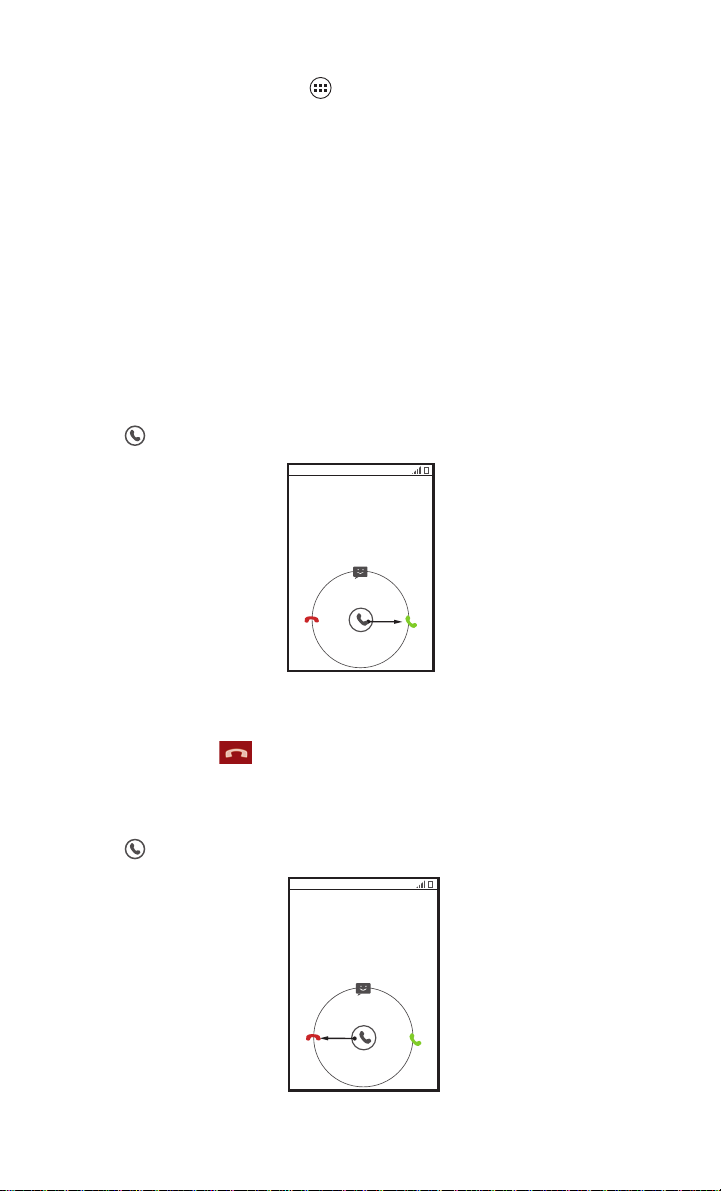
When you receive a phone call, the incoming call screen opens. If you have
People
previously saved the caller's number in
number are displayed. If the caller's number is not saved in
caller's number is displayed.
Drag to the right to answer the call.
, the caller's name and
People
, the
Ending a Call
During a call, touch to hang up.
Rejecting an Incoming Call
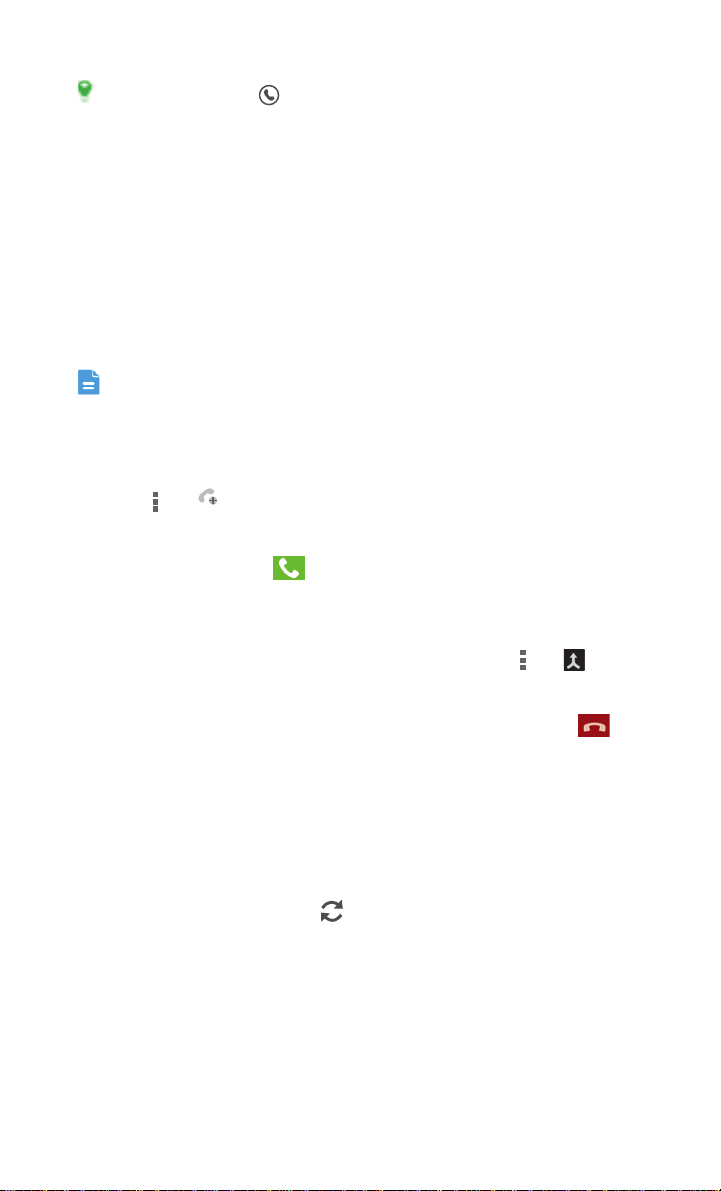
Drag to the left to reject the call.
17
Page 22
Calling
Add
You can also drag to the message icon to reject the call and send
a message to the caller.
Other Operations During a Call
Making a Conference Call
If you receive a new call while you are already in a call, you can add the
second call to the call you are in. This feature is known as conference calling.
You can also set up a conference call with multiple callers.
Contact your network operator to ask if conference calls are supported
and, if yes, how many parties can participate.
1.
To initiate a conference call, dial the number of the first participant. After
you have connected to the first participant, keep the connection open,
touch > .
2. Enter the phone number of the next person you want to invite for the
conversation and touch , or select someone from your call log or
People
. The first participant is automatically placed on hold while you do
this.
3. Once you have connected to the second person, touch > to
begin the conference call.
4. To end the conference call and disconnect from everyone, touch .
Switching Between Calls
If you receive a new call while you are already in a call, you can switch
between the two calls.
1.
While you are in the first call and the second call comes in, answer the
incoming call, and then touch .
2. The current call is placed on hold and you are connected to the first call.
18
Page 23

Calling
TTY Operation
Using the TTY Device
The Teletypewriter (TTY) is a typewriting device. By connecting the phone to the
TTY device, you can use the TTY functions to send/receive messages. When you
use the TTY function, do as follows:
Connect the TTY device to the headset jack of the phone and set the
1.
phone to the TTY mode.
2. Make or answer calls as normal.
3. When the call is put through, use the TTY device to send or receive the
ters.
let
End
4. Press the
Setting the TTY Mode
1.
Touch >
2. Select one TTY mode.
•
TTY Off
•
TTY Full
•
TTY HCO
earpiece.
•
TTY VCO
microphone.
to end the call.
Settings
: The standard voice speaking mode and the listening mode.
: Transmit and receive the TTY characters.
: Transmit TTY characters but receive by listening to the
: Receive TTY characters but transmit by speaking into the
>
Call
>
TTY mode
.
Setting Hearing Aid Compatibility
Touch >
compatible with a hearing aid.
Settings
>
Call
>
Hearing aids
19
to set your phone to be
Page 24

People
•
People
The
People
application enables you to save and manage information such
as phone numbers and addresses of your contacts. After you save contact
information on your mobile phone, you have easy access to the people with
whom you want to communicate.
Opening the People Application
On the Home screen, touch >
• If you have not yet added any contacts to your mobile phone, touch to
create a contact.
• Any contacts that are already saved on your mobile phone are displayed
alphabetically
in a list that you can scroll through.
People
to open the
People
application.
Importing Contacts from a SIM Card
1.
In the contacts list, touch >
2. Touch
3. Wait for the SIM card contents to be loaded. T
4. Touch
5. If you have more than one account on your phone, touch the account into
Copy from SIM card
that contact individually to your mobile phone, or touch
import all contacts to your mobile phone.
COPY
.
which
you want to import the contacts.
Manage contacts
.
.
ouch one contact to import
SELECT ALL
to
Adding a Contact
1.
In the contact list, touch .
2. From the screen displayed, create a
card or your account. Add a new account if you do not have one.
3. Enter the contact's name, and then add detailed information such as
phone
numbers.
contact in your mobile phone, SIM
20
Page 25

People
4. Touch
DONE
to save the contact information.
To save a contact from your call log, touch and hold the desired phone
number to display the options menu, and then touch
Add to contacts
Adding a Contact to Your Favorites
Select a contact and touch the star on the right of the contact's name. If the
icon is highlighted, the contact is in your favorites list.
Searching for a Contact
1.
In the contact list, touch the search box.
2. Enter the name of the contact you wish to search for. As you type,
contacts with
matching names appear below the search box.
Editing a Contact
You can make changes to the information you have stored for a contact at any
time.
In the contacts list, touch the contact whose details you want to edit, and
1.
then touch .
.
2. Touch the category of contact information you wish to change: name,
phone number, email address, or any other information you recorded
earlier.
3. Make the desired changes to the contact infor
DONE
. To cancel all of your changes, touch > OK.
mation, and then touch
Communicating with Your Contacts
You can quickly call or send a text (SMS) or multimedia (MMS) message to
a contact's default phone number. You can also open details to view a list of
all the ways you can communicate with that contact. This section describes
how to communicate with a contact when viewed in your contacts list.
21
 Loading...